
NL1901ACV - Router Netcomm - Free user manual and instructions
Find the device manual for free NL1901ACV Netcomm in PDF.


| Product Type | Router |
| Brand | Netcomm |
| Model | NL1901ACV |
| Frequency Bands | Dual-band (2.4 GHz and 5 GHz) |
| Maximum Wireless Speed | AC1900: 600 Mbps (2.4 GHz) + 1300 Mbps (5 GHz) |
| Ethernet Ports | 4 x Gigabit LAN, 1 x Gigabit WAN |
| USB Ports | 1 x USB 2.0 |
| Antennas | 3 x external, dual-band (detachable) |
| Processor | Qualcomm IPQ8064 (dual-core 1.4 GHz) |
| Memory | 256 MB RAM, 128 MB Flash |
| Dimensions (W x D x H) | 220 x 165 x 35 mm |
| Weight | 0.5 kg (approx.) |
| Power Supply | 12V DC, 1.5 A |
| Power Consumption | 15 W (typical) |
| Wireless Standards | IEEE 802.11a/b/g/n/ac |
| Security | WPA2-PSK, WPA3-PSK (firmware update required) |
| VPN Support | PPTP, L2TP, IPSec pass-through |
| Guest Network | Yes, separate SSID per band |
| Parental Controls | Yes, based on device or schedule |
| QoS | Yes, traffic prioritization |
| IPv6 Support | Yes |
| Operating Temperature | 0°C to 40°C |
| Storage Temperature | -20°C to 70°C |
| Cleaning | Wipe with a dry soft cloth. Do not use liquid cleaners. |
| Spare Parts Availability | Contact Netcomm support or authorized resellers for power adapter, antennas. |
Frequently Asked Questions - NL1901ACV Netcomm
User questions about NL1901ACV Netcomm
0 question about this device. Answer the ones you know or ask your own.
Ask a new question about this device
Download the instructions for your Router in PDF format for free! Find your manual NL1901ACV - Netcomm and take your electronic device back in hand. On this page are published all the documents necessary for the use of your device. NL1901ACV by Netcomm.
USER MANUAL NL1901ACV Netcomm
Enhanced Hybrid 4G LTE Gateway
NL1901ACV - QUICK START GUIDE
WELCOME
Thank you for choosing a NetComm NL1901ACV Enhanced Hybrid 4G LTE Gateway. This guide will help you set up, connect and configure your device quickly and easily.
TABLE OF CONTENTS
PACKAGE CONTENTS 2
PRE-REQUISITES
SETTING UP YOUR GATEWAY
ADSL CONNECTIONS 4
VDSL CONNECTIONS 6
ETHERNET CONNECTIONS 8
LOGGING INTO THE WEB INTERFACE 10
CONFIGURING THE GATEWAY FOR USE 11 WITH AN INTERNET SERVICE
ADSL 12
VDSL 14
ETHERNET WAN 16
MOBILE NETWORK 20
CONNECTING WIRELESS DEVICES 21
CHANGING THE WIRELESS PASSWORD 22
CHANGING THE ADMINISTRATOR PASSWORD 24

NetComm
PACKAGE CONTENTS
- 1 x NetComm NL1901ACV Enhanced Hybrid 4G LTE Gateway
- 2 x 4G/LTE antennas
- 1 x RJ45 Ethernet cable
- 1 x RJ11 Telephone cable
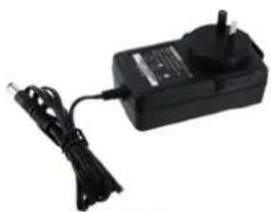
- 1 x Power supply (12V/2A)
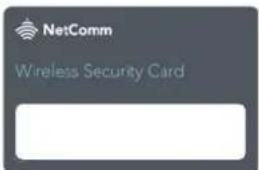
- 1 x WiFi Security card
- 1 x Warranty card
- Quick Start Guide
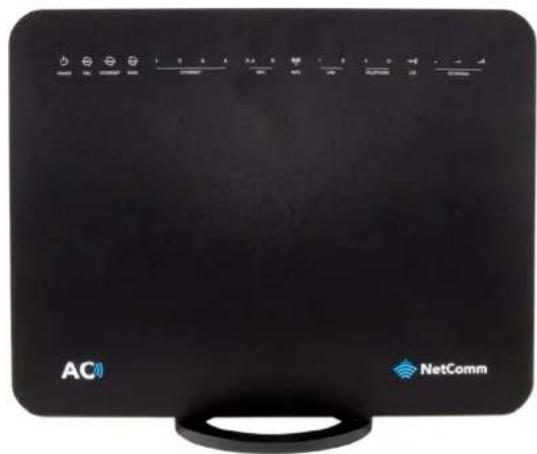
natural_image
Front view of a black wireless router with AC and NetComm logos, no visible text or symbols on the device body.1
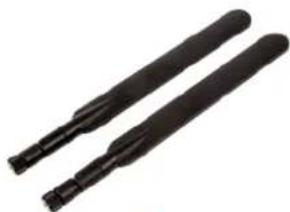
natural_image
Two black mechanical tools with threaded ends, isolated on white background (no text or symbols)2
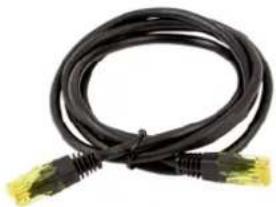
natural_image
Coiled black Ethernet cable with yellow connectors (no text or symbols visible)3
4
natural_image
Electric power adapter with attached cable and terminal block (no visible text or symbols)5
6
7
8

NetComm
SETTING UP YOUR GATEWAY
ADSL Connections
PRE-REQUISITES
If you are using a voice service on the same line as the DSL service, you will need a DSL line filter for each handset or back-to-base home alarm system on the line. If you have a Naked DSL service, line filters are not required. To use the 4G backup feature, you will need an active SIM card in 2FF format.
- Connect the supplied RJ11 cable to the "modem" port of your DSL line filter and then connect the other end to the DSL port on the back of the NL1901ACV. Connect the DSL line filter (not included) to the wall socket and then connect your handset to the "phone" port of the filter.
- Connect the supplied RJ45 Ethernet cable from one of the yellow Ethernet ports (1-4) on the back of the NL1901ACV to your computer.
- If you intend to use a cellular connection as a backup, insert a SIM card (in 2FF format) in the direction shown in the diagram on the next page, then attach the 4G/LTE antennas by turning them in a clockwise direction on the antenna sockets, as shown in the diagram on the next page.
- Connect the included power adapter to the Power jack of the NL1901ACV and then plug it into an available wall socket. Press the ON/OFF button to power the router on. The Power light illuminates in red. When the NL1901ACV has finished booting up, the Power light turns green.
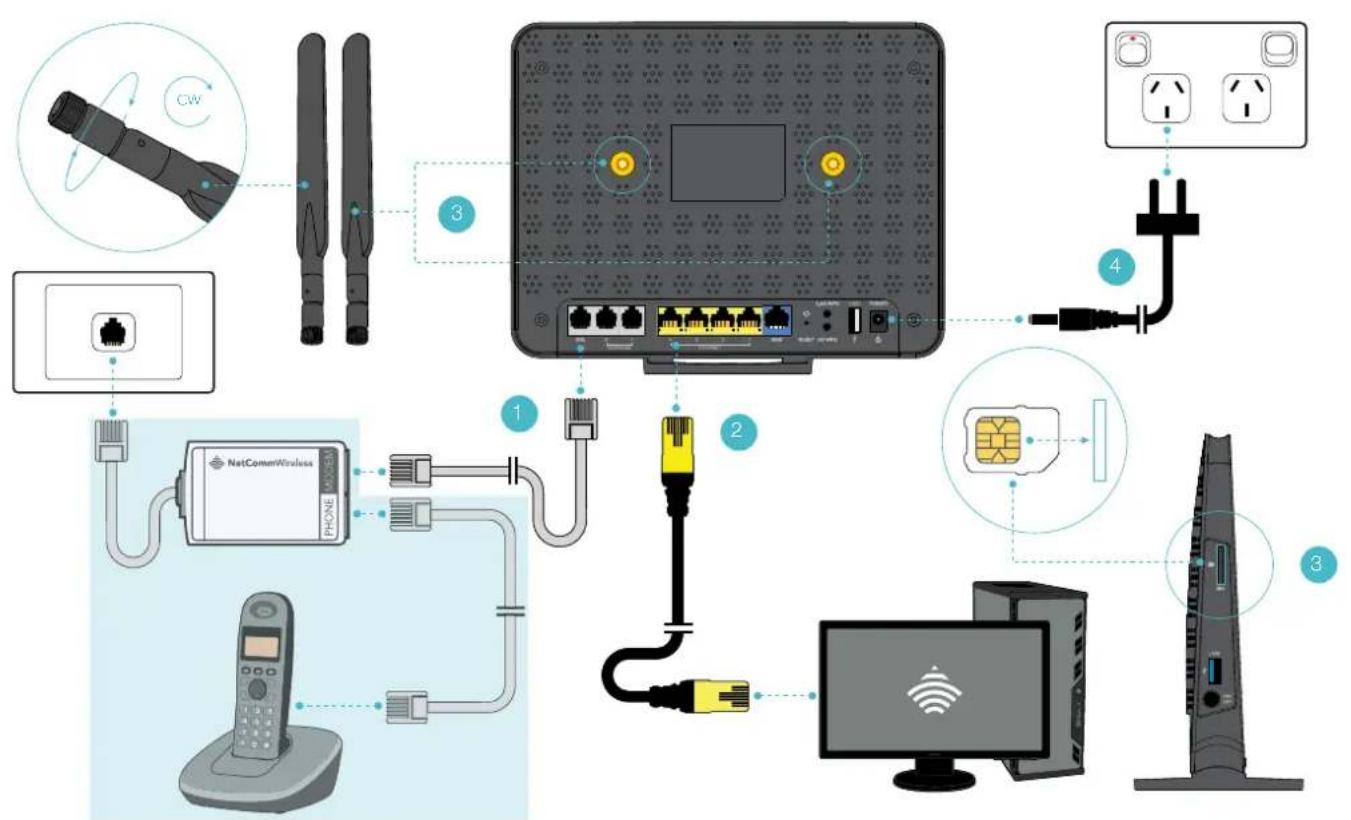

= Optional Elements

NetComm
SETTING UP YOUR GATEWAY
VDSL Connections
- Connect the supplied RJ11 cable to the "modem" port of your DSL line filter and then connect the other end to the DSL port on the back of the NL1901ACV. Connect the DSL line filter (not included) to the wall socket.
- Connect the supplied RJ45 Ethernet cable from one of the yellow Ethernet ports (1-4) on the back of the NL1901ACV to your computer.
- If you intend to use a cellular connection as a backup, insert a SIM card (in 2FF format) in the direction shown in the diagram on the next page, then attach the 4G/LTE antennas by turning them in a clockwise direction on the antenna sockets, as shown in the diagram on the next page.
- Connect the included power adapter to the Power jack of the NL1901ACV and then plug it into an available wall socket. Press the ON/OFF button to power the router on. The Power light illuminates in red. When the NL1901ACV has finished booting up, the Power light turns green.
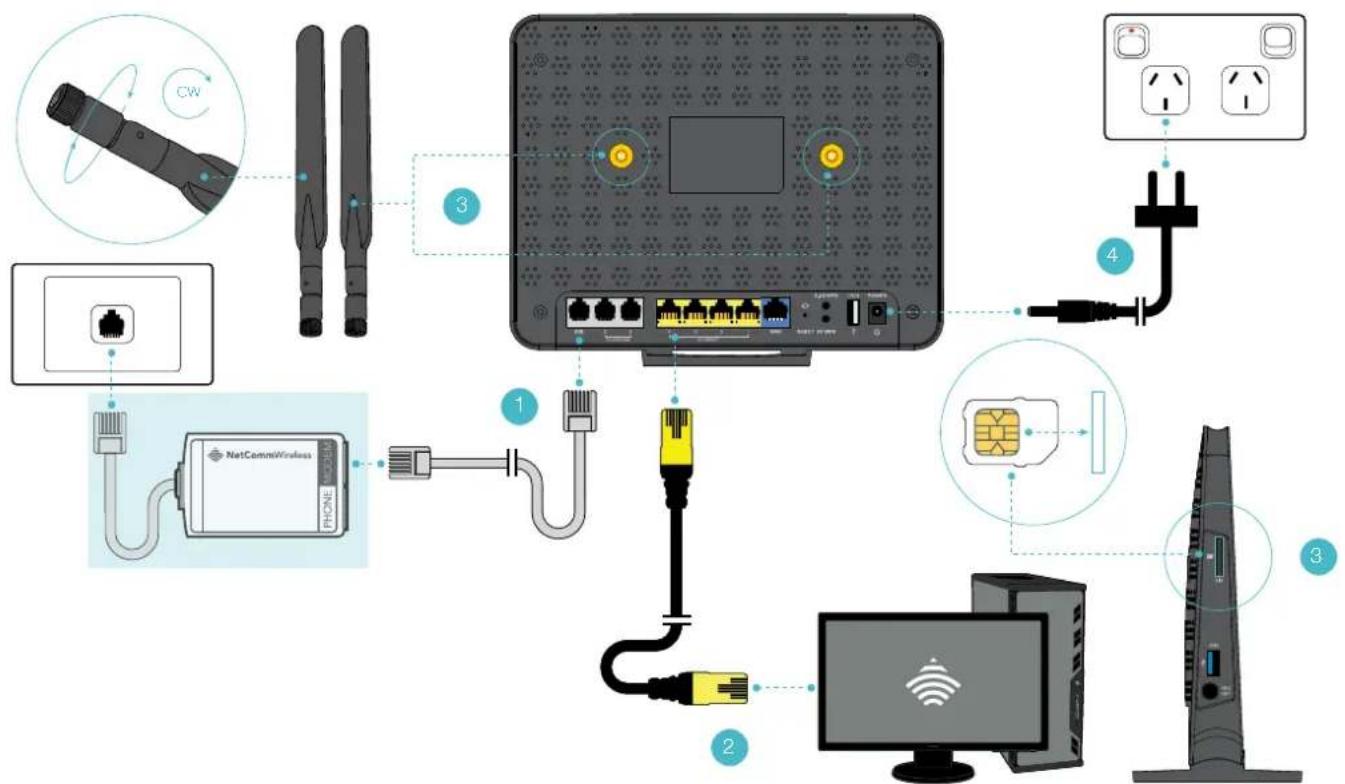

= Optional Elements

NetComm
SETTING UP YOUR GATEWAY
Ethernet Connections
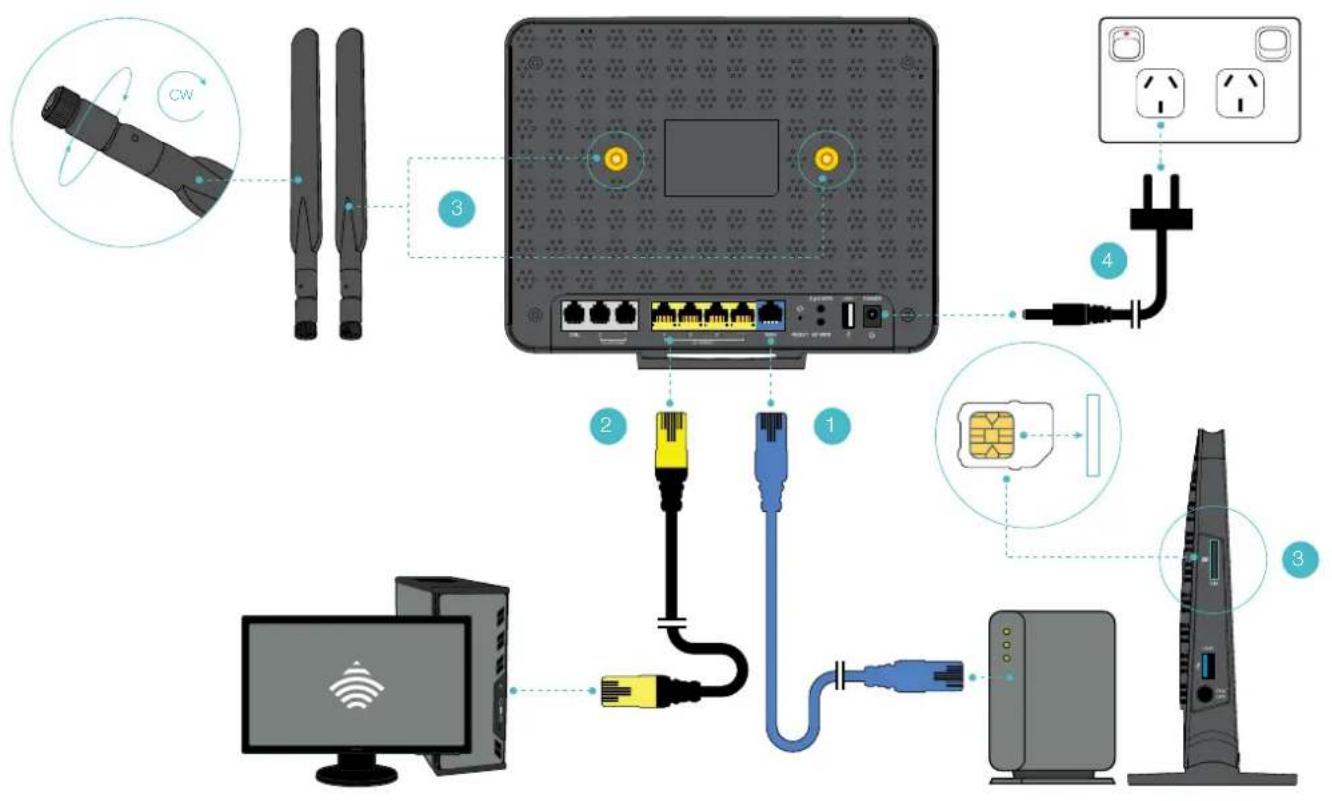
- Connect a straight-through Ethernet cable to the blue WAN port on the back of the NL1901ACV and then connect the other end to your upstream gateway device, e.g. an FTTP gateway or HFC cable modem.
- Connect the supplied RJ45 Ethernet cable from one of the yellow Ethernet ports (1-4) on the back of the NL1901ACV to your computer.
- If you intend to use a cellular connection as a backup, insert a SIM card (in 2FF format) in the direction shown in the diagram on the next page, then attach the 4G/LTE antennas by turning them in a clockwise direction on the antenna sockets, as shown in the diagram on the next page.
- Connect the included power adapter to the Power jack of the NL1901ACV and then plug it into an available wall socket. Press the ON/OFF button to power the router on. The Power light illuminates in red. When the NL1901ACV has finished booting up, the Power light turns green.

NetComm
LOGGING INTO THE WEB INTERFACE
-
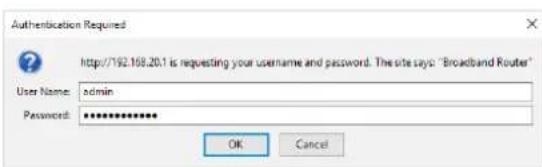
Open a web browser (such as Mozilla Firefox® or Google Chrome™), type http://192.168.20.1 into the address bar and press Enter.
-
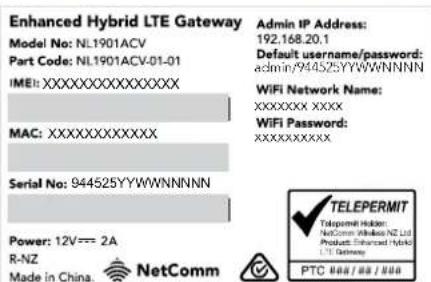
When prompted for authentication, type admin into the Username field. In the Password field, enter the full serial number of your device. The serial number is 12 digits in length and can be found on the label affixed to the rear of the device and on the box label. When you have entered the login details, click the OK button.
CONFIGURING THE GATEWAY FOR USE WITH AN INTERNET SERVICE
- Click on the Basic Setup menu item on the left side of the screen.
- Follow the instructions for your connection type.
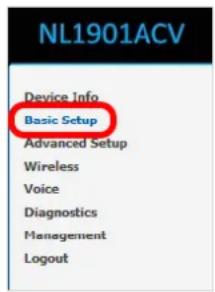

NetComm
ADSL
- Select ADSL and click the Next button.
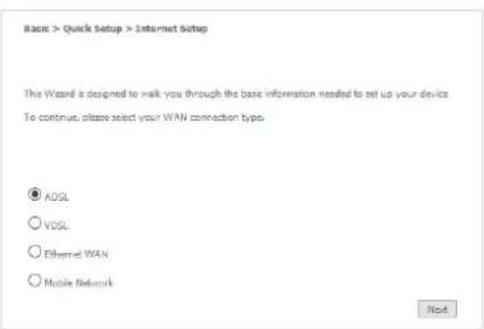
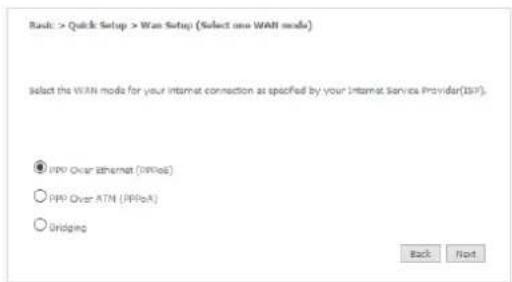
- Select either the PPPoE, PPPoA or Bridging for your internet connection as specified by your Internet Service Provider (ISP). Click the Next button.
- In the User ID and Password fields, enter the username and password assigned to you by your Internet Service Provider (ISP). If you want to use the cellular backup feature, select Enable Mobile Broadband Backup, then enter the required details. Contact your mobile carrier if you are unsure of the details. Click the Finish button.
- The account settings are saved and the NL1901ACV connects to the internet.
Basic > Quick Setup > ADSL only > PPPoE Information
Enter the User ID and Password assigned to you by your Internet Service Provider (ISP).
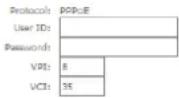
Enable Mobile Broadband Backup


NetComm
VDSL
-
Select VDSL and click the Next button.
-
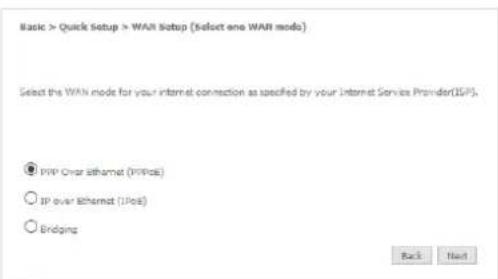
Select the WAN mode for your internet connection as specified by your Internet Service Provider (ISP). Click the Next button.
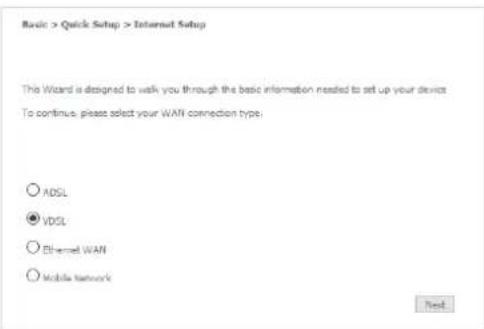
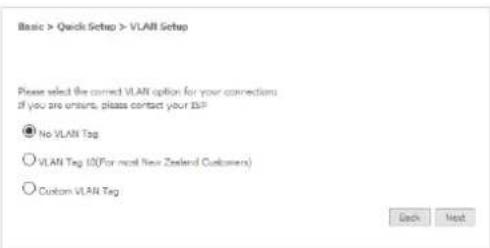
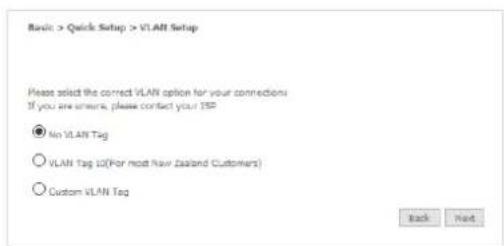
- Select the correct VLAN option for your connection. For New Zealand customers, the requirement for VDSL is VLAN tag 10. If you are not sure of the tagging requirement for your connection, please contact your ISP. Click the Next button.
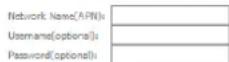
- In the User ID and Password fields, enter the username and password assigned to you by your Internet Service Provider (ISP). If you want to use the cellular backup feature, select Enable Mobile Broadband Backup, then enter the required details. Contact your mobile carrier if you are unsure of the details.
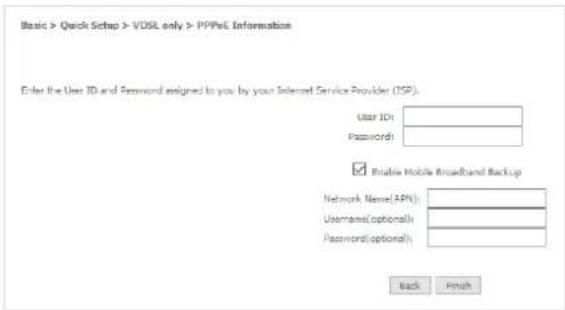
- Click the Finish button when you have entered the required details. The account settings are saved and the NL1901ACV connects to the internet.

NetComm
Ethernet WAN
- Connect an RJ45 Ethernet cable to the WAN port on the NL1901ACV. Connect the other end of the cable to your WAN service. Select Ethernet WAN then click the Next button.
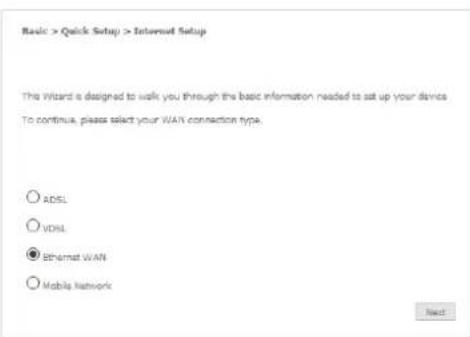
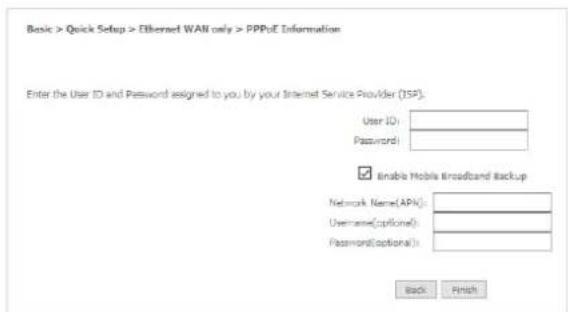
PPP over Ethernet (PPPoE)
- Select the WAN mode for your internet connection as specified by your Internet Service Provider (ISP). Click the Next button.
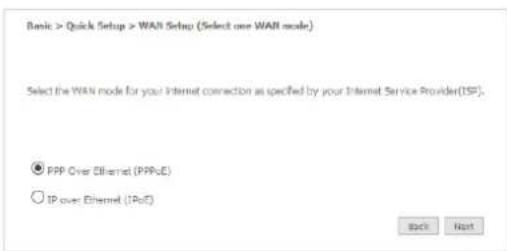
-
Select the correct VLAN option for your connection. For New Zealand customers, the requirement for VDSL is VLAN tag 10. If you are not sure of the tagging requirement for your connection, please contact your ISP. Click the Next button.
-
Select the WAN mode for your internet connection as specified by your Internet Service Provider (ISP). If you want to use the cellular backup feature, select Enable Mobile Broadband Backup, then enter the required details. Contact your mobile carrier if you are unsure of the details. Click the Finish button.

NetComm
IP over Ethernet (IPoE)
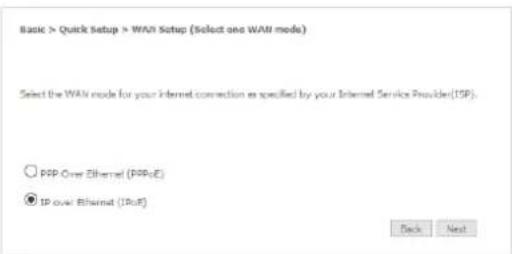
- Select the WAN mode for your internet connection as specified by your Internet Service Provider (ISP). Click the Next button.
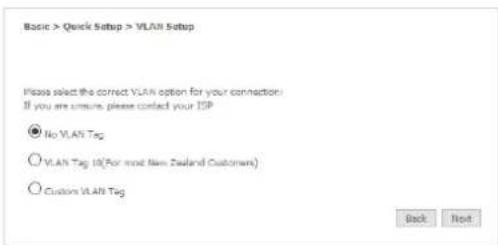
- Select the appropriate VLAN option for your connection. For New Zealand customers, the requirement for VDSL is VLAN tag 10. If you are not sure of the tagging requirement for your connection, please contact your ISP.
-
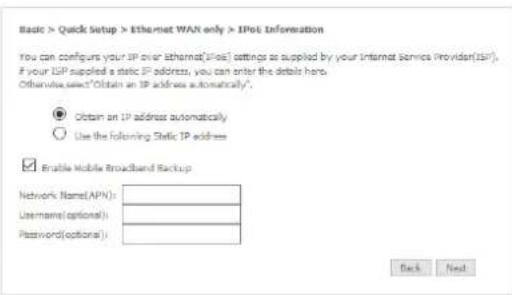
If your ISP has supplied a static IP address, select Use the following Static IP address and enter the details, otherwise select Obtain an IP address automatically. If you want to use the cellular backup feature, select Enable Mobile Broadband Backup, then enter the required details. Contact your mobile carrier if you are unsure of the details. Click the Next button.
-
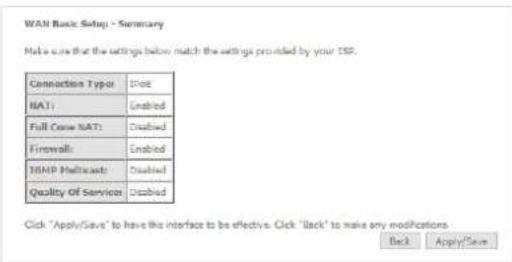
The settings are displayed in a summary. Click Apply/Save to save them.
-
The account settings are saved and the NL1901ACV connects to the internet.

NetComm
Mobile Network
To use the mobile network as the primary WAN connection, ensure that you have an active SIM card inserted into the gateway. If you do not have a SIM card inserted, power off the gateway, insert the SIM card, then power it on again.
-
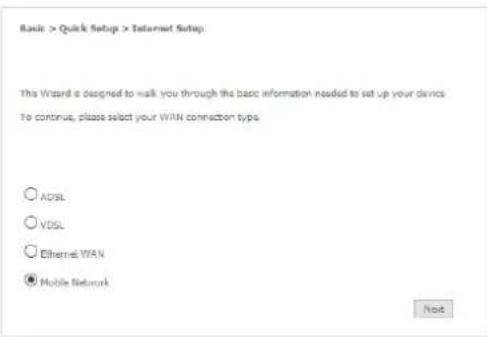
Click on Basic Setup, then select Mobile Network. Click the Next button.
-
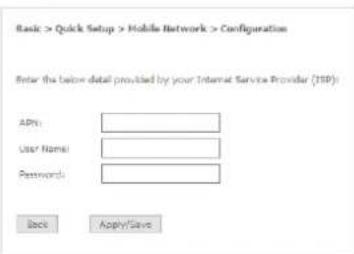
Enter the APN assigned by your carrier and if required, enter a username and password.
-
Click the Apply/Save button.
CONNECTING WIRELESS DEVICES
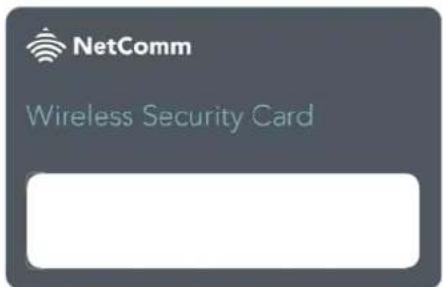
The default settings of the router have the wireless function enabled so there is no configuration necessary to use the wireless function, simply connect to the SSID (network name) listed on the WiFi security card or on the label located on the back of your gateway. When prompted, enter the password that is also printed on the card or gateway label.

NetComm
CHANGING THE WIRELESS PASSWORD
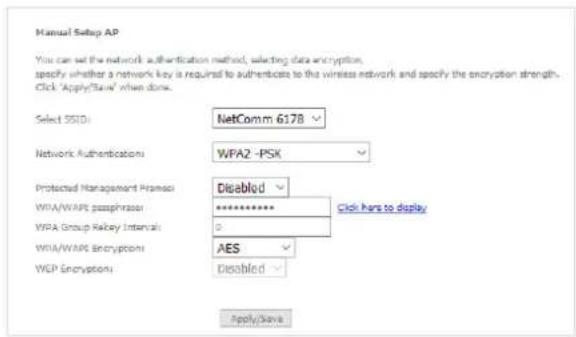
The security settings of the 2.4GHz and 5GHz bands are configured separately. If you would like to change the wireless password to something easier to remember, follow these steps for each band that you would like to change.
-
From the menu on the left side of the screen, select Wireless->{2.4GHz or 5GHz} -> Security. The Wireless Security page for the chosen band is displayed.
-
In the WPA/WAPI passphrase field, enter the desired password to use for the wireless network. When choosing a password, try to ensure that it:
-
is unique;
• is sufficiently long (at least 8 characters in length);
• uses a mix of letters, numbers and symbols; -
does not contain any personal information or common words.
-
Click the Apply/Save button.

NetComm
CHANGING THE ADMINISTRATOR PASSWORD
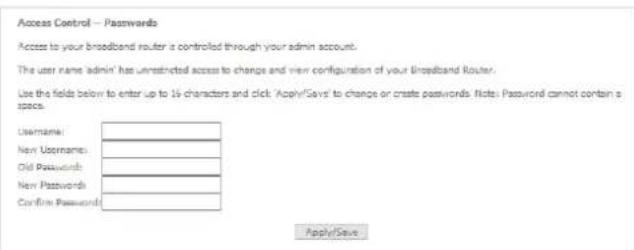
We strongly recommend that you change the administrator password used to access the web interface to a more secure password. To change the administrator password:
- From the menu on the left side of the screen, select Management->Access Control.
-
In the Old Password field, enter the current administrator password. The unique 12-digit serial number of your device is the default password. The serial number can be found on the device label on the back of the gateway.
-
In the Username field, enter the current username.
-
In the New Username field, enter the desired username. It may be the default setting of 'admin', but the field must not be empty.
-
In the New Password and Confirm Password fields, enter a new password. When choosing a password, try to ensure that it:
-
is unique;
• is sufficiently long (at least 8 characters in length);
• uses a mix of letters, numbers and symbols; -
does not contain any personal information or common words.
-
Click the Apply/Save button.

NetComm
SUPPORT.NETCOMMWIRELESS.COM
Trademarks and registered trademarks are the property of NetComm Wireless Limited or their respective owners. Specifications are subject to change without notice. Images shown may vary slightly from the actual product.
OMAG-001 Rev1
- Enhanced Hybrid 4G LTE Gateway
- WELCOME
- TABLE OF CONTENTS
- PACKAGE CONTENTS
- SETTING UP YOUR GATEWAY
- ADSL Connections
- PRE-REQUISITES
- VDSL Connections
- Ethernet Connections
- LOGGING INTO THE WEB INTERFACE
- CONFIGURING THE GATEWAY FOR USE WITH AN INTERNET SERVICE
- NetComm
- ADSL
- VDSL
- Ethernet WAN
- PPP over Ethernet (PPPoE)
- IP over Ethernet (IPoE)
- Mobile Network
- CONNECTING WIRELESS DEVICES
- CHANGING THE WIRELESS PASSWORD
- CHANGING THE ADMINISTRATOR PASSWORD
Brand : Netcomm
Model : NL1901ACV
Category : Router