
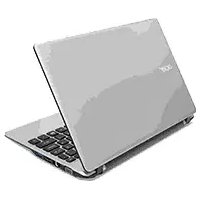
Aspire V5-472PG - Thin client ACER - Free user manual and instructions
Find the device manual for free Aspire V5-472PG ACER in PDF.


| Product Type | Thin Client / Notebook |
| Brand | Acer |
| Model | Aspire V5-472PG |
| Webcam | Yes, for video communication with activity indicator |
| Microphones | Internal stereo microphones (dual or single depending on model) |
| Keyboard | Full-sized with embedded numeric keypad, hotkeys, and backlight (select models) |
| Touchpad | Multi-touch with integrated buttons; press firmly for left click, lower right for right click |
| USB Ports | USB 3.0 (blue), USB with power-off charging, all compatible with USB 3.0 and earlier |
| HDMI Port | Yes, supports high-definition digital video |
| Ethernet Port | RJ-45 for 10/100/1000 networks (pull lip to open) |
| SD Card Reader | Accepts SD or SDHC cards; card protrudes from slot |
| Acer Converter Port | Connect to Acer Converter cable for LAN, display, or additional USB |
| Audio Jack | Combined headset/speaker jack |
| Kensington Lock Slot | Yes, for security cable |
| Power Indicator | Amber (charging), blue (fully charged) |
| Operating Temperature | 5°C to 35°C (operating), -20°C to 65°C (non-operating) |
| Humidity (non-condensing) | 20% to 80% (operating and non-operating) |
| Cooling | Ventilation and cooling fan; do not block openings |
| Battery Reset | Pinhole on base; use paperclip to press for 4 seconds |
| Speakers | Stereo speakers delivering audio output |
| Product Registration | Recommended at www.acer.com for benefits |
| Warranty Extension | Available online via Acer Store (subject to regional availability) |
Frequently Asked Questions - Aspire V5-472PG ACER
User questions about Aspire V5-472PG ACER
0 question about this device. Answer the ones you know or ask your own.
Ask a new question about this device
Download the instructions for your Thin client in PDF format for free! Find your manual Aspire V5-472PG - ACER and take your electronic device back in hand. On this page are published all the documents necessary for the use of your device. Aspire V5-472PG by ACER.
USER MANUAL Aspire V5-472PG ACER
Aspire V7-481 / V7-482 / V5-472 / V5-473 /V5-452
Quick Guide
Product registration
When using your product for the first time, it is recommended that you immediately register it. This will give you access to some useful benefits, such as:
- Faster service from our trained representatives.
- Membership in the Acer community: receive promotions and participate in customer surveys.
•The latest news from Acer.
Hurry and register, as other advantages await you!
How to register
To register your Acer product, please visit www.acer.com. Select your country, click PRODUCT REGISTRATION and follow the simple instructions.
You will also be asked to register your product during the setup process, or you can double-click the Registration icon on the desktop.
After we receive your product registration, you will be sent a confirmation email with important data that you should keep in a safe place.
Obtaining Acer accessories
We are happy to inform you that Acer's warranty extension program and Notebook accessories are available online. Come and visit our online shop and find what you need at store.acer.com.
The Acer store is being progressively rolled out, and, unfortunately may not be available in some regions. Please check back regularly to see when it will be available in your country.
© 04/2013. All Rights Reserved.
Aspire V7-481 / V7-482 / V5-472 / V5-473 / V5-452
Quick Guide
This revision: 18 April 2013
Model number:
Serial number:
Date of purchase:
Place of purchase:
ENVIRONMENT
Temperature:
- Operating: 5 °C to 35 °C
- Non-operating: -20 °C to 65 °C
Humidity (non-condensing):
- Operating: 20% to 80%
- Non-operating: 20% to 80%
First things first
We would like to thank you for making an Acer notebook your choice for meeting your mobile computing needs.
Your guides
To help you use your Acer notebook, we have designed a set of guides:
First off, the Setup Guide helps you get started with setting up your computer.
The Quick Guide introduces you to the basic features and functions of your new computer.
For more on how your computer can help you to be more productive, please refer to the User's Manual. The User's Manual contains useful information applying to your new computer. It covers basic topics such as using the keyboard and audio, etc.
This guide contains detailed information on such subjects as system utilities, data recovery, expansion options and troubleshooting. In addition it contains warranty information and the general regulations and safety notices for your notebook.
Follow these steps to access it:
1 Type 'User' from Start.
2 Click on Acer User's Manual.
Your Acer notebook tour
After setting up your computer as illustrated in the Setup Guide, let us show you around your new Acer computer.
Screen view

Icon Item Description
| 1 Webcam | Web camera for video communication.A light next to the webcam indicates that the webcam is active. |
| 2 Screen Displays computer output. | |
| 3 Microphones | Internal stereo microphones for sound recording.Note: Only certain models have dual microphones, other models have a single microphone beneath the touchpad. |
Keyboard view
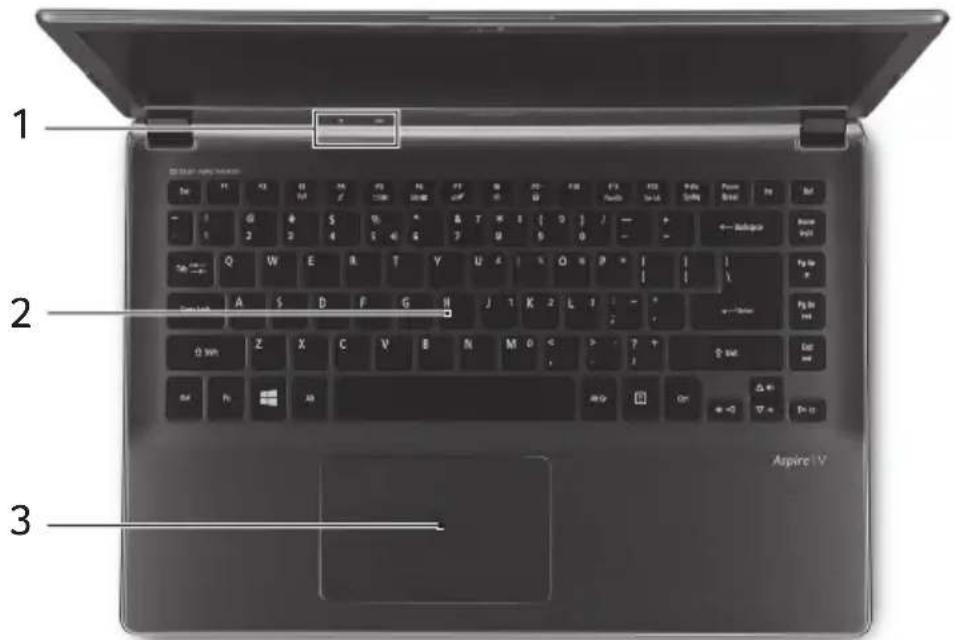
Icon Item Description
| 1 | Power indicator Indicates the computer's power status. | |
| Battery indicator | Indicates battery status.Charging: The light is amber when the battery is charging.Fully charged: The light is blue. | |
| 2 Keyboard | For entering data into your computer.See "Using the keyboard" on page 8.Caution: Do not use a keyboard protector or similar cover as the keyboard includes ventilation intakes for cooling. | |
| 3 Touchpad | Touch-sensitive pointing device.The touchpad and selection buttons form a single surface.Press down firmly on the touchpad surface to perform a left click.Press down firmly on the lower right corner to perform a right click. | |
Left view
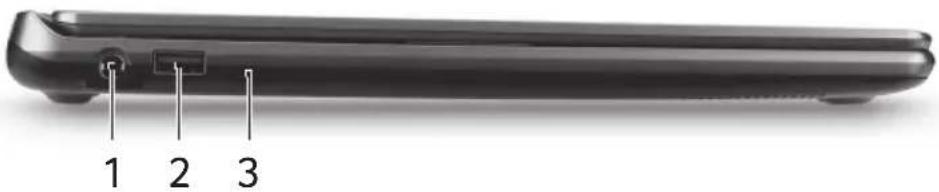
Icon Item Description
| 1 | DC-in jack Connects to an AC adapter. | |
| 2 | USB port Connects to USB devices. | |
| 3 | Power button Turns the computer on and off. |
Right view

Icon Item Description
| 1 |  | Headset/speaker jack | Connects to audio devices (e.g.,speakers, headphones) or a headset withmicrophone. |
| 2 |  | SD card reader | Accepts one Secure Digital card (SD orSDHC).Note: To remove the card, simply pull itfrom the slot.Warning: The card sticks out from theside of the computer. Ensure you don’tdamage your card. |
| 3 |  | USB port Connects to USB devices. | |
Rear view

Icon Item Description
| 1 | Ventilation and cooling fan | Allows the computer to stay cool.Do not cover or obstruct the openings. | |
| 2 |  | Ethernet (RJ-45) port | Connects to an Ethernet 10/100/1000-based network.Note: Pull the lip down to open the port fully. |
| 3 |  | USB port with power-off charging | Connects to USB devices. |
| 4 |  | Acer Converter Port | Connects to the Acer Converter cable,allowing for easy connection to a LAN, an external display or an additional USB device.Note: There are different cables available.Please check with your retailer to see which are compatible with your computer. |
| 5 | HDMI | HDMI port | Supports high-definition digital video connections. |
| 6 |  | Kensington lock slot | Connects to a Kensington-compatible computer security lock.Wrap the computer security lock cable around an immovable object such as a table or handle of a locked drawer.Insert the lock into the notch and turn the key to secure the lock.Keyless models are also available. |
Information on USB 3.0
- USB 3.0 compatible ports are blue.
- Compatible with USB 3.0 and earlier devices.
- For optimal performance, use USB 3.0-certified devices.
- Defined by the USB 3.0 specification (SuperSpeed USB).
Base view

Icon Item Description
| 1 | Ventilation and cooling fan | Allows the computer to stay cool.Do not cover or obstruct the openings. | |
| 2 |  | Battery reset pinhole | Insert a paperclip into the hole and press for four seconds to reset the computer (simulates removing and reinstalling the battery). |
| 3 | Speakers Deliver stereo audio output. | ||
Using the keyboard
The keyboard has full-sized keys and an embedded numeric keypad, separate cursor, lock, Windows, function and special keys.
The embedded numeric keypad functions like a desktop numeric keypad. It is indicated by small characters located on the upper right corner of the keycaps. To simplify the keyboard legend, cursor-control key symbols are not printed on the keys.
Desired access Num Lock on Num Lock off
| Number keys on embedded keypad | Type numbers in a normal manner. | |
| Cursor-control keys on embedded keypad | Holdwhile using cursor-control keys. | Holdwhile using cursor-control keys. |
| Main keyboard keys | Holdwhile typing letters on embedded keypad. | Type the letters in a normal manner. |
Hotkeys
The computer employs hotkeys or key combinations to access most of the computer's controls like screen brightness and volume output.
To activate hotkeys, press and hold the
| + | (( )) | Airplane mode | Turns on / off the computer's network devices.(Network devices vary by configuration.) |
| +F4> | Z^Z | Sleep | Puts the computer in Sleep mode. |
| +F5> | ☐ | Display toggle | Switches display output between the display screen, external monitor (if connected) and both. |
| +F6> | [IMAGE] | Display off | Turns the display screen backlight off to save power. Press any key to return. |
| +F7> | [IMAGE] | Touchpad toggle | Turns the built-in touchpad on and off. |
| +F8> | [IMAGE] | Speaker toggle | Turns the speakers on and off. |
| +F9> | A | Keyboard backlight | Turns the keyboard backlight on and off.Note: This feature is only available on certain models. |
| +F11> | NumLk | Number Lock | Turns the embedded numeric keypad on or off. |
| +F12> | Scr Lk | Scroll Lock | Turns Scroll Lock on or off. |
| +< > | Brightness up Increases the screen brightness. | ||
| +< > | Brightness down Decreases the screen brightness. | ||
| +< > | Volume up | Increases the sound volume. | |
| +< > | Volume down | Decreases the sound volume. | |
| + | ▶/II | Play/Pause | Play or pause a selected media file. |
| + | ■ | Stop | Stop playing the selected media file. |
| HotkeyIconFunctionDescription | ||
| |◀◀ | Previous Return to the previous media file. | |
| ▶▶| | Next Jump to the next media file. | |

- Aspire V7-481 / V7-482 / V5-472 / V5-473 /V5-452
- Product registration
- How to register
- Obtaining Acer accessories
- ENVIRONMENT
- Temperature:
- Humidity (non-condensing):
- First things first
- Your guides
- Your Acer notebook tour
- Icon Item Description
- Keyboard view
- Left view
- Right view
- Rear view
- Information on USB 3.0
- Base view
- Using the keyboard
- Hotkeys
Brand : ACER
Model : Aspire V5-472PG
Category : Thin client