
USB-CKDH - KVM-Switch Sabrent - Kostenlose Bedienungsanleitung
Finden Sie kostenlos die Bedienungsanleitung des Geräts USB-CKDH Sabrent als PDF.


| Produkttyp | USB-C Hub |
| Modellnummer | USB-CKDH |
| Marke | Sabrent |
| Anschlüsse | 1x USB-C (PD 100W), 2x USB-A 3.0, 1x HDMI 4K@60Hz, 1x SD-Kartenleser, 1x MicroSD-Kartenleser |
| Kompatible Geräte | Laptops, Tablets, Smartphones mit USB-C |
| Maximale Datenübertragungsrate | 5 Gbit/s (USB 3.0) |
| Videoauflösung | Bis zu 4K bei 60 Hz |
| Stromversorgung | Bus-powered (kein externes Netzteil erforderlich) |
| Abmessungen (L x B x H) | 110 x 55 x 12 mm |
| Gewicht | 45 g |
| Gehäusematerial | Aluminiumlegierung |
| Farbe | Space Grau |
| Lieferumfang | USB-C Hub, Bedienungsanleitung |
| Betriebssysteme | Windows, macOS, Linux, Chrome OS |
| Plug-and-Play | Ja, keine Treiberinstallation erforderlich |
| Überhitzungsschutz | Ja |
| Überspannungsschutz | Ja |
| Pflege und Reinigung | Mit einem weichen, trockenen Tuch reinigen. Keine Flüssigkeiten verwenden. |
| Reparierbarkeit | Nicht reparierbar, keine Ersatzteile verfügbar |
| Garantie | 1 Jahr Herstellergarantie |
Häufig gestellte Fragen - USB-CKDH Sabrent
Benutzerfragen zu USB-CKDH Sabrent
0 Frage zu diesem Gerät. Beantworten Sie die, die Sie kennen, oder stellen Sie Ihre eigene.
Eine neue Frage zu diesem Gerät stellen
Laden Sie die Anleitung für Ihr KVM-Switch kostenlos im PDF-Format! Finden Sie Ihr Handbuch USB-CKDH - Sabrent und nehmen Sie Ihr elektronisches Gerät wieder in die Hand. Auf dieser Seite sind alle Dokumente veröffentlicht, die für die Verwendung Ihres Geräts notwendig sind. USB-CKDH von der Marke Sabrent.
BEDIENUNGSANLEITUNG USB-CKDH Sabrent
SABRENT Connecting Differently™
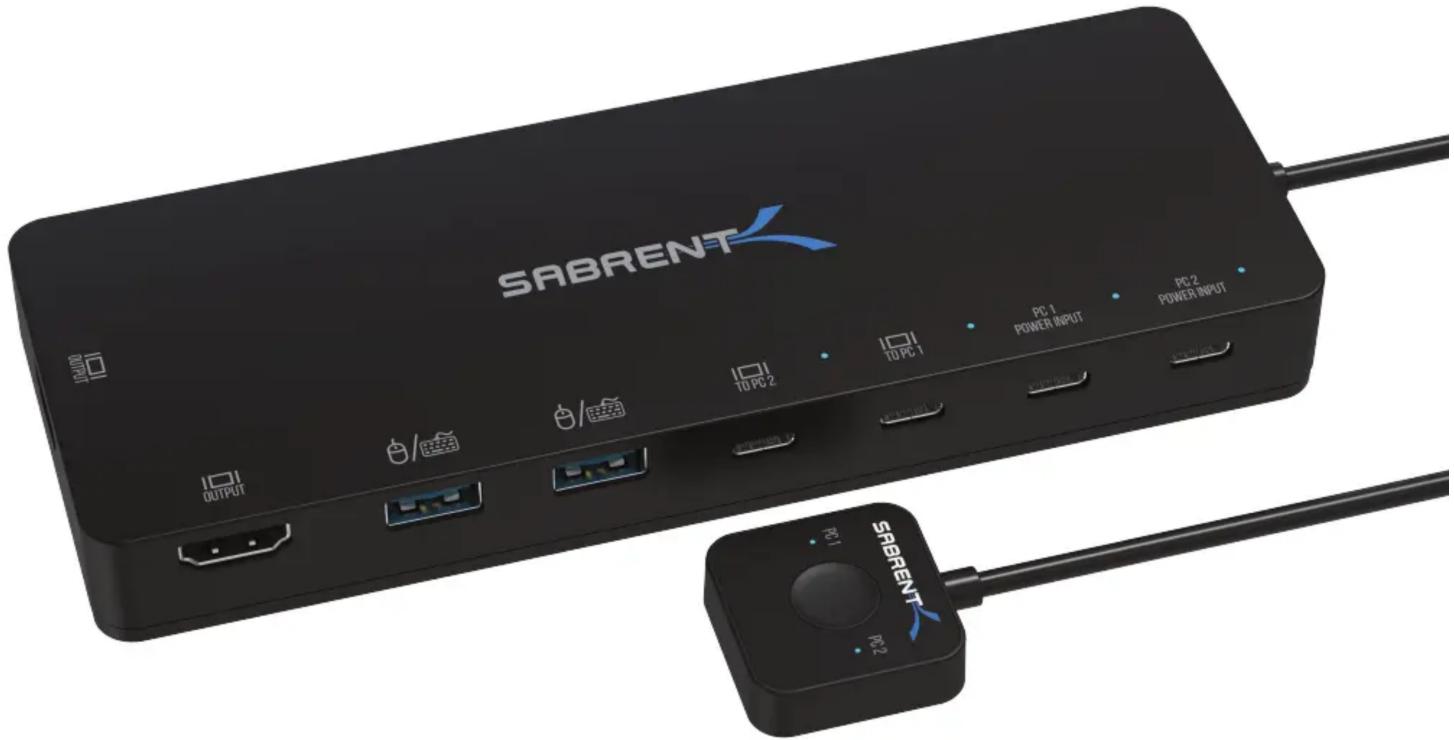
USB TYPE-C DUAL KVM SWITCH WITH POWER DELIVERY
USB-CKDH USER MANUAL
SABRENT
USB-CKDH
FEATURES
- Contains two USB-C video inputs, compatible with Thunderbolt 3™ or any USB-C with DisplayPort Alt Mode (DP Alt)
- Contains two ports for USB-C power input via PD3.0 up to 60W, able to charge up to 2 hosts at the same time
- Contains 2 x USB-C to 2 x HDMI display with output switching
- Contains 2 x USB-A 2.0 ports for mouse and keyboard switching
• Supports dual 4K@60Hz video output function with mirror and extended modes - Switching controlled by a button with a 1-meter integrated cable
- Contains six LEDs to indicate upstream, power, and input status
- Unit and wall mount are composed of ABS plastic
PACKAGE CONTENTS
• USB Type-C Dual KVM Switch with Power Delivery
- 2 x 1-meter Type-C to Type-C USB cables
- Wall mount
- User manual
SYSTEM REQUIREMENTS
- Windows
- macOS
- Linux
CONNECTION GUIDE
- Using the provided USB Type-C cables, connect both computers to your Sabrent KVM unit's PC1 and PC2 USB Type-C ports (designated with the letter C on the unit layout).
- Connect your keyboard and mouse to the USB 2.0 Type-A ports on your Sabrent KVM unit (designated with the letter B on the unit layout).
- (Optional): Connect your Power Delivery adaptors to the Power Input ports on your Sabrent KVM unit. You can power up and charge both computers individually through these ports (designated with the letter D on the unit layout).
NOTE: The Power Delivery feature is optional and will only work on computers that at compatible with Power Delivery and capable of charging through the USB Type-C cable (either Windows or Mac). - Connect your HDMI display (up to 4K@60Hz) to the HDMI port on your Sabrent KVM unit (designated with the letter A on the unit layout)
- Turn on any one of your computers to start using it.
- Press the button to switch between computers.

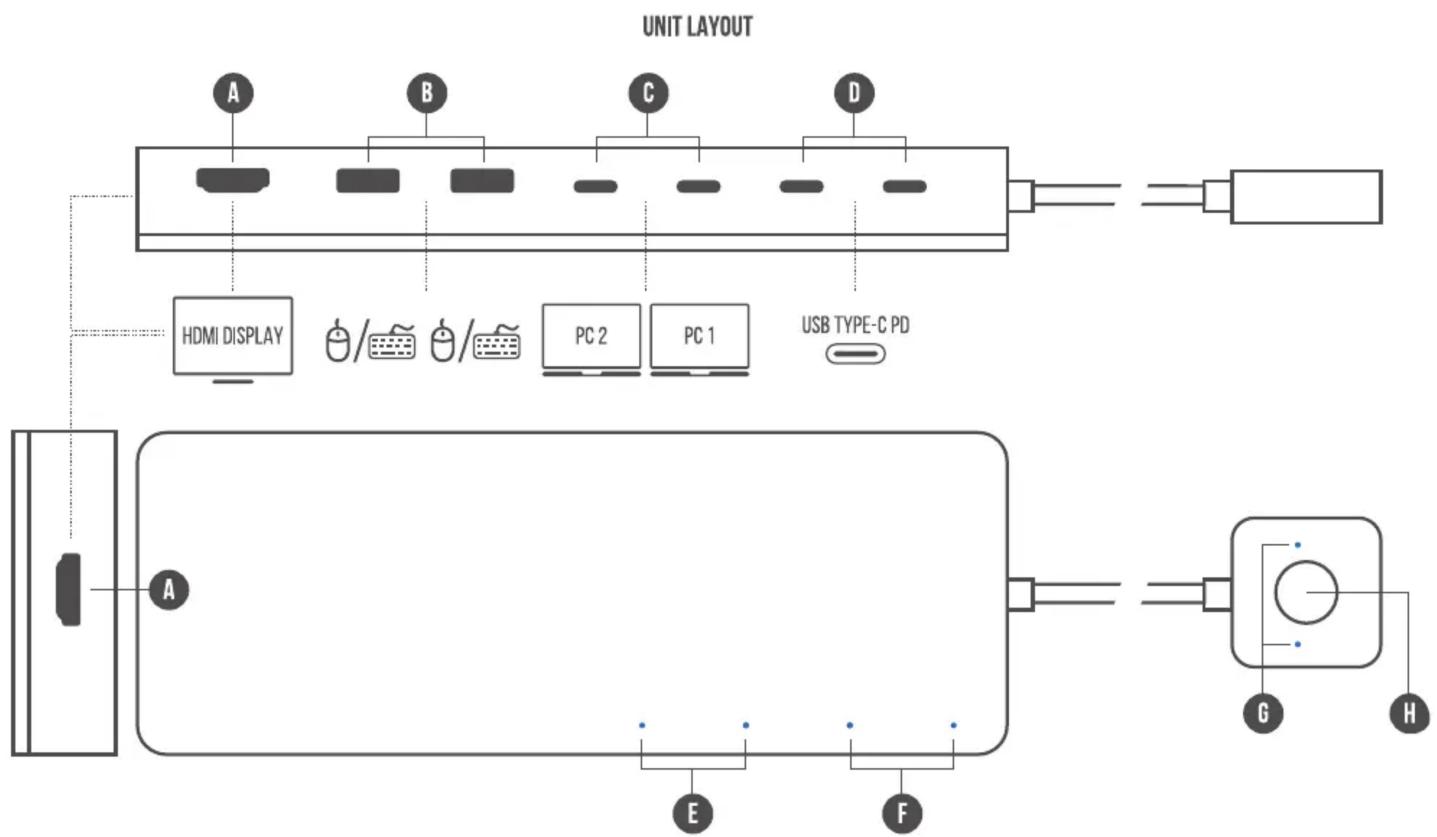
A: HDMI port. Connect your HDMI display here.
B: Keyboard and Mouse USB 2.0 Type-A ports
C: USB Type-C PC connections. Use each PC port to connect to a different computer.
D: USB Type-C PD power input. Use it to connect your computers' Power Delivery AC adaptors (optional).
E: PC1 and PC2 connection status LEDs.
F: Power input 1 and Power Input 2 status LEDs.
G: PC1 or PC2 blue LED indicator. It lights up to show you which computer you are currently controlling.
H: PC1 or PC2 selection button. Press it to switch between computers.

Please contact our Technical Support Team for additional troubleshooting
WWW.SABRENT.COM



Marke : Sabrent
Modell : USB-CKDH
Kategorie : KVM-Switch