
DS-UCMH - Externe Festplattengehäuse Sabrent - Kostenlose Bedienungsanleitung
Finden Sie kostenlos die Bedienungsanleitung des Geräts DS-UCMH Sabrent als PDF.


| Produkttyp | USB-C M.2 NVMe + 2.5"/3.5" SATA/AHCI SSD/HDD Konverter mit Offline-Clone-Funktion |
| Abmessungen | ca. 110 x 60 x 20 mm |
| Gewicht | ca. 150 g |
| Stromversorgung | 12V DC über 5,5x2,5 mm Hohlstecker (Netzteil erforderlich für 3,5" HDD und Clone-Betrieb) |
| Hauptfunktionen | Offline-Clone (bidirektional), gleichzeitiges Lesen/Schreiben von M.2 und SATA-Laufwerken, USB 3.2 Gen2 (10 Gbit/s) |
| Kompatible Laufwerke | M.2 NVMe PCIe (Größen 2242, 2260, 2280) und 2,5"/3,5" SATA SSD/HDD |
| Schnittstelle | USB Typ-C |
| Unterstützte Protokolle | NVMe, SATA, AHCI, TRIM, UASP |
| Clone-Funktion | Ja, über seitlichen Schalter und Clone-Taste, LED-Fortschrittsanzeige (25%/50%/75%/100%) |
| LED-Anzeigen | Grün (Strom), Blau (Clone-Fortschritt), Weiß (Laufwerksaktivität) |
| Material | Aluminiumgehäuse (wärmeleitend) |
| Wartung und Reinigung | Vorsicht bei statischer Entladung, sanftes Einstecken der Laufwerke, Betriebssystemfunktion zum sicheren Entfernen verwenden. |
| Sicherheitshinweise | Vor dem Einbau des M.2 SSD statische Entladung vermeiden, Netzteil für Clone oder 3,5"-Betrieb verwenden. |
| Reparatur und Ersatzteile | Keine vom Benutzer austauschbaren Teile; bei Defekt Kundendienst kontaktieren. |
| Allgemeine Informationen | Marke Sabrent, Modell DS-UCMH, Herstellung in China, Garantie siehe Verpackung. |
Häufig gestellte Fragen - DS-UCMH Sabrent
Benutzerfragen zu DS-UCMH Sabrent
0 Frage zu diesem Gerät. Beantworten Sie die, die Sie kennen, oder stellen Sie Ihre eigene.
Eine neue Frage zu diesem Gerät stellen
Laden Sie die Anleitung für Ihr Externe Festplattengehäuse kostenlos im PDF-Format! Finden Sie Ihr Handbuch DS-UCMH - Sabrent und nehmen Sie Ihr elektronisches Gerät wieder in die Hand. Auf dieser Seite sind alle Dokumente veröffentlicht, die für die Verwendung Ihres Geräts notwendig sind. DS-UCMH von der Marke Sabrent.
BEDIENUNGSANLEITUNG DS-UCMH Sabrent

USB TYPE-C M.2 PCIe NVMe + 2.5" /3.5" SATA/AHCI SSD & HDD CONVERTER
(WITH OFFLINE CLONE FUNCTION)

natural_image
Black Siemens SADRENT 3.0 wireless router with visible ports and indicator lights (no text beyond branding)DS-UCMH / USER MANUAL
SCHEMATIC DIAGRAM OF PRODUCT APPEARANCE
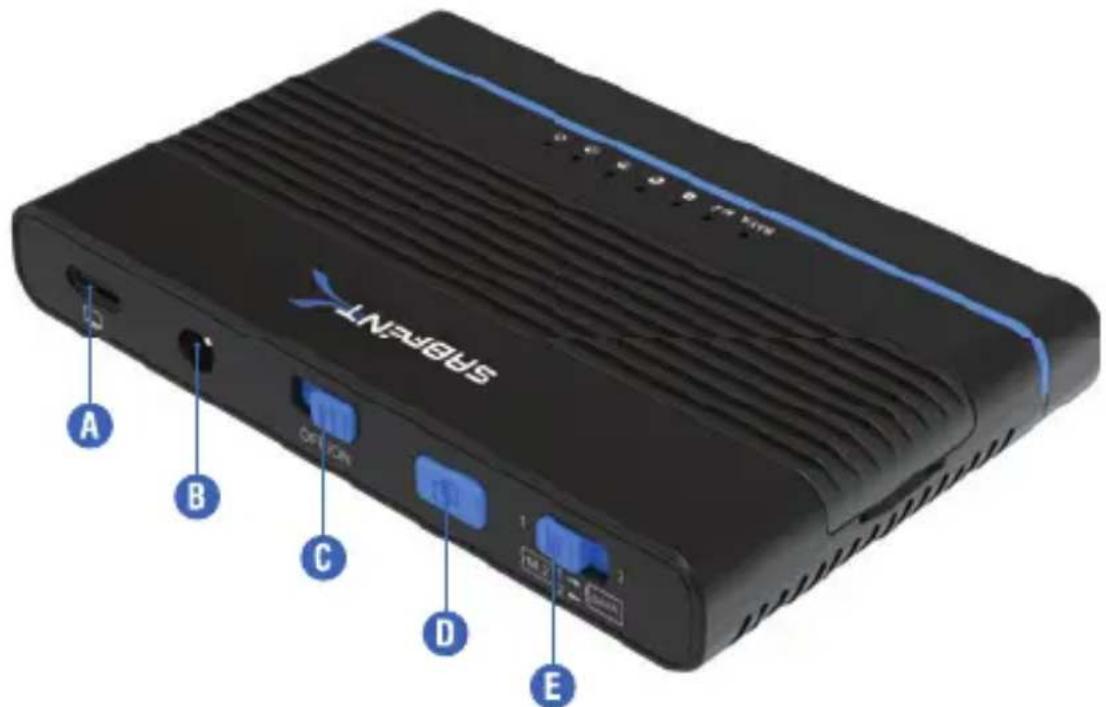
A: USB 3.2 (10Gbps) Type-C port
B: DC: 5.5x2.5mm, 12V power interface
C: Product power switch
D: Clone start button
E: Cloning direction switch (M.2 to SATA or SATA to M.2 cloning)
Note: You need to confirm before cloning that the destination disk is equal to or larger than the source disk. If not, an error will occur with the potential for data loss.
PRODUCT INTRODUCTION
- The aluminum-based upper cover is heat-conductive to assist in thermal dissipation during the cloning process.
- Tool-free, easy to assemble and disassemble design which includes a protective cover for the SATA interface.
• Supports multiple M.2 SSD sizes: 2242, 2260, and 2280mm.
• USB 3.2 10Gbps transmission rate.
• Supports PCIe M.2 NVMe SSDs.
• Supports SSD TRIM and UASP.
• Supports PCIe 3.1a M.2 and SATA 3.1 interface protocols simultaneously. The device can read and write from both drives at the same time. - Uses a Type-C interface for convenience.
• Supports drive cloning function in either direction via the bidirectional switch. - Four cloning progress LED indicators help monitor progress in real-time.
PRODUCT FUNCTION
- Press and hold the clone button for 3-5 seconds until all LEDs begin to blink, then quickly double-tap the clone button to start cloning.
Note: Before cloning, confirm that the source drive is equal to or smaller in capacity than the destination drive within the cloning pair. Additionally, double check the direction of the clone switch, otherwise an error may result in accidental data loss.
LED LIGHT STATUS
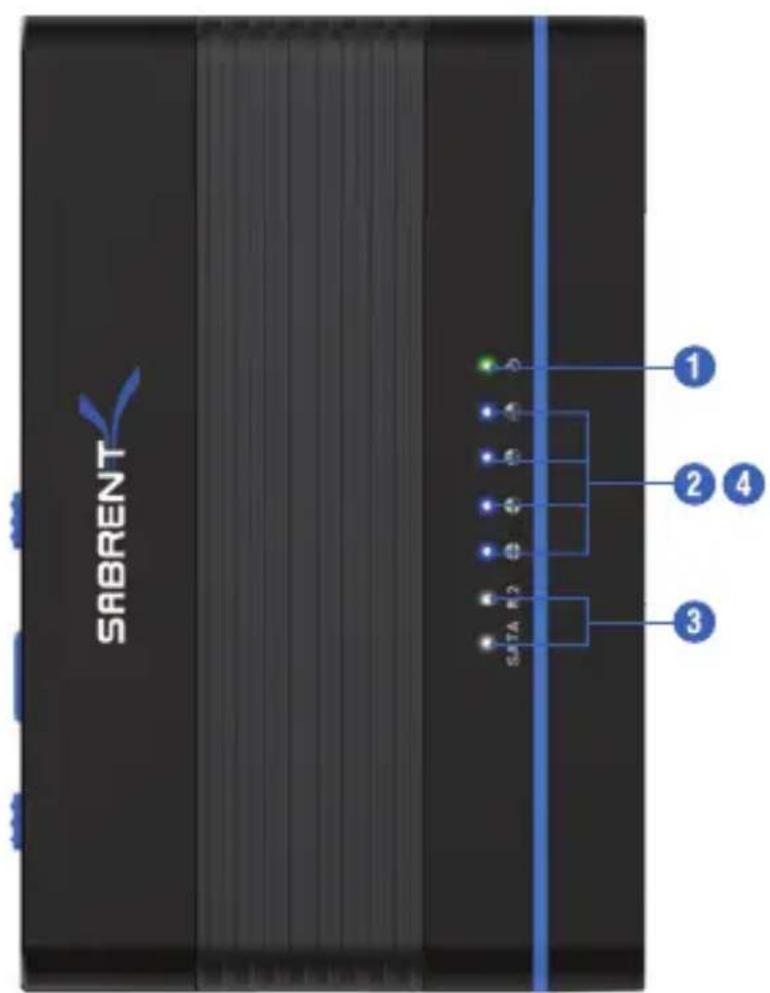
- The green power light indicates when the device is on.
- The blue clone progress indicators show 25%/50%/75%/100% during the cloning process.
- The white SATA and M.2 drive lights illuminate when the corresponding drives are inserted and will flash during reads and writes. After 30 minutes of idle, the drive light will turn off to indicate a sleep mode.
- If the destination disk is smaller than the source disk the progress lights indicate an error by flashing pairs.
INSTALLATION METHOD OF THE BUILT-IN M.2 SSD AND SATA 2.5"/3.5" SSD/HDD PORTS

natural_image
Exterior view of a black SHORIENT device with blue cable and green screen, shown with a smaller black case (no text or symbols visible)STEP 1
Open the top cover of the product as shown above and pull out the protective cover for the SATA port

STEP 2
As shown in the picture above, insert the M.2 SSD at a slight angle and position it into the M.2 socket

STEP 3
Rotate the M.2 latch to the locked position

natural_image
Black Siemens 4.1 network device with blue stripe and cable, no visible text or symbols on bodySTEP 4
Press down on the aluminum cover to complete the installation; connect the USB interface for usage

natural_image
Exterior view of a hard disk drive with visible internal components and a brand name (SBRERV) on its side panel (no text or symbols beyond branding)STEP 5
A 3.5" HDD can be directly connected to the SATA port but the DC power adapter must be connected for operation

natural_image
Black Siemens Smart Thermostat with blue stripe and 'Max i' label, shown from top view (no additional text or symbols)STEP 6
A 2.5" HDD can be directly connected to the SATA port and can be used without an external power supply
NOTICES
- When using this product with the optional M.2 SSD installation, please be careful of static electricity (it is recommended to place your hands on metal objects to discharge).
- This product uses the M Key interface which belongs to the NVMe protocol. When installing the M.2 SSD for this product, please check the drive interface and protocol first.
- Although the USB interface supports hot plugging, it must be done when the power is off when installing an M.2 SSD.
- When inserting and removing a 2.5"/3.5" SSD/HDD, please be careful to move as gently as possible to avoid damaging the connectors.
- When disassembling and installing the drives, please store all accessories carefully to prevent loss
- When using the cloning function or reading/writing two drives simultaneously it is recommended to connect the product's power adapter to avoid insufficient power supply.
- After use, if you need to remove the SSD/HDD disk(s) or replace the upstream PC host, it is recommended that the user use the operating system function to safely remove the USB peripheral to safely eject the device. Then the device may be disconnected after turning off the power.
FREQUENTLY ASKED QUESTIONS (FAQ)
1) Why is performance slow, not reaching the read and write speed of USB 3.1 Gen2 on my system?
Answer: This product has undergone rigorous testing and the read and write speed can reach USB 3.1 performance under normal read and write conditions. If the read and write speeds are slow, it is recommended to confirm whether the USB host port you are connected to is capable of 10Gbps speeds; if not, speeds will be limited to USB 3.0 or 2.0 depending on the port type.
2) On a Windows PC after the new drive is installed, why can't I find the drive or the corresponding drive letter in "My Computer"?
Answer: When using a new drive for the first time you need to initialize, format, and partition the newly-added disk under "Computer Management" and "Disk Management". Then, the drive can be used normally.
3) Why can't a Windows XP system recognize a drive with a capacity of more than 2TB?
Answer: Due to the system limitation of Windows XP, the maximum drive capacity that can be recognized on this system cannot exceed 2TB. Such a capacity is only supported by computers upgraded to Vista (64-bit) or higher. It is recommended to also convert the disk to a GPT disk, otherwise the operating system disk partitions larger than 2TB will not be supported.
4) How do I protect the drive(s) and data through a safe disconnection?
Answer: Without shutting down the operating system, when you want to remove the device it is recommended to use the Safely Remove Hardware function of the operating system to properly disengage the connection. Then, turn off the power and remove the device.
5) Can NVMe protocol SSDs be used in Windows prior to version 8.1?
Answer: Windows 7/8 host systems may need to install an NVMe support patch. Windows 8.1 and later versions have an integrated NVMe driver.
6) Why can only one drive be seen in "My Computer" after the cloning procedure?
Answer: After the hard disk is cloned the identification ID of the drives are exactly the same and the operating system can only recognize one at a time. The other drive will be displayed as offline in Disk Management.
7) Can this product be used to clone an operating system?
Answer: This product is based on a drive hardware clone which does not affect the use of the operating system after successful cloning. However, due to changes in the operating conditions of the hardware and software environments after cloning, the incompatibility of the driver may cause an operating system boot failure. For problems that do not belong to this product, please seek third-party technical support for solutions. For example, after cloning the operating system SSD of the original SATA protocol to an NVMe SSD, the operating system driver may be incompatible, a situation outside the technical support scope of this device. You need to enable the NVMe function according to your own computer motherboard and/or solve the driver compatibility of the operating system. In addition, drive encryption and identification-locking systems may cause issues that are not a technical fault of the device; please consult the system administrator.
8) How does sleep work on this device?
Answer: This device enters a sleep state after 30 minutes of no reading or writing by default, and automatically wakes up when there is a reading or writing operation again, all without manual intervention. However, if the operating system itself has a hibernation policy, this device will preferentially obey the operating system which may be inconsistent with the 30-minute hibernation time of this device; this is a normal phenomenon.
SABRENT
FOR HELP, COMMENTS, QUESTIONS OR CONCERNS PLEASE CONTACT OUR TECH SUPPORT TEAM VIA OUR WEBSITE WWW.SABRENT.COM



Marke : Sabrent
Modell : DS-UCMH
Kategorie : Externe Festplattengehäuse