
APCRBC143 - Wechselrichter APC - Kostenlose Bedienungsanleitung
Finden Sie kostenlos die Bedienungsanleitung des Geräts APCRBC143 APC als PDF.


| Produkttyp | Ersatzbatterie für USV (Wechselrichter) |
| Kompatibilität | APC Back-UPS & Smart-UPS Serien (z.B. BE, BR, SU, SMT) |
| Batterietechnologie | Versiegelte Blei-Säure (AGM), wartungsfrei |
| Nennspannung | 12 V |
| Kapazität | 7,2 Ah |
| Abmessungen (H × B × T) | 94 × 150 × 64 mm |
| Gewicht | 2,3 kg |
| Anschlussart | 2x Faston 4,8 mm (männlich) |
| Lebensdauer (typisch) | 3–5 Jahre, abhängig von Umgebung und Nutzung |
| Ladegerät | Integriert im USV-Gerät (Float-Ladung 13,5 V) |
| Umgebungstemperatur (Betrieb) | 0 °C bis 40 °C |
| Lagertemperatur | -15 °C bis 45 °C |
| Sicherheitsmerkmale | Überladeschutz, Kurzschlusssicher, auslaufsicher |
| Zertifizierungen | CE, UL, RoHS |
| Garantie | 2 Jahre (durch APC) |
| Ersatzteiltyp | Original APC RBC143 |
| Verpackungsinhalt | 1 Batterie, 1 Anschlusskabel (falls erforderlich) |
Häufig gestellte Fragen - APCRBC143 APC
Benutzerfragen zu APCRBC143 APC
0 Frage zu diesem Gerät. Beantworten Sie die, die Sie kennen, oder stellen Sie Ihre eigene.
Eine neue Frage zu diesem Gerät stellen
Laden Sie die Anleitung für Ihr Wechselrichter kostenlos im PDF-Format! Finden Sie Ihr Handbuch APCRBC143 - APC und nehmen Sie Ihr elektronisches Gerät wieder in die Hand. Auf dieser Seite sind alle Dokumente veröffentlicht, die für die Verwendung Ihres Geräts notwendig sind. APCRBC143 von der Marke APC.
BEDIENUNGSANLEITUNG APCRBC143 APC
Smart-UPS™ Installation Guide APCRBC143
Battery Replacement


Always recycle used batteries. For information on recycling the used battery, refer to the Battery Disposal Information sheet included with the replacement battery.
Replace used batteries with APC approved batteries. To order replacement battery APCRBC143, go to the APC Web site, www.apc.com.
Remove the UPS battery
1
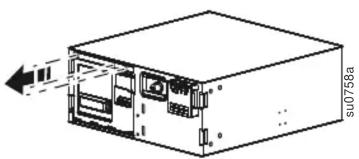
natural_image
Technical line drawing of a computer chassis with internal components and an arrow indicating direction (no text or symbols)2
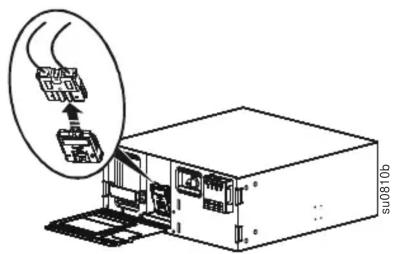
3
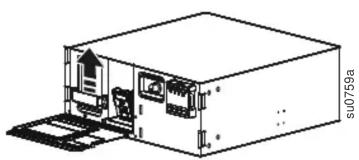
natural_image
Technical line drawing of an electronic device with internal components and a door, no visible text or symbols4
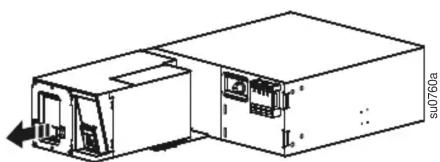
natural_image
Technical line drawing of a device housing with internal components and an arrow indicating direction (no text or symbols)Install the UPS replacement battery
1
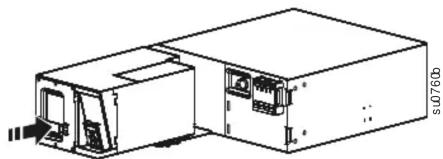
natural_image
Technical line drawing of a device housing with internal components and mounting points (no text or symbols)2
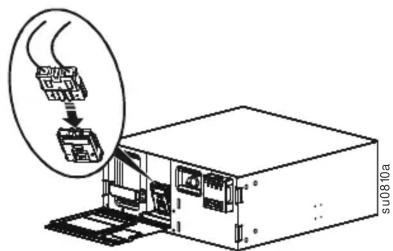
3
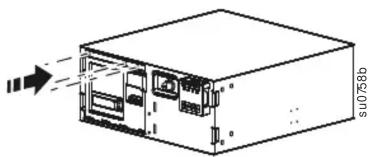
natural_image
Diagram of a server rack unit with internal components and an arrow indicating direction (no text or symbols)Remove the external battery pack (XLBP) batteries
1
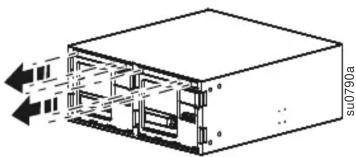
natural_image
Isometric diagram of a rectangular device with internal components and directional arrows indicating flow or movement (no text or symbols)2
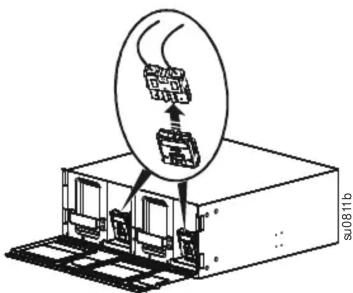
3
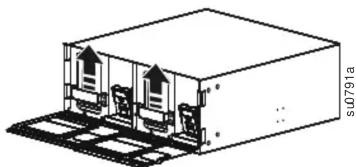
natural_image
Isometric line drawing of a server rack unit with two internal components and mounting holes (no text or symbols)4
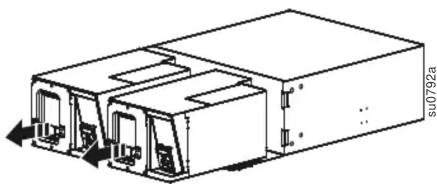
natural_image
Technical line drawing of a mechanical or electronic component with ports and connectors (no text or symbols)Install the external battery pack (XLBP) replacement batteries
1
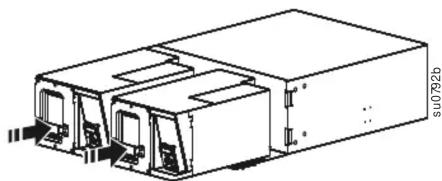
natural_image
Technical line drawing of a mechanical or electronic component with no visible text or symbols2
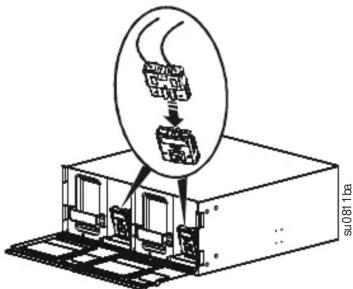
3
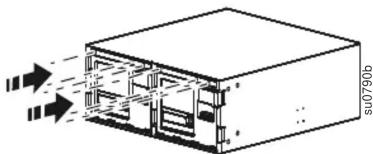
natural_image
Diagram of a server rack unit with heat transfer arrows indicating airflow or cooling (no text or symbols)Reset the Battery Install Date
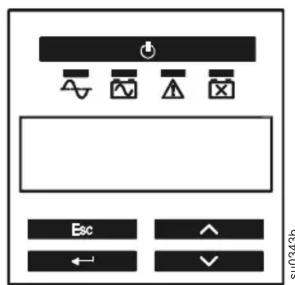
Reset the Battery Install Date for the internal UPS battery.
If the Battery Install Date screen does not appear on the display interface within two minutes of installing the new battery, use the arrow keys to navigate to: Main Menu > Configuration > Battery Install Date.
On the Battery Install Date screen, use the arrow keys to select the month, date, and year. PressENTER to make a selection then move to the next option.
When finished, press ENTER to save the date.
When the RBC is fully charged, perform a self-test and run time calibration test.
Customer support and warranty information is available at the APC Web site, www.apc.com.
© 2012 APC by Schneider Electric. APC, the APC logo, and Smart-UPS are owned by Schneider Electric Industries S.A.S., American Power Conversion Corporation, or their affiliated companies. All other trademarks are property of their respective owners.

Marke : APC
Modell : APCRBC143
Kategorie : Wechselrichter