
DS-4SSD - Festplatte Sabrent - Kostenlose Bedienungsanleitung
Finden Sie kostenlos die Bedienungsanleitung des Geräts DS-4SSD Sabrent als PDF.


| Produkttyp | Dockingstation für 2.5" SATA-Festplatten/SSDs |
| Marke | Sabrent |
| Modell | DS-4SSD |
| Schnittstelle | USB 3.0 (abwärtskompatibel zu USB 2.0/1.1) |
| Anzahl der Einschübe | 4 |
| Unterstützte Laufwerke | 2.5" SATA I/II/III HDD und SSD |
| Maximale Übertragungsrate | 5 Gbit/s |
| Hot-Swap-Funktion | Ja |
| Plug & Play | Ja |
| Werkzeuglose Installation | Ja |
| Gleichzeitiger Zugriff | Lesen und Schreiben von bis zu vier Laufwerken gleichzeitig |
| Kühlung | Eingebauter abnehmbarer Lüfter mit Ein-/Ausschalter |
| LED-Anzeigen | Strom, Lüfter und Zugriff pro Einschub |
| Stromversorgung | Netzteil im Lieferumfang enthalten |
| Lieferumfang | Dockingstation, Netzteil, abnehmbarer Lüfter, USB 3.0-Kabel, Bedienungsanleitung |
Häufig gestellte Fragen - DS-4SSD Sabrent
Benutzerfragen zu DS-4SSD Sabrent
0 Frage zu diesem Gerät. Beantworten Sie die, die Sie kennen, oder stellen Sie Ihre eigene.
Eine neue Frage zu diesem Gerät stellen
Laden Sie die Anleitung für Ihr Festplatte kostenlos im PDF-Format! Finden Sie Ihr Handbuch DS-4SSD - Sabrent und nehmen Sie Ihr elektronisches Gerät wieder in die Hand. Auf dieser Seite sind alle Dokumente veröffentlicht, die für die Verwendung Ihres Geräts notwendig sind. DS-4SSD von der Marke Sabrent.
BEDIENUNGSANLEITUNG DS-4SSD Sabrent
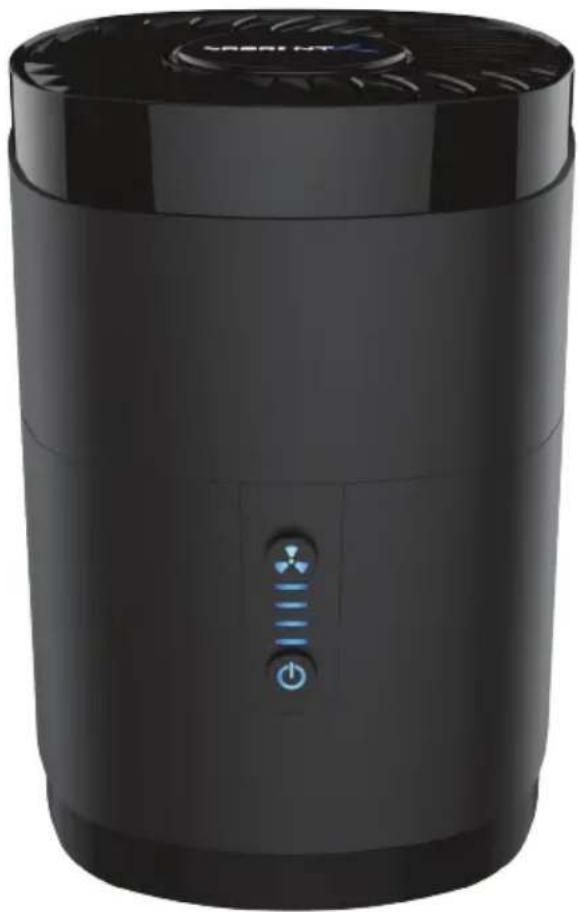
USB 3.0 4 BAY 2.5" HARD DRIVE/SSD DOCKING STATION
natural_image
Black cylindrical smart air purifier with digital display and power button (no visible text or symbols)WITH BUILT IN COOLING FAN
USER MANUAL
The Sabrent DS-4SSD SATA Hard Drive Docking Station enables you to access 2.5" hard drives, without the frustration of assembling hard drive enclosures. Just insert a 2.5" SATA hard drive into the docking station, and quickly access the drive contents or transfer files. Plug & Play mounting allows simple swapping of drives and USB 3.0 will transfer your files at speeds up to 5Gbps.
FEATURES
- Read and write four hard drives simultaneously
• Hot Swappable / Plug and Play - Tool-free installation.
- Transfer speeds up to 5Gbps.
• Supports 2.5" SATA I/ II/III HDD and SSD
• LED indicator for power and HDD access
PACKAGE CONTENTS
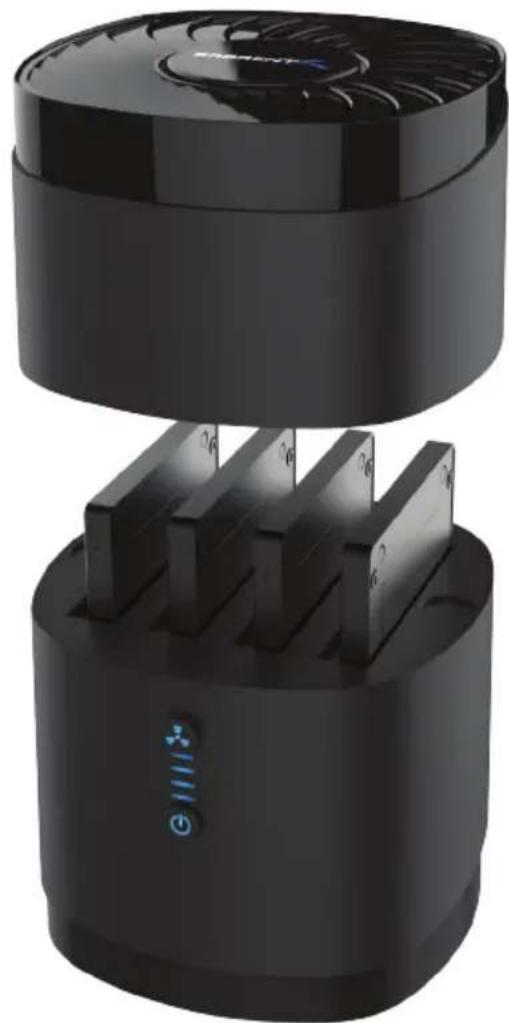
- 1x Docking Station
- 1x Power Adapter
- 1x Detachable Fan
• 1x USB 3.0 Data Cable - 1x User Manual
natural_image
Black industrial air purifier with cooling unit and digital display (no visible text or symbols)PARTS OF THE DOCKING STATION
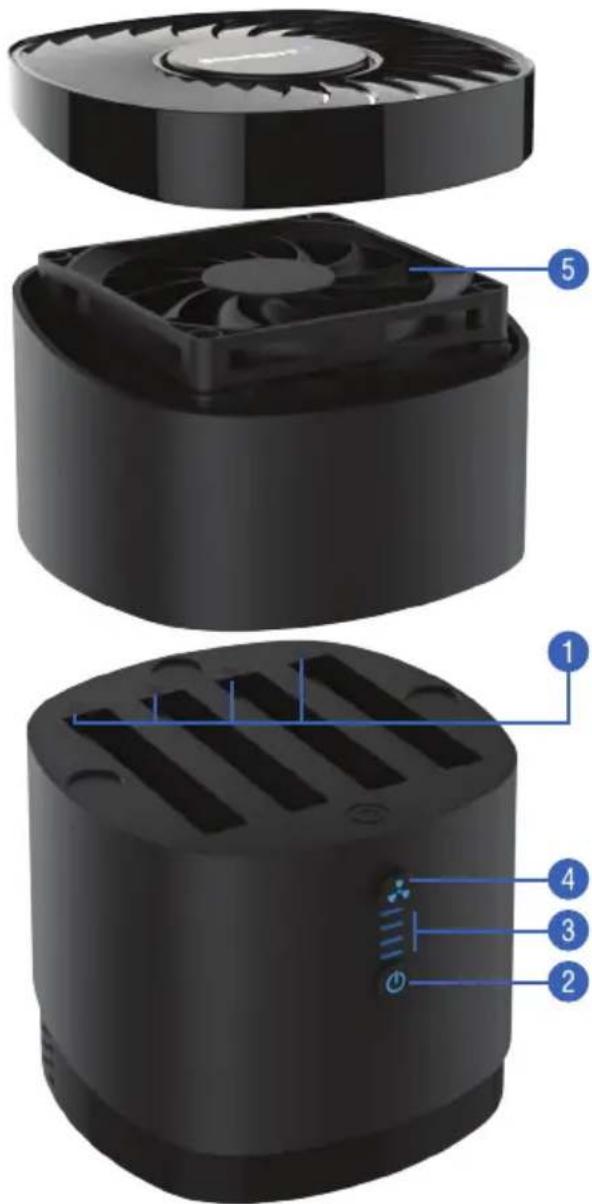
1 Hard drive slots
2 Power Switch
3 HDD Slots LEDs
4 Built In Fan Switch
5 Built In Fan
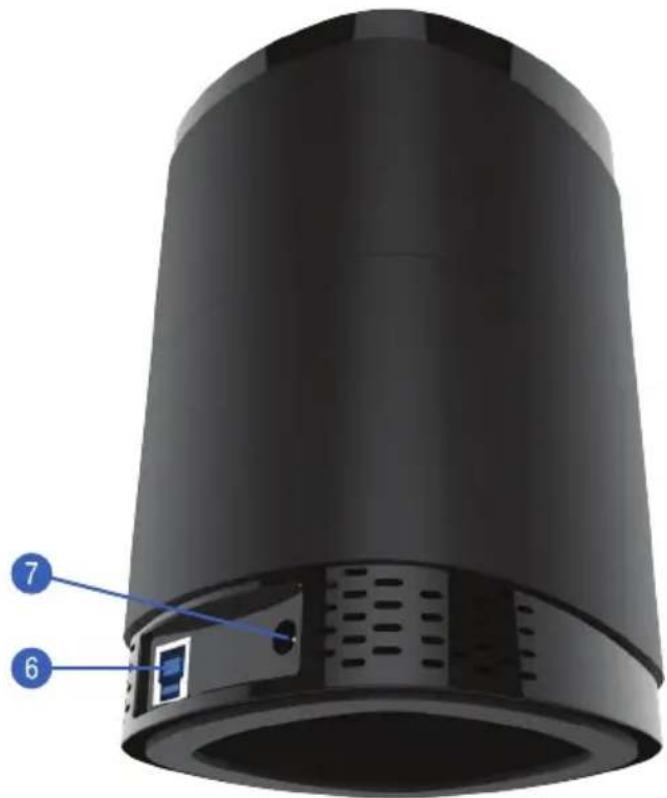
6 USB Cable Interface
7 Power Cable Interface
natural_image
3D rendering of a black cylindrical device with labeled parts (6 and 7), showing internal structure and mounting points (no text or symbols beyond labels)USING THE DOCKING STATION To use the Docking Station follow these steps
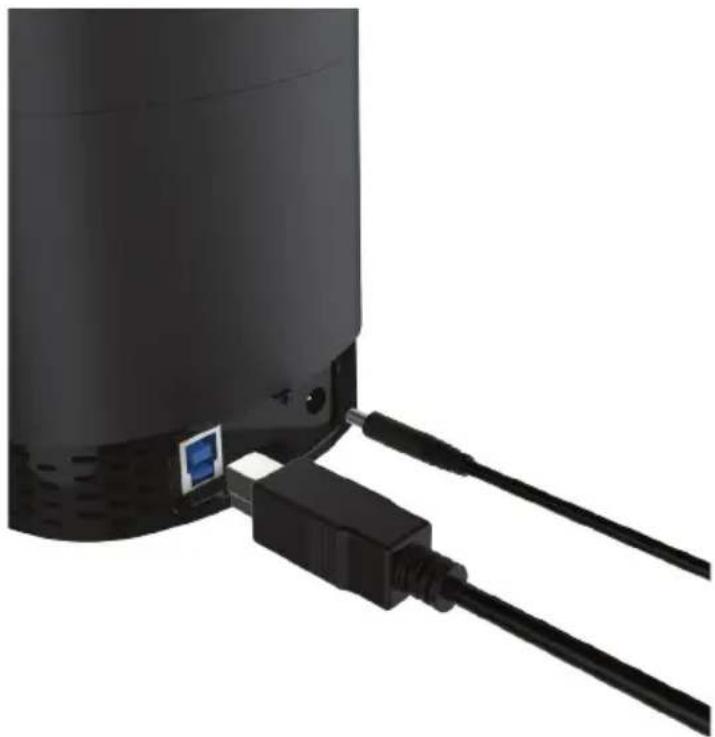
1 - Insert power cable and USB 3.0 cable into the Docking Station
2 - Plug the power cable into an appropriate power source
natural_image
Close-up of a black cylindrical device with attached black cables and a small blue screen on the left (no visible text or symbols)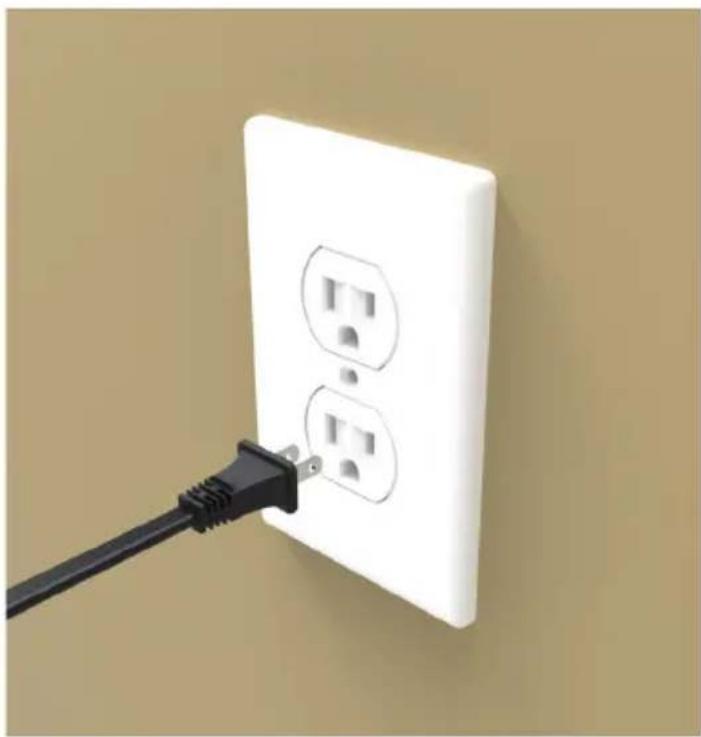
natural_image
Exterior view of a white electrical outlet with two socket plugs inserted into it, connected by a black cable (no text or symbols visible)USING THE DOCKING STATION To use the Docking Station follow these steps
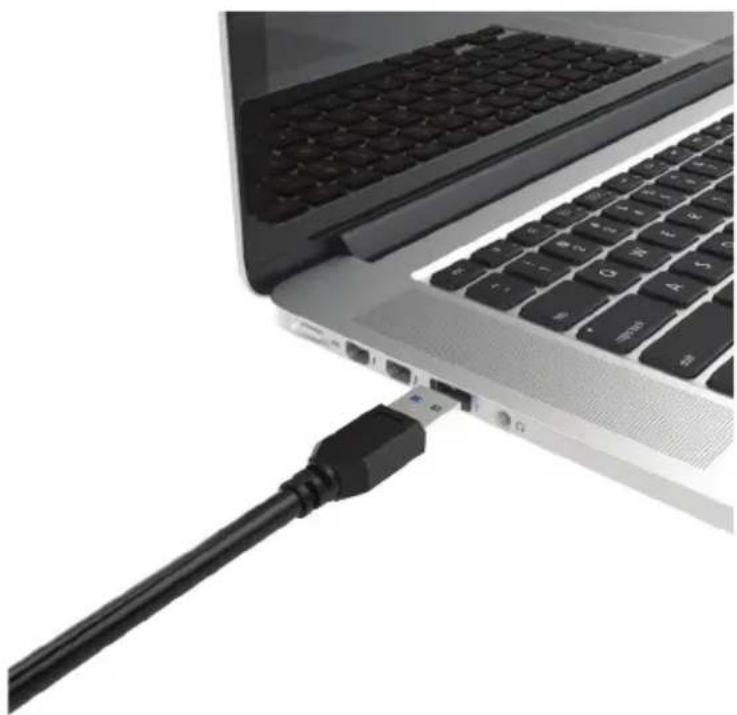
3 - Plug the USB 3.0 cable into a USB port on your computer
Note: To obtain the fastest speeds, you will need to plug into a USB 3.0 port, although the Docking Station is backwards compatible with USB 2.0 and 1.1, with their corresponding speeds.
4 - Insert up to (4) 2.5" hard drives into the drive bay(s).
natural_image
Close-up of a laptop with an attached black USB cable (no text or symbols visible)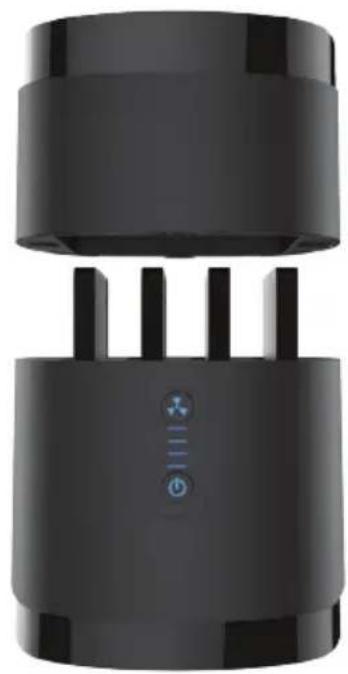
natural_image
Black cylindrical electronic device with three vertical pins and a digital display (no visible text or symbols)LED INSTRUCTIONS AND INDICATICATORS
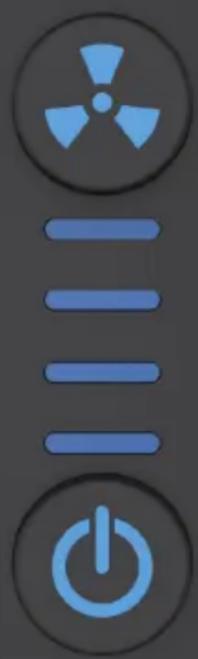
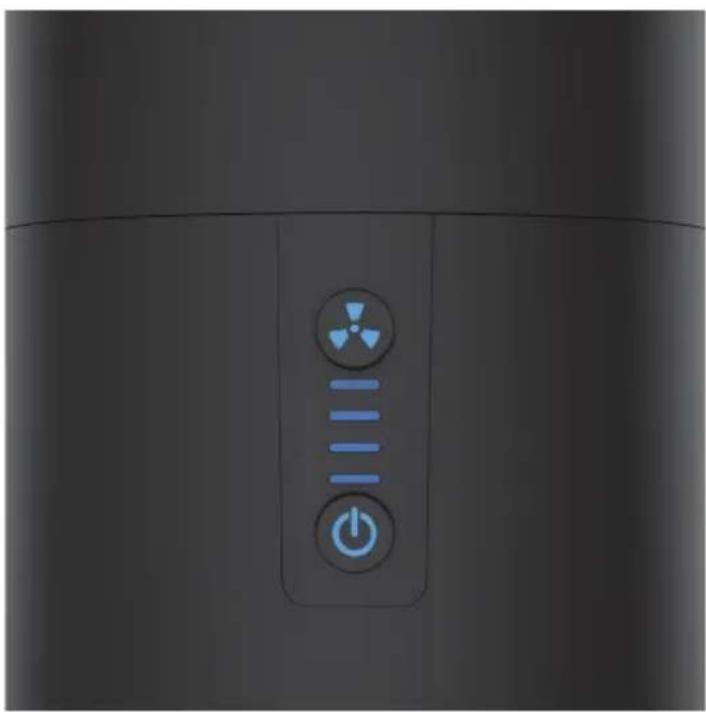
1 - Press the power button to turn on the Docking Station. When power LED is lit, power is on. To turn off the Docking Station, press the power button while the Docking Station is on. When the Docking Station Turns off the power LED will also turn off.
2 - If the Fan LED is not lit, the fan is not on. To Turn on the fan press the fan button. The LED will light indicating it is on. To Turn off, press the fan button when the fan is on. The LED will also turn off to indicate the fan is off.
natural_image
Vertical icon with radiation symbol, three horizontal lines, and a power button (no text or labels)LED INSTRUCTIONS AND INDICATICATORS
3 - The 4 horizontal LEDs each correspond, in order, with the docking ports. ① slot, the top LED, ② slot, the 2nd LED, ③ slot, the 3rd LED, ④ slot, the 4th LED. If no drives are plugged in, all the lights will be off.
4 - When drives are inserted, the light associated with the port the drive is plugged into will be lit.
5 - The corresponding LED with flash when data is being read or written to the drive inserted in the port.
natural_image
Close-up of a black cylindrical device with a control panel and indicator lights (no text or symbols visible)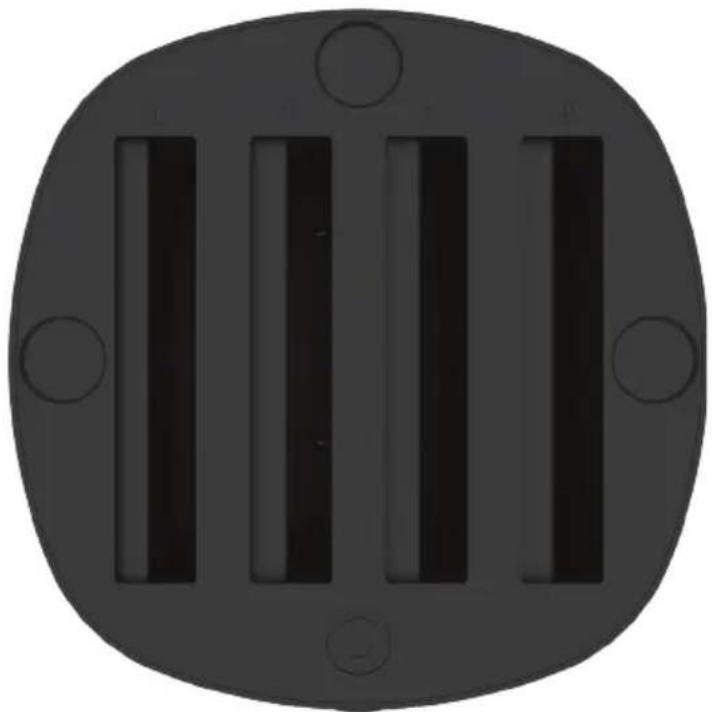
natural_image
Top-down view of a black plastic enclosure with three vertical slots and mounting holes (no text or symbols)TROUBLESHOOTING
My Computer Will Not Recognize My Docking Station:
-Make sure the USB cable is securely connected to your Docking Station and computer.
-Try connecting the Docking Station to a different USB port on your computer or laptop.
-Make sure you have the most recent updates for your operating system.
-Make sure your power outlet is working.
-Plug your USB device directly into a USB port on your computer (if plugged into a USB hub).
-If your computer still does not recognize the device, please contact Sabrent support.
Connection Is Slow:
Make sure the Docking Station is connected to a USB 3.0 port on your computer. While the Docking Station is backwards compatible, when connected to a USB 2.0 or 1.1 port, the Docking Station will operate at slower speeds.
Power Issues:
Try the power adapter on a different power outlet. Make sure that the power adapter is securely connected to the Docking Station.
Docking Station Disconnects From Computer:
Make sure the USB cable is securely connected to your Docking Station and computer. Connect the power adapter to the Docking Station and a working power outlet. Try connecting the Docking Station to a different USB port on your computer. Check your computer's sleep or standby settings.




- USB 3.0 4 BAY 2.5" HARD DRIVE/SSD DOCKING STATION
- FEATURES
- PACKAGE CONTENTS
- PARTS OF THE DOCKING STATION
- USING THE DOCKING STATION To use the Docking Station follow these steps
- LED INSTRUCTIONS AND INDICATICATORS
- TROUBLESHOOTING
- My Computer Will Not Recognize My Docking Station:
- Connection Is Slow:
- Power Issues:
- Docking Station Disconnects From Computer:
Marke : Sabrent
Modell : DS-4SSD
Kategorie : Festplatte