NV-S7B - Camcorder PANASONIC - Kostenlose Bedienungsanleitung
Finden Sie kostenlos die Bedienungsanleitung des Geräts NV-S7B PANASONIC als PDF.


| Produkttyp | Camcorder |
| Marke | Panasonic |
| Modell | NV-S7B |
| Stromversorgung | DC 6 V (Netzteil VW-AS1B: AC 100-240 V, 50/60 Hz) |
| Leistungsaufnahme | 6,9 W (Aufnahme mit Akku) |
| Abmessungen (B x H x T) | 156 x 118 x 204 mm |
| Gewicht | ca. 780 g (ohne Akku) |
| Bildsensor | 1/3-Zoll-CCD-Sensor |
| Objektiv | 8:1 Power-Zoom mit Auto-Fokus, Brennweite 6-48 mm, F1.4, Filtergewinde 37 mm |
| Videosystem | S-VHS-C / VHS-C, PAL (CCIR, 625 Zeilen, 50 Hz) |
| Bildstabilisator | Digitaler Bildstabilisator (I.STABILIZER) |
| Sucher | 3/4-Zoll-Elektroniksucher mit Dioptrieneinstellung |
| Akku | Lithium-Ion (VW-VBS1E, Ladedauer ca. 60 Min., Betriebsdauer ca. 50 Min.) |
| Besondere Funktionen | Digital-Zoom (16x), Schnappschuss, Zeitlupen-/Stroboskop-Effekt, Fade, Makro, manueller Weißabgleich, Iris-Anpassung |
| Anschlüsse | Videoausgang (Cinch), S-Videoausgang, Audioausgang (Cinch), Mikrofoneingang, New Edit-Buchse |
| Reinigung | Objektiv mit Blasepinsel reinigen; Gehäuse mit trockenem Tuch abwischen; keine Chemikalien verwenden |
| Sicherheitshinweise | Nicht öffnen, vor Feuchtigkeit schützen, Netzteil nur mit angegebenen Spannungen verwenden, Akku nicht kurzschließen |
| Ersatzteile | Ersatzakkus, Ladegeräte, Objektivvorsätze, Stativ, Kabel – erhältlich bei Panasonic-Servicezentren |
| Zubehör (mitgeliefert) | Netzteil VW-AS1B, Akku VW-VBS1E, S-Video-Kabel, Audio/Video-Kabel, RF-Adapter, Kassettenadapter, Schultergurt, Softtasche |
| Betriebstemperatur | 0 °C bis 40 °C |
Häufig gestellte Fragen - NV-S7B PANASONIC
Benutzerfragen zu NV-S7B PANASONIC
0 Frage zu diesem Gerät. Beantworten Sie die, die Sie kennen, oder stellen Sie Ihre eigene.
Eine neue Frage zu diesem Gerät stellen
Laden Sie die Anleitung für Ihr Camcorder kostenlos im PDF-Format! Finden Sie Ihr Handbuch NV-S7B - PANASONIC und nehmen Sie Ihr elektronisches Gerät wieder in die Hand. Auf dieser Seite sind alle Dokumente veröffentlicht, die für die Verwendung Ihres Geräts notwendig sind. NV-S7B von der Marke PANASONIC.
BEDIENUNGSANLEITUNG NV-S7B PANASONIC
Panasonic
NV-S7B
Operating Instructions
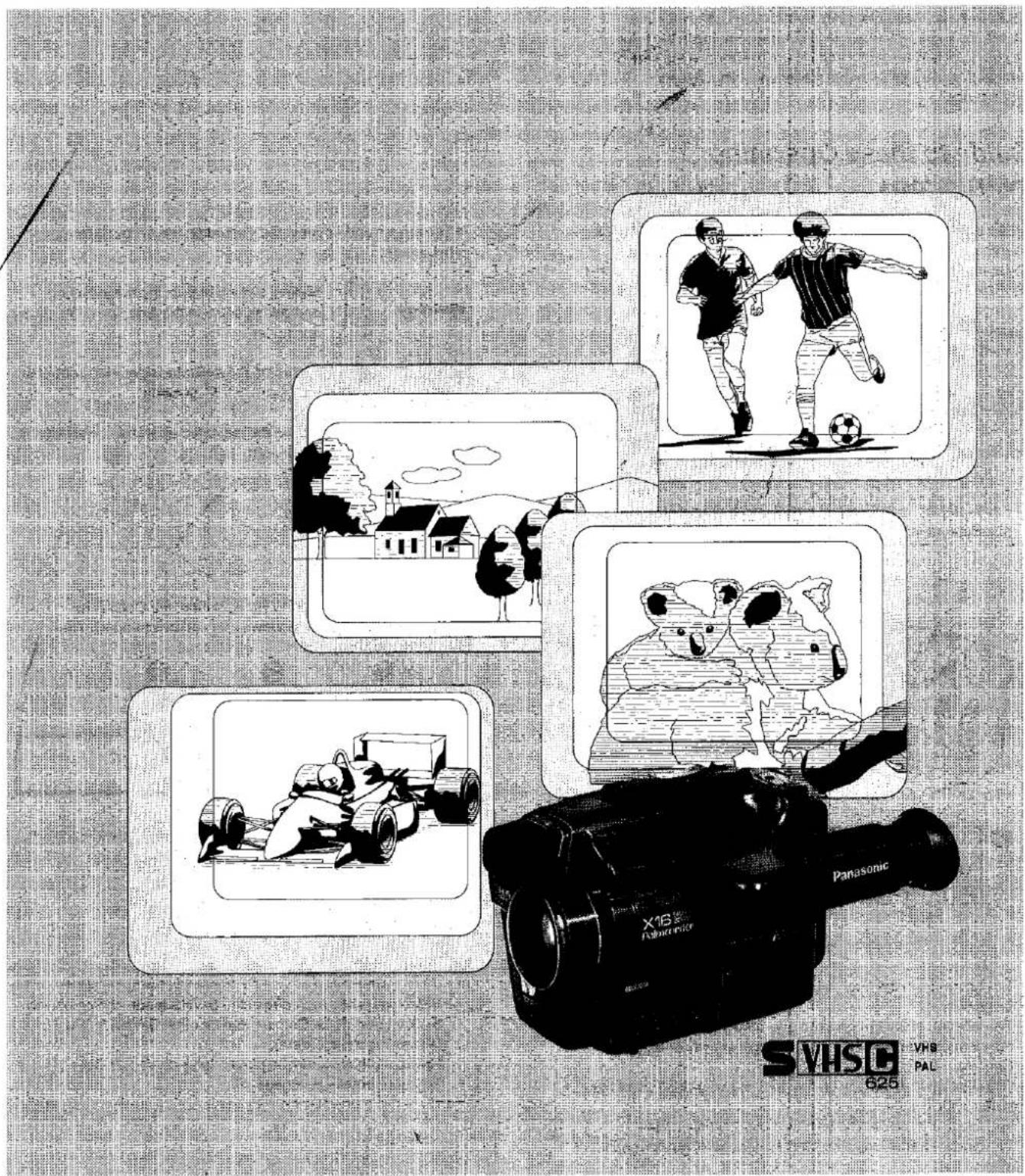
Before attempting to connect, operate or adjust this product, please read these instructions completely.
Dear Customer,
We would like take this opportunity to thank you for purchasing this Panasonic Movie Camera.
Please read these Operating Instructions carefully—especially the cautions on page 53 and thereafter—before using the unit for the first time. Keep these Operating Instructions handy for later reference, in case you want to look up something in the future. Be sure to obtain a warranty card from the shop at the time of purchase, and make sure that it contains all necessary informations.
Guide to these Operating Instructions
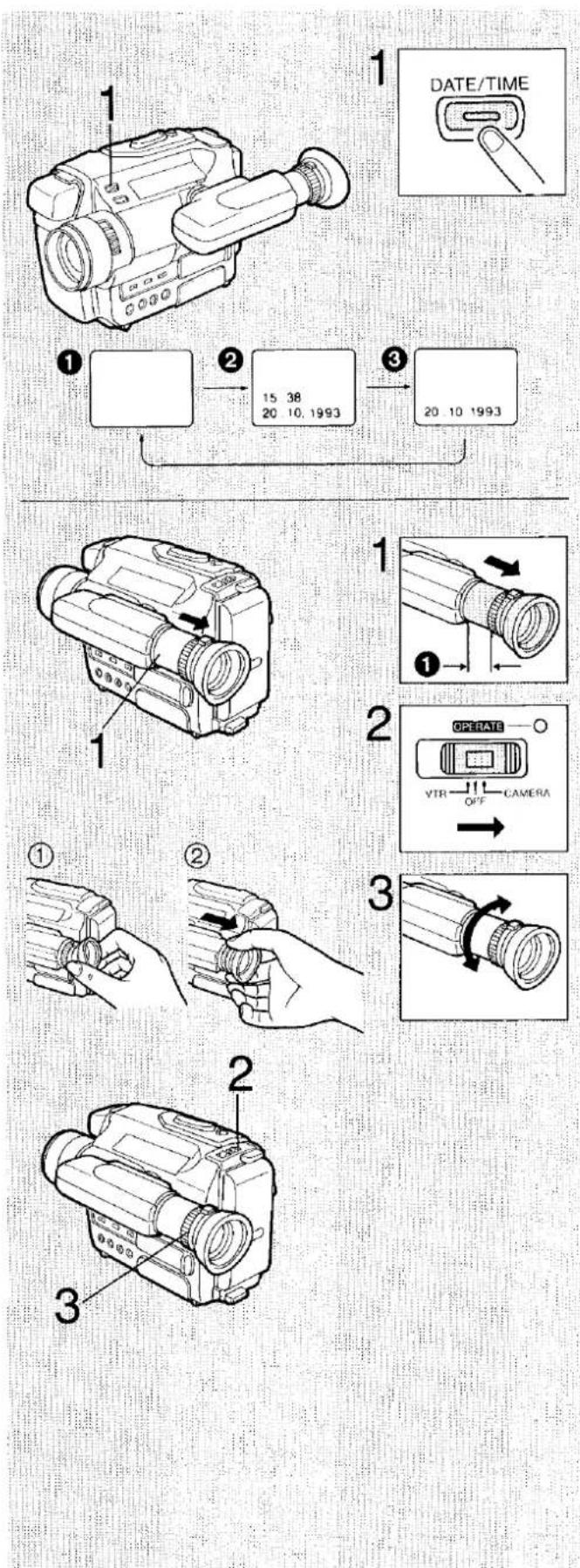
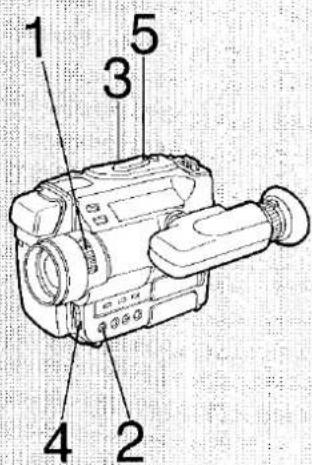
- The numbers of the operating instructions correspond with the numbers in the illustrations. i.e. the button or switch to be operated as explained in the sentence(s) in the operation step 1 is also numbered 1 in the left as well as in the right illustration.
- In the illustrations on the left, the position of the buttons and switches to be operated are shown on the Movie Camera.
- The illustration in boxes on the right show close-ups of the buttons and switches to be operated.
Cautions:
Injury or material damage resulting from any kind of use that is not in accordance with the operating procedures explained in the Operating Instructions are the sole responsibility of the user.
- The arrows and finger in the illustration have the following meanings:
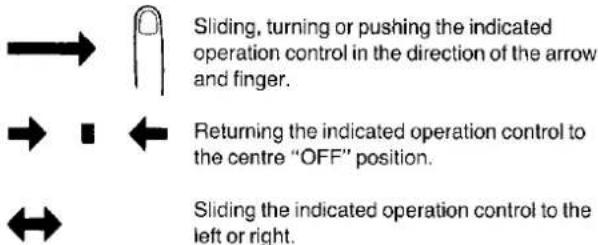
■ For example: in the case of the following operating instructions and illustrations
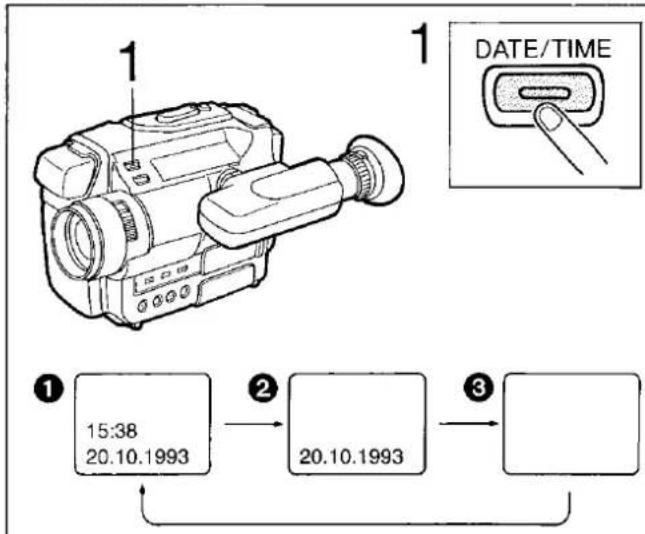
1 Press.
![• At each of the [DATE/TIME] Button, the Date/Time Indication ① in the Viewfinder can be changed in the following order: ① ② ③ → No indication → 15:38 20.10.1993 → 20.10.1993 date and time date only](/content/2026/05/794722/images/0814ed0f5751ccb14fe44b050f3094cb06cc9c606c32d8e6ee4a4ec4b0e89310.jpg)
- Press the [DATE/TIME] Button to select the desired indication.
- The sentence in the operations step 1 explains the operation to be performed.
- The location of the button to be operated in step 1 is shown with the identical number in the illustration of the whole Movio Camera.
- The illustration in the box on the right shows a close-up of the button with its lettering.
- The illustration below shows how the indication in the Viewfinder changes as a result of the operation performed in step 1.
Video cassettes recorded in the S-VHS mode can be played back on this Movie Camera and on other S-VHS VTRs (Video Tape Recorders). However, they cannot be played back on VHS VTRs. For more details, see page 10.
IMPORTANT
Your attention is drawn to the fact that recording of pre-recorded tapes or discs or other published or broadcast material may infringe copyright laws.
WARNING
TO REDUCE THE RISK OF FIRE OR SHOCK HAZARD, DO NOT EXPOSE THIS EQUIPMENT TO RAIN OR MOISTURE.
S-VHS-C Movie NV-S7B
- The rating plate is on the bottom side of the Movie Camera.
AC Adaptor VW-AS1B
•The rating plate is on the bottom side of the unit.
•This apparatus was produced to BS800.
CAUTION
TO REDUCE THE RISK OF FIRE OR SHOCK HAZARD AND ANNOYING INTERFERENCE, USE THE RECOMMENDED ACCESSORIES ONLY.
FOR YOUR SAFETY
■ DO NOT REMOVE THE OUTER COVER.
To prevent electric shock, do not remove the cover. No user serviceable parts inside. Refer servicing to qualified service personnel.
■ AC MAINS LEAD CONNECTION
(VW-AS1B U.K. model only)
The wires in the mains lead of this apparatus are coloured in accordance with the following code.
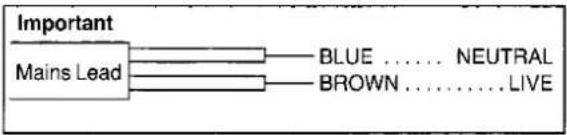
As the colours of the wires in the mains lead may not correspond with the coloured markings identifying the terminals in your plug, proceed as follows: The wire which is coloured BLUE must be connected to the terminal which is marked with the letter N or coloured BLACK. The wire which is coloured BROWN must be connected to the terminal which is marked with the letter L or coloured RED. Under no circumstances must either of the above wires be connected to the earth terminal of a three pin plug.
Checklist of the Standard Accessories
AC AdaptorVW-AS1B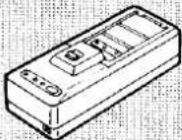 For supplying power to the Movie Camera or for charging the Battery Pack(see P. 11, 12, 13) For supplying power to the Movie Camera or for charging the Battery Pack(see P. 11, 12, 13) | DC Input CableVJA0669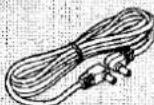 For connection to the AC Adaptor(see P. 13) For connection to the AC Adaptor(see P. 13) | Battery PackVW-VBS1E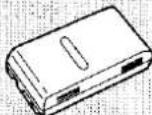 For supplying power to the Movie Camera(see P. 11, 12, 13, 25) For supplying power to the Movie Camera(see P. 11, 12, 13, 25) | Button Type Battery CR2032 For storing the date and time in memory.(see P. 14) For storing the date and time in memory.(see P. 14) | Shoulder Strap VFC0974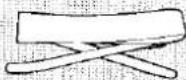 (see P. 18) (see P. 18) | S-Video Cable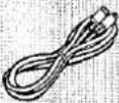 For connection to a TV set(see P. 45, 50) For connection to a TV set(see P. 45, 50) |
Audio/Video Cable VFA0028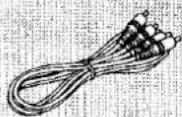 For connection to a TV set(see P. 45, 50) For connection to a TV set(see P. 45, 50) | BNC/PHONOAdaptor PlugVFA0097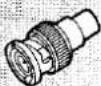 For connection to a Video Tape Recorder or TV set(see P. 45, 50) For connection to a Video Tape Recorder or TV set(see P. 45, 50) | Cassette AdaptorVW-TCA7E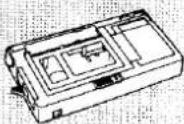 For playback via a Video Tape Recorder(see P. 47) For playback via a Video Tape Recorder(see P. 47) | BatteryR6 For the Cassette Adaptor(see P. 47) For the Cassette Adaptor(see P. 47) | RF AdaptorVW-RF8E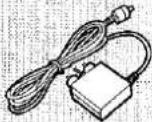 For connection to a TV set(see P. 46) For connection to a TV set(see P. 46) | Soft CaseVFC1089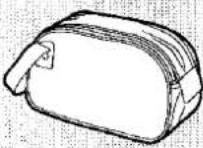 (see P. 52) (see P. 52) |
- Optional Accessories are on Page 59.
natural_image
Illustration of a vintage camera with a glass of water and a cloth, set against a netted background (no text or symbols)Contents
Preparations
Controls and Functions 5
S-VHS Format 10
Compatibility of VTRs and Tapes 10
Using the Battery Pack 11
Using the AC Adaptor or the Car Battery Cord (optional) ..... 13
Setting the Clock 14
Recording the Date and Time during Shooting 16
Extending the Viewfinder/Adjusting the Eyepiece Corrector.... 16
Adjusting the Grip Belt/Removing the Lens Cap 17
Attaching the Shoulder Strap 18
Adjusting the Angle of the Viewfinder 18
Inserting the Video Cassette 19
Preventing Accidental Erasure of Recordings 19
Confirming the Remaining Tape Time 20
Using the Tape Counter Indication 21
Using the On-Screen Display Function 22
Index Signals (VISS) 22
Holding the Movie Camera for Shooting 23
Shooting
Shooting 25
Checking the Recorded Scene 26
Shooting with Clean Edits 26
Searching for a Previously Shot Scene 27
Shooting with the Digital Image Stabilizer Function 28
Taking a Snapshot 29
Shooting a Still Picture 30
Shooting with Strobe Effect 31
Shooting with the Zoom Function 32
Shooting with the Fade Function 33
Shooting Landscapes at Dusk or Other Evening Scenes .... 34
Shooting Backlit Scenes 34
Shooting in the Dark 35
Shooting with the Macro Function 36
Shooting Fast-Moving Subjects 37
Automatic White Balance Adjustment 38
Manual White Balance Adjustment 39
Focusing 41
Inserting a Still Picture with Wipe Editing 43
Fading Over or Superimposing a Still Picture onto the Moving Picture 44
Playback
Playback via a TV Set (Connections) 45
Playback on a Video Tape Recorder (VTR) 47
Playback 48
Copying (Dubbing) 50
Notes Others
After Use 51
Cleaning 51
VITC Signals 52
Soft Case 52
Cautions 53
Before Requesting Service 55
Quick Reference Guide to the Indications in the Viewfinder 56
Specifications 58
Optional Accessories 59
Warning/Alarm Indications in the Viewfinder .... Back Cover
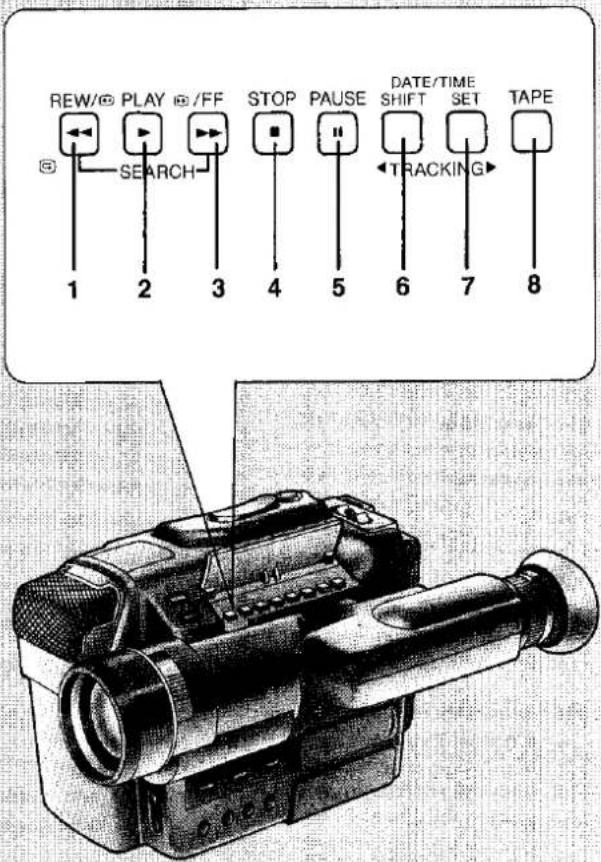
Controls and Functions
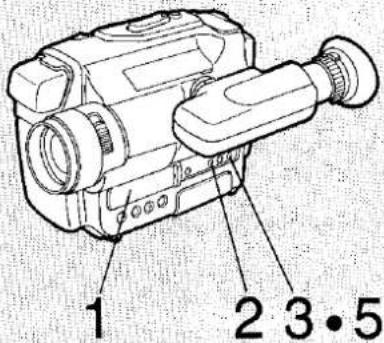
1 Rewind/Review Button [REW/←] (p. 21, 26, 27, 48, 49) Use this button for the following operations:
1) With the [OPERATE] Switch set to "CAMERA". Press it briefly after shooting a scene in order to play back the last few seconds of the recording for quick confirmation that the recording is okay. When this button is kept pressed, the recorded scene is played back at high speed in reverse direction.
2) With the [OPERATE] Switch set to "VTR". Press it to rewind the tape from the stop mode. Keep it pressed during playback for high-speed playback in reverse direction.
2 Play Button [PLAY] (p. 26, 48)
Press this button to start the playback.
3 Fast Forward/Cue Button [→/FF] (p. 21, 27, 49)
1) With the [OPERATE] Switch set to "CAMERA". When this button is kept pressed, the recorded scene is played back at normal speed in forward direction.
2) With the [OPERATE] Switch set to "VTR". Press this button to wind the tape forward at high speed from the stop mode. Keep it pressed during playback for high-speed playback in forward direction.
4 Stop Button [STOP] (p. 48)
Press this button to stop the playback.
5 Pause Button [PAUSE] (p. 26, 49)
Press this button during playback to be able to watch a still picture; press it again to resume normal playback.
6 Tracking/Date/Time Shift Button
[DATE/TIME SHIFT·TRACKING] (p. 15, 48)
Use this button for the following operations:
1) Press it to advance to the next item during the setting of the time and date.
2) Press it when you want to adjust the tracking manually.
7 Tracking/Date/Time Set Button
[DATE/TIME SET·TRACKING] (p. 15, 48)
Use this button for the following operations:
1) Press it to change the figures during the setting of the time and date.
2) Press it when you want to adjust the tracking manually.
8 Remaining Tape Time Button [TAPE] (p. 20)
Press this button to select the length of the cassette tape that is used for shooting or playback.
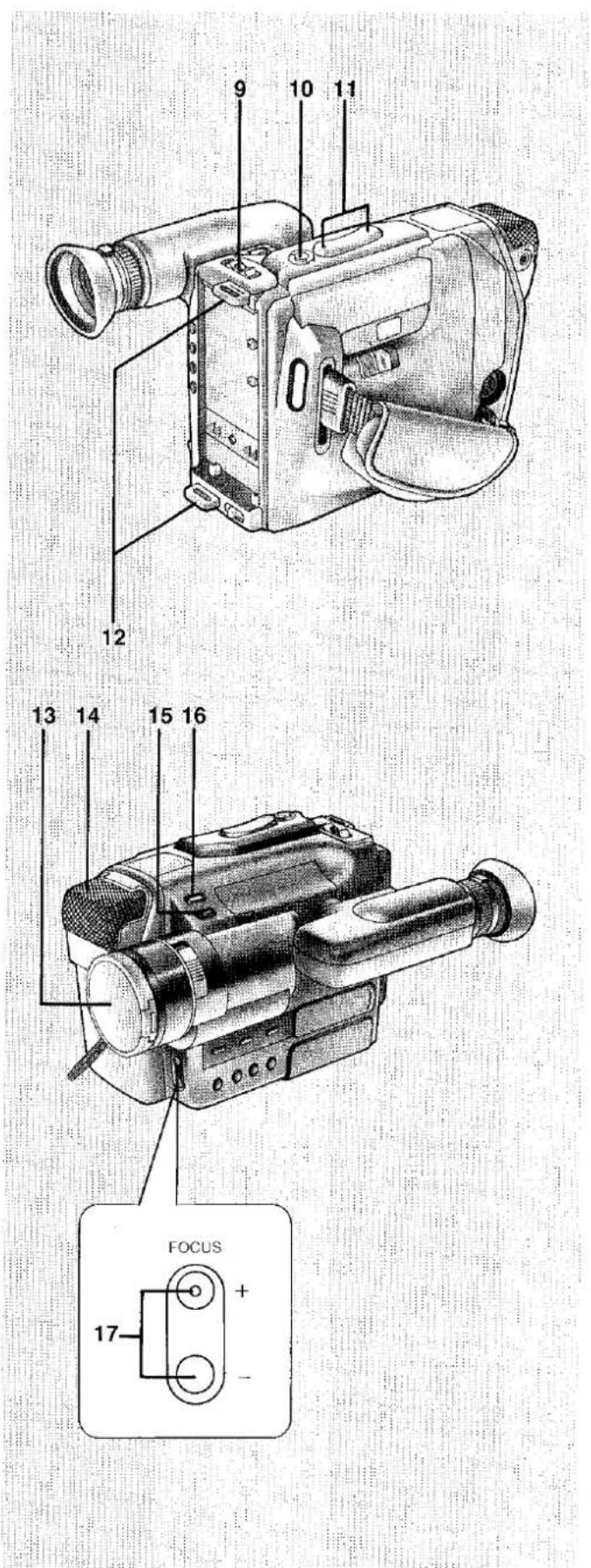
Controls and Functions (cont'd)
9 Operation Switch [OPERATE]
(p. 13, 15, 16, 20, 25, 26, 27, 29, 30, 31, 48, 51)
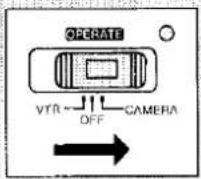
Set this switch to "CAMERA" for shooting.
Set it to "VTR" for playback.
To turn the Movie Camera off, set it back to the centre "OFF" position.
("VTR" means Video Tape Recorder.)
10 Snapshot Button [SNAPSHOT REC] (p. 29)
Press this button for shooting a still picture for approx.
5 seconds.
To be able to press this button, the Movie Camera must be in the shooting pause mode ([OPERATE] Switch is set to "CAMERA").
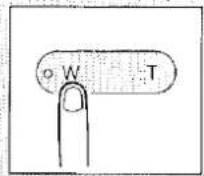
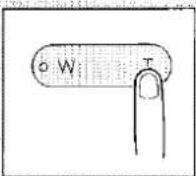
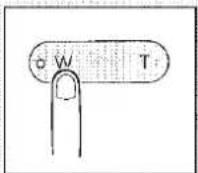
11 Zoom Buttons [W]/[T] (p. 32, 36, 39, 40, 42)
Press the [W] Button to gradually zoom out to the wide-angle position for panoramic shots; press the [T] Button to gradually zoom in to the telephoto position for close-up shots of distant subjects.
12 Shoulder Strap Holders (p. 18)
Attach the Shoulder Strap to these two holders.
13 Lens Cap (p. 17, 25, 39, 40, 51)
The Lens Cap protects the Lens.
Be sure to remove the Lens Cap before starting to shoot.
14 Stereo Microphone
On the Hi-Fi sound track, stereo sound will be recorded.
The two-way microphone is highly effective for recording interviews with the local ambience as well as narrations and music.
15 Fade Button [FADE] (p. 33)
Press this button to fade out a scene and to fade in the following scene for a soft scene-to-scene transition.
16 Date/Time Button [DATE/TIME] (p. 15, 16)
Press this button to make the time and/or date appear in the Viewfinder and superimpose them onto the picture during shooting.
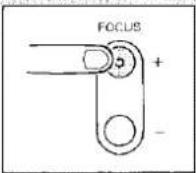
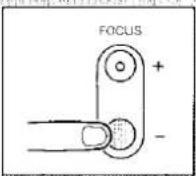
17 Focus +/- Buttons [FOCUS +/-] (p. 42)
After selecting the manual focusing mode with the [FOCUS] Button, adjust the focus to the desired subject by pressing these buttons.
![PANASONIC NV-S7B - Focus +/- Buttons [FOCUS +/-] (p. 42) - 1](/content/2026/05/794722/images/9481314004b7a2d9d60e82d6895e04a99db5f4d040341d0c35b70f79325e9a75.jpg)
Controls and Functions (cont'd)
18 Digital Image Stabilizer Button [I. STABILIZER] (p. 23, 28) Press this button when you are shooting on the move, from a vehicle for example.
19 Digital Zoom Button [DIGITAL ZOOM] (p. 32)
Press this button to increase the power of the Zoom Function from the normal 8 times to 16 times (in the maximum telephoto setting, the subject will be enlarged 16 times compared with the maximum wide-angle setting).
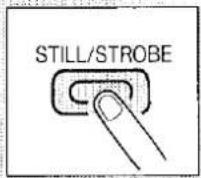
20 Still/Strobe Button [STILL/STROBE] (p. 30, 31)
Use this button for the following 2 operations.
(At every push of this button, the operation mode changes.)
1) For still picture shooting:
Press once.
2) For strobe picture shooting:
Press twice.
3) Return to the normal shooting:
Press three times.
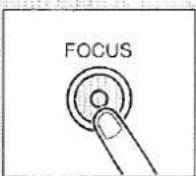
21 Focus Button [FOCUS] (p. 41, 42)
Press this button to select manual focus adjustment for shooting.
22 White Balance Button [W.B] (p. 38, 39, 40)
Press this button to select manual white balance adjustment for shooting.
23 Iris Close/Open Buttons [IRIS CLOSE]/[IRIS OPEN] (p. 34) By pressing the [IRIS OPEN] or [IRIS CLOSE] Button, the iris can be adjusted as follows:
OPEN: The subject becomes brighter.
CLOSE: The subject becomes darker.
24 On-Screen Display/Memory Button [OSD/M] (p. 21, 22)
Press this button to make the indications in the Viewfinder disappear. (Some indications such as "DEW" cannot be canceled.) Press this button also to activate the Tape Counter Memory Function so that the tape position corresponding to the Tape Counter Indication "M0:00.00" can be found easily during fast-forwarding or rewinding of the tape.
25 Reset Button [RESET] (p. 21)
Press this button to reset the tape counter to "0:00.00".
26 S-VHS/Tape Speed Selector Button [S-VHS/SP·LP] (p. 10, 20, 25)
At every press of the [S-VHS/SP·LP] Button, the recording system and the tape speed can be changed.
27 Shutter Speed Select Button [SHUTTER] (p. 37)
Press this button to select a higher shutter speed when shooting scenes with fast movements.
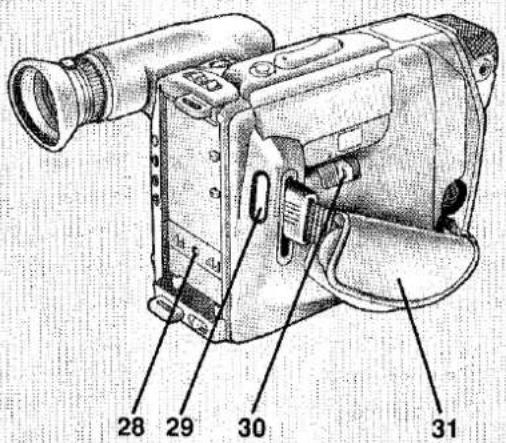
Controls and Functions (cont'd)
28 DC Input Socket (p. 13)
When using the AC Adaptor or the Car Battery Cord (optional) as power supply instead of the Battery Pack, connect the DC Input Cable to this socket.
29 Start/Stop Button (p. 25, 26, 28, 30, 31, 33, 36)
Press this button to start shooting a scene. (It is not necessary to keep it pressed during shooting.) Press it again to finish shooting the scene and change the Movie Camera back to the shooting pause mode
30 Cassette Compartment Opening Knob (p. 19, 25, 26, 48, 51)
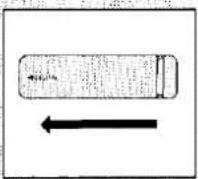
Slide the Cassette Compartment Opening Knob to the right side to open the Cassette Compartment.
31 Grip Belt (p. 17)
The height of the Grip can be adjusted in 4 steps to match the size of your hand. Adjust it so that the Start/Stop Button and the [W] and [T] Zoom Buttons can easily be pressed with the fingertips.
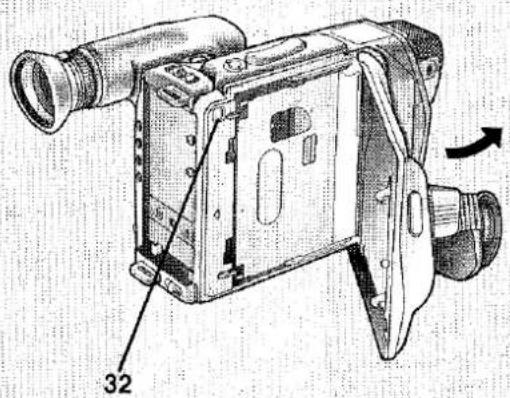
32 Cassette Eject Button [EJECT] (p. 19)
To insert or take out a video cassette, press this button.
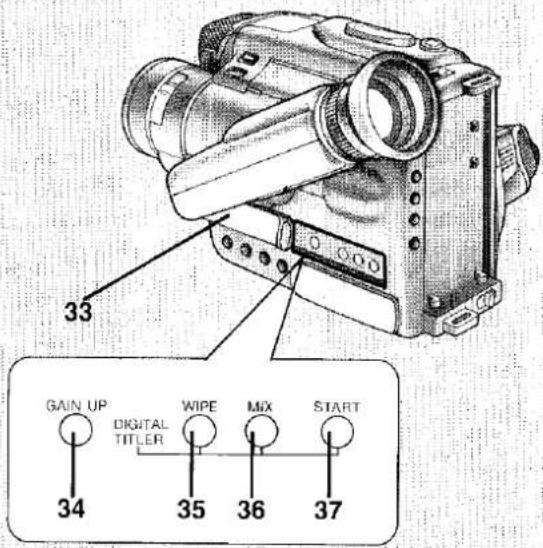
33 Digital Mode Cover (p. 29, 35, 43, 44)
34 Gain Button [GAIN UP] (p. 35)
When shooting in the dark, the sensitivity can be increased in steps by pressing this button.
35 Digital Wipe Button [WIPE] (p. 43)
To perform Wipe Recording of a still picture, press this button.
36 Digital Mix Button [MIX] (p. 44)
To combine a still picture with the moving picture, press this button.
37 Digital Start Button [START] (p. 43, 44)
To start the Digital Wipe Function or the Digital Mix Function, press this button.
![PANASONIC NV-S7B - Digital Start Button [START] (p. 43, 44) - 1](/content/2026/05/794722/images/beda6d4799f6b70e24409d175e724646044ee1623f39e95526d46772248b3d38.jpg)
Controls and Functions (cont'd)
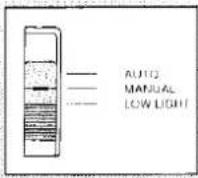
38 Mode Selector Switch (p. 34, 37, 39, 40, 41, 42)
AUTO: This setting provides automatically focussed pictures with natural colours and brightness for almost any shooting condition.
MANUAL: When automatic focusing is not possible or when you want to adjust the White Balance or the focus manually.
LOW LIGHT: When shooting evening scenes and under other lowlight conditions.
39 Video Output Socket (p. 45, 46, 50)
Connect this socket via Video output cable to the video input socket of the TV set (or the RF Adaptor) for playback directly from the Movie Camera.
40 RF DC Output Socket (p. 46)
Connect this socket with the RF Adaptor to supply it with power for playback directly from the Movie Camera.
41 Audio Output Socket (p. 45, 46, 50)
Connect this socket via audio cable with the audio input socket of the TV set (or the RF Adaptor) for playback directly from the Movie Camera.
42 Eyepiece Corrector Ring (p. 16)
Turn it clockwise or counterclockwise so that the indications in the Viewfinder are clearly focused.
43 Eyecup (p. 16, 51)
44 Viewfinder (p. 16, 25, 51)
The subject in front of the camera can be seen on the viewfinder screen. Superimposed on the picture are indications about the operation and condition of the Movie Camera.
To be able to see the picture on the viewfinder screen with maximum magnification during shooting and playback, pull on the plastic ring behind the Eyecup to extend the Viewfinder.
45 Cassette Compartment (p. 19)
Insert a VISC or SVISC compact video cassette into this compartment.
46 External Microphone Socket
If you want to use an external microphone, connect it to this socket (in this case, the built-in microphone will be deactivated).
47 S-Video Output Socket (p. 45, 50)
Connect the S-Video Cable to this socket if the TV set is equipped with an S-Video Input Socket.
48 New Edit Socket (p. 50)
Connect an Editing Controller, etc. to this socket.
49 Tripod Receptacle
When using a tripod for stable shooting, attach the screw of the tripod to this receptacle.
50 Button Type Battery Holder (p. 14)
It holds the Button Type Battery (CR2032) that maintains the clock operation while the Movie Camera is turned off.
flowchart
graph TD
    A["Camera"] --> B["S-VHS/SP LP"]
    B --> C["(S-VHS)"]
    B --> D["(VHS)"]
    E["VHS-C"] --> F["S-VHS/SP LP"]
    F --> G["(S-VHS)"]
    F --> H["(VHS)"]
    I["(S-VHS)"] --> J["S-VHS"]
    K["(VHS)"] --> L["VHS"]
    M["S-VHS/C 625"] --> N["VHS PAL"]
S-VHS Format
About the S-VHS Format
The S-VHS video format is the new video system that fulfills the exceedingly high demands and expectations of today's video-information age. It is newly developed based on the VHS video format established throughout the world for home use, and it employs a wealth of latest technology to provide higher resolution and picture quality. The newly developed, high-performance S-VHS-C video cassette tapes enable the S-VHS format to realize truly epoch-making improvements in overall picture quality and clarity.
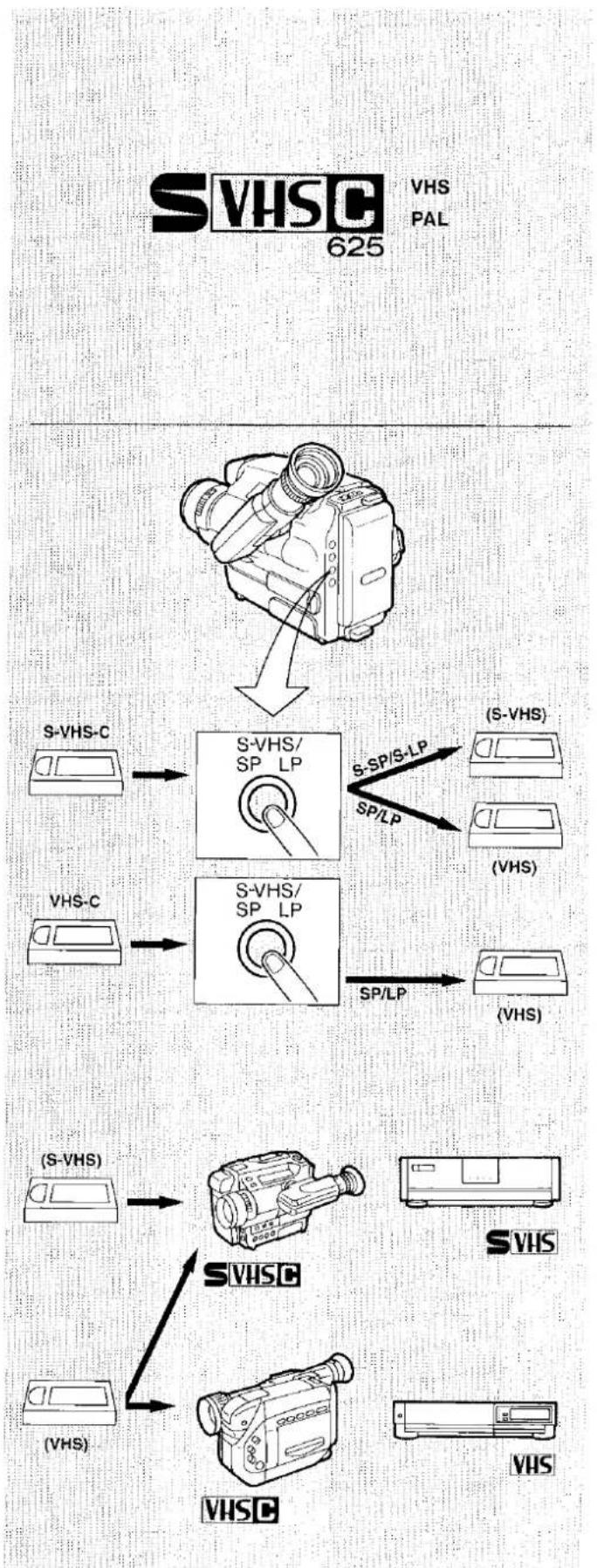
This S-VHS-C Movie Camera allows high picture quality recording and playback by using the video cassettes carrying the S-VHS-C logo as well as conventional VHS recording and playback on the video cassettes bearing the VHS-C logo.
Compatibility of VTRs and Tapes
When recording
When using an S-VHS-C video cassette for recording, the recording format (S-VHS or VHS) can be selected as follows by pressing the [S-VHS/SP·LP] Button.
S-SP, S-LP: S-VHS format
SP, LP: VHS format
- The Indications "S-SP", "LP", etc. are displayed in the Viewfinder.
When using a VHS-C video cassette for recording, it is not possible to select "S-SP" or "S-LP" with the [S-VHS/SP·LP] Button.
When Playing Back
- Tapes recorded in the S-VHS format can be played back on this Movie Camera or on other S-VHS VTRs.
(However, they cannot be played back on VHS VTRs.)
- Tapes recorded in the VHS format can be played back on VHS VTRs as well as on this Movie Camera and on other S-VHS VTRs.
- The video format in which the video cassette was recorded will automatically be detected and selected for playback.
- If the setting of the [S-VHS/SP·LP] Button is changed during shooting, some picture distortion will occur at that tape position during playback.
Using the Battery Pack
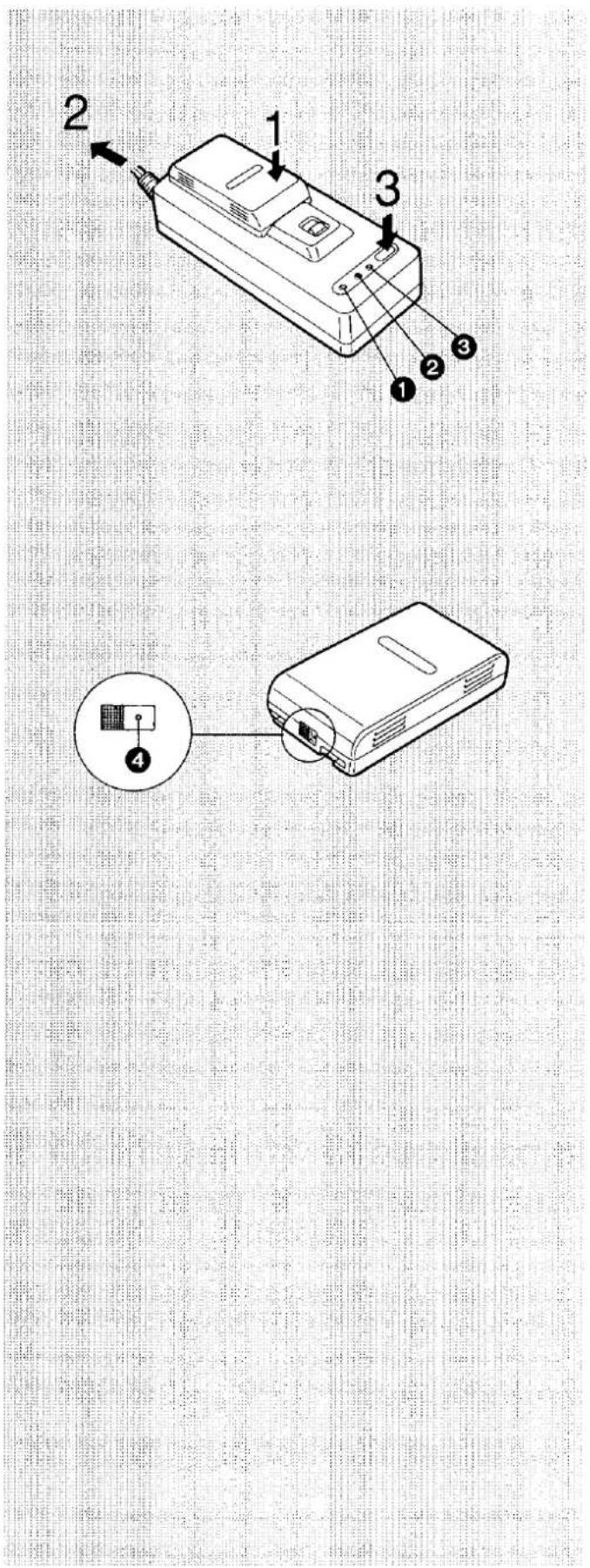
1) Charge the Battery Pack
The Battery is supplied in a discharged condition and must be charged before use.
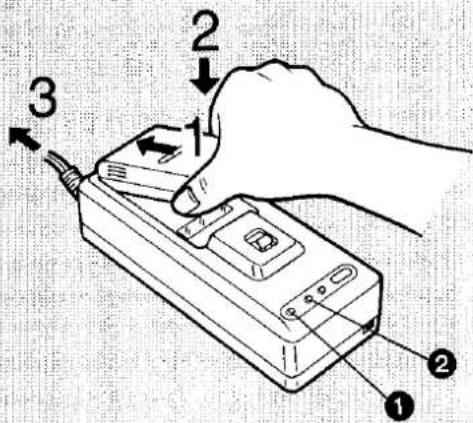
1 Insert the upper end of the Battery Pack into the connector on the AC Adaptor as shown in the illustration.
2 Press the rear portion down until it locks with a click.
3 Connect the Power Cable of the AC Adaptor to the mains.
• The Power Lamp ① lights up and several seconds later the Charging Lamp ② lights up, too.
Note:
When charging the Battery Pack, disconnect the DC Input Cable from the AC Adaptor.
■ Charging Time and Maximum Time for Continuous Shooting
| Battery Pack No. | VW-VBS1E Supplied | VW-VBS2E Optional | VW-VBR1E Optional | VW-VBR2E Optional |
| Charging time in minutes | 60 | 120 | 60 | 120 |
| Max. shooting time in minutes | 50 | 100 | 50 | 100 |
Charging Indication Lamp:
This lamp lights up when the charging is started.
Even after this lamp goes out, the charging should be continued for at least two more hours to obtain maximum charge.
Operation Time:
With a fully charged Battery Pack (VW-VBS1E), the Movie Camera can be used (in record mode only) continuously for approx.
50 minutes at 25°C. However, depending on how often the various functions listed below are used, and depending on the shooting conditions, the actual operation time may be considerably shorter.
●Shooting start/stop
• Auto focus
- Zoom function
- Playback, fast forward, rewind, and other operations
●Digital functions, e.g. image stabilizer
- Use of the Movie Camera in low temperature
Therefore, it is recommended to take along a charged spare Battery Pack.
■ To Eject the Battery Pack...
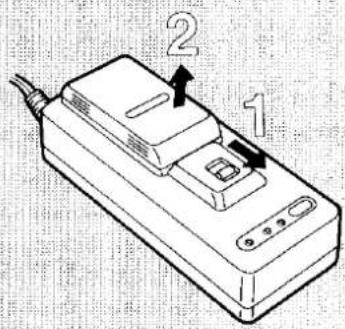
Slide the Battery Eject Lever in the direction of the arrow and...
2 Remove the Battery Pack.
Notes:
- Charge the Battery Pack within a temperature range of 10°C–35°C.
- Do not charge a Battery Pack that is already fully charged.
Using the Battery Pack (cont'd)
■ How to Use the Convenient Discharge→Charge Function If a Battery Pack is recharged repeatedly in not completely discharged condition, the so-called "memory effect" will occur, and the operation time of the recharged Battery Pack will gradually become shorter. Therefore, it is recommended to regenerate the Battery Pack after approx. every fifth recharging by using the convenient Discharge→Charge Function.
1 Attach the Battery Pack to the AC Adaptor.
2 Connect the Power Cable of the AC Adaptor to the mains. • The Power Lamp ① lights up, and soon after, the Charging Lamp ② lights up.
3 Press the Discharge→Charge Button for more than 1 second.
- The Discharge Lamp ③ lights up, and the Charge Lamp ② goes out.
■ When the discharging is finished, the Charge Lamp ② lights up instead, and the charging starts.
■ When the charging is completed, the Charging Lamp goes out.
- When using the Discharge Charge Function, the charging takes five or six times as long as normal charging.
■ How to Use the Charging Confirmation Marker
This marker makes it convenient to distinguish between charged and discharged Battery Packs. For example, slide the knob so that the dot 4 is visible to mark a charged Battery Pack, and slide it so that the dot is not visible for a partially or fully discharged Battery Pack.
Using the Battery Pack (cont'd)
2) Attach the Battery Pack to the Movie Camera.
■ How to Attach the Battery Pack
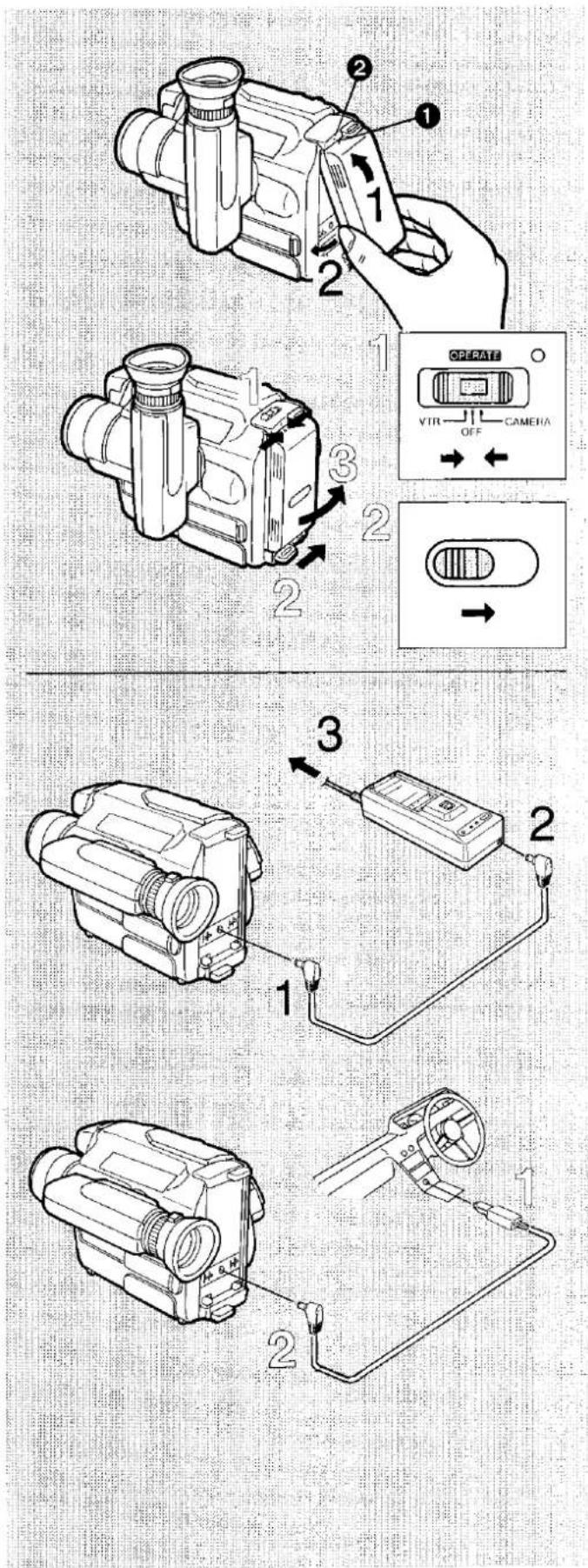
1 Align the mark ① at the top of the Battery Pack with that on the Movie Camera ② and insert the Battery Pack with its upper part first.
2 Attach the Battery Pack until it locks with a click.
■ How to Remove the Battery Pack
1 Press and slide to "OFF".
2 After the image in the Viewfinder disappears, slide to the right and...
3 Pull off the Battery Pack.
Caution:
- If the Battery Pack is removed during recording or playback, the tape remains wound around the video head cylinder and could become damaged. This is also the case during the loading and unloading of the tape.
Using the AC Adaptor or the Car Battery Cord (optional)
■ How to Use the AC Adaptor
1 Connect the DC Input Cable to the DC Input Socket on the Movie Camera.
2 Connect the other end of the cable to the DC Output Socket on the AC Adaptor.
3 Connect the Mains Cable of the AC Adaptor to the mains.
Note:
When the AC Adaptor is used to supply the Movie Camera with power, remove the Battery Pack from the AC Adaptor.
■ How to Use the Car Battery Cord (optional)
1 Start the engine and then plug the Car Battery Cord into the Cigarette Lighter Socket.
2 Connect the other end of the cord to the DC Input Socket on the Movie Camera.
Notes:
- The Car Battery Cord can only be used with 12 V DC negative-grounded vehicles.
- Do not start the car engine while the Movie Camera is powered by the car battery.
Setting the Clock
1) Insert the Button Type Battery
■ How to Insert the Button Type Battery
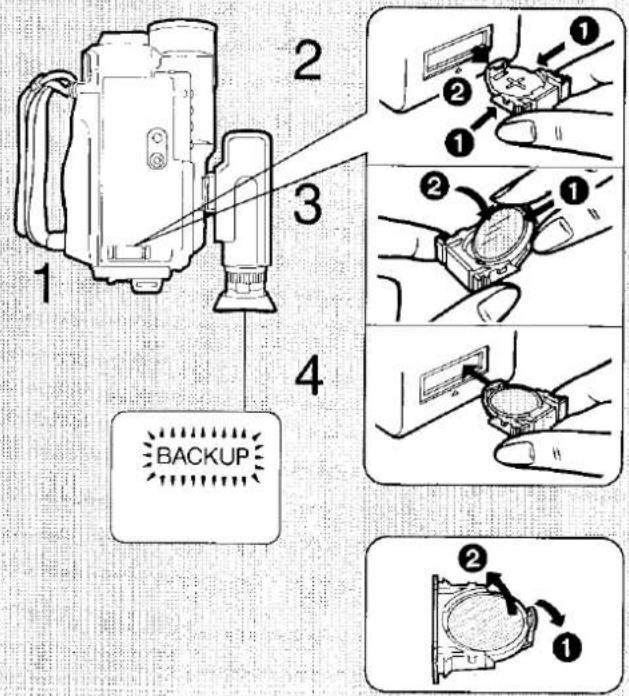
The "CR2032" size Button Type Battery is necessary for storing the date, time and selected tape speed in the memory, when the Movie Camera is turned off.
1 Turn the Movie Camera upside down.
2 Push the two stoppers ① toward each other and pull out the Battery Holder ②.
3 Install the Battery with the (+) mark facing downward until it locks with a click.
4 Insert the Battery Holder back into the Movie Camera until it locks.
- If the Button Type Battery is not inserted or if it is exhausted, the Indication "BACKUP" in the Viewfinder flashes for approx. 10 seconds when turning the Movie Camera on.
■ How to Exchange the Button Type Battery - Use only a "CR2032" size Button Type Battery.
•The CR2032 is manufactured by Panasonic only.
Note:
- If the Date and Time Indications in the Viewfinder are no longer correct after replacing the Button Type Battery, set the date and time as explained on page 15.
CAUTIONS FOR BATTERY REPLACEMENT
- The life of the battery is about one year. Inspect, and if necessary, replace the Battery once a year.
- Load the new battery with its polarities (+ and -) correctly aligned.
- Remove the spent battery immediately and dispose of it.
- Do not try to short-circuit, recharge or heat the battery and do not throw it into a fire.
- Keep the button-type battery out of reach of children. If a battery has been swallowed, consult a doctor immediately.
- Do not grasp the button-type battery with metallic tweezers because this could short-circuit it.
"THE LITHIUM BATTERY IS A CRITICAL COMPONENT (TYPE NUMBER CR2032 MANUFACTURED BY PANASONIC).
IT MUST NEVER BE SUBJECTED TO EXCESSIVE HEAT OR DISCHARGE. IT MUST THEREFORE ONLY BE FITTED IN EQUIPMENT DESIGNED SPECIFICALLY FOR ITS USE.
REPLACEMENT BATTERIES MUST BE OF THE SAME TYPE AND MANUFACTURER. THEY MUST BE FITTED IN THE SAME MANNER AND LOCATION AS THE ORIGINAL BATTERY, WITH THE CORRECT POLARITY CONNECTIONS OBSERVED.
DO NOT ATTEMPT TO RE-CHARGE THE OLD BATTERY OR RE-USE IT FOR ANY OTHER PURPOSE. IT SHOULD BE DISPOSED OF IN WASTE PRODUCTS DESTINED FOR BURIAL RATHER THAN INCINERATION".
Setting the Clock (cont'd)
2) Set the Date and Time
■ How to Set the Date and Time
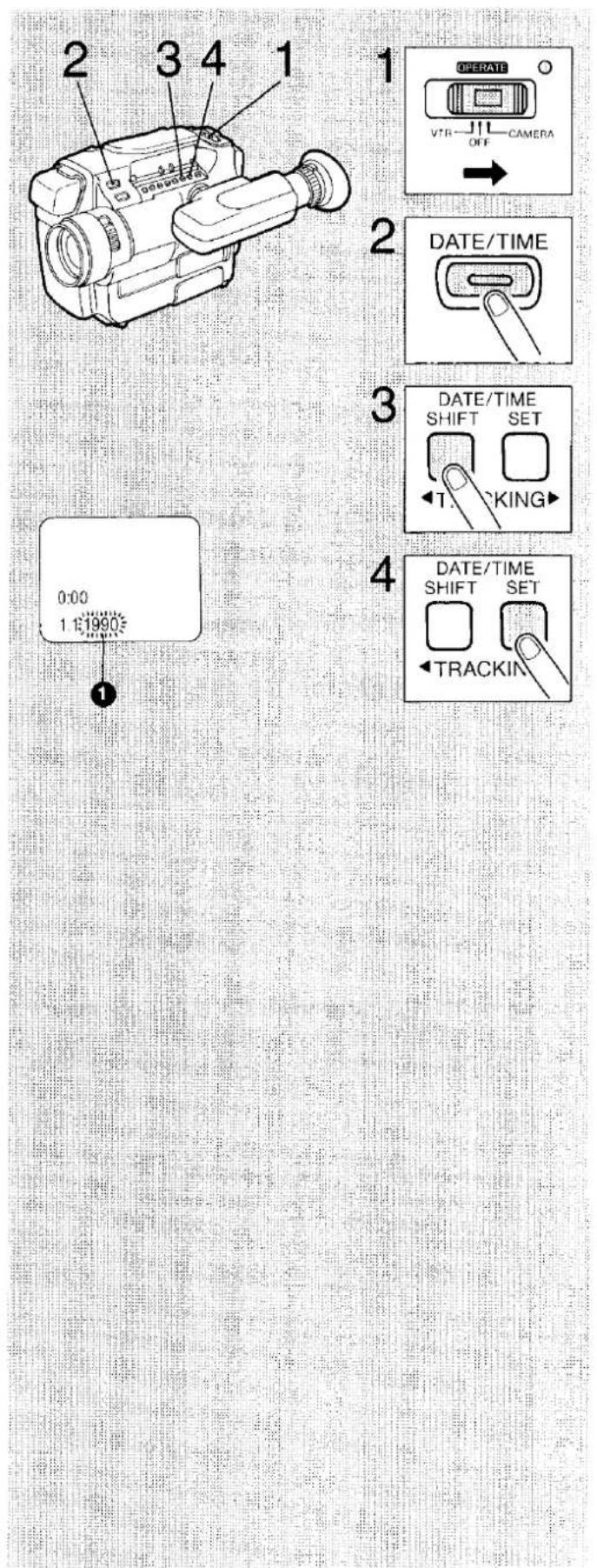
1 Press and slide to "CAMERA".
2 Press.
3 Keep pressed for more than 2 seconds.
- The year portion ① of the Date/Time Indication starts to flash.
- The flashing portion of the Date/Time Indication can be changed with the [SHIFT] Button in the following order:
→Year→Month→Day→Hour→Minute→“ ”→
4 Press to change the figures.
Year: 1990→1991→ ……→2089→1990→…
Month: 1→2→....→12→1→...
Day: 1→2→....→31→1→...
Hour: 00→1→....→23→0→...
Minute: 00→01→....→59→00→...
- Repeat procedures 3 and 4 until all items have been set correctly.
- Once the date and time are set, press the [SHIFT] Button in response to an accurate time source so that the clock begins to function.
flowchart
graph TD
    A["1 DATE/TIME"] --> B["2 15 38 20 10, 1993"]
    B --> C["3 20 10 1993"]
    C --> D["4 OPYRATE VTR OFF CAMERA"]
    D --> E["5 Rotation Arrow"]
    E --> F["6 Rotation Arrow"]
Recording the Date and Time during Shooting
During shooting, the Date/Time Indication displayed in the Viewfinder will also be recorded.
1 Press.
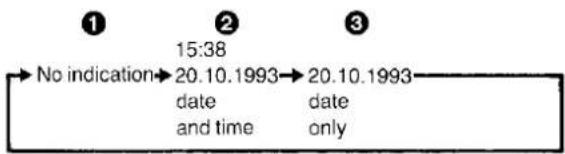
- At each press of the [DATE/TIME] Button, the Date/Time Indication ② in the Viewfinder can be changed in the following order:
flowchart
graph LR
    A["1"] --> B["No indication"]
    B --> C["15:38"]
    C --> D["20.10.1993"]
    D --> E["20.10.1993"]
    E --> F["date and time"]
    E --> G["date only"]
- Press the [DATE/TIME] Button to select the desired indication.
Extending the Viewfinder/Adjusting the Eyepiece Corrector
1 Before shooting, extend the Viewfinder to its fully extended position ① (about 3 cm).
Note:
- Do not hold it by the Eyecup because the Eyecup could become detached from the Viewfinder.
① Wrong
② Correct
2 Press and slide to "CAMERA".
3 Turn the Ring until the indications in the Viewfinder can be seen clearly.
- With the Eyepiece Corrector Control, the Eyepiece can be adjusted to your eyesight.
Notes:
- Do not apply any pressure to the Viewfinder except when folding it up, extending, raising, lowering, retracting and folding down.
- When not in use, the Viewfinder should be retracted and folded down to make the Movie Camera as compact as possible for carrying and storing it.
- Do not use the Viewfinder to hold or carry the Movie Camera.
natural_image
Diagram of a mechanical device with a rotating wheel and directional arrow (no text or symbols)Adjusting the Grip Belt/Removing the Lens Cap
■ Adjusting the Angle of the Grip Belt
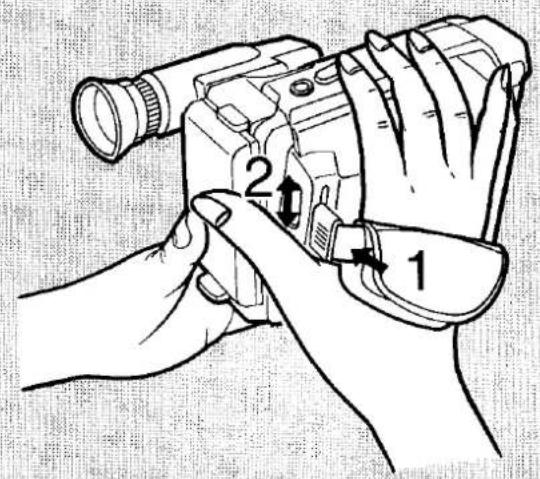
The angle of the Grip Belt can be adjusted in 4 steps to match the size of your hand. Adjust it so that the Start/Stop Button and the [W] and [T] Zoom Buttons can easily be pressed with the fingertips.
1 Press in the Grip Belt Holder in the direction of the arrow and...
2 Move the Grip Belt Holder up or down to the position that provides most comfortable handling and operating.
■ Adjusting the Length of the Grip Belt
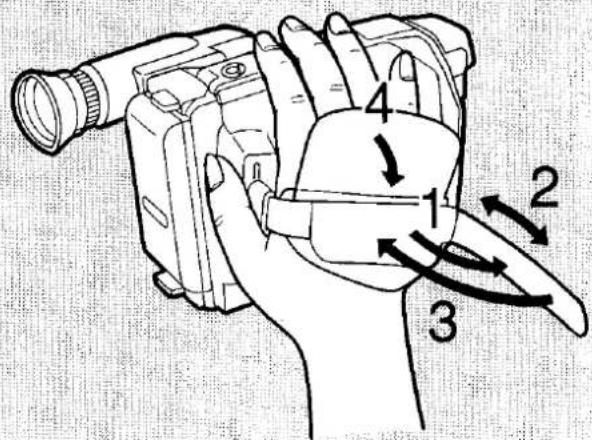
The length of the Grip Belt should be adjusted so that the Grip fits comfortably into the palm of your hand and the Start/Stop Button and the [W] and [T] Zoom Buttons can easily be pressed with the fingertips.
1 Unfasten the velcro tape closure.
2 Adjust the length to the size of your hand.
3 Fasten the velcro tape closure.
4 Fold the cover down over the Grip Belt.
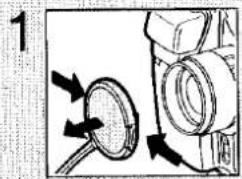
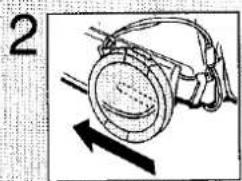
■ Removing the Lens Cap
1 Press the Stoppers and pull it off.
2 Hook the Lens Caps onto the Grip Belt to prevent it from getting in front of the Lens.
Attaching the Shoulder Strap
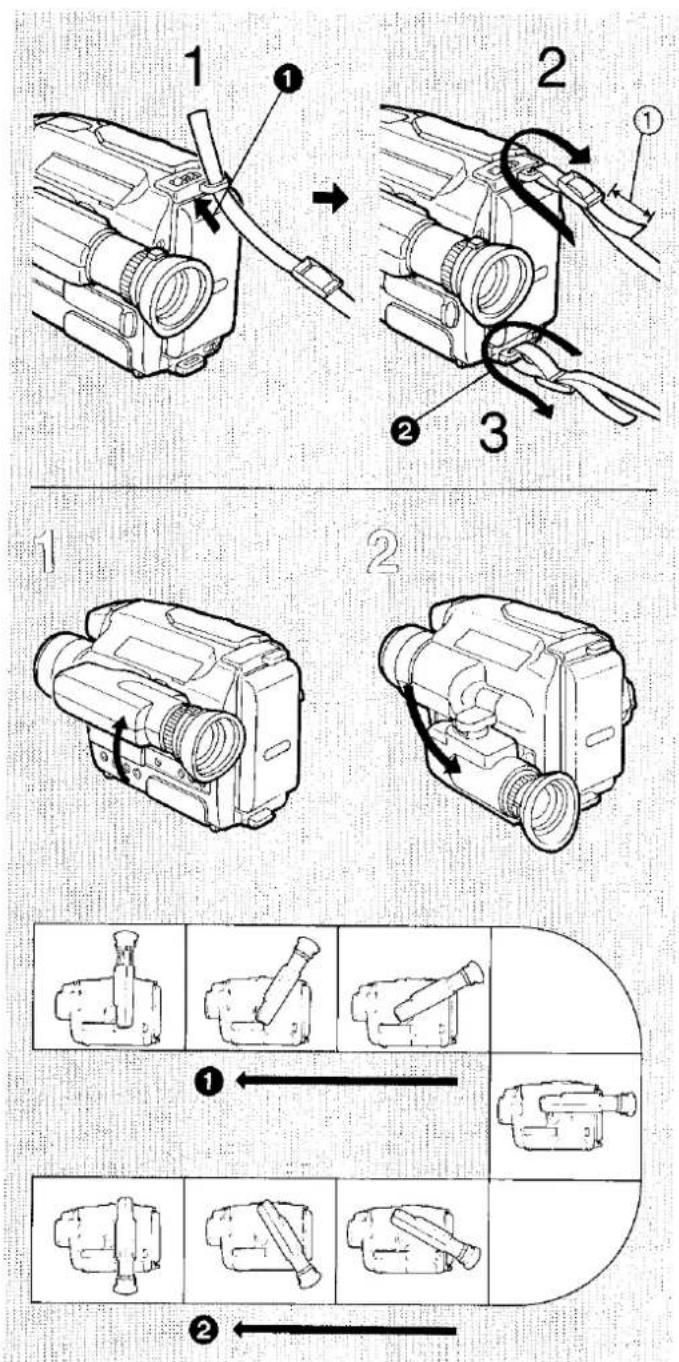
1 Pull the end of the Shoulder Strap through the Shoulder Strap Holder ①.
2 Securely attach the end of the Shoulder Strap. (① More than 2 cm)
3 Attach the other side ② in the same way.
Adjusting the Angle of the Viewfinder
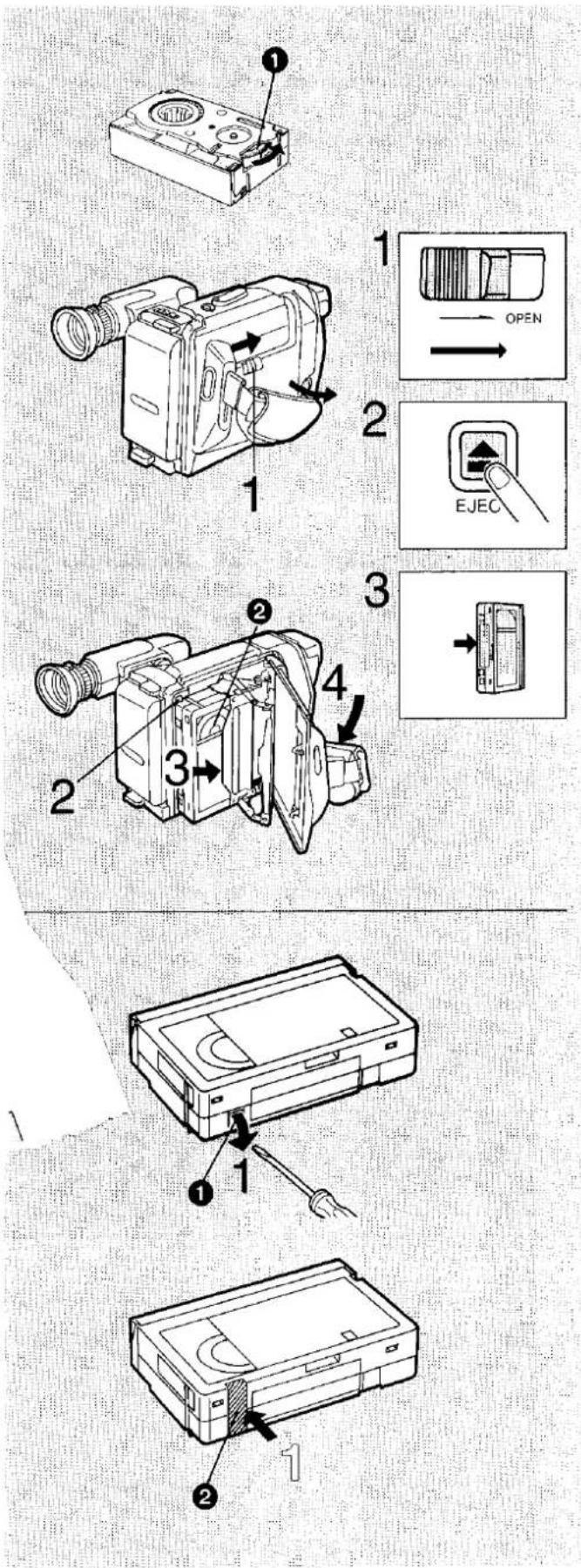
1 For shooting.
For storing the Movie Camera in the optional System Case or Carrying Bag.
■ Tilting Range of the Viewfinder (7 positions are marked by click stops)
The Electronic Viewfinder can be turned upward and downward in 3 steps from its horizontal position. (There is a click stop for each step.) When shooting from a low angle or with the camera mounted on a tripod, turn the Viewfinder upward. When holding the camera over your head, turn the Viewfinder downward.
① When shooting from a low angle.
② When holding the camera over your head.
Note:
- Do not use the Viewfinder to hold or carry the Movie Camera.
Inserting the Video Cassette
■ How to Insert the Video Cassette
- Use only S-VHS-C or VHS-C Compact Video Cassettes.
Before inserting the Cassette, make sure that the tape is not loose. If it is loose, tighten it by turning the cog wheel ① on the side of the cassette in the direction of the arrow.
1 Slide and open the cover.
2 Press.
- It takes a few seconds before the Cassette Compartment Cover opens.
3 Insert the video cassette with the cassette window ② facing upward.
4 Close the Cover until it locks with a click.
■ How to Eject the Video Cassette
Make sure that power is supplied to the Movie Camera.
Slide and open the Cover.
Press the [EJECT] Button.
Pull out the Video Cassette.
Close the Cover until it locks with a click.
Preventing Accidental Erasure of Recordings
When recording on a previously recorded tape, the previously recorded contents will be erased and replaced by the new recording. An important recording can be protected against accidental erasure, by breaking out the tab 1. If the tab is removed, recording on this Video Cassette is no longer possible.
■ How to Break off the Tab
1 Break off the tab with a screwdriver in the direction of the arrow.
■ How to Record Again onto a Video Cassette whose Tab Has Been Broken off
1 Cover the hole firmly with two layers of adhesive tape ②.
flowchart
graph TD
    A["1: OPERATE"] --> B["2: VTR OFF CAMERA"]
    B --> C["3: S-VHS/SP LP"]
    C --> D["4: TAPE"]

    A --> E["1: R 0.30 SP"]
    E --> F["2: T30"]
    F --> G["3: SP"]

    G --> H["4: T30 SP"]
    H --> I["T45 SP"]
    I --> J["5: T60 LP"]
    J --> K["T90 LP"]
Confirming the Remaining Tape Time
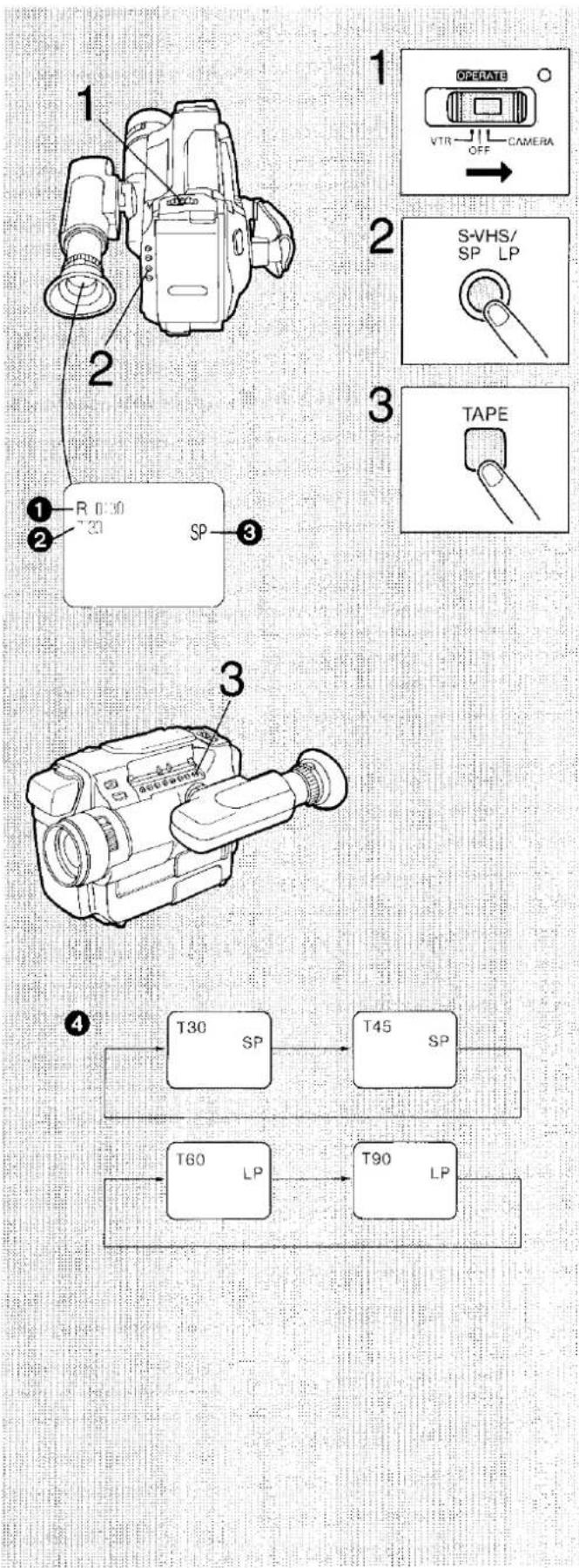
- During shooting and playback, the remaining tape time is indicated in hours and minutes in the top left corner of the Viewfinder 1.
- It is important that the correct tape length ② is selected with the [TAPE] Button.
After inserting a Cassette in the Cassette Compartment...
1 Press and slide to "CAMERA".
2 Press so that the "SP" Indication ③ appears in the Viewfinder.
If you want to shoot in the LP mode, press so that the "LP" Indication appears in the Viewfinder.
At every press of this button, the indication changes in the following order;
$$ \boxed {\begin{array}{c}\rightarrow S - S P \rightarrow S - L P \rightarrow S P \rightarrow L P\end{array}} $$
3 Press so that the "T30" Indication ② appears in the Viewfinder.
(If your cassette is of the EC30 type.)
When using a EC45 type cassette, press so that the "T45" Indication appears in the Viewfinder.
- The remaining tape time 1 in hours and minutes as well as the length of the inserted tape are indicated.
- At each press of the [TAPE] Button, the Tape Length Indication ② in the Viewfinder changes as illustrated ④
- When shooting or playback is started, the "R" Indication flashes for a few seconds while the Movie Camera calculates the remaining tape time. As soon as the Remaining Tape Time Indication appears, the "R" Indication remains lit.
("R" means Remaining)
Notes:
- When the remaining tape time becomes less than 3 minutes, the Remaining Tape Time Indication flashes.
- When the video cassette is removed from the Movie Camera, the Tape Length Indication automatically changes over to the first indication of the selected mode: In the SP mode, it changes over to "T30"; in the LP mode, it changes over to "T60".
| Cassette Name | Recording Time (and Indication) | ||
| SP Mode | LP Mode | ||
| WHSC | EC-30 | 30 minutes (T30) | 60 minutes (T60) |
| EC-45 | 45 minutes (T45) | 90 minutes (T90) | |
| SHSC | SE-C30 | 30 minutes (T30) | 60 minutes (T60) |
| SE-C45 | 45 minutes (T45) | 90 minutes (T90) | |
Using the Tape Counter Indication
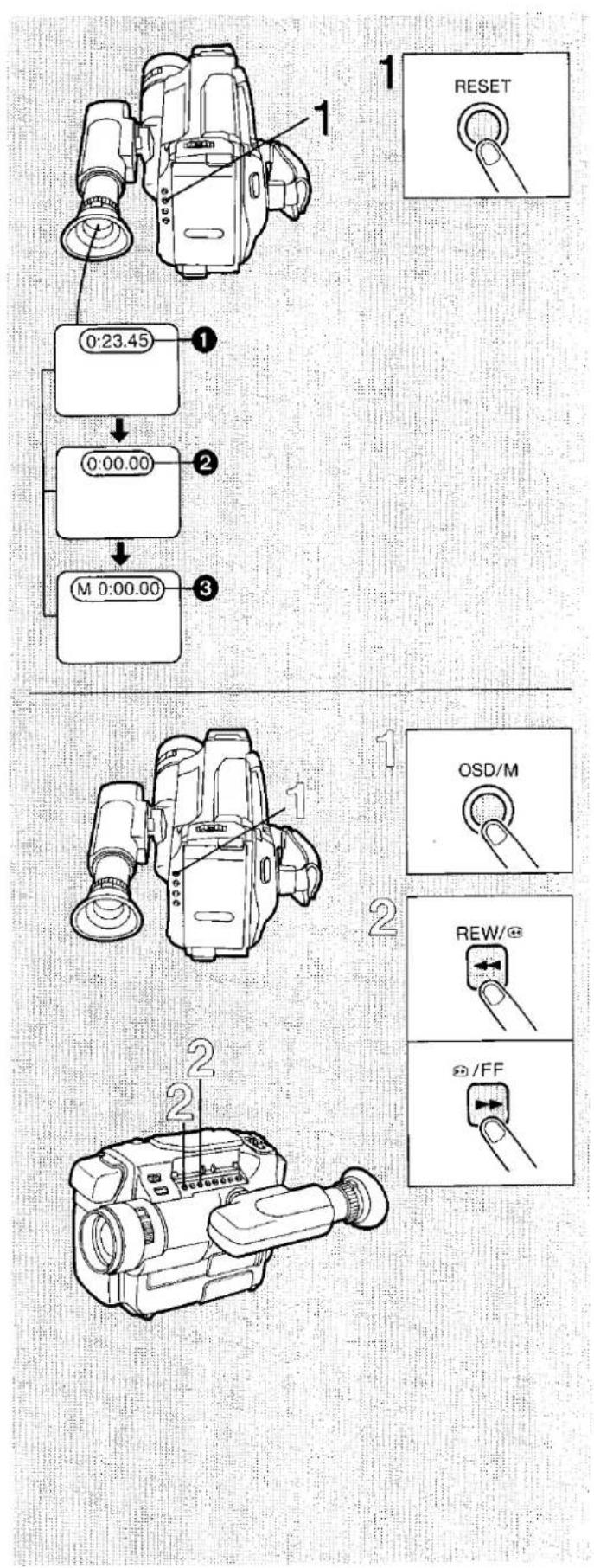
The Tape Counter Indication shows the elapsed tape time in hours, minutes and seconds ①.
■ How to Reset the Tape Counter to "0:00.00"...
1 Press.
The tape counter is reset to "0:00.00" ②.
- The Tape Counter is automatically reset to "0:00.00" when the cassette tape is taken out and a new cassette is inserted.
Note:
When the tape is rewound further than the tape counter position "0:00.00", the minus sign "-" appears in front of the Tape Counter Indication.
After rewinding the tape, the tape counter may read different from its original indication. This does not indicate the machine is at fault.
■ How to Search for the Tape Position "0:00.00" After Shooting or Playback...
1 Press.
- The "M" Indication ③ appears in the Viewfinder next to the Tape Counter Indication. ("OSD/M" means On-Screen Display/Memory)
2 Press one of the two Buttons.
- The tape stops automatically at about the point where the tape counter reads "M 0:00.00".
Note:
If the figures in the Tape Counter Indication do not change during fast forward, rewind or any of the playback functions, this means that nothing is recorded on that tape portion.
■ To Cancel the Memory Function...
Press the [OSD/M] Button.
●The "M" Indication disappears.
flowchart
graph TD
    A["1: OSD/M Mode"] --> B["0:00.00"]
    B --> C["M 0:00.00"]
    C --> D["3: Index"]
Using the On-Screen Display Function
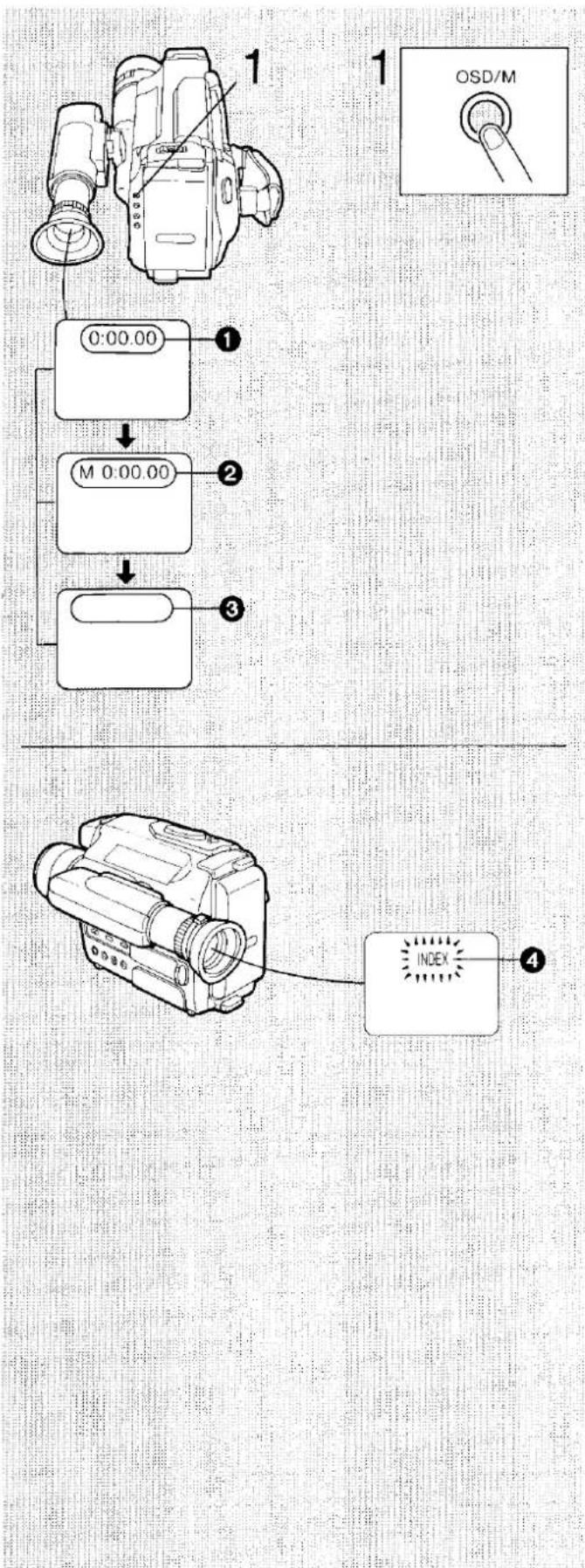
■ How to Turn off the Indications in the Viewfinder
1 Press twice.
- The indications in the Viewfinder disappear ③ except the Warning and Alarm Indications, the Date/Time Indication and the Manual White Balance Indications.
■ To Return to the Initial Mode...
Press the [OSD/M] Button again.
- At every press of the [OSD/M] Button, the Tape Counter Indication changes in the following order: 1→2→3→1...
Index Signals (VISS)
■ How to Use the Index Signals
The index signals make possible the use of the VHS Index Search or the Intro Scan Function when playing back the tape on a VTR equipped with these functions.
An index signal is recorded automatically in the following cases:
- When shooting is started for the first time after attaching the Battery Pack.
- When shooting is restarted after exchanging the cassette.
- When shooting is started by sliding the [OPERATE] Switch to "CAMERA" after sliding it to "VTR".
In each of these cases, the "INDEX" Indication 4 in the Viewfinder flashes for a few seconds.
- For the correct functioning of the VHS Index Search and Intro Scan Functions on the VTR, the index signals should be spaced at least 2 minutes in the SP mode and 5 minutes in the LP mode.
Holding the Movie Camera for Shooting
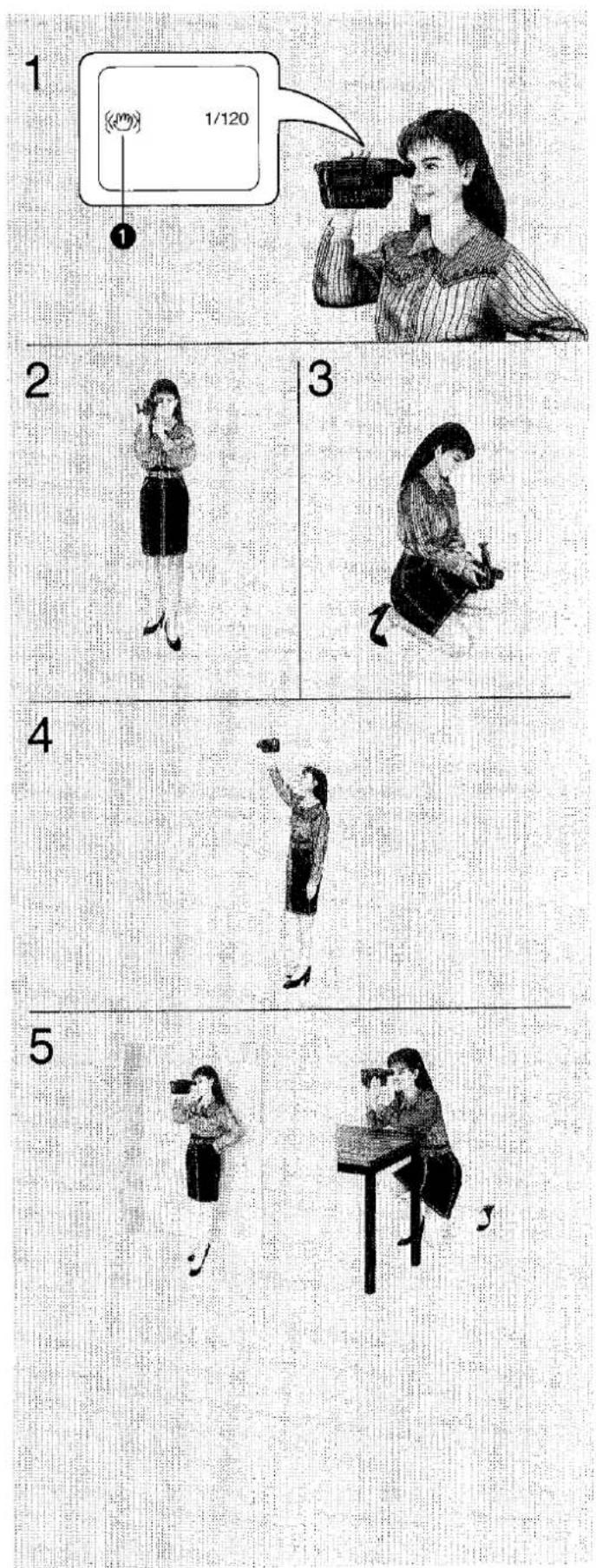
1 Shooting with the Digital Image Stabilizer Function.
With this function, even scenes shot with only one hand or shot from a moving vehicle will be rock-steady and free camera shake.
If the Image Stabilizer Indication ① is not displayed in the Viewfinder, press the [I. STABILIZER] Button to activate the Image Stabilizer Function. (See page 28.)
- When walking while shooting, keep both eyes open so that you can see where you are going and what is happening around you.
2 Shooting without the Image Stabilizer Function.
- Hold the Movie Camera with both hands with your elbows slightly in front of your lower chest.
- Hold the Eyecup of the Viewfinder as close as possible to your right or left eye.
• Take a firm stance with the legs slightly apart. - For stable images, it is recommended to use a tripod (optional) whenever possible. (See page 59.)
3 Low-Angle Shooting.
Adjust the angle of the Viewfinder according to the position in which the Movie Camera is held.
- If the Movie Camera is not held firmly in stable position, the picture in the Viewfinder cannot be watched properly.
4 Shooting from a high position.
5 For More Stable Pictures.
- Stabilize the Movie Camera by leaning against a wall, pillar or some other stable object.
- Stabilize the Movie Camera by resting your elbows on a table or another stable horizontal surface.
flowchart
graph TD
    A["Step 1: Hand Interaction"] --> B["Step 2: Intersection"]
    B --> C["Step 3: Spatial Layout"]
    C --> D["Step 4: Forward Path"]
    D --> E["Step 5: Horizontal Section"]
    E --> F["Step 6: Vertical View"]
    style A fill:#f9f,stroke:#333
    style F fill:#bbf,stroke:#333
Holding the Movie Camera for Shooting (cont'd)
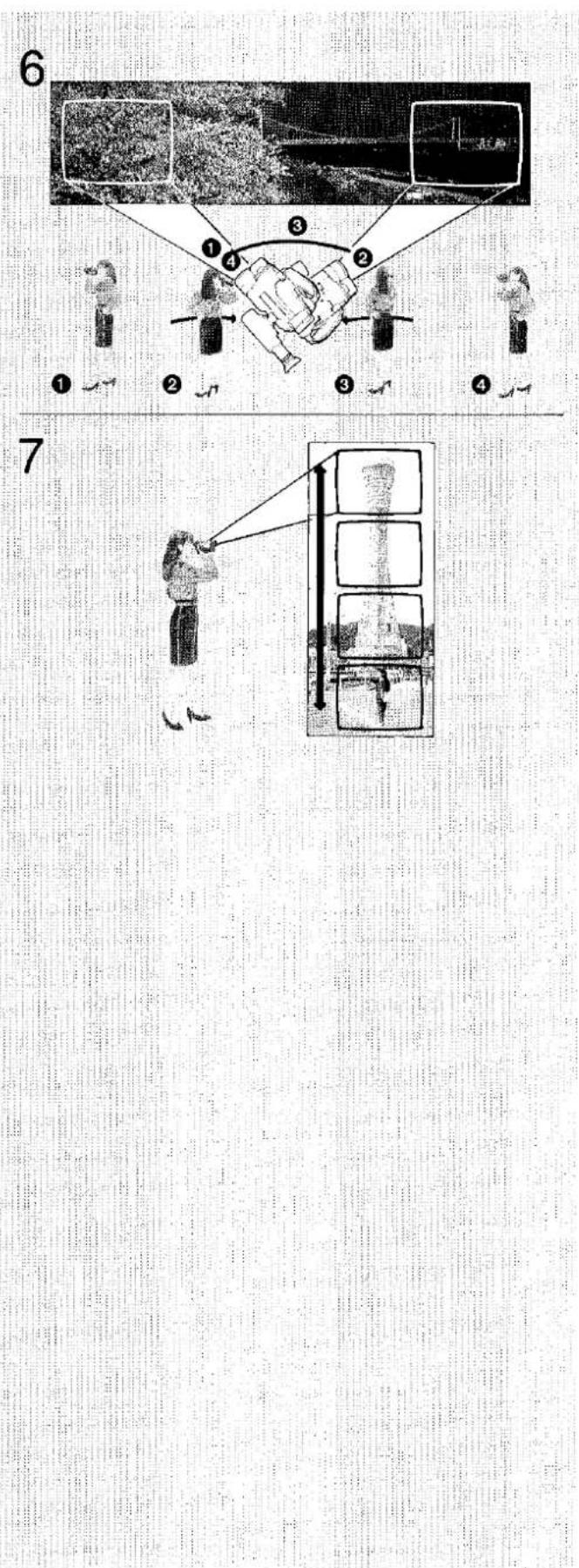
6 Panning.
Moving the Movie Camera from left to right, or vice versa, to follow a moving subject or to provide a panoramic effect is called panning.
① First, turn your body so that you are facing the point where the panning is to end.
② Without moving your feet, turn your upper body to face the point where the panning is to start, and then start shooting. Shoot in this position for about 5 seconds.
③ Gradually turn your upper body toward the point where the panning is to end.
Be careful to move the Movie Camera horizontally and very slowly so that the viewer can easily follow the action.
④ Finish the panning at the same point as in step ①. At this point, continue shooting for about 5 seconds.
7 Tilting.
Moving the Movie Camera vertically from top to bottom, or vice versa, to follow a moving subject or to show a narrow tall object, such as a tall building or tree in its full height is called tilting.
- At the start and at the end of the tilting shot, hold the camera stable and continue shooting for about 5 seconds in the same way as for panning shots.
- To emphasize the height of a subject, shoot it from the bottom to the top.
■ Hints for Panning and Tilting
For best results, define the start and end points and rehearse the panning or tilting before actually shooting. Be sure to keep the panning speed very slow.
Shooting
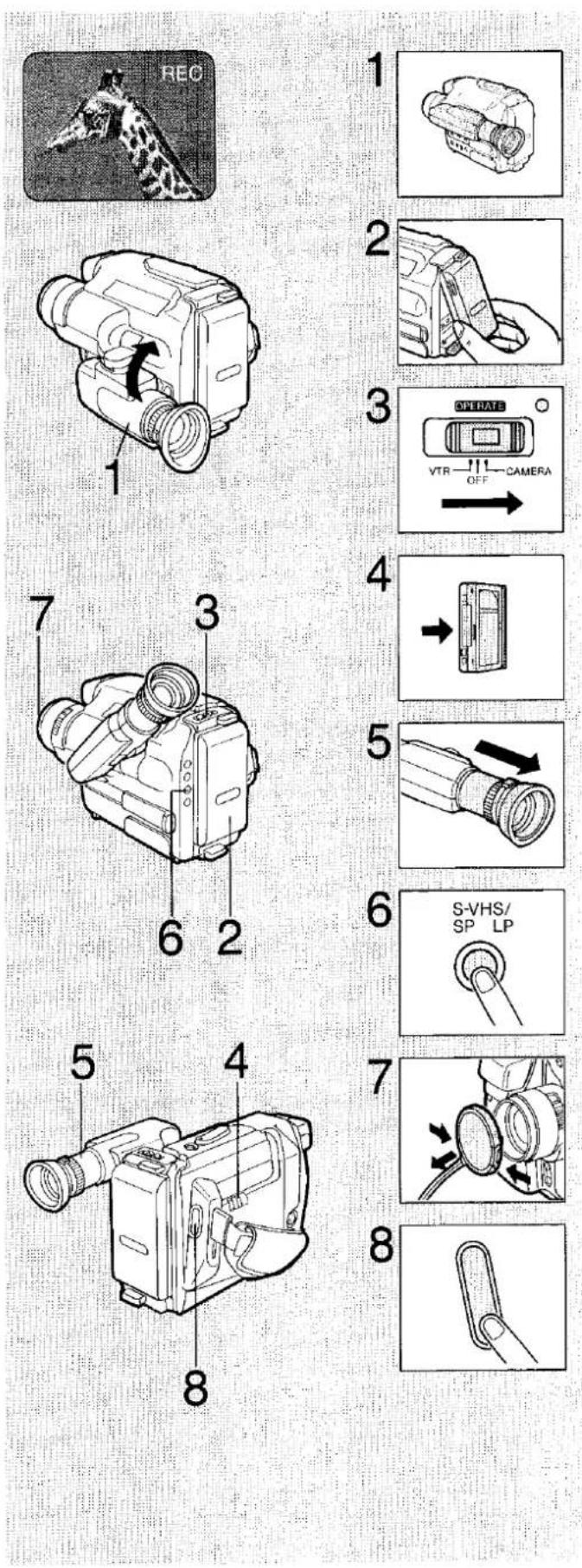
■ How to Shoot from the Beginning of the Video Cassette.
1 Fold up the Viewfinder.
2 Attach the charged Battery Pack.
3 Press and slide to "CAMERA".
4 Insert a cassette with intact erasure prevention tab.
- A few seconds after closing the Cassette Compartment, the Movie Camera will be in the shooting pause mode.
5 Extend the Viewfinder.
6 Press to select "S-SP", "S-LP", "SP" or "LP".
- When "S-SP" or "S-LP" (S-VHS system recording) is selected, playback is not possible on a normal VHS VTR.
7 Remove the Lens Cap.
8 Press the Start/Stop Button.
■ To Pause the Shooting...
Press the Start/Stop Button.
■ To Shoot the Next Scene(s)...
Press the Start/Stop Button again.
■ To Stop the Shooting...
Press the Start/Stop Button to pause the shooting and then set the [OPERATE] Switch to "OFF".
Note:
- If the Movie Camera is left in the shooting pause mode for more than 6 minutes, the shooting pause mode will be canceled and the Viewfinder will be turned off (recording lock mode). To resume shooting from this condition, set the [OPERATE] Switch to "OFF" and then to "CAMERA" again. If the Movie Camera is left in the recording lock mode for more than 48 hours, it will automatically switch off completely.
Checking the Recorded Scene
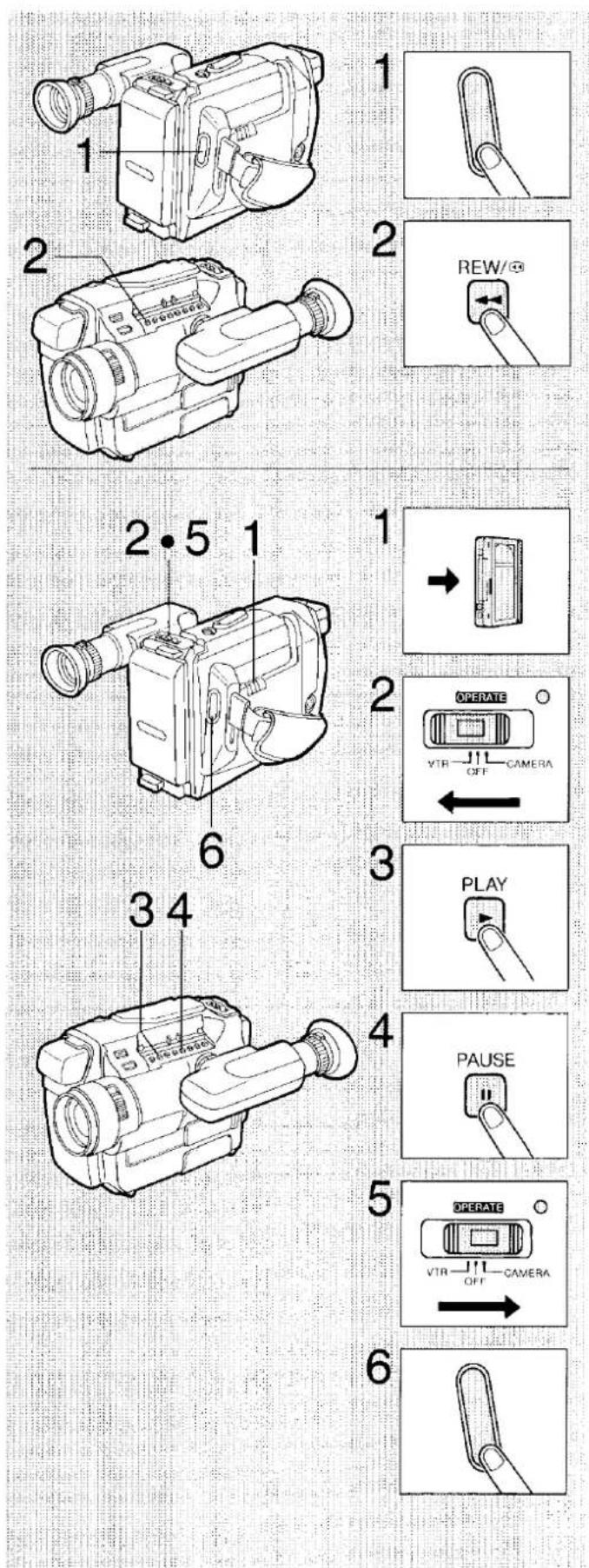
1 Press to pause the shooting.
●The "PAUSE" Indication appears in the Viewfinder.
2 Press briefly.
- The "CHK" Indication in the Viewfinder lights up, and the last 2-3 seconds of the last recorded scene will be played back in the Viewfinder. After that, the Movie Camera is again in the shooting pause mode. ("CHK" means Check)
Note:
During shooting, use this function to confirm from time to time that the recording has been performed correctly.
Shooting with Clean Edits
■ How to Add New Scenes at the End of Previous Shots
- This function makes it possible to achieve smooth transitions between a previously and a newly shot scene.
1 Insert the recorded video cassette.
2 Press and slide to "VTR". ("VTR" means Video Tape Recorder.)
3 Press.
4 Press after reaching the point where you want to add the next scene. (thereby erasing the rest of the previously recorded scene)
5 Slide to "CAMERA".
6 Press to start shooting the new scene.
•The shooting starts.
Searching for a Previously Shot Scene
Using the Convenient Camera Search Function
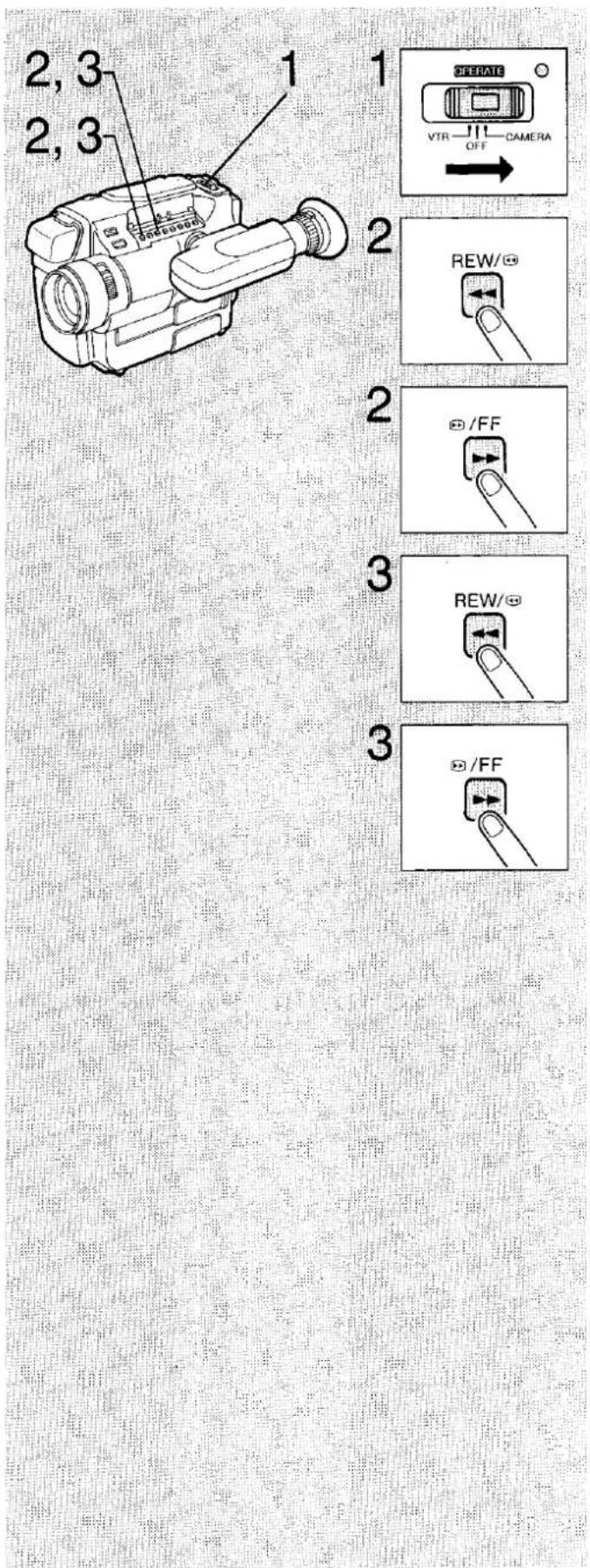
■ How to Search for a Point in a Recorded Scene After inserting the recorded video cassette:
1 Press and slide to "CAMERA".
2 Keep pressed.
- While this button is kept pressed, the recorded scene will be played back at high speed in reverse direction.
Or keep pressed.
- While this button is kept pressed, the recorded scene will be played back at normal speed in forward direction.
3 Release this button after reaching the desired point.
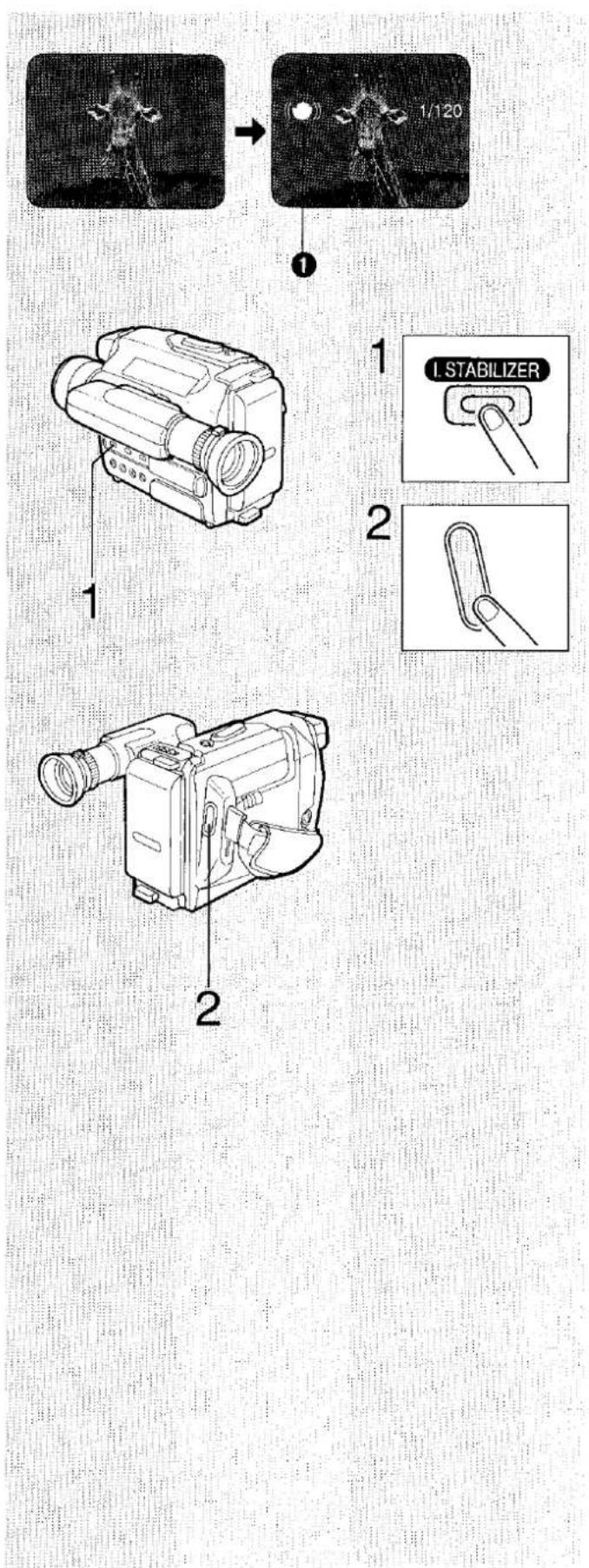
Shooting with the Digital Image Stabilizer Function
This function automatically corrects the slight shaking of the camera that often occurs during hand-held camera shooting and zooming.
It is especially practical for the following shooting situations:
- Zooming in on a distant subject.
●Shooting while walking.
●Shooting from inside a moving car.
1 Press.
The Image Stabilizer Function is activated with the [I. STABILIZER] Button.
- When the Image Stabilizer Function is activated, the Indications ① (Image Stabilizer Indication “♡” and Shutter Speed Indication “1/120”) appear in the Viewfinder.
2 Press.
•The recording starts.
■ To Cancel this Function...
Press the [I. STABILIZER] Button.
Note:
- The subject appears slightly enlarged in the Viewfinder and the shutter speed is set to 1/120 second the "1/120" Indication in the Viewfinder is displayed.
Notes on Shooting with the Image Stabilizer Function
■ Shooting Conditions...
- The picture stabilizing effect may not be sufficient, if the shaking of the Movie Camera is very strong, or in the following shooting conditions:
—A subject with horizontal or vertical stripes.
—An extremely bright subject.
—A subject under many fluorescent lamps.
—A fast-moving subject.
- When shooting under fluorescent light, the brightness of the picture may fluctuate.
●The resolution of the picture will be slightly reduced.
■ Shooting with the High-Speed Shutter...
- If the [SHUTTER] Button is pressed to change the shutter speed while the Movie Camera is in the Image Stabilizer Mode, the shutter speed will remain at this setting when the Image Stabilizer Mode is canceled.
■ Shooting with a Tripod...
- When shooting with a tripod, do not use the Image Stabilizer Function.
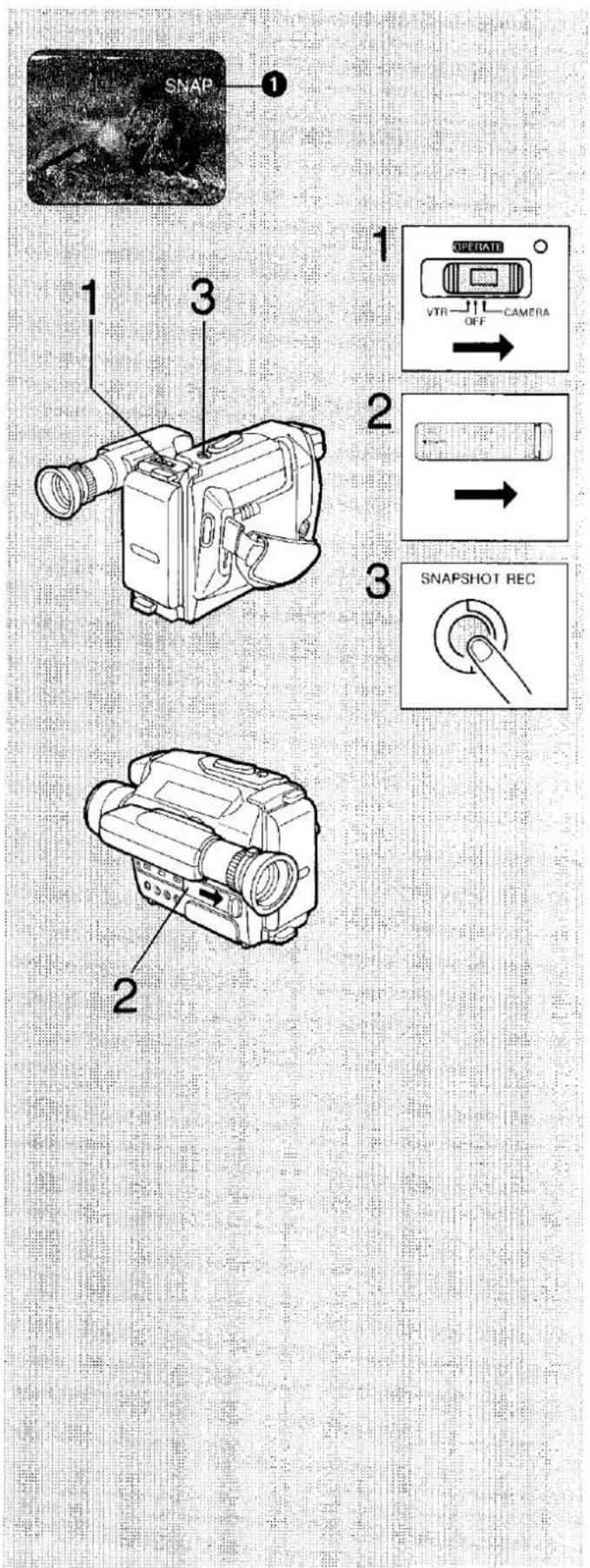
Taking a Snapshot
Using the Digital Shooting Function
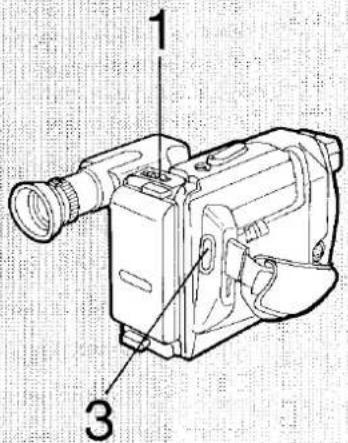
- Simply by pressing the [SNAPSHOT REC] Button, a still picture can be recorded for approx. 5 seconds. Since anyone can use this Movie Camera with the same ease as a photo camera, it's easy to ask somebody to take your picture by pressing the [SNAPSHOT REC] Button. This makes it even easier for you to get into your own video movies.
1 Press and slide to "CAMERA".
2 Slide the cover all the way to the right until it locks with a click.
- When the cover is not slid completely to the right, snapshot shooting is not possible.
3 Press.
- The "SNAP" Indication ① is displayed in the Viewfinder during the snapshot shooting.
- The still picture will be recorded for approx. 5 seconds and the Movie Camera will then switch back to the shooting pause mode.
Hints for Shooting Snapshot Pictures
By combining this function with the High-Speed Shutter Function, it is possible to shoot still pictures of fast actions for motion analysis.
- To prevent picture distortion, do not move or shake the Movie Camera during Snapshot Recording.
- Since the still picture is recorded from the digital image memory, the picture quality may be slightly inferior to that of normally recorded pictures.
- When the Snapshot Recording Function is used repeatedly, wait at least 2 to 3 seconds before pressing the [SNAPSHOT REC] Button again.
natural_image
Black-and-white photo of a standing goat in profile, no visible text or symbols
natural_image
Technical line drawing of a handheld electronic device with labeled component (no text or symbols beyond label)1
2
3
Shooting a Still Picture
Using the Digital Shooting Function
For recording a Still Picture of Any Desired Duration:
1 Press and slide to "CAMERA".
2 Press.
• The image in the Viewfinder stands still.
- By pressing the [STILL/STROBE] Button repeatedly, the mode can be changed in the following order:

3 Press.
• The still picture in the Viewfinder will be recorded.
■ To Cancel this Function...
Press the [STILL/STROBE] Button three times until normal movement in the Viewfinder is observed.
Hints for Shooting Still Pictures
- To prevent picture distortion, do not move or shake the Movie Camera during still picture shooting.
- Since the still picture is recorded from the digital image memory, the picture quality may be slightly inferior to that of normally recorded pictures.
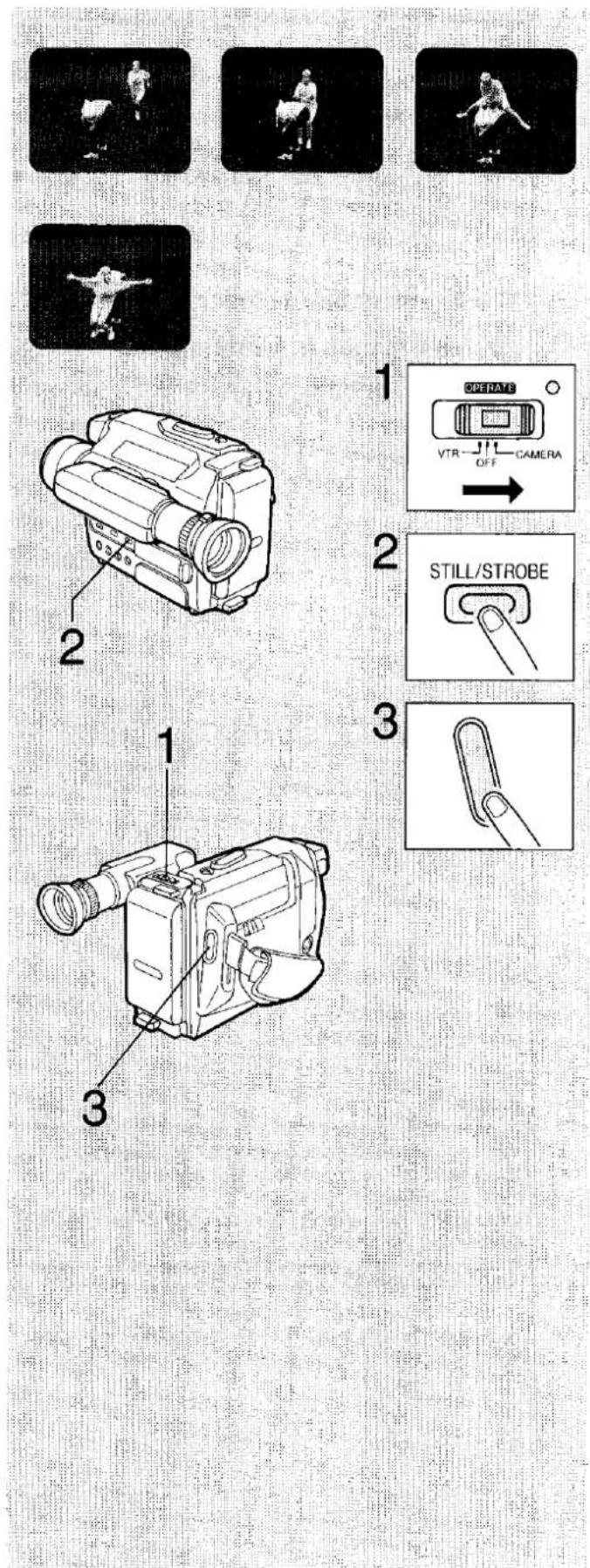
Shooting with Strobe Effect Using the Digital Shooting Function
For continuously recording 6 still images per second:
1 Press and slide to "CAMERA".
2 Press Twice.
●The picture in the Viewfinder will also have a strobe effect.
3 Press.
●Continuous shooting with strobe effect is now possible.
■ To Cancel this Function...
Press the [STILL/STROBE] Button twice until normal movement in the Viewfinder is observed.
Hints for Shooting Pictures with Strobe Effect
By combining the Strobe Function with the High-Speed Shutter, the strobe effect can be increased. (For outdoor shooting, the
1/250-second shutter speed is recommended.)
(See page 37.)
Notes:
- When shooting under fluorescent lamps, the brightness of the picture may fluctuate.
- Since the strobe pictures are recorded from the digital image memory, the picture quality may be slightly inferior to that of normally recorded pictures.
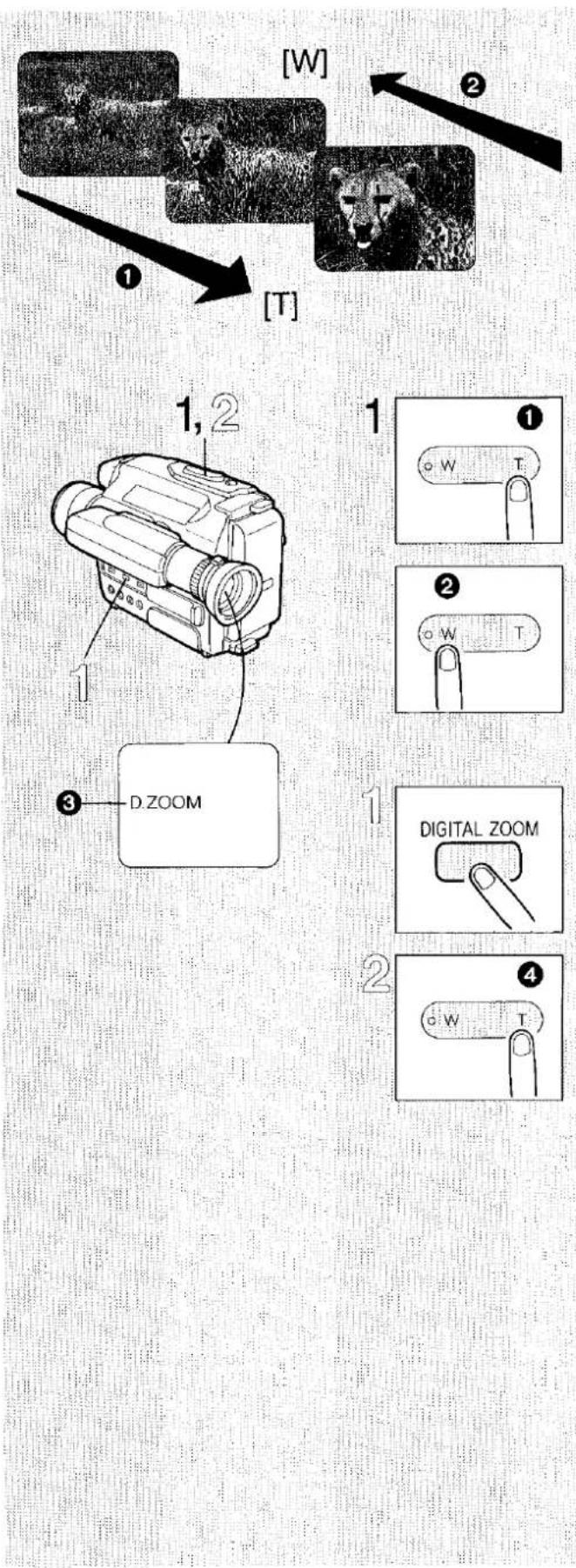
Shooting with the Zoom Function
Using the Power Zoom and Digital Zoom Functions
■ How to Zoom in ① or out ② (Using the Power Zoom Function)
To make your zoom shots more impressive and to achieve exactly the desired effect, do it like the professionals: before actually shooting, make a trial run of the zooming.
1 Keep pressed for telephoto. (subject appears closer ①) Keep pressed for wide-angle. (subject appears further away ②)
(Using the Digital Zoom Function)
The Digital Zoom Function makes it possible to zoom in on a subject and enlarge it by up to 16 times by using the [T] Zoom Button and the [DIGITAL ZOOM] Button.
Press. - When the Digital Zoom Function is activated, the "D. ZOOM" Indication ③ appears in the Viewfinder.
2 Press 4.
■ To Cancel this Function... Press the [DIGITAL ZOOM] Button.
- When the Digital Zoom Function is turned off, the zoom range is limited to ×8.
- When the Digital Zoom Function is activated, the picture is magnified electronically and the zoom range is increased to ×16.
- The Digital Zoom Function slightly decreases the picture resolution and fine picture details.
- When zooming in on a subject all the way to the maximum tele position, slight after-image distortion may occur.
- When zooming in the extreme tele range (near the 16 × setting, using the Digital Zoom) while the Image Stabilizer Function is activated, slight after-image distortion may occur. When shooting under very bright conditions, the after-image can be eliminated by selecting a shutter speed of 1/250 or 1/500 sec.
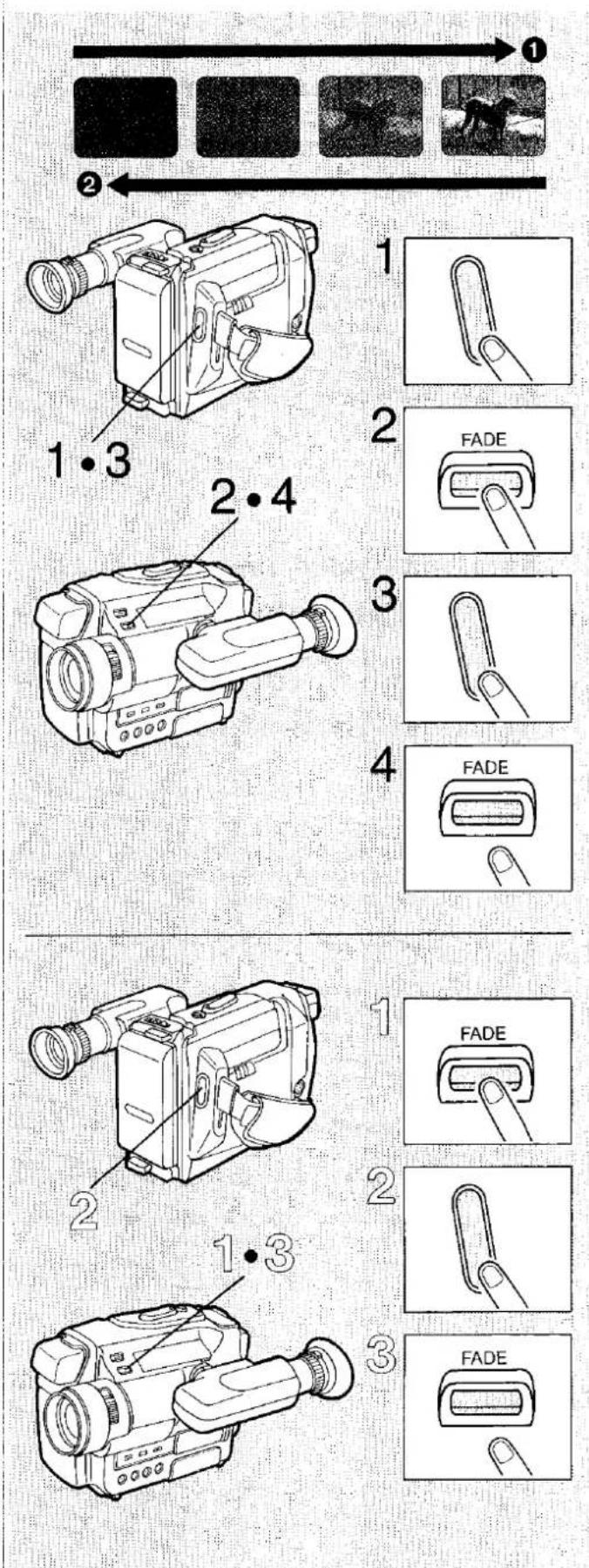
Shooting with the Fade Function
Using the Fade-in and Fade-out Functions
■ How to Fade in ①
Fading in from black is very effective at the beginning of a movie and for soft transitions between scenes.
1 Press to pause the shooting.
2 Keep pressed.
3 After the picture in the Viewfinder has disappeared, press to start the shooting.
4 After about 3 seconds, release the button.
■ How to Fade out ②
Fading out to black is convenient at the end of a scene to create a soft ending.
1 Keep pressed during shooting.
2 After the picture has disappeared, press to stop the shooting.
3 Release the button.
Shooting Landscapes at Dusk or Other Evening Scenes
Using the Lowlight Function
1 Set the Mode Selector Switch to "LOW LIGHT".
- This increases the sensitivity compared to the "AUTO" or "MANUAL" setting of the Mode Selector Switch and assures stable images with relatively weak contrast.
Note:
- Even if this mode is used for outdoor shooting in the daytime, the result will be almost the same as when the Mode Selector Switch is set to "AUTO" or "MANUAL".
- When using the Image Stabilizer Function while shooting a dark scene with the Mode Selector Switch set to "LOW LIGHT", the Image Stabilizer Indication "m" will flash to warn that the Image Stabilizer Function may not work correctly.
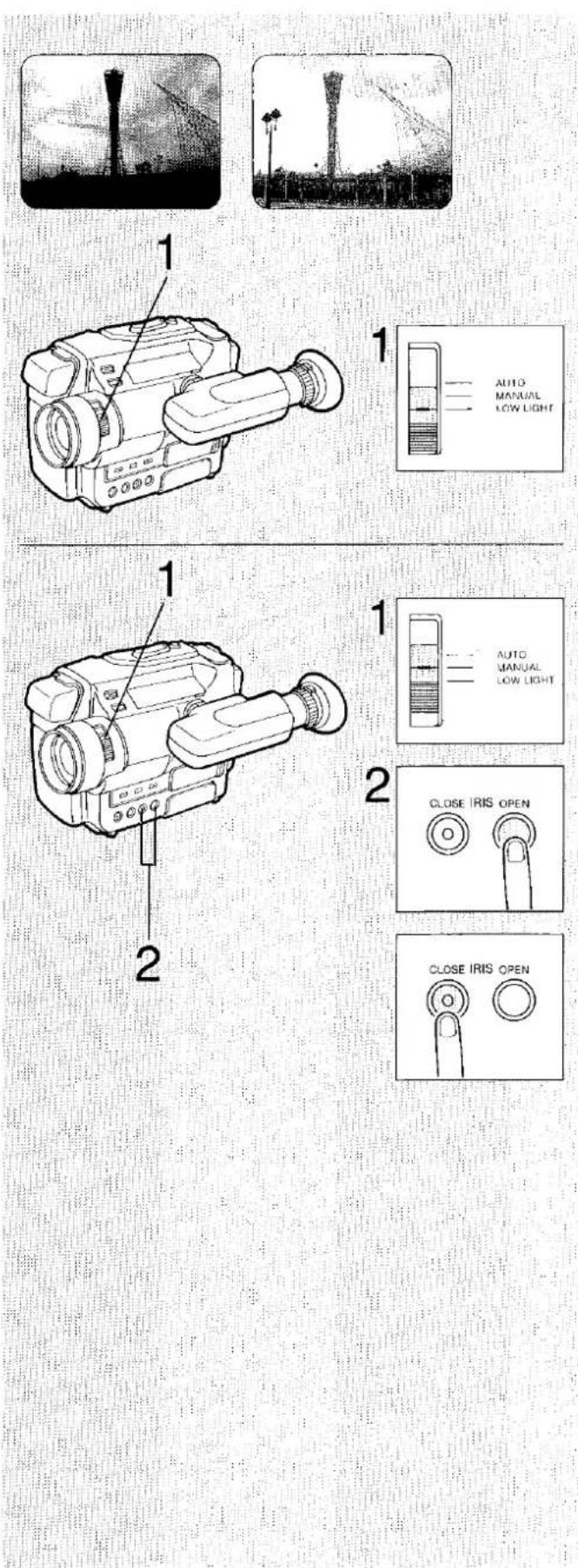
Shooting Backlit Scenes
Using the Iris Adjustment Function
This function is effective when shooting a backlit scene.
1 Set the Mode Selector Switch to "MANUAL".
2 Press either Button.
●The "M. IRIS" Indication appears.
- At every press of the [IRIS OPEN] Button, the brightness of the picture increases by 3 steps.
- At every press of the [IRIS CLOSE] Button, the brightness of the picture decreases by 3 steps.
■ To Return to the Standard Iris Setting...
- Press the [IRIS OPEN] Button and [IRIS CLOSE] Button simultaneously for more than 1 second.
- Returning to the standard iris setting is also possible by setting the Mode Selector Switch to "AUTO".
Cautions for Shooting Backlit Subjects
●The sky may become whitish.
- In case of extremely strong backlight, it may not be possible to brighten up the subject sufficiently.
- When shooting with the sun striking the subject at an angle, star-shaped light reflexes may be recorded in the picture.
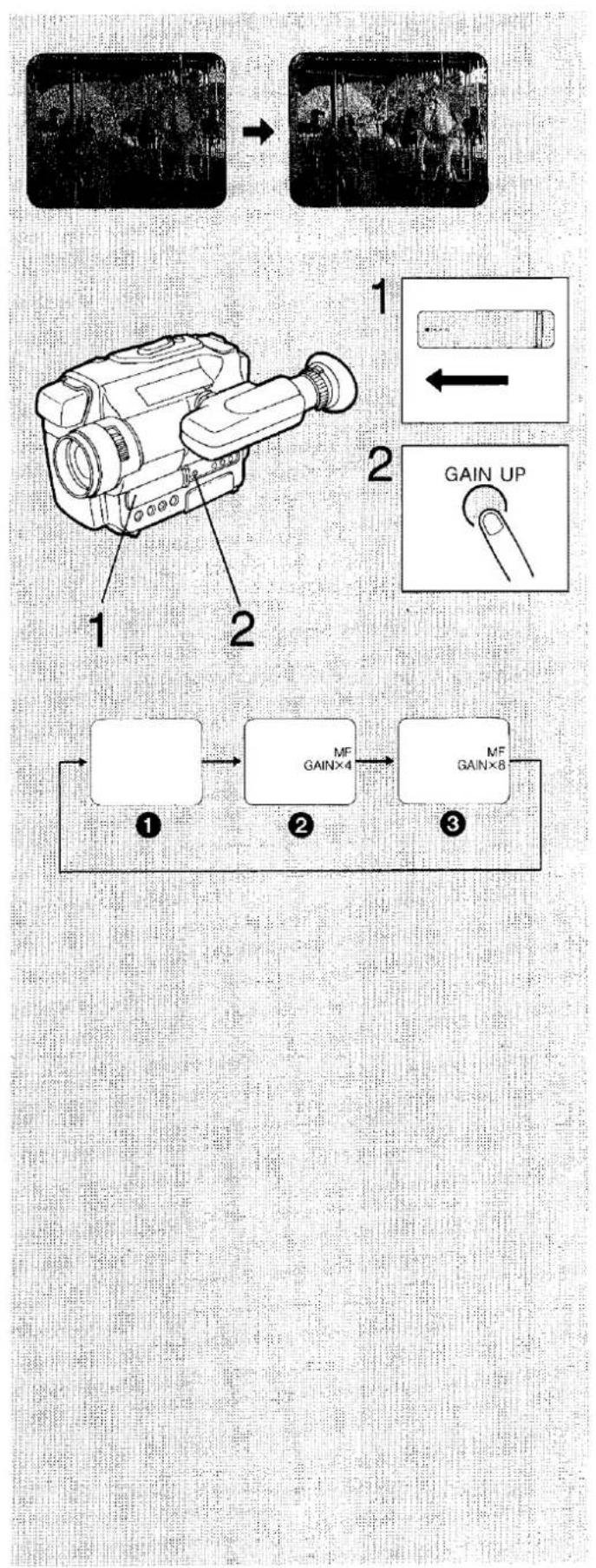
Shooting in the Dark
Using the High Sensitivity Function
1 Slide the Cover to the left until it locks with a click.
●The Movie Camera is now in the Digital Mode.
2 Press.
- By pressing the [GAIN UP] Button repeatedly, the degree of the sensitivity can be changed as follows:

Notes:
- Some after-image distortion will occur.
- When the Digital Mode is activated, the [I. STABILIZER] Button, [DIGITAL ZOOM] Button, [SNAPSHOT REC] Button and [STILL/STROBE] Button do not work.
- When the High Sensitivity Function is activated, the Digital Wipe Function and the Digital Image Mix Function do not work.
- While recording a still picture in the Digital Wipe Mode or in the Digital Image Mix Mode, or while these modes are activated, the High-Sensitivity Function does not work.
●The High-Speed Shutter Function will be cancelled automatically. - In the High-Sensitivity Mode, the focus must be adjusted manually since the Movie Camera is automatically put into the Manual Focus Mode.
natural_image
Close-up of a butterfly perched on a flower (no visible text or symbols)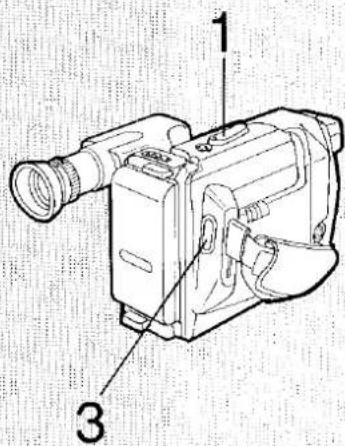

1
2
3
Shooting with the Macro Function
Using the Macro Close-up Function
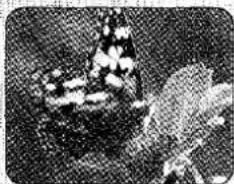
The Macro Close-up Function makes it possible to shoot very small objects, photos, printed matter, insects and many other things.
1 Keep pressed to zoom to the maximum wide-angle position.
2 Approach the subject to the desired distance.
●The focus will be adjusted automatically (Auto Focus Mode).
3 Press.
●The shooting starts.
Hints for Shooting with the Macro Close-up Function
- To get more or less of the subject into the picture, change the distance between the lens and the subject; do not use the [W] or [T] Zoom Button.
- As the depth of field is very small in macro shooting, even slight camera movements can cause the subject to go out of focus. Therefore, it is recommended to use a tripod (optional).
- When shooting pictures in a photo album or a similar situation with insufficient lighting, use a Video DC Light (optional). (See page 59.)
- When the zoom lens is in its maximum telephoto position, the minimum shooting distance between lens and subject is 1 m.
- In macro close-up shooting, the subject can be approached down to a minimum distance of 5 mm between lens and subject. It is recommended to use the Auto Focus Mode. However, with a stable camera position (tripod, etc.), the Manual Focus Mode can also be used.
Shooting Fast-Moving Subjects
Using the High-Speed Shutter Function
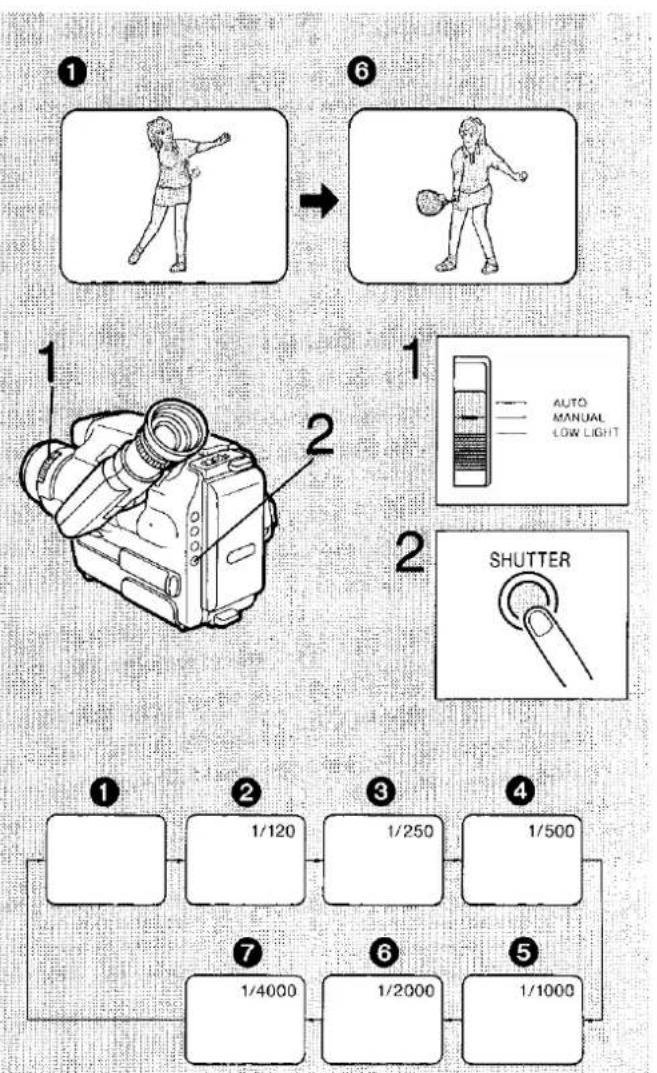
A range of different high shutter speeds makes it possible to shoot scenes with fast movements. When scenes recorded with a high shutter speed are later played back on a VTR equipped with super still and super fine slow motion functions, still and slow motion playback with very sharp picture contours and brilliant details can be obtained.
1 Set to "MANUAL".
2 Press repeatedly to select the desired shutter speed.
●The shutter speed changes in the following sequence.
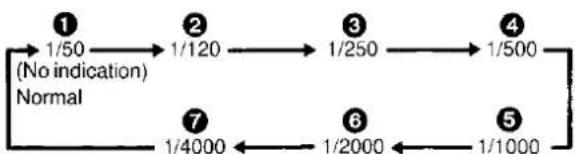
flowchart
graph LR
    1["1/50 (No indication) Normal"] --> 2["1/120"]
    2 --> 3["1/250"]
    3 --> 4["1/500"]
    4 --> 5["1/1000"]
    5 --> 6["1/2000"]
    6 --> 7["1/4000"]
    7 --> 1
Conditions for Shooting with the High-Speed Shutter
- The subject must be brightly lit by sunlight or other strong illumination, with little shade.
- When shooting under fluorescent lamps, the picture will be adversely influenced by flickering.
- When the picture is played back in the normal playback mode, the picture movement may not be as smooth as normally.
- The playback picture will be slightly darker than the picture recorded without using the High-Speed Shutter Function.
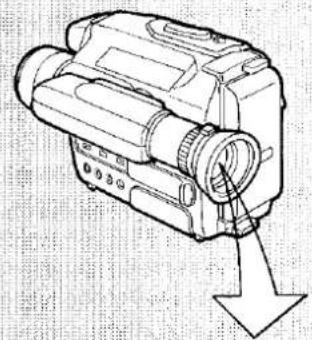
natural_image
Line drawing of a vintage camera with an arrow pointing to the lens (no text or symbols present)WHITE
W.SET
1
2

3
4
5
6
Automatic White Balance Adjustment
Using the Automatic White Balance Adjustment Function
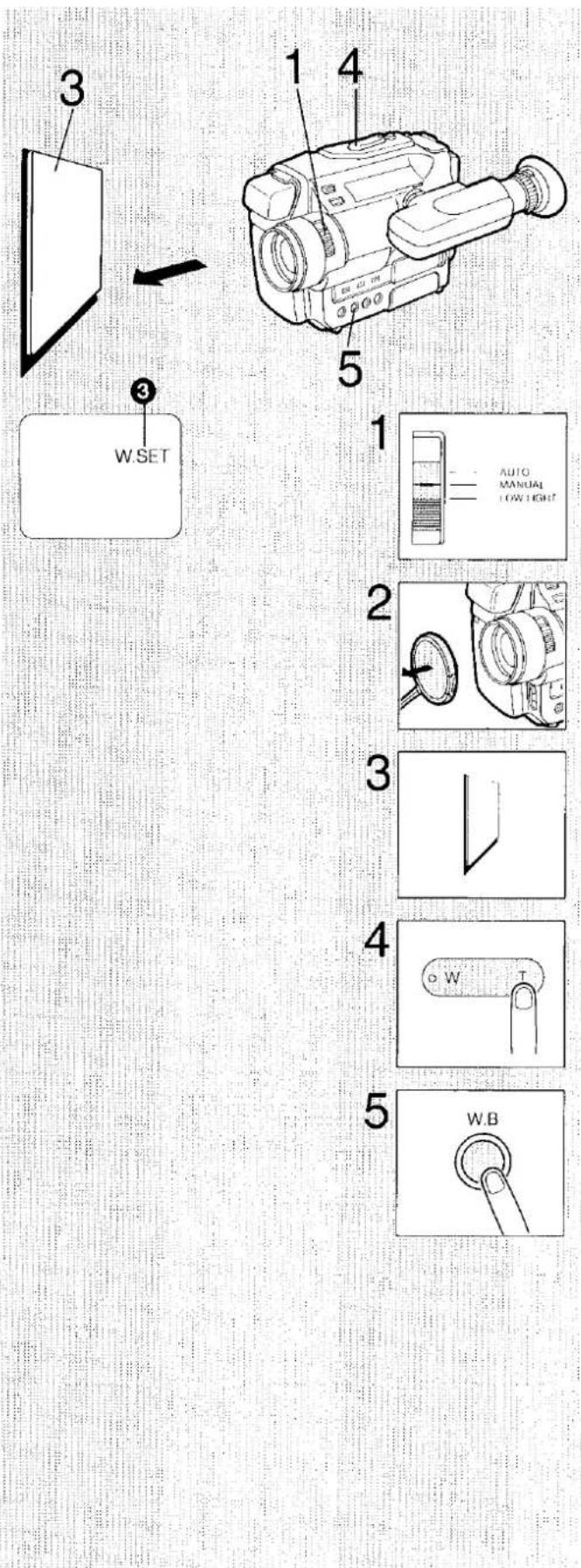
To human eyes, white subjects appear as white even under different lighting conditions. A Movie Camera, however, would give these white subjects, depending on the colour of the light source, a reddish or bluish tint. To attain recordings with natural colours, it is necessary to adjust the sensor in the camera to the existing colour of the light. This adjustment is called white balance adjustment. This camera offers two modes for this adjustment: Auto and Manual White Balance Adjustment.
The Auto White Balance Adjustment Function provides satisfactory results under almost all shooting conditions. (No operation is necessary.)
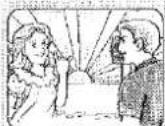
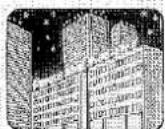
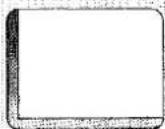
When the "WHITE" or "W.SET" Indication is displayed in the Viewfinder, the Movie Camera is not in the Auto White Balance Mode. In this case, press the [W.B] Button to make the "WHITE" or "W.SET" Indication disappear.
- If the Movie Camera is moved from outdoors to indoors during shooting, the picture will initially take on a slightly reddish cast but it will gradually regain its natural colours.
- In the following shooting situations, the Auto White Balance Adjustment Mode may not provide satisfactory results; use the Manual White Balance Adjustment Mode instead:
① When shooting under mercury-vapor, natrium or some types of fluorescent lamps.
② When intense lighting is used, e.g. from a halogen lamp, or when the colour temperature of the light source is low.
③ When shooting under lighting conditions which change suddenly.
④ When shooting outdoors at sunrise or sunset.
⑤ When shooting under firework illumination outdoors at night.
⑥ When shooting a subject of a single colour or a subject in front of a single-colour background.
- When shooting under weak illumination.
- When using a grey filter (ND) or other special filters.
- When using a conversion lens.
Manual White Balance Adjustment
Using the Manual White Balance Adjustment Function
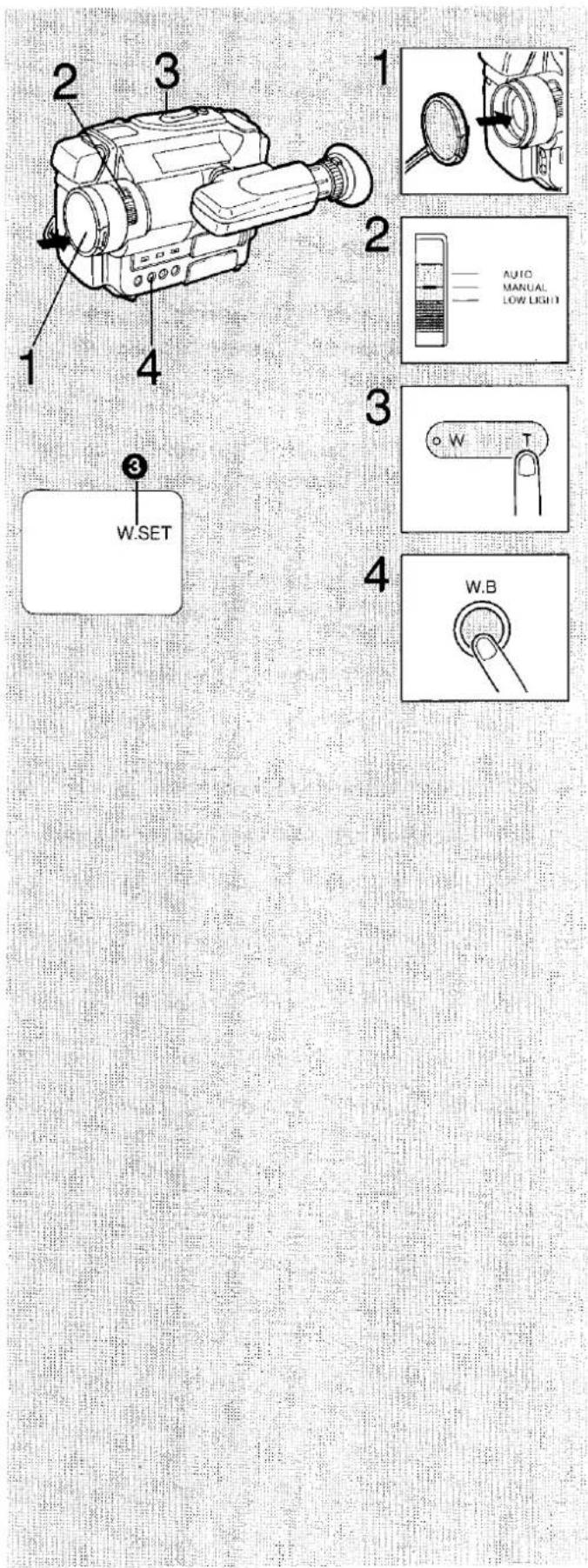
If there is only one light source:
1 Attach the Lens Cap to the Lens.
2 Set to "MANUAL".
3 Keep pressed until the screen in the Viewfinder becomes completely white.
4 Keep pressed for more than 1 second.
The following indications in the Viewfinder inform about the state of the adjustment:
① "WHITE" flashes slowly.....Not adjusted
② "WHITE" flashes rapidly .... During adjustment
③ "W.SET" is lit ....Adjustment is finished The Movie Camera is now ready for shooting.
■ To Change Back to the Auto White Balance Adjustment Mode...
Press the [W.B] Button briefly. The "W.SET" Indication in the Viewfinder will disappear.
■ Automatic Recall of the Previous White Balance Setting
- After setting the [OPERATE] Switch to "OFF" and later to "CAMERA" again, the "WHITE" Indication flashes slowly, however, the last previous white balance setting is still maintained. However, to ensure the best possible colour reproduction, adjust the white balance again. The last previous white balance setting is also maintained after pressing the [REW/☐] Button to confirm the end of the previously recorded scene. But after removing the Battery Pack (or disconnecting the AC Adaptor from the Movie Camera) the last previous white balance setting is no longer maintained.
- When moving the Movie Camera from indoor to outdoor or vice versa, be sure to adjust the white balance, as the colour of the light has changed considerably.
Manual White Balance Adjustment (cont'd)
Using the Manual White Balance Adjustment Function
If there are several light sources or if the illumination is weak (indoors, etc.):
1 Set to "MANUAL".
2 Remove the Lens Cap.
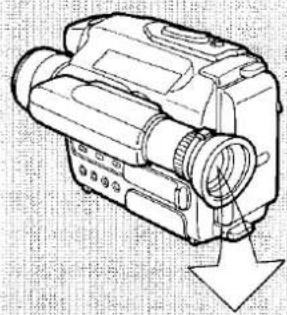
3 Point the Movie Camera at a some white paper or at some other purely white object.
4 Keep pressed until the screen in the Viewfinder becomes completely white.
5 Keep pressed for more than 1 second.
The following indications in the Viewfinder inform about the state of the adjustment:
① "WHITE" flashes slowly ..... Not adjusted
② "WHITE" flashes rapidly .... During adjustment
③ "W.SET" is lit ....Adjustment is finished The Movie Camera is now ready for shooting.
■ To Change Back to the Auto White Balance Adjustment Mode...
Press the [W.B] Button briefly. The "W.SET" Indication in the Viewfinder disappears.
natural_image
Line drawing of a digital camera with an arrow pointing to the lens (no text or symbols present)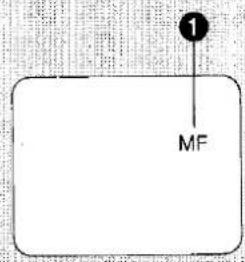
natural_image
Simple diagram with a dashed circle and number 2 pointing to it, no text or symbols present.
Focusing
Using the Automatic Focus Function
This Movie Camera focuses automatically on almost all subjects. (No operation is necessary.)
When the "MF" Indication ② is not displayed in the Viewfinder, the Movie Camera is in the Auto Focus Mode.
("MF" means Manual Focus)
- The focus is automatically adjusted to the subject in the centre of the Viewfinder.
■ When the "MF" Indication Is Displayed in the Viewfinder ①...
Set the Mode Selector Switch to "AUTO" or press the [FOCUS] Button to activate the Auto Focus Mode.
- The "MF" Indication in the Viewfinder disappears 1
In the following shooting situations, the Auto Focus Mode may not provide satisfactory results; use the Manual Focus Mode instead.
① Shiny surfaces. Subjects with backlighting or much light reflection.
② A subject behind dirty glass.
③ A subject with a part of it near the Movie Camera and another part far away from it.
④ A flat surface, e. g. a white wall.
⑤ A subject with horizontal stripes.
⑥ An oblique subject.
●A fast-moving subject.
●A subject with a dark surface.
- When using the Macro Close-up Function, special lenses or filters.
1
2
3
4
5
Focusing (cont'd)
Using the Manual Focus Function
1 Set the Mode Selector Switch to "MANUAL".
2 Press.
●The "MF" Indication appears in the Viewfinder.
3 Press to zoom in on the subject to be focussed.
4 Press the [+] or [-] Button to adjust the focus.
5 Press to zoom back as desired.
■ To Change back to the Auto Focus Mode...
Press the [FOCUS] Button.
●The "MF" Indication disappears in the Viewfinder.
Note:
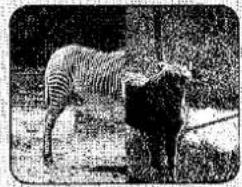
When using the Manual Focus Mode, always adjust with the Zoom Lens in its maximum tele setting. This ensures that the subject remains precisely focused throughout the zoom range from the maximum tele to maximum wide-angle setting.
natural_image
Black-and-white photo of a zebra standing near a tree, no visible text or symbolsD.WIPE
1
2
natural_image
Line drawing of a vintage video camera with labeled parts (no text or symbols on the device itself)3
4
5
Inserting a Still Picture with Wipe Editing
Using the Digital Wipe Function
Storing a Still Picture into Memory
When the Movie Camera is in the shooting pause mode:
1 Slide the Cover to the left until it locks with a click.
●The Movie Camera is now in the Digital Mode.
2 Press.
- Press this button while aiming the Movie Camera at the scene to be used for the still picture.
- The image in the Viewfinder stands still for approx. 2 seconds and this still picture is input into memory.
Starting to Shoot a Scene with the Still Picture In the shooting pause mode:
3 Press.
- The still picture from the memory replaces the moving picture gradually, starting from the left side.
- The Movie Camera should be aimed at the scene, which is to be shot following the recording of the still picture.
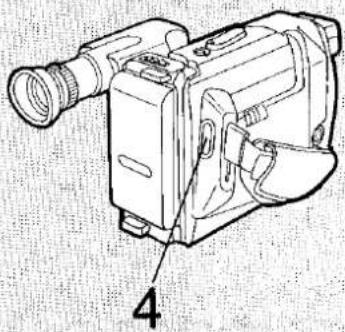
4 Press.
● The still picture from the memory is now being recorded.
5 Press again.
- The moving picture again replaces the still picture gradually, starting from the right side, and the shooting of the moving picture continues.
■ Canceling the Digital Wipe Function
Slide the Digital Mode Cover fully toward the right.
Notes:
- When the Digital Mode is activated, the [I. STABILIZER] Button, [DIGITAL ZOOM] Button, [SNAPSHOT REC] Button and [STILL/STROBE] Button do not work.
- While recording a still picture in the Digital Image Mix Mode, or while this mode or the High-Sensitivity Function is activated, the Digital Wipe Function does not work.
- The still picture will only be stored in memory for as long as the "D.WIPE" or "D.MIX" Indication is lit in the Viewfinder. The indication goes out and the still picture is no longer stored in memory when:
—the Camera Recorder is turned off.
—the [GAIN UP] Button is pressed.
—the Digital Mode Cover is slid backward.
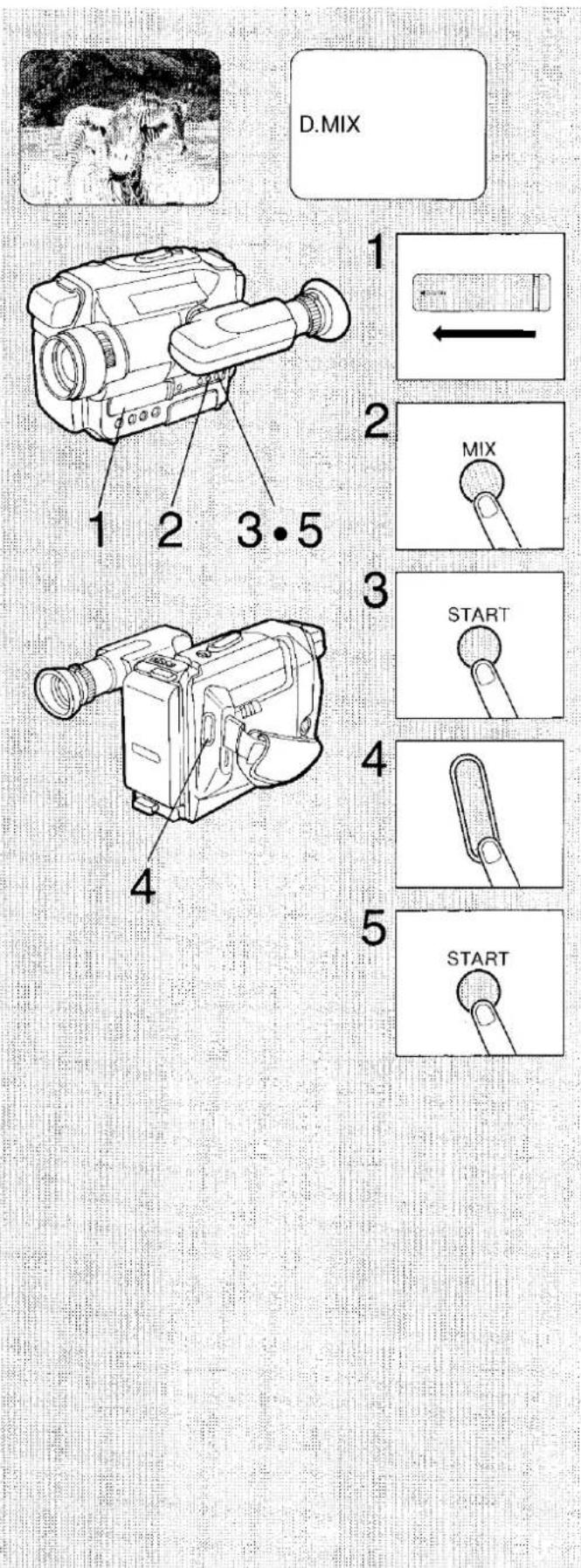
Fading Over or Superimposing a Still Picture onto the Moving Picture
Using the Digital Image Mix Function
inputting a Still Picture into Memory
When the Movie Camera is in the shooting pause mode:
1 Slide the Cover to the left until it locks with a click.
●The Movie Camera is now in the Digital Mode.
2 Press.
- Press this button while aiming the Movie Camera at the scene to be used for the still picture.
- The image in the Viewfinder stands still for approx. 2 seconds and this still picture is input into memory.
Starting to Shoot a Scene with the Still Picture In the shooting pause mode:
3 Press.
- The still picture from the memory replaces the moving picture gradually.
- If this button is pressed for 2 seconds, the still picture appears superimposed onto the moving picture.
- The Movie Camera should be aimed at the scene, which is to be shot following the recording of the still picture.
4 Press.
- The still picture from the memory is now being recorded.
5 Press again.
- The moving picture again replaces the still picture gradually, and the shooting of the moving picture continues.
- If the [MIX] Button was pressed for 2 seconds to superimpose the still picture, the superimposed still picture will disappear, and the shooting of the moving picture alone continues.
■ Cancelling the Digital Mix Function
Slide the Digital Mode Cover fully toward the right.
Notes:
- When the Digital Mode is activated, the [I. STABILIZER] Button, [DIGITAL ZOOM] Button, [SNAPSHOT REC] Button and [STILL/STROBE] Button do not work.
- While recording a still picture in the Digital Image Wipe Mode, or while this mode or the High-Sensitivity Function is activated, the Digital Mix Function does not work.
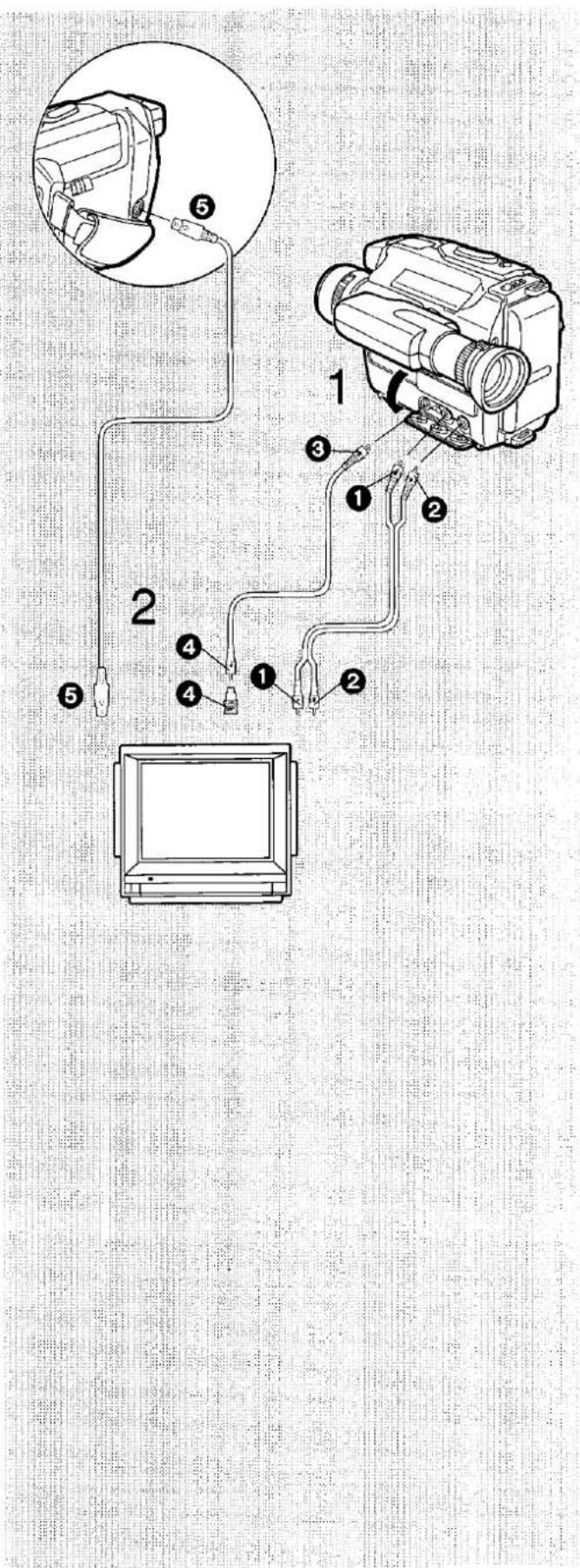
Playback via a TV Set (Connections)
- Turn off the Movie Camera and the TV set.
1 Open the Socket Cover.
2 Connect the Movie Camera to the TV set.
(S-Video Cable and Audio/Video Cable are supplied.)
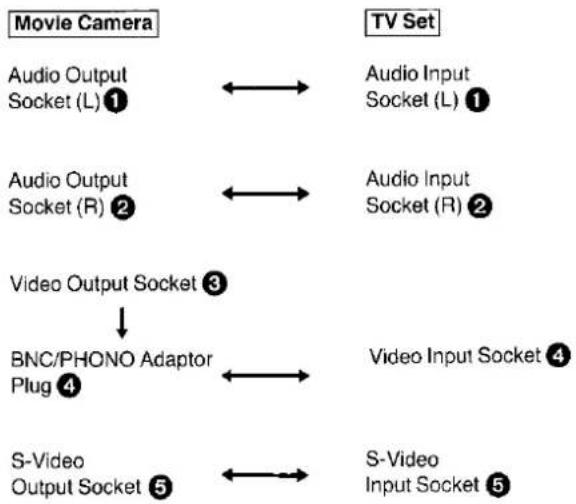
flowchart
graph TD
    A["Movie Camera"] --> B["Audio Output Socket (L) 1"]
    A --> C["Audio Output Socket (R) 2"]
    A --> D["Video Output Socket 3"]
    D --> E["BNC/PHONO Adaptor Plug 4"]
    A --> F["S-Video Output Socket 5"]
    G["TV Set"] --> H["Audio Input Socket (L) 1"]
    G --> I["Audio Input Socket (R) 2"]
    G --> J["Video Input Socket 4"]
    G --> K["S-Video Input Socket 5"]
Connect this cable if the TV set is equipped with an S-Video Input Socket.
■ Activate the Playback Operation
(See page 48.)
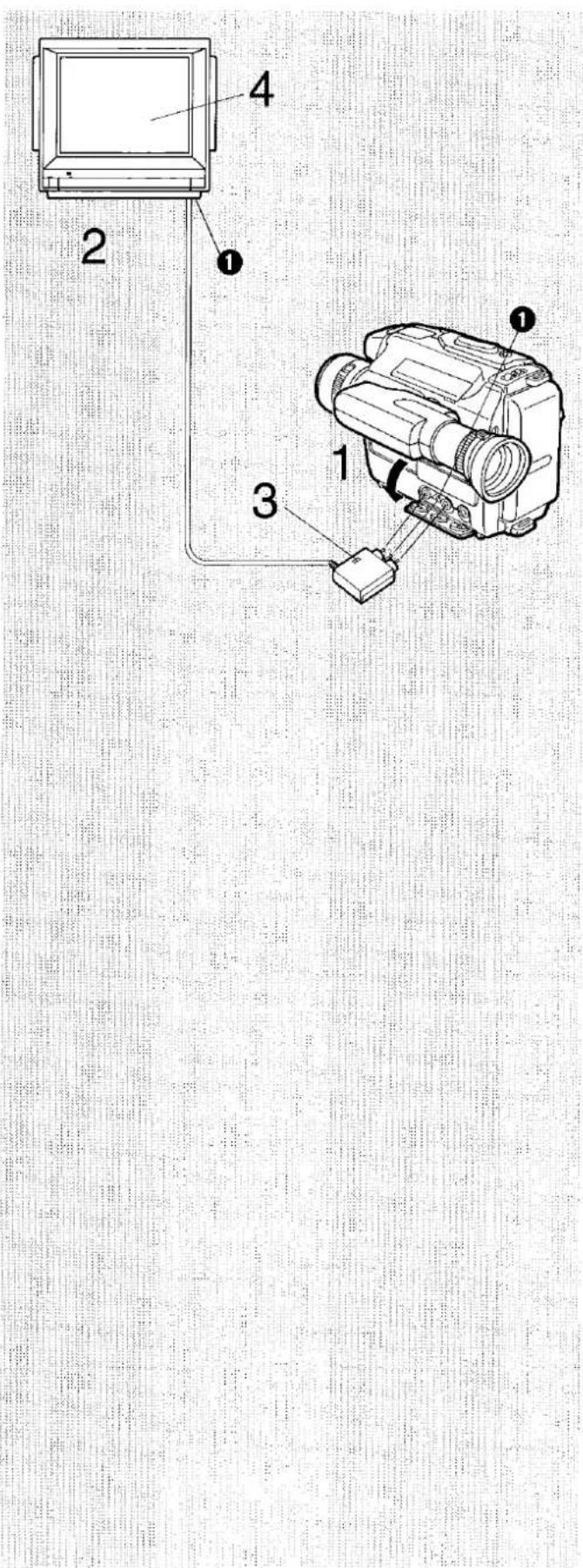
Playback via a TV Set (cont'd) Using the Supplied RF Adaptor
■ Playback via a TV Set without AV Socket
- Turn off the Movie Camera and the TV set.
1 Open the Socket Cover.
2 Connect the Movie Camera to the TV set.
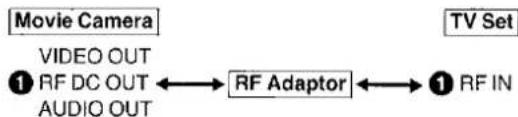
flowchart
graph LR
    A["Movie Camera"] --> B["VIDEO OUT"]
    B --> C["RF DC OUT"]
    C --> D["AUDIO OUT"]
    D --> E["RF Adaptor"]
    E --> F["TV Set"]
    F --> G["RF IN"]
3 Set the PAL System Selector Switch to the correct position.
- Set to "I" for the UK.
- Set to "G" for continental Europe. If set to the wrong position, the sound will be muted.
If set to wrong position, the sound will be muted.
4 Select an unused TV programme position (channel).
- Follow the tuning procedure outlined in the instruction booklet for your TV set to re-tune your TV set to the UHF transmission channel 36. The camera picture now appears on the TV screen.
- If in doubt, consult your local video dealer.
■ Activate the Playback Operation. (See page 48.)
Note:
When an RF Adaptor is used, the playback sound will be in mono.
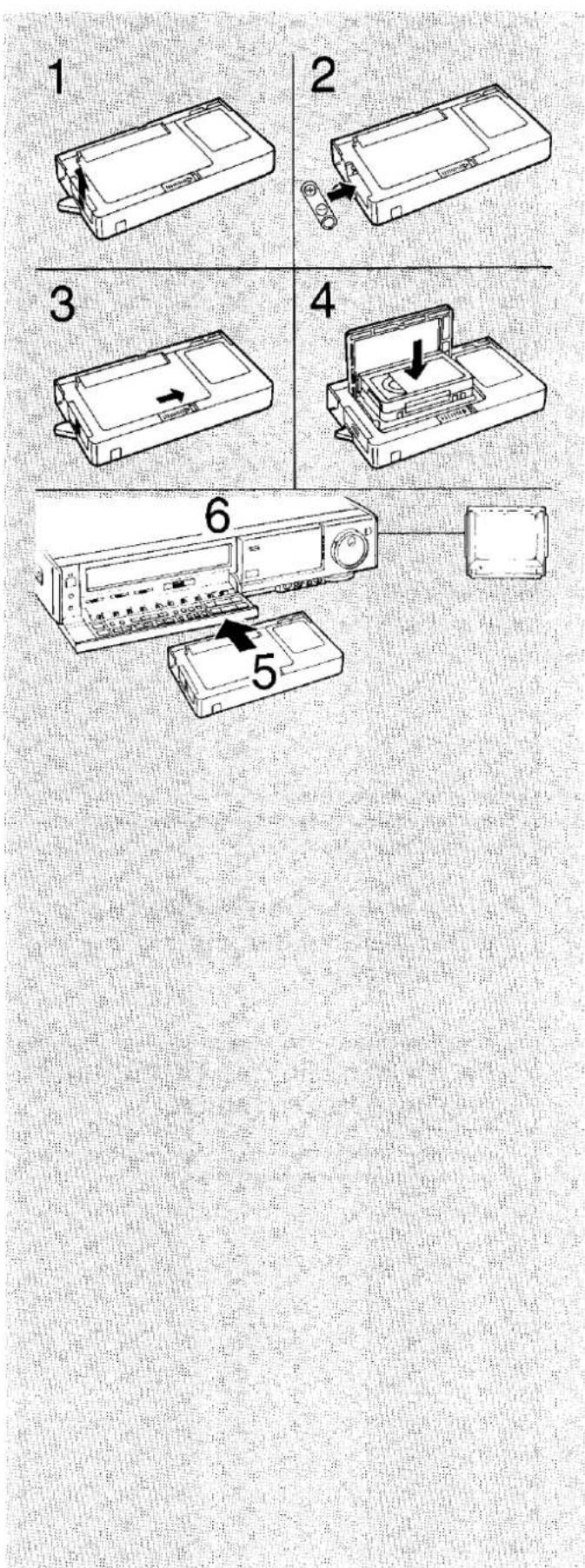
Playback on a Video Tape Recorder (VTR)
Using the Supplied Cassette Adaptor
1 Push the Cover upward and remove it.
2 Insert the supplied battery and reattach the Cover.
3 Slide the Open Button.
4 Insert the recorded Compact Video Cassette and close the Top Cover.
5 Insert the Cassette Adaptor into your VTR.
6 Start the playback operation of the VTR.
- It may be necessary to adjust the tracking control on the VTR for optimum picture quality. (See the Operating Instructions of your VTR.)
- Do not insert this Cassette Adaptor into a VTR and take it out again without running the tape, because this could cause the tape to become loose.
- When loading the cassette into the Cassette Adaptor, be careful not to touch the tape directly. After use, take out the video cassette from the Cassette Adaptor.
- Never insert the Cassette Adaptor into a VTR without a video cassette in it.
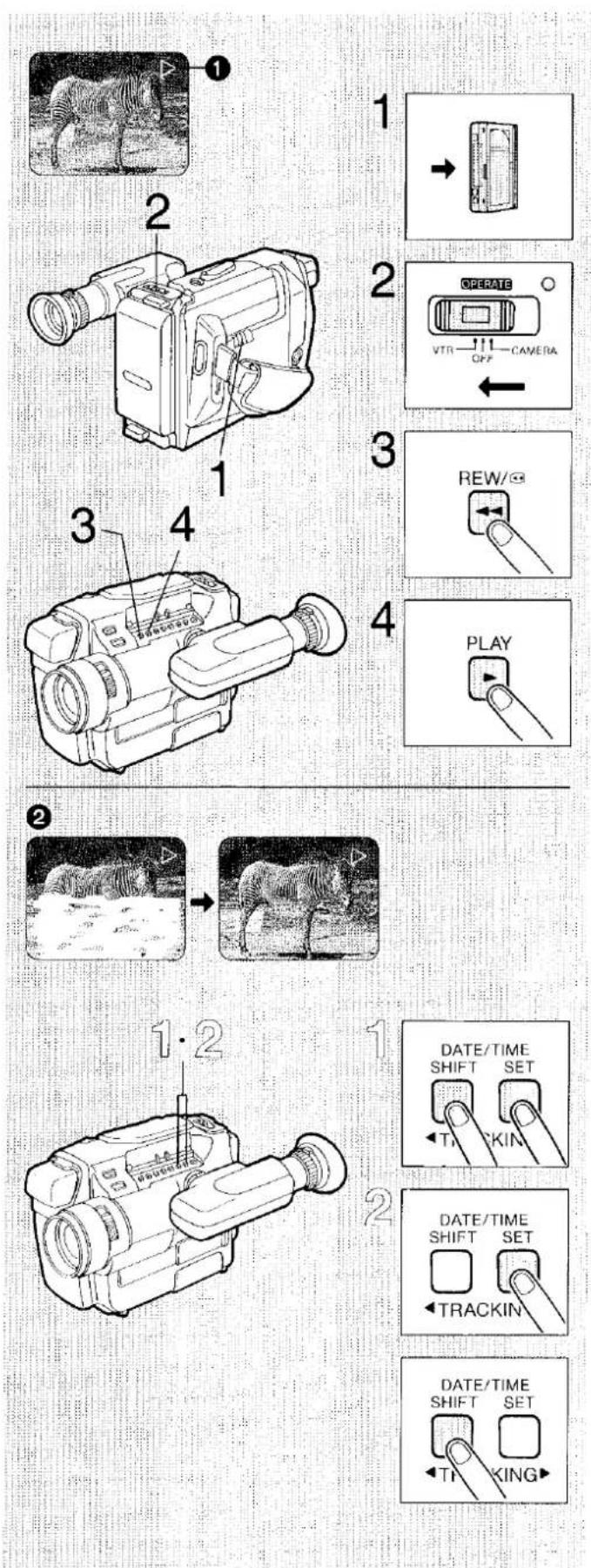
Playback
- The recorded tape can be played back in the Viewfinder or on a connected TV set.
■ How to Play Back in the Viewfinder (Playback from the Beginning of the Tape)
1 Insert the recorded video cassette. (See page 19.)
2 Press and slide to "VTR".
3 Press.
- The tape will stop automatically when it reaches its beginning.
4 Press.
- The playback starts. The Playback Indication “▷” ① appears in the Viewfinder. - The tape will be rewound automatically when it reaches its end.
■ To Stop the Playback...
Press the [STOP] Button.
■ How to Adjust the Tracking
If the picture is distorted by noise bars ② during playback, the tracking needs to be adjusted.
Press both the [◀ TRACKING] and [TRACKING ▶] Buttons simultaneously.
2 Eliminate any noise bars by adjusting the tracking with the [◀ TRACKING] or [TRACKING ▶] Button.
- When playing back a video cassette which has been recorded on another movie camera, it may not be possible to completely eliminate these noise bars.
Playback (Cont'd)
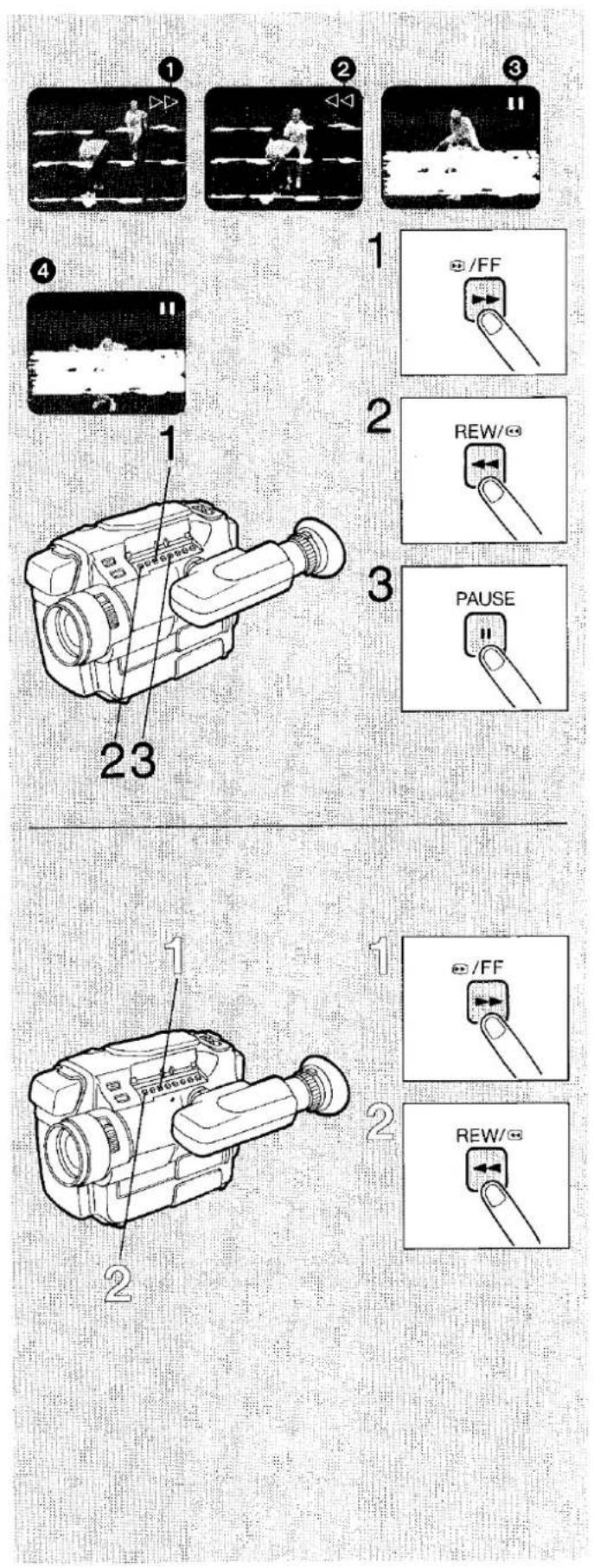
■ How to Use the Cue, Review and Still Playback Functions During Normal Playback
■ For Cue Playback
1 Keep pressed.
- The Fast Forward/Cue Mode Indication “▶▶” ① appears in the Viewfinder.
■ For Review Playback
2 Keep pressed.
- The Rewind/Review Mode Indication “◀◀” ② appears in the Viewfinder.
■ For Still Playback
3 Press.
- The Still Mode Indication "11" ③ appears in the Viewfinder.
To Resume Normal Playback
Press the [PAUSE] Button again.
If the Movie Camera is left in the Still Playback Mode for about 6 minutes, it will switch over to the stop mode, to protect the tape and the video heads.
Notes:
- The sound will be played back only during normal playback (if connected to a TV set).
- In the Cue, Review and Still playback modes, horizontal noise bars appear in the picture 4. However, this is normal and not an indication of a malfunction.
- In the Cue, Review and Still playback modes, the picture may become black and white or distorted. However, this is normal and not an indication of a malfunction.
■ How to Rewind or Fast-forward the Tape
With the Movie Camera in the stop mode:

Press to wind the tape forward at high speed.
- The tape will be rewound automatically when it reaches its end.

Press to rewind the tape at high speed.
- The tape will stop automatically when it reaches its beginning.
Copying (Dubbing)
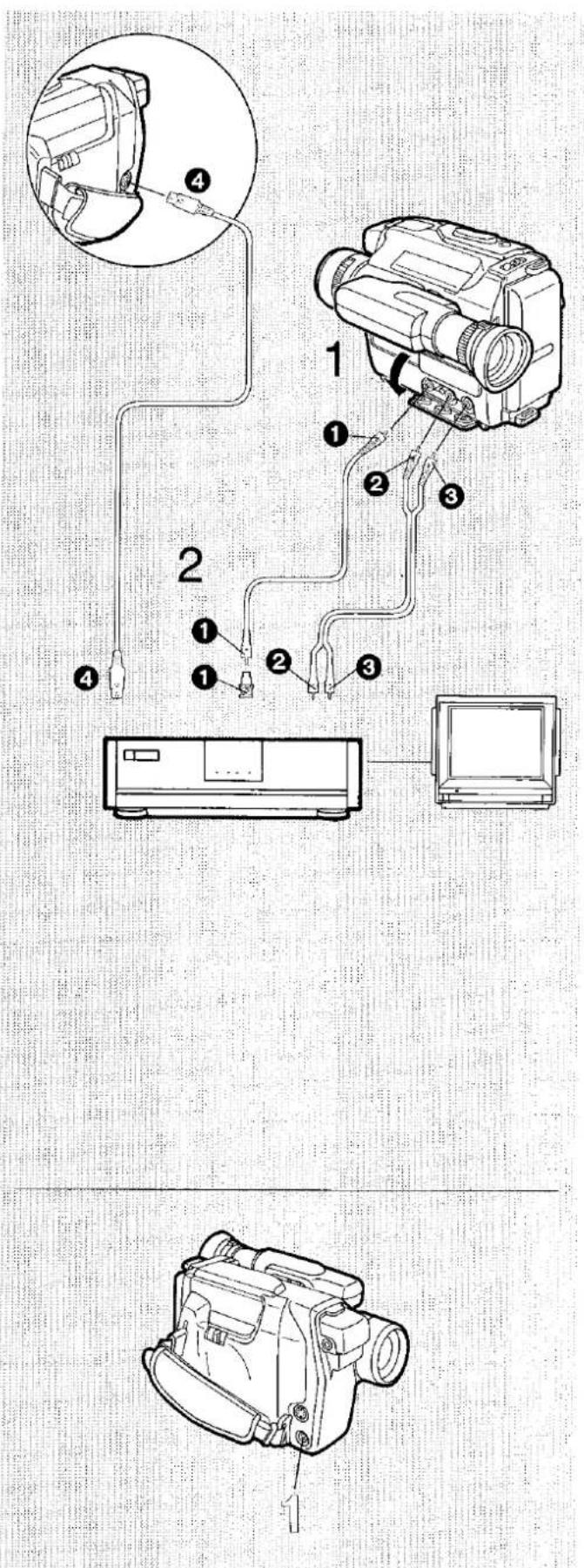
Connections
1 Open the Socket Cover.
2 Connect the Movie Camera to a VTR.
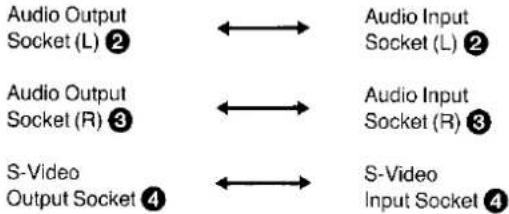
Video Output Socket 1 ←→ Video Input Socket 1
BNC/PHONO Adaptor Plug ① (If necessary)
flowchart
graph LR
    A["Audio Output Socket (L) 2"] <--> B["Audio Input Socket (L) 2"]
    C["Audio Output Socket (R) 3"] <--> D["Audio Input Socket (R) 3"]
    E["S-Video Output Socket 4"] <--> F["S-Video Input Socket 4"]
Connect this cable, if the recording VTR is equipped with an S-Video Input Socket.
Operations
Movie Camera
- Insert a recorded video cassette into the Movie Camera.
- Press the [PLAY] Button (and if necessary the [FF] or [REW/Button to locate the scene from where the dubbing is to start).
- Press the [PAUSE] Button at the point where the dubbing is to start.
- Press the (PAUSE) Button to start the playback.
- Locate on the Movie Camera the beginning of the next scene to be dubbed, and press the [PAUSE] Button at that point.
Video Tape Recorder (VTR)
- Insert a video cassette with intact erasure prevention tab into the VTR.
If your VTR is equipped with SP and LP modes, it is recommended to use the SP mode. - Press the Record Button to start recording.
- Press the Pause/Still Button at the exact position where the recording is to end.
●The VTR is now in the recording pause mode. - Press the Pause/Still Button again to resume recording.
- Repeat the operation steps 6 to 9 for each additional scene to be dubbed.
1 New Edit Socket
By connecting an Editing Controller (optional) to this socket as well as to a VTR equipped with Edit Socket, highly precise and speedy editing becomes possible.
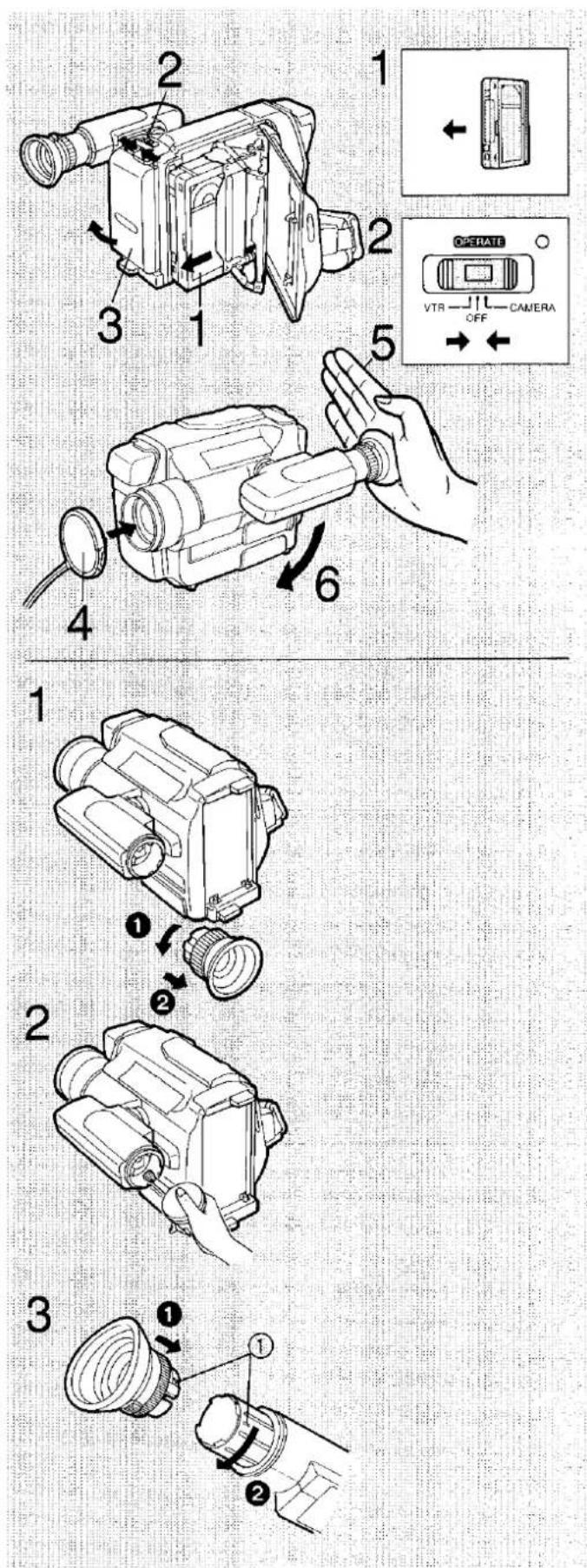
After Use
1 Remove the video cassette.
2 Press and slide to "OFF".
3 Remove the Battery Pack.
4 Attach the Lens Cap to the Lens.
5 Retract the Viewfinder.
6 Fold the Viewfinder down.
Cleaning
1 Take off the Eyecup by turning it counterclockwise.
2 Remove dust with a blower brush.
3 Align the two marks ①, insert the Eyecup and turn it clockwise.
- Wipe the Movie Camera with a clean, dry cloth. Never use cleaning fluid or other chemicals.
- Clean the lens only with a blower brush (used for photo cameras) or special lens cleaning tissue (used for glasses and cameras).
■ Cautions for Cleaning
Do not use benzine, thinner or other chemicals for cleaning, because they could change the colour and damage the surface of the camera body.
When using a chemically treated cloth for cleaning, carefully follow the instructions for its use.
VITC Signals
This Movie Camera is equipped with a built-in VITC Generator and it automatically records VITC signals (Vertical Interval Time Code). It can count up continuously from 0 to a maximum of 24 hours. Using a VITC Editing Controller System (optional), cassette tapes recorded with VITC signals can be edited more conveniently and with frame-by-frame precision.
Note:
For actual editing, refer to the Operating Instructions of the VITC Editing Controller System.
- The Button Type Battery assures that the last time code value before the recording was interrupted is retained in memory when the Movie Camera is switched off. This ensures that the time code sequence continues from that point when camera recording is resumed later.
Cautions for Shooting with VITC Time Code
To ensure that the desired scenes can be found during editing, the time code must be recorded continuously without any gaps.
- Provide a blank leader portion at the beginning of each video cassette by leaving the Lens Cap on the Lens and starting to shoot. Continue shooting like this for at least 20 seconds.
- Each time you start the Movie Camera, small jumps may appear in the time code. These jumps would make editing of the first frames of a scene difficult. Therefore, get into the habit of always starting the camera approx. 5 seconds before the actions you wish to record actually start.
- Do not wind the tape in the video cassette forwards or backwards after taking a shot. The successive shots must be recorded in continuous sequence.
- Do not use the Camera Search or Rec Review Function.
- Never make new recordings over parts of a previously recorded video cassette.
Soft Case
1 Insert the Bottom Board into the Soft Case.
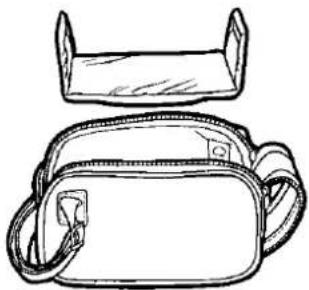
natural_image
Line drawing of a backpack with a side panel and strap (no text or symbols)2 Attach both folded-up ends of the Bottom Board to the inner side of the Soft Case with the velcro tape closure.
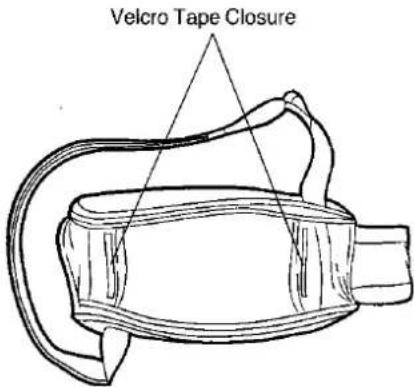
3 After inserting the Movie Camera into the Soft Case as shown in the illustration, insert the Cushion on the cassette compartment side of the Movie Camera for added protection.
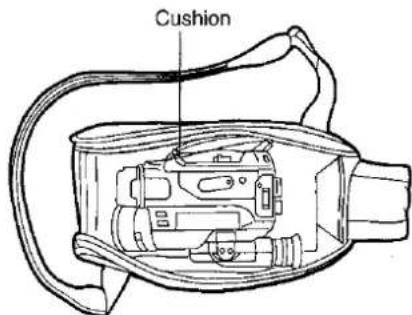
- Before inserting the Movie Camera into the Soft Case, fold the Eyecup back over the EVF, as shown in the illustration.
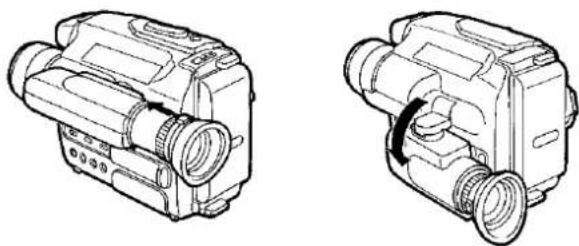
natural_image
Technical line drawings of two cameras (no text or symbols)Cautions (cont'd)
■ Cautions for Surroundings:
- Do not use this unit in any place where water or some other liquid could splash on it.
- Do not operate this unit very near a TV set or radio, because this could negatively influence the picture and sound reception.
- Keep this unit away from areas with strong electric fields, because they could impair the proper functioning of this unit and cause picture distortion.
- Keep this unit away from objects emitting high temperature, such as heaters.
- Do not insert video cassettes into the unit or take them out from it in dusty places.
- It is not possible to use this unit in the water. If it is accidentally dropped into water (or some other liquid), disconnect it from the AC Adaptor, take it out of the water, and then consult qualified service personnel.
■ Cautions for Connections:
- Before connecting, confirm that all systems are turned off and that the connecting cables are not damaged.
- Do not expose the connection cables to high temperatures, chemicals and objects with sharp edges; also do not bend the cables excessively.
■ Cautions for Storage and Transportation:
- Do not leave this unit in places exposed to direct sunlight (e.g. a closed car in summer) or near heaters. Excessive heat could deform the body or cause other damage to the unit.
- The packing materials in which the unit is shipped are designed for optimum protection. Keep them for transporting the unit in the future. Store the unit and video cassettes away from magnetized objects such as toys containing motors and batteries.
- Do not leave this unit in places with high temperature and high humidity such as in a closed car or in places with steam or oily smoke. If this unit is left in a damp place for a long time, mold could form on and damage the lens.
- Do not leave this unit in contact with rubber or plastic products for a long time, because it could cause deformation and discoloration of the body.
■ After Use:
- Be sure to attach the Lens Cap.
- When this unit is connected to the AC Adaptor, turn this unit off before unplugging the AC Adaptor.
- When this unit is not going to be used for a longer period of time, remove the cassette before turning this unit off.
- When the unit is not going to be used for a long period of time, turn the unit on occasionally to prevent malfunction.
Cautions for the Battery Pack
The function of the Battery Pack is based on a chemical reaction. Pay attention to the following points when using it.
- If charged at low temperatures, the operation time of the Battery Pack becomes shorter.
- For recharging, use the specially designed AC Adaptor or Battery Charger only.
- Charge the Battery Pack within a temperature range of 10^ - 35^ . At higher or lower temperatures, the Battery Pack cannot be charged to its full capacity.
- Do not recharge the Battery Pack when it is already fully charged.
- If, in spite of normal recharging, the operation time of the Battery Pack becomes too short for practical use, the service life of the Battery Pack has reached its end. Replace it with a new one.
- During operation of this unit or during recharging, the Battery Pack may become warm. However, this does not pose any problem.
- When the Battery Pack is not being used, remove it from the Movie Camera or the AC Adaptor.
- Do not short-circuit the connectors nor disassemble or reconstruct the Battery Pack.
- Do not throw the exhausted Battery Pack into a fire.
■ Cautions for Storing the Battery Pack:
- Do not store the Battery Pack in contact with metal objects because they could short-circuit the connectors of the Battery Pack and exhaust it.
- Do not leave the Battery Pack at places with high temperature, e.g. on the dashboard of a car or other places exposed to direct sunlight.
Cautions for the AC Adaptor
- Before connecting the AC Adaptor to an AC wall outlet, confirm that the voltage on the rating plate matches your local AC mains voltage.
- When not using the AC Adaptor, unplug its mains cable.
- Do not use the AC Adaptor for any purposes other than supplying the unit with power and charging the Battery Pack.
- When unplugging the mains cable, pull it by the plug, not by the cable.
- When listening to a radio while the AC Adaptor is in operation, the radio reception may be distorted. In this case, move the radio farther away from the AC Adaptor.
- Do not place any heavy objects on the AC Adaptor.
- When cleaning the AC Adaptor, be sure to turn it off.
Cautions
Please read these cautions before operating the Movie Camera and its accessories.
Video Head Clogging
The video heads are the means by which the Movie Camera places picture signals on the tape during recording, and reads picture signals from the tape during playback. If these heads become dirty and clogged from long use, the signals can no longer be recorded correctly, and the playback picture will be distorted accordingly. This is the case, for example, during the playback of a tape, the sound of which is reproduced normally, but no picture is seen, or the picture is greatly distorted. When such symptoms occur, have the Movie Camera checked by qualified service personnel. This Movie Camera is equipped with Head Clogging Detection Function. When the heads are clogged, the " ✉" Indication in the Viewfinder will appear. As the accumulation of dirt on the heads may be dislodged by the movement of the tape, it is possible that this indication sometimes appears, but may not reappear at the beginning of the next recording. The Head Clogging Detection Function will be activated when the shooting is started from the shooting pause mode. However, it will not be activated when shooting immediately after replacing the cassette and after playing back some part of the tape.
If Condensation Forms Inside the Movie Camera
Condensation (dew) forms when warm air comes in contact with a cold object, for example on a window in a heated room in winter. Condensation may also form in the Movie Camera and damage the tape and the video heads, if:
●The Movie Camera is in a room where the heater has just been turned on.
●The Movie Camera is in a room with steam or high humidity.
- The Movie Camera is brought from cold surroundings into a well-heated room.
- The Movie Camera is suddenly brought from cool surroundings, such as an air-conditioned room or car, to a place which is hot and humid.
- When condensation has formed inside the Movie Camera, the "DEW" Indication in the Viewfinder will flash and a few seconds later, the Movie Camera will turn itself off to protect the tape and the video heads.
After a while, turn the Movie Camera on again and make sure that the "DEW" Indication is not displayed any more. Then, wait about 1 hour before operating the Movie Camera again. Depending on the surrounding conditions, it may take several hours before the Movie Camera can be used again.
- As condensation forms gradually, it may take about 10–15 minutes before the Movie Camera turns itself off after a change of working environment.
- In an extremely cold place, condensation may freeze and turn into frost. In this case, it may take quite some time for the frost to melt, turn into dew and evaporate.
- When you bring the Movie Camera from a very cold place, e.g. the ski slopes, into a heated room, keep it in a tightly closed plastic bag or similar to prevent condensation from forming inside the Movie Camera.
Cautions for the Movie Camera
In case of abnormal operation of this unit (e.g. if it emits smoke or some unusual smell), immediately stop the operation and consult qualified service personnel.
■ Cautions for Use:
- Do not disassemble or reconstruct this unit. Some internal parts of this unit have high voltage. Disassembling or reconstructing is very dangerous and may cause serious damage to the unit.
●Never put any objects inside.
Never insert any metal objects or inflammable material through any of the openings (cassette compartment, etc.). If any liquid is spilled into the unit, immediately stop the operation and consult qualified service personnel.
Operating the unit with some foreign matter inside may cause malfunction or electric shock.
If children have access to this unit, special attention should be paid to this point.
- Never aim the lens at the sun because this could cause permanent damage to the CCD image sensor. Such damage could manifest itself in reduced picture quality or could make shooting altogether impossible. Attention should be paid to this point not only during shooting but during other operations as well.
- Never subject the unit to strong vibrations or shocks. Shocks during use may result in picture distortion.
- Do not use this unit during a thunderstorm, especially not in a large open field, because this would be very dangerous. If used indoors during a thunderstorm, be sure to disconnect the AC Adaptor from the mains outlet.
- Never use this unit with the cassette compartment facing down, because this could cause uneven winding, slacking and damage to the tape.
- Do not use the viewfinder as a carrying handle when transporting the unit.
- Do not use any mini-size tripods other than the recommended optional one, because some tripods are not stable enough for this unit. A fall could seriously damage the unit.
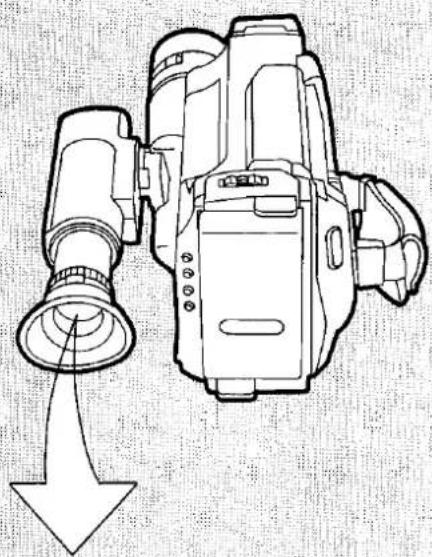
natural_image
Line drawing of a digital camera with a downward arrow indicating motion or direction (no text or symbols)| (1) R 0:30 | (10) E -- F | (13) (14) |
| (2) T30 | (11) | |
| (12) | (15) | |
| (3) D.ZOOM | (16) | |
| (4) (2) (5) D.WIPE (6) D.MIX | (17) (18) | |
| (7) M.IRIS | (19) |
Quick Reference Guide to the Indications in the Viewfinder
(1) Remaining Tape Time Indication (p. 20)
- It shows that the recording time left is 30 minutes.
●The time is indicated in hours and minutes. When there are less than 2 minutes left, the Remaining Tape Time Indication flashes. - While the Movie Camera calculates the remaining tape time, the "R" Indication flashes.
Note:
When inserting a new tape, if the Tape Length Indication does not match the video cassette being used, the remaining time indicated will not be correct.
(2) Tape Length Indication (p. 20)
●The Tape Length Indication shows the total length of the video cassette being used.
- The tape length can be selected by repeatedly pressing the [TAPE] Button.
Depending on the selected recording speed (SP or LP), the indication is different as shown below:
SP: "T30" 30 minutes of tape (EC-30, SEC-30).
"T45" 45 minutes of tape (EC-45, SEC-45)
LP: "T60" 60 minutes of tape (EC-30, SEC-30).
"T90" 90 minutes of tape (EC-45, SEC-45)
●The initial setting for the tape length is "T30".
(3) Digital Zoom Indication (p. 32)
"D.ZOOM"
●Turn the Digital Zoom Function on or off by pressing the [DIGITAL
ZOOM] Button. "D.ZOOM" is indicated when it is turned on.
("D" means Digital.)
(4) Image Stabilizer Indication (p. 23. 28)
“
- Turn the Image Stabilizer Function on or off by pressing the
[1. STABILIZER] Button. The indication "m" is displayed when it is
turned on.
(5) Digital Wipe Indication (p. 43)
"D.WIPE"
- When the [WIPE] Button is pressed, the "D.WIPE" Indication appears.
(6) Digital Mix Indication (p. 44)
"D.MIX"
- When the [MIX] Button is pressed, the "D.MIX" Indication appears.
(7) Iris Adjustment Indication (p. 34)
"M.IRIS"
- When the [IRIS CLOSE] or [IRIS OPEN] Button is pressed while the
Mode Selector Switch is in the "MANUAL" position, the Iris manual
Adjustment Function is activated and the "M. IRIS" Indication appears.
(8) Time Indication (p. 16)
"12:30"
● The current time (hour and minute) is displayed.
The time must initially be set.
●The time is shown in the 24-hour clock system.
- It is possible to display the date alone, or the time and date together.
(9) Date Indication (p. 16)
"15.10.1993"
●The year, month, and day are displayed.
The date must initially be set.
(10) Remaining Battery Power/Index Indication (p. 22, Back Cover)
"E--F"
- The "-" indications begin to disappear from right to left as the power of the Battery Pack is being used up.
- When switching the Movie Camera on with the Battery Pack attached, the entire indication "E---F", will initially be displayed for approx. one minute. After that, the actually remaining battery power will be displayed.
"INDEX"
- This indication flashes when a recording is started and it indicates that an index signal is being recorded.
Before Requesting Service
Power Source
| Symptom | Cause | Action | Reference Pages |
| When using the Battery Pack: Movie Camera does not turn on. | Battery Pack is not attached. | Attach it correctly. | 13 |
| Battery Pack is not charged. | Charge it. | 11 | |
| When using the Battery Pack: Movie Camera turns off soon. | Battery Pack is exhausted | Use a fully charged one. | 11 |
| Shooting was paused for more than 6 minutes. | Set the [OPERATE] Switch to "OFF" and then to "CAMERA" again. | 25 | |
| When using the AC Adaptor: Movie Camera does not turn on. | AC Adaptor is not connected. | Connect AC Adaptor correctly to Movie Camera. | 13 |
| Movie Camera does not turn on. | [OPERATE] Switch is set to "OFF". | Set it to "CAMERA" or "VTR". | 25, 48 |
| Movie Camera turns off soon. | Dew has formed inside. | Wait several hours. | $3, Back Cover |
Shooting
| No picture appears in the Viewfinder. | [OPERATE] Switch is set to "OFF". | Set it to "CAMERA". | 25 |
| Lens Cap is attached. | Remove it. | 17 | |
| Indications in the Viewfinder are not clear. | The Viewfinder is not extended. | Extend it approx. 3 cm. | 16 |
| Eyepiece Corrector is not adjusted. | Adjust it. | 16 | |
| Lens is covered with dust or dirt. | Clean it. | 51 | |
| Shooting cannot be started. | Tab of the inserted cassette is broken out. | Cover the tab hole with adhesive tape. | 19 |
| No cassette is inserted. | Insert a cassette with intact erasure prevention tab. | 19 | |
| Tape has reached its end. | Insert a new video cassette. | 19 | |
| Date and time cannot be recorded. | Date and time are not set. | Set the date and time. | 15 |
| Date and time are not displayed in the Viewfinder. | [DATE/TIME] Button was not pressed. | Press the [DATE/TIME] Button. | 16 |
| Button Type Battery is exhausted. | Replace it with a new CR2032 type battery. | 14 |
Playback
| No playback picture is reproduced. | [OPERATE] Switch is set to "OFF". | Set it to "VTR". | 48 |
| Movie Camera is not connected to TV set or it is connected incorrectly. | Connect Movie Camera to TV set correctly. | 45 | |
| Wrong channel is selected on TV set. | Select the correct channel. | — | |
| Picture is not in colour. | Colour adjustment of TV set is not made properly. | Adjust colour control on TV set. | — |
| Picture is not in colour or distorted. | Tracking is not adjusted. | Adjust the tracking on the Movie Camera. | 48 |
| Picture contains noise bars. | Cue, Review or Still Playback is being performed. | This is not a malfunction. | 49 |
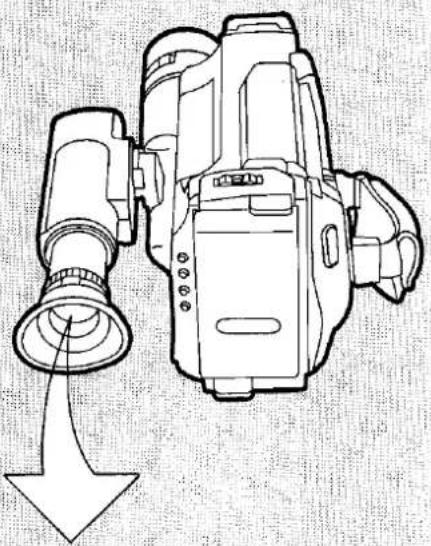
natural_image
Line drawing of a digital camera with an arrow indicating compression or disassembly (no text or symbols present)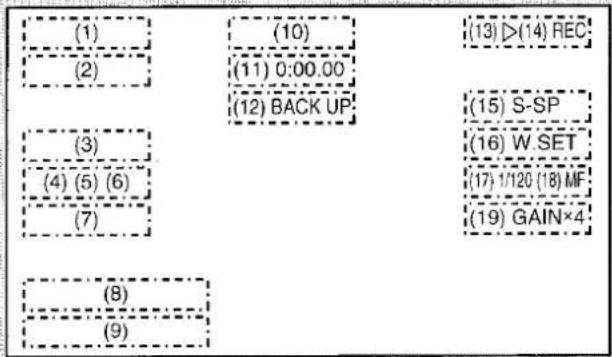
Quick Reference Guide to the Indications in the Viewfinder (cont'd)
(11) Tape Counter/Elapsed Tape Time Indication (p. 21, 22) "0:23.45"
- The elapsed tape time, in either shooting or playback mode, is indicated in hours, minutes and seconds.
- By pressing the [RESET] Button, it is possible to reset the tape counter to "0:00.00".
- When a cassette tape is ejected, the tape counter is automatically reset to "0:00.00".
"M0:23.45" - To be able to play back a certain scene at a later time, press the [OSD/M] Button at the beginning of that scene. When the [↔/FF] Button or the [REW/[↔]] Button is later pressed, it is possible to easily locate this scene. ("M" means Memory.)
(12) Warning/Alarm Indications (Back Cover)
The following indications are displayed to inform about the conditions of the Movie Camera.
"DEW", "×", "◀", "CD", "BACKUP" and END".
(13) Tape Running Indications
Depending on the operation being currently performed by the Movie Camera, one of the following indications appears.
“▷” During Playback (p. 48) Camera Search (in forward direction)
"11" During Still Playback (p. 49)
◀◀" Rewind/Review Mode (p. 49) Camera Search (in reverse direction)
"▷▷" Fast Forward/Cue Mode (p. 49)
(14) Shooting Mode Indications
"REC" During Shooting (p. 25)
"PAUSE" During Shooting Pause (p. 26)
"SNAP" During Snapshot Shooting (p. 29)
"CHK" During Rec Review (p. 26)
(15) Recording Speed Indications (p. 20)
"S-SP" Standard Play speed mode in the S-VHS system
"S-LP" Long Play speed mode in the S-VHS system
"SP" Standard Play speed mode in the VHS system
"LP" Long Play speed mode in the VHS system
- The mode can be changed by pressing the [S-VHS/SP·LP] Button.
●The initial recording speed mode is "SP".
(16) Manual White Balance Indications (p. 39, 40)
In the Manual White Balance Adjustment Mode:
"WHITE" Indication flashes slowly .... Adjustment is not made.
"WHITE" Indication flashes rapidly .... While adjustment is being performed.
"W.SET" Indication is lit .... The adjustment has been completed. In the Automatic White Balance Adjustment Mode (initial mode), none of these indications is lit.
(17) Shutter Speed Indications (p. 37)
The desired shutter speed can be selected by repeatedly pressing the [SHUTTER] Button. The numbers in the Shutter Speed Indication show fractions of a second, e.g. 1/120 = 1/120th of a second.
1/120, 1/250, 1/500, 1/1000, 1/2000, 1/4000
• The initial shutter speed is 1/50 sec. (no indication).
(18) Manual Focus Indication (p. 41, 42)
"MF" ("MF" means Manual Focus.)
Pressing the [FOCUS] Button will turn the Automatic Focus Mode on or off. The "MF" Indication indicates that the Manual Focus Mode is selected.
- Initially, the Auto Focus Mode is selected ("MF" Indication is off).
(19) High Sensitivity Indication (p. 35)
At every press of the [GAIN UP] Button, the indication changes in the following order:
→ no indication→ "GAIN ×4"→ "GAIN ×8"
Specifications
| NV-S7B Information for your safety | ||
| Power Source: | DC 6 V | |
| Power Consumption: | Recording Mode; 6.9 W (Battery Pack operation) | |
| Video Recording System: | Rotary four heads, helical scanning system | |
| Tape Speed: | SP; 23.39 mm/sLP; 11.7 mm/s | |
| Tape Format: | S-VHS-C/VHS-C tape | |
| Recording/Playback Time: | 45 min. with NV-SEC45E (SP)90 min. with NV-SEC45E (LP) | |
| VIDEO | ||
| Television System: | CCIR; 625 lines, 50 fields PAL colour signal | |
| Modulation System: | Luminance; FM azimuth recordingColour signal; Converted subcarrier phase shift recording | |
| Output Level: | VIDEO OUT (PHONO); 1.0 Vp-p,S-VIDEO OUT Terminal; 1.0 Vp-p, | 75 ohm unbalanced75 ohm unbalanced |
| AUDIO | ||
| Input Level: | MIC IN (M3); -70 dB, | 4.7 kohm or more unbalanced |
| Output Level: | AUDIO OUT (PHONO); -8 dB, | 600 ohm unbalanced |
| Audio Track: | 1 track (Normal-Mono only), 2 channels (Hi-Fi Sound-Stereo) | |
| Image Sensor: | 1⁄3-inch CCD Image Sensor | |
| Lens: | 8:1 Power Zoom Lens with Digital AI Auto FocusFocal Length 6-48 mmF1.4Auto IrisFilter Diameter 37 mm | |
| View finder: | 3⁄4-inch Electronic Viewfinder | |
| Standard Illumination: | 1,400 lux | |
| Minimum Required | ||
| Illumination: | 3 lux (Low Light Mode)1 lux (Digital Gain Up Mode) | |
| Video Horizontal | ||
| Resolution Colour: | S-VHS; More than 400 lines (S-Video Out)VHS; More than 250 lines | |
| Signal-to Noise Ratio: | Video; More than 43 dB (SP)Audio (Hi-Fi); More than 47 dB (SP)(Normal); More than 43 dB (SP) | |
| Audio Frequency | ||
| Response: | Hi-Fi; 50-20,000 Hz (SP)Normal; 80-8,000 Hz (SP) | |
| Operating Temperature: | 0°C-40°C | |
| Operating Humidity: | 20%-80% | |
| Weight: | Approx. 780 g (without Battery Pack) | |
| Dimensions: | 156 (W)×118 (H)×204 (D) mm | |
| VW-AS1B Information for your safety | ||
| Power Source: | AC 100-240 V, 50-60 Hz (Automatic voltage adjustment) | |
| Power Consumption: | 25 W | |
| DC Output: | DC 6 V, 11.8 W (Movie Camera operation)DC 6 V, 1.3 A (Battery Pack charging) | |
| Weight: | Approx. 390 g | |
| Dimensions: | 70(W)×58 (H)×178 (D) mm | |
Weight and dimensions shown are approximate.
Specifications are subject to change without notice.
Optional Accessories
Battery Pack VW-VBS2E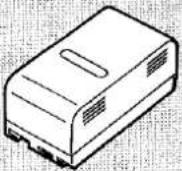 | Battery Pack with Remaining Battery Power IndicatorsVW 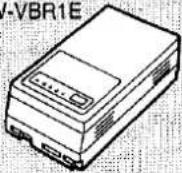 | Battery Pack with Remaining Battery Power IndicatorsVW-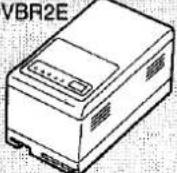 | Battery Pack Holder VW-VH1E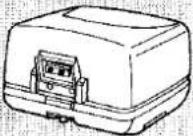 | Battery Charger VW-BCS1B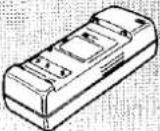 |
Car Battery Charger VW-KBCS1E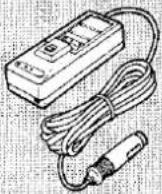 | Car Battery Cord VW-ACC11E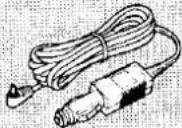 | Deluxe Tripod VZ-CT75E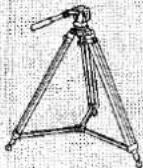 | Standard Tripod VZ-CT56E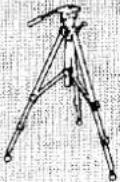 | Table Tripod VZ-CTT1E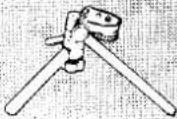 |
Tele Conversion Lens VW-LT3714E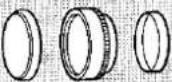 | Wide Conversion Lens VW-LW370E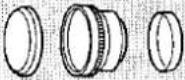 | Filter Kit VW-LF37E | Special Effect Filter Kit (A) VW-LFA37E | Special Effect Filter Kit (B) VW-LFB37E |
Travel Kit VW-TKS1B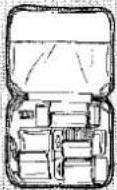 | System Case VW-SHCS5E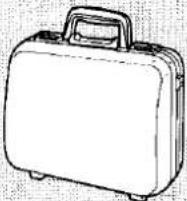 | Soft Cover VW-SCS9E | Soft Bag VW-SBS5E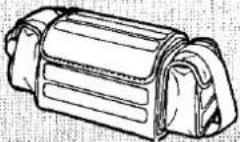 | Rain Cover VW-RCS9E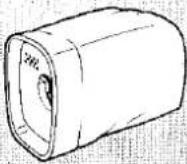 |
Video DC Light VZ-LDS15E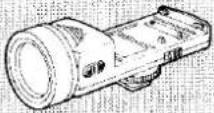 | Replacement Bulb for DC Light VZ-LL15E | RF Adaptor VW-RF7E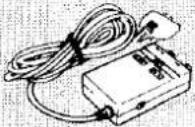 | Shoe Adaptor VW-SK8E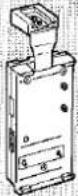 | Editing Controller VW-EC300EVW-EC310E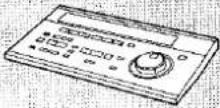 |
VITC Editing Controller VW-EC10E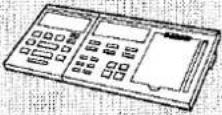 | ||||
Warning/Alarm Indications in the Viewfinder
The following indications are displayed in the Viewfinder to inform of you about the conditions of the Movie Camera.
| Viewfinder | Conditions | Viewfinder | Conditions |
 | When condensation has formed inside the Movie Camera, the "DEW" Indication will flash and a few seconds later, the Movie Camera will turn itself off.—Press the Cassette Eject Button, remove the cassette and wait until the DEW indication disappears. | 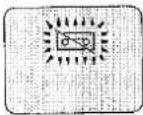 | There is no cassette inside, or.the tab of the inserted cassette is broken out. The indication flashes to warn that shooting is not possible.—Insert a video cassette with intact tab. If the tab is broken out, seal the hole with adhesive tape. |
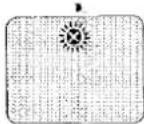 | Video Head Clogging.—Consult qualified service personnel. | 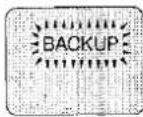 | When the Button Type Battery (for the auto date function, etc.) is not inserted or when it is exhausted, this indication will flash for 10 seconds after the Movie Camera has been turned on.—Insert a new Button Type Battery (CR2032). |
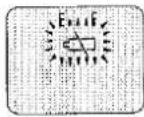 | The “—” indications begin to disappear one after another as the power of the Battery Pack weakens.When the last bar has disappeared, the Battery Indication “←→” will flash.—Replace with a fully charged Battery Pack.When a newly charged Battery Pack is inserted, this indication initially always shows E--F, regardless of the Battery charging condition. | 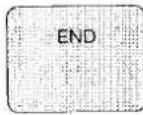 | During shooting: The tape has reached its end. Replace the video cassette with a new one whose tab is intact.If the tape is partly recorded, confirm the amount of available recording time using the Remaining Tape Time Indication. |
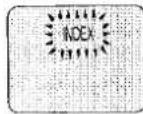 | It appears briefly while an index signal is being recorded. |

Printed in Japan
VQT4496
F0192M0-6000 Ⓑ