
NV-MX1 - Camcorder PANASONIC - Kostenlose Bedienungsanleitung
Finden Sie kostenlos die Bedienungsanleitung des Geräts NV-MX1 PANASONIC als PDF.


| Produkttyp | Camcorder |
| Marke | Panasonic |
| Modell | NV-MX1 |
| Abmessungen (B x H x T) | ca. 120 x 100 x 180 mm |
| Gewicht (ohne Akku und Kassette) | ca. 800 g |
| Stromversorgung | 6 V Gleichstrom (Akku oder Netzteil) |
| Akku-Typ | Panasonic VW-VBD1E (Nickel-Cadmium) |
| Ladezeit | ca. 1 Stunde |
| Betriebsdauer (mit vollgeladenem Akku) | ca. 45 Minuten |
| Aufnahmemedium | VHS-C Kassette |
| Bildsensor | 1/4-Zoll-CCD, ca. 0,3 Megapixel |
| Objektiv | Panasonic 10:1 Zoom, f=3,9–39 mm |
| Digitalzoom | 20:1 |
| Sucher | Elektronischer Sucher (EVF) |
| LCD-Monitor | 2,5-Zoll-Farb-LCD (ca. 61.000 Pixel) |
| Videoausgang | Composite (Cinch) |
| Audio | Mono (eingebautes Mikrofon und Lautsprecher) |
| Autofokus | Ja (TTL-Kontrasterkennung) |
| Bildstabilisator | Nein |
| Reinigung des Objektivs | Mit weichem, trockenem Tuch |
| Lagerung | Trocken und staubfrei bei 0–40 °C |
| Entsorgung | Elektro-Altgeräte nicht im Hausmüll entsorgen |
Häufig gestellte Fragen - NV-MX1 PANASONIC
Benutzerfragen zu NV-MX1 PANASONIC
0 Frage zu diesem Gerät. Beantworten Sie die, die Sie kennen, oder stellen Sie Ihre eigene.
Eine neue Frage zu diesem Gerät stellen
Laden Sie die Anleitung für Ihr Camcorder kostenlos im PDF-Format! Finden Sie Ihr Handbuch NV-MX1 - PANASONIC und nehmen Sie Ihr elektronisches Gerät wieder in die Hand. Auf dieser Seite sind alle Dokumente veröffentlicht, die für die Verwendung Ihres Geräts notwendig sind. NV-MX1 von der Marke PANASONIC.
BEDIENUNGSANLEITUNG NV-MX1 PANASONIC
Panasonic
Digital Video Camera
Model No.
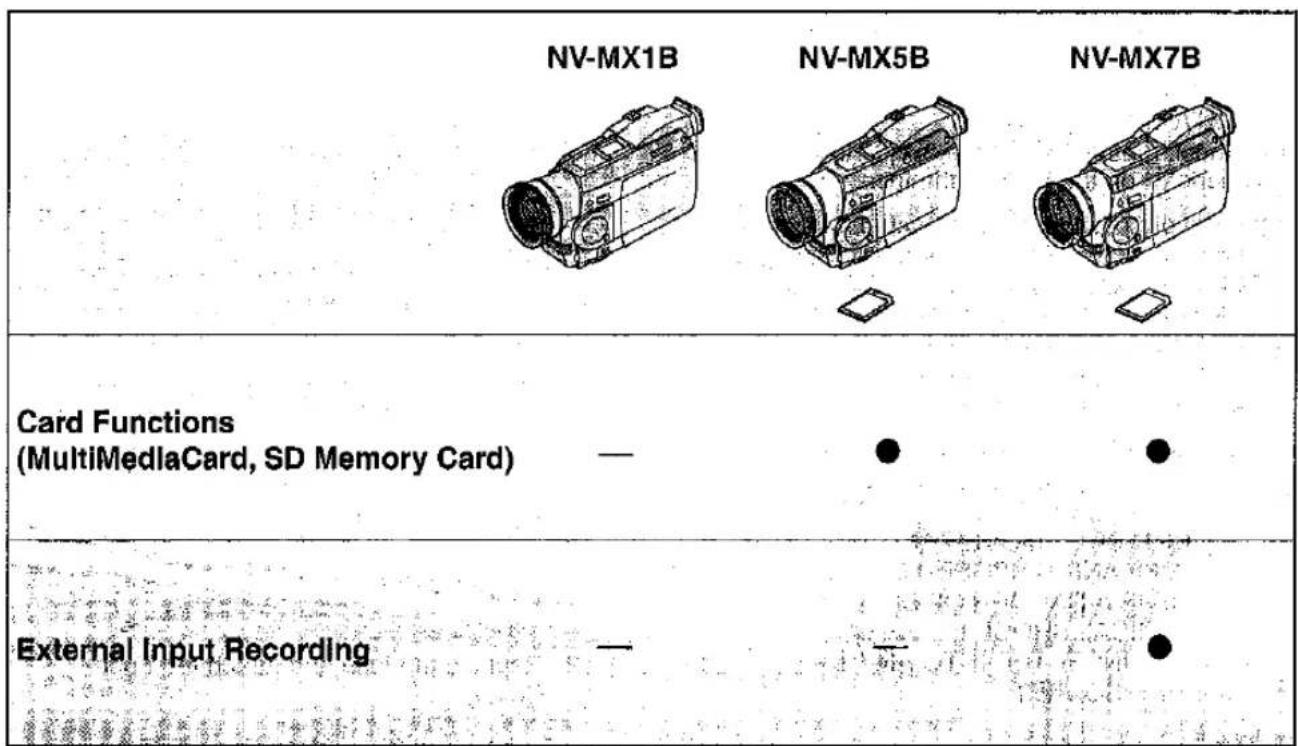
NV-MX1B
NV-MX5B
NV-MX7B
Operating Instructions
Mini

MultiMediaCard™

Before use, please read these instructions completely.
Information for Your Safety
Movie Camera
●The rating plate is on the underside of the Movie Camera.
AC Adaptor
●The rating plate is on the underside of the AC Adaptor.
- As this equipment gets hot during use, operate it in well venti lated place; do not install this equipment in a confined space such as a bookcase or similar unit.
Caution for AC mains lead
For your safety, please read the following text carefully.
This appliance is supplied with a moulded three-pin mains plug for your safety and convenience. A 5-ampere fuse is fitted in this plug.
Should the fuse need to be replaced, please ensure that the replacement fuse has a rating of 5-amperes and it is approved by ASTA or BSI to BS1362.
Check for the ASTA mark 📂 or the BSI mark 🌐 on the body of the fuse.
If the plug contains a removable fuse cover you must ensure that it is refitted when the fuse is replaced. If you lose the fuse cover, the plug must not be used until a replacement cover is obtained. A replacement fuse cover can be purchased from your local Panasonic Dealer.
IF THE FITTED MOULDED PLUG IS UNSUITABLE FOR THE SOCKET OUTLET IN YOUR HOME THEN THE FUSE SHOULD BE REMOVED AND THE PLUG CUT OFF AND DISPOSED OF SAFELY. THERE IS A DANGER OF SEVERE ELECTRICAL SHOCK IF THE CUT OFF PLUG IS INSERTED INTO ANY 13-AMPERE SOCKET.
If a new plug is to be fitted, please observe the wiring code as shown below. If in any doubt, please consult a qualified electrician.
IMPORTANT
The wires in this mains lead are coloured in accordance with the following code:
Blue: Neutral
Brown: Live
As the colours of the wires in the mains lead of this appliance may not correspond with the coloured markings identifying the terminals in your plug, proceed as follows:
The wire which is coloured BLUE must be connected to the terminal in the plug which is marked with the letter N or coloured BLACK.
The wire which is coloured BROWN must be connected to the terminal in the plug which is marked with the letter L or coloured RED.
Under no circumstances should either of these wires be connected to the earth terminal of the three-pin plug, marked with the letter E or the Earth Symbol ⊥.
■ Before Use
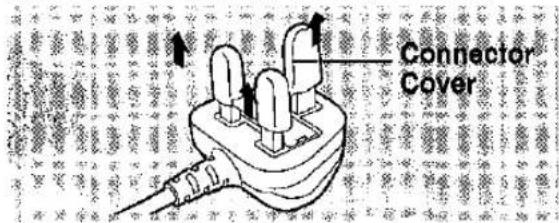
Remove the Connector Cover as follows.
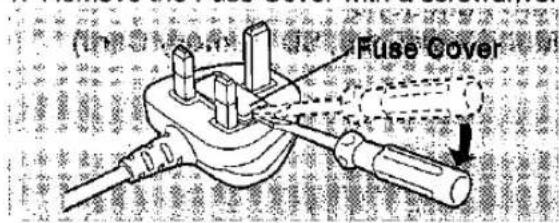
■ How to replace the Fuse
- Remove the Fuse Cover with a screwdriver.
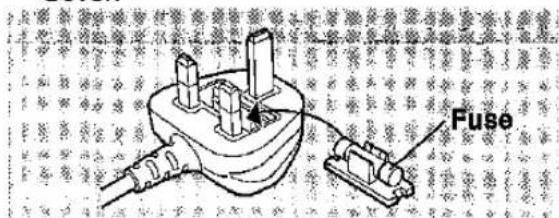
- Replace the fuse and attach the Fuse Cover.
Operating Instructions
- These Operating Instructions apply to models NV-MX1, NV-MX5 and NV-MX7.
- The illustrations used in these Operating Instructions show model NV-MX7, however, parts of the explanation refer to different models.
- Depending on the model, some functions are not available.
■ WARNING
To reduce the risk of fire or shock hazard and annoying interference, use only the recommended accessories and do not expose this equipment to rain or moisture.
Do not remove the cover (or back); there are no user serviceable parts inside. Refer servicing to qualified service personnel.
■ Carefully observe copyright laws.
Recording of pre-recorded tapes or discs or other published or broadcast material for purposes other than your own private use may infringe copyright laws. Even for the purpose of private use, recording of certain material may be restricted.
- All other company and product names in the operating instructions are trademarks of their respective corporations.
Contents—Basic Operations
Check List for the Standard Accessories ..... 4
Controls and Functions.... 5
The 3 Types of Power Supply....8
1) Supplying Power from an AC Mains Socket . . . 8
2) Supplying Power from the Cigarette Lighter Socket in a Car 8
3) Supplying Power with the Battery ..... 10
Inserting the Cassette 12
● LP Mode 13
Using the Viewfinder.... 14
Using the LCD Monitor 14
Using the Menu Screen 16
Menu Functions 18
Adjusting the Brightness and Colour Level of the LCD Monitor/Viewfinder 23
Setting the Date and Time 24
Recording (Filming) 26
Checking If the Picture Is Recorded ..... 28
Recording Backlit Scenes 28
Recording Yourself 30
Focusing on the Subject Manually 30
Enlarging Your Subject or Widening the Recording Angle 32
Enlarging Your Subjects Even More.... 32
Recording Still Pictures on the Cassette ..... 34
Recording in the Cinema Mode 36
Recording with Minimised Camera Shake .... 36
Viewing the Just Recorded Scenes on the Movie Camera 38
Searching for a Scene That You Want to Play Back 38
● Adjusting the Volume 39
Playing Back in Slow Motion.... 40
Playing Back Still Pictures and Advancing Them One by One 40
Playing Back on a TV 42
After Use 42
Contents—Advanced Operations
Viewing Recorded Scenes During Recording Pause 44
Searching for the End of the Recorded Part on a Cassette 44
Searching for the Beginning of Recorded Scenes Marked with Index Signal ..... 46
Starting to Record with Gradually Appearing Picture and Sound.... 48
Ending the Recording of a Scene with Gradually Disappearing Picture and Sound ..... 48
Recording in Special Situations 50
Recording with Special Effects 52
Recording with Natural Colours 62
Adjusting the White Balance Manually ..... 62
Adjusting the Shutter Speed Manually ..... 64
Adjusting the Iris (F Number) Manually ..... 64
Playing Back with Special Effects.... 66
Enlarging the Playback Picture....76
Adding New Sound on a Recorded Cassette 78
Using the MultiMediaCard or SD Memory Card.... 80
Using the Movie Camera as a Digital Still Camera.... 82
Copying Cassette Pictures onto a MultiMediaCard or SD Memory Card ..... 84
Copying Still Pictures from the MultiMediaCard or SD Memory Card onto the Cassette ..... 86
Playing Back Pictures Recorded on the MultiMediaCard or SD Memory Card ..... 88
Inserting Titles 90
Creating Titles....92
Listening to Music 94
Erasing Pictures Recorded on the MultiMediaCard or SD Memory Card ..... 96
Preventing the Accidental Erasure of Pictures on the MultiMediaCard or SD Memory Card.... 98
Making the Unusable MultiMediaCard or SD Memory Card Usable 98
Writing Printing Information on a MultiMediaCard or SD Memory Card ..... 100
Using the Pictures Recorded on the MultiMediaCard or SD Memory Card on the Computer 102
Concerning the SD Memory Card Application Software 102
Concerning the MultiMediaCard and SD Memory Card.... 103
Remote Controller.... 104
Contents—Editing
Copying onto an S-VHS (or VHS) Cassette .. 108
Recording the Content of External Device ... 109
Using with Digital Video Equipment ..... 110
Copying with the Help of an Editing Controller .... 111
Using the Movie Camera with a Video Printer.... 112
Using the Movie Camera with a Computer... 114
Contents—Miscellaneous/Care of Unit/Options
Cautions for Use 115
Glossary 118
Indications 122
Specifications 127
Before Requesting Service (Problems & Solutions) 128
Optional Accessories 131
Index 132
| AC Adaptor Set | 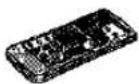 | ...... Remote Controller (N2QAEC000003) | |
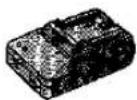 | ...... AC Adaptor |  | ...... Button-Type Battery (CR2025) |
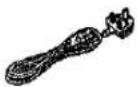 | ...... AC Mains Lead (VJA0940) |  | ...... Lens Hood (VYQ1988) |
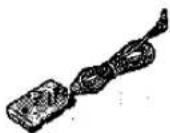 | ...... DC Input Lead (K2GJ2DZ00010) | 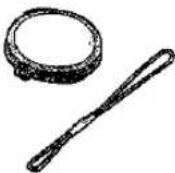 | ...... Lens Cap (VYP7852) Lens Cap Cord (VGQ5138) |
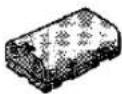 | ...... Battery Pack (VSB0418) | 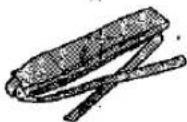 | ...... Shoulder Strap (VFC3506) |
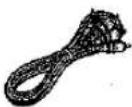 | ...... AV Cable (K2KC4CB00001) |  | ...... Digital Video Head Cleaner (VFK1451) |
 | ...... S-Video Cable (K2KZ9BA00001) |  | ...... MultiMediaCard (VFA0324) (NV-MX5, NV-MX7 only) |
shop

Panasonic
- Order accessory and consumable items for all Audio Visual Products with ease and confidence either by telephoning our Customer Care Centre on 08705 357357 Mon-Friday 9:00am-6:00pm and Sat 9:00am-1:00pm
- Or go on line through our Internet Accessory ordering application at www.panasonic.co.uk.
- Most major credit and debit cards accepted.
- All enquires transactions and distribution facilities are provided directly by Panasonic UK Ltd.
- It couldn't be simpler!
Controls and Functions
For more details, see the pages indicated in brackets.
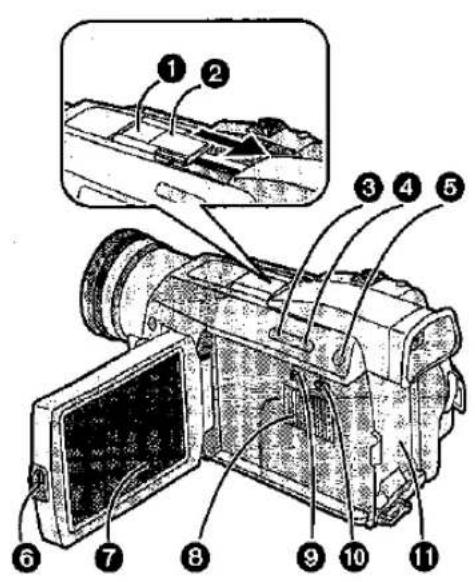
① Smart Accessory Shoe (NV-MX5, NV-MX7 only)
The Video Flash (VW-FLH3E: optional) (p. 117) or the Stereo Microphone (VW-VMS2E: optional), etc. can be attached here. Power is supplied directly from the Movie Camera when using an accessory supported by the Smart Accessory Shoe. Remove the Shoe Cover to attach these accessories.
- Do not touch the connector part of the Smart Accessory Shoe.
Accessory Shoe (NV-MX1 only)
Stereo Microphone (VW-VMS2E: optional), etc. is attached here.
② Shoe Cover
When using the Shoe, remove the Shoe Cover by sliding it in the direction of the arrow.
③ Fade Button [FADE] (p. 48)
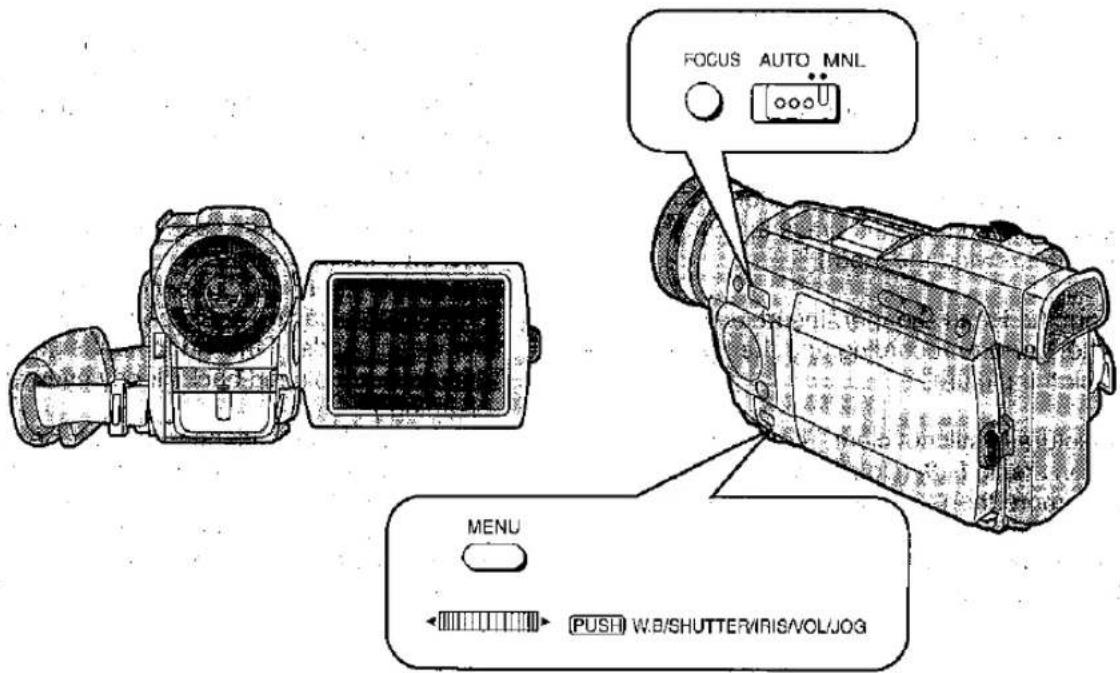
4 Backlight Button [BLC] (p. 28)
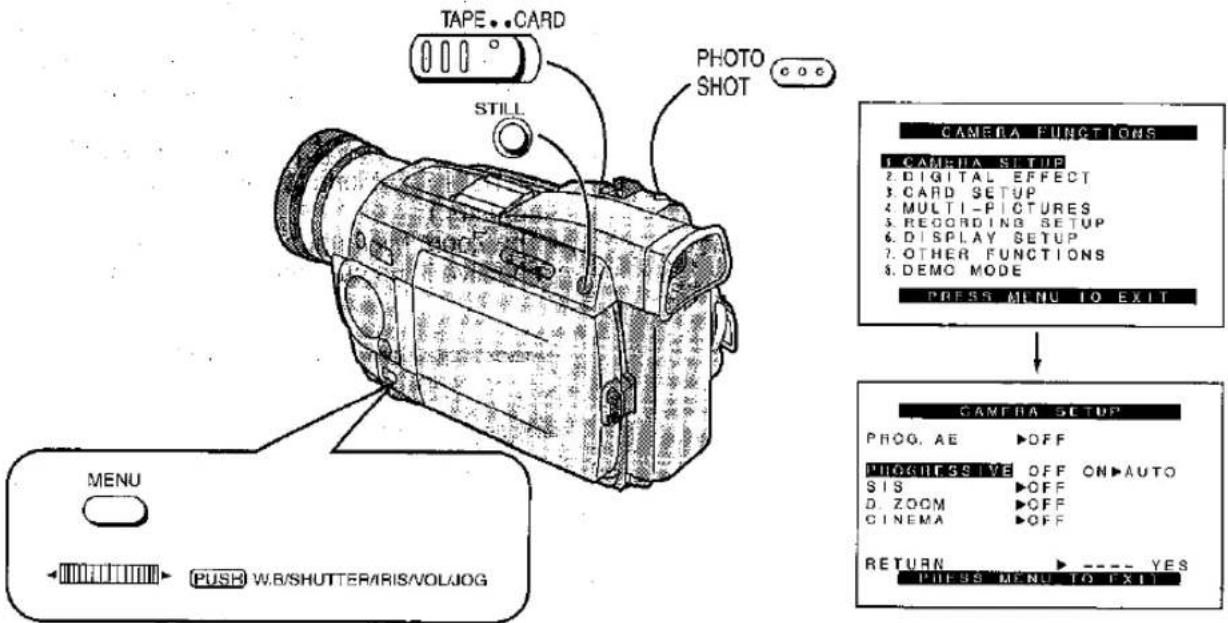
⑤ Still Button [STILL] (p. 35)
⑥ LCD Monitor Open Button [PUSH OPEN] (p. 14)
⑦ LCD Monitor (p. 14, 23, 117)
Due to limitations in LCD production technology, there may be some tiny bright or dark spots on the LCD Monitor screen. However, this is not a malfunction and does not affect the recorded picture.
8 Speaker (p. 39)
⑨ Title Button [TITLE] (p. 90) (NV-MX5, NV-MX7 only)
10 Multi-Picture Button [MULTI]
(p. 54, 56, 68–73, 88)
Picture-in-Picture Button [P-IN-P] (p. 58)
⑪ Battery Holder (p. 8, 10)
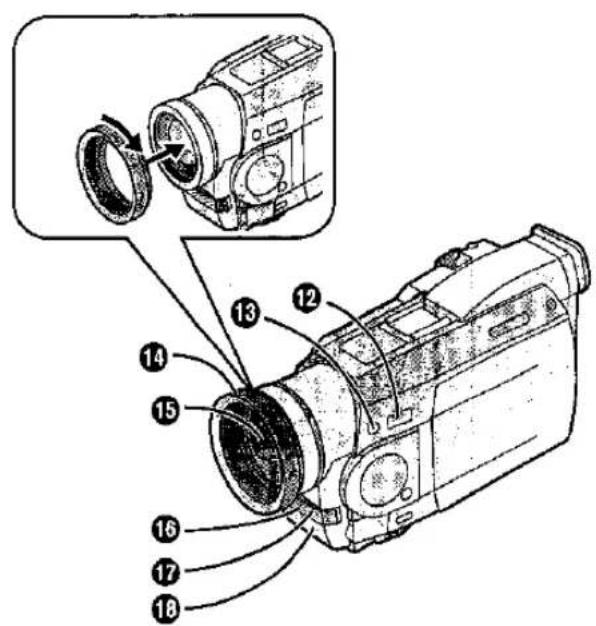
12 Mode Selector Switch [AUTO/MNL] (p. 26, 30, 50, 62, 64)
⑬ Focus Button [FOCUS] (p. 30)
14 Lens Hood (p. 117)
Be sure to keep the Lens Hood attached in order to block out excess light.
15 Lens
16 Recording Indicating (Tally) Lamp (p. 27)
⑰ White Balance Sensor (p. 119)
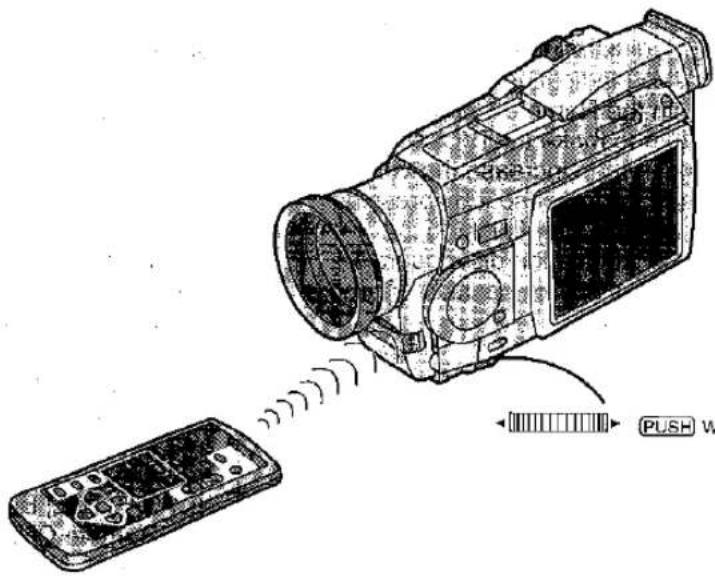
Remote Control Sensor (p. 106)
18 Microphone (built-in, stereo)
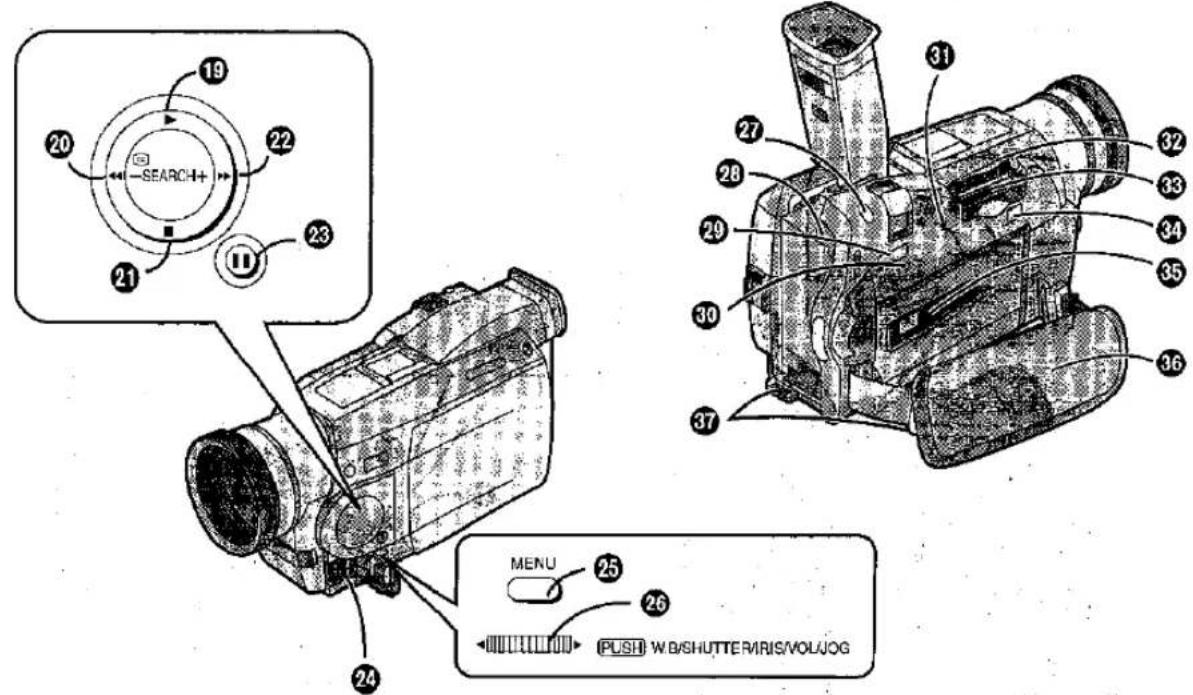
19 Play Button [▶] (p. 38, 89, 94)
20 Rewind/Review Button [◀◀] (p. 38, 94)
Recording Check Button [◀◀] (p. 28)
Reverse Search Button [-SEARCH] (p. 44, 88)
21 Stop Button [■] (p. 38, 89, 94)
2 Fast Forward/Cue Button [▶▶] (p. 38, 94)
Forward Search Button [SEARCH+] (p. 44, 88)
23 Pause Button [11] (p. 40, 89, 94)
24 DV Terminal (i.LINK) [1] (p. 110)
Connect it to digital video equipment.
"i.LINK" is the name of the connector in accordance with the IEEE1394-1995.
"I" is the logo marked on products conforming with the "i.LINK" specifications.
(It is only possible to input digital signals with model NV-MX7.)
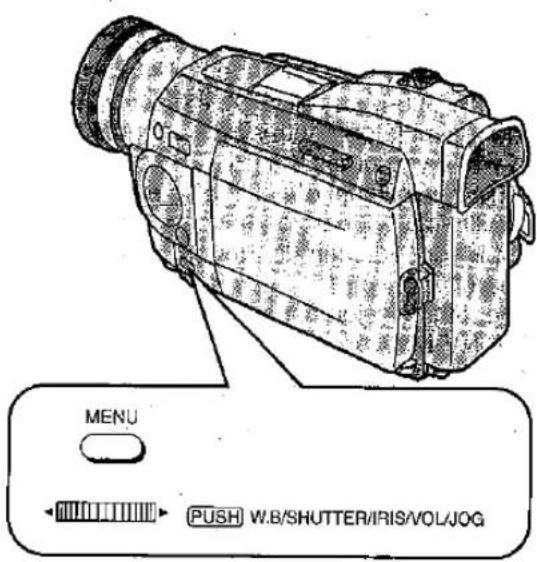
25 Menu Button [MENU] (p. 16)
26 Multi-Function Dial [PUSH] (p. 16, 23, 24, 39, 41, 62, 64)
27 Photoshot Button [PHOTO SHOT] (p. 34, 82–87, 90, 92, 96)
28 Battery Eject Button [BATT. EJECT] (p. 11)
29 Tape/Card Photoshot Selector [TAPE/CARD] (p. 34, 82–87) (NV-MX5, NV-MX7 only)
30 Reset Button [RESET] (p. 128)
③1 Card Access Lamp [ACCESS] (p. 81) (NV-MX5, NV-MX7 only)
32 Card Slot Cover (p. 80) (NV-MX5, NV-MX7 only)
33 Card Slot (p. 80) (NV-MX5, NV-MX7 only)
34 Card Slot Cover Open Lever [OPEN] (p. 80) (NV-MX5, NV-MX7 only)
35 Cassette Compartment Window (p. 12)
36 Grip Belt
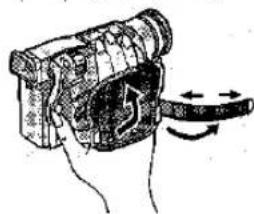
You can adjust the Grip Belt to the size of your hand. When you open or close the Cassette Compartment, push down the buckle of the Grip Belt so that it does not prevent the Cassette Compartment from opening and closing completely.
natural_image
Illustration of a handheld device with a handle and scroll, showing motion arrows (no text or symbols)Pass your hand through the Grip Belt and adjust its length. Fold back the end of the Grip Belt to securely fasten the velcro tape closure.
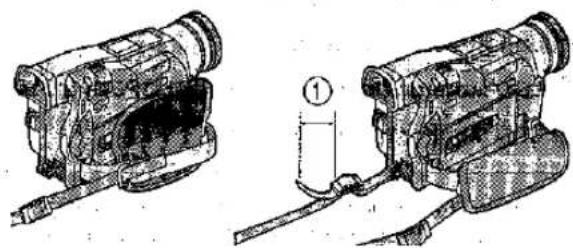
37 Shoulder Strap Holders
Before you go recording outside, it is recommended that you attach the Shoulder Strap to prevent the Movie Camera from dropping accidentally.
natural_image
Technical line drawing of two mechanical devices with attached wires and a labeled component (no text or symbols present)Pull the end of the Shoulder Strap through the Shoulder Strap Holder on the Movie Camera. Fold the end of the Shoulder Strap back, pull it through the Shoulder Strap Length Adjuster. Pull it out more than 2 cm ① from the Shoulder Strap Length Adjuster so that it cannot slip off.
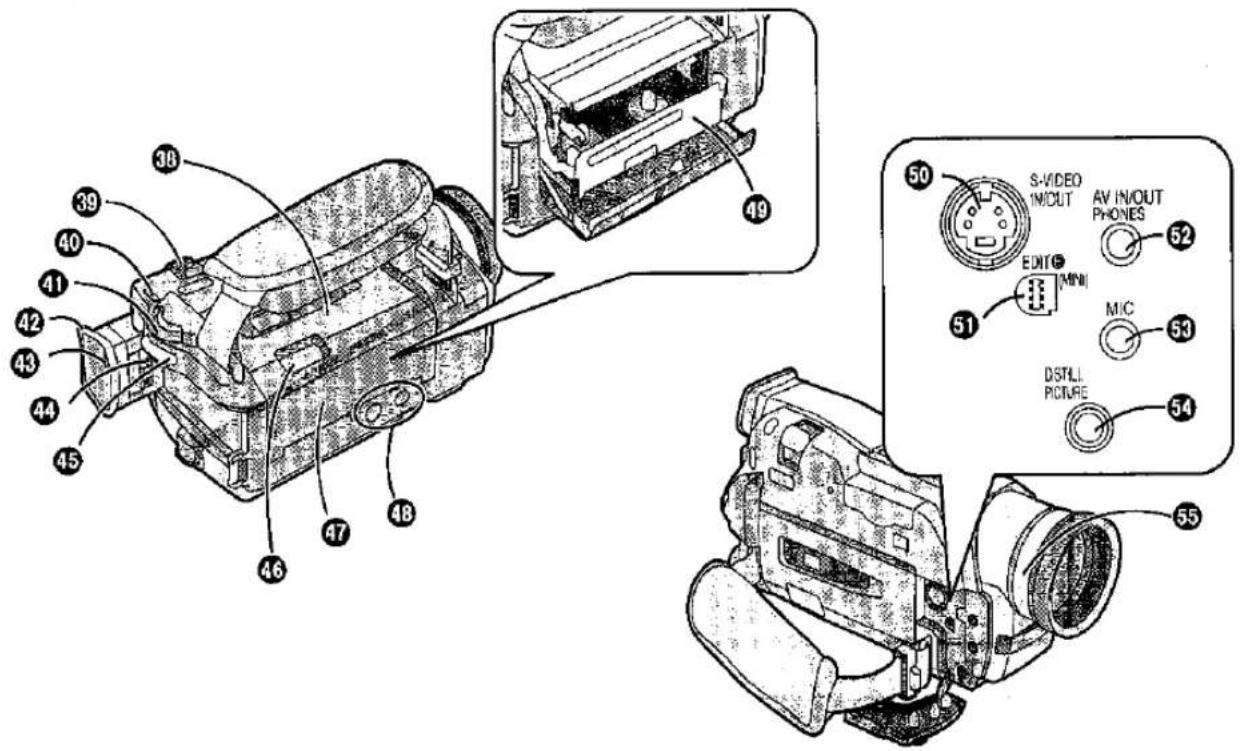
38 Upper Cassette Compartment Cover (p. 12)
39 Zoom Lever [W/T] (p. 32)
40 Operation Mode Lamps
[CAMERA/VCR/CARD P.B] (p. 26, 38, 88)
(Only the NV-MX5 and NV-MX7 models come with
[CARD P.B] Lamp.)
④ Off/On Mode Selector Switch [OFF/ON/MODE] (p. 14, 26, 38, 42, 88)
42 Eyecup
48 Viewfinder (p. 14, 23, 117)
Due to limitations in LCD production technology, there may be some tiny bright or dark spots on the Viewfinder screen. However, this is not a malfunction and does not affect the recorded picture.
44 Eyepiece Corrector Knob (p. 14)
45 Recording Start/Stop Button (p. 26)
46 Cassette Eject Lever [OPEN/EJECT] (p. 12, 42)
47 Lower Cassette Compartment Cover (p. 12)
48 Tripod Receptacle
To mount the Movie Camera on an optional tripod.
49 Cassette Holder (p. 12)
50 S-Video Input/Output Socket [S-VIDEO IN/OUT] (p. 42, 108, 111, 112, 114)
(Only the NV-MX7 model comes with an input function.)
Connect the S-Video Cable to this socket to record clearer pictures or view on the TV screen.
⑤ Edit Socket [EDIT® (MINI)] (p. 111, 112)
52 Audio-Video Input/Output Socket [AV IN/OUT] (p. 42, 108, 111, 114) (Only the NV-MX7 model comes with an input function.)
Headphone Socket [PHONES] (p. 43)
When a cable is connected to this socket, the Movie Camera's built-in speaker is turned off.
53 Microphone Socket [MIC] (p. 117)
To connect an external microphone or audio equipment. (Connecting to this socket deactivates the built-in microphone.)
54 Digital Still Picture Terminal [D.STILL PICTURE] (p. 114)
55 Focus Ring (p. 30)
| Title | Procedure |
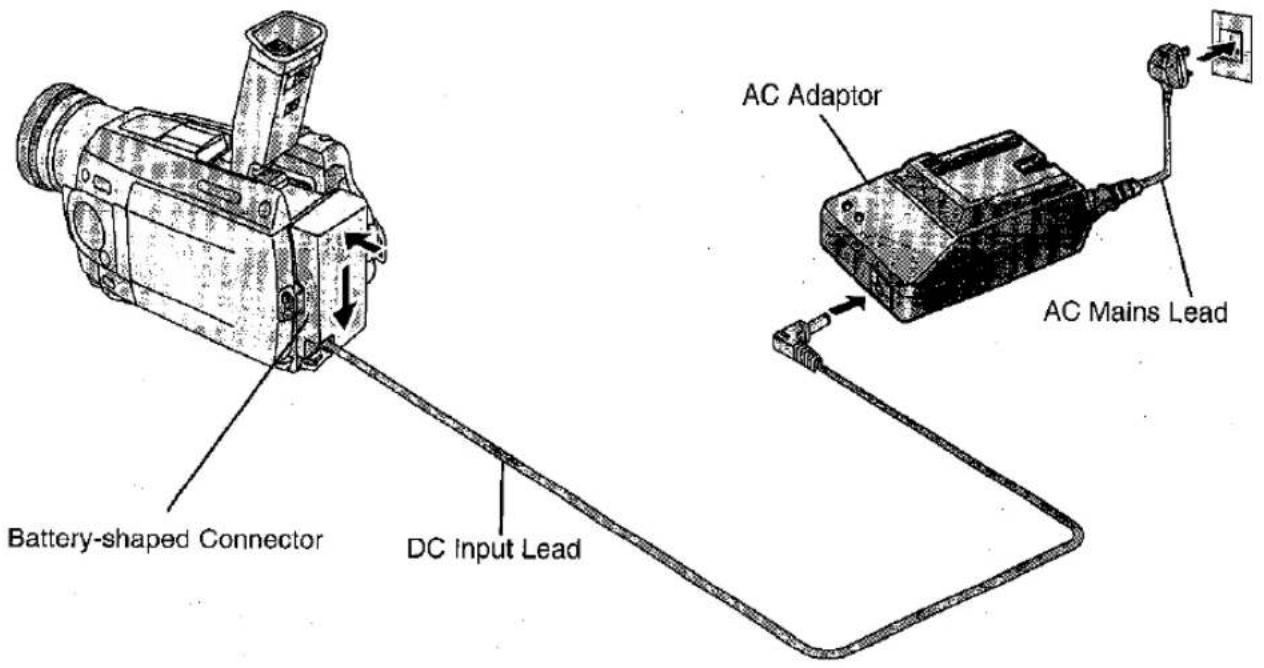
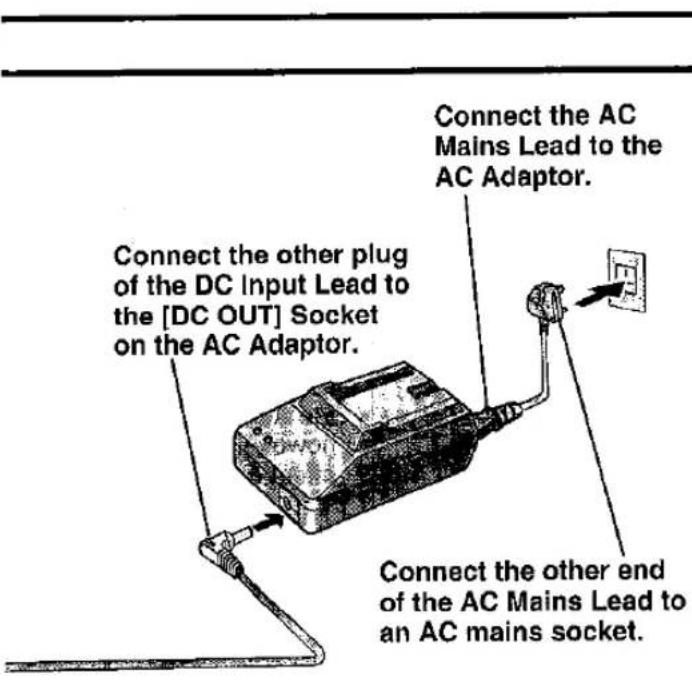
| The 3 Types of Power Supply1) AC Adaptor (supplied) to supply power from an AC mains socket2) Car Battery Charger (optional) to supply power from the Cigarette Lighter Socket in a car3) Battery (supplied) (p. 10)1) Supplying Power from an AC Mains Socket | Tilt the Viewfinder upward.Do not pull on the Eyecup to extend the Viewfinder.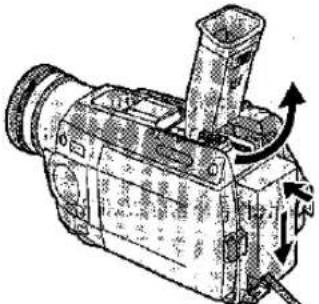 Insert the Battery-shaped Connector of the DC Input Lead into the Battery Holder on the Movie Camera and slide it downward until it locks with a click. Insert the Battery-shaped Connector of the DC Input Lead into the Battery Holder on the Movie Camera and slide it downward until it locks with a click. |
| 2) Supplying Power from the Cigarette Lighter Socket in a CarThe use of the Car Battery Charger (VW-KBD2E; optional) makes it possible to supply power to the Movie Camera in a car for recording and playback. It also allows charging the Movie Camera's Battery, | Start the engine and then plug the Car Battery Charger into the Cigarette Lighter Socket.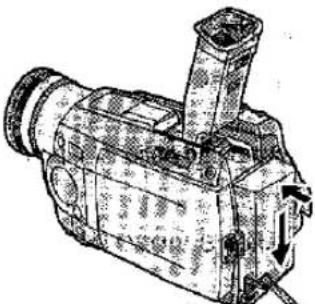 DC Input Lead DC Input Lead |
 | Remarks, etc. |
| Before disconnecting the AC Mains Lead, set the [OFF/ON/MODE] Switch on the Movie Camera to [OFF].If you use the Movie Camera for a long time, it becomes warm. However, this is normal.The AC Mains Lead does not fit entirely into the AC Adaptor socket, however this has no effect on operation. | |
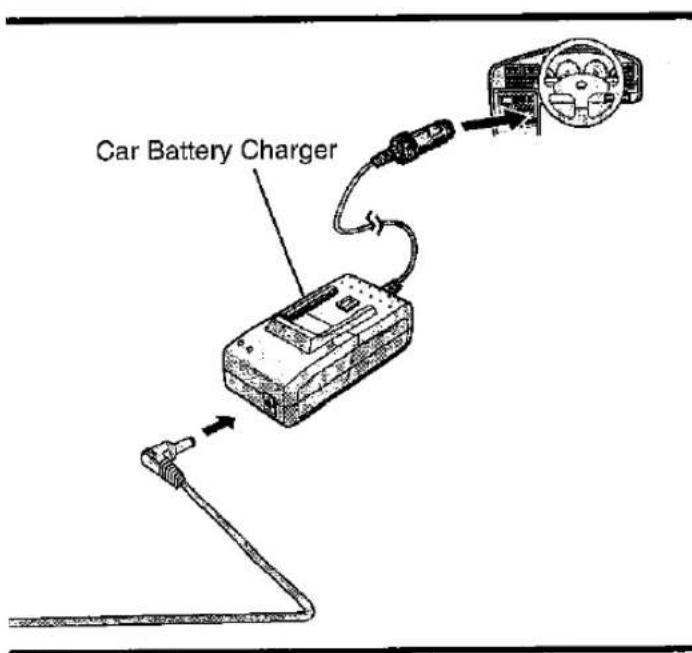 | After use, be sure to disconnect the Car Battery Charger from the Cigarette Lighter Socket.If the Car Battery Charger is already connected to the cigarette lighter socket when you start the engine, the fuse in the Car Battery Charger's plug may blow out.Also read the operating instructions of the Car Battery Charger. |
| Title | Procedure | |
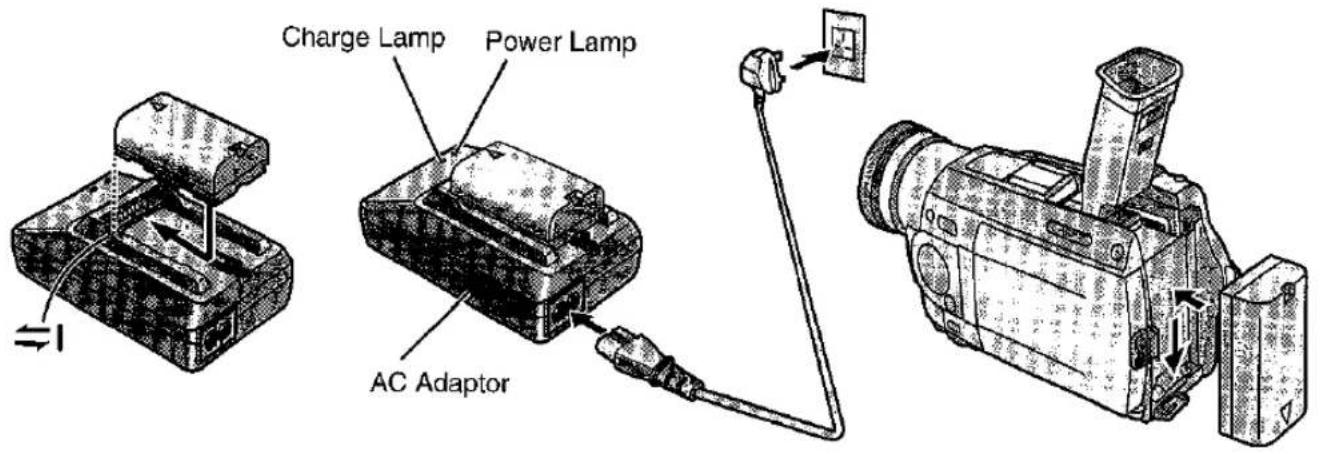
| 3) Supplying Power with the Battery Before use fully charge the Battery. | 1 Have the front edge of the battery lined up with the 1 mark on the side of the AC Adaptor, and then slide it horizontally until it locks with a click. | 2 Connect the AC Mains Lead to the AC Adaptor and an AC mains socket. The [POWER] Lamp and the [CHARGE] Lamp light and charging starts.●The AC Mains Lead does not fit entirely into the AC Adaptor socket, however this has no effect on operation. |
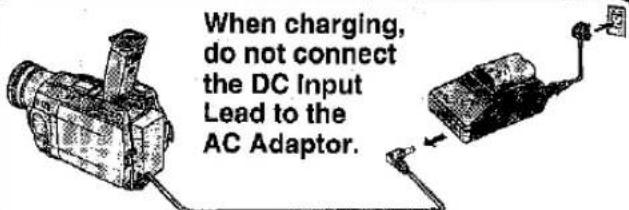 When the [CHARGE] Lamp Flashes ContinuouslyIf the temperature of the Battery is extremely low or extremely high, the [CHARGE] Lamp on the AC Adaptor flashes continuously. It also flashes continuously when some malfunction has occurred in the Battery or the AC Adaptor. For details, read "Notes about the AC Adaptor". (p. 115).●Charge the Battery at a room temperature between 10°C and 30°C.●If the DC Input Lead is connected to the AC Adaptor, disconnect it as charging is not possible otherwise.●If the [CHARGE] Lamp does not light even though the Battery is attached, remove the Battery and then re-attach it.●During recording and charging, the Battery becomes warm. However, this is normal.●If the temperature of the Battery is extremely high or extremely low, the [CHARGE] Lamp may keep on flashing and charging is not possible. After the Battery has cooled down or warmed up sufficiently, charging starts automatically. When the [CHARGE] Lamp Flashes ContinuouslyIf the temperature of the Battery is extremely low or extremely high, the [CHARGE] Lamp on the AC Adaptor flashes continuously. It also flashes continuously when some malfunction has occurred in the Battery or the AC Adaptor. For details, read "Notes about the AC Adaptor". (p. 115).●Charge the Battery at a room temperature between 10°C and 30°C.●If the DC Input Lead is connected to the AC Adaptor, disconnect it as charging is not possible otherwise.●If the [CHARGE] Lamp does not light even though the Battery is attached, remove the Battery and then re-attach it.●During recording and charging, the Battery becomes warm. However, this is normal.●If the temperature of the Battery is extremely high or extremely low, the [CHARGE] Lamp may keep on flashing and charging is not possible. After the Battery has cooled down or warmed up sufficiently, charging starts automatically. | 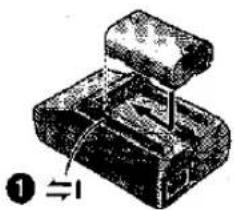 | 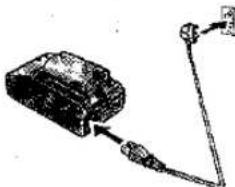 |
| 5 Insert the Battery into the Battery Holder on the Movie Camera and slide it downward until it locks with a click. | 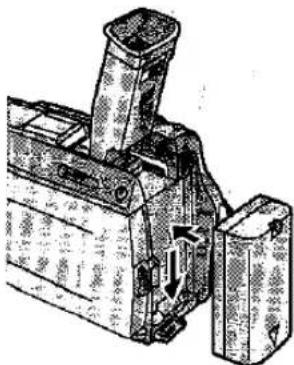 | |
| NV-MX1 | NV-MX5 | NV-MX7 | ||
| VSB0418CGR-D120[IMAGE] | A | 1 h. | 1 h. | 1 h. |
| B | 1 h 25 min. (1 h 5 mln.) | 1 h 20 min. (1 h 5 min.) | 1 h 20 min. (1 h 5 min.) | |
| C | 45 min. (35 min.) | 40 min. (35 min.) | 40 min. (35 min.) | |
  | A | 1 h 50 min. | 1 h 50 min. | 1 h 50 min. |
| B | 2 h 20 min. (1 h 55 min.) | 2 h 20 min. (1 h 50 min.) | 2 h 20 min. (1 h 50 min.) | |
| C | 1 h 10 min. (1 h.) | 1 h 10 min. (55 min.) | 1 h 10 min. (55 min.) | |
CGR-D220 | A | 2 h. | 2 h. | 2 h. |
| B | 2 h 55 min. (2 h 20 min.) | 2 h 50 min. (2 h 15 min.) | 2 h 50 min. (2 h 15 min.) | |
| C | 1 h 30 min. (1 h 10 min.) | 1 h 25 min. (1 h 10 min.) | 1 h 25 min. (1 h 10 min.) | |
| CGP-D320[DDWS] | A | 3 h 15 min. | 3 h 15 min. | 3 h 15 min. |
| B | 5 h 5 min. (4 h 5 min.) | 4 h 50 min. (3 h 55 min.) | 4 h 50 min. (3 h 55 min.) | |
| C | 2 h 35 min. (2 h 5 min.) | 2 h 25 min. (2 h.) | 2 h 25 min. (2 h.) | |
CGR-D815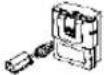 | A | 5 h 20 min. | 5 h 20 min. | 5 h 20 min. |
| B | 9 h 25 min. (7 h 40 min.) | 9 h 10 min. (7 h 40 min.) | 9 h 10 min. (7 h 40 min.) | |
| C | 4 h 45 min. (3 h 50 min.) | 4 h 35 min. (3 h 50 min.) | 4 h 35 min. (3 h 50 min.) |
| Remarks, etc. | ||
3Remove the Battery by sliding it in the opposite direction of Step 1.Also disconnect the AC Mains Lead.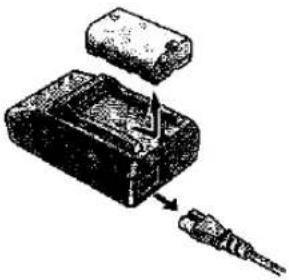 | 4Tilt the Viewfinder upward.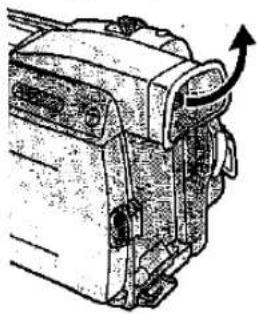 | Charging Time and Maximum Time for Continuous RecordingThe times shown in the above chart are approximations. The figures in parentheses show the recording time when using the LCD Monitor.The times listed above for your information indicate the duration of recording performed at an ambient temperature of 20°C and 60% relative humidity. The charging time may be longer when you charge theBattery at higher or lower temperature.A Charging TimeMaximum Continuous Recording TimeIntermittent Recording Time(The Intermittent Recording Time indicates the total recording time possible when you start and stop recording repeatedly.)The Battery Model VSB0418 is supplied.During use and charging, the Battery becomes warm.The Movie Camera, too, becomes warm during use.When you repeatedly stop and restart recording, the recording time per Battery is shorter than listed above.If you do not use the Battery for a long time, please read 'Precautions for Storage'. (p. 116)The Battery models CGP-D110 and CGP-D105 cannot be charged with this AC Adaptor.Removing the Battery from the Movie CameraWhile pressing the [BATT. EJECT] Button, slide the Battery upward to remove it.Be careful not to drop the Battery by accident.Before removing the Battery; set the [OFF/ON/MODE] Switch to [OFF].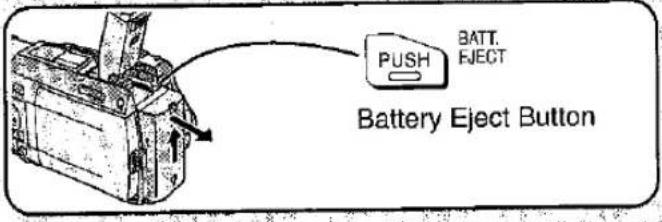 |
Charge Lamp[CHARGE]Lit: During charging.Off: When the Battery is fully charged.Charge Lamp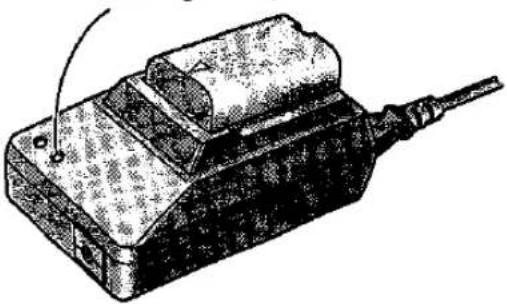 | ||
| Title | Procedure | |
| Inserting the Cassette | 1 Slide the [OPEN/EJECT] Lever 1 to the right and simultaneously open the Lower Cassette Compartment Cover until it clicks. The Cassette Holder slides out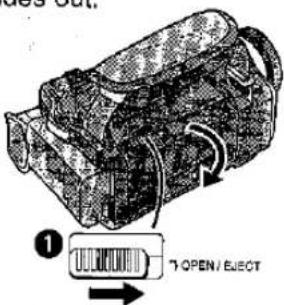 | 2 Insert the cassette with its window in position 2.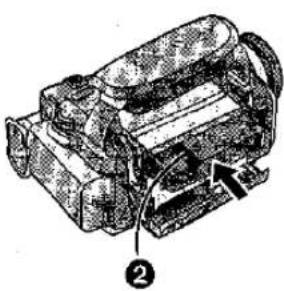 |
Ejecting the Cassette•If the AC Adaptor or Battery is used to supply power, it is possible to insert or eject the cassette without turning on the Movie Camera.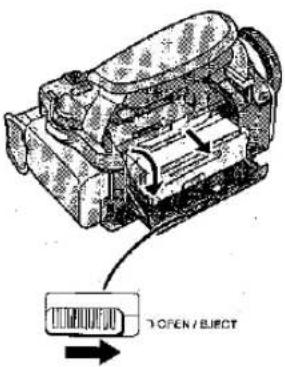 | ||
● LP Mode
The desired recording speed can be selected with [REC SPEED] on the [RECORDING SETUP] Sub-Menu. (p. 16) If you select the LP Mode, the possible recording time is 1.5 times as long as in the SP Mode.
Recording in the LP Mode does not deteriorate the picture quality. However, the playback picture may contain mosaic-like patterns and certain functions may be restricted.
- As the recording track width in the LP Mode is smaller than the head width, recording new sound onto an already recorded cassette (audio dubbing) (p. 78) is not possible.
- In the following cases, mosaic-like patterns may appear in the playback picture, or the picture may not be played back correctly:
- When a cassette recorded in the LP Mode on this Movie Camera is played back on other digital video equipment.
- When a cassette recorded in the LP Mode on other digital video equipment is played back on this Movie Camera.
- When a cassette recorded in the LP Mode on this Movie Camera is played back on digital video equipment not featuring the LP Mode.
• In the Slow Motion or Still Advance Playback Mode. (p. 40) - When using the Camera Search Function. (p. 44)
| Remarks, etc. | ||
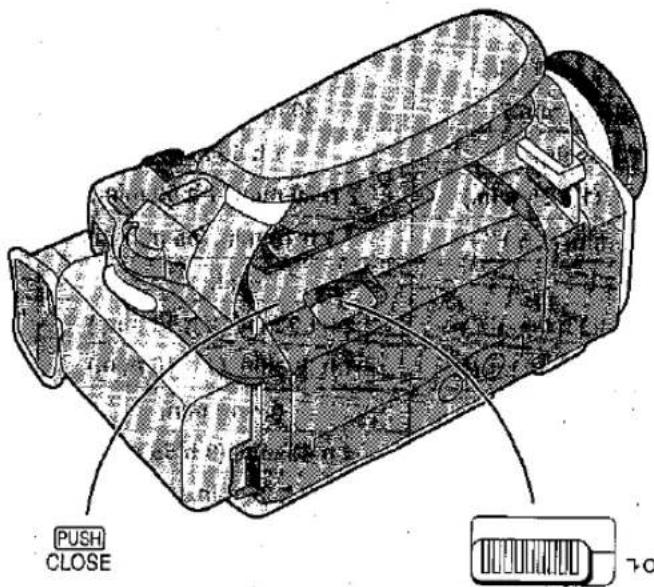
 Press on the [PUSH CLOSE] Mark to close the Upper Cassette Compartment Cover.The Cassette Holder with the cassette slides back inside.Confirm that the Cassette Holder has retracted completely. Press on the [PUSH CLOSE] Mark to close the Upper Cassette Compartment Cover.The Cassette Holder with the cassette slides back inside.Confirm that the Cassette Holder has retracted completely.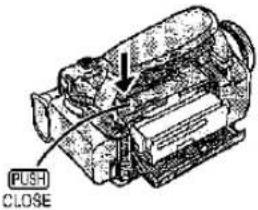 |  Close the Lower Cassette Compartment Cover. Close the Lower Cassette Compartment Cover.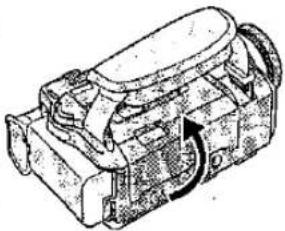 | ●When inserting the cassette, make sure it faces in the right direction and then push it in until it stops.●When you insert a cassette onto which you have recorded before, use the Camera Search Function (p. 44) to search for the position from which you want to continue recording.●When you insert a new cassette, rewind the tape to the beginning before starting to record.If the Cassette Holder Does Not Slide Back In●Press on the [PUSH CLOSE] Mark and close the Upper Cassette Compartment Cover securely.●Turn the Movie Camera off and then on again.●Check if the Battery is discharged.If the Cassette Holder Does Not Slide Out●Close the Lower Cassette Compartment Cover completely and then open it again.●Check if the Battery is discharged. |
When opening or closing the Cassette Compartment, push down the buckle 3 of the Grip Belt in the direction of the arrow so that it does not obstruct the opening and closing of the Cassette Compartment.●Otherwise the Grip Belt may prevent the Cassette Compartment from opening completely, or it may get caught under the Cassette Compartment Cover and prevent it from closing properly.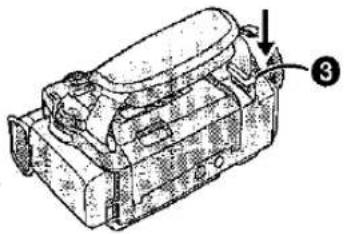 | Preventing Accidental Erasure of Recordings Opening the cassette's erasure prevention slider 4 (sliding it in the direction of the [SAVE] arrow) prevents recording. To record again, close the erasure prevention slider (slide it in the direction of the [REC] arrow).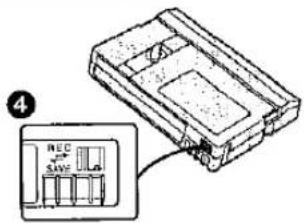 | |
| Title | Procedure | |
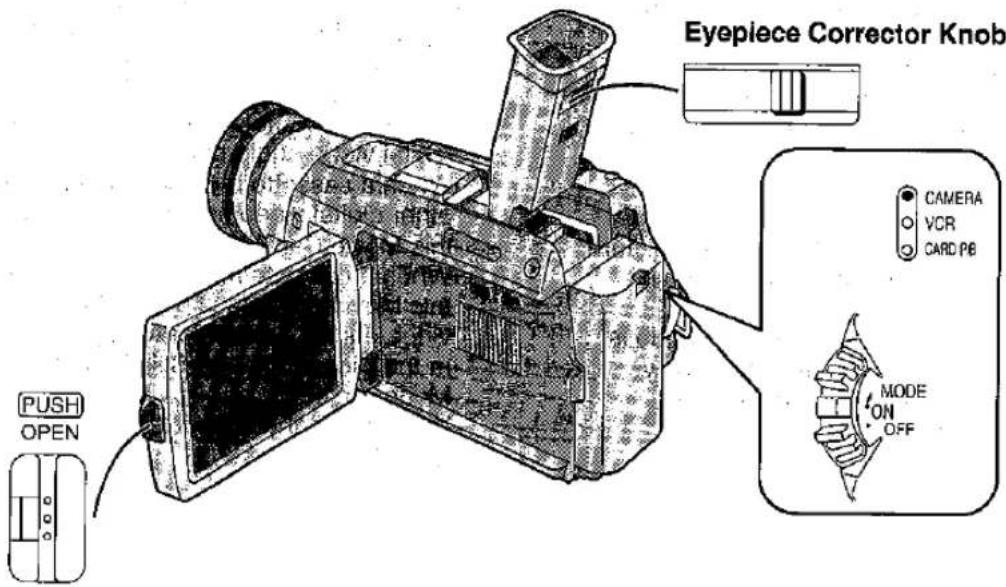
| Using the ViewfinderBefore using the Viewfinder, adjust it to your eyesight so that the indications in the Viewfinder are clear and easy to read.Due to limitations in production technology, there may be some tiny bright or dark spots on the Viewfinder, however, these are not recorded on the tape. | 1Set the [OFF/ON/MODE]Switch to [ON]. 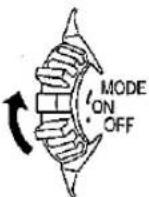 | 2Tilt the Viewfinder upward.The angle of the Viewfinder can be adjusted upward.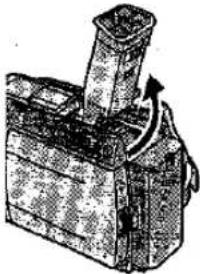 |
| Using the LCD MonitorIt is also possible to record while viewing the picture on the opened LCD MonitorRelationship between Viewfinder and LCD MonitorOpening the LCD Monitor turns off the ViewfinderClosing the LCD Monitor turns the Viewfinder on again, However, turning the LCD Monitor forward also turns on the Viewfinder again -(p. 30).Due to limitations in production technology, there may be some tiny bright or dark spots on the LCD Monitor screen, however, these are not recorded on the tape. | 1Set the [OFF/ON/MODE]Switch to [ON].[CAMERAVORCARD PB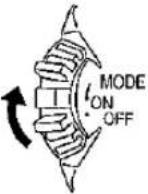 | 2Push the [PUSH OPEN] Button and turn out the LCD Monitor approximately 90° in the direction of the arrow. The Viewfinder turns off.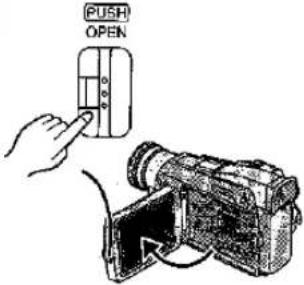 |
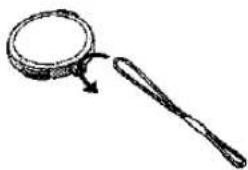
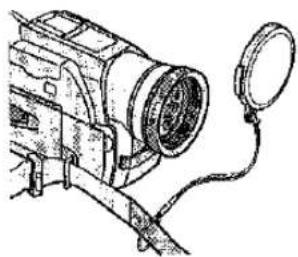
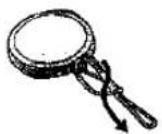
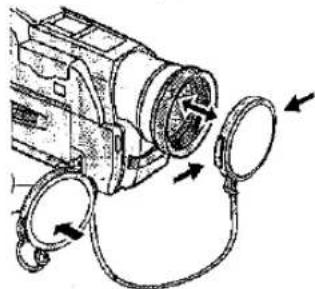
Attaching the Lens Cap
1
Pass the longer loop of the Lens Cap Cord through the attached eye on the Lens Cap.
natural_image
Simple line drawing of a magnifying glass with a handle and arrow indicating rotation (no text or symbols)3
Attach the shorter loop to the Grip Belt.
natural_image
Technical line drawing of a camera with attached lens and cable (no text or symbols)2
Then pass the shorter loop of the Lens Cap Cord through the centre of the longer loop and pull tight.
You can hook the removed Lens Cap onto the Grip Belt.
When not actually recording, always attach the Lens Cap to the Lens to protect it.
natural_image
Technical line drawing of a mechanical device with attached lenses and arrows indicating motion (no text or symbols)- Do not leave the Lens exposed to direct sunlight, as it could bundle the light beams and seriously heat-damage the CCD-Sensor.
●Before you start recording, remove the Lens Cap.
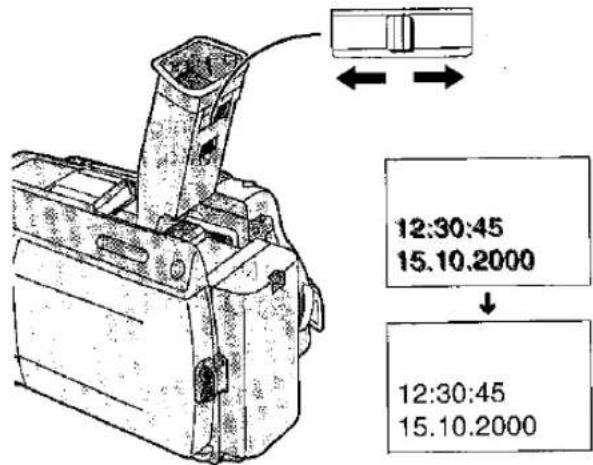
3
Adjust by sliding the Eyepiece Corrector Knob.
Remarks, etc.
- Do not leave the Viewfinder exposed to direct sunlight, as its magnifying glass could bundle the light beams and seriously heat-damage the Viewfinder.
- The Viewfinder can be tilted upward by up to approximately 65°.
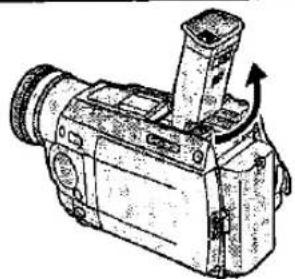
natural_image
Line drawing of a vintage camera with a mounted lens and scroll (no text or symbols)65°
3
Adjust the angle of the LCD Monitor according to the desired recording angle.
The LCD Monitor rotates upward a maximum of 180° and downward a maximum of 90° from its normal vertical position. Trying to forcefully rotate it beyond this range could seriously damage the Movie Camera.
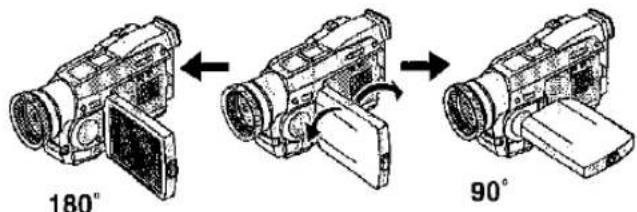
Closing the LCD Monitor
Push the LCD Monitor close until the [PUSH OPEN] Button locks with a click.
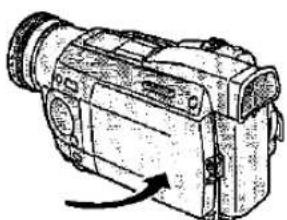
natural_image
Line drawing of a digital camera with an arrow indicating motion (no text or symbols present)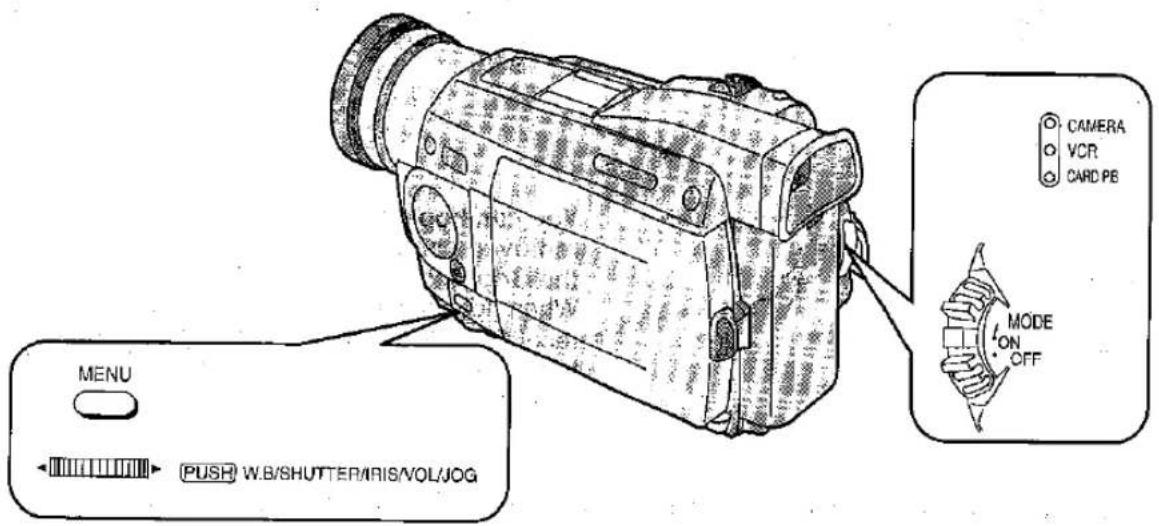
| Title | Procedure | |
| Using the Menu ScreenThis Movie Camera displays the settings of various functions in Menus to make it easy to select the desired functions and settings. | 1Press the [MENU] Button.When the [CAMERA] Lamp is lit, Camera Mode Menu is displayed. 1When the [VCR] Lamp is lit, VCR Mode Menu is displayed. 2When the [CARD P.B] Lamp is lit, Card Playback Mode Menu is displayed. 3 (NV-MX5, NV-MX7 only)  | |
| 4Turn the [PUSH] Dial to select the item to be set. | 5Press the [PUSH] Dial to set the selected item to the desired mode. Every press moves the cursor [▶] to the next mode. | |
 |  | |

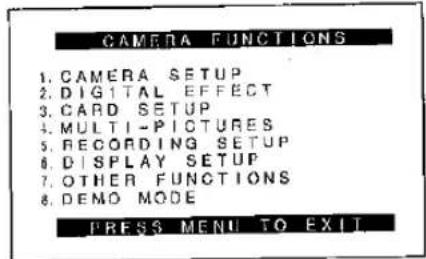
Camera Mode Main-Menu

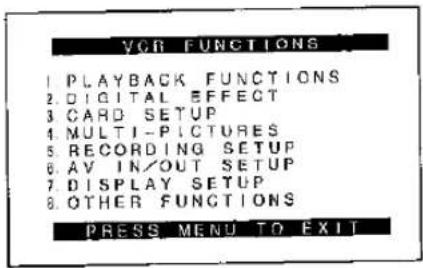
VCR Mode Main-Menu

Card Playback Mode Main-Menu
| Remarks, etc. | ||
2Turn the [PUSH] Dial to select the desired Sub-Menu.Turning the [PUSH] Dial changes the highlighted item. | 3Press the [PUSH] Dial to display the selected Sub-Menu. | Notes About the Settings Made on the MenuThe settings you selected on the Menu are maintained when you turn the Movie Camera off. However, if you disconnect the power supply unit (Battery or AC Adaptor) from the Movie Camera before turning it off, the selected settings may not be maintained.While the Menu is displayed, recording or playback is not possible. During playback, displaying Menu Is possible, but not during recording:Settings for the menu item(s) that cannot be used due to the combination of the selected functions are displayed in dark blue.You can also perform these operations by using the Remote Controller. (p. 104) |
Exiting the MenuPress the [MENU] Button again. | ||
Menu Functions
The illustrations of the Menus are intended for explaining the functions; the actual Menus look somewhat different.
Camera Mode Menu
①
②
③
④
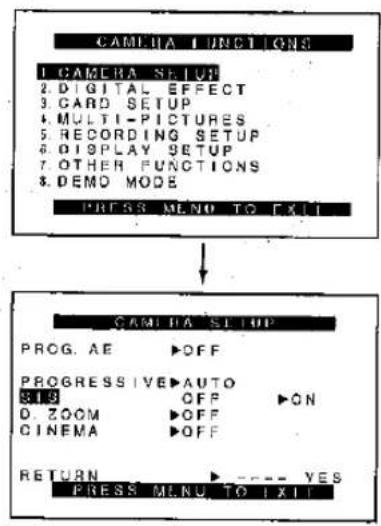
Camera Mode Main-Menu [CAMERA FUNCTIONS]
- CAMERA SETUP
- DIGITAL EFFECT
- CARD SETUP (NV-MX5, NV-MX7 only)
- MULTI-PICTURES
- RECORDING SETUP
- DISPLAY SETUP
- OTHER FUNCTIONS
- DEMO MODE
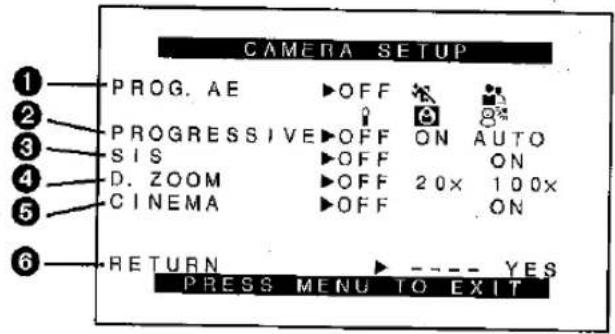
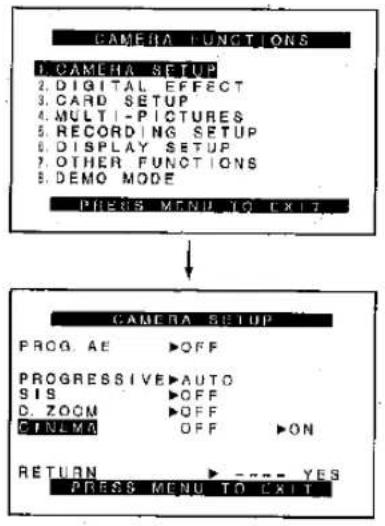
[CAMERA SETUP] Sub-Menu ①
① Auto Exposure Mode [PROG.AE] (p. 50)
② Progressive Photoshot Mode [PROGRESSIVE] (p. 34)
③ Super Image Stabilizer [SIS] (p. 36)
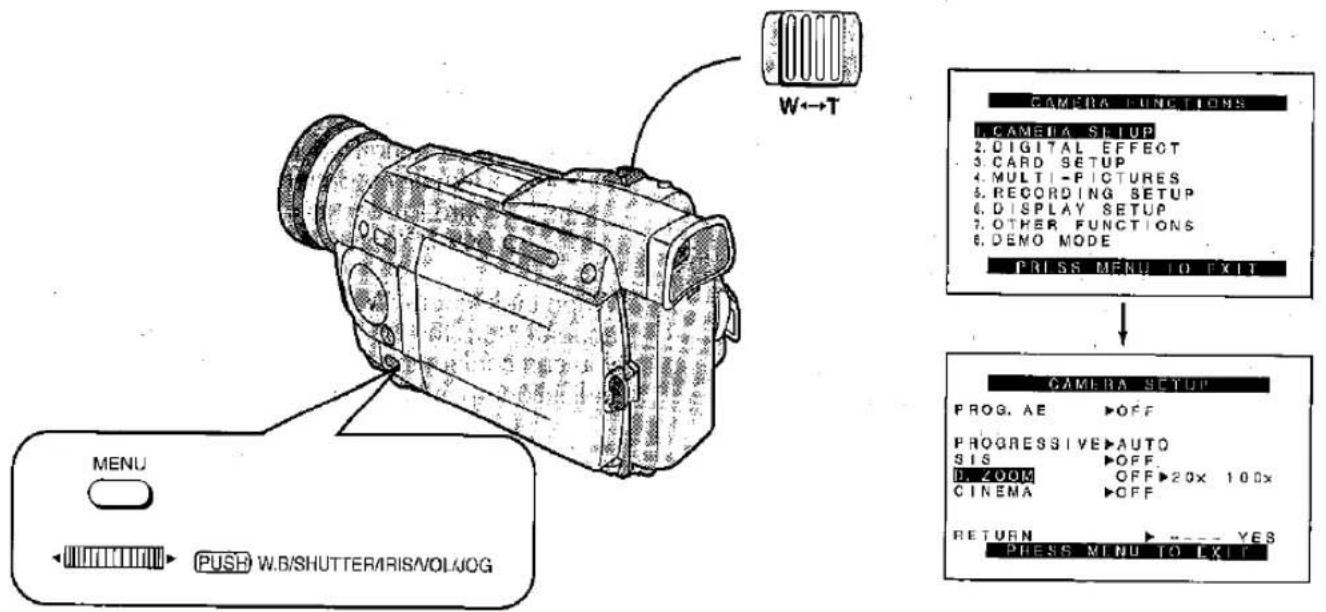
4 Digital Zoom [D.ZOOM] (p. 32)
⑤ Cinema-like Format Recording [CINEMA] (p. 36)
⑥ Returning to the Main-Menu [RETURN] If you set [RETURN] to [YES], the Menu changes back to the Main-Menu.
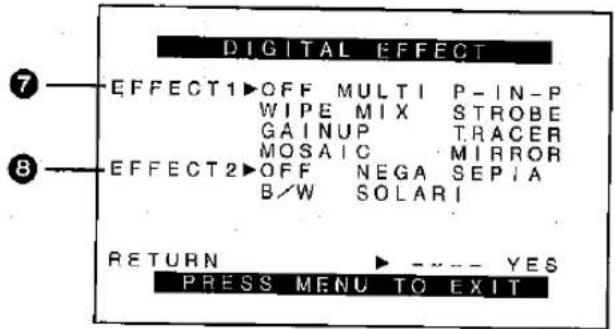
[DIGITAL EFFECT] Sub-Menu ②
⑦ Digital Effects 1 [EFFECT1] (p. 52)
⑧ Digital Effects 2 [EFFECT2] (p. 52)
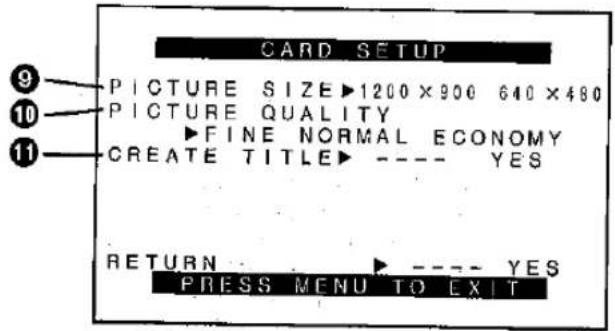
[CARD SETUP] Sub-Menu ③ (NV-MX5, NV-MX7 only)
⑨ Picture Size [PICTURE SIZE] (p. 82)
⑩ Picture Quality [PICTURE QUALITY] (p. 82)
⑪ Title Creation [CREATE TITLE] (p. 92)
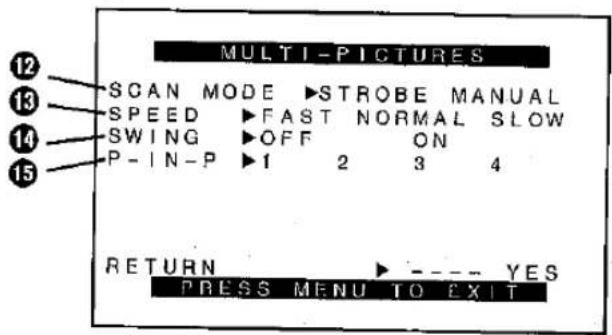
[MULTI-PICTURES] Sub-Menu ④
⑫ Multi-Picture Mode [SCAN MODE] (p. 54, 56)
⑬ Strobe Multi-Picture Speed [SPEED] (p. 54)
⑭ Swing Mode [SWING] (p. 55)
15 Position of Small Picture Inside Normal Picture [P-IN-P] (p. 58)
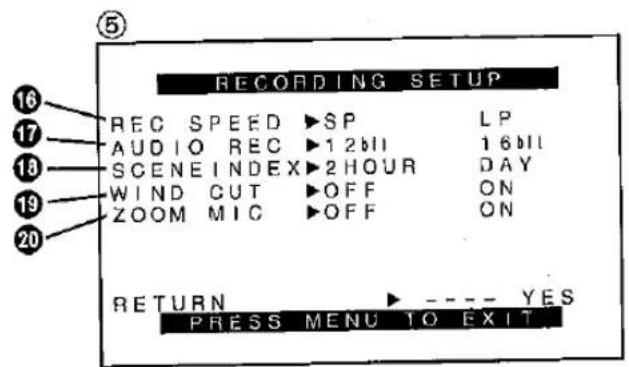
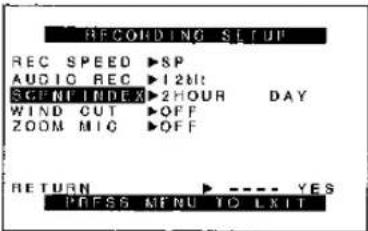
[RECORDING SETUP] Sub-Menu ⑤
16 Recording Speed Mode [REC SPEED] (p. 13)
⑰ Audio Recording Mode [AUDIO REC] (p. 78, 120)
⑱ Scene Index Mode [SCENEINDEX] (p. 47)
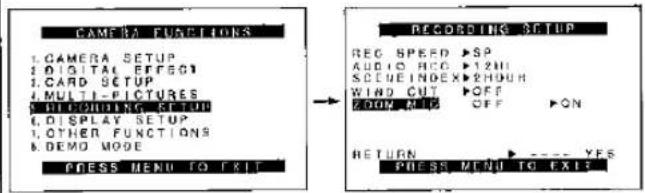
19 Wind Noise Reduction [WIND CUT]
If you set [WIND CUT] to [ON], the noise of the wind hitting the microphone is reduced.
However, this also causes a slight deterioration of the sound reproduction in the bass range.
20 Zoom Microphone [ZOOM MIC] (p. 33)
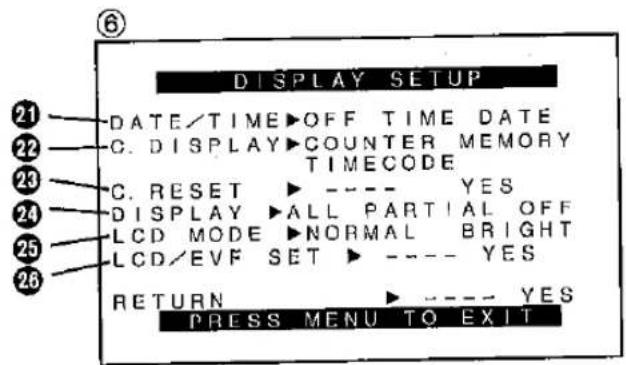
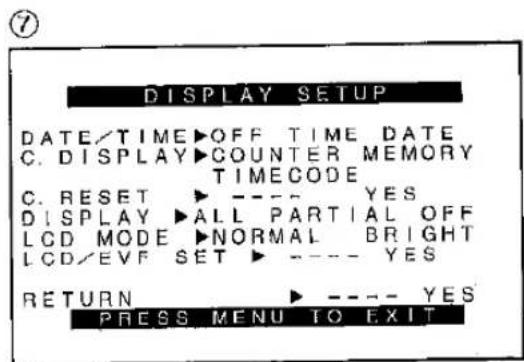
[DISPLAY SETUP] Sub-Menu ⑥
② Date and Time Indication [DATE/TIME] (p. 39)
22 Counter Display Mode [C.DISPLAY] (p. 123)
23 Counter Reset [C.RESET] (p. 121)
To reset the counter to zero. However, the Time Code cannot be reset.
24 Display Mode [DISPLAY] (p. 123)
25 LCD Lighting Mode [LCD MODE] (p. 23)
26 LCD and Viewfinder Adjustment [LCD/EVF SET] (p. 23)
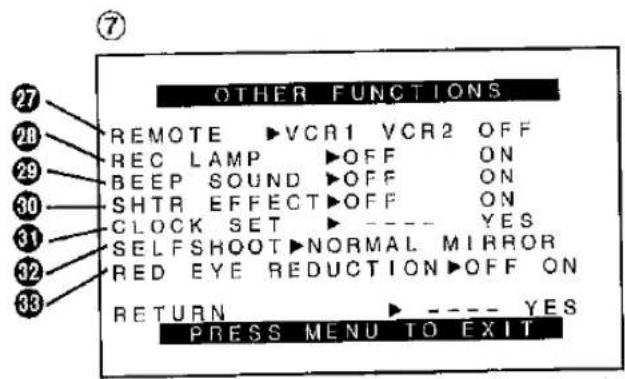
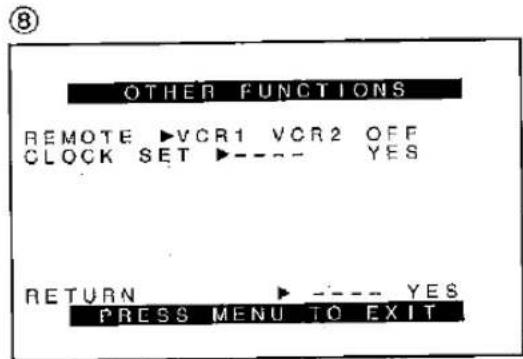
[OTHER FUNCTIONS] Sub-Menu ⑦
27 Remote Controller Mode [REMOTE] (p. 107)
28 Recording Lamp [REC LAMP] (p. 27)
29 Beep Sound [BEEP SOUND]
If you set [BEEP SOUND] to [ON], a confirmation/alarm beep sound is emitted in the following cases:
1 Beep
- When you start recording
- When you switch the [OFF/ON/MODE] Switch from [OFF] to [ON]
2 Beeps - When you pause recording 10 Beeps
- When you operate the Movie Camera in an inappropriate way before or during recording
③0 Shutter Effect [SHTR EFFECT] (p. 35)
③ Date and Time Setting [CLOCK SET] (p. 24)
32 Self-Recording [SELFSHOOT] (p. 31)
30 Red Eye Reduction [RED EYE REDUCTION] (p. 117) (NV-MX5, NV-MX7 only)
This reduces the "red eye" phenomenon which results when the flashes emitted by the Video Flash during recording make the pupils of people recorded by the camera appear red.
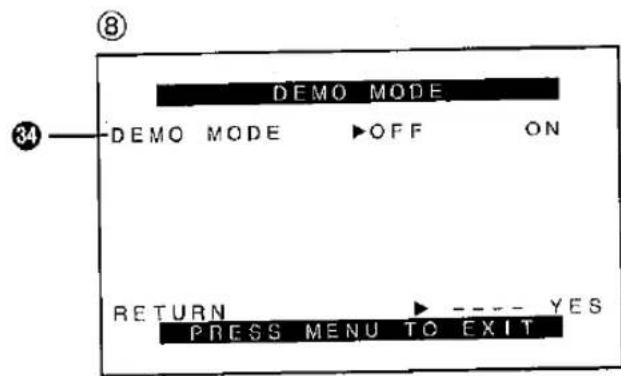
[DEMO MODE] Sub-Menu ⑧
34 Demonstration Mode [DEMO MODE]
If you connect the AC Adaptor to the Movie Camera, set the [OFF/ON/MODE] Switch to [ON] without any cassette inserted, and leave it on for approximately 10 minutes without performing any operation, the Movie Camera automatically switches over to the Demonstration Mode to show its functions. Pressing a button or performing some other operation suspends the Demonstration Mode. Leaving the Movie Camera again on for more than 10 minutes without operating it, causes the demonstration to start again. Also, when you set [DEMO MODE] to [ON] and then exit the Menu, the demonstration starts. To cancel the Demonstration Mode, insert a cassette or set [DEMO MODE] to [OFF].
Menu Functions (Continued)
VCR Mode Menu
①
②
③
④
VCR Mode Main-Menu [VCR FUNCTIONS]
- PLAYBACK FUNCTIONS
- DIGITAL EFFECT
- CARD SETUP (NV-MX5, NV-MX7 only)
- MULTI-PICTURES
- RECORDING SETUP
- AV IN/OUT SETUP (NV-MX7 only)
- DISPLAY SETUP
- OTHER FUNCTIONS
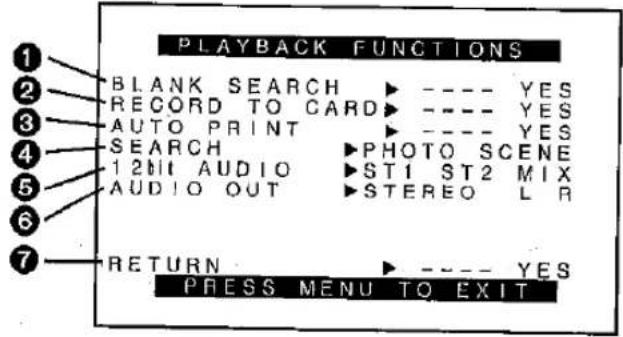
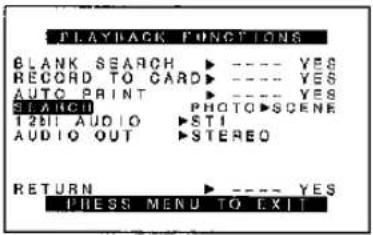
[PLAYBACK FUNCTIONS] Sub-Menu ①
① Blank Search [BLANK SEARCH] (p. 44)
② Recording to Card [RECORD TO CARD] (p. 84) (NV-MX5, NV-MX7 only)
③ Automatic Printing [AUTO PRINT] (p. 112)
④ Index Search Mode [SEARCH] (p. 46)
⑤ Audio Output Mode [12bit AUDIO] (p. 79)
⑥ Audio Selector [AUDIO OUT] (p. 43) This selects the audio channel.
⑦ Returning to the Main-Menu [RETURN] If you set [RETURN] to [YES], the Menu changes back to the Main-Menu.
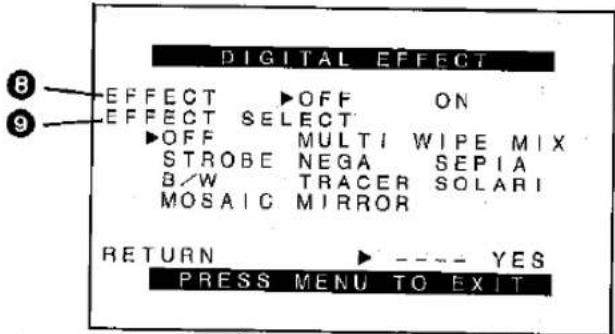
[DIGITAL EFFECT] Sub-Menu ②
⑧ Digital Effect On/Off [EFFECT] (p. 67)
9 Digital Effect Selection [EFFECT SELECT] (p. 66)
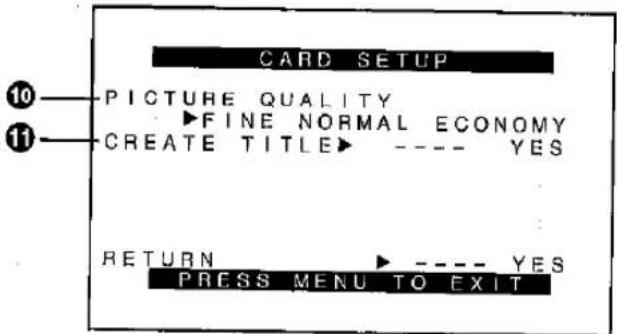
[CARD SETUP] Sub-Menu ③
(NV-MX5, NV-MX7 only)
⑩ Picture Quality [PICTURE QUALITY] (p. 82)
① Title Creation [CREATE TITLE] (p. 92)
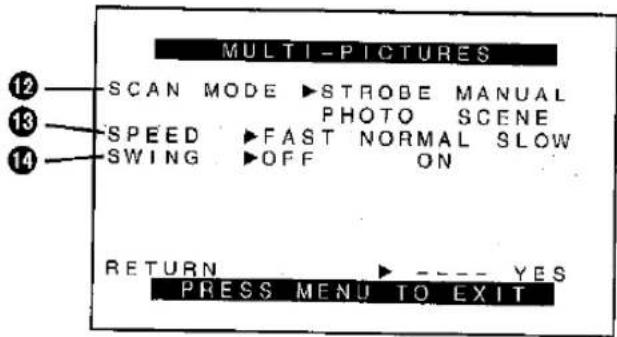
[MULTI-PICTURES] Sub-Menu ④
⑫ Multi-Picture Mode [SCAN MODE] (p. 68–73)
⑬ Strobe Multi-Picture Speed [SPEED] (p. 68)
⑭ Swing Mode [SWING] (p. 69)
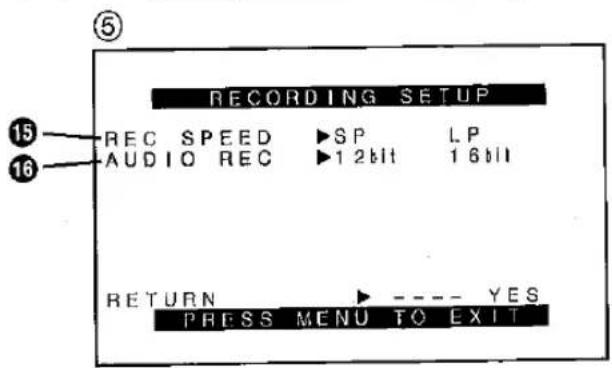
[RECORDING SETUP] Sub-Menu ⑤
⑮ Recording Speed Mode [REC SPEED] (p. 109, 110)
- To select the recording speed when inputting digital or analog signals and dubbing them. (NV-MX7 only)
- When this setting is changed, the [REC SPEED] setting on the [RECORDING SETUP] Sub-Menu of the [CAMERA FUNCTIONS] Main-Menu will likewise be changed.
16 Audio Recording Mode [AUDIO REC] (p. 78, 110, 120)
• To select the audio recording mode when inputting digital or analog signals and dubbing them.
- When this setting is changed, the [AUDIO REC] setting on the [RECORDING SETUP] Sub-Menu of the [CAMERA FUNCTIONS] Main-Menu will likewise be changed.
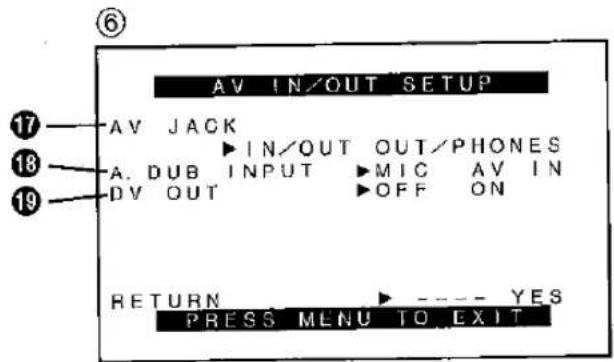
[AV IN/OUT SETUP] Sub-Menu ⑥ (NV-MX7 only)
⑰ AV Socket [AV JACK] (p. 43, 109) This sets the method for inputting signals to and outputting them from the Audio-Video Input/Output Socket.
18 Audio Dubbing Input [A. DUB INPUT] (p. 78) This sets the audio input method for audio dubbing.
19 AD Conversion Output [DV OUT] (p. 109) This converts the analog signals into digital signals and outputs them from the DV Terminal.
[DISPLAY SETUP] Sub-Menu ⑦ All items on the [DISPLAY SETUP] Sub-Menu are the same as those on the [DISPLAY SETUP] Sub-Menu of the [CAMERA FUNCTIONS] Main-Menu.
[OTHER FUNCTIONS] Sub-Menu ⑧ All items on the [OTHER FUNCTIONS] Sub-Menu are the same as those on the [OTHER FUNCTIONS] Sub-Menu of the [CAMERA FUNCTIONS] Main-Menu.
Menu Functions (Continued)
Card Playback Mode Menu (NV-MX5, NV-MX7 only)
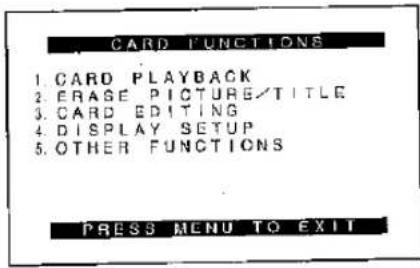
Card Playback Mode Main-Menu [CARD FUNCTIONS] (NV-MX5, NV-MX7 only)
- CARD PLAYBACK
- ERASE PICTURE/TITLE
- CARD EDITING
- DISPLAY SETUP
- OTHER FUNCTIONS
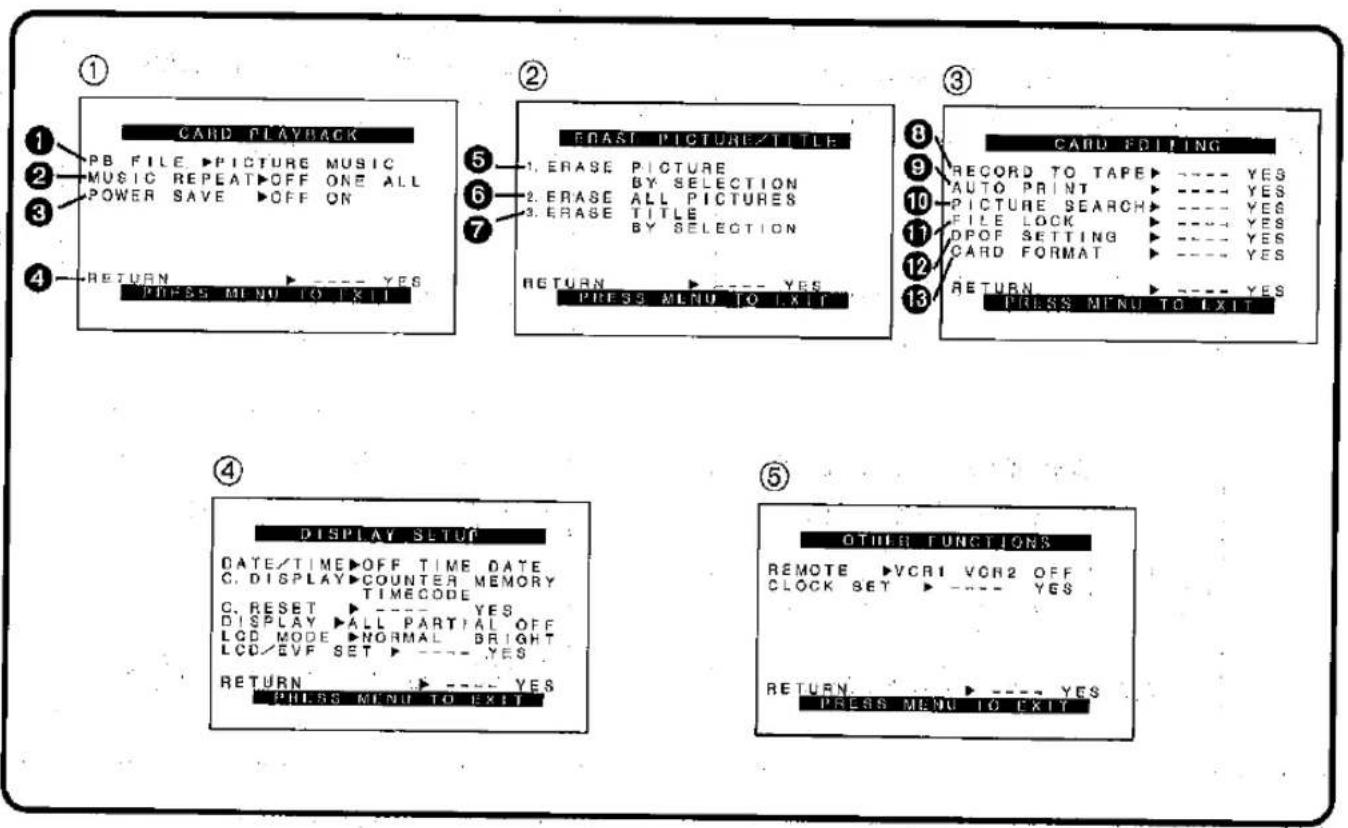
[CARD PLAYBACK] Sub-Menu ①
① Playback File [PB FILE] (p. 88, 94)
② Music Repeat Playback [MUSIC REPEAT] (p. 95)
③ Saving Power [POWER SAVE] (p. 95)
4 Returning to the Main-Menu [RETURN] If you set [RETURN] to [YES], the Menu changes back to the Main-Menu.
[ERASE PICTURE/TITLE] Sub-Menu ②
⑤ Selecting and Erasing a Picture [ERASE PICTURE BY SELECTION] (p. 96)
⑥ Erasing All Pictures
[ERASE ALL PICTURES] (p. 96)
⑦ Selecting and Erasing a Title [ERASE TITLE BY SELECTION] (p. 97)
[CARD EDITING] Sub-Menu ③
⑧ Recording to Cassette [RECORD TO TAPE] (p. 86)
9 Automatic Printing [AUTO PRINT] (p. 112)
⑩ Searching a Picture [PICTURE SEARCH] (p. 89)
⑪ Setting the Lock [FILE LOCK] (p. 98)
⑫ Setting DPOF [DPOF SETTING] (p. 100)
⑬ Formatting a Card [CARD FORMAT] (p. 98)
[DISPLAY SETUP] Sub-Menu ④
All items on the [DISPLAY SETUP] Sub-Menu are the same as those on the [DISPLAY SETUP] Sub-Menu of the [CAMERA FUNCTIONS] Main-Menu.
[OTHER FUNCTIONS] Sub-Menu ⑤
All items on the [OTHER FUNCTIONS] Sub-Menu are the same as those on the [OTHER FUNCTIONS] Sub-Menu of the [CAMERA FUNCTIONS] Main-Menu.
Adjusting the Brightness and Colour Level of the LCD Monitor/Viewfinder
If you set [LCD/EVF SET] on the [DISPLAY SETUP] Sub-Menu to [YES], the following items are displayed.
![LCD/EV1 SET LCD BLIGHTNESS [-] I I I ---- [+] LCD COLOUR LEVEL [-] I I I ---- [+] EVF BRIGHTNESS [-] I I I ---- [+] PRESS MENU TO RETURN MENU ← ⏻→ PUSH W.D/SHUTTER/IRIS/VOL/JOG](/content/2026/05/794537/images/9817db80178326b7c8961b133dc3a3b1ed3b21461724ec5d5a532b7b12c68bc9.jpg)
LCD Brightness [LCD BRIGHTNESS]
To adjust the brightness of the LCD screen. The Bar Indication is divided into 8 steps. The more vertical bars are shown, the brighter is the screen.
LCD Colour Level [LCD COLOUR LEVEL]
To adjust the colour saturation of the LCD screen. The Bar Indication is divided into 8 steps. The more vertical bars are shown, the stronger are the colours.
Viewfinder Brightness [EVF BRIGHTNESS]
To adjust the brightness of the Viewfinder. The Bar Indication is divided into 8 steps. The more vertical bars are shown, the brighter is the screen.
1 Press the [PUSH] Dial to select the item that you want to adjust.
2 Turn the [PUSH] Dial. Turning it increases or decreases the number of vertical bars of the Bar Indication.
Increasing the Brightness of the Whole LCD Monitor Screen
Set [LCD MODE] on the [DISPLAY SETUP] Sub-Menu to [BRIGHT].
● These adjustments have no influence on the actually recorded picture.
Setting the Date and Time
If you set [CLOCK SET] on the [OTHER FUNCTIONS] Sub-Menu to [YES], the Menu shown below appears.
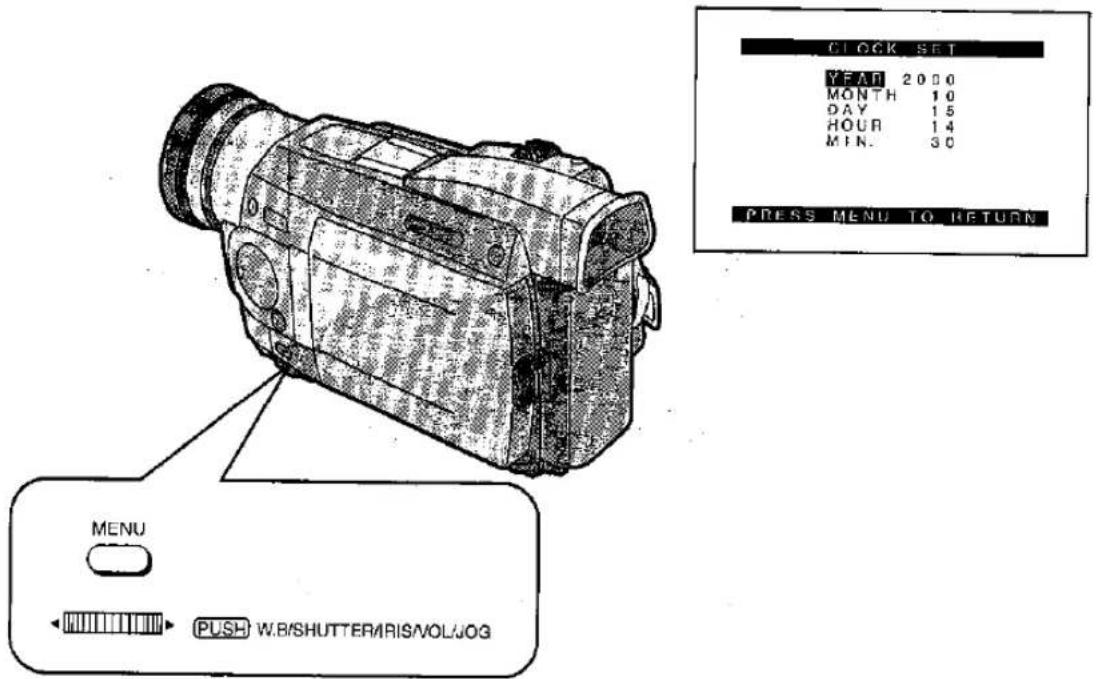
For example: To set the clock to 15th October 2000, 14:30.
1 Turn the [PUSH] Dial to set to [2000].
The years change in the following order: 2000 → 2001 → ... → 2089 → 2000 → ...
2 Press the [PUSH] Dial to select [MONTH], then turn it to set to [10].
3 Press the [PUSH] Dial to select [DAY], then turn it to set to [15].
4 Press the [PUSH] Dial to select [HOUR], then turn it to set to [14].
5 Press the [PUSH] Dial to select [MIN.], then turn it to set to [30].
6 Press the [MENU] Button to finish the date and time setting.
The operation of the clock starts from [00] seconds.
Pressing the button one more time makes the Menu disappear.
- As the time of the Movie Camera's built-in clock is subject to a slight imprecision, be sure to check the time before recording. If the flashing
[∅] Indication appears, charge the built-in lithium battery and set the date and time again.
●The clock employs the 24-hour system.
natural_image
Diagram of a digital camera connected to a cable with an electrical outlet (no text or symbols present)Basic Operations
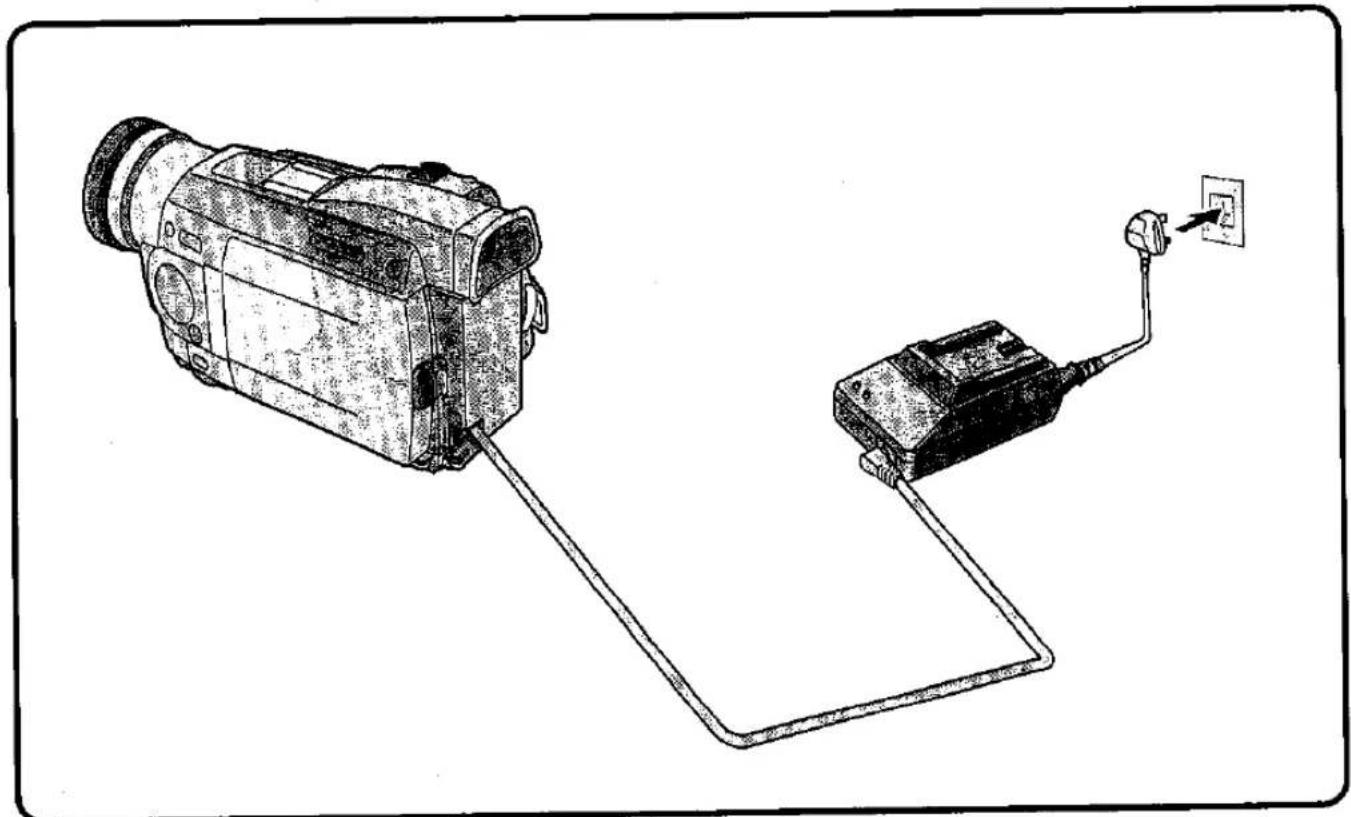
■ Charging the Built-in Lithium Battery
The built-in lithium battery maintains the operation of the clock. When the [☐] Indication appears, the built-in lithium battery is discharged. Charge the discharged battery in the following way and after charging is finished, set the date and time.
1 Connect the AC Adaptor to the Movie Camera and to an AC mains socket. (p. 8)
2 Leave the Movie Camera turned off.
3 Leave the Movie Camera in this condition for approximately 4 hours.
After charging for 4 hours, the built-in lithium battery can power the clock for approximately 3 months.
Information for your safety
WARNING
THE LITHIUM BATTERY IN THIS EQUIPMENT MUST ONLY BE REPLACED BY QUALIFIED PERSONNEL. WHEN NECESSARY, CONTACT YOUR LOCAL PANASONIC SUPPLIER.
| Title | Procedure | |
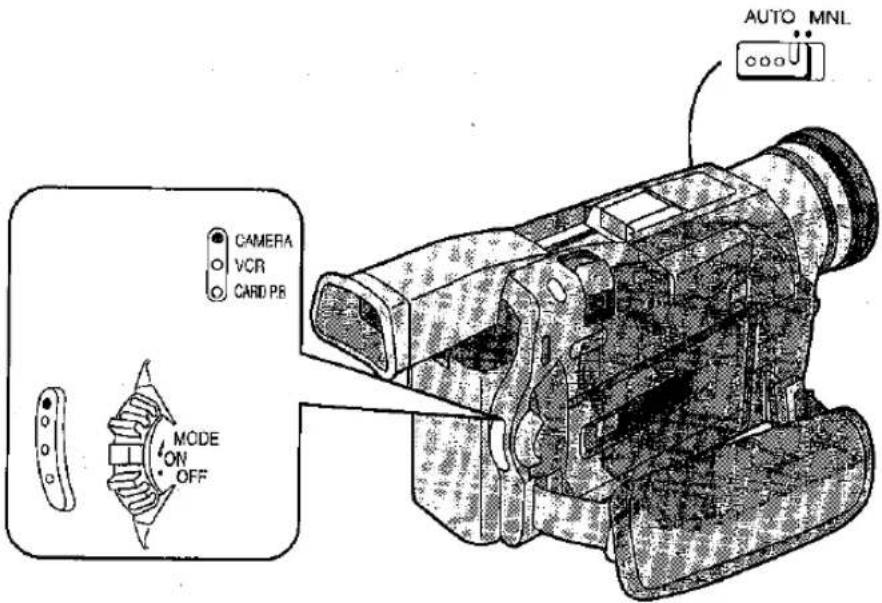
| Recording (Filming)After setting the [OFF/ON/MODE] Switch to [ON] to turn the Movie Camera on and setting the Mode Selector Switch to [AUTO], you can start recording simply by pressing the Recording Start/Stop Button. In this case, the Movie Camera adjusts the focus and white balance fully automatically. | 1Set the [OFF/ON/MODE]Switch to [ON].The [CAMERA] Lamp lights. | 2Press the Recording Start/Stop Button.Recording starts.The [RECORD] Indication appears briefly and then changes to [REC]. |
Mode Selector Switch - Before RecordingCheck the following settings before recording especially important scenes:Recording Speed (p. 13, 18, 78)When you intend to perform editing or audio dubbing afterward. Set to [SP].Audio Recording Mode (p. 18, 78)When you want to perform audio dubbing afterward. Set to [12bit].Cinema Mode (p. 18, 36)Depending on the light source and recording situation, correct automatic focusing and white balance adjustment may not be possible. In such cases, adjust them manually.Focus: p. 30White Balance: p. 62. Before RecordingCheck the following settings before recording especially important scenes:Recording Speed (p. 13, 18, 78)When you intend to perform editing or audio dubbing afterward. Set to [SP].Audio Recording Mode (p. 18, 78)When you want to perform audio dubbing afterward. Set to [12bit].Cinema Mode (p. 18, 36)Depending on the light source and recording situation, correct automatic focusing and white balance adjustment may not be possible. In such cases, adjust them manually.Focus: p. 30White Balance: p. 62. | [CAMERAVCRCARD P8]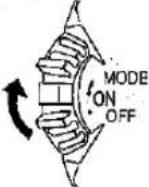  | 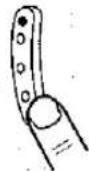   |
| Remarks, etc. | ||
| 3To pause recording:Press the Recording Start/Stop Button again.The [PAUSE] Indication appears. | 4To finish recording:Set the [OFF/ON/MODE]Switch to [OFF]. | ·If you leave the Movie Camera in the Recording Pause Mode for more than 6 minutes, it automatically switches off to protect the tape and to conserve battery power. To resume recording from this condition, set the [OFF/ON/MODE] Switch to [OFF] and then to [ON] again.·Recording onto the cassette is not possible if the [TAPE/CARD] Selector is at [CARD], (NV-MX5, NV-MX7 only)·Be sure to remove the Lens Cap before setting the [OFF/ON/MODE] Switch to [ON]. If the Lens Cap is attached to the Lens when you set the [OFF/ON/MODE] Switch to [ON], the automatic white balance adjustment (p. 119) may not be precise. |
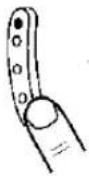 | 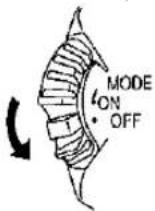 | Recording Indicating (Tally) LampThe Recording Indicating (Tally) Lamp lights during recording to let the people in front of the Movie Camera know that recording is being performed.If you set [REC LAMP] on the [OTHER FUNCTIONS] Sub-Menu to [OFF], the Recording Indicating (Tally) Lamp does not light.·Even if [REC LAMP] on the [OTHER FUNCTIONS] Sub-Menu is set to [OFF], the Recording Indicating (Tally) Lamp flashes briefly to confirm when the Movie Camera has received a command from the Remote Controller. |
 | ||
 | 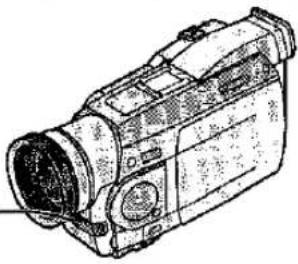 RecordingIndicating (Tally)—Lamp RecordingIndicating (Tally)—Lamp | |
■ Video Head Clogging and Remedy
When the video heads (which contact the tape) are dirty, the playback picture contains mosaic-like patterns or the whole screen becomes black. If they become even more dirty, the recording performance deteriorates and in the worst case, recording may not be possible at all.

natural_image
Cartoon illustration of a person sitting with hands on head, no visible text or symbolsCauses of Dirty Video Heads
●A lot of dust in the air
●High-temperature and high-humidity environment
• Damaged tape
- Long-time use
| Title | Procedure | |
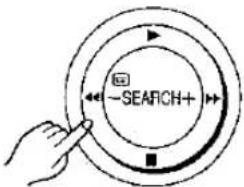
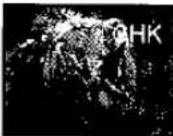
| Checking If the Picture Is Recorded (Recording Check)To play back the final few seconds of the last recorded scene in the Recording Pause Mode. | 1Press the Recording Check Button [C] briefly in the Recording Pause Mode.The [CHK] Indication appears.After checking, the Movie Camera returns to the Recording Pause Mode. | |
 |  | |
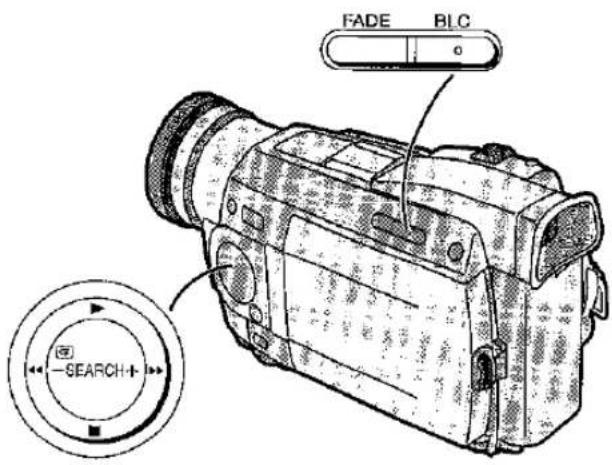
| Recording Backlit Scenes(Backlight Compensation)To prevent the backlit subject from being recorded very dark.(Backlight means that the light falls on the subject from behind, i.e. the subject is between the light source and the Movie Camera.) | 1Press the Backlight Button [BLC].After the [P] Indication flashes, it will be displayed. | |
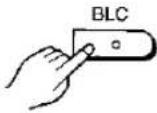 |  | |
Using the Mini-DV Format Digital Video Head Cleaner (VFK1451)
1 Insert the Head Cleaner into the Movie Camera in the same way as a video cassette.
2 Press the Play Button [▶], and after approximately 20 seconds press the Stop Button [■]. (Do not rewind the tape.)
3 Take out the Head Cleaner. Insert a video cassette, perform recording and then play it back to check the picture.
4 If the picture is still not clear, repeat above operation steps 1-3. (Do not use the Head Cleaner more than 3 times in succession.)
- This Video Head Cleaner (VFK1451) is available from Panasonic service centres.
Notes:
- Do not rewind the tape in the Head Cleaner after every use. Rewind it only after the tape has reached its end, and then use it again in the same way from the beginning.
- If the video heads again become clogged with dirt soon after cleaning, this might be caused by a damaged tape. In this case, stop using that cassette immediately.
- Be careful not to clean the video heads too much. (Too much cleaning could cause excessive wear to the video heads. If the video heads get worn, the picture is not played back clearly even after cleaning.)
- If using the Head Cleaner does not clear the video head clogging, the Movie Camera requires cleaning or repairing by a service centre. Please consult with your dealer.
- Video head cleaning due to clogging is not a malfunction of the product and is not covered by your warranty.
| Remarks, etc. | |
| ●For Recording Check; the Movie Camera must be in the same mode (SP or LP) as used for recording, otherwise the playback picture is distorted. | |
| Returning to Normal RecordingPress the Backlight Button [BLC]. | ●When the Backlight Button [BLC] is pressed, the screen will get bright all over.●When the [OFF/ON/MODE] Switch is operated; the Backlight Compensation will be cancelled. |
| Title | Procedure | |
| Recording Yourself(Recording with the LCD Monitor Facing Forward)This makes it possible to record yourself while viewing the picture on the LCD Monitor or to show the persons in front of the Movie Camera the picture being recorded. | 1Open the LCD Monitor and turn it so that it faces forward (Lens side).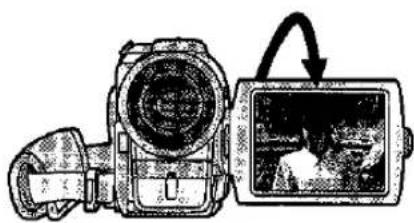 | |
| Focusing on the Subject Manually (Manual Focus)This makes it possible to adjust the focus manually for subjects and recording situations for which automatic focusing is not precise.MF: Manual Focus ModeMNL: Manual | 1Set the Mode Selector Switch to [MNL].The [MNL] Indication appears.VL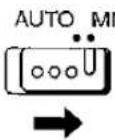 | 2Press the [FOCUS]Button to make the [MF]Indication (Manual Focus Mode) 1 appear.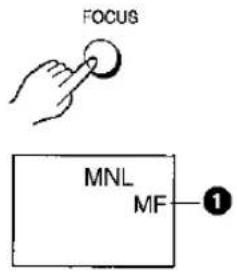 |
Mirror Mode for the Picture on the LCD Monitor
You are used to looking at yourself in the mirror. Therefore, when recording yourself with the LCD Monitor facing forward, the picture (as it is being recorded) might look unusual and distracting. If you prefer to see yourself on the LCD Monitor in the same way as you see yourself in a mirror, i.e. with the sides reversed, set [SELFSHOOT] on the [OTHER FUNCTIONS] Sub-Menu to [MIRROR]. However, the picture will still be recorded in the normal, non-reversed way. This Mirror Mode for the picture on the LCD Monitor works only during recording and in the Recording Pause Mode with the LCD Monitor facing forward. Also, it is completely different from the Mirror Mode of the Digital Effects 1. (p. 52)
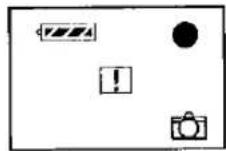
- In the Mirror Mode, only the following indications are displayed.
●: Recording
●11: Recording Pause
: Remaining Battery Power
Card Photoshot
(NV-MX5, NV-MX7 only)
When the General Warning/Alarm Indication [1] appears, turn the LCD Monitor backward so that you can confirm the actual Warning/Alarm Indication. (p. 124, 125)
| Remarks, etc. | ||
| Opening the LCD Monitor automatically turns off the Viewfinder. However, when you turn the LCD Monitor forward, the picture also appears in the Viewfinder. This lets you aim the Movie Camera and view the picture in the Viewfinder, while the persons in front of the Movie Camera can check the picture on the LCD Monitor during recording. | ||
3Turn the Focus Ring to adjust the focus.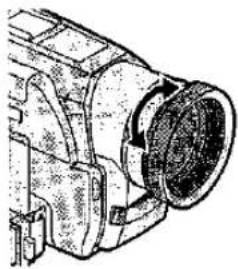 | Returning to the Automatic Focusing ModePress the [FOCUS]Button to make the [MF]Indication disappear 2.Or, set the Mode Selector Switch to [AUTO].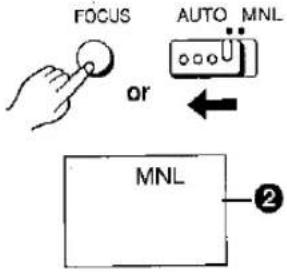 | ·If the flash is fired in a dark environment when the Video Flash has been installed, the subject may go out of focus. (NV-MX5, NV-MX7 only)Hint for Manual Focus Adjustment·If you adjust the focus in the wide-angle setting, the subject may go out of focus when you enlarge it.Therefore, enlarge the subject 3 before you adjust the focus, so that the picture remains focused when you zoom out 4.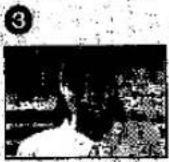 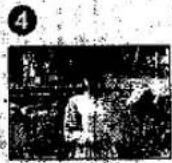 |
| Title | Procedure | |
Enlarging Your Subject or Widening the Recording Angle (Zooming In/Out)Recording close-ups of your subjects and recording wide-angle shots add special effects to your videos.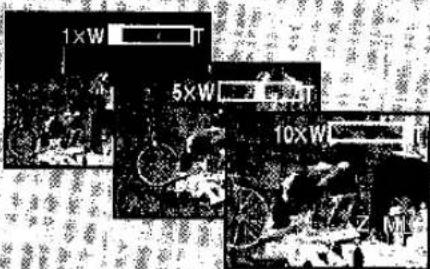 | 1To record a wider view (Zooming-out):Push the [W/T] Zoom Lever toward [W].To enlarge your subject (Zooming-In):Push the [W/T] Zoom Lever toward [T].The Zoom Magnification Indication appears for a few seconds. | |
Enlarging Your Subjects Even More (Digital zooming).This function is convenient when you want to enlarge a very distant subject even more than is possible with the normal (optical) zoom which offers a magnification range of 1×-10×. For the Digital Zoom Function you can choose between up to 20× and up to 100× magnification.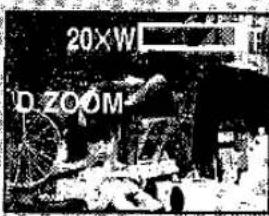 | 1Set [D. ZOOM] on the [CAMERA SETUP] Sub-Menu to [20×] or [100×].•20×: Digital zooming up to 20×.100×: Digital zooming up to 100×. | 2Press the [MENU]Button to exit the Menu. |
Using the Zoom Microphone Function
When using Zoom-in to record from a distance, a zoom effect which makes the sound in front of the Movie Camera more audible can be achieved.
- Set the [ZOOM MIC] on the [RECORDING SETUP] Sub-Menu to [ON]. ([Z.MIC] Indication appears.)
- The Zoom Microphone Function may not be effective if the surrounding noise is too much.
| Remarks, etc. | ||
Recording Extra Close-up Shots of Small Subjects (Macro Close-up Function)When the zoom magnification is 1×, the Movie Camera can focus on subjects down to a distance of approximately 35 mm between lens and subject. This allows recording very small subjects such as insects.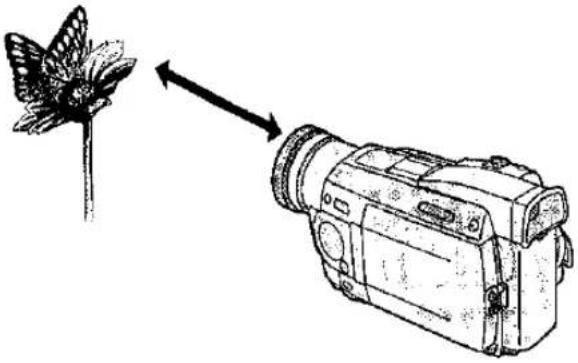 | As a general rule, the further you push the [W/T] Zoom Lever toward [W] or [T], the faster the zooming speed.In the Recording Pause Mode, if you push the [W/T] Zoom Lever toward [W] or [T] until you feel a click, you can zoom between 1× and 10× in an extremely fast approximately 0.5 seconds. (Jet Zoom)During recording, zooming between 1× and 10× is possible in as short a time as approximately 1.0 second. However, even if you push the [W/T] Zoom Lever until you feel a click, it is not possible to zoom faster than in 1.0 second. Therefore, it is not recommended that you push the [W/T] Zoom Lever all the way until you feel a click, as a click sound could be recorded in this case.During very fast zooming, the picture may temporarily go out of focus.When you have zoomed to the tele setting, precise focusing is only possible on subjects no closer than 1.2 metres. | |
3Push the [W/T] Zoom Lever toward [W] or [T] to zoom in or out on the subject.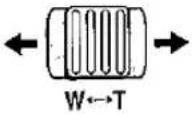 | Cancelling the Digital Zoom FunctionSet [D. ZOOM] on the [CAMERA SETUP] Sub-Menu to [OFF].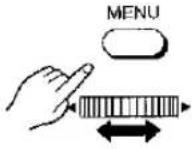 | Up to 10×, the zooming is done optically.The higher the Digital Zoom Magnification is, the lower is the picture quality.If you zoom to 10× or higher (digital zoom range) when [PROGRESSIVE] on the [CAMERA SETUP]. Sub-Menu is set to [AUTO], the Progressive Photoshop Mode is automatically cancelled.When you have zoomed to 10× or higher (digital zoom range), manually adjusting the white balance is not possible.During the Mega-Pixel Setting (p. 82); the Digital Zoom Function cannot be used. (NV-MX5, NV-MX7 only) |
| Title | Procedure | |
Recording Still Pictures on the Cassette■PhotoshotWith this function, you can record still pictures with sound for approximately 7 seconds each.This function is convenient for example for pictures that you want to print on a Digital Video Printer.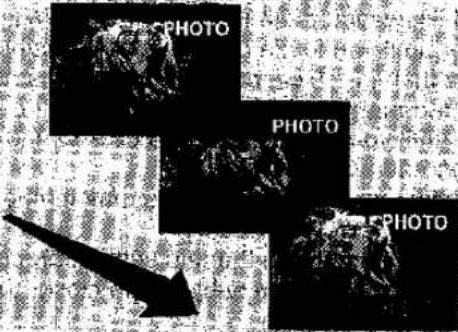 | 1Slide the [TAPE/CARD] Selector to [TAPE].(NV-MX5, NV-MX7 only)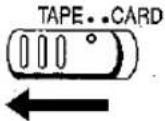 | 2Press the [PHOTO SHOT] Button in the Recording Pause Mode.The Movie Camera records a still picture for approximately 7 seconds and then switches over to the Recording Pause Mode.PHOTOSHOT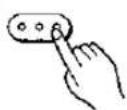 |
■Progressive PhotoshotThe Progressive Photoshot Function lets you record still pictures with higher resolution than the normal Photoshot Function. This is ideal for example for pictures that you want to print with a Digital Video Printer or import into a computer.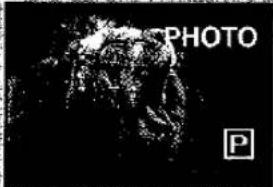 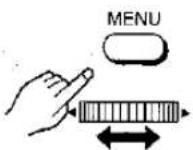 | 1Set [PROGRESSIVE] on the [CAMERA SETUP] Sub-Menu to [ON] or [AUTO].[P] Indication appears. | 2Press the [PHOTO SHOT] Button in the Recording Pause Mode.The Movie Camera records a still picture for approximately 7 seconds and then switches back to the Recording Pause Mode.PHOTOSHOT |
Digital Still Picture
A picture can be viewed as a still picture by pressing the [STILL] Button. The Digital Still Picture Mode is released by pressing the button again.
- It is recommended that the [PHOTO SHOT] Button be pressed after the Digital Still Picture Mode has been established by pressing the [STILL] Button where the shot is to be taken.
- The digital still picture is cleared when the [TAPE/CARD] Selector is switched. (NV-MX5, NV-MX7 only)
- If the Digital Still Picture Mode is used when the Video Flash is installed, the flash will fire. (NV-MX5, NV-MX7 only)
- The still pictures recorded in the Continuous Photoshot Mode or in the Digital Still Picture Mode are not marked with photoshot index signals.
Continuous Photoshot
If you set [SHTR EFFECT] on the [OTHER FUNCTIONS] Sub-Menu to [ON] and keep the [PHOTO SHOT] Button pressed, the Movie Camera automatically records still pictures successively at intervals of approximately 0.7 seconds until you release the button.
- One more still picture may be recorded after you release the [PHOTO SHOT] Button.
- Continuous Photoshot Function is not possible if the Video Flash is used (NV-MX5, NV-MX7 only).
Remarks, etc.
Notes about the Photoshot Function
- It is recommended that you press the [STILL] Button first and then press the [PHOTO SHOT] Button.
- If you set [SHTR EFFECT] on the [OTHER FUNCTIONS] Sub-Menu to [ON], the screen blinks briefly and a simulated shutter click sound can be recorded when you press the [PHOTO SHOT] Button. This audiovisual effect is also recorded.
- With the still pictures that you have recorded in the Photoshop Mode, you can do the following:
- Index Search (p. 46)
•Automatic transmission of pictures to Card (p. 84) (NV-MX5, NV-MX7 only) •Automatic printing (p. 112) - The visual shutter effect and click sound may occur with slight delay after recording of the still picture has started.
●The picture quality deteriorates slightly. - During normal recording, the Photoshop Function cannot be used.
Notes about the Progressive Photoshot Function
- When the [P] Indication is displayed, you can use the Progressive Photoshot Function.
- When you record a still picture in the Progressive Photoshot Mode while [PROG.AE] on the [CAMERA SETUP] Sub-Menu is set to Sports Mode [✗] or Portrait Mode [✗] (p. 50), the picture brightness may vary from picture to picture.
- When you press the [PHOTO SHOT] Button; the Movie Camera emits a click sound. However, this is normal and not a malfunction.
- During normal recording, the Progressive Photoshot Function cannot be used.
When [PROGRESSIVE] Is Set to [ON]:
You can always use the Progressive Photoshot Function.
In this case, however, the following functions are deactivated:
●Digital Effect Modes in [EFFECT1] (p. 52)
•Digital Zoom [D.ZOOM] (p. 32)
●Shutter Speeds of 1/750 s or faster (p. 64)
●Continuous Photoshot Function
When [PROGRESSIVE] Is Set to [AUTO]:
In the following cases, using the Progressive Photoshot Function is not possible:
- When the zoom magnification is approximately 10× or higher.
- When the shutter speed is 1/750 s or faster.
- When [EFFECT1] is set to [WIPE], [MIX], [STROBE], [GAINUP], [TRACER], [MOSAIC] or [MIRROR].
- When a picture is displayed in the Multi-Picture Mode or in the Picture-in-Picture Mode.
●Continuous Photoshot Function
| Title | Procedure | |
| Recording in the Cinema Mode (Cinema Mode)This mode lets you record in the cinema-like wide screen format. | 1Select the [CAMERA SETUP] on the [CAMERA FUNCTIONS] Main-Menu, and press the [PUSH] Dial. (p. 16) The [CAMERA SETUP] Sub-Menu appears. | 2Turn the [PUSH] Dial to select [CINEMA]. |
![PANASONIC NV-MX1 - When [PROGRESSIVE] Is Set to [AUTO]: - 4](/content/2026/05/794537/images/ec5d69a8bfc606a6afbaf3dedaadc6779fb03704e958b498e4f0469ba2cb38d1.jpg) | ![PANASONIC NV-MX1 - When [PROGRESSIVE] Is Set to [AUTO]: - 5](/content/2026/05/794537/images/0962dc7befb364095d70dbbd355205a0bef021a19fae01ca74313343ea0a8be4.jpg) | |
| Recording with Minimised Camera Shake (Super Image Stabilizer)In recording situations where shaking of the Movie Camera is likely to happen for example when you have zoomed in on a distant subject or when you record while walking, you can use this function to stabilize the image. | 1Select the [CAMERA SETUP] on the [CAMERA FUNCTIONS] Main-Menu, and press the [PUSH] Dial. (p. 16) The [CAMERA SETUP] Sub-Menu appears. | 2Turn the [PUSH] Dial to select [SIS]. |
![PANASONIC NV-MX1 - When [PROGRESSIVE] Is Set to [AUTO]: - 6](/content/2026/05/794537/images/f83be771ac13e0de7d85416b1633ba8794dd39d698d0b1db91950fb8fa36f4c8.jpg) | ![PANASONIC NV-MX1 - When [PROGRESSIVE] Is Set to [AUTO]: - 7](/content/2026/05/794537/images/13325500a0b9a511b6d79576bd587c26e8564f14e40028d9315144711ae8ebe3.jpg) | |
| Remarks, etc. | ||
3Press the [PUSH] Dial to select [ON].Black bars appear at the top and bottom of the screen.![PANASONIC NV-MX1 - When [PROGRESSIVE] Is Set to [AUTO]: - 8](/content/2026/05/794537/images/f727de18e6cefe4dc33d9fa9e274fe145fce57cc336618e2c72509131478fea9.jpg) | 4Press the [MENU] Button to exit the Menu.![PANASONIC NV-MX1 - When [PROGRESSIVE] Is Set to [AUTO]: - 9](/content/2026/05/794537/images/1e9c311e613135676d9bd28b9b55efd0d5a64c14ca4a8fbc5d5b271dff166651.jpg) | ·During the Mega-Pixel Setting (p, 82) (NV-MX5, NV-MX7 only), a picture cannot be displayed in the Cinema Mode.·The picture displayed in the Multi-Picture Mode (p, 54) is cleared when the Cinema Mode is set.·If you play back the picture recorded in the Cinema Mode on a wide-screen (16:9) format TV, the size of the playback picture is automatically adjusted to match the format of the TV screen. For details, read the TV's operating instructions.·Using the Cinema Mode does not widen the recording angle.·The date/time display may be missing when pictures are shown on the TV screen.Cancelling the Cinema ModeSet [CINEMA] on the [CAMERA SETUP] Sub-Menu to [OFF]. |
3Press the [PUSH] Dial to select [ON].![PANASONIC NV-MX1 - When [PROGRESSIVE] Is Set to [AUTO]: - 10](/content/2026/05/794537/images/5e3a10146cae2709ed2ce7b93d0f86faa2e96cddabca59cc5d20a88694bac4c1.jpg) | 4Press the [MENU] Button to exit the Menu.The [ [ ] Indication appears.![PANASONIC NV-MX1 - When [PROGRESSIVE] Is Set to [AUTO]: - 11](/content/2026/05/794537/images/e81175ea19fe5c5cd91671638e7c581dfcf74d870aaa95d7a0156e93b6ac89ea.jpg) | ·In case of very strong camera shake, it may not be possible to stabilize the picture.·In a clmly lit place, the Super Image Stabilizer Function may not work. In this case, the [ [ ] Indication flashes.·Under fluorescent lamps, the picture brightness may fluctuate and the colours may be unnatural.·After-image distortion may occur.·When you use a tripod, it is recommended that you turn the Super Image Stabilizer Function off.·During the Mega-Pixel Setting (p, 82) (NV-MX5, NV-MX7 only), the Super Image Stabilizer Function does not work.·If you have set [EFFECT1] on the [DIGITAL EFFECT] Sub-Menu to [GAINUP] (p, 52), the Super Image Stabilizer Function does not work. (The [ [ ] Indication flashes.)Cancelling the Super Image Stabilizer Function Set [SIS] on the [CAMERA SETUP] Sub-Menu to [OFF]. |
Search Lock Function
For longer Cue or Review Playback, press the Cue Button [▶▶] or the Review Button [◀◀] only briefly. As this locks the search function, you do not need to keep the button pressed for a long time.
- To resume normal playback, press the Play Button [▶].
- In Cue and Review Playback, pictures with fast-moving subjects may contain mosaic-like patterns.
Hyper Check Function
- If you press the Fast-forward Button [▶▶] during fast-forwarding of the tape or the Rewind Button [◀◀] during rewinding of the tape, Cue Playback or Review Playback continues for as long as you keep the button pressed.
- At the beginning and end of Cue Playback or Review Playback, some momentary picture distortion may occur.
| Title | Procedure | |
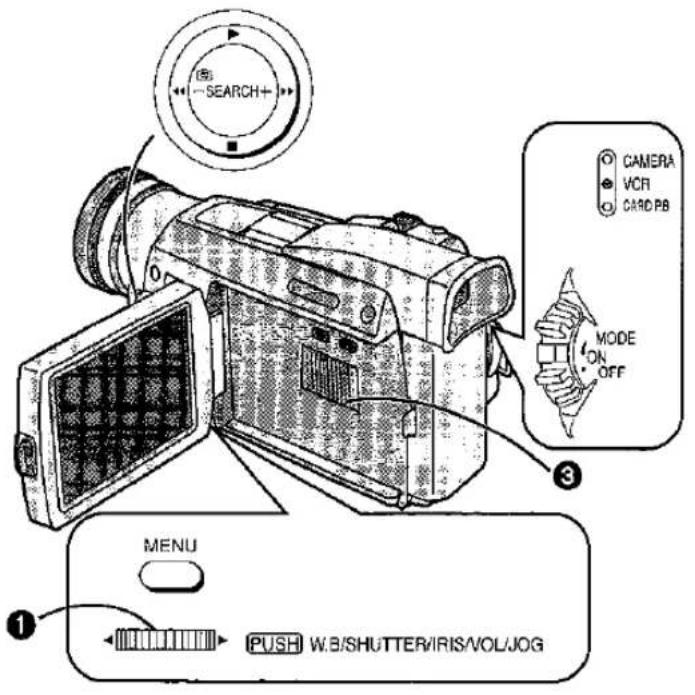
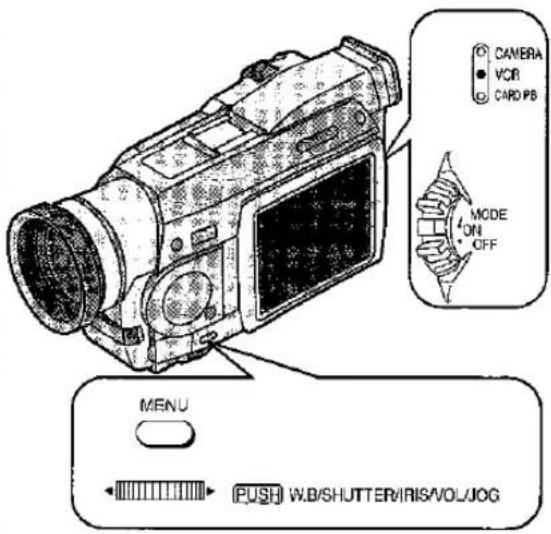
| Viewing the Just Recorded Scenes on the Movie Camera (Playback)You can play back recorded scenes right after recording. | 1Slide the [OFF/ON/MODE] Switch from the [ON] position to put the Movie Camera in the VCR Mode.The [VCR] Lamp lights.[IMAGE]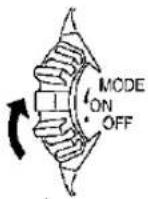 | 2Press the Rewind Button [◀◀] to rewind the tape.Rewind the tape to the point where the recording started.If the tape reaches the beginning during rewinding, it automatically stops.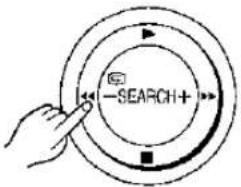 |
| Searching for a Scene That You Want to Play Back | Cue PlaybackKeep the Cue Button [▶▶] pressed during playback.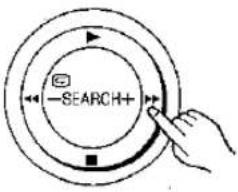  | Review PlaybackKeep the Review Button [◀◀] pressed during playback.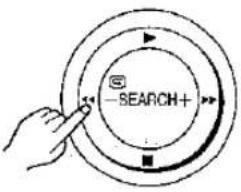  |
● Adjusting the Sound Volume
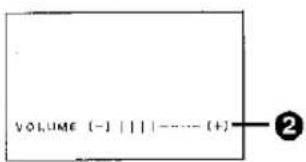
Keep the [PUSH] Dial ① pressed until the [VOLUME] Indication ② appears. Then, turn the [PUSH] Dial to adjust the volume. After adjusting, press the [PUSH] Dial to make the [VOLUME] Indication disappear. To adjust the volume with the Remote Controller, press the [T] or [W] Button to make the [VOLUME] Indication appear. You can then increase the volume by pressing the [T] Button or decrease it by pressing the [W] Button. A few seconds after finishing the adjustment, the [VOLUME] Indication disappears.
- The output volume from the built-in speaker ③ and [PHONES] socket is adjusted.
- When using the Playback Zoom Function, it is not possible to adjust the sound volume.
- If a cassette recorded with copyright protection signal is played back, the screen becomes black.
Making the Date/Time Indication Appear
This Movie Camera automatically records the date and time, however not directly in the picture but as part of the sub code. (p. 120) To make the Date/Time Indication appear, set [DATE/TIME] on the [DISPLAY SETUP] Sub-Menu to the desired setting. It is also possible to make the Date/Time Indication appear and change it by repeatedly pressing the [DATE/TIME] Button on the Remote Controller. (p. 104)
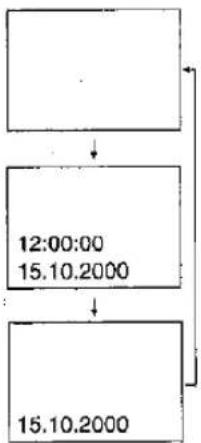
flowchart
graph TD
    A[" "] --> B["12:00:00\n15.10.2000"]
    B --> C["15.10.2000"]
| Remarks, etc. | |||
3Press the Play Button [▶] to start playback.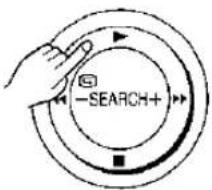 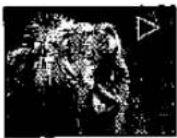 | 4To stop playback:Press the Stop Button [■].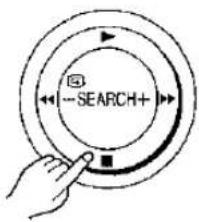 | Repeat PlaybackIf you keep the Play Button [▶] pressed for more than 5 seconds, the Movie Camera switches over to the Repeat Playback Mode and the [R ▷] Indication appears. (To cancel the Repeat Playback Mode, set the [OFF/ON/MODE] Switch to [OFF].) | |
Variable Speed Search FunctionIt is possible to change the speed of Cue Playback or Review Playback.1 Press the Play Button [▶] during playback.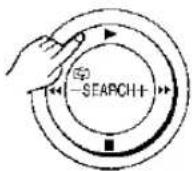  | 2Turn the [PUSH] Dial to select the desired search speed.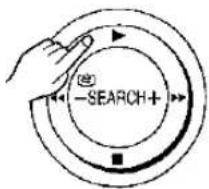 | Returning to Normal PlaybackPress the Play Button [▶].Playback continues at normal speed. | The Variable Speed Search Function offers the following 6 different playback speeds both in forward and reverse directions: 1/5× (slow playback in SP Mode only), 1/3× (slow playback in LP Mode only), 1×, 2×, 5×, 10×, 20×During Variable Speed Search Function, mosaic-like patterns appear in the picture.When using the Variable Speed Search Function, the sound is muted. |
PUSH
W.B
SHUTTER/IRIS/VOL/JOG
| Title | Procedure | |
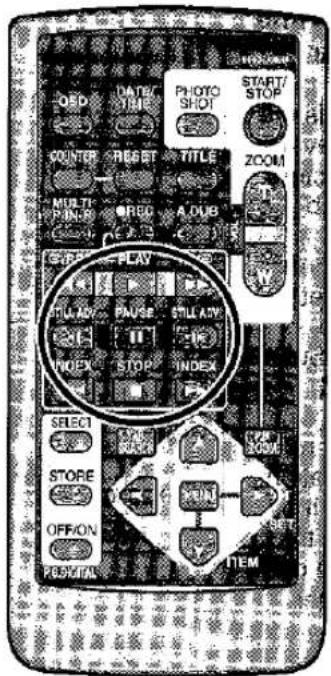
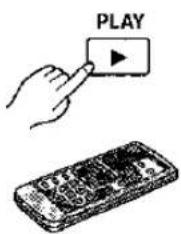
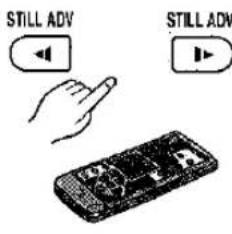
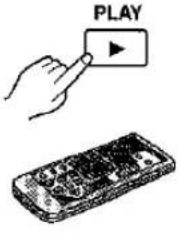
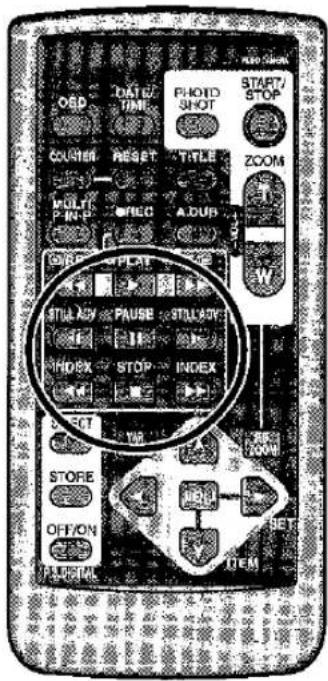
| Playing Back In Slow Motion(Slow Motion Playback) | 1Press the Play Button[▶]. | 2Press the SlowMotion/Still AdvanceButton [◀] or [▶] on theRemote Controller. |
 |  | |
| Playing Back Still Pictures and Advancing Them One by One(Still Playback/Still Advance Playback)You can freeze the action during playback andadvance the still pictures one by one. | 1Press the Play Button[▶]. | 2Press the Pause Button[■].The playback picturestops in the Still PlaybackMode. |
 | 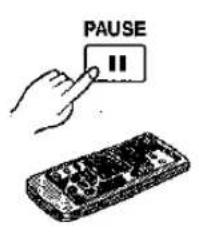 | |
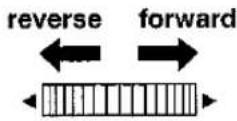
Using the Jog Dial (Jog Playback)
By turning the Jog Dial ([PUSH] Dial) on the Movie Camera in the Still Playback Mode, you can advance the still pictures one by one in forward or reverse direction.
| Remarks, etc. | ||
| Pressing the [◄] Button starts slow motion playback in reverse direction, and pressing the [►] Button starts slow motion playback in forward direction. | Resuming Normal PlaybackPress the Play Button [►].Playback continues with normal speed.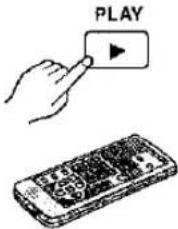 | ●During slow motion playback in reverse direction, the Time Code Indication may not be accurate.●Scenes recorded in the SP Mode are played back at approximately 1/5th of the normal speed.Scenes recorded in the LP Mode are played back at approximately 1/3rd of the normal speed.●When you play back the picture recorded in the Picture-in-Picture Mode (p. 58) or Multi-Picture Mode (p. 54, 56), the picture may shake vertically. |
3Press the Slow Motion/Still Advance Button [◄] or [►] on the Remote Controller.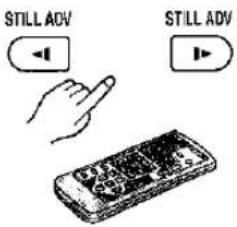 | Resuming Normal PlaybackPress the Play Button [►].Playback continues with normal speed.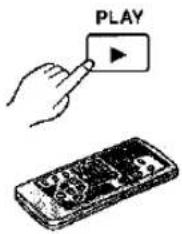 | Pressing the [◄] Button advances the still pictures one by one in reverse direction. Pressing the [►] Button advances the still pictures one by one in forward direction.●Each press of the [◄] Button advances to the next still picture in reverse direction. Each press of the [►] Button advances to the next still picture in forward direction. Keeping either button pressed continuously advances the still pictures one by one until you release the button.●If you leave the Movie Camera in the Still Playback Mode for more than 6 minutes, it switches over to the Stop Mode to protect the video heads against excessive wear.●During Still Advance Playback, the Time Code Indication may not be accurate.●During Still Playback, adjusting the sound volume is not possible. |
![AV IN/OUT PHONES [AV IN/OUT] 21-pin Adaptor [S-VIDEO IN] [VIDEO IN] [AUDIO IN] S-VIDEO IN/OUT AV Cable [S-VIDEO IN/OUT] S-Video Cable](/content/2026/05/794537/images/5b2b3e43eceadd151f1161b0f2726b4a414c2c3529f7c09403eb1ebacbc7af0b.jpg)
| Title | Procedure | |
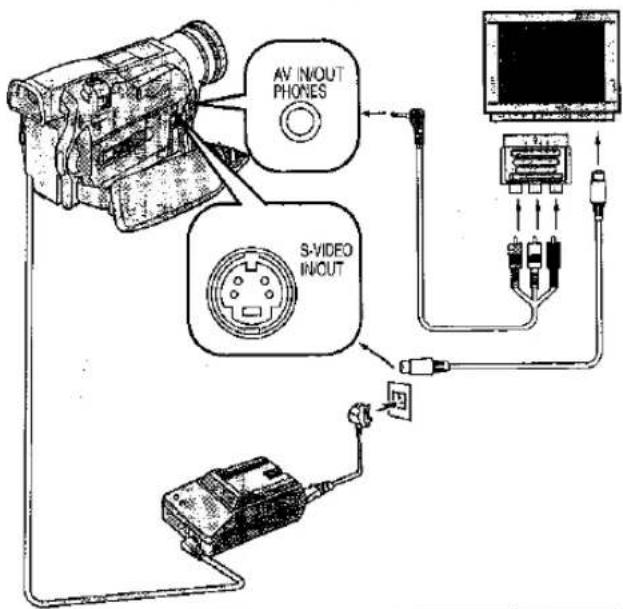
| Playing Back on a TVBy connecting the Movie Camera to a TV, you can watch playback of the recorded scenes on the TV screen. | 1Connect the [AV IN/OUT] Socket on the Movie Camera with the Video and Audio Input Sockets on the TV.Use the AV Cable to connect to the TV.If your TV is equipped with an S-Video Socket, also connect the S-Video Cable. | |
After UseAttaching the Lens CapAfter use, attach the supplied Lens Cap to the Lens to protect it.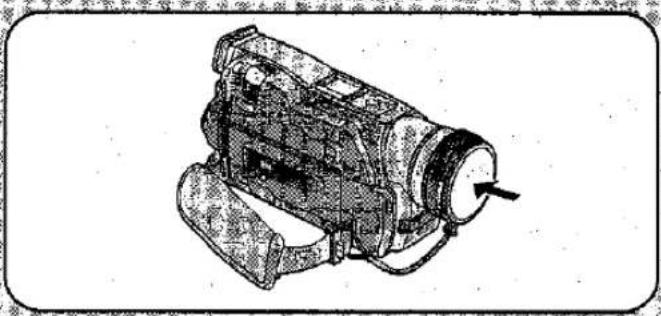 | 1Take out the cassette.(p. 12)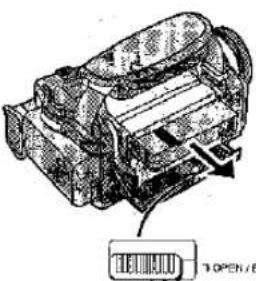 | 2Set the [OFF/ON/MODE]Switch to [OFF].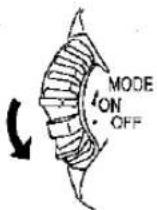 |
Listening to the Playback Sound via Headphones
If you want to use headphones to listen to the playback sound, connect headphones to the [PHONES] Socket on the Movie Camera. In this case, no sound (including beep and shutter click sounds) is reproduced from the Movie Camera's built-in speaker.
- Set [AV JACK] on the [AV IN/OUT SETUP] Sub-Menu to [OUT/PHONES]. If you set [AV JACK] to [IN/OUT], the right channel sound alone will no longer be heard. (NV-MX7 only)
- If you want to use headphones to listen to the playback sound when inputting via the S-Video Cable, disconnect the cable, set [AV JACK] on the [AV IN/OUT SETUP] Sub-Menu to [OUT/PHONES], and then connect the headphones. (Otherwise, noise may be heard in the playback sound.) (NV-MX7 only)
- When music data is played, the headphones can be used regardless of this setting. (NV-MX5, NV-MX7 only)
Making the Indications Appear on the TV Screen
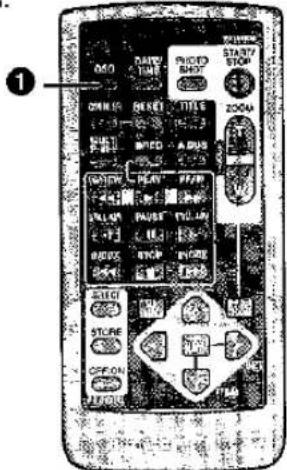
Press the [OSD] Button ① on the Remote Controller.
The On-Screen Indications also appear on the TV screen.
3
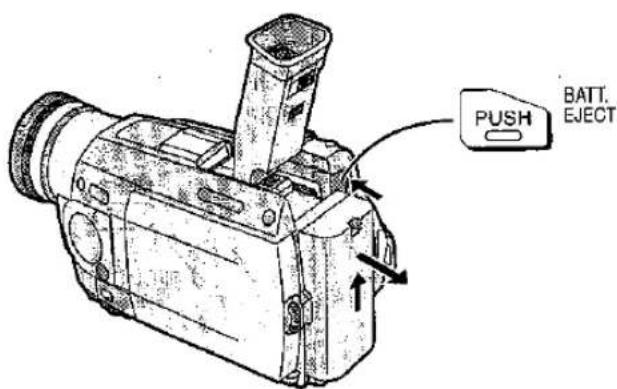
Remove the Battery (p. 11) and retract the Viewfinder.
Remarks, etc.
●Before connecting, turn off both the Movie Camera and the TV.
- If a cassette recorded with copyright protection signal is played back, the screen becomes black. However, scenes recorded with this Movie Camera do not contain a copyright protection signal.
- When inserting a title during playback of the picture recorded in the Cinema Mode, the display mode will no longer be automatically identified, and black bars will appear at the top and bottom of the screen even if the images are viewed on the wide TV screen. (NV-MX5, NV-MX7 only)
- If you set [AV JACK] on the [AV IN/OUT SETUP] Sub-Menu to [IN/OUT] on the NV-MX7, nothing will appear on the TV screen except during playback.
- If your TV is not equipped with AV Input Sockets, the 21-pin Adaptor (purchase separately) is necessary. Consult your dealer.
Selecting the Sound
The sound can be selected using the [AUDIO OUT] setting on the [PLAYBACK FUNCTIONS] Sub-Menu.
STEREO: Stereo sound (main sound and sub sound) The setting is usually kept at [STEREO], L: Left channel sound (main sound) R: Right channel sound (sub sound)
- If an attempt was made to perform audio dubbing for what was recorded with [12bit] selected as the [AUDIO REC] setting, the sound played back will be set to stereo regardless of the [AUDIO OUT] setting if [12bit AUDIO] is set to [MIX].
| Title | Procedure | |
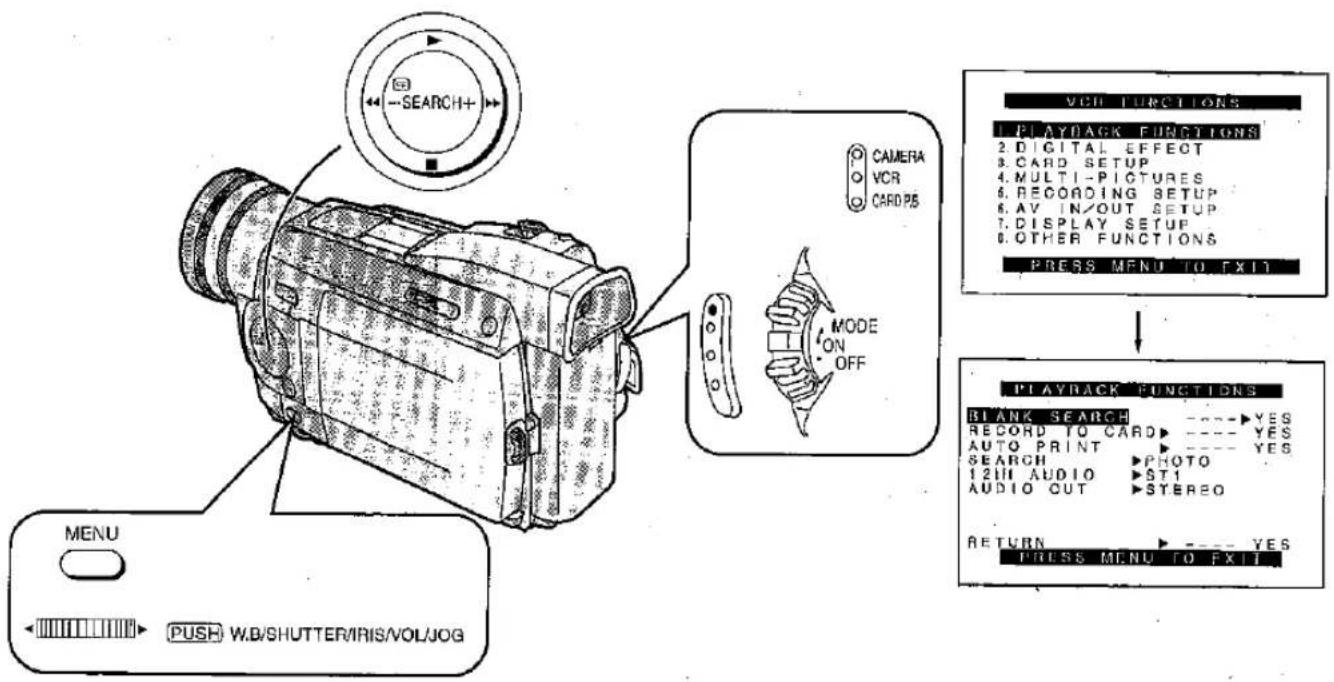
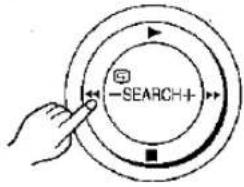
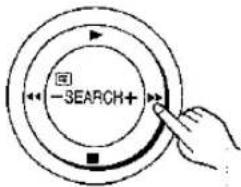
| Viewing Recorded ScenesDuring Recording Pause(Camera Search)You can view recorded scenes when the MovieCamera is in the Recording Pause Mode.The Camera Search Function is convenient to searchfor a scene from which you want to start recording anew scene with smooth scene to scene transition. | 1Keep the Reverse Search Button [-SEARCH] orthe Forward Search Button [SEARCH+] pressed.Pressing the [-SEARCH] Button plays back thepicture in reverse direction.Pressing the [SEARCH+] Button plays back thepicture in forward direction. | |
 |  | |
| Searching for the End of theRecorded Part on a Cassette(Blank Search)With the Blank Search Function, you can quickly locatethe end of the recorded part on a cassette (or a blankpart between recordings). | 1Slide the[OFF/ON/MODE] Switchfrom the [ON] positionto put the MovieCamera in the VCRMode.The [VCR] Lamplights.[IMAGE]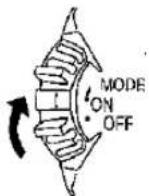 | 2Select the [PLAYBACKFUNCTIONS] on the[VCR FUNCTIONS]Main-Menu, and pressthe [PUSH] Dial. (p. 16)The [PLAYBACKFUNCTIONS] Sub-Menuappears.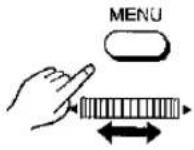 |
| Remarks, etc. | ||
2Starting to Record from the Desired Position: Release the pressed Search Button.The Movie Camera is in the Recording Pause Mode.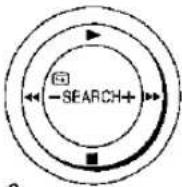 [IMAGE] [IMAGE] | 3Press the Recording Start/Stop Button to start recording.The Movie Camera starts recording a new scene with smooth scene-to-scene transition.[ITYKH] | • In the Camera Search Mode, the picture may contain mosaic-like patterns. However, this is a phenomenon particular to digital video and completely normal.• If the Recording Speed Mode (SP/LP) of the previous and the new recording are different, the playback picture may be distorted. |
3Turn the [PUSH] Dial to select [BLANK SEARCH]. | 4Press the [PUSH] Dial to select [YES]. Approximately 1 second before the end of the last recorded scene, the Movie Camera switches over to the Still Playback Mode. | • If there is no blank part on a cassette, the Movie Camera stops at the end of the tape.• If you set the [OFF/ON/MODE] Switch to [CAMERA] and then start recording after the Blank Search has finished, the new scene will be joined to the end of the last recorded scene with a smooth transition.Cancelling the Blank Search Before It Has Finished Press the [■] Button. |
VCR Mode
CAMERA Mode
| Title | Procedure | |
| Searching for the Beginning of Recorded Scenes Marked with Index Signal (Index Search)■ Searching for Photoshot Pictures (Photoshot Index Search)● Slide the [OFF/ON/MODE] Switch from the [ON] position to put the Movie Camera in the VCR Mode.● Set [SEARCH] on the [PLAYBACK FUNCTIONS] Sub-Menu to [PHOTO]. | Photoshot Index Search in Forward Direction Press the Index Button [▶▶] on the Remote Controller. | Photoshot Index Search in Reverse Direction Press the Index Button [◀◀] on the Remote Controller. |
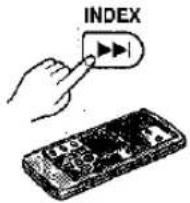 | 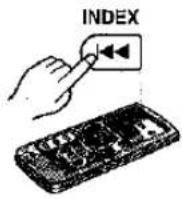 | |
| ■ Searching for the Beginning of Recorded Scenes (Scene Index Search)● Slide the [OFF/ON/MODE] Switch from the [ON] position to put the Movie Camera in the VCR Mode.● Set [SEARCH] on the [PLAYBACK FUNCTIONS] Sub-Menu to [SCENE]. | Scene Index Search In Forward Direction Press the Index Button [▶▶] on the Remote Controller. | Scene Index Search In Reverse Direction Press the Index Button [◀◀] on the Remote Controller. |
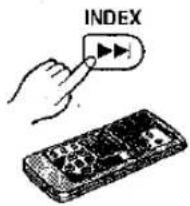 | 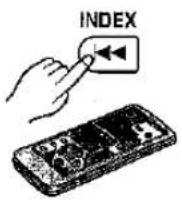 | |
Index Search
To allow easy searching for desired scenes, this Movie Camera automatically records index signals during recording as follows:
(While an index signal is being recorded, the [INDEX] Indication flashes for a few seconds.)
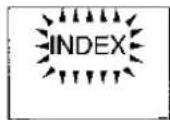
Photoshot Index Signal
To search for still pictures recorded in the Photoshot Mode (p. 34) and to use for Automatic Printing Function. (p. 112)
A photoshot index signal is automatically recorded every time you record a still picture in the Photoshot Mode. However, in the Continuous Photoshot Mode (p. 35), no photoshot index signals are recorded.
Scene Index Signal
To search for the beginning of recorded scenes. A scene index signal is automatically recorded in the following cases:
- When you start recording after inserting a cassette. However, if you switch the Movie Camera from the VCR Mode over to the Camera Mode or set the date and/or time before you start recording, no index signal is recorded.
- According to the setting of [SCENEINDEX] on the [RECORDING SETUP] Sub-Menu of the [CAMERA FUNCTIONS] Main-Menu:
[2HOUR]: An index signal is recorded when recording is restarted after a lapse of more than 2 hours.
[DAY]: An index signal is recorded when recording is restarted after the date has changed since the last recording.
| Remarks, etc. | |
| ●At every press of the corresponding button, the tape is fast-forwarded or rewound to the next still picture recorded in the Photoshop Mode.After reaching the next still picture, the still picture is played back continually, however the sound only for approximately 4 seconds. (If you leave the Movie Camera in the Still Playback Mode for more than 6 minutes, it switches over to the Stop Mode to protect the video heads against excessive wear.) | ●The Photoshop Index Search Function may not work correctly for still pictures recorded near the beginning of the tape.●As no photoshop index signals are recorded for still pictures recorded in the Continuous Photoshop Mode (p. 35), the Photoshop Index Search Function cannot be used to search for these still pictures.●If you keep the [◀◀] or [▶▶] Button pressed for more than 2 seconds, the Intro Search Function is activated and it plays back all still pictures recorded in the Photoshop Mode on the cassette one after another for a few seconds each.(To cancel the Intro Search Function, press the Play Button [▶] or the Stop Button [■]). |
| ●When you briefly press the corresponding button once, the [S 1] Indication appears and the search for the next scene marked with an index signal starts.After the Scene Index Search has started, every time you press the button, the indication changes successively from [S 2] to [S 9], and the beginning of the scene corresponding to the selected number is located.After reaching the desired scene, playback starts automatically.(At a time, Scene Index Search in forward or reverse direction is possible up to the ninth scene marked with index signal from the present tape position.) | ●If the Interval between two scene index signals is less than 1 minute, the Scene Index Search Function may not work correctly.●The Scene Index Search Function may not work correctly for scenes recorded near the beginning of the tape.●If you keep the [◀◀] or [▶▶] Button pressed for more than 2 seconds, the Intro Search Function is activated and it plays back the beginning of all scenes marked with an index signal on the cassette one after another for a few seconds each.(To cancel the Intro Search Function, press the Play Button [▶] or the Stop Button [■]). |
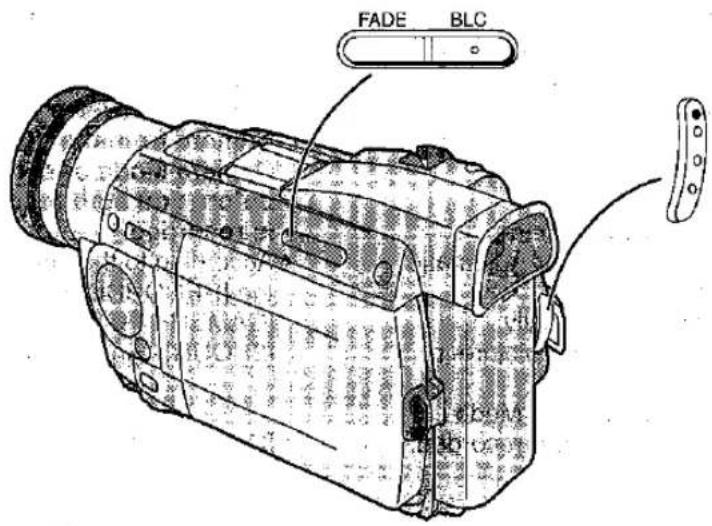
| Title | Procedure | ||
Starting to Record with Gradually Appearing Picture and Sound (Fading In) Fading-in lets you make the picture and sound appear gradually from a black screen at the beginning of a scene.  | 1 With the Movie Camera in the Recording Pause Mode, keep the Fade Button [FADE] pressed. The picture gradually disappears.  | 2 When the picture has completely disappeared, press the Recording Start/Stop Button to start recording.  | |
Ending the Recording of a Scene with Gradually Disappearing Picture and Sound (Fading Out) Fading-out lets you make the picture and sound disappear gradually into a black screen at the end of a scene.  | 1 During recording, keep the Fade Button [FADE] pressed. The picture gradually disappears.  | 2 After the picture has completely disappeared, press the Recording Start/Stop Button to stop recording. The Movie Camera is in the Recording Pause Mode.  | |
| Remarks, etc. | |
| 3 Approximately 3 seconds after the recording has started, release the Fade Button [FADE]. The picture gradually appears again. | ●Fading-in and-fading-out cannot be used when recording still pictures in the Photoshop Mode (p. 34), Digital Still Picture Mode (p. 35) or Multi-Picture Mode (p. 54-57), and for the small still picture in the Picture-in-Picture Mode. (p. 58) |
| FADE | |
| 3 Release the Fade Button [FADE]. | |
| FADE |
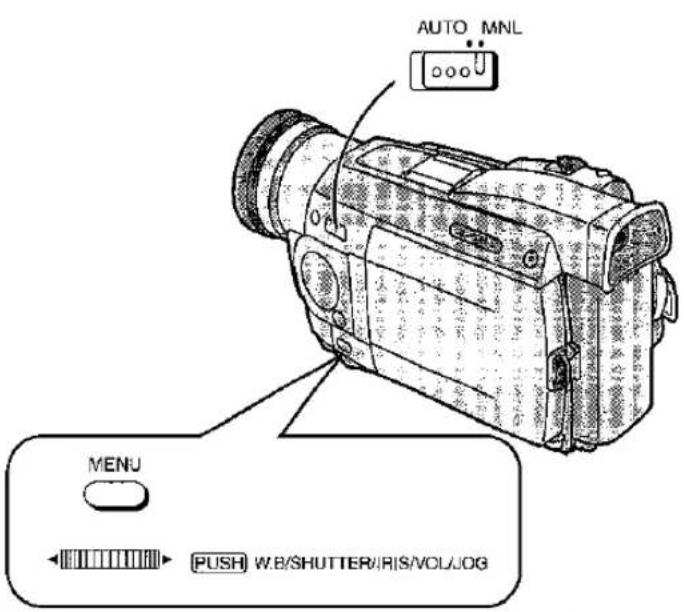
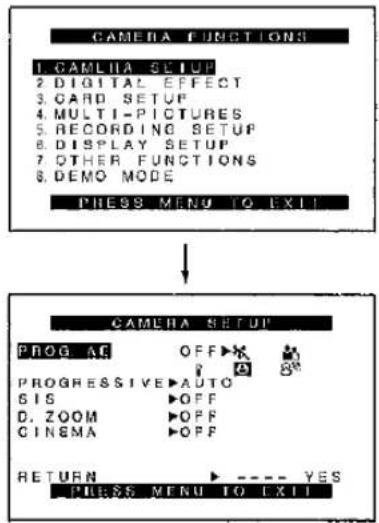
| Title | Procedure | ||||
| Recording in Special Situations (Programme AE)This function lets you select Automatic Exposure settings optimized for special recording situations. | 1Set the Mode Selector Switch to [MNL].The [MNL] Indication appears. | 2Select the [CAMERA SETUP] on the [CAMERA FUNCTIONS]Main-Menu, and press the [PUSH] Dial. (p. 16)The [CAMERA SETUP]Sub-Menu appears. | |||
 |  | 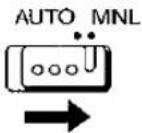 | 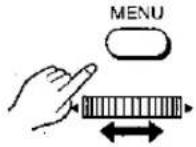 | ||
 |  | ||||
 | 5Press the [MENU]Button to exit the Menu.The Indication of the selected mode appears. | Cancelling the Programme AE FunctionSet [PROG.AE] on the [CAMERA SETUP] Sub-Menu to [OFF]. Or set the Mode Selector Switch to [AUTO]. | |||
 | 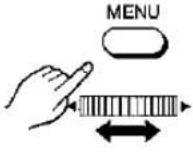 orAUTO MNL orAUTO MNL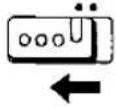 | ||||
| Remarks, etc. | ||
3Turn the [PUSH] Dial to select [PROG.AE]. | 4Press the [PUSH] Dial to select the desired mode ([ ), [ ), [ ), [9] or [8*]).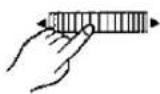 | •It is not possible to use the Sports Mode or Portrait Mode together with the Gain-up Mode [GAINUP].•When using the Sports Mode or Portrait Mode for recording indoors, the playback picture may flicker.Sports Mode•When playing back scenes recorded in the Sports Mode, you can enjoy slow motion and still playback of very sharp images with fine details.•During normal playback, movements in the picture may not be smooth.•Avoid recording under fluorescent, mercury-vapour or natrium lamps in this mode, as the colour and the brightness of the playback picture might fluctuate.•When recording subjects lit by strong lights or with much light reflection, the playback picture may contain vertical streaks of light.•When the scene is not sufficiently lit, the [ ] Indication flashes.•When recording still pictures in the Progressive Photoshop Mode while the Sports Mode is activated, the brightness of the recorded still pictures may be unstable.Portrait Mode•When recording still pictures in the Progressive Photoshop Mode while the Portrait Mode is activated, the brightness of the recorded still pictures may be unstable.Low Light Mode•It may not be possible to sufficiently brighten up extremely dark scenes.Spotlight Mode•When using this mode, the recorded picture may be extremely dark.•If a subject is extremely bright, the recorded picture may be whitish.Surf & Snow Mode•If a subject is extremely bright, the recorded picture may be whitish |
| [ ]Sports ModeTo record scenes with fast-moving subjects such as sports scenes.[ ][ ]Portrait ModeTo make subjects stand out sharply from the background.[ ]Low Light ModeTo record dark scenes more brightly.[3]Spotlight ModeTo record subjects under bright spotlights such as at a party, in the theatre, etc.[8*']Surf & Snow ModeTo record subjects in brightly lit surroundings such as on a ski slope, beach, etc. | ||
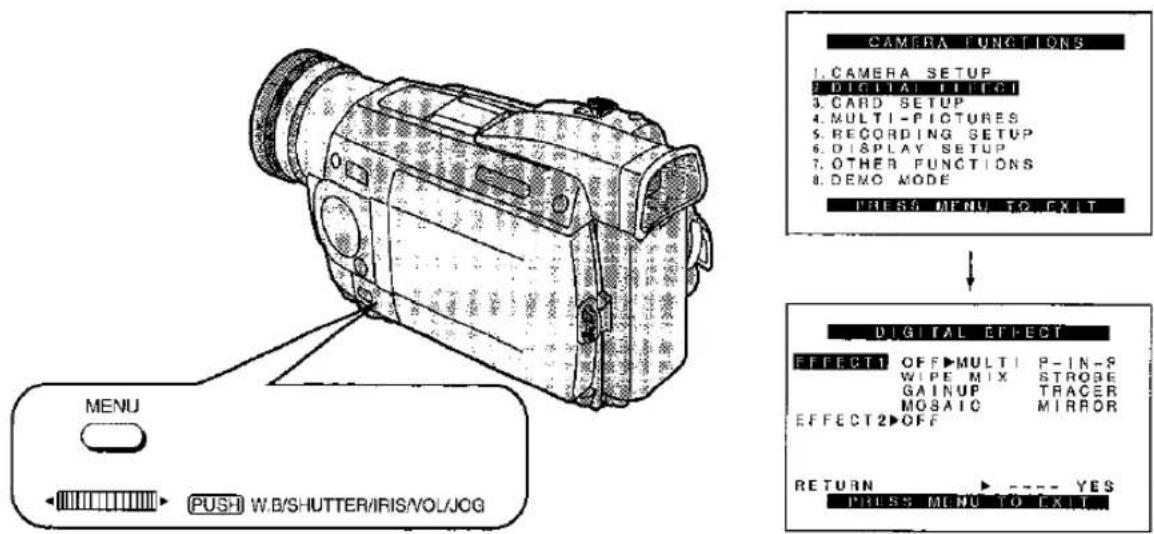
| Title | Procedure | |
| Recording with Special Effects (Digital Effects)This Movie Camera offers you various digital effect modes to make it easy to enhance your scenes in many creative ways. | 1Select the [DIGITAL EFFECT] on the [CAMERA FUNCTIONS] Main-Menu, and press the [PUSH] Dial. (p. 16) The [DIGITAL EFFECT] Sub-Menu appears.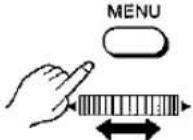 | 2Turn the [PUSH] Dial to select [EFFECT1] or [EFFECT2]. |
| Digital Effects 1 [EFFECT1]1 Multi-Picture Mode [MULTI]The screen is divided into 9 small still pictures. For details, (p. 54–57).2 Picture-In-Picture Mode [P-IN-P]A small still picture is inserted and displayed inside the normal picture. For details, (p. 58).3 Wipe Mode [WIPE]It gradually replaces a picture of the last previously recorded scene with the picture of the new scene, like drawing the curtain. For details, (p. 60).4 Mix Mode [MIX]It gradually fades out the picture of the last previously recorded scene while fading in the picture of the new scene. For details, (p. 60).5 Strobe Mode [STROBE]It records the pictures with a stroboscope-like effect.6 Gain-up Mode [GAINUP]It electronically brightens up the picture. In this mode, adjust the focus manually. | ||
1
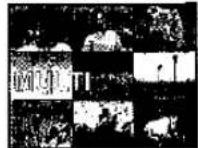
2
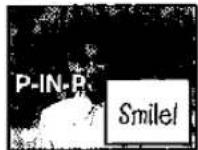
3
4
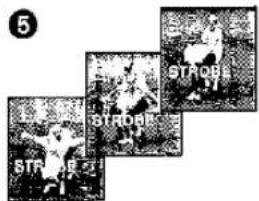
6
7
8
9
10
11
12
13
| Remarks, etc. | ||
| 3Press the [PUSH] Dial to select the desired digital effect. | 4Press the [MENU] Button to exit the Menu.The picture now has the selected digital effect. However, the Multi-Picture Function, Picture-in-Picture Function, Wipe Function and Mix Function require additional operations to make their effect visible. (p. 54-61) | ●It is not possible to use Digital Effect during the Mega-Pixel Setting. (p. 82) (NV-MX5, NV-MX7 only)●When [PROGRESSIVE] on the [CAMERA SETUP] Sub-Menu is set to [ON], it is not possible to use any of the digital modes in [EFFECT1] on the [DIGITAL EFFECT] Sub-Menu. (p. 34)●If you have set [EFFECT1] on the [DIGITAL EFFECT] Sub-Menu to [GAINUP], you need to adjust the focus manually; however, adjusting the shutter speed (p. 64), the iris (p. 64) and selecting a white balance mode (p. 62) are not possible.●If you have set [EFFECT2] on the [DIGITAL EFFECT] Sub-Menu to [B/W] or [SEPIA], changing the selected white balance mode is not possible. (p. 62)●It is not possible to use the Sports Mode [ ] or the Portrait Mode [ ] together with the Gain-up Mode [GAINUP]. |
| 7 Trailing Effect Mode [TRACER]The picture is recorded with a trailing effect.8 Mosaic Mode [MOSAIC]The picture becomes mosaic-like.9 Mirror Mode [MIRROR]The right half of the picture is a mirror image of the left half.Digital Effects 2 [EFFECT2]10 Negative Mode [NEGA]The recorded pictures have reversed colours similar to photographic negatives.11 Sepia Mode [SEPIA]Scenes are recorded with a brown tint similar to the colour of old photographs.12 Black & White Mode [B/W]The picture is recorded in black and white.13 Solarisation Mode [SOLARI]The picture is recorded with an effect similar to a painting. | Cancelling the Digital EffectSet [EFFECT1] or [EFFECT2] on the [DIGITAL EFFECT] Sub-Menu to [OFF]. | |
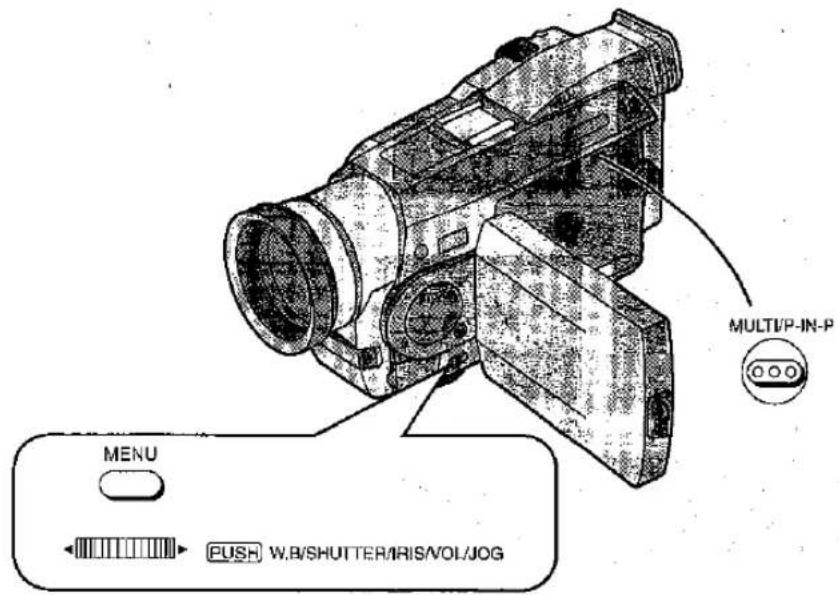
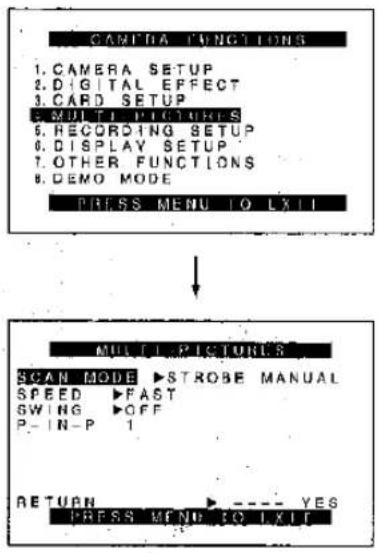
| Title | Procedure | |
Recording with Special Effects(Digital Effects) (Continued)■ Strobe Multi-Picture ModeThis function captures and displays a sequence of 9 small still pictures | 1After setting [EFFECT1] on the [DIGITAL EFFECT] Sub-Menu to [MULTI]... (p. 52)Press the [MENU] Button. | 2Turn the [PUSH] Dial to select [MULTI- PICTURES] and then press the [PUSH] Dial.The [MULTI-PICTURES] Sub-Menu appears. |
5Press the [MENU] Button to exit the Menu. | 6Press the [MULTI] Button.A sequence of 9 still pictures appears. | |
| Remarks, etc. | ||
3Turn the [PUSH] Dial to select [SCAN MODE] and then press the [PUSH] Dial to select [STROBE]. | 4Turn the [PUSH] Dial to select [SPEED] and then press the [PUSH] Dial to select the desired strobe speed.•At the [FAST] setting, the sequence of 9 still pictures is captured within approximately 1 second, at [NORMAL] within approximately 2 seconds, and at [SLOW] within approximately 3 seconds. | Notes for Using the Multi-Picture Mode•It is not possible to use the Multi-Picture Mode when [PROGRESSIVE] on the [CAMERA SETUP] Sub-Menu is set to [ON].•The Multi-Picture Mode cannot be used while the Dilgal Still Picture Mode is used.•The Multi-Picture Mode cannot be used during the Mega-Pixel Setting. (p. 82) (NV-MX5, NV-MX7 only)•When using the Mirror Mode (p. 31) with the LCD Monitor facing forward, pressing the [MULTI] Button displays the still pictures starting at the top right corner of the screen.•The quality of the pictures recorded in the Multi-Picture Mode is slightly inferior.•To record the displayed still pictures in the Multi-Picture Mode onto the tape, press the Recording Start/Stop Button or the [PHOTO SHOT] Button.Swing ModeIf you set [SWING] on the [MULTI-PICTURES] Sub-Menu of the [CAMERA FUNCTIONS] Main-Menu to [ON], the intervals at which the 9 still pictures are taken are longer at the beginning and end than in the middle of the swing strobe period. |
| Making the Multi-Pictures DisappearPress the [MULTI] Button. | Displaying the Multi-Pictures AgainPress the [MULTI] Button for more than 1 second. | |
 |  | |
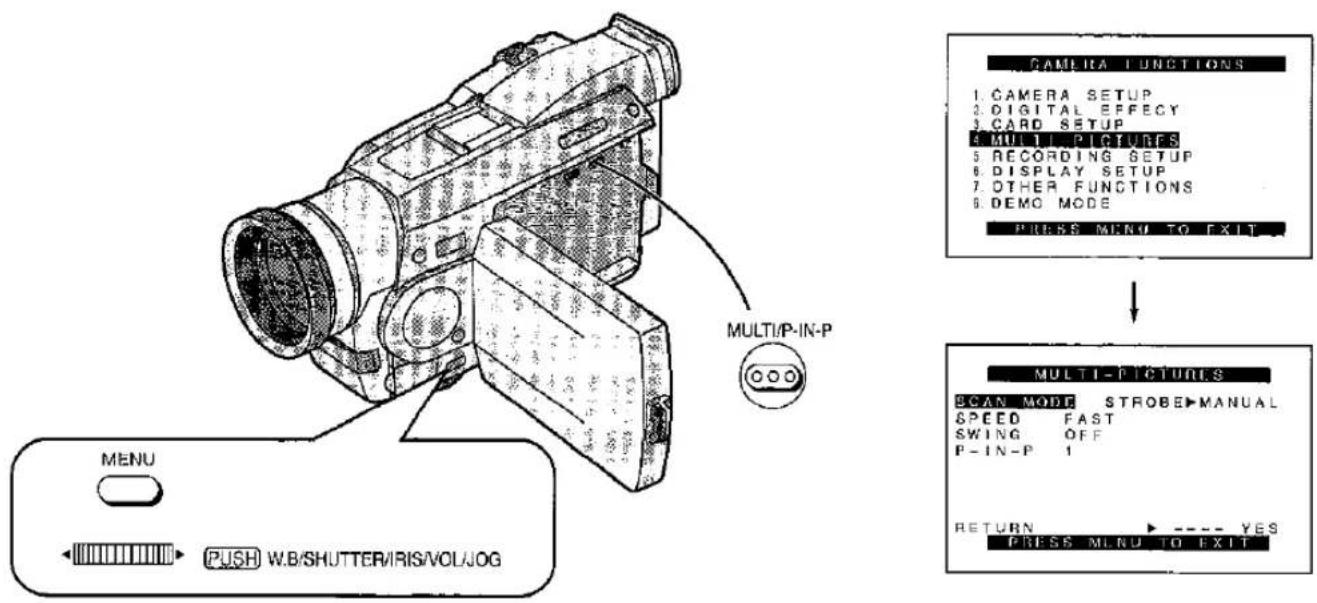
| Title | Procedure | |
Recording with Special Effects (Digital Effects) (Continued)■ Manual Multi-Picture ModeWith this function, you can capture up to 9 small still pictures and display them together on the same screen. | 1After setting [EFFECT1] on the [DIGITAL EFFECT] Sub-Menu to [MULTI]... (p. 52)Press the [MENU] Button. | 2Turn the [PUSH] Dial to select [MULTI- PICTURES] and then press the [PUSH] Dial.The [MULTI-PICTURES] Sub-Menu appears. |
5Press the [MULTI] Button once, and then again for each of the scenes that you want to capture in the Multi-Picture Mode.MULTIP-IN-P | ||
| Remarks, etc. | ||
3Turn the [PUSH] Dial to select [SCAN MODE] and then press the [PUSH] Dial to select [MANUAL]. | 4Press the [MENU] Button to exit the Menu. | Notes for Using the Multi-Picture ModeIt is not possible to use the Multi-Picture Mode when [PROGRESSIVE] on the [CAMERA SETUP] Sub-Menu is set to [ON].The Multi-Picture Mode cannot be used while the Ditigal Still Picture Mode is used.The Multi-Picture Mode cannot be used during the Mega-Pixel Setting. (p. 82) (NV-MX5, NV-MX7 only)When using the Mirror Mode (p. 31) with the LCD Monitor facing forward, pressing the [MULTI] Button displays the still pictures starting at the top right corner of the screen.The quality of the pictures recorded in the Multi-Picture Mode is slightly inferior.To record the displayed still pictures in the Multi-Picture Mode onto the tape, press the Recording Start/Stop Button or the [PHOTO SHOT] Button.Erasing the Multi-Pictures One by OneWhile the multi-pictures are displayed, press the [MULTI] Button for more than 1 second.This erases the last-captured picture. Keeping the [MULTI] Button pressed erases the pictures continuously.After you have erased the still pictures one by one, it is not possible to display them again. |
Making All Multi-Pictures DisappearAfter displaying 9 pictures, it is possible to make them disappear in one go by pressing the [MULTI] Button. | Displaying the Multi-Pictures AgainPress the [MULTI] Button for more than 1 second. | |
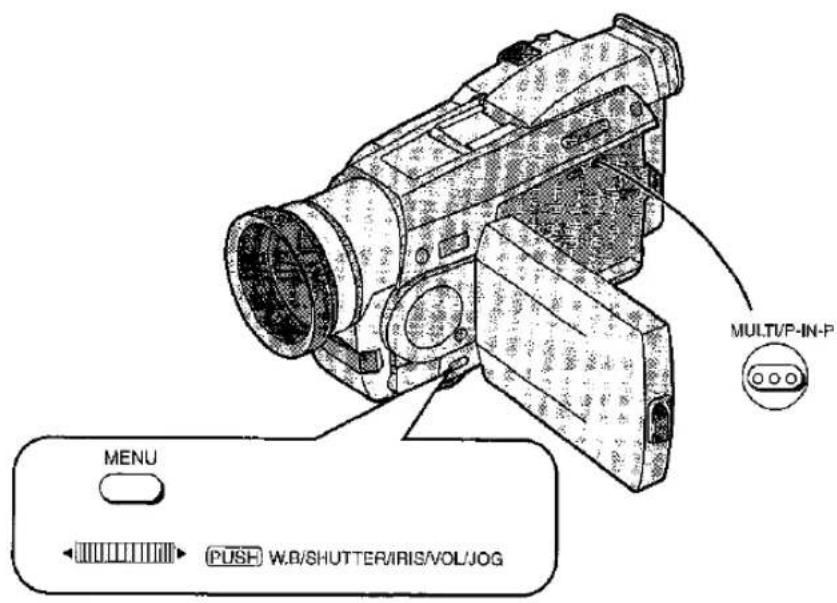
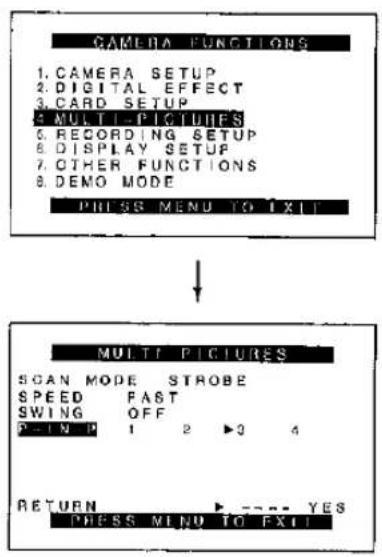
| Title | Procedure | |
| Recording with Special Effects (Digital Effects) (Continued) ■ Picture-in-Picture Mode This function lets you display a small still picture inside the normal picture. | 1 After setting [EFFECT1] on the [DIGITAL EFFECT] Sub-Menu to [P-IN-P]... (p. 52) Press the [MENU] Button. | 2 Turn the [PUSH] Dial to select [MULTI- PICTURES] and then press the [PUSH] Dial. The [MULTI-PICTURES] Sub-Menu appears. |
 |  | |
 | ||
 | 5 Aim the Movie Camera at the scene that you want to capture and insert as a small picture and press the [P-IN-P] Button. The small still picture appears inside the normal picture. MULTI/P-IN-P  | Making the Small Picture Disappear Press the [P-IN-P] Button. MULTI/P-IN-P  |
| Remarks, etc. | ||
3Turn the [PUSH] Dial to select [P-IN-P] and then press the [PUSH] Dial to select the desired position (1, 2, 3 or 4) where you want to insert the small picture. | 4Press the [MENU] Button to exit the Menu. | ●It is not possible to use Picture-in-Picture Mode during the Mega-Pixel Setting. (p. 82) (NV-MX5, NV-MX7 only)●It is not possible to use the Picture-in-Picture Mode when [PROGRESSIVE] on the [CAMERA SETUP] Sub-Menu is set to [ON].●When you use the Camera Search Function or Recording Check Function, the small picture disappears. (However, it appears again after the Camera Search or Recording Check has finished.)●It is possible to record the picture with the small picture inside in the Photoshop Mode. (However, it cannot be recorded in the Progressive Photoshop Mode.)●Turning the Movie Camera off erases the small picture being displayed inside the normal picture.To record in the Picture-in-Picture Mode, press the Recording Start/Stop Button or the [PHOTO SHOT] Button.A title cannot be made into a small picture. (p. 90)●The setting will be canceled when the [STILL] Button is pressed in the Picture-in-Picture Mode.If the Video Flash is installed and the [P-IN-P] Button is pressed in the Picture-in-Picture Mode, the flash will fire. (NV-MX5, NV-MX7 only) |
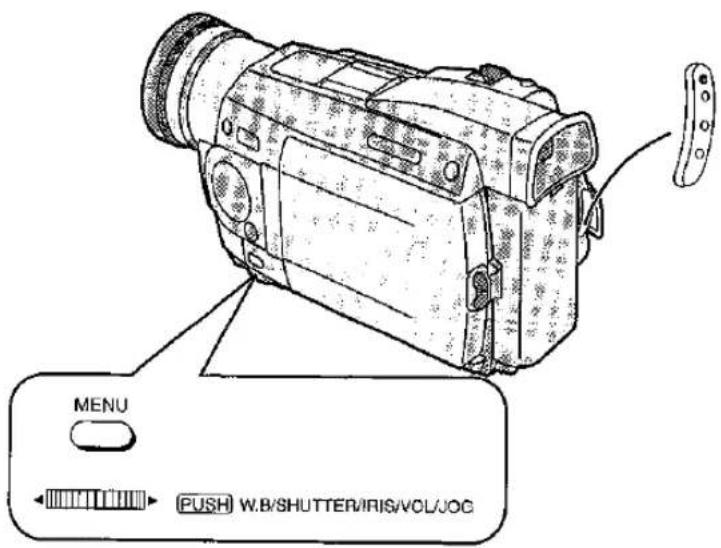
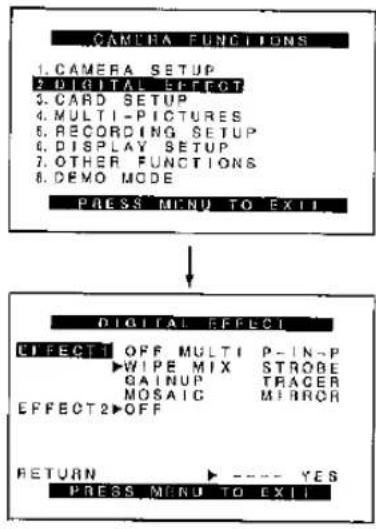
| Title | Procedure | |
Recording with Special Effects (Digital Effects) (Continued)■ Wipe ModeIt gradually replaces a still picture of the last recorded scene with the moving picture of the new scene, like drawing a curtain.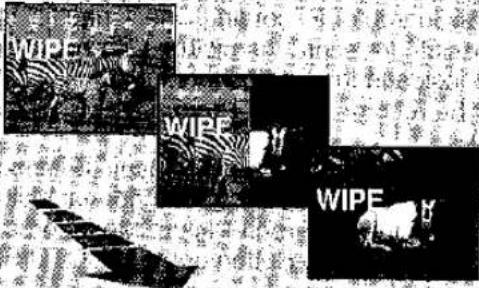 | 1Set [EFFECT1] on the [DIGITAL EFFECT] Sub-Menu to [WIPE], and exit from the Menu. (p. 52)The [WIPE] Indication appears.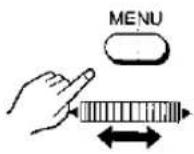 | 2Press the Recording Start/Stop Button to start recording.The normal recording starts.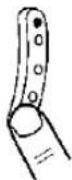 |
■ Mix ModeIt gradually fades out a still picture of the last recorded scene while fading in the moving picture of the new scene.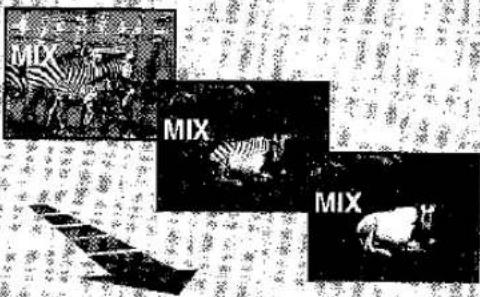 | 1Set [EFFECT1] on the [DIGITAL EFFECT] Sub-Menu to [MIX], and exit from the Menu. (p. 52)The [MIX] Indication appears.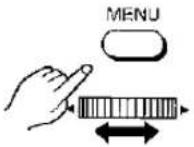 | 2Press the Recording Start/Stop Button to start recording.The normal recording starts.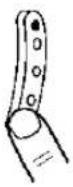 |
| Remarks, etc. | ||
3Press the Recording Start/Stop Button to pause recording.The [WIPE] Indication changes to [WIPE].●The last picture is stored in memory. | 4Press the Recording Start/Stop Button to start recording again.The last picture of the previous scene is gradually replaced by the new scene. | ●If you perform any of the following operations after performing Step 3 or 3, the picture stored in memory is erased and the Wipe or Mix Functions cannot be used:●Selecting any other digital function in [EFFECT1] or in [EFFECT2] on the [DIGITAL EFFECT] Sub-Menu:●Using the Camera Search Function:●Pressing the [STILL] Button:●Switching the [TAPE/CARD] Selector:(NV-MX5, NV-MX7 only)Wipe from a Photoshot Still PictureInstead of performing the Wipe from the last recorded picture, you can store a still picture in memory by pressing the [PHOTO SHOT] Button after Step 1 and then perform Step 4.Mix from a Photoshot Still PictureInstead of performing the Mix from the last recorded picture, you can store a still picture in memory by pressing the [PHOTO SHOT] Button after Step 1 and then perform Step 4. |
 Press the Recording Start/Stop Button to pause recording.The [MIX] Indication changes to [MIX].●The last picture is stored in memory. Press the Recording Start/Stop Button to pause recording.The [MIX] Indication changes to [MIX].●The last picture is stored in memory. | 4Press the Recording Start/Stop Button to start recording again.The last picture gradually fades out while the new scene fades in. | |
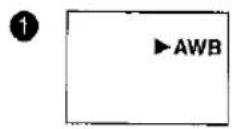
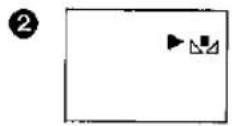
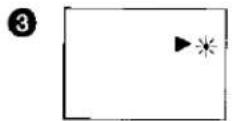
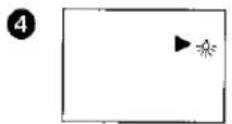
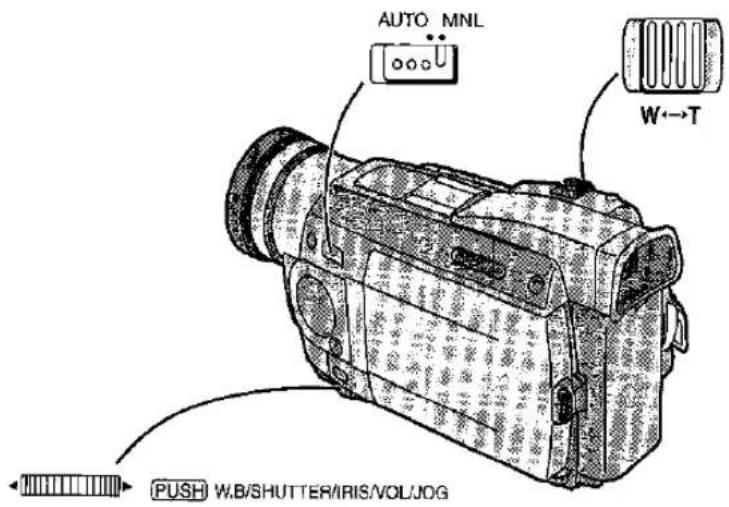
| Title | Procedure | |
| Recording with Natural Colours(White Balance)This Movie Camera automatically adjusts the white balance to ensure that the pictures are recorded with natural colours. For certain types of subjects and lighting conditions, however, this Auto White Balance Adjustment Mode may not be able to ensure natural colours. (p. 119) In these cases, you can select either one of the 3 modes explained below (indoor, outdoor or the last manually adjusted white balance setting), or you can manually adjust their white balance in the following order:Automatic White Balance Adjustment [AWB]Last manually adjusted White Balance setting [L2]Outdoor Mode [K]Indoor Mode [L4](recording under incandescent lamp) | 1Set the Mode Selector Switch to [MNL].The [MNL] Indication appears.VL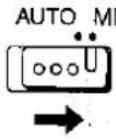 | 2Press the [PUSH] Dial.The [AWB] Indication appears.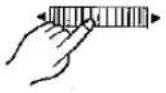 |
| Adjusting the White Balance ManuallyUse the Manual White Balance Adjustment Mode for all types of lighting outside the range 1 (p. 119), as the Auto White Balance Adjustment Mode can only ensure natural colours for the types of lighting within that range. For optimum results under almost any types of lighting, it is recommended that you adjust the white balance manually for each new scene. | 1Attach the Lens Cap and zoom in until the entire screen becomes white.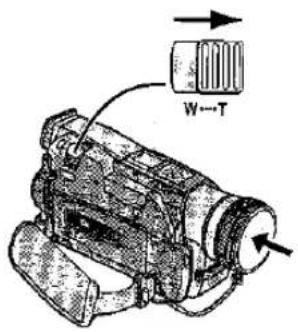 | 2Operate the above step 1 and 2.The [AWB] Indication appears.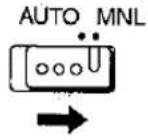 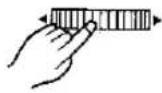 |
| Remarks, etc. | ||
3Turn the [PUSH] Dial to select the desired White Balance Mode.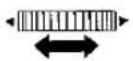 | Returning to the Auto White Balance Adjustment ModeTurn the [PUSH] Dial until the [AWB] Indication appears. Or, set the Mode Selector Switch to [AUTO].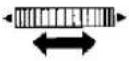 orAUTO MNL orAUTO MNL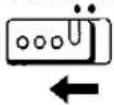 | Notes about the White Balance Adjustment•Be sure to remove the Lens Cap before setting the [OFF/ON/MODE] Switch to [ON]. If the Lens Cap is still attached to the Lens when the [CAMERA] Lamp lights, the automatic white balance setting may not be precise.•If you have set [EFFECT1] on the [DIGITAL EFFECT] Sub-Menu of the [CAMERA FUNCTIONS] Main-Menu to [GAINUP], or if you have set [EFFECT2] to [SEPIA] or [B/W], it is not possible to change the white balance.In the Following Cases, the [■] Indication Flashes:When you recall the last manually adjusted white balance setting•The flashing Indication tells you that the white balance setting you last adjusted is still maintained. This setting is kept until you adjust the white balance again. |
[6A27]Turn the [PUSH] Dial until the [■]Indication appears. |  Keep the [PUSH] Dial pressed until the [■]Indication stops flashing and remains lit. Keep the [PUSH] Dial pressed until the [■]Indication stops flashing and remains lit.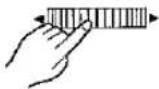 | When you are trying to adjust the white balance in a dark place•Under weak illumination, precise manual white balance adjustment may not be possible. In this case, set the Mode Selector Switch to [AUTO] to record with automatic white balance adjustment.During manual adjustment of the white balance•The [■] Indication flashes while the white balance is being adjusted. When the white balance adjustment is finished, the [■] Indication stops flashing and remains lit.•It is not possible to manually adjust the white balance when you have zoomed to 10× or higher (digital zoom range), when [EFFECT1] on the [DIGITAL EFFECT] Sub-Menu is set to [GAINUP] and when [EFFECT2] is set to [SEPIA] or [B/W].•It is recommended that you adjust the white balance anew whenever there is a change in the recording situation. |
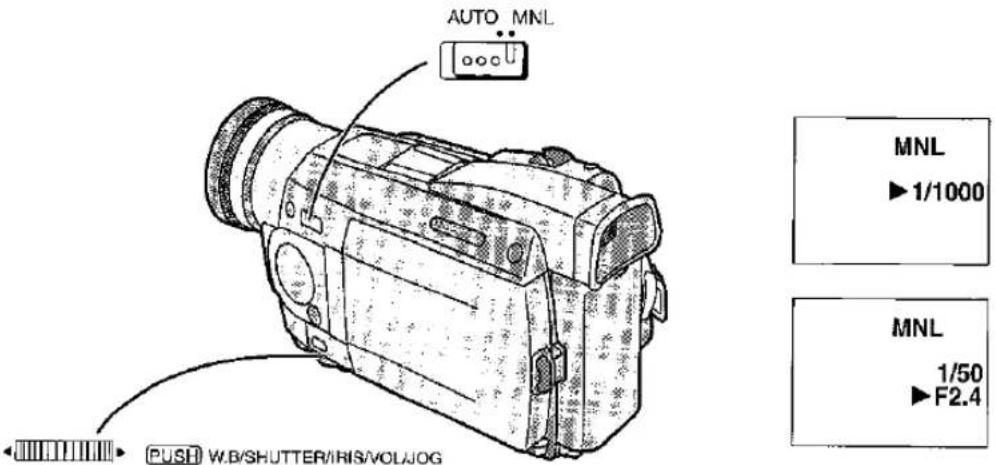
| Title | Procedure | |
| Adjusting the Shutter Speed ManuallyTo achieve special creative effects or to cope with special lighting situations or fast-action scenes, you can adjust the shutter speed manually. | 1Set the Mode Selector Switch to [MNL].The [MNL] Indication appears.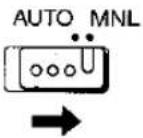 | 2Press the [PUSH] Dial until the Shutter Speed Indication appears.You can change between the Shutter Speed, the iris (F Number) and the Manual White Balance Indications by repeatedly pressing the [PUSH] Dial.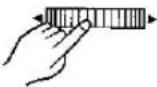 |
| Adjusting the Iris (F Number) ManuallyTo achieve special creative effects or to cope with special lighting situations you can adjust the iris (F number) manually. | 1Set the Mode Selector Switch to [MNL].The [MNL] Indication appears.AUTO MNL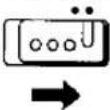 | 2Press the [PUSH] Dial until the [F] Indication appears.You can change between the iris (F Number), the Manual White Balance and the Shutter Speed Indications by repeatedly pressing the [PUSH] Dial.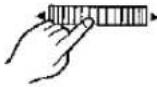 |
3Turn the [PUSH] Dial to adjust the shutter speed. | Returning to the Normal Shutter SpeedSet the Mode Selector Switch to [AUTO].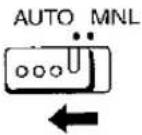 |
3Turn the [PUSH] Dial to adjust the iris. | Returning to the Normal Iris Value (F Number)Set the Mode Selector Switch to [AUTO].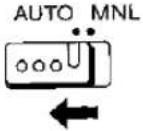 |
Remarks, etc.
Notes for Adjusting the Shutter Speed Manually
Range of Shutter Speed Adjustment
1/50-1/8000 s
The standard shutter speed is 1/50 s.
The nearer to [1/8000] a setting you select, the faster the shutter speed becomes.
- When [PROGRESSIVE] on the [CAMERA SETUP] Sub-Menu is set to [ON], the range of selectable shutter speeds is limited from 1/50 s to 1/500 s.
- When [PROGRESSIVE] on the [CAMERA SETUP] Sub-Menu is set to [AUTO], and the shutter speed is set to 1/750 s or faster, the Progressive Photoshop Function cannot be used. (p. 34)
- The playback picture of subjects lit by strong lights or with much light reflection may contain vertical streaks of light.
- During normal playback, the scene-to-scene transitions may not be smooth.
- Avoid recording under fluorescent lamps, mercury lamps or natrium lamps, as they can cause unstable colours and brightness of the playback picture.
- When using the Gain-up Mode (p. 52) or any of the Programme AE Modes (p. 50), it is not possible to adjust the shutter speed. If the shutter speed was manually adjusted, this setting is cancelled.
- Adjust the shutter speed according to the recording situation.
Notes for Adjusting the Iris (F Number) Manually
Range of Iris Adjustment
CLOSE (Closed) → F16...F2:0 →
OP (Opened)+0dB...OP+18dB
The nearer to [CLOSE] a value you select, the darker the picture becomes.
The nearer to [OP+18dB] a value you select, the brighter the picture becomes.
The figures with +dB show the Gain-up value. If you increase the value too much, the picture quality deteriorates.
- Increasing the Gain-up value also increases the graininess of the picture.
- Depending on the zoom magnification, some iris values may not be displayed.
Manually adjusting the shutter speed after performing manual iris adjustment changes the iris back to automatic adjustment. Therefore, if you want to adjust both the shutter speed and Iris manually, be sure to adjust the shutter speed first.
- When using the Gain-up Mode (p. 52) or any of the Programme AE Modes (p. 50), it is not possible to adjust the Iris. If the Iris was manually adjusted, this setting is cancelled.
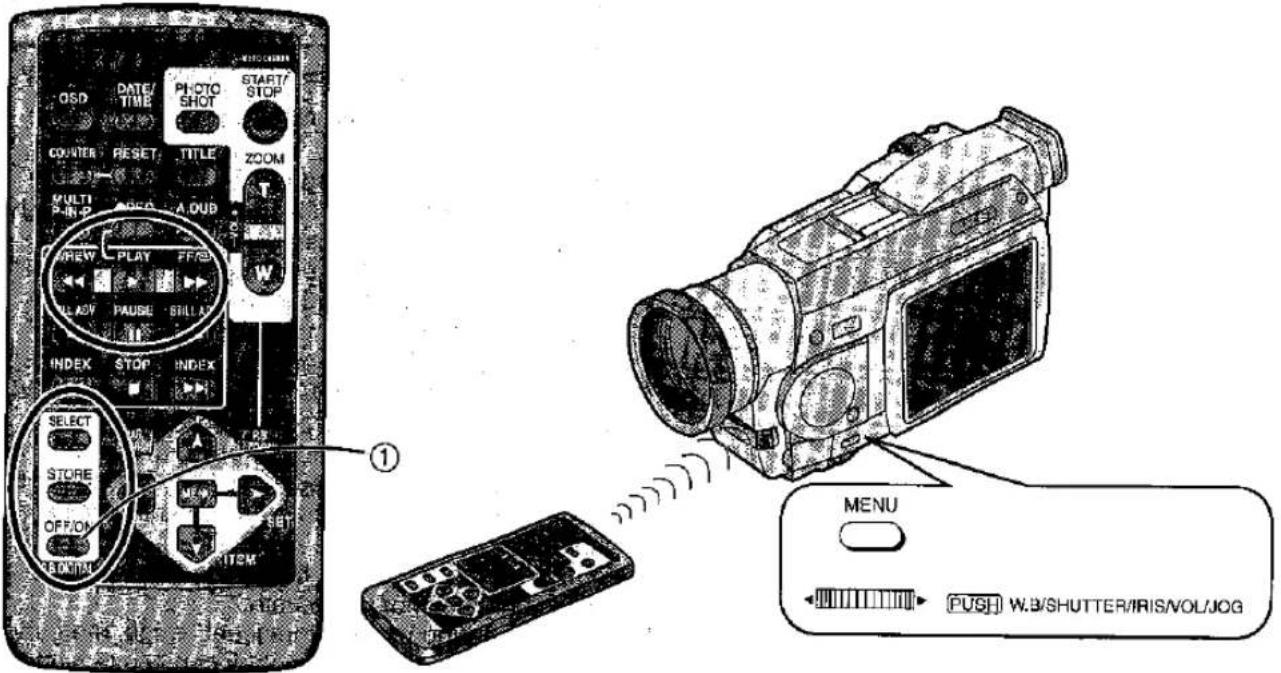
| Title | Procedure | |
| Playing Back with Special Effects (Playback Digital Effects)There are various modes available for adding special digital picture effects to your recordings during playback. They are identical to the Digital Effects 1 and 2 (p. 52) that can be used during recording:1 [MULTI] 2 [WIPE] 3 [MIX]4 [STROBE] 5 [NEGA] 6 [SEPIA]7 [B/W] 8 [TRACER] 9 [SOLARI]10 [MOSAIC] 11 [MIRROR].■ To select the Digital Effects using the Remote ControllerAfter putting the Movie Camera in the VCR Mode... | 1Press the Play Button [▶]. | 2Press the [SELECT] Button on the Remote Controller to select the desired digital effect.●Repeatedly pressing the [SELECT] Button changes the selected digital effect in the order 1 to 11. |
| ■ To select the Digital Effects using the Menu FunctionAfter putting the Movie Camera In the VCR Mode... | 1Press the [MENU] Button. | 2Set [EFFECT SELECT] on the [DIGITAL EFFECT] Sub-Menu of the [VCR FUNCTIONS] Main-Menu to the desired effect. (p. 16) |
| Remarks, etc. | ||
| Cancelling the Digital EffectPress the [SELECT] Button on the Remote Controller to make the displayed digital effect indication disappear. | The signal of the picture with a digital effect added during playback cannot be output from the DV Terminal (p. 6) or the Digital Still Picture Terminal. (p. 7)In the VCR Mode, the Wipe and the Mix Function can only be operated with the Remote Controller.It is not possible to use the Wipe or Mix Function during playback of an unrecorded part of the tape.It is not possible to use the Mirror Mode of the Digital Effects and the Playback Zoom Function (p. 76) at the same time.Suspending the Playback Digital Effect TemporarilyYou can suspend and re-activate the digital effect by repeatedly pressing the [OFF/ON] Button 1.Suspending a digital effect is also possible by setting [EFFECT] on the [DIGITAL EFFECT] Sub-Menu to [OFF], and later to [ON] to re-activate it. When the digital effect is temporarily suspended, the indication of the selected effect flashes. | |
 | ||
| 3Press the [MENU]Button to exit the Menu. | Cancelling the Digital EffectSet [EFFECT SELECT]on the [DIGITAL EFFECT] Sub-Menu to [OFF]. | |
 |  | |
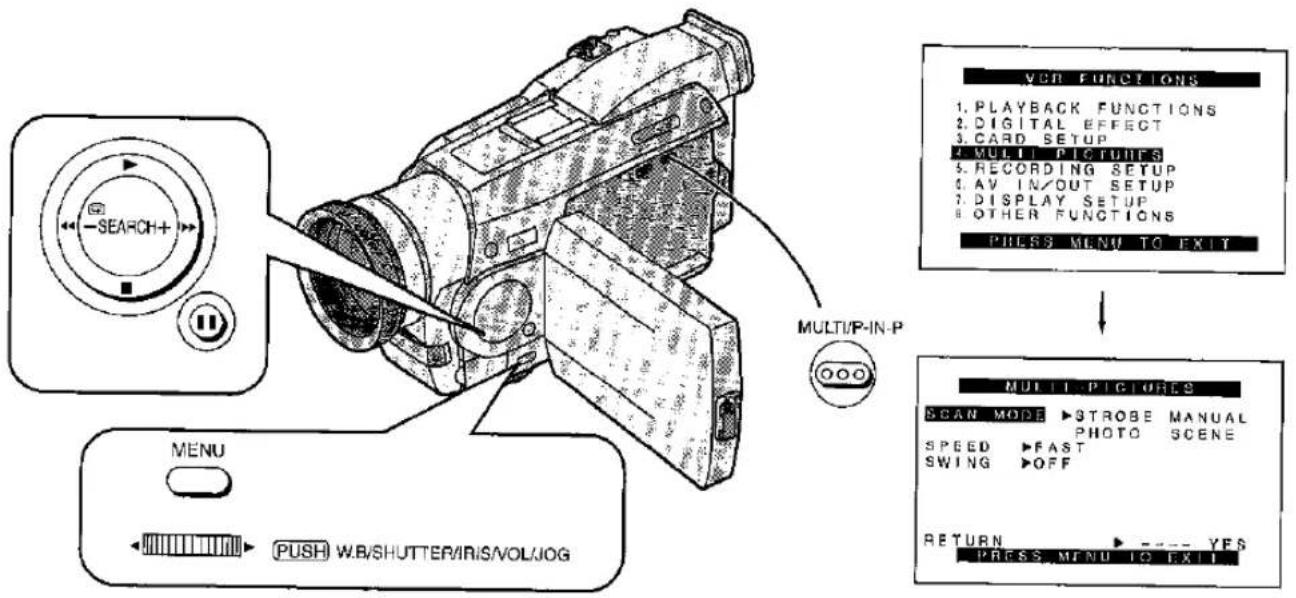
| Title | Procedure | |
| Playing Back with Special Effects(Playback Digital Effects) (Continued)■ Strobe Multi-Picture ModeThis function captures and displays a sequence of 9 small still pictures from the playback picture. This is very convenient for motion analysis of sports action, animal studies, etc. | 1Set the Multi-Picture Mode before performing the following steps... (p. 66)Press the [MENU] Button. | 2Turn the [PUSH] Dial to select [MULTI- PICTURES] and then press the [PUSH] Dial.The [MULTI-PICTURES] Sub-Menu appears. |
7Press the [MULTI] Button.A sequence of 9 still pictures appears and the tape stops.MULT/P-IN-P | Making the Multi- Pictures Disappear Press the [MULTI] Button.MULT/P-IN-P | |
Swing Mode
If you set [SWING] on the [MULTI-PICTURES] Sub-Menu to [ON], the intervals at which the still pictures are captured are longer at the beginning and end than in the middle of the swing strobe period.
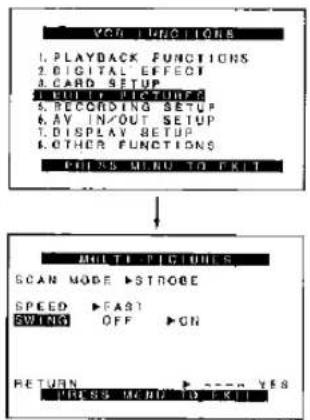
3Turn the [PUSH] Dial to select [SCAN MODE] and then press the [PUSH] Dial to select [STROBE]. | 4Turn the [PUSH] Dial to select [SPEED] and then press the [PUSH] Dial to select the desired strobe speed.•At the [FAST] setting, the sequence of 9 still pictures is captured within approximately 1 second, at [NORMAL] within approximately 2 seconds, and at [SLOW] within approximately 3 seconds.[IMAGE] | 5Press the [MENU] Button to exit the Menu. | 6Start playback, and when you reach the scene that you want to capture and display in the Strobe Multi-Picture Mode, pause the picture.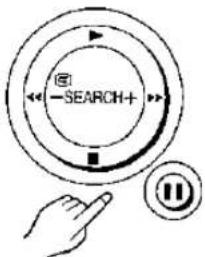 |
Displaying the Multi-Pictures AgainPress the [MULTI] Button or more than 1 second. | Remarks, etc. | ||
| Notes for Using the Strobe Multi-Picture Mode•The playback multi-pictures cannot be output from the DV Terminal (p. 6) or the Digital Still Picture Terminal. (p. 7)•The quality of the pictures displayed in the Multi-Picture Mode is slightly inferior,•On the NV-MX7, the Multi-Picture Mode cannot be used if signals are input from the DV Terminal. Stop the supply of signals from this terminal.•On the NV-MX7, multi-pictures cannot be re-displayed when signals are input from the S-Video Input/Output Socket or Audio-Video Input/Output Socket.•On the NV-MX7, the signals which are input from the S-Video Input/Output Socket or Audio-Video Input/Output Socket cannot be displayed as multi-pictures.. | |||
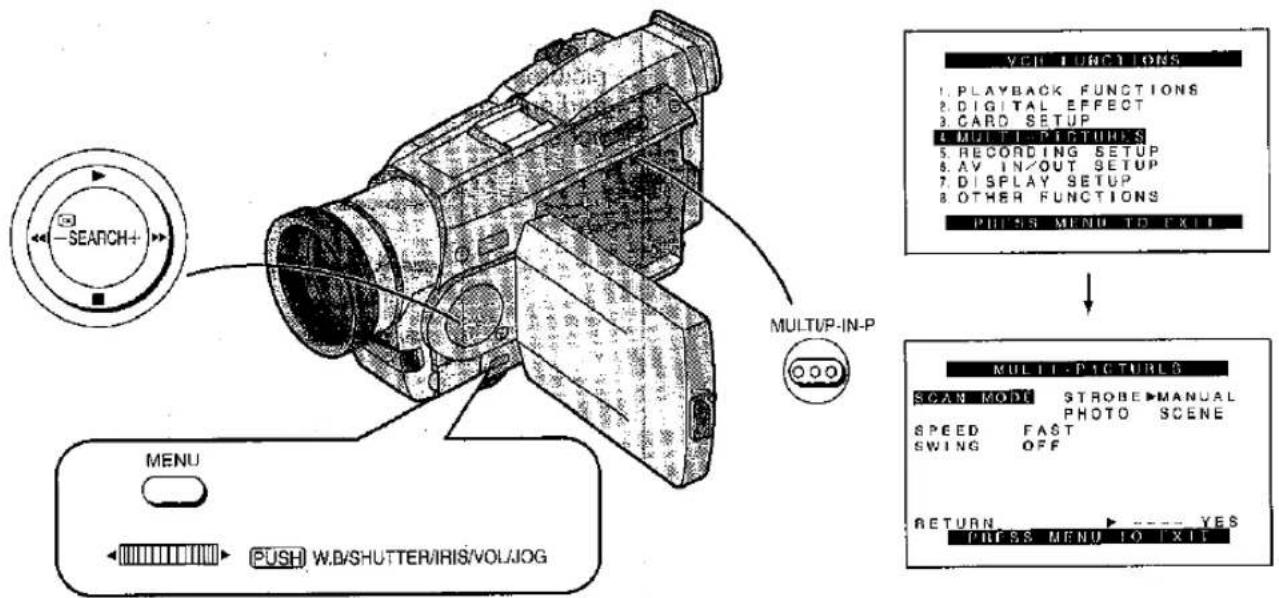
| Title | Procedure | |
| Playing Back with Special Effects(Playback Digital Effects) (Continued).■ Manual Multi-Picture ModeWith this function, you can capture up to 9 pictures from different scenes and display them together as small still pictures on the same screen. This lets you put together an assortment of different scenes in a single picture. | 1Set the Multi-Picture Mode before performing the following steps... (p. 66)Press the [MENU] Button. | 2Turn the [PUSH] Dial to select [MULTI- PICTURES] and then press the [PUSH] Dial.The [MULTI-PICTURES] Sub-Menu appears. |
| [XYZY] |  | |
| Making All Multi-Pictures DisappearAfter displaying 9 pictures, it is possible to make them disappear in one go by pressing the [MULTI] Button. | Displaying the Multi-Pictures AgainPress the [MULTI] Butto for more than 1 second. | |
| MULTI/P-IN-P | MULTI/P-IN-P | |
 |  | |
3Turn the [PUSH] Dial to select [SCAN MODE] and then press the [PUSH] Dial to select [MANUAL]. | 4Press the [MENU] Button to exit the Menu. | 5Press the [►] Button. Playback starts.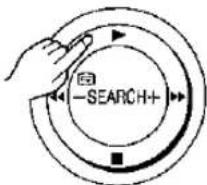 | 6Press the [MULTI] Button once, and then again for each of the scenes that you want to capture in the Manual Multi-Picture Mode.● Every time you press the [MULTI] Button, a still picture is captured and displayed. When 9 still pictures are displayed, the tape stops.MULTIP-IN-P |
Erasing the Multi-Pictures One by OneWhile the multi-pictures are displayed, press the [MULTI] Button for more than 1 second.▪This erases the last captured picture. Keeping the [MULTI] Button pressed erases the pictures continuously. After you have erased he still pictures one by ne, it is not possible to 'spiay them again.MULTIP-IN-P | Remarks, etc. | ||
| Notes for Using the Manual Multi-Picture ModeThe playback multi-pictures cannot be output from the DV Terminal (p. 6) or the Digital Still Picture Terminal. (p. 7)The quality of the pictures displayed in the Multi-Picture Mode is slightly inferior.On the NV-MX7, the Multi-Picture Mode cannot be used if signals are input from the DV Terminal. Stop the supply of signals from this terminal.On the NV-MX7, multi-pictures cannot be re-displayed when signals are Input from the S-Video Input/Output Socket or Audio-Video Input/Output Socket.On the NV-MX7, the signals which are Input from the S-Video Input/Output Socket or Audio-Video Input/Output Socket cannot be displayed as multi-pictures. | |||
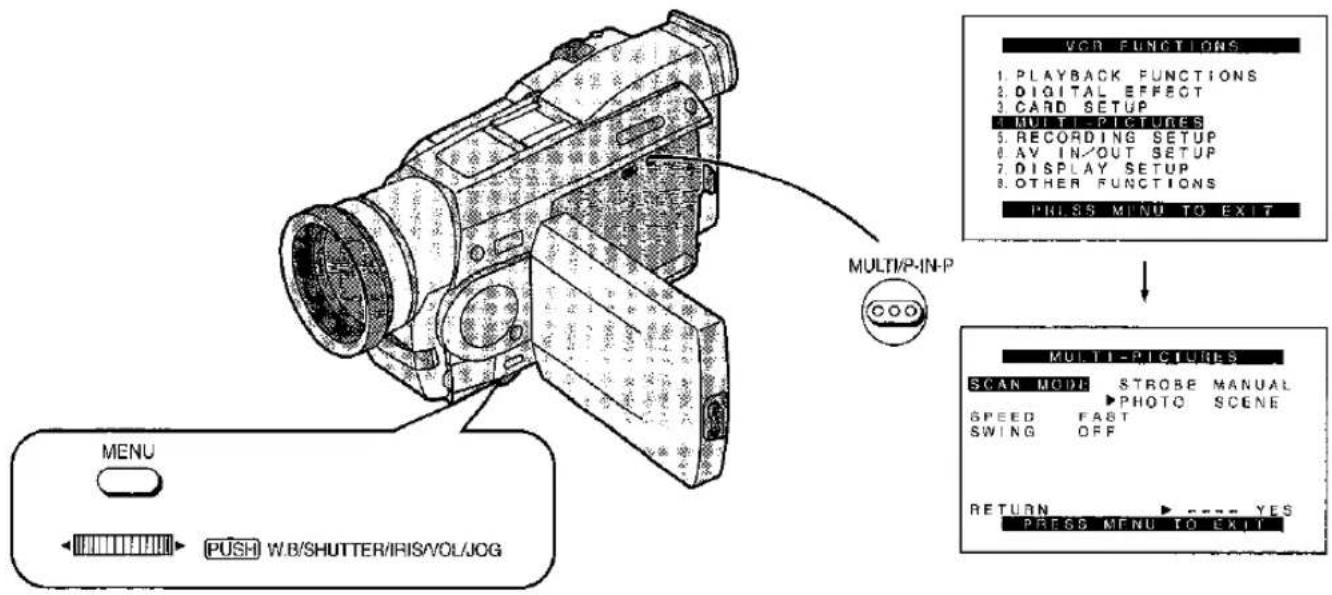
| Title | Procedure | |
| Playing Back with Special Effects(Playback Digital Effects) (Continued)■ Index Multi-Picture ModeWith this function, you can automatically capture up to 9 small still pictures of scenes or Photoshop pictures marked with index signal and display them in a single picture. | 1Set the Multi-Picture Mode before performing the following steps... (p. 66)Press the [MENU] Button. | 2Turn the [PUSH] Dial to select [MULTI- PICTURES] and then press the [PUSH] Dial.The [MULTI-PICTURES] Sub-Menu appears.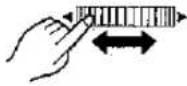 |
5Press the [MULTI] Button.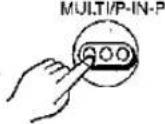 | Making the Multi- Pictures Disappear Press the [MULTI] Button.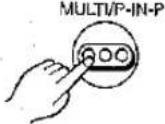 | |
| Remarks, etc. | ||
3Turn the [PUSH] Dial to select [SCAN MODE] and then press the [PUSH] Dial to select [PHOTO] or [SCENE].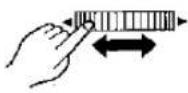 | 4Press the [MENU] Button to exit the Menu. | 9 pictures marked with index signals are captured in forward direction from the tape position at which the [MULTI] Button was pressed, and the tape then stops. (If there are less than 9 pictures marked with Index signals, the tape stops at its end.)The index signals are recorded automatically during recording. (p. 47)If you switch the Movie Camera from the Index Multi-Picture Mode over to the Camera Mode, the setting of [SCAN MODE] on the [MULTI-PICTURES] Sub-Menu of the [CAMERA FUNCTIONS] Main-Menu is automatically set to [STROBE].Notes for Using the index Multi-Picture ModeThe playback multi-pictures cannot be output from the DV Terminal (p. 6) or the Digital Still Picture Terminal. (p. 7)The quality of the pictures displayed in the Multi-Picture Mode is slightly inferior.On the NV-MX7, the Multi-Picture Mode cannot be used if signals are input from the DV Terminal. Stop the supply of signals from this terminal.On the NV-MX7, multi-pictures cannot be re-displayed when signals are input from the S-Video Input/Output Socket or Audio-Video Input/Output Socket.On the NV-MX7, the signals which are input from the S-Video Input/Output Socket or Audio-Video Input/Output Socket cannot be displayed as multi-pictures.There Are Two Different Types of Index Signals:In Step 3 on the left, select [PHOTO] or [SCENE] as follows:[PHOTO]: To search for still pictures marked with photoshot index signal and capture and display them.[SCENE]: To search for scenes marked with scene index signal and capture and display them as still pictures. |
Displaying the Multi-Pictures AgainPress the [MULTI] Button for more than 1 second. | ||
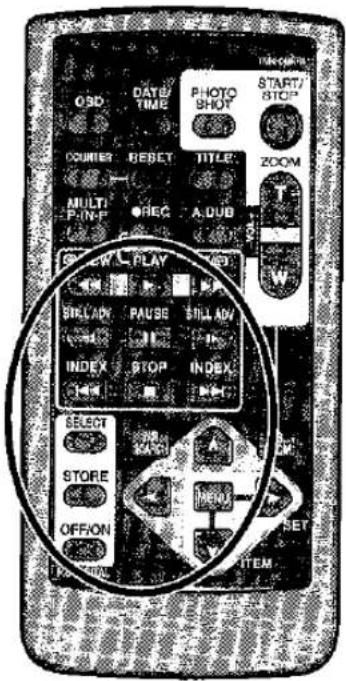
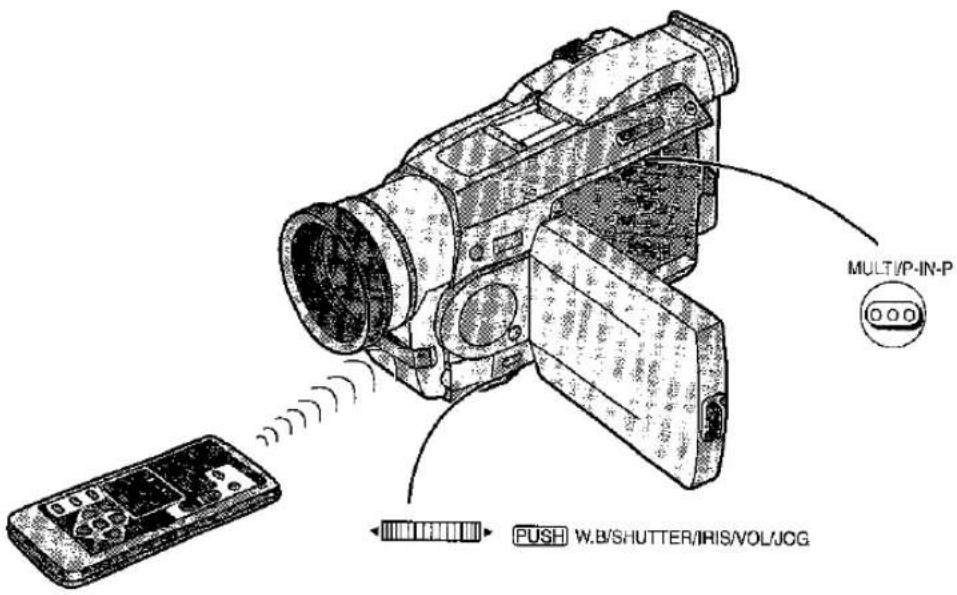
| Title | Procedure | |
Playing Back with Special Effects(Playback Digital Effects) (Continued)■Multi-Picture SearchThis function lets you search for the tape position of a desired still picture displayed in the Multi-Picture Mode. | 1After displaying the still pictures in the Multi-Picture Mode...Turn the [PUSH] Dial to select a picture whose tape position you want to locate.The selected picture is marked with a flashing red frame. | 2Press the Index Button [◄◄] or [►►] on the Remote Controller.The tape stops at the beginning of the selected scene and the Movie Camera is in the Still Playback Mode.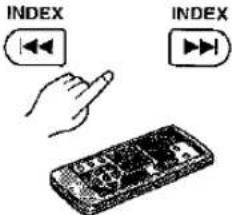 |
| ■Wipe Mode and Mix Mode | 1After having selected [WIPE] or [MIX] in Step 2 on page 66...Press the [►] Button to start playback.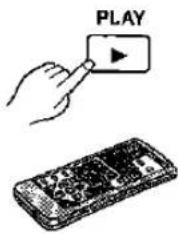 | 2Press the [STORE] Button at the moment that you want to store as still image in memory.The [WIPE] or [MIX] Indication appears.●The picture is stored in memory. |
| Remarks, etc. | |
Displaying the Still Pictures in the Multi-Picture Mode AgainPress the [MULTI] Button for more than 1 second. | ●In case of the pictures displayed in the Manual Multi-Picture Mode (p. 70), use the Multi-Picture Search Function after displaying all 9 pictures.●In case of the pictures displayed in the Index Multi-Picture Mode (p. 72), the Multi-Picture Search Function can be used even if less than 9 pictures are displayed.●If you use a Video Printer equipped with a 5-pin editing socket, you can print the picture that you selected In Step 1 (p. 112)●The tape positions of the pictures located with the Multi-Picture Search Function are subject to some Imprecision. |
3Press the [OFF/ON] Button at the scene at which you want to use a Wipe or Mix effect.The scenes change with a Wipe or Mix effect. | ●Operating the Wipe Function and the Mix Function during playback is only possible with the Remote Controller.●If you press the [OFF/ON] Button while the Wipe or Mix is being performed, the effect is paused at that point. If you press the [OFF/ON] Button again, the effect resumes. |
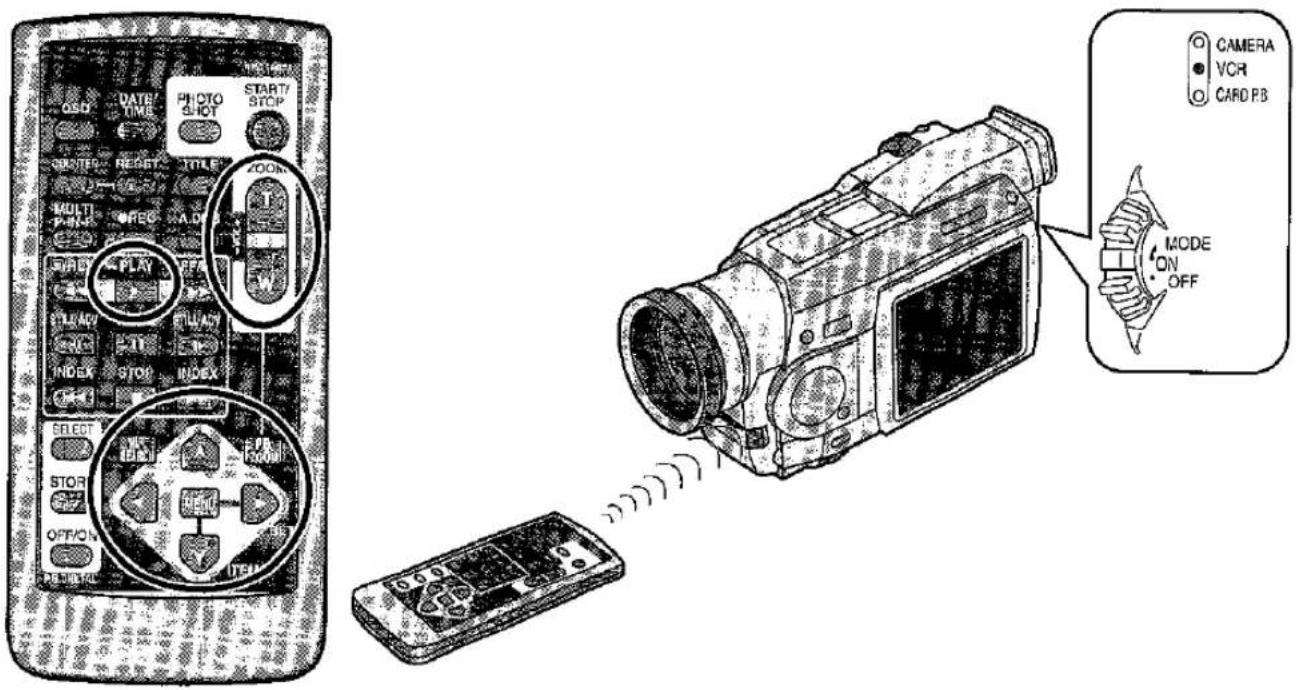
| Title | Procedure | |
Enlarging the Playback Picture(Playback Zoom)With this function, you can enlarge a part of the picture by up to 10 times during playback.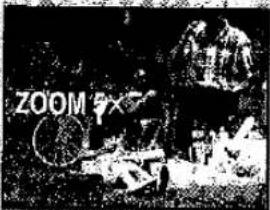 | 1Slide the [OFF/ON/MODE] Switch from the [ON] position to put the Movie Camera in the VCR Mode. | 2Press the Play Button [▶]. |
Changing the Zoom MagnificationPress the [W] or [T] Zoom Button on the Remote Controller to change the magnification.●You can increase the magnification up to 10×.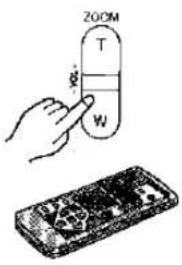 | ||
| Remarks, etc. | ||
3Press the Playback Zoom Button [P.B. ZOOM] on the Remote Controller.The centre part of the picture is doubled in size.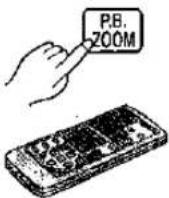 | Cancelling the Playback Zoom FunctionPress the [P.B. ZOOM] Button on the Remote Controller.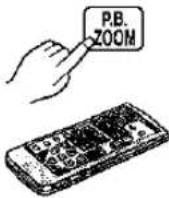 | ●In the Playback Zoom Mode, it is not possible to adjust the sound volume.●Turning the Movie Camera off or switching It from the VCR Mode over to the Camera Mode automatically cancels the Playback Zoom Function.●Even while you are using the Playback Zoom Function, the picture output from the DV Terminal (p. 6) and the Digital Still Picture Terminal (p. 7) is not enlarged.●The more the picture is enlarged; the more its picture quality deteriorates.●It is not possible to use the Mirror Mode of the Playback Digital Effects (p. 66) and the Playback Zoom Function at the same time.●When the Multi-Picture Mode is selected in the Playback Zoom Mode, the equivalent multiple 1× is used for the zoom magnification. |
Shifting the Enlarged Part of the PicturePress the Arrow Button (▲, ◀, ▶, ▼) on the Remote Controller for the direction in which you want to shift the enlarged part of the picture.When you stop playback, the position of the part of the picture to be enlarged is automatically reset to the centre.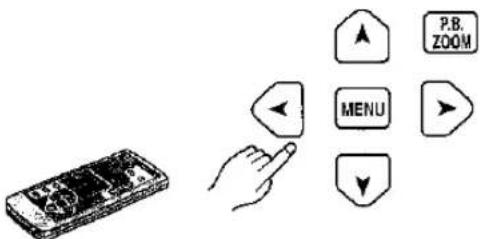 | ||
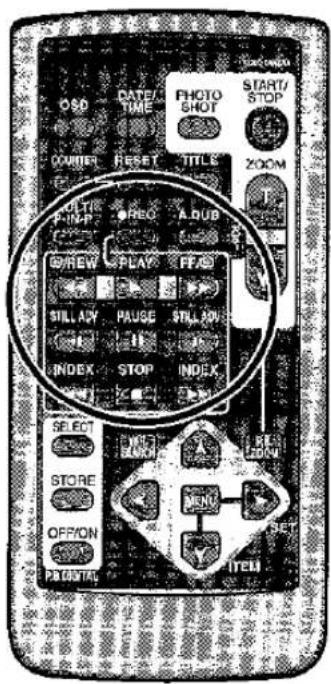
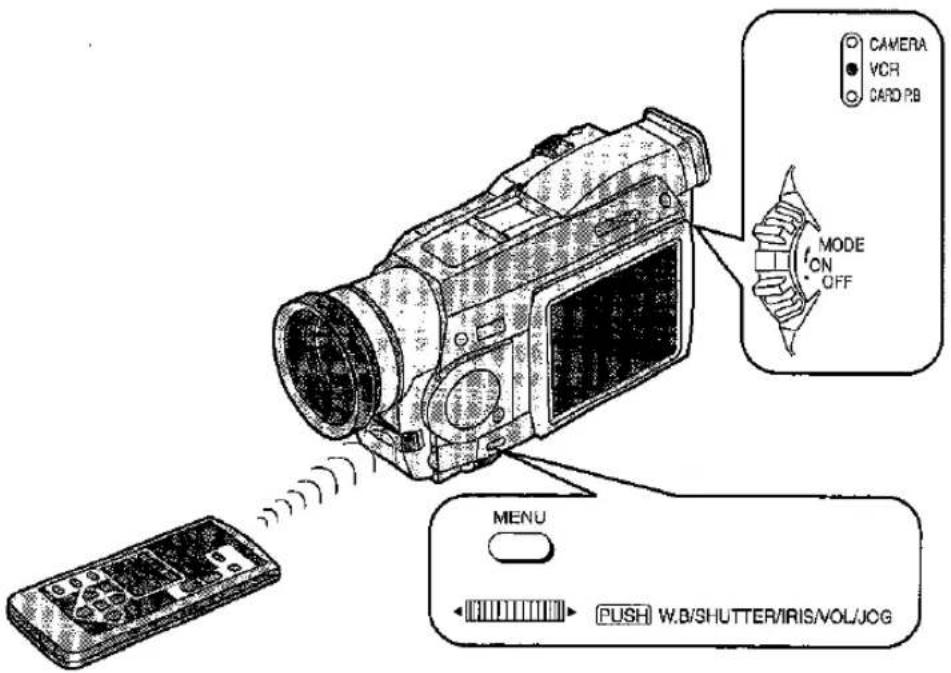
| Title | Procedure | |
| Adding New Sound on a Recorded Cassette (Audio Dubbing)You can add music or narration on a recorded cassette.If you perform audio dubbing onto a tape that was recorded with [AUDIO REC] on the [RECORDING SETUP] Sub-Menu of the [CAMERA FUNCTIONS]. Main-Menu set to [16bit], the original sound is erased.If you intend to perform audio dubbing but also want to keep the original sound, be sure to set [AUDIO REC] to [12bit] before making the original recording.It is not possible to perform audio dubbing onto recordings made in the LP Mode. (p. 13).Audio dubbing using the [AV IN/OUT] socket is possible only with the NV-MX7 model, Step 2 and 3 need not be performed for all other models. | 1Insert the recorded cassette and slide the [OFF/ON/MODE] Switch from the [ON] position to put the Movie Camera in the VCR Mode.Make sure that the prevention slider of the cassette is set to [REC].[IMAGE]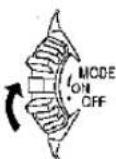 | 2Set [AV JACK] on the [AV IN/OUT SETUP] Sub-Menu to [IN/OUT].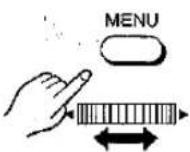 |
4At the point from which you want to insert the new sound, switch the Movie Camera over to the Still Playback Mode.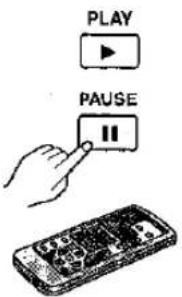 | 5Press the [A.DUB] Button on the Remote Controller.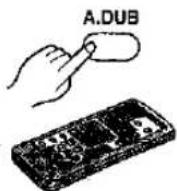 A.DUBII A.DUBII | |
| Remarks, etc. | ||
3Set [A. DUB INPUT] on the [AV IN/OUT SETUP]Sub-Menu to [MIC] or [AV IN], and exit from the Menu.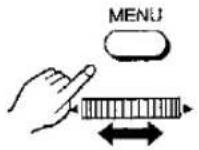 | [AV IN]:For performing audio dubbing using an external device (such as an audio component).[MIC]:For performing audio dubbing using the external microphone socket or built-in microphone. | •It is not possible to perform audio dubbing on an unrecorded part of the tape.•If there was an unrecorded part on the tape when audio dubbing was performed, picture and sound distortion occur at that tape portion during playback.•If is not possible to perform audio dubbing for sound supplied from the DV Terminal;•If you reset the Tape Counter to zero at the point where you want the audio dubbing to end and turn on the Memory Stop Function (p: 121), the audio dubbing automatically stops when the tape reaches that point.•If the data recorded with audio dubbing is imported in the personal computer using a PC software programme, only the original sound (ST1) may be imported depending on the software programme.Playing Back the Sound Recorded with Audio Dubbing•Depending on the setting selected for [12bit AUDIO] on the [PLAYBACK FUNCTIONS] Sub-Menu of the [VCR FUNCTIONS] Main-Menu, the sound added with audio dubbing and the original sound are played back as follows:ST1: The original sound alone is played back.ST2: The dubbed sound alone is played back.MIX: The original sound and the sound added with audio dubbing are played back together. |
 Press the Pause Button [II] on the Remote Controller to start audio dubbing.•In the case of line Input signals, play the device which has been connected. PAUSE Press the Pause Button [II] on the Remote Controller to start audio dubbing.•In the case of line Input signals, play the device which has been connected. PAUSE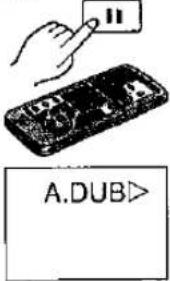 | Stopping Audio DubbingPress the Pause Button [II] on the Remote Controller.The Movie Camera is again in the Still Playback Mode.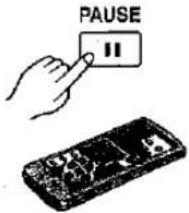 | |
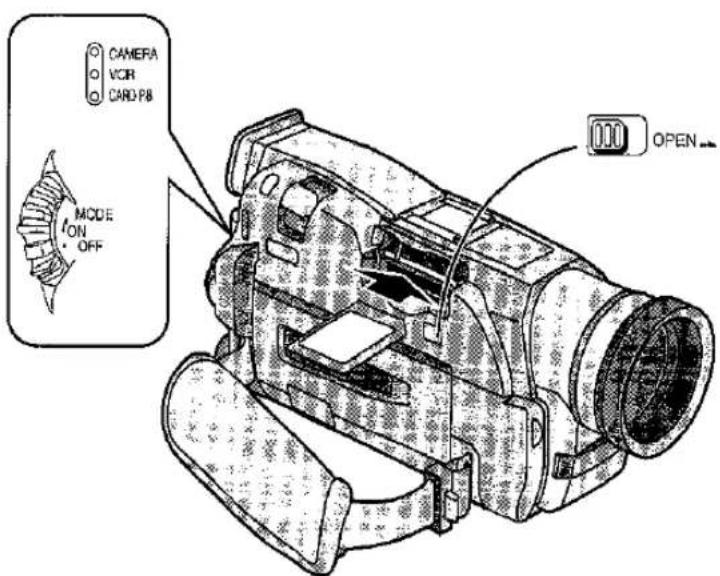
| Title | Procedure | ||
| Using the MultimediaCard or SD Memory Card(Only the NV-MX5 and NV-MX7 models come with card functions.)Still picture can be recorded using the supplied MultiMediaCard or an optional SD Memory Card. In addition, music can be played with optional SD Memory Cards.Operating directions applying to both the MultiMediaCard and SD Memory Card are given using the MultiMediaCard as an example.■ Inserting the MultiMediaCardBe sure to turn the Movie Camera off before Inserting the MultiMediaCard.Set the [OFF/ON/MODE] Switch to [OFF]. | 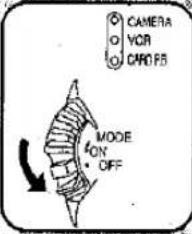 | 1Slide the [OPEN] Lever to the right to open the Card Slot Cover.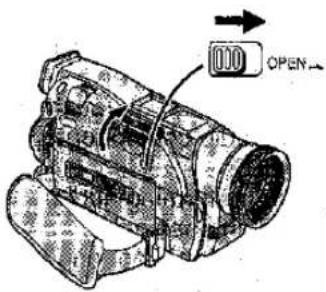 | 2Hold the MultiMediaCard with its cut-off corner facing right and toward the Movie Camera and insert it straight until it stops.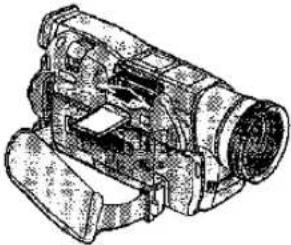 |
| ■ Taking Out the MultiMediaCardBe sure to turn the Movie Camera off before taking out the MultiMediaCard.Set the [OFF/ON/MODE] Switch to [OFF]. | 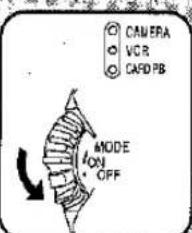 | 1Slide the [OPEN] Lever to the right to open the Card Slot Cover.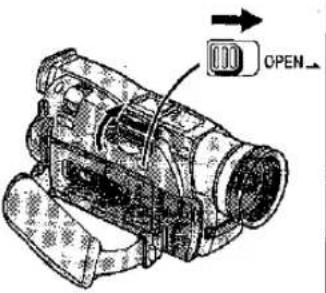 | 2Push the MultiMediaCard on its centre.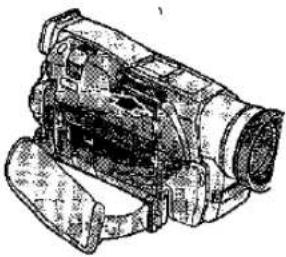 |
| Remarks, etc. | ||
3Close the Card Slot Cover securely.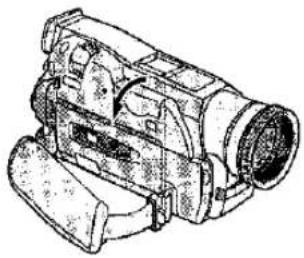 | ●Before closing the Card Slot Cover, be sure to confirm that the MultiMediaCard is inserted correctly.The [ACCESS] LampWhile accessing the MultiMediaCard (reading, recording, playing back, deleting, transmitting pictures), the [ACCESS] Lamp is lit.●While the [ACCESS] Lamp is lit, do not open the Card Slot Cover and remove the MultiMediaCard, turn the Movie Camera off or switch the [TAPE/CARD] Selector. Doing so could damage the Card and cause a malfunction with the Movie Camera.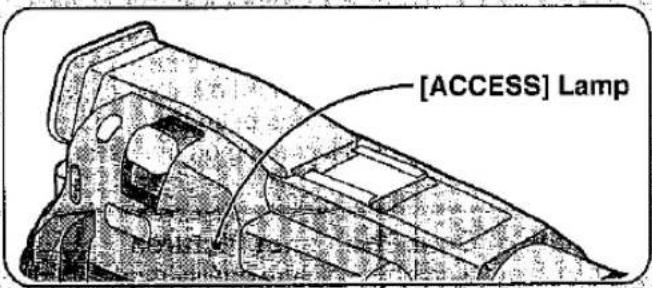 | |
3Pull the MultiMediaCard straight out.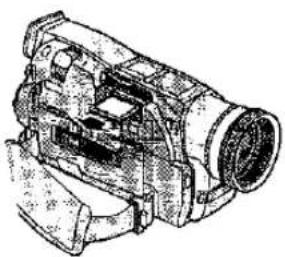 | 4Close the Card Slot Cover securely.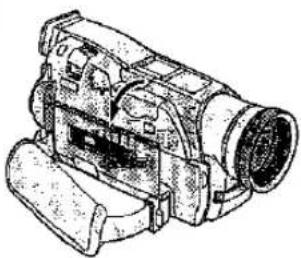 | |
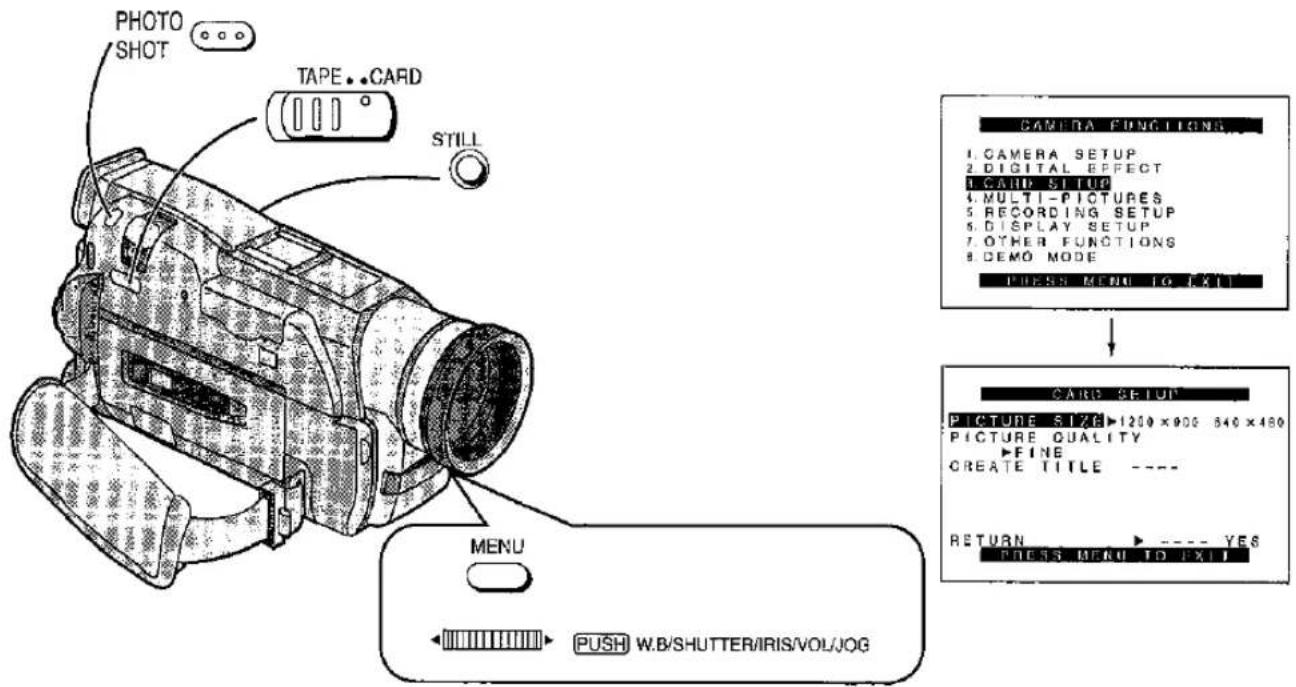
| Title | Procedure | |
| Using the Movie Camera as a Digital Still Camera (Mega-Pixel Still Picture Recording~Card Photoshot)The Movie Camera can be used as a Digital Still Camera to record clear still pictures on the MultiMediaCard. The size of the pictures that can be recorded using this Movie Camera is 1:08 million pixels, and recording pictures of this size is called Mega-Pixel (over 1 million pixels) Still Picture Recording. Compared with normally recorded pictures pictures produced by Mega-Pixel Still Picture Recording are printed out more clearly. When pictures are to be printed out, print them from the MultiMediaCard. Otherwise, clear Mega-Pixel Pictures cannot be obtained.●Sound is not recorded.●The Shutter Effect (p. 35) cannot be used.●The power is automatically turned off after about 6 minutes when a cassette has been inserted.●Mega-Pixel Still-Picture Recording on the cassette is not possible. | 1After putting the Movie Camera in the Camera Mode... (p. 26)Slide the [TAPE/CARD] Selector to [CARD].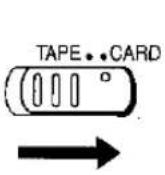 | 2Set [PICTURE SIZE] on the [CARD SETUP] Sub-Menu to [1200×900]. |
| ■Quality of Card Photoshot PicturesYou can choose among a picture quality modes for the Card Photoshot FunctionMaximum recordable number of pictures on the supplied 8 MB MultiMediaCardWhen the picture size is 1200×900 pixelsFINE: Approx. 12 picturesNORMAL: Approx. 20 picturesECONOMY: Approx. 32 picturesWhen the picture size is 640×480 pixelsFINE: Approx. 55 picturesNORMAL: Approx. 110 picturesECONOMY: Approx. 220 pictures | 1Display the [CARD SETUP] Sub-Menu on the [VCR FUNCTIONS] Main-Menu or [CAMERA FUNCTIONS] Main-Menu. (p. 16) | 2Turn the [PUSH] Dial to select [PICTURE QUALITY] and press the [PUSH] Dial to set the desired setting, and then press the [MENU] Button to exit the Menu. |
Concerning Card Photoshots
- Recording onto a cassette is not possible when the [TAPE/CARD] Selector is at the [CARD] setting.
Concerning Mega-Pixel Still-Picture Recording
•The Progressive Photoshot Function is set to [ON]. (p. 34)
- When recording in the Auto Mode, the shutter speed is automatically adjusted to a setting within the range of 1/25 to 1/500.
- If the screen colours change or the screen flickers, adjust the shutter speed manually to 1/25, 1/50 or 1/100. (p. 64)
- The picture quality deteriorates slightly when pictures are viewed on a TV screen or LCD Monitor.
●The width of the screen extends slightly.
- The four corners of the screen may become dark (vignetting) if filters or other optional items are attached.
- The following functions or operations can no longer be used.
Digital Zoom (p. 32)
Super Image Stabilizer (p. 36)
Cinema (p. 36)
Digital Effect (p. 52)
Title In/Creation (p. 90, 92)
- The pictures on the Card can be recorded onto a cassette, however their quality will deteriorate since they cannot be recorded using the Mega-Pixel Function.
Others
- To view pictures recorded using the Card Photoshot Function on a TV screen or LCD Monitor rather than printing them out, it is recommended that [640×480] be selected as the setting in step 2. (In this case, Mega-Pixel Still-Picture Recording will not be performed.)
- It is recommended that you press the [STILL] Button first and then press the [PHOTO SHOT] Button where the recording is to be performed to put the Movie Camera in the Still Picture Mode.
| Remarks, etc. | ||
| 3Select the desired picture quality using [PICTURE QUALITY] on the [CARD SETUP] Sub-Menu, and exit from the Menu. | 4Press the [PHOTO SHOT] Button at the scene that you want to record. | ●Electromagnetic waves, static electricity, malfunction of the Movie Camera or of the MultiMediaCard itself could erase the data recorded on it. To prevent the loss of picture data, it is recommended that you make a backup copy on a cassette (p. 86) or on the computer. (p. 102)●Before pressing the [PHOTO SHOT] Button, it is recommended that you press the [STILL] Button to check the picture. |
| PHOTOSHOT | ||
| ●To record pictures in high quality, set [PICTURE QUALITY] on the [CARD SETUP] Sub-Menu to [FINE]; to record as many pictures as possible, set it to [ECONOMY].●When you select [ECONOMY] for recording, the playback picture may contain mosaio-like noise patterns depending on the picture content.●When recording in more than one mode (FINE, NORMAL, ECONOMY) on the same MultiMediaCard, the maximum recordable number differs from the numbers indicated on the left page.●The maximum recordable numbers are approximations. When recording intricate pictures with fine details, the number of recordable still pictures on the MultiMediaCard decreases due to their large data volume.●To record even more still pictures, it is recommended that you use a Card with a larger memory capacity. | ||
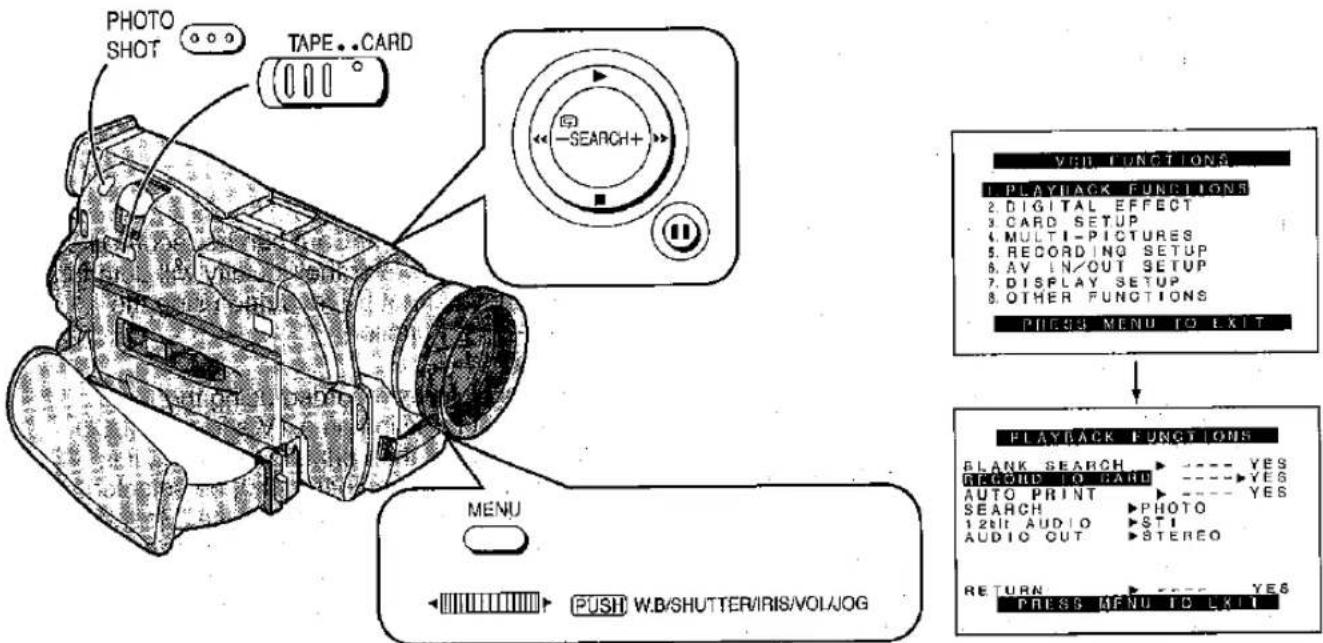
| Title | Procedure | |
| Copying Cassette Pictures onto a MultimediaCard or SD Memory Card●Sound is not recorded.●The Shutter Effect (p. 35) cannot be used.●This function is not Mega-Pixel Recording■ Copying the Pictures Manually (Card Photoshot)After putting the Movie Camera in the VCR Mode... (p. 38) | 1Slide the [TAPE/CARD] Selector to [CARD].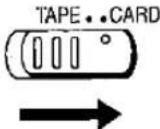 | 2Select the desired picture quality using [PICTURE QUALITY] on the [CARD SETUP] Sub-Menu. (p. 82)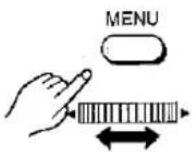 |
| ■ Copying Pictures with Photo Index Signals AutomaticallyAfter putting the Movie Camera in the VCR Mode (p. 38), set the Movie Camera to the Still Playback Mode just before the point where picture transfer is to commence... (p. 40) | 1Select the desired picture quality using [PICTURE QUALITY] on the [CARD SETUP] Sub-Menu. (p. 82)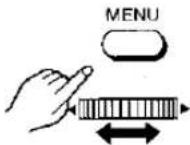 | 2Set [RECORD TO CARD] on the [PLAYBACK FUNCTIONS] Sub-Menu to [YES]. (p. 16) |
| Remarks, etc. | ||
3Start Playback and press the [PHOTO SHOT] Button at the scene that you want to record.The picture stands still for a few seconds (when [PICTURE QUALITY] on the [CARD SETUP] Sub-Menu is set to [NORMAL]) while the picture is being recorded.It is recommended that you press the [11] Button first and then press the [PHOTO SHOT] Button.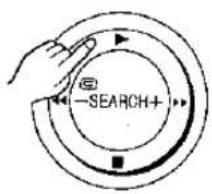 | The remaining number of pictures which can be recorded in the MultiMediaCard is displayed during picture transmission. When "0" is reached, the tape is set to the Still Playback Mode.The size of the pictures recorded on the Card is [640×480].Pictures with wide-screen format signals cannot be copied. | |
| A search is started from the current cassette position, and the pictures with the Photo Index signals are recorded in sequence on the MultiMediaCard.Indication appears during the copying.[TAPE] CARDNOW WRITING | Stopping the Picture TransmissionPress the [■] Button | |
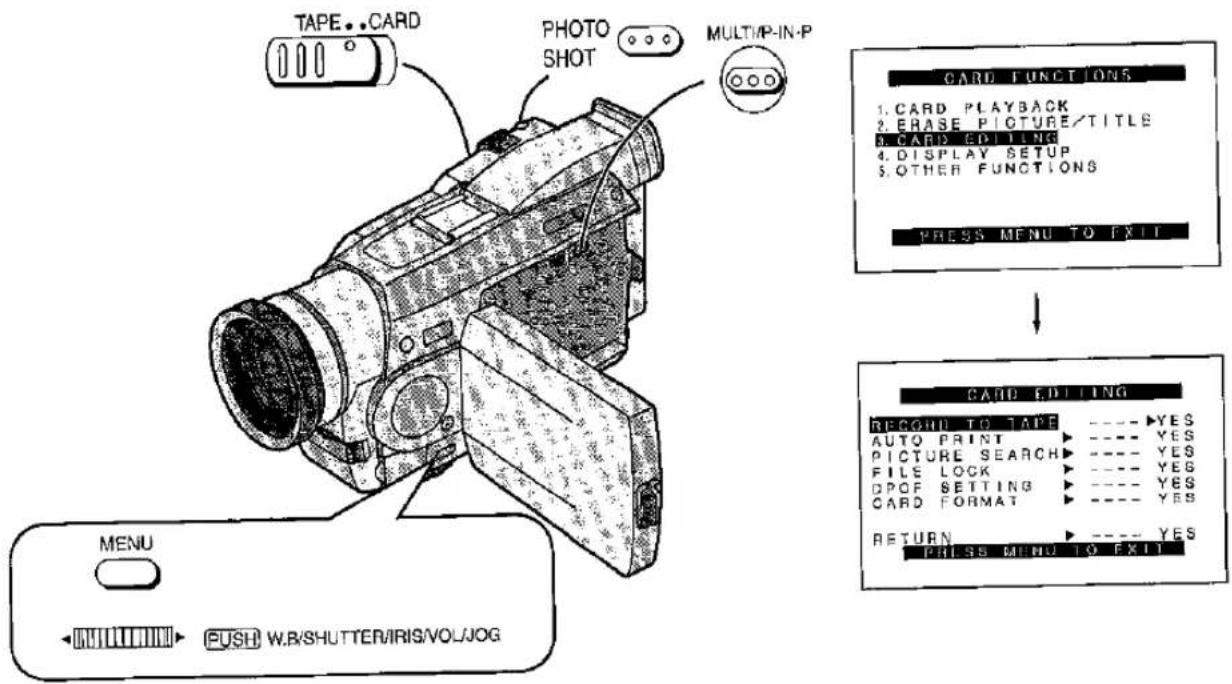
| Title | Procedure | |
| Copying Still Pictures from the MultimediaCard or SD Memory Card onto the Cassette●Sound is not recorded.●The Shutter Effect (p. 35) cannot be used■ Copying a Single Picture | 1After putting the Movie Camera in the Card Playback Mode... (p. 88)Slide the [TAPE/CARD] Selector to [TAPE]. | 2Display the desired picture. (p. 88) |
| ■ Copying All Pictures | 1After putting the Movie Camera in the Card Playback Mode... (p. 88)Slide the [TAPE/CARD] Selector to [TAPE]. | 2Display the first picture. (p. 88)●If you display a picture other than the first picture, only subsequent pictures will be copied. |
| Remarks, etc. | ||
3Press the [PHOTO SHOT] Button.It takes approximately 7 seconds to copy the still picture onto the cassette. | ●When pictures with a size other than [640×480] are copied onto the cassette, their picture quality will deteriorate somewhat.●Using the Blank Search Function (p. 44) makes it easy to locate the end of the recorded part or a blank part on the cassette.●An (Photoshot) index signal is automatically recorded with a picture. This makes it possible to use the Index Search Function (p. 46) or the Automatic Printing Function (p. 112).●[NOW RECORDING] Indication appears during the copying.REC NOW RECORDING | |
3Display the [CARD EDITING] Sub-Menu on the [CARD FUNCTIONS] Main-Menu.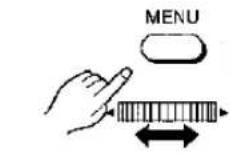 | 4Set [RECORD TO TAPE] to [YES].It takes approximately 7–11 seconds for each of the pictures to be copied onto the cassette.●To stop the copying midway, press the [■] Button.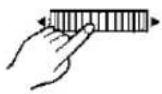 | |
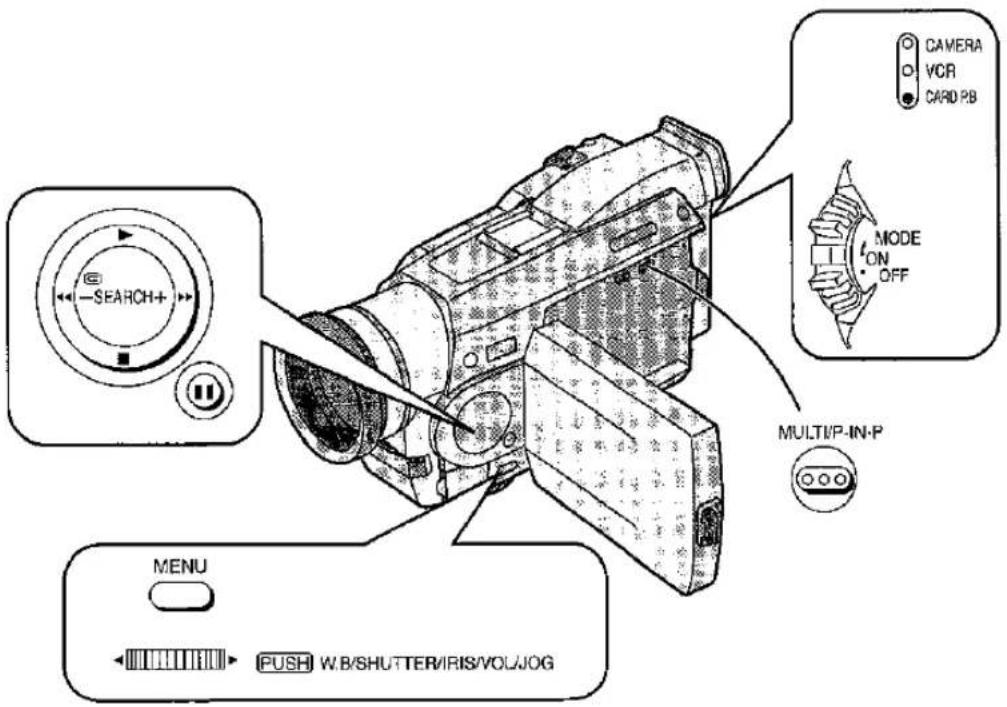
| Title | Procedure | |
Playing Back Pictures Recorded on the MultiMediaCard or SD Memory Card (Card Playback)■ Playing Back PicturesTo view the SD Memory Card pictures, set [PB FILE] on the [CARD PLAYBACK] Sub-Menu to [PICTURE]1 1 File Name 2 Picture Size 3 Picture Number 2 3 1 File Name 2 Picture Size 3 Picture Number 2 3 | 1Slide the [OFF/ON/MODE] Switch from the [ON] position to put the Movie Camera in the Card Playback Mode.The [CARD P.B] Lamp lights, and the last recorded still picture on the MultiMediaCard is displayed. 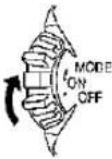 | To play back later recorded pictures:Press the [SEARCH+] Button. |
To play back earlier recorded pictures:Press the [-SEARCH] But | ||
■ Selecting and Playing Back Pictures Displayed in the Multi-Picture Mode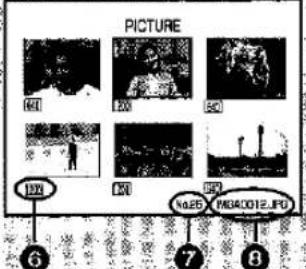 | 1Slide the [OFF/ON/MODE] Switch from the [ON] position to put the Movie Camera in the Card Playback Mode.The [CARD P.B] Lamp lights, and the last recorded still picture on the MultiMediaCard is displayed. 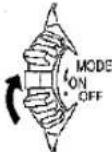 | 2Press the [MULTI] Button.The still pictures recorded on the MultiMediaCard are displayed in the Multi-Picture Mode.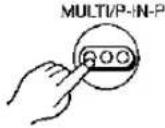 |
4
5
Using the Picture Search Mode
After setting the [PICTURE SEARCH] on the [CARD EDITING] Sub-Menu to [YES] to appear the picture search screen, turn the [PUSH] Dial to select the desired number of the picture and press it.
- The same settings can be performed using the short-cut menu. (p. 126)
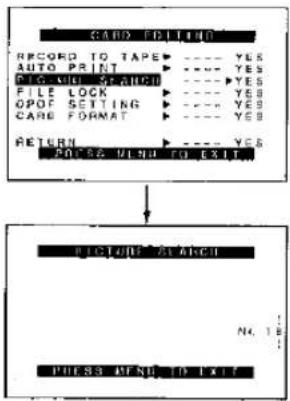
flowchart
graph TD
    A["CAD COLDING"] --> B["RECORD TO TAPE"]
    B --> C["AUTO PRINT"]
    C --> D["CIG-VIOL-SPRING"]
    D --> E["FILE LOCK"]
    E --> F["OPOF SETTING"]
    F --> G["CARE FORMAT"]
    G --> H["RETURN"]
    H --> I["PRESS VIND TO EXIT"]
    I --> J["PICTURE STARCH"]
    J --> K["PRESS MENS TO TEXT"]
| Remarks, etc. | ||
| To play back all recorded pictures in succession (Slide Playback):Press the [▶] Button.The [SLIDE▶] Indication4 appears.•All pictures are played back for approximately 6 seconds each, from the first to the last recorded picture, and playback then stops.[IMAGE] | To pause the Slide Playback:Press the [■■] Button.The [SLIDE■■] Indication5 appears.•To resume the Slide Playback, press the [■■] Button again or the [▶] Button. Playback resumes from the next picture and stops at the last recorded picture.[IMAGE] | •Pictures can have titles inserted and played back.(p.90)•The picture quality is not displayed during playback.To stop the Slide PlaybackPress the [■] Button.•To resume the Slide Playback, press the [▶] Button.Playback resumes from the next picture, and after all recorded pictures have been played back, it stops at the picture, at which you stopped the Slide Playback before. |
| 3Turn the [PUSH] Dial to select the desired picture.The selected picture is marked with a red frame.[IMAGE] | 4Press the [PUSH] Dial or the [MULTI] Button.The selected picture appears in full screen size.[IMAGE]orMULTIP-IN-P[IMAGE] | •It is not possible to select the desired multi-picture with the Remote Controller.•In the Multi-Picture Mode, 6 still pictures are displayed on the same screen. If more than 6 still pictures are recorded on the MultiMediaCard, turn the [PUSH] Dial to display the next 6 still pictures.(Instead of the [PUSH] Dial, you can also use the [SEARCH+] Button or the [−SEARCH] Button.)•When you play back a blank (unrecorded).MultiMediaCard, the screen becomes white and the [NO PICTURE] Indication appears.•If you attempt to play back a still picture recorded in a different format or a picture whose image data is defective, the [×] Indication and the [CARD ERROR] Indication could appear as warning.•When the still pictures are displayed in the Multi-Picture Mode, the Slide Playback cannot be activated.•When pictures recorded using another device are played back, the picture size indicated by the Movie Camera may differ from the size of these pictures, |
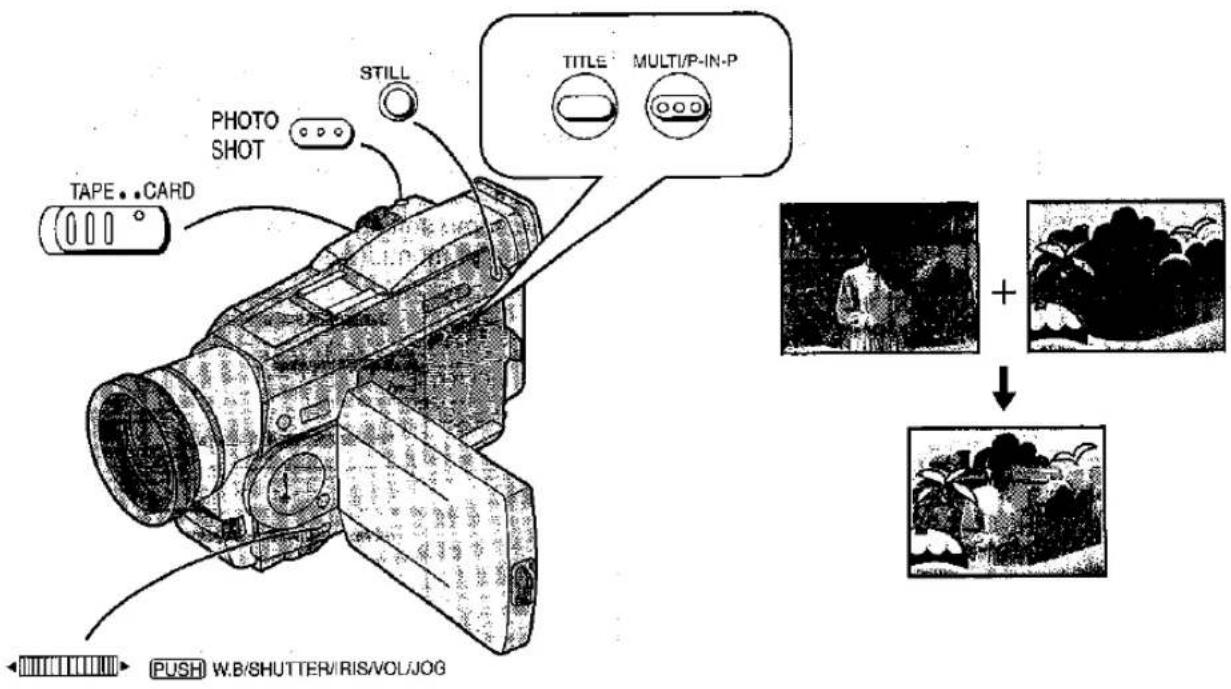
| Title | Procedure | |
| Inserting TitlesThe supplied MultiMediaCard contains titles (preset titles). Titles can be selected from among these titles and displayed. (Titles can be displayed in the Camera, Mode, VCR Mode or Card Playback Mode) | 1Press the [TITLE] Button.The original title (p. 92) created last is displayed.If an original title has not been created, a preset title will be displayed. | 2Press the [MULTI] Button.A list of the titles is displayed. |
 |  | |
| 1 Lock Setting Display (p. 98)2 File Name | 5Select the recording destination with the [TAPE/CARD] Selector.Camera Mode: TAPE or CARDVCR Mode: CARDCard Playback Mode: TAPE Remarks, etc. Remarks, etc. | |
3Turn the [PUSH] Dial and select the desired title.The selected title is marked with a red frame. | 4Press the [PUSH] Dial or press the [MULTI] Button.The selected title appears. orMULTUP-IN-P orMULTUP-IN-P | ●It is recommended that you press the [STILL]. Button first and then press the [PHOTO SHOT] Button.●When the [PHOTO SHOT] Button is pressed, the title is cleared in that instant, however this will not interfere with the recording.●When a title is displayed in the VCR Mode, the title will not be output from the DV Terminal (p. 6) or Digital Still Picture Terminal. (p. 7)●The Multi-Picture Mode cannot be used once titles are inserted.●Titles cannot be displayed when [1200×900] has been selected as the [PICTURE SIZE] setting while the [TAPE/CARD] Selector is at [CARD]. |
6Press the [PHOTO SHOT] Button.●A still picture with the title inserted is recorded.●When you record to cassette in Camera Mode, you can use the Recording Start/Stop Button instead of [PHOTO SHOT] Button.PHOTOSHOT | Clearing the Title DisplayPress the [TITLE] Button. | |
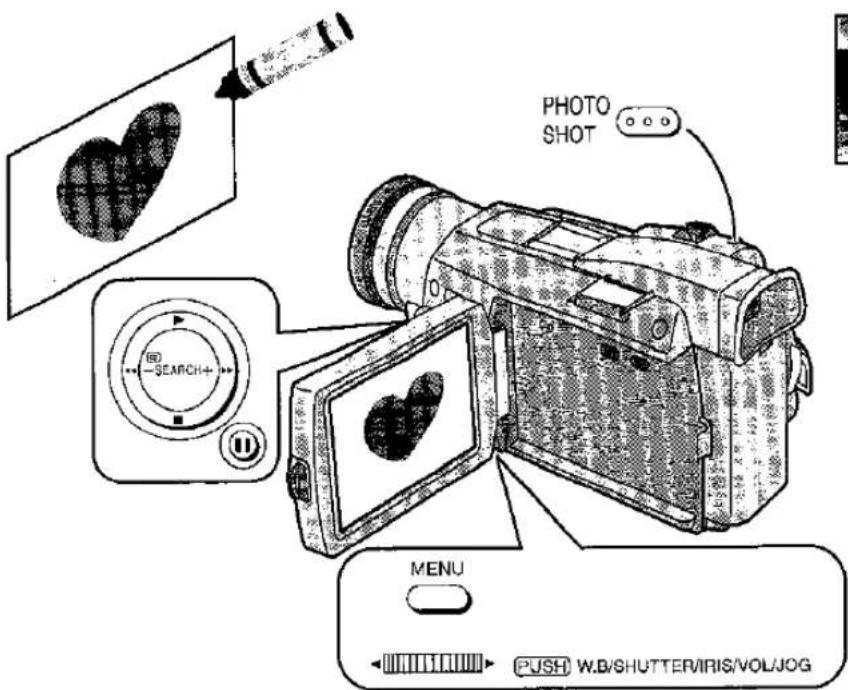
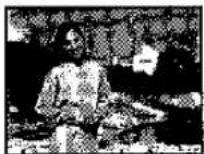
+

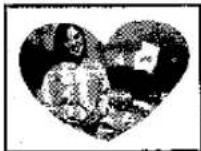
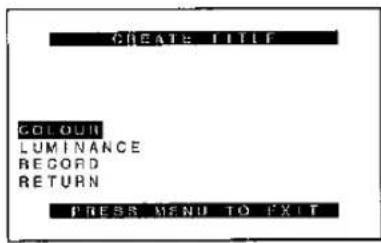
| Title | Procedure | |
| Creating TitlesTitles can be created and recorded on the MultimediaCard.Original titles are added after the preset titles. | 1Camera Mode:Point the Lens at the picture which is to serve as the title.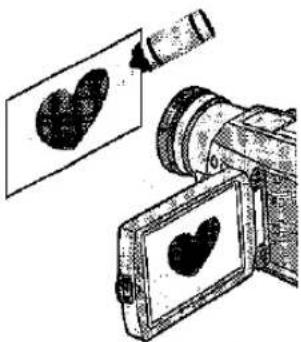 | VCR Mode:Search for the picture which is to serve as the title and put the Movie Camera in the Still Playback Mode. |
| 4Set [COLOUR] and [LUMINANCE]:Turn the [PUSH] Dial to select [COLOUR] or [LUMINANCE] and press it.[COLOUR]: When the [PUSH] Dial is turned, the title colours change. Press the [PUSH] Dial to enter the colours.[LUMINANCE]: When the [PUSH] Dial is turned, the title contrast is adjusted. Press the [PUSH] Dial to enter the adjustment result. | ||
Concerning the Colour Selection
When the [PUSH] Dial is turned to select the colours while a title is being created, the colours will change as below.
●The colour sequence can be reversed by reversing the direction in which the [PUSH] Dial is turned.
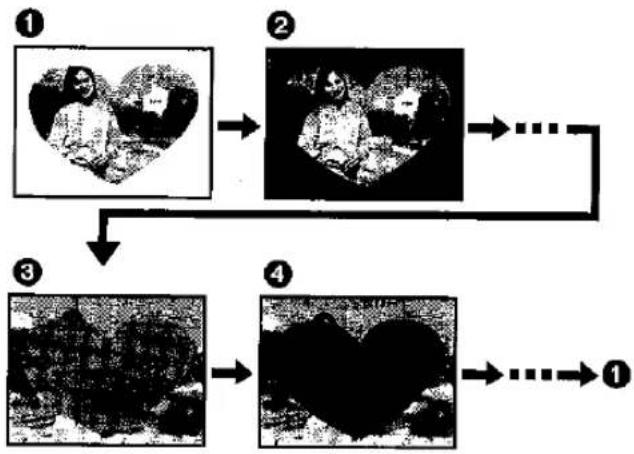
flowchart
graph TD
    A["Input: Heart Shape Image"] --> B["Intermediate: Heart Shape Image"]
    B --> C{...}
    C --> D["Output: Heart Shape Image"]
    D --> E["Final Output: Final Shape Image"]
① Original Colours (colours of captured picture)
Title in original colours with the dark sections (blackish parts) of the captured picture missing
② Preset Colours (black, blue, green, cyan, red, pink, yellow, white)
Title in preset colours with the dark sections (blackish parts) of the captured picture missing
③ Original Colours (colours of captured picture)
Title in original colours with the light sections (whitish parts) of the captured picture missing
4 Preset Colours (black, blue, green, cyan, red, pink, yellow, white)
Title in preset colours with the light sections (whitish parts) of the captured picture missing

| Remarks, etc. | ||
| 2Set [CREATE TITLE] on the [CARD SETUP]Sub-Menu to [YES]. | 3Press the [PHOTO SHOT] Button.The Menu for adjusting the title now appears.·Select [RETURN] to perform photoshot again. | ·[CREATE TITLE] cannot be selected when [1200×900] has been selected as the [PICTURE SIZE] setting while the [TAPE/CARD] Selector is set to [CARD].·The size of the title picture is [640×480] regardless of the [PICTURE SIZE] setting.·If it is hard to set the focus, use the Manual Focus Function: (p. 30)·Title contrast may not be clear in areas with a minimal difference between light and dark or on the borders between light and dark even when the title contrast is adjusted.·If a small object is used as the title, the title may not appear clearly.·When original titles are created, the number of pictures which can be recorded on the MultiMediaCard will decrease.·When the number of pictures which can be recorded on the MultiMediaCard is low, the original title may not be created. |
| 5Record the title:Turn the [PUSH] Dial to select [RECORD] and press it. | ||
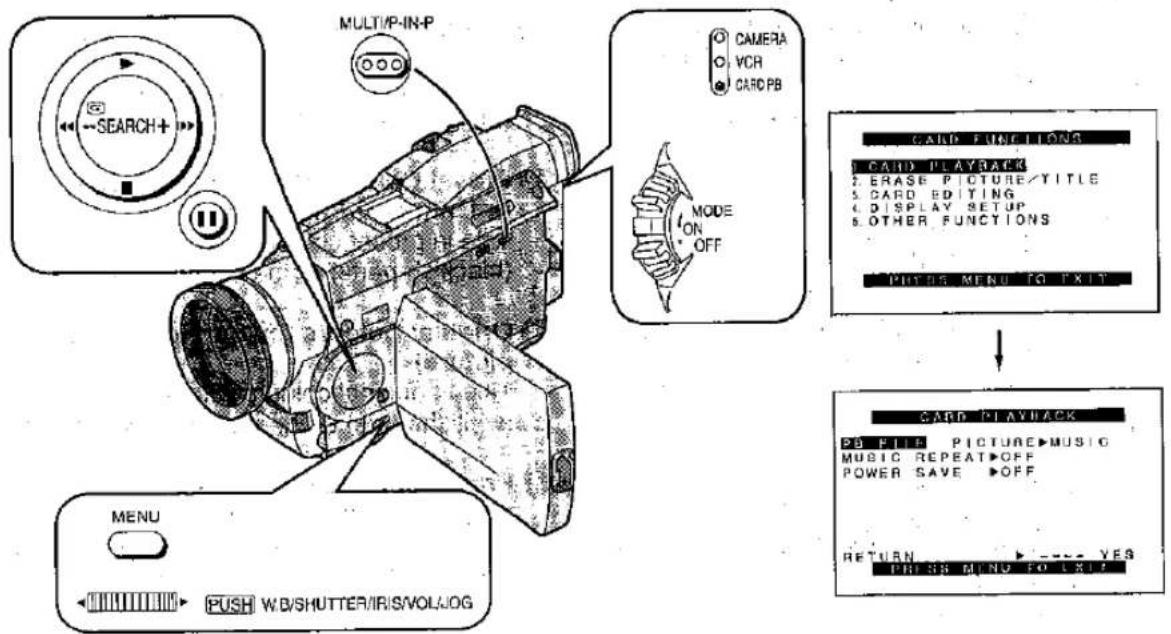
| Title | Procedure | |
Listening to Music (Music Play)This Movie Camera can play MPEG-2 AAC format data. Music files must be checked out (written) on the SD Memory Card using a USB Reader Writer for SD Memory Card (optional) and the SD-Jukebox (optional) special software programme in order for the Movie Camera to play music.Music Playback is not possible with a MultimediaCard.Music files written by a method other than this checking out cannot be played on this Movie Camera.General Procedure for Music Play1. Record the music CD on the personal computer's hard disk drive2. Proceed to check out (write), the recorded tracks on the SD Memory Card3. Insert the SD Memory Card in the Movie Camera, and play the tracks.For further details on the operation method, refer to the instructions accompanying SD-Jukebox (optional).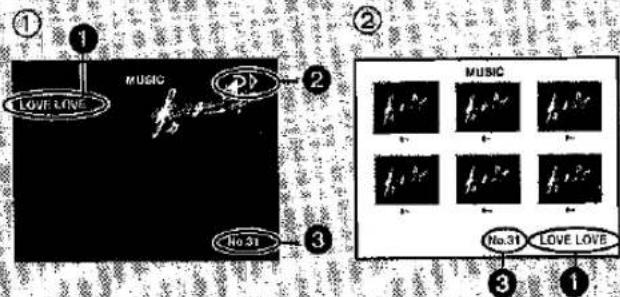 1Track Title(The display is scrolled when more than 12 characters have been input for the track title, and it stops with the first 12 characters showing.)2Playback Display3Track No. 1Track Title(The display is scrolled when more than 12 characters have been input for the track title, and it stops with the first 12 characters showing.)2Playback Display3Track No. | 1After inserting the SD Memory Card on which the music has been written in the Movie Camera, and set to the Card Playback Mode... (p. 88)Set [PB FILE] on the [CARD PLAYBACK] Sub-Menu to [MUSIC]. (p. 16)The Movie Camera is put in the Music Play Mode, and screen 1 appears.The same settings can be performed using the short-cut menu. (p. 126)[IMAGE] | |
Stopping PlayPress the [■] Button.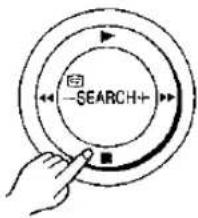 | Selecting a Particular TrackWhen the [MULTI] Button is pressed during Stop Mode, the multi-pictures 2 are displayed. Turn the [PUSH] Dial to select the track to be heard and press the [PUSH] Dial to enter it.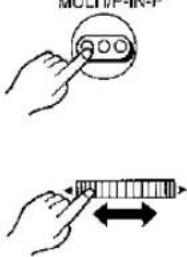 | |
Power Saving Function
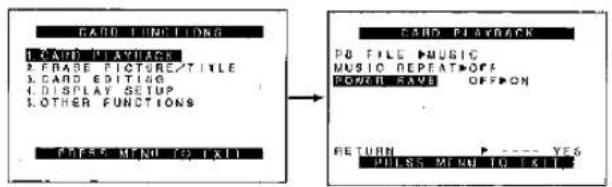
When [POWER SAVE] on the [CARD PLAYBACK] Sub-Menu is set to [ON], the Power Saving Function is activated, and several seconds after the play and other operations the display is cleared, and the screen becomes dark. However, this function does not work during menu screen operations or while the volume is being adjusted.
Power consumption and playback time at ON/OFF settings of Power Saving Function
(The figures in parentheses denote the playback time when the VSB0418 battery supplied is used.)
| [POWER SAVE] ON | [POWER SAVE] OFF | |
| Viewfinder | 4.9 W(Approx. 1 h 5 min.) | 5.1 W(Approx. 1 h 5 min.) |
| LCD Monitor | 5.3 W(Approx. 1 h 5 min.) | 6.1 W(Approx. 50 min.) |
●The Power Saving Function is released when any operation is performed.
- When the play of one track is completed during play, the name of the next track is displayed for several seconds, after which the Power Saving Function is restored.
- Do not forget to turn off the power.
2
Press the [▶] Button.
Music play now starts.
- Pressing the [▶▶] Button advances play to the start of the next track while pressing the [◀◀] Button once returns play to the start of track being played and pressing it again moves play to the start of the previous track. Music play is paused by pressing the [■■] Button. (These operations can also be performed by Remote Controller.)
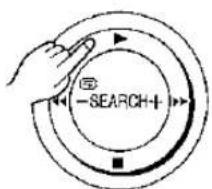
Repeat Play
The Repeat Play Mode can be set by selecting [MUSIC REPEAT] on the [CARD PLAYBACK] Sub-Menu.
[OFF] (▶): Play stops after the last track has been played.
[ONE] (12 b): The same track is played over and over again.
[ALL] (▶▶): All the tracks are played over and over again.
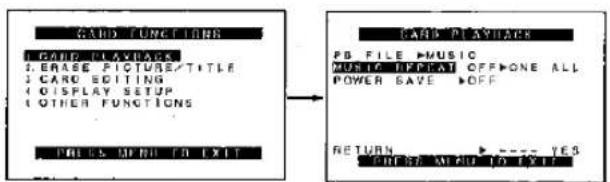
Remarks, etc.
●Music play can be heard only through the headphones or built-in speaker.
- Sound cannot be reproduced on an external device using a DV cable or AV cable. When connecting the Movie Camera to an external device for dubbing, only the pictures will be dubbed.
- The Movie Camera can be used as a player only. It cannot record or erase tracks. However, using its Formatting Function, all the data on an SD Memory Card can be erased. Before proceeding with the formatting, the required tracks must be checked in (the music data must be transferred from the SD Memory Card to the personal computer) using SD-Jukebox.
- When music is to be recorded on an SD Memory Card which was formatted by this Movie Camera, format the SD Memory Card again using the SD-Jukebox. Otherwise, the music may not be played back properly. If the SD Memory Card cannot be accessed while the SD-Jukebox is being operated, first remove and re-insert it, and then try accessing it again. Since the formatting erases all the data on the SD Memory Card, it is recommended that any necessary data be saved in a personal computer prior to formatting.
Music Search Mode
A track can be located by its track number using [MUSIC SEARCH] on the [CARD EDITING] Sub-Menu.
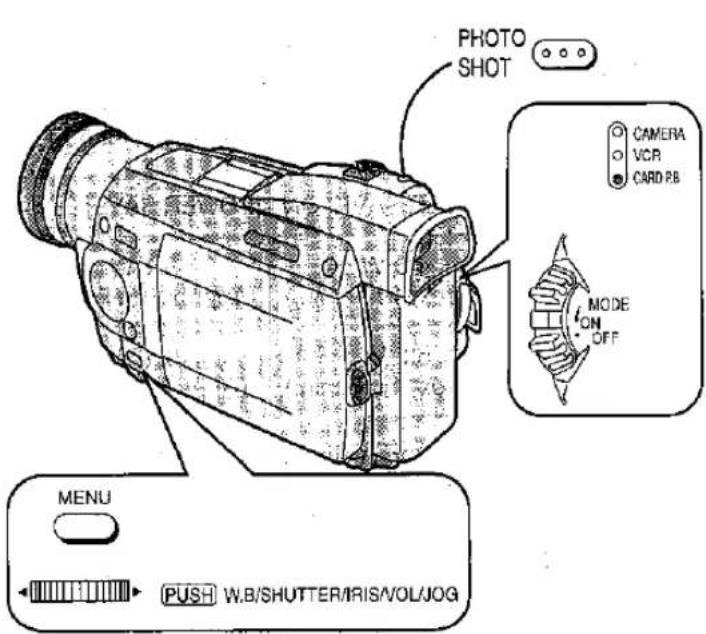
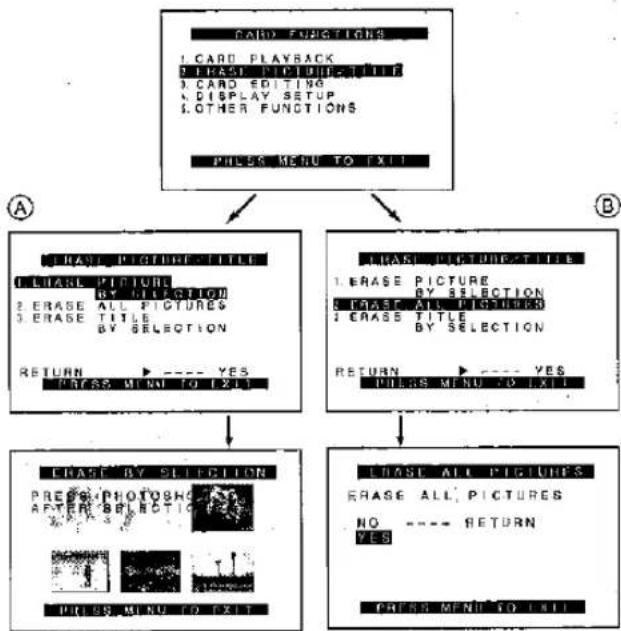
flowchart
graph TD
    A["CARD FUNCTIONS"] --> B["1. CARD PLAYBACK\n2. REASE PICTURE TITLE\n3. CARD EDITING\n4. DISPLAY SETUP\n5. OTHER FUNCTIONS"]
    B --> C["PRESS MENU TO EXIT"]
    A --> D["CHASE PICTURE TITLE\n1. CHASE PICTURE BY SELECTION\n2. ERASE ALL PICTURES\n3. ERASE TITLE BY SELECTION"]
    D --> E["RETURN --- YES\nPRESS MENU TO EXIT"]
    A --> F["CHASE PICTURE TITLE\n1. ERASE PICTURE BY SELECTION\n2. ERASE ALL PICTURES\n3. ERASE TITLE BY SELECTION"]
    F --> G["RETURN --- YES\nPRESS MENU TO EXIT"]
    A --> H["CHASE BY SLICTION\nPRESS PHOTOSHOLD AFTER BEPOTIC\nXXX"]
    H --> I["CHASE ALL PICTURES\nERASE ALL PICTURES\nNO --- RETURN\nYES"]
    A --> J["CHASE MIND TO EXIT"]
    J --> K["PRESS MENU TO EXIT"]
| Title | Procedure | |
| Erasing Pictures Recorded on the MultiMediaCard or SD Memory CardYou can use the Movie Camera to erase the still pictures recorded on the MultiMediaCard. After erasing them, the pictures cannot be recovered any more.The same settings can be performed using the short-cut menu. (p. 126)Selecting and Erasing Pictures | 1Slide the [OFF/ON/MODE] Switch from the [ON] position to put the Movie Camera in the Card Playback Mode.CAMERA— VCR CARD PB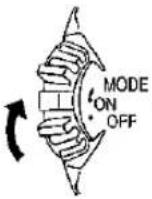 | 2Select [ERASE PICTURE BY SELECTION] on the [ERASE PICTURE/TITLE] Sub-Menu, and press the [PUSH] Dial. (p. 16)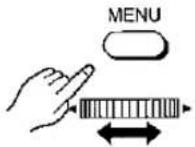 |
| Erasing All Pictures | 1Slide the [OFF/ON/MODE] Switch from the [ON] position to put the Movie Camera in the Card Playback Mode.CAMERA— VCR CARD PB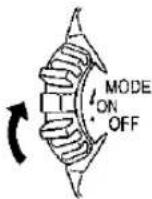 | 2Select [ERASE ALL PICTURES] on the [ERASE PICTURE/TITLE] Sub-Menu, and press the [PUSH] Dial. (p. 16)The confirmation message appears.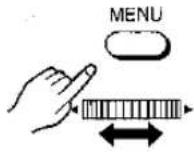 |
Erasing Titles
To erase a title, select [ERASE TITLE BY SELECTION] in step 2.
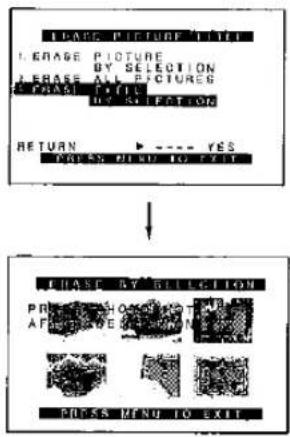
3Turn the [PUSH] Dial to select the picture that you want to erase and then press it.The selected picture flashes. | 4Press the [PHOTO SHOT] Button.The confirmation message appears. | 5Turn the [PUSH] Dial to select [YES] and then press it.The selected picture is now erased from the MultiMediaCard.• If you select [NO], the picture selection is cancelled. | 6Press the [MENU]Button to exit the Menu. |
[1Y4WD]Turn the [PUSH] Dial to select [YES] and then press it.All pictures stored on the MultiMediaCard are now erased.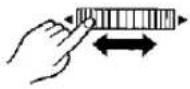 | Remarks, etc. | ||
| •A locked picture cannot be erased. (p. 98)•Data on an SD Memory Card cannot be erased when the card's write protection switch is set at [LOCK]. (p. 99) | |||
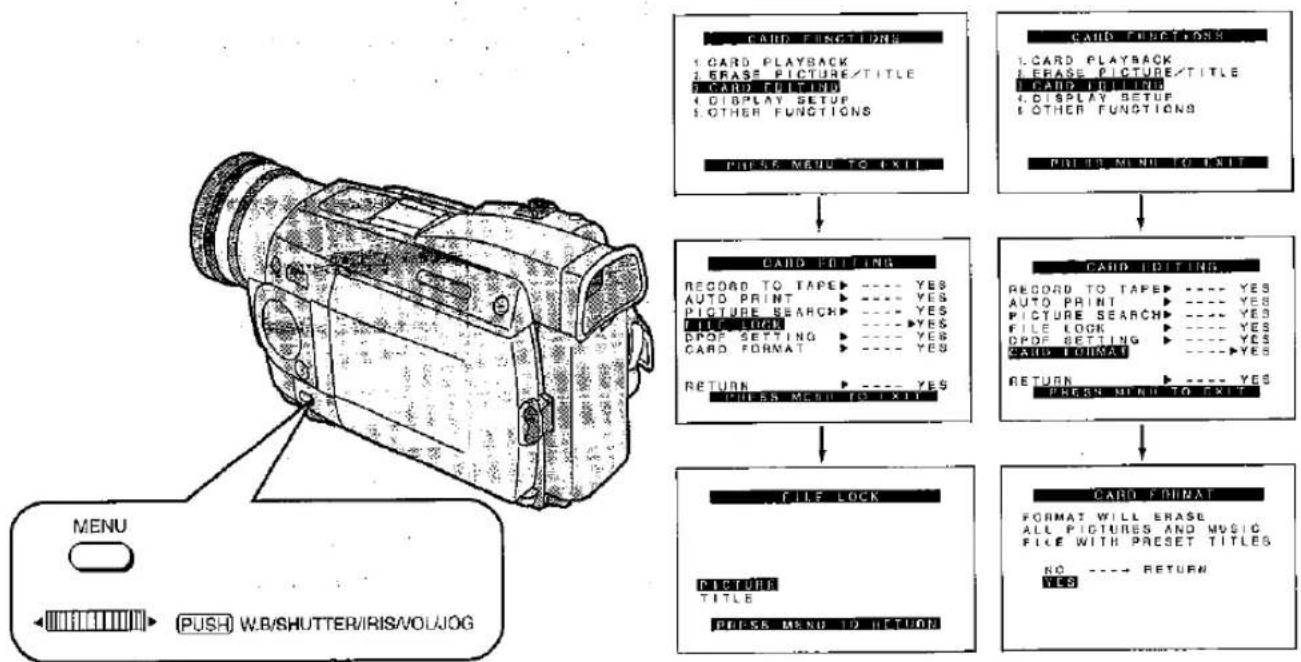
flowchart
graph TD
    A["CARD FUNCTION"] --> B["CARD PLAYBACK"]
    B --> C["REASE PICTURE/TITLE"]
    C --> D["CARD FITTING"]
    D --> E["DISPLAY SETUP"]
    E --> F["OTHER FUNCTIONS"]
    F --> G["PRESS MENU TO EXIT"]
    G --> H["CAID FITTING"]
    H --> I["RECORD TO TAPE: YES"]
    I --> J["AUTO PRINT: YES"]
    J --> K["PICTURE SEARCH: YES"]
    K --> L["FILL LOCK: YES"]
    L --> M["DPDF SETTING: YES"]
    M --> N["CARD FORMAT: YES"]
    N --> O["RETURN: YES"]
    O --> P["PRESS MENU TO EXIT"]
    P --> Q["FILE LOCK"]
    Q --> R["PICTURE TITLE"]
    R --> S["PRESS MENU TO EXIT"]
    S --> T["CARD FORMAT"]
    T --> U["FORMAT WILL ERASE ALL PICTURES AND MUSIC FILE WITH PRESET TITLES NO: YES"]
    U --> V["RETURN: YES"]
| Title | Procedure | |
Preventing the Accidental Erasure of Pictures on the MultimediaCard or SD Memory Card (Lock setting).Valuable pictures recorded on a MultimediaCard can be locked (to prevent their accidental erasure). (Even when pictures are locked, they will be erased if the Card is formatted.)The same settings can be performed using the short-cut menu. (p. 126)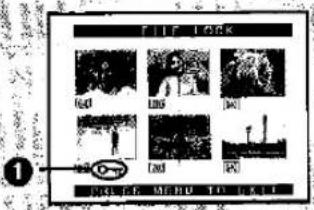 | 1After putting the Movie Camera in the Card Playback Mode... (p. 88)Set [FILE LOCK] on the [CARD EDITING] Sub-Menu to [YES]. (p. 16)The [FILE LOCK] Menu now appears.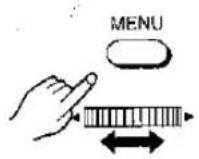 | 2Turn the [PUSH] Dial to select [PICTURE] or [TITLE], and then press it.The pictures or titles are now displayed in the Multi-Picture Mode.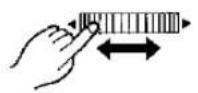 |
| Making the Unusable MultimediaCard or SD Memory Card Usable (Formatting).If the MultimediaCard can no longer be read by the Movie Camera, it may be possible to make it usable again by formatting it. MultimediaCards which can be recognized do not need to be formatted. Formatting will erase all the data (Including preset titles) recorded on the MultimediaCard.An SD Memory Card cannot be formatted when the card's write protection switch is set at [LOCK]. | 1After putting the Movie Camera in the Card Playback Mode... (p. 88)Display the [CARD EDITING] Sub-Menu on the [CARD FUNCTIONS] Main-Menu. (p. 16)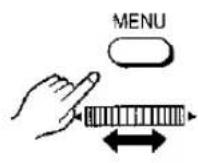 | 2Turn the [PUSH] Dial to select [CARD FORMAT] and then press it.The confirmation message appears.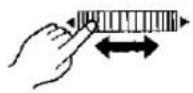 |
Concerning Preventing the Accidental Erasure of SD Memory Card Data
An SD Memory Card can also be protected from accidental erasure using its write protection switch. When this knob ② is set to [LOCK], recording is prohibited; when it is returned to its original position, recording is enabled.
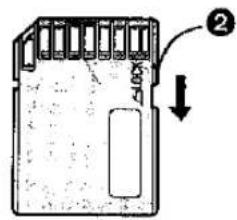
| Remarks, etc. | ||
3Turn the [PUSH] Dial to select the picture to be locked, and then press it.The [0-π] Indication 1 is attached to the selected picture.To lock more than one picture, repeat these steps.Press the [PUSH] Dial again to release.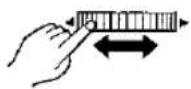 | 4Press the [MENU] Button. | Lock settings performed by this Movie Camera are effective with this Movie Camera only. |
3Turn the [PUSH] Dial to select [YES] and then press it.The formatting starts.When the formatting has finished, the screen becomes white.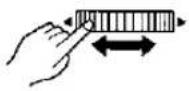 | It is recommended that you use the AC Adaptor as power source when you format the MultiMediaCard to ensure uninterrupted power supply during formatting.It may not be possible to use the Card which was formatted using this Movie Camera on another unit. In this case, format the Card on the unit which will be using the Card. Take steps to ensure that valuable pictures are stored on the personal computer, etc. as well before proceeding. | |
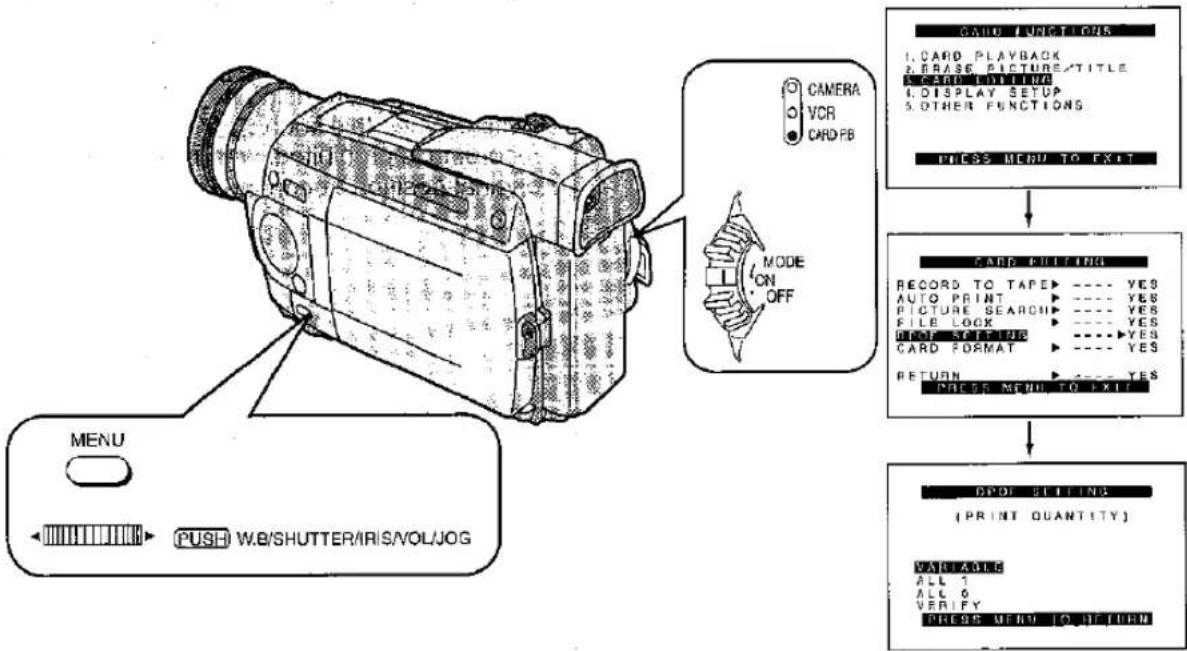
| Title | Procedure | |
Writing Printing Information on a MultiMediaCard or SD Memory Card (DPOF Settings)The pictures to be printed, the number of prints and other printing-related information (DPOF settings) can be written on the MultiMediaCard."DPOF" stands for "Digital Print Order Format", and it enables printing information to be added to pictures in the MultiMediaCard so that it can be used by any system that supports DPOF.The same settings can be performed using the short-cut menu. (p. 126)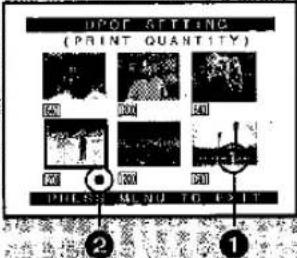 | 1Slide the [OFF/ON/MODE] Switch from the [ON] position to put the Movie Camera in the Card Playback Mode.[IMAGE]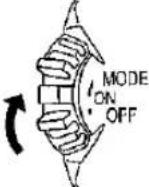 | 2Set [DPOF SETTING] on the [CARD EDITING] Sub-Menu to [YES]. (p. 16)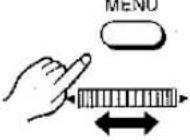 |
5Turn the [PUSH] Dial to select the number of prints, and then press it.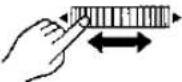 | 6Repeat steps 4 and 5, and press the [MENU] Button when the settings are finished.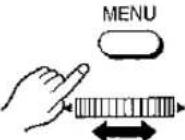 | |
| Remarks, etc. | ||
3Turn the [PUSH] Dial to select [VARIABLE], then press it.To make one print of all the pictures, select [ALL 1]; to prevent all the pictures from being printed, select [ALL 0]. | 4Turn the [PUSH] Dial to select the pictures, and then press it.The number of prints established by the DPOF setting is displayed.1 | The number of prints can be set from 0 to 99.The [●] Mark2appears to indicate pictures for which 1 or more prints have been set.Perform the DPOF settings with your own Movie Camera In use.It may take some moments to verify the DPOF settings. Wait until the [ACCESS] Lamp goes off. |
Verifying the DPOF SettingsSelect [VERIFY] in step 3 above. The picture for which 1 or more prints have been set by DPOF is played back in succession (Slide Playback). | ||
Using the Pictures Recorded on the MultiMediaCard or SD Memory Card on the Computer
The following optional accessories are needed to capture the pictures on a MultiMediaCard or SD Memory Card in the computer.
① PC Card Adaptor (VW-MAP1E)
② MultiMediaCard External Drive (VW-RWM1E)
The accessories listed above are used exclusively for the MultiMediaCard. Use the accessories listed below for the SD Memory Card and MultiMediaCard.
③ USB Reader Writer for SD Memory Card (BN-SDCAPE)
4 PC Card Adapter for SD Memory Card (BN-SDABPE)
Depending on the type of computer, it may not be possible to use one or more of the accessories above. For further details, consult your dealer.
- To erase pictures that you recorded on the Card by using the Movie Camera, be sure to erase them on the Movie Camera, not on the computer.
- You can import still pictures into the computer for editing and adding creative effects. (After editing or changing the picture data, playback on the Movie Camera is no longer possible.)
- If you record on the computer some data that is incompatible with the Movie Camera, it cannot be recognized on the Movie Camera.
- If you make any changes to the pictures on the Card after acquiring them on the computer, searching for pictures on that Card may no longer be possible.
Still pictures recorded on a MultiMediaCard or SD Memory Card
It may not be possible to play back the pictures on this Movie Camera recorded on and created by other equipment or vice versa. For this reason, check the compatibility of the equipment in advance.
Concerning the SD Memory Card Application Software
SD Memory Card can be used effectively with SD ArtStudio (VW-SWA1E: optional).
TitleStudio
Browser
Pictures recorded on the SD Memory Card or hard disk can be displayed as a list of thumbnails.
Editor
Pictures of original title which can be used with a Movie Camera or Digital Video Printer can be created on a computer.
SD-Jukebox
Music can be recorded on an SD Memory Card.
Computer System Requirements
| Personal Computer: | PC/AT compatible personal computers with Microsoft® Windows® 98 or Microsoft® Windows® 98 Second Edition pre-installed. (Pentium II/333 MHz or higher CPU recommended) |
| Media Supported: | MultiMediaCard (TitleStudio) SD Memory Card (TitleStudio, SD-Jukebox) |
| Picture Format: | JPEG, BMP |
| Music Format: | MPEG-2 AAC format |
| Graphic Display: | High colour (16 bit) or more colours (true colour recommended) |
| Sound Device: | Compatible with Sound Blaster 16 of Creative Technology, Ltd. |
| Installed Memory: | 64 MB or more |
| Free Hard Disk Space: | At least 20 MB |
| Disk Drive: | CD-ROM drive |
| Other Requirements: | Mouse |
- "SD ArtStudio" is the nickname of the product.
- Windows® is a trademark of Microsoft Corporation U.S.A.
- Note that operations are not guaranteed for all PCs providing the recommended environment.
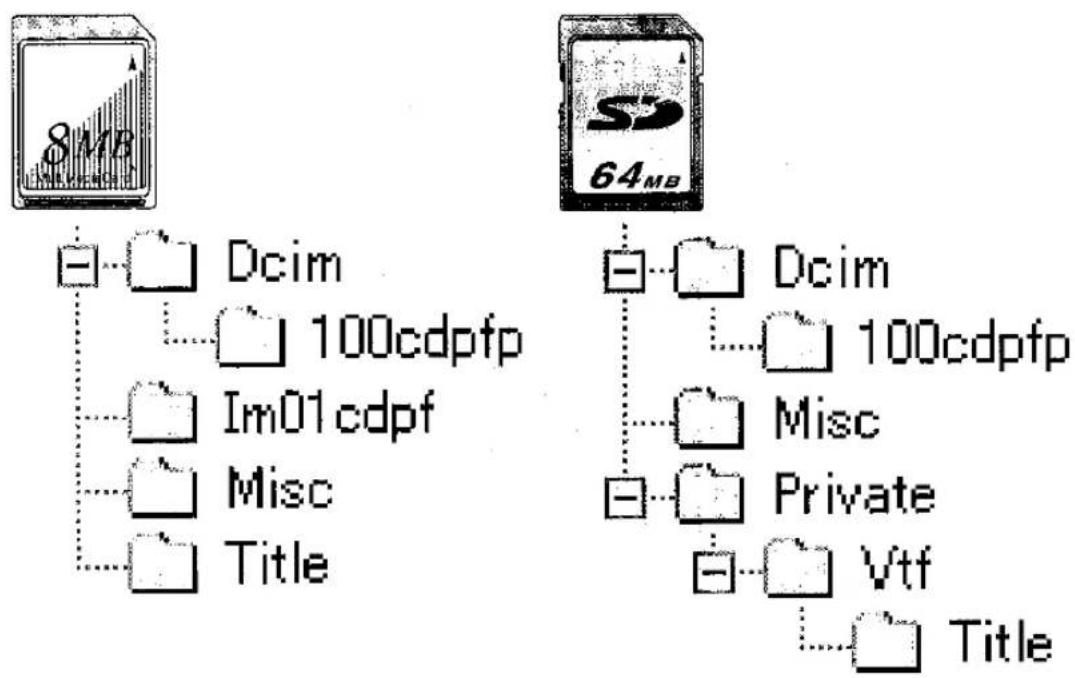
MultiMediaCard
The MultiMediaCard is a compact, lightweight and removable external memory card. A great many fun-filled titles (preset titles) have been recorded on the supplied MultiMediaCard.
These preset titles will also be erased when the Card is formatted.
SD Memory Card
The SD Memory Card (optional), which is the same size as the MultiMediaCard, is an external memory card with an even bigger memory capacity. It has a write protect switch to prevent the data writing and card formatting, and it comes with a copyright protection function that complies with the SDMI (Secure Digital Music Initiative) standard. Music play is possible only with an SD Memory Card.
- SD Logo is a trademark.
- Portions of this product are protected under copyright law and are provided under license by ARIS/SOLANA/4C.
Concerning the compatibility of the Card images
Image data files recorded on "MultiMediaCard"s or "SD Memory Card"s by this Movie Camera are based on DCF (Design Rules for Camera Files Systems universal standard) established by JEIDA (Japan Electronic Industry Development Association).
Concerning the folder structure when using the Card in a personal computer
When a Card containing recorded data is inserted into a personal computer, some folders will be displayed as shown above. (The Cards are shown as graphical representations.)
[100cdpfp]: The pictures (lmga0001.jpg, etc.) in this folder were recorded using the JPEG format.
[Misc]: This contains the files of the DPOF data which has been set for the pictures.
[Title]: This contains the data of the preset titles (Pre00001.ttl) and original titles (Usr00001.jpg, Usr00001.ttl, etc.).
- [Dcim], [lm01cdpf], [Private], [Vtf], etc. are needed in terms of the folder structure: these folders have nothing to do with the actual operation.
- In the Card Photoshot Mode, the Movie Camera automatically saves the file numbers (lmga0001.jpg, etc.) along with the pictures. A file number is recorded with each picture as a running number.
Remote Controller
Using the wireless Remote Controller supplied with the Movie Camera allows operating most of the Movie Camera's major functions from a distance.
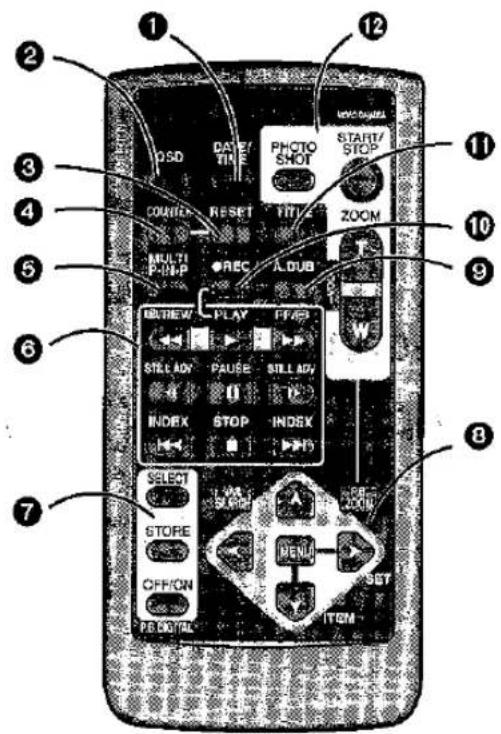
■ Buttons on the Remote Controller
① Date and Time Button [DATE/TIME]
To make the Date/Time indication appear or disappear. (p. 39)
② Indication Output Button [OSD]
To display the function and operation indications on a connected TV. (p. 43)
③ Reset Button [RESET]
To reset the Tape Counter to zero. (p. 121)
④ Indication Shift Button [COUNTER]
To select the desired counter indication. (p. 123)
⑤ Multi-Picture/Picture-in-Picture Button [MULTI/P-IN-P]
To operate the same functions as with the corresponding button on the Movie Camera. (p. 54–59, 68–73)
⑥ Controls for Playback
Rewind/Review Button [◀◀]
To start Review Playback. (p. 38)
To rewind the tape. (p. 38)
To activate the Camera Search Function. (p. 44)
To activate the Recording Check Function. (p. 28)
To rewind Music Playback. (p. 94) (NV-MX5, NV-MX7 only)
Fast-forward/Cue Button [▶▶]
To start Cue Playback. (p. 38)
To fast-forward the tape.
To activate the Camera Search Function. (p. 44)
To fast-forward Music Playback. (p. 94) (NV-MX5, NV-MX7 only)
Play Button [▶]
To start playback. (p. 38)
To start Slide Playback. (p. 89) (NV-MX5, NV-MX7 only)
To start Music Playback. (p. 94) (NV-MX5, NV-MX7 only)
Slow Motion/Still Advance Button [◀, ▶]
To perform Slow Motion Playback. (p. 40) To perform Still Advance Playback. (p. 40)
(◀: in reverse direction, ▶: in forward direction)
Index Search Button [◀◀, ▶▶]
To search for recorded scenes marked with an index signal. (p. 46)
(|◀◀: in reverse direction, ▶▶|: in forward direction)
⑥ Controls for Playback (Continued) Stop Button [■]
To stop the tape. (p. 38)
To stop Slide Playback. (p. 89) (NV-MX5, NV-MX7 only)
To stop Music Playback. (p. 94) (NV-MX5, NV-MX7 only)
Pause Button [11]
To pause playback. (p. 40)
To pause Slide Playback. (p. 89) (NV-MX5, NV-MX7 only)
To pause Music Playback. (p. 94) (NV-MX5, NV-MX7 only)
⑦ Playback Digital Effects
Selection Button [SELECT]
To select the desired playback digital effect. (p. 66)
Store Button [STORE]
To store a still picture in memory for the Wipe or Mix Function. (p. 74)
Off/On Button [OFF/ON]
To suspend the selected digital mode or re-activate it. (p. 67, 74)
To start/pause a Wipe or Mix transition from the still picture stored in memory.
8 Controls for Menu Settings, Playback Zoom and Variable Speed Search
Menu Button [MENU]
To display the Menu. (p. 16)
Item set Button [SET]
item select Button [ITEM]
Playback Zoom Button [P.B. ZOOM]
To enlarge a part of the playback picture. (p. 76)
● Each time this button is pressed, the Playback Zoom Function is toggled between on and off.
Upward Direction Button [▲]
Left/Right Direction Button [◀, ▶]
Downward Direction Button [▼]
Variable Speed Search Button [VAR. SEARCH]
To change the speed of Cue Playback or Review Playback. (p. 39)
●Each time this button is pressed, the Variable Speed Search Function is toggled between on and off.
- When the Playback Zoom Function is on, the Direction Buttons of the Playback Zoom Function take precedence, and the following two buttons can no longer be operated.
Speed Selection Button [▲, ▼]
⑨ Audio Dubbing Button [A.DUB] To perform audio dubbing. (p. 78)
⑩ Recording Button [REC] (Available only with NV-MX7)
To dub digital signals input into the Movie Camera via the DV Input/Output Terminal, S-Video and AV Input/Output Socket, press the [REC] Button and the [PLAY] Button together. (p. 109, 110)
⑪ Title Button [TITLE]
(Available only with NV-MX5 and NV-MX7)
To insert titles into pictures or clear titles from them. (p. 90)
⑫ Controls for Recording and Zoom/Sound Volume
Photoshot Button [PHOTO SHOT]
To record still pictures. (p. 34, 82–87, 90, 92)
Recording Start/Stop Button [START/STOP]
To start and pause recording. (p. 26)
Zoom/Sound Volume Buttons [ZOOM/VOL]
To zoom in and out. (p. 32)
To adjust the volume of the playback sound. (p. 39)
To change the zoom magnification of the Playback Zoom. (p. 76)
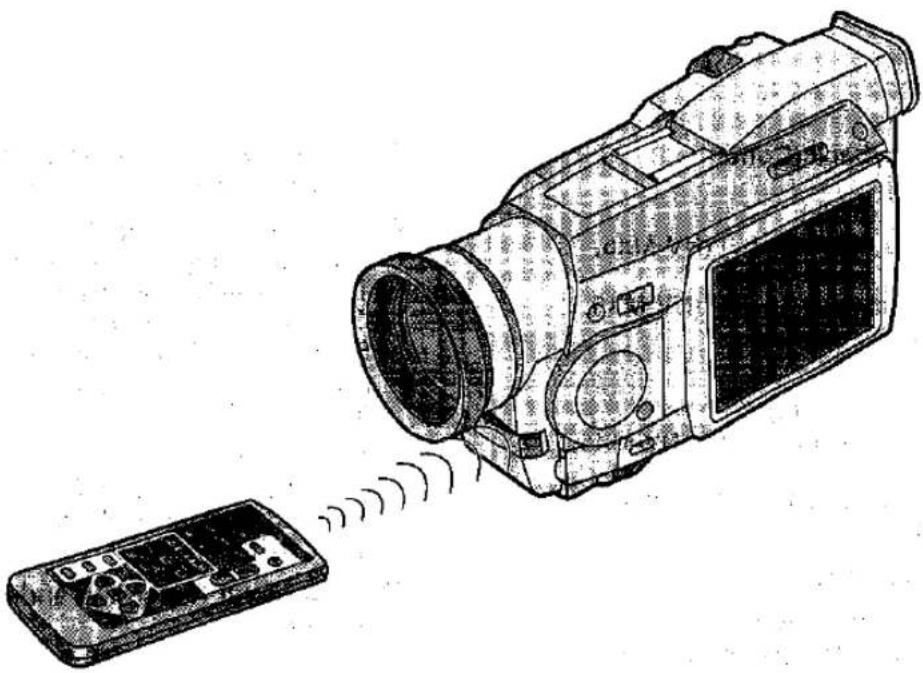
natural_image
Line drawing of a digital camera with a remote control module emitting sound waves (no text or symbols)| Title | Procedure | |
| Remote Controller (Continued)■ Inserting the Button-type BatteryInsert the supplied button-type battery before using the Remote Controller.When the button-type battery is exhausted, replace it with a new CR2025 battery.(The life of the battery is about 1 year. However, It depends on the frequency of use.)Make sure you. Insert the battery with its poles correctly aligned.Keep the button-type battery out of the reach of children. | 1Pull out the Battery Holder while pressing the Stopper 1.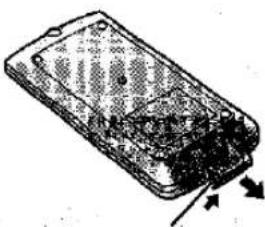 1 1 | 2Insert the button-type battery with the stamped (+) mark facing upward.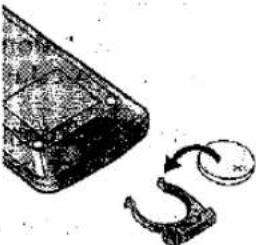 |
| ■ Using the Remote Controller | Aim the Remote Controller at the Remote Control Sensor on the Movie Camera and press the appropriate button.Distance to the Movie Camera: Less than 5 metres.Angle: Approximately 15" up, down, left and right from centre axis.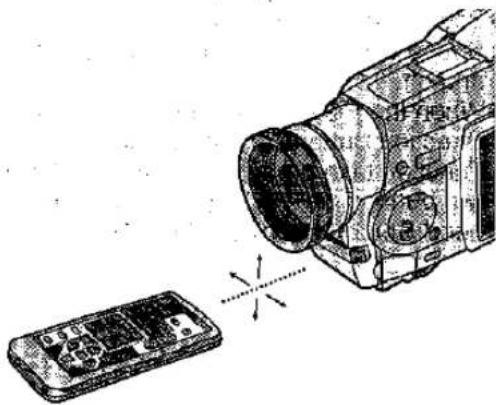 | |
■ Selecting the Remote Controller Mode
When using two Movie Cameras at the same time, selecting different Remote Controller Modes makes it possible to operate them separately.
- If the Remote Controller Mode set on the Movie Camera and on its Remote Controller are not matched, the [REMOTE] Indication appears.
- Replacing the batteries in the Remote Controller automatically resets it to the [VCR1] Mode.
① Press the [▶] Button and [■] Button simultaneously.
This selects the [VCR1] Mode.
② Press the [◀] Button and [■] Button simultaneously.
This selects the [VCR2] Mode.
Setting to be Made on the Movie Camera:
Set [REMOTE] on the [OTHER FUNCTIONS] Sub-Menu to the desired Remote Controller Mode.

3
Insert the Battery Holder into the Remote Controller.
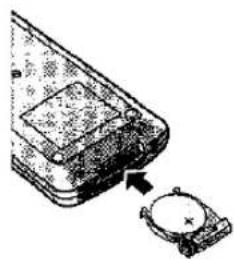
natural_image
Diagram of a mobile phone with a magnifying glass and a circular device, showing no text or symbols.Information for your safety
WARNING
"THE LITHIUM BATTERY IS A CRITICAL COMPONENT (TYPE NUMBER CR2025 MANUFACTURED BY PANASONIC).
IT MUST NEVER BE SUBJECTED TO EXCESSIVE HEAT OR DISCHARGE. IT MUST THEREFORE ONLY BE FITTED IN EQUIPMENT DESIGNED SPECIFICALLY FOR ITS USE.
REPLACEMENT BATTERIES MUST BE OF THE SAME TYPE AND MANUFACTURER.
THEY MUST BE FITTED IN THE SAME MANNER AND LOCATION AS THE ORIGINAL BATTERY, WITH THE CORRECT POLARITY CONNECTIONS OBSERVED.
DO NOT ATTEMPT TO RE-CHARGE THE OLD BATTERY OR RE-USE IT FOR ANY OTHER PURPOSE. IT SHOULD BE DISPOSED OF IN WASTE PRODUCTS DESTINED FOR BURIAL RATHER THAN INCINERATION."
Remarks, etc.
- The operative range described on the left is valid for using the Remote Controller indoors. When using it outdoors or under strong lights, it may not work correctly even within the left range.
- Within a distance of about 1 metre, it is also possible to use the Remote Controller from the side ([MENU]. Button side).
Copying onto an S-VHS (or VHS) Cassette (Dubbing)
You can copy the picture and sound recorded on this Movie Camera onto an S-VHS (or VHS) cassette in a home video recorder.
![S-VIDEO IN/OUT AV IN/OUT RHOES [AV IN/OUT] [VIDEO IN] A [VIDEO OUT] B AV Cable 21-pin Adaptor [S-VIDEO IN] A [S-VIDEO OUT] B [S-VIDEO IN/OUT] S-Video Cable [AUDIO IN] A [AUDIO OUT] B](/content/2026/05/794537/images/ced7a63421321b82038aa34b94c6dadc3b77953de50b63cd47e476f4eea96bc0.jpg)
Proceed with the following operations after connecting the Movie Camera with the S-Video, Video and Audio Input Sockets Ⓐ on the video recorder as shown in the above illustration.
- If your VCR is not equipped with AV Input Sockets, the 21-pin Adaptor (purchase separately) is necessary. Consult your dealer.
Before copying, be sure to press the [OSD] Button on the Remote Controller (p. 104) so that no indications are visible. Otherwise, the displayed tape counter and function indications are also copied.
Movie Camera:
1 Slide the [OFF/ON/MODE] Switch from the [ON] position to put the Movie Camera in the VCR Mode.
2 Insert the recorded cassette.
4 Press the Play Button [▶] to start playback.
7 Press the Stop Button [■] to stop playback.
VCR:
3 Insert an unrecorded cassette with intact erasure prevention tab.
As some settings (external input, tape speed, etc.) on the VCR are necessary, please refer to your VCR's operating instructions.
5 Start recording.
6 Press the Pause or Stop Button to stop recording.
Recording the Content of External Device (NV-MX7 only)
The contents of S-VHS (or VHS) cassette can be copied (dubbed) onto DV cassettes and TV programmes can be recorded.
Proceed with the following operations after connecting the Movie Camera with the S-Video, Video and Audio Output Sockets Ⓗ on the external device as shown in the illustration on the left page.
●The Remote Controller is necessary.
- Set [AV JACK] on the [AV IN/OUT SETUP] Sub-Menu to [IN/OUT]. (Recording will not be possible if it is set to [OUT/PHONES].)
Movie Camera:
Slide the [OFF/ON/MODE] Switch from the [ON] position to put the Movie Camera in the VCR Mode.
2 Insert the unrecorded cassette.
Other Equipment:
3 Insert a recorded cassette and start playback.
Movie Camera:
4 While pressing the [REC] Button, press the [PLAY] Button (both on the Remote Controller).
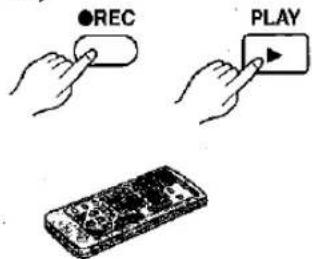
5 Press the Pause Button [■] or Stop Button [■] to stop recording.
Other Equipment:
⑥ Press the Stop Button to stop playback.
- If video signals are supplied to either the Audio-Video Input/Output Socket or S-Video Input/Output Socket, it is not possible to output video signals from the remaining socket.
- If both the S-Video Cable and AV Cable have been connected, the S-Video Cable takes precedence.
●Pictures protected by the Copy Guard will not be recorded properly. - Depending on the input signals to be recorded, the playback picture may contain mosaic-like noise patterns.
■ Concerning recording onto a Card
When the [TAPE/CARD] Selector is at the [CARD] setting, Card Photoshot operations are possible for externally input signals (but not recording).
●The picture size is fixed at [640×480].
- Black stripes may appear at the top, bottom, left and right edges of the picture.
- When the [PHOTO SHOT] Button is pressed, it may appear that the picture is returned for an instant, however this will not interfere with the recording.
■ Concerning Analog-digital Conversion
If the Movie Camera has been connected with another digital video equipment through its DV Terminal, the analog format pictures which have been input from an external device can be output to that digital video equipment through the DV Terminal.
- To initiate the DV output of analog video signals supplied from an external device, set [DV OUT] on the [AV IN/OUT SETUP] Sub-Menu to [ON]. (Normally, set [DV OUT] to [OFF]. The picture quality may be disturbed if it is set to [ON].)
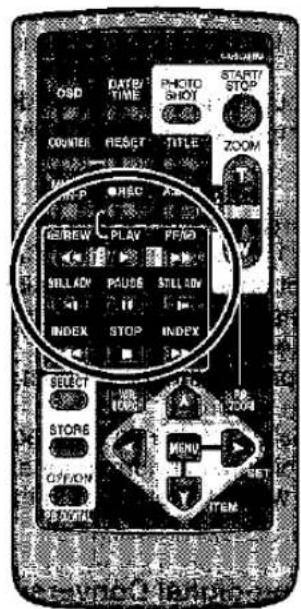
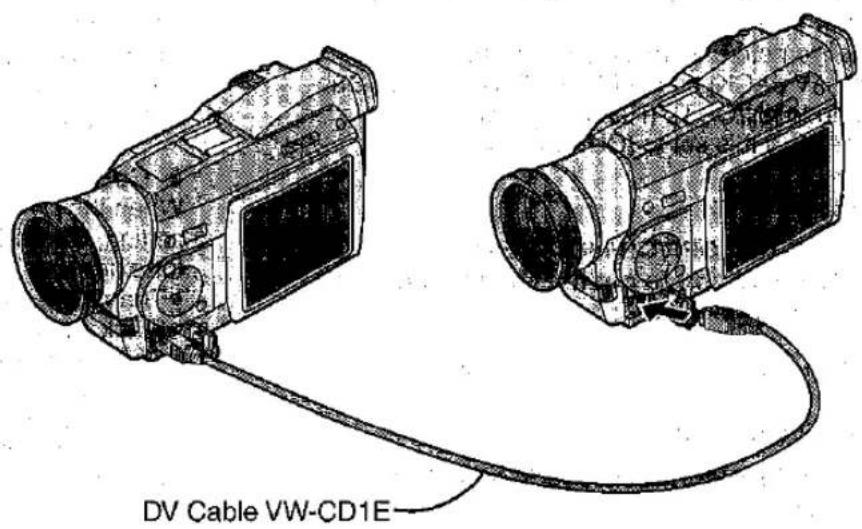
If you connect this Movie Camera with other Digital Video equipment (for example another Movie Camera of the same type) equipped with DV Input/Output Terminal (i.LINK) using the DV Cable VW-CD1E (optional), you can dub high-quality picture and sound in the digital format.
1 [Playback Unit]
Insert the recorded cassette and set the Movie Camera to the VCR Mode.
2 [Recording Unit]
Insert a cassette onto which you want to perform dubbing and set the Movie Camera to the VCR Mode.
3 [Playback Unit]
Press the Play Button [▶] to start playback.
4 [Recording Unit]
While pressing the [REC] Button, press the [PLAY] Button (both on the Remote Controller).
Recording starts.
Stopping Dubbing
Press the Pause Button [■■] or the Stop Button [■] to stop recording.
- Dubbing is automatically performed in the same audio recording mode as that of the cassette in the playback unit, regardless of the setting for [AUDIO REC] on the [RECORDING SETUP] Sub-Menu of the [CAMERA FUNCTIONS] Main-Menu of the recording unit.
- The lower part of the monitor picture of the recording unit (the picture displayed on the LCD Monitor, Viewfinder or TV) may be distorted, or the picture may roll up or down. However, this is not a malfunction and does not affect the picture being recorded.
- If the DV Cable is not connected, a black picture is recorded.
- Even when the Playback Digital Effect, Playback Zoom or Playback Title In is used, the effect cannot be output from the DV Terminal.
- Titles cannot be inserted into the pictures input from the DV Terminal and recorded on the tape.
- Digital dubbing may not be possible even if the device with the DV Terminal (such as i.LINK) is used.
Copying with the Help of an Editing Controller
If you connect the Movie Camera to an Editing Controller equipped with 5-pin Edit Socket, this Movie Camera's playback functions can be controlled from the Editing Controller.
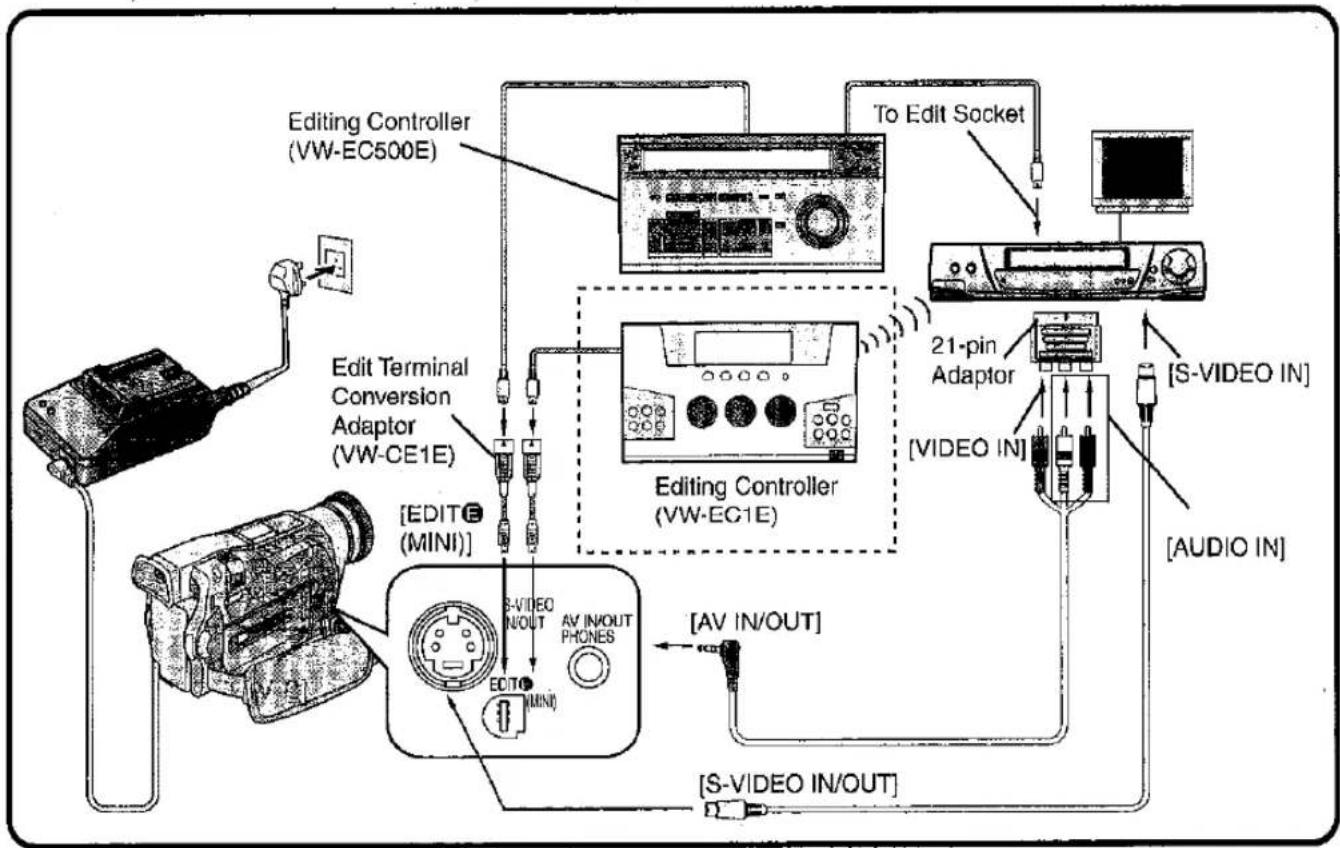
flowchart
graph TD
    A["Power Supply"] --> B["Edit Terminal Conversion Adaptor (VW-CE1E)"]
    B --> C["Editing Controller (VW-EC500E)"]
    C --> D["To Edit Socket"]
    D --> E["21-pin Adaptor"]
    E --> F["[VIDEO IN"]]
    F --> G["[AUDIO IN"]]
    G --> H["[S-VIDEO IN/OUT"]]
    H --> I["[AV IN/OUT"]]
    I --> J["Editing Controller (VW-EC1E)"]
    J --> K["[EDITE (MINI)"]]
- The Edit Terminal Conversion Adaptor (VW-CE1E: optional) is necessary when connecting the Movie Camera to an Editing Controller (VW-EC500E or VW-EC1E).
When Connecting the Editing Controller VW-EC500E (optional)
- A VCR equipped with 5-pin Edit Socket is necessary.
- When you connect the VW-EC500E to the Movie Camera, an adjustment on the VW-EC500E is necessary. For the operation of the Editing Controller, refer to its operating instructions.
When Connecting the Editing Controller VW-EC1E (optional)
- When you use the Editing Controller VW-EC1E, it is not necessary to connect it to the Edit Socket on the VCR, as the VCR's operation is performed via infrared remote control. Therefore, editing is also possible onto VCRs not equipped with an Edit Socket.
- For the operation of the Editing Controller, refer to its operating instructions.
When Editing with Time Code
Set [C.DISPLAY] on the [DISPLAY SETUP] Sub-Menu of the [VCR FUNCTIONS] Main-Menu to [TIMECODE] to make the Time Code appear. (p. 16)
- When the Time Code is displayed, the Time Code Signal is output from the Edit Socket.
- When the Counter Indication is displayed, the Linear Tape Counter Signal is output.
- If your VCR is not equipped with AV Input Sockets, the 21-pin Adaptor (purchase separately) is necessary. Consult your dealer.
Using the Movie Camera with a Video Printer
If you connect the Movie Camera to a Video Printer, you can print still pictures from scenes recorded with the Movie Camera.
If you do not intend to use the Automatic Printing Function, connecting the Edit Cable is not necessary.
![Edit Cable VW-K8E (optional) [EDIT] [S-VIDEO IN] S-VIDEO IN/OUT [EDITE (MINI)] [EDITE (MINI)] S-Video Cable](/content/2026/05/794537/images/1189deed8a1be3ef9690b06739b2454048db25af322bdfa356de3ae512e8e6fa.jpg)
After making the connections shown above, perform the necessary operations.
Movie Camera:
1 Slide the [OFF/ON/MODE] Switch from the [ON] position to put the Movie Camera in the VCR Mode.
2 Insert the recorded cassette.
4 Press the Play Button [▶].
Video Printer:
3 Turn the Video Printer on.
5 Store the image in memory.
6 Start printing.
- For details about the operation of the Video Printer, read its operating instructions.
- Compatibility cannot be guaranteed for pictures recorded on other video equipment and played back on this Movie Camera, or vice versa.
■ Using the Automatic Printing Function (Autoprint)
If you connect the Movie Camera to a Video Printer equipped with 5-pin Edit Socket, you can use the Autoprint Function to automatically print all still pictures recorded in the Photoshot Mode. After making the connections shown on the left, perform the necessary operations.
Video Printer:
1 Turn the Video Printer on.
2 Make the necessary settings on the Video Printer according to the input signal.
Movie Camera:
③ Slide the [OFF/ON/MODE] Switch from the [ON] position to put the Movie Camera in the VCR Mode or Card Playback Mode.
4 Search for the first still picture from which you want to start printing with the Autoprint Function.
If you want to print all still pictures recorded on the cassette, rewind the tape to its beginning.
5 Press the [MENU] Button.
⑥ Set [AUTO PRINT] on the [PLAYBACK FUNCTIONS] or [CARD EDITING] Sub-Menu to [YES].
Automatic printing starts.
- If you want to stop the automatic printing in the middle, press the Stop Button [■] on the Movie Camera.
- When the cooling function of the Video Printer is activated and the printing speed slows down, automatic printing may stop. In this case, set [AUTO PRINT] to [YES] again.
- If you replace the ink cassette or paper during printing, the same picture may be printed twice.
- Before storing an image in memory on the Video Printer, press the [OSD] Button (p. 104) on the Remote Controller of the Movie Camera so that no indications appear in the picture. Otherwise, the Counter Indication and other function indications are also printed in the picture.
- The [PRINTER ERROR] Indication appears if the Movie Camera is not correctly connected to the Video Printer or when the ink cassette and/or the paper in the Video Printer are not loaded or used up.
- When Mega-Pixel Pictures are to be printed, print them from the Card so as to ensure that their picture quality will be maintained. (NV-MX5, NV-MX7 only)
- When pictures except for Mega-Pixel pictures are to be printed, it is recommended that the Progressive Photoshot Function (p. 34) is used in recording and connect an S-Video Cable to a Video Printer. (NV-MX5, NV-MX7 only)
- As index signals are not recorded with the still pictures recorded in the Continuous Photoshot Mode, automatic printing of these pictures is not possible.
- If you select one of 9 pictures displayed in the Multi-Picture Mode and print it with the Autoprint Function, the tape position of the selected picture may not be precise.
- If still pictures are recorded successively in the Photoshot Mode, some pictures may be skipped during printing.
-
In the following cases, some pictures may be skipped when printing with the Autoprint Function.
-
When you print still pictures recorded in the Photoshot Mode on a video camera of another brand.
- If you turn the Movie Camera on and off several times (3 times or more) between recording two still pictures in the Photoshop Mode.
- When you record a still picture in the Photoshop Mode on the same part of a cassette where a Photoshop picture was recorded before.
- When you select a different recording speed (SP/LP) between the recording of two still pictures in the Photoshot Mode.
- At the first Photoshot picture to be printed.
A picture that is recorded very close to the beginning of the tape may not be printed.
●Pictures that you have edited or composed on a Video Printer (NV-MPD1B, NV-MPD5B, NV-MPD7B) can be recorded on the Card, however, they can no longer be played back on this Movie Camera. (NV-MX5, NV-MX7 only)
Using the Movie Camera with a Computer
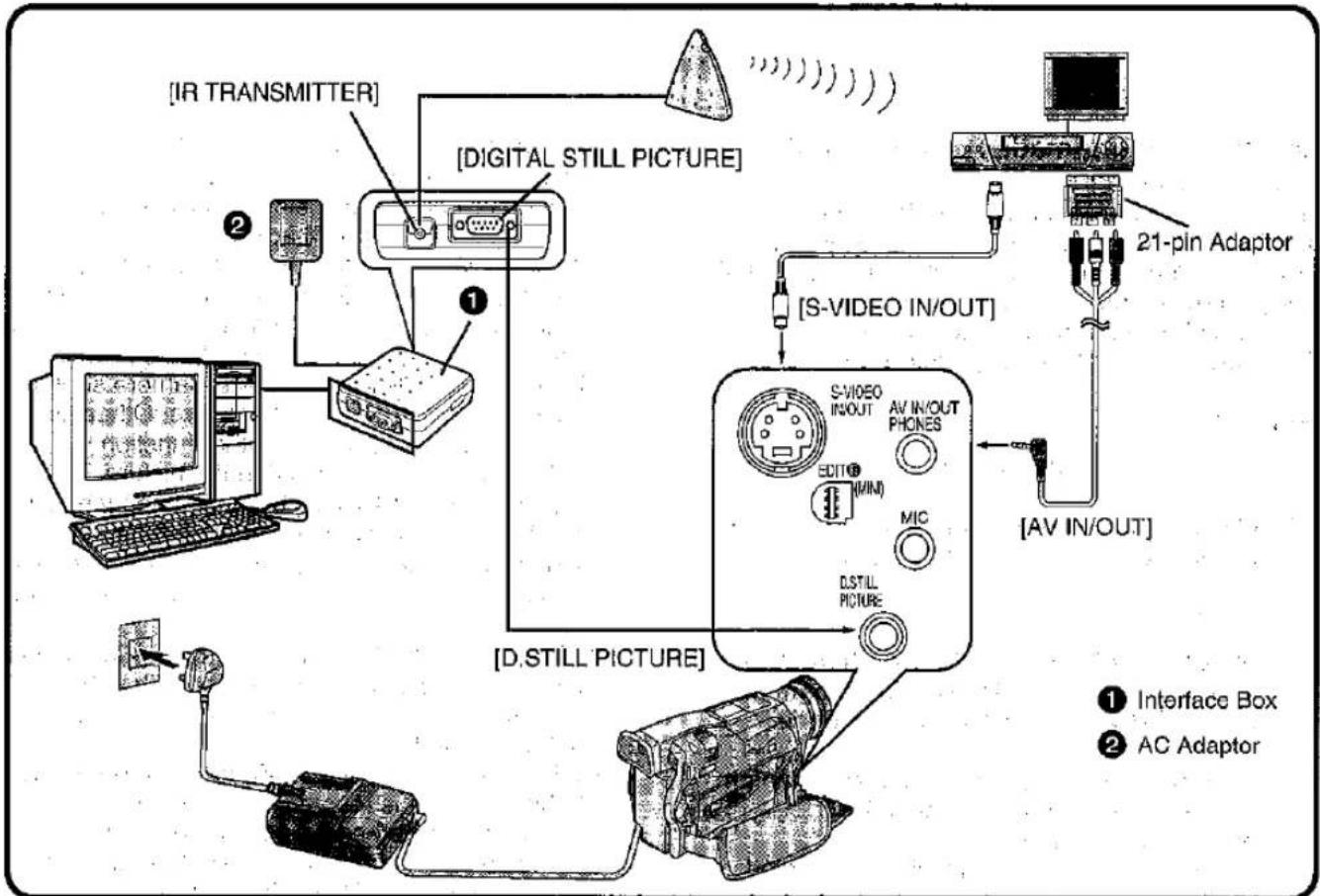
flowchart
graph TD
    A["Computer"] -->|①| B["IR TRANSMITTER"]
    B --> C["Digital Still Picture"]
    C --> D["21-pin Adaptor"]
    D --> E["S-VIDEO IN/OUT"]
    E --> F["S-VIDEO INPUT AV IN/OUT PHONES"]
    F --> G["D.STILL PICTURE"]
    G --> H["D.STILL PICTURE"]
    H --> I["AC Adaptor"]
    I --> J["Interface Box"]
    style A fill:#f9f,stroke:#333
    style B fill:#ccf,stroke:#333
    style C fill:#cfc,stroke:#333
    style D fill:#fcc,stroke:#333
    style E fill:#cff,stroke:#333
    style F fill:#ffc,stroke:#333
    style G fill:#cfc,stroke:#333
    style H fill:#fcc,stroke:#333
    style I fill:#ffc,stroke:#333
The Personal Computer Connection Kit VW-DTA9E (optional), or VW-DTA10B (optional) makes it possible to connect the Movie Camera to a computer and transmit still video images to it.
The above illustration shows the connections in case of using the VW-DTA10B. For the VW-DTA9E, refer to its operating instructions.
Computer System Requirements (VW-DTA10B)
DV STUDIO2 can be installed in a PC/AT compatible personal computer which can run Microsoft® Windows® 95/98.
Compatible machines:
Personal computer with 80486DX4 or higher CPU (Pentium™ or higher recommended)
Graphic card:
True Colour (approx. 16.7 million colours) recommended (operation also possible even with 256 colours)
Installed memory:
16 MB or more (32 MB or more recommended)
Free hard disk space: At least 16 MB
Disk drive: CD-ROM drive
Ports: RS-232C (D-sub 9 pin) or USB
Other requirements: Mouse
To connect the Movie Camera to the computer, use the special Interface Box ① contained in the Personal Computer Connection Kit.
- If your VCR is not equipped with AV Input Sockets, the 21-pin Adaptor (purchase separately) is necessary. Consult your dealer.
- To use the DV STUDIO2 software via USB, a computer with Windows® 98 preinstalled is necessary.
- Mega-Pixel Pictures cannot be captured. The picture size is fixed at [640×480]. (NV-MX5, NV-MX7 only)
●Pictures that you intend to import from cassette into computer applications should be recorded in the SP Mode. - When recording, take care that the Time Code is uninterrupted from the beginning of the tape.
- For detailed explanations on the operating environment, connections and operations, refer to the Personal Computer Connection Kit's operating instructions.
- Windows® is a trademark of Microsoft Corporation U.S.A.
Cautions for Use
Take care that no water enters the Movie Camera when using it in the rain and snow or on the beach.
- The Movie Camera and the cassette could become damaged. (It might not be repairable.)
- If seawater has accidentally splashed on the Movie Camera, molsten a soft cloth with tap water, wring it well and wipe the camera body carefully with it. Then thoroughly wipe it with a soft, dry cloth.
Keep the Movie Camera away from magnetized equipment (TVs, video games, etc.).
- If you use the Movie Camera on or near a TV, the electromagnetic radiation may cause picture and sound distortion.
- Strong magnetic fields generated by speakers and large motors may damage the recordings on the tape and distort the picture.
- The electromagnetic radiation from microprocessors can adversely influence the Movie Camera and cause picture and sound distortion.
- If the Movie Camera is adversely influenced by magnetized equipment and does not work correctly, turn the Movie Camera off, remove the Battery or disconnect the AC Adaptor and attach the Battery or connect the AC Adaptor again. Then turn the Movie Camera on.
Do not use the Movie Camera near a radio transmitter or high-voltage power line.
- If you record near a radio transmitter or high-voltage power line, the recorded picture and sound may be adversely influenced.
Do not use the Movie Camera for surveillance and other industrial applications.
- If the Movie Camera is being used for a long time, the inside temperature could rise excessively and this may cause malfunction.
- This Movie Camera is not designed for industrial use.
Take care that no sand and fine dust enters the Movie Camera when using it on a beach or similar places.
- Sand and dust could damage the Movie Camera and cassette. (Be careful when inserting and removing the cassette.)
Do not spray insecticide or volatile agents on the Movie Camera.
- Such agents could deform the body and cause the surface coating to peel off.
- Do not leave the Movie Camera in direct contact with rubber or plastic products for a long time.
Do not use benzine or thinner for cleaning.
- They could deform the body and cause the surface coating to peel off.
- Before cleaning, remove the Battery or unplug the AC Mains Lead from the AC mains socket.
- Wipe the Movie Camera with a soft, clean cloth. To remove persistent stains, wipe with a cloth moistened with mild detergent diluted with water, and then finish with a dry cloth.
- When storing or transporting the Movie Camera, place it in a softly padded bag or case to prevent the coating of the camera body from wearing off.
After use, always take out the cassette and remove the Battery or unplug the AC Mains Lead from the AC mains socket.
- If you leave the cassette in the Movie Camera, the tape can become loosened and damaged.
- If you leave the Battery attached to the Movie Camera for a long time, the voltage level may drop very low so that the Battery cannot be used any more even after charging.
Notes about the AC Adaptor
- If the temperature of the Battery is extremely high or extremely low, the [CHARGE] Lamp may keep on flashing and charging is not possible. After the Battery has cooled down or warmed up sufficiently, charging starts automatically. However, if the [CHARGE] Lamp continues to flash after the Battery has cooled down or warmed up sufficiently, some malfunction may have occurred in the Battery or in the AC Adaptor. In this case, consult with your dealer.
- When the Battery is warm, charging takes longer than usual.
- When you use the AC Adaptor near a radio, the radio reception may be distorted. Keep the AC Adaptor more than 1 metre away from the radio.
- When the AC Adaptor is in use, it may emit a whirring sound. However, this is normal.
- After use, be sure to disconnect the AC Mains Lead from the AC mains socket. (If you leave it connected, a small amount of electricity is consumed.)
●Always keep the terminals of the AC Adaptor and the Battery clean.
Cautions for Use (Continued)
■ Condensation
Determining Whether Condensation Has Formed Inside and Remedy for Condensation If the Condensation Indication flashes after you turn on the Movie Camera, condensation has formed inside the Movie Camera. In this case, the Movie Camera automatically switches off after approximately 1 minute. Remedy as follows:
1 Take out the cassette.
All other functions do not work. Depending on the amount of condensation, it may not be possible to take out the cassette. In this case, wait 2–3 hours before taking out the cassette.
2 Leave the Cassette Compartment open and wait for 2–3 hours.
The required time depends on the amount of condensation and the ambient temperature.
3 After 2–3 hours, turn the Movie Camera on and check if the Condensation Indication is displayed.
Even if the Condensation Indication is no longer displayed, wait 1 more hour for added safety before using the Movie Camera again.
Pay Attention to Condensation Even Before the Condensation Indication Appears.
- As condensation forms gradually, the Condensation Indication may not appear for the first 10–15 minutes after condensation has formed inside.
- In an extremely cold place, the condensation could freeze and turn into frost. In such a case, it takes an additional 2–3 hours for the frost to first melt into condensation and then to be dissolved.
Remedy for a Fogged-up Lens
Set the [OFF/ON/MODE] Switch to [OFF] and leave the Movie Camera in this condition for about 1 hour. When the lens has reached about the same temperature as its surroundings, it automatically clears up.
Periodic Inspection
To ensure optimum picture quality, it is recommended that you have worn-out parts such as video heads replaced after approximately 1000 hours of use. (However, this depends considerably on the conditions of use such as temperature, humidity and dust.)
■ Optimum Use of the Battery
Special Characteristics of the Battery
This Battery is a rechargeable lithium-ion battery. Its ability to generate electric energy is based on an internal chemical reaction. This reaction is easily influenced by ambient temperature and humidity, and the useful operation time that the Battery can provide becomes shorter at high and low temperatures. When used in extremely cold surroundings, the Battery may only be able to provide approximately 5 minutes of operation time. If the Battery becomes extremely hot, a protection function is activated and prevents the use of the Battery for some time.
After Use, Always Remove the Battery.
Be sure to remove the Battery from the Movie Camera. (If it is attached to the Movie Camera, a small amount of electric current is consumed even if the Movie Camera is turned off.) Leaving the Battery attached to the Movie Camera for a very long time could cause it to become excessively discharged, so that it cannot be used any more even after charging.
Keep the Battery's Terminals Clean.
Be careful that the terminals do not get plugged up with dust, dirt or other substances. If you accidentally drop the Battery, confirm that the Battery itself and the terminals are not deformed. Attaching a deformed Battery to the Movie Camera or to the AC Adaptor could damage the Movie Camera or the AC Adaptor.
Discarding a Battery That Has Become Unusable
●The usable life of the Battery is limited.
- Do not throw the Battery in a fire because it could explode.
■ Precautions for Storage
Before Storing the Movie Camera, Take out the Cassette and Remove the Battery.
Store all equipment in a dry place where the temperature remains relatively constant. (Recommended temperature is 15°C–25°C and recommended relative humidity is 40%–60%.)
Movie Camera
- Wrap it with a soft cloth to prevent dust form entering.
●Never leave the Movie Camera in places with high temperature.
Battery
- Extremely low or high temperature shortens the Battery life.
- Storing it in places with oily smoke and a lot of dust could cause the terminals to get rusty, and this can result in a malfunction.
- Do not allow metal objects (such as necklaces and hair pins) to touch the battery terminals. Short-circuiting may occur and generate heat, and touching it in this condition could inflict serious burns.
- Store the Battery in discharged condition. If you store the Battery for a long time, it is recommended that you charge it once a year and completely use up the charge before storing it again in discharged condition.
Cassette
- Rewind the tape to its beginning before storing. Leaving the cassette with the tape stopped halfway for more than 6 months (depending on the storing condition) loosens the tape. Be sure to rewind it to the beginning.
- Put the cassette in its case to store it. Dust, direct sunlight (ultraviolet rays) and humidity could damage the tape. Dust contains hard mineral particles and cassettes with dust damage the video heads and other parts of the Movie Camera. Make it a habit to always put the cassette back into its case.
- Completely wind the tape forward and then rewind it once every half year. Leaving the cassette for more than a year without winding/rewinding it may deform the cassette because of stretching and shrinking of the tape due to changes in temperature and humidity. Also, the tape may stick together.
- Do not place the cassette near strongly magnetized objects or equipment.
- The tape surface is coated with microscopic magnetic particles and they record signals. Such objects as magnetic necklaces and toys have stronger magnetic force than commonly thought, and this could erase the recorded contents and cause noise in picture and sound.
MultiMediaCard/SD Memory Card (NV-MX5, NV-MX7 only)
●While the Card is being read, do not remove it, turn off the power, or subject it to vibrations and shocks.
- Do not leave the Card in a place with high temperature, exposed to direct sunlight, or where electromagnetic waves and static electricity can be generated.
- Do not bend or drop the Card as this could damage the Card or the stored contents.
●After use, be sure to remove the Card from the Movie Camera.
●After using the Card or when storing or carrying it, put it in the supplied Card Case.
- Do not touch the connector on the rear edge of the Card with your fingers and take care that no dirt, dust or water enters it.
■ Other Useful Information
LCD Monitor
- In places where big changes in temperature occur, condensation may form on the LCD Monitor. Wipe it with a soft, dry cloth.
- If the Movie Camera is very cold when it is turned on, the picture on the LCD Monitor is initially a little darker than normally. However, as the internal temperature rises, the LCD Monitor regains its normal brightness.
Extremely high precision technology is employed to produce the LCD Monitor screen featuring a total of approximately 200,000 pixels. The result is more than 99.99% effective pixels with a mere 0.01% of the pixels inactive or always lit. However, this is not a malfunction and does not affect the recorded picture.
Viewfinder
- Do not leave the Viewfinder or the Lens aimed at the sun. This could seriously damage internal parts.
- If you use a large-capacity Battery (CGP-D320; optional) attached to the Movie Camera, viewing the picture in the Viewfinder from behind may not be practical. In this case, turn up the Viewfinder to an angle that allows comfortable viewing.
Extremely high precision technology is employed to produce the Viewfinder screen featuring a total of approximately 113,000 pixels. The result is more than 99.99% active pixels with a mere 0.01% of the pixels inactive or always lit. However, this is not a malfunction and does not affect the recorded picture.
Lens Hood
- Never try to attach any conversion lens onto the front of the Lens Hood; it does not have a threaded mount on the front.
- When you want to attach the Tele Conversion Lens (VW-LT3714ME, optional), the Wide Conversion Lens (VW-LW3707ME, optional), MC Protector (VW-LMC37E, optional) or ND Filter (VW-LND37E, optional) be sure to first remove the Lens Hood by turning it counterclockwise. If you attach a filter, you can attach the Lens Hood onto it.
- During recording with a filter or conversions lens attached, the four corners of the picture may become dark (vignetting effect), when you push the [W/T] Zoom Lever toward [W]. For details, please also read the operating instructions of the accessory being used.
Microphone Socket
- If you want to perform audio dubbing via an external microphone or audio equipment, connect it to the [MIC] Socket. In this case, the Movie Camera's built-in microphone is turned off.
Video Flash (NV-MX5, NV-MX7 only)
When using a Video Flash, setting [RED EYE REDUCTION] on the [OTHER FUNCTIONS] Sub-Menu to [ON] can help reduce the "red eye" phenomenon in your pictures.
- When setting [RED EYE REDUCTION] to [ON], the [◎] Indication is displayed.
- The [⚡] Indication is flashing, when the Video Flash is charging. When it is displayed, the flash can be fired.
●The available range of the Video Flash is approximately 1 to 4 metres in a dark place. Pictures will appear dark when they are recorded using the Video Flash at distances greater than 4 metres. - When the Power Switch on the Video Flash is set to the Auto position and the Movie Camera's iris is adjusted, the [?] Indication may disappear and the Video Flash may not fire.
●The shutter speed and iris value are fixed when the Video Flash is used. - Using the Video Flash outdoors or with backlight or other bright conditions may result in white blotches (colour blotches) on the pictures.
- Under backlight conditions, either adjust the iris manually or use the Backlight Compensation Function.
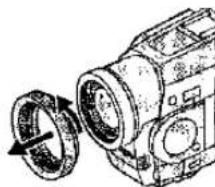
natural_image
Technical line drawing of a mechanical component with a circular arrow indicating rotation (no text or symbols)Glossary
Focus
If you look at an object through a magnifying glass and move it closer or further away from your eye, you will reach a point where the object becomes clearly visible. Being focused or in focus means that the subject can be seen with optimum clarity and sharpness.
Human Eyes
Human eyes have lenses as well, and when we look at objects at different distances, the shape of these lenses changes automatically so that we can always see these objects clearly.
Movie Camera
The image of the subject enters the Movie Camera through the lens and is converted into an electric signal (video signal) for recording onto magnetic tape. The focus is adjusted either manually or automatically by moving a focusing lens.
Auto Focus Adjustment
The Auto Focus System automatically moves the internal focusing lens forward or backward and adjusts the focus so that the subject can be seen clearly.
The Auto Focus Adjustment has the following characteristics:
- It adjusts until the vertical contours of the subject are as sharp and clean as possible.
- It adjusts the focus on the subjects with strong contrast.
- It adjusts the focus on the subject in the centre of the LCD Monitor or Viewfinder. Unlike human eyes, the lens of the Movie Camera cannot instantaneously change the focus from a nearby to a distant subject and vice versa.
For the following subjects and recording situations, the Auto Focus system cannot provide precise adjustment. Use the Manual Focus Mode Instead. (p. 30)
① Recording subjects with a part of it near the Movie Camera and another part far away from it
As the Auto Focus adjusts on the centre part of the image, it is often impossible to bring the nearby and distant parts of the subject into focus.
When you want to record a person with a distant mountain in the back, it is not possible to focus on both.
② Recording subjects behind glass covered with dirt or dust
As the focus is adjusted on the dirty glass, the subject behind the glass is out of focus. When recording a subject across a street on which cars are running, the focus may be adjusted on the cars.
③ Recording subjects In dark surroundings As the amount of light information entering through the lens is greatly reduced, the Movie Camera cannot adjust the focus precisely.
4 Recording subjects surrounded by objects with shiny surfaces or much light reflection As the Movie Camera adjusts the focus on objects with shiny surfaces or much light reflection, the subject may go out of focus. Therefore, when recording at a lake or the sea, evening scenes, fireworks, or under special types of lighting, the subject may be out of focus.
⑤ Recording fast-moving subjects
As the internal focusing lens is moved mechanically, it cannot follow fast-moving subjects without delay. Therefore, subjects like children running back and forth may temporarily go out of focus.
⑥ Subjects with weak contrast
As the Movie Camera adjusts the focus based on vertical contours in the picture, subjects with little contrast such as a white wall may be out of focus.
■ White Balance Adjustment
While most recording with a Movie Camera is probably done outdoors under sunlight, video recording is also done very often under artificial light sources, both indoors and outdoors. However, each of these light sources gives the subject slightly different colours.
Human Eyes
Human eyes can easily adjust to different kinds of lighting and see an object with the same colours even under different lighting.
Movie Camera
Unlike human eyes, the Movie Camera does not have the innate ability to adapt to changes in lighting, and they influence the colours being recorded. Therefore, depending on the light source, the picture would be recorded with a bluish or reddish tint. To minimise the influence of the lighting on the colours of the subject, an adjustment called White Balance Adjustment is necessary.
White Balance Adjustment
The White Balance Adjustment determines the colour of the light and adjusts the colours so that white remains pure white. As white is the basic colour of the entire colour spectrum, if white is reproduced correctly, the other colours are correct and natural, too.
Auto White Balance Adjustment
This Movie Camera stores the optimum settings for several common light sources in memory. The Movie Camera judges the recording situation by determining the tint of the light received through the lens and by the White Balance Sensor (p. 5), and it selects the setting for the most similar tint. This function is called Auto White Balance Adjustment.
However, as the white balance settings for only a few light sources are stored in memory, the white balance is not correctly adjusted for other lighting conditions.
For the range of different types of lighting within which the Auto White Balance Function can provide precise adjustment, refer to the chart. For recording under lighting conditions outside this range, the Auto White Balance Function does not work correctly, and the recorded picture has a red or blue cast. However, the same also applies, if the subject is lit by more than one light source, even if these light sources are within this range.
■ Colour Temperature
Every light source has its own colour temperature measured in Kelvin (K). The higher the Kelvin value, the more bluish the light; the lower the value, the more reddish the light. The Kelvin value is related to the tint of the light, however not directly to its brightness.
The range ① indicated in the illustration below shows the light sources for which this Movie Camera can provide precise white balance adjustment and, therefore, natural colours in the recorded pictures, when using the Full Auto Mode. For light sources outside this range, adjust the white balance manually. (p. 62) Also, additional lighting may be necessary.
① Control range of this Movie Camera's Auto White Balance Adjustment Mode
② Blue sky
③ Cloudy sky (Rain)
4 TV screen
⑤ Sunlight
⑥ White fluorescent lamp
⑦ 2 hours after sunrise or before sunset
⑧ 1 hour after sunrise or before sunset
9 Halogen light bulb
⑩ Incandescent light bulb
⑪ Sunrise or sunset
⑫ Candlelight
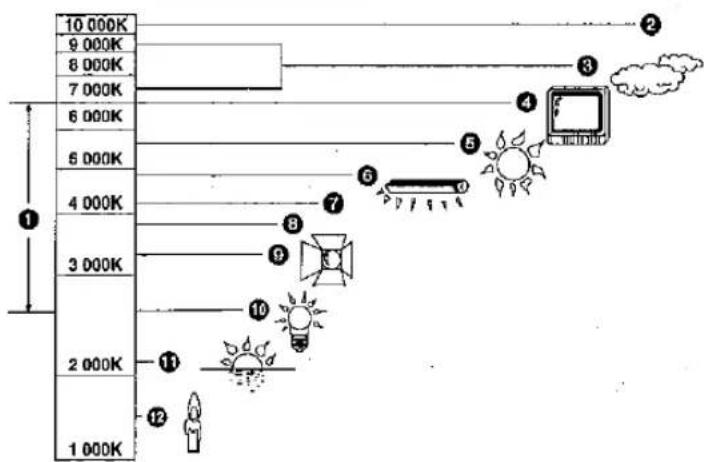
Glossary (Continued)
■ Digital Video System
In the digital video system, picture and sound are converted into digital signals and recorded onto the tape.
This completely digital recording allows recording and playback of picture and sound with minimum quality deterioration.
In addition, such data as Time code, Date and Time are also automatically recorded as digital signals.
Features
●Superior picture resolution
●Excellent signal-to-noise ratio
- Stable pictures
- Minimised quality deterioration in dubbing
●Minimised cross colour distortion
- PCM digital sound
●No picture deterioration in LP Mode
- 6.35 mm-wide tape
- Compact cassette with long recording time
- Minimised quality deterioration in editing
• Time Code editing
Compatibility with S-VHS or VHS Cassettes
As this Movie Camera uses a digital method for recording picture and sound, there is no compatibility with conventional S-VHS or VHS video equipment using analog recording methods. In addition, the size and shape of the cassette are completely different.
Compatibility with Output Signals
As the video and audio signals output from the audio and video output sockets are analog—the same as in conventional video systems—you can connect this Movie Camera to your S-VHS or VHS VCR or TV for playback.
PCM Digital Sound
For recording of the sound, this Movie Camera offers the choice between two different PCM Audio Recording Modes.
●16 bit, 48 kHz, 2 channels
●12 bit, 32 kHz, 4 channels
The "16 bit, 48 kHz, 2 channels" Mode offers superior recording sound quality.
The "12 bit, 32 kHz, 4 channels" Mode lets you record the original sound in stereo on two channels and the dubbed sound in stereo on two separate channels.
Sub Code
The digital recording system offers the added capability of recording sub code containing various data.
The following data is recorded as sub code on this Movie Camera:
• Time code
●Recording date and time
- Index signals for locating still images recorded in the Photoshot Mode
- Index signals for locating the beginning of scenes marked with index signal
■ Progressive Photoshot Function
This function lets you record still pictures with higher resolution, finer details and smoother image contours than the normal Photoshot Function.
- Usually, still pictures recorded with single-CCD Movie Cameras are field still pictures, whose vertical resolution is approximately half of that of frame still pictures, and picture details are not very precise. (1 frame consists of 2 fields.)
- When recording moving objects, there is a slight difference between two fields. If these field still pictures are recorded as a frame still picture, it will have broken up image contours.
- To record still pictures with smooth contours in excellent picture quality, this Movie Camera is equipped with the Progressive Photoshot Mode featuring:
an Iris that closes like a shutter
2 field memories
Actual operation:
- Pressing the [PHOTO SHOT] Button
- Closing the iris instantaneously to prevent the next image from entering through the lens
- Storing the same picture data in 2 field memories
As a result, the recorded frame is made up of two fields taken at exactly the same time, and the resolution is approximately 50% higher to ensure a picture with smooth contours.
Notes about the Progressive Photoshot Function
Pressing the [PHOTO SHOT] Button in the Progressive Photoshot Mode records a frame still picture;
However, when [PROGRESSIVE] on the [CAMERA SETUP] Sub-Menu is set to [ON], the following functions cannot be used:
•Digital Zoom [D.ZOOM]
•Digital Effect Modes in [EFFECT1]
•Shutter speeds of 1/750 s or faster
•Continuous Photoshot (Also not possible when [PROGRESSIVE] is set to [AUTO].)
As still pictures recorded in the Progressive Photoshot Mode are extremely sharp and brilliant, they are highly suitable for printing on a Video Printer and for importing into a computer.
When you press the [PHOTO SHOT] Button in the Progressive Photoshot Mode, a click sound can be heard. This is caused by the closing of the iris and is not an indication of malfunction.
- During normal recording, the Progressive Photoshot Function cannot be used.
■ Time Code
Time Code signals are the data which indicated the time in hours, minutes, seconds and frames (25 frames/sec). Having this data included in the recording gives every single picture on the tape its own address.
- The Time Code is automatically recorded as part of the sub code with every recording you make.
- When you insert a new (previously unrecorded) cassette, the Time Code automatically starts from zero. If you insert a recorded cassette, the Time Code continues where the time code of the last previous scene stopped. (In this case, the zero indication [0h00m00s00f] may appear after inserting the cassette, however when the recording starts, the Time Code records from the previous value.)
- You cannot reset the Time Code to zero.
- In playback modes other than the Normal Playback Mode, the Time Code may not be displayed (or not be correct).
- Unless the Time Code is recorded continuously from the beginning of the tape, precise editing may not be possible. To ensure that the Time Code is recorded without interruption, it is recommended that you use the Camera Search Function (p. 44) or Blank Search Function (p. 44) before starting to record a new scene.
■ Memory Stop Function
The Memory Stop Function is convenient for the following operations.
Rewinding or fast-forwarding the tape to a desired position
1 Set [C.DISPLAY] on the [DISPLAY SETUP] Sub-Menu to [MEMORY].
2 Reset the Tape Counter to zero at the tape position from which you want to play back later. (p. 19, 104)
3 Start playback or recording.
4 After playback or recording is finished: Slide the [OFF/ON/MODE] Switch from the [ON] position to put the Movie Camera in the VCR Mode. The [VCR] Lamp lights.
5 Rewind the tape.
The tape automatically stops approximately at the position at which you reset the counter to zero,
Stopping the editing automatically in the audio dubbing
1 Set [C.DISPLAY] on the [DISPLAY SETUP] Sub-Menu to [MEMORY].
2 Reset the Tape Counter to zero at the tape position at which you want the editing to stop.
3 Play back a still picture at the point at which you want the audio dubbing to start.
4 Start the audio dubbing. (p. 78)
The audio dubbing automatically stops approximately at the position at which you reset the counter to zero.

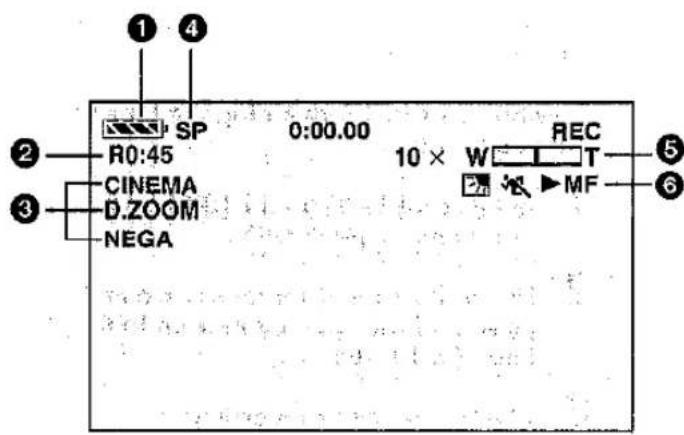
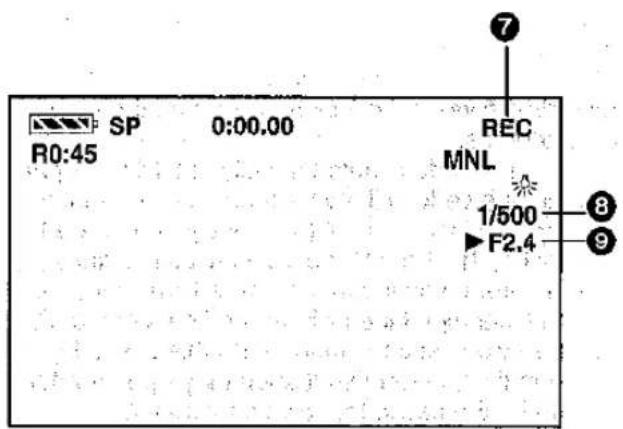
① Remaining Battery Power
As the remaining battery power decreases, the indication changes as follows:

When the Battery is completely discharged, the ▶ (□) Indication flashes.
(When you are using the AC Adaptor, the Indication may appear, however, this has no meaning in this case.)
② Remaining Tape Time
The remaining tape time is displayed in minutes. (When it becomes less than 3 minutes, the indication starts to flash.)
- If a recording lasts less than 15 seconds, the remaining tape time cannot be displayed correctly.
- The displayed remaining tape time may be shorter than the actual remaining tape time.
③ Cinema Mode (p. 36)
When recording in the Cinema Mode, this indication is displayed.
Digital Zoom (p. 32)
When the Digital Zoom Function is activated, this indication is displayed.
Digital Effects (p. 52, 66)
When a digital effect is activated, the corresponding indication is displayed.
Playback Zoom (p. 76)
When the Playback Zoom Function is activated, this indication and the zoom magnification are displayed.
4 Recording Speed Mode (p. 13)
The selected Recording Speed Mode is displayed.
SP: Standard Mode
LP: Long-play Mode
⑤ Zoom Magnification (p. 32)
When you push the [W/T] Zoom Lever up or down, the Zoom Magnification Indication and the Zoom Gauge are displayed.
Recording Mode (p. 26, 30, 50, 62, 64)
AUTO: This appears when the Mode Selector Switch is set to [AUTO].
MNL: This appears when the Mode Selector Switch is set to [MNL].
Super Image Stabilizer (p. 36)
When the Super Image Stabilizer Function is activated, this indication is displayed.
Audio Dubbing Input Display (p. 78) (NV-MX7 only)
MIC/AV IN: The Audio Dubbing Input Mode indication is displayed.
Audio Recording Mode (p. 78)
12bit/16bit: The Indication of the Audio Recording Mode that was selected for recording is displayed during playback.
Automatic Printing (p. 112)
AUTOPRINT: This indication is displayed when the Autoprint Function is being used.
⑥ Manual Focus (p. 30)
If you select the Manual Focus Mode, the [MF] Indication is displayed.
Back Light Mode [F] (p. 28)
When the Backlight Compensation Function is active, this indication is displayed.
Programme AE Mode (p. 50)
The Programme AE Function offers the following settings:
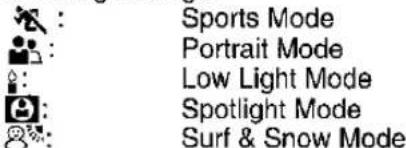
10
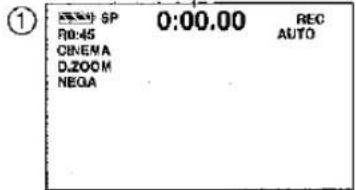
②
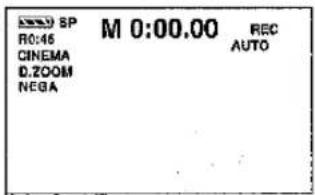
③
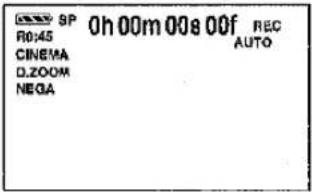
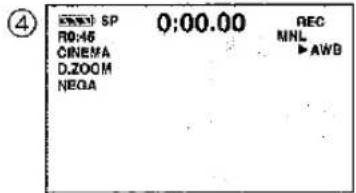
⑤
⑥
⑦ Tape Run Indications
REC: Recording (p. 26)
PAUSE: Recording Pause (p. 26)
▷: Playback (p. 38)/Camera Search in forward direction (p. 44)
◀: Camera Search in reverse direction (p. 44)
II: Still Playback (p. 40)
▷▷: Fast-forward/Cue Playback (p. 38)
◀◀: Rewind/Review Playback (p. 38)
I>/<I: Slow Playback in forward direction/ Slow Playback in reverse direction (p. 40)
III>/
/KK : Index Search in forward direction/Index Search in reverse direction (p. 46)
CHK: Recording Check (p. 28)
A.DUB▷: Audio Dubbing (p. 78)
A.DUBII: Audio Dubbling Pause (p. 78)
PHOTO: Recording in the Photoshot Mode (p. 34)
BLANK: Blank Search (p. 44)
2×▷▷: Variable Speed Search (p. 39)
R ▷: Repeat Playback (p. 39)
- When you record with the LCD Monitor facing forward using the Mirror Mode, none of the Tape Run Indications shown above appear. Only the Remaining Battery Power Indication, the Recording Indication [●], the Recording Pause Indication [●■] and Card Photoshot Indication [☐] (NV-MX5, NV-MX7 only) appear. If the [□] Indication appears, turn the LCD Monitor so that it faces backward and then confirm the displayed warning message(s).
⑧ Shutter Speed (p. 64)
When you manually adjust the shutter speed, this indication is displayed.
9 Iris Value (F Number) (p. 64)
When you manually adjust the Iris, this indication is displayed.
⑩ Tape Counter, Time Code (p. 121)
The Tape Counter, Memory Stop Function or Time Code Indication is displayed.
Changing the Counter Display Mode
By changing the setting for [C.DISPLAY] on the [DISPLAY SETUP] Sub-Menu, the Counter Display Mode can be changed in the order shown in the above illustrations ①–③.
① COUNTER: Tape Counter Indication
② MEMORY: Tape Counter Indication with activated Memory Stop Indication
③ TIMECODE: Time Code Indication
Changing the Display Mode
By changing the setting for [DISPLAY] on the [DISPLAY SETUP] Sub-Menu, the Counter Display Mode can be changed in the order shown in the above illustrations ④–⑥.
④ ALL: All indications appear (initial setting)
⑤ PARTIAL: Only a few indications appear
⑥ OFF: The minimally required indications, such as the Operation Mode Indications and Warning/Alarm Indications, appear
![INDEX PAUSE MNL 1/500 F2.4 Z.MIC WIND CUT 14 12 13 17 VOLUME (-) 15:30:45 15.10:2000 16 15 [+]](/content/2026/05/794537/images/cffbb182e4693e9f62a776aadaa1a39fecde3e06632ab4a66bd72cacdc12f22c.jpg)
⑪ Index (p. 47)
INDEX: The [INDEX] Indication flashes for a few seconds while an index signal is being recorded.
Search Number (p. 46)
S 1: The figure indicates which number of scene ahead from the present scene is to be played back.
⑫ White Balance Mode (p. 62)
The White Balance Mode offers the following possible settings:
AWB: Automatic White Balance Mode
☑: Last manually adjusted White Balance setting
Outdoor Mode
Indoor Mode (recording under incandescent lamp)
When the Movie Camera is in the Auto Mode, none of the above 4 indications are displayed.
⑬ Zoom Microphone (p. 33)
When the Zoom Microphone Function is active, this Indication is displayed.
⑭ Wind Noise Reduction [WIND CUT]
If you set [WIND CUT] on the [RECORDING SETUP] Sub-Menu of the [CAMERA FUNCTIONS] Main-Menu to [ON], the [WIND CUT] Indication is displayed.
Progressive Photoshot Mode (p. 34, 82)
P: This indication is displayed when the Progressive Photoshot Mode is activated.
15 Sound Volume (p. 39)
Use this indication to adjust the volume of the playback sound from the built-in speaker or headphones.
16 Date and Time (p. 39)
The time is indicated in the 24-hour system.
17 Warning/Alarm
When any of the following indications lights or flashes, confirm the condition of the Movie Camera.
Condensation has occurred. (p. 116)
The erasure prevention slider of the inserted cassette is open (set to [SAVE]).
Audio dubbing was attempted on an unrecorded (blank) part of the tape.
No cassette is inserted. (p. 12)
The Battery is discharged. Charge it. (p. 10)
The built-in lithium battery is discharged. (p. 25)
⊗: The video heads are dirty. (p, 28)
END: During recording, the tape has reached its end.
REMOTE: Wrong Remote Controller Mode is selected. (p. 107)
PRINTER ERROR:
The Video Printer is not connected correctly, or there is some trouble on the Video Printer.
UNPLAYABLE TAPE
(OTHER FORMAT):
Playback was attempted on a part of a tape recorded in a different television system.
UNABLE TO A. DUB
(LP RECORDED):
Audio dubbing is not possible because the original recording was made in the LP Mode.
INCOMPATIBLE TAPE:
The cassette is incompatible.
COPY INHIBITED:
The medium is copy-guarded, making it impossible to record pictures properly.
Indications (Continued) (for MultiMediaCard and SD Memory Card) (NV-MX5, NV-MX7 only)
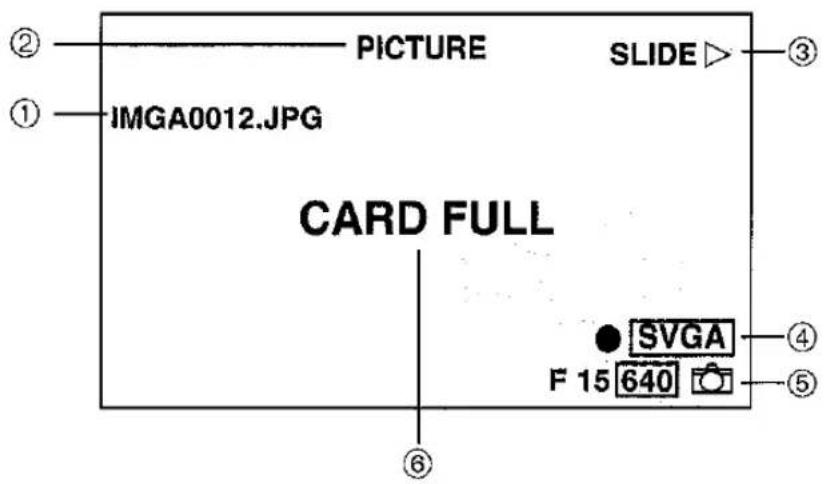
① File Name Display (p. 88, 94)
The file name of the picture or name of the track title played is displayed here.
② File Type Display (p. 88, 90, 94)
The type of playback file on the Card is displayed here.
PICTURE: Picture
TITLE: Title picture
MUSIC: Music data
③ Card Playback Picture Indications
SLIDE: Slide Playback (p. 89)
SLIDEIII: Slide Playback Pause (p. 89)
④ Card Picture Indications 1
●: DPOF settings performed (Set to 1 or more pictures)
0: No. of pictures set by DPOF
1200: Mega-Pixel picture recorded using this Movie Camera
640: [640×480] size picture recorded using this Movie Camera
Pictures not recorded using this Movie Camera have one of the sizes below depending on the number of their horizontal pixels.
Number of horizontal pixels
640: From 640 to 800 pixels
(The size is not displayed at under 640 pixels.)
SVGA: From 800 to 1024 pixels
XGA: From 1024 to 1280 pixels
SXGA: From 1280 to 1600 pixels
UXGA: Over 1600 pixels
⑤ Card Picture Indications 2
N (F, E): Picture quality selected for Card Photoshot pictures (During Card Photoshot recording)
•[F] means Fine, [N] Normal, and [E] Economy.
[☐] (Red): During Card Photoshot recording
ACCESS: During reading of the Card (playback, formatting, or while the Multi-Picture Function is used)
[☐]: No Card inserted
[Cyan]: Ready for Card Photoshot recording
No. 00: Number of the picture/Number of the music
00: Remaining number of Card Photoshot pictures
1200: 1200×900 picture size (Mega Pixel)
640: 640×480 picture size
o-π: Lock setting
⑥ Warning/Alarm
When any of the following indications lights or flashes, confirm the condition of the Movie Camera.
CARD FULL: There is not enough memory left on the Card.
NO CARD: There is no Card inserted.
NO PICTURE: There are no pictures recorded on the Card.
CARD ERROR: The Card is not compatible with the Movie Camera. (p. 89)
CHANGE TO 640×480:
Titles cannot be displayed. Set to the [640 × 480] Mode to display titles.
For the indications which appear during music playback, refer to pages 94 and 95.
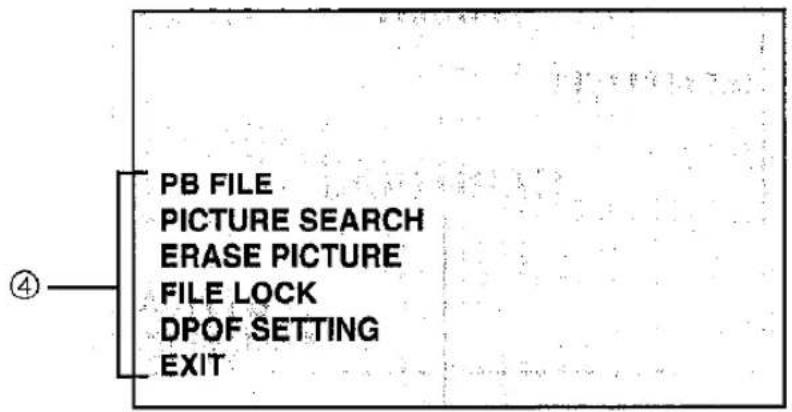
④ Short-Cut Menus
Short-cut menus enable some of the Card Playback Mode Menus to be called quickly. Press the [PUSH] Dial to display the short-cut menus, and turn the [PUSH] Dial to select the desired menu.
PB FILE: When using an SD Memory Card, the [PB FILE] Menu for selecting the playback file from [PICTURE] or [MUSIC] appears. (p. 88, 94)
PICTURE SEARCH: The [PICTURE SEARCH] Menu for searching pictures from numbers appears. (p. 89)
ERASE PICTURE: The [ERASE PICTURE] Menu for erasing the displayed picture appears. (p. 96) Use this menu after the picture to be erased has appeared.
FILE LOCK: The [FILE LOCK] Menu to prevent the accidental erasure of the displayed picture (lock setting) appears. (p. 98) Use this menu after the picture to be locked has appeared.
DPOF SETTING: The [DPOF SETTING] Menu for performing the DPOF settings for the displayed picture appears. (p. 100) Use this menu after the picture whose DPOF settings are to be performed has appeared.
EXIT: This is for exiting from the short-cut menu.
Specifications
| Digital Video Camera | Information for your safety | |
| Power Source: | DC 7.9/7.2 V | |
| Power Consumption: | (NV-MX1) Recording: | 4.1 W (When using Viewfinder)5.0 W (When using LCD Monitor) |
| (NV-MX5, NV-MX7) Recording: | 4.2 W (When using Viewfinder)5.2 W (When using LCD Monitor) | |
| Recording Format: | Mini DV (Consumer-use Digital Video SD Format) | |
| Tape Used: | 6.35 mm digital video tape | |
| Recording/Playback Time: | SP: 80 min.; LP: 120 min. (with DVM80) | |
| Video Recording System: | Digital Component | |
| Television System: | CCIR: 625 lines, 50 fields PAL colour signal | |
| Audio Recording System: | PCM Digital Recording: 16 bit (48 kHz/2ch), 12 bit (32 kHz/4ch) | |
| Image Sensor: | 1/3.8-inch CCD Image Sensor | |
| Lens: | Auto Iris, F1.8, Focal Length; 3.55~35.5 mm, Macro (full range AF) | |
| Filter Diameter: | 37 mm | |
| Zoom: | 10:1 Power Zoom | |
| Monitor: | (NV-MX1) 2.5-inch LCD(NV-MX5, NV-MX7) 3-inch LCD | |
| Viewfinder: | Colour Electronic Viewfinder | |
| Microphone: | Stereo | |
| Speaker: | 1 round speaker ∅ 20 mm | |
| Standard Illumination: | 1,400 lx | |
| Minimum Required Illumination: | 1 lx (Digital Gain-up Mode) | |
| Video Output Level: | 1.0 Vp-p, 75 ohm | |
| S-Video Output Level: | Y Output: 1.0 Vp-p, 75 ohm C Output: 0.3 Vp-p, 75 ohm | |
| Audio Output Level: | 316 mV, 600 ohm | |
| Video Input Level: | (NV-MX7) 1.0 Vp-p, 75 ohm | |
| S-Video Input Level: | (NV-MX7) Y Input: 1.0 Vp-p, 75 ohm C Input: 0.3 Vp-p, 75 ohm | |
| Audio Input Level (Line): | (NV-MX7) 316 mV, 10 kohm or more | |
| Mic Input: | Mic sensitivity -50 dB (0 dB=1 V/Pa, 1 kHz) (Stereo mini jack) | |
| Digital Still Picture: | Digital Still Picture Output, Control Signal Input/Output (Transfer rate: max. 115 kbps) | |
| Digital Interface: | (NV-MX1, NV-MX5) DV Output Terminal (i.LINK, 4-pin)(NV-MX7) DV Input/Output Terminal (i.LINK, 4-pin) | |
| Dimensions: | Approx. 68 (W)×86 (H)×159 (D) mm | |
| Weight: | (NV-MX1) Approx. 530 g (without Battery and DV cassette)Approx. 610 g (with VSB0418 and DVM60)(NV-MX5, NV-MX7) Approx. 540 g (without Battery and DV cassette)Approx. 620 g (with VSB0418 and DVM60) | |
| Operating Temperature: | 0°C-40°C | |
| Operating Humidity: | 10%-80% | |
| Card Memory Functions (NV-MX5, NV-MX7) | ||
| Recording Media: | MultiMediaCard, SD Memory Card | |
| Image Compression: | JPEG | |
| AC Adaptor | Information for your safety | |
| Power Source: | AC 100-240 V, 50/60 Hz | |
| Power Consumption: | 20 W | |
| DC Output: | DC 7.9 V, 9 W (Movie Camera Operation)DC 8.4 V, 1.2 A (Battery Charging) | |
| Dimensions: | 70 (W)×45 (H)×116 (D) mm | |
| Weight: | Approx. 165 g | |
Weight and dimensions shown are approximate.
Specifications are subject to change without notice.
Before Requesting Service (Problems & Solutions)
Power Supply
P1: The Movie Camera does not turn on.
S1: Is the Battery or the AC Adaptor connected correctly? Confirm the connection. (p. 8, 10)
P2: The Movie Camera has turned off automatically.
S2: If you leave the Movie Camera In the Recording Pause Mode for more than 6 minutes, it automatically switches off to protect the tape and to conserve battery power. (p. 27)
P3: The Movie Camera quickly turns off.
S3-1: Is the Battery discharged? When the Remaining Battery Power Indication is flashing or the [☐] Indication is displayed, the Battery is discharged. Charge the Battery or attach a fully charged Battery. (p. 10, 122)
S3-2: Has condensation formed? If the Movie Camera is brought from a cold to a warm place, condensation may form inside. In this case, the Movie Camera automatically switches off and no operation can be performed except taking out the cassette. Wait until the Condensation Indication disappears. (p. 116)
P4: Something is wrong with the Movie Camera's operation. Alternatively, the Movie Camera is turned on, however no functions operate.
S4-1: Press the [RESET] Button on the Movie Camera with a pointed object. If this does not solve the problem, first disconnect the power supply and wait for a minute or so, and then reconnect the power supply to turn the power back on. (If the above operation is performed when the [ACCESS] Lamp of the Card Slot is lighting for NV-MX5 and NV-MX7, the data of the Card may be damaged.)
S4-2: Are the DPOF setting contents being checked? It may take a while to check the settings. Wait until the [ACCESS] Lamp goes off. (NV-MX5, NV-MX7 only)
Battery
P1: The Battery discharges quickly.
S1-1: Is the Battery fully charged? Charge it with the AC Adaptor. (p. 10)
S1-2: Are you using the Battery in a place where the temperature is very low? The ambient temperature greatly influences the Battery's performance. Its operation time becomes shorter in a cold place. (p. 116)
S1-3: Has the Battery reached the end of its service life? The service life of the Battery is limited. It depends on the way the Battery is used, however when the operation time even after proper charging is too short for normal use, the service life of the Battery has reached its end.
P2: The Battery cannot be charged.
S2: If the DC Input Lead is connected to the AC Adaptor, charging is not possible. Disconnect the DC Input Lead.
Normal Recording
P1: Recording cannot be started even though the Movie Camera is supplied with power and the cassette is inserted correctly.
S1-1: Is the erasure prevention slider of the cassette open? If it is open (set to [SAVE]), recording is not possible. (p. 13)
S1-2: Has the tape reached its end? Insert a new cassette. (p. 12)
S1-3: Is the Movie Camera turned on? (p. 26)
S1-4: Is the [CAMERA] Lamp lit? When the [CAMERA] Lamp is not lit, no recording functions can be operated. (p. 26)
S1-5: Is the Condensation Indicaiton [♠] displayed? When condensation has formed, no functions except taking out the cassette can be operated. Wait until the Condensation Indicaiton disappears. (p. 116)
Other Recording
P1: The picture on the LCD Monitor/in the Viewfinder suddenly stands still for a few seconds.
S1: Did you press the [PHOTO SHOT] Button? If you press the [PHOTO SHOT] Button, a still picture is recorded for approximately 7 seconds. After approximately 7 seconds, the Movie Camera switches back to the Recording Pause Mode. (p. 34)
P2: The Auto Focus Function does not work.
S2-1: Is the Manual Focus Mode selected? If you select the Auto Focus Mode, the focus is adjusted automatically. (p. 30)
S2-2: Is the subject or recording situation suitable for the Auto Focus Mode? The Auto Focus Function does not work correctly for some kinds of subjects and recording situations. In this case, use the Manual Focus Mode to adjust the focus. (p. 30)
Editing
P1: Audio dubbing cannot be performed.
S1-1: Is the erasure prevention slider of the cassette open? If it is open (set to [SAVE]), editing is not possible. (p. 13)
S1-2: Are you trying to edit parts of the tape recorded in the LP Mode? As the tracks recorded in the LP Mode are narrower than the heads, audio dubbing is not possible. (p. 13, 78)
Indicaitons
P1: The Time Code becomes incorrect.
S1: In the Slow Motion Playback Mode in reverse direction, the counter of the Time Code Indication may not be stable, however, this is not a malfunction.
P2: The Remaining Tape Time Indication disappears.
S2: If you record a still picture in the Photoshot Mode, the Remaining Tape Time Indication may disappear temporarily. However, if you switch the Movie Camera over to the Normal Recording Mode, it appears again.
P3: The Remaining Tape Time Indication does not match the actual remaining tape time.
S3-1: If scenes of less than 15 seconds are recorded successively, the remaining tape time is not indicated correctly.
S3-2: The Remaining Tape Time Indication may show a remaining tape time that is 2–3 minutes shorter than the actual remaining tape time.
Playback (Picture)
P1: No playback picture is reproduced when pressing the Play Button [▶].
S1: Is the [VCR] Lamp lit? When the [VCR] Lamp is not lit, no playback functions can be operated. (p. 38)
P2: Mosaic-like patterns appear in the picture during Cue, Review or Slow Motion Playback.
S2: This phenomenon is a characteristic of the digital video system. This is not a malfunction.
P3: The Movie Camera is correctly connected to a TV, however no playback picture is reproduced.
S3: Did you select "Video Input" on the TV? Carefully read the operating instructions for your TV and select the channel that matches the input sockets used for connection.
P4: The playback picture is not reproduced clearly.
S4: Are the video heads on the Movie Camera dirty? If the video heads are dirty, the picture cannot be played back clearly. (p. 28)
Playback (Sound)
P1: No sound is played back from the Movie Camera's built-in speaker or headphones.
S1: Is the volume set too low? During playback, keep the [PUSH] Dial pressed until the [VOLUME] Indication appears. Then turn the [PUSH] Dial to adjust the volume. (p. 39)
P2: Different sounds are played back together.
S2: [12bit AUDIO] on the [PLAYBACK FUNCTIONS] Sub-Menu of the [VCR FUNCTIONS] Main-Menu is set to [MIX]. Therefore, the original sound and the sound dubbed with audio dubbing are played back together. It is also possible to play them back individually. (p. 79)
P3: The original sound was erased by performing audio dubbing.
S3: If you perform audio dubbing on a recording made in the [16bit] Mode (p. 78), the original sound is erased. If you want to keep the original sound, be sure to select the [12bit] Mode for the original recording.
P4: No playback sound is reproduced.
S4-1: Is [12bit AUDIO] on the [PLAYBACK FUNCTIONS] Sub-Menu of the [VCR FUNCTIONS] Main-Menu set to [ST2] even though no audio dubbing has been performed on the cassette that you are playing back? When you play back a cassette onto which no audio dubbing was performed, [12bit AUDIO] must be set to [ST1]. (p. 79)
S4-2: Is the Variable Speed Search Function activated? Press the Play Button [▶] to cancel the Variable Speed Search Function. (p. 39)
Before Requesting Service (Problems & Solutions) (Continued)
MultiMediaCard/SD Memory Card (NV-MX5, NV-MX7 only)
P1: The recorded pictures are not beautiful.
S1: Was [PICTURE QUALITY] on the [CARD SETUP] Sub-Menu set to [ECONOMY]? If it was set to [ECONOMY] for recording, pictures with many fine details may contain mosaic-like patterns. Set [PICTURE QUALITY] to [NORMAL] or [FINE]. (p. 82)
P2: The picture quality deteriorated after Mega-Pixel pictures were captured in the PC.
S2: Is the DV Terminal (i.LINK) or Digital Still Picture Terminal being used to capture the pictures? To capture Mega-Pixel pictures, record files on a Card in the PC with the USB Reader Writer for the SD Memory Card (optional), etc. (p. 102)
P3: The played back Card Photoshot picture does not look normal.
S3: The image data may be damaged. To prevent the loss of picture data, it is recommended that you make a backup copy on a cassette (p. 86) or on the computer. (p. 102).
P4: The [×] Indication appears during playback.
S4: The picture was recorded in a different format or its data is damaged.
P5: Even after formatting, the Card cannot be used.
S5: The Movie Camera or the Card may be damaged. Consult with your dealer for servicing.
Others
P1: The cassette cannot be taken out.
S1-1: Is the Movie Camera supplied with power? Is the AC Adaptor correctly connected or the Battery correctly attached? To remove the cassette, the Movie Camera must be supplied with power, however, it is not necessary to set the [OFF/ON/MODE] Switch to [ON].
S1-2: The attached Battery may be discharged. Replace it with a charged Battery.
P2: No operation except taking out the cassette can be performed.
S2: Is the Condensation Indication [▲] displayed? If condensation has formed inside the Movie Camera, it automatically switches off and prevents all operations except taking out the cassette. Wait until the Condensation Indication disappears. (p. 116)
P3: The Remote Controller does not work.
S3-1: Is the button-type battery in the Remote Controller exhausted? If the Remote Controller does not work when you use it near the Remote Controller Sensor on the Movie Camera, the button-type battery is exhausted. Replace it with a new battery. (p. 106)
S3-2: Is the correct Remote Controller Mode selected? If the Movie Camera's setting for [REMOTE] on the [OTHER FUNCTIONS] Sub-Menu and the mode selected on the Remote Controller are not matched, operating the Movie Camera with the Remote Controller is not possible and the [REMOTE] Indication is displayed. (p. 107)
Optional Accessories
Some of the accessories listed below may not be available in some countries.
1 VW-AD9B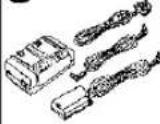 | 2 CGR-D120(800 mAh) | 3 CGP-D210(1400 mAh) | 4 CGR-D220(1600 mAh) | 5 CGP-D320(2800 mAh) | 6 CGR-D815(5300 mAh)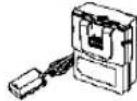 | 7 VW-KBD2E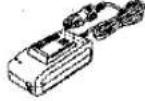 | 8 VW-K10E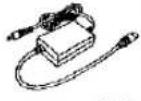 |
  | 10 VW-LT3714ME | 11 VW-LND37E | 12 VW-LMC37E | 13 VW-VMS1E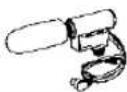 | 14 VW-VMS2E | 15 VW-FLH3E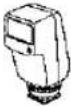 | 16 VW-SK11E |
  | 18 VZ-CTR1E | 19 VW-EC500E | 20 VW-EC1E | 21 VW-DTA10B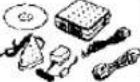 | 22 VW-DTA9E | 23 VW-K8E | 24 VW-CE1E |
 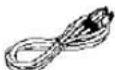 |  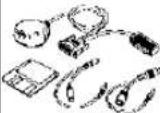 |   |   |   |  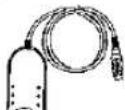 |   |   |
 VW-MMC8E-KVW-MMC16EVW-MMC16E-K VW-MMC8E-KVW-MMC16EVW-MMC16E-K  | 34 RP-SD016E-ARP-SD032E-ARP-SD064E-A | ||||||
VW-MMC8E-K
VW-MMC16E
VW-MMC16E-K
① AC Adaptor
②-⑥ Battery Pack (Lithium)
⑦ Car Battery Charger
8 5-Pin Synchro Cord
9 Wide Conversion Lens
⑩ Tele Conversion Lens
⑪ ND Filter
12 MC Protector
13 Stereo Zoom Microphone
(The Edit Terminal Conversion Adaptor 24
(VW-CE1E) is necessary.)
14 Stereo Microphone
15 Video Flash
16 Shoe Adaptor
17 Tripod
18 Tripod with Remote Controller
19-20 Editing Controller
21-22 Personal Computer Connection Kit
23 Edit Cable
24 Edit Terminal Conversion Adaptor
25 DV Cable
26 MultiMediaCard External Drive
27 PC Card Adaptor
28 Floppy Disk Adaptor
29 PC Card Adapter for SD Memory Card
30 USB Reader Writer for SD Memory Card
31 SD Memory Card Application Software
32 Digital Video Head Cleaner
33 MultiMediaCard
34 SD Memory Card
shop

Panasonic
- Order accessory and consumable items for all Audio Visual Products with ease and confidence either by telephoning our Customer Care Centre on 08705 357357 Mon–Friday 9:00am–6:00pm and Sat 9:00am–1:00pm
- Or go on line through our Internet Accessory ordering application at www.panasonic.co.uk.
- Most major credit and debit cards accepted.
- All enquires transactions and distribution facilities are provided directly by Panasonic UK Ltd.
- It couldn't be simpler!
Note: 15, 26-31, 33, 34 are optional accessories for NV-MX5 and NV-MX7.
Digital Video Head Cleaner
- If you wish to purchase this Digital Video Head Cleaner, please contact your Panasonic dealer to obtain it from the Panasonic spare parts department.
Index
A
AC Adaptor (p. 8, 10, 115)
Audio Dubbing (p. 78)
Auto Focus (p. 118)
Automatic Printing Function (p. 112)
Automatic White Balance Adjustment (p. 119)
F/G
Fade (p. 48)
F Number (p. 64)
Formatting (p. 98)
Gain-up Mode (p. 52)
B
Backlight Compensation (p, 28)
Black & White Mode (p. 52, 66)
Blank Search (p. 44)
H/I
Hyper Check Function (p. 38)
Index Search (p. 46)
Iris (p. 64)
C
Camera Search (p. 44)
Card Photoshot (p. 82)
Card Playback (p. 88)
Charging the Battery (p. 10)
Cinema Mode (p. 36)
Colour Temperature (p. 119)
Condensation (p. 116)
Continuous Photoshot (p. 35)
Cue Playback (p. 38)
J
Jet Zoom (p. 33)
Jog Playback (p. 41)
D
Date/Time Indication (p. 39)
Date/Time Setting (p. 24)
Digital Effects (p. 52)
Digital Still Picture (p. 35)
Digital Zoom (p. 32)
DPOF Settings (p. 100)
Dubbing (p. 108–110)
L
LCD Monitor (p. 14, 23, 117)
Lock Setting (p. 98)
Low Light Mode (p. 50)
E
Editing Controller (p. 111)
Erasure Prevention Slider (p. 13, 99)
M
Macro Close-up Function (p. 33)
Manual Focus (p. 30)
Mega-Pixel Still-Picture Recording (p. 82)
Memory Stop Function (p. 121)
Menu Screen (p. 16)
Microphone (p. 33, 117)
Mirror Mode (p. 52, 66)
Mix Mode (p. 52, 60, 66, 74)
Mosaic Mode (p. 52, 66)
MultiMediaCard (p. 103, 117)
Multi-Picture Mode (p. 52–57, 66–73, 88)
Music Play (p 94)
N/O
Negative Mode (p. 52, 66) Optional Accessories (p. 131)
T
Time Code (p. 121) Trailing Effect Mode (p. 52, 66)
p
PCM Digital Sound (p. 120) Photoshot (p. 34, 82, 84) Picture-in-Picture Mode (p. 52, 58) Picture Search Mode (p. 89) Playback Digital Effect Function (p. 66) Playback Zoom (p. 76) Portrait Mode (p. 50) Power Saving Function (p. 95) Programme AE (p. 50) Progressive Photoshot (p. 34, 120)
V
Variable Speed Search Function (p. 39) Video Head Clogging (p. 28) Video Printer (p. 112) Viewfinder (p. 14, 23, 117)
R
Recording Check (p. 28) Recording Pause Mode (p. 26) Recording Speed (p. 13) Red Eye Reduction (p. 19) Remaining Tape Time (p. 122) Remoto Controller (p. 104–107) Repeat Play (p. 95) Repeat Playback (p. 39) Review Playback (p. 38)
W
White Balance (p. 62, 119) Wipe Mode (p. 52, 60, 66, 74)
S
SD Memory Card (p. 103, 117) Search Lock Function (p. 38) Selfshoot (p. 31) Sepia Mode (p. 52, 66) Short-cut Menu (p. 126) Shutter Speed (p. 64) Slow Motion Playback (p. 40) Solarisation Mode (p. 52, 66) Sound Volume (p. 39) SP/LP Mode (p. 13) Sports Mode (p. 50) Spotlight Mode (p. 50) Still Advance Playback (p. 40) Strobe Mode (p. 52, 66) Sub Code (p. 120) Super Image Stabilizer (p. 36) Surf & Snow Mode (p. 50) Swing Mode (p. 55, 69)
Z
Zoom (p. 32) Zoom Microphone Function (p. 33)
- Panasonic
- Information for Your Safety
- Movie Camera
- AC Adaptor
- Caution for AC mains lead
- IMPORTANT
- ■ Before Use
- ■ How to replace the Fuse
- Operating Instructions
- ■ WARNING
- ■ Carefully observe copyright laws.
- Contents—Basic Operations
- Contents—Advanced Operations
- Contents—Editing
- Contents—Miscellaneous/Care of Unit/Options
- shop
- Controls and Functions
- ● LP Mode
- Attaching the Lens Cap
- 1
- 3
- 2
- Remarks, etc.
- Closing the LCD Monitor
- Camera Mode Main-Menu
- VCR Mode Main-Menu
- Card Playback Mode Main-Menu
- Menu Functions
- Camera Mode Menu
- Camera Mode Main-Menu [CAMERA FUNCTIONS]
- [DISPLAY SETUP] Sub-Menu ⑥
- [OTHER FUNCTIONS] Sub-Menu ⑦
- [DEMO MODE] Sub-Menu ⑧
- Menu Functions (Continued)
- VCR Mode Main-Menu [VCR FUNCTIONS]
- [PLAYBACK FUNCTIONS] Sub-Menu ①
- [DIGITAL EFFECT] Sub-Menu ②
- [CARD SETUP] Sub-Menu ③
- [MULTI-PICTURES] Sub-Menu ④
- [RECORDING SETUP] Sub-Menu ⑤
- ⑮ Recording Speed Mode [REC SPEED] (p. 109, 110)
- Audio Recording Mode [AUDIO REC] (p. 78, 110, 120)
- [AV IN/OUT SETUP] Sub-Menu ⑥ (NV-MX7 only)
- Card Playback Mode Main-Menu [CARD FUNCTIONS] (NV-MX5, NV-MX7 only)
- [CARD PLAYBACK] Sub-Menu ①
- [ERASE PICTURE/TITLE] Sub-Menu ②
- [CARD EDITING] Sub-Menu ③
- [DISPLAY SETUP] Sub-Menu ④
- [OTHER FUNCTIONS] Sub-Menu ⑤
- Adjusting the Brightness and Colour Level of the LCD Monitor/Viewfinder
- LCD Brightness [LCD BRIGHTNESS]
- LCD Colour Level [LCD COLOUR LEVEL]
- Viewfinder Brightness [EVF BRIGHTNESS]
- Increasing the Brightness of the Whole LCD Monitor Screen
- Setting the Date and Time
- ■ Charging the Built-in Lithium Battery
- WARNING
- ■ Video Head Clogging and Remedy
- Causes of Dirty Video Heads
- Using the Mini-DV Format Digital Video Head Cleaner (VFK1451)
- Notes:
- Mirror Mode for the Picture on the LCD Monitor
- Using the Zoom Microphone Function
- Digital Still Picture
- Continuous Photoshot
- Notes about the Photoshot Function
- Notes about the Progressive Photoshot Function
- When [PROGRESSIVE] Is Set to [ON]:
- You can always use the Progressive Photoshot Function.
- When [PROGRESSIVE] Is Set to [AUTO]:
- Search Lock Function
- Hyper Check Function
- ● Adjusting the Sound Volume
- Making the Date/Time Indication Appear
- Using the Jog Dial (Jog Playback)
- Listening to the Playback Sound via Headphones
- Making the Indications Appear on the TV Screen
- Press the [OSD] Button ① on the Remote Controller.
- Selecting the Sound
- Index Search
- Photoshot Index Signal
- Scene Index Signal
- Notes for Adjusting the Shutter Speed Manually
- Range of Shutter Speed Adjustment
- Notes for Adjusting the Iris (F Number) Manually
- Range of Iris Adjustment
- Swing Mode
- Concerning Card Photoshots
- Concerning Mega-Pixel Still-Picture Recording
- Others
- Using the Picture Search Mode
- Concerning the Colour Selection
- Power Saving Function
- Power consumption and playback time at ON/OFF settings of Power Saving Function
- Press the [▶] Button.
- Repeat Play
- Music Search Mode
- Erasing Titles
- Concerning Preventing the Accidental Erasure of SD Memory Card Data
- Using the Pictures Recorded on the MultiMediaCard or SD Memory Card on the Computer
- Still pictures recorded on a MultiMediaCard or SD Memory Card
- Concerning the SD Memory Card Application Software
- TitleStudio
- Browser
- Editor
- SD-Jukebox
- MultiMediaCard
- SD Memory Card
- Concerning the compatibility of the Card images
- Concerning the folder structure when using the Card in a personal computer
- Remote Controller
- ■ Buttons on the Remote Controller
- ■ Selecting the Remote Controller Mode
- Setting to be Made on the Movie Camera:
- Copying onto an S-VHS (or VHS) Cassette (Dubbing)
- Movie Camera:
- VCR:
- Recording the Content of External Device (NV-MX7 only)
- Other Equipment:
- ■ Concerning recording onto a Card
- ■ Concerning Analog-digital Conversion
- Stopping Dubbing
- Copying with the Help of an Editing Controller
- When Connecting the Editing Controller VW-EC500E (optional)
- When Connecting the Editing Controller VW-EC1E (optional)
- When Editing with Time Code
- Using the Movie Camera with a Video Printer
- Video Printer:
- ■ Using the Automatic Printing Function (Autoprint)
- Using the Movie Camera with a Computer
- Computer System Requirements (VW-DTA10B)
- Compatible machines:
- Graphic card:
- Installed memory:
- Cautions for Use
- Take care that no water enters the Movie Camera when using it in the rain and snow or on the beach.
- Keep the Movie Camera away from magnetized equipment (TVs, video games, etc.).
- Do not use the Movie Camera near a radio transmitter or high-voltage power line.
- Do not use the Movie Camera for surveillance and other industrial applications.
- Take care that no sand and fine dust enters the Movie Camera when using it on a beach or similar places.
- Do not spray insecticide or volatile agents on the Movie Camera.
- Do not use benzine or thinner for cleaning.
- After use, always take out the cassette and remove the Battery or unplug the AC Mains Lead from the AC mains socket.
- Notes about the AC Adaptor
- Cautions for Use (Continued)
- ■ Condensation
- ■ Optimum Use of the Battery
- ■ Precautions for Storage
- Battery
- Cassette
- MultiMediaCard/SD Memory Card (NV-MX5, NV-MX7 only)
- ■ Other Useful Information
- LCD Monitor
- Viewfinder
- Lens Hood
- Microphone Socket
- Video Flash (NV-MX5, NV-MX7 only)
- Glossary
- Focus
- Human Eyes
- Auto Focus Adjustment
- ■ White Balance Adjustment
- White Balance Adjustment
- Auto White Balance Adjustment
- ■ Colour Temperature
- Glossary (Continued)
- ■ Digital Video System
- Features
- Compatibility with S-VHS or VHS Cassettes
- Compatibility with Output Signals
- PCM Digital Sound
- Sub Code
- ■ Progressive Photoshot Function
- Actual operation:
- ■ Time Code
- ■ Memory Stop Function
- ① Remaining Battery Power
- ② Remaining Tape Time
- ③ Cinema Mode (p. 36)
- Digital Zoom (p. 32)
- Digital Effects (p. 52, 66)
- Playback Zoom (p. 76)
- Recording Speed Mode (p. 13)
- ⑤ Zoom Magnification (p. 32)
- Recording Mode (p. 26, 30, 50, 62, 64)
- Super Image Stabilizer (p. 36)
- Audio Dubbing Input Display (p. 78) (NV-MX7 only)
- Audio Recording Mode (p. 78)
- Automatic Printing (p. 112)
- ⑥ Manual Focus (p. 30)
- Back Light Mode [F] (p. 28)
- Programme AE Mode (p. 50)
- ⑦ Tape Run Indications
- Changing the Counter Display Mode
- Changing the Display Mode
- ⑪ Index (p. 47)
- Search Number (p. 46)
- ⑫ White Balance Mode (p. 62)
- ⑬ Zoom Microphone (p. 33)
- ⑭ Wind Noise Reduction [WIND CUT]
- Progressive Photoshot Mode (p. 34, 82)
- Sound Volume (p. 39)
- Date and Time (p. 39)
- Warning/Alarm
- PRINTER ERROR:
- UNPLAYABLE TAPE
- (OTHER FORMAT):
- UNABLE TO A. DUB
- (LP RECORDED):
- INCOMPATIBLE TAPE:
- COPY INHIBITED:
- Indications (Continued) (for MultiMediaCard and SD Memory Card) (NV-MX5, NV-MX7 only)
- Number of horizontal pixels
- ④ Short-Cut Menus
- Before Requesting Service (Problems & Solutions)
- Power Supply
- Normal Recording
- Other Recording
- Editing
- Indicaitons
- Playback (Picture)
- Playback (Sound)
- Before Requesting Service (Problems & Solutions) (Continued)
- Optional Accessories
- Digital Video Head Cleaner
- Index
- A
- F/G
- B
- H/I
- C
- J
- D
- L
- E
- M
- N/O
- T
- p
- V
- R
- W
- S
- Z
Marke : PANASONIC
Modell : NV-MX1
Kategorie : Camcorder