
MF683 - Handy ZTE - Kostenlose Bedienungsanleitung
Finden Sie kostenlos die Bedienungsanleitung des Geräts MF683 ZTE als PDF.


| Produkttyp | Handy |
| Marke | ZTE |
| Modell | MF683 |
| Abmessungen (H x B x T) | 120 x 55 x 12 mm |
| Gewicht | 100 g |
| Displaygröße | 2,4 Zoll |
| Auflösung | 320 x 240 Pixel |
| Akku-Kapazität | 1500 mAh |
| Akku-Typ | Lithium-Ionen, herausnehmbar |
| Standby-Zeit | ca. 300 Stunden |
| Gesprächszeit | ca. 5 Stunden |
| Netzwerk | GSM / 3G / 4G |
| SIM-Karte | Mini-SIM (Standard) |
| Speicher | intern: 128 MB, erweiterbar via microSD bis 32 GB |
| Kamera | 0,3 MP (VGA) |
| Konnektivität | Bluetooth 2.1, USB 2.0 |
| Radio | FM-Radio (mit Kopfhörer) |
| Reinigung | Mit einem weichen, trockenen Tuch abwischen. Keine aggressiven Reinigungsmittel verwenden. |
| Sicherheit | Nicht selbst öffnen, nur Original-Zubehör verwenden, vor Feuchtigkeit schützen. |
| Reparierbarkeit | Reparatur nur durch autorisiertes Service-Center; Ersatzteile (Akku, Display) verfügbar. |
Häufig gestellte Fragen - MF683 ZTE
Benutzerfragen zu MF683 ZTE
0 Frage zu diesem Gerät. Beantworten Sie die, die Sie kennen, oder stellen Sie Ihre eigene.
Eine neue Frage zu diesem Gerät stellen
Laden Sie die Anleitung für Ihr Handy kostenlos im PDF-Format! Finden Sie Ihr Handbuch MF683 - ZTE und nehmen Sie Ihr elektronisches Gerät wieder in die Hand. Auf dieser Seite sind alle Dokumente veröffentlicht, die für die Verwendung Ihres Geräts notwendig sind. MF683 von der Marke ZTE.
BEDIENUNGSANLEITUNG MF683 ZTE
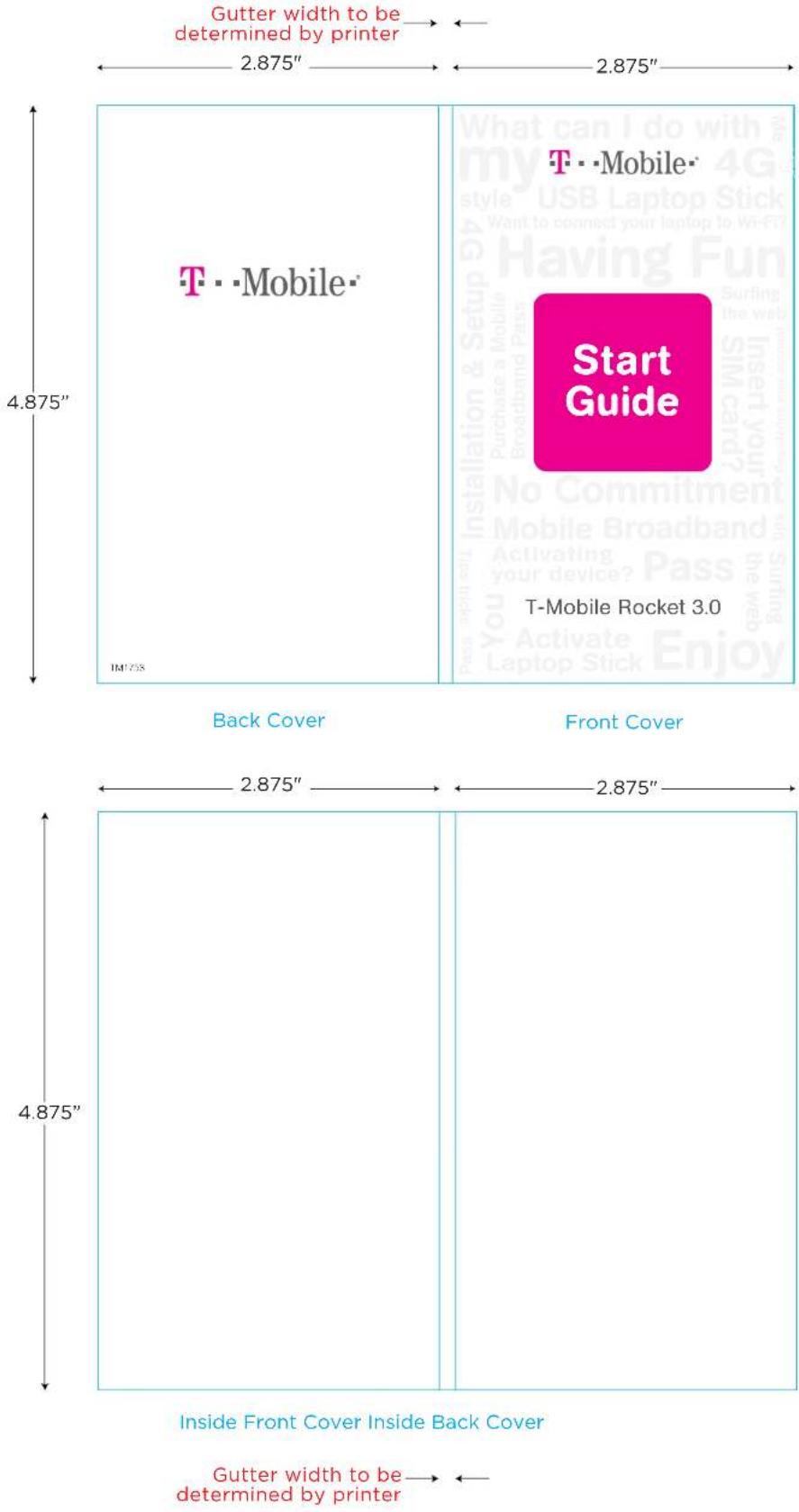
This is the cover art for 2 booklets: Getting Started & Having Fun. The booklets are side by side saddle-stich binding (or perfect-bound).
| TITLETM1753 T-Mobile Rocket 5.0 Start Guide Cover.ai | PRINTING STATIONS | MATCH COLORES: | |||||
| MANUFACTUREST/TIF | HANDBT COLOR/Washington | ||||||
| DATE:02.16.11 | DRAWN BY QUICHE INFORMATIONVLO Varies, see colours: | ||||||
| ITEMSThese color space apply to the Start Guide Cover & Content | |||||||
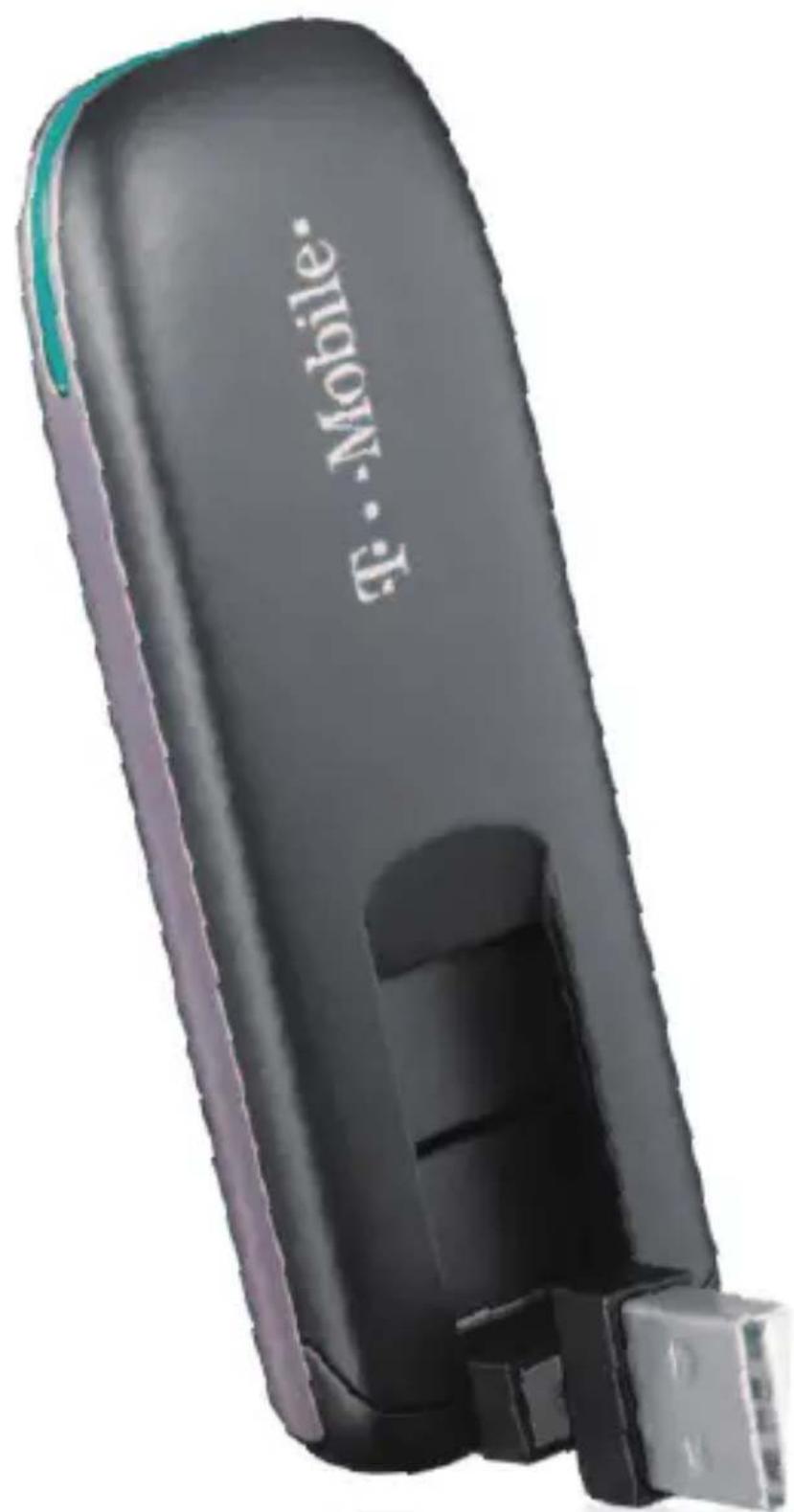
TABLE OF CONTENTS
Overview 1
Term Commitment Mobile Broadband ..... 1
No Commitment Mobile Broadband ..... 1
Get More Support 2
Installation & Setup 3
Insert the SIM Card 3
Insert the Memory Card 4
Install the Connection Manager 5
Term Commitment Mobile Broadband ... 7
T-Mobile Broadband 8
Connect to T-Mobile Broadband Network.... 8
Connect to other Networks 8
Send and Receive Text Messages ..... 10
Check Usage Data 11
Check Software Updates 12
Wi-Fi 13
No Commitment Mobile Broadband... 16
Refill Mobile Broadband Pass 19
Check Data Usage 19
Additional Information 20
OVERVIEW
This guide contains the following information to get you started:
■ Installation and setup information on how to insert your SIM card and memory card in your laptop stick.
■ Information on the following plans that T-Mobile offers for your laptop stick:
Term Commitment Mobile Broadband plan is ideal if you frequently connect to the Internet and transfer data, such as sending and receiving e-mail, downloading pictures, music, videos, and so on. If you are interested in this plan or have signed up to this plan, please go to the Term Commitment Mobile Broadband section in this guide.
No Commitment Mobile Broadband plan is ideal for those who want the same network performance as Term Commitment Mobile Broadband, but do not want to sign up for a long-term contract. If you are interested in this plan or have signed up to this plan, please go to the No Commitment Mobile Broadband section in this guide.
Get more support
■ On the T-Mobile Connection Manager, click Help > Help.
■ For T-Mobile HotSpot or Wi-Fi questions, please call 1-877-822-SPOT.
natural_image
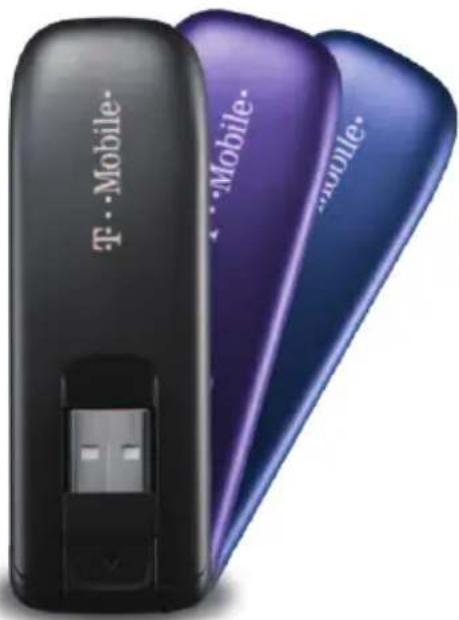
Black T-Mobile mobile phone with USB port, shown in two shades of blue (no text or symbols visible on device body)By activating service, you acknowledge that you have read, understand, and agree to be bound by each of T-Mobile's Terms and Conditions and your Service Agreement.
INSTALLATION & SETUP
Insert the SIM card
Your Subscriber Identity Module (SIM) card identifies you to the wireless network. You will not be able to connect to the network without your SIM card.
- Slide the back cover in the direction, as shown, to remove.
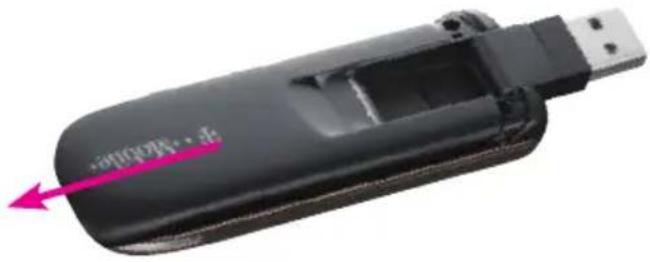
- Insert the SIM card into the SIM card slot, as shown.
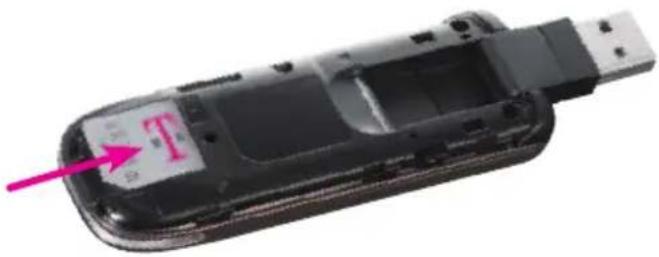
natural_image
Close-up of a black USB flash drive with a pink arrow pointing to the left side (no text or symbols visible)- Replace the back cover.
Insert the memory card
Your laptop stick supports a microSD memory card (not included with your purchase).
NOTE: Do not remove your memory card while it is in use. Removing the memory card while in use may corrupt the data stored on your memory card and damage your memory card or laptop stick.
To insert:
- Remove the back cover.
- Insert the memory card into the memory card slot with the golden contacts facing upward. Press in until it clicks into place.
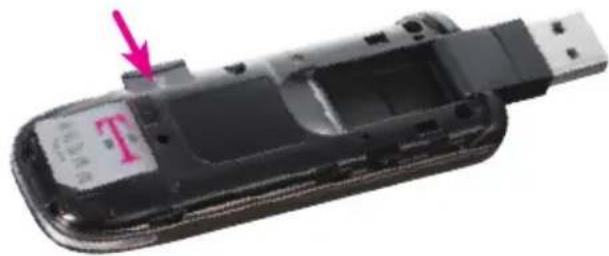
natural_image
Close-up of a black handheld electronic device with a red arrow pointing to a small component labeled 'T' (no readable text or symbols beyond the label)To remove:
- Remove the back cover.
- Push in the memory card and release. The card should pop out of the slot.
Install the Connection Manager
The Connection Manager is an application that you use to connect to the T-Mobile Broadband network and Wi-Fi networks.
To install the Connection Manager on your Windows® computer:
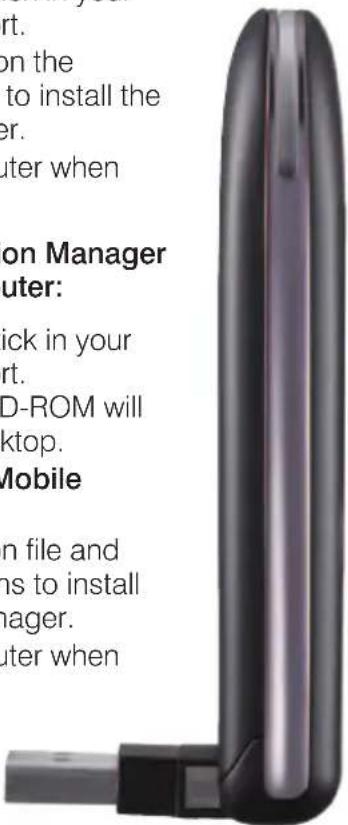
- Insert your laptop stick in your computer's USB port.
- Follow instructions on the InstallShield Wizard to install the Connection Manager.
- Re-start your computer when prompted.
To install the Connection Manager on your Mac OS computer:
- Insert your laptop stick in your computer's USB port. A virtual T-Mobile CD-ROM will appear on your desktop.
- Double-click the T-Mobile CD-ROM.
- Select the installation file and follow the instructions to install the Connection Manager.
- Re-start your computer when prompted.
TERM COMMITMENT MOBILE BROADBAND
Term Commitment Mobile Broadband is ideal if you frequently connect to the Internet and transfer data, such as sending and receiving e-mail, downloading pictures, music, videos, and so on. With a Mobile Broadband data plan, you can:
■ Connect to the Internet using T-Mobile Broadband or using Wi-Fi.
■ Check your data usage.
- Send and receive text messages.
If you are a new T-Mobile customer and your service has not been activated, please call Customer Care at 1-800-937-8997 and a T-Mobile Activations representative will assist you.
After service activation, you can go to the T-Mobile Connection Manager section of this guide to learn about network connections.
T-MOBILE BROADBAND
Connect to the T-Mobile Broadband network
You do not need to add a profile or change settings to connect to the T-Mobile Broadband network.
- Insert your laptop stick in your computer's USB port.
- Open the Connection Manager.
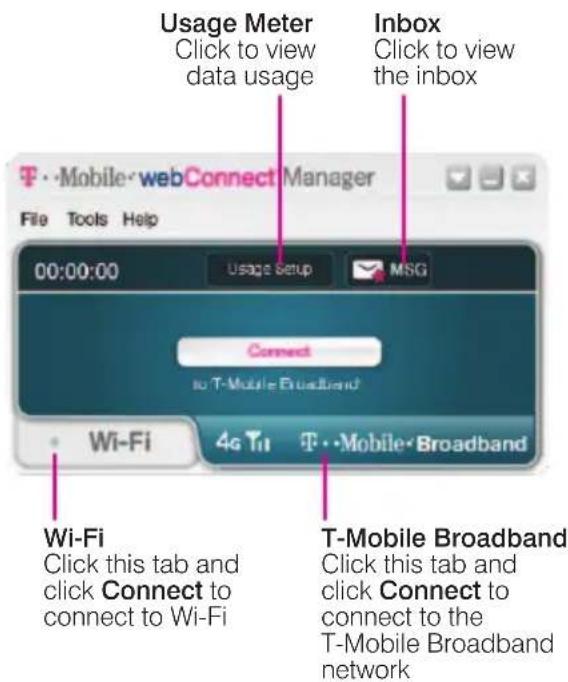
- Click the T-Mobile Broadband tab.
- Click Connect.
Connect to other networks
To connect to another network, you must first create a profile for that network. Consult with your IT administrator, if needed, for applicable settings.
To create a profile:
- Insert your laptop stick in your computer's USB port.
- Open the Connection Manager.
- Click the T-Mobile Broadband tab.
- Click Tools.
- Click Profiles to open the Profiles screen.
-
At the Profiles screen, click Add.
-
Click Broadband and then click Add.
- Click the profile of the network you would like to add or click Create Custom Profile if you want to create a profile for a network that is not listed.
- Click Next.
- On the Broadband screen, enter your settings as needed and click Next.
- On the IP Settings screen, enter your settings as needed and click Next.
- On the General screen, enter the remainder of the settings for your profile and click Finish.
To connect to other networks:
Connecting to other broadband networks may incur roaming charges.
- Insert your laptop stick in your computer's USB port.
- Open the Connection Manager.
- Click the T-Mobile Broadband tab.
- Click Tools.
- Click Profiles.
- Click the desired network.
- Click Connect.
Send and receive text messages
To read text messages:
When you receive a new text message, the Connection Manager displays the Envelope

icon with a red star on the main
T-Mobile Broadband screen.
- Insert your laptop stick in your computer's USB port.
- Open the Connection Manager.
- Click the T-Mobile Broadband tab.
- Click
- Make sure Inbox is selected.
- Double-click the message you want to read.
To write and send text messages:
- Insert your laptop stick in your computer's USB port.
- Open the Connection Manager.
- Click the T-Mobile Broadband tab.
- Click MSG
- Click New to open the new message screen.
- At the To line, type the destination phone number OR click To, which will open the address book to select a contact saved in your address book.
- Type your message and click Send.
To manage text messages:
- Click 📄 or click File > Folders > New Folder to create a new folder to store messages.
- Click or click File > Folders > Delete Folder to delete a folder (and all the messages it contains).
- Click or click Edit > Move to Folder to move the selected message to another folder.
- Click or click Edit > Copy to Folder to place a copy of the selected message in another folder.
Check usage data
- Insert your laptop stick in your computer's USB port.
- Open the Connection Manager.
- Click the T-Mobile Broadband tab.
- Click Usage Setup.
- Select the billing period start date. You can get your billing start date by going to http://my.t-mobile.com.
- View your usage on the Current Usage tab and Cumulative Usage tab.
Check software updates
You may receive periodic updates to your Connection Manager software. You can also manually check for updates.
To check updates manually:
- Insert your laptop stick in your computer's USB port.
- Open the Connection Manager.
- Click the T-Mobile Broadband tab.
- Click Tools.
- Click Settings.
- Click the Updates tab.
- Click Update Now to check for available updates.
If you have updates available, a screen opens listing the updates. Click the updates you want and click Download.
WI-FI
Connect to T-Mobile HotSpot
You can use your T-Mobile HotSpot username and password at many roaming locations around the world (additional charges may apply).
- Make sure that you are at a T-Mobile HotSpot location.
- Open the Connection Manager.
- Click the Wi-Fi tab to scan for available networks.
- Click Connect.
You will be prompted to enter your username and password for your T-Mobile HotSpot account. Your username is your 10-digit mobile phone number of your T-Mobile Broadband device and your default password is the last four digits of your Social Security number.
- Type your username and password.
When you have successfully logged in, the T-Mobile HotSpot welcome screen opens.
TIPS:
The default password for a corporate customer is the last four digits of the tax ID.
If you forget your username (phone number), open the Connection Manager and click Tools > Network Info > Broadband. Your username is your 10-digit phone number.
If you forget your password, you can open a browser while at a T-Mobile HotSpot location and click Account Management. Follow instructions on the screen to reset your password. When done, open the Connection Manager and then click the Wi-Fi tab. Click Tools > User Credentials. Enter your username and the new password and click OK.
If you want to auto-save your username and password, you can open the Connection Manager and click the Wi-Fi tab and then click Tools > User Credentials. Type your username and password and select Store this password for future logins.
Connect to other Wi-Fi Networks
The Connection Manager comes pre-loaded with settings for the T-Mobile HotSpot network, but connecting to other Wi-Fi networks is as easy as connecting to T-Mobile HotSpot.
- Make sure that you are at a location with Wi-Fi access.
- Open the Connection Manager.
- Click the Wi-Fi tab.
- Click Networks to display a list of available Wi-Fi networks.
- Click Connect for the desired network.
NOTES:
The Connection Manager will attempt to automatically connect to any pre-defined networks set in your network profile settings or display the last network connection that you made.
Before you connect to a Wi-Fi network, you should confirm with its operator if you will need any additional settings to connect. For example, if you are trying to connect to your work Wi-Fi network, you should check with your IT administrator for the correct settings.
NO COMMITMENT MOBILE BROADBAND
No Commitment Mobile Broadband is ideal for those who want the same network performance as Term Commitment Mobile Broadband, but do not want to sign up for a long-term contract. With No Commitment Mobile Broadband, you can:
- Get a Mobile Broadband Pass online when and where you need it for the amount of time and data that you require.
■ Connect to the Internet using T-Mobile Broadband. Connection to T-Mobile HotSpot and connection to Wi-Fi networks through the Connection Manager is not available with No Commitment Mobile Broadband plan.
■ Receive system text messages. You cannot send text messages.
To sign up get a Mobile Broadband Pass, please follow these steps:
Step 1 Connect to T-Mobile Broadband
Insert your laptop stick in your computer's USB port and open the Connection Manager. Click the T-Mobile Broadband tab and click Connect. Open your Web browser. You should see an Activations page.
Step 2 Activate on www.t-mobile.com
At the Activations page, provide the requested information and click Activate device. Activation may require you to re-establish your connection to the T-Mobile Broadband network. To re-establish, click Connect on the Connection Manager.
Step 3 Register your account
Once you have re-established your connection to the T-Mobile Broadband network, open a new Web browser window. You will see the Registration page where you will be asked to register your new account. Click Register when done.
Your new account number - Please check your Connection Manager inbox for a text message containing your new Mobile Broadband phone number for your laptop stick. Please write this number down and keep it in a safe place. You will need the phone number when you log into the https://my.t-mobile.com Web site to purchase a Mobile Broadband Pass.
Phone Number:
Step 4 Purchase a Mobile Broadband Pass
After you have registered your account, you will need to purchase a Pass before you can access the Internet.
Step 5 Browse the Internet!
Congratulations! Now you can browse the Internet. Make sure to insert your laptop stick in your computer's USB port. Open the Connection Manager and click the T-Mobile Broadband tab. Click Connect. Open a Web browser and browse!
Refill Mobile Broadband Pass
After you have used up your Pass, you will be re-directed to a T-Mobile Web page where you can purchase a new Pass.
NOTE: You can have only one active Pass at a time. When your current Pass expires, you will be able to purchase another Pass.
- Insert your laptop stick in your computer's USB port.
- Open the Connection Manager.
- Click Connect.
- Open a Web browser.
- Select the option to purchase a Pass.
- Follow the instructions on the screen.
Check usage data
You can view the time and usage amount on your Pass by logging in tohttps://my.t-mobile.com. Remember your username is your phone number, which you can find by clicking Help > My Phone Number on the Connection Manager.
ADDITIONAL INFORMATION
Wi-Fi: Devices using wireless connections may be vulnerable to unauthorized attempts to access data and software stored on the device. See the T-Mobile HotSpot Security Statements and the T-Mobile HotSpot Terms and Conditions, available at hotspot.t-mobile.com. Wi-Fi available for data usage.
Messaging/Data: You will be charged for all data sent by or to you through the network, regardless of whether received. Character length/file size of messages/attachments may be limited. T-Mobile is not liable for content of messages/attachments or for any failures, delays or errors in any T-Mobile generated alerts or notifications. T-Mobile is not responsible for any third party content or Web site you may be able to access using your device. Data speed is variable and may be impacted by network conditions and traffic. Your data session, plan or service may be slowed, suspended, terminated or restricted if you use your service in a way that interferes with or impacts our network or ability to provide quality service to other users. We may also temporarily reduce data speed for a subset of customers who use a disproportionate amount of bandwidth during a billing cycle. You may not use your plan or device for the prohibited uses listed in your data plan terms. See Data Plan Terms for additional details.
Term Commitment Mobile Broadband Plans:
Domestic roaming not possible. Roaming charges may apply to use via non-T-Mobile owned Wi-Fi networks. International use requires international service activation; usage does not apply to Mobile Broadband Plan megabyte allotment; international rates apply.
No Commitment Mobile Broadband
Plans: Does not require a commitment to a long-term contract. Pass required to use service. Service available for time period and/or usage amount provided by Pass. Service does not include voice, messaging or Wi-Fi services. Domestic only; no international or domestic roaming. Devices sold for use on T-Mobile service are to be activated on that service, not transferred for resale, modification, or export.
Coverage: Coverage not available everywhere. See brochures and Terms and Conditions (including arbitration provision) at www.T-Mobile.com, for coverage maps, rate plan information, charges for features and services, and restrictions and details. T-Mobile and the magenta color are registered trademarks of Deutsche Telekom AG. ©2011 T-Mobile USA, Inc.
- TABLE OF CONTENTS
- Overview 1
- Installation & Setup 3
- Term Commitment Mobile Broadband ... 7
- No Commitment Mobile Broadband... 16
- Additional Information 20
- OVERVIEW
- Get more support
- INSTALLATION & SETUP
- Insert the SIM card
- Insert the memory card
- To insert:
- To remove:
- Install the Connection Manager
- To install the Connection Manager on your Windows® computer:
- To install the Connection Manager on your Mac OS computer:
- TERM COMMITMENT MOBILE BROADBAND
- T-MOBILE BROADBAND
- Connect to the T-Mobile Broadband network
- Connect to other networks
- To create a profile:
- To connect to other networks:
- Send and receive text messages
- To read text messages:
- To write and send text messages:
- To manage text messages:
- Check usage data
- Check software updates
- To check updates manually:
- WI-FI
- Connect to T-Mobile HotSpot
- TIPS:
- Connect to other Wi-Fi Networks
- NOTES:
- NO COMMITMENT MOBILE BROADBAND
- Step 1 Connect to T-Mobile Broadband
- Step 2 Activate on www.t-mobile.com
- Step 3 Register your account
- Step 4 Purchase a Mobile Broadband Pass
- Step 5 Browse the Internet!
- Refill Mobile Broadband Pass
- ADDITIONAL INFORMATION
- Term Commitment Mobile Broadband Plans:
Marke : ZTE
Modell : MF683
Kategorie : Handy