Compel - Handy ZTE - Kostenlose Bedienungsanleitung
Finden Sie kostenlos die Bedienungsanleitung des Geräts Compel ZTE als PDF.


| Produkttyp | Mobiltelefon |
| Marke | ZTE |
| Modell | Compel |
| Abmessungen (ca.) | 110 x 50 x 15 mm |
| Gewicht (ca.) | 100 g |
| Akku-Typ | Li-Ion, 1000 mAh |
| Standby-Zeit (ca.) | 200 Stunden |
| Gesprächszeit (ca.) | 4 Stunden |
| Display | Farbdisplay, 1,8 Zoll |
| Kamera | VGA (0,3 MP) |
| Speicher | MicroSD-Slot (bis zu 8 GB) |
| Konnektivität | GSM, GPRS, Bluetooth |
| Hauptfunktionen | Telefonieren, SMS, Kontakte, Kalender, Wecker, UKW-Radio, Kamera |
| Reinigung | Mit einem weichen, trockenen Tuch reinigen. Keine aggressiven Reinigungsmittel verwenden. |
| Sicherheitshinweise | Nicht in Wasser tauchen. Nur Original-Zubehör verwenden. Akku nicht kurzschließen. |
| Ersatzteile | Akku und Ladegerät als Ersatzteile erhältlich. |
| Reparierbarkeit | Akku wechselbar. Für andere Reparaturen Fachmann hinzuziehen. |
| Lieferumfang | Telefon, Akku, Ladegerät, Bedienungsanleitung |
Häufig gestellte Fragen - Compel ZTE
Benutzerfragen zu Compel ZTE
0 Frage zu diesem Gerät. Beantworten Sie die, die Sie kennen, oder stellen Sie Ihre eigene.
Eine neue Frage zu diesem Gerät stellen
Laden Sie die Anleitung für Ihr Handy kostenlos im PDF-Format! Finden Sie Ihr Handbuch Compel - ZTE und nehmen Sie Ihr elektronisches Gerät wieder in die Hand. Auf dieser Seite sind alle Dokumente veröffentlicht, die für die Verwendung Ihres Geräts notwendig sind. Compel von der Marke ZTE.
BEDIENUNGSANLEITUNG Compel ZTE
Quick Start
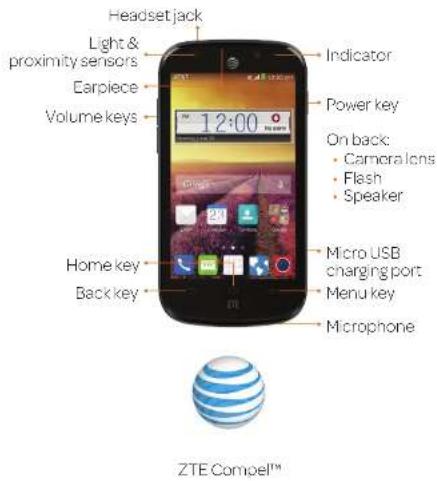
Touch Screen and Navigation
Your phone features a capacitive touch screen, so you can gently tap, quickly swipe, or pinch with two fingers to navigate.
Navigating Your Phone
- Use your fingertip to lightly touch the screen.
- Use quick flicks of your finger on the touch screen to swipe up, down, left, and right.
- Spread two fingers apart or pinch them together on the screen to zoom in or out on a web page or a gallery image.
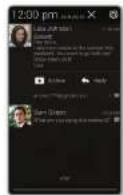
- The Notifications bar at the top of the screen provides quick access to alerts including new messages, email, and voice-mail. Swipe down on the black bar to see more details.
• To return to the previous screen, press - Press return to the main home screen. Press and hold access Google Now".
- Press access menu options for the screen you are on. Press and hold access your recent apps.
- Tap to access applications on your phone.
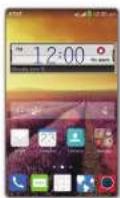
Customize a Home Screen
Change the wallpaper, add shortcuts to apps and widgets to the home screen, and create folders to organize and personalize your phone.
Set the Wallpaper
① Press and hold a blank part of the home screen and tap Wallpaper.
②Tao Wallpaper for home screen or Wallpaper for lock screen.
③ Tap Gallery, Live, Photos, or Wallpapers and choose the image or animation you want to use as the wallpaper.
④ Tap OK (for Gallery images) or Set wallpaper.
Add Shortcuts to the Home Screen
① Press and hold a blank part of the home screen and tap Widgets or Apps.
⑦ Press and hold the icon of the item you wish to add and then drag it to a home screen thumbnail at the bottom.
③ To move an icon, press and hold it and drag it to a new location. To delete it, drag it to Delete and release your finger.
Organize Your Home Screens
① Press and hold an icon and drag it to Folder.
② To add apps, drag additional icons to the folder.
③ To rename a folder, tap it and then tap the name to bring up the keyboard. Enter a name and tap Done.
GoPhone Account
Auto Refill
Take the hassle out of refilling your account by enrolling in Auto Refill.
From Your Device
① Call 611 from your phone.
② From the main menu, say "More options," and then say, "Set up auto pay."
Online
①Visitatt.com/mygophone
② Under Auto Refill, select Sign Up > Manage My Account > Auto Refill
Add Money with a Credit Card, Debit Card, or Checking Account
① Call 611 from your phone and say, "Add money."
②Gotoatt.com/mygophone and select the Credit Card Payment link.
Add Money by Purchasing a GoPhone Refill Card
Add money by purchasing a GoPhone Refill Card, which is available at authorized retail locations nationwide. With most refill cards, you can add the value directly from your phone.
① Dial 611 from your phone and say "Add money."
② Enter *888*, followed by your PIN, the # key, and then press Send.
③ Go to att.com/mygophone and select the Refill link.
Camera and Video Recording
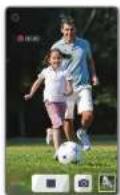
Take pictures and record videos right from your phone with the camera and camcorder and then share them with friends and family.
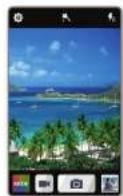
Take a Picture
① From the home screen, tap
②Tap to adjust your camera settings. Zoom in and out by pressing the volume key.
③ Tap no take a photo.
Record a Video
① From the home screen, tap
②Tap to start and tap to stop recording video.
Share a Picture or Video
① From the home screen, tap > Gallery
② Tap an album and then tap a photo or video. Tap Share and select an option for sharing.
Contacts and Phone Calls
Keep the contact information of your favorite people in the address book. Call friends and family and check voicemail in just a few simple steps.
Import Contacts from SIM card
① From the home screen, tap
② Press > Import/Export > Import from SIM card.
③ Tap > Export to phone, tap the contacts you wish to import and tap □, or tap □ > □ import all contacts.
Edit a Contact
① From the home screen, tap
② Tap a contact name, then press Edit.
③ Change details as needed and tap DONE.
Make a Call
① From the home screen, tap
② Spell the name or phone number of a contact in the search box at the top of the screen, or tap and enter a phone number. Tap the contact or tap to place the call.
Check Voicemail
① From the home screen, tap
② Press and hold the 1 Key.
③ Follow voice prompts to listen to messages.
Text and Picture Messaging
Send text or picture messages to communicate privately and quickly.
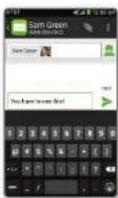
Send a Text Message
① From the home screen, tap
②Tap to start a new text message.
③IntheTofield, enter a number or a contact name, or tap to access your contacts.
④TaptheType message field and enter your message.
⑤Tap ▶ to send the message.
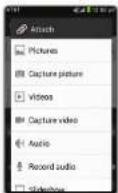
Send a Picture Message
① Follow steps 1-4 above.
②Tap
③TapPictures and select desired picture.
④Tap ▷ to send the message.
Please don't text and drive.
Access your Gmail™, corporate email, and personal email wherever you are!
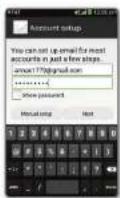
Email Setup
① From the home screen, tap
② Enter your email address and password and then tap Next.
③ Confirm email account settings and tap Next.
⑥ Name the account, enter your name as it will appear on outgoing messages, and tap Next. Your email will begin to synchronize with your phone.
Create and Send an Email
① From your email inbox, tap
② Enter an email address or tap to access your contacts list.
③ Enter a subject and email message. To attach files to the email message, tap, tap Attach file, and make your selection.
④TapSend to send your message.
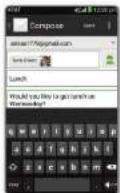
Note: To set up corporate email, contact your IT administrator.
Network Indicators
Your 4G LTE wireless device will indicate which of the AT&T wireless networks you are connected to. A network indicator does not necessarily mean that you will experience any particular upload or download data speeds.
4G LTE: Connected to the AT&T 4G LTE network. 4G: Connected to the AT&T HSPA+ network. The AT&T HSPA+ network is capable of delivering 4G speeds when combined with enhanced backhaul. 4G availability is increasing with ongoing backhaul deployment.
3G: Connected to AT&T's 3G network. Edge: Connected to the AT&T EDGE/2G network.
Actual data upload and download speeds depend on various factors, including the device, network utilization, file characteristics, terrain, etc. Learn more at: wireless.att.com/learn/articles-resources/wireless-terms.jsp, your AT&T Wireless Customer Agreement, Section 3.2 "Where and How Does AT&T Service Work?"
4G LTE not available everywhere. LTE is a trademark of ETSL. Learn more at att.com/network.
Bluetooth ^® and Wi-Fi ^®
Pair with other Bluetooth devices or connect to a Wi-Fi network.
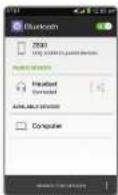
Connect to a Bluetooth Headset
① From the home screen, press and tap System settings > Bluetooth.
②Tap to turn Bluetooth on.
③ Your phone will automatically search for devices. Tap the name of the device to pair and connect with it.
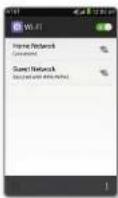
Connect to Wi-Fi Network
① From the home screen, press and tap System settings > Wi-Fi.
② If Wi-Fi is off, tap to enable it.
③ Tap a network name. Enter a password if required and then tap Connect.
AT&T Services
Check out these handy apps from AT&T.
AT&T Drive Mode™: Silence notifications, set an auto-reply so people will know you're driving, and more.
AT&T Locker™: Safely store and share all your photos, videos, and documents with up to 5 GB of free storage.
AT&T Navigator®: Get voice-guided, turn-by-turn driving directions and traffic updates.
MobileTV: Watch LIVE, on-demand, and downloadable mobile TV.
AT&T Usage Manager: You can track how much data has been used during the time cycle you set, set a mobile data limit and warning, see what apps have been using mobile data, or restrict background data for individual apps.
Data rates may apply. Mobile TV and AT&T Navigator require a separate subscription. Mobile TV requires mobile broadband service. Service not available in all areas. Programming subject to blackout restrictions. Download and watch capability available for select content, requires Wi-Fi connection, and is available for viewing for limited time periods.
Find More Information
On the Web
• Find tutorials at att.com/Tutorials.
• Find device specifications, user manuals, troubleshooting, and user forums at att.com/DeviceSupport.
- Manage your wireless account, including suspending service if your phone is stolen, at att.com/myatt
• View the User Guide at www.zteusa.com/phones/zte-portland.html#manual.
Give us a call
- Call AT&T Customer Care at1-800-331-0500 or dial 611 from any AT&T mobile phone for assistance with your service or device.
ZTE is a registered trademark of ZTE Corporation. © 2014 AT&T Intellectual Property. All rights reserved. AT&T, the AT&T logo and all other AT&T marks contained herein are trademarks of AT&T Intellectual Property. All other marks contained herein are the property of their respective owners.
Printed in China