
Pokedex 3D Pro (3DS) - Videospiel NINTENDO - Kostenlose Bedienungsanleitung
Finden Sie kostenlos die Bedienungsanleitung des Geräts Pokedex 3D Pro (3DS) NINTENDO als PDF.


| Produkttyp | Videospiel (Anwendung) für Nintendo 3DS |
| Kompatibilität | Nintendo 3DS-System (auch Nintendo 3DS XL, 2DS) |
| Sprachen | Deutsch, Englisch, Französisch, Italienisch, Spanisch, Japanisch |
| Hauptfunktionen | Pokédex mit 3D-Ansichten, AR-Viewer, Pokémon-Challenge, Move Dex, Lesezeichen, Suchfunktion |
| Datenumfang | Alle Pokémon des Nationalen Pokédex (Stand 2012) |
| Speicher | Automatisches Speichern auf SD-Karte; Fotos belegen zusätzlichen Speicher |
| AR-Viewer | Erkennt Pokémon-AR-Marker, Fotos können auf SD-Karte gespeichert und im Pokédex registriert werden |
| Stromversorgung | Stromversorgung über Nintendo 3DS-Akku; Ruhemodus verfügbar |
| Altersfreigabe | USK: Freigegeben ohne Altersbeschränkung |
| Hinweis zu Fotos | Fotos dürfen nicht kommerziell genutzt werden; enthalten geistiges Eigentum von The Pokémon Company/Nintendo |
| Reparatur und Ersatzteile | Software kann im Nintendo eShop erneut heruntergeladen werden; bei Problemen Nintendo-Kundendienst kontaktieren |
Häufig gestellte Fragen - Pokedex 3D Pro (3DS) NINTENDO
Benutzerfragen zu Pokedex 3D Pro (3DS) NINTENDO
0 Frage zu diesem Gerät. Beantworten Sie die, die Sie kennen, oder stellen Sie Ihre eigene.
Eine neue Frage zu diesem Gerät stellen
Laden Sie die Anleitung für Ihr Videospiel kostenlos im PDF-Format! Finden Sie Ihr Handbuch Pokedex 3D Pro (3DS) - NINTENDO und nehmen Sie Ihr elektronisches Gerät wieder in die Hand. Auf dieser Seite sind alle Dokumente veröffentlicht, die für die Verwendung Ihres Geräts notwendig sind. Pokedex 3D Pro (3DS) von der Marke NINTENDO.
BEDIENUNGSANLEITUNG Pokedex 3D Pro (3DS) NINTENDO
Thank you for choosing the Pokédex™ 3D Pro application for the Nintendo 3DS™ system.
Please read this manual carefully before using the software. Please also read your Nintendo 3DS Operations Manual for more details and tips to help you enjoy your playing experience.
Health and Safety Information
▲ IMPORTANT
Before using this software, read all content within the Health and Safety Information application on the HOME Menu.
To access this application, tap the icon on the HOME Menu, then tap Open and read the contents of each section carefully. When you are finished, press ⏱HOME to return to the HOME Menu.
You should also thoroughly read the Nintendo 3DS Operations Manual, including the Health and Safety Information section, before using Nintendo 3DS™ software.
When you download or use this software (including any digital content or documentation you download or use in connection with this software) and pay any applicable fees, you are granted a personal, non-exclusive, revocable license to use this software on your Nintendo 3DS system. Your use of this software is subject to the Nintendo 3DS Service User Agreement, which includes the Nintendo 3DS system Privacy Policy and the Code of Conduct.
Your Nintendo 3DS system and this software are not designed for use with any unauthorized device or unlicensed accessory. Such use may be illegal, voids any warranty, and is a breach of your obligations under the User Agreement. Further, such use may lead to injury to yourself or others and may cause performance issues and/or damage to your Nintendo 3DS system and related services. Nintendo (as well as any Nintendo licensee or distributor) is not responsible for any damage or loss caused by the use of such device or unlicensed accessory. Except as authorized, copying of any Nintendo software is illegal and is strictly prohibited by domestic and international intellectual property laws. "Back-up" or "archival" copies are not authorized.
Nintendo respects the intellectual property of others, and we ask Nintendo 3DS software Content Providers to do the same. In accordance with the Digital Millennium Copyright Act in the US, the Electronic Commerce Directive in the EU, and other applicable law, we have adopted a policy of removing, in appropriate circumstances and at our sole discretion, any Nintendo 3DS software that appears to infringe anyone else's intellectual property. If you believe your intellectual property rights are being infringed, please visit www.nintendo.com/ippolicy to view the full policy and understand your rights.
© 2012 Pokémon.
© 1995-2012 Nintendo / Creatures Inc. /GAME FREAK inc. Developed by Creatures Inc.
Trademarks are property of their respective owners. Nintendo 3DS is a trademark of Nintendo.

This is an electronic Pokédex that's full of information about Pokémon™. It also lets you hear their cries and see them move.
This Pokédex has data for every Pokémon in the National Pokédex, so with this software, you can have all of this data at your fingertips wherever you go.

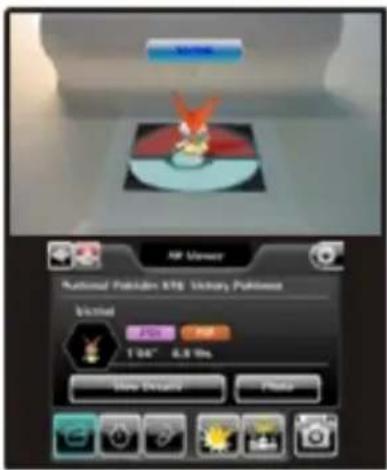
You can have fun answering quizzes in the Pokémon Challenge. You can also use the AR Viewer to take photos. Save a photo that includes a Pokémon AR Marker, and it will be added to the Pokédex so you can create your own original Pokédex!
3
Title Menu

Access the features of Pokédex 3D Pro from the title menu.
Tap the 📄 icon to return to the title menu from any screen.
If you wait for 10 seconds, a clock will be displayed on the title menu.
| Switching Pages | Slide the stylus left or right on the Touch Screen / Press |
| Scrolling Pages | Slide the stylus up or down on the Touch Screen / Press |
| Return to the Title Menu | Tap |
| Go Back a Page | ® / Tap |
| Display Menu | ⊗ / Tap |
| Start AR Viewer | START / SELECT |
Sleep Mode
You can pause the game to conserve the battery. Closing the Nintendo 3DS system when the game is running will put the system into Sleep Mode. You can start from where you left off when you open the system again.
Save Data
The software saves automatically.
Data can be lost due to user action, such as repeatedly powering off and on the system or removing the Game Card or SD Card while saving. Data loss may also be caused by poor connectivity, due to dirt or dust in the system's ports. Please be aware that in these cases data cannot be restored.
Extra Data
When a picture taken by the AR Viewer is registered to the Pokédex, extra data will be created.
Deleting Save Data
After selecting Pokédex 3D Pro in the HOME Menu, press and hold Ⓐ, Ⓑ, Ⓕ, and Ⓨ. Follow the directions on-screen to delete the save data.
- Please be sure to check the content of the data before you delete it. Once deleted, data cannot be restored.
● Even if the save data is deleted, the photos and extra data will not be deleted.

① Name and Category
② Appearance/Photo
Appearance
Use Ⓐ to see the Pokémon from different angles. Use L / R to zoom out and in.
Photo
When you save a photo you took with the AR Viewer (see page 12), the registered photo of the Pokémon will be shown in place of the usual image. Use 📋 to switch between the image of the Pokémon and the photo.
When Multiple Photos Exist
When multiple photos are registered, they will be shown as a slide show. Use L / R to move between photos, and tap 📄 to stop playback.
③ Pokédex Number
④ Type
Each Pokémon has one or two types. There are 17 different types in all, and they affect things such as the power of moves in battle.
⑤ Gender
This shows what genders a Pokémon species can have. Most Pokémon have both ♂ (males) and ♀ (females), but the genders of some Pokémon are unknown, and other species have only males or females.

Buttons
| See the Pokémon move. | |
| Hear the Pokémon's cry. | |
| Pause the animation or slide show. | |
| Resume the animation or slide show. | |
| Switch to photos (when a photo is registered for the Pokémon). |
② Stats
| HP | Pokémon health. The higher this stat, the more stamina the Pokémon has. |
| Attack | The higher this stat, the more damage the Pokémon does with physical moves. |
| Defense | The higher this stat, the less damage the Pokémon takes from physical moves. |
| Sp. Atk | The higher this stat, the more damage the Pokémon does with special moves. |
| Sp. Def | The higher this stat, the less damage the Pokémon takes from special moves. |
| Speed | The higher this stat, the better the chance to use moves before others. |
Behavior
④ Egg Group
This is one of the conditions for discovering an Egg. There are 15 Egg Groups, and all Pokémon belong to one of these groups. There are some Pokémon that belong to more than one group or for which an Egg has not yet been discovered.
⑤ Ability
These special powers are activated automatically. A Pokémon will have one of the Abilities that are listed for it. The Abilities displayed in yellow are Hidden Abilities that Pokémon don't usually have.
© Pokémon AR Marker
Scan this in the AR Viewer (see page 12), and a Pokémon will appear.
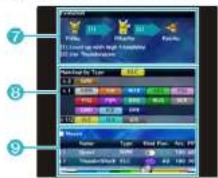
⑦ Evolution/Form(e)s
These are the conditions for evolution. When a Pokémon has other Form(e)s, they will be displayed here. Tap a Pokémon's image to display its Pokédex info.
R Matchup by Type
Use this to see how damage changes when this Pokémon is hit by moves of each type. For example, if the Pokémon is hit by moves of the types in the "x 2" and "x 4" rows, those moves will be super effective on it.
⑨ Moves That Can Be Learned
These are moves the Pokémon can learn in Pokémon Black Version 2 and Pokémon White Version 2. Tap a move with the stylus to open up the Move Dex (see page 9).
| L | Moves learned on leveling up. |
| TM | Moves learned by TM. |
| HM | Moves learned by HM. |
| Tutor | Moves that are taught by people. |
| Egg | Moves learned by the Pokémon upon hatching from an Egg. |
| Story | Moves that are learned in the story. |
| Physical | |
| Special | |
| Status |
Use the Catalogue to find the Pokémon you want to see.
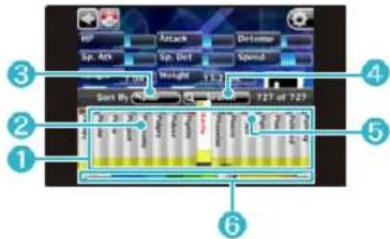

Catalogue
Tap ▲ or press Ⓧ when you're on the Pokédex screen to open the Catalogue.
Slide the stylus over ② to scroll, and tap the name of the Pokémon whose data you want to see.

Sort By
Sort Pokémon by different criteria. Tap the word beside "Sort By," and a dial (see page 8) will appear. Spin the dial by sliding the stylus over it. The Pokémon will be sorted according to the word appearing in red.
| No. | Sorts by National Pokédex number order. |
| Name | Sorts by name in alphabetical order. |
| Height | Sorts from shortest to tallest. |
| Weight | Sorts from lightest to heaviest. |
| Evolution | Displays Pokémon in evolutionary groups. |

Search (see page 8)
Displays the search panel. Select conditions such as type or moves to filter the Pokémon displayed in the Catalogue. You can also display the search panel by pressing Ⓧ while the Catalogue is open.

Colored Squares above the Names
The colored squares displayed above the Pokémon names indicate the Pokémon's type(s).

Scroll Bar
Touch or slide this bar to scroll quickly through the list of Pokémon. Tap 📋 or press Ⓐ to close the Catalogue.

eful Tip
When the Pokémon data is sorted by name, you can press up or down on the +Control Pad to skip forward or back by a letter. This makes it easier to find the name of the Pokémon you want to see.
Use the search panel to hide or display other Form(e)s of Pokémon in the Catalogue.
Use the search panel to find Pokémon that meet certain conditions, such as being a certain type or being able to learn a certain move.
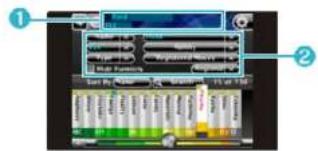
Open the Catalogue (see page 7) with □, and open the search panel by tapping 🔒 Search. You can also open it by pressing Ⓧ twice.
① Conditions
The current filtering conditions are displayed.
② Filtering Conditions
Only Pokémon that meet the conditions you selected will be displayed. Tap ✗ to reset these conditions.
| Name | Limit the list to Pokémon with names that start with the chosen letter. |
| Type | You can select up to two types at once. |
| Egg Group | Limit the list to a certain Egg Group. |
| Ability | Limit the list to Pokémon that can have a certain Ability. |
| Registered Moves | Limit the list to Pokémon that can learn a registered move. |
| Regional | Limit the list to the region the Pokémon were first discovered in. |
| Hide Form(e)s | When checked, other Form(e)s of Pokémon are not displayed in the list. |

Using the Dial - 1
- Tap an item to display the dial.
- Slide the stylus over the dial to spin it.
- Tap it again and it will go away.
Using the Dial - 2
- Slide the stylus while keeping it on an item.
- When you lift the stylus off the Touch Screen, the highlighted item will be selected.
③ Selected Word
The currently selected item will be displayed in red.
When conditions are entered, the search panel and Catalogue will be in their filtered state. To reset the conditions, open the search panel and tap 📄.
Using Registered Moves
Bookmarked moves (see page 11) can be selected here. This limits the list to Pokémon that can learn this move.
Make Abilities Easy to Find
If you enter the other filtering conditions first, the Abilities on the dial will be limited to those held by the Pokémon that meet the existing conditions. The number to choose from will be far fewer, so it will be easier to find the one you want.

① Pow. (Power)
This is the attack power of a move. It describes the amount of damage the move can do.
② Acc. (Accuracy)
The larger the value, the more often the move hits.
③ PP (Power Points)
This is the number of times a move can be used.
④ Long
Long-range moves can hit any target regardless of their position in a Triple Battle.
⑤ Range
This shows the number and type of targets the move affects at one time during battle.
⑥ Kind
There are three kinds of moves: physical, special, and status.
⑦ DA (Direct Attack)
This is an attack that makes physical contact with the target. Certain Abilities or other factors may activate when a move involves physical contact.
⑧ Pokémon That Learn This Move
These are Pokémon that can learn this move.
Search for Moves
You can search for moves using the Catalogue and the search panel, just as in the Pokédex.
Tap 📄 in the title menu, Pokédex, or Move Dex to display the settings menu.

① Bookmarks (see page 11)
This is a list of bookmarked Pokémon and moves. Tap "Pokémon" or "Moves" to switch between the lists.
② Close the Menu
③ Scene
Change the scene of the Pokédex. This also changes the lighting in the AR Viewer and Pokémon Challenge.
④ Window
Change the design of the windows.
⑤ BGM
Change the background music of the Pokédex and the Move Dex.
⑥ 3D Depth
Switch the 3D depth.
⑦ Switch Language
Select one of the six languages to use.
⑧ Credits
View the credits.
Bookmarking Pokémon and moves lets you display them quickly.
Bookmarking
When a Pokémon you would like to bookmark is displayed, tap 📄 or press Ⓧ to open the settings menu. Next, tap Register.
You can bookmark moves in the Move Dex in the same way.
Deleting Bookmarks
To delete a bookmark, tap Edit and the by the bookmark you want to delete. Tap OK to return to the original screen.
Bookmarked moves can be used to search for Pokémon (see page 8).
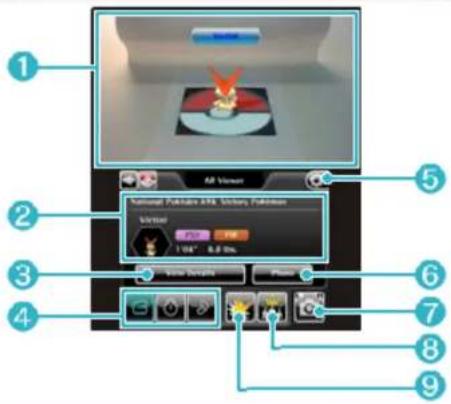
① AR Viewer
Point the Nintendo 3DS system's outer cameras at the Pokémon AR Markers, and the Pokémon will appear.
② Pokémon Info
This is the name and type of the Pokémon being shown.
③ View Details Button
This opens the Pokédex page for the Pokémon whose information is shown.
④ Interact with Pokémon
Throw an item to a Pokémon.
| The Pokémon will move. | |
| The Pokémon will freeze. | |
| The Pokémon will answer with a cry. |
⑤ AR Settings Menu (see page 14)
⑥ Photo Button
Photo is displayed when a photo of this Pokémon is already registered. Tap this button to open the Album.
⑦ Take Photos
Tap 📋, or press 📁 or 📇. Tap Save to SD Card and the photo is saved to the SD Card.
Note: The photos that can be taken are only 2D images.
⑧ Rank Check (see page 16)
⑨ Type Check (see page 16)
Note: All photos taken with Pokémon AR Markers include elements that are the intellectual property of The Pokémon Company / Nintendo and cannot be distributed freely or used commercially.

When you save a photo taken with the AR Viewer and an AR Marker, it's registered to the Pokédex and added to the images of the Pokémon. (See page 5, Using the Pokédex - 1.)
Up to five photos can be registered for the same Pokémon. Unwanted photos can be deleted in the Album (see page 18).
Save Photos without Registering Them in the Pokédex
Unmark the Register in Pokédex box, which is displayed after you tap 📷. The photo will be saved, but it won't be put in the Pokédex.
Tap in the AR Viewer to open the AR Settings menu.
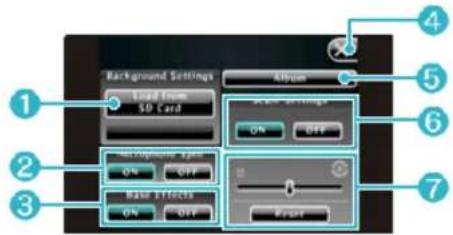
① Load from SD Card
Choose a photo on your SD Card, and set it as the background of the photo. While it is being previewed, you can adjust the transparency by moving Ⓐ to the left and right. After the photo is saved, the background will become opaque.
② Microphone Spin
Blow into the mic in the AR Viewer to make the Pokémon spin. If wind or something is making the Pokémon spin, you can turn this setting OFF.
③ Base Effects
When this is OFF, the base beneath the Pokémon disappears.
④ Close the AR Settings Menu
⑤ Open the Album (see page 18)
⑥ Scale Settings
This adjusts the size of the Pokémon.
| ON | Small Pokémon are made bigger and big Pokémon are made smaller so they are easier to see. |
| OFF | Pokémon are displayed at their conventional size with respect to the AR Marker. |
⑦ Scale-Settings Slider
Change the size of the Pokémon from one-third to three times their size using the slider.

returns the size to normal.
See Life-Size Pokémon
When the Scale Settings are OFF, Pokémon are displayed in their actual proportions.
Make an AR Marker that is one square meter (approx. 3 ft. 3 in.) in size, and use the following settings:
① Scale Settings are set to OFF.
② Scale Settings Slider is reset.
The AR Viewer can recognize hand-drawn Pokémon AR Markers.

flowchart
graph TD
    A["1"] --> B["2"]
    B --> C["3"]
The border must be white. Give it a lot of room like in the image above.
② Making straight black lines on the outside of the shape is key.
③ Make it a square.
- You can also make Pokémon AR Markers by printing ones from the official Pokémon website.
• Pictures of Pokémon AR Markers that were taken with a digital camera can also be recognized. - If a friend has this application, you can recognize the Pokémon AR Markers displayed on your friend's screen.
Tips for Recognizing Pokémon AR Markers
- Change the position of the Nintendo 3DS system or Pokémon AR Marker so it can be seen clearly in the AR Viewer.
- Make sure the entire Pokémon AR Marker is visible in the AR Viewer.
- It's easier to recognize a Pokémon AR Marker in bright areas.
- If the Nintendo 3DS system's outer cameras are dirty, wipe them clean with a soft cloth.
- If light from the sun or another light source is reflecting off the Pokémon AR Marker, the Pokémon is less likely to come out. Place the Pokémon AR Marker at an angle where the light doesn't reflect.
- If printed copies of Pokémon AR Markers are wrinkled or dirty, they may not be recognized. Flatten them and make sure they are clean.
When using the AR Viewer, you'll need to move around with the Nintendo 3DS system. Before using this, make sure you have enough space around you and hold the system firmly with both hands. Please refrain from making sudden or exaggerated movements, as this may cause breakage or injury.
Use the Type Check and the Rank Check to check the stats of Pokémon being shown in the AR Viewer.
① Type Check
Throw an item corresponding to a move type at a Pokémon to see how the move would affect it.

- Display Pokémon by using Pokémon AR Markers.

- Tap the button for a type, and then throw an item.
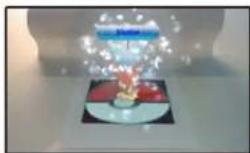
- You'll see the effect of a move of that type on the Pokémon.

② Rank Check
This compares the stats of Pokémon being displayed in the AR Viewer.

- Prepare several Pokémon AR Markers, and display the Pokémon you want to compare at the same time.
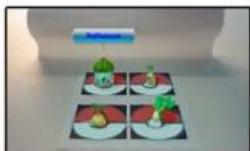
- Tap the button for the stat you're interested in, and an item will be thrown toward the Pokémon.

- You'll see images that show how these Pokémon rank in that stat.
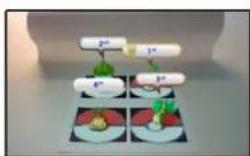
Try to anticipate which Pokémon's stats are highest by lining up the Pokémon AR Markers.
Look at the pages you've read, your Pokémon Challenge results, and so on.


Entries Read
The number of Pokédex pages you have read.


Found
The number of Pokémon you've displayed in the AR Viewer.


Remembered
This is the number of Pokémon about which you have answered questions correctly. If you answer certain questions, this number increases.

Challenges Available
This is the number of Challenges you can currently take.

Perfect
This is the number of Pokémon Challenges you got a perfect score in.

Album (see page 18)
Tap this button, or press Ⓧ to switch to the Album screen.

Sort
Sort Pokémon by each of the categories.
All Pokémon will be displayed together, even ones you haven't seen.

Pokémon
Tap a Pokémon to go to its Pokédex entry.
Organize the photos registered in the Pokédex.

① Photos Registered to Pokédex
This is the number of registered photos.
② Photos Remaining
This is the number of photos that can be saved to the SD Card.
③ Pokémon Icons
Tap a Pokémon to go to its Pokédex entry.
④ Thumbnail Image
Tap a thumbnail image, and it will display in a larger size on the top screen.
When the SD Card doesn't contain any photos, a white frame will display in place of the thumbnail image.
⑤ Records (see page 17)
Tap this button or press Ⓧ to switch to the Records screen.
⑥ Delete
Tap this button to enter Delete mode.
In Delete mode, you can delete photos by tapping the ☒ above the photo. When you're done deleting photos, tap "Done."
Note: The photos you selected are deleted from the SD Card.
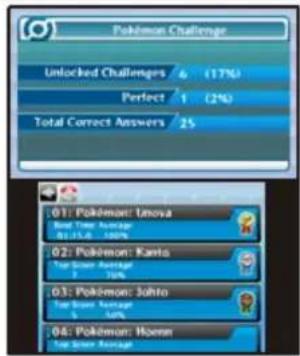
Take on a variety of quizzes. Answering many questions correctly will unlock more Challenges.
Records
Top Score
This shows your top score in this quiz. When you answer all of the questions correctly, it will show the best time instead.
Average
This shows the average number of correct answers over the last nine attempts.
Today's Challenge Records
After you answer a certain number of questions correctly, you will be able to select "Today's Challenge," where you can answer different questions every day. You can select Today's Challenge directly from the title menu.
Week Average
This shows the average for the last week of Today's Challenge attempts. Only the top score for each day is saved. If you miss a day and don't play, that day's score will be counted as 0.
On the screen that shows the correct answer, you can look at the Pokédex entries for the Pokémon that came up in the questions. You can resume the Pokémon Challenge from where you left off by tapping 📄, or you can return to the title menu and select Pokémon Challenge.
Note: If you change the language or turn off the software while a Pokémon Challenge is in progress, you'll have to start over from the beginning.
In Keyword Challenges, Challenges are created based on the characters that you enter.
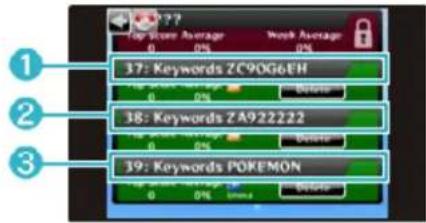

Keyword
To delete a keyword, tap Delete and write a new keyword.

| First Character | Z | Fixed |
| Second Character | Characters A through C | Difficulty |
| Third Character | Characters 2 through 9 | Number of Questions |
| Characters 4 through 8 | Any Characters | Types of Questions |
Characters 4 through 8 determine things like the order and types of questions.
For these keywords, please enter characters into all eight spaces.
If you and a friend enter the same keyword, the content of the Challenge will be the same for both of you. Compete with your friends to see who can get the most correct answers.

Special Keywords
If "22222" is entered for characters 4 through 8, the Challenge will have new questions every day.

Unique Keywords
There are unique keywords for special questions. Specific characters must be entered for these unique keywords to work.
Keyword Challenge Records
Data is saved for the entered keyword.
If another keyword is entered, the top score and average will be reset.
21 Support Information
Nintendo Customer Service SUPPORT.NINTENDO.COM
USA/Canada: 1-800-255-3700
Latin America/Caribbean: (001) 425-558-7078
1 Important Information
How to Use
2 What Is Pokédex 3D Pro?
3 Title Menu
4 How to Use
Pokédex
5 Using the Pokédex - 1
6 Using the Pokédex - 2
7 Catalogue
8 Search for Pokémon
Move Dex
9 Using the Move Dex
Settings Menu / Bookmarks
10 Settings Menu
11 Bookmarks
AR Viewer
12 Using the AR Viewer
13 Put Photos in the Pokédex
14 AR Settings Menu
15 Pokémon AR Markers
16 Type/Rank Check
Records/Album
17 Records
18 Album
Pokémon Challenge
19 Pokémon Challenge
20 Keyword Challenges
Troubleshooting
21 Support Information


- ▲ IMPORTANT
- 3
- Title Menu
- Sleep Mode
- Save Data
- Extra Data
- Deleting Save Data
- Appearance
- Photo
- When Multiple Photos Exist
- Behavior
- ④ Egg Group
- ⑤ Ability
- © Pokémon AR Marker
- ⑦ Evolution/Form(e)s
- R Matchup by Type
- ⑨ Moves That Can Be Learned
- Catalogue
- Sort By
- Search (see page 8)
- Colored Squares above the Names
- Scroll Bar
- eful Tip
- ① Conditions
- ② Filtering Conditions
- Using the Dial - 1
- Using the Dial - 2
- ③ Selected Word
- Using Registered Moves
- Make Abilities Easy to Find
- ① Pow. (Power)
- ② Acc. (Accuracy)
- ③ PP (Power Points)
- ④ Long
- ⑤ Range
- ⑥ Kind
- ⑦ DA (Direct Attack)
- ⑧ Pokémon That Learn This Move
- Search for Moves
- ① Bookmarks (see page 11)
- ② Close the Menu
- ③ Scene
- ④ Window
- ⑤ BGM
- ⑥ 3D Depth
- ⑦ Switch Language
- ⑧ Credits
- Bookmarking
- Deleting Bookmarks
- ① AR Viewer
- ② Pokémon Info
- ③ View Details Button
- ④ Interact with Pokémon
- ⑤ AR Settings Menu (see page 14)
- ⑥ Photo Button
- ⑦ Take Photos
- ⑧ Rank Check (see page 16)
- ⑨ Type Check (see page 16)
- Save Photos without Registering Them in the Pokédex
- ① Load from SD Card
- ② Microphone Spin
- ③ Base Effects
- ④ Close the AR Settings Menu
- ⑤ Open the Album (see page 18)
- ⑥ Scale Settings
- ⑦ Scale-Settings Slider
- See Life-Size Pokémon
- Tips for Recognizing Pokémon AR Markers
- ① Type Check
- ② Rank Check
- Entries Read
- Found
- Remembered
- Challenges Available
- Perfect
- Album (see page 18)
- Sort
- Pokémon
- ① Photos Registered to Pokédex
- ② Photos Remaining
- ③ Pokémon Icons
- ④ Thumbnail Image
- ⑤ Records (see page 17)
- ⑥ Delete
- Records
- Top Score
- Average
- Today's Challenge Records
- Week Average
- Keyword
- Special Keywords
- Unique Keywords
- Keyword Challenge Records
- Support Information
- How to Use
- Pokédex
- Move Dex
- Settings Menu / Bookmarks
- AR Viewer
- Records/Album
- Pokémon Challenge
- Troubleshooting
Marke : NINTENDO
Modell : Pokedex 3D Pro (3DS)
Kategorie : Videospiel