
DOCSIS 3.0 - Router ZOOM - Kostenlose Bedienungsanleitung
Finden Sie kostenlos die Bedienungsanleitung des Geräts DOCSIS 3.0 ZOOM als PDF.


| Produkttyp | Kabelmodem-Router |
| Modemstandard | DOCSIS 3.0 |
| WLAN-Standard | 802.11n (bis zu 300 Mbit/s) |
| WLAN-Frequenzband | 2,4 GHz |
| Ethernet-Ports | 4 x Gigabit Ethernet (10/100/1000 Mbit/s) |
| USB-Anschluss | 1 x USB 2.0 (optional) |
| Abmessungen (B x T x H) | ca. 20 x 15 x 4 cm |
| Gewicht | ca. 0,3 kg |
| Stromversorgung | 12 V DC, 1 A |
| Kabelanschluss | Koaxial (F-Stecker) |
| WLAN-Sicherheit | WPA, WPA2, WPS |
| Lieferumfang | Router, Netzteil, Ethernet-Kabel |
| Betriebstemperatur | 0 °C bis 40 °C |
| Luftfeuchtigkeit (Betrieb) | 10 % – 90 % (nicht kondensierend) |
| Zertifizierungen | CE, FCC |
Häufig gestellte Fragen - DOCSIS 3.0 ZOOM
Benutzerfragen zu DOCSIS 3.0 ZOOM
0 Frage zu diesem Gerät. Beantworten Sie die, die Sie kennen, oder stellen Sie Ihre eigene.
Eine neue Frage zu diesem Gerät stellen
Laden Sie die Anleitung für Ihr Router kostenlos im PDF-Format! Finden Sie Ihr Handbuch DOCSIS 3.0 - ZOOM und nehmen Sie Ihr elektronisches Gerät wieder in die Hand. Auf dieser Seite sind alle Dokumente veröffentlicht, die für die Verwendung Ihres Geräts notwendig sind. DOCSIS 3.0 von der Marke ZOOM.
BEDIENUNGSANLEITUNG DOCSIS 3.0 ZOOM

CABLE MODEM QUICK START
Package Contents
Cable Modem
• Modem Stand
Power Cube
- Ethernet Cable
System Requirements
- You need to connect the cable modem to a cable modem service that uses any of the popular DOCSIS standards – 3.0, 2.0, 1.1, or 1.0. If you need to get cable modem service, please speak with your cable service provider.
- You need to connect a computer or router to the cable modem using an Ethernet cable. The computer can be a Windows, Macintosh, or Linux computer. The router must have one or more Ethernet ports, and may include wireless capability. Instructions for making this connection are below.
Locate Your Ethernet MAC Address
Your cable company may ask for your cable modem's MAC address. This is on the bottom of your cable modem. You may want to write it down here for quick reference:
Your cable service provider may provide a cable modem starter kit
Some cable service providers supply a cable modem starter kit that can be useful when you install your cable modem. The kit may include a coaxial cable for connecting between a wall jack and your cable modem. (These are also available at most electronics retailers.) The kit will include instructions, and may also include a CD with software. If you receive a kit like this, we recommend that you read the lot a instructions and use them to install your Zoom cable modem. This cable modem is DOCSIS 3.0 confined by GzalaLabs, and connects like a normal cable modem. You will need to plug in the cable modem's power cables, connect to cable modem service using a coaxial cable, and connect the included Ethernet cable between the cable modem and a computer or router.
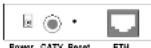
How to connect to a computer if you don't have a cable company's starter kit
1 Make sure that your computer is on.
2 Plug one end of the Ethernet cable into the modem's ETH jack and plug the other end into your computer's Ethernet jack. The LINK light of the modem should be ill to show the Ethernet connection.
3 Connect the modem to a coaxial cable for the cable service. The cable service is carried on the same cables and connectors as your cable TV service. ➢ You can connect a coaxial cable between an open cable service wall jack and the cable modem. (If no wall jack is open, you can use a coaxial T connector.)
➢ Alternatively, there may already be a coastal cable that is connected to service and that has an open end for connecting to the cable modem.
4 Plug the power cube into an outlet and then into the modem's POWER jack. It may take several minutes for the modem to register with the cable system. If the modem's front panel STATUS, US, and OS lights do not stay on steady after a reasonable amount of time, go to Troubleshooting.
5 You should follow any directions (including instructions for any software installation) that your cable provider has given to you. Your cable company may instruct you to tell them your cable modem's MAC address after you complete the hardware installation.
6 Now that you have installed your Zoom cable modem and it has synchronized itself with the cable network, your cable modem can connect you to the Internet. Open your browser and go to a familiar Web site to check that the cable modem is working. Congratulations! Installation is complete.
How to connect your cable modem to a router (not a computer)
1 The router should not be plugged in or powered up. If it is, unplug it.
2 Plug one end of the Ethernet cable into the modem's ETH jack and the other end into the router's WAN Ethernet jack, typically labeled WAN or Internet.
3 Connect the modem to the cable outlet.
If you have a wall outlet cable jack: Connect one end of the coaxial cable to the modem's CABLE connector and connect the other end to the wall jack.
If you do not have a wall jack: You should have coaxial cable entering your house close to where you want to locate your cable modem. Connect the end of this cable to the modem's CABLE connector.
4 Plug the modem's power cube into an outlet and then into the modem's POWER jack. It may take several minutes for the modem to register with the cable system. If the modem's front panel STATUS, US, and DS lights do not stay on steady after a reasonable amount of time, go to Troubleshooting.
5 Power-up the router. Wait for the router to complete its power-up sequence. The modern's LINK light should come on.
6 You may need to restart some or all of the computers attached to the router. 7 You should follow any directions that your cable provider has given to you. Your cable company may instruct you to tell them your cable modem's MAC address after you complete the hardware installation.
8 Using a computer connected to the router, open the computer's browser and go to a website to check that the connection between your cable modem and router is working properly.
Note: If you have a problem connecting to the router, please test the cable connection by connecting the cable modem directly to a PC by following the instructions in the previous section. If the cable modem worked properly when connected directly your computer, most likely the problem is caused by the router's configuration or installation. Check your router's documentation for help.
Please note the following:
- You can position the cable modem horizontally or vertically. The vertical position benefits from the modem stand.
- Do not block the modern vents in any way.
- Do not place the modern near a heating or air conditioning duct, in direct sunlight, or anywhere susceptible to drastic temperature changes.
Troubleshooting
Your Zoom cable modem has several lights on its front panel to help you monitor the modem's status.
| Light Name Mode Status | ||
| POWER | Solid | Power Is on. |
| DS(downstream) | Binking | Modem is establishing a connection from the internet to the computer. |
| Sole | Connection from the computer to the internet is established. | |
| Dark | Not scanning. | |
| US(upstream) | Binking | Modem is establishing a connection from the computer to the Internet. |
| Sole | Connection from the computer to the internet is established. | |
| Dark | Not scanning. | |
| STATUS | Binking | Modem is establishing a connection to the cable predator. |
| Sole | Modem connection to the cable predator is established. | |
| Dark | Dose is marching between the computer and the Internet. | |
| LINK | Binking | Powered up modem is connected to LAN devices (e.g. computer, |
| Sole | Powered up modem is connected to LAN devices (e.g. computer, | |
Problem: I cannot access my Internet service or send or receive email.
Solution:
All the modem's front panel lights—LINK, STATUS, US (upstream), DS (downstream), and POWER—must be solidly It before your modem will let you connect to the Internet. If they are not:
Check all modem connections (power, Ethernet, and cable modem line). Unplug your cable modem and then plug it back in.
Restart your computer.
Check to see that your cable TV is working.
➢ Check with your cable service provider to make sure that high speed access is available and running.
In rare instances, the cable signal may be weak or noisy. If this is the case, call your cable service provider.
If you are using your PC's Ethernet port, check that this port is functioning correctly. If you are using wireless, check that your wireless connection is functioning correctly. Refer to its documentation if necessary.
➢ Check that your Web browser is configured correctly. It should be set to use a network connection (this might be called a Local Area Network or broadband connection).
Check that your computer's network settings are configured correctly. A Windows computer should have a local area connection that should normally be Internet Protocol version 4, Internet Protocol version 8, or TCP/IP; not ACL, Dial-up, or Adopter. A Macintosh computer should be configured for Built-in Ethernet, and TCP/IP should be set to Using DHCP.
Problem: I have connected a router to the cable modem but cannot access the
Solution:
Connect the cable modem directly to a PC following the instructions above. If the cable modem works properly when connected directly to your computer, most likely the problem is caused by the router's configuration or installation.
First try shutting down and restarting each computer connected to the router. Power cycle your cable modem and allow time for it to reorganize with the cable system.
You may also need to check that the DHCP client on the router's WAN port is enabled. If you need help, look in your router's manual or contact your router manufacturer.
If that does not solve the problem, you may need to contact your cable service provider and give them the MAC address of the router's WAN port.
Getting Help
If you need assistance, please go to www.zoom.com and select Technical Support for help via our Web SmartFacts system, email or phone.
Safety Issues & Warnings
WARNING: Risk of electric shock. Do not expose to water or moisture.
- The Broadband Residential Cable Modem is a high-performance communications device designed for home and office environments.
• Do NOT use the cable modem outdoors. Keep the cable modem in an
environment that is between 0°C and 40°C (between 32°F and 110°F).
• To avoid overheating the cable modem, do NOT place any object on top of the
scale modem.
- Do not restrict the flow of air around the cable inside. - The manufacture assumes no liabilities for damage caused by any improper use.
of the cable modern
Disclaimer
Zoom Telephones, Inc. (hereinafter "Zoom") assumes no liabilities with respect to the contents of this document. Zoom also reserves the right to revise this document or update occasionally the content hereof without any obligation to notify any person of such revisions or amendments. Specifications subject to change without notice.
Regulatory Information
FCC
This device complies with part 15 of the FCC rules. Operation is subject to the following two conditions: (1) This device may not cause harm-I interference and.
(2) This device must accept any interference received, including interference that may cause undesired operation.
UL Listing
This product is U-Listed and complies with all applicable electrical and fire safety requirements.
Limited Warranty
Zoom Telephonics, Inc. (hereinafter "Zoom") warrants this product against defects in material and workmanship for a warranty period of 2 years. This warranty applies to the original end user purchaser.
For all Zoom products other than softwares, Zoom will actively at its option, repair or replace this product with a functionally equivalent new or factory-reconditioned product during the warranty period. The consumer will deliver the product to Zoom. All transportation risks and costs in connection with this warranty service are the responsibility of the consumer.
Zoom will replace software at no charge if there is a defect in materials or craftsmanship for a period of 30 days from date of original retail purchase, provided the defective software is returned to Zoom. Shipments from Zoom will normally be as U.S. Mail. Software products supplied by Zoom are sold "as at: without warranty, other expressed or marked, as to function, application, merchantability, performance, and quality."
Zoom is not responsible for incidental or consequential damages, and is not responsible for damages resulting from the breach of any expressed or implied warranty. Zoom is not responsible for any costs or recovering, reprogramming, or reproducing any programs or data stored or used with the Zoom products, damage to property, and to the extent permitted by law, damages for personal injury.
This warranty is in lieu of all other warranties, expressed or implied. We do not assume or authorize assumption for us of any other warranty expressed or implied. Some eluses and counties do not allow the exclusion or limitation of incidental or consequential damages, so the above limitation or exclusions may not apply to you.
This warranty does not apply if the Zoom product has been damaged by accident, abuse, lighting or other natural disasters, misuse or misapplication, or if it has been modified without the written permission of Zoom, or if any serial number has been removed or defeced.
This warranty shall not be applicable to the extent that any provisions of this warranty are prohibited by any federal, state, or municipal law that cannot be preempted. This warranty gives you specific legal rights, and you may also have other rights that vary from state to state or country to country.
0610-C
27632
©2010


- CABLE MODEM QUICK START
- Package Contents
- System Requirements
- Locate Your Ethernet MAC Address
- Your cable service provider may provide a cable modem starter kit
- How to connect to a computer if you don't have a cable company's starter kit
- How to connect your cable modem to a router (not a computer)
- Please note the following:
- Troubleshooting
- Problem: I cannot access my Internet service or send or receive email.
- Problem: I have connected a router to the cable modem but cannot access the
- Getting Help
- Safety Issues & Warnings
- Disclaimer
- Regulatory Information
- UL Listing
Marke : ZOOM
Modell : DOCSIS 3.0
Kategorie : Router