P603X - Projektor NEC - Gratis brugsanvisning og manual
Find enhedens vejledning gratis P603X NEC i PDF-format.


Brugerspørgsmål om P603X NEC
0 spørgsmål om dette apparat. Besvar dem du kender, eller stil dit eget.
Stil et nyt spørgsmål om dette apparat
Download vejledningen til din Projektor i PDF-format gratis! Find din vejledning P603X - NEC og tag din elektroniske enhed tilbage i hånden. På denne side er alle dokumenter nødvendige for brugen af din enhed offentliggjort. P603X af mærket NEC.
BRUGSANVISNING P603X NEC
Projector
P554U/P474U/P554W/P474W/P604X/P603X
User's Manual
Please visit our web site for User's Manual in the latest version:
http://www.nec-display.com/dl/en/pj_manual/lineup.html
- The P604X and P603X are not distributed in North America.
Model No.
NP-P554U/NP-P474U/NP-P554W/NP-P474W/NP-P604X/NP-P603X
- Apple, Mac, Mac OS, OS X, MacBook, and iMac are trademarks of Apple Inc. registered in the U.S. and other countries.
- iOS is a trademark or registered trademark of Cisco in the U.S. and other countries and is used under license.
- APP Store is a service mark of Apple Inc.
- Microsoft, Windows, Windows Vista, Internet Explorer, .NET Framework and PowerPoint are either a registered trademark or trademark of Microsoft Corporation in the United States and/or other countries.
- MicroSaver is a registered trademark of Kensington Computer Products Group, a division of ACCO Brands in the U.S. and other countries.
- AccuBlend, NaViSet, MultiPresenter, and Virtual Remote are trademarks or registered trademarks of NEC Dispolay Solutions, Ltd. in Japan, in the United State and other countries.
- The terms HDMI and HDMI High-Definition Multimedia Interface, and the HDMI Logo are trademarks or registered trademarks of HDMI Licensing Administrator, Inc. in the United States and other countries.
HDMI®
HIGH-DEFINITION MULTIMEDIA INTERFACE
- HDBaseT™ is a trademark of HDBaseT Alliance.
CHDBT ^TM ASE
- Trademark PJLink is a trademark applied for trademark rights in Japan, the United States of America and other countries and areas.
- Wi-Fi, Wi-Fi Alliance®, and Wi-Fi Protected Access (WPA, WPA2®) are registered trademarks of the Wi-Fi Alliance.
- Blu-ray is a trademark of Blu-ray Disc Association.
- CRESTRON and ROOMVIEW are registered trademarks of Crestron Electronics, Inc. in the United States and other countries.
- Extron and XTP are registered trademarks of RGB Systems, Inc. in the United States.
- Ethernet is either a registered trademark or trademark of Fuji Xerox Co., Ltd.
- Android and Google Play are trademarks of Google Inc.
- Other product names and logos mentioned in this user's manual may be the trademarks or registered trademarks of their respective holders.
• Virtual Remote Tool uses WinI2C/DDC library, © Nicomsoft Ltd.
• GPL/LGPL Software Licenses
The product includes software licensed under GNU General Public License (GPL), GNU Lesser General Public License (LGPL), and others.
For more information on each software, see “readme.pdf” in the “about GPL&LGPL” folder on the supplied CD-ROM.
NOTES
(1) The contents of this user's manual may not be reprinted in part or whole without permission.
(2) The contents of this user's manual are subject to change without notice.
(3) Great care has been taken in the preparation of this user's manual; however, should you notice any questionable points, errors or omissions, please contact us.
(4) Notwithstanding article (3), NEC will not be responsible for any claims on loss of profit or other matters deemed to result from using the Projector.
Safety Cautions
Precautions
Please read this manual carefully before using your NEC projector and keep the manual handy for future reference.
CAUTION

To turn off main power, be sure to remove the plug from power outlet.
The power outlet socket should be installed as near to the equipment as possible, and should be easily accessible.
CAUTION

TO PREVENT SHOCK, DO NOT OPEN THE CABINET.
THERE ARE HIGH-VOLTAGE COMPONENTS INSIDE.
REFER SERVICING TO QUALIFIED SERVICE PERSONNEL.

This symbol warns the user that uninsulated voltage within the unit may be sufficient to cause electrical shock. Therefore, it is dangerous to make any kind of contact with any part inside of the unit.
This symbol alerts the user that important information concerning the operation and maintenance of this unit has been provided.
The information should be read carefully to avoid problems.
WARNING: TO PREVENT FIRE OR SHOCK, DO NOT EXPOSE THIS UNIT TO RAIN OR MOISTURE.
DO NOT USE THIS UNIT'S PLUG WITH AN EXTENSION CORD OR IN AN OUTLET UNLESS ALL THE PRONGS CAN BE FULLY INSERTED.
DOC Compliance Notice (for Canada only)
This Class B digital apparatus complies with Canadian ICES-003.
Machine Noise Information Regulation - 3. GPSGV,
The highest sound pressure level is less than 70 dB (A) in accordance with EN ISO 7779.
CAUTION

Avoid displaying stationary images for a prolonged period of time.
Doing so can result in these images being temporarily sustained on the surface of the LCD panel.
If this should happen, continue to use your projector. The static background from previous images will disappear.
Disposing of your used product
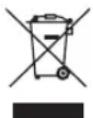
In the European Union
EU-wide legislation as implemented in each Member State requires that used electrical and electronic products carrying the mark (left) must be disposed of separately from normal household waste. This includes projectors and their electrical accessories. When you dispose of such products, please follow the guidance of your local authority and/or ask the shop where you purchased the product.
After collecting the used products, they are reused and recycled in a proper way. This effort will help us reduce the wastes as well as the negative impact to the human health and the environment at the minimum level.
The mark on the electrical and electronic products only applies to the current European Union Member States.
Outside the European Union
If you wish to dispose of used electrical and electronic products outside the European union, please contact your local authority and ask for the correct method of disposal.

For EU: The crossed-out wheeled bin implies that used batteries should not be put to the general household waste! There is a separate collection system for used batteries, to allow proper treatment and recycling in accordance with legislation.
According to the EU directive 2006/66/EC, the battery can't be disposed improperly. The battery shall be separated to collect by local service.
WARNING TO CALIFORNIA RESIDENTS:
Handling the cables supplied with this product will expose you to lead, a chemical known to the State of California to cause birth defects or other reproductive harm. WASH HANDS AFTER HANDLING.
RF Interference (for USA only)
WARNING
The Federal Communications Commission does not allow any modifications or changes to the unit EXC those specified by NEC Display Solutions of America, Inc. in this manual. Failure to comply with this government regulation could void your right to operate this equipment. This equipment has been tested and found to comply with the limits for a Class B digital device, pursuant to Part 15 of the FCC Rules. These limits are designed to provide reasonable protection against harmful interference in a residential installation. This equipment generates, uses, and can radiate radio frequency energy and, if not installed and used in accordance with the instructions, may cause harmful interference to radio communications. However, there is no guarantee that interference will not occur in a particular installation. If this equipment does cause harmful interference to radio or television reception, which can be determined by turning the equipment off and on, the user is encouraged to try to correct the interference by one or more of the following measures:
• Reorient or relocate the receiving antenna.
- Increase the separation between the equipment and receiver.
- Connect the equipment into an outlet on a circuit different from that to which the receiver is connected.
- Consult the dealer or an experienced radio / TV technician for help.
For UK only: In UK, a BS approved power cord with moulded plug has a Black (five Amps) fuse installed for use with this equipment. If a power cord is not supplied with this equipment please contact your supplier.
Important Safeguards
These safety instructions are to ensure the long life of your projector and to prevent fire and shock. Please read them carefully and heed all warnings.

Installation
- Do not place the projector in the following conditions:
- on an unstable cart, stand, or table.
- near water, baths, or damp rooms.
- in direct sunlight, near heaters, or heat radiating appliances.
- in a dusty, smoky or steamy environment.
- on a sheet of paper or cloth, rugs or carpets.
- If you wish to have the projector installed on the ceiling:
- Do not attempt to install the projector yourself.
- The projector must be installed by qualified technicians in order to ensure proper operation and reduce the risk of bodily injury.
- In addition, the ceiling must be strong enough to support the projector and the installation must be in accordance with any local building codes.
- Please consult your dealer for more information.
- Do not install and store the projector in the below circumstances. Failure to do so may cause of malfunction.
- In powerful magnetic fields
- In corrosive gas environment
- Outdoors
WARNING
- Do not cover the lens with the lens cap or equivalent while the projector is on. Doing so can lead to melting of the cap due to the heat emitted from the light output.
- Do not place any objects, which are easily affected by heat, in front of the projection window. Doing so could lead to the object melting from the heat that is emitted from the light output.

- Do not use a spray containing flammable gas to get rid of accumulated dust and dirt on the filters and the projection window. It may cause of fire.
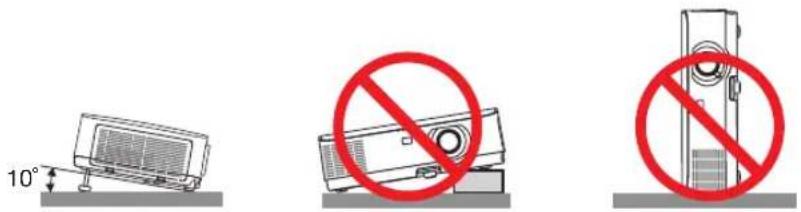
Place the projector in a horizontal position
The tilt angle of the projector should not exceed 10 degrees, nor should the projector be installed in any way other than the desktop and ceiling mount, otherwise lamp life could decrease dramatically.

Fire and Shock Precautions

- Ensure that there is sufficient ventilation and that vents are unobstructed to prevent the build-up of heat inside your projector. Allow at least 4 inches (10cm) of space between your projector and a wall.
- Do not try to touch the exhaust vent as it can become heated while the projector is turned on and immediately after the projector is turned off. Parts of the projector may become temporarily heated if the projector is turned off with the POWER button or if the AC power supply is disconnected during normal projector operation. Use caution when picking up the projector.

HOT
- Prevent foreign objects such as paper clips and bits of paper from falling into your projector. Do not attempt to retrieve any objects that might fall into your projector. Do not insert any metal objects such as a wire or screwdriver into your projector. If something should fall into your projector, disconnect it immediately and have the object removed by a qualified service personnel.
- Do not place any objects on top of the projector.
- Do not touch the power plug during a thunderstorm. Doing so can cause electrical shock or fire.
- The projector is designed to operate on a power supply of 100-240V AC 50/60 Hz. Ensure that your power supply fits this requirement before attempting to use your projector.
- Do not look the lens while the projector is on. Serious damage to your eyes could result. The following label, that is indicated near the lens-mounting-section on the projector cabinet, describes this projector is categorized in the risk group 2 of IEC 62471-5: 2015. As with any bright source, do not stare into the beam, RG2 IEC 62471-5: 2015.
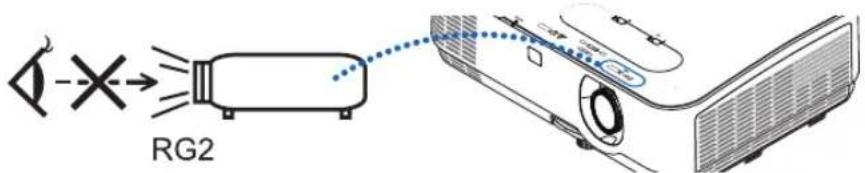
text_image
RG2- Keep any items such as magnifying glass out of the light path of the projector. The light being projected from the lens is extensive, therefore any kind of abnormal objects that can redirect light coming out of the lens, can cause unpredictable outcome such as fire or injury to the eyes.
- Do not place any objects, which are easily affected by heat, in front of a projector exhaust vent.
Doing so could lead to the object melting or getting your hands burned from the heat that is emitted from the exhaust.
- Do not splash water over the projector. Doing so can cause electrical shock or fire. If the projector gets wet, turn off the projector, unplug the power cord and have the projector serviced by a qualified service personnel.
-
Handle the power cord carefully. A damaged or frayed power cord can cause electric shock or fire.
-
Do not use any power cord other than the one supplied with the projector.
- Do not bend or tug the power cord excessively.
- Do not place the power cord under the projector, or any heavy object.
- Do not cover the power cord with other soft materials such as rugs.
- Do not heat the power cord.
- Do not handle the power plug with wet hands.
- Turn off the projector, unplug the power cord and have the projector serviced by a qualified service personnel under the following conditions:
- When the power cord or plug is damaged or frayed.
- If liquid has been spilled into the projector, or if it has been exposed to rain or water.
- If the projector does not operate normally when you follow the instructions described in this user's manual.
- If the projector has been dropped or the cabinet has been damaged.
-
If the projector exhibits a distinct change in performance, indicating a need for service.
-
Disconnect the power cord and any other cables before carrying the projector.
- Turn off the projector and unplug the power cord before cleaning the cabinet or replacing the lamp.
- Turn off the projector and unplug the power cord if the projector is not to be used for an extended period of time.
- When using a LAN cable:
For safety, do not connect to the terminal for peripheral device wiring that might have excessive voltage.

CAUTION
- Do not use the adjustable tilt foot for purposes other than originally intended. Misuses such as gripping the tilt-foot or hanging on the wall can cause damage to the projector.
- Select [HIGH] in Fan mode if you continue to use the projector for consecutive days. (From the menu, select [SETUP] → [OPTIONS(1)] → [FAN MODE] → [HIGH].)
- Do not turn off the AC power for 60 seconds after the lamp is turned on and while the POWER indicator is blinking blue. Doing so could cause premature lamp failure.
Remote Control Precautions
- Handle the remote control carefully.
- If the remote control gets wet, wipe it dry immediately.
- Avoid excessive heat and humidity.
- Do not short, heat, or take apart batteries.
- Do not throw batteries into fire.
- If you will not be using the remote control for a long time, remove the batteries.
- Ensure that you have the batteries' polarity (+/-) aligned correctly.
- Do not use new and old batteries together, or use different types of batteries together.
- Dispose of used batteries according to your local regulations.
Note for Canadian Environmental Protection Act, 1999
The lamp(s) in this product contains mercury. Please dispose according to your local authority law.
FOR MORE INFORMATION, CONTACT:
NEC Display Solutions of America, Inc.
500 Park Boulevard, Suite 1100, Itasca, Illinois 60143-1248
TELEPHONE 800-836-0655
www.necdisplay.com
Note for US Residents
The lamp in this product contains mercury. Please dispose according to Local, State or Federal Laws.
Lamp Replacement
- Use the specified lamp for safety and performance.
- To replace the lamp, follow all instructions provided on page 108.
- Be sure to replace the lamp and filter when the message [THE LAMP HAS REACHED THE END OF ITS USABLE LIFE. PLEASE REPLACE THE LAMP AND FILTER.] appears. If you continue to use the lamp after the lamp has reached the end of its usable life, the lamp bulb may shatter, and pieces of glass may be scattered in the lamp case. Do not touch them as the pieces of glass may cause injury. If this happens, contact your dealer for lamp replacement.
A Lamp Characteristic
The projector has a discharge lamp for special purposes as a light source.
A lamp has a characteristic that its brightness gradually decreases with age. Also repeatedly turning the lamp on and off will increase the possibility of its lower brightness.
The actual lamp life may vary depending upon the individual lamp, the environmental conditions and usage.

CAUTION:
- DO NOT TOUCH THE LAMP immediately after it has been used. It will be extremely hot. Turn the projector off and then disconnect the power cord. Allow at least one hour for the lamp to cool before handling.
- When removing the lamp from a ceiling-mounted projector, make sure that no one is under the projector. Glass fragments could fall if the lamp has been burned out.
About High Altitude mode
- Set [FAN MODE] to [HIGH ALTITUDE] when using the projector at altitudes approximately 5500 feet/1700 meters or higher.
Using the projector at altitudes approximately 5500 feet/1700 meters or higher without setting to [HIGH ALTITUDE] can cause the projector to overheat and the protector could shut down. If this happens, wait a couple minutes and turn on the projector.
- Using the projector at altitudes less than approximately 5500 feet/1700 meters and setting to [HIGH ALTITUDE] can cause the lamp to overcool, causing the image to flicker. Switch [FAN MODE] to [AUTO].
- Using the projector at altitudes approximately 5500 feet/1700 meters or higher can shorten the life of optical components such as the lamp.
About Copyright of original projected pictures:
Please note that using this projector for the purpose of commercial gain or the attraction of public attention in a venue such as a coffee shop or hotel and employing compression or expansion of the screen image with the following functions may raise concern about the infringement of copyrights which are protected by copyright law.
[ASPECT RATIO], [KEYSTONE], Magnifying feature and other similar features.
Turkish RoHS information relevant for Turkish market
EEE Yonetmeliğine Uygundur.
This device is not intended for use in the direct field of view at visual display workplaces. To avoid incommodding reflections at visual display workplaces this device must not be placed in the direct field of view.
Power management function
The projector has power management functions. To reduce power consumption, the power management functions (1 and 2) are factory preset as shown below. To control the projector from an external device via a LAN or serial cable connection, use the on-screen menu to change the settings for 1 and 2.
1. STANDBY MODE (Factory preset: NORMAL)
To control the projector from an external device, select [NETWORK STANDBY] for [STANDBY MODE].
NOTE:
- When [NORMAL] is selected for [STANDBY MODE], the following terminals and functions will not work:
MONITOR OUT terminal, AUDIO OUT terminal, LAN functions, Mail Alert function, DDC/CI (Virtual Remote Tool). Please refer to page 74 about details. - When [NETWORK STANDBY] has been set for [STANDBY MODE] and the LAN has been in link-down condition for 3 minutes, [STANDBY MODE] will transit into [NORMAL] automatically for the purpose to save the consumption power.
2. AUTO POWER OFF (Factory preset: 1 hour)
To control the projector from an external device, select [OFF] for [AUTO POWER OFF].
NOTE:
- When [1:00] is selected for [AUTO POWER OFF], you can enable the projector to automatically turn off in 60 minutes if there is no signal received by any input or if no operation is performed.
Important Information......i
1. Introduction.... 1
① What's in the Box? .... 1
② Introduction to the Projector 2
Features you'll enjoy: 2
About this user's manual.... 3
③ Part Names of the Projector....4
Front/Top 4
Rear 5
Controls/Indicator Panel 6
Terminal Panel Features 7
④ Part Names of the Remote Control....8
Battery Installation 9
Remote Control Precautions 9
Operating Range for Wireless Remote Control 9
2. Projecting an Image (Basic Operation) 10
① Flow of Projecting an Image.... 10
② Connecting Your Computer/Connecting the Power Cord 11
③ Turning on the Projector.... 12
Note on Startup screen (Menu Language Select screen).... 13
④ Selecting a Source 14
Selecting the computer or video source.... 14
⑤ Adjusting the Picture Size and Position 15
Adjusting the vertical position of a projected image (Lens shift).... 16
Focus 18
Zoom....18
Adjust the Tilt Foot.... 19
6 Correcting Keystone Distortion [KEYSTONE] 20
⑦ Optimizing Computer Signal Automatically 22
Adjusting the Image Using Auto Adjust.... 22
⑧ Turning Up or Down Volume 22
⑨ Turning off the Projector 23
10 When Moving the Projector.... 24
3. Convenient Features....25
① Turning off the Image and Sound.... 25
② Freezing a Picture.... 25
③ Magnifying a Picture....25
4 Changing Eco Mode/Checking Energy-Saving Effect 26
Using Eco Mode [ECO MODE] 26
Checking Energy-Saving Effect [CARBON METER]....27
⑤ Using 4-Point Corner to Correct Keystone Distortion [CORNERSTONE]....28
Cornerstone 28
Pincushion 30
6 Preventing the Unauthorized Use of the Projector [SECURITY] 33
⑦ Controlling the Projector by Using an HTTP Browser.... 36
4. Using the Viewer 43
① What you can do with the Viewer.... 43
② Projecting images stored in a USB memory device.... 45
5. Using On-Screen Menu.... 51
① Using the Menus 51
② Menu Elements.... 52
③ List of Menu Items.... 53
④ Menu Descriptions & Functions [SOURCE] 56
HDMI1 and HDMI2 56
COMPUTER....56
VIDEO 56
HDBaseT (not supported by P603X).... 56
USB-A....56
⑤ Menu Descriptions & Functions [ADJUST].... 57
[PICTURE] 57
[IMAGE OPTIONS]....60
[AUDIO]....64
6 Menu Descriptions & Functions [SETUP].... 65
[GENERAL]....65
[MENU]....67
[INSTALLATION] 69
[OPTIONS(1)] 72
[OPTIONS(2)] 74
Setting up the Projector for a Wired LAN Connection [WIRED LAN] 77
Setting up the Projector for a Wireless LAN Connection (with the optional USB Wireless LAN Unit equipped) [WIRLESS LAN]....78
⑦ Menu Descriptions & Functions [INFO.] 80
[USAGE TIME]....80
[SOURCE(1)] 81
[SOURCE(2)] 81
[HDBaseT] (not supported by P603X) 81
[WIRED LAN] 82
[WIRELESS LAN] 82
[VERSION]......82
[OTHERS] 83
⑧ Menu Descriptions & Functions [RESET] 84
Returning to Factory Default [RESET] 84
6. Installation and Connections 85
① Setting Up the Screen and the Projector 85
Tables of screen sizes and dimensions.... 88
Example of installation on a desktop....89
Lens shifting range 91
② Making Connections 93
Connecting Your Computer....93
Connecting an External Monitor 95
Connecting Your DVD Player or Other AV Equipment 96
Connecting Component Input 97
Connecting HDMI Input 98
Connecting to a Wired LAN 99
Connecting to a Wireless LAN (Optional: NP05LM series).... 100
Connecting to a HDBaseT transmission device (sold commercially)
(not supported by P603X)....103
7. Maintenance 105
① Cleaning the Filters.... 105
② Cleaning the Lens.... 107
③ Cleaning the Cabinet.... 107
④ Replacing the Lamp and the Filters 108
8. Appendix......113
① Troubleshooting 113
Feature of each indicator.... 113
Indicator Message (Status message) 113
Indicator Message (Error message) 115
Explanation on the POWER indicator and standby state 116
Common Problems & Solutions 118
If there is no picture, or the picture is not displayed correctly. 119
② Specifications.... 120
③ Cabinet Dimensions 122
4 Attaching the Optional Cable Cover (NP12CV).... 123
⑤ Pin Assignments of D-Sub COMPUTER Input Terminal 125
6 Compatible Input Signal List 126
⑦ PC Control Codes and Cable Connection 127
⑧ Using the Computer Cable (VGA) to Operate the Projector (Virtual Remote Tool) ... 128
9 Troubleshooting Check List 130
10 REGISTER YOUR PROJECTOR! (for residents in the United States, Canada, and Mexico) 132
1. Introduction
① What's in the Box?
Make sure your box contains everything listed. If any pieces are missing, contact your dealer. Please save the original box and packing materials if you ever need to ship your projector.
Projector
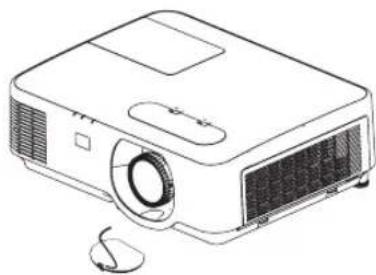
natural_image
Line drawing of a projector with a circular lens and external ports (no text or symbols)Lens cap (24F54301) Lens cap strap × 1 (24J23901)
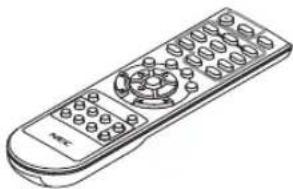
natural_image
Line drawing of a remote control with keypad and scroll (no text or symbols)Remote control (7N901122)
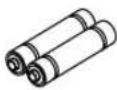
Batteries (AAA × 2)
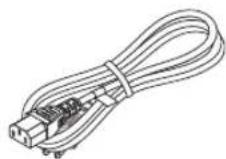
Power cord
(US: 7N080236/7N080242)
(EU: 7N080022/7N080028)
natural_image
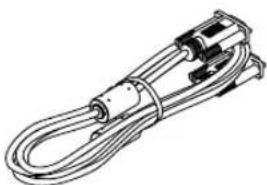
Line drawing of a coiled cable or wire with connectors (no text or symbols)Computer cable (VGA) (7N520089)
Strap for MultiPresenter Stick × 1 (24J41711)
natural_image
Two overlapping gray rectangular sheets with no text or symbols- Important Infomation (7N8N8492)
- Quick Setup Guide (7N8N8512)

NEC Projector CD-ROM
User's manual (PDF)
(7N952602)
For North America only
Limited warranty
For customers in Europe:
You will find our current valid Guarantee Policy on our Web Site:
www.nec-display-solutions.com
② Introduction to the Projector
This section introduces you to your new projector and describes the features and controls.
Features you'll enjoy:
- Quick start (6 seconds ^*1 ), Quick Power Off, Direct Power Off
6 seconds ^* ^1 after turning on the power, the projector is ready to display PC or video images.
The projector can be put away immediately after the projector is powered down. No cool down period is required after the projector is turned off from the remote control or cabinet control panel.
The projector has a feature called “Direct Power Off”. This feature allows the projector to be turned off (even when projecting an image) by using the Main Power Switch or disconnecting the AC power supply.
To turn off the AC power supply when the projector is powered on, use a power strip equipped with a switch and a breaker.
*1 The quick start time is only when [STANDBY MODE] is set to [NETWORK STANDBY] in the on-screen message.
• 0.16 W (100-130 V AC)/0.2 W (200-240 V AC) in standby condition with energy saving technology
Selecting [NORMAL] for [STANDBY MODE] from the menu can put the projector in power-saving mode that consumes only 0.16 W (100-130 V AC)/0.2 W (200-240 V AC).
- Carbon Meter
This feature will show energy-saving effect in terms of CO _2 emission reduction (kg) when the projector's [ECO MODE] is set to [AUTO ECO], [NORMAL], or [ECO].
The amount of CO _2 emission reduction will be displayed in the confirmation message at the time of power-off and in the INFO of the on-screen menu.
• Lamp life up to 8000 hours
Using in Eco Mode (ECO) allows you to prolong the projector's lamp life up to 8000 hours (up to 4000 hours in ECO MODE OFF).
- Wide range of input terminals (HDMI × 2, HDBaseT, etc.)
The projector is equipped with a variety of input terminals: HDMI ( × 2), Computer (analog), Video, HDBaseT, etc.
HDMI input terminal on this product supports HDCP. HDBaseT is a connection standard for home appliances that is established by the HDBaseT Alliance.
- Integrated RJ-45 terminal for wired networking capability along with wireless networking capabilities
An RJ-45 terminal is standard. An optional USB Wireless LAN Unit is required for wireless LAN connection.
• 20 W built-in speaker for an integrated audio solution
Powerful 20 watt monaural speaker provides volume need for large rooms.
- The supplied remote control allows you to assign a CONTROL ID to the projector
Multiple projectors can be operated separately and independently with the same single remote control by assigning an ID number to each projector.
- Convenient utility software (User Supportware)
This projector supports our utility software (NaViSet Administrator 2, Virtual Remote Tool, etc.) NaViSet Administrator 2 helps you control the projector by a computer via wired LAN connection. Virtual Remote Tool helps you perform operations by a virtual remote control such as projector's power on or off and signal selection via wired LAN connection. Moreover, it has function to send an image to the projector and register it as the logo data.
Please visit our web site for downloading each software.
URL: http://www.nec-display.com/dl/en/index.html
• AUTO POWER ON and AUTO POWER OFF features
The DIRECT POWER ON, AUTO POWER ON, AUTO POWER OFF, and OFF TIMER features eliminate the need to always use the POWER button on the remote control or projector cabinet.
• Preventing unauthorized use of the projector
Enhanced smart security settings for keyword protection, cabinet control panel lock, security slot, and security chain opening to help prevent unauthorized access, adjustments and theft deterrence.
• High resolution up to WUXGA\*2
High resolution display - up to WUXGA compatible, XGA (P604X/P603X)/WXGA (P554W/P474W)/WUXGA (P554U/P474U) native resolution.
- An image with higher or lower resolution than the projector's native resolution (P554U/P474U: 1920 × 1200 / P554W/P474W: 1280 × 800 / P604X/P603X: 1024 × 768) will be displayed with Advanced AccuBlend.
*2 When WXGA MODE is set to ON.
- CRESTRON ROOMVIEW and Extron XTP compatibility
The projector supports CRESTRON ROOMVIEW and Extron XTP, allowing multiple devices connected in the network to be managed and controlled from a computer. Moreover, it enables to output and control image via an Extron XTP transmitter connected with the projector.
About this user's manual
The fastest way to get started is to take your time and do everything right the first time. Take a few minutes now to review the user's manual. This may save you time later on. At the beginning of each section of the manual you'll find an overview. If the section doesn't apply, you can skip it.
③ Part Names of the Projector
Front/Top
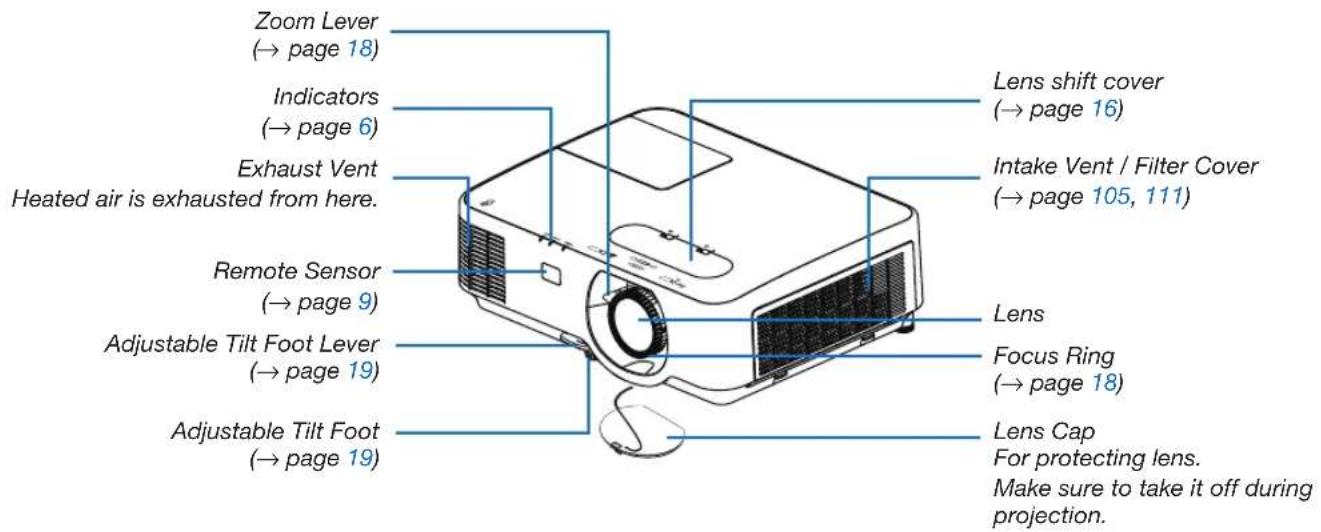
text_image
Zoom Lever (→ page 18) Indicators (→ page 6) Exhaust Vent Heated air is exhausted from here. Remote Sensor (→ page 9) Adjustable Tilt Foot Lever (→ page 19) Adjustable Tilt Foot (→ page 19) Lens shift cover (→ page 16) Intake Vent / Filter Cover (→ page 105, 111) Lens Focus Ring (→ page 18) Lens Cap For protecting lens. Make sure to take it off during projection.Rear
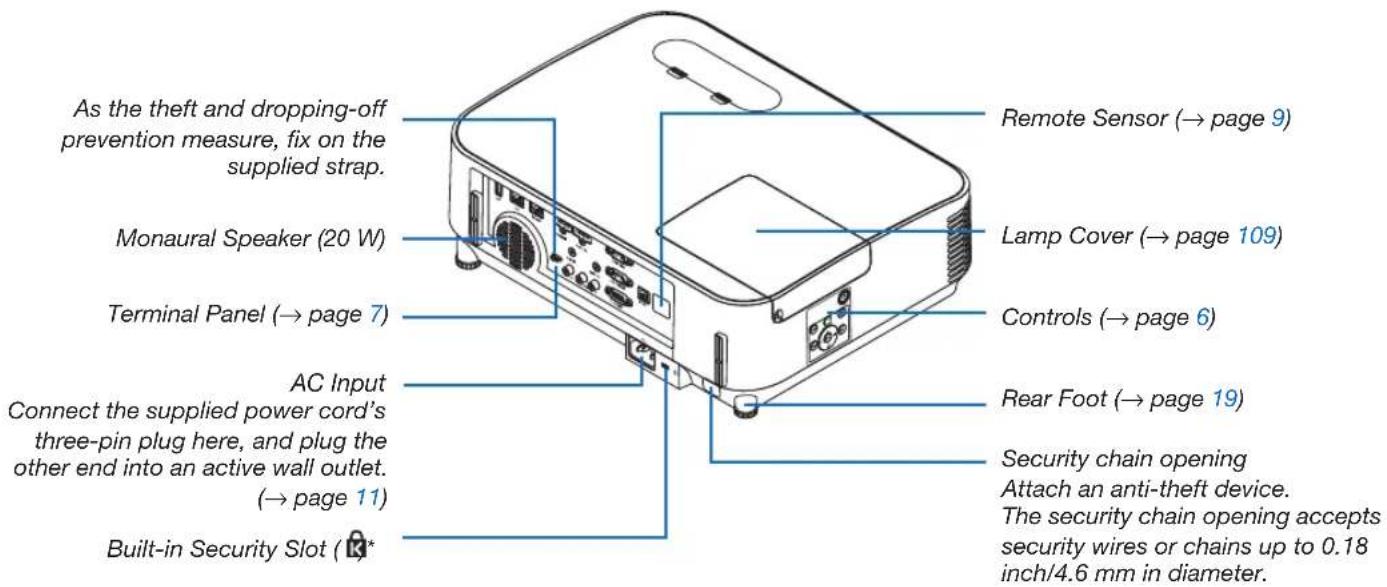
text_image
As the theft and dropping-off prevention measure, fix on the supplied strap. Monaural Speaker (20 W) Terminal Panel (→ page 7) AC Input Connect the supplied power cord's three-pin plug here, and plug the other end into an active wall outlet. (→ page 11) Built-in Security Slot (*) Remote Sensor (→ page 9) Lamp Cover (→ page 109) Controls (→ page 6) Rear Foot (→ page 19) Security chain opening Attach an anti-theft device. The security chain opening accepts security wires or chains up to 0.18 inch/4.6 mm in diameter.* This security slot supports the MicroSaver® Security System.
Controls/Indicator Panel
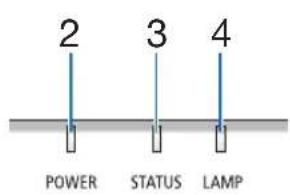
text_image
2 3 4 POWER STATUS LAMP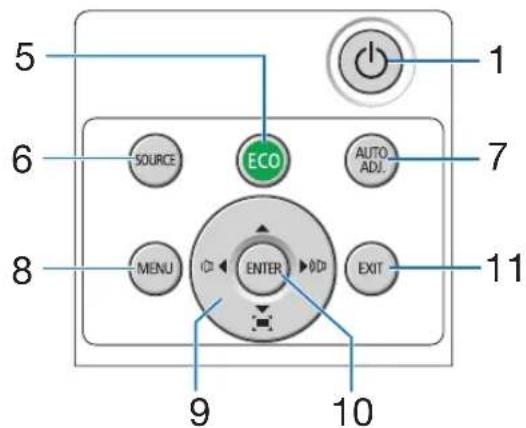
text_image
5 6 8 SOURCE ECO AUTO ADJ. MENU ENTER EXIT 9 10 1 7 11- (POWER) Button
(→ page 12, 23)
- POWER Indicator
(→ page 11, 12, 23, 113)
- STATUS Indicator
(→ page 113)
- LAMP Indicator
(→ page 108, 113)
- ECO Button
(→ page 26)
- SOURCE Button
(→ page 14)
- AUTO ADJ. Button
(→ page 22)
- MENU Button
(→ page 51)
- ▲▼◀▶ / Volume Buttons ◀▶ / Keystone Buttons
(→ page 20, 22, 28, 51)
- ENTER Button
(→ page 51)
- EXIT Button
(→ page 51)
Terminal Panel Features
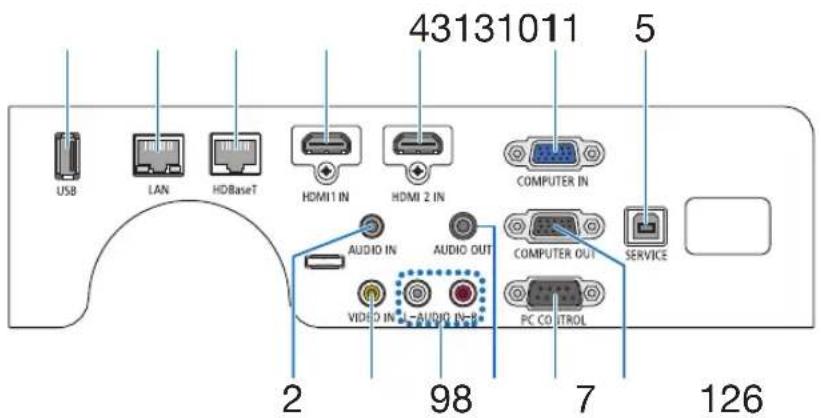
text_image
43131011 5 USB LAN HDBaseT HDMI 1 IN HDMI 2 IN COMPUTER IN AUDIO IN AUDIO OUT VIDEO INT-AUDIO IN-R PC CO TROL SERVICE 2 98 7 126-
COMPUTER IN/ Component Input Terminal (Mini D-Sub 15 Pin)
(→ page 93, 97) -
COMPUTER AUDIO IN Mini Jack (Stereo Mini)
(→ page 93, 94, 97) -
HDMI 1 IN Terminal (Type A)
(→ page 93, 94, 98) -
HDMI 2 IN Terminal (Type A)
(→ page 93, 94, 98) -
SERVICE Port (USB Type B)
(for service purpose only) -
COMPUTER OUT Terminal (Mini D-Sub 15 Pin)
(→ page 95) -
AUDIO OUT Mini Jack (Stereo Mini)
( → page 95) -
VIDEO IN Terminal (RCA)
( → page 96) -
AUDIO IN L, R (RCA)
( → page 96) -
LAN Port (RJ-45)
( → page 99) -
USB Port (Type A)
For USB memory
( → page 100) -
PC CONTROL Port (D-Sub 9 Pin) ( → page 127)
Use this port to connect a PC or control system. This enables you to control the projector using serial communication protocol. If you are writing your own program, typical PC control codes are on page 127.
- HDBaseT Port (RJ-45)
(→ page 73, 103)
④ Part Names of the Remote Control
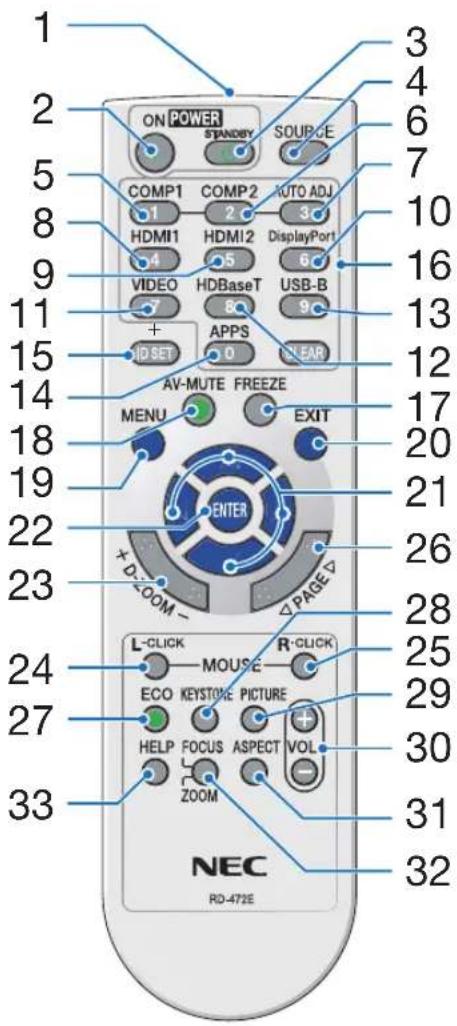
text_image
1 2 3 4 5 6 7 ON POWER STANDBY SOURCE COMP1 COMP2 AUTO ADJ HDMI1 HDMI2 DisplayPort 9 VIDEO HDBaseT USB-B 11 APPS 9c 15 ID SET 0 CLEAR 14 AV-MUTE FREEZE MENU EXIT 20 21 ENTER 22 + D-ZOOM - PAGE 23 L-CLICK MOUSE R-CLICK 24 ECO KEYSTONE PICTURE 27 HELP FOCUS ASPECT VOL ZOOM 33 NEC RD-472E 31 32- Infrared Transmitter ( → page 9)
- POWER ON Button
- POWER STANDBY Button ( → page 23)
- SOURCE Button ( → page 14)
- COMPUTER 1 Button ( → page 14)
- COMPUTER 2 Button (This button does not work on series of projectors)
- AUTO ADJ. Button ( → page 22)
- HDMI 1 Button ( → page 14)
- HDMI 2 Button ( → page 14)
- DisplayPort Button (This button does not work on series of projectors)
- VIDEO Button ( → page 14)
- HDBaseT Button (→ page 14, 103)
- USB-B Button (This button does not work on this series of projectors)
- APPS Button (→ page 14, 45)
- ID SET Button ( → page 71)
- Numeric Keypad Button/ CLEAR Button ( → page 71)
- FREEZE Button ( → page 25)
- AV-MUTE Button ( → page 25)
$$ (\rightarrow \text { page 12 }) $$
-
MENU Button ( → page 51)
-
EXIT Button ( → page 51)
-
▲▼◀▶ Button (→ page 51)
-
ENTER Button ( → page 51)
-
D-ZOOM (+)(−) Button (→ page 25, 26)
-
MOUSE L-CLICK Button this(This button does not work on this series of projectors)
-
MOUSE R-CLICK Button (This button does not work on this series of projectors)
-
PAGE ▽/△ Button ( → page 46)
-
ECO Button ( → page 26)
-
KEYSTONE Button (→ page 20, 28)
-
PICTURE Button (→ page 57, 59)
-
VOL. (+)(−) Button ( → page 22)
-
ASPECT Button ( → page 62)
-
FOCUS/ZOOM Button (This button does not work on this series of projectors)
-
HELP Button (→ page 80, 84, 110)
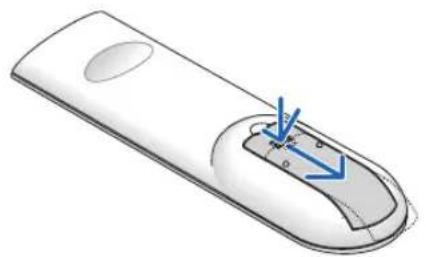
Battery Installation
-
Press firmly and slide the battery cover off.
-
Install new batteries (AAA). Ensure that you have the batteries' polarity (+/-) aligned correctly.
-
Slip the cover back over the batteries until it snaps into place. Do not mix different types of batteries or new and old batteries.
natural_image
Illustration of a remote control device with blue arrows indicating movement or change (no text or symbols)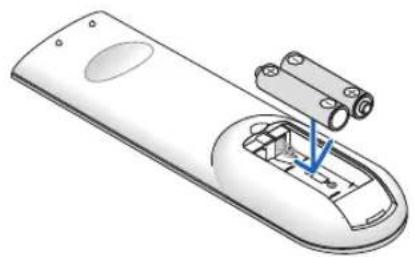
natural_image
Illustration of a remote control device with a handle and internal components (no text or symbols)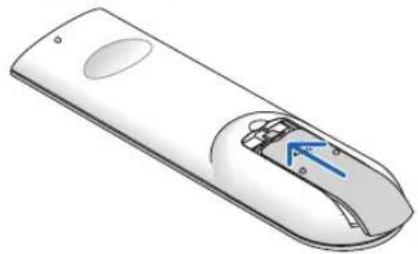
natural_image
Illustration of a remote control with a blue arrow indicating left side (no text or symbols)Remote Control Precautions
- Handle the remote control carefully.
- If the remote control gets wet, wipe it dry immediately.
- Avoid excessive heat and humidity.
- Do not short, heat, or take apart batteries.
- Do not throw batteries into fire.
- If you will not be using the remote control for a long time, remove the batteries.
- Ensure that you have the batteries' polarity (+/−) aligned correctly.
- Do not use new and old batteries together, or use different types of batteries together.
- Dispose of used batteries according to your local regulations.
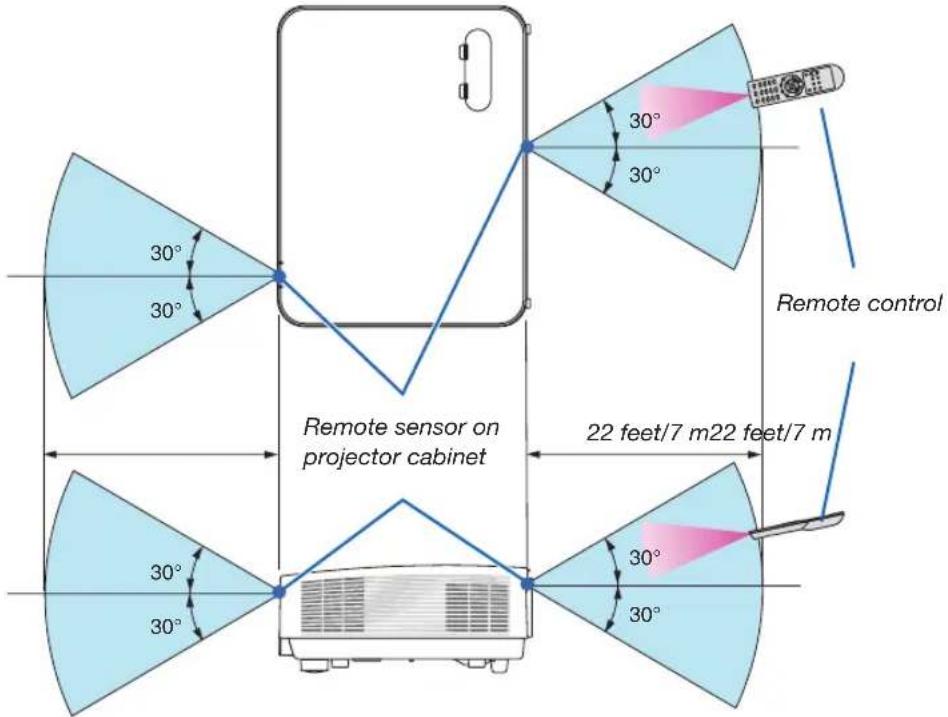
Operating Range for Wireless Remote Control
text_image
Remote control 30° 30° 30° 30° 22 feet/7 m22 feet/7 m 30° 30° 30° 30° 30° 30° 30° 30° 30° 30° 30° 30° 30° 30° 30° 30° 30° 30° 30° 30° 30° 30° 30° 30° 30° 30%- The infrared signal operates by line-of-sight up to a distance of about 22 feet/7 m and within a 60-degree angle of the remote sensor on the projector cabinet.
- The projector will not respond if there are objects between the remote control and the sensor, or if strong light falls on the sensor. Weak batteries will also prevent the remote control from properly operating the projector.
2. Projecting an Image (Basic Operation)
This section describes how to turn on the projector and to project a picture onto the screen.
① Flow of Projecting an Image
Step 1
- Connecting your computer / Connecting the power cord (→ page 11)

Step 2
• Turning on the projector ( page 12)

Step 3
• Selecting a source ( page 14)

Step 4
- Adjusting the picture size and position (→ page 15)
- Correcting keystone distortion [KEYSTONE] (→ page 20)

Step 5
• Adjusting a picture and sound
- Optimizing a computer signal automatically (→ page 22)
- Turning up or down volume ( page 22)

Step 6
• Making a presentation

Step 7
• Turning off the projector ( page 23)

Step 8
- When Moving the Projector (→ page 24)
② Connecting Your Computer/Connecting the Power Cord
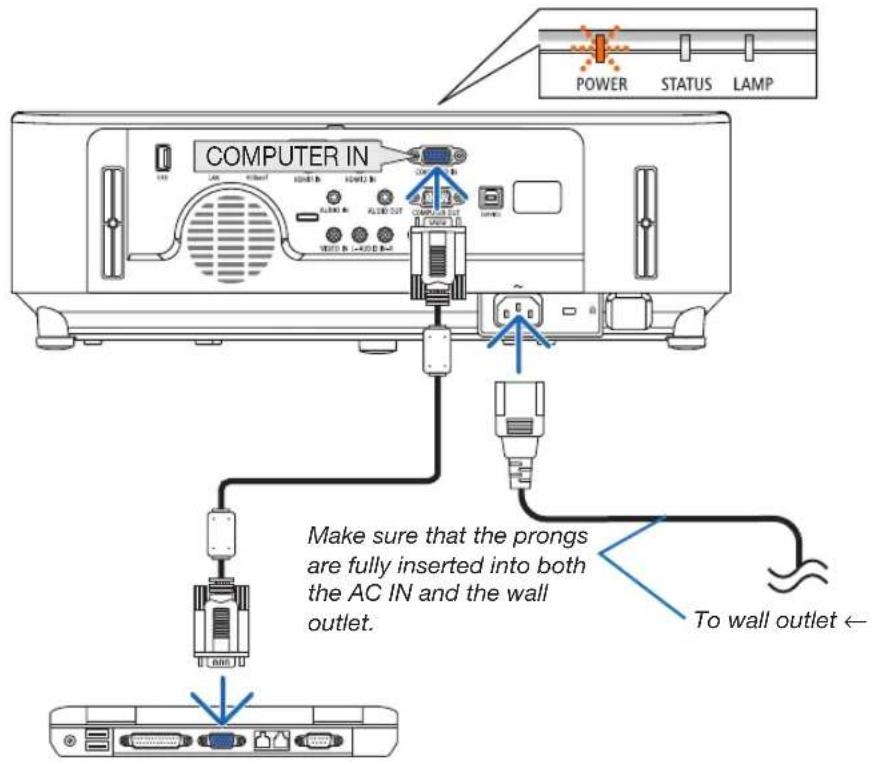
1. Connect your computer to the projector.
This section will show you a basic connection to a computer. For information about other connections, see "6. Installation and Connections" on page 93.
Connect the computer cable (VGA) between the projector's COMPUTER IN terminal and the computer's port (mini D-Sub 15 Pin). Turn two thumb screws of both terminals to fix the computer cable (VGA).
2. Connect the supplied power cord to the projector.
First connect the supplied power cord's three-pin plug to the AC IN of the projector, and then connect the other plug of the supplied power cord in the wall outlet.
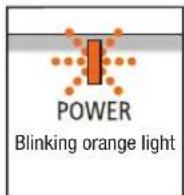
The projector's power indicator will start blinking orange.
* This will apply for both indicators when [NORMAL] is selected for [STANDBY MODE]. See the Power Indicator section.(→ page 113)
text_image
POWER STATUS LAMP COMPUTER IN Make sure that the prongs are fully inserted into both the AC IN and the wall outlet. To wall outlet ←
CAUTION:
Parts of the projector may become temporarily heated if the projector is turned off with the POWER button or if the AC power supply is disconnected during normal projector operation.
Be careful to handle the projector.
③ Turning on the Projector
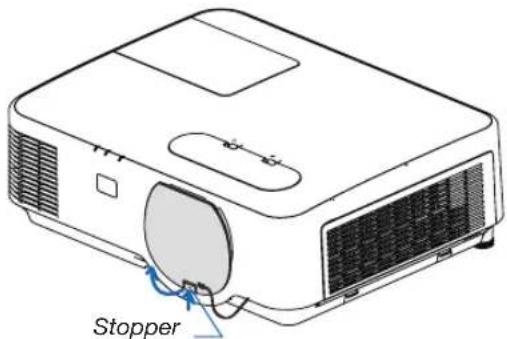
1. Remove the lens cap.
With the lens cap's stopper pressed up, pull forward and off.
text_image
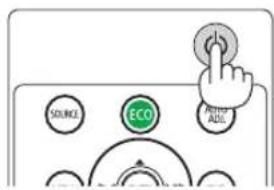
Stopper2. Press the ⓄPOWER) button on the projector cabinet or the POWER ON button on the remote control.
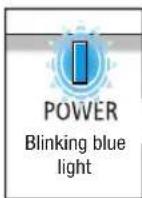
The POWER indicator will blink and the projector will become ready to use.
text_image
SOURCE ECO ADD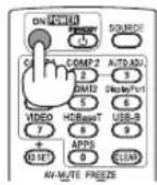
TIP:
- When the message "Projector is locked! Enter your is displayed, it means that the [SECURITY] feature is turned ( page 33)
password."
onStandby Blinking Power On
After you turn on your projector, ensure that the computer or video source is turned on.
NOTE: When no input signal is present, the no-signal guidance is displayed (factory menu setting).

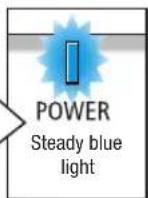
(→ page 113)
Note on Startup screen (Menu Language Select screen)
When you first turn on the projector, you will get the Startup menu. This menu gives you the opportunity to select one of the 30 menu languages.
To select a menu language, follow these steps:
- Use the ▲, ▼, ◀ or ▶ button to select one of the 30 languages from the menu.
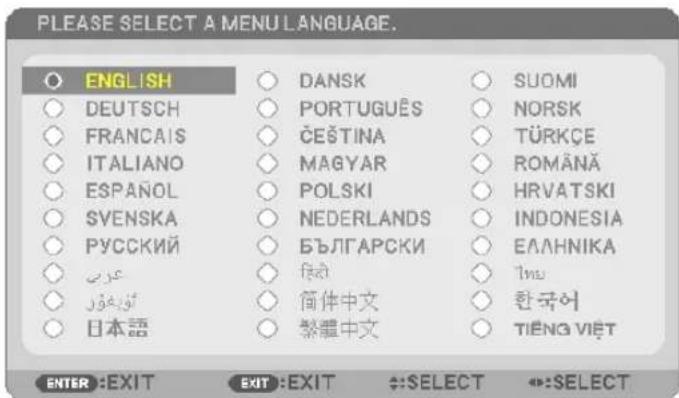
text_image
PLEASE SELECT A MENU LANGUAGE. ○ ENGLISH ○ DEUTSCH ○ FRANÇAIS ○ ITALIANO ○ ESPAÑOL ○ SVENSKA ○ PYCCKIЙ ○ عرط ○ تُوْهُور ○ 日本語 ○ DANSK ○ PORTUGUÊS ○ ČEŠTINA ○ MAGYAR ○ POLSKI ○ NEDERLANDS ○ БЪЛГАРСКИ ○ হিন্তি ○ 简体中文 ○ 整疆中文 ○ SUOMI ○ NORSK ○ TÜRKÇE ○ ROMĂNĂ ○ HRVATSKI ○ INDONESIA ○ EΛΛΗΝΙΚΑ ○ Tinu ○ 한국어 ○ TIĚNG VIĚT ENTER :EXIT EXIT :EXIT ↔:SELECT ↔:SELECT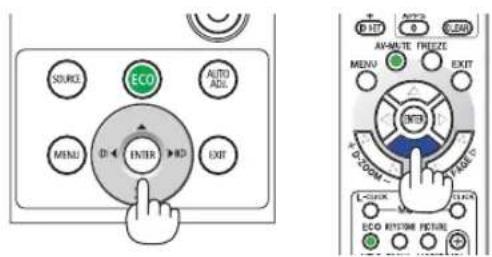
text_image
SOURCE ECO AUTO ADD MENU DI ← ENTER → BD EXIT AVANTILE FROEZE MENU EXIT ENTER DCOOM ECO SYSTEMS FIGURE- Press the ENTER button to execute the selection.
After this has been done, you can proceed to the menu operation.
If you want, you can select the menu language later.
(→ [LANGUAGE] on page 53 and 67)
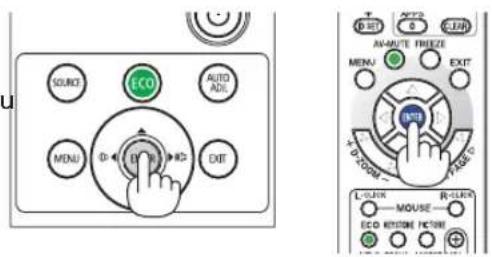
text_image
SOUND ECO AUTO ADE MENU D← D← R← EXIT AV-AMUTE FRIEZE MENU EXIT L-LOCK MOUSE R-LOCK ECO KEYSTONE FIGURENOTE:
- If the projector is shut off by DIRECT POWER OFF (pulling out the power cord) during projection, wait for 1 second at least for reconnect the power cord for turning on the projector.
Failing to do so could result in no power to the projector. (There will be no stand-by LED)
Should this happen, unplug the power cord and plug it in again. Turn on the main power.
• If one of the following things happens, the projector will not turn on.
- If the internal temperature of the projector is too high, the projector detects abnormal high temperature. In this condition the projector will not turn on to protect the internal system. If this happens, wait for the projector's internal components to cool down.
- When the lamp reaches its end of usable life, the projector will not turn on. If this happens, replace the lamp.
- If the STATUS indicator lights orange with the power button pressed, it means that the [CONTROL PANEL LOCK] is turned on. Cancel the lock by turning it off. (→ page 69)
- If the lamp fails to light, and if the POWER indicator blinks in red and the LAMP indicator lights in red, wait a full minute and then turn on the power.
• While the POWER indicator is blinking blue in short cycles, the power cannot be turned off by using the power button. - Immediately after turning on the projector, screen flicker may occur. This is normal. Wait 3 to 5 minutes until the lamp lighting is stabilized.
- When the projector is turned on, it may take some time before the lamp light becomes bright.
- If you turn on the projector immediately after the lamp is turned off or when the lamp temperature is high, the fans run without displaying an image for some time and then the projector will display the image.
④ Selecting a Source
Selecting the computer or video source
NOTE: Turn on the computer or video source equipment connected to the projector.
Detecting the Signal Automatically
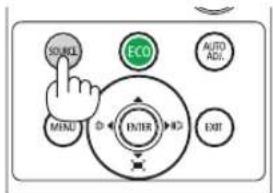
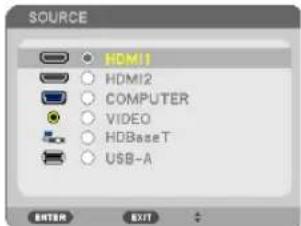
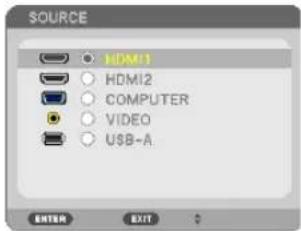
Press the SOURCE button once. The projector will search for the available input source and display it. The input source will change as follows:
HDMI1 → HDMI2 → COMPUTER → VIDEO → HDBaseT → USB-A
- With the SOURCE screen displayed, you can press the SOURCE button a few times to select the input source.
• The HDBaseT source is not supported by P603X.
TIP: If no input signal is present, the input will be skipped.
Using the Remote Control
Press any one of the COMPUTER 1, HDMI1, HDMI2, VIDEO, HDBaseT, or APPS buttons.
Selecting Default Source
You can so that it will be displayed each time the projector is turned on.
- Press the MENU button.
The menu will be displayed.
- Press the ▶ button twice to select [SETUP] and the ▼ button or the ENTER button to select [GENERAL].
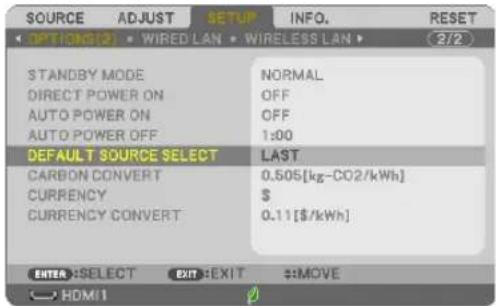
- Press the ▶ button four times to select [OPTIONS(2)].
- Press the ▼ button five times to select [DEFAULT SOURCE SELECT] and press the ENTER button.
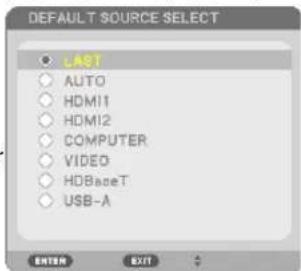
The [DEFAULT SOURCE SELECT] screen will be displayed.
$$ (\rightarrow \text { page 75 }) $$
- Select a source as the default source, and press the ENTER button.
- Press the EXIT button a few times to close the menu.
- Restart the projector.
The source you selected in step 5 will be projected.
TIP:
- When the projector is in Standby mode, applying a computer signal from a computer connected to the COMPUTER IN input will power on the projector and simultaneously project the computer's image.
$$ ([ A U T O P O W E R O N ] \rightarrow p a g e 7 5) $$
- On Windows 7, a combination of the Windows and P keys allows you to set up external[P603X]
display easily and quickly.
text_image
SOREL ECO AUTO ADL MENI ENTER EXIT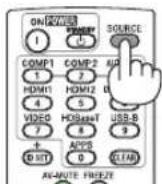
[P554U/P474U/P554W/P474W/P604X]
text_image
SOURCE HDMI1 HDMI2 COMPUTER VIDEO HDBaseT USB-A[P603X]
text_image
SOURCE HDM1 HDMI2 COMPUTER VIDEO USB-A ENTER EXIT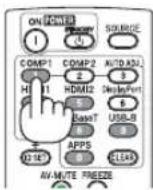
text_image
SOURCE ADJUST SETUP INFO. RESET OPTIONS: 20 WIRED LAN WIRELESS LAN (3/2) STANDBY MODE NORMAL DIRECT POWER ON OFF AUTO POWER ON OFF AUTO POWER OFF 1:00 DEFAULT SOURCE SELECT LAST CARBON CONVERT 0.505[kg-CO2/kWh] CURRENCY $ CURRENCY CONVERT 0.11[$/kWh] ENTER: SELECT EXIT: EXIT $:MOVE HDMI[P554U/P474U/P554W/P474W/P604X]
text_image
DEFAULT SOURCE SELECT LAST AUTO HDMI1 HDMI2 COMPUTER VIDEO HDBaseT USB-A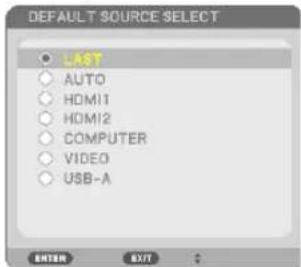
text_image
DEFAULT SOURCE SELECT LAST AUTO HDMI1 HDMI2 COMPUTER VIDEO USB-A ENTER EXIT⑤ Adjusting the Picture Size and Position
Use the lens shift dial, the adjustable tilt foot lever, the zoom lever and the focus ring to adjust the picture size and position.
In this chapter drawings and cables are omitted for clarity.
Adjusting the projected image's vertical and horizontal position [Lens shift](→ page 16)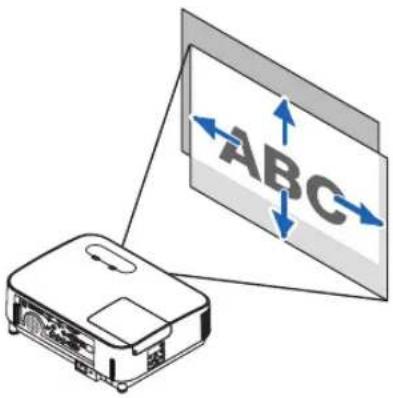 | Adjusting the focus [Focus ring](→ page 18)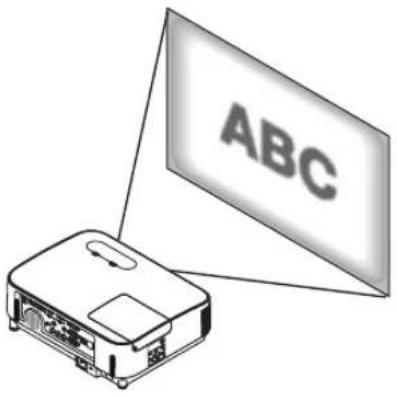 |
Finely adjusting the size of an image[Zoom lever](→ page 18)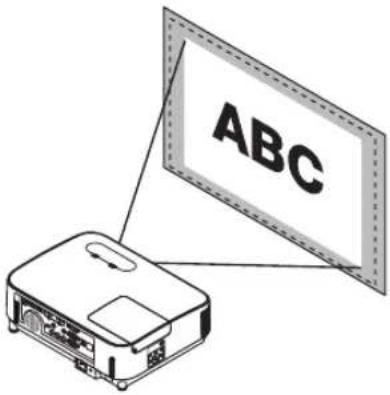 | Adjusting the throw angle (the height of an image)[Tilt foot](→ page 19)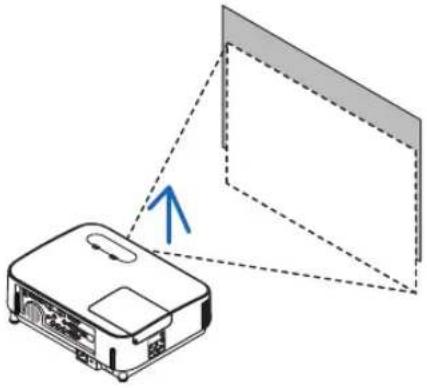 |
Adjusting the left and right tilt of an image[Rear foot] (→ page 19)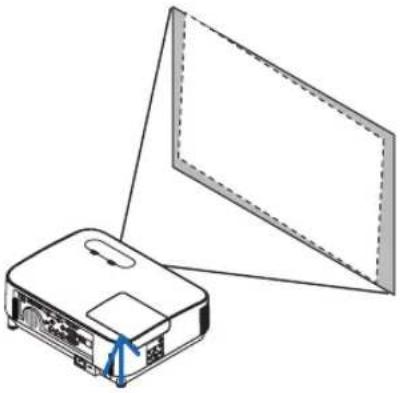 | Correcting the keystone distortion [Keystone](→ page 20)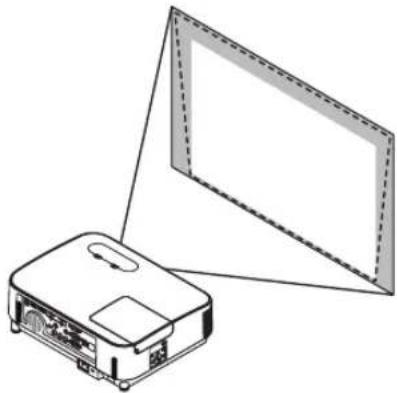 |
Adjusting the vertical position of a projected image (Lens shift)

CAUTION:
Perform the adjustment from behind or from the side of the projector. Adjusting from the front could expose your eyes to strong light which could injure them.
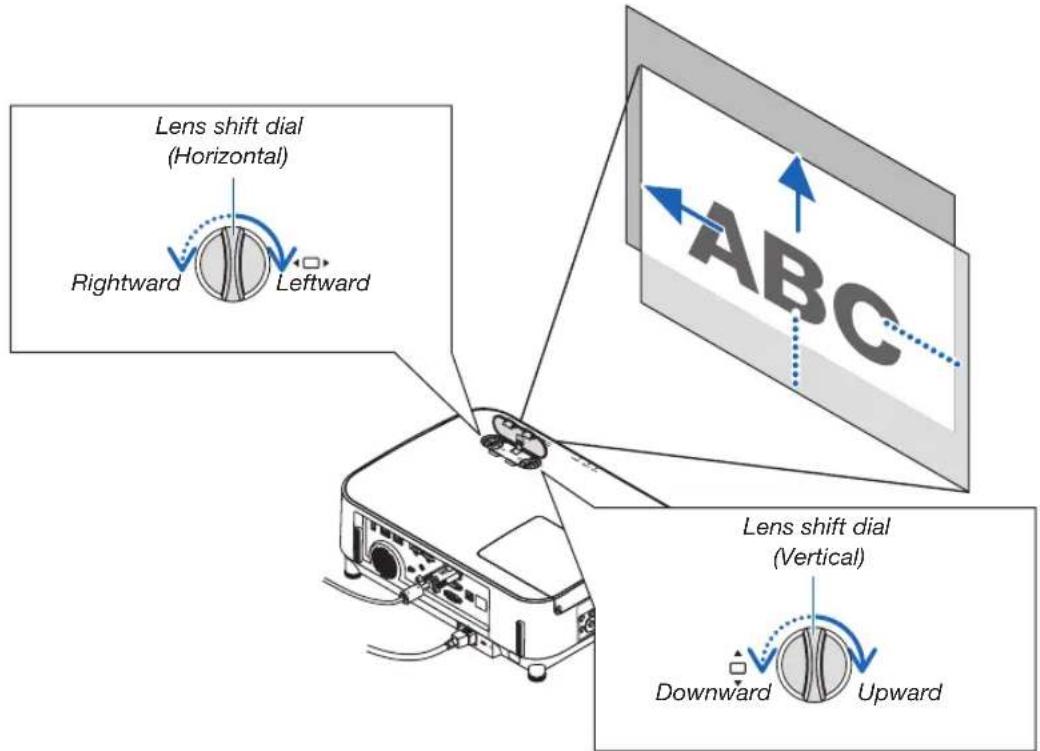
1. Turn the lens shift dials clockwise or counterclockwise.
Vertical dial
Turn this clockwise or counterclockwise to adjust the projection position in the vertical direction.
Horizontal dial
Turn this clockwise or counterclockwise to adjust the projection position in the horizontal direction.
text_image
Lens shift dial (Horizontal) Rightward Leftward ABC Lens shift dial (Vertical) Downward UpwardNOTE:
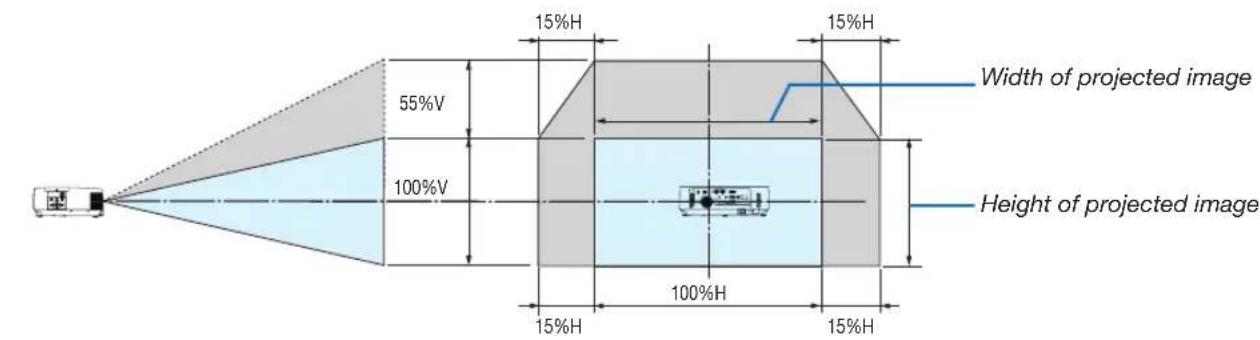
- The dials can be turned more than one full turn, but the projection position cannot be moved more than the range indicated on the following page. Do not force to turn the dials. Doing so may damage the dials.
- If the lens is shifted to the maximum in the diagonal direction, the edges of the screen will be dark or shaded.
- The vertical shift adjustment must be finished with an image shifted upward. If you finish the vertical shift adjustment with an image shifted down, the zoom/focus adjustments or strong shaking may cause a projected image to slightly shift down.
TIP:
• The diagram below shows the lens shift adjustment range ([ORIENTATION]: [DESKTOP FRONT]).
- For the lens shift adjustment range regarding the [CEILING FRONT] projection, see page 91. [P554U/P474U/P554W/P474W]
text_image
55%V 100%V 15%H 15%H Width of projected image Height of projected image 100%H 15%H[P604X/P603X]
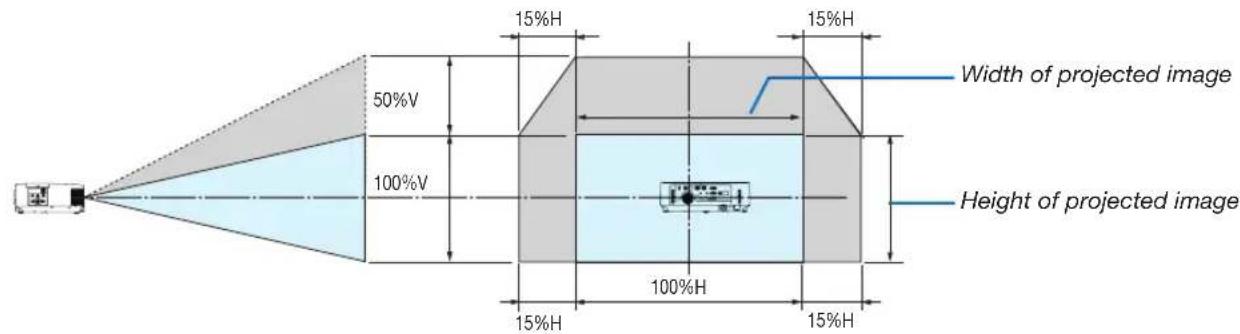
text_image
50%V 100%V 15%H 15%H Width of projected image Height of projected image 100%H 15%H 15%HDescription of symbols: V indicates vertical (height of the projected image), H indicates horizontal (width of the projected image).
Focus
Use the FOCUS ring to obtain the best focus.
NOTE:
- Recommend to perform the focus adjustment after leaving the projector under the state the TEST PATTERN has been projected for over 30 minutes. Please refer page 72 about the TEST PATTERN.
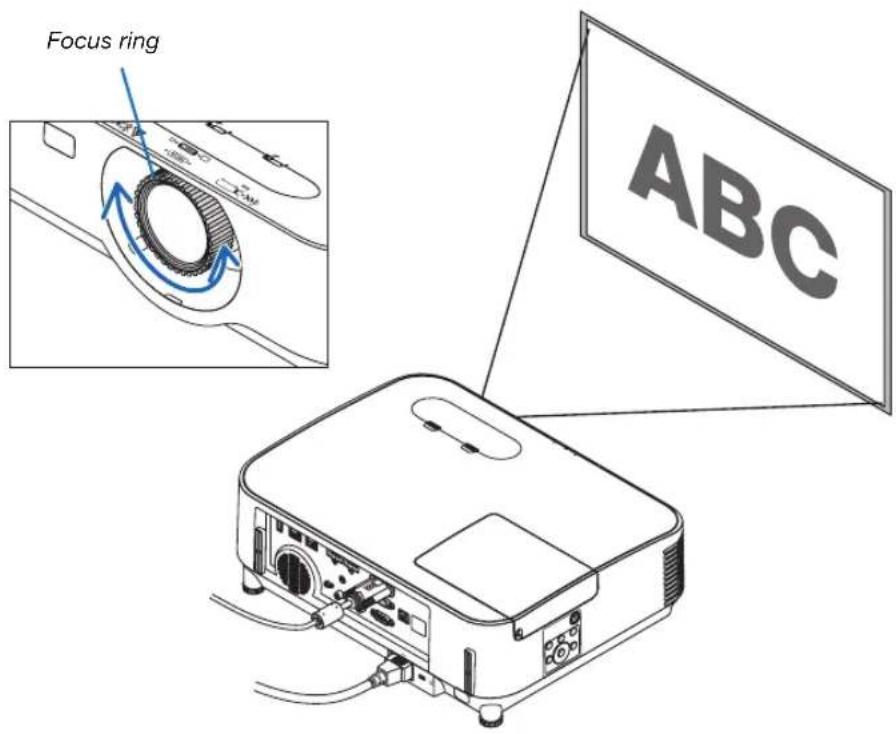
text_image
Focus ring ABCZoom
Turn the zoom lever clockwise and counterclockwise.
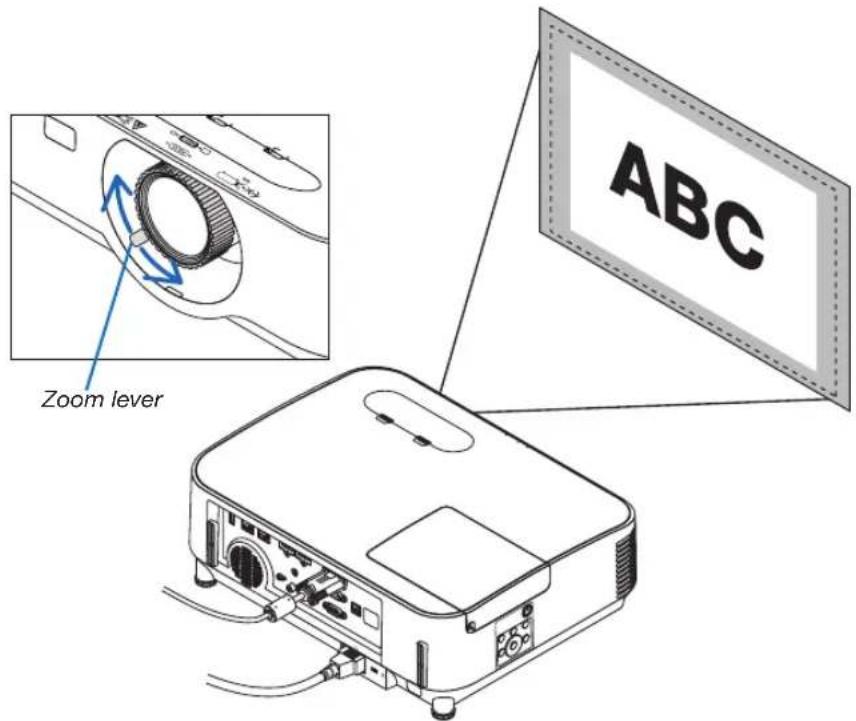
text_image
Zoom lever ABCAdjust the Tilt Foot
- Lift the front edge of the projector.

CAUTION:
Do not try to touch the exhaust vent during Tilt Foot adjustment as it can become heated while the projector is turned on and after it is turned off.
- Push up and hold the Adjustable Tilt Foot Lever on the front of the projector to extend the adjustable tilt foot.
- Lower the front of the projector to the desired height.
- Release the Adjustable Tilt Foot Lever to lock the Adjustable tilt foot.
The tilt foot can be extended up to 1.6 inch/40 mm.
There is approximately 10 degrees (up) of adjustment for the front of the projector.
Rotate the rear foot to the desired height in order to square the image on the projection surface.

CAUTION:
- Do not use the tilt-foot for purposes other than originally intended. Misuses such as using the tilt foot to carry or hang (from the wall or ceiling) the projector can cause damage to the projector.
Adjusting the left and right tilt of an image [Rear foot]
- Rotate the rear foot.
The rear foot can be extended up to 0.5 inch/12 mm. Rotating the rear foot allows the projector to be placed horizontally.
NOTE:
- Do not extend the rear foot beyond its height limit (0.5 inch/12 mm). Doing so may cause the rear foot to come out of the projector.
![NEC P603X - Adjusting the left and right tilt of an image [Rear foot] - 1](/content/2026/05/867344/images/95d2ed94b6698f826e31f86ebe125fd2c26b0ccf477104da9c4de875d1113312.jpg)
natural_image
Line drawing of a monitor mounted on a stand (no text or symbols)![NEC P603X - Adjusting the left and right tilt of an image [Rear foot] - 2](/content/2026/05/867344/images/3a31bd23fe6e418c116a509cf99f22ab686cefd3db58921b680a68e7e779b91b.jpg)
text_image
Diagram of a projector with labeled parts and directional arrows indicating motion or positioningFoot Lever
Adjustable Tilt FootAdjustable
![NEC P603X - Adjusting the left and right tilt of an image [Rear foot] - 3](/content/2026/05/867344/images/90a1665bcb68207e879ff16c3b8219f6c7f96dfb1f0287ae3cabd2e29d6b84cc.jpg)
natural_image
Line drawing of a projector with a labeled component (no text or symbols present)![NEC P603X - Adjusting the left and right tilt of an image [Rear foot] - 4](/content/2026/05/867344/images/514a85b7c659c716ea726561b45727dddd1747bb37558b9f39d4678b9e599623.jpg)
text_image
Up Down Rear foot⑥ Correcting Keystone Distortion [KEYSTONE]
When the projector is not exactly perpendicular to the screen, keystone distortion occurs. For correcting this distortion, you can use the "Keystone" function, a digital technology that can adjust for keystone-type distortion, resulting in a crisp, square image.
The following procedure explains how to use the [KEYSTONE] screen from the menu to correct trapezoidal distortions when the projector is placed diagonally to the screen.
• Before performing KEYSTONE correction
The KEYSTONE correction has four features, KEYSTONE HORIZONTAL, KEYSTONE VERTICAL, PINCUSHION, and CORNERSTONE. If the value of either CONERSTONE or PINCUSHION has corrected, KEYSTONE HORIZONTAL and KEYSTONE VERTICAL are disabled. In this case, RESET the corrected values and restart to correct distortion.
![NEC P603X - ⑥ Correcting Keystone Distortion [KEYSTONE] - 1](/content/2026/05/867344/images/a75fb21c9fd2382059430e77c46ad5eb8d9277d6aa99f53c0e78cb721ec4ded9.jpg)
flowchart
graph LR
    A["Step 1: Trapezoid"] --> B["Step 2: Square"]
    B --> C["Step 3: Trapezoid"]
1. Press the ▼ button on the projector cabinet.
The Keystone screen will be displayed on the screen.
- Press the KEYSTONE button when using the remote control.
• See page for PINCUSHION.
• See page for CORNERSTONE.
• See page for RESET.
[P554W/P474W/P604X/P603X]
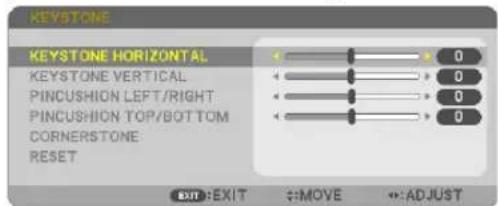
text_image
KEYSTONE KEystone HORIZONTAL KEystone VERTICAL PINCUSHION LEFT/RIGHT PINCUSHION TOP/BOTTOM CORNERSTONE RESET EXIT EXIT ←→MOVE ←→ADJUST[P554U/P474U]
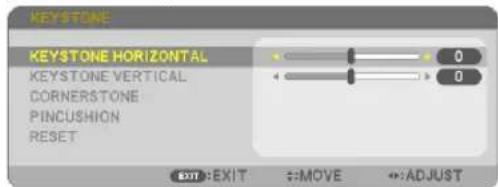
text_image
KEYSTONE KEystone HORIZONTAL 0 KEYSTONE VERTICAL CORNERSTONE PINCUSHION RESET EXIT:EXIT ↔MOVE ↔ADJUSTProjected area
2. Press the ▼ button to select [KEYSTONE VERTICAL] and then use the ◀ or ▶ so that the left and right sides of the projected image are parallel.
* Adjust the vertical keystone distortion.
![NEC P603X - Press the ▼ button to select [KEYSTONE VERTICAL] and then use the ◀ or ▶ so that the left and right sides of the projected image are parallel. - 1](/content/2026/05/867344/images/626bc97c3f74e97efda144cd3d32e0b38e86f9414eafc58a2b445e9f8f8d011d.jpg)
text_image
Screen frame EVE/NE WEL CIL EVE/NE WEL CIL EVE/NE WEL CIL EVE/NE WEL CIL EVE/NE WEL CIL EVE/NE WEL CIL EVE/NE WEL CIL EVE/NE WEL CIL EVE/NE WEL CIL EVE/NE WEL CIL EVE/NE WEL CIL EVE/NE WEL CIL3. Align the left (or right) side of the screen with the left (or right) side of the projected image.
• Use the shorter side of the projected image as the base.
• In the right example, use the left side as the base.
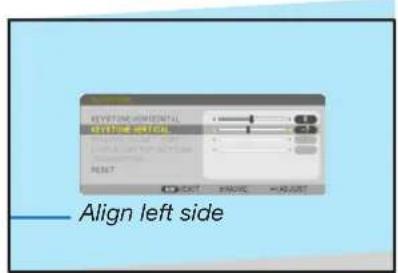
text_image
BEETING WM/VEGETABLE BEETING WM/VEGETABLE BEET Align left side- Press the ▲ button to select [KEYSTONE HORIZONTAL] and then use the ◀ or ▶ so that the top and bottom sides of the projected image are parallel.
- Adjust the horizontal keystone distortion.
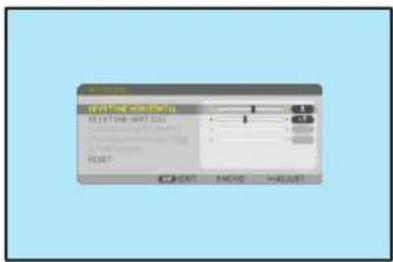
text_image
RSTAGE CONTROL RSTAGE CONTROL 1 0.8 1 0.8 Control RESET RESET MAKE = NULL-
Repeat steps 2 and 4 to correct keystone distortion.
-
After completing Keystone correction, press the EXIT button. The Keystone screen will disappear.
natural_image
Solid light blue rectangle with a thin border (no text or symbols)- To perform Keystone correction again, press the ▼ button to display the Keystone screen and repeat above steps 1 to 6.
To return the keystone adjustments to default:
- Press the ▼ button to select [RESET] and press the ENTER button.
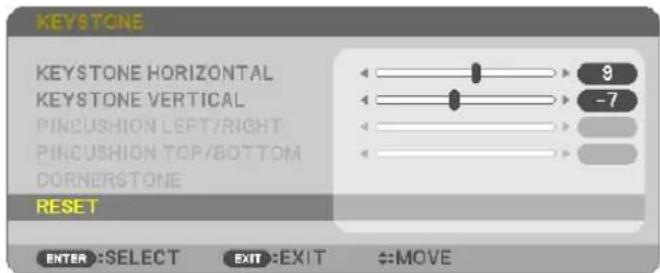
text_image
KEYSTONE KEystone HORIZONTAL KEystone VERTICAL PINCUSHION LEFT/RIGHT PINCUSHION TOP/BOTTOM CORNERSTONE RESET 9 -7 ENTER :SELECT EXIT :EXIT ↔MOVE- Press the ◀ or ▶ button to select [YES] and press the ENTER button.
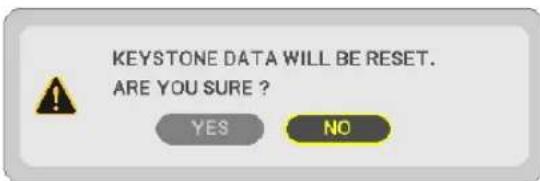
text_image
KEystone DATA WILL BE RESET. ARE YOU SURE ? YES NOThe adjustments will be reset.
All the adjustments for all the five items will be reset at the same time.
• The KEYSTONE feature can cause an image to be slightly blurred because the correction is made electronically.
⑦ Optimizing Computer Signal Automatically Adjusting the Image Using Auto Adjust
Optimizing a computer image automatically. (COMPUTER)
Press the AUTO ADJ. button to optimize a computer image automatically. This adjustment may be necessary when you connect your computer for the first time.
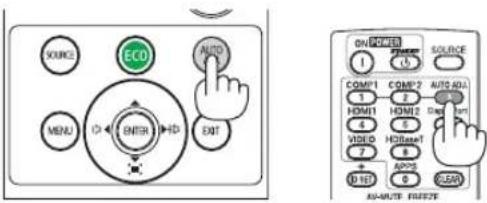
text_image
XINGO ECO AUTO MENU ONER ID EXIT DN POWER SOLUTION COMP1 COMP2 AUTO AOL 1 2 HOM1 HOM2 4 5 VIDEO HDBaseT 7 8 APP3 0 C24M 0 AS-MUTE FUSEATE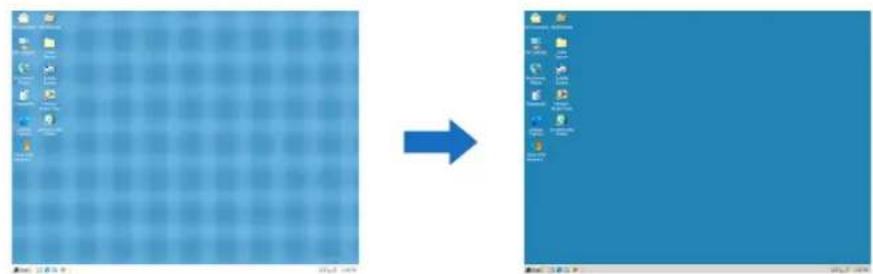
text_image
Screenshot showing a desktop computer setup with icons and a blue arrow indicating transformation from left to right.[Poor picture] [Adjusted picture]
NOTE:
Some signals may take time to display or may not be displayed correctly.
- If the Auto Adjust operation cannot optimize the computer signal, try to adjust [HORIZONTAL], [VERTICAL], [CLOCK], and [PHASE] manually. (→ page 60, 61)
⑧ Turning Up or Down Volume
Sound level from the speaker or audio output can be adjusted.
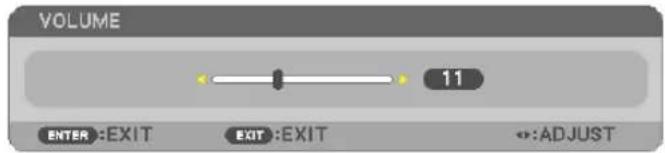
text_image
VOLUME 11 ENTER :EXIT EXIT :EXIT ←:ADJUSTTIP: When no menus appear, the ◀ and ▶ buttons on the projector cabinet work as a volume control.
NOTE:
- Volume control is not available with the ◀ or ▶ button when an image is magnified by using the D-ZOOM (+) button or displayed.
- Volume control is not available with the ◀ or ▶ button when VIEWER is used.
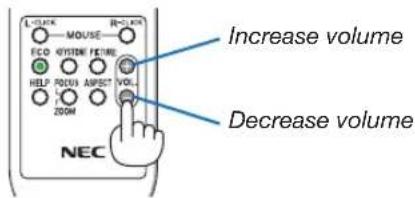
text_image
L-LOCK MOUSE R-LOCK ECO SYSTEM FEEUR HELP 0010 APOR T VOL. 200M Increase volume Decrease volume NECwhen the
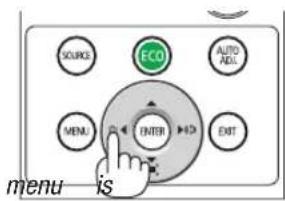
text_image
SOURCE ECO AUTO ABL MEM ENTER EXIT EBT menu isTIP: The [BEEP] sound volume cannot be adjusted. To turn off the [BEEP] sound, from the menu, select [SETUP] → [OPTIONS (1)] → [BEEP] → [OFF].
⑨ Turning off the Projector
To turn off the projector:
- First, press the ⬆POWER) button on the projector cabinet or the STANDBY button on the remote control. The confirmation message will be displayed.
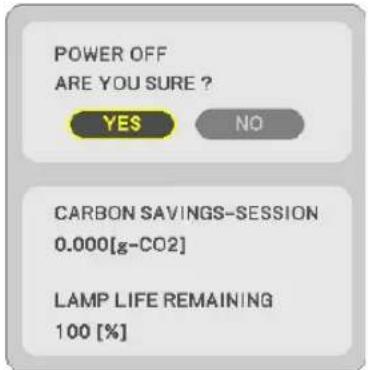
text_image
POWER OFF ARE YOU SURE ? YES NO CARBON SAVINGS-SESSION 0.000[g-CO2] LAMP LIFE REMAINING 100 [%]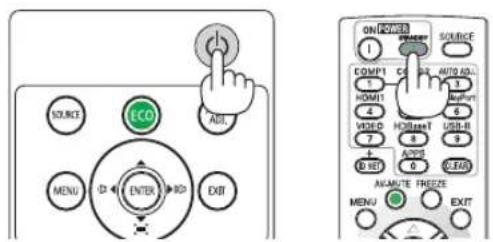
text_image
SOURCE ECO ADD MENU ENTER EXIT ON POWER 1 SOURCE COMP1 COM AUTO ADD. 1 HOM1 3 4 6 VIDEO HOUST USB-R 7 AVPS 0 OLED ANAMUTE FREEZE MENU EXIT2. Secondly, press the ENTER button or press the ⏻ (POWER) or the STANDBY button again.
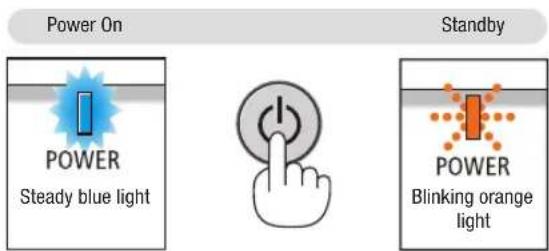
The lamp will turn off and the projector will go into standby mode. When in standby mode, the POWER indicator will blinking orange and the STATUS indicator will turn off when [NORMAL] is selected for [STANDBY MODE].
text_image
Power On Steady blue light Standby POWER Blinking orange light
CAUTION:
Parts of the projector may become temporarily heated if the projector is turned off with the POWER button or if the AC power supply is disconnected during normal projector operation. Use caution when picking up the projector.
NOTE:
• While the power indicator is blinking blue in short cycles, the power cannot be turned off.
• You cannot turn off the power for 60 seconds immediately after turning it on and displaying an image.
- Do not disconnect the AC power supply to the projector within 10 seconds after making adjustment or setting changes and closing the menu. Doing so can cause loss of adjustments and settings.
⑩ When Moving the Projector
Preparation: Make sure that the projector is turned off.
-
Put on the lens cap.
-
Unplug the power cord.
-
Disconnect any other cables.
- Remove the USB memory or the wireless LAN Unit if it is inserted into the projector.
(→ page 47, 102)
3. Convenient Features
① Turning off the Image and Sound
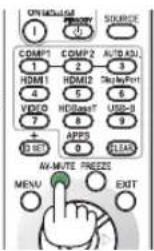
Press the AV-MUTE button to turn off the image and sound for a short period of time. Press again to restore the image and sound.
The projector's power-saving function will work 10 seconds after the image is turned off.
As a result, the lamp power will be reduced.
NOTE:
• Even though the image is turned off, the menu still remains on the screen.
• Sound from the AUDIO OUT jack (Stereo mini) can be turned off.
- Even when the power-saving function works, the lamp power may be restored to its original level temporarily.
- To restore the image, even if you press the AV-MUTE button immediately after the start of the power-saving function, the lamp brightness may not be restored to its original level.
② Freezing a Picture
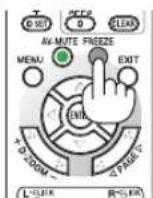
Press the FREEZE button to freeze a picture. Press again to resume motion.
NOTE: The image is frozen but the original video is still playing back.
- This feature can not be used when USB-A is selected as the input terminal.
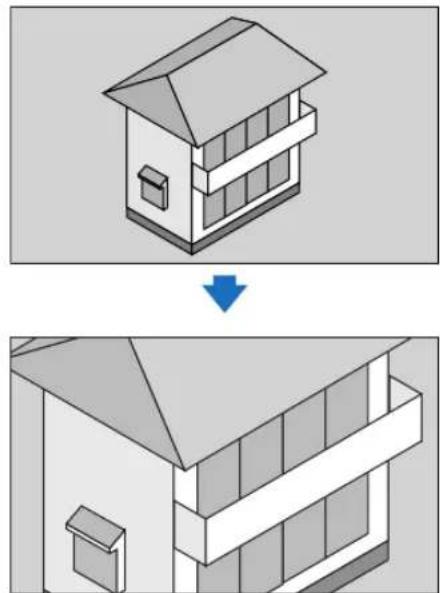
③ Magnifying a Picture
You can enlarge the picture up to four times.
NOTE: The maximum magnification may be less than four times depending on the signal.
To do so:
1. Press the D-ZOOM (+) button to magnify the picture.
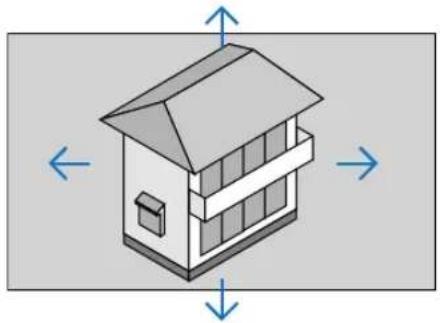
To move the magnified image, use the ▲,▼,◀ or ▶ button.
natural_image
Isometric diagram of a two-story house with a door, showing a change from top to bottom view (no text or symbols)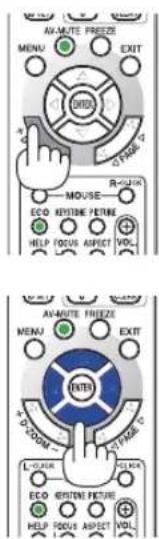
text_image
AV-MUTE FREEZE MENU EXIT DRIGO R-HUSH MOUSE ECO KESTONE FUTURE HELP FOCUS APXICET VOL. AV-MUTE FREEZE MENU EXIT DRIGO ECON RESPECTURE HELP FOCUS APXICET VOL.2. Press the ▲▼◀▶ button.
The area of the magnified image will be moved.
natural_image
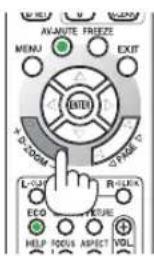
Isometric illustration of a two-story house with directional arrows indicating orientation (no text or symbols)3. Press the D-ZOOM (-) button.
Each time the D-ZOOM (−) button is pressed, the image is reduced.
NOTE:
• The image will be magnified or demagnified at the center of the screen.
- Displaying the menu will cancel the current magnification.
text_image
AVANUTE FREEZE MENU EXIT ENTER + L-DOOM + PAGE L-OUT R-CLK ECO VEEUE HELP ROCUS ASPECT VOL④ Changing Eco Mode/Checking Energy-Saving Effect Using Eco Mode [ECO MODE]
The ECO MODE (NORMAL and ECO) increases lamp life, while lowering power consumption and cutting down on CO_2 emissions.
Four brightness modes of the lamp can be selected: [OFF], [AUTO ECO], [NORMAL] and [ECO] modes.
| [ECO MODE] Description Status of LAMP indicator | ||||
| [OFF] The lamp brightness is 100%. | ![NEC P603X - ④ Changing Eco Mode/Checking Energy-Saving Effect Using Eco Mode [ECO MODE] - 1](/content/2026/05/867344/images/aeb64b03d4a452cea8302403934dae7b42e0bfb12875e941c20d338e9391e984.jpg) depending on depending on | Steady Green light | ||
[AUTO ECO]![NEC P603X - ④ Changing Eco Mode/Checking Energy-Saving Effect Using Eco Mode [ECO MODE] - 2](/content/2026/05/867344/images/6ea0b6dfda3959db5ac1b63e1b9872badb6f6dac1f98722620796c32d04b64c8.jpg) | Lamp power consumption will be changed between [OFF] and [NORMAL] automatically according picture levelNOTE: A bright gradation may be less visible the image. | |||
[NORMAL]![NEC P603X - ④ Changing Eco Mode/Checking Energy-Saving Effect Using Eco Mode [ECO MODE] - 3](/content/2026/05/867344/images/debef82d8d3b7ef82c90aadf44aa29c86bf6ac0155c2fda8e20939381d04287e.jpg) | Lamp power consumption: (approx. 80% brightness on P554U/P554W/P604X/P603X and approx. 86% on P474U/P474W) The lamp life will extend by lowering the lamp power. | |||
[ECO]![NEC P603X - ④ Changing Eco Mode/Checking Energy-Saving Effect Using Eco Mode [ECO MODE] - 4](/content/2026/05/867344/images/f995ff75fc65314d899e523f3f1f1ed78a28be0d42b88aced1ff2095de2bd960.jpg) | Lamp power consumption: (approx. 60% brightness on P554U/P554W/P604X/P603X and approx. 65% on P474U/P474W) The lamp life will extend longer than the one on NORMAL mode by controlling power appropriate for the lamp. The maximum power becomes equivalent to the power in NORMAL. | ![NEC P603X - ④ Changing Eco Mode/Checking Energy-Saving Effect Using Eco Mode [ECO MODE] - 5](/content/2026/05/867344/images/74d317dd81f5967fb21fa5401d725a47938e8d536df301de97470d6288957efb.jpg) | Blinking Green light | |
To turn on the [ECO MODE], do the following:
-
Press the ECO Button on the remote control to display [ECO MODE] screen.
-
Press the ECO button again to select a mode you wish.
• Each time the ECO button is pressed, the choices will be changed:
$$ O F F \rightarrow A U T O E C O \rightarrow N O R M A L \rightarrow E C O \rightarrow O F F $$
TIP:
• The leaf symbol at the bottom of the menu shows the current selection of ECO mode.
![NEC P603X - ④ Changing Eco Mode/Checking Energy-Saving Effect Using Eco Mode [ECO MODE] - 6](/content/2026/05/867344/images/a9744642d8577b5c391a1dc2ba5a28719eebef8c6200f6f67c49bcd3814b47cf.jpg)
NOTE:
- The [ECO MODE] can be changed by using the menu. Select [SETUP] → [GENERAL] → [ECO MODE].
- The lamp life remaining and lamp hours used can be checked in [USAGE TIME]. Select [INFO.] →[USAGE TIME].
- The projector is always in [NORMAL] for 90 seconds after the lamp is turned on. The lamp condition will not be affected even when [ECO MODE] is changed.
- After a lapse of 1 minute from when the projector displays no-signal guidance, a blue, black or logo screen, [ECO MODE] will automatically switch to [ECO]. The projector will return to its original setting once a signal is accepted.
- If the projector is overheated in [OFF] mode, there may be a case where the [ECO MODE] automatically changes to [NORMAL] mode to protect the projector. When the projector is in [NORMAL] mode, the picture brightness decreases. When the projector comes back to normal temperature, the [ECO MODE] returns to its original setting.
Thermometer symbol [ ] indicates the [ECO MODE] is automatically set to [NORMAL] mode because the internal temperature is too high.
- Immediately after [ECO MODE] is changed from [ECO] to one of [OFF], [AUTO ECO], or [NORMAL], the lamp brightness may decrease temporarily. This is not a malfunction.
Checking Energy-Saving Effect [CARBON METER]
This feature will show energy-saving effect in terms of CQemission reduction (kg) when the projector's [ECO MODE] is set to [AUTO ECO], [NORMAL], or [ECO]. This feature is called as [CARBON METER].
There are two messages: [TOTAL CARBON SAVINGS] and [CARBON SAVINGS-SESSION]. The [TOTAL CARBON SAVINGS] message shows the total amount of CO_2 emission reduction from the time of shipment up to now. You can check the information on [USAGE TIME] from [INFO.] of the menu. ( page 80)
![NEC P603X - Checking Energy-Saving Effect [CARBON METER] - 1](/content/2026/05/867344/images/bd28e37d2b9bcc8e875cf1bc865dcda9e33f0bfe9ea4e58f1ab7c910c47b6152.jpg)
text_image
SOURCE ADJUST SETUP INFO. RESET 1/3 USAGE TIME SOURCE(1) SOURCE(2) LAMP LIFE REMAINING LAMP HOURS USED 00000[H] FILTER HOURS USED 00000[H] TOTAL CARBON SAVINGS 0.000[kg-CO2] TOTAL COST SAVINGS 0.00[$] EXIT :EXIT ::MOVE ←:MOVE HDMI1The [CARBON SAVINGS-SESSION] message shows the amount of CO _2 emission reduction between the time of changing to ECO MODE immediately after the time of power-on and the time of power-off. The [CARBON SAVINGS-SESSION] message will be displayed in the [POWER OFF/ ARE YOU SURE?] message at the time of power-off.
![NEC P603X - Checking Energy-Saving Effect [CARBON METER] - 2](/content/2026/05/867344/images/7e709136832e30f38d89b0b0931d38b0dfe39e81ad81ce9f2b633c6c130ef0ac.jpg)
text_image
POWER OFF ARE YOU SURE ? YES NO CARBON SAVINGS-SESSION 0.000[g-CO2] LAMP LIFE REMAINING 100 [%]TIP:
• The formula as shown below is used to calculate the amount of CO emission reduction.
Amount of CO_2 emission reduction = (Power consumption in OFF for ECO MODE – Power consumption in AUTO ECO/NORMAL/ECO for ECO MODE) × CO_2 conversion factor.* When the image is turned off with the AV-MUTE button, the amount of CO_2 emission reduction will also increase.
* Calculation for amount of C2emission reduction is based on an OECD publication “C2Emissions from Fuel Combustion, 2008 Edition”.
• The [TOTAL CARBON SAVINGS] is calculated based on savings recorded in 15 minutes intervals.
- This formula will not apply to the power consumption which is not affected by whether [ECO MODE] is turned on or off.
⑤ Using 4-Point Corner to Correct Keystone Distortion [CORNERSTONE]
Use the [CORNERSTONE] and [PINCUSHION] features to correct keystone (trapezoidal) distortion to make the top or bottom and the left or right side of the screen longer or shorter so that the projected image is rectangular.
Before performing correction
The KEYSTONE correction has features, KEYSTONE (HORIZONTAL/VERTICAL), PINCUSHION, and CORNERSTONE. If the value of either CONERSTONE or PINCUSHION has corrected, KEYSTONE HORIZONTAL and KEYSTONE VERTICAL are disabled. In this case, RESET the corrected values and restart to correct distortion.
Cornerstone
1. Press the KEYSTONE button with no menu displayed.
[P554W/P474W/P604X/P603X]
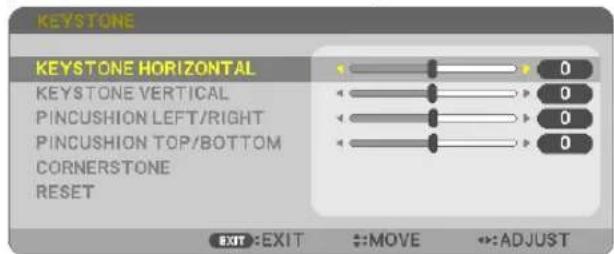
text_image
KEystone KEYSTONE HORIZONTAL KEystone VERTICAL PINCUSHION LEFT/RIGHT PINCUSHION TOP/BOTTOM CORNERSTONE RESET EXIT: EXIT :MOVE :ADJUST[P554U/P474U]
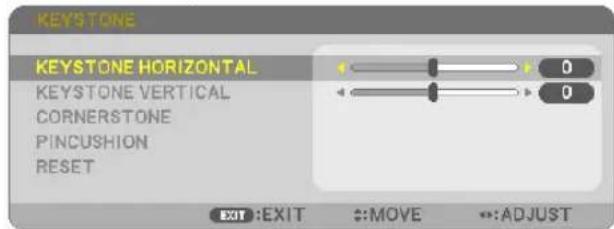
text_image
KEYSTONE KEystone HORIZONTAL KEystone VERTICAL CORNERSTONE PINCUSHION RESET EXIT :EXIT ::MOVE ::ADJUSTThe KEYSTONE screen will be displayed.
- Press the KEYSTONE button when using the remote control.
• See page for PINCUSHION.
2. Press the ▼ button to select [CORNERSTONE] and press the ENTER button.
![NEC P603X - Press the ▼ button to select [CORNERSTONE] and press the ENTER button. - 1](/content/2026/05/867344/images/12bc75f636b400b931874c5e43d9e072853dc4dede6f5a0fbfcf05830832baef.jpg)
text_image
CORNERSTONE EXIT ENTER EXITThe drawing shows the upper left icon (▼) is selected.
The CORNERSTONE screen will be displayed.
- Project an image so that the screen is smaller than the area of the raster.
- Pick up any one of the corners and align the corner of the image with a corner of the screen.
Projected image
![NEC P603X - Press the ▼ button to select [CORNERSTONE] and press the ENTER button. - 2](/content/2026/05/867344/images/3be3f3ea86971cfeecda7b95651644a19327118c9f8352a8d6b534ab4d638102.jpg)
text_image
Screenshot of a software interface with a dialog box and control buttons, showing Chinese text and icons.The drawing shows the upper right corner.
TIP: If either CORNERSTONE or PINCUSION is adjusted, the options KEYSTONE VERTICAL and KEYSTONE HORIZONTAL become unavailable. In this case, RESET the corrected values and restart to correct distortion.
- Use the ▲▼◀▶ button to select one icon (▲) which points in the direction you wish to move the projected image frame.
- Press the ENTER button.
- Use the ▲▼◀▶ button to move the projected image frame as shown on the example.
![NEC P603X - Press the ▼ button to select [CORNERSTONE] and press the ENTER button. - 3](/content/2026/05/867344/images/69746d7eacfacc7e1a1c7614283750908eb1c9f964e208275f66456b03f6b263.jpg)
text_image
Scanned image of a software interface window with Chinese text, showing a simple dialog box and control buttons.- Press the ENTER button.
![NEC P603X - Press the ▼ button to select [CORNERSTONE] and press the ENTER button. - 4](/content/2026/05/867344/images/27dd498be7eb847347834cdddbfc150c87e8b10c33c32abbab10e313f2142407.jpg)
natural_image
Simple window icon with a control panel and buttons, enclosed in a dotted border (no text or symbols)- Use the ▲▼◀▶ button to select another icon which points in the direction.
On the Cornerstone adjustment screen, select [EXIT] or press the EXIT button on the remote control.
![NEC P603X - Press the ▼ button to select [CORNERSTONE] and press the ENTER button. - 5](/content/2026/05/867344/images/9dc4fa83d23397381928db457b97c667f418835c118a7dc760258a3ffd9b74b2.jpg)
text_image
Screenshot of a software interface window with Chinese text and control buttonsThe confirmation screen is displayed.
![NEC P603X - Press the ▼ button to select [CORNERSTONE] and press the ENTER button. - 6](/content/2026/05/867344/images/50cd1720d484ee0bcdd1aba655267c3969e63be97f82fefd8bc96f82b8b1198d.jpg)
text_image
CORNERSTONE EXIT ADJUSTMENT MODE. OK CANCEL RESET UNDO ENTER:SELECT EXIT:EXIT ←:ADJUST- Press the ◀ or ▶ button to highlight the [OK] and press the ENTER button.
This completes the Cornerstone correction.
Selecting [CANCEL] will return to the adjustment screen without saving changes (Step 3).
Selecting [RESET] will return to the factory default.
Selecting [UNDO] will exit without saving changes.
Pincushion
By this feature, it enables to adjust left and right side or top and bottom side independently for reforming pincushion distortion.
[P554W/P474W/P604X/P603X]
1. Press the KEYSTONE button with no menu displayed.
The KEYSTONE screen will be displayed.
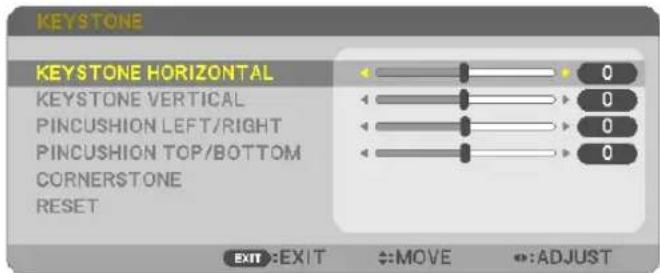
text_image
KEYSTONE KEystone HORIZONTAL KEystone VERTICAL PINCUSHION LEFT/RIGHT PINCUSHION TOP/BOTTOM CORNERSTONE RESET EXIT :EXIT ↔:MOVE ↔:ADJUST- Press the KEYSTONE button when using the remote control.
2. Press the ▼ or ▲ button to select [PINCUSHION LEFT/RIGHT] or [PINCUSHION TOP/BOTTOM].
![NEC P603X - Press the ▼ or ▲ button to select [PINCUSHION LEFT/RIGHT] or [PINCUSHION TOP/BOTTOM]. - 1](/content/2026/05/867344/images/6f67ac67ea8bfb41170d22874b99d0b0cc323b524e52ea91dd39572dff3cebf3.jpg)
text_image
KEYSTONE KEystone HORIZONTAL KEystone VERTICAL PINCUSHION LEFT/RIGHT PINCUSHION TOP/BOTTOM CORNERSTONE RESET EXIT:EXIT ↔MOVE ↔ADJUST3. Press the ◀ or ▶ button to correct distortion.
NOTE:
- The [PINCUSHION LEFT/RIGHT] or [PINCUSHION TOP/BOTTOM] item is not available when [KEYSTONE HORIZONTAL], [KEYSTONE VERTICAL] or [CORNERSTONE] is activated.
• Before performing correction, set the lens shift to the center position.
4. Press the EXIT when PINCUSHION adjustment is completed.
[P554U/P474U]
1. Press the KEYSTONE button with no menu displayed.
The KEYSTONE screen will be displayed.
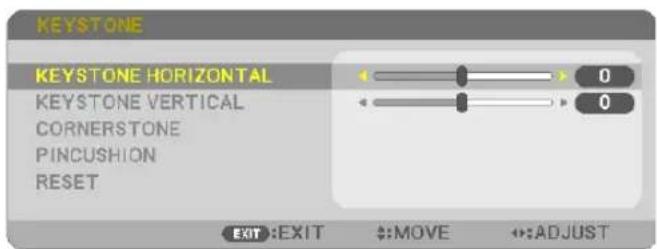
text_image
KEystone KEystone HORIZONTAL KEystone VERTICAL CORNERSTONE PINCUSHION RESET EXIT :EXIT #:MOVE #:ADJUST- Press the KEYSTONE button when using the remote control.
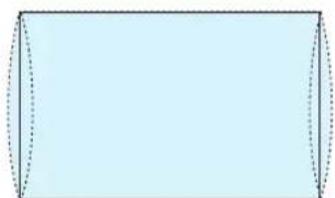
natural_image
Simple geometric shape: a light blue rectangle with dashed outline on both sides (no text or symbols)2. Press the ▼ button to select [PINCUSHION].
![NEC P603X - Press the ▼ button to select [PINCUSHION]. - 1](/content/2026/05/867344/images/4a40f19fe5499a759b6884903709fa10b0058f6b3bfce8d16e4c5eca9f7e6b27.jpg)
text_image
KEYSTONE KEystone HORIZONTAL KEystone VERTICAL CORNERSTONE PINCUSHION RESET ENTER: SELECT EXIT: EXIT $:MOVE3. Press the ▼ or ▲ button to select [TOP], [BOTTOM], [LEFT] or [RIGHT].
![NEC P603X - Press the ▼ or ▲ button to select [TOP], [BOTTOM], [LEFT] or [RIGHT]. - 1](/content/2026/05/867344/images/30883bee3653ee0ace864b5f481b6eb93a2bc224b04306d628555575809805ca.jpg)
text_image
PINCUSHION TOP BOTTOM LEFT RIGHT EXIT :EXIT MOV ADJUST4. Press the ◀ or ▶ button to correct distortion.
NOTE:
- The [PINCUSHION] item is not available when [KEYSTONE [KEYSTONE VERTICAL] or [CORNERSTONE] is activated.
• Before performing correction, set the lens shift to the center position.
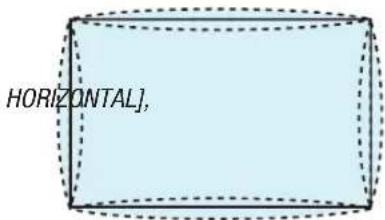
text_image
HORIZONTAL]5. Press the EXIT when PINCUSHION adjustment is completed.
NOTE:
• Even when the projector is turned on, the last used correction values are applied.
- [PINCUSHION] and [CORNERSTONE] corrections can cause the image to be slightly blurred because the correction is made electronically.
Reset the keystone and pincushion adjustment to the default value
1. Press the KEYSTONE button with no menu displayed.
ON the displayed KEYSTONE menu, set the cursor at RESET using the ▼ button and press ENTER button.
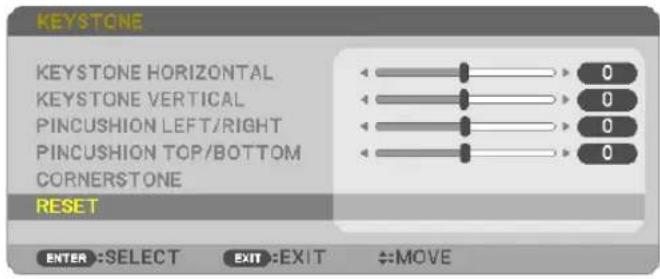
text_image
KEYSTONE KEystone HORIZONTAL KEystone VERTICAL PINCUSHION LEFT/RIGHT PINCUSHION TOP/BOTTOM CORNERSTONE RESET ENTER :SELECT EXIT :EXIT ←:MOVE• Confirmation message is displayed on.
2. Move the cursor onto YES using either ◀ or ▶ button and then press the ENTER.
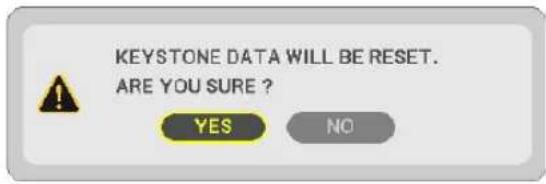
text_image
KEYSTONE DATA WILL BE RESET. ARE YOU SURE ? YES NONOTE:
- All adjusted values set in the KEYSTONE adjustment are reset to initial values
TIP:
Adjustable range of the KEYSTONE and the CORNERSTONE:
| Horizontal Direction | Vertical Direction | |
| CORNERSTONE | Approx. ± 20^ (Max) | Approx. ± 30^ (Max) |
| KEYSTONE |
Adjustable range may be narrower depending on input signal.
⑥ Preventing the Unauthorized Use of the Projector [SECURITY]
A keyword can be set for your projector using the Menu to avoid operation by an unauthorized user. When a keyword is set, turning on the projector will display the Keyword input screen. Unless the correct keyword is entered, the projector cannot project an image.
- The [SECURITY] setting cannot be cancelled by using the [RESET] of the menu.
To enable the Security function:
- Press the MENU button.
The menu will be displayed. - Press the ▶ button twice to select [SETUP] and press the ▼ button or the ENTER button to select [GENERAL].
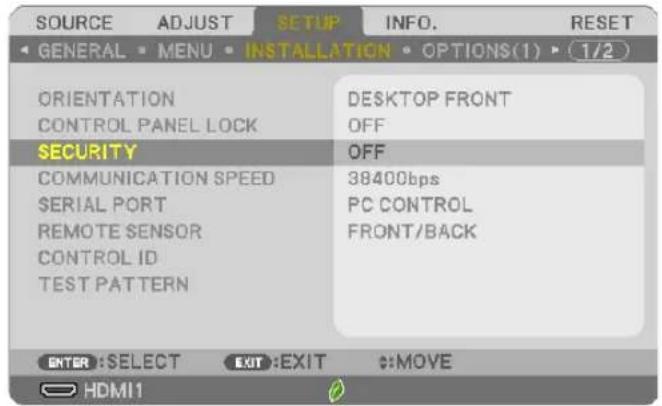
- Press the ▶ button to select [INSTALLATION].
- Press the ▼ button three times to select [SECURITY] and press the ENTER button.
text_image
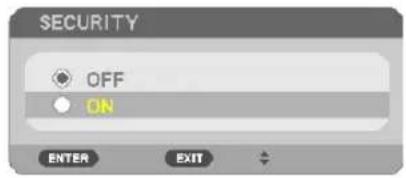
SOURCE ADJUST SETUP INFO. RESET GENERAL MENU INSTALLATION OPTIONS(1) 1/2 ORIENTATION CONTROL PANEL LOCK DESKTOP FRONT OFF SECURITY COMMUNICATION SPEED SERIAL PORT REMOTE SENSOR CONTROL ID TEST PATTERN OFF 38400bps PC CONTROL FRONT/BACK ENTER: SELECT EXIT: EXIT MOVE HDMI1The OFF/ON menu will be displayed.
- Press the ▼ button to select [ON] and press the ENTER button.
text_image
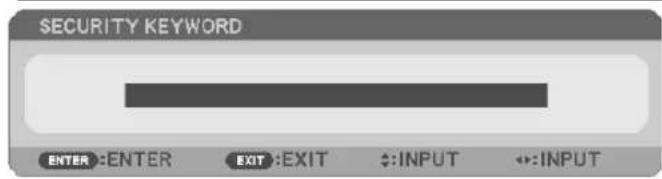
SECURITY OFF ON ENTER EXITThe [SECURITY KEYWORD] screen will be displayed.
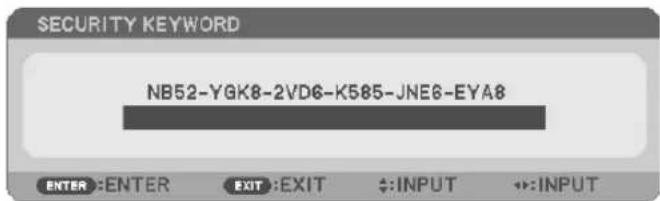
- Type in a combination of the four ▲▼◀▶ buttons and press the ENTER button.
NOTE: A keyword must be 4 to 10 digits in length.
text_image
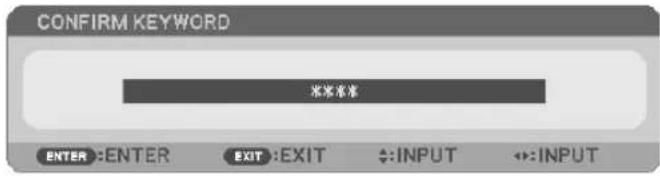
SECURITY KEYWORD ENTER :ENTER EXIT :EXIT :INPUT :INPUTThe [CONFIRM KEYWORD] screen will be displayed.
- Type in the same combination of ▲▼◀▶ buttons and press the ENTER button.
text_image
CONFIRM KEYWORD 非常准准 ENTER :ENTER EXIT :EXIT ←:INPUT ←:INPUTThe confirmation screen will be displayed.
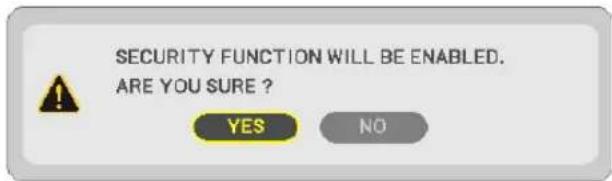
- Select [YES] and press the ENTER button.
text_image
SECURITY FUNCTION WILL BE ENABLED. ARE YOU SURE ? YES NOThe SECURITY function has been enabled.
To turn on the projector when [SECURITY] is enabled:
- Press the POWER button.
The projector will be turned on and display a message to the effect that the projector is locked.
- Press the MENU button.
text_image
SECURITY KEYWORD NB52-YGK8-2VD6-K585-JNE8-EYA8 ENTER :ENTER EXIT :EXIT ←:INPUT ←:INPUT- Type in the correct keyword and press the ENTER button. The projector will display an image.
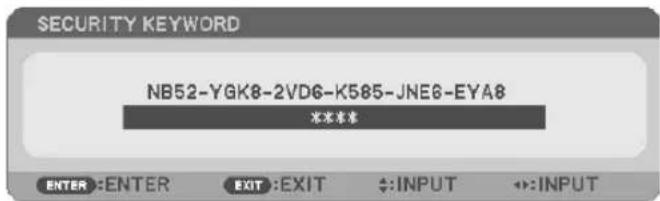
text_image
SECURITY KEYWORD NB52-YGK8-2VD6-K585-JNE8-EYA8 冰冰冰冰 ENTER :ENTER EXIT :EXIT ←:INPUT ←:INPUTNOTE: The security disable mode is maintained until the main power is turned off or unplugging the power cord.
To disable the SECURITY function:
1. Press the MENU button.
The menu will be displayed.
2. Select [SETUP] → [INSTALLATION] → [SECURITY] and press the ENTER button.
![NEC P603X - Select [SETUP] → [INSTALLATION] → [SECURITY] and press the ENTER button. - 1](/content/2026/05/867344/images/606e9f5fa1951b336cf7eb792634a04f1e05233d47cb1f86068bce29588cdb42.jpg)
text_image
SOURCE ADJUST SETUP INFO. RESET GENERAL MENU INSTALLATION OPTIONS(1) 1/2 ORIENTATION CONTROL PANEL LOCK DESKTOP FRONT OFF SECURITY ON COMMUNICATION SPEED SERIAL PORT REMOTE SENSOR CONTROL ID TEST PATTERN 38400bps PC CONTROL FRONT/BACK ENTER: SELECT EXIT: EXIT ::MOVE HDMI1The OFF/ON menu will be displayed.
3. Select [OFF] and press the ENTER button.
![NEC P603X - Select [OFF] and press the ENTER button. - 1](/content/2026/05/867344/images/8d904a136c01c00eadb4a220a511a8ffbc6bff07c0d4466e3884d3de445d84aa.jpg)
text_image
SECURITY OFF ON ENTER EXITThe SECURITY KEYWORD screen will be displayed.
![NEC P603X - Select [OFF] and press the ENTER button. - 2](/content/2026/05/867344/images/28f0b6c5d68e68a0a8ee6df9c18d43b9a96709c2db6810a53329ccaa9a078852.jpg)
text_image
SECURITY KEYWORD NB52-YGK8-2VD6-K585-JNE8-EYA8 非常准确 ENTER :ENTER EXIT :EXIT ::INPUT ::INPUT4. Type in your keyword and press the ENTER button.
When the correct keyword is entered, the SECURITY function will be disabled.
NOTE: If you forget your keyword, contact your dealer. Your dealer will provide you with your keyword in exchange for your request code. Your request code is displayed in the Keyword Confirmation screen. In this example [NB52-YGK8-2VD6-K585-JNE6-EYA8] is a request code.
⑦ Controlling the Projector by Using an HTTP Browser
Overview
The HTTP Server function provides settings and operations for:
1. Setting for wired/wireless network (NETWORK SETTINGS)
To use wireless LAN connection, the optional USB Wireless LAN Unit is required. ( page 102)
To use wired/wireless LAN connection, connect the projector to the computer with a commercially available LAN cable. ( page 99)
2. Setting Alert Mail (ALERT MAIL)
When the projector is connected to a wired/wireless network, lamp replace time or error messages will be sent via e-mail.
3. Operating the projector
Power on/off, selecting input, volume control and picture adjustments are possible.
4. Setting PJLink PASSWORD, AMX BEACON, and CRESTRON
How to access to the HTTP server:
- Start the Web browser on the computer via the network connected to the projector and enter the following URL :
http://
TIP: The factory setting IP address is [DHCP ON].
NOTE:
• To use the projector in a network, consult with your network administrator about network settings.
- The display's or button's response can be slowed down or operation may not be accepted depending the settings of your network. Should this happen, consult your network administrator. The projector may not respond if its buttons are repeatedly pressed in rapid intervals. Should this happen, wait a moment and repeat. If you still can't get any response, turn off and back on the projector.
- If the PROJECTOR NETWORK SETTINGS screen does not appear in the web browser, press the Ctrl+F5 keys to refresh your web browser (or clear the cache).
- This device uses “JavaScript” and “Cookies” and the browser should be set to accept these functions. The setting method will vary depending on the version of browser. Please refer to the help files and the other information provided in your software.
Preparation before Use
Connect the projector to a commercially available LAN cable before engaging in browser operations. ( page 99) Operation with a browser that uses a proxy server may not be possible depending on the type of proxy server and the setting method. Although the type of proxy server will be a factor, it is possible that items that have actually been set will not be displayed depending on the effectiveness of the cache, and the contents set from the browser may not be reflected in operation. It is recommended that a proxy server not be used unless it is unavoidable.
Handling of the Address for Operation via a Browser
Regarding the actual address that is entered for the address or entered to the URL column when operation of the projector is via a browser, the host name can be used as it is when the host name corresponding to the IP address of the projector has been registered to the domain name server by a network administrator, or the host name corresponding to the IP address of the projector has been set in the "HOSTS" file of the computer being used.
Example 1: When the host name of the projector has been set to "pj.nec.co.jp", access is gained to the network setting by specifying http://pj.nec.co.jp/index.html for the address or the entry column of the URL.
Example 2: When the IP address of the projector is "192.168.73.1", access is gained to the network setting by specifying http://192.168.73.1/index.html for the address or the entry column of the URL.
PROJECTOR ADJUSTMENT
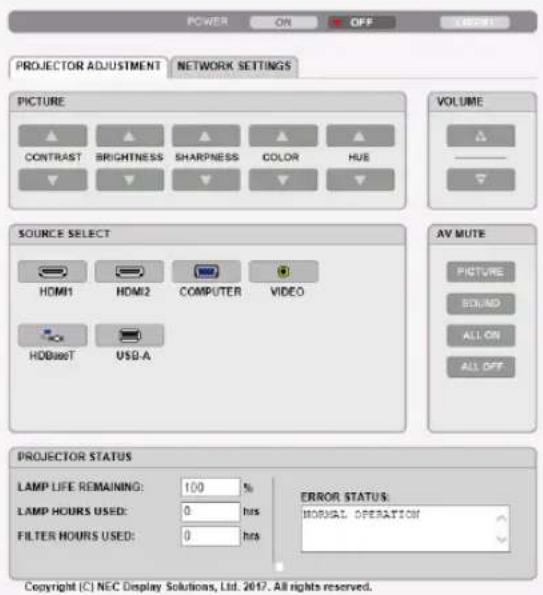
text_image
POWER ON OFF LIME PROJECTOR ADJUSTMENT NETWORK SETTINGS PICTURE CONTRAST BRIGHTNESS SHARPNESS COLOR HUE VOLUME SOURCE SELECT HOM1 HOM2 COMPUTER VIDEO AV MUTE PICTURE SOUND ALL ON ALL OFF HOBSET USD-A PROJECTOR STATUS LAMP LIFE REMAINING: 100 % LAMP HOURS USED: 0 hrs FILTER HOURS USED: 0 hrs ERROR STATUS: NORMAL OPERATION Copyright (C) NEC Display Solutions, Ltd. 2017. All rights reserved.POWER: This controls the power of the projector.
ON....Power is switched on.
OFF.....Power is switched off.
VOLUME: This controls the volume of the projector.
▲......Increases the volume adjustment value.
▼......Decreases the volume adjustment value.
AV-MUTE: This controls the mute function of the projector.
PICTURE ON......Mutes the video.
PICTURE OFF......Cancels the video muting.
SOUND ON ......Mutes the audio.
SOUND OFF......Cancels the audio muting.
ALL ON......Mutes each of the video, and audio functions.
ALL OFF ....Cancels the muting of each of the video, and audio functions.
PICTURE: Controls the video adjustment of the projector.
CONTRAST ▲......Increases the contrast adjustment value.
CONTRAST ▼......Decreases the contrast adjustment value.
BRIGHTNESS ▲......Increases the brightness adjustment value.
BRIGHTNESS ▼......Decreases the brightness adjustment value.
SHARPNESS ▲......Increases the sharpness adjustment value.
SHARPNESS ▼......Decreases the sharpness adjustment value.
COLOR ▲......Increases the color adjustment value.
COLOR ▼......Decreases the color adjustment value.
HUE ▲......Increases the hue adjustment value.
HUE ▼......Decreases the hue adjustment value.
- The functions that can be controlled will vary depending on the signal being input to the projector. (→ page 59)
SOURCE SELECT: This switches the input terminal of the projector.
HDMI1....Switches to the HDMI 1 IN terminal
HDMI2....Switches to the HDMI 2 IN terminal.
COMPUTER ......Switches to the COMPUTER IN terminal.
VIDEO....Switches to the VIDEO IN terminal.
HDBaseT......Switch to image input sent from a transmission device that supports HDBaseT. (not supported by P603X)
USB-A.... Switches to the data on the USB memory device.
PROJECTOR STATUS: This displays the condition of the projector.
LAMP LIFE REMAINING......Displays the remaining life of the lamp as a percentage.
LAMP HOURS USED......Displays how many hours the lamp has been used.
FILTER HOURS USED ......Displays how many hours the filter has been used.
ERROR STATUS ......Displays the status of errors occurring within the projector.
LOG OFF: Logging off your projector and returning to the authentication screen (LOGON screen).
NETWORK SETTINGS
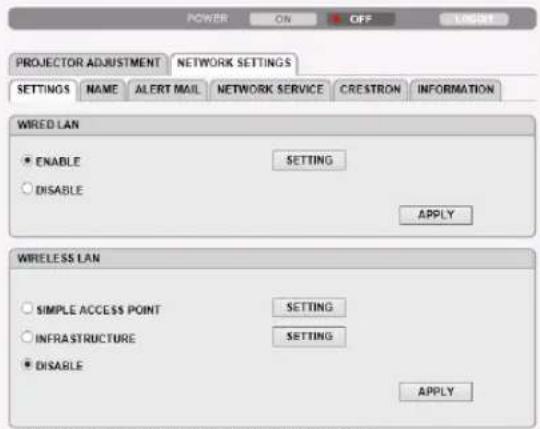
text_image
POWER ON OFF SHORT PROJECTOR ADJUSTMENT NETWORK SETTINGS SETTINGS NAME ALERT MAIL NETWORK SERVICE CRESTRON INFORMATION WIRED LAN • ENABLE SETTING ○ DISABLE APPLY WIRELESS LAN ○ SIMPLE ACCESS POINT SETTING ○ INFRASTRUCTURE SETTING ● DISABLE APPLYCopyright (C) NEC Display Solutions, Ltd. 2017. All rights reserved.
- SETTINGS
WIRED LAN
| ENABLE Turn on wired LAN connection | |
| DISABLE Turn off wired LAN connection | |
| SETTING Set for wired LAN. | |
| DHCP ON Automatically | IP ADDRESS, SUBNET MASK, and GATEWAY are assigned to the projector by your DHCP server. |
| DHCP OFF Set IP ADDRESS | ESS, SUBNET MASK, and GATEWAY to the projector assigned by your network administrator. |
| IP ADDRESS Set your IP | ADDRESS of the network connected to the projector. |
| SUBNET MASK Set your | SUBNET MASK number of the network connected to the projector. |
| GATEWAY Set the default | It GATEWAY of the network connected to the projector. |
| AUTO DNS ON DHCP server | server will automatically assign IP ADDRESS of DNS server connected to the projector. |
| AUTO DNS OFF Set your | IP ADDRESS of DNS server connected to the projector. |
| APPLY Make the settings for wired LAN effective. | |
WIRELESS LAN
| SIMPLE ACCESS POINT | Set the projector as a simple access point for connecting to a computer or a smart phone. |
| INFRASTRUCTURE | Connect this device to an access point. |
| DISABLE Turn off wireless | LAN connection |
| SETTING Set for wireless LAN. | |
| APPLY Connect to the network | work wirelessly by the selected option between SIMPLE ACCESS POINT and INFRASTRUCTURE. |
WIRELESS LAN (SIMPLE ACCESS POINT)
| CONNEC-TION | SSID Set SSID as an access point. SSID must be 1 to 32 alphanumeric characters (including a space). | |
| MODE Select wireless frequency band. | ||
| CHANNEL Select wireless channel. | ||
| SECURITY SECURITY TYPE | Select security type. | |
| Set a SECURITY KEY. SECURITY KEY must be 8 to 63 alphanumeric character (including a space). | ||
WIRELESS LAN (INFRASTRUCTURE)
| IP ADDRESS | DHCP ON | Automatically IP ADDRESS, SUBNET MASK, and GATEWAY are assigned to the projector by your DHCP server. |
| DHCP OFF | Set IP ADDRESS, SUBNET MASK, and GATEWAY to the projector assigned by your network administrator. | |
| IP ADDRESS | Set your IP ADDRESS of the network connected to the projector. | |
| SUBNET MASK | Set your SUBNET MASK number of the network connected to the projector. | |
| GATEWAY | Set the default GATEWAY of the network connected to the projector. | |
| AUTO DNS ON | DHCP server will automatically assign IP ADDRESS of DNS server connected to the projector. | |
| AUTO DNS OFF | Set your IP ADDRESS of DNS server connected to the projector. | |
| CONNEC-TION | SSID Enter an identifier (SSID) as an access point. SSID must be 1 to 32 alphanumeric characters (including a space). | |
| SECURITY | SECURITY Select security type. | |
| INDEX When | WEP 64bit or WEP 128bit is selected for SECURITY, activate the INDEX. The value for this is fixed at “1”. | |
| SECURITY KEY | Set a SECURITY KEY. SECURITY KEY must be 8 to 63 alphanumeric character (including a space). | |
• NAME
| PROJECTOR NAME Enter | a name for your projector so that your computer can identify the projector. A projector name must be 16 characters or less.TIP: Projector name will not be affected even when [RESET] is done from the menu. |
| HOST NAME Enter the hostname of the network connected to the projector. A host name must be 16 or less. | |
- ALERT MAIL
| ALERT MAIL (English only) | This option will notify your computer of lamp replace time or error messages via e-mail when using wireless or wired LAN.Placing a checkmark will turn on the Alert Mail feature.Clearing a checkmark will turn off the Alert Mail feature.Sample of a message to be sent from the projector:The lamp and filters are at the end of its usable life. Please replace the lamp and filters.Projector Name: NEC ProjectorLamp Hours Used: 100 [H] |
| SENDER’S ADDRESS Enter sender’s address. | |
| SMTP SERVER NAME Enter the SMTP server name to be connected to the projector. | |
| RECIPIENT’S ADDRESS 1,2,3 | Enter your recipient’s address. Up to three addresses can be entered. |
| TEST MAIL | Send a test mail to check whether your settings are correct or notNOTE:If you execute a test, you may not receive an Alert mail. Should this happen, check if network settings are correct.If you entered an incorrect address in a test, you may not receive an Alert mail. Should this happen, check if the Recipient’s Address is correct. |
| SAVE Click this button to save the above settings on the projector. | |
• NETWORK SERVICE
| PJLink PASSWORD Set a | password for PJLink*. A password must be 32 characters or less. Do not forget your password. However, if you forget your password, consult with your dealer. |
| HTTP PASSWORD Set a p | password for HTTP server. A password must be 10 characters or less. |
| AMX BEACON Turn on or off for detection from AMX Device Discovery when connecting to the network supported by AMX's NetLinx control system.TIP:When using a device that supports AMX Device Discovery, all AMX NetLinx control system will recognize the device and download the appropriate Device Discovery Module from an AMX server.Placing a checkmark will enable detecting the projector from AMX Device Discovery.Clearing a checkmark will disable detecting the projector from AMX Device Discovery. | |
| Extron XTP Set for connectiing this projector to the Extron XTP transmitter. Placing a checkmark will enable to connect with the XTP transmitter. Clearing a checkmark will disable to connect with the XTP transmitter. | |
*What is PJLink?
PJLink is a standardization of protocol used for controlling projectors of different manufacturers. This standard protocol is established by Japan Business Machine and Information System Industries Association (JBMIA) in 2005. The projector supports all the commands of PJLink Class 1.
Setting of PJLink will not be affected even when [RESET] is done from the menu.
CRESTRON ROOMVIEW compatibility
The projector supports CRESTRON ROOMVIEW, allowing multiple devices connected in the network to be managed and controlled from a computer or a controller.
For more information, visit http://www.crestron.com
Access to the HTTP server, and make necessary settings for [CRESTRON] in [NETWORK SETTINGS].
- ROOMVIEW for managing from the computer.
| DISABLE Disables ROOMVIEW. |
| ENABLE Enables ROOMVIEW. |
- CRESTRON CONTROL for managing from the controller.
| DISABLE Disables CRESTRON CONTROL. |
| ENABLE Enables CRESTRON CONTROL. |
| IP ADDRESS Set your IP address of CRESTRON SERVER. |
| IP ID Set your IP ID of CRESTRON SERVER. |
TIP: The CRESTRON settings are required only for use with CRESTRON ROOMVIEW.
For more information, visit http://www.crestron.com
• INFORMATION
| WIRED LAN Display a list of settings of wired LAN connection. | |
| WIRELESS LAN Display a list of settings of wireless LAN connection. | |
| UPDATE Reflect settings when they are changed. |
4. Using the Viewer
① What you can do with the Viewer
The Viewer has the following features.
- When a commercially available USB memory that stores image files is inserted into the USB port (Type A) of the projector, the Viewer allows you to view the image files on the USB memory.
Even if no computer is available, presentations can be conducted simply with the projector.
• Supported graphic format is JPEG.
- The Viewer displays the thumbnail screen (JPEG Exif only) on which you can jump to any specific image you wish to project.
- There are two ways of playback for slideshow: manual playback and auto playback. The interval time can be changed in auto playback.
- The order of displaying images can be set by name, date or size. Ascending or descending order can be selected.
- Images can be rotated by 90 degrees during playback.
NOTE
• The USB port of the projector does not support USB hub.
- The USB port of the projector is common use for the wireless LAN unit. When the wireless LAN unit is installed on, you can not utilize the VIEWER.
- The following operations by using the buttons on the projector are not possible when the VIEWER screen such as the slide screen and the thumbnail screen is displayed.
Buttons on the cabinet
- Keystone correction by using the ▲ /▼ button
- Auto Adjustment by using the AUTO ADJ. button
- Volume control with the ◀ or ► button
To perform Keystone correction or Source selection during display of the Viewer, press the MENU button twice to display the menu and operate Viewer from the menu.
Remote control
- Auto Adjustment button
- Freeze button
- Executing [RESET] → [ALL DATA] from the menu will return the settings for the Viewer toolbar to the factory default.
- USB memory
- Be sure to use a USB memory device formatted with the FAT32 or FAT16 file system.
The projector does not support NTFS formatted USB memory.
If the projector does not recognize your USB memory, check if the format is supported.
To format your USB memory in your computer, refer to the document or help file that comes with your Windows.
- We do not warrant that the USB port of the projector will support all USB memories in the market.
• Supported images
- Supported file format for Viewer are as follows.
We do not warrant all the images are supported for Viewer.
Images other than mentioned in the table may not be supported.
| Image type Extension Description | |
| JPEG JPG/JPEG Baseline/Exif are supported | |
- Image can be displayed at a resolution up to 10000 × 10000 pixels.
- Even if images are met by the above conditions, there may be some images which cannot be played back.
- More than 200 icons (total number of image file icons and folder icons) cannot be displayed in a thumbnail screen.
- Long file/folder name will be limited to the specified length. This can be shown by bracket added.
- If one folder has many files, it takes some time to play back.
- If a single folder contains too many files, switching images will take time. To shorten switching time, reduce the number of images contained in a single folder.
TIP:
- Exchangeable image file format (Exif) is a standard image file format used by digital cameras with the addition of specific shooting data.
② Projecting images stored in a USB memory device
This section explains the basic operation of the Viewer.
The explanation provides the operational procedure when the Viewer toolbar ( page 49) is set to the factory default.
- Starting the Viewer ....below
- Removing the USB memory from the projector ...... page 47
- Exiting the Viewer ...... page 47
Preparation: Before starting the Viewer, store images to the USB memory using your computer.
Starting the Viewer
-
Turn on the projector. ( page 12)
-
Insert the USB memory into the USB port of the projector.
- Do not remove the USB memory from the projector while it's LED flashes. Doing so may corrupt the data.
- Press the SOURCE button on the projector cabinet.
The Viewer start screen will be displayed.
- Press the APPS button on the remote control.
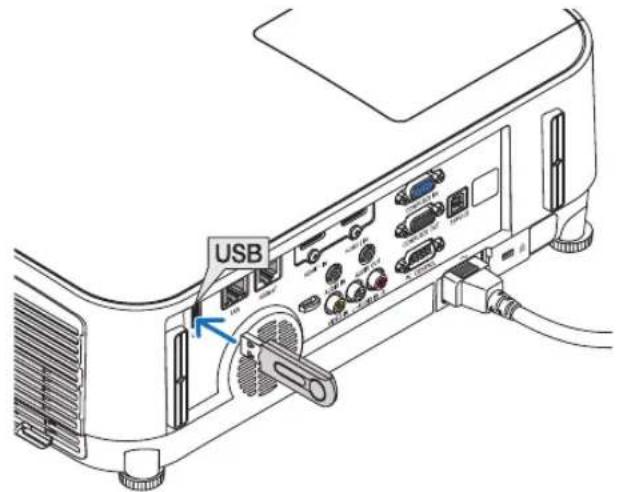
text_image
USB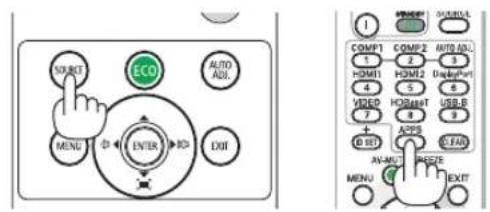
text_image
SUPPORT AUTO ADL ECO MENI DUI ENTER USB COMPT1 1 HDMI1 2 HDMI2 3 DoublePort 4 VIDEO 5 HDMI1 6 USB-P 7 + - O SET ACPS ON-AMU RESET MENU EXIT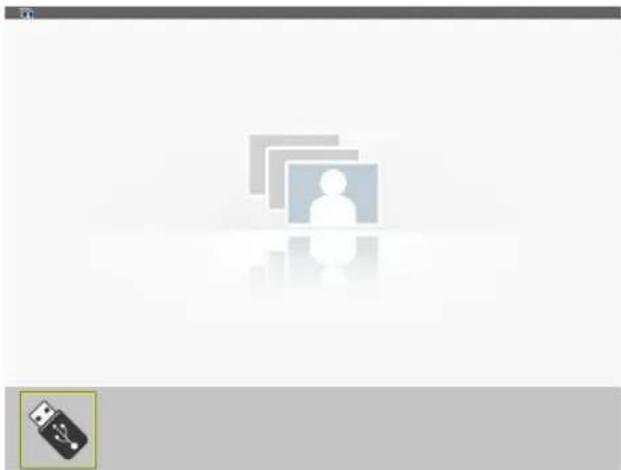
natural_image
Generic user profile icon with user silhouette and document, no text or symbols present4. Press the ENTER button.
The thumbnail screen will be displayed. ( page 48)
5. Use the ▲▼◀ or ▶ button to select an icon.
- The → (arrow) symbol on the right indicates there are more pages. Pressing the PAGE ∇ (page down) button will show the next page; pressing the PAGE △ (page up) will show the previous page.
6. Press the ENTER button.
The selected slide will be displayed.
- When a folder icon is selected, icons contained in the folder will be displayed.
7. Press the ▶ button to select the next slide.
The slide on the right will be displayed.
- The ◀ or ▶ button can be used to select the next (right) slide or the previous (left) slide in the thumbnail screen.
- Pressing the MENU button during display of the thumbnail screen, the slide screen, or the slideshow screen will display the toolbar. The toolbar is used to select or rotate an slide. (→ page 50)
8. Press the EXIT button when the toolbar is not displayed.
The thumbnail screen will be displayed.
- Another way to display the thumbnail screen is to press the ENTER button.
- To close the toolbar, press the MENU button to return to the SOURCE list, and press the MENU button again to close the SOURCE list.
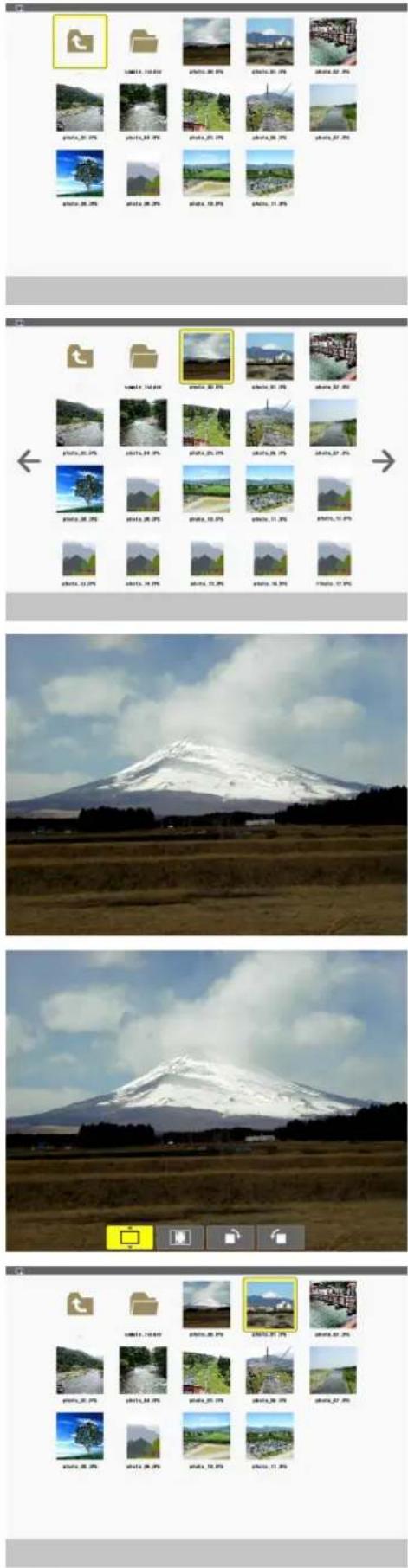
text_image
Grid of image thumbnails showing a snowy mountain landscape with file names and percentage values for each image.Removing the USB memory from the projector
1. Select the VIEWER start screen.
Press the EXIT button with no menu displayed.
2. Remove the USB memory from the projector.
Make sure that the LED on the USB memory is not flashing before removing the USB memory.
NOTE: If you remove the USB memory from the projector displayed, the projector may not operate correctly. If this happens, turn off the projector and unplug the power cord. Wait 3 minutes, then connect the power cord, and turn on the projector.
Exiting the Viewer
1. Press the MENU button with the slide screen or the thumbnail screen displayed.
The control bar or the pop-up menu will be displayed.
2. Press the MENU button again.
The on-screen menu will be displayed.
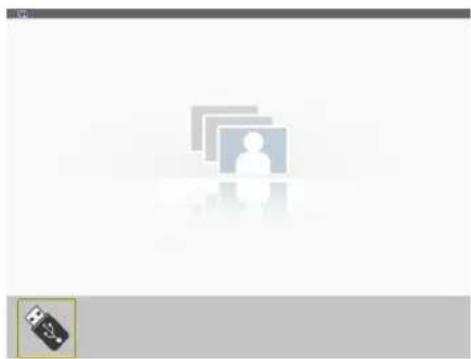
natural_image
Generic user profile icon with placeholder layers and a USB symbol (no text or symbols)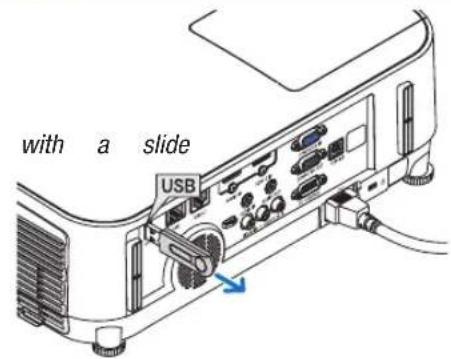
text_image
with a slide USB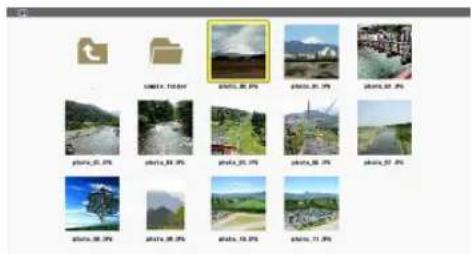
text_image
Grid of image thumbnails with Chinese labels, showing various outdoor scenes and a highlighted yellow box containing text.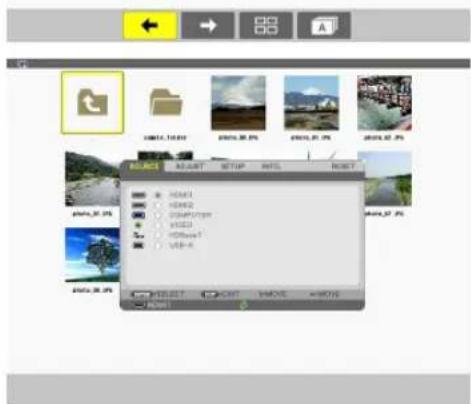
text_image
HOME1 HOME2 HOLD HOLD1 HOLD43. Select a source other than [USB-A] and press the ENTER button.
The Viewer will be exited.
TIP: To exit the Viewer using the remote control, select a source other than [USB-A].
![NEC P603X - Select a source other than [USB-A] and press the ENTER button. - 1](/content/2026/05/867344/images/f89c79b0613556d1d2845d31453b0bb2501863680fed606ca68732a6634db095.jpg)
Parts of each screen
The Viewer has four screens.
(1) Viewer start screen (3) Thumbnail screen (9) Slide screen/
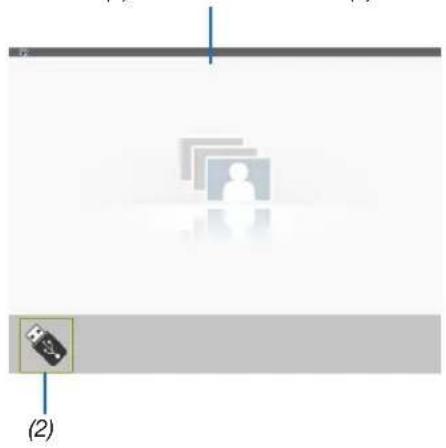
natural_image
Pure diagram of a device with a user silhouette and labeled components, no text or symbols present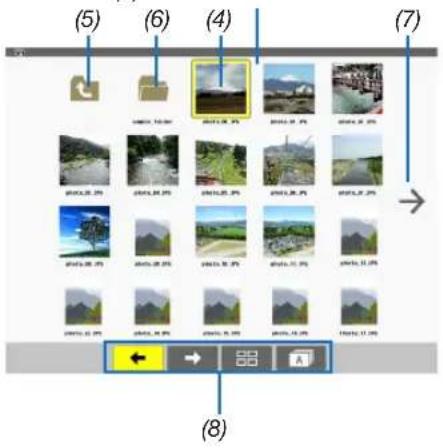
text_image
(5) (6) (4) (7) (8)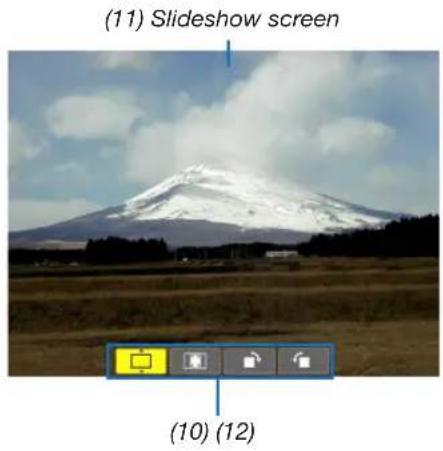
text_image
(11) Slideshow screen (10) (12)| Name Description | |
| (1) Viewer start screen This | screen will be displayed first when you select the Viewer. |
| (2) USB icon This icon indicates that the USB memory is inserted into the projector. | |
| (3) Thumbnail screen This | screen will show a list of folders and image files stored in the USB memory. The JPEG Exif files will be displayed in thumbnail screen only.The maximum number of image files or folders within one page is different depending on the model.P554U/P474U/P554W/P474W are (6 × 4 lateral by longitudinal)P604X/P603X are (5 × 4 lateral by longitudinal) |
| (4) Cursor | The cursor is used to select (highlight) the folder or image file by using ▲▼◄► button. |
| (5) Back icon This icon is used to return to the upper (parent) folder. | |
| (6) Folder icon This icon shows that the USB memory has folders. | |
| (7) Page up (Page down) icon | This icon shows further folders or image files are available in the next (previous) page. Use the ► button to go to the next (previous) row. The PAGE ∇ or PAGE △ on the remote control is used to go to the next or previous page directly. |
| (8) Thumbnail toolbar This | toolbar is used in the thumbnail screen. Pressing the MENU button will display this toolbar. (→ page 49) |
| (9) Slide screen This screen is used for manual playback. The selected image will be displayed in full screen. | |
| (10) Slide toolbar | This toolbar is used in the slide screen. Pressing the MENU button will display this toolbar. (→ page 50) |
| (11) Slideshow screen | This screen is used for auto playback. The slides will be changed automatically. |
| (12) Slideshow toolbar | This toolbar is used in the slideshow screen. Pressing the MENU button will display this toolbar. (→ page 50) |
Using the toolbar
1. Press the MENU button.
The toolbar will be displayed.
The SOURCE screen will be displayed as Viewer connection screen.
2. Use the ◀ or ▶ button to select an item and use the ▲ or ▼ button to select its available option.
When the cursor is placed, the selected item will be changed to yellow.
The ▲ or ▼ shows more available choices.
3. Press the ENTER button.
The selected item will be displayed.
4. Press the MENU button two times.
The toolbar will be closed and the SOURCE list will be displayed. Press the MENU button again to close the SOURCE list.
Thumbnail toolbar
flowchart
graph LR
    A["←"] --> B["→"]
    B --> C["Grid"]
    C --> D["A"]
| Menu Options Description | ||
(1) Back  | — Goes | back to the previous image. When the cursor reaches the top left of the screen, it will go to the previous page. |
(2) Forward  | — Goes | to the next image. When the cursor reaches the bottom right of the screen, it will go to the next page. |
| (3) Display |  | Closes the menu and returns to the thumbnail screen. |
 | Closes the menu and starts the slideshow from the highlighted item. | |
 | Closes the menu and displays the slide screen. | |
| (4) Order |  | Displays the icons alphabetically by name. (number before alphabet) |
 | Displays the icons in descending order of file size. | |
 | Displays the icons in the order of creation date | |
Slide toolbar
flowchart
graph TD
    A["Yellow Box"] --> B["White Box"]
    B --> C["Gray Box with Arrow"]
    C --> D["White Box with Arrow"]
    D --> E["Gray Box with Arrow"]
| Menu Options Description | ||
| (1) Display | Closes the menu and switches to the slide screen. | |
| Closes the menu and displays the thumbnail screen. | ||
| Closes the menu and starts the slideshow from the highlighted item. | ||
| (2) Image dis-play | Closes the menu and displays the image in its actual size. | |
| Closes the menu and displays the image in the projector's maximum resolution. | ||
| (3) Clockwise rotation | — Close the menu and rotate the image 90° clockwise. | |
| (4) Counter-clockwise rotation | — Close the menu and rotate the image 90° counter clockwise. | |
Slideshow toolbar

flowchart
graph LR
    A["Start"] --> B["Downward Left Arrow"]
    B --> C["Right Arrow"]
    C --> D["Circle 5"]
    D --> E["Loop Back Arrow"]
(1) (2) (3) (4) (5)
| Menu Options Description | |||
(1) Stop  | — Closes the menu and changes to the slide screen. | ||
(2) Back  | — Goes back to the previous image. | ||
(3) Forward  | — Goes to the next image. | ||
(4) Interval  | 5 | Specifies interval time when playing back the slides. | |
(5) Repeat  | Repeats to play back the images in the folder. | ||
| AGY3 | Returns to the thumbnail screen. | ||
TIP:
- A picture icon at the center of the screen shows that the file cannot be displayed in the slide screen or thumbnail screen.
- Slide toolbar setting for rotation will be cancelled if the folder is moved from one place to another.
5. Using On-Screen Menu
① Using the Menus
NOTE: The on-screen menu may not be displayed correctly while interlaced motion video image is projected.
- Press the MENU button on the remote control or the projector cabinet to display the menu.
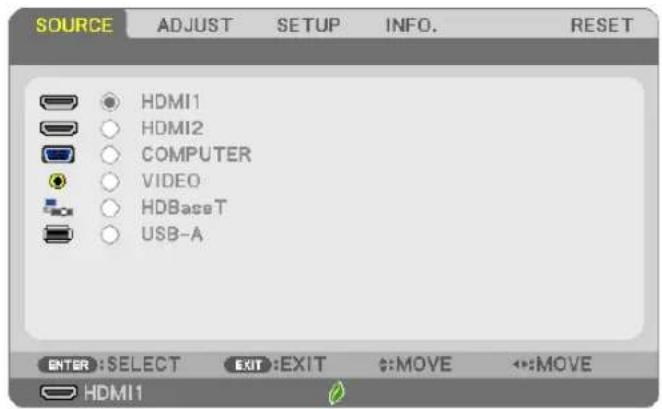
text_image
SOURCE ADJUST SETUP INFO. RESET HDMI1 HDMI2 COMPUTER VIDEO HDBaseT USB-A ENTER : SELECT EXIT : EXIT :MOVE :MOVE HDMI1NOTE: The commands such as ENTER, EXIT, ▲▼, ◀▶ in the bottom show available buttons for your operation.
- Press the ◀▶ buttons on the remote control or the projector cabinet to display the submenu.
- Press the ENTER button on the remote control or the projector cabinet to highlight the top item or the first tab.
- Use the ▲▼ buttons on the remote control or the projector cabinet to select the item you want to adjust or set.
You can use the ◀▶ buttons on the remote control or the projector cabinet to select the tab you want. - Press the ENTER button on the remote control or the projector cabinet to display the submenu window.
- Adjust the level or turn the selected item on or off by using the ▲▼◀▶ buttons on the remote control or the projector cabinet.
Changes are stored until adjusted again.
- Repeat steps 2 -6 to adjust an additional item, or press the EXIT button on the remote control or the projector cabinet to quit the menu display.
NOTE: When a menu or message is displayed, several lines of information may be lost, depending on the signal or settings.
- Press the MENU button to close the menu.
To return to the previous menu, press the EXIT button.
② Menu Elements
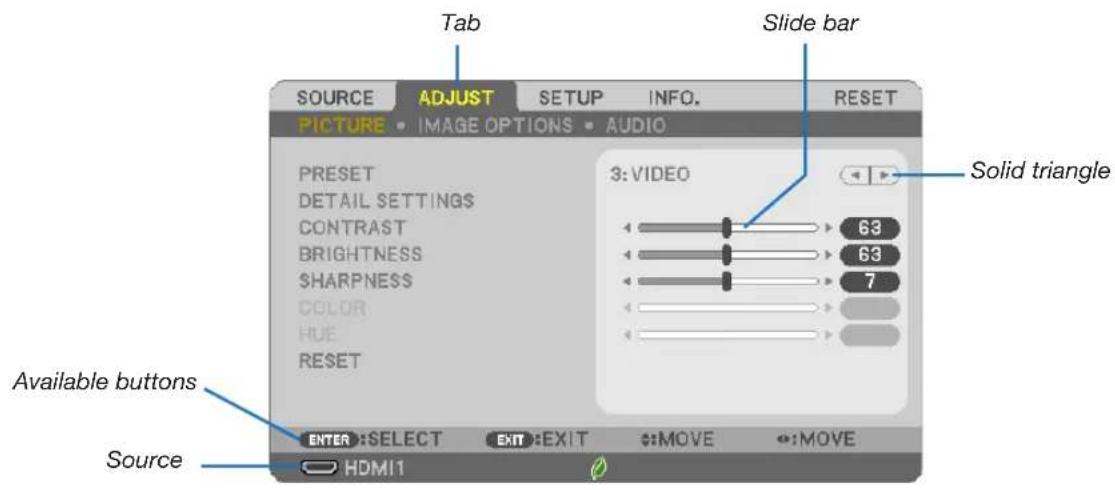
text_image
Tab Slide bar SOURCE ADJUST SETUP INFO. RESET PICTURE • IMAGE OPTIONS • AUDIO PRESET DETAIL SETTINGS CONTRAST BRIGHTNESS SHARPNESS COLOR HUE RESET 3: VIDEO Solid triangle Available buttons Source ENTER: SELECT EXIT: EXIT :MOVE :MOVE HDMI1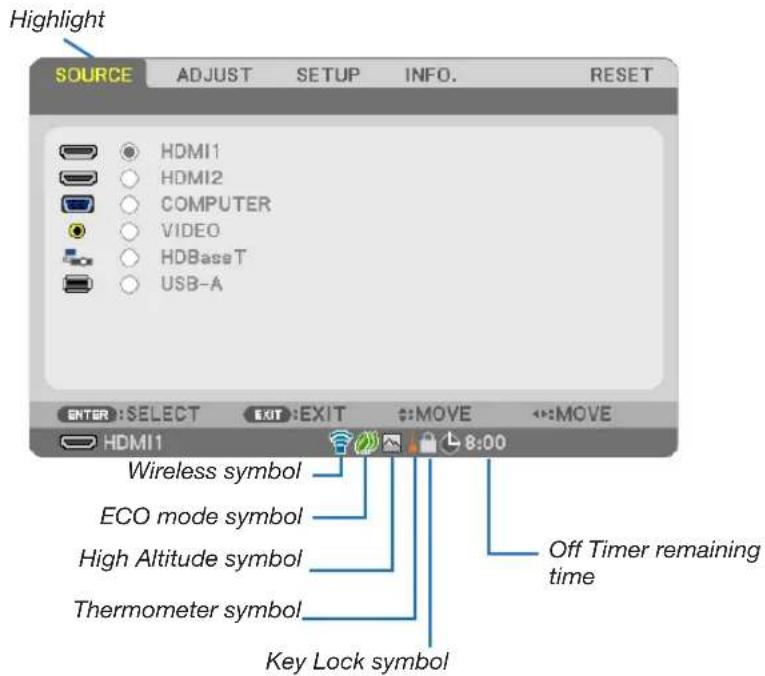
text_image
Highlight SOURCE ADJUST SETUP NFO. RESET HDMI1 HDMI2 COMPUTER VIDEO HDBassT USB-A ENTER:SELECT EXIT:EXIT :MOVE :MOVE HDMI1 Wireless symbol ECO mode symbol High Altitude symbol Thermometer symbol Key Lock symbol Off Timer remaining time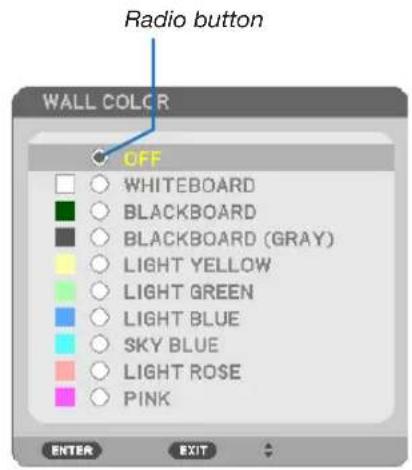
text_image
Radio button WALL COLOR OFF WHITEBOARD BLACKBOARD BLACKBOARD (GRAY) LIGHT YELLOW LIGHT GREEN LIGHT BLUE SKY BLUE LIGHT ROSE PINK ENTER EXITMenu windows or dialog boxes typically have the following elements:
Highlight .....Indicates the selected menu or item.
Solid triangle....Indicates further choices are available. A highlighted triangle indicates the item is active.
Tab......Indicates a group of features in a dialog box. Selecting on any tab brings its page to the front.
Radio button.....Use this round button to select an option in a dialog box.
Source ....Indicates the currently selected source.
Off Timer remaining time......Indicates the remaining countdown time when the [OFF TIMER] is preset.
Slide bar .....Indicates settings or the direction of adjustment.
ECO mode symbol......Indicates ECO MODE is set.
Key Lock symbol......Indicates the [CONTROL PANEL LOCK] is enabled.
Thermometer symbol ...... Indicates the [ECO MODE] is forcibly set to [NORMAL] mode because the internal temperature is too high.
High Altitude symbol......Indicates the [FAN MODE] is set to [HIGH ALTITUDE] mode.
Wireless symbol.....Indicate the wireless LAN connection is enabled.
③ List of Menu Items
Some menu items are not available depending on the input source.
| Menu Item Default Options | |||||
| SOURCE | HDMI1 * | ||||
| HDMI2 * | |||||
| COMPUTER * | |||||
| VIDEO * | |||||
| HDBaseT (not supported by P603X) * | |||||
| USB-A * | |||||
| ADJUST | PICTURE | PRESET * 1-7 | |||
| DETAIL SETTINGS | GENERAL | ||||
| REFERENCE * HIGH-BRIGHT, PRESENTATION, VIDEO, MOVIE, GRAPHIC, sRGB, DICOM SIM. | |||||
| GAMMA CORRECTION DYNAMIC, NATURAL, BLACK DETAIL | |||||
| SCREEN SIZE * LARGE, MEDIUM, SMALL | |||||
| COLOR TEMPERATURE * $000, 6500, 7800, 8500, 9300, 10500 | |||||
| DYNAMIC CONTRAST * OFF, ON | |||||
| IMAGE MODE * STILL, MOVIE | |||||
| COLOR ENHANCEMENT * DFF, ON | |||||
| WHITE BALANCE | |||||
| CONTRAST R O | |||||
| CONTRAST G O | |||||
| CONTRAST B O | |||||
| BRIGHTNESS R * | 3 | ||||
| BRIGHTNESS G * | 3 | ||||
| BRIGHTNESS B * | 3 | ||||
| CONTRAST | 63 | ||||
| BRIGHTNESS 63 | |||||
| SHARPNESS | 6 | ||||
| COLOR | 28 | ||||
| HUE | 31 | ||||
| RESET | |||||
| IMAGE OPTIONS | CLOCK | * | |||
| PHASE | * | ||||
| HORIZONTAL | * | ||||
| VERTICAL | * | ||||
| OVERSCAN | * AUTO, 0 [%], 5[%], 10[%] | ||||
| ASPECT RATIO | * | P554U/P474U/P554W/P474W: AUTO, 4:3, 16:9, 15:9, 16:10, LETTERBOX, NATIVE P604X/P603X: AUTO, 4:3, 16:9, 15:9, 16:10, WIDE ZOOM, NATIVE | |||
| POSITION (Not available on P554U/P474U/P554W/ P474W) | 0 | ||||
| AUDIO | VOLUME | 11 | 0-31 | ||
| SETUP | GENERAL | KEYSTONE | KEYSTONE HORIZONTAL O | ||
| KEYSTONE VERTICAL | 0 | ||||
| PINCUSHION LEFT/RIGHT (not available on P554U/ P474U) | 0 | ||||
| PINCUSHION TOP/ BOTTOM (not available on P554U/P474U) | 0 | ||||
| CORNERSTONE | 0 | ||||
| PINCUSHION (not available on P554W/ P474W/P604X/ P603X) | TOP | 0 | |||
| BOTTOM | 0 | ||||
| LEFT | 0 | ||||
| RIGHT | 0 | ||||
| RESET | |||||
| WALL COLOR | OFF | OFF, WHITEBOARD, BLACKBOARD, BLACKBOARD (GRAY), LIGHT YELLOW, LIGHT GREEN, LIGHT BLUE, SKY BLUE, LIGHT ROSE, PINK | |||
| ECO MODE | AUTO ECO | OFF, AUTO ECO, NORMAL, ECO | |||
| CLOSED CAPTION | OFF | OFF, CAPTION1, CAPTION2, CAPTION3, CAPTION4, TEXT1, TEXT2, TEXT3, TEXT4 | |||
| OFF TIMER | OFF | OFF, 0:30, 1:00, 2:00, 4:00, 8:00, 12:00, 16:00 | |||
| LANGUAGE | ENGLISH | ENGLISH, DEUTSCH, FRANÇAIS, ITALIANO, ESPAÑOL, SVENSKA, 日本語 DANSK, PORTUGUÊS, ČEŠTINA, MAGYAR, POLSKI, NEDERLANDS, SUOMI NORSK, TÜRKÇE, PYCKKII, ÖRBI, ÉLÉNYKÁ, 简体中文, 한국어, TIÊNG VIÊT ROMÁNÁ, HRVATSKI, БЪЛГАРСКИ, INDONESIA, 히न्निरी, ١١١٢, نؤيغۇر, 荫體中文 | |||
* The asterisk (*) indicates that the default setting varies depending on the signal.
| Menu Item Default Options | |||||
| SETUP | MENU | COLOR SELECT COLOR COLOR, MONOCHROME | |||
| SOURCE DISPLAY ON OFF, ON | |||||
| ID DISPLAY ON OFF, ON | |||||
| ECO MESSAGE OFF OFF, ON | |||||
| DISPLAY TIME AUTO 45 SEC MANUAL, AUTO 5 SEC, AUTO 15 SEC, AUTO 45 SEC | |||||
| BACKGROUND BLUE BLUE, BLACK, LOGO | |||||
| FILTER MESSAGE 4000[H] OFF, 100[H], 500[H], 1000[H], 2000[H], 4000[H] | |||||
| INSTALLATION | ORIENTATION DESKTOP FRONT DESKTOP FRONT, CEILING REAR, DESKTOP REAR, CEILING FRONT | ||||
| CONTROL PANEL LOCK | OFF OFF, ON | ||||
| SECURITY | OFF OFF, ON | ||||
| COMMUNICATION SPEED | 38400bps | 4800bps, 9600bps, 19200bps, 38400bps | |||
| SERIAL PORT(not supported by P603X) | PC CONTROL | PC CONTROL, HDBaseT | |||
| REMOTE SENSOR | ALL | ALL, FRONT/BACK, FRONT, BACK, HDBaseT(HDBaseT is not supported by P603X) | |||
| CONTROL ID | CONTROL ID NUMBER | 1 | 1-254 | ||
| CONTROL ID | OFF OFF, ON | ||||
| TEST PATTERN | |||||
| OPTIONS(1) | AUTO ADJUST | NORMAL | OFF, NORMAL, FINE | ||
| SEAMLESS SWITCHING | OFF OFF, ON | ||||
| FAN MODE | AUTO | AUTO, HIGH, HIGH ALTITUDE | |||
| SIGNAL SELECT | COMPUTER | RGB/COMPONENT | RGB/COMPONENT, RGB, COMPONENT | ||
| VIDEO | AUTO | AUTO, NTSC3.58, NTSC4.43, PAL, PAL-M, PAL-N, PAL60, SECAM | |||
| WXGA MODE | P554U/P474U/P554W/P474W:ONP604X/P603X:OFF | OFF, ON | |||
| DEINTERLACE | ON OFF, ON | ||||
| HDMI SETTINGS | HDMI1 | VIDEO LEVEL | AUTO | ||
| HDMI2 | VIDEO LEVEL | AUTO | |||
| HDBaseT(not supported by P603X) | VIDEO LEVEL | AUTO | |||
| AUDIO SELECT | HDMI1 | HDMI1 | |||
| HDMI2 | HDMI2 | ||||
| HDBaseT (not supported by P603X) HDBaseT HDBaseT, COMPUTER | |||||
| BEEP | ON OFF, ON | ||||
| OPTIONS(2) | STANDBY MODE NORMAL NORMAL, NETWORK STANDBY | ||||
| DIRECT POWER ON | OFF OFF, ON | ||||
| AUTO POWER ON | OFF OFF, ON | ||||
| AUTO POWER OFF | STANDBY(NORMAL): 1:00NETWORKSTANDBY: 0:15 | OFF, 0:05, 0:10, 0:15, 0:20, 0:30, 1:00 | |||
| DEFAULT SOURCE SELECT | LAST | LAST, AUTO, HDMI1, HDMI2, COMPUTER, VIDEO, HDBaseT, USB-A(HDBaseT is not supported by P603X) | |||
| CARBON CONVERT | |||||
| CURRENCY | , €, JPY, RMBY | ||||
| CURRENCY CONVERT | |||||
| WIRED LAN | WIRED LAN | ENABLE | DISABLE, ENABLE | ||
| SETTINGS | DHCP: ONAUTO DNS: ON | DHCP, IP ADDRESS, SUBNET MASK, GATEWAY, AUTO DNS, DNS | |||
| RECONNECT | |||||
| WIRELESS LAN | PROFILE DISABLE DISABLE, SIMPLE ACCESS POINT, INFRASTRUCTURE | ||||
| RECONNECT | |||||
| INFO. | USAGE TIME | LAMP LIFE REMAINING | |||
| LAMP HOURS USED | |||||
| FILTER HOURS USED | |||||
| TOTAL CARBON SAVINGS | |||||
| TOTAL COST SAVINGS | |||||
| SOURCE(1) | SOURCE NAME | ||||
| SOURCE INDEX | |||||
| HORIZONTAL FREQUENCY | |||||
| VERTICAL FREQUENCY | |||||
| SYNC TYPE SEPARATE SYNC, COMPOSITE SYNC, SYNC ON GREEN, SYNC ON VIDEO | |||||
| SYNC POLARITY | |||||
| SCAN TYPE | |||||
| SOURCE(2) | SIGNAL TYPE | ||||
| VIDEO TYPE | |||||
| BIT DEPTH 8[bits], 10[bits], 12[bits] | |||||
| VIDEO LEVEL | |||||
| HDBaseT (not supported by P603X) | SIGNAL QUALITY | ||||
| OPERATION MODE | |||||
| LINK STATUS | |||||
| HDMI STATUS | |||||
| WIRED LAN | IP ADDRESS | ||||
| SUBNET MASK | |||||
| GATEWAY | |||||
| MAC ADDRESS | |||||
| WIRELESS LAN | IP ADDRESS | ||||
| SUBNET MASK | |||||
| GATEWAY | |||||
| MAC ADDRESS | |||||
| SSID | |||||
| NETWORK TYPE | |||||
| SECURITY | |||||
| CHANNEL | |||||
| SIGNAL LEVEL | |||||
| VERSION | FIRMWARE | ||||
| DATA | |||||
| OTHERS | PROJECTOR NAME | ||||
| HOST NAME | |||||
| MODEL NO. | |||||
| SERIAL NUMBER | |||||
| LAN UNIT TYPE | |||||
| CONTROL ID (when [CONTROL ID] is set) | |||||
| RESET | CURRENT SIGNAL | ||||
| ALL DATA | |||||
| CLEAR LAMP HOURS | |||||
| CLEAR FILTER HOURS | |||||
* The asterisk (*) indicates that the default setting varies depending on the signal.
④ Menu Descriptions & Functions [SOURCE]
![NEC P603X - ④ Menu Descriptions & Functions [SOURCE] - 1](/content/2026/05/867344/images/5f9e8c5aa7af7cd5e5dc821f6b03a5cbee30849d6f22cccfa304ab225126cfde.jpg)
text_image
SOURCE ADJUST SETUP INFO. RESET HDMI1 HDMI2 COMPUTER VIDEO HDBaseT USB-A ENTER :SELECT EXIT :EXIT :MOVE :MOVE HDMI1HDMI1 and HDMI2
Selects the HDMI compatible equipment connected to your HDMI1 or 2 IN terminal.
COMPUTER
Selects the computer connected to your COMPUTER input terminal signal.
NOTE: When the component input signal is connected to the COMPUTER IN terminal, select [COMPUTER].
VIDEO
Selects what is connected to your VIDEO input-VCR, DVD player or document camera.
HDBaseT (not supported by P603X)
Projecting the HDBaseT signal.
USB-A
This feature enables you to make presentations using a USB memory that contains slides. (→ page 43 "4. Using the Viewer")
⑤ Menu Descriptions & Functions [ADJUST] [PICTURE]
![NEC P603X - ⑤ Menu Descriptions & Functions [ADJUST] [PICTURE] - 1](/content/2026/05/867344/images/055553aba6b68d53a9436de86fa01e638d57ccedad84e0b98a89b4729b9ed58e.jpg)
text_image
SOURCE ADJUST SETUP INFO. RESET PICTURE • IMAGE OPTIONS • AUDIO PRESET DETAIL SETTINGS CONTRAST BRIGHTNESS SHARPNESS COLOR HUE RESET 3:VIDEO 63 63 7 ENTER: SELECT EXIT: EXIT #:MOVE #:MOVE HDMI1[PRESET]
This function allows you to select optimized settings for your projected image.
You can adjust neutral tint for yellow, cyan or magenta.
There are seven factory presets optimized for various types of images. You can also use [DETAIL SETTINGS] to set user adjustable settings to customize each gamma or color.
Your settings can be stored in [PRESET 1] to [PRESET 7].
HIGH-BRIGHT ......Recommended for use in a brightly lit room.
PRESENTATION......Recommended for making a presentation using a PowerPoint file.
VIDEO......Recommended for typical TV program viewing.
MOVIE......Recommended for movies.
GRAPHIC ......Recommended for graphics.
sRGB......Standard color values
DICOM SIM......Recommended for DICOM simulation format.
NOTE:
• The [DICOM SIM.] option is for training/reference only and should not be used for actual diagnosis.
- DICOM stands for Digital Imaging and Communications in Medicine. It is a standard developed by the American College of Radiology (ACR) and the National Electrical Manufacturers Association (NEMA).
The standard specifies how digital image data can be moved from system to system.
[DETAIL SETTINGS]
![NEC P603X - [DETAIL SETTINGS] - 1](/content/2026/05/867344/images/c72b8be7041cbc63844a7607cca871e47b95ba002d02900e8f3b21c04e9d3b6f.jpg)
text_image
DETAIL SETTINGS GENERAL • WHITE BALANCE REFERENCE GAMMA CORRECTION COLOR TEMPERATURE DYNAMIC CONTRAST IMAGE MODE COLOR ENHANCEMENT PRESENTATION BLACK DETAIL OFF OFF ENTER :SELECT EXIT :EXIT ↔:MOVE ↔:MOVE![NEC P603X - [DETAIL SETTINGS] - 2](/content/2026/05/867344/images/90c1d3c4ad0c230295fbf08fb9f4f09d191a8274077fa15a84d6d95f73349160.jpg)
text_image
DETAIL SETTINGS GENERAL • WHITE BALANCE CONTRAST R CONTRAST G CONTRAST B BRIGHTNESS R BRIGHTNESS G BRIGHTNESS B 0 0 0 0 0 0 0 0 0 ENTER :SELECT EXIT :EXIT ↔:MOVE ↔:MOVE[GENERAL]
Storing Your Customized Settings [REFERENCE]
This function allows you to store your customized settings in [PRESET 1] to [PRESET 7].
First, select a base preset mode from [REFERENCE], then set [GAMMA CORRECTION] and [COLOR TEMPERATURE]. HIGH-BRIGHT ......Recommended for use in a brightly lit room.
PRESENTATION......Recommended for making a presentation using a PowerPoint file.
VIDEO......Recommended for typical TV program viewing.
MOVIE......Recommended for movies.
GRAPHIC ......Recommended for graphics.
sRGB......Standard color values.
DICOM SIM......Recommended for DICOM simulation format.
Selecting Gamma Correction Mode [GAMMA CORRECTION]
Each mode is recommended for:
DYNAMIC ....Creates a high-contrast picture.
NATURAL....Natural reproduction of the picture.
BLACK DETAIL......Emphasizes detail in dark areas of the picture.
NOTE: This function is not available when [DICOM SIM.] is selected for [DETAIL SETTINGS].
Selecting Screen Size for DICOM SIM [SCREEN SIZE]
This function will perform gamma correction appropriate for the screen size.
LARGE......For screen size of 110"
MEDIUM......For screen size of 90"
SMALL......For screen size of 70"
NOTE: This function is available only when [DICOM SIM.] is selected for [DETAIL SETTINGS].
Adjusting Color Temperature [COLOR TEMPERATURE]
This option allows you to select the color temperature of your choice.
NOTE: When [PRESENTATION] or [HIGH-BRIGHT] is selected in [REFERENCE], this function is not available.
Adjusting Brightness and Contrast [DYNAMIC CONTRAST]
This function allows you to adjust the contrast ratio optically using the built-in iris.
To increase the contrast ratio, select [ON].
Selecting Still Image Mode or Movie Mode [IMAGE MODE]
This function allows you to select the still image mode or the movie mode.
STILL ......This mode is for a still image.
MOVIE ...... This mode is for a movie.
NOTE: This function is available only when [HIGH-BRIGHT] is selected for [REFERENCE].
Enhancing the Color [COLOR ENHANCEMENT]
This function allows you to enhance the color of image.
ON....Enhances the color.
NOTE: This function is available only when [PRESENTATION] is selected [REFERENCE].
Adjusting White Balance [WHITE BALANCE]
This allows you to adjust the white balance. Contrast for each color (RGB) to adjust the white level of the screen; Brightness for each color (RGB) is used to adjust the black level of the screen.
[CONTRAST]
Adjusts the intensity of the image according to the incoming signal.
[BRIGHTNESS]
Adjusts the brightness level or the back raster intensity.
[SHARPNESS]
Controls the detail of the image.
[COLOR]
Increases or decreases the color saturation level.
[HUE]
Varies the color level from +/- green to +/- blue. The red level is used as reference.
| Input signal CONTRAST BRIGHTNESS | SHARPNESS COLOR HUE | |||
| COMPUTER/HDMI/HDBaseT (RGB) Yes | Yes Yes No No | |||
| COMPUTER/HDMI/HDBaseT (COMPONENT) | Yes Yes Yes Yes Yes | |||
| VIDEO Yes Yes Yes Yes Yes | ||||
| USB-A Yes Yes Yes No No |
Yes = Adjustable, No = Not adjustable
[RESET]
The settings and adjustments for [PICTURE] will be returned to the factory settings with the exception of the following; Preset numbers and [REFERENCE] within the [PRESET] screen.
The settings and adjustments under [DETAIL SETTINGS] within the [PRESET] screen that are not currently selected will not be reset.
[IMAGE OPTIONS]
![NEC P603X - [IMAGE OPTIONS] - 1](/content/2026/05/867344/images/9e709311f6d7b34a2db550ce53ded7152e8b964b165c579bd16b7753a2797da9.jpg)
text_image
SOURCE ADJUST SETUP INFO. RESET PICTURE • IMAGE OPTIONS • AUDIO CLOCK PHASE HORIZONTAL VERTICAL OVERSCAN ASPECT RATIO POSITION 0[%] AUTO ENTER: SELECT EXIT: EXIT :MOVE :MOVE HDMI1Adjusting Clock and Phase [CLOCK/PHASE]
This allows you to manually adjust CLOCK and PHASE.
![NEC P603X - Adjusting Clock and Phase [CLOCK/PHASE] - 1](/content/2026/05/867344/images/925d54b7ad2a77b1228653407378f8fd714c41c6e468e19c899f10ddbcb67c87.jpg)
natural_image
Two-step diagram showing transformation from a blank canvas to a 3D geometric shapes (circle, triangle, square) in the same frame, with no text or symbols present.CLOCK ....Use this item to fine tune the computer image or to remove any vertical banding that might appear. This function adjusts the clock frequencies that eliminate the horizontal banding in the image. This adjustment may be necessary when you connect your computer for the first time.
![NEC P603X - Adjusting Clock and Phase [CLOCK/PHASE] - 2](/content/2026/05/867344/images/6465662021c34533185908ba61cbddf2d756f03aa7be32f40cdc9ef3438d8675.jpg)
natural_image
Two-step diagram showing transformation from a blank canvas to a gray geometric shapes (circle, square, triangle) on a canvas, with no text or symbols present.PHASE....Use this item to adjust the clock phase or to reduce video noise, dot interference or cross talk. (This is evident when part of your image appears to be shimmering.) Use [PHASE] only after the [CLOCK] is complete.
Adjusting Horizontal/Vertical Position [HORIZONTAL/VERTICAL]
Adjusts the image location horizontally and vertically.
![NEC P603X - Adjusting Horizontal/Vertical Position [HORIZONTAL/VERTICAL] - 1](/content/2026/05/867344/images/10b41a913627706534c71c159a9b0d75a228f6ad7b90f5b41326a70ba08baba5.jpg)
- An image can be distorted during the adjustment of [CLOCK] and [PHASE]. This is not malfunction. - The adjustments for [CLOCK], [PHASE], [HORIZONTAL], and [VERTICAL] will be stored in memory for the current signal. The next time you project the signal with the same resolution, horizontal and vertical frequency, its adjustments will be called up and applied.
To delete adjustments stored in memory, from the menu, you select [RESET] → [CURRENT SIGNAL] or [ALL DATA] and reset the adjustments.
Selecting Overscan Percentage [OVERSCAN]
Select overscan percentage (AUTO, 0%, 5% and 10%) for signal.
![NEC P603X - Selecting Overscan Percentage [OVERSCAN] - 1](/content/2026/05/867344/images/3735ae211ad63236fa912dc9a11805b62ca2a7f16665a17029385939abf3c988.jpg)
text_image
Projected image Overscaned by 10%NOTE:
• The [0[%]] cannot be selected when VIDEO signal is used.
• The [OVERSCAN] item is not available:
- when [NATIVE] is selected for [ASPECT RATIO].
Selecting Aspect Ratio [ASPECT RATIO]
The term “aspect ratio” refers to the ratio of width to height of a projected image.
The projector automatically determines the incoming signal and displays it in its appropriate aspect ratio.
- This table shows typical resolutions and aspect ratios that most computers support.
| Resolution Aspect Ratio | |
| VGA 640 × 480 4:3 | |
| SVGA 800 × 600 4:3 | |
| XGA 1024 × 768 4:3 | |
| WXGA 1280 × 768 15:9 | |
| WXGA 1280 × 800 16:10 | |
| WXGA+ 1440 × 900 16:10 | |
| SXGA 1280 × 1024 5:4 | |
| SXGA+ 1400 × 1050 4:3 | |
| UXGA 1600 × 1200 4:3 | |
| WUXGA 1920 × 1200 16:10 | |
| Options Function | |
| AUTO | The projector will automatically determine the incoming signal and display it in its aspect ratio. (→next page)The projector may erroneously determine the aspect ratio depending on its signal. If this occurs, select the appropriate aspect ratio from the following. |
| 4:3 | The image is displayed in 4:3 aspect ratio. |
| 16:9 | The image is displayed in 16:9 aspect ratio. |
| 15:9 | The image is displayed in 15:9 aspect ratio. |
| 16:10 | The image is displayed in 16:10 aspect ratio. |
| WIDE ZOOM(P604X/P603X) | The image is stretched left and right.Parts of the displayed image are cropped at the left and right edges and therefore not visible. |
| LETTERBOX(P554U/P474U/P554W/P474W) | The image of a letterbox signal is stretched equally in the horizontal and vertical directions to fit the screen. Parts of the displayed image are cropped at the top and bottom edges and therefore not visible. |
| NATIVE | The projector displays the current image in its true resolution when the incoming computer signal has a lower resolution than the projector's native resolution.[Example 1] When the incoming signal with the resolution of 800 × 600 is displayed on the P554U/P474U/P554W/P474W:![NEC P603X - Selecting Aspect Ratio [ASPECT RATIO] - 1](/content/2026/05/867344/images/75ad6ee209d55ac3eff5acd93140b1a02aa11cca71be6db41283c9112eaa7ac2.jpg) [Example 2] When the incoming signal with the resolution of 800 × 600 is displayed on the P604X/P603X: [Example 2] When the incoming signal with the resolution of 800 × 600 is displayed on the P604X/P603X:![NEC P603X - Selecting Aspect Ratio [ASPECT RATIO] - 2](/content/2026/05/867344/images/ccd719e5c3de2fd950c69234f07d1caf30ed13a9494b14bacfd75f424b5e8702.jpg) NOTE:When a non-computer signal is displayed, the [NATIVE] is not available.When a signal with a higher resolution than the projector's native resolution is displayed, [NATIVE] is not available. NOTE:When a non-computer signal is displayed, the [NATIVE] is not available.When a signal with a higher resolution than the projector's native resolution is displayed, [NATIVE] is not available. |
Sample image when the appropriate aspect ratio is automatically determined
P604X/P603X
[Computer signal]
| Aspect ratio of incoming signal | 4:3 5:4 16:9 15:9 | 16:10 | |||
| Sample image when the appropriate aspect ratio is automatically determined |  |  | 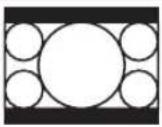 | 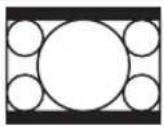 | 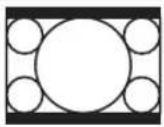 |
[Video signal]
| Aspect ratio of incoming signal | 4:3 Letterbox Squeeze | |||
| Sample image when the aspect ratio is automatically determined | 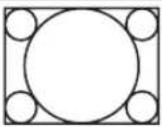 |  |  NOTE: To display a squeezed signal properly, select [16:9] or [WIDE ZOOM]. NOTE: To display a squeezed signal properly, select [16:9] or [WIDE ZOOM]. | |
P554U/P474U/P554W/P474W
[Computer signal]
| Aspect ratio of incoming signal | 4:3 5:4 16:9 15:9 16:10 | ||||
| Sample image when the appropriate aspect ratio is automatically determined |  |  |  | 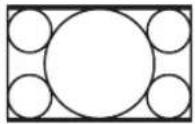 | 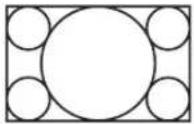 |
[Video signal]
| Aspect ratio of incoming signal | 4:3 Letterbox Squeeze | ||
| Sample image when the aspect ratio is automatically determined | 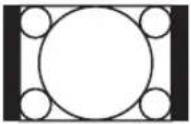 | 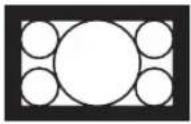 NOTE: To display a letterbox signal properly, select [LETTERBOX]. NOTE: To display a letterbox signal properly, select [LETTERBOX]. | 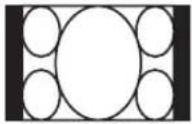 NOTE: To display a squeezed signal properly, select [16:9]. NOTE: To display a squeezed signal properly, select [16:9]. |
TIP:
- Image position can be adjusted vertically using [POSITION] when the [16:9], [15:9], or [16:10] aspect ratios are selected.
- The term "letterbox" refers to a more landscape-oriented image when compared to a 4:3 image, which is the standard aspect ratio for a video source.
The letterbox signal has aspect ratios with the vista size "1.85:1" or cinema scope size "2.35:1" for movie film. - The term "squeeze" refers to the compressed image of which aspect ratio is converted from 16:9 to 4:3.
Adjusting the Vertical Position of Image [POSITION] (not available on P554U/P474U/P554W/P474W)
(only when [16:9], [15:9], or [16:10] is selected for [ASPECT RATIO])
When [16:9], [15:9], or [16:10] is selected in [ASPECT RATIO], the image is displayed with black borders on the top and bottom.
You can adjust the vertical position from the top to the bottom of the black area.
![NEC P603X - Adjusting the Vertical Position of Image [POSITION] (not available on P554U/P474U/P554W/P474W) - 1](/content/2026/05/867344/images/c9494704d2f4f89a1270d7de07dbebaaf03f3e74cf2081da9a5a3e18f415d4bc.jpg)
natural_image
Diagram showing two rectangular blocks with circular holes and a blue double-headed arrow indicating transformation (no text or symbols)[AUDIO]
![NEC P603X - [AUDIO] - 1](/content/2026/05/867344/images/cf5591baa3c5adc2c245c26958ecf82697b2107e203dda39ee0b3d537b755866.jpg)
text_image
SOURCE ADJUST SETUP INFO. RESET PICTURE IMAGE OPTIONS AUDIO VOLUME 11 ENTER:SELECT EXIT:EXIT :MOVE :MOVE HDMITurning Up or Down Sound
Adjusts the volume of the projector speaker and AUDIO OUT (Stereo Mini Jack).
TIP:
- When no menus appear, the ◀ and ▶ buttons on the projector cabinet and the VOL. +/- buttons on the remote control work as a volume control. (→ page 22)
⑥ Menu Descriptions & Functions [SETUP]
[GENERAL]
![NEC P603X - [GENERAL] - 1](/content/2026/05/867344/images/a8d5e3c70370f36d74031f8d795cc0586315d9b4aa437a4cd3159c2b406d69eb.jpg)
text_image
SOURCE ADJUST SETUP INFO. RESET GENERAL MENU INSTALLATION OPTIONS(1) 1/2 KEYSTONE WALL COLOR ECO MODE CLOSED CAPTION OFF TIMER LANGUAGE OFF AUTO ECO OFF OFF ENGLISH ENTER: SELECT EXIT: EXIT MOVE MOVE HDMI1Correcting Keystone Distortion Manually [KEYSTONE]
You can correct horizontal or vertical keystone, pincushion LEFT/RIGHT or TOP/BOTTOM, or cornerstone distortion manually.
NOTE:
- [KEYSTONE HORIZONTAL] and [KEYSTONE VERTICAL] can be adjusted at once.
• To change from one item to another item, reset the first item. - Adjustment values will be overwritten. They will not be deleted even when the projector is turned off.
- Using [KEYSTONE], [PINCUSHION] and [CORNERSTONE] correction can cause the image to be slightly blurred because the correction is made electronically.
KEYSTONE HORIZONTAL......Corrects horizontal keystone distortion. (→ page 20)
KEYSTONE VERTICAL......Corrects vertical keystone distortion. (→ page 20)
PINCUSHION LEFT/RIGHT......Corrects pincushion distortion at the left or right side. (→ page 30)
PINCUSHION TOP/BOTTOM......Corrects pincushion distortion at the top or bottom side. (→ page 30)
CORNERSTONE....Fits a projected image within the border of the screen easily by align the four corner of an image to the ones of the screen. (→ page 28)
PINCUSHION......Corrects pincushion distortion at the top, bottom, left or right side. (→ page 31)
RESET......Returns all the above items to the factory preset values.
TIP:
- The maximum adjustment range with [CORNERSTONE] and [KEYSTONE] corrections is ± 20^ in the horizontal direction, ± 30^ in the vertical direction.
- Depending on input signal, the adjustable range may be narrower.
Using the Wall Color Correction [WALL COLOR]
![NEC P603X - Using the Wall Color Correction [WALL COLOR] - 1](/content/2026/05/867344/images/27310e30c8d9d6282f6e2fe20c1df8f03f470b51d3eaef3044710c93b172fa4a.jpg)
text_image
WALL COLOR OFF WHITEBOARD BLACKBOARD BLACKBOARD (GRAY) LIGHT YELLOW LIGHT GREEN LIGHT BLUE SKY BLUE LIGHT ROSE PINK ENTER EXITThis function allows for quick adaptive color correction in applications where the screen material is not white.
NOTE: Selecting [WHITEBOARD] reduces lamp brightness.
Setting Eco Mode [ECO MODE]
The ECO MODE increases lamp life, while lowering power consumption and cutting down on CO_2 emissions. Four brightness modes of the lamp can be selected: [OFF], [AUTO ECO], [NORMAL] and [ECO] modes. ( page 26)
Setting Closed Caption [CLOSED CAPTION]
This option sets several closed caption modes that allow text to be superimposed on the projected image of Video. OFF....This exits the closed caption mode.
CAPTION 1-4......Text is superimposed.
TEXT 1-4......Text is displayed.
NOTE:
• The closed caption is not available under the following conditions:
- when messages or menus are displayed.
- when an image is magnified, frozen, or muted.
- Portions of superimposed text or closed caption may be truncated. If that happens, try to place the superimposed text or closed caption within the screen.
Using Off Timer [OFF TIMER]
- Select your desired time between 30 minutes and 16 hours: OFF, 0:30, 1:00, 2:00, 4:00, 8:00, 12:00, 16:00.
- Press the ENTER button on the remote control.
- The remaining time starts counting down.
- The projector will turn off after the countdown is complete.
NOTE:
• To cancel the preset time, set [OFF] for the preset time or turn off the power.
- When the remaining time reaches 3 minutes before the projector is turned off, the [THE PROJECTOR WILL TURN OFF WITHIN 3 MINUTES] message will be displayed on the bottom of the screen.
Selecting Menu Language [LANGUAGE]
You can choose one of 30 languages for on-screen instructions.
NOTE: Your setting will not be affected even when [RESET] is done from the menu.
[MENU]
![NEC P603X - Selecting Menu Language [LANGUAGE] - 1](/content/2026/05/867344/images/510f5b84a4ebd8553e2443df53fa97b89f2fd1ef35c12c9d7378529d7f7d060a.jpg)
text_image
SOURCE ADJUST SETUP INFO. RESET GENERAL MENU INSTALLATION OPTIONS(1) 1/2 COLOR SELECT SOURCE DISPLAY ID DISPLAY ECO MESSAGE DISPLAY TIME BACKGROUND FILTER MESSAGE COLOR ON ON OFF AUTO 45 SEC BLUE 4000[H] ENTER:SELECT EXIT:EXIT :MOVE :MOVE HDMI1Selecting Menu Color [COLOR SELECT]
You can choose between two options for menu color: COLOR and MONOCHROME.
Turning On / Off Source Display [SOURCE DISPLAY]
This option turns on or off input name display such as HDMI1, HDMI2, COMPUTER, VIDEO, HDBaseT, USB-A, to be displayed on the top right of the screen.
When no input signal is present, the no-signal guidance prompting you to check for an available input will be displayed. When the [USB-A] item is selected for [SOURCE], the no-signal guidance will not be displayed.
Turning ON/OFF Control ID [ID DISPLAY]
This option turns on or off the ID number which is displayed when the ID SET button on the remote control is pressed.
Turning On / Off Eco Message [ECO MESSAGE]
This option turns on or off the following messages when the projector is turned on.
The Eco Message prompts the user to save energy. When [OFF] is selected for [ECO MODE], you will get a message to prompt you to select [AUTO ECO], [NORMAL], or [ECO] for [ECO MODE].
When [AUTO ECO], [NORMAL], or [ECO] is selected for [ECO MODE]
![NEC P603X - Turning On / Off Eco Message [ECO MESSAGE] - 1](/content/2026/05/867344/images/cc0b1d9f4d426ec05247f1cd6026917132d0086e77e30ccbddc25187990f8ea8.jpg)
text_image
CARBON METER ECO MODE ECO THANK YOU FOR SAVING THE ENVIRONMENT. ENTER :EXIT EXIT :EXITTo close the message, press any one of the buttons. The message will disappear if no button operation is done for 30 seconds.
When [OFF] is selected for [ECO MODE]
![NEC P603X - Turning On / Off Eco Message [ECO MESSAGE] - 2](/content/2026/05/867344/images/290f426699b564fd22b95b54e716a2b698a2a92d1a9bc4f5ecd68d423cc95ee2.jpg)
text_image
CARBON METER ECO MODE OFF USING ECO MODE REDUCES CARBON FOOTPRINT AND LENGTHENS LAMP LIFE. ENTER :ENTER EXIT :EXITPressing the ENTER button will display the [ECO MODE] screen. (→ page 26)
To close the message, press the EXIT button.
Selecting Menu Display Time [DISPLAY TIME]
This option allows you to select how long the projector waits after the last touch of a button to turn off the menu. The preset choices are [MANUAL], [AUTO 5 SEC], [AUTO 15 SEC], and [AUTO 45 SEC]. The [AUTO 45 SEC] is the factory preset.
Selecting a Color or Logo for Background [BACKGROUND]
Use this feature to display a blue/black screen or logo when no signal is available. The default background is [BLUE].
NOTE:
- If the [LOGO] item is selected for [BACKGROUND] with the [HDBaseT] source selected, the [BLUE] item will be selected regardless of its selection. (not supported by P603X)
- When [SOURCE DISPLAY] is turned on, the no-signal guidance prompting you to check for an available input will be displayed at the center of the screen regardless of its selection.
- Your setting will not be affected even when [RESET] is done from the menu.
Selecting Interval Time for Filter Message [FILTER MESSAGE]
This option allows you to select the time preference between displaying the message for cleaning the filters. Clean the filter when you get the message “PLEASE CLEAN THE FILTER.” ( page 105)
Six options are available:
OFF, 100[H], 500[H], 1000[H], 2000[H], 4000[H]
NOTE: Your setting will not be affected even when [RESET] is done from the menu.
[INSTALLATION]
![NEC P603X - [INSTALLATION] - 1](/content/2026/05/867344/images/3f03d2ca275b5da1329745ccdf534afec93ca0e747e548438b088fdaaab1eb93.jpg)
text_image
SOURCE ADJUST SETUP INFO. RESET GENERAL MENU INSTALLATION OPTIONS(1) (1/2) ORIENTATION CONTROL PANEL LOCK SECURITY COMMUNICATION SPEED SERIAL PORT REMOTE SENSOR CONTROL ID TEST PATTERN DESKTOP FRONT OFF OFF 38400bps PC CONTROL FRONT/BACK ENTER: SELECT EXIT: EXIT #:MOVE #:MOVE HDMI1Selecting Projector Orientation [ORIENTATION]
This reorients your image for your type of projection. The options are: desktop front projection, ceiling rear projection, desktop rear projection, and ceiling front projection.
![NEC P603X - Selecting Projector Orientation [ORIENTATION] - 1](/content/2026/05/867344/images/3e77251908170f4ab05802b577484c4c3ff7f824e203ce1caeab02cf17832523.jpg)
text_image
DESKTOP FRONT CEILING REAR DESKTOP REAR CEILING FRONTDisabling the Cabinet Buttons [CONTROL PANEL LOCK]
This option turns on or off the CONTROL PANEL LOCK function.
NOTE:
• This CONTROL PANEL LOCK does not affect the remote control functions.
- When the control panel is locked, pressing and holding the SOURCE button on the projector cabinet for about 10 seconds will change the setting to [OFF].
TIP: When the [CONTROL PANEL LOCK] is turned on, a key lock icon [ ] will be displayed at the bottom right of the menu.
Enabling Security [SECURITY]
This feature turns on or off the SECURITY function.
Unless the correct keyword is entered, the projector cannot project an image. (→ page 33)
NOTE: Your setting will not be affected even when [RESET] is done from the menu.
Selecting Communication Speed [COMMUNICATION SPEED]
This feature sets the baud rate of the PC Control port (D-Sub 9P). It supports data rates from 4800 to 38400 bps. The default is 38400 bps. Select the appropriate baud rate for your equipment to be connected (depending on the equipment, a lower baud rate may be recommended for long cable runs).
NOTE: Your selected communication speed will not be affected even when [RESET] is done from the menu.
Selecting the serial port [SERIAL PORT] (not supported by P603X)
This sets which terminal on the projector will receive the serial control signals for remotely controlling the projector from a commercially available HDBaseT transmission devices (control signals for turning the power on and off, etc.). There is no need to make this setting if not operating the projector by remote control (only sending video and audio).
PC CONTROL....Control signals (RS232C serial communications) are received at the PC CONTROL terminal.
HDBaseT .... The video/audio and control signals (RS232C serial communications) are received at the HDBaseT port.
NOTE:
- When [HDBaseT] is set, it will not work when the projector is in the standby mode, regardless of whether [STANDBY MODE] ( page 74) is set to [NORMAL] or [NETWORK STANDBY] (the power cannot be turned on).
The methods below can be used to turn on the projector's power when it is in the standby mode.
- The projector can be operated by connecting the computer and projector by RS232C serial communications (on the projector, using the PC CONTROL terminal and the PC Control Utility application, with [STANDBY MODE] set to [NETWORK STANDBY]).
- The projector can be operated by connecting the computer and projector over the network (on the projector, using the LAN port and PC Control Utility application, with [STANDBY MODE] set to [NETWORK STANDBY])
TIP:
- When controlling the projector using the LAN port, this works with either setting.
Turning On or Off Remote Sensor [REMOTE SENSOR]
Set the remote control sensors on the projector's front and rear panels and the HDBaseT remote control sensor. The options are: ALL, FRONT/BACK, FRONT, BACK, and HDBaseT.
(HDBaseT is not supported by P603X)
NOTE:
- When [HDBaseT] is set, it will not work when the projector is in the standby mode, regardless of whether [STANDBY MODE] (→ page 74) is set to [NORMAL] or [NETWORK STANDBY] (the power cannot be turned on).
TIP:
- If the remote control system does not function when direct sunlight or strong illumination strikes the remote control sensor of the projector, change another option.
- The remote control sensor on the back of the projector cannot be used when the separately sold cable cover is mounted on the projector.
Setting ID to the Projector [CONTROL ID]
You can operate multiple projectors separately and independently with the single remote control that has the CONTROL ID function. If you assign the same ID to all the projectors, you can conveniently operate all the projectors together using the single remote control. To do so, you have to assign an ID number to each projector.
CONTROL ID NUMBER......Select a number from 1 to 254 you wish to assign to your projector.
CONTROL ID......Select [OFF] to turn off the CONTROL ID setting and select [ON] to turn on the CONTROL ID setting.
NOTE:
- When [ON] is selected for [CONTROL ID], the projector cannot be operated by using the remote control that does not support the CONTROL ID function. (In this case the buttons on the projector cabinet can be used.)
- Your setting will not be affected even when [RESET] is done from the menu.
- Pressing and holding the ENTER button on the projector cabinet for 10 seconds will display the menu for canceling the Control ID.
Assigning or Changing the Control ID
1. Turn on the projector.
2. Press the ID SET button on the remote control.
The CONTROL ID screen will be displayed.
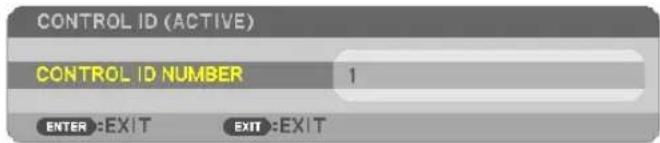
text_image
CONTROL ID (ACTIVE) CONTROL ID NUMBER 1 ENTER:EXIT EXIT:EXITIf the projector can be operated with the current remote control ID, the [ACTIVE] will be displayed. If the projector cannot be operated with the current remote control ID, the [INACTIVE] will be displayed. To operate the inactive projector, assign the control ID used for the projector by using the following procedure (Step 3).
3. Press one of numeric keypad buttons while pressing and holding the ID SET button on the remote control.
Example:
To assign "3", press the "3" button on the remote control.
No ID means that all the projectors can be operated together with a single remote control. To set "No ID", enter "000" or press the CLEAR button.
TIP: The range of IDs is from 1 to 254.
4. Release the ID SET button.
The updated CONTROL ID screen will be displayed.
NOTE:
• The IDs can be cleared in a few days after the batteries are run down or removed.
- Accidentally pressing any one of the buttons of the remote control will clear currently specified ID with batteries removed.
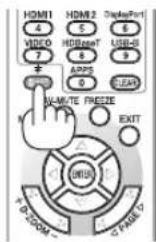
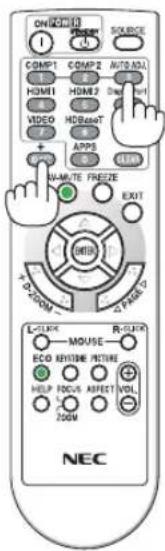
text_image
ON/OFF COMP1 COMP2 AUTO AS HDMI HDMI2 Drip VIDEO HDMI2 APPS WAMUTE FREEZE EXIT L-LOCK MOUSE R-LLOCK ECO RESPONSE PICTURE HELP FOCUS APPECT NOL. ZOOM NECUsing Test Pattern [TEST PATTERN]
Displays the test pattern to check for image distortion at the time of the projector setup. Press the ENTER button to display the test pattern; press the EXIT button to close the test pattern and return to the menu. Menu operation and corrections for keystone, cornerstone and pincushion are not available when the test pattern is displayed.
[OPTIONS(1)]
![NEC P603X - Using Test Pattern [TEST PATTERN] - 1](/content/2026/05/867344/images/d20e02387d33e1615eb480624484212f177646f1c1ba109cb76a723c7e6327c0.jpg)
text_image
SOURCE ADJUST SETUP INFO. RESET GENERAL MENU INSTALLATION OPTIONS(1) (1/2) AUTO ADJUST NORMAL SEAMLESS SWITCHING OFF FAN MODE AUTO SIGNAL SELECT WXGA MODE ON DEINTERLACE ON HDMI SETTINGS AUDIO SELECT BEEP ON ENTER :SELECT EXIT :EXIT :MOVE :MOVE HDMI1Setting Auto Adjust [AUTO ADJUST]
This feature sets the Auto Adjust mode so that the computer signal can be automatically or manually adjusted for noise and stability. You can automatically make adjustment in two ways: [NORMAL] and [FINE].
OFF....The computer signal will not be automatically adjusted. You can manually optimize the computer signal.
NORMAL ...... Default setting. The computer signal will be automatically adjusted. Normally select this option.
FINE......Select this option if fine adjustment is needed. It takes more time to switch to the source than when [NORMAL]is selected.
[SEAMLESS SWITCHING]
When the input connector is switched, the image displayed before switching is held to switch to the new image without a break due to absence of a signal.
Selecting Fan Mode [FAN MODE]
This option allows you to select three modes for fan speed: Auto mode, High speed mode, and High Altitude mode.
AUTO ....The built-in fans automatically run at a variable speed according to the internal temperature.
HIGH ......The built-in fans run at high speed.
HIGH ALTITUDE......The built-in fans run at a high speed. Select this option when using the projector at altitudes approximately 5500 feet/1700 meters or higher.
When you wish to cool down the temperature inside the projector quickly, select [HIGH].
NOTE:
- It is recommended that you select High speed mode if you use the projector non-stop for consecutive days.
- Set [FAN MODE] to [HIGH ALTITUDE] when using the projector at altitudes approximately 5500 feet/1700 meters or higher.
- Using the projector at altitudes approximately 5500 feet/1700 meters or higher without setting to [HIGH ALTITUDE] can cause the projector to overheat and the protector could shut down. If this happens, wait a couple minutes and turn on the projector.
- Using the projector at altitudes less than approximately 5500 feet/1700 meters and setting to [HIGH ALTITUDE] can cause the lamp to overcool, causing the image to flicker. Switch [FAN MODE] to [AUTO].
- Using the projector at altitudes approximately 5500 feet/1700 meters or higher can shorten the life of optical components such as the lamp.
- Your setting will not be affected even when [RESET] is done from the menu.
TIP:
- When [HIGH ALTITUDE] is selected, an icon[] is displayed at the bottom of the on-screen menu.
Selecting Signal Format [SIGNAL SELECT]
[COMPUTER]
Allows you to choose [COMPUTER] for an RGB source such as a computer, or [COMPONENT] for a component video source such as a DVD player. Normally select [RGB/COMPONENT] and the projector automatically detects a component signal. However there may be some component signals that the projector is unable to detect. If this is the case, select [COMPONENT].
[VIDEO]
This feature enables you to select composite video standards automatically or manually.
Factory default setting is [AUTO] and the projector will automatically detect the video standard.
In the case where the projector has difficulty detecting the video standard, select the appropriate video standard from the menu.
Enabling or Disabling WXGA Mode [WXGA MODE]
Selecting [ON] will give priority to WXGA (1280 × 768)/WUXGA (1920 × 1200) signals in recognizing an input signal. When [WXGA MODE] is set to [ON], XGA (1024 × 768)/UXGA (1600 × 1200) signals may not be recognized on P604X/P603X. In this case, select [OFF].
NOTE:
• [OFF] is selected at the time of shipment of P604X/P603X.
• [ON] is selected at the time of shipment of P554U/P474U/P554W/P474W.
Enabling the deinterlace [DEINTERLACE]
Turns on or off the deinterlace function for a telecine signal.
OFF......Select this option if there is any jitter or artifacts in video.
ON ......Default standard setting.
NOTE: This feature is not available for HDTV (progressive) and computer signals.
Setting HDMI1, HDMI2, and HDBaseT [HDMI SETTINGS]
(HDBaseT is not supported by P603X)
Make the settings for each video level when connecting HDMI1 equipment such as a DVD player and HDBaseT terminal.
VIDEO LEVEL ......Select [AUTO] to automatically detect video level. If automatic detection may not work well, select [NORMAL] to disable the [ENHANCED] feature of your HDMI equipment or select [ENHANCED] to improve image contrast and increase detail in the dark areas.
Setting Audio [AUDIO SELECT]
Make the settings for each audio level when connecting HDMI equipment and HDBaseT port. Select between each equipment and computer.
HDMI1, HDMI2.....Select [HDMI1] or [HDMI2] to switch the HDMI1 IN or HDMI 2 IN digital audio signal or select [COMPUTER] to switch the COMPUTER input audio signal.
HDBaseT......Select [HDBaseT] or [COMPUTER] to switch the source connected to the network. (not supported by P603X)
Enabling Key Sound and Error Sound [BEEP]
This feature turns on or off the button sound or alarm when an error occurs or the following operations are performed.
- Displaying the main menu
- Switching sources
- Resetting data by using [RESET]
- Pressing POWER ON or STANDBY button
TIP:
- Volume control for [BEEP] is disabled. AV-MUTE button is not effective to stop beeping sound. If you want to activate BEEP function, set [BEEP] to [OFF].
[OPTIONS(2)]
![NEC P603X - [OPTIONS(2)] - 1](/content/2026/05/867344/images/b16034ee34e00543615d108a29faea125251d16bcc5e5fbc7418e75461f5eeee.jpg)
text_image
SOURCE ADJUST SETUP INFO. RESET OPTIONS(2) WIRED LAN WIRELESS LAN 2/2 STANDBY MODE NORMAL DIRECT POWER ON OFF AUTO POWER ON OFF AUTO POWER OFF 1:00 DEFAULT SOURCE SELECT LAST CARBON CONVERT 0.505[kg-CO2/kWh] CURRENCY $ CURRENCY CONVERT 0.11[$/kWh] ENTER :SELECT EXIT :EXIT $ :MOVE +:MOVE HDMI1Selecting Power-saving in [STANDBY MODE]
The projector has two standby modes: [NORMAL] and [NETWORK STANDBY].
The NORMAL mode is the mode that allows you to put the projector in the power-saving condition which consumes less power than the NETWORK STANDBY mode.
NORMAL...... When [NORMAL] is selected, only the following buttons and feature will work:
POWER buttons on the projector cabinet and the remote control, AUTO POWER ON, and powering on from PC Control command.
NETWORK STANDBY...... When [NETWORK STANDBY] is selected, the projector can be turned on over a wired LAN connection and only the following buttons, port, and features will work:
POWER buttons on the projector cabinet and the remote control, powering on from PC Control command, AUTO POWER ON, wireless LAN unit (optional), operation by User Supportware, LAN feature, and Mail Alert feature.
IMPORTANT:
- When [NETWORK STANDBY] has been set for [STANDBY MODE] and the LAN has been in link-down condition for 3 minutes, [STANDBY MODE] will transit into [NORMAL] automatically for the purpose to save the consumption power.
- When [NETWORK STANDBY] has been selected, [AUTO POWER OFF] becomes ineffective (displayed in grey) and [0:15] is selected automatically.
When [STANDBY MODE] → [NETWORK STANDBY] is selected
- When [NETWORK SERVICE] → [AMX SETTINGS] → [ENABLE] is selected
- When [NETWORK SERVICE] → [Extron XTP] → [ENABLE] is selected
- When [NETWORK SERVICE] → [CRESTRON SETTINGS] → [CRESTRON CONTROL] → [ENABLE] is selected
- When [NETWORK SETTINGS] → [WIRELESS LAN] → Except for [DISABLE] and mounting the wireless LAN unit to the projector
- When the signal is input to the computer, HDMI 1 IN or HDMI 2 IN terminals
NOTE:
• Even when [NORMAL] is selected for [STANDBY MODE], power on or off can be done by using the PC CONTROL port.
- The power consumption in the standby mode will not be included in calculating Cemission reduction.
- Your setting for [STANDBY MODE] will not be affected even when [RESET] is done from the menu.
Enabling Direct Power On [DIRECT POWER ON]
Turns the projector on automatically when the power cord is inserted into an active power outlet. This eliminates the need to always use the POWER button on the remote control or projector cabinet.
Turning On the Projector By Applying Computer Signal [AUTO POWER ON]
When the projector is in Standby mode, applying a computer or HDMI signal from a computer connected to the COMPUTER IN input, HDMI1, or HDMI2 input will power on the projector and simultaneously project the image. This functionality eliminates the need to always use the POWER button on the remote control or the projector cabinet to power on the projector.
To use this function, first connect a computer to the projector and the projector to an active AC input.
NOTE:
- Disconnecting a computer signal from the computer will not power off the projector. We recommend using this function in combination of the AUTO POWER OFF function.
• This function will not be available under the following conditions: - when a component signal is applied to the COMPUTER IN terminal
- when a Sync on Green RGB signal or composite sync signal is applied
• To enable the AUTO POWER ON after turning off the projector, wait 5 seconds and input a computer or HDMI signal.
If a computer or HDMI signal is still present when the projector is turned off, the AUTO POWER ON will not work and the projector remains in standby mode. - Depending on the projector in use, the AUTO POWER ON may not work properly. In this case, set [STANDBY MODE] to [NETWORK STANDBY].
Enabling Power Management [AUTO POWER OFF]
When this option is selected you can enable the projector to automatically turn off (at the selected time: 0:05, 0:10, 0:15, 0:20, 0:30, 1:00) if there is no signal received by any input or if no operation is performed.
Selecting Default Source [DEFAULT SOURCE SELECT]
You can set the projector to default to any one of its inputs each time the projector is turned on.
LAST....Sets the projector to default to the previous or last active input each time the projector is turned on.
AUTO ....Searches for an active source in order of HDMI1 → HDMI2 → COMPUTER → VIDEO → HDBaseT → USB-A → HDMI1 and displays the first found source.
HDMI1....Displays the digital source from the HDMI 1 IN terminal every time the projector is turned on.
HDMI2....Displays the digital source from the HDMI 2 IN terminal every time the projector is turned on.
COMPUTER ......Displays the computer signal from the COMPUTER IN terminal every time the projector is turned on.
VIDEO......Displays the Video source from the VIDEO IN terminal every time the projector is turned on.
HDBaseT......Projects the signal transmitted from the terminals supported HDBaseT. (not supported by P603X)
USB-A....Displays slides or plays back movie files from the USB memory device every time the projector is turned on.
Setting carbon footprint factor [CARBON CONVERT]
Adjusts the carbon footprint factor in the carbon saving calculation. The initial setting is 0.505[kg-CO2/kWh] based on the CO2 Emissions from Fuel Combustion (2008 Edition) published by OECD.
Selecting your currency [CURRENCY]
Displays electricity pricing (available in 4 currency units).
\$......US Dollar
€......EU Euro
JP¥......Japanese Yen
RMB¥.....Chinese Yuan
Changing currency setting and currency convert setting [CURRENCY CONVERT]
Changes currency setting and currency convert setting for CARBON METER.
The initial setting are as follows:
US Dollar....0.11 [\$/kWh]
EU Euro....0.19 [€/kWh]
Japanese Yen ...... 20 [¥/kWh]
Chinese Yuan ......0.48 [¥/kWh]
The initial settings for US dollar, EU Euro, and Japanese Yen are based on “Energy Prices and Taxes (second quarter 2010)” published by OECD.
The initial setting for Chinese Yuan is based on “Chinese Data File (2010)” published by JETRO.
Setting up the Projector for a Wired LAN Connection [WIRED LAN]
![NEC P603X - Setting up the Projector for a Wired LAN Connection [WIRED LAN] - 1](/content/2026/05/867344/images/5362f854a616a320b75ee4abbaadadf0df65abd5adf340a01c8b5fa0e16020f8.jpg)
text_image
SOURCE ADJUST SETUP INFO. RESET OPTIONS(2) WIRED LAN WIRELESS LAN (2/2) WIRED LAN SETTINGS ENABLE RECONNECT ENTER:SELECT EXIT:EXIT :MOVE :MOVE HDMI1Important
- Consult with your network administrator about these settings.
- When using a wired LAN connection, connect a LAN cable (Ethernet cable) to the LAN port (RJ-45) of the projector. ( page 99)
TIP: The network settings you make will not be affected even when [RESET] is done from the menu.
| [WIRED LAN] [DISABLE] | Wired LAN connection will be turned off. | |
| [ENABLE] Wired LAN connection will be turned on. | ||
| [SETTINGS] | [DHCP] | ON...... IP address, subnet mask, and gateway will be automatically assigned to the projector from your DHCP server.OFF...... Specify IP address, subnet mask, and gateway assigned by your network administrator. |
| [IP ADDRESS] Set your IP address of the network connected to the projector. | ||
| [SUBNET MASK] Set your subnet mask number of the network connected to the projector. | ||
| [GATEWAY] Set the default gateway of the network connected to the projector. | ||
| [AUTO DNS] | ON...... DHCP server will automatically assign IP address of DNS server connected to the projector.OFF...... Set your IP address of DNS server connected to the projector. | |
| [RECONNECT] Retry to connect the projector to a network. | ||
Setting up the Projector for a Wireless LAN Connection (with the optional USB Wireless LAN Unit equipped) [WIRLESS LAN]
![NEC P603X - Setting up the Projector for a Wireless LAN Connection (with the optional USB Wireless LAN Unit equipped) [WIRLESS LAN] - 1](/content/2026/05/867344/images/e10937fe990c359241bdb6b1585216026b25c44e9d7ec78717e830401fbd5a46.jpg)
text_image
SOURCE ADJUST SETUP INFO. RESET OPTIONS(2) ▪ WIRED LAN ▪ WIRELESS LAN ▶ 2/2 PROFILE DISABLE RECONNECT ENTER:SELECT EXIT:EXIT :MOVE :MOVE HDMI1Important
- Consult with your network administrator about these settings.
- When using a wireless LAN connection, attach the optional USB Wireless LAN to the projector. (→ page 100)
- Perform detail settings for wireless LAN on the HTTP server screen.
| [PROFILE] [DISABLE] | Wireless LAN connection will be turned off |
| [SIMPLE ACCESS POINT] Set the projector as [SIMPLE ACCESS POINT] for connecting to a computer and a smart phone. | |
| [INFRASTRUCTURE] Connect the projector to an access point. | |
| [RECONNECT] Retry to connect the projector to a network. Try this if you have changed [PROFILE]. | |
When you connect with your computer to save your profile and select "Automatically connect when within range" from the Properties tab of Wireless Network in Windows for your selected profile, your wireless LAN will be accessed under the following conditions:
• at the time of turning on the computer or the projector
- when the notebook type is within the range of the projector's wireless LAN can be achieved.
Data transmission between wireless LAN and wired LAN is not possible.
When [SIMPLE ACCESS POINT] is set, up to 20 units can be connected simultaneously. Recommend to connect approx. 10 units for normal operation.
Hints on How to Set Up LAN Connection
To connect a DHCP server:
From the projector menu, select [SETUP] → [WIRED LAN] → [SETTINGS] → [DHCP] → [ON] and press the ENTER button. To specify IP address without using the DHCP server, use the HTTP server. (→ page 39)
To set only for wireless LAN (NETWORK TYPE and WPA2 PSK):
Access the HTTP server to display the web browser ( page 36) and select [NETWORK SETTINGS] [SETTINGS] [WIRELESS LAN] [INFRASTRUCTURE] and then click [APPLY].
Make necessary settings for [SETTINGS], click [SAVE] for storing set values and then click [APPLY] to reflect these values to wireless LAN connection.
To select an SSID:
Access the HTTP server to display the web browser ( page 36) and select [NETWORK SETTINGS] [SETTINGS] [WIRELESS LAN] [INFRASTRUCTURE] and then click [APPLY]. After completion of these steps, click [SETTING] for the INFRASTRUCTURE and then click [SITE SURVEY] on the [CONNECTION] page, finally select the SSID you want to connect on the list.
If you do not use [SITE SURVEY], type the SSID in [CONNECTION]. ( page 40)
To receive lamp replacement time or error messages via e-mail:
Access the HTTP server to display the web browser ( page 36) and select [NETWORK SETTINGS] [ALERT MAIL], and set [SENDER'S ADDRESS], [SMTP SERVER NAME], and [RECIPIENT'S ADDRESS]. Last, click [SAVE]. ( page 41)
⑦ Menu Descriptions & Functions [INFO.]
Displays the status of the current signal and lamp usage. This item has eight pages. The information included is as follows:
TIP: Pressing the HELP button on the remote control will show the [INFO.] menu items.
[USAGE TIME]
![NEC P603X - ⑦ Menu Descriptions & Functions [INFO.] - 1](/content/2026/05/867344/images/1350894f32238e1ff6f7167e1f2c05dd367049ddfe0070b4d08ba49454bf05d1.jpg)
text_image
SOURCE ADJUST SETUP INFO. RESET USAGE TIME SOURCE(1) SOURCE(2) 1/8 LAMP LIFE REMAINING 100% LAMP HOURS USED 00000[H] FILTER HOURS USED 00000[H] TOTAL CARBON SAVINGS 0.000[kg-CO2] TOTAL COST SAVINGS 0.00[$] EXIT:EXIT :MOVE :MOVE HDMI1[LAMP LIFE REMAINING] (%)*
[LAMP HOURS USED] (H)
[FILTER HOURS USED] (H)
[TOTAL CARBON SAVINGS] (kg-CO2)
[TOTAL COST SAVINGS]
* The progress indicator shows the percentage of remaining bulb life.
The value informs you of the amount of lamp usage. When the remaining lamp time reaches 0, the LAMP LIFE REMAINING bar indicator changes from 0% to 100 Hours and starts counting down.
If the remaining lamp time reaches 0 hours, the projector will not turn on.
- The message to the effect that the lamp or the filters should be replaced will be displayed for one minute when the projector is turned on and when the POWER button on the projector or the remote control is pressed.
To dismiss this message, press any button on the projector or the remote control.
| Lamp life(H) | Replacement lamp | ||
| ECO MODE | |||
| OFF/AUTO ECO N | NORMAL ECO | ||
| 4000 6000 8000 | NP44LP | ||
• [TOTAL CARBON SAVINGS]
This displays the estimated carbon saving information in kg. The carbon footprint factor in the carbon saving calculation is based on the OECD (2008 Edition). ( page 27)
[SOURCE(1)]
![NEC P603X - [SOURCE(1)] - 1](/content/2026/05/867344/images/5954587d49d3bc15f61d70e78ec227eeca8b2de8850e87b38e930595dda1a0ea.jpg)
text_image
SOURCE ADJUST SETUP INFO. RESET USAGE TIME SOURCE(1) SOURCE(2) (1/3) SOURCE NAME 1024x768 SOURCE INDEX 108 HORIZONTAL FREQUENCY 48[kHz] VERTICAL FREQUENCY 60[Hz] SYNC TYPE SEPARATE SYNC SYNC POLARITY H:( - ) V:( - ) SCAN TYPE NON-INTERLACE EXIT:EXIT #:MOVE #:MOVE HDMI1[SOURCE NAME] [SOURCE INDEX]
[HORIZONTAL FREQUENCY] [VERTICAL FREQUENCY]
[SYNC TYPE] [SYNC POLARITY]
[SCAN TYPE]
[SOURCE(2)]
![NEC P603X - [SOURCE(2)] - 1](/content/2026/05/867344/images/873b0f463e7e229e2dddb5a98d31fa2001e8a34f584eb0605589bd6650b4639f.jpg)
text_image
SOURCE ADJUST SETUP INFO. RESET USAGE TIME • SOURCE(1) • SOURCE(2) ▶ 1/3 SIGNAL TYPE RGB VIDEO TYPE --- BIT DEPTH 8[bite] VIDEO LEVEL ENHANCED EXIT:EXIT :MOVE :MOVE HDMI1[SIGNAL TYPE] [VIDEO TYPE]
[BIT DEPTH] [VIDEO LEVEL]
[HDBaseT] (not supported by P603X)
![NEC P603X - [HDBaseT] (not supported by P603X) - 1](/content/2026/05/867344/images/51dd8733b50ca458b4b0b7409b2085a3f07cc2f81758a4bed549651afa84c165.jpg)
text_image
SOURCE ADJUST SETUP INFO. RESET HDBaseT WIRED LAN WIRELESS LAN VERSION (2/3) SIGNAL QUALITY NORMAL OPERATION MODE --- LINK STATUS --- HDMI STATUS --- EXIT:EXIT #:MOVE ↔:MOVE HDMI1[SIGNAL QUALITY] [OPERATION MODE]
[LINK STATUS] [HDMI STATUS]
[WIRED LAN]
![NEC P603X - [WIRED LAN] - 1](/content/2026/05/867344/images/9c5d02e614c20d165d141fc61a992cf50b433b78e3c912dbe8f223d5d9103d43.jpg)
text_image
SOURCE ADJUST SETUP INFO. RESET HDBaseT WIRED LAN WIRELESS LAN VERSION 2/3 IP ADDRESS ... SUBNET MASK ... GATEWAY ... MAC ADDRESS 00:00:00:00:00:00 EXIT:EXIT :MOVE :MOVE HDMI1[IP ADDRESS] [SUBNET MASK]
[GATEWAY] [MAC ADDRESS]
[WIRELESS LAN]
![NEC P603X - [WIRELESS LAN] - 1](/content/2026/05/867344/images/8b7bda6a60392e2ad5e3d104df4ae9371227c62431ec84b438dbfa47358a509b.jpg)
text_image
SOURCE ADJUST SETUP INFO. RESET HDBaseT WIRED LAN WIRELESS LAN VERSION 2/3 IP ADDRESS ... SUBNET MASK ... GATEWAY ... MAC ADDRESS --- SSID --- NETWORK TYPE --- SECURITY --- CHANNEL --- SIGNAL LEVEL --- EXIT:EXIT +:MOVE +:MOVE HDMI1[IP ADDRESS] [SUBNET MASK]
[GATEWAY] [MAC ADDRESS]
[SSID] [NETWORK TYPE]
[SECURITY] [CHANNEL]
[SIGNAL LEVEL]
[VERSION]
![NEC P603X - [VERSION] - 1](/content/2026/05/867344/images/4ad437682ee3efba61be616daad43cc5233f9f0df7a203f14b69845f97f11d14.jpg)
text_image
SOURCE ADJUST SETUP INFO. RESET HDBaseT • WIRED LAN • WIRELESS LAN • VERSION • 2/3 FIRMWARE 1.00 DATA 1.00 EXIT:EXIT #:MOVE #:MOVE HDMI1[FIRMWARE] Version
[DATA] Version
[OTHERS]
![NEC P603X - [OTHERS] - 1](/content/2026/05/867344/images/c94c7557675b91337688cf51e687d86596bd181665f64f2cf7cd0546f2f6b6d0.jpg)
text_image
SOURCE ADJUST SETUP INFO RESET OTHERS 3/3 PROJECTOR NAME PJ-XXXXXXXXX HOST NAME MODEL NO. SERIAL NUMBER LAN UNIT TYPE EXIT:EXIT :MOVE :MOVE HDMI1[PROJECTOR NAME]
[HOST NAME]
[MODEL NO.]
[SERIAL NUMBER]
[LAN UNIT TYPE]
[CONTROL ID] (when [CONTROL ID] is set)
⑧ Menu Descriptions & Functions [RESET]
![NEC P603X - ⑧ Menu Descriptions & Functions [RESET] - 1](/content/2026/05/867344/images/5a2354d19208f8424f9839b40ba7d0e34378b5f3103c24f7959b8083aaf710d1.jpg)
text_image
SOURCE ADJUST SETUP INFO. RESET CURRENT SIGNAL ALL DATA CLEAR LAMP HOURS CLEAR FILTER HOURS ENTER :SELECT EXIT :EXIT :MOVE :MOVE HDMIReturning to Factory Default [RESET]
The RESET feature allows you to change adjustments and settings to the factory preset for a (all) source (s) except the following:
[CURRENT SIGNAL]
Resets the adjustments for the current signal to the factory preset levels.
The items that can be reset are: [PRESET], [CONTRAST], [BRIGHTNESS], [COLOR], [HUE], [SHARPNESS], [ASPECT RATIO], [HORIZONTAL], [VERTICAL], [CLOCK], [PHASE], and [OVERSCAN].
[ALL DATA]
Reset all the adjustments and settings for all the signals to the factory preset.
All items can be reset EXCEPT [LANGUAGE], [BACKGROUND], [ORIENTATION], [FILTER MESSAGE], [SECURITY], [COMMUNICATION SPEED], [CONTROL ID], [STANDBY MODE], [FAN MODE], [CARBON CONVERT], [CURRENCY], [CURRENCY CONVERT], [LAMP LIFE REMAINING], [LAMP HOURS USED], [FILTER HOUR USED], [TOTAL CARBON SAVINGS], [WIRED LAN], and [WIRELESS LAN].
To reset the lamp usage time, see "Clearing Lamp Hour Meter [CLEAR LAMP HOURS]" below.
Clearing Lamp Hour Meter [CLEAR LAMP HOURS]
Resets the lamp clock back to zero. Selecting this option displays submenu for a confirmation. Select [YES] and press the ENTER button.
NOTE: Elapsed time of the lamp use will not be affected even when [RESET] is done from the menu.
NOTE: The projector will turn off and go into standby mode when you continue to use the projector for another 100 hours after the lamp has reached the end of its life. In this condition you cannot clear the lamp hour meter on the menu. If this happens, press the HELP button on the remote control for 10 seconds to reset the lamp clock back to zero. Do this only after replacing the lamp.
Clearing the Filter Usage Hours [CLEAR FILTER HOURS]
Resets the filter usage back to zero. Selecting this option displays submenu for a confirmation. Select [YES] and press the ENTER button.
NOTE: Elapsed time of the filter use will not be affected even when [RESET] is done from the menu.
6. Installation and Connections
① Setting Up the Screen and the Projector
Use this to get a general idea of what the screen size will be when set in a certain position, what size screen you will need, and what distance you will need to project images of the desired size.
The projection distance range at which focusing is possible is 0.8 m (for a 30 model) to 12.9 m (for a 300 model). Install within this range.
[P554U/P474U]
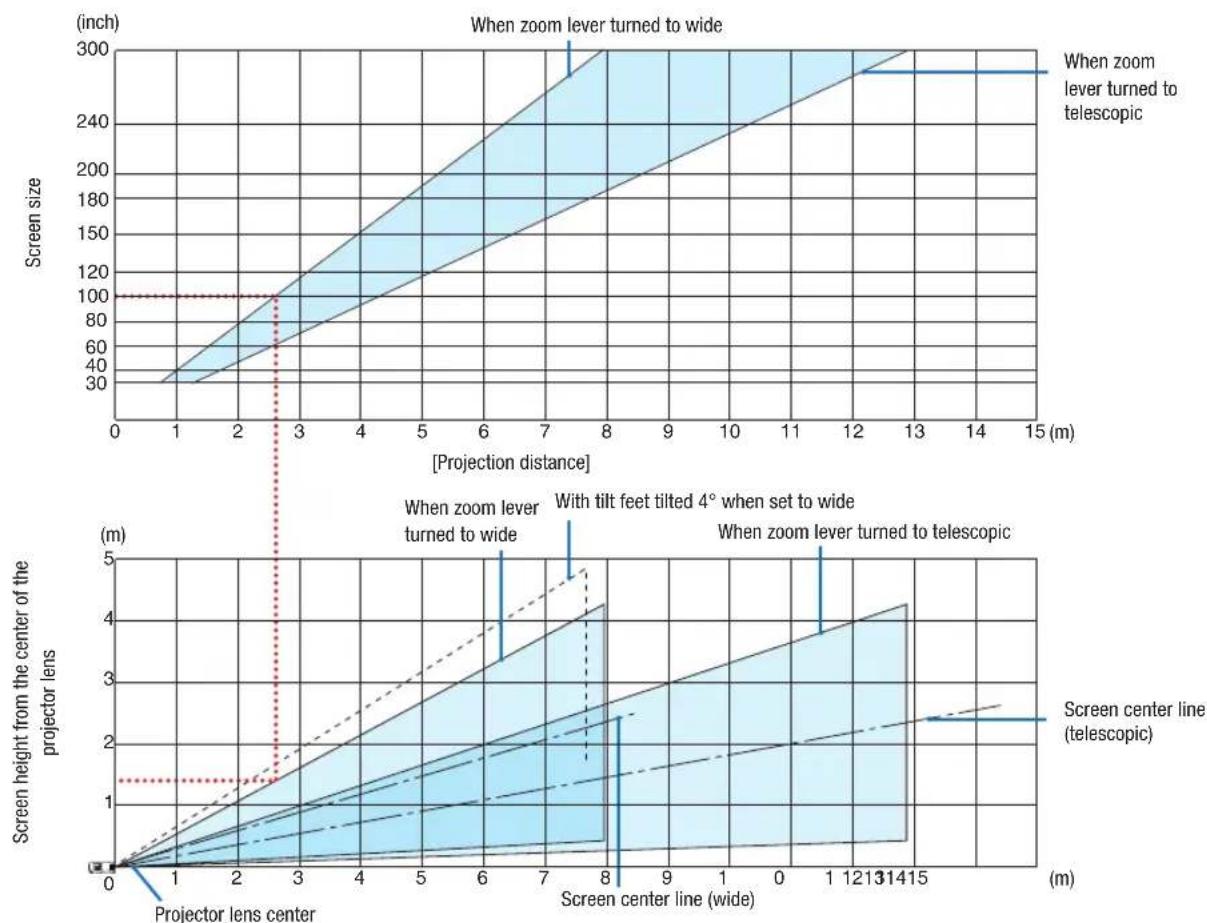
line
| Projection distance (m) | Screen size (inch) | Screen height from projector lens (m) | | ----------------------- | ------------------ | ------------------------------------- | | 0 | 30 | 0 | | 1 | 40 | 0 | | 2 | 60 | 0 | | 3 | 80 | 0 | | 4 | 100 | 0 | | 5 | 120 | 0 | | 6 | 140 | 0 | | 7 | 160 | 0 | | 8 | 180 | 0 | | 9 | 200 | 0 | | 10 | 220 | 0 | | 11 | 240 | 0 | | 12 | 260 | 0 | | 13 | 280 | 0 | | 14 | 300 | 0 | | 15 | 320 | 0 | | - | - | - | | - | - | - | | - | - | - | | - | - | - | | - | - | - | | - | - | - | | - | - | - | | - | - | - | | - | - | - | | - | - | - | | - | - | 0 | | - | - | 1 | | - | - | 2 | | - | - | 3 | | - | - | 4 | | - | - | 5 | | - | - | 6 | | - | - | 7 | | - | - | 8 | | - | - | 9 | | - | - | 10 | | - | - | 11 | | - | - | 12 | | - | - | 13 | | - | - | 14 | | - | - | 15 | | - | - | 16 | | - | - | 18 | | - | - | 20 | | - | - | 24 | | - | - | 28 | | - | - | 32 | | - | - | 36 | | - | - | 40 | | - | - | 44 | | - | - | 50 | | - | - | 56 | | - | - | 64 | | - | - | 72 | | - | - | 80 | | - | - | 88 | | - | - | 96 | | - | - | 104 | | - | - | 112 | | - | - | 120 | | - | - | 128 | | - | - | 136 | | - | - | 144 | | - | - | 152 | | - | - | 160 | | - | - | 178 | | - | - | 196 | | - | - | 224 | | - | - | 260 | | - | - | 308 | | - | - | 364 | | - | - | 420 | | - | - | 484 | | - | - | 548 | | - | - | 616 | | - | - | 688 | | - | - | 768 | | - | - | 840 | | - | - | 912 | | - | - | 984 | | - | - | 1060 | | - | - | 1132 | | - | - | 1212 | | - | - | 1292 | | - | - | 1372 | | - | - | 1452 | | - | - | 1600 | | - | - | 1780 | | - | - | 2040 | | - | - | 2400 | | - | - | 2840 | | - | - | 3280 | | - | - | 3840 | | - | - | 4400 | | - | - | 5080 | | - | - | 5760 | | - | - | 6480 | | - | - | 7200 | | - | - | 7920 | | - | - | 8640 | | - | - | 9280 | | - | - | 9920 | | - | - | 10600 | | - | - | 11280 | | - | - | 11960 | | - | - | 12660 | | - | - | 13360 | | - | - | 14060 | | - | - | 14760 | | – | +∞ | +∞ | | +∞ = ∞ +∞ +∞ +∞ +∞ +∞ +∞ +∞ +∞ +∞ +∞ +∞ +∞ +∞ +∞ +∞ +∞ +∞ +∞ +∞ +∞ +∞ +∞ +∞ +∞ +∞ +∞ +∞ +∞ +∞ +∞ +∞ +∞ +∞ +∞ +∞ +∞ / ∞ | The chart displays two subplots with different line styles representing different scenarios. The top subplot is a line graph showing the evolution of screen size over time, while the bottom subplot is a line graph showing the evolution of screen height over time. Both plots share the same axes and show the same line style for each scenario. The data points are labeled with the corresponding values. The chart title indicates that the chart is divided into two sections: “When zoom lever turned to wide” and “With tilt feet tilted 4° when set to wide”. The legend defines the lines as “When zoom lever turned to wide”, “With tilt feet tilted 4° when set to wide”, and “When zoom lever turned to telescopic”. The x-axis represents “Projection distance (m)” and the y-axis represents “Screen center line (wide)” and “Screen height from projector lens (m)” respectively. The data points are annotated with their respective line styles and labels. The chart is saved as a PNG file named “projector lens center” and “screen center line (wide)”.* The figures indicated for “height of screen from projector lens center” on the projection distance table are for a lens shift of 55% V.
[Reading the Table]
From the upper table on this page, to project wide images on a 100 screen, install at about 2.6 m from the front. Also, from the lower table we can see that about 1.3 m are required from the projector's lens center to the upper edge of the screen. Use this to see whether or not enough height can be provided from the projector to the ceiling and for installing the screen. The diagram shows the projection distance when the projector is installed horizontally. The projected image can be moved up and down, left and right using the lens shift function. (→ page 16)
The projection distance range at which focusing is possible is 0.8 m (for a 30 model) to 13.5 m (for a 300 model). Install within this range.
[P554W/P474W]
![NEC P603X - [Reading the Table] - 1](/content/2026/05/867344/images/6b65d8c7a9883f9fa2a89d249391093be958ae461d70962225945548d0427e1c.jpg)
line
| Projection distance (m) | Screen size (inch) - When zoom lever turned to wide | Screen size (inch) - When zoom lever turned to telescopic | Screen height from the center of the projector lens (m) - Projector lens center | Screen height from the center of the projector lens (m) - Screen center line (wide) | | ------------------------ | -------------------------------------------------- | ---------------------------------------------------------- | ----------------------------------------------------------------------------- | --------------------------------------------------------------------------------------------- | | 0 | 30 | 30 | 0 | 0 | | 2 | 100 | 100 | 1.5 | 1.5 | | 3 | 150 | 150 | 2.5 | 2.5 | | 8 | 300 | 300 | 4.5 | 4.5 | | 12 | 300 | 300 | 2.5 | 2.5 | | 16 | 300 | 300 | 2.5 | 2.5 |* The figures indicated for “height of screen from projector lens center” on the projection distance table are for a lens shift of 55% V.
[Reading the Table]
From the upper table on this page, to project wide images on a 100 screen, install at about 2.7 m from the front. Also, from the lower table we can see that about 1.3 m are required from the projector's lens center to the upper edge of the screen. Use this to see whether or not enough height can be provided from the projector to the ceiling and for installing the screen. The diagram shows the projection distance when the projector is installed horizontally. The projected image can be moved up and down, left and right using the lens shift function. (→ page 16)
The projection distance range at which focusing is possible is 0.8 m (for a 30 model) to 13.8 m (for a 300 model). Install within this range.
[P604X/P603X]
![NEC P603X - [Reading the Table] - 1](/content/2026/05/867344/images/609fb593a3ce37b3d2973d480eb920e4698c737d21a6517d4a90d182f09cdc7d.jpg)
* The figures indicated for "height of screen from projector lens center" on the projection distance table are for a lens shift of 50% V.
[Reading the Table]
From the upper table on this page, to project wide images on a 100 screen, install at about 2.7m from the front. Also, from the lower table we can see that about 1.5m are required from the projector's lens center to the upper edge of the screen. Use this to see whether or not enough height can be provided from the projector to the ceiling and for installing the screen. The diagram shows the projection distance when the projector is installed horizontally. The projected image can be moved up and down, left and right using the lens shift function. ( page 16)
Tables of screen sizes and dimensions
[P554U/P474U/P554W/P474W]
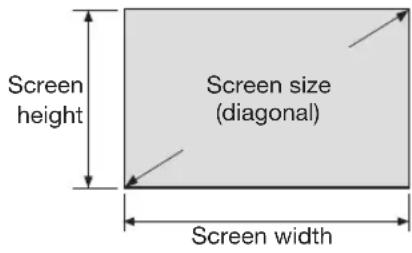
text_image
Screen height Screen size (diagonal) Screen width| Size (inches) | Screen width Screen height | |||
| (inches) (cm) (inches) (cm) | ||||
| 30 25.4 64.6 | 15.9 | 40.4 | ||
| 40 33.9 86.2 | 21.2 | 53.8 | ||
| 60 50.9 129.2 | 31.8 | 80.8 | ||
| 80 67.8 172.3 | 42.4 | 107.7 | ||
| 100 84.8 215.4 | 53.0 | 134.6 | ||
| 120 101.8 258.5 | 63.6 | 161.5 | ||
| 150 123.3 313.1 | 79.5 | 201.9 | ||
| 200 169.6 430.8 | 106.0 | 269.2 | ||
| 240 203.5 516.9 | 127.2 | 323.1 | ||
| 300 254.4 646.2 | 159.0 | 403.9 | ||
[P604X/P603X]
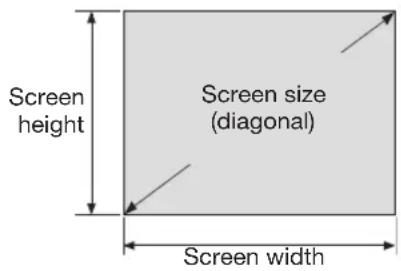
text_image
Screen height Screen size (diagonal) Screen width| Size (inches) | Screen width Screen height | |||
| (inches) (cm) (inches) (cm) | ||||
| 30 24.0 61.0 | 18.0 45.7 | |||
| 40 32.0 81.3 | 24.0 61.0 | |||
| 60 48.0 121.9 | 36.0 91.4 | |||
| 80 64.0 162.6 | 48.0 121.9 | |||
| 100 80.0 203.2 | 60.0 152.4 | |||
| 120 96.0 243.8 | 72.0 182.9 | |||
| 150 120.0 304.8 | 90.0 228.6 | |||
| 200 160.0 406.4 | 120.0 304.8 | |||
| 240 192.0 487.7 | 144.0 365.8 | |||
| 300 240.0 609.6 | 180.0 457.2 | |||
Example of installation on a desktop
The diagram below shows an example of when the projector is used on a desktop.
Horizontal projection position: Equal distance to the left and right from the center of the lens
Vertical projection position: (see table below)
[P554U/P474U]
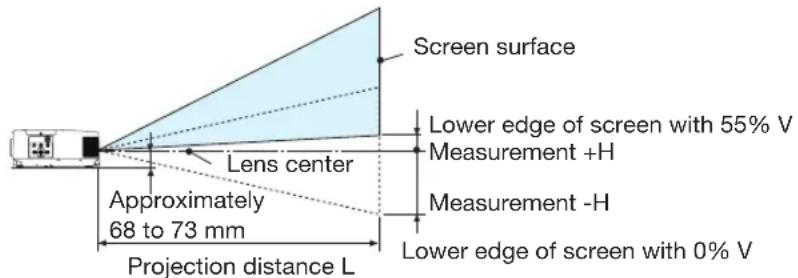
text_image
Screen surface Lower edge of screen with 55% V Measurement +H Lens center Measurement -H Approximately 68 to 73 mm Projection distance L Lower edge of screen with 0% V(Note) Height from lens center to lower edge of screen (with tilt feet screwed in)
| Screen size (inches) | Throw distance L Height H | |||||
| Wide Tele 0%V - 55%V | ||||||
| (inches) (m) (inches) | (m) (inches) (cm) | |||||
| 30 | 30 | 0.75 | 49 | 1.25 | -8.0 - +0.9 | -20.2 - +2.2 |
| 40 | 40 | 1.02 | 66 | 1.68 | -10.6 - +1.2 | -26.9 - +3.0 |
| 60 | 61 | 1.55 | 100 | 2.54 | -15.9 - +1.8 | -40.4 - +4.5 |
| 80 | 82 | 2.09 | 134 | 3.40 | -21.2 - +2.4 | -53.8 - +6.0 |
| 100 | 103 | 2.62 | 168 | 4.26 | -26.5 - +3.0 | -67.3 - +7.5 |
| 120 | 124 | 3.15 | 202 | 5.12 | -31.8 - +3.5 | -80.8 - +9.0 |
| 150 | 156 | 3.95 | 253 | 6.42 | -39.8 - +4.4 | -101.0 - +11.2 |
| 180 | 187 | 4.75 | 303 | 7.71 | -47.7 - +5.3 | -121.2 - +13.5 |
| 200 | 208 | 5.29 | 337 | 8.57 | -53.0 - +5.9 | -134.6 - +15.0 |
| 240 | 250 | 6.35 | 405 | 10.29 | -63.6 - +7.0 | -161.5 - +17.9 |
| 300 | 313 | 7.95 | 507 | 12.88 | -79.5 - +8.8 | -201.9 - +22.4 |
[P554W/P474W]
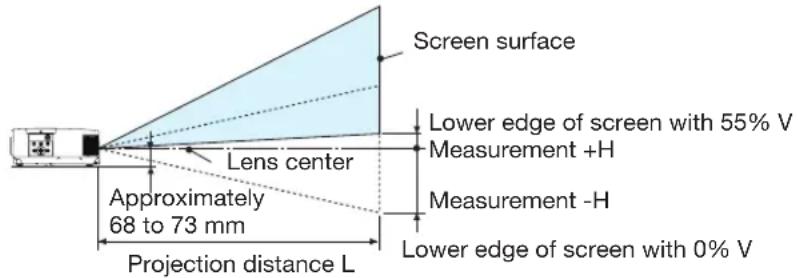
text_image
Screen surface Lower edge of screen with 55% V Measurement +H Lens center Measurement -H Approximately 68 to 73 mm Projection distance L Lower edge of screen with 0% V(Note) Height from lens center to lower edge of screen (with tilt feet screwed in)
| Screen size (inches) | Throw distance L Height H | |||||
| Wide Tele 0%V - 55%V | ||||||
| (inches) (m) (inches) | (m) (inches) (cm) | |||||
| 30 | 29 | 0.74 | 50 | 1.28 | -8.0 - +0.9 | -20.2 - +2.2 |
| 40 | 40 | 1.01 | 68 | 1.73 | -10.6 - +1.2 | -26.9 - +3.0 |
| 60 | 61 | 1.55 | 104 | 2.63 | -15.9 - +1.8 | -40.4 - +4.5 |
| 80 | 83 | 2.10 | 139 | 3.53 | -21.2 - +2.4 | -53.8 - +6.0 |
| 100 | 104 | 2.64 | 175 | 4.44 | -26.5 - +3.0 | -67.3 - +7.5 |
| 120 | 125 | 3.18 | 210 | 5.34 | -31.8 - +3.5 | -80.8 - +9.0 |
| 150 | 157 | 4.00 | 263 | 6.69 | -39.8 - +4.4 | -101.0 - +11.2 |
| 180 | 190 | 4.82 | 317 | 8.05 | -47.7 - +5.3 | -121.2 - +13.5 |
| 200 | 211 | 5.36 | 352 | 8.95 | -53.0 - +5.9 | -134.6 - +15.0 |
| 240 | 254 | 6.45 | 423 | 10.76 | -63.6 - +7.0 | -161.5 - +17.9 |
| 300 | 318 | 8.08 | 530 | 13.46 | -79.5 - +8.8 | -201.9 - +22.4 |
[P604X/P603X]
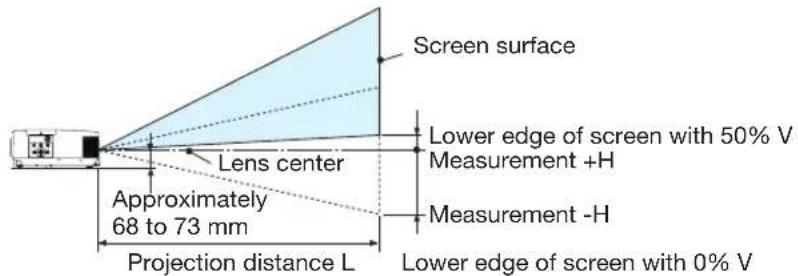
text_image
Screen surface Lower edge of screen with 50% V Measurement +H Lens center Measurement -H Approximately 68 to 73 mm Projection distance L Lower edge of screen with 0% V(Note) Height from lens center to lower edge of screen (with tilt feet screwed in)
| Screen size (inches) | Throw distance L Height H | |||||
| Wide Tele 0%V - 50%V | ||||||
| (inches) (m) (inches) | (m) (inches) (cm) | |||||
| 30 30 0.75 51 | 1.31 -9.0 | - +0 | -22.9 | - +0 | ||
| 40 41 1.03 70 | 1.77 -12.0 | - +0 | -30.5 | - +0 | ||
| 60 | 63 | 1.59 | 106 | 2.69 | -18.0 | - +0 |
| 80 84 2.15 | 142 3.61 | -24.0 | - +0 | -61.0 | - +0 | |
| 100 | 106 | 2.70 | 179 | 4.54 | -30.0 | - +0 |
| 120 | 128 | 3.26 | 215 | 5.46 | -36.0 | - +0 |
| 150 161 4.09 | 269 6.84 | -45.0 | - +0 | -114.3 | - +0 | |
| 180 194 4.93 | 324 8.23 | -54.0 | - +0 | -137.2 | - +0 | |
| 200 | 216 | 5.48 | 360 | 9.15 | -60.0 | - +0 |
| 240 | 260 | 6.59 | 433 | 11.00 | -72.0 | - +0 |
| 300 | 325 | 8.26 | 542 | 13.77 | -90.0 | - +0 |
Lens shifting range
This projector is equipped with a lens shift function ( page 16) for adjusting the image position using dials. Lens shifting is possible within the range shown below.
NOTE:
- In case lens shifted volume exceeds the below illustrated range, blur and shade may appear around ends of projected image.
Legend: V "Vertical" refers to the screen height and H "Horizontal" refers to the screen width. The lens shift range is expressed as a ratio of height and width, respectively.
[P554U/P474U/P554W/P474W]
Lens shifting range:
Vertical direction: +55%, -0%
Horizontal direction: ±15%
![NEC P603X - [P554U/P474U/P554W/P474W] - 1](/content/2026/05/867344/images/5f2b33234b861d025299fc3ff0400abe13e685777097b1c299b321556e80a3d2.jpg)
[P604X/P603X]
Lens shifting range:
Vertical direction: +50%, -0%
Horizontal direction: ±15%
![NEC P603X - [P604X/P603X] - 1](/content/2026/05/867344/images/6af93516dbf2df8397c18ae5d6cba62722ec3393a305c1d49262e394887df06e.jpg)
text_image
50%V 100%V 15%H 15%H Width of projected image Height of projected image 100%H 15%H 15%H![NEC P603X - [P604X/P603X] - 2](/content/2026/05/867344/images/d07f92b20a3f48aeaad7b8cb90ac891f6538f2725793f44f9ef39290ec50fc30.jpg)
text_image
15%H 100%H 15%H 100%V 50%V Height of projected image Width of projected image 15%H 15%H(Example) When using to project on a 150" screen
[P554U/P474U/P554W/P474W]
According to the "Tables of screen sizes and dimensions" (→ page 88), H = 127"/323 cm, V = 79"/201.9 cm.
Adjustment range in the vertical direction: the projected image can be moved upwards 0.55 × 79''/201.9 cm ≈ 43.5"/111 cm (when the lens is at the center position).
Adjustment range in the horizontal direction: the projected image can be moved to the left 0.15 × 127''/323 cm ≈ 19.1"/48.5 cm, to the right approximately 19.1"/48.5 cm.
[P604X/P603X]
According to the "Tables of screen sizes and dimensions" (→ page 88), H = 120"/304.8 cm, V = 90"/228.6 cm.
Adjustment range in the vertical direction: the projected image can be moved upwards 0.5 × 90''/228.6 cm ≈ 45''/114.3 cm (when the lens is at the center position).
Adjustment range in the horizontal direction: the projected image can be moved to the left 0.15 × 120"/304.8 cm ≈ 18"/45.7 cm, to the right approximately 18"/45.7 cm.
* Figures differ by several % because the calculation is approximate.
WARNING
* Installing your projector on the ceiling must be done by a qualified technician. Contact your NEC dealer for more information.
* Do not attempt to install the projector yourself.
- Only use your projector on a solid, level surface. If the projector falls to the ground, you can be injured and the projector severely damaged.
- Do not use the projector where temperatures vary greatly. The projector must be used at temperatures between 41°F (5°C) and 104°F (40°C) (Eco mode selected automatically at 95°F to 104°F/35°C to 40°C).
- Do not expose the projector to moisture, dust, or smoke. This will harm the screen image.
- Ensure that you have adequate ventilation around your projector so heat can dissipate. Do not cover the vents on the side or the front of the projector.
Reflecting the Image
Using a mirror to reflect your projector's image enables you to enjoy a much larger image when a smaller space is required. Contact your NEC dealer if you need a mirror system. If you're using a mirror system and your image is inverted, use the MENU and ▲▼◀▶ buttons on your projector cabinet or your remote control to correct the orientation. (→ page 69)
② Making Connections
Connecting Your Computer
Computer cables, HDMI and USB can be used to connect to a computer. The connection cable is not enclosed with the projector. Please get ready a suitable cable for the connection.
NOTE: Signals supported by Plug & Play (DDC2)
| INPUT | ||
| COMPUTER IN HD | MI 1 IN HDMI 2 IN | |
| analog digital | digital | |
| Yes Yes Yes | ||
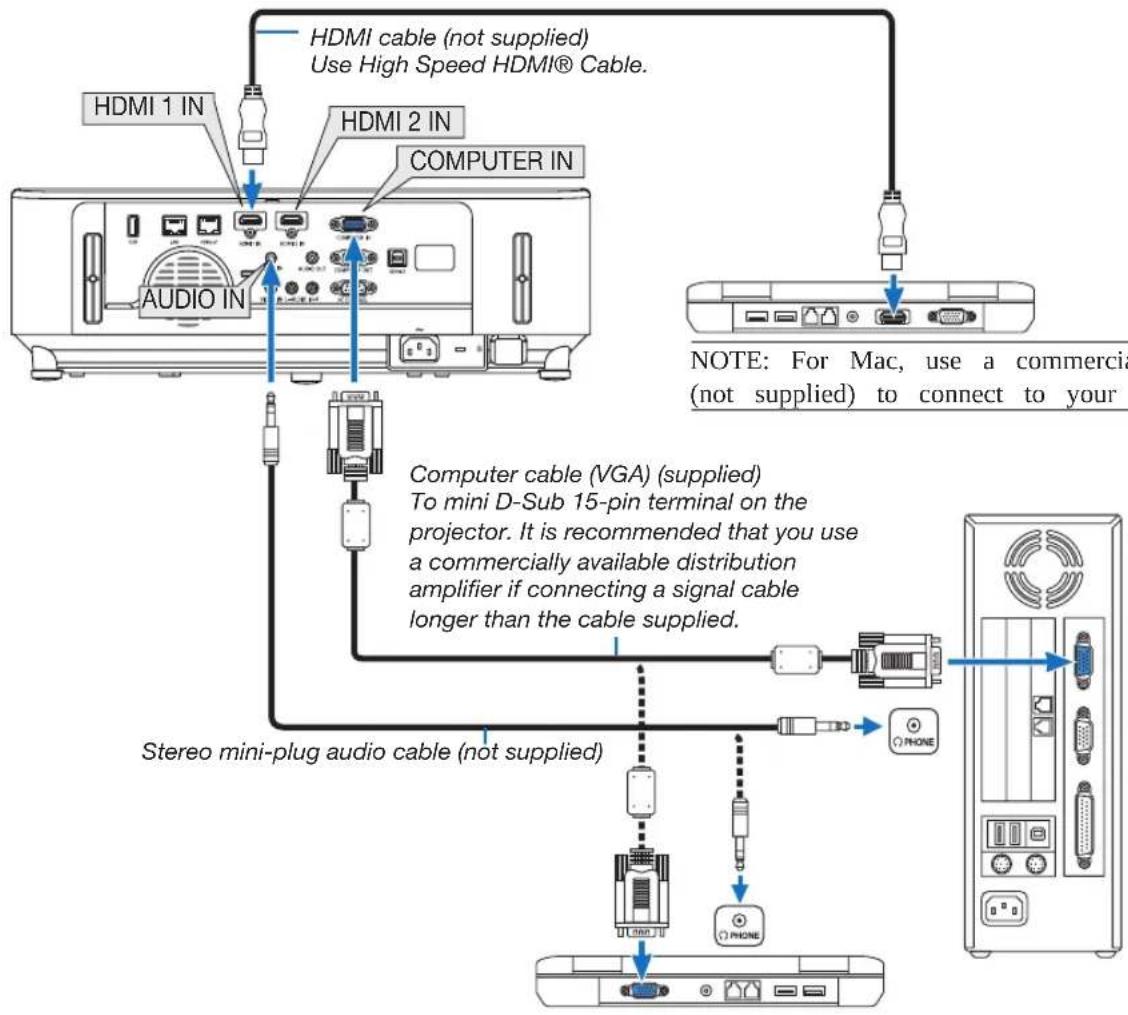
text_image
HDMI cable (not supplied) Use High Speed HDMI® Cable. HDMI 1 IN HDMI 2 IN COMPUTER IN AUDIO IN NOTE: For Mac, use a commercial (not supplied) to connect to your Computer cable (VGA) (supplied) To mini D-Sub 15-pin terminal on the projector. It is recommended that you use a commercially available distribution amplifier if connecting a signal cable longer than the cable supplied. Stereo mini-plug audio cable (not supplied)- Select the source name for its appropriate input terminal after turning on the projector.
| Input terminal | SOURCE button on the projector cabinet | Button on the remote control |
| COMPUTER IN | (COMPUTER 1) | |
| HDMI 1 IN | ||
| HDMI 2 IN |
NOTE: The projector is not compatible with video decoded outputs of the NEC ISS-6020 switcher.
NOTE: An image may not be displayed correctly when a Video source is played back via a commercially available scan converter. This is because the projector will process a video signal as a computer signal at the default setting. In that case, do the following.
* When an image is displayed with the lower and upper black portion of the screen or a dark image is not displayed correctly: Project an image to fill the screen and then press the AUTO ADJ. button on the remote control or the projector cabinet.
Enabling the computer's external display
Displaying an image on the notebook PC's screen does not necessarily mean it outputs a signal to the projector.
When using a PC compatible laptop, a combination of function keys will enable/disable the external display.
Usually, the combination of the “Fn” key along with one of the 12 function keys gets the external display to come on or off. For example, NEC laptops use Fn + F3, while Dell laptops use Fn + F8 key combinations to toggle through external display selections.
Cautions when using a DVI signal
- When the computer has a DVI output terminal, use a commercially available converter cable to connect the computer to the projector's HDMI 1 or HDMI 2 input terminal (only digital video signals can be input).
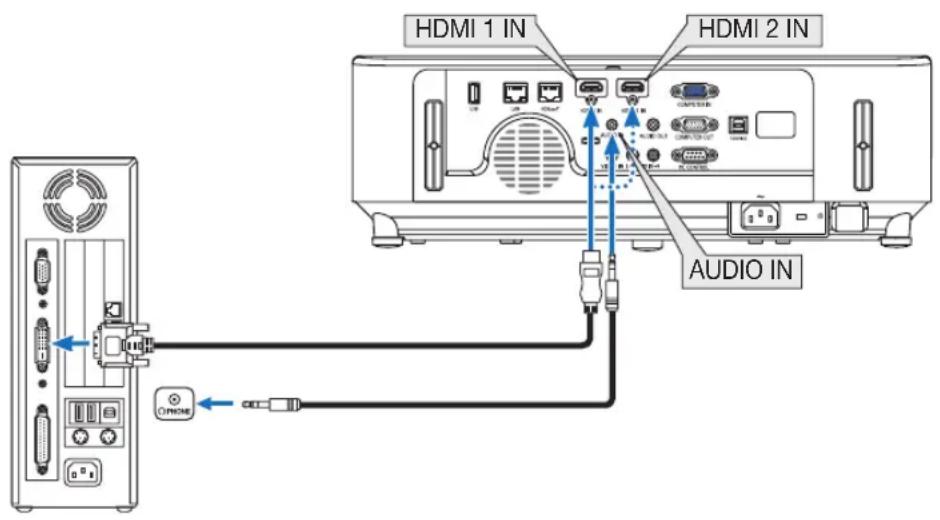
text_image
HDMI 1 IN HDMI 2 IN AUDIO IN OPHOMENOTE: When Viewing a DVI Digital Signal
• Turn off the power of the computer and projector before connecting.
- When a video deck is connected via a scan converter, etc., the display may not be correct during fast-forwarding and rewinding.
- Use a DVI-to-HDMI cable compliant with DDWG (Digital Display Working Group) DVI (Digital Visual Interface) revision 1.0 standard. The cable should be within 197"/5 m long.
• Turn off the projector and the PC before connecting the DVI-to-HDMI cable.
- To project a DVI digital signal: Connect the cables, turn the projector on, then select the HDMI input. Finally, turn on your PC. Failure to do so may not activate the digital output of the graphics card resulting in no picture being displayed. Should this happen, restart your PC.
- Do not disconnect the DVI-to-HDMI cable while the projector is running. If the signal cable has been disconnected and then reconnected, an image may not be correctly displayed. Should this happen, restart your PC.
• The COMPUTER video input terminals support Windows Plug and Play.
- A Mac signal adapter (commercially available) may be required to connect a Mac computer.
Connecting an External Monitor
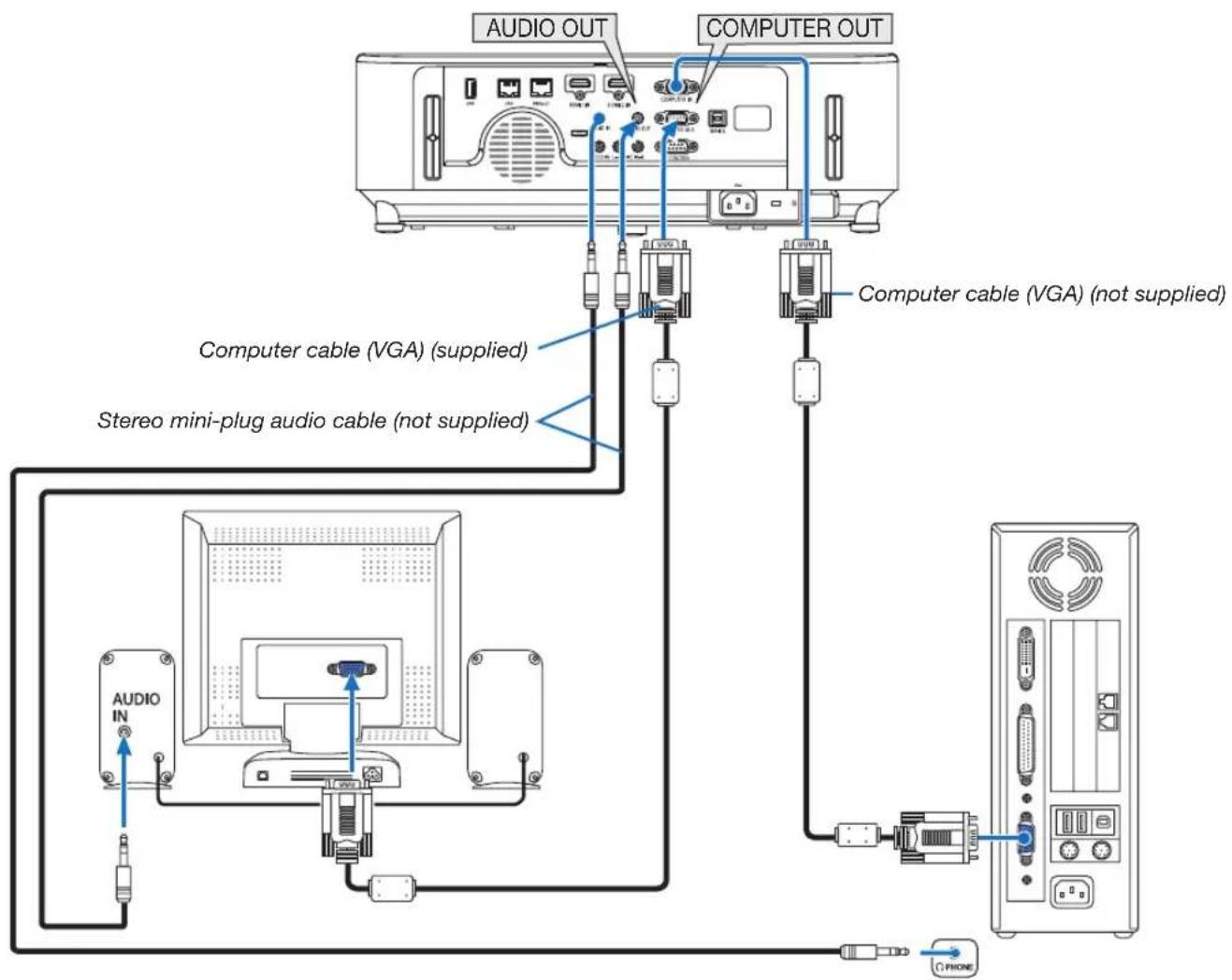
text_image
AUDIO OUT COMPUTER OUT Computer cable (VGA) (supplied) Stereo mini-plug audio cable (not supplied) AudiO IN C PHONEYou can connect a separate, external monitor to your projector to simultaneously view on a monitor the computer analog image you're projecting.
NOTE:
• The AUDIO OUT jack does not support headphone terminal.
- When audio equipment is connected, the projector speaker is disabled.
• The signal output from the COMPUTER OUT of this projector is for projecting image on exclusive one display.
- When no signal is applied over 3 minutes in the condition of projector standby when NETWORK STANDBY is set in the Standby mode, output from the COMPUTER OUT or AUDIO OUT terminal will be stopped. In this case pull out the computer cable and set it back after inputting video signal
Monitor out and sleep mode:
• The COMPUTER OUT terminal will not work when [NORMAL] is selected for [STANDBY MODE].
The COMPUTER OUT terminal will work only in the sleep mode.
Applying a signal from the COMPUTER IN terminal will put the projector in the sleep mode, which allows you to use the COMPUTER OUT terminal and the AUDIO OUT mini jack.
The sleep mode is one of the standby modes. The sleep mode cannot be selected from the menu.
• In the network standby mode, sound for the last viewed computer or video source will be heard.
BNC-to-COMPUTER IN terminal converted signal will not be output in the standby mode and sleep mode.
Connecting Your DVD Player or Other AV Equipment
Connecting Video Input
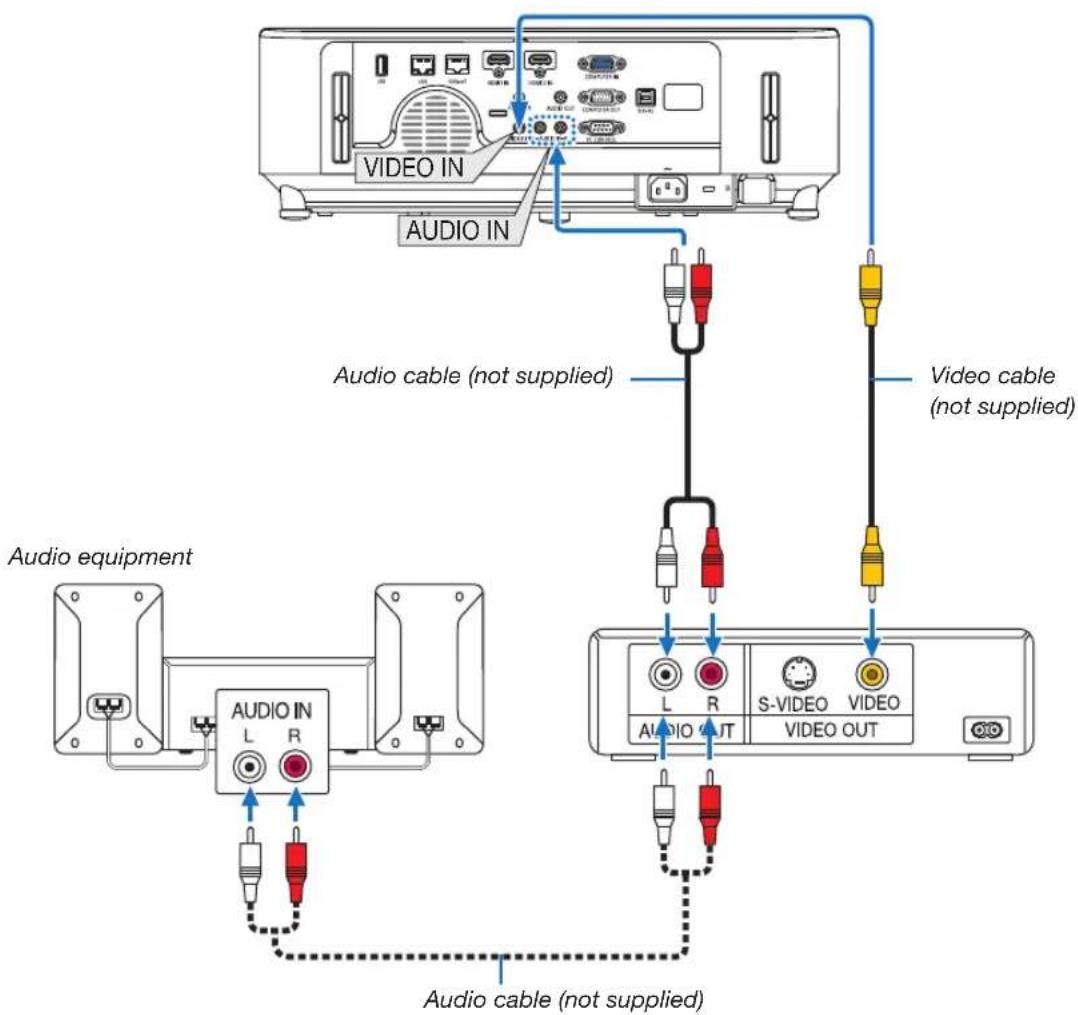
flowchart
graph TD
    A["VIDEO IN"] --> B["Audio IN"]
    B --> C["Audio cable (not supplied)"]
    C --> D["Audio equipment"]
    D --> E["Audio IN L R"]
    E --> F["Audio cable (not supplied)"]
    F --> G["Video OUT"]
    G --> H["L S-VIDEO VIDEO"]
    H --> I["Audio OUT"]
    style A fill:#f9f,stroke:#333
    style B fill:#ccf,stroke:#333
    style C fill:#cfc,stroke:#333
    style D fill:#fcc,stroke:#333
    style E fill:#cff,stroke:#333
    style F fill:#ffc,stroke:#333
    style G fill:#cfc,stroke:#333
    style H fill:#fcc,stroke:#333
    style I fill:#ffc,stroke:#333
- Select the source name for its appropriate input terminal after turning on the projector.
| Input terminal | SOURCE button on the projector cabinet | Button on the remote control |
| VIDEO IN | ∅VIDEO | (VIDEO) |
NOTE: Refer to your VCR owner's manual for more information about your equipment's video output requirements.
NOTE: An image may not be displayed correctly when a Video source is played back in fast-forward or fast-rewind via a scan converter.
Connecting Component Input
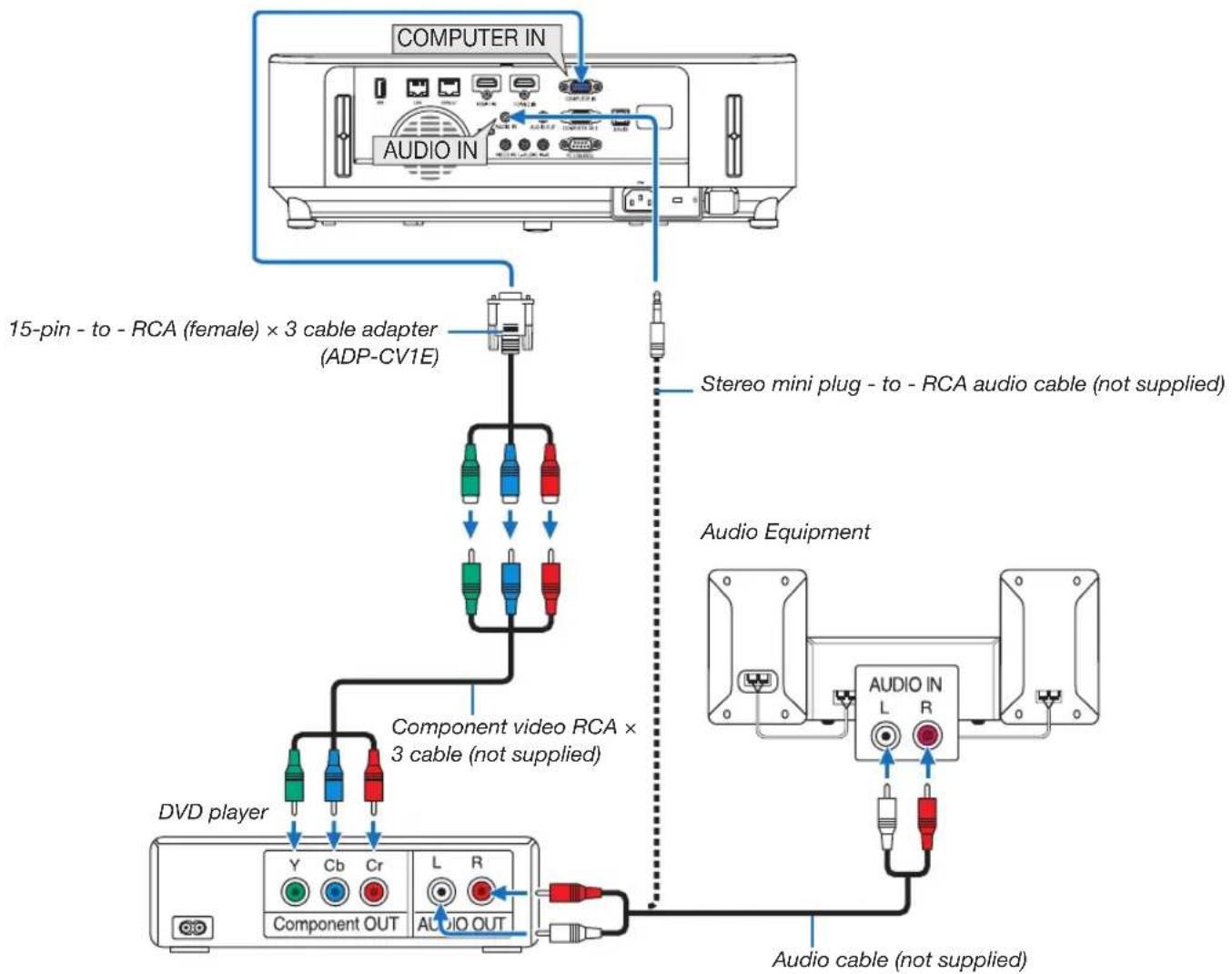
flowchart
graph TD
    A["COMPUTER IN"] --> B["AUDIO IN"]
    B --> C["15-pin - to - RCA (female) × 3 cable adapter (ADP-CV1E)"]
    C --> D["Component video RCA × 3 cable (not supplied)"]
    D --> E["DVD player"]
    E --> F["Component OUT"]
    F --> G["Audio OUT"]
    G --> H["Audio cable (not supplied)"]
    H --> I["Audio Equipment"]
    I --> J["Stereo mini plug - to - RCA audio cable (not supplied)"]
A component signal will be automatically displayed. If not, from the menu, select [SETUP] → [OPTIONS(1)] → [SIGNAL SELECT] → [COMPUTER], and then place a check mark in the Component radio button.
- Select the source name for its appropriate input terminal after turning on the projector.
| Input terminal | SOURCE button on the projector cabinet | Button on the remote control |
| COMPUTER IN | (COMPUTER 1) |
NOTE: Refer to your DVD player's owner's manual for more information about your DVD player's video output requirements.
Connecting HDMI Input
You can connect the HDMI output of your DVD player, hard disk player, Blu-ray player, or notebook type PC to the HDMI IN terminal of your projector.
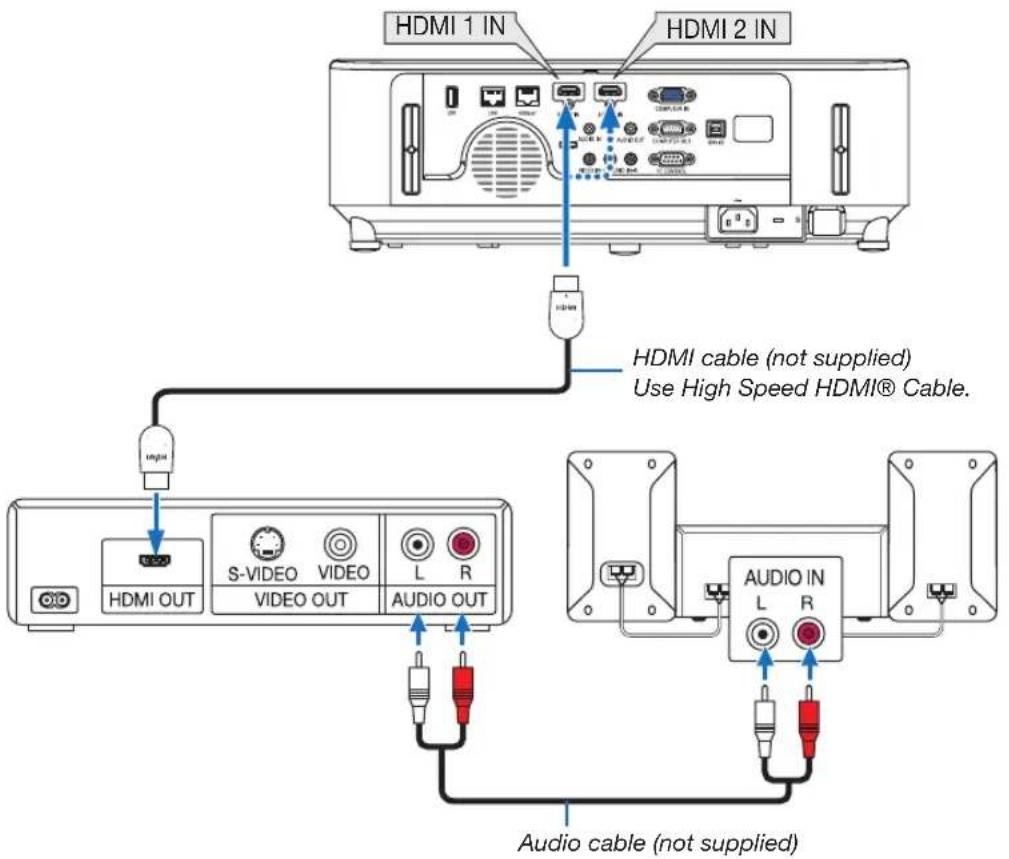
text_image
HDMI 1 IN HDMI 2 IN HDMI cable (not supplied) Use High Speed HDMI® Cable. HDMI OUT S-VIDEO VIDEO VIDEO OUT L R AUDIO OUT AUDIO IN L R Audio cable (not supplied)- Select the source name for its appropriate input terminal after turning on the projector.
| Input terminal | SOURCE button on the projector cabinet | Button on the remote control |
| HDMI 1 IN | ||
| HDMI 2 IN |
- When connecting the HDMI1 IN terminal (or HDMI2 terminal) of the projector to the DVD player, the projector's video level can be made settings in accordance with the DVD player's video level. In the menu select [HDMI SETTINGS] → [VIDEO LEVEL] and make necessary settings.
- If the HDMI input sound cannot be heard, in the menu select [AUDIO SELECT] → [HDMI1] or [HDMI2]. (→ page 73)
Connecting to a Wired LAN
The projector comes standard with a LAN port (RJ-45) which provides a LAN connection using a LAN cable. To use a LAN connection, you are required to set the LAN on the projector menu. Select [SETUP] → [WIRED LAN]. (→ page 77).
Example of LAN connection
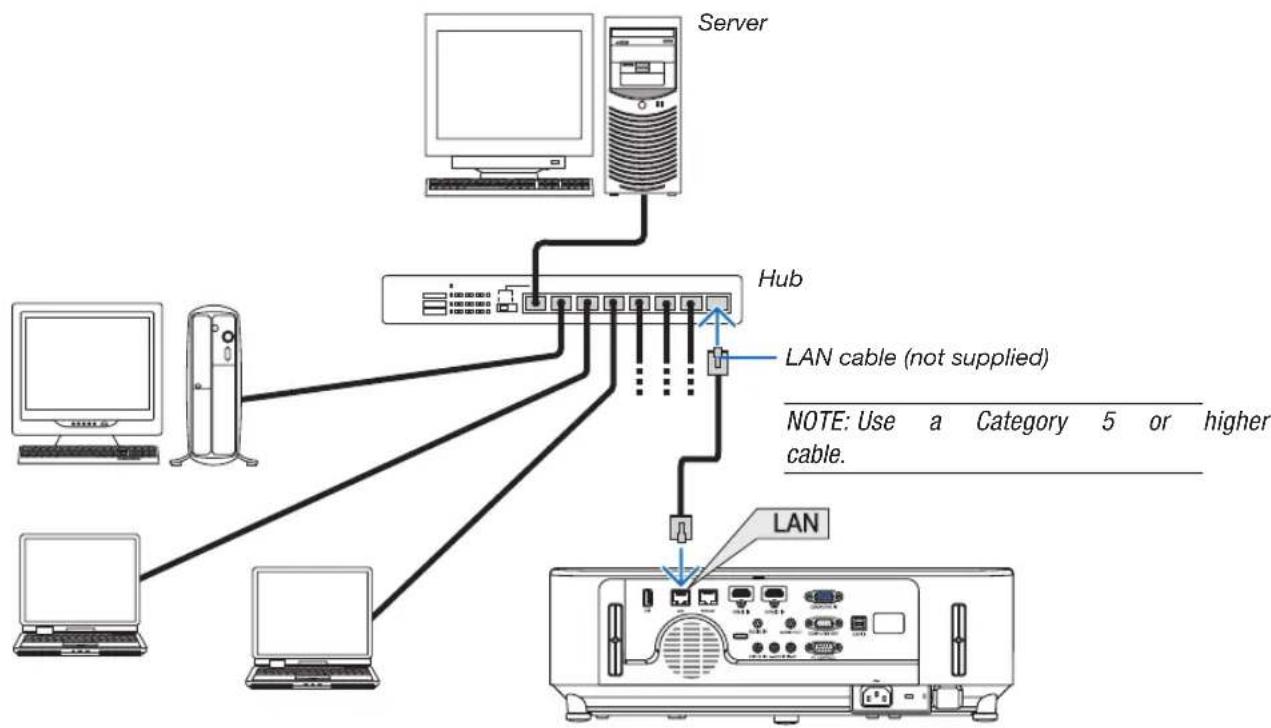
flowchart
graph TD
    Server["Server"] --> Hub["Hub"]
    Hub -->|LAN cable (not supplied)| Node1["Node"]
    Node1 -->|NOTE: Use a Category 5 or higher cable.| Device1["Device"]
    Node1 -->|LAN| Device2["Device"]
    Device1 -->|TCP| Server1["Server"]
    Device2 -->|TCP| Server2["Server"]
    Server1 -->|TCP| Server3["Server"]
    Server2 -->|TCP| Server4["Server"]
Connecting to a Wireless LAN (Optional: NP05LM series)
The USB Wireless LAN Unit also provides a wireless LAN connection. To use a wireless LAN connection, you are required to assign an IP address to the projector.
Important:
- If you use the projector with the USB Wireless LAN Unit in the area where the use of wireless LAN equipment is prohibited, remove the USB Wireless LAN Unit from the projector.
• Buy the appropriate USB Wireless LAN Unit for your country or area.
NOTE:
- Your computer's wireless LAN adapter (or unit) must be complied with Wi-Fi (IEEE 802.11a/b/g/n) standard.
Attaching the USB Wireless LAN Unit
NOTE:
- The USB Wireless LAN Unit must be inserted into the USB Wireless LAN Unit port in the correct direction. It cannot be inserted in the reverse direction. If the USB Wireless LAN Unit is inserted in the reverse direction with excessive force applied, the USB port may break.
- Before touching the USB Wireless LAN Unit, touch a metallic object (such as a door knob or aluminum window frame) to discharge the static electricity from your body.
- Always insert or remove the USB Wireless LAN unit when the main power is turned off. Failure to do so may cause projector malfunction or damage to the USB wireless LAN unit. If the projector will not work correctly, turn off the projector, disconnect the power cord, and then connect it again.
- Do not insert other USB devices into the USB (wireless LAN) port in the wireless LAN cover. Do not insert the USB Wireless LAN unit into the USB port.
NOTE: When the cable cover is attached, remove it before inserting the USB Wireless LAN Unit.
- Press the POWER button to turn off the projector and set it into standby condition, and disconnect the power cord.
- Open the filter cover.
Press down two buttons and then pull the filter cover to open it.
- Insert the wireless LAN unit into the USB (wireless LAN) port.
NOTE: Do not force to insert the USB Wireless LAN Unit.
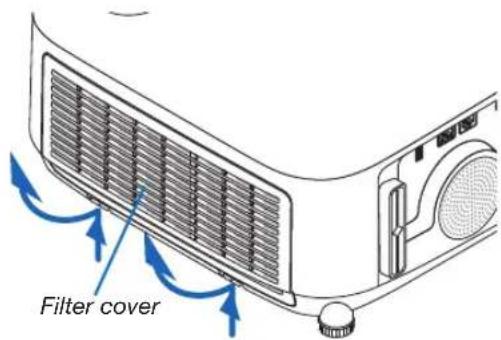
text_image
Filter cover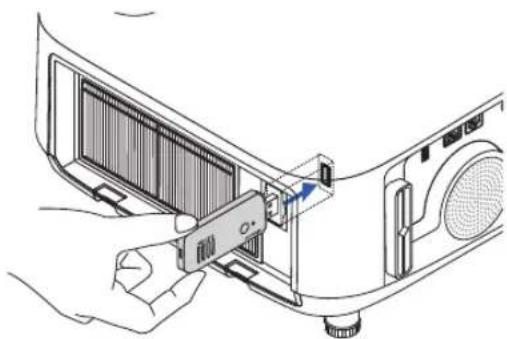
natural_image
Illustration of a hand inserting a component into a computer monitor (no text or symbols visible)4. Mount the filter cover.
Keep to push the filter cover frame around the buttons until a "click" sound is heard. The filter cover will be secured in position.
* To remove the USB Wireless LAN Unit, disconnect the power cord and use the above procedure.
NOTE:
- Do not press the button on the USB Wireless LAN Unit. The button does not work with this model.
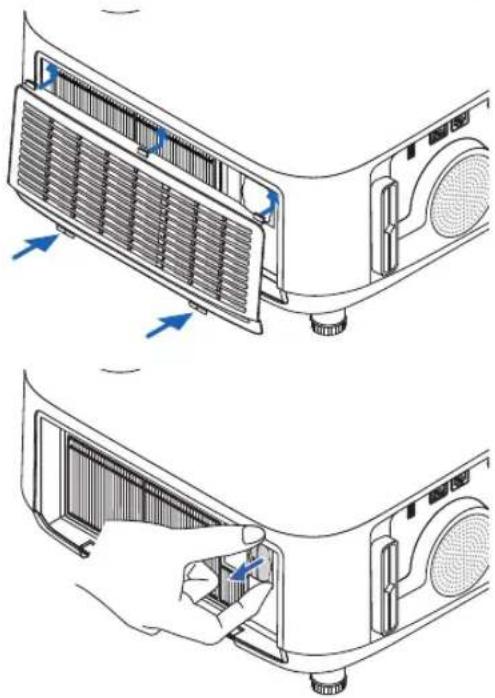
natural_image
Diagram showing two views of a projector with airflow arrows indicating direction (no text or symbols present)Connection Example (1) [SIMPLE ACCESS POINT]
Set the projector as SIMPLE ACCESS POINT for connecting to terminals as computers and smart phones.
![NEC P603X - Connection Example (1) [SIMPLE ACCESS POINT] - 1](/content/2026/05/867344/images/8f480d8ab7a37d1e483e25c1ed81e9c67cfc03f268765e4022291b1b2b4eb47a.jpg)
flowchart
graph TD
    A["USB Wireless LAN Unit"] --> B["Smartphone"]
    A --> C["Laptop"]
Connection Example (2) [INFRASTRUCTURE]
Connect the projector to wired/wireless LAN via wireless LAN access point.
![NEC P603X - Connection Example (2) [INFRASTRUCTURE] - 1](/content/2026/05/867344/images/4adc8a58b43e25afc2e07d10bbb38eeb76d7c72afd97f500b47e29cf62d8023c.jpg)
flowchart
graph TD
    A["USB Wireless LAN Unit"] --> B["Wireless access point"]
    C["Smartphone"] --> B
    D["Laptop"] --> B
    E["Laptop"] --> B
    B --> F["Wired LAN"]
- Connect a computer to the projector via wired LAN. (→ page 99)
- Use the computer's browser to display the projector's HTTP server. (→ page 36)
- Use an HTTP server to set the wireless LAN. (→ page 39)
Select either [SIMPLE ACCESS POINT] or [INFRASTRUCTURE] for [WIRELESS] in [SETTINGS] of [NETWORK SETTINGS] and then perform detail settings in [SETTING].
- Click [APPLY] to connect to the wireless LAN.
NOTE:
- To use the HTTP server function, the projector must be connected to a network. First, connect the projector to a network by the wired LAN and then perform required settings for the wireless LAN on the HTTP server.
- If network conflict is occurred, the STATUS Indicator starts to blink in orange. In this case, change the IP address.
If you want to change the wireless LAN setting on the projector after setting it on the HTTP server, perform setting change on the on-screen menu. (→ page 78)
Connecting to a HDBaseT transmission device (sold commercially) (not supported by P603X)
HDBaseT is a connection standard for home appliances that is established by the HDBaseT Alliance.
Use a LAN cable sold commercially to connect the HDBaseT port of the projector (RJ-45) to a HDBaseT transmission device sold commercially.
Control signals (serial and LAN) and remote control signals (IR commands) from an external device are only supported when the projector's power is turned on.
Connection example
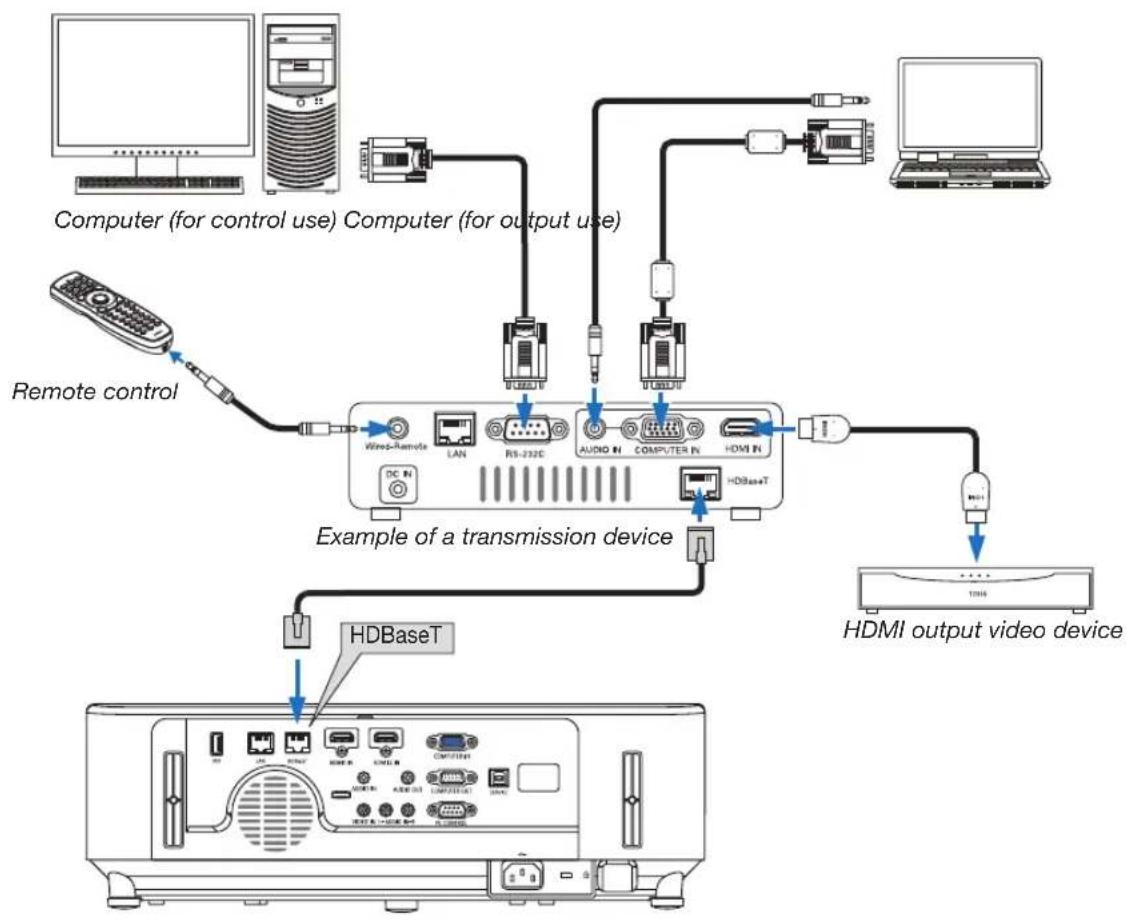
flowchart
graph TD
    A["Computer (for control use)"] --> B["Remote control"]
    B --> C["Example of a transmission device"]
    C --> D["HDBaseT"]
    D --> E["HDMI output video device"]
    C --> F["Wire-Remote LAN RS-232C AUDIO IN COMPUTER IN HDMI IN"]
    F --> G["Computer (for output use)"]
    G --> H["Computer"]
    C --> I["TDI5"]
    C --> J["TDI6"]
NOTE:
- Please use a shielded twisted pair (STP) cable of Category 5e or higher for the LAN cable (sold commercially).
• The maximum transmission distance over the LAN cable is 100 m. - Please do not use other transmission devices between the projector and the HDBaseT transmission device. The picture quality may be deteriorated as a result.
• This projector is not guaranteed to work with all HDBaseT transmission devices sold commercially.
TIP:
- With the projector's HDBaseT port, remote control is not available when the projector is in the standby mode (serial communications is not available). (Remote control becomes available when the projector's power is on). The 2 (two) methods below can be used to turn on the projector's power when it is in standby mode.
- The projector can be operated by connecting the computer and projector to the network (on the projector, using the LAN port with [STANDBY MODE] set to [NETWORK STANDBY]).
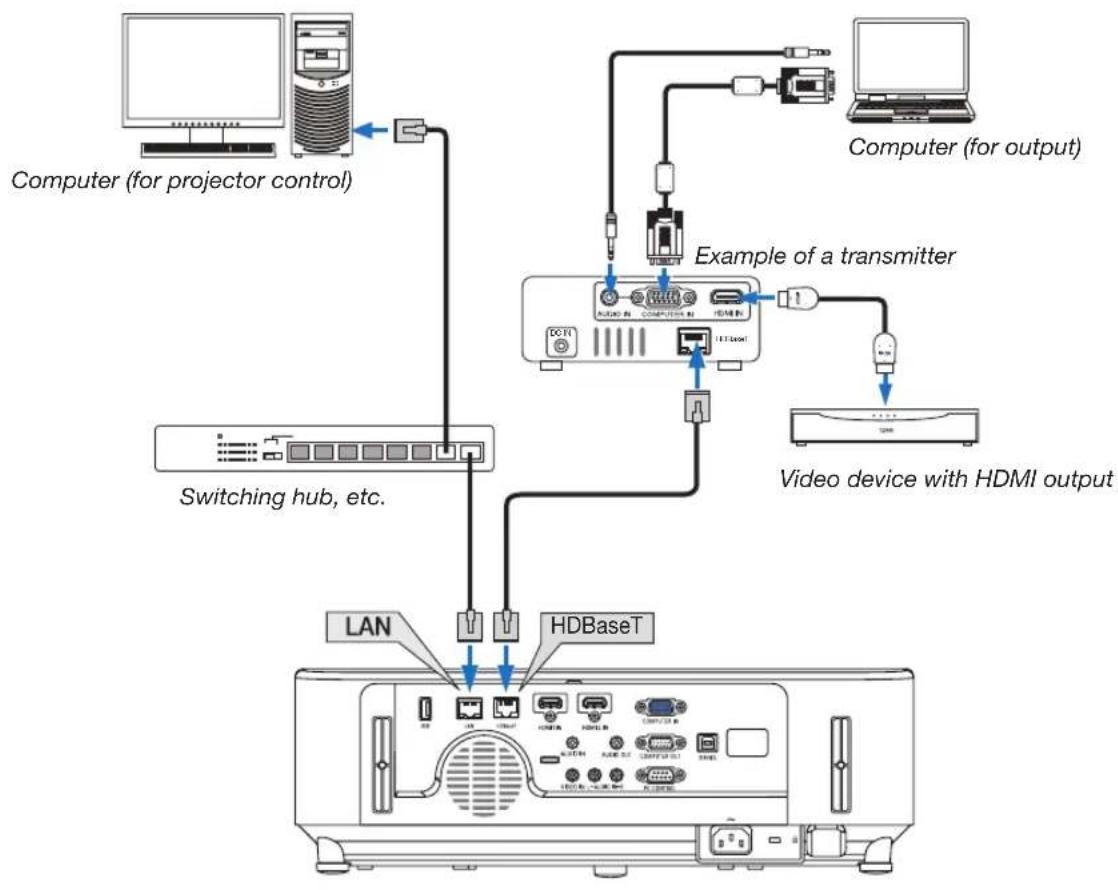
flowchart
graph TD
    A["Computer (for projector control)"] --> B["Switching hub, etc."]
    C["Computer (for output)"] --> D["Example of a transmitter"]
    D --> E["Video device with HDMI output"]
    B --> F["LAN"]
    B --> G["HDBaseT"]
    D --> H["1:1 port"]
    D --> I["1:2 port"]
    D --> J["1:3 port"]
    D --> K["1:4 port"]
- The projector can be operated by RS232C serial communication (On this projector, use the PC CONTROL terminal and the application software, PC Control Utility, and select [PC CONTROL] for the [SERIAL PORT]) with [STANDBY MODE] set to [NETWORK STANDBY].
7. Maintenance
This section describes the simple maintenance procedures you should follow to clean the filters, the lens, the cabinet, and to replace the lamp and the filters.
① Cleaning the Filters
The filter at the intake vent keeps dust and dirt from getting inside the projector. If the filter is dirty or clogged, your projector may overheat.

WARNING
- Please do not use a spray containing flammable gas to remove dust attached to the filters, etc. Doing so may result in fires.
NOTE: The message for filter cleaning will be displayed for one minute after the projector is turned on or off. When the message is displayed, clean the filters. The time to clean the filters is set to [4000 H] at time of shipment.
To cancel the message, press any button on the projector cabinet or the remote control.
To clean the filter, detach the filter unit and the filter cover.

CAUTION
- Before cleaning the filters, turn off the projector, disconnect the power cord and then allow the cabinet to cool. Failure to do so can result in electric shock or burn injuries.
- Press down two buttons and then pull the filter cover towards you to open it.
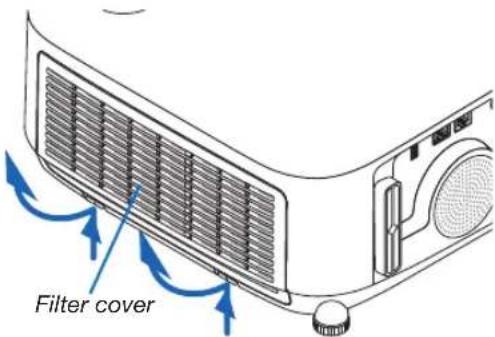
text_image
Filter cover- Pick the center of the filter unit for pulling it out.
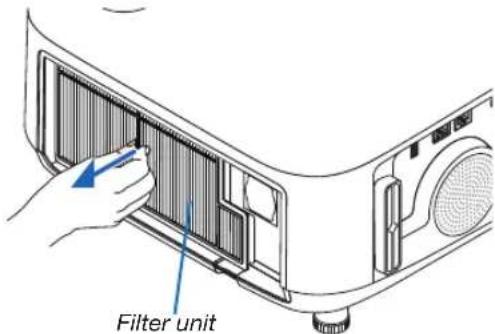
text_image
Filter unit- Vacuum dust on the front and back faces of the filter unit.
• Get rid of dust in the filter.
- Gently get rid of dust on the filter cover and in the accordion pleats of the filter.
NOTE:
- Whenever you vacuum the filter, use the soft brush to vacuum. This is to avoid damage to the filter.
- Do not wash the filter with water. Doing so can result in filter clogging.
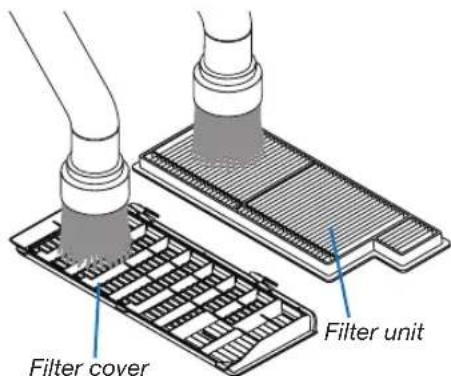
text_image
Filter cover Filter unit4. Mount the filter unit back onto the projector cabinet.
Insert the filter unit onto the projector.
5. Close the filter cover.
Keep to push the filter cover frame around the buttons until a "click" sound is heard. The filter cover will be secured in position.
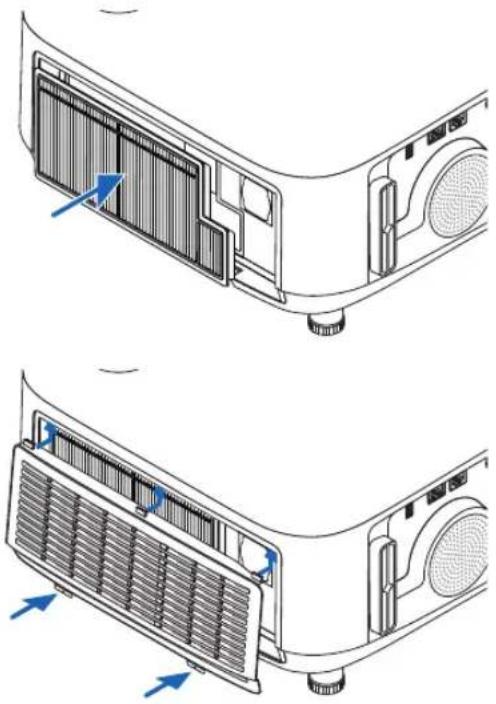
natural_image
Diagram showing two views of a projector with heat exchangers and ventilation grilles (no text or symbols)6. Clear the filter usage hours.
Plug the power cord into the wall outlet, and then turn on the projector.
From the menu, select [RESET] → [CLEAR FILTER HOURS]. (→ page 84)
The interval time to clean the filters is set to [OFF] at time of shipment. When using the projector as it is, you do not clear the filter usage.
② Cleaning the Lens
• Turn off the projector before cleaning.
- The projector has a plastic lens. Use a commercially available plastic lens cleaner.
- Do not scratch or mar the lens surface as a plastic lens is easily scratched.
- Never use alcohol or glass lens cleaner as doing so will cause damage to the plastic lens surface.

WARNING
- Please do not use a spray containing flammable gas to remove dust attached to the lens, etc. Doing so may result in fires.
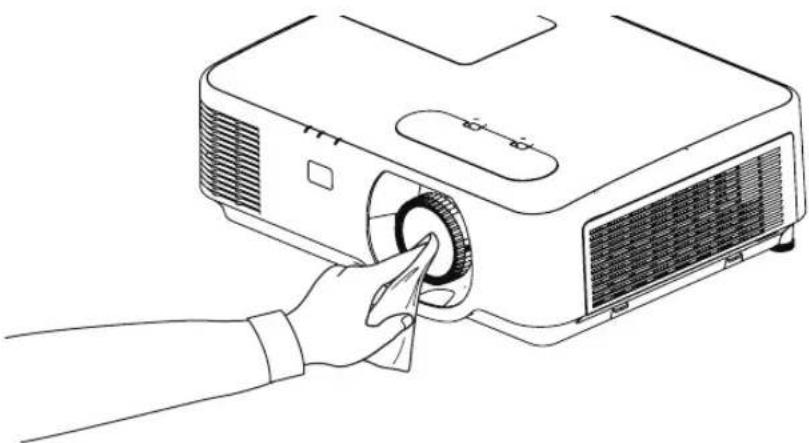
natural_image
Line drawing of a hand inserting a button into a projector (no text or symbols)③ Cleaning the Cabinet
Turn off the projector, and unplug the projector before cleaning.
- Use a dry soft cloth to wipe dust off the cabinet.
If heavily soiled, use a mild detergent. - Never use strong detergents or solvents such as alcohol or thinner.
- When cleaning the vents or the speaker using a vacuum cleaner, do not force the brush of the vacuum cleaner into the slits of the cabinet.
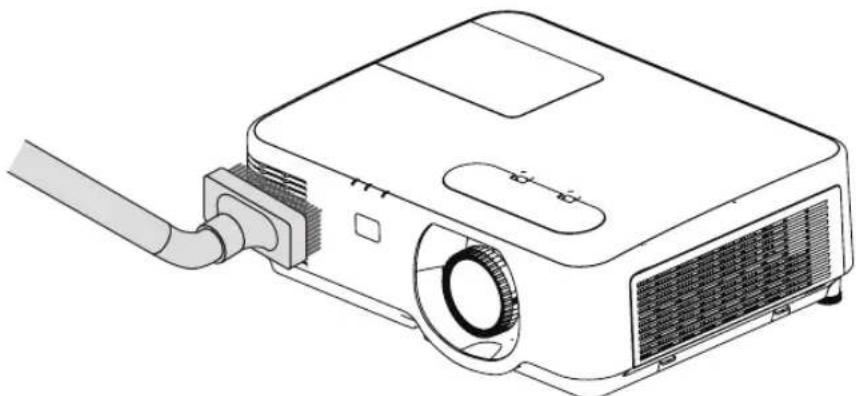
natural_image
Line drawing of a projector with cable inserted, showing internal components and ventilation grille (no text or symbols)Vacuum the dust off the vents.
• Clogged vents may cause a rise in the internal temperature of the projector, resulting in malfunction.
- Do not scratch or hit the cabinet with your fingers or any hard objects
- Contact your dealer for cleaning the inside of the projector.
NOTE: Do not apply volatile agent such as insecticide on the cabinet, the lens, or the screen. Do not leave a rubber or vinyl product in prolonged contact with it. Otherwise the surface finish will be deteriorated or the coating may be stripped off.
④ Replacing the Lamp and the Filters
When the lamp reaches the end of its life, the LAMP indicator in the cabinet will blink orange and the message “THE LAMP HAS REACHED THE END OF ITS USABLE LIFE. PLEASE REPLACE THE LAMP AND FILTER.” will appear (*). Even though the lamp may still be working, replace the lamp to maintain the optimal projector performance. After replacing the lamp, be sure to clear the lamp hour meter. (→ page 84)

CAUTION
- DO NOT TOUCH THE LAMP immediately after it has been used. It will be extremely hot. Turn the projector off and then disconnect the power cord. Allow at least one hour for the lamp to cool before handling.
- Use the specified lamp for safety and performance.
To order the replacement lamp, specify your lamp type, NP44LP.
The replacement lamp comes with filters.
- DO NOT REMOVE ANY SCREWS except one lamp cover screw and two lamp housing screws. You could receive an electric shock.
- Do not break the glass on the lamp housing.
Keep finger prints off the glass surface on the lamp housing. Leaving finger prints on the glass surface might cause an unwanted shadow and poor picture quality.
- The projector will turn off and go into standby mode when you continue to use the projector for another 100 hours after the lamp has reached the end of its life. If this happens, be sure to replace the lamp. If you continue to use the lamp after the lamp reaches the end of its life, the lamp bulb may shatter, and pieces of glass may be scattered in the lamp case. Do not touch them as the pieces of glass may cause injury. If this happens, contact your NEC dealer for lamp replacement.
*NOTE: This message will be displayed under the following conditions:
• for one minute after the projector has been powered on
- when the (POWER) button on the projector cabinet or the POWER OFF button on the remote control is pressed
To turn off the message, press any button on the projector cabinet or the remote control.
Optional lamp and tools needed for replacement:
• Phillips screwdriver (plus-head)
- Replacement lamp
Flow of Replacing the Lamp and the Filters
Step 1. Replace the lamp
Step 2. Replace the filters ( page 111)
Step 3. Clear the lamp usage hours and the filter usage hours ( page 112)
To replace the lamp:
1. Remove the lamp cover.
(1) Loosen the lamp cover screw
- The lamp cover screw is not removable.
(2) Push and slide the lamp cover off.
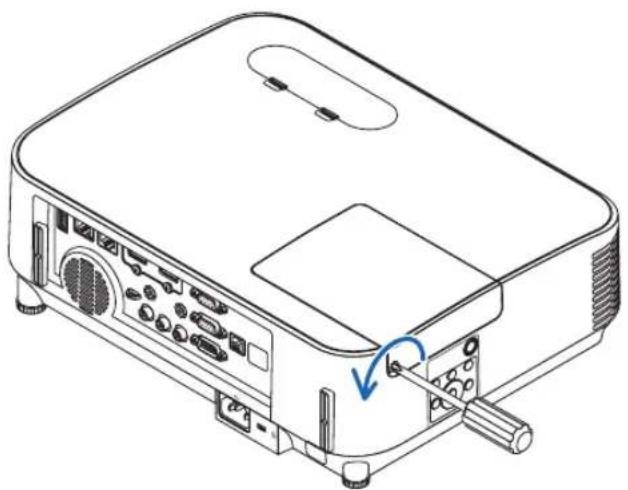
natural_image
Line drawing of a projector with a blue arrow indicating the blade (no text or symbols present)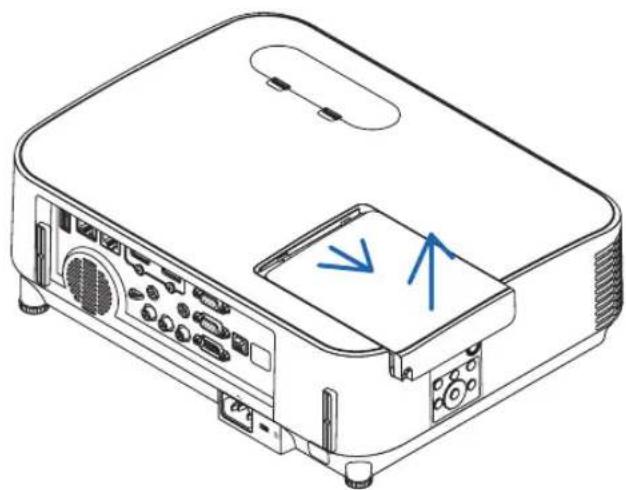
natural_image
Line drawing of a projector with labeled ports and an internal panel, showing no text or symbols.2. Remove the lamp housing.
(1) Loosen the two screws securing the lamp housing until the phillips screwdriver goes into a freewheeling condition.
• The two screws are not removable.
- There is an interlock on this case to prevent the risk of electrical shock. Do not attempt to circumvent this interlock.
(2) Remove the lamp housing by holding it.

CAUTION:
Make sure that the lamp housing is cool enough before removing it.
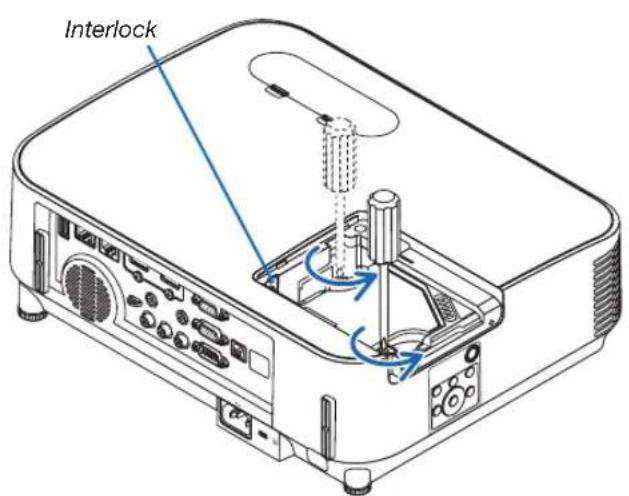
text_image
Interlock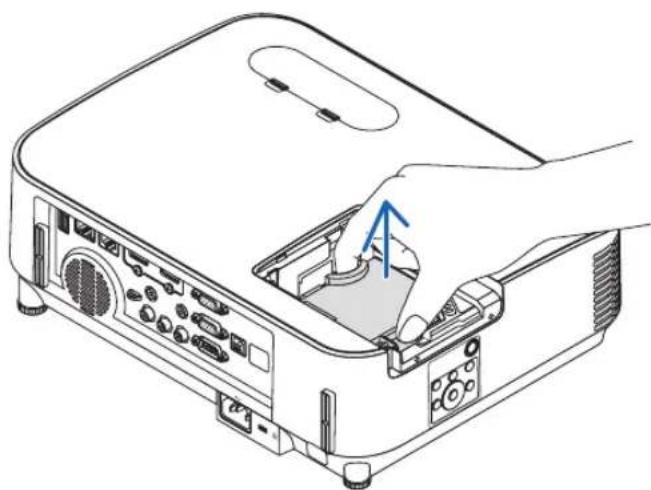
natural_image
Line drawing of a projector with a hand inserting a slot into the case (no text or symbols)3. Install a new lamp housing.
(1) Insert a new lamp housing until the lamp housing is plugged into the socket.
(2) Push the top center of the lamp housing to secure it.
(3) Secure it in place with the two screws.
- Be sure to tighten the screws.
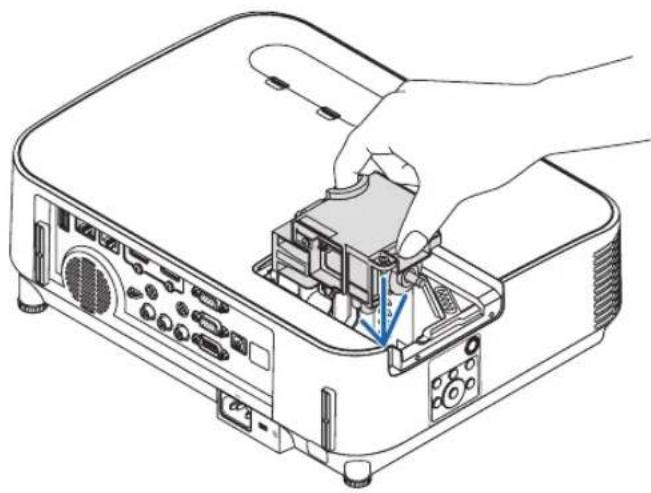
natural_image
Illustration of a projector with a hand inserting a component into the case (no text or symbols visible)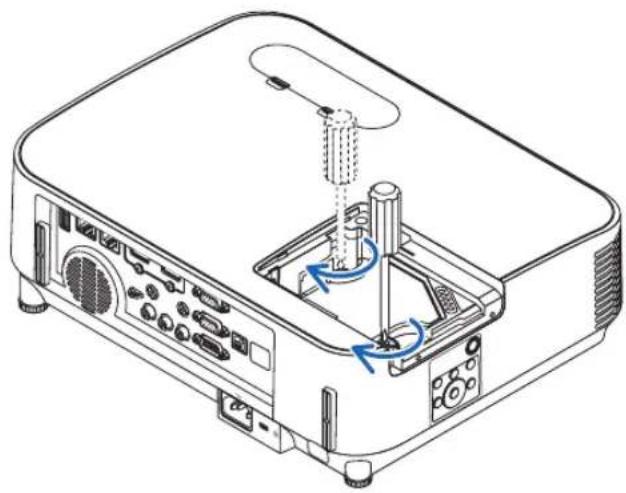
natural_image
Line drawing of a projector with internal components and blue rotation arrows indicating motion (no text or symbols)4. Reattach the lamp cover.
(1) Slide the lamp cover back until it snaps into place.
(2) Tighten the screw to secure the lamp cover.
- Be sure to tighten the screw.
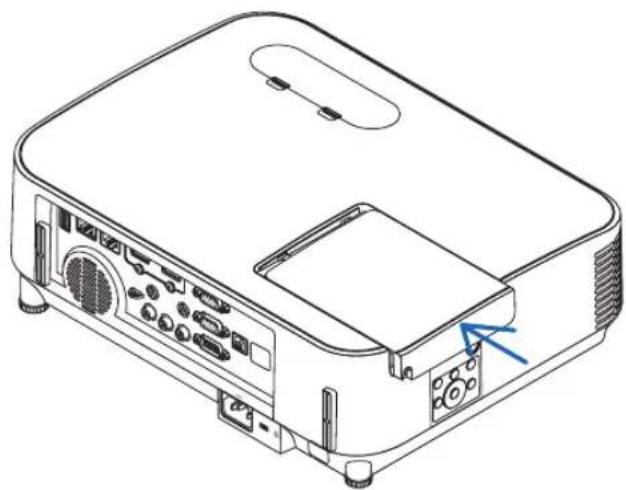
natural_image
Line drawing of a projector with labeled ports and an arrow pointing to the front panel (no text or symbols present)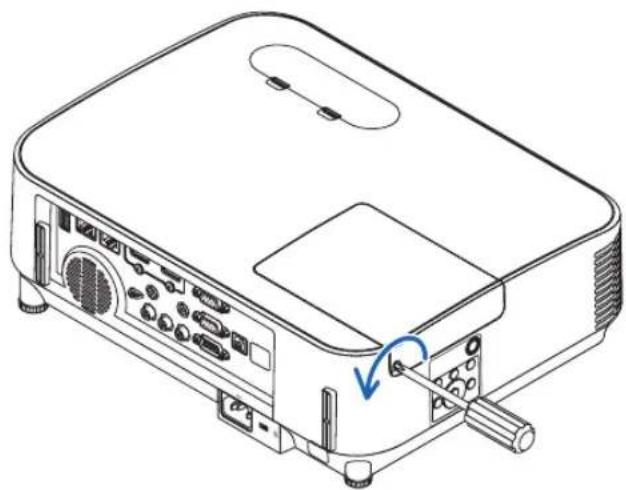
natural_image
Line drawing of a projector with a blue arrow indicating the blade (no text or symbols present)This completes the lamp replacement.
Go on to the filter replacement.
NOTE: When you continue to use the projector for another 100 hours after the lamp has reached the end of its life, the projector cannot turn on and the menu is not displayed.
If this happens, press the HELP button on the remote control for 10 seconds to reset the lamp clock back to zero.
When the lamp time clock is reset to zero, the LAMP indicator goes out.
To replace the filters:
NOTE:
• Before replacing the filters, wipe off dust and dirt from the projector cabinet.
• The projector is precision equipment. Keep out dust and dirt during filter replacement.
- Do not wash the filters with soap and water. Soap and water will damage the filter membrane.
- Put filters into place. Incorrect attachment of a filter may cause dust and dirt to get into the inside of the projector.
1. Press down on the buttons on the left and right and then pull the filter cover towards you to open it.
The cover will open about 90 degrees before it stops.
2. Pick the center of the filter unit for pulling it out.
-
Remove dust from the filter cover. Clean both outside and inside.
-
Mount a new filter unit back onto the projector cabinet. Insert the filter unit onto the projector.
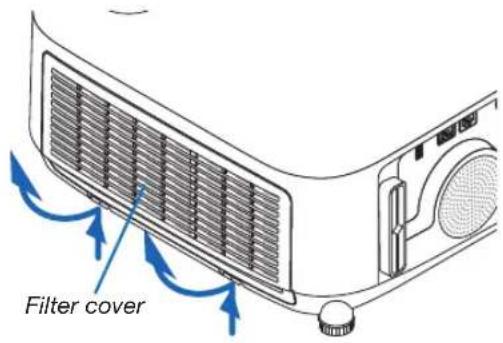
text_image
Filter cover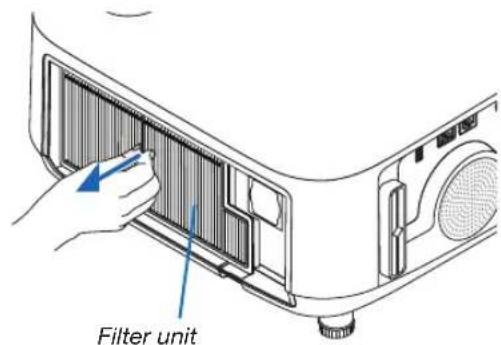
text_image
Filter unit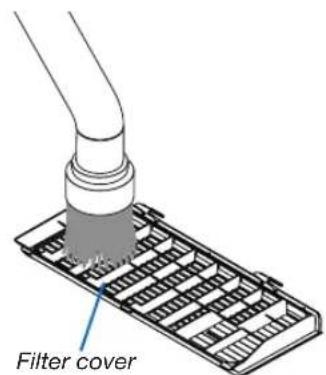
text_image
Filter cover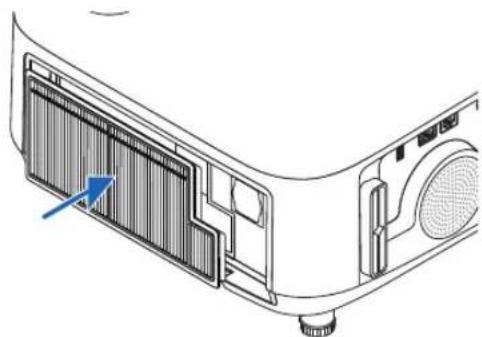
natural_image
Technical line drawing of a vehicle front panel showing airflow direction and component layout (no text or symbols)5. Close the filter cover.
Keep to push the filter cover frame around the buttons until a "click" sound is heard. The filter cover will be position.
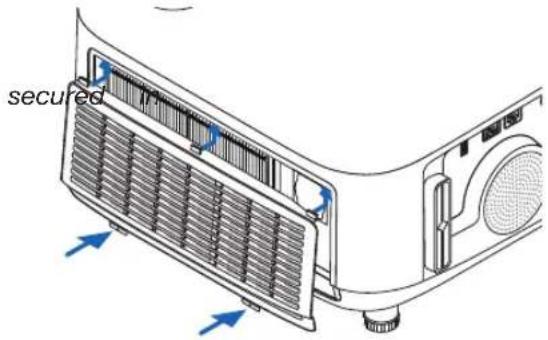
text_image
securedThis completes the filter replacement. Go on to the clearing lamp and filter hour meters.
To clear the lamp usage hours and the filter usage hours:
- Place the projector where you use it.
- Plug the power cord into the wall outlet, and then turn on the projector.
-
Clear the lamp usage hours and the filter usage hours.
-
From the menu, select [RESET] → [CLEAR LAMP HOURS] and reset the lamp usage hours.
- Select [CLEAR FILTER HOURS] and reset the filter usage hours. (→ page 84)
① Troubleshooting
This section helps you resolve problems you may encounter while setting up or using the projector.
Feature of each indicator
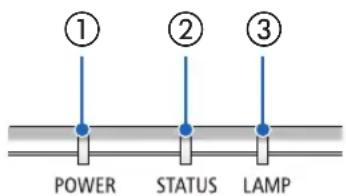
text_image
① ② ③ POWER STATUS LAMP① POWER indicator
This indicator informs the power status of the projector.
② STATUS indicator
This indicator lights/blinks when a button is pressed while the CONTROL PANEL LOCK function is utilized, or while performing the specific operations.
③ LAMP indicator
This indicator informs the state of lamp, usage time of the lamp, and the status of ECO MODE.
Indicator Message (Status message)
| POWER STATUS LAMP | Projector status | ||
 Off Off Off Off Off Off | Power is off | ||
 Orange(Blink*1) Orange(Blink*1) | Off Off | In the state of Standby (Standby mode is NETWORK STANDBY and network is ready) | |
 Orange(Blink*2) Orange(Blink*2) | Off Off | In the state of Standby (Network is unavailable) | |
 Orange(Light) Orange(Light) | Off Off | In the state of Standby (Standby mode is NETWORK STANDBY and network is available) | |
 Orange (Blink*3) Off Off Orange (Blink*3) Off Off | ON time as the program timer is activated. (In the state of Standby) | ||
 Green(Light) Green(Light) | Off Off | In the state of Sleep | |
 Blue(Light) Blue(Light) | Off | Green(Light) | Powered state (ECO mode is OFF) |
 Blue(Light) Blue(Light) | Off Green | Blink*3) | Powered state (ECO mode is ON) |
| Blue(Blink*3) | Off Status | varies | OFF Timer is activated, OFF time as the program timer is activated (Powered state) |
| Blue(Blink*4) | Off Off | Preparing for powering ON | |
*1 Repetition to light on for 1.5 seconds / off for 1.5 seconds
*2 Repetition to light on for 1.5 seconds / off for 7.5 seconds
*3 Repetition to light on for 2.5 seconds / off for 0.5 seconds
*4 Repetition to light on for 0.5 seconds / off for 0.5 seconds
Indicator Message (Error message)
| POWER STATUS LAMP | Projector status | Procedure | ||
 Blink Orange Blink Orange |  (Light) (Light) | Status varies | A button has been pressed while the KEY LOCK is activated. | The projector's keys are locked. The setting must be canceled to operate the projector. (→ page 69) |
| ID numbers for the projector and the remote control do not match. | Check the control IDs (→ page 71) | |||
| Status varies Off | Orange |  (Blink*4) (Blink*4) | Lamp replacement grace period. The lamp has reached the end of its service life and is now in the replacement grace period (100 hours). Replace lamp to new one as soon as possible. (→ page 108) | the |
| Status varies Off | Red |  (Blink*4) (Blink*4) | Lamp replacement time exceeded. The lamp has exceeded its replacement time. Replace the lamp immediately. | |
 Blue (Blink*4) Off Blue (Blink*4) Off | Green (Blink*) |  4) 4) | Preparing to relight lamp after lighting has failed. | Wait a while. |
 Blue(Light) Blue(Light) | Off Orange |  (Light) (Light) | Temperature problem (In the Forced ECO) | Ambient temperature is high. Lower the room temperature. |
 Red(Blink*4) Red(Blink*4) | Off |  Off Off | Temperature problem Ambient temperature is out of the operation temperature. Check if any obstruction stays near the exhaust vent. | |
 Red(Blink*4) Red(Blink*4) | Green(Light) |  Red(Light) Red(Light) | Lamp does not light. | Wait at least 1 minute, then turn on the power back on. if the lamp still does not light, contact your dealer or service personnel. |
 Red(Blink*4) Red(Blink*4) | Red(Light) |  Green(Light) Green(Light) | Lamp cover problem | Lamp cover is not mounted properly. Mount it (→ see page 110). |
 Red(Light) Red(Light) | Status varies |  Status varies Status varies | Error requiring service support | Contact your dealer or service personnel. Make sure to check and inform indicator status for asking to repair. |
*1 Repetition to light on for 1.5 seconds / off for 1.5 seconds
*2 Repetition to light on for 1.5 seconds / off for 7.5 seconds
*3 Repetition to light on for 2.5 seconds / off for 0.5 seconds
*4 Repetition to light on for 0.5 seconds / off for 0.5 seconds
- When the thermal protector is activated:
When inside temperature of the projector becomes too high or low, the POWER indicator start to red blink in a short cycle. After this happened, the thermal protector will activate and the projector may be turned off.
In this case, please take the below measures:
- Pull out the power plug from the wall inlet.
- Place the projector in cool place if it has been placed in high ambient temperature.
- Clean the exhaust vent if dust has accumulated on.
- Leave the projector for about one hour until inside temperature gets lower.
Explanation on the POWER indicator and standby state
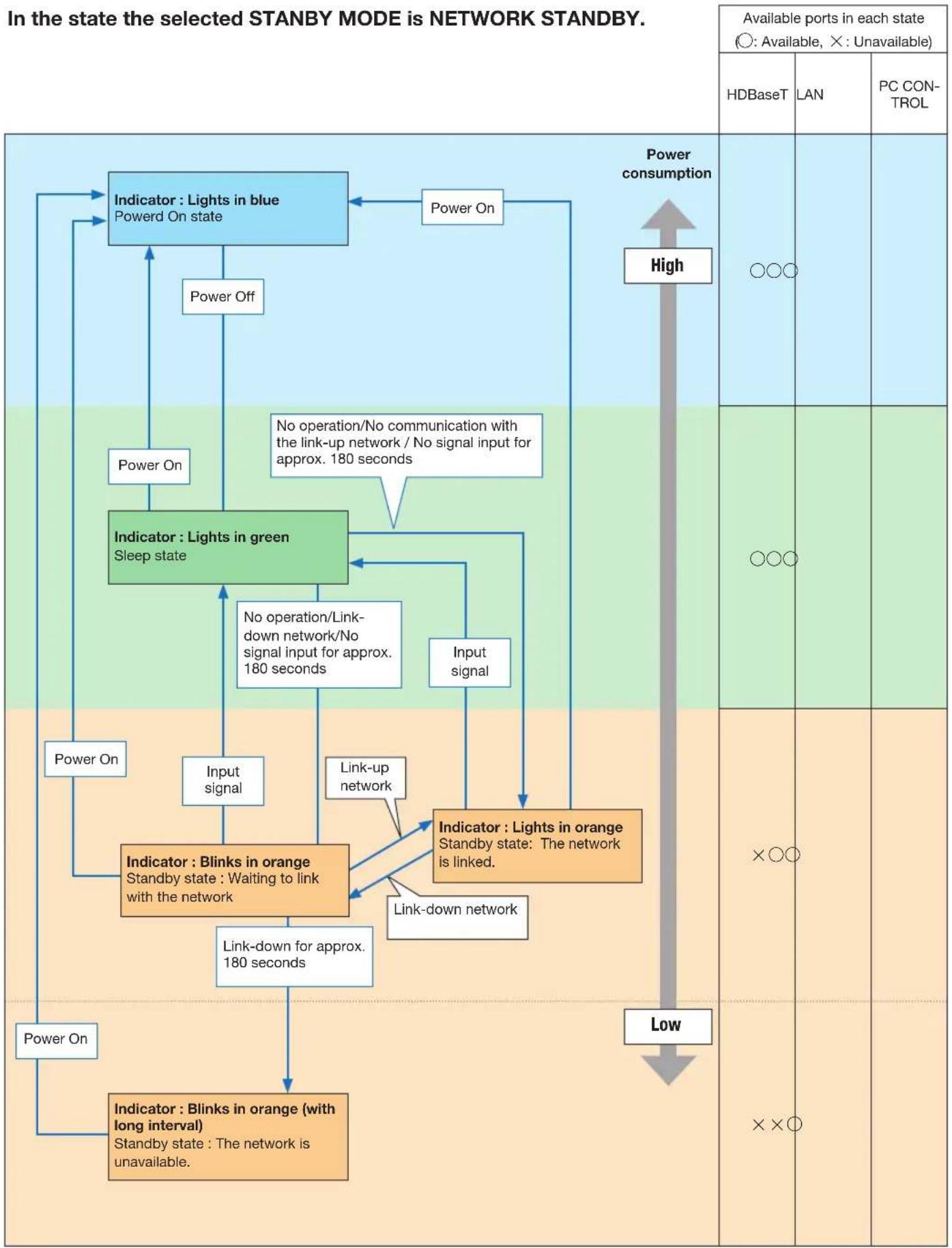
flowchart
graph TD
    A["Indicator: Lights in blue\nPowerd On state"] --> B["Power Off"]
    B --> C["Power On"]
    C --> D["Indicator: Lights in green\nSleep state"]
    D --> E["No operation/Link-down network/No signal input for approx. 180 seconds"]
    E --> F["Input signal"]
    F --> G["Indicator: Lights in orange\nStandby state: The network is linked."]
    G --> H["Link-down network"]
    H --> I["Link-down for approx. 180 seconds"]
    I --> J["Indicator: Blinks in orange\nStandby state: Waiting to link with the network"]
    J --> K["Input signal"]
    K --> L["Power On"]
    L --> M["Indicator: Blinks in orange (with long interval)\nStandby state: The network is unavailable."]
    M --> N["Power On"]
    N --> O["Power On"]
    O --> P["Power On"]
    P --> Q["Power On"]
    Q --> R["Power On"]
    R --> S["High Power consumption"]
    S --> T["Available ports in each state (○: Available, ×: Unavailable)"]
    T --> U["HDBaseT LAN PC CON-TROL"]
    U --> V["○○○"]
    V --> W["×○○ ××○"]
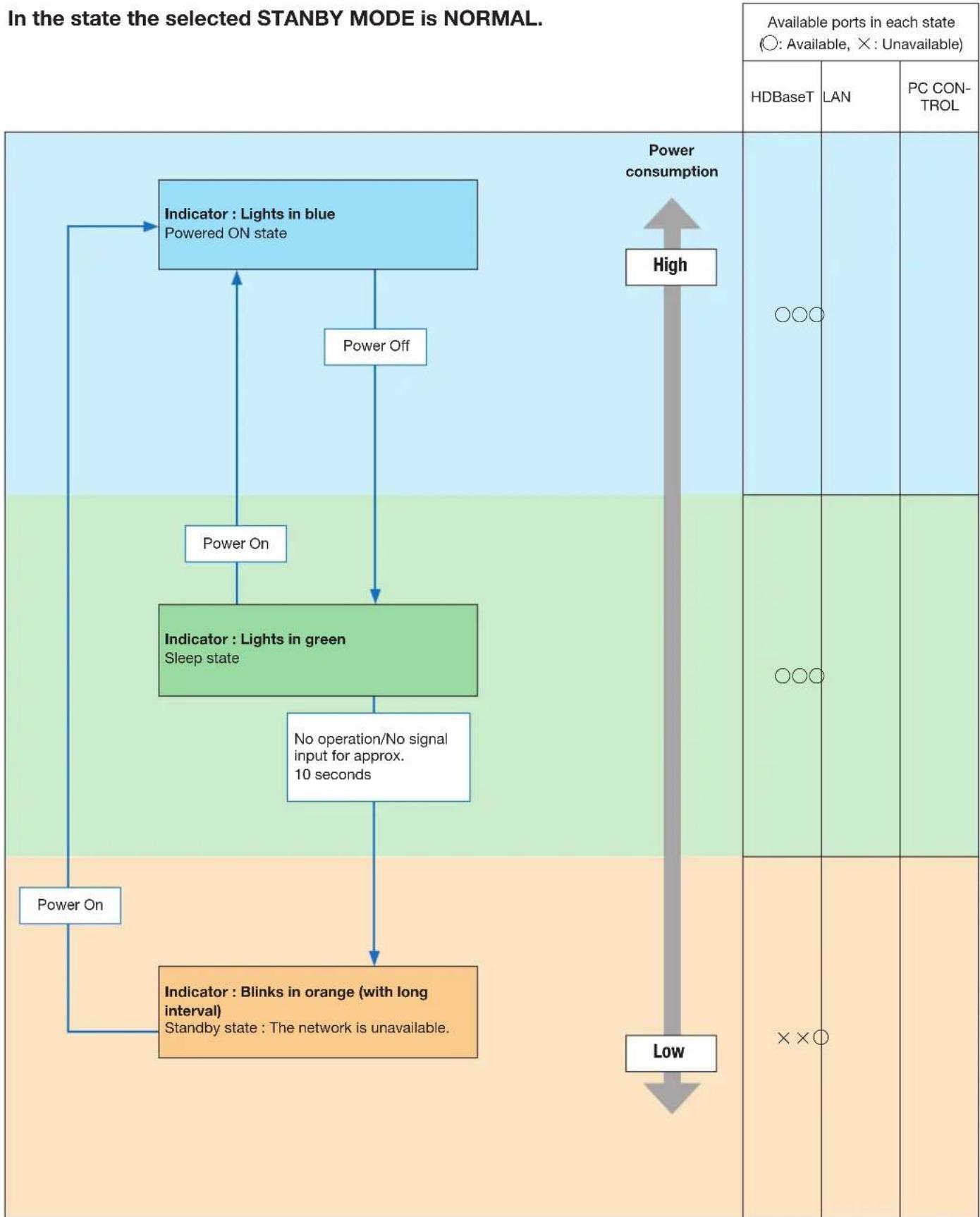
flowchart
graph TD
    A["Indicator : Lights in blue\nPowered ON state"] --> B["Power Off"]
    B --> C["Power On"]
    C --> D["Indicator : Lights in green\nSleep state"]
    D --> E["No operation/No signal input for approx.\n10 seconds"]
    E --> F["Indicator : Blinks in orange (with long interval)\nStandby state : The network is unavailable."]
    F --> G["Power consumption"]
    G --> H["High"]
    H --> I["Low"]
    I --> J["HDBaseT LAN PC CON-TROL"]
Common Problems & Solutions
(→ "Power/Status/Lamp Indicator" on page 113.)
| Problem Check These Items | |
| Does not turn on or shut down | Check that the power cord is plugged in and that the power button on the projector cabinet or the remote control is on. (→ pages 11, 12)Ensure that the lamp cover is installed correctly. (→ page 110)Check to see if the projector has overheated. If there is insufficient ventilation around the projector or if the room where you are presenting is particularly warm, move the projector to a cooler location.Check to see if you continue to use the projector for another 100 hours after the lamp has reached the end of its life. If so, replace the lamp. After replacing the lamp, reset the lamp hours used. (→ page 84)The lamp may fail to light. Wait a full minute and then turn on the power again.Set [FAN MODE] to [HIGH ALTITUDE] when using the projector at altitudes approximately 5500 feet/1700 meters or higher. Using the projector at altitudes approximately 5500 feet/1700 meters or higher without setting to [HIGH ALTITUDE] can cause the projector to overheat and the projector could shut down. If this happens, wait a couple minutes and turn on the projector. (→ page 72)If you turn on the projector immediately after the lamp is turned off, the fans run without displaying an image for some time and then the projector will display the image. Wait for a moment. |
| Will turn off | Ensure that the [OFF TIMER] or [AUTO POWER OFF] is off. (→ page 67, 75) |
| No picture | Use the COMPUTER1, HDMI1, HDMI2, VIDEO, HDBaseT, or APPS button on the remote control to select your source (COMPUTER, HDMI1, HDMI2, VIDEO, HDBaseT or USB-A). (→ page 14) If there is still no picture, press the button again.Ensure your cables are connected properly.Use menus to adjust the brightness and contrast. (→ page 59)Reset the settings or adjustments to factory preset levels using the [RESET] in the Menu. (→ page 84)Enter your registered keyword if the Security function is enabled. (→ page 33)Be sure to connect the projector and notebook PC while the projector is in standby mode and before turning on the power to the notebook PC.In most cases the output signal from the notebook PC is not turned on unless connected to the projector before being powered up.* If the screen goes blank while using your remote control, it may be the result of the computer's screen-saver or power management software.See also thenext page. |
| Picture suddenly becomes dark | Check if the projector is in the Forced ECO mode because of too high ambient temperature. If this is the case, lower the internal temperature of the projector by selecting [HIGH] for [FAN MODE]. (→ page 72) |
| Color tone or hue is unusual | Check if an appropriate color is selected in [WALL COLOR]. If so, select an appropriate option. (→ page 66)Adjust [HUE] in [PICTURE]. (→ page 57) |
| Image isn't square to the screen | Reposition the projector to improve its angle to the screen. (→ page 15, 19)Use the Keystone correction function to correct the trapezoid distortion. (→ page 20) |
| Picture is blurred | Adjust the focus. (→ page 18)Reposition the projector to improve its angle to the screen. (→ page 15, 19)Ensure that the distance between the projector and screen is within the adjustment range. (→ page 85)Condensation may form on the lens if the projector is cold, brought into a warm place and is then turned on. Should this happen, let the projector stand until there is no condensation on the lens. |
| Flicker appears on screen | Set [FAN MODE] to other than [HIGH ALTITUDE] mode when using the projector at altitudes approximately 5500 feet/1700 meters or lower. Using the projector at altitudes less than approximately 5500 feet/1700 meters and setting to [HIGH ALTITUDE] can cause the lamp to overcool, causing the image to flicker. Switch [FAN MODE] to [AUTO]. (→ page 72) |
| Image is scrolling vertically, horizontally or both | Check the computer's resolution and frequency. Make sure that the resolution you are trying to display is supported by the projector. (→ page 126)Adjust the computer image manually with the Horizontal/Vertical in the [IMAGE OPTIONS]. (→ page 61) |
| Remote control does not work | Install new batteries.(→ page 9)Make sure there are no obstacles between you and the projector.Stand within 22 feet (7 m) of the projector. (→ page 9) |
| Indicator is lit or blinking | See the POWER/STATUS/LAMP Indicator. (→ page 113) |
| Cross color in RGB mode | Press the AUTO ADJ. button on the projector cabinet or the remote control. (→ page 22)Adjust the computer image manually with [CLOCK]/[PHASE] in [IMAGE OPTIONS] in the menu. (→ page 60) |
For more information contact your dealer.
If there is no picture, or the picture is not displayed correctly.
• Power on process for the projector and the PC.
Be sure to connect the projector and notebook PC while the projector is in standby mode and before turning on the power to the notebook PC.
In most cases the output signal from the notebook PC is not turned on unless connected to the projector before being powered up.
NOTE: You can check the horizontal frequency of the current signal in the projector's menu under Information. If it reads "0kHz", this means there is no signal being output from the computer. (→ page 81 or go to next step)
- Enabling the computer's external display.
Displaying an image on the notebook PC's screen does not necessarily mean it outputs a signal to the projector. When using a PC compatible laptop, a combination of function keys will enable/disable the external display. Usually, the combination of the "Fn" key along with one of the 12 function keys gets the external display to come on or off. For example, NEC laptops use Fn + F3, while Dell laptops use Fn + F8 key combinations to toggle through external display selections.
• Non-standard signal output from the computer
If the output signal from a notebook PC is not an industry standard, the projected image may not be displayed correctly. Should this happen, deactivate the notebook PC's LCD screen when the projector display is in use. Each notebook PC has a different way of deactivate/reactivate the local LCD screens as described in the previous step. Refer to your computer's documentation for detailed information.
• Image displayed is incorrect when using a Mac
When using a Mac with the projector, set the DIPswitch of the Mac adapter (not supplied with the projector) according to your resolution. After setting, restart your Mac for the changes to take affect.
For setting display modes other than those supported by your Mac and the projector, changing the DIP switch on a Mac adapter may bounce an image slightly or may display nothing. Should this happen, set the DIP switch to the 13" fixed mode and then restart your Mac. After that, restore the DIP switches to a displayable mode and then restart the Mac again.
NOTE: A Video Adapter cable manufactured by Apple Inc. is needed for a MacBook which does not have a mini D-Sub 15-pin terminal.
• Mirroring on a MacBook
* When using the projector with a MacBook, output may not be set to 1024 × 768 unless “mirroring” is off on your MacBook. Refer to owner’s manual supplied with your Mac computer for mirroring.
- Folders or icons are hidden on the Mac screen
Folders or icons may not be seen on the screen. Should this happen, select [View] → [Arrange] from the Apple menu and arrange icons.
② Specifications
This section provides technical information about projector's performance.
Optical
| Model Number P554U P474U P554W | P474W P604X P603X | |||||
| LCD Panel 0.64 inch LCD | with Micro Lens Array (Aspect Ratio 16:10) 0.63 inch LCD with | Micro Lens Array (Aspect Ratio 4:3) | ||||
| Resolution*1 | 1920 × 1200 pixels (WUXGA) 1280 × 800 pixels (WXGA) 1024 | × 768 pixels (XGA) | ||||
| Lens | F = 1.50-2.08, f = 17.2-27.7 mm | F= 1.7–2.2, f= 17.4–29.0 mm | ||||
| Zoom Manual (Zoom Ratio = 1.6) Manual (Zoom Ratio = 1.7) | ||||||
| Focus Manual | ||||||
| Lens shifting | H: ±15%, V: +55%, -0% | H: ±15%, V: +50%, -0% | ||||
| Lamp | ECO MODE OFF | 330 W | 305 W | 330 W | 305 W | 330 W |
| NORMAL | 264 W | |||||
| ECO 198 W | ||||||
| Light Output*2*3 | 5,300 lumens | 4,700 lumens | 5,500 lumens | 4,700 lumens | 6,000 lumens | |
| NORMAL | 80% | 86% | 80% | 86% | ||
| ECO*4 | 60% | 65% | 60% | 65% | ||
| Contrast Ratio*3(full white: full black) | 20000:1 | 18000:1 | 20000:1 | 18000:1 | 20000:1 | |
| Image Size (Diagonal) 30–300 inches (0.8–7.6 m) | ||||||
| Projection Distance(Min.–Max.) | 32-507 inches (0.8-12.9 m) | 32–531 inches (0.8–13.5 m) | 32–543 inches (0.8–13.8 m) | |||
| Projection Angle | 0-16.0 (wide) / 0-10.0 (tele) | 0–16.1 (wide) / 0–9.7 (tele) | 0–16.1 (wide) / 0–9.6 (tele) | |||
*1 Effective pixels are more than 99.99%.
*2 This is the light output value (lumens) when the [PRESET] mode is set to [HIGH-BRIGHT]. If any other mode is selected as the [PRESET] mode, the light output value may drop slightly.
*3 Compliance with ISO21118-2012
*4 The maximum power becomes equivalent to power in NORMAL (ECO MODE).
Electrical
| Model Number P554U | P474U P554W | P474W P604X P603X | |||
| Inputs | 1 × RGB/Component (D-Sub 15 P), 2 × HDMI Type A (19P, HDMI® Terminal) HDCP supported*5, 1 × Video (RCA), 1 × HDBaseT, 1 × (L/R) RCA Audio, 1 × Stereo Mini Audio | 1 × RGB/Component (D-Sub 15 P), 2 × HDMI Type A (19P, HDMI® Terminal) HDCP supported*5, 1 × Video (RCA), 1 × (L/R) RCA Audio, 1 × Stereo Mini Audio | |||
| Outputs | 1 × RGB (D-Sub 15P), 1 × Stereo Mini Audio | ||||
| PC Control | 1 × PC Control Port (D-Sub 9P) | ||||
*5 HDMI® (Deep Color, Lip Sync) with HDCP
What is HDCP/HDCP technology?
HDCP is an acronym for High-bandwidth Digital Content Protection. High bandwidth Digital Content Protection (HDCP) is a system for preventing illegal copying of video data sent over a High-Definition Multimedia Interface (HDMI).
If you are unable to view material via the HDMI input, this does not necessarily mean the projector is not functioning properly. With the implementation of HDCP, there may be cases in which certain content is protected with HDCP and might not be displayed due to the decision/intention of the HDCP community (Digital Content Protection, LLC).
Video: Deep Color; 8/10/12-bit, LipSync
Audio: LPCM; up to 2 ch, sample rate 32/44.1/48 KHz, sample bit; 16/20/24-bit
| Model Number P554U P474U P554W | P474W P604X P603X | ||||
| Wired LAN Port 1 × RJ-45 (10BASE-T/100BASE-TX) | |||||
| Wireless LAN Port(Optional) | IEEE 802.11 b/g/n (optional USB Wireless LAN Unit required) | ||||
| USB Port 1 × Type A, 1 ×Type B | |||||
| Color Reproduction 10-bit signal processing (1.07 billion colors) (Viewer, Network: 16.7 million colors) | |||||
| Compatible Signals*6 | Analog: VGA/SVGA/XGA/WXGA/Quad-VGA/SXGA/SXGA+/WXGA+/WXGA++/UXGA/WSXGA+/HD/Full HD/WUXGA/Mac13", 16", 21", 23"Component: 480i/480p/576i/576p/720p/1080i/1080pHDMI: VGA/SVGA/XGA/WXGA/Quad-VGA/SXGA/SXGA+/WXGA+/WXGA++/WSXGA+/480p/576p/720p/1080i/1080p | ||||
| Horizontal Resolution 540 TV lines: NTSC/NTSC4.43/PAL/PAL-M/PAL-N/PAL60300 TV lines: SECAM | |||||
| Scan Rate Horizontal: 15 kHz to 100 kHz (RGB: 24 kHz or over)Vertical: 50 Hz to 120 Hz (HDMI: 50 Hz to 85 Hz) | |||||
| Sync Compatibility Separate Sync | |||||
| Built-in Speaker 20 W (monaural) | |||||
| Power Requirement 100–240 V AC, 50/60 Hz | |||||
| Input Current 5.0 A-2.0 A 4.7 A-1.9 A 5.0 A-1.9 A 4.7 A-1.9 A | |||||
| Power Consumption | ECO MODE OFF | 457 W(100-130 V)431 W(200-240 V) | 424 W(100-130 V)405 W(200-240 V) | 448 W (100-130 V)422 W (200-240 V) | 418 W (100-130 V)395 W (200-240 V) |
| NORMAL | 364 W(100-130 V)350 W(200-240 V) | 361 W (100-130 V)343 W (200-240 V) | 347 W (100-130 V)334 W (200-240 V) | ||
| ECO 286 W(100-130 V)277 W(200-240 V) | 280 W (100-130 V)267 W (200-240 V) | 273 W (100-130 V)258 W (200-240 V) | |||
| STANDBY (NETWORK STANDBY) | 2.0 W(100-130 V)/2.1 W(200-240 V) | 2.0 W (100-130 V)/2.0 W (200-240 V) | |||
| STANDBY (NORMAL) | 0.14 W(100-130 V)/0.17 W(200-240 V) | 0.16 W (100-130 V)/0.2 W (200-240 V) | |||
*6 An image with higher or lower resolution than the projector's native resolution (P604X/P603X: 1024 × 768 / P554W/P474W: 1280 × 800 / P554U/P474U: 1920 × 1200) will be displayed with Advanced AccuBlend. (→ page 126)
Mechanical
| Model Number P554U | P474U P554W | P474W P604X P603X | |||
| Installation Orientation | Desktop/Front, Desktop/Rear, Ceiling/Front, Ceiling/Rear | ||||
| Dimensions | 16.5" (W) × 5.2" (H) × 12.7" (D)/420 mm (W) × 133 mm (H) × 322 mm (D) (not including protrusions)16.5" (W) × 5.5" (H) × 13.0" (D)/420 mm (W) × 141 mm (H) × 329.3 mm (D) (including protrusions) | ||||
| Weight | 4.7 kg/10.4 lbs | ||||
| Environmental Considerations | Operational Temperatures: 41° to 104°F (5° to 40°C),(ECO mode selected automatically at 95°F to 104°F/35°C to 40°C)20% to 80% humidity (non-condensing)Storage Temperatures: 14° to 122°F (-10° to 50°C),20% to 80% humidity (non-condensing)Operating altitude: 0 to 2700 m/8800 f (Set [FAN MODE] to [HIGH ALUTITUDE] when using the projector at altitudes approximately 1700 m/5500 f)or higher. | ||||
For additional information visit:
US : http://www.necdisplay.com/
Europe : http://www.nec-display-solutions.com/
Global : http://www.nec-display.com/global/index.html
For information on our optional accessories, visit our website or see our brochure.
The specifications are subject to change without notice.
③ Cabinet Dimensions
Unit: mm (inch)
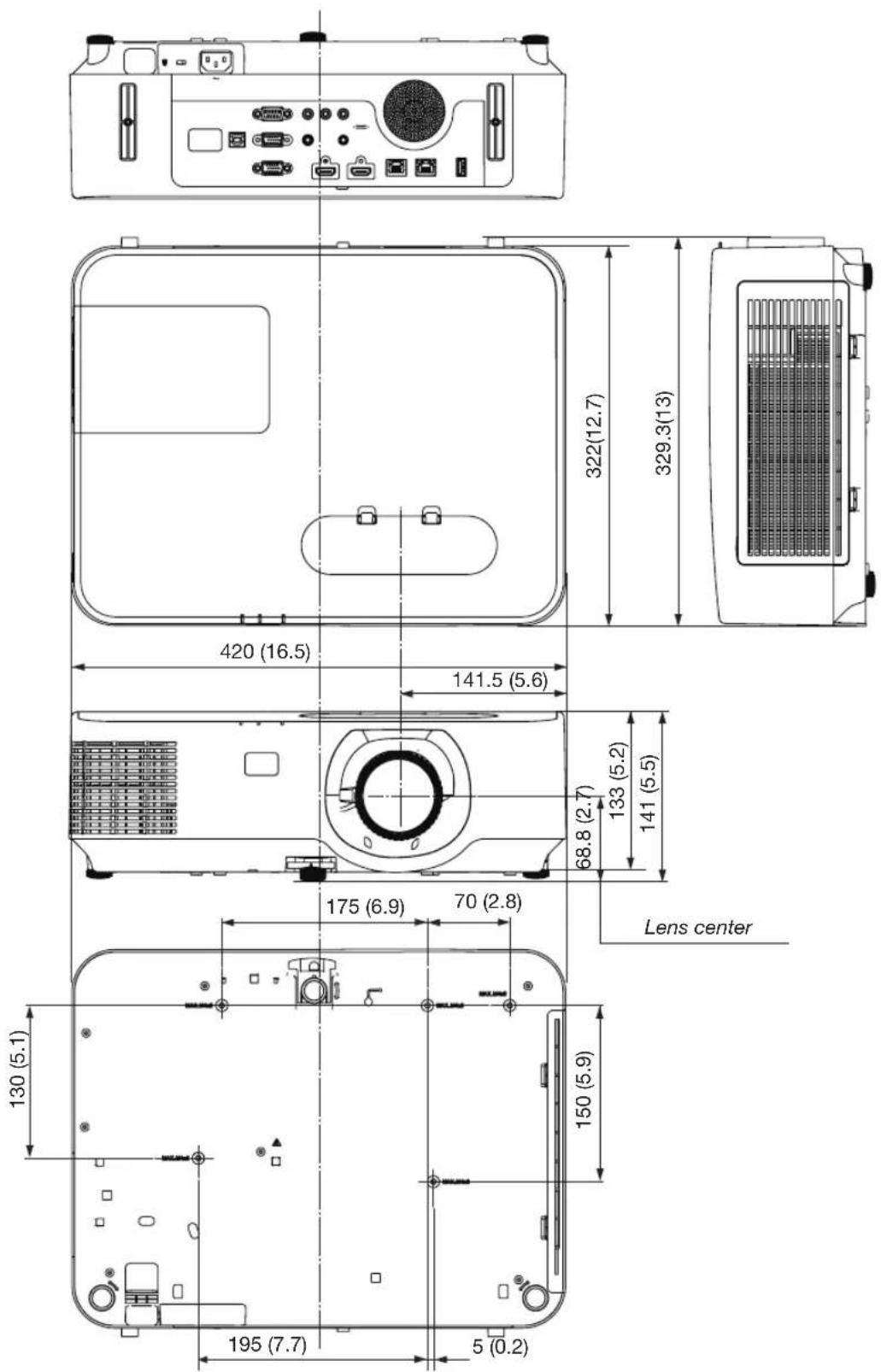
text_image
322(12.7) 329.3(13) 420 (16.5) 141.5 (5.6) 68.8 (2.7) 133 (5.2) 141 (5.5) 175 (6.9) 70 (2.8) Lens center 130 (5.1) 150 (5.9) 195 (7.7) 5 (0.2)4 Attaching the Optional Cable Cover (NP12CV)
After finishing connections, attach the supplied cable cover to properly hide the cables.

CAUTION:
- Be sure to tighten the screws after attaching the cable cover. Failure to do so may cause the cable cover to come off and fall, resulting in injury or damage to the cable cover.
- Do not put bundled cables in the cable cover. Doing so may damage the power cord, resulting in a fire.
- Do not hold the cable cover while moving the projector or do not apply excessive force to the cable cover. Doing so may damage the cable cover, resulting in injury.
Attaching the cable cover
Tool needed:
• Phillips screwdriver (plus-head) about 12 cm/4.7 inches in length
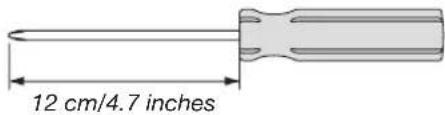
text_image
12 cm/4.7 inches1. Align the left and right fixing screw holes on the cable cover and the projector, and then put screws to each hole.
NOTE:
- Be careful not to get cables caught in between the cable cover and the projector.
2. Tighten the cable cover screws.
- Be sure to tighten the screws.
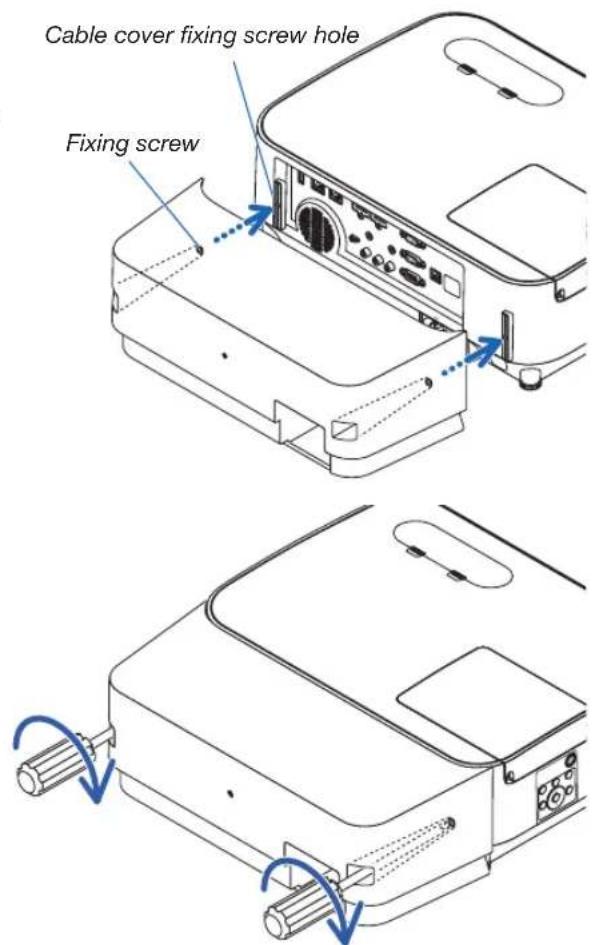
text_image
Cable cover fixing screw hole Fixing screwRemoving the cable cover
- Loosen the cable cover screws until the Phillips screw-driver goes into a freewheeling condition and remove the cover.
- When suspended from the ceiling, hold so that the cable cover does not drop.
• The screws cannot be removed.
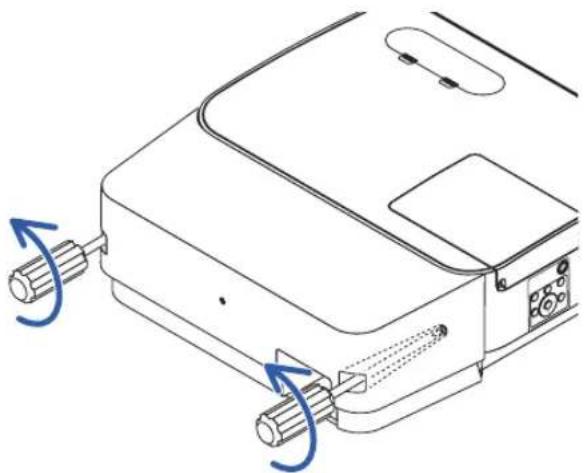
natural_image
Diagram of a device with directional arrows indicating rotation or movement (no text or symbols present)⑤ Pin Assignments of D-Sub COMPUTER Input Terminal Mini D-Sub 15 Pin Terminal
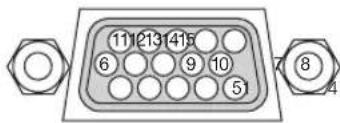
text_image
11 213 415 6 9 10 5 8 4Signal Level
Video signal : 0.7Vp-p (Analog)
Sync signal : TTL level
2 3
| Pin No. RGB Signal (Analog) YCbCr Signal | |
| 1 Red Cr | |
| 2 Green or Sync on Green Y | |
| 3 Blue Cb | |
| 4 Ground | |
| 5 Ground | |
| 6 Red Ground Cr Ground | |
| 7 Green Ground Y Ground | |
| 8 Blue Ground Cb Ground | |
| 9 Hotplug | |
| 10 Sync Signal Ground | |
| 11 No Connection | |
| 12 Bi-directional DATA (SDA) | |
| 13 Horizontal Sync or Composite Sync | |
| 14 Vertical Sync | |
| 15 Data Clock | |
COMPUTER IN
NOTE: Pin Nos. 12 and 15 are required for DDC/CI.
⑥ Compatible Input Signal List
Analog RGB
| Signal | Resolution (dots) | Aspect Ratio | Refresh Rate (Hz) |
| VGA 640 × 480 | 4:3 60/72/75/85/ | iMac | |
| SVGA 800 × 6 | 00 4:3 56/60/72/75/85/ | iMac | |
| XGA 1024 × 768* | 1 | 4:3 60/70 | /75/85/iMac |
| WXGA 1280 × | 768*2 | 15:9 60 | |
| 1280 × 800*2 | 16:10 60 | ||
| 1360 × 768*3 | 16:9 60 | ||
| 1366 × 768*3 | 16:9 60 | ||
| Quad-VGA 1280 × 960 4:3 60/75 | |||
| SXGA 1280 × | 1024 5:4 60/75 | ||
| SXGA+ 1400 × | 1050 4:3 | 60 | |
| WXGA+ | 1440 × 900 | 16:10 | 60 |
| WXGA++ | 1600 × 900*3 | 16:9 60 | |
| UXGA | 1600 × 1200*4 | 4:3 | 60 |
| WSXGA+ | 1680 × 1050 | 16:10 60 | |
| HD | 1280 × 720 | 16:9 | 60 |
| Full HD 1920 × | 1080 16:9 60 | ||
| WUXGA | 1920 × 1200*5*6 | 16:10 60 | |
| MAC 13" | 640 × 480 | 4:3 | 67 |
| MAC 16" | 832 × 624 4:3 | 75 | |
| MAC 19" | 1024 × 768 | 4:3 | 75 |
| MAC 21" | 1152 × 870 | 4:3 | 75 |
| MAC 23" | 1280 × 1024 5:4 | 65 | |
Component
| Signal | Format | Aspect Ratio | Refresh Rate (Hz) |
| HDTV (1080p) | 1920 × 1080 | 16:9 | 50/60 |
| HDTV (1080i) | 1920 × 1080 | 16:9 | 50/60 |
| HDTV (720p) | 1280 × 720 | 16:9 | 50/60 |
| SDTV (480p) | 720 × 480 | 4:3/16:9 | 60 |
| SDTV (576p) | 720 × 576 | 4:3/16:9 | 50 |
| SDTV (480i) | 720 × 480 | 4:3/16:9 | 60 |
| SDTV (576i) | 720 × 576 | 4:3/16:9 | 50 |
Composite Video
| Signal | Aspect Ratio | Refresh Rate (Hz) |
| NTSC | 4:3 | 60 |
| PAL | 4:3 | 50 |
| PAL60 | 4:3 | 60 |
| SECAM | 4:3 | 50 |
HDMI
| Signal | Resolution (dots) | Aspect Ratio | Refresh Rate (Hz) |
| VGA 640 × 480 | 4:3 | 60 | |
| SVGA 800 × 600 | 4:3 | 60 | |
| XGA 1024 × 768* | 1 | 4:3 | 60 |
| WXGA 1280 × | 768*2 | 15:9 60 | |
| 1280 × 800*2 | 16:10 60 | ||
| 1366 × 768 | 16:9 60 | ||
| Quad-VGA 1280 × 960 | 4:3 | 60 | |
| SXGA 1280 × | 1024 5:4 | 60 | |
| SXGA+ 1400 × | 1050 4:3 | 60 | |
| WXGA+ | 1440 × 900 | 16:10 | 60 |
| WXGA++ | 1600 × 900 | 16:9 | 60 |
| WSXGA+ | 1680 × 1050 | 16:10 60 | |
| WUXGA | 1920 × 1200 | 16:10 | 60*7 |
| HDTV (1080p) | 1920 × 1080 | 16:9 | 50/60 |
| HDTV (1080i) | 1920 × 1080 | 16:9 | 50/60 |
| HDTV (720p) | 1280 × 720 | 16:9 | 50/60 |
| SDTV (480p) | 720 × 480 | 4:3/16:9 | 60 |
| SDTV (576p) | 720 × 576 | 4:3/16:9 | 50 |
| SDTV(480i) | 720 × 480 | 4:3/16:9 | 60 |
| SDTV(576i) | 720 × 576 | 4:3/16:9 | 50 |
*1 Native resolution on XGA model (P604X/P603X)
*2 Native resolution on WXGA model (P554W/P474W)
*3 The projector may fail to display these signals correctly when [AUTO] is selected for [ASPECT RATIO] in the on-screen menu. The factory default is [AUTO] for [ASPECT RATIO]. To display these signals, select [16:9] for [ASPECT RATIO].
*4 WXGA MODE: OFF
*5 WXGA MODE: ON
*6 Native resolution on WUXGA model (P554U/P474U)
*7 RB (Reduced blanking signal) is effective up to 154MHz.
NOTE:
- An image with higher or lower resolution than the projector's native resolution (P604X/P603X: 1024 × 768 /P554W/P474W: 1280 × 800 / P554U/P474U: 1920 × 1200) will be displayed with Advanced AccuBlend.
- Sync on Green and Composite sync signals are not supported.
- Signals other than those specified in the table above may not be displayed correctly. If this should happen, change the refresh rate or resolution on your PC. Refer to Display Properties help section of your PC for procedures.
⑦ PC Control Codes and Cable Connection
PC Control Codes
Function Code Data
| POWER | ON | 02H | 00H | 00H | 00H | 00H | 02H | ||||
| POWER | OFF | 02H | 01H | 00H | 00H | 00H | 03H | ||||
| INPUT | SELECT | COMPUTER | 02H | 03H | 00H | 00H | 02H | 01H | 01H | 09H | |
| INPUT | SELECT | HDMI1 | 02H | 03H | 00H | 00H | 02H | 01H | A1H | A9H | |
| INPUT | SELECT | HDMI2 | 02H | 03H | 00H | 00H | 02H | 01H | A2H | AAH | |
| INPUT | SELECT | VIDEO | 02H | 03H | 00H | 00H | 02H | 01H | 06H | 0EH | |
| INPUT | SELECT | HDBaseT | 02H | 03H | 00H | 00H | 02H | 01H | BFH | C7H | |
| INPUT | SELECT | USB-A | 02H | 03H | 00H | 00H | 02H | 01H | 1FH | 27H | |
| PICTURE | MUTE | ON | 02H | 10H | 00H | 00H | 00H | 12H | |||
| PICTURE | MUTE | OFF | 02H | 11H | 00H | 00H | 00H | 13H | |||
| SOUND | MUTE | ON | 02H | 12H | 00H | 00H | 00H | 14H | |||
| SOUND | MUTE | OFF | 02H | 13H | 00H | 00H | 00H | 15H |
NOTE: Contact your local dealer for a full list of the PC Control Codes if needed.
Cable Connection
Communication Protocol
Baud rate 38400 bps
Data length 8 bits
Parity ...... No parity
Stop bit.... One bit
X on/off......None
Communications procedure......Full duplex
NOTE: Depending on the equipment, a lower baud rate may be recommended for long cable runs.
PC Control Terminal (D-SUB 9P)
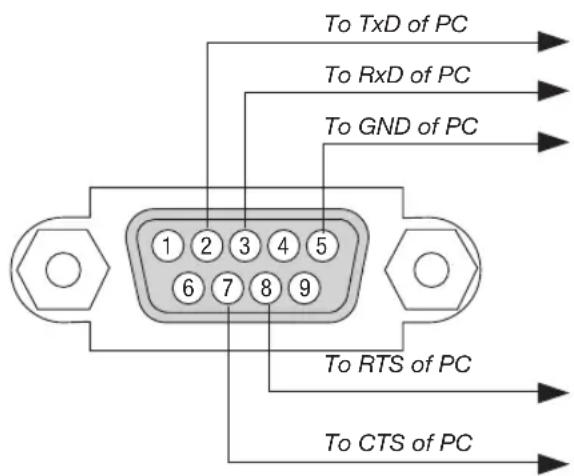
text_image
To TxD of PC To RxD of PC To GND of PC 1 2 3 4 5 6 7 8 9 To RTS of PC To CTS of PCNOTE 1: Pins 1, 4, 6 and 9 are no used.
NOTE 2: Jumper "Request to Send" and "Clear to Send" together on both ends of the cable to simplify cable connection.
NOTE 3: For long cable runs it is recommended to set communication speed within projector menus to 9600 bps.
⑧ Using the Computer Cable (VGA) to Operate the Projector (Virtual Remote Tool)
Using the utility software "Virtual Remote Tool" that is available to download from our web site, Virtual Remote screen (or toolbar) can be displayed on your computer screen.
This will help you perform operations such as projector's power on or off and signal selection via the computer cable (VGA), serial cable, or LAN connection. Only via serial or LAN connection it is also used to send an image to the projector and register it as the logo data of the projector. After registering it, you can lock the logo to prevent it from changing.
Control Functions
Power On/Off, signal selection, picture freeze, picture mute, audio mute, Logo transfer to the projector, and remote control operation on your PC.
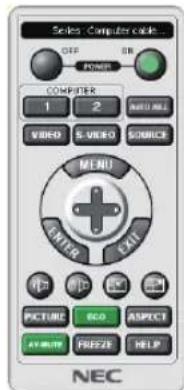
text_image
Sales Computer cable OFF POWER COMPUTER 1 2 AUTO ALL VIDEO S VIDEO SOURCE MENU ENTER EXIT PICTURE ECO ASPECT AVENITE FREEZE HELP NECVirtual Remote screen Toolbar
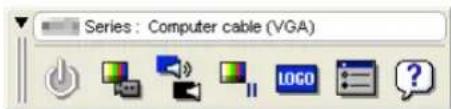
text_image
Series : Computer cable (VGA)For getting the Virtual Remote Tool, please visit our web site and download it: http://www.nec-display.com/dl/en/index.html
NOTE:
- When [COMPUTER] is selected from your source selection, the Virtual Remote screen or the toolbar will be displayed as well as your computer screen.
- Use the supplied computer cable (VGA) to connect the COMPUTER IN terminal directly with the monitor output terminal of the computer to use Virtual Remote Tool.
Using a switcher or other cables than the supplied computer cable (VGA) may cause failure in signal communication.
VGA cable terminal:
Pin Nos. 12 and 15 are required for DDC/CI.
- Virtual Remote Tool may not work depending on your computer's specifications and version of graphic adapters or drivers.
- To run Virtual Remote Tool, "Microsoft .NET Framework Version 2.0" is required. The Microsoft .NET Framework Version 2.0, 3.0 or 3.5 is available from Microsoft's web page. Download and install it on your computer.
- Logo data (graphics) that can be sent to the projector with Virtual Remote Tool has the following restrictions: (Only via serial or LAN connection)
- File size: Less than 1 MB
- Image size (resolution):
P554U/P474U: Horizontal 1920 × vertical 1200 dots or less
P554W/P474W: Horizontal 1280 × vertical 800 dots or less
P604X/P603X: Horizontal 1024 × vertical 768 dots or less
- Number of colors: 256 colors or less
- To put the default "NEC logo" back in the background logo, you need to register it as the background logo by using the image file (P554U/P474U: /Logo/necpj_bbwux.bmp, P554W/P474W: /Logo/necpj_bbwx.bmp, P604X/P603X: /Logo/necpj_bb_x.bmp) included on the supplied NEC Projector CD-ROM.
TIP:
• Virtual Remote Tool can be used with a LAN and a serial connection.
- The projector's COMPUTER IN terminal supports DDC/CI (Display Data Channel Command Interface). DDC/CI is a standard interface for bidirectional communication between display/projector and computer.
⑨ Troubleshooting Check List
Before contacting your dealer or service personnel, check the following list to be sure repairs are needed also by referring to the “Troubleshooting” section in your user’s manual. This checklist below will help us solve your problem more efficiently.
* Print this page and the next page for your check.
Frequency of occurrence □ always □ sometimes (How often?____) □ other (____)
Power
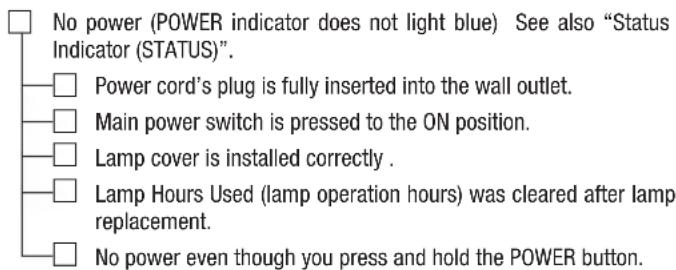
text_image
No power (POWER indicator does not light blue) See also "Status Indicator (STATUS)". Power cord's plug is fully inserted into the wall outlet. Main power switch is pressed to the ON position. Lamp cover is installed correctly . Lamp Hours Used (lamp operation hours) was cleared after lamp replacement. No power even though you press and hold the POWER button.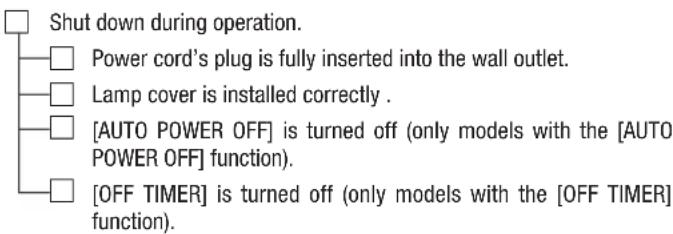
text_image
Shut down during operation. Power cord's plug is fully inserted into the wall outlet. Lamp cover is installed correctly . [AUTO POWER OFF] is turned off (only models with the [AUTO POWER OFF] function). [OFF TIMER] is turned off (only models with the [OFF TIMER] function).Video and Audio
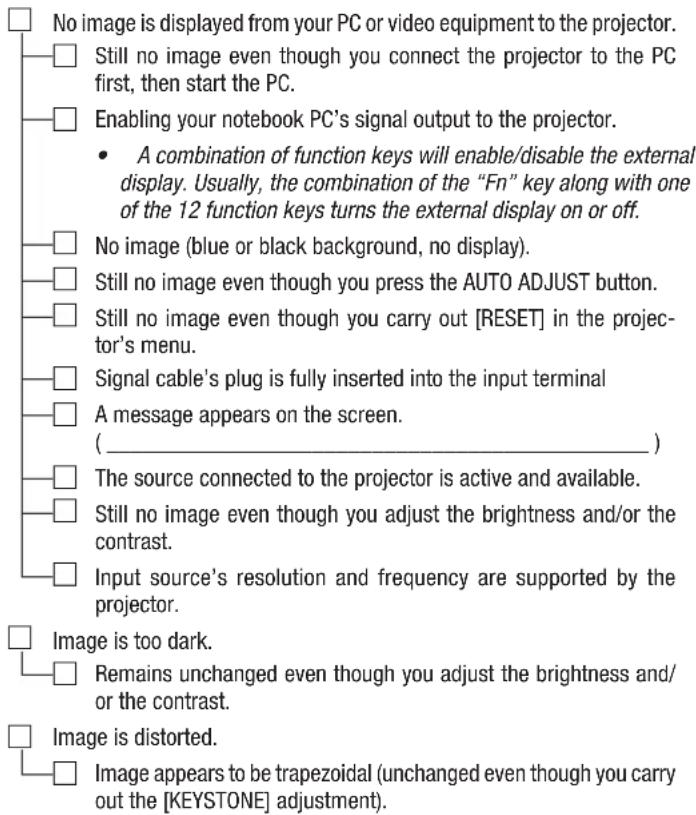
text_image
No image is displayed from your PC or video equipment to the projector. Still no image even though you connect the projector to the PC first, then start the PC. Enabling your notebook PC's signal output to the projector. A combination of function keys will enable/disable the external display. Usually, the combination of the "Fn" key along with one of the 12 function keys turns the external display on or off. No image (blue or black background, no display). Still no image even though you press the AUTO ADJUST button. Still no image even though you carry out [RESET] in the projector's menu. Signal cable's plug is fully inserted into the input terminal A message appears on the screen. (____) The source connected to the projector is active and available. Still no image even though you adjust the brightness and/or the contrast. Input source's resolution and frequency are supported by the projector. Image is too dark. Remains unchanged even though you adjust the brightness and/or the contrast. Image is distorted. Image appears to be trapezoidal (unchanged even though you carry out the [KEYSTONE] adjustment).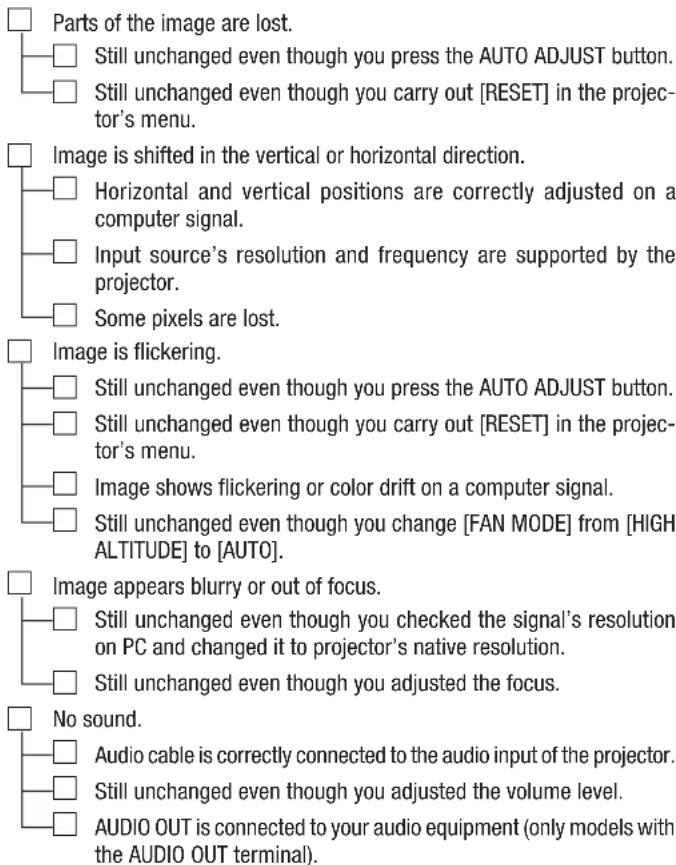
text_image
Parts of the image are lost. Still unchanged even though you press the AUTO ADJUST button. Still unchanged even though you carry out [RESET] in the projector's menu. Image is shifted in the vertical or horizontal direction. Horizontal and vertical positions are correctly adjusted on a computer signal. Input source's resolution and frequency are supported by the projector. Some pixels are lost. Image is flickering. Still unchanged even though you press the AUTO ADJUST button. Still unchanged even though you carry out [RESET] in the projector's menu. Image shows flickering or color drift on a computer signal. Still unchanged even though you change [FAN MODE] from [HIGH ALTITUDE] to [AUTO]. Image appears blurry or out of focus. Still unchanged even though you checked the signal's resolution on PC and changed it to projector's native resolution. Still unchanged even though you adjusted the focus. No sound. Audio cable is correctly connected to the audio input of the projector. Still unchanged even though you adjusted the volume level. AUDIO OUT is connected to your audio equipment (only models with the AUDIO OUT terminal).Other
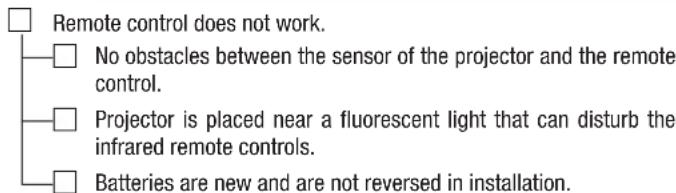
text_image
Remote control does not work. No obstacles between the sensor of the projector and the remote control. Projector is placed near a fluorescent light that can disturb the infrared remote controls. Batteries are new and are not reversed in installation.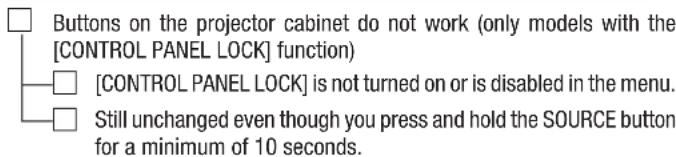
text_image
Buttons on the projector cabinet do not work (only models with the [CONTROL PANEL LOCK] function) [CONTROL PANEL LOCK] is not turned on or is disabled in the menu. Still unchanged even though you press and hold the SOURCE button for a minimum of 10 seconds.In the space below please describe your problem in detail.
Information on application and environment where your projector is used
Projector
Model number:
Serial No.:
Date of purchase:
Lamp operating time (hours):
Eco Mode: □ OFF □ AUTO ECO
□ NORMAL □ ECO
Information on input signal:
Horizontal synch frequency [ ] kHz
Vertical synch frequency [ ] Hz
Synch polarity H □ (+) □ (−)
V
Synch type □ Separate □ Composite
□ Sync on Green
Indicator Message:
□ POWER
Blinks in □ Blue □ Green □ Orange □ Red
[ ] cycles
Lights in □ Blue □ Green □ Orange □ Red
□ STATUS
Blinks in □ Blue □ Green □ Orange □ Red
[ ] cycles
Lights in □ Blue □ Green □ Orange □ Red
□ LAMP
Blinks in □ Blue □ Green □ Orange □ Red
[ ] cycles
Lights in □ Blue □ Green □ Orange □ Red
Remote control model number:
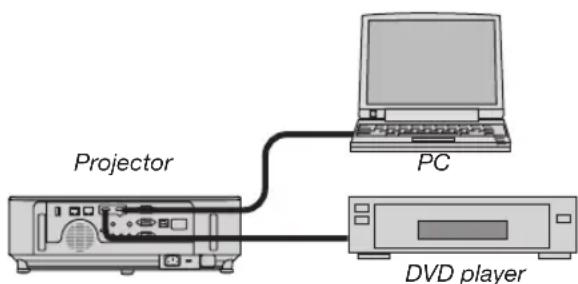
text_image
Projector PC DVD playerSignal cable
NEC standard or other manufacturer's cable?
Model number:
Length: inch/m
Distribution amplifier
Model number:
Switcher
Model number:
Adapter
Model number:
Installation environment
□ (+Screen) size: inch
Screen type: □ White matte □ Beads □ Polarization
□ Wide angle □ High contrast
Throw distance: feet/inch/m
Orientation: □ Ceiling mount □ Desktop
Power outlet connection:
☐ Connected directly to wall outlet
☐ Connected to power cord extender or other (the number of connected equipment ____ )
☐ Connected to a power cord reel or other (the number of connected equipment ____ )
Computer
Manufacturer:
Model number:
Notebook PC □ / Desktop □
Native resolution:
Refresh rate:
Video adapter:
Other:
Video equipment
VCR, DVD player, Video camera, Video game or other
Manufacturer:
Model number:
⑩ REGISTER YOUR PROJECTOR! (for residents in the United States, Canada, and Mexico)
Please take time to register your new projector. This will activate your limited parts and labor warranty and InstaCare service program.
Visit our web site at www.necdisplay.com, click on support center/register product and submit your completed form online.
Upon receipt, we will send a confirmation letter with all the details you will need to take advantage of fast, reliable warranty and service programs from the industry leader, NEC Display Solutions of America, Inc.
NEC