
F115 - Smartphones INFOCUS - Gratis brugsanvisning og manual
Find enhedens vejledning gratis F115 INFOCUS i PDF-format.


Brugerspørgsmål om F115 INFOCUS
0 spørgsmål om dette apparat. Besvar dem du kender, eller stil dit eget.
Stil et nyt spørgsmål om dette apparat
Download vejledningen til din Smartphones i PDF-format gratis! Find din vejledning F115 - INFOCUS og tag din elektroniske enhed tilbage i hånden. På denne side er alle dokumenter nødvendige for brugen af din enhed offentliggjort. F115 af mærket INFOCUS.
BRUGSANVISNING F115 INFOCUS
| InFocusUser ManualF115 | IntroductionThank you for choosing InFocus F115 phone.It is recommended that you first read this User Manual to understand the basic operation of the phone. Please browse the following URL to download user guide: www.infocusphone.comYour package should include the following products.For any missing items, please contact your dealer.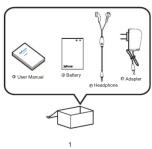 | Your Phone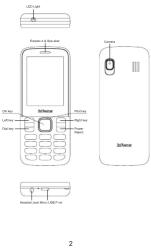 | Installing SIM Card(s) and Memory Card1. Place your phone face down on a flat surface.2. Locate the wall gap on the lower left corner of the back cover, gently pull up to release the latches and slowly remove the cover. 3. Insert the SIM card(s) into the slot(s) as illustrated.NOTE:•To remove the SIM card, push the SIM card firmly into the slot first to select it, then pull it out.-When using the card adapter do not use excessive force to remove the SIM card as this can damage the card 3. Insert the SIM card(s) into the slot(s) as illustrated.NOTE:•To remove the SIM card, push the SIM card firmly into the slot first to select it, then pull it out.-When using the card adapter do not use excessive force to remove the SIM card as this can damage the card | 4. Insert the memory card into the slot with grid connectors facing down.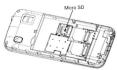 5. Replace the back cover and press along the edges until the latches are fully sealed. 5. Replace the back cover and press along the edges until the latches are fully sealed.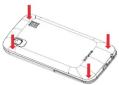 4 4 | Charging the BatteryBefore using the phone, it is recommended to fully charge the battery first1. Connect main level end of the USB cable to the USB port of the device2. Plug the AC adapter to a wall outlet to start charging. Warning-Change only orders and in dry environments.-For safety, the overhead protection will be active during charging. If the system temperature reaches above the maximum level, the device will automatically stop charging. The device will only resume charging when normal operating temperature is reachedInitial Start UpAfter installing the SIM card(s) and charging the battery, the device is ready to be used.5 Warning-Change only orders and in dry environments.-For safety, the overhead protection will be active during charging. If the system temperature reaches above the maximum level, the device will automatically stop charging. The device will only resume charging when normal operating temperature is reachedInitial Start UpAfter installing the SIM card(s) and charging the battery, the device is ready to be used.5 |
| Home ScreenFrom the Home screen as Picture 1, you can quickly access common features and view notifications of missed calls, received messages, check battery and connection statusMaking Your First CallTo make a call as Picture 2. Enter the phone number on the keypad.2. Select right soft key to correct any number. select and hold to erase the entire number.3. Press dial key to make a call.4. To end the call, select End keyNOTE: If you have inserted two SIM cards, select the desired SIM network.[IMAGE]Picture-1 Picture-26.78.9 | To receive a callTo answer a call, select answer[IMAGE]Contacts Adding contacts1. input telephone number.2. Select add to a contact.3. Enter the contact information such as name, phone, number, etc.4. Select OK to save the contact.[IMAGE] | Sending a Text Message1. From the Home screen, select main menu.2. Select messagesNOTE. If you have inserted two SIM cards, select the desired SIM network first before select ping.3. In the To field, enter the recipient's phone number or name.4. Compose your message.5. Select to send your message[IMAGE]Using BrowserTo open a web page1. From the Home screen, select services2. Select the address bar. |  Using Bluetooth1. From the Home screen, select main menu.2. In tool, select Bluetooth and turn it to on, as Picture 3.3. Available devices are listed. To search for a new device, select SEARCH FOR DEVICES.4. Select a dejected device.5. To start pairing, enter the PIN then select OK, NOTE:The PIN of the device must be the same PIN on the other bluetooth device. On some devices, select Pair to start pairing.6. The paired bluetooth device name is displayed Using Bluetooth1. From the Home screen, select main menu.2. In tool, select Bluetooth and turn it to on, as Picture 3.3. Available devices are listed. To search for a new device, select SEARCH FOR DEVICES.4. Select a dejected device.5. To start pairing, enter the PIN then select OK, NOTE:The PIN of the device must be the same PIN on the other bluetooth device. On some devices, select Pair to start pairing.6. The paired bluetooth device name is displayed | [IMAGE]Taking Photos and VideosThis device is equipped with near camera to take photos & visual images.1. From main menu select camera.2. Aim the main set at the subject.3. Select OR key to take a picture[IMAGE]10 |
Your Phone
Installing SIM Card(s) and Memory Card
Charging the Battery
Warning
-
390.00
-
背面
| To record a video1. From take photo interface select menu, choose video2. Aim the device at the subject.3. Select OK key to record a video.4. Riesisted can stop it. | |||||
| Basic Phone SettingsPhone settings[IMAGE]11 12 | Setting an alarm1. From main interface, select main menu.2. Select tool.3. To add alarm, select alarm.4. To suit time select time reset.5. Select yes. | • DO NOT use a pen or any sharp object to select the device.• DO NOT expose the device to dirty or dusty environments.• DO NOT does the device on an uneven or unstable surface• DO NOT insert any foreign objects into the device.• DO NOT does not expose the device to clean electrical field• DO NOT use or store this equipment in a plastic which will be exposed to high temperatures, such as near an open flame or heat-attling equipment.• Use of the device for a water source is where fluids such as water can splash onto it. Raindrops, water spray, juice, coffee, steam, or other types of liquids will allow some malfunctions.• Using this device for long periods of time may cause the device to get warm? I you feel the device is clearly sustainable and that the power adapter consists of the rating. Other accessories specified by the manufacturer.• Disconnected the device from an electrical outlet and power buffer before cleaning them.• NEVER attempt to connect or disconnect the power adapter with salt hands.• Clean the pouch screen with a soft cloth if needed, dampen the cloth slightly before cleaning.13 14 | Never use abrasives or cleaning solutions.• DO NOT disassemble the device. Only is certified service technician should perform repair• Please check with your Local Authority or retailer for product or equipment. Only is certified service technician should perform repair• For USB connection, users must use a USB 2.0 (or higher version) cable• Please make sure the temperature for adapter will not be higher than 50°C.• Do not store your phone in temperatures higher than 50°C.• The operating temperature for this device is from 6°C to 12°C.• The adapter shall be installed near the equipment and shall be easily accessible.• The temperature in the device might increase while the CPU is buying handling resource consuming activities such as high resolution video decoding. The DB protection mechanism will ensure a certified power charger during charging whenever the temperature is over the threshold and prepare for shot down if necessary. Please worry not. | • Make sure the cell phone has a low SAR.• Keep your calls short or send a last message (SMS) instead. This advice applies especially to children, adolescents and pregnant women• Use the cell phone when the signal quality is good• People have active medical implants should briefly keep the cell phone at least 15 cm from the implant• Safety Precautions for Battery Use• Keep the battery dry dry and away from any liquid since this may cause a short circuit.• Keep the battery away from metal products since this may cause a short circuit.• Do not use damaged or altered batteries.• If the battery emits a fluid chaotic, disinfectious use.• Keep the battery away from babies and small children.• If the battery leaks:• Do not allow the leaking fluid to come in contact with your skin, safety clothing, if already on contact, rinse with clean water immediately and seek medical advice.• Keep the battery away from fire since this may cause the battery to episode• Do not attempt to open or service the battery yourself.• Do not dispose battery in fire or water• Recycle or dispose used batteries according to the | local regulationsRoad and Environmental Safety• Turn the phone in areas with a potentially explosive microphone or where the network constructs exist such as gas stations, fuel depots, and chemical plants among others. Sparks from these areas could cause explosion or fire and result in injury or even death• Do not use hand wash phones while driving a vehicle. Use hands free devices as an alternative. |
| Important Safety InformationPlease read before proceeding• DO NOT place objects on top of the device, as they are able to do. • DO NOT drop your device or subject to it severe impacts. Bending the body and pushing the display or keys with extreme force could damage the device. | |||||
| THS MOBILE DEVICE MEETS GUIDELINES FOR EXPOSURE TO RADIO VAVEES Your mobile device is a radio transmitter and receiver. It is designed not to exceed the limits for exposure to radioactive waste recommended by international guidelines. These guidelines were developed by the independent scientific organization CNRP and include safety margins designed to assure the protection of all persons, regardless of age and health.The exposure guidelines for mobile devices employ it a unit of measurement known that the device can be used.Absorption Rates or SAR. The SAR limit stated in the CNRP guidelines is 1.6 Wh/kg averaged over 1 grams of tissue. Tests for SAR. Use are conducted using standard operating positions with the device transmitting at its highest certified power level in at least frequency bands. The actual SAR level of an operator is based on the ENBRIP guidelines for use of the device. Amount amounts depending on a number of factors such as how close you are to a network base station. The highest SAR value under the ENBRIP guidelines for use of the device is designed to use only the power required to reach the networks. Amount amounts depending on a number of factors such as how close you are to a network base station. The highest SAR value under the ENBRIP guidelines for use of the device is rated at the air 0.433 Wh/kg and at the body is 1.386 Wh/kg (The measure distance of 1.5 cm). Use of device accessories and electronic devices may result in different SAR values. SAR values may vary.17 18 | depending on national reporting and testing requirements and the network band.WEEE NoticeThe WEEE logo on the product or its box indicates that this product must not be disposed of or dumped with your other household. You are liable to dispose of all your electronic or electrical waste equipment by recycling over the specific collection point for recycling of such hazardous waste, isolated collection and proper recovery of your electronic and electrical waste equipment at the time of disposal will allow us to help conserve natural resources. Moreover, proper recycling of the electronic and electrical waste equipment will ensure safety of human health and environment. For more information about electronic and electrical waste equipment disposal, recovery, and collection points, please contact your local city center, household waste disposal service, shop from home to a retail store or a retail equipment, or manufacturer of the equipment.RoHS ComplianceThis product is in compliance with DIRECTIVE/2017 OF THE EUROPEAN PARLIAMENT AND OF THE COUNCIL of 8June 2011 on the restriction of the use of certain hazardous substances in electrical and electronic equipment and its amendments | Warranty Statement Limited warrantyInfocus provides ‘Product Warranty Statement’, at the time of sale, we need to apply for or its authorized distributor, describing the product warranty service.Negative issues does not provide global cross-border warranty. This limitation (free of defects in materials and workmanship causing misappropriations) shall last for leakage in (12) months for the device and six (6) months for the battery storage date. Other for example, all-in-box accessories including data cable, earphone, charger if applied, will have six (6) members. The customer acquired the PROOF OF PURCHASE for claiming the warranty. Throughout the warranty period Infocus is not responsible for credit and/or credit subject to section Non-Warranty below repair or replace a defective product. All replaced defective parts or components of the product after returning the repair and/or repair after returning the repaired/explaced product in good condition. This repair on the same symptom, one (1) month warranty is provided.Non-WarrantyHigh use may be considered or claimed (if 1) the product serial number, date code, IME), water indicator or the warranty shall have been removed.19 | erased, defined or altered, or (2) the defect is found to be better. (1) by engineering judgment, the product is mathimandimised via carrewsy or accidentally unscrualed or unsatisfactory. Reuse of the maintenance parts, or other actions beyond the reasonable control of infocus.(2) Improper shipping and parking(3) Forces of nature of withful misconduct.(4) Rough handling, exposure to environmental conditions or extreme thermal or environmental conditions or a rapid change in such conditions, communication, unauthorized modifications or connections,(5) Detrainment of the product due to normal wear and by sales. Products installed or integrated with software or applications which are not made or authorized by infocus. Be sure to look up data and memory confidence, proprietary or personal information from the product when asking service.(6) Does not responsible for credit and/or credit loss or loss of any programs, data or renovation storage media inside or sent with the products. As to Non warranty products defocus will check if a repair is economical/available and provide a chargeable service to customer's consideration. | PRODUCT OR ANY ASSOCIATED EQUIPMENT, INCORATE OR CONSEQUENTIAL LOSSES OR DAMAGESOF ANY NATURE WHATSOEVER TO THE FULLEST EXCENT THAT INSENSO LOSSES OR DAMAGES CAN BE DISCLOSED BY LAW. | |
| 17 18 | |||||
Setting an alarm
Important Safety
Information
WEEE Notice
RoHS Compliance
[EMPTY]
[Non-Text]
[Non-Text]
[Non-Text]
[Non-Text]
[Non-Text]
[Non-Text]
[Non-Text]
[Non-Text]
[Non-Text]
[Non-Text]
[Non-Text]
[Non-Text]
[Non-Text]
[Non-Text]
[Non-Text]
[Non-Text]
[Non-Text]
[Non-Text]
[Non-Text]
[Non-Text]
[Non-Text]
[Non-Text]
[Non-Text]
[Non-Text]
[Non-Text]
[Non-Text]
[Non-Text]
[Non-Text]
[Non-Text]
[Non-Text]
[Non-Text]
[Non-Text]
[Non-Text]
[Non-Text]
[Non-Text]
[Non-Text]
[Non-Text]
[Non-Text]
[Non-Text]
[Non-Text]
[Non-Text]
[Non-Text]
[Non-Text]
[Non-Text]
[Non-Text]
[Non-Text]
[Non-Text]
[Non-Text]
[Non-Text]
[Non-Text]
[Non-Text]
[Non-Text]
[Non-Text]
[Non-Text]
[Non-Text]
[Non-Text]
[Non-Text]
[Non-Text]
[Non-Text]
[Non-Text]
[Non-Text]
[Non-Text]
[Non-Text]
[Non-Text]
[Non-Text]
[Non-Text]
[Non-Text]
The Ground Truth image displays a single, solid horizontal line. According to Rule 2 (UNDERSCORE & LINE RULES), this is a stylistic or background line, not a placeholder underscore. Therefore, the OCR result must ignore it and output nothing or only meaningful text. The provided OCR content is "____", which consists of four underscores. This is an incorrect interpretation of the line as a placeholder, violating the rule that stylistic lines must be ignored. The OCR has hallucinated placeholder underscores where none should exist in the GT. Hence, the OCR result is inconsistent with the Ground Truth.
The Ground Truth image displays a single, solid horizontal line. According to Rule 2 (UNDERSCORE & LINE RULES), this is a stylistic or background line, not a placeholder underscore. Therefore, the OCR result must ignore it and output nothing or only meaningful text. The provided OCR content is "____", which consists of four underscores. This is an incorrect interpretation of the line as a placeholder, violating the rule that stylistic lines must be ignored. The OCR has hallucinated placeholder underscores where none should exist in the GT. Hence, the OCR result is inconsistent with the Ground Truth.
[Non-Text]
[Non-Text]
[Non-Text]
[Non-Text]
[Non-Text]
[EMPTY]
The Ground Truth image displays a single, solid horizontal line. According to Rule 2 (UNDERSCORE & LINE RULES), this is a stylistic or background line, not a placeholder underscore. Therefore, the OCR result must ignore it and output nothing or only meaningful text. The provided OCR content is "____", which consists of four underscores. This is an incorrect interpretation of the line as a placeholder, violating the rule that stylistic lines must be ignored. The OCR has hallucinated underscores where none should exist based on the GT's visual context. Hence, the OCR result is inconsistent with the Ground Truth.
[Non-Text]
[Non-Text]
[Non-Text]
[Non-Text]
[Non-Text]
[Non-Text]
[Non-Text]
[Non-Text]
[Non-Text]
[Non-Text]
[Non-Text]
[Non-Text]
[Non-Text]
[Non-Text]
[Non-Text]
[Non-Text]
[Non-Text]
[Non-Text]
[Non-Text]
[Non-Text]
[Non-Text]
[Non-Text]
[Non-Text]
[Non-Text]
[Non-Text]
[Non-Text]
[Non-Text]
[Non-Text]
[Non-Text]
[Non-Text]
[Non-Text]
[Non-Text]
[Non-Text]
[Non-Text]
[Non-Text]
[Non-Text]
[Non-Text]
[Non-Text]
[Non-Text]
[Non-Text]
[Non-Text]
[Non-Text]
[Non-Text]
[Non-Text]
[Non-Text]
[Non-Text]
[Non-Text]
[Non-Text]
[Non-Text]
[Non-Text]
[Non-Text]
[Non-Text]
[Non-Text]
[Non-Text]
[Non-Text]
[Non-Text]
[Non-Text]
[Non-Text]
[Non-Text]
[Non-Text]
[Non-Text]
[Non-Text]
[Non-Text]
[Non-Text]


Mærke : INFOCUS
Model : F115
Kategori : Smartphones