C5013A - Telefon MOTOROLA - Gratis bruksanvisning och manual
Hitta enhetens manual gratis C5013A MOTOROLA i PDF-format.


Användarfrågor om C5013A MOTOROLA
0 fråga om denna apparat. Svara på dem du kan eller ställ din egen.
Ställ en ny fråga om denna apparat
Ladda ner instruktionerna för din Telefon i PDF-format gratis! Hitta din manual C5013A - MOTOROLA och ta tillbaka ditt elektroniska enhet i hand. På denna sida publiceras alla dokument som behövs för att använda din enhet. C5013A av märket MOTOROLA.
BRUKSANVISNING C5013A MOTOROLA
Digital Cordless Telephone with
Digital Answering Machine
Motorola C5A
For C5011A, C5012A, C5013A and C5014A
Welcome...
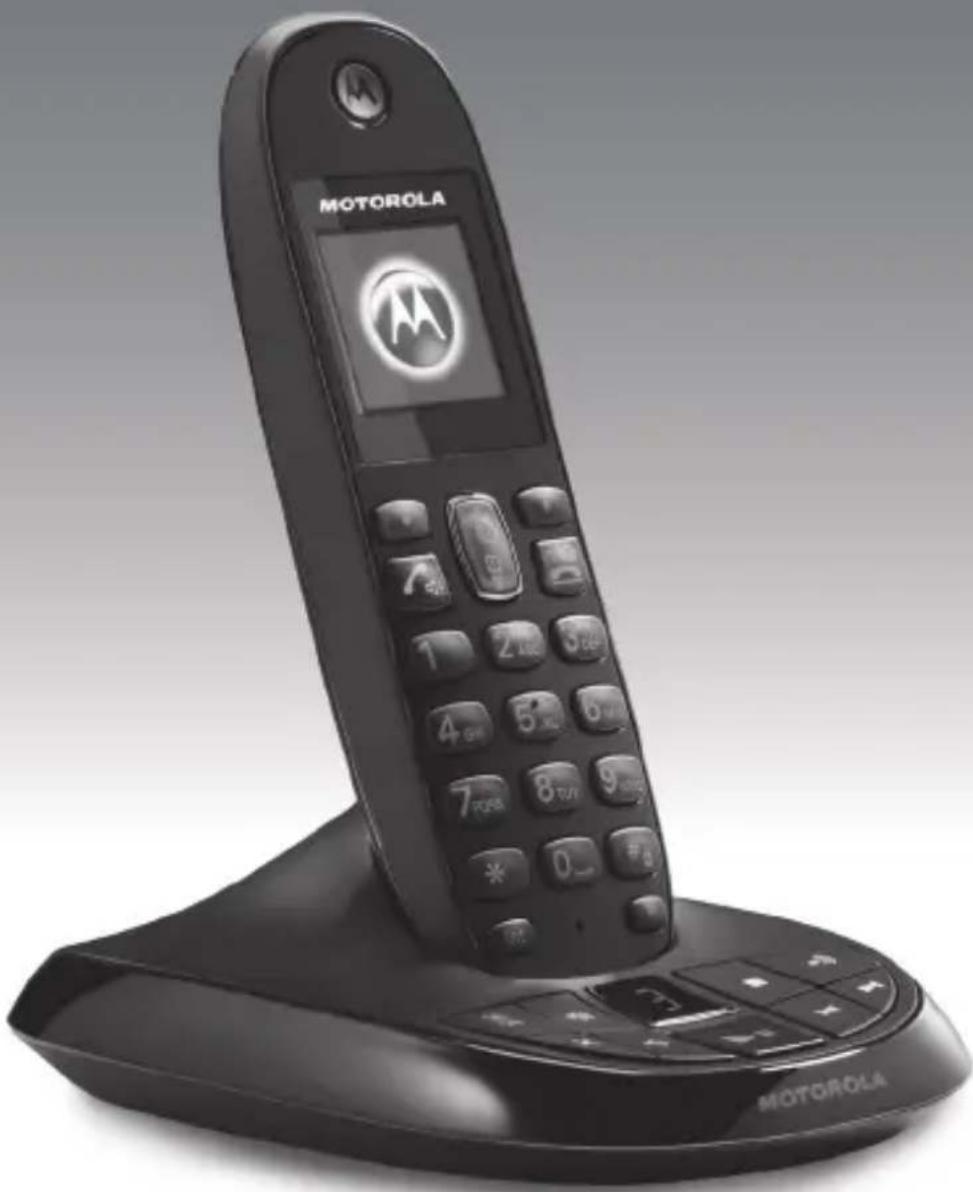
to your new Motorola C5010A Digital Cordless Telephone with Digital Answering Machine!
- Digital answering machine with up to 60 minutes recording time for high quality message recording.
• 200 Name and Number phonebook. - Copy phonebook entries between handsets.
- Colour display.
- Speakerphone for hands-free conversations.
- All handsets are fully cordless for locating anywhere within range.
- Screensaver clock display.
- Caller ID shows you who's calling and see details of the last 30 callers in a Calls list. ^1
- Redial up to 20 of the last numbers called.
- Register up to 5 handsets to a single base and register each handset with up to 4 different bases.
- Make internal calls, transfer external calls, hold 3-way conversation between two internal callers and an external caller.
- Choose from 20 different ringtones for internal and external calls as well as numbers stored in the phonebook.
Need help?
If you have any problems setting up or using your C5010A, please contact Customer Services on 0800 0820750.
Alternatively, you may find the answer in the 'Help' section at the back of this guide.
Please note that this equipment is not designed for making emergency telephone calls when the power fails. Alternative arrangements should be made for access to emergency services.
^1 You must subscribe to your network provider's Caller ID or Call Waiting service for these features to work. A subscription fee may be payable.
This user guide provides you with all the information you need to get the most from your phone.
To set up your phone, follow the simple instructions in 'Getting Started', on the next few pages.
IMPORTANT
Only use the telephone line cord supplied.
Got everything?
- Cordless handset
- Cordless base
- 2 x rechargeable Ni-MH battery cells
• Power adaptor for the base - Telephone line cord
If you have purchased a C5010A multiple pack you will also have the following additional items:
• Cordless handset & charger
- 2 x rechargeable Ni-MH battery cells
• Power adaptor for the charger

ECOMOTO™
ECOMOTO: a convergence of efforts by marketing, design, research, engineering and supply chain management that leads to better products for everyone. A holistic view that focuses on both social and environmental responsibility. A passion and a shared point of view.
The right thing to do.
- Meets and / or exceeds EMEA environmental regulatory requirements.
- Eco friendly packaging with a minimum 20% post consumer recycled content.
- Phone housing is built with a minimum of 25% post consumer recycled content plastic.
- Energy efficient charger that meets EU Code of Conduct requirements.
- ECO mode function which reduces the transmitted power and energy consumption, please refer to page 42.
1. Getting started....8
2. Getting to know your phone 12
3.1 Switch the handset on / off 19
3.2 Calls....19
3.2.1 Make a call....19
3.2.2 Preparatory dialling 19
3.2.3 Make a call using fast call keys 19
3.2.4 End a call....19
3.2.5 Receive a call....19
3.3 Adjust the earpiece volume 19
3.4 Secrecy 20
3.5 Intercom 20
3.5.1 Make an internal call ....20
3.5.2 Receive an internal call 20
3.5.3 Transfer a call 20
3.5.4 3-way conference call 20
3.6 Hands-free speakerphone 21
3.6.1 Make a hands-free call 21
3.6.2 Answer a call hands-free 21
3.6.3 Switch to hands-free during a call 21
3.6.4 Hands-free volume 21
3.7 Redial 22
3.7.1 View or dial an entry 22
3.7.2 Copy a Redial list number to the phonebook 22
3.7.3 Delete an entry 22
3.8 Lock/unlock the keypad 22
3.9 Paging / Find handset 23
4. Phonebook....24
4.1 Store a name and number 24
4.2 View the details or dial an entry 25
4.3 Search an entry 26
4.4 Edit a name and number 26
4.5 Copy an entry to another handset 26
4.6 Assign a ringtone 27
4.7 Delete an entry 27
4.8 Store a fast call number 27
4.9 Clear a fast call number 27
4.10 Access the phonebook during a call 28
4.11 Copy the phonebook to another handset 28
4.12 Check the memory status....28
4.13 Delete all entries 28
5. Calls list....29
5.1 New calls alert....29
5.2 Dial a number in the Calls list .....29
5.3 View the details of an entry....30
5.4 Copy a Calls list number to the phonebook....30
5.5 Delete an entry 30
5.6 Delete the entire Calls list ....31
6. Reminder 32
6.1 Add a new event 32
6.2 Switch off reminder ring 32
6.3 Show event details....33
6.4 Edit an event 33
6.5 Send an event as a text 33
6.6 Delete an event....34
6.7 Delete all events 34
7. Clock & Alarm 35
7.1 Set the date and time....35
7.2 Set the alarm 35
7.3 Time format 35
8. Handset settings....36
8.1 Handset ringtone....36
8.2 Handset ringer volume 36
8.3 Receiver volume....36
8.4 Handset name 37
8.5 Display language....37
8.6 Set the wallpaper 37
8.7 To change menu colour....38
8.8 Screensaver 38
8.9 Light timeout 38
8.10 To change display contrast 38
8.11 Auto talk....39
8.12 Key beep 39
8.13 PABX access code....39
9. Base settings....40
9.1 Base ringtone 40
9.2 Base ringer volume ....40
9.3 Dialling mode 40
9.4 Ring priority ....40
9.5 Recall mode 41
9.6 Switch first ring on/ off 41
9.7 Change the System PIN 41
9.8 Restore default settings 42
9.9 ECO mode 42
9.10 Default settings 43
10. Using additional handsets......44
10.1 Registering an additional handset....44
10.2 Register a different make of handset to your C5010A base .....44
10.3 Select a base 45
10.4 De-register a handset 45
11. Room monitor....46
11.1 To switch Room Monitor On....46
11.2 To change the monitor level 46
11.3 To set the dial out number 46
12. Using the answering machine......48
12.1 Base control keys 48
12.2 Switch the answering machine on / off 48
12.3 Answer delay....49
12.4 Message alert 49
12.5 New messages alert 49
12.6 Outgoing messages 49
12.7 Record a personalised outgoing message 50
12.8 Play or delete your personalised outgoing message 50
12.9 Set the answer mode and announcement....51
12.10 Record a memo....51
12.11 Call screening 51
12.12 Message playback 52
12.13 Delete all old messages 52
12.14 Remote access 53
12.15 Switch remote access On / Off 54
12.16 Change the remote access PIN 54
13. Text messaging....55
13.1 Subscribe to the text messaging service ....55
13.2 Send a text message 55
13.3 Standard text entry 56
13.4 Receiving and reading text messages 56
13.5 Read a new message 57
13.6 Read, forward, delete, view and save numbers of texts in the Inbox 57
13.7 Edit or send texts in the Drafts box ....58
13.8 Forward or delete texts in the Outbox 58
13.9 Edit templates 58
13.10 Deleting texts 59
13.11 Add or change Service Centre numbers....59
13.12 Set send centre 59
13.13 Message alert tone 60
13.14 Set message size 60
13.15 Add a user mailbox 60
13.16 Open and read a mailbox text ......61
13.17 Edit a user mailbox ....62
13.18 Delete a user mailbox....62
13.19 Set common mailbox sub address 62
-
Help 63
-
General information 65
-
Help....63
- General information....65
1. Getting started
IMPORTANT
Do not place your C5010A in the bathroom or other humid areas.
Location
You need to place your C5010A base within 2 metres of the mains power socket and 1.8 metres from the telephone wall socket so that the cables will reach. The socket-outlet shall be installed near the equipment and shall be easily accessible.
Make sure that it is at least 1 metre away from other electrical appliances to avoid interference. Your C5010A works by sending radio signals between the handset and base. The strength of the signal depends on where you place the base. Placing it as high as possible ensures the best signal.
HANDSET RANGE
The unit has a range of up to 300 metres outdoors when there is a clear line of sight between the base and handset. Any obstruction between the base and handset will reduce the range significantly. With the base indoors and the handset either indoors or outdoors, the range will normally be up to 50 metres. Thick concrete and stone walls can severely affect the range.
SIGNAL STRENGTH
The ▼ icon on your handset indicates that you are within range of the base. When out of range of the base, the ▼icon flashes. If you are on a call, you will hear a warning beep.
The line will hang up if the handset moves out of range of the base. Move closer to the base. The handset will automatically reconnect to the base.
Setting up
IMPORTANT
The base station must be plugged into the mains power at all times. Do not connect the telephone line cord into the wall socket until the handset is fully charged. Use only the power adaptor and telephone line cord supplied with the product.
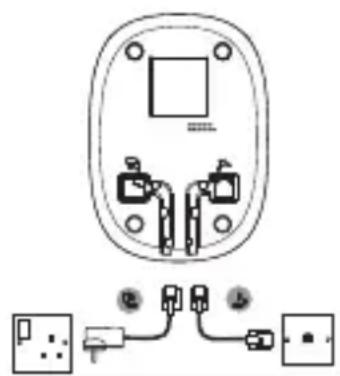
Connecting the base
natural_image
Pure electrical circuit lines without any symbols-
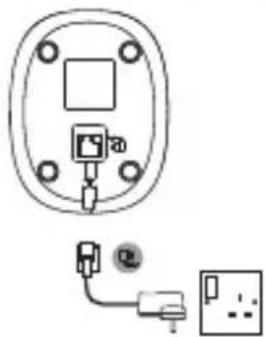
Plug the telephone line cord into the socket marked on the underside of the base.
-
Plug the power adaptor into the socket marked on the underside of the base and plug the other end into the mains power wall socket. Switch on the mains power.
Installing and charging the handset
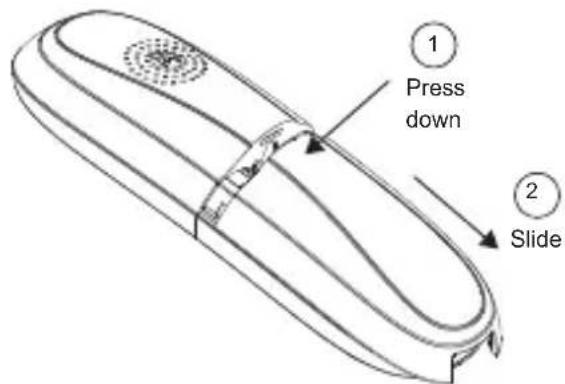
- Remove the battery cover from the back of the handset and insert the rechargeable Ni-MH battery cells supplied. Please note the '+' and '-' markings inside the battery compartment and insert in the correct direction.
-
Slide the battery cover back into place.
-
If you are charging the batteries for the first time, place the handset on the base to charge for at least 24 hours continuously.
-
When the handset is fully charged, icon will appear steady on the display. Plug the other end of the telephone line cord (make sure that one end is already plugged into the base) into the telephone wall socket.
Connecting the handset and charger (for multi-pack only)
If you have purchased a multiple pack, you will need to carry out this process for all the handsets and chargers.
- Plug the power adaptor into the socket marked on the underside of the charger and plug the other end into the mains power wall socket.
natural_image
Pure electrical circuit lines without any symbols- Remove the battery cover from the back of the handset and insert the 2 x AAA NiMH rechargeable batteries supplied. Please note the '+' and '-' markings inside the battery compartment and insert in the correct direction.
- Slide the battery cover back into place.
- If you are charging the batteries for the first time, place the handset on the charger to charge for at least 24 hours continuously.
- When the handset is fully charged, ☐ on will appear steady on the display. The display will show HANDSET and handset number (e.g. 2) to indicate that it is registered to the base.
IMPORTANT
Warning! Use only the approved rechargeable Ni-MH battery cells (2 x AAA Ni-MH 750mA rechargeable batteries) supplied with your C5010A.
BATTERY LOW WARNING
If icon flashes on the display and you hear a warning beep every 30 seconds during a call, you will need to recharge the handset before you can use it again.
When charging, icon will scroll on the display.
BATTERY PERFORMANCE
In ideal conditions, fully charged batteries should give up to 13 hours talk time or up to 180 hours standby time on a single charge. ^1
Note that new batteries do not reach their full capacity until they have been put to normal use for several days.
To keep your batteries in the best condition, leave the handset off the base for a few hours at a time.
Running the batteries right down at least once a week will help them last as long as possible.
The charge capacity of rechargeable batteries will reduce with time as they wear out, giving the handset less talk / standby time. Eventually they will need to be replaced.
After charging your handset for the first time, subsequent charging time is about 6–8 hours a day. Batteries and handset may become warm during charging. This is normal.
^1 All talk and standby times are approximate and depend on features selected and usage pattern.
Date and time
If you have subscribed to a Caller ID Service, the date and time is set automatically for all handsets when you receive your first call.
If you do not have a Caller ID service, you can set the date and time manually.
- Press Menu, scroll to Clock & Alarm and press Select.
- Date & Time is highlighted. Press Select.
- Enter the date using the format DD/MM/YY e.g. 04/08/12 for 4 August 2012.
- Enter the time (HH:MM) and press Save. If the current time format setting is 12 hour, scroll 🔔 or 🔒 to select am or pm. To change time format, see page 35.
- Press to return to standby.
NOTE
The date and time is retained during a power failure or when the batteries are discharged.
Your C5010A is now ready for use.
2. Getting to know your phone
Overview of your handset
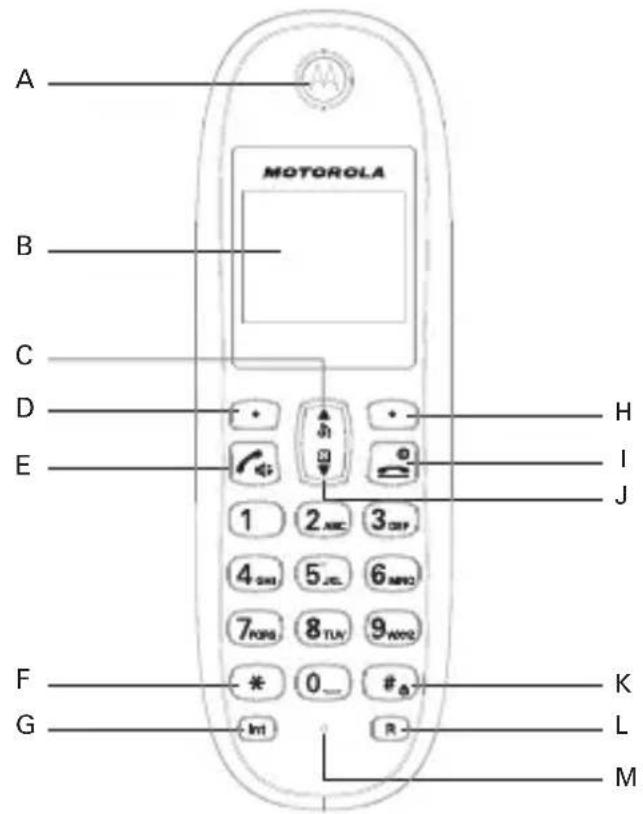
A Earpiece
B Display
See page 14 for an overview of the display icons.
C Redial list / Scroll up / Volume up / Pause
In standby mode, press to open the redial list.
Scroll up through lists and menus.
Increase the earpiece and hands-free volume.
When the phone is ringing, press to increase the handset ringer volume.
Press and hold to enter a pause (P) when pre-dialling or storing numbers.
D Menu / OK / Secrecy / Left softkey
In standby mode, press to open the Menu.
Press to select menu options and to confirm a displayed option.
During a call, press to turn secrecy on / off.
E Talk / Hands-free
Make or answer a call.
Activate and deactivate hands-free during a call.
IMPORTANT
Hands-free activation can suddenly increase the volume in the earpiece to a very high level. Make sure the handset is not too close to your ear.
F Pulse to Tone dialling / \*
During a call, press and hold to switch from pulse dialling to tone dialling. Dial a *.
G Intercom
Press to make an internal call.
H Phonebook menu / Clear / Back / Right softkey
In standby mode, press to open the phonebook menu.
Clear incorrect input during text editing.
Return to previous menu.
I End / Exit / Switch handset on/off
End a call.
When in a menu, go back to standby mode.
Press and hold to switch handset off (when in standby) or on.
J Phonebook / Scroll Down / Volume down
Open the phonebook.
Scroll down through lists and menus.
Decrease the earpiece and hands-free volume.
When the phone is ringing, press to decrease the handset ringer volume.
K Change case / Keypad lock / #
Press to change the case when entering letters / editing.
Press and hold to lock the keypad.
Dial a #
L Recall
Use recall (R) functions.
M Microphone
Handset LCD Display
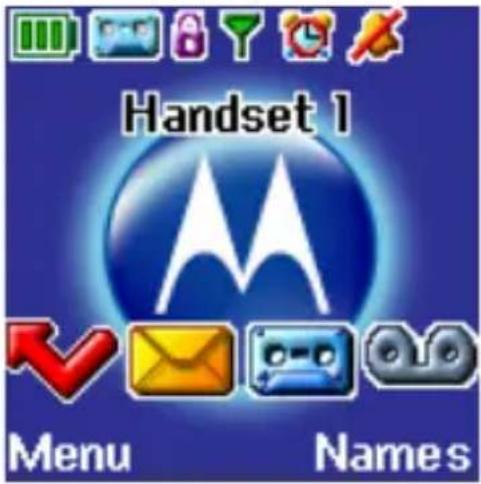
Steady when the handset is registered and within range of the base. Flashes when handset is out of range or searching for the base.
Displays when ECO mode is on.
Handset ringer volume is Off.
Displays when in hands-free mode.
Displays when the answering machine is on.
The alarm clock has been set.
The keypad is locked.
Displays when you have missed calls and new number(s) in the Calls list. ^1
Displays when you have a new text message.
Displays when you have new answering machine messages.
Displays when you have new voicemails.
The approximate power levels of your battery are indicated as follows:
Battery is fully charged.
Battery is partially charged.
Battery is running low. Flashes when the battery is almost fully discharged.
^1 For this feature to work, you must subscribe to Caller ID Service from your network operator. A subscription fee may be payable.
Overview of the base
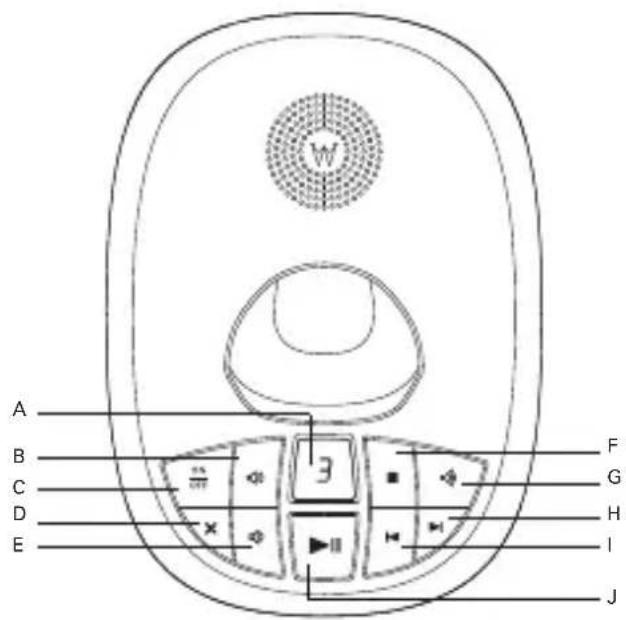
A LED
Indicates when the answering machine is on or off, and when you have messages.
Status
Action
0
Answering machine on
-
Answering machine off
B Volume Up
Increase playback volume.
C Answering machine On / Off
Switches the answering machine on / off.
D Delete
Press to delete recorded messages during playback.
E Volume Down
Decrease playback volume.
F Stop
Stops message playback.
G Page
In standby, press to ring the handset(s).
Press and hold to enter registration mode when registering handsets.
H Skip forward
Press to skip forward through your answering machine messages.
I Skip back
Press to skip backward through your answering machine messages.
J Play / Pause
Play or pause recorded messages.
Navigating the menu
Your C5010A has an easy to use menu system on the handset.
Each menu has a list of options, which you can see on the menu map on the following page.
When the handset is switched on and in standby:
- Press the left softkey Menu. The main menu is opened.
- Then use for Buttons to scroll through the menu.
- Soft key options Select and Back are displayed.
Press the left softkey Select to open a sub-menu or validate an option.
Press the right softkey option Back to go back to the previous menu level, correct a character or cancel an action.
NOTE
If no buttons are pressed for 30 seconds or the handset is placed on the base / charger, the handset returns to standby.
Menu map
Text Messaging
Write Message
Inbox
Drafts
Outbox
Templates
Delete Messages
Text Settings
Service Centres
Mailbox Number
Message Size
Message Alert
Users
Answer Machine
Play
Play All
Answer On/Off
Record Memo
Outgoing Message.
Delete Messages
Answer Settings
Answer Mode
Answer Delay
Message Alert
Remote Access
Calls Lists
Missed Calls
Received Calls
Dialled Calls
Delete Calls
Reminder
If there is an event, press Options and the following will be displayed.
Add Event
Show Details
Edit Event
Send as a Text
Delete Event
Delete All Events
If the list is empty:
Add Event
Clock & Alarm
| Date & Time |
| Alarm |
| Time Format |
Settings
| Set Handset | Set Base |
| Ringtone | Ringtone |
| Ringer Volume | Ringer Volume |
| Receiver Volume | Dialling Mode |
| Handset Name | Ring Priority |
| Language | Recall Mode |
| Wallpaper | First Ring |
| Menu Colour | System PIN |
| Screensaver | Master Reset |
| Light Timeout | ECO Mode |
| Display Contrast | |
| Auto Talk | |
| Key Beep | |
| PABX Access Code |
Registration
| Register Handset |
| Select Base |
| De-register |
Extra
| Room Monitor |
Names Press Names during a call
| From menu in standby: | Phonebook list is displayed, select Options: |
| Search | Add Entry |
| Add Entry | Show Details |
| Copy Phonebook | Edit Entry |
| Memory Status | Delete Entry |
| Delete Phonebook | |
| Press n standby and phonebooklist is displayed, select Options: | |
| Show Details | |
| Send Message | |
| Edit Entry | |
| Copy Entry | |
| Ringtone | |
| Delete Entry | |
| Fast Call | |
3. Using the phone
NOTE
Your handset will automatically time the duration of all external calls, the call timer will display on the screen. When the call ends, the total duration of your talk time is shown for 5 seconds.
3.1 Switch the handset on / off
Press and hold to switch the handset on or off.
3.2 Calls
3.2.1 Make a call
- Press

- When you hear the dial tone, dial the number.
3.2.2 Preparatory dialling
-
Dial the number first. If you make a mistake press Clear to delete the last digit.
-
Press ☐ to dial the number.
NOTE
To enter a pause (P) when pre-dialling, see page 24.
3.2.3 Make a call using fast call keys
- Press and hold the relevant keypad number to dial the pre-stored number directly.
NOTE
To store a fast call number, see page 27.
3.2.4 End a call
Press or place the handset back on the base or charger.
3.2.5 Receive a call
When you receive an external call, the phone rings and External Call shows on the display.
- If the handset is off the base then press to answer the call, or if the handset is on the base simply lift the handset to answer the call.
NOTE
If you prefer to press 📋 when you lift up the handset to answer a call, you will need to switch Auto Talk off, see page 39.
3.3 Adjust the earpiece volume
During a call, press or to increase or decrease the volume. There are 8 levels to choose from.
3.4 Secrecy
You can mute your handset so that you can talk to someone nearby without your caller hearing.
- During a call, press Secrecy. The display shows Secrecy On and your caller cannot hear you.
- Press Off to resume your call.
3.5 Intercom
3.5.1 Make an internal call
If you have more than one handset registered to the base, you can make internal calls between two handsets.
Internal Call and Handset X displays to indicate an internal call.
- Press followed by the number (1-5) of the handset you want to call.
- Press OK.
3.5.2 Receive an internal call
When you receive an internal call, Internal Call and Handset X is displayed.
- Press to answer the call.
3.5.3 Transfer a call
You can transfer an external call to another handset registered to the base.
During an external call:
- Press followed by the handset number (1-5) that you want to transfer to.
- Press OK.
- When the other handset answers, press to complete the transfer.
NOTE
If there is no answer from the other handset and you wish to return to your external caller, press Int.
3.5.4 3-way conference call
You can hold a 3-way conference call between 2 internal callers and 1 external caller.
During a call with an external caller:
- Press followed by the handset number (1-5) that you want to establish a conference call.
- Press OK.
-
When the other handset answers, press Join to connect all three callers to begin the conference call.
-
If there is no answer from the other handset, press
Int to return to your external caller.
- Press to end the call.
3.6 Hands-free speakerphone
Hands-free lets you talk to your caller without holding the handset. It also enables other people in the room to listen to the conversation.
3.6.1 Make a hands-free call
- Dial the number and then press twice.
icon is displayed and you will hear the call over the handset loudspeaker.
-
Press to switch the call between the earpiece and hands-free.
-
Press to end the call.
NOTE
During a hands-free call, press ⬆ or ⬇ to adjust the volume.
3.6.2 Answer a call hands-free
If the handset is on the base and auto answer is switched on, lift the handset and press 📞
If the handset is off the base or auto answer is switched off, press twice to answer the call.
3.6.3 Switch to hands-free during a call
During a call, press to put the call on the hands-free.
To switch hands-free off and return the call to the earpiece, press again.
3.6.4 Hands-free volume
-
Press Menu, scroll to Settings and press Select.
-
Set Handset is highlighted. Press Select.
-
Scroll to Receiver Volume and press Select.
-
Scroll for to adjust the receiver volume level and press Save.
-
Press to return to standby.
3.7 Redial
The last 20 entries dialled are stored in the redial list.
3.7.1 View or dial an entry
- Press to open the Redial list.
- The last number dialled is highlighted.
- Scroll or to the entry you want.
- Press to dial the entry or press Back to return to standby.
NOTE
If the caller's number exactly matches an entry stored in the phonebook, the name is displayed. Press the left softkey twice to see the caller's number.
3.7.2 Copy a Redial list number to the phonebook
- Press to open the Redial list.
- Scroll for to the entry you want.
- Press Options. Show details is highlighted. Scroll to Save Number.
- Press Select. The display shows Enter Name.
- Enter the name and press OK. The number is displayed.
- Edit the number if necessary, then press Save.
- Press \or \ to select the ringer melody you want and press Select The number is stored.
- Press to return to standby.
NOTE
See "ENTERING NAMES" and "WRITING TIPS" on page 24.
3.7.3 Delete an entry
- Press to open the Redial list.
- Scroll for to the entry you want and press Options. The display shows Show Details.
- Scroll to Delete Call
- Press Select to confirm or to cancel.
3.8 Lock / unlock the keypad
You can lock the keypad so that it cannot be operated accidentally while carrying it around.
NOTE
When the keypad is locked, you can still answer incoming calls and operate the handset as normal. When the call ends, the keypad lock comes on again.
-
Press and hold .# icon is displayed.
-
To unlock the keypad, press Unlock. The display shows Press # to Unlock Keys.
- Press # within 3 seconds.
3.9 Paging / Find handset
You can alert a handset user that they are wanted or locate a missing handset.
Paging calls cannot be answered by a handset.
-
Press on the base. All handsets registered to the base will ring and display Paging Call.
-
To stop the ringing, press on the base again or press Stop or any button on the handset.
4. Phonebook
You can store up to 200 names and numbers in the phonebook. Names can be up to 12 characters long and numbers up to 24 digits. You can also select different ringer melodies for the phonebook entries.
4.1 Store a name and number
If the C5010A is connected to a switchboard, you may need to enter a pause in a number. This gives the switchboard time to find an outside line. A pause is normally stored after the switchboard access code (e.g. 9). When storing a number, press and hold ⚠ until the display shows P. You can then continue storing the phone number.
If you have subscribed to Caller ID Service and wish to display the name of your caller instead of the number, save the full telephone number including the area code to your phonebook.
You can store multiple entries with the same name. However, to prevent unnecessary duplicated entries, you can only store the same number once.
- Press Names to enter the phonebook menu.
- Search is highlighted.
- Scroll to Add Entry and press Select.
- Enter a name and press OK.
- Enter a number and pressSave.
- Scroll for to the melody you want and press Select. The entry is stored.
- Press to return to standby.
NOTE
Cancel storing an entry by pressing 📋 at any time during the process.
ENTERING NAMES
Use the alphanumeric keypad to enter names in the phonebook.
For instance to enter the name Paul
P Press 7PORS once
A Press 2 ABC once
U Press twice
L Press 5 ^° three times
To enter a space, press 0.
WRITING TIPS
Press ⬆ or ⬇ to move between characters/digits.
Press Clear to delete a character, or press and hold Clear to delete all characters.
CHARACTER MAP
Key Case Assigned characters and symbols
① L/U.,-?!;¿'@:;/1
2 ABC L a b c 2 ä æ å å ç
U ABC2ÄÄÄÇ
3 DEF L def3èé
U DEF3É
4ghi4i
U G H I 4
5 ^ jkl L j k l 5
U J K L 5
6 MNO L m n o 6 ö ø ò ñ
U MNO6Ö∅Ñ
7pqs7β
U P Q R S 7
8 tuv8ùü
U TUV8Ü
9 wxyz L w xyz 9
UWXYZ9
0_ L/U Space 0
# L / U short press to switch between Abc, abc, ABC and 123 mode
L = Lower case
U = Upper case
4.2 View the details or dial an entry
-
In standby, press □The first entry is highlighted on the display.
-
Scroll or to the entry you want.
Or
To search alphabetically, press the key with the first letter of the name, e.g. if the name begins with N, press twice. The display
shows the first entry beginning with N. If required, scroll or to the exact entry.
- Press to dial the displayed entry.
Or
To see the details, press Options.
- Show Details is highlighted. Press Select. The name, number and ringtone of the entry are displayed.
- Press Dial to dial the displayed entry or press to return to standby.
4.3 Search an entry
- Press Names to enter the phonebook menu.
- Search is highlighted. Press Select. The first entry is highlighted on the display.
- Enter the first letter of the name to search alphabetically then scroll for to the exact entry.
- Press to dial the displayed entry or press to return to standby.
4.4 Edit a name and number
- In standby, press ▼The first entry is highlighted on the display.
- Enter the first letter of the name to search alphabetically then scroll for to the exact entry. PressOptions.
- Scroll to Edit Entry and press Select.
- Edit the name and press OK to confirm. Press Clear to delete a character, or press and hold Clear to delete all characters.
- Edit the number and press Save. Press Clear to delete a character, or press and hold Clear to delete all characters.
- Scroll for to the ringtone you want and press Select. The entry is stored.
- Press to return to standby.
4.5 Copy an entry to another handset
- In standby, press ▲The first entry is highlighted on the display.
- Enter the first letter of the name to search alphabetically then scroll for to the exact entry. Press Options.
- Scroll to Copy Entry and pressSelect.
- The display shows To Handset, press Select
- Scroll or to the number of the handset you want the entry to be copied to. Press Select.
- When the message "Copy Phonebook?" appears on the destination handset, press Yes on that handset to start the copy process.
- Press to return to standby.
NOTE
If an entry with the same number is already stored in the receiving handset, it will not be copied.
4.6 Assign a ringtone
- In standby, press □The first entry is highlighted on the display.
- Enter the first letter of the name to search alphabetically then scroll for to the exact entry. PressOptions.
- Scroll to Ringtone and press Select
- Scroll 🧑 or 🖱 to the ringtone you want and press Select. The ringtone is saved.
- Press to return to standby.
4.7 Delete an entry
- In standby, press □The first entry is highlighted on the display.
- Enter the first letter of the name to search alphabetically then scroll for to the exact entry. PressOptions.
- Scroll to Delete Entry and press Select.
- Display shows Delete
? Press Yes to confirm. - Press to return to standby.
4.8 Store a fast call number
- Press Names to enter the phonebook menu.
- Search is highlighted. Press Select. The first entry is highlighted on the display.
- Enter the first letter of the name to search alphabetically then scroll for to the exact entry, then press Options.
- Scroll or to Fast Call, press Select to confirm.
- Scroll or to Key X where the entry will be stored, press Select.
- Assign is highlighted press Select to confirm.
- Press to return to standby.
4.9 Clear a fast call number
- Press Names to enter the phonebook menu.
- Search is highlighted. Press Select. The first entry is highlighted on the display.
-
Enter the first letter of the name to search alphabetically then scroll or to the exact entry, then press Options.
-
Scroll for to Fast Call, press Select.
- Scroll nor to Key X where the entry is stored, press Select
- Scroll or to Clear Entry, press Select to confirm.
- Press to return to standby.
4.10 Access the phonebook during a call
-
During a call, press Names.
-
Press Options and scroll or to select Add Entry, Show Details, Edit Entry or Delete Entry.
4.11 Copy the phonebook to another handset
- Press Names to enter the phonebook menu.
- Scroll to Copy Phonebook and press Select.
- The display shows To Handset, press Select.
- Scroll or to the number of the handset you want the phonebook to be copied to. Press Select.
- When the message "Copy Phonebook?" appears on the destination handset, press Yes on that handset to start the copy process.
- Press to return to standby.
NOTE
If an entry with the same number is already stored in the receiving handset, it will not be copied.
4.12 Check the memory status
You can check how much phonebook memory you have on your phone.
- Press Names to enter the phonebook menu.
- Scroll to Memory Status and press Select The display shows the number of used and free phonebook entries.
- Press to return to standby.
4.13 Delete all entries
- Press Names to enter the phonebook menu.
- Scroll to Delete Phonebook and press Select
- Display shows Delete All Entries?. Press Yes.
- Press to return to standby.
5. Calls list
If you have subscribed to Caller ID service, and provided the identity of the caller is not withheld, the number of the caller will be displayed together with the date and time of the call (if provided by the network).
NOTES
If the caller's number is stored in your phonebook along with a name, the name will also be displayed.
If the number is unavailable, Unavailable will be displayed.
If the caller has withheld their number, Withheld will be displayed.
If the call is from an international number, International will be displayed.
If the call is from the operator, Operator will be displayed.
If the call is from a payphone, Payphone will be displayed.
If the call is from a ringback request, Ringback will be displayed.
Information about incoming calls is dependent on the country and network operator. Some operators may charge a subscription for their Caller ID service.
The Calls list contains details of missed and received call. Details include the date and time of the call. Entries are displayed in chronological order with the most recent call at the top of the list.
When the list is full, and a new call is received, the oldest entry will be deleted automatically.
The received and missed Calls list holds details of up to 30 calls.
5.1 New calls alert
When you have new missed calls (incoming calls that you haven't answered), the display shows You have X New missed calls.
If you press Back, the screen returns to standby and the

icon is displayed.
- Press View to see details of the call.
5.2 Dial a number in the Calls list
-
Press Menu, scroll to Calls Lists and press Select.
-
Scroll or to highlight the Calls list (Missed Calls, Received Calls, Dialled Calls) you want.
-
Press Select to confirm. The most recent number or name if stored in the phonebook is displayed.
-
Scroll or to the entry you want.
-
Press to dial the number.
5.3 View the details of an entry
- Press Menu, scroll to Calls Lists and press Select.
- Scroll or to highlight the Calls list (Missed Calls, Received Calls, Dialled Calls) you want.
- Press Select to confirm. The most recent number or name if stored in the phonebook is displayed.
- Scroll for to the entry you want and press Options.
- Display shows Show Details. Press Select. The number (or name if stored in the phonebook) and the date and time of the call are displayed.
- Press to return to standby.
5.4 Copy a Calls list number to the phonebook
- Press Menu, scroll to Calls Lists and press Select.
- Scroll or to highlight the Calls list (Missed Calls, Received Calls, Dialled Calls) you want.
- Press Select to confirm. The most recent number or name if stored in the phonebook is displayed.
- Scroll for to the entry you want and press Options.
- Scroll to Save Number and press Select.
- Enter a name and press OK.
- Display shows the number of the call. Edit the number if necessary and press Save. Press Clear to delete a character, or press and hold Clear to delete all characters.
- Scroll for to the melody you want and press Select. The entry is stored.
- Press to return to standby.
5.5 Delete an entry
- Press Menu, scroll to Calls Lists and press Select.
- Scroll or to highlight the Calls list (Missed Calls, Received Calls, Dialled Calls) you want.
- Press Select to confirm. The most recent number (or name if stored in the phonebook) is displayed.
- Scroll or to the entry you want and press Options.
- Scroll to Delete Call and press Select. The call is deleted.
- Press to return to standby.
5.6 Delete the entire Calls list
- Press Menu, scroll to Calls Lists and press Select.
- Scroll to Delete Calls and press Select.
- Scroll or to highlight the Calls list (Missed Calls, Received Calls, Dialled Calls or All Calls) you want.
- Display shows Delete All Calls ?. Press Yes to confirm.
- Press to return to standby.
6. Reminder
6.1 Add a new event
Use the C5010A to remind you of details of up to five events such as birthdays, anniversaries or appointments.
Up to 24 characters can be entered as the subject.
- Press Menu, scroll to Reminder and press Select
-
If no previous event is stored, Add Event is highlighted. Press Select Or If events are already stored, they are listed. Press Options. Add Event is highlighted. Press Select.
-
Enter the subject and press Save.
-
Enter the date (DD/MM) and press Save. Enter the time (HH:MM) and press Save. If the current time format setting is 12 hour, select am or pm.
-
Scroll or to Silent or Alarm then press Select. If you press Alarm:
Scroll ▲ or ▼ to Once or Annually then press Select.
- Once is selected, scroll or to select when you want to receive the reminder At event time or 30 min before. Press Select to save.
-
IAnnually is selected, then the alarm will sound at the event's time.
-
Press to return to standby.
NOTES
If you select a silent reminder, the event subject is displayed on screen but no alarm will sound.
When the event memory is full, the display shows Memory Full. You must delete an event before you can add a new one.
6.2 Switch off reminder ring
When the event is due, the event subject is displayed. If the reminder is not set to Silent, the alarm will ring and 📁 is displayed.
- Press View to stop the alarm and see the details of the event.
Or Press Back to stop the alarm and return to standby.
NOTE
If no button is pressed, the alarm stops after one minute.
6.3 Show event details
- Press Menu, scroll to Reminder and press Select.
- Stored events are displayed. The first event is highlighted on the display. If required, scroll to the event you want and press Options.
- Scroll to Show Details and press Select. The description, date and time of the reminder are displayed.
- Press to return to standby.
6.4 Edit an event
- Press Menu, scroll to Reminder and press Select.
- Stored events are displayed. The first event is highlighted on the display. If required, scroll to the event you want and press Options.
- Scroll to Edit Event and press Select.
- Edit the subject and press Save. Press Clear to delete a character, or press and hold Clear to delete all characters.
- Edit the date (DD/MM) and press Save. Edit the time (HH:MM) and press Save. If the current time format setting is 12 hour, select am or pm.
- Scroll or to Silent or Alarm then press Select. If you press Alarm:
Scroll or to Once or Annually then press Select.
- If Once is selected, scroll or to select when you want to receive the reminder At event time or 30 min before. Press Select to save.
-
Annually is selected, then the alarm will sound at the event's time.
-
Press to return to standby.
6.5 Send an event as a text
- Press Menu, scroll to Reminder and press Select.
- Stored events are displayed. The first event is highlighted on the display. If required, scroll to the event you want and press Options.
- Scroll to Send as a Text and pressSelect.
- The event details are displayed
- Press Options.
Send is highlighted Press Select to send the message. Enter the phone number or press Search to open the phonebook then scroll to the number you want and press Select. Now press Send.
Or scroll


Save
Press
Select to save the message in the
Drafts folder.
Insert Symbol
Press
Select. The symbol table is displayed. Press

or 🔒 to highlight the symbol you want then press
Insert.
Insert Emoticon PressSelect. The Emoticon table is displayed.
Press or

highlight the Emoticon you want then
press Insert.
Insert Template PressSelect. The list of templates is displayed.
Press or

highlight the template you want then
press Insert.
- When sending a message, the display shows Sending Message then Message
Sent.
6.6 Delete an event
- Press Menu, scroll to Reminder and press Select.
- Stored events are displayed. The first event is highlighted on the display. If required, scroll to the event you want and press Options.
- Scroll to Delete Event and pressSelect.
- Display shows Delete Event ?. Press Yes to confirm or No to cancel.
- Press to return to standby.
6.7 Delete all events
- Press Menu, scroll to Reminder and press Select.
- Stored events are displayed. The first event is highlighted on the display. Press Options.
- Scroll to Delete All Events and press Select.
- Display shows Delete All Events ?. Press Yes to confirm or No to cancel.
- Press to return to standby.
7. Clock & Alarm
If you have subscribed to your network's Caller ID service, the base automatically sets the date and time of all handsets when you receive the first call. You can also manually set the time on the individual handsets.
7.1 Set the date and time
- Press Menu, scroll to Clock & Alarm and press Select.
- Date & Time is highlighted. Press Select.
- Enter the date using the format DD/MM/YY e.g. 04/08/12 for 4 August 2012.
- Enter the time (HH:MM) and press Save.
If the current time format setting is 12 hour, scroll or to select am or pm.
- Press to return to standby.
7.2 Set the alarm
When the alarm is set, the display shows Each handset can have a different alarm setting.
- Press Menu, scroll to Clock & Alarm and press Select.
- Scroll to Alarm and press Select.
Scroll or to Off or On and press Select.
If Alarm is set to On:
Scroll or to Once, Mon - Fri or On Daily then press Select.
Enter the time (HH:MM) and press Save.
If the current time format setting is 12 hour, scroll 🔔 or 🔍 to select am or pm.
- Press to return to standby.
NOTES
If the alarm is set to Once, will disappear from the screen after the alarm has sounded once.
If the alarm is set to On Daily or Mon - Fri, will remain on the screen after the alarm has sounded.
When the alarm goes off, press any key to stop the ring.
7.3 Time format
- Press Menu, scroll to Clock & Alarm and press Select.
- Scroll to Time Format and press Select.
- Scroll or to 12 Hour or 24 Hour and press Select.
- Press to return to standby.
8. Handset settings
8.1 Handset ringtone
You can set different ringtones for external calls and internal calls.
Select from 20 handset ringtones.
You will hear a sample ring as you scroll to each ringtone.
- Press Menu, scroll to Settings and press Select.
- Set Handset is highlighted. Press Select.
- Ringtone is highlighted. Press Select.
- Scroll or to External Call or Internal Call and press Select.
- Scroll for to the ringtone that you want and press Select.
- Press to return to standby.
8.2 Handset ringer volume
The handset has 5 ringer volume settings plus Off.
If the volume is set to Off, is displayed.
- Press Menu, scroll to Settings and press Select.
- Set Handset is highlighted. Press Select.
- Scroll to Ringer Volume and press Select.
- Scroll or to adjust the ringer volume level and press Save.
- Press to return to standby.
NOTE
When the phone is ringing, you may press Silence to silent the ringer for that call.
8.3 Receiver volume
This sets the standard volume level for the handset, earpiece. There are 8 levels to choose from.
- Press Menu, scroll to Settings and press Select.
- Set Handset is highlighted. Press Select
- Scroll to Receiver Volume and press Select.
- Scroll or to adjust the receiver volume level and press Save.
- Press to return to standby.
8.4 Handset name
If you are using more than one handset with the C5010A base, you can give each handset a personalised name to easily distinguish between the handsets.
A name can be up to 10 characters long.
- Press Menu, scroll to Settings and press Select
- Set Handset is highlighted. Press Select
- Scroll to Handset Name and press Select
- Enter the name and press Save. Press Clear to delete a character, or press and hold Clear to delete all characters.
- Press to return to standby.
8.5 Display language
The available languages include:
English, Deutsch, Français, Italiano, Nederlands, Español, Türkçe, Ελληνικά and Português.
- Press Menu, scroll to Settings and press Select.
- Set Handset is highlighted. Press Select.
- Scroll to Language and press Select.
- Scroll for to the language you want and press Select.
- Press to return to standby.
8.6 Set the wallpaper
Select from 5 wallpapers for your handset.
- Press Menu, scroll to Settings and press Select.
- Set Handset is highlighted. Press Select.
- Scroll to Wallpaper and press Select.
-
Scroll or to the wallpaper you want and press View. The wallpaper is displayed.
-
To view the next wallpaper, scroll
-
Press Use to confirm or Back to cancel and return to the previous menu.
-
Press to return to standby.
8.7 To change menu colour
Select from 3 menu colours for your handset.
The menu colour changes as you scroll to each colour.
- Press Menu, scroll to Settings and press Select.
- Set Handset is highlighted. Press Select.
- Scroll to Menu Colour and press Select.
- Scroll or to the colour you want and press Select.
- Press to return to standby.
8.8 Screensaver
When the screensaver is set to Clock, an analogue clock is displayed.
The screensaver comes on when the screen backlight switches off in standby. To change the backlight timeout setting, see “To set light timeout” in the next section.
- Press Menu, scroll to Settings and press Select.
- Set Handset is highlighted. Press Select.
- Scroll to Screensaver and press Select.
- Scroll or to Clock or Off then press Select.
- Press to return to standby.
8.9 Light timeout
Set the duration of the backlight after the handset returns to standby screen.
- Press Menu, scroll to Settings and press Select.
- Set Handset is highlighted. Press Select.
- Scroll to Light Timeout and press Select
- Scroll or to set the timeout period you want, choose from either 15, 30 or 45 Seconds and press Select.
- Press to return to standby.
8.10 To change display contrast
Select from 3 levels of contrast.
The brightness of the display changes you scroll to each contrast level.
- Press Menu, scroll to Settings and press Select.
- Set Handset is highlighted. Press Select.
- Scroll to Display Contrast and press Select
-
Scroll for to Low, Medium or High then press Select.
-
Press to return to standby.
8.11 Auto talk
With Auto Talk switched on, you can answer a call just by lifting the handset off the base or charger. If switched off, you
will have to press ☐ to answer a call.
- Press Menu, scroll to Settings and press Select
- Set Handset is highlighted. Press Select.
- Scroll to Auto Talk and press Select
- Scroll or to Off or On then press Select.
- Press to return to standby.
8.12 Key beep
When you press a button on the C5010A handset, you will hear a beep. You can switch it on or off.
- Press Menu, scroll to Settings and press Select
- Set Handset is highlighted. Press Select
- Scroll to Key Beep and press Select
- Scroll or to Off or On then press Select.
- Press to return to standby.
8.13 PABX access code
If the C5010A is connected to a switchboard, you may need to enter a one-digit access code in the dialling sequence to be able to connect to the outside line.
The access code will be displayed at the beginning of a number on the screen. The code can be up to 4 digits long.
The access code will not be used when you dial the number manually (such as when you are not dialling from the phonebook). This allows you to make calls to other switchboard extensions.
- Press Menu, scroll to Settings and press Select.
- Set Handset is highlighted. Press Select
- Scroll to PABX Access Code and press Select.
- Scroll for to Off, On or Set Code then press Select. If you select Set Code, enter the switchboard access code e.g. 9 then press Save.
- Press to return to standby.
9. Base settings
9.1 Base ringtone
Select from 5 base ringtones.
You will hear a sample ring as you scroll to each ringtone.
- Press Menu, scroll to Settings and press Select.
- Scroll to Set Base and press Select.
- Ringtone is highlighted. Press Select.
- Scroll ↑ or ↓ to the ringtone that you want and press Select
- Press to return to standby.
9.2 Base ringer volume
The base has 5 ring volume settings plus Off.
- Press Menu, scroll to Settings and press Select.
- Scroll to Set Base and press Select.
- Scroll to Ringer Volume and press Select.
- Scroll or to display the volume level that you want and press Select
- Press to return to standby.
9.3 Dialling mode
The C5010A is preset to Tone dialling. It is unlikely that you need to change this setting.
- Press Menu, scroll to Settings and press Select.
- Scroll to Set Base and press Select.
- Scroll to Dialling Mode and press Select.
- Scroll or to Pulse or Tone and press Select
- Press to return to standby.
9.4 Ring priority
When you have more than one handset registered to your base, you can set one handset to ring before the other handsets. This allows one handset user to answer all incoming calls first, for example, the receptionist.
Choose All Handsets if you want all handsets to ring at the same time or Select Handset to nominate a handset to ring before the other handsets ring.
- Press Menu, scroll to Settings and press Select.
- Scroll to Set Base and press Select.
-
Scroll to Ring Priority and press Select.
-
Scroll or to All Handsets or Select Handset then press Select.
If you choose Select Handset, all available handsets are displayed.
- Scroll or to the handset you want then press Select.
-
Scroll or to the number of rings that you want to set: 2, 4 or 6 Rings and press Select.
-
Press to return to standby.
9.5 Recall mode
Recall is useful to access certain network services and PABX /switchboard services.
The default recall mode preset in the C5010A is suitable for your country network and therefore you should not need to change it.
NOTE
The use of the C5010A cannot be guaranteed on all PABX.
- Press Menu, scroll to Settings and press Select
- Scroll to Set Base and press Select
- Scroll to Recall Mode and press Select.
- Scroll or to Recall 1 or Recall 2 and press Select.
- Press to return to standby.
9.6 Switch first ring on/ off
If you have subscribed to your network's Caller ID service, the C5010A will not ring until the caller information has been received and displayed.
However, if you want your handset to ring without waiting for the caller information to be displayed, set First Ring to On. Please note that this will mean that the first ring you hear will be the default ringtone. It will change to the ringtone that you have set once the caller information is displayed.
-
Press Menu, scroll to Settings and press Select.
-
Scroll to Set Base and press Select
-
Scroll to First Ring and press Select.
-
Scroll ↑ or ↓ to On or Off then press Select to confirm.
-
Press to return to standby.
9.7 Change the System PIN
The System PIN is required when changing certain settings and for registration / de-registration. The default setting is 0000. You can change this to your own preferred number (up to 8 digits).
When you enter a PIN, the digits are shown as ****.
- Press Menu, scroll to Settings and press Select.
- Scroll ▼ to Set Base and press Select.
- Scroll to System PIN and press Select.
- Enter the old PIN (Default setting = 0000) and press OK.
- Enter the new PIN and pressOK.
- Re-enter the new PIN and press OK.
- Press to return to standby.
NOTE
It is advisable to make a note of your new PIN code and keep it somewhere safe.
9.8 Restore default settings
You can restore the C5010A to its default (original) settings. Resetting the C5010A will not affect the phonebook or Calls list, and all handsets registered to the base will be retained. Only the handset and base settings will be reset.
- Press Menu, scroll to Settings and press Select.
- Scroll to Set Base and press Select.
- Scroll to Master Reset and press Select.
- Select Yes to confirm or No to cancel.
- Enter the System PIN (Default setting = 0000) then press OK. The display will show Reset Complete and the unit will restart automatically.
9.9 ECO mode
Your C5010A offers an ECO mode function which reduces the transmitted power and energy consumption when switched on. This feature is set to off by default.
- Press Menu, scroll to Settings and press Select.
- Scroll to Set Base and press Select.
- Scroll to ECO Mode and press Select
- Scroll or to Off or On and press Select
- Press to return to standby.
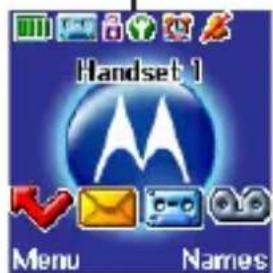
Signal icon in Eco Mode
NOTE
When ECO mode is set to On, the is replaced with the and the handset range will be reduced.
9.10 Default settings
Handset name HANDSET
Key tone On
Auto pick up On
Ringer melody (EXT) Melody 3
Ringer melody (INT) Melody 1
Ringer volume 3
Earpiece volume 4
Phonebook Unchanged
Call list Unchanged
Redial list Unchanged
Master PIN 0000
Keypad lock Off
Clock 12:00
Alarm
Off
Dial mode Tone
Answering machine
On
Answer mode
Answer & record
Outgoing message
Pre-defined
Ring delay 5
Remote access On
10. Using additional handsets
Up to 5 handsets can be registered to one base station. Additional handsets must be registered to the base before you can use them.
- The instructions described below apply specifically to the C5010A handset. If you wish to register another manufacturer's handset, the instructions may vary. In this case, please refer to the instruction manual of the additional handset.
- The System PIN is required to register or de-register handsets. The default PIN is 0000.
10.1 Registering an additional handset
NOTE
Handset batteries must be fully charged before you start to register. Hold your handset close to the base during the registration process. Handsets that were supplied with your C5010A base are already registered.
On the base:
- Press and hold until the base emits a double beep. The base will remain in registration mode for 90 seconds.
On the handset:
- Press Menu, scroll to Registration and press Select.
- Register Handset is highlighted. Press Select.
- Bases are displayed. If necessary, scroll or to a new base you wish to register the C5010A handset to and pressSelect.
- Enter the system PIN and press OK.
- The display shows Searching Base X.
- When registration is successful the display shows Handset Registered and you hear a confirmation beep.
NOTE
If registration is not successful the first time, please repeat the process again in case the base registration period ran out of time. If the base is not found after a few seconds, the handset returns to standby. Try registering again.
If there are already 5 handsets registered to the base, registration will fail. You must de-register a handset before you can register a new one.
10.2 Register a different make of handset to your C5010A base
IMPORTANT
DECT GAP Profile only guarantees that basic calling functions will work correctly between different makes / types of handset and base. There is a possibility that certain devices such as Caller ID will not work correctly.
On the base:
- Press and hold until the base emits a double beep. The base will remain in registration mode for 90 seconds.
On the handset:
Follow the registration instructions given in your handset's user guide.
10.3 Select a base
You can register the C5010A handset with up to 4 bases. Once registered, you can switch between bases, for example, bases at home and at work.
- Press Menu, scroll to Registration and press Select
- Scroll to Select Base and pressSelect.
All the base numbers are displayed.
(In use) is shown beside the base number where the handset was previously registered to. Scroll or to the base you want and press Select.
- The display shows Searching Base X. When registration is complete, the handset returns to standby.
10.4 De-register a handset
Use one handset to de-register another. You cannot de-register the handset that you are using.
- Press Menu, scroll to Registration and press Select
- Scroll to De-register and press Select.
- Enter the System PIN and press OK. (default setting = 0000)
- Scroll ↑ or ↓ to the handset you want to de-register and press Select.
- Press Yes to confirm or No to cancel.
- Press to return to standby.
11. Room monitor
You can use your C5010A handset to monitor the sounds in another room. If the sounds reach a certain level the handset will automatically dial out to a pre-set external number or to another handset. When the Room Monitor is set to On, the handset will display Room Monitor On and only the microphone will be active to monitor the sound levels in the room. Both the speaker and receiver will be set to Off and the handset will not ring if there is an incoming call.
11.1 To switch Room Monitor On
- Press Menu, scroll to Extra then press Select. Room Monitor is highlighted. Press Select Mode will be highlighted.
- Press Select, scroll to On then press Select. Set to ON is displayed for 2 seconds.
- The handset returns to idle screen and display as Room Monitor On. To switch off Room Monitor press Off.
- Press to return to standby.
11.2 To change the monitor level
The monitor level can be set to High or Low, the default setting is "Low".
To increase the sensitivity of the Room Monitor:
- Press Menu, scroll to Extra then press Select. Room Monitor is highlighted. Press Select Mode will be highlighted.
- Scroll to Level, press Select and scroll for to select Low or High setting.
- Press to return to standby.
11.3 To set the dial out number
- Press Menu, scroll to Extra then press Select. Room Monitor is highlighted. Press Select Mode will be highlighted.
- Scroll to Call To and press Select.
- Use the or key to select External or Internal.
External
- Press Select and Enter Number: prompt will be displayed.
- Enter the number and press Save. Saved will be displayed. When Room Monitor is switched on and the sound level reaches a certain level the number will be automatically dialled.
Internal
- Press Select and the registered handset will be listed, for example "Handset 2".
- Scroll for to select the handset the Room Monitor will call if the noise levels reach a certain level.
- Press Select and Set to handset 2 is displayed.
NOTE
If only one handset is registered the display prompts "Not available" and returns to the previous screen. You must register additional handsets before the handsets will be displayed and make Internal calls.
If the Room Monitor is triggered to call a handset or number and the called handset is on a call, an alert tone of 3 beeps will be heard.
IMPORTANT
This product is not intended for use as a baby safety device and is not a substitute for adult supervision.
12. Using the answering machine
The C5010A answering machine records unanswered calls when it is activated. It can store up to 59 messages within the maximum recording time of 60 minutes. Each message can be up to 3 minutes long. Your personalised outgoing messages can be up to 3 minutes long.
You can operate your answering machine from:
- the base.
- the handset.
- remotely, from another phone (see page 53).
12.1 Base control keys

Press to switch the answering machine on/off. Press and hold to enter the outgoing message (OGM) selection mode.

Press to play all stored messages. Press to pause or resume playback.

Press to stop message playback.

Skip to the next message during message playback. Select Answer Only OGM during OGM selection mode.

Replay current message. Press twice to skip back to previous message. Select Answer & Record OGM during OGM selection mode.

Delete current message during message playback. Press to delete personal OGM during OGM playback. The pre-recorded OGM is selected and played.

Increase speaker volume during message playback.

Decrease speaker volume.
For more information on outgoing messages (OGM), see page 49.
12.2 Switch the answering machine on / off
When switched on, the handset display shows in standby.
- Press Menu, scroll to Answer Machine and press Select.
- Scroll to Answer On/Off and press Select.
- Scroll or to Off or On then press Select.
- Press to return to standby.
NOTE
Alternatively, press 📄 on the base to switch on the answering machine.
12.3 Answer delay
Answer delay sets the number of times the C5010A will ring before the answering machine picks up your call and starts playing the outgoing message.
You can change this setting to between 2 - 9 rings or Time Saver. The default setting is 5 rings.
- Press Menu, scroll to Answer Machine and press Select
- Scroll to Answer Settings and press Select.
- Scroll or to Answer Delay and press Select.
- Scroll or to the setting you want and press Select
- Press to return to standby.
NOTE
If Time Saver is set, the answering machine will answer after 2 rings during remote access if you have new messages. If you do not have any new messages, it will answer after 6 rings. This means you can hang up after 3 rings knowing you have no new messages, saving you time and the cost of the call.
12.4 Message alert
When you have new messages, with the audible message alert switched on, you will hear an audible alert once at the handset and the answering machine base will beep every 10 seconds. The default setting is Off.
- Press Menu, scroll to Answer Machine and press Select
- Scroll to Answer Settings and press Select.
- Scroll or to Message Alert and press Select
- Scroll ▲ or ▼ to Off or On then press Select.
- Press to return to standby.
12.5 New messages alert
When you have new messages, the display shows You have X new messages.
If you press Back, the screen returns to standby and the 📄 on is displayed.
- Press Play and scroll or to the message you want to play. Press Play to hear the highlighted message.
12.6 Outgoing messages
The outgoing message is the message a caller first hears when the answering machine picks up their call. The C5010A comes with 2 pre-recorded outgoing messages, or you can record your own.
12.7 Record a personalised outgoing message
You can record personalised outgoing messages up to 3 minutes long for your callers. The personalised OGM will only play if you set your C5010A to Personal OGM in the answer mode menu.
The Answer & Record mode allows your caller to leave a message after the announcement, while the Answer Only mode only allows your caller to hear the announcement. You will be prompted to select the mode before the recording.
- Press Menu, scroll to Answer Machine and press Select.
- Scroll to Outgoing Message and press Select
- Record is highlighted, press Select.
- Scroll for to Answer & Record or Answer Only then press Select.
- The display shows Please speak after the tone.
- After the tone, speak your message clearly into the handset then press Save to end recording.
- Your outgoing message is played back. If you want to delete it, press Delete during playback. If you press Save or wait for the message to play back, it will be saved.
- Press to return to standby.
12.8 Play or delete your personalised outgoing message
Deleting a personalised outgoing message automatically reinstates the pre-recorded outgoing message, if you have set the personalised outgoing message as your announcement before.
You cannot delete a pre-recorded message.
- Press Menu, scroll to Answer Machine and press Select.
- Scroll to Outgoing Message and press Select.
- Scroll to Play and press Select.
- Scroll for to Answer & Record or Answer Only then press Select
-
Scroll to Personal OGM and press Select.
-
The message is played. Press OK to stop playback or press Delete to delete the message.
-
Press to return to standby.
12.9 Set the answer mode and announcement
The Answer & Record mode allows your caller to leave a message after the announcement, while the Answer Only mode only allows your caller to hear the announcement. Select a pre-recorded or personalised outgoing message as your announcement to the callers.
-
Press Menu, scroll to Answer Machine and press Select.
-
Scroll to Answer Settings and press Select.
-
Scroll to Answer Mode and press Select.
-
Scroll or to Answer & Record or Answer Only then press Select.
-
If there is a personalised outgoing message saved, scroll or to Default OGM or Personal OGM then press Select to confirm.
Or
If there is no personalised outgoing message saved, the pre-recorded outgoing message will be selected automatically.
- Press to return to standby.
12.10 Record a memo
You can record a memo which is stored on your answering machine and played back like a normal message with Memo displayed on the handset screen.
- Press Menu, scroll to Answer Machine and press Select.
- Scroll to Record Memo and press Select.
- The display shows Please speak after the tone.
- After your hear the tone, speak your memo then press Save to end recording.
- Your memo is played back. If you want to delete it, press Delete during playback. If you press Save or wait for the message to play back, it will be saved.
- Press to return to standby.
12.11 Call screening
When the answering machine is on and takes a call, you can use the loudspeaker to listen to the caller leaving a message. You can then identify the caller and decide whether to take the call in person.
- When the handset rings, wait for the answering machine to take the call. When the caller begins leaving a message, the display shows Recording. Press Screen to hear the caller.
- To interrupt and speak to the caller directly, press
- Press to return to standby.
NOTE
While screening, you can adjust the volume by pressing ⚠ or ⚡
12.12 Message playback
Each message is played back with day and time of the call announced. The caller's number is displayed (if stored in the phonebook the name will be displayed).
- Press Menu, scroll to Answer Machine and press Select.
- Play is highlighted. Press Select to play by message or scroll to Play All then press Select to play all messages.
- During playback, press Options. The optionsPause, Repeat Message, Skip Forward, Skip Backward and Delete are displayed.
- Scroll for to highlight the option and press Select to confirm.
- At the end of playback, press Back to return to the previous menu level.
NOTE
Alternatively, you may use press the following keys on your handset during playback:
① To pause
2 ABC To resume
3 To repeat message
4GH To play previous message
5. KL To delete current message
6 MNO To play next message
12.13 Delete all old messages
Answering machine messages that are not deleted are automatically saved.
New messages or existing messages that have not been played back cannot be deleted.
- Press Menu, scroll to Answer Machine and press Select.
- Scroll to Delete Messages and press Select.
- Display shows Delete All Old Messages? Press Yes to confirm or No to cancel.
- Press to return to standby.
NOTES
If the memory is within 10 seconds of becoming full while a caller is leaving a message, they will hear, "Please complete your message within 10 seconds". If they are still talking when the memory becomes full the caller hears, "Thank you for calling", and the machine will hang up.
When the memory is full, the outgoing message will automatically be set to Answer Only. You must delete old messages before the C5010A can record new messages.
12.14 Remote access
Remote access allows you to operate your answering machine and listen to your messages by calling the C5010A from another phone.
The default setting is On.
- Call your C5010A. When you hear the announcement, press *.
- Enter your 4 digit remote access PIN (default setting = 0000). You will hear a confirmation beep.
NOTE
You should change this code for additional security, see page 54.
- Use the following keys to operate your answering machine:
| DTMF code | Operations |
| * To enter remote access mode | |
| 1To hear main menu | |
| 2To play all messages | |
| 3 To play new messages | |
| 4 To skip back during messages | |
| 5 To delete during messages | |
| 6 To skip forward during messages | |
| 7 To set Answer & Record OGM | |
| 8 To record a new OGM | |
| 9To switch answer machine off | |
| 10 To switch answer machine on | |
NOTES
If you have any new messages they will be played after you have entered your remote access PIN code.
If you enter an incorrect PIN code you will hear “Incorrect security code or two beeps (error beeps). You can try entering the code again. If it is still incorrect you will hear the voice prompt or two beeps (error beeps) and the C5010A will hang up.
12.15 Switch remote access On / Off
- Press Menu, scroll to Answer Machine and press Select.
- Scroll to Answer Settings and press Select
- Scroll or to Remote Access and press Select.
- Scroll or to Off or On then press Select.
- Press to return to standby.
12.16 Change the remote access PIN
The default remote access PIN is 0000.
- Press Menu, scroll to Answer Machine and press Select.
- Scroll to Answer Settings and press Select
- Scroll or to Remote Access and press Select.
- Scroll or to Set Remote PIN and press Select.
- Enter the old PIN and pressSave. (default setting = 0000)
- Enter the new PIN and press Save.
- Re-enter the new PIN and press Save.
- Press to return to standby.
NOTES
This PIN is different from the System PIN used when resetting the unit or when registering / de-registering handset.
It is advisable to make a note of your new PIN code and keep it somewhere safe.
13. Text messaging
Your C5010A can send and receive text messages from participating mobile networks and compatible landline telephones.
IMPORTANT
You must subscribe to your Network Provider's Caller ID service so that you can use text messaging and you must not withhold your telephone number.
A quarterly fee may be payable, please contact your network provider for more details.
13.1 Subscribe to the text messaging service
In some country when you send your first text message from your C5010A you will automatically be registered for the service.
If you have Set-Up problems, please check with your Network provider.
13.2 Send a text message
If you are writing a text and you receive a call, the text will be displayed again when Write Message is selected.
- Press Menu, Text Messaging is displayed, press Select.
- Write Message is highlighted. Press Select.
- Use the keypad to enter your message.
- Press Options.
Send is highlighted Press Select to send the message. Enter the phone number or press Search to open the phonebook then scroll to the number you want and press Select. Now press Send.
Or scroll for

Save Press
Select to save the message in the Drafts folder.
Insert Symbol Press
Select. The symbol table is displayed. Press or to highlight the symbol you want then press Insert.
Insert Emoticon Press
Select. The Emoticon table is displayed. Press ↑ or ↓ to highlight the Emoticon you want then press Insert.
Insert Template Press
Select. The list of templates is displayed. Press ↑ or ↓ to highlight the template you want then press Insert.
- When sending a message, the display shows Sending Message then Message Sent.
Writing tips
Press Clear to delete incorrect characters.
Use for to move the cursor through the text, if you want to insert /delete text.
Upper & lower case
Press #_ to switch between upper case and lower case letters.
Maximum number of characters in a text message is 160 (Short). The display shows a character countdown from 160 down to 0 (Unless message size is set to 612 characters [Long]).
NOTE
If the text is unsuccessful, the message Message Sending Failed! will be displayed. In order to send and receive text messages you must not withhold your number.
13.3 Standard text entry
With standard text entry you can enter a word by pressing each letter button a number of times to display the character you want on the screen. For example, to write the word 'Hello', press 4 twice, twice, 5 three times, three times and three times.
13.4 Receiving and reading text messages
Your C5010A can store up to a total of 50 short messages across all handset Outboxes, Drafts boxes and Inboxes.
When you receive a new text message, the display shows You have X new messages. If you press Back, the screen returns to standby mode and the icon is displayed.
Do you have two text phone bases connected to the same phone line?
If you have two text phone base stations plugged into one line, you are likely to experience problems receiving text messages. Normally, only one SMS enabled base unit (DECT or cordless) can be plugged into any line.
If you do want to use two base units and still receive written text you must delete receive service centre number from one of the base stations. To do this on your C5010A, see page 59.
This will allow you to send text via either base station but texts will only be received on the product with the active receive centre number.
If the base unit with the active receive centre number is a DECT product then all handsets registered to it will be able to receive text messages.
Memory full alert
If the text mailboxes are full when you attempt to write a new message the display shows Memory Full Delete Messages. You must delete messages before you
can write and send a new one.
13.5 Read a new message
Received messages are stored in the Inbox.
- The Inbox is opened and the list of messages displayed. If you press Back the message is stored in the Inbox for reading later.
- In the Inbox scroll (to more recent messages) or (to earlier list of messages) through the list of messages.
- Highlight the message you want to read and press Read or press Back to return to Text messaging menu.
- Press to return to standby.
13.6 Read, forward, delete, view and save numbers of texts in the Inbox
When you see the new message alert, if you press Back the message is stored in your Inbox so you can read it later.
- To open the Inbox, press Menu, Text Messaging is displayed. Press Select.
- If you have new messages (indicated by a green dot), you will go straight to the Inbox, if not scroll or to Inbox and press Select.
- Scroll or to the message you want and press Read. Scroll or through the message.
- Press Options and scroll for to:
Reply Press Select. Write your reply then press Options and select Send.
Forward Press Select. The message is displayed. Press Options. Display highlights Send. Press Select and enter a number or search for the number then press Send.
Message Details You can see who sent the message and then call them. Press Select the sender's number is displayed. Press Dial if you want to call the number.
Use Number To call the sender, press shows Call. Press Select to call the sender OR to save the number, scroll to Save and press Select.
Enter a name and press OK edit the number if
required then press Save. Scroll or to the ringtone
and press Select The number is saved in the phonebook.
Delete Press Select. Press Yes to confirm or No to cancel.
13.7 Edit or send texts in the Drafts box
If you save a message to complete or send later it will be stored in the Drafts box. Only one message can be saved in each user's Drafts box.
- To open the Drafts box, press Menu, Text Messaging is displayed. Press Select.
- Scroll for to Drafts and press Select,
- Press Edit to edit your message content.
- Press Options and scroll for to Send, Save, Insert Symbol, Insert Emoticon and Insert Template.
- When sending a message, the display shows Sending Message then Message Sent.
13.8 Forward or delete texts in the Outbox
Your C5010A's outbox is like a redial list. It holds a copy of up to 5 sent messages. When the Outbox is full, a new message replaces the oldest.
- To open the Outbox box, press Menu, Text Messaging is displayed. Press Select.
Scroll for to Outbox and press Select. -
Scroll or to the message you want and press Read. Scroll or through the message.
-
Press Options and scroll or to:
Forward Press Select. The message is displayed. Press Options. Display highlights Send. PressSelect and enter the number or press Search to search the phonebook. When the number is entered, press Send.
Delete Press Select then press Yes to confirm or No to cancel.
- Press to return to standby.
13.9 Edit templates
You can set the templates to your preferred message, up to a maximum of 32 characters. You can store up to 3 templates.
-
Press Menu, Text Messaging is displayed. Press Select scroll for to Templates and press Select.
-
Scroll ↑ or ↓ to the template you want and press Options.
-
Press to return to standby.
If you delete a template without replacing the text it is marked as Empty.
13.10 Deleting texts
- Press Menu, Text Messaging is displayed. Press Select scroll for to Delete Messages and press Select.
- Scroll for to Inbox, Drafts, Outbox or All Messages and pressSelect.
- Press Yes to confirm or No to cancel.
- Press to return to standby.
Selecting All messages will delete all messages stored in your Inbox, Outbox and Drafts box.
Service Centre numbers
To send and receive text messages you need the telephone number of your Network's text Centre. If you accidentally delete the Outgoing or Incoming Service Centre numbers you will need to re-enter them in order for your text Service to work. You can enter up to 4 Service Centre numbers - two incoming and two outgoing.
If you have more than one 'Server Centre' stored on your C5010A you will need to select which one you want to use for sending (see next section).
13.11 Add or change Service Centre numbers
- Press Menu, Text Messaging is displayed. Press Select, scroll for to Text Settings and press Select.
- Service Centres is highlighted press Select.
- Scroll or to Receive Centres or Send Centres and press Select
- Scroll or to Receive Centre 1 or Receive Centre 2, or Send Centre 1 or Send Centre 2 and press Select.
- Enter the number for the centre and press Save. Press Clear to delete a character, or press and holdClear to delete all characters.
- Press to return to standby.
13.12 Set send centre
- Press Menu, Text Messaging is displayed. Press Select. Scroll for to Text Settings and press Select.
- Service Centres is highlighted press Select.
- Press Select again to choose Set Send Centre.
- Scroll or to Send Centre 1 or Send Centre 2 and press Select.
- Press to return to standby.
13.13 Message alert tone
When you receive a text message, the message alert tone will sound. These beeps can be switched on or off.
- Press Menu, Text Messaging is displayed. Press Select. Scroll for to Text Settings and press Select.
- Scroll or to Message Alert and press Select.
- Scroll or to On or Off and press Select
- Press to return to standby.
13.14 Set message size
A standard text message is 160 characters (short). You can set a message to be up to 612 characters (long) and the message will be sent as up to 4 linked messages each up to 160 characters long.
- Press Menu, Text Messaging is displayed. Press Select. Scroll or to Text Settings and press Select.
- Scroll or to Message Size and press Select
- Scroll for to highlight 160 Characters or 612 Characters, then press Select.
- Press to return to standby.
NOTE
If the language is set to Greek or Turkish the message size will reduce to 140 characters (short) or 536 characters (long).
User areas
Your C5010A is pre-set to make all text messages available to every user, with all messages sent from and received at a 'Common Box'.
To keep your messages private, you can set up to 4 PIN protected personal user areas (sub-addresses). Each personal user area has its own Inbox and Outbox which are only accessible when the correct PIN is entered.
You can also keep a common box sub address for incoming messages that do not need to be kept private.
13.15 Add a user mailbox
If you set-up personal user boxes you must tell people your user area number. They must put the relevant user area number at the end of your telephone number when they send you a text message. If they do not include the user area number, the messages will be stored in the common box and will be accessible to all users of your C5010A.
The mailbox number can only be any number from 0-9 but must not be the same as another user's mailbox number or the common or public box number.
-
Press Menu, Text Messaging is displayed. Press Select. Scroll for to Text Settings and press Select.
-
Scroll nor to Users and press Select.
- User1 is highlighted. Scroll or to select another User.
- Press Options. Edit is highlighted. Press Select.
- Enter the user name (up to 8 characters) and press Save.
- Use the single digit mailbox number displayed or enter your own single digit mailbox number then press Save
- Enter a 4-digit mailbox PIN and press Save.
- Enter the PIN again and press Save.
- Press to return to standby.
13.16 Open and read a mailbox text
Once mailboxes have been set, when you open the Text Messaging menu, the mailboxes in use will be displayed. You can open the General User Mailbox without any PIN but each user area requires you to enter the 4-digit PIN.
- The display shows You have X new messages.
- Press Read. The mailboxes are displayed. Mailboxes with new messages are marked with green dots.
- Scroll or to the mailbox you want and press Select.
- Enter the mailbox 4-digit PIN and press OK.
- Scroll for to the message you want and press Read.
Or
- If you have previously pressed Back, the display shows
- Press Menu, the text icon is displayed. Press Select. Mailboxes with new messages are marked with green dots.
- Scroll or to the mailbox you want and press Select.
- Enter the mailbox 4-digit PIN and press OK.
- Scroll or to Inbox and press Select.
- Scroll or to the message you want and press Read.
- Press to return to standby.
13.17 Edit a user mailbox
- Press Menu, Text Messaging is displayed. Press Select. Scroll for to the mailbox you want to edit and press Select.
- Enter the 4 digit mailbox PIN and press OK.
- Scroll for to Text Settings and press Select.
- Scroll for to Users and press Select.
- Scroll or to the user mailbox you want to edit and press Options.
- Edit is highlighted, press Select.
- Enter the current mailbox PIN and press OK.
- Enter the new name and press Save.
- Enter the new one-digit mailbox number and press Save.
- Enter the new 4-digit mailbox PIN and press Save.
- Re-enter new 4-digit the PIN and press Save.
- Press to return to standby.
13.18 Delete a user mailbox
- Press Menu, Text Messaging is displayed. Press Select. Scroll for to the mailbox you want to edit and press Select.
- Enter the 4 digit mailbox PIN and press OK.
- Scroll for to Text Settings and press Select.
- Scroll or to Users and press Select.
- Scroll or to the user mailbox you want to delete and press Options.
- Scroll or to Delete and press Select.
- Press Yes to confirm or No to cancel.
- Enter the current mailbox PIN and press OK.
- Press to return to standby.
13.19 Set common mailbox sub address
-
Press Menu, Text Messaging is displayed. Press Select.
-
Scroll ▲ or ▼ to Text Settings and press Select.
-
Scroll ▲ or ▼ to Mailbox Number and press Select.
-
Enter the single digit mailbox number you want and press Save. If you enter a number already in use, you hear an error beep. Enter a different number.
-
Press to return to standby.
14. Help
No dial tone
- Use only the telephone line cord supplied.
- Check that the telephone line cord is connected properly.
- Check that the mains power is connected properly and switched on.
No display
- Check that the batteries are inserted correctly and fully charged. Use only approved rechargeable batteries supplied.
- Check that the handset is switched on. Press and hold .
- Reset the base by removing the batteries and disconnecting the mains power. Wait for around 15 seconds before connecting it again. Allow up to one minute for the handset and base to synchronize.
icon flashes and the dispaly shows searching
- Handset is out of range. Move closer to the base.
- Make sure that the handset is registered to the base, see page 44.
- Check that the mains power is connected properly and switched on.
Keypad does not seem to work
- Check that the keypad lock is not on, see page 22.
icon is not scrolling during charge
- Adjust the handset slightly on the base.
- Clean the charging contacts with a cloth moistened with alcohol.
- Check that the mains power is connected properly and switched on.
- The battery is full. When the handset is fully charged, icon will appear steady on the display.
No Caller ID
- Check your subscription with your network operator, see page 29.
- The caller may have withheld their number.
- The record cannot be found in your phonebook. Check that you have the correct name / number stored in your phonebook, with the full area code.
I have forgotten my PIN!
- Remove one battery, press and hold the star button on the handset and replace the battery. The display showsMaster Reset, press OK. The handset will automatically reset and the PIN will default back to 0000.
Cannot register a handset to the base
- You can register up to a maximum of 5 handsets to a C5010A base. You must de-register a handset in order to register a new one, see page 45.
- Check that you have entered the correct PIN code (default = 0000).
- Check that you are at least one metre away from other electrical equipment to avoid interference when registering.
Handset does not ring
- The handset ringer volume may be set to Off, see page 36.
Base unit does not ring
- The base ringer volume may be set to Off, see page 40.
Noise interference on my phone or on other electrical equipment nearby
- Place your C5010A at least one metre away from electrical appliances or any metal obstructions to avoid any risk of interference.
Answering machine will not record new messages
- Is the recording memory full? Play and delete messages, see page 52.
- Is the OGM set to Answer Only? Change the OGM to Answer & Record, see page 51.
- Make sure you don't have a network answering service taking the messages, to check dial 1571.
Text messages cannot be sent and screen displays
Message Sending Failed!
- The base station power supply or telephone line cord might not be properly connected. Check that the base station power supply is plugged into the mains socket and switched on and that the telephone is plugged into the telephone wall socket.
- There might be a fault on the line. Check your telephone line is working properly.
- You might have deleted the server number in error. See page 59 for instructions on how to enter the number.
Cannot receive text
- For some network operator, you will not be able to receive text messages until you have first sent a message. The first message sent registers you with the text service.
- More than one text messaging product is plugged into the line. Remove other products.
- Check service centre number is correct.
- Ensure you have subscribed to a Caller Display service and that it is active. You can check this by noting if your phone displays your caller's number when you receive an incoming call.
- If you are using personal user areas please ensure you have given people your user area number and that they are entering it to the end of your telephone number when sending you a text message.
15. General information
IMPORTANT
This equipment is not designed to make emergency telephone calls when the power fails. Alternative arrangements should be made for access to emergency services.
This product is intended for connection to analogue public switched telephone networks and private switchboards in Europe.
Important safety instructions
Follow these safety precautions when using your phone to reduce the risk of fire, electric shock, and injury to persons or property:
- Keep all slits and openings of the phone unblocked. Do not set the phone on a heating register or over a radiator. Ensure that proper ventilation is provided at the installation site.
- Do not use while wet or while standing in water.
- Do not use this product near water (for example, near a bath tub, kitchen sink, or swimming pool).
- Do not allow anything to rest on the power cord. Place the power cord so that it will not be walked on.
- Never insert objects of any kind into the product vents as that may result in fire or electric shock.
- Unplug this product from the wall outlet before cleaning. Do not use liquid cleaners or aerosol cleaners. Use a damp cloth for cleaning.
- Do not disassemble this product. If service or repair work is required, contact the customer service helpline found in this user's Guide.
- Do not overload wall outlets and extension cords.
- Avoid using during an electrical storm. Use a surge protector to protect the equipment.
- Do not use this phone to report a gas leak, especially if you are in the vicinity of the gas line.
IMPORTANT
To reduce the risk of fire, use only the supplied power adaptor.
Unplug this cordless phone immediately from an outlet if:
- The power cord or plug is damaged or frayed.
• Liquid has been spilled on the product. - The product has been exposed to rain or water. Do not retrieve the handset or base until after you have unplugged the power and phone from the wall. Then retrieve the unit by the unplugged cords.
- The product has been dropped or the cabinet has been damaged.
- The product exhibits a distinct change in performance.
Installation Guidelines
- Read and understand all instructions and save them for future reference.
- Follow all warnings and instructions marked on the product.
- Do not install this product near a bath tub, sink, or shower.
- Operate this phone using only the power source that is indicated on the marking label. If you are unsure of the power supply to your home, consult with your dealer or local power company.
- Do not place this product on an unstable cart, stand, or table. This product may fall, causing serious damage to the product.
- Adjust only those controls that are covered by the operating instructions. Improper adjustment of other controls may result in damage and will often require extensive work to restore the product to normal operation.
- Clean this product with a soft, damp cloth. Do not use chemicals or cleaning agents to clean this phone.
- Use only the power supply that came with this unit. Using other power supplies may damage the unit.
- Because this phone operates on electricity, you should have at least one phone in your home that could operate without electricity in the case the power in your home goes out.
- To avoid interference to nearby appliances, do not place the base of the phone on or near a TV, microwave oven, or VCR.
Battery Safety Instructions
- Do not burn, disassemble, mutilate, or puncture the battery. The battery contains toxic materials that could be released, resulting in injury.
IMPORTANT
There is a risk of explosion if you replace the battery with an incorrect battery type. Use only the batteries that came with your phone or an authorized replacement recommended by the manufacturer.
- Keep batteries out of the reach of children.
- Remove batteries if storing over 30 days.
- Do not dispose of batteries in fire, which could result in explosion.
- The rechargeable batteries that power this product must be disposed of properly and may need to be recycled. Refer to your battery's label for battery type. Contact your local recycling center for proper disposal methods.
SAVE THESE INSTRUCTIONS
Cleaning
- Clean the handset and base (or charger) with a damp (not wet) cloth, or an anti-static wipe.
- Never use household polish as this will damage the product. Never use a dry cloth as this may cause static shock.
Environmental
- Do not expose to direct sunlight.
- The handset may become warm when the batteries are being charged or during prolonged periods of use. This is normal. However, we
recommend that to avoid damage, do not place the product on antique / veneered wood.
- Do not place your product on carpets or other surfaces which generate fibres, or place it in locations preventing the free flow of air over its surfaces.
- Do not submerge any part of your product in water and do not use it in damp or humid conditions, such as bathrooms.
- Do not expose your product to fire, explosives or other hazardous conditions.
- There is a slight chance that your phone could be damaged by an electrical storm. We recommend that you unplug the power and telephone line cord during an electrical storm.
Product disposal instructions
Product disposal instructions for residential users
When you have no further use for it, please remove any batteries and dispose of them and the product according to your local authority's recycling processes. For more information, please contact your local authority or the retailer where the product was purchased.
Product disposal instructions for business users
Business users should contact their suppliers and check the terms and conditions of the purchase contract and ensure that this product is not mixed with other commercial waste for disposal.
Consumer Products and Accessories Warranty
Thank you for purchasing this Motorola branded product manufactured under license by Suncorp Technologies Limited, 3001-3005 China Resources Building, 26 Harbour Road, Wan Chai, Hong Kong. ("SUNCORP")
What Does this Warranty Cover?
Subject to the exclusions contained below, SUNCORP warrants that this Motorola branded product (“Product”) or certified accessory (“Accessory”) sold for use with this product that it manufactured to be free from defects in materials and workmanship under normal consumer usage for the period outlined below. This Limited Warranty is your exclusive warranty and is not transferable.
Who is covered?
This warranty extends only to the first consumer purchaser, and is not transferable.
What will SUNCORP do?
SUNCORP or its authorized distributor at its option and within a commercially reasonable time, will at no charge repair or replace any Products or Accessories that do not conform to this limited warranty. We may use functionally equivalent reconditioned / refurbished / pre-owned or new Products, Accessories or parts.
What Other Limitations Are There?
ANY IMPLIED WARRANTIES, INCLUDING WITHOUT LIMITATION THE IMPLIED WARRANTIES OF MERCHANTABILITY AND FITNESS FOR A PARTICULAR PURPOSE, SHALL BE LIMITED TO THE DURATION OF THIS LIMITED WARRANTY, OTHERWISE THE REPAIR OR REPLACEMENT PROVIDED UNDER THIS EXPRESS LIMITED WARRANTY IS THE EXCLUSIVE REMEDY OF THE CONSUMER, AND IS PROVIDED IN LIEU OF ALL OTHER WARRANTIES, EXPRESS OF IMPLIED. IN NO EVENT SHALL MOTOROLA OR SUNCORP BE LIABLE, WHETHER IN CONTRACT OR TORT (INCLUDING NEGLIGENCE) FOR DAMAGES IN EXCESS OF THE PURCHASE PRICE OF THE PRODUCT OR ACCESSORY, OR FOR ANY INDIRECT, INCIDENTAL, SPECIAL OR CONSEQUENTIAL DAMAGES OF ANY KIND, OR LOSS OF REVENUE OR PROFITS, LOSS OF BUSINESS, LOSS OF INFORMATION OR OTHER FINANCIAL LOSS ARISING OUT OF OR IN CONNECTION WITH THE ABILITY OR INABILITY TO USE THE PRODUCTS OR ACCESSORIES TO THE FULL EXTENT THESE DAMAGES MAY BE DISCLAIMED BY LAW.
Some jurisdictions do not allow the limitation or exclusion of incidental or consequential damages, or limitation on the length of an implied warranty, so the above limitations or exclusions may not apply to you. This warranty gives you specific legal rights, and you may also have other rights that vary from one jurisdiction to another.
| Products Covered Length of Coverage | |
| Consumer Products One (1) year | from the date of the products original purchase by the first consumer purchaser of the product. |
| Consumer Accessories (battery, power supply(s) and line cords) | Ninety (90) days from the date of the accessories original purchase by the first consumer purchaser of the product. |
| Consumer Products and Accessories that are Repaired or Replaced | The balance of the original warranty or for ninety (90) days from the date returned to the consumer, whichever is longer. |
Exclusions
Normal Wear and Tear. Periodic maintenance, repair and replacement of parts due to normal wear and tear are excluded from coverage.
Batteries. Only batteries whose fully charged capacity falls below 80% of their rated capacity and batteries that leak are covered by this limited warranty.
Abuse & Misuse. Defects or damage that result from: (a) improper operation, storage, misuse or abuse, accident or neglect, such as physical damage
(cracks, scratches, etc.) to the surface of the product resulting from misuse; (b) contact with liquid, water, rain, extreme humidity or heavy perspiration, sand, dirt or the like, extreme heat, or food; (c) use of the Products or Accessories for commercial purposes or subjecting the Product or Accessory to abnormal usage or conditions; or (d) other acts which are not the fault of Motorola or SUNCORP are excluded from coverage.
Use of Non-Motorola branded Products and Accessories. Defects or damage that result from the use of Non-Motorola branded or certified Products or Accessories or other peripheral equipment are excluded from coverage.
Unauthorized Service or Modification. Defects or damages resulting from service, testing, adjustment, installation, maintenance, alteration, or modification in any way by someone other than Motorola, SUNCORP or its authorized service centers, are excluded from coverage.
Altered Products. Products or Accessories with (a) serial numbers or date tags that have been removed, altered or obliterated; (b) broken seals or that show evidence of tampering; (c) mismatched board serial numbers; or (d) nonconforming or non-Motorola branded housings, or parts, are excluded from coverage.
Communication Services. Defects, damages, or the failure of Products or Accessories due to any communication service or signal you may subscribe to or use with the Products or Accessories is excluded from coverage.
How to Obtain Warranty Service or Other Information?
To obtain service or information, please call: 0800 0820750.
You will receive instructions on how to ship the Products or Accessories at your expense and risk, to a SUNCORP Authorized Repair Center.
To obtain service, you must include: (a) the Product or Accessory; (b) the original proof of purchase (receipt) which includes the date, place and seller of the Product; (c) if a warranty card was included in your box, a completed warranty card showing the serial number of the Product; (d) a written description of the problem; and, most importantly; (e) your address and telephone number.
Technical Information
How many telephones can I have?
All items of telephone equipment have a Ringer Equivalence Number (REN), which is used to calculate the number of items which may be connected to any one telephone line. Your C5010A has a REN of 1. A total REN of 4 is allowed. If the total REN of 4 is exceeded, the telephones may not ring. With different telephone types, there is no guarantee of ringing, even when the REN is less than 4.
Any additional handsets and chargers that you register have a REN of 0.
Connecting to a switchboard
This product is intended for use within Europe for connection to the public telephone network.
Recall
You may need to use the recall function if you are connected to a switch.
Contact your PABX supplier for further information.
Declaration of Conformity (DoC)
Suncorp declares that the following products:
Brandname: Motorola
Type: C5011A, C5012A, C5013A, C5014A
Descriptions: DECT phone with telephone answering machine (C501xA) and their multi-handset versions.
to which this declaration related is in conformity with the essential requirements of the following directives of the Council of the European Communities:
- R&TTE Directive (1999/5/EC)
- Ecodesign Directive (2009/125/EC)
The products are compliant with the following standards:
Safety: EN60950-1:2006+A11:2009+A1:2010+A12:2011
EMC: EN301489-1 v1.8.1 and EN301489-6 v1.3.1
RF Spectrum: EN301406 v2.1.1
Ecodesign: EC No 278/2009, 6 April 2009
For and on behalf of Suncorp Technologies Limited,

CW Cheung
2012.09.21 14:12:44
+08'00'
Signature:
Printed name & Position: CW Cheung – Chief Technical Officer
Date: ^st 23 September 2012
Place: 3001-3005 China Resources Building, 26 Harbour Road, Wan Chai, Hong Kong
Manufactured, distributed or sold by Suncorp Technologies Ltd., official licensee for this product. MOTOROLA and the Stylized M Logo are trademarks or registered trademarks of Motorola Trademark Holdings, LLC. and are used under license. All other trademarks are the property of their respective owners. © 2012 Motorola Mobility LLC. All rights reserved. Version 3 (UK)