
PP-100N - Skrivare EPSON - Gratis bruksanvisning och manual
Hitta enhetens manual gratis PP-100N EPSON i PDF-format.


Användarfrågor om PP-100N EPSON
0 fråga om denna apparat. Svara på dem du kan eller ställ din egen.
Ställ en ny fråga om denna apparat
Ladda ner instruktionerna för din Skrivare i PDF-format gratis! Hitta din manual PP-100N - EPSON och ta tillbaka ditt elektroniska enhet i hand. På denna sida publiceras alla dokument som behövs för att använda din enhet. PP-100N av märket EPSON.
BRUKSANVISNING PP-100N EPSON
PP-100N
User's Guide
M00010605

natural_image
Line drawing of a microwave oven with control panel and door (no text or symbols)No part of this publication may be reproduced, stored in a retrieval system, or transmitted in any form or by any means, electronic, mechanical, photocopying, recording, or otherwise, without the prior written permission of Seiko Epson Corporation. No patent liability is assumed with respect to the use of the information contained herein. While every precaution has been taken in the preparation of this manual, Seiko Epson Corporation assumes no responsibility for errors or omissions. Neither is any liability assumed for damages resulting from the use of the information contained herein.
Neither Seiko Epson Corporation nor its affiliates shall be liable to the purchaser of this product or third parties for damages, losses, costs, or expenses incurred by purchaser or third parties as a result of: accident, misuse, or abuse of this product or unauthorized modifications, repairs, or alterations to this product, or (excluding the U.S.) failure to strictly comply with Seiko Epson Corporation's operating and maintenance instructions.
Seiko Epson Corporation shall not be liable against any damages or problems arising from the use of any options or any consumable products other than those designated as Original Epson Products or Epson Approved Products by Seiko Epson Corporation.
NOTICE: The contents of this manual are subject to change without notice.
© 2009 Seiko Epson Corporation. All rights reserved.
Trademarks
- Microsoft, Windows, Windows Vista, Windows Server, and Internet Explorer are registered trademarks of Microsoft Corporation in the United States and/or other countries.
- Intel and Pentium are registered trademarks of Intel Corporation.
- Adobe is a trademark of Adobe Systems Incorporated.
- EPSON is a registered trademark of Seiko Epson Corporation in Japan and other countries/regions.
Other product names are trademarks or registered trademarks of their respective owners.
Marks used in this guide
The following marks are used in this guide to indicate important information.

Indicates information with which you must comply when using this product. Ignoring this information and mishandling the product may cause it to fail or malfunction.
Notes
Indicates an additional explanation or information we want you to know.
Screens Procedures in this guide
Unless otherwise indicated, the Windows screens appearing in this guide are Vista screens.
Organization of this manual
The following instruction guides are included with this product.
| PP-100N Setup Guide | Briefly describes how to set up this product with illustrations. See the PP-100N Administrator's Guide for more information. |
| PP-100N User's Guide (PDF) | Presents detailed information users need to know such as how to install the software, the product functions and operations, as well as maintenance information. |
| PP-100N Administrator's Guide (PDF) | Presents detailed information necessary for setting up, operating, and managing this product. It also describes how to troubleshoot various problems. It is included on the Discproducer Utility & Documents Disc. |
Table of Contents
Trademarks....2
Marks used in this guide....2
Screens Procedures in this guide....2
Organization of this manual....3
Before Using This Product......6
■ For safe use....6
Cautions for the power source 8
Cautions for using....9
WARNING 11
FCC compliance statement for American users .. 11
For Canadian users 11
For California customers only 11
Indication required for directive 2011/65/EU (RoHS) 11
■ Cautions for CD/DVD discs....12
■ Uses of this product....12
■ Incidental loss arising from the use of this product....12
■ Restriction of Use....12
■ Open source software license ....12
Part Names and Functions.....13
- Checking the status of this product using the indicator light display....16
■ Basic operations ....17
Turning on the power 17
Turning off the power....18
Unlocking the disc cover....19
Opening the disc cover....20
Closing the disc cover....20
Handling stackers....21
Preparation......24
■ Installing the software ....24
Before installation....24
Installation....27
■ Registering the product ....32
■ Checking and changing user information ...35
Checking user information 35
Changing user information....36
Changing password....37
■ Setting for Notification of Job Completion . 38
■ Uninstalling the software 40
Using Applications...... 42
■ EPSON Total Disc Maker 42
What is EPSON Total Disc Maker? 42
Starting EPSON Total Disc Maker 42
Screen configuration of EPSON Total Disc Maker .. 43
Displaying EPSON Total Disc Maker Help......44
■ EPSON Total Disc Setup 45
What is EPSON Total Disc Setup? 45
Starting EPSON Total Disc Setup....45
Screen configuration of EPSON Total Disc Setup.... 46
Displaying Help of EPSON Total Disc Setup.....49
■ EPSON Total Disc Monitor.... 50
What is EPSON Total Disc Monitor?......50
Starting EPSON Total Disc Monitor ....50
Screen configuration of EPSON Total Disc Monitor 51
Displaying Help of EPSON Total Disc Monitor ..53
■ EPSON Total Disc Net Administrator ..... 54
What is EPSON Total Disc Net Administrator?...54
Logging in to EPSON Total Disc Net Administrator 54
Logging out from EPSON Total Disc Net Administrator ....55
Screen configuration of EPSON Total Disc Net Administrator 55
Displaying Help of EPSON Total Disc Net Administrator ....59
How to Use the Printer Driver. 60
■ Displaying the printer driver screen.... 60
Displaying from EPSON Total Disc Maker ....60
Displaying from EPSON Total Disc Setup....61
Displaying from the [Start] menu....62
■ Setting up the printer driver 63
[Main] screen....63
[Utility] screen 65
■ Printer Driver Basics....66
■ Displaying the printer driver Help ...... 69
Publishing Discs....70
■ Types of Publish Mode....70
Standard Mode....70
External Output Mode....71
Batch Mode 72
■ Compatible disc types....73
Printable disc types....73
Writable disc types....74
■ Handling discs....75
Notes on usage 75
Notes on storage....76
■ Printable area....77
Changing the print area 78
■ Loading discs....83
■ Flow for publishing discs....85
Registering write data 85
Creating labels 89
Publishing discs....101
■ Taking out discs....104
■ Performing job operations....106
Checking job information 106
Checking the job processing status....107
Pausing jobs 108
Resuming jobs....109
Canceling jobs....110
Priority Publishing....111
■ Convenient features....112
Creating label templates....112
Creating copies directly from discs 113
Creating copies from disc image files .... 115
Creating same discs as published discs .... 117
Adjusting print colors....121
Maintenance....123
■ Checking maintenance information...... 123
Checking device information 123
Downloading operation log....124
■ Changing the ink cartridge....125
Checking the ink levels 125
Replacing the ink cartridges....126
- Checking the print head nozzles......129
How to perform a nozzle check....129
Checking the nozzle check results....131
■ Cleaning the print head....132
How to clean the print head 133
■ Print head alignment....135
■ Correcting the printing position ..... 137
■ Cleaning your product .... 140
Cleaning the exterior 140
Cleaning the interior....140
Cleaning the air vents....141
■ Replacing the ink pad....143
How to check when it is time to replace the ink pad 143
■ Precautions for Transporting Your Product144
Troubleshooting...... 146
■ Error messages and remedies....146
■ Problems and their remedies....151
Power/control panel problems....151
Disc writing problems 153
Label printing problems....154
Password problems....156
Other problems....156
■ Checking with EPSON Total Disc Monitor .....
158
■ When discs cannot be published ....160
Appendix 162
■ Product specifications....162
Basic specifications....162
■ Ink and Disc ....167
Ink cartridges....167
Discs 167
Before Using This Product
For safe use
- To use this product safely, be sure to read this guide as well as the other instruction guides included with this product before using it.
- Keep this guide at hand so that you can resolve any questions you have about this product.
To prevent harm to customers and other people or damage to property, this guide contains the following symbols and warning displays for operations and use that may be dangerous. Please read the guide after thoroughly understanding this information.
| WARNING | If this display is ignored and the product is mishandled, it may result in death or serious injury. |
| CAUTION | If this display is ignored and the product is mishandled, it may result in bodily harm or physical damage. |
| Indicates action that should not be performed (prohibited). | Indicates that the product must not come in contact with water. | ||
| Indicates that disassembly is prohibited. | Indicates that the plug should be disconnected from the outlet. | ||
| Indicates that touching the product with wet hands is prohibited. | |||
Install this product in the following type of place.
| Place that is flat and stable | Place with the following temperature and humidity range |
 |  |
- When using this product in a place where static electricity is easily generated, use an antistatic mat or other product to prevent static electricity.
- Do not install on a surface that is smaller than the base of the product.
If the rubber bases on the bottom of the product extend beyond this surface, it places stress on the internal mechanisms, which negatively affects disc writing, printing and transporting. Be sure to install on a flat surface that is wider than the product so that all of the feet on the base of the product rest firmly on it.

| WARNING | Do not use flammable gas sprays inside or around this product. There is a risk that gas will build up and a spark may cause a fire.Do not install in a place where volatile substances, such as alcohol or paint thinner, are present or in a place where there is fire.This may result in electric shock or fire. |  |
| CAUTION | Place the product on a flat, stable surface that extends beyond the base of the product in all directions. If you place the product by the wall, leave more than 10 cm between the back of the product and the wall. The product will not operate properly if it is tilted at an angle. |  |
| Do not install or store in an unstable place (such as on a wobbly or tilted surface), in reach of children, or in a place subject to vibration from other machines.There is a risk that it could drop or fall over, resulting in injury. |  | |
| Do not install in places where there is excessive moisture or dust, risk of getting wet, direct sunlight, severe changes in temperature and humidity, or close to heating and cooling devices.There is a risk of electric shock, fire, and malfunction or failure of this product. |  | |
| Do not block the air vents on this product.Blocking the air vents may result in internal heat build-up and fire.Do not install in the following types of places.Tight spaces where ventilation is poor, such as in a closet or on a bookshelfOn a rug or bedIf you place the product by the wall, leave more than 10 cm between the back of the product and the wall. It is also necessary to leave enough space in front of the product to open and close the disc cover. |  |
Cautions for the power source
| WARNING | Do not connect or disconnect the power plug with wet hands.This may result in electric shock. |  |
| Use only the type of power source indicated on the product's label.Also, do not plug the power cord into an outlet with many other cords connected to it.Using an out-of-spec power source may result in electric shock or fire. |  | |
| Do not use a damaged power cord.This may result in electric shock or fire.If the power cord is damaged, consult your dealer for repairs.Observe the following when handling the power cord.Do not modify the power cordDo not place heavy objects on the power cordDo not bend, twist or pull the power cord by forceDo not wire heating appliances nearby |  | |
| Be careful when handling the power plug.Mishandling may result in fire.Do not leave plugged into a power source having foreign matter such as dustFirmly insert the prongs of the power plug all the way |  | |
| When you disconnect the power plug from the outlet, be sure to turn off the power and hold the plug as you pull.If you stretch the power cord, it may become damaged, which could result in electric shock or fire. |  | |
| Be sure your AC power cord meets the relevant local safety standard. Also, do not use the power cord included with this product with any other devices.This may result in electric shock or fire. |  | |
| For safety reasons, be sure to ground the power cord.The power code included with the product is a 3-pin cable with a power system grounding (PE) terminal, so connect it to an outlet with a grounding electrode and ground it securely. |  | |
| CAUTION | Regularly disconnect the power plug from the outlet and clean the base of the prongs and between the prongs.If you leave the power plug connected to an outlet for a long time, the base of the power plug prongs may become dusty, which may result in short circuit and fire. |  |
| For safety, be sure to disconnect the power plug from the outlet when you will not be using the product for a long time. |  |
Cautions for using

Do not continue to use under abnormal conditions such as smoke, unusual odors or sounds.
This may result in electric shock or fire.
Immediately turn off the power, disconnect the power plug from the outlet, and contact your dealer or the Epson Repair Center about repairs. Servicing the product yourself is dangerous, so never attempt it.
Do not insert or drop metal or flammable objects into the air vents or other openings.
This may result in electric shock or fire.
If a foreign object, water or other liquid enters the product, do not continue to use it.
This may result in electric shock or fire.
Immediately turn off the power, disconnect the power plug from the outlet, and contact your dealer or the Epson Repair Center about repairs.
Do not attempt to service the product yourself
This may result in injury, electric shock, fire or malfunction.
Do not leave containers of water or other liquid on this product.
If water spills on or into the product, this may result in electric shock, fire, or malfunction.





 | Do not step or place heavy objects on top of the product. Be especially careful in households with small children. There is a risk that it could fall over or break, resulting in injury. |  |
| Do not use the various cables (cords) to connect the product in a way other than that specified in the instruction guide. Faulty wiring may result in fire. |  | |
| Do not connect a telephone line to the Ethernet interface connector. This may result in damage to the telephone line or this product. |  | |
| When connecting this product to a computer (or other devices) using a cable, be careful to orient the connector the right way. The connectors on the cables have a specific orientation. If you connect incorrectly oriented connectors to both this product and the computer (or other devices), this may result in the malfunction of both connected devices. |  | |
| When storing or transporting this product, do not tilt it, stand it on end, or turn it upside down. When transporting the product, be sure to package it in the original box to protect it from any impact. |  | |
| For safety reasons, if you move this product, first check that the power is off, the power plug is disconnected from the outlet, and all of the wires are disconnected. |  | |
| When replacing the ink cartridges, be careful that the ink does not contact your eyes or skin. Be especially careful because once an ink cartridge is used, there may be some ink around the ink supply port. If ink gets into your eyes, immediately flush them with water, and if it gets onto your skin, immediately wash the area with soap and water. Leaving the ink as is may result in bloodshot eyes or mild inflammation. In the rare event that there is a problem, immediately consult with a physician. |  | |
| Do not disassemble the ink cartridges to replenish or refill the ink. |  | |
| Do not shake the ink cartridge too hard. The ink cartridge may leak if you shake it around too much. |  | |
| Store ink cartridges out of the reach of children. Also, do not ingest the ink. |  |
WARNING
The connection of a non-shielded interface cable to this product will invalidate the EMC standards of this device. You are cautioned that changes or modifications not expressly approved by Seiko Epson Corporation could void your authority to operate the equipment.
This is a Class A product. In a domestic environment this product may cause radio interference in which case the user may be required to take adequate measures.
FCC compliance statement for American users
This equipment has been tested and found to comply with the limits for a Class A digital device, pursuant to Part 15 of the FCC Rules. These limits are designed to provide reasonable protection against harmful interference when the equipment is operated in a commercial environment.
This equipment generates, uses, and can radiate radio frequency energy and, if not installed and used in accordance with the instruction manual, may cause harmful interference to radio communications.
Operation of this equipment in a residential area is likely to cause harmful interference, in which case the user will be required to correct the interference at his own expense.
For Canadian users
This Class A digital apparatus complies with Canadian ICES-003.
For California customers only
The lithium batteries in this product contain Perchlorate Material - special handling may apply. See www.dtsc.ca.gov/hazardouswaste/perchlorate.
Indication required for directive 2011/65/EU (RoHS)
Manufacturer: SEIKO EPSON CORPORATION
Address: 3-5, Owa 3-chome, Suwa-shi, Nagano-ken 392-8502 Japan
http://www.epson.com/
Importer: EPSON EUROPE B.V.
Address: Azië building, Atlas ArenA, Hoogoorddreef 5, 1101 BA Amsterdam Zuidoost The Netherlands
http://www.epson.com/europe.html
Cautions for CD/DVD discs
Before using this product, run an operation check to make sure it is functioning normally. Also, back up the data on CD/DVD discs onto separate media as necessary. Data may be damaged or lost at the following times:
- When there is static electricity or electrical noise
• During improper use
• During a malfunction or repair - When there is damage due to a natural disaster
Even if the product is still under warranty, Epson accepts no responsibility for data that is lost or damaged due to causes not limited to those listed above.
Uses of this product
This product is for business use and not for household use.
Incidental loss arising from the use of this product
Should you not obtain the results you expect from this product, including the bundled software, we cannot provide compensation for incidental loss arising from that fact, such as expenses required for the use of this product and lost earnings that would have been gained through the use of this product.
Restriction of Use
When this product is used for applications requiring high reliability / safety, such as transportation devices related to aviation, rail, marine, automotive, etc.; disaster prevention devices; various safety devices, etc.; or functional / precision devices, etc., you should use this product only after giving consideration to including fail-safes and redundancies into your design to maintain safety and total system reliability. Because this product was not intended for use in applications requiring extremely high reliability / safety, such as aerospace equipment, main communication equipment, nuclear power control equipment, or medical equipment related to direct medical care, etc., please make your own judgment on this product's suitability after a full evaluation.
Open source software license
This product uses open source software in addition to Epson proprietary software. For a list of the open source software used in this product as well as license terms for this software, see Open Source Software License Agreement on the Discproducer Utility & Documents Disc included with the product.
Part Names and Functions
Front
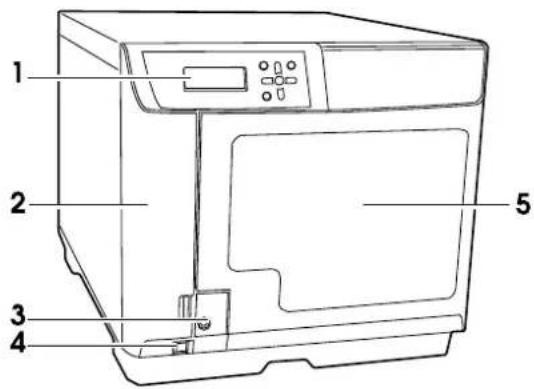
1 Control panel
Use to control this product (PP-100N). It also shows the status of the product and menus.
See "Control panel" on page 15 in this guide for details on the control panel.
2 Ink cartridge cover
Open to insert and replace ink cartridges.
3 | Disc cover lock
Use the disc cover key to lock and unlock the disc cover (when the security lock switch is on).
4 Power button
Use to turn the product on and off.
5 | Disc cover
Open when loading or taking out discs.
Back
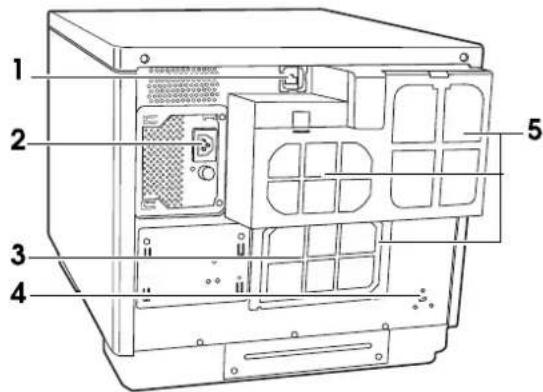
1 Ethernet interface connector
Plug the Ethernet cable into this connector.
2 | AC inlet
Plug the power cord into this connector.
3 Rear printer cover
Open this cover only when a disc is stuck in the printer tray.
4 | Security slot
Allows you to attach a commercially available antitheft wire.
5 Air vents
Expel heat generated inside this product to prevent the temperature from rising. Leave at least 10 cm between the back of the product and the wall for ventilation.
Inside
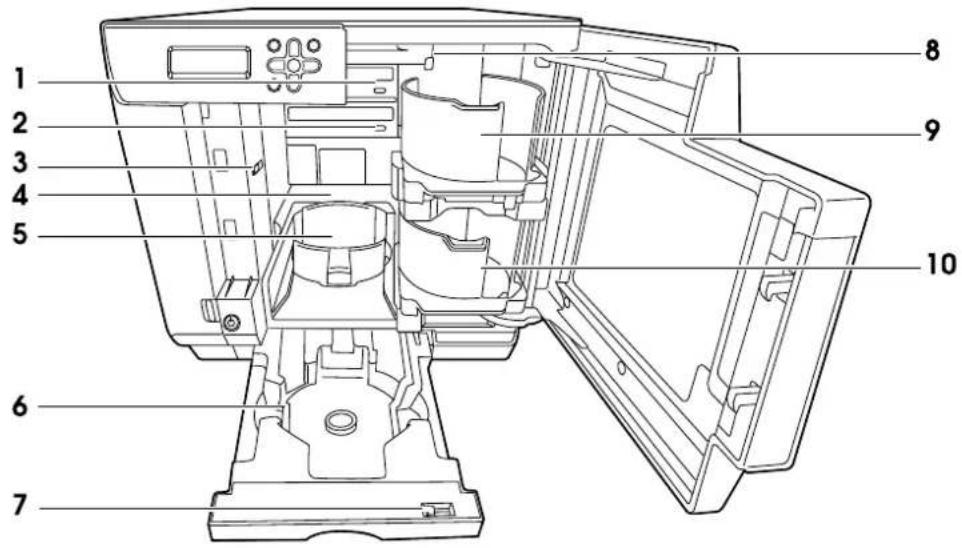
| 1 | Drive 1 |
| Writes data on the recording surface of the discs. | |
| 2 | Drive 2 |
| Writes data on the recording surface of the discs. | |
| 3 | Security lock switch |
| Turns the disc cover lock function on and off. | |
| 4 | Printer |
| Prints on the label surface of the discs. | |
| 5 | Stacker 3 |
| Use as the disc output stacker. Holds up to about 50 discs. | |
| 6 | Stacker 4 |
| Use as a disc output stacker. Holds up to about 5 discs. | |
| 7 | Lock lever |
| Locks and unlocks Stacker 4. Be sure to lock when attaching Stacker 3. | |
| 8 | Arm |
| Transports discs. | |
| 9 | Stacker 1 |
| Use Stacker 1 as a disc input stacker. Holds up to about 50 discs. | |
| 10 | Stacker 2 |
Use Stacker 2 as a disc input or output stacker. Holds up to about 50 discs.
Control panel
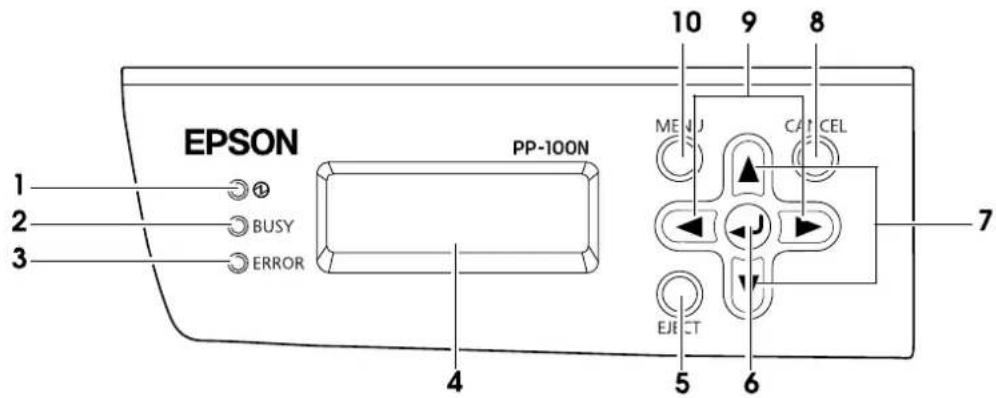
1 Power LED
Flashes and turns on when the power is turned on.
2 BUSY LED
Flashes when a job ^* is being processed or a job is being received.
3 ERROR LED
Flashes and turns on when an error occurs.
4 LCD
Shows menus and messages.
5 EJECT button
Do not use in Standard Mode, External Output Mode, and Batch Mode.
6 button
Confirms the selection and runs processing.
7 ▲/▼ buttons
Moves to different menus.
8 CANCEL button
Cancels the selection.
9 ◀ / ▶ buttons
Moves the digit when you change the IP address.
10 MENU button
Displays the top menu.
Job: Processing performed by this product, such as writing and printing data
Checking the status of this product using the indicator light display
This section describes the status of the product using the indicator lights displayed on the control panel.
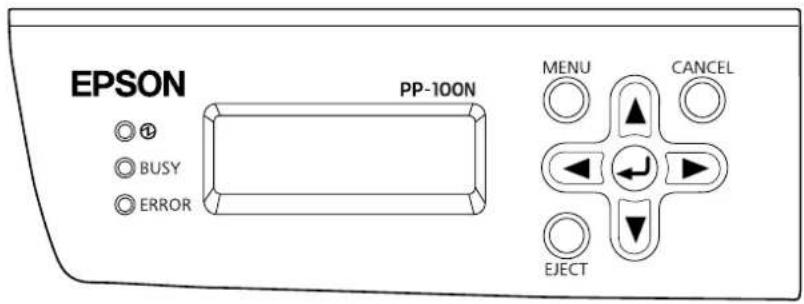
| Indicator light | Flashing/On | Status | |
| 1 | Power LED | On | The power is on.When only the power LED is on, the product is on standby for data. |
Flashing | Product is being initialized or is shutting down.When it flashes together with the ERROR LED, there is a problem on the unit. | ||
| BUSY | BUSY LED | Flashing | Product is processing a job, is receiving a job, or is backing up or restoring data.When the BUSY LED is flashing quickly, a disc is being ejected, so do not pull out Stacker 4. Discs may be damaged. |
| ERROR | ERROR LED | On - - | The cover, disc transport system, stacker, drive, or printer is experiencing an error. |
Flashing | The unit is experiencing a problem. |
Basic operations
This section describes how to perform basic operations on the product.
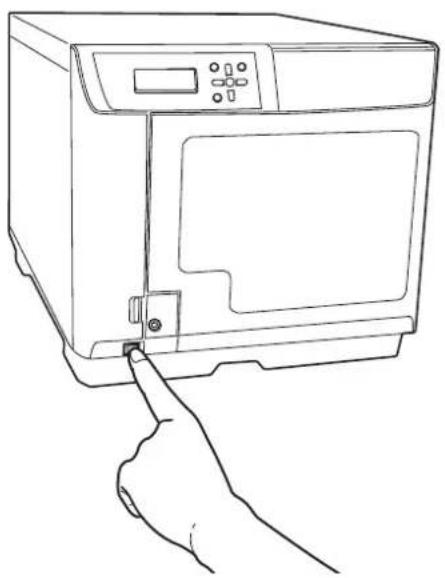
Turning on the power
Press the Power button to turn on the power.
The power LED flashes, and then stays on.
natural_image
Line drawing of a hand inserting a button into a microwave oven (no text or symbols)Turning off the power
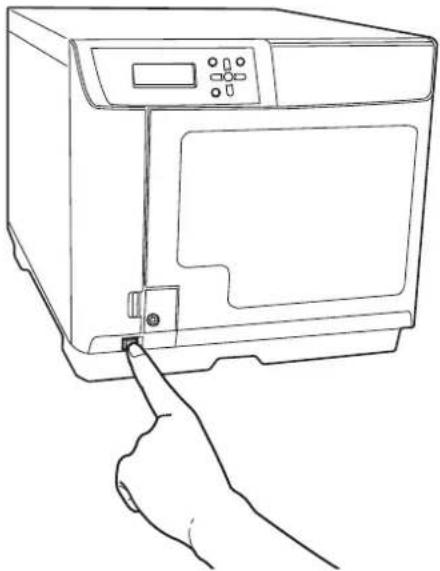
Press the Power button for 1 to 3 seconds.
The power LED flashes and then turns off, indicating that the power is off.
natural_image
Line drawing of a hand pressing a button on a microwave oven (no text or symbols)
- If there are jobs being published or waiting to be published, the power is turned off after finishing all of the jobs. If an administrator has made the setting for sending email notifications, after the job processing is finished, a notification email is sent to each administrator saying that power off processing has begun.
- The power cannot be turned off for about 15 minutes after the power is turned on. The power turns off automatically 15 minutes after "Power off Please wait" appears on the LCD.
Turning off the power by force
When you are not able to turn the power off or you need to turn the power off immediately when a problem occurs on this product, press the Power button for at least 3 seconds. Power off processing starts immediately.

If there were jobs that were in publishing, the jobs are cancelled.
Unlocking the disc cover
If the security lock switch is set to on, the disc cover is locked automatically each time it is closed. To unlock the disc cover lock, use the disc cover key or use the control panel.
Notes
If the security lock switch is set to off, the disc cover lock always remains unlocked.
Unlocking the lock using the disc cover key
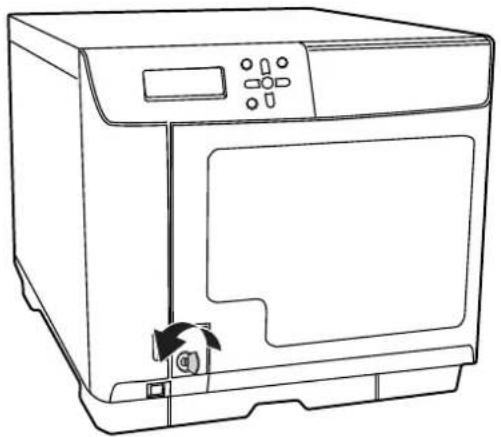
Insert the disc cover key into the disc cover lock, and turn it to the [UNLOCK] position.
natural_image
Line drawing of a microwave oven with control panel and door (no text or symbols)Unlocking the lock using the control panel
1 Press the MENU button.
The disc cover unlock screen appears.
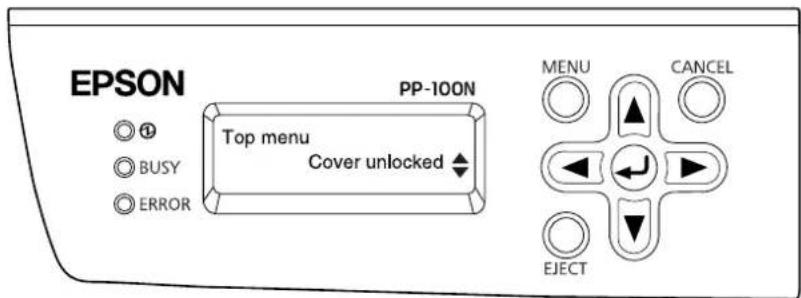
2 Press the ↻ button.
When the disc cover lock is unlocked, "Disc cover can be opened" appears on the LCD.
Notes
If the disc cover is not opened within 5 seconds after the lock is unlocked, the disc cover is locked again.
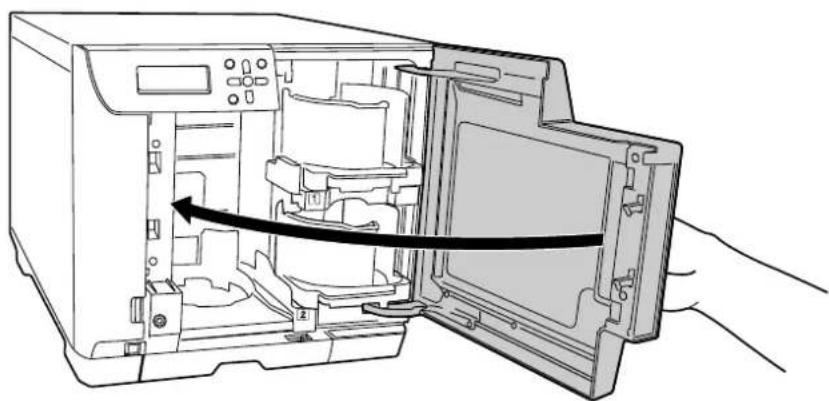
Opening the disc cover
1 If the disc cover is locked, unlock it.
See "Unlocking the disc cover" on page 19 in this guide for the procedure to unlock the lock.
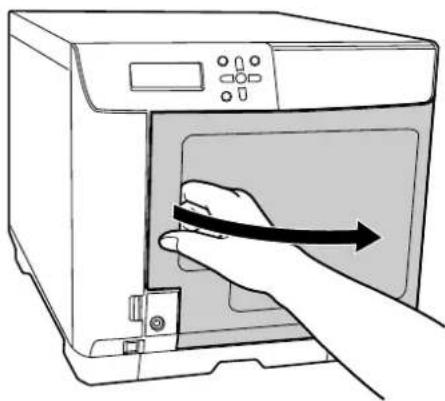
2 Hold the handle, and open the disc cover in the direction indicated by the arrow in the illustration below.

- Do not open the disc cover while a job is being processed (while the BUSY LED flashes). This could adversely affect the writing or printing quality.
- If you open the disc cover while a job is being processed, an alarm beep sounds and the status of the current job becomes Standby. If you close the disc cover, job processing resumes automatically.
- If a job is being processed, first pause the job and then open the disc cover. See "Pausing jobs" on page 108 in this guide for the procedure to pause a job.
• To ensure safety during arm operation, never insert your hands. - Do not operate any stackers while the arm is moving. This could damage the arm.
natural_image
Line drawing of a hand inserting a device into a microwave oven with an arrow indicating the process (no text or symbols present)Closing the disc cover
Hold the handle, and close the disc cover in the direction indicated by the arrow in the illustration below.
natural_image
Diagram of a microwave oven with internal components and an open door, showing a hand inserting a black arrow (no text or symbols present)Handling stackers
Load the discs into the stacker. See "Loading discs" on page 83 in this guide. Or take out the published discs from the stacker. (See "Taking out discs" on page 104 in this guide.) Handle the stacker as shown below.
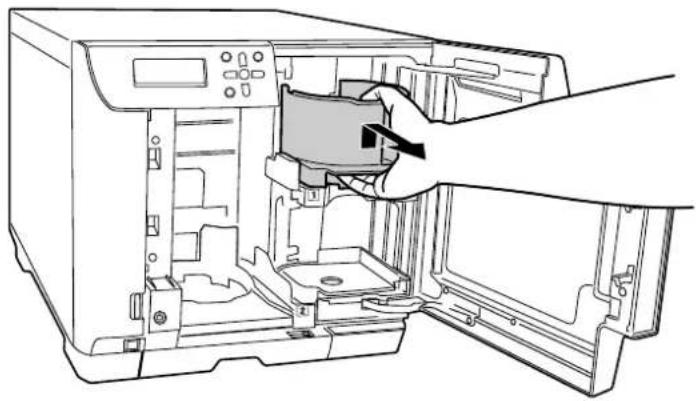
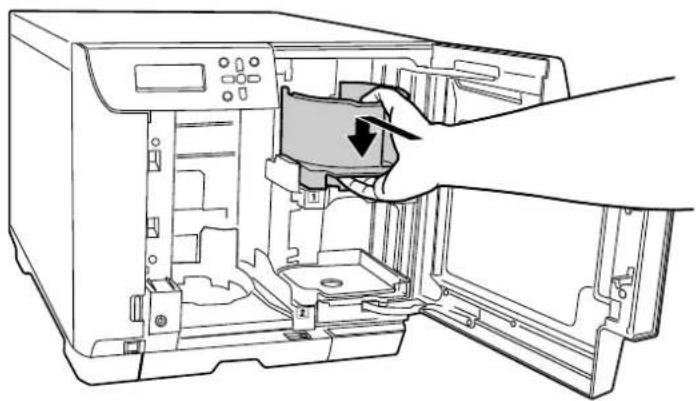
Stacker 1/Stacker 2
Stacker 1 and Stacker 2 are the same. Handle them in the same way.
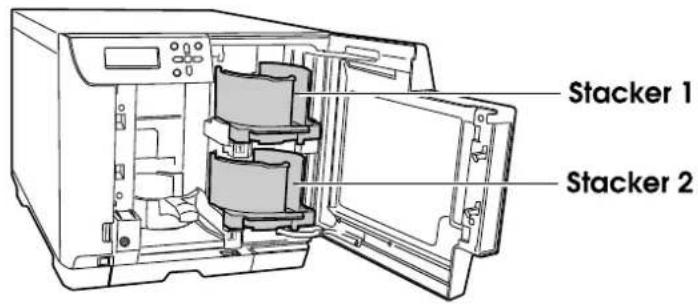
Remove
Gently lift and pull towards you to take out.
natural_image
Line drawing of an open microwave oven with a hand inserting a component (no text or symbols)Attach
Line up the indentations and attach.
natural_image
Line drawing of an open microwave oven with a hand inserting a component (no text or symbols)Stacker 3
Remove
Hold the handle, lift it up, and then pull towards you to take out.
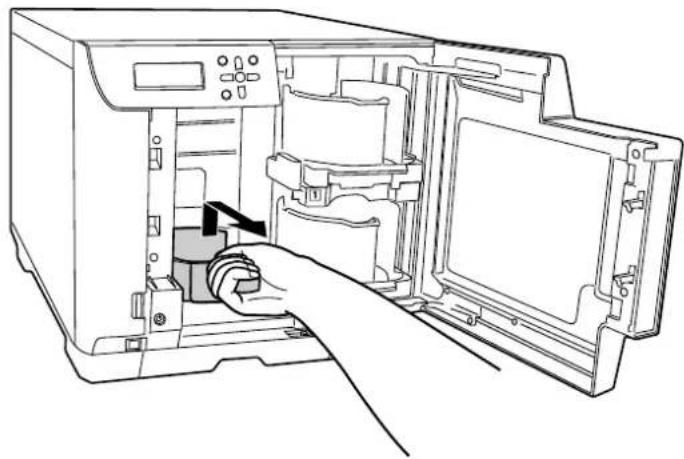
natural_image
Line drawing of a microwave oven with a hand inserting a button into the interior (no text or symbols)Attach

- When you insert Stacker 3, first check that there are no discs in Stacker 4, and then attach it.
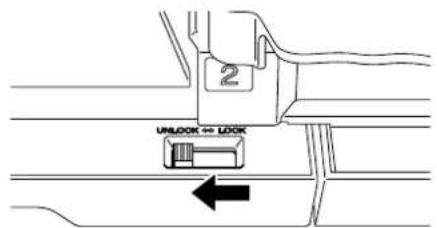
- When you use Stacker 3, set the lock to (LOCK), and do not pull out Stacker 4.
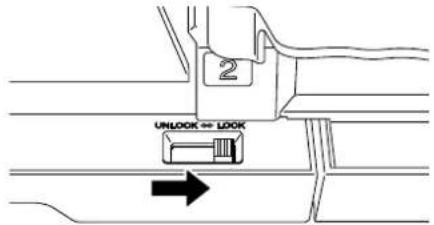
Hold the handle, line up the indentations, and attach.
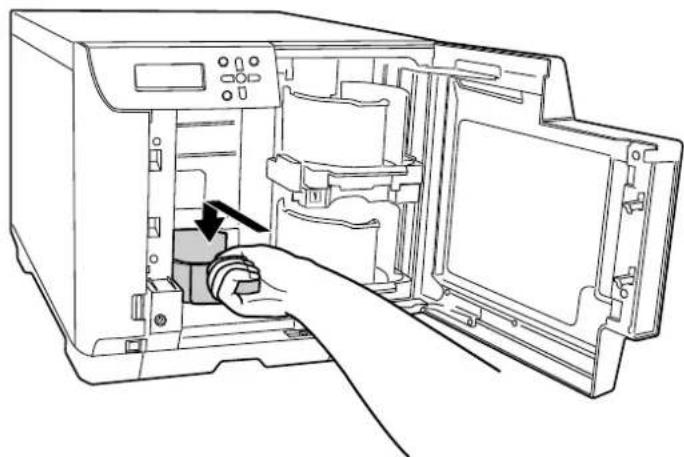
natural_image
Line drawing of a microwave oven with a hand inserting a button into the interior (no text or symbols)Stacker 4
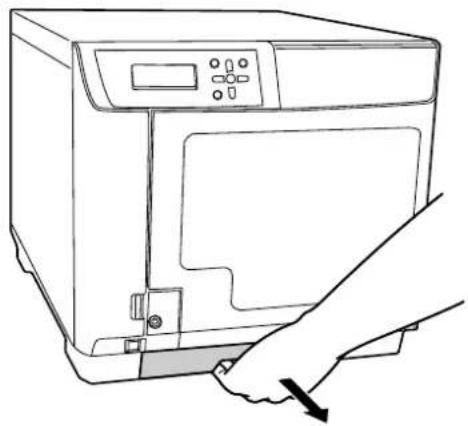
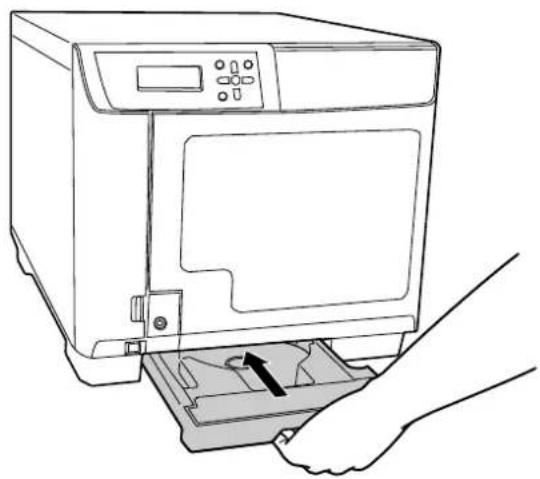
- Do not apply strong force to Stacker 4 when handling it.
- When the BUSY LED is flashing quickly, a disc is being ejected, so do not pull out Stacker 4. Discs may be damaged.
- Set the lock lever to (UNLOCK) when using Stacker 4.

Pull out
Hold the Stacker 4 grip and pull out the stacker.
natural_image
Line drawing of a hand opening a microwave oven with control panel (no text or symbols)Push in
Hold the Stacker 4 grip and push the stacker in.
natural_image
Line drawing of a microwave oven with a hand inserting a tray into the front panel (no text or symbols)Preparation
Installing the software
This section describes the installation procedure of the software required for using this product (PP-100N). After setup of this product (see the PP-100N Administrator's Guide) is completed, use the procedure below to install the software onto the user's client computer.
Before installation
This installation procedure installs the following software. (It is also possible to install the printer driver only.)
- Printer driver
• EPSON Total Disc Setup
This software is used to register this product.
• EPSON Total Disc Monitor
This software is used to verify the product status from the client computer.
• EPSON Total Disc Maker
This software is used to edit the write data and the print data for the label surface and to publish using this product.

- Important Note
You may use the Software to operate the EPSON products. You may use the EPSON products to copy materials on to media, including but not limited to CDs and DVDs. You agree to respect the rights of copyright owners, EPSON shall have no liability for, and you shall hold EPSON harmless from, any copyright infringement by you or your employees, representatives or agents. - Be sure to install the software by following the procedure in this guide.
- When installing the software, log on as a user with administrator privileges (belonging to the administrator group). The software cannot be installed if you log on with user privileges.
- When EPSON Total Disc Maker is installed, several Windows components may be installed. Some of the installed components may not be uninstalled (deleted) when EPSON Total Disc Maker is uninstalled.
- If the system and user language settings are different, the installation procedure may not be performed properly. Install in an environment where the system and user languages are the same.
Software operating requirements
The minimum hardware and software requirements for using the supplied software are shown below.
| OS (Operating system) | ·Windows XP (32 bit, SP3 or later)* Home Edition/Professional·Windows Vista (32 bit/64 bit, SP2 or later)* Home Basic/Home Premium/Business/Enterprise/Ultimate·Windows 7 (32 bit/64 bit, SP1 or later)* Home Premium/Professional/Enterprise/Ultimate·Windows 8 (32 bit/64 bit)·Windows 8 Pro (32 bit/64 bit)·Windows 8.1 (32 bit/64 bit)·Windows 8.1 Pro (32 bit/64 bit)·Windows Server 2003 (32 bit, SP2 or later)* Standard/Enterprise·Windows Server 2003 R2 (32 bit, SP2 or later)* Standard/Enterprise·Windows Server 2008 (32 bit/64 bit, SP2 or later)* Standard/Enterprise·Windows Server 2008 R2 (64 bit, SP1 or later)* Standard/Enterprise·Windows Server 2012 (64 bit)* Standard/Essentials·Windows Server 2012 R2 (64 bit)* Standard/Essentials | |
| CPU | Windows XPWindows VistaWindows 7Windows 8Windows 8.1Windows Server 2003Windows Server 2003 R2 | Intel Pentium 4 (or compatible processor) 1.4 GHz or faster processor |
| Windows Server 2008Windows Server 2008 R2Windows Server 2012Windows Server 2012 R2 | Intel Pentium 4 (or compatible processor) 2.0 GHz or faster processor | |
| Memory | Windows XPWindows Server 2003Windows Server 2003 R2 | 512 MB or more |
| Windows VistaWindows 7 32bitWindows 8 32bitWindows 8.1 32 bit | 1 GB or more | |
| Windows 7 64bitWindows 8 64bitWindows 8.1 64 bitWindows Server 2008Windows Server 2008 R2Windows Server 2012Windows Server 2012 R2 | 2 GB or more | |
| HDD available space | Windows XP | 10 GB or more |
| Windows Server 2003 Windows Server 2003 R2 | 12.9 GB or more | |
| Windows Vista | 25 GB or more | |
| Windows 7 32 bit Windows 8 32 bit Windows 8.1 32 bit | 26 GB or more | |
| Windows 7 64 bit Windows 8 64 bit Windows 8.1 64 bit | 30 GB or more | |
| Windows Server 2008 Windows Server 2008 R2 | 50 GB or more | |
| Windows Server 2012 Windows Server 2012 R2 | 170 GB or more | |
| Display | XGA (1024 x 768 pixels) or higher 65,536 colors or more | |
| Interfaces | Ethernet interface This interface must meet one of the standards below. • 100Base-TX • 1000Base-T | |
| Software | Windows Media Player 6.4 or higher already installed Windows Internet Explorer 6, 7, or 8 already installed | |
| Miscellaneous | Making music CD: Requires sound device with appropriate driver installed. | |

- The product may not function properly in environments where third-party writing software or anti-virus software is installed.
- The source drive should use commands and operations that are compliant with MMC4 or higher, and be capable of reading sub-channels.
Installation
This section describes the procedure for installing the software.

- To perform installation, the IP address or host name of the product are required. Confirm the IP address or host name of the product from the administrator.
- If any other software or anti-virus programs are running, exit them before starting the installation.
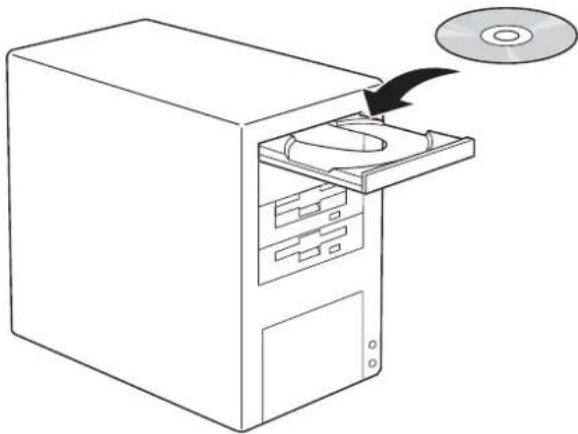
1 Start Windows, and load the Discproducer Utility & Documents Disc (DVD-ROM) supplied with the product into an optical drive of the client computer that can read DVDs.
natural_image
Line drawing of a computer tower with an open CD and a CD inside, showing internal components (no text or symbols)Notes
When the AutoPlay window is displayed, click (Run InstallNavi.EXE) to proceed with operation.
2 Click [EPSON Total Disc Maker] when the screen shown below is displayed.
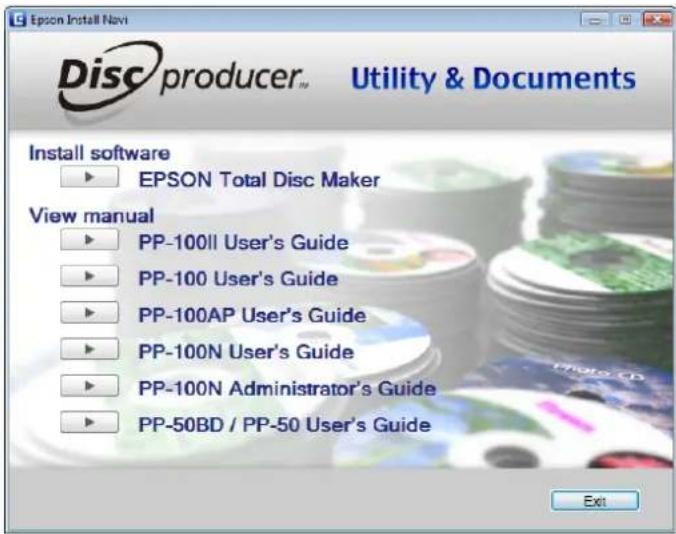
If the screen is not displayed, click [Start] ( ) - [Computer], and double-click the DVD-ROM icon to open the DVD. Next, double-click the InstallNavi.EXE icon in the DVD-ROM.
Notes
When (User Account Control) screen is displayed, click (Allow). When asked for an administrator password, enter the password to proceed with operation.
3 Click [Next].
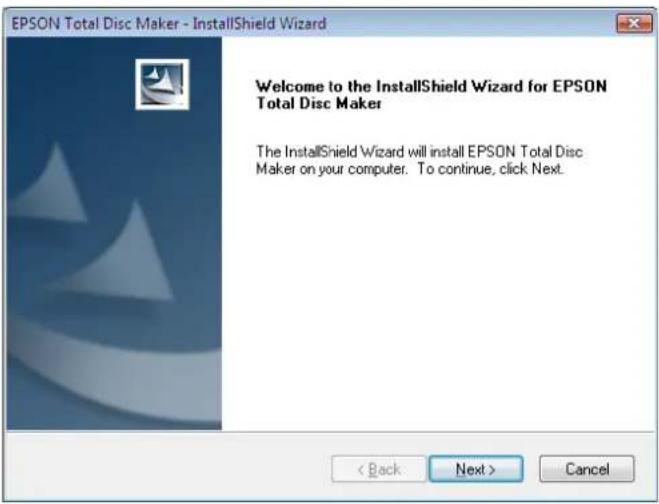
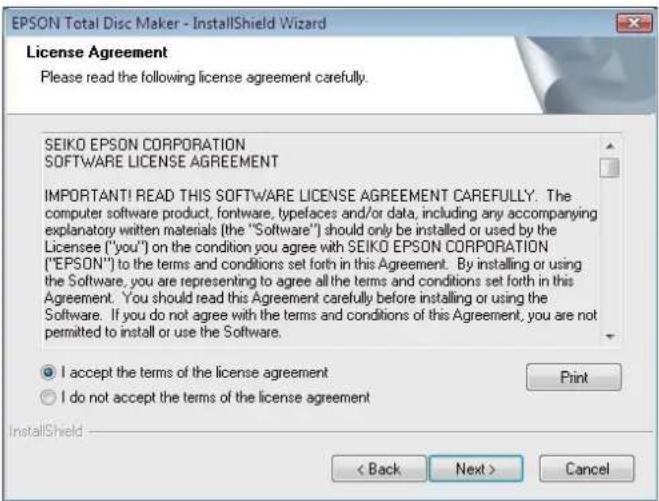
4 Carefully read the license agreement, and if you agree, select [I accept the terms of the license agreement], and click [Next].
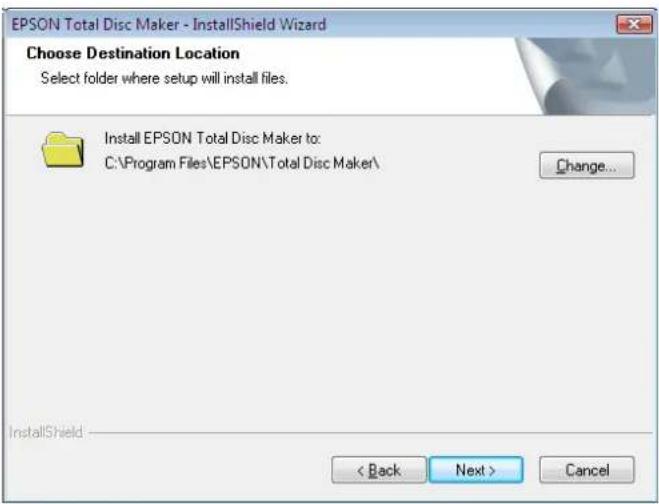
5 Verify the folder where you want to install the software, and click [Next]. To change the folder, click [Change] and specify the folder, and then click [Next].
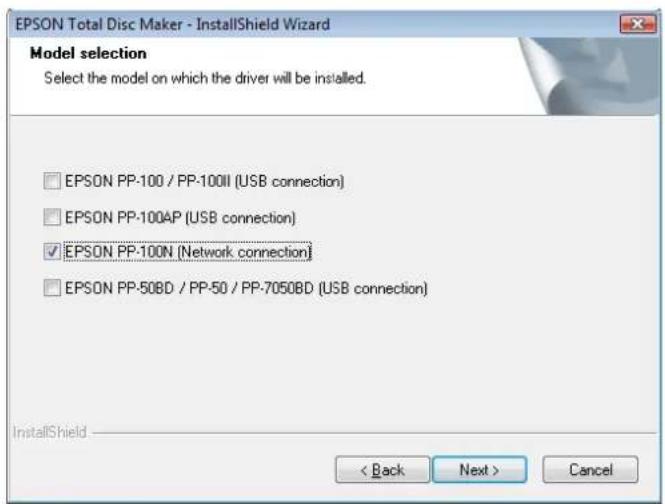
6 Insert a check mark for [EPSON PP-100N (Network connection)], and then click [Next].
7 Check that [Complete] is selected, and click [Next].
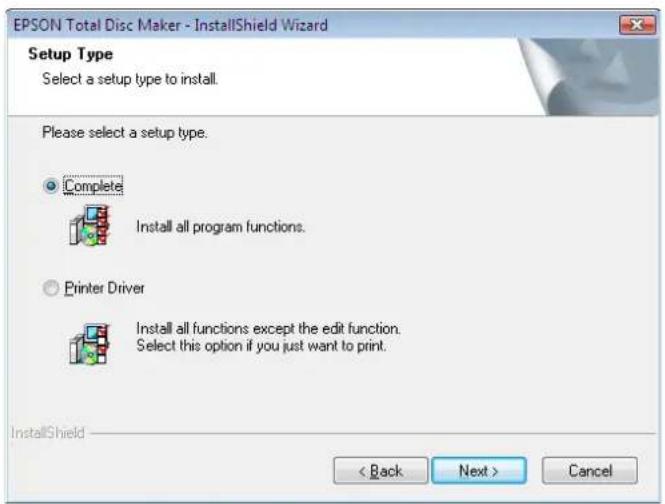
Notes
To install the printer drivers only, select (Printer Driver).
8 Enter the IP address or host name of the product, and click [Next]. In this example, we enter http://192.168.192.168.
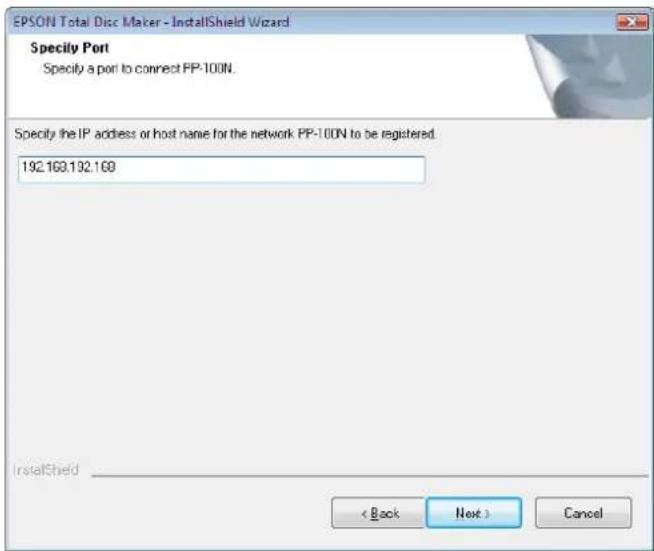

If the IP address or host name of PP-100N is not entered, register this product after the installation is finished. (See "Registering the product" on page 32 in this guide.)
9 Click [Install].
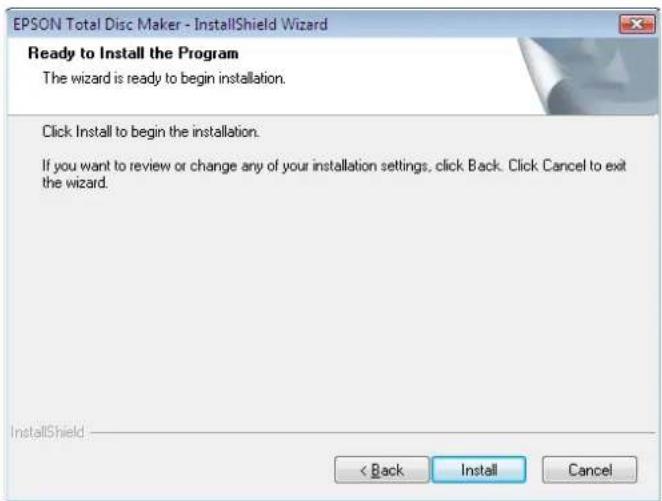
The installation process is started.
10 Click [Finish].
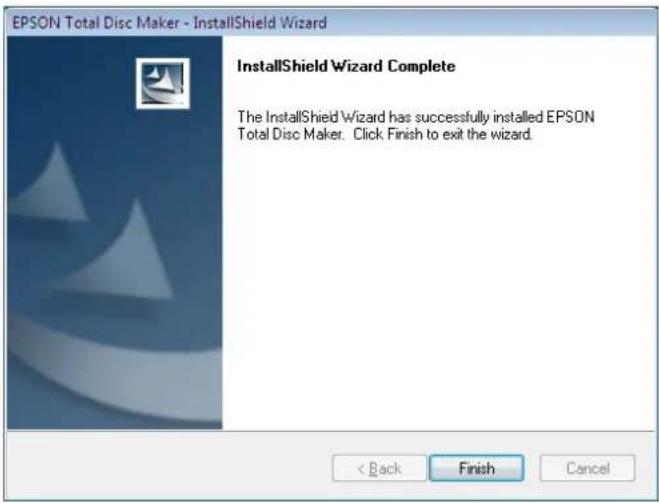
This completes the software installation.
After the installation is completed, EPSON Total Disc Setup will start automatically, and then the [Common Setting for Publishing] screen will appear. Close the [Common Setting for Publishing] screen because this setting is not necessary for this product.
If multiple units of this product are connected on the same network, this product must be registered to the client computer using EPSON Total Disc Setup. See "Registering the product" on page 32 in this guide, and then register this product.
If only one unit of this product is connected, no registration process is necessary.
Registering the product
To use EPSON Total Disc Maker, you must register this product to the client computer. However, if only one product is connected, product registration is performed during the software installation process, and so this procedure is not necessary.
If multiple units of this product are connected on the same network, the registration process must be performed for each connected product.
Use the following procedure to register the product.
1 Check that the client computer and this product are connected on the same network and the power for this product is turned on.
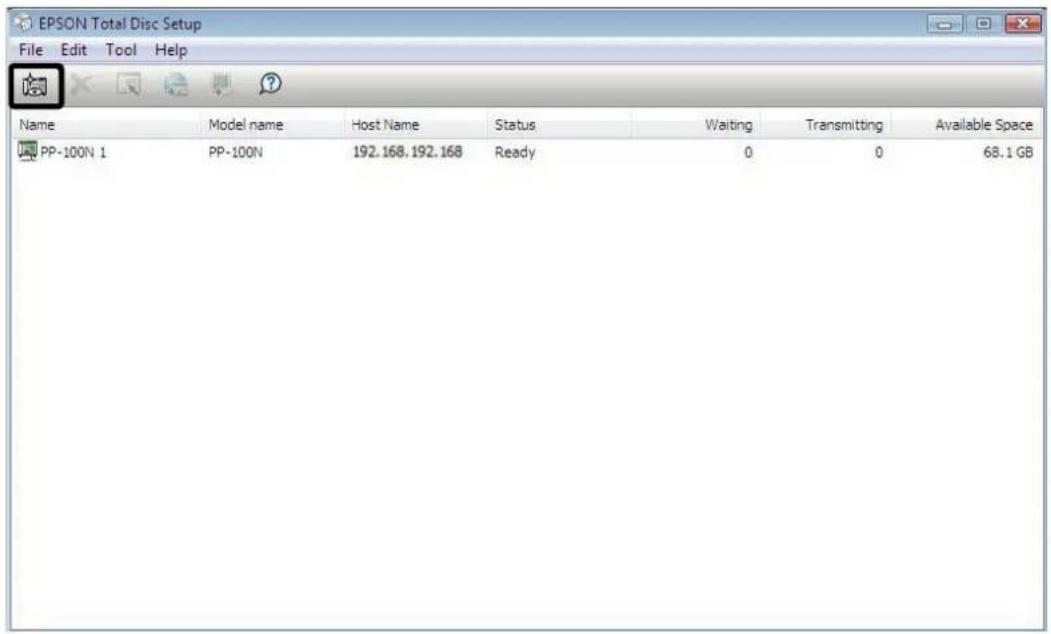
2 If EPSON Total Disc Setup is not running, start EPSON Total Disc Setup. Select [Start] ([S]) - [All Programs] - [EPSON Total Disc Maker] - [EPSON Total Disc Setup].
3 Click [Add].
4 Select [Network CD/DVD Publisher], and click [Next].
![Register New CD/DVD Publisher Please select [Local CD/DVD Publisher] if the CD/DVD Publisher is connected directly to the computer, and [Network CD/DVD Publisher] if it is connected directly to the network. ○ Local CD/DVD Publisher ● Network CD/DVD Publisher Next > Cancel](/content/2026/05/1140216/images/e9ed206c4f45f0c4d81cf16b137d9937bee1f19a977425b1f3bd1788cbfc1487.jpg)
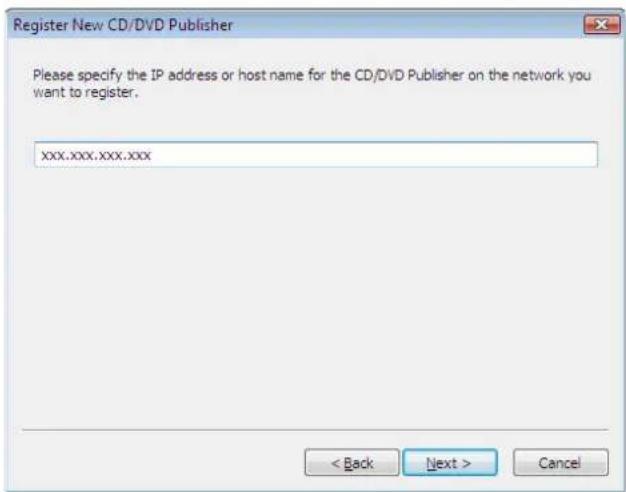
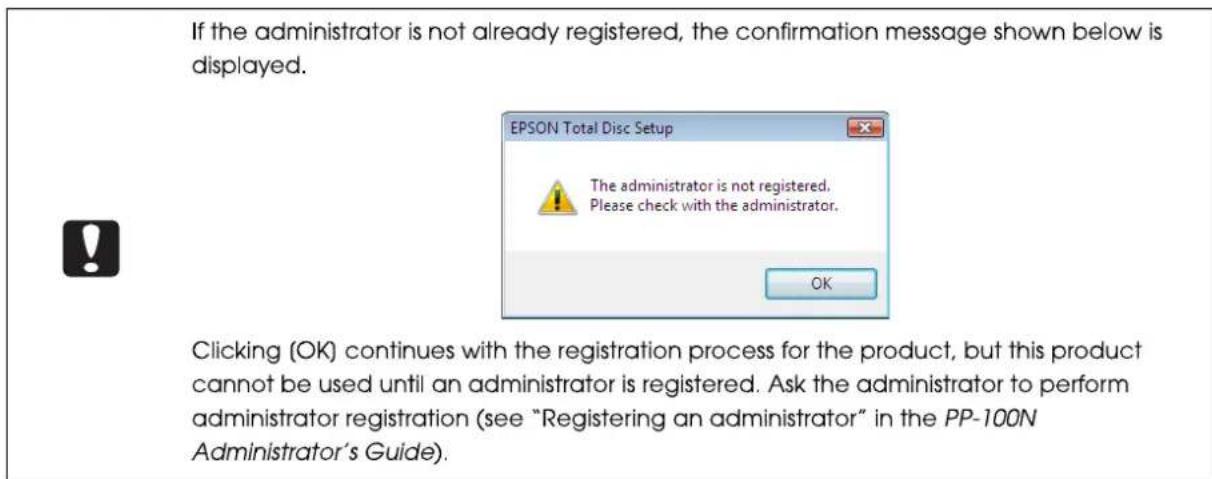
5 Enter the IP address or host name of the product to be registered, and click [Next].
6 Enter the name into [Name] and click [OK].
This name is displayed at [Output device] that is selected in the Publishing screen of EPSON Total Disc Maker.
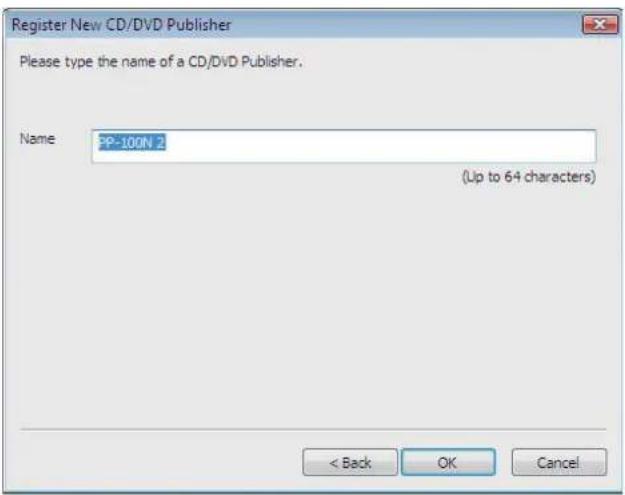
This completes the product registration.
Checking and changing user information
User information is registered by the administrator.
After software installation (see page 24 in this guide) is completed, the user must check the registered user information and change the password.

Check with the administrator for the initial settings for the user name and password. The user name and password are necessary for checking and changing the user information.
Checking user information
1 Log in to EPSON Total Disc Net Administrator.
See "Logging in to EPSON Total Disc Net Administrator" on page 54 in this guide for the login procedure.
2 Click the [User information] tab.

The registered user information is displayed.
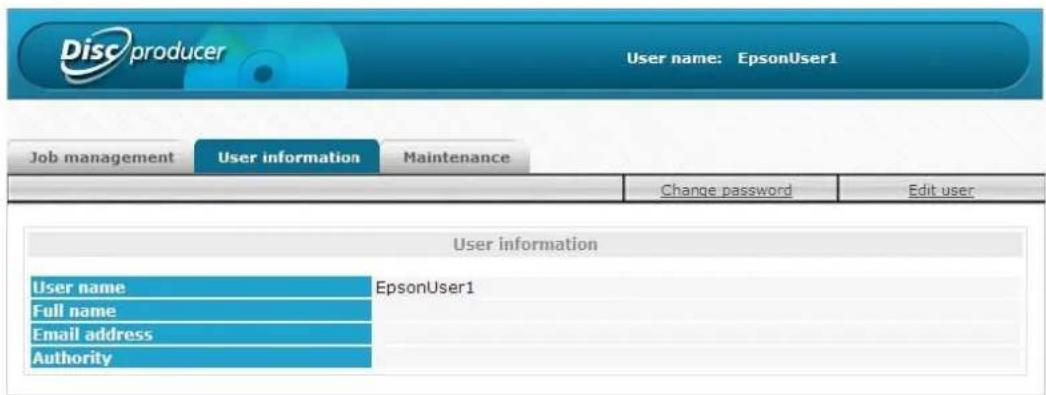
- User name: This displays the user name to use when logging in to EPSON Total Disc Net Administrator.
• Full name: This displays the full name of the user if registered. - Email address: This displays the email address of the user if registered.
• Authority: This displays "Administrator" if the user is set as an administrator.
Changing user information
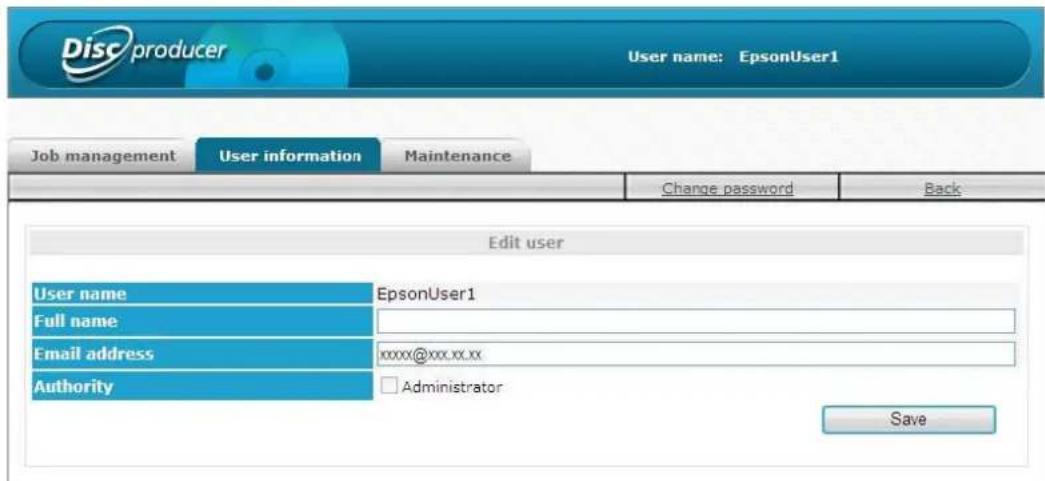
Use the procedure below to change the full name and email address of a user.
1 Log in to EPSON Total Disc Net Administrator.
See "Logging in to EPSON Total Disc Net Administrator" on page 54 in this guide for the login procedure.
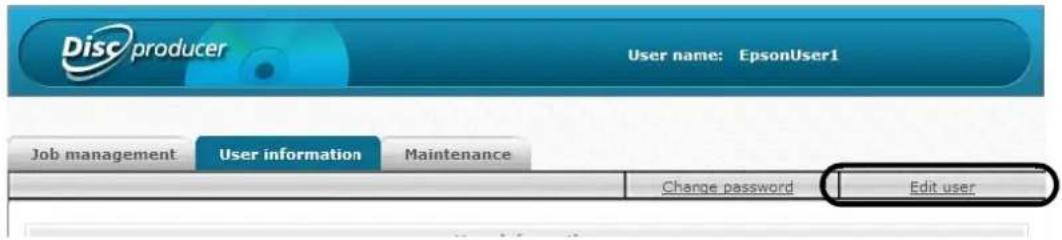
2 Click [Edit user] in the [User information] screen.
3 Change the full name or email address, and click [Save].
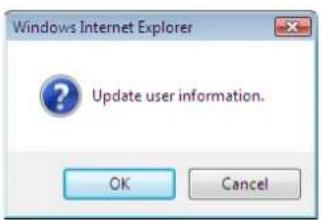
4 Click [OK].
5 The [User information] screen appears.
Check that the modified information is correct.
Changing password
The password is used to log in to EPSON Total Disc Net Administrator. Use the following procedure to change the password.

Manage the password so that it cannot be used by anyone other than you.
1 Log in to EPSON Total Disc Net Administrator.
See "Logging in to EPSON Total Disc Net Administrator" on page 54 in this guide for the login procedure.
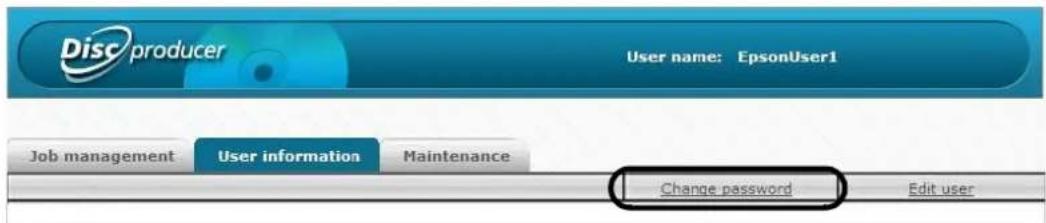
2 Click [Change password] in the [User information] screen.
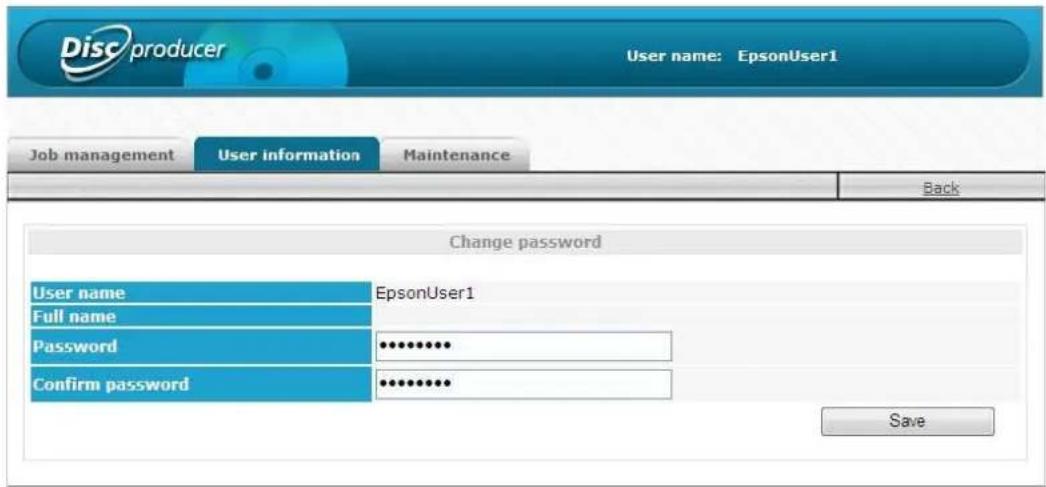
3 Enter the new password, and click [Save].

- Enter from 5 to 16 alphanumeric characters or symbols (".", "-", "_") for a password.
• A password is case-sensitive. - Do not set a date of birth, employee number, or anything else that is easy to guess for a password.
- Manage the password so that it cannot be used by anyone other than you.
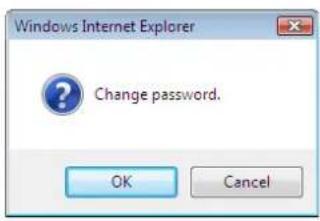
4 Click [OK].
Setting for Notification of Job Completion
A setting can be made to display a message on the screen that notifies you that a job (or jobs) is finished.

This setting is reflected for all the CD/DVD/BD publishers registered.
1 Start EPSON Total Disc Setup.
See "Starting EPSON Total Disc Setup" on page 45 in this guide for the start procedure.
2 Click [Common Setting for Publishing] on the [Tool] menu.

3 Click the [Notification Settings] tab.
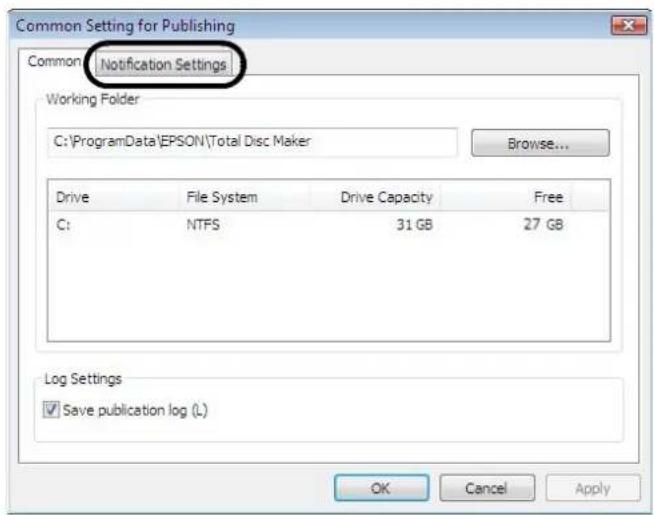
The [Notification Settings] screen appears.
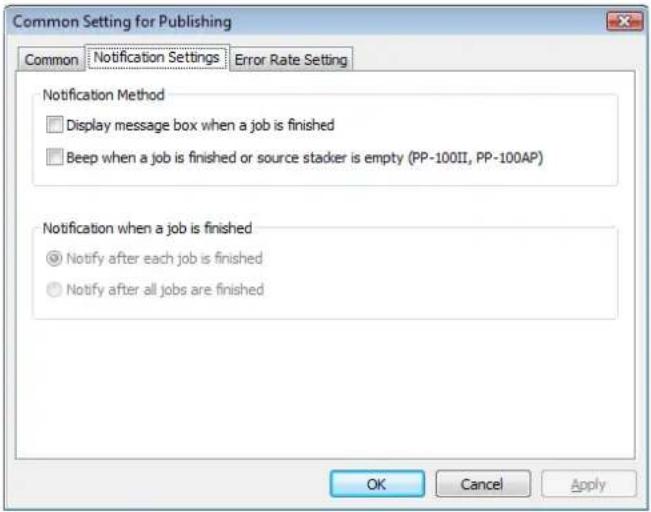
4 Check [Display message box] for [Notification Method].
5 Check the checkbox for either one of the following options:
- Notify after each job is finished: A message box (EPSON Total Disc Monitor) notifying that a job is finished appears every time each job is finished.
- Notify after all jobs are finished: A message box (EPSON Total Disc Monitor) notifying that all jobs are finished appears when more than one job is executed and all jobs are finished.
6 Click [OK].
This completes the notification setting of job competition.
Uninstalling the software
If the software could not be installed properly, uninstall (delete) the software, and then reinstall.
This section describes the procedure for uninstalling the following software.
• EPSON Total Disc Maker
• EPSON Total Disc Setup
• EPSON Total Disc Monitor
- Printer driver
Notes
- You may be asked for an administrator password or confirmation when uninstalling the software. When asked for a password, enter the password to proceed with operation.
- When uninstalling the software in Windows XP or Windows Server 2003, log on as a user with administrator privileges (belonging to the administrator group).
1 Exit all applications that are running.
2 Open the [Control Panel].
Click [Start] ( ) - [Control Panel], in this order.
3 Open the Uninstall screen.
Click [Uninstall a program].
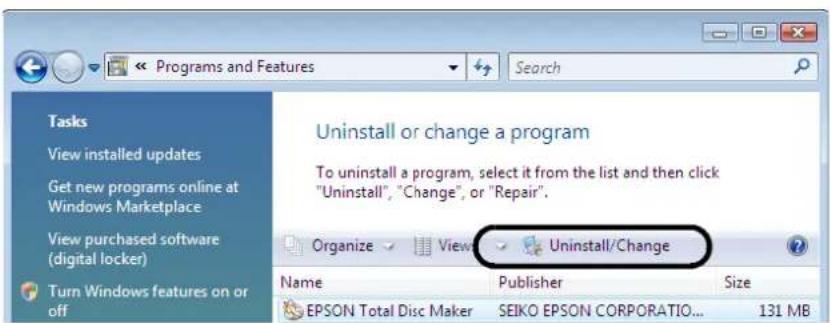
4 Delete EPSON Total Disc Maker.
Select EPSON Total Disc Maker, and click [Uninstall/Change].
Notes
If you cannot perform the uninstallation due to any problem, uninstall the software by double-clicking setup.exe in the Discproducer Utility & Documents Disc.
5 Select [Remove], and click [Next].
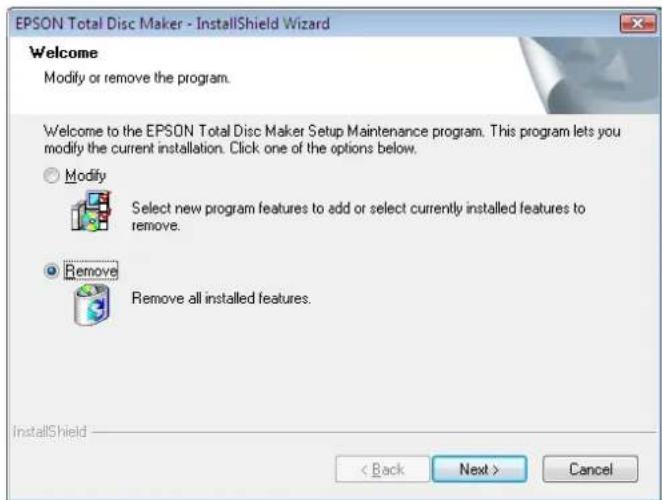
Follow the on-screen messages to complete the uninstallation process.
Using Applications
EPSON Total Disc Maker
What is EPSON Total Disc Maker?
EPSON Total Disc Maker is software for editing the write data and the print data for the label surface, and publishing to this product (PP-100N).
In EPSON Total Disc Maker, the execution of writing data to this product and printing labels is referred to as "publishing". Publishing enables this product to write data to a CD or DVD and print the label to create a finished disc.
Starting EPSON Total Disc Maker
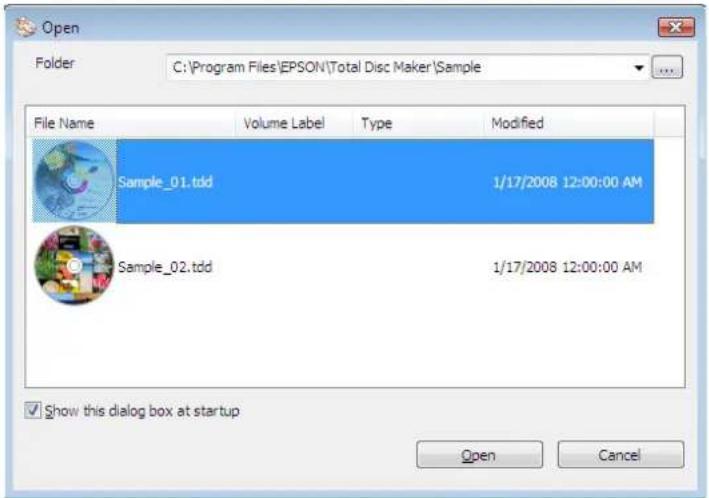
1 Select [Start] (7) - [All Programs] - [EPSON Total Disc Maker] - [EPSON Total Disc Maker].
The [Open] dialog box appears.
2 Click [Cancel].
The [Open] dialog box closes and the disc view becomes active.
Notes
- If you select a Total Disc Maker data file in the (Open) dialog box and then click (Open), the selected file opens and the publish view becomes active.
- If you unselect (Show this dialog box at startup) and close the (Open) dialog box, the (Open) dialog box is not displayed from the next startup.
Screen configuration of EPSON Total Disc Maker
This section describes the screen configuration of EPSON Total Disc Maker.
See EPSON Total Disc Maker Help for details on use.
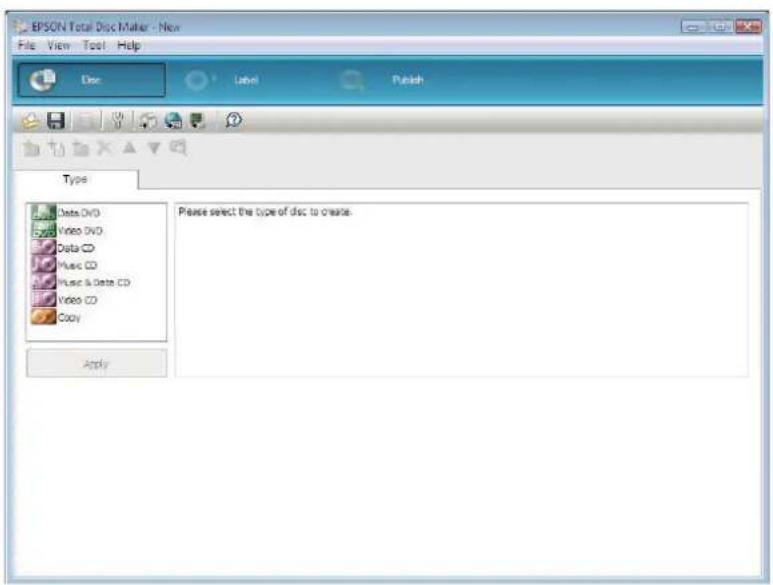
Disc view
Starting EPSON Total Disc Maker or clicking [Disc] in another view displays the disc view.
In the disc view, you can edit the data to write to the disc.
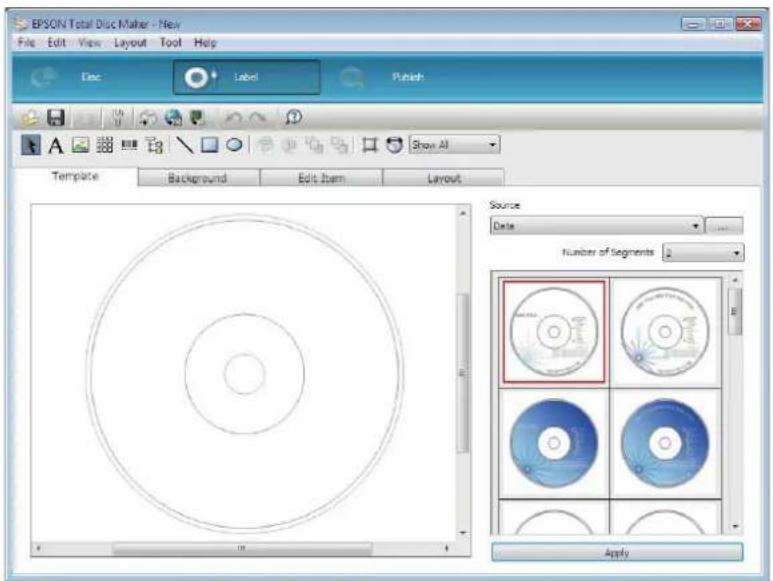
Label view
Clicking [Label] in the disc view or publish view displays the label view.
In the label view, you can edit the data for printing on the label surface of the disc.
Publish view
Clicking [Publish] in the disc view or label view displays the publish view. In the publish view, you can publish the writing data and label to this product.
![EPSON Total Disc Maker - New File View Tool Help Disc Label Publish Write Date Print Label Date Name Size Type Volume Label Size [M8] Output Device PP-100V 1 Publish Mode Standard mode Input Stacker Stacker 1 CD-R Output Stacker Stacker 2 Write Speed Write Verification Label Type COVIDID Label Print Mode Setting 1 2 Quality Speed Copies 1 Publish](/content/2026/05/1140216/images/ab5aadb29a300f9475051e6d6eec7fa38f4ebe465d196d5d4db27045862a61f3.jpg)
Displaying EPSON Total Disc Maker Help
EPSON Total Disc Maker Help contains the procedures for using and specifications of EPSON Total Disc Maker.
Click [Start] (☑) - [All Programs] - [EPSON Total Disc Maker] - [EPSON Total Disc Maker Help].
Notes
You can also display EPSON Total Disc Maker Help in the following ways:
- Start EPSON Total Disc Maker, and click (Help) on the toolbar.
- Start EPSON Total Disc Maker, and press (F1).
- Start EPSON Total Disc Maker, and click (Help) on the (Help) menu.
EPSON Total Disc Setup
What is EPSON Total Disc Setup?
EPSON Total Disc Setup is software for registering the product to the computer. It also allows you to check the Publish Mode, stacker to be used, drive, etc., as well as the basic settings for publishing discs with this product.
Starting EPSON Total Disc Setup
Notes
To use EPSON Total Disc Setup, you need to register this product after the installation. See page 32 in this guide, and then register this product.
Select [Start] (☐) - [All Programs] - [EPSON Total Disc Maker] - [EPSON Total Disc Setup]. EPSON Total Disc Setup starts.
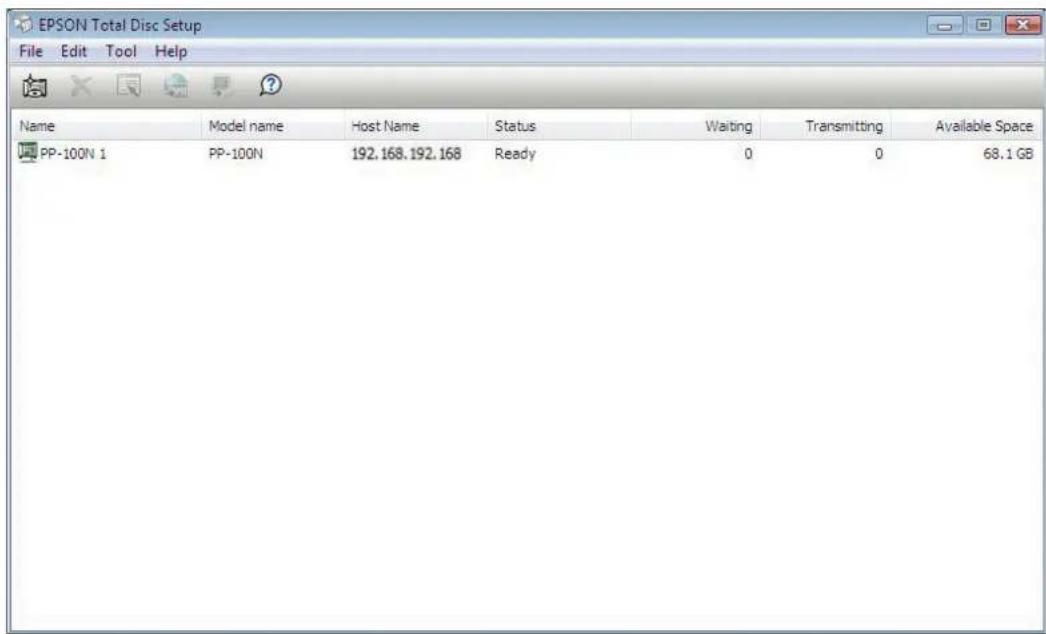
Notes
You can also start EPSON Total Disc Setup in the following ways:
- Click in EPSON Total Disc Maker.
- Click (Start Total Disc Setup) on the (Tools) menu in EPSON Total Disc Maker.
Screen configuration of EPSON Total Disc Setup
This section describes the screen configuration of EPSON Total Disc Maker.
See Help of EPSON Total Disc Setup for details on use.
Setup screen
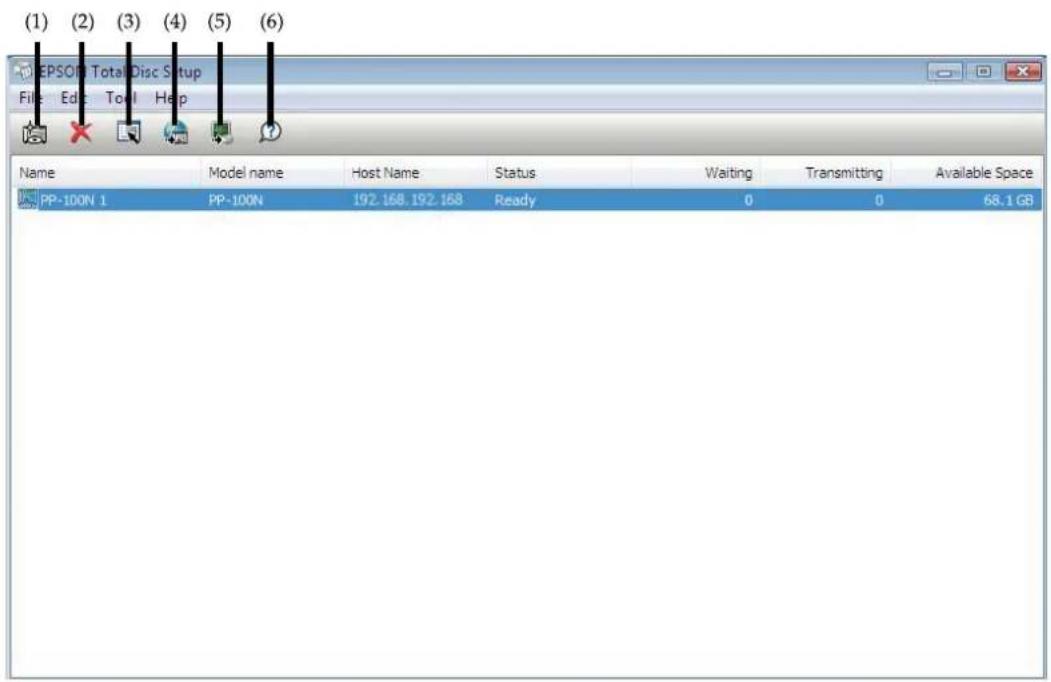
| (1) | Add | Registers this product. |
| (2) | Remove | Deletes the registration for the selected product. |
| (3) | Properties | Displays the (Properties) screen for the selected product. |
| (4) | Start Total Disc Net Administrator | Starts EPSON Total Disc Net Administrator. |
| (5) | Start Total Disc Monitor | Starts EPSON Total Disc Monitor. |
| (6) | Help | Displays Help. |
| - | Name | Displays the name of the product. |
| - | Model Name | Displays the model name of the product (PP-100N). |
| - | Host Name | Displays the host name or IP address of the product. |
| - | Status | Displays the product status. |
| - | Waiting | Displays the number of unfinished jobs. |
| - | Transmitting | Displays the number of jobs being transmitted. |
| - | Available Space | Displays the available space on the product's internal HDD. |
(Properties) screen
Click [Properties] in the Setup screen to display the [Properties] screen.
Click the [General] tab, [Maintenance Info] tab, and [About] tab in the [Properties] screen to display each screen.
(General) screen
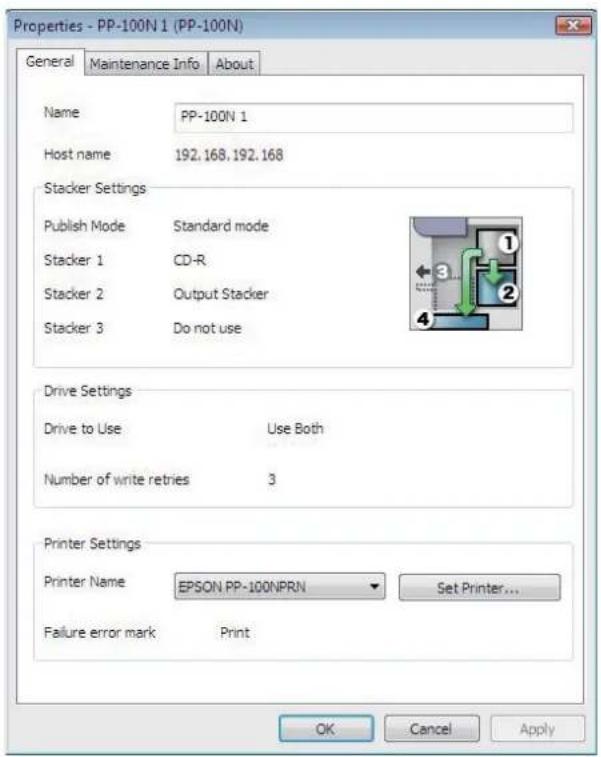
| Item | Description |
| Name | Displays the name of the product. The name can also be changed here. Do not use Unicode characters. |
| Host name | Displays the host name or IP address of the product. |
| Stacker Settings | Allows you to check the settings for the Publish Mode and type of disc to load in the stacker. |
| Drive Settings | Allows you to check the settings for the drive to use and the number of write retries after an error occurs during disc writing. |
| Printer settings | Displays the (Main) screen of the printer driver. |
(Maintenance Info) screen
![Properties - PP-100N 1 (PP-100N) General Maintenance Info About Number of printed discs : 208 [discs] Service life of Drive 1 : 1.12 [%] Service life of Drive 2 : 1.04 [%] OK Cancel Apply](/content/2026/05/1140216/images/f2aceb7d8ca71924f2b7f57f3ab0214e34d8f4663a72ddb5c432ae0bef38f39f.jpg)
| Item | Description |
| Number of printed discs | Displays the cumulative number of printed discs. |
| Service life of Drive 1/Drive 2 | Displays the service life of the drive. When the value is close to 100%, it is time to replace it. |
(About) screen
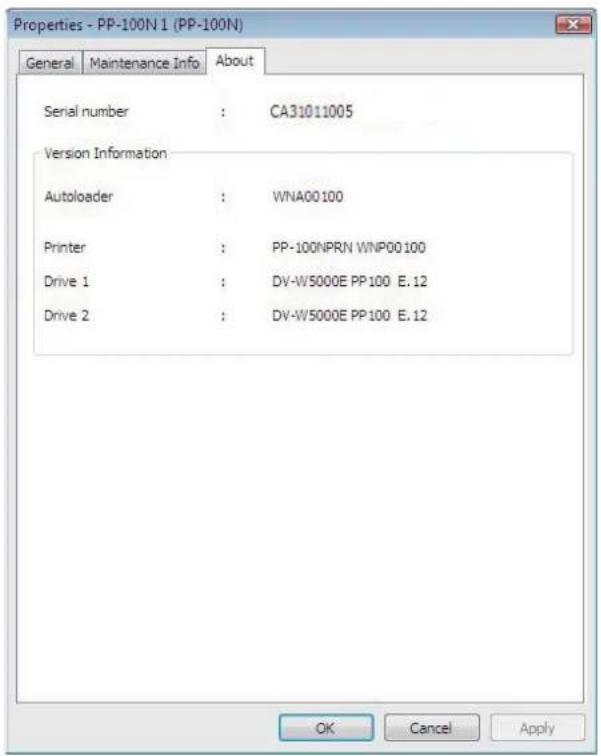
| Item | Description |
| Serial number | Displays the serial number of the product. |
| Autoloader | Displays the firmware version of the product's internal autoloader. |
| Printer | Displays the firmware version of the product's internal printer. |
| Drive 1 | Displays the firmware version of the product's internal CD/DVD Drive 1. |
| Drive 2 | Displays the firmware version of the product's internal CD/DVD Drive 2. |
Displaying Help of EPSON Total Disc Setup
Help of EPSON Total Disc Setup contains the procedures for using and specifications of EPSON Total Disc Setup.
1 Start EPSON Total Disc Setup.
See "Starting EPSON Total Disc Setup" on page 45 in this guide for the start procedure.
2 Click [Help] on the toolbar.
Notes

[Help] on the toolbar.
You can also display Help of EPSON Total Disc Setup in the following ways:
- Start EPSON Total Disc Setup, and press (F1).
- Start EPSON Total Disc Setup, and click (Help) on the (Help) menu.
EPSON Total Disc Monitor
What is EPSON Total Disc Monitor?
EPSON Total Disc Monitor is software for displaying the product's current status, remaining ink, job information, and other information. You can also pause/cancel jobs or change the order of jobs to be processed.
Starting EPSON Total Disc Monitor
Notes
To start EPSON Total Disc Monitor, you need to register this product after the installation. See page 32 in this guide, and then register this product.
1 Click [Start] (☑) - [All Programs] - [EPSON Total Disc Maker] - [EPSON Total Disc Monitor].
2 When more than one unit is connected, select the product for which to display the status, and click [OK].
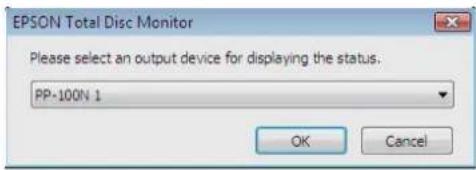
EPSON Total Disc Monitor starts.
Notes
You can also start EPSON Total Disc Monitor in the following ways:
- Click in EPSON Total Disc Maker/EPSON Total Disc Setup.
- Click (Start Total Disc Monitor) on the (Tools) menu in EPSON Total Disc Maker/EPSON Total Disc Setup.
Screen configuration of EPSON Total Disc Monitor
This section describes the screen configuration of EPSON Total Disc Monitor.
See Help of EPSON Total Disc Monitor for details on use.
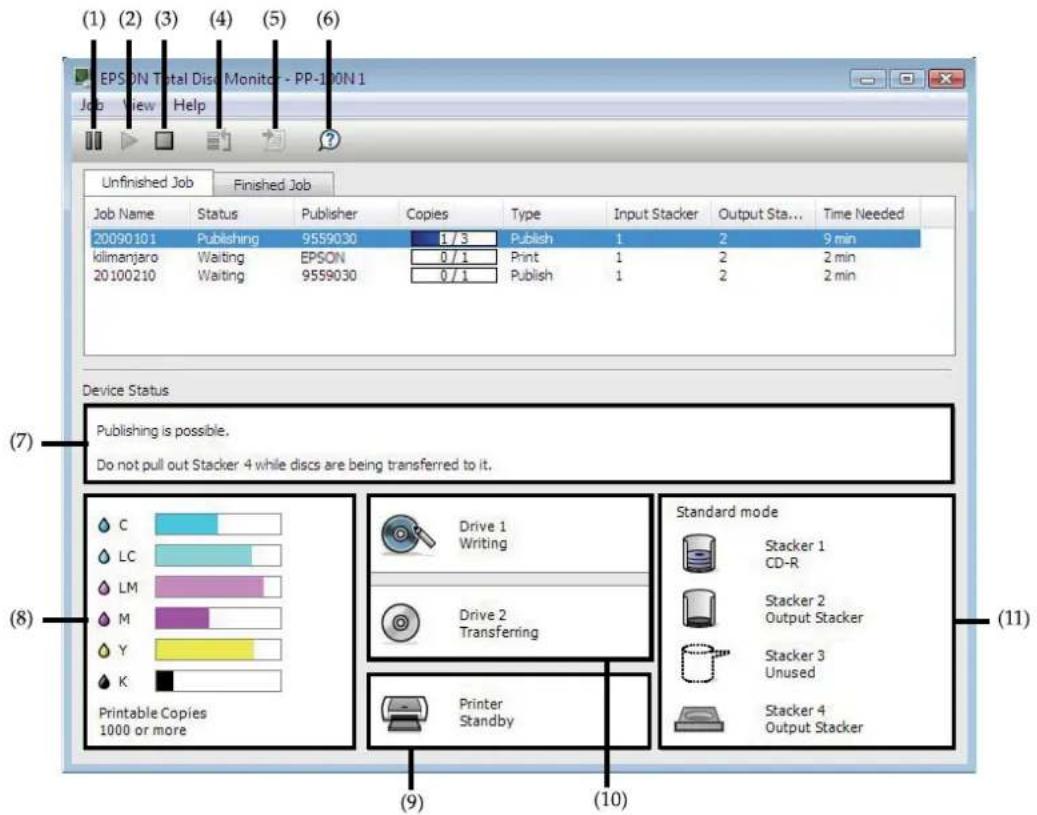
| (1) | Pause | Pauses the selected job. |
| (2) | Resume | Resumes the selected job. |
| (3) | Cancel | Cancels the selected job. |
| (4) | Priority Publishing | Processes the selected job before the others. |
| (5) | Finished job details | Displays the selected finished job details. |
| (6) | Help | Displays Help. |
| (7) | Operation Guidance | Displays the product's status or the content and message of an error. |
| (8) | Ink status | Displays the remaining ink. |
| (9) | Printer status | Displays the printer status. |
| (10) | CD/DVD drive status | Displays the CD/DVD drive status. |
| (11) | Stacker status | Displays the stacker status. |
Notes
The number of printable labels is an estimate of how many more the same type of labels as last time can be printed. This value may differ slightly from the actual value due to factors such as the printing data and printing environment. Values up to 1000 are displayed as "1000 or more", and quantities less than 1000 discs are displayed in 10-disc units.
Click the [Unfinished Job] tab and [Finished Job] tab to display each screen.
(Unfinished Job) screen
The [Unfinished Job] screen displays information on jobs with the status of Waiting, Publishing, Paused, Pausing, Canceling, Standby, or Recovering. Right-click a job to select [Pause Job], [Resume Job], [Cancel Job], or [Priority Publishing].
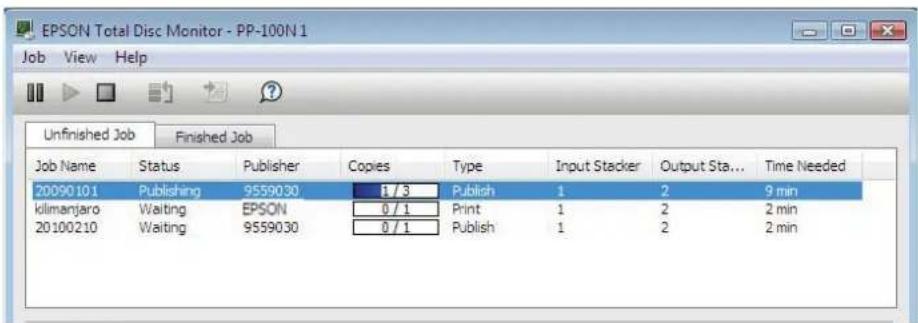
| Item | Description |
| Job Name | Displays the job name. The job name is set automatically from, for example, the volume label of writing data registered with EPSON Total Disc Maker. |
| Status | Displays the job status. |
| Publisher | Displays the publisher of the job. |
| Copies | Displays the number of discs published normally / the total number of discs to be published. |
| Type | Displays a job type such as Print, Write, or Publish (print and write). |
| Input Stacker | Displays the disc input stacker number. |
| Output Stacker | Displays the disc output stacker number. |
| Time Needed | Displays the estimated time for the period from the start to end of job processing. |
(Finished Job) screen
The [Finished Job] screen displays information on jobs for which publishing is finished.
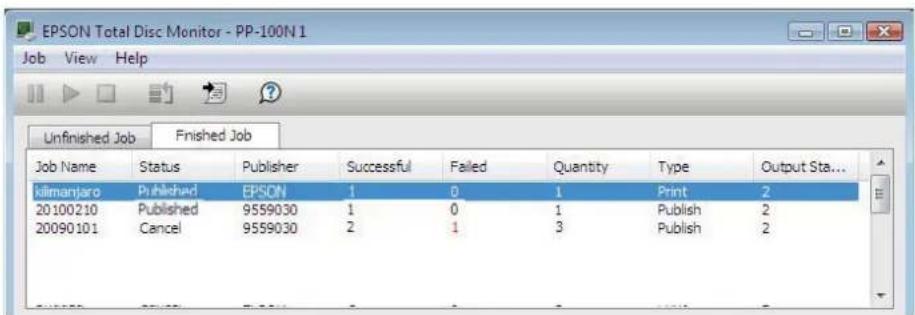
| Item | Description |
| Job Name | Displays the job name. |
| Status | Displays the status when the job finished. |
| Publisher | Displays the publisher of the job. |
| Successful | Displays the number of discs for which printing, writing, publishing, or the like was successful. |
| Failed | Displays the number of discs for which printing, writing, publishing, or the like failed. |
| Quantity | Displays the number of discs specified to be created. |
| Type | Displays the job type. |
| Output Stacker | Displays the disc output stacker number. |
Displaying Help of EPSON Total Disc Monitor
Help of EPSON Total Disc Monitor contains the procedures for using and specifications of EPSON Total Disc Monitor.
1 Start EPSON Total Disc Monitor.
See "Starting EPSON Total Disc Monitor" on page 50 in this guide for the start procedure.
2 Click [Help] on the toolbar.
Notes
You can also display Help of EPSON Total Disc Monitor in the following ways:
- Start EPSON Total Disc Monitor, and press (F1).
- Start EPSON Total Disc Monitor, and click (Help) on the (Help) menu.
EPSON Total Disc Net Administrator
What is EPSON Total Disc Net Administrator?
EPSON Total Disc Net Administrator is an internal Web application of this product for performing tasks such as managing jobs, users, and data for maintenance.
EPSON Total Disc Net Administrator displays different screens and functions depending on the authority of user logged in.
Logging in to EPSON Total Disc Net Administrator
1 Turn the product on.
2 Enter any of the product's IP address, host name, and FQDN in the address bar of Internet Explorer.
Example: When the product's IP address is 192.168.192.168: http://192.168.192.168
Notes
You can also start EPSON Total Disc Net Administrator in the following ways:
- Click in EPSON Total Disc Maker/EPSON Total Disc Setup.
- Click (Start Total Disc Net Administrator) on the (Tools) menu in EPSON Total Disc Maker/EPSON Total Disc Setup.
- If notification email transmission is set by the administrator, click the URL in the email sent from EPSON Total Disc Net Administrator.
3 Enter the user name and password, and click [Login].

![EPSON PP-100N - Enter the user name and password, and click [Login]. - 2](/content/2026/05/1140216/images/080e23841a1877027ee38c0d7a4f5f31de68a51fa6d89c8e755f6f85b66964e0.jpg)
![EPSON PP-100N - Enter the user name and password, and click [Login]. - 3](/content/2026/05/1140216/images/1f62f22d7fc6b265f04ad66f6ae8ee6d8fc250ca7fb44fd1010981f708d46a86.jpg)
- The first time you log in, confirm the user name and password with the administrator. After you log in, change your password first. (See "Changing password" on page 37 in this guide for the procedure to change your password.)
- Manage the password so that it cannot be used by anyone other than you.
Logging out from EPSON Total Disc Net Administrator
Click [Logout] in the upper right of the screen.
Version | Help


producer
User name: EpsonUser1
Screen configuration of EPSON Total Disc Net Administrator
This section describes the screen configuration of EPSON Total Disc Net Administrator.
See Help of EPSON Total Disc Net Administrator for details on use.
Click the [Job management] tab, [User information/User management] tab, [System settings] tab (administrator only), and [Maintenance] tab to display each screen.
(Job management) screen
The [Job management] screen displays the jobs published to this product. If you use search options, a job list of the search results is displayed in accordance with the conditions specified.
Click [Details] to display the [Job details] screen.
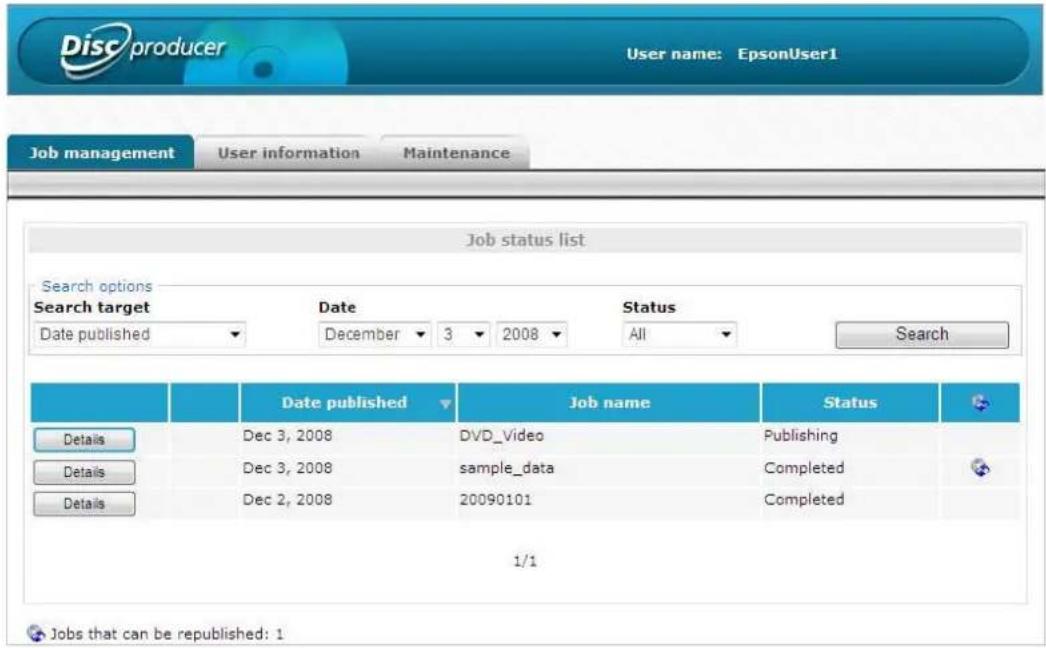
(Job details) screen
The [Job details] screen displays details on Jobs. You can use the job information of a finished disc to publish another disc with the same content.
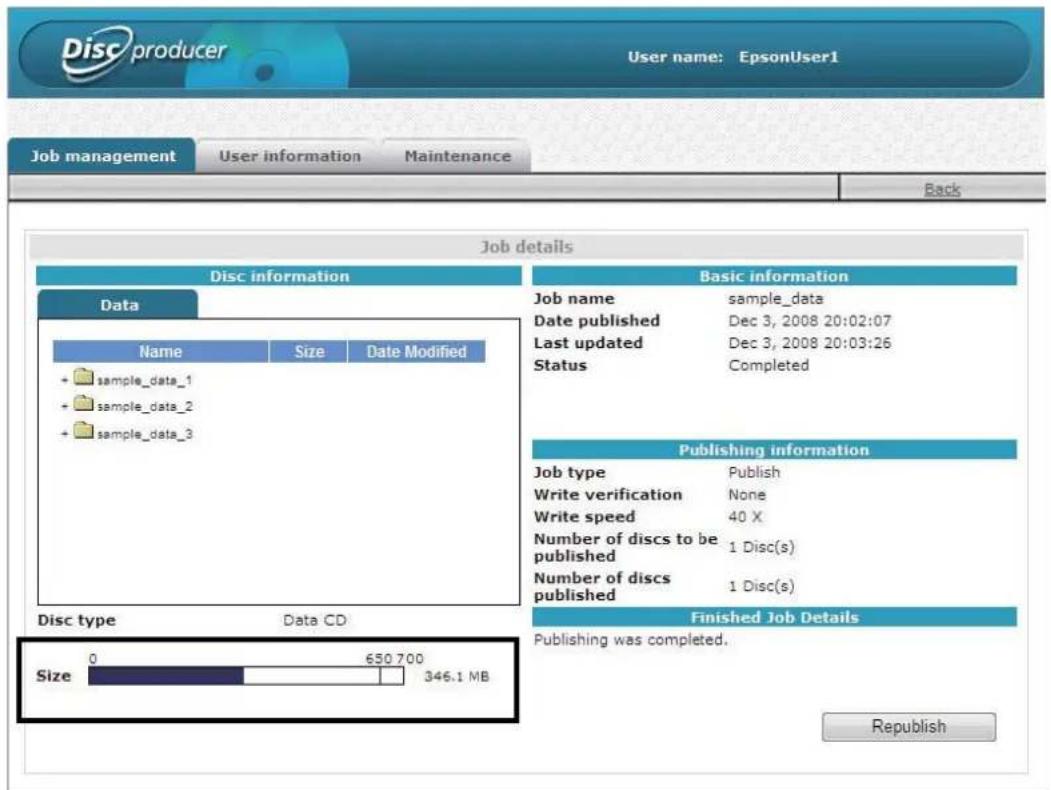
(User information)/(User management) screen
The [User information (User management)] screen displays the user information for the currently logged in user. If an administrator is logged in, the screen displays the information of all registered users.
Click [Change password] to display the [Change password] screen. Click [Edit] to display the [Edit user] screen.
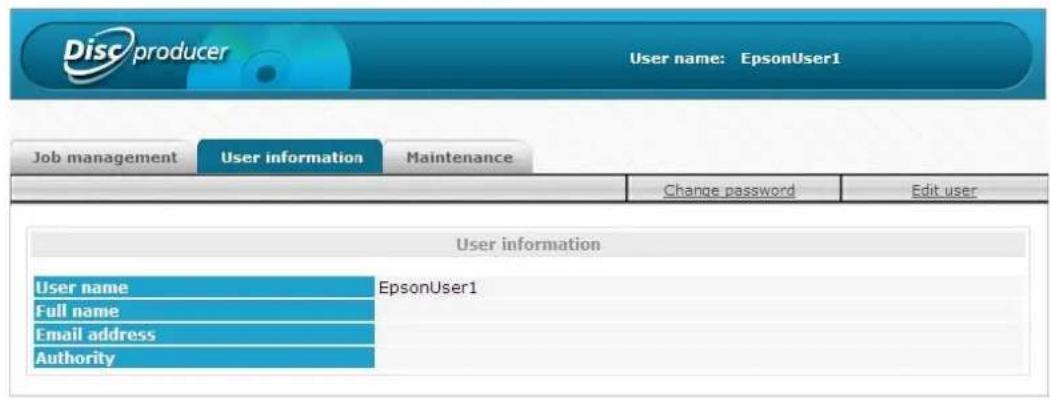
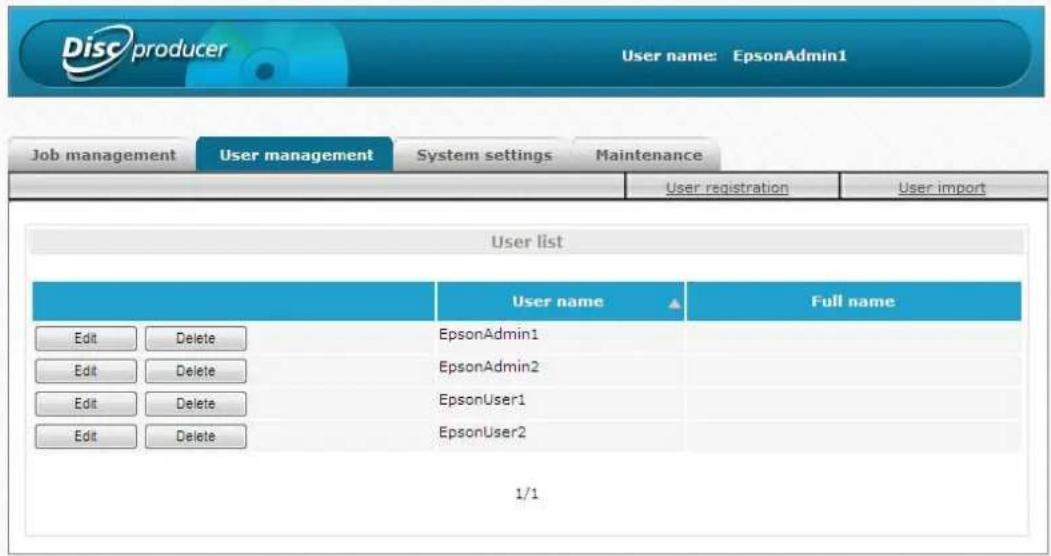
(Change password) screen
The [Change password] screen allows the password of the currently logged in user to be changed. If the currently logged in user is an administrator, the passwords of all registered users can be changed.
(Edit user) screen
The [Edit user] screen allows the full name and mail address of the currently logged in user to be edited. If the currently logged in user is an administrator, the full names, email addresses, and authorities of all registered users can be edited.
(System settings) screen (administrator only)
Click the [Output device] tab, [Network] tab, [Email] tab, and [Date/Time] tab to display each screen.
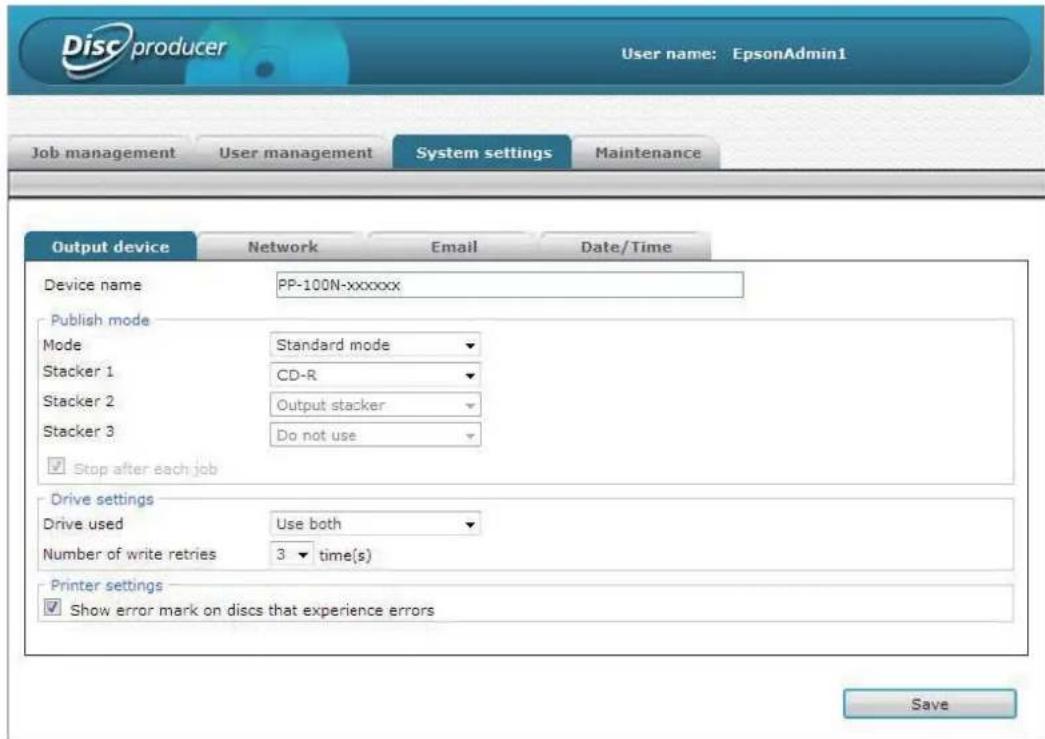
(Output device) screen
The [Output device] screen allows you to check and change the settings of this product such as the Publish Mode, drive, and adding of error marks.
(Network) screen
The [Network] screen allows you to check and change the product's network settings.
(Email) screen
The [Email] screen allows you to set notification email transmission related to, for example, disc publishing and ink information.
(Date/Time) screen
The [Date/Time] screen allows you to set the product's internal clock.
(Maintenance) screen
Click the [Device] tab and [Data] tab to display each screen.
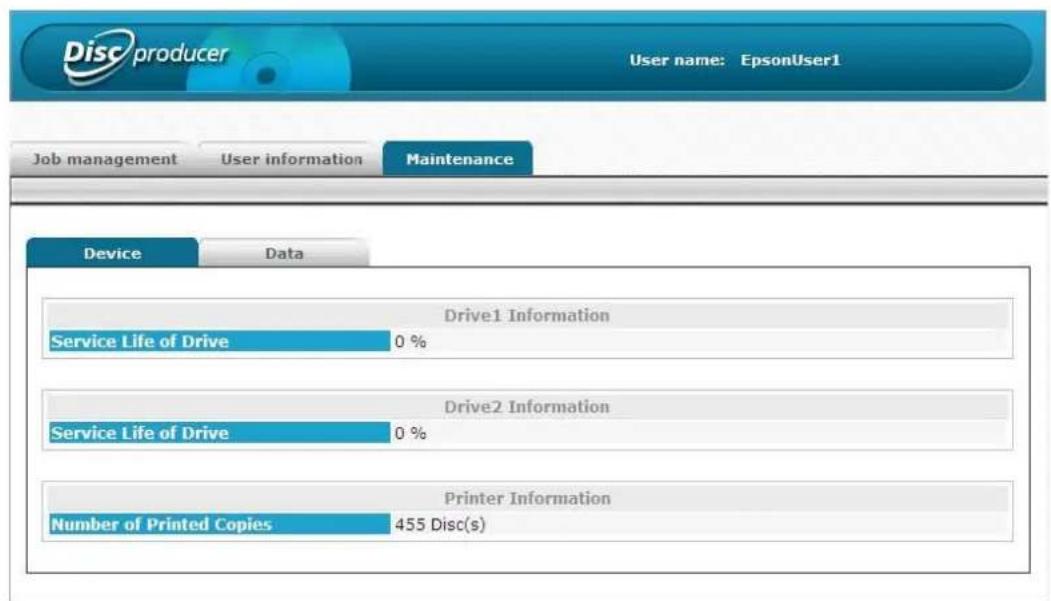
(Device) screen
The [Device] screen displays the product's drive usage status and the number of printed discs.
(Data) screen
Click [Download] in [Download operation log] to download information related to operation of the product. Use the operation log for maintenance and support.
If the currently logged in user is an administrator, data such as the product's setting information and job history can be backed up and restored. Furthermore, the product can be restored to the initial state.
Displaying Help of EPSON Total Disc Net Administrator
Help of EPSON Total Disc Net Administrator contains the procedures for using and specifications of EPSON Total Disc Net Administrator.
1 Start EPSON Total Disc Net Administrator.
See "Logging in to EPSON Total Disc Net Administrator" on page 54 in this guide for the start procedure.
2 Click [Help] in the top right.

How to Use the Printer Driver
Displaying the printer driver screen
In the printer driver screen, you can change the printer driver settings and perform maintenance, such as running nozzle checks and cleaning the print head.
The printer driver screen can be displayed from EPSON Total Disc Maker, EPSON Total Disc Setup, and the [Start] menu.
Displaying from EPSON Total Disc Maker
1 Start EPSON Total Disc Maker.
See "Starting EPSON Total Disc Maker" on page 42 in this guide for the start procedure.
2 Click [Print Settings] in the [Tool] menu.
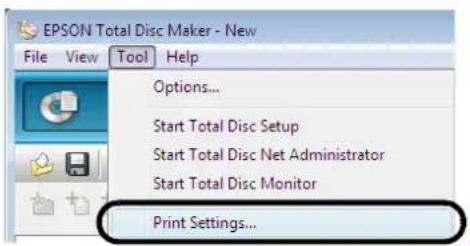
The printer driver screen appears.
Displaying from EPSON Total Disc Setup
1 Start EPSON Total Disc Setup.
See "Starting EPSON Total Disc Setup" on page 45 in this guide for the start procedure.
2 Select this product, and click [Properties].
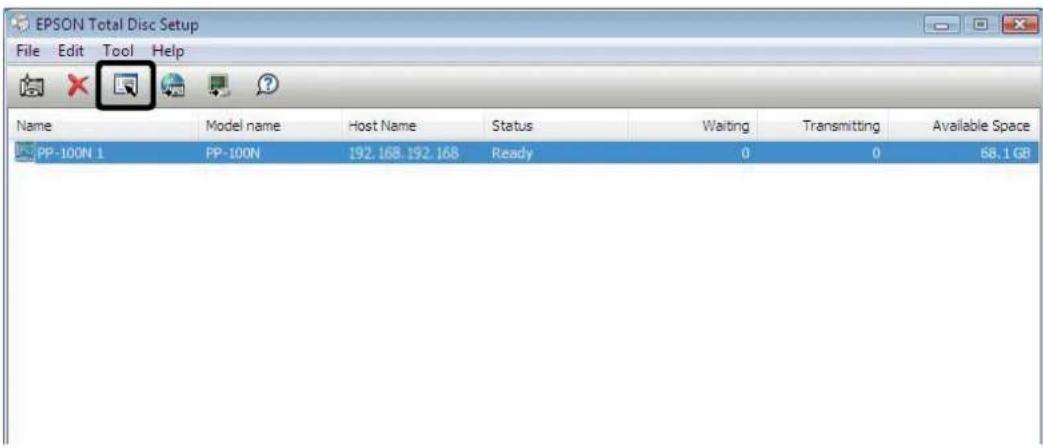
Notes
You can also display the properties screen by clicking (Properties) in the (Edit) menu.
3 Click [Set Printer].
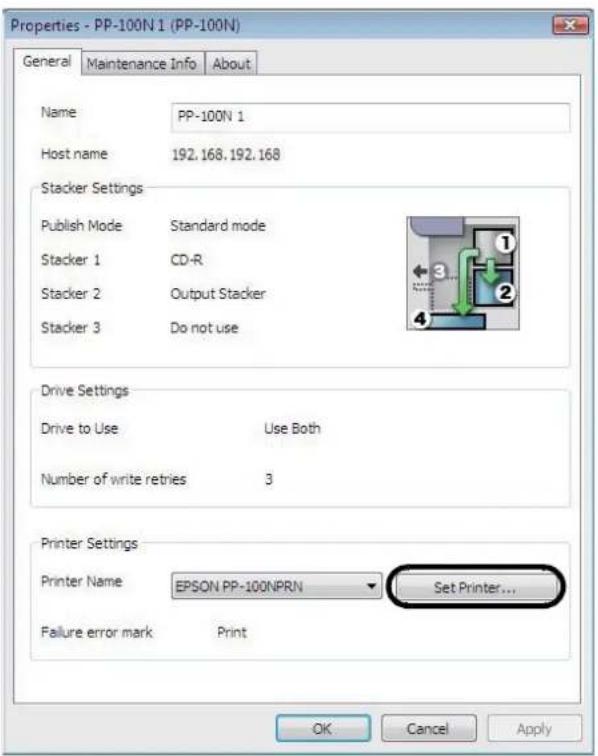
The printer driver screen appears.
Displaying from the (Start) menu
1 Click [Start] ( ), [Control Panel], then [Printers].
2 Right-click [EPSON PP-100NPRN], and click [Printing Preferences].
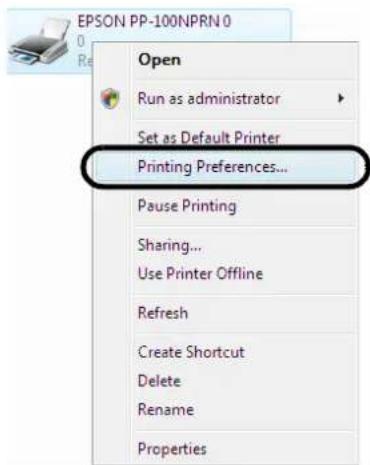
The printer driver screen appears.
Setting up the printer driver
(Main) screen
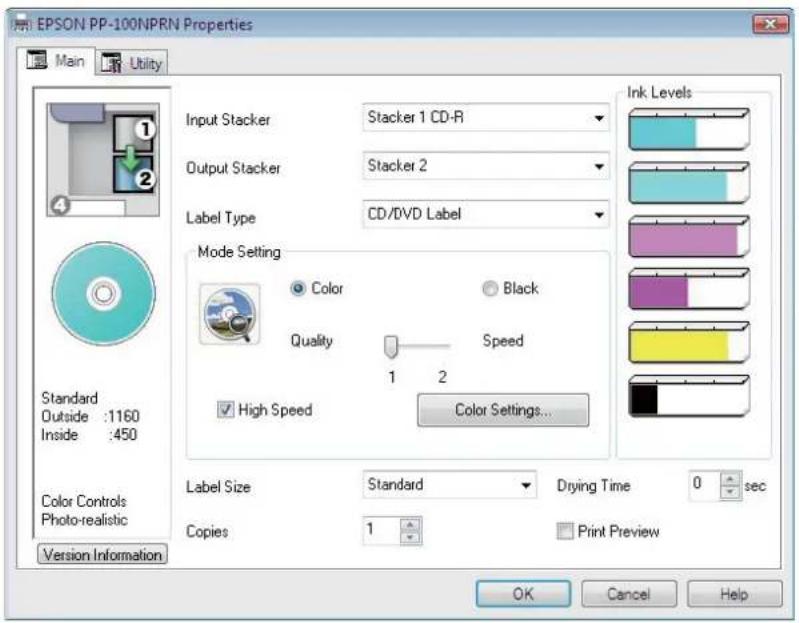
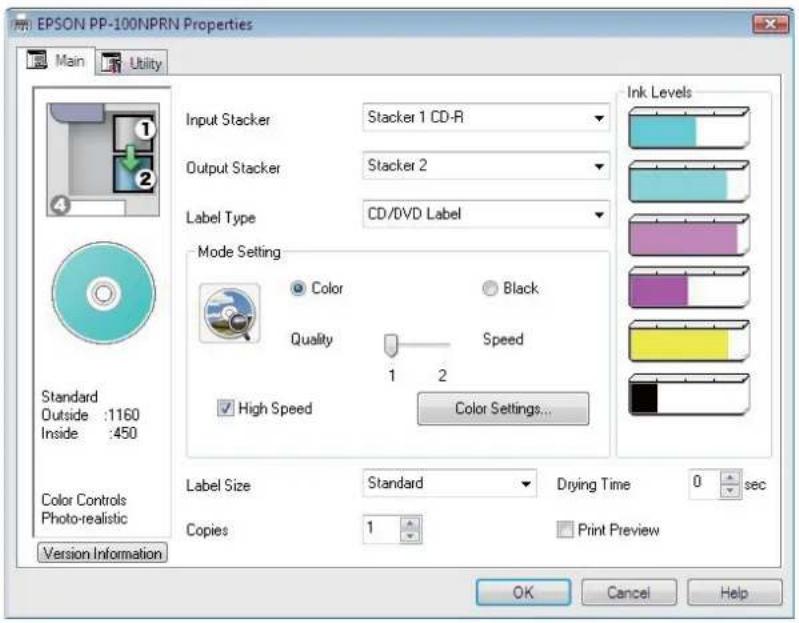
Make basic label printing settings in the [Main] screen.
If displayed from EPSON Total Disc Maker:
The settings are only reflected in EPSON Total Disc Maker. The settings are lost when you exit EPSON Total Disc Maker.
See "Displaying from EPSON Total Disc Maker" on page 60 in this guide for the printer driver displaying procedure.
If displayed from EPSON Total Disc Setup or the (Start) menu:
The information you set is saved as the printer driver settings, and after this, it is reflected in the EPSON Total Disc Maker settings and other application print settings.
See "Displaying from EPSON Total Disc Setup" on page 61 in this guide or "Displaying from the [Start] menu" on page 62 in this guide for the printer driver displaying procedure.
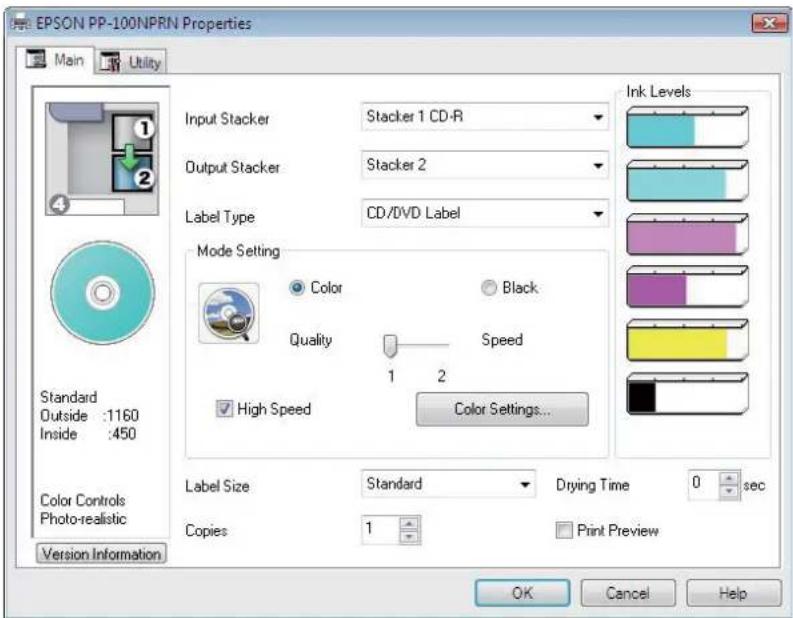
| Input Stacker | Allows you to select the stacker where the blank discs are set. | |
| Output Stacker | Allows you to select the stacker to which to output published discs. | |
| Label Type | Allows you to select the type of disc label to be printed.If you print on the matte label type of Epson specified CDs, select (CD/DVD Label).If you print on the matte label type of Epson specified DVDs, select (CD/DVD Premium Label). | |
| Mode Setting | Color/Black | Select (Color) to print in color, and select (Black) for monochrome printing. |
| Quality/Speed | 1: Print quality is the priority.2: Printing speed is the priority.This is set to (1) if (Label Type) is set to (EPSON Specified CD/DVD Label). | |
| High Speed(Bidirectional printing) | If you check this, the printing speed increases because it prints when the print head is moving either left or right.Uncheck this to print in a single direction, which improves the print quality. However, the printing speed slows down. | |
| Color Settings | Click this to display the (Color Settings) screen (see page 122 in this guide). Allows you to set the print colors. | |
| Label Size | Allows you to select from among the following label sizes from commercially available software.Standard: Outside Diameter 116.0 mm, Inside Diameter 45.0 mmWide: Outside Diameter 116.0 mm, Inside Diameter 25.5 mmUser defined label size: Allows you to set a custom size | |
| Copies | Allows you to specify the number of copies to write/print. (0 to 1000) | |
| Ink Levels | Shows the approximate level of ink remaining in the ink cartridges. | |
| Drying Time | Allows you to set the time it takes to dry the ink on the discs in the printer tray after label printing is finished. | |
| Print Preview | Select this checkbox to confirm an image of the printing results on screen before printing when you print from commercially available software. | |
(Utility) screen
In the [Utility] screen, you can run various maintenance functions to maintain the print quality as well as make settings for running the printer driver.
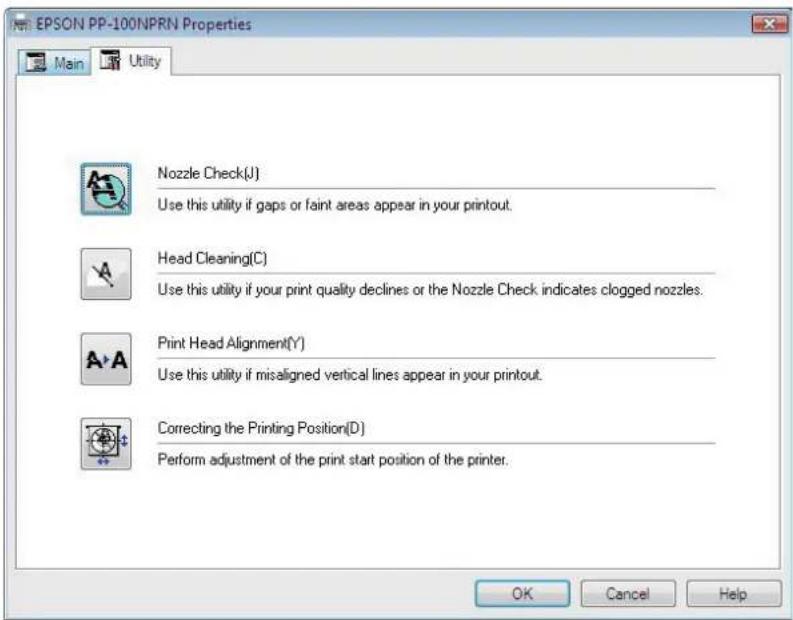
| Nozzle Check | Allows you to print a pattern for checking if the print head is clogged. Check the printed pattern to see whether or not the print head is clogged.See “How to perform a nozzle check” on page 129 in this guide for details on how to use this function. |
| Head Cleaning | Allows you to clean the print head. Run this when the print head is clogged.See “How to clean the print head” on page 133 in this guide for details on how to use this function. |
| Print Head Alignment | Adjusts the alignment when the printing results show gaps in vertical lines or appear blurry.See “Print head alignment” on page 135 in this guide for details on how to use this function. |
| Correcting the Printing Position | Allows you to adjust the printing position up, down, left, or right. Run this if you have checked the printing results on your CD/DVD and found that the printing position has shifted.See “Correcting the printing position” on page 137 in this guide for details on how to use this function. |
Printer Driver Basics
When you print labels using commercially available software, you set the printer driver to be used and the size of the paper to be printed.
This section describes how to print labels using data created in Microsoft Office Word.
1 Start WordPad.
2 Click [Print] in the [File] menu.
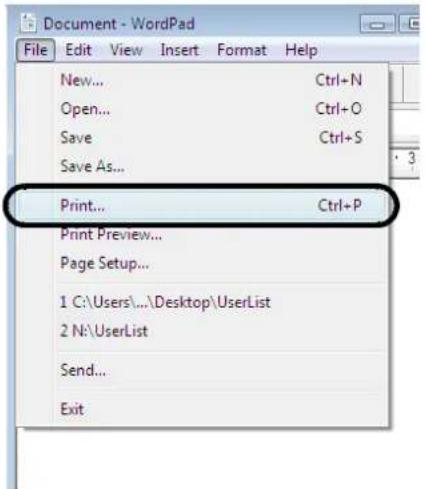
3 Select EPSON PP-100NPRN as the printer to use, and click [Apply].
4 Click [Cancel] to close the [Print] screen.
5 Click [Page Setup] in the [File] menu.
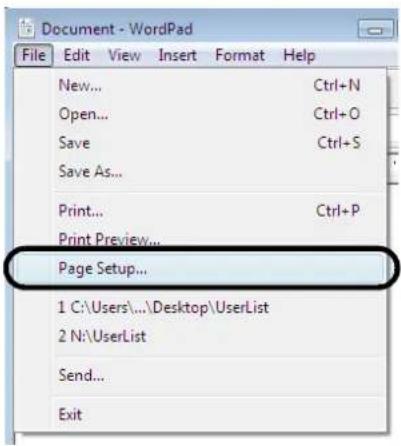
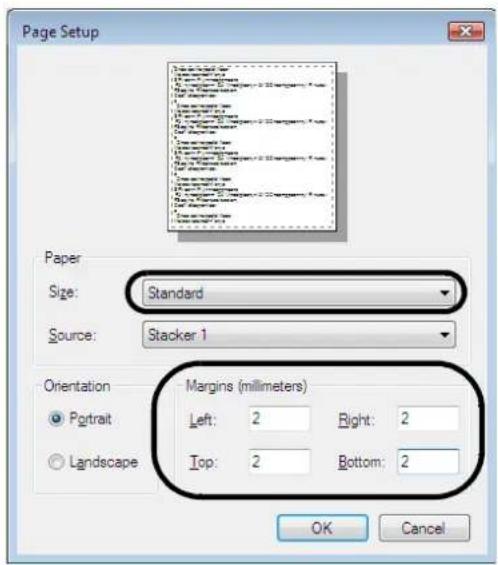
6 Set [Size] and [Margins] as shown below, and click [OK].
[Size] setting:
| Standard | In (Width) and (Height), 124 x 124 mm are set. |
| Wide | In (Width) and (Height), 124 x 124 mm are set. |
| Custom Size | Allows you to set the values you want in (Width) and (Height). |
[Margins] settings:
Set each of [Left], [Right], [Top], and [Bottom] to 2 mm.
Notes
When you print using software other than EPSON Total Disc Maker, create the print data using the following settings.
Paper size: 124×124 mm
Top, bottom, left, and right margins: 2 mm.
7 Create the data to be printed.
8 Click [Print] in the [File] menu.
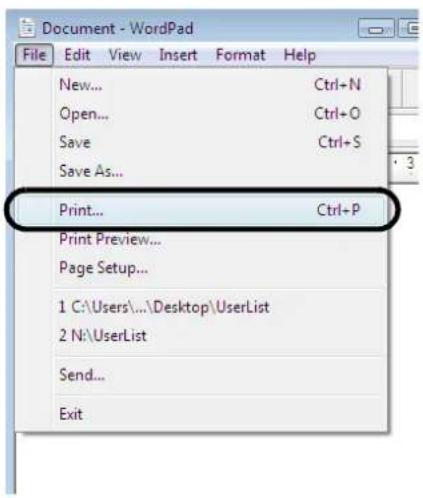
9 Click the [Preferences] button.
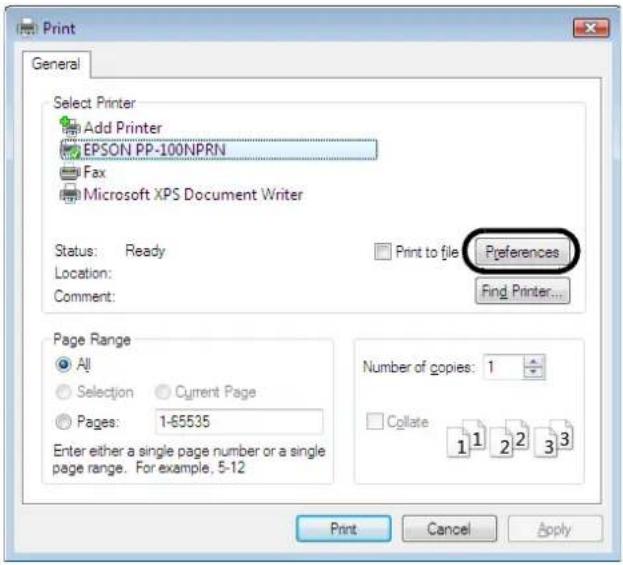
10 Setup the printer driver and click [OK].
See "Setting up the printer driver" on page 63 in this guide for details on the printer driver settings.
11 Click [Print].
Printing starts.
Displaying the printer driver Help
This section describes how to display the printer driver Help.
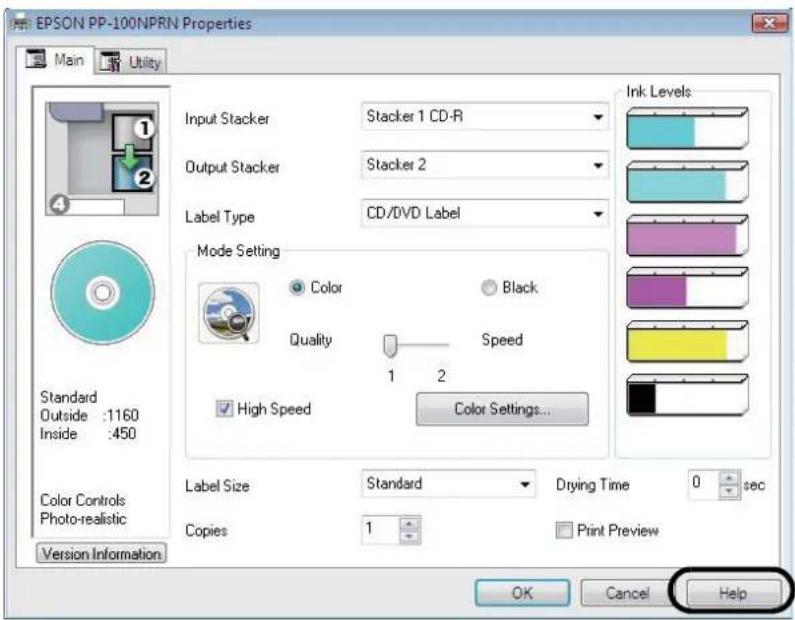
How to display the EPSON printer driver Help
Click the [Help] button.
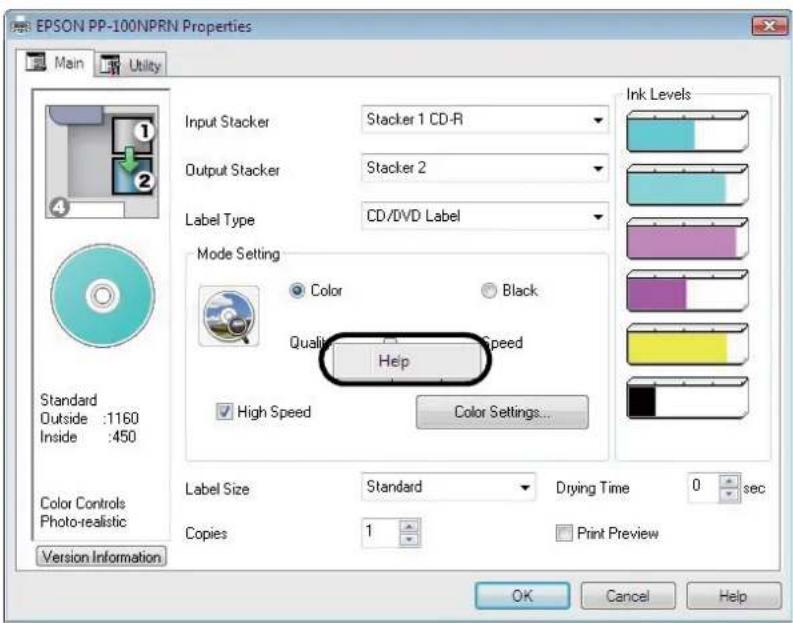
How to display an explanation of an option
To display an explanation of an option, right-click over the option you want to know about, and click the Help button.
Publishing Discs
Types of Publish Mode
This product has the following Publish Modes: Standard Mode, External Output Mode, and Batch Mode.
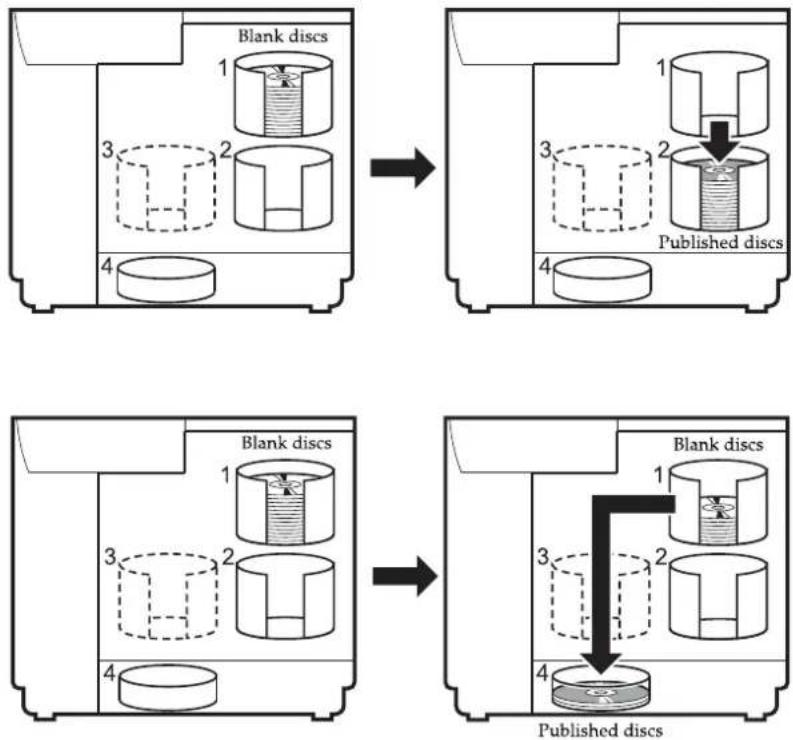
Standard Mode
This mode uses Stacker 1 as the input stacker for discs. You can select Stacker 2 or Stacker 4 as the output stacker.
If you select Stacker 2 as the output stacker, you can publish up to 50 discs without having to replenish the discs or take out published discs.
If you select Stacker 4 as the output stacker, you can easily take out published discs without even having to pause a job during publishing.
Repeatedly replenishing and taking out discs allows for the continuous publishing of up to 1,000 discs.
flowchart
graph TD
    A["Blank discs"] --> B["1: Top 3 cylinder"]
    B --> C["2: Top 3 cylinder"]
    C --> D["3: Bottom 4 cylinder"]
    D --> E["4: Bottom 4 cylinder"]

    F["Published discs"] --> G["1: Top 3 cylinder"]
    G --> H["2: Top 3 cylinder"]
    H --> I["3: Bottom 4 cylinder"]
    I --> J["4: Bottom 4 cylinder"]

    K["Blank discs"] --> L["1: Top 3 cylinder"]
    L --> M["2: Top 3 cylinder"]
    M --> N["3: Bottom 4 cylinder"]
    N --> O["4: Bottom 4 cylinder"]

    P["Published discs"] --> Q["1: Top 3 cylinder"]
    Q --> R["2: Top 3 cylinder"]
    R --> S["3: Bottom 4 cylinder"]
    S --> T["4: Bottom 4 cylinder"]
External Output Mode
You can select Stacker 3 or Stacker 4 as the output stacker. If you select Stacker 4 as the output stacker, you can easily take out published discs without even having to pause a job during publishing.
The External Output Mode allows you to use the product in the following ways according to the application.
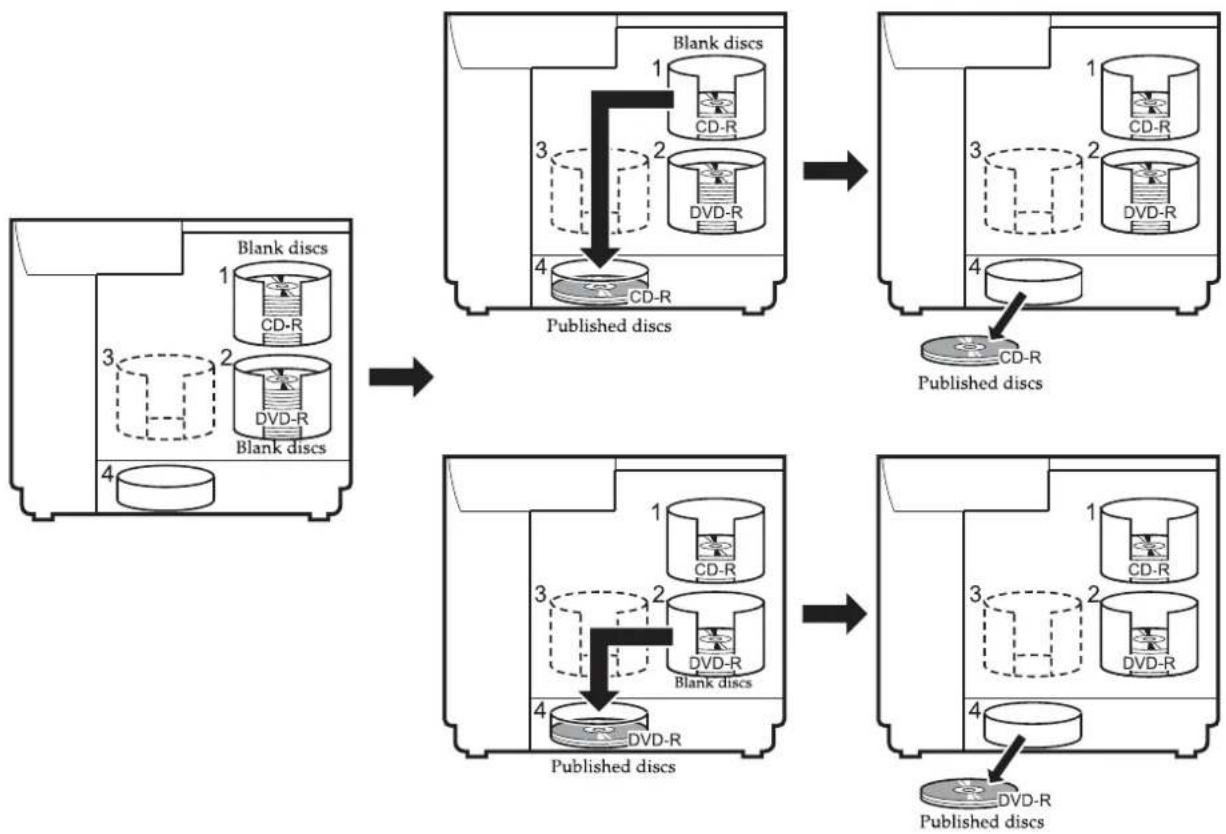
- Loading a different type of disc into each stacker
If, for example, CD-Rs are loaded in Stacker 1 and DVD-Rs are loaded in Stacker 2, a user can just select a stacker as necessary to publish the required discs without having to change the discs.
flowchart
graph TD
    A["Blank discs"] --> B["CD-R"]
    B --> C["Blank discs"]
    C --> D["CD-R"]
    D --> E["CD-R"]
    E --> F["CD-R"]
    F --> G["CD-R"]
    G --> H["CD-R"]
    H --> I["CD-R"]
    I --> J["CD-R"]
    J --> K["CD-R"]
    K --> L["CD-R"]
    L --> M["CD-R"]
    M --> N["CD-R"]
    N --> O["CD-R"]
    O --> P["CD-R"]
    P --> Q["CD-R"]
    Q --> R["CD-R"]
    R --> S["CD-R"]
    S --> T["CD-R"]
    T --> U["CD-R"]
    U --> V["CD-R"]
    V --> W["CD-R"]
    W --> X["CD-R"]
    X --> Y["CD-R"]
    Y --> Z["CD-R"]
    Z --> AA["CD-R"]
    AA --> AB["CD-R"]
    AB --> AC["CD-R"]
    AC --> AD["CD-R"]
    AD --> AE["CD-R"]
    AE --> AF["CD-R"]
    AF --> AG["CD-R"]
    AG --> AH["CD-R"]
    AH --> AI["CD-R"]
    AI --> AJ["CD-R"]
    AJ --> AK["CD-R"]
    AK --> AL["CD-R"]
    AL --> AM["CD-R"]
    AM --> AN["CD-R"]
    AN --> AO["CD-R"]
    AO --> AP["CD-R"]
    AP --> AQ["CD-R"]
    AQ --> AR["CD-R"]
    AR --> AS["CD-R"]
    AS --> AT["CD-R"]
    AT --> AU["CD-R"]
    AU --> AV["CD-R"]
    AV --> AW["CD-R"]
    AW --> AX["CD-R"]
    AX --> AY["CD-R"]
    AY --> AZ["CD-R"]
    AZ --> BA["CD-R"]
    BA --> BB["CD-R"]
    BB --> BC["CD-R"]
    BC --> BD["CD-R"]
    BD --> BE["CD-R"]
    BE --> BF["CD-R"]
    BF --> BG["CD-R"]
    BG --> BH["CD-R"]
    BH --> BI["CD-R"]
    BI --> BJ["CD-R"]
    BJ --> BK["CD-R"]
    BK --> BL["CD-R"]
    BL --> BM["CD-R"]
    BM --> BN["CD-R"]
    BN --> BO["CD-R"]
    BO --> BP["CD-R"]
    BP --> BQ["CD-R"]
    BQ --> BR["CD-R"]
    BR --> BS["CD-R"]
    BS --> BT["CD-R"]
    BT --> BU["CD-R"]
    BU --> BV["CD-R"]
    BV --> BW["CD-R"]
    BW --> BX["CD-R"]
    BX --> BY["CD-R"]
    BY --> BZ["CD-R"]
    BZ --> CA["CD-R"]
    CA --> CB["CD-R"]
    CB --> CC["CD-R"]
    CC --> CD["CD-R"]
    CD --> CE["CD-R"]
    CE --> CF["CD-R"]
    CF --> CG["CD-R"]
    CG --> CH["CD-R"]
    CH --> CI["CD-R"]
    CI --> CJ["CD-R"]
    CJ --> CK["CD-R"]
• Continuous publishing of the same type of disc
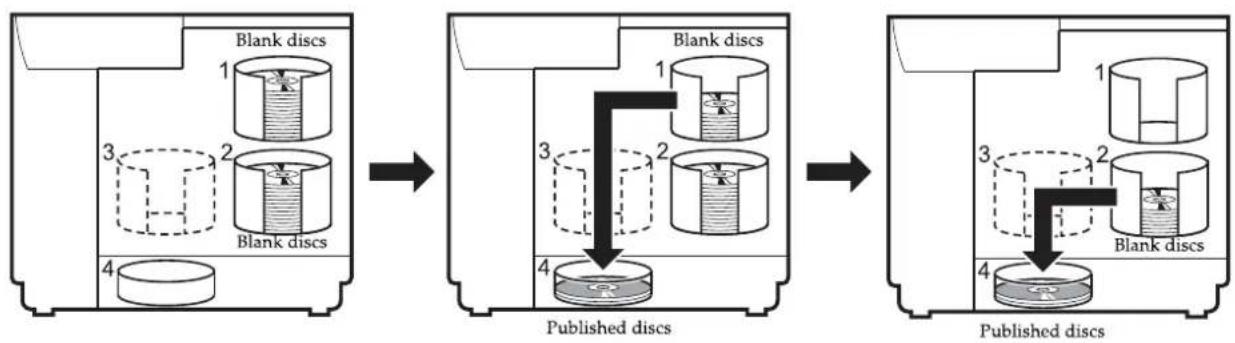
If the same type of discs are loaded in Stacker 1 and Stacker 2 and [Auto] is selected for the input stacker setting, up to 100 CDs/DVDs can be continuously published by taking out published discs without replenishing discs. Up to 1000 CDs/DVDs can be continuously published in a single job by replenishing discs and taking out published discs.
flowchart
graph LR
    A["Blank discs"] --> B["Published discs"]
    B --> C["Blank discs"]
    style A fill:#f9f,stroke:#333
    style B fill:#ccf,stroke:#333
    style C fill:#cfc,stroke:#333
Batch Mode
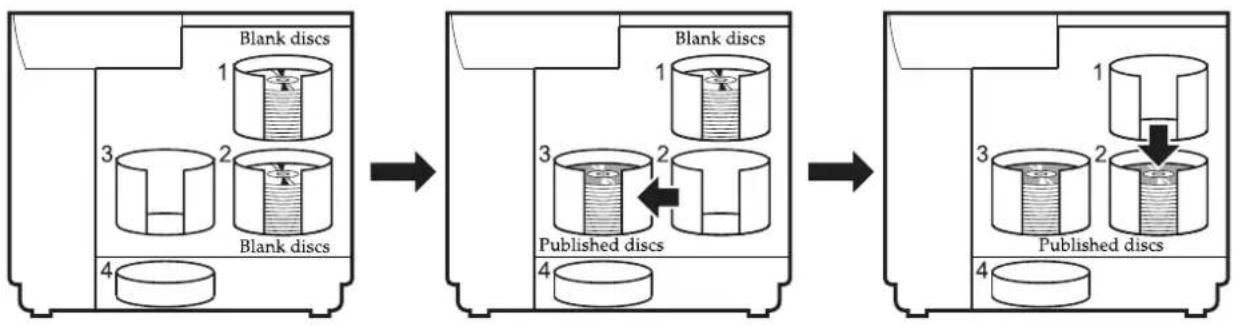
This mode uses Stacker 1 and Stacker 2 as the input stackers for discs, and Stacker 2 and Stacker 3 as the output stackers.
Loading 50 discs in each of Stacker 1 and Stacker 2 allows for the continuous publishing of 100 copies of the same disc without having to replenish the discs or take out published discs. Repeatedly replenishing and taking out discs allows for the continuous publishing of up to 1,000 discs. If you use this mode, be sure to insert Stacker 3.
flowchart
graph LR
    A["Blank discs"] --> B["Blank discs"]
    B --> C["Published discs"]
    C --> D["Published discs"]
Compatible disc types
Printable disc and writable disc types differ. When using this product for both printing and writing, use discs that are compatible with both.
Printable disc types
The product can print on 12-cm CD/DVD discs that support using an inkjet color printer to print on the label surface ^* .
* Discs for which "printable label surface," "inkjet printer compatible," or the like is specified in the instructions for the discs.

• The product supports discs for inkjet printers.
- Coated discs other than EPSON specified CDs/DVDs are not supported.
• 80-mm discs are not supported.
- Do not use discs that have lens cleaner, CD/DVD labels or stickers, or condensation on them. Doing so may result in an malfunction or failure.
- Do not use a cracked, warped, or deformed disc. The disc may break into pieces inside the product, resulting in a malfunction, or an injury when the disc is taken out.
- With some discs, ink may get on the recording surface if the discs are stacked immediately after printing. We recommend using a disc you do not need to do a test print to check the print quality. Wait at least 24 hours before checking the color.
- With some discs, the printing position may be shifted. Perform the print head alignment and the printing position correction. See "(Utility) screen" on page 65 in this guide for details on print head alignment and printing position correction.
- If you use discs with a small stack ring (concentric circular projection), the discs may stick to each other before or after printing.
- Even if the same data is printed on identical discs, the same print results may not be able to be achieved because of the individual differences (variations) of each disc.
Notes
Disc quality may affect print quality. We recommend using EPSON specified CDs/DVDs. Epson offers specified CD-R and DVD-R discs for all your printing needs.
Writable disc types
The product can write the following types of disc.
| Type | Capacity | Characteristics |
| CD-R | 650/700 MB | The rewriting and deleting of data is not possible once data has been written. |
| DVD-R | 4.7 GB (single sided, single layer) | The rewriting and deleting of data is not possible once data has been written.This is a standard DVD defined by the DVD Forum. |
| DVD+R | 4.7 GB (single sided, single layer) | The rewriting and deleting of data is not possible once data has been written.This is a standard DVD defined by the DVD+RW Alliance. |
| DVD-R DL | 8.5 GB (single sided, double layer) | The rewriting and deleting of data is not possible once data has been written. This disc allows double-layer recording on a single side. This increases the capacity, thus enabling recording for a long time or recording of high-quality video.This is a standard DVD defined by the DVD Forum. |
| DVD+R DL | 8.5 GB (single sided, double layer) | The rewriting and deleting of data is not possible once data has been written. This disc allows double-layer recording on a single side. This increases the capacity, thus enabling recording for a long time or recording of high-quality video.This is a standard DVD defined by the DVD+RW Alliance. |

• 80-mm discs are not supported.
- Do not use discs that have lens cleaner, CD/DVD labels or stickers, or condensation on them. Doing so may result in an malfunction or failure.
- Do not use a cracked, warped, or deformed disc. The disc may break into pieces inside the product, resulting in a malfunction, or an injury when the disc is taken out.
- Writing (reading) may not be performed properly if a disc has a slight scratch or is dirty. Be sufficiently careful when handling discs.
- Depending on the discs used, writing may not be able to be performed properly at the speed recommended for the disc. If this happens, write at a slower speed. In particular, we recommend writing to DVD±R DL at a slow speed.
Notes
- Disc quality may affect write quality. We recommend using EPSON specified CDs/DVDs. Epson offers the specified CD-R and DVD-R discs for all your printing needs.
• See EPSON Total Disc Maker Help for details on writable disc types.
Handling discs
Notes on usage

- Do not touch the recording surface when holding a disc.
- Handle discs carefully to ensure fingerprints, dirt, dust, moisture, scratches, etc., do not get on the label surface and recording surface. Gently wipe off any dust, dirt, and the like with a soft dry cloth or a commercially available CD cleaner. Do not use benzene, thinner, or antistatic agents.
- Do not drop a disc, or subject it to an impact.
- Do not apply excessive force by, for example, pinching with a clip or bending.
- Do not attach an adhesive sticker to a disc. Doing so may result in writing, printing, or playing no longer being possible.
- Do not use discs in a place where lots of dirt and dust are present.
- If writing and printing are performed separately, we recommended performing writing before printing.
• Leaving discs stacked may result in them sticking to each other. - Directly touching or getting moisture on the printing surface immediately after printing may result in blurring.
- Let discs dry sufficiently after printing. However, let them dry naturally. Do not use a dryer or other means.
- Text can only be written on the printing surface. When writing, use a felt tipped pen or other writing instrument with a soft tip. Do not use a ballpoint pen, pencil, or other writing instrument with a hard tip. Also, do not attempt to erase text once it has been written.
- Do not use a disc printed with this product in an auto loading mechanism, a drive with a holding mechanism that has diameter of 33 mm or more, or an in-car drive. Also, do not leave a disc in equipment for a long period of time.
- A published disc may not be able to be recognized if it is incompatible with the drive or player.
Notes on storage

- Do not place discs in a location where they will be subject to high temperature and humidity such as locations under direct sunlight, near heating equipment.
- Do not place discs in locations where temperatures vary greatly. Doing so may result in condensation.
- Do not place an object on a disc.
- When storing discs, keep them in their disc cases and take care that film, card, or other material does not touch the printing surface. Such materials may scratch the printing surface.
- Do not store discs in soft cases or bags which may touch the printing surface directly. Doing so may result in discs sticking, uneven color, or discoloration.
- Do not store discs with part of the printing surface covered. Doing so may cause uneven color or discoloration.
- Back up (copy) important data just in case. When storing data for a long period of time, we recommend backing it up periodically.
Notes
See the handling instructions of the discs for other handling procedures and precautions for discs.
Printable area
The printable area is the area of the label surface on which printing is possible.
The printable area and recommended print area are shown in the table below. Printing will be done in the gray area in the figure below.

- Printing outside of the recommended print area may result in the discs or tray becoming dirty, peeling off or blurring of the print, or discs sticking together.
- If you print outside of the printing range (ink absorbing layer) of the discs you are using, the ink printed outside the printing area will not fix. Check the label print range of the discs you are using before configuring the setting.
| Printable area | Recommended print area | ||
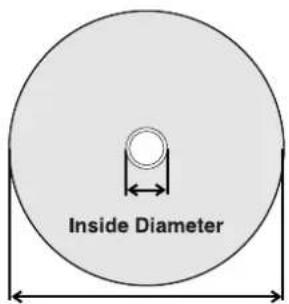 Outside Diameter Outside Diameter | 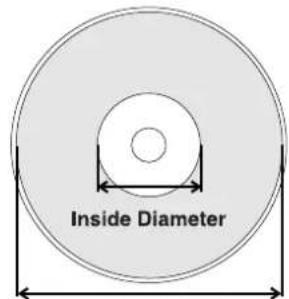 Outside Diameter Outside Diameter | ||
| Inside diameter | Outside diameter | Inside diameter | Outside diameter |
| 18.0 mm | 119.4 mm | 45.0 mm | 116.0 mm |
Set the print area in [Set Inside/Outside Diameter] of EPSON Total Disc Maker or [Label Size] on the printer driver screen. Select from [Standard] and [Wide], or set an optional size. (See "Changing the print area" on page 78 in this guide for how to set an optional size.)
The print areas of [Standard] and [Wide] are shown in the table below. Printing will be done in the gray area in the figure below.
| Standard | Wide | ||
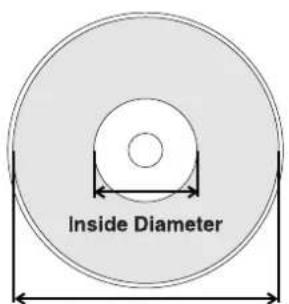 Outside Diameter Outside Diameter | 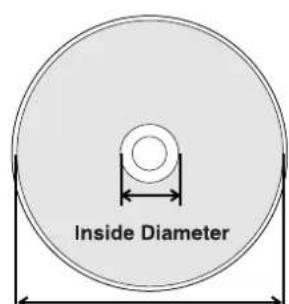 Outside Diameter Outside Diameter | ||
| Inside diameter | Outside diameter | Inside diameter | Outside diameter |
| 45.0 mm | 116.0 mm | 25.5 mm | 116.0 mm |
Changing the print area
Changing the print area setting allows you to print the label at a size other than standard and wide.
EPSON Total Disc Maker:
Use the following procedure to set an optional print area.
1 Start EPSON Total Disc Maker.
See "Starting EPSON Total Disc Maker" on page 42 in this guide for the start procedure.
2 Click [Label].
The label view appears.
3 Click [Set Inside/Outside Diameter] on the toolbar.
The [Print Area Inside/Outside Diameter] dialog box appears.
![Print Area Inside/Outside Diameter Print Area Inside diameter [cm] 4.50 Outside diameter [cm] 11.60 Standard Wide Mask Rib Area Rib Inside Diameter [cm] 2.70 Rib Width [cm] 0.01 OK Cancel](/content/2026/05/1140216/images/2638f6fd33d69fef921b1c94b6d6a644660dfbab53c222f258ebf1fdee100680.jpg)
4 Set the inside and outside diameters of the print area, and the rib area.
| Setting item | Description |
| Inside Diameter | Set the inside diameter of the label. You can set a value within the range of 1.80 to 5.00. |
| Outside Diameter | Set the outside diameter of the label. You can set a value within the range of 7.00 to 11.94. |
| Mask Rib Area | Select this to mask the rib area.Rib refers to the protruding section of the disc inside circumference.Masking the rib area enables you to prevent ink running onto the rib when a printed disc and rib touch in the output stacker. |
| Rib Inside Diameter | Set the inside diameter of the rib area. You can set a value within the range of 2.70 to 5.00. |
| Rib Width | Set the width of the rib area. You can set a value within the range of 0.01 to 1.15. |

- Before printing, check that the set print area does not exceed the print area of the discs you are using.
- Printing on the stack ring (concentric circular projection) portion may result in uneven coloring.
- Printing on the stack ring (concentric circular projection) portion may result in ink getting on the discs, peeling off, or discs sticking together after printing.
5 Click [OK].
The set inside and outside diameters are reflected in the edit area.
Printing from commercially available software
Use the following procedure to register a user defined label size (label size not provided with the printer driver).
1 Display the setting screen of the printer driver.
See "Displaying from EPSON Total Disc Setup" on page 61 or "Displaying from the [Start] menu" on page 62 in this guide for the display procedure.
2 Select [User Defined] for [Label Size].
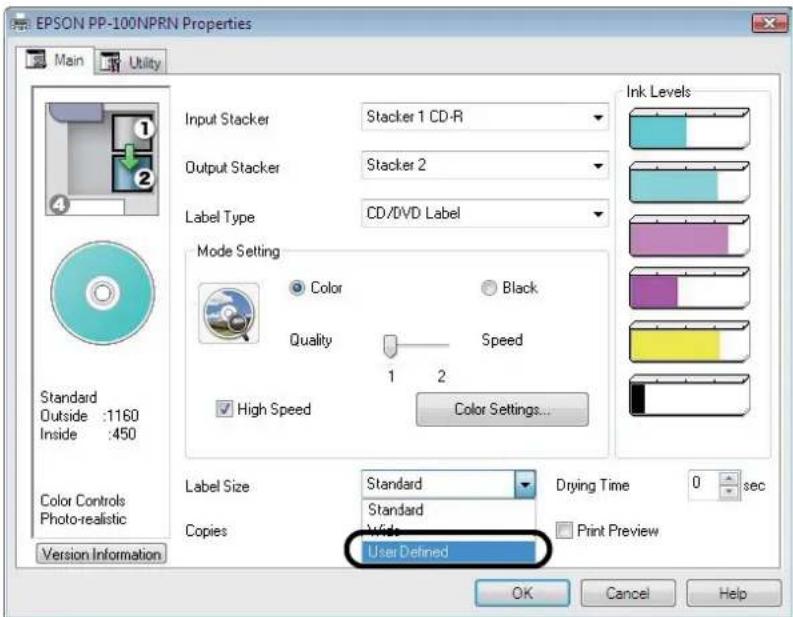
3 Enter the settings for [Name of Custom Label Size], [Inside diameter], and [Outside diameter], and click [Save].
![User Defined Custom Label Size List User Defined Name of Custom Label Size Data CD Inside Diameter : 400 [ 180 ... 500] Outside Diameter : 1170 [ 700 ... 1194] Mask Rib Area Rib Inside Diameter : 300 [ 270 ... 500] Rib Width : 43 [ 1 ... 115] Unit 0.01cm 0.01inch Save Delete OK Cancel Help](/content/2026/05/1140216/images/db44cdba38bda6174dd09597d1750a6a51d692e5841dd13c65217e6bd245e3ee.jpg)
| Setting item | Description |
| Name of Custom Label Size | Enter the name of the user defined label size (number of characters: up to 24 characters).If characters that are 4 bytes are used, the number of characters you can use becomes less than the above. |
| Inside Diameter | Set the inside diameter of the label. You can set a value within the range of 180 to 500 (18.0 to 50.0 mm). |
| Outside Diameter | Set the outside diameter of the label. You can set a value within the range of 700 to 1,194 (70.0 to 119.4 mm). |
| Mask Rib Area | Select this to mask the rib area.Rib refers to the protruding section of the disc inside circumference.Masking the rib area enables you to prevent ink running onto the rib when a printed disc and rib touch in the output stacker. |
| Rib Inside Diameter | Set the inside diameter of the rib area. You can set a value within the range of 270 to 500 (27.0 to 50.0 mm). |
| Rib Width | Set the width of the rib area. You can set a value within the range of 1 to 115 (0.1 to 11.5 mm). |
![EPSON PP-100N - Select [User Defined] for [Label Size]. - 3](/content/2026/05/1140216/images/5963fa3c4a38daff734e158c13bae8660359253d2f4c6bd435f06899222c67b8.jpg)
Printing inside the rib area may result in ink getting on discs, discs sticking together, or discoloration.
Notes
Setting the range outside of the recommended print area (inside diameter of 45.0 mm or more and outside diameter within 116.0 mm) and printing may result in the discs or tray becoming dirty, peeling off or blurring of the print, or discs sticking together. Check the label print range of the discs you are using before configuring the setting. See "Printable area" on page 77 in this guide for details on the recommended print area.
4 Click [OK].
![User Defined Custom Label Size List User Defined Data CD Name of Custom Label Size Data CD Inside Diameter: 400 [ 180 ... 500] Outside Diameter: 1170 [ 700 ... 1194] Mask Rib Area Rib Inside Diameter: 0 [ 270 ... 500] Rib Width: 0 [ 1 ... 115] Unit 0.01cm 0.01inch Save Delete OK Cancel Help](/content/2026/05/1140216/images/d976633e7f0a03df4b91f1258a70d563aaa2b73b4dd96f200fa9d70f7ed042b5.jpg)
The new user defined label size is registered in [Name of Custom Label Size] of the [Main] screen.
Notes
When printing with software other than EPSON Total Disc Maker, use the following settings to create print data.
• Paper size: 124 x 124 mm
- Margins on all sides: 2 mm
Changing and deleting label sizes
This section describes how to change and delete registered user defined label sizes.
1 Display the setting screen of the printer driver.
See "Displaying from EPSON Total Disc Setup" on page 61 or "Displaying from the [Start] menu" on page 62 in this guide for the display procedure.
2 Select [User Defined] for [Label Size].
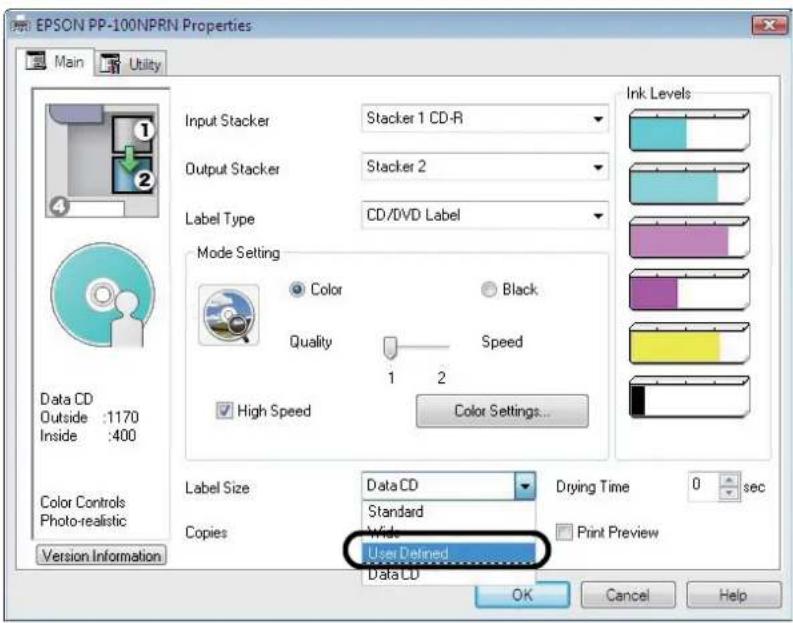
3 Select the label size to change or delete from [Custom Label Size List] on the left of the screen. To change the registered settings, edit the settings on the right of the screen.
![User Defined Custom Label Size List User Defined Data CD Name of Custom Label Size Data CD Inside Diameter: 300 [ 180 ... 500] Outside Diameter: 1175 [ 700 ... 1194] Mask Rib Area Rib Inside Diameter: 300 [ 270 ... 500] Rib Width: 44 [ 1 ... 115] Unit 0.01cm 0.01inch Save Delete OK Cancel Help](/content/2026/05/1140216/images/aef469ed0525d57c29ed492be64cf939a68f25ea773d51ca817e81686a4b155a.jpg)
4 Click [Save] to change the registered settings. Click [Delete] to delete the label size.
5 Click [OK] when the confirmation message appears.
Loading discs
This section describes how to load discs in the stacker, and insert the stacker.

Load the discs in a stacker. Do not load discs in the drives or printer. Furthermore, do not load discs between Drive 1 and Drive 2. They may become unable to be taken out.
1 Fully separate the discs to prevent them from sticking together.

- Be sufficiently careful not to scratch a disc.
- If a long time elapses after discs are loaded in the stacker, the separated discs may stick together again. Fan the discs again if a long time has elapsed since they were loaded.
2 Take out the input stacker and load the discs into it.

Do not replenish or remove discs while the stacker is attached to this product. Be sure to remove the stacker beforehand.
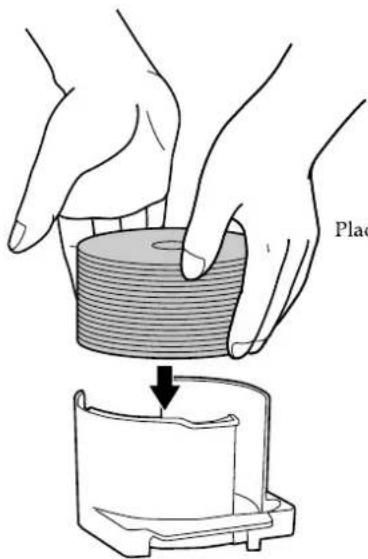
natural_image
Illustration of hands assembling a cylindrical component into a mechanical housing (no text or symbols)Place the label surface facing upwards.
The stacker to use as the input stacker differs depending on the set Publish Mode. Confirm the input stacker in the following table.
| Publish Mode | Input Stacker | Number of Discs |
| Standard Mode | Stacker 1 | Up to approximately 50 discs |
| External Output Mode(Different types of discs can be loaded into Stacker 1 and Stacker 2.) | Stacker 1 | Up to approximately 50 discs |
| Stacker 2 | Up to approximately 50 discs | |
| Batch Mode | Stacker 1 | Up to approximately 50 discs |
| Stacker 2 | Up to approximately 50 discs |

- Do not load discs above the red line on the stacker. The product may malfunction, or the discs may be damaged.
- Make sure that the bottom of the stacker is not dirty before loading the discs.
- For Batch Mode and when Stacker 3 is set as the output stacker for External Output Mode, make sure that no discs are loaded in Stacker 3 and Stacker 4. Also, set the lock lever to the (LOCK) position, and do not pull out Stacker 4.
- Stacker 3 is not used in Standard Mode and when Stacker 4 is set as the output stacker for External Output Mode. Remove Stacker 3.
3 Insert the stacker, and close the disc cover.
Flow for publishing discs
This section describes how to publish discs with EPSON Total Disc Maker.
See "Screen configuration of EPSON Total Disc Maker" on page 43 in this guide for the screen configuration of EPSON Total Disc Maker.
Notes
See "Printer Driver Basics" on page 66 in this guide for printing data created with other software.
Registering write data
Register write data in the disc view of EPSON Total Disc Maker.
Notes
There is no need to register write data if you only want to print disc labels.
This section describes an example of the procedure to publish photo data CDs.
1 Start EPSON Total Disc Maker.
See "Starting EPSON Total Disc Maker" on page 42 in this guide for the start procedure. The disc view appears.
2 Select [Data CD] for [Type], and click [Apply].
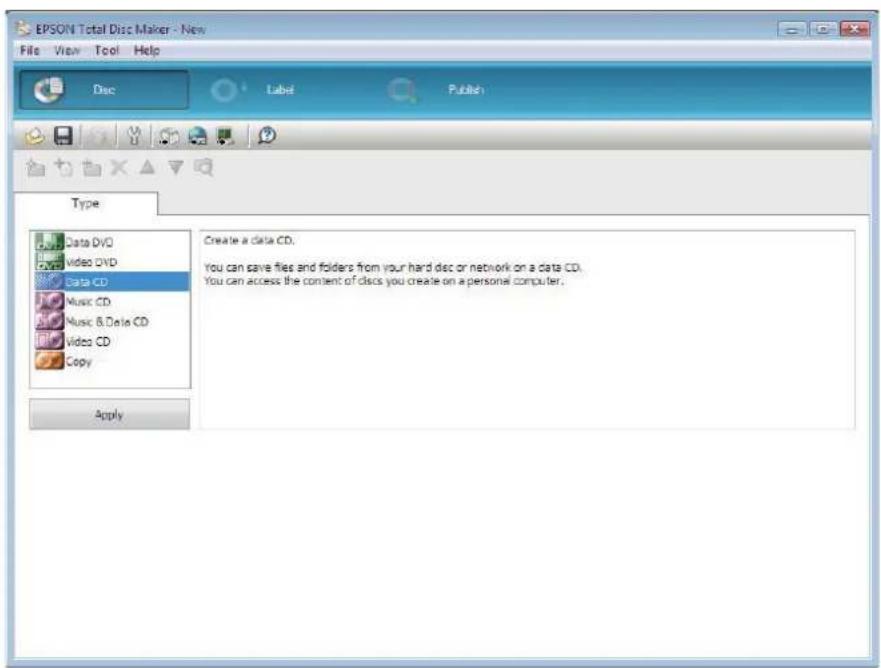
![EPSON PP-100N - Select [Data CD] for [Type], and click [Apply]. - 2](/content/2026/05/1140216/images/ca2af8c13b9940d19f6a51359ea47ed61c10f17268b24d1bdc81bd8290fd4758.jpg)
If the disc type you want to publish differs from that set for the input stacker, ask the administrator to change the disc type of the input stacker.
3 Click [Change Setting].
![EPSON Total Disc Maker - New File Edit View Tool Help Disc Label Publish Type Edit Data File System Joliet (Windows compatible + ISO 9660) Change Setting... Volume Label 20081202 CD Drop a folder or file from Explorer. Name Size Type Modified Drop a folder or file from Explorer. 0 650 700 0 [MB] Format Check](/content/2026/05/1140216/images/f5d864b89acf282a97181b9aa0f19617c954d8d45eae4231ba0d704457315d01.jpg)
4 Select [File system], and click [OK].
In this example, [Joliet (Windows compatible + ISO 9660)] is selected.
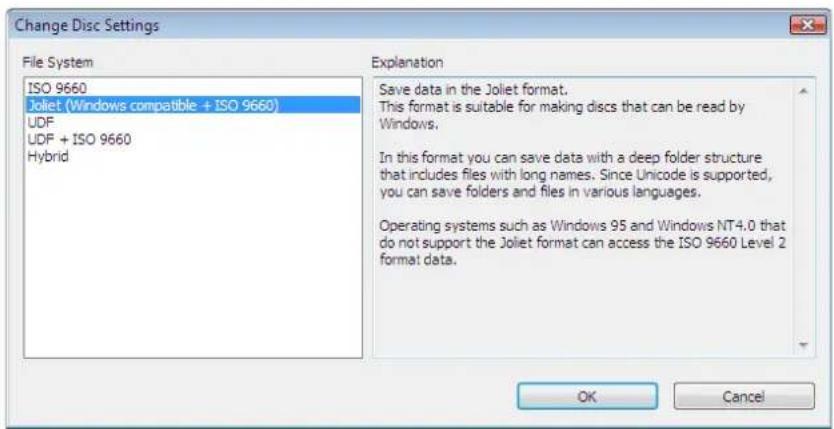
5 Enter any name for [Volume Label]. In this example, we enter [20090101].
![EPSON Total Disc Maker - New File Edit View Tool Help Disc Label Publish Type Edit Data File System Joliet (Windows compatible + ISO 9660) Change Setting... Volume Label 20090301 CD Drop a folder or file from Explorer. Name Size Type Modified Drop a folder or file from Explorer. Auto Insert Data... 0 650 700 0 [Mb] Format Check](/content/2026/05/1140216/images/81f7159c95e8964ad47b13513bb57842608576822c3653bc7b960d32f157c83e.jpg)
6 Click [Start Explorer].
![EPSON Total Disc Maker - New File Edit View Tool Help Disc Label Publish Type Edit Data File System Joliet (Windows compatible + ISO 9660) Change Setting... Volume Label 20090101 CD Drop a folder or file from Explorer. Name Size Type Modified Drop a folder or file from Explorer. Auto Insert Data... 0 650 700 0 [No] Format Check](/content/2026/05/1140216/images/139edb15d88feaae1ca132afb3970910a6ac2b50db46b8e92a06500b3473ae3f.jpg)
Notes
Clicking (Auto Insert Data...) enables you to set for Merge data and burn. See EPSON Total Disc Maker Help for details.
7 Drag and drop any image data to write to the CD from Explorer.
![EPSON Total Disc Maker - New File Edit View Tool Help Disc Label Publish Type Edit Data File System: Jolet (Windows compatible + ISO 9660) Change Setting... Volume Label: 20090101 CD Name Size Type Modified Drag and Drop Drop a folder or file from Explorer. Drop a folder or file from Explorer. 0 650 700 0 [M] Format Check Images 2009_july_06 2009_May_05 s2009_july_01 s2009_May_03 s2009_May_07 s2009_May_08 s2009_May_09 Images File Folder: Date modif...](/content/2026/05/1140216/images/31109fb5e47ab522d411cbab10b193b23aa51c61b5268173b938a47f21a82aa4.jpg)
The data that you drag and drop appears in the data list.
Notes
- If you changed data after it was registered, click (Format Check).
- When the registered data does not comply with the restrictions of the selected file system, the (File System Restrictions) dialog box appears. Furthermore, depending on the added data, the (File System Restrictions) dialog box may appear before you click (Format Check). See EPSON Total Disc Maker Help for details on file system restrictions.
- If you click (Create Disc Image) of the (File) menu after registering the write data, the registered data is saved as a disc image file. A disc image file is used when creating CD/DVD copies of the registered data. See "Creating copies from disc image files" on page 115 in this guide for the procedure to create CD/DVD copies.
The registration of write data is now finished.
Next, create a label.
Creating labels
Create a label design in the label view of EPSON Total Disc Maker.
Notes
There is no need to create a label if you only want to write data to discs.
In the label view, an image of the print results of the label appears. You can edit the label while checking the image of the print results.
Selecting a template
EPSON Total Disc Maker is provided with various types of template. Using templates allows you to easily create labels with sophisticated designs.
In the [Template] screen, you can select a template from [Data], [Photo], and [Music and Video] in accordance with the type of data to write.
Notes
If you save the created data as a template, you can also select that template. See "Creating label templates" on page 112 in this guide for the procedure to create templates.
In this example, we use a template for photos.
1 Click [Label].
The label view appears.
2 Select [Source]. To use a template you created, click ..., and specify the folder in which the template is stored.
In this example, we select [Photo].
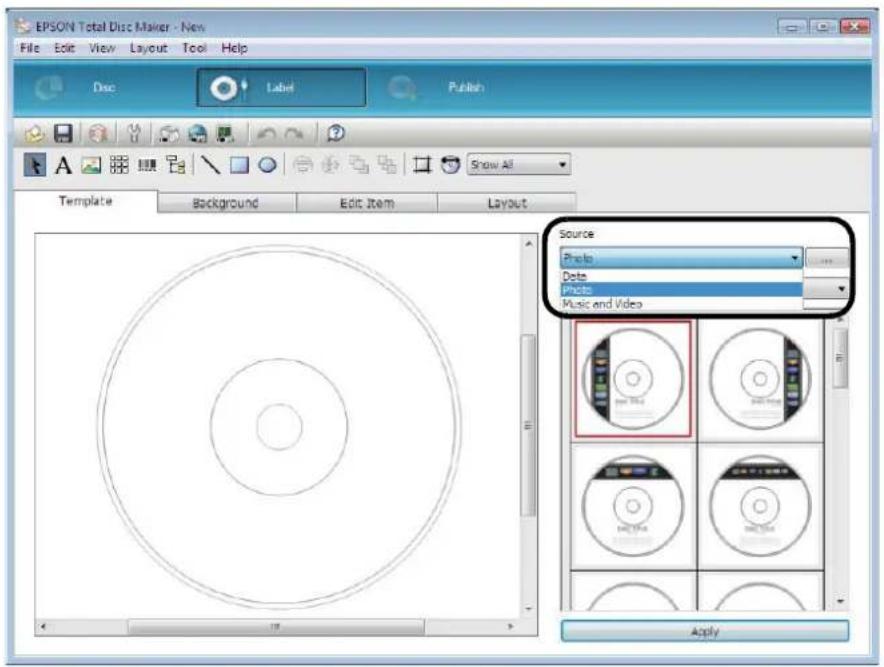
3 Select the template to use, and click [Apply].
In this example, we use the image in the top left of the screen.
Check that the image in the top left of the thumbnail screen is selected, and click [Apply].
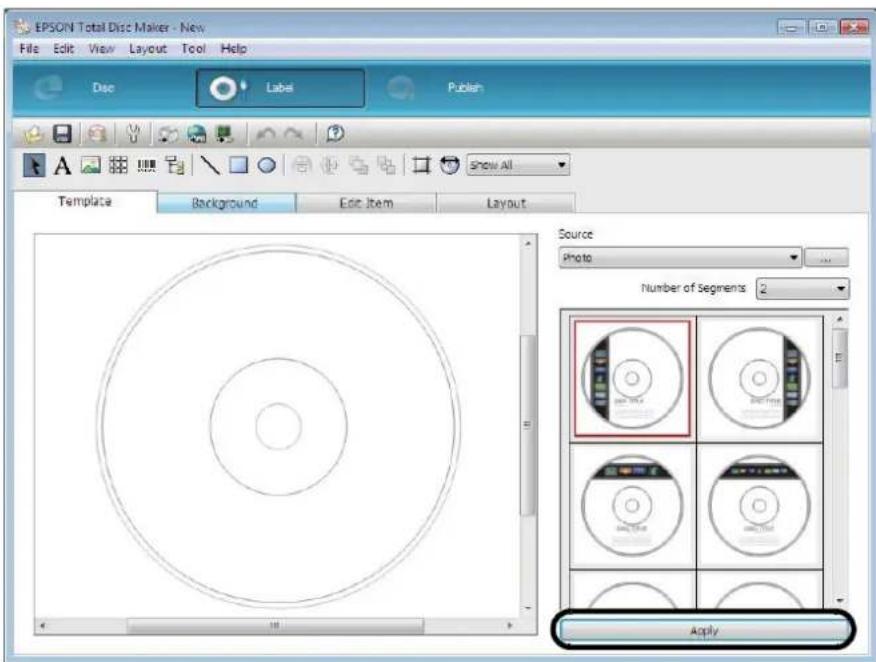
A print image of the template appears.
![EPSON Total Disc Maker - New File Edit View Layout Tool Help Disc Label Puzzle A ![] Snow All Template Background Edit Item Layout Source Photo Number of Segments 2 DISC TITLE Edit Title Data: Image Title & Image Tools Name: Image Text Data: Image Text & Image Color: Image Color: Image Color Data: Image Color & Image Color: Image Color: Image Color Data: Image Color & Image Color: Image Color: Image Color Apply](/content/2026/05/1140216/images/303e015a2df974edf237c601dc7cf68a48e811f4b3a97a644bca0ce989817c1a.jpg)
Select a background (see page 91 in this guide), edit the items (see page 92 in this guide), and adjust the layout (see page 99 in this guide) as necessary.
Selecting a background
In the [Background] screen, you can select a background color and gradation. You can also insert an image you like as the background.
1 Select [Type].
In this example, we select [Gradation].
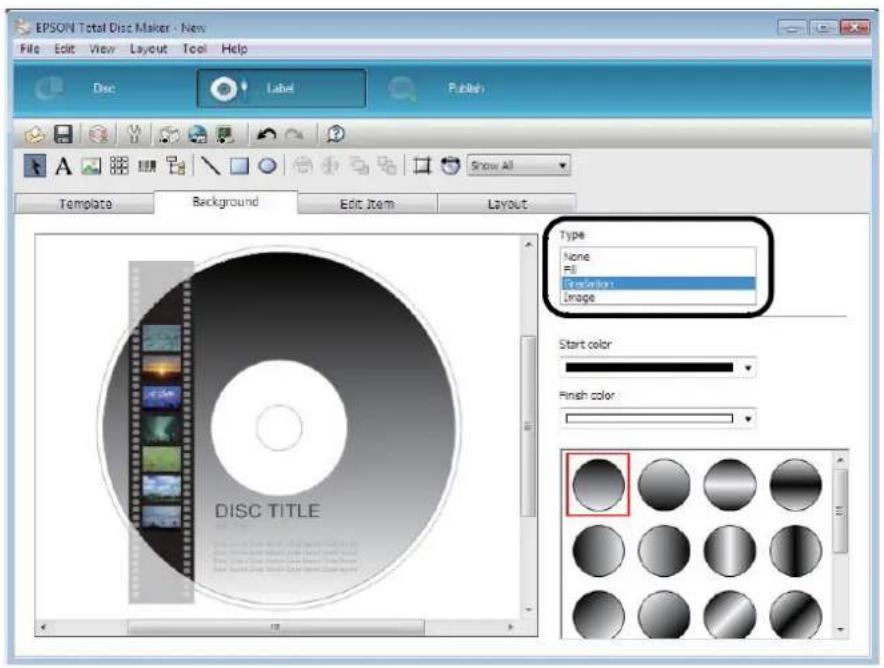
2 Select the colors for [Start color] and [Finish color], and select the gradation type. In this example, we select black for [Start color], and gray for [Finish color].
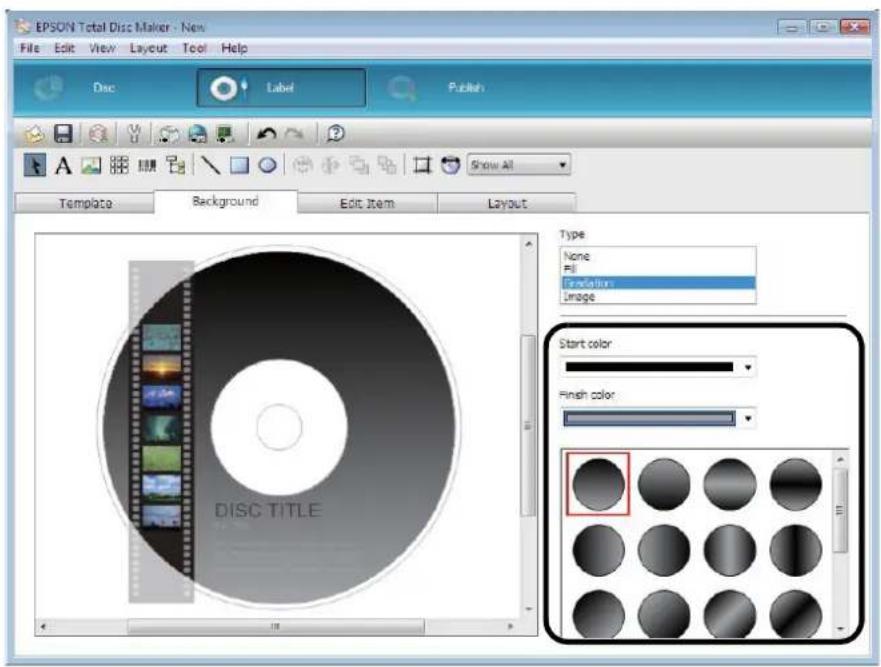
Editing items
In the [Edit Item] screen, you can insert and edit items such as text, images, thumbnails, barcodes, folder trees, and shapes.
In this example, we edit text, delete an item, and insert a thumbnail and barcode.
Editing text
1 Click [DISC TITLE] in the edit area.
![EPSOM Total Disc Maker - New File Edit View Layout Tool Help Disc Label Publish Template Background Edit Item Layout Text DISC TITLE Font Arial Size [pt] Automatic Text Color Border None Horizontal Position Align Left Vertical Position Center Arch Text Fit to Disc](/content/2026/05/1140216/images/2644d7d2201f77d34b79031229c14cb9754d131d483c0569bb9a073028d42347.jpg)
2 Enter the text you want to place in [Text]. In this example, we enter "Sample Images".
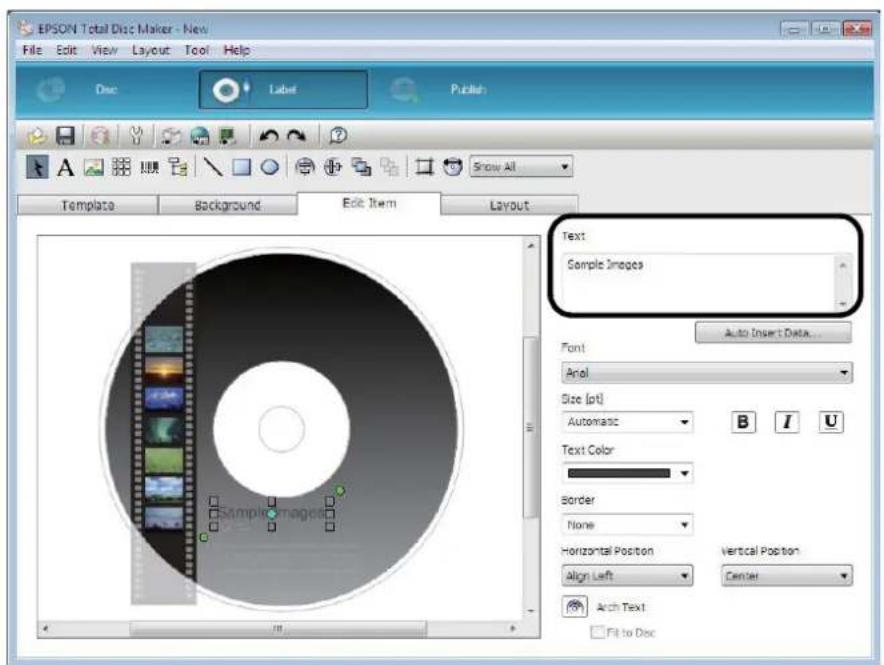
3 Click [Sub Title] in the edit area, and set for the text. In this example, we set black for [Text Color].
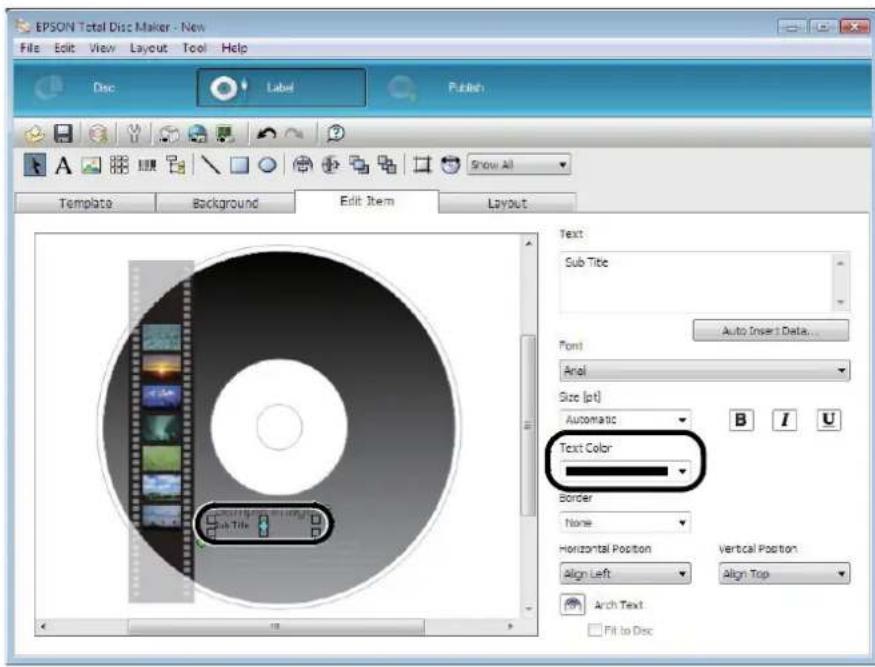
4 Delete the "Sub Title" from [Text], and click [Auto Insert Data].
![EPSON Total Disc Maker - New File Edit View Layout Tool Help Disc Label Publen Template Background Edit Item Layout Text Sub Title Auto insert Data... Arial Size [pt] Automatic Text Color Border None Horizontal Position Align Left Vertical Position Align Top Arch Text Fill to Disc](/content/2026/05/1140216/images/748211675f70efc3a0fcc356af3e0899b0dd179ce6ad0acca05b02fac55f5069.jpg)
5 Set Auto Data and Properties, and click [OK].
For example, if today's date is December 2, 2008, and you want the date 01/01/2009 to appear, select "Date," and set [Addition Unit] to "Day" and [Addition Time] to "30," which will add 30 days to today's date.
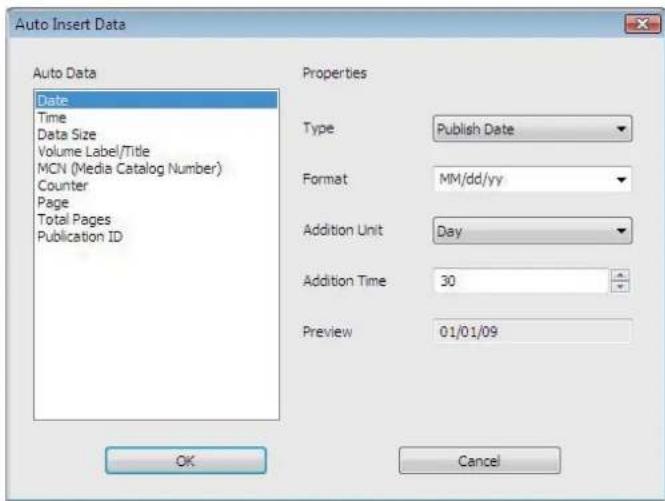
The date appears.
![EPSON Total Disc Maker - New File Edit View Layout Tool Help Disc Label Publish A ![] Snow All Template Background Edit Item Layout Text Auto Insert Data... Font Anal Size [pt] Automatic B I U Text Color Border None Horizontal Position Vertical Position Align Left Align Top Arch Text Fill to Disc](/content/2026/05/1140216/images/cdfc7270e153881e3c8b8d03df2cff81379c67f7fe6ffc2f447cebf9ca83e21f.jpg)
Deleting items
Right-click the item you want to delete in the edit area, and select [Delete Item].
In this example, we delete [Data Name].
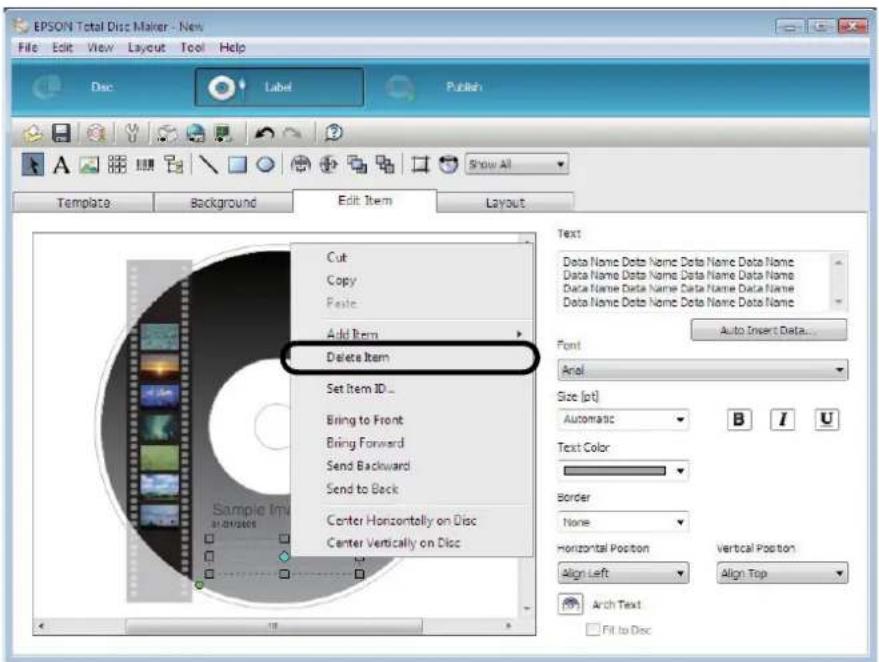
The item is deleted.
Inserting thumbnails
1 Click a thumbnail in the edit area.
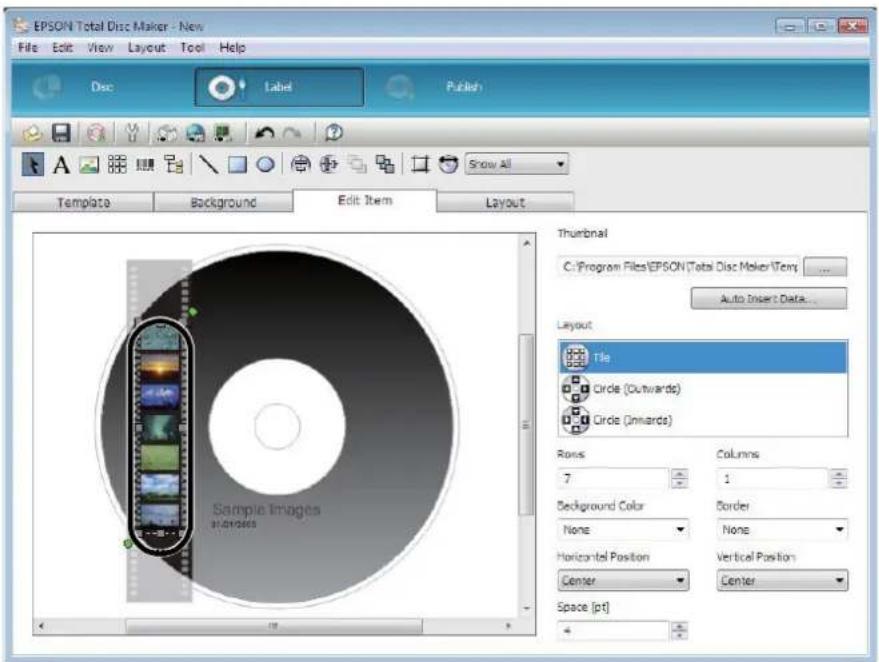
2 Click ..., specify the folder in which the image you want to insert as the thumbnail is stored or click [Auto Insert Data].
In this example, we click [Auto Insert Data].
![EPSON Total Disc Maker - New File Edit View Layout Tool Help Disc Label Publish Template Background Edit Item Layout Thumbnail C:\Program Files\EPSON(Total Disc Maker\Temp) ... Auto Insert Data... Layout Tile Circle (Outwards) Circle (Imwards) Rows 7 Column 1 Background Color None Border None Horizontal Position Center Vertical Position Center Space [pt] 4](/content/2026/05/1140216/images/040c6d1acf6fe895f49c97b370ba0d24e229e161c69845691b1c8828d99dfb0b.jpg)
3 Check that [Target Folder] is selected in [Auto Data], and click [OK].
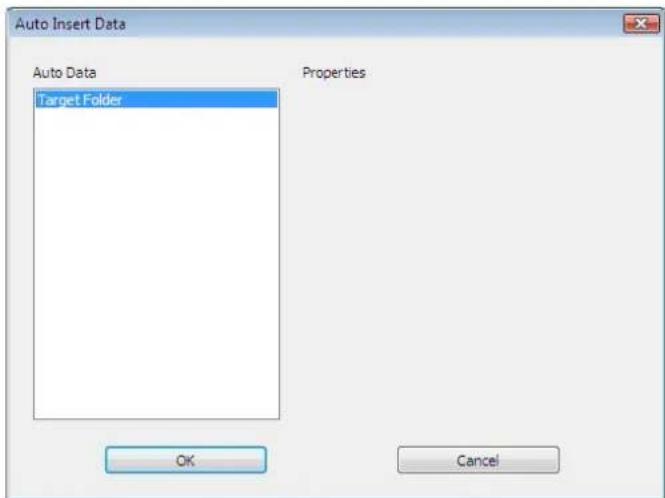
Thumbnails of the image data registered in "Registering write data" on page 85 in this guide appear.
![EPSON Total Disc Maker - New File Edit View Layout Tool Help Disc Label Publish Template Background Edit Item Layout Thumbnail Disc > Auto Insert Data... Layout File Circle (Outwards) Circle (Imwards) Rename Columns 7 1 Background Color Border None None Horizontal Position Vertical Position Center Center Space [pt] 4](/content/2026/05/1140216/images/0b987aebbf4265c343fc9f73804241a694320f3d55b588f451f9f4d5abd521ba.jpg)
Inserting barcodes

- When printing barcodes and 2D codes, be sure to use Epson brand ink cartridges.
- When printing barcodes and 2D codes on discs that are not EPSON specified CD/DVDs, check whether the printed barcodes or 2D codes can be read correctly by a scanner.
- Do not place barcodes and 2D codes where they overlap with other print data, or where they extend out of the print area.
- Barcodes and 2D codes use the ratio of black to white to indicate information. If ink penetration results in a deterioration in the ratio of black to white, barcodes and 2D codes may not be able to be read correctly. Check whether the printed barcodes and 2D codes can be read correctly by a scanner.
- If a barcode printed with bidirectional printing cannot be read correctly, align the print head (see page 135 in this guide) and then print the barcode, or print the barcode with unidirectional printing.
1 Click [Barcode], and click the location you want to place the barcode.
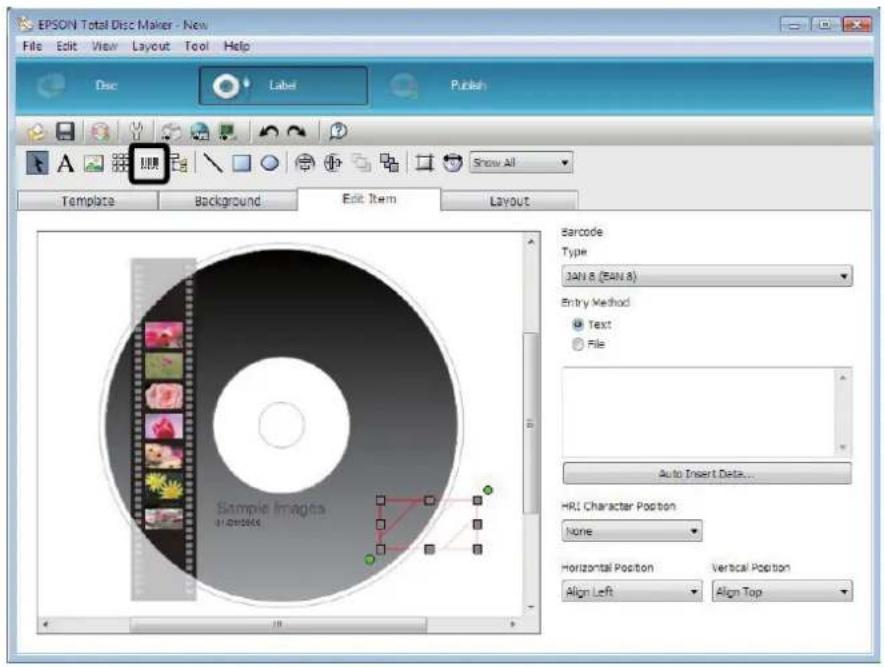
2 Select [Type] and [Entry Method].
In this example, we select "QR Code" and enter text. The barcode appears.
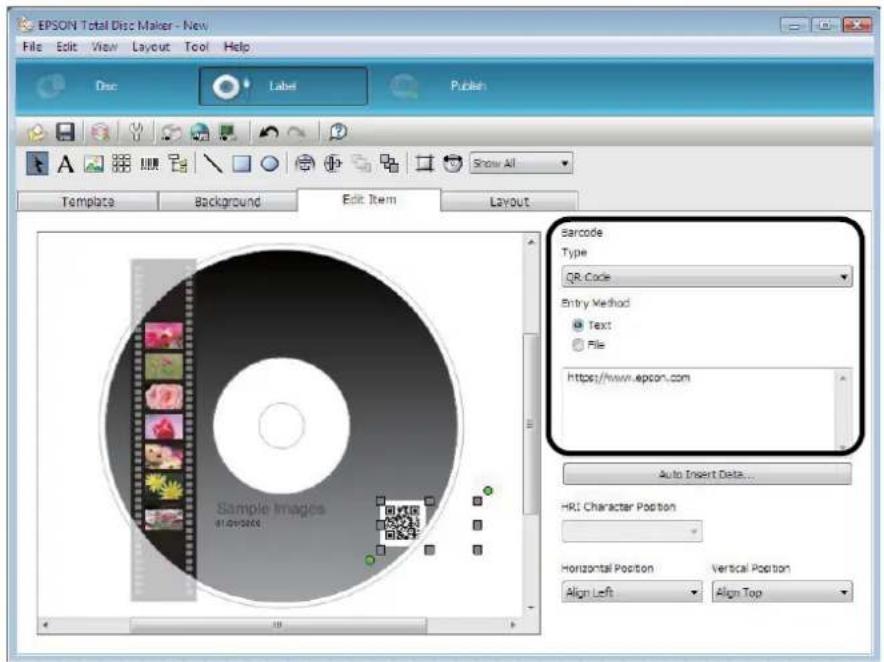
Adjusting layout
In the [Layout] screen, you can make fine adjustments to the layout of the items you inserted.
1 Select the item for which you want to adjust the layout. In this example, we select a barcode.
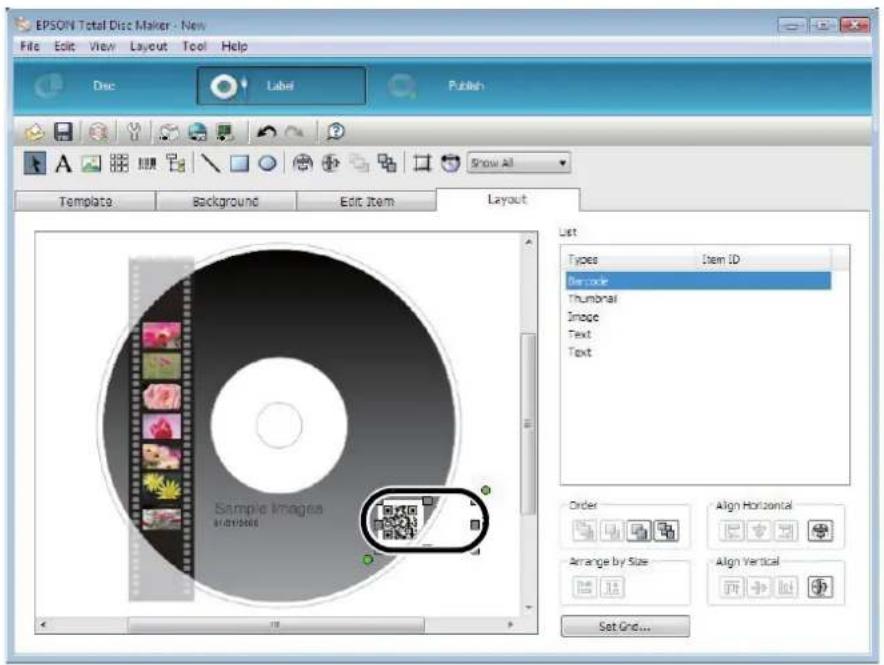
2 Click [Align Vertical Center of Disc].
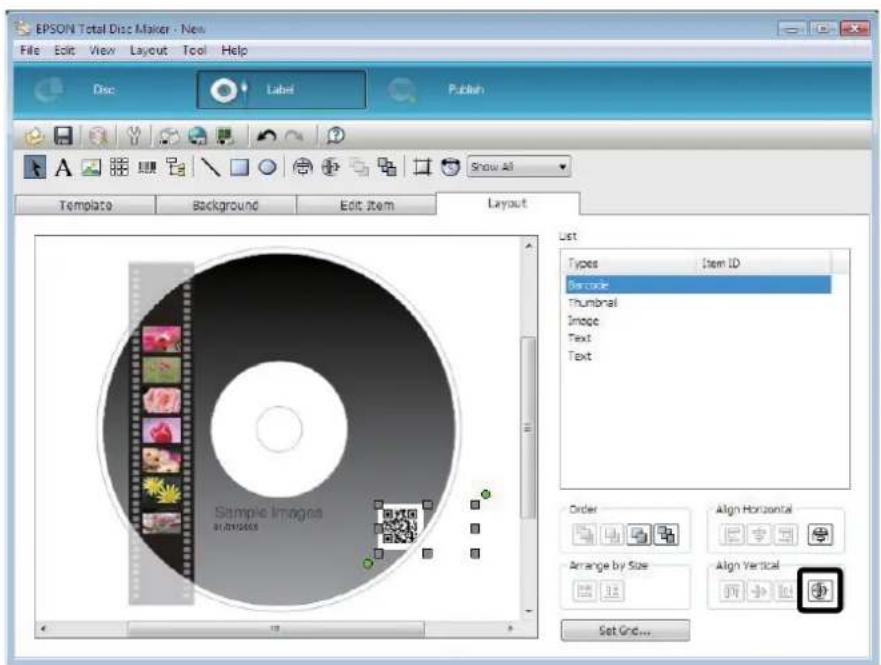
The barcode appears in the vertical center position of the disc.
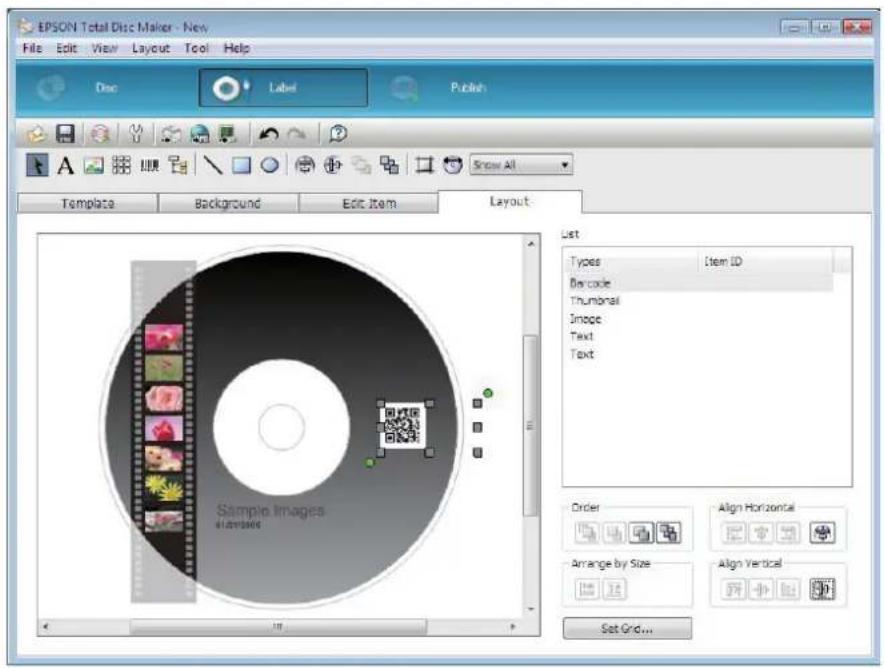
Once the settings for creating a label are complete, publish the disc.
Publishing discs

- When the product is used for the first time, after it has been stored for a long time, or after an error occurs, missing dots or ink stains may appear and print quality may be reduced on rare occasions. When publishing multiple discs, publish one disc in advance and check that there are no missing dots. If any dots are missing, perform head cleaning. See "Cleaning the print head" on page 132 in this guide for details on the head cleaning procedure.
- If writing and printing are performed separately, we recommended performing writing before printing. If writing is performed after printing, ink may cause discs to stick to each other and result in a disc transport error, or dirt, stains, or scratches on discs may result in a write error.
1 Click [Publish].
The publish view appears.
2 Check either one or both of [Write Data] and [Print Label] are selected.
In this example, we will write data and print a label, so both are selected.
![EPSON Total Disc Maker - New File View Tool Help Disc Label Publish Write Data Print Label Data Name Size Images 2009_july_06.jpg 249 KB 2009_May_05.jpg 192 KB s2009_july_01.jpg 21 KB s2009_May_03.jpg 19 KB s2009_May_07.jpg 15 KB s2009_May_08.jpg 22 KB s2009_May_09.jpg 23 KB Type Data CD Volume Label 2009/06/1 Size [ms] 58.2 Output Device PP-300N 1 Publish Mode Standard mode Input Stacker Stacker 1 CD-R Output Stacker Stacker 2 Write Speed Write Verification 40 X None Label True CD/DVD Label Print Mode Setting 1 2 Quality speed Copies 1 Publish](/content/2026/05/1140216/images/9b02d70121599b403157d9d5d17dc29fb12d5ce63aa20a7ab4795edce83fa749.jpg)
3 Set [Output Device], [Input Stacker], [Output Stacker], [Write Speed], [Write Verification], [Label Type], [Print Mode Setting], and [Copies] as necessary.
![EPSON PP-100N - Set [Output Device], [Input Stacker], [Output Stacker], [Write Speed], [Write Verification], [Label Type], [Print Mode Setting], and [Copies] as necessary. - 1](/content/2026/05/1140216/images/50a7ed7f6bee035bda21fdd46ee35ca09e6accd80a0a0a055e7b03f050e03e5b.jpg)
- Depending on the discs used, the writing speed may become slower than the set speed.
- Depending on the discs used, writing may not be able to be performed properly at the speed recommended for the disc. If this happens, write at a slower speed. In particular, we recommend writing to DVD±R DL at a slow speed.
- If you print on the matte label type of Epson specified CDs, set (Label Type) to (CD/DVD Label).
- If you print on the matte label type of Epson specified DVDs, set (Label Type) to (CD/DVD Premium Label).
- If (Label Type) is set to "EPSON Specified CD/DVD Label," (Print Mode Setting) is set to (1).
Notes
If (Compare) is set for (Write Verification), you can confirm whether data was written to discs properly.
4 Click [Publish].
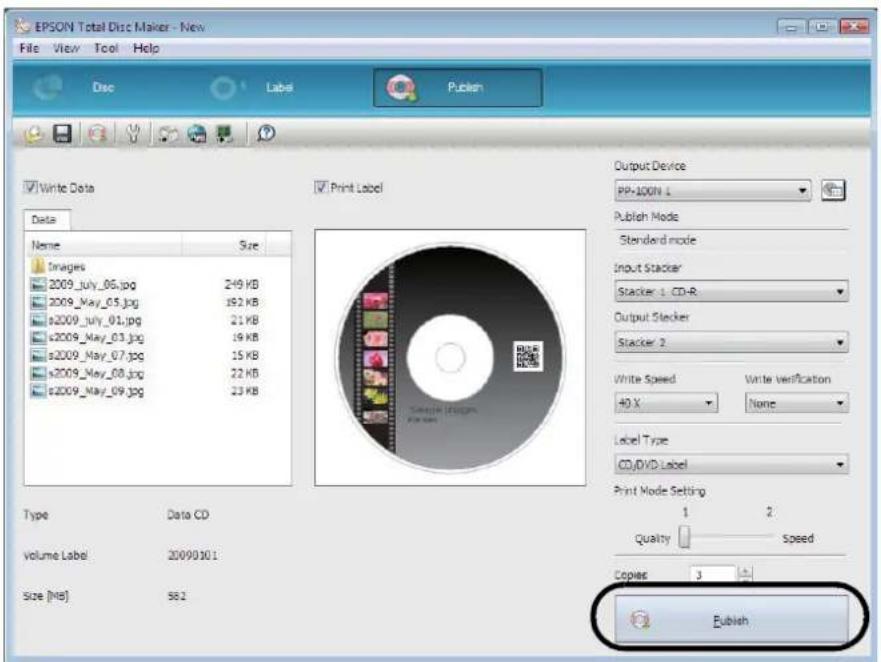
5 Click [Yes] if you want to save the job data to enable you to use the published job to create the same disc again.
In this example, we click [No] because the job data cannot be saved.
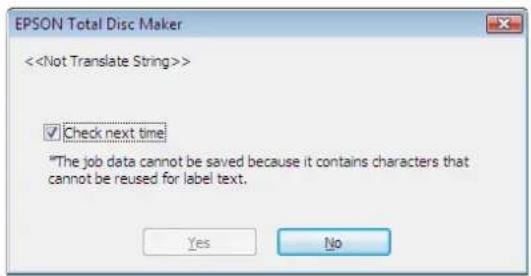
Notes
- If Auto Data (Publish Date or Publish Time) is automatically inserted as label print data, the saving of Job data may not be possible.
- See "Creating same discs as published discs" on page 117 in this guide for the procedure to create the same disc.
EPSON Total Disc Monitor starts, and the disc publishing process begins.

In Batch Mode, if Stacker 2 is taken out during the publishing process, when Stacker 2 is loaded again, it is always recognized as an input stacker even if it has been switched to an output stacker. Be sure to take out the published discs from Stacker 2.
Notes
- If there are jobs waiting to be processed, the disc publishing process begins in the order with which jobs were published.
- See "Taking out discs" on page 104 in this guide for the procedure to take out published discs.
Taking out discs
This section describes how to take out published discs.
1 Open the disc cover (only when the output stacker is Stacker 2 or Stacker 3), and take out the stacker.

- Do not open the disc cover while a job is being processed (while the BUSY LED flashes). This could adversely affect the writing or printing quality.
- If you open the disc cover while a job is being processed, a slow beeping alert sound is played and the status of the current job becomes Standby. If you close the disc cover, job processing resumes automatically.
- If a job is being processed, first pause the job and then open the disc cover. See "Pausing jobs" on page 108 in this guide for the procedure to pause a job.
• To ensure safety during arm operation, never insert your hands. - Do not operate any stackers while the arm is moving. This could damage the arm.
- When the BUSY LED is flashing quickly, do not pull out Stacker 4 because discs are being output to Stacker 4. Doing so may damage the discs.
- Do not remove discs while the stacker is attached to this product. Be sure to remove the stacker beforehand.
2 Take out the published discs from the stacker.
The stacker used as the output stacker differs depending on the set Publish Mode. Confirm the output stacker in the following table.
| Publish Mode | Output Stacker | Number of Discs |
| Standard Mode (when the output stacker was set to (Stacker 2)) | Stacker 2 | Up to approximately 50 discs |
| Standard Mode (when the output stacker was set to (Stacker 4)) | Stacker 4 | Up to approximately 5 discs |
| External Output Mode (when the output stacker was set to (Stacker 3)) | Stacker 3 | Up to approximately 50 discs |
| External Output Mode (when the output stacker was set to (Stacker 4)) | Stacker 4 | Up to approximately 5 discs |
| Batch Mode | Stacker 2 | Up to approximately 50 discs |
| Stacker 3 | Up to approximately 50 discs |
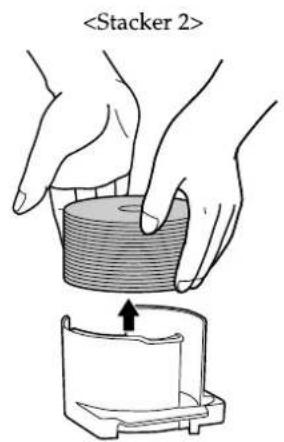
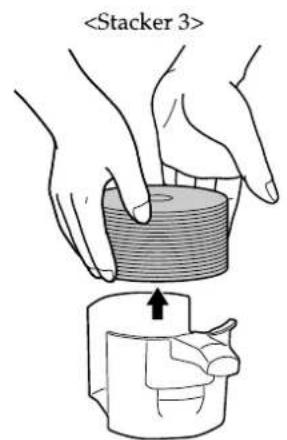
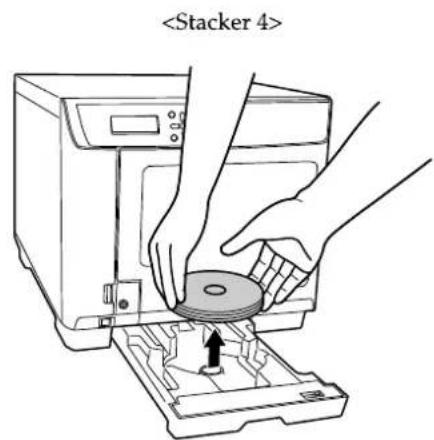
3 Insert the stacker, and close the disc cover.

- Directly touching or moisture getting on the label surface before or after printing may result in blurring or discs sticking together.
- After printing on the label surface, allow EPSON specified CDs/DVDs to dry for at least one hour, and other types of discs for at least 24 hours. Do not insert discs into a drive or other device until they are completely dry.
- Avoid drying under direct sunlight.
Notes
- When discs are published in Batch Mode, the number of discs loaded into Stacker 2 and the number of discs output to Stacker 3 do not always match. Also, 50 discs may not be output. The same applies for the discs output to Stacker 2.
In Batch Mode, once the height of the stack of discs output to Stacker 3 reaches the maximum value, the output stacker is switched to Stacker 2. Therefore, the number of discs output to a stacker differs depending on the thickness of the discs used. - Stacker 4 holds up to approximately five discs. Once Stacker 4 becomes full, the job is paused. The job is resumed automatically if you take out the published discs from Stacker 4.
- You can take out the published discs output to Stacker 4 without pausing the job.
Performing job operations
Checking job information
Use the following procedure to check the history and details of jobs.
Log in to EPSON Total Disc Net Administrator.
See "Logging in to EPSON Total Disc Net Administrator" on page 54 in this guide for the login procedure. The [Job management] screen appears.
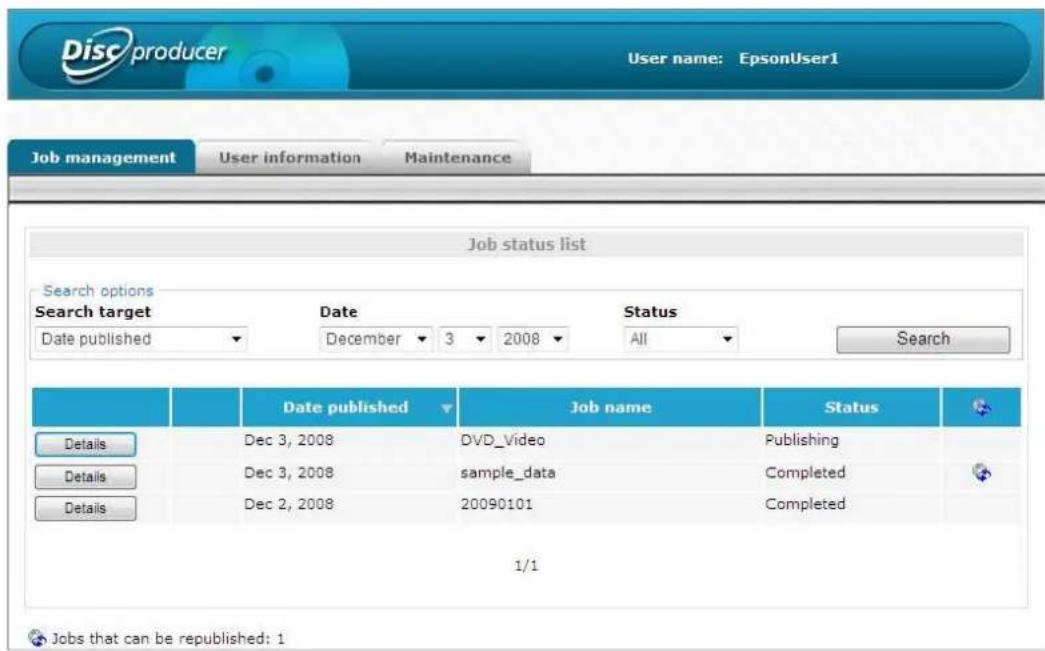
The job list displays all jobs in the following status that were published for this product.
- Waiting
- Publishing
- Completed
- Paused
- Pausing
- Canceling
- Standby
- Recovering

The job status display is not updated automatically. To update the display, click (Refresh) on the (View) menu of Internet Explorer.
Notes
- If you use search options, a joblist of the search results appears in accordance with the specified search items and status.
- Click (Details) of the job you want to check to display more detailed job information.
Checking the job processing status
Use the following procedure to check the job processing status.
1 Starts EPSON Total Disc Monitor.
See "Starting EPSON Total Disc Monitor" on page 50 in this guide for the start procedure.
2 Click the [Unfinished Job] tab or [Finished Job] tab.
The [Unfinished Job] screen or [Finished Job] screen appears.
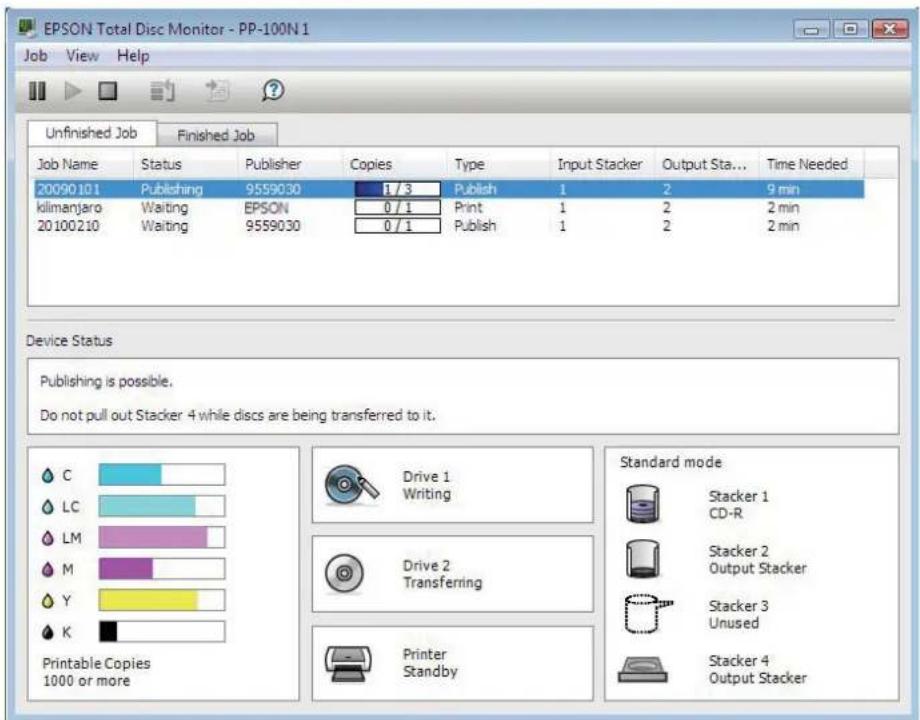
[Unfinished Job] screen: Displays a list of jobs for which the status is Waiting, Publishing, Paused, Pausing, Canceling, Standby, or Recovering.
[Finished Job] screen: Displays a list of jobs for which the status is Published (up to 50 jobs from the most recent).
Pausing jobs
When a job is being processed, be sure to pause job processing before you perform a disc cover operation or other operation of the product unit.
Use the following procedure to pause a job.

Only a job for which the status is Waiting, Publishing, Standby, or Recovering can be paused.
1 Start EPSON Total Disc Monitor.
See "Starting EPSON Total Disc Monitor" on page 50 in this guide for the start procedure.
2 Select the job for which you want to pause processing, and click

[Pause].
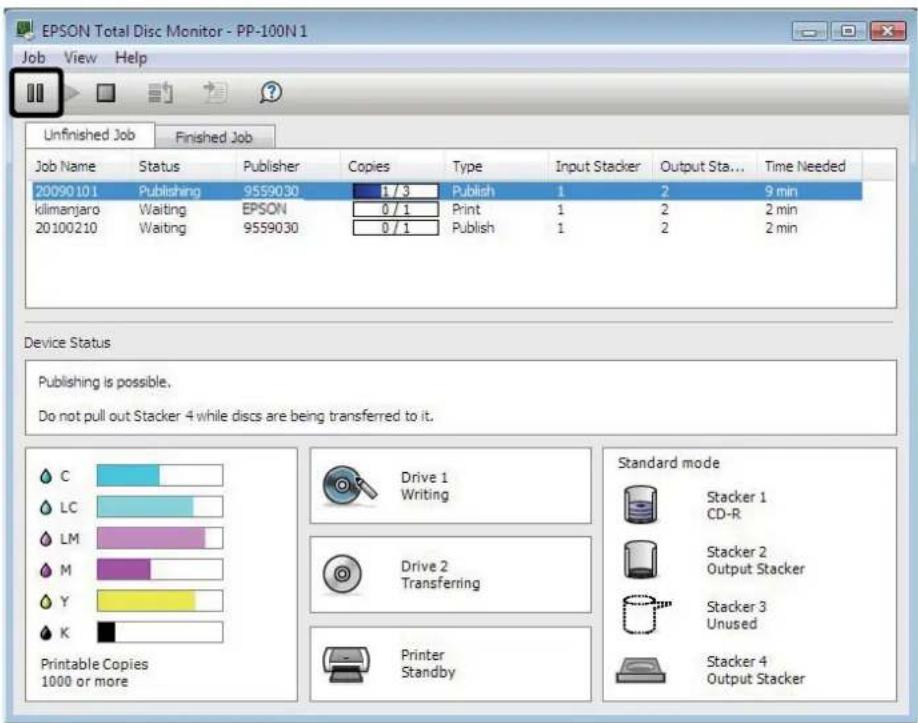
When the job is paused, the job status display changes from Pausing to Paused.

- If there is a disc being published, the job is paused after the processing is finished.
- The processing of any subsequent job also does not start while the job is paused.
Notes
Selecting a paused job and clicking ☐ (Cancel) allows you to cancel the job without resuming processing.
Resuming jobs
Use the following procedure to resume processing of a paused job.

Only a job for which the status is Paused or Pausing can be resumed.
1 Start EPSON Total Disc Monitor.
See "Starting EPSON Total Disc Monitor" on page 50 in this guide for the start procedure.
2 Select the job for which you want to resume processing, and click ▶ [Resume].
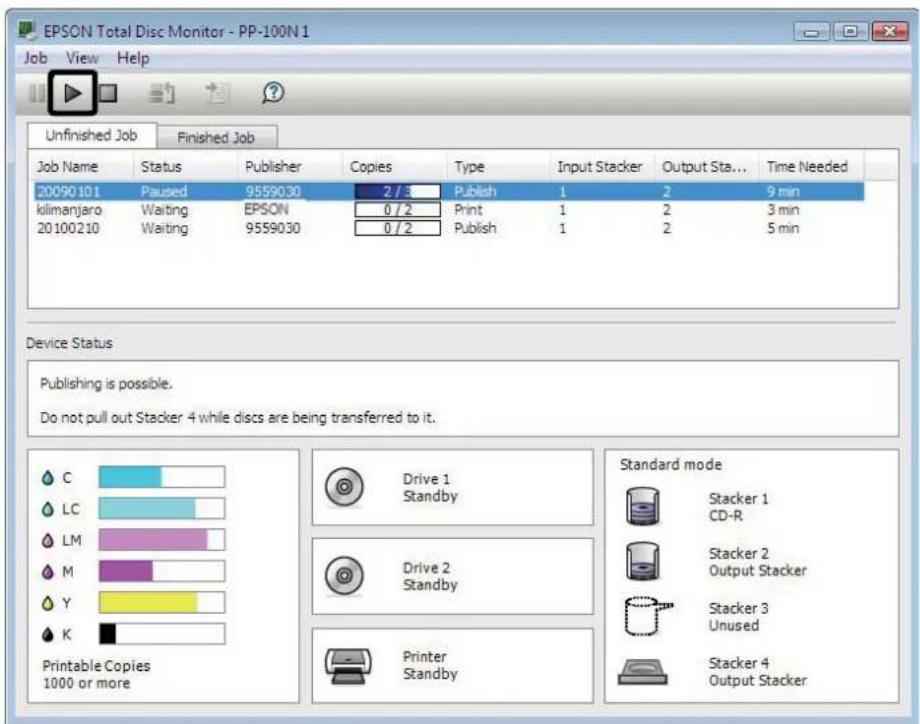
When the job is resumed, the job status display changes from Paused to Publishing or Waiting.
Canceling jobs
Use the following procedure to cancel processing of a job.

Only a job published by yourself for which the status is Waiting, Publishing, Paused, Pausing, Standby, or Recovering can be canceled.
1 Start EPSON Total Disc Monitor.
See "Starting EPSON Total Disc Monitor" on page 50 in this guide for the start procedure.
2 Select the job you want to cancel, and click [Cancel].
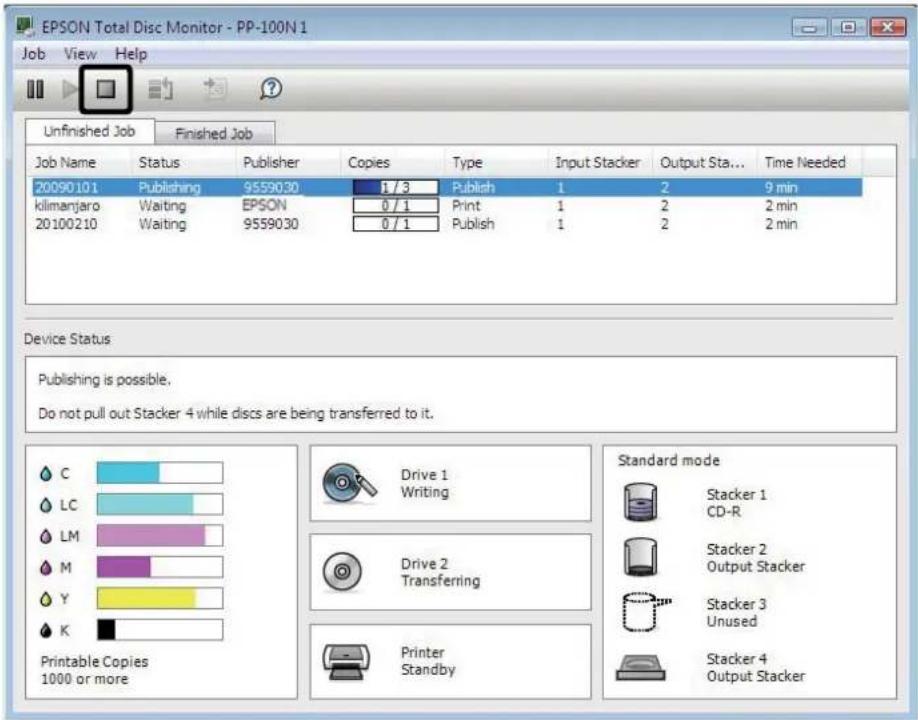
3 Click [Yes].
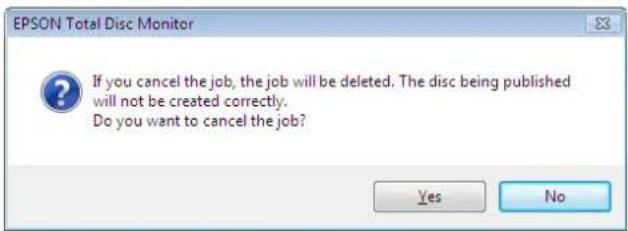
When the job is canceled, the job display disappears from the [Unfinished Job] screen.
![EPSON PP-100N - Click [Yes]. - 2](/content/2026/05/1140216/images/66074de0a3abb21d1dca133fa081b417af80825f85962b2401ef67b9631a30e4.jpg)
If a disc is being published, that processing is stopped, and the disc is output to the output stacker. Be sure to take out the disc. See "Taking out discs" on page 104 in this guide for the procedure to take out discs.
Priority Publishing
If you need to process a job before the others when more than one job is being published, use the following procedure.

Only a job published by yourself can be canceled.
1 Start EPSON Total Disc Monitor.
See "Starting EPSON Total Disc Monitor" on page 50 in this guide for the start procedure.
2 Select the job you want to give priority to, and click [Priority Publishing].
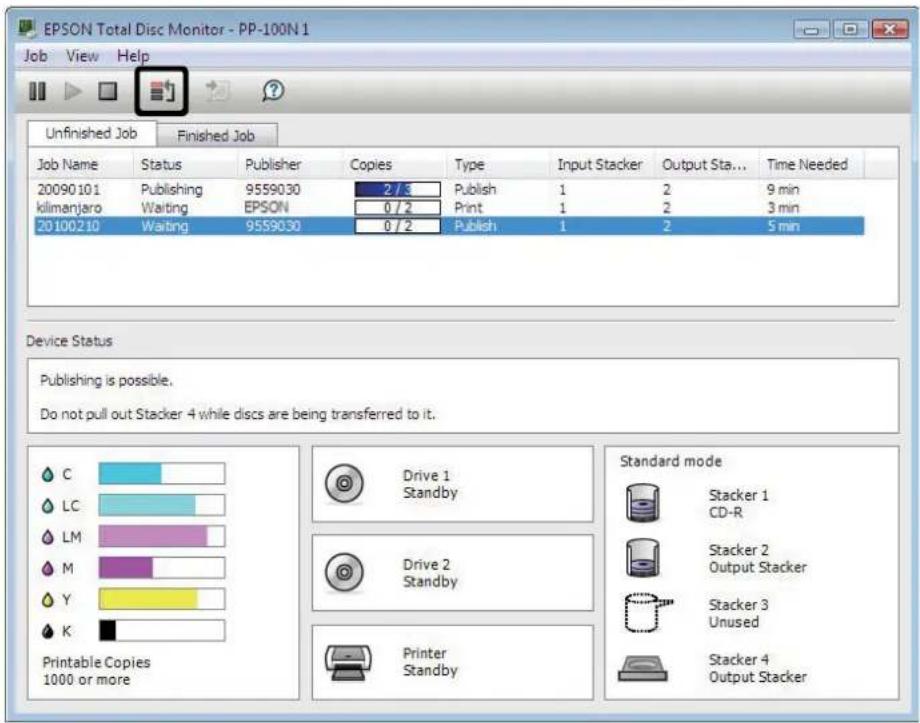
The selected job will be processed after the job in progress.
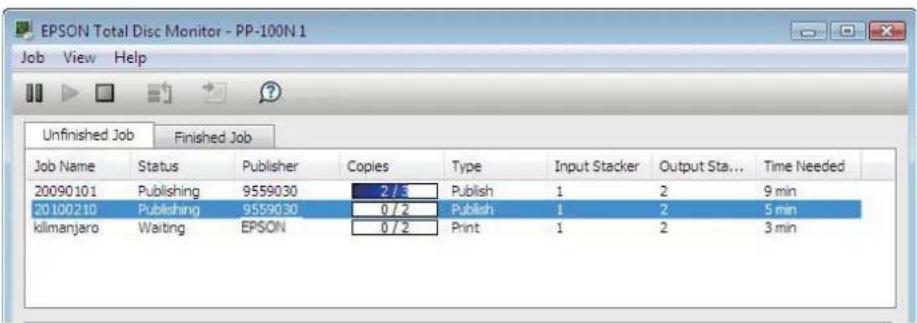
Notes
Any job cannot be given priority before such operations as nozzle checking, aligning print head, and correcting printing position.
Convenient features
Creating label templates
You can save a label that you have created as a template.
1 Create a label in EPSON Total Disc Maker.
See "Creating labels" on page 89 in this guide for the procedure to create labels.
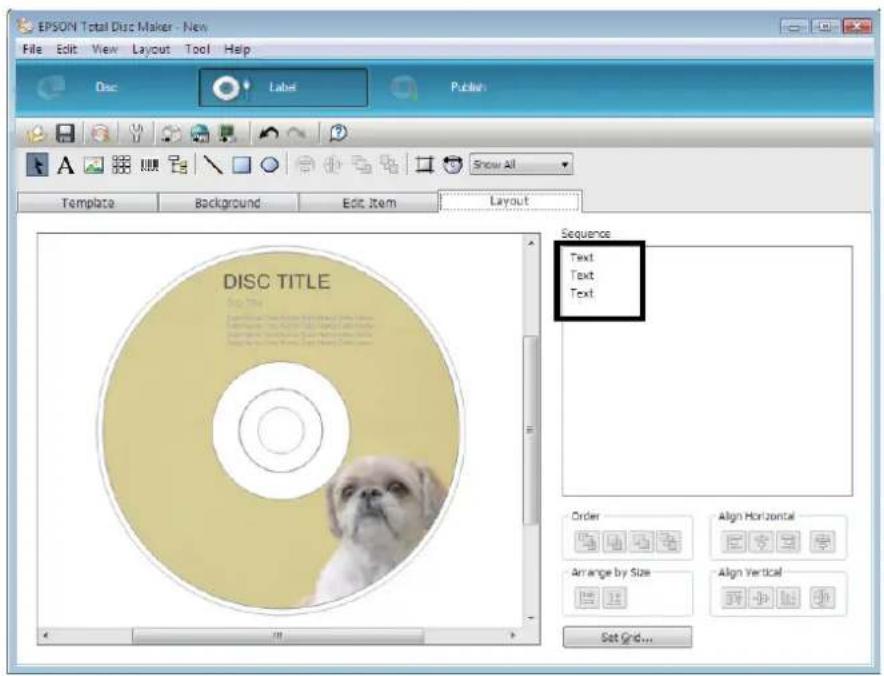
2 Click [Save As Template] on the [File] menu, and save the template file.
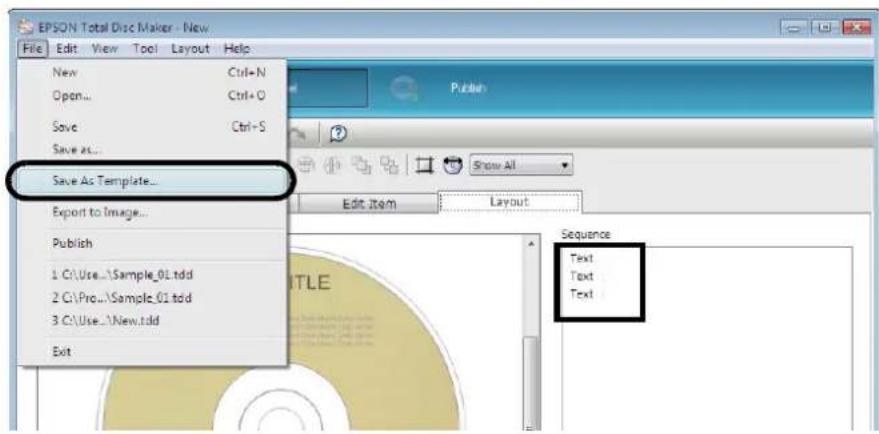
If you specify the name of the folder in which you saved the template file in [Source] on the [Template] screen, you can select the created template.
Creating copies directly from discs
You can directly create CD/DVD copies from a CD/DVD disc inserted in the drive of a client PC.

- As the copy source, use a CD/DVD drive with support for commands compliant with MMC4, and capable of operations compliant with MMC4. (See Epson website for a list of drives for which operation has been confirmed.)
- CD/DVD copies may not be able to be created depending on the model of CD/DVD drive used as the source. In such a case, try changing the source CD/DVD drive.
- Copying is not possible if the source disc is a multi-session CD/DVD.
- Copying is not possible If the source disc is a packet-written CD.
1 Insert the disc you want to create a copy of in the drive of the PC.
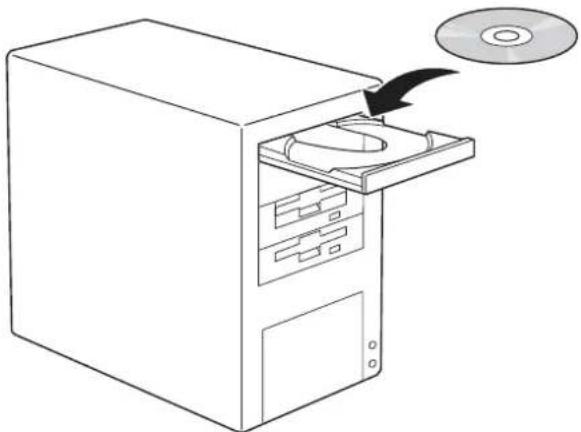
natural_image
Line drawing of a computer tower with an open CD and a disc inserted, showing no text or symbols.2 Start EPSON Total Disc Maker. See "Starting EPSON Total Disc Maker" on page 42 in this guide for the start procedure.
3 Select [Copy] for [Type], and click [Apply].
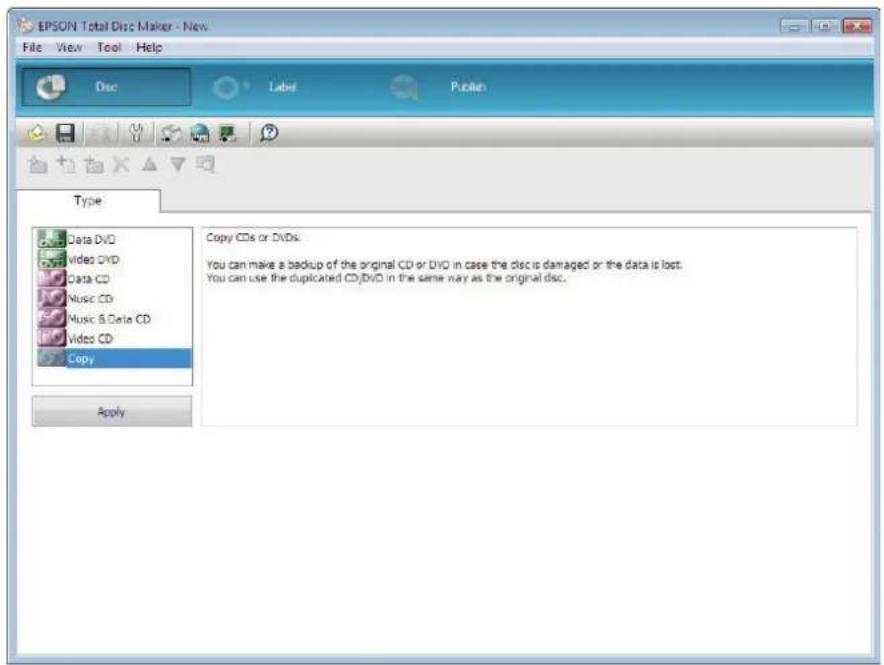
4 Select [Drive] for [Source], and select the name of the drive in which you inserted the disc.
![EPSON Total Disc Maker - New File View Tool Help Disc Label Publish Type Copy Source Drive Disc Image Drive Name H: Update Disc Information Volume Label / Title 20090101 Size [MB] 220 Disc Type CD Data Type Data Details OK to copy.](/content/2026/05/1140216/images/a34ead78c0dc36b8a395fded6d95f517094d2be602eda2901880bfe66b35c483.jpg)
Next, follow the normal procedure for creating a disc, and create the label (see page 89 in this guide) and publish the disc (see page 101 in this guide).
Creating copies from disc image files
You can use a disc image file to create CD/DVD copies.
Notes
If you click (Create Disc Image) on the (File) menu after registering write data (see page 85 in this guide), you can create a disc image file.
1 Start EPSON Total Disc Maker.
See "Starting EPSON Total Disc Maker" on page 42 in this guide for the start procedure.
2 Select [Copy] for [Type], and click [Apply].
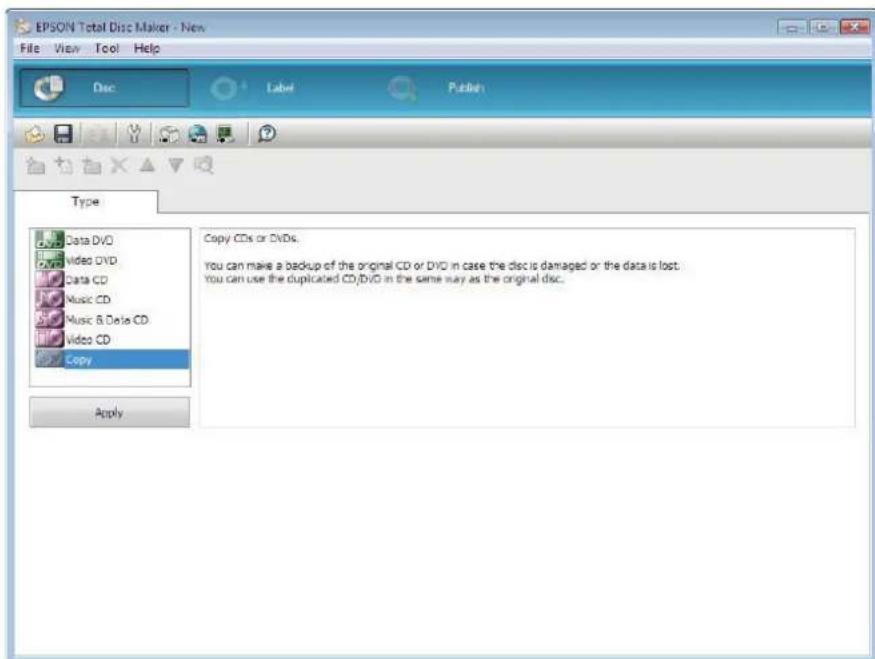
3 Select [Disc Image] for [Source], click [Browse], and specify the disc image file.
![EPSON Total Disc Maker - New File View Tool Help Disc Label Publish Type Copy Source Drive Disc Image File Path C:\Users\EKC07024\Desktop\2069010.1.jpg Browse... Apply Disc Information Volume Label / Title MC25D2 Size [MB] 201 Disc Type Data Type Data Details OK to copy.](/content/2026/05/1140216/images/552189174aefb885f1ee9074e87a530d576ebb33038ed048e9afea04cc57370c.jpg)
Next, follow the normal procedure for creating a disc, and create the label (see page 89 in this guide) and publish the disc (see page 101 in this guide).
Creating same discs as published discs
Publishing a job again allows you to easily create discs with the same content (data/label) as a disc you have already created.

- Creating a disc that is the same as a disc printed from commercially available software is not possible.
- Creating the same disc is only possible if the job data was saved when the job was published. (See page 103 in this guide.)
- If Auto Data (Publish Date or Publish Time) is inserted as label print data, the saving of Job data may not be possible.
- As a precaution in case the spool data (job data) is lost because of trouble with the product's internal hard disk, we recommend using the file save function of EPSON Total Disc Maker to save the data file (.tdd file) and write data to a computer.
1 Log in to EPSON Total Disc Net Administrator.
See "Logging in to EPSON Total Disc Net Administrator" on page 54 in this guide for the login procedure.
2 Use the search options to find the job for which you want to create another disc.
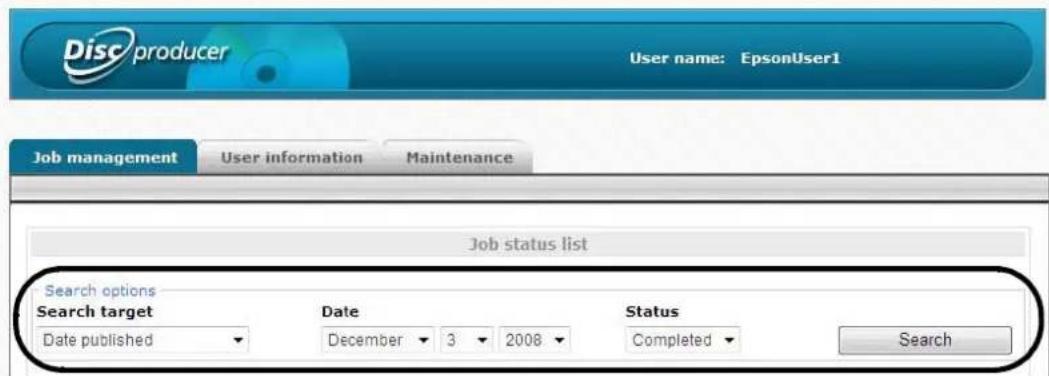
When a job can be created, is displayed.
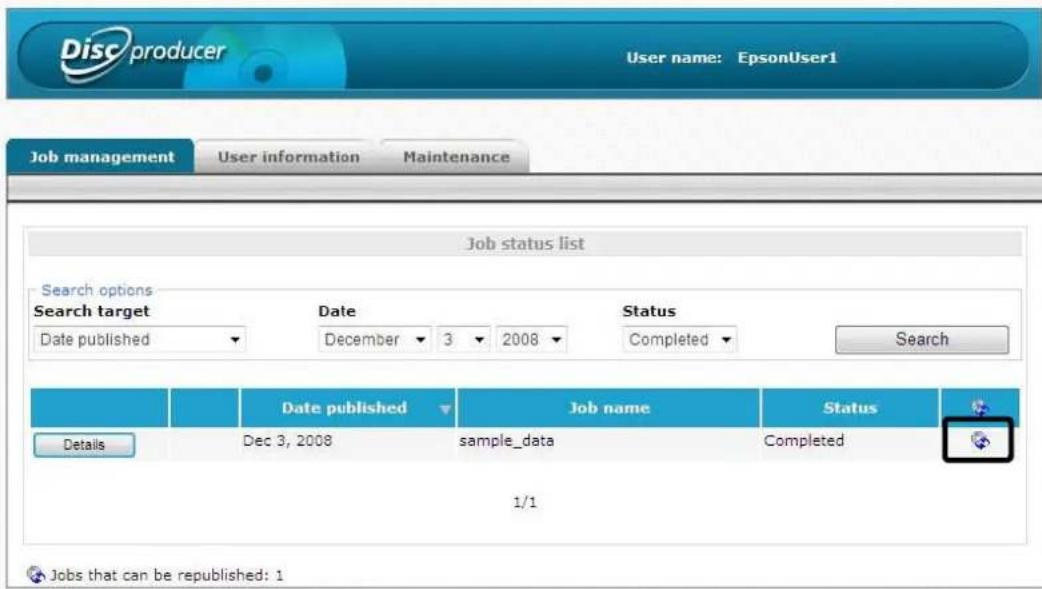

The same disc can only be created when the status of the job is Completed.
3 Click [Details].
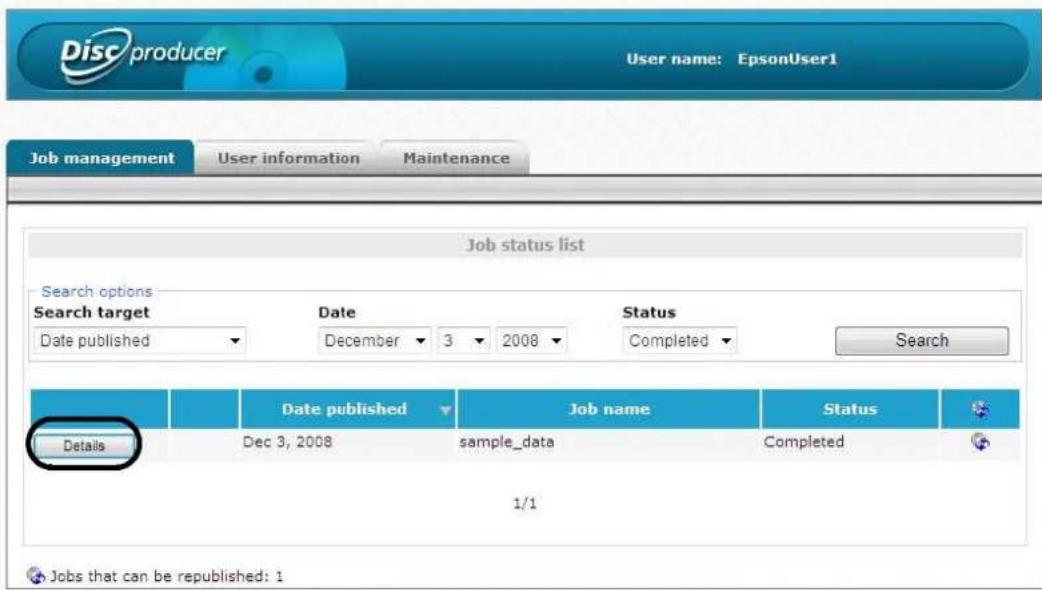
4 Click [Republish].
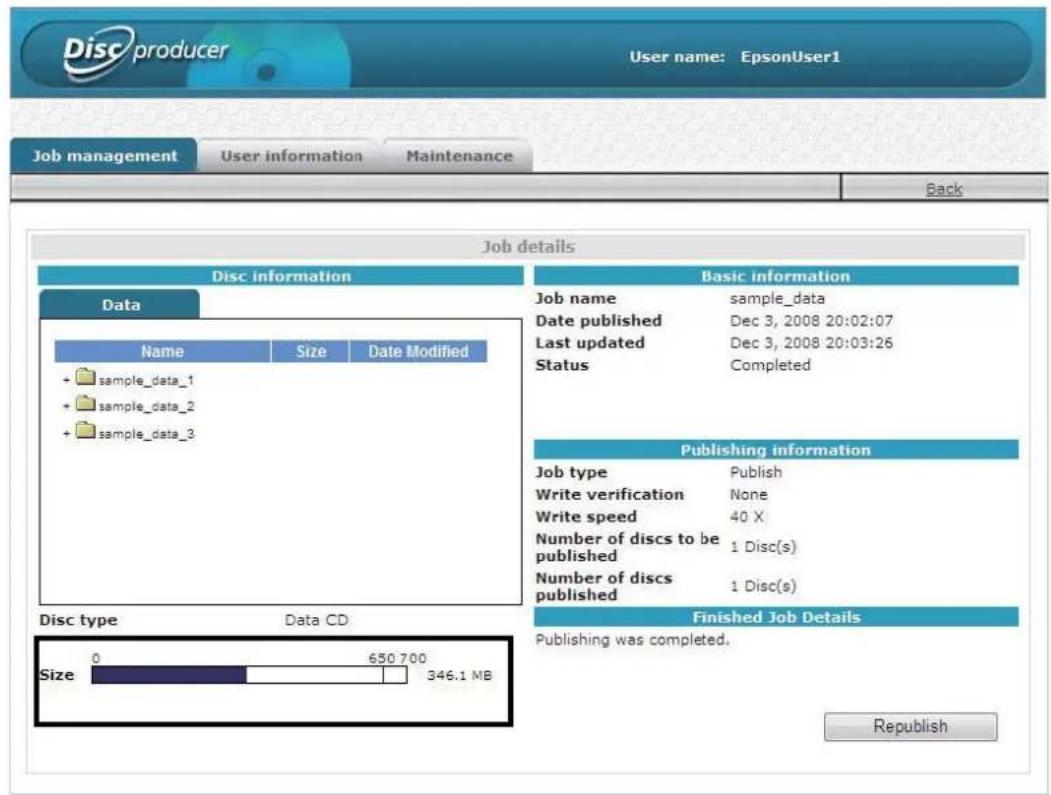
5 Change [Number of discs to be published] as necessary, and click [Publish].
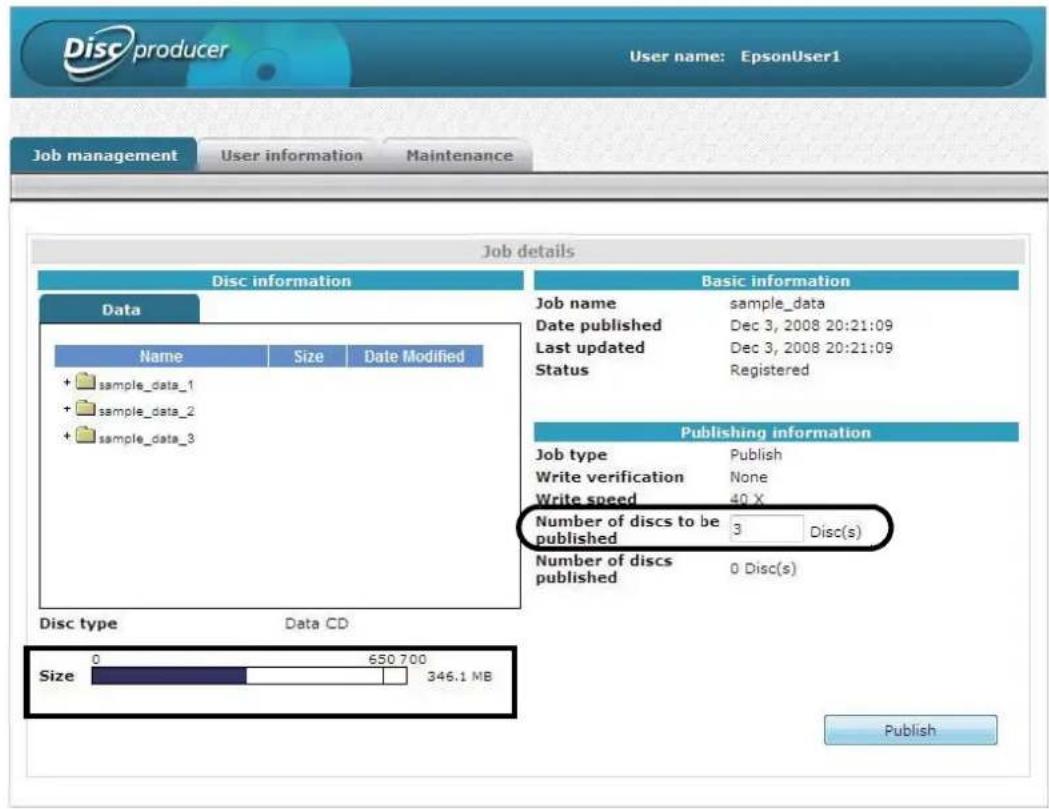
6 Click [OK].

The disc publishing process begins.
![EPSON PP-100N - Click [OK]. - 2](/content/2026/05/1140216/images/b7c011fe3dbc02d640906fc80ecec00eb6ad149b6cd222f9f6f92eabd2ca1e4a.jpg)
If there are jobs waiting to be processed, the disc publishing process begins in the order with which jobs were published.
7 When the publishing process finishes, take out the published discs.
See "Taking out discs" on page 104 in this guide for details.
Adjusting print colors
This section describes how to adjust the colors of print data and then print a label.
Notes
- You can just make color adjustments at the time of printing without making color adjustments to the actual data.
- If (Mode Setting) is set to (Black) on the (Main) screen of the printer driver, color adjustments cannot be made.
1 Display the setting screen of the printer driver.
See "Displaying the printer driver screen" on page 60 in this guide for the display procedure.
2 Select [Color], and click [Color Settings].
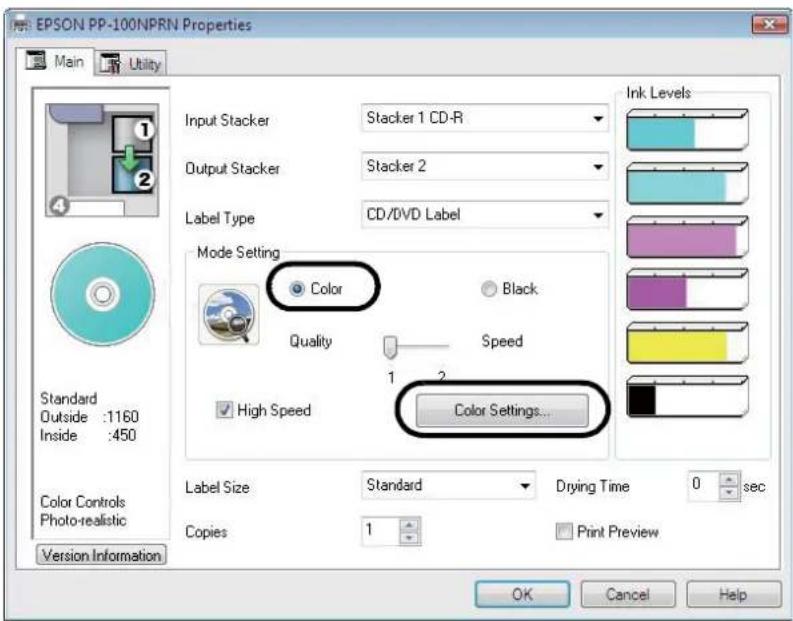
3 Select [Color Controls], set each color item, and click [OK].
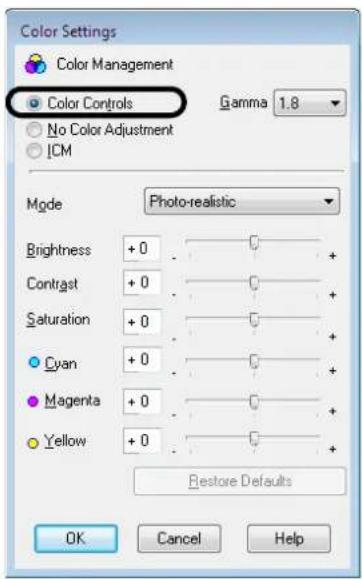
| Mode | Adjust the color balance of the data to print in accordance with the following (Mode) settings. | |
| Photo-realistic | Uses the standard color correction of the printer driver for printing. Performs color processing to create a more natural color state. | |
| Vivid | Performs color processing to increase color saturation to strengthen the intensity of colors. | |
| EPSON Standard | Performs color processing to obtain the standard colors of Epson. | |
| Adobe RGB | Performs color processing with Adobe RGB for wider color space. Select this options when, for example, printing print data that includes Adobe RGB color space information. | |
| Brightness | Adjusts the brightness of the whole image. This is effective when the whole image is dark or bright. | |
| Contrast | Adjusts the contrast ratio of the image. The standard is 0. Sliding the slider in the plus (+) direction raises the contrast to make the brighter parts brighter and the darker parts darker. Sliding the slider in the minus (-) direction lowers the contrast to reduce the difference between the bright parts and dark parts of the image. | |
| Saturation | Adjusts the color saturation of the image. The standard is 0. Sliding the slider in the plus (+) direction raises the saturation to strengthen the colors. Sliding the slider in the minus (-) direction lowers the saturation, resulting in achromatic color close to gray. | |
| Cyan | - setting: Strengthens red.+ setting: Strengthens cyan. | |
| Magenta | - setting: Strengthens green.+ setting: Strengthens magenta. | |
| Yellow | - setting: Strengthens blue.+ setting: Strengthens yellow. | |
Maintenance
Checking maintenance information
This section describes how to check information that is useful when carrying out maintenance and providing support for this product.
Checking device information
Use the following procedure to check the usage status of the internal drives and the number of published discs.
1 Log in to EPSON Total Disc Net Administrator.
See "Logging in to EPSON Total Disc Net Administrator" on page 54 in this guide for the login procedure.
2 Click the [Maintenance] tab.

The usage statuses of drivers 1 and 2, and the number of published discs appear in the [Device] screen.
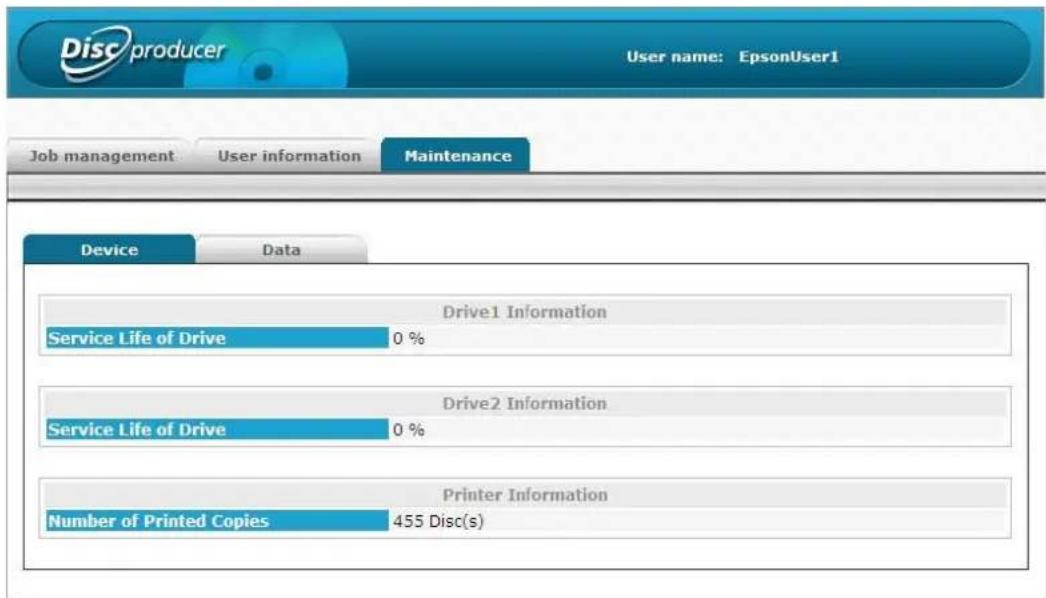
Notes
You can also display the usage statuses of drivers 1 and 2, and the number of published discs by clicking the (Maintenance Info) tab in the (Properties) screen of EPSON Total Disc Setup.
Downloading operation log
The history of this product's operations and actions are recorded as an operation log. You can download an operation log file for 30 days of operation. Use the operation log file for maintenance and support.
Use the following procedure to download the operation log file.
1 Log in to EPSON Total Disc Net Administrator.
See "Logging in to EPSON Total Disc Net Administrator" on page 54 in this guide for the login procedure.
2 Click the [Data] tab of the [Maintenance] screen.
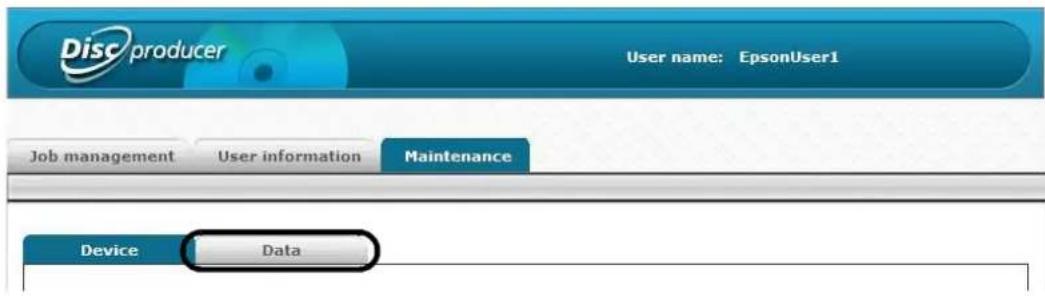
3 Click [Download].
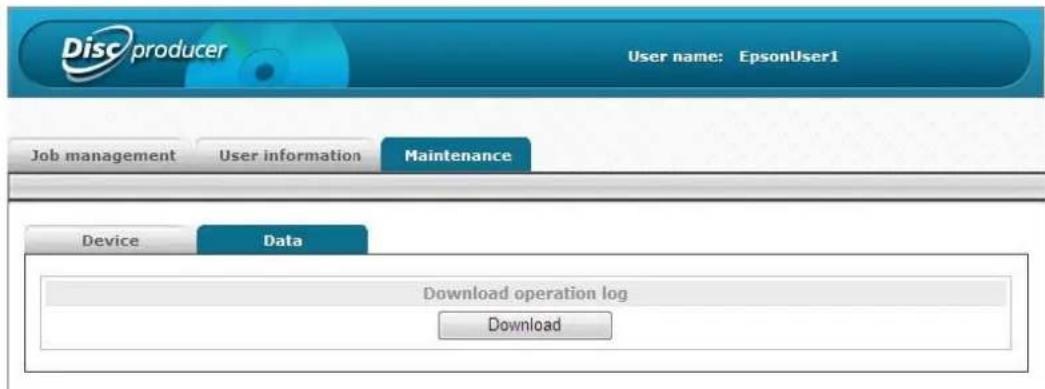
4 Specify the save location for the operation log file, and then save the operation log file.
Changing the ink cartridge
Checking the ink levels
When it becomes time to replace even one of the ink cartridges, printing is no longer possible.
When it is almost time to replace the ink cartridges, a message is displayed on the LCD notifying you that the ink cartridges need to be replaced soon. If this message is displayed, prepare new ink cartridges.
When it is time to replace the ink cartridges, printing stops immediately before the ink runs out, and a message saying that the ink cartridges need to be replaced is displayed on the LCD. See "Replacing the ink cartridges" on page 126 in this guide for the ink cartridge changing procedure.
Notes
If an administrator has set notification email transmission, an email is sent to notify each administrator that the ink cartridges need to be replaced soon or that the ink cartridges need to be replaced.
You can check the ink levels in EPSON Total Disc Monitor. See the Help file for EPSON Total Disc Monitor for details.
Notes
- When the ink cartridges are installed for the first time (during setup), ink is consumed for filling, and so the time to replace the cartridges is earlier than normal.
- Even when Black is selected in the printer driver, all the ink colors are used in an operation designed to maintain the printing and print head quality.
- The product stops running before the ink is completely empty to maintain print head quality. Therefore, some ink will be left in the ink cartridge.
Replacing the ink cartridges
This section describes how to replace the ink cartridges, using light magenta as an example. The replacement positions differ for the other colors, but the procedure is the same.
See "Ink cartridge" on page 164 in this guide for the ink cartridge model numbers.

- Use of Epson brand ink cartridges is recommended. Use of non-Epson brand ink cartridges can result in problems that will not be covered by the warranty.
- Epson cannot guarantee the quality and reliability of non-Epson brand products. Repairs for any damage or breakdown of this product due to the use of non-Epson brand products will not be free of charge even if the warranty period is still valid.
- This product performs color adjustment based on use of Epson brand ink cartridges. Use of non-Epson brand ink products can adversely affect the printing quality and prevent the product from realizing its maximum performance.
- Do not place the ink cartridge with the ink supply holes facing downward. This could cause stains on a desk or other surface. In addition, dirt stuck on this product may prevent it from functioning properly.
- Do not store ink cartridges in environments exposed to high temperatures, freezing or direct sunlight.
1 Open the ink cartridge cover, and wait at least 4 seconds until internal operations stop.
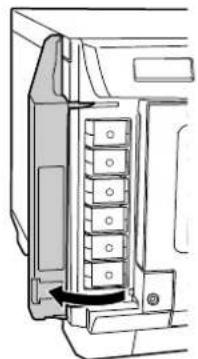
natural_image
Diagram of a mechanical device showing internal components with a curved arrow indicating rotation (no text or symbols)
Wait at least 4 seconds.
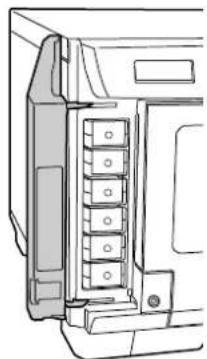
natural_image
Technical line drawing of a mechanical component with internal compartments (no text or symbols)
If you take out the ink in less than 4 seconds, there is a risk that the ink may spurt out.
2 Gently push in the ink cartridge until you hear a click, unlock the lock, and then slowly pull it straight out.
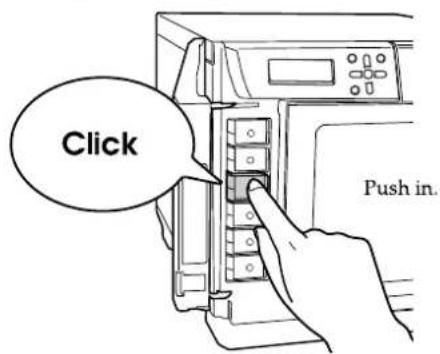

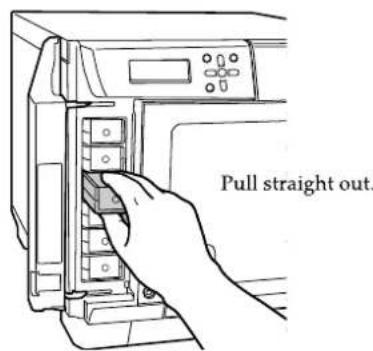

- Ink may leak from the ink supply port on the ink cartridge you pulled out.
- Once an ink cartridge is used, there may be some ink around the ink supply port, so do not touch it.
3 Take the ink cartridge out of its package.

- For optimum printing quality, only open the clear plastic package immediately before installing. After opening the cartridge, try to use it up within six months. If you use an ink cartridge that has been left open for a long time, the print quality may decline.
- When you open the plastic package, be careful not to drop the ink cartridge. The ink may leak out.
- Do not leave the ink supply port on an ink cartridge facing downward. This could stain the desk or other surface. In addition, dirt stuck on this product may prevent it from functioning properly.
- Do not shake the ink cartridge too hard. The ink cartridge may leak if you shake it around too much.
- Do not touch the green IC chip attached to the ink cartridge. Also, never peel off the labels and film attached to the ink cartridge. This could prevent you from properly setting, operating, or printing with the ink cartridge, or ink could leak out.
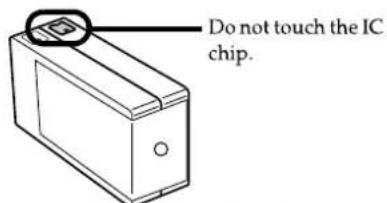
- Use up the ink cartridge before the expiration date printed on the box.
4 Use the label color to check where to set the ink cartridge, and gently push the new ink cartridge into the ink cartridge holder on this product until you hear a click.
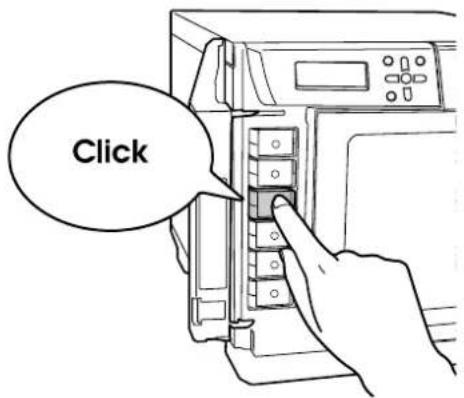

Do not repeatedly take out and put in an ink cartridge which has been set. Ink could stain the ink cartridge or the product.
5 Close the ink cartridge cover.
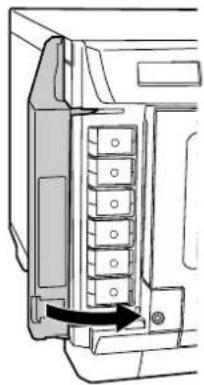
natural_image
Diagram of a mechanical or electronic component with a black arrow pointing to a vertical stack of circular components (no text or symbols present)
- Do not turn off the power or open the ink cartridge cover while the power LED is flashing. These actions make the ink be charged again, which results in a noticeable consumption of ink. In addition, there is a risk that you will not be able to print properly.
- If the ink cartridges are not recognized even though they are set properly, dirt may be stuck on the green IC chip surface. Wipe it off with a soft cloth, and then set it again.
- If you cannot print even though the ink cartridges are set properly, run print head cleaning. See "Cleaning the print head" on page 132 in this guide for head cleaning procedure.
- If you turn the power off using the power button on the unit, the print head is automatically capped, which prevents the ink from drying. After installing the ink cartridges, be sure to turn the power off using the power button on the unit when you are not using the product. Do not pull out the power plug or trip the breaker while the power is on.
- If you move or transport this product after you have installed the ink cartridges, leave the ink cartridges as they are when you move or transport it.
- Do not take out the ink cartridges unless you are replacing them.
Checking the print head nozzles
If the print head nozzles are clogged, the printing may be faint even though there is ink, or unusual colors may be printed. The nozzle check prints a pattern for checking the status of the nozzles, and you can check if the nozzles are clogged by looking at this pattern.
How to perform a nozzle check
There are the following two ways to run a nozzle check.
- Run it using a PC
- Run it using the control panel on the product
Running it from a PC
1 Turn the product on.
2 Set one unprinted disc into Stacker 1.
3 Display the setting screen of the printer driver. See "Displaying the printer driver screen" on page 60 in this guide for display procedure.
4 Click [Nozzle Check] in the [Utility] screen. Then, follow the on-screen instructions.
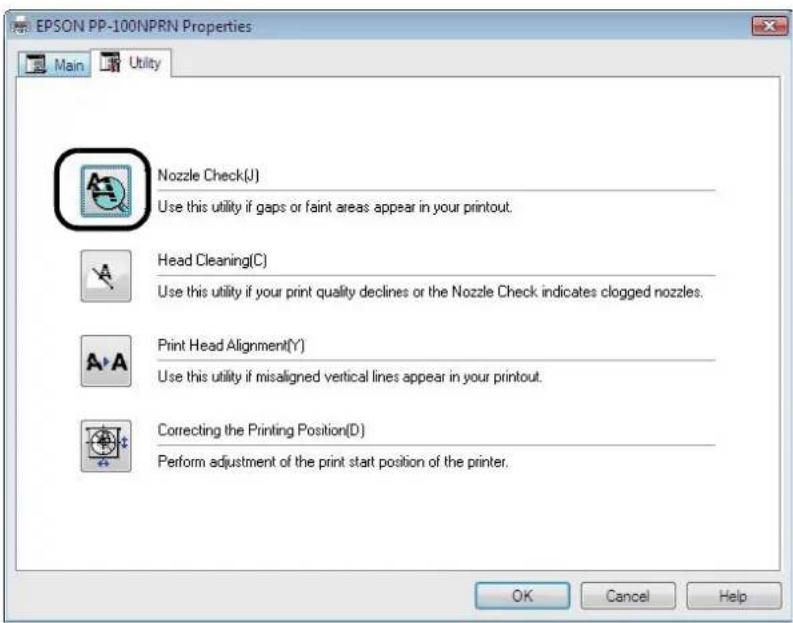
The disc on which the nozzle check pattern was printed is output to Stacker 3 or Stacker 4. See "Checking the nozzle check results" on page 131 in this guide for how to check the nozzle check results.
Running it using the control panel on the product
1 Turn on the power of this product.
2 Press the [MENU] button.
The top menu appears.
3 Use the ▲/▼ buttons to display the maintenance screen, and then press the ⏻ button.
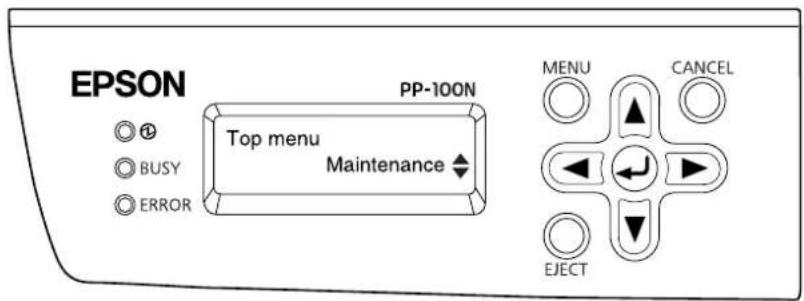
4 Use the ▲/▼ buttons to display [Nozzle Check], and then press the ⏻ button.
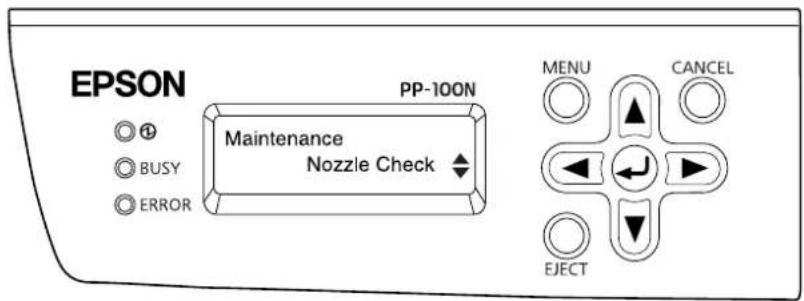
5 When the nozzle check confirmation screen appears, press the ⏻ button.
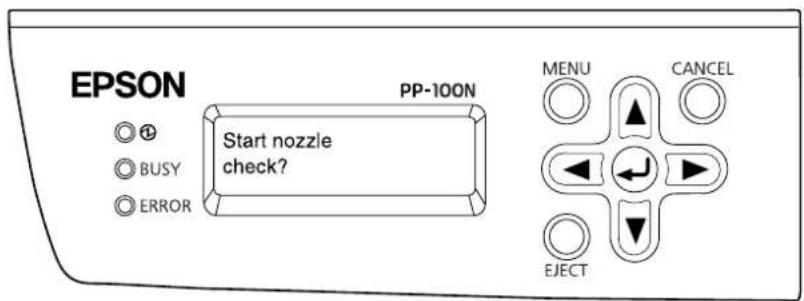
The disc on which the nozzle check pattern was printed is output to Stacker 3 or Stacker 4. See "Checking the nozzle check results" on page 131 in this guide for how to check the nozzle check results.
Checking the nozzle check results
Look at the pattern printed during the nozzle check, and see whether or not print head cleaning is necessary.
If it is normal, all of the lines are printed as shown in the illustration on the left below.
If there are lines that were not printed, as shown in the illustration on the right below, the nozzles are clogged. Run print head cleaning. See "How to clean the print head" on page 133 in this guide for details on head cleaning.
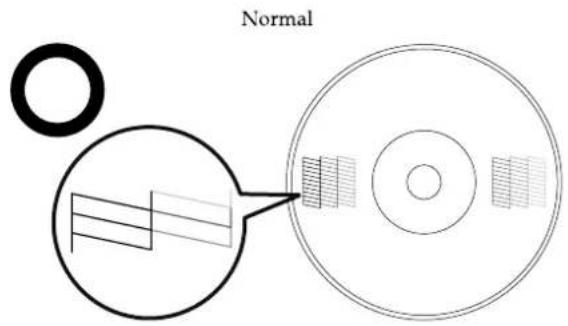
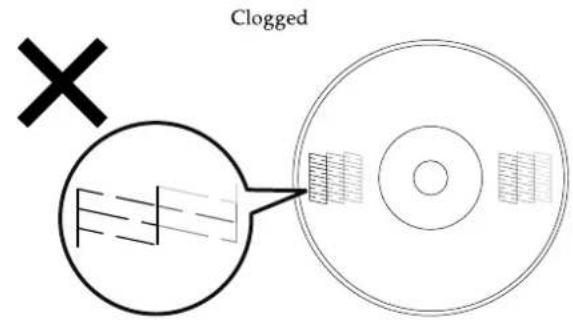
Cleaning the print head
If the print head nozzles are clogged, the printing may be faint even though there is ink, or unusual colors may be printed. If this happens, run print head cleaning. (See "How to clean the print head" on page 133 in this guide.)
Notes
Print head cleaning consumes ink. Before running print head cleaning, you can run a nozzle check to check whether or not the nozzles are clogged. This makes it possible to prevent consuming extra ink during print head cleaning. See "Checking the print head nozzles" on page 129 in this guide for details on the nozzle check.
Normal

natural_image
Simple circular diagram with three concentric rings and a central floral design (no text or symbols)Clogged

natural_image
Circular diagram with concentric rings and decorative floral elements (no text or symbols)Causes and Solutions for Print Head Drying
| Cause | Prevention |
| This product has a print head cap to prevent it from drying, the same way there are caps for fountain pens or ballpoint pens. Normally, the print head is automatically capped after printing finishes, but if the power suddenly goes off while the product is running, it is not capped properly and it dries out. | Plug the power plug into an outlet directly attached to the wall. Do not connect it to a power strip with a switch.Be sure to turn the power on and off using the power button. |
| If you do not use this product for a long time, the print head may dry out and become clogged, the same way a fountain pen dries up and no longer writes if it has been left open for a long time. | We recommend that you print regularly. You can maintain the print head in optimal condition by printing regularly. |
| If you take the ink cartridges out and leave them out, the print head dries out. | Do not take out the ink cartridges and leave them out. |
How to clean the print head
Head cleaning is a function for cleaning the surface of the print head to maintain the print quality. Run head cleaning if the printing becomes faint or gaps appear in the printing.
There are the following two ways to run head cleaning.
- Running it from a PC
- Running it using the control panel on the product

- Do not open the ink cartridge cover while cleaning the print head. Print head cleaning stops if the cover is opened.
- Print head cleaning consumes ink. Note that if you run head cleaning more than necessary, the lifetime of the ink cartridges is reduced.
- If there is a job being published, head cleaning starts after processing of the job is finished.
Running it from a PC
1 Display the printer driver setup screen.
See "Displaying the printer driver screen" on page 60 in this guide for details on how to display the printer driver screen.
2 Click [Head Cleaning] in the [Utility] screen.
Then, follow the on-screen instructions.
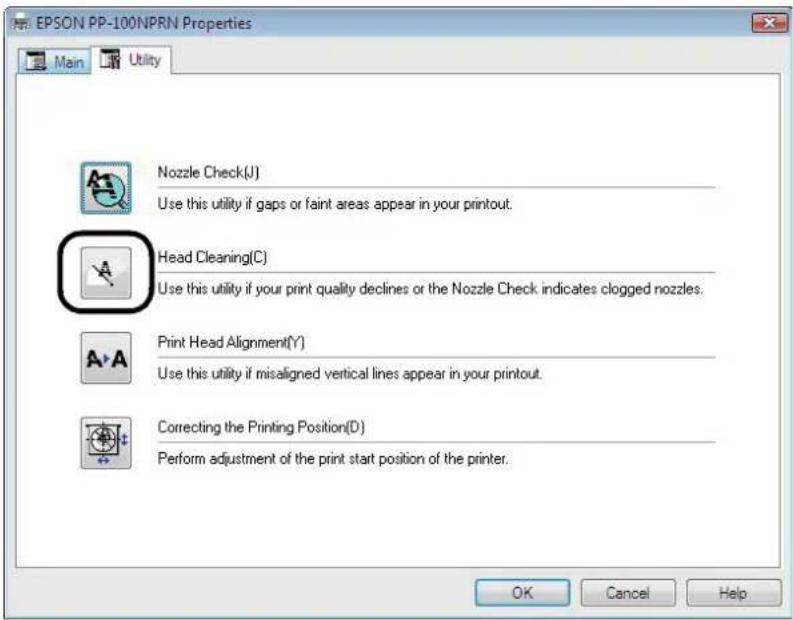
The BUSY LED flashes, and head cleaning starts.
When head cleaning is finished, the BUSY LED goes off.
Running it using the control panel on the product
1 Turn the product on.
2 Press the [MENU] button.
The top menu appears.
3 Use the ▲/▼ buttons to display the maintenance screen, and then press the ⏻ button.
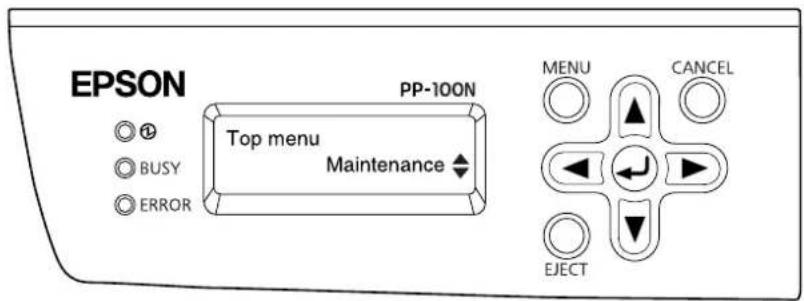
4 Use the ▲/▼ buttons to display [Head Cleaning], and then press the ⏻ button.
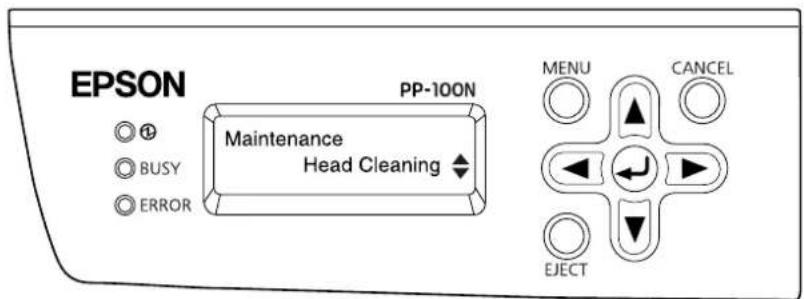
5 When the head cleaning confirmation screen appears, press the ⬆ button.
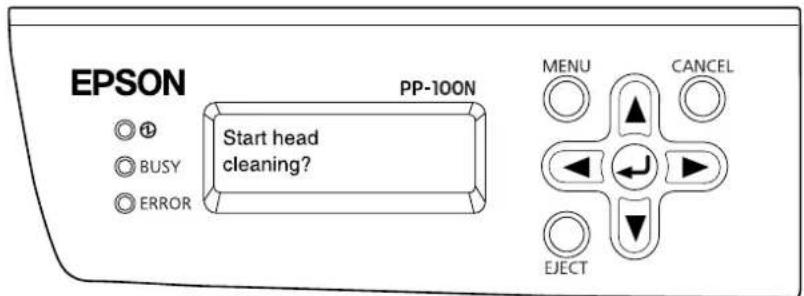
The BUSY LED flashes, and head cleaning starts.
When head cleaning is finished, the BUSY LED goes off.
Print head alignment
If the print position when the print head moves from right to left is not aligned with the print position when the print head moves from left to right, gaps may appear in vertical lines, and the print results may become blurry. If this happens, run print head alignment.
1 Turn the product on.
2 Set one unprinted disc into Stacker 1.
3 Display the printer driver setup screen.
See "Displaying the printer driver screen" on page 60 in this guide for how to display the printer driver screen.
4 Click [Print Head Alignment] in the [Utility] screen.
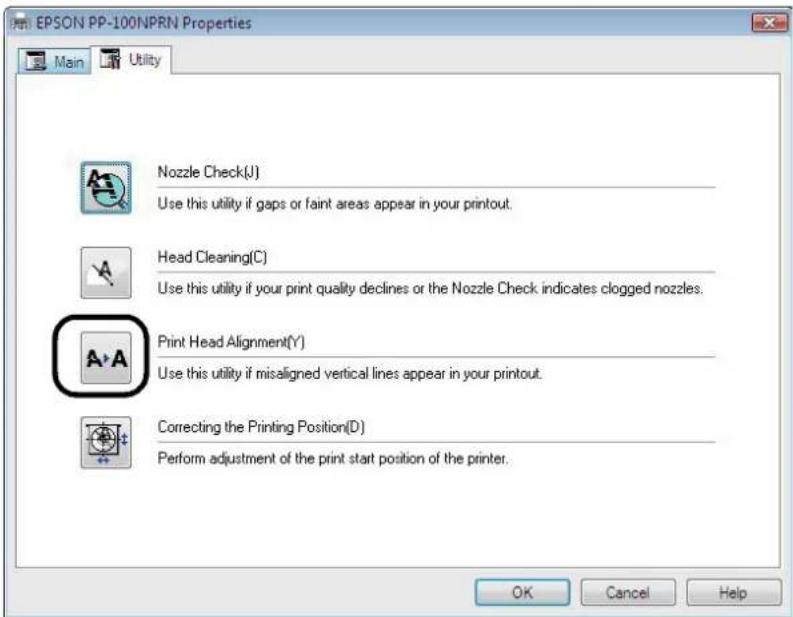
5 Click the [Next] button.
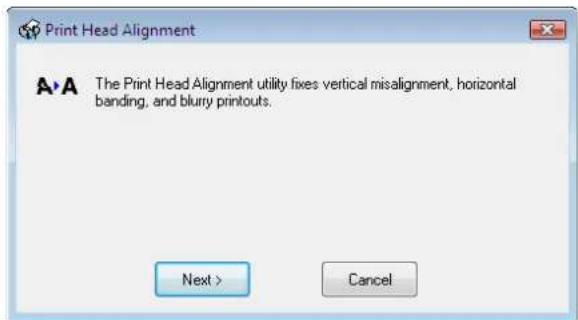
6 Click the [Print] button.
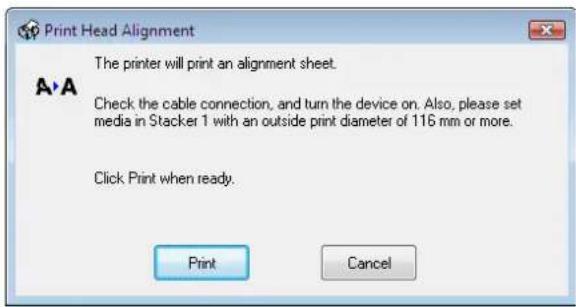
The disc on which the print head alignment pattern was printed is output to Stacker 3 or Stacker 4.
7 Check the printed print head alignment pattern.
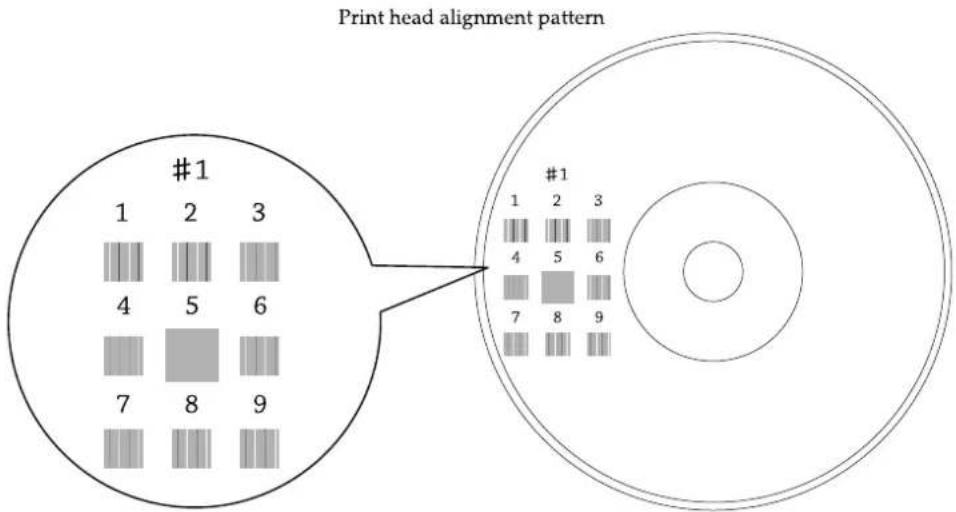
8 Select the number of the pattern with the fewest vertical lines.
In the illustration above, the pattern with the fewest vertical lines is "5", so select "5."
If you want to print the print head alignment pattern again, to check it, set a disc in Stacker 1, and click the [Reconfirm] button.
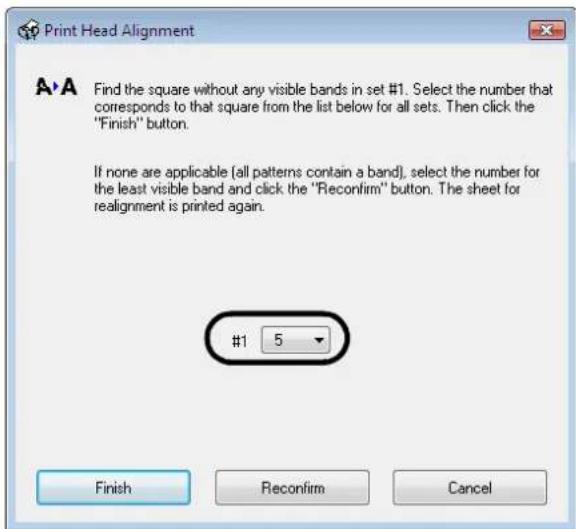
9 Click [Finish].
Correcting the printing position
Adjust the printing position if it has shifted towards the top, bottom, left, or right.
1 Turn the product on.
2 Set one unprinted disc into Stacker 1.
3 Display the printer driver setup screen.
See "Displaying the printer driver screen" on page 60 in this guide for how to display the printer driver screen.
4 Click [Correcting the Printing Position] in the [Utility] screen.
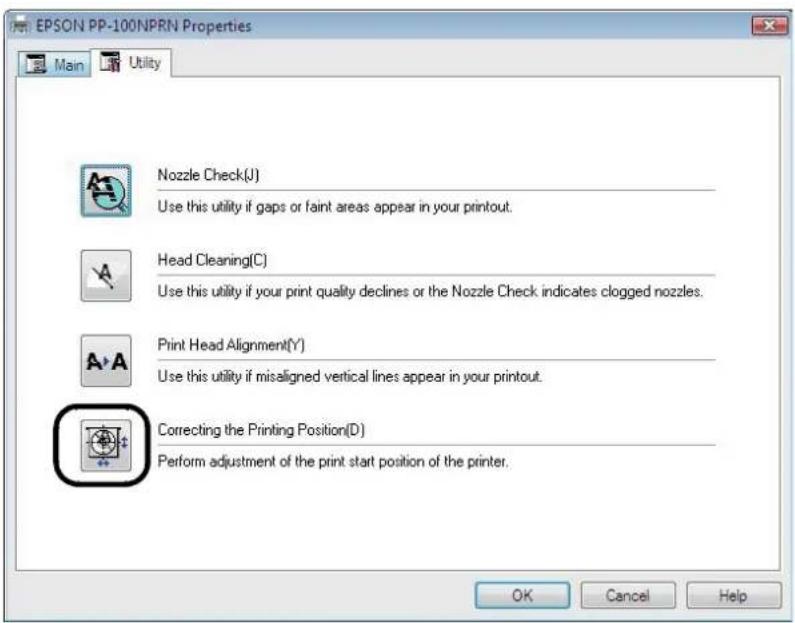
5 Click [Next].
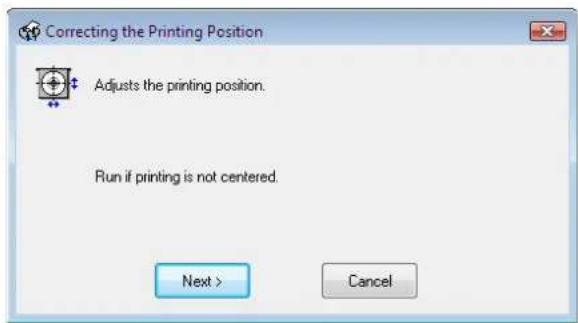
6 Click the [Print] button.
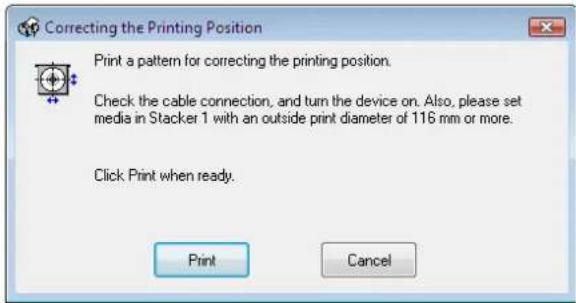
The disc on which there are five lines printed on the top, bottom, left and right respectively as well as one blue upward-pointing arrow is output to Stacker 3 or Stacker 4.
7 Click [Finish] if the lines on the top, bottom, left and right are evenly printed on the label surface. If they are not printed evenly, adjust the alignment in one of the following ways.
- If the printing has shifted to the left: Select a positive correction value in [Horizontal].
- If the printing has shifted to the right: Select a negative correction value in [Horizontal].
- If the printing has shifted to the top: Select a positive correction value in [Vertical].
- If the printing has shifted to the bottom: Select a negative correction value in [Vertical].
![EPSON PP-100N - Click [Finish] if the lines on the top, bottom, left and right are evenly printed on the label surface. If they are not printed evenly, adjust the alignment in one of the following ways. - 1](/content/2026/05/1140216/images/ff7338cc4e1dc1b870c92ec3233dd24d3604e9aa4c2814da887dd93f02fa65a9.jpg)
natural_image
Diagram of concentric circles with directional arrows and plus signs, no text or symbols present![Correcting the Printing Position Refer to the printed pattern and check that the distance between the borders of the labels are even. If printing is towards the left, set horizontal position to a positive number. If printing is towards the top, set vertical position to a positive number. To clear the location correction value, set [Reset]. Set and press the "Finish" button. To confirm the setting, press the "Reconfirm" button. Horizontal 0 Vertical 0 Finish Reconfirm Cancel](/content/2026/05/1140216/images/2600f9b0fa5d0bffb14604f48e37d26850fe79972a8ce0861a8c481bc90cedf7.jpg)
8 Set one unprinted disc into Stacker 1, and click [Reconfirm].
After this, repeat Steps 6 through 8 until the lines are printed evenly on the disc on the top, bottom, left, and right.
9 Click [Finish].
![EPSON PP-100N - Click [Finish] if the lines on the top, bottom, left and right are evenly printed on the label surface. If they are not printed evenly, adjust the alignment in one of the following ways. - 3](/content/2026/05/1140216/images/8cc7c4d7141babea2964867b00fadfb3e6d63804d1c5c7f942070d0a1bab148c.jpg)
- If you reconfirm and enter a correction value after the first adjustment, the printing position is corrected using a correction value combined with the adjusted value from the first time. If you want to clear the printing position correction value, select (Reset), and then click (Finish).
- If you adjust the printing position using the steps above and the label application is still not centered on the disc, the printing appears to have shifted with respect to the label application.
Cleaning your product
To keep your product operating at its best, clean it by using the following procedure.
Cleaning the exterior
1 Turn the product off.
2 When the power LED is off, unplug the power plug from the outlet.
3 Use a soft cloth to wipe off the dust and dirt.
When the exterior is very dirty, soak a soft cloth in water with a small amount of mild detergent, wring it out, and then wipe off the dirt. Finally, wipe off the moisture using a soft, dry cloth.
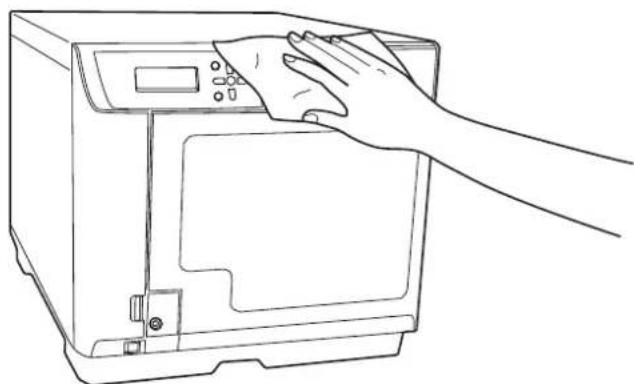
natural_image
Line drawing of a hand cleaning a kitchen appliance with a digital display (no text or symbols)
- Wipe with the cover closed so that moisture does not enter the inside of the product. If the inside becomes wet, there is a risk that the electrical circuits will short out.
- Do not use benzine, paint thinner, alcohol, or other volatile chemicals. There is a risk that the inside or outside of the product may change properties or shape.
- Do not use a stiff brush. There is a risk of scratching the exterior of the product.
4 Plug the power plug into the outlet, and turn the power on.
Cleaning the interior
If dirt or dust collects in the inside of this product or the stackers, or if dirt adheres to it, use a soft cloth to wipe off the dirt.
Ink may sometimes stain stackers. Remove the stains by soaking a soft cloth in water or mild detergent, wringing it out, and then wiping them off.
Cleaning the air vents
1 Press the power button to turn off the power.
2 When the power LED is off, unplug the power plug from the outlet.
3 Open the filter cover.
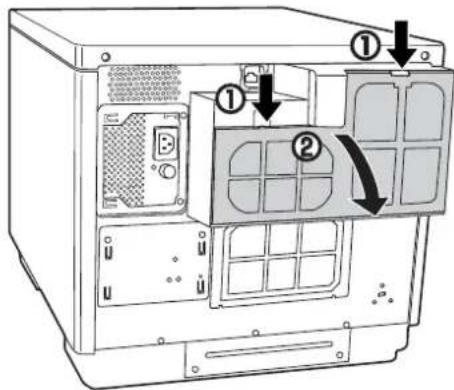
4 Take the filter off the filter cover.
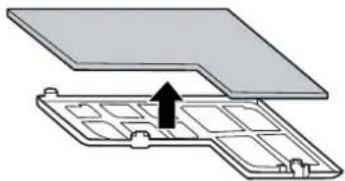
natural_image
Diagram of a device with an upward arrow indicating a component or operation (no text or symbols present)5 Use a vacuum cleaner to clean the dust off the filter.
6 Put the filter back on the filter cover.
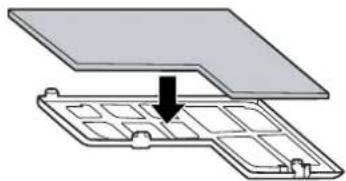
natural_image
Diagram of a mechanical assembly with a folded component and an arrow indicating force or direction (no text or symbols)7 Close the filter cover.
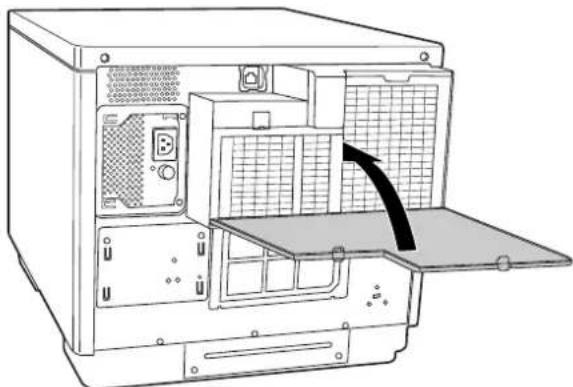
natural_image
Diagram of an internal computer case showing the exterior, front, and side views with a black arrow indicating a component (no text or symbols present)8 Plug the power plug into the outlet, and turn the power on.

Clean the air vents regularly (once every six months).
Replacing the ink pad
The ink pad is a part that absorbs waste ink ejected during head cleaning or printing. When it becomes time to replace the ink pad, publishing becomes no longer possible.
How to check when it is time to replace the ink pad
You can replace the ink pad in one of the following two ways.
- In EPSON Total Disc Monitor, a message says "It is almost time to replace the ink pad. Early replacement is recommended. For information on replacement, please contact customer support." The message is displayed once per day when EPSON Total Disc Monitor starts up. See "EPSON Total Disc Monitor" on page 50 in this guide for EPSON Total Disc Monitor.
- A message notifying you that it is almost time to replace the ink pad is displayed on the LCD.
When it is time to replace the ink pad, disc publishing stops, and a message notifying you that it is time to replace the ink pad is displayed on the LCD. The ink pad cannot be replaced by the customer. Please contact Customer Support.
Notes
If an administrator has set notification email transmission, an email is sent to notify each administrator that the ink pad needs to be replaced soon or the ink pad needs to be replaced.
Precautions for Transporting Your Product
When transporting your product, be sure to use the original box and protective materials to protect it from an impact or the like. See the PP-100N Setup Guide for details on the handling of protective materials.
• Make sure that no discs remain inside the product.
- Never remove an ink cartridge currently in use. The print head may dry out, and printing may become no longer possible.
- When attaching protective materials or transporting the product, do not tilt the product or turn it upside down. Make sure that it is oriented horizontally.
- Be sure that the product is lifted by two people.

natural_image
Illustration of two human figures carrying a device, with magnified views showing internal components (no text or symbols)The weight of this product is approximately 25.0 kg. When this product is lifted, it should be lifted on both sides by two people holding the recesses on the sides as shown in the illustration on the left. Holding any part other than the ones indicated in the illustration on the left when carrying the product may result in damage to the product. In particular, carrying the product while the disc cover, ink cartridge cover, or Stacker 4 is open may

result in the product being dropped, or deformed and damaged.
Furthermore, when putting down this product, take care not to trap a finger between the product and installation surface.
- When lifting this product, make sure that, for example, you sufficiently bend your knees, and your posture is such that excessive stress is not placed on your body. An unnatural posture when lifting the product may result in an injury, or the product being damaged.
- When moving the product, do not tilt it 10 or more degrees in a forward or backward direction, or a side direction.
The dropping or the like of the product may result in an accident.
- Do not place a heavy object on the top of the product.
Subjecting this product to excessive force may result in a malfunction.
However, it is possible to place one unit of this product on top of another. In such a case, make sure the tops and bottoms are oriented the same, and the exterior of the units are aligned. At the same time, take sufficient care to prevent a unit from dropping or falling. Also, do not place more than one unit on top of another.
1 Press the power button to turn off the power.
2 When the power LED goes out, disconnect the power cord and Ethernet cable.
3 Attach protective materials to the arm, and secure them with tape.
4 Attach Stacker 1, Stacker 2, and Stacker 3, and secure them with tape.
5 Open the ink cartridge cover, and secure the ink cartridges with tape.
6 Close the ink cartridge cover, disc cover, and Stacker 4, and secure them with tape.
7 With the bottom of the product facing downwards, place the product into the packing box so that it is oriented horizontally.
Troubleshooting
Notes
Refer to this information together with the Help file for EPSON Total Disc Monitor and the information available on the Epson website.
Error messages and remedies
When a problem occurs with this product, the ERROR LED turns on or flashes, and an error message appears on the LCD. Check the message, and perform the proper remedy.

The alarm tone sounds.
| Error Message | Remedy | Notification Sound |
| Arm move error | The arm cannot be moved.Perform the procedure below.1. Turn off the power.2. Open the disc cover, and remove any dust or foreign objects that are inside.3. Turn on the power.If the same error message still appears, repair is required.Please contact Customer Support. | |
| Cannot unlock disc cover | Press the ↻ or Cancel button, and perform the unlock operation of the disc cover again. Open the disc cover after “Disc cover can be opened” appears on the LCD. See “Unlocking the disc cover” on page 19 in this guide for the disc cover unlocking procedure. | |
| CMOS checksum error | If the same error message appears repeatedly, repair is required. Please contact Customer Support. Also, in some cases, the product's internal clock may not be operating correctly. Please ask the administrator for the proper remedy. | |
| Disc cover open | Close the disc cover. | |
| This product is currently operating.Close the disc cover.Do not open the disc cover while a job is being processed (while the BUSY LED flashes). This could adversely affect the writing or printing quality.To ensure safety during arm operation, never insert your hands.Do not operate any stackers while the arm is moving. This could damage the arm. |  | |
| Disc drop error | The arm dropped the disc while transferring it.Remove the dropped disc, turn off the power, and then turn on the power again. | |
| Disc feed errorDRV1/2 | The disc was not transferred properly to the drive.Perform the procedure below.1. Remove the discs from the drive tray.2. Fully separate and reload the discs in the input stacker.3. Close the disc cover. | |
| Disc feed errorPRN | The disc was not transferred properly to the printer.Perform the procedure below.1. Remove the discs from the printer tray.2. Fully separate and reload the discs in the input stacker.3. Close the disc cover. | |
| Disc is not writable | Processing of the job is paused.Perform the procedure below.1. Open the disc cover.2. Remove the disc that cannot be written or the disc that is already written from the input stacker (Stacker 1 or Stacker 2).3. Load a disc that can be written. (See "Writable disc types" on page 74 in this guide.)4. Close the disc cover.Processing of the job is automatically resumed. | |
| Disc is wrong type | Processing of the job is paused.Perform the procedure below.1. Open the disc cover.2. Remove the disc from the input stacker (Stacker 1 or Stacker 2) that is a different type from the disc type that was set.3. Load the correct disc type. (See "Loading discs" on page 83 in this guide for the disc type setting.)4. Close the disc cover. Processing of the job is automatically restarted. | |
| Disc pickup error (DRV1/2) | The arm cannot pick up the disc in the drive tray.Turn off the power, and then turn it on again. If the same error message still appears, repair is required. Please contact Customer Support. | |
| Disc pickup error (PRN) | The disc in the printer tray cannot be picked up.Turn off the power, and then turn it on again. If the same error message still appears, repair is required. Please contact Customer Support. | |
| Disc pickup error (ST1/2) | The arm cannot pick up the disc in the stacker.If the indicated stacker is an input stacker, fully separate and reload the discs in the stacker. | |
| Disc release error | The arm cannot release the disc.Do not remove the disc by hand. This could damage the arm. Turn off the power of the product, and then turn it on again. During the initialization operation of the product, the arm releases the disc. If the same error message still appears, repair is required. Please contact Customer Support. | |
| Discs ejected from ST2? | Perform the procedure below.1. Remove the published discs from Stacker 2.2. Refill the discs if necessary.3. Press the button.Note: In Batch Mode, if Stacker 2 is removed during publishing progress, it is always recognized as the input stacker when loaded again. | |
| Drive tray open/close error | -When the drive tray does not come out-Turn off the power, and then turn it on again. If the drive trays still does not come out, see “Drive tray does not come out” in PP-100N Administrator's Guide. If the same error message appears again, repair is required. Please contact Epson Information Center.-When the drive tray does not close-Remove any remaining discs, turn off the power, and then turn on the power again.If the same error message still appears, repair is required. Please contact Epson Information Center. | |
| Fan control error | Turn off the power, and then turn it on again. If the same error message still appears, repair is required. Please contact Customer Support. | |
| Ink cartridge cover open | Close the ink cartridge cover. | |
| This product is currently operating.Close the ink cartridge cover. |  | |
| Ink problem (C,LC,LM,M,Y,K) | An invalid ink cartridge is installed.Replace the cartridge of the displayed color. (See “Changing the ink cartridge” on page 125 in this guide.) | |
| Internal autoloader error | Perform the procedure below.1. Turn off the power.2. Open the disc cover, and check if any dust or foreign objects are inside.3. Turn on the power.If the same error message still appears, repair is required. Please contact Customer Support. | |
| Internal drive error (DR1/2) | Turn off the power, and then turn it on again. If the same error message still appears, repair is required. Please contact Customer Support. | |
| Internal printer error | Turn off the power, and then turn it on again. If the same error message still appears, repair is required. Please contact Customer Support. | |
| Invalid state error | Turn off the power, and then turn it on again. If the same error message still appears, repair is required. Please contact Customer Support. | |
| No disc ST1,ST2 | Load discs into the input stacker (Stacker 1 or Stacker 2). | |
| No ink cartridge (C,LC,LM,M,Y,K) | The ink cartridge of the displayed color is not installed, or is not installed correctly.Correctly install the cartridge of the displayed color.(See “Changing the ink cartridge” on page 125 in this guide.) | |
| No stacker ST1,ST2,ST3 | Load the displayed stacker, and close the disc cover. (See “Handling stackers” on page 21 in this guide.) | |
| Non-standard ink Continue? | To use the ink cartridge, press the button (Yes). To change to a Epson brand ink cartridge, press the CANCEL button (No), and change the ink cartridge.Use of non-Epson brand ink cartridges is not recommended.Use of non-Epson brand ink cartridges can result in problems that will not be covered by the warranty.Epson cannot guarantee the quality and reliability of non-Epson brand products. Repairs for any damage or breakdown of this product due to the use of non-Epson brand products will not be free of charge even if the warranty period is still valid.This product performs color adjustment based on use of Epson brand ink cartridges. Use of non-Epson brand ink products can adversely affect the printing quality and prevent the product from realizing its maximum performance.See “Changing the ink cartridge” on page 125 in this guide for the ink cartridge changing procedure. | |
| Print tray open/close error | -When the printer tray does not come out-See “Printer Tray Does Not Come Out” in the PP-100N Administrator’s Guide.-When the printer tray does not close-Remove any remaining discs, turn off the power, and then turn on the power again.If the same error message still appears, repair is required.Please contact Customer Support. | |
| Printer maint. error | Repair is required.Please contact Customer Support. | |
| Replace ink (C,LC,LM,M,Y,K) | The ink in the cartridge is out.Replace the cartridge of the displayed color. (See “Changing the ink cartridge” on page 125 in this guide.) | |
| Replace inkpad | It is time to replace the ink pad.Please contact Customer Support. The ink pad cannot be replaced by the customer. | |
| Stacker 3 installed | Remove Stacker 3, and close the disc cover. Stacker 3 is not used in Standard Mode or External Output Mode (when Stacker 4 is set as the output stacker). | |
| Stacker 3 not installed | Load Stacker 3, and close the disc cover. Stacker 3 is used in Batch Mode or External Output Mode (when Stacker 3 is set as the output stacker). | |
| Stacker 4 full | The initialization operation cannot be performed because Stacker 4 is full.Remove the discs from Stacker 4. | |
| Stacker 4 open | Close Stacker 4. | |
| Stacker full ST2,ST3,ST4 | The disc cannot be ejected because the output stacker is full. Remove the discs from the output stacker (Stacker 2, Stacker 3, or Stacker 4). | |
| Too many discs ST1,ST2,ST3 | Remove excess discs so that the height of the discs in the indicated stacker is below the red line of the stacker, and then close the disc cover. | |
| Transferred disc detection error | A disc could not be detected after transfer to a printer or drive. Turn off the power, and then turn it on again. If the same error message still appears, repair is required. Please contact Customer Support. | |
| Wait a moment and try again | Press the button or CANCEL button. Do not unlock the disc cover repeatedly within a short time. Wait a moment before unlocking. | |
| Write error | Processing of the job is paused. See “Disc writing problems” on page 153 in this guide, and after removing the cause of the error, restart the job. (See “Resuming jobs” on page 109 in this guide for the job restarting procedure.) |
Problems and their remedies
Power/control panel problems
| Symptom/Problem Status | Check/Remedy Procedure |
| The power does not turn on. | Hold down the power button for a moment. |
| Is the power plug disconnected from the outlet?Check if the plug is inserted only half-way or inserted at a slant. | |
| Are you using a power strip or similar device?Insert the power plug directly into the wall outlet. | |
| Is power being supplied from the outlet?Insert the power cable plug for another electronic product to check if power is being supplied. | |
| The power does not turn off. | Is a job being processed?The power cannot be turned off while a job is being processed.The power turns off automatically when the processing of all jobs finishes.If you hold down the power button for a moment (at least 3 seconds), the power off process begins immediately. The jobs are cancelled. |
| Did you just turn on the power?The power cannot be turned off for about 15 minutes once the power is turned on.The power turns off automatically 15 minutes after "Power off Please wait" appears on the LCD.If you hold down the power button for a moment (at least 3 seconds), the power off process begins immediately. | |
| Are the power LED and ERROR LED flashing?If the power LED and ERROR LED are flashing, hold down the power button for a moment (at least 3 seconds).If the power still does not turn off, unplug the power cable from the outlet. Then, turn on the power again, and be sure to use the power button to turn off the power. Leaving the power on can cause drying and clogging of the print head. | |
| A rattling sound is made when the power is turned on. | Is there a foreign object (such as blue protective tape for transporting) inside the product?Press the power button to turn off the power, and then open the disc cover and check that there are no foreign objects inside. |
| “EPSON PP- 100N” remains displayed and the product does not work when the power is turned on. | Repair is required.Please contact Epson Information Center. |
| ERROR LED flashes/turns on. | An error has occurred.See “Error messages and remedies” on page 146 in this guide. |
Disc writing problems
| Symptom/Problem Status | Check/Remedy Procedure |
| A writing error has occurred. | Is the disc scratched or dirty?Scratched or dirty discs cannot be used. Replace with another disc. |
| The quality of the data recording surface may vary depending on the disc.Replace with another disc and try again. | |
| Is there dust adhering to the filter of the product rear fan?Clean the filter.See "Cleaning the air vents" on page 141 in this guide for the fan filter cleaning procedure. | |
| Unable to write to disc/Unable to read disc | Is the disc being handled correctly?Handle the disc correctly by following the disc user's guide.Do not affix adhesive stickers to the disc. This may make recording and playback of data no longer possible.Do not use this product in locations with large amounts of dust or smoke.This can cause drive writing errors.See "Handling discs" on page 75 in this guide for details on disc handling. |
| Was the cover opened or the product jolted during publishing?Do not subject the product to jolts or impacts during disc publishing. The drive may malfunction, or the disc may become unusable.Also, do not open the cover during publishing. This could adversely affect the printing and writing quality of the disc. Before opening the cover, pause the job in EPSON Total Disc Maker. See "Pausing jobs" on page 108 in this guide for the procedure for pausing jobs. | |
| Is your computer compatible with the operating environment of this product?Use and connect this product to a computer compatible with the operating environment.See "Before installation" on page 24 in this guide for details. | |
| Is the printer tray dirty?Clean the printer tray.See "Ink Is Smeared on the Disc Recording Surface" in the PP-100N Administrator's Guide for the printer tray cleaning procedure. |
Notes
In disc publishing in EPSON Total Disc Maker, (Compare) can be set under (Write Verification). See the Help file for EPSON Total Disc Maker for details.
Label printing problems
| Symptom/Problem Status | Check/Remedy Procedure |
| RubbingLines or streaks are formedBlurrinessText or lines are shakyIncorrect color tonesSome colors are not printedUnevenness in the printingMosaic-like patterns are printedPrinting is grainy (jagged) | Are the print head nozzles clogged?Perform a nozzle check to confirm the status of the print head, and if it is clogged, perform head cleaning.See the information below for details.This guide "Print head alignment" on page 135This guide "Cleaning the print head" on page 132 |
| Are you using a recommended ink cartridge (Epson brand product)?This product performs color adjustment based on use of Epson brand ink cartridges. Use of non-Epson brand products can result in poor printing quality. Use of Epson brand ink cartridges is recommended. | |
| Are you using an old ink cartridge?Use of an old ink cartridge can result in poor printing quality. The usage period for ink cartridges is printed on the packaging of individual ink cartridges. After opening the cartridge, try to use it up within six months. | |
| Is there a difference in the print head gaps during bidirectional printing?When bidirectional printing is set, printing is performed at a high speed, and ink is discharged as the print head moves to both the left and right. On rare occasions, however, the printing position when moving from right to left is shifted from the printing position when moving from left to right, leading to shifting of the vertical rule lines and blurred printing results. Use the print head alignment function to check and adjust for differences in the gap.See "Print head alignment" on page 135 in this guide for details. | |
| Are you using discs with different thicknesses?The thickness varies depending on the disc product. When discs with different thicknesses are used, the gaps of the print head can be shifted. Use the print head alignment function to check and adjust for differences in the gap. When publishing multiple discs, the use of the same disc product type is recommended.See "Print head alignment" on page 135 in this guide for details. | |
| Are you printing on inkjet printer discs?The product supports discs for inkjet printers. Also, the printing quality may vary depending on the quality of the printing discs. Use of Epson-authorized CD and DVD discs is recommended.Epson offers specified CD-R and DVD-R discs for all your printing needs. | |
| RubbingLines or streaks are formedBlurrinessText or lines are shakyIncorrect color tonesSome colors are not printedUnevenness in the printingMosaic-like patterns are printedPrinting is grainy (jagged) | Is there dirt on the disc?Gently wipe off any dust or dirt adhering to the label side using a soft cloth or commercial CD cleaner. Do not use benzene, thinner, or antistatic agents.See "Handling discs" on page 75 in this guide for details. |
| Is the printing surface fully dry?Do not let other discs get in contact with the printing surface until the ink on the published disc is dry. Otherwise, marks can be left where contact is made. | |
| Is the ink drying time set too short?The ink drying time is the time after label printing is completed until the disc ink is dried in the printer tray. Set a longer ink drying time.See "Setting up the printer driver" on page 63 in this guide for details. | |
| Are you comparing the display on the computer to the printing results?The colors shown on the display and the results printed by the printer use different coloring methods, and this produces differences in color tones. | |
| Unable to print correctly in the print area of the disc. | Set the inside diameter and outside diameter of the print area so that they match the print area of the disc to be printed.See "Printable area" on page 77 in this guide for details. See "Changing the print area" on page 78 in this guide for the inside diameter and outside diameter setting procedure. |
| Printing position is shifted. | Correct the printing position if it is shifted.See "Correcting the printing position" on page 137 in this guide for details. |
| The disc recording surface is stained with ink. | Is the ink drying time set too short?The ink drying time is the time after label printing is completed until the disc ink is dried in the printer tray. Set a longer ink drying time.See "Setting up the printer driver" on page 63 in this guide for details. |
| Is the printer tray dirty?When the disc recording surface is stained by ink, the printer tray may be dirty. Clean the printer tray.See "Ink Is Smeared on the Disc Recording Surface" in the PP-100N Administrator's Guide for the printer tray cleaning procedure. | |
| After printing, the label surface ink is sticky or peels offDiscs stick together | Was printing performed outside the recommended print area?If printing is performed outside the recommended print area, after printing, the label surface ink is sticky or peels off, or discs stick to each other.See "Printable area" on page 77 in this guide for details. |
Password problems
| Symptom/Problem Status | Check/Remedy Procedure |
| User name or password cannot be used. | Were the user name or password entered incorrectly?Enter the correct user name and password. These entries are case sensitive. |
| You forgot the password | Please ask the administrator to change the password. |
Other problems
| Symptom/Problem Status | Check/Remedy Procedure |
| Cannot install software | Is there enough available HDD space?The software cannot be installed unless there is at least 10 GB of available HDD space. Check the amount of available HDD space, and if there is not enough space, increase the amount of available space.Available HDD space needs to be enough to enable the software to run normally.See "Software operating requirements" on page 25 in this guide. |
| Are you logged on to Windows with a "computer administrator" account (user with administrator privileges)?When installing the software, log on as a user with administrator privileges (belonging to the administrator group). The software cannot be installed if you log on with user privileges.You may be asked for an administrator password or confirmation. When asked for a password, enter the password to proceed with operation. | |
| The EPSON Total Disc Net Administrator login screen is not displayed. | Is the power of the product turned off?Turn on the power of the product. |
| Is the product connected to the network correctly?Check that this product and the client computer are connected correctly to the network. | |
| Is the correct address entered?Check that the IP address, host name, or FQDN of the product was correctly entered in the Internet Explorer address bar. | |
| The drive cannot be used. | Is use of the drive stopped?When a write error occurs based on a preset retry write count, use of the drive is automatically stopped, and (Drive operation paused DRV 1/2) is displayed on the LCD. Setting Output Devices in the PP-100N Administrator's Guide for the drive use restarting procedure. |
| Head cleaning does not work. | Has an error occurred in the product?If an error has occurred, clear the error. |
| Is there enough ink?Head cleaning cannot be performed unless there is enough ink.Replace with a new ink cartridge.See “Changing the ink cartridge” on page 125 in this guide for the ink cartridge changing procedure. | |
| The printing speed slowed down during continuous printing. | When printing is performed for an extended period of time, disc transfer and printing may be stopped temporarily. This is for slowing the printing speed to prevent overheating and damage to the product.Although printing can be continued when this occurs, it is recommended that you stop product operation and leave it with the power on for about 30 minutes. (The product will recover after about 3 hours with the power off.) |
| Cannot publish discs. | See “When discs cannot be published” on page 160 in this guide. |
Checking with EPSON Total Disc Monitor
EPSON Total Disc Monitor is a utility that enables checking of the status of this product (PP-100N) and the remedy procedures for errors.
See "Starting EPSON Total Disc Monitor" on page 50 in this guide for EPSON Total Disc Monitor start procedure. EPSON Total Disc Monitor can also be automatically started by clicking [Publish] in EPSON Total Disc Maker.
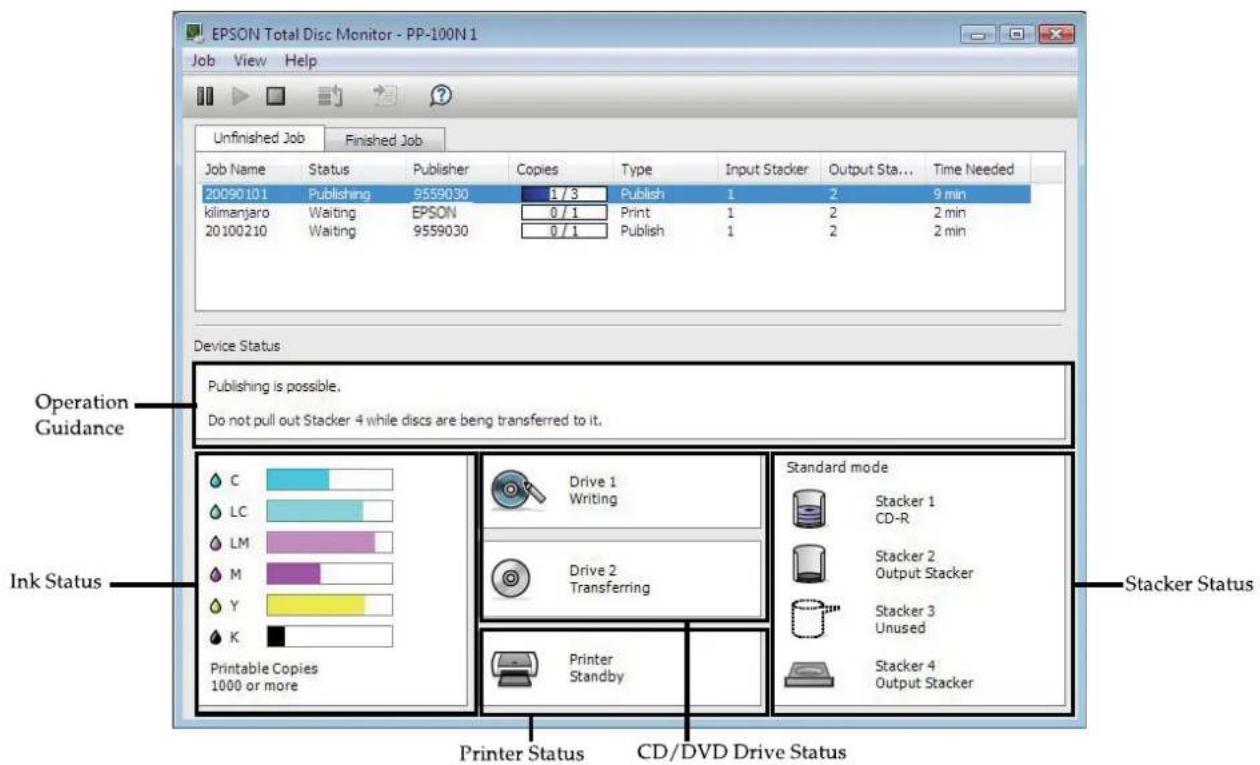
| Operation Guidance | This displays the status of this product (PP-100N) and error descriptions and messages. Check the product (PP-100N) by referring to the displayed remedy procedure. |
| Ink Status | This displays the remaining ink level.The ink level is low when ⚠ is displayed. Obtain a replacement ink cartridge.The ink should be replaced when ✗ is displayed. Replace with a new ink cartridge.See "How to perform a nozzle check" on page 129 in this guide for the ink cartridge changing procedure.The number of printable labels is an estimated value of how many more the same labels as the labels printed before can be printed. This value may differ slightly from the actual value due to factors such as the printing data and printing environment.Values of 1000 or more are displayed as "1000 or more," and quantities fewer than 1000 discs are displayed in 10-disc units. |
| CD/DVD Drive Status | This displays the CD/DVD drive status.When ⚡ is displayed on the drive icon, check the product drive by referring to the displayed message. |
| Printer Status | This displays the printer status.When × is displayed on the printer icon, check the product printer by referring to the displayed message. |
| Stacker Status | This displays the stacker status.When ! is displayed, either the number of discs in the input stacker is low, or the discs in the output stacker are nearly full.If the number of discs in the input stacker is low, obtain new discs.If the discs in the output stacker are nearly full, the ejecting of discs is recommended before publishing the next job.When × is displayed, check the stacker and discs by referring to the displayed message. |
When discs cannot be published
If the disc is not published by clicking [Publish] in the Publish view of EPSON Total Disc Maker, or if the product does not work, check the points below.
Check 1: Check of EPSON Total Disc Monitor
Is an error message displayed in EPSON Total Disc Monitor?
Check the status of this connected product in EPSON Total Disc Monitor, and perform the remedy if an error has occurred.
See the references below for details on EPSON Total Disc Monitor.
• "EPSON Total Disc Monitor" on page 50 in this guide
• Help file for EPSON Total Disc Monitor
If performing the above checks still does not fix the problem, check the items below.
Check 2: Check of the product
Is the power LED turned on?
If the power LED is not turned on, the power for the product is turned off.
Turn on the power by referring to "Power/control panel problems" on page 151 in this guide.
Is the ERROR LED flashing or turned on?
If the ERROR LED is flashing or turned on, an error has occurred in this product.
See "Checking with EPSON Total Disc Monitor" on page 158 in this guide for the error checking and remedy procedures.
If performing the above checks still does not fix the problem, check the items below.
Check 3: Check of connection between the product and computer
Is the Ethernet cable disconnected?
Check that the Ethernet cable is connected. Also, check that the Ethernet cable does not have a broken wire or is bent.
Is the Ethernet cable compatible with the computer and product specifications?
Check that the Ethernet cable being used is compatible with one of the specifications below.
- 100Base-TX
- 1000Base-T
Are the link speed and Jumbo Frame set correctly?
If the link speed and Jumbo Frame are set, check that the product settings match the client computer settings.
If performing the above checks still does not fix the problem, check the items below.
Check 4: Check of printer driver settings
Is the printer driver installed?
1 Open [Printers]. Click [Start] ( ) - [Control Panel] - [Printers].
2 Check that this product icon (EPSON PP-100NPRN) is found in [Printers and Faxes] (or [Printers]).
EPSON PP-100NPRN
0 Ready
If the icon is not found, the printer driver is not installed. See "Installation" on page 27 in this guide to install the printer driver.
Is the Print Manager status set to Pause?
If [Paused] is displayed for the product's icon (EPSON PP-100NPRN), right-click the icon and click [Resume Printing].
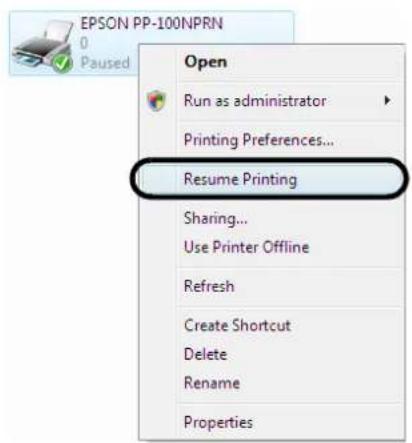
If performing all of the above checks still does not resolve the problem, the software may not be installed correctly. Uninstall (delete) the software, and then reinstall.
See "Uninstalling the software" on page 40 in this guide for the software uninstallation procedure.
See "Installation" on page 27 in this guide for the software installation procedure.
Please contact Customer Support if this still does not resolve the problem. When making inquiries, please provide information about your operating environment (including the computer model, names and versions of software applications, and other peripheral models), name of this product, and its serial number.
Appendix
Product specifications
Basic specifications
External dimensions and weight
| Item | Description |
| External dimensions | 377 mm (W) x 514 mm (D) x 348 mm (H) |
| Weight | Approx. 25.0 kg (including the stackers and ink cartridges, but not including the power cord and discs) |
Notes
Since this product uses galvanized sheet metal, rusting may occur at the edges, but this will not harm the functionality of the product.
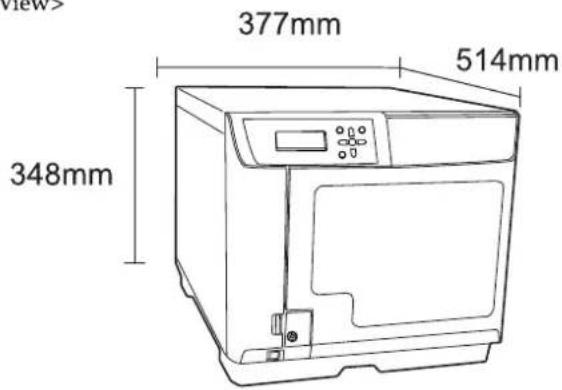
Overall specifications
| Item | Description | ||
| Job processing capacity | Write and print | CD | 30 discs per hourConditions: When using Epson specified CD-Rs, drive speed of 40x, writing data of 600 MB, and speed/bidirectional printing |
| DVD | 17 discs per hourConditions: When using Epson specified DVD-Rs, drive speed of 12x, writing data of 3.8 GB, and speed/bidirectional printing | ||
| Print only | Quality/Speed: (2) | 59 discs per hourCondition: When bidirectional printing | |
| Quality/Speed: (1) | 42 discs per hourCondition: When bidirectional printing | ||
Notes
- The above processing capacities do not include the time for transferring a job via the network.
- Depending on the operating environment and discs used, the writing speed may become slower than the set speed.
Printing specifications
| Item | Description | |
| Printing method | On demand inkjet | |
| Head | Number of nozzles | Black : 180 nozzlesCyan : 180 nozzlesMagenta : 180 nozzlesYellow : 180 nozzlesLight cyan : 180 nozzlesLight magenta : 180 nozzles |
| Printing resolution | Print Mode Setting (Quality/Speed) (1): 1,440 x 1,440 dpi(2): 1,440 x 720 dpi | |
| Printing direction | Bidirectional, unidirectional | |
dpi: number of dots every 25.4 mm (dots per inch)
Ink cartridge
| Item | Description | ||
| Form | Separate ink cartridge for each color | ||
| Color | Black, cyan, magenta, yellow, light cyan, light magenta | ||
| Recommended expiration date | Use within the expiration date written on each individual packaging box. Use within 6 months of opening the package. | ||
| Temperature | When stored packaged individually | -20°C~40°C | Within 1 month at 40°C |
| When installed in the product | -20°C~50°C | Within 1 month at 50°C | |
| When transported packaged individually | -20°C~60°C | Within 5 days at 60°C | |
| Dimensions | 42.0 mm (W) x 83.0 mm (D) x 26.4 mm (H) | ||
| Ink | Dye-based ink | ||
Drive specifications
| Item | Description | |
| Number of drives installed | 2 drives | |
| Loading type | Tray | |
| Write speed | CD-R | 40x/32x/24x/16x/10x/4x |
| DVD-R | 12x/8x/6x/4x/2.4x/2x | |
| DVD+R | 12x/8x/6x/4x/2.4x/2x | |
| DVD-R DL | 8x/6x/4x/2.4x/2x | |
| DVD+R DL | 8x/6x/4x/2.4x/2x | |

- CD/DVD discs created with this product's drive may not be able to be recognized, played, and read depending on the compatibility of the drive or player.
- Do not subject the product to vibration or impacts while a disc is being read or written. The drive may malfunction, or the disc may become unable to be played.
- Do not insert a flat-tip screwdriver, clip or other foreign object into the CD/DVD drive. Doing so may result in a malfunction.
Notes
- Depending on the operating environment and discs used, the writing speed may become slower than the set speed. (This is to ensure recording quality is maintained.)
- If you select 2.4x for DVD-R/DVD-R DL, write speed will be set to 2x.
- If you select 2x for DVD+R/DVD+R DL, write speed will be set to 2.4x.
Electrical specifications
| Item | Description | |
| Rated voltage | AC 100 to 240 V | |
| Rated frequency | 50 to 60 Hz | |
| Rated current | 1.5 A | |
| Power consumption | Average during operation | Approx. 86 W |
| Average during standby | Approx. 55 W | |
| Power cord | power cord (supplied with product) | |
Standards and approvals
| Item | Description |
| Safety | UL60950-1CAN/CSA-C22. 2 No. 60950-1 |
| EMC | FCC Part 15 Subpart B Class ACAN/CSA-CEI/IEC CISPR 22 Class AAS/NZS CISPR22 Class A |
| Low voltage directive 2006/95/EC | EN60950-1 |
| EMC directive 2004/108/EC | EN55022 Class AEN61000-3-2EN61000-3-3EN55024 |
Lifetime
Epson estimates lifetime for components of this product to be as follows:
Expected Lifetime:
Ink pad life: About 30,000 discs printed
The ink pad is estimated to need replacing after about 30,000 discs. Based on printing 2,000 discs per month, bi-directional. Actual results will vary based on such factors as images printed, print settings, media type, frequency of use and temperature.
Environmental conditions
| Item | Description | ||
| Temperature/humidity | During operation | 10°C~35°C | Within 1 month at 40°C Within 120 hours at 60°C |
| During storage | -20°C~40°C | ||
| During transportation | -20°C~60°C | ||
| During operation | 20%~80%RH | No condensation | |
| During storage | 5%~85%RH | No condensation | |
| During transportation | 5%~85%RH | No condensation | |
| Guaranteed operating range |  | ||
Interfaces
| Item | Description | |
| Ethernet | 1 | • 100Base-TX• 1000Base-T |
Ink and Disc
Ink cartridges
You can use the following ink cartridges with this product:
| Ink cartridge | Product name | Part number |
| Cyan | PJIC1(C) | C13S020447 |
| Light Cyan | PJIC2(LC) | C13S020448 |
| Light Magenta | PJIC3(LM) | C13S020449 |
| Magenta | PJIC4(M) | C13S020450 |
| Yellow | PJIC5(Y) | C13S020451 |
| Black | PJIC6(K) | C13S020452 |
To purchase a Discproducer Series exclusive ink cartridge, check with the dealer where you purchased your product or access either of the following urls:
http://www.epson-europe.com (Europe)
http://www.discproducer.epson.com (United States and Canada)
Discs
Epson offers the specified CD-R and DVD-R discs for all your writing and printing needs.

- PP-100N
- User's Guide
- Trademarks
- Marks used in this guide
- Notes
- Screens Procedures in this guide
- Organization of this manual
- Table of Contents
- Before Using This Product......6
- Part Names and Functions.....13
- Preparation......24
- Using Applications...... 42
- How to Use the Printer Driver. 60
- Publishing Discs....70
- Maintenance....123
- Troubleshooting...... 146
- Appendix 162
- Before Using This Product
- For safe use
- Cautions for the power source
- Cautions for using
- WARNING
- FCC compliance statement for American users
- For Canadian users
- For California customers only
- Indication required for directive 2011/65/EU (RoHS)
- Cautions for CD/DVD discs
- Uses of this product
- Incidental loss arising from the use of this product
- Restriction of Use
- Open source software license
- Part Names and Functions
- Checking the status of this product using the indicator light display
- Basic operations
- Turning on the power
- Turning off the power
- Turning off the power by force
- Unlocking the disc cover
- Unlocking the lock using the disc cover key
- Unlocking the lock using the control panel
- Press the MENU button.
- Press the ↻ button.
- Opening the disc cover
- If the disc cover is locked, unlock it.
- Hold the handle, and open the disc cover in the direction indicated by the arrow in the illustration below.
- Closing the disc cover
- Handling stackers
- Stacker 1/Stacker 2
- Stacker 3
- Attach
- Stacker 4
- Pull out
- Push in
- Preparation
- Installing the software
- Before installation
- Software operating requirements
- Installation
- Click [Next].
- Carefully read the license agreement, and if you agree, select [I accept the terms of the license agreement], and click [Next].
- Verify the folder where you want to install the software, and click [Next]. To change the folder, click [Change] and specify the folder, and then click [Next].
- Click [Finish].
- Registering the product
- Select [Network CD/DVD Publisher], and click [Next].
- Enter the IP address or host name of the product to be registered, and click [Next].
- Enter the name into [Name] and click [OK].
- Checking and changing user information
- Checking user information
- Changing user information
- Changing password
- Setting for Notification of Job Completion
- Uninstalling the software
- Select [Remove], and click [Next].
- Using Applications
- EPSON Total Disc Maker
- What is EPSON Total Disc Maker?
- Starting EPSON Total Disc Maker
- Screen configuration of EPSON Total Disc Maker
- Disc view
- Label view
- Publish view
- Displaying EPSON Total Disc Maker Help
- EPSON Total Disc Setup
- What is EPSON Total Disc Setup?
- Starting EPSON Total Disc Setup
- Screen configuration of EPSON Total Disc Setup
- Setup screen
- (Properties) screen
- Displaying Help of EPSON Total Disc Setup
- EPSON Total Disc Monitor
- What is EPSON Total Disc Monitor?
- Starting EPSON Total Disc Monitor
- Screen configuration of EPSON Total Disc Monitor
- (Unfinished Job) screen
- (Finished Job) screen
- Displaying Help of EPSON Total Disc Monitor
- Start EPSON Total Disc Monitor.
- Click [Help] on the toolbar.
- EPSON Total Disc Net Administrator
- What is EPSON Total Disc Net Administrator?
- Logging in to EPSON Total Disc Net Administrator
- Turn the product on.
- Enter any of the product's IP address, host name, and FQDN in the address bar of Internet Explorer.
- Enter the user name and password, and click [Login].
- Logging out from EPSON Total Disc Net Administrator
- Screen configuration of EPSON Total Disc Net Administrator
- (Job management) screen
- (Job details) screen
- (User information)/(User management) screen
- (Change password) screen
- (Edit user) screen
- (System settings) screen (administrator only)
- (Output device) screen
- (Network) screen
- (Email) screen
- (Date/Time) screen
- (Maintenance) screen
- (Device) screen
- (Data) screen
- Displaying Help of EPSON Total Disc Net Administrator
- How to Use the Printer Driver
- Displaying the printer driver screen
- Displaying from EPSON Total Disc Maker
- Displaying from EPSON Total Disc Setup
- Start EPSON Total Disc Setup.
- Select this product, and click [Properties].
- Click [Set Printer].
- Displaying from the (Start) menu
- Setting up the printer driver
- (Main) screen
- (Utility) screen
- Printer Driver Basics
- Set [Size] and [Margins] as shown below, and click [OK].
- Create the data to be printed.
- Click [Print] in the [File] menu.
- Click the [Preferences] button.
- Setup the printer driver and click [OK].
- Click [Print].
- Displaying the printer driver Help
- How to display the EPSON printer driver Help
- How to display an explanation of an option
- Publishing Discs
- Types of Publish Mode
- Standard Mode
- External Output Mode
- Batch Mode
- Compatible disc types
- Printable disc types
- Writable disc types
- Handling discs
- Notes on usage
- Notes on storage
- Printable area
- Changing the print area
- EPSON Total Disc Maker:
- Click [OK].
- Printing from commercially available software
- Display the setting screen of the printer driver.
- Select [User Defined] for [Label Size].
- Click [OK].
- Changing and deleting label sizes
- Loading discs
- Fully separate the discs to prevent them from sticking together.
- Take out the input stacker and load the discs into it.
- Flow for publishing discs
- Registering write data
- Start EPSON Total Disc Maker.
- Select [Data CD] for [Type], and click [Apply].
- Click [Change Setting].
- Select [File system], and click [OK].
- Drag and drop any image data to write to the CD from Explorer.
- Creating labels
- Selecting a template
- Select the template to use, and click [Apply].
- Selecting a background
- Select [Type].
- Editing items
- Editing text
- Click [DISC TITLE] in the edit area.
- Enter the text you want to place in [Text]. In this example, we enter "Sample Images".
- Set Auto Data and Properties, and click [OK].
- Deleting items
- Inserting thumbnails
- Click a thumbnail in the edit area.
- Inserting barcodes
- Click [Barcode], and click the location you want to place the barcode.
- Select [Type] and [Entry Method].
- Adjusting layout
- Click [Publish].
- Check either one or both of [Write Data] and [Print Label] are selected.
- Set [Output Device], [Input Stacker], [Output Stacker], [Write Speed], [Write Verification], [Label Type], [Print Mode Setting], and [Copies] as necessary.
- Click [Publish].
- Click [Yes] if you want to save the job data to enable you to use the published job to create the same disc again.
- Taking out discs
- Insert the stacker, and close the disc cover.
- Performing job operations
- Checking job information
- Checking the job processing status
- Starts EPSON Total Disc Monitor.
- Click the [Unfinished Job] tab or [Finished Job] tab.
- Pausing jobs
- Select the job for which you want to pause processing, and click
- Resuming jobs
- Select the job for which you want to resume processing, and click ▶ [Resume].
- Canceling jobs
- Select the job you want to cancel, and click [Cancel].
- Click [Yes].
- Priority Publishing
- Select the job you want to give priority to, and click [Priority Publishing].
- Convenient features
- Creating label templates
- Create a label in EPSON Total Disc Maker.
- Click [Save As Template] on the [File] menu, and save the template file.
- Creating copies directly from discs
- Select [Copy] for [Type], and click [Apply].
- Select [Drive] for [Source], and select the name of the drive in which you inserted the disc.
- Creating copies from disc image files
- Select [Disc Image] for [Source], click [Browse], and specify the disc image file.
- Creating same discs as published discs
- Log in to EPSON Total Disc Net Administrator.
- Use the search options to find the job for which you want to create another disc.
- Click [Details].
- Click [Republish].
- Change [Number of discs to be published] as necessary, and click [Publish].
- Click [OK].
- When the publishing process finishes, take out the published discs.
- Adjusting print colors
- Select [Color], and click [Color Settings].
- Select [Color Controls], set each color item, and click [OK].
- Maintenance
- Checking maintenance information
- Checking device information
- Downloading operation log
- Changing the ink cartridge
- Checking the ink levels
- Replacing the ink cartridges
- Take the ink cartridge out of its package.
- Use the label color to check where to set the ink cartridge, and gently push the new ink cartridge into the ink cartridge holder on this product until you hear a click.
- Close the ink cartridge cover.
- Checking the print head nozzles
- How to perform a nozzle check
- Running it from a PC
- Running it using the control panel on the product
- Checking the nozzle check results
- Cleaning the print head
- How to clean the print head
- Print head alignment
- Click the [Print] button.
- Check the printed print head alignment pattern.
- Select the number of the pattern with the fewest vertical lines.
- Click [Finish].
- Correcting the printing position
- Click [Finish] if the lines on the top, bottom, left and right are evenly printed on the label surface. If they are not printed evenly, adjust the alignment in one of the following ways.
- Cleaning your product
- Cleaning the exterior
- Cleaning the interior
- Cleaning the air vents
- Close the filter cover.
- Plug the power plug into the outlet, and turn the power on.
- Replacing the ink pad
- How to check when it is time to replace the ink pad
- Precautions for Transporting Your Product
- Troubleshooting
- Error messages and remedies
- Problems and their remedies
- Checking with EPSON Total Disc Monitor
- When discs cannot be published
- Check 1: Check of EPSON Total Disc Monitor
- Check 2: Check of the product
- Check 3: Check of connection between the product and computer
- Check 4: Check of printer driver settings
- EPSON PP-100NPRN
- Appendix
- Product specifications
- Basic specifications
- Lifetime
- Expected Lifetime:
- Ink and Disc
- Ink cartridges
- Discs
Märke : EPSON
Modell : PP-100N
Kategori : Skrivare