
50 VLE 920 BL - Televizor GRUNDIG - Brezplačna navodila za uporabo
Brezplačno poiščite navodila za napravo 50 VLE 920 BL GRUNDIG v formatu PDF.


Vprašanja uporabnikov o 50 VLE 920 BL GRUNDIG
0 vprašanje o tej napravi. Odgovorite na tiste, ki jih poznate, ali zastavite svoje.
Zastavite novo vprašanje o tej napravi
Prenesite navodila za vaš Televizor v formatu PDF brezplačno! Poiščite svoja navodila 50 VLE 920 BL - GRUNDIG in vzemite svojo elektronsko napravo nazaj v roke. Na tej strani so objavljeni vsi dokumenti, potrebni za uporabo vaše naprave. 50 VLE 920 BL znamke GRUNDIG.
NAVODILA ZA UPORABO 50 VLE 920 BL GRUNDIG
3 Select the line »Satellite« with »V« or »A« and press »OK« to confirm.
- The »SELECT SATELLITE« menu appears.
Select the satellites with »V«, »A«, »« or »» and press »OK« to confirm.
Note:
6 Select the line »DISEqC Mode« with »V« or »A«.
Select »DiSEqC 1.0« or »DiSEqC 1.1« in accordance with the existing antenna system with »« or »«.
9 Select the line »Scan Mode« with »∨« or »∧«.
10 Select the line »Service Type« with »V« or »A«.
2 Select the line »Scan Type« with »V« or »A«.
Use »« or »« to set the required scan type:
3 Select the line »Picture Mode«, »Brightness«, »Contrast«, »Sharpness«, »Colour«, or »Colour Temperature« with »∨« or »∧«. Select the value with »«« or »»« and press »OK« to confirm.
Notes:
4 Select the line »DNR«, »Mpeg NR«, »Vibrant Colour«, »Perfect Clear«, »Film Mode«, »Gamma«, »Dynamic Contrast«, »Dynamic Backlight«, »Backlight« or »MEMC« with »V« or »A«.
Select the value with »« or »« and press »OK« to confirm.
Notes:
■ You can only select the »Mpeg NR« function on digital and AV presets.
1 Select the line »Balance« with »V« or »A« and change the setting with »« or »«.
Automatic volume
1 Select the line »AVL« with »∨« or »∧« and select the option »On« with »«« or »»«.
Note:
1 Select the line »Audio Mode« with »V« or »A«.
2 Select the option »Spatial« with »« or »»«.
Soundeffects
1 Select the line »Sound Mode« with »∨« or »∧«.
2 Select the option »SRS TS HD« with »« or »»«.
3 Select the line »SRS Sound Preset« with »V« or »A«.
4 Select the sound effect »Music«, »Natural« or »Speech« with »« or »»«.
Equalizer
»16:9« and »14:9« formats
3 Select »Connection Type« with »V« or »A« and then select »Wireless« with »« or »».
4 Select »Network Configuration« with »V« or »A« and then select »AUTO« with »«« or »»«.
5 Select »Select Access Point« with »V« or »A« and confirm with »OK«.
4 Select the line »Subtitle Mode« with »∨« or »∧« and then set the preferred option »Off«, »Hard of Hearing« or »Basic« with »«« or »»«.
9 Select the line »ARC« with v« or »A«.
10 Select the setting »On« with »« or »»«.
Notes:
5 Select the line »Audio Out Status« with »∨« or »∧« and select the option »Fixed« or »Adjustable« with »«« or »»«.
Notes:
If you select »Adjustable«, the volume can be changed in the menu option »Audio Out Volume«.
If the audio should only be output via the HiFi system/AV receiver, select the option »Off« in the line »TV Speaker with »« or »»«.
1 Press »→« and use »V«, »A«, »« or »» to select the preset »PC« and press »OK« to confirm.
Select the input source »Satellite« with »«, »«, »V« or »A« and press »OK« to confirm.
4 Select the line »Automatic Channel Search« with »V« or »A« and press »OK« to confirm.
- The menu appears.
5 Select the line »Select Satellites« with »V« or »A« and press »OK« to confirm.
- The »SELECT SATELLITE« menu appears.
6 Select a satellite with »V« or »A« and press »OK« to confirm.
7 Select the line »Scan Mode« with »V« or »A«.
8 Select the line »Service Type« with »V« or »A«.
Select the option »On« with »« or »»«
- »Satellite«: »Press OK«, select a satellite with »««, »»«, »V« or »^« and press »OK« to confirm.
- »Transponder«: »Press OK«, select a transponder with »«, »»«, »V« or »A« and press »OK« to confirm. Use »•« (red) to add a transponder, use »••« (green) to delete it, or use »•••« (yellow) to change transponder data.
- »LNB Power«: Set the LNB power supply (depending on the type of LNB) to »Off« »13/18 V« or »14/19 V« with »« or »».
- »LNB Type«: Select the LNB type used in the satellite system with »« or »». If you are using a satellite antenna with an Single Cable Distribution multiswitch, select the setting »Grundig SCR«. After it, please perform the »User Band«, »KB Frequency« and »LNB Selection« settings in the submenus. The necessary parameters you will get from the operator of the satellite antenna. Use only this specification!
- »Satellite«: »Press OK«, select a satellite with »<<, »>>, »V« or »^« and press »OK« to confirm. - »Transponder«: »Press OK«, select a transponder with »<<, »>>, »V« or »^« and press »OK« to confirm. Use »•« (red) to add a transponder, use »••« (green) to delete it, or use »•••« (yellow) to change transponder data. - »LNB Power«: Set the LNB power supply (depending on the type of LNB) to »Off« »13/18 V« or »14/19 V« with »<< or »>>. - »LNB Type«: Select the LNB type used in the satellite system with »<< or »>>. If you are using a satellite antenna with an Single Cable Distribution multiswitch, select the setting »Grundig SCR«. After it, please perform the »User Band«, »KB Frequency« and »LNB Selection« settings in the submenus. The necessary parameters you will get from the operator of the satellite antenna. Use only this specification!
1 Select the line »User mode« with »V« or »A« and press »OK« to confirm.
- The »USER MODE« menu appears.
2 Select the preferred option with »∨« or »∧«.
- »Satellite«: »Press OK«, select a satellite with »««, »»«, »V« or »^« and press »OK« to confirm.
Select the option »Cable« with »««, »»«, »∨« or »∧« and press »OK« to confirm.
4 Select the line »Automatic Channel Search« with »V« or »A« and press »OK« to confirm.
- The menu appears.

5 Select the line »Scan Typ« with »∨« or »∧« and set the option »DTV« with »«« or »»«.
6 Select the line »Cable Scan Type« with »V« or »A« and set the option »Quick« or »Full« with »« or »».
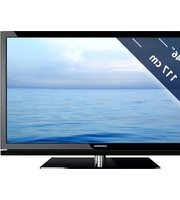
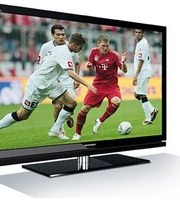

Znamka : GRUNDIG
Model : 50 VLE 920 BL
Kategorija : Televizor