
40 VLE 2012 BG - Televizor GRUNDIG - Brezplačna navodila za uporabo
Brezplačno poiščite navodila za napravo 40 VLE 2012 BG GRUNDIG v formatu PDF.


Vprašanja uporabnikov o 40 VLE 2012 BG GRUNDIG
0 vprašanje o tej napravi. Odgovorite na tiste, ki jih poznate, ali zastavite svoje.
Zastavite novo vprašanje o tej napravi
Prenesite navodila za vaš Televizor v formatu PDF brezplačno! Poiščite svoja navodila 40 VLE 2012 BG - GRUNDIG in vzemite svojo elektronsko napravo nazaj v roke. Na tej strani so objavljeni vsi dokumenti, potrebni za uporabo vaše naprave. 40 VLE 2012 BG znamke GRUNDIG.
NAVODILA ZA UPORABO 40 VLE 2012 BG GRUNDIG
3 Select the line »Satellite« with »V« or »A« and press »OK« to confirm.
- The »SELECT SATELLITE« menu appears.
Select the satellites with »V«, »A«, »« or »» and press »OK« to confirm.
Note:
6 Select the line »DISEqC Mode« with »V« or »A«.
Select »DiSEqC 1.0« or »DiSEqC 1.1« in accordance with the existing antenna system with »« or »«.
9 Select the line »Scan Mode« with »∨« or »∧«.
10 Select the line »Service Type« with »∨« or »∧«.
2 Select the line »Scan Type« with »V« or »A«.
Use »« or »« to set the required scan type:
2 Select the line »Scan Type« with »V« or »A«.
Use »« or »« to set the required scan type:
3 Select the line »Picture Mode«, »Brightness«, »Contrast«, »Sharpness«, »Colour«, or »Colour Temperature« with »V« or »A«. Select the value with »« or »» and press »OK« to confirm.
Notes:
4 Select the line »DNR«, »Mpeg NR«, »Vibrant Colour«, »Perfect Clear«, »Film Mode«, »Gamma«, »Dynamic Contrast«, »Dynamic Backlight«, »Backlight« or »MEMC« with »V« or »A«.
Select the value with »« or »» and press »OK« to confirm.
Notes:
■ You can only select the »Mpeg NR« function on digital and AV presets.
1 Select the line »Balance« with »V« or »A« and change the setting with »« or »«.
Automatic volume
1 Select the line »AVL« with »V« or »A« and select the option »On« with »« or »».
Note:
1 Select the line »Audio Mode« with »V« or »A«.
2 Select the option »Spatial« with »« or »»«.
Soundeffects
1 Select the line »Audio Mode« with »V« or »A«.
2 Select the option »SRS« with »« or »».
3 Select the line »Sound Preset« with »V« or »A«.
4 Select the sound effect »Music«, »Natural« or »Speech« with »« or »»«.
Equalizer
2 Select an AV preset with »V«, »A«, »« or »» and press »OK« to confirm.
2 Select the menu item »Picture Mode« with »V« or »A«.
3 Select »User«, »Eco TV«, »Vivid«, »Natural«, »Movie«, »Sports« or »Game« by pressing »« or »«.
Note:
■ Picture setting »Game« can only be selected in »HDMI«, »Component« and »PC« modes.
Audio settings
»16:9« and »14:9« formats
4 Select »Connection« with »V« or »^« and then select »Wired« with »« or »»«.
5 Select »Connection Type« with »V« or »A« and then select »Manual« with »«« or »»«. - »IP Address«, »Netmask«, »Gateway« and »DNS« options are active.
6 Select »IP Address« with »V« and press »OK«. Enter the IP address with »1...0« and press »••« (green) to save the value.
7 Select »Netmask« with »V« and press »OK«. Enter the Netmask with »1...0« and press »••« (green) to save the value.
8 Select »Gateway« with »V« and press »OK«. Enter the Gateway with »1...0« and press »••« (green) to save the value.
9 Select »DNS« with »V« and press »OK«. Enter the DNS address with »1...0« and press »••• (green) to save the value.
4 Select »Connection« with »V« or »^« and then select »Wireless« with »«« or »»«.
5 Select »Connection Type« with »∨« or »∧« and then select »Automatic« with »«« or »»«.
6 Select »Select Access Point« with »V« or »A« and confirm with »OK«.
4 Select »Connection« with »∨« or »∧« and then select »Wireless« with »«« or »»«.
5 Select »Select Access Point« with »V« or »A« and confirm with »OK«.
8 Select »Connection Type« with »∨« or »∧« and then select »Manual« with »«« or »»«.
- »IP Address«, »Netmask«, »Gateway« and »DNS« options are active.
9 Select »IP Address« with »V« and press »OK«. Enter the IP address with »1...0« and press »••• (green) to save the value.
10 Select »Netmask« with »V« and press »OK«. Enter the Netmask with »1...0« and press »••« (green) to save the value.
11 Select »Gateway« with »V« and press »OK«. Enter the Gateway with »1...0« and press »••« (green) to save the value.
12 Select »DNS« with »V« and press »OK«. Enter the DNS address with »1...0« and press »••• (green) to save the value.
3 Select the line »Type« with »V« or »A« and select the option »Recording« with »«« or »»«.
4 Select the line »Channel« with »∨« or »∧« and select the channel with »«« or »»«.
5 Select the line »Mode« with »V« or »A« and select the preferred mode (»Once«, »Every Day« or »Weekly«) with »«« or »»«.
6 Select the line »Start« (Start recording) with »V« or »A« and enter the date/time with »1...0«.
7 Select the line »End« (Stop recording) with »V« or »A« and enter the date/time with »1...0«.
1 Open the Tools menu with »TOOLS«.
2 Select the menu item »Repeat« with »V« or »A«.
3 Select »All«, »Random«, »One« or »None« by pressing »« or »».
TOP text or FLOF text mode
1 Press »TXT« to switch on teletext.
2 Select teletext pages directly with »1...0« or step by step with »V« and »A«. Return to teletext page 100 with »?«.
Note:
4 Select the line »Subtitle Mode« with »∨« or »∧« and then set the preferred option »Off«, »Hard of Hearing« or »Basic« with »«« or »»«.
4 Select the line »Daylight Saving« with »V« and use »« or »» to set the option »Auto«, »Off« or »On«.
1 Select the line »Sleep Timer« with »V« or »A«.
2 Enter the switch-off time with »« or »«.
Note:
■ To switch off the function, use »« or »« to set the switch-off time to »Off«.
3 Press »MENU« to end the set-up.
Switch-on timer
4 Select the »SPDIF output« with »V« or »A«.
5 Select the preferred audio format (»PCM« or »Dolby* D«) with »«« or »»«.
Note:
If you wish to output the audio only via a multi-channel amplifier/AV receiver, set the option »TV Speaker« to »Off« in the menu.
5 Select the line » Audio Out Status« with »√« or »^« and select the option »Fixed« or »Adjustable« with »«« or »»«.
Notes:
If you select »Adjustable«, the volume can be changed in the menu option »Audio Out Volume«.
If the audio should only be output via the HiFi system/AV receiver, select the option »Off« in the line »TV Speaker with »« or »»«.
1 Press »→« and use »V«, »A«, »« or »» to select the preset »PC« and press »OK« to confirm.
Select the input source »Satellite« with »«, »«, »V« or »A« and press »OK« to confirm.
4 Select the line »Automatic Channel Search« with »V« or »A« and press »OK« to confirm.
- The menu appears.
5 Select the line »Select Satellites« with »V« or »A« and press »OK« to confirm.
- The »SELECT SATELLITE« menu appears.
6 Select a satellite with »V« or »A« and press »OK« to confirm.
7 Select the line »Scan Mode« with »V« or »A«.
Select the scan mode with »« or »» (for unencrypted channels, for encrypted channels only, or both).
8 Select the line »Service Type« with »V« or »A«.
Select the option »On« with »« or »»«
- »Satellite«: »Press OK«, select a satellite with »«, »»«, »V« or »A« and press »OK« to confirm.
- »Transponder«: »Press OK«, select a transponder with »««, »»«, »V« or »^« and press »OK« to confirm. Use »•« (red) to add a transponder, use »••« (green) to delete it, or use »•••« (yellow) to change transponder data.
- »LNB Power«: Set the LNB power supply (depending on the type of LNB) to »Off« »13/18 V« or »14/19 V« with »« or »«.
- »LNB Type«: Select a type of LNB with »« or »«. Use »••• (green) to save the setting, or use »•• (red) to abort.
Under »LNB selection«, use »« or »» to select the option »1/4«, »2/4«, »3/4« or »4/4«.
- »Satellite«: »Press OK«, select a satellite with »««, »»«, »V« or »A« and press »OK« to confirm.
Select the option »Cable« with »«, »»«, »v« or »∧« and press »OK« to confirm.
4 Select the line »Automatic Channel Scan« with »V« or »A« and press »OK« to confirm.
- The menu appears.
5 Select the line »Country« with »V« or »A« and press »OK« to confirm. In the country selection menu, select the country with »«, »», »V« or »A« and press »OK« to confirm.
6 Select the line »Scan Typ« with »∨« or »∧« and set the option »DTV« with »«« or »»«.
7 Select the line »Cable Scan Type« with »V« or »A« and set the option »Quick« or »Full« with »« or »».
Select the option »Cable« with »«, »»«, »v« or »∧« and press »OK« to confirm.
4 Select » Digital Manual Tuning« with »V« or »A« and press »OK« to confirm.
- The menu appears.
5 Enter the four-digit frequency with »1 ... 0« and press »OK« to confirm.
Select the option »Air« with »«, »»«, »∨« or »∧« and press »OK« to confirm.
Caution:
7 Select the line »Scan Typ« with »∨« or »∧« and set the option »DTV« with »«« or »»«.
8 Start the scan with »•« (red).

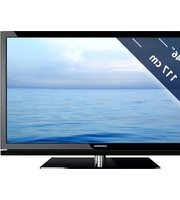

Znamka : GRUNDIG
Model : 40 VLE 2012 BG
Kategorija : Televizor