TX-32PK1 - Televizija PANASONIC - Brezplačna navodila za uporabo
Brezplačno poiščite navodila za napravo TX-32PK1 PANASONIC v formatu PDF.


Vprašanja uporabnikov o TX-32PK1 PANASONIC
0 vprašanje o tej napravi. Odgovorite na tiste, ki jih poznate, ali zastavite svoje.
Zastavite novo vprašanje o tej napravi
Prenesite navodila za vaš Televizija v formatu PDF brezplačno! Poiščite svoja navodila TX-32PK1 - PANASONIC in vzemite svojo elektronsko napravo nazaj v roke. Na tej strani so objavljeni vsi dokumenti, potrebni za uporabo vaše naprave. TX-32PK1 znamke PANASONIC.
NAVODILA ZA UPORABO TX-32PK1 PANASONIC
Panasonic

natural_image
Front view of a Panasonic TV CRT monitor with blank screen (no visible text or symbols on screen)TX--32PK1
TX--28PK1
ColourTelevision
(U.K.Standard)

text_image
[ tau ] FLAT DIGITALQuintrix F


Operating Instructions
WELCOME
DearPanasonicCustomer,
WelcometothePanasonicfamilyofcustomers.Wehopethatyouhavemanyyearsofenjoymentfromyour newcolourtelevision.Thisisaveryadvancedtelevision;however,theQuickStartGuidewillallowyoutouse theTVasquicklyaspossible.Youcanthenreadtheinstructionscompletelyandretainthemforfuture reference.
CONTENTS
Warnings and Precautions 3
Accessories 4
Inserting the Remote Control Batteries 4
Basic Controls 5
Quick Start Guide 6
Using the On Screen Displays 12
Aspect Control 13
Picture Menu 15
Sound Menu 16
Setup Menu 17
Tuning Menu - overview 18
Tuning Menu - Programme edit 19
Tuning Menu - Auto setup 23
Tuning Menu - Manual tuning 24
Tuning Menu - Shipping condition 25
Tuning Menu - Owner I.D. 26
AV Select and Setup 27
Q-Link 28
VCR and Satellite Receiver Installation 30
VCR/DVD Operation 31
Teletext Operation 32
Audio / Video (AV) Connections 34
Via the front AV3 4 pin S-Video, RCA Audio / Video and Headphone Sockets 34
Scart and S-Video Terminal Information 34
Via the rear AV1 / AV2 21 Pin (Scart) and RCA Audio Out terminals....35
Troubleshooting 36
For your guidance 37
Specifications 37
WARNINGS AND PREEGA AUTONSS
• This TV set is designed to operate on 220-240V, 50Hz A.C.
- To prevent damage which might result in electric shock or fire, do not expose this TV set to rain or excessive moisture.
- WARNING : HIGH VOLTAGE !!!
Do not remove the rear cover as live parts are accessible when it is removed. There are no user serviceable parts inside.
- Avoid exposing the TV set to direct sunlight and other sources of heat.
- The On/Off switch on this model does not fully disconnect the TV from the mains supply. Remove the mains plug from the wall socket when the TV set is not used for a prolonged period of time.
• CABINET AND PICTURE TUBE CARE
Remove the mains plug from the wall socket. The cabinet and picture tube can be cleaned with a soft cloth moistened with mild detergent and water. Do not use solutions containing benzol or petroleum. TV sets can produce static electricity, care must be taken whenever touching the TV screen.
- Adequate ventilation is essential to prevent failure of electrical components, we recommend that a gap of at least 5cm is left all around this television receiver even when it is placed inside a cabinet or between shelves.
FOR YOUR SAFETY PLEASE READ THE FOLLOWING TEXT CAREFULLY
This appliance is supplied with a fitted three pin mains plug for your safety and convenience. A 5 amp fuse is fitted in this plug. If the fuse is replaced then the replacement fuse must be 5 amp rated and should be approved by ASTA or BSI to BS1362.
Check for the ASTA mark

or the BSI mark

on the body of the fuse.
If the fitted plug has a removable fuse cover you must ensure that it is refitted when the fuse is replaced. If you lose the fuse cover the plug must not be used until a replacement cover is obtained. Replacement fuse covers can be purchased through your local Panasonic dealer.
The plug fitted to this appliance incorporates a mains filter circuit. If this is removed or replaced with a non-filtered plug this television will no longer meet the European standards for Electromagnetic Compatibility (EMC). If the fitted plug is unsuitable for the socket outlet in your home an appropriate adapter should be used.
Nonetheless, if the fitted plug is replaced, the fuse should be taken out and the cut-off plug disposed of safely. There is danger of severe electrical shock if the cut off plug is inserted into any 13 amp socket.
If a new plug is to be fitted please observe the wiring code as shown below. If in any doubt please consult a qualified electrician.
How to replace the fuse (for plug type shown in example 1):
Lift out the removable fuse compartment with a screwdriver and replace the fuse, then refit securely into the mains plug (see example 1).
How to replace the fuse (for plug type shown in example 2):
Lift open the fuse compartment, in the mains plug, with a screwdriver, and replace the fuse, then press the fuse cover down securely (see example 2).
Example 1

natural_image
Illustration of a black electrical plug with a screwdriver and two orange buttons (no text or symbols)Example 2

natural_image
Illustration of a black electrical plug with two orange connectors and a connector pin (no text or symbols)IMPORTANT: - The wires in the mains lead of this appliance are coloured in accordance with the following code :
BLUE : NEUTRAL
BROWN : LIVE
As the colours of the wires in the mains lead of this appliance may not correspond to the markings identifying the terminals in your plug, proceed as follows :-
- The BLUE wire must be connected to the terminal marked 'N' or coloured black.
- The BROWN wire must be connected to the terminal marked 'L' or coloured red.
IMPORTANT NOTE: Under no circumstances should either of these wires be connected to the Earth terminal of the three pin plug, marked with the letter 'E' or the earth symbol.
ACCESSORIES
Check that you have the accessories and their show shown


Operating Instruction book
TQB8E2796

Remote Control Transmitter
EUR511210

Batteries for the Remote Control Transmitter.
(2 x R6 (UM3) size)

text_image
Panasonic TX-32PK1 TX-28PK1
natural_image
Black remote control device with multiple function keys and buttons (no visible text or symbols)

TV Guarantee

CRT Guarantee

Questionnaire


VS-PK1/2
(Video cabinet)
natural_image
Exterior view of a modern office building (no signage)INSERTING THE REMOTE CONTRODBABATIVES

text_image
123Slide off the battery cover

text_image
2 Oloqualed + PanasonicInsert batteries - note correct polarity (+ and -)

text_image
3 PenssonReplace the cover
Notes:
- Make sure that the batteries are fitted the correct way round.
- Do not mix old batteries with new batteries. Remove old, exhausted batteries immediately.
- Do not mix different battery types, i.e. Alkaline and Manganese. Do not use rechargeable (Ni-Cad) batteries.
BASICCONTROLS : FRONTPANNELANDR BEMDECONTROL
Press here and open flap to expose TV controls, front AV3 and headphone terminals

text_image
Red light indicates Standby mode. Use Standby switch, -, + or 0-9 buttons to switch TV On MAINS Power On/Off switch STR (Normalisation store) Used to store tuning and other function settings F (Function select) Displays the On Screen Display functions, use repeatedly to select from the available functions – Volume, Contrast, Brightness, Colour, Sharpness, Tint (in NTSC mode), Bass, Treble, RCA Audio/Video sockets (page 34) S-VHS socket (see page 34) Headphone socket (see page 34) TV/AV switch (see page 27)Increases or decreases the programme position by one. When a function is already displayed, press to increase or decrease the selected function

text_image
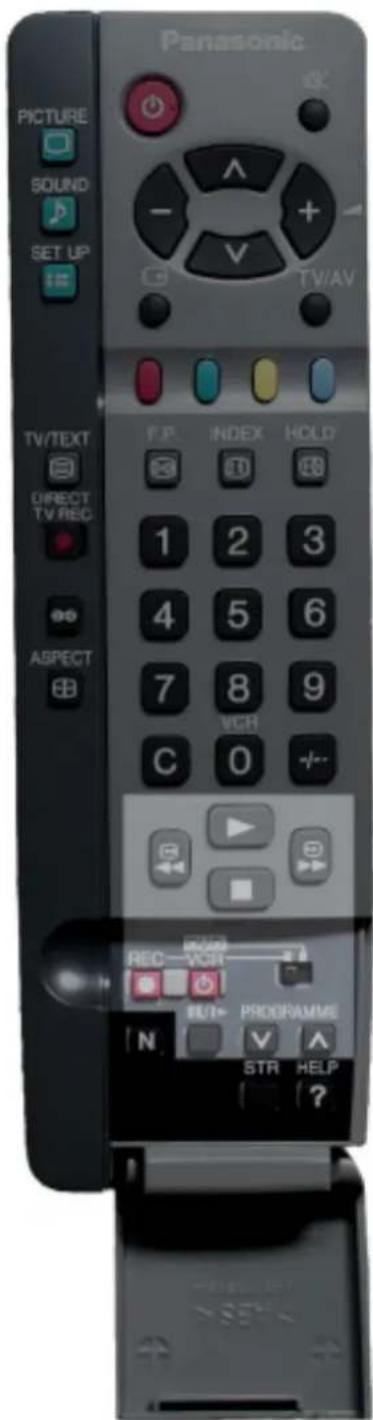
Standby ON/OFF switch Switches TV On or Off standby Menu buttons Press to access the Picture, Sound and Setup menus (see page 12) Status button Press to display programme position, programme name, channel number, time, NICAM mode and programme table Teletext buttons (see page 32) Direct TV Record button (see page 29) Ambience on/off Aspect control button (see page 13) Direct channel access During normal TV viewing or when in the Tuning, Programme edit or Manual tuning menus, press and then enter channel number using the numeric buttons The N button will recall settings stored with STR STR (Normalisation store) Sound mute On/Off Cursor buttons to make selections and adjustments Switch between viewing TV or AV input (see page 27) Coloured buttons used for Programme Edit functions (see page 19) Teletext functions (see page 32) AV selection (see page 27) Programme / channel change buttons (0-9) and Teletext page buttons (see page 32) When in Standby mode, switches TV on Programme position for selection of two digit programmes (10-99) using numeric buttons VCR / DVD buttons (see page 31) The Help button provides a demonstration of On Screen Display menusQUICKSSTARRITCGGUIDEE
Connectionandsettingupoptions
- If connecting the TV using an RF cable only, proceed to option 1.
- If connecting the TV using Scart and RF cables, proceed to option 2.
- If connecting the TV to a Q-Link (or Q-Link compatible) VCR, proceed to option 3 on page 7.
- If connecting the TV to a Q-Link (or Q-Link compatible) VCR and a Satellite Receiver, proceed to option 4 on page 8.
1. Cooreotidioof TWUsingamR&aBfecatlye only
RF Connection
- Connect the RF cable into the TV Aerial socket ( 7Γ ).

text_image
ct the RF cable into the TV Aerial socket ( 7Γ ) . Aerial Input socket Mains Socket2. Connection To and VRising Straight And Reab Res cables
Scart Connections
• The VCR can also be connected to the TV using a Scart cable if you are using a Scart equipped VCR.
• Use the TV's AV1 Scart socket for a VCR.
• Use the TV's AV2S Scart socket for an S-Video VCR.
RF Connection
- Connect the RF cable to the Aerial In socket of the VCR and an RF cable from the VCR Aerial Out socket to the TV Aerial socket ( 7F ).

text_image
TV Mains Socket Aerial Input socket AV1 and AV2 Scart sockets Mains Socket VCR Aerial Input socket AV1 Scart socket Aerial Output socketNotes :
Additional equipment and cables are not supplied.
Further details of Audio/Video connections can be found on pages 34 and 35.
QUICKSTARRITCGGUIDEE
WhatisQLink?
Q-Link allows direct communication between the TV and a Q-Link (or Q-Link compatible) VCR, this will enable features such as downloading of tuning information from the TV to the VCR.
When using a "NEXTVIEWLINK" VCR the main features possible are the following :
- Preset Download - Downloading of tuning information from the TV to the VCR.
- Direct TV Record - For immediate recording of the current program (What You See Is What You Record).
When using a "QLlink" VCR the main features possible are the following :
- Preset Download - Downloading of tuning information from the TV to the VCR.
- Direct TV Record - For immediate recording of the current program (What You See Is What You Record).
• TV/VCR Auto Power On - When the VCR plays a tape the TV will automatically switch On and select the AV2 input.
• VCR Auto Power Standby - When the TV is switched into Standby, the VCR will also switch into Standby. - VCR Image view On - If the TV is in Standby mode and the VCR sends a menu to be displayed on the TV screen (e.g. Main menu), the TV will automatically switch On and the menu will be displayed.
This TV will also communicate with other VCR's that bear the following logo's :
• "DATA LOGIC" (a trademark of Metz Corporation).
- "Easy Link" (a trademark of Philips Corporation).
• "Megalogic" (a trademark of Grundig Corporation).
- "SMARTLINK" (a trademark of Sony Corporation).
These VCR's may support some or all of the above functions. Refer to the VCR operating instruction book.
Further information on Q-Link can be found on page 28.
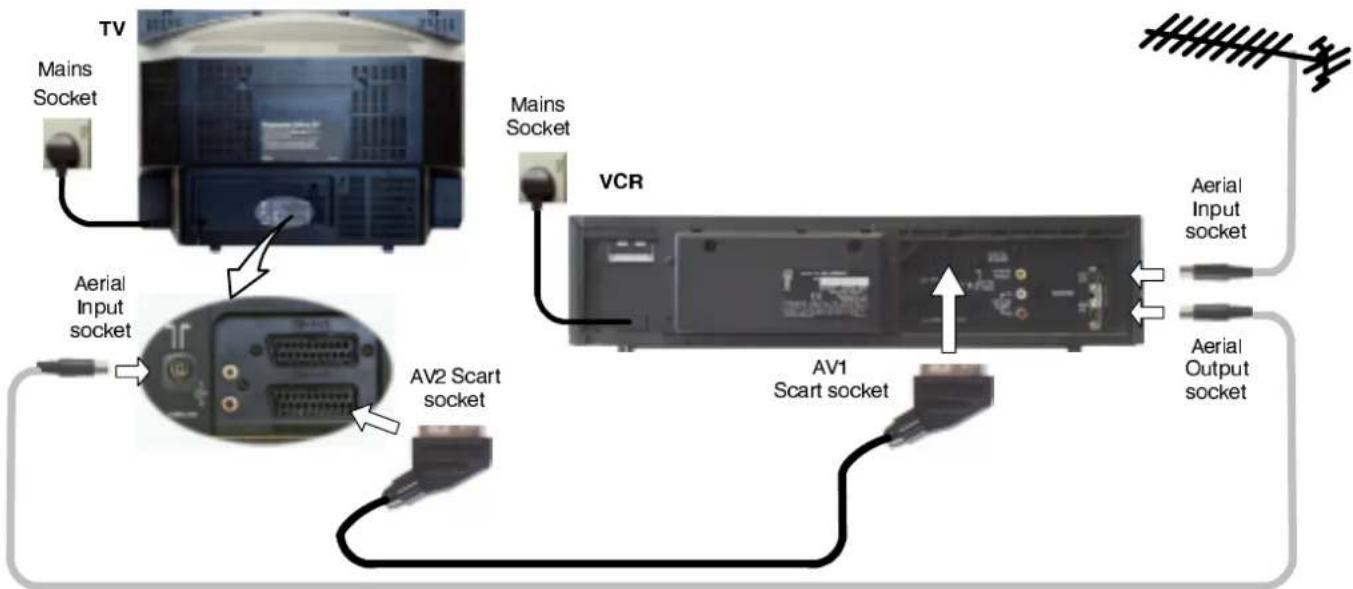
In order for Q-Link to function correctly, the Scart cables must be connected in a certain way, dependent on whether the TV is being connected to a VCR (option 3, below) or to a VCR and Satellite Receiver (option 4, overleaf).
3. Q/Qa-koo knptionio6TVahTV @Rus#BSusing SdBFcardeSF cables
Scart Connection
- The VCR must be connected to the AV2 Scart socket of this TV using a "fully wired" Scart cable.
Note :
If using a "Q-Link" VCR then the AV1 Scart of the VCR must be connected to the AV2 socket of the TV. If your VCR is not a "Q-Link" VCR, please consult your VCR operating instruction book.
RF Connection
- Connect the RF cable to the Aerial In socket of the VCR and an RF cable from the VCR Aerial Out socket to the TV Aerial socket ( 7Γ ).
text_image
TV Mains Socket Aerial Input socket AV2 Scart socket Mains Socket VCR AV1 Scart socket Aerial Input socket Aerial Output socketNotes :
Additional equipment and cables are not supplied.
Further details of Audio/Video connections can be found on pages 34 and 35.
Further information for VCR and Satellite Receiver installation with this TV can be found on page 30.
4. Q-Link connection of TV, VCR and Satellite Receiver using Scart and RF cables
For Q-Link to function correctly the TV, VCR and Satellite Receiver must be connected as shown in the diagram below.
Scart Connections
"Fully wired" Scart cables should be used for all of the Scart connections.
• The AV2 Scart of the VCR must be connected to the VCR socket of the Satellite Receiver.
• The TV Scart socket of the Satellite Receiver must be connected to the AV1 Scart socket of the TV.
Note :
If using a "QLink" VCR then the AV1 Scart of the VCR must be connected to the AV2 socket of the TV. If your VCR is not a "QLink" VCR, please consult your VCR operating instruction book.
RF Connections
- Connect an RF cable to the Aerial In socket of the Satellite Receiver.
- Connect an RF cable from the RF Out socket of the Satellite Receiver to the RF In socket of the VCR.
- Connect an RF cable from the RF Out socket of the VCR to the TV Aerial In socket ( 7F ).

flowchart
graph TD
    TV["TV"] --> MainsSocket1["Mains Socket"]
    MainsSocket1 --> AV1Scart1["AV1 Scart socket"]
    MainsSocket1 --> AV2Scart1["AV2 Scart socket"]
    AV1Scart1 --> AerialInput1["Aerial Input socket"]
    AV2Scart1 --> AerialInput2["Aerial Input socket"]
    AerialInput1 --> VCR["TV Scart socket"]
    AV1Scart1 --> VCR1["VCR Scart socket"]
    AV2Scart1 --> VCR1
    VCR --> SatelliteReceiver["SATELLITE RECEIVER"]
    SatelliteReceiver --> MainsSocket2["Mains Socket"]
    SatelliteReceiver --> AerialOutput1["Aerial Output socket"]
    SatelliteReceiver --> AerialInput1["Aerial Input socket"]
    SatelliteReceiver --> AerialOutput2["Aerial Output socket"]
    SatelliteReceiver --> AV1Scart3["AV1 Scart socket"]
    SatelliteReceiver --> AV2Scart3["AV2 Scart socket"]
    AV1Scart3 --> VCR3["VCR"]
    AV2Scart3 --> VCR3
    VCR3 --> AerialInput4["Aerial Input socket"]
    VCR3 --> AerialOutput4["Aerial Output socket"]
Notes :
Additional equipment and cables are not supplied.
Further details of Audio/Video connections can be found on pages 34 and 35.
Further information for VCR and Satellite Receiver installation with this TV can be found on page 30.
QUICKSTARRITGUIDE
1
Ensure that the VCR is in Standby mode.
Switch ON your Satellite Receiver; to ensure reliable tuning select either SKY ONE or SKY NEWS.
2
Programmes will appear immediately if your dealer has programmed the TV for you.
If the TV has not been programmed for you then Auto setup will begin. TV stations will be located, sorted into order and stored ready for use.
Plug the TV into mains socket and switch ON.

text_image
Mains Socket
text_image
CH44 AUTO SETUP IN PROGRESS SEARCHING : PLEASE WAIT Stored CH44 BBC1 21 68 TV / AV : To exit3
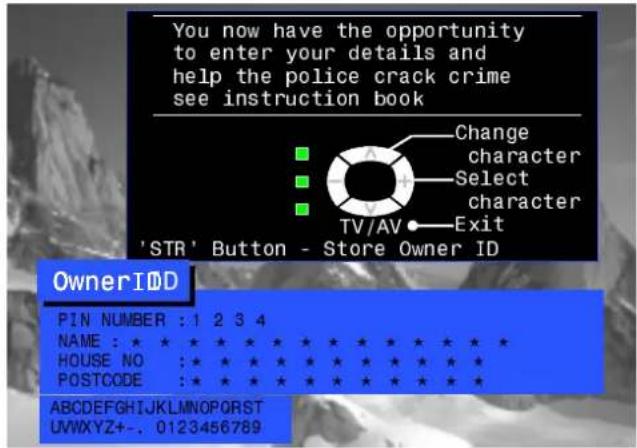
Owner ID
As an added feature, this TV has the option of adding a security code(Owner ID) and personal details into its memory, so that in the unfortunate event of theft it will help the Police to trace the owner.
Enter required 4 digit Owner ID
PIN NUMBER.
(using 0 to 9 on the remote control).


text_image
You now have the opportunity to enter your details and help the police crack crime see instruction book Change character Select character TV/AV Exit 'STR' Button - Store Owner ID OwnerIDD PIN NUMBER : * * * * NAME : * * * * * * * * * * * * HOUSE NO : * * * * * * * * * * * POSTCODE : * * * * * * * * * * 01234567894
Enter NAME, HOUSE NUMBER and POSTCODE.
If a 4 digit PIN NUMBER was entered above, you will be taken automatically to the NAME line.
If not, move to the NAME line.
Change character.
Select character position.
Repeat above until NAME, HOUSE NUMBER and POSTCODE are entered.
Press STR to store the details.
Press STR again, when you are asked "Are you sure?"
text_image
- + ∧ ∨ - +
text_image
You now have the opportunity to enter your details and help the police crack crime see instruction book Change character Select character TV/AV Exit 'STR' Button - Store Owner ID OwnerIDD PIN NUMBER : 1 2 3 4 NAME : ★ ★ ★ ★ ★ ★ ★ ★ ★ ★ ★ ★ HOUSE NO : ★ ★ ★ ★ ★ ★ ★ ★ ★ ★ ★ ★ ★ POSTCODE : ★ ★ ★ ★ ★ ★ ★ ★ ★ ★ ★ ★ ★ ABCDEFGHIJKLMNOPQRSTUVWXYZ+-. 0123456789
For further information on Owner I.D., see page 26.
A space is provided on page 26 to write down the PIN NUMBER for future reference.
QUICKSSTARRITCGGUIDEE
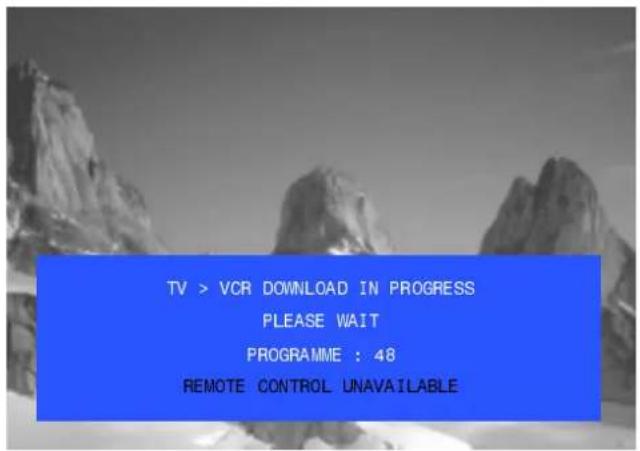
5 TV to VCR Download
If a "Q-Link", "NEXTVIEWLINK" or compatible VCR has been connected to the AV2 socket before starting Step 1, programme information will be downloaded to the VCR.
Downloaded tuning information will match the television's.
Not all VCRs support this download of programme information, some may require to be started manually.
Refer to the VCR operating instruction book.
text_image
TV > VCR DOWNLOAD IN PROGRESS PLEASE WAIT PROGRAMME : 48 REMOTE CONTROL UNAVAILABLEIf a VCR other than those described above has been connected, then there will be no download operation, the TV is now ready for use:

natural_image
Black-and-white mountain landscape with snow-covered peaks and a blue 'BBC1' logo in the corner (no other text or symbols)Notes :
If the VCR has not accepted download data from the TV, you may need to select the Download option from the VCR's menu system. Refer to the VCR operating instruction book.
If Q-Link is not operating correctly, check the following :
- The Scart cable is connected to the TV's AV2 Scart socket.
- The Scart cable is connected to the VCR's compatible (Q-Link, NEXTVIEWLINK or similar technology) Scart socket.
- The Scart cable is a "fully wired" type.
For further information on Q-Link and connecting equipment, see pages 28, 34 and 35.
- The sorted programme order depends upon the TV signal, the broadcasting system, and reception conditions. If the order is not to your preference it can be rearranged. Refer to the Programme edit menu - see page 19 for details.
| Prog. Position | All channels | No CH5 | No CH5 / S4C | No CH4 / CH5 | No S4C | No CH4 / S4C | No CH4 / S4C / CH5 |
| 1 | BBC1 | BBC1 | BBC1 | BBC1 | BBC1 | BBC1 | BBC1 |
| 2 | BBC2 | BBC2 | BBC2 | BBC2 | BBC2 | BBC2 | BBC2 |
| 3 | ITV | ITV | ITV | ITV | ITV | ITV | ITV |
| 4 | CH4 | CH4 | CH4 | S4C | CH4 | CH5 | SAT |
| 5 | S4C | S4C | SAT | SAT | CH5 | SAT | |
| 6 | CH5 | SAT | SAT | ||||
| 7 | SAT | ||||||
| Note :The next available channel will appear, if no other stations are available then the Programme position will remain unused. | |||||||
QUICK STARTGUIDE
6
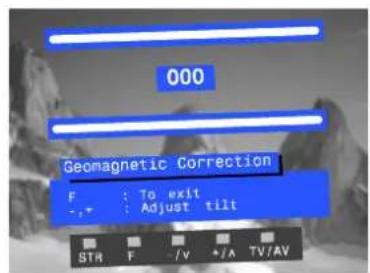
Slight tilting of the picture may be noticeable or coloured patches may sometimes appear at the corners of the screen (colour purity). The Geomagnetic Correction feature can be used to eliminate them, if necessary:
First, ensure the Auto setup and Q-Link download procedures are complete. The screen should not be showing any On-Screen Display menus.

natural_image
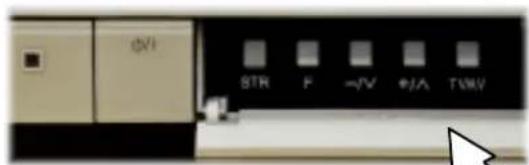
Black-and-white aerial view of a rugged mountain range with snow-covered peaks and ridges (no text or symbols visible)Open the flap on the television's front panel
Press and release here to open flap
text_image
SW STR F -F/V +/A TV/V
natural_image
Close-up of a computer monitor with a white arrow pointing to the screen (no visible text or symbols)Press the F button repeatedly until the Geomagnetic Correction feature is displayed

F
text_image
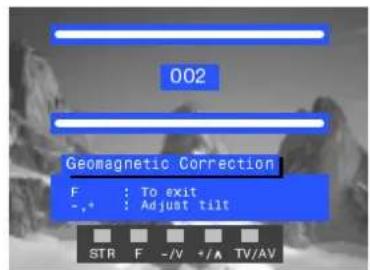
000 Geomagnetic Correction F : To exit - ,+ : Adjust tilt STR F -/v +/A TV/AVPress the + or - buttons repeatedly until the picture appears to be level

-/v

+/A
Press the F button again to return to normal viewing. Close the flap to prevent damage

F
text_image
002 Geomagnetic Correction F : To exit - ,+ : Adjust tilt STR F -/V +/A TV/AV7
We recommend that as soon as the Auto setup feature is completed, the picture controls are reset to normal viewing levels. To do this, press the "N" button, found under the remote control's pull down flap.
N
8
You are now ready to begin viewing programmes
The cursor controls provide the two basic functions:
Adjust Volume

Change Programme
USINGTHECONSSGBBENDDISPLAYS
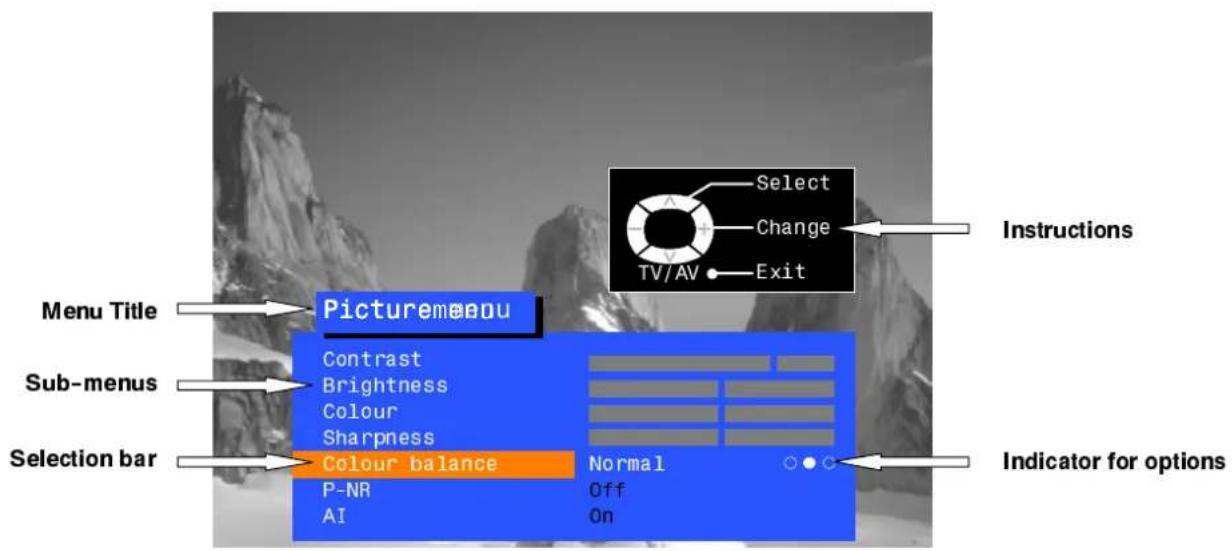
ThisTVhasacomprehensivesystemofOnScreenDisplaymenustoaccess adjustmentsandoptions
text_image
Menu Title Sub-menus Selection bar Picturemonou Contrast Brightness Colour Sharpness Colour balance P-NR AI Normal Off On Select Change TV/AV Exit Instructions Indicator for optionsSome selections, for example, Contrast, Brightness, Colour and Sharpness will allow you to increase or decrease their level.
Some selections, for example, Off timer, allow a change of setting to be made.
Some selections, for example Tuning menu, will lead to a further menu.
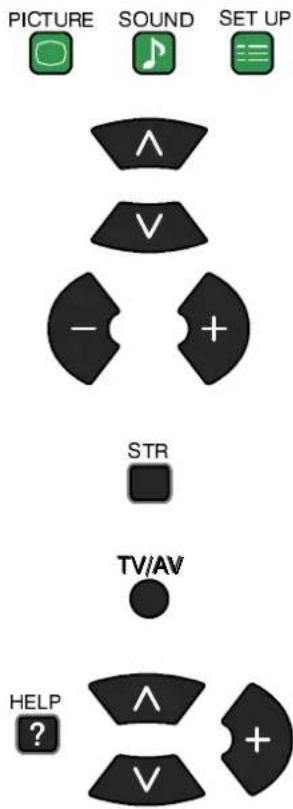
The PICTURE, SOUND and SET UP buttons are used to open the main menus and also to return to the previous menu.
The up and down cursor buttons are used to move the cursor up and down the menus.
The left and right cursor buttons are used to access menus, adjust levels or to select from a range of options.
The STR button is used to store settings after adjustments have been made or options have been set.
The TV/AV button is used to exit the menu system and return to the normal viewing screen.
The HELP button will run a demonstration of the menus available. Press the HELP button and select one of the options.
If the HELP button is pressed whilst a menu is displayed, the 'Instructions' box will be hidden from view. Press the HELP button again to show the 'Instructions' box.
text_image
PICTURE SOUND SET UP Λ V - + STR TV/AV HELP ?
text_image
Panasonic PICTURE SOUND SET UP TV/TEXT DIRECT TV REC ASPECT PP INDEX HOLD 1 2 3 4 5 6 7 8 9 C 0 REC—VCR HHP—PROGRAMME N V A STR HELP ?ASPECT CONTROLS
ThewidescreenTVwillallowyoutoenjoyviewingthepictureatitsmaximumsize,including widescreen'cinemaformat'pictures.
Note: 4:3 and Just modes are not available when viewing an RGB source.
Press the ASPECT button to move through the five aspect options: Panasonic Auto, 4:3, Zoom, 16:9 (Full) and Just
ASPECT

Panasonic Auto
Some broadcasts are transmitted together with a wide screen identification signal (WSS). If the TV receives this signal then it will automatically switch to wide screen 16:9 mode, maximum display.
The automatic widescreen switching depends upon reception conditions and the strength of the signal. If the signal is poor and therefore the WSS is weak then it is possible that the picture may not expand to 16:9 (full) size and that the TV will display black areas around the edges.
If the original source signal was a standard 4:3 aspect ratio then you might prefer to view it in its original size; the red and green keys that appear will allow you to choose between viewing at standard 4:3 size or expanded in Just mode.

text_image
Panasonic Auto 4:3 JustPanasonic Auto
4:3
4:3 will display a 4:3 picture at its standard 4:3 size and can be selected if you wish to view in this format.

natural_image
Snow-covered mountain range with visible peaks and valleys, no text or symbols present4:3
ASPECT CONTROLS
Zoom
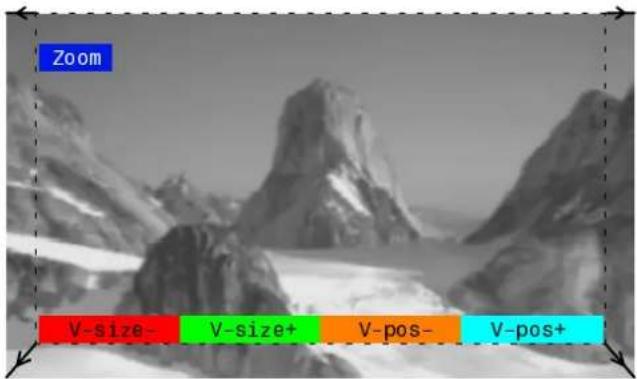
Zoom mode magnifies the central section of the picture.
The picture can be moved and enlarged vertically using the coloured keys. The former adjustment is useful for viewing any sub-titles which may appear outside the picture.
The on screen selector keys that appear for some aspect functions will clear after a few seconds. If you subsequently wish to select an operation then press the Aspect key once more for the keys to reappear.
The widescreen aspect ratios of different films and programmes can vary. If these are wider than a standard 16:9 aspect picture then a black band may be visible at the top and bottom of the screen.
If, in Panasonic Auto mode, you experience problems with the screen display size when playing back widescreen format recordings from your VCR then it is possible that the tracking control of your VCR requires adjustment (your VCR instruction book will contain adjustment details).
16:9 (Full)
16:9 (Full) will display the picture at its maximum size but with slight elongation.
Just
Just mode will display a 4:3 picture at maximum size but with aspect correction applied to the centre of the screen so that elongation is only apparent at the left and right edges of the screen. The size of the picture will depend on the original signal.


text_image
Zoom VSize- VSize+ VPos.- VPos.+Zoom
text_image
Zoom V-size- V-size+ V-pos- V-pos+Blue key has been pressed to move picture upwards

natural_image
Snow-covered mountain range with visible peaks and a blue timestamp overlay (16:9)16:9 (Full)

text_image
JustJust
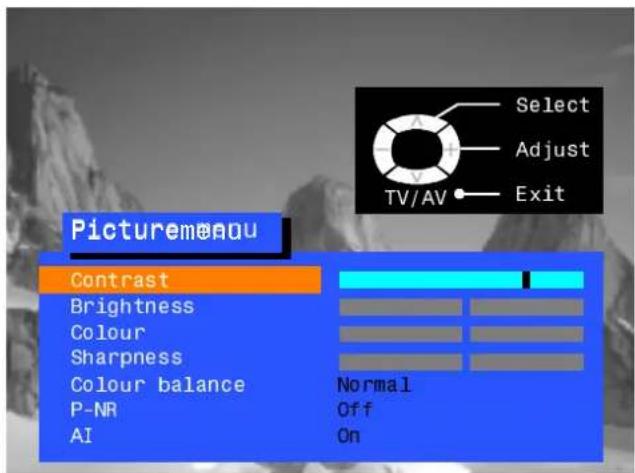
PICTUREMENNU
Open the Picture menu
Move to your choice
Increase or decrease levels or set options
Press the TV/AV button to exit the Picture menu
PICTURE


text_image
Picturemon Contrast Brightness Colour Sharpness Colour balance P-NR AI Select Adjust Exit Normal Off OnContrast
Brightness
Colour
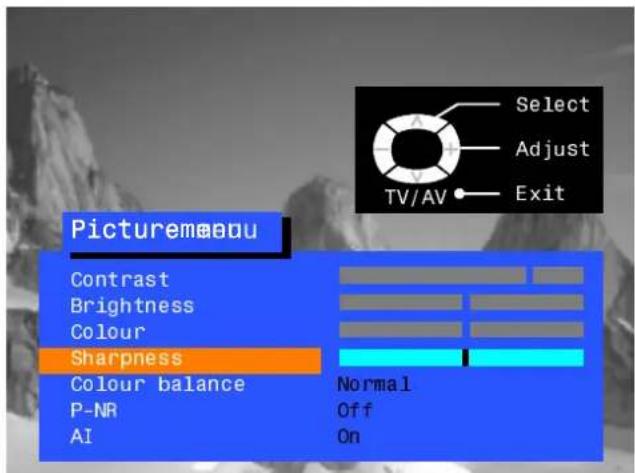
Sharpness
Tint
The Contrast, Brightness, Colour and Sharpness levels can be adjusted to suit your own preferences.
The Tint adjustment will only appear as a menu item if you have an NTSC signal source connected to the TV and will allow adjustment of the hue.
text_image
Picture Mode Contrast Brightness Colour Sharpness Colour balance P-NR AI Select Adjust Exit TV/AV Normal Off OnColourbalance

The Colour balance setting allows you to set the overall colour tone of the picture.
P-NR

P-NR will automatically reduce unwanted picture noise.
AI

AI automatically analyses the incoming picture and processes it to give improved contrast and optimum depth of field.

text_image
SharpnessOpen the Sound menu
Move to your choice
Increase or decrease levels or set options
Press the TV/AV button to exit the Sound menu
SOUND




TV/AV

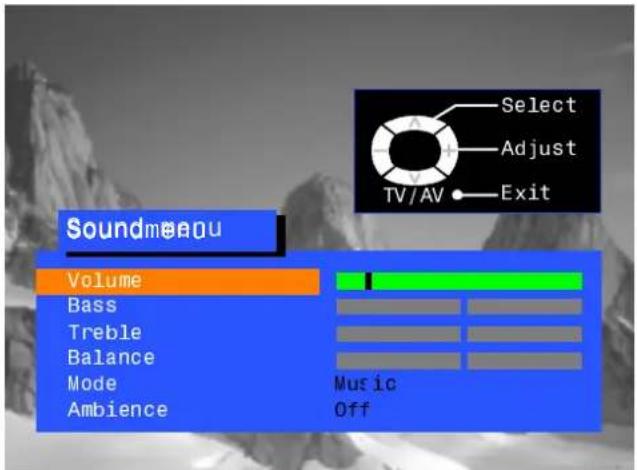
Volume
Bass
Treble
Balance
NICAM

The Volume adjustment sets the overall output volume.
Bass adjustment will emphasise the lower, deeper frequencies and can be increased or decreased.
Treble adjustment will emphasise the sharper, higher frequencies and can be increased or decreased.
Balance affects the levels of sound between the left and right speakers. Adjustment can be made so that the level from the speakers will suit your listening position.
Select On to provide stereo sound reproduction. Select Off for FM Mono sound output.
If Nicam Mono is being transmitted select either FM Mono (Off), Nicam Mono I (M1) or Nicam Mono II (M2). The options depend upon the signal being transmitted.
If reception deteriorates it is advisable to switch to FM Mono (Off).
When Nicam transmissions are not being received the sound will be FM Mono (Off) only.
Mode

The sound can be improved during Music or Speech mode by selecting the appropriate function.
Ambience

Ambience provides a dynamic enhancer to simulate improved spatial effects.

text_image
Soundmeau Volume Bass Treble Balance NICAM Mode Ambience Select Adjust TV/AV Exit On Music Off
text_image
Soundmeau Volume Bass Treble Balance NICAM Mode Ambience Select Change TV/AV Exit On Music Off
text_image
Soundmenu Volume Bass Treble Balance NICAM Mode Ambience Select Change Exit TV/AV On Music OnSETUPMENNU
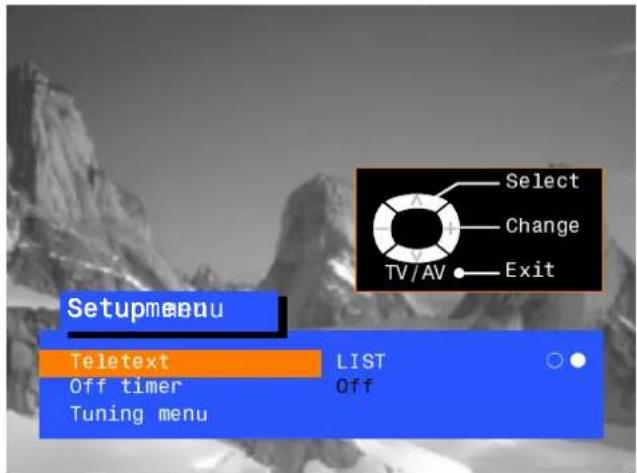
TheSetupmenuprovidesaccesstovariousadvancedfeaturesandalsototheTuningmenu
Open the Setup menu
Move to your choice
Increase or decrease levels, set options or access further menus
Press the TV/AV button to exit the Setup menu
SET UP


TV/AV


text_image
Setupmenu Teletext Off timer Tuning menu FASTEXT Off Select Change TV/AV ExitTeletext

The Teletext option allows you to choose between FASTEXT or LIST mode. See page 32.
Offtimer

Off timer will switch the TV off within a preset time which you can choose from between 0 to 90 minutes in 15 minute intervals.
Tuning menu
The Tuning menu provides an entry to many other features including Programme edit and Auto setup. See page 18.
Volume correc.
Volume correction (in AV mode only) allows you to adjust the volume level of individual stations.
text_image
Setupmenu Teletext Off timer Tuning menu LIST Off Select Change TV/AV Exit
text_image
Setupmenu Teletext Off timer Tuning menu FASTEXT Off Select Change TV/AV Exit
text_image
Open the Setup menu Move to Tuning menu Access Tuning menu Move to your choice Increase or decrease levels, set options or access further menus Press the TV/AV button to exit SET UP TV/AV
text_image
Programme edit Accessing the Programme edit menu will allow stations to be moved, added, deleted, named or locked. See page 19. Auto setup The Auto setup menu allows you to automatically retune the TV. See page 23. Manual tuning The Manual tuning menu allows individual programme positions to be tuned manually. See page 24. Decoder (AV2) ● ○ This option is used when a decoder is connected via AV2. Set to On if a scrambled signal is to be processed by the decoder. Set to Off after use. Shipping condition Allows you to clear all tuning information and reset all control levels back to factory settings. See page 25. OwnerIDD Allows you to enter a security code and address information. See page 26.
text_image
Setupmenu Teletext Off timer Tuning menu FASTEXT Off Select Change TV/AV Exit
text_image
Setupmenu Teletext Off timer Tuning menu FASTEXT Off Access Select Access TV/AV Exit
text_image
1 CH44 Select Access Return - TV/AV Exit 'STR' Button Store Tuningmenu Programme edit Access Auto setup Manual tuning Decoder (AV2) Off Shipping condition Owner IDTUNINGMENUPROBGRANEMEBEDIT
TheProgrammeeditmenuallowsyoutoedittheprogrammepositionsettings

flowchart
graph TD
    A["Open the Setup menu"] --> B["Move to Tuning menu"]
    B --> C["Access Tuning menu"]
    C --> D["Move to Programme edit menu"]
    D --> E["Access Programme edit menu"]
    F["SET UP"] --> G["△"]
    G --> H["V"]
    H --> I["-"]
    I --> J["+"]
    J --> K["△"]
    K --> L["V"]
    L --> M["-"]
    M --> N["+"]
Make required changes (see sections below)
text_image
Press STR button to store changes If you have finished in the Programme edit menu, press the STR TV/AVTo delete an unvariate the programme position
Ensure that the cursor is in the Prog. Column
Choose the programme position
Press the Red button on remote control

Press the Red button again to confirm

If you have finished in the Programme edit menu, press the TV/AV button to exit


text_image
Setupmenu Teletext Off timer Tuning menu FASTEXT Off Select Change TV/AV Exit
text_image
Setupmenu Teletext Off timer Tuning menu FASTEXT Off Access Select Access TV/AV Exit
text_image
1 CH44 Select Access Return - TV/AV Exit 'STR' Button Store Tuningmeau Programme edit Access Auto setup Manual tuning Decoder (AV2) Off Shipping condition Owner ID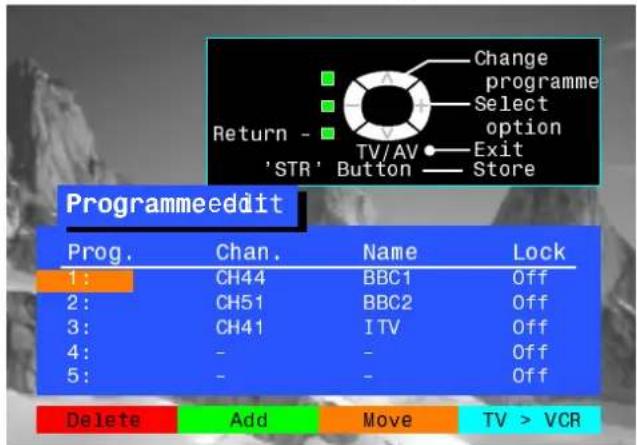
text_image
Change programme Select option Return - TV/AV Exit 'STR' Button Store Programmeedit Prog. Chan. Name Lock 1: CH44 BBC1 Off 2: CH51 BBC2 Off 3: CH41 ITV Off 4: - - Off 5: - - Off Delete Add Move TV > VCRTUNINGMENUPROBGMANEEDIT
Toaddaprogrammeposition
Choose the programme position where the new programme is to be inserted
Press the Green button

Press the Green button again to confirm

This blank programme can then be tuned (see page 24), named (see page 21) or locked (see page 22)

Press STR to store

If you have finished in the Programme edit menu, press the TV/AV button to exit

text_image
Change programme Select option Return - TV/AV Exit 'STR' Button Store Programme edit Prog. Chan. Name Lock 1: CH44 BBC1 Off 2: CH51 BBC2 Off 3: CH41 ITV Off 4: - - Off 5: - - Off Delete Add Move TV > VCRTo move a p p g r a g n m e l e t o a n e t h o t r p s i p s i c t i o n
Choose the programme position to be moved

Press the Yellow button on remote control

Choose new position

Press the Yellow button again to confirm

If you have finished in the Programme edit menu, press the TV/AV button to exit


text_image
Change programme Select option Return - TV/AV Exit 'STR' Button Store Programme edit Prog. Chan. Name Lock 1: CH44 BBC1 Off 2: CH51 BBC2 Off 3: CH41 ITV Off 4: - - Off 5: - - Off Delete Add Move TV > VCR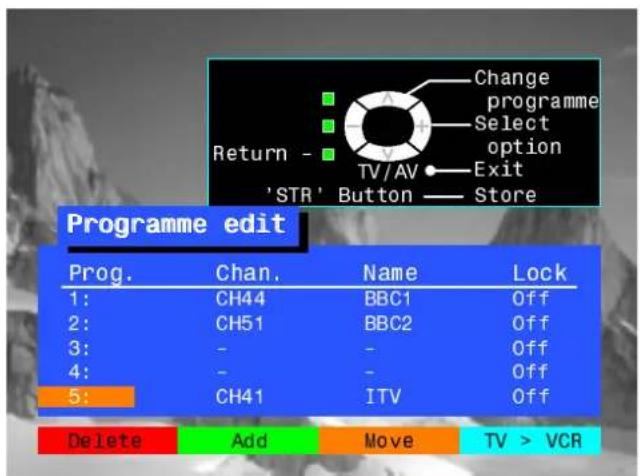
text_image
Change programme Select option Return - TV/AV Exit 'STR' Button Store Programme edit Prog. Chan. Name Lock 1: CH44 BBC1 Off 2: CH51 BBC2 Off 3: - - Off 4: - - Off 5: CH41 ITV Off Delete Add Move TV > VCRTUNINGMENUPROBGMANEEDIT
Torenameaprogrammeposition
Choose the programme position

Move to the Name column

Choose the new character
Move to the next character position

Continue until renaming is done
Press STR to store

If you have finished in the Programme edit menu, press the TV/AV button to exit


text_image
Change character Select option Return - 'STR' Button Exit Store Programmeedit Prog. Chan. Name Lock 1: CH44 BBC1 Off 2: CH51 BBC2 Off 3: - - Off 4: CH54 C H 4 Off 5: CH41 ITV Off A B C D E F G H I J K L M N O P Q R S T U V W X Y Z + - . ■ 0 1 2 3 4 5 6 7 8 9TUNINGMENUPROBGMANEEDIT
Tolockaprogrammepositiontoprevent access
Choose the programme position

Move to the Lock column

Choose between Lock On or Lock Off
Press STR to store

If you have finished in the
Programme edit menu, press the
TV/AV button to exit

Note :
When a programme position is locked, Direct Channel Access using the 'C' and numeric keys on the remote control is not available

text_image
Return - 'STR' Button Lock off/on Select option Exit Store ProgrammeEdit Prog. Chan. Name Lock 1: CH44 BBC1 Off 2: CH51 BBC2 Off 3: - - Off 4: CH54 CH4 Off 5: CH41 ITV OffTo copy programmer information to a compatible VCR connected to AX22
Move to the Prog. column

Press the Blue button on the remote control.
Programme data will now be sent to the VCR. This might take a while, depending on the number of stations stored. If the message "Unable to download, check your VCR" appears on the screen, the television is unable to send programme information to the VCR. See the VCR handbook for further information

If you have finished in the
Programme edit menu, press the TV/AV button to exit


text_image
TV>VCR IN PROGRESS PLEASE WAIT Programme : 63 Remote control unavailableTUNINGMENUAUAOSETSETUP
TheAutosetupmenuwillallowyoutoautomaticallyretunetheTVtoyourlocalstations. Itisusefulifyoumovetoadifferentregion

flowchart
graph TD
    A["Open the Setup menu"] --> B["SET UP"]
    C["Move to Tuning menu"] --> D["∧"]
    C --> E["V"]
    F["Access Tuning menu"] --> G["—"]
    H["Move to Auto setup"] --> I["∧"]
    H --> J["V"]
    K["Access Auto setup"] --> L["—"]
    M["Press STR to start Auto setup"] --> N["STR"]
    O["The TV will search for, locate and sort into order your local stations. If a compatible VCR is connected via the AV2 socket, programme data will be sent to the VCR via Q-Link (see page 28)"]
    P["Once this operation is completed the TV will display programme position 1"]

    Q["Setupmeenu"] --> R["Teletext"]
    Q --> S["FFASTEXT"]
    Q --> T["Off"]
    Q --> U["OFF"]
    Q --> V["Tuning menu"]
    Q --> W["Access"]

    X["Tuningmeenu"] --> Y["Programme edit"]
    X --> Z["Auto setup"]
    X --> AA["Manual tuning"]
    X --> AB["Decoder (AV2)"]
    X --> AC["Shipping condition"]
    X --> AD["Owner ID"]

    AE["CH44"] --> AF["Select Access"]
    AE --> AG["Return - 'STR' Button"]
    AE --> AH["Exit Store"]

    AI["WARNING"] --> AJ["All current tuning data will be erased"]
    AK["CH44"] --> AL["Auto SETUP IN PROGRESS"]
    AK --> AM["SEARCHING : PLEASE WAIT"]
    AK --> AN["Stored CH44 BBC1"]
    AK --> AO["SETUP : Return to tuning menu"]
    AK --> AP["SETUP : Return to tuning menu"]
    AK --> AQ["TV/AV : To exit"]
TUNINGMENUMAMUALTUNINGING
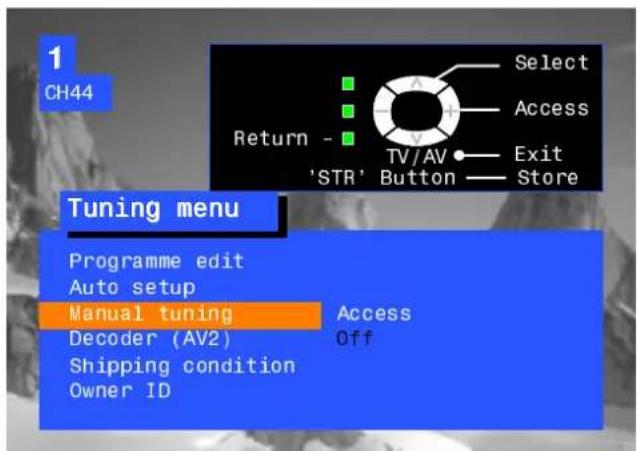
ManualtuningoftheprogrammepositionsisavailableeitherfromtheOnScreenDisplaymenu orfromthefrontpanelcontrols
Manualtuningmenu
Open the Setup menu
Move to Tuning menu
Access Tuning menu
Move to Manual tuning
Access Manual tuning
Select the programme position to be tuned
Press repeatedly until required station is found
When the desired station is found, press STR to store.
The programme position will flash
Press the TV/AV button to exit
SET UP








STR

TV/AV

Manualtuning(Frontpanel)el)
Press the F button (Front panel) until "Tuning mode" is reached
Press the - or + button to access Tuning mode
Press the TV/AV button to move between "Change programme" and "Search"
Press the - or + button to change programme position or start search
When the desired station is found, press STR to store.
The programme position will flash
Repeat above procedure to tune additional programmes or press the F button to exit



text_image
1 CH44 Select Access Return - TV/AV Exit 'STR' Button Store Tuning menu Programme edit Auto setup Manual tuning Decoder (AV2) Shipping condition Owner ID Access Off
text_image
1 CH44 Return - 'STR' Button Programme down/up Search down/up Exit Store Manual tuning 21 68Important note :
On passing channel 68, tuning will restart at channel 21.

text_image
21 68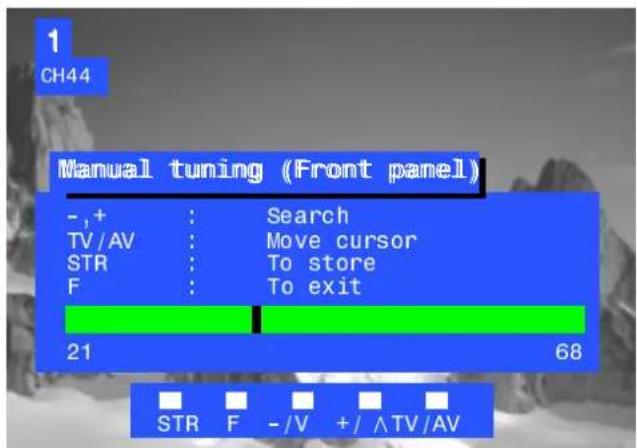
text_image
1 CH44 Manual tuning (Front panel) - ,+ : Search TV/AV : Move cursor STR : To store F : To exit 21 68 STR F - /V + / ^TV/AVTUNINGMENUSHISHING CONDITION
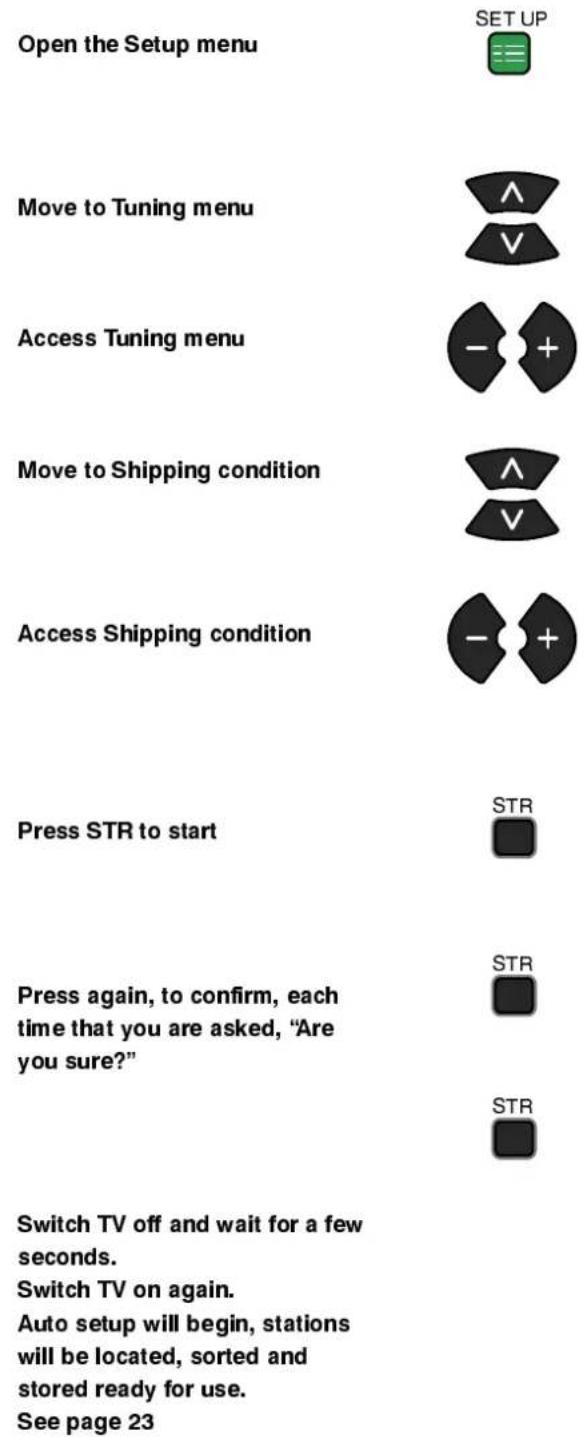
ShippingconditionallowsyoutoresettheTVtoitsoriginalcondition,i.e.nochannelstunedin
This is useful, for example, if you move to a different area when you will probably want the TV to tune itself to your new local stations.
This can be done either through the Shipping condition menu or through the Auto setup menu.
The Shipping condition menu will reset all data, clearing all tuning information and resetting all control levels back to factory settings. You may need to adjust your VCR or programme position '0' VCR after operating the Shipping condition menu - refer to page 30.
text_image
Open the Setup menu Move to Tuning menu Access Tuning menu Move to Shipping condition Access Shipping condition Press STR to start Press again, to confirm, each time that you are asked, "Are you sure?" Switch TV off and wait for a few seconds. Switch TV on again. Auto setup will begin, stations will be located, sorted and stored ready for use. See page 23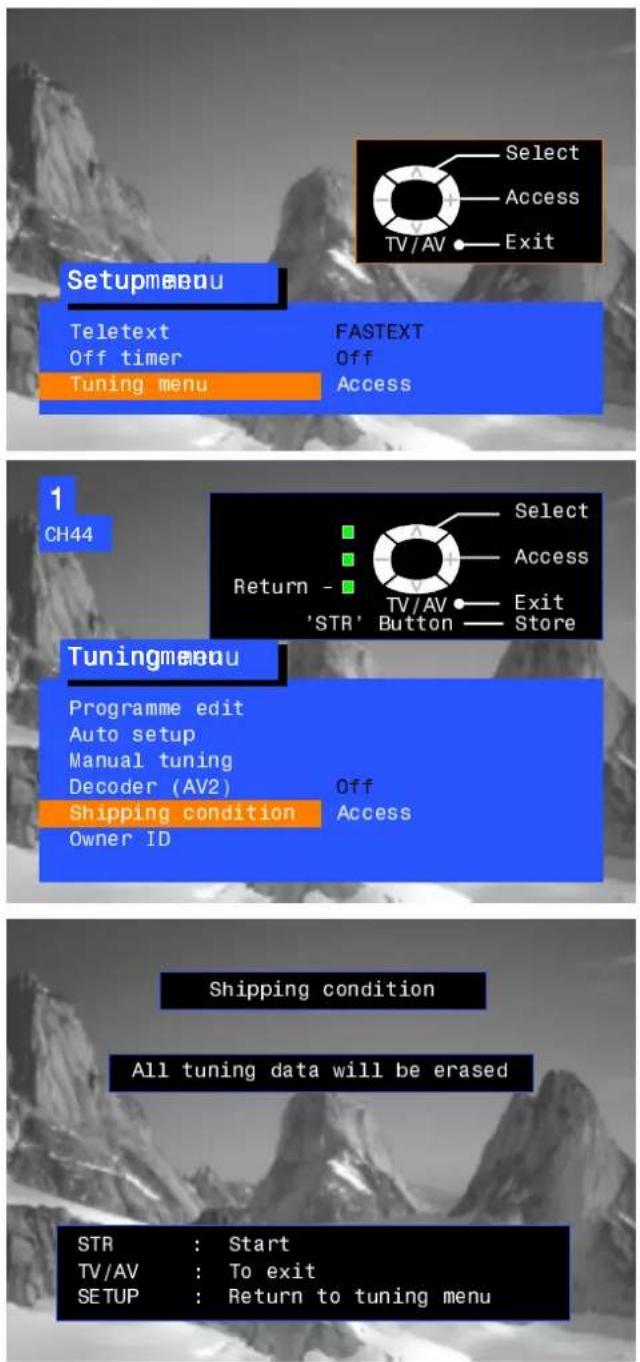
text_image
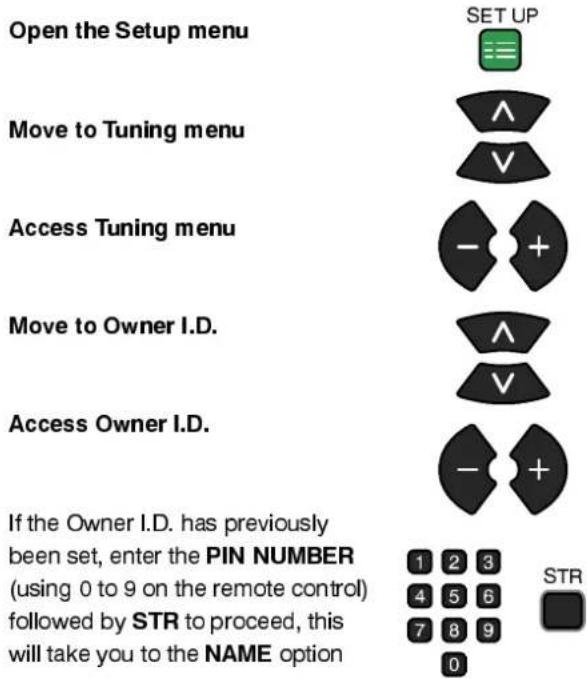
Setupmenu Teletext FASTEXT Off timer Off Tuning menu Access 1 CH44 Select Access TV/AV Exit Return - 'STR' Button Select Exit Store Tuningmenu Programme edit Auto setup Manual tuning Decoder (AV2) Off Shipping condition Access Owner ID Shipping condition All tuning data will be erased STR : Start TV/AV : To exit SETUP : Return to tuning menuOwnerl.D.allowsyoutoenterasecuritycodeandaddressinformationsothatintheunfortunate eventoftheftitwillhelpthePolicetodeterminetheowner.
IftheOwnerl.D.informationwasnotenteredafterAutosetuporitisnecessarytoaltersomeofthel.D.
informationitcanbere-accessedviatheTuningmenu.
text_image
Open the Setup menu Move to Tuning menu Access Tuning menu Move to Owner I.D. Access Owner I.D. SET UP ^ V - + ^ V - + If the Owner I.D. has previously been set, enter the PIN NUMBER (using 0 to 9 on the remote control) followed by STR to proceed, this will take you to the NAME option 1 2 3 4 5 6 7 8 9 0 STRIf no Owner I.D. has previously been set, enter the required 4 digit Owner I.D. PIN NUMBER (using 0 to 9 on the remote control)
If a 4 digit PIN NUMBER was entered above, you will be taken automatically to the NAME line
If not, move to the NAME line
Change character
Select character position
Repeat above until NAME, HOUSE NUMBER and POSTCODE are entered
Press STR to store the details. Press again, to confirm, when asked, "Are you sure?"
The Tuning menu will be displayed
Press the TV/AV button to exit

text_image
- + ^ V - +


text_image
Setupmenu Teletext Off timer Tuning menu FASTEXT Off Access Select Access TV/AV Exit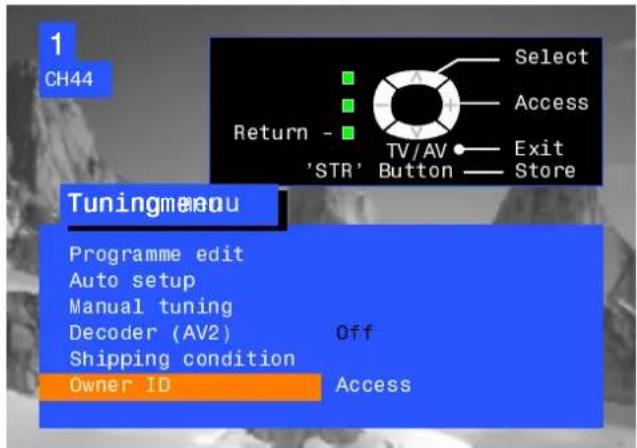
text_image
1 CH44 Select Access Return - TV/AV Exit 'STR' Button Store Tuning menu Programme edit Auto setup Manual tuning Decoder (AV2) Shipping condition Owner ID Off Access
text_image
You now have the opportunity to enter your details and help the police crack crime see instruction book Change character Select character Return - TV/AV Exit 'STR' Button - Store Owner ID OwnerIDD PIN NUMBER : 1 2 3 4 NAME : ★ ★ ★ ★ ★ ★ ★ ★ ★ ★ ★ ★ ★ HOUSE NO : ★ ★ ★ ★ ★ ★ ★ ★ ★ ★ ★ ★ POSTCODE : ★ ★ ★ ★ ★ ★ ★ ★ ★ ★ ★ ★ ABCDEFGHIJKLMNOPQRSTUVWXYZ+-. 0123456789
text_image
For future reference, write your PIN Number here :AVSELECTANDS SETUP
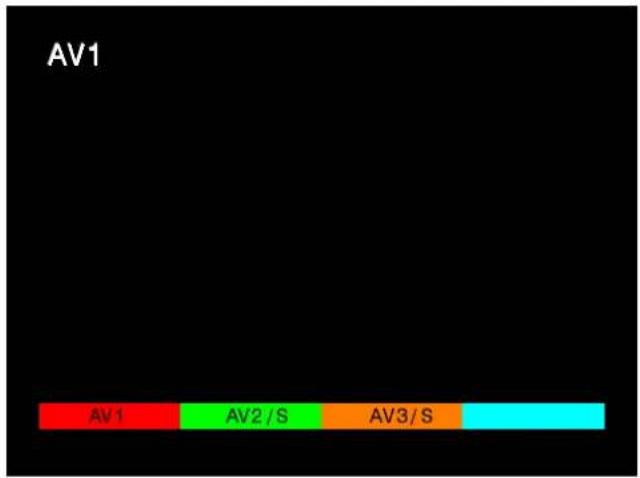
TheAVSelectmenuwillallowyoutochoosewhichAVsourcetoview
Press the TV/AV button
Press the appropriate coloured remote control button (whilst the options remain on screen)
The options will disappear
You may wish to make adjustments in the Setup or Sound menus
TV/AV


text_image
AV1 AV1 AV2 / S AV3 / SSetupmenu
Open the Setup menu
Move to your choice
Access adjustments or options
Press the TV/AV button to exit
SET UP


TV/AV


text_image
Setupmaabou Teletext Off timer Volume correc. FASTEXT Off Select Change TV/AV ExitSoundmenu
Open the Sound menu
Move to your choice
Access adjustments or options
Press the TV/AV button to exit



text_image
Soundmeagu Volume Bass Treble Balance Mode Ambience Select Adjust TV/AV Exit Music OffQ-LINK
Q-Link allows the television to communicate with a compatible VCR
For Q-Link communication to work, the TV must be connected to a VCR with the "Q-Link", "NEXTVIEWLINK", "DATALOGIC", "Easy Link", "Megalogic" or "SMARTLINK" logo using a "fully wired" Scart cable between the AV2 socket of the television and the appropriate socket on your VCR.
For connection to the appropriate Scart socket on the VCR, refer to the VCR operating instruction book.
When using a "NEXTVIEWLINK" VCR the main features possible are the following :
- Preset Download - Downloading of tuning information from the TV to the VCR.
- Direct TV Record - For immediate recording of the current program (What You See Is What You Record).
When using a "Q-Link" VCR the main features possible are the following :
- Preset Download - Downloading of tuning information from the TV to the VCR.
- Direct TV Record - For immediate recording of the current program (What You See Is What You Record).
• TV/VCR Auto Power On - When the VCR plays a tape the TV will automatically switch On and select the AV2 input.
• VCR Auto Power Standby - When the TV is switched into Standby, the VCR will also switch into Standby. - VCR Image view - When the VCR plays a tape the TV will automatically switch On and select the AV2 input.
This TV will also communicate with other VCR's that bear the following logos :
• "DATA LOGIC" (a trademark of Metz Corporation).
- "Easy Link" (a trademark of Philips Corporation).
• "Megalogic" (a trademark of Grundig Corporation).
• "SMARTLINK" (a trademark of Sony Corporation).
These VCR's may support some or all of the above functions.
Refer to the VCR operating instruction book.
PresetDownload
This allows the programme order from the TV to be downloaded to the VCR, this helps to ensure that correct recordings are made, there are several ways to perform this operation:
- During installation as explained in the 'Quick Start Guide' beginning on page 6.
- When Auto setup is started from within the Tuning menu, see page 23.
- When TV to VCR manual download is started from within 'Programme edit', see page 22.
- Preset download started from the VCR, refer to the VCR operating instruction book.
Important Note:
Not all VCRs support this type of data communication system. Some may support certain features, but not others. Refer to the VCR operating instruction book.
If Q-Link is inoperative, first confirm that your Scart cable is a "fully wired" type. Ask your dealer for further details.
WhatYouSeelsWhatYouRecord(DIRECTTVRECORDING)
This will allow the immediate recording of the program currently shown on the Television.
DIRECT
TV BEC
Press the DIRECT TV REC button on the remote control

If the VCR is in Standby mode with a useable tape inserted, it will automatically switch on when you press the DIRECT TV REC button.
If a "Q-Link" VCR is connected a message will appear on the TV screen showing what is being recorded, or if it is not possible to record. Some "Q-Link" compatible VCR's will only display the message when on the VCR programme position(0) or in AV mode. Refer to the VCR operating instruction book.
VCRreccodinggreseteplogVCRrecord
Recording this programme now
VCR is recording the programme signal from its own tuner. If you wish you can switch off the TV and leave the VCR recording in the normal way.
Source VCR recording TV source
VCR is recording the programme signal from the television. You must not change programme position or switch off the TV: if you do, the VCR will automatically stop recording and switch off.
Noneconding TAPE/SPROTEBDED
The write protection tab on the back of the cassette has been removed.
Examples of other messages that might be displayed are:
NonecondingNOTAPETAPE
No recording - VCR IS PLAYING
VCRRBeopdingVCRExrtexternal
Noreeondingg ALAEADXBECORDDINGING!
No recording - TAPE MAY BE DAMAGED
No recording - NO SOURCE AVAILABLE
TV / VCR Auto Power On
(With a Panasonic Q-Link VCR connected, this additional feature is available).
- If you insert a tape in the VCR and press the Play button whilst the TV is in 'Standby' mode, the TV will automatically switch On and select the AV2 input so that you can view the tape.
Some other VCR's may support this feature. Refer to the VCR operating instruction book.
VCRAutoPBoxeStatiodloly
(With a Panasonic Q-Link VCR connected, this additional feature is available).
When the TV is switched into 'Standby' mode, the VCR will also switch into 'Standby' mode if there is no tape in the VCR, or if there is a tape in and the VCR is in 'Rewind' or 'Stop' mode (if the VCR is rewinding a tape, it will not switch into 'Standby' mode until rewinding has finished).
Some other VCR's may support this feature. Refer to the VCR operating instruction book.
VCRIImageViewOn
(With a Panasonic Q-Link VCR connected, this additional feature is available).
If the TV is in Standby mode and the VCR sends a menu to be displayed on the TV screen (e.g. Main menu), the TV will automatically switch On and the menu will be displayed.
Some other VCR's may support this feature. Refer to the VCR operating instruction book.
VCRANDSATEELLTERBCEEMEMINSTATALATION
Your new TV is supplied with programme position '0' set to receive an RF signal from your VCR, although a Scart connection is preferable if the VCR is so equipped.
However, if for some reason your VCR is tuned to a different RF channel then you will not receive any picture or sound from your VCR on programme position '0' of the TV. It will be necessary to either adjust the RF channel of your VCR (some VCR's allow adjustment of their RF channel via their remote control unit) or to adjust the tuning of the TV's programme position '0' or both until it receives the RF output channel of your VCR.
It is intended that this advice is used in conjunction with the instruction books for your additional equipment.
Use the AV1 Scart terminal for a VCR.
Use the AV2S S cart terminal for an S-Video VCR.
Use the AV2S Scart terminal for a Q-Link, NEXTVIEWLINK or compatible VCR.
TotumeyouuTVtVtheVGRVCR
Switch on the VCR, insert and play a pre-recorded tape with known content

text_image
Open the Setup menu Move to Tuning menu Access Tuning menu Move to Manual tuning Access Manual tuning Select programme position '0' VCR Start searching for the VCR playback of the known content tape When the VCR playback is found, press STR to store Press the TV/AV button to exit SET UP STR TV/AVSee below for installation of VCR and Satellite Receiver
Notes :
- If picture patterning occurs on programme position '0' it may be necessary to adjust the RF output channel of the VCR, refer to the VCR instruction book.
- If a Satellite Receiver and a VCR are going to be used with RF cable connections it is important to avoid both units being set on the same channel. Refer to the Satellite Receiver and VCR instruction books for precise tuning information.

natural_image
Illustration of a hand inserting into a CD drive into a memory unit (no text or symbols visible)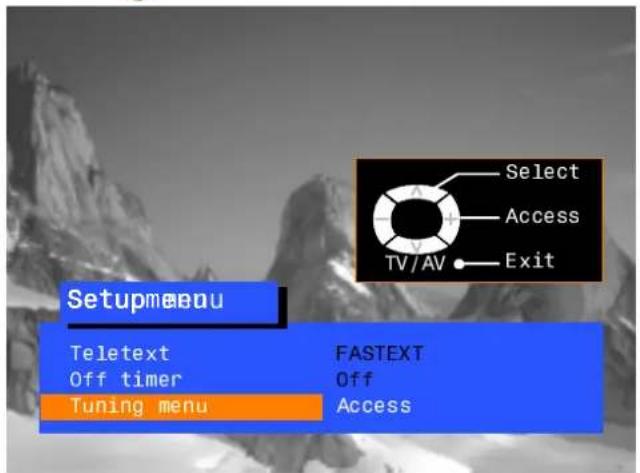
text_image
Setupmenu Teletext Off timer Tuning menu FASTEXT Off Access Select Access TV/AV Exit
text_image
VCR CH32 Programme down/up Search down/up Return - TV/AV Exit 'STR' Button Store Manual tuning 21 68
natural_image
Coastal landscape with large rock formations and sandy beach under cloudy sky (no text or symbols)VCR/DIVDD DEEATION
The Remote Control is capable of operating some functions of selected Panasonic VCRs and DVD (Digital Versatile Disc) equipment. Some VCR and DVD equipment have different functions, so to ensure compatibility please refer to the equipment's instruction book or consult your dealer for details.
text_image
Panasonic PICTURE SOUND SET UP TV/TEXT DIRECT TV REC ASPECT F.P. INDEX HOLD 1 2 3 4 5 6 7 8 9 VCR C 0 +- REC—VCR FL/T—PROGRAMME N STR HELP ? | StandbyPress to switch the VCR or DVD to standby mode.Press again to switch back on. | |
 | VCR / DVD switchUse this switch to select whether controls operate DVD equipment or your VCR. | |
 | PlayPress to playback the tape or DVD. | |
 | StopPress to stop the tape or DVD. | |
 | Skip / Fast Forward / CueVCR: Press to fast forward the tape. In Play mode, press to view the picture rapidly forward (Cue).DVD: Press once to skip to the next track. In play mode press and hold to view the picture rapidly forward. | |
 | Skip / Rewind / ReviewVCR: Press to rewind the tape. In Play mode, press to view the picture rapidly in reverse (Review).DVD: Press once to skip to the previous track. In play mode press and hold to view the picture rapidly in reverse. | |
 | Pause / StillPress in playback mode, the picture will pause.Press again to restart play. | |
  | Programme Up / DownPress to increase or decrease the VCR programme position by one. | |
 | RecordPress this button to start recording. |
TELETEXT@OPERATION
- Teletext features may vary depending on the Broadcasting Companies and is only available if the channel selected is transmitting Teletext.
- Pressing the Picture button whilst in Teletext operation will display the contrast function with a cyan bar, press ◀ to alter the setting as required.
Pressing the Setup button whilst in Teletext operation will display special function options at the bottom of the screen. - When in Teletext mode, the volume may still be altered to the desired listening level.
What is LSSTmbabe ?
In LIST mode, four differently coloured page numbers are situated at the bottom of the screen. Each of these numbers can be altered and stored in the TV's memory.
What is FASTEXT?
In FASTEXT mode, four differently coloured subjects are situated at the bottom of the display. To access more information about one of these subjects, press the appropriately coloured button. This facility enables fast access to information on the subjects shown.
TV/TEXT

TV//Texttextmode
Press the TV/TEXT button.
The screen will display the Teletext page.
Press again when you wish to return to TV mode.


Page Selection
Pages can be selected in two ways :
a. Press the Up / Down buttons to increase or decrease the page number by one.
b. By entering the page number, using 0 - 9 on the remote control.


Full/Topo BotBont to m
Press the SET UP button to display special functions, followed by the Green button. Press the Green button again to expand the BOTTOM half.
Press again to return to normal (FULL) size.


Reveal
Press the SET UP button to display special functions, followed by the Red button to reveal hidden words e.g. quiz page answers. Press again to hide.


Red/Green/YeYelvo/BluBhuttontons
In FASTEXT mode these correspond to the differently coloured subjects. In LIST mode they correspond to the differently coloured page numbers.


ListS800ee
In LIST mode the four page numbers can be altered (programme positions 1 - 25 only). To do this, press one of the four coloured buttons and enter the new page number. Press and hold STR, the page numbers will change to white indicating that the page is stored.

Hold
To hold the Teletext page when viewing multi-page information. Press again to return to automatic page update.
TELETEXTOPERATION
It is not possible to change the programme position when in News flash, Update or Sub Coded Page Access operation.


Favourite Page(FPP.)
Stores a favourite page in memory for instant recall. To store such a page, the TV must be in LIST mode, and the programme position must be from 1 - 25. Press the Blue button, select the page number, then press and hold the STR button. The page number is now stored.
Press F.P. to recall this page.


Update Display
Press the SET UP button to display special functions, followed by the Yellow button to view the TV picture whilst searching for a Teletext page. When found, the screen will display the page number at the top left. Press the Yellow button to view the page. Press TV / TEXT again to return to normal TV operation.
News Flash
When a news flash page has been selected, press SET UP, Yellow, to view the TV picture. When an update is received, the page number will be displayed on screen. Press the Yellow button to display the News Flash Press TV / TEXT to return to normal TV operation.
Update
Press SET UP, Yellow to see the update of information on certain pages. When an update is received, the page number will be displayed at the top left of the screen. Press the Yellow button to view the page. Press TV / TEXT to return to normal TV operation.


SubCodedPageAccess
When Teletext information exceeds more than one page, it may take some time for the automatic changing of the sub pages to reach the sub page you require. It is possible to enter your required sub page and continue watching the normal programme until the correct sub page is found. Select the required page number using buttons 0 - 9.


Press the SET UP button followed by the Blue button; T**** will be displayed at the top right of the screen.
Enter desired sub page number before the T**** disappears. To select page 6 enter 0, 0, 0 and 6.
(If in LIST mode, a 'T' will appear in the current box at the bottom).
Press the Yellow button to view a normal TV programme. (Press SET UP, Yellow in LIST mode).
When the page is available, press the Yellow button to view the page. To clear the page perform one of the following :
- Press SET UP.
- Select a new page number.
- Press TV/TEXT to return to normal TV operation.

Index
When in FASTEXT operation
Press INDEX to return to the main index page. Depending on the way information is transmitted, this may have to be pressed more than once to return to the main index page.
FrontAV34PinS---Video,RCAAudio/

text_image
Press and release to open
text_image
Output from Headphone socket 3.5mm Stereo Plug STEREO HEADPHONES with 3.5mm Plug Video input to S-V S-Video socket V L - R Video input to V socket Audio input to L/R sockets RCA Video Cable 2 x RCA Audio Cables CAMCORDERNote :
Additional equipment and cables shown are not supplied with this TV set
■Scantseokletinifonatation
AV1 Scart socket
| Socket Earth | 21- | □ | □ | -20 | CVBS in (video) |
| CVBS out (video) | 19- | □ | □ | -18 | RGB status earth |
| CVBS earth | 17- | □ | □ | -16 | Status RGB |
| Red in | 15- | □ | □ | -14 | Earth |
| Red earth | 13- | □ | □ | -12 | -- |
| Green in | 11- | □ | □ | -10 | -- |
| Green earth | 9- | □ | □ | -8 | Status CVBS |
| Blue in | 7- | □ | □ | -6 | Audio in (L) |
| Blue earth | 5- | □ | □ | -4 | Audio earth |
| Audio out (L) | 3- | □ | □ | -2 | Audio in (R) |
| Audio out (R) | 1- | □ | □ |
Suitable inputs for AV1 include RGB (Red/Green/Blue)
AV2 Scart socket (S-Video, Q-Link)
| Socket Earth | 21- | □ | □ | -20 | CVBS in (video) |
| CVBS out (video) | 19- | □ | □ | -18 | Earth |
| CVBS earth | 17- | □ | □ | -16 | -- |
| S.C. - In | 15- | □ | □ | -14 | Earth |
| Earth | 13- | □ | □ | -12 | -- |
| -- | 11- | □ | □ | -10 | Q-Link data |
| Earth | 9- | □ | □ | -8 | Status CVBS |
| -- | 7- | □ | □ | -6 | Audio in (L) |
| Earth | 5- | □ | □ | -4 | Audio earth |
| Audio out (L) | 3- | □ | □ | -2 | Audio in (R) |
| Audio out (R) | 1- | □ |
AV2 - Pins 15 and 20 are dependent on AV2 S-VHS / VIDEO switching
S-Video 4 pin socket
| Chrominance in | Luminance in |
| Chrominance earth | Luminance earth |
Rear AV1/AV2(S) 21 Pin Scart and RCA Audio Out Terminals

flowchart
graph TD
    A["Hi-Fi SYSTEM"] --> B["Output from L-R AUDIO OUT Sockets"]
    B --> C["2 x RCA Audio Cables"]
    D["Scart cable"] --> E["Input/Output from AV1 Scart Socket"]
    E --> F["VCR"]
    F --> G["SATELLITE RECEIVER"]
    G --> H["CAMCORDER"]
    H --> I["GAMES CONSOLE / COMPUTER (RGB)"]
    J["Scart cable"] --> K["Input/Output from AV2 Scart Socket Q-Link data"]
    K --> L["VCR S-VIDEO VCR Q-LINK COMPATIBLE VCR"]
    L --> M["S-VIDEO CAMCORDER"]
Notes:
Additional equipment and cables shown are not supplied with this TV set.
Do not connect a computer with TTL output (5V) to this set.
TROUBLESHOOTING
| Symptoms | Checks | |
| Picture | Sound | |
 Snowy Picture Snowy Picture |  Noisy Sound Noisy Sound | Aerial location, direction or connection |
 Multiple Images Multiple Images |  Normal Sound Normal Sound | Aerial location, direction or connection |
 Interference Interference |  Noisy Sound Noisy Sound | Electrical appliancesCars / MotorcyclesFluorescent lightsSwitch on P-NR in Picture menu to reduce picture noise |
 Normal Picture Normal Picture |  No Sound No Sound | Volume levelSound mute switched on |
 No Picture No Picture |  No Sound No Sound | TV set to AV modeNot plugged into A.C. outletNot switched onPicture / Sound controls set at minimum levelsCheck if in standby mode |
 No Colour No Colour |  Normal Sound Normal Sound | Colour controls set at minimum levels |
 Poor or Distorted Picture Poor or Distorted Picture |  Weak or No Sound Weak or No Sound | Retune Channel(s) |
 Coloured Patches Coloured Patches |  Normal Sound Normal Sound | Magnetic Interference from unshielded equipmentReceiver moved while switched ON, switch TV off for 30 minutes.If picture is also tilted, use Geomagnetic Correction feature (see Quick Start Guide, page 11) |
 Normal Picture Normal Picture |  Weak or distorted sound Weak or distorted sound | Sound reception may have deteriorated.Switch NICAM setting (Sound menu) to Off until reception improves. |
FORYOURGGUDIAANCE
■Service
Before requesting service, please refer to the trouble-shooting guide on previous page to determine the symptoms. To obtain service please contact your local Panasonic dealer quoting the model number and serial number (both are located at the rear of the TV).
■ TVG Games/Hseries Compilers
Extended use of TV games or home computers with any television set can cause a permanent 'shadow' on the screen. This type of irreversible picture tube damage, can be limited by observing the following points:
- Reduce the brightness and contrast levels to a minimum viewing level.
- Do not operate the television set for a continuous period of time while using TV games or home computers.
- This type of picture tube damage, is not an operating defect, and as such is not covered by the Panasonic warranty.
■LastPBoitionMTheory
Certain functions have a last position memory, i.e. the setting at the time of switch-off will be the setting used when the receiver is switched on again:
| Programme | Tint (M.NTSC / NTSC only) |
| Mode | Volume correction (in AV mode only) |
| AV Position | Contrast |
| Volume | Sharpness |
| NICAM | Aspect mode |
| Bass | Standby |
| Treble | Artificial Intelligence (AI) |
| Balance | Colour |
| Colour Balance | Brightness |
| Status | P-NR |
| Teletext mode | Decoder (AV2) |
Ambience
■SleepFeature
If the set is not switched off when the TV station stops transmitting, it will automatically go to standby mode after 30 minutes. This function will not operate when the TV is in AV mode.
SPECIFICATIONS
| TX-32PK1 | TX-28PK1 | ||
| Power Source | 220 - 240V 50Hz A.C. | ||
| Power Consumption | 110W | 96W | |
| Standby Consumption | 1.4W | ||
| Picture TubeVisible Diagonal | 76 cm | 66 cm | |
| Audio OutputMusic Power | Front Left / Right 20W x 2,8Ω impedance | ||
| Dimensions | H | 558 mm | 503 mm |
| W | 812 mm | 720 mm | |
| D | 572 mm | 527 mm | |
| Weight (Kg) | 58 | 41.5 | |
| Receiving Systems/ Band name | PAL I UHF E21-68PAL 525/60 Playback of NTSC tape from some PAL Video recorders (VCR)M.NTSC Playback from M.NTSC Videorecorders (VCR)NTSC (AV input only) Playback from NTSC Videorecorders (VCR) | ||
| Aerial - Rear | UHF | ||
| Headphones - Front | 3.5mm, 8Ω impedance | ||
| AV - Rear | AV1 - 21 pin terminal - Audio / Video in / out, RGB inAV2 - 21 pin terminal - Audio / Video in/out, S-Video in, Q-Link2 x RCA Audio Monitor Out | ||
| AV - Front | AV3 - S - Video in, RCA Audio / Video in | ||
Specifications are subject to change without notice. Weight and dimensions shown are approximate.
NOTES