DVP3610 - Dvd predvajalnik PHILIPS - Brezplačna navodila za uporabo
Brezplačno poiščite navodila za napravo DVP3610 PHILIPS v formatu PDF.


Vprašanja uporabnikov o DVP3610 PHILIPS
0 vprašanje o tej napravi. Odgovorite na tiste, ki jih poznate, ali zastavite svoje.
Zastavite novo vprašanje o tej napravi
Prenesite navodila za vaš Dvd predvajalnik v formatu PDF brezplačno! Poiščite svoja navodila DVP3610 - PHILIPS in vzemite svojo elektronsko napravo nazaj v roke. Na tej strani so objavljeni vsi dokumenti, potrebni za uporabo vaše naprave. DVP3610 znamke PHILIPS.
NAVODILA ZA UPORABO DVP3610 PHILIPS
Register your product and get support at
www.philips.com/welcome
DVP3610
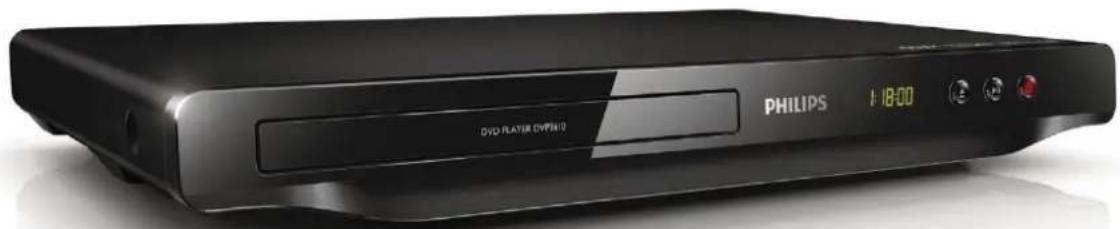
natural_image
Black Philips DVD player interface with LCD display and control buttons (no readable text beyond branding)EN User manual
PHILIPS
Before you connect this DVD player, read and understand all accompanying instructions.
Trademarks
DOLBY. DIGITAL
Manufactured under license from Dolby Laboratories. Dolby and the double-D symbol are trademarks of Dolby Laboratories.
DIVX ULTRA
ABOUT DIVX VIDEO: DivX® is a digital video format created by DivX, LLC. This is an official DivX Certified® device that plays DivX video. Visit divx.com for more information and software tools to convert your files into DivX video.
ABOUT DIVX VIDEO-ON-DEMAND: This DivXCertified® device must be registered in order to play purchased DivX Video-on-Demand (VOD) movies. To obtain your registration code, locate the DivX VOD sectionin your device setup menu. Go to vod.divx.com for more information on how to complete your registration.
DivX®, DivX Certified® and associated logos are trademarks of Sonic Solutions and are used under license.

'DVD Video' is a trademark of DVD Format/Logo Licensing Corporation.


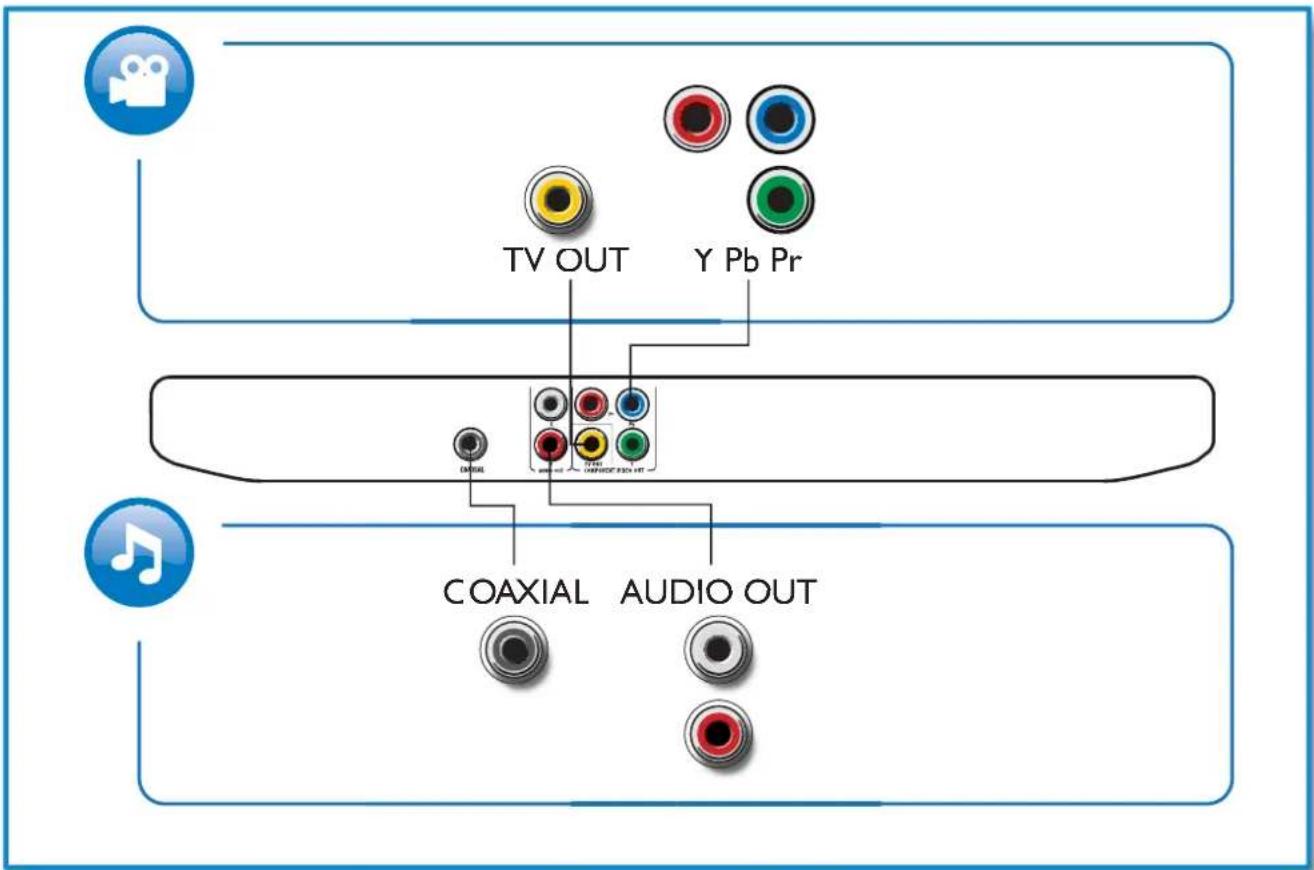

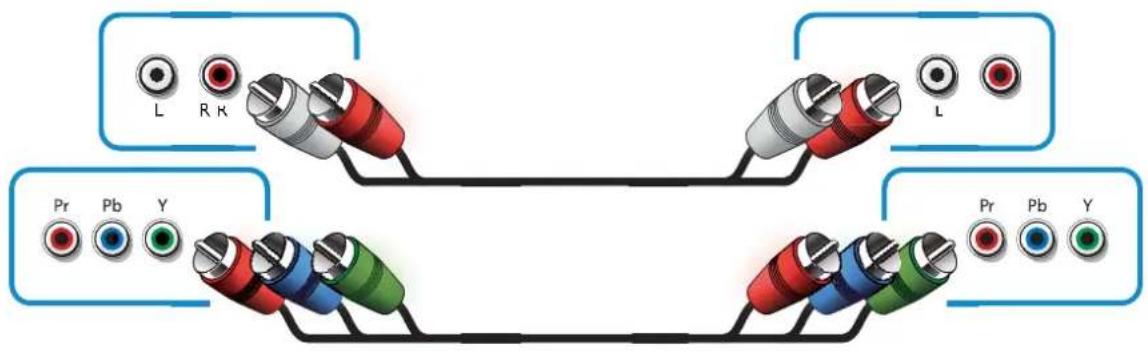
Pr Pb Y + AUDIO OUT

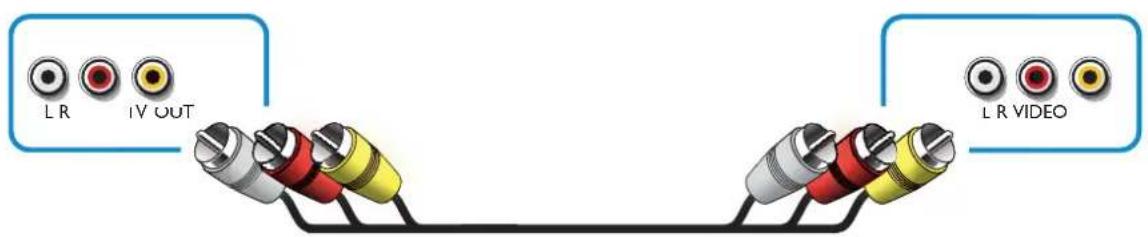
TV OUT + AUDIO OUT

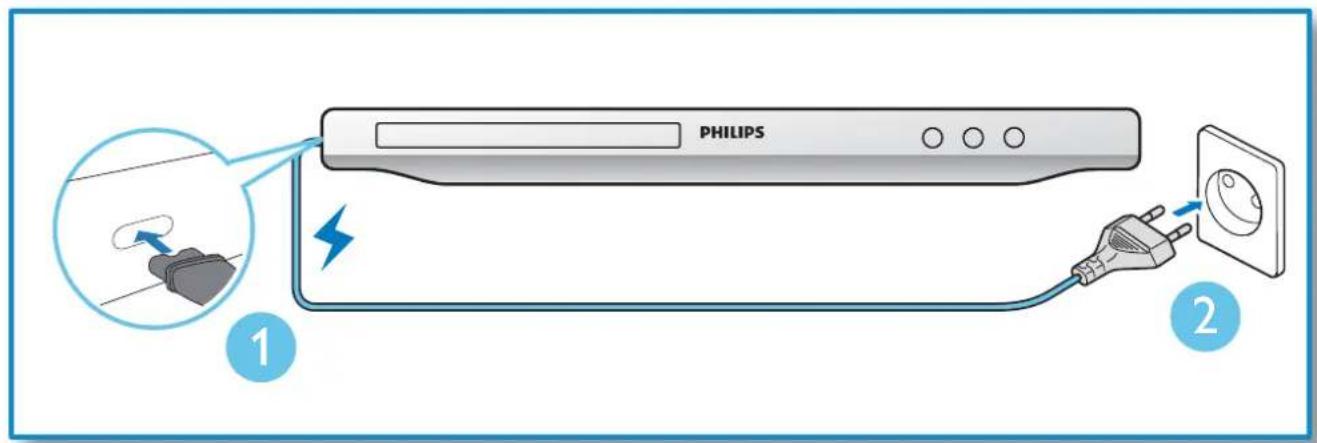
3
4
natural_image
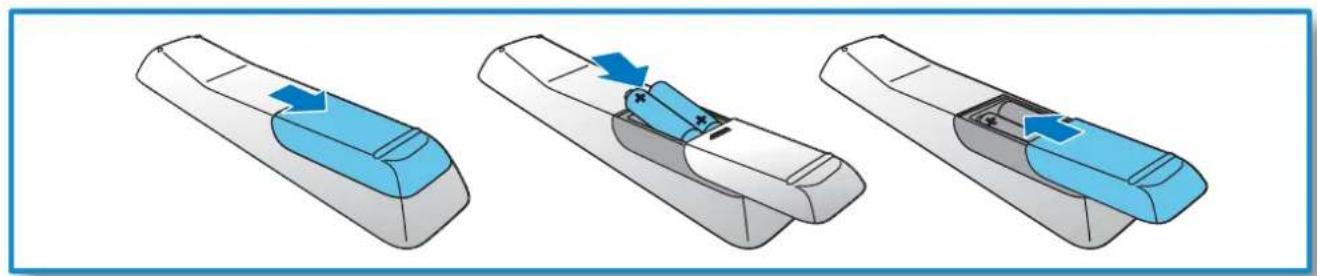
Three-step illustration of a remote control device with blue and gray casing, showing internal components and directional arrows (no text or symbols)5
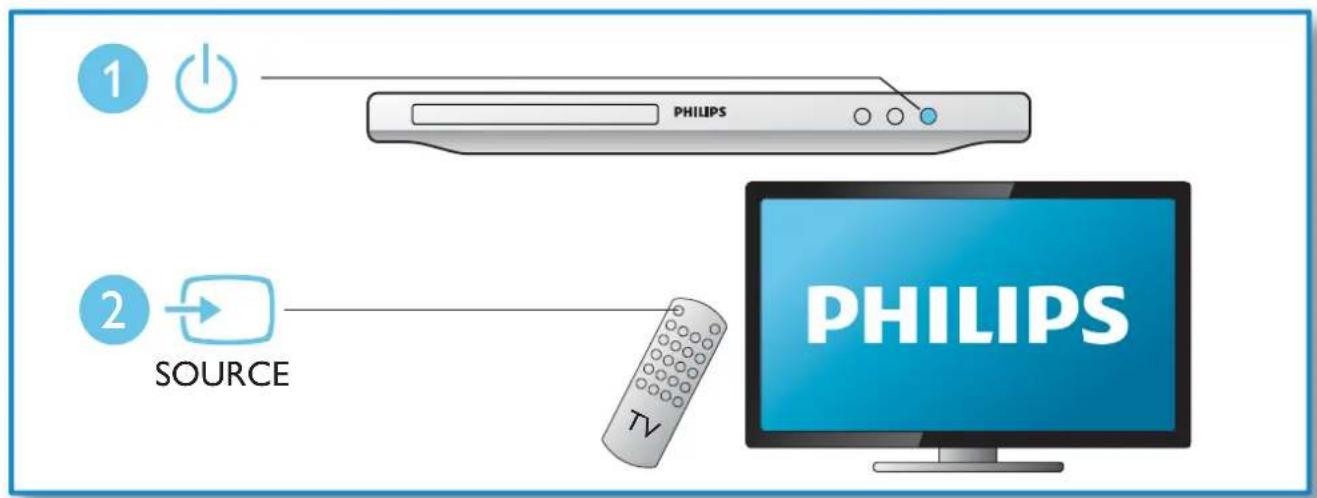
6

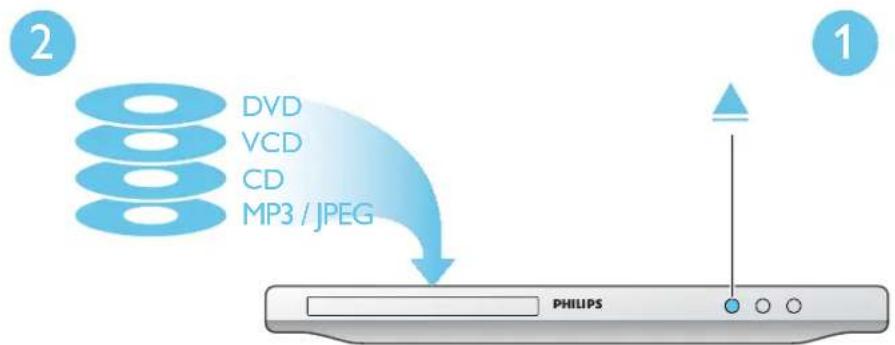
flowchart
graph TD
    A["Philips"] -->|DVD VCD CD MP3 / JPEG| B["Terminal"]
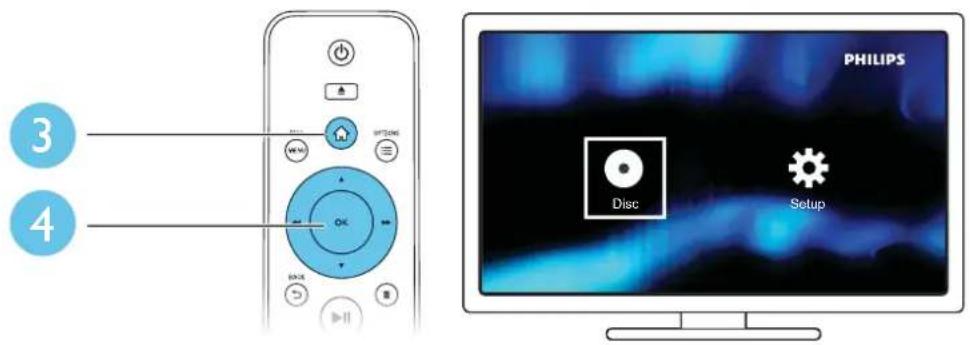
Table of contents
1 Hookup and play 2-6
2 Use your DVD player 8
Basic play control 8
Video options 9
Play a musical slideshow 9
Repeat play 9
Skip play 10
DivX videos 10
3 Change settings 11
General (sleep, standby...) 11
Picture 11
Sound 12
Preference (languages, parental control...) 12
4 Software update 13
5 Specifications 14
6 Troubleshooting 16
7 Safety and important notice 17
2 Use your DVD player
Congratulations on your purchase, and welcome to Philips! To fully benefit from the support that Philips offers, register your product at www.philips.com/welcome.
Basic play control
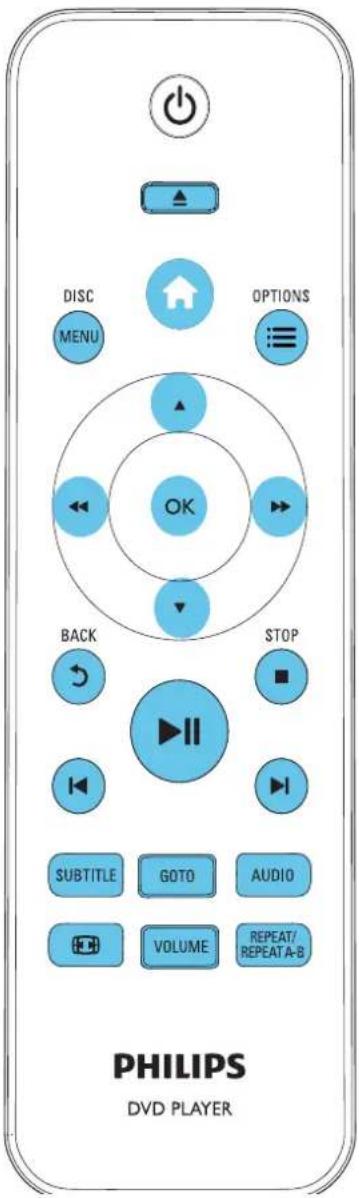
During play, press the following buttons to control the player.
Button Action
| Access the home menu. | |
| ▲ | Open or close the disc compartment. |
DISC MENU Access or exit the disc menu.
| ≡ OPTIONS | Access more options during video play. |
| ▲▼ | Navigate the menus.Slow forward or backward.Press repeatedly to change a search speed. |
| ◄◄/►► | Navigate the menus.Fast forward or backward.Press repeatedly to change a search speed. |
OK Confirm a selection or entry.
| ▶II | Start, pause or resume play. |
| ■ STOP | Stop play. |
→ BACK
| ◀/▶ | Skip to the previous or next track, chapter or file. |
| SUBTITLE Select a subtitle language. | |
GOTO Skip to a title, a chapter or a track.
| AUDIO Select an audio language or channel. | |
| Fit the picture display to the TV screen.Zoom the picture in or out. | |
| VOLUME | Activate volume control, and then press ↔/▶to change a volume level. |
| REPEAT/ REPEAT A-B | Select a repeat play option. |
Video options
During video play, press: OPTIONS to access the following options.
• [Info]: Display the current play information.
• [PBC]: Display or skip the content menu for VCD and SVCD.
• [Aspect ratio]: Select a picture display format to fit the TV screen.
• [Volume]: Change a volume level.
• [Angle]: Select a camera angle from which video is viewed.
Play a musical slideshow
Play music and pictures simultaneously to create a musical slideshow.
1 From a disc which contains both music and picture files, play a music file.
2 Press ▲▼ to navigate to the picture files.
3 Select a picture, and press OK to start slideshow.
4 Press ■ to stop slideshow.
5 Press ■ again to stop music play.
Control photo play
During a photo slideshow, use the remote control to control the play.
Button Action
| ▲▼ | Rotate a picture horizontally/ vertically. |
| ◀◀/▶▶ | Rotate a picture anti-clockwise/ clockwise. |
| ≡OPTIONS | Access to select [Color] to display a picture in color or black and white.Access to select [Photo preview] to display pictures in thumbnail. |
| ◀◀ | Zoom in or out of a photo.Play pauses in zoom mode. |
| OK Start or resume a play. | |
| ■ | Stop a play. |
Repeat play
During play, press REPEAT/REPEAT A-B repeatedly to select a repeat play option.
- Repeat the current title, chapter, or track.
- Repeat all the contents on a disc.
- Repeat play for a specific section.
To Repeat play for a specific section
1 Press REPEAT/REPEAT A-B repeatedly to select ⇔A as a start point.
2 Press REPEAT/REPEAT A-B again to select AB as an end point.
→The repeat play of the marked section starts.
3 To cancel repeat play, press until is displayed.
Skip play
You can skip play to a specific title, chapter or track.
1 During play, press GOTO.
→An input field bar is displayed, and "0" blinks.
2 Press ▲▼ to select a digit as a title/chapter/track number.
3 After a digit is selected, press / ◀ to change a digit position.
4 If necessary, repeat step 2 and 3 to complete a setting.
5 Press OK.
→The play skips to the selected title, chapter or track.
DivX videos
You can play DivX videos from a disc.
VOD code for DivX
- Before you purchase DivX videos and play them on this player, go to vod.divx.com to register this player using the DivX VOD code.
• Display the DivX VOD code: press 🔗, and select [Setup] > [General] > [DivX(R) VOD Code].
DivX subtitles
• Press SUBTITLE to select a language.
• If subtitles are not displayed correctly, change the character set that supports DivX subtitles.
Select a character set: press ⬆, and select [Setup] > [Preference] > [DivX Subtitle].
Character set Languages
| [Standard] | English, Albanian, Danish, Dutch, Finnish, French, Gaelic, German, Italian, Kurdish (Latin), Norwegian, Portuguese, Spanish, Swedish and Turkish |
[Hebrew] English and Hebrew
| [Chinese-Traditional] | Traditional Chinese |

Note
- To use the subtitles, make sure that the subtitle file has the same name as the DivX video file name. For example, if the DivX video file is named "movie.avi", save the subtitle file as "movie.srt", or "movie.sub".
- This player can play subtitle files in the following formats: .srt, .sub, .txt, .ssa, and .smi.
3 Change settings
This section helps you to change the settings of this player.
| General | Disc Lock | - Unlock |
| OSD Language | - English | |
| Video | Sleep Timer | - Off |
| Auto Standby | - On | |
| Audio | DivX(R)VOD Code | - Registration |
| Preference | ||

Note
- You cannot change a menu option that is grayed out.
• To access [Preference], stop the disc play. - To return to the previous menu, press ➤ To exit the menu, press
General (sleep, standby...)
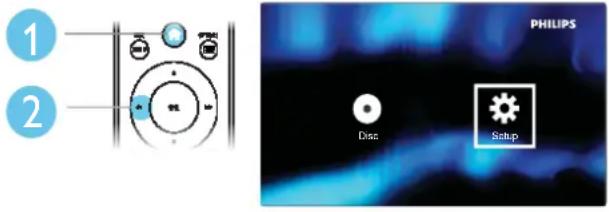
1 Press ↗.
2 Select [Setup] > [General] to access the general setup options.
- [Disc Lock]: Lock or unlock a disc for play. To play a locked disc, you need to input your password: press ▲▼ to enter a digit, and press ◀◀ / ▶▶ to change a digit position. The default password is "136900".
• [OSD Language]: Select a language for on-screen menu.
- [Sleep Timer]: Set a period of time for this player to switch automatically to standby mode from play.
• [Auto Standby]: Enable or disable auto standby. If enabled, this player switches automatically to standby after 15 minutes of inactivity (for example, in pause or stop mode).
• [DivX(R) VOD Code]: Display the DivX® registration code and deregistration code.
Picture
1 Press ↗.
2 Select [Setup] > [Video] to access the video setup options.
- [TV System]: Select a TV system that matches your TV. By default, this setting matches the common TVs in your country.
• [Aspect ratio]: Select a picture display format to fit the TV screen.
- [Progressive]: Turn on or off the progressive scan mode. If a progressive scan TV is connected to this player, turn on the progressive scan mode.
• [Picture Setting]: Select a predefined color setting, or customize a setting.

Note
- To achieve progressive scan pictures, make sure that your TV supports the progressive scan feature, and your TV is connected to this player through the Y/Pb/Pr connectors.
Sound
1 Press ↗.
2 Select [Setup] > [Audio] to access the audio setup options.
• [Analogue Output]: Select an audio format for sound output when this player is connected through the AUDIO OUT L/R connectors.
- [Digital Audio]: Select an audio format for sound output when this player is connected through the COAXIAL connector.
- [Digital Output] - Select a type of digital output: [Off] - Disable digital output; [All] - Support multi-channel audio formats; [PCM Only] - Downmix to two-channel audio signal.
- [LPCM Output] - Select a LPCM (Linear Pulse Code Modulation) output sampling rate. The higher the sampling rate, the better the sound quality. [LPCM Output] is enabled only when [PCM Only] is selected under [Digital Output].
• [Volume]: Change a volume level.
• [Sound Mode]: Select a preset sound effect.
• [Night Mode]: Select quiet or full dynamic sound. Night mode decreases the volume of loud sound and increases the volume of soft sound (such as speech).

Note
- Night mode is only available for Dolby encoded DVD discs.
Preference (languages, parental control...)
1 Press ↑.
2 Select [Setup] > [Preference] to access the preference setup options.
• [Audio]: Select an audio language for video.
- [Subtitle]: Select a subtitle language for video.
• [Disc Menu]: Select a menu language for a video disc.
- [Parental Control]: Restrict access to discs that are encoded with ratings. Input "136900" to access the restriction options: When the password field is highlighted, press OK to enter an input stage, press ▲▼to select a digit and press /◀◀to ▶change a digit position.
• [PBC]: Display or skip the content menu for VCD and SVCD.
- [Password]: Set or change a password to play a restricted disc. Input "136900" if you do not have a password or if you have forgotten your password.
• [DivX Subtitle]: Select a character set that supports the subtitle of your DivX video.
• [Version Info]: Display the software version for this player. - [Default]: Reset all settings to the factory default, except for the settings for [Disc Lock], [Parental Control] and [Password].

Note
- If your preferred language is not available for disc language, audio or subtitle, you can select [Other] from the menu options and input 4-digit language code which can be found at the back of this user manual.
- The rating levels are country-dependent. To allow all discs to be played, select [8 Adult].
4 Software update

Note
- Power supply must not be interrupted during software update.
To check for updates, compare the current software version of this DVD player with the latest software version (if available) at the Philips website.
1 Press ↗.
2 Select [Preference] > [Version Info], and then press OK.
3 Write down the model name and the software version number.
4 Visit www.philips.com/support to check for the latest software version, using the model name and software version number.
5 Refer to the upgrade instructions given on the website to complete the software update.
5 Specifications

Note
- Specifications are subject to change without notice
Region code
This player can play discs with the following region codes.
DVD region code Countries

Asia Pacific, Taiwan, Korea
playable media
- Disc
• DVD, DVD-Video, VCD, SVCD, Audio CD
- DVD+R/+RW, DVD-R/-RW, DVD+R/-R DL (Dual Layer), CD-R/-RW (Maximum number of files: 648)
- File
• Video: avi, .divx, .mp4, .xvid
- Audio: .mp3, .wma
• Picture: .jpg, .jpeg
Video
• Signal system: PAL, NTSC
• Composite video output: 1 Vp-p (75 Ohm)
• Component video output: 0.7 Vp-p (75 Ohm)
Audio
• 2-channel analog output
• Audio Front L&R : 2 Vrms (47k Ohm)
• Digital output: 0.5 Vp-p (75 Ohm)
- Coaxial
- Sampling frequency:
• MP3: 22.05 kHz, 24 kHz, 32 kHz, 44.1 kHz 48 kHz
• WMA: 44.1 kHz, 48 kHz
- Constant bit rate:
• MP3: 8 kbps - 320 kbps
• WMA: 32 kbps - 192 kbps
Main unit
• Dimensions (W × H × D): 310 × 39 × 203 (mm)
- Net Weight: 1.35 kg
Power
• Power supply rating: AC 110-240V\~, 50/60 Hz
• Power consumption: 8 W
• Power consumption in standby mode: 0.5 W
Accessories supplied
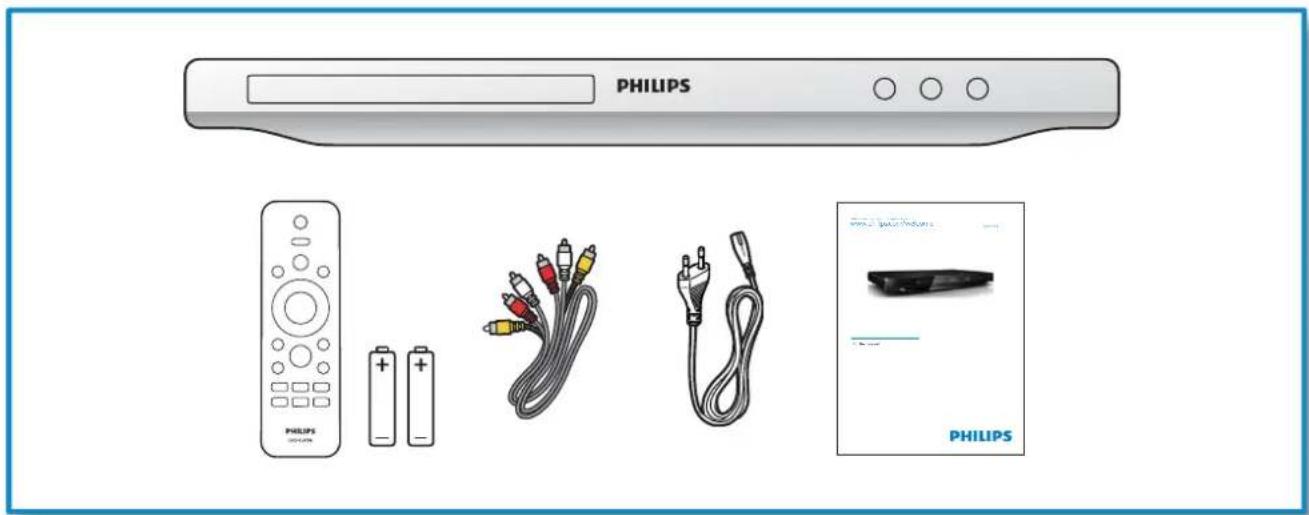
• Remote control and 2 batteries
- AC power cable
- AV cables
- User manual
Laser specification
• Type: Semiconductor laser InGaAlP (DVD), AlGaAs (CD)
• Wave length: 658 nm (DVD), 790 nm (CD)
• Output Power: 7.0 mW (DVD), 10.0 mW (VCD/CD)
- Beam divergence: 60 degrees
6 Troubleshooting

Warning
- Risk of electric shock. Never remove the casing of the player.
To keep the warranty valid, never try to repair the player yourself.
If you have problems using this player, check the following points before you request service. If you still have a problem, register your player and get support at www.philips.com/welcome.
If you contact Philips, you will be asked for the model and serial number of this player. The model number and serial number are on the back of this player. Write the numbers here:
Model No. ____
Serial No. ____
No picture.
• Refer to the TV user manual for how to select the correct video input channel.
- Switch to the default mode if the progressive scan setting or the TV system setting is changed.
No sound output from the TV.
- Make sure that the audio cables are connected to the audio input sockets that are grouped with the selected video input sockets.
No sound during DivX video playback.
• The audio codes are not supported.
Disc cannot be read.
• Make sure that this player supports the disc. (Refer to "Specifications" > " playable media")
- For a recorded disc, make sure that the disc is finalized.
Recorded files (JPEG, MP3, WMA) cannot be played or read.
- Make sure that the file was recorded in the format of UDF, ISO9660, or JOLIET.
- Make sure that the number of files does not exceed the limitation (648 files maximum).
• Make sure that this player supports these files. (Refer to “Specifications” > “ playable media”)
DivX video files cannot be played.
- Make sure that the DivX video file is complete.
- Make sure that the file extension is correct.
DivX subtitles are not displayed correctly.
- Make sure that the subtitle filename is the same as the video filename.
- Make sure that the DivX video file and the subtitle file are saved under the same directory.
- Select a character set that supports the subtitle. (Refer to "Use your DVD player" > "DivX videos")
7 Safety and important notice
Read and understand all instructions before you use this DVD player. If damage is caused by failure to follow the instructions, the warranty does not apply.
Safety
Risk of electric shock!
- Never expose the product and accessories to rain or water. Never place liquid containers, such as vases, near the product. If liquids are split on or into the product, disconnect it from the power outlet immediately. Contact Philips Consumer Care to have the product checked before use.
- Never place the product and accessories near naked flames or other heat sources, including direct sunlight.
- Never insert objects into the ventilation slots or other openings on the product.
- Where the mains plug or an appliance coupler is used as the disconnect device, it shall remain readily operable.
- Disconnect the product from the power outlet before lightning storms.
- When you disconnect the power cord, always pull the plug, never the cable.
Risk of short circuit or fire!
- Before you connect the product to the power outlet, make sure that the power voltage matches the value printed on the back of the product.
- Avoid applying pressure on the power plugs. Loose power plugs can cause arcing or fire.
Risk of injury or damage to the product!
- To avoid exposure to laser radiation, do not disassemble.
- Do not touch the optical lens inside the disc compartment.
- Never place the product or any objects on power cords or on other electrical equipment.
- If the product is transported in temperatures below 5°C, unpack the product and wait until its temperature matches room temperature before connecting it to the power outlet.
Risk of overheating!
- Never install this product in a confined space. Always leave a space of at least four inches around the product for ventilation. Make sure that curtains or other objects never cover the ventilation slots on the product.
Risk of contamination!
- Remove the battery if flat or if the remote control is not to be used for a long time.
- Batteries contain chemical substances. They should be disposed of properly.
Risk of swallowing batteries!
- The product/remote control may contain a coin type battery, which can be swallowed. Keep the battery out of reach of children at all times!
Care for your product
- Do not insert any objects other than discs into the disc compartment.
- Do not insert warped or cracked discs into the disc compartment.
- Remove discs from the disc compartment if you are not using the product for an extended period of time.
- Only use microfiber cloth to clean the product.
Care of the environment

Your product is designed and manufactured with high quality materials and components, which can be recycled and reused.
Never dispose of your product with other household waste. Please inform yourself about the local rules on the separate collection of electrical and electronic products and batteries. The correct disposal of these products helps prevent potentially negative consequences on the environment and human health.
Your product contains batteries, which cannot be disposed of with normal household waste.
Please inform yourself about the local rules on separate collection of batteries. The correct disposal of batteries helps prevent potentially negative consequences on the environment and human health.
Please visit www.recycle.philips.com for additional information on a recycling center in your area.
Copyright

Be responsible Respect copyrights
This item incorporates copy protection technology that is protected by U.S. patents and other intellectual property rights of Rovi Corporation. Reverse engineering and disassembly are prohibited.
| Abkhazian 6566 | |
| Afar 6565 | |
| Afrikaans 6570 | |
| Amharic 6577 | |
| Arabic 6582 | |
| Armenian 7289 | |
| Assamese 6583 | |
| Avestan 6569 | |
| Aymara 6589 | |
| Azerbaijani 6590 | |
| Bahasa Melayu 7783 | |
| Bashkir 6665 | |
| Belarusian 6669 | |
| Bengali 6678 | |
| Bihari 6672 | |
| Bislama 6673 | |
| Bokmål, Norwegian 7866 | |
| Bosanski 6683 | |
| Brezhoneg 6682 | |
| Bulgarian 6671 | |
| Burmese 7789 | |
| Castellano, Español 6983 | |
| Catalán 6765 | |
| Chamorro 6772 | |
| Chechen 6769 | |
| Chewa; Chichewa; Nyanja 7889 | |
| 中文 9072 | |
| Chuang; Zhuang 9065 | |
| Church Slavic; Slavonic 6785 | |
| Chuvash 6786 | |
| Corsican 6779 | |
| Česky 6783 | |
| Dansk 6865 | |
| Deutsch 6869 | |
| Dzongkha 6890 | |
| English 6978 | |
| Esperanto 6979 | |
| Estonian 6984 | |
| Euskara 6985 | |
| Ελληνικά 6976 | |
| Faroese 7079 | |
| Français 7082 | |
| Frysk 7089 | |
| Fijian 7074 | |
| Gaelic; Scottish Gaelic 7168 | |
| Gallegan 7176 | |
| Georgian 7565 | |
| Gikuyu; Kikuyu 7573 | |
| Guarani 7178 | |
| Gujarati 7185 | |
| Hausa 7265 | |
| Herero 7290 | |
| Hindi 7273 | |
| Hiri Motu 7279 | |
| Hrwatski 6779 | |
| Ido 7379 | |
| Interlingua (International) 7365 | |
| Interlingue 7365 | |
| Inuktitut 7385 |
| Inupiaq | 7375 |
| Irish | 7165 |
| Íslenska | 7383 |
| Italiano | 7384 |
| Ivrit | 7269 |
| Japanese | 7465 |
| Javanese | 7486 |
| Kalaallisut | 7576 |
| Kannada | 7578 |
| Kashmiri | 7583 |
| Kazakh | 7575 |
| Kernewek | 7587 |
| Khmer | 7577 |
| Kinyarwanda | 8287 |
| Kirghiz | 7589 |
| Komi | 7586 |
| Korean | 7579 |
| Kuanyama;Kwanyama | 7574 |
| Kurdish | 7585 |
| Lao | 7679 |
| Latina | 7665 |
| Latvian | 7686 |
| Letzeburgesch; | 7666 |
| Limburgan;Limburger | 7673 |
| Lingala | 7678 |
| Lithuanian | 7684 |
| Luxembourgish; | 7666 |
| Macedonian | 7775 |
| Malagasy | 7771 |
| Magyar | 7285 |
| Malayalam | 7776 |
| Maltese | 7784 |
| Manx | 7186 |
| Maori | 7773 |
| Marathi | 7782 |
| Marshallese | 7772 |
| Moldavian | 7779 |
| Mongolian | 7778 |
| Nauru | 7865 |
| Navaho;Navajo | 7886 |
| Ndebele,North | 7868 |
| Ndebele,South | 7882 |
| Ndonga | 7871 |
| Nederlands | 7876 |
| Nepali | 7869 |
| Norsk | 7879 |
| Northern Sami | 8369 |
| North Ndebele | 7868 |
| Norwegian Nynorsk; | 7878 |
| Occitan;Provencal | 7967 |
| Old Bulgarian;Old Slavonic | 6785 |
| Oriya | 7982 |
| Oromo | 7977 |
| Ossetian;Ossetic | 7983 |
| Pali | |
| Panjabi | 8065 |
| Persian | 7065 |
| Polski | 8076 |
| Português | 8084 |
| Pushto | 8083 |
| Russian | 8285 |
| Quechua | 8185 |
| Raeto-Romance | 8277 |
| Romanian | 8279 |
| Rundi | 8278 |
| Samoan | 8377 |
| Sango | 8371 |
| Sanskrit | 8365 |
| Sardinian | 8367 |
| Serbian | 8382 |
| Shona | 8378 |
| Shqip | 8381 |
| Sindhi | 8368 |
| Sinhalese | 8373 |
| Slovensky | 8373 |
| Slovenian | 8376 |
| Somali | 8379 |
| Sotho;Southern | 8384 |
| South Ndebele | 7882 |
| Sundanese | 8385 |
| Suomi | 7073 |
| Swahili | 8387 |
| Swati | 8383 |
| Svenska | 8386 |
| Tagalog | 8476 |
| Tahitian | 8489 |
| Tajik | 8471 |
| Tamil | 8465 |
| Tatar | 8484 |
| Telugu | 8469 |
| Thai | 8472 |
| Tibetan | 6679 |
| Tigrinya | 8473 |
| Tonga (Tonga Islands) | 8479 |
| Tsonga | 8483 |
| Tswana | 8478 |
| Türkçe | 8482 |
| Turkmen | 8475 |
| Twi | 8487 |
| Uighur | 8571 |
| Ukrainian | 8575 |
| Urdu | 8582 |
| Uzbek | 8590 |
| Vietnamese | 8673 |
| Volapuk | 8679 |
| Walloon | 8765 |
| Welsh | 6789 |
| Wolof | 8779 |
| Xhosa | 8872 |
| Yiddish | 8973 |
| Yoruba | 8979 |
| Zulu | 9085 |