Flex 11 Chromebook - Laptop LENOVO - Bezpłatna instrukcja obsługi
Znajdź bezpłatnie instrukcję urządzenia Flex 11 Chromebook LENOVO w formacie PDF.


Pytania użytkowników dotyczące Flex 11 Chromebook LENOVO
0 pytanie dotyczące tego urządzenia. Odpowiedz na te, które znasz, lub zadaj własne.
Zadaj nowe pytanie dotyczące tego urządzenia
Pobierz instrukcję dla swojego Laptop w formacie PDF za darmo! Znajdź swoją instrukcję Flex 11 Chromebook - LENOVO i weź swoje urządzenie elektroniczne z powrotem w ręce. Na tej stronie opublikowane są wszystkie dokumenty niezbędne do korzystania z urządzenia. Flex 11 Chromebook marki LENOVO.
INSTRUKCJA OBSŁUGI Flex 11 Chromebook LENOVO
Lenovo
User Guide
Lenovo N23 Yoga Chromebook
Lenovo Flex 11 Chromebook
Contents
Read this first....1
Important safety information 2
Conditions that require immediate action....2
Safety guidelines....3
Chapter 1. Account, login, and logout 12
Types of user account for logging into Chrome 12
Become your Chromebook's owner 12
Sign in with a Google Account other than the owner's....13
Browse as a guest....13
Create a supervised account....13
Lock your Chromebook 14
Sign out 14
Control who can use your Chromebook....14
Check a Chromebook's owner 14
Disable guest login 15
Reset your Chromebook 15
Shut down your Chromebook 15
What is Chrome Web Store....20
Add apps or extensions....20
Chapter 5. CRU service ......21
What is CRU and CRU service 21
CRUs for Lenovo N23 Yoga Chromebook/Lenovo Flex 11 Chromebook.... 21
Appendix A. Features and specifications....22
Specifications 22
Appendix B. Regulatory information ......24
Electronic emission notices 24
Federal Communications Commission (FCC) Declaration of Conformity 24
Industry Canada Class B emission compliance statement 24
European Union – Compliance to the Electr omagnetic Compatibility (EMC) Directive or Radio Equipment Directive 25
German Class B compliance statement....25
Korea Class B compliance statement 26
Wireless related information.... 26
ENERGY STAR model information....28
Brazil regulatory notice 28
Export classification notice 28
Appendix C. WEEE and recycling statements 29
China WEEE statement.... 29
Important WEEE information....29
WEEE information for Hungary 30
Battery recycling information for Taiwan 30
Battery recycling information for the European Union.... 30
Japan recycling statements.... 30
Appendix D. Restriction of Hazardous Substances Directive (RoHS) 32
India RoHS 32
Turkish RoHS 32
Ukraine RoHS....32
European Union RoHS 32
Appendix E. Notices....33
Trademarks 34
Read this first
Be sure to follow the important tips given here to continue to get the most use and enjoyment out of your computer. Failure to do so might lead to discomfort or injury, or cause your computer to fail.
Protect yourself from the heat that your computer generates.
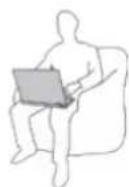
When your computer is turned on or the battery is charging, the base, the palm rest, and some other parts may become hot. The temperature they reach depends on the amount of system activity and the level of charge in the battery.
Extended contact with your body, even through clothing, could cause discomfort or even a skin burn.
- Avoid keeping your hands, your lap, or any other part of your body in contact with a hot section of the computer for any extended time.
- Periodically take hands from using the keyboard by lifting your hands from the palm rest.
Protect yourself from the heat generated by the ac power adapter.
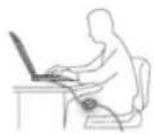
When the ac power adapter is connected to an electrical outlet and your computer, it generates heat.
Extended contact with your body, even through clothing, may cause a skin burn.
- Do not place the ac power adapter in contact with any part of your body while it is in use.
● Never use it to warm your body.
Handle your computer gently.
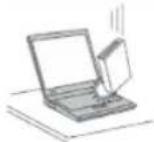
Do not drop, bump, scratch, twist, hit, vibrate, push, or place heavy objects on your computer, display, or external devices.
Carry your computer carefully.
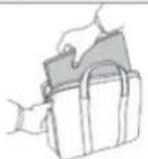
- Use a quality carrying case that provides adequate cushioning and protection.
- Do not pack your computer in a tightly packed suitcase or bag.
- Before putting your computer in a carrying case, make sure that it is off, in sleep mode, or in hibernation mode. Do not put a computer in a carrying case while it is turned on.
Important safety information
This information can help you safely use your notebook personal computer. Follow and retain all information included with your computer. The information in this document does not alter the terms of your purchase agreement or the Lenovo® Limited Warranty.
Customer safety is important. Our products are developed to be safe and effective. However, personal computers are electronic devices. Power cords, power adapters, and other features can create potential safety risks that can result in physical injury or property damage, especially if misused. To reduce these risks, follow the instructions in this document carefully. By carefully following the information contained in this
question about the condition of a component, do not use the product. Contact the Customer Support Center or the product manufacturer for instructions on how to inspect the product and have it repaired, if necessary.
In the unlikely event that you notice any of the following conditions, or if you have any safety concerns with your product, stop using the product and unplug it from the power source and telecommunication lines until you can speak to the Customer Support Center for further guidance.
- Power cords, plugs, power adapters, extension cords, surge protectors, or power supplies that are cracked, broken, or damaged.
• Signs of overheating, smoke, sparks, or fire. - Damage to a battery (such as cracks, dents, or creases), discharge from a battery, or a buildup of foreign substances on the battery.
- A cracking, hissing or popping sound, or strong odor that comes from the product.
- Signs that liquid has been spilled or an object has fallen onto the computer product, the power cord or power adapter.
● The computer product, power cord, or power adapter has been exposed to water.
• The product has been dropped or damaged in any way.
● The product does not operate normally when you follow the operating instructions.
Note: If you notice these conditions with a product (such as an extension cord) that is not manufactured for or by Lenovo, stop using that product until you can contact the product manufacturer for further instructions, or until you get a suitable replacement.
Safety guidelines
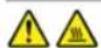
Before replacing any CRUs, turn off the computer and wait three to five minutes to let the computer cool before opening the cover.
Power cords and power adapters
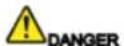
Use only the power cords and power adapters supplied by the product manufacturer.
The power cords shall be safety approved. For Germany, it shall be H05VV-F, 3G, 0.75 mmz, or better. For other countries, the suitable types shall be used accordingly.
Never wrap a power cord around a power adapter or other object. Doing so can stress the cord in ways that can cause the cord to fray, crack, or crimp. This can present a safety hazard.
Always route power cords so that they will not be walked on, tripped over, or pinched by objects.
Protect power cords and power adapters from liquids. For instance, do not leave your power cord or power adapter near sinks, tube, toilets, or on floors that are cleaned with liquid cleansers. Liquids can cause a short circuit, particularly if the power cord or power adapter has been stressed by misuse. Liquids also can cause gradual corrosion of power cord terminals and/or the connector terminals on a power adapter, which can eventually result in overheating.
Ensure that all power cord connectors are securely and completely plugged into receptacles.
Do not use any power adapter that shows corrosion at the ac input pins or shows signs of overheating (such as deformed plastic) at the ac input pins or anywhere on the power adapter.
or corroded, do not use the outlet until it is replaced by a qualified electrician.
Do not bend or modify the plug. If the plug is damaged, contact the manufacturer to obtain a replacement.
Do not share an electrical outlet with other home or commercial appliances that draw large amounts of electricity; otherwise, unstable voltage might damage your computer, data, or attached devices.
Some products are equipped with a three-pronged plug. This plug fits only into a grounded electrical outlet. This is a safety feature. Do not defeat this safety feature by trying to insert it into a non-grounded outlet. If you cannot insert the plug into the outlet, contact an electrician for an approved outlet adapter or to replace the outlet with one that enables this safety feature. Never overload an electrical outlet. The overall system load should not exceed 80 percent of the branch circuit rating. Consult an electrician for more information if you have questions about power loads and branch circuit ratings.
Be sure that the power outlet you are using is property wired, easily accessible, and located close to the equipment. Do not fully extend power cords in a way that will stress the cords.
Be sure that the power outlet provides the correct voltage and current for the product you are installing.
Carefully connect and disconnect the equipment from the electrical outlet.
Power supply statement
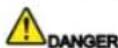
Never remove the cover on a power supply or any part that has the following label attached.


DANGER
Personal computers manufactured by Lenovo contain a coin cell battery to provide power to the system clock. In addition, many mobile products, such as notebook computers, utilize a rechargeable battery pack to provide system power when in portable mode. Batteries supplied by Lenovo for use with your product have been tested for compatibility and should only be replaced with approved parts.
Never attempt to open or service any battery. Do not crush, puncture, or incinerate batteries or short circuit the metal contacts. Do not expose the battery to water or other liquids. Only recharge the battery pack strictly according to instructions included in the product documentation.
Battery abuse or mishandling can cause the battery to overheat, which can cause gasses or flame to "vent" from the battery pack or coin cell. If your battery is damaged, or if you notice any discharge from your battery or the buildup of foreign materials on the battery leads, stop using the battery and obtain a replacement from the battery manufacturer.
Batteries can degrade when they are left unused for long periods of time. For some rechargeable batteries (particularly Lithium Ion batteries), leaving a battery unused in a discharged state could increase the risk of a battery short circuit, which could shorten the life of the battery and also can pose a safety hazard. Do not let rechargeable Lithium-Ion batteries completely discharge or store these batteries in a discharged state.
Rechargeable battery notice

DANGER
Do not attempt to disassemble or modify the battery pack. Attempting to do so can cause an explosion, or liquid leakage from the battery pack. A battery pack other than the one specified by Lenovo, or a
local ordinances or regulations.
The battery pack should be stored at room temperature, charged to approximately 30 to 50% of capacity. We recommend that battery pack be charged about once per year to prevent overdischarge.
Lithium coin cell battery notice

DANGER
Danger of explosion if battery is incorrectly replaced.
When replacing the lithium coin cell battery, use only the same or an equivalent type that is recommended by the manufacturer. The battery contains lithium and can explode if not properly used, handled, or disposed of.
Do not
- Throw or immerse into water
• Heat to more than 100°C (212°F)
• Repair or disassemble
Dispose of the battery as required by local ordinances or regulations.
The following statement applies to users in the state of California, U.S.A.
California Perchlorate Information:
Products containing manganese dioxide lithium coin cell batteries may contain perchlorate.
skin burn. Periodically take breaks from using the keyboard by lifting your hands from the palm rest; and be careful not to use the keyboard for any extended length of time.
- Do not operate your computer or charge the battery near flammable materials or in explosive environments.
- Ventilation slots, fans and/or heat sinks are provided with the product for safety, comfort, and reliable operation. These features might inadvertently become blocked by placing the product on a bed, sofa, carpet, or other flexible surface. Never block, cover, or disable these features.
- When the ac power adapter is connected to an electrical outlet and your computer, it generates heat. Do not place the adapter in contact with any part of your body while using it. Never use the ac power adapter to warm your body. Extended contact with your body, even through clothing, may cause a skin burn.
For your safety, always follow these basic precautions with your computer:
- Keep the cover closed whenever the computer is plugged in.
• Regularly inspect the outside of the computer for dust accumulation. - Do not operate your computer inside furniture, as this might increase the risk of overheating.
• Airflow temperatures into the computer should not exceed 35°C (95°F).
Electrical current safety information

DANGER
Electric current from power, telephons, and communication cables is hazardous
computer when internal parts and circuits are exposed.

DANGER
Connect and disconnect cables as described in the following procedures when installing, moving, or opening covers on this product or attached devices.
To connect:
- Turn everything OFF.
- First, attach all cables to devices.
- Attach signal cables to connectors.
- Attach power cords to outlets.
- Turn devices ON.
To disconnect:
- Turn everything OFF.
- First, remove power cords from outlets.
- Remove signal cables from connectors.
- Remove all cables from devices.
The power cord must be disconnected from the wall outlet or receptacle before installing all other electrical cables connected to the computer.
The power cord may be reconnected to the wall outlet or receptacle only after all other electrical cables have been connected to the computer.
Liquid crystal display (LCD) notice
CAUTION:
For products with mercury-containing fluorescent lamps (for example, non-LED)
limits the computer's maximum wide band true RMS output voltage to 150 mV. To help protect against hearing loss, ensure that the headphones or earphones you use also comply with EN 50332-2 (Clause 7 limits) for a wide band characteristic voltage of 75 mV. Using headphones that do not comply with EN 50332-2 can be dangerous due to excessive sound pressure levels.
If your Lenovo computer came with headphones or earphones in the package, as a set, the combination of the headphones or earphones and the computer already complies with the specifications of EN 50332-1. If different headphones or earphones are used, ensure that they comply with EN 50332-1 (Clause 6.5 Limitation Values). Using headphones that do not comply with EN 50332-1 can be dangerous due to excessive sound pressure levels.
Additional safety information

DANGER
Plastic bags can be dangerous. Keep plastic bags away from babies and children to avoid danger of suffocation.
Safety instructions for teachers, parents and adult supervisors
This Chromebook computer is intended for use as a child development tool primarily by children, 6 years of age or above. There must be supervision by an adult. It is a must to have a thorough explanation to children on safe and proper handling of the computer, battery pack, and ac power adapter.

DANGER
Warning: Chocking Hazard — Small parts. Not suitable for children under age 3.
periodically for damage. Similarly, if a child notices damaged/broken parts, this should be reported to the teacher/parents/adult supervisors immediately. Damaged parts may be replaced through service provided by Lenovo.
! DANGER
ELECTRICALLY OPERATED PRODUCT. Not recommended for children under 3 years of age (or other intended age range). As with all electrical products, precautions should be observed during handling and use of electrical products to reduce the risk of electric shock.
Chapter 1. Account, login, and logout
Types of user account for logging into Chrome
There are three types of user accounts you may use to log into Chrome.
Types of user account Description
a user account that has access to a variety of Google Web services, including Gmail™, Google Drive, and Google Docs. Typically a Google Account is created when you apply for a Gmail account. A Google Account can be used to log into any Chrome-based device unless the account is restricted by the device's owner. For details, refer to “Control who can use your Chromebook” on page 14
Google Account
The first Google Account logged into a Chrome-based device becomes the device's owner.
Note: If you don't have a Google Account, you can create one at
http://www.google.com/accounts/NewAccount.
a special account for logging into Chrome. A Guest user has limited privilege and may only be used for temporary sharing of a Chrome-based device.
Guest account
Note: Guest login may be disabled by a device's owner. For details, refer to "Disable guest login" on page 15
a special account created by a Google Account (manager) logged into a Chrome-based device. A supervised account is device-specific and cannot be used to log into other Chrome-based device.
Supervised account
The manager of a supervised user can review and control a supervised user's use of the Internet.
Become your Chromebook's owner
When starting your Chromebook ^™ for the first time, you need to set the operating system language and keyboard, the Internet connection, and sign in with your Google Account. The user of the first Google Account signed into a Chromebook becomes the device s owner.
Note: The owner of a Chromebook has permissions to enable (or disable) Guest account login and restrict login of certain Google Accounts.
Step 1. Start your Chromebook by lifting up the LCD cover.
Step 2. Select your local language and keyboard when prompted.
Step 3. Set up connection to your wireless router (or a wireless LAN) that has Internet access.
Note: This step cannot be skipped. You must have an Internet connection when starting your Chromebook for the first time.
Step 4. Sign in with your Google Account. If you don't have a Google Account, select Create a Google Account and follow the on-screen instructions to create one.
You're now your Chromebook's owner. To verify this, refer to "Check a Chromebook's owner" on page 14.
Sign in with a Google Account other than the owner's
As the device owner, you may share your Chromebook with other people. They can use their Google Accounts to sign in and use your Chromebook.
Step 1. Start the Chromebook by lifting up the LCD cover.
Step 2. On the login screen, click Add person.
Step 3. Type the Google Account user name and password to sign in.
Note: An Internet connection is required when signing in for the first time.
If you cannot sign in with your Google Account, your account may be restricted by the Chromebook owner. For details, refer to "Control who can use your Chromebook" on page 14.
Browse as a guest
You may share your Chromebook with people who do not have a Google Account. They can use your Chromebook with a special guest account.
Note: Some operations such as installing apps are disabled if you log in as a guest.
To change restriction settings for the supervised user, go to www.chrome.com/manage.
Lock your Chromebook
If you need to temporarily leave your Chromebook, lock it so others cannot tamper with your settings or files.
Step 1. Click the status bar.
Step 2. Click the lock icon.
Sign out
If you or others need to sign in with another account, sign out of current login session.
Step 1. Click the status area.
Step 2. Click Sign out.
Control who can use your Chromebook
By default, anyone with a valid Google Account can sign in to a Chromebook. However, as a Chromebook owner, you can set up permissions to only allow people with certain accounts to sign in.
Step 1. Start the Chromebook by lifting up the LCD cover.
Step 2. Sign in with the owner's Google Account.
Note: If you're not sure who is the Chromebook's owner, refer to "Check a Chromebook's owner" on page 14.
Step 3. Click the status area in the lower-right corner and then click Settings
Disable guest login
As a Chromebook's owner, you can disable guest login for security concerns.
Step 1. Start the Chromebook by lifting up the LCD cover.
Step 2. Click the status area in the lower-right corner and then click Settings.
Step 3. Under People, click Manage other users
Step 4. De-select Enable Guest browsing
Reset your Chromebook
If you need to transfer ownership of your Chromebook or if you experienced problems with the operating system, you might need to reset your Chromebook.
Important: After resetting your Chromebook, user data for all accounts stored locally will be deleted. Back up important data to Google Drive or external storage devices before resetting your Chromebook.
Step 1. Click the status bar in the lower-right corner.
Step 2. Click Settings and then click Show advanced settings.
Step 3. Under Powerwash, click Powerwash and then click Restart.
Shut down your Chromebook
When you finish working with your Chromebook, shut it down to save power.
Step 1. Click the status area.
Chapter 2. Manage files and folders
What is Google Drive
Google Drive is a server-based file storage and sharing service provided by Google. By creating a Google Account, you get an initial free storage space where you can save files of various formats. From your Chromebook, you can use the Google Drive app or the Files app to create and manage files on your online storage space.
Note: The Google Drive client software is available for Windows ^® , Android ^™ , OSX and iOS. If you have devices running those operating systems, you can download and install Google Drive on these devices. Google Drive provides a convenient way of sharing files between devices. You can also find your files online by visiting: http://drive.google.com.
Your local storage space
Each Google Account signed in to a Chromebook is assigned a local storage space, in a folder named Downloads. Each Google Account has its own Downloads. You can only view and edit files in your own Downloads folder.
The Files app
Your Chromebook has a Files app for you to manage files and folders on your local storage device, a connected external storage device, or Google Drive. The Files app can be started from the Apps Launcher.
Create folders using the Files app
You can create folders and sub-folders for better management of files.
Step 1. Start the Files app from the Apps launcher.
Step 2. On the left pane, select a storage space where you want to save files.
Note: A storage space may reside on your local storage device, a connected external storage device, or Google Drive.
Step 3. Click the settings button ( ) in the upper right corner and then click New folder.
Delete unused files
In some cases, you may need to delete unused files to free storage space.
Step 1. Start the Files app from the Apps launcher.
Step 2. On the left pane, select the storage space and then navigate to the folder where unused files are stored.
Step 3. Select unused flies and then click the delete button ( ) in the upper right corner.
Check the amount of available storage
If you have failed saving a large-size file, you may need to check the amount of available storage and then decide if you need to delete unused files to free more storage.
Step 1. Start the Files app from the Apps launcher.
Step 2. On the left pane, select a storage space.
Step 3. Click the settings button ( ) in the upper right corner. The amount of available storage is displayed.
Chapter 3. Language settings
Change display language
When starting your Chromebook for the first time, you're prompted to select the display language. This setting can be changed at a later time if you need to use a different language.
Step 1. Sign in to your Chromebook with your Google Account.
Step 2. Click the status area in the lower-right corner and then click Settings
Step 3. Click Show advanced settings and then click Language and input settings
Step 4. Select the language you want to use and then click Display Google Chrome in this language.
Note: If the language you want to use isn't shown in the list, click Add.
You need to sign out and then sign in for the changes to take effect.
Note: Each signed-in user may set their own display language.
Add an input method
You may need to add an input method to type text in a particular language.
Step 1. Sign in to your Chromebook with your Google Account.
Step 2. Click the status area in the lower-right corner and then click Settings
Step 3. Click Show advanced settings and then click Language and input settings.
- Ctrl + Shift + Space to switch among available input methods.
- Ctrl + Space to switch to your previous input method.
Chapter 4. Add and manage apps
What is Chrome Web Store
Chrome™ Web Store is a Web resource that provides apps and extensions dedicated for your Chromebook and the Chrome browser.
Note: Extensions are add-on features for the Chrome browser. Most of the apps and extension available on the Chrome Web Store are free but some may require payment.
You can access the Chrome Web Store by either of the following ways:
- Click the Web Store icon from the Apps launcher.
- Visit http://chrome.google.com/webstore directly using the Chrome browser.
Add apps or extensions
Step 1. Click the Apps launcher in the lower left corner and then click Web Store.
Step 2. Within the store, find your app or extension by typing keywords or searching the list by category.
Step 3. Click the ADD TO CHROME and then Add app or Add extension
Most of the apps for your Chromebook are Web based and do not require installation. After adding apps, shortcuts to the apps are pinned to the Apps launcher.
Note: If you sign in to different Chromebooks with the same Google Account, apps you added on one Chromebook are synchronized on other Chromebooks.
Chapter 5. CRU service
What is CRU and CRU service
A CRU (customer replaceable unit) is a service part that can be replaced by the customer in order to fix a computer problem. There are two types of CRUs:
Self-service CRUs
Customers are responsible for removing and replacing CRUs.
Optional-service CRUs
Customers may either replace CRUs on their own or request Lenovo or its Service Provider to do it for them.
CRU service is a service provided by Lenovo or its Service Provider. Under CRU service, Lenovo or its Service Provider ships CRUs to the customer. The customer is responsible for removing and then installing CRUs according to instructions provided here or the instructions accompanying the CRUs. The customer may be required to return the defective part that is replaced by the replacement. When return is required:
- return instructions, a prepaid return shipping label, and a container will be included with the replacement CRU.
- the customer may be charged for the replacement CRU if the Service Provider does not receive the defective CRU within thirty days of the customer's receipt of the replacement CRU.
Note: CRU service is not available for all countries or regions.
CRUs for Lenovo N23 Yoga Chromebook/Lenovo Flex 11 Chromebook
This section lists CRUs for Lenovo N23 Yoga Chromebook/Lenovo Flex 11 Chromebook and where you can find instructions for streaming the CRUs.
Appendix A. Features and specifications
Features and specifications are subject to change without notice.
Specifications
| Lenovo N23 Yoga Chromebook/Lenovo Flex 11 Chromebook | |
| MTM | ZA26/ZA27 |
| Dimensions | 292mm × 204mm × 21.2mm |
| Weights | 1.35Kg |
| CPU | MTK MT8173C |
| camera | 1280 x 720 pixels |
| LCD | |
| Size | 11.6 inch |
| Resolutions | 1366 x 768 pixels |
| Backlight type | LED |
| Memory | |
| Type/speed | LPDDR3 |
| Capacity | 2 GB/4 GB |
| AC adapter | |
| Input | 100 — 240 V ac, 50 — 60 Hz |
| Output | 20V dc |
| Power | 45 W |
| I/O ports | |
| Type C | Type C x 1 |
| Video/audio | HDMI—out x 1 |
| Audio | Combo audio jack x 1, speakers x 2, microphone hole x 1 |
| USB | USB 3.0 x 1 (capable of charging connected device when the Chromebook is in sleep or powered-off state) |
| Memory card | SD/MMC reader x 1 |
Appendix B. Regulatory information
Electronic emission notices
The following information applies to Lenovo N23 Yoga Chromebook/Lenovo Flex 11 Chromebook.
Federal Communications Commission (FCC) Declaration of Conformity
This equipment has been tested and found to comply with the limits for a Class B digital device, pursuant to Part 15 of the FCC Rules. These limits are designed to provide reasonable protection against harmful interference in a residential installation. This equipment generates, uses, and can radiate radio frequency energy and, if not installed and used in accordance with the instructions, may cause harmful interference to radio communications. However, there is no guarantee that interference will not occur in a particular installation. If this equipment does cause harmful interference to radio or television reception, which can be determined by turning the equipment off and on, the user is encouraged to try to correct the interference by one or more of the following measures:
● Reorient or relocate the receiving antenna.
- Increase the separation between the equipment and receiver.
- Connect the equipment into an outlet on a circuit different from that to which the receiver is connected.
- Consult an authorized dealer or service representative for help.
Lenovo is not responsible for any radio or television interference caused by using other than specified or recommended cables and connectors or by unauthorized changes or modifications to this equipment.
Unauthorized changes or modifications could void the user's authority to operate the equipment.
This device complies with Part 15 of the FCC Rules. Operation is subject to the following two conditions: (1)
European Union – Compliance to the Electr omagnetic Compatibility (EMC) Directive or Radio Equipment Directive
Models without a radio device:
This product is in conformity with the, protection requirements of EU Council Directive 2014/30/EU on the approximation of the laws of the Member States relating to electromagnetic compatibility.
Models with a radio device:
This product is in conformity with all the requirements and essential norms that apply to EU Council R&TTE Directive 1999/5/EC on the approximation of the laws of the Member States relating to radio equipment.
Lenovo cannot accept responsibility for any failure to satisfy the protection requirements resulting from a non-recommended modification of the product, including the installation of option cards from other manufacturers. This product has been tested and found to comply with the limits for Class B equipment according to European Standards harmonized in the Directives in compliance. The limits for Class B equipment were derived for typical residential environments to provide reasonable protection against interference with licensed communication devices.
EU contact Lenovo, Einsteinova 21, 851 01 Bratislava, Slovakia

German Class B compliance statement
Deutschsprachiger EU Hinweis:
Hinweis für Geräte der Klasse B EU-Richtlinie zur Elektromagnetischen Verträglichkeit
Zulassungsbescheinigung laut dem Deutschen Gesetz über die elektromagnetische Verträglichkeit von Betriebsmitteln, EMVG vom 20. Juli 2007 (früher Gesetz über die elektromagnetische Verträglichkeit von Geräten), bzw. der EMV EG Richtlinie 2004/108/EC (früher 89/336/EWG), für Geräte der Klasse B.
Dieses Gerät ist berechtigt, in Übereinstimmung mit dem Deutschen EMVG das EG-Konformitätszeichen - CE - zu führen. Verantwortlich für die Konformitätserklärung nach Paragraf 5 des EMVG ist die Lenovo (Deutschland) GmbH, Meitnerstr. 9, D-70563 Stuttgart.
Informationen in Hinsicht EMVG Paragraf 4 Abs. (1) 4:
Das Gerät erfüllt die Schutzanforderungen nach EN 55024 und EN 55022 Klasse B.
Korea Class B compliance statement
B급 기기 (가정용 방송통신기자재)
이 기기는 가정용(B급) 전자파적합기기로서 주로 가정에서 사용하는 것을 목적으로하며, 모든 지역에서 사용할 수 있습니다.
무선설비 전파 혼신 (사용주파수 2400-2483.5, 5725-5825 무선제품해당)
해당 우선설비가 전파혼신 가능성이 있으므로 연명안전과 관련된 서비스는 할 수 없음
SAR 정보 본 장치는 전파 노출에 대한 가이드라인을 충족합니다.
본 장치는 무선 승수신기 입니다. 본 장치는 국제 가이드라인으로 권장되는 전파 노출에 대한 제한을 초과하지 않도록 설계되었습니다. 장치 엑서서리 및 최신 부품을 사용할 경우 SAR 값이 딸라질 수 있습니다. SAR 값은 국가
보고 및 레스트 요구 사항과 네트워크 대역에 따라 다를 수 있습니다. 본 장치 는 사람의 신체에서 10mm 이상의 거리에서 사용할 수 있습니다.
Wireless related information
Wireless Interoperability
- File Transfer Profile (FTP)
- Generic Access Profile (GAP)
● Generic A/V Distribution Profile (GAVDP)
• Hardcopy Cable Replacement Profile (HCRP)
Headset Profile (HSP)
● Hands-Free Profile (HFP)
• Human Interface Device Profile (HID)
• Message Access Profile (MAP)
• Object Exchange Protocol (OBEX)
• Object Push Profile (OPP)
● Personal Area Networking Profile (PAN)
• Phone Book Access Profile (PBAP)
• Service Discovery Protocol (SDP)
• Synchronization Profile (SYNC)
• Video Distribution Profile (VDP) - Generic Attribute Profile (GATT)
- Proximity Profile
• Find Me Profile - Immediate Alert Profile
- Battery Status Profile
Usage environment and your health
Integrated wireless cards emit radio frequency electromagnetic energy like other radio devices. However, the level of energy emitted is far much less than the electromagnetic energy emitted by wireless devices like for example mobile phones.
ENERGY STAR model information

ENERGY STAR ^® is a joint program of the U.S. Environmental Protection Agency and the U.S. Department of Energy aimed at saving money and protecting the environment through energy efficient products and practices.
Lenovo is proud to offer our customers products with the ENERGY STAR qualified designation. Lenovo computers of the following machine types, if the ENERGY STAR mark is affixed, have been designed and tested to conform to the ENERGY STAR program requirements for computers.
Lenovo N23 Yoga Chromebook: ZA26
Lenovo Flex 11 Chromebook: ZA27
By using ENERGY STAR qualified products and taking advantage of the power-management features of your computer, you can help reduce the consumption of electricity. Reduced electrical consumption can contribute to potential financial savings, a cleaner environment, and the reduction of greenhouse gas emissions.
For more information about ENERGY STAR, go to:
http://www.energystar.gov
Lenovo encourages you to make efficient use of energy an integral part of your day-to-day operations. To help in this endeavor, Lenovo has preset the following power-management features to take effect when your computer has been added for a specified length of time:
Appendix C. WEEE and recycling statements
Lenovo encourages owners of information technology equipment to responsibly recycle their equipment when it is no longer needed. Lenovo offers a variety of programs and services to assist equipment owners in recycling their IT products. Information on product recycling offerings can be found on Lenovo's Internet site at http://www.lenovo.com/recycling.
China WEEE statement
《废弃电器电子产品回收处理管理条例》提示性说明
联想鼓励拥有联想品牌产品的用户当不再需要此类产品时,遵守国家废弃电器电子产品回收处理相关法律法规,将其交给当地具有国家认可的回收处理资质的厂商进行回收处理。更多回收服务信息,请点击进入http://support.lenovo.com.cn/activity/551.htm
Important WEEE information
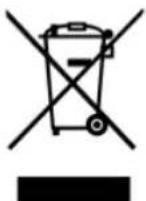
The WEEE marking on Lenovo products applies to countries with WEEE and e-waste regulations (for example. European Directive 2012/19/EU. India E-Waste Management & Handling Rules. 2011). Appliances
WEEE information for Hungary
Lenovo, as a producer, bears the cost incurred in connection with the fulfillment of Lenovo's obligations under Hungary Law No. 197/2014 (VIII.1.) subsections (1)-(5) of section 12.
Battery recycling information for Taiwan

廢電池請回收
Battery recycling information for the European Union
EU
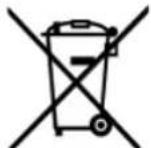
Notice: This mark applies only to countries within the European Union (EU).
Batteries or packaging for batteries are labeled in accordance with European Directive 2012/19/EU concerning batteries and accumulators and waste batteries and accumulators. The Directive determines the framework for the return and recycling of used batteries and accumulators as applicable throughout the European Union. This label is applied to various batteries to indicate that the battery is not to be thrown away,
Computers and monitors are categorized as industrial waste and should be properly disposed of by an industrial waste disposal contractor certified by a local government. In accordance with the Law for Promotion of Effective Utilization of Resources, Lenovo Japan provides, through its PC Collecting and Recycling Services, for the collecting, reuse, and recycling of disused computers and monitors. For details, visit the Lenovo Web site at: http://www.lenovo.com/services_warranty/jp/ja/recycle/pcrecycle/.
Pursuant to the Law for Promotion of Effective Utilization of Resources, the collecting and recycling of home-used computers and monitors by the manufacturer was begun on October 1, 2003. This service is provided free of charge for home-used computers sold after October 1, 2003. For details, go to http://www.lenovo.com/services_warranty/jp/ja/recycle/personal/.
Disposing of Lenovo computer components
Some Lenovo computer products sold in Japan may have components that contain heavy metals or other environmental sensitive substances. To properly dispose of disused components, such as a printed circuit board or drive, use the methods described above for collecting and recycling a disused computer or monitor.
Disposing of disused lithium batteries from Lenovo computers
A button-shaped lithium battery is installed on the system board of your Lenovo computer to provide power to the computer clock while the computer is off or disconnected from the main power source. If you want to replace it with a new one, contact your place of purchase or ask for a repair service provided by Lenovo. If you have replaced it by yourself and want to dispose of the disused lithium battery, insulate it with vinyl tape, contact your place of purchase, and follow their instructions. If you use a Lenovo computer at home and need to dispose of a lithium battery, you must comply with local ordinances and regulations.
Disposing of a disused battery pack from Lenovo notebook computers
Your Lenovo notebook computer has a lithium ion battery pack or a nickel metal hydride battery pack. If you are a company employee who uses a Lenovo notebook computer and need to dispose of a battery pack, contact the proper person in Lenovo sales, service, or marketing, and follow that person's instructions. You also can refer to the instructions at http://www.lenovo.com/jp/ja/environment/recycle/battery/. If you use a Lenovo notebook computer at home and need to dispose of a battery pack, you must comply with local ordinances and regulations. You also can refer to the instructions at http://www.lenovo.com/jp/ja/environment/recycle/battery/.
Appendix D. Restriction of Hazardous Substances Directive (RoHS)
India RoHS
RoHS compliant as per E-Waste (Management & Handling) Rules, 2011.
Turkish RoHS
The Lenovo product meets the requirements of the Republic of Turkey Directive on the Restriction of the Use of Certain Hazardous Substances in Electrical and Electronic Equipment (EEE).
Türkiye AEEE Yönetmeliğine Uygunluk Beyanı
Bu Lenovo ürünü, T.C. Çevre ve Orman Bakanlığı'nın "Atık Elektrik ve Elektronik Eşyalarda Bazı Zararlı Maddelerin Kullanımının Sınırlandırılmasına Dair Yönetmelik (AEEE)" direktiflerine uygundur.
AEEE Yönetmeliğine Uygundur.
Ukraine RoHS
Цим підтверджуємо, що продукція Леново відповідає вимогам нормативних актів України, які обмежують вміст небезпечних речовин
European Union RoHS
This Lenovo product, which included parts (cables, cords, and so on) meets the requirements of Directive 2011/65/EU on the restriction of the use of certain hazardous substances in electrical and electronic equipment ("RoHS reasf" or "RoHS 2").
Appendix E. Notices
Lenovo may not offer the products, services, or features discussed in this document in all countries. Consult your local Lenovo representative for information on the products and services currently available in your area. Any reference to a Lenovo product, program, or service is not intended to state or imply that only that Lenovo product, program, or service may be used. Any functionally equivalent product, program, or service that does not infringe any Lenovo intellectual property right may be used instead. However, it is the user's responsibility to evaluate and verify the operation of any other product, program, or service.
Lenovo may have patents or pending patent applications covering subject matter described in this document. The furnishing of this document does not give you any license to these patents. You can send license inquiries, in writing, to:
Lenovo (United States), Inc. 1009 Think Place - Building One
Morrisville, NC 27560
U.S.A.
Attention: Lenovo Director of Licensing LENOVO PROVIDES THIS PUBLICATION "AS IS" WITHOUT WARRANTY OF ANY KIND, EITHER EXPRESS OR IMPLIED, INCLUDING, BUT NOT LIMITED TO, THE IMPLIED WARRANTIES OF NON-INFRINGEMENT, MERCHANTABILITY OR FITNESS FOR A PARTICULAR PURPOSE. Some jurisdictions do not allow disclaimer of express or implied warranties in certain transactions, therefore, this statement may not apply to you.
This information could include technical inaccuracies or typographical errors. Changes are periodically made to the information herein; these changes will be incorporated in new editions of the publication. Lenovo may
obtained in other operating environments may vary significantly. Some measurements may have been made on development-level systems and there is no guarantee that these measurements will be the same on generally available systems. Furthermore, some measurements may have been estimated through extrapolation. Actual results may vary. Users of this document should verify the applicable data for their specific environment.
Trademarks
Lenovo and the "Lenovo" logo are trademarks or registered trademarks of Lenovo in the United States, other countries, or both.
Google, Chrome, Chromebook, Gmail, and Android are trademarks or registered trademarks of Google Inc.
Other company, products, or service names may be trademarks or service marks of others.