
AVCAM 300 - Caméra de surveillance ARCHOS - Notice d'utilisation et mode d'emploi gratuit
Retrouvez gratuitement la notice de l'appareil AVCAM 300 ARCHOS au format PDF.


| Type de produit | Module caméra numérique et caméscope pour ARCHOS AV300 |
| Résolution photo | 3,3 mégapixels (2048x1536, 1024x768, 640x480) |
| Format vidéo | MPEG4 320x240, 20 ips (NTSC) / 25 ips (PAL) |
| Zoom optique | 3x (équivalent 35 mm : 41-122 mm) |
| Zoom numérique | 4x à 9,6x (uniquement en résolution 2048x1536) |
| Mise au point | Automatique, plage de 40 cm à l'infini |
| Flash | Automatique, manuel, anti-yeux rouges, désactivé |
| Balance des blancs | Auto, extérieur, nuageux, tungstène, fluorescent |
| Compression JPEG | Basique, normale, fine |
| Exposition | Correction de -2 à +2 par pas de 1/3 |
| Alimentation | Via l'ARCHOS AV300 (ne nécessite pas de pile) |
| Stockage | Disque dur de l'AV300 (dossier HD/Photo ou HD/Video) |
| Entretien | Nettoyage de l'objectif avec un chiffon spécifique pour lentilles |
| Sécurité | Ne pas brancher/débrancher l'appareil lorsqu'il est sous tension ; éviter l'humidité |
| Accessoires inclus | Cache en caoutchouc pour le connecteur |
| Compatibilité | ARCHOS AV300 series (AV320, AV340, AV360, AV380) |
| Garantie | Garantie limitée, ne couvre pas les dommages dus à une mauvaise utilisation |
FOIRE AUX QUESTIONS - AVCAM 300 ARCHOS
Questions des utilisateurs sur AVCAM 300 ARCHOS
0 question sur cet appareil. Repondez a celles que vous connaissez ou posez la votre.
Poser une nouvelle question sur cet appareil
Téléchargez la notice de votre Caméra de surveillance au format PDF gratuitement ! Retrouvez votre notice AVCAM 300 - ARCHOS et reprennez votre appareil électronique en main. Sur cette page sont publiés tous les documents nécessaires à l'utilisation de votre appareil AVCAM 300 de la marque ARCHOS.
MODE D'EMPLOI AVCAM 300 ARCHOS
Guide de l'utilisateur
ARCHOS AVCam300
Appareil photo numérique 3,3 mégapixels et caméscope numérique pour la série ARCHOS AV300
ARCHOS
Pensez plus petit
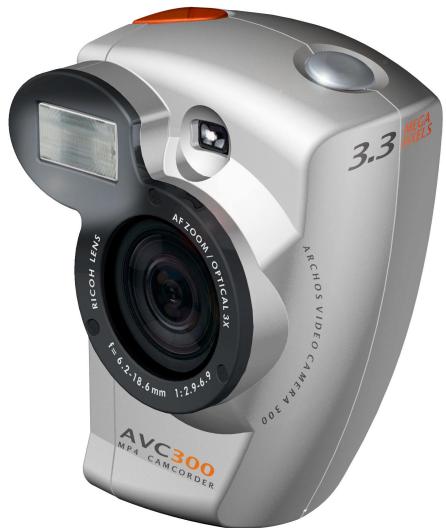
Guide de l'utilisateur pour l'ARCHOS AVCam 300, caméscope photo et vidéo numérique, v1.0 (n° 102433)
Veuillez visiter notre site Web pour télécharger le manuel et le logiciel les plus récents pour ce produit.
Table des matières
1 L'AVCam300 5 2 Boutons et fonctions 6 3 Prendre une photo (Appareil photo) 7
3.1 Comprendre et régler les paramètres de l'appareil photo 7
4 Filmer un segment vidéo (Caméscope) 9 4.1 Comprendre et régler les paramètres du caméscope 9
5 Visualiser vos photos et vidéos. 11 6 Dépannage 12 7 Assistance technique. 14
Garantie et responsabilité limitée
Ce produit est vendu avec une garantie limitée et des recours spécifiques sont disponibles pour l'acheteur initial en cas de non-conformité du produit à la garantie limitée. La responsabilité du fabricant peut être limitée davantage conformément à son contrat de vente.
En général, le fabricant ne sera pas responsable des dommages causés au produit par des catastrophes naturelles, incendies, décharges électrostatiques, mauvais usage, abus, négligence, manipulation ou installation incorrecte, réparation non autorisée, altération ou accident. En aucun cas, le fabricant ne sera responsable de la perte de données stockées sur des supports disques.
LE FABRICANT NE SAURAIT ÊTRE TENU RESPONSABLE DES DOMMAGES SPÉCIAUX, ACCESSOIRES OU CONSÉCUTIFS, MÊME S'IL A ÉTÉ INFORMÉ DE LEUR POSSIBILITÉ AU PRÉALABLE.
Le(s) concédant(s) de licence d'ARCHOS ne donne(nt) aucune garantie, expresse ou implicite, y compris, sans limitation, les garanties implicites de qualité marchande et d'adéquation à un usage particulier, concernant les éléments sous licence. Le(s) concédant(s) de licence d'ARCHOS ne garantit (garantissent) pas, ne se porte(nt) pas garant(s) et ne fait (font) aucune déclaration concernant l'utilisation ou les résultats de l'utilisation des éléments sous licence en termes de justesse, d'exactitude, de fiabilité, de correction ou autre. L'ensemble du risque quant aux résultats et aux performances des éléments sous licence est assumé par vous. L'exclusion des garanties implicites n'est pas autorisée dans certaines juridictions. L'exclusion ci-dessus peut ne pas s'appliquer à vous.
En aucun cas, le(s) concédant(s) de licence d'ARCHOS, ainsi que leurs directeurs, dirigeants, employés ou agents (collectivement, les concédants de licence d'ARCHOS) ne pourront être tenus responsables envers vous de tout dommage consécutif, accessoire ou indirect (y compris les pertes de bénéfices commerciaux, l'interruption d'activité, la perte d'informations commerciales, etc.) découlant de l'utilisation ou de l'incapacité à utiliser les éléments sous licence, même si le concédant de licence d'ARCHOS a été informé de la possibilité de tels dommages. Certaines juridictions n'autorisant pas l'exclusion ou la limitation de responsabilité pour les dommages consécutifs ou accessoires, les limitations ci-dessus peuvent ne pas s'appliquer à vous.
Veuillez consulter votre contrat de vente pour un énoncé complet des droits de garantie, des recours et des limitations de responsabilité.
De plus, la garantie ne s'applique pas à :
- Aux dommages ou problèmes résultant d'une mauvaise utilisation, d'un abus, d'un accident, d'une altération ou d'un courant ou d'une tension électrique incorrects.
- À tout produit dont le sceau de garantie ou l'étiquette de numéro de série a été altéré ou endommagé.
- À tout produit sans étiquette de garantie ou de numéro de série.
- Aux piles et à tout article consommable livré avec ou dans l'équipement.
Avertissements et consignes de sécurité
ATTENTION
Pour prévenir les risques de choc électrique, cet appareil ne doit être ouvert que par un personnel de service qualifié. Mettez l'appareil hors tension et débranchez le câble d'alimentation avant de l'ouvrir.
AVERTISSEMENT
Pour prévenir tout risque d'incendie ou de choc électrique, n'exposez pas l'appareil à la pluie ou à l'humidité.
L'utilisation de ce produit est strictement personnelle. La copie de CD ou le chargement de fichiers musicaux, vidéo ou d'images à des fins de vente ou à d'autres fins commerciales est ou peut être une violation de la loi sur le droit d'auteur. Les documents protégés par le droit d'auteur, les œuvres d'art et/ou les présentations peuvent nécessiter une autorisation pour être enregistrés en tout ou en partie. Veuillez être conscient de toutes les lois applicables concernant l'enregistrement et l'utilisation de ces contenus dans votre pays et votre juridiction.
Déclaration de conformité FCC
Conformité FCC
Cet équipement a été testé et déclaré conforme aux limites applicables aux appareils numériques de classe B, conformément à la partie 15 des règles de la FCC. Ces limites sont conçues pour offrir une protection raisonnable contre les interférences nuisibles dans une installation résidentielle. Cet équipement génère, utilise et peut émettre de l'énergie radiofréquence et, s'il n'est pas installé et utilisé conformément aux instructions, peut provoquer des interférences nuisibles aux communications radio. Cependant, il n'y a aucune garantie que des interférences ne se produiront pas dans une installation particulière. Si cet équipement provoque des interférences nuisibles à la réception radio ou télévision, ce qui peut être déterminé en éteignant puis en allumant l'équipement, l'utilisateur est encouragé à essayer de corriger les interférences par une ou plusieurs des mesures suivantes :
Réorienter ou déplacer l'antenne de réception. - Augmenter la distance entre l'équipement et le récepteur. - Connecter l'équipement à une prise sur un circuit différent de celui auquel le récepteur est connecté. - Consulter le revendeur ou un technicien radio/TV expérimenté pour obtenir de l'aide.
Remarque : Pendant le transfert de fichiers ou en mode PC, si le terminal utilisateur (EUT) ou l'ordinateur se fige soudainement ou ne répond plus, cela peut être dû à un phénomène électrostatique. Veuillez suivre les procédures ci-dessous pour rétablir le fonctionnement :
Débranchez le câble USB du terminal utilisateur (EUT)
Fermez l'application logicielle sur l'ordinateur (ou redémarrez l'ordinateur si nécessaire)
Rebranchez le câble USB au terminal utilisateur (EUT)
En cas de décharge électrostatique, l'AV300 peut perdre ses fonctions. Éteignez puis rallumez simplement l'appareil pour le restaurer.
ATTENTION : Les modifications non autorisées par le fabricant peuvent annuler le droit de l'utilisateur à utiliser cet appareil.
Partie 15 de la FCC - Le fonctionnement est soumis aux deux conditions suivantes :
- Cet appareil ne doit pas provoquer d'interférences nuisibles ;
- Cet appareil doit accepter toute interférence reçue, y compris les interférences susceptibles de provoquer un fonctionnement indésirable.
Avis de droit d'auteur
Copyright ARCHOS © 2003 Tous droits réservés.
Ce document ne peut être, en tout ou en partie, copié, photocopié, reproduit, traduit ou réduit à un support électronique ou lisible par machine sans le consentement préalable écrit d'ARCHOS. Toutes les marques et noms de produits sont des marques déposées et la propriété de leurs détenteurs respectifs. Les spécifications sont sujettes à modification sans préavis. Erreurs et omissions acceptées. Les images et illustrations peuvent ne pas toujours correspondre au contenu. Copyright © ARCHOS. Tous droits réservés.
Avertissement de garantie : dans la mesure permise par la loi applicable, les déclarations et garanties de non-contrefaçon de droits d'auteur ou d'autres droits de propriété intellectuelle résultant de l'utilisation du produit dans des conditions autres que celles spécifiées ci-dessus sont exclues.
1 L'AVCam300
Cher client,
Nous vous remercions d'avoir choisi ce module caméra ARCHOS pour votre lecteur vidéo personnel (PVP) de la série AV300. En ajoutant cette caméra à votre AV300, vous disposez désormais de toutes les fonctionnalités d'un appareil photo numérique de 3,3 mégapixels ET d'un caméscope vidéo. Veuillez le traiter avec précaution comme vous le feriez pour un appareil photo ordinaire, en le manipulant avec soin et en nettoyant l'objectif avec un produit de nettoyage spécifique pour objectifs d'appareil photo.
En vous souhaitant la meilleure expérience vidéo, musicale et photo,
L'équipe ARCHOS
Connexion de la caméra AVCam300
Lors de la connexion de l'AVCam300 à votre AV300, assurez-vous que l'AV300 est éteint. Ne branchez jamais et ne retirez jamais l'AVCam d'un appareil allumé. Retirez le capuchon en caoutchouc sur le côté gauche.
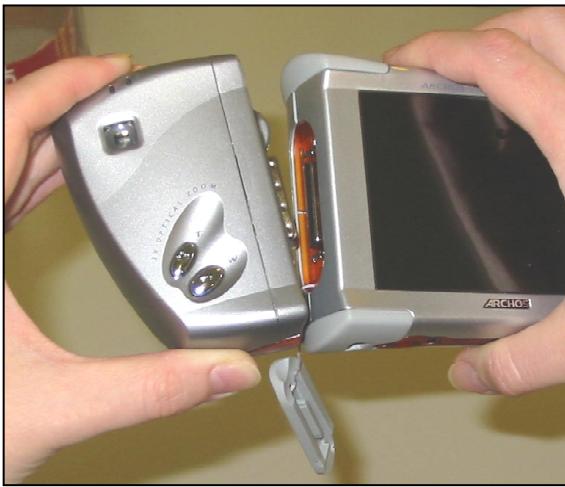
Avertissement : Déconnecter la caméra alors que l'AV300 est allumé pourrait endommager le contenu du disque dur de l'AV300.
2 Boutons et fonctions
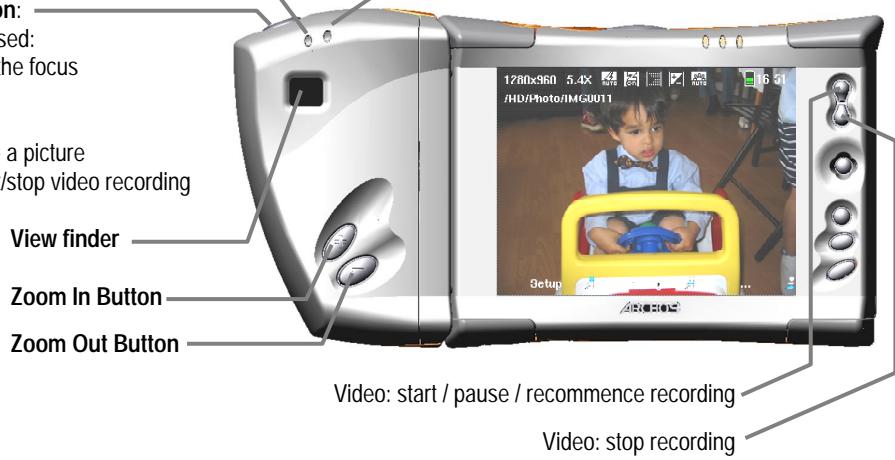
Voyant prêt :
Allumé : Prêt à prendre une photo ou une séquence vidéo
Éteint : Le module caméra est éteint et les photos/vidéos ne peuvent pas être prises
Clignotant : La caméra est occupée. Par exemple, pendant la mise au point automatique ou l'écriture des données d'image sur le disque dur.
Bouton d'obturateur
À mi-course : Photo : régler la mise au point
Enfoncement complet :
Photo : prendre une photo
Vidéo : démarrer/arrêter l'enregistrement vidéo
Viseur
Bouton de zoom avant
Bouton de zoom arrière
Témoin de flash :
Allumé : une photo avec flash peut être prise. Éteint : flash désactivé. Clignotant : chargement du flash
3 Prendre une photo (Appareil photo)

Appareil photo
1 Sélectionnez Appareil photo à partir de l'écran du menu principal (utilisez le joystick pour sélectionner, puis cliquez sur ENTER 0). Regardez à travers le viseur ou sur l'écran AV300 et visez le sujet à photographier. Appuyez à mi-course sur le bouton d'obturateur pour que l'AV300 règle la mise au point.
Vous devez attendre environ une seconde pour que l'autofocus effectue son réglage automatique.
4 Appuyez complètement sur le bouton pour prendre la photo. L'appareil peut prendre plusieurs secondes pour stocker le fichier image JPEG sur le disque dur de l'AV300. Il le stockera dans le dossier HD/Photo ou dans le dossier dans lequel vous étiez avant d'appuyer sur la touche de fonction Enregistrer.
3.1 Comprendre et régler les paramètres de l'appareil photo
Cliquez sur le bouton central de fonction pour accéder aux paramètres de l'appareil photo et les modifier.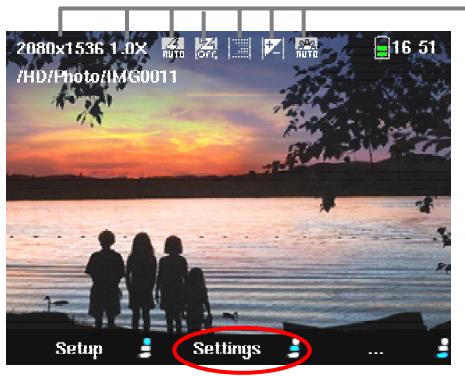
Résolution : il s'agit de la résolution de l'image JPEG (en pixels) lorsqu'une photo est prise. - Zoom : le facteur de zoom actuel. Zoom 1x - 3x optique, 4x - 9.6x utilise le zoom numérique. - Statut du flash : indique le mode de flash actuel. Activé, Désactivé, Automatique ou Anti-yeux rouges. Zoom numérique : indique si l'appareil photo utilise actuellement son zoom numérique. - Compression : réglage actuel de la compression JPEG (Basique/Normale/Fine). Pour une image de la meilleure qualité possible (bien qu'elle occupe plus d'espace disque), réglez sur Fine (icône de points fins). - Valeur d'exposition : affiche la valeur d'exposition si vous avez réglé l'exposition sur une valeur non standard. Balance des blancs : indique le type de balance des blancs actuellement utilisé. Réglez selon les conditions d'éclairage.
Menu des paramètres de l'appareil photo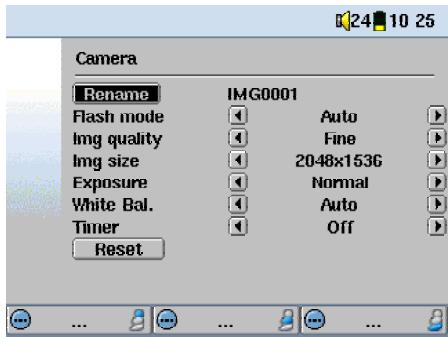
Renommer : permet à l'utilisateur de spécifier le nom de fichier de la prochaine photo.
Mode flash : choisissez le type de flash souhaité. Activé - utilise le flash sur toutes les photos. Désactivé - n'utilise pas le flash. Automatique - l'appareil photo utilise le flash s'il n'y a pas assez de lumière ambiante. Anti-yeux rouges - utilise un système de flash spécial qui aide à réduire le rouge dans les yeux du sujet.
Qualité d'image : choisissez le niveau de compression JPEG souhaité. Fine donnera la meilleure qualité d'image, mais la taille de fichier la plus grande. Basique donnera la taille de fichier la plus petite, mais les images ne seront pas aussi nettes.
Taille d'image : choisissez la taille, en résolution de pixels, que vous souhaitez pour votre fichier image. Plus la valeur est élevée, plus votre photo aura de définition. Si vous comptez imprimer vos photos, soit sur votre propre imprimante, soit chez un développeur de photos numérique, vous devez utiliser les réglages les plus élevés. Remarque : vous pouvez choisir toutes les tailles d'image au niveau de zoom 1x - 3x. Vous devez choisir 2048x1536 pour utiliser le zoom 4x - 10x, mais votre résolution diminuera à mesure que vous augmentez le zoom numérique.
Exposition : utilisez ce réglage pour exposer l'image plus ou moins que la normale. Les valeurs sont par pas de 1/3 de -2 à +2. Régler sur des valeurs négatives diminuera l'exposition de la photo et la rendra plus sombre. Régler sur des valeurs positives augmentera l'exposition et rendra vos photos plus lumineuses. Si votre sujet a un arrière-plan lumineux, vous voudrez peut-être surexposer un peu votre photo pour que le visage de la personne soit plus visible. Si vous prenez des photos dans des endroits où il y a beaucoup de neige ou de reflets du soleil sur l'eau, vous voudrez peut-être réduire l'exposition.
Balance des blancs : utilisez ce réglage pour modifier la température de couleur de vos photos. Réglez-le en fonction des conditions de lumière ambiante afin de reproduire au mieux les couleurs des objets sur la photo (tungstène, fluorescent, lumière du jour ou nuageux). La modification de ces réglages ajustera la couleur de l'appareil photo afin que, même avec ces différents types de sources lumineuses, les couleurs de la photo soient aussi proches que possible de la réalité.
Minuterie : vous pouvez régler le retardateur sur 5 secondes ou 10 secondes. La photo sera prise cinq ou dix secondes après avoir appuyé sur le déclencheur.
Réinitialisation : réinitialise les valeurs de cet écran aux réglages d'usine par défaut.
4 Enregistrement d'un segment vidéo (Caméscope)

Caméscope
1 Sélectionnez Caméscope dans le menu principal (utilisez le joystick pour sélectionner, puis cliquez sur ENTER 0) Regardez soit dans le viseur, soit sur l'écran AV300 et visez le sujet à filmer. Appuyez à fond sur le déclencheur (ou sur le bouton START ) pour
commencer l'enregistrement. Un cercle rouge en haut à droite de l'écran AV300 indique que vous enregistrez.
Appuyez à nouveau à fond sur le déclencheur (ou sur le bouton STOP ×) pour arrêter l'enregistrement. La caméra prendra quelques secondes pour stocker le fichier vidéo MPEG4 sur le disque dur de l'AV300. Elle stockera le fichier dans le dossier HD/Video ou dans le dossier le plus récent dans lequel vous étiez lorsque vous avez appuyé sur le bouton de fonction Enregistrer. Si vous souhaitez mettre en pause l'enregistrement vidéo, appuyez sur le bouton START. Vous remarquerez l'apparition d'un symbole de pause. Appuyez à nouveau sur ce bouton et la caméra reprendra son enregistrement.
4.1 Comprendre et régler les paramètres du caméscope
Cliquez sur le bouton de fonction central pour accéder aux réglages du caméscope et les modifier.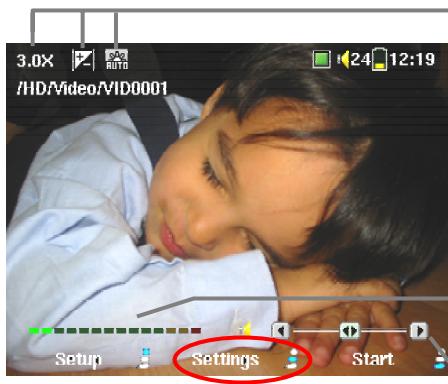
- Zoom : c'est le facteur de zoom actuel. Pour la vidéo, il varie de 1x à 3x.
- Valeur d'exposition : affiche EV si vous avez réglé l'exposition sur une valeur non par défaut.
Balance des blancs : affiche le type de balance des blancs utilisé ; automatique, tungstène, fluorescent, lumière du jour ou nuageux.
- VU-mètre : affiche l'intensité sonore de l'enregistrement.
Contrôle du gain : utilisez cette commande (joystick gauche/droite) pour diminuer ou augmenter la sensibilité de l'enregistrement audio.
Menu des réglages de la caméra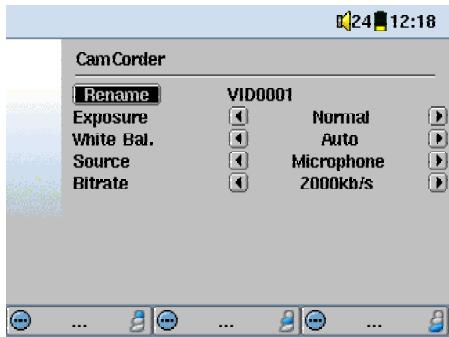
Renommer : permet à l'utilisateur de spécifier le nom de fichier du segment vidéo suivant.
Exposition : utilisez ce réglage pour exposer l'image plus ou moins que la normale. Les valeurs sont par pas de 1/3 de -1 à +1. Une valeur négative diminue l'exposition de l'image et assombrit la photo. Une valeur positive augmente l'exposition et rend les photos plus lumineuses. Si votre sujet a un arrière-plan lumineux, vous pouvez surexposer légèrement votre photo pour que le visage de la personne soit plus visible. Si vous prenez des photos dans la neige ou avec des reflets du soleil sur l'eau, vous pouvez réduire l'exposition.
Balance des blancs : utilisez ce réglage pour modifier la température de couleur de vos photos. Réglez-le en fonction des conditions de lumière ambiante afin de reproduire au mieux les couleurs des objets sur la photo (tungstène, fluorescent, lumière du jour ou nuageux). Ces réglages ajustent la couleur de l'appareil photo pour que, même avec ces différents types de sources lumineuses, les couleurs de la photo soient aussi proches que possible de la réalité.
Source : la source audio par défaut pour un segment vidéo est le microphone intégré. Pour obtenir un meilleur son pour vos vidéos, nous vous encourageons à utiliser un microphone externe (comme le microphone stéréo disponible en option). De plus, vous pouvez même utiliser une source audio au niveau ligne pour des situations d'enregistrement spéciales.
Débit binaire : ce réglage est analogue au réglage de qualité d'image en mode caméra. Il détermine le niveau de compression du fichier vidéo enregistré. Réglez-le sur 2000 kb/s pour la meilleure qualité d'image (occupe plus d'espace sur le disque dur), ou sur un réglage plus bas pour avoir des fichiers plus petits (vous pouvez avoir une qualité d'image légèrement réduite avec un réglage inférieur à 1500 kb/s). Le réglage par défaut de 1500 kb/s convient à la plupart des situations.
Remarque : des temps d'enregistrement continus longs (2 heures et plus) peuvent créer des fichiers de plus de 2 Go chacun. L'AV300 créera plusieurs fichiers pour permettre de longs enregistrements. Ainsi, un enregistrement vidéo très long peut produire des fichiers nommés VID0000, VID0001 et VID0002.
Visionner vos photos et vidéos
Vous aurez sans doute de nombreux fichiers sur votre AV300 au fil du temps, et la meilleure façon de les retrouver est de créer une structure de répertoires claire et de les ranger de manière ordonnée. Par exemple, vous pouvez utiliser le chemin HD/Video/Camcorder/Spring-vacation pour toutes vos vidéos de vos vacances de printemps au lieu de tout mélanger dans Video. Plus vous stockez vos photos, vidéos et musique en vrac dans des dossiers, plus il sera difficile de trouver les fichiers que vous voulez lire.

- Accéder au mode photo et vidéo via les icônes de l'écran principal
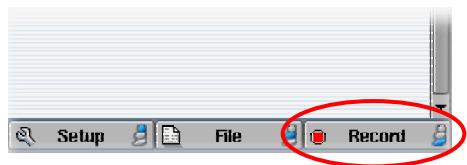
• Accéder au mode photo et vidéo via le bouton Record.
Il existe deux façons d'accéder aux écrans d'enregistrement pour prendre des photos ou des vidéos. Si vous utilisez uniquement la méthode ① ci-dessus, les dossiers par défaut pour enregistrer les images et les segments vidéo seront respectivement les dossiers Photo et Vidéo. Ainsi, par la suite, vous retrouverez toutes vos photos ou vidéos dans ces deux dossiers. Si vous naviguez vers un sous-dossier situé dans le dossier Photo ou Vidéo, puis utilisez le bouton de fonction Enregistrer ②, votre photo ou vidéo sera enregistrée directement dans ce dossier. Cela est beaucoup plus pratique pour ranger vos fichiers de manière ordonnée. Après avoir fait cela une fois, chaque fois que vous utiliserez les icônes de l'écran principal pour prendre une photo ou une vidéo, les fichiers seront enregistrés dans le dernier dossier que vous avez utilisé avec le bouton Enregistrer.
Pour visualiser une vidéo ou une photo que vous avez prise, utilisez simplement votre navigateur pour aller sur ce fichier et cliquez sur DÉMARRER. N'oubliez pas que lors de la visualisation de photos, vous pouvez zoomer jusqu'à trois niveaux de grossissement si vous le souhaitez, ou afficher plusieurs images à l'écran (4 ou 9 images).
6 Dépannage
Question : Mes photos sont floues ou manquent de netteté. Que puis-je faire ?
Réponse : Cela est souvent dû à l'utilisation du zoom numérique ou du zoom optique. Lorsque vous effectuez un zoom sur des objets, vous devez avoir une main très stable pour tenir l'appareil photo lorsque vous appuyez sur le déclencheur. Tout tremblement est amplifié et rend souvent la photo floue. De plus, photographier dans des conditions de faible luminosité force l'obturateur à rester ouvert plus longtemps, et tout mouvement de l'appareil ou mouvement rapide dans le champ de vision de l'appareil sera flou. Essayer de prendre des photos d'objets à moins de 40 cm (16 pouces) donnera également des résultats flous.
Question : Parfois, pendant que j'enregistre une vidéo, le zoom ne réagit pas ou réagit lentement. Est-ce normal ?
Réponse : Pendant un enregistrement vidéo, il y a un processus d'écriture des tampons internes vers le disque dur environ toutes les minutes. Pendant ce temps (environ cinq secondes), un sablier rouge apparaîtra en haut de l'écran et vous ne pourrez pas zoomer avant ou arrière pendant ce processus d'écriture.
Question : Puis-je modifier le temps d'exposition lorsque je prends une photo ?
Réponse : L'appareil photo dispose d'un système d'exposition automatique et ne peut pas être réglé manuellement. Selon les conditions d'éclairage et le mode flash, il s'ajustera de 1/1000 de seconde à 1 seconde.
Problème : Il y a un scintillement à l'écran lors de l'utilisation du caméscope.
Solution : Cela peut être dû à l'éclairage intérieur. Essayez de changer le type d'affichage de l'écran en allant dans Configuration > Affichage > Norme TV. Utilisez PAL pour l'Europe et NTSC pour l'Amérique du Nord.
Problème : Les icônes Appareil photo et Caméscope sont grisées et je ne peux pas les sélectionner.
Solution : Il y a deux raisons possibles à cela. Premièrement, la caméra n'est pas solidement connectée à l'AV300. Retirez-la et lorsque vous la réinsérez, assurez-vous que les deux côtés de la connexion s'enclenchent en place. La deuxième raison peut être que vous avez connecté la caméra à l'AV300 sans l'éteindre au préalable. Éteignez l'AV300 et redémarrez-le.
Problème : Je n'arrive pas à zoomer plus de 3X avec la caméra ou le caméscope. Solution : La caméra peut zoomer jusqu'à 9,6X uniquement si le paramètre Taille d'image sous Paramètres est réglé sur 2048x1536. Le caméscope ne zoome que jusqu'à 3X. Problème : L'unité AV300 se fige et aucun bouton ne répond. Solution : C'est un cas rare et la solution la plus simple est de maintenir enfoncé le bouton STOP/OFF × pendant 12 secondes. Cela éteindra l'AV300. Rallumez-le et réessayez l'opération. Problème : L'autofocus prend trop de temps ou sa mise au point est incorrecte. Solution : Le système d'autofocus a besoin de contraste dans l'image pour faire la mise au point correctement. Ainsi, il aura des difficultés à faire la mise au point sur des zones plates sans contraste ni bords nets. Déplacez la caméra pour avoir d'autres objets à l'écran afin qu'il puisse déterminer comment faire la mise au point.
7 Assistance technique
- Si l'assistance technique détermine que votre produit doit être retourné, veuillez contacter le lieu d'achat pour faire réparer ou remplacer votre produit (selon le type de problème). Les clients qui ont acheté directement sur le site Web d'Archos doivent remplir le formulaire sur le site Web sous Support : Retours de produits : Formulaire de demande RMA.
- Il y a une section FAQ - Foire aux questions sur le site Web ARCHOS www.archos.com qui peut vous aider à répondre à de nombreuses questions.
- Si vous avez besoin d'aide technique, vous pouvez contacter ARCHOS directement dans votre propre langue via ces numéros de téléphone. Pour d'autres pays, veuillez envoyer un e-mail à notre assistance technique.
Assistance téléphonique :
N'UTILISEZ PAS L'ASSISTANCE TÉLÉPHONIQUE POUR DES INFORMATIONS AVANT VENTE. Ces numéros sont destinés à aider ceux qui rencontrent des difficultés techniques / dysfonctionnements. Nos techniciens ne peuvent vous aider qu'avec des problèmes techniques.
| 949-609-1400 | (USA, Canada) | 09-1745-6224 | (Spain) |
| 01 70 20 00 30 | (France) | 02-4827-1143 | (Italy) |
| 0207-949-0115 | (UK) | 02-050-405-10 | (Netherlands) |
| 069-6698-4714 | (Germany) |
Assistance par e-mail :
technical-support@archos.com (clients des États-Unis et du Canada) Anglais support-technique@archos.com (Europe et reste du monde) Anglais et français support.de@archos.com (Allemagne) Allemand
Pour répondre efficacement à vos e-mails, veuillez indiquer le nom du produit et le type de question dans l'objet de l'e-mail.
Par exemple : À : technical-support@archos.com Objet : AVCam300 - Enregistrement vidéo
| ARCHOS AVCam300 Technical Specifications | |
| Photo | |
| File format: | JPEG compressed Basic/Normal/Fine |
| ISO: | Fixed at 100 |
| Image sizes: | 2048x1536, 1024x768, or 640x480 (Between 1x and 3x) |
| Auto focus range: | 40 cm – infinity |
| Focal length | 35mm equivalence: 41mm – 122mm |
| Auto focus: | Always on |
| Exposure Value (EV): | -2 to +2 steps of 1/3 |
| White Balance: | Auto, Outdoors, Cloudy, Tungsten, Fluorescent |
| Flash modes: | off/auto/on/red eye |
| Optical zoom: | 1x – 3x |
| Shutter speed: | Automatic depending on light/flash 1/1000 sec. – 1 sec. |
| Digital Zoom: | 4x – 9x (Only in 2048x1536 image size setting) Zoom 3.9x makes 1600x1200 pixel image Zoom 5.4x makes 1280x960 pixel image Zoom 6.0x makes 1024x768 pixel image Zoom 7.8x makes 800x600 pixel image Zoom 9.6x makes 640x480 pixel image |
| Video | |
| Format video: | Mpeg4 320x240 resolution .avi file NTSC 20 frames/sec PAL 25 frames/sec |
| Format audio: | MP3 192kb/s stereo Constant Bit Rate (CBR) |
ARCHOS
Pensez plus petit
WWW.ARCHOS.COM
Bureaux mondiaux
États-Unis et Canada
ARCHOS Technology
3, Goodyear - Unité A
Irvine, CA 92618, États-Unis
Téléphone : 1949-609-1483
Fax : 1949-609-1414
Europe et Asie
ARCHOS S.A.
12, rue Ampère
91430 Igny
France
Téléphone : +33 (0) 1 69 33 16 90
Fax : +33 (0) 1 69 33 16 99
Royaume-Uni
ARCHOS (UK) Limited
Regus House
Windmill Hill Business Park
Whitehill Way
Swindon
Wiltshire SN5 6QR UK
Téléphone : +44 (0) 1793 44 15 10
Fax : +44 (0) 1793 44 16 10
Allemagne
ARCHOS Deutschland GmbH
Bredelaerstrasse 63
40474 Dusseldorf
Allemagne
Tél : +49 211 1520 384
Fax : +49 211 1520 349

- GUIDE DE L'UTILISATEUR
- ARCHOS AVCAM
- ARCHOS
- TABLE DES MATIÈRES
- GARANTIE ET RESPONSABILITÉ LIMITÉE
- LE FABRICANT NE SAURAIT ÊTRE TENU RESPONSABLE DES DOMMAGES SPÉCIAUX, ACCESSOIRES OU CONSÉCUTIFS, MÊME S'IL A ÉTÉ INFORMÉ DE LEUR POSSIBILITÉ AU PRÉALABLE
- AVERTISSEMENTS ET CONSIGNES DE SÉCURITÉ
- ATTENTION
- AVERTISSEMENT
- DÉCLARATION DE CONFORMITÉ FCC
- CONFORMITÉ FCC
- AVIS DE DROIT D'AUTEUR
- COPYRIGHT ARCHOS © 2003 TOUS DROITS RÉSERVÉS
- L'AVCAM
- CONNEXION DE LA CAMÉRA AVCAM
- BOUTONS ET FONCTIONS
- VOYANT PRÊT
- BOUTON D'OBTURATEUR
- ENFONCEMENT COMPLET
- TÉMOIN DE FLASH
- PRENDRE UNE PHOTO (APPAREIL PHOTO)
- APPAREIL PHOTO
- COMPRENDRE ET RÉGLER LES PARAMÈTRES DE L'APPAREIL PHOTO
- ENREGISTREMENT D'UN SEGMENT VIDÉO (CAMÉSCOPE)
- CAMÉSCOPE
- COMPRENDRE ET RÉGLER LES PARAMÈTRES DU CAMÉSCOPE
- VISIONNER VOS PHOTOS ET VIDÉOS
- DÉPANNAGE
- ASSISTANCE TECHNIQUE
- ASSISTANCE TÉLÉPHONIQUE
- ASSISTANCE PAR E-MAIL
- PENSEZ PLUS PETIT
- BUREAUX MONDIAUX
Marque : ARCHOS
Modèle : AVCAM 300
Catégorie : Caméra de surveillance