
DEH-P3000R - Autoradio PIONEER - Notice d'utilisation et mode d'emploi gratuit
Retrouvez gratuitement la notice de l'appareil DEH-P3000R PIONEER au format PDF.


| Type de produit | Autoradio compatible CD avec tuner RDS |
| Marque | PIONEER |
| Modèle | DEH-P3000R |
| Dimensions (montage) | 178 (L) × 50 (H) × 159 (P) mm |
| Dimensions (façade) | 188 (L) × 58 (H) × 22 (P) mm |
| Poids | 1,4 kg |
| Alimentation | 14,4 V CC (10,8 - 15,1 V admissible) |
| Type de masse | Négative |
| Consommation maximale | 10,0 A |
| Puissance de sortie maximale | 45 W × 4 |
| Puissance de sortie continue | 27 W × 4 (DIN45324, +B = 14,4 V) |
| Impédance de charge | 4 Ω (4 - 8 Ω admissible) |
| Sortie préampli | 2,2 V / 1 kΩ |
| Égaliseur | Paramétrique 3 bandes (Low, Mid, High) avec ajustement de fréquence et facteur Q |
| Fonctions RDS | AF, TA, PTY, REG, PI Seek, News Interruption, PTY Alarm |
| Lecteur CD intégré | Compatible CD audio, lecture de CD 12 cm et 8 cm (sans adaptateur) |
| Contrôle de lecteurs CD multiples | Jusqu'à 3 lecteurs multi-CD (selon modèle) |
| Répétition | Plage de répétition : plage, disque, multi-CD, tous |
| Lecture aléatoire | Aléatoire dans la plage de répétition |
| Scan | Scan des pistes ou des disques (10 secondes) |
| ITS (Instant Track Selection) | Programmation de jusqu'à 24 pistes par disque, 100 disques |
| Entrée AUX | Activable dans le menu d'initialisation, avec saisie de titre |
| Face avant amovible | Antivol, avec étui de protection |
| Récepteur FM | Plage 87,5 - 108 MHz, sensibilité 11 dBf (1,0 μV/75 Ω, mono) |
| Récepteur MW/LW | MW : 531 - 1602 kHz, sensibilité 18 μV ; LW : 153 - 281 kHz, sensibilité 30 μV |
| Compatibilité CD | CD audio standard (logo Compact Disc Digital Audio) |
FOIRE AUX QUESTIONS - DEH-P3000R PIONEER
Questions des utilisateurs sur DEH-P3000R PIONEER
0 question sur cet appareil. Repondez a celles que vous connaissez ou posez la votre.
Poser une nouvelle question sur cet appareil
Téléchargez la notice de votre Autoradio au format PDF gratuitement ! Retrouvez votre notice DEH-P3000R - PIONEER et reprennez votre appareil électronique en main. Sur cette page sont publiés tous les documents nécessaires à l'utilisation de votre appareil DEH-P3000R de la marque PIONEER.
MODE D'EMPLOI DEH-P3000R PIONEER

Multi-CD control High power CD player with RDS tuner
Reproductor de CD de alta potencia con control múltiple de CD y sintonizador RDS
Owner's Manual
DEH-P3000R
Manual de Operación
Contents
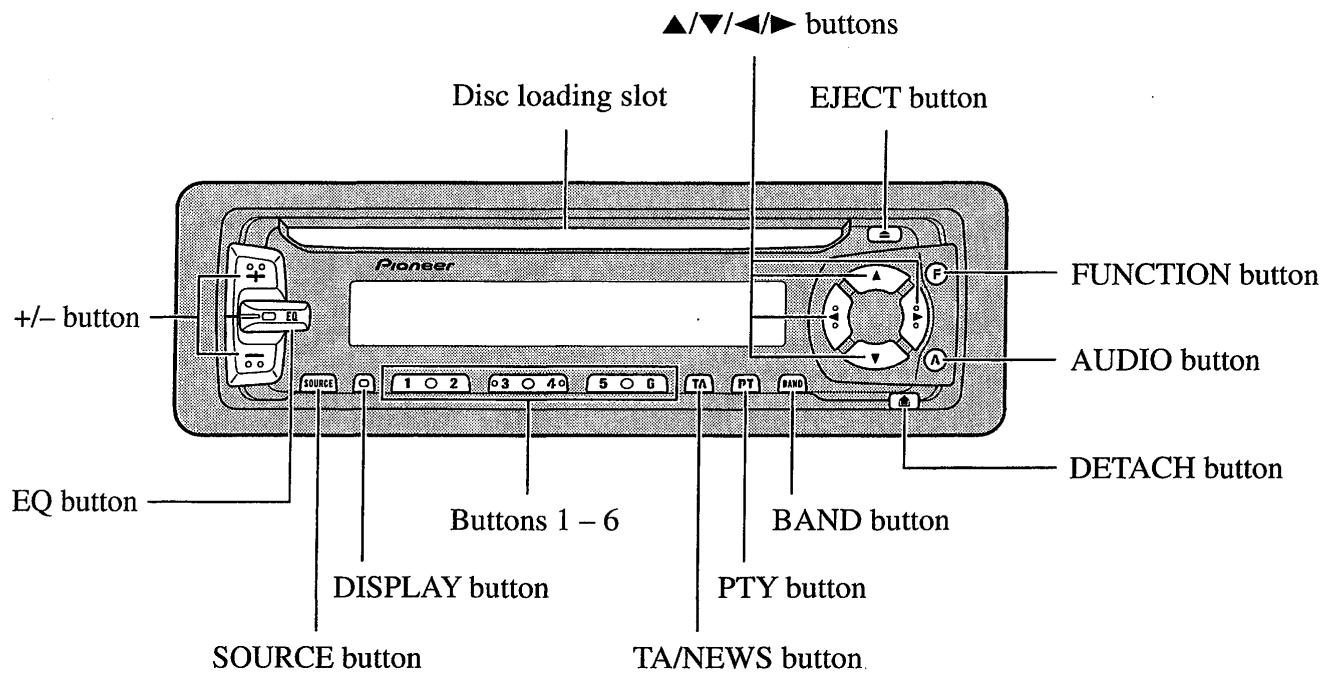
Key Finder 3
● Head Unit
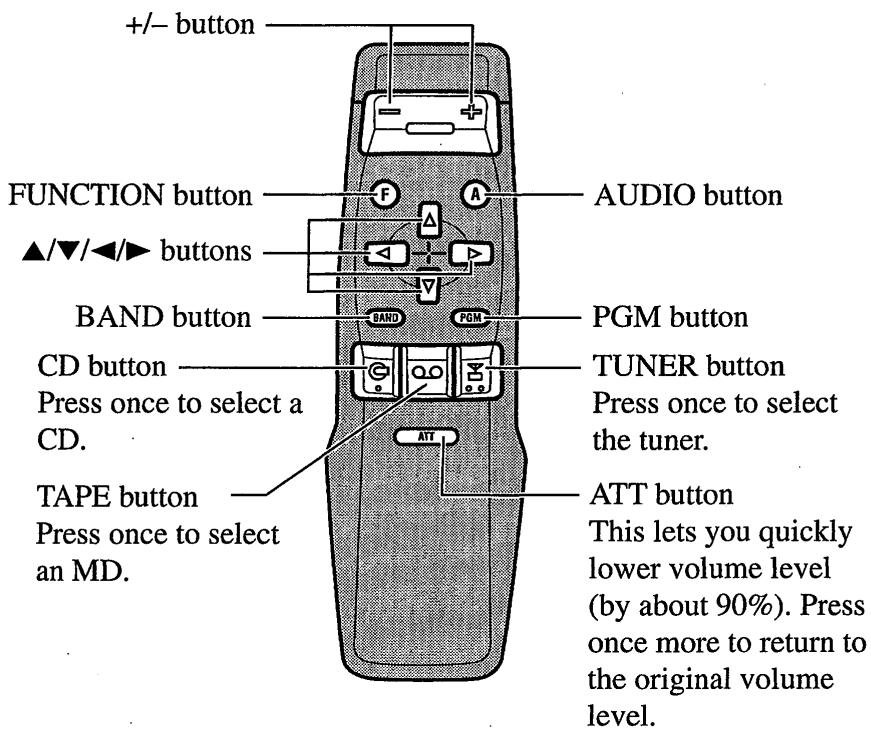
● Remote Controller (CD-R66)
Before Using This Product .... 4
About This Product 4
About This Manual 4
About Optional Remote Controller (CD-R66) .... 5
Precaution 5
In Case of Trouble 5
Basic Operation 6
To Listen to Music 6
Basic Operation of Tuner 7
● Manual and Seek Tuning
- Preset Tuning
- Band
Basic Operation of Built-in CD Player 8
- Switching the Display
- Eject
- Disc Loading Slot
● Track Search and Fast Forward/Reverse
Basic Operation of Multi-CD Player 9
● Track Search and Fast Forward/Reverse
- Disc Search
- Switching the Display
● Switching the Multi-CD Player
● Disc Number Search (for 6-Disc, 12-Disc types)
● Disc Number Rough Search (for 50-Disc type only)
Corresponding Display Indications and Buttons 11
Entering the Function Menu 11
Function Menu Functions 12
Entering the Detailed Setting Menu .... 14
Detailed Setting Menu Functions .... 15
Tuner Operation 16
● Local Seek Tuning (LOCAL)
● Best Stations Memory (BSM)
Using RDS Functions 17
What is RDS? 17
Program Service Name Display 17
AF Function (AF) 18
- Activating/Deactivating the AF Function
PI Seek Function 19
● PI Seek
● Auto PI Seek (for preset station)
Regional Function (REG) 19
- Activating REG
TA Function (TA) 20
● Activating/Deactivating the TA Function
- Canceling Traffic Announcements
- Adjusting the TA Volume
- TP Alarm Function
PTY Function 22
- Searching the PTY
● News Program Interruption Setting
● PTY Alarm - Canceling Emergency Announcements
● PTY List
Using the Built-in CD Player ...... 26
- Repeat Play (REPEAT)
● Random Play (RANDOM) - Scan Play (T-SCAN)
- Pause (PAUSE)
● Disc Title Input (TITLE IN)
Using Multi-CD Players 28
- Repeat Modes (REPEAT)
● Random Play (RANDOM) - Scan Play (SCAN)
- Pause (PAUSE)
● CD Sound Quality Adjustment (COMP)
ITS (Instant Track Selection) 31
● ITS Programming (ITS) - ITS Play (ITS-P)
- Erase a Track Pprogram
- Erase a Disc Program
Disc Title 33
● Disc Title Input (TITLE IN)
● Disc Title List (TITLE LIST)
Audio Adjustment 35
Selecting the Equalizer Curve 35
Entering the Audio Menu 35
Audio Menu Functions 36
● Balance Adjustment (FADER)
● Equalizer Curve Adjustment (EQ-LOW/MID/HIGH)
● Equalizer Curve Fine Adjustment
● Loudness Adjustment (LOUD)
● Front Image Enhancer Function (FIE)
● Source Level Adjustment (SLA)
Detaching and Replacing the Front Panel 39
Theft Protection 39
- Detaching the Front Panel
● Replacing the Front Panel
● Warning Tone
Initial Setting 40
Entering the Initial Setting Menu .... 40
Initial Setting Menu Functions 41
● Changing the FM Tuning Step (FM STEP)
● Switching the Auto PI Seek (A-PI)
- Setting the Warning Tone (WARN)
● Swithing the AUX Mode (AUX)
- Selecting the Illumination Color (ILL.CLR)
Other Functions 43
Using the PGM Button (PGM-FUNC) ...... 43
- Setting the PGM Button
● Using the PGM Button
Using the AUX Source 45
- Selecting the AUX Source
● AUX Title Input
CD Player and Care 46
Precaution 46
Built-in CD Player's Error Message 46
Specifications 47

Head Unit
Remote Controller (CD-R66)
The remote controller (CD-R66) enabling remote control of the head unit is sold separately. Operation is the same as when using buttons on the head unit.
About This Product
- This product complies with the EMC Directives (89/336/EEC, 92/31/EEC) and CE Marking Directive (93/68/EEC).
The tuner frequencies on this product are allocated for use in Western Europe, Asia, the Middle East, Africa and Oceania. Use in other areas may result in improper reception. The RDS function operates only in areas with FM stations broadcasting RDS signals.
About This Manual
This product features a number of sophisticated functions ensuring superior reception and operation. All are designed for the easiest possible use, but many are not self-explanatory. This operation manual is intended to help you benefit fully from their potential and to maximize your listening enjoyment.
We recommend that you familiarize yourself with the functions and their operation by reading through the manual before you begin using this product. It is especially important that you read and observe the “Precaution” on page 5 and in other sections.
This manual explains head unit operation. You can perform the same operations with the remote controller (CD-R66). The remote controller enables one-touch source changing and pause operation, and offers the convenience of ATT, a function not provided on the head unit.
Before Using This Product
About Optional Remote Controller (CD-R66)
Open the cover on the rear of the optional remote controller (CD-R66), and you'll find a switch. Do not change this switch's position from the MAIN UNIT position. (Initially, the switch is set to the MAIN UNIT position.) If you change the switch setting, correct operation of this product will not be possible.
Precaution
- A “CLASS 1 LASER PRODUCT” label is affixed to the bottom of the player.
CLASS 1 LASER PRODUCT
- The Pioneer CarStereo-Pass is for use only in Germany.
- Keep this manual handy as a reference for operating procedures and precautions.
• Always keep the volume low enough for outside sounds to be audible. - Protect the product from moisture.
- If the battery is disconnected, the preset memory will be erased and must be reprogrammed.
In Case of Trouble
Should this product fail to operate properly, contact your dealer or nearest authorized Pioneer Service Station.
To Listen to Music
The following explains the initial of operations required before you can listen to music.
Note:
- Loading a disc in this product. (Refer to page 8.)
1. Select the desired source (e.g. tuner).

Each press changes the Source ...
■ Head Unit
Each press of the SOURCE button selects the desired source in the following order: Built-in CD player → Tuner → Multi-MD player → Multi-CD player → AUX
■ Remote Controller
Each press of the button selects the desired source in the following order: TUNER button : Tuner → Sources OFF CD button : Built-in CD player → Multi-CD player → Sources OFF TAPE button : Multi-MD player → AUX → Sources OFF
Note:
- In the following cases, the sound source will not change:
* No Multi-CD player is connected to this product.
* No Multi-MD player is connected to this product.
* No disc is set in this product.
* No magazine is set in the Multi-CD player.
* No disc is set in the Multi-MD player.
* AUX (external input) is set to OFF. (Refer to page 42.)
2. Raise or lower the volume.

3. Source OFF.

Hold for 1 second or more
Basic Operation of Tuner
This product's AF function can be switched ON and OFF. AF should be switched OFF for normal tuning operations.
Manual and Seek Tuning
- You can select the tuning method by changing the length of time you press the ◀/▶ button.
| Manual Tuning (step by step) | 0.5 seconds or less |
| Seek Tuning | 0.5 seconds or more |
Note:
- If you continue pressing the button for longer than 0.5 seconds, you can skip broadcast stations. Seek Tuning starts as soon as you stop pressing the button.
- “○” stereo indicator lights when a stereo station is selected.
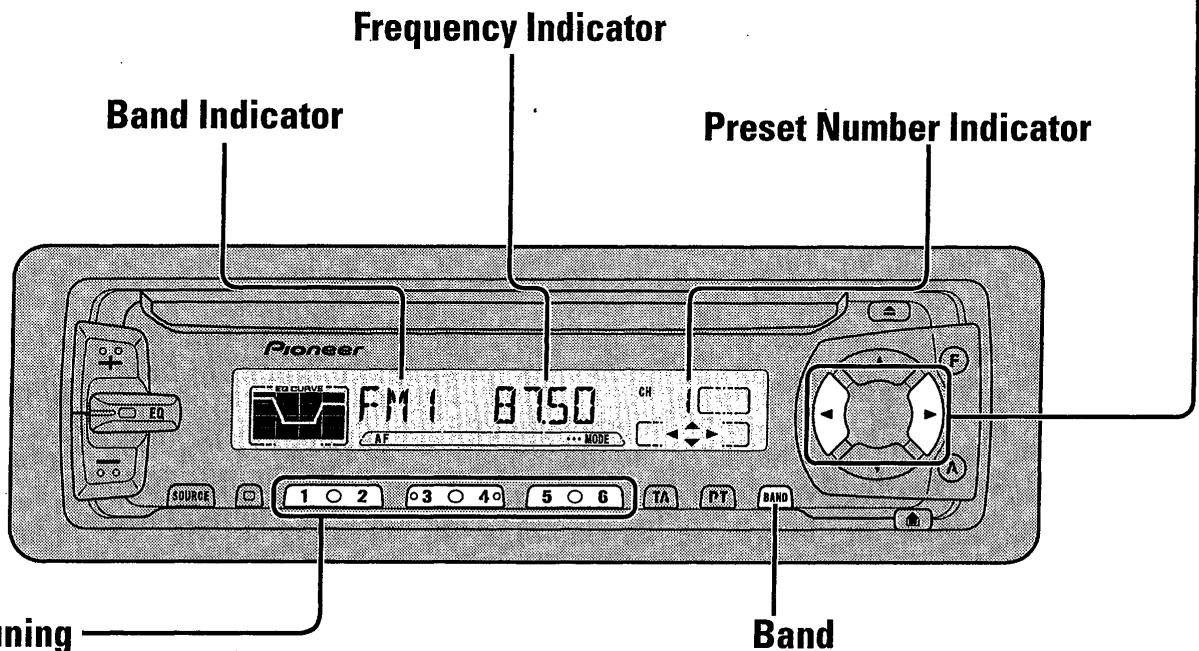
Preset Tuning
- You can memorize broadcast stations in buttons 1 through 6 for easy, one-touch station recall.
FM 1 → FM 2 → FM 3 → MW/LW
| Preset station recall | 2 seconds or less |
| Broadcast station preset memory | 2 seconds or more |
Note:
- Up to 18 FM stations (6 in FM1, FM2 and FM3) and 6 MW/LW stations can be stored in memory.
- You can also use the ▲ or ▼ buttons to recall broadcast stations memorized in buttons 1 through 6.
Basic Operation of Built-in CD Player
Switching the Display
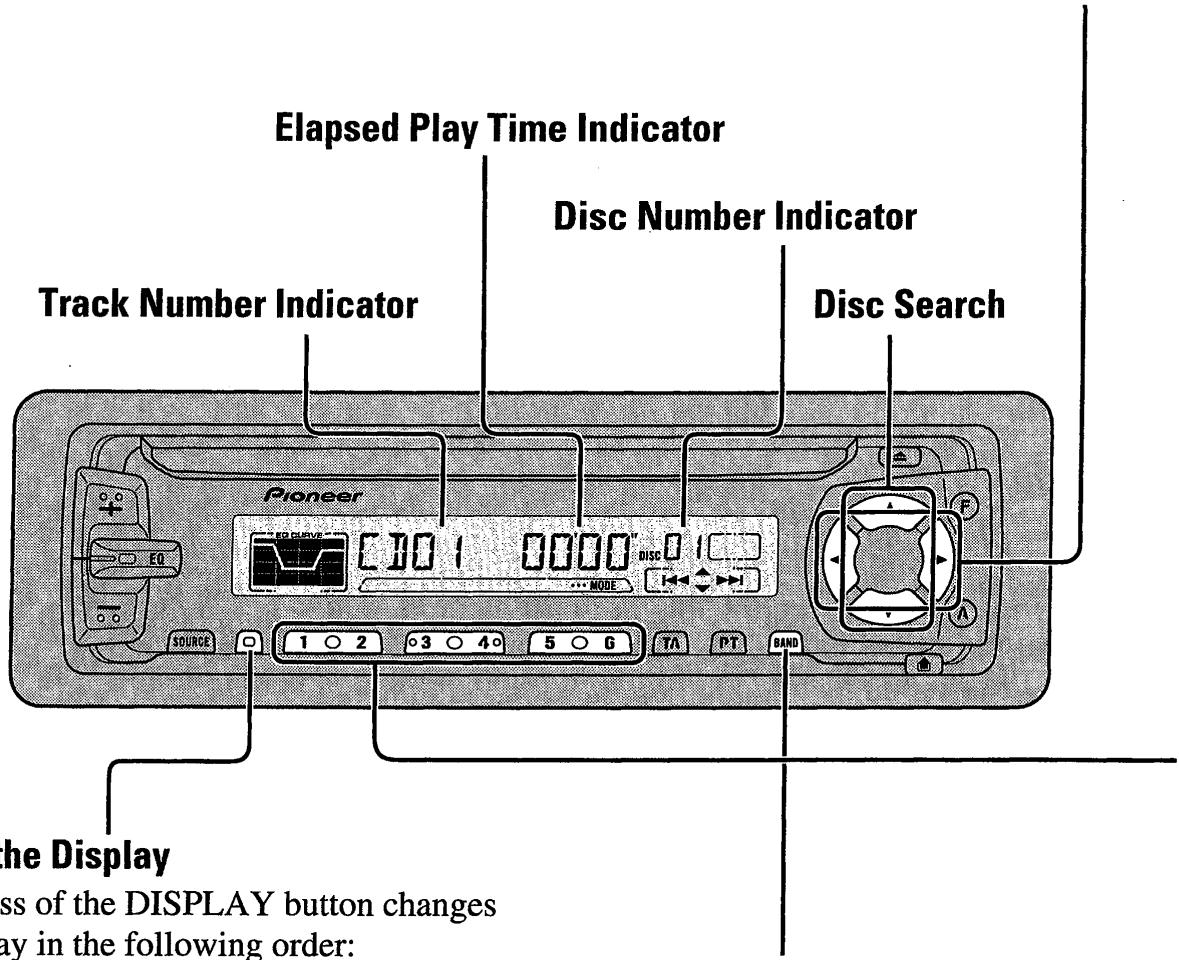
Each press of the DISPLAY button changes the display in the following order:
Playback mode (Elapsed play time)
→ Disc Title
Note:
- If you switch displays when disc titles have not been input, "NO TITLE" is displayed.
Eject
Note:
- The CD function can be turned ON/OFF with the disc remaining in this product. (See page 6.)
- Discs left partially inserted after ejection may incur damage or fall out.
Disc Loading Slot
The built-in CD player plays one standard 12 cm or 8 cm (single) CD at a time. Do not use an adapter when playing 8 cm CD.
Track Number Indicator
Elapsed Play Time Indicator
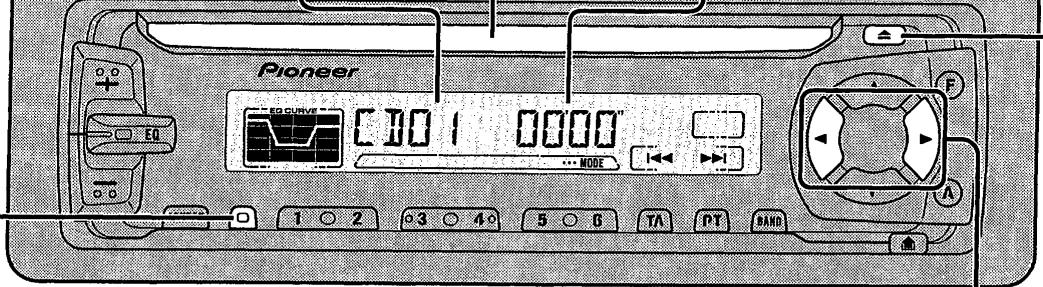
Track Search and Fast Forward/Reverse
- You can select between Track Search or Fast forward/Reverse by pressing the ◀/▶ button for a different length of time.
| Track Search | 0.5 seconds or less |
| Fast forward/Reverse | Continue pressing |
Note:
- If a disc cannot be inserted fully or playback fails, make sure the recorded side is down. Push the EJECT button and check the disc for damage before reinserting it.
- If a CD is inserted with the recorded side up, it will be ejected automatically after a few moments.
- If the built-in CD player cannot operate properly, an error message (such as “ERROR-14”) appears on the display. Refer to “Built-in CD Player’s Error Message” on page 46.
Basic Operation of Multi-CD Player
This product can control one or more multi-CD players. (There are some types of Multi-CD players such as “CDX-P630S” which you cannot connect more than one.)
Track Search and Fast Forward/Reverse
- You can select between Track Search or Fast forward/Reverse by pressing the ◀/▶ button for a different length of time.
| Track Search | 0.5 seconds or less |
| Fast forward/Reverse | Continue pressing |
Switching the Display
Each press of the DISPLAY button changes the display in the following order:
Playback mode (Elapsed play time)
→ Disc Title
Note:
- If you switch displays when disc titles have not been input, "NO TITLE" is displayed.
Switching the Multi-CD Player
Using a multiple connection adapter lets you connect up to three Multi-CD players.
M-CD 1 → M-CD 2 → M-CD 3
(Displayed about for 2 seconds.)
- Disc Number Search (for 6-Disc, 12-Disc types)
- You can select discs directly with the 1 to 6 buttons. Just press the number corresponding to the disc you want to listen to.
Note:
- When a 12-Disc Multi-CD Player is connected and you want to select disc 7 to 12, press the 1 to 6 buttons for 2 seconds or longer.
— Disc Number Rough Search (for 50-Disc type only)
This handy function lets you select discs loaded in a 50-Disc Multi-CD Player using the 1 to 5 buttons. The 50 discs are divided into five blocks, with each of the 1 to 5 buttons assigned to a block.
- Select the desired block with the 1 to 5 buttons.
Note:
- After completing a rough search, use the ▲ and ▼ buttons to select a desired disc.
Note:
- The multi-CD player may perform a preparatory operation, such as verifying the presence of a disc or reading disc information, when the power is turned ON or a new disc is selected for playback. "READY" is displayed.
- When a magazine is loaded into a 50-Disc type Multi-CD Player, information on all the discs in the magazine is read.
If you start playing a disc on a 50-Disc type Multi-CD Player before reading of information on all discs has been completed, reading of information stops part way through. This will prevent you from using a number of functions. (If you try and use these functions, “NOT READY” is displayed.)
If this happens, reading of information begins again when you switch to a component other than the 50-Disc type Multi-CD Player.
- If the multi-CD player cannot operate properly, an error message such as “ERROR-14” is displayed. Refer to the multi-CD player owner’s manual.
- If there are no discs in the multi-CD player magazine, "NO DISC" is displayed.
- “LOAD” will be displayed in the following cases:
* If the disc in the extra tray in selected.
* If the disc in moved from the extra tray to the magazine.
(Refer to the 50-Disc type multi-CD player owner's manual.)
- You cannot use the “Ejecting a Single Disc”, “Frequency Play”, “Music Group Play” or “ABC Disc Title Search” functions with this product.
When playing a CD TEXT disc on a CD TEXT compatible Multi-CD Player:
- You can use the following two functions. Refer to Multi-CD Player's Owner's Manual for operation details.
* Title display switching
*Title scroll
- You cannot switch to the Disc Title Input mode in the Detailed Setting Menu.
Corresponding Display Indications and Buttons
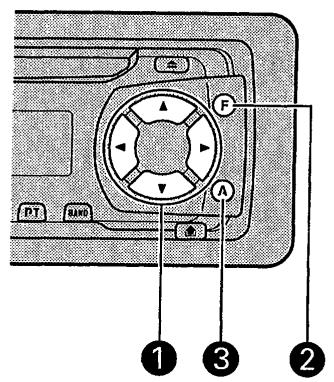
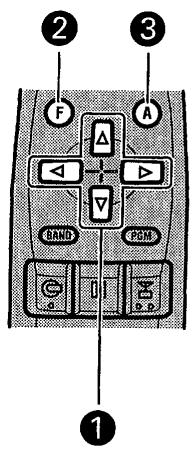
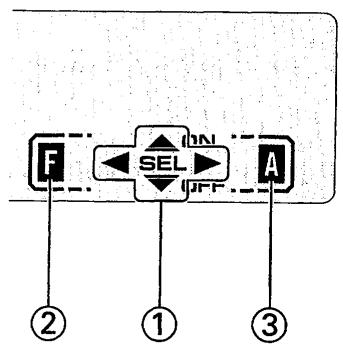
This product's display features Key Guidance Indicators. These light to indicate which of the ▲/▼/◄/►, FUNCTION and AUDIO buttons you can use. When you're in the Function Menu (refer to next section), Detailed Setting Menu (refer to page 14), Initial Setting Menu (refer to page 40) or Audio Menu (refer to page 35), they also make it easy to see which ▲/▼/◄/► buttons you can use to switch functions ON/OFF, switch repeat selections and perform other operations.
Indicator and corresponding buttons are shown below.
■ Head Unit
■ Remote Controller
■ Display
flowchart
graph TD
    F["Input F"] --> SEL["SEL"]
    SEL --> A["Output A"]
    SEL -->|OFF| SEL
    SEL -->|IN| SEL
    style F fill:#f9f,stroke:#333
    style SEL fill:#ccf,stroke:#333
    style A fill:#cfc,stroke:#333
    style ① fill:#fff,stroke:#333
    style ② fill:#fff,stroke:#333
    style ③ fill:#fff,stroke:#333
When ① is lit in the display, perform appropriate operations with the ① buttons. When ② is lit in the display, it indicates that you are in the Function Menu, Detailed Setting Menu or Initial Setting Menu. You can switch between each of these menus and between different modes in the menus using button ② on the head unit or remote controller.
When ③ is lit in the display, it indicates you are in the Audio Menu. You can switch between modes in the Audio Menu using button ③ on the head unit or remote controller.
Entering the Function Menu
The Function Menu lets you operate simple functions for each source.
Note:
- After entering the Function Menu, if you do not perform an operation within about 30 seconds, the Function Menu is automatically canceled.
1. Select the desired mode in the Function Menu. (Refer to "Function Menu functions".)
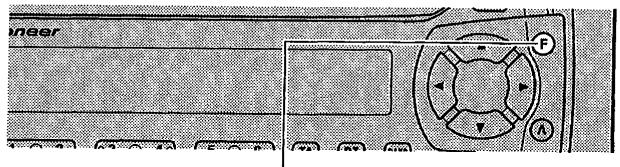


Each press changes the Mode ...
2. Operate a mode. (e.g. Repeat Play)
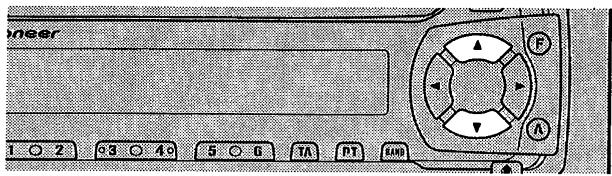

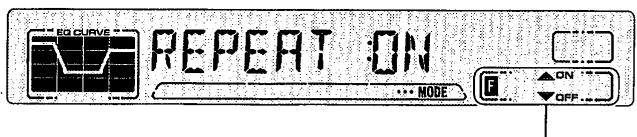
The button used and the operation it performs are indicated by the key guidance indicator. Press the ▲ button to switch the key guidance indicator ON, and the ▼ button to switch it OFF.
3. Cancel the Function Menu.
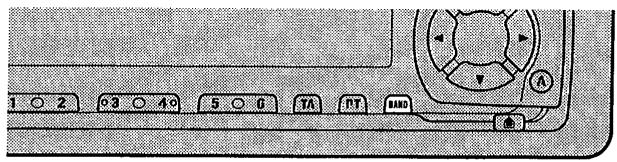

Function Menu Functions
The following chart shows functions for each source in the Function Menu.
The chart also shows indications for each function, operations and buttons used to perform operations. For more details, or when you want to know about an operation, refer to the page number indicated in the chart.
■Tuner
| Function name (Display) | Button : Operation | Page |
| Best Stations Memory (BSM) | ▲:ON▼:OFF | 16 |
| Regional Function (REG) | ▲:ON▼:OFF | 19 |
| Local Seek Tuning (LOCAL) | 1 ▲:ON▼:OFF2 ◀ or ►:Select (Sensitivity) | 16 |
| TA Function (TA) | ▲:ON▼:OFF | 20 |
| AF Function (AF) | ▲:ON▼:OFF | 18 |
■ Built-in CD Player
| Function name (Display) | Button : Operation | Page |
| Repeat Play (REPEAT) | ▲:ON▼:OFF | 26 |
| Random Play (RANDOM) | ▲:ON▼:OFF | 26 |
| Scan Play (T-SCAN) | ▲:ON▼:OFF | 27 |
| Pause (PAUSE) | ▲:ON▼:OFF | 27 |
■ Multi-CD Player
| Function name (Display) | Button : Operation | Page |
| Repeat Modes (REPEAT) | ◀ or ▶:Select (Play range) | 28 |
| Disc Title List (TITLE LIST) | 1 ◀ or ▶:Select (Disc Title)2 ▲:Play | 34 |
| Random Play (RANDOM) | ▲:ON▼:OFF | 28 |
| Scan Play (SCAN) | ▲:ON▼:OFF | 29 |
| ITS Play (ITS-P) | ▲:ON▼:OFF | 31 |
| Pause (PAUSE) | ▲:ON▼:OFF | 29 |
| CD Sound Quality Adjustment (COMP) | ▲ or ▼:Select(Sound Quality Function) | 30 |
Entering the Detailed Setting Menu
In the Detailed Setting Menu, you can operate convenient, complex functions for each source.
1. Enter the Detailed Setting Menu.

Hold for 2 seconds
2. Select the desired mode. (Refer to “Detailed Setting Menu functions”.)

Each press changes the Mode ...
3. Operate a mode.
4. Cancel the Detailed Setting Menu.

Note:
- You can cancel the Detailed Setting Menu by pressing the FUNCTION button again for 2 seconds or more.
Detailed Setting Menu Functions
The following chart shows functions for each source in the Detailed Setting Menu.
The chart also shows indications for each function, operations and buttons used to perform operations. For more details, or when you want to know about an operation, refer to the page number indicated in the chart.
Tuner
| Function name (Display) | Button : Operation | Page |
| Programmable Function (PGM-FUNC) | 1 ◀ or ▶:Select (Function)2 ▲:Memory | 43 |
■ Built-in CD Player
| Function name (Display) | Button : Operation | Page |
| Disc Title Input (TITLE IN) | 1 ▲ or ▼:Select (Letter)2 ▲ or ▶:Select (Position)3 ▶:Memory | 27 |
| Programmable Function (PGM-FUNC) | 1 ▲ or ▶:Select (Function)2 ▲:Memory | 43 |
■ Multi-CD Player
| Function name (Display) | Button : Operation | Page |
| Disc Title Input (TITLE IN) | 1 ▲ or ▼:Select (Letter)2 ◀ or ▶:Select (Position)3 ▶:Memory | 33 |
| ITS Programming (ITS) | ▲:Memory | 31 |
| Programmable Function (PGM-FUNC) | 1 ◀ or ▶:Select (Function)2 ▲:Memory | 43 |
Local Seek Tuning (LOCAL)
When Local mode is ON, you can only select broadcast stations providing strong reception.
- Press the FUNCTION button and select the Local mode (LOCAL) in the Function Menu.
- Switch the Local ON/OFF with the ▲/▼ buttons.

- Select the desired Local Seek sensitivity with the ◀/▶ buttons.

FM : LOCAL 1 ↔ LOCAL 2 ↔ LOCAL 3 ↔ LOCAL 4
MW/LW: LOCAL 1 ↔ LOCAL 2
Note:
- The LOCAL 4 setting allows reception of only the strongest stations, while lower settings let you receive progressively weaker stations.
Best Stations Memory (BSM)
The BSM (Best Stations Memory) function stores stations in memory automatically.
- Press the FUNCTION button and select the BSM mode (BSM) in the Function Menu.
- Switch the BSM ON with the ▲ button.
The stations with the strongest signals will be stored under buttons 1–6 and in order of their signal strength.

- To cancel the process, press the ▼ button in the Function Menu before memorization is complete.

What is RDS?
RDS (Radio Data System) is a system for transmitting data along with FM programs. This data, which is inaudible, provides a variety of features such as: program service name, program type display, traffic announcement standby, automatic tuning and program type tuning, intended to aid radio listeners in tuning to a desired station.
Note:
- RDS service may not be provided by all stations.
- RDS functions, like AF (Alternative Frequencies search) and TA (Traffic Announcement standby), are only active when your radio is tuned to RDS stations.
Program Service Name Display
With this function, the names of networks/stations providing RDS services replace the frequency on the display a few seconds after they are tuned in.
- When you want to know PTY Information or the frequency of the current station, change the display.
Each press changes the Display ...

Each press of the DISPLAY button selects the display in the following order:
Program Service Name → PTY Information → Frequency
Note:
- After switching displays, if you do not perform an operation within 8 seconds, the Program Service Name is automatically displayed.
■ Displaying PTY Information
PTY (Program Type ID code) information for the currently tuned station appears on the display for 8 seconds. The information is correlated with the list in the section "PTY List" on page 25.
■ Displaying the Frequency
The frequency of the current station appears on the display.
AF Function (AF)
The AF (Alternative Frequencies search) function is used to search for other frequencies in the same network as the currently tuned station. It automatically retunes the receiver to another frequency in the network which is broadcasting a stronger signal when there are problems with reception of the currently tuned station or better reception is possible on a different frequency.
Note:
- AF tunes the receiver only to RDS stations when you use Seek tuning or BSM Auto Memory with the "AF" indicator ON.
- When you recall a preset station, the tuner may update the preset station with a new frequency from the station's AF list. (This is only available when using presets on the FM1 and FM2 bands.) No preset number appears on the display if the RDS data for the station received differs from that for the originally stored station.
• Sound may be temporarily interrupted by another program during an AF frequency search. - When the tuner is tuned to a non-RDS station, the "AF" indicator flashes.
- AF can be switched ON or OFF independently for each FM band.
Activating/Deactivating the AF Function
AF is set to ON by default.
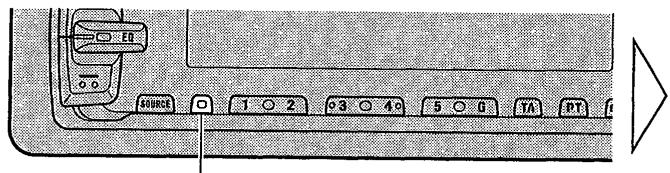
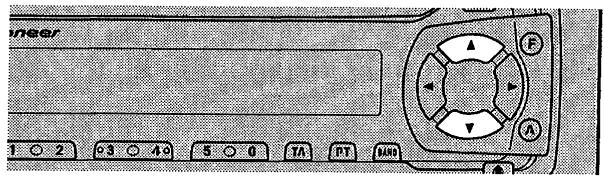
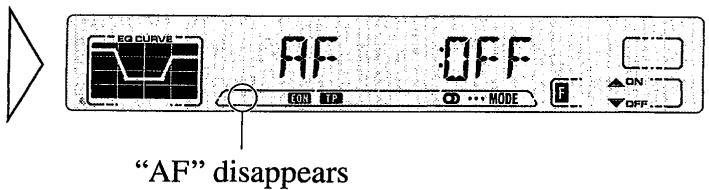
- Press the FUNCTION button and select the AF mode (AF) in the Function Menu.
- Activate or deactivate AF while in an FM band.

PI Seek Function
The tuner searches for another frequency broadcasting the same programming. "PI SEEK" appears on the display and the radio volume is muted during a PI Seek. The muting is discontinued after completion of the PI Seek, whether or not the PI seek has succeeded. If the PI Seek is unsuccessful, the tuner returns to the previous frequency.
PI Seek
If the tuner fails to locate a suitable alternative frequency or if the broadcasting signal is too weak for proper reception, the PI Seek will automatically start.
Auto PI Seek (for preset station)
When preset stations cannot be recalled, as when traveling long distances, the product can be set to perform PI Seek also during preset recall.
The default setting for Auto PI Seek is OFF.
Note:
- Refer to "Initial Setting Menu" for details on how to switch Auto PI Seek ON/OFF.
Regional Function (REG)
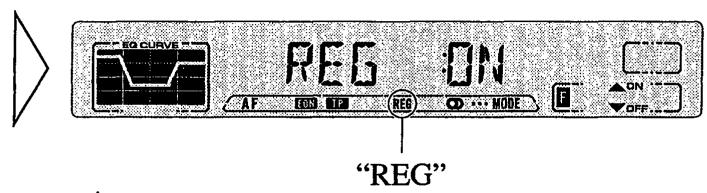
When AF is used to retune the tuner automatically, REG (Regional) limits the selection to stations broadcasting regional programs.
Note:
- Regional programming and regional networks are organized differently depending on the country (i.e., they may change according to the hour, state or broadcast area).
- The preset number may disappear on the display if the tuner tunes in a regional station which differs from the originally set station.
Activating REG
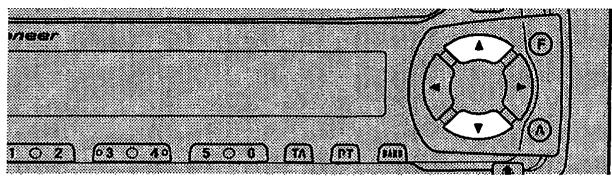
The REG function can be turned ON independently for each FM band.
- Press the FUNCTION button and select the REG mode (REG) in the Function Menu.
- Activate or deactivate REG while in an FM band.
TA Function (TA)
The TA (Traffic Announcement standby) function lets you receive traffic announcements automatically, no matter what source (tuner, built-in CD player or multi-CD player) you are listening to. The TA function can be activated for either a TP station (a station that broadcasts traffic information) or an EON TP station (a station carrying information which cross-references TP stations).
Activating/Deactivating the TA Function
1. Tune in a TP or EON TP station.
The “TP” indicator lights when the tuner is tuned to a TP station, and both the “EON” and “TP” indicators light when it is tuned to an EON TP station.
2. Activate the TA function.

The “TA” indicator lights, indicating that the tuner is waiting for traffic announcements.
Repeat the preceding operation when no traffic announcement is being received to deactivate the TA function.
Note:
- You can also switch the TA Function ON/OFF in the Function Menu.
- The system switches back to the original source following traffic announcement reception.
- The TA function can be activated from the built-in CD player, multi-MD player or multi-CD player mode if the tuner was last set to the FM band but not if it was last set to the MW/LW band.
- If the tuner was last set to FM, turning on the TA function lets you operate other tuning functions while listening to a CD.
- Only TP or EON-TP stations are tuned in during the Seek Tuning mode when the "TA" indicator is ON.
- Only TP or EON-TP stations are stored by BSM when the "TA" indicator is ON.
Canceling Traffic Announcements
- Press the TA/NEWS button while a traffic announcement is being received to cancel the announcement and return to the original source.
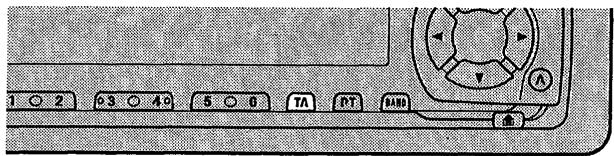
The announcement is canceled but the tuner remains in the TA mode until the TA/NEWS button is pressed again.
Adjusting the TA Volume
When a traffic announcement begins, the volume adjusts automatically to a preset level to enable you to hear the announcement clearly.
- Set the volume by adjusting it during reception of a traffic announcement.

The newly set volume is stored in memory and recalled for subsequent traffic announcements.
TP Alarm Function
About 30 seconds after the “TP” or “EON” indicator is extinguished due to a weak signal, a 5 second beep sounds to remind you to select another TP or EON-TP station.
- If you are listening to the tuner, tune in another TP station or EON-TP station.
In the built-in CD player, multi-MD player or multi-CD player mode, the tuner automatically seeks out the TP station with the strongest signal in the current area 10 (or 30)* seconds after "TP" disappears from the display.
* Time taken before Seek begins.
| TA function ON | 10 seconds |
| TA, AF functions ON | 30 seconds |
PTY Function
With Wide and Narrow classification of program type, the PTY function provides two ways to select stations by the type of program being broadcast (PTY Search). It also provides automatic tuning to emergency broadcasts (PTY Alarm).
Note:
- There's no need to perform PTY Search settings again if they have previously been set. After switching to the PTY Search Setting mode in Step 1, just perform PTY Search in Step 4.
Searching the PTY
1. Select the PTY Search Setting mode.

2. Select the PTY Search method (Wide, Narrow).

3. Select one from among the PTY.


4. Start PTY Search.

The tuner searches for a station broadcasting the desired PTY.
To cancel the PTY Search Setting mode, hold down the PTY button for 2 seconds or more.
Note:
- If a PTY code of zero is received from a station, "NONE" will be displayed. This indicates that the station has not defined its program contents.
- The program of some stations may differ from that indicated by the transmitted PTY.
- If no station broadcasting the selected programming type is found, “NOT FOUND” is displayed for about 2 seconds, and the tuner returns to the original station.
News Program Interruption Setting
You can switch automatic reception of PTY code news programs ON/OFF. When a received news program ends, reception of the previous program resumes.
- Set interruption to ON or OFF.

PTY Alarm
PTY Alarm is a special PTY code for announcements regarding emergencies such as natural disasters. When the tuner receives the radio alarm code, “ALARM” appears on the display and the volume adjusts to the TA volume. When the station stops broadcasting the emergency announcement, the system returns to the previous source.

Note:
- The system switches back to the original source following emergency announcement reception.
Canceling Emergency Announcements
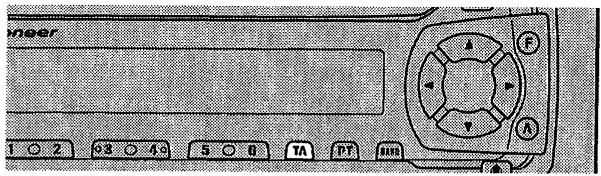
- Press the TA/NEWS button during emergency announcement reception to cancel the announcement and return to the previous source.

PTY List
| Wide | Narrow | Details |
| NEWS/INF | NEWS | News. |
| AFFAIRS | Current affairs. | |
| INFO | General information and advice. | |
| SPORT | Sports programs. | |
| WEATHER | Weather reports/Meteorological information. | |
| FINANCE | Stock market reports, commerce, trading etc. | |
| POPULAR | POP MUS | Popular music. |
| ROCK MUS | Contemporary modern music. | |
| EASY MUS | Easy listening music. | |
| OTH MUS | Other types of music, which can't be categorized. | |
| JAZZ | Jazz music based programs. | |
| COUNTRY | Country music based programs. | |
| NAT MUS | National music based programs. | |
| OLDIES | Oldies music, ‘Golden age’ based programs. | |
| FOLK MUS | Folk music based programs. | |
| CLASSICS | L. CLASS | Light classical music. |
| CLASSIC | Serious classical music. | |
| OTHERS | EDUCATE | Educational programs. |
| DRAMA | All radio plays and serials. | |
| CULTURE | Programs concerned with any aspect of national or regional culture. | |
| SCIENCE | Programs about nature, science and technology. | |
| VARIED | Light entertainment programs. | |
| CHILDREN | Children's programs. | |
| SOCIAL | Social affairs programs. | |
| RELIGION | Religion affairs programs or services. | |
| PHONE IN | Phone in based programs. | |
| TOURING | Travel programs, not for announcements about traffic problem. | |
| LEISURE | Programs about hobbies and recreational activities. | |
| DOCUMENT | Documentary programs. |
Repeat Play (REPEAT)
Repeat Play plays the same track repeatedly.
- Press the FUNCTION button and select the Repeat mode (REPEAT) in the Function Menu.
- Switch Repeat Play ON/OFF with the ▲/▼ buttons.


Note:
- If you perform Track Search or Fast forward/Reverse, Repeat Play is automatically canceled.

Random Play (RANDOM)
Random Play plays the tracks on a CD in random order for variety.
- Press the FUNCTION button and select the Random mode (RANDOM) in the Function Menu.
- Switch Random Play ON/OFF with the ▲/▼ buttons.



Scan Play (T-SCAN)
Scan Play plays the first 10 seconds or so of each track on a CD in succession.
- Press the FUNCTION button and select the Scan mode (T-SCAN) in the Function Menu.
- Switch the Scan mode ON with the ▲ button.
- Switch the Scan mode ON with the ▲ button.

- When you find the desired track, cancel scan play with the ▼ button.
If the Function Menu is automatically canceled at this time, select the Scan mode in the Function Menu once more.

Note:
- Scan Play is canceled automatically after all the tracks on a disc have been scanned.
Pause (PAUSE)
Let's you pause play of the track currently playing.
- Press the FUNCTION button and select the Pause mode (PAUSE) in the Function Menu.
- Switch the Pause ON/OFF with the ▲/▼ buttons.

Disc Title Input (TITLE IN)
The built-in CD player's Disc Title Input function permits entry of up to 100 disc titles comprising up to 10 letters when one or more multi-CD players is installed. (Refer to "Disc Title Input" on page 33 under "Using Multi-CD Players".)
Repeat Modes (REPEAT)
There are four repeat modes (play range): One-track Repeat, Disc Repeat, Multi-CD player Repeat (the selected Multi-CD player) and All Repeat (all Multi-CD players). (Default mode is Multi-CD player Repeat.)
-
Press the FUNCTION button and select the Repeat Selecting mode (REPEAT) in the Function Menu.
-
Select the desired Repeat Mode with the ◀/▶ buttons.
Multi-CD player Repeat (“MCD” is displayed) → All Repeat (“ALL” is displayed) → One-track Repeat (“TRK” is displayed) → Disc Repeat (“DSC” is displayed)

Note:
- All Repeat is available only when two or more multi-CD players are installed.
- If you go beyond the play range of the selected repeat mode by performing Track Search, Fast forward/Reverse or selecting another disc or Multi-CD player, the mode changes to an applicable Repeat mode.
Random Play (RANDOM)
Tracks are played at random within the selected repeat mode play range as explained in “Repeat Modes” above.
-
Press the FUNCTION button and select the Random mode (RANDOM) in the Function Menu.
-
Switch the Random Play ON/OFF with the ▲/▼ buttons.
After selecting the desired repeat mode play range from those referred to in “Repeat Modes” above, switch Multi-CD Player Random Play ON.

| Display | Play range |
| D-RDM | Disc Repeat |
| M-RDM | Multi-CD player Repeat |
| RDM | All Repeat |
Scan Play (SCAN)
In the Disc Repeat Mode, the beginning of each track on a single disc is scanned for about 10 seconds. In the Multi-CD player Repeat and All Repeat modes, the beginning of the first track on each disc is scanned for about 10 seconds.
-
Press the FUNCTION button and select the Scan mode (SCAN) in the Function Menu.
-
Switch the Scan Play ON with the ▲ button.
After selecting the desired repeat mode play range from those referred to in “Repeat Modes” on page 28, switch Multi-CD Player Scan Play ON.
- When you find the desired track (or disc), cancel scan play with the ▼ button.
If the Function Menu is automatically canceled at this time, select the Scan mode in the Function Menu once more.


| Display | Play range |
| T-SCN | Disc Repeat |
| D-SCN | Multi-CD player Repeat |
| SCAN | All Repeat |
Note:
- Scan Play is canceled automatically after all the tracks or discs have been scanned.
Pause (PAUSE)
Let's you pause play of the track currently playing.
- Press the FUNCTION button and select the Pause mode (PAUSE) in the Function Menu.
- Switch the Pause ON/OFF with the ▲/▼ buttons.

CD Sound Quality Adjustment (COMP)
Using the COMP (Compression) and DBE (Dynamic Bass Emphasis) functions enables Multi-CD player sound quality adjustment. Both of the functions enable adjustment on two levels.
COMP
The COMP (Compression) function eliminates distortions caused by imbalances between loud and subdued sounds at higher volumes.
DBE
DBE (Dynamic Bass Emphasis) boosts bass levels to give a fuller sound.
-
Press the FUNCTION button and select the COMP/DBE Switching mode (COMP) in the Function Menu.
-
Select the desired mode with the ▲/▼ buttons.
COMP OFF → COMP 1 → COMP 2
→COMP OFF → DBE 1 → DBE 2

Note:
- You can use these functions with Multi-CD players that have them. If the player does not feature the COMP/DBE functions, “NO COMP” is displayed if you try to use them.


ITS (Instant Track Selection)
The ITS function allows you to search for the track you wish to play when one or more multi-CD players are installed. You can use ITS to program automatic playback of up to 24 tracks per disc from up to 100 discs. (You can store ITS program and Disc Title data for up to 100 discs in memory.)
ITS Programming (ITS)
ITS programming can be conducted in any multi-CD player playback mode except ITS play.
- Play the track you wish to program.
- Select the ITS Programming mode (ITS) in the Detailed Setting Menu. (Refer to page 14.)
- Program the desired track with the ▲ button.

Note:
- After 100 discs have been programmed, data for a new disc will overwrite the data for the disc that has not been played back for the longest time.
ITS Play (ITS-P)
ITS play of tracks is performed within the play range explained in the “Repeat Modes” section.
- Press the FUNCTION button and select the ITS Play mode (ITS-P) in the Function Menu.
- Switch ITS play ON/OFF with the ▲/▼ buttons.
After selecting the desired repeat mode play range from those referred to in “Repeat Modes” on page 28, switch ITS play ON.

Note:
- If no track in the current range is programmed for ITS play “ITS EMPTY” is displayed.
Erase a Track Program
- Select the track you wish to erase, during ITS play.
-
Select the ITS Programming mode (ITS) in the Detailed Setting Menu. (Refer to page 14.)
-
Erase with the ▼ button.
ITS is canceled and playback of the next ITS-programmed track begins. If there are no more programmed tracks in the current range, “ITS EMPTY” is displayed and normal play resumes.

Erase a Disc Program
- Select the disc you wish to erase, while the disc is playing.
- Select the ITS Programming mode (ITS) in the Detailed Setting Menu. (Refer to page 14.)
- Erase with the ▼ button.

Disc Title
Disc Title Input (TITLE IN)
You can input Titles up to 10 letters long for up to 100 discs. Using this function lets you easily search for and select a desired disc for play. (You can store ITS program and Disc Title data for up to 100 discs in memory.)
- Play the disc you wish to input the disc title.
-
Select the Disc Title Input mode (TITLE IN) in the Detailed Setting Menu. (Refer to page 14.)
-
Select letters, numbers and symbols with the ▲/▼ buttons. To insert a space, select the flashing cursor “_”.
-
Move the box left and right with the ◀/▶ buttons.
-
When you have completed title input, make the 10th letter flash, then memorize by pressing the ▶ button.



Note:
- Titles remain in memory, even after the disc has been removed from the magazine, and are recalled when the disc is reinserted.
- After the titles for 100 discs have been entered, data for a new disc will overwrite the data for the disc that has not been played back for the longest time. If a Multi-CD player is installed, the data is stored in the Multi-CD player's memory.
- You can display the disc title of the disc currently playing. For details, refer to “Switching the Display” on page 9.
Disc Title List (TITLE LIST)
Follow the procedures below to play a disc for which you have input the title in a multi-CD player:
-
Press the FUNCTION button and select the Disc Title List mode (TITLE LIST) in the Function Menu.
-
Each time you press the ◀/▶ buttons, titles in the current disc magazine are displayed in the order of their disc numbers.
Nothing is displayed for disc whose titles have not been input.
- Select the desired disc for play-back by pressing ▲ button when its title is displayed.




Selecting the Equalizer Curve
You can switch between Equalizer curves.
- Move the EQ button up or down to select the desired Equalizer curve.

POWERFUL ↔ NATURAL ↔ VOCAL ↔ CUSTOM ↔ EQ FLAT ↔ SUPER BASS
Note:
- “CUSTOM” stores an equalizer curve you have made adjustments to. (Refer to “Equalizer Curve Adjustment” on page 36.)
- You can create different “CUSTOM” curves for different sources. (The built-in CD player and multi-CD player are set to the same Equalizer Curve Adjustment setting automatically.)
Entering the Audio Menu
With this Menu, you can adjust the sound quality.
Note:
- After entering the Audio Menu, if you do not perform an operation within about 30 seconds, the Audio Menu is automatically canceled.
1. Select the desired mode in the Audio Menu.

2. Operate a mode.
3. Cancel the Audio Menu.

Audio Menu Functions
The Audio Menu features the following functions.
Balance Adjustment (FADER)
This function allows you to select a Fader/Balance setting that provides ideal listening conditions in all occupied seats.
- Press the AUDIO button and select Fader/Balance mode (FADER) in the Audio Menu.
- Adjust front/rear speaker balance with the ▲/▼ buttons.
“FADER F15” – “FADER R15” is displayed as it moves from front to rear.

- Adjust left/right speaker balance with the ◀/▶ buttons.
“BAL L 9” – “BAL R 9” is displayed as it moves from left to right.

Note:
- “FADER 0” is the proper setting when 2 speakers are in use.
Equalizer Curve Adjustment (EQ-LOW/MID/HIGH)
You can adjust equalizer curve settings as desired. Adjusted equalizer curve settings are memorized in "CUSTOM".

- Press the AUDIO button and select the Equalizer mode (EQ-LOW/MID/HIGH) in the Audio Menu.
- Select the band you want to adjust with the ◀/▶ buttons.
$$ \mathrm{EQ-LOW} \leftrightarrow \mathrm{EQ-MID} \leftrightarrow \mathrm{EQ-HIGH} $$


- Boost or attenuate the selected band with the ▲/▼ buttons.
The display shows “+6” – “-6”.

Note:
- If you make adjustments when a curve other than “CUSTOM” is selected, the adjusted curve is stored in memory as a “CUSTOM” curve. Also, the displayed curve switches to that selected before adjustments were made.
Equalizer Curve Fine Adjustment
You can adjust the center frequency of each equalizer curve band (LOW/MID/HIGH) and the Q factor (curve characteristics).
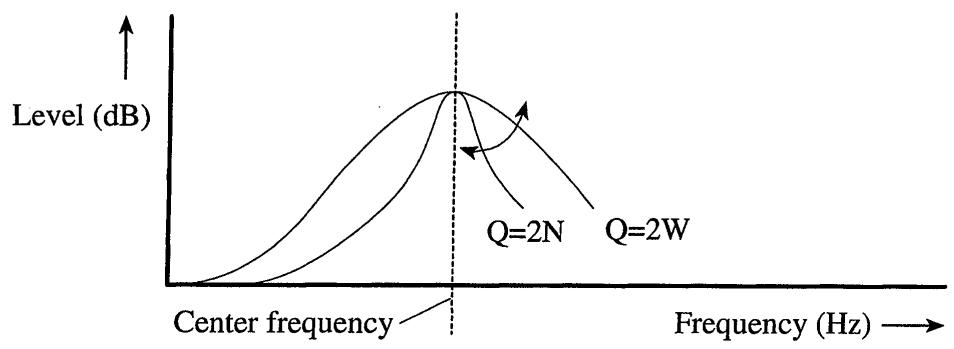
line
| Frequency (Hz) | Level (dB) for Q=2N | Level (dB) for Q=2W | | -------------- | ------------------- | ------------------- | | Center frequency | ~0 | ~0 | | Peak | ~1.5 | ~1.8 |- Press the AUDIO button for 2 or more seconds to select Equalizer Curve Fine Adjustment.
- Press the AUDIO button to select the desired band for adjustment.
- Select the desired frequency with the ◀/▶ buttons.
LOW: 40 80 100 160 (Hz)
MID: 200 ↔ 500 ↔ 1K ↔ 2K (Hz)
HIGH: 3K ↔ 8K ↔ 10K ↔ 12K (Hz)
- Select the desired Q factor with the ▲/▼ buttons.
2N ↔ 1N ↔ 1W ↔ 2W



Loudness Adjustment (LOUD)
The Loudness function compensates for deficiencies in the low and high sound ranges at low volume. You can select a desired Loudness level.
- Press the AUDIO button and select the Loudness mode (LOUD) in the Audio Menu.
- Switch the Loudness function ON/OFF with the ▲/▼ buttons.
- Select the desired level with the ◀/▶ buttons.
LOW MID HI


Front Image Enhancer Function (FIE)
The F.I.E. (Front Image Enhancer) function is a simple method of enhancing front imaging by cutting mid- and high-range frequency output from the rear speakers, limiting their output to low-range frequencies. You can select the frequency you want to cut.
Precaution:
- When the F.I.E. function is deactivated, the rear speakers output sound of all frequencies, not just bass sounds. Reduce the volume before disengaging F.I.E. to prevent a sudden increase in volume.
- Press the AUDIO button and select the F.I.E. mode (FIE) in the Audio Menu.
- Switch the F.I.E. function ON/OFF with the ▲/▼ buttons.
- Switch the F.I.E. function ON/OFF with the ▲/▼ buttons.

- Select the desired frequency with the ◀/▶ buttons.
100 ↔ 160 ↔ 250 (Hz)

Note:
- After switching the F.I.E. function ON, select the Fader/Balance mode in the Audio Menu, and adjust front and rear speaker volume levels until they are balanced.
- Switch the F.I.E. function OFF when using a 2-speaker system.
Source Level Adjustment (SLA)
The SLA (Source Level Ajustment) function prevents radical leaps in volume when switching between sources. Settings are based on the FM volume, which remains unchanged. (Since the FM volume is the control, SLA is not possible in the FM modes.) The MW/LW, CD, MD and AUX levels can all be adjusted.
The built-in CD player and multi-CD player are set to the same volume adjustment setting automatically.
- Compare the FM volume with the volume of the other source. (e.g. Built-in CD player)
- Press the AUDIO button, and select the SLA mode (SLA) in the Audio Menu.
- Increase or decrease the level with the ▲/▼ buttons.
The display shows “+4” – “-4”.

Theft Protection
The front panel of the head unit is detachable to discourage theft.
Detaching the Front Panel
1. Eject the front panel.
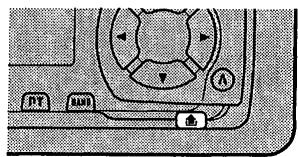
natural_image
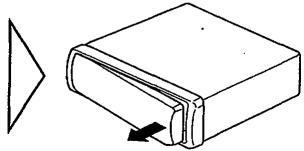
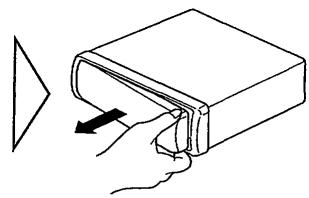
Simple line drawing of a closed book with an arrow indicating rotation (no text or symbols)2. To remove the front panel, pull its right-hand side toward you.
Take care not to grip it tightly or drop it.
natural_image
Illustration of a hand inserting a cable into a box with a black arrow indicating the direction (no text or symbols)3. Use the protective case provided to store/carry the detached front panel.
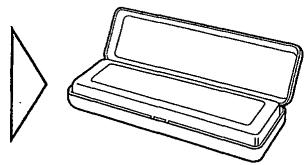
natural_image
Simple line drawing of an open rectangular box with a triangular shape beside it (no text or symbols)Replacing the Front Panel
- Replace the front panel by clipping it into place.
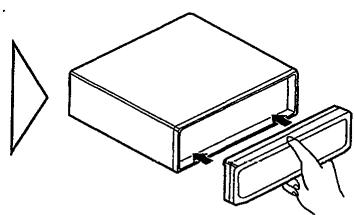
natural_image
Simple line drawing of a box being inserted into a holder, with no text or symbols present.Precaution:
- Never use force or grip the display tightly when removing or replacing the front panel.
- Avoid subjecting the front panel to excessive shocks.
- Keep the front panel out of direct sunlight and high temperatures.
Warning Tone
If the front panel is not detached within 5 seconds after the ignition is turned off, a warning tone will sound.
Note:
- You can cancel the warning tone function. (Refer to page 41.)
Entering the Initial Setting Menu
With this Menu, you can perform initial settings for the product.
- Switch the sources OFF.
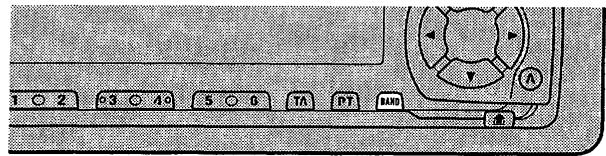
- Enter the Initial Setting Menu with the sources OFF.
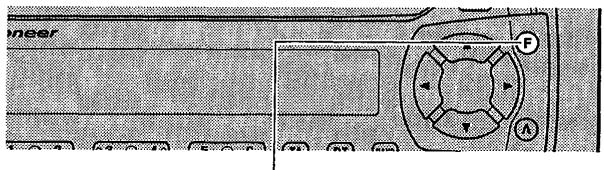
Hold for 2 seconds


- Select the desired mode.
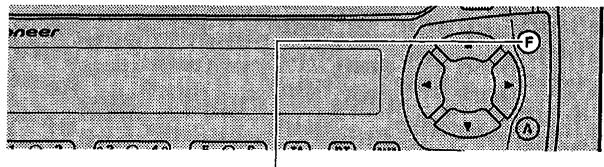
Each press changes the Mode ...

- Operate a mode.
- Cancel the Initial Setting Menu.


Note:
- Holding down the FUNCTION button for 2 seconds also cancels the Initial Setting Menu.
Initial Setting Menu Functions
The Initial Setting Menu features the following functions.
Changing the FM Tuning Step (FM STEP)
Normally set at 50 kHz during Seek tuning in the FM mode, the tuning step changes to 100 kHz when the AF or TA mode is activated.
It may be preferable to set tuning step to 50 kHz in the AF mode.
- Press the FUNCTION button and select the FM Tuning Step mode (FM STEP) in the Initial Setting Menu.
- Select the desired tuning step with the ◀/▶ buttons.

Note:
- The tuning step remains set at 50 kHz during Manual tuning.
- The tuning step returns to 100 kHz if the battery is temporarily disconnected.
Switching the Auto PI Seek (A-PI)
During Preset Station PI Seek operation, you can switch the Auto PI Seek function ON/OFF. (Refer to “PI Seek Function” on page 19.)
- Press the FUNCTION button and select the Auto PI Seek mode (A-PI) in the Initial Setting Menu.
- Switch the Auto PI Seek ON/OFF with the ▲/▼ buttons.

Setting the Warning Tone (WARN)
You can switch the Warning Tone function ON/OFF. (Refer to "Warning Tone" on page 39.)
- Press the FUNCTION button and select the Warning mode (WARN) in the Initial Setting Menu.
- Switch the Warning tone ON/OFF with the ▲/▼ buttons.

Switching the AUX Mode (AUX)
It is possible to use auxiliary (AUX) equipment with this product.
Activate the AUX mode when using external equipment with this product.
- Press the FUNCTION button and select the AUX Setting (AUX) mode in the Initial Setting Menu.
- Switch the AUX ON/OFF with the ▲/▼ buttons.

Selecting the Illumination Color (ILL. CLR)
This product is equipped with two illumination colors, green and red.
You can select the desired illumination color.
- Press the FUNCTION button and select the Illumination Color mode (ILL. CLR) in the Initial Setting Menu.
- Select the desired illumination color with the ◀/▶ buttons.


Using the PGM Button (PGM-FUNC)
The PGM (Programmable) button can memorize one of the functions in the Function Menu.
It is possible to memorize a different function for each source.
PGM button operations are only possible with the remote control. Some remote controls, such as a steering remote control, do not feature a PGM button.
You cannot operate this function with this kind of remote control.
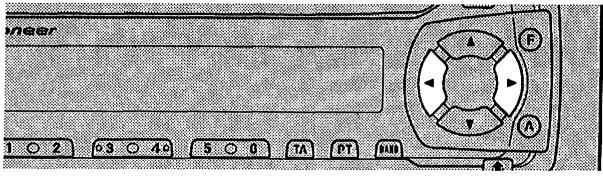
Setting the PGM Button
- Select the PGM button's setting mode (PGM-FUNC) in the Detailed Setting Menu. (Refer to page 15.)
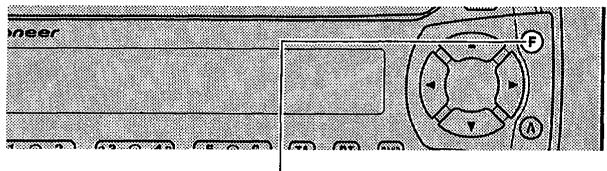
Hold for 2 seconds

- Select the function you want to memorize in the PGM button.

- Memorize the function in PGM button.
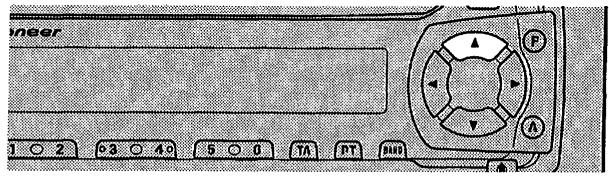

Pressing the BAND button cancels the Detailed Setting Menu.
Using the PGM Button
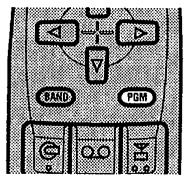
The PGM button operates in a different way depending on the function programmed (memorized).
- Use the PGM button.
Tuner
| Function Name (Display) | Press | Hold for 2 seconds |
| Best Stations Memory (BSM) | OFF | ON |
| Regional Function (REG) | ON/OFF | — |
| Local Seek Tuning (LOCAL) | ON/OFF | Entering the Local Seek Sensitivity mode |
■ Built-in CD Player
| Function Name (Display) | Press | Hold for 2 seconds |
| Pause (PAUSE) | ON/OFF | —— |
| Repeat Play (REPEAT) | ON/OFF | —— |
| Random Play (RANDOM) | ON/OFF | —— |
■ Multi-CD Player
| Function Name (Display) | Press | Hold for 2 seconds |
| Pause (PAUSE) | ON/OFF | — |
| Repeat Modes (REPEAT) | Selecting the mode | — |
| Random Play (RANDOM) | ON/OFF | — |
| Disc Title Input (TITLE LIST) | Enter the LIST mode | — |
| ITS | ITS Programming | ON/OFF |
Using the AUX Source
It is possible to use auxiliary (AUX) equipment with this product.
To listen to auxiliary equipment, switch the AUX Mode in the Initial Setting Menu ON, and then select the desired source.
Selecting the AUX Source
- Select AUX. (Refer to page 6.)

Each press changes the Source ...
AUX Title Input
The display title for AUX Source can be changed.
- Select the Aux Title Input mode (TITLE IN) in the Detailed Setting Menu.

Hold for 2 seconds
- Input the Aux Title.
Refer to “Disc Title Input” on page 33, and perform procedures 3 to 5 in the same way.
Precaution
- Play only CDs bearing the Compact Disc Digital Audio mark.
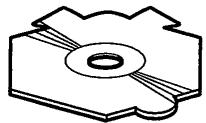
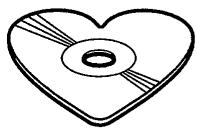
- This product is designed for use with conventional, fully circular CDs only. Use of shaped CDs are not recommended for this product.
- Check all CDs before playing and discard cracked, scratched or warped discs.
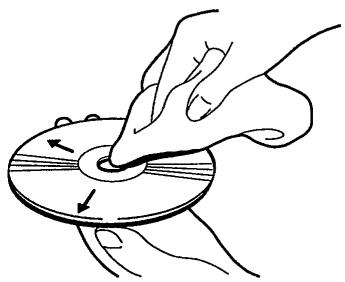
- Wipe dirty or damp discs outward from the center with a soft cloth.



natural_image
Illustration of hands using a tool to press or rotate a CD into a circular component (no text or symbols present)- Avoid touching the recorded (iridescent) surface when handling discs.
- Store discs in their cases when not in use.
- Keep discs out of direct sunlight and high temperatures.
- Do not affix labels or apply chemicals to discs.
- Condensation may collect inside the player when using the heater in cold weather, interfering with playback. Turn it off for an hour or so and wipe damp discs with a soft cloth.
- Road shocks may interrupt CD playback.
Built-in CD Player's Error Message
When problems occur with CD playback, an error message appears on the display. Refer to the table below to identify the problem, then take the suggested corrective action. If the error persists, contact your dealer or your nearest PIONEER Service Center.
| Message | Possible cause | Recommended action |
| ERROR- 11, 12, 17, 30 | Dirty disc. | Clean the disc. |
| ERROR- 11, 12, 17, 30 | Scratched disc. | Replace the disc. |
| ERROR- 14 | Unrecorded CD. | Check the disc. |
| ERROR- 10, 11,12, 14, 17, 30, A0 | Electrical or mechanical problem. | Turn the ignition ON and OFF, or switch to a different source, then back to the CD player. |
| HEAT | CD player overheating. | Discontinue play until the machine temperature drops. |
Specifications
General
Power source ...... 14.4 V DC (10.8 - 15.1 V allowable)
Grounding system ...... Negative type
Max. current consumption 10.0 A
Dimensions
(mounting size) ..... 178 (W) × 50 (H) × 159 (D) mm
(front face) ..... 188 (W) × 58 (H) × 22 (D) mm
Weight 1.4 kg
Amplifier
Maximum power output 45 W × 4
Continuous power output 27 W × 4
(DIN45324, +B = 14.4 V)
Load impedance 4 Ω (4 - 8 Ω allowable)
Preout maximum output
level/output impedance 2.2 V/1 kΩ
Equalizer (3-Band Parametric Equalizer)
(Low) ...... Frequency: 40/80/100/160 Hz
Q Factor: 0.35/0.59/0.95/1.15
(+6 dB when boosted)
Level: ±12 dB
(Mid) ...... Frequency: 200/500/1k/2k Hz
Q Factor: 0.35/0.59/0.95/1.15
(+6 dB when boosted)
Level: ±12 dB
(High) ...... Frequency: 3.15k/8k/10k/12.5k Hz
Q Factor: 0.35/0.59/0.95/1.15
(+6 dB when boosted)
Level: ±12 dB
Loudness contour
(Low) ....+3.5 dB (100 Hz), +3 dB (10 kHz)
(Mid) ....+10 dB (100 Hz), +6.5 dB (10 kHz)
(High) ....+11 dB (100 Hz), +11 dB (10 kHz)
(volume: -30 dB)
CD player
System .... Compact disc audio system
Usable discs .... Compact disc
Signal format ...... Sampling frequency: 44.1 kHz
Number of quantization bits: 16; linear
Frequency characteristics .... 5 - 20,000 Hz (±1 dB)
Signal-to-noise ratio ..... 94 dB (1 kHz) (IEC-A network)
Dynamic range 92 dB (1 kHz)
Number of channels 2 (stereo)
FM tuner
Frequency range 87.5 - 108 MHz
Usable sensitivity
...... 11 dBf (1.0 μV/75 Ω, mono, S/N: 30 dB)
50 dB quieting sensitivity .... 16 dBf (1.7 μV/75 Ω, mono)
Signal-to-noise ratio 70 dB (IEC-A network)
Distortion 0.3% (at 65 dBf, 1 kHz, stereo)
Frequency response .... 30 - 15,000 Hz (±3 dB)
Stereo separation 40 dB (at 65 dBf, 1 kHz)
MW tuner
Frequency range 531 - 1,602 kHz
Usable sensitivity 18 μV (S/N: 20 dB)
Selectivity 50 dB (±9 kHz)
LW tuner
Frequency range 153 - 281 kHz
Usable sensitivity 30 μV (S/N: 20 dB)
Selectivity 50 dB (±9 kHz)
Note:
- Specifications and the design are subject to possible modification without notice due to improvements.