WARRIOR - Enceinte audio portable Vocopro - Notice d'utilisation et mode d'emploi gratuit
Retrouvez gratuitement la notice de l'appareil WARRIOR Vocopro au format PDF.


| Intitulé | Description |
|---|---|
| Type de produit | Amplificateur audio |
| Puissance de sortie | Non spécifiée |
| Connectivité | Entrées audio multiples, Bluetooth |
| Compatibilité | Compatible avec divers appareils audio |
| Dimensions | Non spécifiées |
| Poids | Non spécifié |
| Utilisation | Idéal pour les événements en direct, karaoké, et soirées |
| Maintenance | Nettoyer régulièrement, vérifier les connexions |
| Sécurité | Éviter l'exposition à l'humidité, ne pas surcharger les entrées |
| Informations générales | Vérifier les avis des utilisateurs avant l'achat |
FOIRE AUX QUESTIONS - WARRIOR Vocopro
Questions des utilisateurs sur WARRIOR Vocopro
0 question sur cet appareil. Repondez a celles que vous connaissez ou posez la votre.
Poser une nouvelle question sur cet appareil
Téléchargez la notice de votre Enceinte audio portable au format PDF gratuitement ! Retrouvez votre notice WARRIOR - Vocopro et reprennez votre appareil électronique en main. Sur cette page sont publiés tous les documents nécessaires à l'utilisation de votre appareil WARRIOR de la marque Vocopro.
MODE D'EMPLOI WARRIOR Vocopro
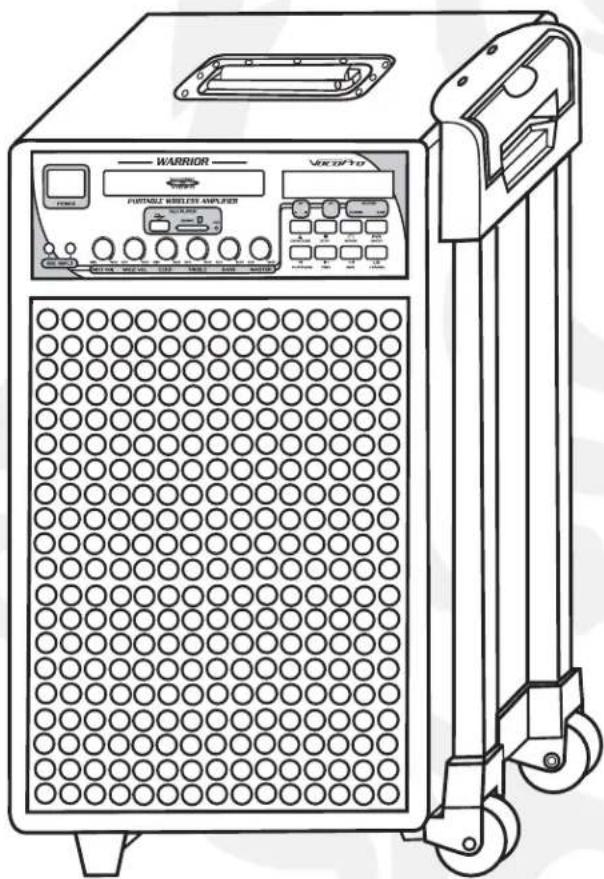
WARRIOR
Portable Wireless PA System
Table of Contents
FCC Information 3
Listening for a Lifetime 4
Safety Instructions 5
Welcome 6
Features and Specifications 7
Before Getting Started 8
Getting Started 9
Getting Connected 10-13
Descriptions and Functions Microphones 14
Front Panel 15
Rear Panel 16-17
Remote Control 18-19
General Operations 20-24
Media File Operations 25
Setting Up Preferences 26-28
Troubleshooting 29-30
FCC Information [U.S.A.]
1. IMPORTANT NOTICE: DO NOT MODIFY THIS
UNIT!: This product, when installed as indicated in the instructions contained in this manual, meets FCC requirements. Modifications not expressly approved by Vocopro may void your authority, granted by the FCC, to use this product.
-
IMPORTANT: When connecting this product to accessories and/or another product use only high quality shielded cables. Cable(s) supplied with this product MUST be used. Follow all installation instructions. Failure to follow instructions could void your FCC authorization to use this product in the U.S.A.
-
NOTE: This product has been tested and found to comply with the requirements listed in FCC Regulations, Part 15 for Class "B" digital devices. Compliance with these requirements provides a reasonable level of assurances that your use of this product in a residential environment will not result in harmful interference with other electronic devices. This equipment generates/uses radio frequencies and, if not installed and used according to the instructions found in the owner's manual, may cause interference harmful to the operation of other electronic devices. Compliance with FCC regulations does not guarantee that interference will not occur in all installations. If this product is found to be the source of interference, which can be determined by turning the unit "Off" and "On", please try to eliminate the problem by using one of the following measures:
Relocate either this product or the device that is being affected by the interference.
Use power outlets that are on different branch (circuit breaker or fuse) circuits or install AC line filter(s).
In the case of radio or TV interference, relocate/reorient the antenna. If the antenna lead-in is 300-ohm ribbon lead, change the lead-in to coaxial type cable.
If these corrective measures do not produce satisfactory results, please contact your local retailer authorized to distribute Vocopro products. If you can not locate the appropriate retailer, please contact Vocopro, 1728 Curtiss Court, La Verne, CA 91750.
CAUTION
The apparatus is not disconnected from the AC power source so long as it is connected to the wall outlet, even if the apparatus itself is turned off. To fully insure that the apparatus is indeed fully void if residual power, leave unit disconnected from the AC outlet for at least fifteen seconds.
CAUTION:
READ THIS BEFORE OPERATING YOUR UNIT
- To ensure the finest performance, please read this manual carefully. Keep it in a safe place for future reference.
- Install your unit in a cool, dry, clean place - away from windows, heat sources, and too much vibration, dust, moisture or cold. Avoid sources of hum (transformers, v motors). To prevent fire or electrical shock, do not expose to rain and water.
- Do not operate the unit upside-down.
- Never open the cabinet. If a foreign object drops into the set, contact your dealer.
- Place the unit in a location with adequate air circulation. Do not interfere with its proper ventilation; this will cause the internal temperature to rise and may result in a failure.
- Do not use force on switches, knobs or cords. When moving the unit, first turn the unit off. Then gently disconnect the power plug and the cords connecting to other equipment. Never pull the cord itself.
- Do not attempt to clean the unit with chemical solvents: this might damage the finish. Use a clean, dry cloth.
- Be sure to read the "Troubleshooting" section on common operating errors before concluding that your unit is faulty.
- This unit consumes a fair amount of power even when the power switch is turned off. We recommend that you unplug the power cord from the wall outlet if the unit is not going to be used for a long time. This will save electricity and help prevent fire hazards. To disconnect the cord, pull it out by grasping the plug. Never pull the cord itself.
- To prevent lightning damage, pull out the power cord and remove the antenna cable during an electrical storm.
- The general digital signals may interfere with other equipment such as tuners or receivers. Move the system farther away from such equipment if interference is observed.
NOTE:
Please check the copyright laws in your country before recording from records, compact discs, radio, etc. Recording of copyrighted material may infringe copyright laws.
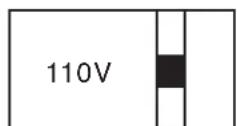
Voltage Selector (General Model Only)
Be sure to position the voltage selector to match the voltage of your local power lines before installing the unit.
Listening for a Lifetime
Selecting fine audio equipment such as the unit you've just purchased is only the start of your musical enjoyment. Now it's time to consider how you can maximize the fun and excitement your equipment offers. VocoPro and the Electronic Industries Association's Consumer Elect Group want you to get the most out of your equipment by playing it at a safe level. One that lets the sound come through loud and clear without annoying blaring or distortion importantly, without affecting your sensitive hearing.
Sound can be deceiving. Over time your hearing "comfort level" adapts to a h sound. So what sounds "normal" can actually be loud and harmful to your he against this by setting your equipment at a safe level BEFORE your hearing adapts.
To establish a safe level:
- Start your volume control at a low setting.
- Slowly increase the sound until you can hear it comfortably and clearly, and without distortion.
Once you have established a comfortable sound level:
- Set the dial and leave it there.
- Pay attention to the different levels in various recordings.
Taking a minute to do this now will help to prevent hearing damage or loss in the future. After all, we want you listening for a lifetime.
Used wisely, your new sound equipment will provide a lifetime of fun and enj hearing damage from loud noise is often undetectable until it is too late, this manufacturer and the Electronic Industries Association's Consumer Electronics Group recommend you avoid prolonged exposure to excessive noise. This list of sound levels is included for your protection.
Some common decibel ranges:
Level Example
30 Quiet library, Soft whispers
40 Living room, Refrigerator, Bedroom away from traffic
50 Light traffic, Normal Conversation
60 Air Conditioner at 20 ft., Sewing machine
Vacuum cleaner, Hair dryer, Noisy Restaurant
80 Average city traffic, Garbage disposals, Alarm clock at 2 ft.
The following noises can be dangerous under constant exposure:
Level Example
90 Subway,Motorcycle,Truck traffic,Lawn Mower
100 Garbage truck, Chainsaw, Pneumatics drill
120 Rock band concert in front of speakers
140 Gunshot blast, Jet plane
180 Rocket launching pad
-Information courtesy of the Deafness Research Foundation
Safety Instructions

CAUTION RISK OF SHOCK

CAUTION: To reduce the risk of electric shock, do not remove cover (or back). No user-serviceable parts inside. Only refer servicing to qualified service personnel.
Explanation of Graphical Symbols

The lightning flash & arrowhead symbol, within an equilateral triangle, is intended to alert you to the presence of danger.

The exclamation point within an equilateral triangle is intended to alert you to the presence of important operating and servicing instructions.
WARNING
To reduce the risk of fire or electric shock, do not expose this unit to rain or moisture.
- Read Instructions - All the safety and operating instructions should be read before the appliance is operated.
- Retain Instructions - The safety and operating instructions should be retained for future reference.
- HeedWarnings - All warnings on the appliance and in the operating instructions should be adhered to.
- Follow Instructions - All operating and use instructions should be followed.
- Attachments - Do not use attachments not recommended by the product manufacturer as they may cause hazards.
- Water and Moisture - Do not use this unit near water. For example, near a bathtub or in a wet basement and the like.
- Carts and Stands - The appliance should be used only with a cart or stand that is recommended by the manufacturer.
7 A. An appliance and cart combination should be moved with care. Quick stops, excessive force, and uneven surfaces may cause an overturn.

- Ventilation - The appliance should be situated so its location does not interfere with its proper ventilation. For example, the appliance should not be situated on a bed, sofa, rug, or similar surface that may block the ventilation slots.
- Heat - The appliance should be situated away from heat sources such as radiators, heat registers, stoves, or other appliances (including amplifiers) that produce heat.
- Power Sources - The appliance should be connected to a power supply only of the type described in the operating instructions or as marked on the appliance.
- Grounding or Polarization - Precautions should be taken so that the grounding or polarization means of an appliance is not defeated.
- Power-Cord Protection - Power-supply cords should be routed so that they are not likely to be walked on or pinched by items placed upon or against them, paying particular attention to cords at plugs, convenience receptacles, and the point where they exit from the appliance.
- Cleaning - Unplug this unit from the wall outlet before cleaning. Do not use liquid cleaners or aerosol cleaners. Use a damp cloth for cleaning.
- Power lines - An outdoor antenna should be located away from power lines.
- Nonuse Periods - The power cord of the appliance should be unplugged from the outlet when left unused for a long period of time.
- Object and Liquid Entry - Care should be taken so that objects do not fall and liquids are not spilled into the enclosure through openings.
- Damage Requiring Service - The appliance should be serviced by qualified service personnel when:
A. The power supply cord or plug has been damaged; or B. Objects have fallen into the appliance; or
C. The appliance has been exposed to rain; or
D. The appliance does not appear to operate normally or exhibits a marked change in performance; or
E. The appliance has been dropped, or the enclosure damaged.
18. Servicing - The user should not attempt to service the appliance beyond that described in the operating instructions. All other servicing should be referred to qualified service personnel.
Note:
To CATV system installer's (U.S.A.): This reminder is provided to call the CATV system installer's attention to Article 820-40 of the NEC that provides guidelines for proper grounding and, in particular, specifies that the cable ground shall be connected as close to the point of cable entry as practical.
Welcome
Thank you for purchasing the WARRIOR from VocoPro, the singer's ultimate choice. With years of experience in the music entertainment business, VocoPro is a leading manufacturer of Karaoke equipment, and has been providing patrons of bars, churches, schools, clubs and individual consumers the opportunity to sound like a star with full-scale club models, in-home systems and mobile units. All our products offer solid performance and sound reliability, and to further strengthen our commitment to customer satisfaction, we have customer service and technical support professionals ready to assist you with your needs. We have provided some contact information for you below.
VocoPro
1728 Curtiss Court
La Verne, CA 91750
Toll Free: 800-678-5348
TEL: 909-593-8893
FAX: 909-593-8890
VocoPro Company E-mail Directory
Customer Service & General Information
info@vocopro.com
Tech Support
techsupport@vocopro.com
Remember Our Website
Be sure to visit the VocoPro website www.vocopro.com for the latest information on new products, packages and promos. And while you're there don't forget to check out our Club VocoPro for Karaoke news and events, chat rooms, club directories and even a Service directory!
We look forward to hearing you sound like a PRO, with VocoPro, the singer's ultimate choice.
FOR YOUR RECORDS
Please record the model number and serial number below, for easy reference, in case of loss or theft. These numbers are located on the rear panel of the unit. Space is also provided for other relevant information.
Model Number
Serial Number
Date of Purchase
Place of Purchase
Features and Specifications
-NGo Everywhere P.A. System
-NTwo Wireless UHF Microphones
- NRechargeable Battery with Intelligent Charge System
- NBuilt-In Disc Player with USB Reader and SD Media Card Access
- NComponent, VGA, S-Video and Standard Composite Video Output
- NEnabled for Karaoke Performance
- NOptional Wireless Body Pack with Headset or Clip Mic
MAX Output Power N7OW(RMS)/4Ω load impedance
T.H.DNNN<0.1%
Frequency Response N50Hz~20kHz±3dB
Input Sound Source NWireless receiver/DVD/wired microphone/external input sound source
Speaker N NBuilt-in 8 inch bass speaker and 1 inch tweeter
Power Supply N NAC 230V at 50Hz [Euro], AC 115V at 60Hz (North America), auto power
NN Nsource management system, intelligent battery charger and
N N Ntwo 12V/5AH rechargeable batteries.
Battery Life N NVoice-amplifying for up to 8 hours and DVD-playing for up to 5 hours
Built-in wireless Receiver 700MHz~800MHz in UHF band
Wireless Microphone NAvailable in hand-held, clip-on or head - worn microphone
Wired Microphone NSuits all different kinds of wired microphones
Weight: N NAapprox. 60 lbs.
Dimensions N NAprox. 21 x 13 x 11.5 inches
Card Reader Memory NMMC Card, SD Card
Before Getting Started
Thank you for purchasing the WARRIOR system. The WARRIOR will provide years of reliability and high quality entertainment for you if used properly. Please read this manual carefully before using your WARRIOR to ensure best performance.
Unpacking the WARRIOR:
Carefully remove the WARRIOR from its carton. It is recommended that you store the original packaging materials in case you need to ship this equipment for any reason.
Be sure you have the following parts and components included with your WARRIOR:
ITEMS:
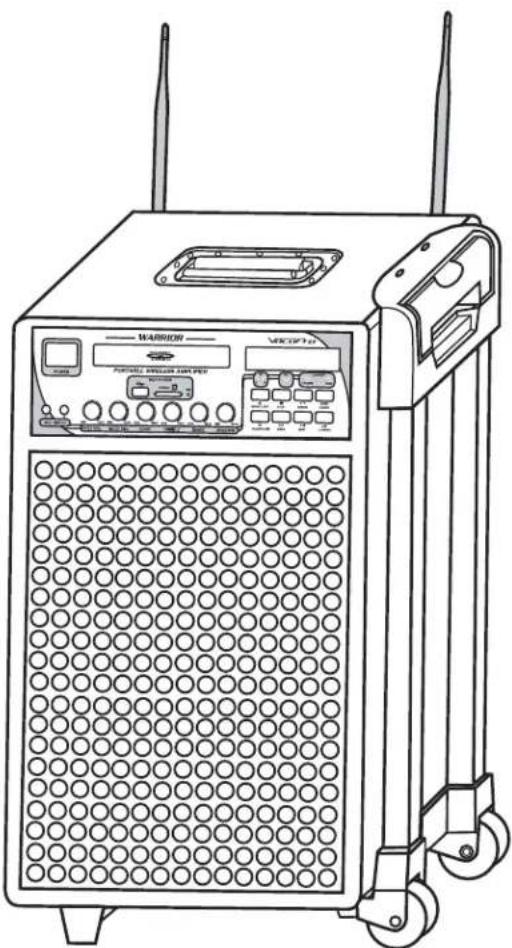
1 WARRIOR
2 Antennas
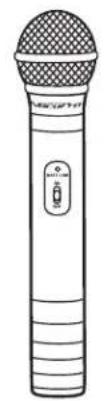
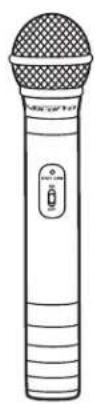
2 Microphones
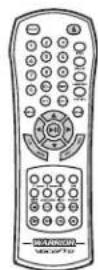
1 Remote Control
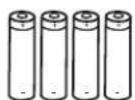
4 AA Batteries
2 AAA Batteries
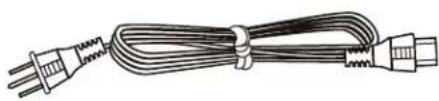
1 AC Power Cable
1 Warranty Card

Getting Started
About the Remote Control
The area between the remote control and the main unit must be clear of large obstacles.
- Do not expose the remote control sensor to strong lighting, especially an inverter type fluorescent lamp as this may cause the remote control to not function properly.
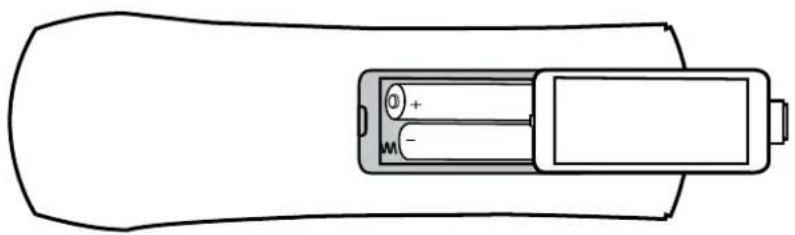
Installing Batteries in the Remote Control
- Turn the remote control over and slide the battery compartment cover off.
- Insert the AAA batteries, positioning them according to the polarity [+, -] markings on the inside of the battery compartment.
- Close the battery compartment cover.
Battery Replacement
If you find that the distance between the remote control and the main unit must be shorter in order to use the remote control, this means that the batteries are low and must be changed. Replace both batteries with new ones.
Battery Notes:
- Use AAA batteries.
- Be sure the polarities (+, -) are correct. (See the illustration inside the battery compartment).
- Remove the batteries when not using the remote control for an extended period of time.
If batteries leak, dispose of them immediately. - Avoid skin, clothing and any other contact with the leaked material. Clean the battery compartment thoroughly before installing new batteries.
- Do not mix old and new batteries.
- Do not mix alkaline, standard (carbon-zinc) with rechargeable (nickel-cadmium) batteries.
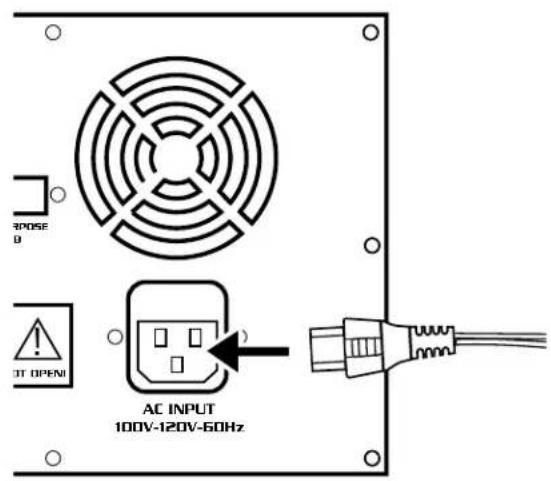
Connecting the Power Cable
Plug the supplied AC power cable into the AC inlet after all other connections are complete and then plug the AC power cable to an AC wall outlet.
CAUTION
Use the supplied AC cable. Do not use other AC power cables as doing so may result in fire hazard or electrical shock.
Getting Connected
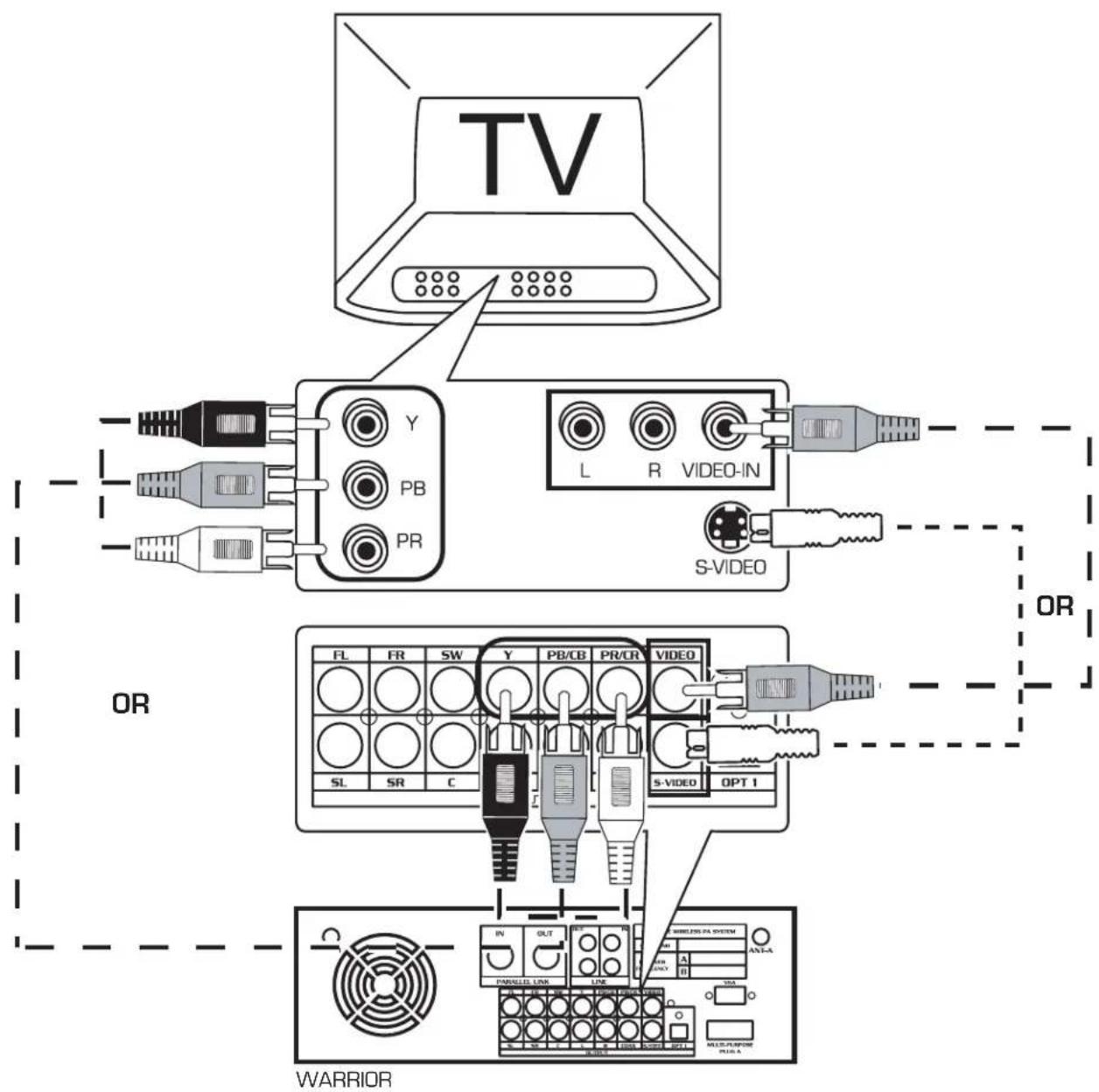
Connecting a TV or Monitor to the WARRIOR
The WARRIOR has RCA, S-Video, Component, & VGA Video Output jacks which send video from the disc player to TVs and other video monitor devices.
- Connect an RCA style video cable (included) from the VIDEO OUTPUT on the WARRIOR to theVIDEO INPUT jack on your TV or other monitor. While some models automatically switch when a video signal is detected, you may need to manually switch your TV to video mode. On most TVs, the INPUT jack is labeled A/V, AUX or VIDEO IN.
- Be sure to connect via RCA first before connecting S-Video, VGA or Y/PB/PR to allow you to change the output in the SETUP menu. See page 26 of this manual for more information.
Getting Connected cont.
Connecting Powered Speakers or a Receiver to the WARRIOR
The WARRIOR has a RCA Stereo, 5.1 Surround, Line Out and Digital Optical and Coaxial Audio outputs which send audio from the disc player to speakers, receivers, mixers and other audio devices. The following diagrams illustrate what your connections should look like.
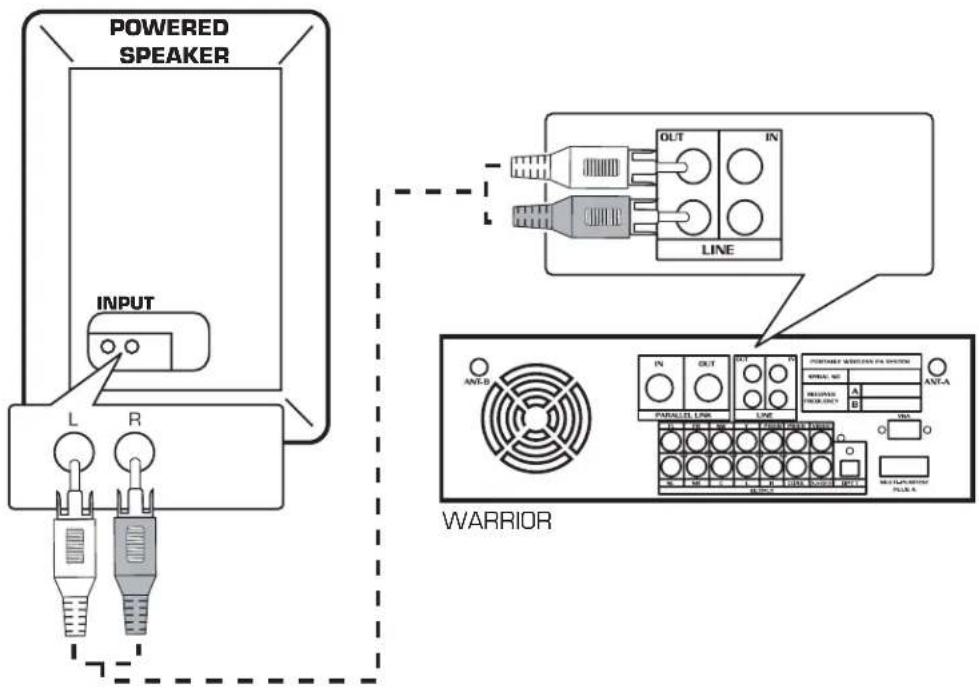
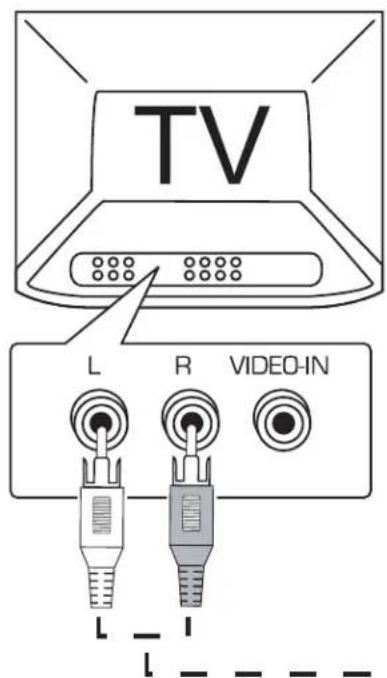
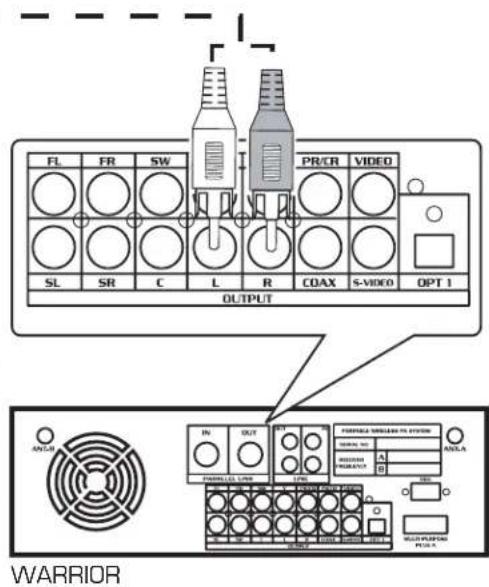
Note: Both of the above connections are line-level therefore the volume level is not controlled by the master control and must be controlled externally.
Getting Connected cont.
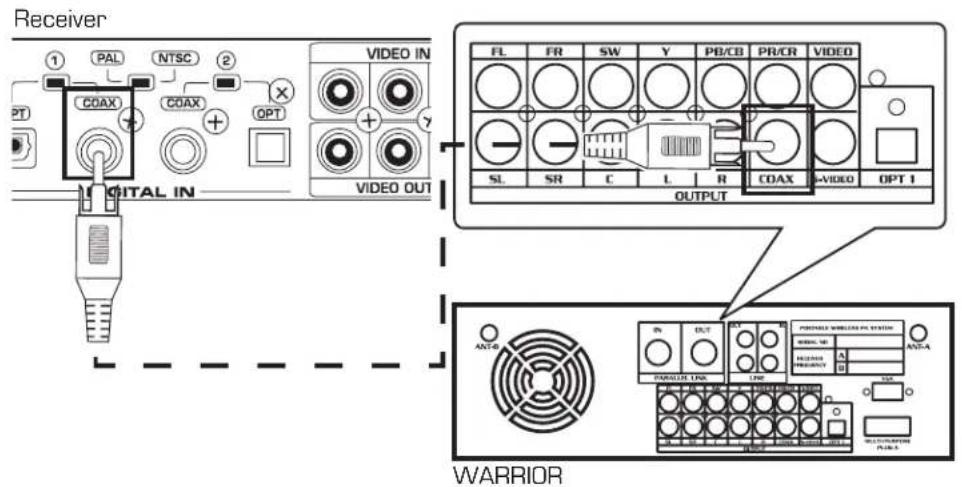
Connecting a Receiver to the WARRIOR with Digital Audio
COAXIAL
OPTICAL
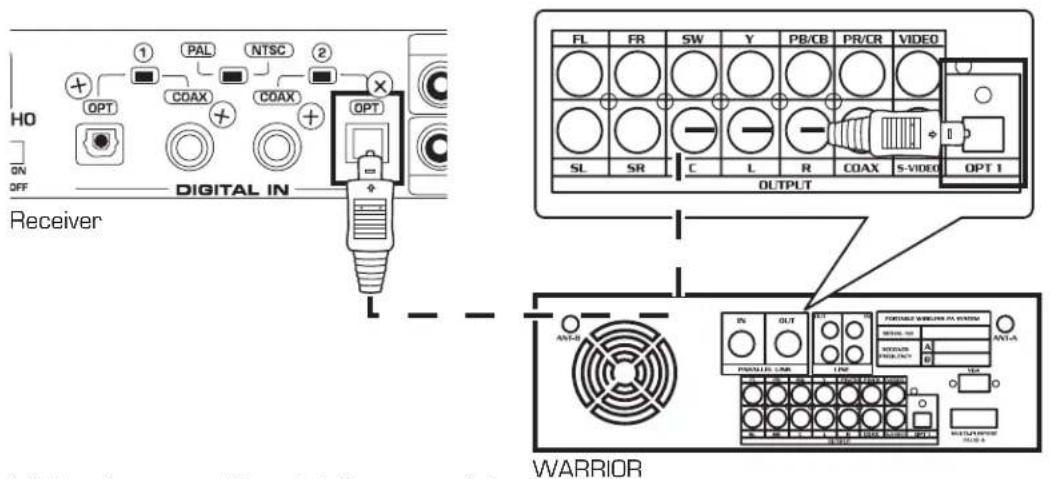
Note: For digital audio you need to select the appropriate digital audio setting. Refer to page 28 of this manual.
Getting Connected cont.
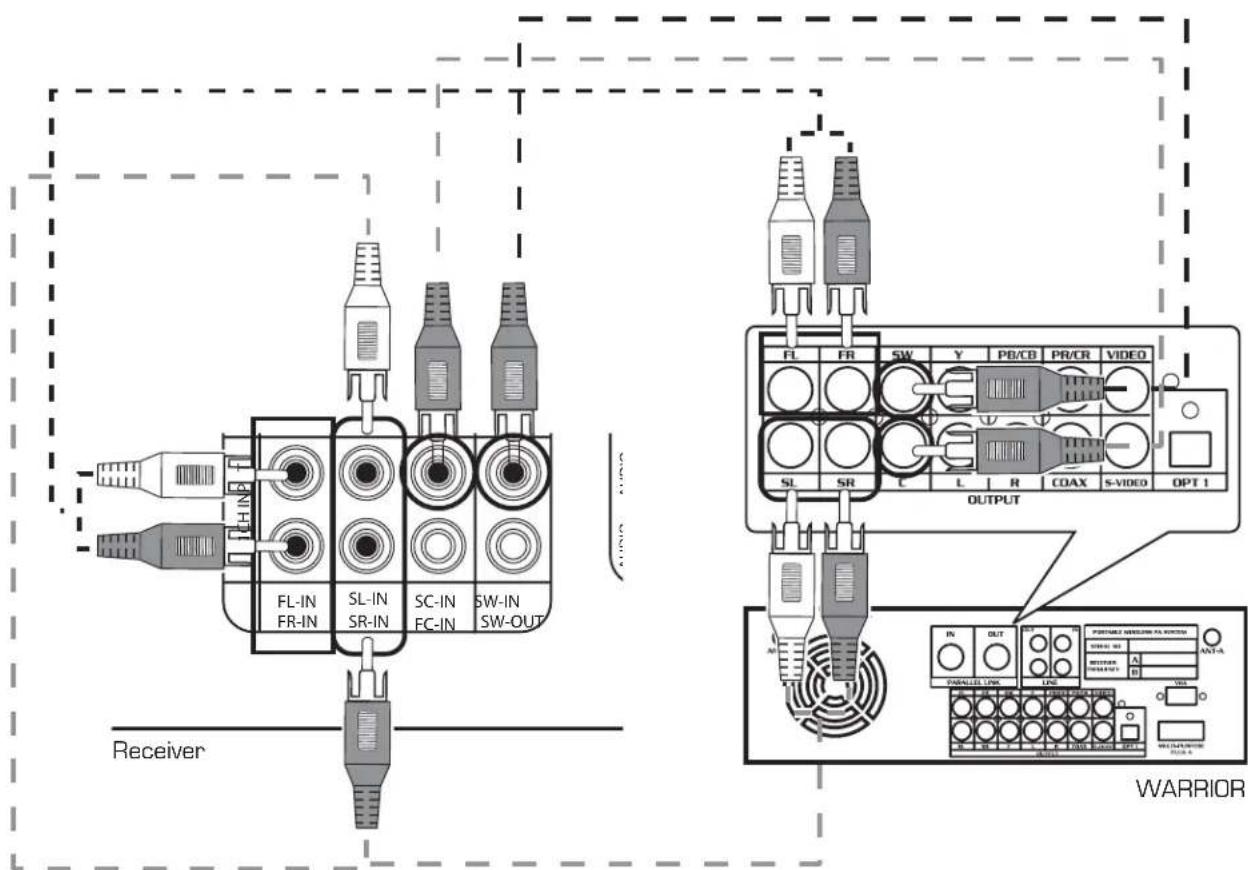
Connecting a Receiver to the WARRIOR with 5.1 Surround
Connecting to a 5.1 Surround Sound Receiver (Music only, no microphone vocals)
What you will need:
- 6 RCA-style surround sound cables
- A 5.1 digital surround sound receiver or amplifier
1. Connect an end of each RCA cable to the FL, FR, CEN, SL, SR, and SW outputs on the rear panel of the WARRIOR
2. Connect the other end of each RCA cable to the FL, FR, CEN, SL, SR, and SW inputs on a 5.1 CH. Surround Sound receiver or amplifier.
NOTE: The actual inputs may be labeled differently on certain receivers and amplifiers.
FL-Front Left
FR-Front Right
C - Center
- SL - Side Left
- SR - Side Right
- SW - Subwoofer
Descriptions and Functions
Microphone
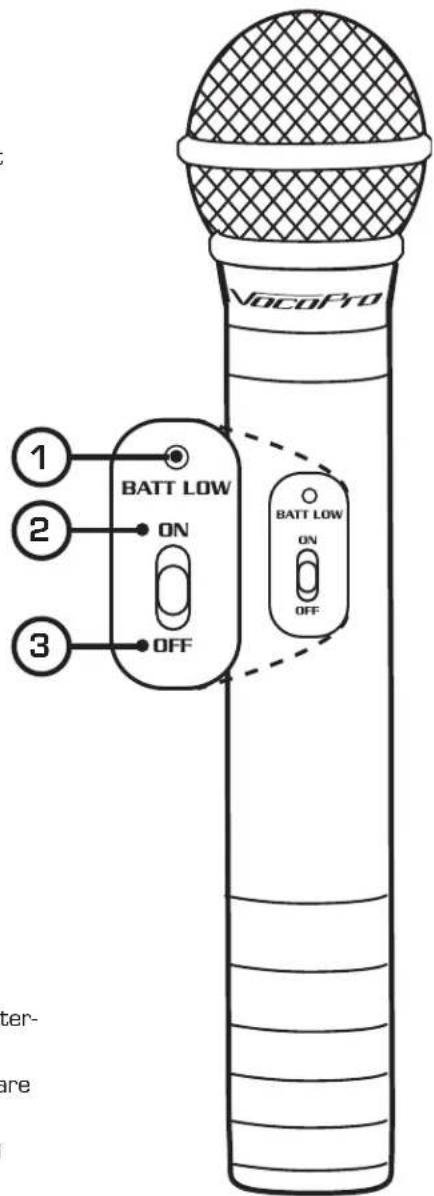
- LED - This will blink once when micropone power is switched on, it will remain lit if the battery is weak and needs replacement.
- ON - Turn the microphone power on by moving the switch to the highest position.
- OFF - Turn microphone power off by moving the switch to the lowest position.
Handheld Microphone Battery Installation
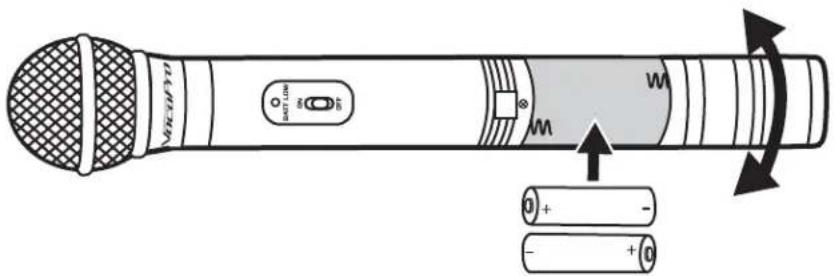
- To access the battery compartment, unscrew the base by rotating counterclockwise.
- Insert two fresh 1.5-volt AA alkaline batteries. Make sure the batteries are inserted in the right direction according to polarity [+ / - ]
- Close the battery compartment by screwing the base back on by turning clockwise.
Descriptions & Functions cont.
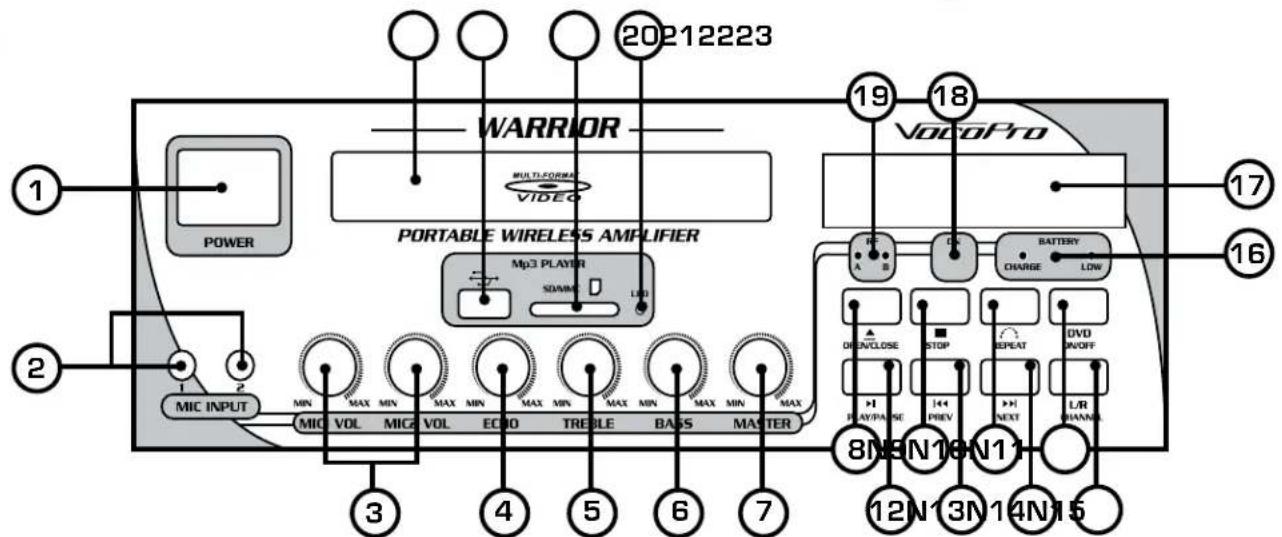
- Power Button - The POWER button turns the unit on and off.
- Mic 1 & 2 Input Jacks - Connect microphones here using 14 " microphone cables.
- Mic 1 & 2 Volume Controls - For adjusting each microphone's individual volume. Turn clockwise to raise the microphone volume and counter-clockwise to lower it.
- Echo - This controls the overall level for the ECHO effect on the MIC INPUTS. This effect applies slight delayed repetition(s) to the vocals providing for a rich, layered vocal sound. Rotate clockwise to increase the amount of ECHO effect applied to the signal, and counter-clockwise to decrease.
- Treble - Adjust the high end of your microphone output, adding treble to the sound.
- Bass - Adjust the low end of your microphone output, adding bass to the sound.
- Master Volume Control - Controls the volume output of all source audio with the MASTER knob.
- Open/Close Button [] - Opens and closes the disc tray.
- Stop Button - Stops a disc that is playing.
- Repeat Button - Cycles through the available repeat options. Repeat Once, Repeat All, Repeat Off.
- DVD Power - Turn on and off the disc player with this button.
- Play/Pause Button - Plays a disc that is stopped or paused and pauses a disc that is playing.
- Previous Button - Press PREV to jump to the previous track.
- Next Button - Press NEXT to jump to the next track.
- L/R Channel - Cycles between three audio playback modes: STEREO, MONO-LEFT and MONO-RIGHT. Use this to cancel vocals on Multiplex formatted CD+G discs.
- Battery Indicator - The CHARGE light will illuminate when the WARRIOR is connected to a power source via the included AC power cable and the battery is charging. The LOW light will illuminate to indicate that the battery level is low and connection to a power source for charge is required.
- LCD Display - Displays track, playback and setting information.
- Power Indicator - This light will illuminate to indicate that the power is on.
- RF A B - Either or both of these will illuminate to indicate a connection with the included wireless microphone(s).
- SD Card Indicator - This light will be illuminated to indicate an SD card is inserted in the slot.
- SD Slot - Insert an SD memory card loaded with tracks and videos to this port. Use the onscreen navigation menu to select files for playback.
- USB Port - Connect a thumbdrive loaded with tracks and videos to this port. Use the onscreen navigation menu to select files for playback.
- Disc Tray - Press the "OPEN/CLOSE" button (See #2 on diagram) to open the CD/CDG tray. Carefully set your DVD/CD/CDG disc onto the tray and press the OPEN/CLOSE button again to close tray. Never push or force tray closed manually.
Descriptions and Functions cont.
Descriptions and Functions cont.
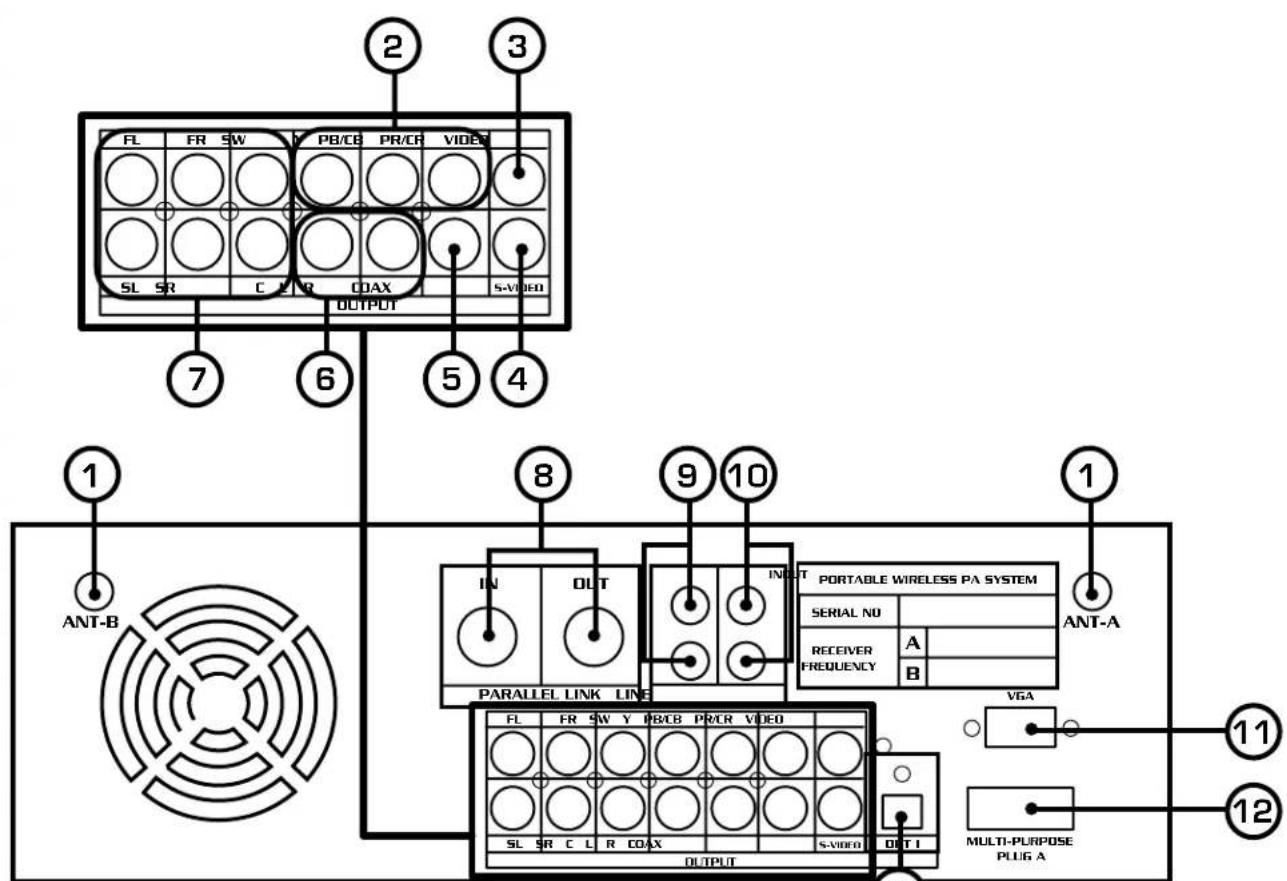
Rear Panel
- TNC Antenna Connection - Connect the included antennas to both terminals by twisting clockwise. To remove the antennas, unscrew the connectors counter-clockwise.
- RGB(Y/Pb/Pr)/Component Video output - Connect video to a TV with RGB(Y/Pb/Pr) or Component video inputs using RGB(Y/Pb/Pr) cables.
- Video Output (RCA) - Connect to a TV/Video monitor using an RCA video cable.
- S-Video Output - Connect to a TV/video monitor with an S-Video input jack using an S-Video video cable.
- Digital Coaxial Output (music only) - Connect to a sound system with digital Coaxial audio input using a digital audio cable.
NOTE: Although it is alright to use standard RCA cables, it is recommended that you use Digital RCA audio cables for optimum digital signal.
- Master Stereo Output - Connect left and right RCA cables to receive stereo output from the disc player.
- 5.1 Surround Sound Output jacks - For connecting to a 5.1 CH. surround sound system. FL -Front Left, FR - Front Right, SW - Subwoofer, SL - Side Left, SR - Side Right, CEN - Center.
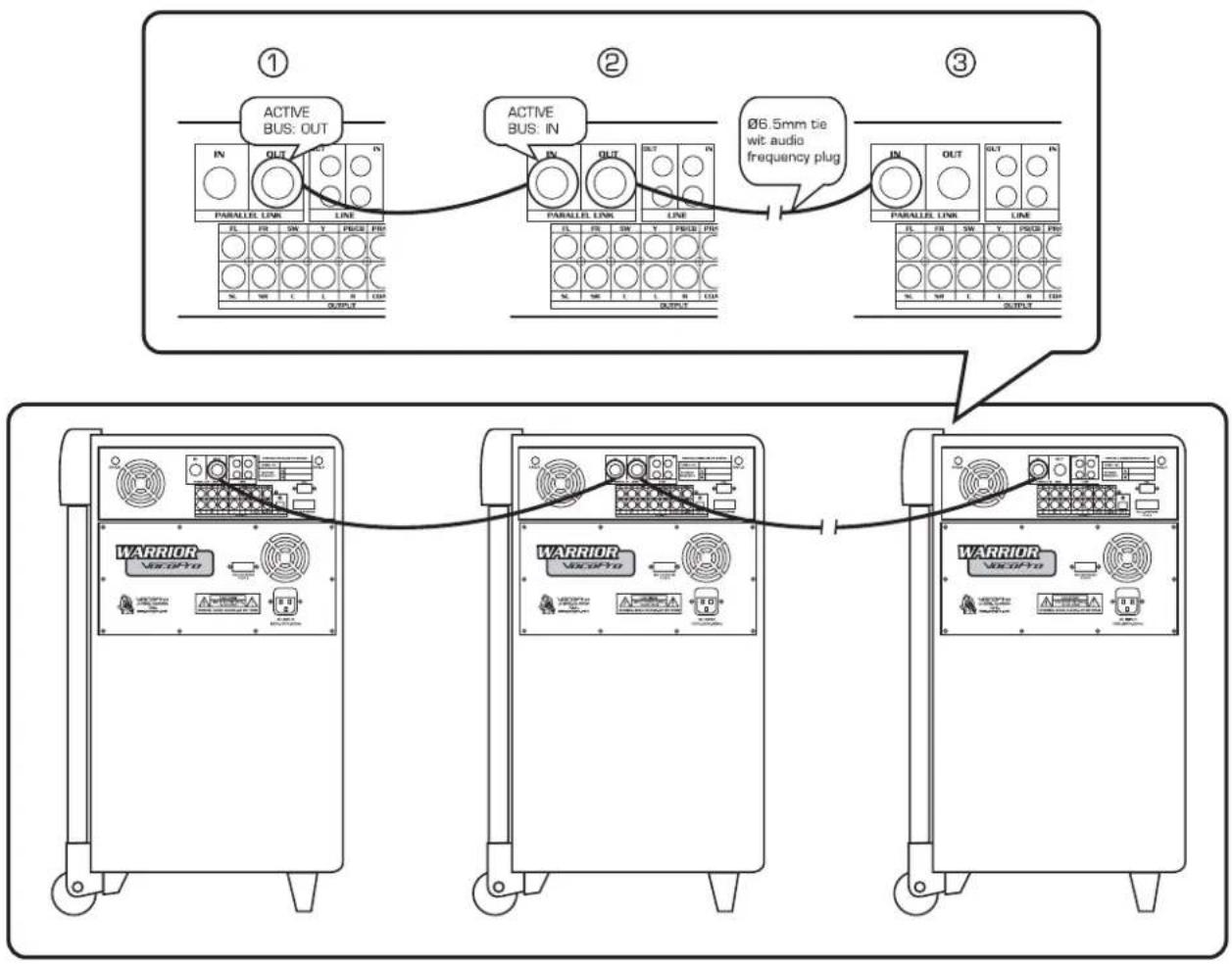
- Parallel Link - Use these jacks to connect more than one WARRIOR. See PARALLEL LINK on page 24 for further information.
- Line Out - Connect to external device such as speakers or a recording device with right and left stereo RCA stereo connectors.
- Line In - Connect an output source such as an external DVD player to these right and left stereo RCA stereo connectors.
- VGA output (video) - For Video output using a VGA video cable.
- Multipurpose Plug A - The power connection to the WARRIOR's battery pack.
- Digital Optical Output (music only) - Connect to a sound system with an Optical audio input using a digital audio cable.
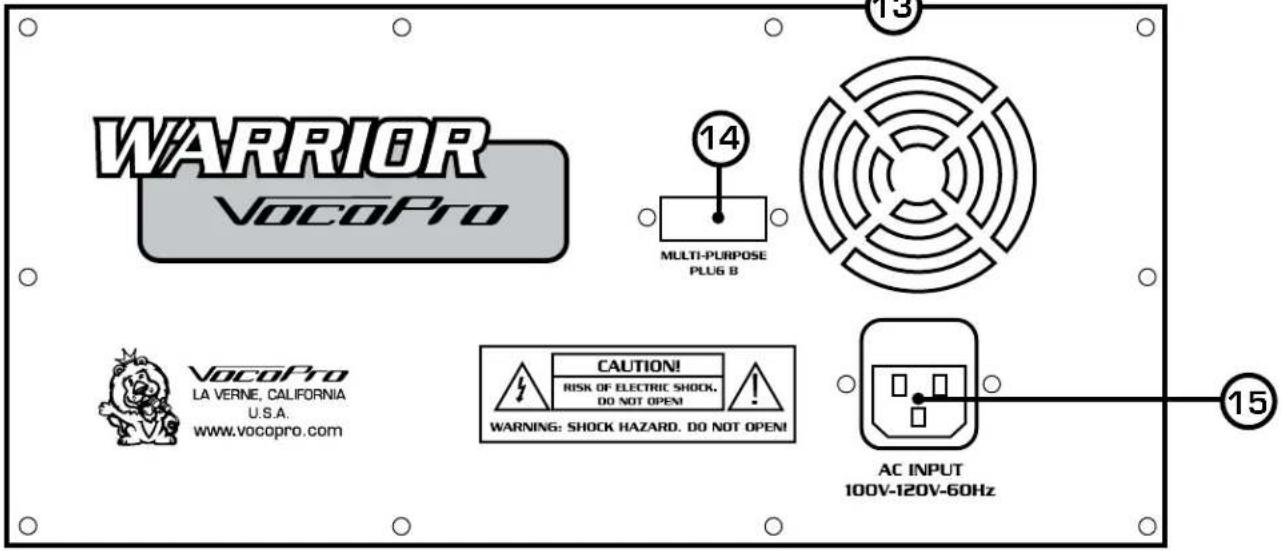
- Multipurpose Plug B - The power connection to the WARRIOR's disc player.
- Power Input - Connect the power cord (included) here.
Descriptions and Functions, cont.
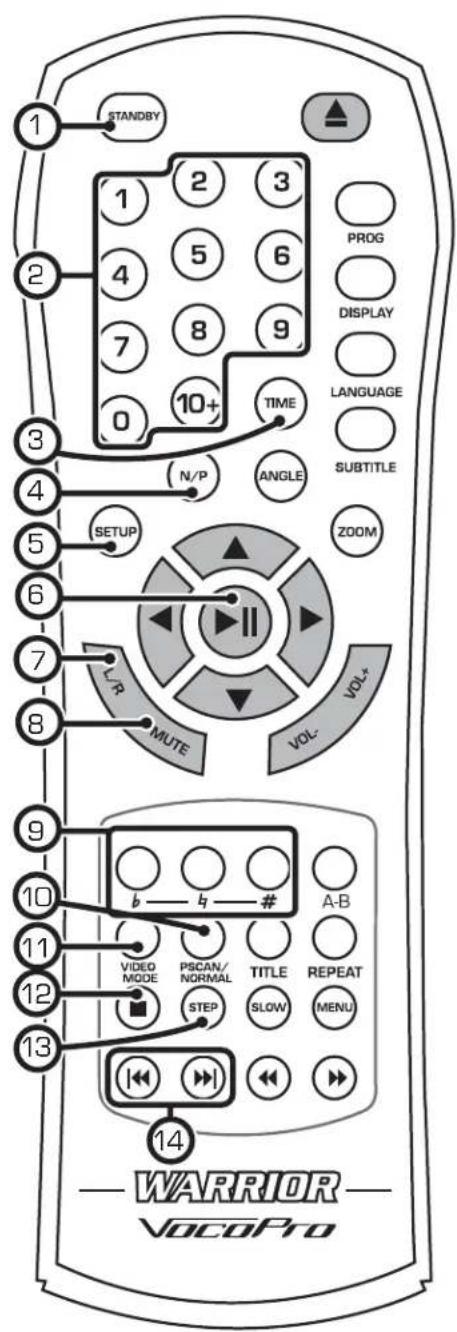
Remote Control
- Standby - Put the PA-MAN DISC PLAYER in standby mode.
- Direct Access - For use whenever number input is necessary. i.e. Jumping directly to tracks/chapters, etc.
- Time - Use the arrow key and direct access keys to jump to a track or specific time in the current track from this display. See the "Jumping..." instructions in the General Operations section of this manual on page 20.
- N/P - Switches between PAL and NTSC video modes. To change video modes, press the P/N button until desired mode is selected.
- Setup - Accesses the Setup Menu. See the Setting Up Preferences section in this manual on page 26 for detailed instructions on using the Setup Menu.
- Play/Pause [▶II] - Plays a disc that is stopped or paused and pauses a disc that is playing.
- L/R - Cycles through the different multiplex CD+G output modes for canceling the vocals. This feature only works on multiplex CD+G discs. Mono L - No Vocals, Mono R - Vocals
- Mute - Mutes all disc audio.
- Digital Key Control - Adjusts the musical key of music to fit the singer's vocal range.
b - Lowers the musical key
- Resets the music to the original or 'natural' key
- Raises the musical key
NOTE: Digital Key Control changes the key of music but will not affect the microphone vocals.
- PScan/Normal - This button changes video output mode. Select PSCAN mode if using Y/PB/PR or VGA connection.
- Video Mode - To change the video display mode press the VIDEO button until desired mode is selected. Choose MEMORY to enable the video mode adjustments made in the VIDEO SETUP page in the SETUP MENU. See Setting Up Preferences for more information.
- Stop - Stops the disc or track that is playing.
- Step - For viewing one frame at a time on video discs.
- Prev/Next Press PREV jump to the previous track. Press NEXT to jump to the next track.
Descriptions and Functions, cont.
Remote Control, cont.
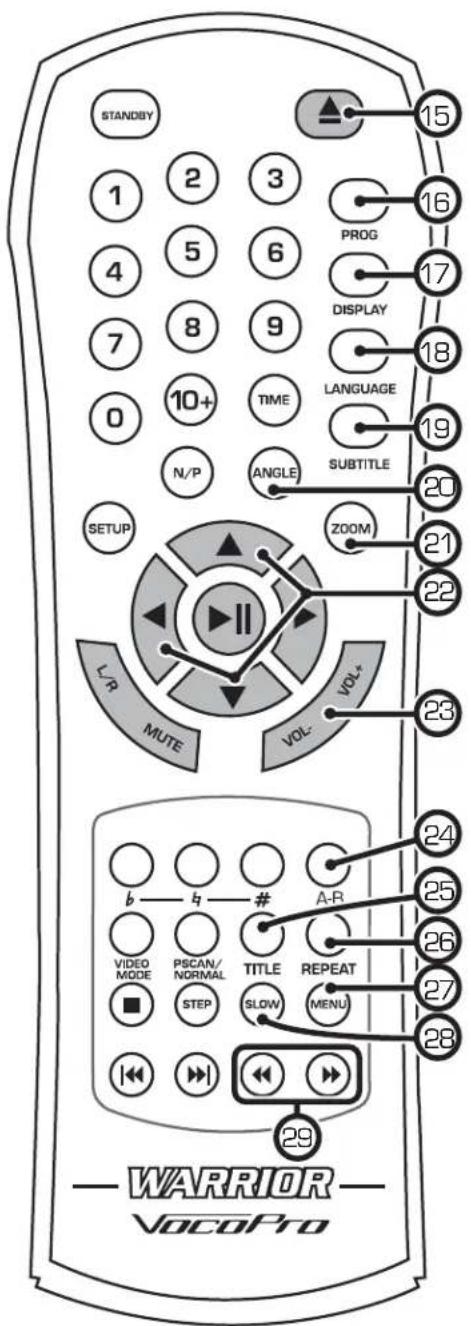
- Open/Close - Opens and closes the disc tray.
- Program - Opens the Program Menu which lets you program a custom playlist order of up to 16 tracks or DVD chapters. Check the "Programming..." directions in the General Operations of this manual on page 18.
- Display - Cycles through available disc time info and displays it on the TV/video monitor.
- Language - Cycles between the available audio languages on DVDs with multiple languages available.
- Subtitle - Turns on subtitles for DVDs with subtitles available.
- Angle - For viewing multiple angles on a DVD with multiple angles available.
- Zoom - For zooming in or out on the picture on DVDs, JPEGs and VCDs.
- Arrow Keys - For navigating through on-screen menus.
- Volume - Adjusts the disc player volume.
- A-B - For setting a section on a disc for continuous looping. Press once to set beginning point for loop, again to set the end point. Press again to cancel loop. Does not function on CD+G discs.
- Title - Accesses the title screen on a DVD.
- Repeat - Cycles through the available repeat options: CD/CD+G: Repeat One, Repeat All, Repeat Off. DVD: Repeat Chapter, Repeat Title, Repeat Off.
- Menu - Accesses the main menu on DVDs and other discs with main menus.
- Slow - Cycles through available slow-motion speeds on a DVD.
- Search [←] - For scanning through a track or chapter on a DVD. Does not function on CD+G discs.
General Operations
Performing Karaoke
The WARRIOR provides microphone support, playback of CD+G discs and vocal adjustments to allow you to create Karaoke performances of your favorite songs. Follow these steps to ensure that your Karaoke performance is the best it can be.
- Power on your wireless microphones or connect wired microphone(s) to the input(s) on the front of the WARRIOR.
- Adjust the individual microphone settings for each channel with the ECHO knobs. Each voice is different and these knobs will allow you to customize the performance.
- Begin music playback of your CD+G or video file with the DISC PLAYER, and use the MASTER volume knob and the LEVEL knobs to match the volume of the audio with the volume of your microphone vocals to make sure you and your music can be heard loud and clear.
- If you feel that your voice pitch does not match the music perfectly, use the DIGITAL KEY CONTROL on the remote control to adjust the sharpness or flatness of the music.
- Feel free to adjust any of these knobs further to make your sound even better. After time you will know what settings are optimal for your individual sound.
Scanning through Tracks
- Use the buttons on the remote control to scan through CD tracks
- The button scans forwards through the current track and the backwards through the current track
NOTE: The Scanning function does not work on CD+Gs
Adjusting the Disc Music Volume
- Use the VOL + and VOL - buttons on the remote control to adjust the volume
- The VOL + button raises the volume and the VOL - button lowers it
Using Direct Track Access
The Direct Track Access buttons are the number buttons on the remote control. These allow you to jump directly to a track or chapter (DVD) by entering its number.
example
To jump directly to track 9:
- Press the 9 button
- Press PLAY
- Track 9 will begin playing
Jumping to a Specific Time on a Disc (CD, VCD and DVD only)
- Press the TIME button on the remote control
- Press the left arrow key to move to the TIME
- Enter the specific time you would like to jump to
- Press PLAY
- The disc will play at that time
General Operations cont.
Jumping to a Specific Time on a Disc (CD, VCD and DVD only), continued...
example
To jump directly to 1:45
- Press TIME on the remote control
- Press the LEFT ARROW button
- Press 0, 0, 0, 1, 4, then 5
- Press PLAY on the remote control
- The disc will begin playing at 1:45 minutes in the disc
Programming a Custom Track Order
The WARRIOR allows you to create a custom playlist of up to 16 tracks using the PROGRAM button on the remote control.
- If there is a disc in the WARRIOR, make sure it is stopped
- Press the PROGRAM button on the remote control to access the Program menu. The Program menu will appear on the TV screen
- Enter a track number using the number buttons on the remote control
- Press the RIGHT ARROW on the remote control to enter that track into the playlist and to jump to the next playlist slot
- Continue this until your playlist is complete
example [on next page]
To create a playlist in the following order:
- Track 14
- Track 7
- Track 3
-
Track 1
-
Press the PROGRAM button to enter Program mode
- Press 14 and then ENTER
- Press Z and then ENTER
- Press 3 and then ENTER
- Press 1 and then ENTER
- Move to the PLAY selection on the menu and press PLAY on the remote to begin playing in this order
- Press STOP twice to exit the programmed playlist
Clearing tracks in Program Mode
Select the CLEAR selection on the PROGRAM menu and press the PLAY button on the remote control to erase the programmed tracks.
Using Digital Key Control
Digital Key Control allows you to change the musical key of disc music to fit any singer's vocal range. The Digital Key Control buttons are located on the remote control and front panel. Note that the music will be increasingly distorted with each step away from the natural key.
b - Lowers the musical key
[remote control only] - Resets the musical key back to the original or natural key
- Raises the musical key
General Operations cont.
Setting Repeat Options
Press the REPEAT button on the remote control to cycle through the available Repeat options
- REPEAT 1: Repeats the same song continuously
- REP ALL: Repeats the entire disc after it has played through
- REPEAT DIR: Repeat a directory of files when playing media files on a drive or CD
- REPEAT OFF: All Repeat options are off
- CHAPTER REPEAT (DVD only): Repeats the current chapter on a DVD disc
- TITLE REPEAT (DVD only): Repeats the current title on a DVD disc
Switching Between PAL and NTSC Video Modes
The WARRIOR is defaulted to NTSC. Use the N/P button on the remote control to switch between PAL and NTSC.
- If there is a disc in the WARRIOR make, sure it is stopped
- Press the N/P button on the remote control
- Press ENTER on the remote control. The video mode will change
PAL: Europe and Asia
NTSC: North America
Looping a Section of Disc using the A-B Button
- Press the A-B button on the remote control to set the starting point of the loop
- Press the A-B button again to set the ending point of the loop and to begin the loop
- Press the A-B button a third time to cancel the loop and resume normal playback
Playing One Frame at a Time with the Step Function
The Step function allows you to view one frame at a time on DVDs and VCDs.
NOTE: The Step function does not work on CD+Gs
- Press the STEP button to enter Step mode and pause the current frame
- Press it again to jump to the next frame.
- Press PLAY to resume normal playback
Playing Forwards and Reverse in Slow Motion
You can play a disc forwards or reverse at 1/2, 1/4 and 1/8 the normal speed
- Press the SLOW button on the remote control to cycle through the Slow Motion options
- Press the PLAY button to return to normal playback
Slow Motion options:
SF 1/2X- Forwards at 1/2 the normal speed
SF 1/4X - Forwards at 1/4 the normal speed
SF 1/8X-Forwards at 1/8 the normal speed
SF 1/2X - Reverse at 1/2 the normal speed
SF 1/4X - Reverse at 1/4 the normal speed
SF 1/8X - Reverse at 1/8 the normal speed
General Operations cont.
DVD Operations
Accessing the DVD Menu
Use the MENU button on the remote control to access the main menu on a DVD. Use the arrow buttons on the remote control to navigate through the main menu and the ENTER button to make selections.
Accessing the Title Screen
Each section on a DVD such as the movie, special features, etc. has its own title screen. Use the TITLE button on the remote control to access the title screen for the current section.
Turning on Subtitles
Use the SUBTITLE button on the remote control to cycle through the available subtitle languages on a DVD. NOTE: The available subtitles vary from each DVD and some may not have any at all.
Changing the Angle View
Use the ANGLE button on the remote control to view multiple angles on a DVD with multiple angles available. NOTE: Not all discs have multiple angles available.
Accessing Additional Dubbed Languages
Some DVDs have multiple languages dubbed over the original language for speakers of other languages. Use the AUDIO button on the remote control to cycle through these languages on DVDs with multiple languages available.
General Operations cont.
Parallel Link
You can connect more than one WARRIOR system with the PARALLEL LINK connections on the rear panel. Each connected WARRIOR's source, volume and audio settings are controlled by the CONTROL UNIT (1). You can connect up to 10 WARRIOR systems.
Media File Operations
Mp3 DiscPlayback
Load an Mp3 disc.
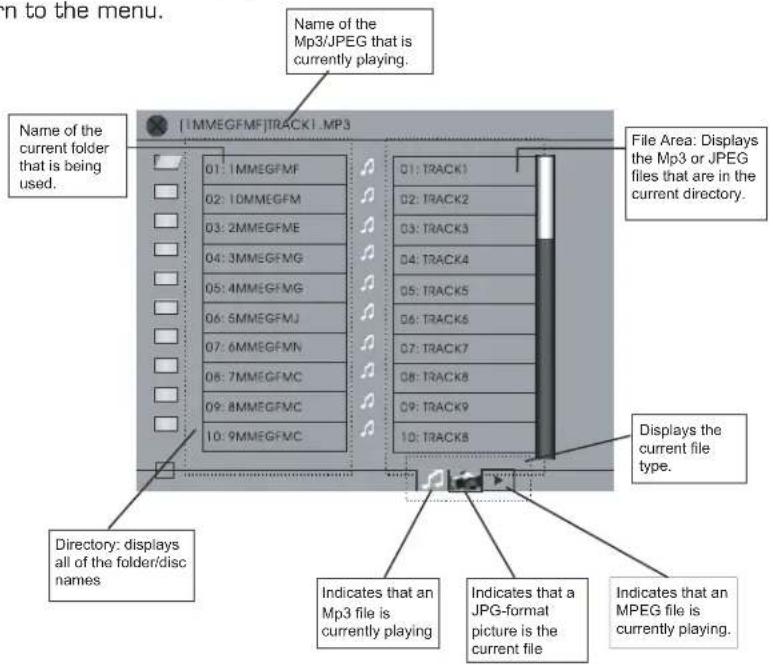
The disc will automatically load and display the Mp3 window. It may take up to 20 seconds for an Mp3 disc to be read depending on the complexity of the file structure. Use the arrow keys on the remote to navigate through the window. Press the ENTER button to make selections.
USB File Playback
Mp3/Photo/Video
Insert a USB thumb-drive into the USB connection, or SD Media card into the SD slot on the front of the disc player. Make sure there is no disc in the disc tray. The menu will appear upon connection or press PLAY to access the menu. Select the corresponding icon in the lower right corner to view Mp3, Photo (JPEG) or Video (MPEG, AVI) to view the list of each file type. Scroll through each list with the ARROW buttons and press the PLAY button to make a selection.
Music Icon - Display and playback your Mp3 audio files.
-Use the ARROW buttons to select a track and press enter to begin playback.
-Use the disc control buttons to control playback.
Photo Icon - Display and review your JPG images.
-Use the right ARROW to select a file, or press play on any file to begin slideshow. Smaller thumbnail preview images will appear in the left pane.
-Use the PREV/NEXT buttons on the front panel or the remote to skip from one image to another.
-Use the ARROW buttons on the remote to rotate the image and the ZOOM button to zoom in and out.
-Press STOP to return to the menu.
Video Icon - Display and playback your AVI, MPEG.
-Use the disc control buttons to control playback.
-Press STOP to return to the menu.
Repeat modes.
There are 3 available repeat modes for files. Access these by pressing the REPEAT button on the WARRIOR's remote control.
REPEAT 1: Repeats the same song.
REPEAT DIR: Repeats the entire directory (folder) once it has played through.
REPEAT ALL: Repeats the whole disc once it has played through.
Setting Up Preferences
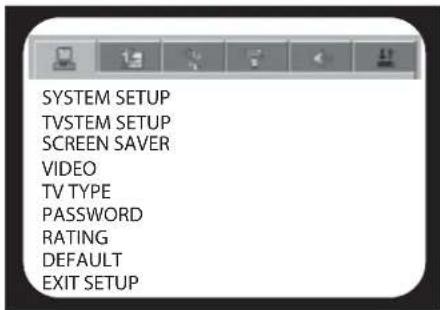
Press SETUP on the remote control to get into the SETUP menus. All settings have been preset in the DEFAULT mode. This means that the most common settings will already be active when you first setup the WARRIOR. It may not be necessary to make any changes for the WARRIOR to work correctly.
To exit the SETUP screen simply press SETUP on your remote or scroll down to EXIT SETUP on the MENU MAIN PAGE and press ENTER on your remote.
SYSTEM SETUP
Press SETUP on the remote control and be sure that SYSTEM SETUP is highlighted.
1. TV SYSTEM
Set the WARRIOR's output to match your TV set's system format. For example, NTSC for North American TV systems or PAL for European systems. Select AUTO if you frequently switch between PAL and NTSC modes.
2.SCREENSAVER
When there is no disc or the player is idle for a period of time, screensaver will appear if this setting is ON. Using a screensaver can help protect your TV or monitor's screen.
3.VIDEO
Choose the video mode based on what video connection you are using.
INTERLACE-YUV: When you are using a YUV Composite Video connection P-SCAN YPBPR: When you are connected to a progressive scan TV with Component Y, Pb, Pr cables.
PC-VGA: When you are connected to a monitor with a VGA cable.
S-VIDEO: When you are connected to a TV using an S-Video connection.
4. TV TYPE
TV Display Modes: You can select one of the following TV display modes for the video output:
4:3/PS: When the player is connected to a normal [4:3] TV and a wide picture is shown on the full screen, a portion may be cut off automatically.
4:3/LB: When the player is connected to a normal TV and a wide picture is shown on the screen, black strips appear at the top and bottom of the screen.
16:9: When the player is connected to a wide screen TV.
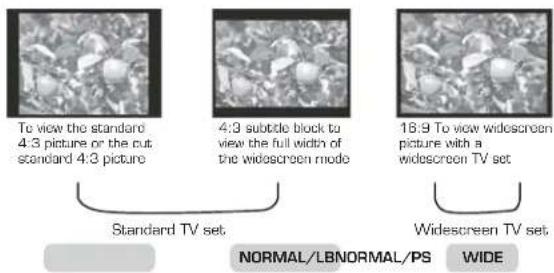
NOTE: If you choose this setting and you don't have a wide screen TV, the images on the screen may appear distorted due to vertical compression.
5. PASSWORD
Enter your password here, to access parental controls. The first time you use this fution, you will have to input the factory-set password which is "0000" and then press enter. You may then input your own password and then press enter again. Be sure that you write down your new password as the factory-set "0000" will not work if you have changed it.
6. RATING
Parents can control the rating of movie that can be shown on the player. Simply select the rating from the list and then press enter.
7. DEFAULT
Choosing RESTORE, restores the WARRIOR's preferences to the original factory settings.
Setting Up Preferences cont.
LANGUAGE SETUP
1. OSD LANGUAGE
The OSD only has two languages: ENGLISH or CHINESE.
2.AUDIO LANGUAGE
Sets the language for discs with multi-language capabilities.
3. SUBTITLE LANGUAGE
Sets the language for the movie subtitles. The disc must be equipped with multi-language subtitles for this to work.
4. MENU LANGUAGE
Sets the language for DVD menus with multi-language capabilities.
AUDIO SETUP
1. AUDIO OUT
SPDIF/RAW: When using digital output to connect to an amplifier with Dolby decoding, select this option.
SPDIF/PCM: When using a stereo amplifier to play Dolby digital discs, select this mode.
- KEY Adjusts the musical key of music to fit the singer's vocal range.
b - Lowers the musical key
-
Resets the music to the original or 'natural' key
-
Raises the musical key
VIDEO SETUP
1. BRIGHTNESS
Adjust the brightness of the display using the up and down directional buttons.
1. CONTRAST
Adjust the contrast of the display using the up and down directional buttons.
1. HUE
Adjust the hue of the display using the up and down directional buttons.
1. SATURATION
Adjust the saturation of the display using the up and down directional buttons.
Setting Up Preferences cont.
SPEAKER SETUP
1.DOWNNMIX
LT/RT: When connecting to a Dolby Digital amplifier.
STEREO: When connecting to a stereo TV or amplifier and the disc supports 2-channel output.
VSS: When using a disc that has been formatted with Virtual Surround Sound.
DIGITAL SETUP
1. OP MODE
LINE OUT: This is the standard Digital Output setting.
RF REMOD: When primarily using headphones.
2. DYNAMIC RANGE
This selects the Line Out ratio.
NOTE: This can only be used when LINE OUT is chosen in the OP MODE options.
FULL: The audio signal peak value will be the minimum
OFF: The audio signal peak value will be the maximum.
3. DUAL MONO
Here you can choose between STEREO, L-MONO, R-MONO, or MIX-MONO output modes. It is usually recommended that you stay in STEREO mode for best results.
Troubleshooting
There is No Power
- Make sure the power cord is firmly connected to the power outlet
- If using a power strip/surge-protector, make sure that it is plugged in and switched on.
- Check to make sure the switch for the component you are using is in the On position
There is No Sound from Disc
- Make sure everything is connected firmly and properly
Make sure there are no defective cables
Make sure all of your components are turned on - Make sure all of the components [amp, mixer, TV, etc.] are set to the proper inputs
No Picture
Make sure everything is connected firmly and properly
Make sure there are no defective cables
Make sure all of your components are turned on
- Make sure all of the components [amp, mixer, TV, etc.] are set to the proper inputs
Make sure the TV or monitor is working correctly
The Disc Does Not Play
- Make sure the disc is inserted correctly [label-side up]
Make sure the disc is clean and not scratched
If using a CD-R/RW, try using a different brand as some brands might not be compatible - Clean the CD lens using a CD lens cleaner
The Picture is Unclear
Make sure the disc is not dirty or damaged
- Make sure that the TV TYPE is set correctly:
NTSC: In North America, Japan and many other Asian countries
PAL: In Europe
Try restarting the disc player
Troubleshooting cont.
No Sound Output, RF LED(s) are Not Glowing
- Make sure the microphone and receiver power switches and receiver are set to the ON position
- Check microphone batteries to ensure that they are providing sufficient power. Replace battery if necessary.
- Make sure antennas are firmly connected and extended to an optimal position
If necessary, reduce the distance between the microphones and receiver
Received Signal is Noisy or Contains Extraneous Sounds with the Microphone(s) ON.
- Make sure everything is connected firmly and properly
Make sure there are no defective cables
Make sure all of your components are turned on - Make sure all of the components (amp, mixer, TV, etc.) are set to the proper inputs
There is Noise Coming from the Receiver with the Microphones Turned OFF.
- Remove local sources of UHF interference, such as lighting equipment.
- Reposition the receiver or antennas.
Momentary Loss of Sound as Microphone(s) are Moved Throughout the Operating Range.
- Reposition the receiver, perform a "walkthrough", and observe the signal strengths. If audio dropouts persist, mark these "dead spots" in the operating area and avoid them during the performance.