
Crystal - Téléviseur DELL - Notice d'utilisation et mode d'emploi gratuit
Retrouvez gratuitement la notice de l'appareil Crystal DELL au format PDF.


| Type de produit | Téléviseur / Moniteur LCD |
| Marque | Dell |
| Modèle | Crystal (C22W) |
| Taille de l'écran | 22 pouces (558,8 mm) diagonale |
| Résolution native | 1680 x 1050 (WUXGA) |
| Type de dalle | LCD TFT à matrice active |
| Rétroéclairage | CCFL (4 lampes) |
| Taux de contraste dynamique | 2000:1 (typique) |
| Luminosité | 270 cd/m² (typique) |
| Temps de réponse | 2 ms (gris à gris) |
| Angle de vision | 160° horizontal / 160° vertical (typique) |
| Connectivité vidéo | 1 x HDMI (avec prise en charge HDCP) |
| Connectivité USB | 1 x USB 2.0 (pour webcam uniquement) |
| Haut-parleurs intégrés | 4 haut-parleurs, puissance totale 10 W |
| Webcam intégrée | 2.0 mégapixels, microphone mono |
| Réglages | Inclinaison (2° à 15°), menu OSD |
| Alimentation | Adaptateur secteur externe (CC) |
| Consommation électrique | 40 W (typique avec audio), < 2 W en veille, < 1 W éteint |
| Formats vidéo supportés | 480i/p, 576i/p, 720p, 1080i/p |
| Poids (approx.) | 6,5 kg (avec socle) |
| Dimensions (avec socle) | 520 x 400 x 200 mm (L x H x P) |
| Entretien et nettoyage | Utiliser un chiffon doux et humide, ne pas utiliser de solvants |
| Sécurité | Mise à la terre, ne pas ouvrir le boîtier |
| Pièces détachées et réparabilité | Contacter Dell pour les pièces, réparation par technicien agréé |
FOIRE AUX QUESTIONS - Crystal DELL
Questions des utilisateurs sur Crystal DELL
0 question sur cet appareil. Repondez a celles que vous connaissez ou posez la votre.
Poser une nouvelle question sur cet appareil
Téléchargez la notice de votre Téléviseur au format PDF gratuitement ! Retrouvez votre notice Crystal - DELL et reprennez votre appareil électronique en main. Sur cette page sont publiés tous les documents nécessaires à l'utilisation de votre appareil Crystal de la marque DELL.
MODE D'EMPLOI Crystal DELL
Dell™ Crystal Flat Panel Monitor User's Guide
About Your Monitor
Product Features
Identifying Parts and Controls
Monitor Specifications
Universal Serial Bus (USB) Interface
Plug and Play Capability
Integrated Speakers Specifications
Webcam-MIC Specifications
Maintenance Guidelines
Setting Up the Monitor
Connecting the Monitor
Operating the Monitor
Using the Front Panel Controls
Using the On-Screen Display (OSD) Menu
Setting the Optimal Resolution
Using the Speakers
Tilting your monitor
Using the Camera
Solving Problems
Troubleshooting The Monitor
Common Problems
Camera Problems
Product Specific Problems
Troubleshooting the Speakers
Appendix
Safety Instructions
FCC Notice (U.S. Only) and Other Regulatory Information
Contacting Dell
Notes, Notices, and Cautions

NOTE: A NOTE indicates important information that helps you make better use of your computer.

NOTICE: A NOTICE indicates either potential damage to hardware or loss of data and tells you how to avoid the problem.

CAUTION: A CAUTION indicates a potential for property damage, personal injury, or death.
Information in this document is subject to change without notice.
© 2007-2008 Dell Inc. All rights reserved.
Reproduction in any manner whatsoever without the written permission of Dell Inc. is strictly forbidden.
Trademarks used in this text: Dell, the DELL logo, Inspiron, Dell Precision, Dimension, OptiFlex, Latitude, PowerEdge, PowerVault, PowerApp, and Dell OpenManage are trademarks of Dell Inc; Microsoft, Windows, and Windows NT are registered trademarks of Microsoft Corporation; Adobe is a trademark of Adobe Systems Incorporated, which may be registered in certain jurisdictions. ENERGY STAR is a registered trademark of the U.S. Environmental Protection Agency. As an ENERGY STAR partner, Dell Inc. has determined that this product meets the ENERGY STAR guidelines for energy efficiency.
Other trademarks and trade names may be used in this document to refer to either the entities claiming the marks and names or their products. Dell Inc. disclaims any proprietary interest in trademarks and trade names other than its own.
Model Crystal
June 2008 Rev. A02
About Your Monitor
Dell™ Crystal Flat Panel Monitor User's Guide
Product Features
Identifying Parts and Controls
Monitor Specifications
Universal Serial Bus (USB) Interface
Plug and Play Capability
Integrated Speakers Specifications
Webcam-MIC Specifications
Maintenance Guidelines
Product Features
The Crystal flat panel display has an active matrix, thin-film transistor (TFT), liquid crystal display (LCD). The monitor features include:
■ 22-inch (558.8 mm) viewable area display.
■ 1680 x 1050 resolution, plus full-screen support for lower resolutions.
■ Wide viewing angle to allow viewing from a sitting or standing position, or moving side-to-side.
■ Tilt adjustment capabilities.
■ Plug and play capability if supported by your system.
■ On-Screen Display (OSD) adjustments for ease of set-up and screen optimization.
■ Software and documentation CD includes an information file (INF), Image color Matching File (ICM), and product documentation.
■ Energy Saver feature for Energy Star compliance.
■ Supports HDMI (High Definition Multimedia Interface).
■ Four integrated speakers.
■ 2.0 Mega pixel internal webcam with integrated microphone.
Identifying Parts and Controls
Front View
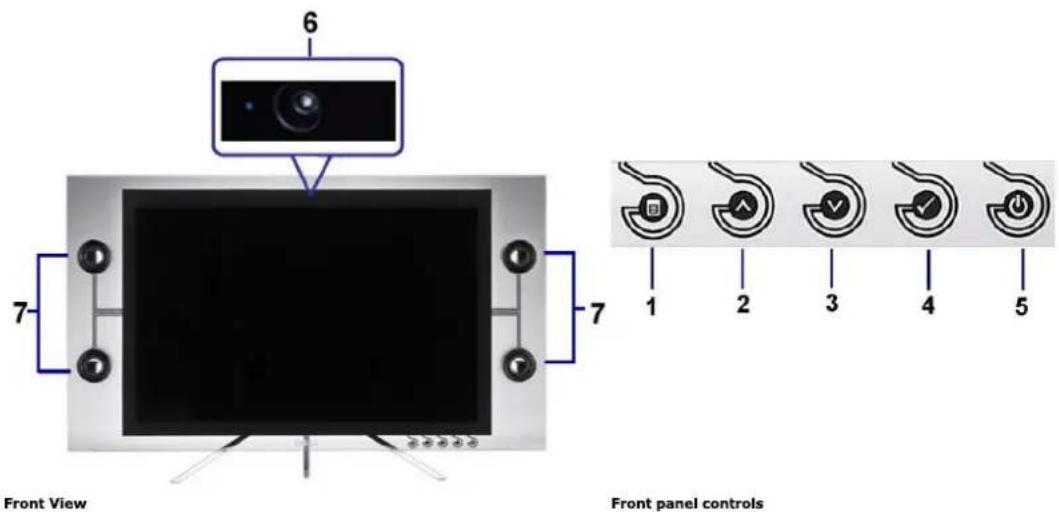
1 OSD menu button
2 Up button
3 Down button
4 OK button
5 Power button
6 Webcam
7 Speakers
Back View
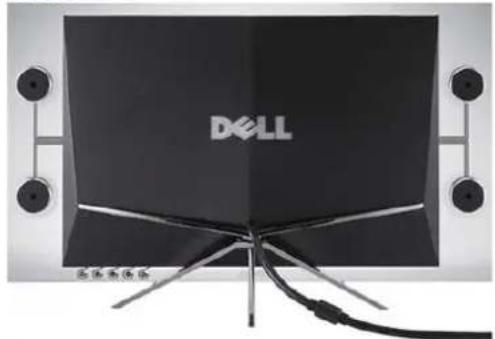
natural_image
Exterior view of a Dell monitor with visible brand logo and cable (no text or symbols on screen)Back view
Side View
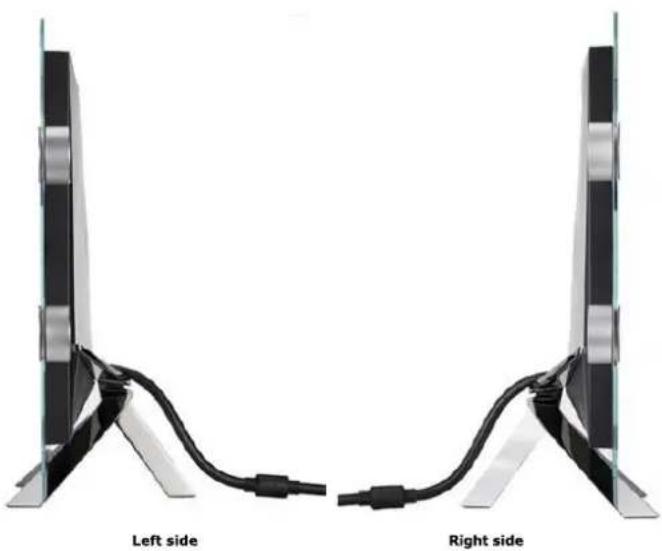
natural_image
Two identical flat-screen TV monitors with black cables connected at the bottom, labeled 'Left side' and 'Right side' (no additional text or symbols)Bottom View
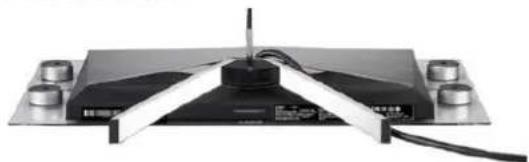
natural_image
Exterior view of a mechanical testing device with a central rotating component and four cylindrical components on top (no visible text or symbols)Bottom view with the monitor stand
Monitor Specifications
The following sections give you information about the various power management modes and pin assignments for various connectors for your monitor.
Power Management Modes
If you have VESA's DPM™ compliance display card or software installed in your PC, the monitor can automatically reduce its power consumption when not in use. referred to as Power Save Mode*. If the computer detects an input from any keyboard, mouse, or the other input devices, the monitor automatically resumes. The following table shows the power consumption and signaling of this automatic power saving feature:
| VESA Modes | Horizontal Sync | Vertical Sync | Video | Power Indicator | Power Consumption |
| Normal operation | Active | Active | Active | Blue | 40 W (typical) with audio |
| Active-off mode | Inactive | Inactive | Blanked | Amber | Less than 2 W |
| Switch off | - | - | - | Off | Less than 1 W |
The OSD will only function in the normal operation mode. When you press any button other than the power button in Active-off mode, the following messages will displayed:
WARNING MESSAGE
There is no signal coming from your
computer. Press any key on the keyboard
or mouse to wake it.
Activate the computer and the monitor to gain access to the OSD.

NOTE: This monitor is ENERGY STAR®-compliant.
* Zero power consumption in OFF mode can only be achieved by disconnecting the main cable from the monitor.
Pin Assignments
19-pin HDMI Connector
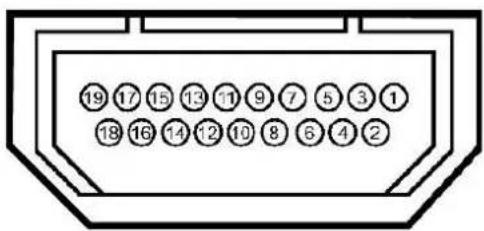
The following table shows pin assignments in the HDMI connector:
Pin
Number 19-pin Side of the Connected Signal Cable
1 T.M.D.S, Data 2-
2 T.M.D.S. Data 2 Shield
3 T.M.D.S. Data 2+
4 T.M.D.S. Data 1+
5 T.M.D.S. Data 1 Shield
6 T.M.D.S. Data 1-
7 T.M.D.S. Data 0+
8 T.M.D.S. Data 0 Shield
9 T.M.D.S. Data 0-
10 T.M.D.S. Clock +
11 T.M.D.S. Clock Shield
12 T.M.D.S. Clock -
13 CEC
14 Reserved(N.C. on device)
15 SCL
16 SDA
17 DDC/CEC Ground
18 +5V Power
19 Hot Plug Detect
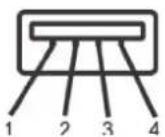
| Pin Number | 4-pin Side of the connector |
| 1 | VCC |
| 2 | DMD |
| 3 | DPD |
| 4 | GND |
NOTE: The USB connector is only available for webcam.
NOTE: USB 2.0 capability requires 2.0-capable computer.
NOTE: The USB interface of the monitor works ONLY when monitor is powered ON (or in Power Save Mode). Switching your monitor OFF and then ON would enumerate its USB interface; attached peripherals may take a few seconds to resume normal functionality.
Plug and Play Capability
You can install the monitor in any Plug and Play-compatible system. The monitor automatically provides the computer with its Extended Display Identification Data using Display Data Channel (DDC) protocols so the system can configure itself and optimize the monitor settings. Most monitor installations are automatic; you can differ settings, if desired.
Flat Panel Specifications
| Screen type | Active matrix - TFT LCD |
| Screen dimensions | 22 inches (22-inch viewable image size) |
| Preset display area: | |
| Horizontal | 473.76 mm (18.65 inches) |
| Vertical | 296.1 mm (11.66 inches) |
| Pixel pitch | 0.282 mm |
| Viewing angle | 160^ (vertical) typ, 160^ (horizontal) typ |
| Luminance output | 270 cd/m ^2 (typ) |
| Dynamic contrast ratio | 2000 to 1 (typ) |
| Faceplate coating | ARC-Glare (2H) |
| Backlight | CCFL (4) edgelight system |
| Response Time | 2ms typical (Grey to Grey) |
| Color Gamut (Typical) | 98%* |
* Crystal color gamut (typical) is based on CIE1976 (98.3%) and CIE1931 (92%) test standards.
Integrated Speakers Specifications
| System Frequency Response | 95 Hz to 20 kHz @ 10 dB below avg. SPL |
| Total Power Output | 10 W continuous average power (all speakers operating) @ 10% (5Wx2), 1 kHz (FTC rated) |
| Input Sensitivity for Rated Output | -20dBFS @ 1 kHz |
| Input | HDMI and USB |
| Operating Temperature Range | 10^ C to 40^ C |
| Humidity, Non-condensing | 95% RH @ 40°C |
| Active Subwoofer (Optional Accessory) | Frequency Response = 20Hz 200Hz |
| Power = 15 W 50 W |
Camera - MIC Specifications
Overview
The integrated USB camera and digital microphones allow you to take pictures, videos, and communicate with other computer users. The camera is located at the monitor and is fixed. However, the camera's software--Webcam Software suite, provides limited panning abilities. When the camera is on, the blue light next camera turns on.
| Lens | Field of view | 66.5 degree +/- 5 % |
| Focus mode | Fixed Focus | |
| Focus area | 49cm~Infinity | |
| Focusing distance (normal mode) | 1100 mm | |
| Image Sensor | Active array size | 2.0 mega-pixel |
| Video specification | Video frame rate | 1600 x 1200 (UXGA) - up to 10 frames per second |
| 640 x 480 (VGA) and below - up to 30 frames per second | ||
| Image flip | Horizontally | |
| Digital zoom | 2x |
Audio Specification
Microphone type
Mono Microphone
Interface
USB 2.0 high Speed
Power Supply
3.3 volts+-5%
System Requirements
The following are the minimum system requirements for Camera - MIC feature:
- Intel® Pentium® 4 or AMD® equivalent processor running at 1.8 GHz or higher (Recommended: Intel Pentium 4, 2.8 GHz with Hyper-Threading enabled)
- Microsoft® Windows® XP Service Pack 2 or Windows Vista
• 256 MB RAM (512 MB RAM or higher recommended)
• 580 MB free hard disk space
• Available USB 1.1 port or a USB 1.1 hub with external power supply (USB 2.0 required for maximum frame rate and resolution)
• CD-ROM/DVD-ROM drive for software installation
Webcam Software Suite
The Webcam Software Suite includes the following applications:
· Dell Webcam Center
Dell Webcam Center makes it easy to capture photos and video. With Webcam Center, you can perform photo and video captures, or perform advanced tasks like remote monitoring, motion detection, and time lapse video capturing.
• Dell Webcam Manager
Dell Webcam Manager is a central access point for all your webcam-related applications. Locate and launch your favorite webcam applications quickly and easily from Webcam Manager while you use your webcam.
• Dell Webcam Console
The Dell Webcam Console provides a customized set of attractive features, such as Advanced Video and Audio Effects, face tracking, and parental control, enhancing your video chatting experience.
• Live! Cam Avatar
Live! Cam Avatar lets you disguise yourself as a superstar, a furry friend, or any customized animated character while you video chat using any instant messaging software. The avatar tracks your head movement and lip sync anything you say instantly at the same time.
• Live! Cam Avatar Creator
Live! Cam Avatar allows you to create your very own personalized avatar from digital photos you have chosen, accompanied by the advanced speech technology which provides lip sync to your animated avatar.
Resolution Specifications
| Horizontal scan range | 30 kHz to 83 kHz (automatic) |
| Vertical scan range | 56 Hz to 76 Hz (automatic) |
| Optimal preset resolution | 1680 x 1050 at 60 Hz |
| Highest preset resolution | 1680 x 1050 at 60 Hz |
Video Supported Modes
Video input capabilities (HDMI playback)
480i/480p/576i/576p/720p/1080i/1080p (Supports HDCP)
Back to Contents Page
Appendix
Dell™ Crystal Flat Panel Monitor User's Guide
Safety Instructions
FCC Notice (U.S. Only) and Other Regulatory Information
Contacting Dell

CAUTION: Safety Instructions

CAUTION: Use of controls, adjustments, or procedures other than those specified in this documentation may result in exposure to shock, electrical hazards, and/or mechanical hazards.
For information on safety instructions, see the Product Information Guide.
FCC Notices (U.S. Only) and Other Regulatory Information
For FCC notices and other regulatory information, see the regulatory compliance website located at www.dell.com/regulatory_compliance.
Contacting Dell
For customers in the United States, call 800-WWW-DELL (800-999-3355).

NOTE: If you do not have an active Internet connection, you can find contact information on your purchase invoice, packing slip, bill, or Dell product catalog.
Dell provides several online and telephone-based support and service options. Availability varies by country and product, and some services may not be available in your area. To contact Dell for sales, technical support, or customer service issues:
- Visit support.dell.com.
- Verify your country or region in the Choose A Country/Region drop-down menu at the bottom of the page.
- Click Contact Us on the left side of the page.
- Select the appropriate service or support link based on your need.
- Choose the method of contacting Dell that is convenient for you.
Back to Contents Page
Back to Contents Page
Setting Up Your Monitor
Dell™ Crystal Flat Panel Monitor User's Guide
If you have a Dell™ desktop or a Dell™ portable computer with internet access
-
Go to http://support.dell.com, enter your service tag, and download the latest driver for your graphics card.
-
After installing the drivers for your Graphics Adapter, attempt to set the resolution to 1680x1050 again.
NOTE: If you are unable to set the resolution to 1680x1050, please contact Dell™ to inquire about a Graphics Adapter that supports these resolutions.
Back to Contents Page
Back to Contents Page
Setting Up Your Monitor
Dell™ Crystal Flat Panel Monitor User's Guide
If you have a non Dell™ desktop, portable computer, or a graphic card
-
Right-click on the desktop and click Properties.
-
Select the Settings tab.
-
Select Advanced
-
Identify your graphics controller supplier from the description at the top of the window (e.g. NVIDIA, ATI, Intel etc.).
-
Please refer to the graphic card provider website for updated driver (for example, http://www.ATI.com OR http://www.NVIDIA.com).
-
After installing the drivers for your Graphics Adapter, attempt to set the resolution to 1680x1050 again.
NOTE: If you are unable to set the resolution to 1680x1050, please contact the manufacturer of your computer or consider purchasing a graphics adapter that will support the video resolution of 1680x1050.
Back to Contents Page
Back to Contents Page
Operating the Monitor
Dell™ Crystal Flat Panel Monitor User's Guide
Using the Front Panel Controls
Using the On-Screen Display (OSD) Menu
Setting the Optimal Resolution
Using the Speakers
Tilting your monitor
Using the Camera
Using the Front Panel
Use the buttons on the front of the monitor to adjust the image settings.
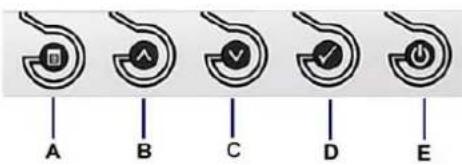
| Front panel Button | Description | ||
| A |  OSD Menu OSD Menu | Use the Menu button to open and exit the on-screen display (OSD), and exit from menus and sub-menus.SeeUsing the OSD Menu. | |
| B |  Up Up | Use the UP button to adjust (increase ranges) items in the OSD menu. | |
| C |  Down Down | Use the Down button to adjust (decrease ranges) items in the OSD menu. | |
| D |  OK OK | Use the OK button to confirm your selection. | |
| E |  Power(with DELL logo indicator) Power(with DELL logo indicator) | Use the Power button to turn the monitor on and off.The blue DELL logo indicates the monitor is on and fully functional. An amber DELL logo indicates power save mode. | |
NOTE: You can use the √ and ∧ buttons as shortcuts to access the speaker volume slider bar and then press the ∧ button to increase the volume and the √ button to decrease the volume.
Using the On-Screen Display (OSD) Menu
Accessing the Menu System
NOTE: If you change the settings and then either proceed to another menu or exit the OSD menu, the monitor automatically saves the changes. The changes are also saved if you change the settings and then wait for the OSD menu to disappear.
1.
Press the button to open the OSD menu and display the main menu.
Main Menu
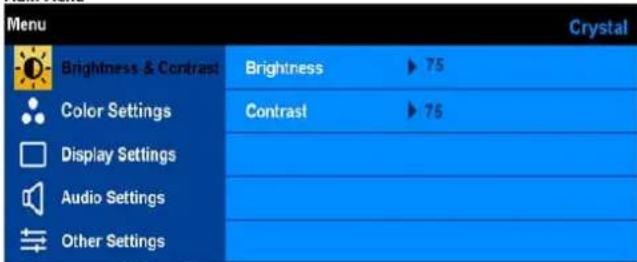
2.
Press the √ and ∧ buttons to toggle between options in the Menu. As you move from one icon to another, the option name is highlighted.
3.
To select the highlighted item on the menu press the √ again.
4.
Press the √ and ∧ buttons to select the desired parameter.
5.
Press the √ button to enter the slide bar and then use the √ or ∧ button, according to the indicators on the menu, to make your changes.
6.
Select the ☑ to return to previous menu without accepting current settings or √ to accept and return to previous menu.
The table below provides a list of all the OSD menu options and their functions.
| Icon | Menu and Submenus | Description |
 | BRIGHTNESS & CONTRAST | Use the Brightness and Contrast menu to adjust the Brightness/Contrast. |
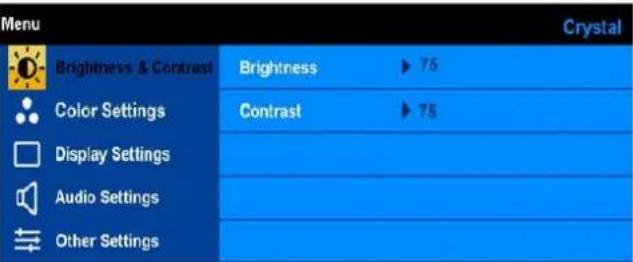 | ||
| Back | Press ☑ to go back to the main menu. | |
| Brightness | Allows you to adjust the brightness or luminance of the backlight. Press the 🔒 button to increase brightness and press the √ button to decrease brightness (min 0 ~ max 100). | |
| Contrast | Allows you to adjust the contrast or the degree of difference between darkness and lightness on the monitor screen. Adjust I first, and adjust contrast only if you need further adjustment. Press the 🔒 button to increase contrast and press the √ button to decrease contrast (min 0 ~ max 100). | |
| [4SWK] | COLOR SETTINGS | Use the Color Setting menu to adjust the monitor's color temperature. |
| Color setting mode submenu | 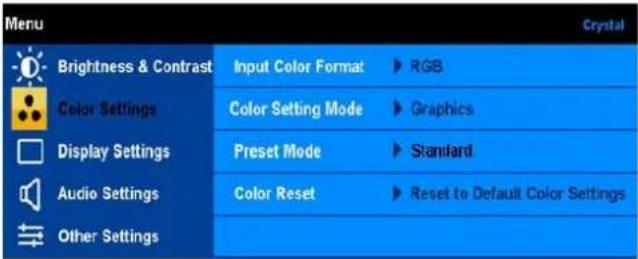 | |
| Back | Press ☑ to go back to the main menu. | |
| Input Color Format | Allows you to set the video input mode to. · RGB: Select this option if your monitor is connected to a computer ore DVD player using the HDMI cable or the HDMI to · YPbPr: Select this option if the your DVD player supports only YPbPr output. | |
| Mode Selection | Allows you to set the display mode to: | |
| Preset Mode | Graphics: Select this mode if your monitor is connected to your computer.Video: Select this mode if you monitor is connected to a DVD player.NOTE: Depending upon the Display Mode you select the Preset Modes available for your monitor change.Allows you to choose from a list of preset color modes.In the Graphics mode, you can set the color to the following preset values:Standard: Loads the monitor's default color settings. This is the default preset mode.Multimedia: Loads color settings ideal for multimedia applications.Game: Loads color settings ideal for most gaming applications.Warm: Increase the color temperature. The screen appears warmer with a red/yellow tint.Cool: Decreases the color temperature. The screen appears cooler with a blue tint.sRGB: Emulates the 72% NTSC color.Custom (R, G, B): Allows you to manually adjust the color settings. Press the and buttons to adjust the Red, Blue values and create your own preset color mode.In the Videomode, you can set the color to the following preset values:Movie: Loads color settings ideal for movies. This is the default preset mode.Sports: Loads color settings ideal for sports.Nature: Loads color settings ideal for nature. | |
| Hue | Allows you to adjust the skin tone of the image. Use or to adjust the hue from '0' to '100'.NOTE: Hue adjustment is available only in the Videomode. | |
| Saturation | Allows you to adjust the color saturation of the image. Use or to adjust the saturation from '0' to '100'.NOTE: Saturation adjustment is available only in the Videomode. | |
| Color Reset | Resets your monitor's color settings to the factory defaults. | |
| [2048] | DISPLAY SETTINGS | Use the Displays Settings menu to adjust the sharpness, dynamic contrast, response time, and zoom. |
| Display setting mode submenu | MenuCrystalBrightness & Contrast Wide Mode FillColor Settings Zoom 50Display Settings Sharpness 50Audio Settings Dynamic Contrast OnOther Settings Response Time OverdriveDisplay Reset Reset to Default Display Settings | |
| Back | Press [3727] to go back to the main menu. | |
| Wide Mode | Allows you to change the image scale with various default settings.NOTE: Wide Mode is not available at video resolutions greater than 1680x1050. However, 16:9 and Fill will be available for | |
| Zoom | Allows you to zoom in to specific area of interest on your monitor.Use and buttons to adjust the zoom from '0' to '100'. | |
| Sharpness | Allows you to increase or decrease the sharpness of the image.Use and buttons to adjust the sharpness from '0' to '100'. | |
| Dynamic Contrast | The dynamic contrast helps get a higher contrast if you choose Game preset, Movie Preset, Sports Preset and Nature Preset.Use the button to enable the Dynamic Contrast adjustment.Use the button to disable the Dynamic Contrast adjustment.NOTE: Brightness control is disabled in Dynamic Contrast mode. | |
| Response Time | Response time is the time required for an LCD pixel to change from fully active (black) to fully inactive (white), then back to full |
| Menu | Crystal | ||
| Brightness & Contrast | Wide Mode | Fill | |
| Color Settings | Zoom | 50 | |
| Display Settings | Sharpness | 50 | |
| Audio Settings | Dynamic Contrast | On | |
| Other Settings | Response Time | Overdrive | |
| Display Reset | Reset to Default Display Settings | ||
| Display Reset | again.You can set the response time to:NormalOverdrive (default).Resets the monitor's display settings to the factory defaults. | |
| [8VCZ] | AUDIO SETTINGS | Use the Audio Settings to adjust the audio settings of your built-in speakers. |
| Audio Setting mode submenu | 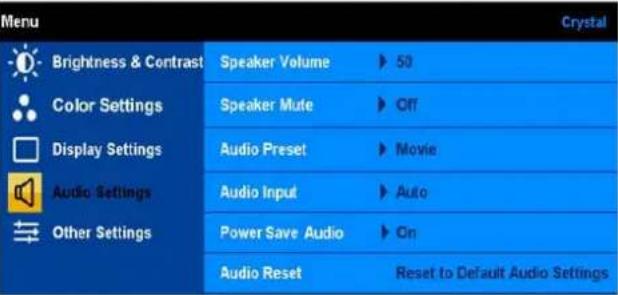 | |
| Back | Press to go back to the main menu. | |
| Speaker Volume | Allows you to increase the speaker volume.Use and buttons to adjust the speaker volume from '0' to '100'. | |
| Speaker Mute | Allows you to mute/un-mute the speaker.Use and buttons to browse and to set Speaker Mute to On or Off. | |
| Audio Preset | Allows you to set the audio mode to:Movie - suitable for movie playback.Game - suitable for game applications.Music - suitable for music scene.Custom - allows you to manually adjust the Treble and Bass. | |
| Audio Input | Allows you to select an audio input signal as an audio source. You can set the Audio Input to Auto/HDMI/USB.Press the or button to choose among the options.to select and to cancel.NOTE: Your monitor supports audio input signals from HDMI and USB interfaces only. | |
| Power Save Mode | Allows you to turn on or off the audio power during power save mode.Default is "On". Select "Off" to disable this feature.On - Turn off audio power during power save mode.Off - Turn on audio power during power save mode. | |
| Audio Reset | Resets your monitor audio settings to the factory defaults. | |
| Exit Menu | Press to exit the OSD main menu and press to accept changes. | |
| [HTX] | OTHER SETTINGS | 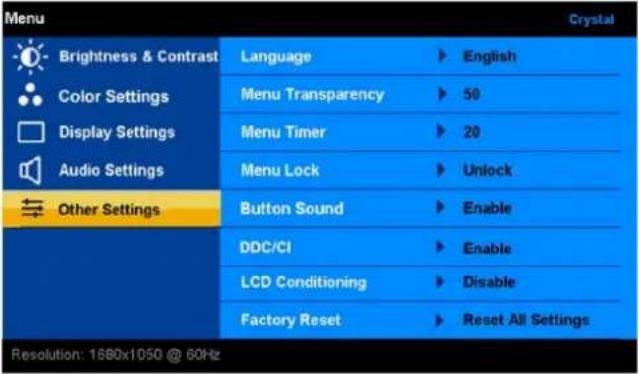 |
| Back | Press to go back to the main menu. | |
| Language | Allows you to set the OSD display to one of five languages: English, Espanol, Francais, Deutsch, or Japanese. | |
| Menu Transparency | Allows you to adjust the OSD background from opaque to transparent. | |
| Menu Timer | Allows you to set the time for which the OSD remains active after you press a button on the monitor.Use the √ and ∧ buttons to adjust the slider in 1 second increments, from 5 to 60 seconds. | |
| Menu Lock | Controls user access to adjustments. WhenLockis selected, no user adjustments are allowed. All buttons are locked exceptNOTE:When the OSD is locked, pressing the menu button takes you directly to the OSD settings menu, with 'OSD Lock' pre-entry. Press and hold button for 15 seconds to unlock and allow user access to all applicable settings. | |
| Button Sound | Turns on or off the button sound. | |
| DDC/CI | DDC/CI (Display Data Channel/Command Interface) allows a software on your computer to adjust the monitor display settings brightness, color balance etc.Enable(Default): Optimizes the performance of your monitor and provides a better customer experience.Disable: Disables the DDC/CI option and the following message appears on the screen. | |
| LCD Conditioning | Select Yesto disable DDC/CI or No to return.LCD conditioning helps eliminate any image retention and may take several hours.NOTE: Severe cases of image retention are known as burn-in. LCD Conditioning does not remove burn-in.Disable: This is the default option.Enable: Enables LCD conditioning and the following message appears on the screen. Select Yes to proceed and No to return.WARNING MESSAGEThe feature will help reduce minor cases of image retention. Depending on the degree of image retention, the program may take some time to run.Do you want to continue?NoYesNOTE:Press any button on the monitor to terminate LCD Conditioning at any time.LCD Conditioning is currently in progressPress any button on the monitor to terminate LCD Conditioning at any time. | |
| Factory Reset | Resets all OSD settings to the factory preset values. |
OSD Warning Messagess
The following warning messages may appear on the screen to indicate that the monitor is out of synchronization.
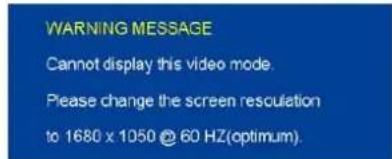
This means that the monitor cannot synchronize with the signal that it is receiving from the computer. Either the signal is too high or too low for the monitor to use. See Specifications for the Horizontal and Vertical frequency ranges addressable by this monitor. Recommended mode is 1680 X 1050 @ 60Hz.
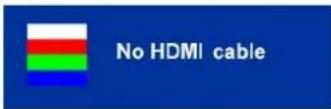
If the HDMI cables are not connected, a floating dialog box as shown below appears.

No HDMI cable
If you press any button other than the power button one of the following messages will appear depending on the selected input:
WARNING MESSAGE
There is no signal coming from your
computer. Press any key on the keyboard
or mouse to wake it
When monitor enters Power Save mode, the following message appears :
WARNING MESSAGE
Entering Power Save
See Solving Problems for more information.
Setting the Optimal Resolution
To set the optimal resolution for the monitor:
- Right-click on the desktop and select Properties.
- Select the Settings tab.
- Set the screen resolution to 1680 x 1050.
- Click OK
If you do not see 1680 x 1050 as an option, you may need to update your graphics driver. Depending on your computer, complete one of the following procedures.
• If you have a Dell desktop or portable computer:
o Go to support.dell.com, enter your service tag, and download the latest driver for your graphics card.
- If you are using a non-Dell computer (portable or desktop):
- Go to the support site for your computer and download the latest graphic drivers.
- Go to your graphics card website and download the latest graphic drivers.
Using the Speakers
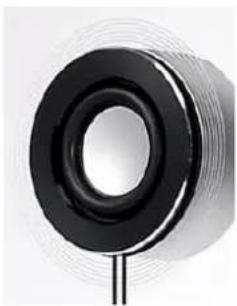
With the built-in speaker, you can adjust the sound volume of the speakers by audio setting mode on the OSD.
natural_image
Close-up of a black cylindrical mechanical component with threaded end and central hole (no visible text or symbols)Recommended methods to adjust audio volume while USB audio is used in Microsoft® Windows® XP or Windows Vista® :
- While using audio or video playback applications, use the volume control on the application to adjust the volume.
- While using the Crystal OSD, use the shortcut keys for volume adjustment. Press the ⚠ button to increase the volume. Press the ⼡ button to decrease the volume.
Tilting Your Monitor
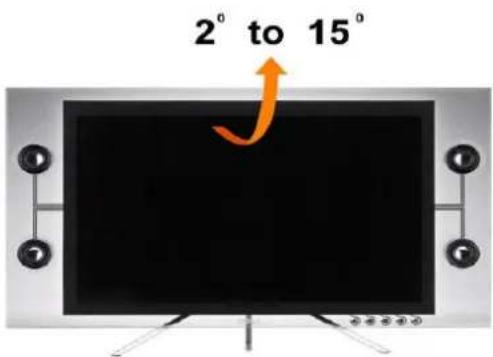
With the built-in pedestal, you can tilt the monitor for the most comfortable viewing angle.
Using the Camera
Installing the Webcam Software (Microsoft® Windows® Operating Systems)
The Dell Crystal webcam application media that ships with your monitor, allows you to the install the software and drivers for the integrated webcam.
To install the Webcam Software:
- Insert the Webcam Software into the drive.

NOTE: Ensure that the USB cable is connected between the monitor and the computer.
- The Install Shield Wizard automatically launches the setup application. Select the Language and click Next to continue.
- Read Software License Agreement and click Yes to continue.
- Click Browse to change Destination Folder where the software will be installed to and then click Next to continue.
- Choose Full Installation than click Next and follow the instructions to complete the installation. Alternatively, choose Custom Installation to select the code to install.
- Click Finish to restart the computer after installation completes.
Accessing the Camera Help File
To access the camera's help file, right-click the Dell Webcam Center icon in the notification area and click Launch Webcam Center. Click Help from the menu and select Contents.
Manually Adjusting the Camera Settings
If you do not want the camera to use automatic settings, you can manually adjust the camera settings.
Setting the Contrast, Brightness, and Volume
To set the contrast, brightness, and volume:
- Right-click the Dell Webcam Manager icon in the system tray located in the lower right corner of the screen. Click Launch Webcam Console.
-
In the Webcam Console window:
-
Click the Camera tab to adjust video settings, such as contrast and brightness.
- Click the Effects tab to adjust audio settings, such as the volume level.
For more information about camera settings and other camera-related topics, see the camera's Help file (see "Accessing the Camera's Help File").
Setting the Resolution
To set the camera resolution using the Dell Webcam Center:
- Right-click the Dell Webcam Manager icon in the system tray located in the lower right corner of the screen. Click Launch Webcam Center. The Dell Webcam Center window appears.
- Click the Video Recording tab.
- Select the resolution from the Video drop-down list at the lower left hand corner. The video resolution is updated immediately. The current resolution is indicated by a check mark.
- Click the Photo Capture tab.
- Select the resolution from the Photo drop-down list at the lower left hand corner. The photo resolution is updated immediately. The current resolution is indicated by a check mark.
- Click Finish to restart the computer after installation completes.
Resetting the Camera Defaults
To reset the Camera settings using the Dell Webcam Console:
- Right-click the Dell Webcam Manager icon in the system tray located in the lower right corner of the screen. Click Launch Webcam Console.
The Dell Webcam Console window appears. - Click the Camera tab on the menu bar and then click the Reset button.
You are now ready to use the Webcam. The Webcam application provides the following functions.
- Dell Webcam Center: Dell Webcam Center makes it easy to capture photos and video with your Dell Webcam. With Webcam Center, you can perform photo and video captures, or perform advanced tasks such as remote monitoring, motion detection, and time lapse video capturing.
- Dell Webcam Manager: Dell Webcam Manager is a central access point for all your webcam-related applications. Locate and launch your favorite webcam applications quickly and easily from Webcam Manager while you use your webcam.
- Dell Webcam Console: The Dell Webcam Console provides a customized set of attractive features, such as Advanced Video and Audio Effects, face tracking and parental control, and enhancing your video chatting experience.
- Live! Cam Avatar: Live! Cam Avatar lets you disguise yourself as a superstar, a furry friend, or any customized animated character while you video chat using any instant messaging software. The avatar tracks your head movement and lip sync anything you say instantly at the same time.
- Live! Cam Avatar Creator: Live! Cam Avatar allows you to create your very own personalized avatar from digital photos you have chosen, accompanied by the advanced speech technology which provides lip sync to your animated avatar.
Back to Contents Page
Back to Contents Page
Setting Up Your Monitor
Dell™ Crystal Flat Panel Monitor User's Guide
Important instructions to set the display resolution to 1680X1050 (Optimal)
For optimal display performance while using the Microsoft Windows® operating systems, set the display resolution to 1680 x 1050 pixels by performing the following steps:
-
Right-click on the desktop and click Properties.
-
Select the Settings tab.
-
Move the slider-bar to the right by pressing and holding left-mouse button and adjust the screen resolution to 1680X1050.
-
Click OK.
If you do not see 1680X1050 as an option, you may need to update your graphics driver. Please choose the scenario below that best describes the computer system you are using, and follow the provided directions:
1: If you have a Dell™ desktop or a Dell™ portable computer with internet access.
2: If you have a non Dell™ desktop, portable computer, or a graphic card.
Back to Contents Page
Dell™ Crystal Flat Panel Monitor
User Guide
- Important instructions to set the display resolution to 1680x1050(Optimal)
Information in this document is subject to change without notice.
© 2007-2008 Dell Inc. All rights reserved
Reproduction in any manner whatsoever without the written permission of Dell Inc. is strictly forbidden.
Trademarks used in this text: Dell, and the Dell logo are trademarks of Dell Inc; Microsoft, Windows, are registered trademarks of Microsoft Corporation; Adobe is a trademark of Adobe Systems Incorporated, which may be registered in certain jurisdictions. ENERGY STAR is a registered trademark of the U.S. Environmental Protection Agency. As an ENERGY STAR partner, Dell Inc. has determined that this product meets the ENERGY STAR guidelines for energy efficiency.
Other trademarks and trade names may be used in this document to refer to either the entities claiming the marks and names or their products. Dell Inc. disclaims any proprietary interest in trademarks and trade names other than its own.
Model C22W
June 2008 Rev. A02
Setting Up the Monitor
Dell™ Crystal Flat Panel Monitor User's Guide
Connecting the Monitor
Connecting The Monitor
CAUTION: Before you begin any of the procedures in this section, follow the Safety Instructions.
Connecting Your Monitor Using an HDMI Cable
To connect your monitor using an HDMI cable:
- Turn off your computer/DVD player.
- Connect the HDMI cable to the HDMI port on your system.
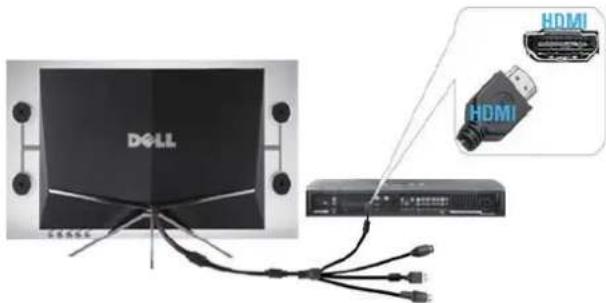
- Connect the USB cable (if applicable) to the USB port on your system.
NOTE: You must connect the USB cable to your system to use your monitors built-in webcam. - Connect the DC power adapter to your monitor's power cable.
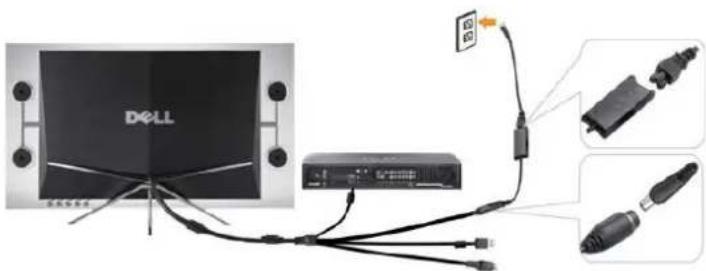
- Connect the other end of the DC power adapter to the electrical outlet.
- Turn on your system.
- Press the monitor power button to turn your monitor on. If nothing appears, see Troubleshooting the Monitor.
Connecting Your Monitor Using an HDMI to DVI Adapter
To connect your monitor using the HDMI to DVI adapter:
- Turn off your computer.
- Connect the monitor's HDMI cable to the HDMI to DVI adapter that ships with your monitor.
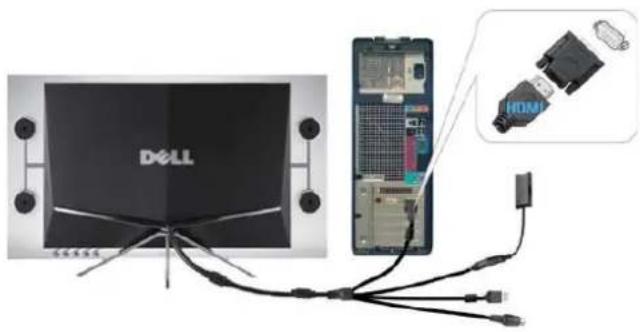
natural_image
Diagram showing a Dell monitor connected to an internal device with cable and connectors, alongside a close-up of a connector (no text or symbols visible)- Connect the other end of the HDMI to DVI adapter to your computer.
- Connect the USB cable (optional) to the USB port on your system.
NOTE: You must connect the USB cable to your system to use your monitors built-in webcam. - Connect the DC power adapter to your monitor's power cable.
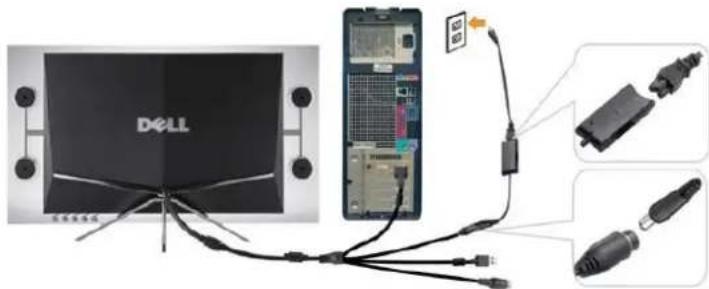
- Connect the other end of the DC power adapter to the electrical outlet.
- Turn on your system.
- Press the monitor power button to turn your monitor on. If nothing appears, see Troubleshooting the Monitor.
Back to Contents Page
Solving Problems
Dell™ Crystal Flat Panel Monitor User's Guide
Troubleshooting the Monitor
Common Problems
Camera Problems
Product Specific Problems
Troubleshooting the Speakers
CAUTION: Before you begin any of the procedures in this section, follow the Safety Instructions.
Troubleshooting the Monitor
Self-Test Feature Check
Your monitor provides a self-test feature that allows you to check whether your monitor is functioning properly. If the monitor and computer connections are correct and nothing appears on the screen, run the monitor self-test by performing the following steps:
- Turn off both your computer and the monitor.
- Unplug the video cable from the back of the computer or output device to ensure proper Self-Test operation.
- Turn on the monitor.
If the monitor is working and cannot sense a video signal, a floating self test dialog box appears on the screen.
NOTE: While in the self-test mode, the monitor displays the Dell logo.
NOTE: Self test dialog box also appears during normal system operation if the video cable becomes disconnected or damaged. Turn off your monitor and reconnect the video cable; then turn on both your computer and the monitor.
If your monitor screen remains blank after you reconnect the cables, check the video controller and computer.
Common Problems
The following table contains general information about common monitor problems you might encounter and the possible solutions.
| COMMON SYMPTOMS | PROBLEM DESCRIPTION | POSSIBLE SOLUTIONS |
| No Video/DELL logo off | No picture, monitor is dead. | Check the cable connections.Verify that the monitor and computer power cables are connected to a working electrical outlet.Ensure that you have pressed the power button. |
| No Video/DELL logo on | No picture or no brightness. | Increase brightness & contrast controls.Perform monitor self-test feature check.Check for damaged leads on the connector head.Reboot your computer and monitor. |
| Poor Focus | Picture is fuzzy, blurry, or ghosting. | Eliminate video extension cables.Perform monitor reset.Lower video resolution or increase font size. |
| Shaky/Jittery Video | Wavy picture or fine movement. | Perform monitor reset.Check environmental factors.Relocate and test in another room. |
| Missing Pixels | LCD screen has spots. | Cycle power on-off.These are pixels that are permanently off and this is a natural defect that occurs in LCD technology. |
| Brightness Problems | Picture too dim or too bright. | Perform monitor reset.Adjust brightness & contrast controls. |
| Horizontal/Vertical Lines | Screen has one or more lines. | Perform monitor reset.Perform monitor self-test feature check and determine if these lines are also in self-test mode.Check for damaged leads on the connector head. |
| Sync Problems | Screen is scrambled or appears torn. | Perform monitor reset.Perform monitor self-test feature check to determine if scrambled screen appears in self-test mode.Check for damaged leads on the connector head.Bot up in the Safe Mode. |
| LCD Scratched | Screen has scratches or smudges. | Turn monitor off and clean the screen.For cleaning instruction, see Cleaning Your Monitor. |
| Safety Related Issues | Visible signs of smoke or sparks. | Do not perform any troubleshooting steps.Monitor needs to be replaced. |
| Intermittent Problems | Monitor malfunctions on and off. | Ensure monitor is in proper video mode.Ensure video cable connection to computer and to the flat panel is secure.Perform monitor reset.Perform monitor self-test feature check to determine if the intermittent problem occurs in self-test mode. |
| Image Retention (from a static image) | Faint Shadow from the static image displayed appears on the screen. | Use the Power Management feature to turn off the monitor at all times when not in use. Alternatively, use a dynamically changing screensaver left on the monitor for a long period of time.In OSD menu, under Other Settings, LCD Conditioning, select Enable. Using this option may take several hours before the image is eliminated.NOTE: Image Burn-in is not covered by your warranty. |
Camera Problems
| COMMON SYMPTOMS | WHAT YOU EXPERIENCE | POSSIBLE SOLUTIONS |
| No Power | The camera is not working and the LED is off | If the monitor has no power, see Troubleshooting Your Monitor. |
| Verify if the camera is detected by Windows. | ||
| Reinstall the camera drives using the Webcam Software CD. See Using the Camera for more information. | ||
| Camera is not detected | The camera is not working and the LED is on | Remove and insert the USB cable. |
| Reinstall the Webcam Software and drivers. See Installing Your Webcam Software for more information. | ||
| Poor Focus | The camera captures fuzzy or unclear videos and pictures | Verify the camera lens is clean. |
| Clean the camera surface using a damp, soft lint-free cloth. | ||
| Increase the available ambient light or change the source of light. | ||
| Reset the camera defaults through the Dell Webcam Console. See Using the Camera for more information. | ||
| Ensure that the Color Depth settings in Display Properties is set to 16-bit color or higher. | ||
| NOTE: Lower color depth settings result in poor-quality images. | ||
| NOTE: The integrated webcam operates at a lower resolution than most commercially available digital cameras. Most commercial digital cameras are 4 mega pixel or higher. The integrated webcam operates up to 2.0 mega pixel. | ||
| Poor quality video on the Internet | The camera captures grainy images while using it on the Internet | Check your internet connection speed. A slow Internet connection could cause similar problems with the video. It is recommended to use a broadband connection with good throughput. |
| Color Problem | The images are tinted red, blue, or green | Reset the camera defaults through the Dell Webcam Console. See Using the Camera for more information. |
| Adjust the camera color settings through Dell Webcam Console. See Using the Camera for more information. | ||
| No Image | Blank screen | Increase the available ambient light, change the direction of the camera, or change the source of light. |
| Reset the camera defaults through the Dell Webcam Console. See Using the Camera for more information. | ||
| Adjust the contrast levels using the Dell Webcam Console. See Using the Camera for more information. | ||
| Ensure the camera is detected correctly by the Windows operating system. | ||
| Slow frame rate in video capture mode | The capture video is not smooth | The video capture especially in high resolution is a resource intensive task, reduce the video recording resolution. Select No Compression for video in the Video Recording settings. |
| Install the latest DirectX and the latest webcam driver. | ||
| Audio and video is not synchronized | The captured video and audio are not synchronized | The video capture, especially in high resolution is a resource intensive task. Reduce the video recording resolution. Select No Compression for video in the Video Recording settings. |
| Microphone is not working | The webcam captures video but not sound | Speak closer to the microphone. |
| The integrated microphone is designed to have a wider reception area for recording but it has limitations. Try moving closer to the microphone or ensure that you are within the recording area for the microphone. |
| Check if the volume is muted. To enable sound:1. Click Start→Control Panel→Sound and Audio Devices.2. Click to uncheck the box next to Mute. | |
| Set the correct audio source in Dell Webcam Center. To select the correct audio source:1. In the Dell Webcam Center, click Tools→Audio Source Control.2. Select Monitor Webcam (C22W) in the Audio Source drop down list.3. Adjust the Volume slider to obtain the desired audio level. | |
| Test the microphone. Try testing the microphone using an application other than the Dell Webcam Center. To test the microphone,1. Click Start→Control Panel→Sound and Audio Devices.2. Click the Voice tab.3. Click the Test Hardware button and follow the instructions. | |
| If the recording is successful, reset the camera defaults, or reinstall the Webcam Software. See Using the Camera for more information. |
Product Specific Problems
| SPECIFIC SYMPTOMS | WHAT YOU EXPERIENCE | POSSIBLE SOLUTIONS |
| Screen image is too small | Image is centered on screen, but does not fill entire viewing area. | Perform monitor reset on All Settings. |
| Cannot adjust the monitor with the buttons on the front panel | OSD does not appear on the screen. | Turn off the monitor, unplug the power cord, and then plug back and turn on the monitor. |
Troubleshooting the Speakers
| Common Symptoms | What You Experience | Possible Solutions |
| No Sound | No audio from the speakers | Ensure that the monitor has power.If the monitor has no power, seeMonitor Specific Troubleshootingfor monitor common problem.Set all volume controls to their maximum and ensure that the mute option is not enabled.Play some audio content on the computer (example, audio CD, or MP3).Test the Speaker using another audio source (For example: USB or HDMI). |
| Distorted Sound | Computer's sound card is used as the audio source | Clear any obstructions between the Speakers and the user.Set all Windows volume controls to their midpoints.Decrease the volume of the audio application.Test the Speakers using another audio source (For example: USB or HDMI). |
| Distorted Sound | Other audio source is used | Clear any obstructions between the Speakers and the user.Decrease the volume of the audio source. |
| Unbalanced Sound Output | Sound from only one side of Speakers | Clear any obstructions between the Speakers and the user.Set all Windows audio balance controls (L-R) to their midpoints.Test the Speakers using another audio source (For example: USB or HDMI). |
| Low Volume | Volume is too low | Clear any obstructions between the Speakers and the user.Set all Windows volume controls to their maximum.Increase the volume of the audio application.Test the Speakers using another audio source (For example: USB or HDMI). |
Back to Contents Page
- Dell™ Crystal Flat Panel Monitor User's Guide
- About Your Monitor
- Setting Up the Monitor
- Operating the Monitor
- Solving Problems
- Appendix
- Notes, Notices, and Cautions
- Product Features
- Identifying Parts and Controls
- Power Management Modes
- WARNING MESSAGE
- Pin Assignments
- Plug and Play Capability
- Camera - MIC Specifications
- System Requirements
- Webcam Software Suite
- CAUTION: Safety Instructions
- FCC Notices (U.S. Only) and Other Regulatory Information
- Contacting Dell
- Setting Up Your Monitor
- If you have a Dell™ desktop or a Dell™ portable computer with internet access
- If you have a non Dell™ desktop, portable computer, or a graphic card
- Using the Front Panel
- Using the On-Screen Display (OSD) Menu
- Accessing the Menu System
- OSD Warning Messagess
- No HDMI cable
- Setting the Optimal Resolution
- Using the Speakers
- Tilting Your Monitor
- Using the Camera
- Installing the Webcam Software (Microsoft® Windows® Operating Systems)
- Accessing the Camera Help File
- Manually Adjusting the Camera Settings
- Setting the Contrast, Brightness, and Volume
- Setting the Resolution
- Resetting the Camera Defaults
- Important instructions to set the display resolution to 1680X1050 (Optimal)
- Dell™ Crystal Flat Panel Monitor
- Connecting The Monitor
- Connecting Your Monitor Using an HDMI to DVI Adapter
- Troubleshooting the Monitor
- Self-Test Feature Check
- Common Problems
Marque : DELL
Modèle : Crystal
Catégorie : Téléviseur