
PQRCUDS0 - Télécommande LG - Notice d'utilisation et mode d'emploi gratuit
Retrouvez gratuitement la notice de l'appareil PQRCUDS0 LG au format PDF.


| Type de produit | Télécommande filaire pour climatiseur LG Deluxe |
| Modèles compatibles | PQRCUDS0, PQRCUDS0B, PQRCUDS0S |
| Affichage | Écran LCD avec rétroéclairage |
| Alimentation | 12 V CC via câble de connexion (fourni avec l'unité intérieure) |
| Longueur du câble | Jusqu'à 30 m (max recommandé) |
| Fonctions principales | Refroidissement, chauffage, auto, déshumidification, ventilation, vitesse du ventilateur (Lo, Med, Hi, Po) |
| Fonctions spéciales | Verrouillage enfant, contrôle des volets (P0–P5), swing giratoire, grille d'élévation, fonction Go-Out, économie d'énergie, plasma |
| Programmation | Minuterie marche/arrêt (1–24 h), programmation hebdomadaire |
| Capteur de température | Intégré ou externe (sélectionnable par commutateur) |
| Installation | Murale, avec gabarit de perçage fourni |
| Dimensions approx. | 120 x 80 x 20 mm |
| Poids approx. | 200 g |
| Matériau du boîtier | Plastique ABS |
| Entretien | Nettoyer avec un chiffon doux et sec ; ne pas utiliser de solvants |
| Température de fonctionnement | 0 °C à 40 °C |
| Humidité de fonctionnement | Max 90 % HR (sans condensation) |
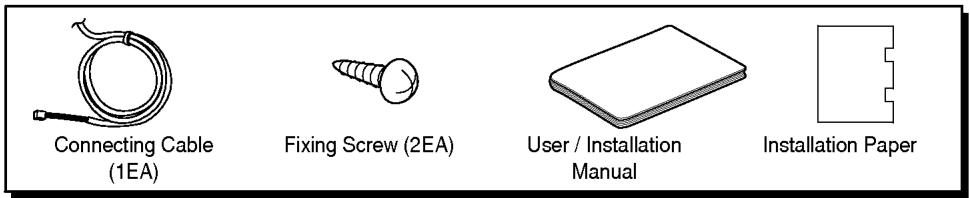
| Accessoires inclus | Câble de connexion (1), vis de fixation (2), manuel d'utilisation et d'installation, gabarit de perçage |
| Sécurité | Installation par un professionnel agréé ; ne pas démonter ; éviter l'humidité et les chocs |
| Réparabilité | Pièces détachées disponibles : câble, vis ; toute réparation doit être effectuée par un centre agréé |
FOIRE AUX QUESTIONS - PQRCUDS0 LG
Questions des utilisateurs sur PQRCUDS0 LG
0 question sur cet appareil. Repondez a celles que vous connaissez ou posez la votre.
Poser une nouvelle question sur cet appareil
Téléchargez la notice de votre Télécommande au format PDF gratuitement ! Retrouvez votre notice PQRCUDS0 - LG et reprennez votre appareil électronique en main. Sur cette page sont publiés tous les documents nécessaires à l'utilisation de votre appareil PQRCUDS0 de la marque LG.
MODE D'EMPLOI PQRCUDS0 LG
LG
Deluxe Wired Remote Controller
Owner's & Installation Manual
Models: PQRCUDS0
PQRCUDS0B
PQRCUDS0S
IMPORTANT
- Please read this installation manual completely before installing the product.
- Installation work must be performed in accordance with the national wiring standards by authorized personnel only.
- Please retain this installation manual for future reference after reading it thoroughly.
TABLE OF CONTENTS
■ Safety Precautions....3\~4
■ Part Description....5\~6
■ Wired remote controller switch information....7
■ Installation Method....8
■ Necessary functions before using ....9\~11
- Trial Operation....9
- Setting the Central Control Address ....10
- ESP Function....11
■ How to use the Mode Selection Button....12\~16
- Cooling Operation....12
- Heating Operation .... 13
• Auto-Operation....14 - Dry(Dehumidification) Operation....15
- Fan Operation....15
- Fan Speed Selection .... 16
■ Sub Function ......17
• Auto Swing......17
- Plasma....18
• Power Saving......18
- Ventilation....19
- Heater 19
■ Special Function....20
- Child Lock....20
• Vane control....21 - Swirl Swing 22
- Elevation Grill ....22
- Go-Out 22
- Room Temperature Display....23
- Easy reservation....23
- Setting the current time....24
- Weekday reservation 25
Safety Precautions
- The installation requires expert skills, and it should be installed by the service center or other shops specialized in the installation and recognized by our company.
- For all the problems arising after installation by someone who has no relevant qualifications, LG will not provide free service.
- The following safety cautions are provided to prevent unexpected dangers or losses.
WARNING: If the user does not follow the mandatory items, it may result in serious injury or death.
⚠️CAUTION : If the user does not follow the mandatory items, it may cause personal injury or property damage.

: Warning and Caution are to call the user's attention to the possible danger. Read and follow them carefully in order to prevent a safety accident.

: Warning and Caution are indicated in this guide and the product itself to help protect the users from danger.
WARNING
■ Installation
Entrust installation of the product to the service center because improper installation may cause fire, an electric shock, explosion, and physical injury.
Use the original parts in order to prevent fire, an electric shock, explosion, and product breakdown.
Keep combustible and/or inflammable materials away from the product in order to prevent fire or product breakdown.
natural_image
Cartoon illustration of a smiling computer monitor character, a smartphone, and an exclamation mark (no text or symbols on main elements)
natural_image
Illustration of three smiling containers with a prohibition symbol, no text or symbols presentDo not disassemble, repair, or modify the product at your discretion in order to prevent fire or an electric shock.
Do not install the product in wet and humid areas in order to prevent product breakdown.
Do not expose the product to the sun in order to prevent product breakdown.
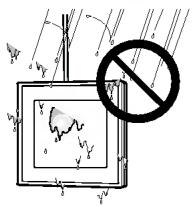
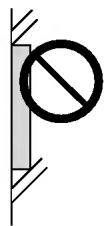
natural_image
Simple line drawing of a prohibition symbol on a vertical wall (no text or labels)In-use
Do not modify or lengthen the power cable at your discretion. It may cause fire or an electric shock.
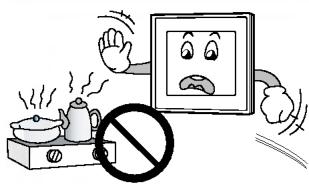
Do not place a heating device near the product. It may cause fire.
Do not drop water on to the product. It may cause an electric shock or product breakdown.
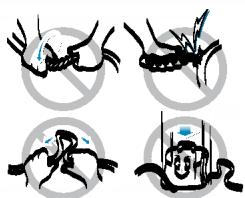
natural_image
Four black-and-white illustrations showing a crab, a skull, a skull with blue eyes, and a skull with a blue liquid (no text or symbols)Do not place something heavy on the power cable. It may cause fire or an electric shock.
Do not place a heavy thing on the product. It may cause product breakdown.
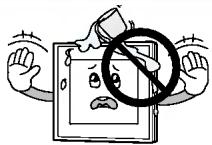
natural_image
Cartoon illustration of a sad monitor character with arms and legs, holding a prohibition sign (no text or symbols present)If the product was submerged under water, ask the service center for instruction. It may cause fire or an electric shock unless you do that.
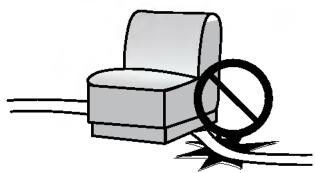
natural_image
Illustration of a chair with a diagonal line and a diagonal line crossing through it, no text or symbols present.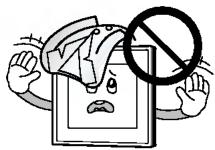
natural_image
Cartoon illustration of a distressed computer monitor character holding a 'no' sign, with no visible text or symbols on the device itself.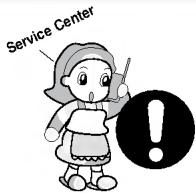
CAUTION
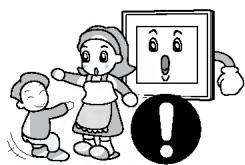
Make sure children or senior citizens use the product under proper observation in order to prevent safety accident.
Do not subject the product to shock. It will cause product breakdown.
Do not pick the product with a sharp tool. It may cause product breakdown with the damage to its parts.
natural_image
Illustration of a child and an adult reacting to a computer screen displaying a surprised face, with an exclamation mark nearby (no text or symbols)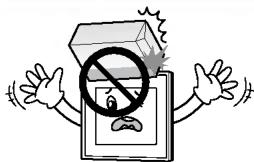
natural_image
Cartoon illustration of a person holding a device with a prohibition symbol (no text or symbols present)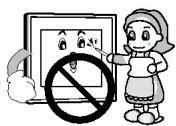
In-use
Do not clean the product with strong cleanser such as solvent. Use soft clothes in order to prevent fire or product deformation.
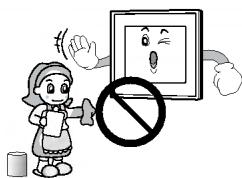
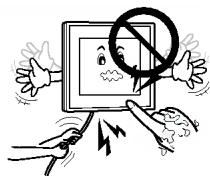
Do not touch the product with a wet hand. Do not pull the lead cable. It may cause product breakdown or an electric shock.
natural_image
Cartoon illustration of hands holding a computer monitor with a 'no stop' symbol, no text or symbols presentPart Description
Accessory
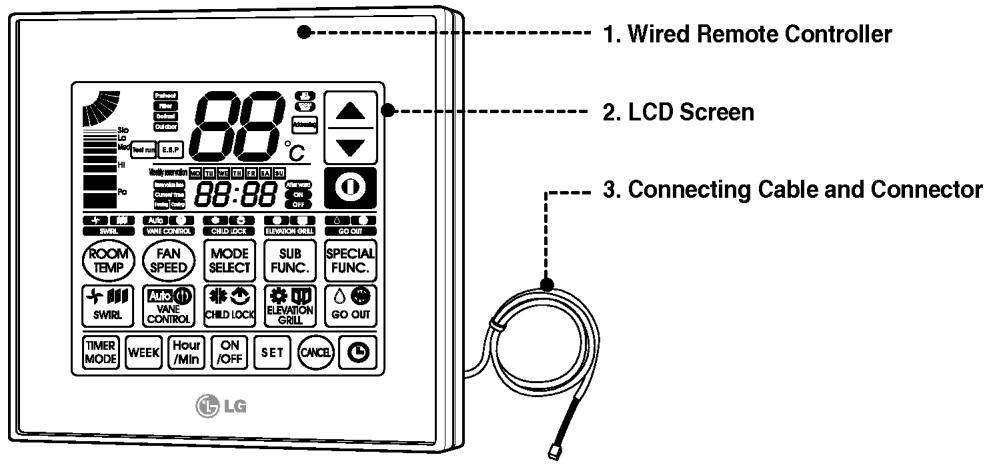
Simple Wired Remote Controller
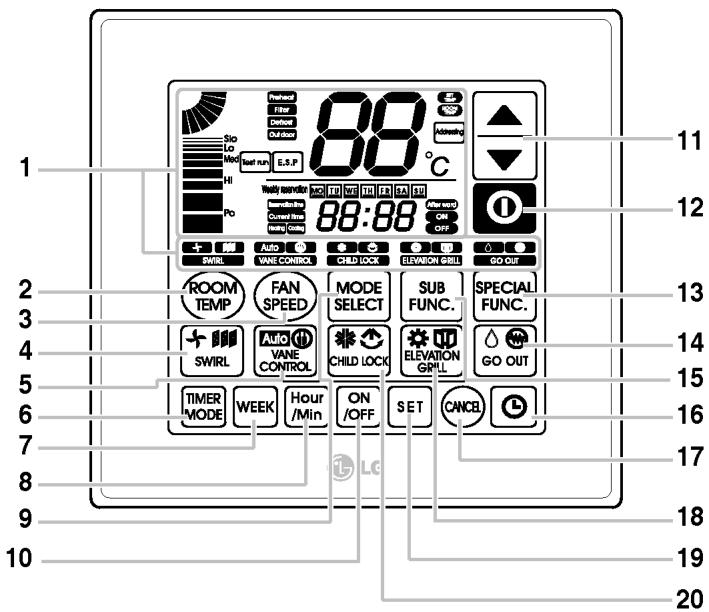
- Operation Display Panel
- Room Temperature Button
- Fan Speed Button
- Fan/Plasma/Swirl Swing Button
- Automatic / Power Saving Vane Control Button
- Timer Mode Button
- Date Selection Button
- Hour/Minute Button
- Mode Selection Button
- On/Off Button for reservation
-
Temperature Control Button
-
On/Off Button
- Special Function Button
- Dehumidification/ Heater/ Go-out Button
- Sub Function Button
- Easy Reservation Button
- Cancel Button
- Heating/Ventilation/Elevation Grill Button
- Setting Button
- Cooling / Auto Swing / Child Lock Button
Each function will be shown on the display panel for three second or so when the initial power is on.
The analog panel enables you to use the remote controller with a touch of your own finger without pressing any extra button.
However, if you press more than one button at the same time, it may cause malfunction.
Wired remote controller switch information
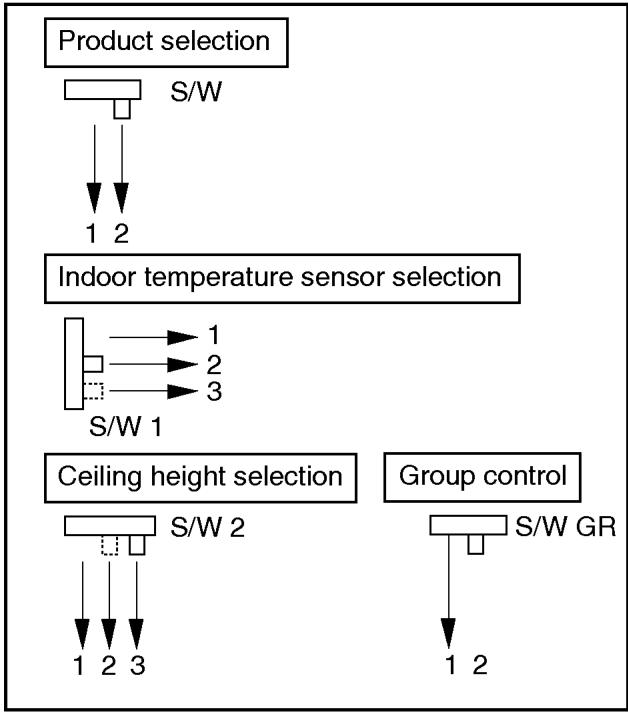
flowchart
graph TD
    A["Product selection"] --> B["S/W"]
    B --> C["1 2"]
    C --> D["Indoor temperature sensor selection"]
    D --> E["S/W 1"]
    E --> F["1 2 3"]
    F --> G["Ceiling height selection"]
    G --> H["S/W 2"]
    H --> I["1 2 3"]
    I --> J["Group control"]
    J --> K["S/W GR"]
    K --> L["1 2"]
Product selection switch
- Cooling ONLY product
- HEAT PUMP product
Indoor temperature sensor selection switch
- Use the temperature sensor on the remote controller
- Use the temperature sensor on the product.
- Use the sensor with the lower temperature between the remote controller and the product
Ceiling height selection switch
- Low ceiling
- Standard ceiling
- High ceiling
Group control switch
- For individual control use
- For group control use
Installation Method
1 Put the installation paper on the place and determine the position and height of the fixing screws of the wired remote controller.
- Refer to the printed side of the installation paper.
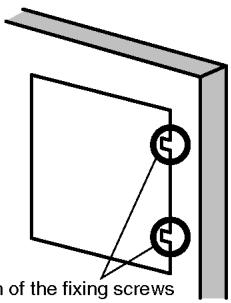
The position of the fixing screws
2 Plug the connecting cable into the indoor unit.
- The product is being shipped with the cable connected only to the remote controller. Put each cable to the remote controller according to the color match
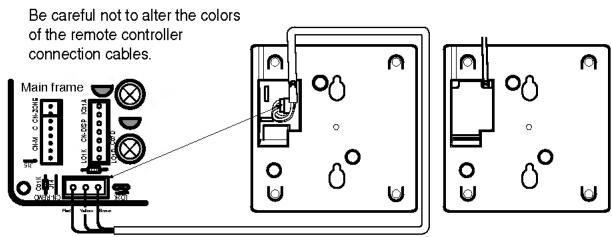
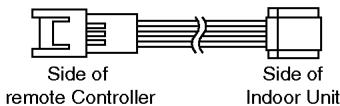
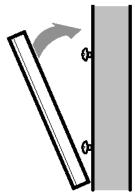
3 Remove the installation paper before installing the remote controller so that it can fit into the right place.
Fixing the remote controller
natural_image
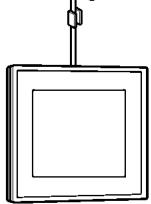
Diagram showing a tilted rectangular object with an arrow indicating rotation, adjacent to a vertical surface (no text or symbols)Fixing the connecting cable
natural_image
Simple line drawing of a square frame with a vertical line above it (no text or symbols)* When installing the wired remote controller, do not install it so that it is buried to the wall. (This can cause error in the temperature sensor)
* When installing multiple wired remote controllers vertically in one location, leave a minimum distance apart (5cm). (This can cause error in the temperature sensor)
* Do not install the cable with a distance of 30 m or longer. (This can cause communication error.)
* When installing the cable, check whether the connector between the remote controller and the product is installed properly. The connector will not be connected when installed in opposite sides.
□ Supply the power after connecting wired remote controller.
When you need to change wired remote controller, switch off the main power and change it Before switch off the main power if changed the wired remote controller, you can't use the option function of the indoor unit.
Necessary functions before using
Trial Operation
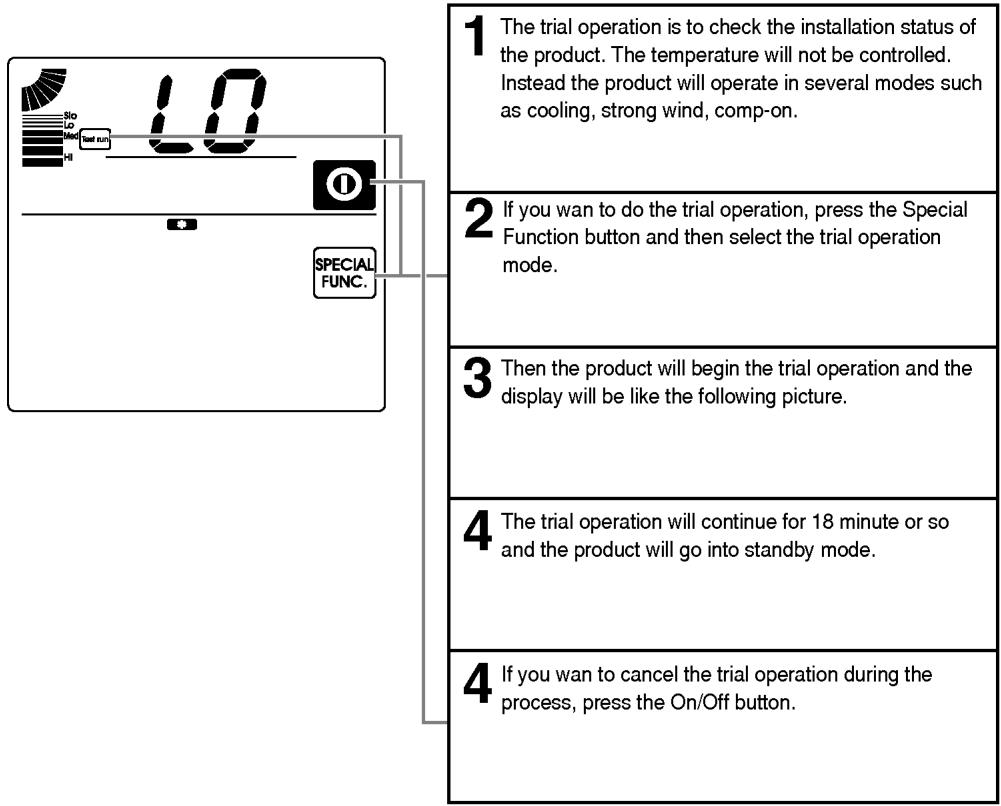
The trial operation is to check the installation status of the product. The temperature will not be controlled during trial operation. Instead the product will operate in several modes such as cooling, strong wind, comp-on.
flowchart
graph TD
    A["1 The trial operation is to check the installation status of the product. The temperature will not be controlled. Instead the product will operate in several modes such as cooling, strong wind, comp-on."] --> B["2 If you want to do the trial operation, press the Special Function button and then select the trial operation mode."]
    B --> C["3 Then the product will begin the trial operation and the display will be like the following picture."]
    C --> D["4 The trial operation will continue for 18 minute or so and the product will go into standby mode."]
    D --> E["4 If you want to cancel the trial operation during the process, press the On/Off button."]
Setting the Central-Control Address
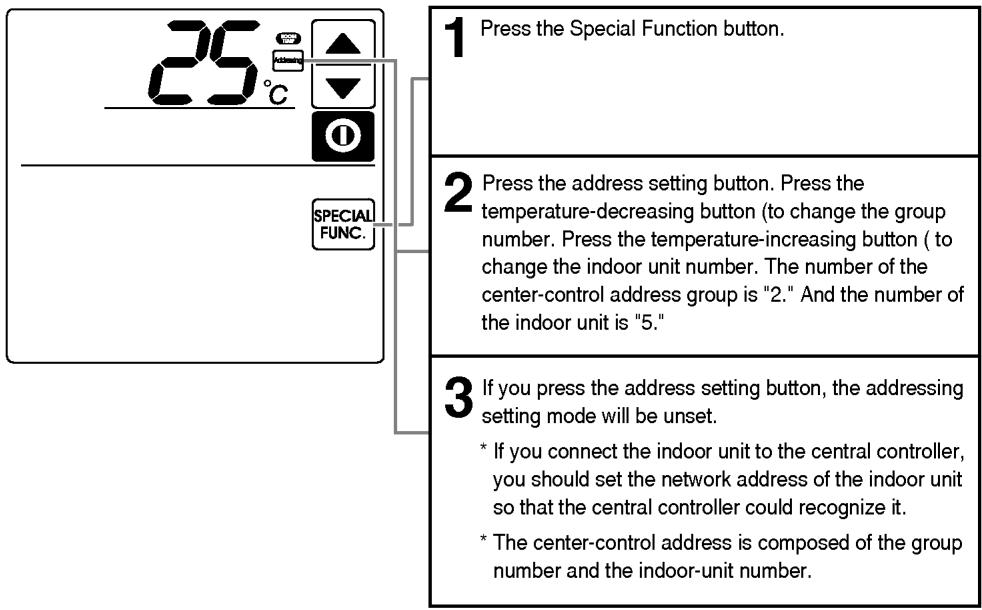
ESP Function
E.S.P function is setting the volume of each air flow. It is for the convenience of installation. It is recommended that you should not use this function while using the remote controller.
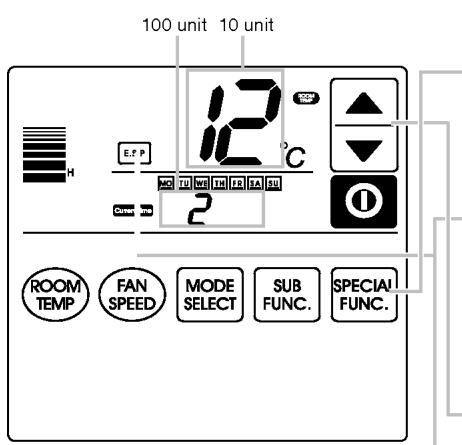
| 1 Press the Special Function button. |
| 2 Press the E.S.P button. |
| 3 Set the volume of each air flow (Soft, Mild, and Strong) by using the temperature control button. Press the air flow button to select the air flow.(The value of E.S.P could be adjusted from 1 to 225.) (The figure on the left shows when the strong wind's ESP value has been set to 212.) |
| 4 If you press the E.S.P button one more time, the E.S.P value will be set and the setting mode will be unset. |
* The E.S.P value is set at the proper value at the factory. So it is highly recommended that you should do not change the E.S.P value at your discretion.
How to use the Mode Selection Button
Cooling Operation
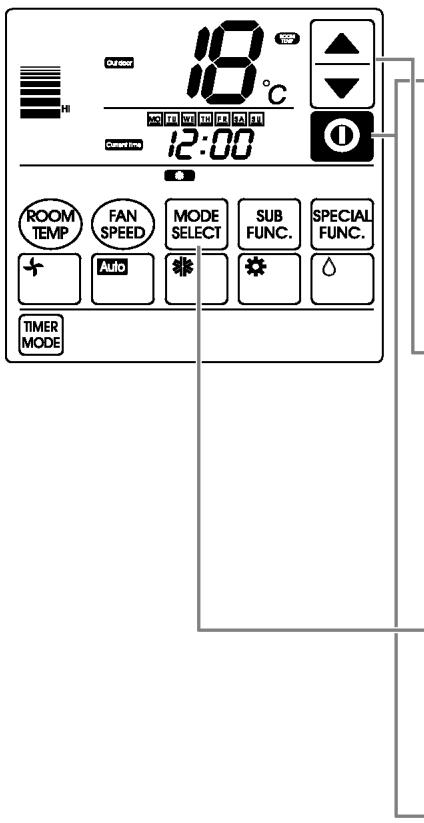
1 Cooling operation will begin if you press the On/Off button.
2 Press the temperature button and set the expected temperature lower than the current room temperature. (18\~30°C)

A click of the button will increase the expected temperature by 1^ A click of the button will decrease the expected temperature by 1^ .
If the expected temperature is set higher than the current room temperature, the cooling function will not begin and just the blowing operation will continue.
3 Press the operation selection button and choose one of the functions among blowing, automation, heating, and dehumidification if you want another operation mode during the operation.
4 If you press the On/Off button, the cooling operation will stop.

natural_image
Cartoon illustration of a smiling girl wearing an apron and hat, gesturing with one hand (no text or symbols)What is the three-minute delay function?
The function to protect the compressor delays the output of cool air when operating instantly after interrupting the cooling operation.
Cooling operation restarts after 3 minutes when the compressor starts to operate.
- You can choose the expected temperature from 18(C to 30(C.
- It is recommended that the ideal difference of the temperature between indoors and outdoors should be less than 5^ .
Heating Operation
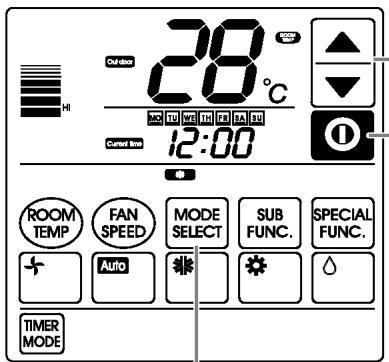
1 Press the heating button after pressing the On/Off button of the remote controller.
2 Set the expected room temperature higher than the current room temperature. (16\~30°C)

A click of the button will increase the desired temperature by 1^ C.
A click of the button will decrease the desired temperature by 1^ C.
* If the expected temperature is set lower than the current room temperature, the heating operation will not begin and just the blowing operation will continue.
3 Press the operation selection button and choose one of the functions among blowing, automation, heating, and dehumidification if you want another operation mode during the operation.
4 If you press the On/Off button, the heating operation will stop.
natural_image
Cartoon illustration of a smiling girl wearing an apron and holding a pointer (no text or symbols)What is the three-minute delay function?
It will take a time for the product to blow warm air. The delay is just to protect the compressor. The room will be heated with warm air after three minutes when the compressor begins operation.
■ The cooling-only model will not do heating function.
Auto-Operation
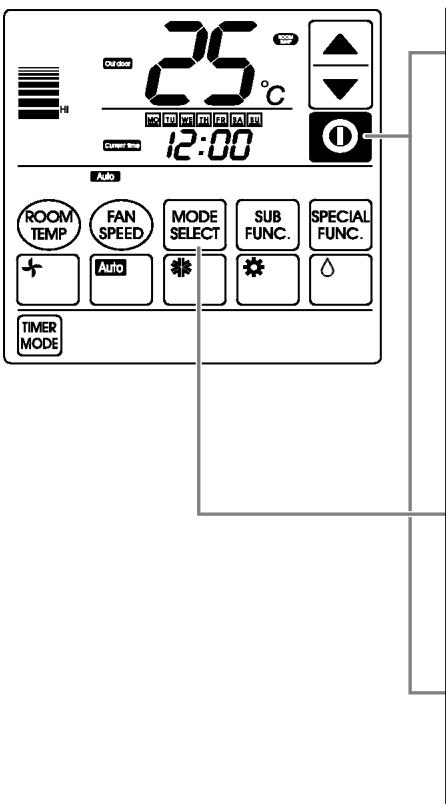
1 Press the On/Off button and then press the Automatic Operation button.
2 When the room temperature is lower than the expected temperature: Heating Operation. When the room temperature is higher than the expected temperature: Cooling temperature.
3 Press the operation selection button and choose one of the functions among blowing, automation, heating, and dehumidification if you want another operation mode during the operation.
4 If you press the On/Off button, the cooling operation will stop.
* The cooling-only model will show "AI" on the temperature display.
AI could be adjusted by five levels (-2, -1, 0, +1, +2).
* This auto-operation is not related to "Auto Change Over" function.
Dehumidification Operation
Dehumidification Operation: Dehumidification by lowering temperature slightly
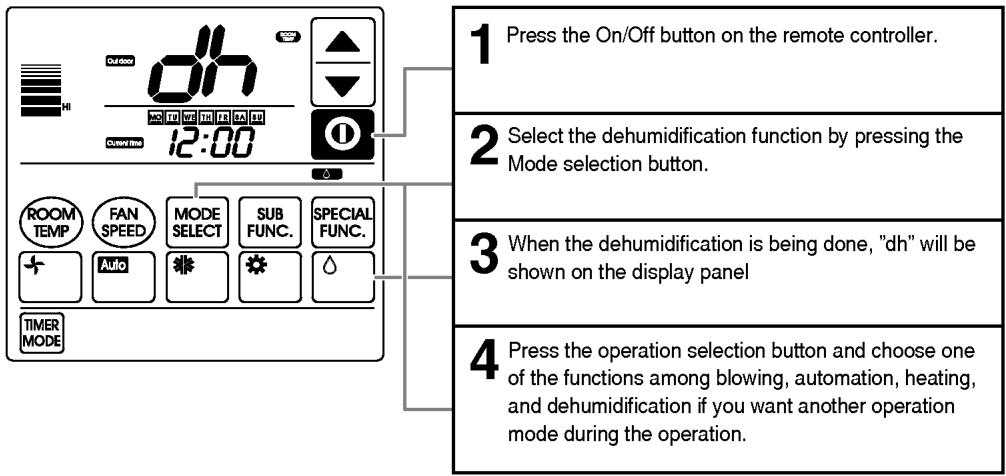
If used during the rainy season or high humidity, you can have both of effective dehumidifying and air conditioning effect.
* Temperature control is not available in the Dehumidification Operation.
Fan Operation
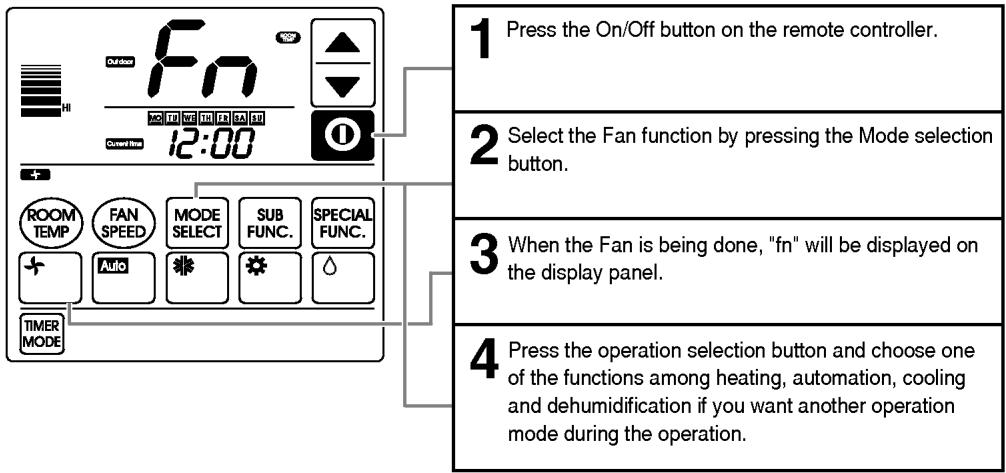
- Fan operation does not output cool air, but just the fan air.
- By giving out air that has no difference of temperature with the indoors, it allows ventilation of the room.
* Temperature control is not available in the air fan operation.
Fan Speed Selection
You can easily control the fan speed.
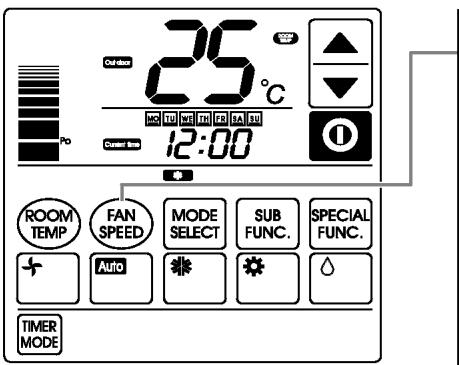
1 Select the proper fan speed which you want by pressing the fan speed button on the remote controller.
- If you press the fan speed button, the strength of the fan speed will change in the order of Low → Medium Hi → Power.
- If the product is not compatible with the fan speed control, it will not function as your selection.
Fan Speed Selection in Cooling Operation
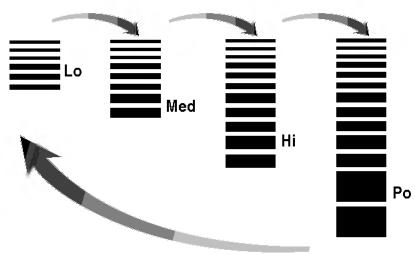
flowchart
graph TD
    A["Lo"] --> B["Med"]
    B --> C["Hi"]
    C --> D["Po"]
Fan Speed Selection in Heating, Dry, Fan, Auto-Operation
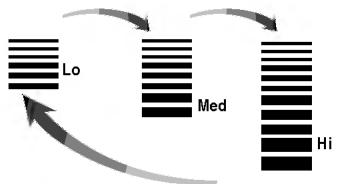
flowchart
graph TD
    A["Lo"] --> B["Med"]
    B --> C["Hi"]
    C --> A
- If the indoor unit is compatible with the slo fan speed, you can adjust the air flow slow level.
Sub Function
Auto Swing
You can control the wind direction easily.
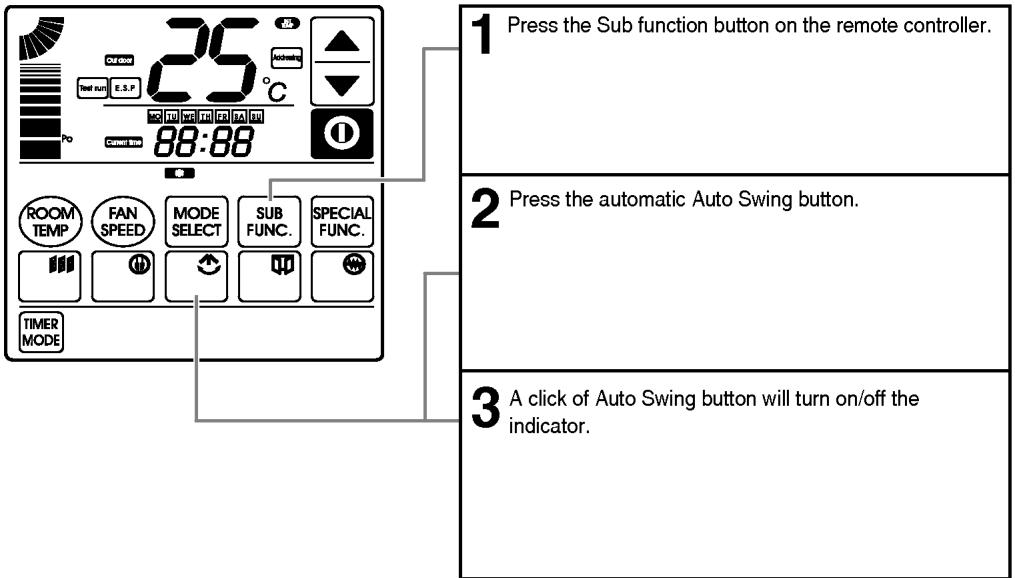
* If the product is not compatible with the automatic wind direction mode, it will not operate automatically.
Plasma
You can use the plasma function.
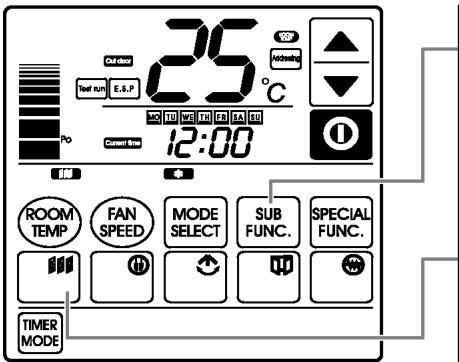
1 Press the Sub function button.
2 Press the Plasma button.
- A click of the Plasma button will turn on/off the indicator.
- If the product is not compatible with the Plasma function, it will not do the Plasma function even though the indicator is turned on.
Power Saving
You can use the power-saving function.
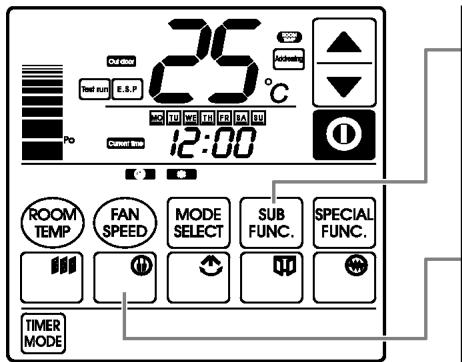
1 Press the Sub function button.
2 Press the power-saving button.
- A click of the power-saving button will turn on/off the indicator.
- If the product is not compatible with the power-saving function, it will not do the function.
Ventilation
You can use the ventilation function.
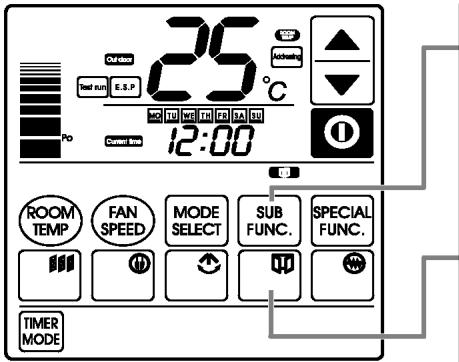
1 Press the Sub function button of the remote controller.
2 Press the ventilation button.
- A click of the ventilation button will turn on/off the indicator. However, even when the remote controller that does not have the ventilation function displays ventilation, the actual product does not operate for ventilation.
Heater
You can use the heater function.
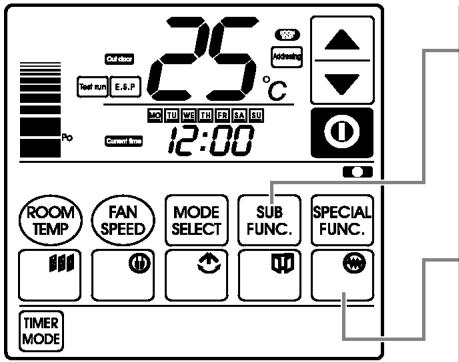
1 Press the Sub function button.
2 Press the heater button.
- A click of the heater button will turn on/off the indicator.
- If the product is not compatible with the heating function, it will not do the heating function.
Special Function
This is a function to prevent tampering of settings by children or others.
Child Lock
You can use the child lock function.
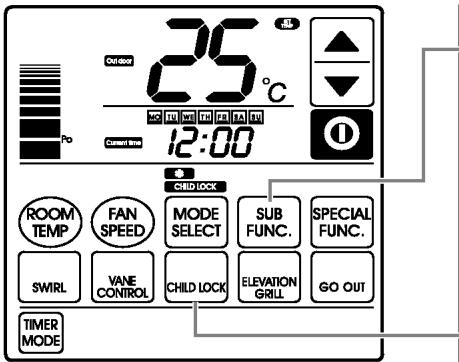
1 Press the Special Function button of the remote controller.
2 Press the child lock button.
- A click of the child lock button will turn on/off the indicator.
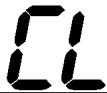
- If you press another button while adjusting child lock function, the temperature display will show CL for three seconds and then the operation will come back to the original mode.
- If you want use the child lock function in standby mode, select child lock and press the On/Off button within three seconds. Then the standby mode will change into the child lock mode.
- If you want to cancel the child lock function in the standby mode, just press the child lock button.

Vane control
You can control the angle of the vane.
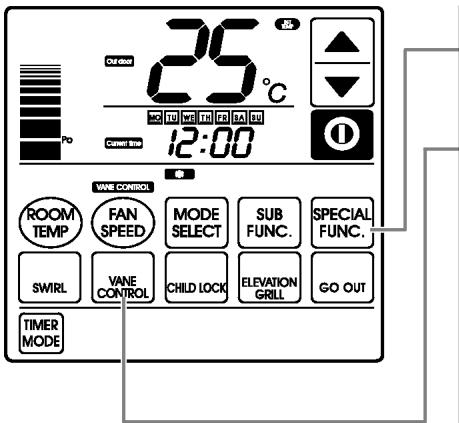
| 1 Select the Advanced Selection button on the control panel of the remote controller. |
| 2 Press the Vane Control button.Press the Vane Control button one more time to control the top and bottom vane. |
| 3 You will see the screen shown on the right. |
| 4 Press the Temperature Adjustment button to adjust the two vane angles from P0 to P5. |
| 5 Press the Vane Control button one more time to control the remaining two vane angles. |
| 6 Press the Vane Control button one more time to return to the original mode. |
| • The vane angle that has been set does not change even when the air conditioner is turn off and on again (default is P0) |
| 1 Select the Advanced Selection button on the control panel of the remote controller. |
| 2 Press the Vane Control button.Press the Vane Control button one more time to control the top and bottom vane. |
| 3 You will see the screen shown on the right. |
| 4 Press the Temperature Adjustment button to adjust the two vane angles from P0 to P5. |
| 5 Press the Vane Control button one more time to control the remaining two vane angles. |
| 6 Press the Vane Control button one more time to return to the original mode. |
| • The vane angle that has been set does not change even when the air conditioner is turn off and on again (default is P0) |
Swirl Swing
You can use the swirl swing.
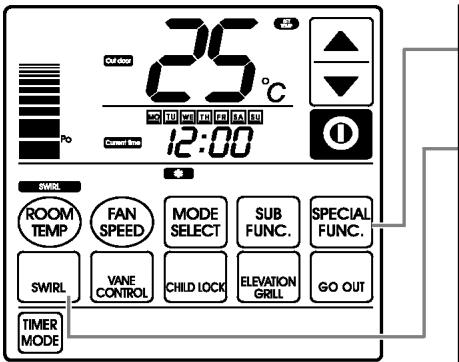
1 Press the Special Function button of the remote controller.
2 Press the swirl swing button.
- A click of the swirl swing will turn on/off the indicator.
- If the product is not compatible with the swirl swing function, it will not do the function even though the indicator is turned on.
Elevation Grill
You can use the Elevation grill.
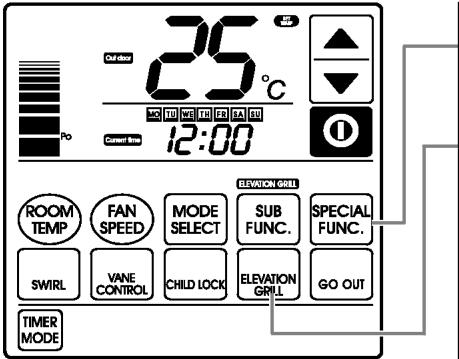
1 Press the Special Function button of the remote controller.
2 Press the Elevation grill button.
- A click of the Elevation grill button will turn on/off the indicator.
- If the product is not compatible with the Elevation grill function, it will not do the function.
Go-Out
You can use the Go-Out function.
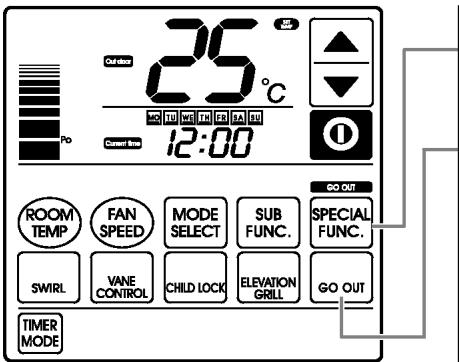
1 Press the Special Function button of the remote controller.
2 Press the automatic Go-Out button.
- A click of the automatic Go-Out button will turn on/off the indicator.
- If the product is not compatible with the automatic Go-Out function, it will not do the function even though the indicator is turned on.
Room Temperature Display
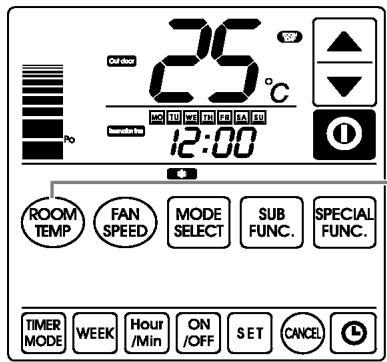
1 If you press indoor temperature button on the remote controller, the indoor temperature displays for 5 seconds. The display goes to a previous screen after 5 seconds. Indoor temperature display may differ according to a Slide S/W1 setting on the remote controller.
Easy Reservation
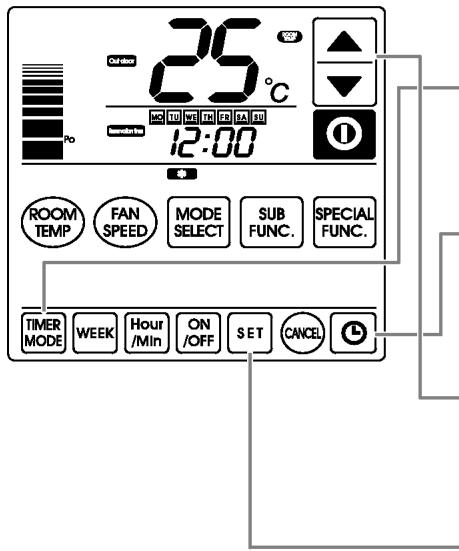
1 Press Timer mode button on the remote controller.
2 Press easy reservation button.
3 You can change the values by pressing the temperature control buttons. Choose a desired reservation time.
4 By pressing the setting button, set your easy reservation time Power-on reservations can be set only when not in operation - You can set reservation from 1 to 24 hours
5 Power-off reservation can be set only when in operation - If power-on reservation was set, it will start operat after the set time - If power-off reservation was set, it will stop operat after the set time - Excessive use of air conditioning is bad for your health. Please set a moderate amount of time for your reservation.
Setting the current time
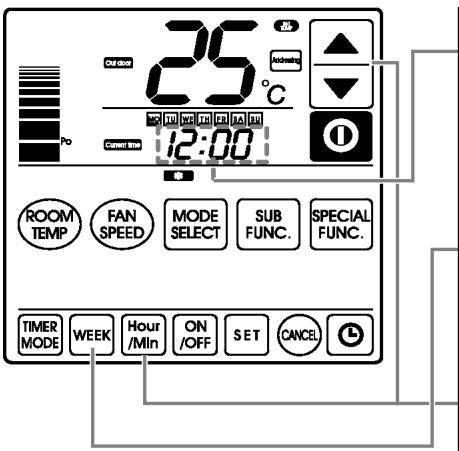
1 You can set the current time by pressing the time display.
When the time display is selected, a window for date and time setting shows up.
2 Press the date selection button.
If you press the date selection button, the day of the week will flash. Then you can choose the proper day in the order of Monday, Tuesday, Wednesday, Thursday, Friday, Saturday, and Sunday.
3 If you press the hour/minute selection button, the hour digits will flash so that you can adjust it by pressing the temperature control button. If you press the hour/minute button one more time, the minute digits will flash. You can adjust it by pressing the temperature control button.
4 After adjusting time, press the setting button so that the current configuration can be saved.
Weekday reservation
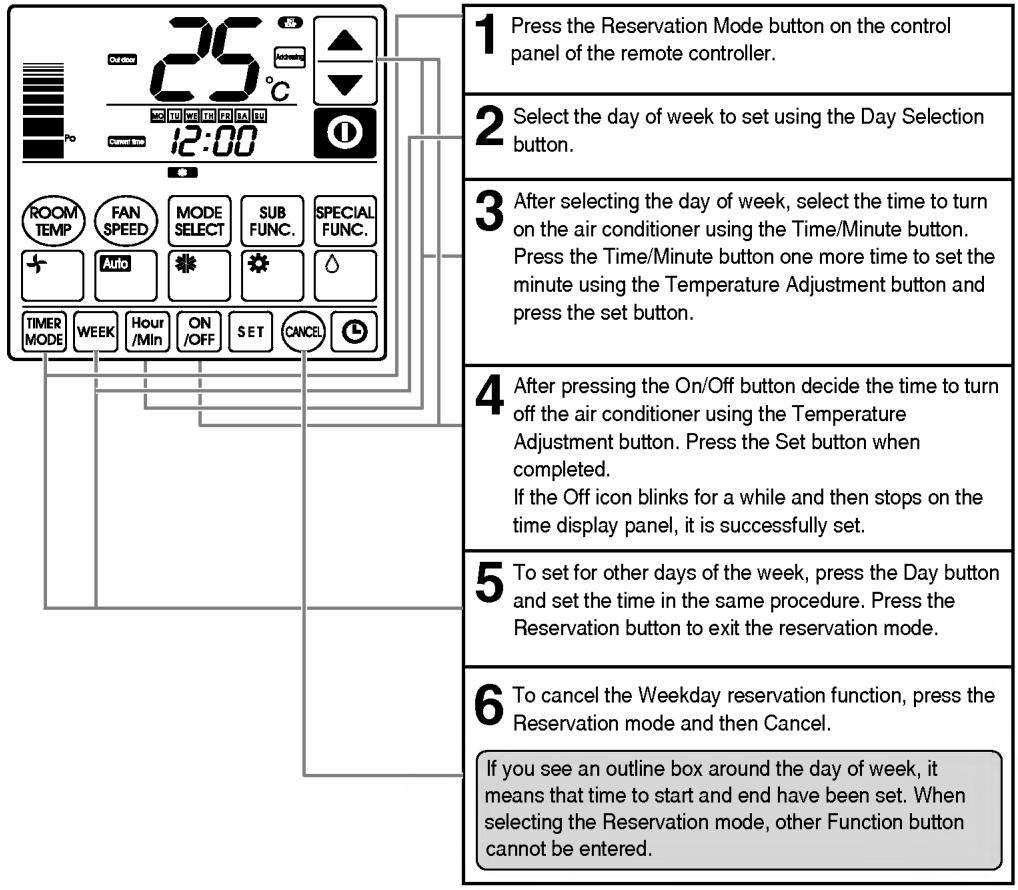
Weekday reservation is the function to set the time to turn on and off for each day during the week from Monday through Sunday.


- LG
- Deluxe Wired Remote Controller
- Owner's & Installation Manual
- IMPORTANT
- TABLE OF CONTENTS
- Safety Precautions
- WARNING
- ■ Installation
- In-use
- CAUTION
- Part Description
- Accessory
- Simple Wired Remote Controller
- Wired remote controller switch information
- Product selection switch
- Indoor temperature sensor selection switch
- Ceiling height selection switch
- Group control switch
- Installation Method
- Necessary functions before using
- Trial Operation
- Setting the Central-Control Address
- ESP Function
- How to use the Mode Selection Button
- Cooling Operation
- What is the three-minute delay function?
- Heating Operation
- Auto-Operation
- Dehumidification Operation
- Fan Operation
- Fan Speed Selection
- Sub Function
- Auto Swing
- Plasma
- Power Saving
- Ventilation
- Heater
- Special Function
- Child Lock
- Vane control
- Swirl Swing
- Elevation Grill
- Go-Out
- Room Temperature Display
- Easy Reservation
- Setting the current time
- Weekday reservation
Marque : LG
Modèle : PQRCUDS0
Catégorie : Télécommande