
PQRCUCA0 - Télécommande LG - Notice d'utilisation et mode d'emploi gratuit
Retrouvez gratuitement la notice de l'appareil PQRCUCA0 LG au format PDF.


| Type de produit | Télécommande filaire simple |
| Marque | LG |
| Modèle | PQRCUCA0 |
| Alimentation | Par câble de connexion depuis l'unité intérieure |
| Modes de fonctionnement | Refroidissement, Chauffage, Auto, Déshumidification, Ventilation |
| Réglage de température | Par incréments de 1°C (refroidissement : 18~30°C, chauffage : 16~30°C) |
| Vitesse de ventilateur | Bas, Moyen, Haut, Puissance (selon mode) |
| Fonction Auto Swing | Oui, activation par appui simultané des boutons ▼ température et Mode pendant 3 secondes |
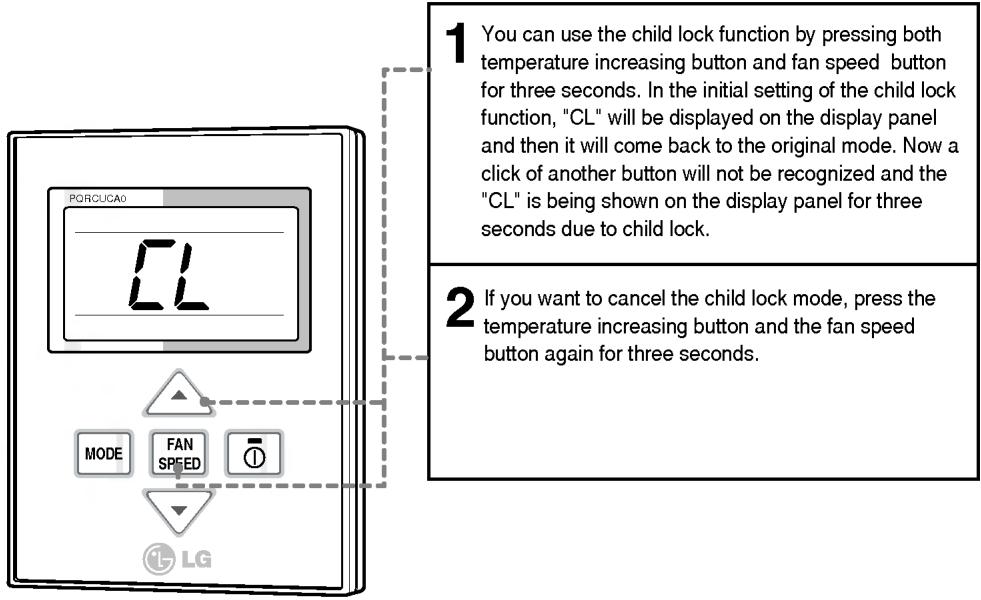
| Verrouillage enfant | Oui, activation par appui simultané des boutons ▲ température et Vitesse ventilateur pendant 3 secondes |
| Affichage température intérieure | Oui, affichage temporaire lors de l'appui long sur le bouton de vitesse de ventilateur |
| Adresse de contrôle central | Réglable (numéro de groupe et d'unité intérieure) |
| Fonction ESP | Réglage du volume de chaque vitesse de ventilateur (de 1 à 255) |
| Essai de fonctionnement | Oui, durée 18 minutes maximum, activation par appui simultané Mode + Vitesse ventilateur pendant 3 secondes |
| Contrôle de groupe | Oui, sélectionnable par commutateur sur la télécommande |
| Nettoyage | Avec un chiffon doux, sans solvant ni nettoyant agressif |
| Sécurité | Installation par personnel qualifié, ne pas démonter, ne pas exposer à l'eau ou à la chaleur |
| Installation | Sur mur, à l'aide du gabarit de perçage fourni, câble de connexion max. 50 m |
| Longueur maximale de câble | 50 mètres |
| Compatibilité | Unités intérieures LG avec connectique filaire |
| Documentation | Notice de 20 pages disponible en PDF |
FOIRE AUX QUESTIONS - PQRCUCA0 LG
Questions des utilisateurs sur PQRCUCA0 LG
0 question sur cet appareil. Repondez a celles que vous connaissez ou posez la votre.
Poser une nouvelle question sur cet appareil
Téléchargez la notice de votre Télécommande au format PDF gratuitement ! Retrouvez votre notice PQRCUCA0 - LG et reprennez votre appareil électronique en main. Sur cette page sont publiés tous les documents nécessaires à l'utilisation de votre appareil PQRCUCA0 de la marque LG.
MODE D'EMPLOI PQRCUCA0 LG
LG
Simple Wired Remote Controller
Owner's & Installation Manual
Models: PQRCUCA0
IMPORTANT
- Please read this installation manual completely before installing the product.
- Installation work must be performed in accordance with the national wiring standards by authorized personnel only.
- Please retain this installation manual for future reference after reading it thoroughly.
TABLE OF CONTENTS
■ Safety Precautions....3\~4
■ Part Description ....5\~6
■ Wired remote controller switch information......7
■ Installation Method ....8
■ Necessary functions before using ....9\~11
- Trial Operation....9
- Setting the Central Control Address ....10
- ESP Function .... 11
■ How to use the Mode Selection Button....12\~18
- Cooling Operation .... 12
- Heating Operation ....13
• Auto-Operation 14 - Dry(Dehumidification) Operation....15
- Fan Operation 15
- Fan Speed Selection ....16
- Indoor Temperature Display....17
• Auto Swing......17 - Child Lock 18
- Different Mode Operation ....19
Safety Precautions
- The installation requires expert skills, and it should be installed by the service center or other shops specialized in the installation and recognized by our company.
- For all the problems arising after installation by someone who has no relevant qualifications, LG will not provide free service.
- The following safety cautions are provided to prevent unexpected dangers or losses.
WARNING: If the user does not follow the mandatory items, it may result in serious injury or death.
⚠️CAUTION : If the user does not follow the mandatory items, it may cause personal injury or property damage.

: Warning and Caution are to call the user's attention to the possible danger. Read and follow them carefully in order to prevent a safety accident.

: Warning and Caution are indicated in this guide and the product itself to help protect the users from danger.
WARNING
■ Installation
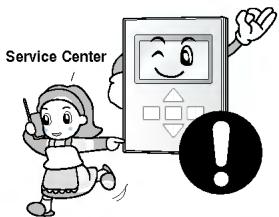
Entrust installation of the product to the service center because improper installation may cause fire, an electric shock, explosion, and physical injury.
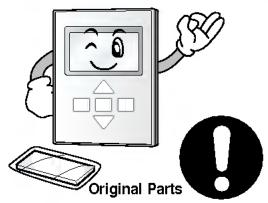
Use the original parts in order to prevent fire, an electric shock, explosion, and product breakdown.
Keep combustible and/or inflammable materials away from the product in order to prevent fire or product breakdown.
natural_image
Illustration of a smiling digital device with a magnifying glass and a warning symbol (no text or labels)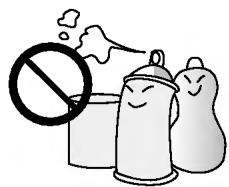
natural_image
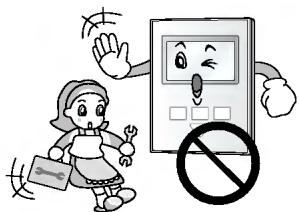
Illustration of three smiling food containers with a prohibition symbol, no text or labels presentDo not disassemble, repair, or modify the product at your discretion in order to prevent fire or an electric shock.
Do not install the product in wet and humid areas in order to prevent product breakdown.
Do not expose the product to the sun in order to prevent product breakdown.
natural_image
Cartoon illustration of a girl waving next to a device with a 'no' symbol (no text or symbols present)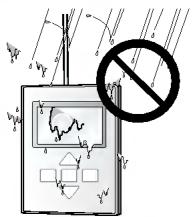
natural_image
Simple line drawing of a prohibition symbol (no text or labels)In-use
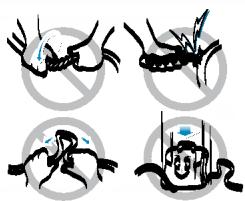
Do not modify or lengthen the power cable at your discretion. It may cause fire or an electric shock.
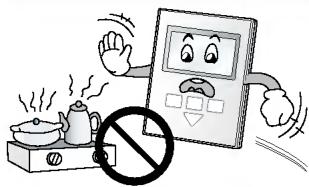
Do not place a heating device near the product. It may cause fire.
Do not drop water on to the product. It may cause an electric shock or product breakdown.
natural_image
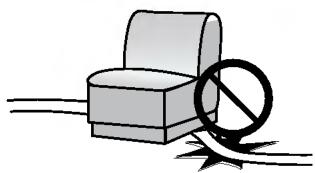
Four black-and-white illustrations of a crab being probed, with no text or symbols present.Do not place something heavy on the power cable. It may cause fire or an electric shock.
Do not place a heavy thing on the product. It may cause product breakdown.
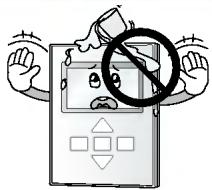
If the product was submerged under water, ask the service center for instruction. It may cause fire or an electric shock unless you do that.
natural_image
Illustration of a chair with a diagonal line and a diagonal line crossing through it, no text or symbols present.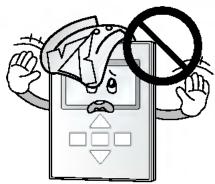
natural_image
Cartoon illustration of a person holding a device with a 'no' symbol, no text or symbols present
CAUTION
Make sure children or senior citizens use the product under proper observation in order to prevent safety accident.
Do not subject the product to shock. It will cause product breakdown.
Do not pick the product with a sharp tool. It may cause product breakdown with the damage to its parts.
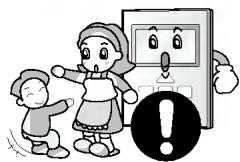
natural_image
Illustration of a child and an adult reacting to a wall-mounted device with a warning symbol (no text or labels)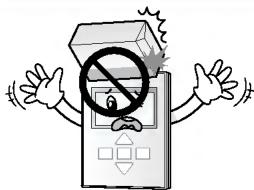
natural_image
Cartoon illustration of a device with a prohibition symbol (no text or symbols present)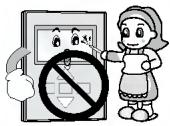
In-use
Do not clean the product with strong cleanser such as solvent. Use soft clothes in order to prevent fire or product deformation.
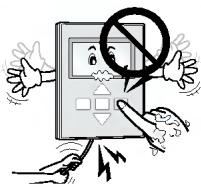
Do not touch the product with a wet hand. Do not pull the lead cable. It may cause product breakdown or an electric shock.
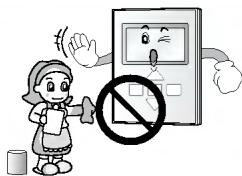
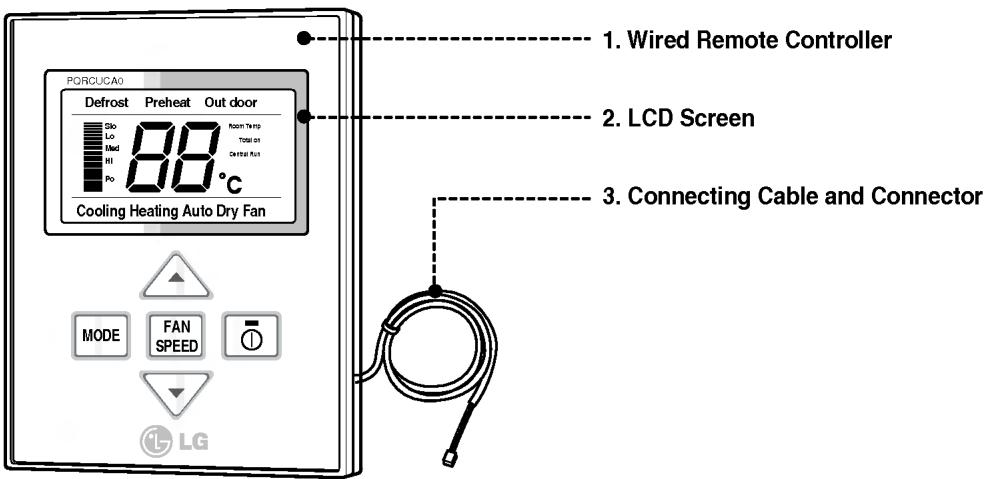
Part Description
Accessory
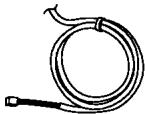
Connecting Cable (1EA)

Fixing Screw (2EA)
natural_image
Simple line drawing of a rectangular block with textured edges (no text or symbols)User / Installation Manual
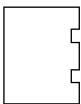
Installation Paper
Simple Wired Remote Controller
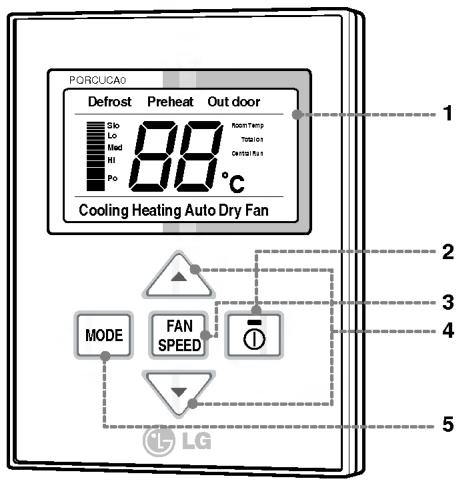
- Operation Display Panel
- On/Off Function
- Fan Speed Button
- Temperature Control Button
- Mode Selection Check Button
Each function will be shown on the display panel for three second or so when the power is applied at first.
Wired remote controller switch information
Group Control
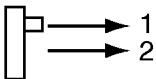
S/W GR
Ceiling Height/Default E.S.P
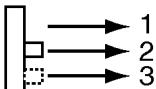
S/W 2
Room Temp. Sensing
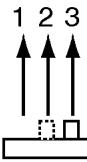
S/W 1
Select Product
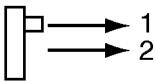
S/W
Product selection switch
- Cooling ONLY product
- HEAT PUMP product
Indoor temperature sensor selection switch
- Use the temperature sensor on the remote controller
- Use the temperature sensor on the product.
- Use the sensor with the lower temperature between the remote
Ceiling height selection switch
- Low ceiling
- Standard ceiling
- High ceiling
Group control switch
- For individual control use
- For group control use
* When changing the product selection switch and group control switch, the power must be reconnected to reflect the changes.
Installation Method
1 Put the installation paper on the place and determine the position and height of the fixing screws of the wired remote controller.
- Refer to the printed side of the installation paper.
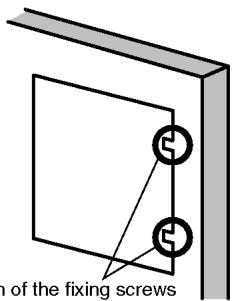
The position of the fixing screws
2 Plug the connecting cable into the indoor unit.
- The product is being shipped with the cable connected only to the remote controller. Fix the connecting cable with the cable rack.

Side of
remote Controller
Side of
Indoor Unit
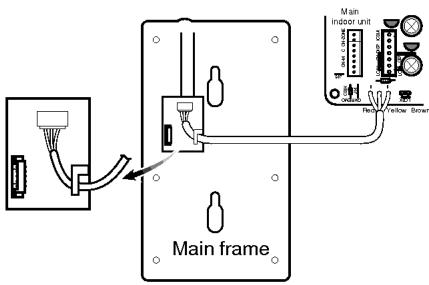
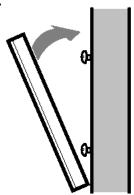
3 Remove the installation paper before installing the remote controller so that it can fit at the right place.
Fixing the remote controller
natural_image
Diagram showing a tilted rectangular object with an arrow indicating rotation, adjacent to a vertical surface (no text or symbols)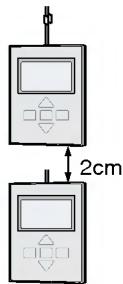
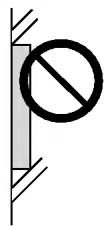
* Do not embed the remote controller into the wall. (It may cause the breakdown of the temperature sensor.)
* If you want to install a number of remote controller at the same place in a vertical line, install them at regular intervals of 2cm. (It may cause the breakdown of the temperature sensor.)
* Do not install the cable with a distance of 50 m or longer. (This can cause communication error.)
* When installing the cable, check whether the connector between the remote controller and the product is installed properly. The connector will not be connected when installed in opposite sides.
□ Supply the power after connecting wired remote controller.
When you need to change wired remote controller, switch off the main power and change it.
If the wired remote controller is changed before switching off the main power, the option function of the indoor unit can't be used. (option function like "slo" fan speed selection)
Necessary functions before using
Trial Operation
The trial operation is to check the installation status of the product. The temperature will not be controlled during trial operation. Instead the product will operate in several modes such as cooling, strong wind, comp-on.
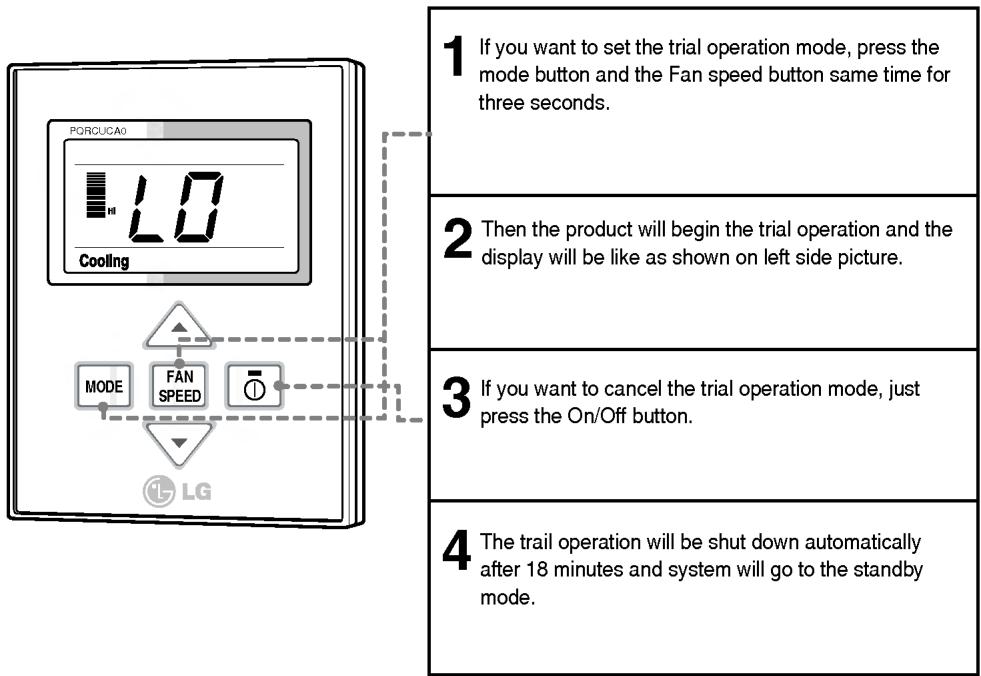
* This function might not be available for Multi Product like Multi V system.
Setting the Central-Control Address
Please set the address while using the central controller.
You don't need to set address if you don't use central controller.
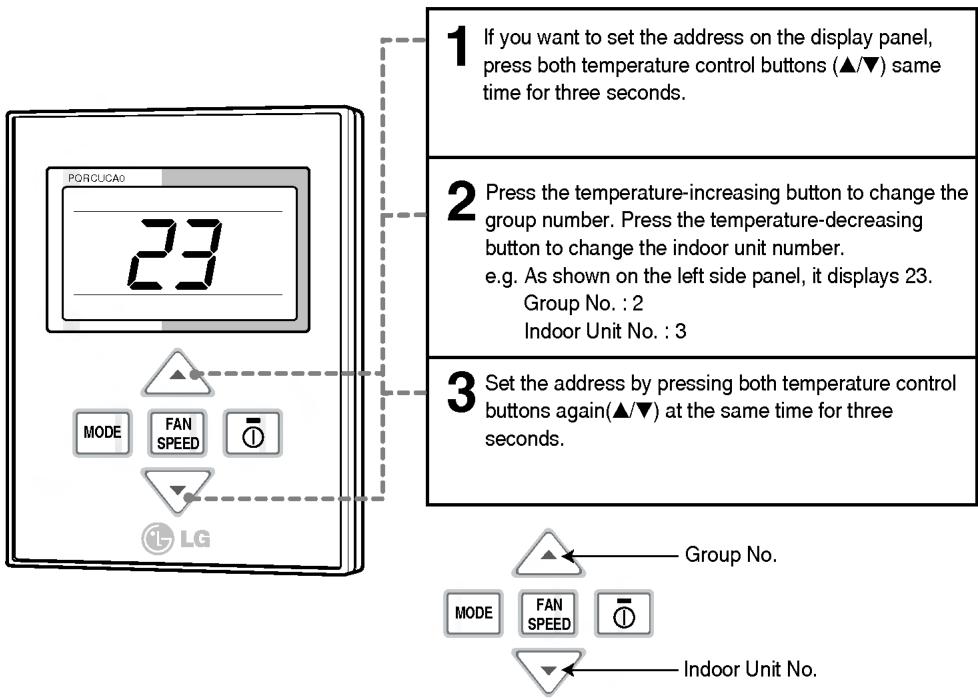
- If you connect the indoor unit to the central controller, you should set the network address of the indoor unit so that the central controller could recognize it.
- The center-control address is composed of the group number and the indoor-unit number.
Note : The remote controller displays 'HL' if central controller has locked the remote controller.
ESP Function
E.S.P function is setting the volume of each fan speed. It is for the convenience of installation. It is recommended that you should not use this function while using the remote controller.
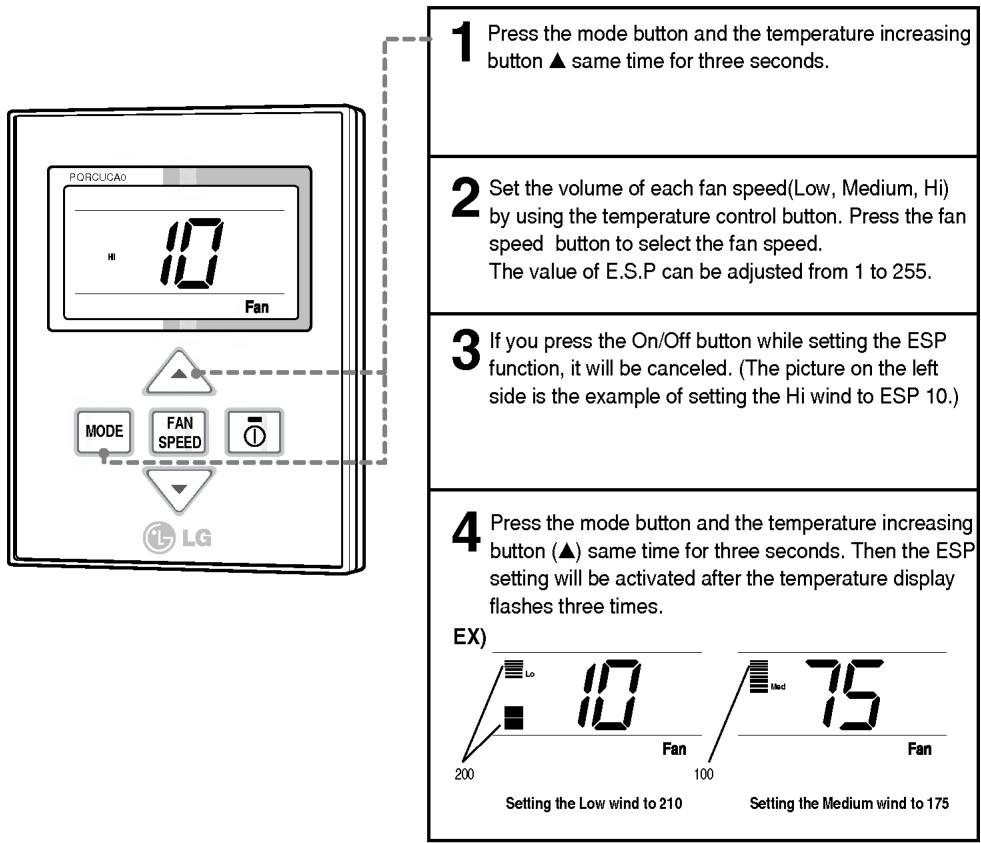
* The E.S.P value is set at the proper value at the factory. So it is highly recommended that you should not change the E.S.P value at your discretion.
How to use the Mode Selection Button
Cooling Operation
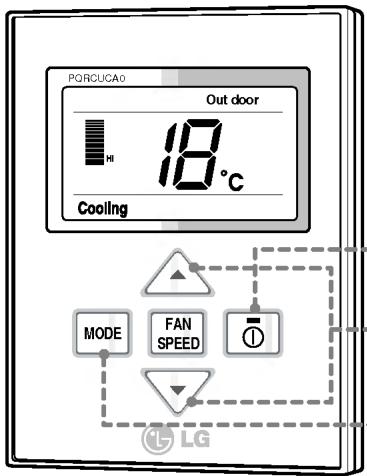
1 Cooling operation will begin if you press the On/Off button.
* Plasma function is always operating for working if product has plasma function.
2 Press the temperature button and set the desired temperature lower than the current room temperature. (18\~30°C)

A click of the button will increase the desired temperature by 1^ C.
A click of the button will decrease the desired temperature by 1^ C.
* If the desired temperature is set higher than the current room temperature, the cooling function will not begin and just the blowing operation will continue.
3 If you press the mode button during the operation, the operation mode will be changed in the order of cooling, heating, dry(dehumidification), fan and auto-operation.
If the product is a Cooling-Only model, the operation mode will be changed in the order of cooling, dry(dehumidification), fan and auto-operation.
4 If you press the On/Off button, the cooling operation will stop.
Heating Operation
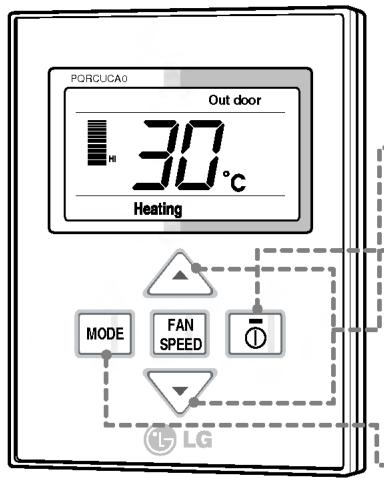
1 If you want to set the heating operation, press the On/Off button. And press the mode button. * Plasma function is always operating for working if product has plasma function.
2 Set the desired room temperature higher than the current room temperature. (16\~30°C)

A click of the button will increase the desired temperature by 1^ C.
A click of the button will decrease the desired temperature by 1^ C.
* If the desired temperature is set lower than the current room temperature, the heating function will not begin.
3 If you press the mode button during the operation, the operation mode will be changed in the order of cooling, heating, dry(dehumidification), fan and auto-operation.
4 If you press On/Off button again, the heating operation will stop.

natural_image
Cartoon illustration of a smiling woman in a chef's apron, waving (no text or symbols)What is the three-minute delay function?
It will take time for the product to blow warm air. The delay is to protect the compressor. The room will be heated with warm air after three minutes when the compressor begins operation.
■ The cooling-only model will not do heating function.
Auto-Operation
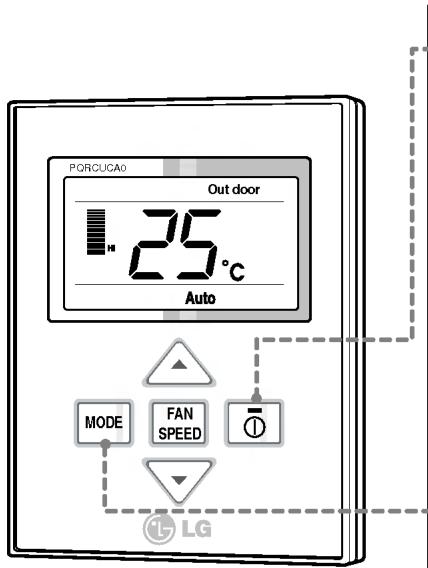
1 Set the operation mode to auto-operation after pressing the On/Off button.
* Plasma function is always operating for working if product has plasma function.
2 When the room temperature is lower than the desired temperature: Heating Operation starts [For Heat Pump Models only]
When the room temperature is higher than the desired temperature: Cooling Operation starts
3 If you press the mode button during the operation, the operation mode will be changed in the order of cooling, heating, dry(dehumidification), fan and auto-operation.
The cooling-only model will show "AI" on the temperature display.
"AI" could be adjusted by five levels (-2, -1, 0, +1, +2).
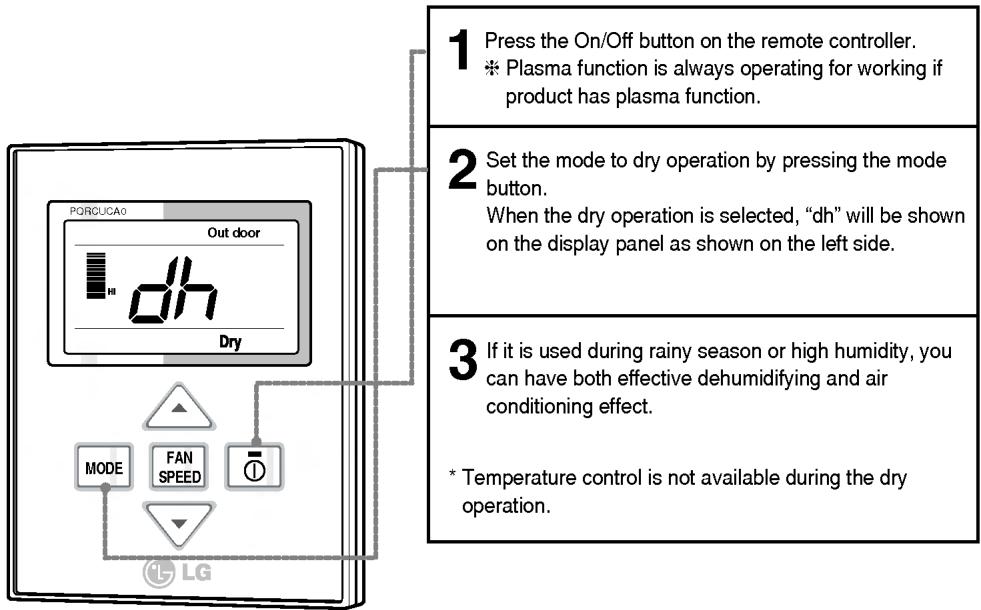
Dry(Dehumidification) Operation
Dry(Dehumidification) by lowering temperature slightly
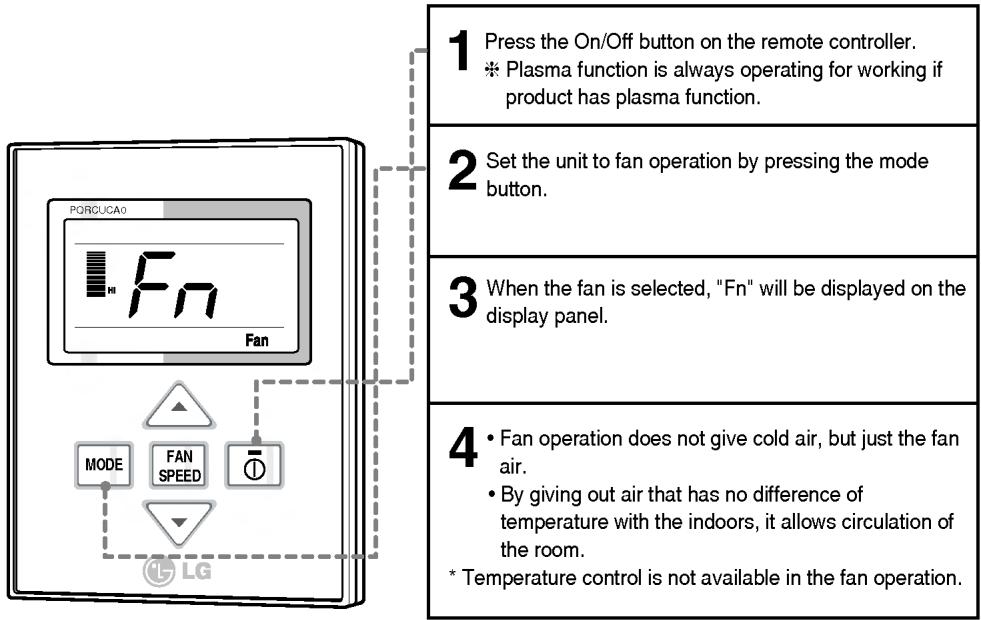
Fan Operation
Fan Speed Selection
You can easily control the fan speed.
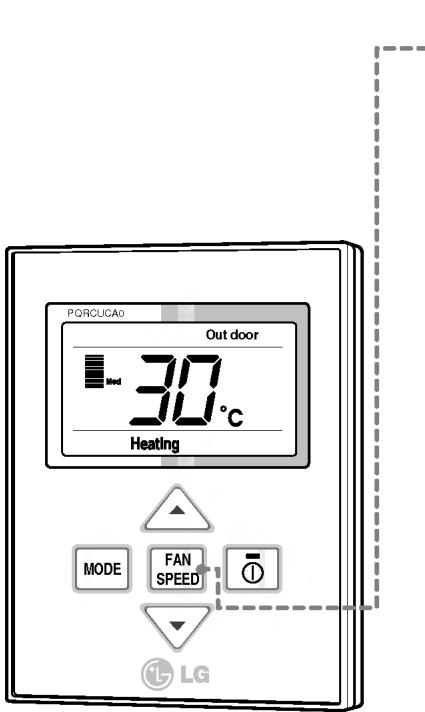
1 Select the proper fan speed which you want by pressing the fan speed button on the remote controller.
- If you press the fan button, the speed of the fan will change in the order of Low>Medium>Hi>Power.
• The initial fan speed is "Hi" - If the product is not compatible with the Fan speed control, it will not function as per your selection.
Fan Speed Selection in Cooling Operation
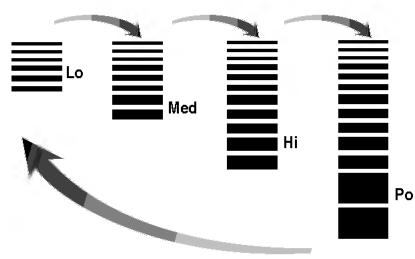
flowchart
graph TD
    A["Lo"] --> B["Med"]
    B --> C["Hi"]
    C --> D["Po"]
Fan Speed Selection in Heating, Dry, Fan, Auto-Operation
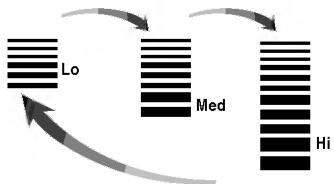
flowchart
graph TD
    A["Lo"] --> B["Med"]
    B --> C["Hi"]
    C --> A
Indoor Temperature Display
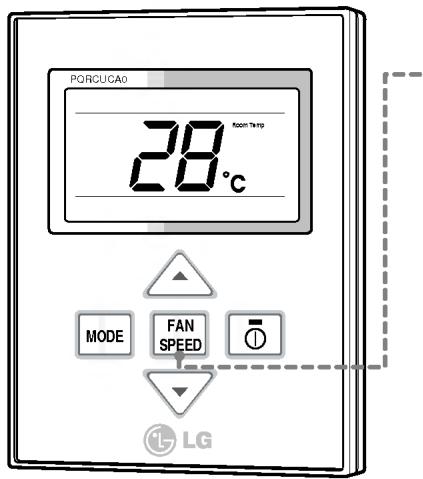
1 When the fan speedbutton is pressed on the remote controller for about 3 seconds, the indoor temperature will be displayed for about 5 seconds, then goes back to the previous screen.
- Indoor temperature display may differ according to slide S/W1 setting on the remote controller.
* There would be some difference between actual temperature you feel and room temperature of remote controller, because the temperature of the position is not uniform which the remote controller is located on.
Auto Swing
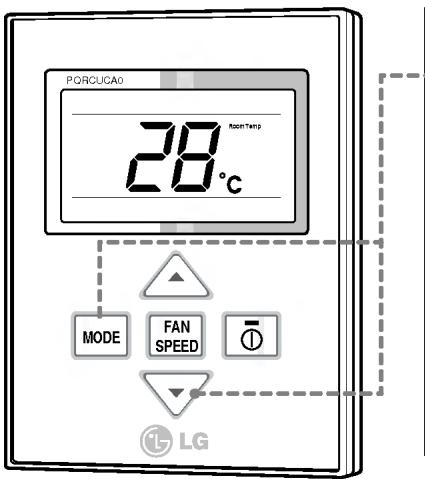
1 You can use the Auto Swing Function by pressing both temperature decreasing button and mode button for three seconds.
2 If you want to cancel the Auto Swing function, press the temperature decreasing button and mode button again for three seconds.
※ Even though Auto Swing Function is working, remote controller is not displayed.
Child Lock
This is a function to prevent tampering of settings by children or others.
Different Mode Operation
When One outdoor unit have several indoor units, Different Mode Operation is which each indoor unit operate different mode.
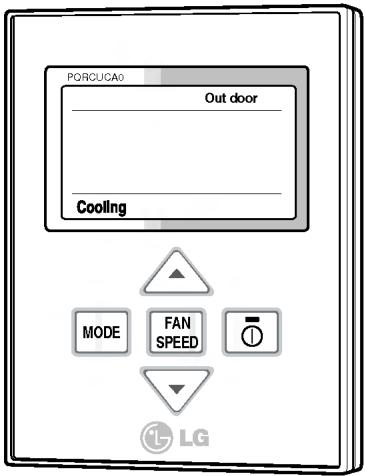
1 If one indoor unit operate heating Mode while several indoor units are operating Cooling Mode, Outdoor segment and Cooling segment are blinking like screen on the left.
→ It means operation of cooling Mode in outdoor unit.
2 If one indoor unit operate Cooling or Dehumidification Mode while several indoor units is operating Heating Mode, Outdoor segment and Cooling segment is blinking.
→ It means operation of Heating Mode in outdoor unit.
3 When push the On/Off button, the indoor unit operate mode automatically which other indoor unit is operating for 5 second later.
* If the product is not compatible with the Different Mode Operation, Screen will be displayed CH07.
※ If CH07 is displayed, please change the mode.
* Different Mode Operation is not error.


- LG
- Simple Wired Remote Controller
- Owner's & Installation Manual
- IMPORTANT
- TABLE OF CONTENTS
- Safety Precautions
- WARNING
- ■ Installation
- In-use
- CAUTION
- Part Description
- Accessory
- Wired remote controller switch information
- Product selection switch
- Indoor temperature sensor selection switch
- Ceiling height selection switch
- Group control switch
- Installation Method
- Necessary functions before using
- Trial Operation
- Setting the Central-Control Address
- ESP Function
- How to use the Mode Selection Button
- Cooling Operation
- Heating Operation
- What is the three-minute delay function?
- Auto-Operation
- Dry(Dehumidification) Operation
- Fan Operation
- Fan Speed Selection
- Indoor Temperature Display
- Auto Swing
- Child Lock
- Different Mode Operation
Marque : LG
Modèle : PQRCUCA0
Catégorie : Télécommande