
VHF 300I AIS - Équipement de communication maritime GARMIN - Notice d'utilisation et mode d'emploi gratuit
Retrouvez gratuitement la notice de l'appareil VHF 300I AIS GARMIN au format PDF.


| Type de produit | Radio VHF marine avec récepteur AIS |
| Marque | Garmin |
| Modèle | VHF 300I AIS |
| Dimensions | Environ 185 x 80 x 140 mm (sans support) |
| Poids | Environ 900 g |
| Alimentation | 12-24 V CC, câble d'alimentation fourni |
| Fonctions principales | Communication VHF marine, réception AIS intégrée, appel sélectif numérique (DSC), double veille, balise de détresse, canaux météo, écran LCD rétroéclairé |
| Canaux | Tous les canaux marins internationaux, américains et canadiens, canaux météo NOAA |
| Puissance d'émission | 25 W (haute) / 1 W (basse) |
| Récepteur AIS | Classe B, double canal, décode et affiche les cibles AIS |
| GPS | Intégré, pour la position DSC et l'affichage des cibles |
| Étanchéité | Norme IPX7 (immersion jusqu'à 1 mètre pendant 30 minutes) |
| Entretien et nettoyage | Nettoyer avec un chiffon humide et un détergent doux. Éviter les solvants. Sécher avant de recharger. |
| Sécurité | Utilisation conforme aux réglementations maritimes. Ne pas utiliser comme seul moyen de navigation. Lecture du manuel obligatoire. |
| Pièces détachées et réparabilité | Pas de pièces réparables par l'utilisateur. Contacter un service agréé Garmin pour toute réparation. |
| Informations générales | Garantie limitée d'un an. Enregistrement en ligne recommandé. Support technique disponible sur www.garmin.com. |
FOIRE AUX QUESTIONS - VHF 300I AIS GARMIN
Questions des utilisateurs sur VHF 300I AIS GARMIN
0 question sur cet appareil. Repondez a celles que vous connaissez ou posez la votre.
Poser une nouvelle question sur cet appareil
Téléchargez la notice de votre Équipement de communication maritime au format PDF gratuitement ! Retrouvez votre notice VHF 300I AIS - GARMIN et reprennez votre appareil électronique en main. Sur cette page sont publiés tous les documents nécessaires à l'utilisation de votre appareil VHF 300I AIS de la marque GARMIN.
MODE D'EMPLOI VHF 300I AIS GARMIN
Edge™ 205/305
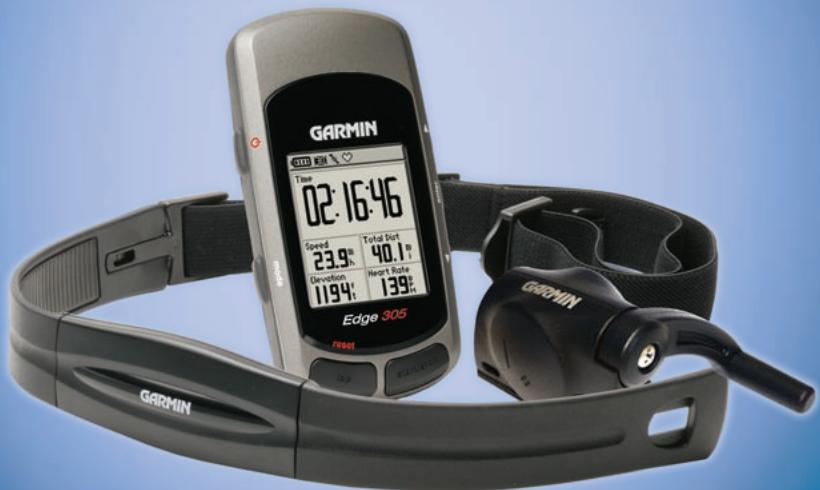
GPS-enabled computer for cyclists
Copyright 2005-2006 Garmin Ltd. or its subsidiaries.
Garmin International, Inc.
1200 East 151st Street
Olathe, Kansas 66062, U.S.A.
Tel. 913/397.8200 or
800/800.1020
Fax 913/397.8282
Garmin (Europe) Ltd.
Unit 5, The Quadrangle
Abbey Park Industrial Estate
Romsey, SO51 9DL, U.K.
Tel. 44/0870.8501241
Fax 44/0870.8501251
Garmin Corporation
No.68,Jangshu 2nd Road
Shijr, Taipei County, Taiwan
Tel. 886/2.2642.9199
Fax 886/2.2642.9099
All rights reserved. Except as expressly provided herein, no part of this manual may be reproduced, copied, transmitted, disseminated, downloaded or stored in any storage medium, for any purpose without the express prior written consent of Garmin. Garmin hereby grants permission to download a single copy of this manual onto a hard drive or other electronic storage medium to be viewed and to print one copy of this manual or of any revision hereto, provided that such electronic or printed copy of this manual must contain the complete text of this copyright notice and provided further that any unauthorized commercial distribution of this manual or any revision hereto is strictly prohibited.
Information in this document is subject to change without notice. Garmin reserves the right to change or improve its products and to make changes in the content without obligation to notify any person or organization of such changes or improvements. Visit the Garmin Web site (www.garmin.com) for current updates and supplemental information concerning the use and operation of this and other Garmin products.
Garmin®, Auto Lap® and Auto Pause® are registered trademarks and Edge™, GSC10™, Virtual Partner™, and Garmin Training Center™ are trademarks of Garmin Ltd. or its subsidiaries and may not be used without the express permission of Garmin.

TABLE OF CONTENTS
Introduction. 5
About This Manual 5
Getting Started. 6
Charge the Battery 6
Position the Edge 10
Configure the Edge 12
Acquire Satellite Signals. 13
Position the Heart Rate Monitor 14
Position the GSC10 Sensor 16
Set Your User Profile....19
Set Your Bike Profile 20
Change the Backlight and Contrast Settings 21
Training. 22
Auto Pause 22
Auto Lap 22
Alerts 24
Using Time and Distance Alerts 24
Using Speed Alerts 25
Using Heart Rate Alerts...26
Using Cadence Alerts.....27
Virtual Partner™ 28
Workouts: Quick, Interval, and Advanced 29
Using Workouts 30
Quick Workouts 30
Interval Workouts 32
Advanced Workouts. 33
Courses 39
Creating Courses 39
Using a Course 40
History 43
Viewing History 43
Deleting History 46
Navigation 47
Navigating with the Map...47
Marking and Finding
Locations 48
Navigating with Routes....50
Viewing GPS
Information 52
Customizing 54
Setting Up Custom Data Fields 54
Changing System
Settings 56
Updating User Profile.....59
Changing Bike Profile.....59
Setting Zones 60
Speed Zones 60
Heart Rate Zones 61
Data Recording 62
Appendix 64
Edge Data Fields 64
Edge Accessories. 70
Viewing Heart Rate Data...71
Training with Heart Rate Zones 71
Sensor Pairing 74
Training with Cadence ....76
Barometric Altimeter. 76
Tire Size and
Circumference 77
Garmin Training Center ...79
Caring for the Edge 80
Specifications 81
Product Registration......84
Contact Garmin 84
Warning 85
Caution 86
Limited Warranty 87
FCC Compliance. 88
Software License
Agreement. 90
CE Compliance 90
Index 91
INTRODUCTION
Thank you for choosing the Garmin® Edge™! Track your cycling activities using this advanced GPS-enabled computer.
About This Manual
To get the most out of your Edge, review this manual and the Edge Quick Reference Guide.
Getting Started-charge your Edge, position and use the heart rate monitor and GSC10 speed and cadence sensor, and set up the Edge for your first ride.
Training-customize alerts and create workouts and courses on your Edge.
History-view and manage your Edge history data.
Navigation-learn about the navigating features of your Edge, including how to save and find locations, create routes, and view the satellite page.
Customizing—configure your Edge settings to fit your training needs.
Appendix—review specifications, cleaning instructions, information about Garmin Training Center™, and optional accessories. Be sure to read the safety information in this section to learn how to use your Edge safely and responsibly.
Index-contains a comprehensive index by subject.
GETTING STARTED
Follow the instructions in this section to set up and begin using your Edge.
Charge the Battery
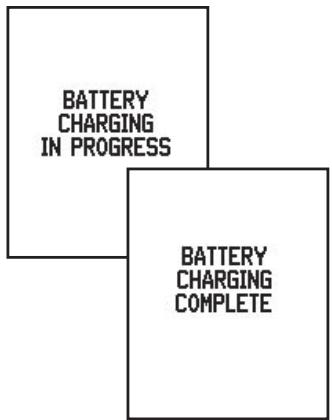
The Edge is powered by a built-in lithium-ion battery that you can recharge with the A/C charger included in the product box. You can also charge the Edge with the USB cable and your personal computer. Charge the Edge for at least three hours before you begin using it.
WARNING: Be sure the mini-USB port, weather cap, and surrounding area are thoroughly dry before charging or connecting to a personal computer to prevent corrosion.
To charge the Edge:
- Turn the Edge over and pull back the weather cap from the mini-USB port on the back of the unit.
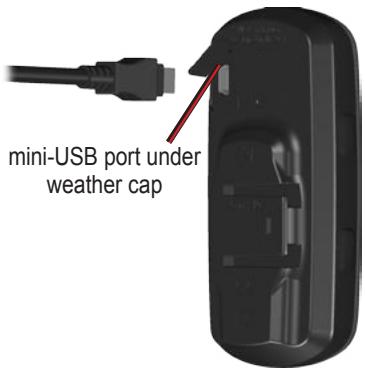
- Locate the A/C charger included in the product box. Plug the mini-USB end of the charger into the mini-USB port on the Edge. Then plug the A/C charger into a standard wall outlet.
NOTE: The unit will not charge outside the temperature range of 0^ - 50^ (32^ - 122^)
3. Plug the A/C charger into a standard wall outlet. When the battery is completely charged, it can run for approximately 12 hours before recharging.
Buttons
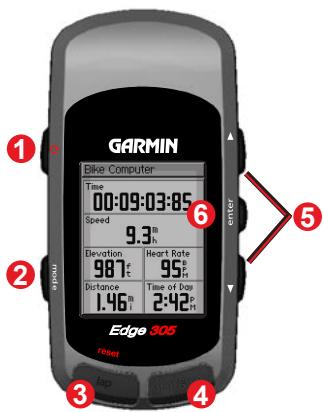
1 power
- Press and hold to turn unit on/off.
- Press to turn backlight on/off.
mode
- Press to switch modes.
- Press to return to the previous page.
- Press and hold to switch bike profiles.
3 reset/lap
- Press and hold to reset the timer.
- Press to create a new lap.
4 start/stop
Press to start/stop the timer.
up/down ▲▼
- Press to highlight options.
- Press to scroll through menus and data fields.
- Press to adjust contrast when on the Satellite page.
enter
Press to select options and to acknowledge messages.
NOTE: Press mode and reset/lap
simultaneously to reset the unit.
Icons

Battery icon shows the current battery charge level.


Satellite icon changes from blank to 3D when receiving satellite signals.

USB connection icon appears when you connect the Edge to your computer using the USB cable.

Timer icon appears when timer starts.


Heart Rate icon is constant (no flashing X) when receiving data.


Cadence icon is constant (no flashing X) when receiving data.
Position the Edge
For best results, position the Edge with the face oriented toward the sky. This position allows the GPS antenna to acquire satellite information quickly.
You can install the bike mount to the stem or handlebars. The stem installation (shown here) provides a more sturdy location. The optional wedge should be used under the mount for a better viewing angle.
To install the Edge on your bike stem:
- Place the wedge on the bike stem, and then place the bike mount on the wedge. Make sure the release lever is on the left.
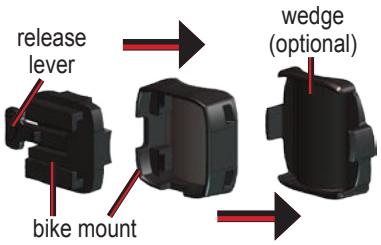
For horizontal bars: Separate and remove the top part of the mount, turn it 90 degrees, and replace. Continue with step 2.
For bars with a diameter less than 1 in (25.4 mm): Place the additional rubber pad under the bike mount to increase the diameter of the bar. The rubber pad also keeps the mount from slipping. Continue with step 2.
- Attach the bike mount securely using two cable ties. Make sure the cable ties are threaded through both parts of the bike mount.
- Align the Edge with the bike mount so that the unit is vertical.
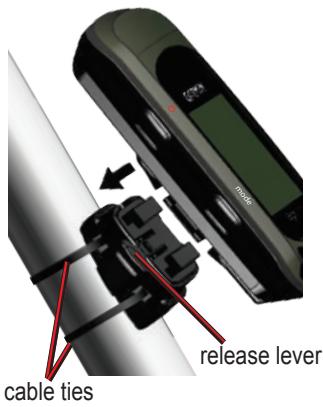
- Slide the unit left until it snaps into place.
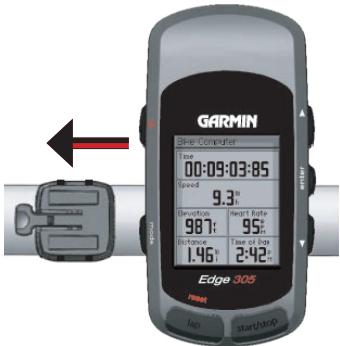
Top view of Edge being mounted on a horizontal bar.
To release the unit:
Press down on the release lever, and slide the unit to the right.
Configure the Edge
When you first turn on your Edge, the following setup screens appear.
Follow the on-screen instructions:
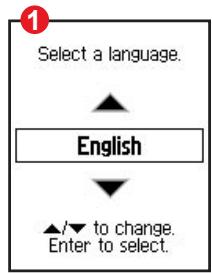
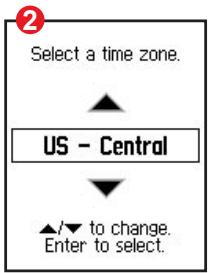
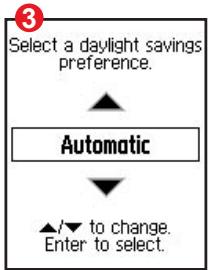
5 apply to Edge 305 only.
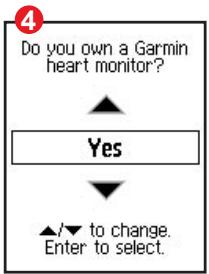
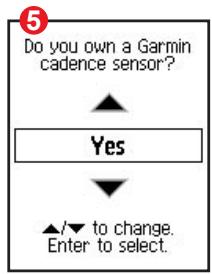
Acquire Satellite Signals
Before you begin using the Edge, you must acquire GPS satellite signals. It may take 30-60 seconds to acquire signals.
To acquire satellite signals:
Go outdoors to an open area.
Then press and hold the Power
button to turn on the Edge.
On the Satellite page, the available satellites are flashing while the Edge searches for satellite signals. Acquired satellites and each corresponding bar below change to solid. The GPS accuracy appears at the top of the page.
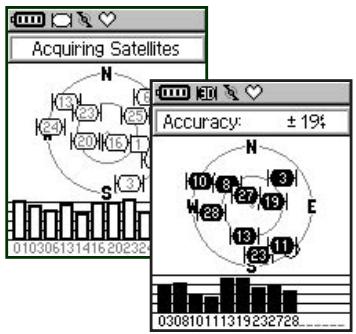
Wait while the Edge searches for satellites. For best reception, make sure the Edge is facing up. Stand still in an open area, and do not begin moving until the Satellite page disappears. After the Satellite page disappears, you can begin your ride.
NOTE: To turn off GPS receiver and use the Edge indoors, see page 56.
Position the Heart Rate Monitor
NOTE: The heart rate monitor is an accessory for the Edge 305 only.
Wear the heart rate (HR) monitor directly on your skin, just below the breastplate. It should be snug enough to stay in place during your workout. To view heart rate information on your Edge during a workout, you must add it to the data fields on one of the data pages. See page 54 for more
information on customizing the data fields on your Edge.
To use the heart rate monitor:
- Push one tab on the elastic strap through the slot in the heart rate monitor.
- Wet both sensors on the back of the heart rate monitor to create a strong connection between your pulse and the transmitter.
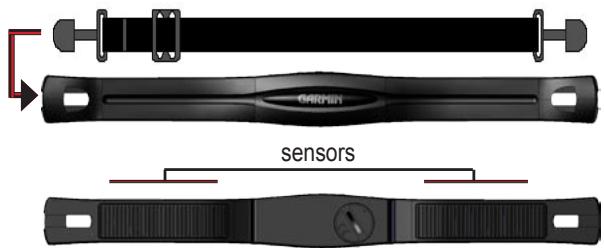
- Place the heart rate monitor directly on your skin, just below the breastplate. Wrap the strap around your chest and attach the strap to the other side of the heart rate monitor.
NOTE: If you have trouble with erratic heart rate readings, position the transmitter on your back instead of your chest, or try applying electrode gel.
- Tighten or loosen the strap as necessary so that it fits snugly against your body.
-
Turn on the Edge.
-
Bring it within range (3 meters) of the heart rate monitor. The heart rate monitor automatically transmits your heart rate to the Edge, and the heart rate icon changes from flashing to constant.
TIP: Be sure to move away from other heart rate monitors while the Edge is trying to "pair" with your heart rate monitor and begin receiving heart rate data. Once the Edge pairs with your heart rate monitor, you can go near other heart rate monitors. For more information on pairing, training, and troubleshooting, see pages 71-75.
Position the GSC10 Sensor
NOTE: The GSC10 is an accessory for the Edge 305 only.
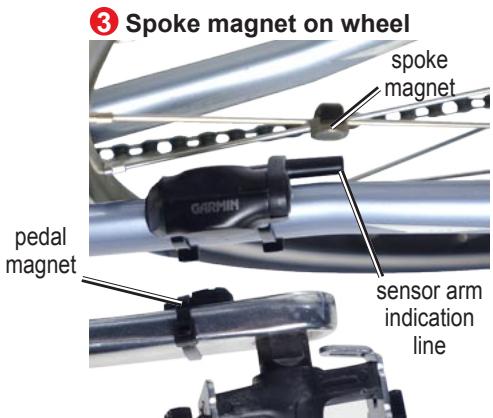
The Edge 305 CAD includes a wireless speed and cadence sensor. Both magnets must be aligned with their respective indication lines for the Edge to receive data.
To install the GSC10:
- Place the GSC10 on the rear chain stay (on the side opposite of the drive train). Loosely attach the GSC10 using two cable ties.
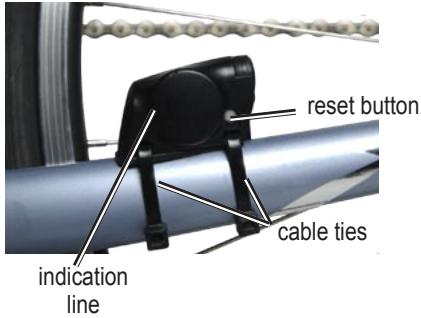
GSC10 on rear chain stay
- Attach the pedal magnet to the crank arm using the adhesive mount and a cable tie. Make sure the pedal magnet is within 5mm of the GSC10 and the indication line on the pedal magnet lines up with the indication line on the GSC10.
- Attach the spoke magnet by unscrewing the magnet from the plastic piece. Then place the spoke in the groove of the plastic piece and tighten slightly. The magnet can face away from GSC10 if there is not enough room between sensor arm and spoke. Make sure the magnet is aligned with the sensor arm indication line.
2 Pedal magnet on crank arm
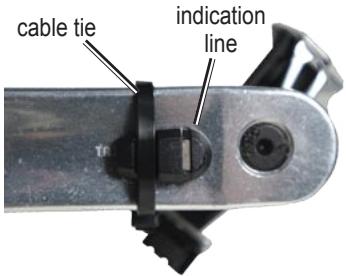
-
Unscrew and move the sensor arm to within 5mm of the spoke magnet. You can also tilt the GSC10 closer to either magnet for improved alignment.
-
Press the Reset button on the GSC10. The LED light turns red, then green. Pedal to test the sensor alignment. The red LED blinks each time the crank arm passes the sensor, and the green LED blinks each time the wheel magnet passes the sensor arm.
NOTE: The LED blinks for the first 60 passes after a reset. Press Reset again if you require additional passes.
- When everything is aligned and working correctly, tighten the cable ties, sensor arm, and spoke magnet.
Set Your User Profile
The Edge uses information that you enter about yourself to calculate calorie consumption. Set your user profile before you begin using the Edge to ensure it is recording accurate workout data.
To set your user profile:
- Press mode to access the Main Menu.
- Select Settings > User Profile.
- Enter your Gender, Birth Date, and Weight.
TIP: When finished selecting options or entering values on your Edge, press the mode button to exit the field or page.
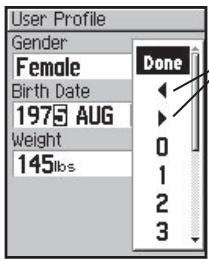
Select the arrows to move left or right within a field.
If you are setting your user profile for the first time (Edge 305 with heart rate monitor), a Max HR message appears. Select Yes to adjust your maximum heart rate calculation based on your user profile.
Set Your Bike Profile You can set up to three profiles.
To set your bike profile:
- Press mode to access the Main Menu.
- Select Settings > Bike Profile.
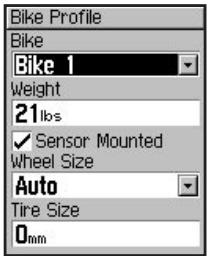
- Select the bike profile you wish to use.
-
Enter the Bike Weight.
-
If you have an Edge 305 with the GSC10 speed and cadence sensor on your bike, select the Sensor Mounted check box.
- In the Wheel Size field, select Auto to have the GSC10 automatically detect your tire size using GPS data or select Custom to enter your tire size. For a table of tire sizes and circumferences, see pages 77-78.
Change the Backlight and Contrast Settings
To change the Edge display:
- Press mode to access the Main Menu.
- Select Settings > System > Display.
- Select the amount of time the backlight stays on. Use a short backlight timeout setting to conserve battery power.
- Select the amount of screen contrast.
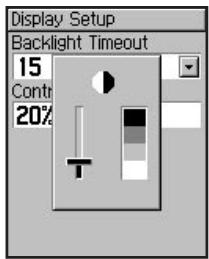
NOTE: You can also adjust the screen contrast on the Satellite page using the arrows.
TRAINING
The Edge offers several training features and optional settings. Use your Edge to set goals and alerts, train with a Virtual Partner™, program workouts, and plan courses based on existing rides.
Auto Pause®
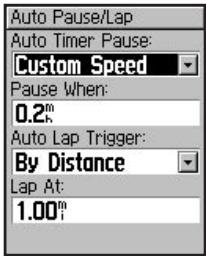
You can set the Edge to pause the timer automatically during your ride when you stop moving or your speed drops below a custom value. This setting is helpful if your course includes stop lights or other places where you need to slow down or stop.
When you turn on Auto Pause, the Edge stores any paused time as Rest Time and any paused
distance as Rest Distance. To add these data fields to a custom page, see page 54.
NOTE: Rest time and distance for Auto Pause are not stored in history.
Auto Lap®
You can use Auto Lap to automatically mark the lap at a specific position or after you have traveled a specific distance. This setting is helpful for comparing your performance over different parts of a ride (each 5K or a major hill, for example).
To set Auto Pause/Lap:
-
Press mode to access the Main Menu.
2 Select Training > Auto Pause/Lap. -
In the Auto Timer Pause field, select When Stopped or Custom Speed to enter a value.
-
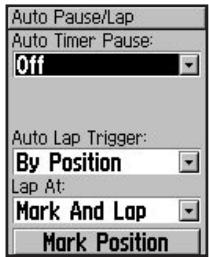
In the Auto Lap Trigger field, select By Distance to enter a value or By Position to choose an option:
-
Lap Press only—triggers the lap counter each time you press the lap button and every time you pass that location again.
-
Start And Lap—triggers the lap counter at the GPS location where you press the start button and at any locations during the ride where you press the lap button.
- Mark And Lap—triggers the lap counter at a specific GPS location marked before the ride and at any locations during the ride where you press the lap button.
Alerts
Use Edge alerts to train toward certain time, distance, speed, heart rate, and cadence goals.
Using Time and Distance Alerts
Time and distance alerts are useful for long workouts when you want to train for a certain amount of time or distance. When you reach your goal, the Edge beeps and displays a message.
To set a time or distance alert:
- Press mode to access the Main Menu.
- Select Training > Alerts > Time/Dist Alert.
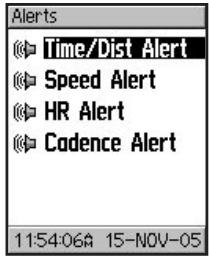
- In the Time Alert field, select Once or Repeat.
- Enter a time in the Alert At field.
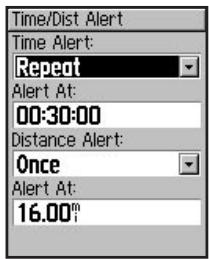
- In the Distance Alert field, select Once or Repeat.
- Enter a distance in the Alert At field.
Using Speed Alerts
Speed alerts notify you if you exceed or drop below a custom speed setting during your ride.
The speed alert takes advantage of Speed Zones, which are ranges of speed that you can store in the Edge. For more information, or to set your Speed Zones, see page 60.
To set a speed alert:
- Press mode to access the Main Menu.
- Select Training > Alerts > Speed Alert.
- In the Fast Speed Alert field, select a Speed Zone from the menu or select Custom to enter your own alert value.
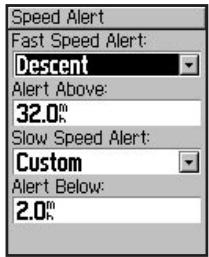
- Repeat for the Slow Speed Alert.
Using Heart Rate Alerts
NOTE: Heart rate alerts are a feature of the Edge 305 only.
Similar to speed alerts, the heart rate alert notifies you if your heart rate exceeds or drops below a specific number of beats per minute (bpm).
Heart rate alerts can also notify you if your heart rate exceeds or drops below a certain heart rate zone—a range of beats per minute. The five commonly accepted heart rate zones can help you determine the intensity of your workout. For more about setting your heart rate zones, see page 61. For more information about training with heart rate zones, see page 71.
To set a heart rate alert:
- Press mode to access the Main Menu.
- Select Training > Alerts > HR Alert.
- In the Min HR Alert field, select a zone from the menu or select Custom to specify your own alert value.
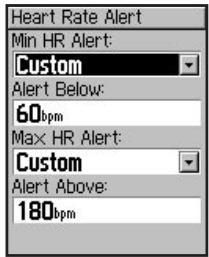
- Repeat for the Max HR Alert. The maximum value allowed is 235 bpm.
NOTE: When entering custom heart rate values, you must set your minimum and maximum alerts at least 5 bpm apart.
Using Cadence Alerts
NOTE: Cadence alerts are a feature of the Edge 305 only.
Similar to speed alerts, the cadence alert notifies you if your cadence exceeds or drops below a specific number of revolutions of the crank arm per minute (rpm). For more information about training with cadence, see page 76.
To set a cadence alert:
- Press mode to access the Main Menu.
- Select Training > Alerts > Cadence Alert.
- In the Fast Cadence Alert field, select On.
- Enter a value in the Alert Above field. The maximum cadence value allowed is 255.
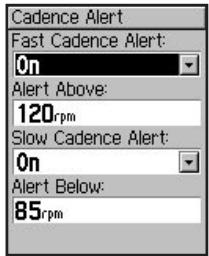
- Repeat for the Slow Cadence Alert.
Virtual Partner™
Your Virtual Partner is a unique tool designed to help you meet your training goals. The Virtual Partner competes with you during quick workouts and courses. The Virtual Partner "rides" alongside (top bike graphic) of you. Your current time, speed, distance, and distance from the Virtual Partner appears on the Workout page. If you are ahead of the Virtual Partner, the bottom field background is white. If you are behind, the background is black (as shown).
To see Virtual Partner data:
- Set up a quick workout or course.
- Press mode to see the Workout or Course page.
- Press start.
- Press enter to scroll through the workout or course data pages.
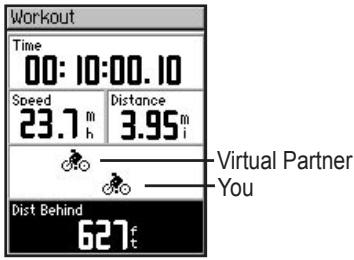
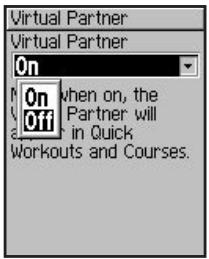
To turn off Virtual Partner:
- Press mode to access the Main Menu.
- Select Training > Virtual Partner.
- In the Virtual Partner field, select Off.
Workouts: Quick, Interval, and Advanced
From the Main Menu, select Training > Workouts to choose the type of workout right for you.
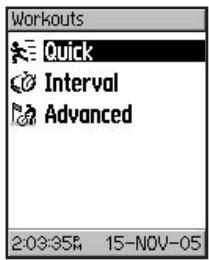
Quick and interval workouts are replaced each time you create a workout of the same type. Advanced workouts can be saved, edited, and transferred between Garmin Training Center and your Edge.
Using Workouts
During your workout, press mode to see the Workout data page. When you complete all steps in your workout, the "Workout Finished!" message appears.
To end a workout early:
- Press mode to access the Main Menu.
- Select Training > Stop Workout.
To end an interval or advanced workout step early: Press the lap/reset button.
Quick Workouts
For quick workouts, you enter your time, distance, or pace goals, and the Edge displays the Virtual Partner to help you achieve them. It is easy to set up one of the following quick workouts with your Edge:
Distance and time
Time and speed
Distance and speed
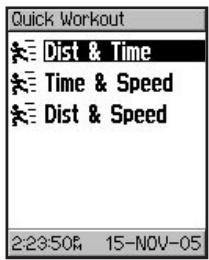
To set up a quick workout:
- Press mode to access the Main Menu.
- Select Training > Workouts > Quick Workouts.
- Select the type of quick workout.
- Enter values in the first and second fields.
- Check the third field to ensure that calculation seems reasonable. If not, make changes to the top two fields.
- Select Done?.
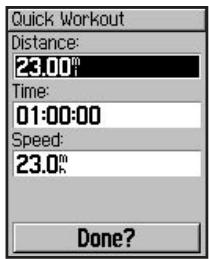
- Press start to begin your quick workout.
Interval Workouts
You can create simple and challenging interval workouts with your Edge based on the following criteria:
- Ride a certain distance and rest for a certain amount of time.
- Ride for a certain distance and rest for a certain distance.
- Ride for a certain amount of time and rest for a certain amount of time.
- Ride for a certain amount of time and rest for a certain distance.
To create an interval workout:
- Press mode to access the Main Menu.
- Select Training > Workouts > Interval.
- Select an option from the Interval Workout page.
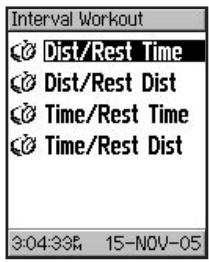
- Enter distance or time values into the appropriate fields.
-
In the Reps field, enter number of times you want to repeat each interval.
-
To add an extra lap for warm up and for cool down, select Warmup & Cooldown.
- Select Done?.
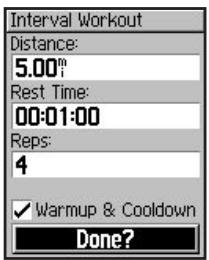
- Press start to begin your interval workout.
If you selected Warmup & Cooldown, press lap at the end of your warm up lap to start your first interval. At the end of your last interval, the Forerunner automatically starts a cooldown
lap. When you are finished cooling down, press lap to end your workout.
As you approach the end of each lap, an alarm sounds, and a message appears, counting down the time until a new lap begins. At any time during the interval workout, you can press the lap button to end a step early.
Advanced Workouts
Use the Edge to create and save advanced workouts that include goals for each workout step and varied distances, times, and rest laps. Once you create and save a workout, you can use the Garmin Training Center software to schedule the workout for a particular day. Scheduling allows you save setup time by planning
workouts in advance and storing them on your Edge. For more information about Garmin Training Center, see page 79.
Creating Advanced Workouts
Garmin recommends that you use the Garmin Training Center software to create workouts and transfer them to your Edge. However, you can also create and save an advanced workout directly on your Edge. Note that you cannot use the Edge to schedule workouts; you must use Garmin Training Center.
NOTE: Garmin Training Center serves as the "master list" of advanced workouts. If you create a workout on the Edge, be sure to transfer it to Garmin Training Center.
Otherwise, the workout will be overwritten when you load workouts from Garmin Training Center to your unit.
To create an advanced workout using the Edge:
- Press mode to access the Main Menu.
- Select Training > Workouts > Advanced >
. - Enter a descriptive workout name in the top field (for example, 40KHILLS).
- Select "1. Open No Target."
Select Edit Step.
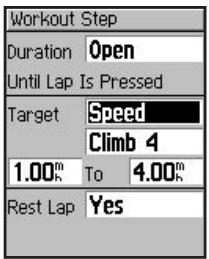
- In the Duration field, select how long you want the step to last. If you select Open, you can end the step during your workout by pressing lap.
- Below Duration, enter the value where you want the step to end.
- In the Target field, select your goal during the step (Speed, Heart Rate, Cadence, or None).
NOTE: Heart rate and cadence targets are for the Edge 305 only.
- Enter a target value from the menu. For example, if your target is heart rate, select a heart rate zone or enter a custom range. Select None if you do not want to set a target for this step.
- Below Target, enter a goal value for this step (if necessary).
- If this is a rest lap, select the Rest Lap field, and then select Yes. (Creating rest laps affects your workout history; see "Viewing Workout History.")
-
Press mode to continue setting up this workout.
-
To enter another step, select
. Then repeat steps 5-11.
To repeat steps:
- Select
. - In the Duration field, select Repeat.
- In the Back to Step field, select the step you want to return to.
- In the Number of Reps field, enter the number of repetitions.
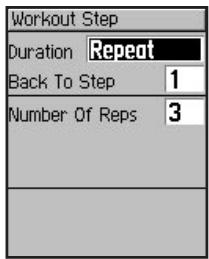
- Press mode to continue.
Starting Advanced Workouts
Once you begin an advanced workout, the Edge displays each step of the workout, including the name of the step, the goal (if any), and current workout data.
To start an advanced workout:
- Press mode to access the Main Menu.
- Select Training > Workouts > Advanced.
- Select the workout you want to start.
- Select Do Workout.
- Press start to begin your advanced workout.
NOTE: From the Workout page, press enter to view more data.
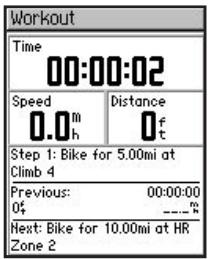
An audible alarm sounds when you are about to finish a workout step. A message appears, counting down the time or distance until a new step begins. At any time during the advanced workout, you can press the lap button to end a step early.
Editing Advanced Workouts
You can edit workouts within Garmin Training Center or directly in the Edge. However, if you edit workouts in the Edge, your changes may be temporary. Garmin Training Center serves as the "master list" of advanced workouts: if you edit a workout in the Edge, the changes will be overwritten the next time you transfer workouts from Garmin
Training Center. To make a permanent change to a workout, edit the workout in Garmin Training Center and then transfer it to your Edge.
To edit an advanced workout:
- Press mode to access the Main Menu.
- Select Training > Workouts > Advanced.
- Select the workout you want to change. Select Edit Workout.
- Select the step you want to edit. Select Edit Step.
- Make any necessary changes, and press mode.
- Edit other steps as necessary.
- Press mode to exit.
To delete an advanced workout:
- Press mode to access the Main Menu.
- Select Training > Workouts > Advanced.
- Select the workout you want to delete. Select Delete Workout.
- Select Yes to delete the workout.
Courses
Another way you can use the Edge for custom training is to create and edit courses based on a previously recorded activity. You can follow the course trying to match or exceed previously set goals. You can also race against the Virtual Partner when training with courses. To turn on Virtual Partner, see page 28.
Creating Courses
Garmin recommends that you use the Garmin Training Center software to create courses and course points. Then you can transfer them to your Edge. For more information, see the Garmin Training Center Help system.
You can also create a course (without course points) on your Edge.
To create a course on your Edge:
- Press mode to access the Main Menu.
- Select Training > Courses >
. - From the History page, select a previous ride on which to base your course.
- Enter a descriptive course name in the top field (for example, 10KFLAT).
- Press mode to exit.
Adding Course Points
You can mark course points, or places on your course that you want to remember, such as water stops or distance goals. You must use Garmin Training Center to add course points to any course. For more information, refer to the Garmin Training Center Help system.
Using a Course
To start a course:
- Press mode to access the Main Menu.
- Select Training > Courses.
- Select a course from the list.
- Select Do Course.
- Press start. History is recorded even if you are not on the course.
Course Data Pages
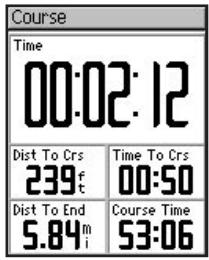
From the Course page, press enter to view additional course data on the bottom half of the screen including the course map, elevation graph, and Virtual Partner data. You can customize the top half of the Course page (up to four data fields). See pages 54-55.
Press mode to see your course on the map.
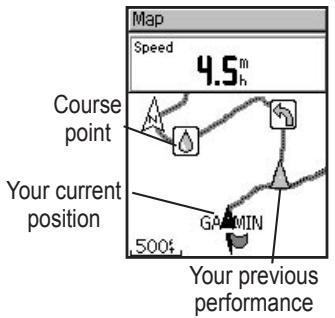
The gray triangle shows your previous performance.
The black triangle shows your current position.
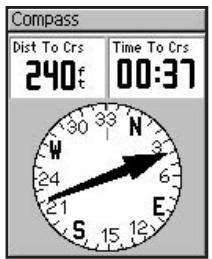
Press mode again to see the Compass page. If you have not entered the course, the compass points you toward the course and the fields display your current distance from the course and the estimated time to arrival.
Off Course Options
You can include a warmup before you actually begin your course. Press start to begin the course, and then warm up as normal. Be sure to stay away from your course path as you warm up. When you are ready to begin, head toward your course. When you are on any part of the course path, the Edge displays an "On Course" message and synchronizes the gray triangles.
If you stray away from the course, the Edge displays an "Off Course" message. The gray triangle continues on the course without you. Use the Compass page or Map page to find your way back to the course.
To end a course manually:
- Press mode to access the Main Menu.
- Select Training > Stop Course.
To edit a course name:
- Press mode to access the Main Menu.
- Select Training > Courses.
-
Select the workout you want to change. Select Edit Course.
-
Edit the course name.
- Press mode to exit.
To delete a course:
- Press mode to access the Main Menu.
- Select Training > Courses.
- Select the course you want to delete. Select Delete Course.
- Select Yes to delete the course.
- Press mode to exit.
HISTORY
Your Edge automatically saves all training data (when the timer is started) and can hold up to two years (1000 laps) of data in memory. When the memory is full, your oldest Edge data is overwritten. Load your history into the Garmin Training Center software periodically to keep track of all of your workouts. You can view the data on your Edge or transfer the history to the Garmin Training Center software, where you can analyze your data.
History data includes time, distance, calories, average speed, maximum speed, altitude, and detailed lap information. Edge 305 history data also includes heart rate and cadence.
NOTE: No data is recorded while the timer is stopped.
Viewing History
After you have finished a ride, you Edge stores history data that you can view by day, week, or totals.
To view history by day:
- Press mode to access the Main Menu.
- Select History > By Day.
- Press to scroll through the list. As you scroll, summary details appear below the list.
- Select an entry to view details. Select View Laps for additional lap detail.
About Lap Detail
The Edge displays history details differently, depending on the type of training you did. Details of a quick workout appear on one summary page. Details of Virtual Partner, interval workouts, advanced workouts, and courses appear with tabs, which organize information into sections. To view information on different tabs, press the and arrows.
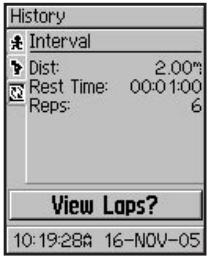
To view laps on map:
- While viewing details for a history entry, select View Laps.
- Select a lap in the list.
- Select View on Map.
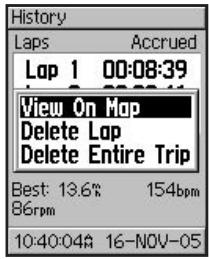
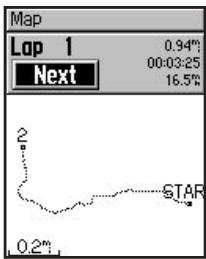
- Press the and arrows to zoom in and out on the map. When you are finished viewing the lap, select Next to view the next lap. Press mode to exit.
To delete laps or entire trips from history:
- While viewing details for a history entry, select View Laps.
- Select the lap you want to delete.
- Select Delete Lap or Delete Entire Trip. Select Yes to confirm.
NOTE: To delete more or all of your Edge history, see "Deleting History" on page 46.
To view history by weeks:
- Press mode to access the Main Menu.
- Select History > By Week.
- Press to scroll through the list of weeks. As you scroll, totals for each week appear below the list.
- Select a week to view details in that week by day.
To view history totals:
- Press mode to access the Main Menu.
- Select History > History Totals. Totals appear for distance, time, and calories for all of your saved workouts.
- Select View Weeks to see a list of weeks.
Deleting History
After you have transferred several months of Edge data to Garmin Training Center, you may want to delete the history from your unit.
To delete workout history:
- Press mode to access the Main Menu.
- Select History > Delete.
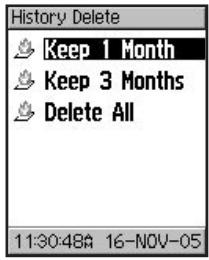
- Select Keep 1 Month, Keep 3 Months, or Delete All. Select Yes to confirm.
NAVIGATION
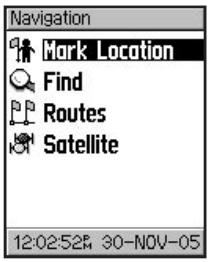
Use the GPS navigation features of your Edge to view your ride on a map, mark and save locations you want to remember, and create routes.
Navigating with the Map
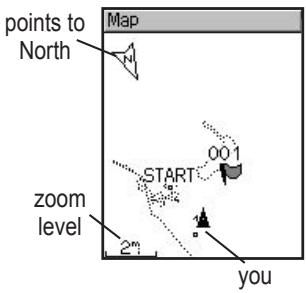
Press mode to see the Map page. When you start the timer and begin to move, a tiny dotted line appears on the map, showing
Edge™ 205/305 Owner's Manual
you exactly where you have traveled. This dotted line is called a track. At the bottom of the map, you can view the zoom level.
To zoom in or out on the map, press the and arrows. At the top of the map, you can view the direction you are traveling. At the top of the map, you can add custom data fields. See page 54.
Marking and Finding Locations
A location is a point on the map that you store in memory. If you want to remember landmarks or return to a certain spot, mark a location. The location appears on the map with a name and symbol. You can find, view, and return to locations at any time.
To mark your location:
- Go to a place where you want to mark a location.
- Press mode to access the Main Menu.
- Select Navigation > Mark Location.
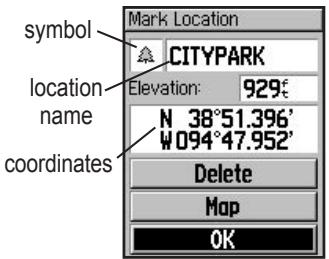
- Select a symbol.
- Enter a descriptive location name in the top field.
To mark a location using coordinates:
- Press mode to access the Main Menu.
- Select Navigation > Mark Location.
- Use the arrows to select the coordinates. Enter the latitude and longitude of the location you want to mark.
- Make other changes as necessary, and select OK.
To find and go to a location:
- Press mode to access the Main Menu.
- Select Navigation > Find.
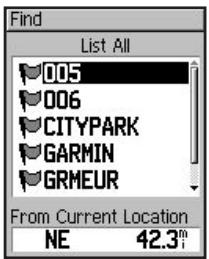
- Select List All or Nearest (locations near your current location).
- Use the arrows to find a location in the list. Direction and distance information for each location appears below the list.
-
Select the location.
-
Select Go To. Follow the line on the map to the location.
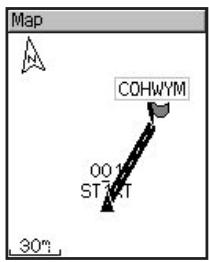
- Press mode to view the Compass page. The arrow points toward the location.
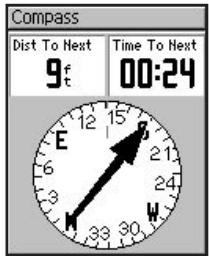
To stop navigating to a location:
- Press mode to access the Main Menu.
- Select Navigation > Stop Go To.
To edit a location:
- Press mode to access the Main Menu.
- Select Navigation > Find > List All.
- Select the location.
- Select the name or symbol, and make changes.
- Press mode to exit.
To delete a location:
- Press mode to access the Main Menu.
-
Select Navigation > Find.
-
Select List All to find and delete a specific location or select Delete All.
- Select Yes to confirm.
Navigating with Routes
A route provides straight line directions between two or more points on the map. After you create locations, you can use these points to build routes. Then you can save the routes and use them to navigate at any time. The Compass page also appears for routes.
To create a route:
- Press mode to access the Main Menu.
- Select Navigation > Routes.
-
Select New.
-
Select the dotted line, and press enter to add a location.
- Select the location from the list, and then select Use.
- Repeat steps 4 and 5 to add more locations to your route.
- When you are finished adding locations, select Navigate.
- Press start/stop. Your route appears on the Map page as a dark line connecting each location.
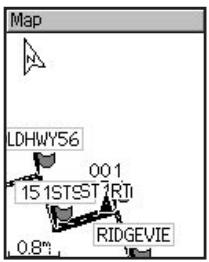
To find and follow a route:
- Press mode to access the Main Menu.
- Select Navigation > Routes.
- Select the route you want to follow. Select Navigate.
- Press start/stop. Your route appears on the Map page as a dark line connecting each location.
To stop navigating a route:
- Press mode to access the Main Menu.
- Select Navigation > Stop Route.
To edit a route:
- Press mode to access the Main Menu.
-
Select Navigation > Routes.
-
Select the route you want to edit. A menu appears.
- Select Edit. Then select a point to edit.
Review-view it on the map.
Insert-insert a point before this point.
Remove-remove it from the route.
Change-replace it with another point
Move-move it to another place in the route.
- When you are finished making changes, select Navigate or press mode to exit.
To delete a route:
- Press mode to access Menu mode.
-
Select Navigation > Routes.
-
Select the route you want to delete. A menu appears.
- Select Delete. Select Yes to confirm.
Viewing GPS Information
The Satellite page displays information about the GPS signals the Edge is currently receiving. Press mode to access the Satellite page.
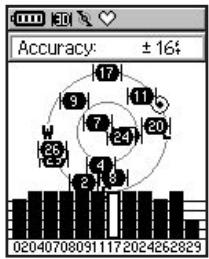
Each GPS satellite in space has a specific number that identifies it. The numbers of several GPS satellites appear on the circular graphic in the middle of the page. The number corresponds to the current position of that satellite in space. Each highlighted number on the graphic corresponds to a satellite from which the Edge is currently receiving signals. The black bars under the graphic represent the strength of each satellite signal received (the number of the satellite appears below each bar).
About GPS
The Global Positioning System (GPS) is a satellite-based navigation system made up of a network of 24 satellites placed into orbit by the United States Department of Defense. GPS was originally intended for military applications, but in the 1980s, the government made the system available for civilian use. GPS works in any weather conditions, anywhere in the world, 24 hours a day. There are no subscription fees or setup charges to use GPS.
For more information, visit www.garmin.com/aboutGPS.
CUSTOMIZING
You can customize data fields, general settings, bike and user profiles, heart rate and speed zones, and data recording.
TIP: When finished selecting options or entering values on your Edge, press the mode button to exit.
To open the Setup Menu page: Press mode to access the Main Menu. Select Settings.
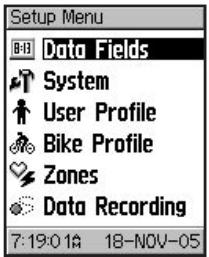
Setting Up Custom Data Fields
You can set up custom data fields for the following Edge pages:
- Bike Computer 1
- Bike Computer 2
Map
Workouts - Courses
For a complete listing of the available data fields for your Edge, see pages 64-69.
To set data fields:
- Press mode to access the Main Menu.
- Select Settings > Data Fields.
-
Select one of the pages listed.
-
Select the number of data fields you want to see on this page.
- Use the and arrows and enter key to change the data fields. Press mode when done.
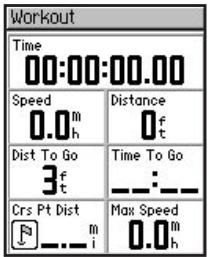
- Repeat for each page you wish to customize.
Sample Data Field Configurations
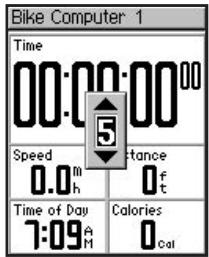
Default data fields for Bike Computer 1 page
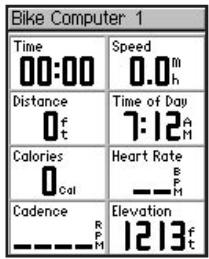
Optional data fields for Bike Computer 1 page
Changing System Settings
System settings you can configure to suit your training preferences include general Edge setup, display, map, units, time, and accessories.
To change general setup:
- Press mode to access the Main Menu.
- Select Settings > System > General. From this page, you can change the GPS mode, Text Language, Tones, and Page Mode Options.
About Edge
From the General Setup page, select About Edge to view your software version, GPS version, and unit ID.
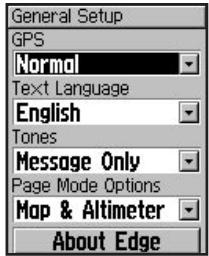
To use the Edge indoors:
- Press mode to access the Main Menu.
- Select Settings > System > General > GPS.
- Select GPS Off.
NOTE: When GPS is off, speed and distance data are not available, unless you are using the Edge 305 with the GSC10. The next time you turn on the Edge, it will search for satellite signals again.
To change display setup:
- Press mode to access the Main Menu.
- Select Settings > System > Display.
- From this page, you can change the Backlight Timeout and Contrast.
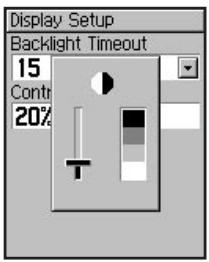
To change map setup:
-
Press mode to access the Main Menu.
-
Select Settings > System > Map.
- Select the map Orientation: North Up—display the map with North at the top. Track Up—display the map with your direction of travel at the top.
- You can also choose to show or hide User Locations on the Map page. For more about locations, see page 48.
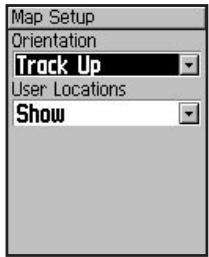
To change units setup:
- Press mode to access the Main Menu.
- Select Settings > System.> Units.
- Select units of measure for distance and elevation.
- (Edge 305 only). Select Beats per Minute or % Max HR for your heart rate data. For more information on heart rate data, see pages 71-75.
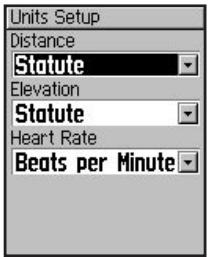
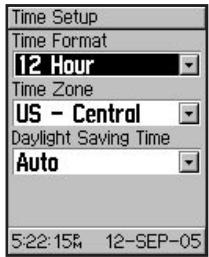
To change time setup:
- Press mode to access the Main Menu.
- Select Settings > System > Time.
- From this page, you can change the Time Format, Time Zone, and Daylight Saving Time.
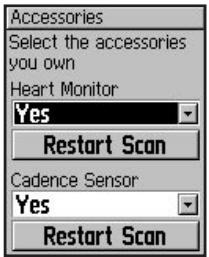
To manage Edge 305 accessories:
- Press mode to access the Main Menu.
- Select Settings > System > Accessories.
- From this page, you can activate accessories and select Restart Scan if you are having trouble receiving sensor data. Make sure there are no other sensors around you.
Updating User Profile
To update your user profile, see page 19.
Changing Bike Profile
You can save up to three bike profiles on the Edge.
To change your bike profile:
- Press mode to access the Main Menu.
- Select Settings > Bike Profile.
- Select the bike profile you wish to use.
- Make changes to the profile, if necessary. See page 20.
- Press mode to exit.
Setting Zones
From the Main Menu, select Settings > Zones to set up Edge speed and heart rate zones.
Speed Zones
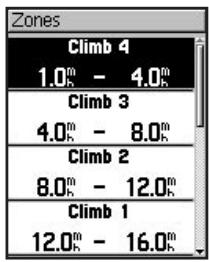
Your Edge contains several different speed zones, ranging from very slow (Climb 4) to very fast (Max Speed). The values for these speed zones are entered by default and may not match your personal abilities. After you enter appropriate speed zones, you can use these zones to set your speed alerts or use them as targets in advanced workouts. For more about alerts, see pages 24-27. For more about advanced workouts, see pages 33-38.
To change your speed zones:
- Press mode to access the Main Menu.
- Select Settings > Zones. Edge 305 users must also select Speed Zones.
-
Select the zone you want to change. Enter a minimum speed for that zone. Then enter a maximum speed for that zone.
-
Repeat step 2 for each zone you want to change.
- Press mode to exit.
Heart Rate Zones
(Edge 305 only.) A heart rate zone is a specified range of heart beats per minute. Heart rate zones are generally based on a percentage of your maximum heart rate. These zones are numbered from 1 to 5 based on intensity (1-lowest, 5-highest).
If you know your maximum heart rate, you can enter it and allow the Edge to calculate your heart rate zones automatically. You can also enter your heart rate zones manually.
To base heart rate zones on your max HR:
- Press mode to access the Main Menu.
- Select Settings > Zones > HR Zones.
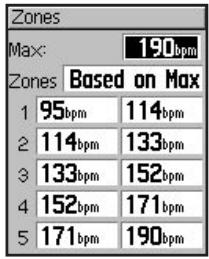
- Select the Max field, and enter your maximum heart rate.
- Select the Zones field, and select Based on Max.
To change your heart rate zones manually:
- Press mode to access the Main Menu.
- Select Settings > Zones > HR Zones.
- Select the Zones field, and select Custom.
- Select any heart rate zone, and select a heart rate value you want to change. Enter a heart rate value.
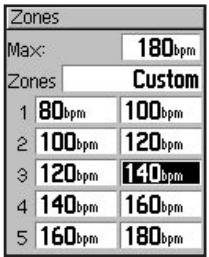
- Repeat step 3 for each heart rate zone you want to change.
- Press mode to exit.
NOTE: For more information about training with heart rate zones, see page 71.
Data Recording
Data recording controls how the Edge records detailed data for your rides. By default, the Edge uses Smart Recording to record your movements and create detailed history. Smart Recording picks up key points where you change direction, speed, or heart rate.
You can also record data every second. Doing so creates the most accurate record possible of your ride. However, with this
setting, the Edge can only record up to 3.5 hours of detailed data.
WARNING: When the history is full, older history data is overwritten automatically. Be sure to transfer history to Garmin Training Center often.
To change data recording setup:
- Press mode to access the Main Menu.
- Select Settings > Data Recording.
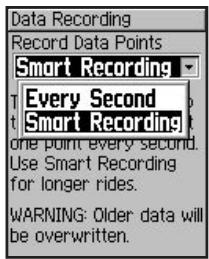
- In the Record Data Points field, select Every Second or Smart Recording.
- Press mode to exit.
APPENDIX
Edge Data Fields
The following table lists all of the Edge data fields and descriptions.
* Denotes a field showing statute or metric units. To change your Edge unit settings, select Main Menu > Settings > System > Unit.
| Data Field | Description | Edge 205 | Edge 305 |
| Cadence | Revolutions of the crank arm per minute. | ● | |
| Cadence - Avg | Average cadence for the duration of your current ride. | ● | |
| Cadence - Lap | Average cadence for current lap. | ● | |
| Calories | Amount of calories burned. | ● | ● |
| Distance* | Distance traveled on current ride. | ● | ● |
| Dist – Lap * | Distance traveled in current lap. | ● | ● |
| Dist – Last Lap * | Distance of last completed lap. | ● | ● |
| Dist – Paused * | Distance covered while timer in Auto Pause. | ● | ● |
| Elevation * | Distance above/below sea level. | ● | ● |
| GPS Accuracy * | Margin of error for your exact location. For example, your GPS location is accurate to within +/- 19 ft. | ● | ● |
| Grade | Calculation of rise over run. For example, if for every 10 foot you climb (elevation) you travel 200 feet (distance), your grade is 5%. | ● | ● |
| Heading | Current direction you are traveling. | ● | ● |
| Heart Rate | Heart beats per minute (bpm). | ● | |
| Heart Rate – Avg | Average heart rate for the duration of your current ride. | ● | |
| Heart Rate – Lap | Average heart rate in current lap. | ● | |
| Heart Rate Zone | Current range of heart rate (1–5). The default zones are based on your maximum heart rate and user profile. | ● | |
| Laps | Number of laps completed. | ● | ● |
| Speed * | Current speed. | ● | ● |
| Speed – Avg * | Average speed (mph or kph) for the duration of your current ride. | ● | ● |
| Speed – Lap * | Average speed in current lap. | ● | ● |
| Speed – Last Lap * | Average speed during the last full lap. | ● | ● |
| Speed – Max * | Top speed achieved during current ride. | ● | ● |
| Speed Zone | Current range of speed based on default or custom settings: Climb 1–4, Flat 1–3, Descent, Sprint, and Max Speed. | ● | ● |
| Sunrise | Time of sunrise based on your GPS position. | ● | ● |
| Sunset | Time of sunset based on your GPS position. | ● | ● |
| Time | Stopwatch time. | ● | ● |
| Time – Avg Lap | Average time to complete the laps so far. | ● | ● |
| Time – Lap | Amount of time in current lap. | ● | ● |
| Time – Last Lap | Length of time to complete the last full lap. | ● | ● |
| Time – Paused | Time elapsed while timer in Auto Pause. | ● | ● |
| Time of Day | Current time of day based on your time settings (format, time zone, and daylight saving time). | ● | ● |
| Total Ascent * | Total elevation gain for current ride. | ● | |
| Total Descent * | Total elevation lost for current ride. | ● |
Edge Accessories
| Accessory | Part Number |
| GSC10 speed and cadence sensor | 010-10644-00 |
| Heart rate monitor and strap | 010-10645-00 |
| Cigarette lighter adapter | 010-10563-00 |
| HRM elastic strap replacement | 010-10714-00 |
| Carry case | 010-10718-00 |
| Mount replacement kit | 010-10725-00 |
| GSC10 magnet replacement kit | 010-10729-00 |
| AC wall brick charger (Americas) | 010-10635-00 |
| AC wall brick charger (Europe) | 010-10635-01 |
| USB cable replacement | 010-10477-03 |
To purchase additional accessories for your Edge, go to the Garmin Web site: http://shop.garmin.com.
Viewing Heart Rate Data
You can configure your Edge to display different heart rate data: current heart rate, average heart rate, and heart rate zone, which can help you determine the intensity of your training. For example, you can add heart rate to your Bike Computer page or heart rate zone to your Workout page.
To add or modify data fields, see page 54.
For a complete listing of available data fields, see page 64.
Heart rate information is also displayed as history data. Read more about history on page 43.
Training with Heart Rate Zones
Many cyclists and other athletes are using heart rate zones to measure and increase their cardiovascular strength and improve their level of fitness.
What are heart rate zones?
A heart rate zone is simply a range of heartbeats per minute (bpm). The five commonly accepted heart rate zones are numbered from 1-5 according to increasing intensity. Generally, heart rate zones are calculated based on percentages of your maximum heart rate. See Table 1 on page 73 to learn some of the effects of exercise as your heart rate reaches each of these zones during a workout.
How do heart rate zones impact your fitness goals?
Knowing your heart rate zones can help you measure and improve your fitness by understanding and applying these principles:
- Your heart rate is a good measure of exercise intensity.
- Training in certain heart rate zones can help you improve cardiovascular capacity and strength.
- Knowing your heart rate zones can prevent you from overtraining and decrease your risk of injury.
See Table 1 on page 73 to learn about the benefits of training in each heart rate zone.
How can I determine my heart rate zones?
If you know your maximum heart rate, you can enter it and allow the Edge to calculate your heart rate zones based on the percentages shown in Table 1 on page 73. For more information on setting your heart rate zones, see page 61.
Table 1
| Zone | % of Max. Heart Rate | Perceived Exertion | Benefits |
| 1 | 50%-60% | Relaxed, easy pace; rhythmic breathing | Beginning-level aerobic training; reduces stress |
| 2 | 60%-70% | Pace comfortable; slightly deeper breathing, conversation possible | Basic cardiovascular training; good recovery pace |
| 3 | 70%-80% | Pace moderate; more difficult to hold conversation | Improved aerobic capacity; optimal cardiovascular training |
| 4 | 80%-90% | Pace fast and a bit uncomfortable; breathing forceful | Improved anaerobic capacity and threshold; improved speed |
| 5 | 90%-100% | Pace a sprinting effort, unsustainable for long period of time; labored breathing | Anaerobic and muscular endurance; increased power |
Sensor Pairing
What is pairing?
Pairing is the process of matching sensors, like your heart rate monitor and GSC10, with your Edge 305. This process occurs automatically when you turn on the Edge and only takes a few seconds when the sensors are on and functioning correctly. Once paired, your Edge will only receive data from your sensor.
How does it work?
Upon power up, the Edge will automatically scan for the sensors you have enabled during initial setup (see page 12) or accessories setup (see page 59). Each sensor has a unique ID. The Edge learns and saves this unique ID while pairing the first
time. The next time you turn the Edge on, it will only pair with the unique sensor ID. If the Edge does not find the sensor, you should restart the scan to find your sensor ID.
Interference
Strong electromagnetic fields can interfere with your heart rate monitor and cause your heart rate to appear unusually high, freeze, or disappear. Common sources of interference include high voltage power lines, electric motors, computers, televisions, and mobile phones. After you move away from the source of interference, your heart rate reading should return to normal.
Pairing Tips
If you have trouble pairing, or if the readings are erratic, try the following suggestions:
Position the Edge within 3 meters of the sensor while pairing.
- Stay far away from any other sensors while pairing.
- Restart scan if your Edge appears to be paired with another sensor (see page 59).
Make sure to enable the sensors on the Edge (see page 59).
- Make sure the sensors are functioning correctly.
- Replace the sensor battery.
Clean the sensors. Dirt and sweat build-up on the sensors can weaken signals.
For heart rate monitor only:
- Reapply moisture. Use electrode gel, water, or saliva.
Make sure the heart rate monitor is snug against your body. If you have trouble with erratic readings, position the transmitter on your back. - Wear a cotton shirt, or wet your shirt. Synthetic fabrics that rub or flap against the heart rate monitor can create static electricity that interferes with heart rate signals.
Training with Cadence
Cadence is your rate of pedaling or "spinning" measured by the amount of revolutions of the crank arm per minute (rpm).
There are two sensors on the GSC10: one for cadence and one for speed. Cadence data from the GSC10 is always recorded. The speed data from the GSC10 is only recorded and used for distance calculation when GPS signal is weak or GPS is turned off.
For information about setting and using cadence alerts, see page 27.
Barometric Altimeter
The Edge 305 contains a barometric altimeter for extremely accurate elevation and vertical profile data.
Press mode to view the Altimeter page. Once you start the timer and begin to move, a black line, shaded gray below, appears on the page, plotting elevation during your ride. At the bottom of the page, you can view the zoom level. To zoom in or out on the page, press the and arrows. At the top of the map page, your elevation and total ascent data appears.
NOTE: You cannot customize the data fields on the Altimeter page.
Tire Size and Circumference
The tire size is marked on both sides of the tire. To modify your bike profile, see page 20.
| Tire Size | L (mm) |
| 12 x 1.75 | 935 |
| 14 x 1.5 | 1020 |
| 14 x 1.75 | 1055 |
| 16 x 1.5 | 1185 |
| 16 x 1.75 | 1195 |
| 18 x 1.5 | 1340 |
| 18 x 1.75 | 1350 |
| 20 x 1.75 | 1515 |
| 20 x 1-3/8 | 1615 |
| 22 x 1-3/8 | 1770 |
| 22 x 1-1/2 | 1785 |
| 24 x 1 | 1753 |
| Tire Size | L (mm) |
| 24 x 3/4 Tubular | 1785 |
| 24 x 1-1/8 | 1795 |
| 24 x 1-1/4 | 1905 |
| 24 x 1.75 | 1890 |
| 24 x 2.00 | 1925 |
| 24 x 2.125 | 1965 |
| 26 x 7/8 | 1920 |
| 26 x 1(59) | 1913 |
| 26 x 1(65) | 1952 |
| 26 x 1.25 | 1953 |
| 26 x 1-1/8 | 1970 |
| 26 x 1-3/8 | 2068 |
| 26 x 1-1/2 | 2100 |
| 26 x 1.40 | 2005 |
| 26 x 1.50 | 2010 |
| 26 x 1.75 | 2023 |
| 26 x 1.95 | 2050 |
| 26 x 2.00 | 2055 |
| 26 x 2.10 | 2068 |
| 26 x 2.125 | 2070 |
| 26 x 2.35 | 2083 |
| 26 x 3.00 | 2170 |
| 27 x 1 | 2145 |
| 27 x 1-1/8 | 2155 |
| 27 x 1-1/4 | 2161 |
| 27 x 1-3/8 | 2169 |
| 650 x 35A | 2090 |
| 650 x 38A | 2125 |
| 650 x 38B | 2105 |
| 700 x 18C | 2070 |
| 700 x 19C | 2080 |
| 700 x 20C | 2086 |
| Tire Size | L (mm) |
| 700 x 23C | 2096 |
| 700 x 25C | 2105 |
| 700 x 28C | 2136 |
| 700 x 30C | 2170 |
| 700 x 32C | 2155 |
| 700C Tubular | 2130 |
| 700 x 35C | 2168 |
| 700 x 38C | 2180 |
| 700 x 40C | 2200 |
Garmin Training Center
The Garmin Training Center software is included in the Edge product box. Locate the Garmin Training Center installation disk and use it to install Garmin Training Center on your personal computer.
Garmin Training Center software allows you to overlay your ride data onto a map. It offers interactive analysis tools that measure your speed, distance, climb, and descent against varying terrain, elevation and more. Create and schedule custom courses and workouts or use workout templates and download them to the Edge.
To install Garmin Training Center:
- Insert the Garmin Training Center installation disk into your computer's disk drive. Your computer should automatically run the start-up file and display a welcome screen.
- If the welcome screen does not appear, click Start and then click Run.... Type in the drive letter of your disk drive followed by "setup" (example: D:\setup). Then press Enter.
- When the welcome screen appears, follow the on-screen instructions to install Garmin Training Center.
Using Garmin Training Center
Use the USB cable from the product box to connect your Edge to your computer. From the Start menu, open Garmin Training Center. For help using Garmin Training Center, click the Help menu and select Contents, or press F1 on your keyboard.
Caring for the Edge
The Edge is constructed of high quality materials and does not require user maintenance other than cleaning. Clean the unit and the heart rate monitor using a cloth dampened with a mild detergent solution and then wipe dry. Avoid chemical cleaners and solvents that may damage plastic components.
Storage
Do not store the Edge where prolonged exposure to temperature extremes may occur (such as in the trunk of a car), as permanent damage may result. User information, such as workout history, locations, and tracks, is retained indefinitely in the unit's memory without the need for external power. It is always a good practice to back up important user data by manually recording it or downloading it to a personal computer. Software for the Edge is included in the product box.
Water Immersion
The Edge is waterproof to IEC Standard 60529 IPX7. It can withstand immersion in 1 meter of water for 30 minutes. Prolonged submersion can cause damage to the unit. After submersion, be certain to wipe dry and air dry the unit before using or charging.
Specifications
Physical
Case: Fully-sealed, high-impact plastic alloy, waterproof to IEC 60529 IPX7 standards (waterproof to 1m for 30 minutes)
Size: 1.75''W × 3.7''H × 0.9''D (44 mm × 94 mm × 23 mm)
Weight: Approx. 88 g
Display: 128 x 160 pixels, 1.17"W x 1.44"H (29.65 mm x 36.69 mm)
Antenna: Internal patch
Power
Input: 910 mAh rechargeable, built-in, lithium-ion battery
Battery Life: 12 hours, typical use
Performance
Receiver: High-sensitivity integrated GPS receiver by SiRF
Acquisition Time:
Hot Start: < 1 second
Warm Start: < 38 seconds
Cold Start: < 45 seconds
Update Rate: 1/second, continuous
GPS Position Accuracy*:
< 10 meters 50% , typical
GPS Velocity Accuracy*:
< 0.05 m/s
Dynamics:Performs to specifications to 6 g's
Operating Temperature Range: -4^ to 140^ (-20^ to 60^)
*Accuracy depends on view of the sky. 99%-clear view; 95%-typical.
Heart Rate Monitor
Physical size: 13.7^ × 1.4^ × 0.5"D
Transmission range: approximately 3m
Battery: CR2032 (3 volts)
Battery life: approximately 3 years (1 hour per day)
Weight: 21 g
Accuracy may be degraded by poor sensor contact, electrical interference, and receiver distance from transmitter.
GSC10 Speed and Cadence Sensor
Physical size: 2.0^ × 1.2^ × 0.9^ (not including adjustable speed sensing arm)
Transmission range: approximately 3m
Battery: CR2032 (3 volts)
Battery life: approximately 1.4 years (1 hour per day)
Weight: 25 g
NOTE: Specifications subject to change without notice.
Replacing the Battery
The heart rate monitor and GSC10 (shown) contain a user-replaceable CR2032 battery.
NOTE: Dispose of the used battery properly.
To replace the battery:
- Locate the circular battery cover on the back of the heart rate monitor or the side of the GSC10.
- Use a coin to twist the cover counter-clockwise until it is loose enough to remove (arrow points to unlocked).
-
Remove the cover, and replace the battery positive side up. Be careful not to damage or lose the o-ring gasket on the cover.
-
Use a coin to twist the cover back into place (arrow points to locked).
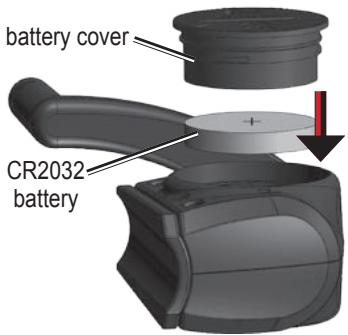
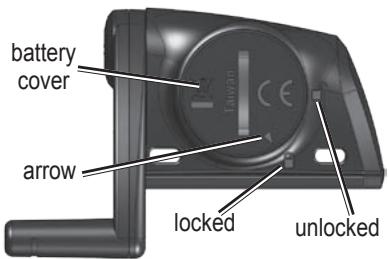
GSC10 Battery Installation
Product Registration
Help us better support you by completing our online registration today! Have the serial number of your Edge handy and connect to our Web site (www.garmin.com). Click the Product Registration link.
Use this area to record the serial number (8-digit number located on the back of the unit) in case your Edge is lost, stolen, or needs service. Be sure to keep your original sales receipt in a safe place or attach a photocopy inside the manual.
Serial Number:
Contact Garmin
If you should encounter any difficulty while using your Edge, or if you have any questions, in the U.S.A. contact Garmin Product Support by phone: 913/397.8200 or 800/800.1020, Monday-Friday, 8 am-5 pm Central Time; or go to www.garmin.com/support/.
In Europe, contact
Garmin (Europe) Ltd. at 44/0870.8501241.
Tell us how you like this manual! Fill out the Product Documentation Survey. Go to www.garmin.com/contactUs/ and click Product Documentation Survey.

Warning
Failure to avoid the following potentially hazardous situations could result in an accident or collision resulting in death or serious injury.
When navigating, carefully compare information displayed on the Edge to all available navigation sources, including information from visual sightings and maps. For safety, always resolve any discrepancies or questions before continuing navigation.
The Edge contains a non-user replaceable, rechargeable lithium-ion battery. The GSC10 sensor and heart rate monitor contain a replaceable CR2032 battery. The battery may present a risk of fire or chemical burn if mistreated.
- Do not recharge out of the unit, disassemble, heat above 140^ (60^) , or incinerate.
- Keep used battery away from children.
- Dispose of used battery or unit properly. Contact your local waste disposal department for information on properly disposing of lithium-ion batteries.
The Edge has no user-serviceable parts. Should you ever encounter a problem with your unit, please take it to an authorized Garmin dealer for repairs.
Always consult your physician before beginning or modifying any exercise program. If you have a pacemaker or other implanted electronic device, consult your physician before using a heart rate monitor.

Caution
Failure to avoid the following potentially hazardous situations may result in injury or property damage.
Use the Edge only as a navigational aid. Do not attempt to use the Edge for any purpose requiring precise measurement of direction, distance, location, or topography. This product should not be used to determine ground proximity for aircraft navigation.
The Global Positioning System (GPS) is operated by the United States government, which is solely responsible for its accuracy and maintenance. The government's
system is subject to changes which could affect the accuracy and performance of all GPS equipment, including the Edge. Although the Forerunner is a precision navigation device, any navigation device can be misused or misinterpreted and, therefore, become unsafe.
The Edge, GSC10 sensor, and heart rate monitor are consumer devices, not medical devices, and could suffer from interference from external electrical sources. The heart rate readings are for reference only and no responsibility can be accepted for the consequences of any erroneous readings.
WARNING: This product, its packaging, and its components contain chemicals known to the State of California to cause cancer, birth defects, or reproductive harm. This Notice is being provided in accordance with California's Proposition 65. If you have any questions or would like additional information, please refer to our Web site at www.garmin.com/prop65.
Limited Warranty
This Garmin product is warranted to be free from defects in materials or workmanship for one year from the date of purchase. Within this period, Garmin will at its sole option repair or replace any components that fail in normal use. Such repairs or replacement will be made at no charge to the customer for parts or labor, provided that the customer shall be responsible for any transportation cost. This warranty does not cover failures due to abuse, misuse, accident, or unauthorized alteration or repairs.
THE WARRANTY AND REMEDIES CONTAINED HEREIN ARE EXCLUSIVE AND IN LIEU OF ALL OTHER WARRANTY EXPRESS OR IMPLIED OR STATUTORY, INCLUDING ANY LIABILITY ARISING UNDER ANY WARRANTY OF MERCHANTABILITY OR FITNESS FOR A PARTICULAR PURPOSE, STATUTORY OR OTHERWISE. THIS WARRANTY GIVES YOU SPECIFIC
LEGAL RIGHTS, WHICH MAY VARY FROM STATE TO STATE.
IN NO EVENT SHALL GARMIN BE LIABLE FOR ANY INCIDENTAL, SPECIAL, INDIRECT OR CONSEQUENTIAL DAMAGES, WHETHER RESULTING FROM THE USE, MISUSE, OR INABILITY TO USE THIS PRODUCT OR FROM DEFECTS IN THE PRODUCT. Some states do not allow the exclusion of incidental or consequential damages, so the above limitations may not apply to you.
Garmin retains the exclusive right to repair or replace the unit or software or offer a full refund of the purchase price at its sole discretion. SUCH REMEDY SHALL BE YOUR SOLE AND EXCLUSIVE REMEDY FOR ANY BREACH OF WARRANTY.
To obtain warranty service, contact your local Garmin authorized dealer or call Garmin Product Support for shipping instructions and an RMA tracking number. The unit should be securely
packed with the tracking number clearly written on the outside of the package. The unit should then be sent, freight charges prepaid, to any Garmin warranty service station. A copy of the original sales receipt is required as the proof of purchase for warranty repairs.
Garmin International, Inc.
Tel. 913/397.8200, Fax. 913/397.8282
Garmin (Europe) Ltd.
Tel. 44/0870.8501241, Fax 44/0870.8501251
Online Auction Purchases: Products sold through online auctions are not eligible for rebates or other special offers from Garmin. Online auction confirmations are not accepted for warranty verification. To obtain warranty service, an original or copy of the sales receipt from the original retailer is required. Garmin will not replace missing components from any package purchased through an online auction.
International Purchases: A separate warranty is provided by international
distributors for units purchased outside the United States. This warranty is provided by the local in-country distributor, and this distributor provides local service for your unit. Distributor warranties are only valid in the area of intended distribution. Units purchased in the United States or Canada must be returned to the Garmin service center in the United Kingdom, the United States, Canada, or Taiwan for service.
The Edge is fastened shut with screws. Any attempt to open the case to change or modify the unit in any way will void your warranty and may result in permanent damage to the equipment.
FCC Compliance
The Edge complies with Part 15 of the FCC interference limits for Class B digital devices FOR HOME OR OFFICE USE. These limits are designed to provide more reasonable protection against harmful interference in a residential installation, and are more
stringent than "outdoor" requirements.
Operation of this device is subject to the following conditions: (1) This device may not cause harmful interference, and (2) this device must accept any interference received, including interference that may cause undesired operation.
This equipment generates, uses, and can radiate radio frequency energy and may cause harmful interference to radio communications if not installed and used in accordance with the instructions. However, there is no guarantee that interference will not occur in a particular installation. If this equipment does cause harmful interference to radio or television reception, which can be determined by turning the equipment off and on, the user is encouraged to try to correct the interference by one of the following measures:
Reorient or relocate the receiving antenna.
- Increase the separation between the equipment and the receiver.
- Connect the equipment into an outlet on a circuit different from that to which the receiver is connected.
- Consult the dealer or an experienced radio/TV technician for help.
The Edge does not contain any user-serviceable parts. Repairs should only be made by an authorized Garmin service center. Unauthorized repairs or modifications could result in permanent damage to the equipment, and void your warranty and your authority to operate this device under Part 15 regulations.
Software License Agreement
BY USING THE EDGE, YOU AGREE TO BE BOUND BY THE TERMS AND CONDITIONS OF THE FOLLOWING SOFTWARE LICENSE AGREEMENT. PLEASE READ THIS AGREEMENT CAREFULLY.
Garmin grants you a limited license to use the software embedded in this device (the "Software") in binary executable form in the normal operation of the product. Title, ownership rights, and intellectual property rights in and to the Software remain in Garmin.
You acknowledge that the Software is the property of Garmin and is protected under the United States of America copyright laws and international copyright treaties. You further acknowledge that the structure, organization, and code of the Software are valuable trade secrets of Garmin and that the Software in source code form remains a valuable trade
secret of Garmin. You agree not to decompile, disassemble, modify, reverse assemble, reverse engineer, or reduce to human readable form the Software or any part thereof or create any derivative works based on the Software. You agree not to export or re-export the Software to any country in violation of the export control laws of the United States of America.
CE Compliance
Hereby, Garmin International declares that this GPS equipment is in compliance with the essential requirements and other relevant provisions of Directive 1999/5/EC. To view the full Declaration of Conformity, visit the Garmin Web site: www.garmin.com/products/edge305 or www.garmin.com/products/edge205. Click Manuals and then select the Declaration of Conformity.
INDEX
A
accessories 70
advanced workouts 33
creating 34, 39
editing 37
starting 36
alerts 24
cadence 27
distance 24
heart rate 26
speed 25
time 24
altimeter 76
Auto Lap 22
Auto Pause 22
B
backlight 21, 57
turning on and off 8
barometric altimeter 76
battery
charging 6
GSC10 83
heart rate monitor 83
lithium-ion 6
replacing 83
battery icon 9
bike profile 20
buttons 8
C
cadence
alerts 27
data fields 64
icon 9
sensor 20
training 76
calories 46, 64
charging the battery 6
cleaning and care 80
Compass page 41, 49, 50
configure the Edge 12
contactGarmin 84
contrast 21, 57
courses 39
creating 39
deleting 42
editing 42
starting 40
custom pages 54
D
data fields 54,64
data recording 62
daylight saving time 58
distance
errors 24
data fields 64
E
elevation
barometric altimeter 76
course 40
data fields 65, 66, 69
enter button 9
G
Garmin Training Center 33, 34, 37, 39 installing 79
GPS 53
accuracy 65
turning on and off 56
GPS version 56
grade 66
GSC10 16,76
pairing 74
replacing the battery 83
H
heart rate
alert 26
data fields 66
icon 9
zones 26, 61, 71
heart rate monitor
pairing 15, 74
positioning 14
replacing the battery 83
viewing data 71
history
deleting 45, 46
totals 46
viewing 43
viewing laps 44
1
icons 9
indoor use 56
installation
Edge 10
GSC10 16
heart rate monitor 14
interference 74
interval workouts 32
L
language 56
lap button 8
locations 48
deleting 50
editing 50
finding 49
marking 48
navigating to 49
M
map 47
zooming 47, 76
map orientation 57
maximum heart rate 61
mode button 8
N
navigation 47
P
pairing 74
pedal magnet 17
power button 8
product support 84
Q
quick workouts 30
R
register your product 84
reset button 8
reset Edge 9
rest time 22
routes 50
creating 50
deleting 52
finding 51
s
satellite icon 9
Satellite page 52
satellite signals acquiring 1
serial number 84
setup screens 12
Smart Recording 62
software license agreement 90
software version 56
specifications 81
speed alerts 25
data fields 67
zones 60, 68
spoke magnet 17
storage 80
T
time
changing 58
data fields 68
timer icon 9
time alert 24
time zone 58
setting 19
tiresize20,77
tones 56
training features 22
U
unit ID 56
up and down buttons 9
USB 6,80
user profile
setting 19
V
viewing history 43
Virtual Partner 28, 30
W
warranty 87
waterproof 81
workouts 30
For the latest free software updates (excluding map data) throughout the life of your Garmin products, visit the Garmin Web site at www.garmin.com.

© Copyright 2005-2006 Garmin Ltd. or its subsidiaries
Garmin International, Inc.
1200 East 151^st Street, Olathe, Kansas 66062, U.S.A.
Garmin (Europe) Ltd.
Unit 5, The Quadrangle, Abbey Park Industrial Estate,
Romsey, SO51 9DL, U.K.
Garmin Corporation
No. 68, Jangshu 2^nd Road, Shijr, Taipei County, Taiwan
Part Number 190-00580-00 Rev. D
- Edge™ 205/305
- TABLE OF CONTENTS
- INTRODUCTION
- About This Manual
- GETTING STARTED
- Charge the Battery
- To charge the Edge:
- Buttons
- power
- mode
- reset/lap
- start/stop
- up/down ▲▼
- enter
- Icons
- Position the Edge
- To install the Edge on your bike stem:
- To release the unit:
- Configure the Edge
- Acquire Satellite Signals
- To acquire satellite signals:
- Position the Heart Rate Monitor
- To use the heart rate monitor:
- Position the GSC10 Sensor
- To install the GSC10:
- Pedal magnet on crank arm
- Set Your User Profile
- To set your user profile:
- Set Your Bike Profile You can set up to three profiles.
- To set your bike profile:
- Change the Backlight and Contrast Settings
- To change the Edge display:
- TRAINING
- Auto Pause®
- Auto Lap®
- To set Auto Pause/Lap:
- Alerts
- Using Time and Distance Alerts
- To set a time or distance alert:
- Using Speed Alerts
- To set a speed alert:
- Using Heart Rate Alerts
- To set a heart rate alert:
- Using Cadence Alerts
- To set a cadence alert:
- Virtual Partner™
- To see Virtual Partner data:
- To turn off Virtual Partner:
- Workouts: Quick, Interval, and Advanced
- Using Workouts
- To end a workout early:
- Quick Workouts
- To set up a quick workout:
- Interval Workouts
- To create an interval workout:
- Advanced Workouts
- Creating Advanced Workouts
- To create an advanced workout using the Edge:
- To repeat steps:
- Starting Advanced Workouts
- To start an advanced workout:
- Editing Advanced Workouts
- To edit an advanced workout:
- To delete an advanced workout:
- Courses
- Creating Courses
- To create a course on your Edge:
- Adding Course Points
- Using a Course
- To start a course:
- Course Data Pages
- Off Course Options
- To end a course manually:
- To edit a course name:
- To delete a course:
- HISTORY
- Viewing History
- To view history by day:
- About Lap Detail
- To view laps on map:
- To delete laps or entire trips from history:
- To view history by weeks:
- To view history totals:
- Deleting History
- To delete workout history:
- NAVIGATION
- Navigating with the Map
- Marking and Finding Locations
- To mark your location:
- To mark a location using coordinates:
- To find and go to a location:
- To stop navigating to a location:
- To edit a location:
- To delete a location:
- Navigating with Routes
- To create a route:
- To find and follow a route:
- To stop navigating a route:
- To edit a route:
- To delete a route:
- Viewing GPS Information
- About GPS
- CUSTOMIZING
- Setting Up Custom Data Fields
- To set data fields:
- Sample Data Field Configurations
- Changing System Settings
- To change general setup:
- About Edge
- To use the Edge indoors:
- To change display setup:
- To change map setup:
- To change units setup:
- To change time setup:
- To manage Edge 305 accessories:
- Updating User Profile
- Changing Bike Profile
- To change your bike profile:
- Setting Zones
- Speed Zones
- To change your speed zones:
- Heart Rate Zones
- To base heart rate zones on your max HR:
- To change your heart rate zones manually:
- Data Recording
- To change data recording setup:
- APPENDIX
- Edge Data Fields
- Viewing Heart Rate Data
- Training with Heart Rate Zones
- What are heart rate zones?
- How do heart rate zones impact your fitness goals?
- How can I determine my heart rate zones?
- Sensor Pairing
- What is pairing?
- How does it work?
- Interference
- Pairing Tips
- For heart rate monitor only:
- Training with Cadence
- Barometric Altimeter
- Tire Size and Circumference
- Garmin Training Center
- To install Garmin Training Center:
- Using Garmin Training Center
- Caring for the Edge
- Storage
- Water Immersion
- Specifications
- Physical
- Power
- Performance
- Acquisition Time:
- GPS Position Accuracy*:
- GPS Velocity Accuracy*:
- Operating Temperature Range: -4°F to 140°F (-20°C to 60°C)
- Heart Rate Monitor
- Weight: 21 g
- GSC10 Speed and Cadence Sensor
- Replacing the Battery
- To replace the battery:
- Product Registration
- Contact Garmin
- Warning
- Caution
- Limited Warranty
- FCC Compliance
- Software License Agreement
- CE Compliance
- INDEX
- A
- B
- C
- D
- E
- G
- H
- 1
- L
- M
- N
- P
- Q
- R
- s
- T
- U
- V
- W
- For the latest free software updates (excluding map data) throughout the life of your Garmin products, visit the Garmin Web site at www.garmin.com.
Marque : GARMIN
Modèle : VHF 300I AIS
Catégorie : Équipement de communication maritime