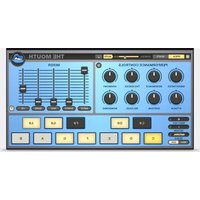
The Mouth - Equipement DJ NATIVE INSTRUMENTS - Notice d'utilisation et mode d'emploi gratuit
Retrouvez gratuitement la notice de l'appareil The Mouth NATIVE INSTRUMENTS au format PDF.

| Type de produit | Instrument logiciel / effet audio (REAKTOR Player/REAKTOR 5.5+) |
| Marque | Native Instruments |
| Modèle | The Mouth |
| Catégorie | Équipement DJ (effet vocal et créatif) |
| Version | 1.0 (10/2010) |
| Plateforme requise | REAKTOR Player ou REAKTOR 5.5 ou version ultérieure (téléchargement gratuit du Player disponible) |
| Formats supportés | VST, AU, RTAS (standalone via REAKTOR) |
| Fonctions principales | Détection de hauteur, auto-tune, correction d'échelle, synthétiseur polyphonique, vocoder, effets (delay, compression, EQ), mode Pitch et mode Beats, harmonisation, sous-préréglages |
| Nombre de préréglages (snapshots) | Plus de 100, créés par Tim Exile et l'équipe Native Instruments |
| Contrôles principaux | 8 macros de performance (Brightness, Resonance, Thickness, Harmony, Attack, Sustain, Release, Nonsense), mélangeur (Input, Synth, Voc, Bass, FX), clavier pour sélection de gamme, section harmonie |
| Modes de fonctionnement | Mode Pitch (suivi et correction de hauteur) et mode Beats (traitement des transitoires) |
| Entrée audio | Signal audio provenant de la carte son (via REAKTOR ou hôte) |
| Sortie MIDI | Peut envoyer des notes MIDI (hauteur détectée) vers d'autres instruments |
| Compatibilité DAW | Ableton Live, Logic Pro, Cubase, FL Studio, Pro Tools (voir manuel pour configuration MIDI) |
| Entretien | Maintenir le logiciel à jour via Service Center ; pas de nettoyage physique nécessaire |
| Sécurité | Aucun risque physique ; suivre les instructions d'activation et de licence |
| Pièces détachées / réparabilité | Produit logiciel, sans pièces remplaçables ; mises à jour via Service Center |
| Informations générales | Conçu par l'artiste Tim Exile (Warp Records) ; notice de 44 pages en français incluse |
FOIRE AUX QUESTIONS - The Mouth NATIVE INSTRUMENTS
Questions des utilisateurs sur The Mouth NATIVE INSTRUMENTS
0 question sur cet appareil. Repondez a celles que vous connaissez ou posez la votre.
Poser une nouvelle question sur cet appareil
Téléchargez la notice de votre Equipement DJ au format PDF gratuitement ! Retrouvez votre notice The Mouth - NATIVE INSTRUMENTS et reprennez votre appareil électronique en main. Sur cette page sont publiés tous les documents nécessaires à l'utilisation de votre appareil The Mouth de la marque NATIVE INSTRUMENTS.
MODE D'EMPLOI The Mouth NATIVE INSTRUMENTS
THE MOUTH
Manual

The information in this document is subject to change without notice and does not represent a commitment on the part of Native Instruments GmbH. The software described by this document is subject to a License Agreement and may not be copied to other media. No part of this publication may be copied, reproduced or otherwise transmitted or recorded, for any purpose, without prior written permission by Native Instruments GmbH, herein-after referred to as Native Instruments. All product and company names are ^TM or ^® trademarks of their respective owners.
Document authored by: David Gover
Product Version: 1.0 (10/2010)
Document version: 1.0 (10/2010)
Special thanks to the Beta Test Team, who were invaluable not just in tracking down bugs, but in making this a better product.
Germany
Native Instruments GmbH
Schlesische Str. 29
D-10997 Berlin
Germany
info@native-instruments.de
www.native-instruments.de
USA
Native Instruments North America, Inc.
5631 Hollywood Boulevard
Los Angeles, CA 90028
USA
sales@native-instruments.com
www.native-instruments.com

NATIVE INSTRUMENTS
© Native Instruments GmbH, 2010. All rights reserved.
Table of Contents
1 Welcome to THE MOUTH 6
1.1 Foreword by Tim Exile 6
1.2 Basic Information 6
2 What is THE MOUTH? 8
3 Installation and Activation 9
3.1 Installing THE MOUTH 9
3.2 Activating THE MOUTH 9
4 How to Use THE MOUTH ....11
4.1 How to Open THE MOUTH 11
4.2 Exploring the Snapshots 13
4.2.1 Loading a Snapshot from the Sidepane 14
4.2.2 Loading a Snapshot from the Main Bar 14
4.3 Saving a Snapshot 14
5 Overview of THE MOUTH Interface 15
5.1 Signal Flow of THE MOUTH 16
5.2 Input Controls Section 18
5.3 Performance Controls Section 19
5.4 Harmony Section 21
5.4.1 Harmony Gate Parameters 23
5.4.2 Harmony Input Parameters 24
5.4.3 Harmony Synth Parameters 25
5.5 Mixer Section 30
5.6 Keyboard Section 32
5.7 Input Controls Section 34
5.7.1 Input Controls 34
5.7.2 Synthesizer Controls 35
5.7.3 Vocoder Controls 36
5.7.4 Bass Controls 37
5.7.5 FX Controls 38
6 Sending MIDI to THE MOUTH as an Effect 40
6.1 Ableton Live 40
6.2 Logic 40
6.3 Cubase SX / Nuendo 40
6.4 FL Studio 41
6.5 ProTools 8 41
7 Sending MIDI from THE MOUTH 42
7.1 Ableton Live 42
8 Credits....44
1 Welcome to THE MOUTH
1.1 Foreword by Tim Exile
One sunny autumn day many years ago I was asked to pick up the headline DJ from the airport for a club night. I loved his work, and expressed this by making “wap-wap, brrr, ne-ow-neow, booooom, ka” noises all the way to the hotel.
After not being asked to pick up famous DJs again I decided that I wanted a mouth. Not a mouth... a MOUTH... to bridge the gap between what was in my head and what I wished would come out of this disappointing bit of flesh beneath my nose.
Ten years later I have made my dream. A PROPER MOUTH that takes the sounds you put in and turns it into what you actually meant to sing, beatbox, wapwap, brrr or neow in your own head. I use it live, I use it in the studio. I can't wait to share my mouth with your face.
1.2 Basic Information
Thank you very much for purchasing THE MOUTH. On behalf of the entire Native Instruments team, we hope this KOMPLETE INSTRUMENT POWERED BY REAKTOR will truly inspire you. Created by experimental Warp artist Tim Exile, THE MOUTH adds a new dimension to your effects collection and can be used on vocals, beats or simply as a creative effect on any audio signal. THE MOUTH has been designed to integrate seamlessly REAKTOR PLAYER and the full version of REAKTOR, utilizing the very powerful REAKTOR engine. THE MOUTH comes complete with accessible snapshots (preset sounds) created by Tim Exile himself and experienced sound designers from Native Instruments. This manual will help you get started with your instrument powered by REAKTOR. If you want start immediately, proceed to the Installation and Activation section. Please read that chapter carefully and fully, as it explains all the steps required to get started. Following the Installation chapter is an explanation of how to use the Snapshots within REAKTOR/ REAKTOR PLAYER. If you are already familiar with REAKTOR/REAKTOR PLAYER, this will be straightforward, but it might be worth a look nonetheless.
About this Manual
This manual uses particular formatting to point out special facts and to warn you of potential issues. The icons introducing the following notes let you see what kind of information is to be expected:

Whenever this exclamation mark icon appears, you should read the corresponding note carefully and follow the instructions and hints given there if applicable.

This lightbulb icon indicates that a note contains useful extra information. This information may often help you to solve a task more efficiently, but does not necessarily apply to the setup or operating system you are using; however, it's always worth a look.
Furthermore, the following formatting is used:
- Text appearing in (drop-down) menus (such as Open..., Save as... etc.) and paths to locations on your hard drive or other storage devices is printed in italics.
- Text appearing elsewhere (labels of buttons, controls, text next to checkboxes etc.) is printed in light blue. Whenever you see this formatting applied, you will find the same text appearing somewhere on the screen.
- Important names and concepts are printed in bold.
- References to keys on your computer's keyboard you'll find put in square brackets (e.g., "Press [Shift] + [Return]").
▶ Single instructions are introduced by this play button type arrow.
→ Results of actions are introduced by this smaller arrow.
2 What is THE MOUTH?
With 100+ snapshots THE MOUTH is a powerful effect that can generate melodies synthetic sounds based on an audio signal. Made specifically by Tim Exile for performance based manipulation, THE MOUTH is equally useful in recording and studio situations. To put it simply, THE MOUTH is a synthesizer you can play with your voice, and more importantly, you don't need to be able to sing! THE MOUTH works by detecting the pitch of an incoming audio signal, which is then auto-tuned to a selected musical scale or notes from a MIDI device. The auto-tuned signal is used to trigger the synthesizer which in conjunction with the gate parameters adds additional melody and harmony. Besides the synthesizer sound, you can also mix in unprocessed audio, a vocoder and effects. THE MOUTH is very responsive to your voice and can track the pitch of what you're singing. It can use this as a basis to control the synthesizer or create sequencer-style riffs. It can also take the articulation of your voice and use it to modulate the sound. In Beats Mode, THE MOL can be used to process drum patterns acting upon the transients of an incoming audio signal. This can create some very interesting rhythmical effects. As you explore THE MOUTH and experiment with the parameters you will find the potential for creativity is endless and unique.
3 Installation and Activation
3.1 Installing THE MOUTH
The following section explains how to install and activate THE MOUTH. Although the process is straightforward, please take a minute to read these instructions, as doing might prevent some common problems.
▶ To install THE MOUTH, double-click the installer application and follow the instructions on the screen. The installer application automatically places the new Player file into a REAKTOR PLAYER directory. Alternatively, during the installation process, choose the directory where you would like to have THE MOUTH installed.
REAKTOR 5.5 or REAKTOR PLAYER is required to play REAKTOR Instruments and Effects. You can download the free REAKTOR PLAYER from the Native Instruments website.
3.2 Activating THE MOUTH
When installation is finished, start the Service Center application, which was installed with THE MOUTH. It will connect your computer to the Internet and activate your THE MOUTH installation. In order to activate your copy of THE MOUTH, you have to perform the following steps within the Service Center:
-
Log in: Enter your Native Instruments user account name and password on the initial page. This is the same account information you used in the Native Instruments Online Shop, where you bought your instrument REAKTOR Instrument, and for other Native Instruments product activations.
-
Select products: The Service Center detects all products that have not yet been activated and lists them. You can activate multiple products at once — for example, several REAKTOR Instruments.
-
Activate: After proceeding to the next page, the Service Center connects to the Native Instruments server and activates your products.
-
Download updates: When the server has confirmed the activation, the Service Center automatically displays the Update Manager with a list of all available updates for your installed products. Please make sure that you always use the latest version of your Native Instruments products to ensure they function correctly.

Downloading updates is optional. After activation is complete, you can always quit the Service Center.
4 How to Use THE MOUTH
The following sections will give you a brief overview over some basic operations: you will
learn how to open THE MOUTH, how to explore Snapshots and how to load and THE MOUTH snapshots from the Main bar and the Sidepane.

For latest information on REAKTOR PLAYER files please refer to the REAKTOR 5.5 Getting Started Guide.
4.1 How to Open THE MOUTH
This is how to open THE MOUTH in REAKTOR or REAKTOR PLAYER:
- Start REAKTOR or REAKTOR PLAYER (whichever applies in your case).
- In the Browser on the left side of the REAKTOR / REAKTOR PLAYER window, click the Player button to show the REAKTOR PLAYER files (you can open the browser with the F5 key from your keyboard).
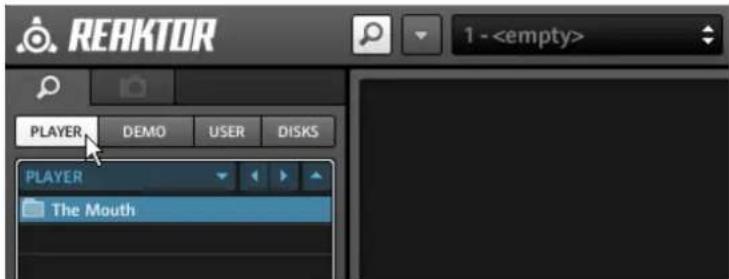
- Click the The Mouth folder. The folder's content will be displayed in the lower section of the browser.

- Double click the The Mouth.rkplr file, or drag it into the main screen.
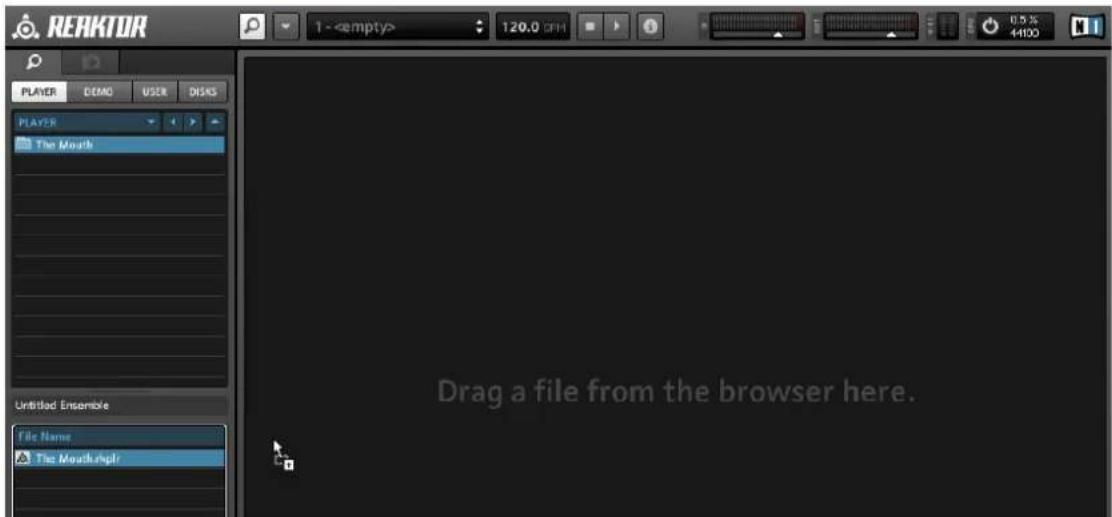
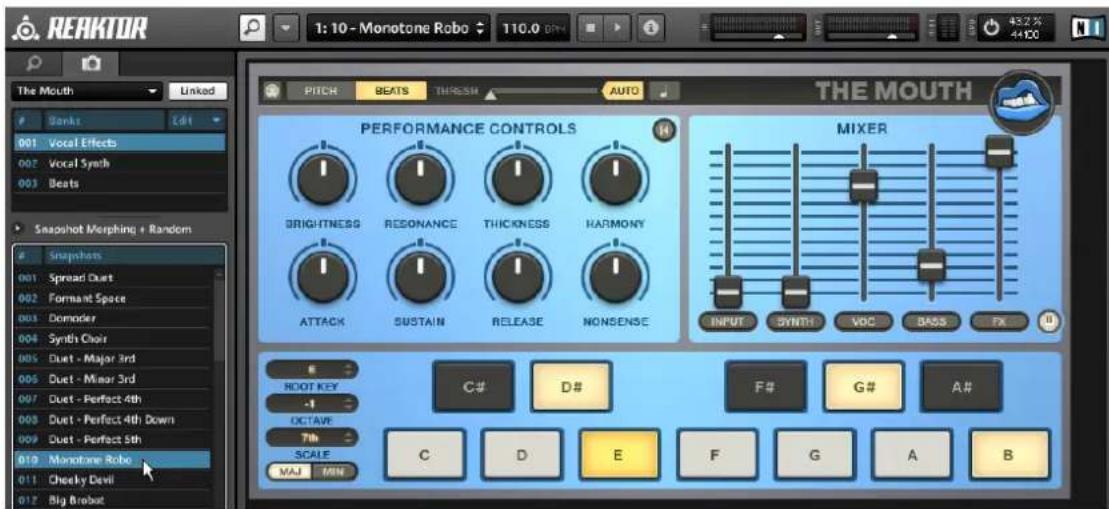
- THE MOUTH will be loaded in REAKTOR / REAKTOR PLAYER:
4.2 Exploring the Snapshots
Send an audio signal into REAKTOR to get an idea of how each snapshot sounds. Then, let's change the sound completely by loading a different Snapshot.

A Snapshot is REAKTOR's notion for a sound, preset, or patch. THE MOUTH can hold banks of Snapshots, and loading any of these Snapshots will set each control of that Instrument to a specific value, and re-create a particular sound.
The Snapshots of THE MOUTH are accessible from the central control in REAKTOR PLAYER's Main Bar or from the Sidepane.

Fig. 4.1 THE MOUTH interface with Snapshot list in the Sidepane
(1) Sidepane Button
(2) Snapshot drop-down menu
(3) Snapshot Banks
(4) Snapshots
4.2.1 Loading a Snapshot from the Sidepane
If not already visible after startup, you need to open the Sidepane. The Sidepane holds a full overview of REAKTOR's Snapshot Banks and Snapshots from the currently select Snapshot Bank.
- Click the Sidepane button (1) in the Main Bar to open the Sidepane.
- Select a Snapshot Bank (3).
- Select the name of a Snapshot entry (4).
The name of the selected Snapshot will be highlighted in the Sidepane, and the Snapshot loaded and ready in THE MOUTH.
4.2.2 Loading a Snapshot from the Main Bar
Loading a Snapshot from the REAKTOR PLAYER drop-down menu in the Main Bar is the simplest way to interact with Snapshots.
- Click the Snapshot drop-down menu (2). The menu holds all Snapshots and Banks of the instrument.
- Click an entry to select it.
4.3 Saving a Snapshot
Snapshots can only be saved when using the full version of REAKTOR; however, all your settings will be recalled perfectly in a host if you are using REAKTOR PLAYER, so you can tweak a sound perfectly for your song. All parameter settings made in THE MOUTH will be saved as part of your Digital Audio Workstation (DAW) project. Please read the REAKTOR documentation for more information on plug-in mode.

For the latest information on REAKTOR PLAYER please refer to the REAKTOR 5.5 Getting Started Guide.
5 Overview of THE MOUTH Interface
THE MOUTH has been designed to modify incoming audio signals and has two modes of operation: Pitch mode and Beats mode. In Pitch mode THE MOUTH analyzes pitch artifacts to auto-tune the incoming signal relative to the selected musical scale or MIDI input. The snapped pitch of the input is fed into the synthesizer and vocoder which adds additional melody and harmony. In BEATS Mode THE MOUTH processes drum patterns acting upon the transients and frequencies of incoming audio. However, the full effect of THE MOUTH can only be heard when the level of incoming audio triggers the gate allowing the synthesizer, vocoder and bass to sound.
THE MOUTH comes complete with its own performance controls in the form of eight pre-defined macros that can be used to alter both the sound and amplitude envelope snapshot. In addition, the faders in the mixer section control the signal level of each part including the preconfigured FX unit. The mixer also contains a control button for part, which can be used to access sub-presets. The sub-preset section also contains up to four additional parameter controls. Sub-presets could be described as a group of sn shots within a snapshot. Each part (INPUT, SYNTH, VOC, FX) has up to sixteen sub-presets, except for BASS which has four. Sub-presets provide extra scope for manipulation of each part. You can also blend them by holding the right mouse button and gradually dragging.
5.1 Signal Flow of THE MOUTH

flowchart
graph TD
    A["Input"] --> B["PITCH DETECTION SCALE CORRECTION"]
    A --> C["HARMONY VOICES"]
    A --> D["AMPLITUDE ENVELOPE FOLLOWER"]
    B --> E["INPUT TUNE & SCALE SNAP"]
    C --> F["SYNTH VOICES FILTER/UNISON"]
    D --> G["SYNTH VOICES FILTER/UNISON"]
    E --> H["EQ GATE"]
    F --> I["BASS DOUBLE OVERTONES"]
    H --> J["VOCODER CLASSIC SPECTRAL"]
    I --> J
    J --> K["MIXER"]
    K --> L["EFFECTS DELAY COMPRESSOR EQ"]
    L --> M["Feedback to Mixture"]
Fig. 5-1 Signal flow in THE MOUTH
The Signal Flow diagram provides a complete overview of THE MOUTH. It is possible to see the effect each section has on the incoming audio signal, from the initial pitch an scale correction, to the addition of harmony, and the control of the amplitude envelope.
The relationship between the synth, bass and vocoder is of particular interest as t work together to provide the main harmonic content. Also note how the input can pletely bypass the harmony section allowing for unprocessed audio to be added to the mix.
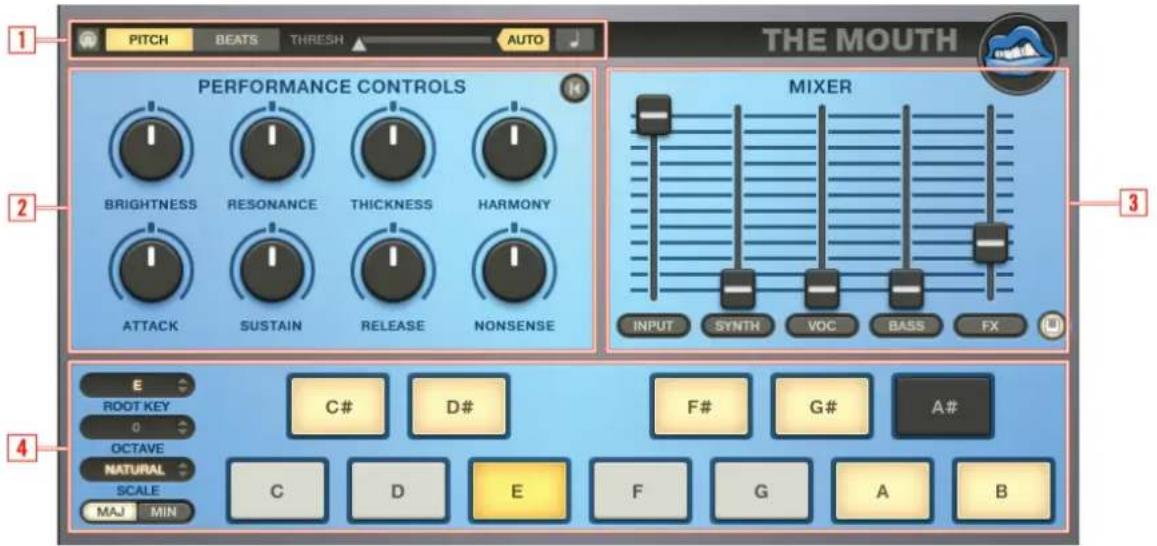
Fig. 5-2 Overview of THE MOUTH User Interface
(1) Input Controls: Set the mode of operation, the threshold gate on the incoming audio signal and toggle the Harmony section.
(2) PERFORMANCE CONTROLS: Set real-time control of sound and envelope parameters here. See ↑5.3, Performance Controls Section for more information.
(3) MIXER: Control the amplitude, access sub-presets and additional parameters for each part. See ↑5.5, Mixer Section for more information.
(4) Keyboard: Set the scale for pitch correction. See ↑5.6, Keyboard Section for more information.
5.2 Input Controls Section
The input controls provide access to the input parameters of THE MOUTH. Here you find settings for Keyboard mode, Pitch mode, Beat mode, tuning, threshold, and the Harmony button to toggle between the performance controls and the Harmony page. Settings specified in the Input Control section are exclusive to each Snapshot, except for the Threshold and Harmony buttons, which are independent.
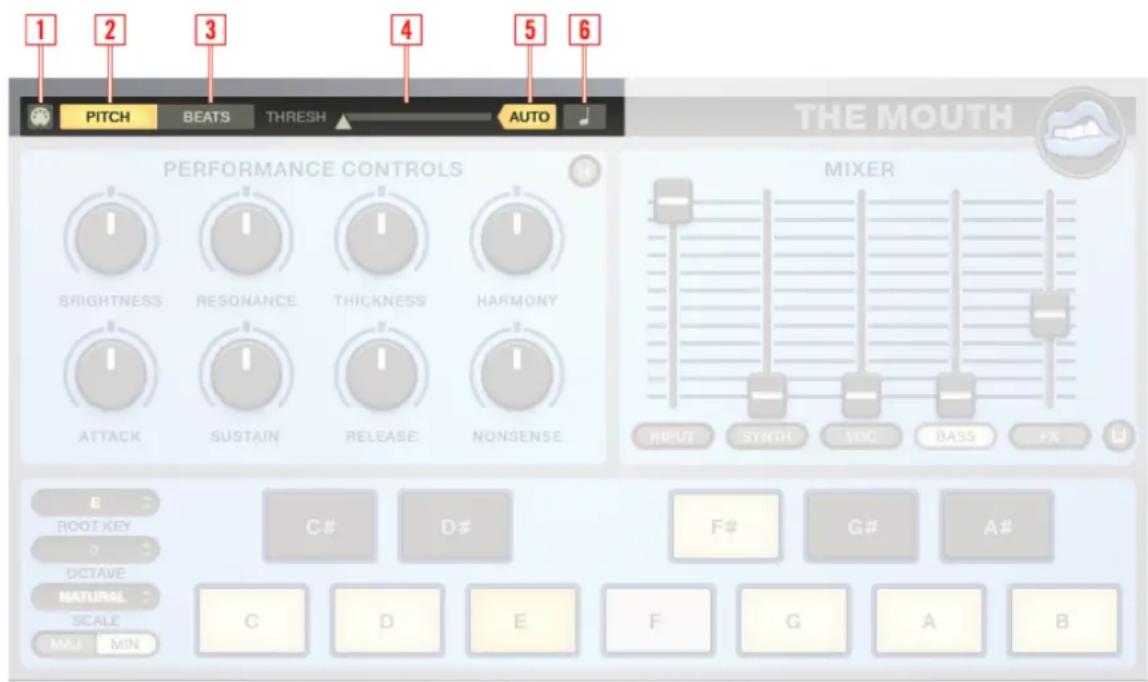
Fig. 5-3 Global Control parameters
Global Control Parameters
(1) MIDI Mode (MIDI jack symbol): Toggling this button on will force THE MOUTH to only use notes that are currently received as the scale. When no notes are received, the input will stay monotone and unprocessed audio will be heard. To configure the THE MOUTH to receive MIDI data please see chapter ↑6, Sending MIDI to THE MOUTH as an Effect.

Even when MIDI mode is off, you can override the scale seen in the keyboard by sending your own MIDI notes to THE MOUTH.

When sending MIDI to THE MOUTH, the octave information is not used.
(2) PITCH: In Pitch mode, THE MOUTH uses the pitch of an incoming signal for processing.
(3) BEATS: In Beats mode, THE MOUTH uses the transient elements of an incoming signal for processing. Kicks and low frequency transients trigger lower notes and snares and higher frequency transients trigger higher notes.
(4) THRESH: The THRESH (threshold) slider is for setting the threshold gate which is triggered using the incoming audio signal. When the level of audio crossing the threshold triggers the gate, the synthesizer and other parts of THE MOUTH can be heard. Lower the level of the slider (threshold) to increase the chances of triggering the gate. Raise the level of the slider to create more rhythmical effects. In Pitch mode, the threshold slider can be used in conjunction with HOLD, RETRIG and REPEAT. These features further enhance the effect the gate has on the incoming signal. For more information, see the Harmony section.
(5) AUTO: The AUTO button activates automatic tracking of the threshold level. The gate is then triggered more accurately in accordance with the peaks of the incoming signal.
(6) Harmony button (note symbol): The Harmony button toggles between the Harmony page and the performance controls.
5.3 Performance Controls Section
The PERFORMANCE CONTROLS section contains eight predefined macros, which can be used to alter both the sound and the amplitude envelope of the current snapshot on a global level.
Performance Control Parameters

Fig. 5-4 Performance Controls section
(1) BRIGHTNESS: The BRIGHTNESS macro acts in a similar way to a Low Pass filter, allowing you to make the overall sound contain more or less harmonic content. In turn, I change the timbre or tone of the overall sound.
(2) RESONANCE: The RESONANCE macro controls the amount of resonance, that is, the amount of the signal enhancement at cutoff frequency. High values may produce a more piercing sound.
(3) THICKNESS: The THICKNESS macro can be used to increase or decrease the stereo spread of the overall sound and Unison of the synthesizer. Stereo spread pans alternating frequency bands to the left and right to create a wide stereo image. In addition, Unison will “fatten” the sound of the synthesizer by sounding all voices (detuned oscillators) together.
(4) HARMONY: The HARMONY macro increases or decreases the intervals between the synthesizers voices. This can be used to create different types of harmonic content.
(5) Macro Reset: The Macro Reset button resets all macros to their default state. When pressed again, it will return the macros to the state they were in last.
(6) ATTACK: The ATTACK macro controls the attack portion of the amplitude envelope. This adjusts the time it takes for the incoming signal to trigger the sound and for the amplitude envelope to climb from zero to full volume. It can be used to create a sound with a slow fade in.
(7) SUSTAIN: The SUSTAIN macro sets the level that the amplitude envelope remains at after being triggered by an incoming signal and after the decay time has expired.

Sustain is also connected to the INPUT gate amount.
(8) RELEASE: The RELEASE macro determines how long it takes for the envelope to decay from the sustain level to zero after the incoming audio has stopped. This can be used to create sounds that continue long after the incoming audio signal has stopped.
(9) NONSENSE: The NONSENSE macro raises the noise and complexity of the sound. Specifically, it raises the noise of the vocoder, decreases the spectral amount, and increases synthesizers filter frequency modulation and resonance.
5.4 Harmony Section
The Harmony section is the primary page for editing the harmony parameters for i synthesizer and vocoder. In addition, the Harmony section contains a global detune of the incoming signal and additional gate parameters such as HOLD, RETRIG and REPEAT when in Pitch mode. In Beats mode, the gate parameters are replaced with the RANGE parameter, which can be used to alter the range of pitch that comes from THE MOUTH.

Fig. 5-5 Overview of Harmony Controls
(1) DETUNE and Gate section: Set the DETUNE amount and input gate for triggering new events.
(2) INPUT section: Set the harmonic interval on the INPUT signal.
(3) SYNTH section: Select a different synthesizer mode and set interval parameters.
(4) VOCODER section: Edit the synthesizer parameters of the vocoder.
5.4.1 Harmony Gate Parameters

Fig. 5-6 Harmony Gate Parameters
(1) DETUNE: Detunes THE MOUTH. Use this to tune THE MOUTH to an intentionally out of tune input, or to make the pitch grid against other instruments in your mix.
(2) HOLD: Triggers the new events when the input gate is retriggered by positively crossing the threshold. This feature is only available in Pitch mode.
(3) RETRIG: Triggers new events on new gate events and also on new pitch events if the gate stays on, so if you cross a pitch snap point the envelopes will be retriggered. This feature is only available in Pitch mode.
(4) REPEAT: Repeat quantizes all pitch and gate events to 16ths. When the gate is switched on, any new events are quantized to the number of 16ths set. This feature is only available in Pitch mode.

Make sure the Play button is on in REAKTOR when using REPEAT mode
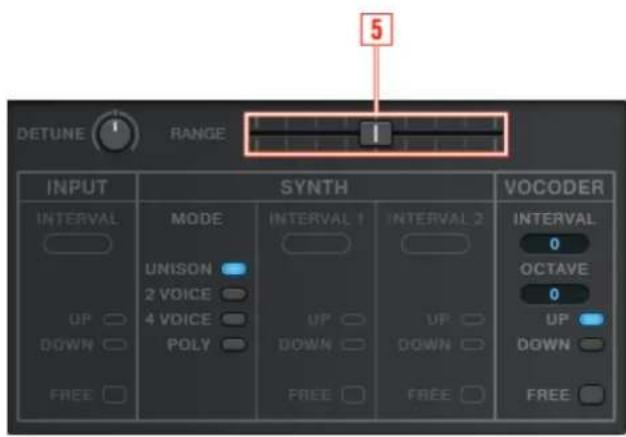
Fig. 5-7 The RANGE Parameter
(5) RANGE Slider: The RANGE slider is only available when Beat mode is selected. This will set the range of pitches THE MOUTH generates. The RANGE slider in the far left position will produce the most restricted range. The RANGE slider in the right position will produce the greatest range.
5.4.2 Harmony Input Parameters
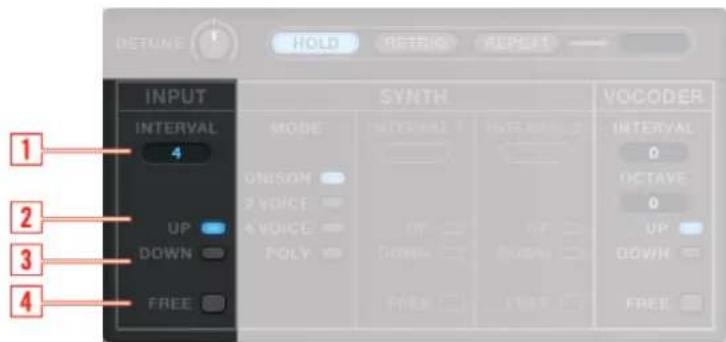
Fig. 5-8 Harmony Input Parameters
(1) INTERVAL: The Input section's INTERVAL sets the interval of the duplicated incoming signal in semitones; for example, 3 represents an interval of a 3rd, 5 represents an interval of a 5th etc. The total interval range is one octave.
(2) UP: The Input section's UP button can be used to tune the incoming signal higher than the first voice.
(3) DOWN: The Input section's DOWN button can be used to Tune the incoming signal lower than the first voice.
(4) FREE: When the Input section's FREE Button is engaged, the harmonic notes will stay a fixed interval from the quantized (tuned) note; when it is off, the intervals shown are also tuned and quantized to the closest note in the scale.
5.4.3 Harmony Synth Parameters
Unison Mode
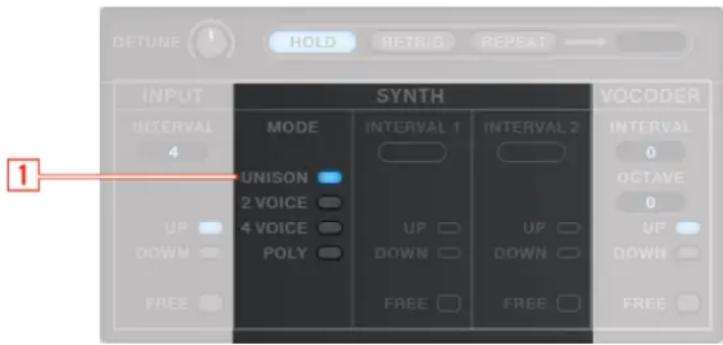
Fig. 5-9 Synth Unison Mode Parameters
(1) UNISON: This allows more than one voice to be used for each note of the synthesizer. This effect is useful when a very thick sound is required. Up to 8 Voices may be layered one on top of another when just a single note is triggered.
2 Voice Mode

Fig. 5-10 Synth 2 Voice Mode Parameters
(1) 2 VOICE: This allows two voices to be used for each note of the synthesizer.
(2) 2 VOICE INTERVAL: Sets the interval of the 2nd voice in semitones between the voices, for example 3 represents an interval of a 3rd, 5 represents an interval of a 5th etc. The interval range is one octave.
(3) 2 VOICE FREE: If free is engaged, the harmonic notes will stay a fixed interval from the quantized (tuned) note; when it is off, the intervals shown are also tuned and quantized to the closest note in the scale.
(4) 2 VOICE INTERVAL DOWN: Use the DOWN button to tune the second voice lower than the first voice.
(5) 2 VOICE INTERVAL UP: Use the UP button to tune the second voice higher than the first voice.
4 Voice Mode

Fig. 5-11 Synth 4 Voice Mode Parameters
(1) 4 VOICE: This allows four voices to be used for each note of the synthesizer.
(2) 4 VOICE INTERVAL 1: Sets the interval of the 2nd voice in semitones between the voices. The tonal range for INTERVAL 1 is one octave.
(3) 4 VOICE INTERVAL 1 FREE: If FREE is engaged, the harmonic notes will stay a fixed interval from the quantized (tuned) note; when it is off, the intervals shown are also tur quantized to the closest note in the scale.
(4) 4 VOICE INTERVAL 1 DOWN: Use the DOWN button to tune the second voice lower than the first voice.
(5) 4 VOICE INTERVAL 1 UP: Use the UP button to tune the second voice higher than the first voice.
(6) 4 VOICE INTERVAL 2: Sets the interval of the 3rd voice in semitones. The tonal range for INTERVAL 2 is two octaves.
(7) 4 VOICE INTERVAL 2 UP: Use the UP button to tune the second voice higher than the first voice.
(8) 4 VOICE INTERVAL 2 DOWN: Use the DOWN button to tune the second voice lower than the first voice.
(9) 4 VOICE INTERVAL 2 FREE: If free is engaged, the harmonic notes will stay a fixed interval from the quantized (tuned) note; when it is off, the intervals shown are also tur quantized to the closest note in the scale.
Poly Mode

Fig. 5-12 Synth Poly Mode Parameters
(1) POLY: Polyphonic allows many single voices of the synthesizer to be used at once.
(2) POLY INTERVAL 2: Sets the interval of the 2nd voice in semitones. The tonal range for INTERVAL 2 is two octaves.
(3) POLY INTERVAL 2 UP: Use the UP button to tune the second voice higher than the first voice.
(4) POLY INTERVAL 2 DOWN: Use the DOWN button to tune the second voice lower than the first voice.
(5) POLY FREE: If FREE is engaged, the harmonic notes will stay a fixed interval from the quantized (tuned) note; when it is off, the intervals shown are also tuned and quantized to the closest note in the scale.
Vocoder Harmony Parameters
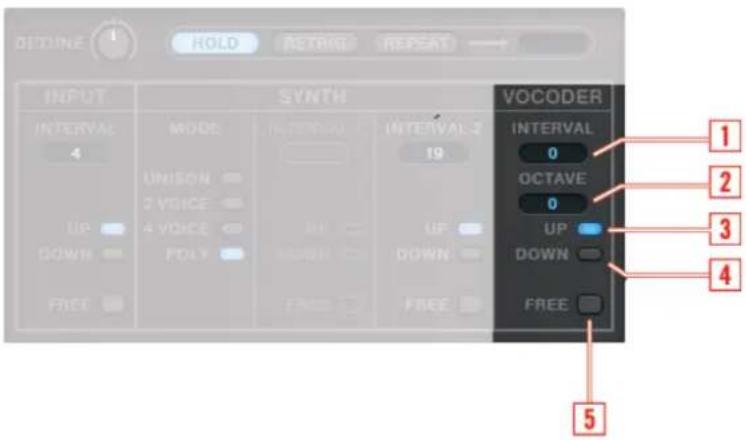
Fig. 5-13 Vocoder Parameters
(1) VOCODER INTERVAL: Sets the interval of the vocoder in semitones between the voices. The range for the vocoder's INTERVAL is two octaves.
(2) VOCODER OCTAVE Sets the pitch of the vocoder in octave jumps. To change the pitch of the selected scale to +1 octave for example, press the OCTAVE plus (+) button until the display indicates that +1 has been selected.
(3) VOCODOR INTERVAL UP: Use the UP button to tune the vocoder an interval higher than the first voice.
(4) VOCODOR INTERVAL DOWN: Use the DOWN button to tune the vocoder an interval lower than the first voice.
(5) VOCODOR FREE: If FREE is engaged, the harmonic notes will stay a fixed interval from the quantized (tuned) note; when it is off, the intervals shown are also tuned and quantized to the closest note in the scale.
5.5 Mixer Section
The Mixer section allows you to control the levels, access sub-presets and additional parameters for each part. Each channel contains a limiter that begins processing when the fader is about two thirds the way up. The limiter will squash the sound rather crease the level, preventing any undesirable peaks.
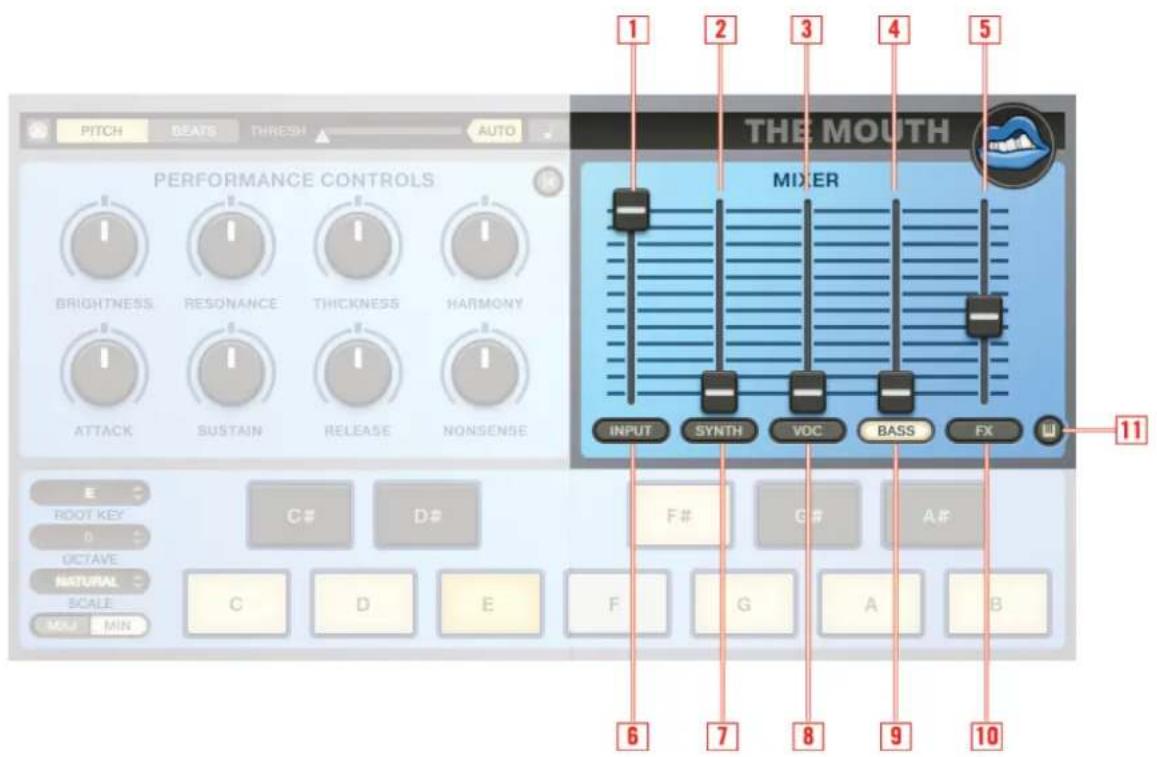
Fig. 5-14 Overview of the Mixer Section
(1) INPUT Fader: The INPUT fader adjusts the level of the incoming signal. Higher levels increase the original source in the mix. Lower levels allow only the effected signal heard.
(2) SYNTH Fader: The SYNTH fader adjusts the level of the synthesizer. Higher levels increase the synthesizer in the mix. Lower levels reduce the synthesizer in the mix.
(3) VOC Fader: The VOC fader adjusts the level of the Vocoder. Higher levels increase the vocoder in the mix. Lower levels reduce the vocoder in the mix.
(4) BASS Fader: The BASS fader adjusts the level of the bass synthesizer. Higher levels increase the bass synthesizer in the mix. Lower levels reduce the bass synthesizer i mix.
(5) FX Fader: The FX button adjusts the level of effects. Higher levels increase the effects in the mix. Lower levels reduce the amount of effects in the mix.
(6) INPUT Button: This opens the sub-presets and additional parameters for the INPUT part.
(7) SYNTH Button: This opens the sub-presets and additional parameters for the SYNTH part.
(8) VOC Button: This opens the sub-presets and additional parameters for the VOC (vocoder) part.
(9) BASS Button: This opens the sub-presets and additional parameters for the BASS part.
(10) FX Button: This opens the sub-presets and additional parameters for the FX part.
(11) KEYBOARD Button: The KEYBOARD button opens the Keyboard view.
5.6 Keyboard Section
The Keyboard section allows you to set the scale for pitch correction. This section is replaced by sub-presets when the Keyboard button is clicked in the Mixer section.

Fig. 5-15 Keyboard section parameters
(1) ROOT KEY: Select the root key to which the incoming signal will be tuned. This can be used in conjunction with the SCALE parameter. For example, if your input material is in the scale C major, select the root key of C and the major scale using the MAJ button. If your audio input is in the scale of Eb minor, select E as your root note and minor using the MIN button. Notes that fall outside a selected scale will automatically be tuned to the nearest note of that scale. To change the ROOT KEY, click and hold the left mouse button and drag your mouse up or down. The ROOT KEY will appear dark yellow on the keyboard when selected.

Don't worry if you are unfamiliar with music theory, please experiment and listen out for what sounds good! The sound of audio being automatically tuned to the selected scale can be used as an effect itself.
(2) OCTAVE: The parameter transposes THE MOUTH by octave steps. To change the basic pitch of the selected scale to +1 octave for example, click the left mouse button and drag your mouse upwards.
Selecting 0 will correspond to the concert pitch of 440Hz when note A above middle C is played.
(3) SCALE: The SCALE parameter allows you to select predefined scales. Please experiment with different scales to select the one that best suits your arrangement. To change SCALE click the right mouse button and drag your mouse up or down.
(4) MAJ/MIN: These parameters allow you to change the scale from major to minor. Click MAJ for a major scale and MIN for a minor scale.
(5) Keyboard: Click on a key to set the ROOT KEY of the scale you want to use. The colors of the keys are as follows: A yellow ring around a key signifies an incoming pitch; a dark yellow key denotes the ROOT KEY. A blue ring around a key represents a tuned (outgoing) pitch. Use a dial or slider on an external MIDI device to control the ROOT KEY. This will allow you to make changes on the fly and also record them to your DAW.
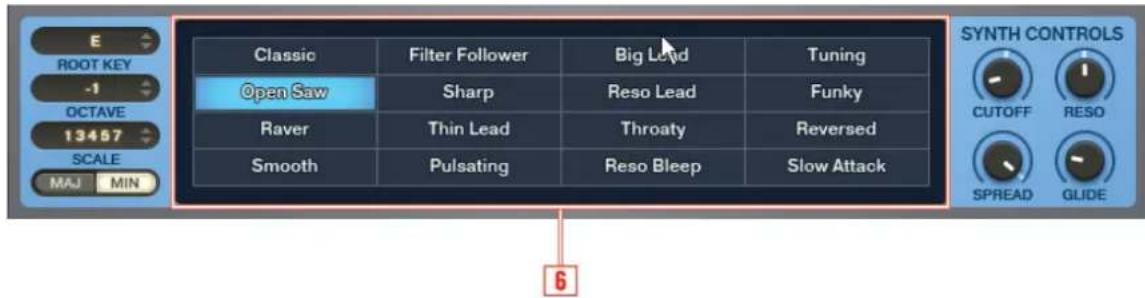
Fig. 5-16 Overview of Sub-presets
(6) Sub-Presets: A sub-preset is a “snapshot” that includes parameters used by THI MOUTH. By recalling a sub-preset, you can recall various parameters of the THE MOUTH at once. There are 16 sub-presets for each part (INPUT, SYNTH, VOC, FX) and four sub-presets for BASS. The sub-preset in use is highlighted in light blue. You can recall an alternative sub-preset by clicking it. Rather than clicking each sub-preset instantaneously, you can blend them gradually. Click a sub-preset and hold the right mouse button while dragging to enable blending.
5.7 Input Controls Section
5.7.1 Input Controls
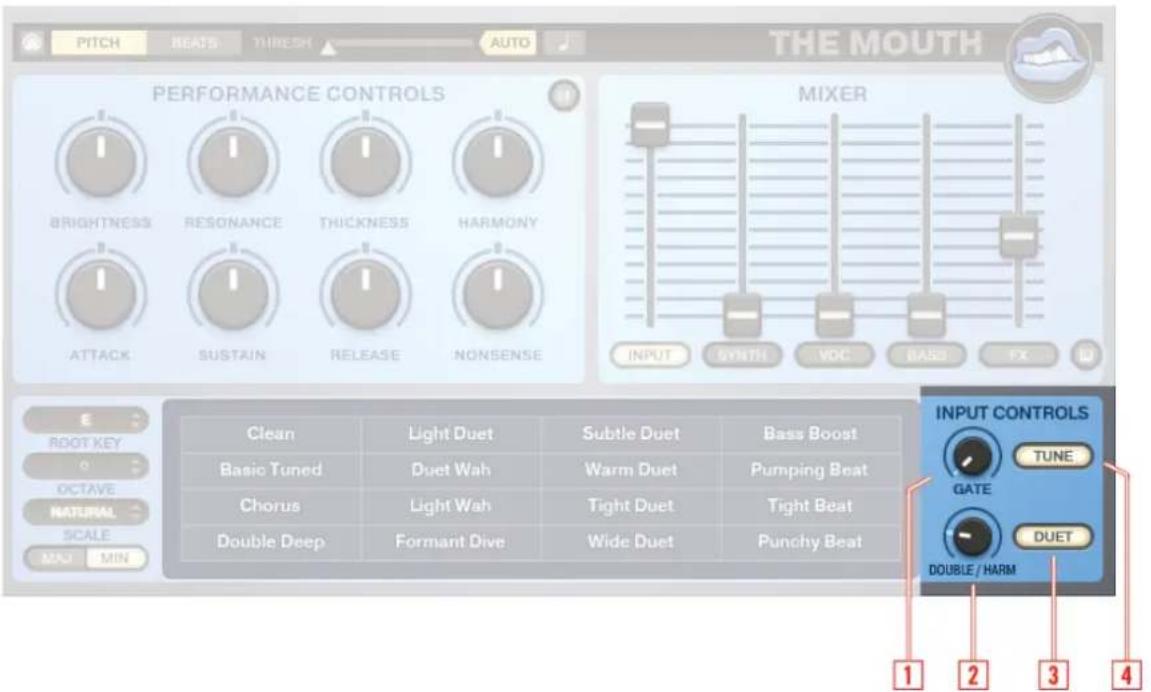
Fig. 5-17 Overview of the Input Controls
(1) GATE: This attenuates the amount the incoming signal is attenuated by the gate envelope.
(2) DOUBLE/HRM: This turns up the volume of the extra voice. If DUET is on, the extra voice's interval is set in the Harmony page. If not, the voice is doubled for a unique chorus effect.
(3) DUET: The DUET button sets the level of the second pitch. In non-duet mode the second pitch is a doubler, so you can set the amount of doubling. In Duet mode, the second pitch is a harmony.
(4) TUNE: The TUNE function toggles pitch correction on and off. It also enables the DOUBLE/HRM and DUET controls.
5.7.2 Synthesizer Controls
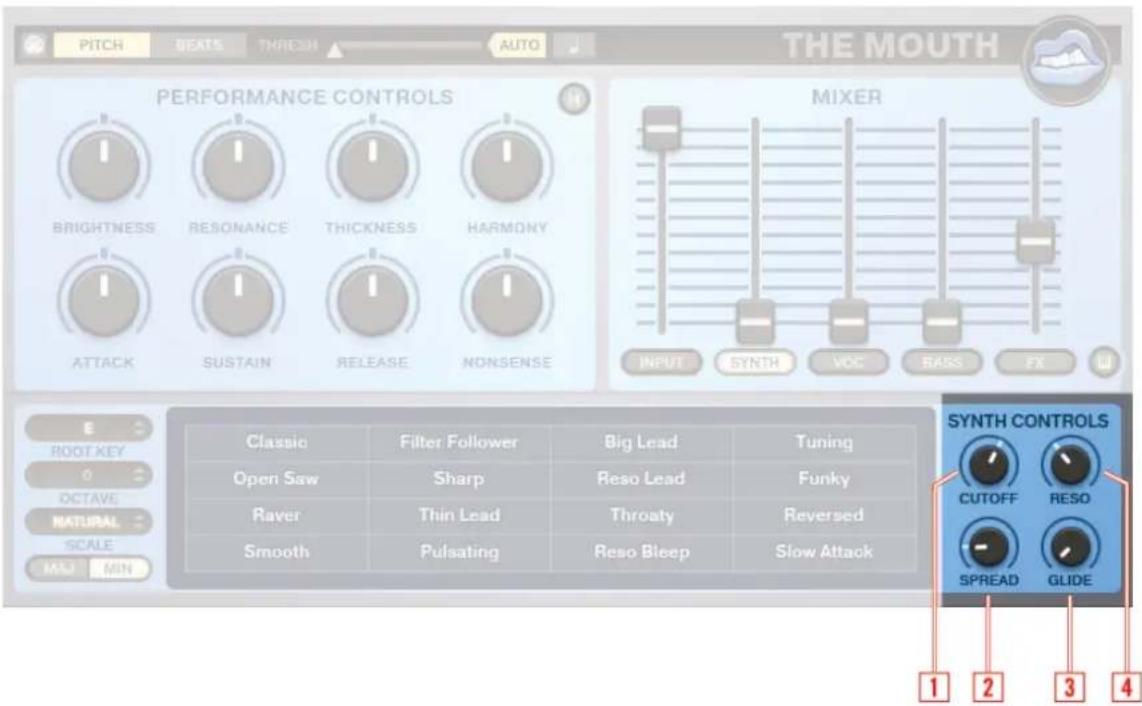
Fig. 5-18 Overview of the Synth Controls
(1) CUTOFF: The filter's CUTOFF control determines the frequency at which the filter begins to affect harmonic content; frequencies below the cutoff point will pass through the filter unchanged. The effect of the filter is to reduce high frequency components of the sound.
(2) SPREAD: Spread pans alternating frequency bands of the synthesizer to the left and right to create a wide stereo image.
(3) GLIDE: This knob adjusts the time it takes a sound to glide from the first note pitch to the following note pitch. This is also known as "portamento." When the knob is at full left, there is no glide at all, and the pitch will jump from one note to the next. When you turn the knob to the right, the glide time increases and makes the transition between the notes smoother. Extreme amounts of GLIDE can be used for a creative effect.
(4) RESO: The RESO button (resonance) controls the amount of the signal enhancement at cutoff frequency.
5.7.3 Vocoder Controls
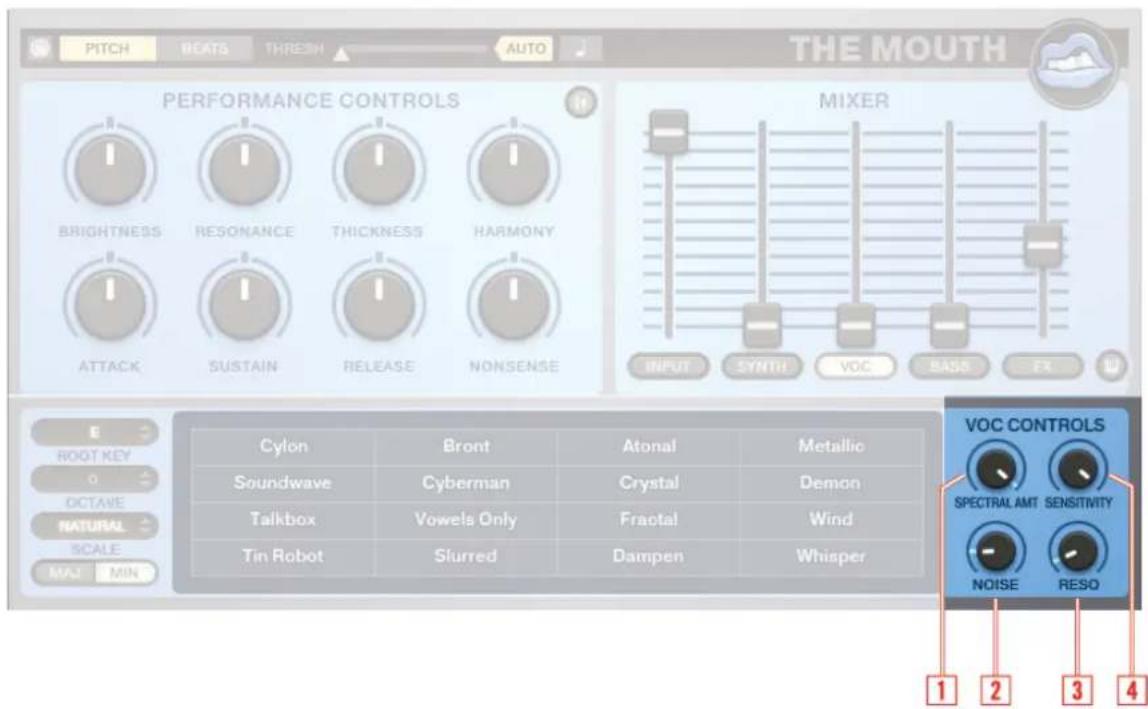
Fig. 5-19 Overview of the Vocoder Controls
(1) SPECTRAL AMT: Cross-fades between a classic spectral vocodor mode and a non-spectral mode. The non-spectral mode behaves more like a resonator.
(2) NOISE: This parameter will increase or decrease white noise. This can be used to create a more sibilant effect on vocals.
(3) RESONANCE: Controls the amount of resonance in the vocoder, that is, the amount of the signal enhancement at cutoff frequency. High values will create a sharper more piercing tone.
(4) SENSITIVITY: Controls the sensitivity of the vocoder bands.
5.7.4 Bass Controls
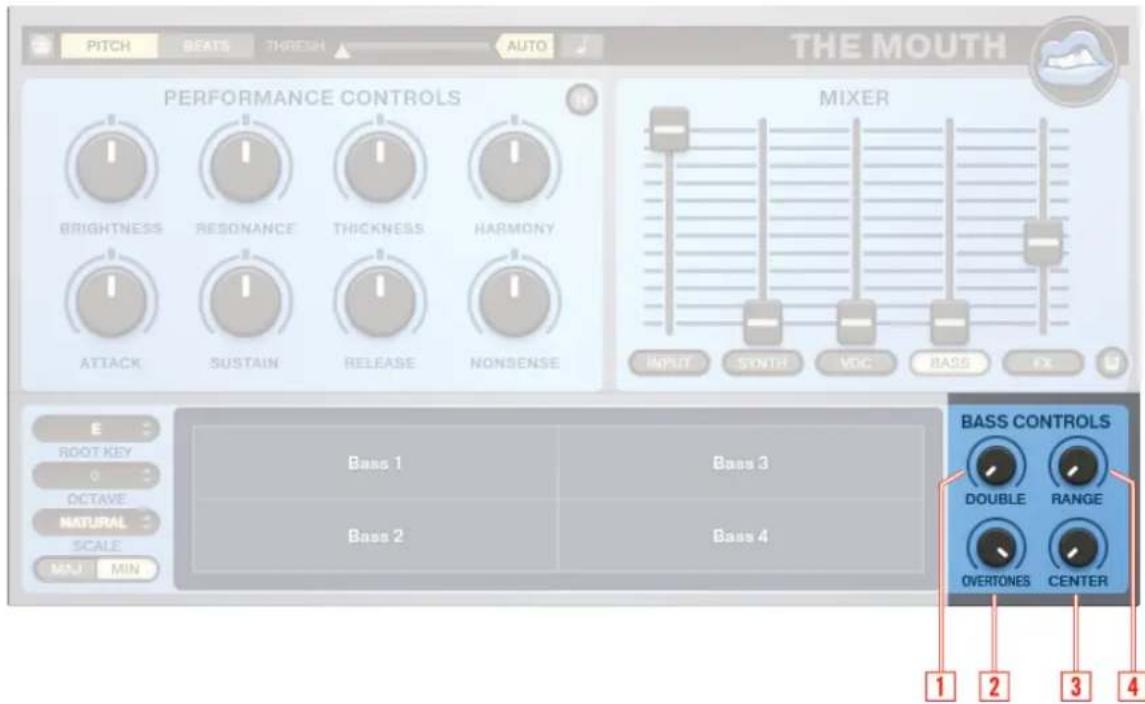
Fig. 5-20 Overview of the Bass Controls
(1) DOUBLE: The DOUBLE parameter will sound a second voice on any octave above or below, doubling the sound of the BASS. The sound produced depends on the RANGE and CENTER controls. If the pitch is high then the BASS can be 4 or more octaves below the pitch.
(2) OVERTONES: Use the OVERTONES parameter to emphasize higher frequencies of the sound.
(3) CENTER: This is the centre pitch around which the bass frequencies are constrained to the octave by the RANGE knob. The range is 1-3 octaves. If the range is 1, then bass notes occur between -6 and +6 MIDI notes either side of the centre pitch. Any notes occurring outside this range are wrapped back into the range.
(4) RANGE: The RANGE determines the octave range of the bass. When the knob is at full left, the range is one octave. When the knob is positioned in the middle the range is two octaves, and when the knob is to the right the range is 3 octaves.
5.7.5 FX Controls

Fig. 5-21 Overview of the FX Controls
(1) DELAY AMT: The DELAY AMT (delay amount) will increase or decrease the amount of delay feedback.
(2) COMP: Sets the value above which the compressor takes effect. Compression can be used to reduce sounds that exceed a certain threshold level creating a more even sound.
(3) RELEASE: Sets the time it takes for the compressor to stop reducing the signal after the signal level falls below the threshold. With a high level of compression and a short release time “pumping” effects may be achieved.
(4) LENGTH: This adjusts the length of the delay time. The delay time is tied to tempo but not quantized.

The mixer's FX fader controls the amount of delay and compression applied. However, the FX mode has a built in EQ for effecting the frequency response of the whole instrument.
6 Sending MIDI to THE MOUTH as an Effect
By holding notes on your MIDI keyboard, it is possible to change the notes of being used by THE MOUTH. This can be used live for making impromptu pitch changes or more precisely when sequenced. MIDI notes can be recorded to your DAW; however, sending MIDI to an effect isn't always that straight-forward in all hosts so read the sections below for a little help.
6.1 Ableton Live
In Ableton Live, insert the THE MOUTH as an effect. Chose or create another MIDI track. Click on the MIDI To menu on the MIDI track and select the track where the effect was inserted. If there are more than one MIDI-enabled effects on the original track, you must select the specific plug-in you want the MIDI to go to from the drop-down menu below the MIDI To selection. Make sure recording is enabled on the new MIDI track, or you are using Monitor In, to send MIDI to THE MOUTH.
6.2 Logic
In Logic, first insert the plug-in as an audio instrument from the track sub-menu called AU MIDI-controlled Effects. Use the side-chain menu in the plug-in window to choose an audio track to route into THE MOUTH. The MIDI data will come from the sequences on the audio instrument track (or live MIDI input if that track is selected in the Arrange window), and the audio to be processed will come from the side-chain track.
6.3 Cubase SX / Nuendo
In Steinberg products, first insert THE MOUTH as an effect and activate the THE MOUTH. Select the THE MOUTH as the output device for one of your MIDI tracks from the Cubase output device menu. The MIDI track will now send MIDI to THE MOUTH. To send MIDI, make sure the MIDI track is active, playing a clip or monitoring MIDI In.
6.4 FL Studio
In FL Studio, add THE MOUTH as an insert to the channel you want to process plug-in window, on the arrow next to the folder icon on the left in the header, select Show MIDI Port from the drop-down menu. A new green area appears on the right of the plug-in wrapper's header. Drag on this area to select a specific port number. From FL's menu select Channels > Add one > MIDI Out. On the MIDI Out instrument, select the same port you used for the plug-in. You can now send MIDI on from the MIDI Out instrument's track to the plug-in.
6.5 ProTools 8
Create one MIDI or audio channel with the THE MOUTH used as an insert. Create a second track for the incoming MIDI. In the new MIDI track's Input/output section on the mixer, select THE MOUTH. Now make sure you are recording on the new MIDI track (or use monitor to send MIDI always).
7 Sending MIDI from THE MOUTH
THE MOUTH can track the pitch of an incoming audio signal and output MIDI within your DAW. This can be used to control other hardware or software MIDI capable instruments. This feature can also be very useful for quickly tracking vocal phrases from a microphone, making it possible for you to sing a melody and capture the MIDI data rather than play it on a MIDI keyboard. In Beats mode, THE MOUTH can process drum patterns acting upon the transients of an incoming audio signal. The MIDI produced in Beats mode often creates some interesting single note rhythmical patterns and arpeggios. The type of MIDI produced often depends on the snapshot settings; for example, adjustment of the amplitude envelope can produce either staccato or legato patterns depending on how the sustain and release parameters are set. The instructions for sending MIDI from THE MOUTH are specific to your host and unfortunately not always straight-forward. As an example please read the section below for an overview on performing this task in Ableton Live.

Please refer to the documentation provided with your DAW for more information on setting up MIDI for virtual instruments and effects. You may also find more support and information specific to your DAW on the Native Instruments REAKTOR website forum.

The MIDI Out feature works best with VST and RTAS versions of THE MOUTH. AU (Audio Units) versions of THE MOUTH require a third party AU to VST wrapper in order to send MIDI. This is a limitation of the AU plug-in architecture and not THE MOUTH.
7.1 Ableton Live
To setup Ableton Live to send MIDI from THE MOUTH to a MIDI channel:
- Create an audio channel.
- Insert the THE MOUTH as an effect on the audio channel (make sure you choose the VST version of THE MOUTH plug-in).
- To receive an incoming audio signal on the audio channel, change the Audio From drop-down menu to Ext In and monitor to In. Alternatively, to use a Clip as your source for triggering THE MOUTH, select No Input and Monitor to Auto.
- Create a MIDI track.
-
Insert a plug-in instrument such as a synthesizer on the MIDI track.
-
Click the MIDI FROM menu on the MIDI track and select the track where the effect was inserted. In this example select 1. Audio.
- If there is more than one MIDI-enabled effects on the audio track, you must select the specific plug-in you want the MIDI to go to from the drop-down menu below the MIDI To selection.
- Make sure you have record enabled on the MIDI track, and Monitor set to Auto, to send the MIDI to the plug-in.
8 Credits
Instrument: Tim Exile
Contributions: Dietrich Pank, Mike Daliot, Matt Jackson
Product Design: Matt Jackson
Graphic Design: Phirol & Goesta Wellmer
Sound Design: Tim Exile, Adam Hanley, Matt Jackson, Ema Jolly, Robert Linke
Manual: David Gover


- THE MOUTH
- Germany
- USA
- NATIVE INSTRUMENTS
- Table of Contents
- Welcome to THE MOUTH 6
- What is THE MOUTH? 8
- Installation and Activation 9
- How to Use THE MOUTH ....11
- Overview of THE MOUTH Interface 15
- Sending MIDI to THE MOUTH as an Effect 40
- Sending MIDI from THE MOUTH 42
- Credits....44
- Welcome to THE MOUTH
- Foreword by Tim Exile
- Basic Information
- About this Manual
- What is THE MOUTH?
- Installation and Activation
- Installing THE MOUTH
- Activating THE MOUTH
- How to Use THE MOUTH
- How to Open THE MOUTH
- Exploring the Snapshots
- Loading a Snapshot from the Sidepane
- Loading a Snapshot from the Main Bar
- Saving a Snapshot
- Overview of THE MOUTH Interface
- Signal Flow of THE MOUTH
- Input Controls Section
- Global Control Parameters
- Performance Controls Section
- Harmony Section
- Harmony Gate Parameters
- Harmony Input Parameters
- Harmony Synth Parameters
- Voice Mode
- Voice Mode
- Poly Mode
- Vocoder Harmony Parameters
- Mixer Section
- Keyboard Section
- Input Controls Section
- Input Controls
- Synthesizer Controls
- Vocoder Controls
- Bass Controls
- FX Controls
- Sending MIDI to THE MOUTH as an Effect
- Ableton Live
- Logic
- Cubase SX / Nuendo
- FL Studio
- ProTools 8
- Sending MIDI from THE MOUTH
- Ableton Live
- Credits
Marque : NATIVE INSTRUMENTS
Modèle : The Mouth
Catégorie : Equipement DJ