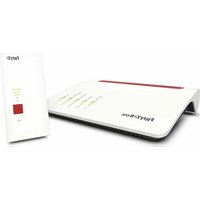
FRITZ! Mesh Set - Routeur AVM - Notice d'utilisation et mode d'emploi gratuit
Retrouvez gratuitement la notice de l'appareil FRITZ! Mesh Set AVM au format PDF.


| Caractéristiques | Détails |
|---|---|
| Type de produit | Routeur Mesh |
| Normes Wi-Fi | Wi-Fi 5 (802.11ac) |
| Vitesse maximale | AC1300 (jusqu'à 1300 Mbps) |
| Ports Ethernet | 4 ports Gigabit LAN |
| Fonctionnalités Mesh | Technologie Mesh pour une couverture étendue |
| Configuration | Application FRITZ!App WLAN pour une configuration facile |
| Sécurité | WPA3, pare-feu intégré |
| Maintenance | Mises à jour automatiques du firmware |
| Compatibilité | Compatible avec d'autres appareils FRITZ! |
| Dimensions | Environ 10 x 10 x 10 cm |
| Poids | Environ 300 g |
FOIRE AUX QUESTIONS - FRITZ! Mesh Set AVM
Questions des utilisateurs sur FRITZ! Mesh Set AVM
0 question sur cet appareil. Repondez a celles que vous connaissez ou posez la votre.
Poser une nouvelle question sur cet appareil
Téléchargez la notice de votre Routeur au format PDF gratuitement ! Retrouvez votre notice FRITZ! Mesh Set - AVM et reprennez votre appareil électronique en main. Sur cette page sont publiés tous les documents nécessaires à l'utilisation de votre appareil FRITZ! Mesh Set de la marque AVM.
MODE D'EMPLOI FRITZ! Mesh Set AVM
text_image
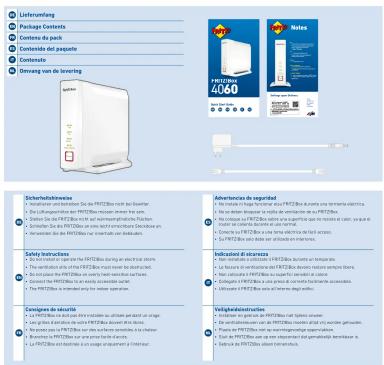
Liriumorung Package Contents Contente de pack Contente del paçage Contente Dienstag von der testing Natures Pertil-Uffizi 4060 Sicherheitsbestrechen • Anfang und fremderende Sie der PRT2Box notes bei Steueller. • Die Partite des PRT2Box nonverbindt für siehe. • Derivate Sie der PRT2Box als vor kurzemorphische Flüchen. • Derivate Sie der PRT2Box sind nicht durchsitzte Steuherungen und • Fremderende Sie der PRT2Box nur nachhalt von Steueller und Individenz. • Energie des PRT2Box aus eine Immune immaterielle mit externen • Derivate Sie der PRT2Box auf dem Veräußerungen und Individenz. • Individenz der bilanzierte • Die Partite des bilanzierte die PRT2Box sind an electrical system. • Die Partite des bilanzierte die PRT2Box sind an electrical system. • Derivate Sie der PRT2Box ist sofern durch sonstige Sädenungen und • Derivate Sie der PRT2Box ist sofern durch sonstige Sädenungen und Individenz. • Individenz der bilanzierte • Die Partite des bilanzierte die PRT2Box sind an electrical system. • Die Partite des bilanzierte die PRT2Box sind an electrical system. • Derivate Sie der PRT2Box ist sofern durch sonstige Sädenungen und Individenz. • Individenz der bilanzierte • Die Partite des bilanzierte die PRT2Box sind an electrical system. • Die Partite des bilanzierte die PRT2Box sind an electrical system. • Derivate Sie der PRT2Box ist sofern durch sonstige Sädenungen und Individenz. • Individenz des bilanzierte • Die Partite des bilanzierte die PRT2Box sind an electrical system. • Die Partite des bilanzierte die PRT2Box sind an electrical system. • Derivate Sie der PRT2Box ist sofern durch sonstige Sädenungen und Individenz. • Individenz der bilanzierte • Die Partite des bilanzierte die PRT2Box sind an electrical system. • Die Partite des bilanziarte und die PRT2Box sind an electrical system. • Derivate Sie der PRT2Box ist sofern durch sonstige Sädenungen und Individenz. • Individenz der bilanzierte • Die Partite des bilanzierte die PRT2Box sind an electrical system. • Die Partite des bilanzierte die PRT2Box sind an electrical system. • Derivate Sie der PRT2Box ist sofern durch sonstige Sädenungen and Individenz. • Individenz der bilanzierte • Die Partite des bilanzierte die PRT2Box sind an electrical system. • Die Partite des bilanzierte die PRT2Box sind an electrical system. • Derivate Sie der PRT2Box ist sofern durch sonstige Sädenungen und Individenz. • Individenz der bilanzierte • Die Partite des bilanzierte die PRT2Box sind an Electrical System. • Die Partite des bilanzierte die PRT2Box sind an Electrical System. • Derivate Sie der PRT2Box ist sofern durch sonstige Sädenungen und Individenz. • Individenz der bilanzierte • Die Partite des bilanzierte die PRT2Box sind an Electrical System. • Die Partite des bilanzierte die PRT2Box sind an Electrical System. • Derivate Sie der PRT2Box ist sofern durch sonstige Sädenungen und Individenz. • Individen der bilanzierte • Die Partite des bilanzierte die PRT2Box sind an Electrical System. • Die Partite des bilanzierte die PRT2Box sind an Electrical System. • Derivate Sie der PRT2Box ist sofern durch sonstige Sädenungen und Individenz. • Individen der bilanzierte • Die Partite des bilanzierte die PRT2Box sind an Electrical System. • Die Partite des bilizierungs- und die Plastics System. • Derivate Sie der PRT2Box ist sofern durch sonstige Sädenungen und Individenz. • Individen der bilanzierte • Die Partite des bilizierungs- und die Plastics System. • Die Partite des bilizierungs- und die Plastics System. • Derivate Sie der PRT2Box ist sofern durch sonstige Sädenungen und Individenz. • Individen der bilizierungs- und die Plastics System. • Derivate Sie der PRT2Box ist sofern durch sonstige Sädenungen und Individenz.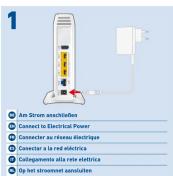
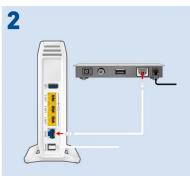
An ein Modern anschließen
Schließen Sie das weiße Netzverkkabel an die Buchse „WAN“ der PRITZBox und an eine LAN-Buchse eines Kabel- oder eines DSL-Moderns oder eines Reuters mit egebautern DSL-Medern an.
Connect it is a south
Connect the white network cable to the "WAN" socket on the
PREL2box and to a LAN socket for a cable modem or DSL modem, or to a router with an integrated DSL modem.
Connector à un modem
FR
Branchez le câble réseau blanc sur le port = WAN = de la FRITZ!BuX
et suin port du N du modern PCI, ou ilble au d'un en deux ans
et sur le port LAK du mobem (ul, de casie ou d'un fiscal SWC, modern DSL intégril.
Conectar un módem
Conecte el cable de red blanco al puerta "WAN" del PRIT2Box y a un puerta UNido un sabiamidem a midem PCI, a diven su atro ano.
Un Periodo: DON de el Estenloam a Modern DSL o be difristor con
mádem DSL incorporada.
Collegamento a un modern
Collegate il cavo di nette bianco alla porta "WAN" del PRITZIBox e a una porta LUN di uno periodo DSI, a cui come a di un rim 4% con
- 1.3.1.107. DIA: ORAMINADO, SSL 9. No CAVA 9. DE EN HAZOR - com madem DSL integrato.
Op een modern aansluiten
Sluit de witde netvierkabel aan op de bus 'WAN' van de FRITZ-Blok en op een LAN buut van het bilkel af 251 onderm of provoortes gel.
en op den LAN-DAS van het wader- of DSL-modern of evertroder met een ingebauvde DSL-modern.
text_image
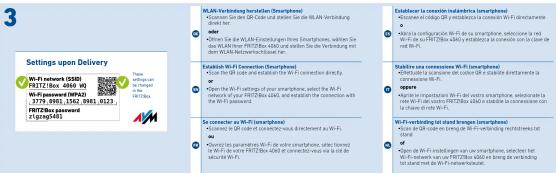
3 Settings upon Delivery Wi-Fi network (SSD) F1772 (800, 059) Wi-Fi Wi-Fi presented (PSAD) 3779 (800, 059) Wi-Fi F1872/62 shared e.g. Wi-Fi Three settings upon Bluetooth Wireless Wi-Fi connected to Wi-Fi (smartphone) • All users can use Wi-Fi code and address the Wi-Fi, Wi-Fi, Wi-Fi, Wi-Fi, Wi-Fi, Wi-Fi, Wi-Fi, Wi-Fi, Wi-Fi, Wi-Fi, Wi-Fi, Wi-Fi, Wi-Fi, Wi-Fi, Wi-Fi, Wi-Fi, Wi-Fi, Wi-Fi, Wi-Fi, Wi-Fi, Wi-Fi, Wi-Fi, Wi-Fi, Wi-Fi, Wi-Fi, Wi-Fi, Wi-Fi, Wi-Fi, Wi-Fi, Wi-Fi, Wi-Fi, Wi-Fi, Wi-Fi, Wi-Fi, and Wi-Fi • Use of Wi-Fi: Full-length of your smartphone, select the Wi-Fi set at 99 MHz (424 dB), and extends the connection with the Wi-Fi speaker. • Use of Wi-Fi: Full-length of your smartphone, select the Wi-Fi set at 99 MHz (424 dB), and extends the connection with the Wi-Fi speaker. • Use of Wi-Fi: Full-length of your smartphone, select the Wi-Fi set at 99 MHz (424 dB), and extends the connection with the Wi-Fi speaker. • Use of Wi-Fi: Full-length of your smartphone, select the Wi-Fi set at 98 MHz (424 dB), and extends the connection with the Wi-Fi speaker. • Use of Wi-Fi: Full-length of your smartphone, select the Wi-Fi set at 98 MHz (424 dB), and extends the connection with the Wi-Fi speaker. • Use of Wi-Fi: Full-length of your smartphone, select the Wi-Fi set at 98 MHz (424 dB), and extends the connection with the Wi-Fi speaker. • Use of Wi-FI: Full-length of your smartphone, select the Wi-Fi set at 98 MHz (424 dB), and extends the connection with the Wi-Fi speaker. • Use of Wi-Fi: Full-length of your smartphone, select the Wi-Fi set at 98 MHz (424 dB), and extends the connection with the Wi-Fi speaker. • Use of Wi-Fi: Full-length of your smartphone, select the Wi-Fi set at 98 MHz (426 dB), and extends the connection with the Wi-Fi speaker. • Use of Wi-Fi: Full-length of your smartphone, select the Wi-Fi set at 98 MHz (426 dB), and extends the connection with the Wi-Fi speaker. • Use of Wi-Fi: Full-length of your smartphone, select the Wi-Fi set at 98 MHz (426 dB), and extends the connection with the Wi-Fi speaker. • Use of Wi-Fi: Full-length of you's phone, select the Wi-Fi set at 98 MHz (426 dB), and extends the connection with the Wi-Fi speaker. • Use of Wi-Fi: Full-length of you's phone, select the Wi-Fi set at 98 MHz (426 dB), and extends the connection with the Wi-Fi speaker. • Use of Wi-Fi: Full-length of you's phone, select the Wi-Fi set at 98 MHz (426 dB), and extending the connection with the Wi-Fi speaker. • Use of Wi-Fi: Full-length of you's phone, select the Wi-Fi set at 98 MHz (426 dB), and extending the connection with the Wi-Fi speaker. • Use of Wi-Fi: Full-length of you's phone, select the Wi-Fi set at 98 MHz (426 dB), and extending the connection with the Wi-Fi speaker. • Use of Wi-Fi: Full-length of you's iPhone, select the Wi-Fi set at 98 MHz (426 dB), and extending the connection with the Wi-Fi speaker. • Use of Wi-Fi: Full-length of you's iPhone, select the Wi-Fi set at 98 MHz (426 dB), and extending the connection with the Wi-Fi speaker. • Use of Wi-Fi: Full-length of you's iPhone, select the Wi-Fi set at 98 MHz (426 dB), and ending the connection with the Wi-Fi speaker. • Use of Wi-Fi: Full-length of you's iPhone, select the Wi-Fi set at 98 MHz (426 dB), and extending the connection with the Wi-Fi speaker. • Use of Wi-Fi: Full-length of you's iPhone, select the Wi-Fi set at 98 MHz (426 dB), and extending the connection with the Wi-Fi speaker. • Use of Wi-Fi: Full-length of you's phone, select the Wi-Fi set at 98 MHz (426 dB), and extending the connection with the Wi-Fi speaker. • Use of Wi-Fi: Full-length of you's phone, select the Wi-Fi set at 98 MHz (426 dB), and ending the connection with the Wi-Fi speaker. • Use of Wi-Fi: Full-length of you's phone, select the Wi-Fi set at 98 MHz (426 dB), and extending the connection with the Wi-Fi speaker. • Use of Wi-Fi: Full-length of you's phone, select the Wi-Fi set at 98 MHz (426 dB), and extending the connection with the Wi-Fi speaker. • Use of Wi-Fi: Full-length of you's device, select the Wi-Fi set at 98 MHz (426 dB), and extending the connection with the Wi-Fi speaker. • Use of Wi-Fi: Full-length of you's device, select the Wi-Fi set at 98 MHz (426 dB), and extending the connection with the Wi-Fi speaker. • Use of Wi-Fi: Full-length of you's device, select the Wi-Fi set at 98 MHz (426 dB), and ending the connection with the Wi-Fi speaker. • Use of Wi-Fi: Full-length of you's device, select the Wi-Fi set at 98 MHz (426 dB), and extending the connection with the Wi-Fi speaker. • Use of Wi-Fi: Full-length of you's device, select the Wi-Fi set at 98 MHz (426 dB), and extending the connection with the Wi-Fi speaker. • Use of Wi-Fi: Full-length of you's devices, select the Wi-Fi set at 98 MHz (426 dB), and extending the connection with the Wi-Fi speaker. • Use of Wi-Fi: Full-length of you's devices, select the Wi-Fi set at 98 MHz (426 dB), and extending the connection with the Wi-Fi speaker. • Use of Wi-Fi: Full-length of you's devices, select the Wi-Fi set at 98 MHz (426 dB), and ending the connection with the Wi-Fi speaker. • Use of Wi-Fi: Full-length of you's devices, select the Wi-Fi set at 98 MHz (426 dB), and extending the connection with the Wi-Fi speaker. • Use of Wi-Fi: Full-length of you's devices, select the Wi-Fi set at 98 MHz (426 dB), and extending the connection with the Wi-Fi speaker. • Use of Wi-Fi: Full-length of you's device, select the Wi-Fi set at 98 MHz (426 dB), and extending the connection with the Wi-Fi speaker. • Use of Wi-Fi: Full-length of you's device, select the Wi-Fi set at 98 MHz (426 dB), and reaching on a shared line into WiFi.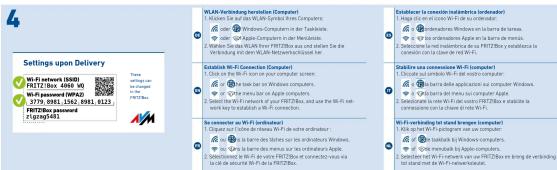
text_image
Settings upon delivery Wi-Fi networks (SIDI) S1775 002 - SIDI 004 Wi-Fi-passwd/MPAD S1775 004 - S1775 003 FIRIT-Box/passwd/sing(qay48) Wi-Fi network (SIDI) S1775 002 - S1775 003 Wi-Fi-passwd/MPAD S1775 004 - S1775 003 FIRIT-Box/passwd/sing(qay48) W-LAF-Verkendling Version (Computer) W-LAF-Sat Dar de la Wi-Fi System Items Computer W-LAF-Verkendling Component in the Tablakologie W-LAF-Apple Component in the Medicales W-LAF-Net Wi-Fi via FIRIT-Box W-LAF-Verkendling System in the Verkendling system of the Wi-Fi Network/Verkendling System Gelablik Wi-Fi Connection (Computer) Wi-Fi network (SIDI) S1775 002 - S1775 003 Wi-Fi-passwd/MPAD S1775 004 - S1775 003 FIRIT-Box/passwd/sing(qay48) Wi-Fi network (SIDI) S1775 002 - S1775 003 Wi-Fi-passwd/MPAD S1775 004 - S1775 003 FIRET-Box/passwd/sing(qay48) Wi-Fi network (SIDI) S1775 002 - S1775 003 Wi-Fi-passwd/MPAD S1775 004 - S1775 003 FIRET-Box/passwd/sing(qay48)