
SW350 - Appareil photo numérique HP - Notice d'utilisation et mode d'emploi gratuit
Retrouvez gratuitement la notice de l'appareil SW350 HP au format PDF.


| Type de produit | Appareil photo numérique compact |
| Marque | HP |
| Modèle | SW350 |
| Résolution maximale | 12 mégapixels (4000 x 3000) |
| Zoom optique | 3x |
| Zoom numérique | Jusqu'à 5x (standard ou intelligent) |
| Dimensions approximatives | 100 x 60 x 30 mm |
| Poids approximatif | 150 g (avec batterie) |
| Alimentation | Batterie Li-ion NP45 rechargeable |
| Stockage | Carte SD/SDHC jusqu'à 32 Go (classe 4 ou supérieure recommandée) |
| Écran LCD | Écran couleur, affichage OSD |
| Modes de prise de vue | Auto, Programme, Priorité ouverture, Priorité vitesse, Manuel, Scène intelligent, Portrait, Paysage, Coucher de soleil, Contre-jour, Enfants, Scène de nuit, Feux d'artifice, Neige, Sport, Fête, Bougie, Portrait de nuit, Peau douce, Eau douce, Nourriture, Bâtiment, Texte, Enchère, Capture sourire, Détection de clignement, Pré-composition, Portrait de couple |
| Enregistrement vidéo | Résolutions : 720x400, 640x480, 320x240 ; mode YouTube (640x480, jusqu'à 100 Mo) |
| Fonctions principales | Stabilisateur d'image, détection de visages, sourire et clignement, bracketing d'exposition (AEB), retardateur (2s/10s/2 shots), rafale, correction des yeux rouges, modification des couleurs, recadrage, redimensionnement, DPOF, PictBridge |
| Connectivité | USB 2.0 (transfert de fichiers, impression directe) |
| Entretien et nettoyage | Essuyer avec un chiffon doux légèrement humide ; ne pas utiliser de produits abrasifs ou de solvants |
| Sécurité | Ne pas démonter, ne pas exposer à l'humidité ou à des températures extrêmes, utiliser uniquement la batterie et le chargeur fournis |
| Pièces détachées et réparabilité | Contactez un revendeur agréé HP ou le support technique pour obtenir des pièces de rechange ; garantie limitée incluse |
| Informations générales | Manuel d'utilisation disponible en ligne sur www.hp.com/support ; conformité FCC et CE |
FOIRE AUX QUESTIONS - SW350 HP
Questions des utilisateurs sur SW350 HP
0 question sur cet appareil. Repondez a celles que vous connaissez ou posez la votre.
Poser une nouvelle question sur cet appareil
Téléchargez la notice de votre Appareil photo numérique au format PDF gratuitement ! Retrouvez votre notice SW350 - HP et reprennez votre appareil électronique en main. Sur cette page sont publiés tous les documents nécessaires à l'utilisation de votre appareil SW350 de la marque HP.
MODE D'EMPLOI SW350 HP

SW350
Digital Camera
User Manual
Table of Contents
Preface....1
About this Manual....1
Copyright 1
Federal Communications Commission (FCC) Compliance 1
Declaration of Conformity 2
Trademark Recognition 2
Safety and Handling Precautions 2
Battery Information....3
Using this Manual....3
Photography Terms and Definitions 4
Package Contents 6
Getting Started 7
Attaching the Wrist Strap....7
Inserting the Battery 7
Inserting an SD/SDHC Memory Card....8
Charging the battery 9
Camera Memory....10
Camera Views....11
Initial Settings 16
LCD Monitor Layout and Icon Descriptions 18
Playback Mode Screen Layout 21
Using Photo Shooting Functions.... 27
Shooting Image 27
Setting the Zoom Control....29
Using the Function Menu 33
Photo Shooting Menu 39
Using the Viewing Functions 63
Viewing in Single Navigation 63
Viewing thumbnails....63
Zooming images 65
Playing Videos 66
To capture screenshot image from a video clip 67
Playing Voice Recording....68
Playing Voice Memo 69
Deleting an Photo/Video/Audio....70
Playback Menu....71
View Slideshow....72
Delete 73
Protect 74
Remove Red Eyes 75
Voice Memo....76
Modify Color 77
Crop....79
Resize 81
DPOF 82
PictBridge....83
Making Connections....84
Connecting the Camera to a PC....84
Connecting the Camera to a Printer 85
Troubleshooting....86
Getting Help....87
Preface
About this Manual
This manual is designed to assist you in using your new digital camera. All information presented is as accurate as possible but is subject to change without notice.
For the latest revision, please visit www.hp.com/support.
Copyright
This manual contains proprietary information protected by copyright. All rights are reserved. No part of this manual may be reproduced by any mechanical, electronic or other means, in any form, without prior written permission of the manufacturer. © Copyright 2009
Federal Communications Commission (FCC) Compliance
This equipment has been tested and found to comply with the limits for a Class B digital device, pursuant to Part 15 of the FCC Rules. These limits are designed to provide reasonable protection against harmful interference in a residential installation. This equipment generates, uses, and can radiate radio frequency energy and, if not installed and used in accordance with the instructions, may cause harmful interference to radio communications. However, there is no guarantee that interference will not occur in a particular installation. If this equipment does cause harmful interference to radio or television reception, which can be determined by turning the equipment off and on, the user is encouraged to try to correct the interference by one or more of the following measures:
- Reorient or relocate the receiving antenna.
- Increase the distance between the equipment and the receiver.
- Connect the equipment to an outlet on a circuit different from that to which the receiver is connected.
- Consult the dealer or an experienced radio/TV technician for help.
Warning: A shielded-type power cord is required in order to meet FCC emission limits and to prevent interference to radio and television reception. Use only shielded cable to connect I/O devices to this equipment. Any changes or modifications not expressly approved by the manufacturer may void your warranty and service agreement.
Declaration of Conformity
This device complies with Part 15 of the FCC rules. Operation is subject to the following conditions:
- This device may not cause harmful interference.
- This device must accept any interference received, including interference that may cause undesired operation.
Trademark Recognition
Windows 2000/XP/Vista/Windows 7 are registered trademarks of Microsoft Corporation in the United States and/or other countries. Macintosh and Mac OS are registered trademarks of Apple Inc. In addition, all other companies or product names are trademarks or registered trademarks of their respective companies.
Safety and Handling Precautions
Camera Information
- Do not take apart or attempt to service the camera yourself.
- Do not expose the camera to moisture, or extreme temperatures.
- Allow the camera to warm up when moving from cold to warm temperatures.
- Do not touch the camera lens.
- Do not expose the lens to direct sunlight for extended periods.
- Do not use abrasive chemicals, cleaning solvents or strong detergents to clean the product. Wipe the product with a slightly damp soft cloth.
Battery Information
- If the battery is already installed, make sure to power off the camera before removing and inserting the battery.
- When inserting the battery in this camera, ensure that it is oriented correctly. Please see pages 2 and 3 for additional details. Inserting the battery upside down can cause damage and in an extremely rare event can result in an explosion.
- When the camera is used for an extended period of time, it is normal for the camera body to feel warm.
Using this Manual
Symbols used in this manual are explained below:
 | This indicates useful information when using your camera. |
 | This indicates warning message that should be read before using the function. |
Photography Terms and Definitions
| Terms | Definitions |
| auto exposure bracketing (AEB) | A simple technique professional photographers use to ensure they properly expose their pictures, especially in challenging lighting situations. When AEB is selected, the camera automatically takes three or more shots with a different exposure for each frame. |
| auto focus (AF) | Auto focus refers to a camera lens' ability to adjust its configuration in order to focus properly on a subject regardless of whether it is near or far from the camera. Auto focus lenses generally provide vastly superior image quality than do their fixed focus cousins since they do not have to rely on their depth of field. Also known as: "AF", "auto-focus". |
| album | An end-user created object that is used to logically group data objects according to some user-defined criteria. An album may or may not be a physical folder in a file system. |
| Analog to Digital Converter (A/D or ADC) | A circuit that converts an analog signal, having a continuously varying amplitude, to a digitally quantized representation using binary output signals. |
| aspect ratio | cf. image aspect ratio, pixel aspect ratio. |
| auto white balance (AWB) | With auto white balance, the camera attempts to determine the color temperature of the light and automatically adjust for that color temperature. Many people just leave the camera set to auto white balance all the time. |
| Charge Coupled Device (CCD) | A type of silicon integrated circuit used to convert light into an electronic signal. |
| compression | The process of encoding information using fewer bits cf. image compression, sound file compression. |
| Digital Print Order Format (DPOF) | A standardized ASCII file created in a digital camera and stored on removable media along with the image files that indicate how many copies of which images should be printed. It also allows index prints, cropping, and text overlays to be specified. |
| digital still camera (DSC) | A camera incorporating an image sensor which outputs a digital signal representing a still picture, or records a digital signal representing a still picture on a removable medium, such as a memory card or magnetic disk. |
| dynamic range | cf. ISO DSC dynamic range, colour gamut, luminance ratio. |
| Exif/JPEG | A compressed file format for digital cameras in which the images are compressed using the baseline JPEG standard, described in ISO 12234-2, and metadata and thumbnail images are stored using TIFF tags within an application segment at the beginning of the JPEG file. |
| exposure index | A numerical value that is inversely proportional to the exposure provided to an image sensor to obtain an image. Images obtained from a camera using a range of exposure index values will normally provide a range of image quality levels. |
| ISO speed | A numerical value calculated from the exposure provided at the focal plane of an electronic camera to produce specified camera output signal characteristics using the methods described in the referenced standard. The ISO speed should correlate with the highest exposure index value that provides peak image quality for normal scenes. |
| JPEG | Joint Photographic Experts Group. An image compression method defined in ISO/IEC 10918-1. |
| protocol | Defined mechanisms for exchanging data between devices. |
| StorageID | A device-specific four byte unsigned integer (UINT32) that represents a unique storage area that may contain data objects. The most significant sixteen bits of a StorageID represents the PhysicalStorageID, while the least significant sixteen bits of a StorageID represents the LogicalStorageID. |
| USB | Universal serial bus, a digital interface for connecting up to 64 devices in a tiered-star topology. See http://www.usb.org. |
| white balance | The adjustment of electronic still picture color channel gains or image processing so that radiation with relative spectral power distribution equal to that of the scene illumination source is rendered as a visual neutral. |
Source: ISO/WE 12231 Photography-- Electronic still-picture cameras -- Terminology
Package Contents
Please check the contents of your camera package. It should contain:
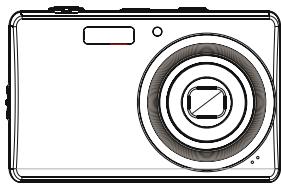
Digital camera
USB cable
Quick Start guide
Li-ion battery

Warranty Card
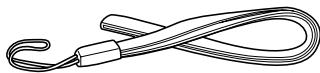
Wrist strap

User Manual and Software installation
Getting Started
Attaching the Wrist Strap
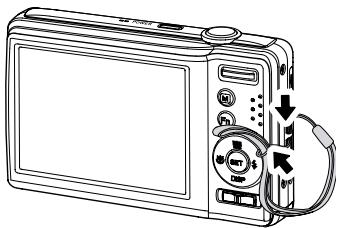
To reduce the risk of dropping the camera, it is strongly recommended to attach and use the provided camera strap.
Follow these instructions to attach the wrist strap to your camera to better protect your new camera:
- Insert the smaller loop of the strap in the strap eyelet.
- Thread the larger loop of the strap though the short loop and pull tight to attach the strap to the camera.
Inserting the Battery
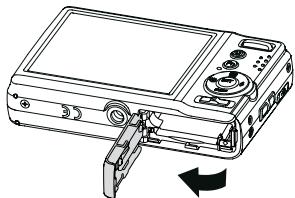
Follow these instructions to insert the NP45 Lithium-ion (Li-ion) battery into the battery compartment. If the battery is already installed, make sure to power off the camera before removing and inserting a recharged or new battery. Please read "Battery Information" before inserting/removing battery.
- If the battery is already installed, make sure to power off the camera before removing and inserting a recharged or new battery.
- Open the battery compartment at the bottom of the camera.
- Insert the battery into the compartment with the terminal facing inside the camera.
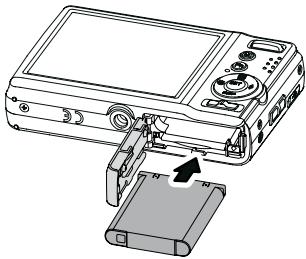
- Close the battery compartment.
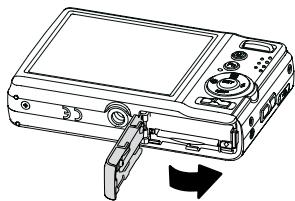
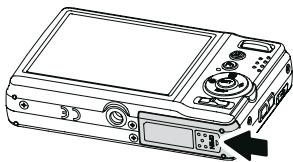
Inserting an SD/SDHC Memory Card
Expand your camera's storage by using SD or SDHC memory cards.
- Open the SD card compartment at the bottom of the camera.
- Insert the SD/SDHC card into the memory card slot with the metallic contacts facing the front side of the camera.
- Push the SD/SDHC card into the memory slot until it clicks into place.
- Close the SD card compartment.
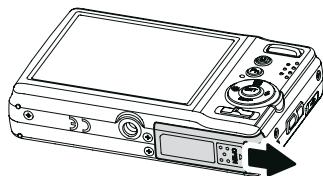
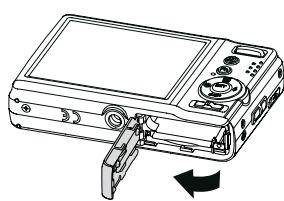
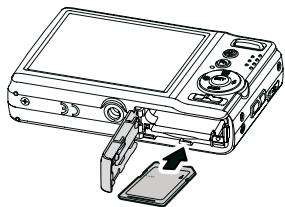
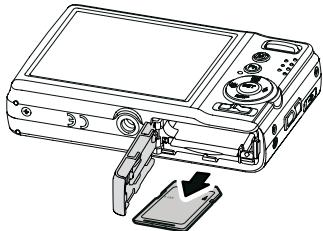
- To remove the SD/SDHC card
- Open the battery compartment.
- Gently push the card until it clicks and pops out.
- Pull out the card carefully.
Charging the battery
The battery that comes along with your package is not fully charged. You need to charge the battery before using the camera.
- Insert the battery into the battery charger.
- Connect the battery charger to the adaptor.
- Plug the adaptor to the main outlet.
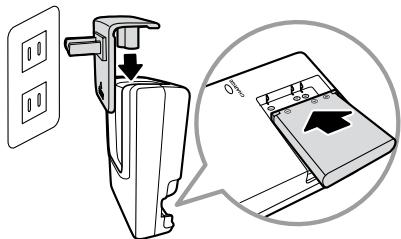
Please charge the battery at least 2.5 hours for the initial use. Beyond the initial use, please charge your battery until the LED indicator on your charger turns green.
Camera Memory
Your camera supports SD cards of up to 4GB in size. It also supports SDHC cards with a maximum capacity of 32GB. If there is a storage card inserted in the memory slot, the camera automatically saves all images, videos and audio clips in the external storage card. The → icon indicates the camera is using SD card.

- Not all cards may be compatible with your camera. When purchasing additional cards, please check the card specifications. Please use class 4 rated SD/SDHC or greater to ensure optimal operation. You can ensure optimal compatibility by purchasing HP brand SD cards.
Camera Views
Front View
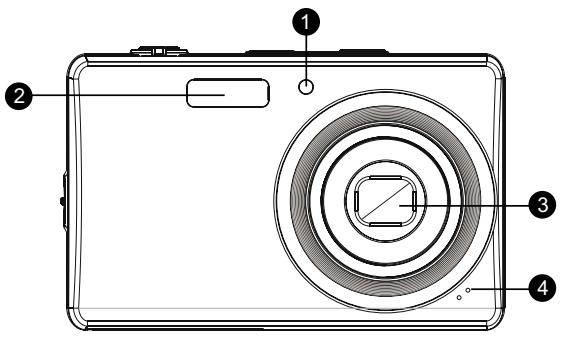
- Self-Timer LED / AF Assist Lamp
- Flash
- Zoom Lens
- Microphone
Back View
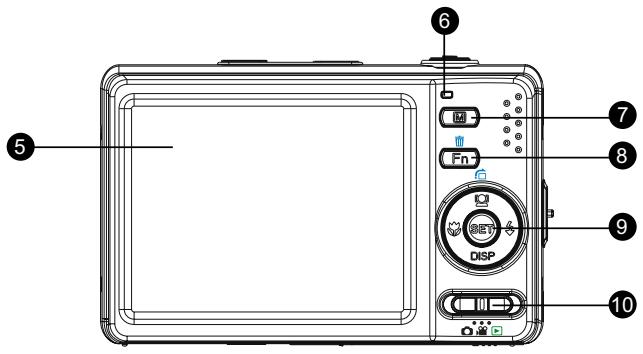
- LCD screen
- Operation Lamp
- Menu *4
- Func / Delete *2
- SET / 4-way Navigation Control *3
- Photo Shooting / Video Record / Playback *1
Top View
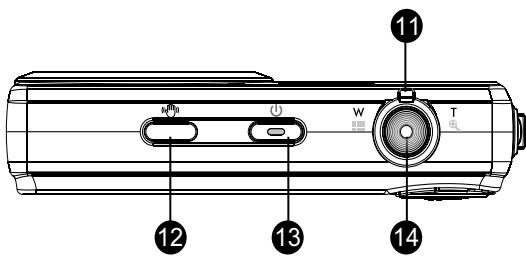
- Zoom Toggle
- Stabilizer Button
- Power Button
- Shutter Button
Bottom View
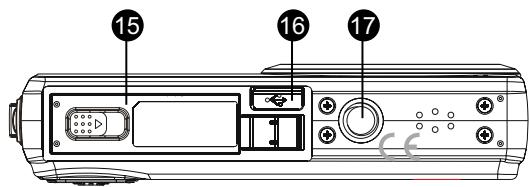
- Battery / SD card compartment
- USB
- Tripod screw hole
Left/Right View
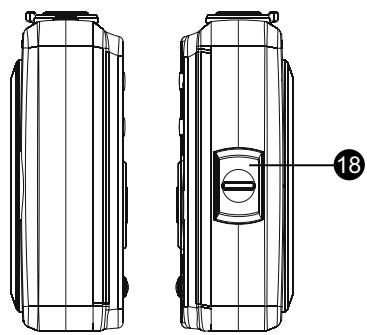
- Strap ring
Button *1: Photo Shooting/Video Record/Playback
Switch to Photo Shooting, Video Record or Playback mode by using the switching button.
- Shooting mode
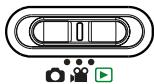
- Set to Photo Shooting mode to capture images and record audio clips.
- Photo Shooting mode can be further set to mode options like auto and scene selection modes.
- Video Record mode
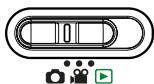
- Set to Video Record mode to record videos.
- Playback mode
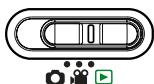
- Set to Playback mode to view or edit photos, review video and audio clips.
Button *2: FUNC/Delete
In Photo Shooting and Video Record mode, press to enter FUNC menu. In Playback mode, press to delete an image, video or audio clip.
Button *3: Navigation Control
The 4-way Navigation Control and the SET button allows you to access the various menus available from the On Screen Display (OSD). Further functions of these buttons are as follows:
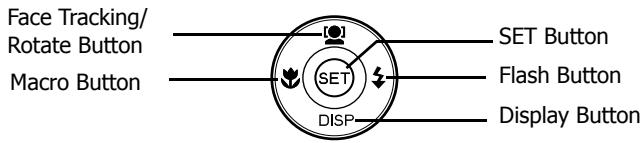
Button *4: Menu button
Press the Ⓜ button to enter the setup/settings menu. Press the button again to exit the settings menu.
| Button | Usage |
| SET | 1. Confirm a selection when using the OSD menus. |
| Flash/ Right | 1. In Photo Shooting mode, press to scroll through the flash mode options.(A Auto, Anti Red-eye, SL Slow Sync, Forced On and Forced Off)2. In Playback mode, press to view the next image, video or audio clip.3. In Playback Video Record, press to fast forward video playback.4. In Menu mode, press to change submenus. |
| Macro/ Left | 1. In Photo Shooting mode, press to switch focus mode.(Macro, PF Pan Focus, INF Infinity)2. In Playback mode, press to view the previous image, video or audio clip.3. In Playback Video Record, press to rewind video playback.4. In Menu, press to exit a submenu or to navigate through the menu selections. |
| Up/Face Tracking/ Rotate | 1. In Menu mode, press to navigate through the menu and submenu selections.2. In Photo Shooting mode, press to turn the face tracking function on and off.3. In Playback Video/ Audio mode, press to Start/Pause video or audio playback.4. In Playback photo mode, press to rotate the image clockwise 90 degrees by each press of the button. This feature is applicable for still images only. |
| DISP Display/Down | 1. In Playback mode, press to change the LCD screen display. Continue to press to cycle through thru the display options and on-screen help. See page 20 for additional details.2. In Photo Shooting mode, press to change the LCD screen display. Continue to press to cycle through thru the display options and on-screen help. See page 19 for additional details.3. In Menu mode, press to navigate through the menu and submenu selections.4. In Playback Video/ Audio mode, press to stop video/audio playback. |
Initial Settings
You will be prompted to set up the language and the date and time when the camera is turned on for the first time.
Setting the Language
- Press [●], DISP, or ↓ to move through the selection.
- Select a language, and then press SET to apply.
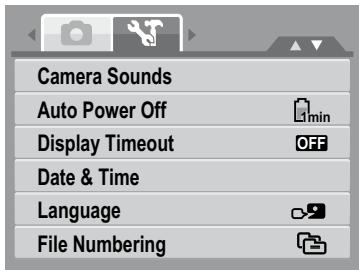
Using Setup Menu
You can access the Setup menu whether you are in Photo Shooting or Playback mode. The Setup menu allows you to configure general camera settings.
- To go to Setup Menu:
- Press ☐ to launch the Shooting/Playback Menu.
- Use the 📊 or ⌘ key to change the menu tab to Setup 🎨 menu.
- Use the [●] or DISP key to move through the menu selections.
- To select an item, press the SET button or ↕.
-
Press the SET button to save and apply settings.
-
Change the submenu settings using the 4-way navigation control.
Selecting the Shooting mode options
- Set the camera to Shooting mode.
-
Press ☐ to launch Shooting mode Menu.
-
Select Shooting Mode, and then press ↻ to enter submenu.
- Select a mode.
- Press the SET button to apply selected mode.
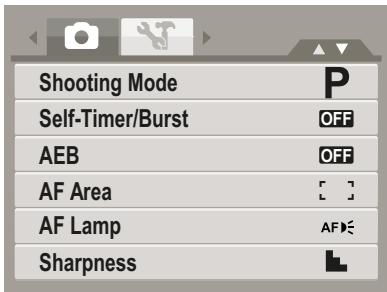

- Use the 4-way navigation control to move through the menu selections.
LCD Monitor Layout and Icon Descriptions
Shooting Mode Screen Layout
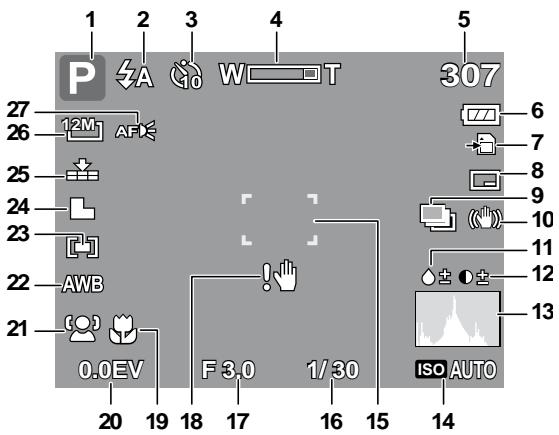
| No. | Item | Description |
| 1 | Shooting mode | Indicates the current capture/scene mode. Please see pages 33 thru 36 for additional details. |
| 2 | Flash | Indicates flash settings. Please see page 24 for additional details. |
| 3 | Self-Timer/Burst | Indicates Self-Timer/Burst settings. |
| 4 | Zoom indicator | Displays zoom. Please see pages 22 and 23 for additional details. |
| 5 | Shots remaining | Indicates the remaining shots available. |
| 6 | Battery | Indicates battery level. |
| 7 | Storage media | Indicates current storage media in use. |
| 8 | Date & Time Imprint | Indicates date & time imprint is enabled. Please see page 49 for additional details. |
| 9 | Auto Exposure Bracketing (AEB) | Indicates AEB function is enabled. Please see page 44 for additional details. |
| 10 | Stabilizer | Indicates stabilizer function is enabled. Please see page 21 for additional details. |
| 11 | Saturation | Displays saturation settings. |
| 12 | Contrast | Displays contrast settings. |
| 13 | Histogram | Displays the darkest and brightest values, corresponding to black and white respectively. |
| 14 | ISO | Displays ISO settings. |
| 15 | Displays focus area settings | Use to frame subject to capture. |
| 16 | Shutter speed | Displays shutter speed settings. |
| 17 | Aperture value | Displays aperture settings. |
| 18 | Shake warning | Indicates that the camera is shaking. |
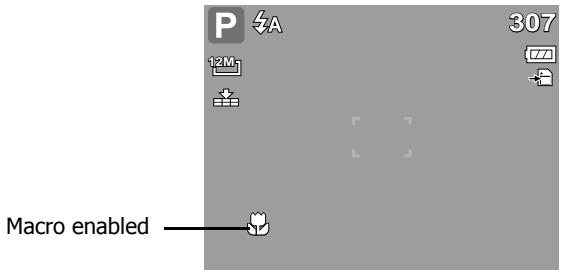
| 19 | Macro | Indicates macro is enabled. Please see page 24 and 25 for additional details. |
| 20 | Exposure | Displays exposure settings. Please see page 42 for using manual exposure mode. |
| 21 | Face tracking | Indicates face tracking is enabled. Please see pages 40 for additional details. |
| 22 | White balance | Displays white balance settings. Please see page 28 for additional details. |
| 23 | Metering | Displays metering settings. Please see page 30 for additional details. |
| 24 | Sharpness | Displays sharpness settings. Please see page 45 for additional details. |
| 25 | Quality | Displays quality settings. Please see page 27 for additional details. |
| 26 | Resolution | Displays resolution settings. Please see page 27 for additional details. |
| 27 | AF lamp | Displays resolution settings. Please see page 27 for additional details. |
Playback Mode Screen Layout
The Playback mode display varies depending on the type of image being viewed.
Playback mode display of still images:
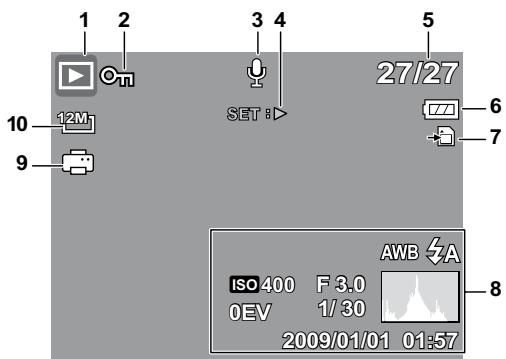
| No. | Item | Description |
| 1 | Playback mode | Indicates playback mode. |
| 2 | Protect | Indicates file is protected. Please see page 66 for additional details. |
| 3 | Voice memo | Indicates voice memo is attached. Please see page 68 for additional details. |
| 4 | Button intro | Indicates the button to press on the camera to play a video or audio file. |
| 5 | File number | Indicates the current image file number and the total files in the camera. |
| 6 | Battery | Indicates battery level. |
| 7 | Storage media | Indicates storage medium in use. |
| 8 | Recording information | Displays the image details of the current file. |
| 9 | DPOF | Indicates the file is marked for printing. Please see page 73 for additional details. |
| 10 | Resolution | Displays the resolution settings. Please see page 27 for additional details. |
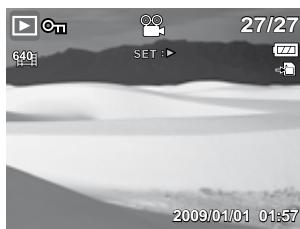
Playback mode of videos:
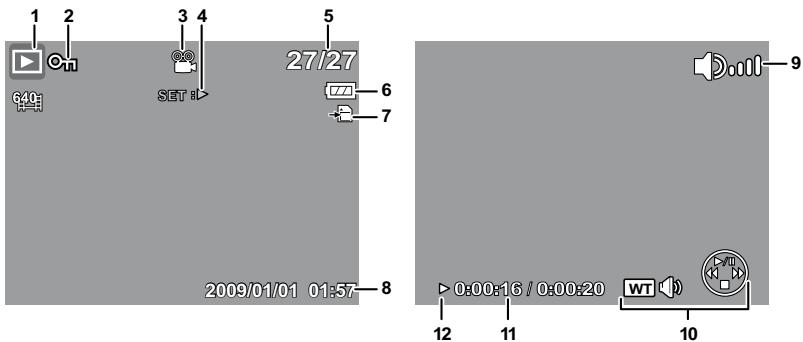
| No. | Item | Description |
| 1 | Playback mode | Indicates playback mode. |
| 2 | Protect | Indicates file is protected. |
| 3 | Video clip | Indicates the file is a video. |
| 4 | Button intro | Indicates the button to press on the camera to play a video or audio file. |
| 5 | File number | Indicates the current image file number and the total files in the camera. |
| 6 | Battery | Indicates battery level. |
| 7 | Storage media | Indicates SD memory cad in use  .Indicates internal camera memory is in use [66Yx]. .Indicates internal camera memory is in use [66Yx]. |
| 8 | Shooting information | Displays the image details of the current file. |
| 9 | Volume | Indicates volume settings. |
| 10 | Key indicator | Indicates the buttons to press on the camera to apply the functions. |
| 11 | Played time | Indicates played time. |
| 12 | Playing status | Displays playing status. |
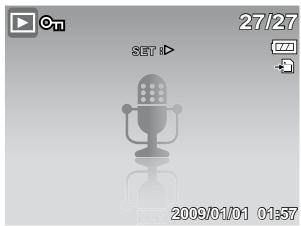
Playback mode of audio clips:
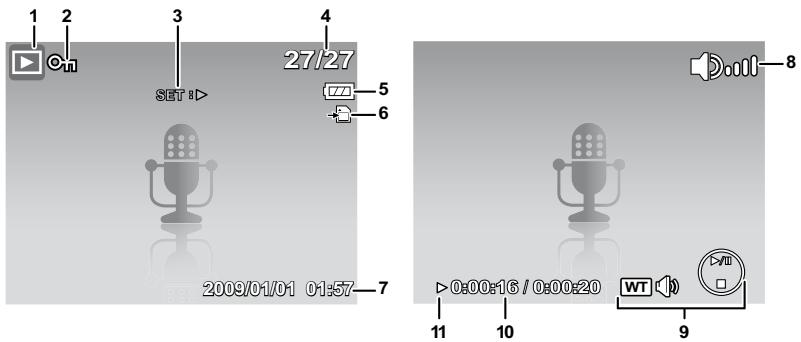
| No. | Item | Description |
| 1 | Playback mode | Indicates playback mode. |
| 2 | Protect | Indicates file is protected. |
| 3 | Button intro | Indicates the button to press on the camera to play a video or audio file. |
| 4 | File number | Indicates the file number over the total number of files in the storage card. |
| 5 | Battery | Indicates battery level. |
| 6 | Storage media | Indicates used storage memory. |
| 7 | Shooting information | Displays shooting information of the file. |
| 8 | Volume | Indicates volume settings. |
| 9 | Key indicator | Indicates the buttons to press on the camera to apply the functions. |
| 10 | Played time | Indicates played time. |
| 11 | Playing status | Displays playing status. |
Changing the LCD Monitor Display
The type of information displayed on the LCD screen can be changed using the DISP button.
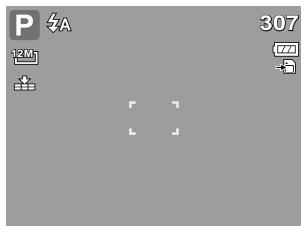
OSD on
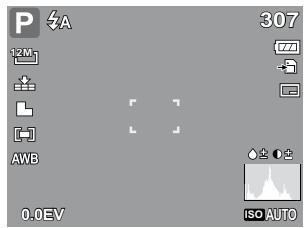
Full OSD on
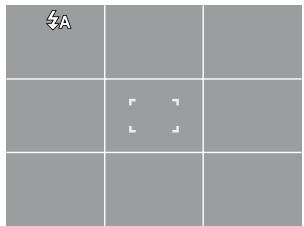
Guide lines on
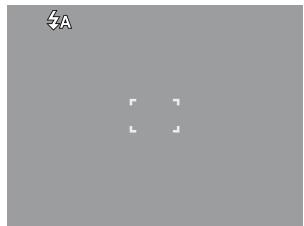
OSD off

- The OSD information may vary depending on the shooting mode type.
- The following icons, if enabled, are still displayed on the LCD even when OSD off or Guide lines on: AEB, Face tracking, Self-Timer/Burst, and Macro.
- Use the "Guide lines" to properly set image for capture. Typically, these guide lines are used to help vertical and horizontal alignment of the photograph.
In Playback mode, the LCD display can be changed into any of the following:
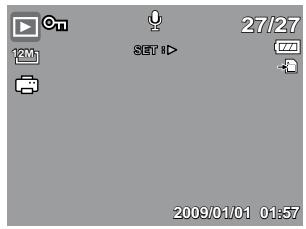
OSD on
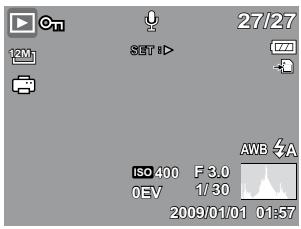
Full OSD on
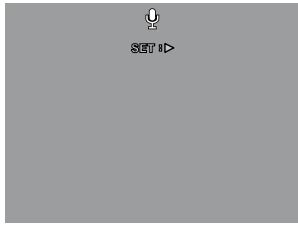
OSD off

- LCD display cannot be changed in the following situations:
- Manual exposure mode
• Recording video or audio clips - Playing video or audio clips
- Playing slide show
Using Photo Shooting Functions
Shooting Image
Taking Photos
- Turn on the camera by pressing the

Power button.
- Frame the shot using the focus bracket on the LCD monitor. See Image 1.
-
Press the shutter button half-way down. The camera automatically adjusts the focus and exposure. When the camera is ready to take the photo, the frame bracket turns green, the shutter speed and aperture value are displayed See Image 2.
-
Fully press the

Shutter button to capture image.
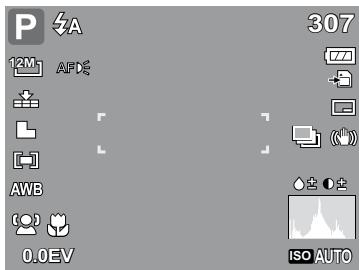
Image 1
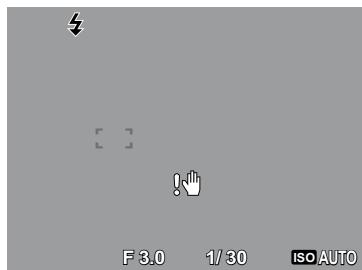
Image 2

- When the shake warning icon 🎨 appears, hold the camera steadily.
Using the Stabilizer
The Stabilizer function helps reduce blurred images caused by shaking.
To activate Stabilizer
- Press the Stabilizer button on top of your camera to enable/disable stabilizer.

- If Stabilizer is enabled, the stabilizer icon is displayed on the LCD monitor and the ISO setting is automatically set to Auto.
Setting the Zoom Control
Your camera features up to 3X optical zoom and up to 5X digital zoom. Optical zoom is achieved by mechanically adjusting the lens. While digital zoom is activated through the menu settings.
Zoom Toggle

- To adjust Optical Zoom:
- Move the Zoom toggle position to zoom out.

to the T position to zoom in and move the to the W
- The zoom indicator appears on the LCD monitor W□□T .
- To adjust Digital Zoom options:
- Press ☐ MENU button in photo shooting mode.

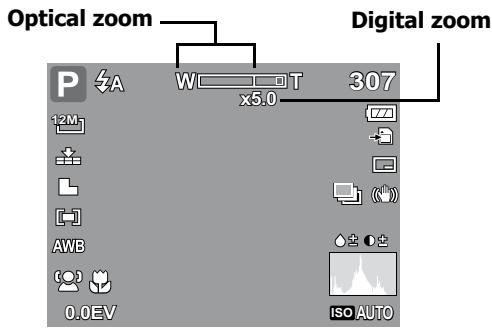
- Navigate to the Digital Zoom option and press the SET button. Navigate to the Standard Zoom option and press SET button to select.
- Press the ☐ MENU button to exit the menu. Move the zoom toggle to the T position until the maximum optical zoom level is reached ☐
- Momentarily release the zoom toggle and then move back to the T position again to switch to digital zoom box · Tx5.0 .
- Press the T button again to switch to digital zoom automatically. Zooming continues. WICOT x5.0

- Digital zoom is not activated in recording video.
Using Flash
![[●] SET DISP Flash button](/content/2026/01/57360/images/2a5a1758a7fb9c1dacaa8e3e48e8c3052dcbc351b1f5a49a41ef9bbceeb324df.jpg)
 | Auto. The flash fires automatically whenever extra lighting is needed. |
 | Red-eye reduction. The flash fires twice to reduce the red-eye effect. |
| ### | Forced on. The flash fires whenever you press the shutter button regardless of lighting conditions. |
| ### | Slow sync. The flash fires with a slow shutter speed. |
| ### | Forced off. The flash is turned off. |
When taking pictures in difficult lighting conditions, use the 📋 button to get correct exposure. This function cannot be activated in recording video or continuous photo shooting.

- Flash function is only available in photo shooting still images but not available in Burst and AEB modes.
Setting the Focus Mode
- To set the Focus mode:
- Press the button repeatedly until the desired focus mode icon is displayed on the lower left corner of the LCD monitor.
![Macro button [●] SET DISP](/content/2026/01/57360/images/48dc75d95a5cbcfacb77e6716c1abd71b5eb2b91971b53993434032c85ad0f65.jpg)
- This camera supports the four focus modes:
Normal. With normal focus, the focus range starts from .8 meters ( 21/2 feet). When the camera is set to normal mode, there is no icon displayed on the screen.
| Normal. | With normal focus, the focus range starts from .8 meters ( 21/2 feet). When the camera is set to normal mode, there is no icon displayed on the screen. |
| [3D50] | Macro. This mode is designed for close-up photography. If Macro is enabled, you can capture the detail and sharpness of a very close image |
| [27H3] | Pan Focus. The camera focuses on every object. |
| [3284] | Infinity. The camera focuses on distant objects. |
Using the Function Menu
The “Fn” is used to enter the My Menu mode for a quick setup of the latest six photo shooting/scene modes that were selected.

Fn
- Press to launch the My Menu mode.
-
Press again to close the menu.
-
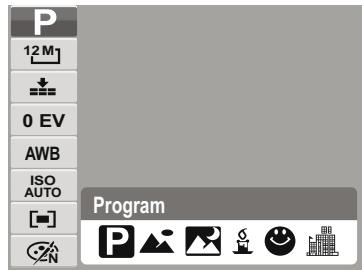
The My Menu options bar (as shown in the image to the right) displays the last six photo shooting/scene modes that were selected.
- The Menu bar (as shown in the image to the right) displays the available options for each selected photo shooting/scene mode.
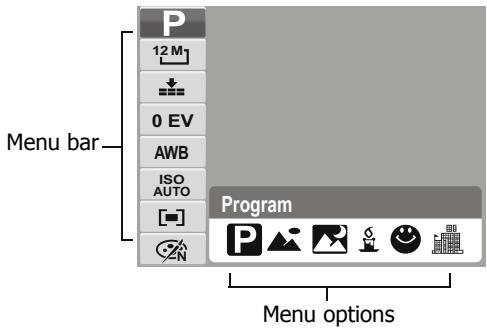
Shooting Mode
It shows the selected mode from Menu options bar.
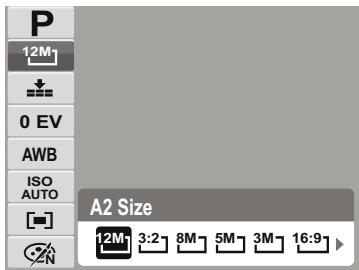
Resolution
The Resolution setting is used to set the resolution before you capture the image. The higher the resolution, the more memory space is required.
| Icon | Pixel Size | Print Size Suggestion |
| 12M | 4000 x 3000 | A2 Size |
| 3:2 | 4000 x 2672 | A2 Size |
| 8M | 3264 x 2448 | A3 Size |
| 5M | 2592 x 1944 | A4 Size |
| 3M | 2048 x 1536 | 4" x 6" |
| 16:9 | 1920 x 1080 | HDTV |
| VGA | 640 x 480 |
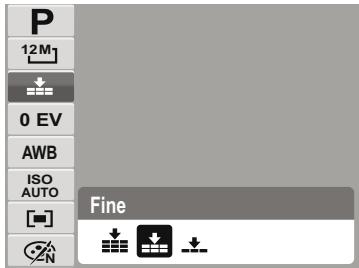
Quality
The quality setting lets you adjust the quality level of your photos before you capture them. However, the higher the quality, the more memory space is required in your memory card. The available settings for still images are as follows:

EV Compensation
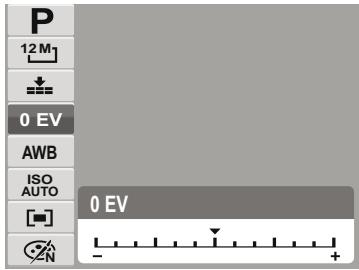
In extreme lighting condition, the auto exposure function may not set for the correct exposure for optimal picture quality. The manual 0 EV option allows you to adjust the exposure value to the desired level. Available for still images only.
- To adjust EV settings, press the 📄 or ⏻ key to increase/ decrease the value. Press the Ⓗ button to save and apply changes.
- The available settings are: 0EV, +0.3EV, +0.7EV, +1.0EV, +1.3EV, +1.7EV, +2.0EV, -0.3EV, -0.7EV, -1.0EV, -1.3EV, -1.7EV, -2.0EV.
White Balance
The White Balance setting allows you to adjust the image color temperature according to the ambient light condition when recording the still images and video.
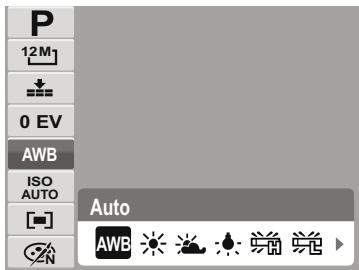
| Icon | Item | Description |
 | Auto | The camera automatically adjusts the white balance. |
 | Sun | Ideally used for bright sunny conditions. |
 | Cloudy | Ideally used for cloudy conditions. |
 | Tungsten | Ideally used for indoor photos with tungsten or halogen lighting without a flash. |
 | Fluorescent H | Ideally used for indoor photos with blue-tinted fluorescent lighting. |
 | Fluorescent L | Ideally used for indoor photos with red-tinted fluorescent lighting. |
 | Manual | Used when light source cannot be specified. Press the shutter button for the camera to be pointed at a white object and adjust the appropriate white balance setting automatically according to the environment. |
ISO
The ISO function lets you adjust the ISO sensitivity in recording still images depending on the lightning levels of your surroundings.
- Use a higher ISO setting in dim conditions and a lower ISO setting in brighter conditions.
- Available settings are: Auto, 100, 200, 400, 800, 1600, 3200 (only available in 3M, 16:9<2M>, & VGA).
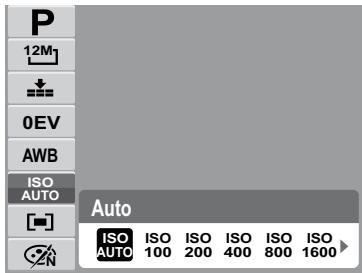

- If the Stabilizer is enabled, ISO is automatically set to Auto and cannot be adjusted. To adjust ISO, disable Stabilizer first.
Metering
The Metering function lets you select the area of the subject or frame by which the camera measures light to record still images or video.
- As you move through the selection, the preview on the LCD monitor changes synchronously.
![P 12M 0EV AWB ISO AUTO Multi [●] [•]](/content/2026/01/57360/images/a42870be82e75f3d212698da54712af35909c4fa84b417c9e9c93bdc849108bc.jpg)
| Icon | Item | Description |
 | Multi | The camera measures the exposure readings from multiple points in the subject area. |
 | Center | The camera measures the average light from the entire frame but gives more importance to the values near the center. |
 | Spot | The camera selects the exposure value based on the center of your picture. |
Color Mode
The Color Mode function lets you record still images or video and apply different colors or tones for a more artistic effect. Tinting an images color can make them appear more vivid.
- As you move through the selection, the preview on the LCD monitor changes synchronously.
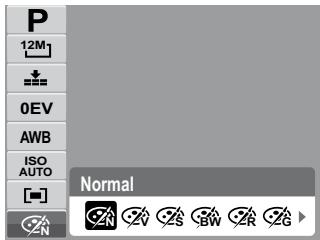
| Icon | Item | Description |
 | Normal | The camera records normally. |
 | Vivid | The camera captures the image with more contrast and saturation emphasizing on the bold colors. |
 | Sepia | Images are captured in sepia tones. |
 | B&W | Images are captured in black and white. |
 | Vivid Red | Images are tinted red. Ideally used to record images like flowers and cars to make them more vivid. |
 | Vivid Green | Images are tinted green. Ideally used to record images like mountains and lawns to make them more vivid. |
 | Vivid Blue | Images are tinted blue. Ideally used to record images like the sky and the ocean, to make them look more vivid. |
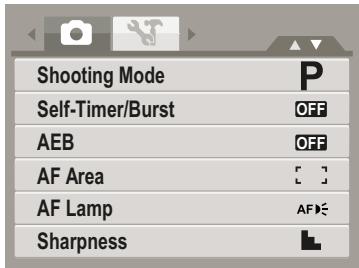
Photo Shooting Menu
If you are in photo shooting mode, you can access the Shooting menu simply by pressing the button on your camera.
When the menu is displayed, use the 4-way navigation control and the SET button to move through menu selections and apply your desired settings. To close the menu anytime, press the menu button again.
The Photo Shooting menu allows you to change modes, and setup other capture settings.
- Press ☐ to launch the Photo Shooting Menu.
- Use the [●] or DISP key to move through the menu selections.
- To select an item, press ↘.
- Change the submenu settings using the 4-way navigation control.
- Press the SET button to save and apply settings.
Setting the Shooting Scene Mode
Setting the Shooting Scene mode allows you to capture images with preset settings according to the scenes or environment.
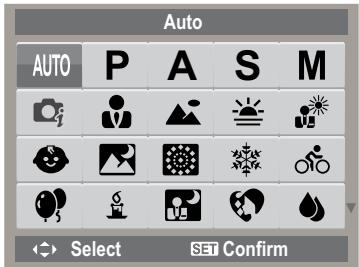
| Icon | Item | Description |
 | Auto | The simplest way to shoot basic images. Settings are adjusted automatically. This mode is recommended for beginners. |
 | Program | The camera automatically adjusts suitable shooting settings like shutter speed and aperture values. However, this mode allows for manual changes in EV, Auto White Balance, ISO (gain), Metering, and Color. |
 | Aperture Priority | This mode allows manual adjustment to the aperture value. The camera automatically selects the shutter speed to match the brightness. See Page 41 for details. |
| [3WWIC] | Shutter Priority | This mode allows manual adjustment to the shutter speed. The camera automatically selects the aperture value to match the brightness. See Page 41 for details. |
 | Manual Exposure | This mode allows manual adjustment to the shutter speed and aperture value regardless of brightness. This is recommended for experienced users only. See Page 42 for details. |
 | Intelligent Scene | The camera detects the shooting conditions and automatically selects from eight scene modes that match. See pages 38 thru 39 for additional details. |
 | Portrait | This scene mode will attempt to isolate the subject by opening a wide aperture to blur the background and providing little depth of field. The the subject will stand out because the background is blurry and the subject is in focus. |
 | Landscape | This feature is used to emphasize wide scenic views. |
 | Sunset | This feature enhances the red hue for recording sunset images. |
 | Backlight | This feature is used to capture the image of a backlight object by changing the metering. |
 | Kids | This feature is used to capture still images of children. |
 | Night Scene | This scene mode is used to capture images with night scenery background. For best results and to reduce image blurring, the use of a tripod for this mode is strongly recommended. |
 | Fireworks | This feature slows shutter speed to capture fireworks explosions. For best results and to reduce image blurring, the use of a tripod for this mode is strongly recommended. |
 | Snow | This scene mode is used when you're shooting against a bright background, such as snow or sand. This will enable the camera to focus on the subject instead of the background to determine the proper exposure setting. If not selected, the subject may be too dark because of the bright background. |
 | Sports | This scene mode will continue to capture images as long as the shutter button is depressed. This is designed to aid for subjects in motion. |
 | Party | This scene mode will set red-eye flash and narrow other parameters that best match typical indoor wedding/party conditions. |
| [4C5Z] | Candlelight | This feature is used to capture warm candle light effects. |
 | Night Portrait | This scene mode uses the flash and will leave the shutter open longer to get more ambient light from the background. This will help reduce typical flash pictures where the subject does not have a black/dark background. Ideally, you should have more detail in the background. For best results and to reduce image blurring, the use of a tripod for this mode is strongly recommended. |
 | Soft Skin | This scene mode will set red-eye flash and other camera parameters to enhance skin tones. |
 | Soft Flowing Water | This feature enhances smooth effects like water or silk. |
 | Food | This scene mode is designed to capture pictures of food. The Camera is set to macro mode focus and other parameters to increase saturation for enticing food images. |
| [T7H0] | Building | This feature enhances the edges of captured images. |
 | Text | This scene mode enhances the black and white contrast normally used when capturing text images. |
 | Auction | Pictures taken in Auction mode are automatically saved under a specific folder named “_AUCT”. |
 | Smile Capture | This feature uses face tracking to auto detect faces to capture. When smiles are detected, it continuously captures the image. |
 | Blink Detection | This feature detects if the subject blinked an eye when the image is captured and gives the user an option whether to save it or not. |
 | Pre-composition | This feature captures a image temporarily as a reference. Full press shutter after referring the subject to the reference point. |
 | Couples Portrait | This feature uses face tracking to auto detect faces to capture portraits photos without the help of others. When over two faces are detected, AF is automatically activated. The camera starts count down and captures a picture in two seconds. |
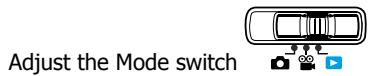
 | Video | This mode is used to record video clips. Slide the mode selector switch  to the Video icon to enable this mode. to the Video icon to enable this mode. |
 | Voice REC | This mode is used to record audio clips. Slide the mode selector switch  to the Voice Record icon to enable this mode. to the Voice Record icon to enable this mode. |
- Using Smile Capture Mode
The Smile Capture mode uses smile tracking to automatically capture images. This feature is most useful in capturing different angles and smiles of moving people. When capturing an image with more than one person, the camera detects the smile of the closest person on the center of the screen.
To activate Smile Capture
- Select 😊 from the Scene Mode submenu.
- Focus the camera on the subject to capture.
- The smile capture icon blinks every second and the white focus frame turns green to denote camera activity.
- When a smile is detected, the camera will automatically take a shot of the image.
The camera displays a white frame when a face is detected.
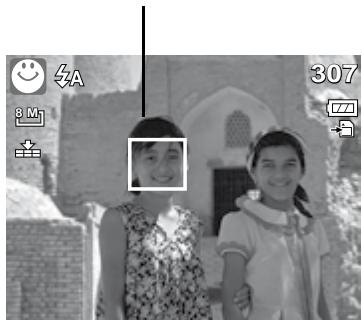

- When capturing an image with more than two faces, this mode may take additional time to track and capture.
- Using Intelligent Scene Mode
With the Intelligent Scene Mode, the camera automatically detects the shooting conditions and switches to the appropriate scene and settings when aiming on a subject. This feature is most useful for novice users; capturing great images even with basic photography skills.
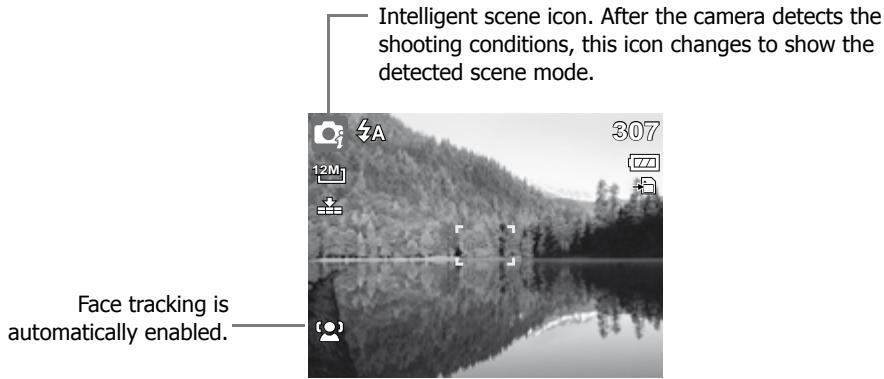
To activate Intelligent Scene
- Select Ωi from the Scene Mode submenu.
- Focus the camera on the subject to capture.
- The camera detects the shooting conditions and switches to an appropriate scene mode.
- Press the shutter button half-way down to focus the subject. The frame turns green to indicate focus is set.
- Press the shutter button to take the shot.
The camera displays a solid white frame when a face is detected.
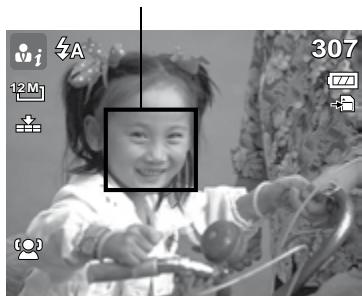

- When Intelligent Scene function is enabled, icons will be displayed even in Guideline, None Display modes and when press the shutter button half-way down.
The table below shows the modes supported by Intelligent scene:
| Icon | Intelligent Scene Modes | Description |
 | Portrait | This mode is set when a face is detected. |
 | Landscape | This mode is set when:There is no face detected.The focus distance is more than 1.5 meters.The EV setting is greater than 11 or 10.5. |
 | Sunset | This mode is automatically set when sunset lighting is detected. |
 | Macro | This mode is set when:There is no face detected.The focus distance is within the macro range.This mode can only be detected when you press the shutter button half-way down. |
 | Backlight | This mode is set when the EV setting greater than 2.5. |
 | Backlight Portrait | This mode is set when a face is detected with an EV setting greater than 2.5. |
 | Night Scene | This mode is set when:There is no face detected.The focus distance is more than 1.5 meters.The EV setting is lower than 5 or 4.5. |
 | Night Portrait | This mode is set when a face is detected with an EV setting lower than 5 or 4.5. |
- Using Blink Detection Mode
The Blink Detection mode tracks faces and determines if the captured image contains subjects with closed eyes. A menu selection will appear prompting save the image or not. This mode saves time in managing photos to be stored or deleted from memory.
- Select 🔊! from the Scene Mode submenu.
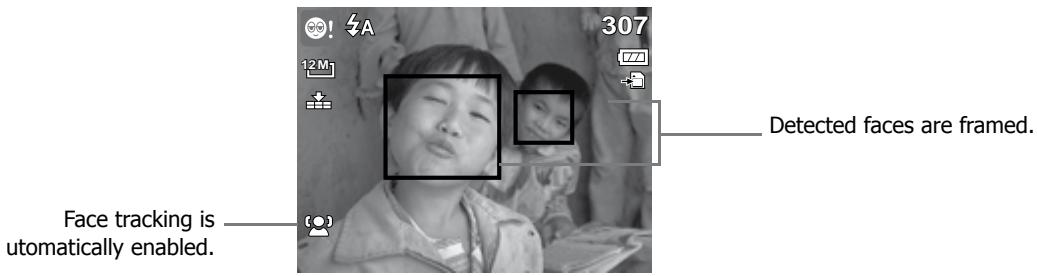
- Press the shutter button half-way down to focus the subject. The frame turns green to indicate focus is set.
- Press the shutter button to capture the image. The image is automatically saved unless the camera detects that the subject blinked:
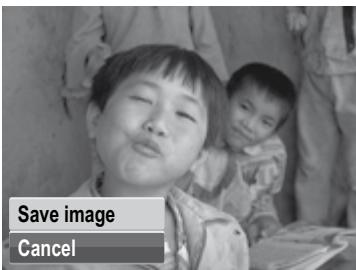
- Select Save Image to save or Cancel to disregard.
- Using Aperture Priority Mode
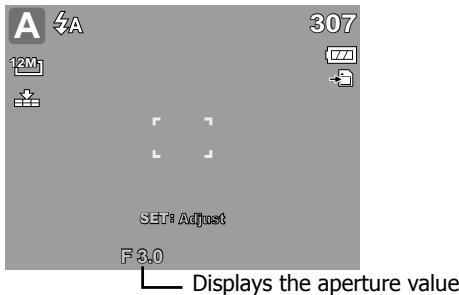
Aperture Priority mode, allow users can adjust the aperture value. The camera automatically sets the shutter speed to match the brightness of the scene. To manually change the aperture value, press the SET button, then use the [icon] and DISP to manually adjust the value. When finished, press the SET button to confirm setting.
- Using Shutter Priority Mode
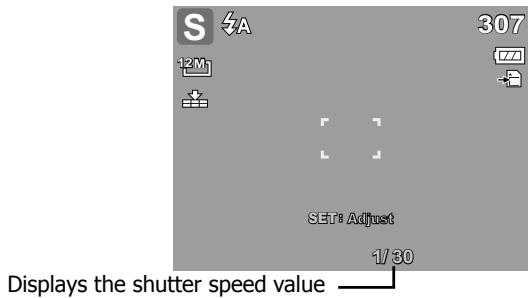
Shutter Priority mode, allow users adjust the shutter speed. The camera automatically sets the aperture value to match the brightness of the scene. To manually change the shutter speed, press the button, then use the 📊 and 🔒 to manually adjust the speed. When finished, press the button to confirm setting.
- Using Manual Exposure Mode
With Manual Exposure mode, users can manually adjust the shutter speed and the aperture value.
To activate Manual Exposure
- Select M from the Scene Mode submenu.
- Press SET button to enter the adjust mode.
- Use the 📊 or 🔍 keys to select the shutter speed options or Use the 📊 or DISP keys to select the aperture value options.
- Use the [●] or DISP keys to increase or decrease the aperture or shutter speed values.
- Press the SET to exit the adjustment mode.
- Press the shutter button to capture the image.
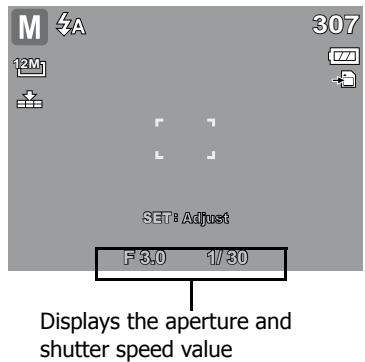

- Pressing the shutter button half-way will also display, the difference between the correct and selected exposure is (in red text).
Setting the Self-Timer/Burst
This camera features a Self-Timer and Burst which can be set in the Self-Timer/Burst function in the Shooting Menu. The Self-Timer allows you to take photos after a pre-defined delay. While burst lets you take consecutive shots. This feature is only available in Shooting mode. The Self-Timer/Burst setting is reset to off when the camera is powered off.
![Shooting Mode Self-Timer/Burst OFF AEB OFF AF Area [ ] AF Lamp AFDS Sharpness](/content/2026/01/57360/images/44947c4f0ee0727530895ef2d632748de984c73d91638aae33d3b513c2e89da0.jpg)
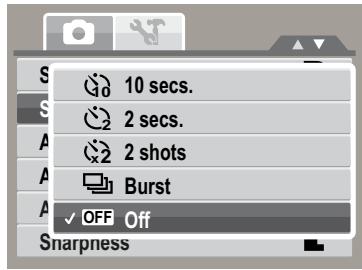
| Icon | Item | Description |
| [50CT] | 10 Secs. Self-Timer | Sets a 10 seconds delay to capture image after pressing the shutter button. |
| [20X4] | 2 Secs. Self-Timer | Sets a 2 seconds delay to capture image after pressing the shutter button. |
| [W3Y2] | 2 Shots Self-Timer | Performs delay and capture twice:Performs a 10-second delay, and then captures the image.Perform another 2 seconds delay and then captures the image again. |
 | Burst | Performs continuous shooting when the shutter button is pressed. Stops shooting when the shutter button is released. |
 | Off | Captures an image without time delay. |
Setting the AEB
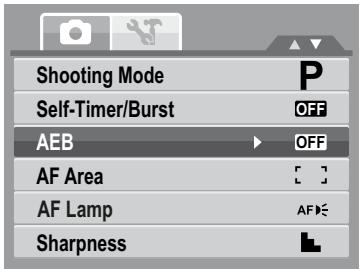
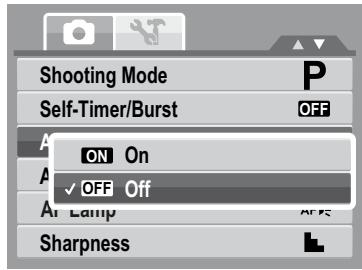
Enabling AEB (Auto Exposure Bracketing) will capture a photo with three different exposure settings.
- The the initial photo is taken at the pre-determined EV setting, followed by the next photo captured at -0.3EV. The final photo is then captured at +0.3EV.
- The AEB setting is reset to off when the camera is switched out of Photo Record mode or is powered off.
Setting the AF Area
This camera has 2 AF (Automatic Focus) settings. Each setting changes the focus behavior of the camera.
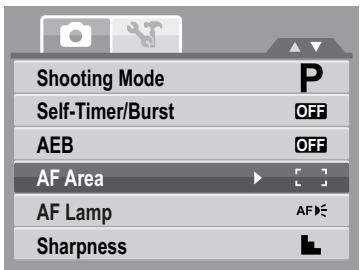
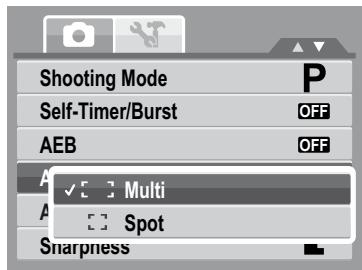
The table below shows the available AF area settings.
| Icon | Item | Description |
 | Multi | The camera automatically selects focus area within the wide frame. |
 | Spot | The focus area is fixed on the center spot. |
Setting the AF Lamp
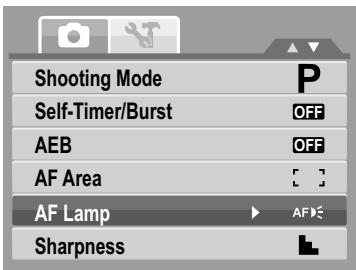
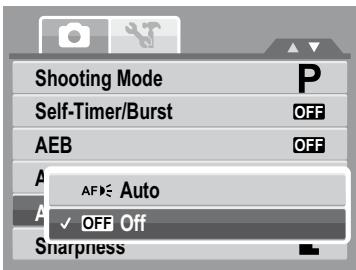
The AF Lamp function allows the camera to better focus; even in low light conditions.
If AF Lamp is set to Auto, the AF lamp located in the front of the camera, emits an red light by pressing the shutter button half-way down allowing the camera to focus easily.
Setting Sharpness
These settings will enhance or soften details of the photo.
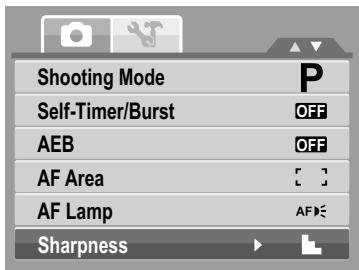
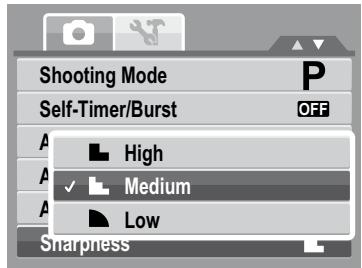
The table below shows the available Sharpness settings.
| Icon | Item | Description |
 | High | Sharpens the image. |
 | Medium | Medium sharpness. |
 | Low | Softens the image. |
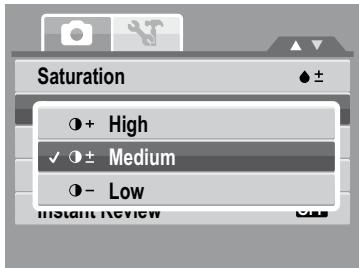
Setting Saturation
The Saturation setting will allow adjustment to the color saturation of the photo. Using a higher saturation setting for rich colors and a lower setting for muted tones.
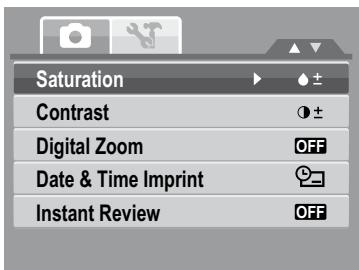
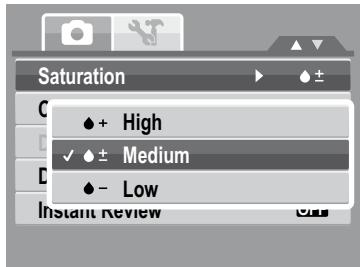
The table below shows the available Saturation settings.
| Icon | Item | Description |
 | High | Enhances saturation. |
 | Medium | Medium saturation is applied. |
 | Low | Reduces saturation. |
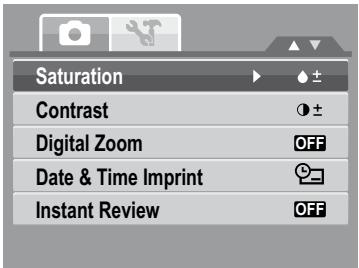
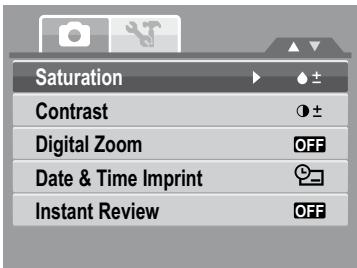
Setting Contrast
These settings allow for adjustment to the contrast of a photo.
Setting the Digital Zoom
This feature controls the digital zoom mode of your camera.
This camera uses Optical Zoom before Digital Zoom. When the optical zoom reaches 5X, the camera will utilize digital zooming if enabled. Digital Zoom is set to Off by default.
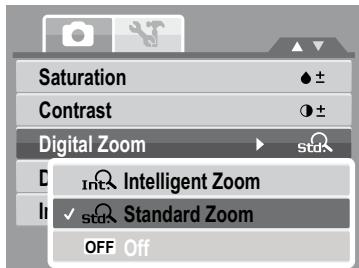
The table below shows the available Digital Zoom settings.
| Icon | Item | Description |
| Int. | Intelligent Zoom | Enlarges the image digitally with almost no distortion. This feature is available for still images only. |
| Std. | Standard Zoom | Enlarges all image sizes up to a maximum of 5x, but the image quality deteriorates. |
| OFF | Off | Uses the optical zoom only. |

- Digital Zoom is not available in Smile Capture, Video, Intelligent Sence, Portrait, Night Portrait, Blink Detection, Love Portait modes and Voice Recording modes.
- The maximum Intelligent zoom scale varies depending on the image type and resolution.
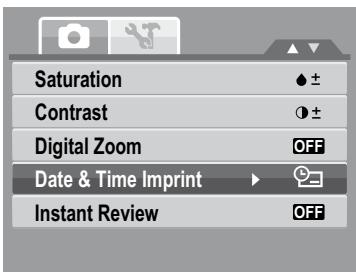
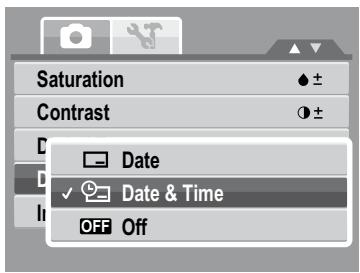
Setting the Date & Time Imprint
Enabling the Date & Time Imprint function will add the recorded date and time on photos.
The recording date and time are based on the camera's clock settings. Once date and time are imprint on a photo, they can no longer be edited or deleted. Limitations of Date & Time Imprint functions are as follows:
• Available for still images only.
- May slow down AEB/ continuous shooting when Date & Time Imprint is enabled in /AEB/ Burst mode.
- If Date & Time Imprint is enabled, digital zoom is automatically turned off.
- In vertical or rotated images, the date and time on your photos still appear horizontally.
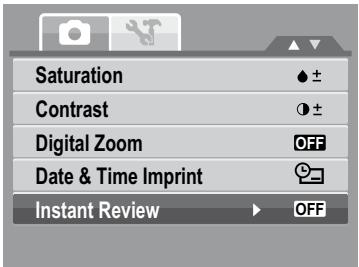
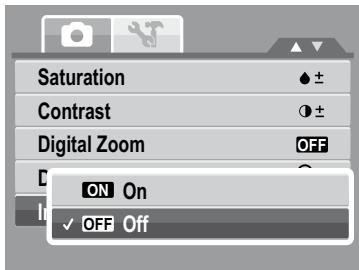
Setting Instant Review
Enabling the Instant Review function will display the captured photo immediately after shooting it for 1 second.
Recording Videos
You can record videos with the camera, the available recording time depends on the capacity of the memory card.
![Shooting Mode Self-Timer/Burst OFF AEB OFF AF Area [ ] Sharpness](/content/2026/01/57360/images/83f4365228827162454e8d2eb8cae53f11bb9df38cadfa241aacb07365b25c5b.jpg)
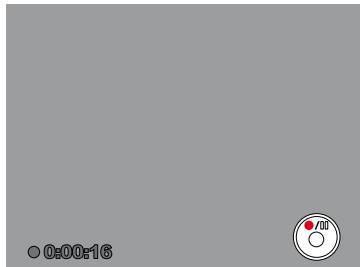

- When the maximum capacity for a single video has been reached (up to 4GB), simply press the shutter button again to continue recording.
- The camera will automatically stop recording when the memory capacity is full.
-
Digital zoom is not available in video recording.
-
Sound cannot be recorded while pressing the control.
- Auto Power Off is not available in video recording or pause recording.

Setting the Video Quality
The Video Quality function icon appears only in Video Record. Press the Fn button to bring up the video quality options as shown below. Use this function to adjust the resolution and quality of video clips.
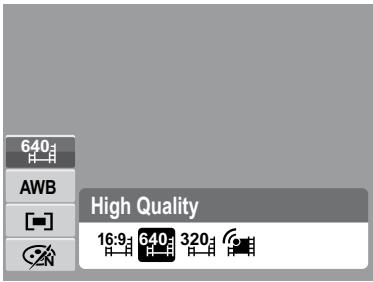
Image Quality Matrix
The higher the image quality, the higher the amount of the data used per second (average bit rate), the smoother the playback video.
| Video Quality | Average Bit Rate |
| 720 x 400 | 4.8Mbps |
| 640 x 480 | 4.8Mbps |
| 320 x 240 | 4Mbps |
YouTube Mode
The YouTube Mode allows you to record videos with predefined video settings for easy upload to the YouTube website.
YouTube supports two file upload standards:
- Single File Uploaded. The maximum video file size is up to 100 MB.
- YouTube Uploaded. The maximum video file size is up to 1 GB.
Most uploaded video lengths range 1 to 5 minutes. Therefore when recording video using the YouTube mode, the following applies:
- Recorded videos are set to YouTube standard resolution of 640 X 480.
- Recording automatically stops when the file reaches 100 MB.
Recorded videos in the YouTube mode are stored following the DCF rule, however videos are saved in a specific folder named “_UTUBE”.
- To record a YouTube videos, select 📄 from the Video Quality function. Available recording time for a YouTube is up to 10 minutes.
Recording Voices
- From the Shooting mode menu, select Voice. The Voice Recording screen layout is displayed on the LCD monitor.
- Press the 📄 Shutter button to start recording.
- Press the 📄 Shutter button again to stop recording.
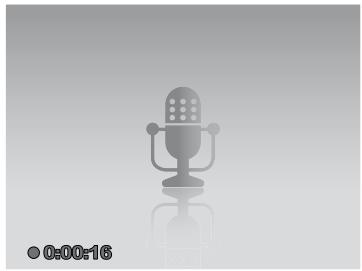

- Voice recording will automatically stop when the maximum memory capacity is full.
Using the Viewing Functions
View images, videos and audio clips through your camera's Playback mode.
Viewing in Single Navigation
The single navigation mode displays the image one by one on the LCD monitor. To view images/videos/audio clips, follow the steps below.
Still Image
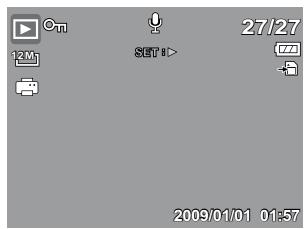
Video
Audio Clip
Viewing thumbnails
- Move the zoom toggle to the W position to view 9-image thumbnails.
- Use the navigation controls to move through the items.
- Press the SET button to select the image and view it normally.
Thumbnail view
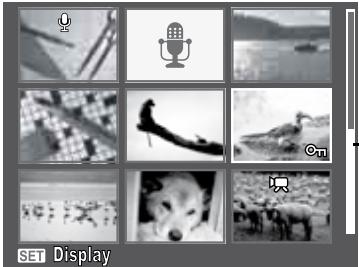
Scroll bar. If scroll bars appear, it indicates that the screen can be scrolled.
Thumbnail icons
When you view the thumbnails, some images may contain icons. These icons indicate the type of file or recording.
| Icon | Item | Description |
 | Voice Memo | Indicates that a voice memo is attached to the image. |
 | Video | Indicates a recorded video. The image displayed is the first frame of the video clip. |
 | Locked File | Indicates that the image has been locked. Locked files cannot be edited or deleted. |
 | Voice Record | Indicates a voice recording file. |
 | File Error | Indicates an error file. Image or video files that are not taken by this camera or edited by computer may not be recognized. |
Zooming images
The zoom view function works with still images only.

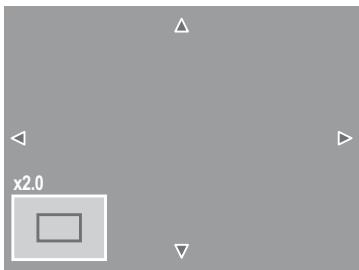
- In normal view, push the zoom control up until desired zoom view.
- The 4 arrows on the LCD monitor indicate that the image is zoomed in.
- Press the 📂 button to close zoom view.
Playing Videos
- Set the camera to Playback mode.
- Use the navigation controls to scroll through the saved videos.
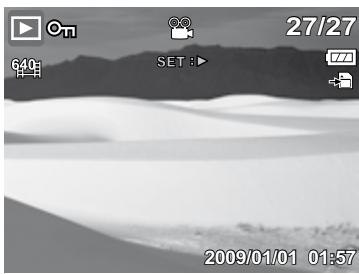

- During playback, use the 📄 to control volume. Move the zoom toggle to the T position to increase volume. Move to the W position to decrease volume.
- Press the DISP key to pause playback. Press the key again to resume. When paused, the play info will remain on screen except WT.

- The play info, except the WT icon, will be displayed when the video is paused, during REW/FF or frame by frame modes.
• Volume cannot be adjusted when paused or during REW/FF modes.
To capture screenshot image from a video clip
- During playback of video, press the [icon] key to pause playback on your desired video frame to capture.
- Press the 📄 Shutter button to capture screenshot.
- The camera will automatically stop playback. The LCD monitor displays the captured image in Single navigation mode.
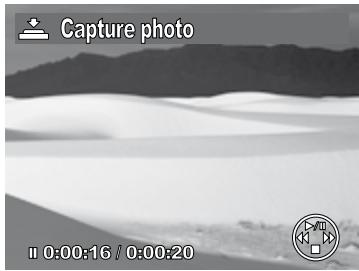

- This feature does not function when the memory card is full or the folder cannot be created.
The icon does not appear on the screen either.
Playing Voice Recording
- Set the camera to Playback mode.
- Use the navigation controls to scroll through the saved images. When viewing a voice recording file, the LCD monitor displays the screen layout of Audio clips. See picture on the right.
-
Press the [●] key to play the voice recording.
-
During playback, use the 📄 to control volume. The volume icon appears on the screen. Move to the T position to increase volume. Move to the W position to decrease volume.
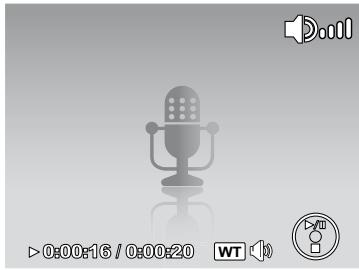
- Press the [icon] key to pause playback. Press the [icon] key again to resume. When paused, the play info will remain on screen except WT.
- Press the DISP key to stop the playback. The LCD monitor displays the image in Single navigation mode.

• Volume cannot be adjusted during pause or REW/FF modes.
Playing Voice Memo
Voice memo is separately recorded and attached to a captured image.
- Set the camera to Playback mode.
-
Use the navigation controls to scroll through the saved images. An image file with voice memo has a voice memo icon located on the top center of the LCD monitor. See picture on the right.
-
Press the [icon] key to play the voice recording.
During playback, use the 📄 to control volume. Move the zoom toggle to the T position to increase volume. Move to the W position to decrease volume.
-
Press the [●] key to pause playback. Press the [●] key again to resume. When paused, the play info will remain on screen except WT 🏠.
-
Press the DISP key to stop the playback. The LCD monitor displays the image in Single navigation mode.
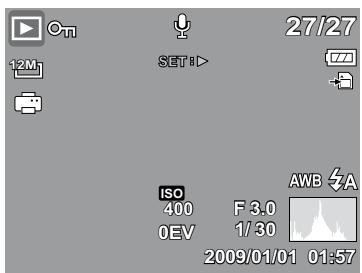

• Volume cannot be adjusted when you pause the voice memo.
Deleting an Photo/Video/Audio
There are two ways to delete an photo/video/audio:
• Using the Delete button, or
- Using Playback Menu Delete settings.
Using the Delete Button.
Use the Function button on your camera to delete or mark an photo/video/audio clip for deletion.
Set the camera to Playback mode.
- View photo/videos/audio clips in Single navigation mode.
- Use the 📊 or ⏻ key to scroll the display.
- When the desired photo/video/audio clip is displayed on the LCD monitor, press the Delete button.
- A confirmation selection appears on screen.
- Select Delete.
- Press the SET button to delete.
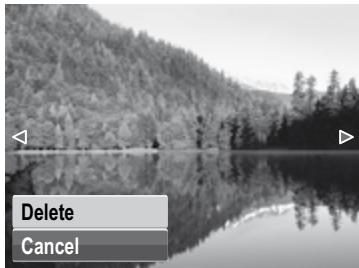

- Locked files cannot be deleted at any time. When you try to delete a locked file, the camera displays "File Locked" message on the LCD monitor.
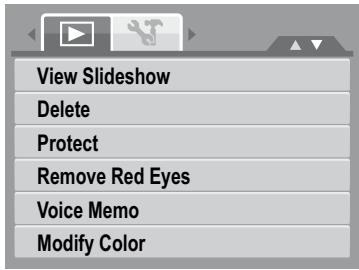
Playback Menu
The Playback menu allows you to edit images, record voice memo, and setup playback settings.
To go to Playback Menu:
- Set the camera to Playback mode.
- Press ☐ to launch the Playback Menu.
- Change the submenu settings using the 4-way navigation control.
- Press the SET button to save and apply settings.
View Slideshow
The view slideshow function allows you to view all stored photos/videos in still image format in a continuous sequence.
To view slideshow:
- From the Playback menu, select View Slideshow. The Slideshow menu appears.
- Set the slideshow settings.
- Select Start, and then press the SET button to start the slideshow.
- During slideshow, press the SET button to pause slideshow.
- Use the 📄 or DISP key t to move through the options. Select whether to Continue or Exit the slideshow.
- Press the Ⓗ button to apply selected option.
To change slideshow settings:
- From the Slideshow menu, use the [image] or DISP key to move through the selections.
- Select Interval setting. Press the 📊 or ⏰ key to adjust.
- Select Transition setting. Press the key to adjust. Choose among the available transition settings:
- Horizontal • Shrink • Fade • Random • Vertical
- Select Repeat setting. Press the key to adjust. Available settings are: Yes, No.
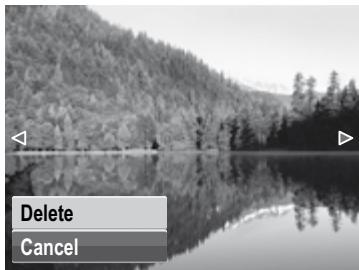
Delete
The Delete function lets you remove unwanted files in the internal memory or on the memory card. Protected files cannot be erased, to delete, unprotect the file first. See "Protect Section".
To delete a photo/video/audio clip:
- From the Playback menu, select Delete.
-
The Delete submenu is displayed on the LCD monitor. Select available settings:
-
This image. Select one file to delete.
- Voice Memo Only. Delete only the attached voice memo, the image is retained in the memory.
- Multi-Images. Select multiple files to delete at the same time.
- All. Delete all files.
Protect
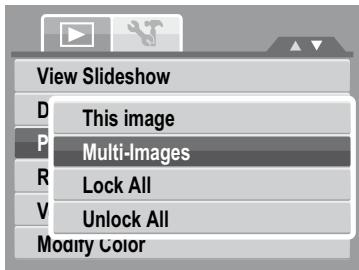
The Protect function lets you lock a photo or video to protect it from being modified or accidentally erased. A protected file has a lock icon when viewed on Playback mode.
To protect files:
- From the Playback menu, select Protect.
- The Protect submenu is displayed on the LCD monitor.
Select available settings:
- This image. Select one file to lock.
- Multi-Images. Select multiple files from the thumbnail view to lock.
- Lock All. Lock all files.
- Unlock All. Unlock all files.
Remove Red Eyes
The function is used to reduce red eye in captured images. This function is only available for still images. It can be applied to an image several times, but the quality may gradually deteriorate.
- Set the camera to Playback mode.
- Press the 📊 or ⏻ key to scroll and select an image.
- Press the MENU button to launch the Playback menu.
- Select Remove Red Eyes.
- Select Start.
- Press the SET button to start correction.
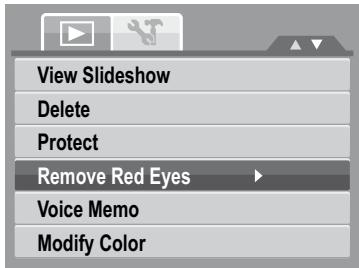
Steps 5 and 6
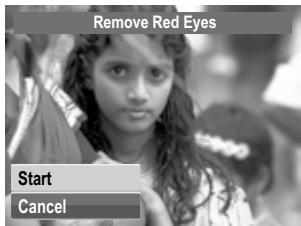
Step 7
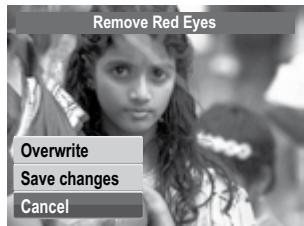
- After completing Remove Red Eyes, a menu selection appears. Select whether to:
• Overwrite. Save and replace the old file with the new one.
- Save Changes. Save the new file as a new one.
- Cancel. Cancel Remove Red Eyes.
- Press the SET button to save/cancel changes.
Voice Memo
The Voice Memo function allows you to record and attach a voice memo to a saved image. You can record a maximum of 30 seconds of Voice memo per image. This function is only available in still images.
To record voice memo:
- Set the camera to Playback mode.
- Press the 📊 or ⏻ key to scroll and select an image to attach voice memo to.
- Press the ☐ button to launch the Playback menu.
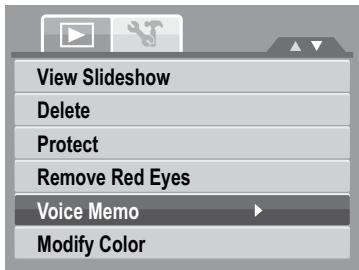
- Select Voice Memo.
- Select Start, and then press the SET button to start recording.
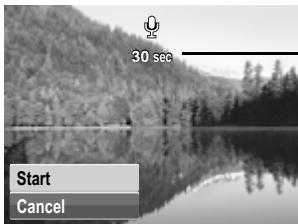
Time left (n seconds) for recording.
- Select Stop, and then press the SET button to stop recording.

- When you record voice memo to an image with an existing voice memo, the old recording is automatically changed to the new one.
Modify Color
This function allows adjustments to photos by applying different colors or tones for a more artistic effect. An edited photo using this function will be saved as a new file/photo.
- Set the camera to Playback mode.
- Press the 📊 or ⏻ key to scroll and select an image to edit.
- Press the ☐ button to launch the Playback menu.
- Select Modify Color. The Photo Edit submenu appears.
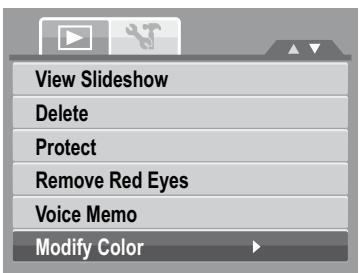
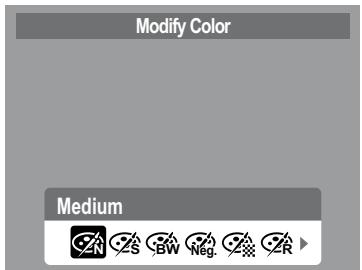
- Press the 📊 or ⏻ key to scroll and select an option. As you move through the selection, the preview on the LCD monitor changes synchronously.
The succeeding table shows the available settings.
| Icon | Item | Description |
 | Medium | No effect is added to the image. |
 | Sepia | Image is saved with a sepia tone. |
 | B&W | Image is saved in black and white. |
 | Negative | Image appears to be the opposite of the original image. |
 | Mosaic | Image is saved with mosaic tiles. |
 | Vivid Red | Image is saved with reddish tint. |
 | Vivid Green | Image is saved with greenish tint. |
 | Vivid Blue | Image is saved with bluish tint. |
Crop
The function allows you to trim an photo to another image size. This function is only available for still images.
To trim an image:
- Set the camera to Playback mode.
- Use the 📊 or ⏻ key to scroll and select an image to trim.
- Press the ☐ button to launch the Playback menu.
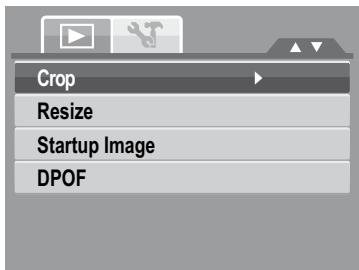
-
Select Crop. The Trim screen layout is displayed on the LCD monitor.
-
Use the control to change size. Use the navigation controls to move the position of the trimmed area.
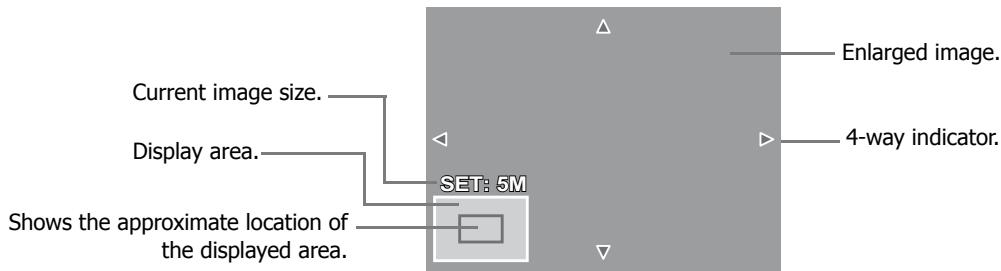
-
Press the SET to save changes to the photo.
-
Three options are displayed. If Overwrite is selected, the original photo will permanently change to reflect the changes. If Saved changes is selected, a new photo file will be created leaving the original photo as is.
- Select Cancel to abort any edits that were made and to exit the Crop function.

- Crop function is not available for photos with image size set to 3:2, 16:9, and VGA.
- All images will be trimmed in 4:3 ratio regardless of its original image ratio.
Resize
The Resize function allows you to change the photo resolution of large images to smaller ones. This function is only available for still images.
To resize an image:
- Set the camera to Playback mode.
- Use the key to scroll and select an image to resize.
- Press the ☐ button to launch the Playback menu.
- Select Resize. The Resize submenu is displayed on the LCD monitor.
- Select size among: 8M, 5M, 3M, and VGA. Available size settings may vary depending on original image size. Unavailable settings appear as gray icons in Resize submenu.
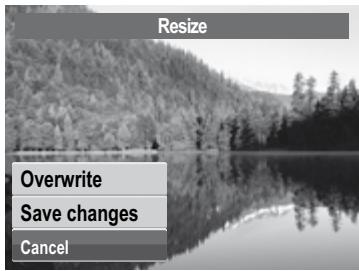
- After selecting size, a menu selection appears. Select whether to:
• Overwrite. Save and replace the old file with the new one.
- Save Changes. Save the new file as a new one.
- Cancel. Cancel resize.
- Press the SET button to save/cancel changes.

- Resize function is not available for photos with image size set to 3:2, 16:9, and VGA.
DPOF
The Digital Print Order Format (DPOF) function allows you to mark image in your memory card for printing and allows you to specify the number of copies that you want to print at a later date. When all images to be printed are marked, take the memory card to a digital printing service, or use a DPOF compatible printer.
To set DPOF:
- Press the ☐ button to launch the Playback menu.
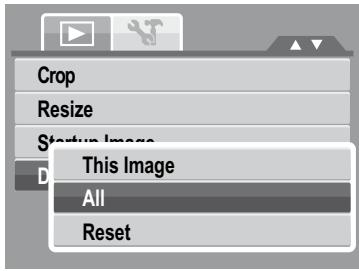
- Select DPOF. The submenu appears. Available settings are as follows:
- This Image. Select a single image to mark.
- All. Mark all images in the memory card.
- Reset. Reset all DPOF settings to initial default settings.

- You can specify up to 99 copies for DPOF. If you specify 0 copies, the DPOF setting of that image is automatically disabled.
PictBridge
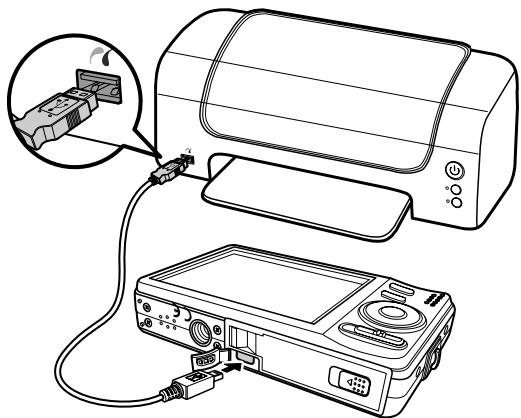
The PictBridge function allows you to print images captured by your camera without connecting the camera to a PC. Print images with a PictBridge compatible printer directly.
To activate PictBridge:
Connect your camera to a PictBridge compatible printer using the USB cable. See illustration below and refer to page 85 for additional details.

- If the printer does not support date & time imprint, the date & time imprint function will be disabled in PictBridge.
Making Connections
Connecting the Camera to a PC
You can transfer photos, videos and audio files to your PC.
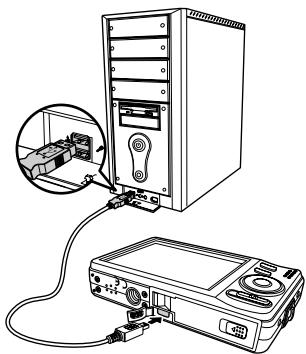
- Connect the camera to a PC using the USB cable.
- Power on the camera.
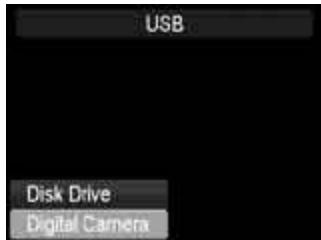
- The camera detects a connection and displays a connection choice. Use the navigation controls to highlight (in blue) the Disk Drive option and then press the
to select.

- The PC detects the connection. The internal memory of camera and memory card display as removable drives in the file manager. No image is displayed on the LCD monitor.
Connecting the Camera to a Printer
You can print your photos directly using a PictBridge compatible printer.
- Connect the camera to the printer using the USB cable.
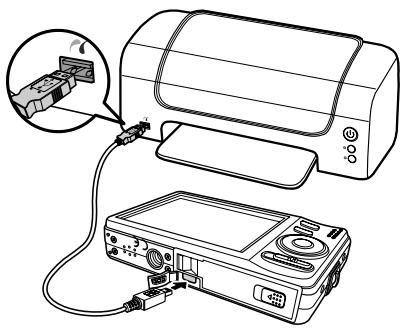
- Power on your camera.
- The camera detects a connection and displays a connection choice. Use the navigation controls to highlight (in blue) the Digital Camera option and then press the SET to select.
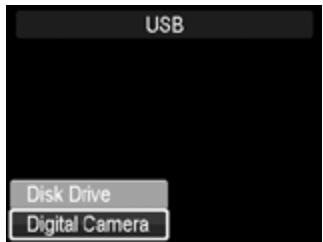
- The camera will display the Print Setup menu.
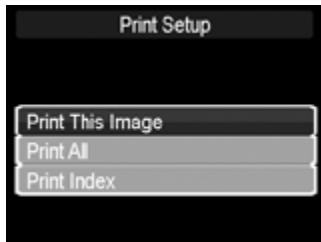
- Select "Print This Image" to be able to navigate and select individual photos. Leave the "Print Copies" at 00 to NOT print that photo. Use the navigation buttons to increase the number to represent how many copies of a desired photo to print.
- Press the Ⓗ to begin the printing process, or press the Ⓜ button to exit the menu.
Troubleshooting
| Problem | Cause and/or Action |
| Camera does not turn on. | The battery may be exhausted. Charge or replace the battery. |
| Camera turns off automatically. | Press any button except the Power button to turn on the camera. |
| LCD turns blank. | Press any button except the Power button to turn on the LCD. |
| Empty battery icon is displayed on the LCD, and then the camera turns off. | Battery is exhausted, please replace or recharge. |
| LCD screen displays 'No images in memory'. | The image file on the memory card. Image file format may not be supported. |
| LCD screen displays 'Not available for this file'. | Function is only available for specific file types. File format is not supported. |
| LCD screen displays 'Memory full'. | Memory card is full. Replace the memory card with a new one or delete unnecessary images. |
| LCD screen displays 'File locked' | This file is locked. Unlock the file. |
| LCD screen displays 'Card locked'. | The memory card is protected. Remove the card and slide the write-protect switch to it's unlock position. |
| LCD screen displays 'CARD HAS WRONG FORMAT'. | The memory card is protected. Remove the card and slide the write-protect switch to it's unlock position. |
| LCD screen displays 'Copy error'. | The memory card is protected. Remove the card and slide the write-protect switch to it's unlock position. The memory card is full. Replace card or delete unnecessary files. |
| The lens is extended and will NOT retract. | Do not force the lens to go back. The type of the battery used may be incorrect or the battery power level is too low. Change the battery or charge the battery before using the camera. |
Getting Help
Should you have a technical support question or your HP Digital Camera require service within the warranty period, please contact the original point of purchase or an authorized HP reseller in your country. If service is not available at those locations, please contact an HP Branded Product warranty agent from the support contact list provided below. A service agent will work with you to troubleshoot your issue and if necessary, issue a Return Material Authorization (RMA) number in order to replace your HP Branded Product. For warranty claims, you will be required to provide a copy of your original dated sales receipt as proof of purchase and the issued RMA number. You will be responsible for shipping charges when shipping the product to the service center. The service agent will provide you with an address and you will also be responsible for any shipping charges to the warranty service center. Once your product is received by this service center, a replacement unit will be shipped back to you typically within 5 business days.
| Contact/phone Support: | |
| Language | Contact/phone Support: |
| Chinese | simp.chinese@hpodd.com |
| trad.chinese@hpodd.com | |
| Deutsch | deutsch@hpodd.com |
| Dutch | hollands@hpodd.com |
| English | english@hpodd.com |
| Espanol | espanol@hpodd.com |
| Français | francais@hpodd.com |
| Italiano | italiano@hpodd.com |
| Japanese | nippon@hpodd.com |
| Korean | korean@hpodd.com |
| Português | portugues@hpodd.com |
| Svensk | svensk@hpodd.com |
| Contact/phone Support: | |||
| Country | Language | Number | |
| Europe Region (EMEA) | |||
| België | Dutch and German | + 32 2700 1724 | |
| Français | French | + 33 171230454 | |
| Deutschland | German | + 49 6950073896 | |
| Ireland | English | + 353 1850882016 | |
| Italia | Italian | + 39 269682189 | |
| Netherlands | Dutch | + 31 202015093 | |
| Espana | Spanish | + 34 914533458 | |
| Switzerland | German/French/Italian | + 41 18009686 | |
| UK | English | + 44 2073652400 | |
| North America | |||
| United States | English | 1.866.694.7633 | |
| Canada | English and French | 1.866.694.7633 | |
| Country | Language | City | Number |
| México | Español | Mexico City | 52.55.1204.8185 |
| Guadalajara | 52.33.1031.3872 | ||
| Monterrey | 52.81.1107.2639 | ||
| Venezuela | Español | Caracas | 58.212.335.4574 |
| Colombia | Español | Bogota | 57.1.508.2325 |
| Perú | Español | Lima | 51.1.705.6232 |
| Chile | Español | Santiago | 56.2.581.4977 |
| Brasil | Português | Sao Paolo | 55.11.5504.6633 |
| Argentina | Español | Buenos Aires | 54.11.6091.2399 |
- DIGITAL CAMERA
- TABLE OF CONTENTS
- PREFACE....1
- PACKAGE CONTENTS 6
- GETTING STARTED 7
- USING PHOTO SHOOTING FUNCTIONS.... 27
- USING THE VIEWING FUNCTIONS 63
- MAKING CONNECTIONS....84
- TROUBLESHOOTING....86
- GETTING HELP....87
- PREFACE
- ABOUT THIS MANUAL
- COPYRIGHT
- FEDERAL COMMUNICATIONS COMMISSION (FCC) COMPLIANCE
- DECLARATION OF CONFORMITY
- TRADEMARK RECOGNITION
- SAFETY AND HANDLING PRECAUTIONS
- CAMERA INFORMATION
- BATTERY INFORMATION
- USING THIS MANUAL
- PACKAGE CONTENTS
- GETTING STARTED
- ATTACHING THE WRIST STRAP
- INSERTING THE BATTERY
- INSERTING AN SD/SDHC MEMORY CARD
- CHARGING THE BATTERY
- CAMERA MEMORY
- CAMERA VIEWS
- FRONT VIEW
- TOP VIEW
- BOTTOM VIEW
- LEFT/RIGHT VIEW
- BUTTON *1: PHOTO SHOOTING/VIDEO RECORD/PLAYBACK
- BUTTON *2: FUNC/DELETE
- BUTTON *3: NAVIGATION CONTROL
- BUTTON *4: MENU BUTTON
- INITIAL SETTINGS
- SETTING THE LANGUAGE
- USING SETUP MENU
- SELECTING THE SHOOTING MODE OPTIONS
- LCD MONITOR LAYOUT AND ICON DESCRIPTIONS
- PLAYBACK MODE SCREEN LAYOUT
- CHANGING THE LCD MONITOR DISPLAY
- USING PHOTO SHOOTING FUNCTIONS
- SHOOTING IMAGE
- TAKING PHOTOS
- POWER BUTTON
- USING THE STABILIZER
- SETTING THE ZOOM CONTROL
- ZOOM TOGGLE
- USING FLASH
- SETTING THE FOCUS MODE
- USING THE FUNCTION MENU
- SHOOTING MODE
- RESOLUTION
- QUALITY
- EV COMPENSATION
- WHITE BALANCE
- ISO
- METERING
- COLOR MODE
- PHOTO SHOOTING MENU
- SETTING THE SHOOTING SCENE MODE
- USING SMILE CAPTURE MODE
- TO ACTIVATE SMILE CAPTURE
- USING INTELLIGENT SCENE MODE
- TO ACTIVATE INTELLIGENT SCENE
- USING BLINK DETECTION MODE
- USING APERTURE PRIORITY MODE
- USING SHUTTER PRIORITY MODE
- USING MANUAL EXPOSURE MODE
- TO ACTIVATE MANUAL EXPOSURE
- SETTING THE SELF-TIMER/BURST
- SETTING THE AEB
- SETTING THE AF AREA
- SETTING THE AF LAMP
- SETTING SHARPNESS
- SETTING SATURATION
- SETTING CONTRAST
- SETTING THE DIGITAL ZOOM
- SETTING THE DATE & TIME IMPRINT
- SETTING INSTANT REVIEW
- RECORDING VIDEOS
- SETTING THE VIDEO QUALITY
- YOUTUBE MODE
- RECORDING VOICES
- USING THE VIEWING FUNCTIONS
- VIEWING IN SINGLE NAVIGATION
- VIEWING THUMBNAILS
- THUMBNAIL ICONS
- ZOOMING IMAGES
- PLAYING VIDEOS
- TO CAPTURE SCREENSHOT IMAGE FROM A VIDEO CLIP
- PLAYING VOICE RECORDING
- PLAYING VOICE MEMO
- DELETING AN PHOTO/VIDEO/AUDIO
- PLAYBACK MENU
- VIEW SLIDESHOW
- DELETE
- PROTECT
- TO PROTECT FILES
- REMOVE RED EYES
- VOICE MEMO
- MODIFY COLOR
- CROP
- TO TRIM AN IMAGE
- RESIZE
- TO RESIZE AN IMAGE
- DPOF
- TO SET DPOF
- PICTBRIDGE
- MAKING CONNECTIONS
- CONNECTING THE CAMERA TO A PC
- CONNECTING THE CAMERA TO A PRINTER
- GETTING HELP
Marque : HP
Modèle : SW350
Catégorie : Appareil photo numérique