AZ1003 - Chaîne Hi-Fi PHILIPS - Notice d'utilisation et mode d'emploi gratuit
Retrouvez gratuitement la notice de l'appareil AZ1003 PHILIPS au format PDF.


| Type de produit | Chaîne Hi-Fi avec lecteur CD, platine cassette et tuner radio |
| Marque | Philips |
| Modèle | AZ1003 |
| Alimentation principale | Secteur AC 220-240 V, 50 Hz |
| Alimentation de secours | 6 piles 1,5 V type R-14/UM2/C (non fournies) |
| Consommation électrique | Environ 20 W (estimation) |
| Dimensions (L x H x P) | Environ 400 x 150 x 250 mm (estimation) |
| Poids | Environ 2,5 kg (estimation) |
| Fonctions principales | Lecteur CD (CD-Audio, CD-R), platine cassette (lecture/enregistrement), tuner radio FM/MW |
| Puissance de sortie audio | 2 x 1,5 W RMS (estimation) |
| Gamme de fréquences FM | 87,5 – 108 MHz |
| Gamme de fréquences MW | 531 – 1602 kHz |
| Fonction programmation CD | Jusqu'à 32 pistes |
| Type de cassette compatible | Cassette normale (type I IEC I) pour enregistrement |
| Entretien et nettoyage | Nettoyer l'appareil avec un chiffon sec ; ne pas utiliser de produits contenant de l'alcool, ammoniac, benzène ou abrasifs. Nettoyer les têtes de cassette une fois par mois avec un coton-tige imbibé d'alcool. |
| Sécurité | Ne pas ouvrir l'appareil (risque de choc électrique). Utiliser uniquement le cordon d'alimentation fourni. Ne pas exposer à l'humidité, la pluie, le sable ou une chaleur excessive. |
| Pièces détachées et réparabilité | Consulter un revendeur ou centre de service agréé pour toute réparation. Ne pas tenter de réparer soi-même. |
| Informations générales | Appareil de classe 1 (laser). Conforme aux exigences de la Communauté européenne concernant les interférences radio. |
FOIRE AUX QUESTIONS - AZ1003 PHILIPS
Questions des utilisateurs sur AZ1003 PHILIPS
0 question sur cet appareil. Repondez a celles que vous connaissez ou posez la votre.
Poser une nouvelle question sur cet appareil
Téléchargez la notice de votre Chaîne Hi-Fi au format PDF gratuitement ! Retrouvez votre notice AZ1003 - PHILIPS et reprennez votre appareil électronique en main. Sur cette page sont publiés tous les documents nécessaires à l'utilisation de votre appareil AZ1003 de la marque PHILIPS.
MODE D'EMPLOI AZ1003 PHILIPS
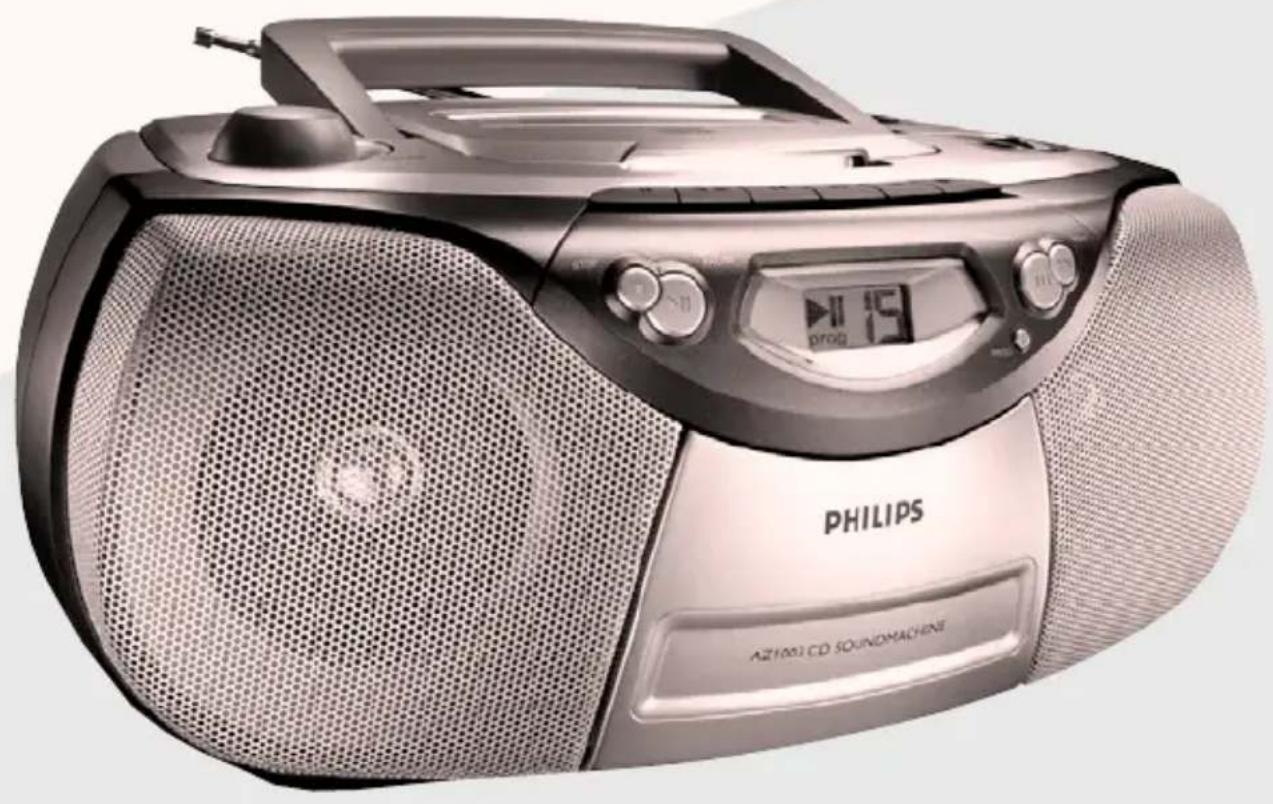
Meet Philips at the Internet http://www.audio.philips.com
AZ 1003
CLASS 1 LASER PRODUCT
1
Important notes for users in the U.K.
Mains plug
This apparatus is fitted with an approved 13 Amp plug. To change a fuse in this type of plug proceed as follows:
1.Remove fuse cover and fuse.
2. Fix new fuse which should be a BS1362 5 Amp, A.S.T.A. or BSI approved type.
3.Refit the fuse cover.
If the fitted plug is not suitable for your socket outlets, it should be cut off and an appropriate plug fitted in its place. If the mains plug contains a fuse, this should have a value of 5 Amp. If a plug without a fuse is used, the fuse at the distribution board should not be greater than 5 Amp.
Note:The severed plug must be disposed of to avoid a possible shock hazard should it be inserted into a 13 Amp socket elsewhere.
How to connect a plug
The wires in the mains lead are coloured with the following code: blue = neutral (N), brown = live (L). As these colours may not correspond with the colour markings identifying the terminals in your plug, proceed as follows:
- Connect the blue wire to the terminal marked N or coloured black.
- Connect the brown wire to the terminal marked L or coloured red.
- Do not connect either wire to the earth terminal in the plug, marked E (or e) or coloured green (or green and yellow).
Before replacing the plug cover, make certain that the cord grip is clamped over the sheath of the lead - not simply over the two wires.
Copyright in the U.K.
Recording and playback of material may require consent. See Copyright Act 1956 and The Performer's Protection Acts 1958 to 1972.
English
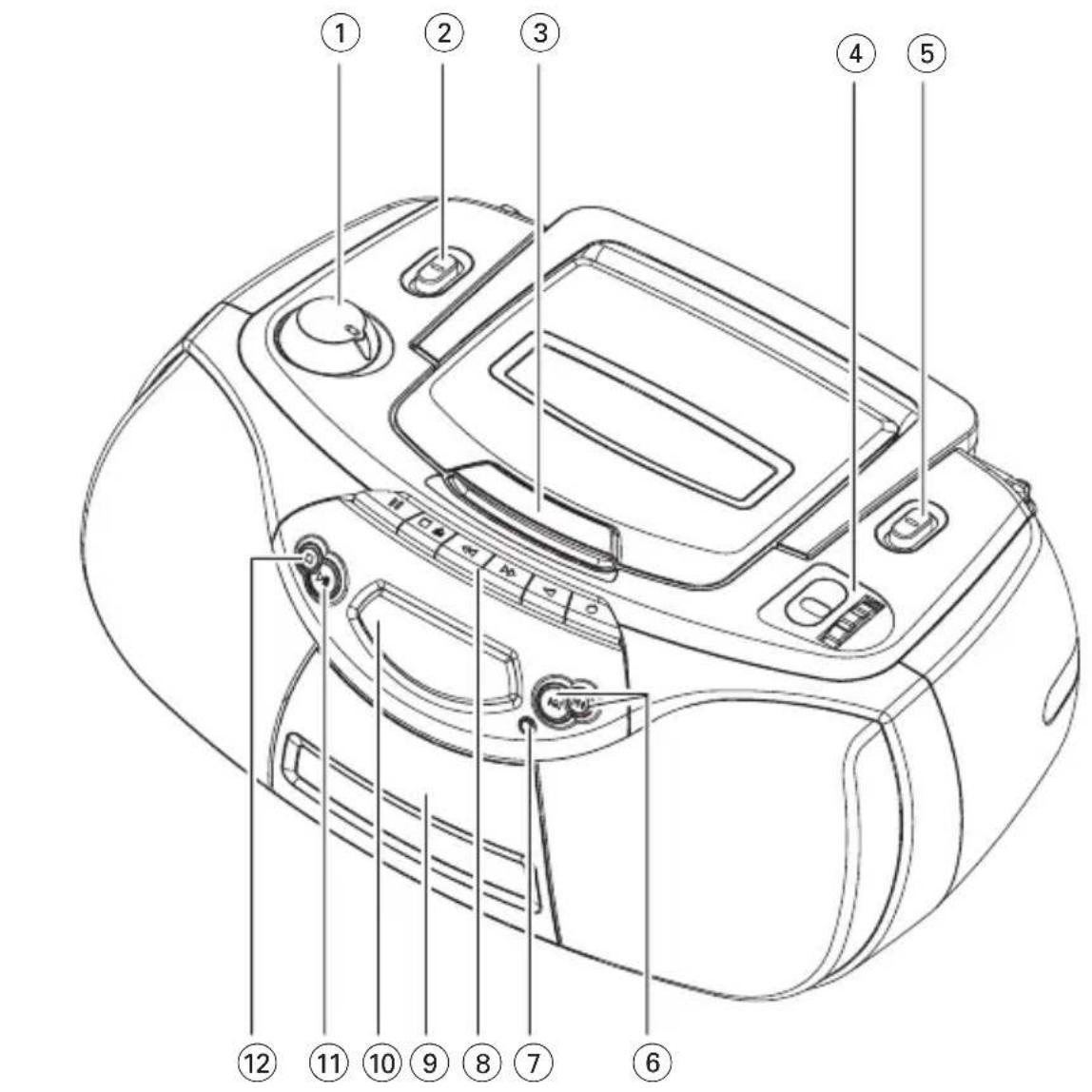
Top and front panels (See 1)
① VOLUME to adjust volume level
② Source selector:CD,TUNER, TAPE/POWER OFF selects CD,tuner or tape source of sound power off switch
③ CD door
TUNING - tunes to radio stations
⑤BAND - selects waveband
6 PREVIOUS, NEXT ↓ ↓ ↓ - skips or searches a passageto/track backwards or forward
PROG programs and reviews programmed track numbers
Cassette recorder keys: II - pauses playback or recording
- stops the tape; - opens the cassette holder
or - fast rewsds/ winds tape
-starts playback - starts recording
Cassette door
CD Display shows the CD functions
11 PLAY/PAUSE -starts or pauses CD playback.
STOP stop playback; erases a CD program.
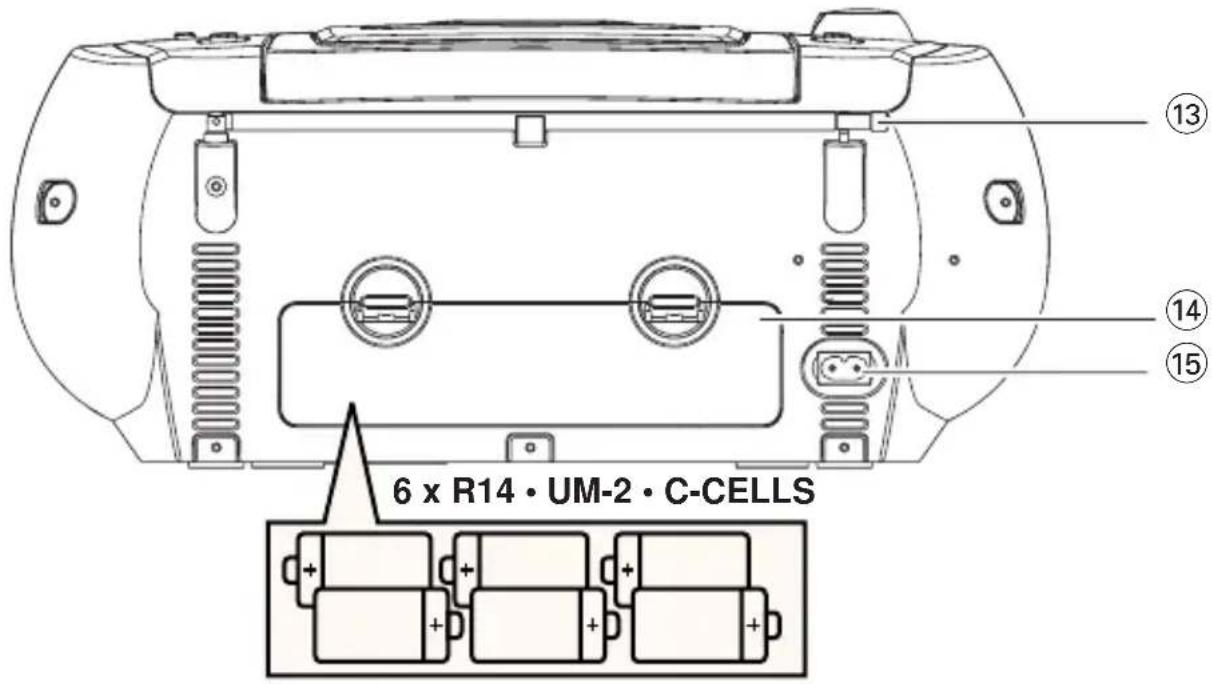
Back panel
Telescopic antenna - improves FM reception.
Note: MW band antenna is built into set (see Tuner reception)
Controls/Power Supply
Battery door - open to insert 6 x 1.5V R-14/UM2/C-cells.
AC POWER/MAINS - inlet for power cord.
CAUTION
Use of controls or adjustments or performance of procedures other than herein may result in hazardous radiation exposure or other unsafe operation.
This set complies with the radio interference requirements of the European Community.
Power Supply
Whenever convenient, use the mains supply cord if you want to conserve battery life.
Make sure you remove the plug from the set and wall outlet before inserting batteries.
Batteries (not included)
1 Open the battery compartment and insert six batteries, type R-14.UM-2 or C-cells, (preferably alkaline) with the correct polarity as indicated by the "+” and "-" symbols inside the compartment. (See [1])
2 Replace the compartment door, making sure the batteries are firmly and correctly in place. The set is now ready to operate.
Batteries contain chemical substances, so they should be disposed of properly.
Incorrect use of batteries can cause electrolyte leakage and will corrode the compartment or cause the batteries to burst.
Power Supply
- Do not mix battery types: e.g. alkaline with carbon zinc. Only use batteries of the same type for the set.
- When inserting new batteries, do not try to mix old batteries with the new ones.
- Remove the batteries if the set is not to be used for a long time.
Using AC Mains
1 Check if the power/mains voltage, as shown on the type plate located on the bottom of the set, corresponds to your local power supply. If it does not, consult your dealer or service center.
2 Connect the power cord to the AC POWER/MAINS inlet and the wall socket. The mains lead is now connected and ready for use.
3 To switch the set off completely, withdraw the power cord from the wall socket.
- Disconnect the mains load from the wall socket to protect your set during heavy thunderstorms.
The type plate is located on the bottom of the set.
For users in the U.K., please follow the boxed instructions 'Important notes...' on this sheet.
Switching POWER on/off:
Save energy
To avoid unnecessary energy consumption, always adjust the source selector to
TAPE/POWER OFF after using the set. Also check that the tape deck keys are released.
General operation
General operation
1 To select your sound source adjust the source selector to : CD, TUNER or TAPE/POWER OFF.
2 Adjust the sound with the VOLUME control.
3 To switch off the set, adjust the source selector to TAPE/POWER OFF position and check the cassette keys are released.
Tuner reception
1 Adjust the source selector to TUNER
2 Adjust BAND to select your desired waveband.
3 Tum TUNING to tune to a station.
For FM band signals, extend and turn the telescopic antenna for best reception. Reduce its length if the signal is too strong.
For MW (AM or LW) band signals, the set uses a built-in antenna. Direct this antenna for best reception by turning the whole set.
4 To switch off the radio, adjust the source selector to TAPE/POWER OFF position and check the cassette keys are released.
CD Player
Display indication for CD functions:
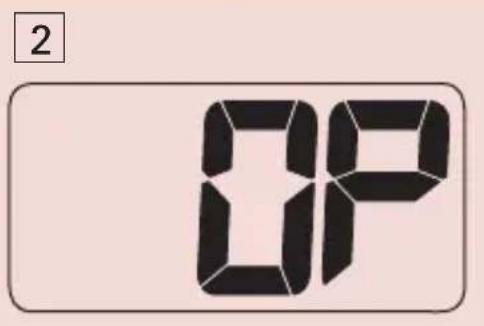
^ (See [2] CD door open
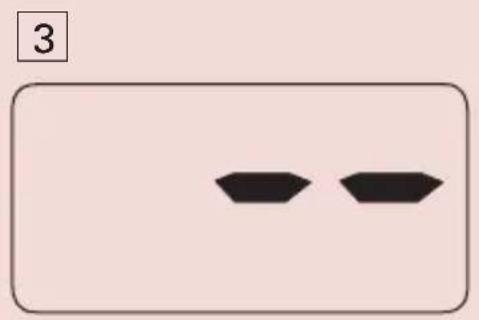
-: (See [3]) reading disc contents / no disc/ error in CD operation or CD/ CD-R is blank or not finalized (see Troubleshooting)
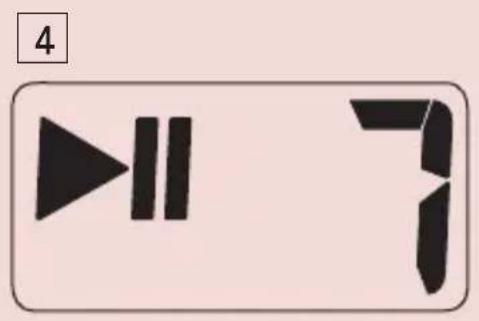
During CD playback: ▷ and current track number
See4]playback on pause
CD Player
prog:when CD program is active
-F_u : program memory full
Playing a CD
This CD player plays Audio Discs including CD-Recordables.
CD-RWs, MP3 CD-ROMs, CD-I, CDV,VCD, DVD or computer CDs are not possible for playback on this set.
1 Adjust the source selector to CD
2 Insert a CD/CD-R with the printed side facing up and press the CD door gently close.
3 Press PLAY/PAUSE on the set to start playback.
4 To pause playback press PLAY/PAUSE II Press PLAY/PAUSE IIagain to resume play.
5 To stop CD play, press STOP
6 To switch off the set, adjust the source selector to TAPE/POWER OFF position and check the cassette keys are released.
Note : CD play will also stop when
you open the CD compartment; you select TUNER or TAPEPOWER OFF sound source; the CD has reached the end of playback.
Selecting a different track
During playback you can use to select a particular track.
- If you have selected a track number in the stop or pause position, press PLAY/PAUSE to start playback.
Press once briefly for the next track, or press repeatedly until the desired track number appears in the display.
- Press once briefly to return to the beginning of a current track.
- Press repeatedly for a previous track.
Finding a passage within a track
1 During playback, press and hold down
The CD is played at high speed and low volume.
2 When you recognize the passage you want release
Normal playback resumes.
Note: When searching within a final track and you reach the end of the last track, the CD goes to stop mode.
Programming track numbers
You may store up to 32 tracks in the desired sequence. If you like, store any track more than once.
1 In the stop position, press PROG to activate programming.
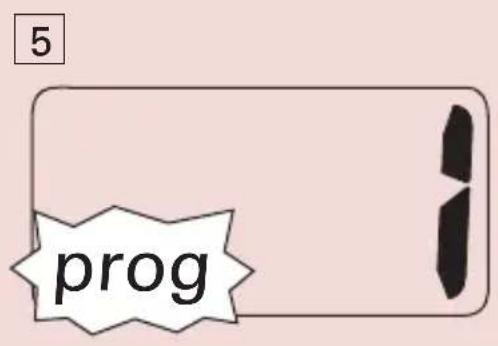
Display shows / indicating the start of the program. prog flashes. (See [5])
2 Press or to select your desired track number.
3 Press PROG to store the desired track number.
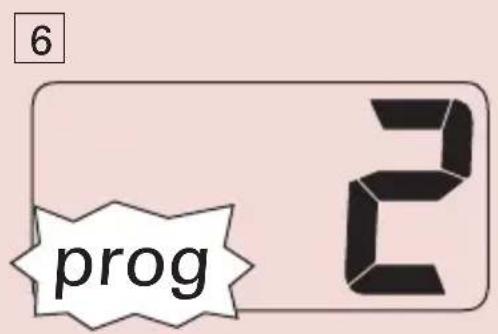
Display shows your desired track number briefly followed by a number, ^2 (up to 3 in sequence) indicating the next program location available. (See 6 )
CD Player
4 Repeat steps 2 to 3 to select and store all desired tracks in this way.
F_u indicates the program memory is full (when you have stored tracks on all ^2 program locations).
5 To play your program, press PLAY/PAUSE
To review a program
In the stop position, press PROG repeatedly to see your stored track numbers.
Erasing a program
You can erase the contents of the memory by:
selecting TUNER or TAPE/POWER OFF sound source:
opening the CD door
Display: prog disappears.
Cassette playback
1 Adjust the source selector to TAPE/POWER OFF.
2 Press to open the cassette holder and insert a cassette and close the deck.
3 Press to start playback.
4 To pause playback press To resume, press the key again.
5 By pressing or fast winding of the tape is possible in both directions. To stop fast winding, press
6 To stop the tape, press
The keys are automatically released at the end of a tape and the set switched off (unless PAUSE mode has been activated).
Cassette Recorder
General information on recording
- Recording is permissible insofar as copyright or other rights of third parties are not infringed.
For recording, use only NORMAL type cassettes (IEC type I) on which the tabs have not yet been broken. This clock is not suited for recording on CHROME (IEC II) or METAL (IEC IV) type cassettes.
The best recording level is set automatically. Altering the VOLUME will not affect the recording.
To protect a tape from accidental erasure, break out the tabs. If you wish to record again, cover the tabs with a piece of adhesive tape.
Synchro Start CD recording
1 Select CD source,
2 Insert a CD and if desired, program track numbers.
3 Press to open the cassette holder. Insert a blank tape and close the deck.
4 Press to start recording.
Playing of the CD program starts automatically from the beginning of the program. It is not necessary to start the CD player separately.
5 For brief interruptions press recording, press again.
6 To stop recording, press
Cassette Recorder
Maintenance
Recording from the Radio
1 Adjust the source selector to TUNER to select your desired waveband.
2 Tune to the desired radio station (see Tuner reception).
3 Press to open the cassette holder. Insert a blank tape and close the deck.
4 Press to start recording.
5 For brief interruptions press II.To resume recording, press I again.
6 To stop recording, press
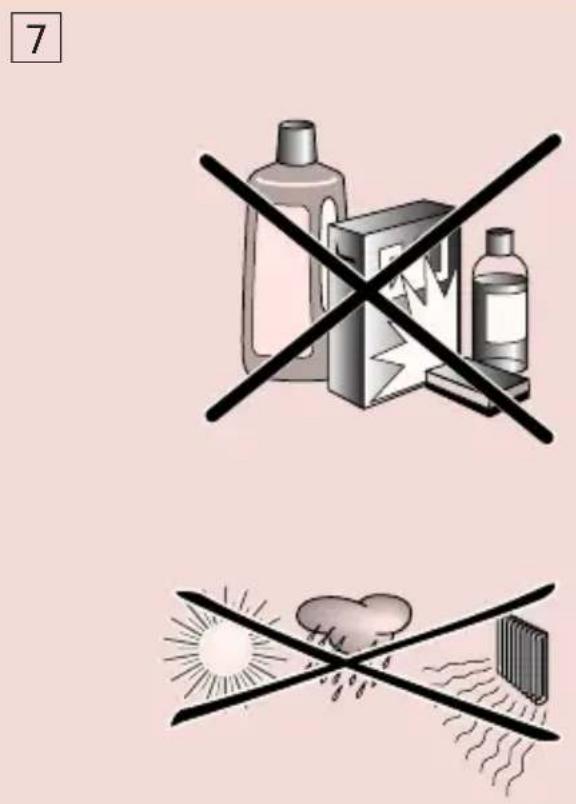
Precautions & General Maintenance (See 7)
- Place the set on a hard and flat surface so that the system does not tilt.
- Do not expose the set, batteries, CDs to humidity, rain, sand or excessive heat caused by heating equipment or direct sunlight.
- Do not cover the set. Adequate ventilation with a minimum gap of 6 inches between the ventilation holes and surrounding surfaces is necessary to prevent heat build-up.
The mechanical parts of the sel contain self-lubricating bearings and must not be oilied or lubricated.
To clean the set, use a dry cloth. Do not use any cleaning agents containing alcohol, ammonia, benzene or abrasives as these may harm the housing.
Tape deck maintenance (See 7)
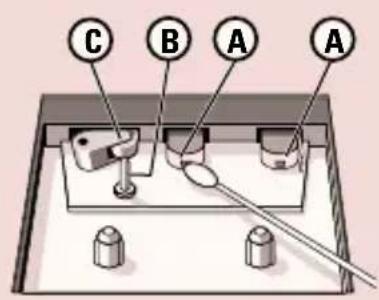
To ensure quality recording and playback of the tape deck, clean parts A)B and C as shown, once a month. Use a cotton bud slightly moistened with alcohol or a special head cleaning fluid to clean the deck.
1 Open the cassette holder by pressing
2 Press and clean the roller (C).
3 Press and clean the heads A, and the capstan B.
4 After cleaning, press
Cleaning of the heads can also be done by playing a cleaning cassette through once.
CD player and CD handling (See 7)
If the CD player cannot read CDs correctly, use a cleaning CD to clean the lens before taking the set to repair.
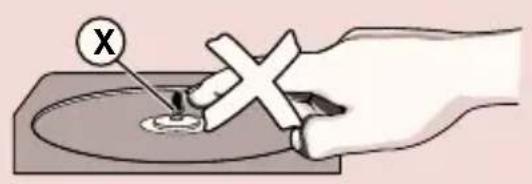
The lens of the CD player should never be touched!
- Sudden changes in the surrounding temperature can cause condensation on the lens of your CD player. Playing a CD is then not possible. Do not attempt to clean the lens but leave the set in a warm environment until the moisture evaporates.
Always close the CD-tape door to avoid dust on the lens.
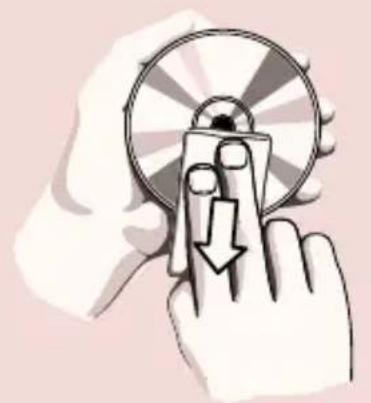
To clean the CD, wipe in a straight line from the center towards the edge using a soft, Int-free cloth. Do not use cleaning agents as they may damage the disc.
- Never write on a CD or attach any stickers to it.
Troubleshooting
If a fault occurs, first check the points listed below before taking the set for repair.
If you are unable to remedy a problem by following these hints, consult your dealer or service centre.
WARNING: Do not open the set as there is a risk of electric shock. Under no circumstances should you try to repair the set yourself, as this will invalidate the guarantee.
Problem
Possible cause
- Remedy
No sound /power
Voume not estjected.
Adjust the VOLUME
Power cord not securely connected
- Connect the AC power cord properly
- Batteries dead/incorrectly inserted
- Insert (fresh) batteries correctly
Display does not function properly/ No reaction to operation of any of the controls
Electrosal dischorge
- Switch off and unplug the sel. Reconnect after a few seconds
The CD skips tracks
-CD damaged or dirty
Replace or clean CD
Program is active
- Quit program mode
-- indication
No CD inserted
Insert a CD
CD body scratched or dirty
- Replace/ clean CD, see Maintenance
Laser lens steamed up
Wait until lens has cleared
- CD-R is blank or not finalized/ CD-RW inserted
- Use a finalized CD-R or suitable CD Audio disc only
Poor cassette sound quality
Dust and dirt on the heads, etc.
Clean dock parts, see Maintenance Use of incompatible cassette types (METAL or CHROMIDE)
Only use NORMAL (IEC) for recording
Recording does not work
- Cossette tab(s) may be broken
- Apply adhesive tape over the missing tab space
Environmental information
All unnecessary packaging material has been omitted. The packaging can be easily separated into three materials: cardboard, polystyrene and plastic.
Your set consists of materials which can be recycled if disassembled by a specialized company. Please observe the local regulations regarding the disposal of packaging, dead batteries and old equipment.
- Important notes for users in the U.K.
- Mains plug
- How to connect a plug
- Copyright in the U.K.
- English
- Top and front panels (See 1)
- Back panel
- Controls/Power Supply
- CAUTION
- Power Supply
- Batteries (not included)
- Using AC Mains
- Switching POWER on/off:
- Save energy
- General operation
- Tuner reception
- CD Player
- Display indication for CD functions:
- Playing a CD
- Adjust the source selector to CD
- To stop CD play, press STOP
- Selecting a different track
- Finding a passage within a track
- Programming track numbers
- To review a program
- Erasing a program
- Cassette playback
- Cassette Recorder
- General information on recording
- Synchro Start CD recording
- Maintenance
- Recording from the Radio
- Precautions & General Maintenance (See 7)
- Tape deck maintenance (See 7)
- CD player and CD handling (See 7)
- Troubleshooting
- WARNING: Do not open the set as there is a risk of electric shock. Under no circumstances should you try to repair the set yourself, as this will invalidate the guarantee.
- Problem
- No sound /power
- Display does not function properly/ No reaction to operation of any of the controls
- The CD skips tracks
- -- indication
- Poor cassette sound quality
- Recording does not work
- Environmental information
Marque : PHILIPS
Modèle : AZ1003
Catégorie : Chaîne Hi-Fi