dr5100 - Appareil photo ROLLEI - Notice d'utilisation et mode d'emploi gratuit
Retrouvez gratuitement la notice de l'appareil dr5100 ROLLEI au format PDF.

| Caractéristiques Techniques | Détails |
|---|---|
| Type d'appareil | Appareil photo numérique |
| Résolution | 24 mégapixels |
| Capteur | Capteur CMOS |
| Objectif | Objectif interchangeable |
| Écran | Écran LCD de 3 pouces |
| Vidéo | Enregistrement vidéo Full HD |
| Connectivité | Wi-Fi, USB, HDMI |
| Utilisation | Photographie amateur et professionnelle |
| Maintenance | Nettoyage régulier de l'objectif et du capteur |
| Sécurité | Utiliser un étui pour éviter les chocs |
| Informations Générales | Garantie de 2 ans, assistance technique disponible |
FOIRE AUX QUESTIONS - dr5100 ROLLEI
Questions des utilisateurs sur dr5100 ROLLEI
0 question sur cet appareil. Repondez a celles que vous connaissez ou posez la votre.
Poser une nouvelle question sur cet appareil
Téléchargez la notice de votre Appareil photo au format PDF gratuitement ! Retrouvez votre notice dr5100 - ROLLEI et reprennez votre appareil électronique en main. Sur cette page sont publiés tous les documents nécessaires à l'utilisation de votre appareil dr5100 de la marque ROLLEI.
MODE D'EMPLOI dr5100 ROLLEI
Operation Manual

Note
For the safe use of your camera, be sure to read the Safety Precautions thoroughly before use.
Using These Manuals
The three manuals included are for your Camera.
1. Please read this first:
Read Me First (a printed document)
document introduces the package contents and explains easy shooting.
Before using your camera, first read this guide.
2. For basic information:
Quick Start Guide (printed manual)
This booklet is designed to help you enjoy your camera right away by providing basic information to use the camera.
3. Please read as needed:
Operation Manual (this manual)
This explains how to use all the functions of your camera. To get the most out of your camera, please read it through once and refer to it whenever necessary.
Using This Guide
Display examples:
This manual gives examples of those pictures on LCD monitor with other models that has shooting functions equivalent to those of this camera.
Terms:
In this guide, still images, movies, and sounds are all referred to as "images" or "files."
Symbols:
The following symbols are used in this guide:

Important
Important
This indicates important information and restrictions.

Note
Note
This indicates supplementary explanations and useful tips on camera operations.

Reference
Reference
This indicates page(s) relevant to a particular function.
"p.xx" is used to refer you to pages in this manual.

Terms
Terms
This indicates an explanation of a technical term.
Contents
Chapter 1 Using Your Camera
Section 1 Getting Started
Checking that Everything is Packed.... 8
Optional Accessories 9
Names of Parts 9
How to Use the Mode Dial 11
Using the up/down dial....11
How to use the up/down dial 11
Inserting the Batteries 12
Using the Batteries.... 13
Using the Rechargeable Battery 14
Inserting the Rechargeable Battery 14
Removing the Rechargeable Battery.... 14
Using the AC Adapter 15
Setting up the AC Adapter 15
Removing the AC Adapter 16
Turning the Power On/Off 17
Turning the Camera On 17
Turning the Camera Off 17
Inserting an SD Memory Card (Available in Stores) 18
Inserting the SD Memory Card 18
Removing the SD Memory Card.... 19
How to Use the LCD Monitor 20
Screen Examples when Shooting Pictures.... 20
The Screen During Playback.... 23
Switching the Screen Display....24
Synchro Monitor Mode 25
Histogram Display 25
Button Functions 26
The Basics of the Shooting Menu/Playback Menu .... 27
The Basics of the Setup Screen 28
Screens 29
Shooting Menu (Shooting Mode) 29
Shooting Menu (Aperture Priority Mode) 30
Shooting Menu (Movie Mode) 31
Shooting Menu (Scene Mode, except in Text Mode). 31
Shooting Menu (Text Mode) 32
Playback Menu 32
Scene Selection Screen (Scene Mode).... 33
Setup Screen (Setup Mode) 34
Section 2 Basic Shooting
How to Hold the Camera....36
How to Focus 36
Shooting Still Images 38
Checking the Focus and Shooting (Half-press).... 38
Capturing the Moment Shooting (Full-press).... 39
When the Subject is not Centered on Your Composi-
tion (Focus Lock)....40
Shooting with Scenery-Matching.... 41
Combination of Scene Mode and Function 42
Shooting with Multi-Shot 43
Making Multi-Shot Settings (CONT. MODE).... 44
Shooting with Multi-Shot 45
Shooting with S Multi-Shot 45
Shooting with M Multi-Shot 45
Shooting Movies 45
Shooting with Optical Zoom 46
Shooting with the Digital Zoom 47
Shooting Close-ups (Macro Photo).... 48
Using the AF target shift function 48
Recording Voice Memos.... 50
Section 3 Using Special Features for Improved Photography
Using the Flash 52
Using the Self-Timer 54
Shooting in Aperture Priority/Manual Exposure Mode 55
Shooting with Set Aperture (Aperture Priority Mode) 55
Shooting at Set Shutter Speed (Manual Exposure Mode) 56
Shooting a Still Image with Sound (IMAGE WITH
SOUND)....58
Using the ADJ. (Adjust) Button 59
Adjustments Using the ADJ. Button 59
Changing the Exposure (EXPOSURE COMP.) ... 60
Examples of Exposure Compensation 60
Using the ADJ. Button (Exposure) 60
Using the Shooting Menu (Exposure) 61
Using Natural and Artificial Lighting (WHITE BAL-
ANCE)....62
Using the ADJ. Button (White Balance) 62
Using the Shooting Menu (White Balance) 63
Sensitivity Settings (ISO SETTING) 65
Using the ADJ. Button (ISO Sensitivity) 65
Using the Shooting Menu (ISO Sensitivity) 66
Changing Shading for Shooting Text (DENSITY) 67
Using the ADJ. Button (Text Density) 67
Using the Shooting Menu (Text Density).... 68
Shooting Consecutively with Different White Balance
(WHITE BALANCE BRACKET)....69
Choosing Picture Quality Mode/Image Size (PIC
QUALITY/SIZE) 70
About Picture Quality Mode.... 70
About Image Size 70
Changing Picture Quality Mode/Image Size of a Still Image 70
Changing the Image Size for Shooting in TEXT Mode... 71
Changing the Image Size of a Movie 72
Manual Focus Shooting (FOCUS) 73
Manual Focus Shooting.... 73
Shooting at a Fixed Distance 74
Changing the Light Metering (PHOTOMETRY)... 75
Changing the Edge Quality of Still Images (SHARP-
NESS)....76
Shooting Consecutively with Different Exposures
(AUTO BRACKET) 77
Setting the Shutter Speed (TIME EXPOSURE)... 78
Shooting Pictures Automatically at Set Intervals (INTERVAL)....79
Inserting the Date into a Still Image (DATE IMPRINT) 81
Returning the Shooting Menu Settings to their Defaults (RESTORE DEFAULTS).... 82
Section 4 Playing Back/Deleting Still Images, Movies, and Sounds
Viewing the Photo You Just Took (Quick Review) 84
Displaying an Enlarged View of the Still Image Displayed 84
Deleting the Displayed Still Image or Movie 85
Viewing a Still Image or Movie 86
Viewing Still Images Recorded on an SD Memory Card 86
Viewing Still Images Recorded on Internal Memory.. 86
Viewing Movies 87
Adjusting the Movie Sound Volume 87
Playing Back Sound 88
Playing Back Sound 88
Playing Back Sound Recorded with a Still Image..... 88
Adjusting the Volume 89
Viewing Thumbnail Images on the LCD Monitor.. 90
Enlarged Viewing 91
Viewing an S Multi-Shot or M Multi-Shot Still Image
in Enlarged Display Mode 92
Showing Photos in Order Automatically (SLIDE
SHOW) 93
Viewing on a Television 94
Deleting Unwanted Still Images/Movies/Sounds.. 95
Deleting One Still Image 95
Deleting All Frames at Once.... 95
Deleting Multiple Frames at Once 96
Section 5 Direct Printing
About the Direct Print Function 98
Sending Images to a Printer for Printing 98
Connecting the Camera to a Printer 99
Printing One Image 99
Printing All Images 100
Printing Several Images 101
Section 6 About Other Functions
Write-protecting Your Images (PROTECT)...... 104
Protecting the Displayed Still Image.... 104
Protecting All Still Images.... 104
Protecting Multiple Still Images, Movies, or Sounds at
Once 105
Copying the Contents of Internal Memory to a Mem-
ory Card (COPY TO CARD).... 106
Using a Printing Service (DPOF: Dee-Pof) ..... 107
Setting DPOF for the Still Image Displayed.... 107
Setting DPOF for a Still Images.... 108
Setting DPOF for Multiple Still Images 108
Changing the Image Size (RESIZE) 110
Section 7 Changing Camera Settings
Getting the SD Memory Card Ready for Use (CARD
FORMAT)....112
Write-protecting Your Images 112
Formatting Internal Memory (IN FORMAT)...... 113
Adjusting the Brightness of the LCD Monitor (LCD
BRIGHTNESS)....113
Setting a Function to the ADJ. Button (ADJ
BTN.SET.) 114
Changing the Operation Sound Setting (BEEP
SOUND) 115
Changing Image Confirmation Time (LCD CON-
FIRM.) 115
Changing Auto Power-Off Settings (AUTO POWER
OFF) 116
Changing File Name Settings (SEQUENTIAL NO.).. 117
Changing Power-Save Mode Settings (POWER-
SAVE)....118
Setting the Date and Time (DATE SETTINGS). 119
Changing the Display Language (LANGUAGE) 120
Changing the Playback Method for Viewing on TV
(VIDEO OUT MODE).... 120
Changing the setting of step zooming (STEP ZOOM) 121
Chapter 2 Playing Back Images (Pictures/Movies) on a Computer (For Windows)
Section 1 Installing Software
Using the Software Provided 124
Software and OS Applicability Table 124
System Requirements for Using the Provided Soft-
ware 125
Preparing to Download Images to Your Computer ... 126
Installation.... 127
For Windows 98/98SE/Me/2000.... 127
Uninstalling the Software (For Windows 98/98SE/Me/
2000) 128
For Windows XP.... 129
Uninstalling the Software (For Windows XP) ..... 130
Installing Other Software 131
Installing Acrobat Reader 131
Installing DirectX 131
Section 2 Downloading Images to a Computer
Connecting the Camera to a Computer.... 134
For Windows XP 134
Downloading Pictures to Your Computer...... 136
For Windows 98/98SE/Me/2000/XP 136
How to Use DL-10 137
Starting 137
Quitting 137
Restarting 137
The DL-10 Window 137
How to Use the Optional Settings 139
How to Use the Background Illustration Settings .... 140
Downloading Images from an SD Memory Card 140
Images in an SD Memory Card 140
Section 3 Displaying Thumbnail Images (How to Use DU-10x)
Starting and Exiting
DU-10x 142
DU-10x Window 142
Exiting DU-10x 142
Thumbnail Display Description 143
Switching the Ordering of Images.... 144
Changing the Display Size.... 145
Viewing Images in a Slide Show.... 146
To View a Slide Show 146
Using Auto Slide Show 147
How to Use the Slide Show Dialog Box 147
Renaming an Image in Thumbnail View.... 148
How to Rename an Image.... 148
Copying a Reduced Image File 148
How to Copy a Reduced Image File 148
Deleting Images 149
Using the File Menu.... 149
Using the Shortcut Menu 149
Using the Keyboard 149
Viewing Image Information.... 150
Using the File Menu 150
Using the Shortcut Menu 150
Displaying the Viewer Screen 151
Using the Viewer Screen 151
Printing an Image 152
To Print an Image 152
Using the [Print Setup] Dialog Box 152
Checking the Printing Layout 153
Making printer settings 153
Printing Images 153
Chapter 3 Playing Back Images (Pictures/Movies) on a Computer (For Macintosh)
Section 1 Installing Software
Using the Software Provided.... 156
Software and OS Applicability Table 156
System Requirements 157
Preparing to Download Images to Your Computer ... 158
Installation 159
For Mac OS 8.6 to 9.2.2 159
For Mac OS X 10.1.2 to 10.3.... 160
Uninstalling the Software (For Mac OS 8.6 to 9.2.2) 161
Uninstalling the Software (For Mac OS X 10.1.2 to 10.3)
161
Section 2 Downloading Images to a Computer
Connecting the Camera to a Computer 164
Downloading Pictures to Your Computer...... 164
For Mac OS 8.6 to 9.2.2 165
For Mac OS X 10.1.2 to 10.3.... 166
How to Use DL-10 167
Starting 167
Quitting 167
Restarting 167
The DL-10 Window 167
How to Use Optional Settings 168
Appendices
A. Up/down Dial Functions.... 170
B. Specifications 172
C. Functions Whose Defaults will be Restored upon
Power-off 174
D. Optional Accessories.... 175
E. SD Memory Card Recording Capacities..... 175
F. Using Your Camera Abroad 176
G. Cautions on Use 176
H. Care and Storage 177
I. Troubleshooting 178
J. Error Messages 188
Index 189
Chapter 1 Using Your Camera
Section 1 Getting Started
This section explains how to get your camera ready, from taking it out of the package to preparing to shoot.
1
Checking that Every- thing is Packed
The following items should be included with the camera. Please make sure everything was packed.
Digital Camera
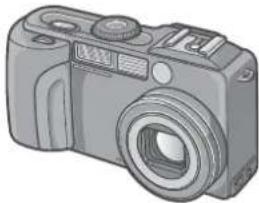
natural_image
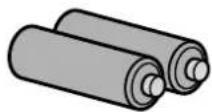
Illustration of a digital camera with lens and control buttons (no text or symbols)AA Alkaline Batteries (LR6) (2)
Handstrap
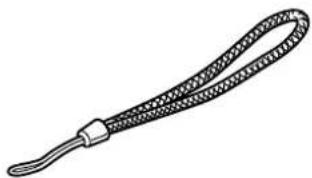
natural_image
Illustration of a knitted strap with a loop handle and metal clip (no text or symbols)AV Cable
Used when viewing your images on a TV unit.
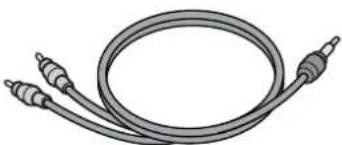
natural_image
Illustration of a coiled cable with two connectors (no text or symbols)USB Cable
Used to connect the camera to a personal computer or Direct Print supported printer.
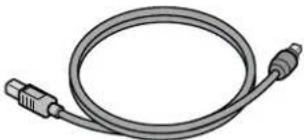
natural_image
Illustration of a coiled cable with two connectors (no text or symbols)Read Me First
Quick Start Guide
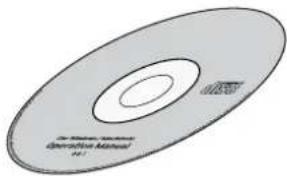
CD-ROM
The software and the operation manual are included on this CD-ROM.
Warranty Card
Safety Precautions

Note
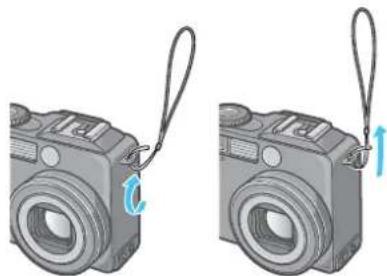
Attaching the hand strap to the camera
Thread the tips of the strap through the camera's strap eyelet and loop them as shown.
natural_image
Two identical grayscale camera clips with attached strap, one showing a blue circular motion arrow (no text or symbols)Optional Accessories
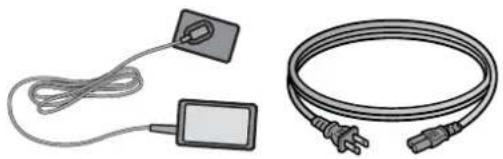
AC Adapter
Used for power supply from a home outlet to the camera. Connect this adapter for long-time play or image transfer to a personal computer.
natural_image
Illustration of two types of electrical connectors: a wire with a square terminal and a coiled cable with a plug (no text or symbols)Battery Charger
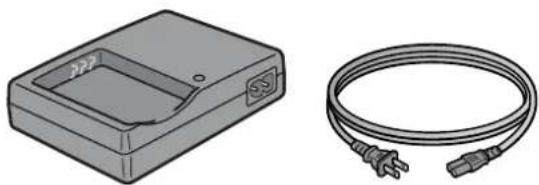
natural_image
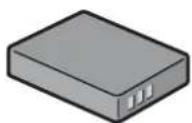
Illustration of a rectangular device with a labeled component and a coiled cable (no text or symbols present)Rechargeable Battery

Important
- In the unlikely event that something is missing or damaged, please contact the store where you purchased the camera.
• After checking the contents of the warranty card, please keep it in a safe place.
Names of Parts
It is necessary to know these in order to understand the explanations in this manual. Check the following.
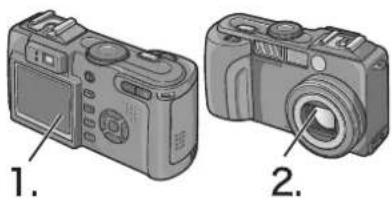
Camera
Front View
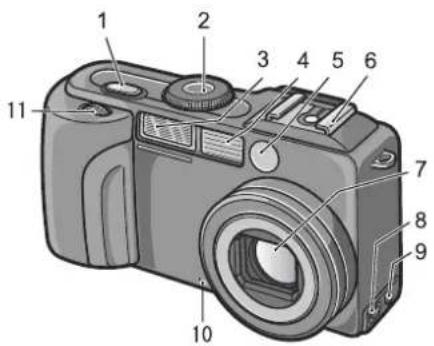
- Shutter Release Button (see P.36)
- Mode Dial (see P.11)
- Flash
- AF Window
- Viewfinder
- Hot Shoe (see P.10, P.53)
- Lens
- USB Terminal (see P.136, P.164)
- AV Output Terminal (see P.94)
- Microphone (see P.50)
- Up/down Dial (see P.11)
1
Rear View
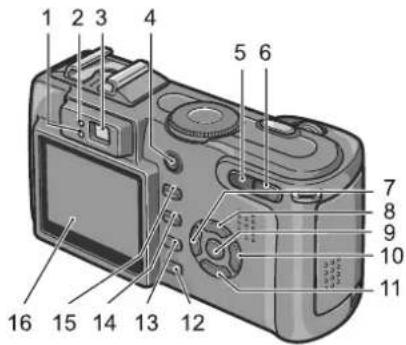
Left Side, looking from the front
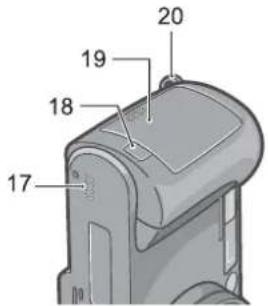
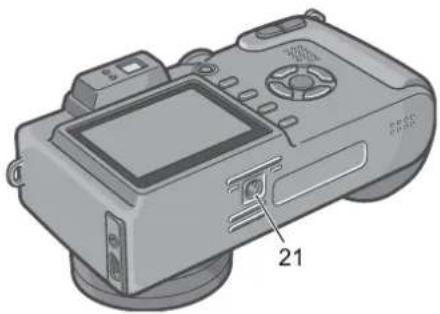
Bottom
natural_image
Illustration of a digital camera with labeled parts (no text or symbols beyond the number 21)- Flash Lamp
- Auto Focus Lamp
- Viewfinder
- Power Button (see P.17)
- [♦] (Wide-angle)/☐ (Thumbnail Display) Button (see P.46)
- [↑] (Telephoto)/Q (Enlarged View) Button (see P.46)
- ◀ Button/(G) (Quick Review) Button (see P.84)
- ▲ Button
- OK Button
10.▶ Button/⚡(Flash) Button (see P.52)
11. ▼ / (Macro) Button (see P.48)
12. DISP. Button
13. (Delete)/(Self-timer) Button (see P.95/P.54)
14. MENU Button
15.ADJ. Button
16.LCD Monitor
17.Speaker
18.Power (DC in) Cable Cover
19.Battery/Card Cover
20.Strap eyelet (see P.8)
21. Tripod Screw Hole (underside)

Note
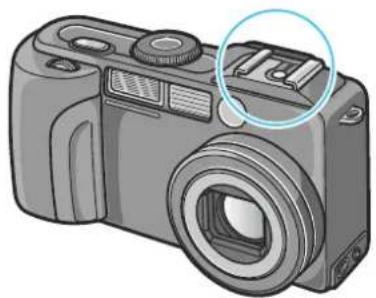
How to use the hot shoe
Since the camera has a hot shoe, you can connect an external flash (available in stores) for use.
natural_image
Illustration of a digital camera with a magnified inset showing the lens (no text or symbols present)For details, see P.53.

Important
To avoid damaging the connectors, do not put any objects into the camera's microphone or speaker holes.
How to Use the Mode Dial
The Mode Dial is on the top of the camera. The Mode Dial is used to select the desired mode and operation for shooting and play-back (still image viewing).
- Turn the Mode Dial to the symbol of the mode you want to use.
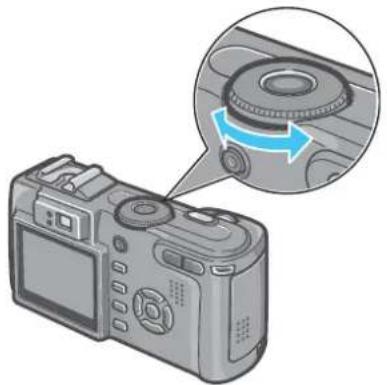
natural_image
Illustration of a digital camera with an inset showing the camera's wheel and scroll (no text or symbols)Mode Dial Symbols and Functions
| Symbol | Mode Name | Function |
| SETUP | Setup Mode | Allows you to set and confirm camera settings. |
| Voice Memo Mode | Allows you to record sounds. | |
| Movie Mode | Allows you to record movies. | |
| SCENE | Scene Mode | Allows you to optimize the camera settings for six different scenes. |
| A/M | Aperture Priority/Manual Exposure Mode | Allows you to set the f-number and shutter speed manually for taking still pictures. |
| Shooting Mode | Allows you to shoot still images. | |
| Playback Mode | Allows you to playback and delete still images and movies. |
Using the up/down dial
With the up/down dial, you can easily use various functions of the ▲▼◀▶ buttons.
How to use the up/down dial
Turn the up/down dial as shown in the figure.
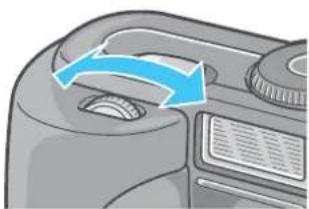
natural_image
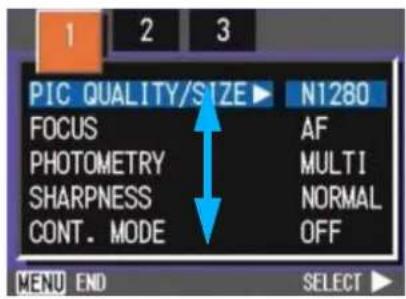
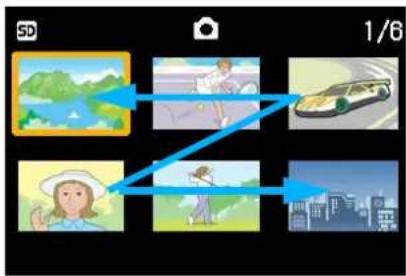
Illustration of a car's front bumper with a blue arrow indicating rotation (no text or symbols)Examples:
For menu display...
For thumbnail display...
flowchart
graph TD
    A["5D"] --> B["1/6"]
    C["Photo"] --> B
    D["Weather"] --> B
    E["Car"] --> B
    F["Person"] --> B

Reference
For operations available with the up/down dial, see P.55.
Inserting the Batteries
If you have already used this camera, follow the steps below to make sure it is turned off before removing or loading batteries.
- Make sure the LCD monitor is turned off.
- Make sure the lens barrier (built-in lens protection) is closed.
natural_image
Two grayscale images of a digital camera with labeled parts (no text or symbols present)The following batteries can be used in the camera. Please choose which battery to use according to your needs.
• AA Alkaline Batteries (LR6) (included)
You can obtain them anywhere, so they are convenient for travel.
However, in a low-temperature environment the number of shots you can take will decrease. Warm the batteries before use. It is recommended that you use the rechargeable battery when using the camera for a long time.
- Rechargeable Battery (sold separately)
This is a lithium-ion battery. This is economical because you can recharge it using the battery charger (sold separately) and use it over and over again. They last a long time, so they are convenient for travel.
• AA Nickel Batteries (available in stores)
These batteries are not rechargeable. However, they last a long time as compared with AA Alkaline Batteries when used with a digital camera.
- Nickel-Hydrogen Battery (available in stores)
This is economical because you can recharge and discharge it, and use it over and over again. Use a charger (available in stores) for charging.
The battery may be inert and consequently it may not supply power immediately after it is purchased or left unused for more than a month. In such a case, recharge the battery two or three times before use. The battery self-discharges with time even if the camera is not used, so recharge it before use.

Note
Indication of the number of images you can take
| Battery Type | Number of Shots (Normal Mode) | Number of Shots (Power-Save Mode) *1 |
| AA Alkaline Batteries (LR6) | approx. 120 | approx. 130 |
| Rechargeable Battery | approx. 400 | approx. 450 |
*1 The number of shots in the Synchro-Monitor Mode (see P.24)
- The number of shots is based on a temperature of 22 degrees Celsius, shooting at 30-second intervals and one out of every two being shot with the flash. If you set the camera to the Power-Save mode, the number of shots you can take will increase. In addition to the batteries, you can use the AC Adapter (sold separately).
- The number of shots is for reference only. If the camera is used for long periods of time for setting and playback, the shooting time (the number of shots) will decrease.

Important
- Other batteries, such as manganese dry cell (R6) and Ni-Cd, cannot be used.
- Please remove the batteries if you are not going to use the camera for a long period of time.
- The life of an AA alkaline battery (LR6) depends on the brand and the storage time from the date of production. In addition, the life of an alkaline battery becomes shorter at low temperatures.
- The Nickel-Hydrogen Battery is not factory-charged. Charge it before use. Immediately after the purchase or after a long storage, the battery may not be charged fully. Repeat charging and discharging before use. For details, see the documentation that came with the battery or charger.
- The battery may become very hot immediately after operation. Turn the camera off and leave it to cool down sufficiently before removing the battery.

Note
Battery level indication
A battery mark appears at the lower left of the LCD monitor to indicate the battery level. Prepare new batteries before the batteries wear out.
| Battery Mark | Description |
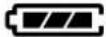 | Sufficient battery charge |
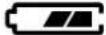 | Low remaining charge: Prepare new batteries. |
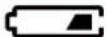 | No remaining charge: Replace the batteries. |

Important
If you are using nickel metal hydride batteries, may not appear or or may appear immediately depending on the battery type and environmental conditions. Check the batteries at hand before use.
Using the Batteries
If you have already used this camera, make sure it is turned off before loading batteries.
1. Open the battery/card cover.
The cover slides open in two steps. First slide the cover toward the face of the camera, then lift it to expose the battery compartment.
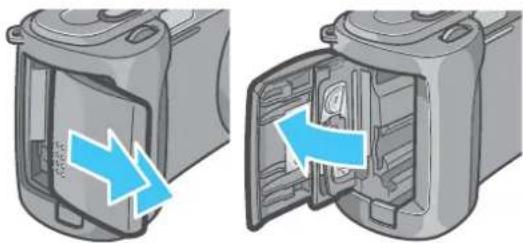
natural_image
Two views of a device showing internal components with blue arrows indicating direction (no text or symbols)2. Insert the two batteries, making sure they are facing the correct way.
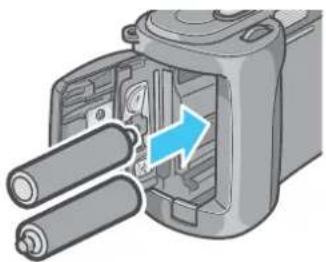
natural_image
Diagram of a device's internal components with a blue arrow indicating direction (no text or symbols present)3. Close the battery/card cover and slide it back into place.
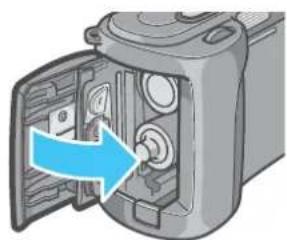
natural_image
Close-up of a mechanical device showing a blue arrow pointing to a component with circular ports (no text or symbols visible)
Important
- Other batteries, such as manganese dry cell (R6) and Ni-Cd, cannot be used.
- With AA Alkaline Batteries (LR6), the number of shots may differ depending on the batteries.
- Please remove the batteries if you are not going to use it for a long period of time.
1
Using the Recharge-able Battery
The rechargeable battery is another option for powering this camera. This battery is convenient because it can be used over and over again by recharging, and the battery power lasts longer.
Inserting the Rechargeable Battery
If you have already used this camera, make sure it is turned off before loading batteries.
1. Open the battery/card cover.
The cover slides open in two steps.
First slide the cover toward the face of the camera, then lift it to expose the battery compartment.
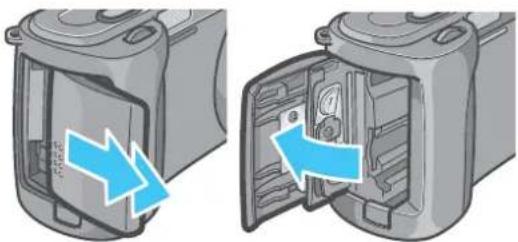
natural_image
Two views of a device showing internal components with blue arrows indicating direction (no text or symbols)2. Insert the rechargeable battery.
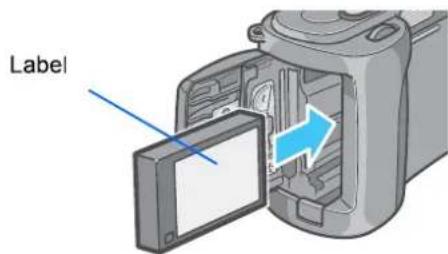
3. Close the battery/card cover and slide it back into place.
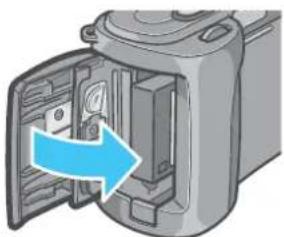
natural_image
Diagram of a device with an open door and blue arrow indicating direction (no text or symbols)Removing the Rechargeable Battery
If you have already used this camera, make sure it is turned off before removing batteries.
1. Open the battery/card cover.
The cover slides open in two steps.
First slide the cover toward the face of the camera, then lift it to expose the battery compartment
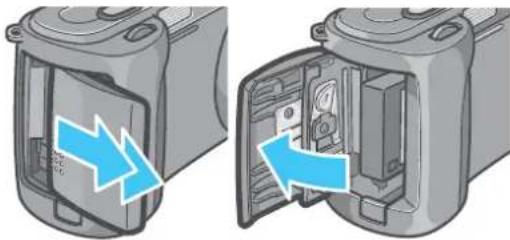
natural_image
Two views of a device showing internal components with blue arrows indicating direction (no text or symbols)2. Remove the rechargeable battery.
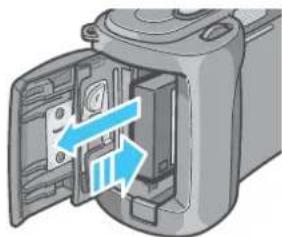
natural_image
Diagram of a device's internal structure showing a blue directional arrow pointing to a component (no text or symbols present)3. Close the battery/card cover and slide it back into place.
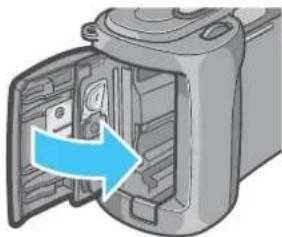
natural_image
Diagram of a device interior showing an open door with a blue arrow pointing to the door panel (no text or symbols present)
Note
- Please remove the rechargeable batteries if you are not going to use the camera for a long period of time.
- Use the battery charger (sold separately) to recharge the battery.
- Store the removed battery in a dry cool place.
Rechargeable battery charging time
Approx. 220 min. (at room temperature)
Using the AC Adapter
When shooting or viewing still images for a long time, or when connecting to your computer, use of the AC Adapter (sold separately) is recommended.
is recommended.
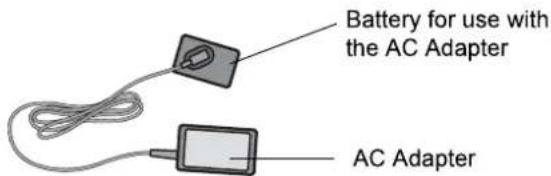
1
Setting up the AC Adapter
If you have already used this camera, make sure it is turned off before loading the AC Adapter Battery.
1. Open the battery/card cover.
The cover slides open in two steps.
First slide the cover toward the face of the camera, then lift it to expose the battery compartment.
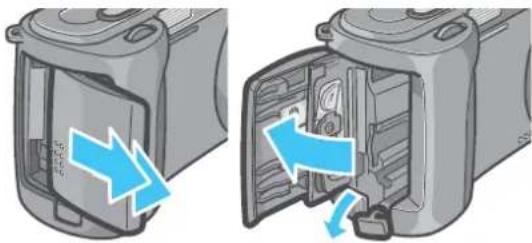
natural_image
Two views of a refrigerator interior showing internal compartments and directional arrows (no text or symbols)2. Insert the AC Adapter Battery.
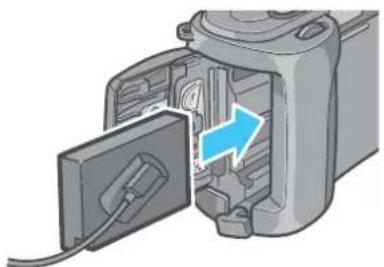
natural_image
Diagram of a device internal component with a blue arrow indicating a directional flow (no text or symbols present)1
- Open the power (DC input) cable cover and take the cable out.
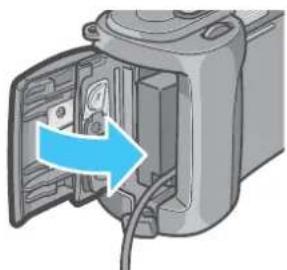
natural_image
Close-up of a mechanical component with an open lid and cable, showing internal wiring and a blue arrow indicating direction (no text or symbols)- Close the battery/card cover and slide it back into place.
- Plug the power cord into an outlet.
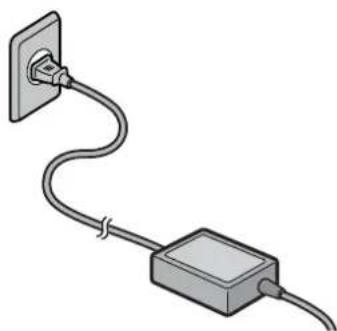
natural_image
Simple line drawing of a plug and cable connection (no text or symbols)
Note
- Be sure to firmly attach cables and plug in cords.
- When you are not using the camera, unplug the AC Adapter from the camera and the power outlet.
- While in use, if you detach the AC Adapter or unplug it from the outlet, data may be lost.

Important
If you have already used this camera, make sure it is turned off before removing the AC Adapter Battery.
Removing the AC Adapter
When using the AC Adapter, the battery level indication may not reach the full area.
- Unplug the power plug from the outlet.
- Open the battery/card cover.
The cover slides open in two steps.
First slide the cover toward the face of the camera, then lift it to expose the battery compartment.
- Remove the battery.
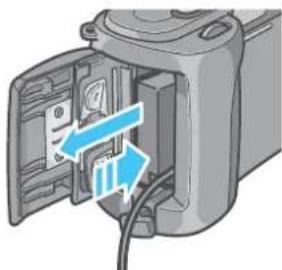
natural_image
Close-up of a mechanical device showing a blue directional arrow pointing to a component (no text or symbols visible)- Close the battery/card cover and slide it back into place.
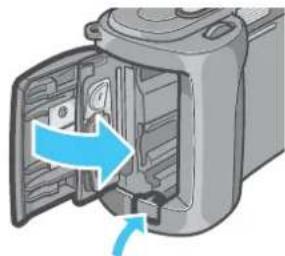
natural_image
Diagram of a device interior showing an open door with a blue arrow indicating direction (no text or symbols present)Turning the Power On/Off
The camera is switched On and Off as follows.
Turning the Camera On
1. Press the power button.
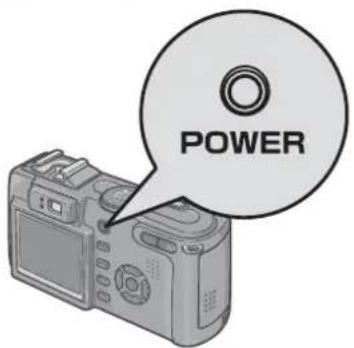
After the start sound, the flash lamp and auto-focus lamp blink alternately for several seconds.
When the power is turned on for the first time after purchase, the setting screens for language and date/time are displayed sequentially. Set these items by referring to the Start Guide or the Operation Manual.
You can also set the language and date/time on the SETUP screen.
Turning the Camera Off
1. Press the power button.
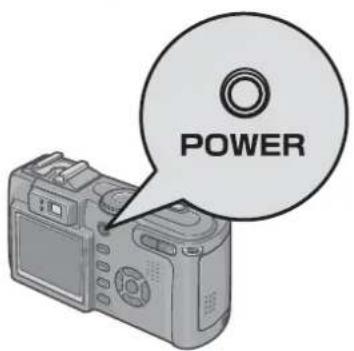

Note
Auto Power-off
- If the camera goes unused for a set period of time, it will automatically turn itself off to save power. To use the camera again, simply press the power button.
- At time of purchase, the Auto Power-off function is set to one minute.
- The Auto Power-off function does not work when connected to your computer.
Power-Save Mode
- You can reduce the power consumption of the LCD Monitor and extend the life of your batteries.
- If you have activated Power-Save mode, the display on the LCD Monitor will turn off in Shooting Mode. When the LCD Monitor is dark, turn the SETUP Dial to check the Power-Save mode setting.
Restoring of Defaults
Power-off may reset some function settings to their defaults.

Reference
- For how to change the Auto Power-off time, see P.116.
- For how to set the Power-Save Mode, see P.118.
• For how to set the start sound, see P.115. - For how to set the display language, see P.120.
• For how to set the date/time, see P.119. - For functions whose defaults are restored by power-off, see P.174
Inserting an SD Memory Card (Available in Stores)
1
You can record the still images and movies you have taken in the camera's internal memory or on an SD memory card (available in stores).

Note
Protecting your images from being deleted
If you move the SD memory card's write-protection switch to LOCK, your still images cannot be accidentally erased, and the memory card cannot be formatted. If you return the switch to the former position, it is once again possible to erase images and format the card. It is recommended to switch to LOCK after recording important images.
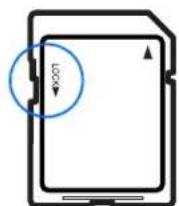
Note that you cannot shoot images in the LOCK state because no data can be recorded on the card. Unlock the card when shooting.

Note
The internal memory capacity is 16MB.

Reference
- For the number of images that can be stored on an SD memory card, see P.175.
- For how to format an SD memory card, see .P.112.

Note
Where images are recorded
When no SD memory card is inserted, the camera records images in the internal memory; when an SD memory card is inserted, it records images on the memory card.
| When no memory card is loaded | When a memory card is loaded |
Records to internal memory  | Records to the SD memory card 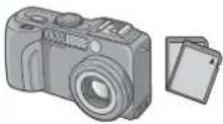 |

Note
- When an SD memory card is loaded, no data is recorded in the internal memory even after the SD memory card becomes full.
• Take care not to get any dirt on the SD Memory Card's metal parts.
Inserting the SD Memory Card
If you have already used this camera, make sure it is turned off before loading an SD memory card.
1. Open the battery/card cover.
The cover slides open in two steps. First slide the cover toward the face of the camera, then lift it to expose the battery compartment.
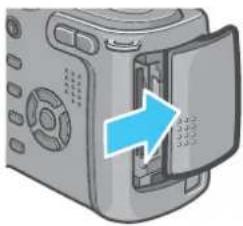
natural_image
Illustration of a digital camera module with an arrow indicating direction (no text or symbols)- Make sure the card is facing the right way and then push the card all the way in until it clicks.
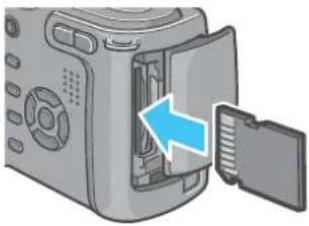
natural_image
Illustration of a computer oven with a blue arrow indicating the open door (no text or symbols present)- Close the battery/card cover and slide it back into place.
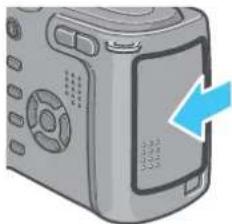
natural_image
Illustration of a digital camera with a blue arrow pointing to the screen (no text or symbols visible)
Note
When loading the SD Memory Card, take care not to get any dirt on the card's metal parts.
Removing the SD Memory Card
If you have already used this camera, make sure it is turned off before removing the SD memory card.
- Open the battery/card cover.
The cover slides open in two steps.
First slide the cover toward the face of the camera, then lift it to expose the battery compartment.
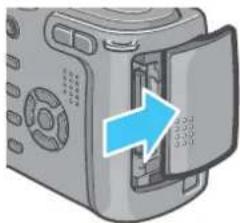
natural_image
Illustration of a digital camera module with an arrow pointing to the internal panel (no text or symbols visible)- Press the card gently and release it.
The card pops out just a little.
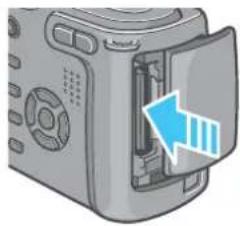
natural_image
Illustration of a computer monitor with an open door and blue arrow indicating action (no text or symbols)1
- Gently take the card out of the camera.
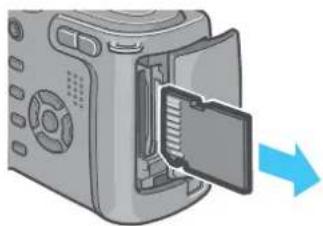
natural_image
Illustration of a microwave oven with a door open, showing internal components and airflow direction (no text or symbols)- Close the battery/card cover and slide it back into place.
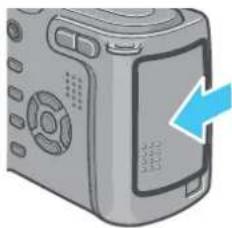
natural_image
Illustration of a gray digital camera with a blue arrow pointing to the side panel (no text or symbols)How to Use the LCD Monitor
The LCD Monitor can be used to view the subject when you are shooting an image, as well as for playing back movies and still images. Symbols and numbers indicating the camera's status and settings are displayed on the screen of the LCD Monitor.
1
Screen Examples when Shooting Pictures
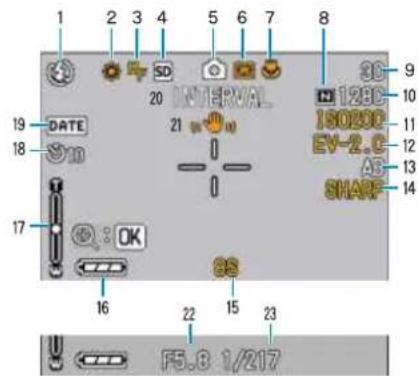
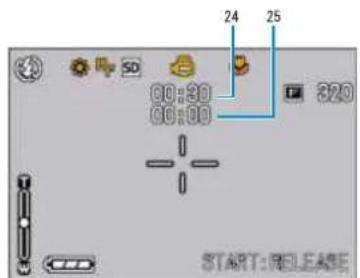
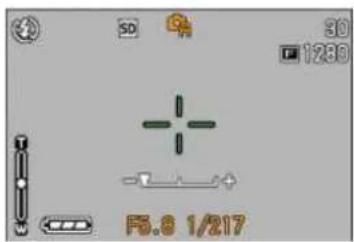
(When the shutter release button is half-pressed)
Still Image Mode
Movie Mode
A/M Mode
| Symbol | Display Contents | Refer to | |
| 1. Flash | [X3DS] Flash Offj | Current flash mode. | P.52 |
 Auto Auto | |||
 Red-eye reduction Red-eye reduction | |||
| [H20T] Forced Flash | |||
 Slow Synchro Slow Synchro | |||
| 2. WHITE BALANCE | (No Display) AUTO | White Balance set value. | P.62 |
| [W770] Daylight | |||
| [XXDC] Overcast | |||
 Tungsten light Tungsten light | |||
| [07ZH] Fluorescent light | |||
| [YXXD] One-push | |||
| 3. FOCUS |  | Focus set value.When ☑:OK is displayed, pressing the OK button enlarges the view on the LCD monitor display. | P.73 |
 | |||
 | |||
 | |||
| 4. Recording Destination | ### | Recording to internal memory. | P.18 |
| ##### | Recording to an SD Memory Card. | P.18 | |
5. Flash Mode Types* A musical note is displayed for an image shot with sound. | Still Image Shooting Mode. | P.38 | |
| Aperture Priority Mode. | P.55 | ||
| Manual Exposure Mode. | P.56 | ||
| Multi-Shot Mode. | P.43 | ||
| S Multi-Shot Mode. | P.43 | ||
| M Multi-Shot Mode. | P.43 | ||
| Movie Mode. | P.45 | ||
| PORTRAIT Mode. | P.41 | ||
| SPORTS Mode. | P.41 | ||
| LANDSCAPE Mode. | P.41 | ||
| NIGHTSCAPE Mode. | P.41 | ||
| TEXT Mode. | P.41 | ||
| HIGH SENSITIVITY Mode. | P.41 | ||
| Voice Memo Mode. | P.50 | ||
| 6.PHOTOMETRY | (No Display) | Light Metering Method. | P.75 |
| Center | |||
| Spot | |||
| 7. Macro Shooting | Macro Shooting. | P.48 | |
| 8. Picture Quality | Picture Quality setting. | P.70 | |
| Non-Compressed | |||
| Fine | |||
| Normal | |||
| 9. Remaining Number of Still Images | (Value) | Number of photos that can be taken with the current settings. | - |
| 10. Image Size | (Setting Value) | Image Size setting. | P.70 |
| 11. ISO SETTING | (Setting Value) | ISO Speed set value. | P.65 |
| 12. EXPOSURE COMP | (Setting Value) | Exposure compensation set value. | P.60 |
| 13. AUTO BRACKET | AB | Auto-Bracket Shooting. | P.69 |
| WB-BKT | White Balance Bracket. | P.77 | |
| 14. SHARPNESS | SOFT | Sharpness (edge quality) set value. | P.76 |
| (No display) Standard | |||
| SHARP | |||
| 15. TIME EXPOSURE | (Setting Value) Multi | Indicates exposure time. | P.78 |
| 16. Battery |  | Remaining Battery Power. | P.13 |
 | |||
 | |||
| 17 Zoom Bar | - | Zoom Bar | P.46 |
| 18. Self-timer |  er 10 Seconds er 10 Seconds | Self-Timer Shooting. | P.54 |
 r 2 Seconds r 2 Seconds | |||
| 19. Date/Time |  | Date Imprint mode. | P.81 |
| 20. INTERVAL | Interval | Interval Shooting. | P.79 |
| 21. Camera Shake |  | Indicates camera shake. Hold the camera still and shoot again. | P.36 |
| 22. Aperture Value |  | Aperture size. | - |
| 23. Shutter Speed |  | Shutter speed. | - |
| 24. Remaining Recording Time | [Value] | Length of time remaining for shooting with the current settings. | - |
| 25. Recording Time |  | Amount of time recorded. | - |
| 26. Manual Exposure Indicator |  |

Note
- The following symbols and corresponding numerals are displayed in orange if the initial setting is changed:
WHITE BALANCE
FOCUS
ISO SETTING
EXPOSURE COMP
SHARPNESS
TIME EXPOSURE
PHOTOMETRY
Zoom Bar
- When shooting in particularly bright places, you may fail in preventing overexposure. In that case, the [!AE] symbol will be displayed.
- The LCD monitor may display messages to inform you of operational instructions or the camera's status while in use.
- The number of remaining shots available may differ from the actual number of shots, depending on the subject.
The Screen During Playback
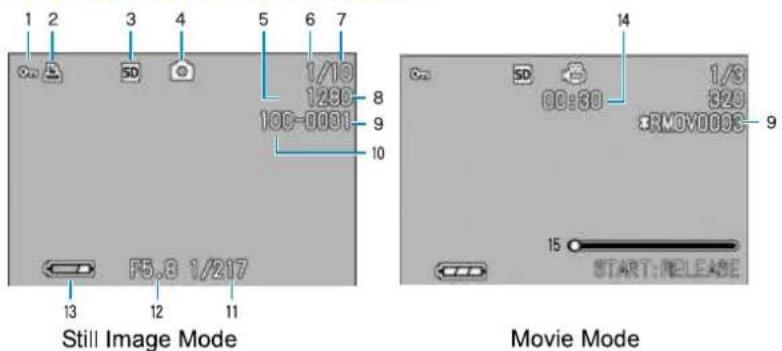
| Symbol | Display Contents | Refer to | |
| 1. PROTECT | CAT | Protected status. | P.104 |
| 2. DPOF | DPOF specified. | P.107 | |
| 3. Playback data source | IN | Indicates playback from internal memory. | P.86 |
| SD | Indicates playback from an SD Memory Card. | P.86 | |
| 4. Mode Types* A musical note is displayed for an image shot with sound. | Still Image Mode. | P.86 | |
| Movie Mode. | P.87 | ||
| Voice Memo Mode. | P.88 | ||
| 5. Picture Quality | NC Non-Compressed | Picture Quality setting. | P.70 |
| F Fine | |||
| N Normal | |||
| 6. Number of Playback Files | The number of the file being played back. | - | |
| 7. Total number of files | Total number of files recorded. | - | |
| 8. Image Size | (Setting Value) | Image size. | P.70 |
| 9. Folder No | - | Number of the folder in which the file is saved. | - |
| 10. File No | - | Number of the file being played back. An asterisk (*) symbol precedes the name of a file other than DCF basic files. | - |
| 11. Shutter Speed | - | Shutter speed. | - |
| 12. Aperture Value | - | Aperture size. | - |
| 13. Battery | Remaining battery level. | P.13 | |
| 14. Playback Time | (Time) | Movie (movie/sound) playback time. | - |
| 15. Indicator | Elapsed time of movie (movie/sound) playback. | - |

Note
The LCD monitor may display messages to inform you of operational instructions or the camera's status while in use.
Switching the Screen Display
If you press DISP., you can change the screen display mode, such as switching between display/no display of symbols, etc.
When Shooting
1
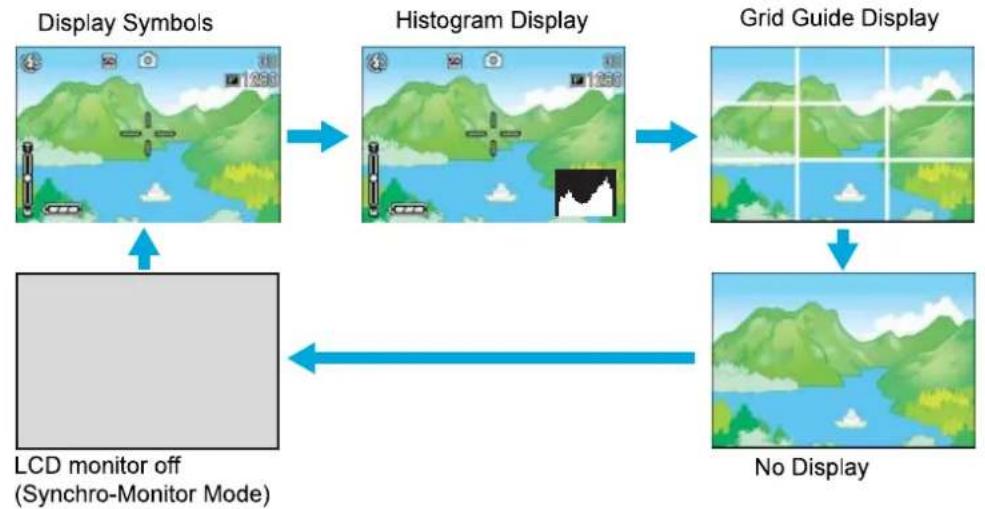
flowchart
graph TD
    A["Display Symbols"] --> B["Histogram Display"]
    B --> C["Grid Guide Display"]
    C --> D["No Display"]
    D --> E["LCD monitor off (Synchro-Monitor Mode)"]
    E --> A
- You cannot turn the LCD Monitor Display on/off by pressing ⚙ (Self-timer), ↕ (Flash) or 🖼 (Macro) buttons.
- Turning the LCD Monitor Display Off conserves battery life.
- In Voice Memo Mode, you can turn the LCD Monitor Display off by pressing the DISP. button.

Note
When the No Display or Grid Guide Display is on, symbols will appear for a few seconds right after you press the Self-timer, Flash or Macro button.

Reference
- For details about Synchro Monitor mode, see P.25.
- For details about histogram display, see P.25.
When Playing Back
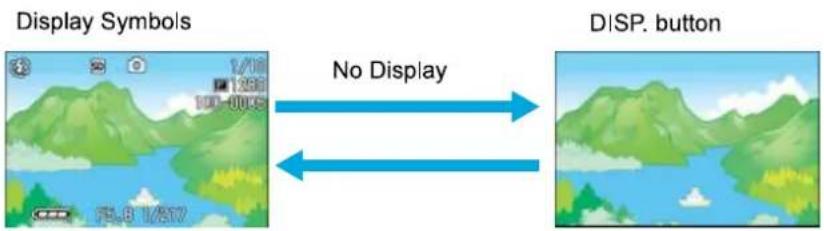
Synchro Monitor Mode
In Synchro Monitor mode, the LCD monitor is kept off (no display) except during the following camera operations. This mode is effective for saving power consumption.
| Half-press the shutter button. | The LCD Monitor is tuned on and you can confirm composition. After you finish shooting with Full-Press, the LCD Monitor will automatically turn off. |
| Press the (Quick Review) button. | You can view the photo you just took (see P.84). By pressing the (Quick Review) button again, you can turn the LCD Monitor off. |
| Press the MENU button. | The LCD Monitor Display is turned on and you can make various settings for shooting (see P.27). By pressing the MENU button again, you can turn the LCD Monitor off. |
| ADJ. Button. | The LCD Monitor Display is turned on and you can make settings for exposure control, white balance, and ISO sensitivity (see P.60, P.62, and P.65). Pressing the OK button turns the LCD Monitor off. |
Histogram Display
When histogram display is on, a histogram appears in the lower right corner on the LCD monitor screen.
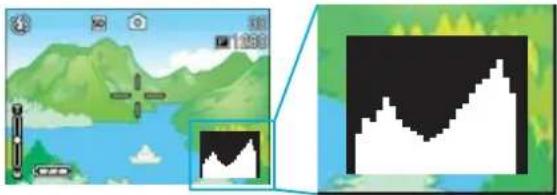
natural_image
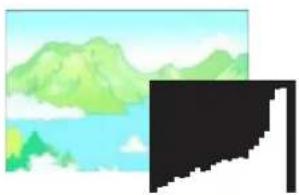
Game interface screenshot showing a landscape scene with mountains, water, and a pixelated black-and-white graphic (no readable text or symbols)A histogram is a graph indicating the number of pixels on the vertical axis and the brightness on the horizontal axis. The brightness is shadow (dark), halftone, and highlight (light) from the left. By using the histogram, you can judge the brightness of an image without being affected by the brightness around the LCD monitor. This also helps preventing voids and solids.
If the histogram has only peaks on the right side without anything else, this picture is over-exposed with too many pixels only for highlight sections.
If the histogram has only peaks on the left side without anything else, this picture is under-exposed with too many pixels only for shadow sections.
Correct the exposure to an appropriate level.
natural_image
Illustration of a mountain landscape with a lake and sky, next to a black triangular shape (no text or symbols)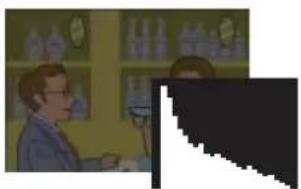
natural_image
Illustration of two people in a meeting room with shelves and bottles in the background (no visible text or symbols)
Reference
For details about exposure correction, see P.60.

Note
- The histogram displayed on the LCD monitor is for reference only. Depending on the shooting condition (flashing is required, the surrounding light is dark, and so on), the exposure level indicated in the histogram may not correspond to the brightness of the shot image.
- Exposure compensation has its limitation. It does not necessarily achieve the best possible result.
- The histogram having peaks in the center part does not necessarily provide the best result to suit your particular requirements.
For example, an adjustment is required if you want to intentionally achieve under or over exposure.
Button Functions
The following table summarizes the functions of the camera's buttons.

Reference
• Power Button, see P.17.
- Mode Dial, see P.11.
• For the Up/down Dial, see P.11.
- Shutter Button, see P.36.
| Button | Shooting Mode | Playback Mode | Menu display |
| Delete)/(Self-timer) Button | If you press the button in Shooting Mode, self-timer mode is activated and you can take photos using the self-timer (see P.54). | If you press this button during Play-back Mode, you can delete the still image or movie that is displayed on the LCD Monitor (see P.95). | _ |
| ▲ Button | In Manual Focus Mode, you can use this button to adjust focus. In Aperture Priority/Manual Exposure Mode, this button is used to switch between the f-value and shutter speed setting modes, before setting the value with the up-down dial. | In Voice Playback Mode, press this button to adjust the sound volume (see P.87, P.89). | _ |
| ▼ (Macro)Button | You can take close-ups (see P.48). | In Voice Playback Mode, press this button to adjust the sound volume (see P.87, P.89). | _ |
| ◀ (Quick Review) Button | The last still image you took is dis-played (see P.84). | Displays the previous still image or movie (see P.86). | _ |
| ▶ (Flash) Button | Switches between Flash/Flash Off and other Modes (see P.52). | Displays the next still image or movie (see P.86). | _ |
| ▲▼◀▶ Button | _ | Displays the still image (or movie) on the right, left, above or below in Thumbnail Display mode. (see P.90) | Moves the frame left, right, up and down. |
| [+] (Wide-angle)/(Thumbnail Display) Button | You can shoot with the wide-angle (see P.46). | If you press this button in Playback Mode, the LCD Monitor display is split, allowing you to see sets of still images at one glance (6 images at once) (see P.90). | _ |
| OK Button | This is used for operating menus on the LCD monitor (see P.28) and for enlarged display at manual focusing. | ||
| [+] (Telephoto)/(Enlarged View) Button | You can shoot with the telephoto zoom (see P.46). | If you press this button in Playback Mode, the image is displayed on the LCD Monitor up to 4 times larger (see P.91). | _ |
| DISP. Button | Switches the display of symbols on the LCD Monitor (see P.24). | ||
| MENU Button | This button is used for setting the various shooting methods, or downloading still images onto your computer. | ||
| ADJ. Button | This button is used to make settings for exposure control, white balance, and ISO sensitivity, with minimum operations (see P.59). At macro shooting, you can focus the camera automatically without moving the camera (AF target shift function). | ||
The Basics of the Shooting Menu/Playback Menu
| Operation | |
| To display the menu: | 1. Turn the Mode Dial to (Shooting Mode), A/M (Aperture Priority/Manual Exposure Mode), SCENE (SCENE Mode), or (Playback Mode).2. Press the MENU button.The menu appears. On the menu screen, you can move between screens by pressing the buttons and between items by pressing the buttons.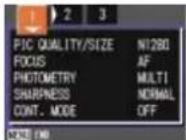 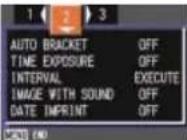 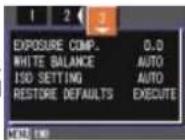 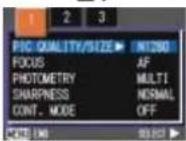 Press the shutter release button while a menu screen is displayed in the Shooting mode for shooting by returning to the shooting screen. Press the shutter release button while a menu screen is displayed in the Shooting mode for shooting by returning to the shooting screen. |
| To switch between menu screens (Shooting Menu): | 1. Press the buttons.You can switch the menu screen from [1] to [3]. |
| To select an item: | 1. Press the buttons to select the desired item.2. Press the OK or button. |
| To select a setting value (shooting menu): | 1. Press the buttons to select the desired item.2. Press the OK or button. |
| To implement a confirmation screen (shooting menu): | 1. Press the button to select [YES].2. Press the OK button. |
| To select an item you want to implement ( playback menu): | 1. Press the buttons to select the item you want to implement.2. Press the OK button. |
| To return to the shooting screen/playback screen: | 1. Press the MENU button. |

Note
- On the setting selection screen, the item with the orange ■ displayed is the current setting. Even if you change the setting by moving the blue indicator, until you finalize the setting the orange indicator remains to show what the previous setting was.
- The menu screen sequence slightly varies with the item for which the setting change is being made. For the detailed explanation of each item, see the corresponding page.
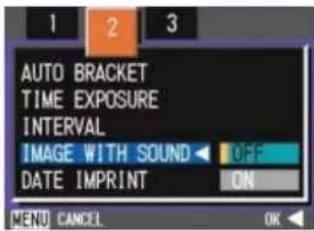
The Basics of the Setup Screen
| Operation | |
| To display the Setup Screen: | 1. Turn the Mode Dial to SETUP (Setup Mode).The Setup Screen is displayed.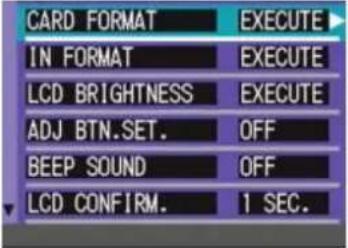 |
| To select an item: | 1. Press the ▲▼ buttons to select the desired item. |
| To select a setting value: | 1. Press the ◀▶ buttons to select the desired item. |
| When you have selected [EXECUTE]: | 1. Press the OK button.2. The following screen is displayed, so make the necessary settings. |
| To close the Setup Screen: | 1. Switch the Mode Dial to another mode. |

Note
The sequence of operations slightly varies with the item for which the setting change is being made. For a detailed explanation of each item, see the corresponding page.
Screens
Default values set when you purchased your camera are surrounded by brackets in the selection options.
Shooting Menu (Shooting Mode)
In Shooting Mode, display by pressing the MENU button.
The Shooting menu is divided into three screens. You can select a screen with the ◀ buttons.
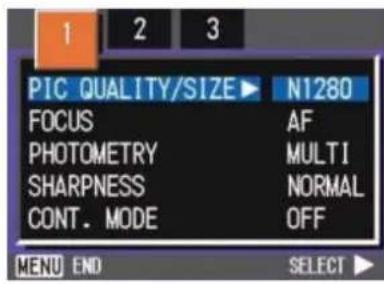
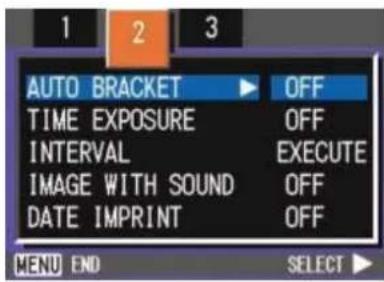
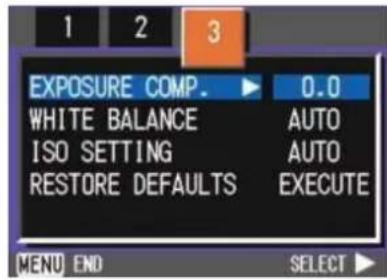
| Setting | Option | Refer to |
| PIC QUALITY/SIZE | NC2592, F2592, N2592, F2048, N2048, F1280, [N1280], N640 | P.70 |
| FOCUS | [AF], MF, SNAP, | P.73 |
| PHOTOMETRY | [MULTI], CENTRE, SPOT | P.75 |
| SHARPNESS | SHARP, [NORMAL], SOFT | P.76 |
| CONT. MODE | [OFF], CONT, SCONT, MCONT | P.43 |
| AUTO BRACKET | ON, [OFF], WB-BKT | P.77, P.69 |
| TIME EXPOSURE | [OFF], and 1, 2, 4, or 8 seconds. | P.78 |
| INTERVAL | ____ | P.79 |
| IMAGE WITH SOUND | ON/[OFF] | P.58 |
| DATE IMPRINT | [Off], Date, Date and Time | P.81 |
| EXPOSURE COMP. | -2.0 to + 2.0 | P.60 |
| WHITE BALANCE | [AUTO], 🎨 (Daylight), 🎩 (Overcast), 🎪 (Tungsten light)/ ➡ (Fluorescent light), Ⓜ (One Push) | P.62 |
| ISO SETTING | [AUTO], ISO 64, ISO 100, ISO 200, ISO 400, ISO 800, ISO1 600 | P.65 |
| RESTORE DEFAULTS | ____ | P.82 |
Shooting Menu (Aperture Priority Mode)
In Aperture Priority Mode, display by pressing the MENU button.
The Shooting menu is divided into three screens. You can select a screen using the ◀ buttons
1
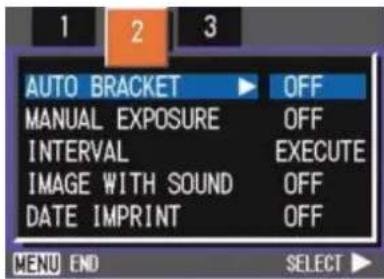
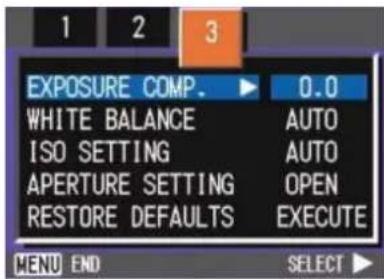
| Setting | Option | Refer to |
| PIC QUALITY/SIZE | NC2592, F2592, N2592, F2048, N2048, F1280, [N1280], N640 | P.70 |
| FOCUS | [AF], MF, SNAP, | P.73 |
| PHOTOMETRY | [MULTI], CENTRE, SPOT | P.75 |
| SHARPNESS | SHARP, [NORMAL], SOFT | P.76 |
| CONT. MODE | [OFF], CONT, SCONT, MCONT | P.43 |
| AUTO BRACKET | ON, [OFF], WB-BKT | P.77, P.69 |
| MANUAL EXPOSURE | [OFF], 1/2000, 1/1000, 1/500, 1/250, 1/125, 1/30, 1/15, 1/8, 1/4, 1/2, 1, 2, 4, 8, 15, or 30 seconds. | P.78 |
| INTERVAL | ____ | P.79 |
| IMAGE WITH SOUND | ON/[OFF] | P.58 |
| DATE IMPRINT | [Off], Date, Date and Time | P.81 |
| EXPOSURE COMP. | -2.0 to + 2.0 | P.60 |
| WHITE BALANCE | [AUTO], 🚙 (Daylight), 🕒 (Overcast), 🌐 (Tungsten light)/ ➡ (Fluorescent light), Ⓜ (One Push) | P.62 |
| ISO SETTING | [AUTO], ISO 64, ISO 100, ISO 200, ISO 400, ISO 800, ISO 1600 | P.65 |
| APERTURE SETTING | MIN, HALF, [OPEN] | P.55 |
| RESTORE DEFAULTS | ____ | P.82 |
Shooting Menu (Movie Mode)
In Movie Mode, display by pressing the MENU button.
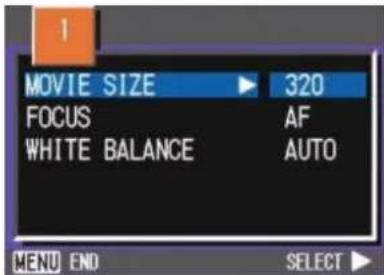
| Setting | Option | Refer to |
| MOVIE SIZE | [320], 160 | P.72 |
| FOCUS | [AF], MF, SNAP, | P.73 |
| WHITE BALANCE | [ AUTO ], ⚙ (Daylight), ⬤ (Overcast), ⚙ (Tungsten light)/ ⚡ (Fluorescent light), Ⓜ (One Push) | P.62 |
Shooting Menu (Scene Mode, except in Text Mode)
In Scene Mode, display by pressing the MENU button.
The Shooting menu is divided into two screens. You can select a screen with the ◀ buttons.
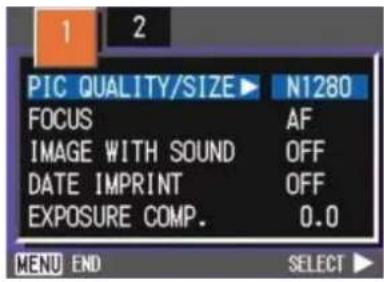
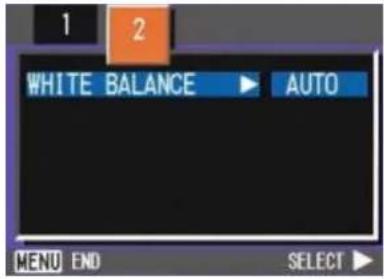
| Setting | Option | Refer to |
| PIC QUALITY/SIZE | NC2592, F2592, N2592, F2048, N2048, F1280, [N1280], N640 | P.70 |
| FOCUS | [AF], SNAP, (except in Landscape Mode) | P.73 |
| IMAGE WITH SOUND | ON, [OFF] | P.58 |
| DATE IMPRINT | [OFF], DATE, TIME | P.81 |
| EXPOSURE COMP. | -2.0 to + 2.0 | P.60 |
| WHITE BALANCE | [AUTO], ⚙ (Daylight), ⚙ (Overcast), ⚙ (Tungsten light)/ ⚙ (Fluorescent light), Ⓜ (One Push) | P.62 |
Shooting Menu (Text Mode)
In Text Mode, display by pressing the MENU button.
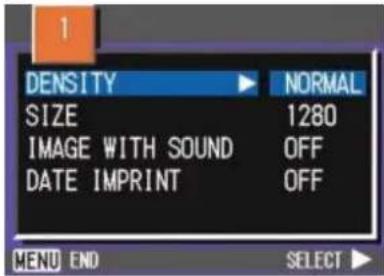
| Setting | Option | Refer to |
| DENSITY | DEEP/[NORMAL]/LIGHT | P.67 |
| SIZE | 2560, [2048] | P.70 |
| IMAGE WITH SOUND | ON, [OFF] | P.58 |
| DATE IMPRINT | [OFF], DATE, TIME | P.81 |
Playback Menu
In Playback Mode, display by pressing the MENU button.
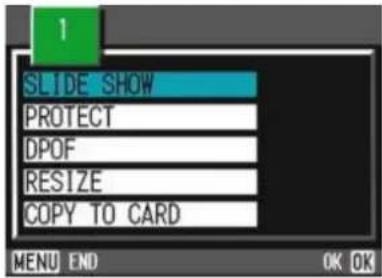
| Setting | Option | Refer to |
| SLIDE SHOW | ON, [OFF] | P.93 |
| PROTECT | Select, Release 1 FILE, Select, Release ALL FILES | P.104 |
| DPOF | ____ | P.107 |
| RESIZE | 1280, 640 | P.110 |
| COPY TO CARD | ____ | P.106 |
Scene Selection Screen (Scene Mode)
In Scene Mode, the screen is displayed when you select a scene.
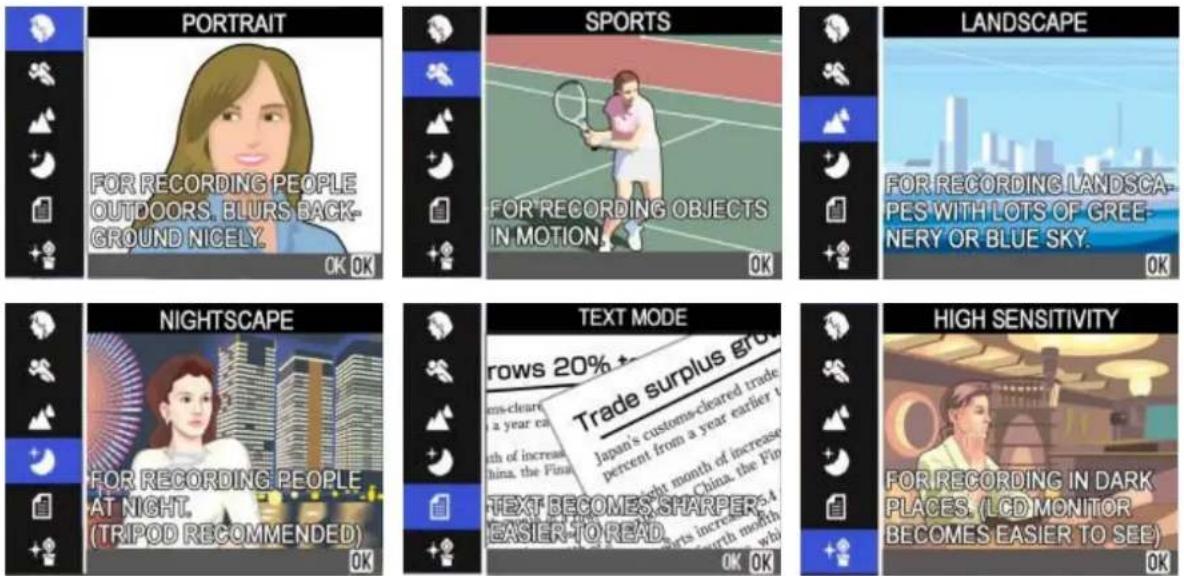
| Symbol | Setting Content | Refer to |
| PORTRAIT | P.41 | |
| SPORT | P.41 | |
| LANDSCAPE | P.41 | |
| NIGHTSCAPE | P.41 | |
| TEXT MODE | P.41 | |
| HIGH SENSITIVITY | P.41 |
Setup Screen (Setup Mode)
This screen is displayed in Setup Mode.
The Shooting menu is divided into three screens. You can select a screen with the ▲▼ buttons.
1
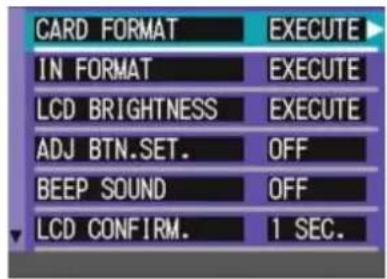
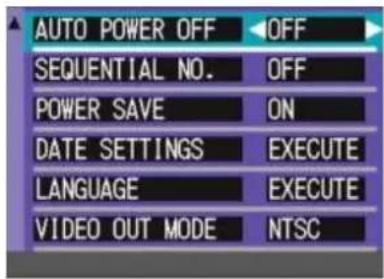
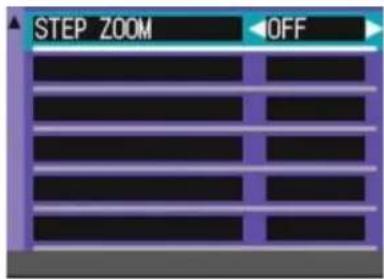
| Setting | Option | Refer to |
| CARD FORMAT | —— | P.112 |
| IN FORMAT | —— | P.113 |
| LCD BRIGHTNESS | —— | P.113 |
| ADJ. BUTT. SET. | [OFF], , AF, MF, SHARP, [●] | |
| BEEP SOUND | [ON], OFF, Shutter release sound | P.115 |
| LCD CONFIRM. | OFF, [1], 2, 3 Seconds | P.115 |
| AUTO POWER OFF | OFF, [1], 5, 30 Minutes | P.116 |
| SEQUENTIAL NO. | ON, [OFF] | P.117 |
| POWER SAVE | ON, [OFF] | P.118 |
| DATE SETTINGS | —— | P.119 |
| LANGUAGE | 日本語,[ENGLISH], DEUTSCH, FRANÇAIS, ITALIANO, ESPAÑOL, 簡体中文,繁体中文,한국어 | P.120 |
| VIDEO OUT MODE | [NTSC], PAL | P.120 |
| STEP ZOOM | ON, [OFF] | P.121 |
Section 2 Basic Shooting
The basics of shooting are explained here, from how to hold your camera to how to shoot still images and movies.
2
How to Hold the Camera
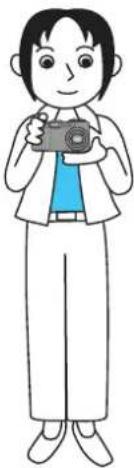
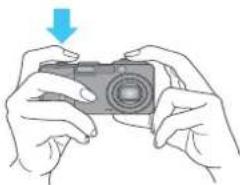
If the camera moves when you press the shutter button, the still image might not come out clearly (due to camera shake). The 🎨 mark displayed on the LCD monitor indicates that camera shake should be avoided under the current shooting condition. Hold the camera as illustrated below for best results.
- Hold the camera with both hands and lightly press both elbows against your body.
natural_image
Simple line drawing of a person holding a camera (no text or symbols)- Put your finger on the shutter button.
natural_image
Illustration of hands holding a camera with a blue arrow indicating compression (no text or symbols)
Note
- Be careful when you are shooting not to get a finger, your hair, or the strap in front of the lens or the flash.
• To prevent camera shake, hold the camera securely with both hands when you shoot or use a tripod. - Consider using a tripod to prevent camera shake in the following situations:
- When shooting in a dark place, if you do not use the flash or if you use the Slow Synchro mode.
- When you shoot with the zoom.
How to Focus
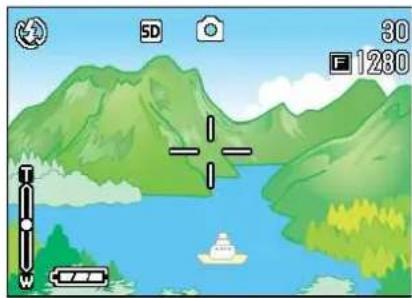
The area displayed on the LCD Monitor is shot as a still image or a movie.
When adjusting focus, press the shutter button halfway (half-press).
To adjust focus, follow the steps below.
- Point the lens toward the subject you want to shoot.
- Compose the picture on the LCD Monitor.
- The focus is set at the center of the screen, so use the screen to center your subject.
natural_image
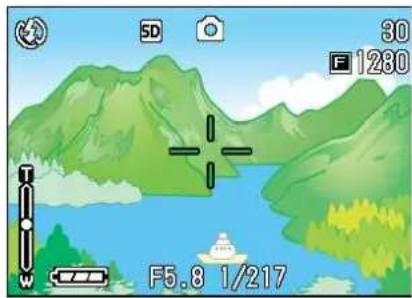
Illustration of a scenic landscape with mountains, a lake, and a boat (no text or symbols)- Half-press the shutter button.
The f-stop (aperture size) and shutter speed are displayed in the bottom part of the screen, and the camera focuses. Once the shot is in focus, the exposure and white balance are fixed and the crosshair in the center of the LCD Monitor turns green, as does the auto-focus lamp in the lower left of the Viewfinder. Check one of these to make sure the subject is in focus.
natural_image
Game interface screenshot showing a landscape scene with mountains, a lake, and a ship (no readable text or symbols)If the camera cannot automatically focus, the crosshairs in the center of the LCD monitor turn red and the auto-focus lamp in the lower left of the viewfinder blinks in green.
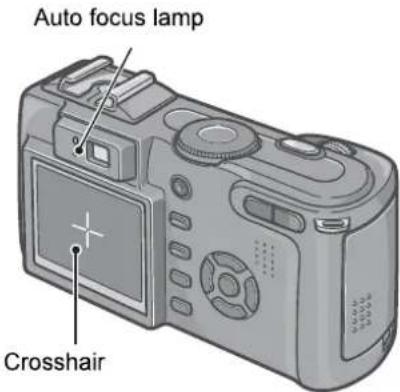
| Color of crosshairs | Auto focus lamp | |||
| Before focusing |  | White | ○ | Off |
| Focused |  | Green | ● | On (green) |
| Failed to focus |  | Blink (red) | ● | Blink (green) |
ing on the shooting distance. To check the focusing or the shooting range accurately before shooting, please use the LCD monitor.

Reference
If the subject is not centered on your composition, see P.40.

Note
- When the grid appears, the crosshairs do not appear in the middle of the LCD monitor. With the auto focus lamp, check that the shot is in focus.
- There is another shooting method, which is to fully press the shutter once, without using the half-press method. Full-press shooting is good for capturing the moment. However, you cannot check that your shot is in focus while shooting. (see P.39)
- You can use the battery for a longer period of time by using the viewfinder and shooting in power-save mode (see P.118). In this mode, however, you cannot check the focus on the LCD monitor. Instead, observe the auto focus lamp (in the lower left of the viewfinder), which lights up in green when the shot is in focus. The range visible through the viewfinder and that being shot may deviate a little bit, depend-
Shooting Still Images
When taking still images, Shooting Mode is usually used.
There are two methods of using the shutter button, pressing the shutter in two stages (half-press) and pressing it all the way down at once (full-press).
When you use half-press, you can confirm that your shot is in focus on the LCD Monitor. When you want to capture the moment, full-press is convenient.

Note
- When shooting in Aperture Priority/Manual Exposure Mode, the f-number (aperture value) and shutter speed remain displayed in the bottom part on the screen. According to the f-number, the shutter speed is determined for shooting.
- In Aperture Priority/Manual Exposure Mode, you can also set the shutter speed manually for shooting (Manual Exposure Mode).

Reference
• For how to shoot with Zoom, see P.46
• For how to shoot Close-ups, see P.48.
- For how to shoot with Aperture Priority/Manual Exposure Mode, see P.55.
Checking the Focus and Shooting (Half-press)
- Turn the mode dial to 📄 (Shooting Mode) or A/M (Aperture Priority/Manual Exposure Mode).
- Compose your shot either by looking through the Viewfinder or at the LCD Monitor.
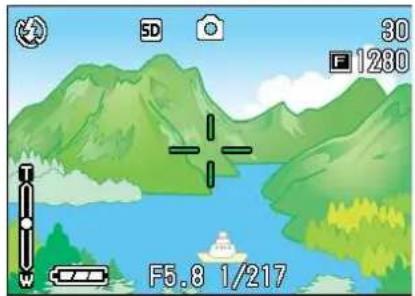
3. Put the subject of your photo right in the center and press the shutter button half-way.
natural_image
Illustration of a scenic landscape with mountains, water, and a boat on the river (no text or symbols)The f-stop (aperture size) and shutter speed are displayed in the bottom part of the screen, and the camera focuses.
Once the shot is in focus, the exposure and white balance are fixed and the crosshair in the center of the LCD Monitor turns green, as does the auto-focus lamp in the lower left of the Viewfinder. Check one of these to make sure the subject is in focus.
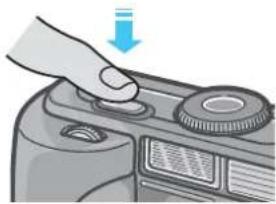
4. Gently press the shutter button all the way.
The still image you have taken freezes for a moment on the LCD Monitor and is recorded.
natural_image
Hand pressing down on a device with a blue arrow indicating downward motion (no text or symbols)
Note
- To prevent blurring, press the shutter release button gently.
- The 🎨 mark indicates that blurring may occur. Secure the camera firmly and adjust the focus again.
- When shooting in a dark place, the AF auxiliary lamp may flash to raise the focusing performance. If the flash is switched to off, the AF auxiliary lamp does not flash.
- When the image confirmation time is set to OFF, the still image you have taken does not appear on the LCD Monitor. See P.115.
Capturing the Moment Shooting (Full-press)
- Turn the mode dial to 📄 (Shooting Mode) or A/M (Aperture Priority/Manual Exposure Mode).
- Compose your shot either by looking through the Viewfinder or at the LCD Monitor.
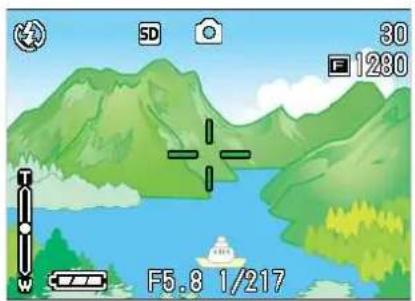
- Put the subject of your photo right in the center and press the shutter button all the way.
After the camera focuses automatically, the still image is taken and recorded.
natural_image
Game interface screenshot showing a landscape scene with mountains, water, and a castle (no readable text or symbols)
Note
Certain subjects are hard to bring into focus:
It may be impossible to bring the following subjects into focus.
- Subjects lacking contrast (the sky, a white wall, the hood of a car, etc.)
- Flat two-dimensional objects with only horizontal lines and no significant protrusions.
- Quickly moving objects.
- Things in poorly lit places.
- Areas with strong backlighting, or reflections.
- Things that flicker, such as fluorescent lights.
When you want to shoot subjects like this, first focus on an object the same distance as your subject and then shoot. (see P.40)
If you find it difficult to focus the camera, it is recommended to half press the shutter release button before shooting. Depending on the circumstances, also use the flash and focus lock.

Reference
If it is difficult to focus the camera, see P.36.
2
When the Subject is not Centered on Your Composition (Focus Lock)
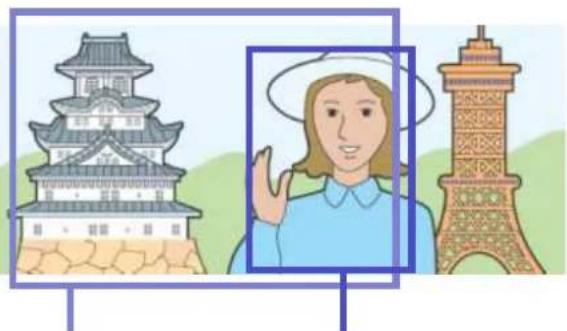
When the subject of your composition is not centered, you can compose your picture after setting the focus and then shoot. This method is called "Focus-Lock."
Example: Taking a photograph of the castle in the background with the camera focused on a person in front.
natural_image
Illustration of three iconic landmarks: a pagoda, an Eiffel Tower, and a person waving (no text or symbols present)Shooting range
Subject to be focused on
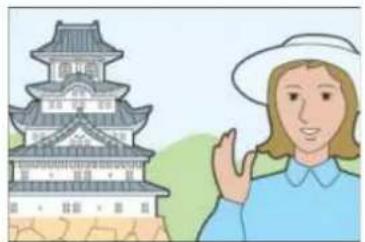
natural_image
Illustration of a person waving in front of a traditional Chinese pagoda (no text or symbols present)Final still image
- Turn the mode dial to 📄 (Shooting Mode) or A/M (Aperture Priority/Manual Exposure Mode).
- Put the subject of your photo right in the center of the LCD Monitor or the Viewfinder and press the shutter button half-way.
The f-stop (aperture size) and shutter speed are displayed in the bottom part of the screen, and the camera focuses.
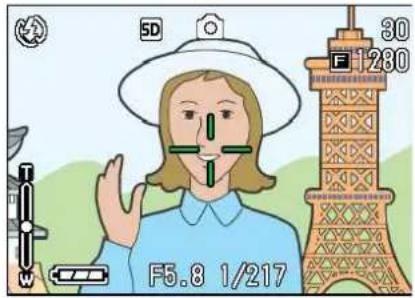
Once the shot is in focus, the exposure and white balance are fixed and the crosshair in the center of the LCD Monitor turns green, as does the auto-focus lamp in the lower left of the Viewfinder. Check one of these to make sure the subject is in focus.
- With the shutter half-pressed, compose your shot.
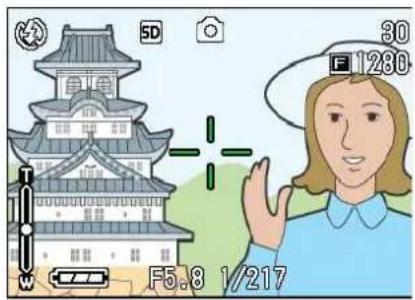
- Gently press the shutter button all the way.

Note
- At macro shooting, the AF target shift function allows you to lock the focus without moving the camera.
- This function is useful when a tripod is used.

Reference
- For details about macro shooting, see P.48.
- For details about the AF target shift function, see P.48.
Shooting with Scenery-Matching
If you use the Scene Mode, you can select from among six types of shooting modes and shoot automatically with optimal settings for the scene.
You can select a mode from the following six types, in Scene Mode.
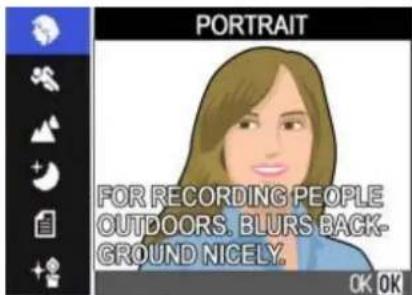
PORTRAIT
This is best for taking pictures of people.
SPORTS
This is best for pictures of moving objects.
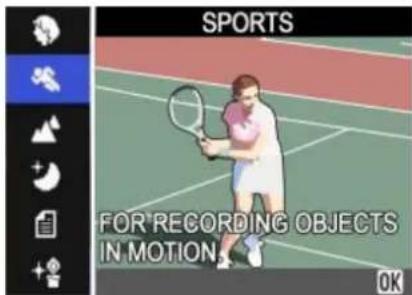
LANDSCAPE
This is best for scenery with a lot of blue sky or greenery.
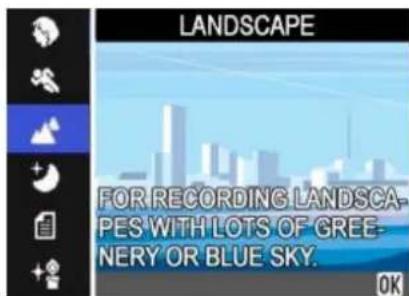
NIGHTSCAPE
Use when shooting night scenes. You can also shoot with people in the frame.
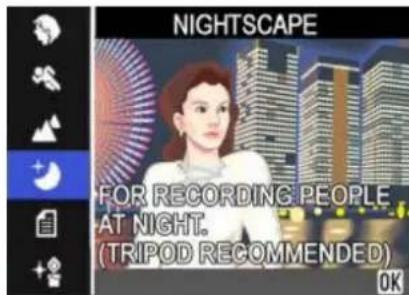
TEXT MODE
Use when capturing text images, for example, notes written on the whiteboard at a meeting. An image shot in TEXT Mode is stored in the TIFF file format.

HIGH SENSITIVITY
This is best for taking pictures in dimly lit places.
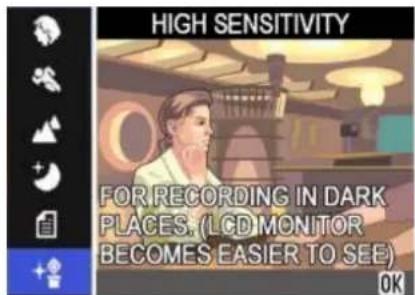

Note
- You can set White Balance while in Scene Mode as well (see P.62), but it may not be possible to get the effect that matches a scene.
- Manual focus cannot be used in Scene Mode.
- In Scene Mode, those pictures displayed in the background of the explanation screen are just for effect.
To select a Scene Mode, follow the steps below.
1. Turn the Mode Dial to SCENE (Scene Mode).
The scene-selection screen appears.
2. Press the ▲▼ buttons to select the mode you want to use.
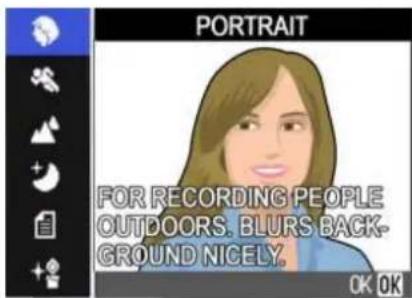
3. Press the OK button.
The camera switches to the Scene Mode shooting screen and the symbol of the Mode you selected is displayed in the top of the screen.
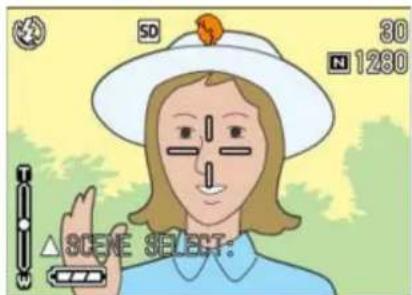
If you press the ▲ button, the scene selection screen is displayed and you can change the mode.
If you press MENU button, the shooting menu appears.
4. Press the shutter release button.

Note
If you return to Scene Mode again, the scene-selection screen is displayed again.

Reference
- When you want to change PIC QUALITY/ SIZE, see P.70.
• To make changes to density in TEXT Mode, see P.67.
• To change the focus setting to manual or other, see P.73.
• To make changes to the White Balance settings, see P.62.

Terms
TIFF File
An image shot in TEXT Mode is stored in the TIFF file format. A TIFF file is smaller than a JPEG file in TEXT Mode only.
Combination of Scene Mode and Function
Depending on the Scene Mode, the way functions work may differ from when in normal shooting mode. Refer to the table below.
| Mode Name | Flash | Macro Shooting |
| PORTRAIT | Initial setting: Flash Off | Disabled |
| SRORTS | Initial setting: Flash Off | Disabled |
| LANDSCAPE | Fixed on Flash Off | Disabled |
| NIGHTSCAPE | Forced flash is disabled | Disabled |
| Initial setting: Auto | ||
| TEXT MODE | Fixed on Flash Off | Enabled |
| HIGH SENSITIVITY | Fixed on Flash Off | Enabled |
Shooting with Multi-Shot
If you switch to Multi-Shot, you can shoot consecutive images.
This is convenient when you want to capture the moment.
There are three ways to shoot Multi-Shots, "CONT", "SCONT" and "MCONT".
CONT (Multi-Shot)
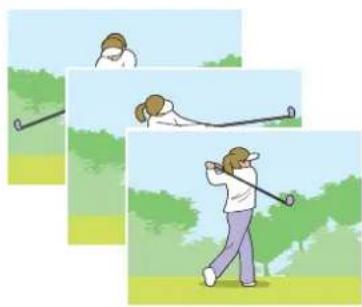
As long as you hold the shutter button down, pictures continue to be taken.
The still images are recorded one file each, just as in normal shooting.
natural_image
Illustration of a person playing golf with one arm and another on a club, surrounded by greenery (no text or symbols)2
SCONT (S Multi-Shot)
Shoots a continuous stream of images.
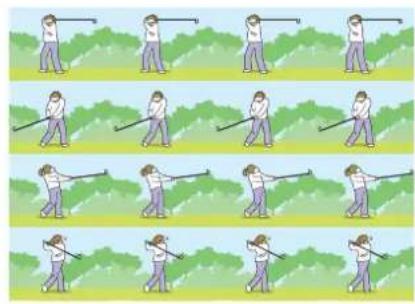
With just one full-press of the shutter, you can take 16 consecutive shots at 1/5 of a second intervals (a span of about three seconds).
The 16 still images are grouped together as a set and are recorded as one image file.
natural_image
Sequence of identical illustrations showing a person performing a golf swing on grass (no text or symbols)MCONT (M Multi-Shot)
The camera memorizes the scene while you hold the Shutter Button down, and once you release it the previous three seconds of shots are recorded. The 16 still images are grouped together as a set and are recorded as one image file.
If you release the shutter button within three seconds from the time you first pressed it, the shots from the time you pressed the shutter until you released it will be recorded (the number of consecutive shots will be less than 16)
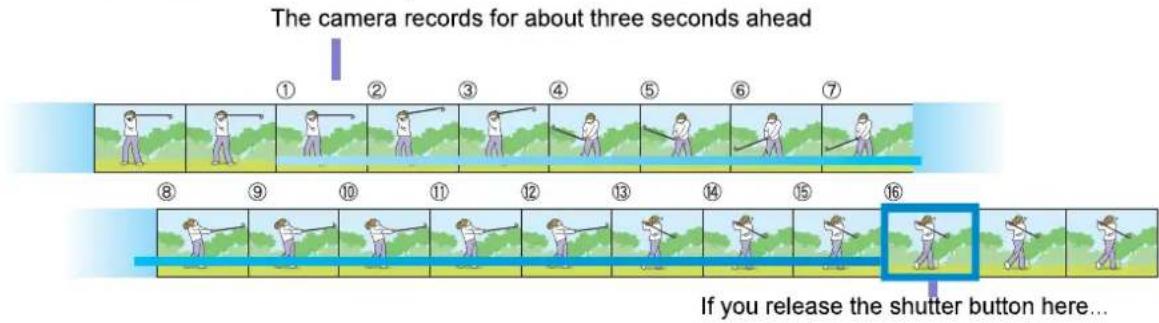

Note
- The maximum number of images that can be shot in Multi-Shot mode depends on the image size and picture quality settings as follows:
| F2592 | N2592 | F2048 | N2048 |
| 3 | 5 | 4 | 8 |
| F1280 | N1280 | N640 | |
| 6 | 6 | 9 | |
- While shooting with Multi-Shot, the LCD Monitor display turns off. Compose your picture and secure it using a tripod, or use the Viewfinder.
- The Picture Quality Mode and the Image Size Mode of SCONT and MCONT are F2592 or N2592. When using the Multi-Shot mode (except for S Multi-Shot and M Multi-Shot), shooting with sounds is not possible.

Reference
For how to view an S Multi-Shot or M Multi-Shot still image in Enlarged Display mode, see P.92
Making Multi-Shot Settings (CONT. MODE)
To make Multi-Shot settings, follow the steps below.
- Turn the mode dial to 📄 (Shooting Mode) or A/M (Aperture Priority/Manual Exposure Mode).
- Press the MENU button.
The Shooting menu is displayed.
- Press the ▲▼ buttons to select [CONT. MODE] and press the OK or ▶ button.
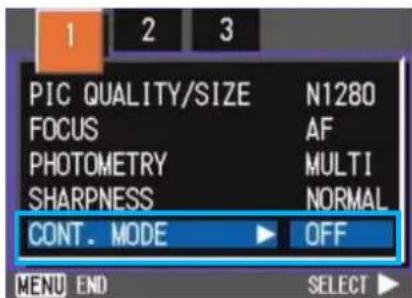
- Press the ▲▼ buttons to select [CONT], [S-CONT], or [M-CONT].
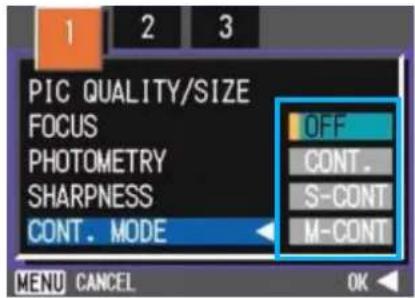
- Press the OK or ◀ button.
- If you pressed the ◀ button, also press the MENU button.
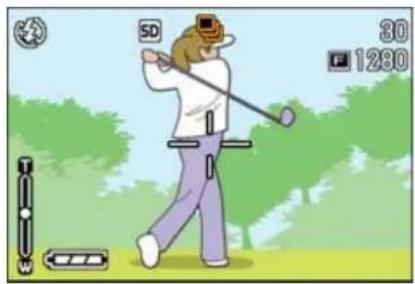
natural_image
Illustration of a golfer mid-swing on a grassy field, with no visible text or symbolsThe Shooting Menu closes and the symbol is displayed above the screen.
| Multi-Shot | |
| S Multi-Shot | |
| M Multi-Shot |

Note
- When you want to return to normal, single-shot shooting, follow steps 1 through 3, select [OFF] in step 4 and press the OK or ◀ button.
• The flash cannot be used.
Shooting with Multi-Shot
Operation continued from the previous page:
- Compose your picture, then press and hold the shutter button.
As long as you hold the shutter button down, pictures continue to be taken.
- As soon as you release the shutter button, shooting stops.
Shooting with S Multi-Shot
Operation continued from the previous page:
- Compose your picture, then press the shutter button.
16 pictures are taken automatically.
Shooting with M Multi-Shot
Operation continued from the previous page:
- Compose your picture, then press and hold the shutter button.
Storing to memory begins.
- Release your finger from the shutter button.
The camera takes images in memory from three seconds prior up to release of the shutter button.
Shooting Movies
You can shoot movies with sound.
You can select the image size, either 320 × 240 , or 160 × 120 pixels.
The maximum recording time of each shot is 80 seconds (320 × 240) and 300 seconds (160 × 120).
Each movie you shoot is recorded as one AVI file.
-
Turn the Mode Dial to 📋 (Movie Mode).
-
Press the shutter button.
The camera starts recording.
Recording continues until you press the shutter button again.
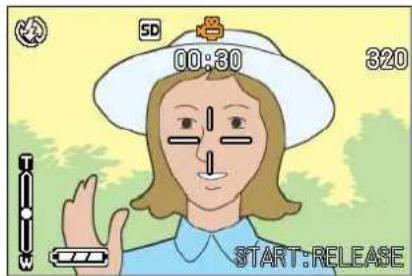
- Pressing the shutter button again stops recording.

Important
While shooting movies, operation sounds may be recorded.

Note
• The flash cannot be used.
- While shooting movies, only Digital Zoom can be used.
- At the time you press the shutter button in Step 2, the shot comes into focus and the white balance is automatically fixed.

Reference
• To change the image size for movies, see P.72.
• For how to use the Digital Zoom, see P.47.
2
Shooting with Optical Zoom
If you use the [+] (Telephoto): T/ [+] (Wide-angle): W buttons, you can alter the size of the subject in your photo without having to change your distance from the subject. (Equivalent to a 35mm camera's 28 to 85mm zoom.)

Terms
Optical Zoom
This function enlarges your subject by moving the lens, thus changing the focal length.
By pressing the ⚠️ (Telephoto) button, the subject you see in the LCD Monitor and the Viewfinder becomes larger.
By pressing the [♦] (Wide-Angle) button, the field in the LCD Monitor and the Viewfinder becomes wider.
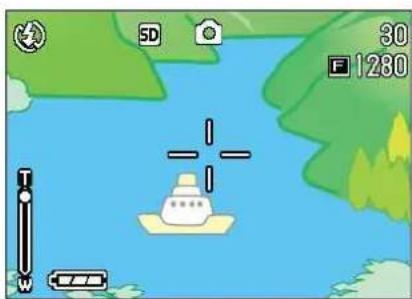
natural_image
Game interface screenshot showing a boat on water with UI elements (no readable text or symbols)Telephoto Zoom
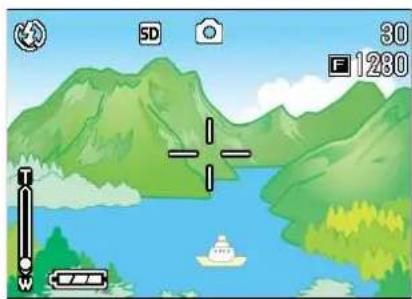
natural_image
Game scene with green mountains, a lake, and a boat on the water, displayed in a video player interface (no readable text or symbols)Wide-angle Zoom
To shoot with the zoom, follow the steps below.
-
Turn the mode dial to 📄 (Shooting Mode) or A/M (Aperture Priority/Manual Exposure Mode).
-
Compose your picture while viewing either the LCD Monitor or the Viewfinder and zoom by pressing either the [+] button, or the [+] button.
A bar is displayed in the LCD Monitor indicating Zoom status.
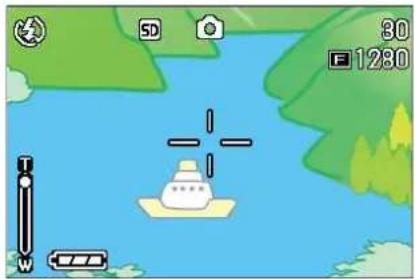
natural_image
Game interface screenshot showing a boat on water with camera and monitor icons (no readable text or symbols)- Press the shutter button.

Note
When the step zooming function is set to ON in SETUP Mode, the display magnification can be fixed to any of four levels.

Reference
For how to set the step zooming function, see P.121.
Shooting with the Digital Zoom
The Digital Zoom function enlarges images by processing them. When you use the digital zoom, pressing the [1] (Telephoto) button enlarges the subject even more than the specified enlargement ratio (optical zoom). (Maximum of 4.0 magnification.)
To shoot with the Digital Zoom, follow the steps below.
-
Turn the mode dial to 📄 (Shooting Mode) or A/M (Aperture Priority/Manual Exposure Mode).
-
Zoom in to the maximum by pressing the [▲] button, while viewing through the LCD Monitor.
A bar is displayed in the LCD Monitor indicating Zoom status.
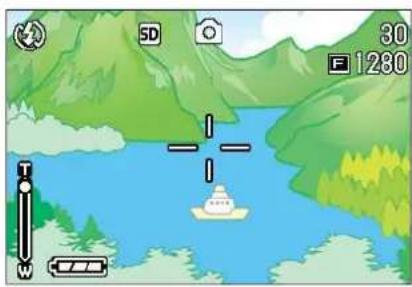
natural_image
Game scene with a river, mountains, and a boat on the water, showing camera controls and UI elements (no readable text or symbols)- With the subject image enlarged to the end of the T side (Telephoto) on the Zoom Bar, release the [▲] button once and press [▲] button again and hold down.
The digital zoom is activated and the subject becomes larger.
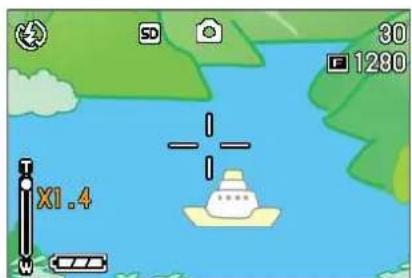
- Press the shutter button.

Note
• The more you enlarge with the digital zoom, the lower the picture quality becomes.
- When using the digital zoom, compose your shot on the LCD Monitor.
- If you use the Mode Dial to change modes, the digital zoom setting is lost.
- To release the digital zoom, press the [♦] (Wide-angle) button.
Shooting Close-ups (Macro Photo)
Using the ⚪ (Macro) button allows you to take a tight close-up (Macro Photo). This feature is good for shooting flowers, insects and other small subjects, because you can get a close-up of one centimeter (1/2 inch) from the subject.
To shoot close-ups, follow the steps below.
-
Turn the mode dial to 📄 (Shooting Mode) or A/M (Aperture Priority/Manual Exposure Mode).
-
Press the ⚙ (Macro) button.
is displayed momentarily in a large size at the center of the LCD monitor and then at the upper part.
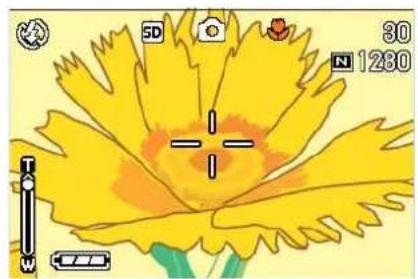
natural_image
Illustration of a yellow flower with orange center and green stem, no text or symbols present- Bring the lens close to the subject and press the shutter button.
To get out of Macro Mode, press the 🎨 button again.

Note
- When using the zoom, you can shoot close-ups up to the following distances In Wide-Angle (Wide): Closest 1 cm In Telephoto (Tele): Closest 8 cm
- To get out of Macro Mode, press the ⚪ (Macro) button again.
- During Macro Shooting, the Viewfinder cannot be used. Use the LCD Monitor.

Reference
For how to use optical zoom, see P.46.
Using the AF target shift function
At macro shooting, the AF target shift function allows you to lock the focus by using the ▲▼◀▶ buttons on the camera without moving the camera.
This is useful for macro shooting on a tripod with locked focus.
The AF target shift function allows you to shift the cross at the center of the LCD monitor to the subject with the ▲▼◀▶ buttons for focusing.
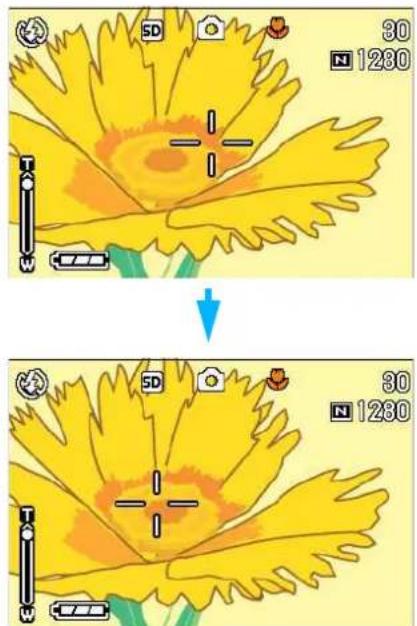
Press the ◀ button to shift the crosshairs (focus) to the left
To shoot with locked focus by using the AF target shift function, follow the steps below.
- Turn the mode dial to 📄 (Shooting Mode) or A/M (Aperture Priority/Manual Exposure Mode).
- Compose your picture.
- Press the ⚪ (Macro) button.
The Macro symbol is displayed on the left side of the screen.
4. Press the ADJ. button.
In (Shooting Mode), press the ADJ. button four times (five times if the ADJ. button has the fourth function). In A/M (Aperture Priority/Manual Exposure Mode), press the ADJ. button three times (four times if the ADJ. button has the third function).
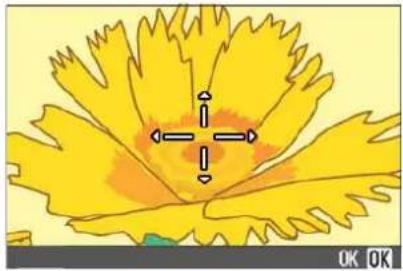
natural_image
Close-up of a yellow flower with a central crosshair overlay, no text or symbols present.5. Shift the cross to the subject with the ▲▼◀▶ buttons for focusing.
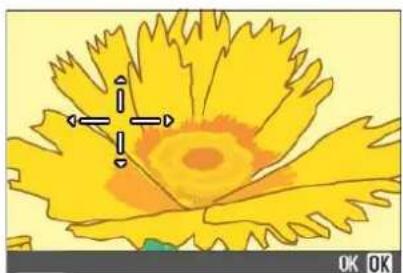
natural_image
Illustration of a yellow flower with visible petals and center, no text or symbols present6. Press the OK button.
7. Half-press the shutter button.
The camera focuses on the cross.
8. Press the shutter release button gently all the way.
Until you get out of the Macro mode, the AF target shift function automatically focuses the camera on the set position.
Recording Voice Memos
The voice recording time depends on the capacity of the SD memory card.
| Capacity | Recording time |
| 8MB | 14 min 02 s |
| 32MB | 64 min 38 s |
| 64MB | 132 min 13 s |
| 128MB | 267 min 17 s |
- The internal memory allows the same recording time as an 16MB SD memory card.
- Recorded data is stored as a WAV file.

Note
Where images are recorded
When an SD memory card is not inserted, the camera records images in the internal memory; when an SD memory card is inserted, it records images on the SD memory card.
| When no SD memory card is loaded | When an SD Memory Card is loaded |
Records to internal memory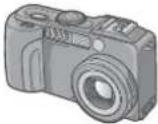 | Records to the SD memory card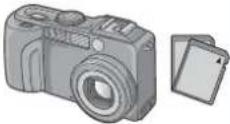 |
- Turn the Mode Dial to ⏻ (Voice Mode).
- Press the shutter button.
Voice recording starts.
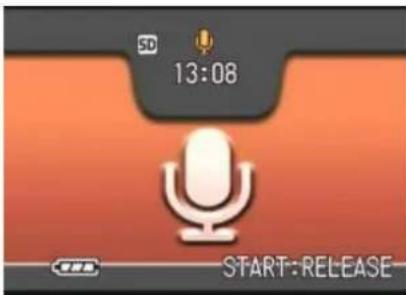
- Half-press the shutter button to stop recording.

Reference
For how to play back sound, see P.88.

Terms
WAV file
This is one of file formats to store voice data.
Section 3 Using Special Features for Improved Photography
This section describes how to change the various shooting-related settings.
Using the Flash
If you press the 4 (Flash) button, you can switch into Flash Mode (Flash, Flash Off, and other settings). Switch settings according to time, conditions and your preference, and shoot your pictures.
From the front edge of the lens, flashlight reaches about 0.2 to 5.0 m (W) or about 0.15 to 2.9 m (T) when ISO sensitivity is set to AUTO.
You can check your Flash Mode setting by the symbol displayed on the upper left of the LCD Monitor.
Flash Mode Types
| Symbol | Mode Name | Description |
| Flash Off | The flash will not fire. Use when shooting where the use of flash is prohibited or when shooting with indoor lighting. | |
| Auto | When your subject is poorly lit or backlit, the flash fires automatically. | |
| Red-eye reduction | When shooting images of people, the red-eye phenomenon, in which people's eyes appear red, is reduced. | |
| Forced Flash | The flash fires, whatever the light conditions are, when you shoot. Use when there is backlighting when shooting outside in daylight. | |
| Slow Synchro | The flash fires with the shutter speed slowed. Use when shooting images of peo-ple against a nightscape. |

Terms
Slow Synchronized
When you shoot pictures in dark places and want to capture background as well, use this mode, which slows shutter speed and sets the flash to Flash Off.
Red-Eye
If you shoot with the 4 (flash) in a dark place, people's eyes will appear red. This is called the "red-eye" phenomenon.

Note
- By default, your camera is set to Flash Off.
- The settings are saved until you press the 4 (Flash) button to change them.
- When shooting movies or in Multi-Shot mode, the setting becomes Flash Off.
- When the camera is set to Flash Off or Slow Synchro Mode, the shutter speed is slowed, so the camera is subject to camera shake. Hold the camera firmly with both hands and shoot.
- When in LANDSCAPE of Scene Mode, the flash setting is fixed to Flash Off.
- When in NIGHTSCAPE of Scene Mode, Forced Flash cannot be selected. Also, the initial setting value is Auto.
- If you press the flash button, even while the flash is charging, you can return to Flash Off mode. If you do this, flash charging is cancelled.
- If the flash is switched to off, the AF auxiliary lamp (to improve focusing in a dark place) does not flash.
To switch to Flash Mode, follow the steps below.
1. Turn the mode dial to 📄 (Shooting Mode) or A/M (Aperture Priority/Manual Exposure Mode).
Alternatively, turn the Mode Dial to SCENE (Scene Mode), and select a scene to have the camera ready.
2. Pressing the ↘ (Flash) button switches to Flash Mode.
The Flash mode mark appears momentarily in a large size at the center of the LCD monitor and then is displayed at the upper left.
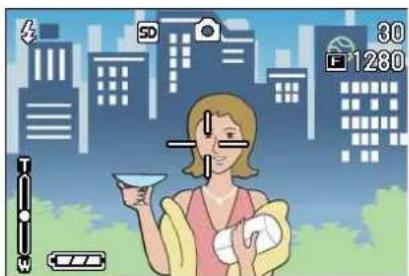
The flash starts recharging. While the flash is charging, the LCD Monitor goes off and the flash lamp blinks. Once charging is complete, the lamp goes off and it is possible to shoot.
How to use the hot shoe
Since the camera has a hot shoe, you can connect an external flash (available in stores) for use.
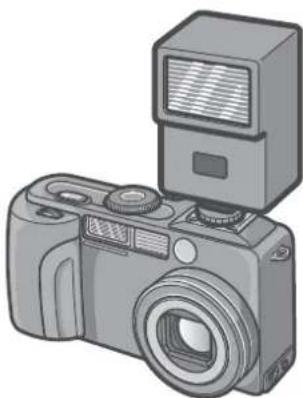
natural_image
Illustration of a digital camera with an overhead flash unit (no text or symbols)- By interlock with the internal flash, signals are issued to the hot shoe.
- The internal flash lights up with the external flash.
- Adjust the exposure using the exposure compensation (P.60) or manual exposure function (P.55).
- For details, see the documentation that came with the external flash.
To attach an external flash to the hot shoe, follow the steps below.
- With the camera and external flash powers off, attach the external flash to the hot shoe.
- Turn the camera power on and the Mode Dial to A/M for Aperture Priority Mode (P.55).
- Set the ISO sensitivity of the camera to other than AUTO.
4. Turn the external flash on, set the flash to Auto, and adjust the f-number and ISO sensitivity of the flash to those of the camera.
When removing the external flash from the camera, first turn the external flash off.

Note
- Exposure may not be appropriate even when the f-number and ISO sensitivity of the external flash are the same as those of the camera. If so, change the f-number and ISO sensitivity of the flash.
- A flash on the market rarely have an X contact of the opposite polarity. This kind of flash may not only work but also cause a problem to the camera. For the terminal specifications, contact the manufacturer of the external flash.
- Use an external flash of a lighting angle covering the angle of view of the shooting lens.
- Use an external flash basically at a distance where the internal flash is not adequate (long distance). Shooting at a short distance may end in over-exposure.
- Do not use an external flash having a special signal pin. Using such a flash may cause inappropriate exposure or damage of the camera circuit.
Using the Self-Timer
You can set the Self-timer to shoot after either two or ten seconds. If the person who takes the photo wants to be in the still image as well, it is convenient to use a setting of ten seconds; a setting of two seconds is useful for preventing camera shake. Attach a tripod securely to the tripod mount on the bottom of the camera.
To shoot with the Self-timer, follow the steps below.
- Turn the mode dial to 📄 (Shooting Mode) or A/M (Aperture Priority/Manual Exposure Mode).
Alternatively, turn the Mode Dial to SCENE (Scene Mode), and select a scene to have the camera ready.
- Press the Ⓧ (Self-timer) button.
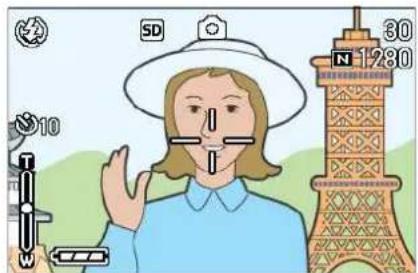
The Self Timer mark appears momentarily in a large size at the center of the LCD monitor and then is displayed at the upper left.
The "10" to the right of the symbol indicates the number of seconds. In this case, if you press the shutter button, the camera will shoot after 10 seconds.
- Press the shutter button.
The flash begins to blink and the Self-timer starts. After about ten seconds the camera takes the picture. About two seconds before it shoots, the time interval between blinks begins to shorten and the audio tone begins to beep.
After shooting, Self-timer mode switches off.

Note
• Each press of the ⚙ (Self-timer) button, it selects a function in the following sequence: 10 sec, 2 sec, Self-timer Off, 10 sec, 2 sec...
- Self-timer settings are released when the power is turned off.
- Pressing the Ⓧ (Self-timer) button may clear the display on the LCD monitor in order to recharge the flash.
- When the self-timer is set to 2 seconds, the flash for self-timer does not fire.
Shooting in Aperture Priority/Manual Expo- sure Mode
When the mode dial is set to Aperture Priority Mode, you can set the aperture and shutter speed manually for shooting.
In A/M Mode, both Aperture Priority Mode and Manual Exposure Mode are available.
If only the aperture is set, the shutter speed is automatically set according to the aperture (Aperture Priority Mode). I
If the shutter speed is also set, you can take pictures with the shutter speed and the aperture set at the time of shutter speed setting (Manual Exposure Mode).
The aperture can be selected from Open, Half, and Minimum.
The shutter speed can be selected from 1/2000, 1/1000, 1/500, 1/250, 1/125, 1/30, 1/15, 1/8, 1/4, 1/2, 1, 2, 4, 8, 15, and 30 seconds.
Lowering the aperture value (f-number) blurs the background and highlights the object. Increasing the aperture value makes the focus clear for both near and far objects. Increasing the shutter speed allows you to take a picture as if a quick-moving object were stopped momentarily. Lowering the shutter speed allows you to shoot the track of a moving object because any motion can be expressed as a flow.
The up/down dial is useful for setting in Aperture Priority Mode.

Note
- The actual aperture value depends on the zoom position.
- The diaphragm is driven when the shutter release button is fully depressed.
Shooting with Set Aperture (Aperture Priority Mode)
To shoot with a set aperture, follow the steps below.
Using the up/down dial
1. Turn the Mode Dial to A/M (Aperture Priority/Manual Exposure Mode).
The current f-number and shutter speed (AUTO) appear in the bottom part on the screen.
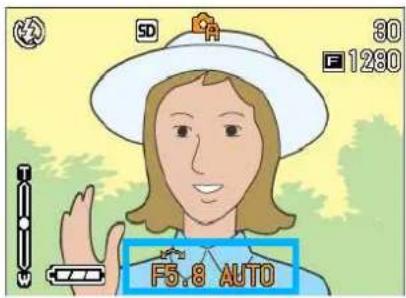
2. Turn the up/down dial to change the f-number.
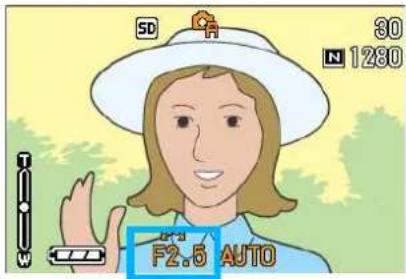
3. Half-press the shutter release button.
The shutter speed is determined and displayed in the bottom part on the screen.
4. Gently press the shutter button all the way.
You can also take a photo without half-pressing. (P.39)
Using the shooting menu
1. Turn the Mode Dial to A/M (Aperture Priority/Manual Exposure Mode).
The current f-number and shutter speed (AUTO) appear in the bottom part on the screen.
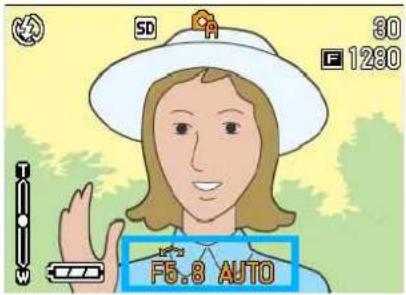
2. Press the MENU button.
The Shooting menu appears.
3. Press the ◀▶ buttons to change the screen as required.
4. Select [APERTURE SETTING] and press the OK or ▶ button.
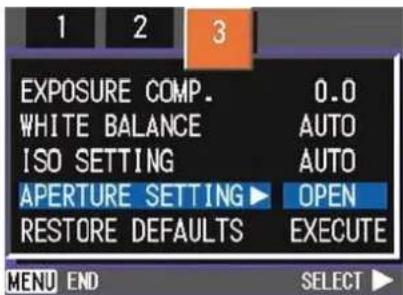
5. Press the ▲▼ buttons to select an aperture.
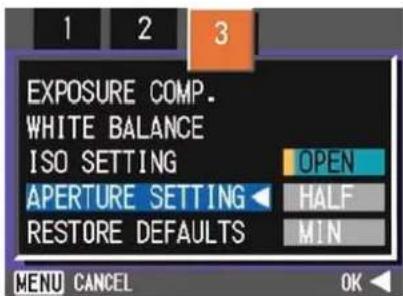
6. Press the OK or ◀ button.
This completes the aperture setting.
7. If you pressed the ◀ button, also press the MENU button.
8. Half-press the shutter release button.
The shutter speed is determined and displayed in the bottom part on the screen.
9. Gently press the shutter button all the way.
You can also take a photo without half-pressing. (P.39)
Shooting at Set Shutter Speed (Manual Exposure Mode)
To shoot at a set shutter speed, follow the steps below.
Using the up/down dial
1. Turn the Mode Dial to A/M (Aperture Priority/Manual Exposure Mode).
The current f-number and shutter speed (AUTO) appear in the bottom part on the screen.
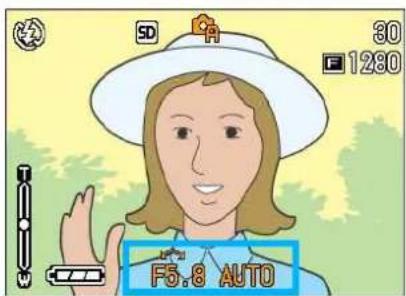
2. Turn the up/down dial to change the f-number as required.
While pressing the ▲ button, turn the up/down dial to change the shutter speed.
3. The mark at the upper part on the screen changes from
(Aperture Priority Mode) to (Manual Exposure Mode).
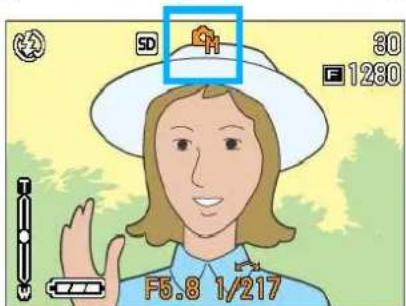
- Release the ▲ button.
- Half-press the shutter release button.
The LCD monitor displays an exposure level indicator.

The indicator range is from -2EV to +2EV. If the exposure level is outside this range, the indicator turns orange.
As long as the exposure level variation you set is within the indicator range, the LCD monitor display changes.
- Gently press the shutter button all the way.
You can also take a photo without half-pressing. (P.39)
Using the shooting menu
- Turn the Mode Dial to A/M (Aperture Priority/Manual Exposure Mode).
The current f-number and shutter speed (AUTO) appear in the bottom part on the screen. - Press the MENU button.
The Shooting menu appears. - Press the ◀▶ buttons to change the screen as required.
- Select [MANUAL EXPOSURE] and press the OK or ▶ button.
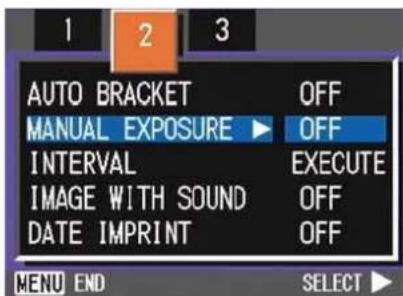
- Press the ▲▼ buttons to select a shutter speed.
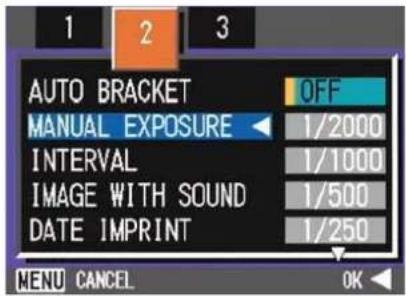
- Press the OK or ◀ button.
This completes the shutter speed setting.
- If you pressed the ◀ button, also press the MENU button.
- Half-press the shutter release button.
The LCD monitor displays an exposure level indicator.

The indicator range is from -2EV to +2EV. If the exposure level is outside this range, the indicator turns orange.
As long as the exposure level variation you set is within the indicator range, the LCD monitor display changes.
- Gently press the shutter button all the way.

Important
If the shutter speed is set to one second or more, it takes time to complete recording because the picture noise elimination function is activated.
Shooting a Still Image with Sound (IMAGE WITH SOUND)
You can shoot a still image with a voice memo. After the still image is stored, voice recording starts automatically and can continue for up to eight seconds. This function is useful for adding comments on the status or contents of subject. Even when shooting in Scene Mode, you can record a voice memo by displaying and setting the Shooting menu.
To shoot an image with sound, follow the steps below.
- Turn the mode dial to 📄 (Shooting Mode) or A/M (Aperture Priority/Manual Exposure Mode).
Alternatively, turn the Mode Dial to SCENE (Scene Mode), and select a scene to have the camera ready. - Press the MENU button.
The Shooting menu appears. - Press the ◀▶ buttons to switch between displays as required.
- Select [IMAGE WITH SOUND] and press the OK or ▶ button.
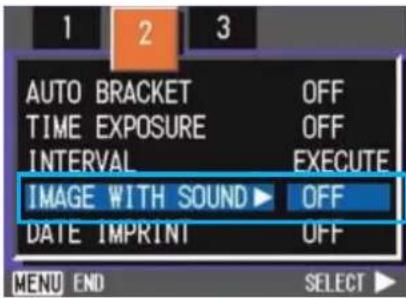
- Press the ▲▼ buttons to select [ON].
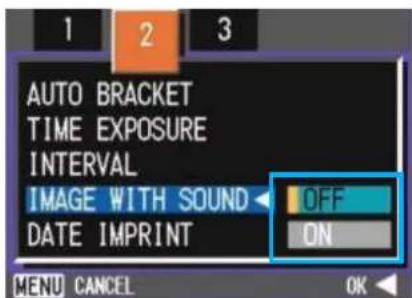
- Press the OK or ◀ button.
The setting for shooting with sound is complete.
- If you pressed the ◀ button, also press the MENU button.
The Shooting menu disappears and the cross-hair (shooting mark) appears.
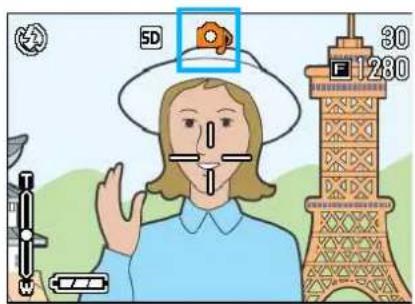
- Press the shutter release button for shooting.
After shooting, the voice mark appears on the screen to indicate the recording status.
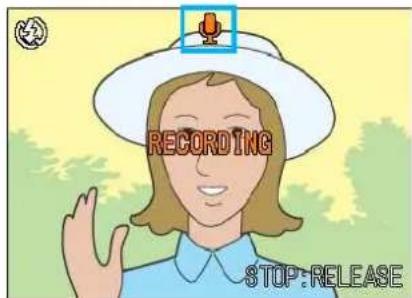
- Press the shutter release button to stop recording.

Note
- By default, your camera is set to OFF.
- When the shooting mode is set to Multi-Shot (excluding S Multi-Shot and M Multi-Shot), sound recording function is not available.
- When shooting with sound, you cannot use Auto Bracket or White Balance Bracket.

Reference
For how to play back sound recorded with a still image, see P.88.
Using the ADJ. (Adjust) Button
The ADJ button allows exposure correction, white balancing, and ISO sensitivity setting by fewer operations. You can also register a function other than these adjustment functions to the ADJ button. If a frequently used function is registered, they can be set easily by fewer button operations.
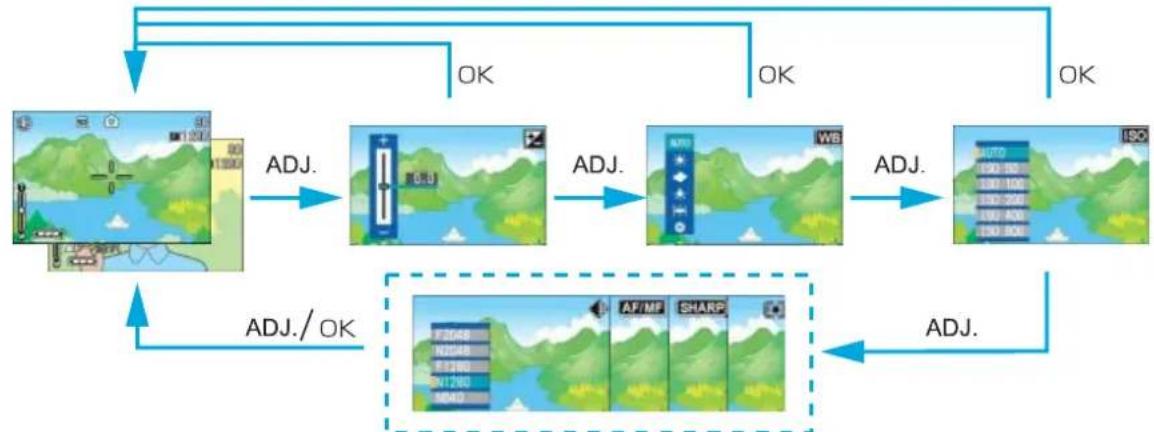
flowchart
graph TD
    A["Game Screen"] -->|ADJ.| B["Main Screen"]
    B -->|ADJ.| C["Home Screen"]
    C -->|ADJ.| D["Main Screen"]
    D -->|ADJ./OK| A
    style A fill:#f9f,stroke:#333
    style B fill:#bbf,stroke:#333
    style C fill:#bfb,stroke:#333
    style D fill:#ffb,stroke:#333
Use the SETUP screen to register a function to the ADJ button (P.114).
Adjustments Using the ADJ. Button
Adjustments that can be made with the ADJ. button differ between SCENE mode and Movie mode.
Settings Available Per Mode
| Still Image Mode | Exposure control, white balance, ISO sensitivity |
| Movie Mode | White balance |
| A/M Aperture Priority Mode | Exposure control, white balance, ISO sensitivity |
| A/M Manual Exposure Mode | White balance, ISO sensitivity |
| Scene Mode (Text Mode) | Text density |
| Scene Mode (other than Text Mode) | Exposure control, white balance |

Note
- After making settings for exposure control, white balance, or ISO sensitivity in the respective setting screen, press the ADJ. or OK button to set the value and proceed to the next screen.
• After specifying a value, you can begin shooting by pressing the shutter release button, without pressing the OK or ADJ. Button to return to the shooting screen. In this case, the screen returns to the setting screen after shooting. - You can also make settings for exposure control, white balance, ISO sensitivity, and text density, using the Shooting Menu.
- In Macro mode, the AF target shift function (focus locking without moving the camera) can be used with the ADJ. button.

Reference
- For how to set a function to the ADJ. button, see P.114.
- For details about the AF target shift function, see P.48.
Changing the Exposure (EXPOSURE COMP.)
The exposure setting allows you to select brightness levels for your shots.
Normally, if your subject is centered, back-light compensation is automatically activated, and you can shoot with correct exposure. However, in the following cases, or when you intentionally want to change the exposure, you can change the exposure setting.
Setting the level higher (+) makes pictures brighter and lower (-) makes pictures darker.
Examples of Exposure Compensation
For Backlighting
When the background is particularly bright, the subject will be dark (under-exposure).
When your subject is whitish
When you photograph a subject that is mainly white, it will turn out entirely dark, with people appearing dark, and white objects appearing grayish.
When your subject is darkish
When you photograph a subject that is mainly dark, it will turn out entirely bright (over-exposure), with people appearing white, and black objects appearing grayish. The same happens when you take photos of people in a spotlight.
Exposure compensation setting can be adjusted by using the ADJ. Button or using the Shooting Menu.

Note
- By default, the exposure compensation is set to 0.0. The setting value does not appear when the default value is set.
- If your subject is not centered when shooting against light, the camera does not recognize it in the backlight condition. In this case, adjust the exposure compensation setting.
Using the ADJ. Button (Exposure)
To change the exposure compensation setting using the ADJ. Button, follow the steps below.
1. Turn the mode dial to 📄 (Shooting Mode).
If you have set the shutter speed with Manual Exposure Mode (A/M), exposure compensation does not work.
2. Press the ADJ. Button.
The Exposure Compensation bar appears.
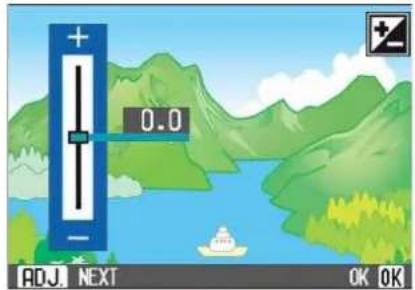
3. Press the ▲▼ buttons and specify a value.
Moving it to the - (minus) side makes it darker. Moving it to the + (plus) side makes it brighter. You can also press the shutter button in this state.
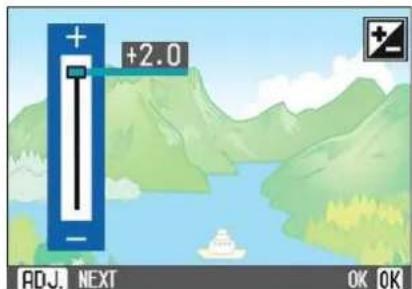
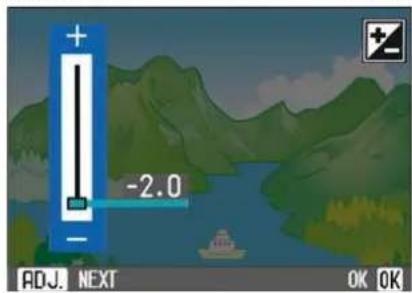
4. Press the OK button.
Exposure Compensation settings are completed and the setting value appears in the right-hand portion of the screen.
This setting will be used for shooting until you change it.
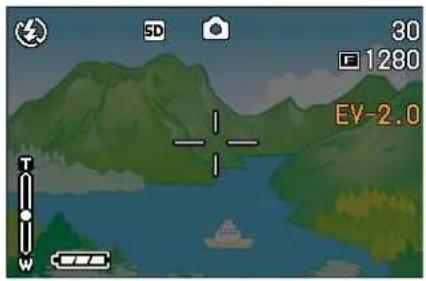
natural_image
Game scene with mountains, river, and boat on a lake, showing UI elements like camera, frame rate, and status bar (no readable text or symbols)Using the Shooting Menu (Exposure)
To change the exposure compensation setting using the Shooting Menu, follow the steps below.
- Turn the mode dial to 📄 (Shooting Mode) or A/M (Aperture Priority/Manual Exposure Mode).
Alternatively, turn the Mode Dial to SCENE (Scene Mode), and select a scene to have the camera ready.
- Press the MENU button.
The Shooting menu appears.
- Select [EXPOSURE COMP.] and then press the OK or ▶ button.
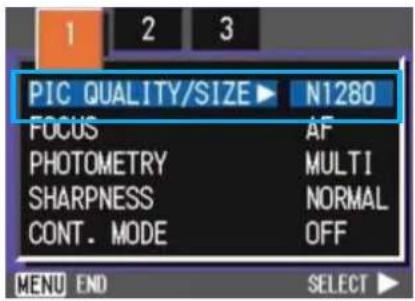
The Exposure Compensation bar appears.
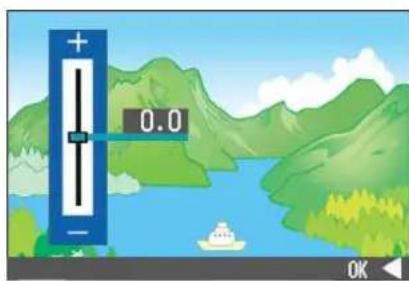
- Press the ▲▼ buttons and specify a value.
Moving it to the - (minus) side makes it darker. Moving it to the + (plus) side makes it brighter.
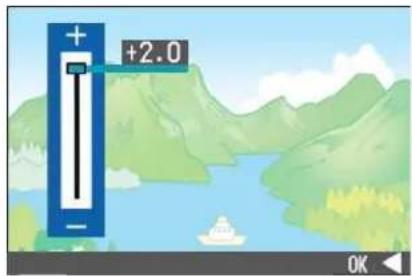
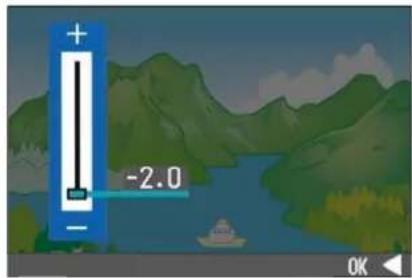
- Press the OK or ◀ button.
Exposure Compensation settings are completed.
- If you pressed the ◀ button, also press the MENU button.
The Shooting Menu closes and the setting value appears in the right of the screen.
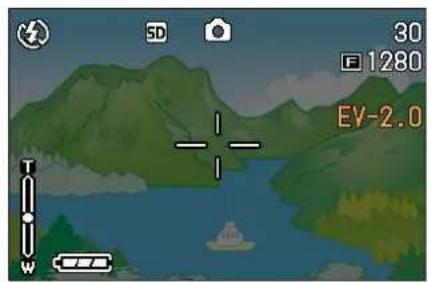
natural_image
Game interface screenshot showing a landscape scene with mountains, river, and a boat (no readable text or symbols)This setting will be used for shooting until you change it.
Using Natural and Artificial Lighting (WHITE BALANCE)
With a normal camera, a white subject may not be reproduced as white depending on lighting around the subject.
Digital cameras have a function called White Balance, which automatically adjusts white balance so white subjects are reproduced as white. At purchase, the White Balance is set to "AUTO"; normally you do not need to change the setting, but if the camera is having difficulty adjusting, please change the setting.
Types of Modes you can Select
| Symbol | Mode Name | Description |
| AUTO | Auto | Make adjustments automatically. |
 | Daylight | Best suited for shooting in bright outdoor light. |
| [C2HC] | Overcast | Best suited for shooting in cloudy weather or shade. |
 | Tungsten light | Best suited for shooting under tungsten light. |
 | Fluorescent light | Best suited for shooting under fluorescent light. |
| [D6TO] | One Push | Manually set White Balance. |

Note
The following subjects may make it difficult for the camera to automatically adjust White Balance:
- Single colored subjects
- Subjects under multiple light sources
White balance setting can be adjusted by using the ADJ. Button or using the Shooting Menu.
Using the ADJ. Button (White Balance)
To change the white balance setting using the ADJ. Button, follow the steps below.
- Turn the mode dial to 📄 (Shooting Mode) or A/M (Aperture Priority/Manual Exposure Mode).
- Press the ADJ. Button.
The White Balance menu appears.
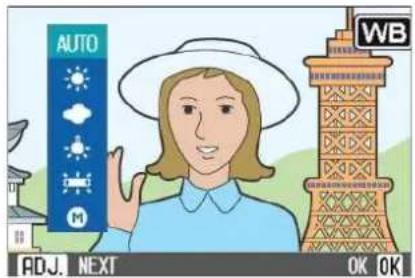
If you select AUTO / - / / - /
- Press the ▲▼ buttons to select a mode.
You can also press the shutter button in this state.
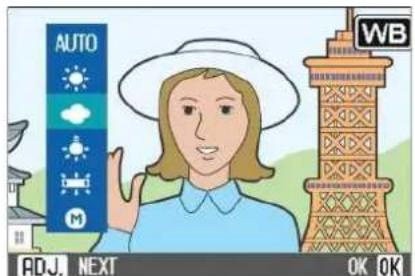
- Press the OK button.
White Balance settings are completed and the symbol appears in the upper left of the screen.
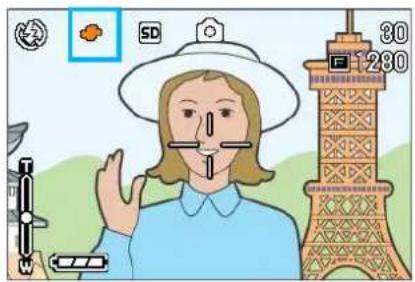
This setting will be used for shooting until you change it.
If you select Ⓜ(One Push)
- Press ▲▼ to select Ⓜ(One Push).
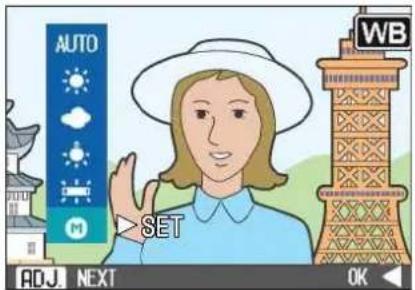
- Point the camera at a piece of paper or something white under the lighting conditions for your picture.
- Press the ▶ button.
White Balance is set.
If the result is not as expected, repeat steps 4 and 5 to change the settings as many times as required.
- Press the OK button.
White Balance settings are completed and the symbol appears in the upper left of the screen.
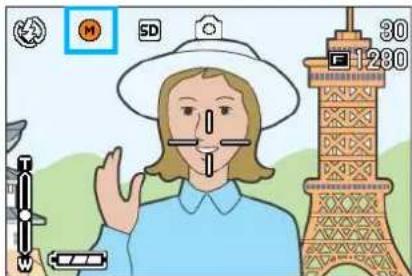
This setting will be used for shooting until you change it.

Note
In Auto Mode, white balance may not be adjusted correctly for a mostly dark subject. In this case, add something white to the subject.

Important
When shooting with flash in a mode other than Auto, the white balance may not be adjusted correctly.
Using the Shooting Menu (White Balance)
To change the white balance setting using the Shooting Menu, follow the steps below.
- Turn the mode dial to 📋 (Shooting Mode), A/M (Aperture Priority/Manual Exposure Mode), or 🌐 (Movie Mode).
Alternatively, turn the Mode Dial to SCENE (Scene Mode), and select a scene to have the camera ready.
- Press the MENU button.
The Shooting menu (or the Movie menu) appears.
- Press the ▼ button to select [WHITE BALANCE] and then press the OK or ▶ button.
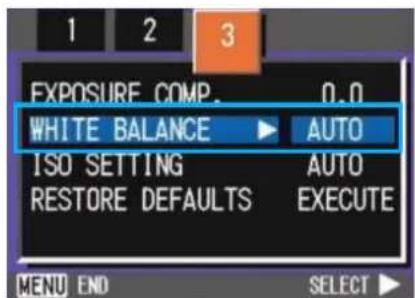
If you select AUTO / 🙏 / 📄 / 📋 / 🏠
- Press the ▲▼ buttons to select a mode.
You can also press the shutter button in this state.
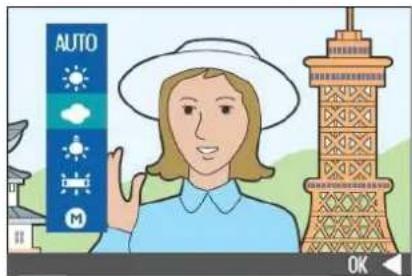
- Press the OK or ◀ button.
White Balance settings are complete.
- If you pressed the ◀ button, also press the MENU button.
The Shooting Menu closes and the setting value is displayed on the upper left of the screen.
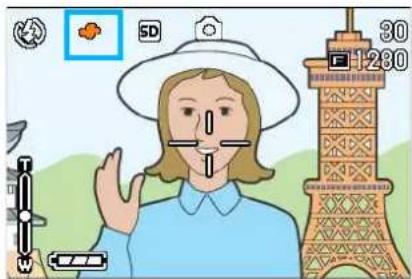
Only except for scene mode, This setting will be used for shooting until you change it.
If you select Ⓜ(One Push)
- Press ▲▼ to select Ⓜ(One Push).
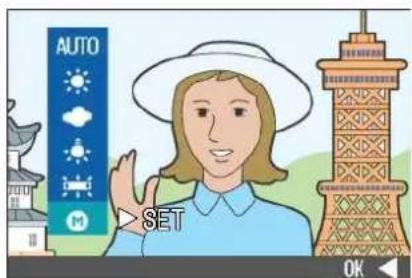
-
Point the camera at a piece of paper or something white under the lighting conditions for your picture.
-
Press the ▶ button.
White Balance is set. If the result is not as expected, repeat steps 5 and 6 to change the settings as many times as required.
- Press the OK or ◀ button.
White Balance settings are complete.
- If you pressed the ◀ button, also press the MENU button.
The Shooting Menu closes and the setting value is displayed on the upper left of the screen.
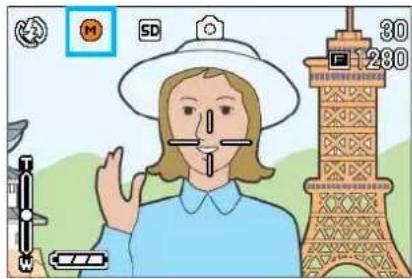
This setting will be used for shooting until you change it.

Note
In Auto Mode, white balance may not be adjusted correctly for a mostly dark subject. In this case, add something white to the subject.

Important
When shooting with flash in a mode other than Auto, the white balance may not be adjusted correctly.
Sensitivity Settings (ISO SETTING)
The ISO sensitivity indicates how sensitive to light the film is. A greater value means higher sensitivity. High sensitivity is suitable for shooting an object in a dark place or moving fast and suppresses blurring. However, the images become rough.
A digital camera can automatically vary the sensitivity (AUTO).
Usually use your camera in the AUTO mode.
ISO sensitivity can be selected from seven levels (AUTO, ISO64, ISO100, ISO200, ISO400, ISO800, and ISO1600).
In AUTO mode, the sensitivity is ISO160 with flash or ISO125 without flash. The ISO sensitivity can be set by using the ADJ. Button or using the Shooting Menu.

Note
- By default, your camera is set to OFF.
- When shooting in a dark place without using the flash, raising the sensitivity enables you to give a subject more brightness.
- If you increase the ISO Sensitivity, it becomes possible to shoot under low light conditions, but your pictures may become grainy. The higher the ISO Sensitivity, the grainier your pictures are likely to become, so it is necessary to exercise caution.
Using the ADJ. Button (ISO Sensitivity)
To change the ISO sensitivity setting using the ADJ. Button, follow the steps below.
-
Turn the mode dial to 📄 (Shooting Mode) or A/M (Aperture Priority/Manual Exposure Mode).
-
Press the ADJ. Button three times.
The ISO Sensitivity menu appears.
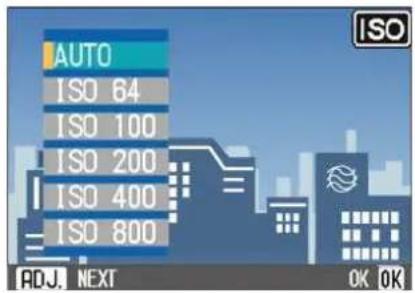
- Press the ▲▼ buttons to select an ISO setting.
You can also press the shutter button in this state.
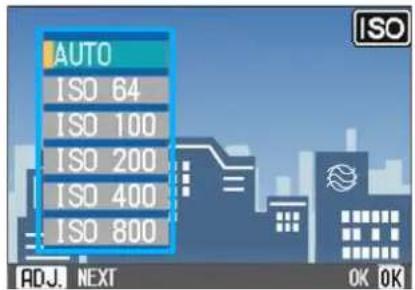
- Press the OK button.
The ISO Sensitivity settings are completed and the setting value appears in the right-hand portion of the screen.
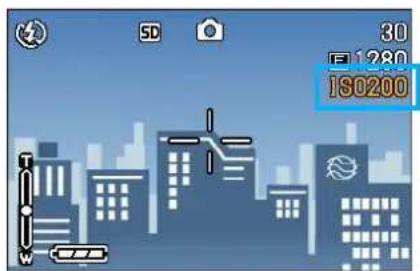
This setting will be used for shooting until you change it.
Using the Shooting Menu (ISO Sensitivity)
To change the ISO sensitivity setting using the Shooting Menu, follow the steps below.
- Turn the mode dial to 📄 (Shooting Mode) or A/M (Aperture Priority/Manual Exposure Mode).
- Press the MENU button.
The Shooting menu appears.
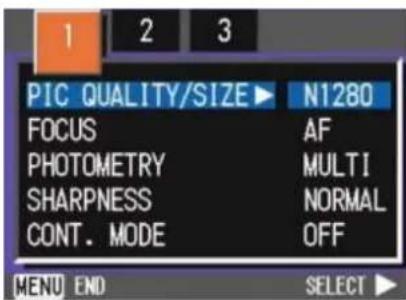
- Press the ◀▶ buttons to switch between displays as required.
- Select [ISO SETTING] and then press the OK or ▶ button.
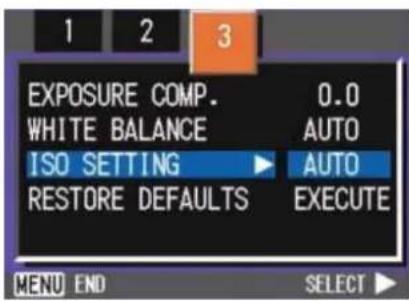
- Press the ▲▼ buttons to select an ISO setting.
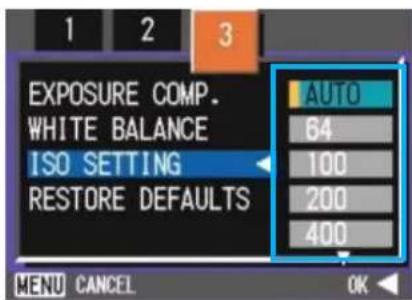
- Press the OK or ◀ button.
ISO settings are completed.
- If you pressed the ◀ button, also press the MENU button.
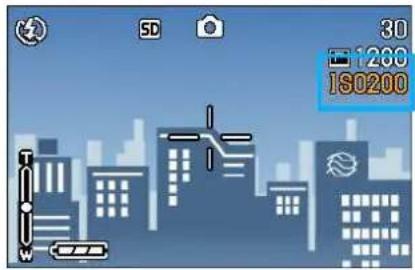
The Shooting Menu closes and the setting value is displayed on the right of the screen.
This setting will be used for shooting until you change it.
Changing Shading for Shooting Text (DEN- SITY)
When you are shooting text, you can change the DENSITY settings. You can select from DEEP, NORMAL and LIGHT.
Text Density setting can be adjusted by using the ADJ. Button or using the Shooting Menu.

Reference
For information on how to shoot text, see P.41.
Text Density setting can be adjusted by using the ADJ. Button or using the Shooting Menu.
Using the ADJ. Button (Text Density)
To change the Text Density setting using the ADJ. Button, follow the steps below.
1. Turn the Mode Dial to SCENE (Scene Mode).
The Scene selection screen appears.
2. Press the ▲▼ buttons to select the text mode and then press the OK button.

3. Press the ADJ. Button.
The Text Density menu appears.
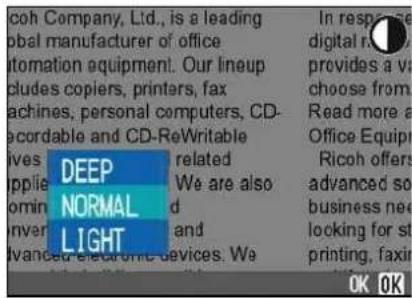
4. Press the ▲▼ buttons to select the desired density setting.
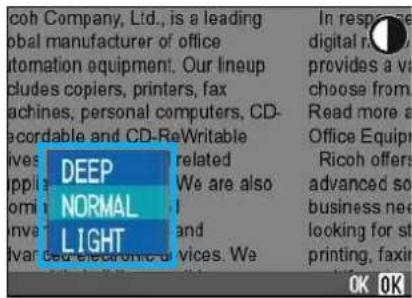
You can also press the shutter button in this state.
5. Press the OK button.
Text Density settings are completed.
The Text Density setting value does not appear on the screen. This setting will be used for shooting until you change it.
Using the Shooting Menu (Text Density)
To change the Text Density setting using the Shooting Menu, follow the steps below.
- Turn the Mode Dial to SCENE (Scene Mode).
The Scene selection screen appears.
- Press the ▲▼ buttons to select the text mode and then press the OK button.

- Press the MENU button.
The Shooting menu appears.
-
Select [DENSITY] and then press the OK or ▶ button.
-
Press the ▲▼ buttons to select the desired density setting.
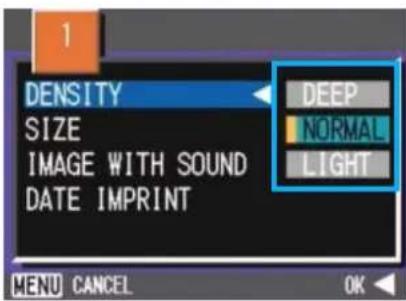
- Press the OK or ◀ button.
Text Density settings are completed.
7. If you pressed the ◀ button, also press the MENU button.
The display returns to the shooting screen.
The Text Density setting value does not appear on the screen.
This setting will be used for shooting until you change it.
Shooting Consecutively with Different White Balance (WHITE BAL-ANCE BRACKET)
Three images are automatically recorded - a reddish image, a bluish image, and an image of the current white balance.
The first image is reddish, the second one is equal to the current setting, and the third one is bluish.
This is useful if the appropriate white balance cannot be judged.

Note
- By default, your camera is set to OFF.
- This function is not available for Multi-Shot (P.43) shooting and Auto Bracket shooting (P.77).
- Flash cannot be used.
• Time Exposure (P.78) is set to OFF.

Reference
For how to change the white balance, see P.62.
To shoot with White Balance Bracket, follow the steps below.
- Turn the mode dial to 📄 (Shooting Mode) or A/M (Aperture Priority/Manual Exposure Mode).
- Press the MENU button.
The Shooting menu appears. - Press the ◀▶ buttons to switch between displays as required.
- Select [AUTO BRACKET] and press the OK or ▶ button.
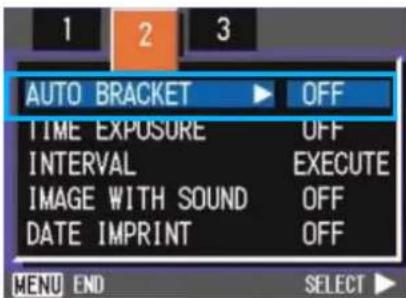
- Press the ▲▼ buttons to select [WB-BKT].
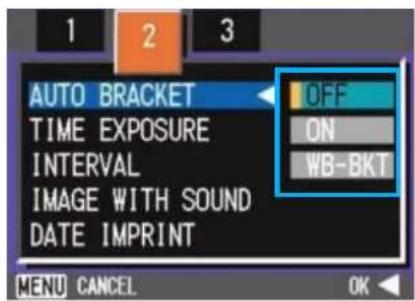
- Press the OK or ◀ button.
White Balance Bracket settings are complete.
- If you pressed the ◀ button, also press the MENU button.
The Shooting menu disappears and the screen displays the set values.
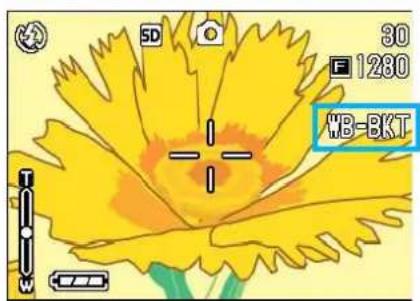
- Press the shutter button.
Three images (reddish, bluish, and equal to the current white balance) are automatically recorded.
The three still images displayed on the LCD monitor immediately after shooting are reddish, equal to the current setting, and bluish from left.
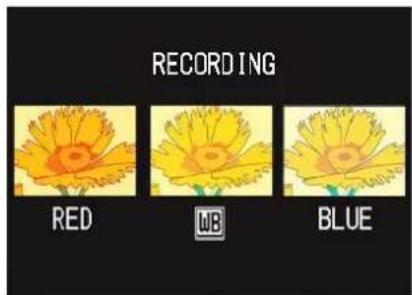
This setting will be used for shooting until you turn the power off.
Choosing Picture Quality Mode/Image Size (PIC QUALITY/SIZE)
The size of a stored still image and movie files depends on picture quality and size settings.
About Picture Quality Mode
3
When still images and movies are saved as image files, the image data is saved in a compressed file.
Picture Quality Mode specifies the compression ratio to use.
Picture Quality Mode is provided in three types; N (Normal), F (Fine), and NC (Non-compressed).
Normal Mode
The compression ratio is high, resulting in a small file. Normally, shooting is done in this mode.
Fine Mode
The compression ratio is low, resulting in a large file, but the picture quality is better than in Normal Mode.
NC Mode
Image data is saved in a non-compressed TIFF file. This ensures clearer pictures than F2592 and N2592. However, the file size becomes larger and the recording time at shooting becomes longer.
About Image Size
Image size relates to how large the image is. A small image is best for sending via email and using on Web sites. When printing pictures, choose the larger size to obtain better results.

Note
• Picture quality settings cannot be made for movies.
- The image sizes that can be set differ for still images and movies.

Terms
Image Files
Files containing still images and movies are called Image Files.
Changing Picture Quality Mode/Image Size of a Still Image
Combining Picture Quality Mode and Image Size.
| Size | |||||
| 2592×1944 | 2048×1536 | 1280×960 | 640×480 | ||
| Mode | F (Fine) | F2592 | F2048 | F1280 | |
| N (Normal) | N2592 | N2048 | N1280 | N640 | |
| NC (Non-compressed) | NC2592 | ||||
Figures inside the bold frame indicate those shown on the screen.

Note
- The Fine Mode is not available for 640 x 480.
- By default, your camera is set to N1280.

Reference
For details, see "SD Memory Card Recording Capacities" (P.175).
To make changes to Picture Quality Mode/Image Size, follow the steps below.
1. Turn the mode dial to 📄 (Shooting Mode) or A/M (Aperture Priority/Manual Exposure Mode).
Alternatively, turn the Mode Dial to SCENE (Scene Mode) and select a mode to prepare the camera.
2. Press the MENU button.
The Shooting menu appears.
3. Select [PIC QUALITY/SIZE] and then press the OK or ▶ button.
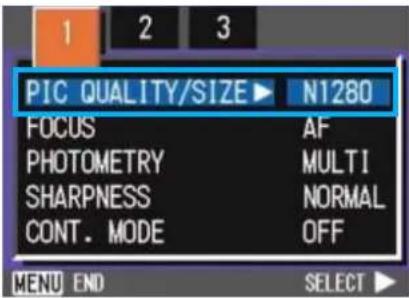
4. Press the ▲▼ buttons to select a picture quality/size.
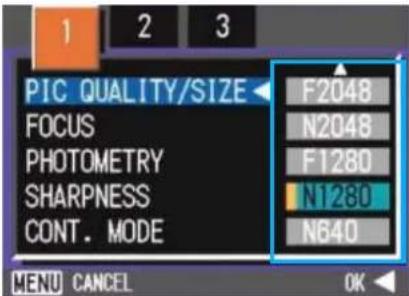
5. Press the OK or ◀ button.
Picture Quality/Image Size settings are completed.
6. If you pressed the ◀ button, also press the MENU button.
The Shooting Menu closes and the setting value is displayed on the upper-right of the screen.
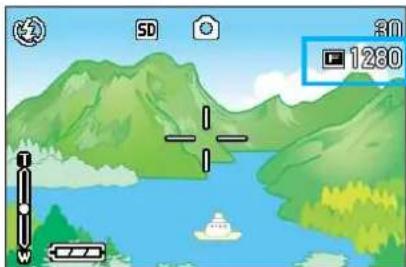
natural_image
Game scene with green mountains, a lake, and a boat on the water (no readable text or symbols)This setting will be used for shooting until you change it.
Changing the Image Size for Shooting in TEXT Mode
In TEXT Mode, you cannot set Image Quality Mode. The image size can be selected from 2048 × 1536 and 2560 × 1920.

Note
By default, your camera is set to 2048 x 1536.
1. Turn the Mode Dial to SCENE (SCENE Mode).
The Scene selection screen appears.
2. Press the ▲▼ buttons to select TEXT Mode.
3. Press the OK button.
The display changes to the Shooting screen in SCENE Mode with the TEXT Mode mark at the upper part of the screen.
4. Press the MENU button.
The Shooting menu appears.
5. Choose [SIZE] and press the OK or ▶ button.
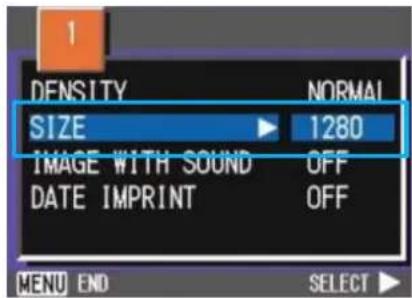
6. Press the ▲▼ buttons to select a size.
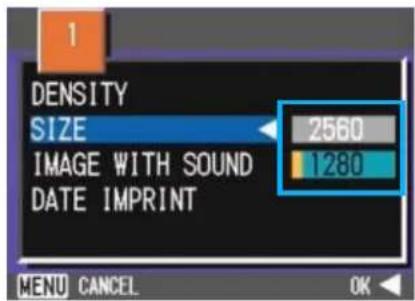
- Press the OK or ◀ button.
The image size setting is complete.
- If you pressed the ◀ button, also press the MENU button.
The Shooting menu disappears and the setting is displayed at the upper right of the screen.
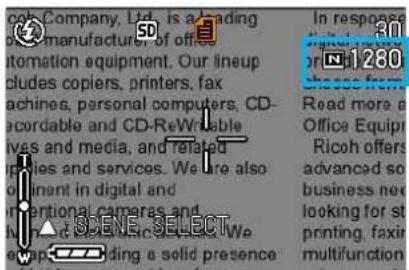
This setting will be used for shooting until you change it.
Changing the Image Size of a Movie
Image Quality Mode settings cannot be made for movies.
Two Image sizes are available: 320 × 240 , and 160 × 120 pixels.

Note
By default, your camera is set to 320 x 240.
To make changes to Image Size, follow the steps below.
-
Turn the Mode Dial to 📋 (Movie Mode).
-
Press the MENU button.
The Shooting menu appears
- Select [MOVIE SIZE] and then press the OK or ▶ button.
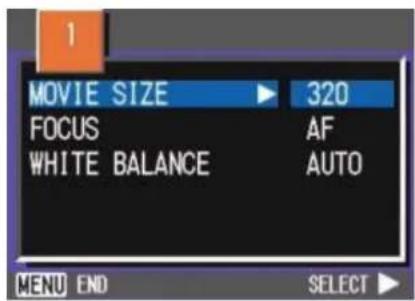
- Press the ▲▼ buttons to select Size.
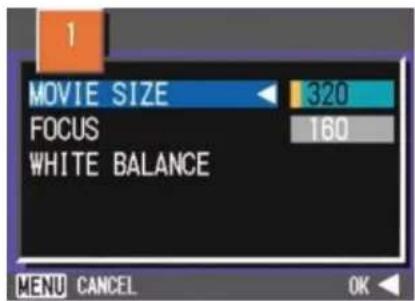
- Press the OK or ◀ button.
Movie Size settings are complete.
- If you pressed the ◀ button, also press the MENU button.
The Shooting Menu closes and the setting value is displayed on the upper-right of the screen.
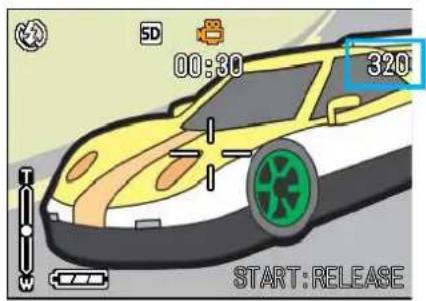
This setting will be used for shooting until you change it.
Manual Focus Shooting (FOCUS)
When Auto-Focus does not focus as desired, you can focus manually (manual focus).
You can also shoot with a fixed shooting distance. When using a fixed shooting distance, it can be set to either Snapshot or Infinity ( ).

Note
- By default, your camera is set to AF (Auto-Focus).
- Manual focus cannot be used in Scene Mode.
- Macro shooting (P.48) is not available in the Manual Focus Mode.
Manual Focus Shooting
For Manual Focus Shooting, follow the steps below.
- Turn the mode dial to 📋 (Shooting Mode), A/M (Aperture Priority/Manual Exposure Mode), or 🌐 (Movie Mode).
- Press the MENU button.
The Shooting menu appears.
- Select [FOCUS] and press the OK or ▶ button.
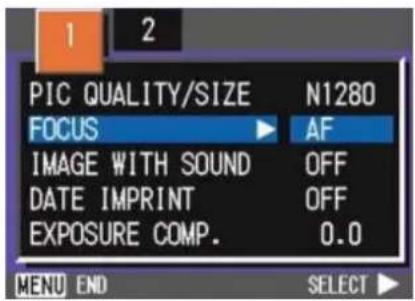
- Press the ▲▼ buttons to select [MF].
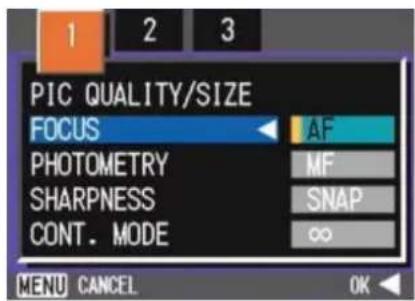
3
- Press the OK or ◀ button.
Focus settings are complete.
- If you pressed the ◀ button, also press the MENU button.
The Shooting Menu closes and "MF" is displayed on the upper part of the screen.
You can display the enlarged view by pressing the OK button.
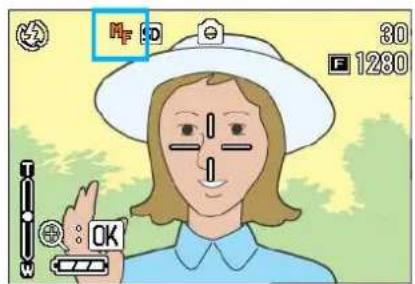
- Press the ▲▼ buttons to focus the camera.
If you press the ▲ button, the focus moves closer.
If you press the ▼ button, the focus moves further away.
Manual Focus is used for shooting until you change the settings.

Note
- To change the shutter speed for shooting with manual focusing, turn the mode dial to Aperture Priority/Manual Exposure Mode (A/M), select [Manual exposure] from the Shooting menu, and set the shutter speed. The up/down dial cannot be used for focus adjustments.
- You cannot use the up/down dial.
3
Shooting at a Fixed Distance
To shoot with the shooting distance fixed, follow the steps below.
- Turn the mode dial to 📋 (Shooting Mode), A/M (Aperture Priority/Manual Exposure Mode), or 🖱 (Movie Mode).
Alternatively, turn the Mode Dial to SCENE (Scene Mode), and select a scene to have the camera ready.
- Press the MENU button.
The Shooting menu appears.
- Select [FOCUS] and then press the OK or ▶ button.
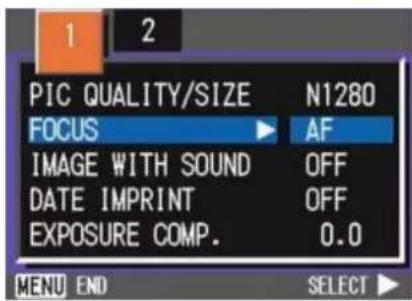
- Press the ▲▼ buttons to select [SNAP] or [∞] (Infinity).
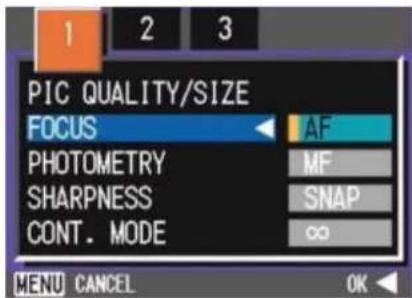

Note
- Selecting [SNAP] will fix the shooting distance to 2.5 meters.
-
Selecting [] will fix the shooting distance to infinity. This feature is useful to shoot a distant view.
-
Press the OK or ◀ button.
Focus settings are complete.
- If you pressed the ◀ button, also press the MENU button.
The Shooting Menu closes and the specified value is displayed on the upper part of the screen.
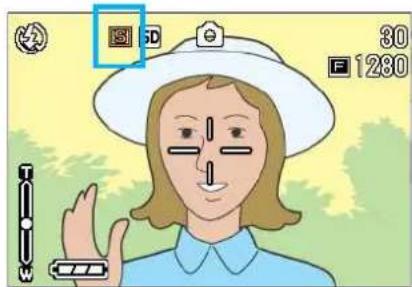
This setting will be used for shooting until you change it.
Changing the Light Metering (PHOTOMETRY)
You can change the metering method (the range to use for metering) to determine the exposure value. There are three Light Metering Methods available: MULTI, CENTRE, and SPOT.
MULTI (No Symbol)
The entire shooting range is divided into 256 partitions, and subjected to photometry for overall decision.
CENTER(☐)
The light metering is determined by a measurement of the whole, with the central part emphasized.
Use this when the brightness of the center and surroundings are different.
SPOT(☐)
Light metering is determined by measuring only the central part.
Use this setting when you want to use the brightness of the center. It is useful if there is marked difference in contrast or backlighting.

Note
By default, your camera is set to Multi.
To select light metering method, follow the steps below.
-
Turn the mode dial to 📄 (Shooting Mode) or A/M (Aperture Priority/Manual Exposure Mode).
-
Press the MENU button.
The Shooting menu appears.
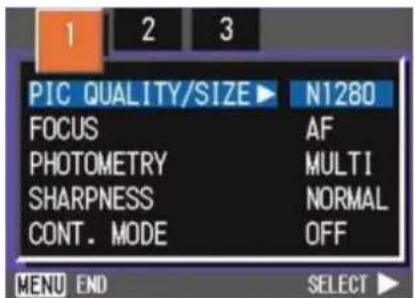
-
Press the ◀▶ buttons to switch between displays as required.
-
Select [PHOTOMETRY] and then press the OK or ▶ button.
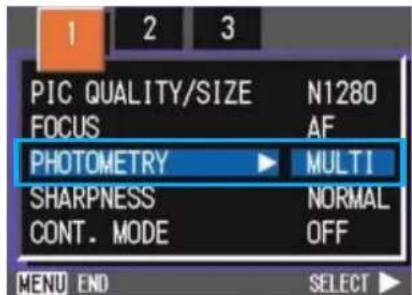
- Press the ▲▼ buttons to select the desired setting.
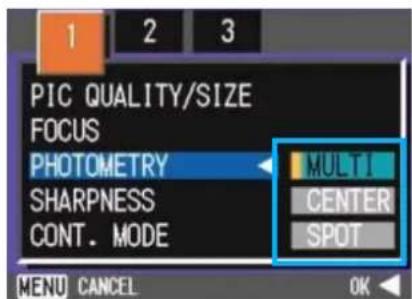
- Press the OK or ◀ button.
Light Metering Method setting is complete.
- If you pressed the ◀ button, also press the MENU button.
The Shooting Menu closes and the specified value is displayed at the upper part of the screen.
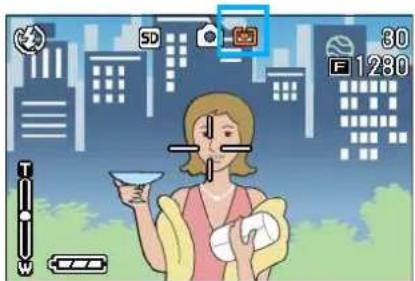
This setting will be used for shooting until you change it.
Changing the Edge Quality of Still Images (SHARPNESS)
You can change the definition of your still images to either sharp or soft.

Note
By default, your camera is set to Normal.
To make changes to the sharpness of still images, follow the steps below.
- Turn the mode dial to 📄 (Shooting Mode) or A/M (Aperture Priority/Manual Exposure Mode).
- Press the MENU button.
The Shooting menu appears.
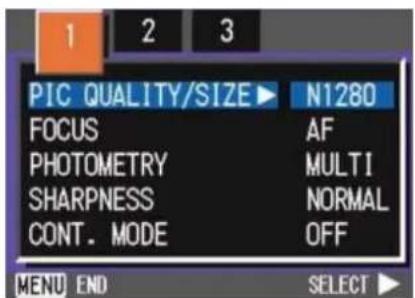
- Press the ◀▶ buttons to switch between displays as required.
- Select [SHARPNESS] and then press the OK or ▶ button.
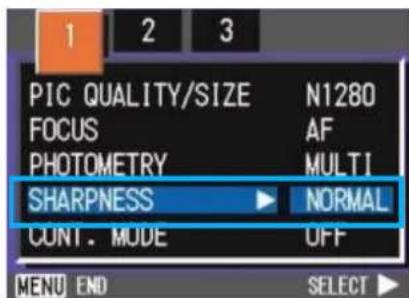
- Press the ▲▼ buttons to select the desired setting.
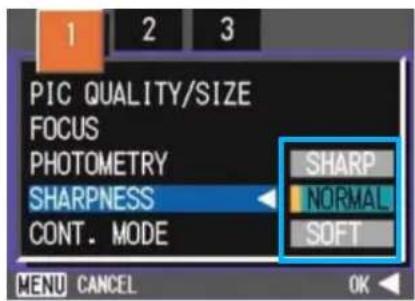
- Press the OK or ◀ button.
Sharpness settings are complete.
- If you pressed the ◀ button, also press the MENU button.
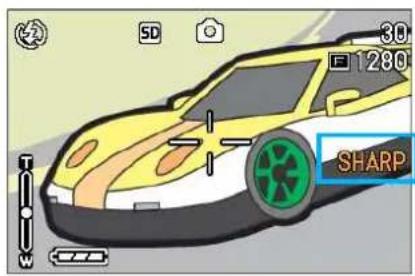
natural_image
Illustration of a yellow and white sports car with a sharp green helmet and 'SHARP' label, shown without any readable text or symbols.The Shooting Menu closes and the setting value is displayed on the right of the screen.
This setting will be used for shooting until you change it.
Shooting Consecutively with Different Exposures (AUTO BRACKET)
The Auto Bracket function automatically shoots three consecutive shots, with the specified exposure value as standard, at three exposure levels, at -0.5EV, ±0, and +0.5EV.

Note
- By default, your camera is set to OFF.
- This function is not available when shooting with sound.
To shoot with Auto Bracket, follow the steps below.
- Turn the mode dial to 📄 (Shooting Mode) or A/M (Aperture Priority/Manual Exposure Mode).
- Press the MENU button.
The Shooting menu appears.
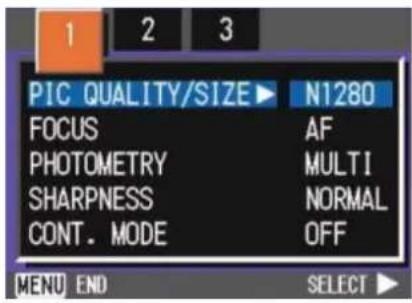
- Press the ◀▶ buttons to switch between displays as required.
- Select [AUTO BRACKET] and then press the OK or ▶ button.
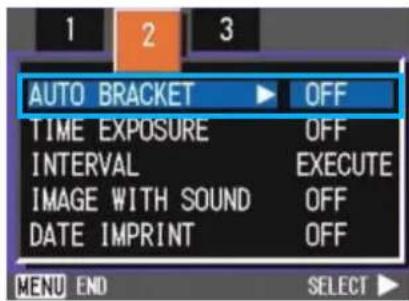
- Select [ON] and then press the OK or ◀ button.
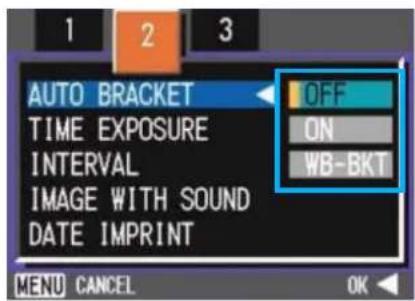
- If you pressed the ◀ button, also press the MENU button.
The Shooting Menu closes and [AB] is displayed on the right side of the screen.
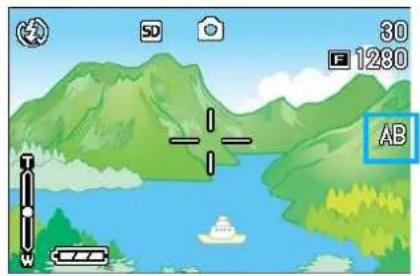
natural_image
Game interface screenshot showing a landscape scene with mountains, a lake, and a boat (no readable text or symbols)- Press the shutter button.
Three consecutive shots are taken, with the specified Exposure Compensation value as the standard, at -0.5EV, ±0, and +0.5EV. After shooting, three still images are displayed on the LCD Monitor. They are, from the left, at -0.5EV (darker), standard compensation, and +0.5EV (brighter).
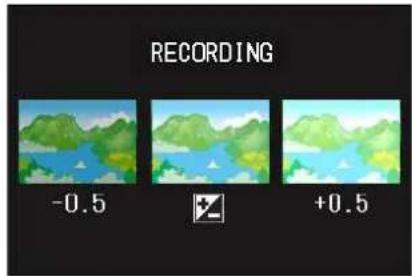
This setting will be used for shooting until you change it.

Reference
- For how to change the Exposure Compensation see P.60.
• For how to change the White Balance see P.62.
Setting the Shutter Speed (TIME EXPOSURE)
If you set the shutter speed, when you shoot, the shutter stays open for the specified time. By setting the shutter speed, you can capture the movement of subjects such as fireworks and car lights, when you shoot a night scene.
You can select an exposure time of 1, 2, 4 or 8 seconds.

Note
- By default, the Time Exposure is set to OFF.
- When the shutter speed is set, the shutter speed may decrease and images may be blurred. Hold the camera securely with both hands or use a tripod for shooting.
- While shooting with the shutter speed set, the LCD Monitor display turns off.
To set the desired shutter speed for time exposure, follow the steps below.
- Turn the mode dial to 📄 (Shooting Mode) or A/M (Aperture Priority/Manual Exposure Mode).
- Press the MENU button.
The Shooting menu appears.
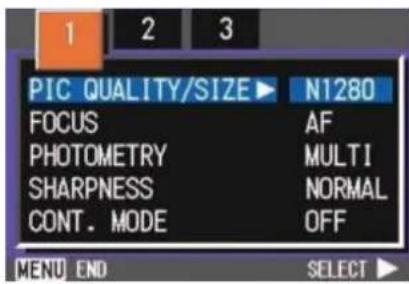
-
Press the ◀▶ buttons to switch screens as required.
-
Select [TIME EXPOSURE] and press the OK or ▶ button.
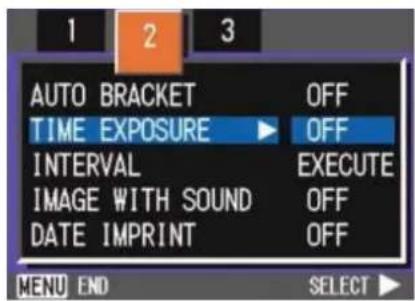
- Press the ▲▼ buttons to select a shutter speed.
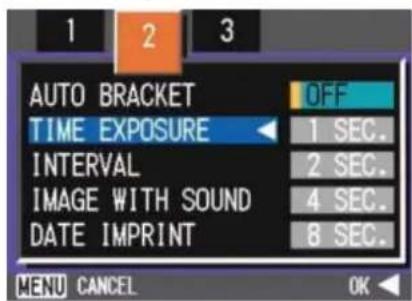
- Press the OK or ◀ button.
This completes the setting of time exposure.
- If you pressed the ◀ button, also press the MENU button.
The Shooting menu disappears and the setting is displayed in the bottom part on the screen.
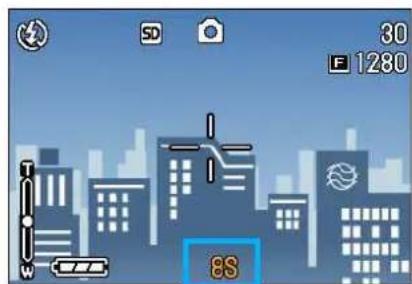
This setting will be used for shooting until you change it.

Important
If the shutter speed is set to one second or more, it takes time to complete recording because the picture noise elimination function is activated.
Shooting Pictures Automatically at Set Intervals (INTERVAL)
You can set the camera to automatically take pictures at fixed intervals. You can set the shooting interval at any length from 30 seconds to 3 hours, in increments of 30 seconds.

Note
By default, your camera is set to OFF.
For Interval Shooting, follow the steps below.
-
Turn the mode dial to 📄 (Shooting Mode) or A/M (Aperture Priority/Manual Exposure Mode).
-
Press the MENU button.
The Shooting menu appears.
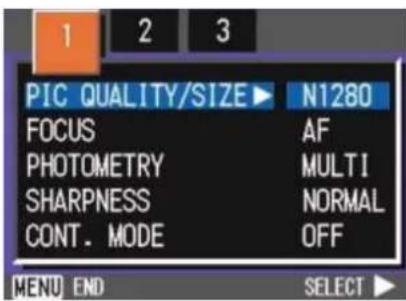
-
Press the ◀▶ buttons to switch between displays as required.
-
Select [INTERVAL] and then press the OK or ▶ button.
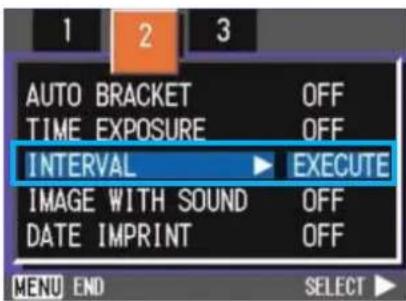
- Press the ▲▼ buttons to specify the length of time.
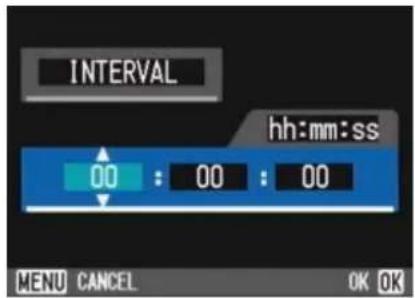
3
-
Press the ▶ button to move to the minutes setting, then use the ▲▼ button to set the minutes.
-
Press the ▶ button to move to the seconds setting, then press the ▲▼ buttons to set the seconds.
-
Press the OK or ◀ button.
Interval Shooting settings are completed.
- If you pressed the ◀ button, also press the MENU button.
The Shooting Menu closes and "Interval" is displayed on the upper part of the screen.
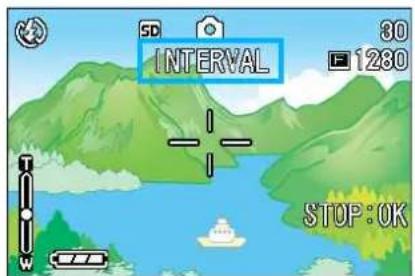
- Press the shutter button.
A picture is taken every time the fixed interval elapses.
- To stop shooting, press the OK button.
Interval Shooting settings are cleared when the power is turned off.

Note
- In steps 5 to 7, if you press and hold the ▲▼ buttons, you can quickly raise or lower the setting value.
- If you use batteries for power, you may exhaust the batteries. Using the AC Adapter (sold separately) is recommended.
• Even during Interval Shooting, if you press the shutter button, the camera will shoot as usual. However, Interval Shooting Mode is unaffected. After shooting, once the time specified in Interval Shooting elapses, the next shot is taken. - Depending on Picture Quality Mode and Flash Mode settings, the shooting interval may become longer than the time set.
- When Interval Shooting is on, even when Multi-Shot is set to [CONT] or [MCONT], consecutive shooting is automatically switched off.
Inserting the Date into a Still Image (DATE IMPRINT)
You can stamp the date on the bottom right of your still images. You can choose to display the date in one of two formats, Date (Y/M/D) or Date and Time (Y/M/D/H:M).

Note
- If the date and time have not been set, DATE IMPRINT cannot be used. First make the date and time settings.
- DATE IMPRINT cannot be used with movies.

Reference
For how to set date and time, see P.119.
To enter the date or date and time, follow the steps below.
- Turn the mode dial to 📄 (Shooting Mode) or A/M (Aperture Priority/Manual Exposure Mode).
- Press the MENU button.
The Shooting menu appears.
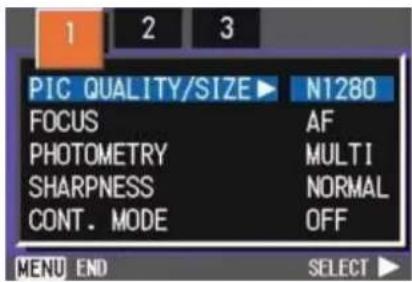
-
Press the ◀▶ buttons to switch between displays as required.
-
Press the ▼ button to select [DATE IMPRINT] and then press the OK button.
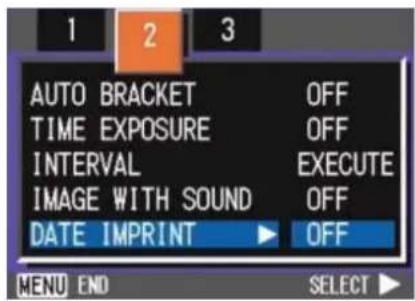
- Press the ▲▼ buttons to select the desired setting.
- Press the OK or ◀ button.
The Date Imprint settings are completed.
- If you pressed the ◀ button, also press the MENU button.
The Shooting Menu closes and [DATE] appears at the left part of the screen.
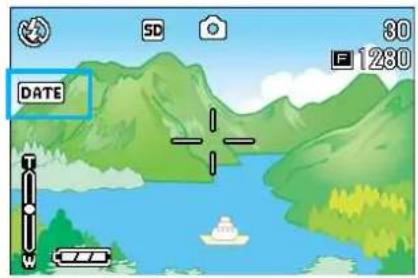
This setting will be used for shooting until you change it.
Returning the Shooting Menu Settings to their Defaults (RESTORE DEFAULTS)
You can restore the Shooting Menu defaults, returning the settings to what they were at the time of purchase.
3
To restore the Shooting Menu to its initial settings, follow the steps below.
- Turn the mode dial to 📄 (Shooting Mode) or A/M (Aperture Priority/Manual Exposure Mode).
- Press the MENU button.
The Shooting Menu appears.
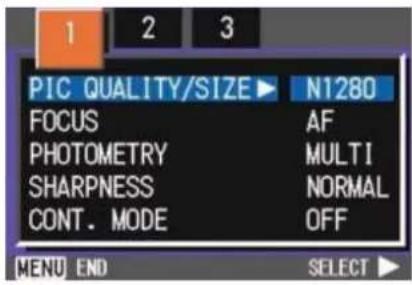
- Press the ◀▶ buttons to switch between displays as required.
- Select [RESTORE DEFAULTS] and then press the OK or ▶ button.
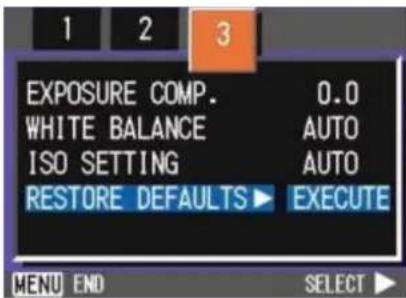
- Make sure that [YES] is selected, and then press the OK button.
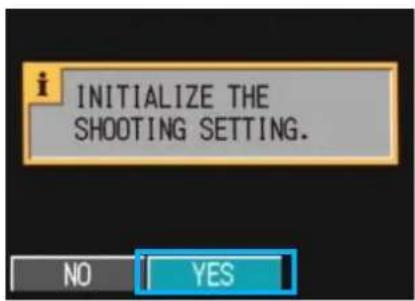
The display indicates the camera is restoring the initial settings; once it is finished, the Mode screen returns.

Note
The default settings are maintained even when the camera is turned off, with the exceptions of Interval Shooting and Auto Bracket settings.

Reference
For functions whose defaults are restored upon power-off, see P.174.
Section 4 Playing Back/Deleting Still Images, Movies, and Sounds
You can display still images or movies on the LCD Monitor to check them, and delete unwanted ones. You can also hear a recorded sound from the speaker.

Note
It is recommended that you plug in the AC Adapter whenever viewing still images or movies on the LCD Monitor.
Viewing the Photo You Just Took (Quick Review)
Right after shooting a still image, if you want to see it immediately, you can display the shot in Shooting Mode. This function is called Quick Review.
For movies, the first frame appears as a still image.
To display the still image you just took, follow the steps below.
1. While still in the Shooting Mode, press the Ⓗ (Quick Review) button.
The still image you just took is displayed on the LCD Monitor.
natural_image
Illustration of a serene lakeside landscape with green mountains, a small boat, and trees under a blue sky (no text or symbols)Press 📄 (Quick Review) again and the camera is ready to shoot.

Note
- Once the power is turned off, the Quick Review function can no longer recall the most recent taken image.
- During a quick review, press the shutter button to return to the Shooting screen.
- If you use Quick Review to view the image taken in Text mode, the displayed image may have slightly lower quality than the recorded one.
Displaying an Enlarged View of the Still Image Displayed
The still image you displayed with the 🔒 (Quick Review) button can be displayed enlarged up to 3.4 times using the 🔒 (Enlarged View) button.
To view still images in the enlarged display mode, follow the steps below.
1. Press the Q (Enlarged View) button.
The still image is enlarged. One part of the still image is displayed on the LCD Monitor.
natural_image
Illustration of a river scene with a small boat and a plus sign, no readable text or symbols| Enlarging | button |
| Reducing | button |
| Moving to the part you want to display | ▲▼◄► button |
To return to the original display, press the ☐ (Thumbnail Display) button to return to the original size and then press the Ⓗ (Quick Review) button.

Note
Movies cannot be displayed enlarged.
Deleting the Displayed Still Image or Movie
The movie or still image you displayed using the Ⓗ (Quick Review) button can be deleted by pressing the ⏻ (DELETE) button.
To delete a still image or movie that is displayed, follow the steps below.
-
While using the Quick Review function, press the ☑ (Delete) button.
-
Press the ▶ button to select [DELETE].
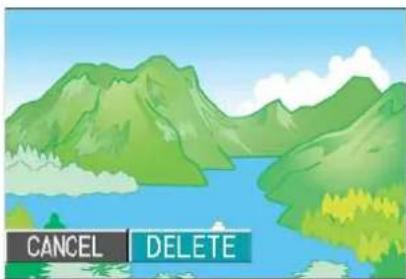
natural_image
Illustration of a green mountain landscape with a lake and trees, no text or symbols present- Press the OK button.
The display indicates that deleting is in process; once finished, the shooting screen returns.

Reference
For selecting and deleting still images and movies, see P.95.
Viewing a Still Image or Movie
Still images and movies you shot are recorded in the internal memory of the camera or on an SD memory card. They can be viewed on the camera's LCD monitor display.

Note
When an SD memory card is not inserted, the camera plays back from the internal memory; when an SD memory card is inserted, it plays back from the SD memory
| When no SD memory card is loaded | When an SD Memory Card is loaded |
Plays back from internal memory | Plays back from the SD memory card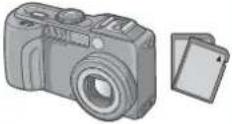 |
Viewing Still Images Recorded on an SD Memory Card
To view still images, follow the steps below.
1. Turn the Mode Dial to ▶ (Playback Mode).
The last still image taken is displayed. For movies, the first frame is displayed as a still image.
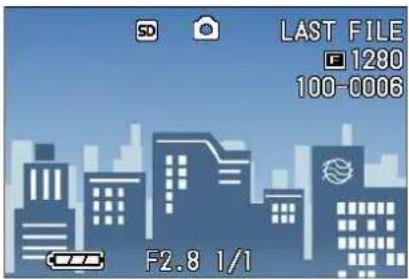
2. Move to the still image you want to view using the ◀▶ buttons.
If you press the ▶ button, you can view the next still image or movie.
If you press the ◀ button, you can view the previous still image or movie.
If you press and hold either the ◀ or the ▶ button, you can move quickly between images.

Reference
For information displayed on the screen during playback, see P.20.
Viewing Still Images Recorded on Internal Memory
To view still images recorded on internal memory, follow the steps below.
-
If a memory card is loaded, turn off the power, remove the memory card and turn the power back on.
-
Turn the Mode Dial to ▶ (Playback Mode).
The last still image taken is displayed. For movies, the first frame is displayed as a still image.
- Move to the still image you want to view using the ◀▶ buttons.
If you press the ▶ button, you can view the next still image or movie.
If you press the ◀ button, you can view the previous still image or movie.
If you press and hold the ◀▶ buttons, you can move quickly between images.
Viewing Movies
To view movies, follow the steps below.
- Turn the Mode Dial to ▶ (Playback Mode).
The last still image taken is displayed. For movies, the first frame is displayed as a still image.
- Move to the movie you want to see using the ◀▶ buttons.
If you press the ▶ button, you can view the next still image or movie.
If you press the ◀ button, you can view the previous still image or movie.
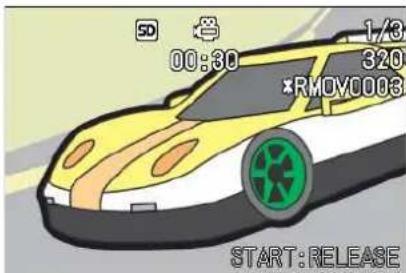
- Press the shutter button.
Playback begins. The elapsed playback indicator or the elapsed time is displayed on the LCD Monitor.
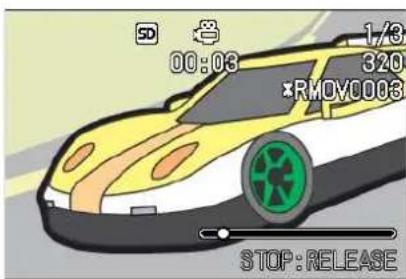
| Fast Forward | Press the [♦] (telephoto) button during play. |
| Rewind | Press the [♦] (Wide-Angle) button during play. |
| Pause/Playback | Press the shutter button. |
| Slow Playback | Go on pressing the [♦] (tele-photo) button during pause. |
| Slow Rewind | Go on pressing the [♦] (Wide-Angle) button during pause. |
| Next frame | Press the [♦] (telephoto) button during pause. |
| Previous frame | Press the [♦](Wide-Angle) button during pause. |
Adjusting the Movie Sound Volume
To adjust the volume, follow the steps below.
- Press the ▲▼ buttons.
The volume adjustment bar appears.
- Press the ▲▼ buttons to adjust the volume.
The volume can be set to nine levels. The setting will be used until you change it.

Terms
Movie Frames
A movie is also called a frame. Movies consist of many frames whose images appear to be moving when displayed at high speed.

Reference
For information displayed on the screen during playback, see P.20.
Playing Back Sound
You can play back sound recorded in Voice Memo Mode or recorded with a still image.
Playing Back Sound
To play back sound recorded in Voice Memo Mode, follow the steps below.
- Turn the Mode Dial to ▶ (Playback Mode).
The last still image is displayed.
For a movie, the first frame is displayed as a still image.
- Press the ◀▶ buttons to select a sound file for playback (speaker icon).
Press the ▶ button to display the next file.
Press the ◀ button to display the previous file.
Hold the ◀▶ buttons down to move quickly between files.
- Press the shutter button.
The sound is played back. If the lens is out, it retracts into the camera, and then the sound is played back.
| Fast Forward | Press the [+] (telephoto) button during playback. |
| Rewind | Press the [•] (Wide-Angle) button during playback. |
| Pause/Play | Press the shutter button. |
Playing Back Sound Recorded with a Still Image
To play back sound attached to a still image, follow the steps below.
- Turn the Mode Dial to ▶ (Playback Mode).
The last still image is displayed.
For a movie, the first frame is displayed as a still image
- Press the ◀▶ buttons to select a still image with sound for viewing.
Press the ▶ button to display the next file.
Press the ◀ button to display the previous file.
Hold the ◀▶ buttons down to move quickly between files.
- Press the shutter button.
Playback starts.
To stop playback, press the shutter button or the ◀ button.
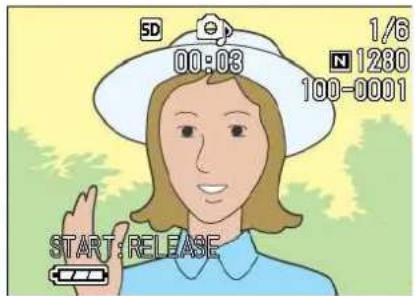
Adjusting the Volume
To adjust the volume, follow the steps below.
1. Press the ▲▼ buttons.
The volume adjustment bar appears.
natural_image
Green screen with blue speaker icon and sound waves, no text or symbols present2. Press the ▲▼ buttons to adjust the volume.
The volume can be set to nine levels.
The setting will be used until you change it.

Reference
- For how to record sound, see P.50.
- For how to shoot a still image with sound, see P.58.
Viewing Thumbnail Images on the LCD Monitor
The LCD Monitor screen is split into six thumbnail images, allowing you to view your still images or movies at one glance (Thumbnail Display).
To view the Thumbnail Display and select the still image for viewing, follow the steps below.
1. Turn the Mode Dial to ▶ (Playback Mode).
The last still image taken is displayed. For movies, the first frame is displayed as a still image.
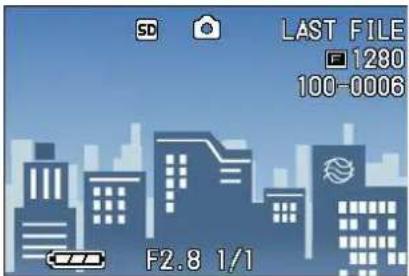
2. Press the ☐ (Thumbnail Display) button.
The screen is split into six sections. Still images and movies (the first frame) are displayed in a reduced size.
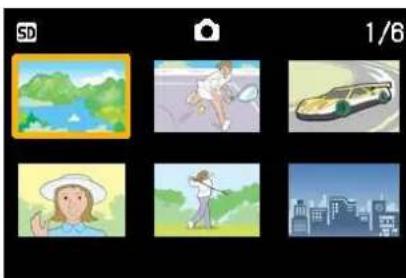
natural_image
Six-panel image grid showing a person in a hat, a girl in a hat, a car on a road, and two others in a cityscape (no text or symbols)- Press the ▲▼◀▶ buttons to select the still image or movie you want to display.
- Press the Q (Enlarged View) button.
The still image or movie you selected is displayed.

Note
In Thumbnail Display mode, text files are displayed in blue.

Reference
- For how to select and delete still images in the Thumbnail Display screen, see P.95.
- For how to select and protect (protect against deletion) still images in the Thumbnail Display screen, see P.112.
- For how to select still images and make Print Service settings in the Thumbnail Display screen, see P.108.

Terms
Thumbnail Display
A thumbnail display is a reduced display. This is a method commonly used for displaying many images at a glance.
Enlarged Viewing
When you are displaying a still image, if you press the Q (Enlarged View) button, you can display the still image up to 3.4 times larger.
To view still images in Enlarged Display Mode, follow the steps below.
1. Turn the Mode Dial to ▶ (Playback Mode).
The last still image taken is displayed.
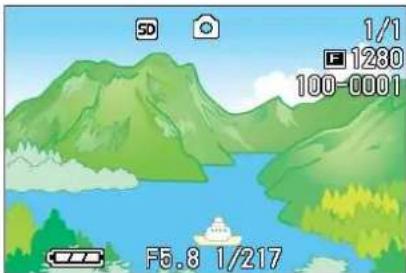
natural_image
Illustration of a mountain landscape with a lake and boats, no readable text or symbols present.- Display the still image you want to enlarge.
- Press the Q (Enlarged View) button.
The still image is enlarged. One part of the still image is displayed on the LCD Monitor.
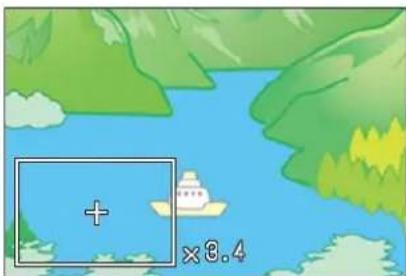
natural_image
Illustration of a river scene with green hills, a boat, and a plus sign (no readable text or symbols)Press the ▲▼◀▶ buttons to move to the part you want to display.
Press the ☑ (Thumbnail display) button to display the reduced view.
Each time the Q (Enlarged display) or ☑ (Thumbnail display) button is pressed, the display magnification changes.
To return to the original display, press the OK button.

Note
Movies cannot be displayed enlarged.

Reference
For how to display still images, see P.86.
Viewing an S Multi-Shot or M Multi-Shot Still Image in Enlarged Display Mode
When S Multi-Shot or M Multi-Shot still images (16 images in a file) are displayed, one (shot) of the 16 images can be displayed in Enlarged Display Mode. After enlarged display, the display can be fed one shot at a time.
4
To view a shot from S Multi-Shot or M Multi-Shot still images in Enlarged Display Mode, follow the steps below.
- Turn the Mode Dial to ▶ (Playback Mode).
The last still image is displayed.
- Display an S Multi-Shot or M Multi-Shot still image.
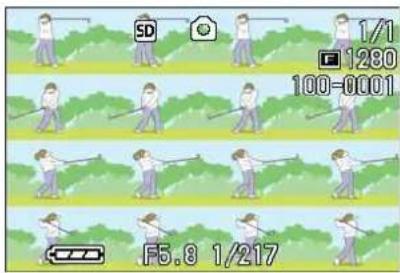
- Press the Q (Enlarged Display) button.
The first step of consecutive images is displayed in Enlarged Display Mode. The shot position bar appears at the lower part of the LCD monitor.
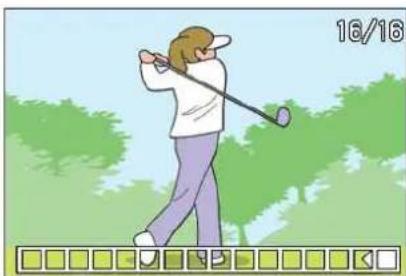
natural_image
Illustration of a person playing golf outdoors, wearing a white shirt and purple pants, with green foliage in the background (no text or symbols)Press the ◀▶ buttons to feed the shot.
To return to the 16-shot display, press the OK button.

Note
Press the DISP. button to turn on or off the bar display at the lower part of the LCD monitor.

Reference
For how to shoot images in S Multi-Shot or M Multi-Shot mode, see P.43.
Showing Photos in Order Automatically (SLIDE SHOW)
You can show the recorded still images, movies, and sound files sequentially on the LCD Monitor. This function is called a slide show.
To view a slide show, follow the steps below.
- Turn the Mode Dial to ▶ (Playback Mode).
The last still image taken is displayed.
- Press the MENU button.
The Playback menu is displayed.
- Confirm you are selecting [SLIDE SHOW] and then press the OK button.
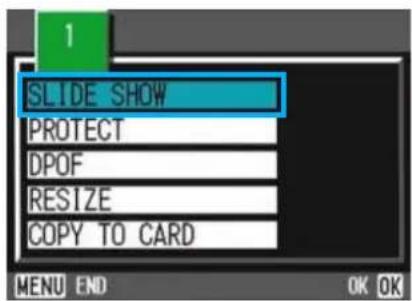
The slide show starts and files are played back in order.
If you want to stop the slide show in progress, press any button on the camera.
Until stopped, the slide show will repeat itself.

Note
- Still images are displayed for 3 seconds each.
- For movies, not just one frame, but the entire movie you shot is displayed.
• Sound files are also played back.
Viewing on a Television
You can also view the still images and movies you have taken on a TV screen. The camera displays everything on the TV screen just as on its LCD Monitor.
To use your television for viewing, connect your camera to the television with the AV cable that came with your camera.
To view still images and/or movies on a television, follow the steps below.
4
- Securely connect the AV cable to the Video In terminal on the television.
Connect the white plug of the AV cable to the audio input terminal (white) of the TV unit and the yellow plug to the video input terminal (yellow).
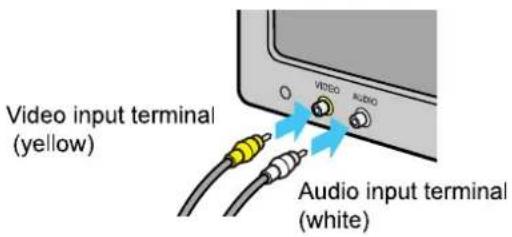
- Make sure the power is off.
- Securely connect the AV cable to the Video Out terminal.
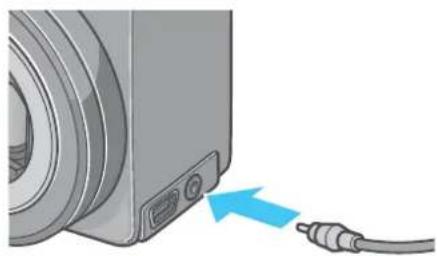
natural_image
Close-up of a camera module with a blue arrow pointing to its cable (no text or symbols visible)- Set the television to "Video" mode. (Set the input to "Video".)
For details, please refer to the operation manual for the television.
-
Turn the camera's Mode Dial to ▶ (Playback Mode).
-
Turn your camera on by pressing the power button.

Note
- If you connect the AV cable to your video recorder's In terminal, you can record what you have shot onto a video tape.
- Your camera is set to NTSC playback format (used in Japan and other countries) for use with television equipment, etc. If the equipment you want to connect to uses PAL format (used in Europe and elsewhere), then switch your camera to PAL format in the Setup Menu before connecting.
- Connecting the AV cable to the camera turns off the LCD monitor display and the speaker output.
Deleting Unwanted Still Images/Movies/Sounds
You can easily delete still images, movies, and sounds that have not come out right.
The following are the three ways to delete photos:
• One shot at a time
- All frames at once
- Select multiple frames to delete together
Still images and movies set to Protect cannot be deleted.

Note
When an SD memory card is not inserted, the camera deletes still images, movies, or sounds from the internal memory; when an SD memory card is inserted, it deletes them from the memory card.
| When no SD memory card is loaded | When an SD memory card is loaded |
Deletes from internal memory | Deletes from the SD memory card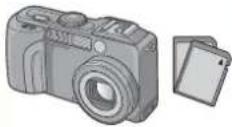 |
Deleting One Still Image
To delete a still image, movie, or sound, follow the steps below.
- Turn the Mode Dial to ▶ (Playback Mode).
The last still image taken is displayed. - Display the still image, movie, or sound you want to delete.
-
Press the ☑(Delete) button.
-
Press the ▶ button to select [DELETE ONE].
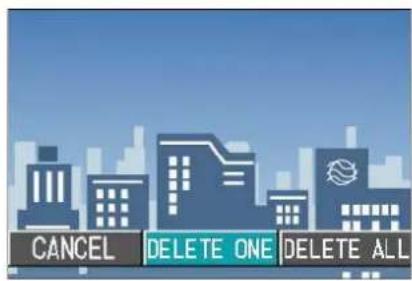
- Press the OK button.
The display indicates deletion is in progress; once finished, playback screen returns.

Reference
- For how to delete a still image displayed with the Ⓗ (Quick Review) button, see P.85
- For how to display still images (or movies), see P.86.
• For how to playback sounds, see P.88. - For how to protect still images (or movies or sounds), see P.104.
Deleting All Frames at Once
To delete all still images, movies, or sounds follow the steps below.
- Turn the Mode Dial to ▶ (Playback Mode).
The last still image taken is displayed.
- Press the ☑ (Delete) button.
- Press the ▶ button to select [DELETE ALL] and press the OK button.
A screen appears to confirm the deletion.
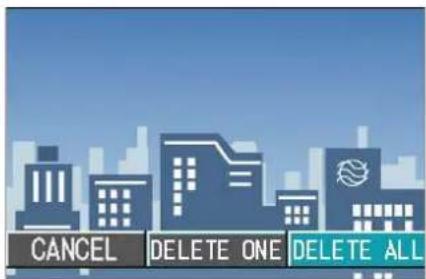
- Press the ▶ button to select [YES].
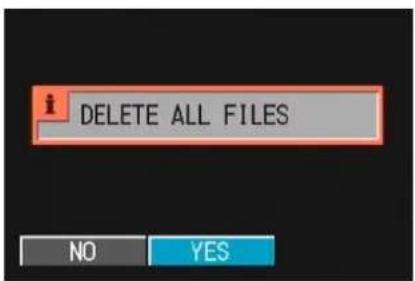
4
- Press the OK button.
The display indicates deletion is in process; once finished, the playback screen returns.

Reference
- For how to display still images (or movies), see P.86.
• For how to playback sounds, see P.88 - For how to protect still images (or movies), see P.104.
Deleting Multiple Frames at Once
To delete selected still images, movies, or sounds all at once, follow the steps below.
- Turn the Mode Dial to ▶ (Playback Mode).
The last still image taken is displayed.
- Press the ☐ (Thumbnail Display) button.
The screen is split into six sections. Still images, movies (the first frame), and sounds are displayed in a reduced size.
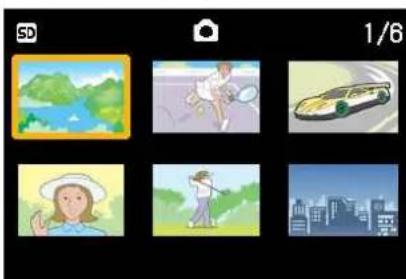
natural_image
Six-panel image grid showing a scenic landscape, a person playing tennis, a car with speedometer, a woman holding a plant, and a city skyline (no text or symbols)-
Press the▲▼◀▶ buttons to select the still images, movies, or sounds you want to delete.
-
Press the ☑ (Delete) button.
The trash symbol appears in the upper left of the still image, movie, or sound.j
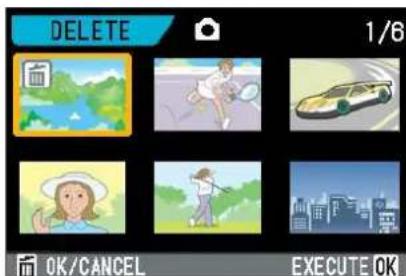
- Repeat Steps 3 and 4 to select all the still images, movies, and sounds you wish to delete.
If you selected an image by mistake, you can deselect it by selecting the image and pressing the ☑(Delete) button again.
- Press the OK button.
A screen appears to confirm the deletion.
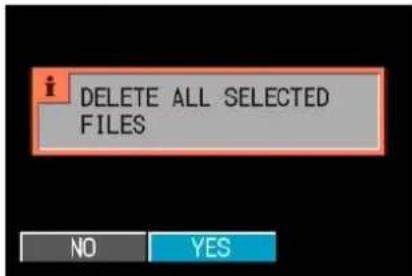
-
Press the ▶ button to select [YES].
-
Press the OK button.
The display indicates deletion is in progress; once finished, the Thumbnail Display screen returns.

Reference
For details on thumbnail display, see P.90.
Section 5 Direct Printing

Note
PictBridge is a registered trademark.
About the Direct Print Function
The Direct Print standard enables direct printing from a camera to a printer, by connecting them via a USB cable. Photos can be printed quickly and easily from your digital camera without using a computer.

Important
You cannot print movies (.AVI) with this function. For still images with sounds (.JPG and .WAV), only the still images (.JPG) are printed.

Note
- This camera uses PictBridge, an industry standard for Direct Printing.
- Your printer must be PictBridge compliant to use the Direct Print function. For support information, see the documentation that came with the printer.
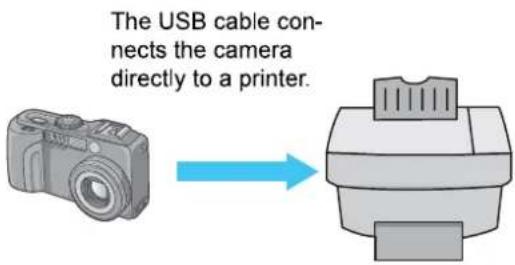
Sending Images to a Printer for Printing
You can send images from the camera to a PictBridge compliant printer to print them. Images are sent from the internal memory when no SD memory card is loaded or from an SD memory card when one is installed.
The following three kinds of direct printing are supported:
- Printing one image (P.99)
- Printing all images from the camera (P.100)
- Printing several selected images (P.101)
When printing multiple images, you can print any of them as many times as specified on one sheet.
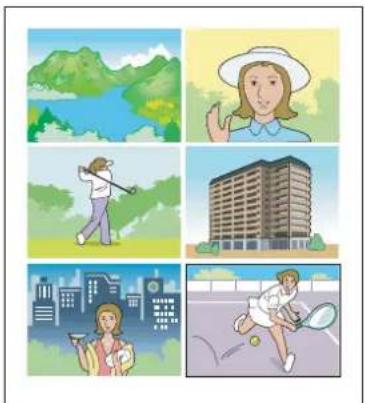
natural_image
Six-panel illustration showing a girl in casual attire, a golfing, a high-rise building, a woman holding a phone, and a tennis racket on a track (no text or symbols)
Important
Do not disconnect the USB cable during printing.

Note
If a printer error message appears during transmission, check the condition of the printer, and take the appropriate action.
Connecting the Camera to a Printer
Connect your camera to a printer using the USB cable provided.
- Check that the camera's power is off.
- Check that the printer's power is off.
Load paper into the printer and check that the printer is ready to print. - Connect one end of the USB cable provided to the USB port of your printer.
- Connect the other end of the USB cable to the USB terminal on your camera.
- Turn the printer's power on.

Note
To disconnect the camera from the printer, check that the power of both units is off before disconnecting the USB cable between them.
Printing One Image
- Check that the printer is ready for printing.
The "Connecting" screen appears.
- Press the ADJ. button.
The "Connecting" screen appears. When the connection between the printer and the camera is established, the Direct Print playback mode screen appears.
For some printers, the "Connecting" screen automatically appears before you press the ADJ. button.
The LCD monitor displays the last image you shot.
-
Press the ◀▶ buttons to select an image for printing.
-
Press the ADJ. button.
- Make sure that [1 FILE] is selected, and then press the OK button.
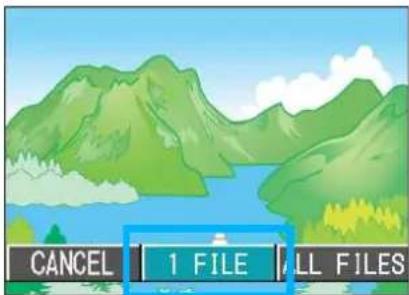
The Direct Print menu appears.
- Press the ▲▼ buttons to select an item, and then press the ▶ button to display the detailed options screen.
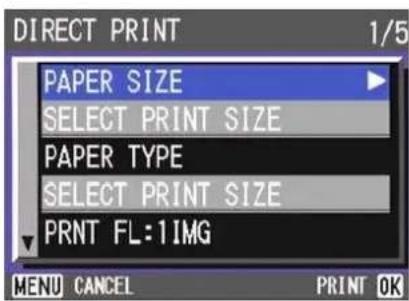
The following items are available:
| Item Name | Function |
| PAPER SIZE | Sets the paper size. |
| PAPER TYPE | Sets the paper type. |
| LAYOUT | Sets the number of images printed on a sheet of paper. |
| DATE PRINT | Selects whether to print the date (shooting date). The date format can be set using the date/time option in the Setup Mode. |
| FILE NAME PRINT | Selects whether to print the file name. |
| OPTIMIZE IMAGE | Selects whether to optimize the image data prior to printing on the printer. |

Note
- The items available vary depending on the functions of the printer.
- If there are no options available for an item, the detailed options screen does not appear even if you press the ▶ button. Also, items that are not available on the printer do not appear.
- To print images using the printer's default settings, select Printer Setting on the detailed options screen.
7. Press the OK button.
The display returns to the Direct Print menu.
8. Press the OK button.
The image is sent to the printer and the "Connecting" screen appears.
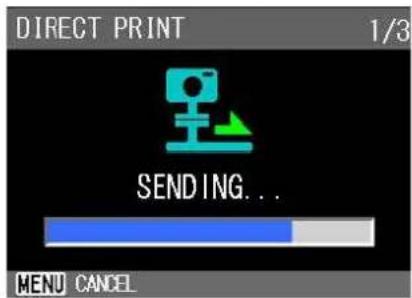
Press the MENU button to cancel.
At the end of transmission, the display returns to the Direct Print playback mode screen and printing starts.
Printing All Images
- Check that the printer is ready for printing.
The "Connecting" screen appears.
2. Press the ADJ. button.
The "Connecting" screen appears. When the connection between the printer and the camera is established, the Direct Print playback mode screen appears.
For some printers, the "Connecting" screen automatically appears before you press the ADJ. button.
The LCD monitor displays the last image you shot.
3. Press the ADJ. button.
4. Press the ▶ button to select [ALL FILES].
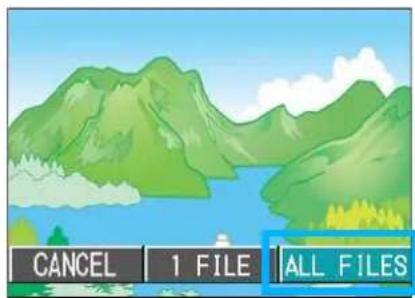
5. Press the OK button.
The Direct Print menu appears.
6. Press the ▲▼ buttons to select an item, and then press the ▶ button to display the detailed options screen.
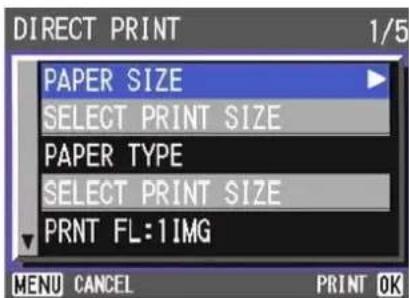
The following items are available:
| Item Name | Function |
| PAPER SIZE | Sets the paper size. |
| PAPER TYPE | Sets the paper type. |
| LAYOUT | Sets the number of images printed on a sheet of paper. |
| DATE PRINT | Selects whether to print the date (shooting date). The date format can be set using the date/time option in the Setup Mode. |
| FILE NAME PRINT | Selects whether to print the file name. |
| OPTIMIZE IMAGE | Selects whether to optimize the image data prior to printing on the printer. |

Note
- The items available vary depending on the functions of the printer.
- If there are no options available for an item, the detailed options screen does not appear even if you press the ▶ button. Also, items that are not available on the printer do not appear.
- To print images using the printer's default settings, select Printer Setting on the detailed options screen.
7. Press the OK button.
The display returns to the Direct Print menu.
8. Repeat steps 6 and 7 to change the settings as required.
9. Press the OK button.
All images are sent to the printer and the "Sending" screen appears.
Press the MENU button to cancel.
Upon completion of the transmission of the images for a page, printing starts.
When all the images have been sent from the camera to the printer, the camera display returns to the Direct Print playback mode screen.
Printing Several Images
1. Check that the printer is ready for printing.
The "Connecting" screen appears.
2. Press the ADJ. button.
The "Connecting" screen appears. When the connection between the printer and the camera is established, the Direct Print playback mode screen appears.
For some printers, the "Connecting" screen automatically appears before you press the ADJ. button.
The LCD monitor displays the last image you shot.
3. Press the ☐ (Thumbnail Display) button.
The screen is split into six sections and each image is displayed at a reduced size.
4. Press the ▲▼◀▶ buttons to select an image for printing.
5. Press the OK button.
A printer mark appears at the upper right of the image.
6. Press the ▲▼ buttons to set the number of copies to print.
Press the ▲ button to increase the number, or the ▼ button to decrease it.
7. Press the ◀▶ buttons to select an image to be printed.
8. Press the ▲▼ buttons to set the number of copies to print.
9. Repeat steps 7 and 8 to select all the images to be printed and the number of copies for each.
10. Press the MENU button.
The Direct Print menu appears.
11. Press the ▲▼ buttons to select an item, and then press the ▶ button to display the detailed options screen.
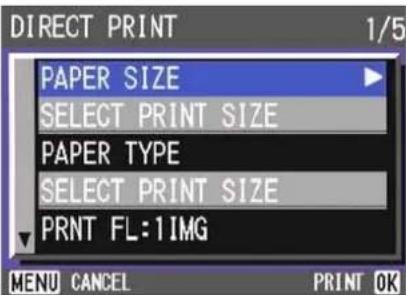
The following items are available:
| Item Name | Function |
| PAPER SIZE | Sets the paper size. |
| PAPER TYPE | Sets the paper type. |
| LAYOUT | Sets the number of images printed on a sheet of paper. |
| DATE PRINT | Selects whether to print the date (shooting date). The date format can be set using the date/time option in the Setup Mode. |
| FILE NAME PRINT | Selects whether to print the file name. |
| OPTIMIZE IMAGE | Selects whether to optimize the image data prior to printing on the printer. |

Note
- The items available vary depending on the functions of the printer.
- If there are no options available for an item, the detailed options screen does not appear even if you press the ▶ button. Also, items that are not available on the printer do not appear.
- To print images using the printer's default settings, select Printer Setting on the detailed options screen.
12. Press the OK button.
The display returns to the Direct Print menu.
13. Repeat steps 10, 11 and 12 to change the settings as required.
14. Press the OK button.
The selected images are sent to the printer and the "Connecting" screen appears.
Press the MENU button to cancel the operation.
Upon completion of transmission of images for a page, printing starts.
When all the selected images have been sent from the camera to the printer, the camera display returns to the Direct Print playback mode screen.
Section 6 About Other Functions
The camera has functions to protect still images and movies from being inadvertently deleted, to copy images and movies from the internal memory onto a memory card, and to set still images for a Print Service.
These management functions are explained here.
Write-protecting Your Images (PROTECT)
You can protect still images from being accidentally deleted.
There are 3 methods of making Protect settings:
• One shot at a time
- All frames at once
- Select multiple frames to protect together

Important
Protected still images, movies, and sounds cannot be deleted normally. However, they will be deleted completely if you format the memory where the files are stored.
Protecting the Displayed Still Image
To protect a still image, movie, or sound, follow the steps below.
- Turn the Mode Dial to ▶ (Playback Mode).
The last still image taken is displayed. - Display the still image, movie, or sound you want to protect.
- Press the MENU button.
The Playback menu is displayed.
- Press ▼ button to select [PROTECT] and then press the OK button.
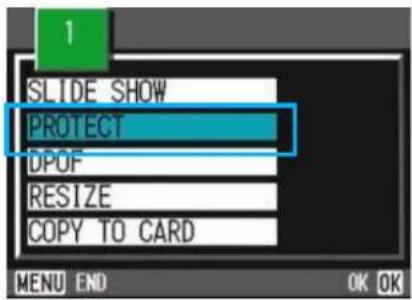
- Make sure that [1 FILE] is selected, and then press the OK button.
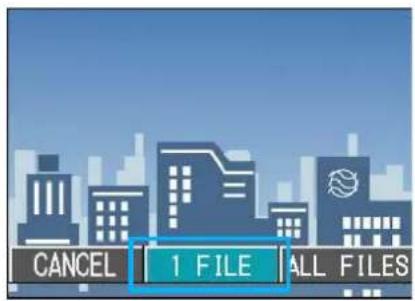
When set to Protect, the Protect symbol appears in the upper-left corner of the screen.
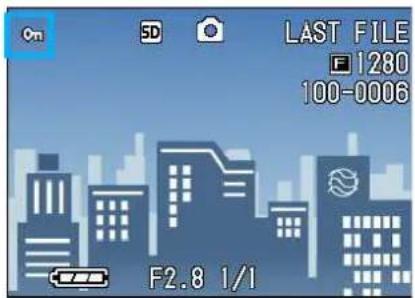

Note
The procedure for releasing protection from one file at a time is the same as that for setting protection.
Protecting All Still Images
To protect all your still images, movies, or sounds, follow the steps below.
- Turn the Mode Dial to ▶ (Playback Mode).
- Press the MENU button.
The Playback menu is displayed.
- Press the ▼ button to select [PROTECT] and then press the OK button.
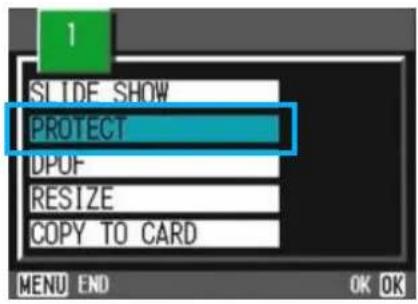
- Press the ▶ button to select [ALL FILES].
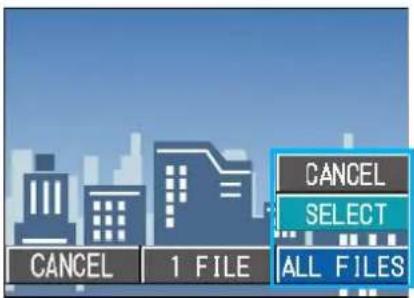
- Confirm you are choosing [SELECT] and then press OK.
When set to Protect, the Protect symbol appears in the upper-left corner of the screen.
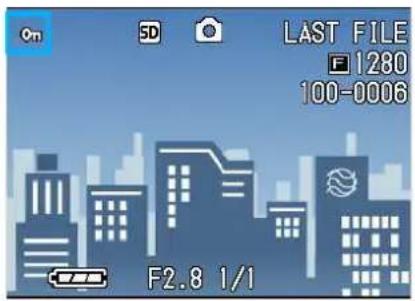

Note
- To remove protection from all your still images, movies, or sounds, select [CANCEL] in step 5.
- You can remove protection from all or multiple images, movies, or sounds at once.
Protecting Multiple Still Images, Movies, or Sounds at Once
To protect selected still images, movies, or sounds all at once, follow the steps below.
- Turn the Mode Dial to ▶ (Playback Mode).
- Press the ☐ (Thumbnail Display) button.
The screen is split into six sections and thumbnail images are displayed in a reduced size.
-
Press the ▲▼◀▶buttons to select the still image, movie, or sound you want to display.
-
Press the MENU button.
The Playback menu appears.
- Press the ▼ button to select [PROTECT] and then press the OK button.
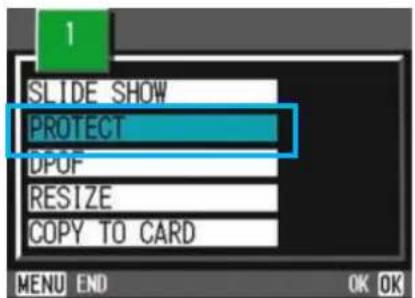
- Press the ▲▼◀▶ buttons to select the still image, movie, or sound you wish to protect and press the OK button.
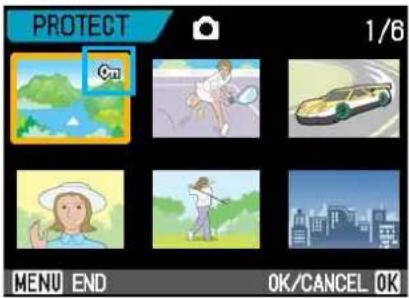
The Protect symbol appears in the upper-right corner of the first still image, movie, or sound.
- Repeat Step 6 to select all the still images, movies, and sounds you wish to protect.
If you selected an image by mistake, you can deselect by selecting the image and pressing the OK button again.
- Press the MENU button.
A message appears indicating that the images are being protected. When protection is complete, the display returns to the Thumbnail Display screen.

Note
To remove protection from multiple still images, movies, or sounds, follow the same steps described above to select them and remove protection.

Reference
For details on thumbnail display, see P.90.
Copying the Contents of Internal Memory to a Memory Card (COPY TO CARD)
You can copy all the movie, still image, and sound data stored in internal memory onto an SD Memory Card at once.
To copy still images, movies, and sounds from internal memory to SD Memory Card, follow the steps below.
- Turn your camera off by pressing the power button.
- Insert the SD Memory Card.
- Turn the camera on.
- Turn the Mode Dial to ▶ (Playback Mode).
- Press the MENU button.
The Playback menu appears. - Press the ▼ button to select [COPY TO CARD].
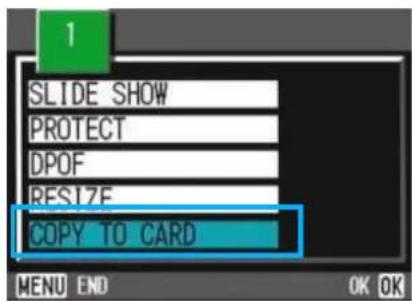
- Press the OK button.
The display indicates copying is in progress; once finished, the playback screen returns.

Note
- If the capacity of the SD Memory Card you are copying to is insufficient, a message will be displayed indicating there is not enough capacity. To copy only the number of shots that will fit into the available capacity, select [YES] and then press the OK button. To cancel copying, select [NO] and then press the [OK] button.
- It is not possible to copy from a Memory Card to internal memory.

Reference
For how to load an SD memory card, see P.18.
Using a Printing Service (DPOF: Dee-Pof)
The still images recorded on an SD Memory Card can be printed out if you take them to a shop that offers a digital camera print service.
To use a print service, it is necessary to make settings required for printing. These settings are called DPOF (Dee-Pof) settings.
There are three methods of making DPOF settings:
- Set one shot at a time
- Set for All Still Images
- Select multiple shots to set together
The DPOF setting specifies one print per still image. However, if multiple images are selected for batch setting, you can specify the number of copies to print.
Setting DPOF for the Still Image Displayed
To make DPOF settings for one still image, follow the steps below.
- Turn the Mode Dial to ▶ (Playback Mode).
- Display the still image you want to specify.
- Press the MENU button.
The Playback menu is displayed.
- Press ▼ button to select [DPOF] and then press the OK button.
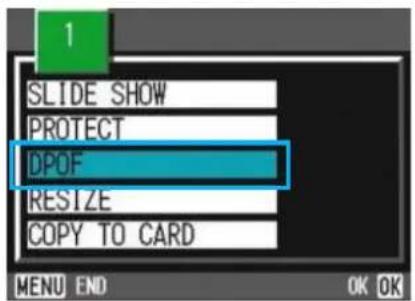
- Make sure that [1 FILE] is selected, and then press the OK button.
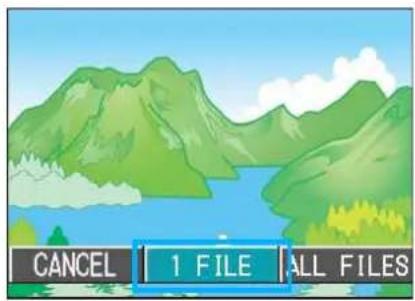
Once the DPOF setting is made, the DPOF symbol appears in the upper-left portion of the screen.
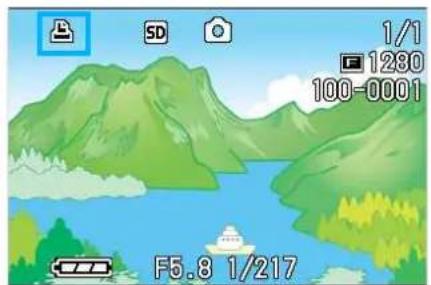
natural_image
Illustration of a lakeside landscape with green hills, clouds, and a small boat on water (no text or symbols)
Note
Removing the DPOF setting for one photo at a time is done in the same way as setting it.
Setting DPOF for a Still Images
To apply DPOF settings to all your still images, follow the steps below.
-
Turn the Mode Dial to ▶ (Playback Mode).
-
Press the MENU button.
The Playback menu appears.
- Press ▼ button to select [DPOF] and press the OK button.
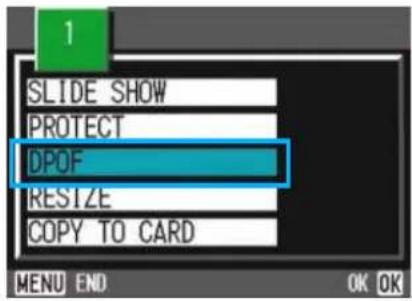
- Press the ▶ button to select [ALL FILES].
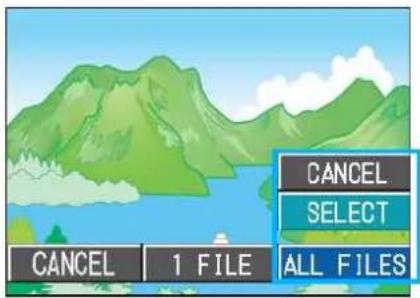
- Confirm that you have chosen [SELECT], and then press the OK button.
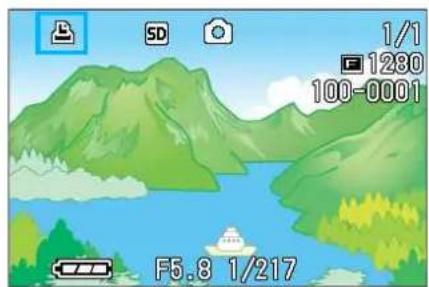
natural_image
Illustration of a lakeside landscape with mountains, trees, and a small boat (no text or symbols)Once the DPOF setting is made, the DPOF symbol appears in the upper-left portion of the screen.

Note
- To remove the DPOF setting from all your still images, select [CANCEL] in step 5.
- You can remove all or multiple still image DPOF settings at once.
Setting DPOF for Multiple Still Images
To make the DPOF setting for selected still images all at once, follow the steps below.
- Turn the Mode Dial to ▶ (Playback Mode).
- Press the ☐ (Thumbnail Display) button.
The screen is split into six sections with the still images displayed at a reduced size.
- Press the ▲▼◀▶ buttons to select the first still image for which you wish to make the DPOF setting.
- Press the MENU button.
The Playback menu appears.
- Press the ▼ button to select [DPOF] and then press the OK button.
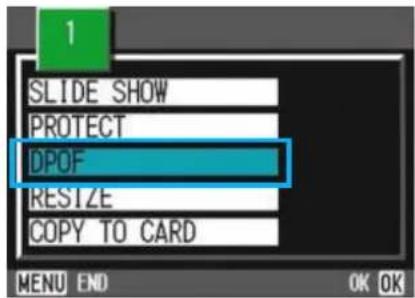
- Press the ▲▼ buttons to set the number of copies to print.
Press the ▲ button to increase the number, or the ▼ button to decrease it.
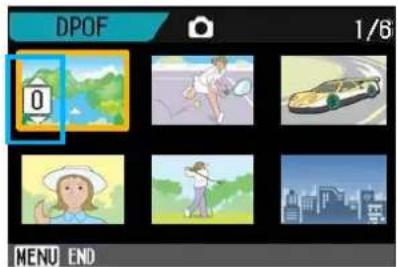
- Press the ◀▶ buttons to select the next still image for which you wish to make the DPOF setting.
- Press the ▲▼ buttons to set the number of copies to print.
Press the ▲ button to increase the number, or the ▼ button to decrease it.
- Repeat Steps 7 and 8 to select all the still images for which you wish to make the DPOF setting.
If you selected an image by mistake, you can deselect it by selecting the image and pressing the OK button again.
- Press the MENU button.
The display indicates that the selected images are being processed; once finished, the display returns to the Thumbnail Display screen.
Changing the Image Size (RESIZE)
You can reduce the image size of a shot still image to additionally create a file of a different image size.
The selectable image sizes are 640 x 480 and 1280 x 960 in Normal Mode.

Important
You can resize only still images and still images with voice memos. Movies cannot be resized.

Note
The following types of resizing are possible:
| Original | Resized | |
| F2592/N2591/F2048/N2048 | N1280 | N640 |
| F1280/N1280 | - | N640 |
To change the image size, follow the steps below.
- Turn the Mode Dial to ▶ (Playback Mode).
- Press the MENU button.
The Playback menu appears.
- Press the ▼ button to select [Resize], and then press the OK button.
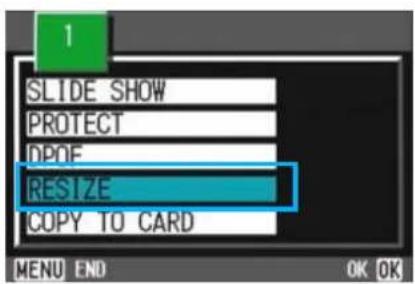
- Press the ▶ button to select [1280] or [640].
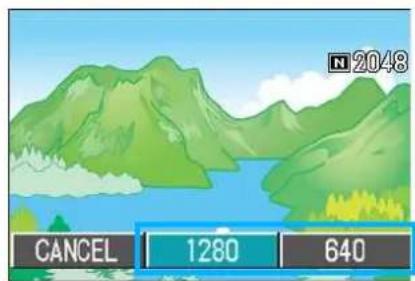
- Press the OK button.
The image size is changed and the resized still image is displayed.
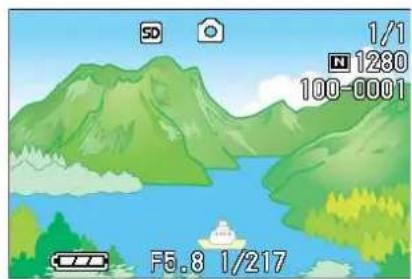
natural_image
Illustration of a mountain landscape with a river, trees, and a boat (no text or symbols)
Reference
For how to change the image size at shooting, see P.70.
Section 7 Changing Camera Settings
This section explains how to make changes to the camera's settings.
Getting the SD Memory Card Ready for Use (CARD FORMAT)
If an error message "This card cannot be used." is displayed, or if you have formatted a card with a computer or some other device, it will be necessary to format the SD Memory Card prior to use.

Important
If you format a card that still has images stored on it, the images will be lost.

Reference
For how to format internal memory, see P.113.
To format an SD memory card, follow the steps below.
- Turn the Mode Dial to SETUP (Setup Mode).
The Setup Screen appears.
- Select [CARD FORMAT] and then press the OK button.
A screen appears to confirm formatting.
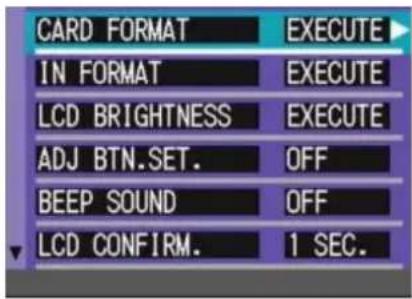
- Press the ▶ button to select [YES] and then press the OK button.
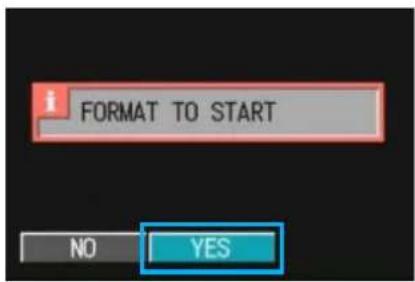
Formatting starts. When it finishes the SETUP screen returns.
If an SD Memory Card is not loaded, a message will be displayed. After turning the power off, load an SD Memory Card and repeat the formatting process again.
Write-protecting Your Images
If you move the card's write-protection switch to LOCK, your still images cannot be accidentally erased and the card cannot be formatted. If you return the switch to the former position, it is once again possible to erase images and format the card.

Terms
Formatting
Formatting is the process of preparing a card so image data can be written on it. This is also called initialization.
Formatting Internal Memory (IN FORMAT)
If an error message "Format the internal memory" is displayed, it will be necessary to format the internal memory prior to use.

Important
Formatting the internal memory erases all of the images recorded in the memory.
To format an SD Memory card, follow the steps below.
- Turn the Mode Dial to SETUP (Setup Mode).
The Setup Screen appears.
- Select [IN FORMAT] and then press the OK button.
A screen appears to confirm formatting.
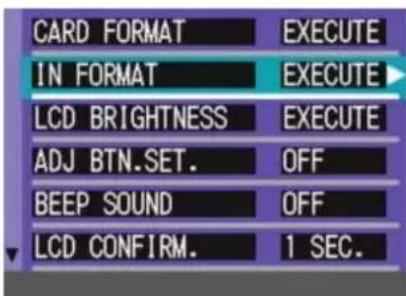
- Press the ▶ button to select [YES] and press the OK button.
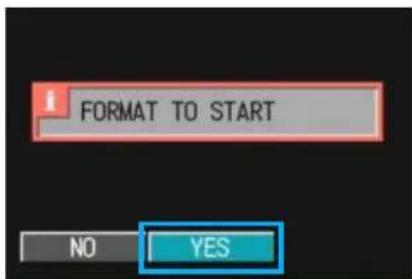
Formatting starts. When it finishes, the SETUP screen returns.
Adjusting the Brightness of the LCD Monitor (LCD BRIGHTNESS)
To adjust the brightness of the LCD Monitor, follow the steps below.
- Turn the Mode Dial to SETUP (Setup Mode).
The Setup Screen appears.
- Press the ▼ button to select [LCD BRIGHTNESS].
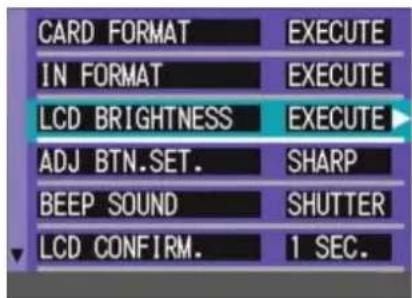
- Press the OK button.
The LCD Brightness Adjustment bar appears.
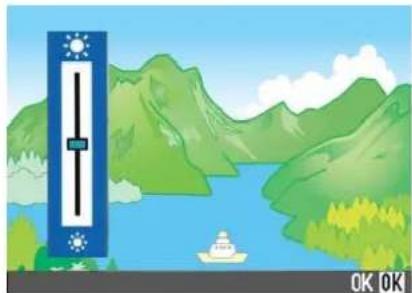
natural_image
Illustration of a scenic landscape with mountains, a lake, and a vertical scale bar (no text or symbols)- Press the ▲▼ buttons to adjust the brightness.
Moving it to the * side makes it darker. Moving it to the * side makes it brighter. The brightness of the screen behind the bar changes as you alter the setting.
- When you attain the desired brightness, press the OK button.
The SETUP screen returns.
This setting will be used until you change it.
Setting a Function to the ADJ. Button (ADJ BTN.SET.)
Each time the ADJ. button is pressed, the camera displays the setting screen in the order of exposure, white balance, and ISO sensitivity.
Possible Settings
| OFF (Set at purchase) |
| AF/MF (FOCUS) |
| SHARP (SHARPNESS) |
By using the [Set ADJ. Button] option, you can set a function to be activated when the ADJ. button is pressed the fourth time.
- Turn the Mode Dial to SETUP (Setup Mode).
The Setup Screen appears.
- Press the ▼ button to select [ADJ BTN.SET.].
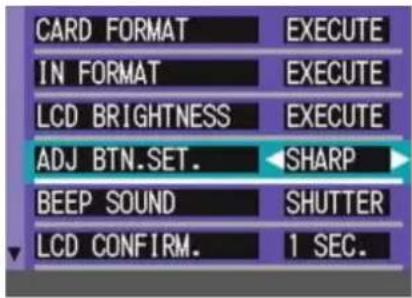
- Press the ◀▶ buttons to select the desired setting.
Connecting the AV cable to the camera turns off the LCD monitor display.

Note
If a function is set with [Set ADJ. Button], the AF target shift function (P.48) available from the ADJ. button at Macro shooting is activated when the ADJ. button is pressed the fifth time.

Reference
• Using the ADJ. (Adjust) Button (P.59)
- Choosing Picture Quality Mode/Image Size (PIC QUALITY/SIZE) (P.70)
• Manual Focus Shooting (FOCUS) (P.73)
- Changing the Edge Quality of Still Images (SHARPNESS) (P.76)
- Changing the Light Metering (PHOTOMETRY) (P.75)
Changing the Operation Sound Setting (BEEP SOUND)
During operation, the camera generates four types of sounds: start sound, shutter release sound, focus sound, and beep sound.
| Start sound | : Sound when the camera power is turned on. |
| Shutter release sound | : When the shutter release button is pressed, the camera generates the shutter sound ('click' sound for still image shooting and 'blip' sound for SCONT/ MCONT shooting). |
| Focus sound | : When the focus is set, the camera generates the focus sound (blip-blip). |
| Beep sound | : If an impossible operation is attempted, the camera generates the beep sound (blip-blip-blip-blip-blip). |
You can change the setting to mute these operation sounds.
Possible Settings
| SHUTTER (Shutter and beep sounds only) |
| ON (all sounds on) *Initial setting at purchase |
| OFF (all sounds off) |
To change the setting of operation sound, follow the steps below.
- Turn the Mode Dial to SETUP (Setup Mode).
The Setup Screen appears.
- Press the ▼ button to select [BEEP SOUND].
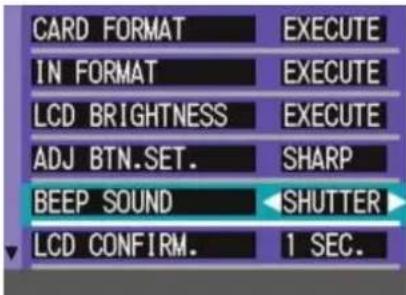
- Press the ◀▶ buttons to select the desired setting.
This setting will be used until you change it.
Changing Image Confirmation Time (LCD CONFIRM.)
Immediately after pressing the shutter button, the still image taken is displayed for a moment so you can check it.
At purchase, Confirmation Time is set to one second, but this can be changed.
Possible Settings
| OFF (Photo not displayed for confirmation) |
| 1 Second (Default) |
| 2 Seconds |
| 3 Seconds |
To change Confirmation Time, follow the steps below.
- Turn the Mode Dial to SETUP (Setup Mode).
The Setup Screen appears.
- Press the ▼ button to select [LCD CONFIRM].
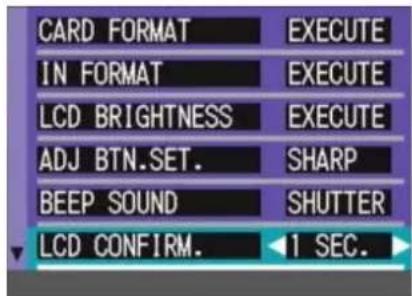
- Press the ◀▶ buttons to select the desired setting.
This setting will be used for shooting until you change it.
Changing Auto Power-Off Settings (AUTO POWER OFF)
If you do not operate the camera for the set period of time, it will shut off automatically (Auto Power-off) to conserve battery power.
At the time of purchase, Auto Power-Off is set to one minute, but you can change this setting.
Possible Settings
| OFF (The Auto Power-Off function does not work) |
| 1 Minute (Default) |
| 5 Minutes |
| 30 Minutes |
To change the Auto Power-Off setting, follow the steps below.
- Turn the Mode Dial to SETUP (Setup Mode).
The Setup Screen appears.
- Press the ▼ button to select [AUTO POWER OFF].
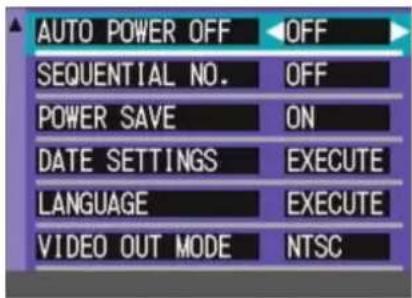
- Press the ◀▶ buttons to select the desired setting.
This setting will be used until you change it.

Note
- When Auto Power-Off turns off the camera, just press the power button again to turn it on and resume use.
- The Auto Power-off function does not work when the camera is connected to a computer.
- When shooting with Interval Shooting, settings made here are not valid and Auto Power-Off does not work.
Changing File Name Settings (SEQUENTIAL NO.)
When you shoot a still image, it is stored on an SD Memory Card or in internal memory, with a consecutively numbered file name automatically assigned.
When you are switching SD Memory Cards, you can set your camera to continue consecutive numbering from the previously loaded SD Memory Card.
Possible Settings
ON (Continue numbering)
File names will be automatically assigned to still images you take, in the format of "M" followed by 7 digits, from M0010001.jpg to M9999999.jpg.
With this setting, even when one SD Memory Card is switched with another, consecutive file numbering from the previous card is continued.
OFF (Do not continue numbering) (Default)
Every time a new card is loaded, file numbering is assigned, from IMAG0001.jpg to IMAG9999.jpg.
If numbering exceeds IMAG9999, further recording is not possible.
To make changes to file numbering, follow the steps below.
1. Turn the Mode Dial to SETUP (Setup Mode).
The Setup Screen appears.
2. Press the ▼ button to select [SEQUENTIAL NO.].
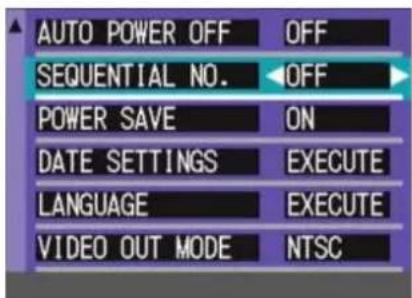
3. Press the ◀▶ buttons to select the desired setting.
This setting will be used for shooting until you change it.

Note
- When you are recording to internal memory, file names are assigned just as when [SEQUENTIAL NO.] is set to [OFF].
- When transferring images to a computer, if a file already exists with the same name in the destination folder, your image is renamed before saving to avoid overwrite problem.
- When transferring images to a computer via DL-10, the files are assigned names like IMAG****.jpg (**** indicates the number of the image), even if "SEQUENTIAL NO." is set to ON.

Terms
Extension
The characters "jpg" following the period in a file name are called the extension and indicate file's type. A type of "jpg" indicates that the file is in JPEG format. The extension is always separated from the file name by a period.
JPEG Files
This is read "Jay-Peg" file. This is one of the file formats used for saving image data. It is widely used when recording still images, its strong point being its small file size.
Changing Power-Save Mode Settings (POWER-SAVE)
You can reduce the power consumption of the LCD Monitor and extend the life of your batteries.
The display on the LCD Monitor will turn off. Press the ☑ (Quick Review) button or the MENU button to turn the LCD Monitor Display on, and then press them again to turn the display off.
Press the ADJ. button to turn the LCD Monitor on for setting. After the end of setting, the display returns to off.
You cannot turn the LCD Monitor Display on/off by pressing the ⚙ (Self-timer) or ⏻ (Macro) button.
At the time of purchase, Power-Save Mode is set to [OFF].
Possible Settings
OFF (Power-Save Mode Inactivated) (Set at purchase)
ON (Activate Power-Save Mode)
To change the Power-Save Mode, follow the steps below.
- Turn the Mode Dial to SETUP (Setup Mode).
The Setup Screen appears.
- Press the ▼ button to select [POWER SAVE].
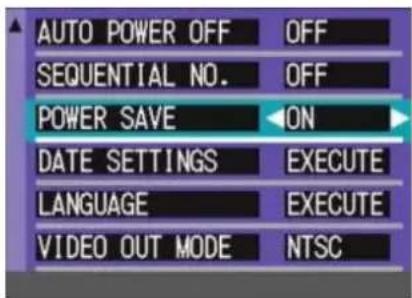
- Press ◀▶ to select the desired setting.
This setting will be used until you change it.

Note
- If the power is turned on or the mode dial is turned in Power-Save mode, a warning appears for about two seconds to indicate Power-Save mode.
- Pressing the 4 (Flash) button allows you to turn the LCD Monitor Display on, and then change the flash setting (see P.52). Press the shutter button or OK button to turn the LCD Monitor Display off.

Important
If you have activated Power-Save mode, power consumption will be reduced, but there are the following limitations.
- Processing time may be slower.
- It works only in Shooting Mode. It does not work in Playback Mode.
Setting the Date and Time (DATE SETTINGS)
You can take still images with the time or date stamped onto the picture.
The date/time setting on the SETUP screen is explained here.
1. Turn the Mode Dial to SETUP (Setup Mode).
The Setup screen is displayed on the LCD Monitor.
2. Press the ▼ button to select [DATE SETTINGS] and then press the OK button.
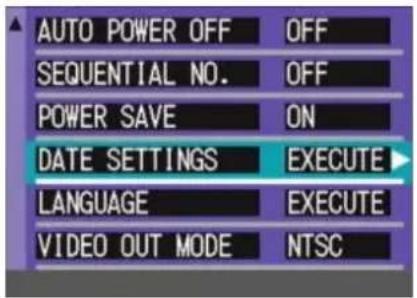
3. Set the year, month, date and time by pressing ▲▼◀▶.
If you hold down the ▲▼buttons, you can quickly increase/decrease the value.
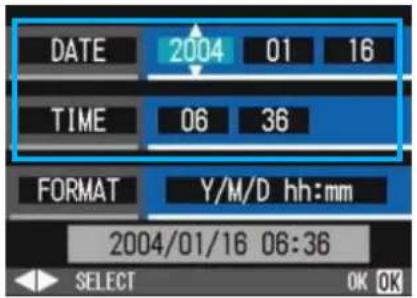
4. In [FORMAT], choose the Date and Time format.
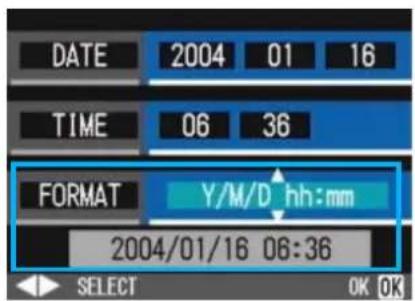
5. Check the display on the bottom of the screen and then press the OK button.
Once you have set the date and time, the display returns to the Setup screen.

Note
If the batteries are removed for more than two weeks, the date and time settings will be lost. These settings must be made again.
Changing the Display Language (LANGUAGE)
You can change the language displayed on the LCD Monitor.
Possible Settings
| 日本語 (Japanese) |
| ENGLISH (English) (Default) |
| DEUTSCH (German) |
| FRANÇAIS (French) |
| ITALIANO (Italian) |
| ESPAÑOL (Spanish) |
| 簡体中文 (Simplified Chinese) |
| 繁体中文 (Traditional Chinese) |
| 한국어 (korean) |
To change the display language, follow the steps below.
- Turn the Mode Dial to SETUP (Setup Mode).
The Setup Screen appears.
- Press the ▼ button to select [LANGUAGE].
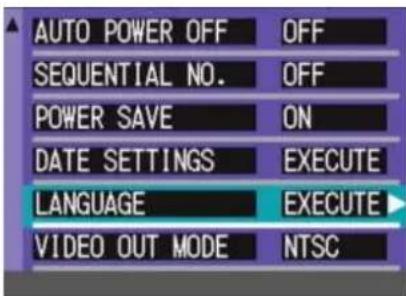
The language selection screen appears.
-
Press the ▲▼◀▶ buttons to select the desired setting.
-
Press the OK button.
This setting will be used until you change it.
Changing the Playback Method for Viewing on TV (VIDEO OUT MODE)
You can view your still images and movies on a television screen by connecting your camera to a television with the AV cable that came with your camera.
Your camera is set to NTSC video format (used in Japan and other countries) for use with television equipment, etc. If the equipment you want to connect to uses PAL format (used in Europe and elsewhere), then switch your camera to PAL format before connecting.
Possible Settings
| NTSC (Default) |
| PAL |
To change the playback format, follow the steps below.
- Turn the Mode Dial to SETUP (Setup Mode).
The Setup Screen appears.
- Press the ▼ button to select [VIDEO OUT MODE].
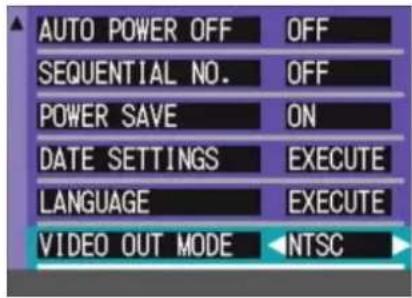
- Press the ◀▶ buttons to select the desired setting.
This setting will be used until you change it.

Note
Connecting the AV cable to the camera turns off the LCD monitor display.

Reference
For how to view still images on your television screen, see P.94.
Changing the setting of step zooming (STEP ZOOM)
The focal length with optical zooming can be fixed to any of four levels (28, 35, 50, and 85 mm as converted equivalent to 35 mm) (Step Zoom).
Possible Settings
OFF (Default)
ON
To set step to use step zooming (ON) or not (OFF), follow the steps below.
- Turn the mode dial to SETUP (SETUP mode).
The Setup screen appears.
- Press the ▼ button to select [STEP ZOOM].
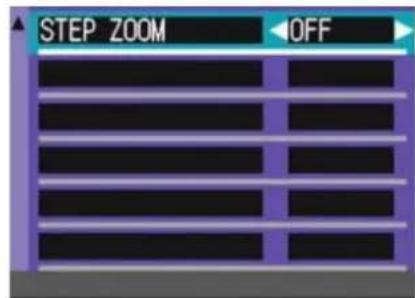
- Press the ◀▶ buttons to select a value.
This setting will be used for shooting until you change it.

Reference
For how to use optical zoom, see P.46.
Chapter 2 Playing Back Images (Pictures/Movies) on a Computer (For Windows)
Section 1 Installing Software
This section explains the process of installing the provided software onto your computer.

Important
Please do not connect your camera to the computer before installing the software for downloading.
If you happened to connect your camera to the computer (resulting in the [Add New Hardware Wizard] screen appearing), simply click [Cancel], and after disconnecting your camera, install the software on your computer.

Note
- For the rest of this explanation, still images and movies will be referred to together as "file".
- When downloading images from your camera, it is recommended you safeguard the power supply by using the AC Adapter (sold separately). The explanations provided here assume that the AC Adapter is being used.
Using the Software Provided
The CD-ROM that comes with your camera contains software for downloading images from the camera to a computer and displaying them on it. The following software is included.
DSC Software
| DL-10 for Windows | Used to download images |
| DU-10x | Used to display images on your computer |
| USB driver | Used for connecting your camera to a computer |
| WIA driver | Used to download images (for Windows XP) |
| List Editor | Used to create a camera memo list |
Optional Software
| Acrobat Reader | Used to browse the contents of the operation manual |
| DirectX | Used to play back movies |
Software and OS Applicability Table
The software that can be used differs according to the OS in use, as indicated in the table below.
| Application Name | Windows XP | Windows 98/98SE/Me/2000 |
| DL-10 for Windows | ○ | ○ |
| DU-10x | ○ | ○ |
| USB driver | ○ | ○ |
| WIA driver | ○ | × |
| List Editor | ○ | ○ |
| Acrobat Reader | ○ | ○ |
System Requirements for Using the Provided Software
The following environments are necessary for using the provided software. Please check your computer, or the computer's user manual.
| Operating Systems Supported | Windows 98/98 Second Edition |
| Windows 2000 Professional | |
| Windows Me | |
| Windows XP Home Edition/Professional | |
| CPU | Pentium 2 or higher |
| Memory | Windows 98/98SE: 32MB or more (96MB or more recommended) |
| Windows 2000: 128MB or more (256MB or more recommended) | |
| Windows Me: 64MB or more (96MB or more recommended) | |
| Windows XP: 128MB or more (256MB or more recommended) | |
| Hard drive space required for installation | Windows 98/98SE: 10MB or more |
| Windows 2000: 10MB or more | |
| Windows Me: 10MB or more | |
| Windows XP: 10MB or more | |
| Display resolution | 640 × 480 pixels or greater (800 × 600 or greater recommended) |
| Display colors | 256 colors or greater (65000 or greater recommended) |
| CD-ROM drive | A CD-ROM drive compatible with the above-mentioned computer body |
| USB port | A USB port compatible with the above-mentioned computer body |

Important
- If your computer has an upgraded OS, the USB function may not work normally, so it cannot be supported.
- Problems may arise due to changes made to the OS, such as through patches or a service package release.
- Connection to a USB port retrofitted using an extended function (PCI bus, etc.) cannot be supported.
- If used in conjunction with a hub or other USB devices, the software may not work properly.
- When dealing with movies and other large files, a larger memory environment is recommended.
Preparing to Download Images to Your Computer
This section shows how to download images to your computer by using the CD-ROM included with the camera.
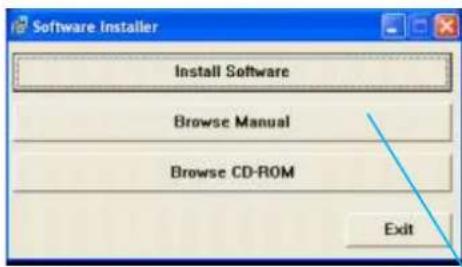
Insert the included CD-ROM into the CD-ROM drive of your computer and the screen shown on the left appears.
The screen shown here is from Windows XP.
You can browse the manual on the CD-ROM by clicking this button.
1 Install the software.
To download your images to the computer, install DSC Software first.
Windows 98/98SE/Me/2000/XP see P.127
Windows XPsee P.129
2 Install the following software products, if necessary:
- Acrobat Reader
- DirectX
Acrobat Reader see P.131
DirectX see P.131
3 Connect the camera to your computer.
see P.134
4 Download images to the computer.
see P.136

Note
• To uninstall the software, see P.128 (or P.130 for Windows XP).
• To load images from an SD memory card directly into the computer, see P.140.
Installation
For Windows 98/98SE/Me/2000
In Windows 2000, only a user with administrative privileges can perform installation.
1. Make sure that your camera is not connected to the computer.
If you have already connected your camera to the computer and the [Found New Hardware Wizard] screen was displayed, click [Cancel], disconnect the cable between the camera and computer, and then continue installation.
2. Start your computer.
3. Insert the CD-ROM in the CD-ROM drive.
The following screen appears automatically.
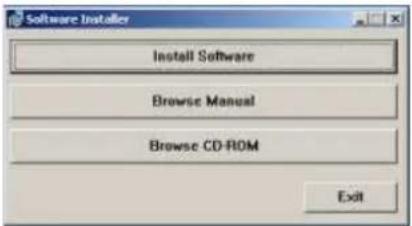
4. Click [Install Software].
5. Select a language and then click [OK].
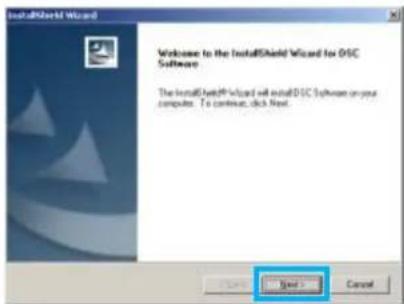
6. Click [Next].
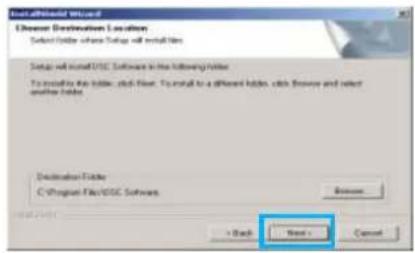
1
7. Confirm where you want to install and then click [Next].
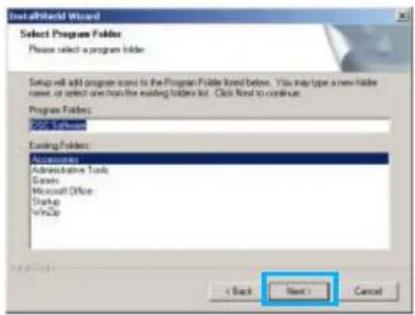
8. Confirm the program folder and then click [Next].
9. Click [OK].
Installation is complete.
![ROLLEI dr5100 - Click [OK]. - 1](/content/2026/03/519020/images/9289a8f138ab85f576514a9fa930149ea16eed237586abcd224baade98ed2a9f.jpg)
Note
- If the screen from step 3 is not displayed automatically, take the following steps.
-
Double-click the [My Computer] icon, and then double-click the CD-ROM drive icon.
-
Double-click the AutoRun file (Auto-run.exe) displayed in the CD-ROM drive window.
- You may need to restart your computer after installation.
Uninstalling the Software (For Windows 98/98SE/Me/2000)
When you want to remove the software, follow the steps below (this operation is called uninstallation).
In Windows 2000, only a user with administrative privileges can uninstall the software.
- Click [Start] on the Windows task bar.
The [Start] menu appears.
- Select [Settings] and then [Control Panel].
The control panel screen appears.
- Double-click the [Add/Remove Programs] icon.

Add/Remove Programs
-
Select [DSC Software] and then click [Change/Remove].
-
A message appears to confirm whether you want to remove the program: click [Yes].
-
The uninstallation process begins and a message appears when it is finished: click [OK].
A message may appear prompting you to restart the computer. In this case, select restart then click [Complete]. The computer will restart.
-
Once you click [OK], the [Add/Remove Programs] dialog box closes.
-
Click the [×] (Close) button to close the Control Panel.
For Windows XP
In Windows XP, only a user with administrative privileges can install the software.
1. Make sure that your camera is not connected to the computer.
If you have already connected your camera to the computer and the [Found New Hardware Wizard] screen was displayed, click [Cancel], disconnect the cable between the camera and computer, and then continue installation.
2. Start your computer.
3. Insert the CD-ROM in the CD-ROM drive.
The following screen appears automatically on your computer screen.
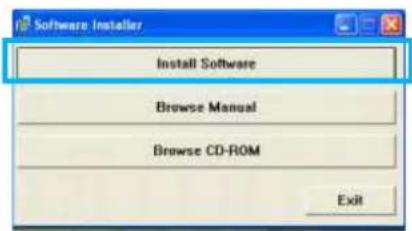
4. Click [Install Software].
5. Select a language and then click [OK].
After a few moments, the [Welcome to InstallShield Wizard] screen appears.
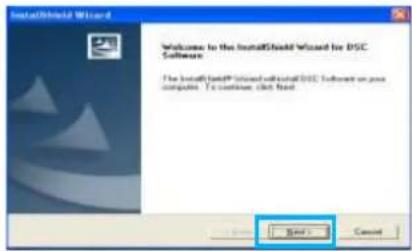
6. Click [Next].
After a few moments, the [Choose Destination Location] screen appears.
7. Confirm where you want to install the software and then click [Next].
After a few moments, the [Select Components] screen appears.
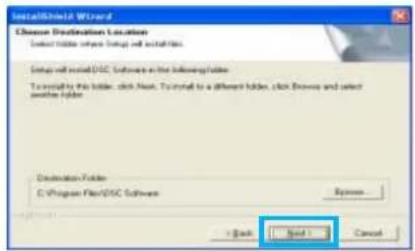
8. Confirm the software you want to install and then click [Next].
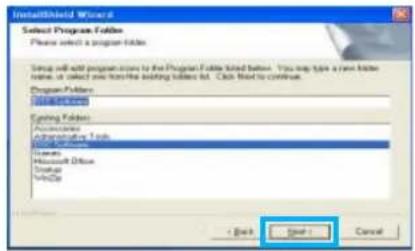
9. Click [OK].
Installation is complete.
![ROLLEI dr5100 - Click [OK]. - 1](/content/2026/03/519020/images/49be3fb3dc257120274c8085408f62605653597d3478203cc2ace1e780054bfd.jpg)
Note
• After installation, it may be necessary to restart your computer.
- If the screen from step 3 is not displayed automatically, take the following steps.
- Click the [Start] button on the task bar and then select [My Computer] from the start menu.
- Double-click the CD-ROM drive icon displayed in the [My Computer] window.
- Double-click the AutoRun file (Autorun.exe) displayed in the CD-ROM drive window.
Uninstalling the Software (For Windows XP)
When you want to remove the software, follow the steps below (this operation is called uninstallation).
1
For Windows XP, only a user with administrative privileges can uninstall the software.
- Click [Start] on the Windows task bar.
The [Start] menu appears.
- Select [Control Panel] from the [Start] menu.
The control panel screen appears.
-
Click the [Add/Remove Programs] icon.
-
Select [DSC Software] and then click [Change/Remove].
-
A message appears to confirm whether you want to remove the program: click [OK].
-
The uninstallation process begins and a message appears when it is finished. Click [Finish].
If a message appears asking you whether you want to restart your computer, select [Yes, restart my computer now.] then click [Finish]. The computer will restart.
- Once you click [OK], the [Add/Remove Program] dialog box closes. Click the [×] (Close) button to close the Control Panel.
After the uninstallation is complete, please restart your computer.
Installing Other Software
In addition to the DSC Software, you can also install the following software from the CD-ROM provided.
- Acrobat Reader
- DirectX
Do not install the software when the camera is connected to your computer with a USB cable.
Installing Acrobat Reader
Acrobat Reader is software to display the operation manual (PDF file). If the computer is running under Windows, Acrobat Reader can be installed. Acrobat Reader needs not be installed if already installed on your computer.
For Windows XP or Windows 2000, Administrator privileges are required to install the software.
- Start your computer and insert the CD-ROM in the CD-ROM drive.
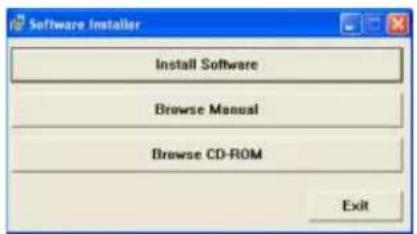
The screen shown above appears.
- Click [Browse CD-ROM].
List of files included on the CD-ROM appears. - Double-click the [Acrobat] folder.
- Double-click the [English] folder.
- Double-click [ar500enu] (ar500enu.exe).
- Install Acrobat Reader by following the messages displayed.
Installing DirectX
DirectX is software to play back movies.
This camera requires DirectX 7.1 or later to play movie files in Windows. If you have an earlier version installed, please install the updated version available on the accompanying CD-ROM.
For Windows XP, the updated version is already installed.
For Windows 2000, Administrator privileges is required to install the software.
- Start your computer and insert the CD-ROM in the CD-ROM drive.
- Click [Browse CD-ROM].
- Double-click the [ DirectX] folder.
- Double-click the [English] folder.
- Double-click the following file:
| Windows98/98SE/Me | [DX81xxx.exe] in the [Win98Me folder |
| Windows2000 | [DX81NTxxx.exe] in the [Win2000] folder |
Section 2 Downloading Images to a Computer
This section explains how to display still images and movies you have downloaded to your computer.
Connecting the Camera to a Computer
After installing the software on your computer, connect your camera to it.
- Make sure the camera's power is off.
- Connect the USB cable to the USB port of your computer.
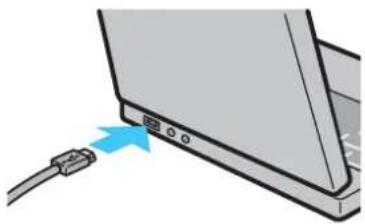
natural_image
Illustration of a laptop with a cable and a blue arrow pointing to the front panel (no text or symbols)- Connect the USB cable to the USB terminal of your camera.
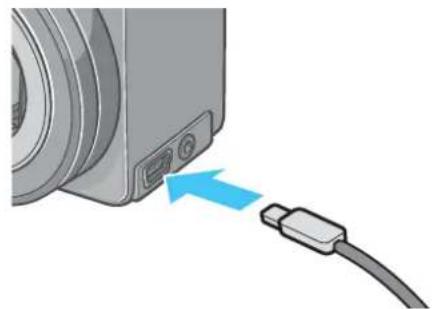
natural_image
Diagram showing a camera module with an attached cable, no text or symbols presentYour camera turns on.
For Windows XP
In Windows XP, the first time you connect your camera to the computer using a USB cable, the [Found New Hardware Wizard] screen will appear.
- Select [Install from a list or specific location (Advanced)].
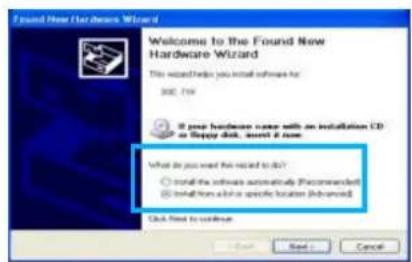
- Select [Next].
- Select [Search for the best driver in these locations.] - [Include this location in the search] and then press the [Browse] button.
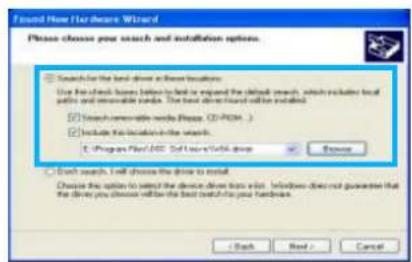
- Browse to the folder where the WIA driver was installed (by default this should be C:\Program Files\DSC Software\WIA driver) and then select [Next].
The WIA Driver is installed.
The [DSC 718] screen appears.
5. Select [DL-10], check [Always use this program for this action] check box, and then click [OK].
- To load images from the camera with assistance from the Windows XP Scanner and Camera Wizard, select [Scanner and Camera Wizard].
• Leaving the [Always use this program for this action] check box unchecked will cause the [DSC 718] screen to be displayed each time you transfer images from the camera, thereby allowing you to choose whether to use DL-10 or the Scanner and Camera Wizard for image transfers.
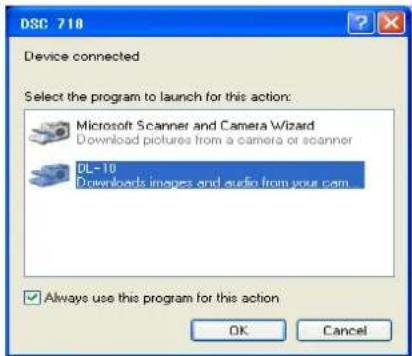
![ROLLEI dr5100 - Select [DL-10], check [Always use this program for this action] check box, and then click [OK]. - 2](/content/2026/03/519020/images/5fc81349774250cf5bf8525e09fd80934c542158bb24f1d2a554e66a2060bae8.jpg)
Note
• To disconnect your camera from your computer:
1. Turn your camera off by pressing the power button.
2. Unplug the USB cable.
- When you are downloading images from your camera, the AC Adapter (sold separately) is recommended.
Downloading Pictures to Your Computer
After you have connected your camera to the computer, the DL-10 software automatically downloads the images stored on your camera.
2

Note
When an SD memory card is not inserted, the camera loads from the internal memory; when an SD memory card is inserted, it loads from the SD memory card.
| When no SD memory card is loaded | When an SD memory card is loaded |
Loads from internal memory  | Loads from the SD memory card 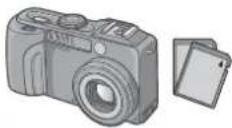 |

Reference
For how to change files names when recording, see P.117.
For Windows 98/98SE/Me/2000/XP
DL-10 automatically creates a folder called [Digital Camara] inside your [My Documents] folder. Downloaded images are saved in folders with the date of each shot, inside the [Digital Camara] folder.
1. Connect your camera to the computer using the USB cable.
The camera turns on, DL-10 starts, and the DL-10 window appears.

Image transfer begins automatically.

Note
- Images are stored with sequential numbers so that they have unique file names.
- File names given by the camera are not used.
• Even when the storage folder is changed, the file number will be continuous. The number cannot be initialized.
- When transferring images to a computer, if a file already exists with the same name in the destination folder, your image is renamed before saving to avoid overwrite problem.
- When transferring images to a computer via DL-10, the files are assigned names like IMAG****.jpg (**** indicates the number of the image), even if "SEQUENTIAL NO." is set to ON.
Once download finishes, DU-10x launches, and you can view the images. If the screen below appears, select "DL-10", check the box next to "Always use this program for this action" and then press [OK].
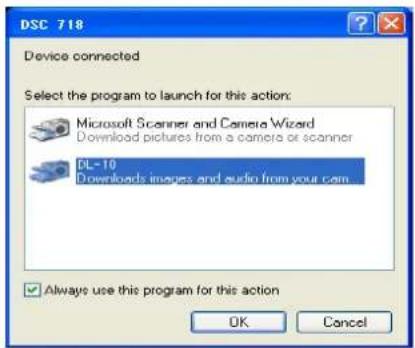

Note
- Before closing DL-10, if you turn the camera's power off, or unplug the USB cable, the DL-10 window is minimized and displayed as an icon on the Windows task bar. If you click the icon, the window will be displayed again.
- After exiting DL-10 by pressing the [MENU] button and selecting [Close], if you want to restart DL-10, select [Programs] from the [Start] menu then select DSC Software then DL-10.
- You can change the folder for downloading your images (Save Destination).

Reference
- For how to change the Save Destination Folder, see P.117.
• For how to start DL-10, see P.139.
• For DL-10 screen, see P.137.
How to Use DL-10
DL-10 is a software program to import images from the camera to a computer.
By simply connecting the camera to your computer via a USB cable, images are automatically imported to the computer.
On the DL-10 window, you can make various settings including auto-saving upon connection and the destination folder (where images will be saved).
Starting
DL-10 is already installed with DSC Software. Connecting the camera to your computer automatically starts the software and begins importing of images from the camera.
Quitting
To quit DL-10, follow either of the steps below.
- Click the [MENU] button on the DL-10 window and select [Exit] from the displayed menu (see "DL-10 Window").
- Right-click the DL-10 icon on the task bar and select [Exit] from the displayed menu.
Restarting
To restart DL-10 after quitting, follow either of the steps below.
- From the [Start] menu, select [All programs] (or [Programs]) → DSC Software → DL-10].
The DL-10 Window
Once DL-10 starts up, the following DL-10 window appears on your computer screen.
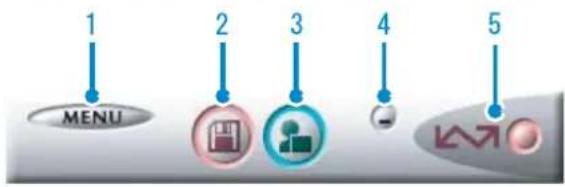
1. [MENU Button]
Click this and the following menu appears.

[Option settings]
: Specifies where to save images, or which application to launch when you press the Application button and after saving. (See P.139)
[Background illustration settings]
: Changes the background design in the DL-10 window. (see P.140)
[About]
: Displays the version of DL-10.
[Exit]
: Closes DL-10.
2. [Save Button]
Click this and the images are downloaded from your camera.
![ROLLEI dr5100 - [Save Button] - 1](/content/2026/03/519020/images/af48c368804a5b347a81c00a6943c97eb58c5c05e8a422221863c1fa35ebf10c.jpg)
Important
If the message indicating that "The camera is waiting to be connected... Press the ADJ. button to initiate direct printing" appears on the camera LCD monitor, do not press the Save button.
3. [Application Button]
The application registered in Optional Settings is launched. DU-10x is registered initially.
- [Minimize Button]
Minimizes the window and displays its icon on the Windows task bar. If you click on the icon, the window will be displayed again.
- [Indicator]
The indicator lights if the camera is connected via USB cable. When lit, if you put the mouse pointer on the Indicator, it displays "Camera Connected." When your camera is not connected, the Indicator is grayed out, and if you put the mouse pointer on it, "Camera Connected" does not appear.
How to Use the Optional Settings
If you select [Option settings] from the menu displayed on a button in the DL-10 window, the [Option settings] dialog box appears.
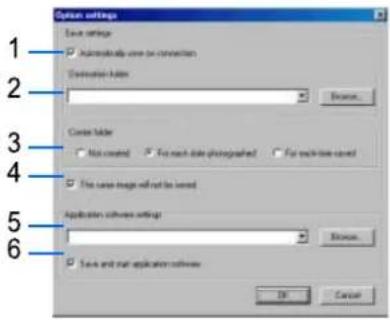
2
| Item | Description | Initial Setting | |
| 1. | [Automatically save on connection] | If you check this box, once your camera is connected to the computer, images are automatically downloaded and saved. If you uncheck the box, your images will not download automatically when you connect your camera. Click the [SAVE] button when you want to download. | Execute auto save |
| 2. | [Destination folder] | Specifies which folder to save your images in. The [Digital Camara] folder inside [My Documents] is specified initially; if you want to change this, click the [Browse] button to display the dialog box and then specify the folder. | ____ |
| 3. | [Create folder] | Specifies how to create a folder.[Not created]Your downloaded images will all be saved in the folder specified in item 2.[For each date photographed]Creates a new folder assigning the date the images were shot as the folder name, and saves images shot on the same day in the same folder.For example, if shot on May 1, 2004: [20040501] folder[For each time saved]Creates a new folder for each time images are saved and saves the images shot at the same time in the same folder. If you save several times in one day, they are saved in separate folders each time.For example, if you saved twice on May 1, 2004:[20040501_001] folder, [20040501_002] folder | Each day shot. |
| 4. | [The same image will not be saved.] | You can specify this only when you have selected either [Do not Create] or [Each Day Shot] in [Create a Folder] or if in [Create a Folder] you did not check [Do not save same image when saving].Images imported once are not imported anymore. If you try to save a file to a folder that has an image file of the same name, it will not be saved. | Do not save same image. |
| 5. | [Application software settings] | Specify the name of the program if you want an application to launch after you save. The [Digital Camara] folder DU-10x.exe (DU-10x File Name) is specified initially; if you want to change this, click the [Browse] button to display the dialog box and then specify which application to use. | ____ |
| 6. | [Save and start application software] | If this is checked, an application will be launched after saving.If this is unchecked, no application will be launched. | After saving. Launch application. |
How to Use the Background Illustration Settings
You can select a background for the DL-10 window from three types of patterns.
If you select [Background illustration setting] from the menu displayed by the [MENU] button in the DL-10 window, the [Background illustration settings] dialog box appears.
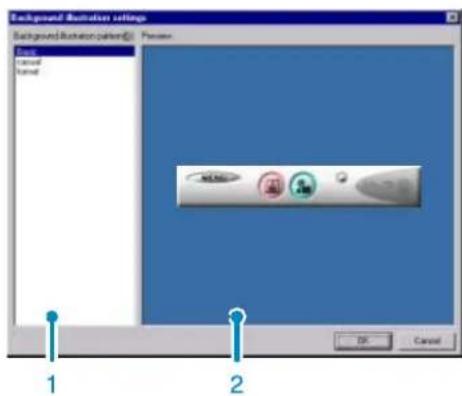
- [Background illustration pattern] Select the pattern you wish to use from the three available.
- [Preview] The pattern selected in [Background illustration pattern] appears, and you can configure it.
Downloading Images from an SD Memory Card
It is possible to download images from a memory card to computer via a PC Card Slot or Card Reader.
To load an SD Memory Card into a PC Card Slot or Card Reader, the PC Card Adapter (sold separately) is required.
Images in an SD Memory Card
Images are stored on an SD Memory Card in a hierarchy, as shown here.
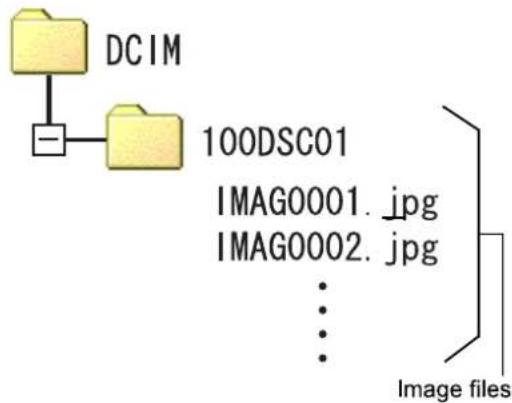

Note
If the card reader is SD Memory Card compatible (directly loadable), no PC Card Adapter is required.

terms
Card Reader
This is a device that connects to a computer and can read the contents of cards. In addition to the PC Card type, there are Card Readers compatible with various types of cards, into which you can directly load a memory card.
Section 3 Displaying Thumbnail Images (How to Use DU-10x)
DU-10x enables you to view downloaded images at a glance as well as edit, rotate and resave images.
This section explains how to use DU-10x.

Note
DU-10x runs in a Windows environment.
Starting and Exiting DU-10x
There are two methods for starting DU-10x:
- Auto Start from DL-10 In the DL-10 option settings, if the Application Software is set to DU-10x, and if [After saving, launch Application software] is checked, DU-10x will start automatically after image files have downloaded from your camera with DL-10.
- Start from Windows [Start] menu If you select [Program] then [DSC Software] then [DU-10x] from the [Start] menu, you can start DU-10x.
DU-10x Window
Once you start DU-10x, a window like the one below appears.
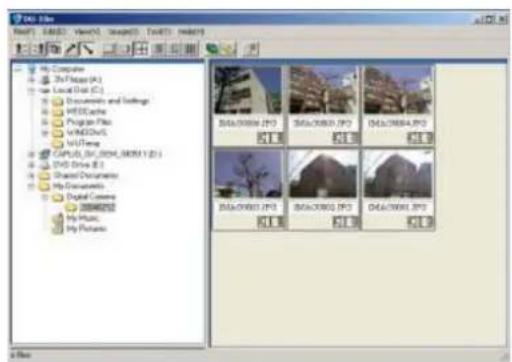
The images you saved are displayed all in one window. This method of displaying reduced size images is called thumbnail display.
Exiting DU-10x
To exit DU-10x and close its window, select [File] from the menu bar, then select [Exit] from the menu displayed, or click the [×] (Close) button in the upper-right corner of the screen.
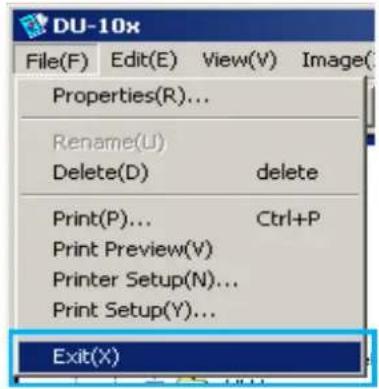

Note
For how to set DU-10x so that it does not launch automatically, see P.139.
Thumbnail Display Description
Once you start DU-10x, images appear as thumbnails.
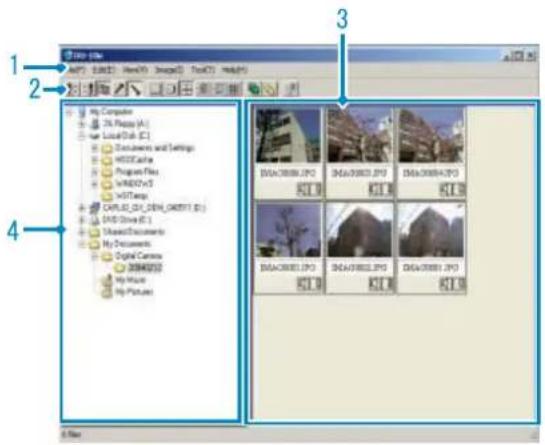
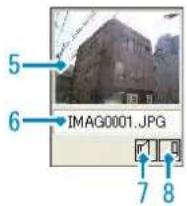
- Menu Bar
You can change the display size and ordering of images.
- Tool Bar
Of the functions available in the menu, the icons of those most frequently used are displayed, so you can use those functions with just one simple click.
a. Arrange
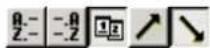
b. Display size

c. Auto slideshow

d. Display all files below folder

Selecting this option displays the images in all subfolders as thumbnails.
e. Start List Editor

- Thumbnail Image
The reduced images are displayed at one glance.
- Folder Display Area
The folders inside [My Computer] are displayed in a hierarchy. The images inside folders selected here appear in the Thumbnail Display Area.
-
Thumbnail Display Area
-
File Name
-
Sound Setting Y/N Display
A yellow speaker icon is displayed for an image with sound.
Double-clicking the speaker icon allows you to play back the sound.
- Memo Setting Y/N Display
This is not used. It is disabled.
Switching the Ordering of Images
Displayed thumbnail images are ordered according to date (descending order).
You can change the ordering method to by file type or by name. You can also choose whether each of the above is ordered according to ascending or descending order.
To change the ordering of images, use either the tool bar or [Arrange] from the [View] menu.
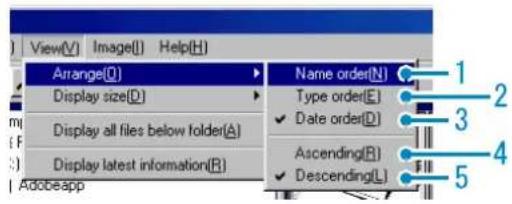
Menu
Tool Bar
- Name order Switches to By File Name.
- Type order Switches to By File Type (in alphabetical order of the extension).
- Date order Switches to By Date Shot (or By Date Updated if edited).
- Ascending / 5. Descending Ascending order is going from small to large, the opposite is descending order. For the alphabet, ABC is ascending order, and ZYX is descending. Select which order to use, 1, 2 or 3 and choose either ascending or descending order.

Note
If you order by file type, the files are ordered alphabetically according to the file extension.
Changing the Display Size
To change the display size, use either the tool bar or [Display size] from the [View] menu.
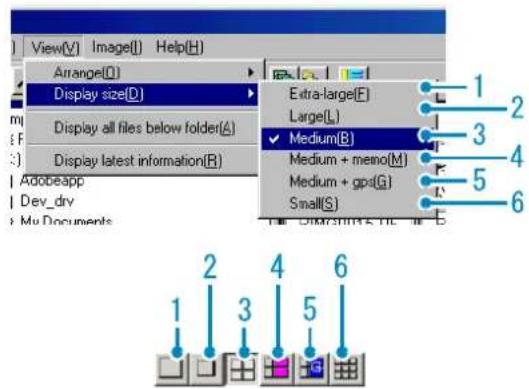
You can change the display size to one of five sizes available.
- Extra-large
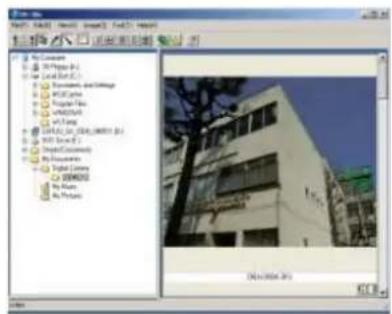
- Large
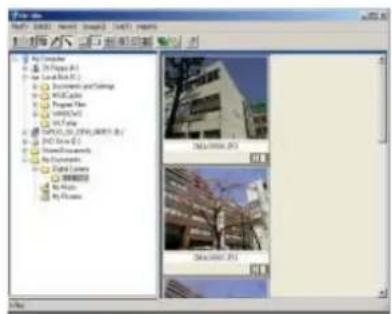
- Medium
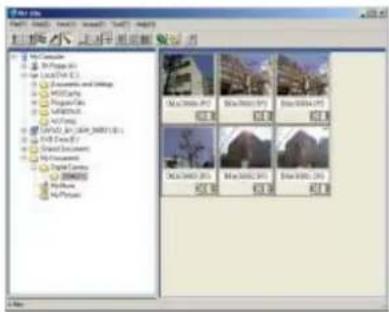
- Medium+memo
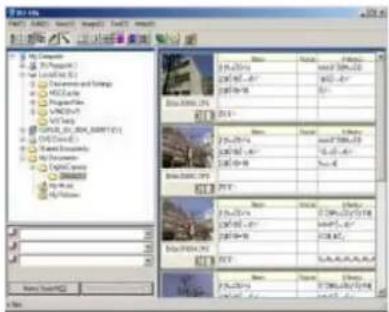
- Medium+GPS
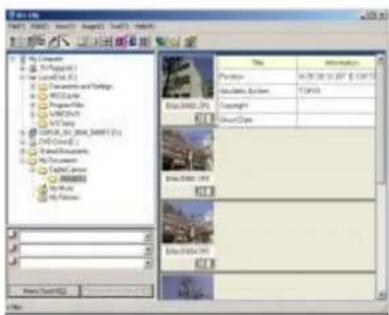
- Small
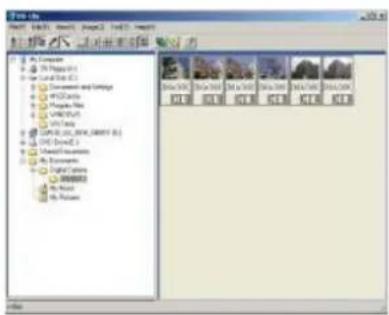

Note
Medium+GPS is not used. Normally, they are disabled.
Viewing Images in a Slide Show
You can view images sequentially and automatically in either a slide show (selected images only) or auto slide show (all images).
To View a Slide Show
You can select one or more images and display them as a slide show.
To start slide show, follow the steps below.
1. Select the images you wish to see in slide show.
If you want to select multiple consecutive images, after clicking the first image, press and hold the [Shift] key and click the last image.
To select multiple images that are not consecutive, press and hold the [Ctrl] while clicking each.
2. Using one of the steps below, select [slide show].
- Select [Image] then [slide show] from the menu bar.
- Place the pointer of the mouse on one of the images you selected, right click and choose [slide show] from the menu.
![ROLLEI dr5100 - Using one of the steps below, select [slide show]. - 1](/content/2026/03/519020/images/92f80145aace8775e442d196e5d90ce9f0e05e80abcac1e284116685036618f6.jpg)
Menu
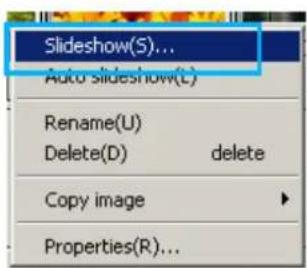
Shortcut menu displayed with right click
3. The [slide show] dialog box is displayed, so make the necessary settings.
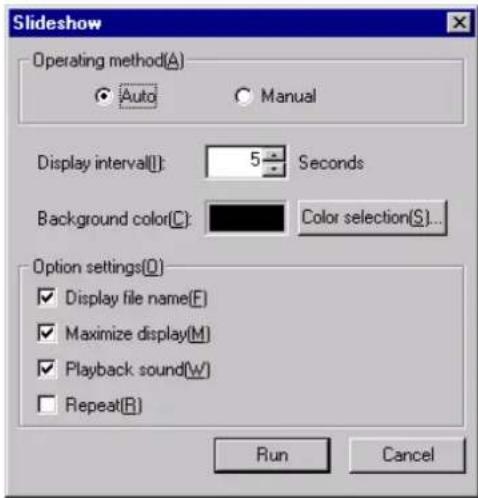
4. Click the [Run] button.
The slide show begins.
Running a slide show
| Type of slide show | Key | Action |
| [AUTO] is selected in step 3 | [ESC] Key | Stops the slide show. |
| [MANUAL] is selected in step 3 | [ESC] Key | Stops the slide show. |
| Left-click Mouse [Space] Key [Enter] Key [→] Key | The next image is displayed. | |
| [Backspace] Key [←] Key | The previous image is displayed. |
Using Auto Slide Show
In Auto slide show, all the images displayed as thumbnails appear in order.
To start Auto slide show, follow the steps below.
1. Using one of the steps below, select [Auto slide show].
- Select [Image] then [slide show] from the menu bar.
- Click the button on the tool bar.
- Place the pointer of the mouse on one of the images you selected, right click and choose [Auto-slide show] from the menu.
The slide show begins.
The images advance automatically according to the display interval (number of seconds) you specified in the [slide show] dialog box.
Stop the slide show with the [Esc] Key.
![ROLLEI dr5100 - Using one of the steps below, select [Auto slide show]. - 1](/content/2026/03/519020/images/24bc49cb86c99f046d73f294d6f4d1fcc5249daf55051d63b6d7d7b5dc12057b.jpg)
Note
- To automatically switch between images while viewing an auto slide show, select [Auto] in [Operating method] in the [slide show] dialog box.
- When [Manual] is selected in [Operating method], switch between images by pressing the [Enter] key or clicking on images in auto slide show.
How to Use the Slide Show Dialog Box
You can make slide show display settings in the [slide show] dialog box.
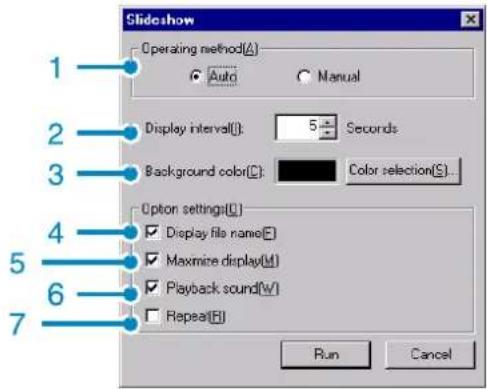
- [Operating method] Select either Auto slide show (the slides are played automatically, in order) or Manual (switch frames by clicking the mouse button or pressing the [Enter] key).
- [Display interval] Specify how long in seconds to display each image, when using Auto slide show.
- [Background color] Choose a background color for your images. Click the [Choose Color] button and choose a color from the dialog box that appears.
- [Display file name] If you check this box, the file name will appear in the bottom of the image.
- [Maximum display] If you check this box, your images will be displayed at full-screen size.
- [Playback sound] If you check this box, and the images have associated sounds, the sounds will also be played back.
- [Repeat] If you check this box, the sets of images will be shown repeatedly, until you press the [Esc] key to stop. If you uncheck this box, the images in the folder will be displayed through the cycle once, then the slide show will finish.
Renaming an Image in Thumbnail View
You can rename an image shown on the Thumbnail Display screen.
How to Rename an Image
To rename an image shown on the Thumbnail Display screen, follow the steps below.
3
-
Select an image you want to rename.
-
On the image you selected, right click and choose [Rename] from the menu.
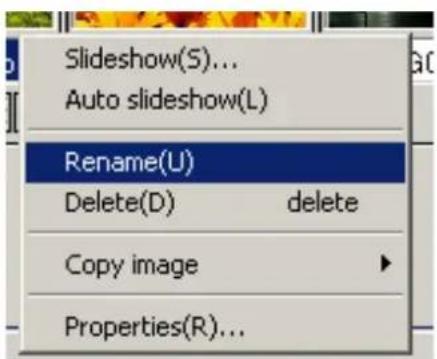
- When the [Rename] dialog box appears, enter the new name for the image.
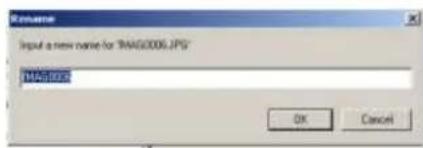
- Click [OK].
Copying a Reduced Image File
You can reduce an image shown on the Thumbnail Display screen and copy it onto the clipboard.
Available scale options are 100%, 1/2, 1/3, 1/4, and 1/8.
For example, when you paste a shot image onto a Windows application document and find the image too large for your document size, you can reduce the image using this function in advance and paste it into the document via clipboard.
How to Copy a Reduced Image File
To reduce an image file size and copy it onto the clipboard, follow the steps below.
-
Select an image you want to reduce.
-
On the image you selected, right click and choose [Copy Image] from the menu.
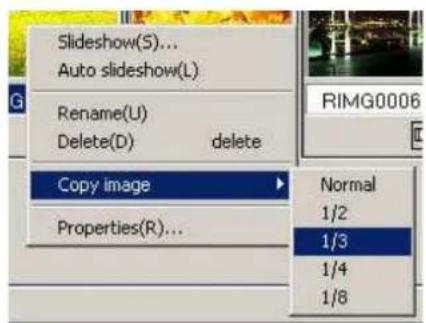
-
When the scale options appear, select a scale from the menu.
-
Paste the image from the clipboard to another Windows application.
For example, when using Paint from Windows Accessories, start Paint, and then select Paste from the Edit menu.
Deleting Images
You can delete images.
There are three methods for deleting images.
Using the File Menu
- Click an image you want to delete in the Thumbnail Display Area.
- Select [Delete] from the [File] menu.
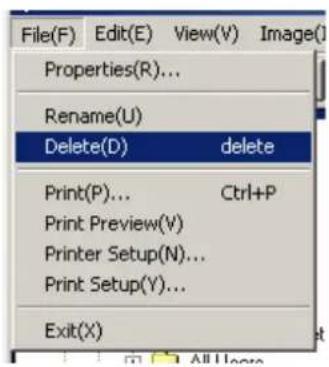
Using the Shortcut Menu
- Right-click on the image you want to delete in the Thumbnail Display Area.
The menu appears.
- Select [Delete] from the menu.
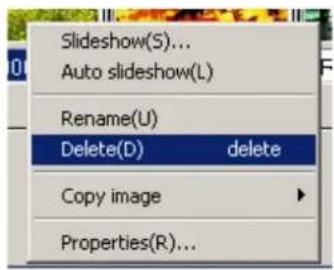
Using the Keyboard
- Click an image you want to delete in the Thumbnail Display Area.
- Press the [DELETE] Key on your keyboard.
The confirmation message appears.
- Click [OK].
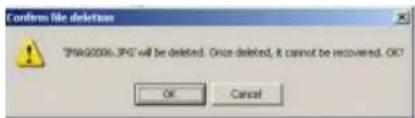
Viewing Image Information
You can display image information, such as the date and time a photo was shot, the size of the image, and so on.
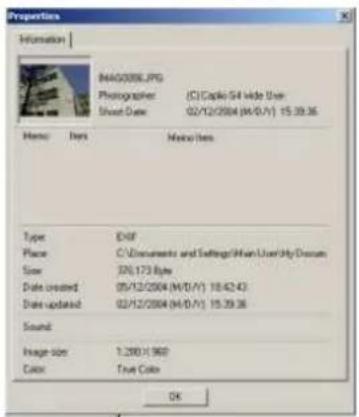
Information Dialog Box
To display image information, follow one of the steps below.
Using the File Menu
- Click the image in the Thumbnail Display Area for which you want to see information.
- Select [Properties] from the [File] menu.
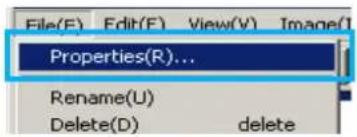
Using the Shortcut Menu
- Right-click on the image in the Thumbnail Display Area.
The menu appears.
- Select [Properties] from the menu.
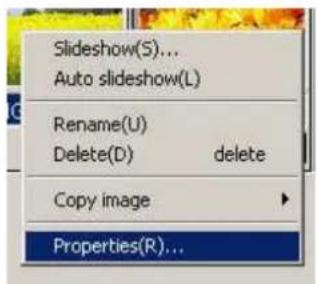
Displaying the Viewer Screen
If you use the Viewer screen, images are displayed at full size, not as thumbnails. To open the Viewer screen, follow one of the steps below.
- Double click the image you want to display from the thumbnail selection.
- Click the image you want to display from the thumbnail display area, then select [Display/Playback] from the [Image] menu.
Using the Viewer Screen
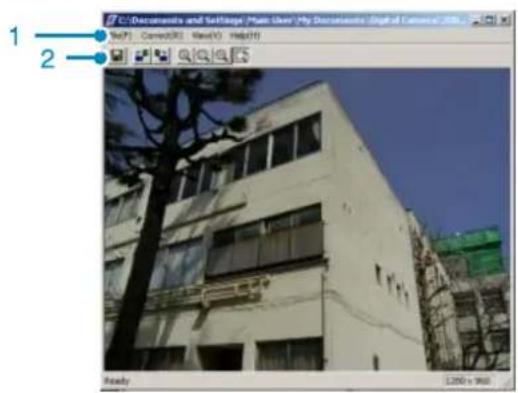
Viewer Screen
- Menu Bar
- Tool Bar
[Save]
Overwrites and saves an image. A TIFF file cannot be saved by overwriting.
[Rotate 90C° counter-clockwise]
[Rotate 90C° clockwise]
You can rotate your images 90 degrees to the left or right.
You can correct images to their proper vertical/horizontal orientation.
[Enlarged display]
[Actual size view]
[Reduce display]
[Overall view]
You can enlarge or reduce the displayed size. By repeating [Enlarge Display], you can enlarge the view up to 16 times its original size. By repeating [Reduce Display], you can reduce the view down to 1/16th its original size.

Note
Saving under a New File Name:
When you want to create a duplicate of an image, you can save it under a different file name.
The only file format you can save in is TIFF. To save under a new file name, follow the steps below.
- Select [Save as...] from the [File] menu. The [Save As] dialog box appears.
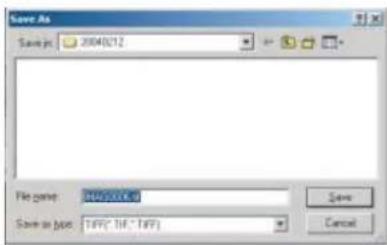
- Specify where to save the new file [Save in].
- Enter the name of the new file in [File Name].
- Click [Save].

Terms
TIFF File
This is read "tiff" file. This is a format used when saving image data as a file. With this camera, images (still images) are saved as files in the small JPEG (jay-peg) file format. TIFF file sizes are larger than JPEG files, but if you want to make frequent changes and resave, TIFF files prevent deterioration.
Printing an Image
You can print a thumbnail display image.
There are ten layouts available.
To Print an Image
- To print an image, follow the steps below.
Select [Print Setup] from the [File] menu.
- The [Print Setup] dialog box appears.
- Select a layout in [Print Type].
- Make other settings as required.
For details on print setup, see the next section "How to Use the [Print Setup] Dialog Box".
- Click the [OK] button.
Print setup is complete.

Note
• To continue printing at step 4, click the [Print] button. The [Print] dialog box appears, and you can start printing.
- To print an image in a large size, select 1x1 in [Print Type] on the [Print Setup] dialog box.
• The GPS information will not be printed.
Using the [Print Setup] Dialog Box
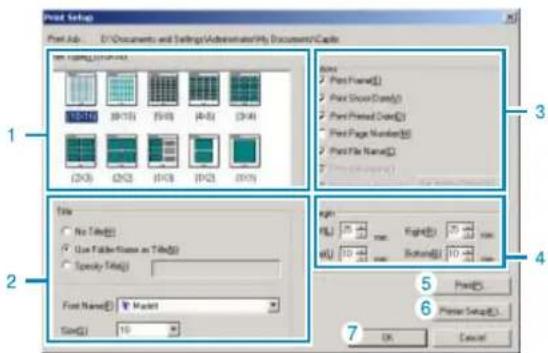
- [Print Type] Select a layout for printing thumbnails.
- [Title] Prints a title at the top of the page. You can use a folder name or specify an arbitrary character string for the title.
- [Options] Check the options to print an image with a frame, a shooting date, a printing date, the number of pages, and a file name.
- [Margin] Specify the page margin widths.
- [Print] Bring up the [Print] dialog box to start printing.
- [Printer Setup] Make printer settings.
- [OK] Used for making print settings without actually printing.
Checking the Printing Layout
You can check the print preview before printing.
1. Select [Print Preview] from the [File] menu.
The print preview screen appears.
![ROLLEI dr5100 - Select [Print Preview] from the [File] menu. - 1](/content/2026/03/519020/images/a6524cceadcde121fec6d0facc3cc72d23d8b91afe043423f0654dba254ea280.jpg)
natural_image
Computer screen displaying five image thumbnails with different colors and shapes, no visible text or symbols.Functions of the buttons shown at the top of the screen are as follows:
[Print] : Displays the [Print] dialog box to start printing.
[Next Page] : Displays the next page.
[Previous Page] : Displays the previous page.
[2 Pages] : Displays two pages on the screen at a time.
[Enlarge] : Zooms in on the page.
[Reduce] : Zooms out on the page.
[Close] : Closes the print preview screen.
Making printer settings
Selecting [Printer Setup] from the [File] menu allows you to make printer-related settings such as selection of a printer, paper size, and paper feed method.
Printing Images
To print images, follow the steps below.
1. Select the images you want to print by clicking on them.
To select two or more contiguous images, click the first image and then click the last image while pressing the [Shift] key.
To select two or more distant images, click them one after another while pressing the [Ctrl] key.
To print all thumbnail images displayed, go to step 2 directly.
2. Select [Print] from the [File] menu.
The [Print] dialog box appears.
3. Check the printer name, and click the [Properties] button to make printer settings if required.
4. Perform either of the following operations:
- To print the selected images, select [Selection] in [Print range], specify the number of copies, and click the [OK] button.
• To print all images, specify the number of copies and click the [OK] button.
3
Chapter 3 Playing Back Images (Pictures/Movies) on a Computer (For Macin- tosh)
Section 1 Installing Software
This section explains how to install the required software on your computer.

Note
- For the rest of this explanation, still images and movies will be referred to together as "file".
- When downloading images from your camera, it is recommended you safeguard the power supply by using the AC Adapter (sold separately). The explanations provided assume that the AC Adapter is being used.
Using the Software Provided
The CD-ROM that comes with your camera contains software for downloading images from the camera to a computer and displaying them on it. The following software is included.
| DL-10 for Macintosh | Downloading images (for Macintosh) |
| USB driver | Connecting your camera to a computer. |
| Mounter | Downloading images |
Software and OS Applicability Table
The software that can be used differs according to the OS in use, as indicated in the table below.
| Mac OS 8.6 to 9.2.2 | Mac OS X 10.1.2 to 10.3 | |
| DL-10 for Macintosh | ○ | × |
| USB driver | ○ | ○ |
| Mounter | ○ | ○ |

Note
- If you are using Mac OS X 10.1.2 to 10.3, you can display images using "iPhoto" from Apple.
- If you are using Mac OS × 10.1.2 to 10.1.5, drag the Digital Camera volume icon and drop it into the iPhoto window.
- If you are using Mac OS × 10.2 to 10.3, photos can be transferred directly by using the iPhoto's Import button. This camera cannot be mounted directly by using the Read button.
- You cannot display movie files in iPhoto. Please use QuickTime instead.
System Requirements
The following environments are necessary for using the provided software.
Please check your computer, or the computer's user manual.
| Operating System | Mac OS 8.6 to 9.2.2/Mac OS X 10.1.2 to 10.3 | |
| Macintosh | A USB port standard-equipped Apple Macintosh Series | |
| Internal Memory | Mac OS 8.6 to 9.2.2 | 96 MB or more (128 MB or more recommended) |
| Mac OS X 10.1.2 to 10.3 | 128 MB or more (256 MB or more recommended) | |
| Application allocated Memory(For Mac OS 8.6 to 9.2.2) | Without using the compression utility, 16MB or more (24 MB or more is recommended) as Application Memory | |
| Hard Disc Drive Capacity | Mac OS 8.6 to 9.2.2 | 10 MB or more (at installation) |
| Mac OS X 10.1.2 to 10.3 | 100 MB or more (at installation) | |
| 100 MB or more (at operation) | ||
| Display Resolution | 640 × 480 pixels or greater (800 X 600 or greater recommended) | |
| Display Colors | 256 colors or greater (32,000 or greater recommended) | |
| CD-ROM Drive | A CD-ROM drive compatible with the above-mentioned Macintosh machine | |
| USB Port | A USB Port compatible with the above-mentioned Macintosh machine | |

Important
- Problems may arise due to changes made to the OS.
- Connection to a USB port retrofitted using an extended function (for example, PCI bus) cannot be supported.
- If used in conjunction with a hub or other USB devices, the software may not work properly.

Note
- When dealing with movies and other large files, a larger memory environment is recommended.
- For Mac OS 8.6 to 9.2.2, use a larger memory environment, as well as allocating extra application memory.
- While the software can be operated at 256 colors or more for the Display Color, it is strongly recommended that 32,000 or more be used.

Reference
For how to download images to your computer when using an SD Memory Card, see P.140.
Preparing to Download Images to Your Computer
This section shows the flow of downloading images to your computer by using the CD-ROM included with the camera.
1
Mac OS 8.6 to 9.2.2
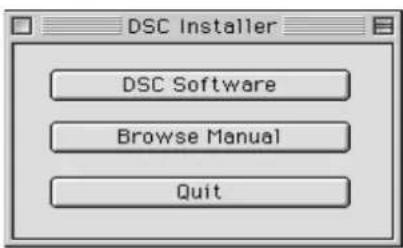
Mac OS X 10.1.2 to 10.3
Insert the included CD-ROM into the CD-ROM drive of your computer and the window or icon shown on the left appears.
1 Install the software.
Mac OS 8.6 to 9.2.2, see P.159 Mac OS X 10.1.2 to 10.3, see P.160
2 Connect the camera to your computer. see P.164
3 Download images to the computer. see P.164

Reference
• To uninstall the software, see P.161.
• To load images directly from an SD memory card into your computer, see P.140.
Installation
For Mac OS 8.6 to 9.2.2
- Turn on your Macintosh.
- Insert the attached CD-ROM in the CD-ROM drive.
The CD-ROM icon is displayed on the desktop.
- Double-click the CD-ROM icon, and open the [MacOS9] folder.
The [DSC Installer] icon appears.
- Double-click the Installer [DSC Installer] icon.
The Installer starts up and the Start screen appears.
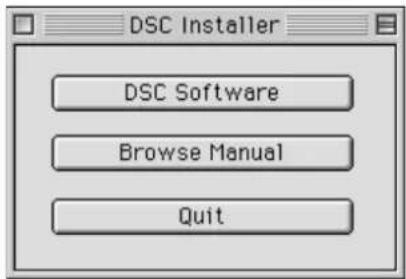
- Click [Install Software].
- Click the [OK] button.
The Installation screen appears.
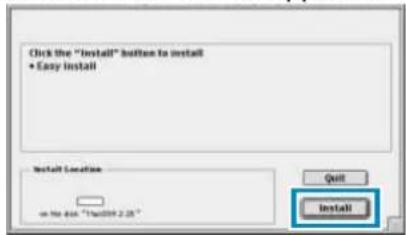
- Click [Install].
- Click [Continue].
The software is installed and then the Installation Complete message appears.
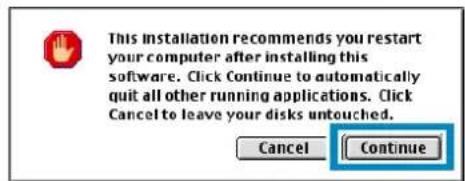
1
- Click the [Restart] button.
Your Macintosh restarts.
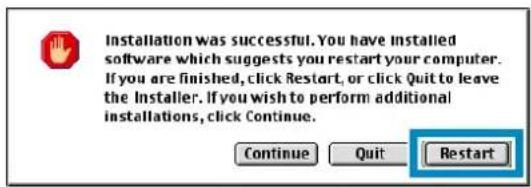
For Mac OS X 10.1.2 to 10.3
- Turn on your Macintosh.
- Insert the CD-ROM provided into the CD-ROM drive.
- Double-click the CD-ROM icon, and then open the Mac OS X folder.
The [DSC Mounter.pkg] icon appears.
- Double-click the Mounter icon [DSC Mounter.pkg].
The Installer is launched and a screen appears prompting you for the administrator's password.
- Click the key icon.
A verification window appears.
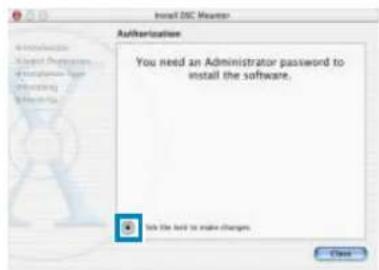
- Enter the administrator's name and password, and then click [OK].
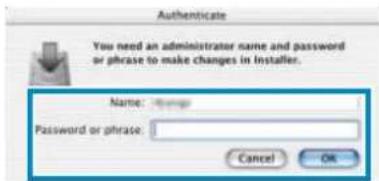
- Click [Continue].
The [Select a Destination] screen appears.
- Click [Continue].
The installation screen appears.
- Click the destination volume you want, then click [Continue].
- Click [Install].
After the installation has finished, a message appears to confirm whether it is necessary to restart your Macintosh or not.
- Click [Continue Installation].
The software is installed, and after a while an Installation Complete message appears.
- Click [Restart].
Your Macintosh restarts.
Uninstalling the Software (For Mac OS 8.6 to 9.2.2)
To remove (uninstall) the software from your Macintosh, drag and drop the installed file into the Trash.
Please remove the following files from their respective folders.
| File Name | Folder Name |
| DL-10 | System Folder: Control Panels |
| DL-10 Prefs | System Folder: Preferences |
| DSC Mounter | System Folder: Extension |
| DSC Mounter Prefs | System Folder: Preferences |
| DSC USB Driver | System Folder: Extensions |
Uninstalling the Software (For Mac OS X 10.1.2 to 10.3)
When you want to remove the software, follow the steps below.
- Start [DSC Mounter] in [Application] folder.
- Select [Uninstall] in [File] menu.
The software is uninstalled.
Section 2 Downloading Images to a Computer
Connecting the Camera to a Computer
After installing the software on your computer, connect your camera to it.
- Make sure the camera's power is off.
- Connect the USB cable to the USB port of your computer.
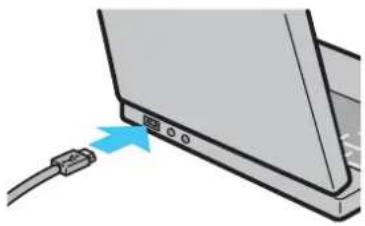
natural_image
Illustration of a laptop with a cable and a blue arrow pointing to the front panel (no text or symbols)- Open the terminal cover, and then connect the USB cable to its USB terminal.
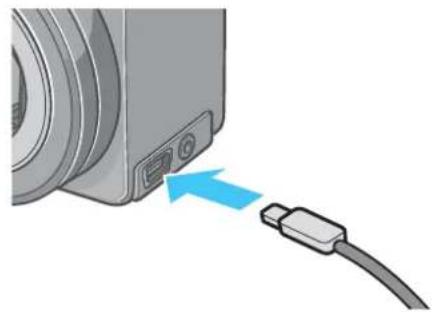
natural_image
Diagram showing a camera module with an attached cable, no text or symbols presentYour camera turns on.

Note
- To disconnect your camera from your computer:
- Turn your camera off by pressing the power button.
- Unplug the USB cable.
- When you are downloading images from your camera, the AC Adapter (sold separately) is recommended.
Downloading Pictures to Your Computer
After you have connected your camera to the computer, images download automatically.

Note
Images are downloaded to your computer from the following memory sources.
| When no memory card is loaded | When an SD Memory Card is loaded |
| Downloads from internal memory | Downloads from SD Mem-ory Card |
 | 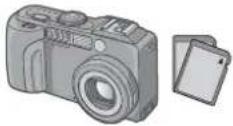 |

Reference
For how to change files names when recording, see P.117.
Downloading methods differ (as described in the following table) depending on the environment used. Follow the steps in the reference pages to download.
| For Mac OS 8.6 to 9.2.2 | Download using DL-10. | see P.165 |
| For Mac OS X 10.1.2 to 10.3 | Download using the Mounter. | see P.166 |
For Mac OS 8.6 to 9.2.2
In Mac OS 8.6, Mac OS 9.1, or earlier versions, a folder called [Digital Camara] is created inside the root directory on the start-up disc [Macintosh HD].
In Mac OS 9.1 to 9.2.2, a folder called [Digital Camara] is automatically created inside the [Documents] folder on the start-up disc [Macintosh HD].
1. Connect your camera to the computer using the USB cable.
The camera turns on, DL-10 starts and the DL-10 window appears.
natural_image
Three software icons: a floppy disk, a user profile, and a folder with an arrow symbol (no text or labels)Image Transfer begins automatically.
2. Click on the [File] menu and select [Quit].
DL-10 closes.
Using the Mounter
You can transfer images using the Mounter.
1. Connect your camera to the computer using the USB cable.
Your camera turns on.
When an SD Memory Card is not loaded, the [Digital Camera] icon is displayed and you can view the image files stored in internal memory.
When an SD Memory Card is loaded, the [Digital Camera.SD] icon is displayed and you can view the image files stored on the SD Memory Card loaded.
2. Double-click the displayed icon.
It can be handled in the same way as a normal drive. If you double-click the icon, a folder called [DCIM] is displayed and a folder called [100DSC01] within that folder is displayed. The image files you shot are inside the [100DSC01] folder.
Drag and drop the file and then copy to the hard disc.

Important
When using the Mounter, you cannot write data onto an SD memory card.

Note
- If you want to start DL-10 when the camera is not connected, double-click the [DL-10] icon in the Control Panel folder, which is inside the System Folder.
- Images downloaded by DL-10 are saved in folders with the date of each shot, inside the [Digital Camara] folder. When using the Mounter, you can specify a folder where the images will be saved.

Reference
For how to change the Save Destination Folder, see P.168.
For Mac OS X 10.1.2 to 10.3
1. Connect your camera to the computer using the USB cable.
Your camera turns on.
When an SD Memory Card is not loaded, the [Digital Camara] icon is displayed and you can view the image files stored in internal memory.
2
When an SD Memory Card is loaded, the [Digital Camara.SD] icon is displayed and you can view the image files stored on the SD Memory Card loaded.
2. Double-click the displayed icon.
It can be handled in the same way as a normal drive. If you double-click the icon, a folder called [DCIM] is displayed and a folder called [100DSC01] within that folder is displayed. The image files you shot are inside the [100DSC01] folder. Drag and drop the file and copy to the hard disc.
How to Use DL-10
DL-10 is a software program to import images from the camera to a computer.
By simply connecting the camera to your computer via a USB cable, images are automatically imported into the computer.
On the DL-10 window, you can make various settings including auto-saving upon connection and the destination folder (where images will be saved).
Starting
DL-10 is already installed with DSC Software. Connecting the camera to your computer automatically starts the software and begins importing of images from the camera.
Quitting
To quit DL-10, select [Exit] from the DL-10 menu bar.
Restarting
To restart DL-10 after quitting, double-click the [DL-10] icon in the Control Panel folder in the system folder.
The DL-10 Window
Once DL-10 starts up, the following DL-10 menu bar and window appear on the computer screen.
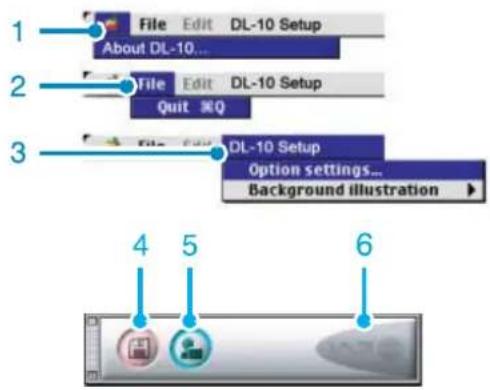
-
[About DL-10] Displays the version of DL-10.
-
[Quit] Closes DL-10.
-
[Option settings] Specifies where to save images and which application will launch when you press the Application button after saving. (See P.168.)
[Background illustration] If you select this, a sub-menu will appear, allowing you to change the background design of the DL-10 window.
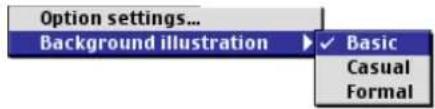
Sub-menu Figure
-
[Save Button] Click this and the images download from your camera.
-
[Application Button] The application registered in Optional Settings is launched.
-
[Indicator] The indicator lights up if the camera is connected via USB cable.
How to Use Optional Settings
If you select [Optional Settings] from the [DL-10 Settings] menu, the [Optional Settings] dialog box appears.
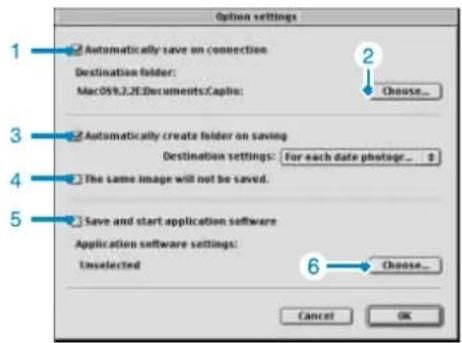
| Item | Description | Initial Setting | |
| 1. | [Automatically save on connection] | If you check this box, once your camera is connected to the computer, the images are automatically downloaded and saved.If you uncheck the box, even when your camera is connected, your images will not be downloaded automatically. Click the [Save] button when you want to download. | Transfer files automatically |
| 2. | [Choose] | Specifies which folder to save your images in.For Mac OS 8.6, Mac OS 9.1, or earlier versions, it is in the [Digital Camara] folder of the Root Directory on the Start-up disc [Macintosh HD].For Mac OS 9.1 to 9.2.2, it is specified in the [Digital Camara] folder inside the [Documents] folder on the Start-up disc [Macintosh HD], so if you want to change it, click the [Select] button and in the dialog box that appears, select the folder you wish to specify. | ____ |
| 3. | [Automatically create folder on saving] | Specifies how to create a folder.[Do not Create]Your downloaded images will all be saved in the folder specified in item 2.[For each day photographs]Creates a new folder assigning the date it was shot as the folder name, and saves images shot on the same day in the same folder.For example, if shot on May 1, 2004: [20040501] folder[Date Transferred + Number Transferred]Creates a new folder for each time images are saved and saves the images shot on the same day in the same folder.For example, if saved twice on May 1, 2004:[20040501_001] folder,[20040501_002] folder | Each day shot |
| 4. | [The same image will not be saved.] | You can specify this only when you have selected either [Day Shot] for folder name or if you did not check [Create a folder automatically when transferring] in [Create a Folder].Images imported once are not imported anymore. If you try to save a file to a folder that has an image file of the same name, it will not be saved. | Do not save same image |
| 5. | [Save and start application software] | If this is checked, an application will be launched after saving. If this is unchecked, no application will be launched. | Do not start application after transfer |
| 6. | [Choose] | Specify the name of the application you want to launch after you save. Click the [Choose] button to display the dialog box, and then specify which application to use. | ____ |
Appendices
A. Up/down Dial Functions
The up/down dial has the following functions:

Reference
- Up/down dial operation method, see P.11.
- For Scene Mode selection on the SCENE selection screen, see P.33.
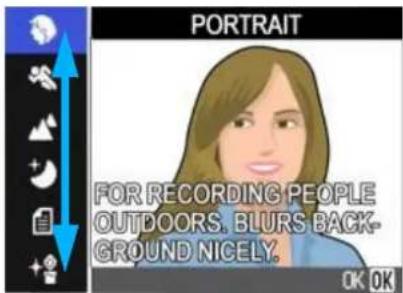
- For switching between screens and between items on the shooting/playback/SETUP menu, see P.20, P.23 or P.34.
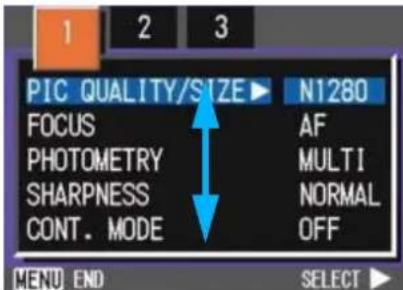
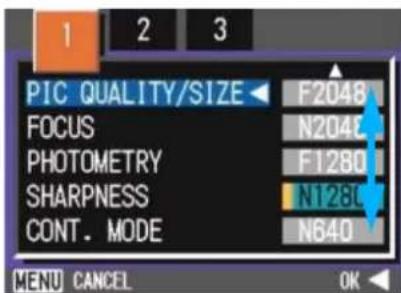
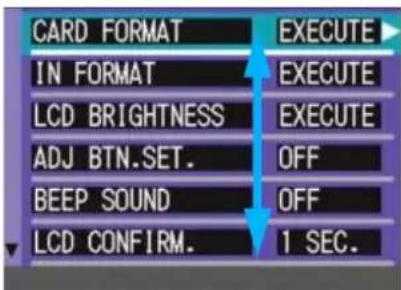
- For image selection on the thumbnail display screen, see P.90.
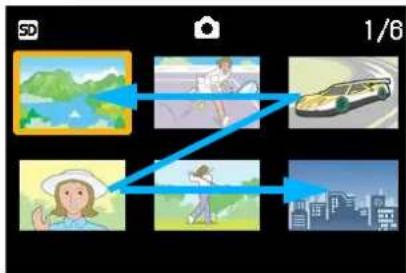
flowchart
graph TD
    A["Image"] --> B["Location"]
    B --> C["Car"]
    C --> D["City"]
    D --> E["Location"]
    E --> F["Car"]
- For how to change settings of exposure compensation, see P.60.
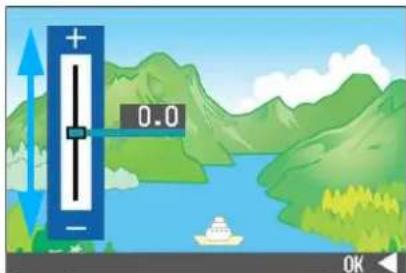
- For how to change settings of white balance, see P.62.
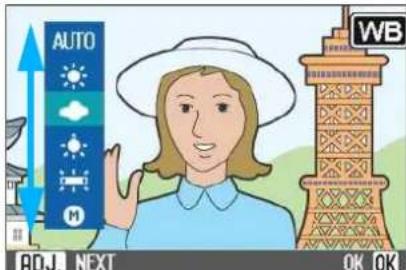
- For how to change settings of interval shooting, see P.79.
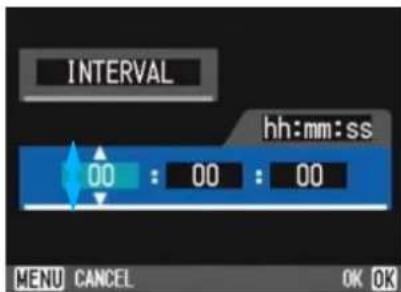
- For how to switch between files, see P.84.
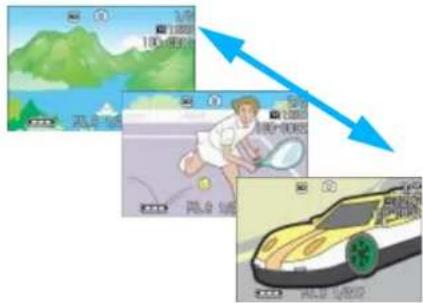
- For how to change the magnification of enlarged display screen at still image play-back, see P.84.
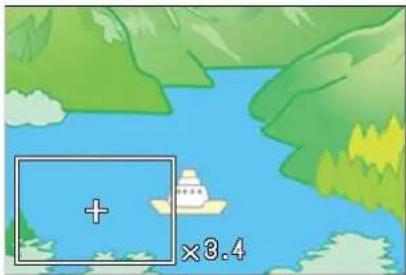
natural_image
Illustration of a river scene with green hills and a small boat, no text or symbols present• For volume adjustment, see P.87.
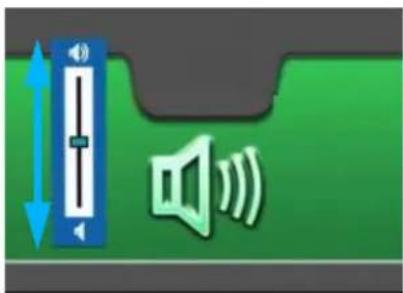
natural_image
Diagram showing a vertical bar with bidirectional arrows and a speaker icon, no text or symbols present- For frame feeding in SCONT or MCONT, see P.92.
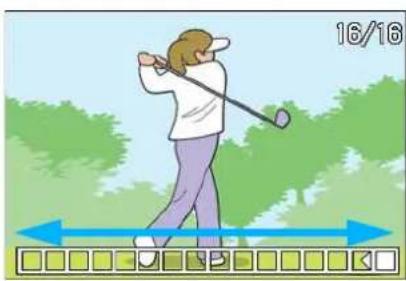
natural_image
Illustration of a golfer mid-swing on a grassy field, with no text or symbols present.- For how to change the date and time setting, see P.119.
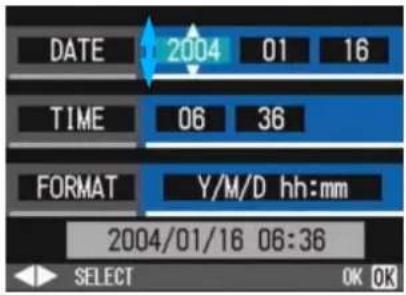
- For how to change the LCD brightness, see P.113.
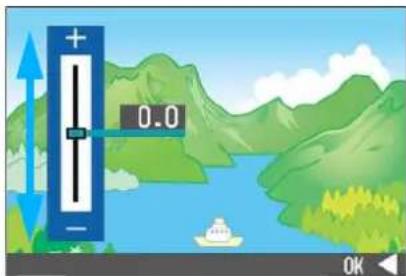
- For how to select a language on the display language setting screen, see P.120.
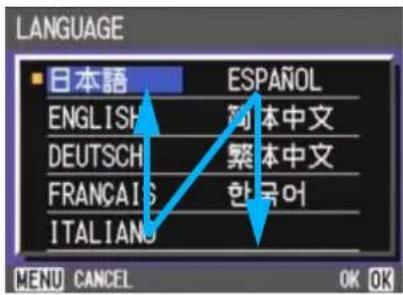
B. Specifications
Camera
| General | |
| Video Signal Format | : NTSC, PAL |
| Power Source Voltage | : AA Dry Alkaline Batteries (1.5 V) × 2Rechargeable Battery (3.7 V) × 1External Part (AC Adapter); 3.8 V |
| External Dimensions | : 113.6mm (W) × 58.0 mm (H) × 29.0 mm (D) (excluding projecting parts) |
| Weight | : Approx. 205g (excluding battery/SD Memory Card/Strap) |
| Operating Temperature Range | : 0°C to 40°C |
| Operating Humidity Range | : 85% or less |
| Storage Temperature Range | : -20°C to 60°C |
| Camera Parts | |
| Image Pickup Used | : Total 5.25 million pixels (effective pixels 5.13 million) |
| F No. | : F2.5 to 4.3 |
| Focal Length | : F: 5.8 to 17.4 mm (35 mm equivalent, 28 to 85 mm) |
| Minimum shooting range | : Approx. 1 cm (0.4") (Macro Mode/Wide-angle) |
| Macro Shooting Distance | : 1 cm or more (Wide-angle) |
| Digital Zoom | : 4 times |
| Monitor Display Parts | |
| Screen Size | : 1.8" |
| Type | : Cold polysilicon TFT LCD |
| Pixel Count | : Approx. 130000 |
| White Balance | : AUTO/Fixed (Daylight, Overcast, Tungsten light, Fluorescent light, One Push) |
| Exposure Adjustment | |
| Light Metering Sensitive Distribution | : Multi Light Metering (256 segments), Center-weighted Light Metering, Spot Metering |
| Exposure Compensation | : Manual Exposure Compensation +/-2.0EV (1/3EV Steps) |
| Metering Method | : TTL-CCD Metering Method |
| Flash AE | : Yes (In Daylight Synchro: On) |
| Shutter | : Still Images: 30, 15, 8, 4, 2, 1 to 1/2000 second; Movies: 1/30 to 1/2000 sec |
| ISO Sensitivity | : In AUTO, ISO 64, ISO 100, ISO 200, ISO 400, ISO 800, ISO 1600 |
| Distance Control | |
| AF Method | : Normal Shooting: External Passive / CCD method; Macro: CCD method |
| AF Measurement Range | : Normal: approx. 30 cm (11.7") - infinityMacro: approx. 1 cm -∞ (0.4" to 24") |
| Internal Flash | |
| Method | : Flashmatic |
| Shooting Distance | : Approx. 0.2 to 5.0 m(W), Approx. 0.15 to 2.9 m(T) (ISO:AUTO) |
| Operating Modes | : Flash Off/Forced flash/Auto/Slow synchro/Red-eye reduction |
Image Data Record/Replay Part
| Pixels | |
| Still Images | : 2592 × 1944, 2048 × 1536, 1280 × 960, 640 × 480 |
| Text | : 2560 × 1920, 2048 × 1536 |
| Movies | : 320 × 240, 160 × 120 |
| File Formats | |
| Still Images | : Compressed; JPEG (Exif Ver.2.21), TIFF (Non-Compressed YUV) |
| Text | : TIFF (MMR Method ITU-T.6) |
| Movies | : AVI (Open DML Motion JPEG Format Compliant) |
| Sounds | : WAV (Exif Ver.2.21 μ law) |
| Camera File System Standard | : DCF (DCF is an abbreviation for "Design rule for Camera File system", a JEITA standard) |
| Compression Format | : JPEG Baseline Format Compliant (Still, Movie) |
| Image Size | |
| 2592 × 1944 | : NC; approx. 9.61MB/Screen, N; approx. 984KB/Screen, F; approx. 1.68MB/ Screen |
| 2048 × 1536 | : N; approx. 614KB/Screen, F; approx. 1.20MB/ Screen |
| 1280 × 960 | : N; approx. 300KB/Screen, F; approx. 600KB/ Screen |
| 640 × 480 | : N; approx. 75KB/ Screen |
| I/O Terminals | |
| DC In | : 3.8 V (AC Adapter) |
| Video Out | : 1.0 Vp-p (75 W) |
| Date Maintain Time | : Approx. 2 weeks |
| Memory Cards that can Record, Playback | |
| Memory Type | : SD Memory Card, Multi-Media Card |
C. Functions Whose Defaults will be Restored upon Power-off
Power-off may reset some function settings to their defaults. The table below indicates whether or not the function will be reset to its defaults upon power-off.
| Mode | Function | The current setting is kept:○, Restored:X |
| SETUP | LCD BRIGHTNESS | ○ |
| ADJ. BUTT. SET. | ○ | |
| BEEP SOUND | ○ | |
| LCD CONFIRM. | ○ | |
| AUTO POWER OFF | ○ | |
| SEQUENTIAL NO. | ○ | |
| POWER SAVE | ○ | |
| DATE SETTINGS | ○ | |
| LANGUAGE | ○ | |
| VIDEO OUT MODE | ○ | |
| STEP ZOOM | ○ | |
| Shoot | PIC QUALITY/SIZE | ○ |
| MOVIE SIZE (Movie Mode) | ○ | |
| SIZE (Text Mode) | ○ | |
| DENSITY (Text Mode) | ○ | |
| FOCUS | ○ | |
| PHOTOMETRY | ○ | |
| SHARPNESS | ○ | |
| CONT. MODE | ○ | |
| AUTO BRACKET | X | |
| TIME EXPOSURE | ○ | |
| MANUAL EXPOSURE | ○ | |
| INTERVAL | X | |
| IMAGE WITH SOUND | X | |
| DATE IMPRINT | ○ | |
| EXPOSURE COMP. | ○ | |
| WHITE BALANCE | ○ | |
| ISO SETTING | ○ | |
| APERTURE SETTING | ○ | |
| Self-timer | X | |
| Flash | ○ | |
| Macro shooting | X | |
| LCD screen display | Other than Synchro-Monitor Mode:○, Synchro-Monitor Mode:X | |
| SCENE Mode | ○ | |
| Playback | LCD screen display | ○ |
| Volume | ○ |
D. Optional Accessories
This camera can be used with the items (sold separately) listed below.
| Item | Remarks |
| AC Adapter | For when you want to supply power directly from a wall outlet. |
| Rechargeable Battery | Available for this camera. |
| Battery Charger | This is a special high-speed (rechargeable) battery charger. |
E. SD Memory Card Recording Capacities
The following table shows the approximate number of images that can be recorded onto an SD memory card at various image size and picture quality settings.
| Mode | Picture Quality | Image Size | 8MB | 32MB | 64MB |
| Still Image | NC | 2592×1944 | 0 | 3 | 3 |
| F | 2592×1944 | 3 | 15 | 30 | |
| N | 2592×1944 | 5 | 24 | 50 | |
| F | 2048×1536 | 4 | 20 | 41 | |
| N | 2048×1536 | 8 | 39 | 80 | |
| F | 1280×960 | 8 | 38 | 79 | |
| N | 1280×960 | 16 | 75 | 154 | |
| N | 640×480 | 58 | 270 | 553 | |
| Text | 2560×1920 | 8 | 39 | 80 | |
| 2048×1536 | 16 | 75 | 154 | ||
| Movie | 320×240 | 18 Seconds | 86 Seconds | 177 Seconds | |
| 160×120 | 65 Seconds | 316 Seconds | 646 Seconds | ||
| Sound | 14 Min 02 S | 64 Min 38 S | 132 Min 13 S |

Note
The number of remaining shots available may differ from the actual number of shots, depending on the subject.
F. Using Your Camera Abroad
The AC Adapter
- Can be used in regions with a current of 120V, 50Hz/60Hz.
- If you are going to travel to a country that uses a different shaped wall outlet/plug, please consult your travel agent on a plug Adapter suitable for wall outlets in your country of destination.
The Warranty
- This product is for domestic use. The warranty is only valid domestically.
- In the unlikely event that a failure or breakdown should occur while abroad, please be aware there is no after-sales service or compensation for repairs.
Using Playback on a Television in other Regions
- Playback is possible on televisions (or monitors) equipped with a video input terminal. Please use the video cable provided.
- This camera is compatible with both NTSC and PAL television formats. Switch the video format on the camera to match the television environment in the region.
- When you go overseas, set your camera to the local video format.
G. Cautions on Use
- Be sure not to drop or apply any sudden force to the camera.
- Firing the flash consecutively may heat the firing unit. Do not fire it consecutively more than necessary.
- Do not fire the flash near eyes, or view the sun or other strong light directly through the view-finder. It could cause visual impairment (particularly for infants).
- Do not fire the flash near the driver of a vehicle to avoid causing accidents.
- The batteries may become hot after extended use. Touching the batteries immediately after use could result in burns to your fingers.
- If the LCD monitor or panel is exposed to sunlight, they may become washed out and images may become hard to view.
- The LCD monitor and panel may contain some pixels that do not remain lit up continually in part or at all. Also, the brightness may become uneven because of the characteristics of LCDs. These are not failures.
- While you are carrying the camera, be careful not to hit it against other objects.
- In an environment where the temperature changes suddenly, condensation may occur in the camera, resulting in troubles such as fogging of the glass surface or malfunctions of the camera. If this occurs, place the camera in a bag to slow the temperature change as much as possible. Take it out of the bag after the temperature difference from the atmosphere has decreased a fairly small amount.

Note
Conditions in which condensation may easily occur:
- When the camera is moved to an environment where the temperature differs greatly.
• In humid places - In a room immediately after being heated, or when the camera is exposed directly to cooled air from an air-conditioner or another similar appliance.
H. Care and Storage
Care
- Please note that if fingerprints, dirt, etc. get onto the lens, picture quality will suffer.
- When dust or dirt does get on the lens, do not touch it directly with your fingers, either use a blower (available in stores) to blow it off, or a soft cloth to gently dust it off.
• After use at the beach or around chemicals, wipe it off particularly carefully. - There are high voltage circuits in this camera. As this is dangerous, do not dismantle this camera under any circumstances.
- Do not get volatile substances, such as thinner, benzene, or pesticides on your camera. This may cause a change in quality, paint may peel, etc.
- As the surface of the LCD Monitor is easily scratched, do not rub hard objects against it.
- Please clean the surface of the LCD Monitor with solvents available on the market specially for cleaning LCD display surfaces. Gently wipe with a soft cloth dampened with a little cleaner.
Storage
- Please avoid storing your camera in the following kinds of places, as breakdown may result. In high heat and humidity, or where there is severe change in temperature or humidity. Places with a lot of dust, dirt or sand.
Places with severe vibration.
In places of direct contact with vinyl products, rubber or chemicals, such as insect repellent, etc.
Places with strong magnetic fields (monitors, next to strong magnets, etc.).
- If you are using a battery or batteries, remove them if you are not going to use the camera for a long period of time.
Precautions regarding care of your camera
- Be sure to turn the power off.
- Remove the batteries or AC Adapter before caring for your camera.
I. Troubleshooting
Refer to the symptoms and measures listed below before sending the camera for repairs.
Power Supply
| Symptom | Cause | Measure | Page |
| The power does not come on. | Batteries are not loaded. Or they are exhausted. | Load the batteries correctly. Recharge or use the AC Adapter. | P.12P.14P.15 |
| The AC Adapter is not connected correctly. | Reconnect it properly. | P.15 | |
| Because the camera overheated the power was automatically turned off. | Wait until the temperature of the camera returns to normal. Do not attempt to cool the camera suddenly. | - | |
| The power cuts out during use. | The camera was left unattended and unused, so Auto Power-Off shut it off. | Turn the power back on. | P.17P.116 |
| Batteries are running low. | If you are using alkaline batteries, replace them.If you are using a rechargeable battery, recharge it or use the AC Adapter. | P.12P.14P.15 | |
| The power does not go off. | Camera malfunction. | Reload batteries.If using the AC Adapter, reconnect it. | P.12P.14P.15 |
| Cannot recharge the batteries. | Battery life. | Replace the batteries with a new set. | P.14 |
| Batteries run out quickly. | They are being used in extreme high or low temperatures. | - | - |
| Many shots are being taken in dark places inside, requiring flash. | - | - |
Shooting
| Symptom | Cause | Measure | Page |
| Even if I press the button, the camera does not shoot. | Batteries are not loaded. Or they are exhausted. | If using alkaline batteries, replace the batteries with a new set. If using rechargeable batteries, recharge or use the AC Adapter. | P.12P.14P.15 |
| The power is not on. Or the camera is not in Shooting Mode. | Turn the power on and turn the Mode Dial to Shooting Mode. | P.11 | |
| The shutter button is not pressed all the way. | Press the shutter button all the way. | P.38 | |
| The Memory Card is not formatted. | Format the card. | P.112 | |
| The Memory Card does not have any free space. | Load a new card, or delete unwanted files. | P.18P.95 | |
| End of Memory Card life. | Load a new Memory Card. | P.18 | |
| The flash is recharging. | Wait until the flash lamp stops blinking. | P.52 | |
| The SD Memory Card is "locked". | Release the "Lock (write-protection)". | P.18 | |
| The SD Memory Card's contact surfaces are dirty. | Wipe off with a soft, dry cloth. | - | |
| I cannot check shot images. | The image confirmation time is too short. | Lengthen the image confirmation time. | P.115 |
Shooting
| Symptom | Cause | Measure | Page |
| Images do not appear on the LCD Monitor. | The power is not on. Or the LCD Monitor is dark. | Turn the power on. Or adjust the brightness of the LCD Monitor. | P.17P.113 |
| The AV cable is connected. | Disconnect the AV cable. | P.94 | |
| The screen display status is in [SYNCHRO-MONITOR MODE]. | Press the DISP. button and switch display. | P.24 | |
| It is set to [Power-Save]. | Set [Power-Save] to off. | P.118 | |
| Although it is set to Auto Focus, it does not focus. | The lens is dirty. | Wipe clean with a soft, dry cloth. | - |
| The subject is not in the center of the shooting range. | Shoot with Focus Lock. | P.40 | |
| It is a hard-to-focus subject. | Shoot with Focus Lock or Manual Focus. | P.40P.73 | |
| A picture is blurred. | You moved the camera when pressing the shutter release button. | Hold the camera with your elbows tight on your body. Use a tripod. | |
| When shooting in a dark place (ex. indoor), the shutter speed slows down and pictures become easily blurred. | Use the flash.Raise the ISO sensitivity. | ||
| The flash does not fire. Or the flash cannot recharge. | The Shooting Mode is set to 📋 (Multi-Shot) or 🌐 (Movie). | Switch the Shooting Mode to 📋 (Still Image). | P.52 |
| The flash is set to ⚙ (Flash Off). | Set to Flash Off with the ↕ button. | P.52 | |
| Batteries are running low. | If using alkaline batteries, replace with a new set. If using rechargeable batteries, recharge or use the AC Adapter. | P.12P.14P.15 | |
| Even though the flash fired, the picture is dark. | The distance to the subject is greater than 2.9 meters in Telephoto or greater than 5.0 meters in Wide-angle. | Get closer to your subject and shoot. | P.52 |
| The subject is blackish. | Correct exposure. (Exposure correction also changes the light quantity of the flash.) | P.60 | |
| The image is too bright. | You are too close to the subject. | Set to Flash Off with the ↕ button. | P.52 |
| It is over-exposed. | Use exposure compensation. Cancel Exposure Time. | P.60 | |
| The brightness of the LCD Monitor is odd. | Adjust the brightness of the LCD Monitor. | P.113 | |
| The image is too dark. | The shot was taken in a dark place while set to ⚙ (Flash Off). | Release the Flash Off with the ↕ button. | P.52 |
| It is under-exposed. | Use exposure compensation. Set to Exposure Time. | P.60 | |
| The brightness of the LCD Monitor is odd. | Adjust the brightness of the LCD Monitor. | P.113 | |
| The image lacks natural color. | The picture was shot in conditions that are hard for Auto White Balance to adjust to. | Add a white object to the composition. Or use Auto Balance in a setting other than Flash shooting or Auto Mode. | P.62 |
| The date, or recording information does not appear. | The screen display function is set to No Display. | Press the DISP. button and switch display. | P.24 |
| The brightness of the LCD Monitor changes during AF. | You are using it in a dark place or when Auto Focus range and surrounding brightness are different. | This is normal. | - |
Shooting
| Symptom | Cause | Measure | Page |
| There is a vertical smear on the image. | This is a phenomenon that occurs when a bright subject is shot. It is called the smear phenomenon. | This is normal. | - |
| The cross for the AF target cannot be moved. | The camera is not in Macro mode. | Preset Macro mode and press the ADJ. button three times (or four times). | P.48 |
Playback/Deleting
| Symptom | Cause | Measure | Page |
| Cannot Playback. Or the Playback screen does not come out. | It is not set to ▶ (Playback). | Turn the Mode Dial to ▶ (Playback Mode). | P.86 |
| The AV cable was not connected properly. | Reconnect it properly. | P.94 | |
| The video format is set wrong. | Set to correct format. | - | |
| The contents of SD Memory Card can-not be replayed, or the replay screen does not appear. | A Memory Card is not loaded. Or a Memory Card with no stored images is loaded. | Load a card with stored images. | P.18 |
| You played back a Memory Card that was not formatted by this device. | Load a card that was formatted and stored on by this device. | P.112 | |
| You played back a Memory Card that was not recorded normally. | Load a normally recorded card. | P.18 | |
| The Memory Card's contact surfaces are dirty. | Wipe with a soft, dry cloth. | - | |
| There is something wrong with the Memory Card. | Play another card and if there is nothing wrong with it, the camera is OK. There may be some-thing wrong with the card, so do not use it. | - | |
| An image disappeared. | Batteries are running low. | If using alkaline batteries, replace with a new set.If using rechargeable batteries, recharge or use the AC Adapter. | P.12P.14P.15 |
| The camera was left unattended and not used, so Auto Power-Off shut it off. | Turn the power back on. | P.17 | |
| Files cannot be deleted. | The file has been set to protect. | Release the protection. | P.104 |
| The SD Memory Card is "locked". | Release the "Lock (write-protection)". | P.18 | |
| Cannot format a Memory Card. | The SD Memory Card is "locked". | Release the "Lock (write-protection)". | P.18 |
Other Problems
| Symptom | Cause | Measure | Page |
| Cannot load the Memory Card. | The card is facing the wrong way. | Load correctly. | P.18 |
| Even when the camera's buttons are pressed, it does not operate. | Batteries are running low. | If using alkaline batteries, replace with a new set. If using rechargeable batteries, recharge or use the AC Adapter. | P.12P.14P.15 |
| Camera Malfunction. | Turn the power off once, turn it back on and switch to (Still Image). | P.11P.17 | |
| Remove batteries once and load them again.Reconnect the AC adapter cable properly, if using. | P.12P.14P.15 | ||
| The date is wrong. | The correct date/time are not set. | Set the correct date/time. | P.119 |
| The date set has disappeared. | The batteries were removed. | If the batteries are removed for more than two weeks, the date setting will be lost. Make the settings again. | P.119 |
| Auto Power-Off does not work. | Auto Power-Off is set to OFF. | Set the time for Auto Power-Off. | P.116 |
| The beep does not sound. | The camera is set to silent. | Set the beep to ON. | P.115 |
| Images do not appear on the TV. | The video format is set wrong. | Set to correct format. | P.120 |
| The cable is not connected. | Reconnect the cable properly. | P.94 | |
| The TV in/out switch is incorrectly set. | Check that the TV in/out switch is set correctly. | - |
About computer connection and software
Symptom 1 Cannot download images
Measure 1
Your computer may not recognize the camera correctly.
Follow the steps below.
• For Windows 98/98SE/Me
Step 1 First, follow the steps below.
- Load the CD-ROM into your computer.
- Connect your camera via the USB cable to your computer.
- Click the [Start] button on the Windows taskbar to display the [Start] menu.
- On the [Start] menu, point to [Settings], and then click [Control Panel].
- On the Control Panel screen displayed, double-click the [System] icon.
- On the [System Properties] screen displayed, double-click the [Device Manager] tab.
- On the [Device Manager] tab page displayed, click [+] on the left side of [Other Devices].
- Check if there is [DSC 718] below it. If there is, click [DSC 718], and then click the [Delete] button at the bottom of the [Device Manager] tab. The entry [DSC 718] is deleted.
-
Click [OK] to close the [System Properties] screen.
-
When the display returns to the Control Panel, double-click the [Add/Remove] icon.
-
On the [Add/Remove Applications Properties] screen displayed, select [DSC Software], and then click the [Add/Remove] button. This uninstalls the DSC Software.
-
Click [OK] to close the [Add/Remove Applications Properties] screen.
-
Click the [x] (Close) button to close the Control Panel.
-
Turn off your camera and restart your computer.
-
Turn your computer back on and reinstall the software from the CD-ROM. *At this time, do not connect your camera.
-
Connect your camera via the USB cable to your computer. When the computer recognizes the camera, the [New Hardware] screen launches and your camera is registered by the computer.
Step 2 If your computer still does not recognize the camera, follow the steps below.
- Load the CD-ROM into your computer.
- Connect your camera via the USB cable to your computer.
- Click the [Start] button on the Windows taskbar to display the [Start] menu.
- On the [Start] menu, point to [Settings], and then click [Control Panel].
- On the Control Panel screen displayed, double-click the [System] icon.
- On the [System Properties] screen displayed, double-click the [Device Manager] tab.
-
On the [Device Manager] tab page displayed, click the [+] on the left side of [Port COM/LPT] to open.
-
Check whether or not there is an unknown device symbol (!) indicated for [DSC Camera Port]. If there is, select it, and then click the [Delete] button at the bottom of the [Device Manager] tab to delete it.
- Click [+] on the left side of [Universal Serial Controller] to open.
- Check whether or not there is an unknown device symbol (!) indicated for [DSC USB Virtual COM] below it. If there is, select it, and then click the [Delete] button at the bottom of the [Device Manager] tab to delete it.
- Click [OK] to close the [System Properties] screen.
- When the display returns to the Control Panel, double-click the [Add/Remove Applications] icon.
- On the [Add/Remove Applications Properties] screen displayed, select [DSC Software], and then click the [Add/Remove] button. This uninstalls the DSC Software. Check whether the batteries have worn out. If worn out, replace them with new ones.
- Click [OK] to close the [Add/Remove Applications Properties] screen.
- Click the [x] (Close) button to close the Control Panel.
- Turn off your camera and restart your computer.
- Turn your computer back on and reinstall the software from the CD-ROM. *At this time, do not connect your camera.
- Connect your camera via the USB cable to your computer. When the computer recognizes the camera, the [New Hardware] screen launches and your camera is registered by the computer.
• For Windows 2000
Step 1 First, follow the steps below.
- Load the CD-ROM into your computer.
- Connect your camera via the USB cable to your computer.
- Click the [Start] button on the Windows taskbar to display the [Start] menu.
- On the [Start] menu, point to [Settings], and then click [Control Panel].
- On the Control Panel screen displayed, double-click the [System] icon.
- On the [System Properties] screen displayed, double-click the [Hardware] tab.
- On the [Hardware] tab page displayed, click the [Device Manager] button.
- On the [Device Manager] screen displayed, click [+] on the left side of [Other Devices].
- Check if there is [DSC 718] below it. If there is, click [DSC 718], and then click the [Delete] button at the bottom of the [Device Manager] tab. The entry [DSC 718] is deleted.
- Click [OK] to close the [Device Manager] screen.
- Click [OK] to close the [System Properties] screen.
- When the display returns to the Control Panel, double-click the [Add/Remove Applications] icon.
- On the [Add/Remove Applications Properties] screen displayed, select [DSC Software], and then click the [Add/Remove] button. This uninstalls the DSC Software.
- Click [OK] to close the [Add/Remove Applications Properties] screen.
-
Click the [x] (Close) button to close the Control Panel.
-
Turn off your camera and restart your computer.
- Turn your computer back on and reinstall the software from the CD-ROM. *At this time, do not connect your camera.
- Connect your camera via the USB cable to your computer. When the computer recognizes the camera, the [New Hardware] screen launches and your camera is registered by the computer.
Step 2 If your computer still does not recognize the camera, follow the steps below.
- Load the CD-ROM into your computer.
- Connect your camera via the USB cable to your computer.
- Click the [Start] button on the Windows taskbar to display the [Start] menu.
- On the [Start] menu, point to [Settings], and then click [Control Panel].
- On the Control Panel screen displayed, double-click the [System] icon.
- On the [System Properties] screen displayed, double-click the [Hardware] tab.
- On the [Hardware] tab page displayed, click the [Device Manager] button.
- On the [Device Manager] page displayed, click [+] on the left side of [Port COM/LPT] to open.
- Check whether or not there is an unknown device symbol (!) indicated for [DSC Camera Port]. If there is, select it, and then click the [Delete] button at the bottom of the [Device Manager] tab to delete it.
- Click [OK] to close the [System Properties] screen.
- When the display returns to the Control Panel, double-click the [Add/Remove Applications] icon.
- On the [Add/Remove Applications Properties] screen displayed, select [DSC Software], and then click the [Add/Remove] button. This uninstalls the DSC Software.
- Click [OK] to close the [Add/Remove Applications Properties] screen.
- Click the [x] (Close) button to close the Control Panel.
- Turn off your camera and restart your computer.
- Turn your computer back on and reinstall the software from the CD-ROM. *At this time, do not connect your camera.
- Connect your camera via the USB cable to your computer. When the computer recognizes the camera, the [New Hardware] screen launches and your camera is registered by the computer.
- For Windows XP
Step 1 First, follow the steps below.
- Load the CD-ROM into your computer.
- Connect your camera via the USB cable to your computer.
- Click the [Start] button on the Windows taskbar to display the [Start] menu.
- On the [Start] menu, click [Control Panel].
-
On the Control Panel screen displayed, double-click the [Switch to Classic Display] icon. The display changes its appearance and the [System] icon appears.
-
Double-click the [System] icon.
- On the [System Properties] screen displayed, click the [Hardware] tab.
- On the [Hardware] tab page displayed, click the [Device Manager] button.
- On the [Device Manager] screen displayed, click [+] on the left side of [Other Devices].
- Check if there is [DSC 718] below it. If there is, right-click [DSC 718] to display the menu and select [Update Driver].
- Windows XP will display the [Hardware Update Wizard] screen.
- Make sure that [Install the software automatically (Recommended)] is selected, and then click [Next].
- When the [Completing the Hardware Update Wizard] screen appears, click [Finish].
- Click the [x] (Close) button to close the [Device Manager] screen.
- Click [OK] to close the [System Properties] screen.
- Click the [x] (Close) button to close the Control Panel.
- Turn off your camera and restart your computer.
- Turn your computer back on and reinstall the software from the CD-ROM. *At this time, do not connect your camera.
- Connect your camera via the USB cable to your computer. When the computer recognizes the camera, the [New Hardware] screen launches and your camera is registered by the computer.
Step 2 If your computer still does not recognize the camera, follow the steps below.
- Load the CD-ROM into your computer.
- Connect your camera via the USB cable to your computer.
- Click the [Start] button on the Windows taskbar to display the [Start] menu.
- On the [Start] menu, click [Control Panel].
- On the Control Panel screen displayed, double-click the [Switch to Classic Display] icon. The display changes its appearance and the [System] icon appears.
- Double-click the [System] icon.
- On the [System Properties] screen displayed, click the [Hardware] tab.
- On the [Hardware] tab page displayed, click the [Device Manager] button.
- On the [Device Manager] screen displayed, click [+] on the left side of [Imaging Devices].
- Check whether or not there is an unknown device symbol (!) indicated for [DSC 718]. If there is, right-click the unknown device symbol to display the menu and select [Driver Update].
- Windows XP will display the [Hardware Update Wizard] screen.
- Make sure that [Install the software automatically (Recommended)] is selected, and then click [Next].
- When the [Completing the Hardware Update Wizard] screen appears, click [Finish].
- Click the [x] (Close) button to close the [Device Manager] screen.
- Click [OK] to close the [System Properties] screen.
- Click the [x] (Close) button to close the Control Panel.
Measure 2
For Windows 98/98SE/Me, the COM Port setting may be wrong.
Follow the steps below:
- Connect your camera via the USB cable to your computer.
- Click the [Start] button on the Windows taskbar to display the [Start] menu.
- On the [Start] menu, point to [Settings], and then click [Control Panel].
- On the Control Panel screen displayed, double-click the [System] icon.
- On the [System Properties] screen displayed, double-click the [Device Manager] tab.
- On the [Device Manager] tab page displayed, click the [+] on the left side of [Port COM/LPT].
- Click [DSC Camera Port] under [Port COM/LPT], and then click the [Properties] button at the bottom of the [Device Manager] tab.
- On the [DSC Camera Port Properties] screen displayed, Click the [Port Select] tab.
- On the [Port Select] tab page displayed, select a COM Number not being used from [Port-Name].
The port (COM number) currently allocated for your camera is indicated by a "*". Immediately after installing the USB driver, COM 7 should be selected, so select a number above COM8. - Click [OK] to close the [DSC Camera Port Properties] screen.
- Click [OK] to close the [System Properties] screen.
- Click the [x] (Close) button to close the Control Panel.
Measure 3
Your camera may not be recognized correctly if you connect to the USB Port of your computer via a USB hub.
Follow the steps below to change the USB port.
Connect your camera directly to the USB port of your computer.
If there are several root ports, change to another one.
If you are using a port other than USB, connect via a USB port.
Measure 4
The batteries may have worn out.
Check whether the batteries have worn out. If worn out, replace them with new ones. (See P.12)
Measure 5
The free space on the hard disk in your computer may be insufficient.
Check whether the hard disk has a space for running Windows, and the drive where you are loading image files has the same capacity or more as that of the memory card inserted in the camera.
Symptom 2 Even if you check [The same image will not be saved] in the DL-10 Optional Settings, the same images are loaded into your computer.
Measure
The camera's clock is incorrectly set or the camera's clock information has been reset. To allow the [The same image will not be saved] function to work properly, the camera's clock information must be set properly. Set it properly. (See P.119.)
Symptom 3 Files loaded from the camera into the computer were deleted. You attempted to load the same files from the camera again but failed.
Measure
If [The same image will not be saved] is checked in the DL-10 Optional Settings, files loaded into your computer once cannot be loaded again. In the DL-10 Optional Settings, uncheck [The same image will not be saved]. (See P.139)
Symptom 4 Cannot play back movies
Measure
DirectX may not be installed (only for Windows 98/98SE/Me/2000). Install DirectX from the CD-ROM. (See P.131)
Symptom 5 DL-10 is always activated when the camera is connected to a Windows XP computer through a USB cable.
Measure
Connect the camera to the computer through the USB cable, and then open My Computer from the Start menu on Windows Taskbar. Right-click the camera icon on the My Computer screen and click Properties to open the camera's Properties screen. Click the [Event] tab on the Properties screen. For the computer operation, select "None" or "Select Program to Execute" and click OK. If "None" is selected, nothing happens when the camera is connected to the computer. If "Select Program to Execute" is selected, a screen is displayed each time the camera is connected to the computer. Then you can choose a program to activate.
J. Error Messages
If an error message is displayed on the LCD Monitor, take the corresponding action.
| Error Message | Cause and Action | Page |
| INSERT CARD | No card is loaded. Insert a card. | P.18 |
| SET DATE | The date is not set. Set the date. | P.119 |
| FILE NUMBER OVER | The file number limit has been exceeded. Please use another card, or delete unwanted files. | P.95 |
| UNMATCHED FILE | A file that cannot be played back was selected. | - |
| INSUFFICIENT MEMORY. CONTINUE? | Because there is not sufficient capacity on the card, all the files can-not be copied. Use another card. | P.106 |
| PROTECTED | You are trying to delete a protected file. | P.104 |
| WRITE-PROTECTED | The card is "Locked (write-protection)". Unlock the card. | P.18 |
| PRINT SETTINGS CANNOT BE SET FOR THIS FILE. | This file (movies and other) cannot be selected for printing. | - |
| INSUFFICIENT MEMORY | Files cannot be stored. Make sure there is enough free space, or delete files. | P.95 |
| The image print number limit has been exceeded. Select an image and set the number to 0. | P.107 | |
| FORMAT INTERNAL MEMORY | It is necessary to format internal memory. | P.113 |
| FORMAT CARD | The card is not formatted. Format the card. | P.112 |
| CARD ERROR | Please reformat. If, after doing so, the error message still appears, the card may be faulty. Do not use the card. | P.112 |
| WRITE TO CARD | Writing file to memory. Wait until writing finishes. | - |
| NO FILE | There are no files that can be played back. | - |
| CANNOT RECORD | The Number of remaining shots is 0. Switch to another card or internal memory. | - |
Index
A
AA Alkaline Batteries (LR6) 8, 12
AA Nickel Batteries 12
About the Direct Print Function 98
AC Adapter 9
Acrobat Reader 124
ADJ BTN.SET. 114
AUTO BRACKET 77
AUTO POWER OFF 17, 116
AV Cable 8
B
Battery Charger 9
Battery level indication 13
BEEP SOUND 115
Button Functions 26
C
CARD FORMAT 112
CD-ROM 8
Certain subjects are hard to bring into focus .....39
Connecting the Camera to a Computer .....134, 164
COPY TO CARD 106
D
DATE IMPRINT 81
DATE SETTINGS 119
Deleting Unwanted Still Images/Movies/Sounds .....95
DENSITY 67
DirectX 124
DL-10 for Macintosh 156
DL-10 for Windows 124
Downloading Images from an SD Memory Card ...140
Downloading Pictures to Your Computer .....164
DPOF 107
DU-10x 124
E
Enlarged Viewing 91
EXPOSURE COMP. 60
F
FOCUS 73
Focus Lock 40
H
Handstrap 8
HIGH SENSITIVITY 41
Histogram Display 25
How to Focus 36
How to Hold the Camera 36
How to Use DL-10 137, 167
How to Use DU-10x 141
How to use the hot shoe 10
How to Use the LCD Monitor 20
How to Use the Mode Dial 11
|
IMAGE WITH SOUND 58
IN FORMAT 113
Indication of the number of images you can take ....12
Installation 127
Installing Acrobat Reader 131
Installing DirectX 131
INTERVAL 79
ISO SETTING 65
L
LANDSCAPE 41
LANGUAGE 120
LCD BRIGHTNESS 113
LCD CONFIRM. 115
M
Macro Photo 48
Mounter 156
N
Nickel-Hydrogen Battery 12
NIGHTSCAPE 41
0
Operation Manual 2
Optical Zoom 46
P
PHOTOMETRY 75
PIC QUALITY/SIZE 70
Playback Menu 32
Playing Back Sound 88
PORTRAIT 41
POWER SAVE MODE 17
POWER-SAVE 118
PROTECT 104
Q
Quick Review 84
Quick Start Guide 2,8
R
Read Me First 2,8
Rechargeable Battery 9
Rechargeable Battery (DB-43) 12
Recording Voice Memos 50
RESIZE 110
RESTORE DEFAULTS 82
S
Safety Precautions 8
Scene Selection Screen (Scene Mode) 33
SD Memory Card Recording Capacities 175
SEQUENTIAL NO. 117
Setup Screen (Setup Mode) 34
SHARPNESS 76
Shooting Menu (Aperture Priority Mode) 30
Shooting Menu (Movie Mode) 31
Shooting Menu (Scene Mode, except in Text Mode) .. 31
Shooting Menu (Shooting Mode) 29
Shooting Menu (Text Mode) 32
Shooting Movies 45
Shooting Still Images 38
Shooting with Multi-Shot 43
Shooting with Scenery-Matching 41
SLIDE SHOW 93
Slow Synchronized 52
Specifications 172
SPORTS 41
STEP ZOOM 121
Switching the Screen Display 24
Synchro Monitor Mode 25
T
TEXT MODE 41
Thumbnail Display 90
TIME EXPOSURE 78
Turning the Power On/Off 17
U
USB Cable 8
USB driver 156
Using the ADJ. (Adjust) Button 59
Using the Flash 52
Using the Self-Timer 54
Using the up/down dial 11
V
VIDEO OUT MODE 120
Viewing Movies 87
Viewing on a Television 94
W
Warranty Card 8
Where images are recorded 18
WHITE BALANCE 62
WHITE BALANCE BRACKET 69
WIA driver 124