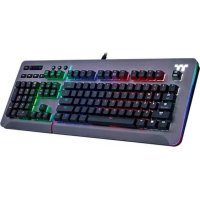
Level 20 RGB - Clavier THERMALTAKE - Notice d'utilisation et mode d'emploi gratuit
Retrouvez gratuitement la notice de l'appareil Level 20 RGB THERMALTAKE au format PDF.


| Type de produit | Clavier gaming mécanique |
| Marque | Thermaltake |
| Modèle | Level 20 RGB |
| Dimensions approximatives | 44 x 13 x 3 cm |
| Poids approximatif | 1,2 kg |
| Alimentation | USB (5 V / 500 mA) |
| Logiciel de gestion | TT iTAKE (téléchargeable sur le site Thermaltake) |
| Nombre de profils | Jusqu'à 6 profils enregistrables (15 avec le logiciel) |
| Effets lumineux | Statique, pulsation, clignotement, spectre RGB, gouttes de pluie, mode musique, température |
| Compatibilité | Windows 7/8/10/11, macOS (via logiciel) |
| Connectivité | USB filaire (câble détachable) |
| Fonctions principales | Rétroéclairage RGB personnalisable, macros, profils, commandes vocales Amazon Alexa (optionnel) |
| Entretien et nettoyage | Débrancher le clavier avant nettoyage. Utiliser un chiffon doux légèrement humide. Ne pas utiliser de produits abrasifs. |
| Sécurité | Ne pas exposer à l'eau ou à l'humidité excessive. Ne pas démonter. Utiliser uniquement avec l'adaptateur secteur fourni. |
| Pièces détachées et réparabilité | Pour toute réparation, contacter le support Thermaltake. Pas de pièces détachées disponibles au grand public. |
| Informations générales | Notice disponible en téléchargement gratuit sur notice-facile.com. Garantie constructeur 2 ans. |
FOIRE AUX QUESTIONS - Level 20 RGB THERMALTAKE
Pour plus de détails, consultez le chapitre 1 de la notice.
Questions des utilisateurs sur Level 20 RGB THERMALTAKE
0 question sur cet appareil. Repondez a celles que vous connaissez ou posez la votre.
Poser une nouvelle question sur cet appareil
Téléchargez la notice de votre Clavier au format PDF gratuitement ! Retrouvez votre notice Level 20 RGB - THERMALTAKE et reprennez votre appareil électronique en main. Sur cette page sont publiés tous les documents nécessaires à l'utilisation de votre appareil Level 20 RGB de la marque THERMALTAKE.
MODE D'EMPLOI Level 20 RGB THERMALTAKE

Table of Contents
PAGE 03 TT iTAKE Installaon
PAGE 06 Funcons Available on the Home Page
PAGE 08 Funcons Available on the Lighng Eects Page
PAGE 10 Lighng Eects Overview
Stac
Pulse
Blink
RGB Spectrum
Raindrop
Music Mode
Temp.
PAGE 21 Funcons Available on the Sengs Page

thermaltake
Chapter 1: TT iTAKE Installaon
TT Premium | Level 20 RGB Extended Mouse Pad Soware User Guide
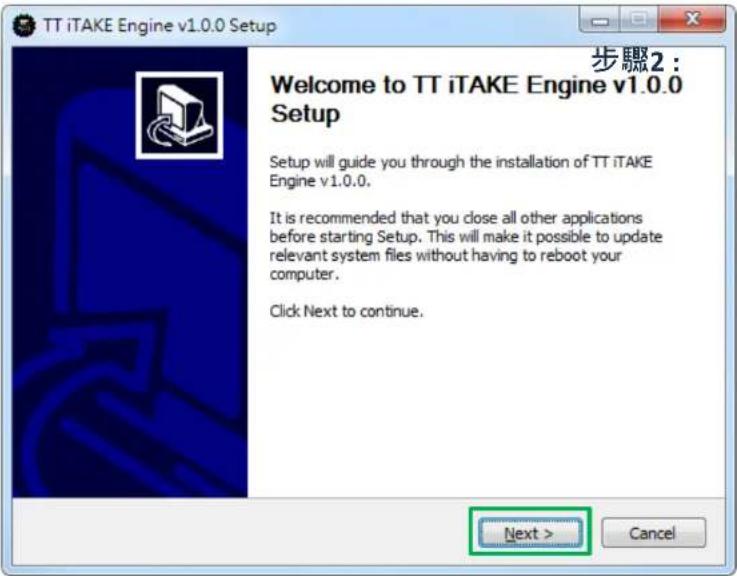
Step 1:
Launch the setup executable le (.EXE) le and click Next.
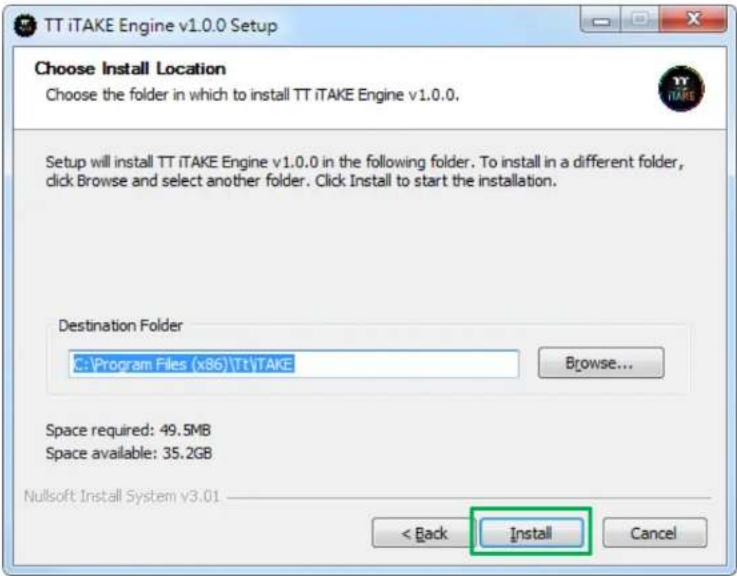
Step 2:
Click Install to begin the setup process.
Step 3:
Once setup is complete, you will also need to install Microso Visual C++ 2015 Redistributable Package.
※ Without installing the Redistributable Package, the soware will fail to launch.
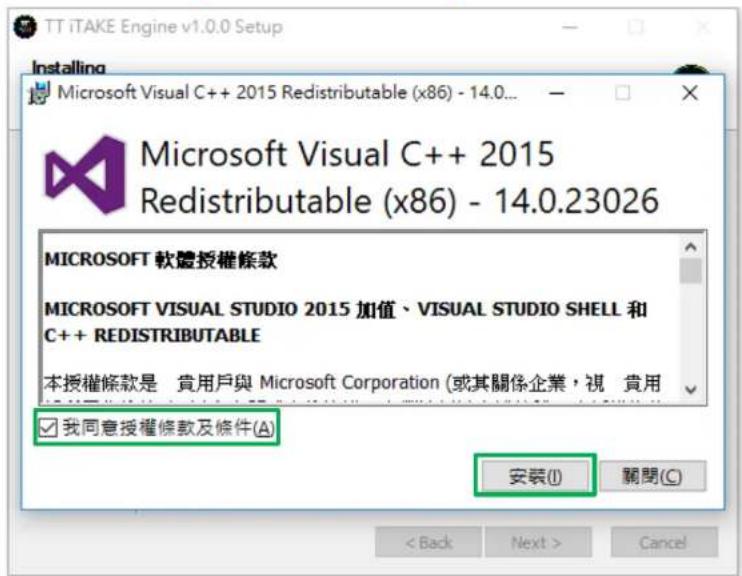
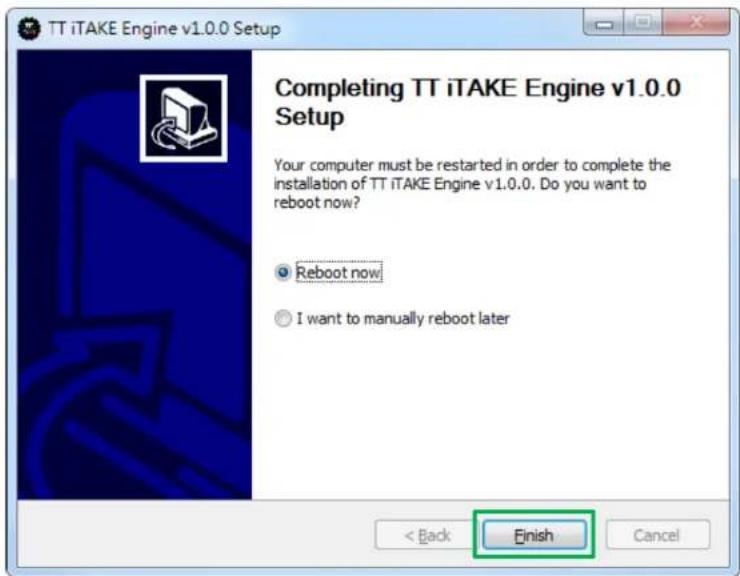
Step 4:
Click Finish to complete the installaon.

thermaltake
Chapter 2 : Funcons Available on the Home Page
TT Premium | Level 20 RGB Extended Mouse Pad Soware User Guide
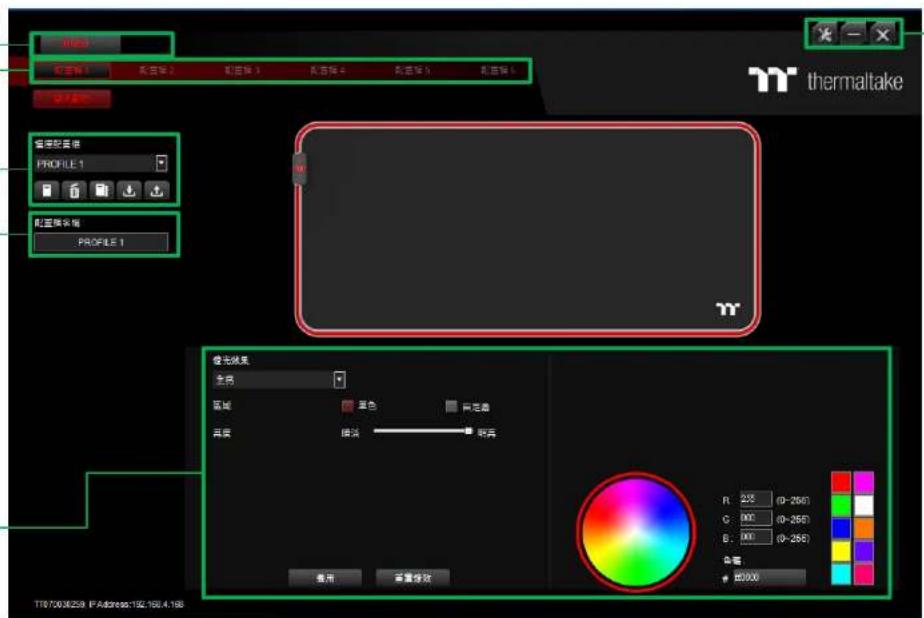
Switching Home Pages
You can switch the main keyboard conguraons page with the macro recording page.
Switching Proles
The soware can support up to 6 proles, which can be switched as required.
Funcons for Managing Proles
Up to 15 proles can be added for use. The funcons of each buon from le to right are:
Add: Create a new prole.
Delete: Delete an existing prole.
Copy: Copy a prole.
Import: Import a prole.
Export: Export a prole.
Changing prole names
The name of a new prole can be modified directly.
Lighng Eects Overview
Other Sengs / Shrink Window / Close Window
Other Sengs: Sware version, rmware version, Amazon Alexa seng and switching language used for the user interface.
Shrink Window: Close the display and minimize the program to the taskbar.
Close Window: Close the display and minimize the program to the lower right corner.

thermaltake
Chapter 3 : Funcons Available on the Lighng Eecs Page
TT Premium | Level 20 RGB Extended Mouse Pad Soware User Guide
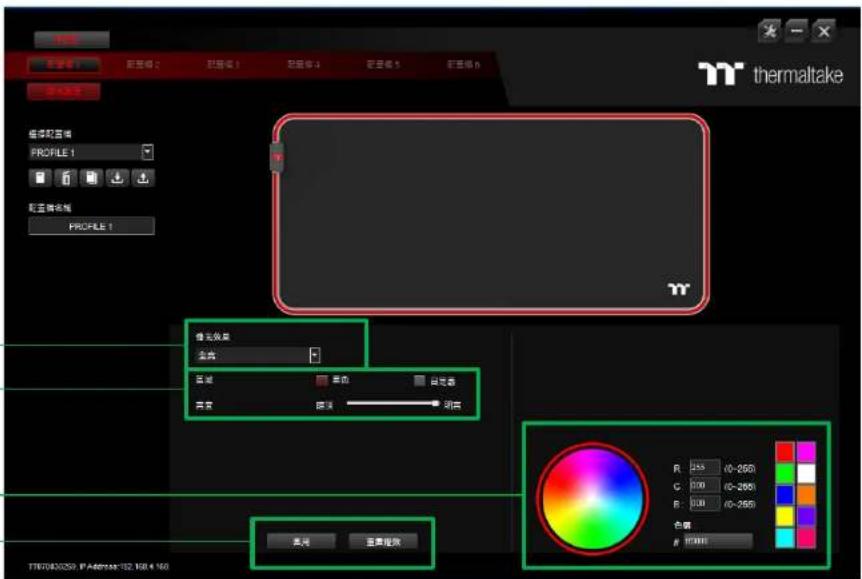
Switching Lighng Eects
8 light eects are supported for the Mouse Pad: Default . Stac . Pulse . Spectrum Cycling . Raindrops . Sound Control and System Temperature
Lighng Eect Conguraons
Can be used to adjust the color, direcon, speed, and brightness level of the lighng eect within an area; can also be used to switch to random colors.
Color Paern Sengs
Add Paern: Add a new paern with red to black gradient.
Delete Paern: Delete the currently selected color paern.
Insert Color Point: Add a red color point to the color paern.
Delete Color Point: Delete the selected color point from the color paern.
Apply / Restore Lighng Eect Sengs
Apply: Apply the a new lighng eect seng to all keys on the keyboard. Restore Lighng Eect Sengs: All lighng eect sengs saved under the current prole will be restored to factory default values.

thermaltake
Chapter 4 : Lighng Eects Overview
TT Premium | Level 20 RGB Extended Mouse Pad Soware User Guide

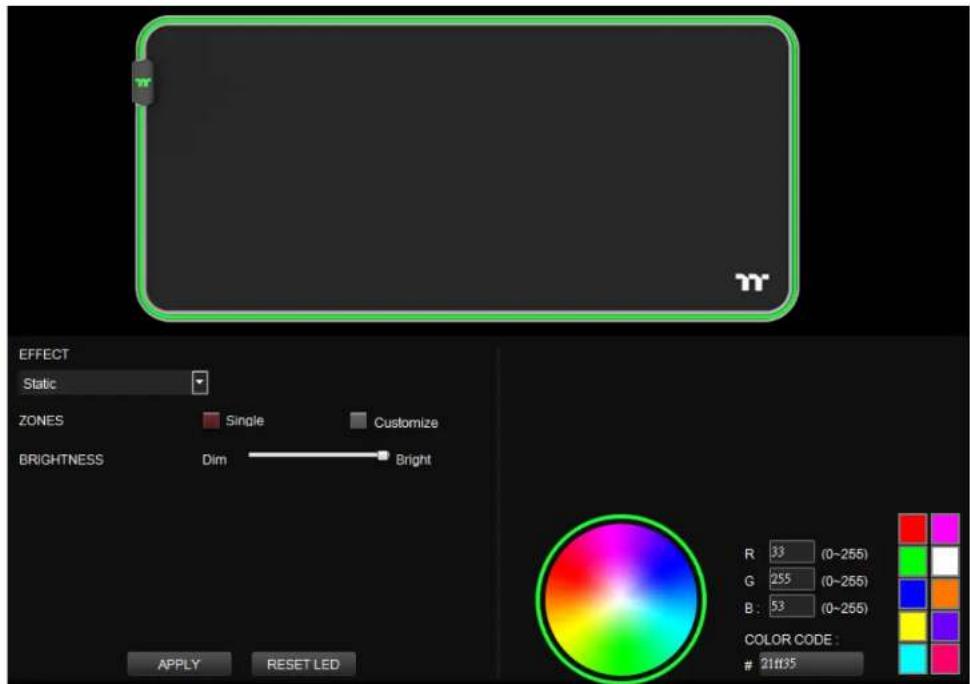
Stac Mode Color Area Seng
TT Premium | Level 20 RGB Extended Mouse Pad Sware User Guide
Lighting Effect-Static-Single
1. Click the Color.
2. Click "Apply" to complete.

Stac Mode Customized Seng
TT Premium | Level 20 RGB Extended Mouse Pad Sware User Guide
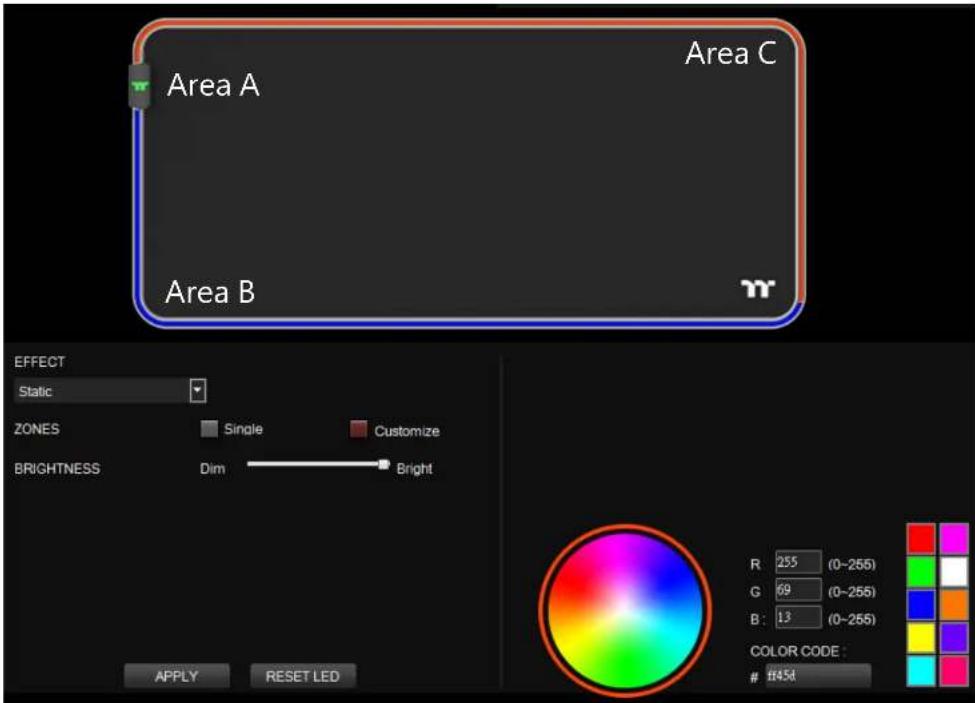
Lighting Effect-Static-Customize
- Click the Color.
- Click the Area A, Area B and Area C.
- Click "Apply" to complete.
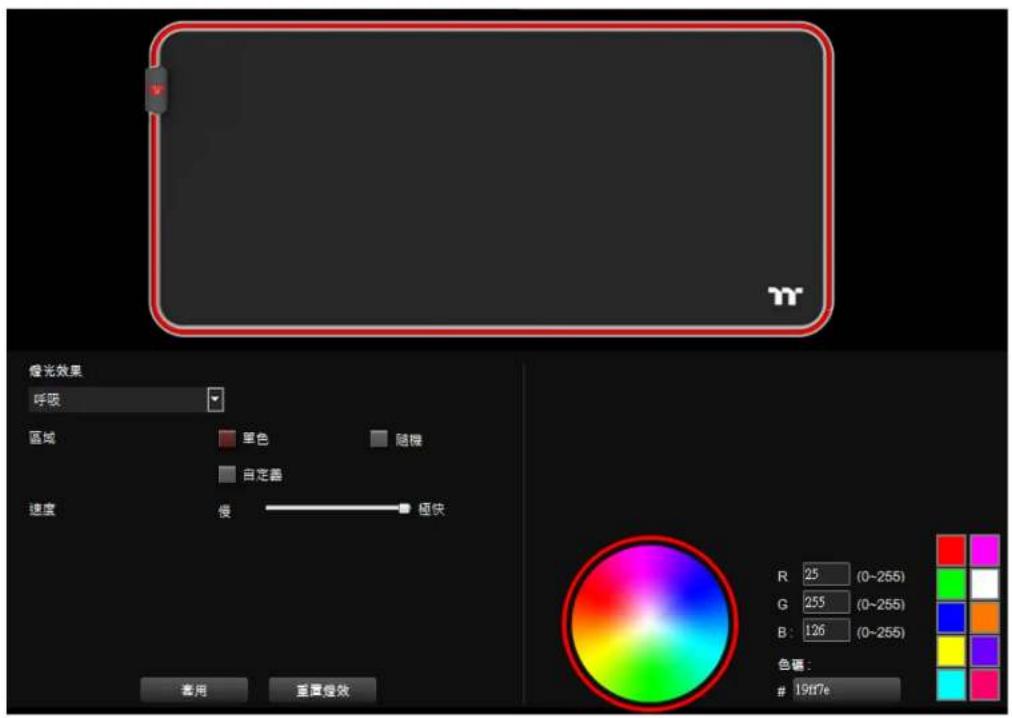
Lighting Effect-Pulse-Single
1. Click the Color.
2. Click "Apply" to complete.
Lighting Effect-Pulse-Random
- Click "Random"
- Click "Apply" to complete.
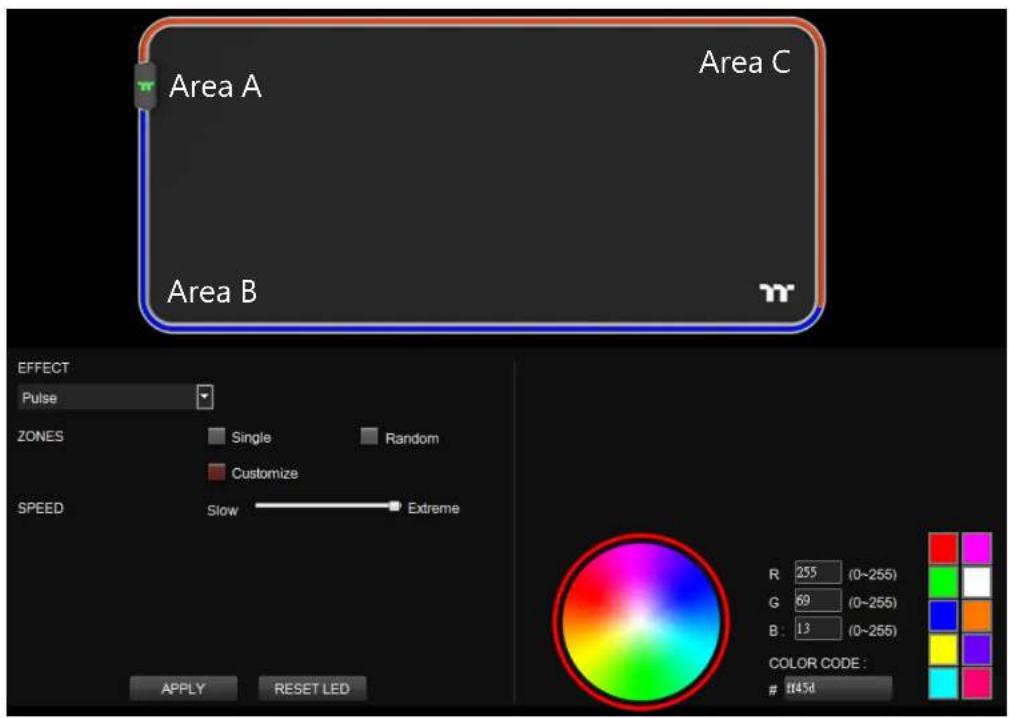
Lighting Effect-Pulse-Customize
- Click the Color.
- Click the Area A, Area B and Area C.
- Click "Apply" to complete.

Blink Mode Color Area Seng
TT Premium | Level 20 RGB Extended Mouse Pad Sware User Guide
Lighting Effect-Blink-Single
1. Click the Color.
2. Click "Apply" to complete.
Lighting Effect-Blink-Random
1.Click "Random"
2. Click "Apply" to complete.
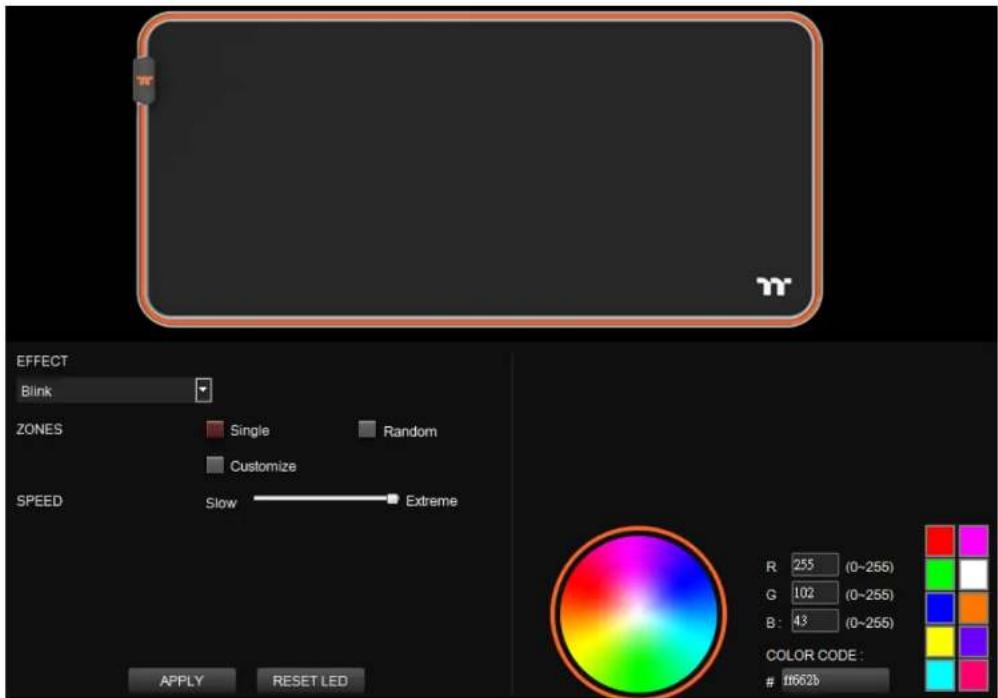
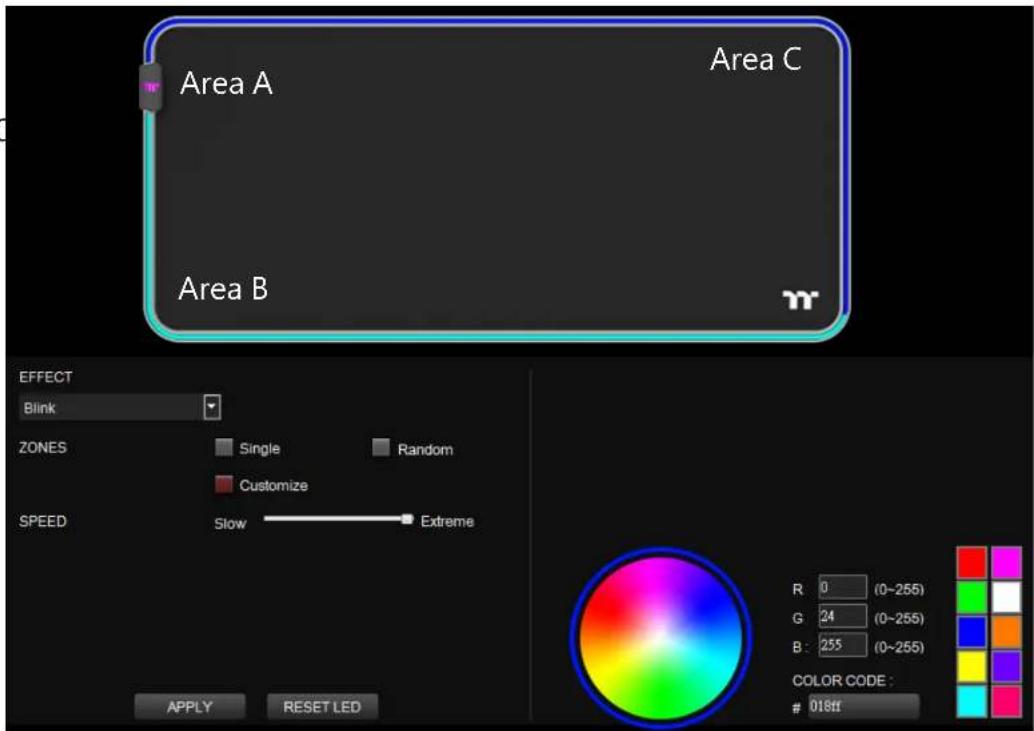
Lighting Effect-Blink-Customize
- Click the Color.
- Click Area A, Area B and Area C
- Click "Apply" to complete.

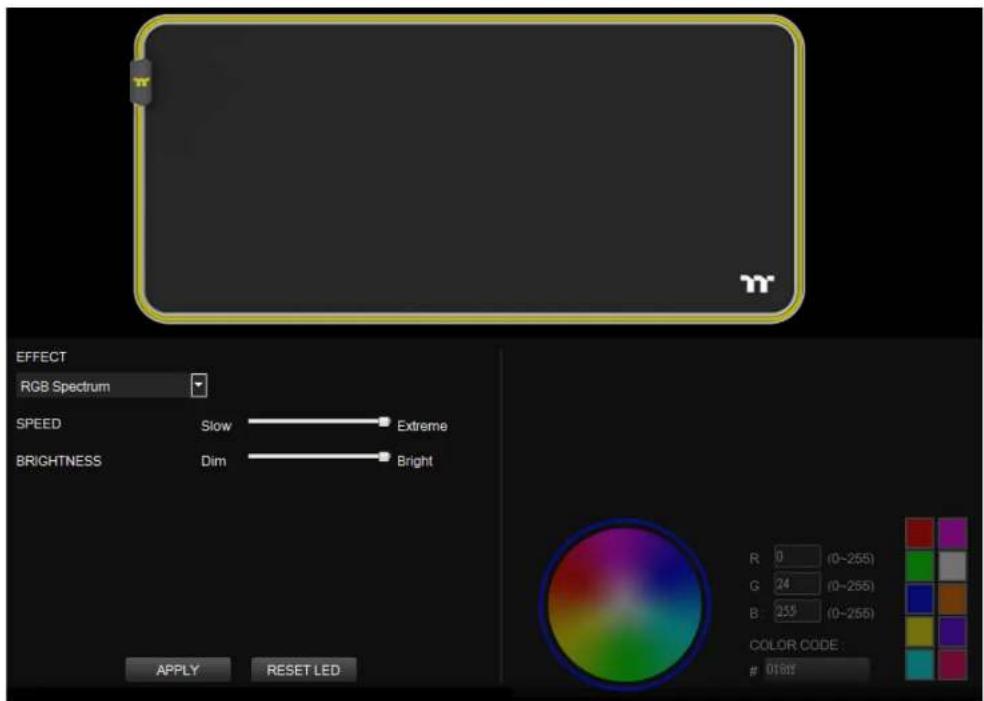
RGB Spectrum Mode Color Area Seng
TT Premium | Level 20 RGB Extended Mouse Pad Sware User Guide
Lighting Effect-RGB Spectrum
- Click "RGB Spectrum"
- Click "Apply" to complete.
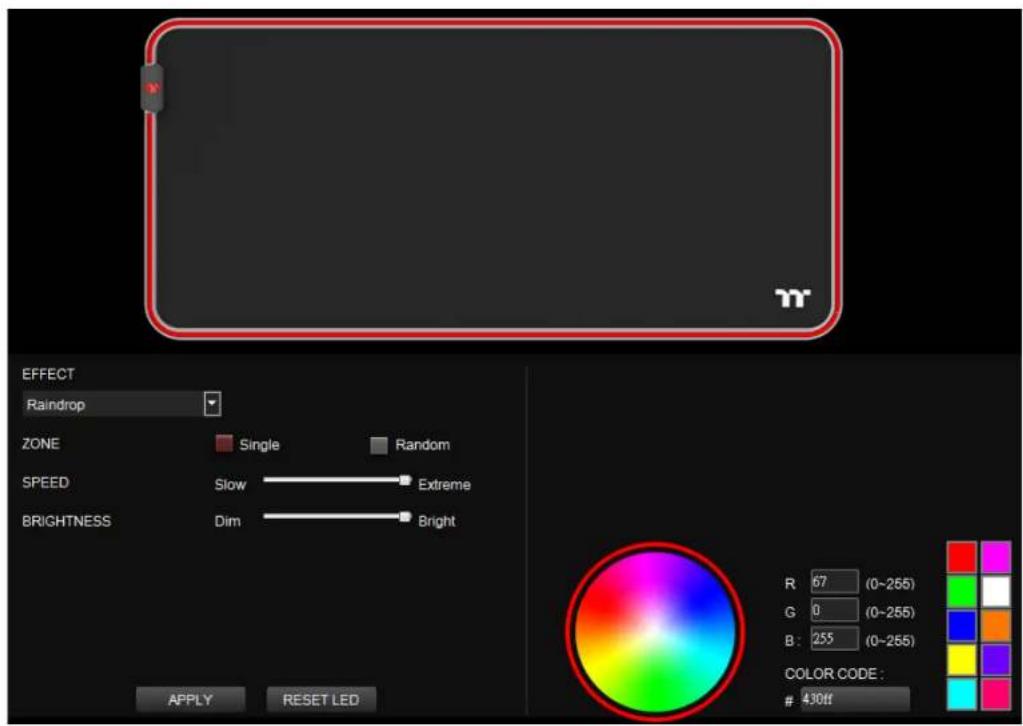
Lighting Effect-Raindrop-Single
- Click the Color.
- Click "Apply" to complete.
Lighting Effect-Raindrop-Random
- Click the "Random"
- Click "Apply" to complete.
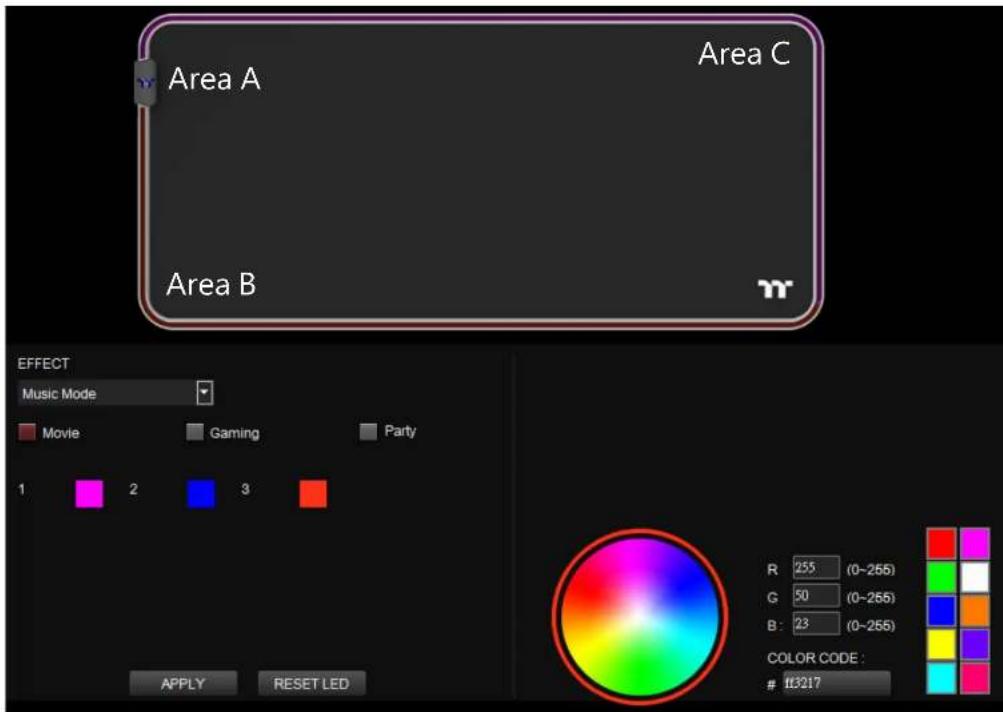
Lighting Effect-Music Mode
1. Click "Movie", "Gaming" or "Party".
2. Click the "Square 1, 2, 3" then click color to setting color.
3. Click "Apply" to complete.

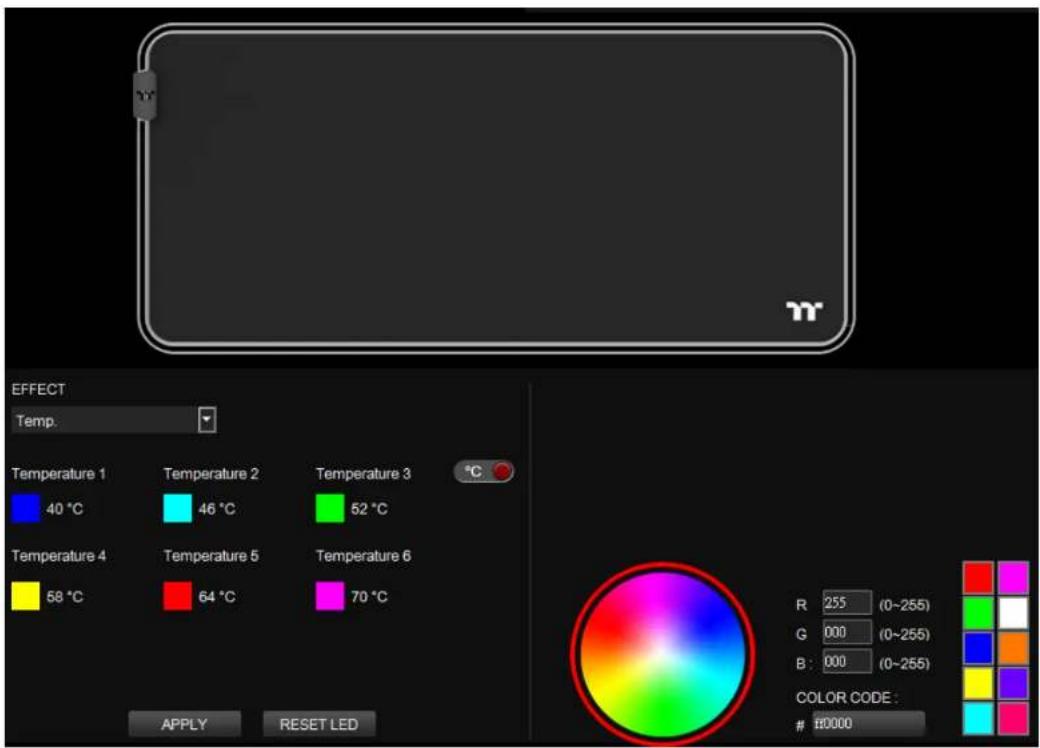
Temp. Mode Color Area Seng
TT Premium | Level 20 RGB Extended Mouse Pad Sware User Guide
Lighting Effect-Temp.
- Click "Apply" to complete.

thermaltake
Chapter 5: Funcons Available on the Sengs Page
TT Premium | Level 20 RGB Extended Mouse Pad Soware User Guide

Sengs Page Else Funcon
TT Premium | Level 20 RGB Extended Mouse Pad Sware User Guide
Language Sengs
Sets the language of the program's user interface.
Switch background surface
RAZER CHROMASYNCfuncono/on
Amazon Alexa Login
TT ITAKE soware support Amazon Alexa voice service, allowing you to control the lights by talking to the Alexa Enabled device.
TT iTAKE APP Password Seng
Enter four numbers or English alphabet.

Empty is disable funcon.
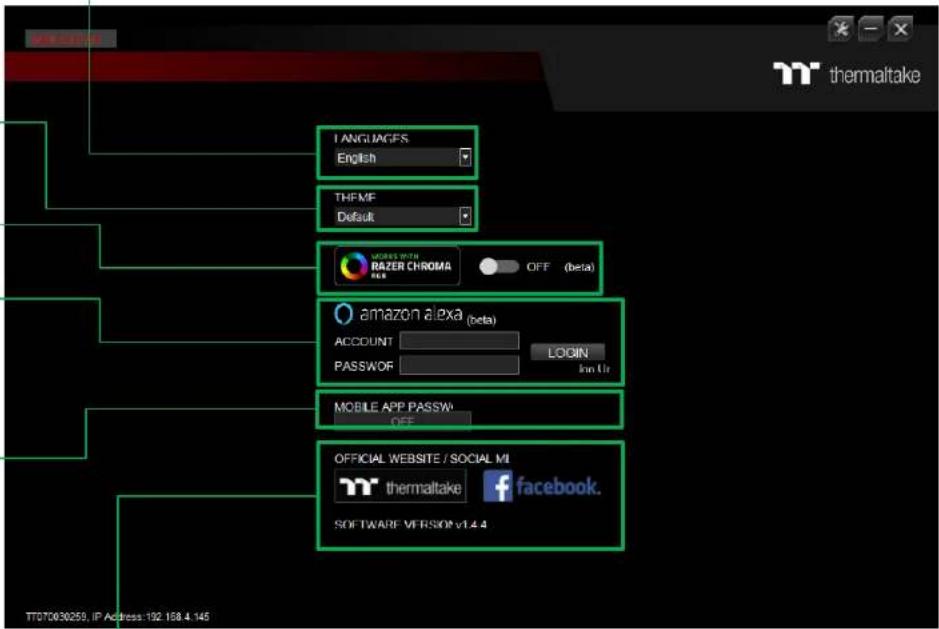
Ocial Website / Social Media
Ocial Website: Visit the Product ocial website.
Social Media: Visit Thermaltake on Facebook.


- TABLE OF CONTENTS
- CHAPTER 1: TT ITAKE INSTALLAON
- STEP 1
- STEP 2
- STEP 3
- STEP 4
- CHAPTER 2 : FUNCONS AVAILABLE ON THE HOME PAGE
- SWITCHING HOME PAGES
- SWITCHING PROLES
- FUNCONS FOR MANAGING PROLES
- CHANGING PROLE NAMES
- LIGHNG EECTS OVERVIEW
- OTHER SENGS / SHRINK WINDOW / CLOSE WINDOW
- CHAPTER 3 : FUNCONS AVAILABLE ON THE LIGHNG EECS PAGE
- SWITCHING LIGHNG EECTS
- LIGHNG EECT CONGURAONS
- COLOR PAERN SENGS
- APPLY / RESTORE LIGHNG EECT SENGS
- CHAPTER 4 : LIGHNG EECTS OVERVIEW
- STAC MODE COLOR AREA SENG
- STAC MODE CUSTOMIZED SENG
- BLINK MODE COLOR AREA SENG
- RGB SPECTRUM MODE COLOR AREA SENG
- TEMP. MODE COLOR AREA SENG
- CHAPTER 5: FUNCONS AVAILABLE ON THE SENGS PAGE
- SENGS PAGE ELSE FUNCON
- LANGUAGE SENGS
- SWITCH BACKGROUND SURFACE
- RAZER CHROMASYNCFUNCONO/ON
- AMAZON ALEXA LOGIN
- TT ITAKE APP PASSWORD SENG
- OCIAL WEBSITE / SOCIAL MEDIA
Marque : THERMALTAKE
Modèle : Level 20 RGB
Catégorie : Clavier