CP9820DWS - Imprimante MITSUBISHI - Notice d'utilisation et mode d'emploi gratuit
Retrouvez gratuitement la notice de l'appareil CP9820DWS MITSUBISHI au format PDF.

| Type de produit | Imprimante couleur numérique à sublimation thermique |
| Marque | Mitsubishi |
| Modèle | CP9820DWS |
| Dimensions (L x P x H) | 329 x 404 x 358 mm |
| Poids | Environ 21 kg (hors accessoires) |
| Alimentation | 120 V CA 50/60 Hz (USA/Canada) ou 220-240 V CA 50/60 Hz (Europe) |
| Consommation électrique | Impression : 4,7 A (120 V) ou 2,5 A (220-240 V) ; veille : 0,4 A |
| Méthode d'impression | Transfert thermique par sublimation, 3 couleurs (jaune, magenta, cyan) + laminage surface |
| Résolution d'impression | 300 x 300 dpi |
| Tailles d'impression disponibles | 10x15 cm (4x6"), 13x18 cm (5x7"), 15x20 cm (6x8"), 15x23 cm (6x9") |
| Vitesse d'impression (mode fin) | Environ 8 s (10x15), 16 s (13x18), 18 s (15x20), 19 s (15x23) par feuille |
| Interface | Hi-Speed USB 2.0 (câble non fourni) |
| Conditions de fonctionnement | Température : 5 °C à 40 °C ; humidité : 30 % à 80 % HR (sans condensation) |
| Accessoires fournis | 2 cordons d'alimentation, cassette d'encre, flasques papier (1 jeu), entretoises (2), guide utilisateur, bac à chutes, collecteur papier, étiquettes |
| Entretien et nettoyage | Nettoyage régulier du filtre, de la tête thermique (avec alcool), des rouleaux et des flasques papier |
| Sécurité | Débrancher avant nettoyage ; ne pas exposer à la pluie ; ne pas insérer d'objets ; attention aux surfaces chaudes |
| Pièces détachées et réparabilité | Tête thermique remplaçable par un technicien agréé ; consulter le revendeur |
| Pays de conformité | Conforme aux directives européennes (1999/5/EC) et FCC classe A |
FOIRE AUX QUESTIONS - CP9820DWS MITSUBISHI
Questions des utilisateurs sur CP9820DWS MITSUBISHI
0 question sur cet appareil. Repondez a celles que vous connaissez ou posez la votre.
Poser une nouvelle question sur cet appareil
Téléchargez la notice de votre Imprimante au format PDF gratuitement ! Retrouvez votre notice CP9820DWS - MITSUBISHI et reprennez votre appareil électronique en main. Sur cette page sont publiés tous les documents nécessaires à l'utilisation de votre appareil CP9820DWS de la marque MITSUBISHI.
MODE D'EMPLOI CP9820DWS MITSUBISHI
DIGITAL COLOR PRINTER MODEL
CP9820DW-S
USERGUIDE
THIS USER GUIDE IS IMPORTANT TO YOU.
PLEASE READ IT BEFORE USING YO DIGITAL COLOR PRINTER.

DIGITAL COLOR PRINTER
Hereby, Mitsubishi Electric Corporation, declares that this digital color printer is in compliance with the essential requirements and other relevant provisions of Directive 1999/5/EC.
INFORMATION
This Class A digital apparatus complies with Canadian ICES-003.
WARNING :
TO PREVENT FIRE OR SHOCK HAZARD, DO NOT EXPOSE THIS APPLIANCE TO RAIN OR MOISTURE.
WARNING:
Use the provided AC power cord so as not to interfere with radio and television reception. If you use other cables, it may cause interference with radio and television reception.
CAUTION
RISK OF ELECTRIC SHOCK DO NOT OPEN

CAUTION : TO REDUCE THE RISK OF ELECTRIC SHOCK, DO NOT REMOVE COVER (OR BACK)
NO USER-SERVICEABLE PARTS INSIDE REFER SERVICING TO QUALIFIED SERVICE PERSONNEL.
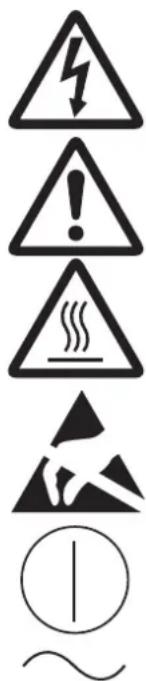
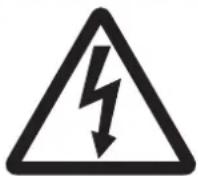
The lightning flash with arrowhead symbol, within an equilateral triangle, is intended to alert the user to the presence of uninsulated "dangerous voltage" within the product's enclosure that may be of sufficient magnitude to constitute the risk of electric shock.
The exclamation point within an equilateral triangle is intended to alert the user to the presence of important operating and maintenance (servicing) instructions in the literature accompanying the appliance.
The "Caution, hot surface" symbol indicates that the marked item may be hot and should not be touched.
The "Electro Static Discharge (ESD) warning" symbol indicates that trouble (including equipment malfunction) due to static electricity may occur in certain conditions.
The "ON/OFF" symbol indicates connection to or disconnection from the mains, at least for mains switches.
The "Alternating current" symbol indicates that the equipment is suitable for alternating current only.
CAUTION:
Changes or modifications not expressly approved by the party responsible for compliance could void the user's authority to operate the equipment.
NOTE:
This equipment has been tested and found to comply with the limits for a Class A digital device, pursuant to Part 15 of the FCC Rules. These limits are designed to provide reasonable protection against harmful interference when the equipment is operated in a commercial environment. This equipment generates, uses, and can radiate radio frequency energy and, if not installed and used in accordance with the instruction manual, may cause harmful interference to radio communications. Operation of this equipment in a residential area is likely to cause harmful interference in which case the user will be required to correct the interference at his or her own expense.
Operation is subject to the following two conditions;
(1) this device may not cause interference, and
(2) this device must accept any interference, including interference that may cause undesired operation of the device.
WARNING:
In the USA or Canada, use the AC power cord according to the recommendations as below, in order to comply with UL60950-1 and CAN/CSA C22.2 No. 60950-1-03.
Connect to the 120V receptacle of the room or the host equipment.
The AC power cord should be UL or CSA approved and consist of type SJT or SVT, size 18AWG, length 2 m or shorter cord with IEC60320-1/C13 type, 125 V 10 A or higher rating connector and NEMA 5-15 type or IEC60320-1/C14 type, 125 V 10 A or higher rating plug.
Use the AC power cord as specified above, so as not to interfere with radio and television reception.
If you use other cables, it may cause interference with radio and television reception.
WARNING:
In Europe, use the AC power cord according to the recommendations as below, in order to comply with EN60950-1.
Connect to the 230V receptacle of the room or the host equipment.
The AC power cord should be VDE approved and consist of core size 1mm^2 or bigger, length 2m or shorter cord with IEC60320-1/C13 type, 250 V 10 A or higher rating connector and CEE(7)VII type or IEC60320-1/C14 type, 250 V 10 A or higher rating plug.
Use the AC power cord as specified above, so as not to interfere with radio and television reception.
If you use other cables, it may cause interference with radio and television reception.

WARNING:
The socket outlet shall be installed near the equipment and shall be easily accessible.
Note: This symbol mark is for EU countries only.
This symbol mark is according to the directive 2002/96/EC Article 10 Information for users and Annex IV, and/or to the directive 2006/66/EC Article 20 Information for end-users and Annex II.
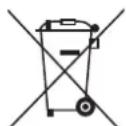
Your MITSUBISHI ELECTRIC product is designed and manufactured with high quality materials and components which can be recycled and/or reused.
This symbol means that electrical and electronic equipment, batteries and accumulators, at their end-of-life, should be disposed of separately from your household waste.
If a chemical symbol is printed beneath the symbol shown above, this chemical symbol means that the battery or accumulator contains a heavy metal at a certain concentration. This will be indicated as follows:
Hg: mercury (0,0005%), Cd: cadmium (0,002%), Pb: lead (0,004%)
In the European Union there are separate collection systems for used electrical and electronic products, batteries and accumulators.
Please, dispose of this equipment, batteries and accumulators correctly at your local community waste collection/recycling centre.
Please, help us to conserve the environment we live in!
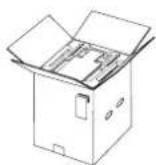
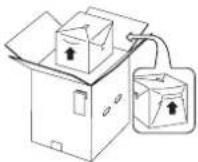
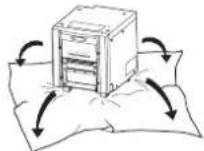
Take the unit out of the box by the following procedures and illustrations. Make sure the contents of the accessory are all included.
1 Open the top of the box.
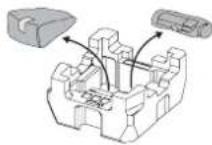
2 Remove the accessories together with the cushion.
Remove the protective cardboard and then take the accessories out of the cushion.
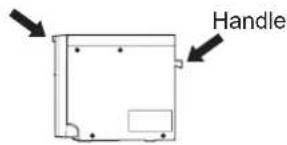
Hold the handle and the upper front part of the printer and pull the printer up carefully to take it out of the box.
Hold the parts indicated by the arrows and pull the printer straight up.
NOTE
This printer is about 21kg in weight. Handle it with care.
4 Unwrap the packing.
Keep the cushions for transporting the printer again.
When moving this printer, hold the upper front part and the handle on the rear side.
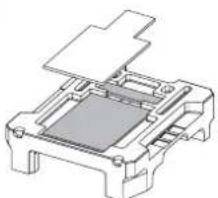
Remove the protective materials for transportation such as protective sheet.
Take the other accessories out of the lower cushion.
1
3
4
5
2
CONTENTS
Make sure to check the supplied contents on the cushion. If any of them is missing, contact your dealer.
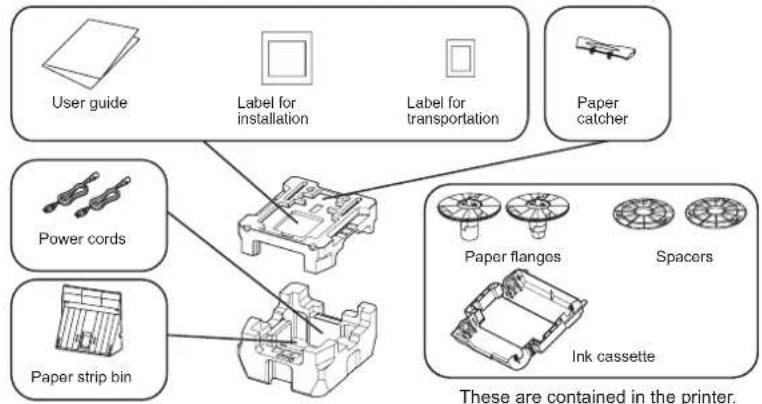
User guide (1)
Paper strip bin (1)
Power cords (2)
Paper catcher (1)
Label for installation (1)
Label for transportation (1)
Paper flanges (2)
Spacer (2)
Ink cassette (1)
Make sure to remove the protective materials from the ink cassette and paper flanges.
PAPER / INK RIBBON SET
When using this unit, make sure to use the following types of the paper / ink ribbon set. Remove the spacers from the paper flanges when using other than CK9318HG/CK9318.
Product name Print size Number of prints Application
CK9015HG 10x15 (4x6") 600 Surface-laminated color print
CK9318HG 13x18 (5x7") 350 Surface-laminated color print
CK9523HG 15x23 (6x9") 270 Surface-laminated color print
CK9015 10x15 (4x6") 600 Surface-laminated color print
CK9318 13x18 (5x7") 350 Surface-laminated color print
CK9523 15x23 (6x9") 270 Surface-laminated color print
NOTE
The products with "HG" in their name are only for CP9800 series. They can not be used for the CP9000, CP9500 and CP9550 series.
In the interest of safety, please observe the following precautions:
POWER REQUIREMENT
This Digital Color Printer is designed to operate on 120 V AC 50/60 Hz in the U.S.A. and Canada, and 220 V - 240 V AC 50/60 Hz in Europe. Never connect to any outlet or power supply having a different voltage or frequency.
WARNING: THIS APPARATUS MUST BE EARTHED.
PROTECTIVE MEASURES
IF ABNORMALITIES ARE, ....
Use of the unit during emission of smoke or abnormal sounds (without adopting countermeasures) is dangerous. In such a case, unplug the power cord from the source outlet immediately, and request maintenance service from the sales dealer.
NEVER INSERT ANY OBJECT INTO THE UNIT
Foreign objects of any kind inserted into this unit constitute a safety hazard and can cause extensive damage.
DO NOT PLACE ANYTHING ON THE DIGITAL COLOR PRINTER
Heavy objects placed on the Digital Color Printer can cause damage or obstruct proper ventilation.
PROTECT THE POWER CORD
Damage to the power cord may cause fire or shock hazard. When unplugging, hold by the plug only and remove carefully.
DO NOT PLACE WATER CONTAINERS ON THE UNIT
Do not place flower vases, and other water-holding containers on the device. If, for some reason, water seeps to the inside of the unit, unplug the power cord from the source outlet, and contact the sales dealer. If used without corrective measures, the unit may be damaged.
"In the interest of safety, avoid handling of liquids near the unit."
DO NOT REMOVE THE CABINET
Touching internal parts is dangerous, besides, it may lead to malfunction. Contact the sales dealer to carry out internal checks and adjustments. Before opening the cover for eliminating a jammed paper, etc., be sure to disconnect the power cord plug.
UNPLUG THE POWER CORD DURING A LONG ABSENCE
Turn off the main power switch and unplug the power cord during a long absence.
WHEN TRANSPORTING THE UNIT
When transporting the unit, remove the ink ribbon and print paper from the unit.
BE CAREFUL AROUND PRINT PAPER EXIT SLOT
Don't insert your hand or any material into the paper exit slot during printing.
Do not touch the cutter blade inside the paper exit slot.
Otherwise, your finger will be injured.
DO NOT TOUCH THE THERMAL HEAD
Do not touch the thermal head (located inside the unit).
They are heated to high temperature and may cause burns or injury when touched.
Also, malfunction caused by static electricity may occur.
WHEN PLACING THE PRINT PAPER, REMOVE ONE FLANGE AND KEEP THE PRINT PAPER UPRIGHT ON ITS SIDE WITH NO FLANGE
When you put the print paper sideways on a table, etc., it may roll and fall. This may cause injury.
CONNECTION CABLES
Use the provided power cord for power line.
REMOVE THE PAPER STRIP BIN WHEN OPENING OR CLOSING THE DOOR
When you open or close the door with the paper strip bin installed, the bin may be removed and fall. This may cause injury or damage.
INSTALLATION LOCATIONS
MAINTAIN GOOD VENTILATION
Ventilation slots and holes are provided on the rear and both sides of this unit. Place the unit on a hard and level surface and keep a space between the unit and the walls to ensure proper ventilation. When putting the unit on the system rack, take a space between the unit and the back and sides of the rack.
SUITABLELOCATIONS
Avoid shaky places or hot-springs areas where hydrogen sulfide and acidic ions are likely to be generated.
AVOID PLACES WITH HIGH HUMIDITY AND DUST
Do not place the unit at a high humidity and dusty locations. They can cause extensive damage to this unit. Avoid places where the unit is likely to be exposed to oily fumes and vapors.
AVOID PLACES LIKELY TO BE EXTREMELY HOT
Places exposed to direct sunlight, or near heating appliances can attain extremely high temperatures, which may deform the cabinet, or can become a prime cause of damage.
PLACES THE UNIT ON A HORIZONTAL LEVEL
The unit is likely to be affected if it is placed in slanted conditions or in an unstable places.
PROTECT AGAINST DEW FORMATION
In extremely cold regions, if the unit is moved quickly from an extremely cold place to warmer one, dew is likely to be formed. If dew is formed, printing is not possible.
OPERATING AMBIENT TEMPERATURE RANGE
The operating ambient temperature range is 5^ - 40^ (41^ - 104^) and the humidity of 30% -80% RH. When using the unit on the system rack, be sure to keep this ambient temperature inside the rack.
When the printer is used in a low temperature, it may take some time to start printing.
FOR LONG OPERATING LIFE
UNSUITABLE MATERIALS FOR THE DIGITAL COLOR PRINTER
Coat flaking and deformation are likely to occur if the unit is wiped with chemical dusters, benzine, thinner or any other solvent, if rubber or PVC items are left in contact with the unit for extended duration, or if the unit is sprayed with insecticide.
CARE OF THE CABINET
Unplug and clean with a soft cloth slightly moistened with a mild soap and water solution. Allow to dry completely before operating. Never use petroleum base solutions or abrasive cleaners.
HEAD ABRASION
The thermal head, like the video head, wears out. When it is abraded, it becomes hard to print out fine details of the picture. In such a case, it is necessary to replace the thermal head. Consult with the sales dealer for replacing the head.
CONNECTING DEVICES
Read thoroughly "Operating Precautions" of the instruction booklets for the devices connected with the Digital Color Printer. The power cord must be disconnected after printing is over.
CAUTION ON RELOCATING
When transporting this unit, make sure it is not likely to be subjected to impacts. They can be a prime cause for damage. Further, make sure to disconnect the power cord from the power outlet, and the cables from the connected devices.
OTHER CAUTIONS
- Do not pull out nor touch the print paper until printing is completed. It may degrade the print quality or cause an error.
- Dust or other foreign matter adhering to the print paper or the ink cassette, or deformation resulting from exposure to extremely low or high temperatures could cause loss of color, uneven color or lines, or wrinkles in the print images.
- During printing on 13 × 18 ( 5 × 7'' ), 15 × 20 ( 6 × 8'' ) or 15 × 23 ( 6 × 9'' ) size paper, the printer may stop printing temporarily for cooling down. (The COOLING indicator blinks.) Please wait for the printer to resume printing after its completion of cooling. Do not touch the print paper.
- During printing, the printer may stop printing temporarily for cooling down. (The COOLING indicator blinks.) Please wait for the printer to resume printing after its completion of cooling.
Each time printing on 13x18 (5x7")-size or 15x23 (6x9")-size paper is completed, remove the prints. If the prints are not removed, a paper jam may occur.
NOTE:
YOUR UNDERSTANDING IS REQUESTED FOR THE LOSS OF IMAGES IN MEMORY DUE TO THE SUDDEN OCCURRENCE OF A MALFUNCTION.
Take the unit out of the box.
2 Turn on the power.
Connect the power cord to this unit and plug it to the PHOTO SORTER SYSTEM. Press the POWER switch on the rear panel to turn on the power.
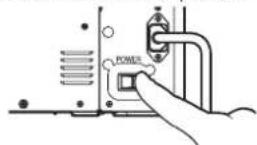
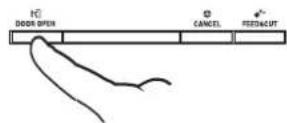
3 Open the door.
After the mechanical initialization is completed, press the DOOR OPEN button to open the door.
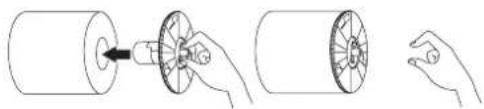
4 Attach the supplied paper flanges to both sides of the print paper.
When you pinch the latches on the paper flange, the stoppers retract into the shaft. Attach the flanges to the print paper with the stoppers retracted. Make sure that the flanges are attached to the print paper securely, and release the latches.
NOTE
When using other than CK9318HG/CK9318, remove the spacer from the paper flange.
Spacer
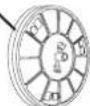
Install the print paper into the unit.
Make sure to install the print paper firmly.
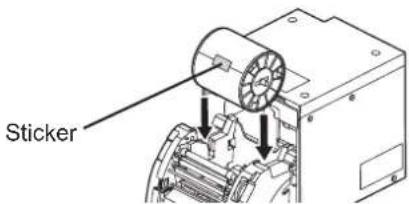
6 Remove the sticker, insert the print paper between the rollers as shown below, and feed the print paper until it reaches the black cover.
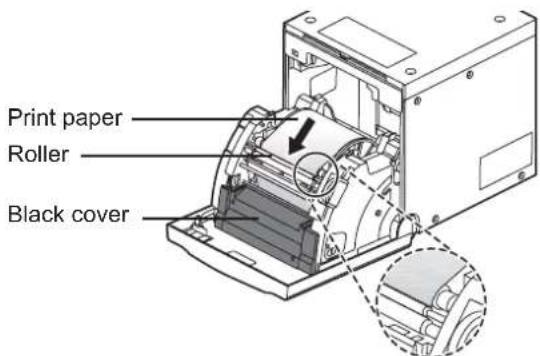
7 Adjust the paper guides according to the size of print paper to be used.
Push both the adjustable paper guides with both hands until they touch the fixed rollers respectively. Then, turn each paper guide in the direction of the arrow until they stop.
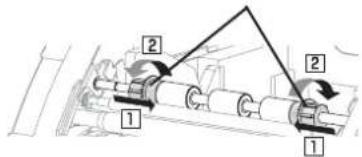
Adjustable paper guides
For 13 × 18(5 × 7^ ) size paper (5"-width)
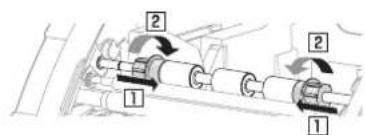
For 10 × 15(4 × 6^ ) , 15 × 20(6 × 8^ ) or 15 × 23(6 × 9^ ) size paper (6"width)
When you release the paper guides, they are fixed to the appropriate width depending on the size of the paper to be used.
NOTE
Make sure to adjust the adjustable paper guides according to the size of print paper to be used. When they are not positioned properly, a malfunction such as paper jam and misaligned printing position may occur.
8 Load the ink ribbon in the ink cassette to the unit.
Before installing the ink cassette into this unit, load the ink ribbon (supplied as the PAPER/INK RIBBON SET) in the ink cassette as shown below.
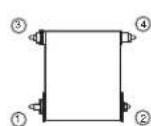
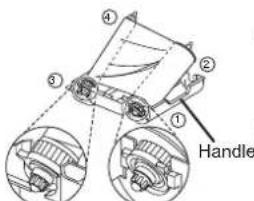
Ink ribbon
Ink cassette
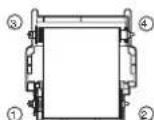
Place the ink cassette on the print paper with the shaft (thicker one) around which the ink ribbon is wound located to the front.
Hold the handle of the ink cassette and push it straight toward the back of the unit. Then raise it until you hear a click to secure it in the ink cassette holder.
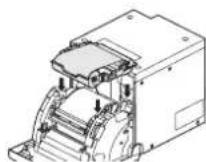

9 Push the center of the door to close.
When the auto feed & cut mode has been selected, the FEED & CUT procedure is repeated three times after you close the door. When the manual feed & cut mode has been selected, hold down the FEED & CUT button for 1 second or longer.
10 Connect this unit with the personal computer as following example.
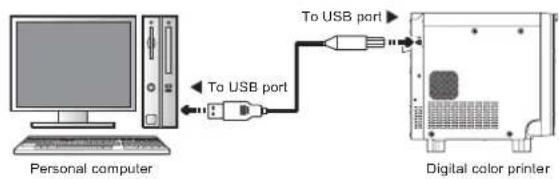
NOTE
A USB cable is not supplied with this unit. Use the USB 2.0 certified cable of 2m or less in length.
11 Set the DIP switches.
Turn off the power before changing the DIP switch settings.
Normally, set the switch No. 5 to ON.
The other switches should be OFF.
When the printer is installed on the PHOTO SORTER SYSTEM, set the switches No. 5 and 8 to ON.
INSTALLILNG THE PRINTER ON THE PHOTO SORTER SYSTEM
Remove the protective materials and protective sheet before installing the printer on the PHOTO SORTER SYSTEM. To remove those inside the printer, turn on the power of the printer by connecting the appropriate power cord supplied with the printer and open the printer's door.
ATTACHING THE PAPER STRIP BIN
Hook the paper strip bin by its latches.
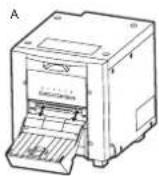
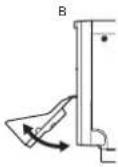
To attach: A -> B
To remove: B -> A
NOTE
Remove the bin before opening the door. If the door is opened with this bin attached, the printer or this bin may be damaged. When this printer is used installing on the PHOTO SORTER SYSTEM, use the paper strip bin which is supplied with the PHOTO SORTER SYSTEM.
INSTALLING THE PAPER CATCHER
Hook the paper catcher by its latches. When using the print paper of 13 × 18(5 × 7^ ) , 15 × 20(6 × 8^ ) or 15 × 23(6 × 9^ ) , do not install the paper catcher.
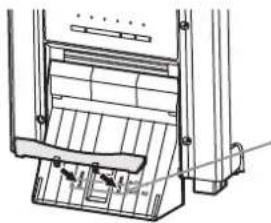
A.
Holes for 10 × 15 size paper (Paper width: 152 ~mm )
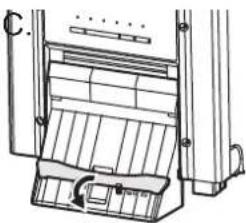
B.
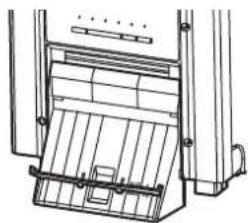
When installing the printer on the PHOTO SORTER SYSTEM, replace the feet with those supplied with the PHOTO SORTER SYSTEM.
REPLACING THE FEET
- Remove the paper strip bin.
- Place the printer sideways as shown in the figure.
NOTE
be careful not to get your fingers pinched.
- Loosen 6 screws to remove the feet.
- Tighten 4 feet supplied with the PHOTO SORTER SYSTEM on the printer by using the screws.
5 Raise the printer.
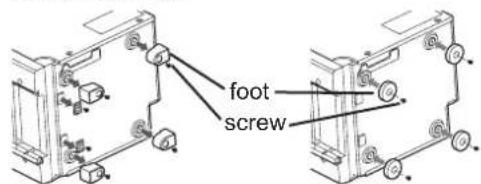
INSTALLATION
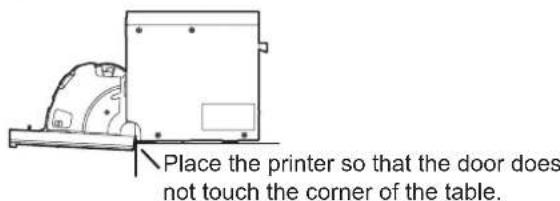
Place the printer on a stable table.
Make sure that the bottom of the door does not touch the table when opened and that the printer does not fall from the table.
HANDLING OF PAPER / INK RIBBON SET
BEFORE PRINTING
- IFingerprints or dust on the paper's printing surface may degrade the print quality and cause paper jams. When the manual feed & cut mode has been selected, repeat the FEED & CUT procedure three times after replacing the print paper. If you omit cutting the print paper by the FEED & CUT procedure, first two or three prints may not be printed partly because of finger oil or dirt.
- |When the print paper or ink ribbon is abruptly transferred from a cool place to a hot place, vapor or dew is generated on the surface, which causes paper jams or degraded print quality. Leave the print paper in the room to stabilize its temperature before use.
If you repeat the FEED & CUT procedure more than the designated number of times while installing the print paper, the indicated number of prints may not be made. In addition, if you replace the print paper before it is used up, the indicated number of prints may not be made.
■ AFTER PRINTING
- If the paper absorbs nonvolatile organic solvents (alcohol, ester, ketone, etc.) the print may be discolored.
- |Discoloration of prints is accelerated if the print paper comes into contact with soft vinyl chloride such as transparent tape.
- |Avoid storing prints in direct sunlight or places with high humidity.
STORAGE OF PAPER / INK RIBBON SET
Do not store the print paper and ink ribbon in the container made of soft polyvinyl chloride. They may be discolored because of chemical reaction.
Store the print paper and ink ribbon out of direct sunlight and away from heating appliances in a cool, dark place where the temperature is 5^ to 30^ and the humidity is 20% to 60% RH.
Accessories to be used
| Standalone | Combined with the PHOTO SORTER SYSTEM | |
| DIP-SW | #5 ON, #8 OFF | #5 ON, #8 ON |
| Feet | x4 x2 | x4 |
| Power cable | or | |
| Paper strip bin |
INDICATIONS ON THE FRONT PANEL AND COUNTERMEASURES
If, for some reason, printing is not possible or an error occurs during printing, the indicators on the front panel will illuminate or blink. In this case, follow the procedure described below. In case of an error during printing, unless you turn off the unit, the unit resumes printing automatically when the error is corrected.

Steady on


Blinking
Depends on the previous condition
| ALARM | PAPER/INK RIBBON | DATA | READY | COOLING | Causes and Countermeasures |
| ○● | ● | - | ● | ● | The door is open. • Close the door. |
| A paper jam occurs. • Refer to “Overcoming paper jams.” | |||||
| ○● | ○ | - | ● | ● | The power is turned off during printing process. • Turn on the power and carry out the paper feed & cut. |
| ● | ● | - | ○ | ○● | The temperature of the thermal head is too high. • Wait until the indication goes off. * Note |
| ● | ○● | - | ● | ● | The ink ribbon is not loaded. The ink ribbon is used up. The ink ribbon which is not available to this printer is installed. • Replace the ink ribbon with a new one. |
| ● | ○ | - | ● | ● | The print paper is not installed. The print paper is used up. • Install new print paper. |
| The actual combination of ink ribbon and print paper is inconsistent with the setting made by the personal computer. • Set the personal computer according to the actual combination of ink ribbon and print paper. Turn off the printer, then adjust the setting of the personal computer to the actual combination of ink ribbon and print paper. | |||||
| ○ | ● | - | ● | ● | Other errors |
When ALARM or PAPER/INK RIBBON indicator illuminates or blinks, open the door and carry out the above countermeasures.
If the indicator is not turned off by closing the door, carry out the paper feed & cut.
*Note If an error occurs while the continuous printing through the PHOTO SORTER is ongoing, it is resumed after the COOLING indicator goes off.
OVERCOMING PAPER JAMS
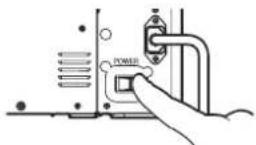
1 Turn on the power.
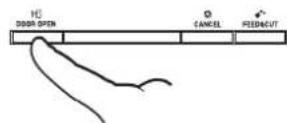
Press the DOOR OPEN button to open the door.
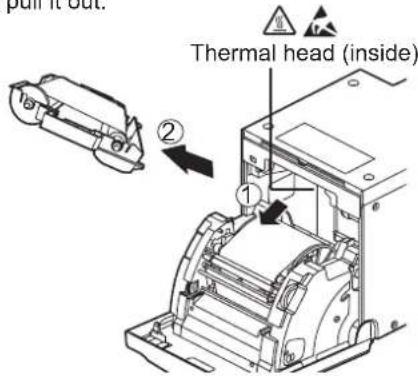
3 Remove the ink cassette.
Push down the ink cassette as shown by the arrow ① and pull it out.
4 Take out the print paper.
When taking the print paper out, pull it up toward you.
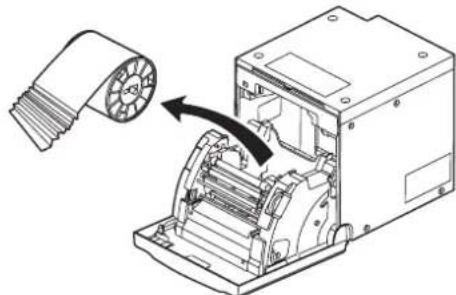
Cut off the defective part of the print paper with scissors.
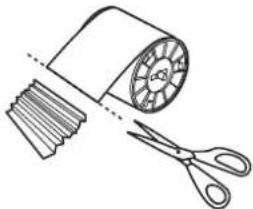
NOTE
Make sure to cut off the printed part of the print paper. Failure to do this may result in the ink ribbon sticking to the print paper and being torn.
Make sure to clean the thermal head and the roller. Refer to "CLEANING" (on page 13).
6 Install the print paper and the ink cassette with the ink ribbon. (Refer to pages 7-8.)
7 Push the center of the door to close.
The print paper setting is initialized two seconds after you close the door.
When the auto feed & cut mode has been selected, the FEED & CUT procedure is repeated three times after you close the door.
BEFORE CALLING FOR SERVICE
For the following symptoms, check the unit again before calling for service.
| Symptom Check & Remedy | |
| The power is not turned on. | Is the power cord plug disconnected from the outlet? →Connect the power cord plug to the outlet firmly. →The protective circuit may be working. Turn off the power and wait for about two minutes. Then turn on the power again. |
| The door doesn't close. | Are you turning off the power during printing procedure? →Turn on the power and then close the door. |
| The image is not printed. | Is the image data sent to this unit? →Make sure that the image data is sent to this unit. Is the print paper or the ink ribbon used up? →Check them. Is the ink cassette installed correctly? →Install the ink cassette correctly. |
| An error can not be resolved. | →Press the DOOR OPEN, CANCEL and FEED&CUT buttons simultaneously. This printer starts initialization. |
INSTRUCTIONS FOR TRANSPORTATION
When transporting this unit for some reason such as repair, follow the instructions below.
1. Use the original packaging.
The genuine package unit may not endure more than one round trip. If the unit is transported with the package unit more than one round trip, it may not be guaranteed.
Purchase another package unit when transporting this unit again.
Pack the unit with all the accessories (ink ribbon, print paper, ink cassette, and paper flanges) removed.
2. Turn off the power after the PAPER/INK RIBBON indicator blinks.
After removing all the accessories, close the door with the printer's power on. After the PAPER/INK RIBBON indicator blinks, turn the power off.
- If the ink ribbon, print paper, or ink cassette can not be taken out, consult with your dealer.
Press the POWER switch on the rear panel to turn on the power.
2 Press the DOOR OPEN button to open the door.
3 Remove the ink cassette.
4 Take out the print paper.
5 Press the POWER switch to turn off the power.
Make sure to turn off the power before cleaning.
■ FILTER CLEANING
Take out the filter from the printer by pinching the tab as shown in the figure, then clean both sides of the filter with a vacuum. After completing cleaning, insert it to the end with the marking of "TOP SIDE" up.
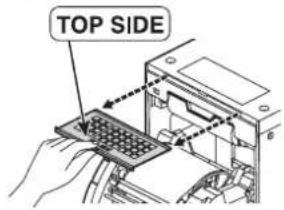
THERMAL HEAD CLEANING
When lines appear on the printed images, clean the thermal head.
Wipe the head cleaning part carefully with tissue paper dampened with a small amount of alcohol.
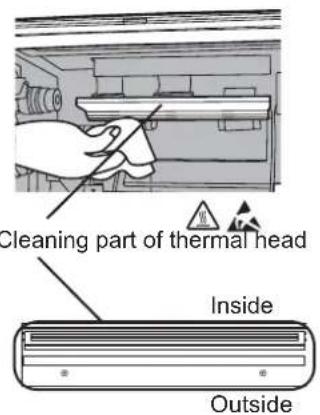
NOTE
- Do not damage the thermal head.
- When the poor print quality is not corrected even if the head has been cleaned, replacement of the thermal head may be required. Contact your dealer.
CAUTION

Thermal head is hot right after printing. Wait until the head cools before cleaning the thermal head.

- The thermal head may be damaged if you touch it while static electricity builds up on your body.
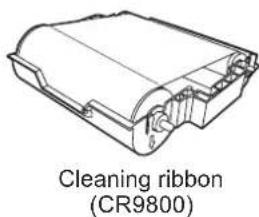
WHEN USING THE CLEANING RIBBON (CR9800)
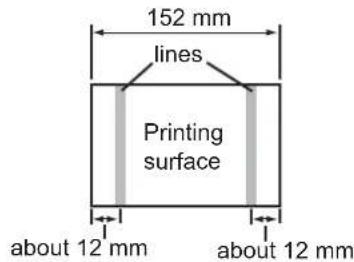
When you use print paper of 152mm (6") width after using that of 127mm (5"), thermal head cleaning with a cleaning ribbon may be required.
If one or two lines appear on the printing surface as shown right when printing on the print paper of 152mm (6") width, clean the thermal head using the optional cleaning ribbon.
Cleaning is not required when:
you use print paper of 127mm(5^ ) width after using that of 127mm(5^ ) you use print paper of 152mm(6^ ) width after using that of 152mm(6^ ) or
you use print paper of 127mm(5^ ) width after using that of 152mm(6^ ) Print paper of 127mm(5^ ) width: 13× 18 (5x7") Print paper of 152mm(6^ ) width: 10× 15(4× 6^ ),15× 20(6× 8^ ),15× 23(6× 9^ )
NOTE
When the symptom of poor print quality is not corrected even after the head is cleaned, replace the thermal head. Contact your dealer.
■ ROLLER CLEANING
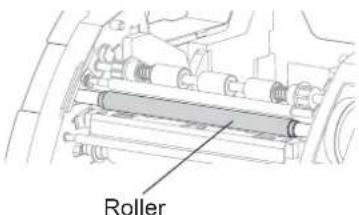
Clean the black part of the roller.
Wipe the black part carefully with tissue paper dampened with a small amount of alcohol.
Wipe the whole roller by turning it.
PAPER FLANGE CLEANING
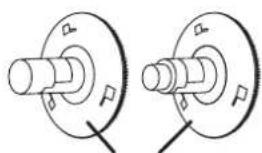
Clean the parts that contact the print paper sides as shown below.
Wipe the parts carefully with tissue paper dampened with a small amount of alcohol.
Cleaning part
SPECIFICATIONS
| Class Digital Color Printer | |||
| Model CP9820DW-S | |||
| Printing method Sublimation Dye Thermal Transfer line print3-color faces progressive printing (yellow, magenta, and cyan) and surface lamination | |||
| Print's resolution 300 x 300 dpi | ( d p i : | ||
| Dot resolution 10x15 (4x6") | 1228 x 1868 dots | ||
| 13x18 (5x7") | 1572 x 2128 dots | ||
| 15x20 (6x8") | 1868 x 2422 dots | ||
| 15x23 (6x9") | 1868 x 2730 dots | ||
| Print size | 10x15 (4x6") | 102 x 152 mm (without frame) | |
| 13x18 (5x7") | 127 x 178 mm (without frame) | ||
| 15x20 (6x8") | 152 x 203 mm (without frame) | ||
| 15x23 (6x9") | 152 x 229 mm (without frame) | ||
| Gradations | 256 (8 bits) for each color (About 16.7 million colors) | ||
| Printing time* | (Fine mode) | (Super fine mode) | |
| 10x15 (4x6"): | Approx. 8 sec./sheet | Approx. 12 sec./sheet | |
| 13x18 (5x7"): | Approx. 16 sec./sheet | Approx. 22 sec./sheet | |
| 15x20 (6x8"): | Approx. 18 sec./sheet | Approx. 24 sec./sheet | |
| 15x23 (6x9"): | Approx. 19 sec./sheet | Approx. 26 sec./sheet | |
| Supply method | Automatic | ||
| Interface | Hi-Speed USB (Ver. 2.0) | ||
| Power supply | 220 - 240 V AC 50/60 Hz, 120 V AC 50/60 Hz | ||
| Power consumption | 2.5 A (220 - 240 V AC, 50/60 Hz), 4.7 A (120 V AC, 50/60 Hz) during printing0.4 A (220 - 240 V AC, 50/60 Hz), 0.4 A (120 V AC, 50/60 Hz) when not printing | ||
| Operating conditions | Temperature: 5°C - 40°CHumidity: 30% - 80% RH (no dewing) | ||
| Installation conditions | Operating attitude: Horizontal ±5° | ||
| Outside dimensions | 329 (W) x 404 (D) x 358 (H) mm | ||
| Weight | Approx. 21 kg (excluding accessories) | ||
| Standard accessories** | Power cords (for 120 V and 230 V), Ink cassette (1), Paper flange (1 set), Spacers (2),User guide (1), Paper strip bin (1), Paper catcher (1),Label for installation (1), Label fortransportation (1) | ||
- When a high-grade paper/ink ribbon set is used (the speed obtained after the second print during continuous printing)
** The power cord, the paper strip bin and feet for the PHOTO SORTER SYSTEM are supplied with the PHOTO SORTER SYSTEM.
Design and specifications are subject to change without notice.
MITSUBISHI ELECTRIC EUROPE B.V.
Spanish Branch (Barcelona)
Ctra. de Rubi, 76-80 - Apdo. 420
08190-Sant Cugat del Valles - (Barcelona) Spain
Phone +34 93 565 3154 FAX +34 93 589 4388
UK Branch
Travellers Lane, Hatfield, Herts. AL10 8XB, England, U.K.
Phone +44 (0) 1707 276100 FAX +44 (0) 1707 278755
German Branch
Gothaer Strasse 8, 40880 Ratingen; Postfach 1548, 40835 Ratingen; Germany
Phone +49 (2102) 486-9250 FAX +49 (2102) 486-7320
French Branch
25, Boulevard des Bouvets - 92741 NANTERRE cedex, France
Phone +33 (1) 55 68 55 00 FAX +33 (1) 55 68 57 31
Italian Branch
Centro Direzionale Colleoni, Palazzo Sirio, ingresso n.1
Viale Colleoni, 7, 20041 Agrate Brianza, (Milano) Italy
Phone +39 03960531 FAX +39 0396053214
Benelux Branch
Nijverheidsweg 23a,
3641 RP Mijdrecht, The Netherlands
Phone +31 (0) 297-282461 FAX +31 (0) 297-283936
Please contact the nearest Mitsubishi sales branch to get DOC (Declaration of Conformity) of the EC Directive 1999/5/EC.

- DIGITAL COLOR PRINTER
- INFORMATION
- WARNING :
- WARNING:
- CAUTION
- CAUTION:
- NOTE:
- Operation is subject to the following two conditions;
- NOTE
- CONTENTS
- PAPER / INK RIBBON SET
- POWER REQUIREMENT
- PROTECTIVE MEASURES
- IF ABNORMALITIES ARE, ....
- NEVER INSERT ANY OBJECT INTO THE UNIT
- DO NOT PLACE ANYTHING ON THE DIGITAL COLOR PRINTER
- PROTECT THE POWER CORD
- DO NOT PLACE WATER CONTAINERS ON THE UNIT
- DO NOT REMOVE THE CABINET
- UNPLUG THE POWER CORD DURING A LONG ABSENCE
- WHEN TRANSPORTING THE UNIT
- BE CAREFUL AROUND PRINT PAPER EXIT SLOT
- DO NOT TOUCH THE THERMAL HEAD
- WHEN PLACING THE PRINT PAPER, REMOVE ONE FLANGE AND KEEP THE PRINT PAPER UPRIGHT ON ITS SIDE WITH NO FLANGE
- CONNECTION CABLES
- REMOVE THE PAPER STRIP BIN WHEN OPENING OR CLOSING THE DOOR
- INSTALLATION LOCATIONS
- MAINTAIN GOOD VENTILATION
- SUITABLELOCATIONS
- AVOID PLACES WITH HIGH HUMIDITY AND DUST
- AVOID PLACES LIKELY TO BE EXTREMELY HOT
- PLACES THE UNIT ON A HORIZONTAL LEVEL
- PROTECT AGAINST DEW FORMATION
- OPERATING AMBIENT TEMPERATURE RANGE
- FOR LONG OPERATING LIFE
- UNSUITABLE MATERIALS FOR THE DIGITAL COLOR PRINTER
- CARE OF THE CABINET
- HEAD ABRASION
- CONNECTING DEVICES
- CAUTION ON RELOCATING
- OTHER CAUTIONS
- Spacer
- ATTACHING THE PAPER STRIP BIN
- REPLACING THE FEET
- INSTALLATION
- HANDLING OF PAPER / INK RIBBON SET
- BEFORE PRINTING
- ■ AFTER PRINTING
- STORAGE OF PAPER / INK RIBBON SET
- INDICATIONS ON THE FRONT PANEL AND COUNTERMEASURES
- OVERCOMING PAPER JAMS
- BEFORE CALLING FOR SERVICE
- INSTRUCTIONS FOR TRANSPORTATION
- Use the original packaging.
- Turn off the power after the PAPER/INK RIBBON indicator blinks.
- ■ FILTER CLEANING
- THERMAL HEAD CLEANING
- WHEN USING THE CLEANING RIBBON (CR9800)
- ■ ROLLER CLEANING
- PAPER FLANGE CLEANING
- SPECIFICATIONS
- MITSUBISHI ELECTRIC EUROPE B.V.
Marque : MITSUBISHI
Modèle : CP9820DWS
Catégorie : Imprimante