
Naga Epic Elite MMO - Souris RAZER - Notice d'utilisation et mode d'emploi gratuit
Retrouvez gratuitement la notice de l'appareil Naga Epic Elite MMO RAZER au format PDF.


| Type de produit | Souris gamer MMO |
| Marque | Razer |
| Modèle | Naga Epic Elite MMO |
| Connectivité | Filaire (USB) et sans fil (2,4 GHz) |
| Alimentation | Batterie lithium-ion polymère rechargeable via USB |
| Temps de charge | Environ 5 heures |
| Capteur | Razer Precision 3,5G Laser |
| Nombre de boutons | 17 (5 standard + 12 grille pouce + molette cliquable) |
| Molette | Oui, cliquable |
| Rétroéclairage | RGB (16,8 millions de couleurs) avec modes pulsation et cycle de spectre |
| Logiciel | Razer Synapse 2.0 |
| Compatibilité système | Windows 8/7/Vista/XP (32-bit), Mac OS X 10.6-10.8 |
| Panneaux latéraux | 3 interchangeables (Classic Grip, Claw Grip, Palm Grip) |
| Entretien | Nettoyer avec un chiffon doux ou coton-tige avec un peu d'eau tiède |
| Sécurité | Température de fonctionnement 0 à 40°C ; ne pas démonter |
| Garantie | 2 ans limitée |
| Contenu du pack | Souris, 3 panneaux latéraux, station de charge, batterie, câble USB, guide de démarrage rapide, guide maître |
FOIRE AUX QUESTIONS - Naga Epic Elite MMO RAZER
Questions des utilisateurs sur Naga Epic Elite MMO RAZER
0 question sur cet appareil. Repondez a celles que vous connaissez ou posez la votre.
Poser une nouvelle question sur cet appareil
Téléchargez la notice de votre Souris au format PDF gratuitement ! Retrouvez votre notice Naga Epic Elite MMO - RAZER et reprennez votre appareil électronique en main. Sur cette page sont publiés tous les documents nécessaires à l'utilisation de votre appareil Naga Epic Elite MMO de la marque RAZER.
MODE D'EMPLOI Naga Epic Elite MMO RAZER
The Razer Naga Epic MMO Gaming Mouse is the upgrade to the original award-winning and massively popular Razer Naga that shits the balance between the keyboard and mouse with its 17 MMO-optimized buons.
The Razer Naga Epic takes it one step further by combining this with the dual mode wired/wireless functionality and interchangeable side panels, designed by the world-acclaimed Razer ergonomics team, which provides an opmal t for various hand sizes and grip styles so you can raid in comfort for hours on end. With the Razer Naga Epic, prepare to Get Imba again.
From the casual MMO gamer to the serious hardcore raider, the Razer Naga Epic will take you to the head of the pack in both PVE and PVP acon.
Bu it with the Razer Anansi MMO gaming keyboard to use the Razer Naga Epic's 12-buon mouse keypad seamlessly with the keyboard's 7 thumb modifier keys, giving you an unprecedented level of bale control while dual-wielding the world's most phenomenal weapons for MMO gaming dominance.
TABLE OF CONTENTS
- PACKAGE CONTENTS / SYSTEM REQUIREMENTS / REGISTRATION 2
- DEVICE LAYOUT 3
- SETTING UP YOUR RAZER NAGA EPIC 5
- USING YOUR RAZER NAGA EPIC 9
- INSTALLING YOUR RAZER NAGA EPIC 11
- CONFIGURING YOUR RAZER NAGA EPIC 12
7.SAFETY AND MAINTENANCE 31 - LEGALESE 33
1. PACKAGE CONTENTS / SYSTEM REQUIREMENTS / REGISTRATION
PACKAGE CONTENTS
Razer Naga Epic Elite MMO Gaming Mouse
- 3 Interchangeable Side Panels
- Charging Dock
Lithium-Ion Polymer Baery
USB Cable
- Grid Trainer
- Quick Start Guide
- Master Guide
SYSTEM REQUIREMENTS
PC or Mac with a free USB port
- Windows® 8 / Windows® 7 / Windows Vista® / Windows® XP (32-bit) / Mac OS X (10.6 - 10.8)
- Internet connec
100MB of free hard disk space
REGISTRATION
Please visit www.razerzone.com/registraon for online product registraoon.
What you'll get:
- 2 years limited manufacturer's warranty.
Free online technical support at www.razersupport.com.
2. DEVICE LAYOUT
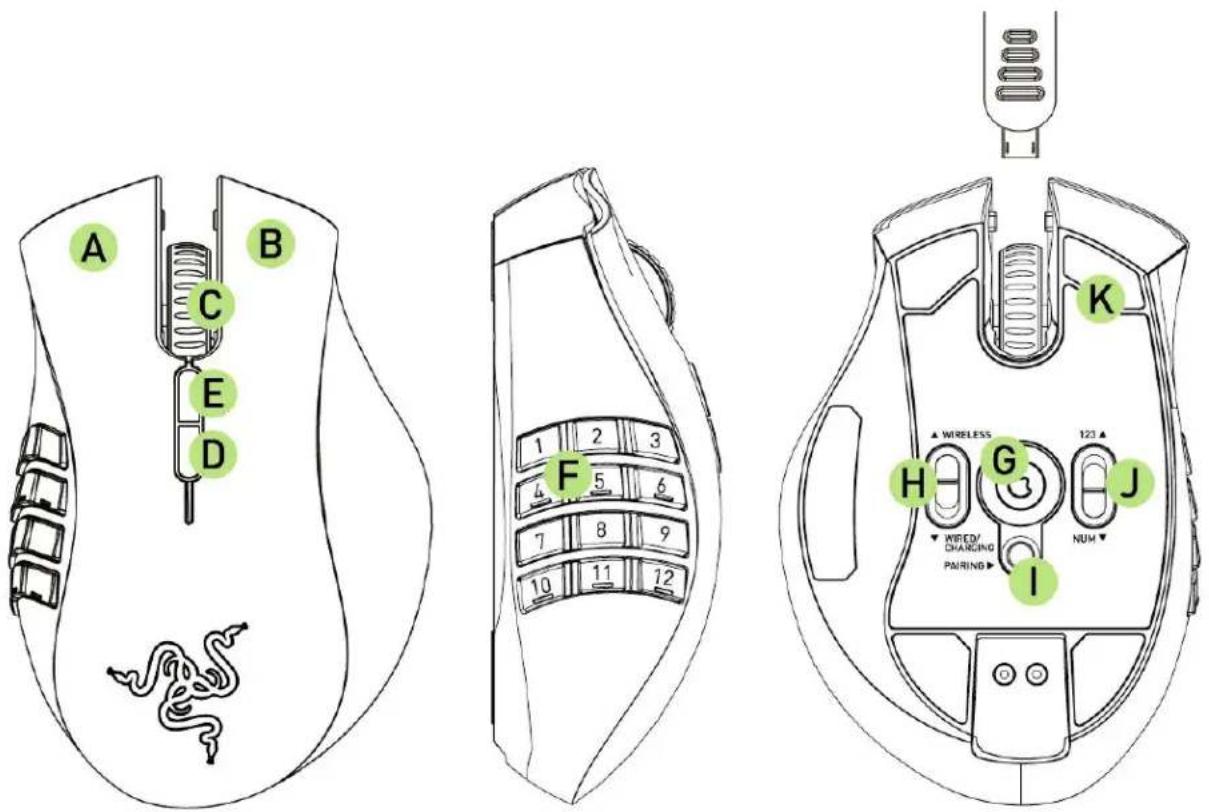
A. Le Mouse Buon
B. Right Mouse Buon
C. Scroll Wheel
D. Mouse Buon 5
E. Mouse Buon 4
F. Thumb Grid - 12 Buons (Acon Bar for MMO games)
G. Razer Precision 3.5G Laser Sensor
H. Wireless and Wired/Charging Switch *
I. Pairing Buon
J. Basic [123] / Advanced [Num] Switch
K. Ultraslick Mouse Feet
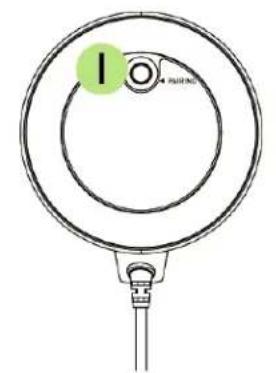
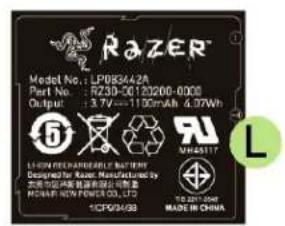
L. Rechargeable Baery
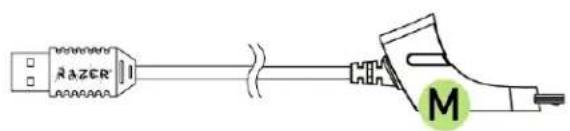
M. Cable Connector Jack
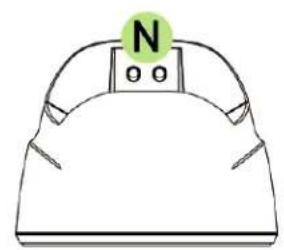
N. Baery Charging Connector
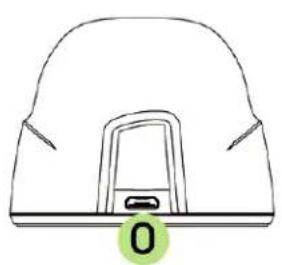
O. Connector Jack (Charging Dock)
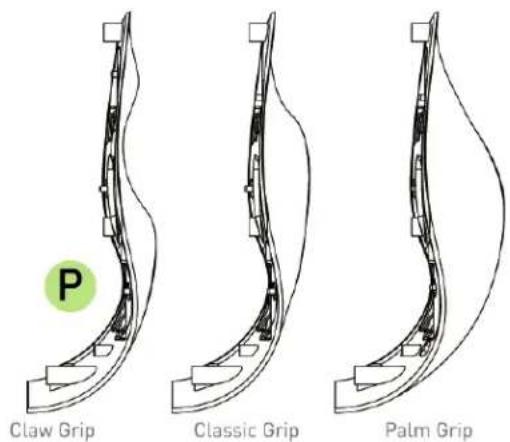
P. 3 Interchangeable Side Panels - Classic Grip, Claw Grip, Palm Grip (default)
3. SETTING UP YOUR RAZER NAGA EPIC
CHARGING THE RAZER NAGA EPIC
| Charging | Fully Charged | |
| Wireless Mode - Spectrum Cycling opon selected | Pulsang | Spectrum Cycling |
| Wireless Mode - Color opon selected | Pulsang | Constant Glow |
For best results, please charge the baery fully the rst me you use the Razer Naga Epic. A depleted baery will be fully charged in about 5 hours. If the mouse has not been used for an extended period, the baery might need to be recharged before usage.
The Razer Naga Epic requires a USB connec on that is able to supply sucient power during baery charging process. The baery charging process of the Razer Naga Epic may be aected if connected to a non-powered USB hub or non-powered USB ports found on certain keyboards and other peripherals.
When in doubt, it is preferable to connect the Razer Naga Epic directly to the USB port found on the CPU unit of your computer system.
WIRELESS MODE
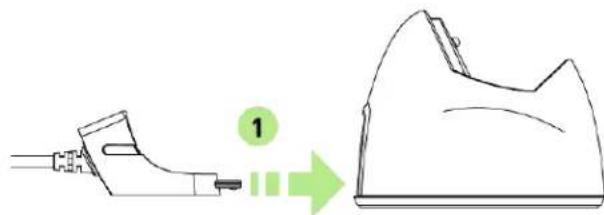
- Connect the Cable Connector Jack to the Charging Dock.
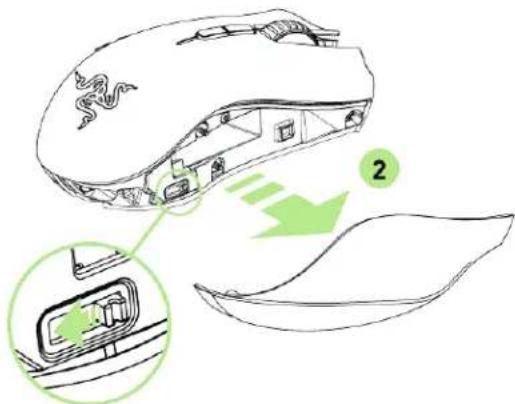
- Remove the side panel of the Razer Naga Epic.
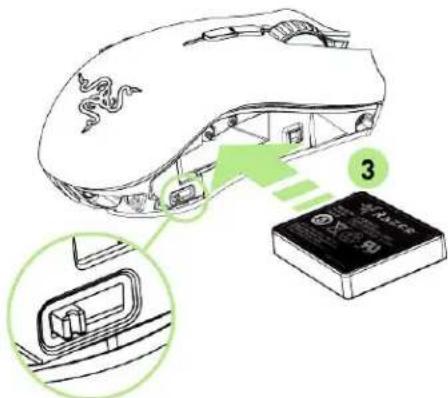
- Slide the lock switch and insert the baery into the baery compartment. (Sliding the lock switch again will allow you to remove the baery).
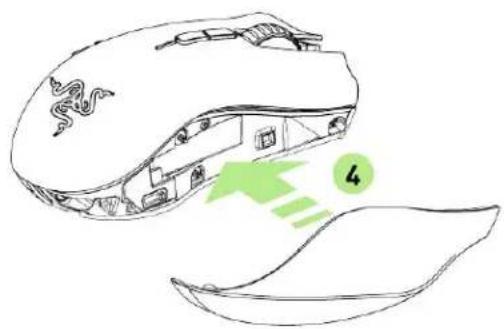
- Replace the side panel.
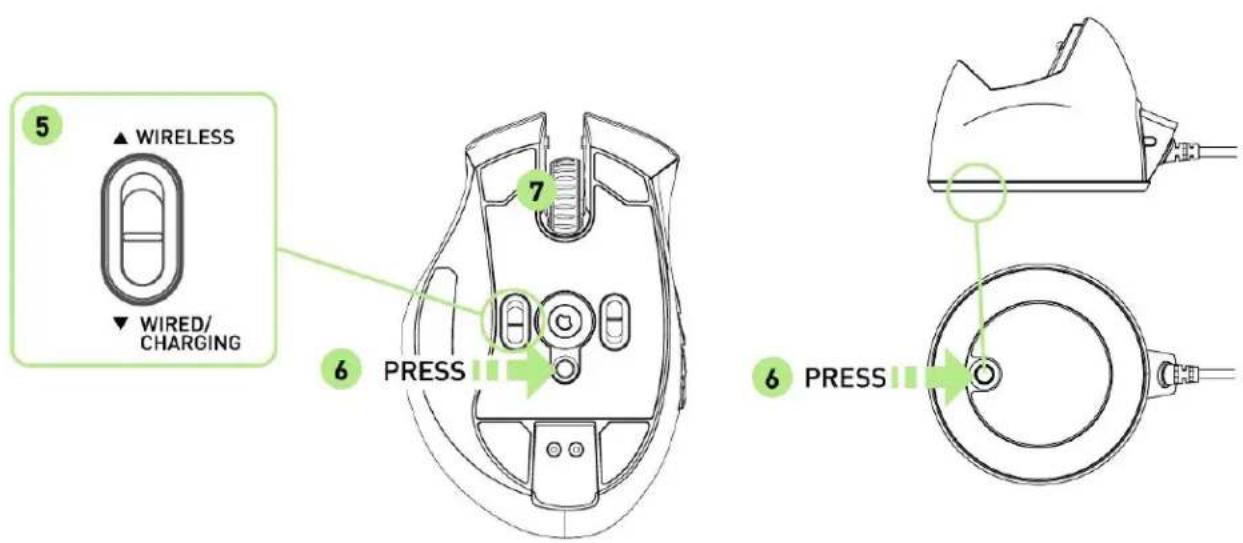
- Slide the shown switch to the Wireless posion. To conserve baery power, always move the switch to the Wired / Charging posion when not using your mouse in wireless mode.
-
Press the pairing buons on the Razer Naga Epic and Charging Dock. The lights on the Razer Naga Epic will start ashing to indicate the pairing process.
-
When the pairing process is completed, the lights on the Razer Naga Epic will stop blinking. Your Razer Naga Epic is then ready for use in wireless mode.
-
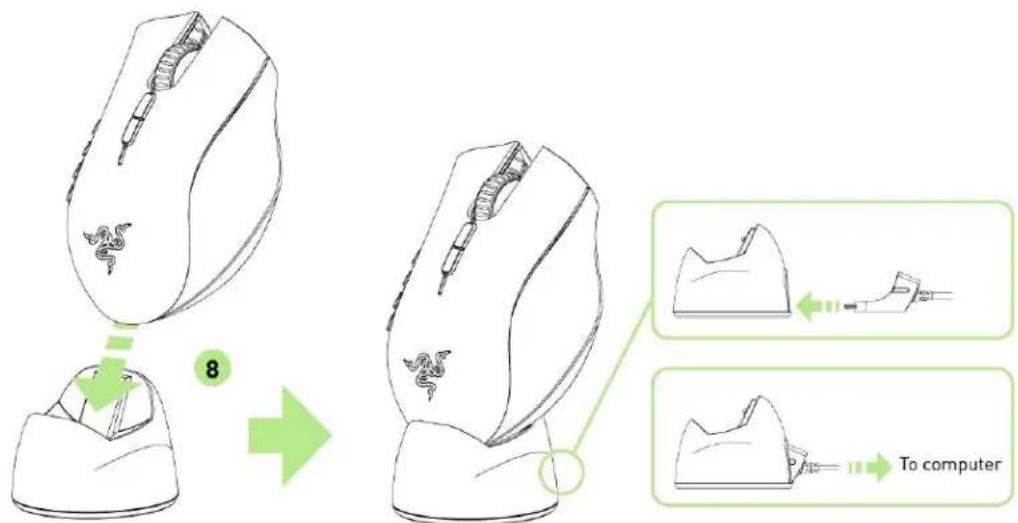
To charge the Razer Naga Epic in wireless mode, ensure that the shown switch is set to the Wired/Charging posion and place it on the Charging Dock.
Wired Mode
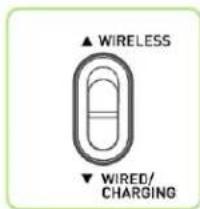
- Do ensure that the shown switch is set to the Wired/Charging posion.
- Connect the Cable Connector Jack to the Razer Naga Epic.
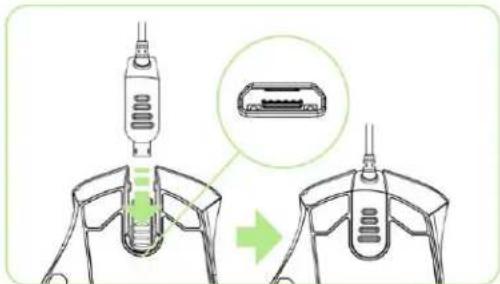
- Plug mouse into the USB port of your computer. The Razer Naga Epic is then ready for use as a high performance wired mouse. In addition, its baery will start charging automacally in this wired mode.
4. USING YOUR RAZER NAGA EPIC
USING BASIC [123] AND ADVANCED [NUM] MODES
The Razer Naga Epic provides a 12-buon [1-12] Thumb Grid in two modes: Basic [123] and Advanced [Num]. To change between the Basic [123] and Advanced [Num] mode, simply use the switch at the boom of your Razer Naga Epic.
Basic [123] Conguraon
![RAZER Naga Epic Elite MMO - Basic [123] Conguraon - 1](/content/2026/02/351779/images/79f81da9ced02f21a67960f91d5ba1a19ea20bbb3862b736c5a3f9f7ba840633.jpg)
In Basic [123] mode, the 12-buon thumb grid works the same as a keyboard's numerical keys. These buons allow you to replicate the acon bar of most games onto the thumb grid buons.
Advanced [NUM] Conguraon
![RAZER Naga Epic Elite MMO - Advanced [NUM] Conguraon - 1](/content/2026/02/351779/images/2ab213e711fda053fa42b452e87a5cf69836be97bab8e3ca948dc240c1e81df2.jpg)
In the Advanced [Num] mode, the 12-buon thumb grid works the same as a keypad's numerical keys. These buons allow you to have quicker access to in-game commands without having the need to reach for the keypad.
Note: Depending on your conguraon, using the shi key or num lock key in-game may act the functionality of the thumb grid buons (for example: numpad 4 may become le arrow).
5. INSTALLING YOUR RAZER NAGA EPIC
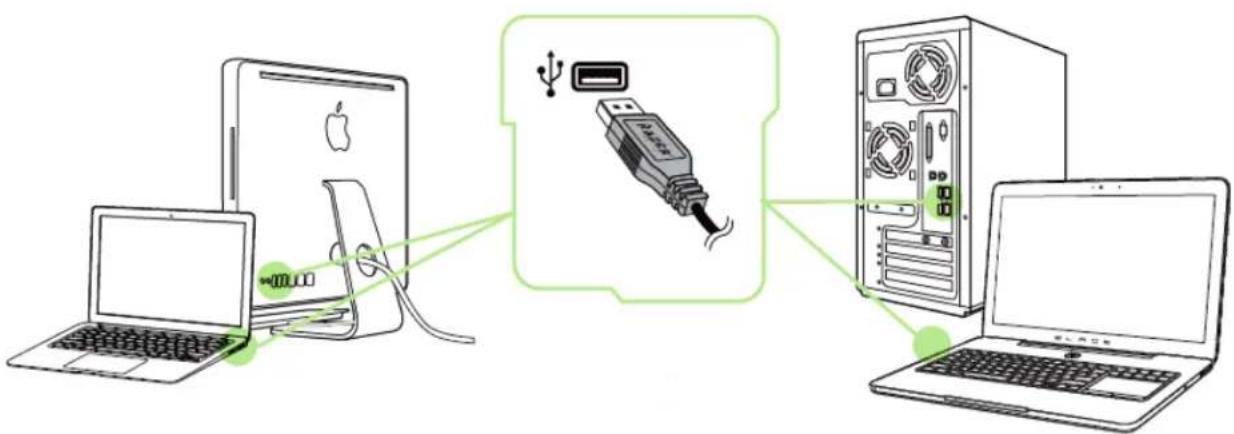
Note: You may skip Steps 2-4 if you already have a Razer Synapse 2.0 installed and an existing account.
Step 1: Plug the Razer Naga Epic into the USB port of your computer.
Step 2: Download the Razer Synapse 2.0 installer from www.razersupport.com.
Step 3: Run the installer and follow the onscreen instrucons.
Step 4: Register for a Razer Synapse 2.0 account and conrm your new account.
Step 5: Open Razer Synopsis 2.0 and login to your account.
Step 6: Wait until the sware automatically downloads and installs.
6. CONFIGURING YOUR RAZER NAGA EPIC
Disclaimer: The features listed here require you to log in to Razer Synapse 2.0. These features are also subject to change based on the current soware version and your Operang System.
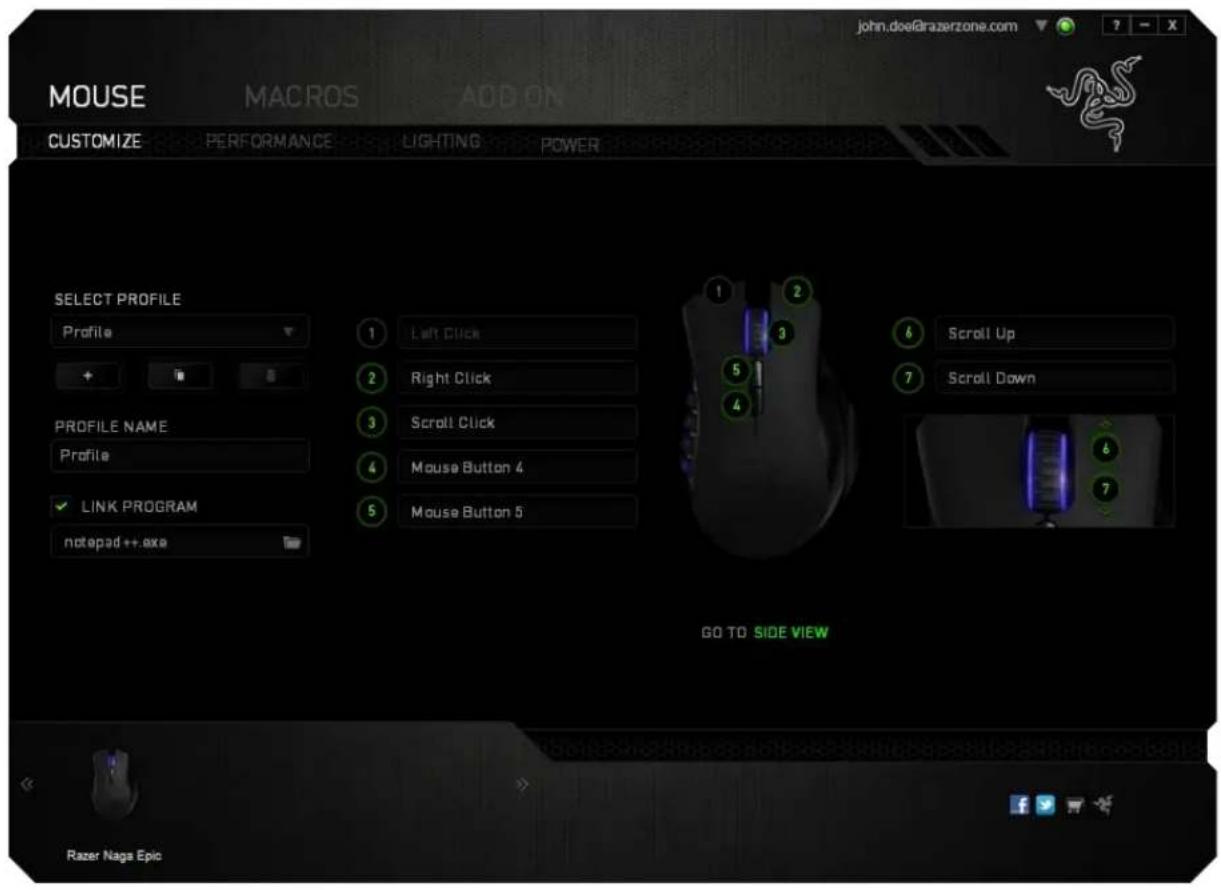
MOUSE TAB
The Mouse Tab is your default tab when you rst install Razer Synapse 2.0. This tab allows you to customize your device's proles, buon assignments, performance and lighng.
PROFILE
A Prole is a convenient way of saving all of the changes you have made on your device. A single Prole can store numerous sengs such as buon assignments and sensitivity adjustments.
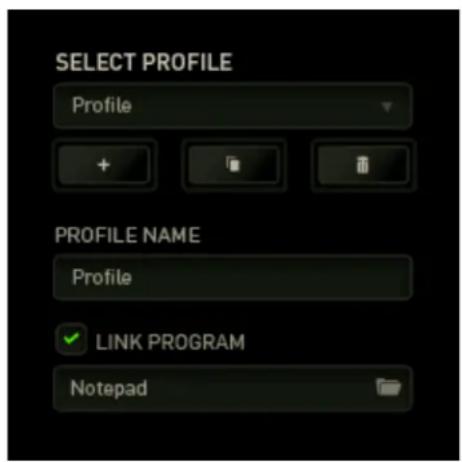
Prole contains the default sengs of your device. Any changes made within each tab will automatically be saved into the current prole. If you want to rename this prole, you may do so by typing on the eld below PROFILE NAME.
There are other opons available in the prole secon such as creang a new prole by
clicking the + deleng the current prole by clicking the buon
and duplicang the current prole by clicking the buon can even set a prole to work with a specic program or applicaon by using the LINK PROGRAM opon and clicking the buon to search for it.
CUSTOMIZE TAB
The Customize Tab is where you can modify the basic functionalities of your device such as buon assignments to suit your gaming needs. The changes made in this tab are automatically saved to your current prole.
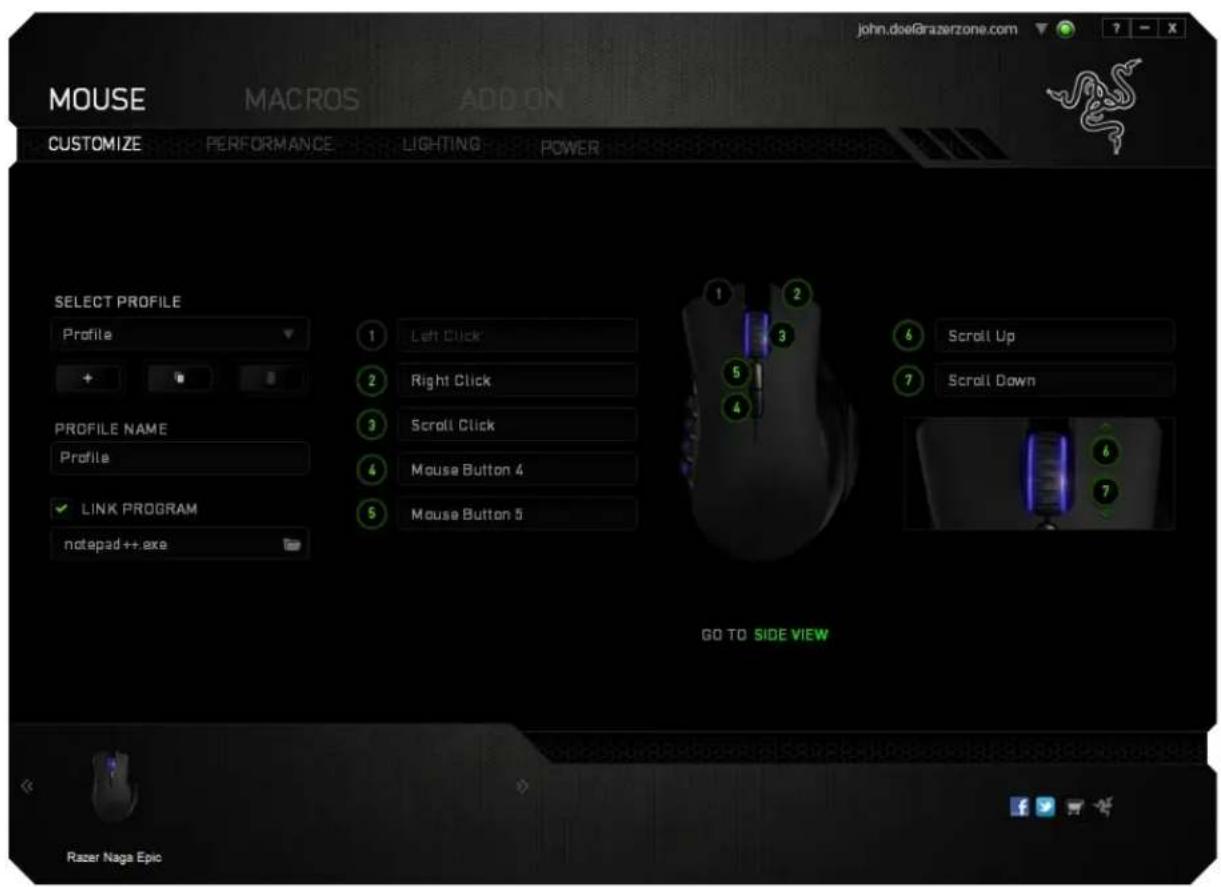
Top View
The Top View is where you can customize the 5 basic mouse buons and the mouse wheel.
Side View
The Side View is where you can customize the 12-buon thumb grid.
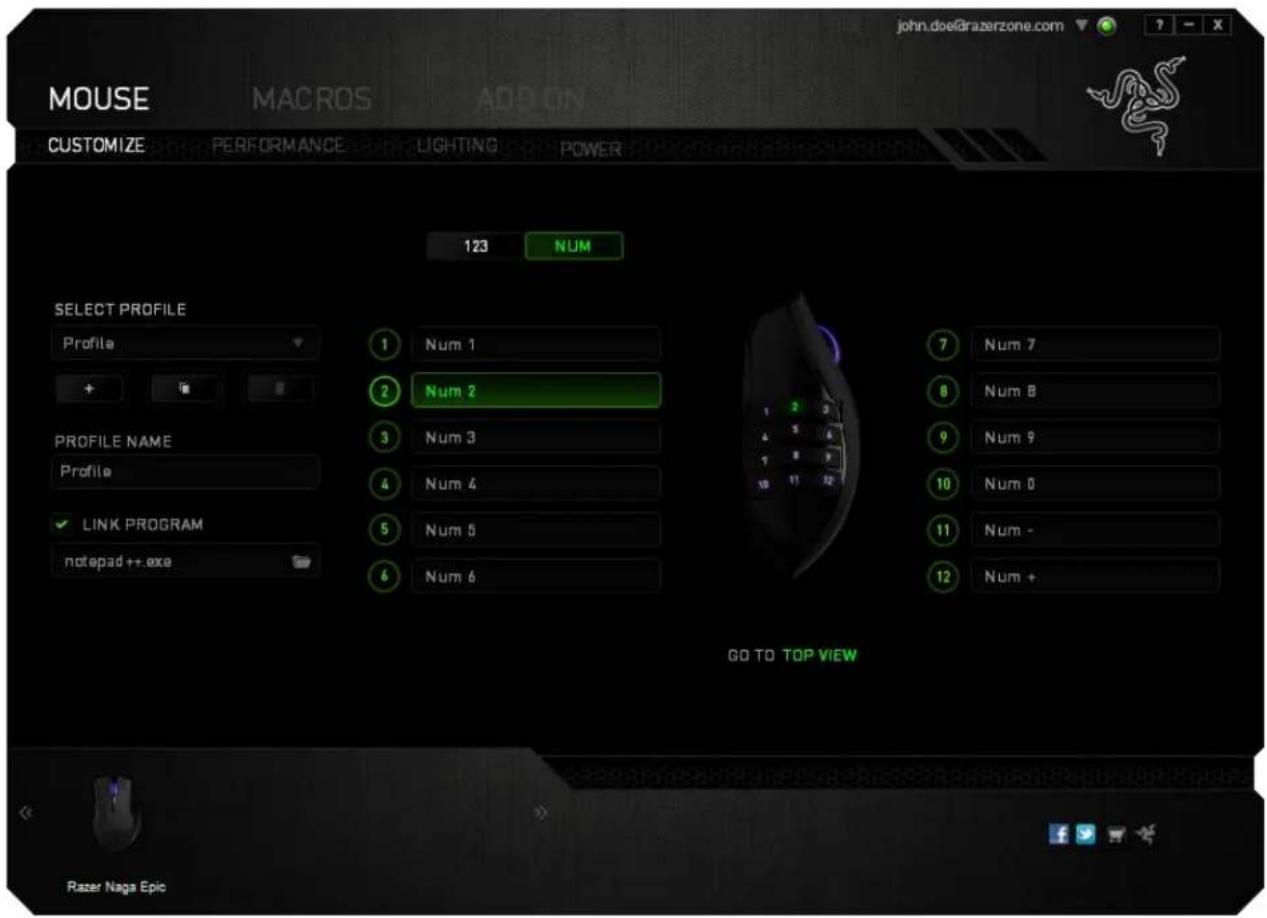
You may conjure both the Basic [123] and the Advanced [NUM] modes using the toggle located on the middle of the screen. Conguring the thumb grid buons on any mode does not require you to use the switch underneath the Razer Naga Epic. However, you will still need to use the switch to change between the Basic [123] and the Advanced [NUM] conjuraon.
BUTTON ASSIGNMENT MENU
Initially, each of the mouse buons is set to DEFAULT. However, you may change the funcon of these buons by clicking the desired buon to access the Buon Assignment Menu.
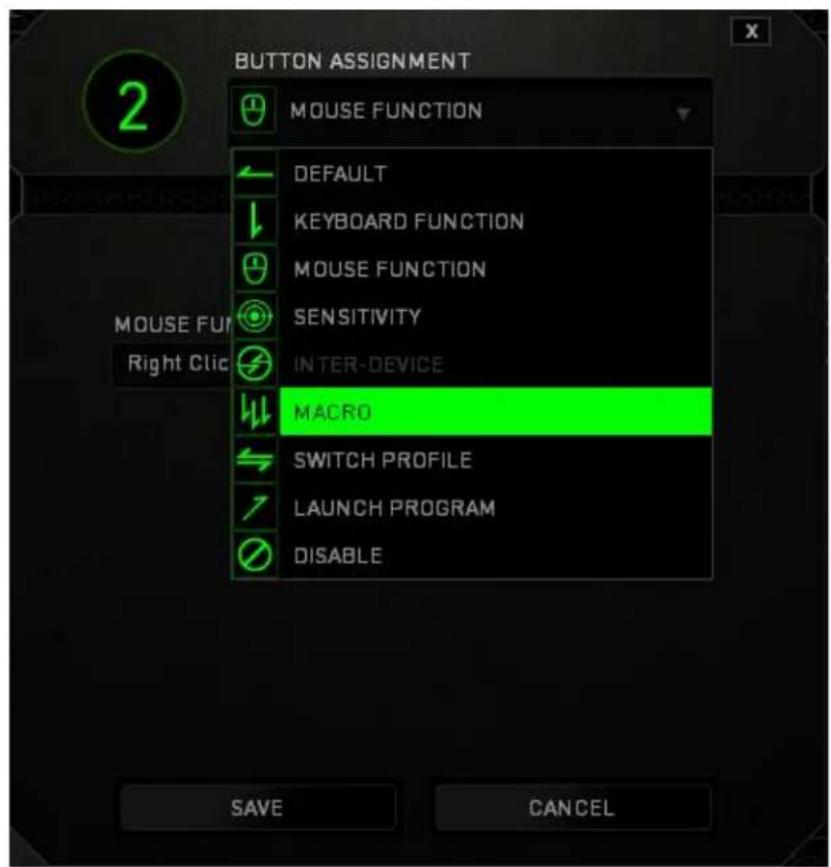
Listed below are the customizaon opons and their descripon.

Default
This opon enables you to return the key to its original funcon. To choose the DEFAULT, simple select it from the Buon Assignment Menu.

Keyboard Funcon
This opon enables you to change the mouse buons into keyboard funcons. To choose a keyboard funcon, select KEYBOARD FUNCTION from the Buon Assignment Menu and enter the key you wish to use on the given eld below. You may also include modifier keys such as Ctrl, Shi, Alt or any of those combinaons.

Mouse Funcon
This opon allows you to change the mouse buons into other mouse funcons. To choose a mouse funcon, select MOUSE FUNCTION from the Buon Assignment Menu and an ASSIGN BUTTON submenu will appear.
Listed below are the funcons which you can choose from the Assign Buon submenu:
Le Click - Performs a le mouse click using the assigned buon.
Right Click - Performs a right mouse click using the assigned buon.
Scroll Click - Acvates the universal scrolling funcon.
Double Click - Performs a double le click using the assigned buon.
Mouse Buon 4 -Performs a "Backward" command for most internet browsers.
Mouse Buon 5 -Performs a "Forward" command for most internet browsers.
Scroll Up -Performs a "Scroll Up" command using the assigned buon.
Scroll Down -Performs a "Scroll Down" command using the assigned buon.

Sensitivity
Sensitivity refers to how fast the mouse pointer can travel across the screen. When you select the Sensitivity funcon from the dropdown menu, a sub-menu will appear which gives you access to the following opons:
Sensitivity Stage Up - Increase the current sensitivity by one stage. See the
PERFORMANCE TAB to learn more about sensitivity stages.
Sensitivity Stage Down - Decrease the current sensitivity by one stage. See
the PERFORMANCE TAB to learn more about sensitivity stages.
Sensitivity Clutch
- Change to a predefined sensitivity as long as the designated buon is pressed. Releasing the buon will return it to the previous sensitivity.
On-The-Fly Sensitivity
- Readily adjust the current sensitivity using the assigned buon. If On-The-Fly Sensitivity has been set, pressing the designated buon and moving the scroll wheel will produce a bar on your screen which would indicate your current sensitivity level.
A Macro is a pre-recorded sequence of keystrokes and buon presses that is executed with precise ming. By assigning a Macro to a buon, you can execute complex combinaons with ease. The ASSIGN MACRO allows you to choose which recorded Macro to use while the PLAYBACK OPTION enables you to choose the behavior of the Macro. See the MACROS TAB to learn more about creang Macro commands.
SwitchProle
The Switch Prole enables you to change proles on the y and immediately load all your pre-figured sengs. When you select Switch Prole from the Buon Assignment Menu, a sub-menu will appear that will allow you to choose which prole to use. An on-screen display will automatically appear whenever you switch proles.
Launch Program
The Launch Program allows you to run a program or applicaon using the assigned buon. When you select Launch Program from the dropdown menu, a buon will appear which allows you to search for the specic program or applicaon you want to use.
Disable
This opon renders the assigned buon unusable. Use Disable when you have no need for a buon or if a parcular buon interferes with your gaming.
PERFORMANCE TAB
The Performance Tab allows you to enhance the speed and precision of your mouse pointer. Similar to the Customize Tab, the changes made here are automacally saved to your current prole.
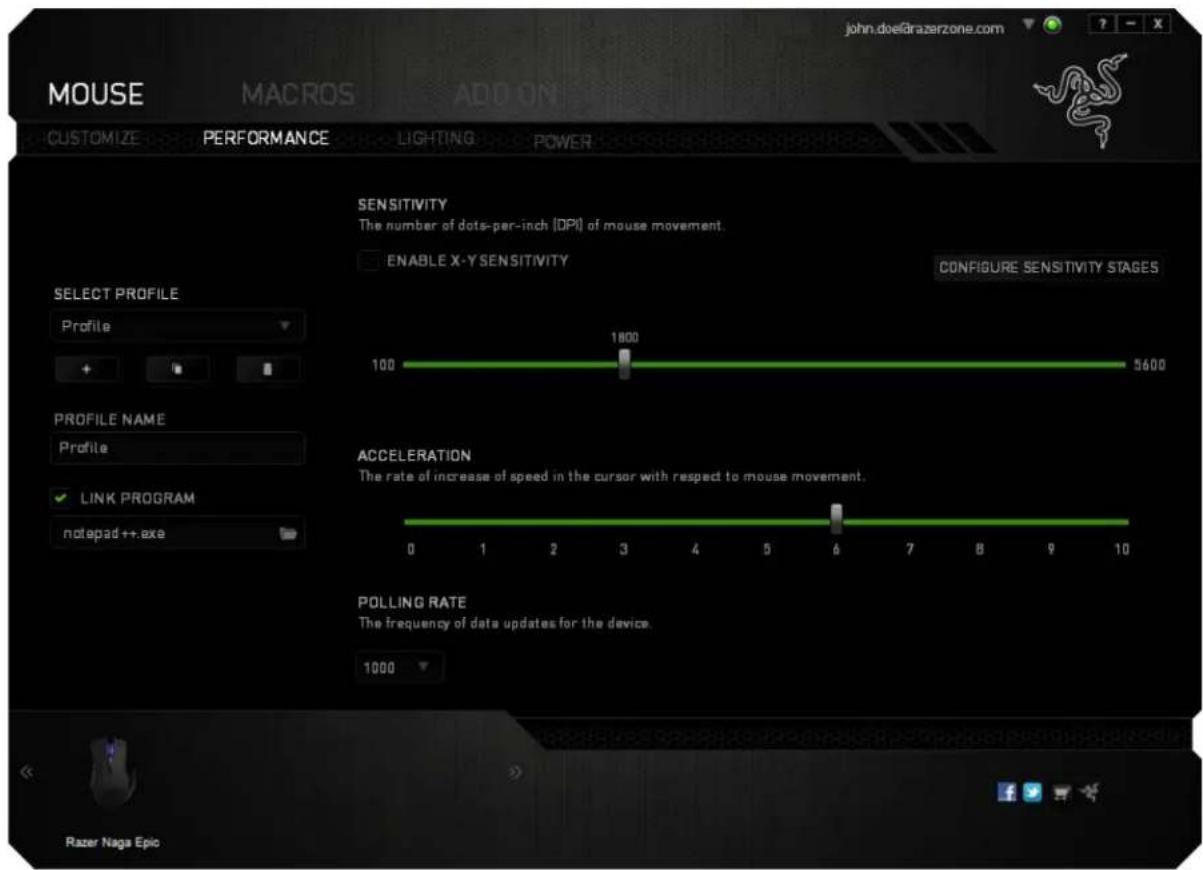
Listed below are the performance opons and their descripons.
Sensitivity
Sensitivity pertains to how much eort is needed to move the mouse pointer in any direcon. The higher the sensitivity, the more responsive the mouse will be. (Recommended seng: 1600 - 1800)
Enable X-Y Sensitivity
By default, the X-axis (horizontal) and Y-axis (vercal) use the same sensitivity values. However, you may set dierent sensitivity values to each of the axes by selecng the "Enable X-Y Sensitivity" opon.
Congure Sensitivity Stages
A sensitivity stage is a preset sensitivity value. You can create up to 5 dierent sensitivity stages which you can cycle through using the sensitivity stage up/down buons.
Acceleraon
Acceleraton increases the cursor's movement speed depending on how quickly you move the mouse. The higher the value, the faster the mouse accelerates. (Recommended sengs: Windows 0, Mac 5)
Polling Rate
The higher the polling rate, the more oen the computer receives informaon about the status of your mouse, thus increasing the mouse pointer's beacon me. You can switch between 125Hz (8ms), 500Hz (2ms) and 1000Hz (1ms) by selecng your desired polling rate on the dropdown menu. (Recommended seng: 500Hz - 1000Hz)
LIGHTING TAB
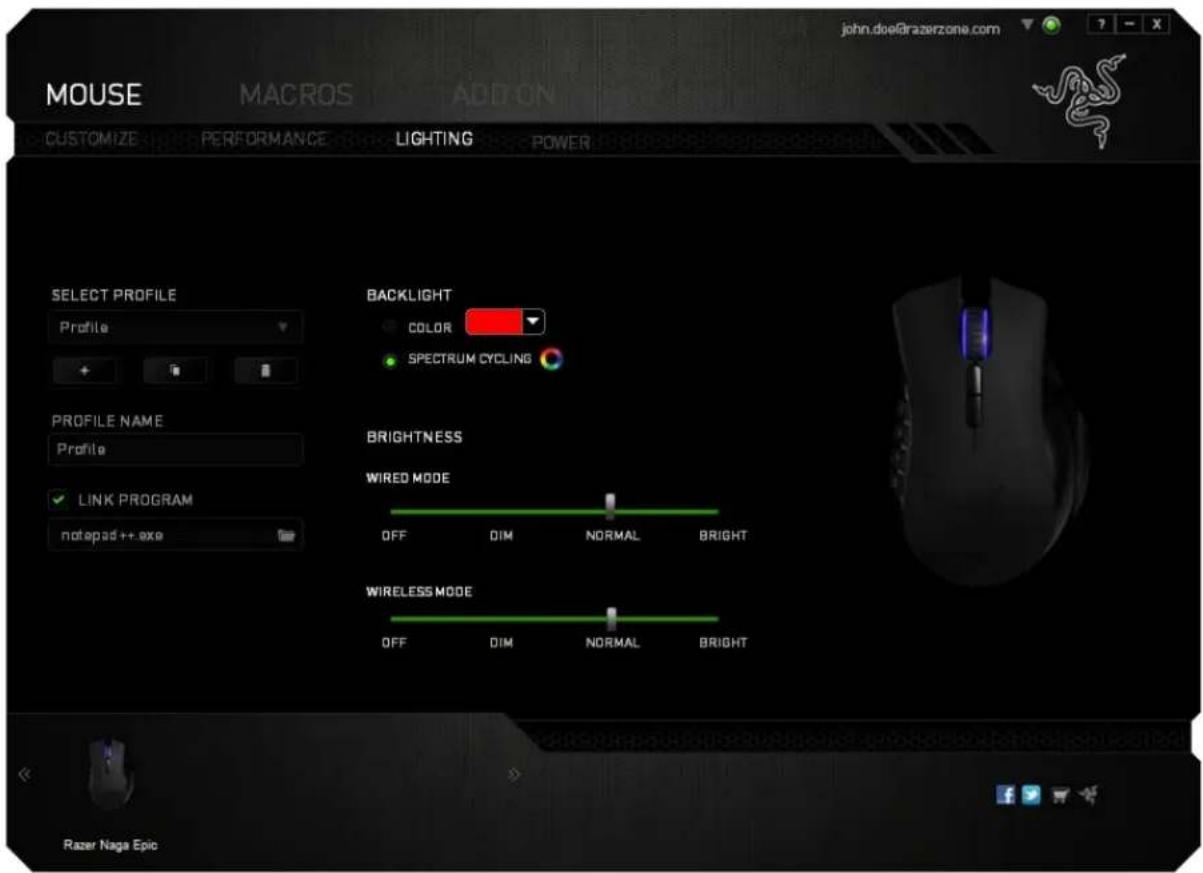
The Lighng Tab allows you to customize the look of your gaming mouse by choosing from over 16 million colors for the backlight or you may select the SPECTRUM CYCLING opon to allow the colors to change indently. This tab also allows you to adjust the intensity of the backlight by using the BRIGHTNESS slider.
POWER TAB
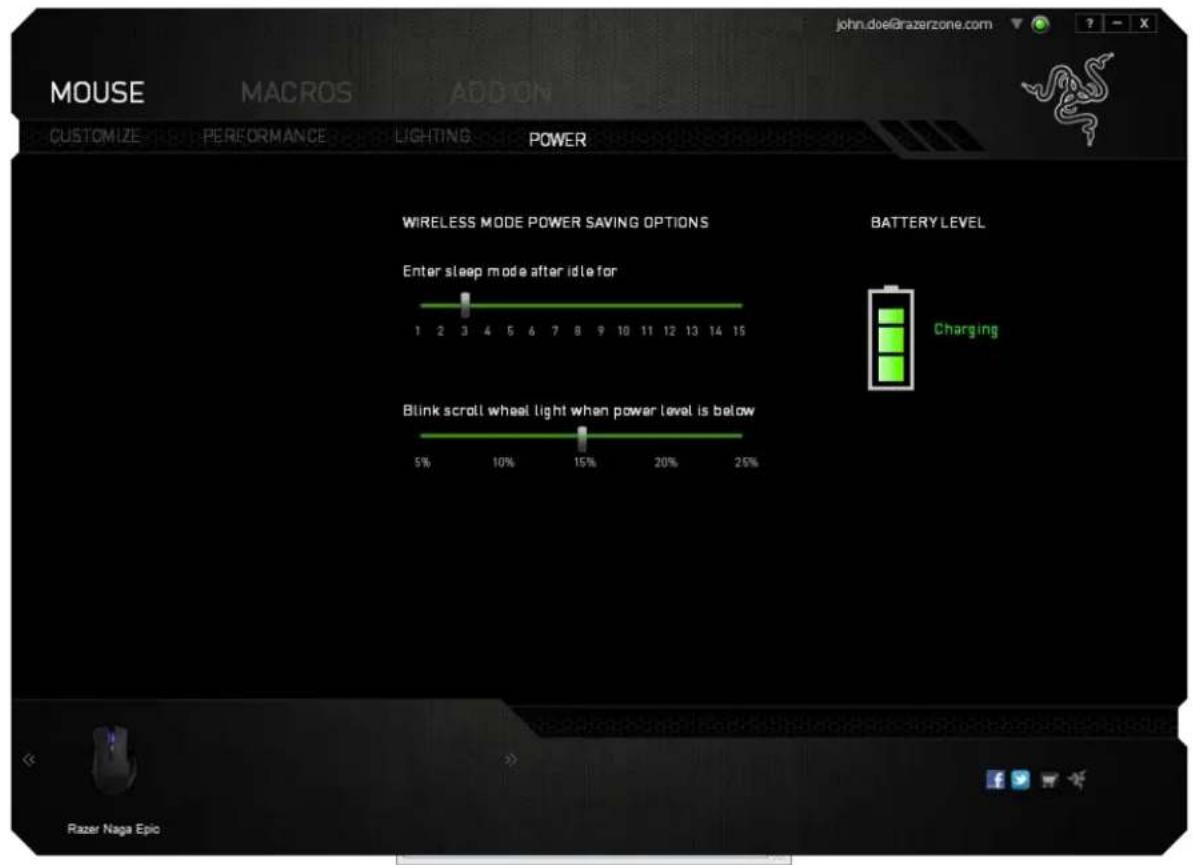
The Power Tab allows you to manage your device's energy consumpon when running on baeries. You can set your device to enter sleep mode when it has been idle for a certain amount of me. The Power Tab also allows you to be noed when the device's power is at a certain level.
MACROS TAB
The Macros Tab allows you to create a series of precise keystrokes and buon presses. This tab also allows you to have numerous macros and extremely long macro commands at your disposal.
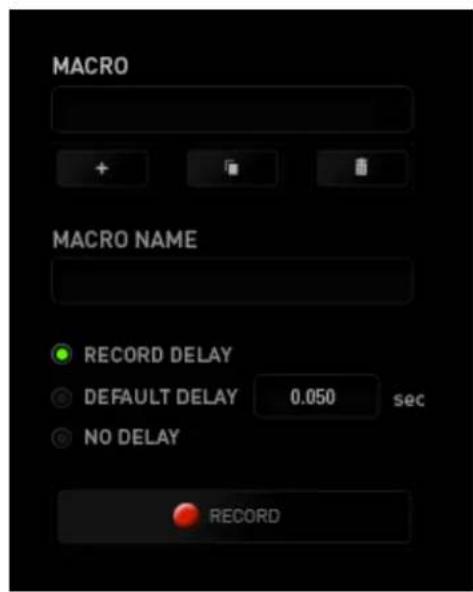
The Macro secon works similarly to Prole wherein you can rename a macro by typing on the eld below MACRO NAME. There are also other opons available in the macro
secon such as creang a new macro by clicking the +on, deleng the current macro by clicking the buon or duplicang the current macro by clicking the
To create a macro command, simply click the buon your keystrokes and buon presses will automatically register on the macro screen. When
you are done recording your macro commands, click on the the session.
The Macro secon allows you to input the delay in-between commands. In RECORD DELAY the delay in-between commands are registered as how it is entered. The DEFAULT DELAY uses a predefined me (expressed in seconds) as the delay. And NO DELAY omits all the pauses in-between keystrokes and buon presses.
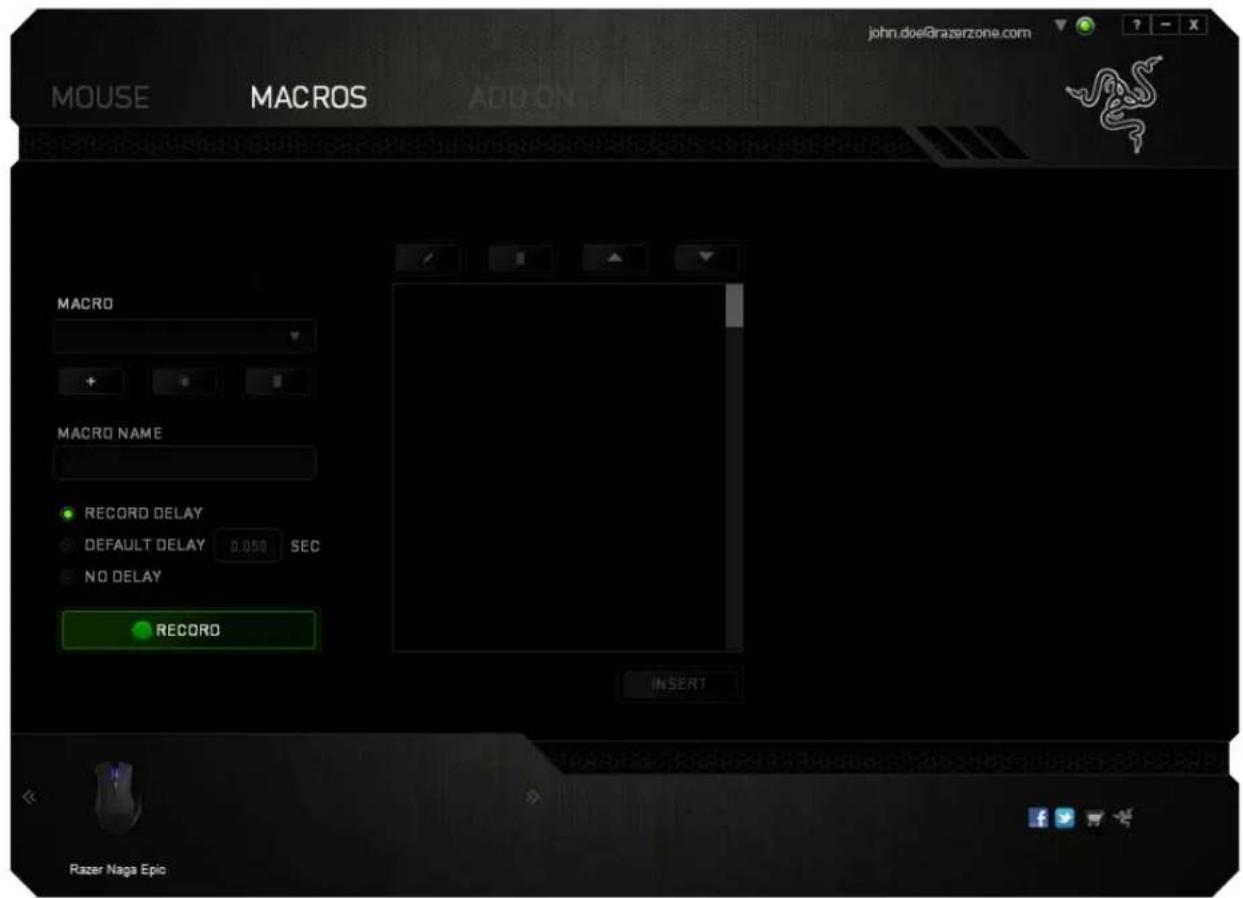
Note: You may use up to three decimal places when inserting values on the seconds (sec) eld.
Once you have recorded a macro, you may edit the commands you have entered by selecng each command on the macro screen. Each keystroke or buon press is arranged sequentially with the rst command shown at the top of the screen.
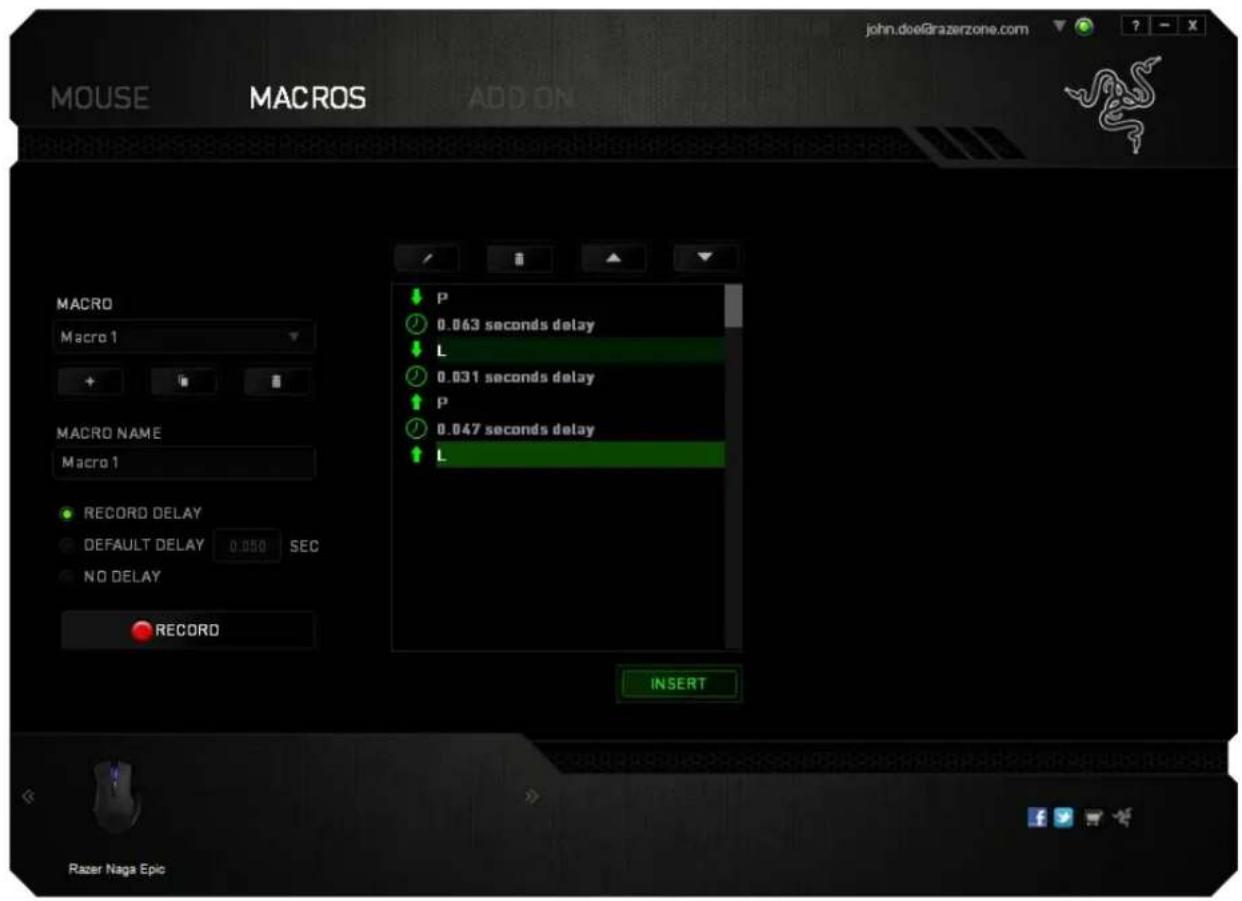
Thebuonallowsyou toedita parscular command and thebuon enables you to delete a command. Thebuons give you the opon to move the command up or down.
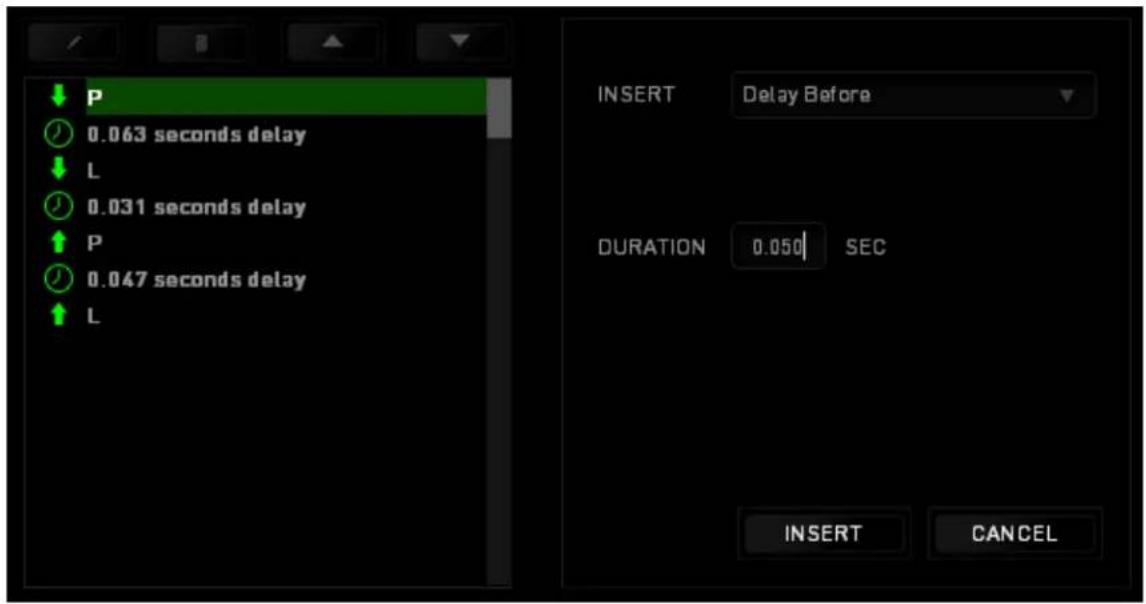
The INSERTows you to put in additional keystrokes, buon presses or me delays either before or aer the selected command.
Once you have pressed the Insert buon, a new display window will appear beside the list of macro commands. The dropdown menu on this window allows you to choose a keystroke or a delay to be added in before or aer the highlighted macro command.
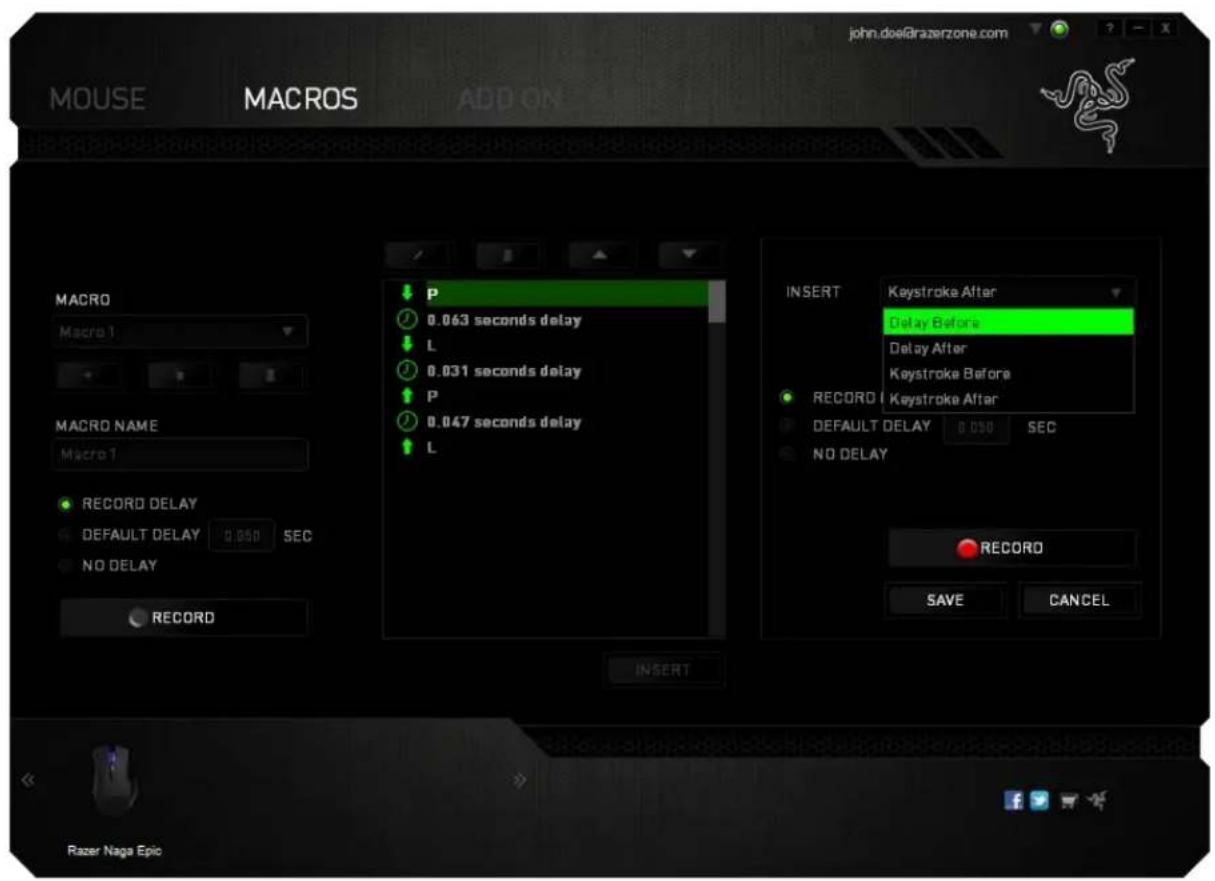
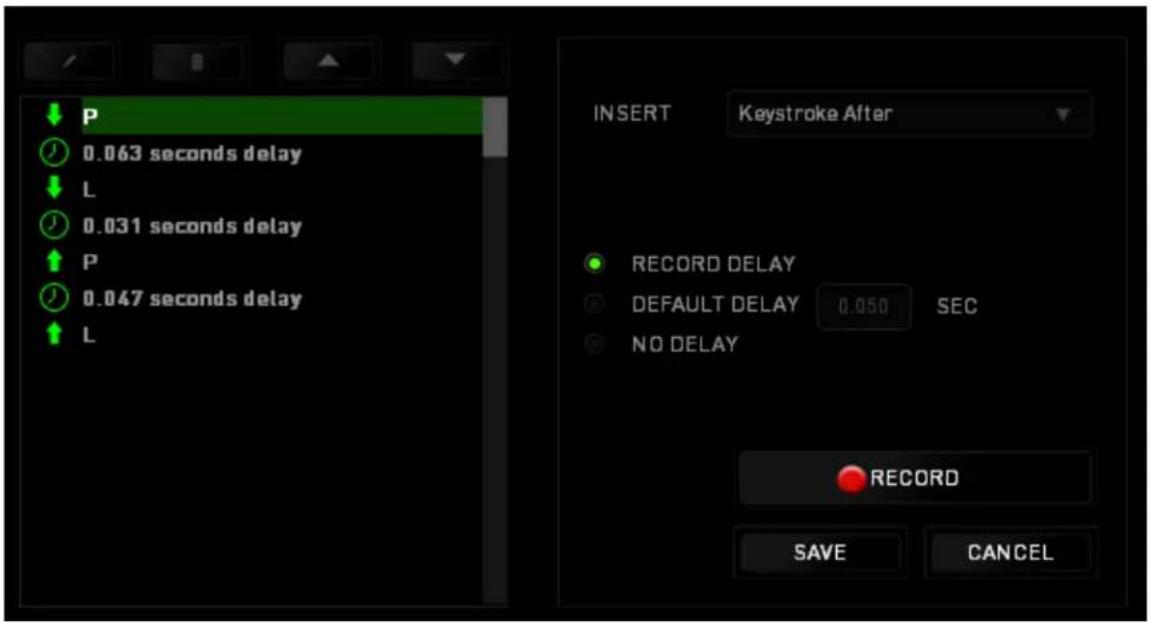
You may add in a new set of macro commands by clicking the RECORD keystroke menu; or input me delays on the duraon eld using the delay menu.
ADD ON TAB
The Add On Tab expands your device's usability by adding game-specific sengs such as a custom interface. To start using Razer Add Ons rst you must enable the USE RAZER NAGA ADD ON opon.
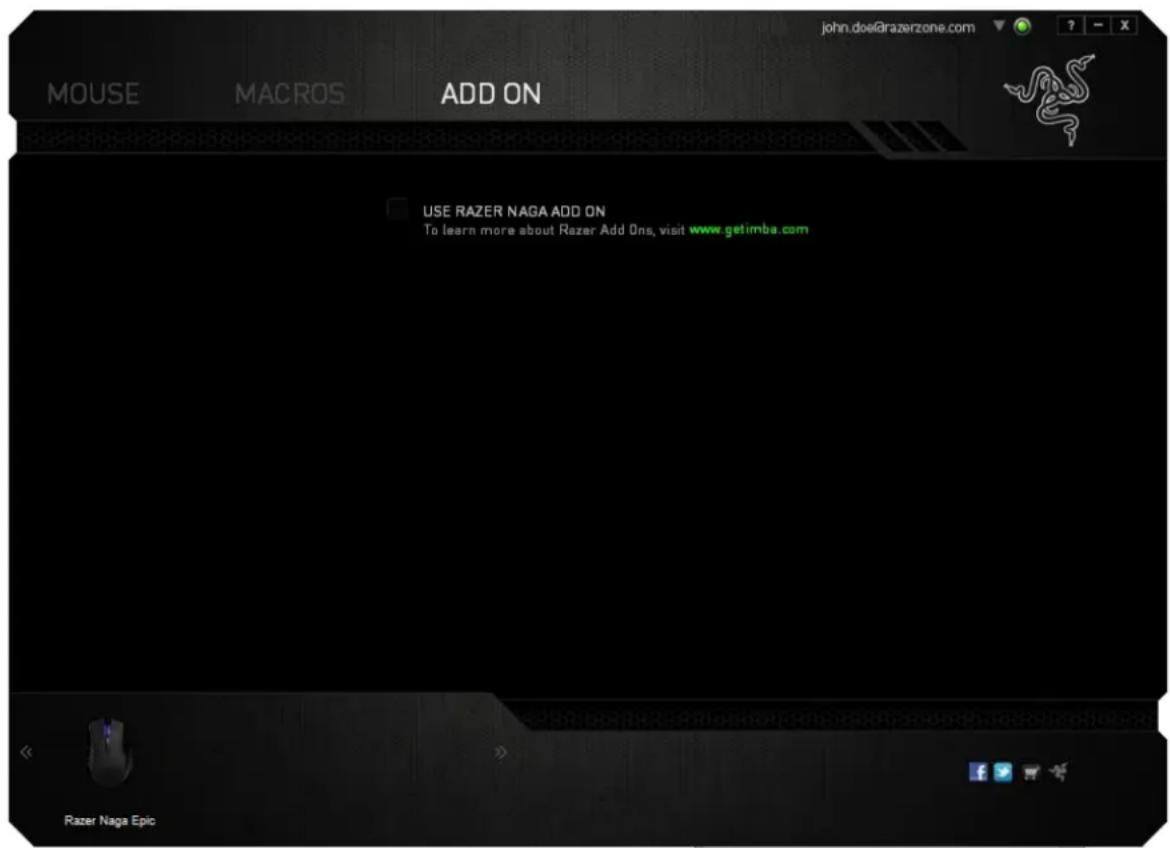
Note: To learn more about Razer Add Ons, visit www.gemba.com
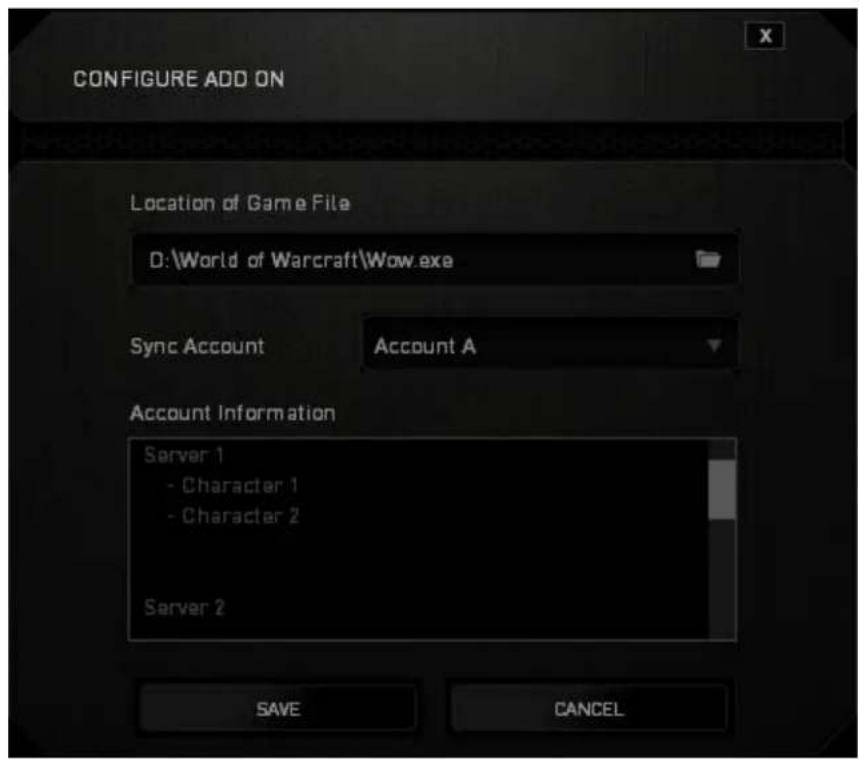
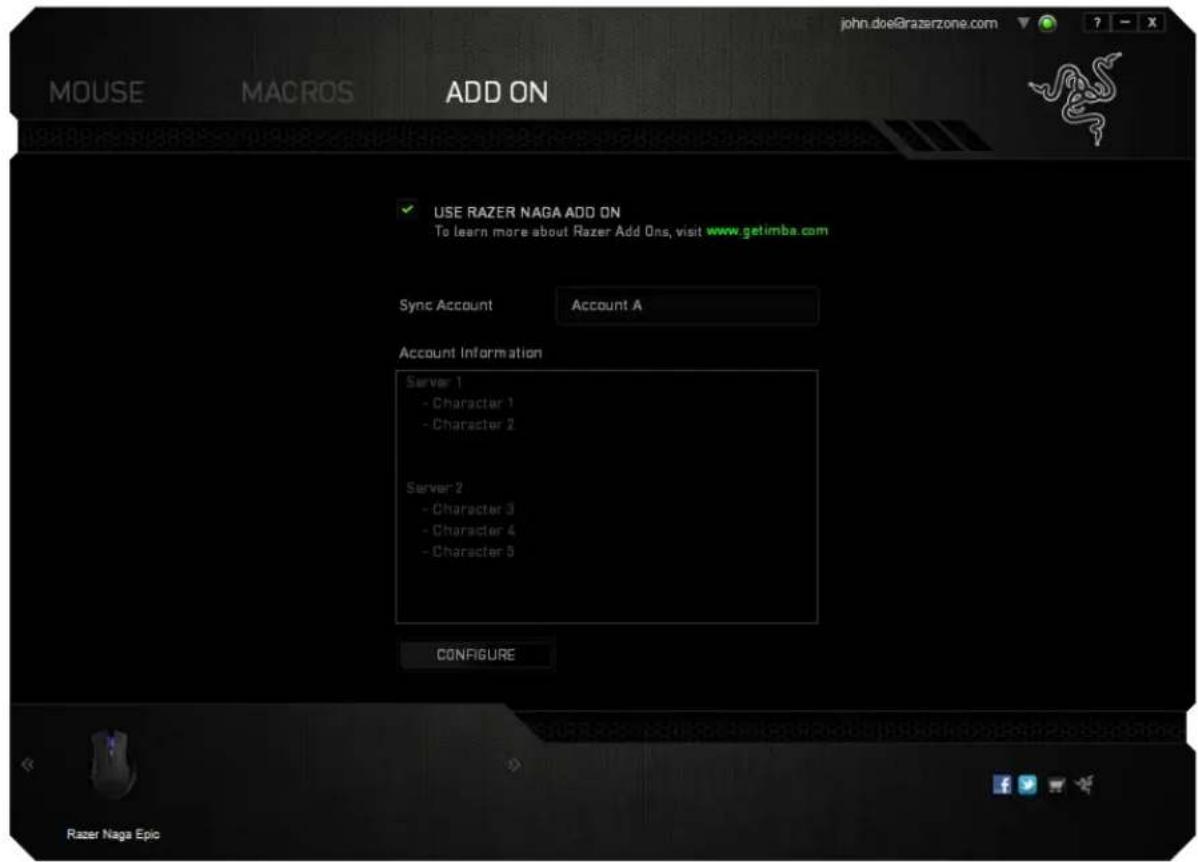
Next, search for the game program or game applicaon using the buon. Finally, select your user account for the game by choosing it on the dropdown menu beside Sync Account.
The Account Informaon screen will show you all the relevant informaon regarding your user account.
7. SAFETY AND MAINTENANCE
SAFETY GUIDELINES
In order to achieve maximum safety while using your Razer Naga Epic, we suggest that you adopt the following guidelines:
- Avoid looking directly at the tracking beam of your mouse or pointing the beam in anyone else's eye. Note that the tracking beam is NOT visible to the naked human eye and is set on an Always-On mode.
- Should you have trouble operang the device properly and troubleshoong does not work, unplug the device and contact the Razer hotline or go to www.razersupport.com for support. Do not aempt to service or x the device yourself at any me.
- Do not take apart the device (doing so will void your warranty) and do not aempt to operate it under abnormal current loads.
- Keep the device away from liquid, humidity or moisture. Operate the device only within the specic temperature range of 0ircC ( 32ircF ) to 40ircC ( 104ircF ). Should the temperature exceed this range, unplug and switch o the device in order to let the temperature stabilize to an opmal level.
COMFORT
Research has shown that long periods of reeve moon, improper posioning of your computer peripherals, incorrect body posion, and poor habits may be associated with physical discomfort and injury to nerves, tendons, and muscles. Below are some guidelines to avoid injury and ensure opmum comfort while using your Razer Naga Epic.
-
Posion your keyboard and monitor directly in front of you with your mouse next to it. Place your elbows next to your side, not too far away and your mouse within easy reach.
-
Adjust the height of your chair and table so that the keyboard and mouse are at or below elbow height.
- Keep your feet well supported, posture straight and your shoulders relaxed.
- During gameplay, relax your wrist and keep it straight. If you do the same tasks with your hands repeatedly, try not to bend, extend or twist your hands for long periods.
- Do not rest your wrists on hard surfaces for long periods. Use a wrist rest to support your wrist while gaming.
- Customize the buons on your mouse to suit your style of gaming in order to minimize repeve or awkward moons while gaming.
- Make sure that your mouse is comfortably in your hands.
- Do not sit in the same posion all day. Get up, step away from your desk and do exercises to stretch your arms, shoulders, neck and legs.
- If you should experience any physical discomfort while using your mouse, such as pain, numbness, or ngling in your hands, wrists, elbows, shoulders, neck or back, please consult a qualified medical doctor immediately.
MAINTENANCE AND USE
The Razer Naga Epic requires minimum maintenance to keep it in op mum condion. Once a month we recommend you unplug the device from the USB port and clean it using a so cloth or coon swab with a bit of warm water to prevent dirt buildup. Do not use soap or harsh cleaning agents.
To get the ultimate experience in movement and control, we highly recommend a premium mousing surface from Razer. Some surfaces will cause undue wear on the feet requiring constant care and eventual replacement.
Do note that the sensor of the Razer Naga Epic is 'tuned' or optimized especially for the Razer mousing surfaces. This means that the sensor has been tested extensively to confirm that the Razer Naga Epic reads and tracks best on Razer mousing surfaces.
8. LEGALESE
COPYRIGHT AND INTELLECTUAL PROPERTY INFORMATION
©2011 Razer USA Ltd. Patent Pending. All Rights Reserved. Razer™, the Razer Triple-Headed Snake logo, the Razer distressed word logo and other trademarks contained herein are trademarks or registered trademarks of Razer USA Ltd and/or its aliated or associated companies, registered in the United States and/or other countries. Windows and the Windows logo are trademarks of the Microso group of companies. Mac OS, Mac and the Mac logo are trademarks or registered trademarks of Apple.
Razer USA Ltd ("Razer") may have copyright, trademarks, trade secrets, patents, patent applicaons, or other intellectual property rights (whether registered or unregistered) concerning the product in this Master Guide. Furnishing of this Master Guide does not give you a license to any such copyright, trademark, patent or other intellectual property right. The Razer Naga Epic (the "Product") may dier from pictures whether on packaging or otherwise. Razer assumes no responsibility for such dierences or for any errors that may appear. Informaon contained herein is subject to change without notice.
LIMITED PRODUCT WARRANTY
For the latest and current terms of the Limited Product Warranty, please visit www.razerzone.com/warranty.
LIMITATION OF LIABILITY
Razer shall in no event be liable for any lost prots, loss of informaon or data, special, incidental, indirect, punitive or consequential or incidental damages, arising in any way out of distribuon of, sale of, resale of, use of, or inability to use the Product. In no event shall Razer's liability exceed the retail purchase price of the Product.
COSTS OF PROCEDURE
For the avoidance of doubt, in no event will Razer be liable for any costs of procurement unless it has been advised of the possibility of such damages, and in no case shall Razer be liable for any costs of procurement liability exceeding the retail purchase price of the Product.
GENERAL
These terms shall be governed by and construed under the laws of the jurisdicon in which the Product was purchased. If any term herein is held to be invalid or unenforceable, then such term (in so far as it is invalid or unenforceable) shall be given no eect and deemed to be excluded without invalidang any of the remaining terms. Razer reserves the right to amend any term at any me without noce.


- TABLE OF CONTENTS
- PACKAGE CONTENTS / SYSTEM REQUIREMENTS / REGISTRATION
- PACKAGE CONTENTS
- SYSTEM REQUIREMENTS
- REGISTRATION
- DEVICE LAYOUT
- SETTING UP YOUR RAZER NAGA EPIC
- WIRELESS MODE
- Wired Mode
- USING YOUR RAZER NAGA EPIC
- USING BASIC [123] AND ADVANCED [NUM] MODES
- Basic [123] Conguraon
- Advanced [NUM] Conguraon
- INSTALLING YOUR RAZER NAGA EPIC
- CONFIGURING YOUR RAZER NAGA EPIC
- MOUSE TAB
- PROFILE
- CUSTOMIZE TAB
- Top View
- Side View
- BUTTON ASSIGNMENT MENU
- Default
- Keyboard Funcon
- Mouse Funcon
- Sensitivity
- SwitchProle
- Launch Program
- Disable
- PERFORMANCE TAB
- Enable X-Y Sensitivity
- Congure Sensitivity Stages
- Acceleraon
- Polling Rate
- LIGHTING TAB
- POWER TAB
- MACROS TAB
- ADD ON TAB
- SAFETY AND MAINTENANCE
- SAFETY GUIDELINES
- COMFORT
- MAINTENANCE AND USE
- LEGALESE
- COPYRIGHT AND INTELLECTUAL PROPERTY INFORMATION
- LIMITED PRODUCT WARRANTY
- LIMITATION OF LIABILITY
- COSTS OF PROCEDURE
- GENERAL
Marque : RAZER
Modèle : Naga Epic Elite MMO
Catégorie : Souris