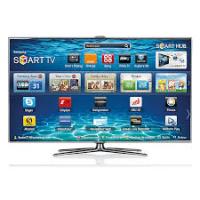
UE-40ES7000 - Téléviseur SAMSUNG - Notice d'utilisation et mode d'emploi gratuit
Retrouvez gratuitement la notice de l'appareil UE-40ES7000 SAMSUNG au format PDF.



| Type de produit | Téléviseur LED 40 pouces |
| Résolution | Full HD (1920 x 1080) |
| Technologie d'affichage | LED |
| Fréquence d'actualisation | 200 Hz |
| Connectivité | 3 x HDMI, 2 x USB, Ethernet, Wi-Fi intégré |
| Audio | 2 x 10 W, Dolby Digital Plus |
| Dimensions (L x H x P) | 92,4 x 56,8 x 3,3 cm (sans pied) |
| Poids | 10,5 kg (sans pied) |
| Alimentation électrique | 100-240 V, 50/60 Hz |
| Fonctions principales | Smart TV, accès à des applications, contrôle vocal |
| Entretien et nettoyage | Utiliser un chiffon doux et sec, éviter les produits chimiques agressifs |
| Pièces détachées et réparabilité | Disponibilité variable, vérifier auprès du fabricant |
| Normes de sécurité | CE, RoHS |
| Informations générales | Compatible avec les supports VESA 200 x 200 mm |
FOIRE AUX QUESTIONS - UE-40ES7000 SAMSUNG
Questions des utilisateurs sur UE-40ES7000 SAMSUNG
0 question sur cet appareil. Repondez a celles que vous connaissez ou posez la votre.
Poser une nouvelle question sur cet appareil
Téléchargez la notice de votre Téléviseur au format PDF gratuitement ! Retrouvez votre notice UE-40ES7000 - SAMSUNG et reprennez votre appareil électronique en main. Sur cette page sont publiés tous les documents nécessaires à l'utilisation de votre appareil UE-40ES7000 de la marque SAMSUNG.
MODE D'EMPLOI UE-40ES7000 SAMSUNG
SAMSUNG
Contact SAMSUNG WORLDWIDE
If you have any questions or comments relating to Samsung products, please contact the SAMSUNG customer care centre.
| Country | Customer Care Centre ☎ | Web Site |
| ALBANIA | 42 27 5755 | - |
| AUSTRIA | 0810 - SAMSUNG (7267864, € 0.07/min) | www.samsung.com |
| BELGIUM | 02-201-24-18 | www.samsung.com/be (Dutch)www.samsung.com/be_fr (French) |
| BOSNIA | 05 133 1999 | - |
| BULGARIA | 07001 33 11 | www.samsung.com |
| CROATIA | 062 SAMSUNG (062 726 7864) | www.samsung.com |
| CZECH | 800 - SAMSUNG (800-726786) | www.samsung.com |
| Samsung Zrt., česká organizační složka, Oasis Florenc, Sokolovská394/17, 180 00, Praha 8 | ||
| DENMARK | 70 70 19 70 | www.samsung.com |
| FINLAND | 030 - 6227 515 | www.samsung.com |
| FRANCE | 01 48 63 00 00 | www.samsung.com |
| GERMANY | 01805 - SAMSUNG (726-7864 0,14 €/Min. aus dem dt.Festnetz, aus Mobilfunknetzen max. 0,42 €/Min.) | www.samsung.com |
| CYPRUS | From landline : 8009 4000 | www.samsung.com |
| GREECE | From landline : 80111-SAMSUNG(7267864)From landline & mobile : (+30) 210 6897691 | www.samsung.com |
| HUNGARY | 06-80-SAMSUNG (726-7864) | www.samsung.com |
| ITALIA | 800-SAMSUNG (726-7864) | www.samsung.com |
| KOSOVO | +381 0113216899 | - |
| LUXEMBURG | 261 03 710 | www.samsung.com |
| MACEDONIA | 023 207 777 | - |
| MONTENEGRO | 020 405 888 | - |
| NETHERLANDS | 0900-SAMSUNG (0900-7267864) (€ 0,10/Min) | www.samsung.com |
| NORWAY | 815-56 480 | www.samsung.com |
| POLAND | 0 801-1SAMSUNG (172678)+48 22 607-93-33 | www.samsung.com |
| PORTUGAL | 808 20-SAMSUNG (808 20 7267) | www.samsung.com |
| ROMANIA | From landline : 08010-SAMSUNG (7267864)From landline & mobile : (+40) 21 206 01 10 | www.samsung.com |
| SERBIA | 0700 Samsung (0700 726 7864) | www.samsung.com |
| SLOVAKIA | 0800 - SAMSUNG (0800-726 786) | www.samsung.com/sk |
| SPAIN | 902 - 1 - SAMSUNG (902 172 678) | www.samsung.com |
| SWEDEN | 0771 726 7864 (SAMSUNG) | www.samsung.com |
| SWITZERLAND | 0848 - SAMSUNG(7267864, CHF 0.08/min) | www.samsung.com/chwww.samsung.com/ch_fr/(French) |
| U.K | 0330 SAMSUNG (7267864) | www.samsung.com |
| EIRE | 0818 717100 | www.samsung.com |
| LITHUANIA | 8-800-77777 | www.samsung.com |
| LATVIA | 8000-7267 | www.samsung.com |
| ESTONIA | 800-7267 | www.samsung.com |
| TURKEY | 444 77 11 | www.samsung.com |
SAMSUNG
SERIES
7
LED TV
user manual
text_image
SUPPORTThank you for purchasing this Samsung product.
To receive more complete service, please register your product at
www.samsung.com/register
Model ____ Serial No. ____
A detailed User's Manual is built into your TV.
For more information about how to view this e-Manual see page 19.
Figures and illustrations in this User Manual are provided for reference only and may differ from actual product appearance. Product design and specifications may be changed without notice.
Digital TV notice
- Functionalities related to Digital TV (DVB) are only available in countries/areas where DVB-T (MPEG2 and MPEG4 AVC) digital terrestrial signals are broadcasted or where you are able to access to a compatible DVB-C (MPEG2 and MPEG4 AAC) cable-TV service. Please check with your local dealer the possibility to receive DVB-T or DVB-C signal.
- DVB-T is the DVB European consortium standard for the broadcast transmission of digital terrestrial television and DVB-C is that for the broadcast transmission of digital TV over cable. However, some differentiated features like EPG (Electric Programme Guide), VOD (Video On Demand) and so on, are not included in this specification. So, they cannot be workable at this moment.
- Although this TV set meets the latest DVB-T and DVB-C standards, as of [August, 2008], the compatibility with future DVB-T digital terrestrial and DVB-C digital cable broadcasts cannot be guaranteed.
- Depending on the countries/areas where this TV set is used some cable-TV providers may charge an additional fee for such a service and you may be required to agree to terms and conditions of their business.
- Some Digital TV functions might be unavailable in some countries or regions and DVB-C might not work correctly with some cable service providers.
- For more information, please contact your local Samsung customer care centre.
The reception quality of TV may be affected due to differences in broadcasting method between the countries. Please check the TV performance in the local SAMSUNG Authorized Dealer, or the Samsung Call Centre whether it can be improved by reconfiguring TV setting or not.
Still image warning
Avoid displaying still images (like jpeg picture files) or still image element (like TV programme logo, panorama or 4:3 image format, stock or news bar at screen bottom etc.) on the screen. Constant displaying of still picture can cause ghosting of LED screen, which will affect image quality. To reduce risk of this effect, please follow below recommendations:
- Avoid displaying the same TV channel for long periods.
• Always try do display any image on full screen, use TV set picture format menu for best possible match. - Reduce brightness and contrast values to minimum required to achieve desired picture quality, exceeded values may speed up the burnout process.
- Frequently use all TV features designed to reduce image retention and screen burnout, refer to e-Manual for details.
Providing Proper Ventilation for Your TV
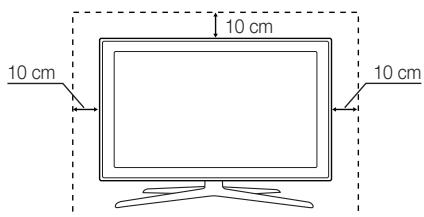
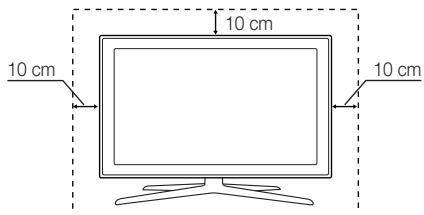
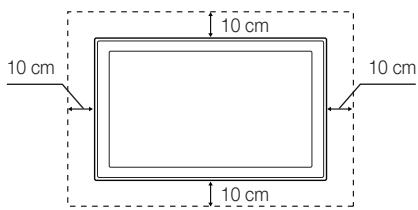
When you install your TV, maintain a distance of at least 4 inches between the TV and other objects (walls, cabinet sides, etc.) to ensure proper ventilation. Failing to maintain proper ventilation may result in a fire or a problem with the product caused by an increase in its internal temperature.
Whether you install your TV using a stand or a wall-mount, we strongly recommend you use parts provided by Samsung Electronics only.
- If you use parts provided by another manufacturer, it may cause difficulties with the product or result in injury caused by the product falling.
Installation with a stand.
text_image
10 cm 10 cm 10 cmInstallation with a wall-mount.

text_image
10 cm 10 cm 10 cm 10 cmOther Warnings
The actual appearance of the TV may differ from the images in this manual, depending on the model.
Be careful when you touch the TV. Some parts can be somewhat hot.
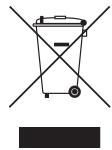
Correct Disposal of This Product (Waste Electrical & Electronic Equipment)
(Applicable in the European Union and other European countries with separate collection systems)
This marking on the product, accessories or literature indicates that the product and its electronic accessories (e.g. charger, headset, USB cable) should not be disposed of with other household waste at the end of their working life. To prevent possible harm to the environment or human health from uncontrolled waste disposal, please separate these items from other types of waste and recycle them responsibly to promote the sustainable reuse of material resources. Household users should contact either the retailer where they purchased this product, or their local government office, for details of where and how they can take these items for environmentally safe recycling. Business users should contact their supplier and check the terms and conditions of the purchase contract. This product and its electronic accessories should not be mixed with other commercial wastes for disposal.
Correct disposal of batteries in this product
(Applicable in the European Union and other European countries with separate battery return systems)
This marking on the battery, manual or packaging indicates that the batteries in this product should not be disposed of with other household waste at the end of their working life. Where marked, the chemical symbols Hg, Cd or Pb indicate that the battery contains mercury, cadmium or lead above the reference levels in EC Directive 2006/66. If batteries are not properly disposed of, these substances can cause harm to human health or the environment. To protect natural resources and to promote material reuse, please separate batteries from other types of waste and recycle them through your local, free battery return system.
• An administration fee may be charged if either
- (a) an engineer is called out at your request and there is no defect in the product (i.e. where you have failed to read this user manual)
- (b) you bring the unit to a repair centre and there is no defect in the product (i.e. where you have failed to read this user manual).
- The amount of such administration charge will be advised to you before any work or home visit is carried out.
List of Features
• 3D: This exciting new feature enables you to view 3D content from some broadcasting or 3D BD players.
• SMART HUB: The Gateway to all content integrated in one place
- It's all integrated to guide you to easier and diverse entertainment choices
- Control your entertainment life with easy and simple user friendly UI
- Access to diverse Apps that are adding up every day
-
Customize your TV, by App grouping & sorting to your taste
-
AllShare Play: AllShare Play lets you access, view, or play photos, videos, or music located on USB devices, digital cameras, cell phones, and PCs. PCs, cell phones, and other compatible devices can be accessed wirelessly, through your wireless network.
- Anynet+ (HDMI-CEC): Allows you to control all connected Samsung devices that support Anynet+ with your Samsung TV's remote.
• e-Manual: Allows you to read on screen full manual. (p. 19)
Accessories
Please make sure the following items are included with your TV. If any items are missing, contact your dealer.
The items' colours and shapes may vary depending on the models.
Cables not included in the package contents can be purchased separately.
Check that there is no accessory hidden behind packing materials when you open the box.
CAUTION: INSERT SECURELY LEST SHOULD BE DETACHED IN SET
• Smart Touch Control & Batteries (AA x 2)
• IR Blaster & Batteries (AA x 4)
• Remote Control & Batteries (AAA x 2)
• Warranty Card (Not available in some locations) / Safety Guide
- Power Cord
- Cleaning-Cloth
• Samsung 3D Active Glasses - User Manual
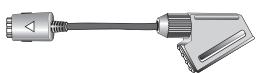
Scart Adapter

Holder-Wire stand

Holder Ring x 4
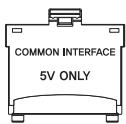
CI Card Adapter
Assembling the Stand Wire Holder
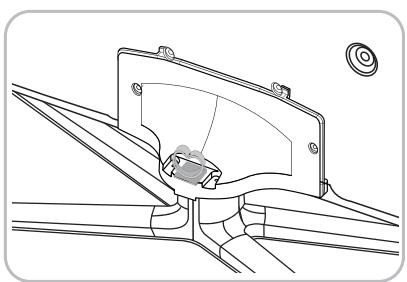
natural_image
Technical line drawing of a mechanical assembly with no visible text or symbols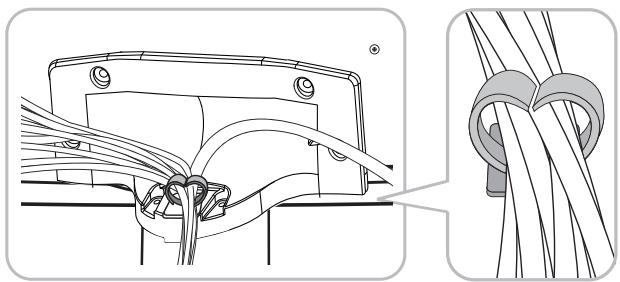
natural_image
Technical diagram showing cable installation and rope knot assembly (no text or symbols)Wireless Keyboard (Sold Separately)
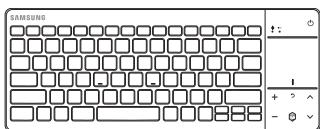
text_image
SAMSUNG 1 : 2 + ? ^ - 0 ↙Wireless Keyboard
Using the TV's Controller (Panel Key)
The TV's Controller, a small joy stick like button on the rear right side of the TV, lets you control the TV without the remote control.
The product colour and shape may vary depending on the model.
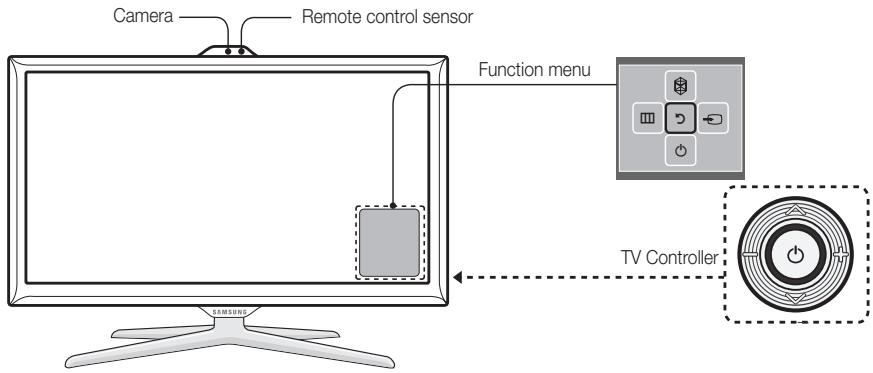
text_image
Camera Remote control sensor Function menu TV ControllerFollow these instructions facing the front of your TV.
When you use a TV camera, you should check whether a tape attached or not in rear of the TV camera, and then you can use a TV camera after adjust a camera angle. If you do not intend to use the TV camera, move the camera lens upwards so that the lens is not revealed. In this case, Face recognition and Motion control are not available.
| Power on | Turn the TV on by pressing the Controller when the TV is in standby mode. |
| Adjusting the volume | Adjust the volume by moving the Controller from side to side when the power is on. |
| Selecting a channel | Select a channel by moving the Controller upwards and downwards when the power is on. |
| Using the Function menu | To view and use the Function menu, press and release the Controller when the power is on. To close the Function menu, press and release the Controller again. |
| Selecting the MENU (☐) | With the Function menu visible, select the MENU (☐) by moving the Controller to the left. The OSD (On Screen Display) Menu appears. Select an option by moving the Controller to the right. Move the Controller to the right or left, or backwards and forwards to make additional selections. To change a parameter, select the it, and then press the Controller. additional selections. To change a parameter, select the it, and then press the Controller. |
| Selecting the SMART HUB (☐) | With the Function menu visible, select SMART HUB (☐) by moving the Controller upwards. The SMART HUB main screen appears. Select an application by moving the Controller, and then pressing the Controller. |
| Selecting a Source (☐) | With the Function menu visible, open the Source (☐) by moving the Controller to the right. The Source screen appears. To select a Source, move the Controller back and forth. When the source you want is highlighted, press the Controller. |
| Power off (☐) | With the Function menu visible, select Power off (☐) by moving the Controller downwards, and then press the Controller. |
To close the Menu, Smart Hub, or Source, press the Controller for more than 1 second.
Standby mode
Your TV enters Standby mode when you turn it off and continues to consume a small amount of electric power. To be safe and to decrease power consumption, do not leave your TV in standby mode for long periods of time (when you are away on vacation, for example). It is best to unplug the power cord.
Connecting to an Aerial
Plug the power cord into a wall outlet only after you have made all other connections.
If you are connecting your TV to a cable or satellite box using HDMI, Component, or Composite connections, you do not need to connect the ANT IN jack to an aerial or a cable connection.
Using two-way radio mobile and portable units or amateur radio or AM radio near your TV may cause the TV to malfunction.
Use caution when you move or swivel the TV if the aerial cable is tightly connected. You could break the aerial jack off the TV.
VHF/UHF Aerial
Satellite

Cable

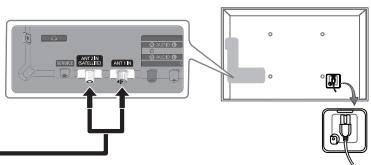
text_image
Diagram showing electrical connection with labeled components and a separate electrical socket with power outlet
For more detailed information about Smart Touch Control, see "Using the Smart Touch Control" in e-Manual.
Smart Touch Control
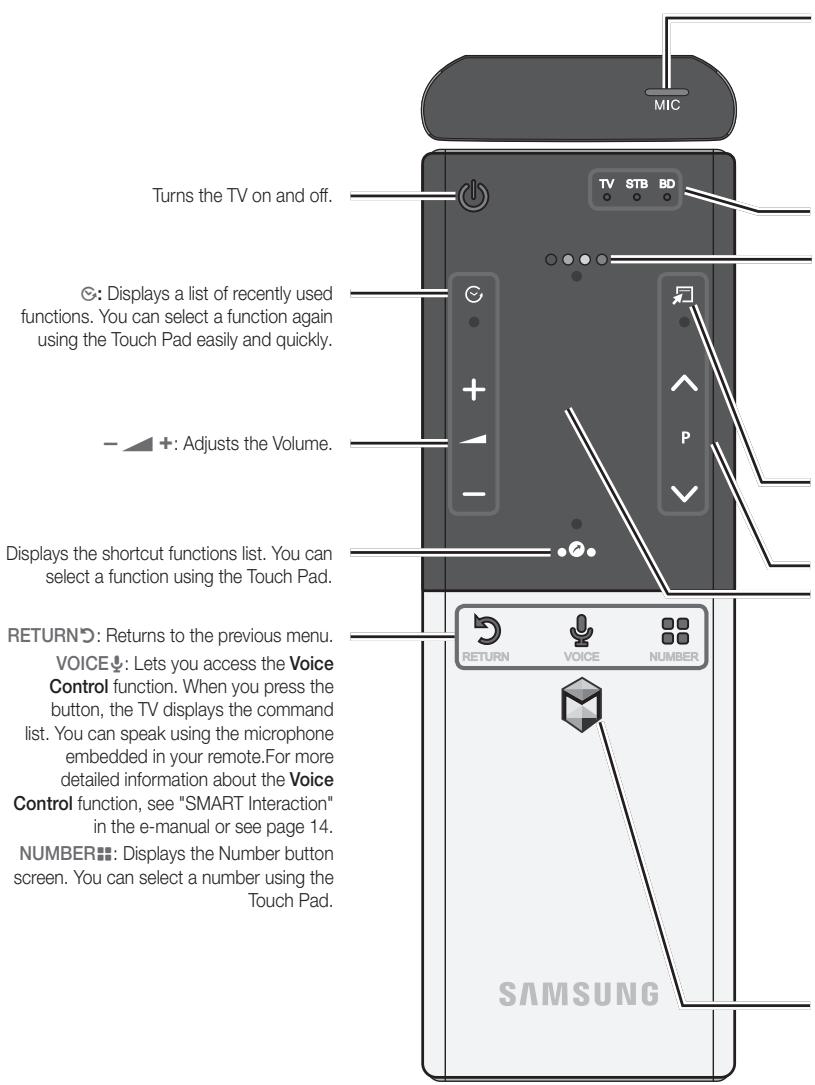
text_image
MIC Turns the TV on and off. TV STB BD ⊗: Displays a list of recently used functions. You can select a function again using the Touch Pad easily and quickly. - +: Adjusts the Volume. Displays the shortcut functions list. You can select a function using the Touch Pad. RETURN: Returns to the previous menu. VOICE↓: Lets you access the Voice Control function. When you press the button, the TV displays the command list. You can speak using the microphone embedded in your remote.For more detailed information about the Voice Control function, see "SMART Interaction" in the e-manual or see page 14. NUMBER: Displays the Number button screen. You can select a number using the Touch Pad. RETURN: VOICE NUMBER SAMSUNGYou can speak a voice command that displayed to the TV using MIC. To use MIC, press the VOICE button on your remote.

Voice Control function can be affected recognition by unclear pronunciation, voice level, or surrounding noise.
LED to show the active device.
Displays Colour and playing control functions. You can select a function using the Touch Pad.
● ● ○ ●: Use these buttons according to the directions on screen.
playing control buttons: Use these buttons in a specific feature. For details, refer to the e-Manual.
☐: Quickly select frequently used functions. Use this button in a specific feature. For details, refer to e-Manual.

P ∨: Changes channels.
Touch Pad
- You can use the Touch Pad in the same way you use the Touch Pad on a laptop.
- If you don't press any button within 30 seconds, the Smart Touch Control is set to Sleep mode automatically.
• To wake up the Smart Touch Control, press the Touch Pad. - If you press the Touch Pad for 2 seconds, it has the same effect as pressing the MUTE button on your remote. (Available only when Source is set to TV.)
Brings up the Smart Hub applications. See the e-Manual chapter Advanced Features → Smart Hub.
To exit an application that is running easily, press the ⏰ button.
Installing batteries (Battery size : AA)
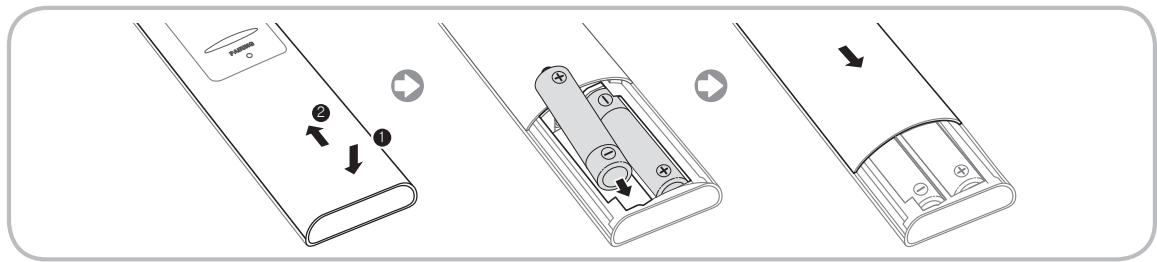
text_image
Diagram showing three-step battery shipment process with labeled parts and directional arrows- Press the back of the remote at the very bottom with both thumbs, and then slide the battery cover up in the direction of the arrow.
- Install two batteries so that the polarity of the batteries (+/-) matches the illustration in the battery compartment.
- Slide the cover down in the direction of the arrow to close the battery cover.
IR Blaster
To control to external devices connected to your TV, setting up the Universal Remote.
If you control Smart Touch Control to adjust to the external device, the IR Blaster will send the IR signal to an external device.
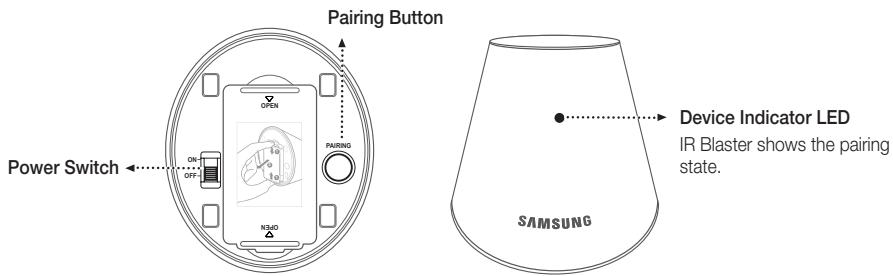
text_image
Pairing Button Power Switch ← ON OFF OPEN PAISING N360 Device Indicator LED IR Blaster shows the pairing state. SAMSUNGInstalling batteries (Battery size : AA)
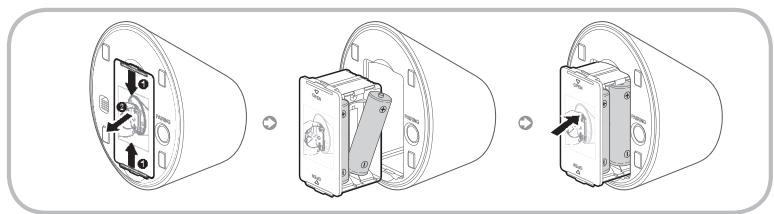
natural_image
Three-step diagram showing a cylindrical device with internal components and a separate open panel, no text or symbols present.- Hold the both sides of the battery holder and pull it out.
- Install four batteries so that the polarity of the batteries (+/-) matches the illustration in the battery compartment.
- Push it back.
Initial Pairing
When you connect an IR Blaster with your TV, you can control connected external devices with your TV using the Smart Touch Control.
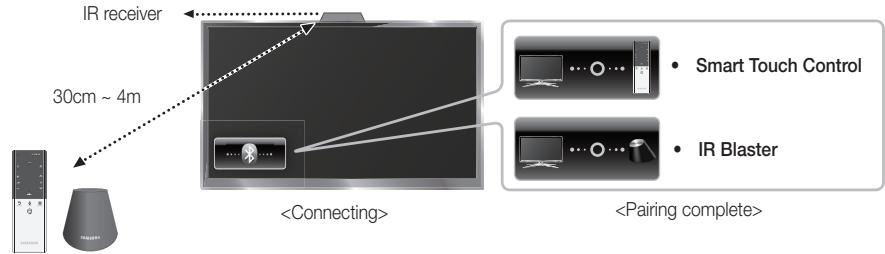
flowchart
graph LR
    A["IR receiver"] --> B["30cm ~ 4m"]
    B --> C["<Connecting>"]
    C --> D["Smart Touch Control"]
    C --> E["IR Blaster"]
    D --> F["<Pairing complete>"]
    E --> F
Smart Touch Control
After you have run the Initial Setup on your TV, you should connect your Smart Touch Control to your TV.
- Turn the TV on by pressing the ⏻ button on.
- The connection icons appear on the bottom left of the screen, and the TV connects to your Smart Touch Control automatically.
If you want to perform the pairing process again, press the reset button in the centre of the back cover using a pin or the tip of an unbent paper clip. The Smart Touch Control will be initialized.
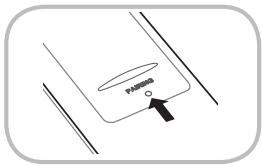
text_image
PASSING• Smart Touch Control PAIRING Reset button
IR Blaster
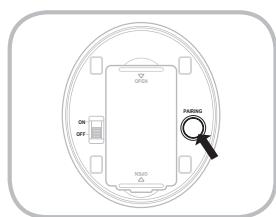
text_image
ON OFF ON OFF FABING- Turn on the IR Blaster. When Indicator LED blinks, you should connect IR Blaster to TV.
- Move the IR Blaster to the direction of your TV's IR receiver, and then press the PAIRING button once shortly on the bottom of the IR Blaster.
- The connection icons appear on the bottom left of the screen, and the TV connects to IR Blaster automatically.
If the connection process failed, please turn off and on the IR Blaster, try again from step2.
Calibrating the Touch Pad
To calibrate the touch pad on the Smart Touch Control, follow these steps:
- Press the NUMBER button for 3 seconds. The calibration starts.
- When done, all the LEDs on the top of the Smart Touch Control blink twice simultaneously.
While calibrating, don't touch the touch pad.
If the touch pad looses accuracy, re-calibrate the touch pad by repeating Steps 1 and 2.
Using the Touch Pad
To display the shortcut functions list on the bottom of the screen, press the ⬆ button at the bottom of the touch pad. This list includes Menu, Source, CH List, 3D, AllShare Play, Support, and a number of other functions.
To display the colour and playing control functions on the top of the screen, press the ● ○ ○ ● button on the top of the touch pad.
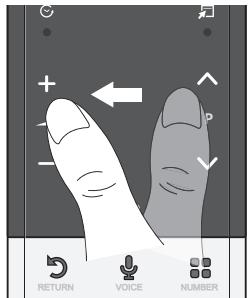
text_image
Diagram illustrating finger movement with icons for return, voice, and number, showing directional arrows and a hand gesture.To Move the Highlight: Rest your finger on the touch pad, and then slide it from one side to the other, from top to bottom, or bottom to top.
To move the Highlight continuously, flick your finger across the touch pad from right to left, left to right, top to bottom, or bottom to top.
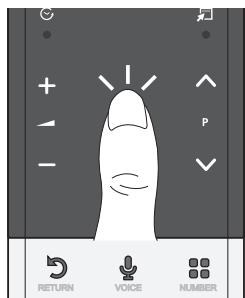
text_image
Mobile phone control interface with finger icon and function buttons including RETURN, VOICE, NUMBERTo Select an item: Press the Touch Pad.
Using the Scroll mode
If you press the Touch Pad when using Smart Hub, Web Browser, and AllShare Play, the Touch Pad switches to the Scroll mode. In the Scroll mode, slide your finger in the Touch Pad from one side to the other, the highlight moves page units.
To return to the general mode of the Touch Pad, press the Touch Pad or RETURN button on your Smart Touch Control.
To Enter a channel number through Smart Touch Control
- While watching a broadcast, press the NUMBER button on the Smart Touch Control. The TV displays the number button screen.
- Using the touch pad, highlight a number, and then press the touch pad. The TV displays a list of channels that start with the number you selected.
- Using the touch pad, highlight the channel in the list you want, and then press the touch pad.
You can also change the channel by touching the up or down channel icon on the touch pad. If you touch the touch pad immediately after, the TV displays the list of memorized channels. Select a channel by moving or flicking your finger up or down, and then pressing the touch pad.
To Display the Tools Menu
Press the ➕ button on the right side of the touch pad.
To Display a History of the Channels You Watched
Press the Ⓧ button on the left side of the touch pad.
Setting up Smart touch control to use as a Universal Remote Control
Lets you control a Set-Top-Box (STB) or a BD player or both connected to the TV using your Smart Touch Control. After you connect the device to the TV, the Smart Touch Control can control the navigation, number, and other keys needed to operate and control the device.
The Universal Remote Control can adjust TV's volume, but STB's volume cannot be adjusted. Watch STB after adjusting STB's volume to appropriate level.
Depending on the version of an application, the Universal remote setup instructions may differ. In this case, please follow the instructions on the screen.
To connect the external device to your Smart Touch Control, follow these steps:
- Select Set up a device to control, and then press the Touch Pad.
- Select an external device from the connected devices, and then press the Touch Pad.
- Select the port used to connect the external device, and then press the Touch Pad.
Make sure that the selected device is on. If it is turned off, turn the power on and press Refresh.
- Select Search brands/TV service providers, and then press the Touch Pad. A keyboard and an entry field appear. Enter the first few letters of the brand name of your device using the Smart Touch Control, and then select Done at the bottom of the keyboard. In the list that appears below the entry field, select the brand name of your device, and then press the Touch Pad.
If you want to search the brand of STB (Set-Top box), you can search the STB by using the brand name or a cable provider.
- Select Search model, and then press the Touch Pad. A keyboard and an entry field appear. Enter the first few letters and numbers of the model name of your device using the Touch Control, and then select Done at the bottom of the keyboard. In the list that appears below the entry field, select the model name of your device, and then press the Touch Pad.
If the search for model name does not work properly, search with a part of the model name or use the search for recommended model code.
-
Select Download, and then press the Touch Pad. Download the configuration data for the IR Blaster in the same way.
-
When all the settings are complete, select the Complete button and press the Touch Pad.
To reset IR Blaster and Smart Touch Control, press the ● button on Smart Touch Control, and then select Universal remote setup.
Using the Search for recommended model code.
- In the Search model name step in the integrated remote control setup, select the Recommended model and press the Touch Pad.
- Select Download to download the recommended model code.
- Point the Smart Touch Control forward to the IR sensor of the external device and press the Touch Pad to test if the device works.
- If the downloaded recommended model code does not work, repeat the steps from step 3.
When you use the BD home theater by using Universal Remote, some buttons may not be supported. In this case, we recommend to use Anynet+ (HDMI-CEC) function.
Viewing the Remote Control
This is a special remote control for the visually impaired persons and has Braille points on the Power, Channel and Volume buttons.
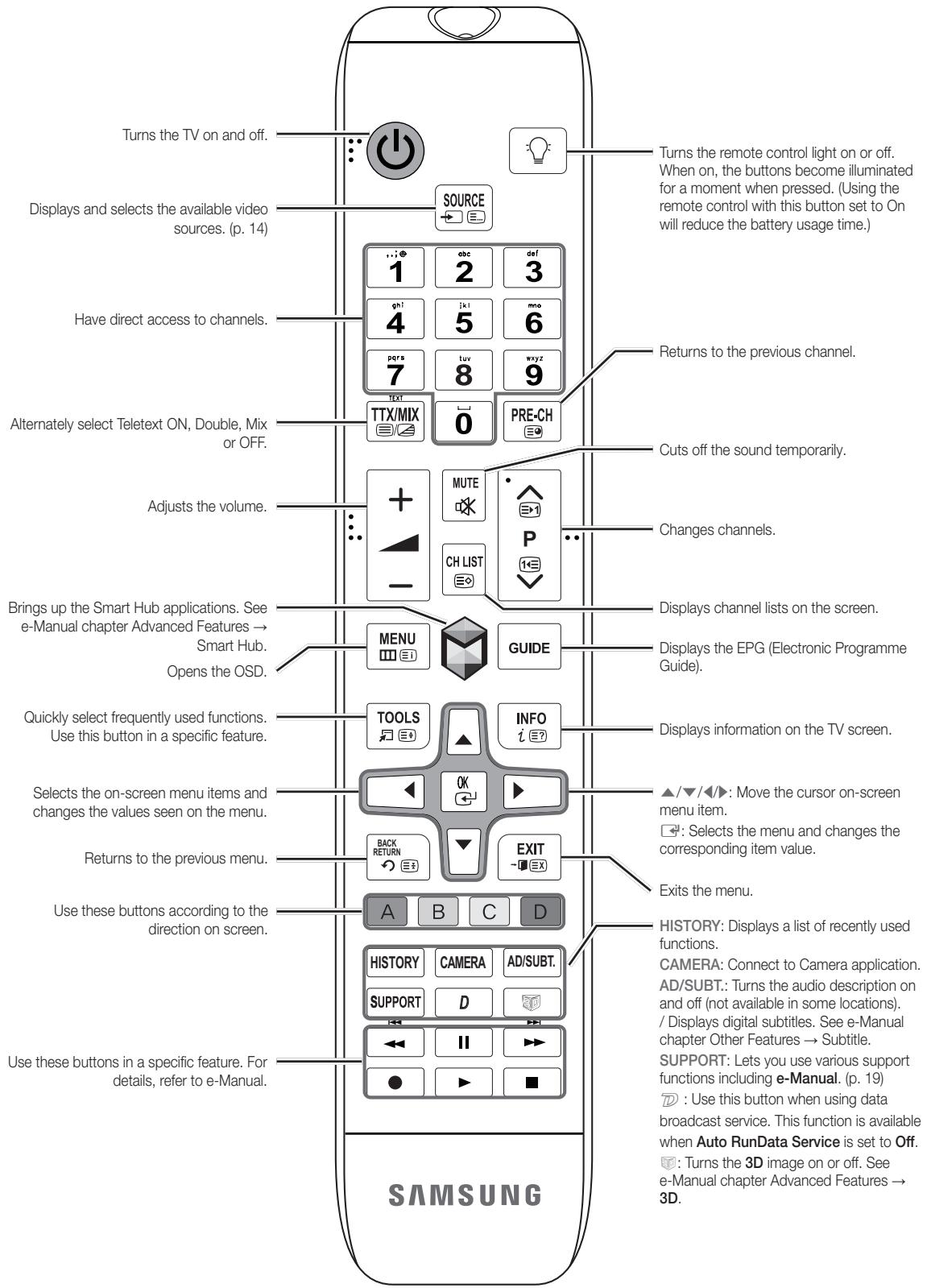
text_image
Turns the TV on and off. Displays and selects the available video sources. (p. 14) Have direct access to channels. Alternately select Teletext ON, Double, Mix or OFF. Adjusts the volume. Brings up the Smart Hub applications. See e-Manual chapter Advanced Features → Smart Hub. Opens the OSD. Quickly select frequently used functions. Use this button in a specific feature. Selects the on-screen menu items and changes the values seen on the menu. Returns to the previous menu. Use these buttons according to the direction on screen. Use these buttons in a specific feature. For details, refer to e-Manual. SAMSUNG TURNS the remote control light on or off. When on, the buttons become illuminated for a moment when pressed. (Using the remote control with this button set to On will reduce the battery usage time.) Returns to the previous channel. Cuts off the sound temporarily. Changes channels. Displays channel lists on the screen. Displays the EPG (Electronic Programme Guide). Displays information on the TV screen. ▲/▼/◄►: Move the cursor on-screen menu item. □: Selects the menu and changes the corresponding item value. Exits the menu. HISTORY: Displays a list of recently used functions. CAMERA: Connect to Camera application. AD/SUBT.: Turns the audio description on and off (not available in some locations). / Displays digital subtitles. See e-Manual chapter Other Features → Subtitle. SUPPORT: Lets you use various support functions including e-Manual. (p. 19) ⑦: Use this button when using data broadcast service. This function is available when Auto RunData Service is set to Off. ○: Turns the 3D image on or off. See e-Manual chapter Advanced Features → 3D.Match the polarity of the batteries to the symbols in the battery compartment.

text_image
Technical diagram showing five-step assembly steps of a device with labeled components and directional arrows indicating movement.
NOTE
• Install the batteries so that the polarity of the batteries (+/-) matches the illustration in the battery compartment.
• Use the remote control within 23 feet of the TV.
- Bright light may affect the performance of the remote control. Avoid using when near special fluorescent lights or neon signs.
• The colour and shape may vary depending on the model.
Setup (Initial Setup)
When you turn the TV on for the first time, a sequence of prompts and screens will assist you in configuring basic settings. To begin Setup, press the button on your remote.
Setup is available only when the input source is set to TV. See "Changing the Input Source" (p. 14).
To return to the previous step in the Setup sequence, Select Previous.
Before you begin, make sure you have connected the TV to an aerial or a cable connection and that the TV is plugged in. (p. 5).
To start the Setup select Start.
1
Menu Language:
Select a Language.
Select a menu language you want using your remote, and then select Next. The TV will be displayed a menu using the selected language since next step.
2
Use Mode: Select the Home
Use Mode.
Select Home Use using your remote, and then select Next.
Store Demo mode is for retail environments.
3
Network Settings: Configure network settings
To connect later, select Skip.
To set up your network connection, select Start using your remote. If you do not know your network set up information or want to set to it later, select Skip. For more detailed information, refer to “Setting up the Wired or Wireless Network” in the e-Manual for set up requirements and instructions, and the Network Connection section of this manual (p. 18). You can set up the network connection later using the Network menu.
4
Software Upgrade: Upgrading the software to latest version
To upgrade later, select Skip.
Select Next to upgrade TV software. Your TV will automatically upgrade, if your TV need a software upgrade. If you want to upgrade later, select the Skip. For more information, refer to Software Upgrade (Preference Features → Support Menu) in the e-Manual.
This may take some time, depending on network status.
| 5 | Terms of Service Agreement | When theNetwork Settingsis completed, TheTerms of Service Agreementscreen appears.The screen can take a few seconds to appear.TheGeneral Disclaimerscreen appears. SelectAgree. ThePrivacy policyscreen appears. Select Agree.To use theSmart Hub, you should selectAgreefrom the Terms of Service Agreement. |
| 6 | Select Country.(Depending on the country) | Select the appropriate country.After selecting the country in the Country menu, some models may proceed with an additional option to setup the pin number. |
| 7 | Auto Tuning(1): Selecting how you watch your TV | Let's find and store channels on your TV. Do you need to search for channels?Yes, I need to.: All the channels available will be found and stored on your TV.No, I don't need to.: My set-top box provides all the channels that are available, so I don't need to search for channels. |
| 8 | Auto Tuning(2):Selecting a search options andRegion Selection(Depending on the country) | Select the channel source to memorise. When setting the aerial source toCable, a step appears allowing you to assign numerical values (channel frequencies) to the channels. For more information, refer toAuto Tuning(Channel Menu → Memorizing Channels) in the e-Manual.WhenAir or Cableis selected first: After allAir or Cablechannels are stored, the step for storingSatellitechannels is displayed.WhenSatelliteis selected first: After allSatellitechannels are stored, the step for storingAir or Cablechannels is displayed.SelectStopat any time to interrupt the memorization process. |
| 9 | Clock: Setting the Clock Mode | Auto: Set the current time automatically.Manual: Allows you to manually set the current date and time. |
| 10 | Time Zone(Depending on the country):Setting the your Time Zone | This step is only available when the clock mode is set toAuto.Auto: Set the time zone automatically.Manual: Set the time zone manually.If you selectedManual, you can select whether to turn DST (Daylight Savings Time)On or Off. (Depending on the country) |
| 11 | Voice and motion control:Setting the Voice and Gesture Control function. | You can turn theVoice and motion controlfunctionOn or Off. Select Off or On, and then selectNext. For more detailed information, refer to “SMART Interaction” (p.14) |
| 12 | Setup Complete | SelectCloseto finish.The completed settings are displayed. |
If You Want to Reset This Feature...
Menu → System → Setup
Select System - Setup (Initial Setup). Enter your 4 digit PIN number. The default PIN number is "1-1-1-1". If you want to change the PIN number, use the Change PIN function.
You should do Setup (Menu → System) again at home although you did in shop.
If you forget the PIN code, press the remote control buttons in the following sequence in Standby mode, which resets the PIN to "1-1-1-1": MUTE → 8 → 2 → 4 → POWER (on).

For more information, refer to Connecting the TV in the e-Manual.
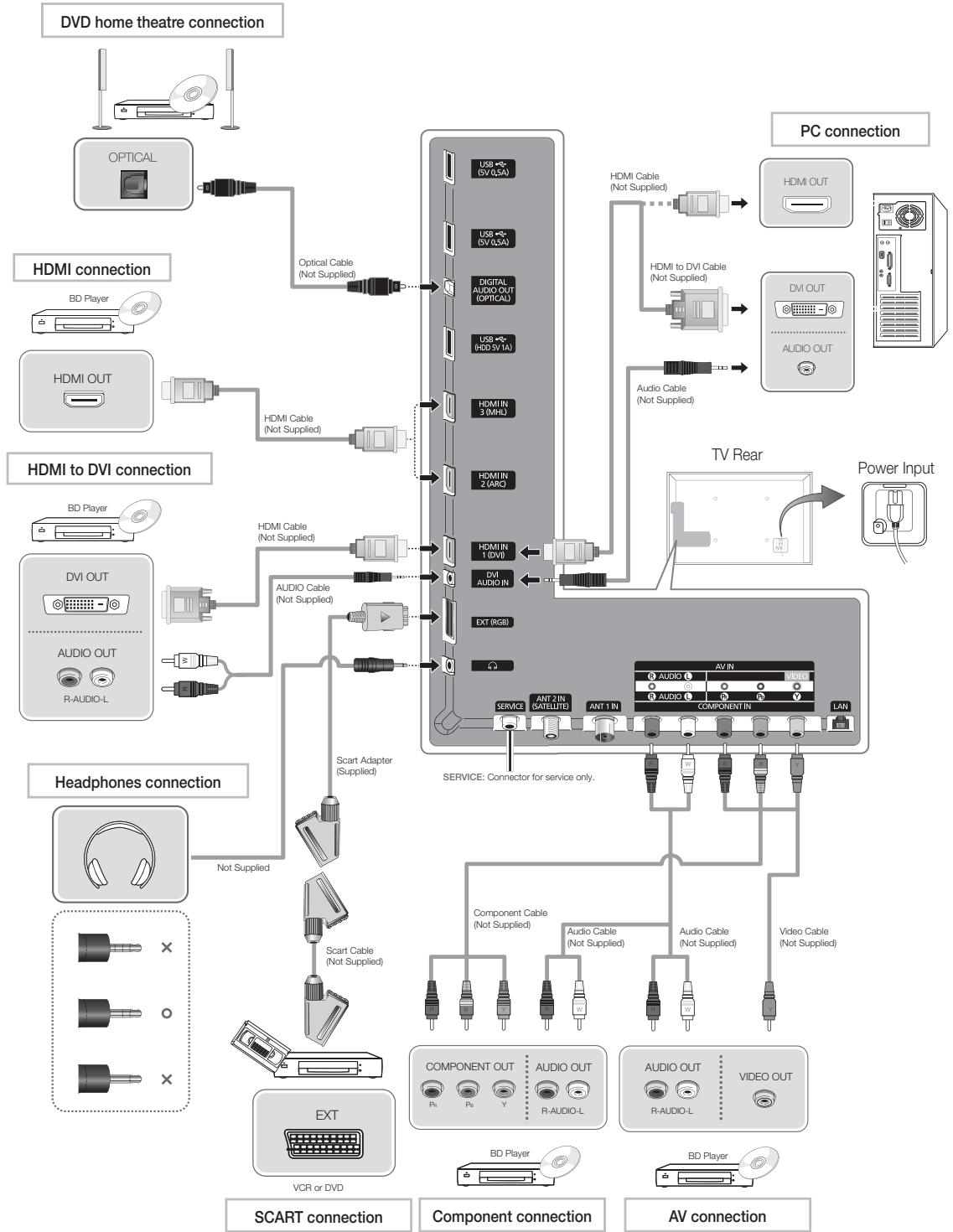
flowchart
graph TD
    A["DVD home theatre connection"] --> B["OPTICAL"]
    B --> C["Optical Cable (Not Supplied)"]
    C --> D["USB 5V,5A"]
    D --> E["USB 5V,5A"]
    E --> F["DIGITAL AUDIO OUT (OPTICAL)"]
    F --> G["USB 5V 1A"]
    G --> H["HDMI IN 3 (MHI)"]
    H --> I["HDMI IN 2 (ARQ)"]
    I --> J["HDMI IN 10V"]
    J --> K["DVI AUDIO IN"]
    K --> L["EXT RGB"]
    L --> M["TV Rear"]
    M --> N["PC connection"]
    N --> O["HDMI OUT"]
    O --> P["DV OUT"]
    P --> Q["AUDIO OUT"]
    Q --> R["DV OUT"]
    R --> S["Power Input"]

    T["HDMI connection"] --> U["BD Player"]
    U --> V["HDMI OUT"]
    V --> W["HDMI Cable (Not Supplied)"]
    W --> X["HDMI Cable (Not Supplied)"]
    X --> Y["HDMI Cable (Not Supplied)"]
    Y --> Z["HDMI Cable (Not Supplied)"]
    Z --> AA["HDMI Cable (Not Supplied)"]

    AB["HDMI to DVI connection"] --> AC["BD Player"]
    AC --> AD["DVI OUT"]
    AD --> AE["AUDIO OUT"]
    AE --> AF["R-AUDIO-L"]

    AG["Headphones connection"] --> AH["SCART connection"]
    AH --> AI["SCART Cable (Not Supplied)"]
    AI --> AJ["SCART Cable (Not Supplied)"]
    AJ --> AK["EXT"]
    AK --> AL["VCR or DVD"]

    AM["Component connection"] --> AN["AV connection"]

    AO["Service: Connector for service only."] --> AP["AV IN"]
    AP --> AQ["ANT 2 IN (SATELLITE)"]
    AQ --> AR["ANT 1 IN"]
    AR --> AS["ANT 1 IN"]

    AT["Component Cable (Not Supplied)"] --> AU["Audio Cable (Not Supplied)"]
    AU --> AV["Audio Cable (Not Supplied)"]

    AW["Video Cable (Not Supplied)"] --> AX["Video Cable (Not Supplied)"]

    AY["PC connection"] --> AZ["HDMI Cable (Not Supplied)"]
    AZ --> BA["HDMI Cable (Not Supplied)"]
    BA --> BB["HDMI Cable (Not Supplied)"]

    BC["Power Input"] --> BD["Power Input"]

For best cable connection to this product, be sure to use cables with a maximum thickness as below:
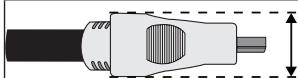
• Maximum thickness - 0.55 inches (14mm)
Changing the Input Source
SMART Interaction
Source
→ Source
When you are watching TV and you want to watch a movie on your DVD player or Blu-ray player or switch to your cable box or STB satellite receiver, you need to change the Source.
■ TV / Ext. / HDMI1/DVI / HDMI2 / HDMI3 / AV / Component
- Press the ⏻ button on your remote. The Smart Hub screen appears.
- Select Source. The Source screen appears.
- Select a desired external input source.
Alternatively, you can access the Source screen by selecting the Source → button on your standard remote or selecting Source with the Smart Touch Control (see page 6).
You can only choose external devices that are connected to the TV. In the displayed Source list, connected inputs are highlighted.
How to Use Edit Name
Edit Name lets you associate a device name to an input source. To access Edit Name, open the Tools menu when the Source list is displayed. The following selections appear under Edit Name:
VCR / DVD / Cable STB / Satellite STB / PVR STB / AV Receiver / Game / Camcorder / PC / DVI PC / DVI Devices / TV / IPTV / Blu-ray / HD DVD / DMA: Select an input jack, and then select the name of the device connected to that jack from the list that appears. For example, if you have your Blu-ray player attached to HDMI IN 2, select Blu-ray for that input.
If you connect a PC to the HDMI IN 1 (DVI) port with an HDMI cable, assign PC to HDMI1/DVI in Edit Name.
If you connect a PC to the HDMI IN 1 (DVI) port with an HDMI to DVI cable, assign DVI PC to HDMI1/DVI in Edit Name.
If you connect an AV device to the HDMI IN 1 (DVI) port with an HDMI to DVI cable, assign DVI Devices to HDMI1/DVI in Edit Name.
Information
You can see detailed information about the selected external device.
Refresh
If the external devices are not displayed in the Source list, open the Tools menu, and then select Refresh. The list will display all connected devices.
Alternatively, you can refresh the Source list screen by selecting A using your remote.
Using this function, you can access and control menu options and functions using speech, gestures or face recognition.
INFORMATION BOOKLET DISCLAIMER
• Face Recognition Log-in
In order for Face recognition to function, a thumbnail image of your face will be stored in your TV for logging-in purposes.
Logging into the Smart Hub using Face recognition may be less secure than using an ID and password.
• TV Camera Usage
Before using the TV Camera, you should be aware that under some circumstances and under certain legal conditions your misuse of the TV Camera can result in legal liability for you. By using the TV Camera, you agree that you will not use the camera (i) in locations where cameras are generally prohibited (such as bathrooms, locker rooms or changing rooms), (ii) in any manner that will result in an invasion of a person's privacy or (iii) in violation of any applicable laws, regulations or statutes.
Voice Control
Menu → System → Voice and motion control → Voice Control
Enable or disable the voice recognition function. Lets you access and control menu options and functions using speech.
Voice Control function can be affected recognition by unclear pronunciation, voice level, or surrounding noise.
To use Voice Control, you must pronounce words and phrases clearly and correctly in the language you selected in Language.
Ambient noise may cause Voice Control to malfunction.
Your TV can "hear" your voice commands in two ways:
- Using the TV's microphone. (Distant Recognition)
We are recommended using Voice Control function within about 13 ft with your TV. You can check the usable distance by using Voice Control Environment Test (System → Voice and motion control → Voice Control → Voice Control Environment Test). - Using the VOICE button on your remote. (Close Proximity Recognition)
When you use the TV's microphone, the words may not be recognized because of ambient noise. If this occurs, try using the VOICE button on your remote. The TV will be able to recognize a voice command more easily.
The VOICE button on your remote is always activated. If you want to use the TV's microphone, turn on Voice Control (System → Voice and motion control → Voice Control).
If a menu option or function is not supported by the Voice Control function, we suggest trying the Motion control function. To use gestures, spread your hand in the direction of the camera, and shake it three or four times from a side to side.
■ Voice Control
Turns the Voice Control function on or off.
The VOICE button on your remote is always activated.
Language
Select the recognition language you want to use.
Trigger words
You can select the Trigger words that start the Voice Control function. Alternatively you can turn on your TV using the Trigger words if Voice Control function is set to On.
If the Trigger words is set to Hi TV, say Hi TV Power On.
If the Trigger words is set to Smart TV, say Smart TV Power On.
■ Voice command bar size
Set the Voice command bar size mode to Minimum or Full.
Minimum displays the least number of words and phrases you can use.
Full displays all the words and phrases.
■ Voice Sensitivity
Set the sensitivity of Voice recognition.
- Howling: Set echo level.
- Recognition responsiveness: Set the responsiveness level of Voice recognition.
■ Voice Control Environment Test
You can test the noise level on the TV microphone.
- Noise Test: This test checks the noise level of the TV microphone. Select Next using your remote. The test will start and should only take a few seconds. Please keep as quiet as possible during the test.
- Mic & Speaker Test: This test checks the noise level of the TV microphone and speaker. Select Start using your remote. The test will start and should only take a few seconds. Please keep as quiet as possible during the test.
Available only when Speaker Select is set to TV Speaker.
- Voice Control Test: This test checks the volume level and clarity of your voice when using Voice Control. Select Start using your remote. The test will start. Please say a guide message as loud and clearly as you can to complete this test.
If the test is not completed, select Retest, and then say a guide message loudly and clearly again.
To use the Voice Control function, follow these steps:
If Voice Control function is set to On, the TV may be turned on automatically by effect of the ambient environment.
- Speak the Trigger words that you selected using the microphone embedded in the TV or press and hold the VOICE button on your remote. The TV displays the Voice Control Environment Test.
If you use the Voice Control, the volume will be set to 5 automatically.
- Speak a word or phrase listed in the Voice Control Environment Test. If you use the VOICE button on your remote, release the button.
Pronounce the word or phrase clearly and correctly in the language you selected in Language.
- Wait until recognition is complete, and then speak the next command.
To exit the Voice Control mode, speak a Trigger words or "Cancel" using the TV's microphone, or press the VOICE button on your remote again.
Using the Voice Text Input Mode
- Speak "Search All" while in the Voice Control mode.
When you use a QWERTY keypad screen, you can use the Voice Text Input Mode. Speak the Trigger words that you selected using the microphone embedded in the TV or press and hold the VOICE button on your remote.
-
Say the word or phrase you wish to search for.
-
The TV executes the spoken function.
Voice Control performance levels will vary based on the language spoken.
Motion control
Menu → System → Voice and motion control → Motion control Enable or disable the Motion control function. Lets you control your TV by moving the TV cursor using specific gestures.
Some applications may not support Motion control.
We are recommended using Motion control function within about 5 - 13 ft with your TV. TV Camera's recognition range may differ depending on the angle of camera or other conditions. You can check the recognition range of TV camera by using Motion control environment test (System → Voice and motion control → Motion control → Motion control environment test).
■ Motion control
Turns the Motion control function on or off.
■ Motion guide bar size
Set the Motion guide bar size mode between Minimum or Full.
■ Motion control environment test
You can test the brightness of room and the camera angle.
- Brightness Test: This test checks to see if your room is bright enough for Motion control to work properly. Select Start using your remote. The test will start and should take only a few seconds.
- Camera Angle Test: Start Camera Angle Test Select Start using your remote. Please put yourself in the rectangle on the screen by adjusting the camera or moving around. If you are not located in the correct position, the test may not work properly. When done, please spread your hand in the direction of the camera, and shake it three or four times from a side to side.
To use the Motion control function, follow these steps:
-
To use the Motion control, raise your hand while opening it toward the screen, hold it for a moment and then wave it 3 – 4 time to the left and right. Motion control starts. If the Motion control starts, the cursor is displayed at the center of the screen and the Motion guide bar size is at the bottom of the screen.
-
Control the TV using your hands.
Note that the Motion control function closes if your hands go out of the camera range.
While using the Motion control, if you use the other device (i.e. remote control, keyboard, etc.), Motion control closes.
Controlling the TV with your hands using Motions
■ Access Motion Control
- Action: Spread your hand in the direction of the camera, and shake it three or four times from a side to side.
- Pointing Navigation
Moves the cursor to the position you want.
- Action: Spread your hand and guide the cursor to position you want.
Run
Selects an item or executes a command that is indicated by the cursor or is highlighted.
– Action: Clench your fist.
Back
Return to the previous menu.
– Action: Spread your hand and rotate it counter clockwise.
■ Channel / Volume Control
Changes the channel or adjust the volume.
If you use the Motion control function while watching a channel, the channel / volume control screen appears.
- Action: Use the Pointing Navigation gesture to move the cursor to the channel or volume controller, and then uses the Run gesture to adjust the channel or volume.
If you use the Run gesture once, it has the same effect as pressing a button on your remote. If you hold the Run gesture, it has the same effect as pressing and holding a button on your remote.
Scroll
Scroll the page in the direction you want. For example, suppose that you want to scroll down.
Some applications may not support this function.
-
Move the cursor to the bottom of the screen (page scroll zone) using the Pointing Navigation gesture.
-
Move the cursor to the centre of the screen using the Pointing Navigation gesture.
-
The page will move down.
Face recognition
→ Tools → Settings → Account Manager → Change account information → Register face
Enable or disable the Face recognition function. Lets you register your face in your Samsung account. Also, you can log in to the Samsung account using the Face recognition function without inputting your account ID or your account password.
You can register your face in only one account.
To register your face in your Samsung account, follow these steps:
To use this function, you must log into Smart Hub. If you don't have a Samsung Account, you should create one before using this function. To create your Samsung Account, refer to "Creating an Account" (Advanced Features → Smart Hub) in the e-Manual.
-
On the Smart Hub screen, open the Tools menu using your remote, and then select Settings.
-
Select Account Manager. The Account Manager screen appears.
-
Select Change account information. The Change account information screen appears.
-
Select Register face. If you agree to use facial recognition, select OK.
-
Enter your account password.
-
Move your face into the facial lines at the centre of the screen, and then wait until the facial lines changes from red to green.
If Face recognition fails, select Retry and try again.
- When finished, your face is now registered in your Samsung account.
To log in to your Samsung account using Face recognition, follow
these steps:
If you use Face recognition to log into Smart Hub, it may be less secure than logging in with a password.
-
With the Smart Hub screen displayed, select A using your remote. The ID/password screen appears.
-
Select Face Recognition Mode. The Face recognition screen appears.
To return to the ID/password screen, select Password mode.
- The TV starts Face recognition. Face the front of the TV screen. The TV will recognize your face automatically.
If the TV fails to recognize your face, try again.
- The TV logs you into your Samsung account automatically.
If the TV recognizes two or more registered faces, the Samsung account list appears. Select your account to log in.
If your face is unregistered, you can register your face in your Samsung account. Follow steps 4 through 5 in the "To register your face to your Samsung account" procedure above.
If you have no account, you can create one. For more detailed information, refer to “Creating an Account” (Advanced Features → Smart Hub) in the e-Manual.
Attaching the CI Card Adapter
Attach the adapter as shown below.
To connect the CI CARD Adapter, follow these steps.
We recommend attaching the adapter before installing the wall mount, or inserting the "CI or CI+ CARD".
To install the CI card adapter, please remove the sticker attached to the TV.
- Insert the CI CARD Adapter into the two holes on the product ①.
Please find a two holes on the rear of the TV. A two holes is beside the COMMON INTERFACE port.
-
Connect the CI CARD Adapter into the COMMON INTERFACE port on the product ②.
-
Insert the "CI or CI+ CARD".
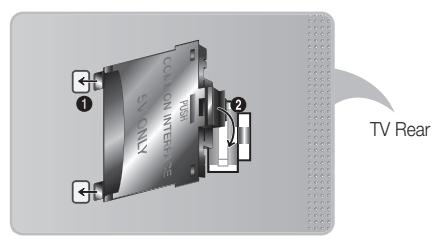
text_image
CON ON INTERFACE S ONLY 2 TV RearTo install the CI card adapter, please remove the sticker attached to the TV.

We recommend that you insert the CI card before you mount the TV on a wall. It may be difficult to insert after the mounting. Insert the card after attaching the CI Card Adapter on TV. It is difficult to attach the module if you insert the card before attaching.
Using the "CI or CI+ CARD"
To watch paid channels, the "CI or CI+ CARD" must be inserted.
- If you don't insert the "CI or CI+ CARD", some channels will display the message "Scrambled Signal".
- The pairing information containing a telephone number, the "CI or CI+ CARD" ID the Host ID and other information will be displayed in about 2\~3 minutes. If an error message is displayed, please contact your service provider.
- When the configuration of channel information has finished, the message "Updating Completed" is displayed, indicating the channel list is updated.

NOTE
- You must obtain a "CI or CI+ CARD" from a local cable service provider.
- When removing the “CI or CI+ CARD”, carefully pull it out with your hands since dropping the “CI or CI+ CARD” may cause damage to it.
- Insert the "CI or CI+ CARD" in the direction marked on the card.
- The location of the COMMON INTERFACE slot may be different depending on the model.
- “CI or CI+ CARD” is not supported in some countries and regions; check with your authorized dealer.
• If you have any problems, please contact a service provider. - Insert the “CI or CI+ CARD” that supports the current aerial settings. The screen will be distorted or will not be seen.
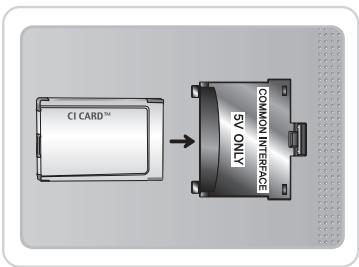
text_image
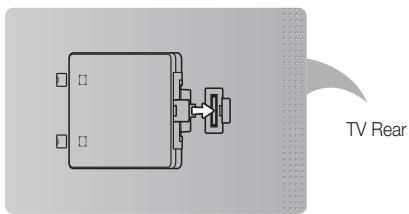
CI CARD™ 5V ONLY COMMON INTERFACEThe Evolution Kit Slot (Kit Sold Separately)
text_image
TV RearThis socket is designed to accept an extension device called Evolution Kit. The Evolution Kit enables the TV to run a variety of the latest applications for a better user experience.
The Evolution Kit, which may not be available depending on the product, will be sold separately in 2013 or later.
Network Connection
You can set up your TV so that it can access the SMART TV applications. through your local area network (LAN) using a wired or wireless connection.
Network Connection - Wireless
You can connect your TV to your LAN through a standard wireless router or modem.
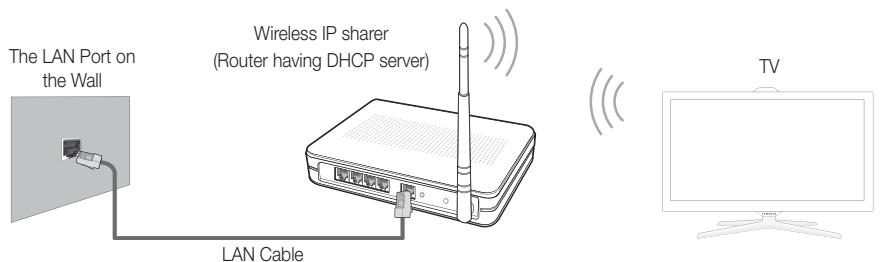
text_image
The LAN Port on the Wall Wireless IP sharer {!Router having DHCP server} LAN Cable TVSamsung's Wireless LAN adapter supports the IEEE 802.11a/b/g and n communication protocols. Samsung recommends using IEEE 802.11n. When you play the video over a IEEE 802.11b/g connection, the video may not play smoothly.
Most wireless network systems incorporate a security system that requires devices that access the network through an access point or wireless router (typically a wireless IP Sharer) to transmit an encrypted security code called an access key.
If Pure High-throughput (Greenfield) 802.11n mode is selected and the Encryption type is set to WEP, TKIP or TKIP AES (WPS2Mixed) for your wireless router, Samsung TVs will not support a connection in compliance with new Wi-Fi certification specifications.
Network Connection - Wired
There are two main ways to connect your TV to your network using cable, depending on your network setup. They are illustrated below:
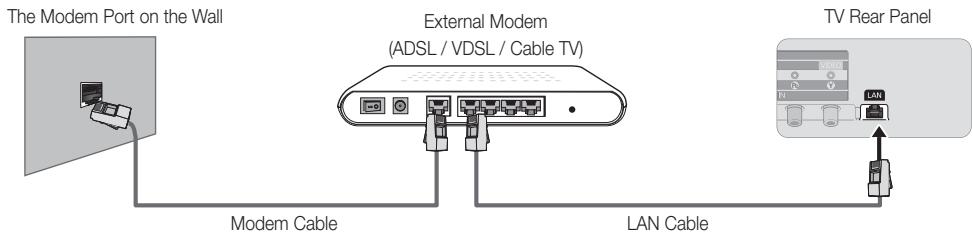
flowchart
graph LR
    A["The Modem Port on the Wall"] --> B["External Modem (ADSL / VDSL / Cable TV)"]
    B --> C["TV Rear Panel"]
    B --> D["Modem Cable"]
    B --> E["LAN Cable"]
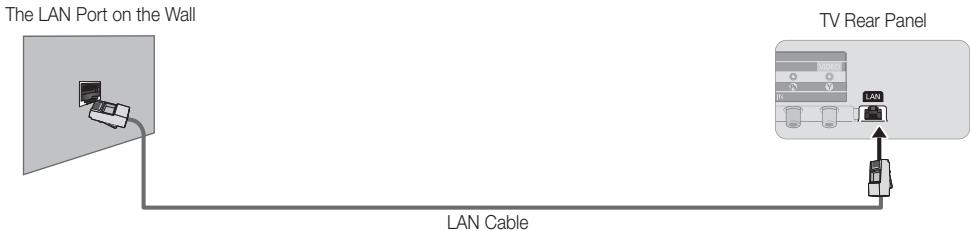
flowchart
graph LR
    A["The LAN Port on the Wall"] --> B["LAN Cable"]
    B --> C["TV Rear Panel"]
    C --> D["Central LAN"]
    D --> E["Central device"]
    style A fill:#f9f,stroke:#333
    style C fill:#ccf,stroke:#333
    style D fill:#cfc,stroke:#333
The TV does not support network speeds less than or equal to 10Mbps.
Use Cat 5 or 6 (STP Type*) cable for the connection. (*Shielded Twisted Pair)
How to view the e-Manual
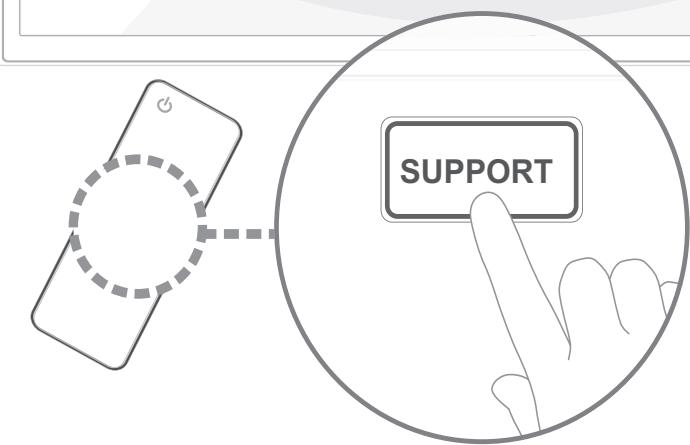
You can find instructions for your TV's features in the e-Manual. To open the e-Manual, press the SUPPORT button on your standard remote or select Support using the Smart Touch Control.
You can also access it through the menu:
Menu → Support → e-Manual
Access the e-Manual
To use the e-Manual, follow these steps:
- When you need to help, select Support using your remote. The Support screen appears.
- Select e-Manual using your remote. The e-Manual screen appears.
- Select a desired category.
- Select a desired topic. The e-Manual displays the page you want to see.
Blue words in e-Manual refer to menu options or selections in the TV's on screen menu.
Green icons in the e-Manual refers to a button on your remote.
Arrow steps (e.g. Menu → Support → e-Manual) in the e-Manual signify the sequence of steps required to access an option or activate a function.
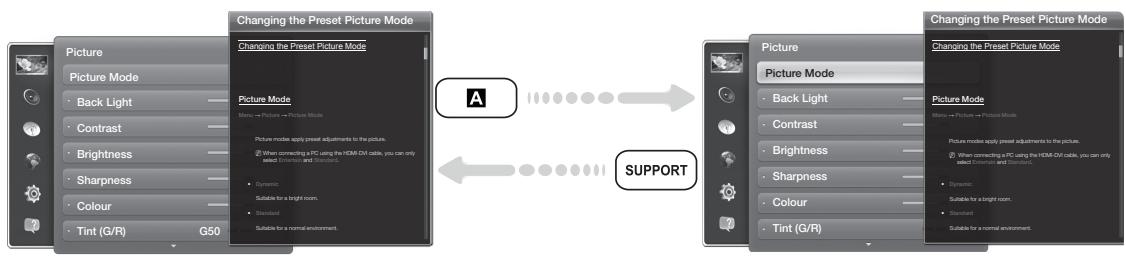
How to toggle between an e-Manual topic and the corresponding OSD menu(s).
flowchart
graph LR
    A["Changing the Preset Picture Mode"] --> B["Picture Mode"]
    B --> C["Back Light"]
    B --> D["Contrast"]
    B --> E["Brightness"]
    B --> F["Sharpness"]
    B --> G["Colour"]
    B --> H["Tint (G/R)"]
    B --> I["G50"]
    J["Changing the Preset Picture Mode"] --> K["Picture Mode"]
    K --> L["Back Light"]
    K --> M["Contrast"]
    K --> N["Brightness"]
    K --> O["Sharpness"]
    K --> P["Colour"]
    K --> Q["Tint (G/R)"]
    R["SUPPORT"] --> S["Change the Preset Picture Mode"]
    S --> T["Picture Mode"]
    T --> U["Back Light"]
    T --> V["Contrast"]
    T --> W["Brightness"]
    T --> X["Sharpness"]
    T --> Y["Colour"]
    T --> Z["Tint (G/R)"]
This function is not enabled in some menus.
You can't use the Try now function if the menu is not available.
-
To go to the topic's corresponding menu option, select A using your remote.
-
To return to the e-Manual screen, select Support using your remote.
Using the coloured and function buttons with the e-Manual
- Scroll bar: Scroll the e-Manual screen up or down.
• ◀ / ▶: Moves to the previous or next chapter.
• A Try now: Move the OSD menu that corresponds to the topic. To return to the e-Manual screen, select Support using your remote.
• B Home: Moves to the e-Manual home screen. - C Position: Each time you select C, using your remote, you change the position of the e-Manual screen.
• D Index: Displays the Index screen.
• Return: Return to the previous screen.
How to search for a topic on the index page
- Select D using your remote. The Index screen appears.
- To search for a topic, select a letter. The Index displays a list of topics and keywords that begin with the letter you selected.
- Select a topic or keyword you want.
- The e-Manual page with the topic appears.
To close the Index screen, press the RETURN5 button.
To Change the screen position of the e-Manual
If the e-Manual screen is not invisible well because the OSD Menus screen, you can change the e-Manual screen's position.
- Move the Highlight to the e-Manual screen by pressing the SUPPORT button on your standard remote or select Support using the Smart Touch Control.
- Press the C button on your standard remote, or select C using the Smart Touch Control. Each time you select C using your remote, the position of the e-Manual will change.
Installing the Wall Mount
Installing the Wall Mount Kit
The wall mount kit (sold separately) allows you to mount the TV on the wall.
For detailed information on installing the wall mount, see the instructions provided with the wall mount. Contact a technician for assistance when installing the wall mount bracket. We do not advice you to do it yourself.
Samsung Electronics is not responsible for any damage to the product or injury to yourself or others if you elect to install the TV on your own.
Preparing before installing Wall-Mount
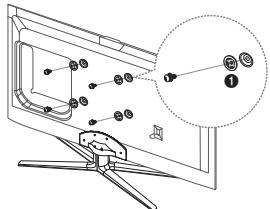
Case A. Installing the SAMSUNG Wall-Mount
text_image
Diagram of a computer monitor with labeled components and an inset showing connection points with numbers 1 and 2.To install a wall-mount, use the Holder-Ring ①.
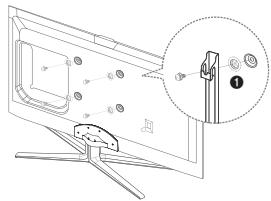
Case B. Installing another company's Wall-Mount
text_image
Diagram showing a computer monitor with labeled components and an inset close-up of the screen's edge detail.Wall Mount Kit Specifications (VESA)
The wall mount kit is not supplied, but sold separately.
Install your wall mount on a solid wall perpendicular to the floor. When attaching to other building materials, please contact your nearest dealer. If installed on a ceiling or slanted wall, it may fall and result in severe personal injury.
NOTE
- Standard dimensions for wall mount kits are shown in the table below.
- When purchasing our wall mount kit, a detailed installation manual and all parts necessary for assembly are provided.
- Do not use screws that do not comply with the VESA standard screw specifications.
- Do not use screws that are longer than the standard dimension or do not comply with the VESA standard screw specifications. Screws that are too long may cause damage to the inside of the TV set.
- For wall mounts that do not comply with the VESA standard screw specifications, the length of the screws may differ depending on the wall mount specifications.
- Do not fasten the screws that are too strongly; this may damage the product or cause the product to fall, leading to personal injury. Samsung is not liable for these kinds of accidents.
- Samsung is not liable for product damage or personal injury when a non-VESA or non-specified wall mount is used or the consumer fails to follow the product installation instructions.
- Do not mount the TV at more than a 15 degree tilt.
• Always have two people mount the TV on a wall.
| Product Family | inches | VESA Spec. (A * B) | Standard Screw | Quantity |
| LED-TV | 40 | 200 X 200 | M8 | 4 |
| 46~60 | 400 X 400 |
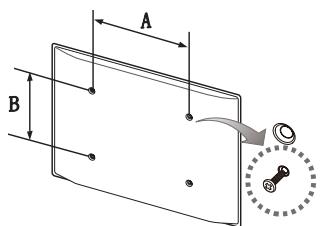
text_image
A B
Unscrew the hole around before installing Wall-Mount on the wall.

Do not install your Wall Mount Kit while your TV is turned on. It may result in personal injury due to electric shock.
Storage and Maintenance
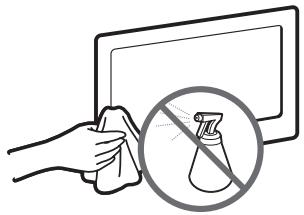
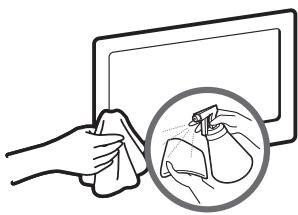
If you attached some stickers on the TV screen, it remains some debris after removing the sticker. Please clean it to watch TV.
natural_image
Illustration of a hand cleaning a tablet with a spray bottle (no text or symbols)Do not spray water directly onto the product. Any liquid that goes into the product may cause a failure, fire, or electric shock.
natural_image
Illustration of a hand cleaning a tablet with a magnified inset showing the close-up of the device (no text or symbols present)Clean the product with a soft cloth dapped in a small amount of water. Do not use a flammable liquid (e.g. benzene, thinners) or a cleaning agent.
Securing the TV to the Wall
natural_image
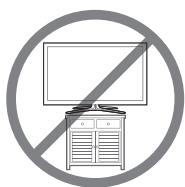
Prohibition symbol showing a TV with a diagonal line and a cabinet (no text or symbols)Caution: Pulling, pushing, or climbing on the TV may cause the TV to fall. In particular, ensure your children do not hang over or destabilize the TV. Doing so may cause the TV to tip over, causing serious injuries or death. Follow all safety precautions provided in the included Safety Flyer with your TV. For added stability and safety, you can purchase and install the anti fall device as described below.
To Avoid the TV from Falling
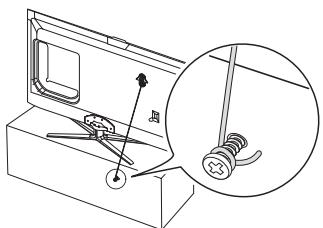
- Put the screws into the clamps and firmly fasten them onto the wall. Confirm that the screws have been firmly installed onto the wall.
You may need additional material such as an anchor depending on the type of wall.
Since the necessary clamps, screws, and string are not supplied, please purchase these additionally.
- Remove the screws from the back centre of the TV, put the screws into the clamps, and then fasten the screws onto the TV again.
Screws may not be supplied with the product. In this case, please purchase the screws of the following specifications.
Screw Specifications
• For a 19 \~ 27 inch: M4
• For a 32 \~ 75 inch: M8
- Connect the clamps fixed onto the TV and the clamps fixed onto the wall with a strong cable and then tie the string tightly.

NOTE
• Install the TV near to the wall so that it does not fall backwards.
- It is safe to connect the string so that the clamps fixed on the wall are equal to or lower than the clamps fixed on the TV.
• Untie the string before moving the TV.
text_image
Technical diagram showing a mechanical assembly with labeled parts and an inset magnified view of a component detail.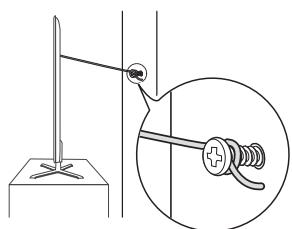
natural_image
Technical line drawing of a mechanical assembly with a pin and a magnified inset showing a connector detail (no text or symbols)- Verify all connections are properly secured. Periodically check connections for any sign of fatigue for failure. If you have any doubt about the security of your connections, contact a professional installer.
Troubleshooting
If you have any questions about the TV, first refer to this list. If none of these troubleshooting tips apply, please visit “www.samsung.com,” then click on Support, or contact the call centre listed on the back-cover of this manual.
| Issues | Solutions and Explanations |
| The TV won’t turn on. | Make sure the AC power cord is securely plugged in to the wall outlet and the TV.Make sure the wall outlet is working.Try pressing the POWER button on the TV to make sure the problem is not the remote. If the TV turns on, refer to “Remote control does not work” below. |
| There is no picture/video. | Check cable connections (remove and reconnect all cables connected to the TV and external devices).Set your external device’s (Cable/Sat Box, DVD, Blu-ray etc) video outputs to match the connections to the TV input. For example, if an external device’s output is HDMI, it should be connected to an HDMI input on the TV.Make sure your connected devices are powered on.Reboot the connected device by reconnecting the device’s power cable. |
| The remote control does not work. | Replace the remote control batteries with the poles (+/−) in the right direction.Clean the sensor’s transmission window on the remote.Try pointing the remote directly at the TV from 5~6 feet away. |
| The cable/set top box remote control doesn’t turn the TV on or off, or adjust the volume. | Programme the Cable/Set remote control to operate the TV. Refer to the Cable/Set user manual for the SAMSUNG TV code. |
Some of above pictures and functions are available at specific models only.
You can keep your TV as optimum condition to upgrade the latest firmware on web site (samsung.com → Support → Downloads) by USB.
Display Resolution
| Mode | Resolution | Horizontal Frequency (KHz) | Vertical Frequency (Hz) | Pixel Clock Frequency (MHz) | Sync Polarity (H / V) |
| IBM | 640 x 350 | 31.469 | 70.086 | 25.175 | +/- |
| 720 x 400 | 31.469 | 70.087 | 28.322 | -/+ | |
| MAC | 640 x 480 | 35.000 | 66.667 | 30.240 | -/- |
| 832 x 624 | 49.726 | 74.551 | 57.284 | -/- | |
| 1152 x 870 | 68.681 | 75.062 | 100.000 | -/- | |
| VESA DMT | 640 x 480 | 31.469 | 59.940 | 25.175 | -/- |
| 640 x 480 | 37.861 | 72.809 | 31.500 | -/- | |
| 640 x 480 | 37.500 | 75.000 | 31.500 | -/- | |
| 800 x 600 | 37.879 | 60.317 | 40.000 | +/+ | |
| 800 x 600 | 48.077 | 72.188 | 50.000 | +/+ | |
| 800 x 600 | 46.875 | 75.000 | 49.500 | +/+ | |
| 1024 x 768 | 48.363 | 60.004 | 65.000 | -/- | |
| 1024 x 768 | 56.476 | 70.069 | 75.000 | -/- | |
| 1024 x 768 | 60.023 | 75.029 | 78.750 | +/+ | |
| 1152 x 864 | 67.500 | 75.000 | 108.000 | +/+ | |
| 1280 x 720 | 45.000 | 60.000 | 74.250 | +/+ | |
| 1280 x 800 | 49.702 | 59.810 | 83.500 | -/+ | |
| 1280 x 1024 | 63.981 | 60.020 | 108.000 | +/+ | |
| 1280 x 1024 | 79.976 | 75.025 | 135.000 | +/+ | |
| 1366 x 768 | 47.712 | 59.790 | 85.500 | +/+ | |
| 1440 x 900 | 55.935 | 59.887 | 106.500 | -/+ | |
| 1600 x900RB | 60.000 | 60.000 | 108.000 | +/+ | |
| 1680 x 1050 | 65.290 | 59.954 | 146.250 | -/+ | |
| 1920 x 1080 | 67.500 | 60.000 | 148.500 | +/+ |

NOTE
• The interlace mode is not supported.
- The set might operate abnormally if a non-standard video format is selected.
Specifications
| Display Resolution | 1920 x 1080 | ||
| Environmental Considerations | |||
| Operating Temperature | 10°C to 40°C (50°F to 104°F) | ||
| Operating Humidity | 10% to 80%, non-condensing | ||
| Storage Temperature | -20°C to 45°C (-4°F to 113°F) | ||
| Storage Humidity | 5% to 95%, non-condensing | ||
| TV System | Analogue: B/G, D/K, L, I (Depending on your country selection)Digital: DVB-T/DVB-C/DVB-S2 | ||
| Colour/Video System | Analogue: PAL, SECAM, NTSC-4.43, NTSC-3.58, PAL60Digital: MPEG-2 MP@ML, MPEG-4, H.264/AVC MP@L3, MP@L4.0, HP@L4.0 | ||
| Sound System | BG, DK, L, NICAM, MPEG1, DD, DD+, HEAAC. | ||
| HDMI IN | Video: 1080 24p, 1080p, 1080i, 720p, 576p, 480pAudio: 2Ch Linear PCM 32/44.1/48kHz, 16/20/24bits. | ||
| Stand Swivel (Left / Right) | -20° ~ 20° | ||
| Model Name | UE40ES7000 | UE46ES7000 | UE55ES7000 |
| Screen Size | 40 inches | 46 inches | 55 inches |
| Sound (Output) | 10 W X 2 | ||
| Dimensions (WxHxD) | |||
| Body | 914.4 X 545.7 X 29.7 mm | 1046.8 X 620.2 X 29.7 mm | 1238.4 X 728 X 29.7 mm |
| With stand | 914.4 X 611.2 X 241.3 mm | 1046.8 X 691.2 X 276.7 mm | 1238.4 X 790.4 X 276.7 mm |
| Weight | |||
| Without Stand | 9.5 kg | 11.9 kg | 16.4 kg |
| With Stand | 10.9 kg | 13.8 kg | 18.3 kg |
Smart Control
| Model Name | RMCTPE1 | |
| Power | Source | Battery (AA x 2) |
| To extend the battery life, use of alkaline battery is recommended | ||
| Input | Button | 14 Keys |
| Touch Pad | Capacitive Touch Sensor (45mmx55mm) | |
| Output | Indicator | Device Indicator LED x 3 |
| IR | Infrared Emitting Diode x 1 | |
| Features | Touch Control | Absolute Coordinate |
| MBR | Universal Control | |
| Voice | Voice Transfer via Bluetooth | |
| Bluetooth | Bluetooth 2.1 Supported | |
| MBR | MBR Database Coverage | Global |
| Supported Device Mode | 3 Mode (TV, STB, BD) | |
| Maximum Working Distance | 12m | |
| Voice | Voice Transfer | Bluetooth HID protocol |
| Supported Audio Data Rate | 16KHz, 16bit | |
| Suggested Sound Level | -15.5dB (from 0dB Full-scale) | |
| Bluetooth | RF | 2.4GHz, CSM Band |
| Pairing Method | IR Triggered Standard Pairing | |
| Maximum Pairing Distance | 4m (Line of Sight, Targeting IR Receiver on TV) | |
| Maximum Working Distance | 10m (Line of Sight) | |
| Setup | Pairing with TV | Yes |
| Programming MBR | TV Widget needed | |
| Operating | Operating Temperature | 32°F to 104°F (0°C to 40°C) |
| Working Distance | IR : Normal 10m, Max 12m / BT : 10m | |
| Working Hours | 3 month (200 times button pressed / day) | |
| Compatibility | LED TV | Above LED E7000 |
| PDP TV | E8000 | |
| Dimension | Set (mm) | 154x52x19.5 |
| Weight | Set (without Batteries)(g) | 119 |
| Set (Including Batteries)(g) | 165 | |
| Accessory | Batteries (AAx2) | |
IR Blaster
| Model Name | VG-IRB2000 | |
| Power | Source | Battery (AA x 4) |
| To extend the battery life, use of alkaline battery is recommended | ||
| Input | Button | 2 Keys (Pairing, Power on/off) |
| Output | Indicator | Indicator LED x 1 |
| IR | Infrared Emitting Diode x 5 | |
| Features | MBR | Universal Control |
| Bluetooth | Bluetooth 2.1 Supported | |
| MBR | MBR Database Coverage | Global |
| Supported Device Mode | 3 Mode (TV, STB, BD) | |
| Maximum Working Distance | 8m | |
| Bluetooth | RF | 2.4GHz, CSM Band |
| Pairing Method | IR Triggered Standard Pairing | |
| Maximum Pairing Distance | 4m (Line of Sight, Targeting IR Receiver on TV) | |
| Maximum Working Distance | 10m (Line of Sight) | |
| Setup | Pairing with TV | Yes |
| Programming MBR | TV Widget needed | |
| Operating | Operating Temperature | 32°F to 104°F (0°C to 40°C) |
| Working Distance | IR : Normal 10m, Max 12m / BT : 10m | |
| Working Angle | 360 degree | |
| Working Hours | 3 month (200 times button pressed / day) | |
| Compatibility | LED TV | Above LED E7000 |
| PDP TV | E8000 | |
| Dimension | Set (mm) | W95×D79×H65 |
| (WxDxH) | Package (mm) | W88×D71×H102 |
| Weight | Set (without Batteries)(g) | 86.5 |
| Set (Including Batteries)(g) | 178.5 | |
| Package(g) | 30.6 | |
| Accessory | Batteries (AAx4) | |
Design and specifications are subject to change without prior notice.
For information about power supply, and more about power consumption, refer to the label attached to the product.
Typical power consumption is measured according to IEC 62087 Ed.2
Recommendation - EU Only

- Hereby, Samsung Electronics, declares that this LED TV is in compliance with the essential requirements and other relevant provisions of Directive 1999/5/EC.
- The official Declaration of Conformity may be found at http://www.samsung.com, go to Support > Search Product Support and enter the model name.
• This equipment may only be used indoors.
• This equipment may be operated in all EU countries.
Licence







Le figure e le illustrazioni presenti in questo Manuale dell'utente sono fornite unicamente a titolo di riferimento e possono differire da quelle del prodotto attuale. Le specifiche e il design del prodotto possono variare senza preavviso.
Avviso relativo alla trasmissione TV digitale
- Le funzioni relative alla trasmissione televisiva digitale (DVB) sono disponibili solo nei paesi o nelle aree in cui vengono trasmessi segnali digitali terrestri DVB-T (MPEG2 E MPEG4 AVC) o laddove l'utente abbia la possibilità di accedere a un servizio TV via cavo DVB-C (MPEG2 e MPEG4 AAC) compatibile. Verificare con il rivenditore locale la possibilità di ricevere segnali DVB-T o DVB-C.
- DVB-T è lo standard del consorzio europeo DVB per la trasmissione della televisione digitale terrestre mentre DVB-C è lo standard per la trasmissione della televisione digitale via cavo. Tuttavia, alcune funzioni quali EPG (Electronic Program Guide), VOD (Video on Demand) e altre non sono incluse in queste specifiche. Per questo motivo, al momento non sono disponibili.
- Sebbene questo apparecchio TV soddisfi i più recenti standard DVB-T e DVB-C, aggiornati a [Agosto 2008], la compatibilità con future trasmissioni digitali via cavo DVB-C e terrestri DVB-T non può essere garantita.
- In base al paese o all'area in cui si utilizza questo televisore, alcuni fornitori di trasmissioni TV via cavo potrebbero applicare una tariffa aggiuntiva per tali servizi e richiedere all'utente di accettare i termini e le condizioni della loro offerta.
- Alcune funzioni della trasmissione TV digitale potrebbero non essere disponibili in alcune nazioni o regioni e DVB-C potrebbe non funzionare correttamente con alcuni fornitori di servizi via cavo.
- Per maggiori informazioni, contattare il locale centro assistenza clienti Samsung.
La qualità di ricezione del televisore può essere influenzata dai diversi metodi di trasmissione esistenti nei vari paesi. Verificare le prestazioni del televisore presso un Rivenditore autorizzato SAMSUNG o presso un Call Centre Samsung per sapere se la qualità di ricezione può essere migliorata o meno riconfigurando le impostazioni dell'apparecchio.
Avvertenza per la visualizzazione di immagini fisse
Evitare la visualizzazione di immagini fisse (per es. file jpeg) o di elementi grafici fissi (come ad esempio il logo di un programma TV, il formato panorama o 4:3, la barra dei titoli di borsa o delle notizie nella parte inferiore dello schermo). La visualizzazione continua di una immagine fissa può causare immagini residue sullo schermo LED e influenzare la qualità della riproduzione. Per ridurre questo rischio, seguire questi consigli:
- Evitare di visualizzare lo stesso canale televisivo per un lungo periodo di tempo.
- Visualizzare sempre le immagini a schermo pieno, usando il menu del formato immagini per impostarlo al valore più appropriato.
- Ridurre la luminosità e il contrasto al valore minimo necessario per ottenere la qualità visiva desiderata; valori troppo elevati possono accelerare il processo di bruciatura dello schermo.
- Usare frequentemente tutte le funzioni TV progettate per ridurre la ritenzione delle immagini e la bruciatura dello schermo. Per maggiori informazioni, consultare la relativa sezione del manuale elettronico.
Garantire un'adeguata ventilazione al televisore
Per garantire un'adeguata ventilazione all'apparecchio TV, durante l'installazione lasciare una distanza minima di 10 cm tra il televisore e gli elementi circostanti (per esempio pareti, pannelli laterali del vano TV, ecc...). Una ventilazione inadeguata può causare l'innalzamento della temperatura interna del televisore e il rischio di incendio.
Se il televisore viene installato su un piedistallo o un sistema di montaggio a parete, utilizzare solo componenti forniti da Samsung Electronics.
- L'uso di componenti di altri produttori può causare malfunzionamenti o lesioni personali per la caduta del prodotto.
Installazione con piedistallo.
text_image
10 cm 10 cm 10 cmInstallazione con supporto a parete.
text_image
10 cm 10 cm 10 cm 10 cmAltre avvertenze
L'aspetto del televisore può differire dalle immagini presenti in questo manuale a seconda del modello acquistato.
Prestare attenzione quando si tocca il televisore. Alcune parti potrebbero essere calde.
Corretto smaltimento di questo prodotto (WEEE/RAEE, Rifiuti da apparecchiature elettriche ed elettroniche) (applicabile nei paesi dell'Unione Europea e in quelli con sistema di raccolta differenziata)
Questo simbolo riportato sul prodotto, sugli accessori e sulla documentazione indica che il prodotto e i suoi accessori elettronici (per es. caricatore, cuffie, cavo USB) non devono essere smaltiti unitamente ai rifiuti domestici al termine del loro ciclo vitale. Per prevenire eventuali danni all'ambiente o alla salute delle persone derivanti da uno smaltimento non appropriato, separarli da altri tipi di rifiuti e riciclarli in modo responsabile per promuovere il riutilizzo sostenibile delle risorse materiali. Gli utenti residenziali sono invitati a contattare il rivenditore presso il quale hanno acquistato il prodotto, o l'ufficio locale preposto, per richiedere le informazioni relative alla raccolta differenziata e al riciclaggio di questo tipo di prodotto. Gli utenti aziendali sono invitati a contattare il proprio fornitore e verificare i termini e le condizioni del contratto d'acquisto. Questo prodotto e i suoi accessori elettronici non devono essere smaltiti insieme agli altri rifiuti commerciali.
Corretto smaltimento delle batterie utilizzate in questo prodotto
(applicabile nei paesi dell'Unione Europea e in quelli con sistemi di raccolta differenziata delle batterie)
Questo contrassegno posto sulla batteria, sul manuale o sull'imballaggio, indica che le batterie contenute in questo prodotto non devono essere smaltite insieme ai rifiuti domestici una volta esauste. Laddove presenti, i simboli chimici Hg, Cd o Pb indicano che le batterie contengono mercurio, cadmio o piombo sopra i limiti stabiliti nell'ambito della Direttiva CE 2006/66. Se le batterie non vengono smaltite in modo corretto, tali sostanze possono causare danni alla salute o all'ambiente. Per proteggere le risorse naturali e promuovere il riutilizzo dei materiali, separare le batterie dagli altri rifiuti e riciclarle utilizzando il sistema locale gratuito di ritiro delle batterie esauste.
• Può essere richiesto un rimborso se
- (a) l'uscita del tecnico in seguito a una chiamata non rileva difetti nel prodotto (per es. nel caso l'utente abbia omesso di leggere il presente manuale)
- (b) l'utente ha portato l'unità presso un centro di riparazione che non rileva difetti nel prodotto (per es. nel caso l'utente abbia omesso di leggere il presente manuale).
- L'importo di tale rimborso verrà comunicato all'utente prima di eseguire una visita a domicilio o un eventuale intervento di manutenzione.
Elenco delle funzioni disponibili
• 3D: Questa entusiasmante nuova funzione consente di vedere i contenuti 3D trasmessi dalle emittenti o riprodotti da lettori BD 3D.
• SMART HUB: Il Gateway a tutti i contenuti integrati in un'unica posizione
- E' tutto integrato per guidare l'utente in modo semplice alle varie opzioni di intrattenimento
- L'interfaccia utente consente un controllo semplice e intuitivo delle opzioni di intrattenimento
- Accesso alle diverse App, che giorno per giorno diventano sempre di più
-
Personalizzazione del televisore, raggruppando e ordinando le Apps in base ai propri gusti
-
AllShare Play: AllShare Play consente di accedere, visualizzare e riprodurre file fotografici, video e musicali memorizzati su dispositivi USB, videocamere digitali, cellulari e PC. E' possibile accedere in modalità wireless a PC, cellulari e altri dispositivi compatibili attraverso la propria rete wireless.
- Anynet+ (HDMI-CEC): Consente di controllare mediante il telecomando del televisore Samsung tutti i dispositivi Samsung collegati che supportano Anynet+.
• e-Manual: Consente di leggere a schermo l'intero manuale. (p. 19)
Accessori
Controllare che nell'imballaggio siano contenuti i seguenti componenti. Se eventuali componenti risultano mancanti, contattare il rivenditore.
La forma e il colore dei componenti possono variare in base al modello.
Eventuali cavi non forniti in dotazione possono essere acquistati separatamente.
Una volta aperta la confezione, verificare che non vi siano accessori nascosti dietro i materiali di imballaggio.
ATTENZIONE: INSERIRE SALDAMENTE PER EVITARE UNO SCOLLEGAMENTO ACCIDENTALE DALL'APPARECCHIO
• Smart Touch Control e batterie (2 tipo AA)
• IR Blaster e batterie (4 tipo AA)
• Telecomando e batterie (2 tipo AAA)
- Scheda di garanzia (non disponibile in tutti i paesi) / Guida alla sicurezza
• Cavo di alimentazione
- Panno per la pulizia
• Occhiali 3D Active Glasses Samsung
• Manuale dell'utente
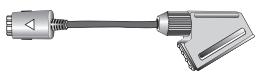
Adattatore scart

Piedistallo con fermacavo

4 anelli di ritenuta
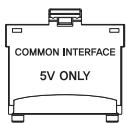
Adattatore scheda CI
Montaggio del Piedistallo con fermacavo
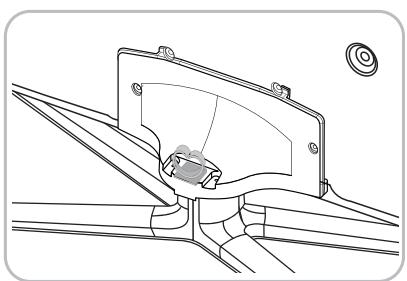
natural_image
Technical line drawing of a mechanical component with no visible text or symbols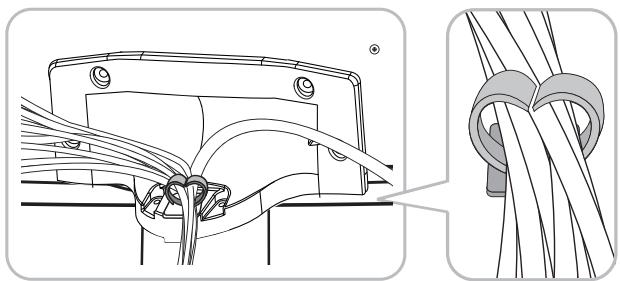
natural_image
Technical diagram showing cable installation and rope knot assembly (no text or symbols)Tastiera wireless (venduta separatamente)
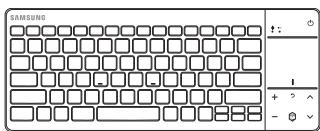
text_image
SAMSUNG +: + ^ - 0Tastiera wireless
Uso del Controller TV (tasto pannello)
Il Controller TV, un piccolo tasto simile a un joy stick posizionato sul lato posteriore destro del televisore, consente di controllare l'apparecchio TV senza l'uso del telecomando.
La forma e il colore del prodotto possono variare in base al modello.
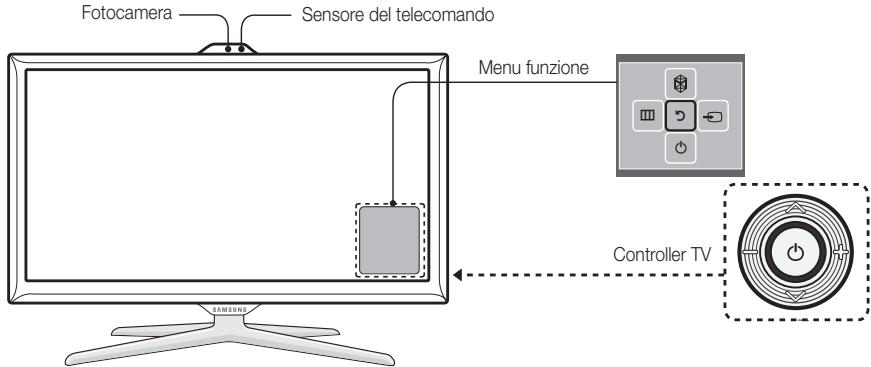
text_image
Fotocamera Sensore del telecomando Menu funzione Controller TVCollocarsi di fronte al televisore e seguire queste istruzioni.
Prima di utilizzare la webcam TV, verificare la presenza di un nastro sul retro e regolare l'angolazione della webcam. Se non si desidera utilizzare la webcam TV, rivolgere l'obiettivo verso l'alto. In questo caso, non sarà possibile utilizzare le funzioni Riconoscimento facciale e Contr. del movimento.
| Accensione | Quando il televisore si trova in modalità standby, accenderlo premendo il Controller. |
| Regolazione del volume | Regolare il volume spostando il controller da un lato all'altro mentre il televisore è acceso. |
| Selezione del canale | Selezionare un canale spostando il Controller verso l'alto e verso il basso mentre il televisore è acceso. |
| Uso del menu Funzione | Per visualizzare e usare il menu Funzione, premere e rilasciare il Controller mentre il televisore è acceso. Per chiudere il menu Funzione, premere e rilasciare nuovamente il Controller. |
| Selezione MENU (☐☐) | Con il menu Funzione visibile sullo schermo, selezionare MENU (☐☐) spostando il Controller verso sinistra. Viene visualizzato il menu OSD (On Screen Display). Selezionare un'opzione spostando il Controller verso destra. Spostare il Controller verso destra o sinistra, indietro o avanti per eseguire le selezioni desiderate. Per modificare un parametro, selezionarlo e premere il Controller. |
| Selezione SMART HUB (☐) | Con il menu Funzione visibile sullo schermo, selezionare SMART HUB (☐) spostando il Controller verso l'alto. Viene visualizzata la schermata principale SMART HUB. Selezionare un'applicazione spostando e premendo il Controller. |
| Selezione di una Sorgente (☐) | Con il menu Funzione visibile sullo schermo, aprire la schermata Sorgente (☐) spostando il Controller verso destra. Viene visualizzata la schermata Sorgente. Per selezionare una Sorgente, spostare il Controller indietro e avanti. Una volta evidenziata la sorgente desiderata, premere il Controller. |
| Spegnimento (☐) | Con il menu Funzione visibile sullo schermo, selezionare Spegnimento (☐) spostando il Controller verso il basso, quindi premere il Controller. |
Per chiudere Menu, Smart Hub, o Sorgente, premere il Controller per più di 1 secondo.
Modalità Standby
Quando si spegne il televisore con il telecomando o il controller, il televisore entra in modalità Standby e continua a consumare una piccola quantità di energia elettrica. Per ragioni di sicurezza e per ridurre il consumo elettrico, non lasciare il televisore in modalità standby per un lungo periodo di tempo (per esempio quando si parte per le vacanze). Si consiglia di scollegare il cavo di alimentazione.
Collegamento all'antenna
Inserire la spina di alimentazione nella presa a parete solo dopo aver eseguito tutti gli altri collegamenti.
Se si sta eseguendo il collegamento del televisore a un ricevitore satellitare o via cavo mediante connessioni HDMI, Component o Composite, non è necessario collegare il jack ANT IN alla connessione via cavo o antenna.
Se nelle vicinanze del televisore vengono utilizzati dispositivi portatili o ricetrasmittenti, oppure sistemi per radioamatori o AM, il televisore potrebbe presentare malfunzionamenti.
Prestare attenzione quando si sposta o si ruota il televisore con il cavo dell'antenna collegato. Una disattenzione potrebbe causare la rottura del jack dell'antenna del televisore.
Antenna VHF/UHF

Satellite

Cavo

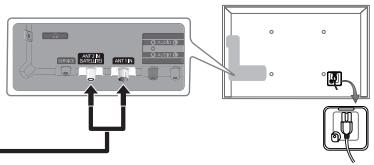
text_image
Diagram showing connection between a device panel and an electrical outlet, with Chinese labels indicating components.Per ulteriori dettagli sullo Smart Touch Control, vedere la sezione "Uso dello Smart Touch Control" sul Manuale elettronico.
Smart Touch Control
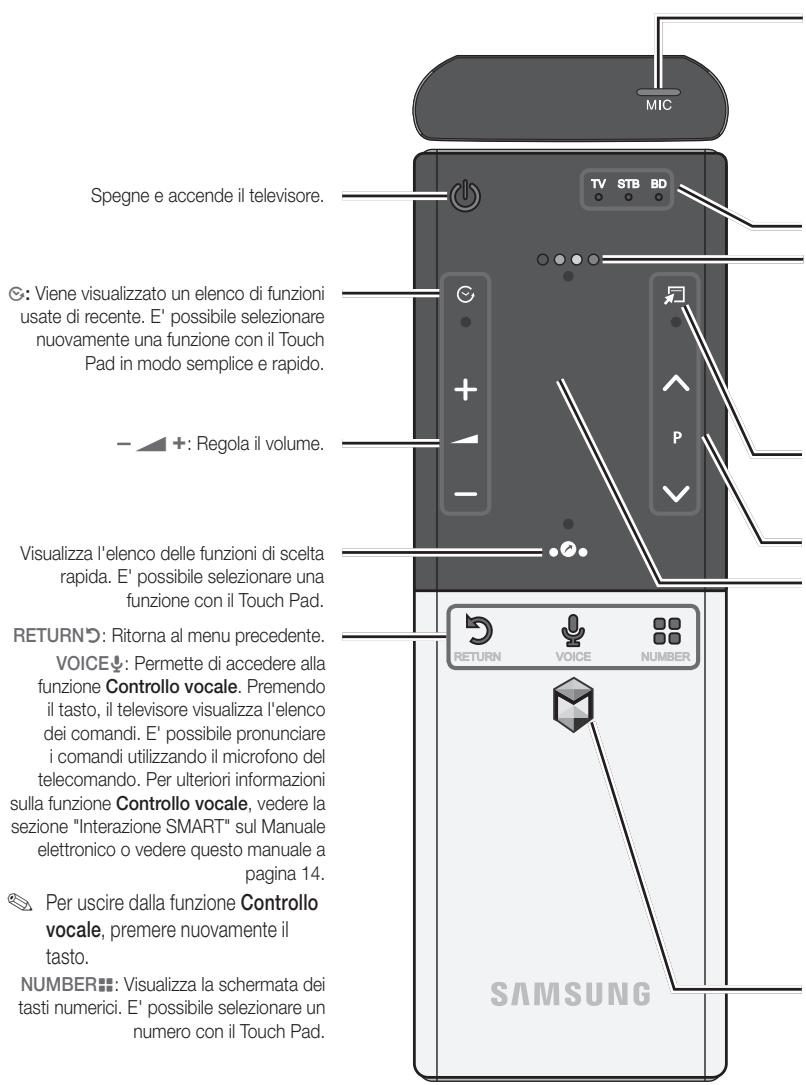
text_image
MIC Spegne e accende il televisore. TV STB BD : Viene visualizzato un elenco di funzioni usate di recente. E' possibile selezionare nuovamente una funzione con il Touch Pad in modo semplice e rapido. - +: Regola il volume. Visualizza l'elenco delle funzioni di scelta rapida. E' possibile selezionare una funzione con il Touch Pad. RETURN°: Ritorna al menu precedente. VOICE↓: Permette di accedere alla funzione Controllo vocale. Premendo il tasto, il televisore visualizza l'elenco dei comandi. E' possibile pronunciare i comandi utilizzando il microfono del telecomando. Per ulteriori informazioni sulla funzione Controllo vocale, vedere la sezione "Interazione SMART" sul Manuale elettronico o vedere questo manuale a pagina 14. Per uscire dalla funzione Controllo vocale, premere nuovamente il tasto. NUMBER■: Visualizza la schermata dei tasti numerici. E' possibile selezionare un numero con il Touch Pad. RETURN VOICE NUMBER SAMSUNGUtilizzando il microfono è possibile pronunciare un comando vocale visualizzato sul televisore. Per utilizzare il microfono, premere VOICE sul telecomando.
Una pronuncia non chiara, un tono di voce inadeguato o la presenza di rumori ambientali possono influire sul riconoscimento dei comandi eseguiti tramite Controllo vocale.
Questo LED indica il dispositivo attivo.
Visualizza le funzioni di controllo della riproduzione e i tasti colorati. E' possibile selezionare una funzione con il Touch Pad.
● ○ ○ ●: Utilizzare questi tasti in base alle istruzioni a schermo.
tasti per la regolazione della riproduzione: Utilizzare questi tasti per funzioni specifiche. Per maggiori informazioni, vedere il manuale elettronico.
: Scelta rapida delle funzioni usate più di frequente. Utilizzare questo tasto per una funzione specifica. Per maggiori informazioni, vedere il manuale elettronico.
^ P ∨: Cambia i canali.
Touch Pad
- E' possibile usare il Touch Pad allo stesso modo del Touch Pad di un laptop.
- Non premendo alcun tasto per 30 secondi, lo Smart Touch Control si imposta automaticamente in modalità Sleep.
- Per riattivare lo Smart Touch Control, premere il Touch Pad.
- Premendo il Touch Pad per 2 secondi, si ha lo stesso risultato che si ottiene premendo MUTE sul telecomando. (Available only when Source is set to TV.)
Raccoglie le varie applicazioni Smart Hub. Vedere il Manuale elettronico al capitolo Funzioni avanzate → Smart Hub.
Per uscire da una applicazione correttamente in uso, premere 📋.
Inserimento delle batterie (tipo: AA)
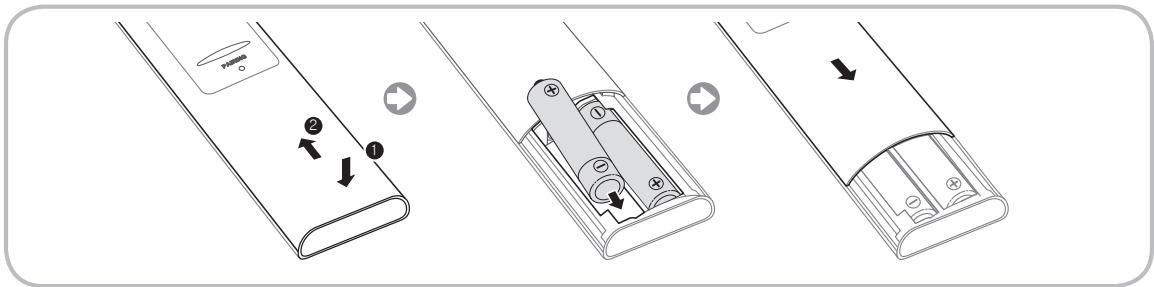
text_image
Diagram showing three-step battery shipment process with labeled parts and directional arrows- Premere sul retro il fondo del telecomando con entrambi i pollici, quindi far scorrere il coperchio del vano batterie verso l'alto nella direzione indicata dalla freccia.
- Installare due batterie in modo che le polarità (+/-) corrispondano ai simboli presenti nel vano batterie.
- Per chiudere il vano batterie, far scorrere al suo posto il coperchio nella direzione indicata dalla freccia.
IR Blaster
Per controllare i dispositivi esterni collegati al televisore, configurare il telecomando universale.
Se attraverso lo Smart Touch Control si regola il dispositivo esterno, l'IR Blaster invierà un segnale IR al dispositivo esterno.
Tasto di abbinamento
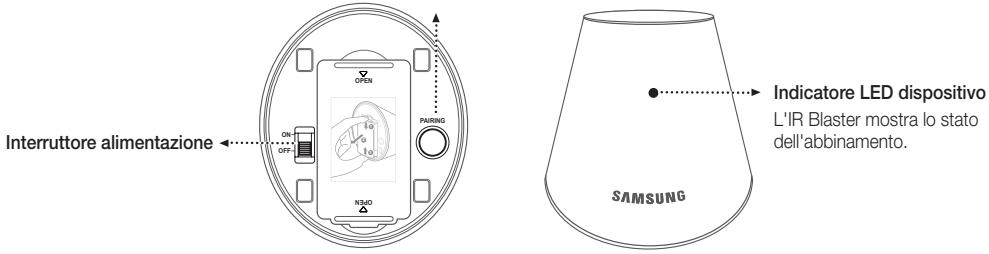
text_image
Interruttore alimentazione ON- OFF PAURING SAMSUNG Indicatore LED dispositivo L'IR Blaster mostra lo stato dell'abbinamento.Inserimento delle batterie (tipo: AA)
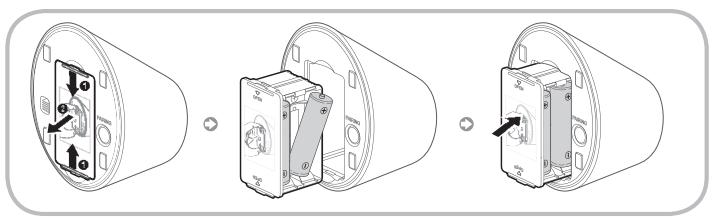
natural_image
Three-step diagram showing a cylindrical device with internal components and an open switch, no text or symbols present.- Afferrare il portabatterie da entrambi i lati ed estrarlo.
- Installare quattro batterie in modo che le polarità (+/-) corrispondano ai simboli presenti nel vano batterie.
- Inserire nuovamente in sede il portabatterie.
Abbinamento iniziale
Collegando un IR Blaster al televisore, è possibile controllare i dispositivi esterni collegati utilizzando lo Smart Touch Control del televisore.
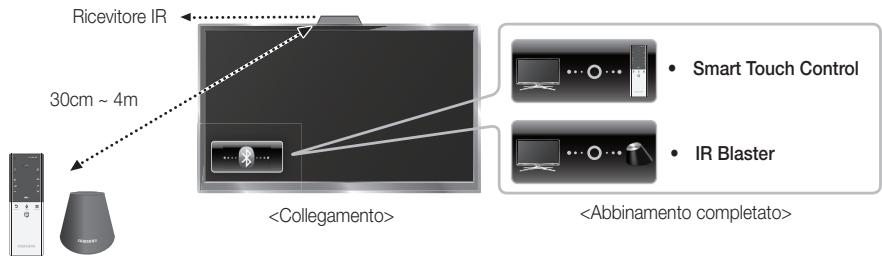
flowchart
graph TD
    A["Ricevitore IR"] -->|30cm ~ 4m| B["<Collegamento>"]
    B --> C["Smart Touch Control"]
    B --> D["IR Blaster"]
    C --> E["<Abbinamento completato>"]
Smart Touch Control
Dopo aver eseguito l'Impostazione iniziale sul televisore, collegare lo Smart Touch Control all'apparecchio TV.
- Accendere il televisore premendo ⏻.
- Le icone di collegamento appaiono in basso a sinistra dello schermo e il televisore si collega automaticamente allo Smart Touch Control.
Per eseguire nuovamente l'abbinamento, premere il foro Reset al centro del coperchio posteriore utilizzando uno spillo o la punta di una graffetta aperta. Lo Smart Touch Control viene inizializzato.
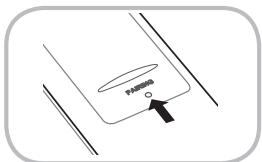
text_image
PASSING• Tasto Reset PAIRING dello Smart Touch Control.
IR Blaster
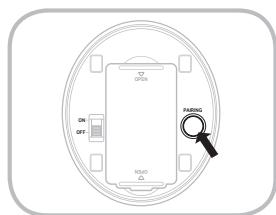
text_image
ON OFF FUSENG ROLD Ω- Accendere l'IR Blaster. Quando il LED lampeggia, collegare l'IR Blaster al televisore.
- Spostare l'IR Blaster nella direzione del ricevitore IR del televisore, quindi premere brevemente il tasto PAIRING sul fondo dell'IR Blaster.
- Le icone di collegamento appaiono in basso a sinistra dello schermo e il televisore si collega automaticamente all'IR Blaster.
Se il processo di collegamento non riesce, spegnere e riaccendere l'IR Blaster, e riprendere il processo dal passaggio 2.
Calibrazione del Touch Pad
Per calibrare il Touch Pad sullo Smart Touch Control, seguire questi passaggi:
- Premere NUMBER: per 3 secondi. La calibrazione si avvia.
- Al termine, tutti i LED nella parte superiore dello Smart Touch Control lampeggiano due volte simultaneamente.
Durante la calibrazione, non toccare il Touch Pad.
Se la precisione del Touch Pad diminuisce, ricalibrarlo ripetendo i passaggi 1 e 2.
Uso del Touch Pad
Per visualizzare l'elenco delle funzioni di scelta rapida nella parte bassa dello schermo, premere 🔒 in fondo al Touch Pad. L'elenco include Menu, Sorgente, El. CH, 3D, AllShare Play, Supporto e numerose altre funzioni.
Per visualizzare le funzioni di controllo della riproduzione e i tasti colorati nella parte alta dello schermo, premere ● ◯ ◯: in cima al Touch Pad.
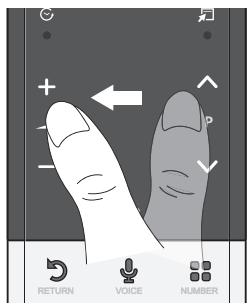
text_image
Diagram illustrating finger movement with icons for return, voice, and number, showing hand gestures and directional arrows.Per spostare la selezione: Tenere il dito sul Touch Pad, quindi farlo scorrere da un lato all'altro, dall'alto in basso o dal basso verso l'alto.
Per spostare continuamente la selezione, far scorrere il dito sul Touch Pad da destra verso sinistra, da sinistra verso destra, dall'alto in basso o dal basso verso l'alto.
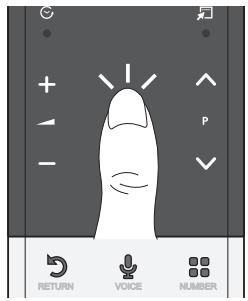
text_image
Hand gesture icon with control buttons including RETURN, VOICE, NUMBER, and directional symbolsPer selezionare una voce: Premere il Touch Pad.
Uso della modalità Scorrimento
Toccando il Touch Pad durante l'uso di Smart Hub, Web Browser e AllShare Play, il Touch Pad passa in modalità Scorrimento.
In modalità Scorrimento, per scorrere le pagine della schermata far passare il dito da una parte all'altra del Touch Pad.
Per tornare alla modalità normale, premere il Touch Pad o il tasto RETURN sullo Smart Touch Control.
Per immettere il numero di un canale con lo Smart Touch Control
- Mentre si guarda un programma in onda, premere NUMBER: sullo Smart Touch Control. Il televisore visualizza la schermata dei tasti numerici.
- Mediante il Touch Pad, evidenziare un numero, quindi premere il Touch Pad. Il televisore visualizza un elenco di canali che iniziano con il numero selezionato.
- Mediante il Touch Pad, evidenziare il canale desiderato tra quelli in elenco, quindi premere il Touch Pad.
E' inoltre possibile cambiare canale toccando l'icona del canale in su o in giù sul Touch Pad. Toccando subito dopo il Touch Pad, il televisore visualizza l'elenco dei canali memorizzati. Selezionare un canale muovendo o spostando il dito in su o in giù, quindi premere il Touch Pad.
Per visualizzare il menu Strumenti
Premere a destra del Touch Pad.
Per visualizzare la cronologia dei canali sui quali ci si è sintonizzati
Premere ✅ a sinistra del Touch Pad.
Configurazione dello Smart touch control per l'uso come telecomando universale
Consente di controllare attraverso Io Smart Touch Control il ricevitore Set-Top-Box (STB) o il lettore BD, o entrambi, quando sono collegati al televisore. Una volta collegato il dispositivo al televisore, Io Smart Touch Control può essere usato per controllare la navigazione, la numerazione e gli altri tasti di regolazione del dispositivo.
Il telecomando universale regola il volume del televisore, ma non quello dell'STB. Si consiglia di guardare l'STB dopo averne regolato il volume a un livello appropriato.
Le istruzioni relative alla Config. telec. universale possono variare in base alla versione dell'applicazione. Seguire pertanto le istruzioni visualizzate a schermo.
Per collegare il dispositivo esterno allo Smart Touch Control, seguire questi passaggi:
- Selezionare Impostare dispos. da controll., quindi premere il Touch Pad.
- elezionare il dispositivo esterno dall'elenco dei dispositivi collegati, quindi premere il Touch Pad.
- Selezionare la porta utilizzata per collegare il dispositivo esterno, quindi premere il Touch Pad.
Verificare che il dispositivo selezionato sia acceso. Se è spento, accenderlo e premere Aggiorna.
- Selezionare Ricerca marche/fornitori di servizi TV, quindi premere il Touch Pad. Viene visualizzata una tastiera e il campo in cui immettere il testo. Immettere le prime lettere della marca del dispositivo utilizzando lo Smart Touch Control, quindi selezionare Fatto in fondo alla tastiera. Nell'elenco visualizzato sotto il campo di immissione, selezionare la marca del dispositivo, quindi premere il Touch Pad. Per cercare la marca dell'STB (Set-Top box), usare il nome della marca o il fornitore del servizio via cavo.
- Selezionare CERCA MODELLO, quindi premere il Touch Pad. Viene visualizzata una tastiera e il campo in cui immettere il testo. Immettere le prime lettere del nome del modello del dispositivo mediante il Touch Control, quindi selezionare Fatto in fondo alla tastiera. Nell'elenco visualizzato sotto il campo di immissione, selezionare il nome del modello del dispositivo, quindi premere il Touch Pad.
Se la ricerca del nome del modello non offre risultati, impostare per la ricerca una parte del nome del modello o utilizzare l'opzione search for recommended model code (Cerca codice modello raccomandato).
- Selezionare Scarica, quindi premere il Touch Pad. Scaricare i dati di configurazione per l'IR Blaster utilizzando la stessa procedura.
- Quando tutte le impostazioni sono complete, selezionare completata e premere il Touch Pad.
Per configurare nuovamente Smart Touch Control e IR Blaster, premere 🔍️ sullo Smart Touch Control. Selezionare Config. telec.
universale.
Uso della ricerca per individuare il codice del modello consigliato.
- Al passaggio CERCA MODELLO nella procedura di configurazione del telecomando integrato, selezionare Modello consigliato e premere il Touch Pad.
- Selezionare Scarica per scaricare il codice del modello consigliato.
- Puntare lo Smart Touch Control verso il sensore IR del dispositivo esterno e premere il Touch Pad per verificare il corretto funzionamento del dispositivo.
- Se il codice del modello scaricato non funziona, ripetere la procedura dal passaggio 3.
Quando si usa un telecomando universale per controllare il sistema BD home theater, alcuni tasti potrebbero non essere supportati. In questo caso, si consiglia di utilizzare la funzione Anynet+ (HDMI-CEC).
Vista del telecomando

Questo speciale telecomando, progettato per aiutare chi ha problemi di vista, presenta punti in braille sui tasti Power, Channel e Volume.
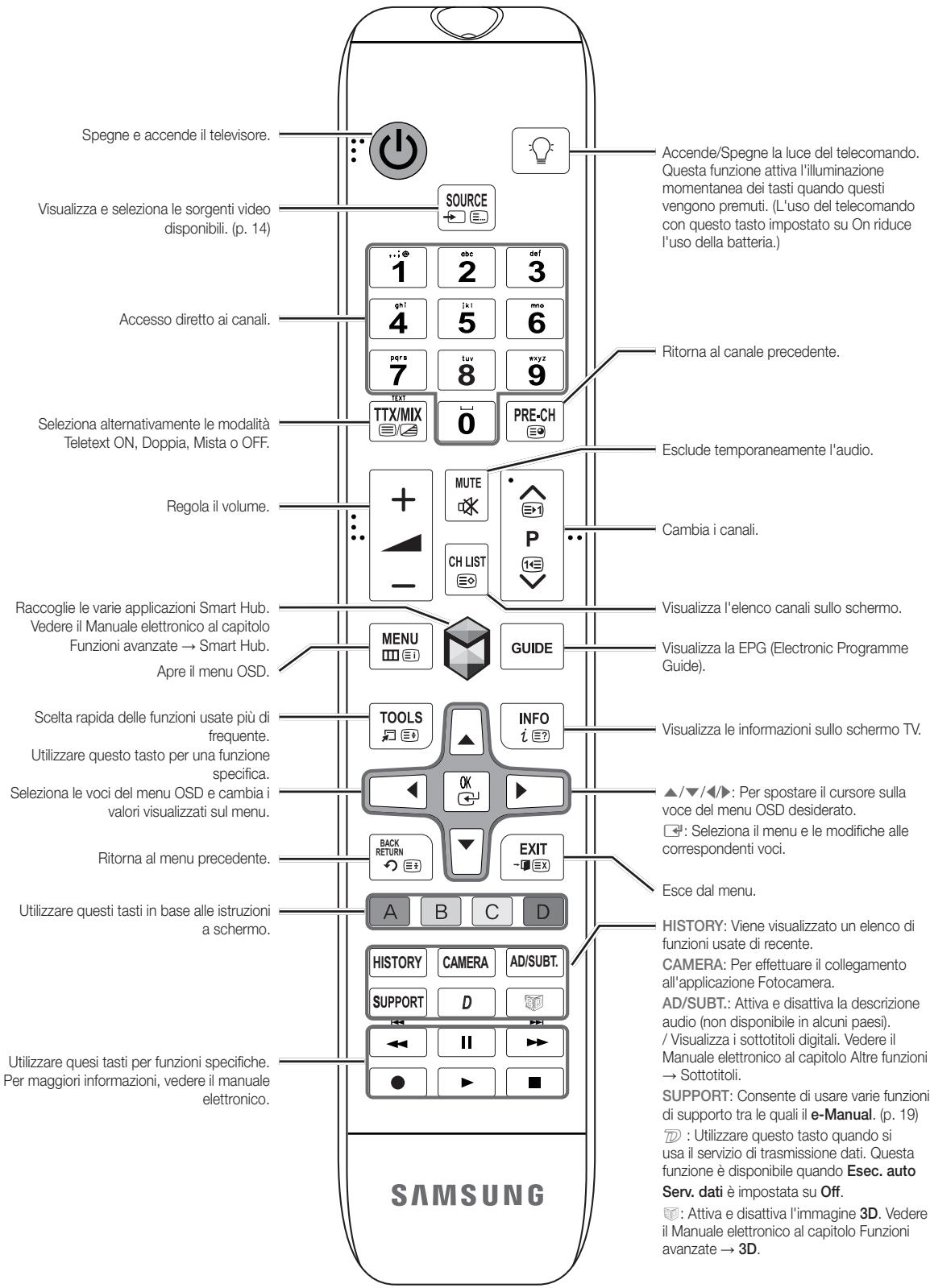
text_image
Spegne e accende il televisore. Visualizza e seleziona le sorgenti video disponibili. (p. 14) Accesso diretto ai canali. Seleziona alternativamente le modalità Teletext ON, Doppia, Mista o OFF. Regola il volume. Raccoglie le varie applicazioni Smart Hub. Vedere il Manuale elettronico al capitolo Funzioni avanzate → Smart Hub. Apre il menu OSD. Scelta rapida delle funzioni usate più di frequente. Utilizzare questo tasto per una funzione specifica. Seleziona le voci del menu OSD e cambia i valori visualizzati sul menu. Ritorna al menu precedente. Utilizzare questi tasti in base alle istruzioni a schermo. Utilizzare questi tasti per funzioni specifiche. Per maggiori informazioni, vedere il manuale elettronico. SOURCE 1 abc def 2 3 4 iki mno 7 5 6 ports 7 tuv wyyz TEXT 8 9 TTX/MIX 0 PRE-CH MUTE CH LIST Cambia i canali. PRE-CH MENU GUIDE TOOLS INFO i E? OK BACK RETURN EXIT A B C D HISTORY CAMERA AD/SUBT. SUPPORT D ← ← II ► ● ► ■ ACCende/Spegne la luce del telecomando. Questa funzione attiva l'illuminazione momentanea dei tasti quando questi vengono premuti. (L'uso del telecomando con questo tasto impostato su On riduce l'uso della batteria.) Ritorna al canale precedente. Esclude temporaneamente l'audio. Visualizza l'elenco canali sullo schermo. Visualizza la EPG (Electronic Programme Guide). Visualizza le informazioni sullo schermo TV. ▲/▼/◄►: Per spostare il cursore sulla voce del menu OSD desiderato. ◆: Seleziona il menu e le modifiche alle correspondenti voci. Esce dal menu. HISTORY: Viene visualizzato un elenco di funzioni usate di recente. CAMERA: Per effettuare il collegamento all'applicazione Fotocamera. AD/SUBT.: Attiva e disattiva la descrizione audio (non disponibile in alcuni paesi). / Visualizza i sottotitoli digitali. Vedere il Manuale elettronico al capitolo Altre funzioni → Sottotitoli. SUPPORT: Consente di usare varie funzioni di supporto tra le quali il e-Manual. (p. 19) D : Utilizzare questo tasto quando si usa il servizio di trasmissione dati. Questa funzione è disponibile quando Esec. auto Serv. dati è impostata su Off. ◆: Attiva e disattiva l'immagine 3D. Vedere il Manuale elettronico al capitolo Funzioni avanzate → 3D. SAMSUNGFar corrispondere le polarità delle batterie con i simboli presenti nel vano batterie.
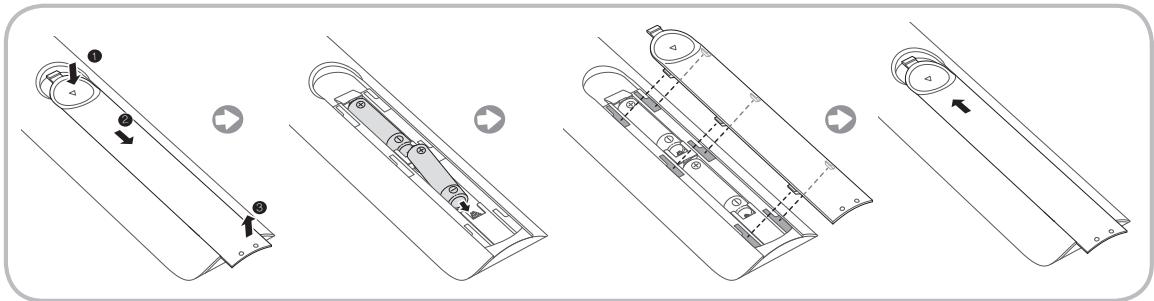
text_image
Technical diagram showing five sequential steps of a device's internal components with labeled parts and directional arrows.
NOTA
• Installare le batterie in modo che le polarità (+/-) corrispondano ai simboli presenti nel vano batterie.
- Usare il telecomando entro un raggio di 7 metri dal televisore.
- Una illuminazione intensa può influenzare le prestazioni del telecomando. Evitare l'uso del telecomando nelle immediate vicinanze di lampade fluorescenti o insegne al neon.
• La forma e il colore possono variare in base al modello.
Impostazione (Impostazione iniziale)
Quando si accende il televisore per la prima volta, vengono visualizzate alcune schermate che aiutano l'utente a configurare le impostazioni di base. Per avviare l'Impostazione, premere ⏻ sul telecomando.
Impostazione è disponibile solo se la sorgente di ingresso è impostata su TV. Vedere "Modifica della sorgente di ingresso" (p. 14).
Per tornare al passaggio precedente nella sequenza dell'Impostazione, selezionare Precedente.
Prima di iniziare, accertarsi di aver collegato il televisore via antenna o cavo e che la spina del televisore sia inserita nella presa. (p. 5).
Per avviare l'Impostazione, selezionare Avvio.
| 1 | Lingua menu:Selezionare una lingua. | Selezionare la lingua del menu mediante il telecomando, quindi selezionare Succ.. Il televisore visualizzerà i menu nella lingua selezionata sin dal prossimo passaggio. |
| 2 | Modalità d'uso: Selezionare la modalità Uso domestico. | Selezionare Uso domestico mediante il telecomando, quindi selezionare Succ.. La modalità Demo Negozio è dedicata a un uso commerciale. |
| 3 | Impostazioni di rete:Configurare le impostazioni di retePer eseguire la connessione in un momento successivo, selezionare Salta. | Per configurare la connessione di rete, selezionare Avvio mediante il telecomando. Se non si conoscono le informazioni per la configurazione della rete o si preferisce eseguire l'impostazione in un momento successivo, selezionare Salta. Per ulteriori dettagli, consultare il manuale elettronico alla sezione “Configurazione della rete via cavo o wireless” per le informazioni e i requisiti di configurazione, e la sezione "Connessione di rete" di questo manuale (p. 18). E' possibile configurare la connessione di rete in un momento successivo utilizzando il menu Rete. |
| 4 | Aggiornamento software:Aggiornamento del software alla versione più recentePer eseguire l'aggiornamento in un momento successivo, selezionare Salta. | Selezionare Succ. per aggiornare il software del televisore. Il televisore si aggiornerà automaticamente, qualora necessario. Per aggiornare l'apparecchio in un momento successivo, selezionare Salta. Per ulteriori informazioni vedere la sezione Aggiornamento software (Funzioni preferite → Menu Supporto) sul manuale elettronico.La procedura potrebbe richiedere del tempo, a seconda dello stato della rete. |
| 5 | Condiz. Contratto assistenza | Al termine delleImpostazionidi rete, viene visualizzata la schermataCondiz. Contratto assistenza.La visualizzazione della schermata richiede alcuni secondi.Viene visualizzata la schermataEsclusione di responsabilità. SelezionareAccetto. Viene visualizzata la schermataInform. privacy. SelezionareAccetto.Per utilizzare il servizioSmart Hub, selezionareAccettodalle Condiz. Contratto assistenza. |
| 6 | Selezionare il Paese.(In base alla nazione) | Selezionare la nazione appropriata.Dopo aver selezionato il paese nel menu Nazione, alcuni modelli potrebbero richiedere un'opzione aggiuntiva per l'impostazione del pin. |
| 7 | Sintonizzazione automatica(1): Selezione modalità di visione del televisore | Troviamo e memorizziamo i canali sul televisore. Avete bisogno di cercare i canali?Si, ne ho bisogno: Tutti i canali disponibili saranno trovati e memorizzati sul vostro televisoreNo, non ne ho bisogno: Il mio set-top box esterno fornisce tutti i canali che sono disponibili, quindi non ho bisogno di cercare i canali. |
| 8 | Sintonizzazione automatica(2): Selezione opzioni di ricerca eSelezione regione(In base alla nazione) | Selezionare la sorgente del canale da memorizzare. Quando si imposta la sorgente antenna suCavo, viene visualizzata una procedura che consente di assegnare valori numerici ai canali (frequenze canale). Per ulteriori informazioni, vedere la funzioneSintonizzazione automatica(Menu canale → Memorizzazione dei canali) sul Manuale elettronico.Nel caso sia stata selezionata per prima l'opzioneAntenna o Cavo:Dopo la memorizzazione di tutti i canali trasmessi viaAntenna o Cavo, viene visualizzata la procedura per la memorizzazione dei canali viaSatellite.Nel caso sia stata selezionata per prima l'opzioneSatellite:Dopo la memorizzazione di tutti i canali trasmessi viaSatellite, viene visualizzata la procedura per la memorizzazione dei canali viaAntenna o Cavo.SelezionareArrestain qualsiasi momento per interrompere il processo di memorizzazione.Auto: Per impostare automaticamente l'ora corrente.Manuale: Consente di impostare manualmente la data e l'ora corrente. |
| 9 | Orologio: ImpostazioneModalità orologio | |
| 10 | Fuso orario(in base alla nazione):Impostazione del fuso orario | Questo passaggio è disponibile solo quando la modalità orologio è impostata suAuto.Auto: Per impostare automaticamente il fuso orario.Manuale: Per impostare manualmente il fuso orario.Se è stata selezionata l'opzioneManuale, è possibile scegliere se impostare l'opzione DST (Daylight Savings Time) suOn o Off. (in base alla nazione) |
| 11 | Contr. vocale e del movimento: Impostazione del Controllo vocale e del Controllo gestuale. | E' possibile impostare la funzioneContr. vocale e del movimentosu On o Off.Selezionare Off o On, quindi selezionareSucc.. Per maggiori informazioni vedere il capitolo "Interazione SMART" (p. 14) |
| 12 | Impostazionecompletata | SelezionareChiudiper terminare.Vengono visualizzate le impostazioni complete. |
Per reimpostare questa funzione...
Menu → Sistema → Impostazione
Selezionare Sistema - Impostazione (Impostazione iniziale). Digitare il PIN a 4 cifre. Il PIN predefinito è “1-1-1-1”. Per cambiare il codice PIN, utilizzare la funzione Cambia PIN.
Eseguire nuovamente l'Impostazione (Menu → Sistema) una volta installato il televisore a casa anche se la stessa funzione è stata eseguita in negozio al momento dell'acquisto.
Nel caso si sia dimenticato il PIN, in modalità Standby premere la seguente sequenza di tasti sul telecomando per ripristinare il PIN all'impostazione predefinita "1-1-1-1": MUTE → 8 → 2 → 4 → POWER (accensione).
II PIN "0-0-0-0" è vietata.

Per ulteriori informazioni vedere la sezione Connessione del televisore sul e-Manual.
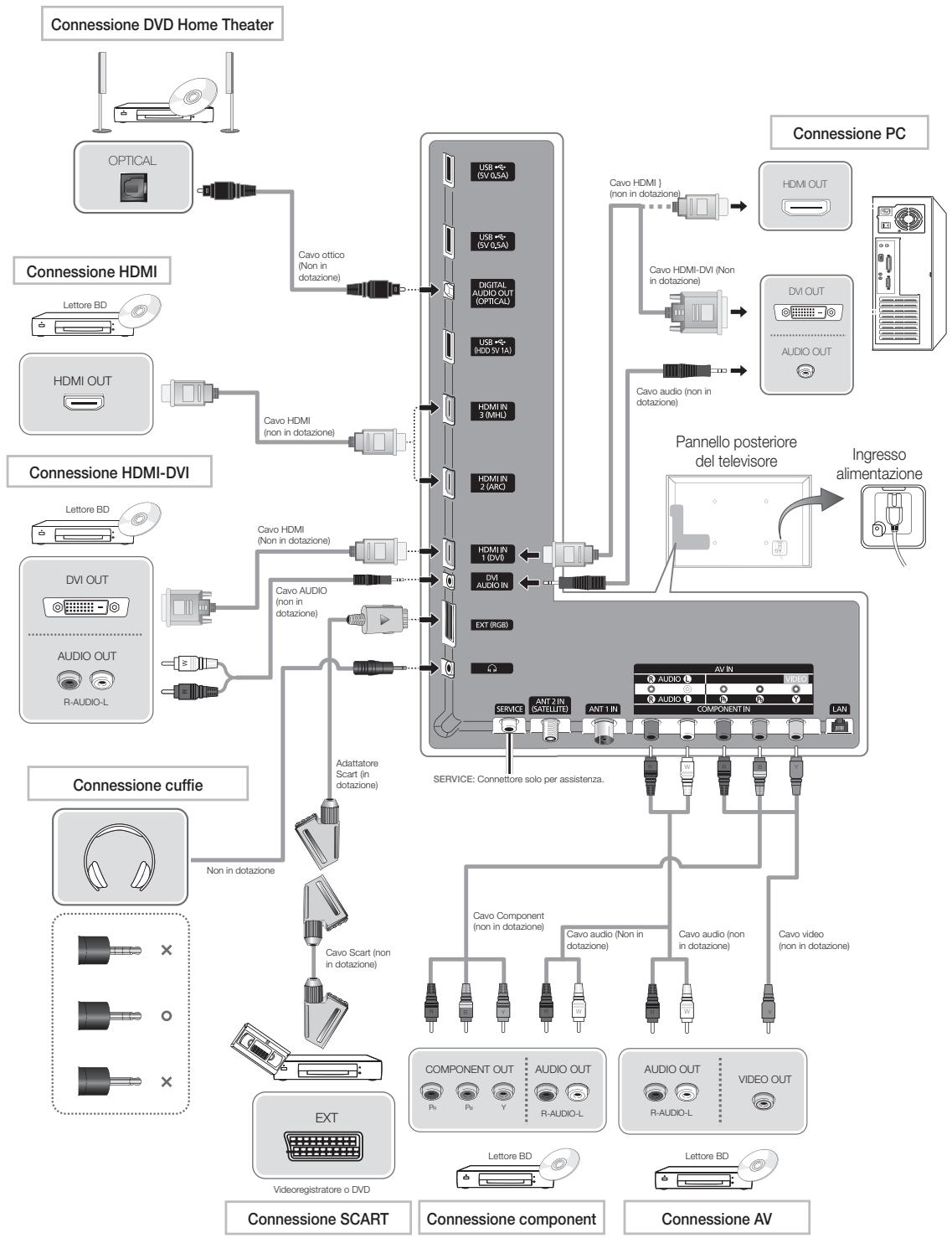
flowchart
graph TD
    A["Connessione DVD Home Theater"] --> B["OPTICAL"]
    B --> C["Cavo ottico (Non in dotazione)"]
    C --> D["USB ↔ (5V 0.5A)"]
    D --> E["Digital Audio Out (OPTICAL)"]
    E --> F["USB ↔ (HDD 5V TA)"]
    F --> G["HDMI IN 3 (MHL)"]
    G --> H["HDMI IN 2 (ARQ)"]
    H --> I["HDMI IN 1 (DVI)"]
    I --> J["DVI AUDIO IN"]
    J --> K["EXT (RGB)"]
    K --> L["Service: Connettore solo per assistenza."]
    L --> M["COMPONENT OUT"]
    M --> N["AUDIO OUT"]
    N --> O["VIDEO OUT"]
    O --> P["Lettore BD"]
    P --> Q["Videoregistratore o DVD"]
    R["Connessione PC"] --> S["Cavo HDMI (non in dotazione)"]
    S --> T["Cavo HDMI-DVI (non in dotazione)"]
    T --> U["Cavo audio (non in dotazione)"]
    U --> V["Pannello posteriore del televisore"]
    V --> W["Ingresso alimentazione"]
    X["Connessione HDMI"] --> Y["Lettore BD"]
    Y --> Z["DVI OUT"]
    Z --> AA["AUDIO OUT"]
    AA --> AB["R-AUDIO-L"]
    AB --> AC["Connessione Miniature"]
    AD["Connessione HDMI-DVI"] --> AE["Lettore BD"]
    AE --> AF["DVI OUT"]
    AF --> AG["AUDIO OUT"]
    AG --> AH["R-AUDIO-L"]
    AH --> AI["Connessione Miniature"]
    AJ["Connessione Miniature"] --> AK["Lettore BD"]
    AK --> AL["Videoregistratore o DVD"]
    AM["Connessione Miniature"] --> AN["Lettore BD"]
    AN --> AO["Videoregistratore o DVD"]

Per la migliore connessione via cavo a questo prodotto, utilizzare cavi del diametro massimo indicato di seguito:
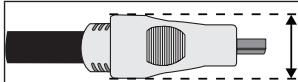
• Diametro massimo - 0,55 pollici (14 mm)
Sorgente
→ Sorgente
Quando si guarda la televisione e si desidera vedere un film riprodotto attraverso il lettore DVD o Blu-ray, oppure si vuole passare al ricevitore satellitare STB o via cavo, è necessario cambiare la Sorgente.
TV / Est. / HDMI1/DVI / HDMI2 / HDMI3 / AV / Comp.
- Premere 📋 sul telecomando. Viene visualizzata la schermata Smart Hub.
- Selezionare Sorgente. Viene visualizzata la schermata Sorgente.
- Selezionare la sorgente di ingresso esterna desiderata.
In alternativa, accedere alla schermata Sorgente premendo il tasto Sorgente → sul telecomando o selezionando Sorgente con lo Smart Touch Control (vedere pag. 6).
E' possibile selezionare solo dispositivi esterni collegati al televisore. In Sorgente, gli ingressi collegati vengono evidenziati.
Istruzioni per l'uso della funzione Modifica Nome
Modifica Nome consente di associare il nome di un dispositivo a una sorgente d'ingresso. Per accedere alla funzione Modifica Nome, aprire il menu Strumenti quando viene visualizzata la schermata Sorgente. Sotto Modifica Nome sono disponibili le seguenti selezioni:
VCR / DVD / STB cavo / STB satellite / STB PVR / Ricevitore AV / Giochi / Videocamera / PC / DVI PC / Dispositivi DVI / TV / IPTV / Blu-ray / HD DVD / DMA: Selezionare il jack d'ingresso, quindi selezionare dall'elenco il nome del dispositivo collegato al jack. Per esempio, se il lettore Blu-ray è collegato alla porta HDMI IN 2, selezionare Blu-ray per quell'ingresso.
Se si collega un PC alla porta HDMI IN 1 (DVI) mediante un cavo HDMI, assegnare PC a HDMI1/DVI nel campo Modifica Nome.
Se si collega un PC alla porta HDMI IN 1 (DVI) mediante un cavo HDMI-DVI, assegnare DVI PC a HDMI1/DVI nel campo Modifica Nome.
Se si collega un dispositivo AV alla porta HDMI IN 1 (DVI) mediante un cavo HDMI-DVI, assegnare Dispositivi DVI a HDMI1/DVI nel campo Modifica Nome.
Informazioni
E' possibile visualizzare informazioni dettagliate sul dispositivo esterno selezionato.
Aggiorna
Se i dispositivi esterni non vengono visualizzati nella schermata Sorgente, aprire il menu Strumenti, quindi selezionare Aggiorna. Tutti i dispositivi collegati vengono visualizzati in elenco.
In alternativa, è possibile aggiornare la schermata Sorgente selezionando A sul telecomando.
Utilizzando questa funzione, è possibile accedere e controllare funzioni e opzioni di menu mediante comandi vocali, gestuali o il riconoscimento facciale.
DISCLAIMER SUL LIBRETTO INFORMATIVO
- Accesso al riconoscimento facciale
La funzione Riconoscimento facciale prevede la memorizzazione di una miniatura del volto dell'utente sul televisore per consentirne l'accesso.
Tuttavia, l'accesso al servizio Smart Hub mediante la funzione Riconoscimento facciale potrebbe risultare meno sicuro rispetto a un accesso con ID e password.
• Uso della webcam TV
Prima di usare la webcam TV è necessario essere consapevoli che, in date circostanze e condizioni legali, l'uso/l'abuso della webcam TV può comportare responsabilità legali per l'utente. Utilizzando la webcam TV, l'utente accetta di non utilizzare la webcam (i) in luoghi nei quali l'uso delle telecamere è generalmente proibito (per es. in toilette, spogliatoi o camerini), (ii) in qualsiasi modo ciò possa ledere la privacy personale o (iii) in violazione di qualsivoglia legge, normativa o statuto applicabile.
Controllo vocale
Menu → Sistema → Contr. vocale e del movimento → Controllo vocale
Per attivare o disattivare la funzione di riconoscimento vocale. Consente di accedere e controllare funzioni e opzioni di menu mediante comandi vocali.
Per utilizzare il Controllo vocale, pronunciare in modo chiaro e preciso il comando nella lingua selezionata in Lingua.
I rumori ambientali possono causare il malfunzionamento del Controllo vocale.
Il televisore può "udire" i comandi vocali in due modi diversi:
- Utilizzando il microfono del televisore. (riconoscimento a distanza)
- Utilizzando il tasto VOICE del telecomando. (riconoscimento di prossimità)
Quando si usa il microfono del televisore, i comandi vocali potrebbero non essere riconosciuti a causa del rumore ambientale. In questo caso, provare a utilizzare il tasto VOICE del telecomando. Il televisore sarà in grado di riconoscere il comando vocale più facilmente.
Il tasto VOICE sul telecomando è sempre attivo. Per utilizzare il microfono TV, attivare Controllo vocale (Sistema → Contr. vocale e del movimento → Controllo vocale)
Se una funzione o un'opzione di menu non è supportata dal Controllo vocale, suggeriamo di provare a usare il Contr. del movimento. Per utilizzare il controllo gestuale, aprire le mani in direzione della videocamera e muoverle tre o quattro volte da un lato all'altro.
Controllo vocale
Attiva e disattiva la funzione Controllo vocale.
Il tasto VOICE sul telecomando è sempre attivo.
Lingua
Selezionare la lingua associata al riconoscimento vocale che si desidera usare.
Parole di attivaz.
E' possibile selezionare le Parole di attivaz. da utilizzare per avviare la funzione Controllo vocale. In alternativa, è possibile accendere il televisore utilizzando le Parole di attivaz. se la funzione Controllo vocale è impostata su On.
Se le Parole di attivaz. sono impostate su "Ciao TV", pronunciare Ciao Smart TV.
Se le Parole di attivaz. sono impostate su "Smart TV", pronunciare Smart TV accendi.
■ Dimens. barra comando vocale
Impostare la modalità Dimens. barra comando vocale su Minimo o Intera. Minimo per visualizzare il numero minimo di parole e frasi che è possibile utilizzare. Intera visualizza tutte le parole e le frasi utilizzabili.
Sensibilità voc.
Impostare il livello di sensibilità del riconoscimento vocale.
- Reaz. acust.: per impostare il livello di eco.
- Velocità di risp. riconos.: per impostare il livello di risposta del riconoscimento vocale.
■ Test dell'ambiente per controllo vocale
Per testare il livello di rumore sul microfono TV.
- Test del rumore: Questo test verifica il livello di rumore del microfono TV. Selezionare Succ. con il telecomando. Il test si avvia e viene completato in pochi secondi. Durante il test, mantenere l'ambiente il più silenzioso possibile.
- Test microfono e altoparlanti: Questo test verifica il livello di rumore del microfono e dell'altoparlante TV. Selezionare Avvio con il telecomando. Il test si avvia e viene completato in pochi secondi. Durante il test, mantenere l'ambiente il più silenzioso possibile.

Disponibile solo quando Seleziona altoparlante è impostata su Altoparlante TV.
- Test del controllo vocale: Questo test verifica il livello di volume e la chiarezza della voce durante l'uso del menu Controllo vocale. Selezionare Avvio con il telecomando. Il test si avvia. Pronunciare un comando a voce alta e chiara per completare il test.

Se il test non viene completato, selezionare Esegui nuovam. test, quindi pronunciare nuovamente un messaggio a voce alta e chiara.
Per usare la funzione Controllo vocale, seguire questi passaggi:
Se la funzione Controllo vocale è impostata su On, il televisore potrebbe accendersi automaticamente.
- Pronunciare la Parole di attivaz. selezionata utilizzando il microfono TV o tenendo premuto il tasto VOICE sul telecomando. Il televisore visualizza a schermo la Test dell'ambiente per controllo vocale.
Utilizzando la funzione Controllo vocale, il volume viene automaticamente impostato al livello 5.
- Pronunciare una parola o una frase visualizzata nella Test dell'ambiente per controllo vocale. Se si usa il tasto VOICE sul telecomando, una volta pronunciato il comando rilasciare il tasto.
Pronunciare in modo chiaro e preciso il comando nella lingua selezionata nel menu Lingua.
- Attendere il riconoscimento, quindi pronunciare il comando successivo.
Per uscire dalla modalità Controllo vocale, pronunciare la Parole di attivaz. o "Annulla" utilizzando il microfono TV o premendo nuovamente il tasto VOICE sul telecomando.
Uso della modalità Immissione vocale del testo
- Pronunciare "Search All" in modalità Controllo vocale.
Quando si usa la schermata del tastierino QWERTY, è possibile utilizzare la modalità di immissione vocale del testo. Pronunciare la Parole di attivaz. selezionata utilizzando il microfono TV o tenendo premuto il tasto VOICE sul telecomando.
-
Pronunciare la parola o la frase che si desidera cercare.
-
Il televisore esegue la funzione specificata.
I livelli prestazionali della funzione Controllo vocale variano in base alla lingua.
Contr. del movimento
Menu → Sistema → Contr. vocale e del movimento → Contr. del movimento
Per attivare o disattivare la funzione Contr. del movimento. Consente di controllare il televisore spostandone il cursore mediante specifici gesti.
Alcune applicazioni potrebbero non supportare il Contr. del movimento.
Contr. del movimento
Attiva e disattiva la funzione Contr. del movimento.
■ Dimens. barra guida del movimento
Per cambiare la modalità Dimens. barra guida del movimento tra Minimo o Intera.
■ Test dell'amb. per contr. del movimento
E' possibile testare la luminosità dell'ambiente e l'angolo di ripresa.
- Test della luminosità: Questo test serve per controllare se l'ambiente è sufficientemente luminoso per il corretto funzionamento del Contr. del movimento. Selezionare Avvio con il telecomando. Il test si avvia e viene completato in pochi secondi.
- Test angolaz. della telecamera: Avviare Test angolaz. della telecamera. Selezionare Avvio con il telecomando. Collocarsi entro il rettangolo dello schermo regolando la videocamera o spostandosi per posizionarsi meglio davanti all'obiettivo. Se non ci si posiziona correttamente, il test potrebbe non funzionare. Al termine, aprire le mani in direzione della videocamera e muoverle tre o quattro volte da un lato all'altro.
Per usare la funzione Contr. del movimento, seguire questi
passaggi:
- Per utilizzare il Contr. del movimento, sollevare la mano aprendola davanti allo schermo, tenerla in questa posizione per un momento, quindi muoverla 3 o 4 volte da un lato all'altro. La funzione Contr. del movimento si avvia. Se il Contr. del movimento si avvia, il cursore viene visualizzato al centro dello schermo e la Dimens. barra guida del movimento si troverà quindi in fondo allo schermo.
- Controllare il televisore con i gesti.
Da notare che la funzione Contr. del movimento si chiude se le mani escono dal raggio visivo della videocamera.
Se durante l'uso della funzione Contr. del movimento si usa contemporaneamente un altro dispositivo di controllo (per es. il telecomando o una tastiera), la funzione Contr. del movimento si chiude.
Controllo del televisore con la funzione gestuale
■ Accedere alla funzione Controllo gestuale
- Azione: Aprire le mani in direzione della videocamera e muoverle tre o quattro volte da un lato all'altro.
Puntamento
Muove il cursore nella posizione desiderata.
- Azione: Aprire le mani e guidare il cursore nella posizione desiderata.
Presa
Seleziona una voce, evidenzia o esegue un comando indicato dal cursore.
- Azione: Pugno chiuso.
■ Rotazione in senso antiorario
Ritorna al menu precedente.
- Azione: Aprire la mano e ruotarla in senso antiorario.
■ Controllo volume / canale
Per cambiare canale o regolare il volume.
Utilizzando la funzione Contr. del movimento mentre si guarda un canale, viene visualizzata la schermata di controllo del volume / canale.
- Azione: Utilizzare la funzione gestuale Puntamento per spostare il cursore sul controller del canale o del volume, quindi utilizzare la funzione Presa per regolare il canale o il volume desiderato.
Utilizzando la funzione Presa una volta, equivale a premere un tasto sul telecomando. Mantenendo la Presa, equivale a tenere premuto un tasto sul telecomando.
■ Scorrimento pagina
Scorre la pagina nella direzione desiderata. Per esempio, supponendo di voler scorrere la pagina verso il basso.
Alcune applicazioni potrebbero non supportare questa funzione.
1. Spostare il cursore in fondo allo schermo (nell'area di scorrimento della pagina) mediante il comando di Puntamento.
2. Spostare il cursore al centro dello schermo mediante il comando di Puntamento.
3. Il testo scorrerà di 1 pagina.
Riconoscimento facciale
→ Strumenti → Impostazioni → Gestione account → Modifica informazioni account → Registra faccia
Per attivare o disattivare la funzione di riconoscimento facciale. Consente di registrare il proprio volto nell'account Samsung. Inoltre, è possibile accedere all'account Samsung mediante la funzione Riconoscimento facciale senza dover immettere l'ID o la password dell'account.
E' possibile registrare il proprio volto in un solo account.
Per registrare il proprio volto nell'account Samsung, seguire questi
passaggi:
Per utilizzare questa funzione, accedere a Smart Hub. Se non si dispone di un Account Samsung, crearne uno prima di usare questa funzione. Per creare un Account Samsung, vedere la sezione “Creazione di un account” (Funzioni avanzate → Smart Hub) sul manuale elettronico.
- Nella schermata Smart Hub, aprire il menu Strumenti con il telecomando, quindi selezionare Impostazioni.
- Selezionare Gestione account. Viene visualizzata la schermata Gestione account.
- Selezionare Modifica informazioni account. Viene visualizzata la schermata Modifica informazioni account.
- Selezionare Registra faccia. Per accettare l'uso del riconoscimento facciale, selezionare OK.
- Immettere la password dell'account.
- Posizionare il volto entro la linea tratteggiata al centro dello schermo e attendere che il colore della linea passi dal rosso al verde.
Se la funzione Riconoscimento facciale non si avvia, selezionare Riprova e riprovare.
- Al termine, il volto viene registrato nell'account Samsung.
Per accedere all'account Samsung mediante il Riconoscimento
facciale, seguire questi passaggi:
Se si usa la funzione Riconoscimento facciale per accedere a Smart Hub, potrebbe essere meno sicuro rispetto a un accesso con password.
- Con la schermata Smart Hub visualizzata sul televisore, selezionare A sul telecomando. Viene visualizzata la schermata ID/Password.
- Selezionare Modalità riconosc. facciale. Viene visualizzata la schermata Riconoscimento facciale.
Per tornare alla schermata ID/Password, selezionare Modalità password.
- Il televisore avvia il Riconoscimento facciale. Posizionarsi di fronte allo schermo del televisore. Il televisore riconoscerà il volto automaticamente.
Se il televisore non riconosce il volto, riprovare.
- Il televisore consentirà di accedere automaticamente all'account Samsung.
Se il televisore riconosce più di un volto registrato, viene visualizzato un elenco di account Samsung. Selezionare l'account al quale accedere.
Se il proprio volto non è registrato, è possibile registrarlo nell'account Samsung. Seguire i passaggi 4 e 5 indicati nella sezione "Per registrare il proprio volto nell'account Samsung:" sopra descritta.
Se non si dispone di un account, crearne uno. Per ulteriori informazioni, vedere “Creazione di un account” (Funzioni avanzate → Smart Hub) sul manuale elettronico.
Collegamento dell'adattatore di schede CI
Collegare l'adattatore come mostrato sotto.
Per collegare l'adattatore della SCHEDA CI, seguire questi passaggi.

Si consiglia di collegare l'adattatore prima di eseguire l'installazione del sistema di montaggio a parete o di inserire la "SCHEDA CI o CI+."
- Inserire l'adattatore della SCHEDA CI nella presa a due poli sul prodotto ①.
Cercare la presa a due poli sul retro del televisore. Le due aperture sono posizionate lateralmente alla porta COMMON INTERFACE. - Inserire l'adattatore della SCHEDA CI nella porta COMMON INTERFACE sul prodotto ②.
- Inserire la "SCHEDA Cl o Cl+".
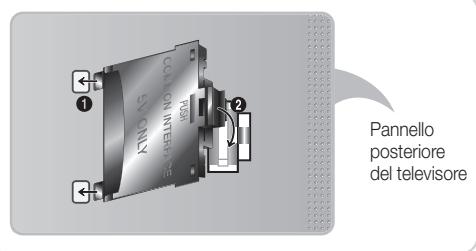
text_image
Pannello posteriore del televisorePer installare l'adattatore di schede CI, rimuovere l'adesivo sul televisore.

Si consiglia di inserire la scheda CI prima di installare il televisore a parete. In caso contrario, l'inserimento della scheda potrebbe risultare difficoltàoso. Inserire la scheda solo dopo aver collegato l'adattatore della SCHEDA CI al televisore. In caso contario, potrebbe risultare difficoltàoso collegare il modulo.
Uso della "SCHEDA CI o CI+"
Per la visione di canali a pagamento è necessario inserire una “SCHEDA CI o CI+”.
- Non inserendo una "SCHEDA CI o Cl+", alcuni canali visualizzeranno il messaggio "Scrambled Signal" (Segnale criptato).
- Le informazioni di pairing che contengono un numero telefonico, l'ID della "SCHEDA CI o Cl+", l'ID host e altri dati, verranno visualizzate entro 2\~3 minuti. Se viene visualizzato un messaggio di errore, contattare il fornitore del servizio.
- Quando la configurazione delle informazioni relative al canale è completata, viene visualizzato il messaggio "Updating Completed" (Aggiornamento completato), a indicare che l'elenco dei canali è stato aggiornato.

NOTA
- E' necessario richiedere una "SCHEDA CI o CI+" al fornitore del servizio locale.
- Estrarre con delicatezza la "SCHEDA CI o Cl+" tirandola con le dita e prestando attenzione a non farla cadere poiché potrebbe subire danni.
- Inserire la "SCHEDA CI o CI+" nella direzione indicata sulla scheda stessa.
- La posizione dell'alloggiamento COMMON INTERFACE può variare a seconda del modello.
- La "SCHEDA CI o CI+" non è supportata in alcune nazioni e regioni; controllare con il rivenditore autorizzato di zona.
• In caso di problemi, contattare il fornitore del servizio. - Inserire la “SCHEDA CI o CI+” in grado di supportare le impostazioni antenna correnti. Lo schermo non visualizzerà le immagini oppure queste saranno distorte.
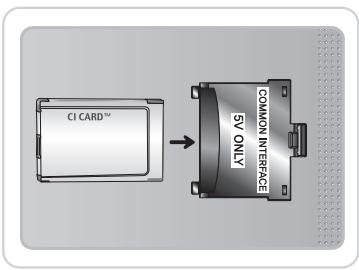
text_image
CI CARD™ 5V ONLY COMMON INTERFACEAlloggiamento Evolution Kit (venduto separatamente)
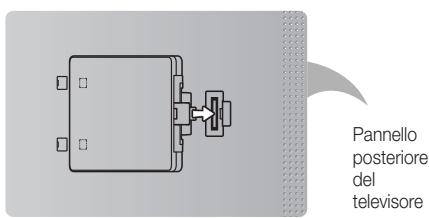
text_image
Pannello posteriore del televisoreQuesto socket è progettato per alloggiare un particolare dispositivo denominato Evolution Kit. L'Evolution Kit consente al televisore di eseguire le più recenti applicazioni allo scopo di soddisfare sempre più le esigenze degli utenti.
L'Evolution Kit, disponibile in base al prodotto, sarà in vendita a partire dal 2013 o più avanti.
Connessione di rete
E' possibile impostare il televisore in modo da poter accedere alle applicazioni SMART TV attraverso una LAN con un collegamento via cavo o wireless.
Connessione di rete - Wireless
E' possibile collegare il televisore alla LAN utilizzando un modem o un router wireless standard.
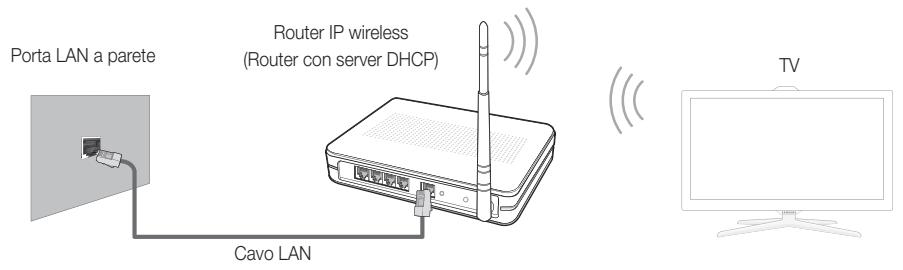
text_image
Porta LAN a parete Router IP wireless (Router con server DHCP) Cavo LAN TVL'adattatore LAN wireless Samsung supporta i protocolli di comunicazione IEEE 802.11a/b/g e n. Samsung consiglia di utilizzare il protocollo IEEE 802.11n. La riproduzione di un video mediante connessione IEEE 802.11b/g potrebbe non essere fluida.
La maggior parte dei sistemi di rete wireless dispone di un sistema di sicurezza che implica l'uso di dispositivi che accedano alla rete attraverso un AP o un router wireless (tipicamente un router IP wireless) per la trasmissione di un codice di sicurezza crittografato denominato chiave di accesso.
Selezionando la modalità Pure High-throughput (Greenfield) 802.11n con crittografia di tipo WEP, TKIP o TKIP AES (WPS2Mixed) per il proprio router wireless, i televisori Samsung non supporteranno una connessione conforme alle nuove specifiche di certificazione Wi-Fi.
Connessione di rete - Via cavo
Esistono principalmente due modi per collegare il televisore alla rete via cavo, a seconda dell'impostazione di rete. Di seguito vengono descritti più in dettaglio:
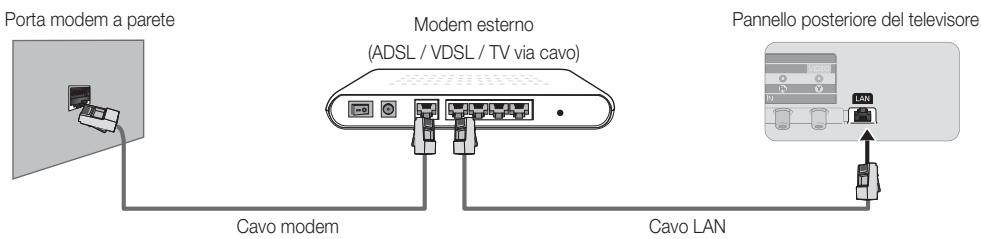
flowchart
graph TD
    A["Porta modem a parete"] --> B["Cavo modem"]
    B --> C["Modem esterno (ADSL / VDSL / TV via cavo)"]
    C --> D["Cavo LAN"]
    D --> E["Pannello posteriore del televisore"]
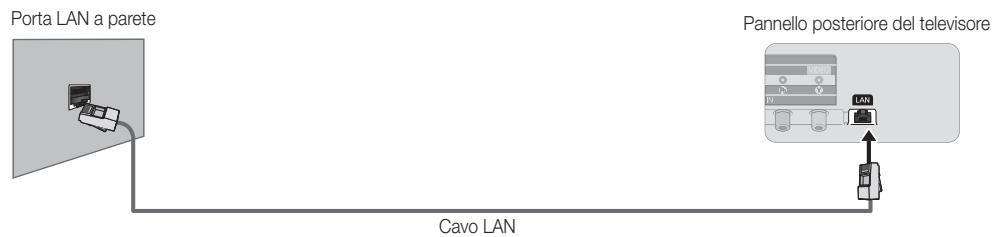
flowchart
graph LR
    A["Porta LAN a parete"] --> B["Cavo LAN"]
    B --> C["Pannello posteriore del televisore"]
    C --> D["Device 1: USB port"]
    C --> E["Device 2: USB port"]
    C --> F["Device 3: USB port"]
    C --> G["Device 4: USB port"]
Il televisore non supporta velocità di rete pari o inferiori a 10Mbps.
Per la connessione, usare un cavo Cat 5 o 6 (tipo STP*). (*Shielded Twisted Pair)
Come visualizzare l'e-Manual
Nel manuale elettronico è possibile reperire le istruzioni per l'uso delle funzioni TV. Per aprire il Manuale elettronico, premere Supporto sul telecomando o selezionare il menu Supporto con lo Smart Touch Control.
E' inoltre accessibile attraverso la sequenza di menu:
Menu → Supporto → e-Manual
Accedere all'e-Manual.
Per utilizzare la funzione e-Manual, seguire questi passaggi:
- Per assistenza, selezionare Supporto dal telecomando. Viene visualizzata la schermata Supporto.
- Selezionare e-Manual con il telecomando. Viene visualizzata la schermata e-Manual.
- Selezionare una categoria.
- Selezionare un argomento. Sull'e-Manual viene visualizzata la pagina desiderata.
Le parole evidenziate in blu nell'e-Manual si riferiscono a opzioni di menu o a selezioni nel menu a schermo del televisore.
L'icona verde sul Manuale elettronico indica un tasto del telecomando.
I passaggi inframmezzati da frecce (per es. Menu → Supporto → e-Manual) sul Manuale elettronico indicano la sequenza di passaggi da completare per accedere a un'opzione o attivare una funzione.
Passaggio dagli argomenti trattati sull'e-Manual ai menu OSD corrispondenti.

flowchart
graph LR
    A["Immagine<br>Modalità immagine<br>Back Light (Retroilluminazione)<br>Contrasto<br>Luminosità<br>Nitidezza<br>Colore<br>Tinta (V/R) G50"] --> B["Modifica della modalità immagine preimpostata<br>Modifica della modalità immagine preimpostata"]
    B --> C["Support"]
    C --> D["Immagine<br>Modalità immagine<br>Back Light (Retroilluminazione)<br>Contrasto<br>Luminosità<br>Nitidezza<br>Colore<br>Tinta (V/R)"]
    D --> E["Modifica della modalità immagine preimpostata<br>Modifica della modalità immagine preimpostata"]
    E --> F["Support"]
    F --> G["Modifica di rilemmale immagine"]
    G --> H["Modifica di rilemmale immagine preimpostata"]
    style A fill:#f9f,stroke:#333
    style B fill:#ccf,stroke:#333
    style C fill:#cfc,stroke:#333
    style D fill:#fcc,stroke:#333
    style E fill:#ffc,stroke:#333
    style F fill:#fcc,stroke:#333
    style G fill:#cff,stroke:#333
    style H fill:#ffc,stroke:#333
Questa funzione non è disponibile in alcuni menu.
Se il menu non è attivo, la funzione Prova ora non è disponibile.
- Per eseguire l'opzione di menu corrispondente all'argomento, selezionare A con il telecomando.
- Per tornare alla schermata dell'e-Manual, selezionare Supporto con il telecomando.
Uso dei tasti funzione e colorati con l'e-Manual
- Barra di scorrimento: Per scorrere verso l'alto o il basso la schermata dell'e-Manual.
• ◀ / ▶: Passa al capitolo precedente o successivo. - A Prova ora: Passa al menu OSD corrispondente all'argomento. Per tornare alla schermata del Manuale elettronico, selezionare Supporto con il telecomando.
• B Pag. iniziale: Per accedere alla schermata principale dell'e-Manual. - C Posizione: A ogni selezione di C con il telecomando, la posizione della schermata del Manuale elettronico cambia di conseguenza.
• D Indice: Visualizza la schermata dell'indice.
• Ritorna: Ritorna alla schermata precedente.
Ricerca di un argomento nella pagina dell'indice
- Selezionare D con il telecomando. Viene visualizzata la schermata dell'Indice.
- Per cercare un argomento, selezionare una lettera. L'indice visualizza un elenco di argomenti e parole chiave che iniziano con la lettera selezionata.
- Selezionare un argomento o la parola chiave desiderata.
- Viene visualizzata la pagina dell'e-Manual relativa all'argomento selezionato.
Per chiudere la schermata Indice, premere RETURN.
Per modificare la posizione della schermata dell'e-Manual
E' possibile modificare la posizione della schermata dell'e-Manual se quest'ultima nasconde la schermata del menu OSD.
- Spostare la selezione sulla schermata dell'e-Manual premendo SUPPORT sul telecomando o selezionando il menu Supporto con lo Smart Touch Control.
- Premere c sul telecomando o selezionare c con lo Smart Touch Control. A ogni selezione di c con il telecomando, la posizione della schermata dell'e-Manual cambia di conseguenza.
Installazione del supporto a parete
Installazione del kit di supporto a parete
Il kit di supporto a parete (venduto separatamente) consente di montare il televisore direttamente a una parete.
Per informazioni dettagliate sull'installazione a parete, consultare le istruzioni fornite insieme al kit. Rivolgersi a un tecnico per il montaggio della staffa a parete. Si sconsiglia di eseguire il montaggio autonomamente.
Samsung Electronics non può essere ritenuta responsabile per eventuali danni al prodotto o infortuni causati da una installazione autonoma del televisore da parte dell'utente.
Preparazione per l'installazione di un supporto a parete
Esempio A. Installazione del supporto a parete SAMSUNG
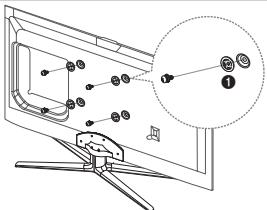
text_image
Diagram showing a computer monitor with labeled connectors and an inset magnified view highlighting connector ①.Esempio B. Installazione di un supporto a parete di altra marca.
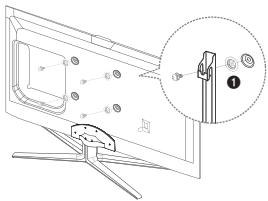
text_image
Diagram showing a monitor with labeled buttons and an inset detail view highlighting a key component.Per installare un supporto a parete, utilizzare un anello di ritenuta ①.
Specifiche del kit di supporto a parete (VESA)
Il kit di montaggio a parete non è fornito in dotazione ma è venduto separatamente.
Installare il supporto su una parete solida perpendicolare al pavimento. Se il supporto deve essere fissato ad altri tipi di materiale, consultare il rivenditore di zona. Una installazione a soffitto o su pareti inclinate può provocare la caduta dell'unità e lesioni personali.
NOTA
- Nella tabella sotto riportata vengono indicate le dimensioni standard dei kit di supporto a parete.
- All'acquisto di un kit di supporto a parete, verrà fornita la guida all'installazione e tutte le parti necessarie per il montaggio.
• Non utilizzare viti non conformi agli standard VESA. - Non utilizzare viti più lunghe delle dimensioni standard o non conformi alle specifiche dello standard VESA. Viti troppo lunghe possono danneggiare i componenti interni del televisore.
- Per montaggi a parete non conformi alle specifiche delle viti standard VESA, la lunghezza delle viti potrebbe differire in base alle loro specifiche.
- Non serrare le viti con eccessiva forza poiché ciò potrebbe danneggiare il prodotto o causarne la caduta provocando lesioni personali. Samsung non può essere ritenuta responsabile per tali incidenti.
- Samsung non può essere ritenuta responsabile per eventuali danni o lesioni personali qualora vengano usati kit di supporto a parete non conformi allo standard VESA o l'utente non segua le istruzioni di installazione fornite.
• Non montare il televisore con una inclinazione superiore ai 15 gradi. - E' necessario che l'installazione a parete del televisore sia eseguita da due persone.
| Famiglia di prodotti | pollici | Spec. VESA (A * B) | Vite standard | Quantità |
| TV LED | 40 | 200 X 200 | M8 | 4 |
| 46~60 | 400 X 400 |
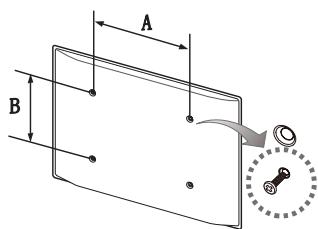
text_image
A B
Svitare le viti prima di installare la staffa a parete.

Non installare il kit di supporto a parete mentre il televisore è acceso. In caso contrario, potrebbero verificarsi incidenti con lesioni personali causate da scosse elettriche
Conservazione e manutenzione

Eventuali adesivi applicati allo schermo TV potrebbero lasciare residui una volta rimossi. Pulire lo schermo prima di guardare i programmi TV.
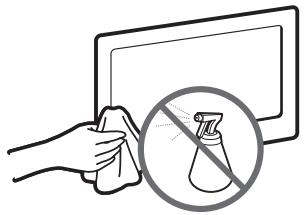
natural_image
Illustration of a hand cleaning a tablet with a spray bottle (no text or symbols)Non spruzzare acqua direttamente sul prodotto. Qualsiasi liquido che riesca a penetrare all'interno del prodotto può provocare guasti, incendio o una scossa elettrica.
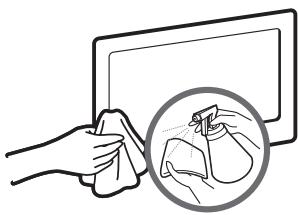
natural_image
Illustration of a hand cleaning a tablet with a magnified inset showing the clean tissue (no text or symbols)Pulire il prodotto con un panno morbido appena inumidito. Non utilizzare liquidi infiammabili (per es. benzene o diluenti) né soluzioni detergenti.
Fissaggio del televisore alla parete
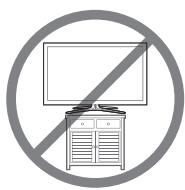
natural_image
Prohibition symbol showing a TV with a diagonal line crossing above it, no text or symbols present.Attenzione: Tirare, spingere o arrampicarsi sul televisore sono azioni che possono provocarne la caduta. In particolare, si raccomanda di non far giocare i bambini con il televisore poiché potrebbero appendervisi o destabilizzarlo. Se ciò dovesse verificarsi, il televisore potrebbe cadere provocando lesioni personali gravi e perfino mortali. Seguire tutte le precauzioni di sicurezza descritte della documentazione allegata al televisore. Per una maggiore stabilità e sicurezza del prodotto, è possibile acquistare e installare il dispositivo anticaduta come segue.
Per evitare una eventuale caduta del televisore
- Avvitare saldamente i ganci alla parete. Verificare che le viti siano state fissate saldamente alla pareti.
A seconda del tipo di parete, potrebbe essere necessario utilizzare anche un fisher.
Poiché i ganci, le viti e il cavo di sicurezza non sono forniti in dotazione, è necessario acquistare tali materiali separatamente.
- Rimuovere le viti dal centro del pannello posteriore del televisore, inserirle nei ganci e quindi avvitarle nuovamente al televisore.
Le viti potrebbero non essere fornite insieme al prodotto. In questo caso, acquistare le viti separatamente in base alle specifiche qui riportate.
Specifiche delle viti
• Per i modelli da 19 \~ 27 pollici: M4
• Per i modelli da 32 \~ 75 pollici: M8
- Collegare i ganci fissati al televisore a quelli fissati alla parete utilizzando un cavo resistente, quindi legarlo strettamente.

NOTA
- Installare il televisore il più vicino possibile alla parete in modo che non possa cadere all'indietro.
-
Collegare il cavo in modo che i ganci fissati alla parete si trovino allineati o leggermente più in basso di quelli fissati al televisore.
• Slegare il cavo prima di spostare il televisore. -
Accertarsi che tutte le connessioni siano adeguatamente fissate. Controllare periodicamente le connessioni per verificarne l'eventuale usura o rottura. Per qualsiasi dubbio relativo alla sicurezza delle connessioni effettuate, contattare un installatore specializzato.
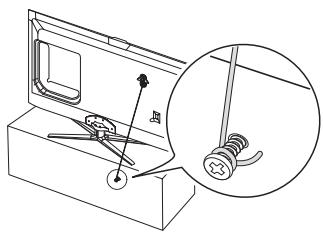
text_image
Technical diagram showing a mechanical assembly with labeled parts and an inset magnified view of a component detail.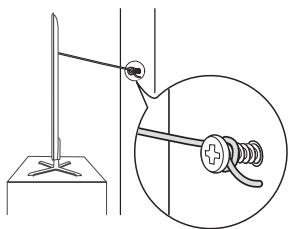
natural_image
Diagram showing a mechanical setup with a vertical rod and a magnified inset of a coiled spring (no text or symbols)Risoluzione dei problemi
In caso di domande sul funzionamento del televisore, consultare per prima cosa l'elenco sottostante. Se nessuno dei consigli si dimostra utile per risolvere il problema, visitare il sito "www.samsung.com", quindi fare clic sulla voce Supporto, oppure chiamare il numero del Call Center riportato in ultima pagina del manuale.
| Problemi | Soluzioni e spiegazioni |
| Il televisore non si accende. | Verificare che la spina del cavo di alimentazione CA sia correttamente collegata a una presa a muro e al televisore.Verificare che la presa a parete sia funzionante.Provare a premere il tastoPOWERSul televisore per verificare che il problema non sia il telecomando.Se il televisore si accende, vedere la sezione "Il telecomando non funziona" riportata sotto. |
| Nessuna immagine/video. | Verificare le connessioni dei cavi (scollegare e ricollegare tutti i cavi del televisore e dei dispositivi esterni).Impostare l'uscita video del dispositivo esterno (ricevitore via cavo/STB, lettore DVD, Blu-ray, ecc) in modo che le connessioni corrispondano all'ingresso del televisore. Ad esempio, se l'uscita di un dispositivo esterno è HDMI, deve essere collegata a un ingresso HDMI sul televisore.Verificare che il dispositivo collegato sia acceso.Riavviare il dispositivo dopo averne scollegato e ricollegato il cavo di alimentazione. |
| Il telecomando non funziona. | Sostituire le batterie prestando attenzione a rispettare le polarità (+/-).Pulire la finestra di trasmissione del sensore sul telecomando.Puntare il telecomando direttamente sul televisore a una distanza di 150~180 cm. |
| Il telecomando del ricevitore via cavo/satellitare non riesce ad accendere o spegnere il televisore o a regolare il volume. | Programmare il telecomando del ricevitore via cavo/satellitare in modo che possa controllare le funzioni del televisore. Consultare il manuale dell'utente del ricevitore via cavo/satellitare per il codice TV SAMSUNG. |
Alcune delle immagini e funzioni sopra riportate sono disponibili solo per determinati modelli.
E' possibile mantenere il televisore nelle condizioni ottimali eseguendo regolarmente tramite USB l'aggiornamento del firmware all'ultima versione disponibile sul sito (samsung.com → Supporto → Download).
Risoluzione del display
| Modalità | Risoluzione | Frequenza orizzontale (kHz) | Frequenza verticale (Hz) | Frequenza di clock dei pixel (MHz) | Polarità sync (H / V) |
| IBM | 640 x 350 | 31,469 | 70,086 | 25,175 | +/- |
| 720 x 400 | 31,469 | 70,087 | 28,322 | -/+ | |
| MAC | 640 x 480 | 35,000 | 66,667 | 30,240 | -/- |
| 832 x 624 | 49,726 | 74,551 | 57,284 | -/- | |
| 1152 x 870 | 68,681 | 75,062 | 100,000 | -/- | |
| VESA DMT | 640 x 480 | 31,469 | 59,940 | 25,175 | -/- |
| 640 x 480 | 37,861 | 72,809 | 31,500 | -/- | |
| 640 x 480 | 37,500 | 75,000 | 31,500 | -/- | |
| 800 x 600 | 37,879 | 60,317 | 40,000 | +/+ | |
| 800 x 600 | 48,077 | 72,188 | 50,000 | +/+ | |
| 800 x 600 | 46,875 | 75,000 | 49,500 | +/+ | |
| 1024 x 768 | 48,363 | 60,004 | 65,000 | -/- | |
| 1024 x 768 | 56,476 | 70,069 | 75,000 | -/- | |
| 1024 x 768 | 60,023 | 75,029 | 78,750 | +/+ | |
| 1152 x 864 | 67,500 | 75,000 | 108,000 | +/+ | |
| 1280 x 720 | 45,000 | 60,000 | 74,250 | +/+ | |
| 1280 x 800 | 49,702 | 59,810 | 83,500 | -/+ | |
| 1280 x 1024 | 63,981 | 60,020 | 108,000 | +/+ | |
| 1280 x 1024 | 79,976 | 75,025 | 135,000 | +/+ | |
| 1366 x 768 | 47,712 | 59,790 | 85,500 | +/+ | |
| 1440 x 900 | 55,935 | 59,887 | 106,500 | -/+ | |
| 1600 x900RB | 60,000 | 60,000 | 108,000 | +/+ | |
| 1680 x 1050 | 65,290 | 59,954 | 146,250 | -/+ | |
| 1920 x 1080 | 67,500 | 60,000 | 148,500 | +/+ |

NOTA
• La modalità interlacciata non è supportata.
- Questo dispositivo potrebbe non funzionare correttamente se si seleziona un formato video non standard.
Specifiche
| Risoluzione del display | 1920 x 1080 | ||
| Caratteristiche ambientali | |||
| Temperatura di esercizio | Da 10°C a 40°C | ||
| Umidità di esercizio | Dal 10% all'80%, senza condensa | ||
| Temperatura di stoccaggio | Da -20°C a 45°C | ||
| Umidità di stoccaggio | Dal 5% al 95%, senza condensa | ||
| Sistema TV | Analogico: B/G, D/K, L, I (in base alla nazione selezionata)Digitale: DVB-T/DVB-C/DVB-S2 | ||
| Sistema colore/video | Analogico: PAL, SECAM, NTSC-4.43, NTSC-3.58, PAL60Digitale: MPEG-2 MP@ML, MPEG-4, H.264/AVC MP@L3, MP@L4.0, HP@L4.0 | ||
| Sistema audio | BG, DK, L, NICAM, MPEG1, DD, DD+, HEAAC. | ||
| HDMI IN | Video: 1080 24p, 1080p, 1080i, 720p, 576p, 480pAudio: 2Ch Linear PCM 32/44.1/48kHz, 16/20/24bits. | ||
| Piedistallo ruotabile (Sinistra / Destra) | -20° ~ 20° | ||
| Modello | UE40ES7000 | UE46ES7000 | UE55ES7000 |
| Dimensione schermo | 40 pollici | 46 pollici | 55 pollici |
| Suono(Uscita) | 2 x 10 W | ||
| Dimensioni (Lar x Alt x Pro) | |||
| Corpo | 914,4 X 545,7 X 29,7 mm | 1046,8 X 620,2 X 29,7 mm | 1238,4 X 728 X 29,7 mm |
| Con piedistallo | 914,4 X 611,2 X 241,3 mm | 1046,8 X 691,2 X 276,7 mm | 1238,4 X 790,4 X 276,7 mm |
| Peso | |||
| Senza piedistallo | 9,5 kg | 11,9 kg | 16,4 kg |
| Con piedistallo | 10,9 kg | 13,8 kg | 18,3 kg |
Smart Touch Control
| Modello | RMCTPE1 | |
| Alimentazione | Sorgente | Batterie (2 tipo AA) |
| Per una maggiore durata delle batterie, si consiglia l'uso di batterie alcaline | ||
| Ingresso | Tasto | 14 tasti |
| Touch Pad | Sensore capacitivo sensibile al tocco (45 mm x 55 mm) | |
| Uscita | Indicatore | 3 indicatori LED stato dispositivo |
| IR | 1 diodo trasmittente a infrarossi | |
| Caratteristiche | Touch Control | Coordinata assoluta |
| Telecomandi multimarca | Telecomando universale | |
| Voce | Trasferimento vocale via Bluetooth | |
| Bluetooth | Bluetooth 2.1 supportato | |
| Telecomandi multimarca | Copertura database telecomandi multimarca | Globale |
| Modalità dispositivo supportate | 3 modalità (TV, STB, BD) | |
| Distanza operativa massima | 12 m | |
| Voce | Trasferimento vocale | Protocollo HID Bluetooth |
| Data rate audio supportata | 16KHz, 16bit | |
| Livello audio consigliato | -15,5dB (da 0dB Full-scale) | |
| Bluetooth | RF | 2,4GHz, Banda CSM |
| Metodo abbinamento | Abbinamento standard IR Triggered | |
| Distanza abbinamento massima | 4 m (in linea visiva, dal ricevitore IR del televisore) | |
| Distanza operativa massima | 10 m (in linea visiva) | |
| Impostazione | Abbinamento con il televisore | Sì |
| Programmazione telecomandi multimarca | TV Widget richiesto | |
| Funzionamento | Temperatura d'esercizio | Da 0°C a 40°C |
| Distanza d'esercizio | IR: Normale 10 m, Max 12 m / BT: 10 m | |
| Ore di funzionamento | 3 mesi (con 200 pressioni di tasto al giorno) | |
| Compatibilità | TV LED | Superiore ai LED Serie E7000 |
| TV PDP | E8000 | |
| Dimensioni | apparecchio (mm) | 154 x 52 x 19,5 |
| Peso | Apparecchio (senza batterie) (g) | 119 |
| Apparecchio (con batterie) (g) | 165 | |
| Accessori | Batterie (2 tipo AA) | |
IR Blaster
| Modello | VG-IRB2000 | |
| Alimentazione | Sorgente | Batterie (4 tipo AA) |
| Per una maggiore durata delle batterie, si consiglia l'uso di batterie alcaline | ||
| Ingresso | Tasto | 2 tasti (Abbinamento, Accensione/Spegnimento) |
| Uscita | Indicatore | 1 LED indicatore |
| IR | 5 diodi trasmittenti a infrarossi | |
| Caratteristiche | Telecomandi multimarca | Telecomando universale |
| Bluetooth | Bluetooth 2.1 supportato | |
| Telecomandi multimarca | Copertura database telecomandi multimarca | Globale |
| Modalità dispositivo supportate | 3 modalità (TV, STB, BD) | |
| Distanza operativa massima | 8 m | |
| Bluetooth | RF | 2,4GHz, Banda CSM |
| Metodo abbinamento | Abbinamento standard IR Triggered | |
| Distanza abbinamento massima | 4 m (in linea visiva, dal ricevitore IR del televisore) | |
| Distanza operativa massima | 10 m (in linea visiva) | |
| Impostazione | Abbinamento con il televisore | Si |
| Programmazione telecomandi multimarca | TV Widget richiesto | |
| Funzionamento | Temperatura d'esercizio | 32Da °F a 104°F (da 0°C a 40°C) |
| Distanza d'esercizio | IR: Normale 10 m, Max 12 m / BT: 10 m | |
| Angolo operativo | 360 gradi | |
| Ore di funzionamento | 3 mesi (con 200 pressioni di tasto al giorno) | |
| Compatibilità | TV LED | Superiore ai LED Serie E7000 |
| TV PDP | E8000 | |
| Dimensioni | apparecchio (mm) | L 95×P 79×A 65 |
| (L x P x A) | Imballo (mm) | L 88×P 71×A 102 |
| Peso | Apparecchio (senza batterie) (g) | 86.5 |
| Apparecchio (con batterie) (g) | 178.5 | |
| Imballo (g) | 30.6 | |
| Accessori | Batterie (4 tipo AA) | |
Design e specifiche sono soggetti a modifiche senza preavviso.
Per l'alimentazione elettrica e il consumo di corrente, consultare l'etichetta apposta al prodotto.
Il consumo elettrico tipico viene misurato conformemente allo standard IEC 62087 Ed.2
Raccomandazioni - Solo UE
CE!
- Con la presente, Samsung Electronics dichiara che questo TV LED è conforme ai requisiti essenziali e alle altre clausole pertinenti indicate nella Direttiva 1999/5/CE.
- La Dichiarazione di conformità ufficiale è reperibile all'indirizzo http://www.samsung.com, accendendo alla pagina Supporto > Certificati CE, e immettendo i dati richiesti per l'identificazione del prodotto.
- Questa apparecchiatura può essere utilizzata solo in interno.
• L'uso di questa apparecchiatura è consentito in tutti i paesi europei.
Licenza

DIGITAL PLUS
PULSE

Premium Audio

HD




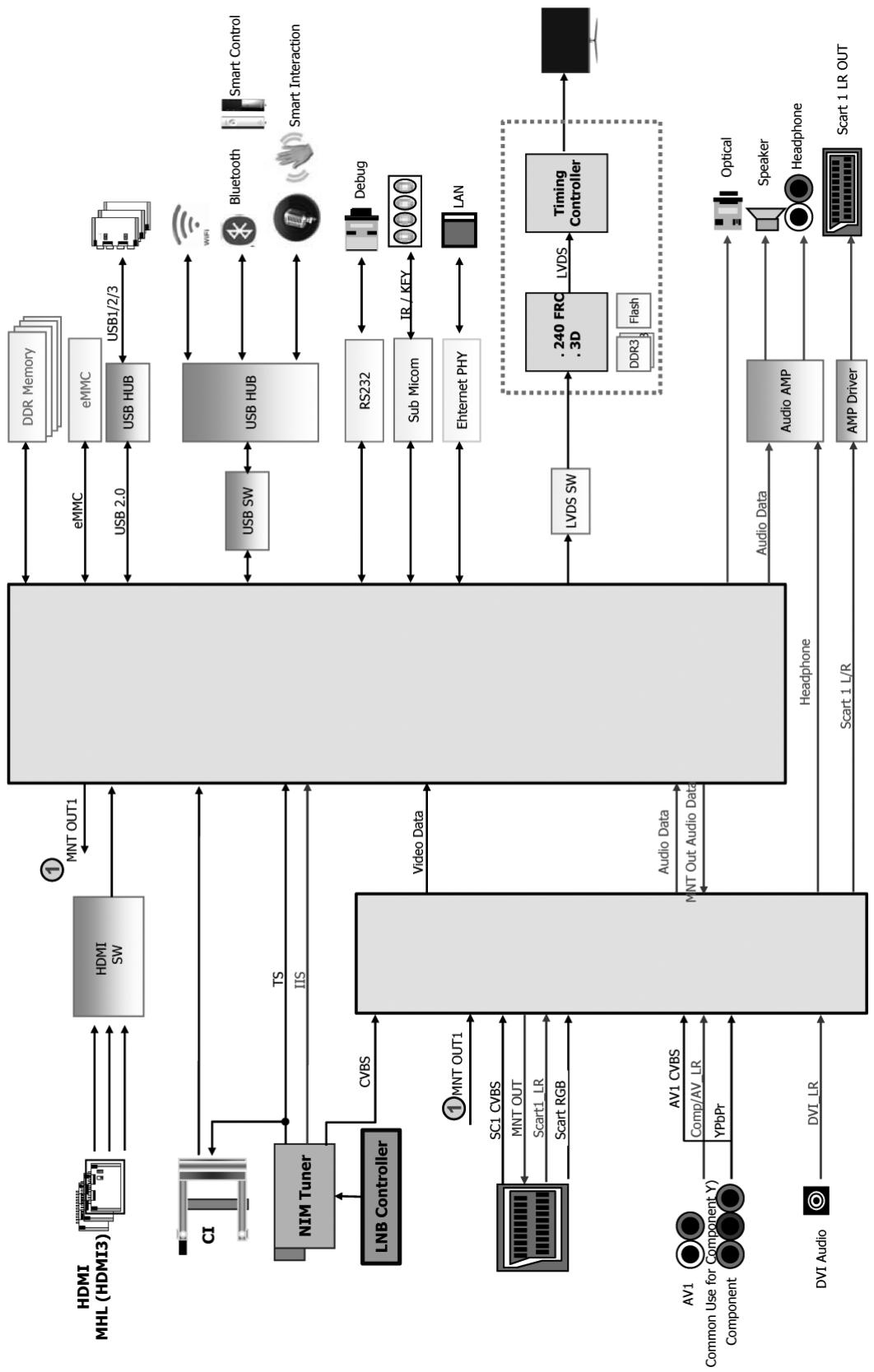
flowchart
graph TD
    A["HDMI MHL (HDMI3)"] --> B["HDMI SW"]
    B --> C["MNT OUT1"]
    C --> D["Headphone"]
    D --> E["Audio AMP"]
    D --> F["AMP Driver"]
    E --> G[".240 FRC .3D"]
    F --> H["Timing Controller"]
    G --> I["DDR Memory"]
    G --> J["eMMC"]
    G --> K["USB HUB"]
    G --> L["USB 2.0"]
    G --> M["USB1/2/3"]
    H --> N[".240 FRC .3D"]
    I --> O[".240 FRC .3D"]
    J --> P["eMMC"]
    K --> Q["USB HUB"]
    L --> R["USB SW"]
    M --> S["USB HUB"]
    N --> T[".240 FRC .3D"]
    O --> U[".240 FRC .3D"]
    P --> V[".240 FRC .3D"]
    Q --> W[".240 FRC .3D"]
    R --> X[".240 FRC .3D"]
    S --> Y[".240 FRC .3D"]
    T --> Z[".240 FRC .3D"]
    U --> AA[".240 FRC .3D"]
    V --> AB[".240 FRC .3D"]
    W --> AC[".240 FRC .3D"]
    X --> AD[".240 FRC .3D"]
    Y --> AE[".240 FRC .3D"]
    Z --> AF[".240 FRC .3D"]
    AA --> AG[".240 FRC .3D"]
    AB --> AH[".240 FRC .3D"]
    AC --> AI[".240 FRC .3D"]
    AD --> AJ[".240 FRC .3D"]
    AE --> AK[".240 FRC .3D"]
    AF --> AL[".240 FRC .3D"]
    AG --> AM[".240 FRC .3D"]
    AH --> AN[".240 FRC .3D"]
    AI --> AO[".240 FRC .3D"]
    AJ --> AP[".240 FRC .3D"]
    AK --> AQ[".240 FRC .3D"]
    AL --> AR[".240 FRC .3D"]
    AM --> AS[".240 FRC .3D"]
    AN --> AT[".240 FRC .3D"]
    AO --> AU[".240 FRC .3D"]
    AP --> AV[".240 FRC .3D"]
    AQ --> AW[".240 FRC .3D"]
    AR --> AX[".240 FRC .3D"]
    AS --> AY[".240 FRC .3D"]
    AT --> AZ[".240 FRC .3D"]
    AU --> BA[".240 FRC .3D"]
    AV --> BB[".240 FRC .3D"]
    AW --> BC[".240 FRC .3D"]
Die Abbildungen und Illustrationen in diesem Handbuch dienen nur zur Information und können vom tatsächlichen Aussehen des Geräts abweichen. Änderungen an Ausführung und technischen Daten vorbehalten.
Hinweis zu Digitalfernsehen
- Die Funktionalitäten für Digitalfernsehen (DVB) stehen nur in Ländern/Regionen zur Verfügung, in denen digitale terrestrische DVB-T-Signale (MPEG2 und MPEG4 AVC) gesendet werden oder in denen Sie Zugang zu einem kompatiblen Kabelfernsehdienst mit DVB-C (MPEG2 und MPEG4 AAC) haben. Fragen Sie Ihren örtlichen Händler, wenn Sie Informationen über die Verfügbarkeit von DVB-T oder DVB-C in Ihrer Gegend benötigen.
- DVB-T ist der Standard des europäischen DVB-Konsortiums für die Übertragung von digitalem Fernsehen, und DVB-C ist der Standard für die Übertragung von digitalem Kabelfernsehen. Allerdings werden manche Unterscheidungsmerkmale wie EPG (elektronischer Programmführer), VOD (Video on Demand) usw. in dieser Spezifikation nicht berücksichtigt. Deshalb können sie zum jetzigen Zeitpunkt noch nicht eingesetzt werden.
- Zwar hält dieses Fernsehgerät die aktuellen Standards der DVB-T- und DVB-C-Spezifikationen [August 2008] ein, aber es kann nicht garantiert werden, dass die Kompatibilität mit zukünftigen digitalen terrestrischen DVB-T- und DBV-C-Signalen gewahrt bleibt.
- Je nach den Ländern/Regionen, in denen dieses Fernsehgerät eingesetzt wird, verlangen manche Kabelfernsehanbieter zusätzliche Gebühren für solch einen Dienst, und möglicherweise wird verlangt, dass Sie den Vertragsbedingungen des Unternehmens zustimmen.
- Manche Digitalfernsehfunktionen sind in einigen Ländern oder Regionen möglicherweise nicht verfügbar, und bei DVB-C kann das Gerät möglicherweise mit manchen Kabelfernsehanbietern nicht störungsfrei zusammenarbeiten.
- Für weitere Informationen setzen Sie sich bitte mit dem Samsung-Kundendienstzentrum in Verbindung.
Die Empfangsqualität des Fernsehgeräts kann durch Unterschiede bei den Sendeverfahren in verschiedenen Ländern beeinträchtigt werden. Kontrollieren Sie die Leistung des Fernsehgeräts bei Ihrem örtlichen SAMSUNG-Händler oder wenden Sie sich an das Samsung-Callcenter um festzustellen, ob sich die Empfangsqualität durch Ändern der Fernseheinstellungen verbessern lässt.
Warnung bei Standbildern
Vermeiden Sie die Anzeige von Standbildern (wie z. B. JPEG-Bilddateien) oder Standbildelementen (wie z. B. Senderlogos, Panorama- oder 4:3-Bilder, Aktien- oder Laufschriften mit Nachrichten am unteren Bildschirrmand usw.) auf dem Bildschirm. Durch lang anhaltende Anzeige von Standbildern kann es zu Schattenbildern auf dem LED-Bildschirm kommen, wodurch die Bildqualität beeinträchtigt wird. Um die Gefahr dieses Effekts zu vermindern, befolgen Sie bitte die nachfolgenden Empfehlungen:
- Vermeiden Sie es, für lange Zeit denselben Fernsehsender anzuzeigen.
- Versuchen Sie, Abbildungen immer als Vollbild anzuzeigen. Verwenden Sie das Bildformatmenü des Fernsehgeräts, um die beste Anzeigemöglichkeit zu finden.
- Reduzieren Sie die Helligkeits- und Kontrastwerte soweit wie möglich, um immer noch die gewünschte Bildqualität zu erreichen. Zu hohe Werte können das Einbrennen beschleunigen.
- Verwenden Sie regelmäßig alle Funktionen Ihres Fernsehgeräts, die dazu dienen, das Einbrennen von Bildern und das Ausbrennen des Bildschirms zu reduzieren. Weitere Informationen hierzu finden Sie im e-Manual.
Ausreichende Belüftung Ihres Fernsehgeräts und sichere Aufstellung
Halten Sie beim Aufstellen des Fernsehgeräts einen Abstand von mindestens 10 cm zu anderen Objekten (Wänden, Schrankwänden usw.) ein, um eine ausreichende Lüftung zu gewährleisten. Wenn Sie nicht für eine ausreichende Lüftung sorgen, können aufgrund des Temperaturanstiegs im Innern des Geräts ein Brand oder ein Problem mit dem Gerät die Folge sein.
Wenn Sie einen Standfuß oder eine Wandhalterung einsetzen, empfehlen wir Ihnen dringend, ausschließlich Teile von Samsung Electronics zu verwenden.
- Wenn Sie Teile eines anderen Herstellers verwenden, kann es zu Problemen mit dem Gerät oder zu Verletzungen kommen, weil das Gerät herunterfällt.
Aufstellen des Geräts mit dem Standfuß
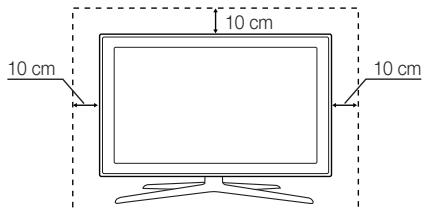
text_image
10 cm 10 cm 10 cmInstallation des Geräts mit der Wandhalterung
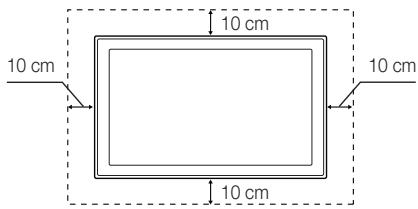
text_image
10 cm 10 cm 10 cm 10 cm⚠️ Sonstige Warnhinweise
Das tatsächliche Aussehen des Fernsehgeräts kann je nach Modell von den im Handbuch enthaltenen Abbildungen abweichen.
Seien Sie vorsichtig, wenn Sie das Fernsehgerät berühren. Einige Teile können während des Betriebs sehr heiß werden.
Ordnungsgemäße Entsorgung dieses Geräts (Elektro- und Elektronik-Altgeräte)
(Anwendbar in der Europäischen Union und anderen europäischen Staaten mit Systemen zur getrennten Sammlung von Wertstoffen)
Diese Kennzeichnung auf dem Gerät, dem Zubehör oder der Dokumentation bedeutet, dass das Gerät sowie das elektronische Zubehör (z. B. Ladegerät, Headset, USB-Kabel) am Ende ihrer Lebensdauer nicht im normalen Hausmüll entsorgt werden dürfen. Entsorgen Sie diese Geräte bitte getrennt von anderen Abfällen, um der Umwelt bzw. der menschlichen Gesundheit nicht durch unkontrollierte Müllbeseitigung zu schaden. Recyceln Sie das Gerät, um die nachhaltige Wiederverwertung von stofflichen Ressourcen zu fördern. Private Nutzer sollten den Händler, bei dem das Produkt gekauft wurde, oder die zuständigen Behörden kontaktieren, um in Erfahrung zu bringen, wie sie das Gerät auf umweltfreundliche Weise recyceln können. Gewerbliche Benutzer wenden sich an ihren Lieferanten und überprüfen die Konditionen Ihres Kaufvertrags. Dieses Gerät und seine elektronischen Zubehörteile dürfen nicht zusammen mit anderem Gewerbemüll entsorgt werden.
Ordnungsgemäße Entsorgung der Batterien dieses Produkts
(Anzuwenden in den Ländern der Europäischen Union und anderen europäischen Ländern mit einem separaten Sammelsystem für Batterien)
Diese Kennzeichnung auf der Batterie, dem Handbuch oder der Verpackung bedeutet, dass die Batterie am Ende ihrer Lebensdauer nicht im normalen Hausmüll entsorgt werden darf. Die Kennzeichnung mit den chemischen Symbolen für Hg, Cd oder Pb bedeutet, dass die Batterie Quecksilber, Kadmium oder Blei in Mengen enthält, die die Grenzwerte der EU-Direktive 2006/66 übersteigen. Wenn Batterien nicht ordnungsgemäß entsorgt werden, können diese Substanzen die Gesundheit von Menschen oder die Umwelt gefährden. Zum Schutz der natürlichen Ressourcen und zur Förderung der Wiederverwertung von Materialien trennen Sie die Batterien von anderem Müll und führen Sie sie Ihrem örtlichen Recyclingsystem zu.
• Verwaltungskosten werden abgerechnet, wenn:
- (a) auf Ihren Wunsch ein Servicetechniker zu Ihnen geschickt wird, und es liegt kein Defekt des Geräts vor (d.h. wenn Sie dieses Benutzerhandbuch nicht gelesen haben)
- (b) Sie das Gerät in eine Reparaturwerkstatt bringen, und es liegt kein Defekt des Geräts vor (d.h. wenn Sie dieses Benutzerhandbuch nicht gelesen haben)
- Der abgerechnete Betrag wird Ihnen mitgeteilt, ehe irgendwelche Arbeiten oder Kundenbesuche ausgeführt werden.
Liste der Funktionen
• 3D: Mit dieser faszinierenden neuen Funktion können Sie die 3D-Inhalte bestimmter Sender oder eines 3D-fähigen BD-Players anzeigen.
• SMART HUB: Der Gateway zu allen integrierten Inhalten
- Smart Hub hilft Ihnen bei der vielfältigen Auswahl Ihres Unterhaltungsprogramms.
- Dadurch können Sie Ihre Unterhaltung schnell und einfach über eine benutzerfreundliche Benutzeroberfläche steuern.
- Greifen Sie auf zahlreiche Anwendungen zu, die täglich neu hinzugefügt werden.
-
Richten Sie Ihre Fernsehgerät nach Ihren Wünschen ein, indem Sie die Anwendungen gemäß Ihren Vorlieben gruppieren und sortieren.
-
AllShare Play: Mit AllShare Play können Sie Fotos, Videos und Musik auf USB-Geräten, Digitalkameras, Mobilgeräten und PCs anzeigen bzw. wiedergeben und darauf zugreifen. Sie können über Ihr Drahtlosnetzwerk auf PCs, Mobilgeräte und andere kompatible Geräte zugreifen.
- Anynet+ (HDMI-CEC): Sie können alle angeschlossenen Samsung-Geräte, die Anynet+ unterstützen, mit der Fernbedienung für Ihr Samsung-Fernsehgerät bedienen.
• e-Manual: Sie können das vollständige Handbuch auf Ihrem Fernsehbildschirm anzeigen. (S. 19)
Zubehör
Vergewissern Sie sich, dass im Lieferumfang des Fernsehgeräts folgende Komponenten enthalten sind. Falls irgendwelche Teile fehlen sollten, setzen Sie sich bitte mit Ihrem Händler in Verbindung.
Farbe und Form der Teile können sich je nach Modell unterscheiden.
Kabel, die nicht zum Paketinhalt gehören, können gesondert erworben werden.
Achten Sie darauf, dass Sie beim Auspacken keine Zubehörteile übersehen, die durch Verpackungsmaterialien verdeckt werden.
⚠️ ACHTUNG: STELLEN SIE DIE VERBINDUNG DAUERHAFT HER, DAMIT DAS NETZTEIL NICHT VOM GERÄT GETRENNT WERDEN KANN
• Smart Touch Control und 2 Batterien (Typ AA)
• IR Blaster und 4 Batterien (Typ AA)
• Fernbedienung und 2 Batterien (Typ AAA)
• Garantiekarte (nicht überall verfügbar) / Sicherheitshinweise
- Netzkabel
- Reinigungstuch
• Samsung 3D-Aktivbrille - Benutzerhandbuch
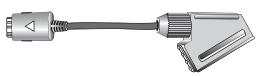
Scart-Adapter

Kabelhalter für den Standfuß

Halteringe (4 Stk.)
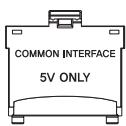
CI-Kartenadapter
Montieren des Kabelhalters am Standfuß
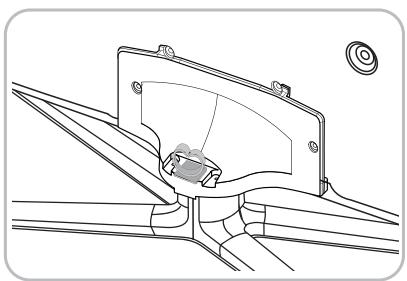
natural_image
Technical line drawing of a mechanical assembly with no visible text or symbols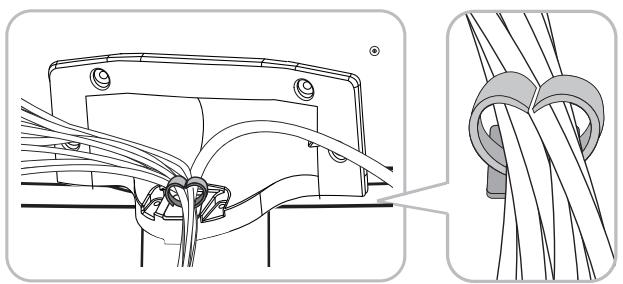
natural_image
Technical diagram showing cable installation with coiled wires and a magnified view of the cable (no text or symbols)Drahtlose Tastatur (separat erhältlich)
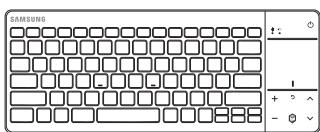
text_image
SAMSUNG 1 + ^ - 0Drahtlose Tastatur
Verwenden des TV-Controllers (Tasten)
Mit Hilfe des TV-Controllers, einer kleinen Joystick-ähnlichen Taste rechts auf der Rückseite des Fernsehgeräts, können Sie den Fernseher ohne Fernbedienung bedienen.
Form und Farbe des Geräts können je nach Modell unterschiedlich sein.
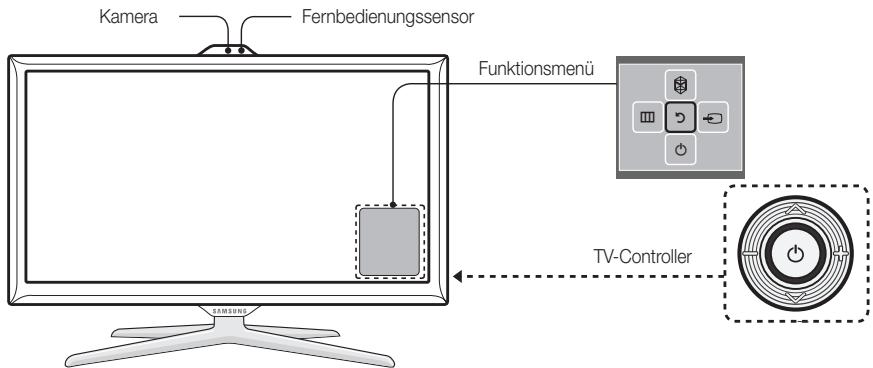
text_image
Kamera Fernbedienungssensor Funktionsmenü TV-ControllerBefolgen Sie diese Anweisungen, und schauen Sie dabei von vorne auf das Fernsehgerät.
Wenn Sie eine TV-Kamera verwenden, prüfen Sie, ob auf der Rückseite ein Band befestigt ist. Wenn ja, können Sie die TV-Kamera verwenden, nachdem Sie den Kamerawinkel eingestellt haben. Wenn Sie keine TV-Kamera verwenden möchten, empfehlen wir, das Kameraobjektiv nach oben gerichtet zu fixieren. In diesem Fall sind Gesichtserkennung und Bewegungssteuerung nicht verfügbar.
| Einschalten | Im Standby-Modus können Sie das Fernsehgerät einschalten, indem Sie auf den Controller drücken. |
| Einstellen der Lautstärke | Sie können die Lautstärke bei eingeschaltetem Fernsehgerät einstellen, indem Sie den Controller nach links bzw. rechts bewegen. |
| Auswählen eines Senders | Den Sender wechseln Sie, indem Sie den Controller bei eingeschaltetem Fernsehgerät nach oben bzw. unten bewegen. |
| Verwenden des Funktionsmenüs | Zum Anzeigen und Verwenden des Funktionsmenüs drücken Sie bei eingeschaltetem Fernsehgerät kurz auf den Controller. Wenn Sie das Funktionsmenü schließen möchten, drücken Sie erneut kurz auf den Controller. |
| Auswählen einer Option unter MENU (☐☐) | Bei geöffnetem Funktionsmenü können Sie das MENÜ (☐☐) auswählen, indem Sie den Controller nach links bewegen. Das Bildschirmmenü wird angezeigt. Durch Bewegen des Controllers nach rechts können Sie eine Option auswählen. Weitere Optionen können Sie durch Bewegen des Controllers nach rechts, links, hinten oder vorne auswählen. Zum Ändern eines Parameters wählen Sie diesen aus und drücken auf den Controller. |
| Auswählen von SMART HUB (☒) | Wenn Sie SMART HUB (☒) auswählen möchten, bewegen Sie den Controller bei geöffnetem Funktionsmenü nach oben. Das Hauptfenster von SMART HUB wird angezeigt. Wenn Sie eine Anwendung auswählen möchten, wählen Sie sie aus, und drücken Sie dann auf den Controller. |
| Auswählen einer Quelle (☐☐) | Bei geöffnetem Funktionsmenü können Sie die Liste Quelle (☐☐) auswählen, indem Sie den Controller nach rechts drücken. Das Fenster „Quelle“ wird angezeigt. Zum Auswählen einer Quelle bewegen Sie den Controller nach hinten bzw. vorne. Wenn die gewünschte Quelle markiert ist, drücken Sie auf den Controller. |
| Ausschalten (☐) | Wählen Sie bei geöffnetem Funktionsmenü Ausschalten (☐), indem Sie den Controller nach unten bewegen und dann auf ihn drücken. |
Zum Schließen der Fenster Menü, Smart Hub oder Quelle halten Sie den Controller länger als 1 Sekunde lang gedrückt.
Standby-Modus
Wenn Sie den Fernseher ausschalten, wechselt das Gerät in den Standby-Modus und verbraucht auch weiterhin eine kleine Menge an Strom. Um sicher zu gehen und den Energieverbrauch zu reduzieren, sollten Sie Ihr Fernsehgerät nicht über einen längeren Zeitraum im Standby-Modus laufen lassen (z. B. wenn Sie verreist sind). Ziehen Sie in solchen Fällen das Netzkabel aus der Steckdose.
Anschließen an eine Antenne
Verbinden Sie das Netzkabel erst dann mit der Wandsteckdose, wenn Sie alle anderen Anschlüsse vorgenommen haben.
Wenn Sie das Fernsehgerät über ein HDMI-, Komponenten- oder Composite-Kabel an einen Kabel- oder Satellitenreceiver anschließen, müssen Sie die ANT IN-Buchse nicht mit einer Antenne oder einem Kabel verbinden.
Wenn Sie ein Mobiltelefon mit Zweiwegradio oder Mobilgeräte, die das Amateurfunk- und Mittelwellenband nutzen, in der Nähe des Fernsehgeräts verwenden, kann dies zu Störungen am Fernseher führen.
Gehen Sie beim Bewegen oder Drehen des Fernsehgeräts vorsichtig wenn, wenn das Antennenkabel fest angeschlossen ist. Sie könnten die Antennenbuchse des Fernsehgeräts beschädigen.
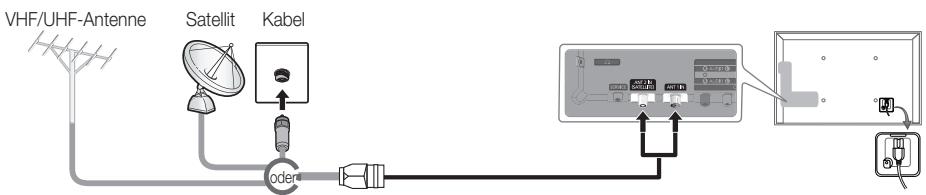
flowchart
graph TD
    A["VHF/UHF-Antenne"] --> B["Satellite"]
    B --> C["Kabel"]
    C --> D["Outdoor Device"]
    D --> E["Power Outlet"]
    B --> F["odert"]
    F --> G["Power Supply"]
    style A fill:#f9f,stroke:#333
    style B fill:#ccf,stroke:#333
    style C fill:#cfc,stroke:#333
    style D fill:#fcc,stroke:#333
    style E fill:#cff,stroke:#333

Detailliertere Informationen über die Smart Touch Control finden Sie im e-Manual unter „Verwenden der Smart Touch Control“.
Smart Touch Control
Hiermit schalten Sie das Fernsehgerät ein bzw. aus.
: Hiermit zeigen Sie eine Liste der zuletzt verwendeten Funktionen an. Sie können eine Funktion mit dem Touchpad einfach und schnell noch einmal auswählen.

+: Einstellen der Lautstärke.
Anzeigen des Fensters mit den Schnellzugriffsfunktionen. Wählen Sie durch Berühren des Touchpads eine Funktion.
RETURN: Hiermit kehren Sie zum vorherigen Menü zurück.
VOICE: Hiermit können Sie auf die Funktion Sprachsteuerung zugreifen. Wenn Sie die Taste drücken, zeigt das Fernsehgerät die Befehlsliste an. Sie können in das eingebaute Mikrofon der Fernbedienung sprechen. Genauere Informationen über die Funktion
Sprachsteuerung finden Sie unter „SMART-Interaktion“ im e-Manual oder auf Seite 14.

Um die Funktion
Sprachsteuerung zu beenden, drücken Sie die Taste erneut.
NUMBER: Hiermit zeigen Sie die Zifferntastatur an. Wählen Sie eine Zahl durch Berühren des Touchpads.
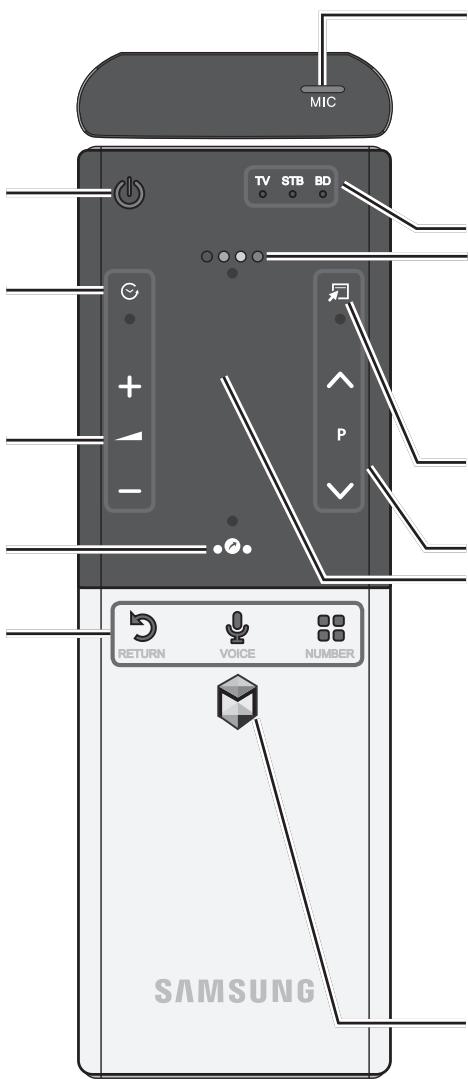
text_image
MIC TV STB BD P RETURN VOICE NUMBER SAMSUNGMit dem Mikrophon können Sie einen auf dem Bildschirm des Fernsehers angegebenen Sprachbefehl eingeben. Zum Aktivieren des Mikrophons drücken Sie auf Ihrer Fernbedienung die Taste VOICE ^↓ .

Die ordnungsgemäße Ausführung der Funktion Sprachsteuerung kann durch eine unklare oder zu leise Aussprache oder Umgebungsgeräusche beeinträchtigt werden.
LED zur Anzeige des aktiven Geräts.
Anzeigen von Funktionen für die Farb- und Wiedergabesteuerung. Wählen Sie durch Berühren des Touchpads eine Funktion.
● ● ○ ●: Verwenden Sie diese Tasten entsprechend den Anweisungen auf dem Bildschirm.
Wiedergabesteuerung: Verwenden Sie diese Tasten innerhalb einer bestimmten Funktion. Einzelheiten entnehmen Sie dem e-Manual.
: Sie erhalten Schnellzugriff auf häufig verwendete Funktionen. Verwenden Sie diese Taste innerhalb einer bestimmten Funktion. Weitere Einzelheiten entnehmen Sie dem e-Manual.

P ∨: Wechseln des Senders.
Touchpad
- Sie können das Touchpad auf die gleiche Weise wie das Touchpad eines Laptops verwenden.
- Wenn Sie 30 Sekunden lang keine Taste drücken, wechselt die Smart Touch Control automatisch in den Ruhezustand.
- Um die Smart Touch Control zu reaktivieren, berühren Sie das Touchpad.
- Wenn Sie länger als 2 Sekunden auf das Touchpad drücken, entspricht dies der Funktion der Taste MUTE auf Ihrer Fernbedienung. (Available only when Source is set to TV.)
Hiermit öffnen Sie die Smart Hub-Anwendungen. Siehe Kapitel „Erweiterte Funktionen“ → „Smart Hub“ im e-Manual.

Zum Verlassen einer Anwendung, die problemlos ausgeführt wird, drücken Sie die Taste 📋.
Einlegen von Batterien (Batteriegröße: AA)
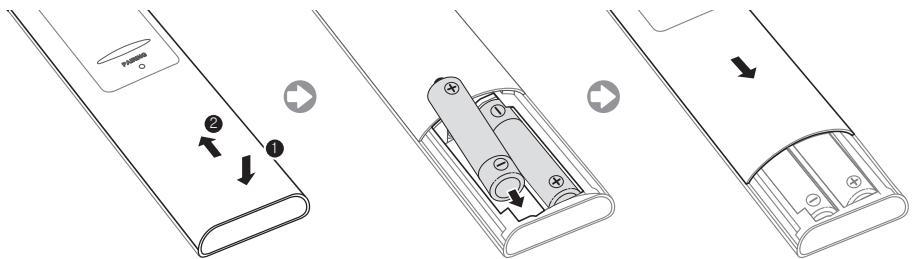
text_image
Diagram illustrating the step-by-step installation of a remote control panel, showing battery release and disassembly.- Drücken Sie mit beiden Daumen ganz unten auf der Rückseite auf die Fernbedienung, und schieben Sie die Batteriefachabdeckung in Pfeilrichtung.
- Setzen Sie zwei Batterien mit der richtigen Polung (+/-) entsprechend der Abbildung im Batteriefach ein.
- Schieben Sie die Abdeckung zum Schließen in Pfeilrichtung nach unten.
IR-Blaster
Damit Sie die an Ihren Fernseher angeschlossenen externen Geräte bedienen können, müssen Sie die Universal-Fernbedienung konfigurieren. Wenn Sie die Smart Touch Control auf das externe Gerät einstellen, sendet der IR Blaster ein IR-Signal an das externe Gerät.
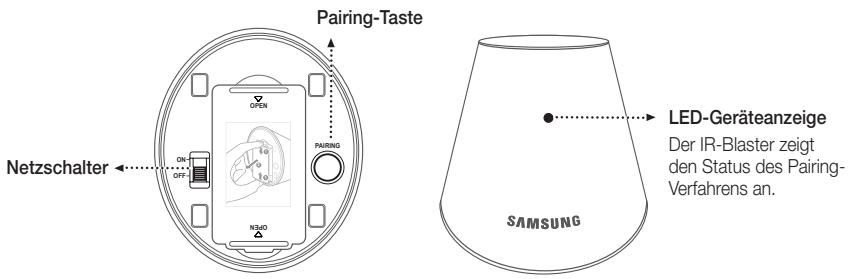
text_image
Pairing-Taste Netzschalter ON OFF OPEN PARING LED-Geräteanzeige Der IR-Blaster zeigt den Status des Pairing- Verfahrens an. SAMSUNGEinlegen von Batterien (Batteriegröße: AA)
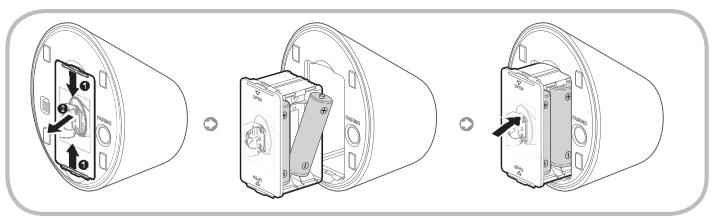
natural_image
Three-step diagram showing a cylindrical device with internal components and an open switch, no text or symbols present.- Halten Sie die Batteriehalterung an beiden Seiten fest, und ziehen Sie sie heraus.
- Setzen Sie vier Batterien mit der richtigen Polung (+/-) entsprechend der Abbildung im Batteriefach ein.
- Schieben Sie die Halterung wieder in die ursprüngliche Position.
Anfängliches Pairing
Wenn Sie einen IR-Blaster an Ihr Fernsehgerät anschließen, können Sie an den Fernseher angeschlossene externe Geräte mit Hilfe der Smart Touch Control bedienen.
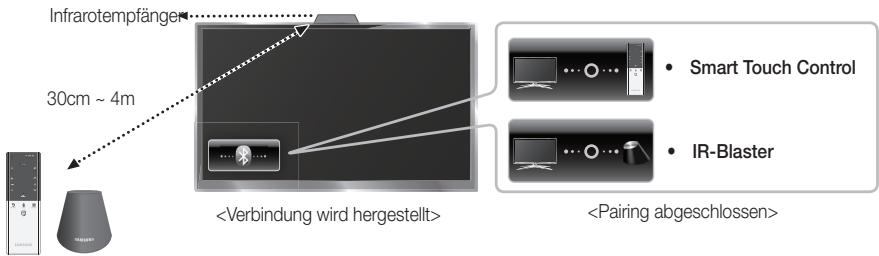
text_image
Infrarotempfänger 30cm ~ 4mSmart Touch Control
Sobald Sie die Anfangseinstellung Ihres Fernsehgeräts durchgeführt haben, sollten Sie Ihre Smart Touch Control mit dem Fernseher verbinden.
- Schalten Sie das Fernsehgerät durch Drücken der Taste 🔊 ein.
- Links unten auf dem Bildschirm werden die Verbindungssymbole angezeigt, und das Fernsehgerät stellt automatisch eine Verbindung zur Smart Touch Control her.
Wenn Sie das Pairing-Verfahren erneut durchführen möchten, drücken Sie mit einem Stift oder der Spitze einer auseinander gebogenen Heftklammer in die Rücksetzöffnung hinten in der Mitte der Abdeckung. Die Smart Touch Control wird initialisiert.
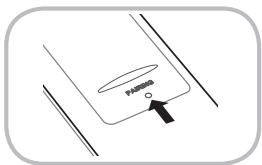
text_image
PASSING• Rücksetztaste für das PAIRING der Smart Touch Control
IR-Blaster
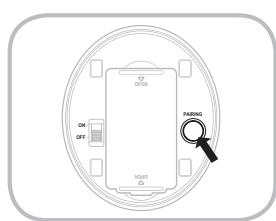
text_image
ON OFF SOLD SOLD PARKING- Schalten Sie den IR-Blaster ein. Sobald die LED-Anzeige blinkt, müssen Sie den IR-Blaster mit dem Fernsehgerät verbinden.
- Bewegen Sie den IR-Blaster in Richtung des IR-Empfängers an Ihrem Fernsehgerät, und drücken Sie dann einmal kurz die Taste PAIRING auf der Unterseite des IR-Blasters.
- Links unten auf dem Bildschirm werden die Verbindungssymbole angezeigt, und das Fernsehgerät stellt automatisch eine Verbindung zum IR Blaster her.
Wenn das Herstellen der Verbindung fehlschläft, schalten Sie den IR-Blaster aus und wieder ein, und wiederholen Sie das Verfahren ab Schritt 2.
Kalibrieren des Touchpads
Gehen Sie folgendermaßen vor, um das Touchpad der Smart Touch Control zu kalibrieren:
- Halten Sie die Taste NUMBER: 3 Sekunden lang gedrückt. Die Kalibrierung wird gestartet.
- Anschließend blinken alle LEDs im oberen Bereich der Smart Touch Control gleichzeitig zweimal.
Berühren Sie während der Kalibrierung nicht das Touchpad.
Wenn das Touchpad nicht mehr genau genug reagiert, wiederholen Sie die Schritte 1 und 2, um es erneut zu kalibrieren.
Verwenden des Touchpads
Zum Anzeigen der Liste mit den Schnellzugriffsfunktionen im unteren Bereich des Bildschirms drücken Sie auf die Taste 🔍 unten am Touchpad. Diese Liste ermöglicht den Schnellzugriff auf die Menüs Menü, Quelle, SENDERL., 3D, AllShare Play, Unterstützung sowie eine Reihe anderer Funktionen.
Wenn Sie die Taste ● ● ○ ●: oben am Touchpad drücken, können Sie im oberen Bereich des Bildschirms die Funktionen für die Farb- und Wiedergabesteuerung anzeigen.
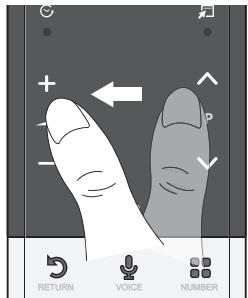
text_image
Diagram illustrating finger movement with icons for return, voice, and number, showing directional arrows and a hand gesture.Zum Verschieben der Markierung: Legen Sie Ihren Finger auf das Touchpad, und bewegen Sie ihn dann auf dem Touchpad von links nach rechts oder von oben nach unten bzw. umgekehrt.
Wenn Sie die Markierung kontinuierlich bewegen möchten, bewegen Sie den Finger schnell von links nach rechts oder von oben nach unten bzw. umgekehrt.

text_image
Hand gesture interface with navigation buttons including RETURN, VOICE, NUMBER, and directional iconsZum Auswählen eines Elements: Tippen Sie auf das Touchpad.
Verwenden des Blättermodus
Wenn Sie das Touchpad während dem Verwenden der Funktionen Smart Hub, Webbrowser und AllShare Play berühren, wechselt das Touchpad in den Blättermodus.
Wenn Sie im Blättermodus Ihren Finger auf dem Touchpad von einer Seite zur anderen bewegen, wird auf dem Bildschirm zur nächsten oder vorherigen Seite geblättert.
Um zum Standardmodus des Touchpads zurückzukehren, tippen Sie entweder auf das Touchpad oder drücken Sie die Taste RETURN auf Ihrer Smart Touch Control.
Eingeben einer Sendernummer mit der Smart Touch Control
- Drücken Sie während Sie fernsehen die Taste NUMBER: auf der Smart Touch Control. Auf dem Fernsehgerät wird das Fenster mit der Zifferntastatur angezeigt.
- Markieren Sie mit Hilfe des Touchpads eine Nummer, und tippen Sie dann auf das Touchpad. Auf dem Bildschirm wird eine Liste mit Sendern angezeigt, die mit der von Ihnen ausgewählten Nummer beginnen.
- Markieren Sie mit Hilfe des Touchpads den gewünschten Sender in der Liste, und tippen Sie dann auf das Touchpad.
Sie können den Sender ebenfalls wechseln, indem Sie auf dem Touchpad das Auf- oder Ab-Symbol für den Senderwechsel berühren. Wenn Sie unmittelbar danach auf das Touchpad tippen, wird die Liste der gespeicherten Sender angezeigt. Wählen Sie einen Sender aus, indem Sie den Finger langsam oder schnell bewegen und dann auf das Touchpad tippen.
Zum Anzeigen des Menüs „Extras“
Drücken Sie die Taste 📋 rechts am Touchpad.
Zum Anzeigen einer Liste der bisher angezeigten Sender
Drücken Sie die Taste ✉ links am Touchpad.
Einrichten der Smart touch control für die Verwendung als Universalfernbedienung
Hiermit können Sie einen an Ihren Fernseher angeschlossenen Receiver (STB) oder BD-Player mit Hilfe der Smart Touch Control bedienen. Nachdem Sie das externe Gerät an das Fernsehgerät angeschlossen haben, kann die Smart Touch Control die Navigation, die Zahlen und anderen Tasten steuern, die zum Bedienen dieses Geräts benötigt werden.
Mit der Universalfernbedienung können Sie zwar die Lautstärke des Fernsehgeräts, jedoch nicht die des Receivers regeln. Stellen Sie die Lautstärke des Receivers auf den gewünschten Wert ein, wenn Sie über diesen fernsehen möchten.
Je nach Version der Anwendung können die Anweisungen für das Verfahren Universalfernb. - Einr. unterschiedlich sein. Befolgen Sie in diesem Fall die Anweisungen auf dem Bildschirm.
Gehen Sie folgendermaßen vor, um mit Hilfe Ihrer Smart Touch Control eine Verbindung zum externen Gerät herzustellen:
- Wählen Sie Zu steuerndes Gerät einrichten, und drücken Sie dann auf das Touchpad.
- Wählen Sie das gewünschte externe Gerät in der Liste der angeschlossenen Geräte aus, und drücken Sie dann auf das Touchpad.
- Wählen Sie den Anschluss aus, über den das gewählte externe Gerät angeschlossen ist, und drücken Sie dann auf das Touchpad.
Stellen Sie sicher, dass das ausgewählte Gerät eingeschaltet ist. Wenn das Gerät ausgeschaltet ist, schalten Sie es nun ein, und wählen Sie Aktual..
- Wählen Sie Herst./Dienstanb. des Fernsehers suchen, und drücken Sie dann auf das Touchpad. Auf dem Bildschirm werden eine Tastatur und ein Eingabefeld angezeigt. Geben Sie mit Hilfe der Smart Touch Control die ersten Buchstaben des Markennamens Ihres Geräts ein, und wählen Sie anschließend am unteren Rand der Tastatur die Option Fertig. Wählen Sie in der unter dem Eingabefeld angezeigten Liste den Markennamen Ihres Geräts aus, und drücken Sie dann auf das Touchpad.
Um nach einem bestimmten Receiver (Set-Top-Box) zu suchen, können Sie den Markennamen oder einen Kabeldienstanbieter als Suchbegriff verwenden.
- Wählen Sie MODELL SUCHEN, und drücken Sie dann auf das Touchpad. Auf dem Bildschirm werden eine Tastatur und ein Eingabefeld angezeigt. Geben Sie mit Hilfe der Touch Control die ersten Buchstaben und Zahlen der Modellbezeichnung Ihres Geräts ein, und wählen Sie anschließend am unteren Rand der Tastatur die Option Fertig. Wählen Sie in der unter dem Eingabefeld angezeigten Liste die Modellbezeichnung Ihres Geräts aus, und drücken Sie dann auf das Touchpad.
Wenn die Suche nach der Modellbezeichnung nicht das gewünschte Ergebnis erbringt, wiederholen Sie die Suche mit nur einem Teil der Modellbezeichnung oder verwenden Sie die Option „search for recommended model code (Nach empfohlenem Modellcode suchen)“.
- Wählen Sie Download, und drücken Sie dann auf das Touchpad. Laden Sie auf die gleiche Weise die Konfigurationsdaten für den IR Blaster herunter.
- Wenn alle Einstellungen abgeschlossen sind, wählen Sie abgeschl., und drücken Sie auf das Touchpad.
Wenn Sie die Smart Touch Control und den IR-Blaster erneut einrichten möchten, drücken Sie auf der Smart Touch Control die Taste 🎨 Universalfern.
- Einr..
Suchen nach dem empfohlenen Modellcode.
- Wählen Sie im Schritt MODELL SUCHEN für das Einrichten der integrierten Fernbedienung die Option Empfohlenes Modell, und drücken Sie auf das Touchpad.
- Wählen Sie Download, um den empfohlenen Modellcode herunterzuladen.
- Richten Sie die Smart Touch Control auf den IR-Sensor am externen Geräts, und drücken Sie dann auf das Touchpad, um die ordnungsgemäße Funktionsweise des Geräts zu überprüfen.
- Wenn der heruntergeladene empfohlene Modellcode nicht funktioniert, wiederholen Sie das Verfahren ab Schritt 3.
Wenn Sie das BD-Heimkinosystem mit Hilfe einer Universalfernbedienung steuern, stehen einige Schaltflächen möglicherweise nicht zur Verfügung. In diesem Fall empfehlen wir die Verwendung der Funktion Anynet+ (HDMI-CEC).
Fernbedienung
Dies ist eine spezielle Fernbedienung für Personen mit eingeschränktem Sehvermögen. Die Ein/Aus-Taste sowie die Tasten zum Einstellen des Senders und der Lautstärke sind in Braille beschriftet.
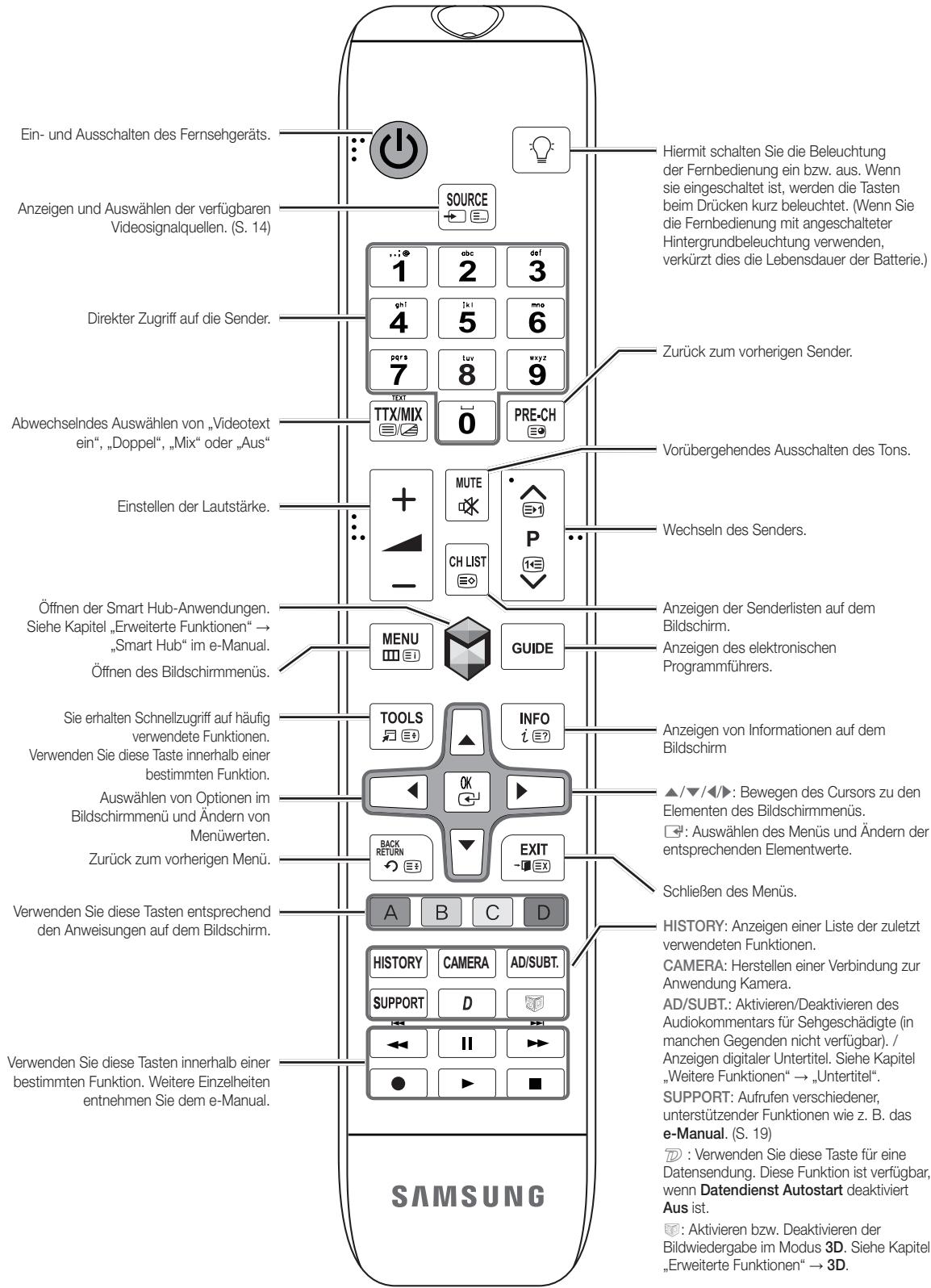
text_image
Ein- und Ausschalten des Fernsehgeräts. Anzeigen und Auswählen der verfügbaren Videosignalquellen. (S. 14) Direkter Zugriff auf die Sender. Abwechselndes Auswählen von „Videotext ein“, „Doppel“, „Mix“ oder „Aus“ Einstellen der Lautstärke. Öffnen der Smart Hub-Anwendungen. Siehe Kapitel „Erweiterte Funktionen“ → „Smart Hub“ im e-Manual. Öffnen des Bildschirmmenüs. Sie erhalten Schnellzugriff auf häufig verwendete Funktionen. Verwenden Sie diese Taste innerhalb einer bestimmten Funktion. Auswählen von Optionen im Bildschirmmenü und Ändern von Menüwerten. Zurück zum vorherigen Menü. Verwenden Sie diese Tasten entsprechend den Anweisungen auf dem Bildschirm. Verwenden Sie diese Tasten innerhalb einer bestimmten Funktion. Weitere Einzelheiten entnehmen Sie dem e-Manual. SOURCE Hiermit schalten Sie die Beleuchtung der Fernbedienung ein bzw. aus. Wenn sie eingeschaltet ist, werden die Tasten beim Drücken kurz beleuchtet. (Wenn Sie die Fernbedienung mit angeschalteter Hintergrundbeleuchtung verwenden, verkürzt dies die Lebensdauer der Batterie.) Zurück zum vorherigen Sender. Vorübergehendes Ausschalten des Tons. Wechseln des Senders. Anzeigen der Senderlisten auf dem Bildschirm. Anzeigen des elektronischen Programmführers. Anzeigen von Informationen auf dem Bildschirm ▲/▼/◄►: Bewegen des Cursors zu den Elementen des Bildschirmmenüs. □: Auswählen des Menüs und Ändern der entsprechenden Elementwerte. Schließen des Menüs. HISTORY: Anzeigen einer Liste der zuletzt verwendeten Funktionen. CAMERA: Herstellen einer Verbindung zur Anwendung Kamera. AD/SUBT.: Aktivieren/Deaktivieren des Audiokommentars für Sehgeschädigte (in manchen Gegenden nicht verfügbar). / Anzeigen digitaler Untertitel. Siehe Kapitel „Weitere Funktionen“ → „Untertitel”. SUPPORT: Aufrufen verschiedener, unterstützender Funktionen wie z. B. das e-Manual. (S. 19) 7 : Verwenden Sie diese Taste für eine Datensendung. Diese Funktion ist verfügbar, wenn Datendienst Autostart deaktiviert Aus ist. ■: Aktivieren bzw. Deaktivieren der Bildwiedergabe im Modus 3D. Siehe Kapitel „Erweiterte Funktionen“ → 3D. SAMSUNGSetzen Sie die Batterien mit der richtigen Polung entsprechend den Symbolen im Batteriefach ein.
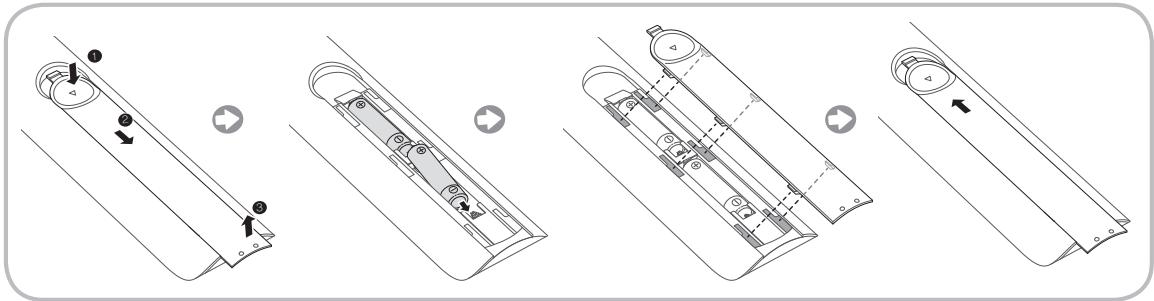
text_image
Technical diagram showing five-step assembly of a device with labeled parts and directional arrows indicating motion or assembly.
HINWEISE
- Setzen Sie die Batterien mit der richtigen Polung (+/-) entsprechend der Abbildung im Batteriefach ein.
- Setzen Sie die Fernbedienung bis zu einer Entfernung von maximal 7 m zum Fernsehgerät ein.
- Helles Licht kann die Leistung der Fernbedienung verschlechtern. Vermeiden Sie Leuchtstoffröhren oder ein Neonschild in der Nähe der Fernbedienung.
• Form und Farbe können je nach Modell unterschiedlich sein.
Einstellung (Anfangseinstellung)
Wenn Sie das Fernsehgerät zum ersten Mal einschalten, helfen eine Reihe aufeinanderfolgender Abfragen und Fenster beim Durchführen der Grundeinstellungen. Drücken Sie zum Konfigurieren der Einstellungen die Taste 🔊 auf Ihrer Fernbedienung.
Das Menü Einstell. ist nur verfügbar, wenn die Eingangsquelle auf „TV“ eingestellt ist. Siehe „Ändern der Eingangsquelle“ (S. 14).
Um zum vorherigen Schritt für das Konfigurieren der Einstellungen zurückzukehren, wählen Sie Zurück.
Zunächst müssen Sie sicherstellen, dass das Fernsehgerät an eine Antenne oder ein Kabel angeschlossen ist (S. 5).
Wählen Sie zum Starten der Funktion Einstell. die Option Start.
| 1 | Menüsprache:Auswählen der Sprache. | Wählen Sie mit Hilfe der Fernbedienung die gewünschte Menüsprache aus, und wählen Sie dann Weiter. Ab dem nächsten Schritt zeigt das Fernsehgerät die Menüs in der ausgewählten Sprache an. |
| 2 | Modusauswahl: Auswählen des Modus „Privatgebrauch“. | Wählen Sie mit Hilfe der Fernbedienung zunächst Privatgebrauch und dann Weiter. Der Modus Shop-Demo ist für den Betrieb beim Fachhändler bestimmt. |
| 3 | Netzwerkeinstellungen:Konfigurieren der NetzwerkeinstellungenWenn Sie die Verbindung zu einem späteren Zeitpunkt herstellen möchten, wählen Sie Überspr. | Wenn Sie die Netzwerkverbindung jetzt einrichten möchten, wählen Sie mit Hilfe der Fernbedienung Start. Wenn Sie Ihre Netzwerkinformationen nicht kennen oder sie später einrichten möchten, wählen Sie Überspr. Weitere Informationen zu den Konfigurationsanforderungen und -anweisungen finden Sie im e-Manual unter „Konfigurieren des Kabel- und Drahtlosnetzwerks“ sowie im Abschnitt zur Netzwerkverbindung in diesem Handbuch (Seite 18). Sie können die Netzwerkverbindung später mit Hilfe des Menüs Netzwerk einrichten. |
| 4 | Software-Update: Aktualisierender Software mit der neusten VersionWenn Sie das Update später durchführen möchten, wählen Sie Überspr. | Wählen Sie Weiter, um die Software des Fernsehgeräts zu aktualisieren. Das Software-Update wird automatisch durchgeführt, wenn Ihr Fernsehgerät eine ältere Version verwendet. Wenn Sie die Aktualisierung später durchführen möchten, wählen Sie Überspr. Weitere Informationen finden Sie im e-Manual unter Software-Update („Voreinstellungen“ → Menü „Unterstützung“).Dies kann je nach Netzwerkstatus einige Zeit dauern. |
| 5 | Vertragsbedingungen | Wenn Sie die Werte unter Netzwerkeinstellungen konfiguriert haben, wird das Fenster Vertragsbedingungen angezeigt.Es kann einige Sekunden dauern, bis das Fenster angezeigt wird.Das Fenster Allg. Haftungsausschl. wird angezeigt. Wählen Sie Zustimmen. Das Fenster D.-Sch.-Richtl. wird angezeigt. Wählen Sie Zustimmen.Wenn Sie die Funktion Smart Hub verwenden möchten, müssen Sie zunächst unter Vertragsbedingungen die Option Zustimmen auswählen. |
| 6 | Das Land wählen.(Je nach Land) | Wählen Sie das gewünschte Land aus.Nachdem Sie im Menü „Land“ das Land eingestellt haben, werden Sie bei manchen Modellen aufgefordert, die PIN-Nummer einzurichten. |
| 7 | Autom. Sendersuchlauf (1):Auswählen, wie Sie fernsehen möchten. | Sendereinstellung: Ist es erforderlich, am Fernsehgerät Sender zu suchen und einzustellen?Ja, Sendersuchl. ausführen: Alle verfügbaren Sender werden gesucht und im Fernsehgerät gespeichert.Nein, nicht erforderlich: Sender werden über Set-Top-Box (externen Receiver) empfangen, keine Sendersuche am Fernsehgerät erforderlich. |
| 8 | Autom. Sendersuchlauf (2):Auswählen von Suchoptionen und Regionsauswahl (Je nach Land) | Wählen Sie den Sendertyp für den Suchlauf aus. Wenn Sie den Antennentyp auf Kabel einstellen, können Sie den Sendern im nächsten Schritt einen Zahlenwert (Senderfrequenzen) zuweisen. Weitere Informationen finden Sie im e-Manual unter Autom. Sendersuchlauf (Menü „Sender“ → „Speichern von Sendern").Wenn zuerst die Option Terrestrisch oder Kabel gewählt wird: Nachdem alle Sender für die Optionen Terrestrisch oder Kabel gespeichert wurden, wird der Schritt zum Speichern von Sendern für die Option Satellit angezeigt.Wenn zuerst die Option Satellit gewählt wird: Nachdem alle Sender für die Option Satellit gespeichert wurden, wird der Schritt zum Speichern von Sendern für die Optionen Terrestrisch und Kabel angezeigt.Wählen Sie zum Unterbrechen des Speichervorgangs zu einem beliebigen Zeitpunkt die Option Stopp. |
| 9 | Uhr: Einstellen des Uhrmodus | Auto: Hiermit wird die aktuelle Uhrzeit automatisch eingestellt.Manuell: Hiermit können Sie das Datum und die Uhrzeit manuell einstellen. |
| 10 | Zeitzone(Je nach Land) Einstellen Ihrer Zeitzone | Diese Funktion ist nur verfügbar, wenn Sie den Uhrmodus auf Auto eingestellt haben.Auto: Hiermit wird die Zeitzone automatisch eingestellt.Manuell: Hiermit wird die Zeitzone manuell eingestellt.Wenn Sie Manuell gewählt haben, können Sie auswählen, ob Sie die Sommerzeit aktivieren (Ein) oder deaktivieren (Aus) möchten. (je nach Land) |
| 11 | Sprach- und Bewegungssteuerung: Hiermit richten Sie die Sprach- und Gestensteuerungsfunktion ein. | Sie können die Funktion Sprach- und Bewegungssteuerung aktivieren (ein) oder deaktivieren (aus). Deaktivieren oder aktivieren Sie die Funktion, und wählen Sie dann Weiter. Weitere Informationen finden Sie unter „SMART-Interaktion“ auf Seite 14 |
| 12 | Einstell. abgeschlossen | Wählen Sie zum Fertigstellen Schließen.Alle vorgenommenen Einstellungen werden angezeigt. |
So setzen Sie diese Funktion zurück:
Menü → System → Einstell.
Wählen Sie System - Einstell. (Anfangseinstellung). Geben Sie Ihre 4-stellige PIN ein. Die Standard-PIN lautet „1-1-1-1“. Verwenden Sie zum Ändern der PIN die Funktion PIN ändern.
Sie sollten das Verfahren für Einstell. (Menü → System) zuhause erneut durchführen, selbst wenn Sie es bereits im Geschäft durchgeführt haben.
Wenn Sie den PIN-Code vergessen haben, drücken Sie die Tasten auf der Fernbedienung im Standby-Modus in der angegebenen Reihenfolge, um die PIN auf „1-1-1-1“ zurückzusetzen: MUTE → 8 → 2 → 4 → POWER (Ein).

Weitere Informationen finden Sie im e-Manual unter Anschließen des Fernsehgeräts.
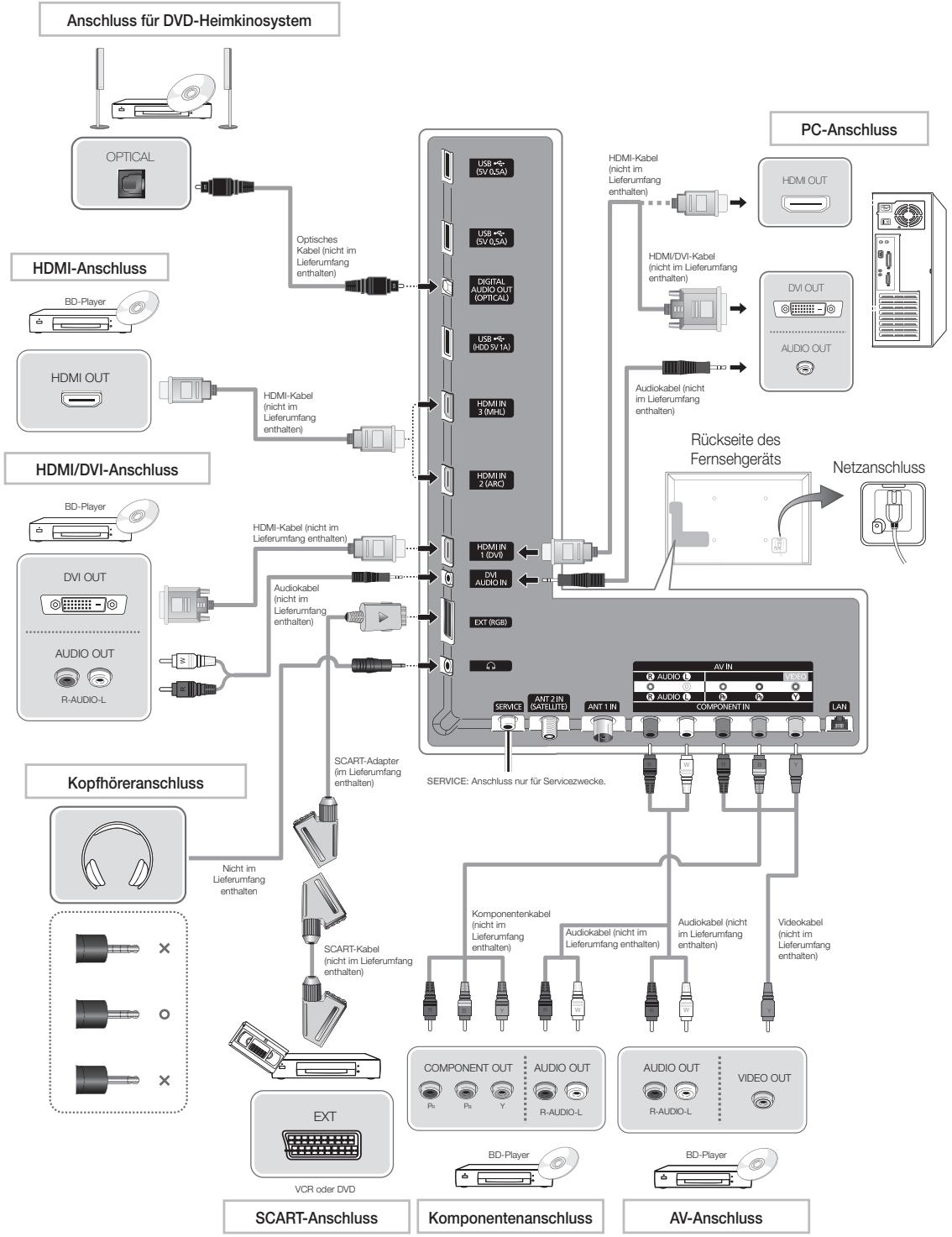
flowchart
graph TD
    A["Anschluss für DVD-Heimkinosystem"] --> B["OPTICAL"]
    B --> C["Optisches Kabel (nicht im Lieferumfang enthalten)"]
    C --> D["USB 5V (50kA)"]
    C --> E["USB 5V (50kA)"]
    D --> F["DIGITAL AUDIO OUT (OPTICAL)"]
    E --> G["USB 5V (50kA)"]
    F --> H["HDMI IN 3 (MHD)"]
    G --> I["HDMI IN 2 (ABO)"]
    H --> J["HDMI IN 1 (DVB)"]
    I --> K["AVIO IN"]
    J --> L["DC"]
    K --> M["EXT (RGB)"]
    L --> N["SCART-Adapter (im Lieferumfang enthalten)"]
    M --> O["SCART-Kabel (nicht im Lieferumfang enthalten)"]
    N --> P["SCART-Anschluss"]
    O --> Q["Componenten kabel (nicht im Lieferumfang enthalten)"]
    P --> R["COMPONENT OUT"]
    Q --> S["AVIO OUT"]
    R --> T["AVIO OUT"]
    S --> U["VIDEO OUT"]
    T --> V["VIDEO OUT"]
    W["PC-Anschluss"] --> X["HDMI OUT"]
    X --> Y["PCI"]
    Y --> Z["DVI OUT"]
    Z --> AA["PCI"]
    AA --> AB["AUDIO OUT"]
    AB --> AC["PCI"]
    AC --> AD["Rückseite des Fernsehgeräts"]
    AD --> AE["Netzanschluss"]
    AF["HDMI-Anschluss"] --> AG["BD-Player"]
    AG --> AH["HDMI OUT"]
    AH --> AI["HDMI Kabel (nicht im Lieferumfang enthalten)"]
    AI --> AJ["HDMI IN 3 (MHD)"]
    AJ --> AK["HDMI IN 2 (ABO)"]
    AK --> AL["HDMI IN 1 (DVB)"]
    AL --> AM["AVIO IN"]
    AM --> AN["EXT (RGB)"]
    AN --> AO["SCART-Adapter (im Lieferumfang enthalten)"]
    AO --> AP["HDMI OUT"]
    AP --> AQ["HDMI Kabel (nicht im Lieferumfang enthalten)"]
    AQ --> AR["HDMI IN 3 (MHD)"]
    AR --> AS["HDMI IN 2 (ABO)"]
    AS --> AT["HDMI IN 1 (DVB)"]
    AT --> AU["AVIO IN"]
    AU --> AV["EXT (RGB)"]
    AV --> AW["SCART-Adapter (im Lieferumfang enthalten)"]
    AW --> AX["Nicht im Lieferumfang enthalten"]
    AX --> AY["HDMI OUT"]
    AY --> AZ["HDMI Kabel (nicht im Lieferumfang enthalten)"]
    AZ --> BA["AVIO IN"]
    BA --> BB["EXT (RGB)"]
    BB --> BC["SCART-Adapter (im Lieferumfang enthalten)"]
    BC --> BD["Nicht im Lieferumfang enthalten"]
    BD --> BE["SCART-Anschluss"]
    BE --> BF["Componenten kabel (nicht im Lieferumfang enthalten)"]
    BF --> BG["AVIO OUT"]
    BG --> BH["AVIO OUT"]
    BH --> BI["VIDEO OUT"]
    BI --> BJ["VID"]
    BJ --> BK["VID"]
    BK --> BL["AV-Anschluss"]

Die optimale Kabelverbindung ist bei diesem Gerät gewährleistet, wenn Sie Kabel mit den nachfolgend angegebenen Maßen verwenden:
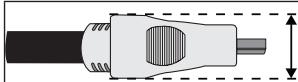
• Maximaler Durchmesser - 14 mm
Ändern der Eingangsquelle
Quelle
→ Quelle
Wenn Sie fernsehen und einen Film über Ihren DVD- oder Blu-ray-Player wiedergeben oder über Ihren Kabel- oder Satellitenreceiver fernsehen möchten, müssen Sie zunächst die Quelle ändern.
TV / Ext. / HDMI1/DVI / HDMI2 / HDMI3 / AV / Component
- Drücken Sie auf Ihrer Fernbedienung die Taste 📋. Das Fenster Smart Hub wird angezeigt.
- Wählen Sie Quelle. Das Fenster Quelle wird angezeigt.
- Wählen Sie die gewünschte externe Eingangsquelle.
Alternativ können Sie das Fenster Quelle öffnen, indem Sie auf Ihrer Standardfernbedienung die Taste Quelle → drücken oder mit Hilfe der Smart Touch Control Quelle auswählen (siehe Seite 6).
Sie können lediglich externe Geräte auswählen, die an das Fernsehgerät angeschlossen sind. In der angezeigten Liste Quelle sind die angeschlossenen Eingangsquellen hervorgehoben.
Verwenden der Funktion Name bearb.
Name bearb. ermöglicht Ihnen, einer Eingangsquelle einen Gerätenamen zuzuweisen. Um die Funktion Name bearb. zu verwenden, öffnen Sie in der Liste Quelle das Menü Extras. Die Funktion Name bearb. bietet die folgenden Auswahlmöglichkeiten:
VCR / DVD / Kabel-STB / Sat-STB / PVR-STB / AV-Receiver / Spiel / Camcorder / PC / DVI PC / DVI-Geräte / TV / IPTV / Blu-ray / HD DVD / DMA: Wählen Sie eine Eingangsbuchse und dann den Namen des an diese Buchse angeschlossenen Geräts aus der angezeigten Liste aus. Wenn Sie beispielsweise einen Blu-ray-Player an den HDMI IN 2-Eingang angeschlossen haben, müssen Sie für diese Buchse die Option „Blu-ray“ wählen.
Wenn Sie einen PC über ein HDMI-Kabel an den Eingang HDMI IN 1 (DVI) anschließen, wählen Sie im Fenster Name bearb. unter HDMI1/DVI die Option PC aus.
Wenn Sie einen PC über ein HDMI/DVI-Kabel an den Eingang HDMI IN 1 (DVI) anschließen, wählen Sie im Fenster Name bearb. unter HDMI1/DVI die Option DVI PC aus.
Wenn Sie ein AV-Gerät über ein HDMI/DVI-Kabel an den Eingang HDMI IN 1 (DVI) anschließen, wählen Sie im Fenster Name bearb. unter HDMI1/DVI die Option DVI-Geräte aus.
Information
Sie können Detailinformationen zum ausgewählten externen Gerät anzeigen.
Aktual.
Wenn das gewünschte externe Gerät nicht in der Liste Quelle angezeigt wird, wählen Sie im Menü Extras die Option Aktual.. In der Liste werden alle angeschlossenen Geräte angezeigt.
Alternative können Sie die Liste der verfügbaren Quellen im Fenster Quelle anzeigen, indem Sie mit Hilfe der Fernbedienung die Option A auswählen.
SMART-Interaktion
Mit Hilfe dieser Funktion können Sie mit Hilfe von Sprache, Gesten oder Gesichtserkennung auf Menüoptionen und Funktionen zugreifen und diese ausführen oder bearbeiten.
HAFTUNGAUSSCHLUSS IN DER INFORMATIONSBROSCHÜRE
• Anmeldung mit der Gesichtserkennung
Damit Sie sich mit Hilfe der Gesichtserkennung bei einer Funktion anmelden können, wird ein Miniaturbild Ihres Gersichts in Ihrem Fernsehgerät gespeichert.
Wenn Sie sich mit Hilfe der Gesichtserkennung bei Smart Hub anmelden, ist dieser Vorgang möglicherweise unsicherer als die Anmeldung mit Hilfe einer Benutzerkennung und eines Kennworts.
• Verwendung der TV-Kamera
Sie sollten sich vor Verwendung der TV-Kamera bewusst machen, dass Sie unter bestimmten Umständen und bestimmten rechtlichen Bedingungen für Ihre missbräuchliche Verwendung der TV-Kamera rechtlich haften. Daher müssen Sie vor dem Verwenden der TV-Kamera zustimmen, dass Sie die Kamera nicht nutzen (i) an Orten, an denen das Filmen mit Kameras generell verboten ist (wie z. B. in Badezimmern, Umkleiden oder Ankleidezimmern), (ii) in einer Art und Weise, die zu einer Verletzung der Privatsphäre anderer Personen führt oder (iii) gegen geltende Gesetze, Bestimmungen oder Regelungen verstößt.
Sprachsteuerung
Menü → System → Sprach- und Bewegungssteuerung → Sprachsteuerung
Hiermit aktivieren bzw. deaktivieren Sie die Spracherkennung. Hiermit können Sie mit Hilfe von Sprache auf Menüoptionen und Funktionen zugreifen und diese ausführen oder bearbeiten.
Um die Funktion Sprachsteuerung nutzen zu können, müssen Sie die Begriffe und Sätze klar und deutlich sowie in der von Ihnen unter Sprache ausgewählten Sprache richtig aussprechen.
Die Funktion Sprachsteuerung wird je nach Umgebungsgeräuschen möglicherweise nicht ordnungsgemäß ausgeführt.
Sie können die Sprachbefehle auf zweierlei Weise an das Fernsehgerät übermitteln:
- Über das integrierte Mikrofon des Fernsehgeräts. (Erkennung aus der Distanz)
- Mit Hilfe der Taste VOICE auf Ihrer Fernbedienung. (Erkennung aus nächster Nähe)
Wenn Sie das im Fernsehgerät eingebaute Mikrofon verwenden, werden die gesprochenen Worte aufgrund der Umgebungsgeräusche möglicherweise nicht eindeutig erkannt. Versuchen Sie in diesem Fall die Taste VOICE ^↓ auf Ihrer Fernbedienung. Auf diese Weise kann das Fernsehgerät einen Sprachbefehl leichter erkennen.
Die Taste VOICE↓ auf Ihrer Fernbedienung ist immer aktiviert. Wenn Sie das im Fernsehgerät integrierte Mikrofon verwenden möchten, aktivieren Sie die Funktion Sprachsteuerung (System → Sprach- und Bewegungssteuerung → Sprachsteuerung).
Wenn eine Menüoption oder Funktion von der Sprachsteuerung nicht unterstützt wird, empfehlen wir, die Funktion Bewegungssteuerung auszuprobieren. Zum Verwenden der Gestensteuerung halten Sie anschließend Ihre Hand in Richtung der Kamera, und bewegen Sie sie drei- oder viermal von einer Seite zur anderen.
■ Sprachsteuerung
Hiermit wird die Funktion Sprachsteuerung aktiviert bzw. deaktiviert.
Die Taste VOICE↓ auf Ihrer Fernbedienung ist immer aktiviert.
Sprache
Hiermit wählen Sie die Sprache aus, die Sie für die Erkennungsfunktion verwenden möchten.
Wörter einschalten
Sie können die für die Funktion Wörter einschalten verwendeten Begriffe auswählen, mit denen die Sprachsteuerung aktiviert wird. Wenn die Sprachsteuerung aktiviert Ein ist, können Sie das Fernsehgerät ebenfalls mit Hilfe der Funktion Wörter einschalten if einschalten.
Wenn die Funktion Wörter einschalten auf „Hi TV“ eingestellt ist, sagen Sie Hi TV einschalten.
Wenn die Funktion Wörter einschalten auf „Smart TV“ eingestellt ist, sagen Sie Smart TV einschalten.
Größe der Sprachsteuerungsleiste
Hiermit können Sie im Modus Größe der Sprachsteuerungsleiste zwischen den Optionen Minimum oder Vollst. wählen. Minimum zeigt die Mindestanzahl von Begriffen und Sätzen an, die Sie verwenden können. Vollst. zeigt alle Begriffe und Sätze an.
Sprachempf.
Hiermit stellen Sie die Empfindlichkeit der Spracherkennungsfunktion ein.
- Geräusch: Hiermit stellen Sie die Geräuschebenen ein.
- Erkennungsfähigkeit: Hiermit stellen Sie die Reaktionsgeschwindigkeit der Spracherkennungsfunktion ein.
■ Test der Sprachsteuerungsumgebung Test der Sprachsteuerungsumgebung
Sie können den Geräuschpegel über das im Fernsehgerät integrierte Mikrofon überprüfen.
- Geräuschtest: Mit diesem Test überprüfen Sie den Geräuschpegel des TV-Mikrofons. Wählen Sie mit Hilfe der Fernbedienung Weiter. Der Test wird gestartet und dauert in der Regel wenige Sekunden. Seien Sie während der Dauer des Tests so leise wie möglich.
- Mikrofon- und Lautsprechertest: Mit diesem Test überprüfen Sie den Gerauschpegel des TV-Mikrofons und der Lautsprecher. Wählen Sie mit Hilfe der Fernbedienung Start. De\v Test wird gestartet und dauert in der Regel wenige Sekunden. Seien Sie während der Dauer des Tests so leise wie möglich.
Nur verfügbar, wenn die Option Lautsprecher auswählen auf TV-Lautsprecher eingestellt ist.
- Sprachsteuerungstest: Mit diesem Test überprüfen Sie die Lautstärke und Klarheit Ihrer Stimme für die Verwendung der Funktion Sprachsteuerung. Wählen Sie mit Hilfe der Fernbedienung Start. Der Test wird gestartet. Lesen Sie den vorgegebenen Text für den Test so laut und deutlich wie möglich vor.
Wenn der Test nicht durchgeführt wird, wählen Sie die Option Neu testen, und lesen Sie den vorgegebenen Text wieder laut und deutlich vor.
Gehen Sie folgendermaßen vor, um die Funktion Sprachsteuerung
zu verwenden:
Wenn die Funktion Sprachsteuerung auf Ein eingestellt ist, wird das Fernsehgerät aufgrund der Umgebungsbedingungen möglicherweise nicht angeschaltet.
- Sprechen Sie das von Ihnen ausgewählte Schlüsselwort in das im Fernsehgerät integrierte Mikrofon, oder halten Sie die Taste VOICE auf Ihrer Fernbedienung gedrückt. Auf dem Bildschirm wird das Fenster Test der Sprachsteuerungsumgebung angezeigt.
Wenn Sie die Funktion Sprachsteuerung verwenden, wird die Lautstärke automatisch auf 5 eingestellt.
- Lesen Sie einen Begriff oder Satz vor, der im Test der Sprachsteuerungsumgebung aufgelistet ist. Wenn Sie dazu die Taste VOICE ^↓ auf Ihrer Fernbedienung gedrückt gehalten haben, geben Sie sie nun frei.
Sprechen Sie den Begriff oder Satz deutlich und korrekt in der von Ihnen unter Sprache gewählten Sprache aus.
- Warten Sie, bis die Erkennung abgeschlossen ist, und sprechen Sie dann den nächsten Befehl.
Wenn Sie den Modus Sprachsteuerung beenden möchten, sprechen Sie das Schlüsselwort oder den Begriff „Abbrechen“ in das im Fernsehgerät integrierte Mikrofon, oder drücken Sie erneut die Taste VOICE ^↓ auf Ihrer Fernbedienung.
Verwenden des Modus „Voice Text Input (Texteingabe durch Sprache)“
- Wechseln Sie zum Modus Sprachsteuerung, und sagen Sie laut die Wörter „Alle suchen“.
Statt der Bildschirmtastatur QWERTY können Sie auch den Modus „Voice Text Input (Texteingabe durch Sprache)“ verwenden. Sprechen Sie das von Ihnen ausgewählte Schlüsselwort in das im Fernsehgerät integrierte Mikrofon, oder halten Sie die Taste VOICE ^↓ auf Ihrer Fernbedienung gedrückt.
- Sagen Sie laut den Begriff oder Satz, nach dem Sie suchen möchten.
- Das Fernsehgerät führt die von Ihnen per Sprachsteuerung gewählte Funktion aus.
Die Leistung der Sprachsteuerung ist abhängig von der ausgewählten Sprache.
Bewegungssteuerung
Menü → System → Sprach- und Bewegungssteuerung → Bewegungssteuerung
Hiermit aktivieren bzw. deaktivieren Sie die Funktion Bewegungssteuerung. Hiermit können Sie das Fernsehgerät bedienen, indem Sie den Mauszeiger mit Hilfe von Gesten auf dem Bildschirm bewegen.
Die Funktion Bewegungssteuerung wird von einigen Anwendungen möglicherweise nicht unterstützt.
■ Bewegungssteuerung
Hiermit wird die Funktion Bewegungssteuerung aktiviert bzw. deaktiviert.
Größe der Bewegungshilfeleiste
Hiermit können Sie im Modus Größe der Bewegungshilfeleiste zwischen den Optionen Minimum und Vollst. wählen.
■ Test der Bewegungssteuerungsumgebung
Hiermit können Sie die Helligkeit im Raum und den Kamerawinkel testen.
- Helligkeitstest: Der Test überprüft, ob die im Raum herrschende Helligkeit ausreichend ist, damit die Funktion Bewegungssteuerung ordnungsgemäß ausgeführt wird. Wählen Sie mit Hilfe der Fernbedienung Start. Der Test wird gestartet und dauert in der Regel nur wenige Sekunden.
- Kamerawinkeltest: Starten Sie die Funktion Kamerawinkeltest. Wählen Sie mit Hilfe der Fernbedienung Start. Richten Sie die Kamera so aus oder bewegen Sie sich so, dass Ihr Bild genau in das auf dem Bildschirm angezeigte Rechteck passt. Wenn Sie sich nicht an der richtigen Position befinden, wird der Test möglicherweise nicht ordnungsgemäß ausgeführt. Halten Sie anschließend Ihre Hand in Richtung der Kamera und bewegen Sie sie drei- oder viermal von einer Seite zur anderen.
Gehen Sie folgendermaßen vor, um die Funktion
Bewegungssteuerung zu verwenden:
-
Zum Starten der Funktion Bewegungssteuerung halten Sie Ihre Handfläche einen Moment lang ruhig in Richtung des Bildschirms, und bewegen Sie sie dann 3 - 4 Mal nach links und rechts. Bewegungssteuerung gestartet. Sobald die Funktion Bewegungssteuerung gestartet wurde, erscheint in der Mitte des Bildschirms der Cursor und am unteren Rand des Bildschirms wird die Größe der Bewegungshilfeleiste angezeigt.
-
Bedienen Sie das Fernsehgerät mit Hilfe von Gesten.
Beachten Sie, dass die Funktion Bewegungssteuerung geschlossen wird, sobald sich Ihre Hände nicht mehr innerhalb des Bildbereichs der Kamera befinden.
Wenn Sie bei aktivierter Funktion Bewegungssteuerung andere Steuergeräte verwenden (d. h. Fernbedienung, Tastatur usw.), wird die Funktion Bewegungssteuerung geschlossen.
Bedienen des Fernsehgeräts mit Hilfe von Gesten
■ Starten der Gestensteuerungsfunktion
- Aktion: Halten Sie Ihre Hand in Richtung der Kamera, und bewegen Sie sie drei- oder viermal von einer Seite zur anderen.
Zeigen
Hiermit bewegen Sie den Mauszeiger an die gewünschte Position. - Aktion: Halten Sie Ihre Hand in das Kamerafeld, und bewegen Sie der Mauszeiger an die gewünschte Position.
Ausführen
Hiermit wählen Sie Elemente oder führen Befehle aus, die markiert sind oder auf die der Mauszeiger zeigt.
- Aktion: Ballen Sie eine Faust.
Zurück
Hiermit kehren Sie zum vorherigen Menü zurück.
- Aktion: Spreizen Sie Ihre Hand, und drehen Sie sie entgegen dem Uhrzeigersinn.
■ Senderwahl / Lautstärkeeinstellung
Hiermit schalten Sie zwischen Sendern um bzw. stellen die Lautstärke ein.
Wenn Sie die Gestensteuerung beim Fernsehen verwenden, wird der Bildschirm für Senderwahl bzw. Lautstärkeeinstellung angezeigt.
- Aktion: Bewegen Sie den Mauszeiger per Zeigernavigation zur Sender- bzw. Lautstärkesteuerung und stellen Sie den Sender bzw. die Lautstärke mit der Geste Ausführen ein.
Einmaliges Verwenden der Geste Ausführen führt zum gleichen Ergebnis wie das Drücken einer Taste auf der Fernbedienung. Beibehalten der Geste Ausführen (Hand bleibt geballt) entspricht dem Drücken und Halten einer Taste auf der Fernbedienung.
Blättern
Hiermit blättern Sie in der gewünschten Richtung durch die Seite. Beispiel: Sie möchten nach unten blättern.
Einige Anwendungen unterstützen diese Funktion eventuell nicht.
-
Bewegen Sie den Mauszeiger per Zeigernavigation an den unteren Seitenrand (Bereich zum Blättern).
-
Bewegen Sie den Mauszeiger per Zeigernavigation zur Seitenmitte.
-
Auf dem Bildschirm wird eine Seite weiter geblättert.
Gesichtserkennung
→ Extras → Einstell. → Kontoverwaltung → Kontoinformationen ändern → Gesicht registr.
Hiermit schalten Sie die Funktion zur Gesichtserkennung ein oder aus. Sie können Ihr Gesicht für Ihr Samsung-Konto registrieren. Dann können Sie sich über die Gesichtserkennung bei Ihrem Samsung-Konto anmelden, ohne die Kennung oder das Passwort für das Konto einzugeben.
Sie können Ihr Gesicht nur für ein Konto registrieren.
Gehen Sie folgendermaßen vor, um Ihr Gesicht für Ihr Samsung-
Konto zu erfassen:
Zur Verwendung dieser Funktion müssen Sie sich bei Smart Hub anmelden. Wenn Sie noch kein Samsung-Konto besitzen, sollten Sie zunächst ein Konto anlegen. Weitere Informationen zum Anlegen eines Samsung-Kontos finden Sie unter "Erstellen eines Kontos" (Erweiterte Funktionen -> Smart Hub) im e-Manual.
-
Öffnen Sie im Fenster Smart Hub das Menü Extras mit Hilfe der Fernbedienung, und wählen Sie die Option Einstell.
-
Wählen Sie Kontoverwaltung. Das Fenster Kontoverwaltung wird angezeigt.
-
Wählen Sie Kontoinformationen ändern. Das Fenster Kontoinformationen ändern wird angezeigt.
-
Wählen Sie Gesicht registr.. Wenn Sie die Gesichtserkennung verwenden möchten, wählen Sie OK.
-
Geben Sie das Kennwort Ihres Kontos ein.
-
Bewegen Sie Ihr Gesicht in die Mitte des auf dem Bildschirm angezeigten Gesichtsumrisses, und warten Sie, bis die Farbe des Umrisses von rot zu grün wechselt.
Wenn die Gesichtserkennung fehlschlägt, wählen Sie die Option Erneut vers. und versuchen es erneut.
- Ihr Gesicht wurde für Ihr Samsung-Konto registriert.
Gehen Sie folgendermaßen vor, um sich mit Hilfe der Funktion
Gesichtserkennung bei Ihrem Samsung-Konto anzumelden:
Wenn Sie sich mit Hilfe der Funktion Gesichtserkennung bei Smart Hub anmelden, ist der Vorgang eventuell weniger sicher als die Anmeldung mit einem Passwort.
-
Wählen Sie im Fenster Smart Hub mit Hilfe der Fernbedienung die Option A. Das Fenster ID/Passwort wird angezeigt.
-
Wählen Sie Gesichtserkennungsmodus. Das Fenster Gesichtserkennung wird angezeigt.
Wenn Sie zum Fenster ID/Passwort zurückkehren möchten, wählen Sie die Option Kennwortmodus.
- Die Funktion Gesichtserkennung wird ausgeführt. Blicken Sie dazu bitte frontal auf den Fernsehbildschirm. Ihr Gesicht wird vom Fernsehgerät automatisch abgeglichen.
Wenn die Gesichtserkennung fehlschlägt, versuchen Sie es erneut.
- Wenn das vom Fernsehgerät erkannte Gesicht registriert ist, werden Sie automatisch für das entsprechende Konto angemeldet.
Wenn vom Fernsehgerät mehrere registrierte Gesichter erkannt werden, wird die Liste der Samsung-Konten angezeigt.
Wenn das erkannte Gesicht noch nicht registriert ist, können Sie es für Ihr Samsung-Konto registrieren. Befolgen Sie dazu die Anweisungen in den Schritten 4 bis 5 im Abschnitt „Gehen Sie folgendermaßen vor, um Ihr Gesicht für Ihr Samsung-Konto zu erfassen“.
Wenn Sie noch kein Konto besitzen, für das Sie Ihr Gesicht registrieren könnten, können Sie ein Konto erstellen. Genauere Informationen finden Sie unter "Erstellen eines Kontos" (Erweiterte Funktionen→Smart Hub) im e-Manual.
Befestigen des CI-Kartenadapters
Befestigen Sie den Adapter wie unten gezeigt.
Gehen Sie folgendermaßen vor, um den CI-Kartenadapter anzuschließen.

Wir empfehlen, den Adapter anzuschließen, bevor Sie die Wandhalterung befestigen oder die „Cl“- oder „Cl+“-Karte einstecken.
- Setzen Sie den CI-Kartenadapter in die beiden Aussparungen 1 am Fernsehgerät ein. Die beiden Aussparungen befinden sich auf der Rückseite des Fernsehgeräts neben dem Anschluss COMMON INTERFACE.
- Schließen Sie den CI-Kartenadapter an den Anschluss COMMON INTERFACE 2 am Fernsehgerät an.
- Setzen Sie die „Cl“- oder „Cl+“-Karte ein.
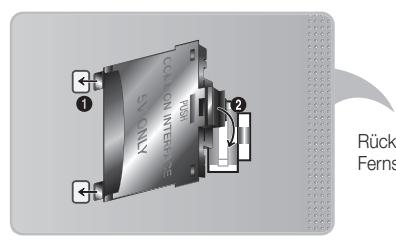
text_image
COLON INTERFACE S ONLY Rücke FernsRückseite des Fernsehgeräts
Entfernen Sie zum Installieren des CI-
Kartenadapters den Aufkleber am Fernsehgerät.

Wir empfehlen, die CI-Karte einzustecken, bevor Sie das Fernsehgerät an der Wand befestigen. Es könnte schwierig sein, sie erst nach der Montage einzustecken. Stecken Sie die Karte ein, nachdem Sie den CI-Kartenadapter am Fernsehgerät befestigt haben. Es ist schwierig, das Modul zu befestigen, wenn Sie die Karte bereits eingesteckt haben.
Verwenden der „CI“- oder „Cl+“-Karte
Um Bezahlsender zu sehen, müssen Sie eine „CI“- oder „Cl+“-Karte einsetzen.
- Wenn Sie keine „Cl“- oder „Cl+“-Karte einsetzen, wird bei einigen Sendern die Meldung „Verschlüsseltes Signal“ angezeigt.
- Die Verbindungsinformationen mit Telefonnummer, Kennung der „Cl“- oder „Cl+“-Karte, Hostkennung und anderen Angaben wird nach ungefähr 2 bis 3 Minuten angezeigt. Wenn eine Fehlermeldung angezeigt wird, wenden Sie sich bitte an Ihren Dienstanbieter.
- Wenn das Konfigurieren der Senderinformationen abgeschlossen ist, wird die Meldung „Udating Completed“ (Aktualisierung abgeschlossen) angezeigt. Dies bedeutet, dass die Senderliste aktualisiert ist.

HINWEISE
- Sie können die „Cl“- oder „Cl+“-Karte bei einem der örtlichen Kabelnetzbetreiber erwerben.
- Ziehen Sie die „Cl“- oder „Cl+“-Karte vorsichtig mit den Händen heraus. Sie könnte beim Herunterfallen ansonsten beschädigt werden.
• Die Richtung, in der Sie die „Cl“- oder „Cl+“-Karte einsetzen müssen, ist auf der Karte markiert.
• Die Position des Steckplatzes COMMON INTERFACE ist modellabhängig. - Wenden Sie sich bei Problemen an den Dienstanbieter.
- „CI“- oder „CI+“-Karten werden in einigen Ländern und Regionen nicht unterstützt. Fragen Sie diesbezüglich Ihren autorisierten Fachhändler.
- Setzen Sie eine „Cl“- oder „Cl+“-Karte ein, die für die aktuellen Antenneneinstellungen geeignet ist. Andernfalls ist das Bild gestört oder es fällt aus.
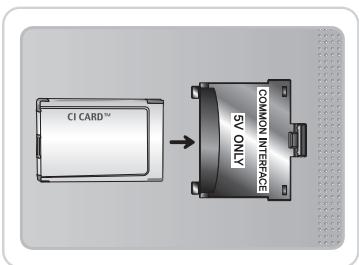
text_image
CI CARD™ 5V ONLY COMMON INTERFACEEvolution Kit-Steckplatz (Kit ist separat erhältlich)
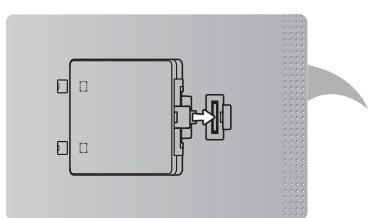
natural_image
Pure diagram of a mechanical or electrical component with no text, numbers, or symbolsDieser Steckplatz dient zum Anschließen eines Erweiterungsgeräts mit dem Namen Evolution Kit. Mit dem Evolution Kit können Sie eine Vielzahl neuster Anwendungen ausführen.
Das Evolution Kit steht nur für bestimmte Geräte zur Verfügung und ist frühestens ab 2013 separat erhältlich.
Netzwerkverbindung
Sie können Ihr Fernsehgerät so einrichten, dass es über Ihr lokales Netzwerk (LAN) und eine Kabel- oder WLAN-Verbindung auf die Anwendungen von SMART TV zugreifen kann.
Netzwerkverbindung - Drahtlos
Sie können Ihr Fernsehgerät über einen standardmäßigen WLAN-Router oder ein Modem mit Ihrem LAN verbinden.
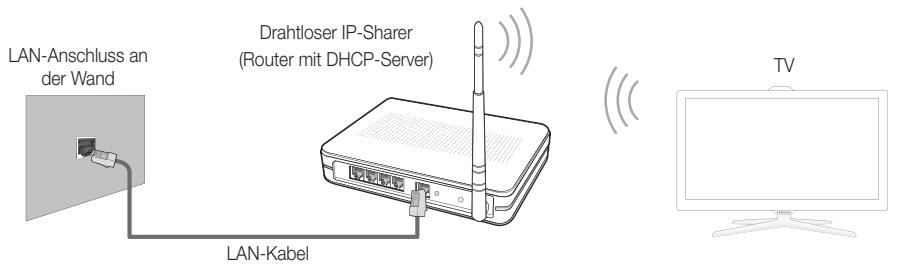
text_image
LAN-Anschluss an der Wand Drahtloser IP-Sharer (Router mit DHCP-Server) LAN-Kabel TVDer Samsung WLAN-Adapter unterstützt die Kommunikationsprotokolle IEE 802.11a/b/g und n. Samsung empfiehlt, das Protokoll IEEE 802.11 N zu verwenden. Wenn Sie Videos über die IEEE 802.11b/g-Verbindung anzeigen, wird das Videobild möglicherweise nicht ohne Unterbrechungen angezeigt.
Die meisten Drahtlosnetzwerke verfügen über ein Sicherheitssystem, bei dem alle Geräte, die über einen Zugangspunkt oder einen drahtlosen Router (in der Regel einen drahtloser IP-Sharer) auf das Netzwerk zugreifen wollen, einen verschlüsselten Sicherheitscode (den so genannten Zugriffsschlüssel) übertragen müssen.
Wenn Sie im 802.11n-Modus Pure High-throughput (Greenfield) wählen und als Verschlüsselungstyp ist für Ihren Funkrouter WEP, TKIP oder TKIP AES (WPS2Mixed) eingestellt, so unterstützt das Samsung-Fernsehgerät eine Verbindung gemäß der Spezifikation für die neue Wi-Fi-Zertifizierung nicht.
Netzwerkverbindung – Kabel
Je nach der Konfiguration Ihres Netzwerks können Sie Ihr Fernsehgerät auf zwei Arten über ein Kabel mit Ihrem Netzwerk verbinden. Diese sind im Folgenden abgebildet:
Modemanschluss an der Wand
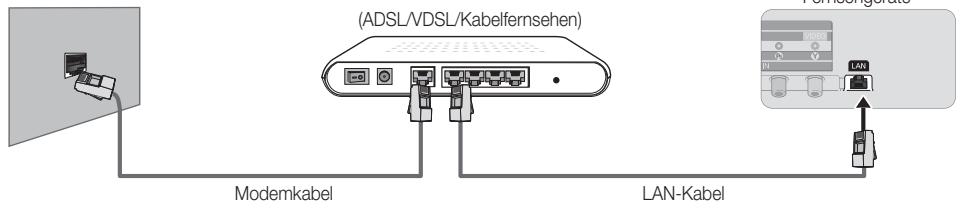
text_image
(ADSL/VDSL/Kabelfernsehen) Modemkabel LAN-KabelLAN-Anschluss an der Wand
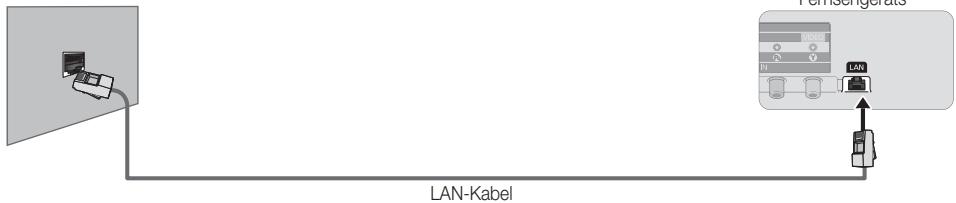
flowchart
graph TD
    A["Device"] --> B["LAN-Kabel"]
    B --> C["Port PMOS"]
    C --> D["LAN"]
    D --> E["Port"]
Eine Netzwerkgeschwindigkeit von weniger als oder gleich 10 Mbit/s wird vom Fernsehgerät nicht unterstützt.
Verwenden Sie ein CAT5- oder CAT6-Kabel (STP-Typ*) für den Anschluss. (*Shielded Twist Pair = Abgeschirmtes Kabel mit verdrillten Leiterpaaren)
Anzeigen des e-ManualManuals
Die Anweisungen zu den Funktionen Ihres Fernsehgeräts finden Sie im e-Manual. Zum Anzeigen des e-Manuals drücken Sie entweder die Taste SUPPORT auf Ihrer Standardfernbedienung oder wählen Sie mit Hilfe der Smart Touch Control die Option Unterstützung.
Sie können auch über das entsprechende Menü darauf zugreifen:
Menü → Unterstützung → e-Manual
Zugreifen auf das e-Manual
Gehen Sie folgendermaßen vor, um die Funktion e-Manual zu verwenden:
- Wenn Sie Hilfe benötigen, wählen Sie mit Hilfe der Fernbedienung die Funktion Unterstützung. Das Fenster Unterstützung wird angezeigt.
- Wählen Sie mit Hilfe der Fernbedienung e-Manual. Das Fenster e-Manual wird angezeigt.
- Wählen Sie die gewünschte Kategorie.
- Wählen Sie das gewünschte Thema. Die gewünschte Seite im e-Manual wird angezeigt.
Die blauen Begriffe im e-Manual entsprechen den Optionen oder Auswahlmöglichkeiten im Bildschirmmenü des Fernsehgeräts.
Die grünen Symbole im e-Manual stehen für eine Taste auf der Fernbedienung.
Mit Pfeilen verbundene Begriffe (z. B. Menü → Unterstützung → e-Manual) im e-Manual bedeuten, dass eine Abfolge von Schritten erforderlich ist, um eine Option auszuwählen oder eine Funktion zu aktivieren.
So wechseln Sie zwischen den Themen im e-Manual und den entsprechenden Bildschirmmenüs.
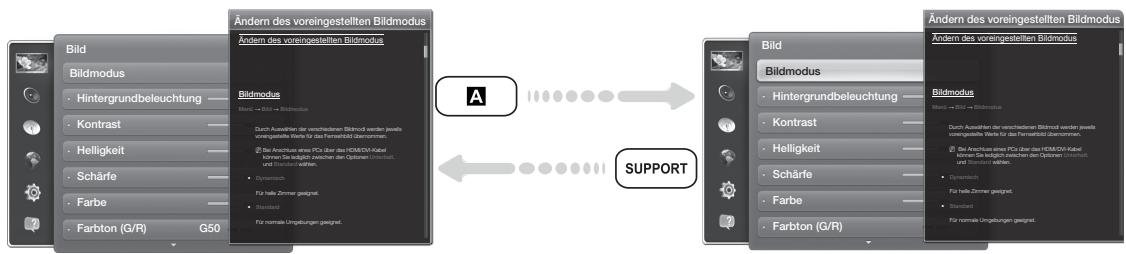
flowchart
graph LR
    A["Ändern des voreingestellten Bildmodus"] -->|A| B["SUPPORT"]
    B --> C["Ändern des voreingestellten Bildmodus"]
    C --> D["Ändern des voreingestellten Bildmodus"]
    D --> E["Ändern des voreingestellten Bildmodus"]
    style A fill:#f9f,stroke:#333
    style B fill:#ccf,stroke:#333
    style C fill:#cff,stroke:#333
    style D fill:#ffc,stroke:#333
    style E fill:#cfc,stroke:#333
Diese Funktion ist in manchen Menüs nicht verfügbar.
Wenn das Menü deaktiviert ist, können Sie die Funktion Jetzt test. nicht verwenden.
- Wählen Sie mit Hilfe der Fernbedienung die Option A, um zum Thema der entsprechenden Menüoption zu wechseln.
- Wenn Sie zum e-Manual zurückkehren möchten, drücken Sie auf der Fernbedienung die Taste SUPPORT.
Verwenden der Farb- und Funktionstasten in Verbindung mit e-Manual
- Bildlaufleiste: Hiermit blättern Sie im e-Manual nach oben oder unten.
• ◀ / ▶: Hiermit wechseln Sie zum vorherigen oder nächsten Kapitel. - A Jetzt test.: Anzeigen des zum Thema passenden Bildschirmmenüs. Wenn Sie zum e-Manual zurückkehren möchten, drücken Sie auf der Fernbedienung die Taste SUPPORT.
• B Start: Hiermit wechseln Sie zum Startfenster im e-Manual. - Position: Jedes Mal, wenn Sie mit Hilfe der Fernbedienung die Option auswählen, ändert sich die Position des e-Manuals.
• D Index: Hiermit zeigen Sie das Index-Fenster an.
• Zurück: Zurück zum vorherigen Fenster.
So suchen Sie auf der Indexseite nach einem Thema
- Wählen Sie mit Hilfe der Fernbedienung D. Das Index-Fenster wird angezeigt.
- Um nach einem Thema zu suchen, wählen Sie den Anfangsbuchstaben des Themas aus. Auf der Indexseite wird eine Liste mit Themen und Stichwörtern angezeigt, die mit dem ausgewählten Buchstaben beginnen.
- Wählen Sie das gewünschte Thema oder Stichwort aus.
- Die entsprechende Seite im e-Manual wird angezeigt.
Drücken Sie zum Schließen des Fensters Index die Taste RETURN ^5 .
So ändern Sie die Position des e-Manual-Fensters auf dem Bildschirm
Wenn Sie das e-Manual aufgrund geöffneter Bildschirmmenüs nicht gut erkennen, können Sie die Position des e-Manual-Fensters auf dem Bildschirm ändern.
- Markieren Sie das e-Manual-Fenster, indem Sie auf der Standardfernbedienung die Taste SUPPORT drücken oder mit Hilfe der Smart Touch Control die Option Unterstützung auswählen.
- Drücken Sie entweder die Taste C auf der Standardfernbedienung oder wählen Sie mit Hilfe der Smart Touch Control die Option C. Jedes Mal, wenn Sie mit Hilfe der Fernbedienung die Option C auswählen, ändert sich die Position des e-Manual-Fensters.
Anbringen der Wandhalterung
Anbringen der Wandhalterung
Mit der (separat erhältlichen) Wandhalterung können Sie das Fernsehgerät an einer Wand befestigen.
Detaillierte Informationen zum Montieren der Wandhalterung finden Sie in den Anweisungen, die im Lieferumfang der Wandhalterung enthalten sind. Lassen Sie sich beim Anbringen der Wandhalterung von einem Techniker helfen. Wir raten Ihnen davon ab, dies selbst zu tun.
Samsung Electronics haftet nicht für Schäden an Gerät oder Personen, wenn die Montage vom Kunden selbst durchgeführt wird.
Vorbereitung zum Anbringen der Wandhalterung
Fall A. Anbringen der SAMSUNG-Wandhalterung
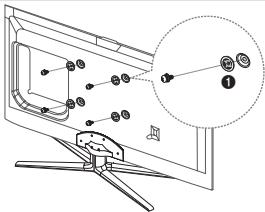
text_image
Diagram of a computer monitor with labeled buttons and an inset showing a zoomed-in view of the screen.Beim Einbau einer Wandhalterung, verwenden Sie die Halteringe ①.
Fall B. Anbringen der Wandhalterung eines anderen Herstellers
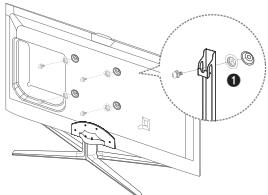
text_image
Diagram showing a mounted monitor with labeled buttons and an inset detail view highlighting the corner detail.Spezifikation (VESA) der Wandhalterung
Die Wandhalterung wird nicht mitgeliefert, ist aber gesondert erhältlich.
Montieren Sie die Wandhalterung an einer festen Wand, die senkrecht zum Boden steht. Bei Installation auf anderen Trägermaterialien wenden Sie sich bitte an Ihren Fachhändler. Bei Montage an einer Decke oder schrägen Wand kann das Fernsehgerät herunterfallen und zu Verletzungen führen.
HINWEISE
• Die Standardabmessungen der Wandhalterung finden Sie in der nachfolgenden Tabelle.
- Beim Kauf unserer Wandhalterung erhalten Sie eine detaillierte Installationsanleitung sowie alle für die Montage erforderlichen Teile.
- Verwenden Sie keine Schrauben, die nicht der VESA-Standardspezifikation für Schrauben entsprechen.
- Verwenden Sie keine Schrauben, die länger sind als in der VESA-Standardspezifikation für Schrauben angegeben. Zu lange Schrauben können Schäden an den inneren Bauteilen des Fernsehgeräts verursachen.
- Bei Wandhalterungen, die nicht der VESA-Standardspezifikation für Schrauben entsprechen, hängt die Länge der Schrauben von der Spezifikation der Wandhalterung ab.
- Ziehen Sie die Schrauben nicht zu fest an, weil Sie auf diese Weise das Gerät beschädigen könnten oder weil das Gerät dadurch herunterfallen und damit Verletzungen verursachen könnte. Samsung haftet nicht bei derartigen Unfällen.
- Samsung haftet nicht für Geräteschäden oder Verletzungen, wenn eine Wandhalterung verwendet wird, die nicht dem VESA-Standard entspricht oder nicht spezifiziert ist, oder wenn der Verbraucher die Installationsanleitung für das Produkt nicht befolgt.
• Montieren Sie das Fernsehgerät nicht in einem Winkel von mehr als 15 Grad.
- Lassen Sie immer zwei Personen das Fernsehgerät an der Wand montieren.
| Produktfamilie | Zoll | VESA-Spezifikation (A * B) | Standardschraube | Menge |
| LED-Fernseher | 40 | 200 X 200 | M8 | 4 |
| 46 - 60 | 400 X 400 |
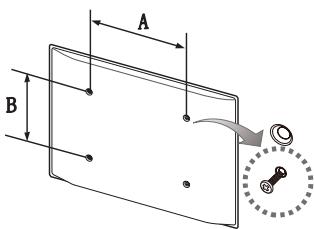
text_image
A B
Lösen Sie die Schrauben der Montageöffnungen, ehe Sie die Wandhalterung an der Wand befestigen.

Installieren Sie die Wandhalterung nicht bei eingeschaltetem Fernsehgerät. Sie könnten dabei einen Stromschlag erhalten und sich verletzen.
Lagerung und Wartung

Wenn Sie Aufkleber auf dem Bildschirm des Monitors anbringen, bleiben nach dem Entfernen Kleberückstände zurück. Entfernen Sie diese, bevor Sie fernsehen.
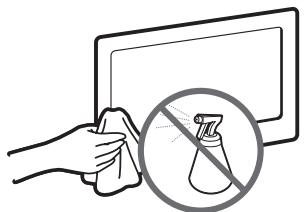
natural_image
Illustration of a hand cleaning a tablet with a no-smoking spray bottle (no text or symbols)Sprühen Sie kein Wasser direkt auf das Gerät. Jede Flüssigkeit, die in das Gerät eindringt, kann zu einer Funktionsstörung, einem Brand oder einem Stromschlag führen.
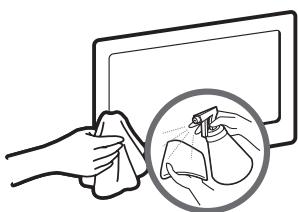
natural_image
Illustration of a hand cleaning a tablet with a magnified inset showing a close-up of the device (no text or symbols present)Reinigen Sie das Gerät mit einem weichen Tuch, das Sie vorher mit einer kleinen Menge Wasser anfeuchten. Verwenden Sie keine entzündlichen Flüssigkeiten (z. B. Benzol, Verdünner) oder Reinigungsmittel.
Befestigen des Fernsehgeräts an der Wand
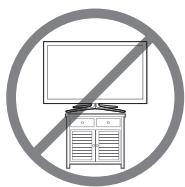
natural_image
Prohibition symbol showing a TV set and a console, no text or symbols presentAchtung: Das Fernsehgerät kann hinfallen, wenn Sie daran ziehen, es schieben oder darauf klettern. Stellen Sie insbesondere sicher, dass sich keine Kinder über das Fernsehgerät hängen oder es in sonstiger Weise destabilisieren. Andernfalls kann das Fernsehgerät umkippen und schwere oder tödliche Verletzungen zur Folge haben. Beachten Sie alle in den Sicherheitshinweisen genannten Anweisungen, die Ihrem Fernsehgerät beigefügt sind. Für zusätzliche Stabilität und Sicherheit können Sie wie unten beschrieben die Absturzsicherung erwerben und anbringen.
So verhindern Sie, dass das Fernsehgerät herunterfällt
- Stecken Sie die Schrauben durch die Halterungen, und befestigen Sie sie fest an der Wand. Vergewissern Sie sich, dass die Schrauben gut halten.
Je nach Ausführung der Wand benötigen Sie zum Befestigen weiteres Material, wie z. B. Dübel.
Da die benötigten Halterungen, Schrauben und das Band nicht zum Lieferumfang gehören, müssen Sie diese Teile gesondert erwerben. -
Entfernen Sie die Schrauben in der Mitte auf der Rückseite des Fernsehgeräts. Setzen Sie diese Schrauben in die Halterungen ein, und befestigen Sie die Schrauben dann wieder am Fernsehgerät.
Die Schrauben sind im Lieferumfang des Geräts möglicherweise nicht enthalten. Kaufen Sie in diesem Fall Schrauben entsprechend den folgenden Angaben.
Daten der Schrauben
• Bei einem 19 – 27-Zoll-Gerät: M4
• Bei einem 32 – 75-Zoll-Gerät: M8 -
Verbinden Sie die Halterungen an der Wand und die Halterung am Fernsehgerät mit einem festen Kabel miteinander, und ziehen Sie es dann fest.

HINWEISE
- Stellen Sie das Fernsehgerät in der Nähe der Wand auf, damit es nicht nach hinten kippen kann.
- Es ist noch sicherer, wenn die Halterungen an der Wand niedriger als die Halterungen am Fernsehgerät sind.
- Lösen Sie das Band, ehe Sie den Fernseher bewegen.
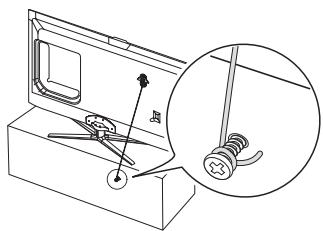
text_image
Technical diagram showing a mechanical assembly with labeled parts and an inset magnified view of a component detail.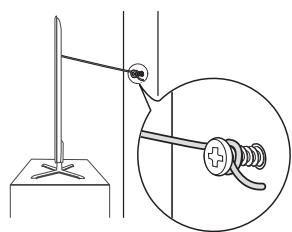
natural_image
Diagram showing a vertical rod connected to a stand and a magnified view of a coiled cable with a plus symbol (no text or labels)- Kontrollieren Sie, ob alle Anschlüsse weiterhin fest verbunden sind. Prüfen Sie regelmäßig die Verbindungen auf Zeichen von Ermüdung oder Versagen. Bei Zweifeln hinsichtlich der Sicherheit Ihrer Halterungen wenden Sie sich an einen professionellen Installationsbetrieb.
Fehlerbehebung
Bei Fragen zum Fernsehgerät schauen Sie zuerst in dieser Liste nach. Wenn keiner dieser Tipps zur Fehlerbehebung weiterhilft, wechseln Sie zur Website „www.samsung.com“, und klicken Sie dort auf „Support“ oder wenden Sie sich an das in der Liste auf der letzten Seite angegebene Callcenter.
| Probleme | Lösungen und Erklärungen |
| Der Fernseher kann nicht eingeschaltet werden. | Vergewissern Sie sich, dass das Netzkabel sicher mit der Wandsteckdose und dem Fernsehgerät verbunden ist.Vergewissern Sie sich, dass die Netzsteckdose Strom liefert.Drücken Sie die Taste POWER am Fernsehgerät, um zu prüfen, ob die Fernbedienung richtig funktioniert. Wenn das Fernsehgerät eingeschaltet wird, lesen Sie den Abschnitt „Die Fernbedienung funktioniert nicht“ weiter unten. |
| Kein Bild/Video. | Überprüfen Sie die Kabelverbindungen. Unterbrechen Sie kurzzeitig alle Kabelverbindungen zwischen dem Fernsehgerät und den externen Geräten.Stellen Sie den Videoausgang Ihres externen Geräts (Kabel-/Satellitenreceiver, DVD-/Blu-ray-Player usw.) so ein, dass er zur Verbindung mit dem Fernsehgerät passt. Zum Beispiel: Wenn der HDMI-Ausgang des externen Geräts verwendet wird, schließen Sie es an den HDMI-Eingangs Ihres Fernsehers an.Stellen Sie sicher, dass die angeschlossenen Geräte eingeschaltet sind.Schließen Sie das Netzkabel an, um das angeschlossene Gerät neu zu starten. |
| Die Fernbedienung funktioniert nicht. | Ersetzen Sie die Batterien der Fernbedienung, und achten Sie dabei auf die richtige Polung (+/-).Reinigen Sie das Sendefeld der Fernbedienung.Versuchen Sie, die Fernbedienung aus einer Entfernung von 1,5 bis 1,8 m aus direkt auf das TV-Gerät zu richten. |
| Die Fernbedienung des Kabel-/Satellitenreceivers schaltet das Fernsehgerät nicht ein/aus und regelt auch nicht die Lautstärke. | Programmieren Sie die Fernbedienung des Kabel-/Satellitenreceivers so, dass sie das Fernsehgerät anspricht. Den Code für SAMSUNG TV finden Sie in der Bedienungsanleitung für Ihren Kabel-/Satellitenreceiver. |
Manche der obigen Abbildungen und Funktionen gelten nur für bestimmte Modelle.
Sie können den optimalen Zustand Ihres Fernsehgeräts erhalten, indem Sie regelmäßig die aktuelle Firmware per USB von der Website (samsung.com → Support → Downloads) herunterladen.
Anzeigeauflösung
| Modus | Auflösung | Horizontalfrequenz (kHz) | Vertikalfrequenz (Hz) | Pixeltakt (MHz) | Synchronisationspolarität (H/V) |
| IBM | 640 x 350 | 31,469 | 70,086 | 25,175 | +/- |
| 720 x 400 | 31,469 | 70,087 | 28,322 | -/+ | |
| MAC | 640 x 480 | 35,000 | 66,667 | 30,240 | -/- |
| 832 x 624 | 49,726 | 74,551 | 57,284 | -/- | |
| 1152 x 870 | 68,681 | 75,062 | 100,000 | -/- | |
| VESA DMT | 640 x 480 | 31,469 | 59,940 | 25,175 | -/- |
| 640 x 480 | 37,861 | 72,809 | 31,500 | -/- | |
| 640 x 480 | 37,500 | 75,000 | 31,500 | -/- | |
| 800 x 600 | 37,879 | 60,317 | 40,000 | +/+ | |
| 800 x 600 | 48,077 | 72,188 | 50,000 | +/+ | |
| 800 x 600 | 46,875 | 75,000 | 49,500 | +/+ | |
| 1024 x 768 | 48,363 | 60,004 | 65,000 | -/- | |
| 1024 x 768 | 56,476 | 70,069 | 75,000 | -/- | |
| 1024 x 768 | 60,023 | 75,029 | 78,750 | +/+ | |
| 1152 x 864 | 67,500 | 75,000 | 108,000 | +/+ | |
| 1280 x 720 | 45,000 | 60,000 | 74,250 | +/+ | |
| 1280 x 800 | 49,702 | 59,810 | 83,500 | -/+ | |
| 1280 x 1024 | 63,981 | 60,020 | 108,000 | +/+ | |
| 1280 x 1024 | 79,976 | 75,025 | 135,000 | +/+ | |
| 1366 x 768 | 47,712 | 59,790 | 85,500 | +/+ | |
| 1440 x 900 | 55,935 | 59,887 | 106,500 | -/+ | |
| 1600 x900RB | 60,000 | 60,000 | 108,000 | +/+ | |
| 1680 x 1050 | 65,290 | 59,954 | 146,250 | -/+ | |
| 1920 x 1080 | 67,500 | 60,000 | 148,500 | +/+ |

HINWEISE
• Das Zeilensprungverfahren wird nicht unterstützt.
- Das Fernsehgerät funktioniert möglicherweise nicht ordnungsgemäß, wenn kein Standard-Videoformat ausgewählt wird.
Technische Daten
| Anzeigauflösung | 1920 x 1080 | ||
| Umgebungsbedingungen | |||
| Betriebstemperatur | 10^ C bis 40^ C | ||
| Luftfeuchtigkeit (bei Betrieb) | 10% bis 80%, nicht kondensierend | ||
| Temperatur (Lagerung) | -20^ C bis 45^ C | ||
| Luftfeuchtigkeit (Lagerung) | 5 % bis 95 %, nicht kondensierend | ||
| TV-System | Analog: B/G, D/K, L, I (je nach eingestelltem Land)Digital: DVB-T/DVB-C/DVB-S2 | ||
| Fernsehnorm/Videosystem | Analog: PAL, SECAM, NTSC-4.43, NTSC-3.58, PAL60Digital: MPEG-2 MP@ML, MPEG-4, H.264/AVC MP@L3, MP@L4.0, HP@L4.0 | ||
| Audiosystem | BG, DK, L, NICAM, MPEG1, DD, DD+, HEAAC. | ||
| HDMI IN | Video: 1080 24p, 1080p, 1080i, 720p, 576p, 480pAudio: 2-Kanal-Linear-PCM 32/44.1/48 kHz, 16/20/24 Bit. | ||
| Drehbarer Fuß (links / rechts) | -20^ 20^ | ||
| Modellbezeichnung | UE40ES7000 | UE46ES7000 | UE55ES7000 |
| Bildschirmgröße | 40 Zoll | 46 Zoll | 55 Zoll |
| Ton(Ausgang) | 10 W x 2 | ||
| Abmessungen (BxHxT) | |||
| Gehäuse | 914,4 X 545,7 X 29,7 mm | 1046,8 X 620,2 X 29,7 mm | 1238,4 X 728 X 29,7 mm |
| Mit Fuß | 914,4 X 611,2 X 241,3 mm | 1046,8 X 691,2 X 276,7 mm | 1238,4 X 790,4 X 276,7 mm |
| Gewicht | |||
| Ohne Fuß | 9,5 kg | 11,9 kg | 16,4 kg |
| Mit Fuß | 10,9 kg | 13,8 kg | 18,3 kg |
Smart Touch Control
| Modellbezeichnung | RMCTPE1 | |
| Stromversorgung | Energiequelle | 2 Batterien (Typ AA) |
| Um die Lebendauer der Batterien zu verlängern, empfehlen wir die Verwendung von Alkaline-Batterien. | ||
| Bedienung | Tasten | 14 Tasten |
| Touchpad | Kapazitiver Berührungssensor (45 mm x 55 mm) | |
| Ausgabe (Output) | Anzeige | 3 LED-Geräteanzeigen |
| IR | 1 Infrarot-Sendediode | |
| Funktionen | Touch Control | Absolute Koordinaten |
| Universalfernbedienung | Universalfernbedienung | |
| Sprachsteuerung | Sprachübertragung über Bluetooth | |
| Bluetooth | Bluetooth 2.1 wird unterstützt | |
| Universalfernbedienung | Abdeckung der Datenbank in der Universalfernbedienung | Global |
| Unterstützter Gerätemodus | 3 Modi (TV, STB, BD) | |
| Max. Betriebsabstand | 12 m | |
| Sprachsteuerung | Sprachübertragung | Bluetooth HID-Protokoll |
| Unterstützte Audio-Datenrate | 16 kHz, 16 bit | |
| Empfohlener Lautstärkepegel | -15,5 dB (auf einer Skala bis 0 dB) | |
| Bluetooth | HF | 2,4 GHz, CSM-Band |
| Pairing-Methode | Infrarot gesteuertes Standard-Pairing | |
| Max. Pairing-Abstand | 4 m (Sichtlinie bei Ausrichtung auf den IR-Empfänger des Fernsehgeräts) | |
| Max. Betriebsabstand | 10 m (Sichtlinie) | |
| Einstellungen | Pairing mit dem Fernsehgerät | Ja |
| Programmierung der Universalfernbedienung | TV-Widget erforderlich | |
| Betrieb | Betriebstemperatur | 10°C bis 40°C |
| Betriebsabstand | IR: normal 10 m, max. 12 m / BT: 10 m | |
| Betriebsdauer | 3 Monate (200 Tastendrücke/Tag) | |
| Kompatibilität | LED-Fernseher | Alle LED-Fernsehgeräte ab Serie E7000 |
| Plasmafernsehgeräte | Serie E8000 | |
| Maße | Gerät (mm) | 154 x 52 x19,5 |
| Gewicht | Gerät (ohne Batterien) (g) | 119 |
| Gerät (mit Batterien) (g) | 165 | |
| Zubehör | 2 Batterien (Typ AA) | |
IR-Blaster
| Modellbezeichnung | VG-IRB2000 | |
| Stromversorgung | Energiequelle | 4 Batterien (Typ AA) |
| Um die Lebendauer der Batterien zu verlängern, empfehlen wir die Verwendung von Alkaline-Batterien. | ||
| Bedienung | Tasten | 2 Tasten (Pairing, Ein/Aus-Taste) |
| Ausgabe (Output) | Anzeige | 1 LED-Anzeige |
| IR | 5 Infrarot-Sendediode | |
| Funktionen | Universalfernbedienung | Universalfernbedienung |
| Bluetooth | Bluetooth 2.1 wird unterstützt | |
| Universalfernbedienung | Abdeckung der Datenbank in der Universalfernbedienung | Global |
| Unterstützter Gerätemodus | 3 Modi (TV, STB, BD) | |
| Max. Betriebsabstand | 8 m | |
| Bluetooth | HF | 2,4 GHz, CSM-Band |
| Pairing-Methode | Infrarot gesteuertes Standard-Pairing | |
| Max. Pairing-Abstand | 4 m (Sichtlinie bei Ausrichtung auf den IR-Empfänger des Fernsehgeräts) | |
| Max. Betriebsabstand | 10 m (Sichtlinie) | |
| Einstellungen | Pairing mit dem Fernsehgerät | Ja |
| Programmierung der Universalfernbedienung | TV-Widget erforderlich | |
| Betrieb | Betriebstemperatur | 0 °C bis 40 °C |
| Betriebsabstand | IR: normal 10 m, max. 12 m / BT: 10 m | |
| Betriebswinkel | 360° | |
| Betriebsdauer | 3 Monate (200 Tastendrücke/Tag) | |
| Kompatibilität | LED-Fernseher | Alle LED-Fernsehgeräte ab Serie E7000 |
| Plasmafernsehgeräte | Serie E8000 | |
| Maße | Gerät (mm) | 95×79×65 |
| (B x T x H) | Verpackung (mm) | 88×71×102 |
| Gewicht | Gerät (ohne Batterien) (g) | 86,5 |
| Gerät (mit Batterien) (g) | 178,5 | |
| Verpackung (g) | 30,6 | |
| Zubehör | 4 Batterien (Typ AA) | |
Änderungen der technischen Daten und des Gerätedesigns vorbehalten.
Die technischen Daten zur benötigten Netzspannung und zum Energieverbrauch finden Sie auf dem Etikett am Produkt.
Der typische Stromverbrauch wird gemäß IEC 62087 Ed.2 gemessen.
Empfehlung - Nur EU


- Hiermit erklärt Samsung Electronics, dass dieses LED-Fernsehgerät mit allen wesentlichen Anforderungen und sonstigen relevanten Bestimmungen der Richtlinie 1999/5/EG konform ist.
- Die offizielle Konformitätserklärung finden Sie unter http://www.samsung.com. Wechseln Sie zu Support > Produktsuche, und geben Sie den Modellnamen ein.
- Dieses Gerät ist ausschließlich für die Verwendung in geschlossenen Räumen geeignet.
- Dieses Gerät kann in allen Ländern in der EU verwendet werden.
Lizenz
DOLBY
DIGITAL PLUS
PULSE

dts®
Premium Audio
DIVX™
HD
HDMI

guide
MHL™