
17BII - Calculatrice HP - Notice d'utilisation et mode d'emploi gratuit
Retrouvez gratuitement la notice de l'appareil 17BII HP au format PDF.


| Type de produit | Calculatrice financière programmable |
| Marque et modèle | HP 17BII |
| Alimentation | 2 piles CR2032 (3V) |
| Affichage | 2 lignes, 12 caractères alphanumériques, menus et messages |
| Mémoire | 6,5 Ko (environ 6 750 octets) pour données, listes et équations |
| Fonctions principales | Valeur temps de l'argent (TVM), flux de trésorerie (CFLO), obligations, amortissement, dépréciation, intérêts composés, pourcentages, statistiques, date et rendez-vous, solveur d'équations |
| Modes de calcul | Algébrique (ALG) ou Notation Polonaise Inverse (RPN) |
| Impression | Compatible avec l'imprimante infrarouge HP 82240 (optionnelle) |
| Dimensions (approx.) | 15 × 8 × 1,5 cm |
| Poids (approx.) | 120 g (sans piles) |
| Entretien et nettoyage | Chiffon doux sec ; ne pas utiliser de produits abrasifs |
| Sécurité | Mise hors tension automatique après 10 minutes d'inactivité |
| Pièces détachées et réparabilité | Piles remplaçables par l'utilisateur ; service après-vente HP |
| Informations générales | Manuel d'utilisation de 296 pages ; langues multiples |
FOIRE AUX QUESTIONS - 17BII HP
Questions des utilisateurs sur 17BII HP
0 question sur cet appareil. Repondez a celles que vous connaissez ou posez la votre.
Poser une nouvelle question sur cet appareil
Téléchargez la notice de votre Calculatrice au format PDF gratuitement ! Retrouvez votre notice 17BII - HP et reprennez votre appareil électronique en main. Sur cette page sont publiés tous les documents nécessaires à l'utilisation de votre appareil 17BII de la marque HP.
MODE D'EMPLOI 17BII HP
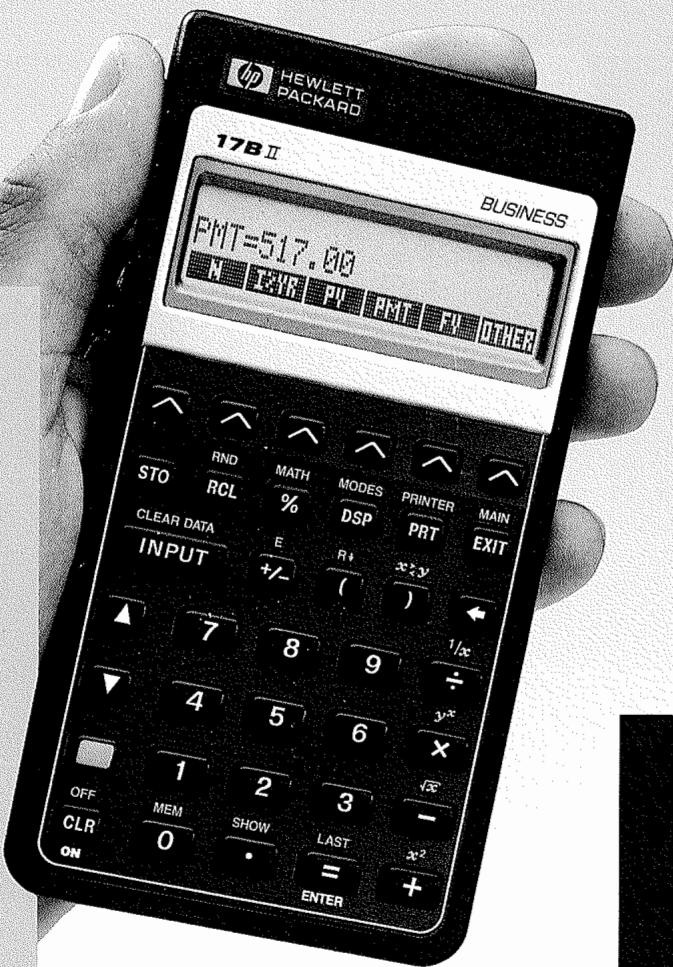
HP 17BII
Financial Calculator
Owner's Manual
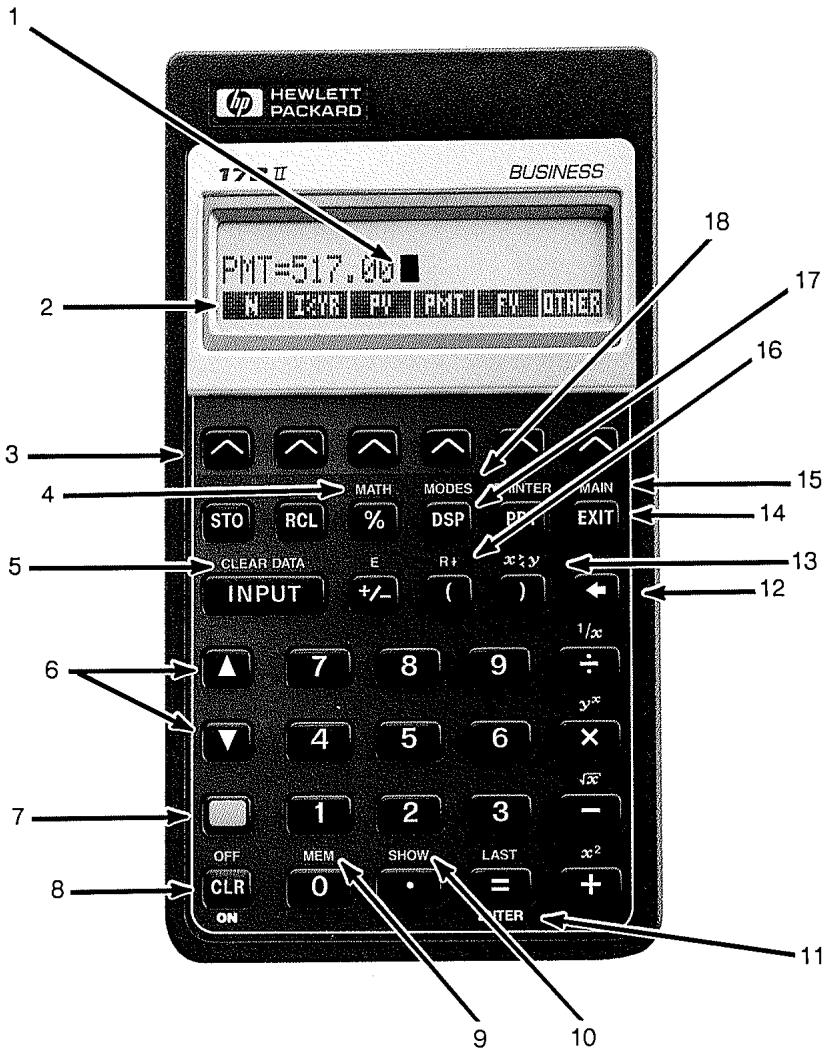
- Cursor
- Menu labels
- Menu keys
- More math
- Clearing stored data
- Moving through lists
- Shift key (for colored functions)
- On or display clear
-
User memory available
-
All decimal places
- [ENTER] (RPN mode)
- Backspace
- Exchange RPN registers
- Previous menu
- Main menu
- Roll down RPN stack
- Display formats
- Modes key
HP-17B II Business Calculator
Owner's Manual
Notice
For warranty and regulatory information for this calculator, see the owner's manual.
This manual and any examples contained herein are provided "as is" and are subject to change without notice. Hewlett-Packard Company makes no warranty of any kind with regard to this manual, including, but not limited to, the implied warranties of merchantability and fitness for a particular purpose. Hewlett-Packard Co. shall not be liable for any errors or for incidental or consequential damages in connection with the furnishing, performance, or use of this manual or the examples contained herein.
irc Hewlett-Packard Co. 1989. All rights reserved. Reproduction, adaptation, or translation of this manual is prohibited without prior written permission of Hewlett-Packard Company, except as allowed under the copyright laws.
The programs that control your calculator are copyrighted and all rights are reserved. Reproduction, adaptation, or translation of those programs without prior written permission of Hewlett-Packard Co. is also prohibited.
Corvallis Division
1000 N.E. Circle Blvd.
Corvallis, OR 97330, U.S.A.
Printing History
Edition 1
Edition 2
Edition 3
December 1989
April 1991
November 1994
9
110
Running Total and Statistics
111
The SUM Menu
112
Creating a SUM List
112
Entering Numbers and Viewing the TOTAL
113
Viewing and Correcting the List
115
Copying a Number from a List to the Calculator Line
115
Naming and Renaming a SUM List
116
Starting or GETting Another List
116
Clearing a SUM List and Its Name
116
Doing Statistical Calculations (CALC)
117
Calculations with One Variable
119
Calculations with Two Variables (FRCST)
122
Curve Fitting and Forecasting
126
Weighted Mean and Grouped Standard Deviation
129
129
Summation Statistics
129
Doing Other Calculations with SUM Data
10
130
Time, Appointments, and Date Arithmetic
130
Viewing the Time and Date
131
The Time Menu
132
Setting the Time and Date (SET)
133
Changing the Time and Date Formats (SET)
133
Adjusting the Clock Setting (ADJST)
133
Appointments (APPT)
134
Viewing or Setting an Appointment (APT1-APT10)
136
Acknowledging an Appointment
136
Unacknowledged Appointments
137
Clearing Appointments
138
Date Arithmetic (CALC)
139
Determining the Day of the Week for Any Date
139
Calculating the Number of Days between Dates
140
Calculating Past or Future Dates
11 141 The Equation Solver
141 An Example Using the Solver: Sales Forecasts
144 The SOLVE Menu
145 Entering Equations
146 Calculating Using Solver Menus (CALC)
149 Editing an Equation (EDIT)
149 Naming an Equation
150 Finding an Equation in the Solver List
150 Shared Variables
151 Clearing Variables
151 Deleting Variables and Equations
152 Deleting One Equation or Its Variables (DELET)
152 Deleting All Equations or All Variables in the Solver (CLEAR DATA)
153 Writing Equations
154 What Can Appear in an Equation
157 Solver Functions
161 Conditional Expressions with IF
163 The Summation Function ()
164 Accessing CFLO and SUM Lists from the Solver
165 Creating Menus for Multiple Equations (S Function)
166 How the Solver Works
168 Halting and Restarting the Numerical Search
168 Entering Guesses
12 171 Printing
172 The Printer's Power Source
172 Double-Space Printing
172 Printing the Display (PRT)
173 Printing Other Information (PRINTER)
174 Printing Variables, Lists, and Appointments (LIST)
175 Printing Descriptive Messages (MSG)
176 Trace Printing (TRACE)
177 How to Interrupt the Printer
| 13 | 178 | Additional Examples |
| 178 | Loans | |
| 178 | Simple Annual Interest | |
| 179 | Yield of a Discounted (or Premium) Mortgage | |
| 181 | Annual Percentage Rate for a Loan with Fees | |
| 183 | Loan with an Odd (Partial) First Period | |
| 185 | Canadian Mortgages | |
| 187 | Advance Payments (Leasing) | |
| 189 | Savings | |
| 189 | Value of a Fund with Regular Withdrawals | |
| 191 | Deposits Needed for a Child's College Account | |
| 195 | Value of a Tax-Free Account | |
| 197 | Value of a Taxable Retirement Account | |
| 198 | Modified Internal Rate of Return | |
| 201 | Price of an Insurance Policy | |
| 203 | Bonds | |
| 205 | Discounted Notes | |
| 206 | Statistics | |
| 206 | Moving Average | |
| 208 | Chi-Squared (x²) Statistics |
| A | 211 | Assistance, Batteries, Memory, and Service |
| 211 | Obtaining Help in Operating the Calculator | |
| 211 | Answers to Common Questions | |
| 213 | Power and Batteries | |
| 214 | Low-Power Indications | |
| 214 | Installing Batteries | |
| 216 | Managing Calculator Memory | |
| 217 | Resetting the Calculator | |
| 218 | Erasing Continuous Memory | |
| 218 | Clock Accuracy | |
| 219 | Environmental Limits | |
| 219 | Determining If the Calculator Requires Service | |
| 220 | Confirming Calculator Operation: Self-Test |
Limited One-Year Warranty
What is Covered
What Is Not Covered
Consumer Transactions in the United Kingdom
If the Calculator Requires Service
Obtaining Service
Service Charge
Shipping Instructions
Warranty on Service
Service Agreements
Regulatory Information
Radio Frequency Interference
Air Safety Notice (U.S.A.)
More About Calculations
IRR% Calculations
Possible Outcomes of Calculating IRR%
Halting and Restarting the IRR% Calculation
Storing a Guess for IRR%
Dolver Calculations
Direct Solutions
Iterative Solutions
Equations Used by Built-in Menus
Actuarial Functions
Percentage Calculations in Business (BUS)
Time Value of Money (TVM)
Amortization
Interest Rate Conversions
Cash-Flow Calculations
Bond Calculations
Depreciation Calculations
Sum and Statistics
Forecasting
Equations Used in (Chapter 13)
Canadian Mortgages
Odd-Period Calculations
Advance Payments
Modified Internal Rate of Return
Welcome to the HP-17B II
The HP-17B is part of Hewlett-Packard's new generation of calculators:
The two-line display has space for messages, prompts, and labels.
- Menu and messages show you options and guide you through problems.
Built-in applications solve these business and financial tasks:
Time Value of Money. For loans, savings, leasing, and amortization.
■ Interest Conversions. Between nominal and effective rates.
Cash Flows. Discounted cash flows for calculating net present value and internal rate of return.
Bonds. Price or yield on any date. Annual or semi-annual coupons; 30/360 or actual/actual calendar.
Depreciation. Using methods of straight line, declining balance, sum-of-the-years' digits, and accelerated cost recovery system.
Business Percentages. Percent change, percent total, markup.
Statistics. Mean, correlation coefficient, linear estimates, and other statistical calculations.
Clock. Time, date, and appointments.
Use the Solver for problems that aren't built in: type an equation and then solve for any unknown value. It's easier than programming!
There are 6.5K bytes of memory to store data, lists, and equations.
You can print information using the HP 82240 Infrared Printer.
■ You can choose either ALG (Algebraic) or RPN (Reverse Polish Notation) entry logic for your calculations.
Contents
12 List of Examples
15 Important Information
1 16 Getting Started
16 Power On and Off; Continuous Memory
16 Adjusting the Display Contrast
17 What You See in the Display
17 The Shift Key (■)
18 Backspacing and Clearing
19 Doing Arithmetic
20 Keying in Negative Numbers (+ - )
20 Using the Menu Keys
21 The MAIN Menu
22 Choosing Menus and Reading Menu Maps
23 Calculations Using Menus
25 Exiting Menus ( XIT)
25 Clearing Values in Menus
26 Solving Your Own Equations (SOLVE)
27 Typing Words and Characters: the ALPHAbetic Menu
28 Editing ALPHAbetic Text
29 Calculating the Answer (CALC)
30 Controlling the Display Format
31 Decimal Places
31 Internal Precision
31 Temporarily SHOWing ALL
31 Rounding a Number
32 Exchanging Periods and Commas in Numbers
33 Error Messages
33 Modes
34 Calculator Memory ( MEMI)
2
35 Arithmetic
35 The Calculator Line
35 Doing Calculations
36 Using Parentheses in Calculations
37 The Percent Key
38 The Mathematical Operations
38 The Power Function (Exponentiation)
39 The MATH Menu
40 Saving and Reusing Numbers
40 The History Stack of Numbers
41 Reusing the Last Result (LAST)
42 Storing and Recalling Numbers
43 Doing Arithmetic Inside Registers and Variables
44 Scientific Notation
44 Range of Numbers
3
45 Percentage Calculations in Business
46 Using the BUS Menus
46 Examples Using the BUS Menus
46 Percent Change (%CHG)
47 Percent of Total (%TOTL)
47 Markup as a Percent of Cost (MU%C)
48 Markup as a Percent of Price (MU%P)
48 Sharing Variables Between Menus
4
50 Time Value of Money
50 The TVM Menu
53 Cash Flow Diagrams and Signs of Numbers
55 Using the TVM Menu
56 Loan Calculations
60 Savings Calculations
63 Leasing Calculations
67 Amortization (AMRT)
68 Displaying an Amortization Table
71 Printing an Amortization Table
| 5 | 73 | Interest Rate Conversions |
| 74 | The ICNV Menu | |
| 74 | Converting Interest Rates | |
| 77 | Compounding Periods Different from Payment Periods. | |
| 6 | 80 | Cash Flow Calculations |
| 81 | The CFLO Menu | |
| 82 | Cash Flow Diagrams and Signs of Numbers | |
| 83 | Creating a Cash-Flow List | |
| 84 | Entering Cash Flows | |
| 87 | Viewing and Correcting the List | |
| 87 | Copying a Number from a List to the Calculator Line | |
| 87 | Naming and Renaming a Cash-Flow List | |
| 88 | Starting or GETting Another List | |
| 89 | Clearing a Cash-Flow List and Its Name | |
| 89 | Cash-Flow Calculations: IRR, NPV, NUS, NFV | |
| 96 | Doing Other Calculations with CFLO Data |
| 7 | 97 | Bonds |
| 97 | The BOND Menu | |
| 98 | Doing Bond Calculations |
| 8 | 103 | Depreciation |
| 103 | The DEPRC Menu | |
| 105 | Doing Depreciation Calculations | |
| 105 | DB, SOYD, and SL Methods | |
| 107 | The ACRS Method | |
| 108 | Partial-Year Depreciation |
C 243 Menu Maps
D 249 RPN: Summary
249 About RPN
249 About RPN on the HP-17B II
250 Setting RPN Mode
251 Where the RPN Functions Are
252 Doing Calculations in RPN
252 Arithmetic Topics Affected by RPN Mode
252 Simple Arithmetic
254 Calculations With STO and RCL
255 Chain Calculations-No Parentheses!
E 256 RPN: The Stack
256 What the Stack Is
257 Reviewing the Stack (Roll Down)
257 Exchanging the X- and Y-Registers in the Stack
258 Arithmetic-How the Stack Does It
259 How ENTER Works
260 Clearing Numbers
261 The LAST X Register
261 Retrieving Numbers From LAST X
261 Reusing Numbers
262 Chain Calculations
263 Exercises
F 264 RPN: Selected Examples
271 Error Messages
276 Index
List of Examples
The following list groups the examples by category.
Getting Started
22 Using Menus
26 Using the Solver
Arithmetic
37 Calculating Simple Interest
166 Unit Conversions
178 Simple Interest at an Annual Rate (RPN example on page 264)
General Business Calculations
46 Percent Change
47 Percent of Total
47 Markup as a Percent of Cost
48 Markup as a Percent of Price
49 Using Shared Variables
147 Return on Equity
Time Value of Money
56 A Car Loan
57 A Home Mortgage
59 A Mortgage with a Balloon Payment
60 A Savings Account
62 An Individual Retirement Account
63 Calculating a Lease Payment
64 Present Value of a Lease with Advanced Payments and Option to Buy
69 Displaying an Amortization Schedule for a Home Mortgage
71 Printing an Amortization Schedule
160 Calculations for a Loan with an Odd First Period
179 Discounted Mortgage
181 APR for a Loan with Fees
(RPN example on page 264)
182 Loan from the Lender's Point of View
(RPN example on page 265)
184 Loan with an Odd First Period
185 Loan with an Odd First Period Plus Balloon
186 Canadian Mortgage
188 Leasing with Advance Payments
189 A Fund with Regular Withdrawals
191 Savings for College (RPN example on page 266)
195 Tax-Free Account (RPN example on page 268)
197 Taxable Retirement Account
(RPN example on page 269)
202 Insurance Policy
Interest Rate Conversions
75 Converting from a Nominal to an Effective Interest Rate
78 Balance of a Savings Account
Cash Flow Calculations
86 Entering Cash Flows
90 Calculating IRR and NPV of an Investment
93 An Investment with Grouped Cash Flows
95 An Investment with Quarterly Returns
199 Modified IRR
Bonds and Notes
100 Price and Yield of a Bond
101 A Bond with a Call Feature
102 A Zero-Coupon Bond
203 Yield to Maturity and Yield to Call
205 Price and Yield of a Discounted Note
Depreciation
105 Declining-Balance Depreciation
107 ACRS Deductions
109 Partial-Year Depreciation
Running Total and Statistical Calculations
114 Updating a Checkbook
118 Mean, Median, and Standard Deviation
124 Curve Fitting
127 Weighted Mean
207 A Moving Average in Manufacturing
209 Expected Throws of a Die (x2)
Time, Alarms, and Date Arithmetic
132 Setting the Date and Time
137 Clearing and Setting an Appointment
139 Calculating the Number of Days between Two Dates
140 Determining a Future Date
How to Use the Equation Solver
142 Return on Equity
154 Sales Forecasts
160 Using a Solver Function (USPV)
163 Nested IF Functions
169 Using Guesses to Find a Solution Iteratively
Printing
176 Trace-Printing an Arithmetic Calculation
Important Information
Take the time to read chapter 1. It gives you an overview of how the calculator works, and introduces terms and concepts that are used throughout the manual. After reading chapter 1, you'll be ready to start using all of the calculator's features.
- You can choose either ALG (Algebraic) or RPN (Reverse Polish Notation) mode for your calculations. Throughout the manual, the "√" in the margin indicates that the examples or keystrokes must be performed differently in RPN. Appendixes D, E, and F explain how to use your calculator in RPN mode.
- Match the problem you need to solve with the calculator's capabilities and read the related topic. You can locate information about the calculator's features using the table of contents, the subject index, the list of examples, and the menu maps in appendix C (the gold-edged pages).
Before doing any time-value-of-money or cash-flow problems, refer to pages 53 and 82 to learn how the calculator uses positive and negative numbers in financial calculations.
■ For a deeper treatment of specific types of calculations, refer to chapter 13, "Additional Examples." If you especially like learning by example, this is a good reference spot for you.
Getting Started

Watch for this symbol in the margin. It identifies examples or keystrokes that are shown in ALG mode and must be performed differently in RPN mode. Appendixes D, E, and F explain how to use your calculator in RPN mode.
The mode affects only arithmetic calculations—all other operations, including the Solver, work the same in RPN and ALG modes.
Power On and Off; Continuous Memory
To turn on the calculator, press (clear) (note ON printed below the key). To turn it off, press and then . This shifted function is called (note OFF printed above the key). Since the calculator has Continuous Memory, turning it off does not affect the information you've stored there.
To conserve energy, the calculator turns itself off after 10 minutes of no use.
If you see the low battery symbol (□) at the top of the display, you should replace the batteries as soon as possible. Follow the instructions on page 214.
Adjusting the Display Contrast
The display's brightness depends on lighting, your viewing angle, and the display contrast setting. To change the display contrast, hold down the key and press + or - .
What You See in the Display
Menu Labels. The bottom line of the display shows the menu labels for each of the five major menus (work areas) in the calculator. More about these later in this chapter.
The Calculator Line. The calculator line is where you see numbers (or letters) that you enter, and the results of calculations.
Annunciators. The symbols shown here are called annihilators. Each one has a special significance.
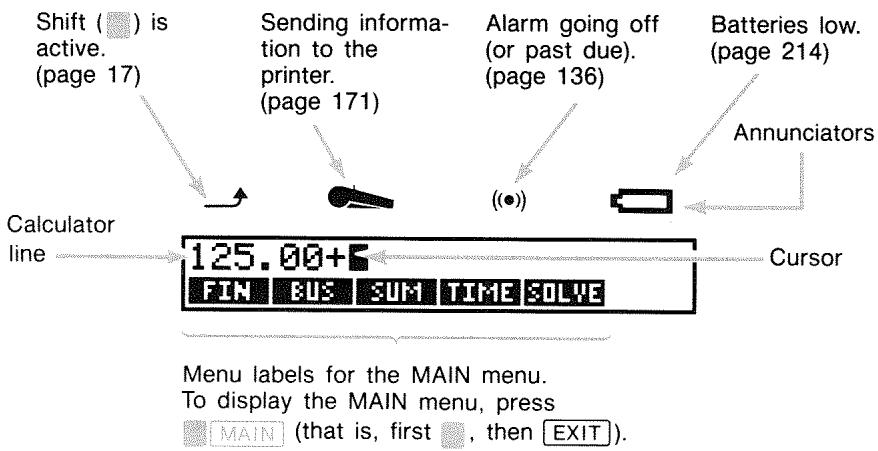
The Shift Key (
Some keys have a second, shifted function printed in color above the key. The colored shift key accesses these operations. For example, pressing and releasing , then pressing turns the calculator off. This is written OFF.
Pressing turns on the shift annunciator (→) . This symbol stays on until you press the next key. If you ever press by mistake, just press again to turn off the → .
Backspacing and Clearing
The following keys erase typing mistakes, entire numbers, or even lists or sets of data.
Table 1-1. Keys for Clearing
| Key | Description |
| CLR | Backspace; erases the character before the cursor. Clear; clears the calculator line. (When the calculator is off, this key turns the calculator on, but without clearing anything.) |
| CLEAR DATA | This clears all information in the current work area (menu). For example, it will erase all the numbers in a list if you are currently viewing a list (SUM or CFLO). In other menus (like TVM), CLEAR DATA clears all of the values that have been stored. In SOLVE, it can delete all equations. |
The cursor () is visible while you are keying in a number or doing a calculation. When the cursor is visible, pressing lubsuit deletes the last character you keyed in. When the cursor is not visible, pressing lubsuit erases the last number.
| Keys: | Display: | Description: |
| 12345 | Backspacing removes the 4 and 5. | |
| .66 | 123.66 | Calculates 1/123.66. |
| i/x | 0.01 | |
| 0.00 | C clears the calculator line. |
In addition, there are more drastic clearing operations that erase more information at once. Refer to "Resetting the Calculator" on page 217 in appendix A.
Doing Arithmetic
The “ ” in the margin is a reminder that the example keystrokes are for ALG mode.
This is a brief introduction to doing arithmetic. More information on arithmetic is in chapter 2. Remember that you can erase errors by pressing or .
To calculate 21.1 + 23.8:
| Keys: | Display: | Description: |
| 21.1 + | 21, 10+ | |
| 23.8 | 21, 10+23, 8 | |
| = | 44, 90 | = completes calculation. |
Once a calculation has been completed, pressing another digit key starts a new calculation. On the other hand, pressing an operator key continues the calculation:
| 77.35 | 77.35- | Calculates |
| 77.35 - 90.89. |
| 90.89 | -13.54 |
| 65 √x × 12 | New calculation: |
| = | √65 × 12. |
| ÷ 3.5 | = | 27.64 | Calculates 96.75 ÷ 3.5. |
You can also do long calculations without pressing = after each intermediate calculation—just press it at the end. The operators perform from left to right, in the order you enter them. Compare:
6 5 + 1 23 . 5 and 6 5 + 1 23 . 5
| 65 + 12 ÷ | Operations occur in the order you see them. | |
| 3.5 = | 22.00 | |
| 65 | 12 | 12 |
| 3.5 | 68.43 |
Keying in Negative Numbers (+/-)
The + key changes the sign of a number.
To key in a negative number, type that number, then press 7 .
To change the sign of an already displayed number (it must be the rightmost number), press +/- .
| Keys: | Display: | Description: |
| 75 +/- | -75 | Changes the sign of 75. |
| × 7.1 = | -532.50 | Multiplies -75 by 7.1. |
Using the Menu Keys
The calculator usually displays a set of labels across the bottom of the display. The set is called a menu because it presents you with choices. The MAIN menu is the starting point for all other menus.
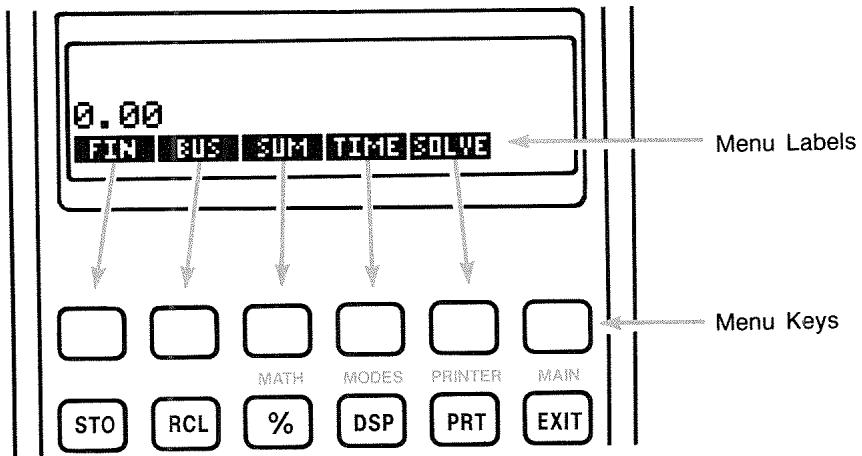
The top row of keys is related to the labels along the bottom of the display. The labels tell you what the keys do. The six keys are called menu keys; the labels are called menu labels.
The MAIN Menu
The MAIN menu is a set of primary choices leading to other menu options. No matter which menu you currently see, pressing main redistributes the MAIN menu. The menu structure is hierarchical.
Table 1-2. The MAIN Menu
| Menu Label | Operations Done in This Category | Covered in: |
| FIN (Finance) | TVM: Time value of money: loans, savings, leasing, amortization. | Chapter 4 |
| ICNV: Interest conversions. | Chapter 5 | |
| CFLO: Lists of cash flows for internal rate of return and net present value. | Chapter 6 | |
| BOND: Yields and prices for bonds. | Chapter 7 | |
| DEPRC: Depreciation using SL, DB, and SOYD methods, or ACRS. | Chapter 8 | |
| BUS (Business Percentages) | Percent of total, percent change, markup on cost, markup on price. | Chapter 3 |
| SUM (Statistics) | Lists of numbers, running total, mean, weighted statistics, forecasting, summation statistics, and more. | Chapter 9 |
| TIME (Time Manager) | Clock, calendar, appointments, date arithmetic. | Chapter 10 |
| SOLVE (Equation Solver) | Creates customized menus from your own equations for calculations you do often. | Chapter 11 |
Choosing Menus and Reading Menu Maps
Below is a menu map illustrating one possible path through three levels of menus: from the MAIN menu to the BUS menu to the MU%C (markup as a percent of cost) menu. There are no menus that branch from the MU%C menu because the MU%C menu is a final destination—you use it to do calculations, rather than to choose another menu.
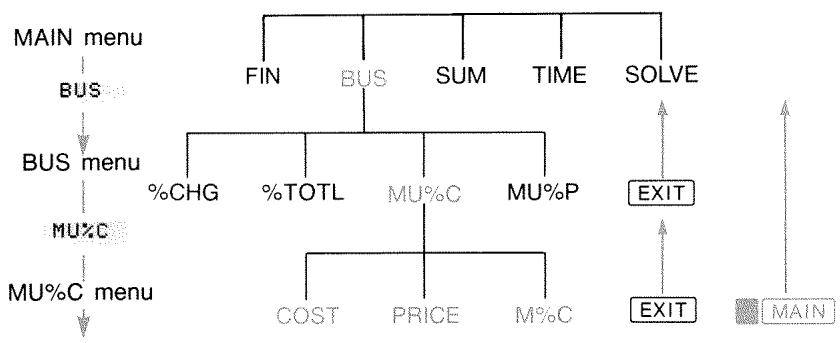
Press BUS to choose the BUS menu. Then press MU%C to choose the MU%C menu.
Press XIT to return to the previous menu. Pressing XIT enough times returns you to the MAIN menu.
Press MAIN to return to the MAIN menu directly.
When a menu has more than six labels, the label MORE appears at the far right. Use it to switch between sets of menu labels on the same "level".
Example: Using Menus. Refer to the menu map for MU%C (above) along with this example. The example calculates the percent markup on cost of a crate of oranges that a grocer buys for 4.10 and sells for 4.60.
Step 1. Decide which menu you want to use. The MU%C (markup as a percent of cost) menu is our destination. If it's not obvious to you which menu you need, look up the topic in the subject index and examine the menu maps in appendix C.
Displaying the MU%C menu:
Step 2. To display the MAIN menu, press MAIN. This step lets you start from a known location on the menu map.
Step 3. Press BUS to display the BUS menu.
Step 4. Press Muzo to display the MU%C menu.
Using the MU%C menu:
Step 5. Key in the cost and press COST to store 4.10 as the COST.
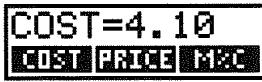
Step 6. Key in the price and press PRICE to store 4.60 as the PRICE.
Step 7. Press MTC to calculate the markup as a percent of cost. The answer: MARKUP%C = 12.20 .
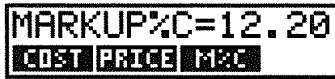
Step 8. To leave the MU%C menu, press EXIT twice (once to get back to the BUS menu, and again to get to the MAIN menu) or MAIN (to go directly to the MAIN menu).
Calculations Using Menus
Using menus to do calculations is easy. You don't have to remember in what order to enter numbers and in what order results come back. Instead, the menus guide you, as in the previous example. All the keys you need are together in the top row. The menu keys both store numbers for the calculations and start the calculations.
The MU%C menu can calculate M% C , the percent markup on cost, given COST and PRICE.
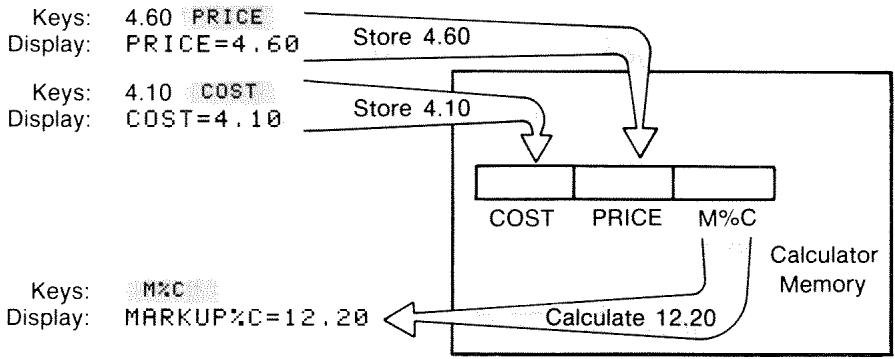
Then the same menu can calculate PRICE given COST and M% C
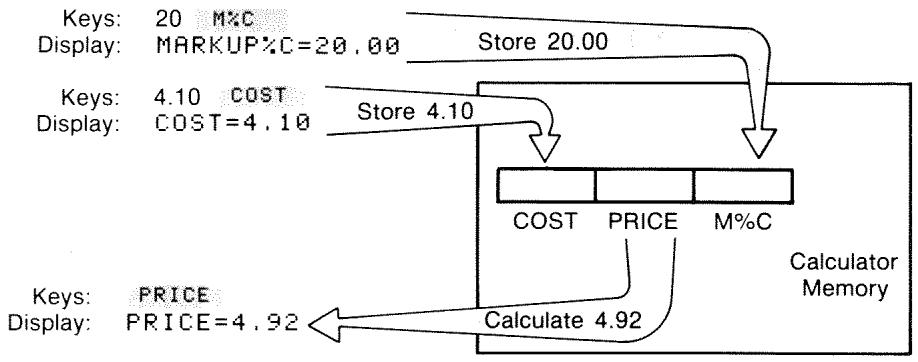
Notice that the two calculations use the same three variables; each variable can be used both to store and calculate values. These are called built-in variables, because they are permanently built into the calculator.
Many menus in this calculator work like the example above. The rules for using variables are:
To store a value, key in the number and press the menu key.* Arithmetic calculations, as well as single values, can be stored.
To calculate a value, press the menu key without first keying in a number. The calculator displays CALCULATING when a value is being calculated.
To verify a stored value, press RCL (recall) followed by the menu key. For example, RCL COST displays the value stored in COST.
To transfer a value to another menu, do nothing if it is displayed (that is, it is in the calculator line). A number in the calculator line remains there when you switch menus. To transfer more than one value from a menu, use storage registers. See page 42, "Storing and Recalling Numbers."
Exiting Menus (EXIT)
The key is used to leave the current menu and go back to the previously displayed menu (as shown in the previous example). This is true for menus you might pick by accident, too: gets you out.
Clearing Values in Menus
The Clear Data key is a powerful feature to clear all the data in the currently displayed menu, giving you a clean slate for new calculations.
If the current menu has variables (that is, if the display shows menu labels for variables, such as COST, PRICE, and M% C in the MU % C menu), pressing CLEAR DATA clears the values of those variables to zero.
If the current menu has a list (SUM, CFLO, or Solver), pressing CLEAR DATA clears the values in the list.
To see what value is currently stored in a variable, press RCL menu label.
Solving Your Own Equations (SOLVE)
This chapter has introduced some of the built-in menus the calculator offers. But if the solution to a problem is not built into HP-17B, you can turn to the most versatile feature of all: the Equation Solver. Here you define your own solution in terms of an equation. The Solver then creates a menu to go with your equation, which you can use over and over again, just like the other menus in the calculator.
The Solver is covered in chapter 11, but here is an introductory example. Because equations usually use letters of the alphabet, this section also explains how to type and edit letters and other characters that aren't on the keyboard.
Example: Using the Solver. Suppose you frequently buy carpet and must calculate how much it will cost. The price is quoted to you per square yard. Regardless of how you do the calculation (even if you do it longhand), you are using an equation.
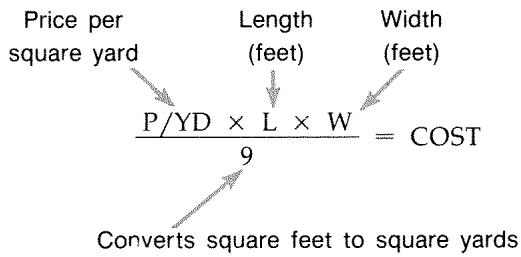
To type this equation into the Solver, use the ALPHA menu.
Typing Words and Characters: the ALPHAbetic Menu
The ALPHAbetic menu is automatically displayed when you need it to type letters and characters. The ALPHA menu also includes characters not found on the keyboard:
Uppercase letters.
Space.
■ Punctuation and special characters.
Non-English letters.
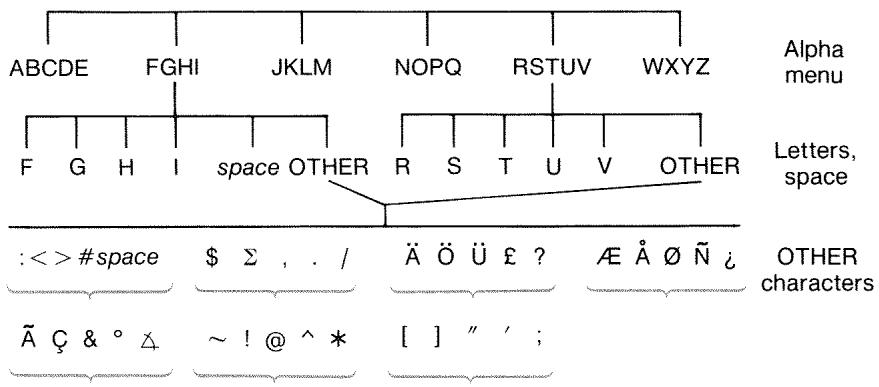
To type a letter you need to press two keys; for example, is produced by the keystrokes ABCDE R
Each letter menu has anOTHERkey for accessing punctuation and non-English characters. The letter menus with just four letters (for example, FGHI) include a space character (
To familiarize yourself with the ALPHA menu, type in the equation for the cost of carpeting. The necessary keystrokes are shown below. (Note the access to the special character, "/".) Use , if necessary, to make corrections. If you need to do further editing, refer to the next section, "Editing ALPHAbetic Text." When you're satisfied that the equation is correct, press INPUT to enter the equation into memory.
Keys
Characters
MAIN
SOLVE NEW
NOPQ
P
MORE
P
WXYZ
OTHER
MORE
P
WXYZ
Y
ABCOE
P/YD

JKLM
藻
图
P,YD×L×
WXYZ
H
P/YD×L×W÷9=
ABCDE
C
NOPQ
0
P/YD×L×W=9=CO
RSTUV
5
RSTUV
T
P/YD×L×W÷9=COST
INPUT
P,YD×L×W÷9=COST
Note that the is just a character, part of the variable's name. It is not an operator, which ÷ is.
Editing ALPHAbetic Text
The companion to the ALPHA menu is the ALPHA-Edit menu. To display the ALPHA-Edit menu, press EDIT in the SOLVE menu (or press EXIT in the ALPHA menu).
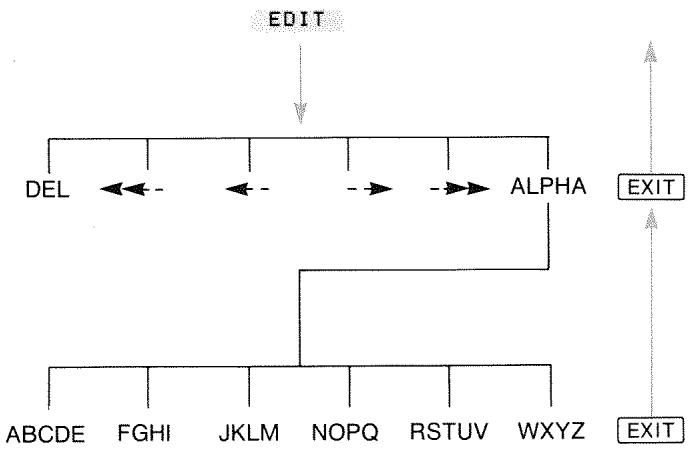
Table 1-3. Alphabetic Editing
| Operation | Label or Key to Press |
| ALPHA-Edit Menu | |
| Inserts character before the cursor. | Any character. |
| Deletes character at the cursor. | DEL |
| Moves the cursor far left, one display-width. | <<-- |
| Moves the cursor left. | <-- |
| Moves the cursor right. | --> |
| Moves the cursor far right, one display-width. | ---> |
| Displays the ALPHA menu again. | ALPHA |
| Keyboard | |
| Backspaces and erases the character before the cursor. | # |
| Clears the calculator line. | CLR |
Calculating the Answer (CALC)
After an equation is input, pressing calc verifies it and creates a new, customized menu to go with the equation.

Menu labels for your variables
Each of the variables you typed into the equation now appears as a menu label. You can store and calculate values in this menu the same way you do in other menus.
Calculate the cost of carpet needed to cover a 9' by 12' room. The carpet costs $22.50 per square yard.
Starting from the MAIN menu (press MAIN):
| Keys: | Display: | Description: |
| SOLVE | P/YD×L×W÷9=COST | Displays the SOLVE menu and the current equation.* |
| CALC | Displays the customized menu for carpeting. | |
| 22.5 P/YD | P/YD=22.50 | Stores the price per square yard in P/YD. |
| 12 L | L=12.00 | Stores the length in L. |
| 9 W | W=9.00 | Stores the width in W. |
| COST | COST=270.00 | Calculates the cost to cover a 9' × 12' room. |
Now determine the most expensive carpet you can buy if the maximum amount you can pay is $300. Notice that all you need to do is enter the one value you are changing—there is no need to re-enter the other values.
300 COST COST=300.00 Stores $300 in COST.
P/YD P/YD=25.00 Calculate the maximum price per square yard you can pay.
EXIT EXIT Exits Solver.
Controlling the Display Format
The DSP menu (press DSP) gives you options for formatting numbers. You can pick the number of decimal places to be displayed, and whether to use a comma or a period to "punctuate" your numbers.
- If you entered this equation but don't see it now, press or until you do.
Decimal Places
To change the number of displayed decimal places, first press the DSP key. Then either:
Press FIX, type the number of decimal places you want (from 0 to 11), and press INPUT; or
Press ALL to see a number as precisely as possible at any time (12 digits maximum).
Internal Precision
Changing the number of displayed decimal places affects what you see, but does not affect the internal representation of numbers. The number inside the calculator always has 12 digits.

Temporarily SHOWing ALL
To temporarily see a number with full precision, press SHOW. This shows you the ALL format for as long as you hold down SHOW.
Rounding a Number
The RND function rounds the number in the calculator line to the number of displayed decimal places. Subsequent calculations use the rounded value.
Starting with two displayed decimal places:
| Keys: | Display: | Description: |
| 5.787 | 5.787■ | |
| DSP FIX4 [INPUT] | 5.7870 | Four decimal places are displayed. |
| DSP ALL | 5.787 | All significant digits; trailing zeros dropped. |
| DSP FIX2 [INPUT] | 5.79 | Two decimal places are displayed. |
| SHOW(hold) | FULL PRECISION IS:5.787 | Temporarily shows full precision. |
| RNDSHOW (hold) | 5.79 | Rounds the number to two decimal places. |
Exchanging Periods and Commas in Numbers
To exchange the periods and commas used for the decimal point and digit separators in a number:
- Press DSP to access the DSP (display) menu.
- Specify the decimal point by pressing or . Pressing sets a period as the decimal point and comma as the digit separator (U.S. mode). (For example, 1,000,000.00.) Pressing sets a comma as the decimal point and period as the digit separator (non-U.S. mode). (For example, 1.000.000.00.)
Error Messages
Sometimes the calculator cannot do what you "ask", such as when you press the wrong key or forget a number for a calculation. To help you correct the situation, the calculator beeps and displays a message.
Press CLR or to clear the error message.
Press any other key to clear the message and perform that key's function.
For more explanations, refer to the list of error messages just before the subject index.
Modes
Beeper. Beeping occurs when a wrong key is pressed, when an error occurs, and during alarms for appointments. You can suppress and re-activate the beeper in the MODES menu as follows:
- Press MODES
- Pressing BEEP will simultaneously change and display the current setting for the beeper:
BEEPER ON beeps for errors and appointments.
BEEPER ON: APPTS ONLY beeps only for appointments.
BEBPER OFF silences the beeper completely.
- Press EXIT when done.
Print. Press MODES PRINT to specify whether or not the printer ac adapter is in use. Then press EXIT.
Double Space. Press MODES DEL to turn double-spaced printing on or off. Then press EXIT.
Algebraic. Press MODES FLG to select algebraic entry logic.
RPN. Press [MODES] RPH to select Reverse Polish Notation entry logic.
Calculator Memory (MEM)
The calculator stores many different types of information in its memory. Each piece of information requires a certain amount of storage space.* You can monitor the amount of available memory by pressing

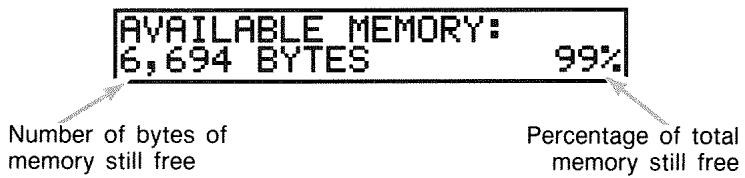
The amount of memory available for storing information and working problems is about 6,750 bytes. (Units of memory space are called bytes.) The calculator gives you complete flexibility in how you use that available memory (such as for lists of numbers or equations). Use as much of the memory as you want for any task you want.
If you use nearly all of the calculator's memory, you'll encounter the message INSUFFICIENT MEMORY. To remedy this situation, you must erase some previously stored information. Refer to "Managing Calculator Memory" on page 216 in appendix A.
The calculator also allows you to erase at once all the information stored inside it. This procedure is covered in "Erasing Continuous Memory" on page 218.
- Storing numbers in menus like TVM (non-Solver menus) does not use any of your memory space.
† There are 8,000 bytes total in RAM (random access memory): 6,750 bytes plus 1,250 bytes reserved by the system to store your values in built-in variables.
Arithmetic
If you prefer RPN to algebraic logic, please read appendix D before you read this chapter. The “ heckmark ” in the margin is a reminder that the example keystrokes are for ALG mode.
The Calculator Line
The calculator line is the part of the display where numbers appear and calculations take place. Sometimes this line includes labels for results, such as TOTAL = 124.60 . Even in this case you can use the number for a calculation. For example, pressing + 2 would calculate 124.60 plus 2, and the calculator would display the answer, 126.60.
There is always a number in the calculator line, even though sometimes the calculator line is hidden by a message (such as SELECT COMPOUNDING). To see the number in the calculator line, press 4 , which removes the message.
heckmark Doing Calculations
Simple calculating was introduced in chapter 1, page 19. Often longer calculations involve more than one operation. These are called chain calculations because several operations are "chained" together. To do a chain calculation, you don't need to press = after each operation, but only at the very end.
For instance, to calculate 750 × 12360 you can type either:
750 12 = 360
or
750 × 12 ÷ 360 =
In the second case, the ÷ key acts like the = key by displaying the result of 750 × 12 .
Here's a longer chain calculation.
4 5 6 - 7 51 8 . 5 × 6 81 . 9
This calculation can be written as: 456 - 75 ÷ 18.5 × 68 ÷ 1.9 .
Watch what happens in the display as you key it in:
Keys: Display:
456 75 381.00÷
18.5 20.59x
68 1,400,43÷
1.9 737.07
Using Parentheses in Calculations
Use parentheses when you want to postpone calculating an intermediate result until you've entered more numbers. For example, suppose you want to calculate:
3 08 5 - 1 2 × 9
If you were to key in 30 ÷ 85 , the calculator would calculate the intermediate result, 0.35. However, that's not what you want. To delay the division until you've subtracted 12 from 85, use parentheses:
| Keys: | Display: | Description: |
| 30÷85 | 30.00÷(85.00- | No calculation is done. |
| 12 | 30.00÷73.00 | Calculates 85 - 12. |
| ×9 | 0.41×9 | Calculates 30 / 73. |
| = | 3.70 | Calculates 0.41 × 9. |
Note that you must include a for multiplication; parentheses do not imply multiplication.
The Percent Key
The % key has two functions:
Finding a Percentage. In most cases, % divides a number by 100. The one exception is when a plus or minus sign precedes the number. (See "Adding or Subtracting a Percentage," below.)
For instance, 25 % results in 0.25.
To find 25% of 200, press: 200 × 25 % . (Result is 50.00.)
Adding or Subtracting a Percentage. You can do this all in one calculation:
For instance, to decrease 200 by 25% , just enter 200 - 25% = 150.00 . (Result is 150.00 .)
Example: Calculating Simple Interest. You borrow $1,250 from a relative, and agree to repay the loan in a year with 7% simple interest. How much money will you owe?
| Keys: | Display: | Description: |
| 1250 + 7 % | 1,250.00+87.50 | Interest on the loan is $87.50. |
| 1,337.50 | You must repay this amount at the end of one year. |
The Mathematical Functions
Some of the math functions appear on the keyboard; others are in the MATH menu. Math functions act on the last number in the display.
Table 2-1. Shifted Math Functions
| Key | Description |
| 1/x | reciprocal |
| √x | square root |
| 2/x | square |
| Keys: | Display: | Description: |
| 4 1/x | 0.25 | Reciprocal of 4. |
| 20 √x | 4.47 | Calculates √20. |
| + 47.2 x | 51.67x | Calculates 4.47 + 47.20. |
| 1.1 x² | 51.67x1.21 | Calculates 1.1². |
| = | 62.52 | Completes calculation of (4.47 + 47.2) × 1.1². |
The Power Function (Exponentiation)
The power function, x , raises the preceding number to the power of the following number.
| Keys: | Display: | Description: |
| 125 yx 3 = | 1,953,125.00 | Calculates 1253. |
| 125 yx 3 | 5.00 | Calculates the cube root of 125, which is the same as (125)1/3. |
The MATH Menu
To display the MATH menu, press MATH (the shifted % key). Like the other mathematics functions, these functions operate on only the last number in the display.
Table 2-2. The MATH Menu Labels
| Menu Label | Description |
| LOG | Common (base 10) logarithm of a positive number. |
| 10^X | Common (base 10) antilogarithm; calculates 10^x. |
| LN | Natural (base e) logarithm of a positive number. |
| EXP | Natural antilogarithm; calculates ex. |
| N! | Factorial. |
| PI | Inserts the value for π into the display. |
| Keys: | Display: | Description: |
| 2.5 | MATH | Calculates 10^2.5. |
| 10^X | 316.23 | |
| 4 | N! | 24.00 |
| EXIT | Calculates the factorial of 4. | |
| Exits MATH menu. |
You can access the MATH menu when another menu is displayed. For instance, while using SUM you might want to use a MATH function. Just press , then perform the calculation. Pressing returns you to SUM. The MATH result remains in the calculator line. Remember, however, that you must exit MATH before you resume using SUM.
Saving and Reusing Numbers
Sometimes you might want to include the result of a previous calculation in a new calculation. There are several ways to reuse numbers.
The History Stack of Numbers
When you start a new operation, the previous result moves out of the display but is still accessible. Up to four lines of numbers are saved: one in the display and three hidden. These lines make up the history stack.
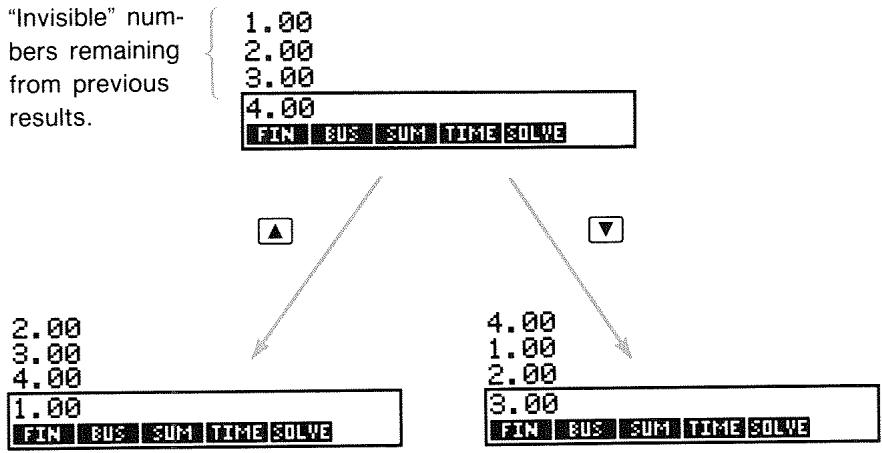
The , , and keys "roll" the history stack down or up one line, bringing the hidden results back into the display. If you hold down or , the history stack wraps around on itself. However, you cannot roll the history stack when an incomplete calculation is in the display. Also, you cannot gain access to the stack while using lists (SUM, CFLO) in ALG mode, or SOLVE in either ALG or RPN mode. All numbers in the history stack are retained when you switch menus.
Pressing exchanges the contents of the bottom two lines of the display.
Pressing CLEAR DATA clears the history stack. Be careful if a menu is active, because then CLEAR DATA also erases the data associated with that menu.

Keys:
Display:
Description:
75.55 32.63

42.92
150

21.43
42.92 moves out of display.
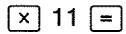
Now, suppose you want to multiply 42.92 × 11 . Using the history stack saves you time.

42.92
Moves 42.92 back to calculator line.
472.12

Reusing the Last Result (LAST)
The LAST key copies the last result—that is, the number just above the calculator line in the history stack—into a current calculation. This lets you reuse a number without retyping it and also lets you break up a complicated calculation.
3 9 + 8 1 2 3 + 1 7
Keys:
Display:
Description:
123 + 17 =
140.00
Calculates 123 + 17

11.83
Calculates 140 .
39 + 8 = ÷
47.00÷11.83
Copies 11.83 to the calculator line.

3.97
Completes the calculation.
An equivalent keystroke sequence for this problem would be:
39+8÷123+17
Storing and Recalling Numbers
The key copies a number from the calculator line into a designated storage area, called a storage register. There are ten storage registers in calculator memory, numbered 0 through 9. The key recalls stored numbers back to the calculator line.
√ If there is more than one number on the calculator line, STO stores only the last number in the display.
To store or recall a number:
- Press STO or RCL. (To cancel this step, press lubsuit .)
- Key in the register number.
The following example uses two storage registers to do two calculations that use some of the same numbers.
4 7 5 . 63 9 . 1 5
5 6 0 . 1 + 4 7 5 . 63 9 . 1 5
| ✓ Keys: | Display: | Description: |
| 475.6 STO 1 | 475.60 | Stores 475.6 into register 1. |
| ÷ 39.15 STO 2 | 475.60÷39.15 | Stores 39.15 (rightmost number) into register 2. |
| = | 12.15 | Completes calculation. |
| 560.1 + RCL 1 | 560.10+475.60 | Recalls contents of regis-ter 1. |
| ÷ RCL 2 | 1,035.70÷39.15 | Recalls register 2. |
| = | 26.45 | Completes calculation. |
The STO and RCL keys can also be used with variables. For example, STO MxC (in the MU%C menu) stores the rightmost number from the display into the variable M% C . RCL MxC copies the contents of M% C into the calculator line. If there is an expression in the display (such as 2 + 4 ), then the recalled number replaces only the last number.
You do not need to clear storage registers before using them. By storing a number into a register, you overwrite whatever existed there before.
Doing Arithmetic Inside Registers and Variables
You can also do arithmetic inside storage registers.
| Keys: | Display: | Description: |
| 45.7 STO 3 | 45.70 | Stores 45.7 in reg. 3. |
| 2.5 STO × 3 | 2.50 | Multiplies contents of register 3 by 2.5 and stores result (114.25) back in register 3. |
| RCL 3 | 114.25 | Displays register 3. |
Table 2-3. Arithmetic in Registers
| Keys | New Register Contents |
| STO + | old register contents + displayed number |
| STO - | old register contents - displayed number |
| STO × | old register contents × displayed number |
| STO ÷ | old register contents ÷ displayed number |
| STO ↕ | old register contents ^ displayed number |
You can also do arithmetic with the values stored in variables. For example, 2 × 2C (in the MU%C menu) multiplies the current contents of M% C by 2 and stores the product in M% C .
Scientific Notation
Scientific notation is useful when working with very large or very small numbers. Scientific notation shows a small number (less than 10) times 10 raised to a power. For example, the 1984 Gross National Product of the United States was 3,662,800,000,000 . In scientific notation, this is 3.6628 × 10¹² . For very small numbers the decimal point is moved to the right and 10 is raised to a negative power. For example, 0.00000752 can be written as 7.52 × 10⁻⁶ .
When a calculation produces a result with more than 12 digits, the number is automatically displayed in scientific notation, using a capital E in place of “ × 10^".
Remember that + / - changes the sign of the entire number, and not of the exponent. Use - to make a negative exponent.
Type in the numbers 4.78 × 10¹³ and -2.36 × 10⁻¹⁵ .
| Keys: | Display: | Description: |
| 4.78 E 13 | 4.78E13 | Pressing E starts the exponent. |
| CLEAR DATA | 0.00 | Clears number. |
| 2.36 E - 15 | 2.36E-15 | Pressing - before an exponent makes it negative. |
| +/- | -2.36E-15 | Pressing +/− makes the entire number negative. |
| CLEAR DATA | C clears number. |
Range of Numbers
The largest positive and negative numbers available on the calculator are ± 9.99999999999 × 10499 ; the smallest positive and negative numbers available are ± 1 × 10-499 .
Percentage Calculations in Business
The business percentages (BUS) menu is used to solve four types of problems. Each type of problem has its own menu.
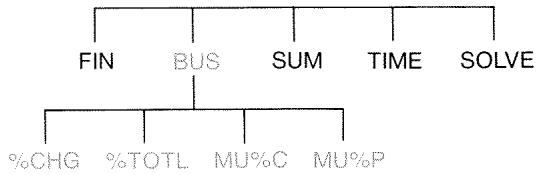
Table 3-1. The Business Percentages (BUS) Menus
| Menu | Description |
| Percent change ( %CHG ) | The difference between two numbers (OLD and NEW), expressed as a percentage (%CH) of OLD. |
| Percent of total ( %TOTAL ) | The portion that one number (PART) is of another (TO-TAL), expressed as a percentage (%T). |
| Markup on cost ( MU×C ) | The difference between price (PRICE) and cost (COST), expressed as a percentage of the cost (M%C). |
| Markup on price ( MU×P ) | The difference between price (PRICE) and cost (COST), expressed as a percentage of the price (M%P). |
The calculator retains the values of the BUS variables until you clear them by pressing CLEAR DATA. For example, pressing CLEAR DATA while in the %CHG menu clears OLD, NEW, and %CH.
To see what value is currently stored in a variable, press RCL menu label. This shows you the value without recalculating it.
Using the BUS Menus
Each of the four BUS menus has three variables. You can calculate any one of the three variables if you know the other two.
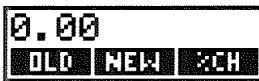
- To display the %CHG, %TOTL, MU%C, or MU%P menu from the MAIN menu, press BUS, then the appropriate menu label. Pressing xchg, for example, displays:
- Store each value you know by keying in the number and pressing the appropriate menu key.
- Press the menu key for the value you want to calculate.
Examples Using the BUS Menus
Percent Change (%CHG)
Example. Total sales last year were 90,000. This year, sales were 95,000. What is the percent change between last year's sales and this year's?
| Keys: | Display: | Description: |
| BUS | Displays %CHG menu. | |
| %CHG | ||
| 90000 OLD | OLD=90,000.00 | Stores 90,000 in OLD. |
| 95000 NEW | NEW=95,000.00 | Stores 95,000 in NEW. |
| %CH | %CHANGE=5.56 | Calculates percent change. |
What would this year's sales have to be to show a 12% increase from last year? OLD remains 90,000, so you don't have to key it in again. Just enter % CH and ask for NEW.
12 :CH
% CHANGE = 12.00
Stores 12 in % CH
NEW
NEW=100,800.00
Calculates the value 12% greater than 90,000.
Percent of Total (%TOTL)
Example. Total assets for your company are 67,584. The firm has inventories of23,457. What percentage of total assets is inventory?
You will be supplying values for TOTAL and PART and calculating % T . This takes care of all three variables, so there is no need to use CLEAR DATA to remove old data.
| Keys: | Display: | Description: | ||
| BUS | %TOTAL | Displays %TOTAL menu. | ||
| 67584 | TOTAL | TOTAL=67,584.00 | Stores 67,584 in TOTAL. | |
| 23457 | PART | PART=23,457.00 | Stores23,457 in PART. | |
| %T | %TOTAL=34.71 | Calculates percent of total. | ||
Markup as a Percent of Cost (MU%C)
Example. The standard markup on costume jewelry at Balkis's Boutique is 60% . The boutique just received a shipment of chokers costing $19.00 each. What is the retail price per choker?
| Keys: | Display: | Description: |
| BUS | Displays MU%C menu. | |
| MU%C | ||
| 19 COST | COST=19.00 | Stores cost in COST. |
| 60 M%C | MARKUP%C=60.00 | Stores 60% in M%C. |
| PRICE | PRICE=30.40 | Calculates price. |
Markup as a Percent of Price (MU%P)
Example. Kilowatt Electronics purchases televisions for 225, with a discount of 4%. The televisions are sold for300. What is the markup of the net cost as a percent of the selling price?
What is the markup as percent of price without the 4% discount?
| Keys: | Display: | Description: |
| BUS | Displays MU%P menu. | |
| MU%P | ||
| 225 - 4 % | Calculates and stores net cost in COST. | |
| COST | COST=216.00 | |
| 300 PRICE | PRICE=300.00 | Stores 300 in PRICE. |
| M%P | MARKUP%P=28.00 | Calculates markup as a percent of price. |
Use $225 for COST and leave PRICE alone.
225 COST COST = 225.00 Stores 225 in COST.
MARKUP: P = 25.00 Calculate markup.
Sharing Variables Between Menus
If you compare the MU%C menu and the MU%P menus, you'll see that they have two menu labels in common—cost and PRICE.
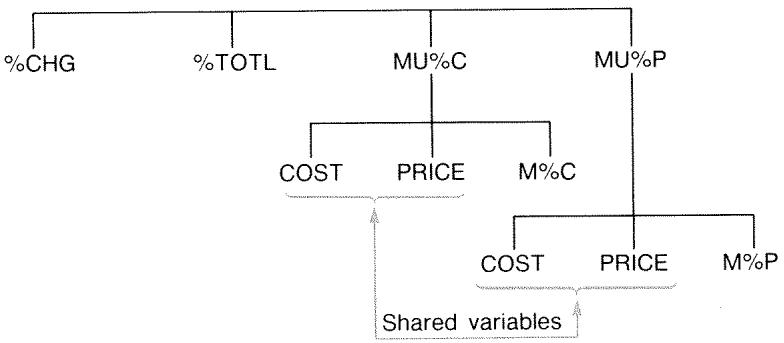
The calculator keeps track of the values you key in according to those labels. For example, if you key in COST and PRICE in the MU%C menu, exit to the BUS menu, and then display the MU%P menu, the calculator retains those values. In other words, the variables are shared between the two menus.
Example: Using Shared Variables. A food cooperative buys cases of canned soup with an invoice cost of (9.60 per case. If the co-op routinely uses a (15\%) markup on cost, for what price should it sell a case of soup?
| Keys: | Display: | Description: |
| BUS | Displays MU%C menu. | |
| MU%C | ||
| 9.6 COST | COST=9.60 | Stores 9.60 in COST. |
| 15 M/C | MARKUP%C=15.00 | Stores 15% in M%C. |
| PRICE | PRICE=11.04 | Calculates retail price. |
What is the markup on price? Switch menus but keep the same COST and PRICE.
EXIT MU.P
Exits MU%C menu and displays MU%P menu.
MARKUP%P=13.04
Calculates markup as a percent of price.
Time Value of Money
The phrase time value of money describes calculations based on money earning interest over a period of time. The TVM menu performs compound-interest calculations and calculates (and prints) amortization schedules.
In compound interest calculations, interest is added to the principal at specified compounding periods, thereby also earning interest. Savings accounts, mortgages, and leases are compound-interest calculations.
In simple interest calculations, the interest is a percent of the principal and is repaid in one lump sum. Simple interest calculations can be done using the % key (page 37). For an example that calculates simple interest using an annual interest rate, see page 178.
The TVM Menu
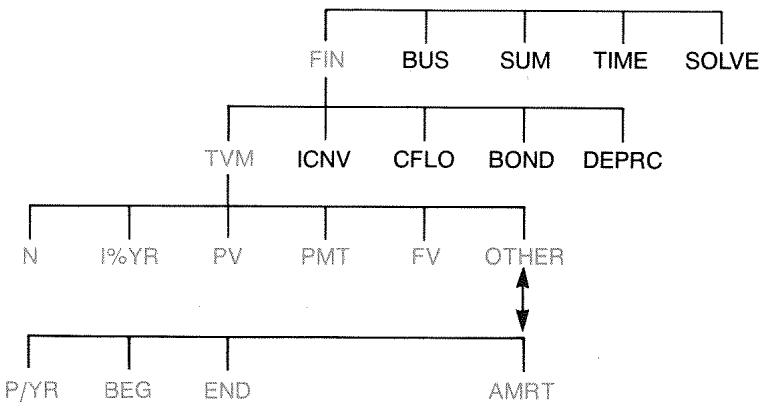
The time value of money (TVM) menu does many compound-interest calculations. Specifically, you can use the TVM menu for a series of cash flows (money received or money paid) when:
The dollar amount is the same for each payment.*
The payments occur at regular intervals.
The payment periods coincide with the compounding periods.
12 payments (or periods) per year
Payment mode: the end of each period

Figure 4-1. The First Level of TVM
To second level of TVM
The first level of the TVM menu has five menu labels for variables plus OTHER. The OTHER key accesses a second-level menu used to specify payment conditions (the payment mode) and to call up the AMRT (amortization) menu.

Figure 4-2. The Second Level of TVM
Table 4-1. TVM Menu Labels
| Menu Label | Description |
| N | First Level Stores (or calculates) the total number of payments or compounding periods.*† (For a 30-year loan with monthly payments, N=12×30=360.) |
| N | Shortcut for N: Multiplies the number in the display by P/YR, and stores the result in N. (If P/YR were 12, then 30 would set N=360.) |
| I*YR | Stores (or calculates) the nominal annual interest rate as a percentage. |
| PV | Stores (or calculates) the present value—an initial cash flow or a discounted value of a series of future cash flows (PMTs + FV). To a lender or borrower, PV is the amount of the loan; to an investor, PV is the initial investment. If PV paid out, it is negative. PV always occurs at the beginning of the first period. |
| PMT | Stores (or calculates) the dollar amount of each periodic payment. All payments are equal, and no payments are skipped. (If the payments are unequal, use CFLO, not TVM.) Payments can occur at the beginning or end of each period. If PMT represents money paid out, it is negative. |
| FV | Stores (or calculates) the future value—a final cash flow or a compounded value of a series of previous cash flows (PV + PMTs). FV always occurs at the end of the last period. If FV is paid out, it is negative. |
| P/YR | specifies the number of payments or compounding periods per year.† (It must be an integer, 1 through 999.) |
| * When a non-integer N (an "odd period") is calculated, the answer must be interpreted carefully. See the savings account example on page 60. Calculations using a stored, non-integer N produce a mathematically correct result, but this result has no simple interpretation. The example on page 160 uses the Solver to do a partial-period (non-integer) calculation in which interest begins to accrue prior to the beginning of the first regular payment period. † The number of payment periods must equal the number of compounding periods. If this is not true, see page 77. For Canadian mortgages, see page 185. | |
| BEG | Second Level (Continued) |
| Sets Begin mode: payments occur at the beginning of each period. Typical for savings plans and leasing. (The Begin and End modes do not matter if PMT=0.) | |
| END | Sets End mode: payments occur at the end of each period. Typical for loans and investments. |
| AMRT | Accesses the amortization menu. See page 67. |
The calculator retains the values of the TVM variables until you clear them by pressing CLEAR DATA. When you see the first-level TVM menu, pressing CLEAR DATA clears N , I% YR, PV, PMT, and FV. When the second-level menu (OTHER) is displayed, pressing CLEAR DATA resets the payment conditions to 12 P/YR END MODE.
To see what value is currently stored in a variable, press RCL menu label. This shows you the value without recalculating it.
Cash Flow Diagrams and Signs of Numbers
It is helpful to illustrate TVM calculations with cash-flow diagrams. Cash-flow diagrams are time lines divided into equal segments called compounding (or payment) periods. Arrows show the occurrence of cash flows (payments in or out). Money received is a positive number (arrow up) and money paid out is a negative number (arrow down).

Note
The correct sign (positive or negative) for TVM numbers is essential. The calculations will make sense only if you consistently show payments out as negative and payments in (receipts) as positive. Perform a calculation from the
point of view of either the lender (investor) or the borrower, but not both!
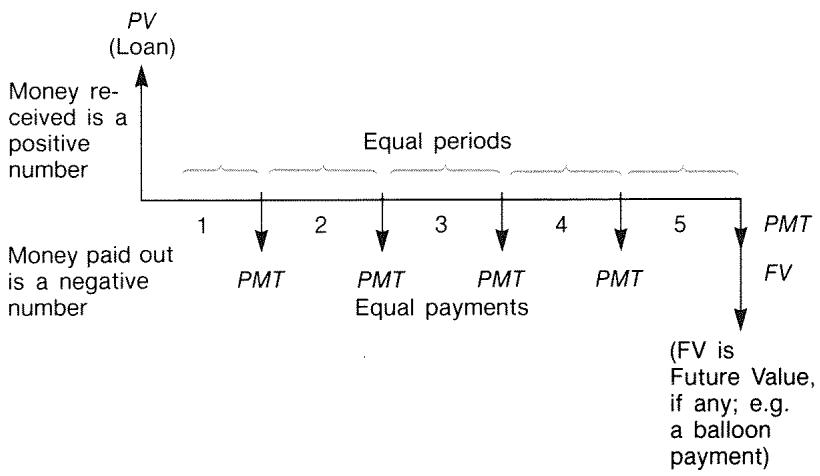
Figure 4-3. A Cash Flow Diagram for a Loan from Borrower's Point of View (End Mode)
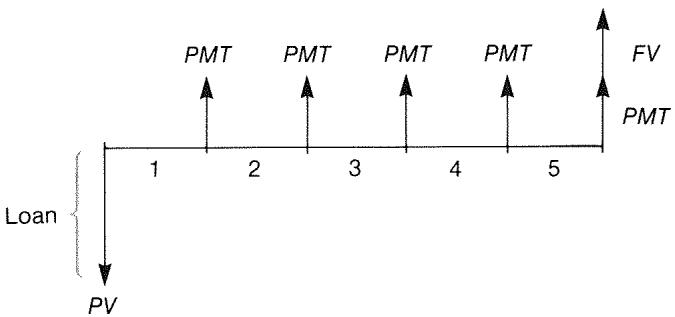
Figure 4-4. A Cash Flow Diagram for a Loan from Lender's Point of View (End Mode)
Payments occur at either the beginning of each period or the end of each period. End mode is shown in the last two figures; Begin mode is shown in the next figure.
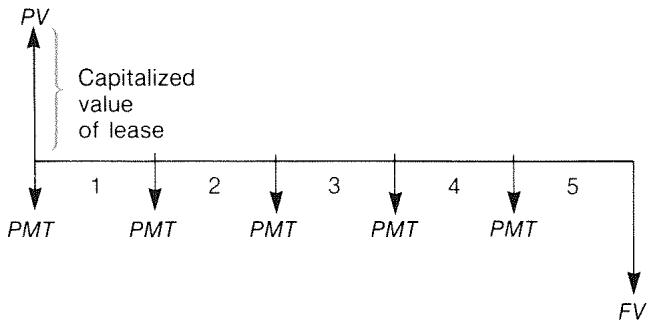
Figure 4-5. Lease Payments Made at the Beginning of Each Period (Begin Mode)
Using the TVM Menu
First draw a cash-flow diagram to match your problem. Then:
1.From the MAIN menu, press FIN TVM
2. To clear previous TVM values, press CLEAR DATA. (Note: You don't need to clear data if you enter new values for all five variables, or if you want to retain previous values.)
3. Read the message that describes the number of payments per year and the payment mode (Begin, End). If you need to change either of these settings, press OTHER.
To change the number of payments per year, key in the new value and press P/YR. (If the number of payments is different from the number of compounding periods, see "Compounding Periods Different from Payment Periods," page 77.)
To change the Begin/End mode, press BEG or END.
Press to return to the primary TVM menu.
- Store the values you know. (Enter each number and press its menu key.)
- To calculate a value, press the appropriate menu key.
You must give every variable—except the one you will calculate—a value, even if that value is zero. For example, FV must be set to zero when you are calculating the periodic payment (PMT) required to fully pay back a loan. There are two ways to set values to zero:
Before storing any TVM values, press CLEAR DATA to clear the previous TVM values.
Store zero; for example, pressing 0 FV sets FV to zero.
Loan Calculations
Three examples illustrate common loan calculations. (For amortization of loan payments, see page 67.) Loan calculations typically use End mode for payments.
Example: A Car Loan. You are financing the purchase of a new car with a 3-year loan at 10.5% annual interest, compounded monthly. The purchase price of the car is 7,250. Your down payment is1,500. What are your monthly payments? (Assume payments start one month after purchase—in other words, at the end of the first period.) What interest rate would reduce your monthly payment by $10?
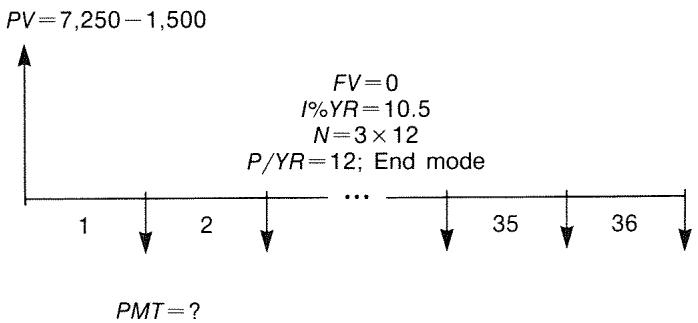
| Keys: | Display: | Description: |
| FIN | Displays TVM menu. | |
| TVM | ||
| CLEAR DATA | 0.00 | Cleared history stack and TVM variables. |
| OTHER | If needed: sets 12 pay-ment periods per year;End mode. | |
| CLEAR DATA | 12 P/YR END MODE | |
| EXIT | ||
| 3 × 12 | Figures and stores num ber of payments. | |
| N | N=36.00 | |
| 10.5 I&YR | I%YR=10.50 | Stores annual interest rate. |
| 7250 - 1500 | Stores amount of the loan. | |
| PV | PV=5,750.00 | |
| PMT | PMT=-186.89 | Calculates payment.Negative value means money to be paid out. |
To calculate the interest rate that reduces the payment by (10, add 10 to reduce the negative PMT value.
| + 10 PMT | PMT=-176.89 | Stores the reduced pay- ment amount. |
| I2YR | I2YR=6.75 | Calculates the annual in- terest rate. |
Example: A Home Mortgage. After careful consideration of your personal finances, you've decided that the maximum monthly mortgage payment you can afford is 630. You can make a12,000 down payment, and annual interest rates are currently 11.5%. If you take out a 30-year mortgage, what is the maximum purchase price you can afford?
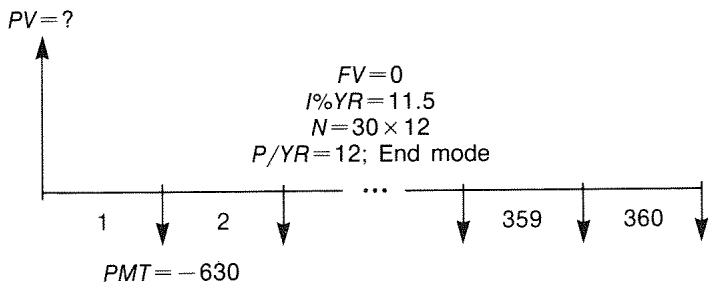
| Keys: | Display: | Description: |
| FIN | Displays TVM menu. | |
| TVM | ||
| CLEAR DATA | 0.00 | Cleared history stack and TVM variables. |
| OTHER | If needed: sets 12 pay-ment periods per year; | |
| CLEAR DATA | End mode. | |
| EXIT | 12 P/YR END MODE | |
| 30 N | N=360.00 | Pressing first multiplies 30 by 12, then stores this number of payments in N. |
| 11.5 IZYR | IZYR=11.50 | Stores annual interest rate. |
| 630+/- | Stores a negative monthly payment. | |
| PMT | PMT=-630.00 | |
| PV | PV=63,617.64 | Calculates loan amount. |
| +12000= | 75,617.64 | Calculates total price of the house (loan plus down payment). |
Example: A Mortgage with a Balloon Payment. You've taken out a 25-year, 75,250 mortgage at13.8\%$ annual interest. You anticipate that you will own the house for four years and then sell it, repaying the loan in a "balloon payment." What will be the size of your balloon payment?

The problem is done in two steps:
- Calculate the monthly payment without the balloon (FV = 0) .
- Calculate the balloon payment after 4 years.
| Keys: | Display: | Description: |
| FIN | Displays TVM menu. | |
| TVM | ||
| CLEAR DATA | 0.00 | Cleared history stack and TVM variables. |
| OTHER | If needed: sets 12 pay-ment periods per year; | |
| CLEAR DATA | ||
| EXIT | 12 P/YR END MODE | End mode. |
Step 1. Calculate PMT for the mortgage.
| 25 | N | N=300.00 | Figures and stores the number of monthly payments in 25 years. |
| 13.8 | IXYR | IXYR=13.80 | Stores annual interest rate. |
| 75250 | PV | PV=75,250.00 | Stores amount of the loan. |
| PMT | PMT=-894.33 | Calculates monthly payment. | |
Step 2. Calculate the balloon payment after 4 years.
| 894.33 +/− PMT | PMT=-894.33 | Stores rounded PMT value for exact payment amount (no fractional cents).* |
| 4 N | N=48.00 | Figures and stores number of payments in 4 years. |
| FV | FV=-73,408.81 | Calculates balloon payment after four years. This amount plus last monthly payment repays the loan. |
Savings Calculations
Example: A Savings Account. You deposit 2,000 into a savings account that pays 7.2% annual interest, compounded annually. If you make no other deposits into the account, how long will it take for the account to grow to3,000? Since this account has no regular payments (PMT=0), the payment mode (End or Begin) is irrelevant.
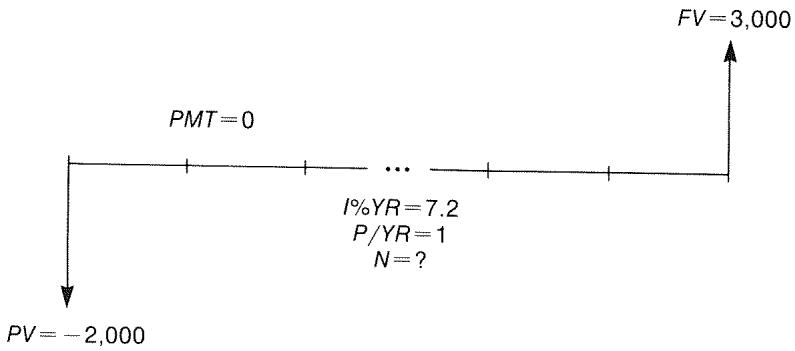
| Keys: | Display: | Description |
| FIN | Displays TVM menu. | |
| TVM | ||
| CLEAR DATA | 0.00 | Cleared history stack and TVM variables. |
| OTHER | Sets one compounding per./yr. (one interest pmt./yr). Payment mode does not matter. | |
| 1 P/YR | ||
| EXIT | 1 P/YR | |
| 7.2 IXYR | IXYR=7.20 | Stores annual interest rate. |
| 2000 +/− PV | PV=-2,000.00 | Stores amount of deposit. |
| 3000 FV | FV=3,000.00 | Stores future account balance in FV. |
| N | N=5.83 | Calculates number of compounding periods (years) for the account to reach $3,000. |
There is no conventional way to interpret results based on a non-integer value (5.83) of N . Since the calculated value of N is between 5 and 6, it will take 6 years of annual compounding to achieve a balance of at least $3,000. The actual balance at the end of 6 years can be calculated as follows:
6 N N = 6,00
Stores a whole number of years in N .
FV FV=3,035.28
Calculates account balance after six years.
Example: An Individual Retirement Account (IRA). You opened an IRA on April 15, 1985, with a deposit of 2,000. Thereafter, you deposit 80.00 into the account at the end of each half-month. The account pays 8.3% annual interest, compounded semimonthly. How much money will the account contain on April 15, 2000?
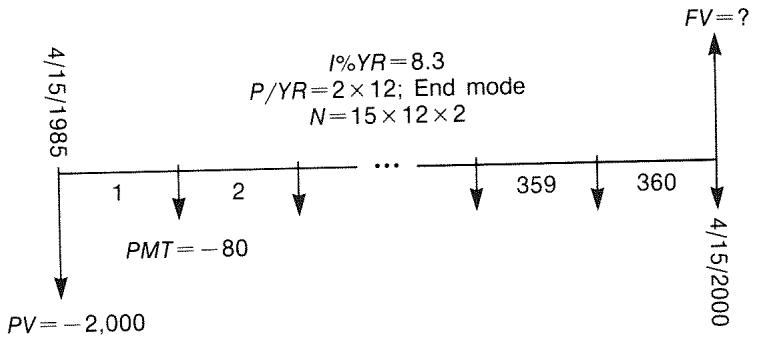
Keys: Display:
FIN
TVM
OTHER
24 P/YR
END
EXIT
Display:
24 P/YR END MODE
Description:
Displays TVM menu. It is not necessary to clear data because you do not need to set any of the values to zero.
Sets 24 payment periods per year, End mode.
15 N N = 360,00
Figures and stores number of deposits in N
8.3 IXYR IXYR=8.30
Stores annual interest rate.
2000 + PV = -2,000.00
Stores initial deposit.
80 + PMT PMT=-80.00
Stores semimonthly payment.
FV FV=63,963.84
Calculates balance in IRA after 15 years.
Leasing Calculations
Two common leasing calculations are 1) finding the lease payment necessary to achieve a specified yield, and 2) finding the present value (capitalized value) of a lease. Leasing calculations typically use "advance payments". For the calculator, this means Begin mode because all payments will be made at the beginning of the period. If there are two payments in advance, then one payment must be combined with the present value. For examples with two or more advance payments, see pages 64 and 187.
Example: Calculating a Lease Payment. A new car valued at 13,500 is to be leased for 3 years. The lessee has the option to purchase the car for 7,500 at the end of the leasing period. What monthly payments, with one payment in advance, are necessary to yield the lessor 14% annually? Calculate the payments from the lessor's point of view. Use Begin payment mode because the first payment is due at the inception of the lease.
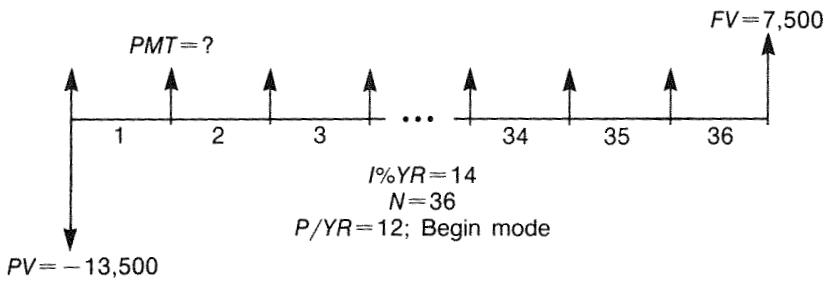
| Keys: | Display: | Description: |
| FIN | Displays TVM menu. | |
| TVM | ||
| OTHER | Sets 12 payment periods per year, Begin mode. | |
| 12 P/YR | ||
| BEG | 12 P/YR BEGIN MODE | |
| EXIT | ||
| 36 N | N=36.00 | Stores number of payments. |
| 14 I.YR | I.YR=14.00 | Stores annual interest rate. |
| 13500+/- | Stores car's value in PV. (Money paid out by lessor.) | |
| PV | PV=-13,500.00 | |
| 7500 FV | FV=7,500.00 | Stores purchase option value in FV. (Money received by lessor.) |
| PMT | PMT=289.19 | Calculates monthly payment received. |
Example: Present Value of a Lease with Advance Payments and Option to Buy. Your company is leasing a machine for 4 years. Monthly payments are 2,400 with two payments in advance. You have an option to buy the machine for 15,000 at the end of the leasing period. What is the capitalized value of the lease? The interest rate you pay to borrow funds is 18%, compounded monthly.
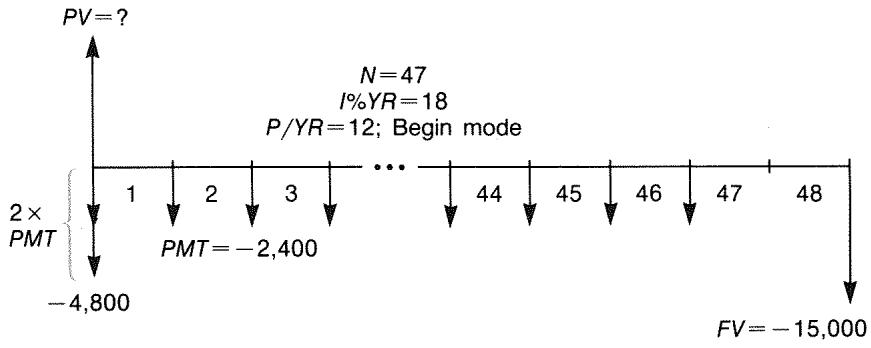
The problem is done in four steps:
- Calculate the present value of 47 monthly payments in Begin mode. (Begin mode makes the first payment an advance payment.)
- Add one additional payment to the calculated present value. This adds a second advance payment to the beginning of the leasing period, replacing what would have been the final (48th) payment.
- Find the present value of the buy option.
- Add the present values calculated in steps 2 and 3.
| Keys: | Display: | Description: |
| FIN TVM | Displays TVM menu. | |
| CLEAR DATA | 0.00 | Cleared history stack and TVM variables. |
| OTHER | Sets 12 payment periods per year; Begin mode. | |
| 12 P/YR | ||
| BEG | ||
| EXIT | 12 P/YR BEGIN MODE |
Step 1: Find the present value of the monthly payments.
47 N N = 47,00
Stores number of payments.
18 IxYR IxYR=18.00
Stores annual interest rate.
2400 + Stores monthly payment. PMT PMT=-2,400.00
PV PV=81,735.58
Calculates present (capitalized) value of the 47 monthly payments.
Step 2: Add the additional advance payment to PV . Store the answer.
2400 84,135.58
Calculates present value of all payments.
STO 0 84,135.58
Stores result in register 0.
Step 3: Find the present value of the buy option.
48 N N = 48,00
Stores number of payment periods.
15000 FV FV=-15,000.00
Stores amount of the buy option (money paid out).
0 PMT PMT=0.00
There are no payments.
PV PV=7,340.43
Calculates present value of the buy option.
Step 4: Add the results of step 2 and 3.
+0= 91,476.00
Calculates present, capitalized value of lease.
Amortization (AMRT)
The AMRT menu (press TVM OTHER AMRT) displays or prints the following values:
The loan balance after the payment(s) are made.
The amount of the payment(s) applied toward interest.
The amount of the payment(s) applied toward principal.
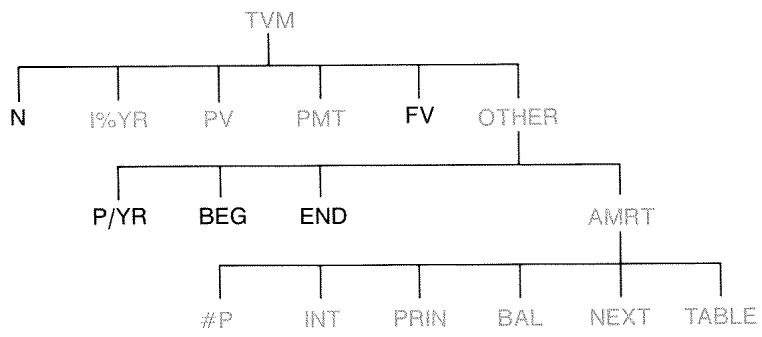
Table 4-2. AMRT Menu Labels
| Menu Label | Description |
| #P | Stores the number of payments to be amortized, and calculates an amortization schedule for that many payments. Successive schedules start where the last schedule left off. #P can be an integer from 1 through 1,200. |
| INT | Displays the amount of the payments applied toward interest. |
| PRIN | Displays the amount of the payments applied toward principal. |
| BAL | Displays the balance of the loan. |
| NEXT | Calculates the next amortization schedule, which contains #P payments. The next set of payments starts where the previous set left off. |
| TABLE | Displays a menu for printing an amortization table (schedule). |
Displaying an Amortization Schedule
For amortization calculations, you need to know PV , I% YR , and PMT . If you have just finished doing these calculations with the TVM menu, then skip to step 3.
To calculate and display an amortization schedule:\*
- Press FIN TVM to display the TVM menu.
- Store the values for I% YR , PV , and PMT . (Press +/- to make PMT a negative number.) If you need to calculate one of these values, follow the instructions under "Using the TVM Menu," on page 55. Then go on to step 3.
- Press OTHER to display the rest of the TVM menu.
- If necessary, change the number of payment periods per year stored in P/YR
- If necessary, change the payment mode by pressing BEG or END. (Most loan calculations use End mode.)
- Press AMRT. (If you want to print the amortization schedule, go to page 71 to continue.)
- Key in the number of payments to be amortized at one time and press #P . For example, to see a year of monthly payments at one time, set #P to 12. To amortize the entire life of a loan at one time, set #P equal to the total number of payments (N). If #P = 12, the display would show:
Number of payments amortized at one time
Current set of payments to be amortized

Press to see results
- To display the results, press INT, PRIN, and BAL (or press to view the results from the stack).
- To continue calculating the schedule for subsequent payments, do a or b. To start the schedule over, do c.
a. To calculate the next successive amortization schedule, with the same number of payments, press NEXT.
Next successive set of payments authorized

b. To calculate a subsequent schedule with a different number of payments, key in that number and press #P
C. To start over from payment #1 (using the same loan information), press CLEAR DATA and proceed from step 7.
Example: Displaying an Amortization Schedule. To purchase your new home, you have taken out a 30-year, 65,000 mortgage at (12.5% annual interest. Your monthly payment is )693.72. Calculate the amount of the first year's and second year's payments that are applied toward principal and interest.
Then calculate the loan balance after 42 payments (31/2 years).
| Keys: | Display: | Description: |
| FIN | Displays TVM menu. | |
| TVM | ||
| 12.5 IZYR | IZYR=12.50 | Stores annual interest rate. |
| 65000 PV | PV=65,000.00 | Stores loan amount. |
| 693.72 +/- | Stores monthly payment. | |
| PMT | PMT=-693.72 | |
| OTHER | If needed: sets 12 pay-ment periods per year;End mode. | |
| CLEAR DATA | 12 P/YR END MODE | |
| AMRT | KEY #PMTS; PRESS (#P) | Displays AMRT menu. |
| 12 #P | #P=12 PMTS: 1-12 | Calculates amortization schedule for first 12 pay- ments, but does not display it. |
| INT | INTEREST=-8,113.16 | Displays interest paid in first year. |
| PRIN | PRINCIPAL=-211.48 | Displays principal paid in first year. |
| BAL | BALANCE=64,788.52 | Displays balance at end of first year. |
| NEXT | #P=12 PMTS: 13-24 | Calculates amortization schedule for next 12 payments. |
| INT | INTEREST=-8,085.15 | Displays results for sec- ond year. |
| PRIN | PRINCIPAL=-239.49 | |
| BAL | BALANCE=64,549.03 |
To calculate the balance after 42 payments (3½ years), amortize 18 additional payments (42 - 24 = 18) :
| 18 | #P | #P=18 PMTS: 25-42 | Calculates amortization schedule for next 18 months. |
| INT | INTEREST= -12,066.98 | Displays results. | |
| PRIN | PRINCIPAL=-419.98 | ||
| BAL | BALANCE=64,129.05 |
Printing an Amortization Table (TABLE)
To print an amortization schedule (or "table") do steps 1 through 5 for displaying an amortization schedule (see page 68).
- Press AMRT. Ignore the message KEY #PMTS; PRESS (#P).
- Press TABLE .
- Key in the payment number of the first payment in the schedule and press FIRST. (For instance, for the very first payment, FIRST = 1 .)
- Key in the payment number of the last payment in the schedule and press LAST.
- Key in the increment—the number of payments shown at one time—and press INCR. (For instance, for one year of monthly payments at a time, INCR=12.)
- Press Go
Values are retained until you exit the TABLE menu, so you can print successive amortization schedules by re-entering only those TABLE values that change.
Example: Printing an Amortization Schedule. For the loan described in the previous example (page 69), print an amortization table with entries for the fifth and sixth years. You can continue from the AMRT menu in the previous example (step 7, above) or repeat steps 1 through 6.
Starting from the AMRT menu:
Keys:
TABLE
Display:
PRINT AMORT TABLE
Description:
Displays menu for printing amortization table.
4 12 + 1 FIRST
FIRST=49.00
The 49th is the first payment in year 5.
6 12 LAST
LAST=72.00
The 72nd is the last payment in year 6.
Each table entry represents 12 payments (1 year).
GO
Calculates and prints amortization schedule shown below.
| I%YR= | 12.50 |
| PV= | 65,000.00 |
| PMT= | -693.72 |
| P/YR= | 12.00 |
| END MODE | |
| PMTS:49-60 | |
| INTEREST= | -7,976.87 |
| PRINCIPAL= | -347.77 |
| BALANCE= | 63,622.94 |
| PMTS:61-72 | |
| INTEREST= | -7,930.82 |
| PRINCIPAL= | -393.82 |
| BALANCE= | 63,229.12 |
Interest Rate Conversions
The interest conversion (ICNV) menu converts between nominal and effective interest rates. To compare investments with different compounding periods, their nominal interest rates are converted to effective interest rates. This allows you, for example, to compare a savings account that pays interest quarterly with a bond that pays interest semiannually.
The nominal rate is the stated annual interest rate compounded periodically, such as 18% per year compounded monthly.
The effective rate is the rate that, compounded only once (that is, annually), would produce the same final value as the nominal rate. A nominal annual rate of 18% compounded monthly equals an effective annual rate of 19.56% .
When the compounding period for a given nominal rate is one year, then that nominal annual rate is the same as its effective annual rate.
The ICNV Menu
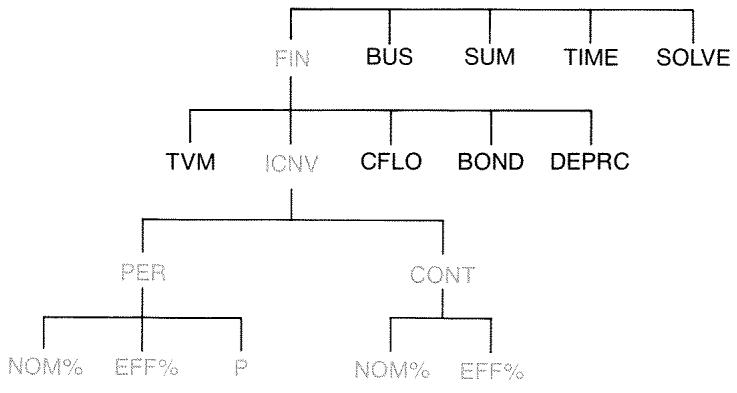
The ICNV menu converts between nominal and effective interest rates, using either:
Periodic compounding; for example, quarterly, monthly, or daily compounding.
Continuous compounding.
Converting Interest Rates
To convert between a nominal annual interest rate and an effective annual interest rate that is compounded periodically:
- Press FIN ICNV to display the interest conversions menu.
- Press PER for periodic.
- Key in the number of compounding periods per year and press
-
To convert to the effective rate, first key in the nominal rate and press NOMX, then press EFFX.
-
To convert to the nominal rate, first key in the effective rate and press EFFX, then press NOMS.
To convert between a nominal annual interest rate and an effective annual interest rate that is compounded continuously:
- Press FIN ICNV to get the interest conversions menu.
- Press CONT for "continuous".
- To convert to the effective rate, key in the nominal rate and press NOMx, then press EFFX.
- To convert to the nominal rate, key in the effective rate and press EFFX, then press NOMX.
Values of EFF% and NOM% are shared between the PER and CONT menus. For example, an effective interest rate in CONT remains stored in EFF% when you exit the CONT menu and enter the PER menu. Pressing CLEAR DATA in either menu clears NOM% and EFF% in both.
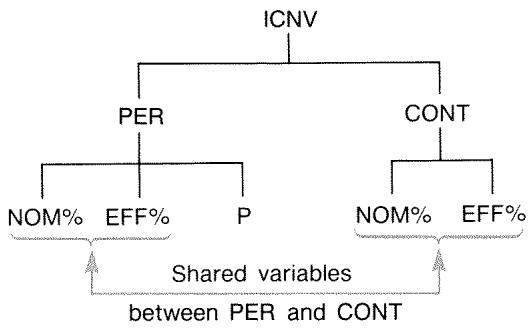
Example: Converting from a Nominal to an Effective Interest Rate. You are considering opening a savings account in one of three banks. Which bank has the most favorable interest rate?
Bank #1 6.7% annual interest, compounded quarterly.
Bank #2 6.65% annual interest, compounded monthly.
Bank #3 6.65% annual interest, compounded continuously.
| Keys: | Display: | Description: |
| FIN | Displays ICNV menu. | |
| ICNV | ||
| PER | COMPOUNDING P TIMES/YR | Displays PER menu. |
| 4 P | P=4.00 | Stores number of compounding periods per year for bank #1. |
| 6.7 NOM: | NOM%=6.70 | Stores nominal annual interest rate for bank #1. |
| EFF% | EFF%=6.87 | Calculates effective interest rate for bank #1. |
| 12 P | P=12.00 | Stores number of compounding periods per year for bank #2. |
| 6.65 NOM: | NOM%=6.65 | Stores nominal annual interest rate for bank #2. |
| EFF% | EFF%=6.86 | Calculates effective interest rate for bank #2. |
| EXIT CONT | CONTINUOUS COMPOUNDING | Displays CONT menu. Previous values of NOM% and EFF% are retained. |
| EFF% | EFF%=6.88 | Calculates effective rate for bank #3. |
The calculations show that bank #3 is offering the most favorable interest rate.
Compounding Periods Different from Payment Periods
The TVM menu assumes that the compounding periods and the payment periods are the same. However, regularly occurring savings-account deposits and withdrawals do not necessarily occur at the same time as the bank's compounding periods. If they are not the same, you can adjust the interest rate using the ICNV menu, and then use the adjusted interest rate in the TVM menu. (You can also use TVM if PMT = 0 , regardless of the compounding periods.)
- Call up the periodic interest-rate conversion menu (FIN ICONV PER).
- Calculate the effective annual interest rate from the nominal annual interest rate given by the bank.
a. Store annual interest rate in NOMX.
b. Store number of compounding periods per year in P
C. Press EFF:
- Calculate the nominal annual interest rate that corresponds to your payment periods.
a. Store the number of regular payments or withdrawals you will be making per year in F
b. Press NOMX
- Return to the TVM menu (EXIT EXIT TVM).
- Store the just-calculated nominal interest rate in I% YR (press STO IXYR).
- Store the number of payments or withdrawals per year in P Y R and set the appropriate payment mode.
- Continue with the TVM calculation. (Remember that money paid out is negative; money received is positive.)
a. N is the total number of periodic deposits or withdrawals.
b. PV is the initial deposit.
c. PMT is the amount of the regular, periodic deposit or withdrawal.
d. FV is the future value.
When the interest rate is the unknown variable, first calculate I% YR in the TVM menu. This is the nominal annual rate that corresponds to your payment periods. Next, use the ICNV menu to convert this to the effective interest rate based on your payment periods. Last, convert the effective rate to the nominal rate based on the bank's compounding periods.
Example: Balance of a Savings Account. Starting today, you make monthly deposits of (25 into an account paying (5\%) interest compounded daily (365-day basis). At the end of 7 years, how much will you receive from the account?
| Keys: | Display: | Description: |
| FIN | ||
| ICNV | SELECT COMPOUNDING | |
| PER | COMPOUNDING P TIMES/YR | Periodic interest-rate conversion menu. |
| 365 P | P=365.00 | Stores bank's compound- ing periods. |
| 5 NOM% | NOM%=5.00 | Stores bank's nominal interest rate. |
| EFFF% | EFFF%=5.13 | Calculates effective interest rate for daily compounding. |
| 12 P | P=12.00 | Stores number of deposits per year. |
| NOM% | NOM%=5.01 | Calculates equivalent nominal interest rate for monthly compounding. |
| EXIT EXIT | Switches to TVM menu; NOM% value is still in calculator line. | |
| TVM | 5.01 |
STO IXYR IYR=5.01
Stores adjusted nominal interest rate in I% YR .
OTHER
12 P/YR
BEG EXIT 12 P/YR BEGIN MODE
Sets 12 payments per year; Begin mode.
7 N
25 + PMT
0 PV PV=0.00
Stores 84 deposit periods, $25 per deposit, and no money before the first regular deposit.
FV
FV=2,519.61
Value of account in 7 years.
If the interest rate were the unknown, you would first do the TVM calculation to get I% YR (5.01). Then, in the ICNV PER menu, store 5.01 as NOM% and 12 as P for monthly compounding. Calculate EFF% (5.13). Then change P to 365 for daily compounding and calculate NOM% (5.00). This is the bank's rate.
Cash Flow Calculations
The cash flow (CFLO) menu stores and analyzes cash flows (money received or paid out) of unequal (ungrouped) amounts that occur at regular intervals.* Once you've entered the cash flows into a list, you can calculate:
The total amount of the cash flows.
The internal rate of return (IRR%).
The net present value (NPV), net uniform series (NUS), and future value (NFV) for a specified periodic interest rate (1%) .
You can store many separate lists of cash flows, totaling up to about 700 different flows. The maximum number depends on the amount of available calculator memory.
The CFLO Menu
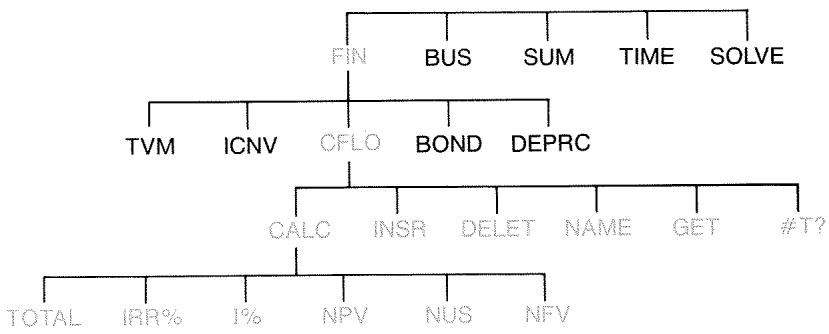
The CFLO menu creates cash-flow lists and performs calculations with a list of cash flows.
Table 6-1. CFLO Menu Labels
| Menu Label | Description |
| CALC | Accesses the CALC menu to calculate TOTAL, IRR%, NPV, NUS, NFV. |
| INSR | Allows you to insert cash flows into a list. |
| DELETE | Deletes cash flows from a list. |
| NAME | Allows you to name a list. |
| GET | Allows you to switch from one list to another or create a new list. |
| #T? | Turns the prompting for #TIMES on and off. |
To see the calculator line when this menu is in the display, press INPUT once. (This does not affect number entry.)
To see this menu when the calculator line is in the display, press EXIT.
Cash Flow Diagrams and Signs of Numbers
The sign conventions used for cash flow calculations are the same as those used in time-value-of-money calculations. A typical series of cash flows is one of two types:
■ Ungrouped cash flows. These occur in series of cash flows without "groups" of equal, consecutive flows.* Because each flow is different from the one before it, the number of times each flow occurs is one.
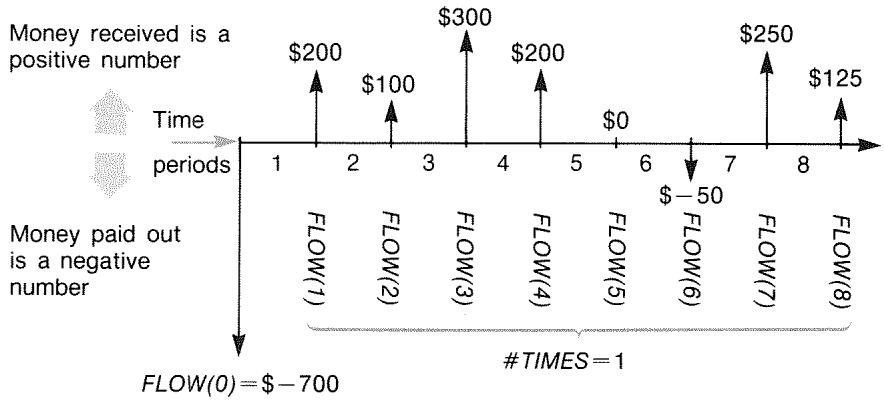
Figure 6-1. Cash Flows (Ungrouped)
The horizontal timeline is divided into equal compounding periods. The vertical lines represent the cash flows. For money received, the line points up (positive); for money paid out, the line points down (negative). In this case, the investor has invested ( \(700 ). This investment has generated a series of cash flows, starting at the end of the first period. Notice that there is no cash flow (a cash flow of zero) for period five, and that the investor pays a small amount in period six.
-
Any cash flow series can be treated as an ungrouped one if you enter each flow individually.
-
Grouped cash flows. These occur in a series containing "groups" of equal, consecutive flows. Consecutive, equal cash flows are called grouped cash flows. The series shown here is grouped into two sets of consecutive, equal cash flows:
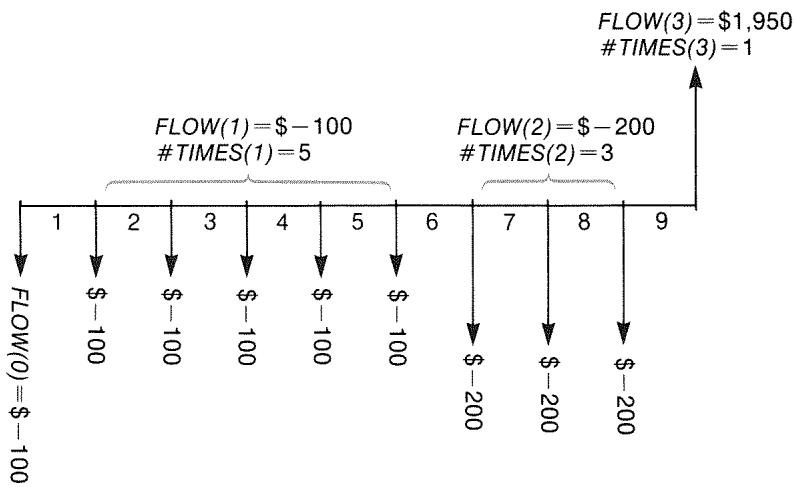
Figure 6-2. Grouped Cash Flows
After an initial payment of 100, the investor pays100 at the end of periods 1 through 5, and 200 at the end of periods 6 through 8. The investment returns1,950 at the end of period 9. For every cash flow you enter, the calculator prompts you to indicate how many times (#TIMES) it occurs.
Creating a Cash-Flow List
To use CFLO, be sure your cash flows are occurring at regular intervals and at the end of each period.* If a period is skipped, enter zero for its cash flow. If there are any grouped (consecutive and equal) cash flows, the #TIMES prompting makes entering the data easier.
- If the cash flows occur at the beginning of each period, then combine the first flow with the initial flow (which can increase or decrease the flow), and move each cash flow up one period. (Remember: a payment made at the beginning of period 2 is equivalent to the same payment made at the end of period 1, and so on. Refer to pages 53-55.)
Entering Cash Flows
To enter cash flows into a CFLO list:
- Press FIN Cflo. You will see either FLOW(0) = ? if the current list is empty, or FLOW(1 or more) = ? if the list is not empty. This is the bottom of the current list.

- If the list is not empty, you can do either a or b:
a. Clear the list by pressing CLEAR DATA YES (see also page 89.)
b. Get a new list by pressing GET *NEW. (The old list must be named first. Press NAME or see page 87.)
- If the cash flows are ungrouped (that is, they are all different), then press #T? to turn #TIMES PROMPTING OFF. For grouped cash flows, leave this prompting on. (For more information, see "Prompting for #TIMES," next page.)
- Key in the value of the initial cash flow, FLOW(0) (remember that money paid out is negative—use +/- to change the sign), and press INPUT.*
-
After briefly showing FLOW(0) , the display shows FLOW(1) = ? . (To view FLOW(0) longer, hold down INPUT before releasing it.) Key in the value for FLOW(1) and press INPUT . The prompt for the next item appears.
-
For grouped cash flows: The display now shows
TIMES(1)=1. If it does not, press EXIT #T? to turn the #TIMES prompting on. (See "Prompting for #TIMES," below.) #TIMES is the number of consecutive occurrences of FLOW(1). #TIMES has been automatically set to 1, and 1.00 is displayed on the calculator line. Do either a or b:
a. To retain the value 1 and go on to the next flow, press INPUT (or ).
b. To change #TIMES, key in the number and press INPUT.*
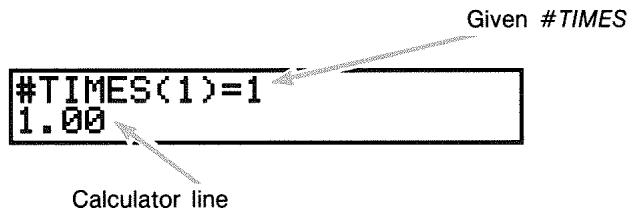
- Continue entering each cash flow and, for grouped flows, the number of times it occurs. The calculator recognizes the end of the list when a flow is left blank (no value is entered).
- Press EXIT to end the list and restore the CFLO menu. You can now proceed to correct the list, name the list, get another list, or do calculations with the values.
Use these same instructions to enter additional lists.
Prompting for #TIMES (#T?). When the calculator displays
TIMES(1)=1, it is prompting you for the number of times the current flow occurs. If all your cash flows are different (#TIMES always 1), then you don't need the #TIMES prompt. You can turn the prompting for #TIMES on and off by pressing #T? in the CFLO menu. This produces a brief message: either #TIMES
PROMPTING: OFF, or #TIMES PROMPTING: ON.
While prompting is off, all cash flows you enter will have #TIMES = 1.
When you are viewing a cash-flow list with the #TIMES prompting off, the calculator displays only those #TIMES values that are not 1.
The #TIMES prompting is usually on, because it is automatically turned on whenever you clear or get a cash-flow list.
Example: Entering Cash Flows. Enter the following ungrouped cash flows in a list and find the percentage internal rate of return (IRR).
0: —500 2: 275
1: 125 3: 200
| Keys: | Display: | Description: |
| FIN | ||
| CFLO | ||
| CLEAR DATA | CLEAR THE LIST? | Asks for confirmation. |
| YES | FLOW(0)=? | Clears data from list and prompts for initial flow. |
| #T? | #TIMES PROMPTING: OFF | Sets prompting off be-cause it is not needed. |
| 500+/- INPUT | FLOW(1)=? -500.00 | Enters initial flow; then immediately prompts for next flow. |
| 125 INPUT | FLOW(2)=? 125.00 | Enters FLOW(1); prompts for next flow. |
| 275 INPUT | FLOW(3)=? 275.00 | Enters FLOW(2); prompts for next flow. |
| 200 INPUT | FLOW(4)=? 200.00 | Enters FLOW(3); prompts for next flow |
| EXIT CALC | NPV, NUS, NFV NEED I% | Ends list and displays CALC menu. |
| IRR% | IRR%=9.06 | Calculates IRR. |
Viewing and Correcting the List
To display a particular list, use GET (see page 88).
The and keys move up and down one number at a time. and display the beginning and end of the list.
Changing or Clearing a Number. To change a number after it's been entered: display the number, key in the new value, and press INPUT.
Use this same method to clear a number to zero. (Do not press CLR or lubsuit , which clear the calculator line, not the cash-flow entry.)
Inserting Cash Flows into a List. Insertion occurs before (above) the current flow. Pressing INSR inserts a zero cash flow and renumbers the rest of the list. You can then enter a new cash flow and its #TIMES.
For example, if FLOW(6) is in the display, pressing INSR puts a new, zero flow between the previously numbered FLOW(5) and FLOW(6) .
Deleting Cash Flows from a List. Pressing DELETE deletes both the current flow and its #TIMES.
Copying a Number from a List to the Calculator Line
To copy a number from the list into the calculator line, use or Δ to display the number, then press RCL INPUT.
Naming and Renaming a Cash-Flow List
A new list has no name. You may name it before or after filling the list, but you must name it in order to store another list.
To name a list:
-
Press NAME from the CFLO menu.
-
Use the ALPHA menu to type a name. (The ALPHA and ALPHA-Edit menus are covered on pages 27-29.) To clear a name, press CLR.
- Press INPUT
The name can be up to 22 characters long and include any character except: + - × ÷ () < > : = space*
But only the first three to five characters (depending on letter widths) of the name are used for a menu label. Avoid names with the same first characters, since their menu labels will look alike.
Viewing the Name of the Current List. Press NAME, then EXIT.
Starting or GETting Another List
When you press CFLO, the cash-flow list that appears is the same as the last one used.
To start a new list or switch to a different one, the current list must be named or cleared. If it is named, then:
- Press GET. The GET menu contains a menu label for each named list plus *NEW.
- Press the key for the desired list. (*NEW) brings up a new, empty list.)
Clearing a Cash-Flow List and Its Name
To clear a list's numbers and name:
- Display the list you want to clear, then press CLEAR DATA YES . This removes the numbers.
- If the list is named, you'll see ALSO CLEAR LIST NAME? Press YES to remove the name. Press NO to retain the name with an empty list.
To remove just one value at a time from a list, use DELETE.
Cash-Flow Calculations: IRR, NPV, NUS, NFV
Once you have entered a list of cash flows, you can calculate the following values in the CALC menu.
Sum (TOTAL).
- Internal rate of return (IRR%). This is a periodic rate of return. To calculate an annual nominal rate when the period is not a year, multiply the IRR% by the number of periods per year.
If you want the IRR% as an effective annual rate, then use the FIN ICNV menu to convert from the nominal annual rate to the effective annual rate.
Net present value (NPV), net uniform series (NUS), and net future value (NFV) for a specified, periodic interest rate, 1% .
Table 6-2. The CALC Menu for CFLO Lists
| Menu Label | Description |
| TOTAL | Calculates the sum of the cash flows. |
| IRR* | Calculates the internal rate of return—the interest (discount) rate at which the net present value of the cash flows equals zero. |
| I% | Stores the periodic interest rate, expressed as a percentage (sometimes called cost of capital, discount rate, or required rate of return). |
| NPV | Given I%, calculates the net present value—the present value of a series of cash flows. |
| NUS | Given I%, calculates the net uniform series—the dollar amount of constant, equal cash flows having a present value equivalent to the net present value. |
| NFV | Given I%, calculates the net future value of a series of cash flows by finding the future value of the net present value. |
| * The calculations for internal rate of return are complex and may take a relatively long time. To interrupt the calculation, press any key. In certain cases, the calculator displays a message indicating that the calculation cannot continue without further information from you, or that there is no solution. Refer to appendix B for additional information about calculating IRR%. | |
About the Internal Rate of Return (IRR%). A "conventional investment" is considered attractive if IRR% exceeds the cost of capital. A conventional investment meets two criteria—(1) the sequence of cash flows changes sign only once, and (2) the sum (TOTAL) of the cash flows is positive.
Remember that the calculator determines a periodic IRR% . If the cash flows occur monthly, then IRR% is a monthly value, too. Multiply it by 12 for an annual value.
Example: Calculating IRR and NPV of an Investment. An investor makes an initial investment of $80,000, and expects returns over the next five years as illustrated below.
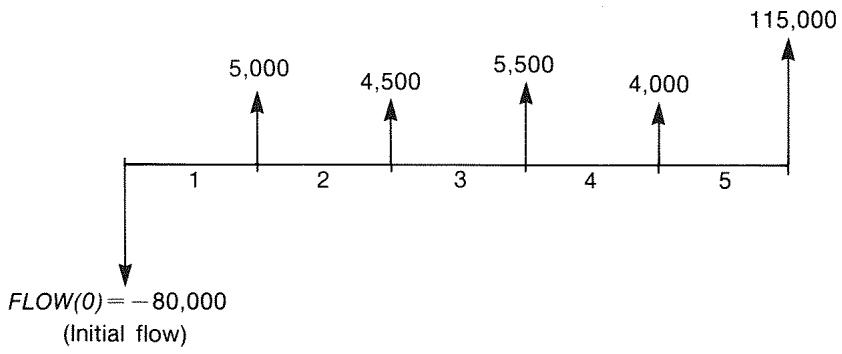
Calculate the total of the cash flows and the internal rate of return of the investment. In addition, calculate the net present value and net future value, assuming an annual interest rate of 10.5% .
Start the problem with an empty cash-flow list. Since the cash flows are ungrouped, each one occurs just once. Turn off the #TIMES prompt to make cash-flow entry faster.
| Keys: | Display: | Description: |
| FIN | Displays current cash-flow list and CFLO menu keys. | |
| CFLO | ||
| CLEAR DATA | Cleared current list or gets a new one. The empty list prompts for its initial cash flow. | |
| YES | ||
| or | ||
| GET | ||
| *NEW | FLOW(0)=? | |
| #T? | #TIMES PROMPTING: OFF | Briefly shows the status of #T, then returns to the list. With prompting off, all cash flows are assumed to occur just once. |
| 80000 +/L INPUT | FLOW(1) =? -80,000.00 | Prompts for next cash flow. Calculator line shows last number entered. |
| 5000 INPUT | FLOW(2) =? | Stores $5,000 for FLOW(1), prompts for next flow. |
| 4500 INPUT | FLOW(3) =? | Stores FLOW(2). |
| 5500 INPUT | FLOW(4) =? | Stores FLOW(3). |
| 4000 INPUT | FLOW(5) =? | Stores FLOW(4). |
| 115000 INPUT | FLOW(6) =? | Stores final cash flow and shows end of list. |
| EXIT CALC TOTAL | TOTAL=54,000.00 | Calculates sum of the cash flows. |
| IRR% | IRR% = 11.93 | Calculates internal rate of return. |
| 10.5 I% | I% = 10.50 | Stores periodic interest rate. |
| NPV | NPV = 4,774.63 | Calculates NPV. |
| NFV | NFV = 7,865.95 | Calculates NFV. |
| Now calculate the net present value at an cash flow #4 is reduced to 1,000. | interest rate of 10.5% if | |
| EXIT | FLOW(6) =? | Displays the bottom of the list. |
| ▲▲ | FLOW(4) = 4,000.00 | Moves to cash flow #4. |
| 1000 INPUT | FLOW(5) = 115,000.00 | Changes cash flow #4 to1,000. |
| EXIT CALC NPV | NPV = 2,762.43 | Calculates new NPV. |
Example: An Investment with Grouped Cash Flows. You are considering an investment that requires a cash outlay of (9,000, with the promise of monthly cash flows as shown. Calculate IRR%. Also find NPV and NFV at an annual interest rate of (9\%).
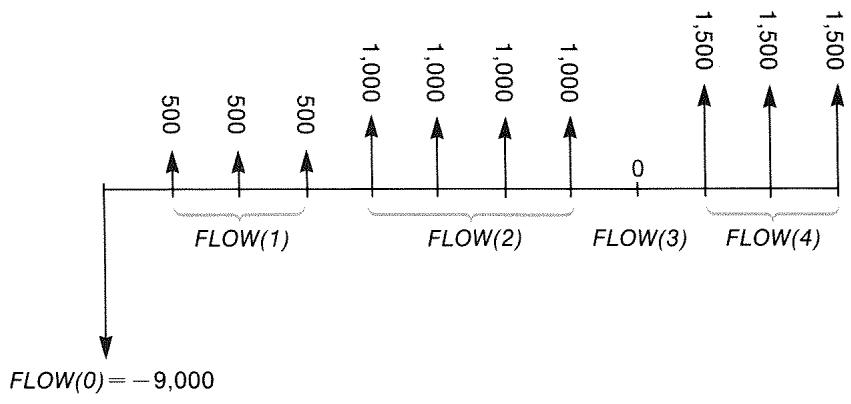
Since some of these cash flows are grouped (consecutive and equal), the #TIMES prompting must be on so you can specify a number other than 1.
| Group Number | Amount | Number of Times |
| Initial | -9,000 | — |
| 1 | 500 | 3 |
| 2 | 1,000 | 4 |
| 3 | 0 | 1 |
| 4 | 1,500 | 3 |
| Keys: | Display: | Description: |
| FIN | Current cash-flow list and CFLO menu. | |
| CFLO | ||
| CLEAR DATA | FLOW(0)=? | Cleared current list. #TIMES prompting is turned on. |
| YES | ||
| 9000+/- | FLOW(1)=? | Stores the initial cash flow. |
| INPUT | ||
| 500 INPUT | #TIMES(1)=1 | Stores FLOW(1) and prompts for #TIMES(1). |
| 3 INPUT | FLOW(2)=? | FLOW(1) occurs 3 times; prompts for next cash flow. |
| 1000 INPUT 4 | FLOW(3)=? | Stores FLOW(2) four times. |
| INPUT | ||
| 0 INPUT | FLOW(4)=? | Stores FLOW(3) one time (the 1 is automatically entered). |
| INPUT | ||
| 1500 INPUT 3 | FLOW(5)=? | Stores FLOW(4) three times. |
| INPUT | ||
| EXIT CALC | Displays the CALC menu. | |
| IRR% | IRR%=1.53 | Calculates monthly IRR%. |
| 9÷12 | Stores the periodic, monthly interest rate. | |
| I% | I%=0.75 | |
| NPV | NPV=492.95 | Calculates NPV. |
| NFV | NFV=535.18 | Calculates NFV. |
Example: An Investment with Quarterly Cash Returns. You have been offered an opportunity to invest (20,000. The investment returns quarterly payments over four years as follows:
Year 1 4 payments of $500
Year 2 4 payments of $1,000
Year 3 4 payments of $2,000
Year 4 4 payments of $3,000
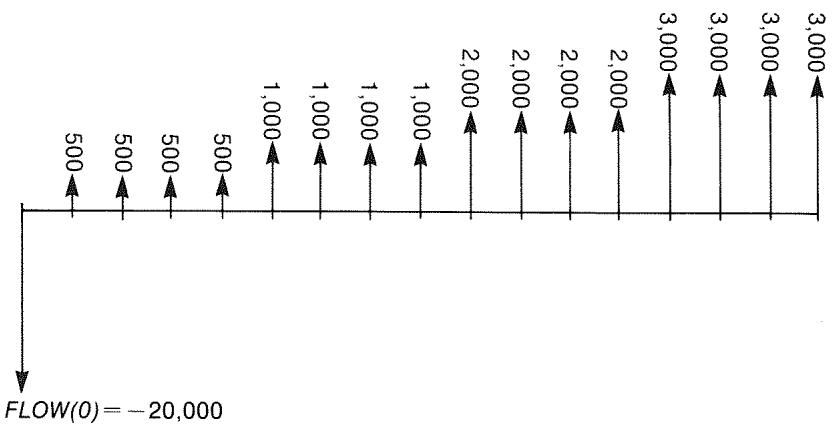
Calculate the annual rate of return for this investment. (The prompting for #TIMES should be on.)
Keys:
Display:
Description:
FIN
Current cash-flow list.
CFLQ
CLEAR DATA
YES
01
GET
NEW
FLOW(0)=?
Clears the current list or gets a new one. This sets the #TIMES prompting on.
20000
INPUT
FLOW(1)=?
500 INPUT
TIMES(1)=1
4 INPUT
FLOW(2)=?
1000 INPUT 4
INPUT
2000 INPUT 4
INPUT
3000 INPUT 4
INPUT
FLOW(5)=?
EXIT
IRX
IRR%=2.43
× 4
9.72
Stores the initial cash flow.
Stores FLOW(1) , then prompts for number of times this flow occurs.
FLOW(1) occurs four times.
Stores FLOW(2) , FLOW(3) and FLOW(4) , and the number of times each flow occurs.
Calculates quarterly rate of return.
Calculates nominal annual rate of return from quarterly rate.
Doing Other Calculations with CFLO Data
If you would like to do other calculations with cash flows besides those in the CALC menu, you can do so by writing your own Solver equations. There are Solver functions that can access data stored in CFLO lists, and there is a summation function that can combine all or part of the values stored in specific lists.
Refer to "Accessing CFLO and SUM Lists from the Solver" in chapter 11.
Bonds
The BOND menu calculates the yield to maturity or price of a bond. It also calculates yield to call on a coupon date and accrued interest. You can specify the:
Calendar basis: 30/360 or actual/actual (days per month/days per year). Municipal, state, and corporate bonds issued in the United States are typically 30/360. U.S. Treasury bonds are actual/actual.
- Coupon payments: semi-annual or annual. Most U.S. bonds are semi-annual.
The BOND Menu
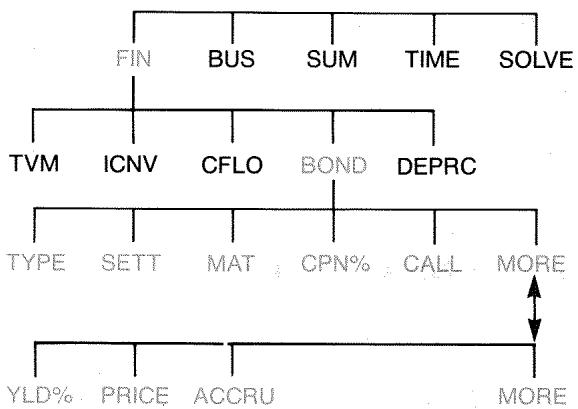
Pressing BOND shows you the BOND menu and the type of bond currently specified: 30/360 or A/A; SEMIANNUAL or ANNUAL.
Table 7-1. BOND Menu Labels
| Menu Label | Description |
| TYPE | Displays a menu of bond types: 30/360 or actual/actual, semi-annual or annual. |
| SETT | Stores the settlement (purchase) date according to the current date format (MM.DDYYYY or DD.MMYYYY; see page 132). |
| MAT | Stores the maturity date or call date according to the current date format. The call date must coincide with a coupon date. |
| CPNX | Stores the annual coupon rate as a percentage. |
| CALL | Stores the call price per 100 face value. For a yield to maturity, make sure CALL equals 100. (A bond at maturity has a "call" value that is 100% of its face value.) |
| YLDX | Stores or calculates the yield (as an annual percentage) to maturity or yield to call date. |
| PRICE | Stores or calculates the price per100 face value. |
| ACCRU | Calculates the interest accrued from the last coupon-payment date until the settlement date, per $100 face value. |
The calculator retains the values of the BOND variables until you clear them by pressing CLEAR DATA while the BOND menu is displayed. Clearing sets CALL to 100 and all other variables to zero.
To see the value currently stored in a variable, press RCL menu label.
Doing Bond Calculations
Remember that values in the BOND menu are expressed per 100 face value or as a percentage. A CALL value of 102 means that the bond will be worth102 for every $100 of face value when called. Some corporate bonds in the United States use the convention that the price of the bond is set to 100 if the coupon rate equals the yield, whether or not the settlement date is a coupon date. The BOND menu does not use this convention.
To calculate the price or yield of a bond:
- Display the BOND menu: press FIN BOND
- Press CLEAR DATA. This sets CALL = 100
- Define the type of bond. If the message in the display does not match the type you want, press TYPE.
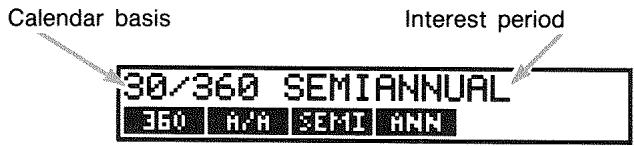
Pressing 360 sets the calendar basis to a 30-day month and a 360-day year.
Pressing n / n sets the calendar basis to the actual calendar month and to the actual calendar year.
■ Pressing SEMI sets semi-annual coupon payments.
Pressing ANN sets annual coupon payments.
Press EXIT to restore the BOND menu.
- Key in the settlement date (MM.DDYYYY or DD.MMYYYY depending on the date format; see chapter 10) and press SETT.
- Key in the maturity date or call date and press MAT
- Key in the coupon rate as an annual percent and press CPN:
- Key in the call value, if any, and press CALL. For a bond held to maturity, the CALL value must equal 100. (See step 3.)
- To calculate a result, first press MORE to access the remaining menu labels. Do either a or b:
a. Key in the yield and press YLDX. Press PRICE to calculate the price.
b. Key in the price and press PRICE. Press YLDx to calculate the yield.
To calculate the accrued interest, press ACCRU. The total amount owed the seller is PRICE + ACCRU, that is: PRICE + ACCRU =
Calculating Fractional Values. When given a fractional value that must be entered in decimal form, do the arithmetic and then store the result directly into a variable. Do not clear the arithmetic and then re-type the result before storing it—this is an unnecessary step that can cause incorrect answers due to rounding. See how the following example stores 83% in YLD% .
Example: Price and Yield of a Bond. What price should you pay on August 10, 1987 for a 63/4% U.S. Treasury bond that matures on May 1, 2002 if you wish a yield of 83/8% ? The calendar basis is actual/actual and the coupon payments are semi-annual. (The example assumes MM.DDYYYY date format.)
| Keys: | Display: | Description: |
| FIN BOND | Since there is no call on this bond, set CALL=100 by clearing variables. | |
| CLEAR DATA | ||
| TYPE A/R | Sets bond type, if necessary. | |
| SEMI EXIT | A/A SEMIANNUAL | |
| 8.101987 | Stores settlement (pur-charge) date. | |
| SETT | SETT=08/10/1987 MON | |
| 5.012002 | Stores maturity date. | |
| MAT | MAT=05/01/2002 WED | |
| 6.75 CPN% | CPN%=6.75 | Stores annual coupon rate. |
| MORE | Stores desired yield (dis-played rounded to two decimal places).* | |
| 3÷8÷8 | ||
| YLD% | YLD%=8.38 |
PRICE
PRICE=86.38
Result: price is 86.38 per100 face value.

ACCRU
86.38+1.85
Adds accrued interest owed the seller.

88.23
Net price.
Suppose that the market quote for the bond is 88 14 . What yield does it represent?
88.25 PRICE
PRICE=88.25
Stores quoted price.
YLDX
YLD%=8.13
Result: yield to maturity.
Example: A Bond with a Call Feature. What is the price of a 6% corporate bond maturing on March 3, 2007 and purchased on May 2, 1988 to yield 5.7% ? It is callable on March 3, 1991 (a coupon date), at a value of 102.75. What is the yield to the call date? Use a 30/360 calendar with semi-annual coupon payments.
| Keys: | Display: | Description: |
| FIN | Displays BOND menu, clears variables. | |
| BOND | ||
| CLEAR DATA | ||
| TYPE | Sets bond type, if necessary. | |
| 360 | ||
| SEMI EXIT | 30/360 SEMIANNUAL | |
| 5.021988 | Stores purchase date (MM.DDYYYY format). | |
| SETT | SETT= 05/02/1988 MON | |
| 3.032007 | Stores maturity date. | |
| MAT | MAT=03/03/2007 SAT | |
| 6 CPN: | CPN%=6.00 | Stores annual coupon rate. |
| MORE | Stores yield. | |
| 5.7 YLD% | YLD%=5.70 | |
| PRICE | PRICE=103.43 | Calculates price. |
| MORE | Changes maturity date to call date and stores a call value. | |
| 3.031991 | ||
| MRT | ||
| 102.75 CALL | CALL=102.75 | |
| MORE | Calculates yield to call. | |
| YLD% | YLD%=5.58 |
Example: A Zero-Coupon Bond. Calculate the price of a zero-coupon, semi-annual bond using a 30/360 calendar basis. The bond was purchased on May 19, 1986 and will mature on June 30, 2000, and has a yield to maturity of 10% .
| Keys: | Display: | Description: |
| FIN | Cleared BOND variables | |
| BOND | setting CALL to 100. | |
| CLEAR DATA | ||
| TYPE | Sets type if necessary | |
| 360 | (check the display). | |
| SEMI EXIT | 30/360 SEMIANNUAL | |
| 5.191986 | Purchase date | |
| SETT | SETT= | (MM.DDYYYY format). |
| 05/19/1986 MON | ||
| 6.302000 | Maturity date. | |
| MAT | MAT=06/30/2000 FRI | |
| 0 CPN% | CPN%=0.00 | Coupon rate is zero. |
| MORE | Yield to maturity. | |
| 10 YLD% | YLD%=10.00 | |
| PRICE | PRICE=25.23 | Calculates price. |
Depreciation
The DEPRC (depreciation) menu calculates depreciation values and remaining depreciable values one year at a time. The methods available are:
Declining balance.
Sum-of-the-years' digits.
Straight line.
■ Accelerated Cost Recovery System.
The DEPRC Menu
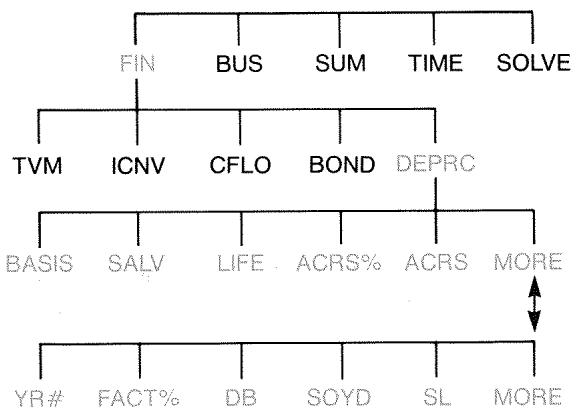
Pressing DEPRc displays the DEPRC menu.
Table 8-1. DEPRC Menu Labels
| Menu Label or Key | Description |
| BASIS | Stores the depreciable cost basis of the asset at acquisition. |
| SALV | Stores the salvage value of the asset at the end of its useful life. If there is no salvage value, set SALV=0. |
| LIFE | Stores the expected useful life (in whole years) of the asset. |
| ACRS% | Stores the appropriate Accelerated Cost Recovery System percentage from the published ACRS tables. |
| ACRS | Calculates the ACRS deduction based on BASIS and ACRS%. (The values in SALV, LIFE, FACT%, and YR# do not matter.) |
| YR# | Stores the number of the year for which you want the depreciation (1, 2, etc.). |
| FACT% | Stores the declining-balance factor as a percentage of the straight-line rate. This is for the DB method only. For example, for a rate 11/4 times (125%) the straight-line rate, enter 125. |
| DB | Calculates the declining-balance depreciation for the year. |
| SOYD | Calculates the sum-of-the-years'-digits depreciation for the year. |
| SL | Calculates the straight-line depreciation for the year. |
| ▼ | Displays the remaining depreciable value, RDV, after you have pressed DB, SOYD, or SL. |
The calculator retains the values of the DEPRC variables until you clear them by pressing Clear DATA while the DEPRC menu is displayed.
To see the value currently stored in a variable, press RCL menu label.
Doing Depreciation Calculations
DB, SOYD, and SL Methods
To calculate the depreciation for an asset:\*
- Display the DEPRC menu: press FIN DEPRC.
- Define the characteristics of the asset:
a. Key in the cost basis and press BAsIs
b. Key in the salvage value and press SALV. If there is no salvage value, enter zero.
C. Key in the useful life and press LIFE
- Press MORE for the rest of the DEPRC menu.
- Key in the number for the year of depreciation you want to calculate (1, 2, 3, etc.) and press YR#.
- If you are using the declining-balance method, enter the DB factor (a percentage) and press FACTX.
- Press DE, SoyD, or SL to calculate the appropriate depreciation.
- To see the remaining depreciable value (basis - salvage value - accumulated depreciation), press .
- To calculate the depreciation for another year, just change YR # and press DB, soYD, or SL again.
Example: Declining-Balance Depreciation. A metalworking machine, purchased for 10,000, is to be depreciated over 5 years. Its salvage value is estimated at 500. Find the depreciation and remaining depreciable value for each of the first 3 years of the machine's life using the double-declining-balance method (200% of the straight-line rate). For comparison, find the straight-line depreciation, as well.
| Keys: | Display: | Description: |
| FIN | Displays DEPRC menu. | |
| DEPRC | ||
| 10000 | BASIS=10,000.00 | Cost basis. |
| 500 | SALV=500.00 | Salvage value. |
| 5 | LIFE | Useful life. |
| MORE | First year of depreciation. | |
| 1 | YR# | YR#=1.00 |
| 200 | FACTX | FACT#=200.00 |
| DB | DB=4,000.00 | Depreciation in first year. (Salvage value ignored at this point.) |
| ▼ | RDV=5,500.00 | Remaining depreciable value after first year (BASIS-SALV-4,000). |
| 2 | YR# | |
| DB | DB=2,400.00 | Depreciation in second year. |
| ▼ | RDV=3,100.00 | Remaining depreciable value after second year. |
| 3 | YR# | |
| DB | DB=1,440.00 | Depreciation in third year. |
| ▼ | RDV=1,660.00 | Remaining depreciable value after third year. |
| SL | SL=1,900.00 | Straight-line depreciation for each year. |
| ▼ | RDV=3,800.00 | Remaining depreciable value after third year using SL. |
The ACRS Method
To calculate the amount of tax deduction under the U.S. Accelerated Cost Recovery System:
- Display the DEPRC menu: press FIN DEPRC.
- Enter the cost basis of the asset and press BASIS.
- The Internal Revenue Service publishes tables that list the percentage of an asset's basis that can be deducted each year of its prescribed life. Look up that value, enter it, and press HCRS%.
- Press ACRS to calculate the value of the deduction.
Example: ACRS Deductions. Use the ACRS method to find the income-tax deduction for a (25,000 asset over 3 years of a 5-year life. Use this hypothetical ACRS table:
| Year | Percentage Deductible |
| 1 | 15 |
| 2 | 25 |
| 3 | 20 |
| 4 | 20 |
| 5 | 20 |
Keys:
FIN DEPRC
25000 BASIS
15 ACRSx
ACRS
25 ACRS%
Display:
BASIS=25,000.00
ACRS%=15.00
ACRS=3,750,00
ACRS%=25.00
Description:
DEPRC menu.
Enters basis.
Tabular value, year 1.
Deduction in first year.
Tabular value, year 2.
ACRS
ACRS=6,250.00
Deduction in second year.
20 ACRS% ACRS%=20.00
Tabular value, year 3.
ACRS ACRS=5,000.00
Deduction in third year.
Partial-Year Depreciation
When the acquisition date of an asset does not coincide with the start of the tax or fiscal year, then the amounts of depreciation in the first and last years are computed as fractions of a full year's depreciation. Except in SL, the intermediate years are computed as sums of fractions. This does not apply to the ACRS method.
Suppose you acquired an asset in October and wanted to depreciate it for 3 years. (Your fiscal year begins January 1st.) The depreciation schedule would affect parts of 4 years, as shown in the illustration. The 3 months from October to December equal 14 year.
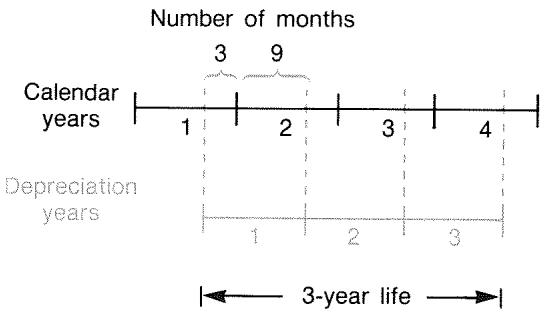
For SL depreciation, partial-year calculations are easy: calculate the SL value, then use 14 of that value for the first year, the full amount the second and third years, and 34 of that amount the fourth year.
For DB and SOYD depreciation, each year's depreciation value is different, as shown in the table:
| Calendar Year | Depreciation Value |
| 1 (Oct.-Dec.) | 1/4 × year 1 |
| 2 | (3/4 × year 1) + (1/4 × year 2) |
| 3 | (3/4 × year 2) + (1/4 × year 3) |
| 4 (Jan.-Sept.) | 3/4 × year 3 |
Example: Partial-Year Depreciation. A movie camera bought for 12,000 has a useful life of 10 years with a salvage value of 500. Using the sum-of-the-years'-digits method, find the amount of depreciation for the fourth year. Assume the first depreciation year was 11 months long.
| Keys: | Display: | Description: |
| FIN DEPRC | Displays DEPRC menu. | |
| 12000 BASIS | Stores known values. | |
| 500 SALV | ||
| 10 LIFE | ||
| MORE | ||
| 3 YR# | YR#=3.00 | |
| SOYD | SOYD=1,672.72 | Calculates depreciation for year 3. |
| ÷12=STO 1 | 139.39 | Stores 1 month's depreciation from year 3. |
| 4 YR# | Calculates depreciation for year 4. | |
| SOYD | SOYD=1,463.64 | |
| ×11÷12= | 1,341.67 | Figures 11 months' depreciation from year 4. |
| + RCL 1= | 1,481.06 | Figures total depreciation for year 4. |
Running Total and Statistics
The SUM menu stores and statistically analyzes sets of numbers. As you enter the numbers, the calculator displays their running total. Once you've entered the numbers into a list, you can:
Calculate the mean, median, standard deviation, and range.
Display the largest and smallest number in the list.
Sort the list from smallest number to largest number.
With two lists of numbers, you can:
- Do curve-fitting and forecasting calculations using two SUM lists and one of four models—linear, exponential, logarithmic, and power. (Curve fitting for the linear model is called linear regression.)
Calculate the weighted mean and grouped standard deviation.
Find the summation statistics ( x, x2, y, y2, xy) .
You can store many separate lists of numbers in SUM, totaling up to about 840 items. The maximum number depends on the amount of available calculator memory.
The SUM Menu
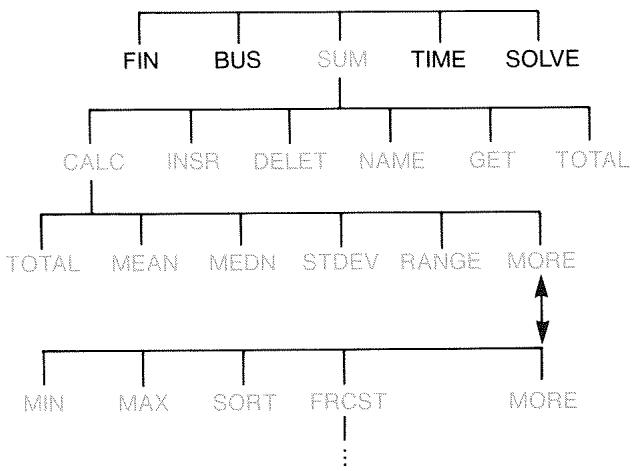
The SUM menu creates lists of numbers and performs calculations with a SUM list.
Table 9-1. SUM Menu Labels
| Menu Label | Description |
| CALC | Accesses the CALC menu to calculate the total, mean, median, standard deviation, range, minimum, maximum, sorting, and linear regression (including weighted mean and summation statistics). |
| INSR | Allows you to insert numbers into the list. |
| DELETE | Deletes numbers from the list. |
| NAME | Allows you to name the list. |
| GET | Allows you to switch from one named list to another or to create a new list. |
| TOTAL | Displays the total of all the items in the list. |
To see the calculator line when this menu is in the display, press INPUT once. (This does not affect number entry.)
To see this menu when the calculator line is in the display, press EXIT.
Creating a SUM List
To keep a running total of a list of numbers or do statistical calculations with sets of data, first create a SUM list of the values.
- Entering Numbers and Viewing the TOTAL
To enter numbers into a SUM list:
- Press SUM. You'll see ITEM(1) = ? if the current list is empty, or ITEM(2 or more) = ? if the list is not empty. This is the bottom of the current list.

- If the list is empty, start filling it (step 3). If the current list is not empty, you can do either a or b:
a. Clear the list by pressing CLEAR DATA YES page 116.)
b. Get a new list by pressing GET *NEW. (The old list must be named first. Press NAME or see page 115.)
-
Key in the value of the first item, ITEM(1) (press +/- for a negative number), and press INPUT.* (To view ITEM(1) longer, hold down INPUT before releasing it.)
-
Remember that you can do calculations with a number before entering it. This does not interfere with the list. Whenever you press INPUT, the number (or evaluated expression) in the calculator line is entered into the list. If you need to use the MATH menu, just press MATH, do the calculation, then press EXIT to return to where you were in SUM.
After briefly showing ITEM(1), the display shows
ITEM(2)=?
TOTAL = number
TOTAL is the updated, running TOTAL of all the numbers in the list (only one number, so far).
- To enter ITEM(2), key in the value and press INPUT. The prompt for ITEM(3) and the new, updated total appear.
- Continue entering values for ITEM(3), ITEM(4), etc. The calculator recognizes the end of the list when an item is left blank (no value is entered).
- Press EXIT to end the list and restore the SUM menu. You can now proceed to correct the list, name the list, get another list, or do statistical calculations.
Use these same instructions to enter additional lists.
Viewing and Correcting the List
To display a particular list, use GET (see page 116).
The and keys move up and down the list one number at a time. and display the beginning and end of the list.
Changing or Clearing a Number. To change a number after it's been entered: display the number, key in the new value, and press INPUT.
Use the same method to clear a number to zero. (Do not press CLR or 4 , which clears the calculator line.)
Inserting Numbers into a List. Insertion occurs before (or above) the current entry. Pressing INSR inserts a zero item and renumbers the rest of the list. You can then enter a new value.
For example, if ITEM(6) is in the display, pressing INSR puts a new, zero item between the previously numbered ITEM(5) and ITEM(6).
Deleting Numbers from a List. Pressing DELETE deletes the current item.
Example: Updating a Checkbook. On May 31, your checking account balance was (267.82. The transactions for the first 10 days in June are:
| Date | Transaction | Amount | Date | Transaction | Amount |
| 6/1 | Balance | 267.82 | 6/3 | Check | -128.90 |
| 6/1 | Deposit | 837.42 | 6/7 | Check | - 65.35 |
| 6/1 | Check | -368.23 | 6/10 | Deposit | 55.67 |
| 6/2 | Check | - 45.36 |
Update the checkbook by calculating the running balance.
| Keys: | Display: | Description: |
| SUM * | ||
| CLEAR DATA | Displays empty SUM list. | |
| YES | ITEM(1)=? | |
| 267.82 INPUT | ITEM(2)=? | Enters beginning balance |
| TOTAL=267.82 | and shows running total. | |
| 837.42 INPUT | ITEM(3)=? | Enters deposit on 6/1. |
| TOTAL=1,105.24 |
- If you want to preserve the current list, skip the next step (pressing CLEAR DATA). Instead, name the list and then press GET *NEW.
368.23
INPUT
45.36
INPUT
128.90
INPUT
65.35
INPUT
55.67 INPUT
ITEM(8)=?
TOTAL=553.07
EXIT
ITEM(8)=?
Enters remaining transactions.
Ends list and displays SUM menu again.
Copying a Number from a List to the Calculator Line
To copy a number from the list into the calculator line, use or Δ to display the number, then press RCL INPUT.
Naming and Renaming a SUM List
A new list has no name. You may name it before or after filling the list, but you must name it in order to store another list.
To name a list:
- Press NAME from the SUM menu.
- Use the ALPHA menu to type in a name. (The ALPHA and ALPHA-Edit menus are covered on pages 27-29.) To clear a name, press CLR.
- Press INPUT
The name can be up to 22 characters long and include any character except: + - × ÷ () < > : = space^*
But only the first three to five characters (depending on letter widths) of the name are used for a menu label. Avoid names with the same first characters, since their menu labels will look alike.
Viewing the Name of the Current List. Press NAME, then EXIT.
Starting or GETting Another List
When you press SUM, the SUM list that appears is the last one used.
To start a new list or switch to a different one, the current list must be named or cleared. If it is named, then:
- Press GET. The GET menu contains a menu label for each named list plus KEN.
- Press the key for the desired list. (*NEW) brings up a new, empty list.)
Clearing a SUM List and Its Name
To clear a list's numbers and name:
- Display the list you want to clear, then press CLEAR DATA YES . This removes the numbers.
- If the list is named, you'll see ALSO CLEAR LIST NAME? Press YES to remove the name. Press NO to retain the name with an empty list.
To remove just one value at a time from a list, use DELET.
Doing Statistical Calculations (CALC)
Once you have entered a list of numbers, you can calculate the following values.
For one variable: the total, mean, median, standard deviation, range, minimum, and maximum. You can also sort the numbers in order of increasing value.
For two variables: x -estimates and y -estimates (this is also called forecasting), the correlation coefficient for different types of curves (this is curve-fitting), the slope and y -intercept of the line, and summation statistics. You can also find the weighted mean and the grouped standard deviation.
Calculations with One Variable
The CALC menu calculates the following statistical values using one SUM list.
Table 9-2. The CALC Menu for SUM Lists
| Menu Key | Description |
| TOTAL | Calculates the sum of the numbers in the list. |
| MEAN | Calculates the arithmetic mean (average). |
| MEDN | Calculates the median. |
| STDEV | Calculates the standard deviation.* |
| RANG | Calculates the difference between the largest and smallest number. |
| MIN | Finds the smallest (minimum) number in the list. |
| MAX | Finds the largest (maximum) number in the list. |
| SORT | Sorts the list in ascending order. |
| FRCST | Displays a series of menus for calculations with two variables for curve fitting, estimation, weighted mean and grouped standard deviation, and summation statistics. |
| * The calculator finds the sample standard deviation. The formula assumes that the list of numbers is a sampling of a larger, complete set of data. If the list is, in fact, the entire set of data, the true population standard deviation can be computed by calculating the mean of the original list, placing that value into the list, and then calculating the standard deviation. | |
Example: Mean, Median, and Standard Deviation. Suppose your shop had the following phone bills during the past six months:
| Month | Phone Expense | Month | Phone Expense |
| 1. May | 340 | 4. August | 780 |
| 2. June | 175 | 5. September | 245 |
| 3. July | 450 | 6. October | 625 |
Calculate the mean, median, and standard deviation of the monthly phone bills. Then display the smallest value in the list.
| Keys: | Display: | Description: |
| SUM | Displays current SUM list and SUM menu keys. | |
| CLEAR DATA | Clears current list or gets a new one. | |
| YES | ||
| or | ||
| GET | ||
| *NEW | ITEM(1)=? | |
| 340 INPUT | ITEM(2)=? | Stores May's phone bill; shows total. |
| TOTAL=340.00 | ||
| 175 INPUT | ITEM(3)=? | Stores June; updates total. |
| TOTAL=515.00 | ||
| 450 INPUT | Stores phone bills for July-October and keeps a running total. | |
| 780 INPUT | ||
| 245 INPUT | ||
| 625 INPUT | ITEM(7)=? | |
| TOTAL=2,615.00 | ||
| EXIT CALC | 2,615.00 | Displays CALC menu. |
| MEAN | MEAN=435.83 | Calculates mean. |
| MEDN | MEDIAN=395.00 | Calculates median. |
| STDEV | STDEV=231.55 | Calculates standard deviation. |
| MORE | Displays rest of CALC menu. | |
| MIN | MIN=175.00 | Finds smallest number. |
Calculations with Two Variables (FRCST)
The FRCST menu does the following two-variable calculations using two SUM lists:
Fits x - and y -data to a linear, logarithmic, exponential, or power curve.
Forecasts estimated values based on that curve.
Finds the weighted mean and grouped standard deviation.
■ Shows you the summation statistics ( x, x2, y, y2, xy, etc.)
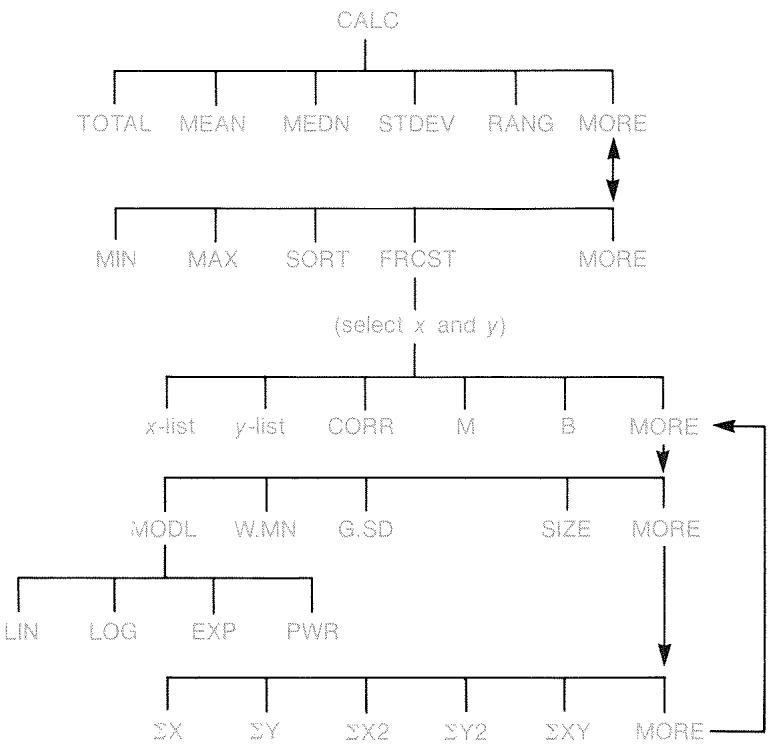
After pressing FRCST, you must specify two previously created lists—one for the x -variable and one for the y -variable. The two lists must have the same number of items.
Table 9-3. FRCST Menu Labels
| Menu Label | Description |
| list name for x-variable | These specify the two lists of data to be com- pared. Also used for estimations: store x and estimate y, or vice-versa. *CURR is the menu la- bel for an unnamed current list. |
| list name for y-variable | |
| CORR* | Calculates the correlation coefficient, a number between -1 and +1 that measures how closely the x,y data points match the calculated curve. |
| M* | Calculates M. For the linear model, this is the slope. |
| B* | Calculates B. For the linear model, this is the y- intercept. |
| MODL | Displays a choice of the four curve-fitting models: LIN, LOG, EXP, and PWR. |
| W.MN | Calculates the weighted mean of the x-values us- ing the weights in the y-list. |
| G.SD | Calculates the standard deviation of a set of x- values grouped by frequencies specified in the y- list. |
| SIZE | The number of items in either list. |
| ΣX | Sum of items in x-list. |
| ΣY | Sum of items in y-list. |
| ΣX2 | Sum of squares of items in x-list. |
| ΣY2 | Sum of squares of items in y-list. |
| ΣXY | Sum of products of items in x- and y-lists. |
| * For the non-linear models, the calculation uses the transformed data values. | |
Curve Fitting and Forecasting
Curve fitting is a statistical method for finding a relationship between two variables, x and y . Based on this relationship, you can estimate new values of y based on a given x -value, and vice-versa. Each SUM list holds the numbers (data values) for one variable. You can select one of four curve-fitting models:*
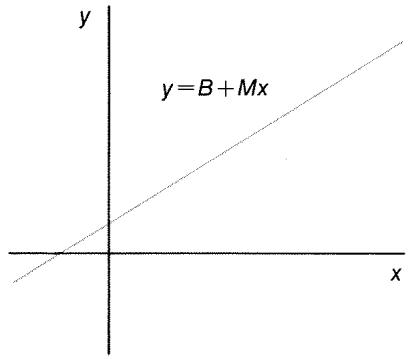
Linear Curve Fit
LIN
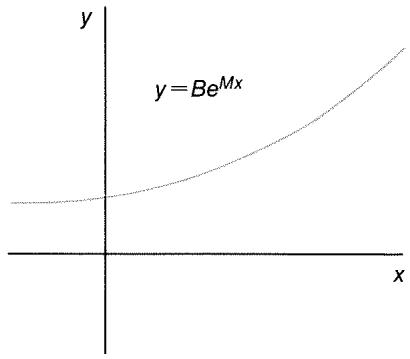
Exponential Curve Fit
EXP
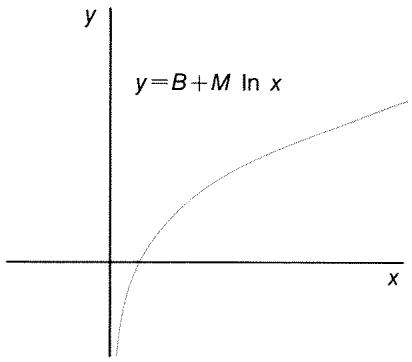
Logarithmic Curve Fit
LOG
Power Curve Fit
PWR
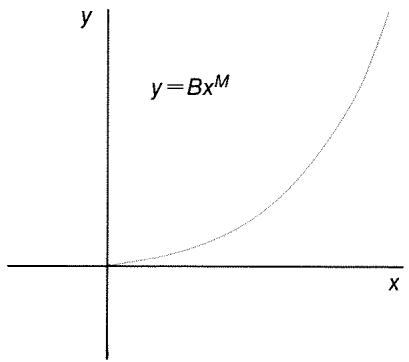
* The exponential, logarithmic, and power models are calculated using transformations that allow the data to be fitted by standard linear regression. The equations for these transformations appear in appendix B. The logarithmic model requires positive x -values; the exponential model requires positive y -values; and the power curve requires positive x - and y -values.
To do curve fitting and forecasting:
- Enter the data into two SUM lists: one for the x -values and one for the y -values. Make sure each list has the same number of items so that the items are in matched pairs.
- From the SUM menu, press CALC MORE FRCST to display a menu of SUM-list names. The current list is labeled *CURR unless named otherwise.
- Press a menu key to select a list of x -values (independent variable).
- Select a list of y -values (dependent variable).
- Now you see the FRCST menu. Whichever curve-fitting model was used last is named in the display. If you want to select a different model, press MORE MODL, and then the menu key for the model.

- To calculate the curve-fitting results, press CORR, M, and B
-
To forecast (estimate) a value:
-
Key in the known value and press the menu key for that variable.
- Press the menu key for the variable whose value you want to forecast.
Example: Curve Fitting. BJ's Dahlia Garden advertises on a local radio station. For the past six weeks, the manager has kept records of the number of minutes of advertising that were purchased, and the sales for that week.
| Number of Minutes of Radio Advertising (x-values, MINUTES) | Dollar Sales (y-values, SALES) | |
| Week 1 | 2 | 1,400 |
| Week 2 | 1 | 920 |
| Week 3 | 3 | 1,100 |
| Week 4 | 5 | 2,265 |
| Week 5 | 5 | 2,890 |
| Week 6 | 4 | 2,200 |
BJ's wants to determine whether there is a linear relationship between the amount of radio advertising and the weekly sales. If a strong relationship exists, BJ's wants to use the relationship to forecast sales. A graph of the data looks like this:
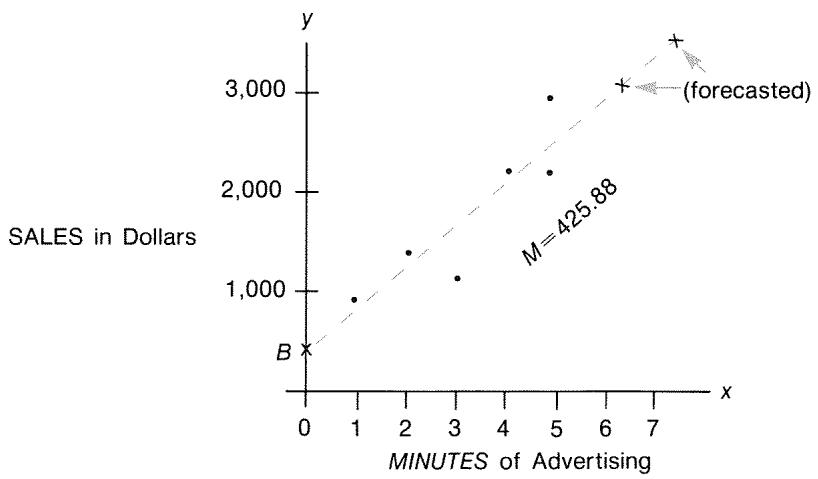
| Keys: | Display: | Description: |
| SUM | Displays current SUM list and SUM menu keys. | |
| CLEAR DATA | Clears current list. | |
| YES | ITEM(1)=? | |
| 2 INPUT | Stores minutes of ad- vertising (x-values) into a SUM list. | |
| 1 INPUT | ||
| 3 INPUT | ||
| 5 INPUT | ||
| 5 INPUT | ||
| 4 INPUT | ITEM(7)=? | |
| TOTAL=20.00 | ||
| EXIT NAME | TYPE NAME: [INPUT] | |
| MINUTES | Names this list. (See page 27 to use the AL- PHA menu.) | |
| INPUT | ITEM(7)=? | |
| Now enter and name the second list. | ||
| GET *NEW | ITEM(1)=? | Gets a new, empty list. |
| 1400 INPUT | Stores weekly sales (y- values) into a second SUM list. | |
| 920 INPUT | ||
| 1100 INPUT | ||
| 2265 INPUT | ||
| 2890 INPUT | ||
| 2200 INPUT | ITEM(7)=? | |
| TOTAL=10,775.00 | ||
| EXIT NAME | TYPE NAME: [INPUT] | |
| SALES INPUT | ITEM(7)=? | Names y-list. |
| CALC MORE | Identifies the lists for curve-fitting. | |
| FRCST | SELECT x VARIABLE | |
| MINU | SELECT Y VARIABLE | Selects MINUTES as x- list, SALES as y-list, indicates current curve- fitting model, and displays FRCST menu. |
| SALES | LINEAR * | |
| CORR | CORR=0.90 | Correlation coefficient for linear model. |
The correlation coefficient calculated above is acceptable to BJ's. Using the linear model, estimate what the level of sales would be if the business purchased 7 minutes of advertising time per week.
7 MINU
MINUTES=7.00
Stores 7 in variable MINUTES.
SALES
SALES=3,357.38
Forecasts the sales resulting from 7 minutes of radio advertising.
How many minutes of advertising should BJ's buy if it wants to attain sales of $3,000?
3000 SALES
MINU
MINUTES=6.16
The business should buy about 6 minutes of advertising for sales of $3,000.†
Weighted Mean and Grouped Standard Deviation
Data in one list (x) can be weighted or grouped (by frequency) by data in another list (y) . To find the mean of weighted data and the standard deviation of grouped data:
-
Enter the data values—the x -variable—into a SUM list.
-
If the model named here is not the one you want to use, press MORE MODEL and select the one you want.
This result is not the same as it would be if SALES were the independent (x) variable, and MINUTES were the dependent (y) variable. -
Enter the corresponding weights or frequencies—the y -variables—into another list. (To calculate G.SD, the y -values should be integers.)
- From the SUM menu, press CALC MORE FRCST to display a menu of SUM-list names. The current list is *CURR unless named otherwise.
- Press the menu key for the list of x -values.
- Now select the list with the weights (or frequencies) (y) .
- To calculate the weighted mean, press MORE W.MN
- To calculate the grouped standard deviation, press G.sD
Example: Weighted Mean. A survey of 266 one-bedroom rental apartments reveals that 54 of them rent for 200 per month, 32 for205, 88 for 210, and 92 for216. What is the average monthly rent and its standard deviation?
Create two SUM lists. The first, called RENT, should contain the numbers 200, 205, 210, and 216, in that order. The second can be unnamed and should contain the numbers 54, 32, 88, and 92, in that order.
| Keys: | Display: | Description: |
| SUM | ||
| CLEAR DATA | Cleared current list or gets a new one. | |
| YES | ||
| or | ||
| GET | ||
| *NEW | ITEM(1)=? | |
| 200 INPUT | Stores rents into a list. | |
| 205 INPUT | ||
| 210 INPUT | ||
| 216 INPUT | ITEM(5)=? | |
| TOTAL=831.00 | ||
| EXIT NAME | Names this list RENT. (See page 27 to use the ALPHA menu.) | |
| RENT INPUT | ITEM(5)=? | |
| GET | Gets a new, empty list. | |
| *NEW | ITEM(1)=? | |
| 54 INPUT | Stores frequencies into second list. | |
| 32 INPUT | ||
| 88 INPUT | ||
| 92 INPUT | ITEM(5)=$? | |
| TOTAL=266.00 | ||
| EXIT CALC | Displays names of all SUM lists. | |
| MORE | ||
| FRCST | SELECT X VARIABLE | |
| RENT | SELECT Y VARIABLE | Specifies RENT as the x-list. |
| *CURR | LINEAR | Specifies the current, unnamed list as the y-list and then displays the FRCST menu. (Ignore model type.) |
| MORE | Average monthly rent. | |
| M.MN | 209.44 | |
| G.SD | 5.97 | Standard deviation of the rents. |
Summation Statistics
The summation values are of interest if you want to perform other statistical calculations besides those provided by the calculator. To find x, x2, y, y2, (xy) , and n , the number of elements in either list:
- Display the FRCST menu and select the x - and y -lists as explained in steps 1-4 of the instructions on page 123. To find the summation statistics for just one list of data, specify the same list for both x and y .
- To see n , press MORE SIZE.
- Press MORE again to display the summation menu, and press the menu label for the value you want.
Doing Other Calculations with SUM Data
If you would like to do other statistical calculations with SUM data besides those in the CALC menu, you can do so by writing your own Solver equation. There are Solver functions that can access data stored in SUM lists, and there is a summation function that can combine all or part of the values stored in specific lists.
Refer to "Accessing CFLO and SUM Lists from the Solver" in chapter 11.
Time, Appointments, and Date Arithmetic
The calculator contains a clock and calendar in the TIME menu. You can select a 12-hour or 24-hour clock, and a month-day-year or day-month-year calendar. You can:
■ Record appointments that set alarms with optional messages.
Determine the day of the week for a particular date.
Calculate the number of days between two dates using the 360-day, the 365-day, or the actual calendar.
Viewing the Time and Date
To view the time and date, press TIME in the MAIN menu.

If you overwrite the time and date, you can restore them to the display by pressing .
The TIME Menu
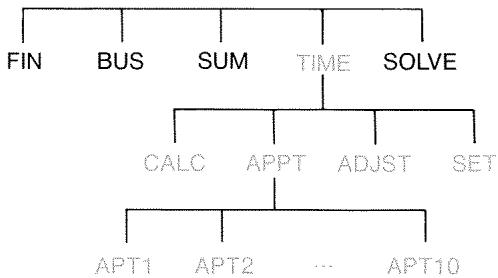
Table 10-1. The TIME Menu Labels
| Menu Label | Description |
| CALC | Displays the CALC menu, for calculating the day of the week and other date arithmetic. |
| APPT | Displays the APPT menu for setting and viewing appointments. |
| ADJST | Displays the ADJST menu for adjusting the clock setting. |
| SET | Displays the SET menu for setting the time and date, and for selecting the time and date formats. |
Setting the Time and Date (SET)
Table 10-2. The SET Menu Labels
| Menu Label | Description |
| DATE | Sets the date to the displayed number (MM.DDYYYY or DD.MMYYYY). |
| TIME | Sets the time to the displayed number (HH.MMSS). |
| A/PM | Switches between AM and PM (12-hour clock). |
| M/D | Switches between month/day/year and day.month.year formats. |
| 12/24 | Switches between 12-hour and 24-hour clock formats. |
| HELP | Displays the formats for entering the clock's date and time. |
To set the time:
- Press TIME SET to display the SET menu.
- Key in the correct time in the current format (A or P indicates the 12-hour clock). For example, for 9:08:30 p.m. enter 9.0830 in a 12-hour clock or 21.0830 in a 24-hour clock.
- Press TIME to set the new time.
- For 12-hour format: press H/PM to switch between AM and PM.
To set the date:
- Key in the correct date in the current format. For example, for April 3, 1990 enter 4.031990 in month/day/year format or 3.041990 in day.month.year format.
- Press DATE.
Example: Setting the Date and Time. Set the date and time to April 5, 1991, 4:07 p.m.
| Keys: | Display: | Description: |
| SET | Displays SET menu. | |
| 4.051991 | Sets date. | |
| DATE | FRI 04/05/91 time | |
| 4.07 TIME | Sets time. Press A/PM if necessary. | |
| A/PM | FRI | |
| 04/05/91 04:07:xx P |
Changing the Time and Date Formats (SET)
Use the SET menu to change the time and date formats. To switch between the 12- and 24-hour clocks, press 12/24 . To switch between the month/day/year and day.month.year calendars, press M/D.
Adjusting the Clock Setting (ADJST)
The ADJST menu adjusts the time setting forward or backward in increments of hours, minutes, or seconds.
- Press TIME ADJST.
- Press the appropriate menu key(s) until the correct time is displayed. For example, if the current time setting is 11:20:xx AM (ignoring seconds), pressing +HR twice changes the time to 1:20 PM. Then, pressing -MIN three times changes the time to 1:17 PM.
Appointments (APPT)
You can record up to ten appointments, each with an alarm. An appointment can contain a message. You can also create repeating appointments—appointments that recur at regular intervals.
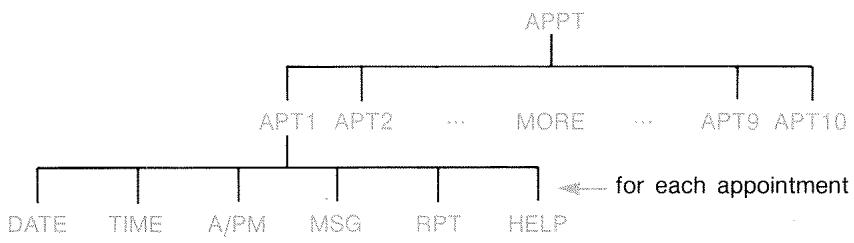
Viewing or Setting an Appointment (APT1-APT10)
Table 10-3. Menu Labels for Setting Appointments
| Menu Label | Description |
| DATE | Sets the appointment date. |
| TIME | Sets the appointment time, and automatically enters the current date (if the existing appointment date was in the past). |
| A/PM | Sets AM or PM for 12-hour clock. |
| MSG | Displays the ALPHA menu and any existing message. |
| RPT | Displays the existing repeat interval and the menu for changing the repeat interval. |
| HELP | Displays the format for entering the date and time. |
To set an appointment or view its current setting:
- Press TIME, then APPT. The display tells you which appointments (numbered 1-10) are set and which are past due (expired with unacknowledged alarms).

Pressing MORE displays the status and menu labels for appointments 6 through 10.
- Press a menu key—APT1 through APT10. The display shows the current appointment, if any, and the menu labels for setting appointments.
- Optional: press CLEAR DATA to remove any old information.
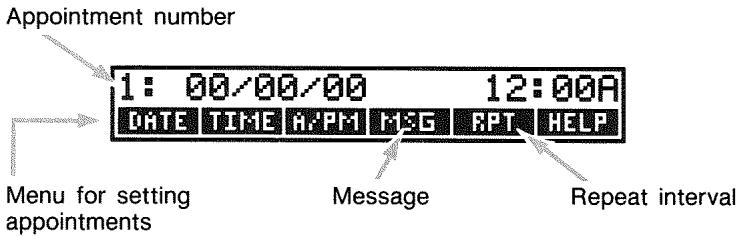
- Setting the appointment time: Use 12-hour or 24-hour time, as appropriate. Key in the time as a number in the form HH.MM. For example, 2:25 p.m. would be 2.25 (12-hour format) or 14.25 (24-hour format). Press TIME. The date is automatically set to the current date if the existing date is in the past or was cleared. For 12-hour format: press R/PM to switch between AM and PM.
- Setting the appointment date: Key in the date in the current date format. For example, enter October 4, 1990 as 10.041990 (month/day/year format) or 4.101990 (day.month.year format). Press DATE. If the appointment is within a year from today, you can omit the year.
- The appointment message (optional): To set, change, or just view a message, press MSG. Type the message (refer to page 27 for using the ALPHA menu). Messages are limited to a maximum of 22 characters. Press INPUT when done. (Press EXIT to negate any changes and retain the original message.)
-
The repeat interval (optional): To set, view, or change a repeat interval, press RPT. Key in an integer and press the appropriate key. For example, 2 DAY causes the appointment to go off at the same time every other day; 90 MIN sets the repeat interval to 112 hours. NONE sets the appointment to nonrepeating. You can specify repeat intervals up to 104 weeks in length (728 days, 17,472 hours, etc.)
-
When done, press EXIT to return to the APPT menu. The appointment you just set will be recorded, such as SET:1. You can check an appointment by pressing its menu key (such as APT1).
restores an appointment's time and date to the display if it has been overwritten by other operations.
Acknowledging an Appointment
To acknowledge the appointment and clear the message, press any key (except ) during the beeping. Appointments not acknowledged within 20 seconds become past due.
When an appointment "comes due," the alarm starts beeping and the alarm annunciator (()) is displayed, even if the calculator was off.* The message (or, if none, the time and date) is displayed.
Unacknowledged Appointments
An appointment not acknowledged during its alarm becomes past due. The alarm annunciator remains on.
To acknowledge a past-due appointment:
- Press TIME APPT.
- Press the menu key for the past-due appointment.
- Press to return to the APPT menu. The acknowledged appointment is no longer listed as past due.
A repeating appointment is deactivated while it is past due and will not go off subsequently until the past-due appointment has been acknowledged.
- If the calculator is in the middle of a complex calculation when an appointment comes due, the alarm annunciator comes on and the calculator beeps once. When the calculation is done, the alarm goes off.
† The beeping can be suppressed or restricted to appointments. See "Beeper On and Off," page 33.
Clearing Appointments
To cancel an appointment or to get rid of a repeating appointment, you need to clear the appointment. Clearing changes the date and time to 00/00/00 , 12:00 AM, and removes the message and the repeat interval.
To clear an appointment, press the menu label for that appointment and press CLEAR DATA
To clear all ten appointments, display the APPT menu (the menu with APT1, APT2, etc.) and press CLEAR DATA YES.
Example: Clearing and Setting an Appointment. Today is Friday, April 20, 1990. You want to set appointment #4 to go off every Tuesday at 2:15 p.m. to remind you of a staff meeting. Assume 12-hour time format and month/day/year date format.
| Keys: | Display: | Description: |
| TIME APPT | Displays setting for ap- pointment #4. | |
| RPT4 | ||
| CLEAR DATA | 4: 00/00/00 12:00A | Cleared aptt. #4. |
| 2.15 TIME | 4: FRI 04/20/90 2:15A | Stores aptt. time and supplies current date. |
| A/PM | 4: FRI 04/20/90 2:15P | Sets aptt. time to PM. |
| 4.24 DATE | 4: TUE 04/24/90 2:15P | Stores aptt. date. |
| MSG | Enters message: "staff". | |
| STAFF INPUT | 4: TUE 04/24/90 2:15P | |
| RPT | RPT=NONE | Displays RPT menu. |
| 1 WEEK | RPT=1 WEEK(S) 4: TUE 04/24/90 2:15P | Sets repeat interval. |
Date Arithmetic (CALC)
The CALC menu performs date arithmetic:
Determines the day of the week for any date.
■ Determines the number of days between dates using one of three calendars—actual, 365-day, or 360-day.
- Adds or subtracts days from a date to determine a new date.
The calendar for date arithmetic runs from October 15, 1582 to December 31, 9999.
To display the CALC menu, press TIME, then CALC.
Table 10-4. CALC Menu Labels for Date Arithmetic
| Menu Label | Description |
| DATE1 | Stores or calculates a date. Also displays the day of the week. If you omit the year, the calculator uses the current year. |
| DATE2 | |
| DAYS | Stores or calculates the number of actual days between DATE1 and DATE2 , recognizing leap years. |
| 360D | Calculates the number of days between DATE1 and DATE2 using the 360-day calendar (30-day months). |
| 365D | Calculates the number of days between DATE1 and DATE2, using the 365-day calendar, ignoring leap years. |
| TODAY | A shortcut: recalls the current date, which can then be stored in DATE1 or DATE2. |
The calculator retains the values for the TIME CALC variables DATE1, DATE2, DAYS until you clear them by pressing CLEAR DATA while the CALC menu is displayed.
To see what value is currently stored in a variable, press RCL menu label.
Determining the Day of the Week for Any Date
To find the day of the week for any date, key in the date and press DATE1 or DATE2.
Calculating the Number of Days between Dates
To calculate the number of days between two dates:
- Key in the first date (for today's date, use TODAY) and press DATE1.
- Key in the second date and press DATE2.
- Press DAYS, 360D, or 365D to calculate the number of days using that calendar.
Example: Calculating the Number of Days between Two
Dates. Find the number of days between April 20, 1949 and August 2, 1986, using both the actual calendar and the 365-day calendar. Assume the date format is month/day/year.
| Keys: | Display: | Description: |
| TIME | Displays CALC menu. | |
| CALC | ||
| 4.201949 | Stores Apr. 20, 1949 as | |
| DATE1 | DATE1=04/20/1949 WED | first date and displays its day of the week. |
| 8.021986 | Stores Aug. 2, 1986 as | |
| DATE2 | DATE2=08/02/1986 SAT | second date. |
| DAYS | ACTUAL DAYS=13,618.00 | Calculates actual number of intervening days. |
| 365D | 365 DAYS=13,609.00 | Calculates number of intervening days by a 365-day calendar. |
Calculating Past or Future Dates
To calculate a date a specified number of days from another date:
- Key in the known date (for today's date, use TODAY) and press DATE1.
- Key in the number of days. This number should be negative if the unknown date precedes the known date. Press DAYS.
- Press DATE2 .
This calculation always uses the actual calendar.
Example: Determining a Future Date. On February 9, 1990, you purchase a 120-day option on a piece of land. Determine the expiration date. Assume the date format is month/day/year.
| Keys: | Display: | Description: |
| TIME | Displays CALC menu. | |
| CALC | ||
| 2.091990 | DATE1= | Stores Feb. 9, 1990. |
| DATE1 | 02/09/1990 FRI | |
| 120 DAYS | ACTUAL DAYS=120.00 | Stores number of days into the future. |
| DATE2 | DATE2= | Calculates expiration date (DATE2). |
| 06/09/1990 SAT |
The Equation Solver
The Equation Solver (the SOLVE menu) stores equations that you enter and creates menus for them. You can then use those menus to do calculations. Enter Solver equations in algebraic form regardless of the calculation mode (ALG or RPN).
The Solver can store many equations—the number and length of equations is limited only by the amount of memory available. The equations are stored in a list.
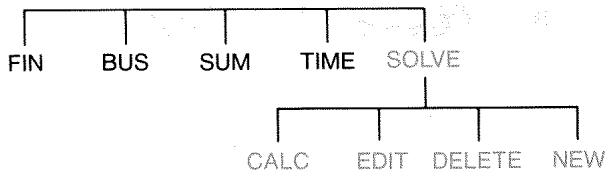
Solver Example: Sales Forecasts
Suppose part of your job includes making sales forecasts, and that these forecasts are revised based on new information. For instance,
A change in the price of the product will affect sales by a forecasted percentage, A% .
A change in sales-force training will affect sales by a forecasted percentage, B% .
A competitor's new product will affect sales by a forecasted percentage, C% .
Regardless of how you do this calculation (even if you do it long-hand), you are using an equation:
Next Forecast = Old Forecast + Change in Old Forecast
= Old Forecast + (Projected Percentage Changes × Old Forecast)
or:
NEXT = OLD + ((A % + B % + C %) ÷ 100 × OLD)
Using the SOLVE and ALPHAbetic menus, you can type in this equation as
NEXT = OLD + (A _ 2 + B _ 2 + C _ 2) ÷ 1 0 0 × OLD
and then automatically create this menu—which contains all the variables' labels—by pressing INPUT CALC :*

Each menu label represents a variable. You can use them to store and calculate values the same way you use other menus and their built-in variables.
Entering a Solver Equation. To type this equation, you must use the ALPHA menu. If you are not familiar with the ALPHA Abetic menu, refer to "Typing Words and Characters" on page 27.
Keys:
SOLVE
NEW
Display:
TYPE EQUATION;
[INPUT]
Description:
Displays SOLVE menu, then ALPHA menu.
| NEXT = OLD |
| + () A % + |
| B % + C % |
| ) ÷ 100 × |
| OLD | ...D+(A%+B%+C%) |
| ÷100×OLD |
| INPUT | NEXT=0LD+ (R%+B%+C%)÷1... | Enters equation into list. |
| EDIT | Controls view of full equation. | |
| ---> | ||
| ---> | ...D+(A%+B%+C%) | |
| ÷100×0LD |
| NEXT=OLD+ (A%+B%+C%)÷1... | Displays SOLVE menu. |
Calculating with the Solver. Suppose last month's forecast for a product was 2,000 units. In the meantime, three market changes have occurred that affect this forecast. A) The price of the product has dropped, causing an expected 20% increase in sales. B) A major sales-force training program started, causing an expected 5% increase in sales. C) A competitor is introducing a new product, causing an expected 15% drop in sales. Calculate the new forecast for next month.
| Keys: | Display: | Description: |
| CALC | VERIFYING EQUATION | Verifies that equation is valid; creates Solver menu with menu labels for this equation. |
| 2000 OLD | OLD=2,000.00 | Stores old forecast. |
| 20 A% | A%=20.00 | Stores effect of price drop on sales. |
| 5 B% | B%=5.00 | Stores effect of sales-force training on sales. |
| 15 +/− C% | C%=-15.00 | Stores effect of competitor's new product on sales. |
Suppose your boss wants next month's forecast to be 2,300 units. You can't affect A% or C% , but you can affect B% through the sales training program. Determine what B% must be for NEXT to equal 2,300 units. All you need to do is re-enter the one value you are changing:
Keys:
Display:
Description:
2300
NEXT
NEXT=2,300,00
B%
B%=10.00
The training program would need to result in a 10% increase in sales to effect a new forecast of 2,300.
The SOLVE Menu
If the Solver list is empty, you will see an instruction for entering an equation when you press Solve:

If the Solver list is not empty, you will see the current equation—the last one entered or selected.
Pressing , , , and moves you through the list.
Table 11-1. The SOLVE Menu Labels
| Menu Label | Description |
| CALC | Verifies the current equation and creates menu labels for it. This is necessary before doing any calculations. |
| EDIT | Accesses the ALPHA-Edit menu (page 28) so you can alter the current equation. The arrow keys move long equations across the display. |
| DELETE | Deletes the current equation or just its variables (that is, the space allotted in memory for the variables). |
| NEW | Allows you to enter a new equation. |
While you're working with a specific equation in the Solver, the equation's own menu appears in the display. To retrieve the primary SOLVE menu, press EXIT.
Entering Equations
To make an entry into the Solver list:
- Press SOLVE NEN. (To insert the new entry at the bottom of the list, press .)
- Use the ALPHA menu to type in characters (see page 27), and use the regular keyboard to type in digits and arithmetic operators (+, =, yx, etc.) . If you make a mistake, use to backspace or to start over. Or press to bring up the ALPHA-Edit menu.
- Press INPUT to store the equation.
- Press Calc to verify that the equation is valid, and to create its menu labels. You now can proceed with your calculations.
When you press calcc, the calculator displays:
VERIFYING EQUATION...
while the Solver checks that the equation is mathematically valid. (However, the Solver has no way of checking whether the equation is the right one for your problem.) If the equation cannot be solved, the calculator briefly displays:
INVALID EQUATION
and the cursor will blink at the first character that the Solver could not interpret. (It is possible that your mistake is somewhere else, but this is a good place to start looking, since this is where the Solver got stuck.) The ALPHA-Edit menu appears so you can make changes. Check to be sure you've made no typing mistakes, and that you've followed the rules for writing equations given on page 154 under "What Can Appear in an Equation."
An entry that is not an equation will be stored when you press INPUT, but it cannot be verified when you press calcc.
Calculating Using Solver Menus (CALC)
If pressing CRLF creates a Solver menu for your equation, then the equation is good (that is, mathematically valid).
If the equation contains more than six variables, the Solver uses the label MORE to switch between sets of menu labels.
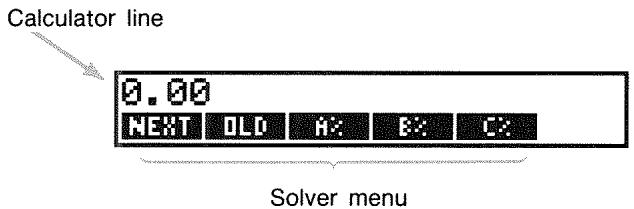
To test whether your equation is in fact correct, test it out by entering some values for which you already know the result, and see if the Solver's result is correct.
To do a calculation using a Solver menu:
- Store values in all but one of the variables (for example, 2000 old, etc.). Remember that you can verify stored values by pressing RCL menu label.
- To start the calculation, press the menu key for the variable you want to calculate.
In most cases, this is all you need to know about how the Solver works. However, certain types of equations are more difficult to solve. If, during the calculation, the display temporarily shows two lines of changing numbers, such as
A: 1. 5 0 0 0 0 0 0 0 0 0 - A: 1, 1 3 4 7 6 1 2 9 8 3 4 +
then the Solver is searching for a result for the variable A . Read the section, "How the Solver Works," starting on page 166.
Example: Return on Equity. The Return on Equity of a business can be defined as:
ROE = Operatingincome - Interst - TaxesCommonequity
Find the ROE of a small firm with 2,000 in assets. The assets earned 10% while its debt cost it 8%. The assets were financed using500 of common equity and $1,500 of debt. The firm paid no taxes.
Operating income = assets × percentage earnings on assets
= ASSET × ERN
Interest = debt × percentage interest paid on debt
= DEBT × × INT
Common equity = amount of common equity used for financing
= EQTY
The Solver equation would be:
ROE = (ASSET × % ERN ÷ 1 0 0 - DEBT × % INT ÷ 1 0 0 - TRX) ÷ EQTY × 1 0 0
| Keys: | Display: | Description: |
| MAIN | Restores MAIN menu. | |
| SOLVE | Displays ALPHA menu. | |
| NEW | TYPE EQUATION; [CINPUT] | |
| ROE = [ASSET × % ERN - DEBT × % INT - TAX ] | Entering the equation. | |
| + EQTY | ...-DEBT×%INT-TAX) +EQTY | |
| INPUT | ROE=(ASSET×%ERN - DEBT×... | Stores the equation. |
| CALC | Verifies the equation and displays the menu labels for ROE, ASSET, %ERN, DEBT, %INT, and (press MORE) TAX and EQTY. | |
| 2000 ASSET | ASST=2,000.00 | Stores the values for the assets, the percentage earnings on assets, the amount of debt, the percentage interest paid on the debt, the taxes paid, and the common equity. |
| 10 %ERN | %ERN=10.00 | |
| 1500 DEBT | DEBT=1,500.00 | |
| 8 %INT | %INT=8.00 | |
| MORE 0 | ||
| TAX | TAX=0.00 | |
| 500 EQTY | EQTY=500.00 | |
| MORE | The return on equity is 16%. | |
| ROE | ROE=16.00 |
Editing an Equation (EDIT)
If you have an INVALID EQUATION, the cursor stops over the first character that the Solver could not logically interpret.
You can alter the current equation using the ALPHA-Edit menu:
- Press EDIT to access the ALPHA-Edit menu. (See "Editing ALPHAbetic Text," page 28.) You can use (backspace) and (clear), as well.
- To insert letters, press ALPHA and the appropriate letters. Press EXIT to bring back the editing menu.
- Press INPUT to replace the previous version with the edited version.
Editing an equation clears its variables.
To abort an editing operation without saving any of the changes, press EXIT.
Naming an Equation
Naming equations helps you identify them later. The name precedes the equation, separated by a colon. If you don't name an equation initially, you can name it later using EDIT.

Type the name just as you type the rest of the equation. The calculator knows that whatever comes before the colon is not part of the equation. The name is for your visual aid only; the calculator cannot recognize it.
Names can be any length and contain any character except
+ - × ÷ () lt; gt; ^ : = space
Finding an Equation in the Solver List
To display an entry in the Solver list, display the SOLVE menu and move through the list using the and keys. moves to
Shared Variables
If two or more equations contain the same variable, that variable is shared among those equations. For example, suppose your Solver list of equations includes these two equations labeled RUG, which figures the cost of a carpet, and TOTAL, which figures the total cost of buying a carpet and installing it:
RUG: P / YD × L × W = 9 = COST
TOTAL: COST + HOURS × 2 0, 5 0 = CHARGE
COST is a shared variable. You can calculate a value for COST using the RUG equation, then switch to the TOTAL equation and calculate CHARGE after entering HOURS. Since the value for COST is shared, you do not need to store it again.
No sharing occurs between variables outside the Solver and those within the Solver. For example, this COST variable in the Solver is not shared with the COST variable in the MU%C and MU%P menus in BUS.
To transfer values between built-in variables and Solver variables, store them into storage registers. Recall them after switching menus. Remember that the value in the calculator line stays there when you switch menus.
Clearing Variables
You can clear the variables in a Solver equation just as you clear variables in other menus: press CLEAR DATA while the menu with those variables is displayed.

Make sure that the menu for the variables is in the display. (The equation itself should not be in the display. If it is, press CLEAR.) Pressing CLEAR DATA now sets NEXT, OLD, A% , B% , and C% to zero.
Variables are also cleared when their equation is edited.

If the SOLVE menu is displayed (rather than the SOLVE CALC menu), then pressing CLEAR DATA will prompt DELETE ALL VARIABLES?. Press NO, otherwise you will lose the variables in all the equations. (See "Deleting All Equations or Variables in the Solver," page 152.)
Deleting Variables and Equations
Each equation in the Solver list uses calculator memory to store 1) itself, and 2) its variables.*
Deleting a variable is quite different from clearing it:
-
Clearing a variable sets it to zero; the variable retains its storage location in memory. This does not save memory space.
-
An equation that has not been verified (CALC pressed) does not have any variables allocated to it. Therefore, it has no variables to be cleared or deleted.
-
Deleting a variable erases its value and its storage location. This is a way to save memory space. If a variable is shared, its value is lost to all equations that share it. The memory space for a deleted variable is re-created the next time you use that equation.
Deleting One Equation or Its Variables (DELETE)
To delete an equation or its variables:
- Display the equation.
- Press DELETE in the SOLVE menu.
- To delete the equation, respond YES to both questions:
DELETE THE VARIABLES?
DELETE THE EQUATION?
(If the entry has no variables allocated, then only the second question appears.)
- To delete just the variables, respond NO to DELETE THE EQUATION?. This preserves the equation.
Deleting All Equations or All Variables in the Solver
(CLEARDATA)
To delete all the equations in the Solver, or just all the variables in all the equations:
- Display the SOLVE menu. It doesn't matter which equation is displayed.
- Press CLEAR DATA. To delete all equations, respond YES to both questions:
DELETE ALL VARIABLES?
DELETE ALL EQUATIONS?
- To delete just the variables, respond NO to DELETE ALL EQUATIONS?. This preserves all equations.
Writing Equations
An equation in a book looks different from an equation in the Solver. A numerator and denominator might be separated by a bar, such as
a + b + cd - e × f
Since a Solver equation appears all on one line, you must group the numerator and denominator separately by using parentheses, such as
(R + B + C) ÷ (D - E × F)
Order of Calculations. Operations occur from left to right but do:
Exponentiation first. For example, A × B 3 = C is interpreted as A × B3 = C . B is raised to the 3rd power and then multiplied by A . To raise A × B to the 3rd power, write the equation as (A × B) 3 = C .
■ Multiplication and division before addition and subtraction. For example, A + B ÷ C = 12 is interpreted as A + (B / C) = 12 . To divide the sum of A + B by C , enter the equation as (A + B) ÷ C = 12 .
Parentheses. Parentheses override the above rules of priority. When in doubt, use parentheses. It never hurts to use parentheses—even multiple parentheses. (Do not use brackets or braces.)
For example, earlier (page 142) we used the equation
Next Forecast = Old Forecast + ( % + B% + C%100 × Old Forecast ) ,
which was entered into the calculator as
NEXT = OLD + (A % + B % + C %) = 100 × OLD.
× C would be entered as ÷ (E × C)
[ A + \frac{B \times C}{D \times E} ] could be entered as R + E × C ÷ (D × E) .
A + × C(D + 5)× E could be entered as H + B× C÷ (D + 5)× E)
What Can Appear in an Equation
Long Equations. There is no limit on the length of an equation (or the number of variables it has) if there is enough memory to store it. An equation longer than one display line (22 characters) moves to the left and adds an ellipsis (...).
To view a long equation, move the cursor using the arrow keys on the ALPHA-Edit menu. For example:
TOTALCOST=LENGTH×WIDTH×HEIGHT÷12×UNIT×(1+MARKUP%÷100)
looks like
TOTALCOST = LENGTH × WIDT ...
when it is stored. Press EDIT -->> to view successive portions of the equation:
... H × HEIGHT ÷ 1 2 × UNIT × (1 + ...
Spaces. You can use as many spaces as you like between variables, operators, and numbers.
Names of Variables. A variable's name can be up to 10 characters long, but cannot contain the characters + - × ÷ ^ ( ) < > = :space
The first three to five characters (depending on their widths) become the variable's menu label. Therefore, make sure no two variables in the same equation have the same first three to five characters.
Do not use AND, NOT, OR, XOR, or PI as variable names because they will be interpreted as functions.
Numbers (Constants). Do not put commas or other characters in numbers. For instance, type 10000 for ten thousand (not $10,000).
Parentheses. Do not use brackets or braces. Parentheses determine order, but do not imply multiplication. For example, the equation Psn = Ps(1 - F) would be typed into the Solver as Psn = PS × (1 - F) . The × sign must be inserted between PS and the parenthesis.
Functions and Conditional Expressions. An equation can contain any of the functions and conditional expressions given in the table on pages 157-159. Some of these functions also have typing aids.
Math Operators ("Typing Aids"). All of the math operators are located either on the keyboard (1x, 1x , etc.) or in the MATH menu (LN, EXP, etc.). Any of these operators except 1x can be included in an equation. (In the Solver, 1x is just a character.) You can call up the MATH menu from the Solver.
Many of these operators look different in an equation: pressing produces SQRT, for example. You then supply a number or variable followed by a closing parenthesis. The list of Solver functions on pages 157-159 shows the spelling of each function. Note that you supply the number after supplying the function.
You can also type these functions letter by letter using the ALPHA menu. However, it is faster to select math operators directly on the keyboard or in the MATH menu. This is called a typing aid.
For instance, these two methods of placing 25! (factorial) into an equation are equivalent. Starting after SOLVE NEW:
1. Using the ALPHA Menu
| Keys: | Display: | Description: |
| FGHI | ||
| F | F | |
| ABCDE | ||
| A | FA | |
| ABCDE | ||
| C | FAC | |
| RSTUV | ||
| T | FACT | |
| 25 | FACT(25)= | |
| ABCDE | This calculates 25! | |
| A | FACT(25)=A | (factorial). |
2. Using a Typing Aid
| Keys: | Display: | Description: |
| MATH | MATH menu labels appear. | |
| N! | FACT< | The ALPHA menu automatically returns after one MATH selection. |
| 25 | FACT(25)= | |
| ABCDE | This also calculates 25!, and with fewer keystrokes. | |
| A | FACT(25)=A |
Solver Functions
Here is a complete list of functions that you can include in Solver equations. The items inside parentheses must be replaced by specific numbers, variables, or algebraic expressions.
In addition, you can use the arithmetic operators (+, -, ×, ÷, yx) , but not % . (In the Solver, x is just a character, not an operator.)
Table 11-2. Solver Functions for Equations
| Function | Description |
| ABS(x) | Absolute value of x. |
| ALOG(x) | Common (base 10) antilogarithm; 10x. |
| CDATE | Current date. |
| CTIME | Current time. |
| DATE(d1:n) | The date n days after (when n is positive) or before (when n is negative) date d1. The format for d1 is set in the TIME/SET menu. |
| DDAYS(d1:d2:cal) | Number of days between dates d1 and d2. Formats for d1 and d2 are set in the TIME menu; cal designates the calendar: ■ cal = 1 for the actual calendar, which recognizes leap years. ■ cal = 2 for the 365-day calendar, which ignores leap years. ■ cal = 3 for the 360-day calendar, which uses 12, 30-day months. |
| EXP(x) | Natural antilogarithm; ex. |
| EXPM1(x) | ex - 1. |
| FACT(x) | x!; factorial of a positive integer. |
| FLOW(CFLO-listname:flow#) | Value of the specified cash flow. |
| FP(x) | Fractional part of x. |
| HMS(time) | Converts time in decimal hours to HH.MMSS format. |
| HRS(time) | Converts time in HH.MMSS format to decimal hours. |
| IDIV(x:y) | Integer part of the quotient of x/y. |
| IF cond:expr1:expr2) | Conditional expression: if cond is true, use expr1; if cond is false, use expr2. See page 161. |
| INT(x) | Greatest integer less than or equal to x. |
| INV(x) | Inverse of x; 1/x. |
| IP(x) | Integer part of x. |
| ITEM(SUM-listname:item#) | Value of the specified SUM-list item. |
| LN(x) | Natural (base e) log of x. |
| LNP1(x) | In (1 + x) |
| LOG(x) | Common (base 10) log of x. |
| MAX(x:y) | Compares x and y, and returns the larger of the two. |
| MIN(x:y) | Compares x and y, and returns the smaller of the two. |
| MOD(x:y) | Remainder of the division x/y. MOD(x,y) = x - y × INT(x/y) |
| PI | π; 3.14159265359 (12 digits). |
| RND(x:y) | Rounds x to y decimal places if 0 ≤ y ≤ 11, or rounds x to y significant digits if -12 ≤ y ≤ -1. y must be an integer. |
| S(variable name) | Used in an IF function to test if solving for the variable named. Used to combine related equations into one Solver menu. See page 165. |
| SGN(x) | Sign of x (+1 if x > 0, 0 if x = 0, -1 if x < 0. |
| Σ(chr:c1:c2:s:expr) | Summation of the algebraic expression expr for values of the counter ctr, stepping from c1 to c2 at increments of s. See page 163. |
| SIZEC(CFLO-listname) | The number of the last flow in specified CFLO list. |
| SIZES(SUM-listname) | The number of items in specified SUM list. |
| SPFV(i%:n) | Future value of a single 1.00 payment; equivalent to (1 + i% ÷ 100)n. n is the number of compounding periods. i% is the interest rate per compounding period, expressed as a percentage. |
| SPPV(i%:n) | Present value of a single1.00 payment; equivalent to 1 ÷ SPFV(i%:n). n is the number of compounding periods. i% is the interest rate per compounding period, expressed as a percentage. |
| SQ(x) | Square of x; x2. |
| SQRT(x) | Square root of x; √x. |
| #T(CFLO-listname:flow#) | The number of times that specified cash flow occurs. |
| TRN(x:y) | Truncates x to y decimal places if 0 ≤ y ≤ 11, or truncates x to y significant digits if -12 ≤ y ≤ -1. y must be an integer. |
| USFV(i%:n) | Future value of a uniform series of 1.00 payments; equivalent to (SPFV(i%:n) -1) ÷ (i% ÷ 100). n is number of payments. i% is periodic interest rate, expressed as a percentage. |
| USPV(i%:n) | Present value of a uniform series of1.00 payments; equivalent to USFV(i%:n) ÷ SPFV(i%:n). n is number of payments. i% is periodic interest rate, expressed as a percentage. |
Example Using a Solver Function (USPV): Calculations for a Loan with an Odd First Period. Suppose an auto purchase is financed with a $6,000 loan at 13.5% annual interest. There are 36 monthly payments starting in one month and five days. What is the payment amount?
Use the following formula when the time until the first payment is more than one month but less than two months. Interest for this odd (non-integer) period is calculated by multiplying the monthly interest by the number of days and dividing by 30.
The formula for this loan is:
PV (1 + ANNI1 2 0 0 × DAYS3 0) + PMT ( 1 - (1 + ANNI1 2 0 0) ^ - N ANNI1 2 0 0) = 0
where:
ANNI = the annual percentage interest rate.
N = the number of payment periods.
DAYS = the number of leftover, odd days (an integer from 0 through 30).
PV = the amount of the loan.
PMT = the monthly payment.
The formula can be rearranged and simplified using USPV, the Solver function for returning the present value of a uniform series of payments:
PV × (1 + ANNI ÷ 1 2 0 0 × DAYS ÷ 3 0) +
PMT × USPV (ANNI ÷ 1 2; N) = 0
The keystrokes are:
PV 1 + ANNII + 1200 DAYS + 30 + PMT USPV ANNI + 12:N = 0
| Keys: | Display: | Description: |
| SOLVE | <Bottom OF LIST> | Displays SOLVE menu and bottom of Solver list. |
| NEW | TYPE EQUATION; [INPUT] | Displays ALPHA menu. |
| (type in equation as shown above) | ...MT×USPV(ANNI÷12:N)=0 | Remember that the colon is located after OTHER. (Press WXYZ OTHER : .) |
| INPUT CALC | 0.00 | Enters equation, verifies it, and creates menu. |
| 6000 PV | PV=6,000.00 | Stores loan amount in PV. |
| 13.5 ANNI | ANNI=13.50 | Stores annual percent interest in ANNI. |
| 5 DAYS | DAYS=5.00 | Stores number of odd days in DAYS. |
| 36 N | N=36.00 | Stores number of payments in N. |
| PMT | PMT=-203.99 | Calculates monthly PMT of $203.99. |
Conditional Expressions with IF
Equations can include conditional expressions using the function IF. The syntax of the IF function is:
IF(conditional expression : algebraic expression : algebraic expression) * then or else
- A conditional expression that contains within it an algebraic expression might cause the error INVALID EQUATION. If this happens, insert a + before the left parenthesis starting the algebraic expression. For example, change IF((A+2)÷5<12: ... to IF(+A+2)÷5<12: ...
For example, the Solver accepts the equation:
BONUS=IF(SALES>3000:,.02×SALES:.01×SALES)
According to this equation, if SALES is greater than 3000, then the BONUS equals .02 × SALES; otherwise ("or else"), BONUS equals .01 × SALES.
Logical Operators. Four logical operators can be used in conditional expressions: AND, OR, XOR, and NOT.
Relational Operators. Six relational operators are available for conditional expressions.
| Operator | Keys |
| > | (ALPHA menu) |
| < | (ALPHA menu) |
| = | = |
| ≥ | > = |
| ≤ | < = |
| ≠ | < > |
Examples of Conditional Equations.
B = IF (A>7 AND A<=15:2×A÷6:3×A+10) + C
Means: If A is greater than 7 and is less than or equal to 15, then B = 2 × A ÷ 6 + C . Otherwise, B = 3 × A + 10 + C .
VALUE = FIRST+IF(NOTFIRST 0:1÷FIRST:0)
Means: If FIRST is not equal to 0, then VALUE = FIRST + 1 ÷ FIRST. If FIRST = 0, then VALUE = FIRST.
T = W×IF(A=0 XOR B=0:A+B:A×B)
Means: If A or B , but not both, equals 0, then T = W × (A + B) . Otherwise, T = W × A × B . In other words,
When A = 0 and B ≠ 0 , T = W × B .
When A ≠ 0 and B = 0 , T = W × A .
When A = 0 and B = 0 , T = 0 .
When A ≠ 0 and B ≠ 0 , T = W × A × B .
Example: Nested IF Functions. An IF function can be used as the argument of another IF function. This is called nesting. Suppose a corporation uses a rating system to determine salary. Employees are rated on a scale from 1 through 3, and are given the following annual percent raise based on their rating:
Rating Percent Salary Increase
| 1 | 3% |
| 2 | 6% |
| 3 | 10% |
The Solver equation to calculate an employee's new salary is based on his or her rating and old salary. What would be the new annual salary for an employee with a rating of 2 who currently earns $27,500 annually?
Press SOLVE NEW, then enter the equation:
NEW = OLD × (1 + IF (R = 1: . 0 3: IF (R = 2: . 0 6: . 1))
To do the calculation:
| Keys: | Display: | Description: |
| INPUT | Stores, verifies, and create menu labels for the equation. | |
| CALC | ||
| 27500 OLD | OLD=27,500.00 | Stores old salary. |
| 2 R | R=2.00 | Stores rating. |
| NEW | NEW=29,150.00 | Calculates new salary. |
The Summation Function ()
The function does summation calculations in an equation:
(counter variable: starting value: ending value: step size: algebraic expression)
The counter variable takes on a series of values, beginning with the starting value, and incrementing according to the step size, until it passes the ending value. For each value of the counter, the algebraic expression is evaluated, and the value is added to the previous value. The function returns the final summation.
For example, when the equation:
SERIES = (I: 1: 6: 1: I × X ^ I)
is solved for SERIES, the counter I runs from 1 through 6 in steps of one—that is, 1, 2, 3, 4, 5, 6. For each value I , the expression I × X I is calculated and added to the sum. Thus the stored value of X is used to calculate X + 2X2 + 3X3 + 4X4 + 5X5 + 6X6 .
The following equation uses a variable as the ending value, 0 as the beginning value, and a step size of 2.
SERIES = (I: 0: LAST: 2: I × X ^ I)
If 8 is stored in LAST, I takes on values of 0, 2, 4, 6, and 8. Then the stored value of X will calculate 2X2 + 4X4 + 6X6 + 8X8 .
Accessing CFLO and SUM Lists from the Solver
You can use a Solver equation to perform calculations other than those in the CFLO and SUM menus using data stored in CFLO and SUM lists. The following Solver functions gain access to these lists.
SIZEC(CFLO-listname) returns the number of the last flow in the specified CFLO list. For example, if the last flow in the list INV were FLOW(6) = 5,000,00 , then SIZEC(INV) would equal 6.00.
■ FLOW(CFLO-listname:flow number) returns the value of the specified flow.
- #T(CFLO-listname : flow number) returns the number of times the specified flow occurs.
■ SIZES(SUM-listname) returns the number of items in the specified SUM list
ITEM(SUM-listname: item number) returns the value of the specified item.
Summation of List Data. The function can be used to sum calculations done with numbers in lists. For example, the following equation calculates x12y12 for values stored in two SUM lists named XVAR and YVAR, which must have the same number of items:
SX 2 Y 2 = (I: 1: SIZES (XVAR): 1: ITEM (XVAR: I) ^ 2 × ITEM (YVAR: I) ^ 2)
"Chi-Squared Statistics" in chapter 13 illustrates another use of the function with SUM lists.
Creating Menus for Multiple Equations (S Function)
The S (solving for) function is used in conjunction with the IF function to group related equations together and to specify the criteria for choosing one of them to solve.
S(name)
The advantage over two separate equations is that the single equation gives you a single menu with all possible variables. That way, if you are working with two different but related problems, you can keep the same Solver menu labels in the display all the time--you don't have to switch equations.
For example, consider these two equations for conversions:
KG × 2. 2 1 = LB and M × 3. 2 8 = FT
The following, rearranged single equation can do either conversion:
IF (S (KG) ORS (LB): KG × 2, 2 1 - LB: M × 3, 2 8 - FT) = 0
This means: if you are solving for either KG or LB , then use KG × 2.21 - LB = 0 . Otherwise (that is, if you are solving for M or FT ), use M × 3.28 - FT = 0 . The two conversion equations are rewritten so that all the variables appear on one side of each equation, and the other side is set equal to zero.
The S function appears as part of the conditional expression of the IF function. You can leave out the " = 0 and it will be understood that the whole equation is set equal to zero.
Example: Unit Conversions. Use the above equation to convert between kilograms and pounds and between meters and feet.
Press SOLVE NEW, then enter the equation:
IF (S (KG) ORS (LB): KG × 2, 2 1 - LB: M × 3, 2 8 - FT)
Press INPUT to store it, then CALC to verify it and create its menu:


- Convert 225 pounds to kilograms.
Press 225 LB KG . Result is KG=101.81.
- How many feet equal 100 meters?
Press 100 M FT. Result is FT=328.00.
Note that you do not have to clear variables between steps 1 and 2. The S function considers only those values in the part of the equation that it is solving.
How the Solver Works
The Solver has two ways of finding an answer. First, it tries to find a direct solution by rearranging the equation and then solving for the variable. If the Solver finds a direct solution, the calculator displays the result.
If the Solver is unable to find a direct solution, it tries to find the answer indirectly by iteration. It estimates a set of answers, sees how close they are to a solution, and then makes another set of estimates. The calculator displays the Solver's current estimates as the Solver searches for an answer. You should keep in mind that there might be more than one solution to an equation, and that it might be necessary for you to enter guesses to influence which solution the Solver finds. If the displayed estimates don't appear to be proceeding towards a number you judge to be a reasonable answer, you can stop this iterative process, enter your own guesses, and restart the search. (See "Halting and Restarting the Iterative Search" and "Entering Guesses," below.)
The process of finding a solution iteratively is very complex. There are four possible outcomes. Refer to "Solver Calculations" in appendix B for additional descriptions of these outcomes.
■ Case 1: The calculator displays a result. It is very likely that this is a solution to the equation. To check how good this result is, you can repeat the calculation by pressing the menu key for the variable you solved for. If the two sides of the equation have not been calculated to be exactly equal, the calculator displays a message with the values for the left and right sides of the equation. Read "Solver Calculations" in appendix B for an explanation of the meaning of this display.
■ Case 2: The calculator displays a message with the calculated, unequal values of the left and right sides of the equation. The Solver has found a possible solution, but you must interpret its validity. To see the questionable solution, press or . Refer to "Solver Calculations" in appendix B for more information.
■ Case 3: The calculator displays BAD GUESSES: PRESS [CLR] TO VIEW. The Solver cannot begin the search with the current guesses. Press lubsuit or CLR to view the starting guesses. To supply new guesses, see "Entering Guesses," below.
■ Case 4: The calculator displays SOLUTION NOT FOUND. Check to see if your equation and stored values are correct. If the equation is correct, you might be able to find a solution by entering very good guesses.
Halting and Restarting the Iterative Search
When the Solver is iteratively searching for a solution (in other words, when the Solver is displaying sets of estimates), you can halt the calculation by pressing any key except . The calculator displays the message INTERRUPTED. To see the best estimate the Solver has found so far, press CLR or . You can restart the search from where it left off by pressing the menu key for the variable you are solving for. Or, you can restart the search using your own guesses (see "Entering Guesses," below).
Entering Guesses
Entering your own guesses serves two purposes. First, it can save time by telling the Solver where to start searching. Second, if more than one solution exists, entering guesses may lead the Solver to a solution in a specified range. The closer your guesses are to the desired solution, the better chance the Solver has of finding it.
You can enter guesses at these times:
Before beginning the calculation, after you've stored a value for every variable except the unknown variable. If you enter one guess, the Solver generates a second guess.
After you've halted the iterative search.
■ After the Solver has returned an answer, and you wish to begin searching for another answer.
You can enter one or two guesses. If you enter one guess, the Solver makes a second guess. If you enter two guesses, the Solver uses those two guesses to start searching for a solution. The Solver works most efficiently when the answer is between your two guesses. For example, if you know the answer is between 5 and 12, you should enter 5 and 12 as the starting guesses.
To enter one guess, key in the value and press the menu key twice. For example, 4.5 enters 4.5 as a guess for a Solver variable named A and starts the calculation.
To enter two guesses, key in the first guess and press the menu key. Then key in the second guess and press the menu key twice. For example, 0 A 100 A causes the Solver to search for A using 0 and 100.
Example: Using Guesses to Find a Solution Iteratively. One equation for calculating the profit from a manufacturing operation is:
Profit = (Price × Quantity) - (Variablecosts × Quantity) 1 4. 2 2 6 3 7 8 pt - FixedCosts
The C-Sharp Piano Corporation sells pianos for 6,000. Variable costs are4,100; fixed costs per year are 112,000. How many pianos must C-Sharp sell this year in order to earn a profit of130,000? (In past years, C-Sharp has had to sell between 100 and 200 pianos to make an acceptable profit. You can use this information as initial guesses.)
Press SOLVE NEW, then enter the equation:
PROFIT = PRICE × QTY - VARCOST × QTY - FIXCOST
| Keys: | Display: | Description: |
| INPUT CALC | Stores, verifies, and cre-ates labels for the equation. | |
| 6000 PRICE | PRICE=6,000.00 | Stores price. |
| 4100 VARCO | VARCOST=4,100.00 | Stores variable cost, fixed cost, and profit. |
| 112000 FIXCO | ||
| 130000 PROFI | FIXCOST=112,000 | |
| PROFIT=130,000.00 |
The following steps enter guesses for QTY . If the Solver must search iteratively to solve for QTY , it will begin by using the estimates 100 and 200.
| Keys: | Display: | Description: |
| 100 QTY | QTY=100.00 | The first guess for QTY. |
| 200 QTY | QTY=200.00 | The second guess for QTY. |
| QTY | QTY:200.00000000- QTY:100.00000000+ . . . QTY=127.37 | Solves for QTY iteratively. |
Printing
The calculator can print information using the HP 82240 Infrared Printer, which accepts the infrared signal from the printer port. This chapter describes information you can print. Operation of the printer is covered in the printer owner's manual.*
The print annunciator ( ) appears in the display whenever the calculator sends information through its printer port.
Because communication goes only one way—from calculator to printer—the calculator cannot determine whether the printer is receiving information. If a printing operation involves many lines of information, the calculator slows its transmission rate to allow the printer time to print.
- Since the HP-17B cannot send control characters to the printer, portions of the printer's manual pertaining to control codes and graphics characters do not apply.
To preserve battery power, the calculator will not transmit data to the printer when the low-power annunciator ( ) is on. If a low-power condition occurs after you've started a printing operation, printing stops and the calculator displays the message BATT TO LOW TO PRINT.
The Printer's Power Source
The speed of the printer depends on whether it is using its optional ac adapter. To optimize printing performance, set the printing speed mode in the calculator appropriately. To view or change the printing speed mode:
- Press MODES
- Press PRNT to change and display the new mode. If necessary, press PRNT again to set the desired mode:
PRINTER: AC ADAPTER
■ PRINTER: NO AC ADAPTER
- Press .
For long printing operations, printing will be faster using the printer's ac adapter and the calculator's appropriate printing speed mode. When the printer is powered by batteries alone, be sure to change the mode to PRINTER: NO AC ADAPTER so that the calculator will not transmit data too rapidly.
Double-Space Printing
Press MODES DEL to turn double-space printing on or off. Then press EXIT.
Printing the Display (PRT)
To print whatever is in the calculator line, press . This prints numbers, expressions, single Solver equations, and messages. Menus cannot be printed.
Printing Other Information ( PRINTER)
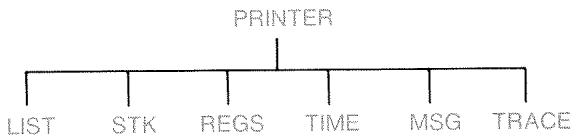
The PRINTER menu provides the ability to print most of the information you've stored, including the contents of variables, lists, appointments, the history stack, registers, and the current date and time. You can also transmit descriptive notes to label the output. (To print amortization schedules, see "Printing an Amortization Table," page 71.)
From within any menu you can press PRINTER to bring up the PRINTER menu. This table summarizes those printing activities.
Table 12-1. The PRINTER Menu Labels
| Menu Label | Description |
| LIST | Prints data stored or calculated in the current menu. See "Printing Variables and Lists," below. |
| STK | Prints the contents of the history stack. |
| REGS | Prints the contents of registers 0 through 9. |
| TIME | Prints the current date and time. |
| MSG | Displays the ALPHA menu for typing a message up to 22 characters long. See page 175. |
| TRACE | Switches between Trace On and Trace Off modes. See "Trace Printing," page 176. |
Upon completion, all of these functions except TRACE return the previous menu to the display.
Printing Variables, Lists, and Appointments (LIST)
You can list specific sets of information stored in menus by pressing PRINTER LIST while the relevant menu labels are displayed.
Printing the Values Stored in Variables. You can print a listing giving the values of all variables whose menu labels are displayed.* For example, if the calculator is in the FIN TVM menu, it displays the labels N IXYR PV PMT FV OTHER
Pressing PRINTER LIST now produces a print-out like this:
| N= | 360.00 |
| I%YR= | 12.50 |
| PV= | 65,000.00 |
| PMT= | -693.00 |
| FV= | 0.00 |
| P/YR= | 12.00 |
| END MODE |
Printing Number Lists. To print out the contents of a particular SUM or CFLO list, that list must be the current list. Pressing PRINTER LIST while a SUM list named SALES is the current list produces labeled output like this:
| NAME: SALES | |
| ITEM# | VALUE |
| 1 | 1,400.00 |
| 2 | 920.00 |
| 3 | 1,100.00 |
| 4 | 2,265.00 |
| TOTAL= | 5,685.00 |
- Except IRR% . Instead,press IRR% PRT to print the value for IRR% .
Printing Solver Equations. To print one or all Solver equations, display the main SOLVE menu (press SOLVE).
To print just the current equation, press [PRT].
To print out the entire list of equations, press PRINTER LIST
Printing Appointments. To print all stored appointments, display the APPT menu (press APPT), then press PRINTER LIST. This produces a listing like this for each appointment:
1: SAT 01/23/88 10:00
DEMO FOR SMITH
RPT=NONE
Menu Not Associated with Stored Data. Remember that many menu labels do not represent data, but rather activities, such as FIN, BUS, DELET, and SET. They contain no information for printing. The calculator beeps if there is nothing to print when you press PRINTER LIST.
Printing Descriptive Messages (MSG)
You can include descriptive messages with your printed output by using msg. For example, suppose you wanted to print a number that represents the balance for September. You could start the output with the label "SEPTEMBER BALANCE".
- Press PRINTER, then MSG. This brings up the ALPHA menu.
- Type (and edit) the label or message.
- Press INPUT to print out the label or message.
Now print out the number itself (if it's in the calculator line, press ).
Trace Printing (TRACE)
Trace printing produces a record of all the keys you've pressed and of calculated results. When tracing is off, use PRT and PRINTER to print what you want. When tracing is on, the calculator uses more power and operates more slowly.
To switch trace printing on and off:
- Press PRINTER
- Press TRACE to change the setting. A message informs you that tracing is on or off. If necessary, press TRACE again to display the desired message.
- Press EXIT
Example: Trace-Printing an Arithmetic Calculation. Produce a record of the keystrokes you use to do the following calculation and store the result in the TVM variable PMT.
^ 1 / 1 2 × 4 , 8 0 0 + 1 2 5
Press PRINTER TRACE to set PRINT MODE: TRACE ON. If you see PRINT MODE: TRACE OFF, press TRACE again.
Keys:
EXIT
FIN
TVM
12

Print-out:
12.00
EXIT
FIN
TVM
1/8
0.08
***

4800
125
4,800.00
X
125.00
525.00
米米
PMT
PMT
PRINTER
PRINTER
TRACE
TRACE
EXIT
How to Interrupt the Printer
Pressing a calculator key during a printing operation will interrupt transmission, but not immediately stop the printing.
To stop the printer immediately, turn it off.
Additional Examples
Loans
Simple Annual Interest
See appendix F for RPN keystrokes for this example.
Example: Simple Interest at an Annual Rate. Your good friend needs a loan to start her latest enterprise and has requested that you lend her (450 for 60 days. You lend her the money at (7 \%) simple annual interest, to be calculated on a 365- day basis. How much interest will she owe you in 60 days, and what is the total amount owed?
The interest is : (7 % of 450) × 60 days365 days
| ✓ Keys: | Display: | Description: |
| 450 × 7 % | 450.00 × .07 | Annual interest. |
| × 60 ÷ 365 | Actual interest for 60 days. | |
| + | 5.18+ | |
| 450 = | 455.18 | Adds principal to get to-tal debt. |
A Solver Equation for Simple Annual Interest:
DEBT = LOAN + LOAN × I % ÷ 100 × DAYS = 365
DEBT = the total owed at the end of the loan period.
LOAN = the original amount (principal) lent.
I% = the annual interest rate as a percent.
DAYS = the number of days in the loan.
For instructions on entering Solver equations, see "Solving Your Own Equations," on page 26.
If you know the dates for the course of the loan, rather than the number of days, use this for an actual-calendar basis:
DEBT = LOAN + LOAN × I % ÷ 100 × DDAYS (DATE 1: DATE 2: 1) ÷ 365
or use this for a 360-day basis:
DEBT = LOAN + LOAN × 1 % ÷ 1 0 0 × DDAYS (DATE 1: DATE 2: 3) ÷ 3 6 0
DATE1 = the date the loan commences.
DATE2 = the date the loan ends.
Yield of a Discounted (or Premium) Mortgage
The annual yield of a mortgage bought at a discount or premium can be calculated given the original mortgage amount (PV) , interest rate (I% YR) , periodic payment (PMT) , balloon payment amount (if any) (FV) , and the price paid for the mortgage (new PV ).
Remember the cash-flow sign convention: money paid out is negative, money received is positive.
Example: Discounted Mortgage. An investor wishes to purchase a 100,000 mortgage taken out at 9% for 20 years. Since the mortgage was issued, 42 monthly payments have been made. The loan is to be paid in full (a balloon payment) at the end of its fifth year. What is the yield if the purchase price of the mortgage is79,000?
-
Since the payment amount (PMT) is not given, calculate it first. To do this, first assume 20 years' amortization on the original mortgage with no balloon payment (so N = 20 × 12 , FV = 0 , PV = -100,000 , and I% YR = 9 ).
-
Since the balloon amount is not given, calculate it (FV) next. Use PMT from step 1, but change N to 5 years ( N = 5 × 12 ).
- Finally enter current values for N (less number of payment periods already passed, or 5 × 12 - 42) and PV (proposed purchase price, $79,000); then calculate I%YR for the annual yield.
Step 1: Calculate PMT. Make sure FV = 0 .
Step 2: Enter the new value for N given a balloon in 5 years, then find FV , the amount of the balloon.
| Keys: | Display: | Description: |
| FIN | Selects menu; sets 12 | |
| TVM | payments per year and | |
| OTHER | End mode. | |
| CLEAR DATA | ||
| EXIT | 12 P/YR END MODE | |
| 20 N | N=240.00 | Figures and stores total |
| 9 IXYR | number of payments for | |
| 100000 +/− | a full 20-year loan with | |
| FV | FV=-100,000.00 | monthly payments. |
| 0 FV | FV=0.00 | Stores interest rate and |
| PMT | PMT=899.73 | amount of original loan. |
| (Money paid out is | ||
| negative.) | ||
| Sets FV to zero. | ||
| Calculates monthly pay- | ||
| ment received. |
| Keys: | Display: | Description: |
| 5 N | N=60.00 | Stores number of pay-ments for 5 years. |
| FV | FV=88,707.05 | Calculates balloon due in 5 years. |
Step 3: Enter actual, current values for N and PV ; then find new I% YR for discounted mortgage with balloon.
| Keys: | Display: | Description: |
| RCL N - 42 N | N=18.00 | Stores number of pay-ments remaining in 5-year loan. |
| 79000 +/- PV | PV=-79,000 | Stores proposed, dis-counted purchase price (new present value). |
| IXYR | IXYR=20.72 | Calculates percent an-ual yield. |
Annual Percentage Rate for a Loan with Fees
See appendix F for RPN keystrokes for the next two examples.
The annual percentage rate, APR, incorporates fees usually charged when a mortgage is issued, which effectively raises the interest rate. The actual amount received (the PV ) by the borrower is reduced, while the periodic payments remain the same. The APR can be calculated given the term of the mortgage ( N periods), the annual interest rate ( I% YR), the mortgage amount (new PV ), and the basis of the fee charged (how the fee is calculated).
Remember the cash-flow sign convention: money paid out is negative, money received is positive.
Example: APR for a Loan with Fees. A borrower is charged two points for the issuance of a mortgage. (One point is equal to 1% of the mortgage amount.) If the mortgage amount is $60,000 for 30 years and the interest rate is 11½% annually with monthly payments, what APR is the borrower paying?
-
Since the payment amount is not given, calculate it (PMT) first. Use the given mortgage amount ( (PV = \)60,000) ) and interest rate ( (I\% YR = 11^{1/2}\%) ).
-
To find the APR (the new I%YR), use the PMT calculated in step 1 and adjust the mortgage amount to reflect the points paid (PV = $60,000 - 2%). All other values remain the same (term is 30 years; no future value).
| Keys: | Display: | Description: |
| FIN | If necessary, sets 12 pay-ments per year and End mode. | |
| TUM | ||
| OTHER | ||
| CLEAR DATA | ||
| EXIT | 12 P/YR END MODE | |
| 30 N | N=360.00 | Figures and stores num-ber of payments. |
| 11.5 I%YR | Stores interest rate and amount of loan. | |
| 60000 PV | PV=60,000.00 | |
| 0 FV | FV=0.00 | No balloon payment, so future value is zero. |
| PMT | PMT=-594.17 | Borrower's monthly payment. |
| RCL PV | Stores actual amount of money received by bor-rower into PV. | |
| -2 % PV | PV=58,800.00 | |
| I%YR | I%YR=11.76 | Calculates APR. |
Example: Loan from the Lender's Point of View. A 1,000,000, 10-year, 12% (annual interest) interest-only loan has an origination fee of 3 points. What is the yield to the lender? Assume that monthly payments of interest are made. (Before figuring the yield, you must calculate the monthly PMT = (loan × 12%) ÷ 12 mos.) When calculating the I%YR, the FV (a balloon payment) is the entire loan amount, or 1,000,000, while the PV is the loan amount minus the points.
| Keys: | Display: | Description: |
| FIN | If necessary, sets 12 pay- ments per year and End mode. | |
| TVM | ||
| OTHER | ||
| CLEAR DATA | ||
| EXIT | 12 P/YR END MODE | |
| 10 N | N=120.00 | Stores total number of payments. |
| 1000000 x 12 % ÷ | 120,000.00÷ | Calculates annual in- terest on $1,000,000 ... |
| 12 PMT | PMT=10,000.00 | ...and calculates, then stores monthly payment. |
| 1000000 FV | FV=1,000,000.00 | Stores entire loan amount as balloon payment. |
| -3 % ÷ +/ PV | PV=-970,000.00 | Calculates, then stores amount borrowed (total - points). |
| I%YR | I%YR=12.53 | Calculates APR-the yield to lender. |
Loan with an Odd (Partial) First Period
The TVM menu deals with financial transactions in which each payment period is the same length. However, situations exist in which the first payment period is not the same length as the remaining periods. This first period is sometimes called an odd or partial first period.
The following Solver equation calculates N , I% , PV , PMT , or FV for transactions involving an odd first period, using simple interest for the odd period. The formula is valid for 0 to 59 days from inception to first payment, and a 30-day month is assumed.*
A Solver Equation for Odd-Period Calculations:
ODD: PV × (1 ÷ 1 0 0 × FP (DAYS ÷ 3 0) + 1) = - IF (DAYS lt; 3 0; (1 + Ix = 1 0 0) × PMT: PMT) × USPV (Ix: N) - FV × SPPV (Ix: N)
(For the < character, pressWXYZ OTHER
PV = the loan amount.
I% = the periodic interest rate.
DAYS = the actual number of days until the first payment is made.
PMT = the periodic payment.
N = the total number of payment periods.
FV = the balloon payment. A balloon payment occurs at the end of the last (Nth) period and is in addition to any periodic payment.
The following examples assume that you have entered the equation named ODD, above, into the Solver. For instructions on entering Solver equations, see "Solving Your Own Equations," on page 26.
Example: Loan with an Odd First Period. A 36-month loan for $4,500 has an annual interest rate of 15%. If the first payment is made in 46 days, what is the monthly payment amount?
Select equation ODD in the Solver.
Keys:
Display:
Description:
CALC
Creates menu.
36 N N = 36.00
36 payment periods.
4500 PV PV=4,500.00
Stores loan amount.
| 15÷12 | Stores periodic, monthly interest rate. | |
| I% | I%=1.25 | |
| 46 DAYS | DAYS=46.00 | Stores days until first payment. |
| 0 FV | FV=0.00 | No balloon payment. |
| PMT | PMT=-157.03 | Calculates payment. |
Example: Loan with an Odd First Period Plus Balloon. A 10,000 loan has 24 monthly payments of400, plus a balloon payment of $3,000 at the end of the 24th month. If the payments begin in 8 days, what annual interest rate is being charged?
Select equation ODD.
| Keys: | Display: | Description: |
| CALC | Creates menu. | |
| 10000 PV | PV=10,000.00 | Stores known values. |
| 24 N | N=24.00 | |
| 400 +/- | ||
| PMT | PMT=-400.00 | |
| 3000 +/- | ||
| FV | FV=-3,000.00 | |
| 8 DAYS | DAYS=8.00 | |
| I% | I%=1.64 | Calculates periodic (monthly) interest rate. |
| × 12 = | 19.67 | Annual interest rate. |
Canadian Mortgages
In Canadian mortgages, the compounding and payment periods are not the same. Interest is compounded semi-annually while payments are made monthly. To use the TVM menu in the HP-17B, you need to calculate a Canadian mortgage factor to store as I% YR .
- Set End mode and store 12 P/YR
- Store 0 PMT, 6 N, and 200 FV
- Add 200 to the annual interest rate, make the number negative, and store it in FV.
- Press IXYR to calculate the Canadian mortgage factor.
- Continue the problem by supplying the other mortgage values and solving for the unknown item. Do not change I% YR from step 4.
Example: Canadian Mortgage. What is the monthly payment required to fully amortize a 30-year, $30,000 Canadian mortgage if the interest rate is 12%?
| Keys: | Display: | Description: |
| FIN | Displays TVM menu; sets 12 payments per year with End mode. | |
| TVM | ||
| OTHER | ||
| CLEAR DATA | ||
| EXIT | 12 P/YR END MODE | |
| 0 PMT | PMT=0.00 | |
| 6 N | N=6.00 | |
| 200 PV | PV=200.00 | |
| + 12 = +/- | ||
| FV | FV=-212.00 | |
| IXYR | I%YR=11.71 | Calculates I%YR for Canadian mortgage factor. |
| 30 N | N=360.00 | Stores other values. |
| 30000 PV | PV=30,000.00 | |
| 0 FV | FV=0.00 | |
| PMT | PMT=-301.92 | Monthly payment. |
A Solver Equation for Canadian Mortgages:
CAN: PV = - PMT × USPV ((1 + 1 ÷ 2 YR ÷ 2 0 0) ^ (1 ÷ 6) - 1) × 1 0 0; N) - FV × SPPU ((1 + IXYR ÷ 2 0 0) ^ (1 ÷ 6) - 1) × 1 0 0; N)
(For the operator, press y .)
PV = loan amount, or present value.
PMT = monthly payment amount.
I% YR = annual (Canadian) interest rate as a percent.
N = total number of payment periods for the life of the loan.
FV = remaining balance, or future value.
For instructions on entering Solver equations, see "Solving Your Own Equations," on page 26.
Advance Payments (Leasing)
Occasionally payments are made in advance, such as in leasing. Leasing agreements sometimes call for the extra payments to be made when the transaction is closed. A residual value (salvage value) can also exist at the end of the normal term.
The following equation calculates the monthly payment and the annual yield when one or more payments are made in advance. It can be modified to accommodate periods other than monthly by changing the number 12 to the appropriate number of payment periods per year.
Remember the cash-flow sign convention: money paid out is negative, money received is positive.
A Solver Equation for Advance Payments:
ADV: PMT = (-PV-FVx(SPPV(IYR÷12:N))+(USPV(IYR÷12:N-#ADV)+#ADV)
(For the # character, pressWXYZ OTHER #.)
PMT = the monthly payment amount.
PV = the value of the equipment.
FV = the residual value.
I% YR = the annual interest rate as a percent.
N = the total number of payments.
# ADV = the number of advance payments.
The following example assumes that you have entered the equation ADV, above, into the Solver. For instructions on entering Solver equations, see "Solving Your Own Equations," on page 26.
Example: Leasing with Advance Payments. Equipment worth (750 is leased to you for 12 months. The equipment is assumed to have no salvage value at the end of the lease. You agree to make three payments at the time of closing. What is the monthly payment if the annual interest rate is (10\%)?
Select the ADV equation in the Solver.
| Keys: | Display: | Description: |
| CALC | Creates menu. | |
| 750 FV | Stores known values. | |
| 12 N | ||
| 0 FV | ||
| 3 #ADV | ||
| 10 I*YR | I*YR=10.00 | |
| PMT | PMT=-64.45 | Calculates payment. |
Savings
Value of a Fund with Regular Withdrawals
Example: A Fund with Regular Withdrawals. What are the balances after 1, 10, and 20 years of a fund that starts at 750,000, has 20,000 withdrawn at the beginning of each quarter, and earns 10% annual interest compounded monthly?
- Because the compounding periods and the withdrawal periods are not coincident, you must first convert the nominal interest rate to one in terms of the withdrawal periods. You can do this using the ICNV menu, as explained on page 77, "Compounding Periods Different from Payment Periods."
- The rest of the calculation is a straightforward TVM problem. Remember that money deposited is paid out and therefore negative; money withdrawn is received and therefore positive.
Step 1: Find the adjusted nominal interest rate.
| Keys: | Display: | Description: |
| FIN | ICNV | Displays periodic interest-rate conversion menu. |
| PER | COMPOUNDING P TIMES/YR | |
| 12 | P=12.00 | Stores number of compounding periods. |
| 10 | NOM%=10.00 | Stores nominal interest rate. |
| EFFF% | EFF%=10.47 | Calculates effective interest rate. |
| 4 | P=4.00 | Stores number of withdrawal periods. |
| NOM% | NOM%=10.08 | Calculates adjusted nominal interest rate. |
Step 2: Calculate the future values.
| Keys: | Display: | Description: |
| EXIT EXIT TVM | Switches to TVM menu. | |
| ◇ | 10.08 | Clears message to show NOM% value still in cal-culator line. |
| STO IZYR | IZYR=10.08 | Stores adjusted nominal interest rate in I%YR. |
| OTHER 4 P/YR BEG EXIT | 4 P/YR BEGIN MODE | Sets 4 payments (with-drawals) per year and Begin mode. |
| 750000 +/P V | PV=-750,000.00 | Stores present (initial) value of fund. |
| 20000 PMT | PMT=20,000.00 | Stores withdrawal amount. |
| 4 N | N=4.00 | Stores number of with-drawals in 1 year. |
| FV | FV=743,364.31 | Value of fund at end of year 1. |
| 40 N | N=40.00 | Stores number of with-drawals over 10 years. |
| FV | FV=641,824.41 | Calculates value of fund at end of year 10. |
| 20 N | N=80.00 | Stores number of with-drawals after 20 years. |
| FV | FV=348,988.60 | Calculates value of fund at end of year 20. |
Deposits Needed for a Child's College Account
See appendix F for RPN keystrokes for this example.
Suppose you want to start saving now to accommodate a future series of cash outflows. An example of this is saving money for college. To determine how much you need to save each period, you must know when you'll need the money, how much you'll need, and at what interest rate you can invest your deposits.
Use a CFLO list to calculate the net uniform series (NUS) of the future withdrawals:
- Store zero for all cash flows except the withdrawals. For those cash flows, store the amounts you will need to withdraw (since this is cash received, these cash flows will be positive).
- Store the periodic interest rate in I% and calculate NUS. The NUS equals the amount of the monthly deposit you will need to make.
You can also calculate the equivalent present value of all the monthly deposits combined by calculating the net present value, NPV .
Example: Savings for College. Your daughter will be going to college in 12 years and you are starting a fund for her education. She will need $15,000 at the beginning of each year for four years. The fund earns 9% annually, compounded monthly, and you plan to make monthly deposits, starting at the end of the current month. How much should you deposit each month to meet her educational expenses?
The cash-flow diagram looks like this:
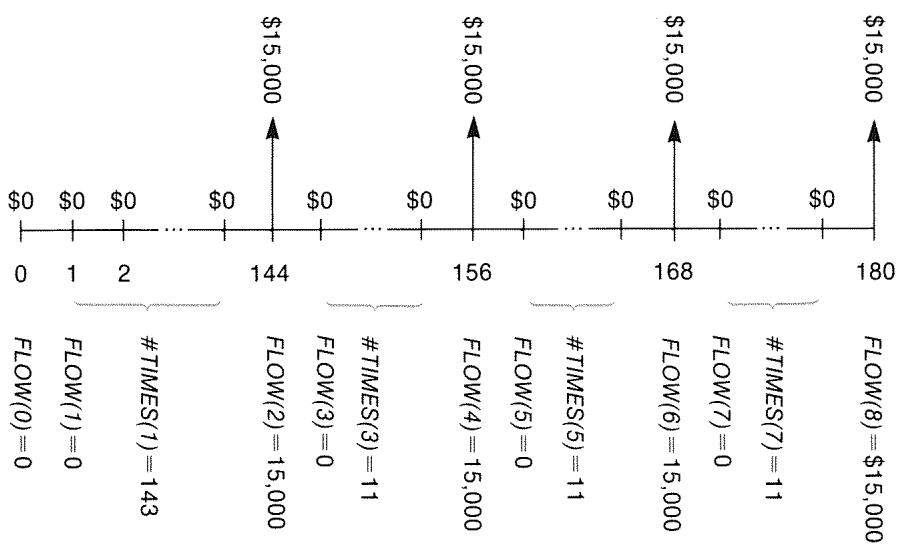
Figure 13-1. Flow of Withdrawals
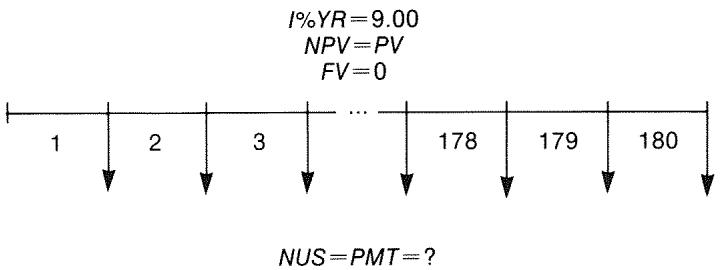
Figure 13-2. Flow of Deposits
| Keys: | Display: | Description: |
| FIN | Displays current cash-flow list and CFLO menu keys. | |
| CFLO | ||
| CLEAR DATA | Clears current list or gets a new one. | |
| YES | ||
| or | ||
| GET | ||
| *NEW | FLOW(0)=? | |
| Step 1: Set up a CFLO list. | ||
| 0 INPUT | FLOW(1)=? | Sets initial cash flow, FLOW(0), to zero. |
| 0 INPUT | #TIMES(1)=1 | Stores zero in FLOW(1) and prompts for the number of times it occurs. |
| 12 × 12 - 1 INPUT | FLOW(2)=? | Stores 143 (for 11 years, 11 months) in #TIMES(1) for FLOW(1). |
| 15000 INPUT | #TIMES(2)=1 | Stores amount of first withdrawal, at end of 12th year. |
| INPUT | FLOW(3)=? | |
| 0 INPUT | #TIMES(3)=1 | Stores cash flows of zero... |
| 11 INPUT | FLOW(4)=? | ...for the next 11 months. |
| 15000 INPUT | FLOW(5)=? | Stores second with-drawal, for sophomore year. |
| INPUT | ||
| 0 INPUT | Stores cash flows of zero | |
| 11 INPUT | FLOW(6)=? | for the next 11 months. |
| 15000 INPUT | FLOW(7)=? | Stores third withdrawal, for junior year. |
| INPUT | ||
| 0 INPUT | Stores cash flows of zero | |
| 11 INPUT | FLOW(8)=? | for the next 11 months. |
| 15000 INPUT | FLOW(9)=? | Stores fourth with-drawal, for senior year. |
| INPUT | ||
| EXIT CALC | NPV, NUS, NFV | Done entering cash |
| NEED I% | flows; gets CALC menu. | |
Step 2: Calculate NUS for the monthly deposit.
| Keys: | Display: | Description: |
| 9÷12 | Figures the periodic (monthly) interest rate and stores it in I%. | |
| I% | I%=0.75 | |
| NUS | NUS=182.30 | Amount of monthly de-posit needed to meet planned withdrawals. |
| NPV | NPV=17,973.48 | Calculates the net present value of the monthly deposits, which is the same as the NPV of the four future withdrawals. |
Value of a Tax-Free Account
See appendix F for RPN keystrokes for this example.
You can use the TVM menu to calculate the future value of a tax-free or tax-deferred account, such as an IRA or Keogh account. Remember that for calculations with cash flows, money paid out is negative and money received is positive. (Current tax law and your current income will determine whether just interest or also principal are tax-free, and for how long. You can solve for either case.)
N = the number of payments until retirement.
I% YR = the annual dividend rate.
PV = the present value of the retirement account.
PMT = the amount of your deposit. (It must be constant for the duration of the account.)
FV = the future value of the retirement account.
The purchasing power of that future value depends on the inflation rate and the duration of the account.
Example: Tax-Free Account. Consider opening an IRA account with a dividend rate of 8.175% . 1) If you invest \2,000at the beginning of each year for 35 years, how much will you have at retirement? 2) How much will you have paid into the IRA? 3) How much interest will you have earned? 4) If your post-retirement tax rate is15\%, what is the after-tax future value of the account? Assume only the interest will be taxed. (Assume the principal was taxed before deposit.) 5) What is the purchasing power of that amount, in today's dollars, assuming an8\%$ annual inflation rate?
| Keys: | Display: | Description: |
| FIN | Sets 1 payment per year and Begin mode. | |
| TVM | ||
| OTHER | ||
| 1 P/YR | ||
| BEG EXIT | 1 P/YR BEGIN MODE | |
| 35 N | N=35.00 | Stores number of pay-ment periods until retirement (1 × 35). |
| 8.175 I2YR | I2YR=8.18 | Stores dividend rate. |
| 0 PV | PV=0.00 | Present value of account (before first payment). |
| 2000 +/- | Annual payment (deposit). | |
| PMT | PMT=-2,000.00 | |
| FV | FV=387,640.45 | Calculates amount in ac-count at retirement. |
| RCL PMT | Calculates total amount paid into IRA by retirement. | |
| × RCL | ||
| N = | -70,000.00 | |
| + RCL | Calculates interest you will earn. | |
| FV = | 317,640.45 | |
| × 15 % = | 47,646.07 | Taxes at 15% of interest. |
| +/+ RCL | Subtracts taxes from total FV to calculate after-tax FV. | |
| FV = | 339,994.39 | |
| FV | FV=339,994.39 | Stores after-tax future value in FV. |
| 8 I2YR | Calculates present-value purchasing power of the above after-tax FV at 8% inflation rate. | |
| 0 PMT | ||
| PV | PV=-22,995.36 |
Value of a Taxable Retirement Account
See appendix F for RPN keystrokes for this example.
This problem uses the TVM menu to calculate the future value of a taxable retirement account that receives regular, annual payments beginning today (Begin mode). The annual tax on the interest is paid out of the account. (Assume the deposits have been taxed already.)
N = the number of years until retirement.
I% YR = the annual interest rate diminished by the tax rate: interest rate × (1 - tax rate) .
PV = the current amount in the retirement account.
PMT = the amount of the annual payment.
FV = the future value of the retirement account.
Example: Taxable Retirement Account. If you invest $3,000 each year for 35 years, with dividends taxed as ordinary income, how much will you have in the account at retirement? Assume an annual dividend rate of 8.175% and a tax rate of 28%, and that payments begin today. What will be the purchasing power of that amount in today's dollars, assuming 8% annual inflation?
| Keys: | Display: | Description: |
| FIN | Displays TVM menu. | |
| TVM | ||
| OTHER | Sets 1 payment per year and Begin mode. | |
| 1 P/YR | ||
| BEG EXIT | 1 P/YR BEGIN MODE | |
| 35 N | N=35.00 | Stores years until retirement. |
| 8.175 - 28 % | 8.18-2.29 | Calculates and stores interest rate diminished by tax rate. |
| IXYZR | IXYZR=5.89 | |
| 0 PV | PV=0.00 | Stores no present value. |
| 3000 +/− PMT | PMT=-3,000.00 | Stores annual payment. |
FV
FV=345,505.61
Calculates future value.
8 IYR
0 PMT
PV
PU=-23,368.11
Calculates present-value purchasing power of the above FV at 8% inflation.
Modified Internal Rate of Return
When there is more than one sign change (positive to negative or negative to positive) in a series of cash flows, there is a potential for more than one IRR% . For example, the cash-flow sequence in the following example has three sign changes and hence up to three potential internal rates of return. (This particular example has three positive real answers: 1.86, 14.35, and 29.02% monthly.)
The Modified Internal Rate of Return (MIRR) procedure is an alternative that can be used when your cash-flow situation has multiple sign changes. The procedure eliminates the sign change problem by utilizing reinvestment and borrowing rates that you specify. Negative cash flows are discounted at a safe rate that reflects the return on an investment in a liquid account. The figure generally used is a short-term security (T-bill) or bank passbook rate. Positive cash flows are reinvested at a reinvestment rate that reflects the return on an investment of comparable risk. An average return rate on recent market investments might be used.
- In the CFLO menu, calculate the present value of the negative cash flows (NPV) at the safe rate and store the result in register 0. Enter zero for any cash flow that is positive.
- Calculate the future value of the positive cash flows (NFV) at the reinvestment rate and store the result in register 1. Enter zero for any cash flow that is negative.
- In the TVM menu, store the total number of periods in N , the NPV result in PV , and the NFV result in FV .
- Press IXYR to calculate the periodic interest rate. This is the modified internal rate of return, MIRR.
Example: Modified IRR. An investor has an investment opportunity with the following cash flows:
| Group (FLOW no.) | No. of Months (#TIMES) | Cash Flow, $ |
| 0 | 1 | -180,000 |
| 1 | 5 | 100,000 |
| 2 | 5 | -100,000 |
| 3 | 9 | 0 |
| 4 | 1 | 200,000 |
Calculate the MIRR using a safe rate of 8% and a reinvestment (risk) rate of 13% .
| Keys: | Display: | Description: |
| FIN | Displays current cash-flow list. | |
| CFLD | ||
| CLEAR DATA | Clears current list or gets a new one. | |
| YES | ||
| or | ||
| GET | ||
| *NEW | FLOW(0)=? | |
| 180000+/- | Stores initial cash flow, FLOW(0). | |
| INPUT | FLOW(1)=? | |
| 0 INPUT | #TIMES(1)=1 | Stores FLOW(1) as zero since the flow amount is positive. |
| 5 INPUT | FLOW(2)=? | Stores 5 for #TIMES(1). |
| 100000+/- | Stores FLOW(2). | |
| INPUT | #TIMES(2)=1 | |
| 5 INPUT | FLOW(3)=? | Stores FLOW(2) 5 times. You can skip FLOW(3) and FLOW(4) because they are equal to zero for this part. |
EXIT CALC NPV, NUS, NFV NEED Ix
1%=0.67
Stores monthly safe interest rate.
NPV
NPV=-654,136.81
Calculates NPV of negative cash flows.

NPV=-654,136.81
Stores NPV in register 0.

FLOW(3)=?
Returns to CFLO menu.
CLEAR DATA
YES
FLW(0)=?
Clearly list.
FLOW(1)=?
Stores zero as FLOW(0) . (Skip negative flows; store positive flows.)

FLOW(2)=?
Stores FLOW(1) 5 times.
FLOW(3)=?
Stores zero for FLOW(2) 5 times.

FLW(4)=?
Stores zero for FLOW(3) 9 times.


FLOW(5)=?
Stores FLOW(4) , 1 time.

CALC
NPV, NUS, NFV
NEED I%
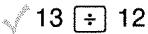
1%
1x=1.08
NFV
NFV=800,582.75
Stores monthly reinvestment rate.

NFV=800,582.75
Calculates NFV of positive cash flows.
Stores NFV in register 1.
| MAIN | Switches to TVM menu; sets 12 periods per year with End mode, if necessary. | ||
| FIN | |||
| TVM OTHER | |||
| CLEAR DATA | |||
| EXIT | 12 P/YR END MODE | ||
| 20 N | N=20.00 | Stores total number of investment periods. | |
| RCL 0 PV | PV=-654,136.81 | Recalls present value of negative cash flows and stores in PV. | |
| RCL 1 FV | FV=800,582.75 | Recalls future value of positive cash flows and stores in FV. | |
| 0 PMT | PMT=0.00 | Stores zero in PMT (no payments). | |
| IZYR | IZYR=12.18 | Calculates annual MIRR. | |
Price of an Insurance Policy
The price of an insurance policy, other than term life insurance, is rarely apparent at first glance. The price should include not only the premium payments, but also the interest that could have been earned on the cash value or savings portion of the policy.
The following equation calculates the price per $1,000 of protection for one policy year and the interest rate earned on the savings portion of the policy.
To calculate the price, assume some value for interest—for example, the interest rate you could earn on a one-year savings certificate after tax. Similarly, to calculate interest, assume a price per (1,000 per year for alternative insurance; for example, a low-cost term policy of the one-year renewable type.
Even complex policies like minimum-deposit plans can be analyzed with this procedure. Use policy surrender values for cash values and the actual (after-tax) amounts for payments (premiums) and dividends.
A Solver Equation for Insurance Price:
INS amp; = ((PREM + LVAL) × (1 + Ix ÷ 1 0 0) - VAL - DIV) ÷ amp; (dot , 0 0 1 × (FACE - VAL))
INS = the price per $1,000 of protection in one policy year.
PREM = the annual premium amount.
LVAL = the value of the policy at the end of last year.
I% = the rate of return, as a percent, on a savings account.
VAL = the value of the policy at the end of the current year.
DIV = the dollar value of the dividend for one year.
FACE = the face value of the policy for one year.
The following example assumes that you have entered the above equation into the Solver. For instructions on entering Solver equations, see "Solving Your Own Equations," on page 27.
Example: Insurance Policy. You are evaluating your 50,000 insurance policy. The premium of1,010 is due at the beginning of the year, and a dividend of 165 is received at the end of the policy year. The cash value of the policy is3,302 at the beginning of the year; it will grow to 4,104 by the end of the year. You can earn 6% on a savings account. What is the annual price per1,000 protection?
Select the correct equation in the Solver.
Keys:
Display:
CALC
1010
PREM
PREM=1,010.00
3302
LVAL
LVAL=3,302,00
Description:
Creates menu.
Stores annual premium.
Stores value of policy at end of last year.
| 6 | 1% | 1%=6.00 | Stores interest rate you could get elsewhere. |
| 4104 | VAL | VAL=4,104.00 | Stores value of policy at end of this year. |
| MORE | Stores annual dividend. | ||
| 165 | DIV | DIV=165.00 | |
| 50000 | FACE | FACE=50,000.00 | Stores face value of policy. |
| MORE | Your protection cost 6.57 per1,000 face (protection) value. | ||
| INS | INS=6.57 | ||
Insurance protection could be purchased for 3 per 1,000 face value. Calculate the rate of return on your savings.
| Keys: | Display: | Description: |
| 3 INS | INS=3.00 | Stores price of alternate insurance. |
| 1x | 1x=2.20 | Calculates rate of return. |
Reference: Joseph M. Belth, Life Insurance—A Consumer's Handbook, Indiana University Press, 1973, p. 234.
Bonds
Example: Yield to Maturity and Yield to Call. On March 16, 1987 you consider the purchase of a 1,000 bond that was issued on January 1, 1985. It has a (10.5% semiannual coupon using a 30/360 calendar, and matures on January 1, 2015. The bond is callable on January 1, 1990 at 110 (that is, )1,100). The bond is now selling at 115.174 (that is, $1,151.74). Determine both the yield to maturity and the yield to call for this bond.
First, calculate the yield to maturity:
| Keys: | Display: | Description: |
| FIN BOND | Displays BOND menu. | |
| TYPE 360 | Sets semiannual bond on 30/360 calendar. | |
| SEMI EXIT | 30/360 SEMIANNUAL | |
| CLEAR DATA | 30/360 SEMIANNUAL | Cleared variables; sets CALL to 100. |
| 3.161987 | Stores today as purchase date. | |
| SETT | SETT=03/16/1987 MON | |
| 1.012015 | Stores maturity date. | |
| MAT | MAT=01/01/2015 THU | |
| 10.5 CPN% | CPN%=10.50 | Stores coupon rate. |
| MORE | Stores price. Displays only two decimal places, but stores all three. | |
| 115.174 PRICE | PRICE=115.17 | |
| YLD% | YLD%=9.00 | Calculates yield to maturity. |
Second, calculate the yield to call:
| Keys: | Display: | Description: |
| MORE | YLD%=9.00 | Returns to first BOND menu. |
| 1.011990 | Changes maturity date to the call date. | |
| MAT | MAT=01/01/1990 MON | |
| 110 CALL | CALL=110.00 | Stores call value. |
| MORE YLD% | YLD%=7.63 | Calculates a yield to call. |
Discounted Notes
A note is a written agreement to pay to the buyer of the note a sum of money plus interest. Notes do not have periodic coupons, since all interest is paid at maturity. A discounted note is a note that is purchased below its face value. The following equations find the price or yield of a discounted note. The calendar basis is actual/360.
Solver Equations for Discounted Notes: To find the price given the discount rate:
NOTE : PRICE = RV - (DISC × RV × DDAYS (SETT: MAT: 1) ÷ 3 6 0 0 0)
To find the yield given the price (or to find the price given the yield):
NOTE : YIELD = (RV - PRICE) ÷ PRICE × 3 6 0 0 0 ÷ DDAYS (SETT : MAT : 1)
PRICE = the purchase price per $100 face value.
YIELD = the yield as an annual percentage.
RV = the redemption value per $100.
DISC = the discount rate as a percent.
SETT = the settlement date (in current date format).
MAT = the maturity date (in current date format).
The following example assumes that you have entered the NOTE equations into the Solver. For instructions on entering Solver equations, see "Solving Your Own Equations," on page 27.
Example: Price and Yield of a Discounted Note. What are the price and yield of the following U.S. Treasury Bill: settlement date October 14, 1988; maturity date March 17, 1989; discount rate 8.7% ? (Assume month/day/year format.)
Select the NOTE:PRICE equation in the Solver.
| Keys: | Display: | Description: |
| CALC | Creates menu. | |
| 10.141988 | Stores known values. | |
| SETT | SETT=10.14 | |
| 3.171989 | ||
| MAT | MAT=3.17 | |
| 8.7 DISC | DISC=8.70 | |
| 100 RV | RV=100.00 | |
| PRICE | PRICE=96.28 | Calculates price. |
| EXIT▼ | Displays NOTE:YIELD | |
| CALC | NOTE:YIELD=(RV-PRICE)... | equation, then its menu. |
| YIELD | YIELD=9.04 | Calculates yield. |
Statistics
Moving Average
Moving averages are often useful in predicting trends in data taken over a period of time. In moving-average calculations, a specified number of points is averaged. Each time a new point is acquired, the oldest point is discarded. Thus, the same number of points is used in each calculation.
A Solver Equation for Moving Averages:
MAVG=∑(I:MAX(1:LAST-N+1):LAST:1:ITEM(name:I))÷MIN(N:LAST)
N = the number of values averaged in each calculation.
LAST = the item number of the most recent value to be averaged.
name = the name of the SUM list whose data will be averaged. When you create and name the SUM list, make sure its name matches the name in the Solver equation.
The following example assumes that you have entered the equation MAVG into the Solver, using VOL for the SUM list's name. For instructions on entering Solver equations, see "Solving Your Own Equations," on page 27.
Example: A Moving Average in Manufacturing. Calculate a three-month moving average for the number of units manufactured during the first half of the year. Manufacturing volumes are:
| January | February | March | April | May | June |
| 4400 | 5360 | 2900 | 3670 | 4040 | 3200 |
Keys:
Display:
Description:
SUM
Displays SUM menu and current list.
CLEAR DATA
Clearscurrentlistorgets a newone.
YES
or
GET
NEW
ITEM(1)=?
4400 INPUT
Enters data.
5360 INPUT
2900 INPUT
3670 INPUT
4040 INPUT
3200 INPUT
ITEM(7)=?
TOTAL=23,570.00
EXIT NAME
VOL INPUT
ITEM(7)=?
Names the list VOL.
EXIT SOLVI
(use and
if necessary)
Displays the MAVG equation. Make sure name is VOL.
| CALC | Displays menu. | |
| 3 N | N=3.00 | Stores number of points. |
| 3 LAST | Calculates average for months 1, 2, and 3. | |
| MAVG | MAVG=4,220.00 | |
| 4 LAST | Calculates average for months 2, 3, and 4. | |
| MAVG | MAVG=3,976.67 | |
| 5 LAST | Calculates average for months 3, 4, and 5. | |
| MAVG | MAVG=3,536.67 | |
| 6 LAST | Calculates average for months 4, 5, and 6. | |
| MAVG | MAVG=3,636.67 |
Chi-Squared (hi2) Statistics
The hi2 statistic is a measure of the goodness of fit between data and an assumed distribution.* It is used to test whether a set of observed frequencies differs from a set of expected frequencies sufficiently to reject the hypothesis under which the expected frequencies were obtained.
In other words, it tests whether discrepancies between the observed frequencies (Oi) and the expected frequencies (Ei) are significant, or whether they might reasonably result from chance. The equation is:
hi^ 2 = _ i = 1 ^ n (O _ i - E _ i) ^ 2E _ i
If there is a close agreement between the observed and expected frequencies, hi2 will be small. If the agreement is poor, hi2 will be large.
Solver Equations for hi2 Calculations:
If the expected value is a constant:
CHI=∑(I:1:SIZE(name1):1:(ITEM(name1:I)-EXP)^2+EXP)
If the expected values vary:
CHI2=∑(I:1:SIZES(name1):1:(ITEM(name1:I)-ITEM(name2:I))^2÷ITEM(name2:I))
(To enter the character, press WXYZ OTHER MORE
CH12 = the final hi2 value for your data.
name1 = the name of the SUM list that contains the observed values.
name2 = the name of the SUM list that contains the expected values.
EXP = the expected value when it is a constant.
When you create and name the SUM list(s), make sure the name(s) match name1 (and name2, if applicable) in the Solver equation.
To solve the equation, press CH12 once or twice (until you see the message CALCULATING...).
The following example assumes that you have entered the CHI equation into the Solver, using OBS for name1. For instructions on entering Solver equations, see "Solving Your Own Equations," on page 27.
Example: Expected Throws of a Die. To determine whether a suspect die is biased, you toss it 120 times and observe the following results. (The expected frequency is the same for each number, 120 ÷ 6 , or 20.)
| Number | 1 | 2 | 3 | 4 | 5 | 6 |
| Frequency Observed | 25 | 17 | 15 | 23 | 24 | 16 |
| Keystrokes: | Display: | Description: |
| SUM | Displays SUM menu and current list. | |
| CLEAR DATA | Clears current list or gets a new one. | |
| YES | ||
| or | ||
| GET | ||
| *NEW | ITEM(1)=? | |
| 25 | INPUT | Enters observed values. |
| 17 | INPUT | |
| 15 | INPUT | |
| 23 | INPUT | |
| 24 | INPUT | |
| 16 | INPUT | ITEM(7)=? |
| TOTAL=120.00 | ||
| EXIT | NAME | |
| OBS | INPUT | ITEM(7)=? |
| EXIT | SOLVE | |
| (use ▲ and ▼)if necessary) | Displays the CHI equation. Make sure name1 is OBS. | |
| CALC | Displays menu. | |
| 20 | EXP | EXP=20.00 |
| CHI | CHI=5.00 | Stores expected value. |
| Calculates χ2. |
The number of degrees of freedom is (n - 1) = 5 . Consult statistical tables to find hi2 to a significance level of 0.05 with 5 degrees of freedom. The table shows that hi20.05,5 = 11.07 . Since the computed value (5.00) is less than 11.07, you can conclude that, to a 0.05 significance level (95% probability), the die is fair.
Assistance, Batteries, Memory, and Service
Obtaining Help in Operating the Calculator
Hewlett-Packard is committed to supporting users of HP calculators. You can obtain answers to your questions about using the calculator from our Calculator Support department. (Address and phone number are on the inside of the back cover.)
We suggest reading "Answers to Common questions," below, before contacting us. Past experience has shown that many of our customers have similar questions.
Answers to Common Questions
Q: I'm not sure if the calculator is malfunctioning or if I'm doing something incorrectly. How can I determine if the calculator is operating properly?
A: Refer to page 220, which describes the diagnostic self-test.
Q: My arithmetic keys don't work like I expect. I press 12 + 3 = and get 3.00.
A: You may be in the wrong mode. Press MODES RLG to set Algebraic mode.
Q: My numbers contain commas as decimal points. How do I restore the periods?
A:PressDISP
Q: How do I change the number of decimal places the calculator displays?
A: The procedure is described in "Decimal Places" on page 31.
Q: How do I clear all or portions of memory?
A: CLR clears the calculator line. CLEAR DATA clears the data lists or variables accessible from the current menu. Erasing the entire contents of memory is covered in "Erasing Continuous Memory" on page 218.
Q: Why am I getting the wrong answer using the TVM menu?
A: Be sure to enter a value for all five TVM variables, even if a value is zero (as FV is for a loan without a balloon). Clearing the variables before starting (CLEAR DATA) accomplishes the same thing. Check the appropriate payment mode (mortgages and loans are typically End mode calculations), and specify the number of payments per year ( P/YR ). Also check that all figures for money paid out are negative (the cash-flow sign convention).
Q: Can I access the TVM menu functions from the Solver?
A: No, but you can do the same functions by copying the appropriate financial formulas into the Solver. The formulas are given starting on page 157.
Q: Can I access the data stored in my CFLO and SUM lists from the Solver?
A: Yes. See "Accessing CFLO and SUM Lists from the Solver," page 164.
Q: How do I indicate multiplication in an equation typed into the Solver?
A: Use the multiplication key (×) . You cannot use the letter × in the ALPHA menu.
Q: What does an "E" in a number (for example, 2.51E - 13) mean?
A: Exponent of ten (for example, 2.51 × 10⁻¹³ ). Refer to "Scientific Notation" on page 44.
Q: The calculator has displayed the message INSUFFICIENT MEMORY. What should I do?
A: Refer to "Managing Calculator Memory" on page 216 for instructions on how to reclaim memory for your use.
Q: The calculator is operating slowly, and the annunciator is blinking. Why?
A: The calculator is trace printing. Press PRINTER TRACE EXIT to turn off tracing.
Q: How can I change the sign of a number in a list without keying in the number again?
A:Press RCL INPUT +I INPUT.
Q: The beeper is not working.
A: Check the beeper mode by pressing MODES BEEP. See also page 33.
Q: The messages and the menu labels in the display are not in English. How do I restore the English?
A: Models of the HP-17B sold in many countries outside of the United States include a menu to select the language for messages and labels. To select the English language, press MODES INTL ENGL.
Power and Batteries
The HP 17B is powered by three 1.5-volt, button-cell batteries. Expected battery life depends on how the calculator is used and the chemical content of the batteries.
We recommend using either alkaline or silver-oxide type batteries. Do not use rechargeable batteries. Use batteries from the following list, or use another manufacturer's equivalent.
Alkaline
Silver Oxide
Panasonic LR44
Panasonic SR44W or SP357
Eveready A76
Eveready 357
Duracell LR44
RAY-O-VAC 357
Varta V13GA
Varta V357
Kodak KA76
Toshiba LR44
Low-Power Indications
When the low-battery annunciator (□) comes on, the calculator can continue normal operation for several hours. If the calculator is turned off, Continuous Memory will be preserved for approximately two weeks. To conserve battery power, printing does not function when the battery annunciator is on. Printing might halt during a printing operation due to a borderline low-battery condition. The calculator can detect that there is insufficient power for printing before the battery annunciator comes on.
If you continue to use the calculator after the battery annunciator comes on, power can eventually drop to a level at which the calculator stops powering the display and keyboard. The calculator will require fresh batteries before it can be turned back on. When you turn the calculator on after fresh batteries have been installed, the calculator displays MACHINE RESET if your stored data is intact. If data has been lost, the calculator displays MEMORY LOST. In either case, the clock's time might be incorrect.
Installing Batteries
Once the batteries are removed, you must replace the batteries within one minute to prevent loss of Continuous Memory.
To install batteries:
- Have three fresh button-cell batteries at hand. Hold batteries by the edges. Do not touch the contacts. Wipe each battery with a clean, lint-free cloth to remove dirt and oil.
-
Make sure the calculator is off. Do not press again until the entire procedure for changing batteries is completed. Changing batteries with the calculator on can erase the contents of Continuous Memory. If you have set any appointments, make sure they will not come due while the batteries are out.
-
Hold the calculator as shown. To remove the battery-compartment door, press down and outward on the ribbed area until the door slides off.
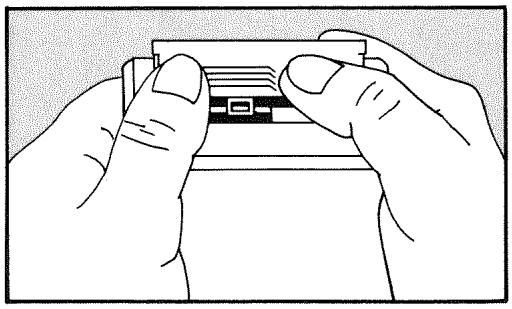
- Turn the calculator over and shake the batteries out.

Do not mutilate, puncture, or dispose of batteries in fire. The batteries can burst or explode, releasing hazardous chemicals.
- Hold the calculator as shown and stack the batteries, one at a time, in the battery compartment. Orient the batteries according to the diagram inside the battery compartment. Be sure the raised and flat ends match the diagram.
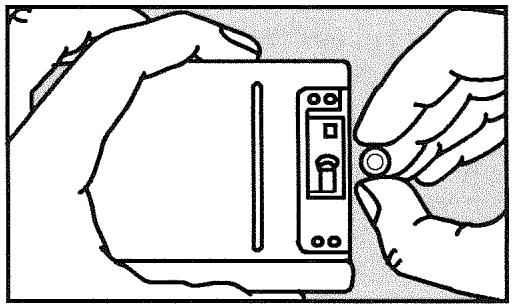
- Slide the tab of the battery-compartment door into the slot in the calculator case, as shown.
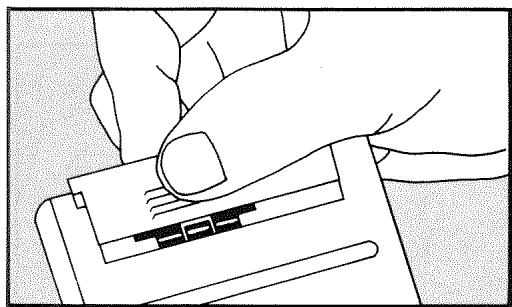
Now turn the calculator back on. If it does not function, you might have taken too long to change the batteries or inadvertently turned the calculator on while the batteries were out. Remove the batteries again and lightly press a coin against both battery contacts in the calculator for a few seconds. Put the batteries back in and turn the calculator on. You should see MEMORY LOST.
Managing Calculator Memory
The calculator has approximately 6,750 units (or "bytes") of user memory available.* (This is separate from the system memory that stores all the unerasable information with which the calculator is manufactured.) The table below describes the memory requirements of stored user information.
The calculator displays INSUFFICIENT MEMORY if you attempt an operation that uses more memory than is currently available. If you see this message:
-
Complete any calculations in the calculator line (press or CLR). This frees the memory that was being used to store each of the numbers and operators.
-
To further increase the amount of available memory:
Rename the named SUM and CFLO lists with shorter names (see page 87), and clear any lists you no longer need (see page 89).
- Shorten or delete any messages with appointments (see page 135).
- Delete any Solver variables or equations you no longer need (see page 152).
Table A-1. Memory Requirements
| Type of Information | Amount of Memory Used |
| CFLO number lists (excluding the list name) | 101/2 bytes per list, + 91/2 bytes per flow entry (flow amount and #TIMES). |
| SUM number lists (excluding the list name) | 16 bytes per list, + 8 bytes per item. |
| Names of lists | 1 byte, + 1 byte per character. |
| Equations | 101/2 bytes, + 1 byte per character (spaces are counted as characters), including the name.* |
| Solver variables | 15 bytes per variable, + 1 byte per character in the variable's name. |
| Calculator line | Numbers: 8 bytes, + 1 byte per character. |
| Appointment messages | Operators: 31/2 bytes. |
| 41 bytes for the first message stored, + 1 byte per character in each message. | |
| * The memory requirements of an equation substantially increase while its menu is displayed. | |
Resetting the Calculator
If the calculator doesn't respond to keystrokes or is behaving unusually, attempt to reset it. Resetting the calculator halts the current calculation, clears the calculator line, and displays the MAIN menu.
Continuous Memory is not affected. To reset the calculator, hold down while pressing the third menu key from the left. Repeat if necessary. The calculator displays MACHINE RESET.
The calculator can reset itself if it is dropped or if power is interrupted.
Erasing Continuous Memory
Erasing Continuous Memory erases all user-stored information except the current time and date. Specifically, it:
Clears the calculator line and history stack.
- Deletes all Solver equations and their variables, and clears all other variables in menus.
Cleared all CFLO and SUM lists and their names.
Cleared all appointments.
- Sets the calculator to certain "start-up" settings—month/day/year date format, 12-hour clock, 2 decimal places, period (.) decimal point, double-space printing off, printer tracing off, printer without the ac adapter, and beeper on.
Maintains the selected mode—ALG or RPN.
Erasing Continuous Memory does not affect the current time and date.
To erase Continuous Memory, press and hold down , the leftmost menu key, and the rightmost menu key. (Press three keys simultaneously). When the three keys are released, the calculator displays MEMORY LOST.
Continuous Memory can inadvertently be erased if the calculator is dropped or if power is interrupted.
Clock Accuracy
The clock is regulated by a quartz crystal accurate to within three minutes per month under normal conditions. The accuracy of the clock crystal is affected by temperature, physical shock, humidity, and aging. Optimum accuracy is maintained at 25ircC (77ircF) .
Environmental Limits
In order to maintain product reliability, observe the following limits:
Operating temperature: 0irc to 45ircC (32irc to 113ircF)
Storage temperature: -20irc to 65ircC (-4irc to 149ircF)
- Operating and storage humidity: 90% relative humidity at 40ircC (104ircF) maximum.
Determining If the Calculator Requires Service
Use these guidelines to determine if the calculator requires service. If it does, read "If the Calculator Requires Service" on page 222.
If the calculator won't turn on:
- Attempt to reset the calculator (see page 217).
- If the calculator fails to respond after step 1, replace the batteries (see page 214). If you have just replaced the batteries, see page 216.
If these steps do not help, the calculator requires service.
If the calculator doesn't respond to keystrokes:
- Attempt to reset the calculator (see page 217).
- If the calculator still fails to respond, attempt to erase Continuous Memory (see page 218). This will erase all the information you've stored.
If these steps do not help, the calculator requires service.
If the calculator responds to keystrokes but you suspect that it is malfunctioning:
-
Do the self-test (described below). If the calculator fails the self test, it requires service.
-
If the calculator passes the self-test, it is quite likely you've made a mistake in operating the calculator. Try rereading portions of the manual, and check "Answers to Common Questions" on page 211.
- Contact the Calculator Support department. The address and phone number are listed on the inside back cover.
Confirming Calculator Operation: Self-Test
If the display can be turned on, but it appears that the calculator is not operating properly, you can do a diagnostic self-test. The self-test runs continuously, repeating until you halt it.
To run the self-test:
- Turn the calculator on.
- If you have the optional infrared printer, turn it on. Certain diagnostic information is printed during the test.
- If possible, return to the MAIN menu (press MAIN).
- To start the self-test, hold down while you press the fifth menu key from the left. Once the self-test has begun, do not press any keys until you are ready to halt the test.
- During the test, the calculator beeps periodically and displays various patterns and characters. Watch for one of two messages that are displayed before the test automatically repeats:
If the calculator passes the self-test, the calculator displays OK-17B II-E.
If the calculator displays FAMIL followed by a five-digit number, the calculator requires service.
-
To halt the self-test, hold down while you press the third menu key from the left. The calculator displays MACHINE RESET. If you press any other key instead, the test halts and the calculator displays a FAIL message. This results from an incorrect key being pressed, and does not mean that the calculator requires service.
-
If the calculator failed the self-test, repeat steps 4 through 6 to verify the results. If you do not have a printer, write down the messages that are displayed in step 5.
Limited One-Year Warranty
What Is Covered
The calculator (except for the batteries, or damage caused by the batteries) is warranted by Hewlett-Packard against defects in materials and workmanship for one year from the date of original purchase. If you sell your unit or give it as a gift, the warranty is automatically transferred to the new owner and remains in effect for the original one-year period. During the warranty period, we will repair or, at our option, replace at no charge a product that proves to be defective, provided you return the product, shipping prepaid, to a Hewlett-Packard service center. (Replacement may be with a newer model of equivalent or better functionality.)
This warranty gives you specific legal rights, and you may also have other rights that vary from state to state, province to province, or country to country.
What Is Not Covered
Batteries, and damage caused by the batteries, are not covered by the Hewlett-Packard warranty. Check with the battery manufacturer about battery and battery leakage warranties.
This warranty does not apply if the product has been damaged by accident or misuse or as the result of service or modification by other than an authorized Hewlett-Packard service center.
No other express warranty is given. The repair or replacement of a product is your exclusive remedy. ANY OTHER IMPLIED WARRANTY OF MERCHANTABILITY OR FITNESS IS LIMITED TO THE ONE-YEAR DURATION OF THIS WRITTEN WARRANTY. Some states, provinces, or countries do not allow limitations on how long an implied warranty lasts, so the above limitation may not apply to you. IN NO EVENT SHALL HEWLETT-PACKARD COMPANY BE LIABLE FOR CONSEQUENTIAL DAMAGES. Some states, provinces, or countries do not allow the exclusion or limitation of incidental or consequential damages, so the above limitation or exclusion may not apply to you.
Products are sold on the basis of specifications applicable at the time of manufacture. Hewlett-Packard shall have no obligation to modify or update products once sold.
Consumer Transactions in the United Kingdom
This warranty shall not apply to consumer transactions and shall not affect the statutory rights of a consumer. In relation to such transactions, the rights and obligations of Seller and Buyer shall be determined by statute.
If the Calculator Requires Service
Hewlett-Packard maintains service centers in many countries. These centers will repair a calculator or replace it (with a equivalent or better model), whether it is under warranty or not. There is a charge for service after the warranty period. Calculators normally are serviced and reshipped within 5 working days of receipt.
Obtaining Service
In the United States: Send the calculator to the Corvallis Service Center listed on the inside of the back cover.
In Europe: Contact your HP sales office or dealer or HP's European headquarters for the location of the nearest service center. Do not ship the calculator for service without first contacting a Hewlett-Packard office.
Hewlett-Packard S.A.
150, Route du Nant-d'Avril
P.O. Box
CH 1217 Meyrin 2
Geneva, Switzerland
Telephone: (022) 780 81 11
In other countries: Contact your HP sales office or dealer or write to the Corvallis Service Center (listed on the inside of the back cover) for the location of other service centers. If local service is unavailable, you can ship the calculator to the Corvallis Service Center for repair.
All shipping, reimportation arrangements, and customs costs are your responsibility.
Service Charge
There is a standard repair charge for out-of-warranty service. The Corvallis Service Center (listed on the inside of the back cover) can tell you how much this charge is. The full charge is subject to the customer's local sales or value-added tax wherever applicable.
Calculator products damaged by accident or misuse are not covered by the fixed service charges. In these cases, charges are individually determined based on time and material.
Shipping Instructions
If your calculator requires service, ship it to the nearest authorized service center or collection point. (You must pay the shipping charges for delivery to the service center, whether or not the calculator is under warranty.) Be sure to:
■ Include your return address and description of the problem.
■ Include proof of purchase date if the warranty has not expired.
- Include a purchase order, check, or credit card number plus expiration date (Visa or MasterCard) to cover the standard repair charge.
■ Ship the calculator in adequate protective packaging to prevent damage. Such damage is not covered by the warranty, so we recommend that you insure the shipment.
Pay the shipping charges for delivery to the Hewlett-Packard service center, whether or not the calculator is under warranty.
Warranty on Service
Service is warranted against defects in materials and workmanship for 90 days from the date of service.
Service Agreements
In the U.S., a support agreement is available for repair and service. Refer to the form that was packaged with the manual. For additional information, contact the Calculator Service Center (see the inside of the back cover).
Regulatory Information
Radio Frequency Interference
U.S.A. The HP-17B generates and uses radio frequency energy and may interfere with radio and television reception. The calculator complies with the limits for a Class B computing device as specified in Subpart J of Part 15 of FCC Rules, which provide reasonable protection against such interference in a residential installation. In the unlikely event that there is interference to radio or television reception (which can be determined by turning the HP-17B off and on or by removing the batteries), try:
Reorienting the receiving antenna.
Relocating the calculator with respect to the receiver.
For more information, consult your dealer, an experienced radio/television technician, or the following booklet, prepared by the Federal Communications Commission: How to Identify and Resolve Radio-TV Interference Problems. This booklet is available from the U.S. Government Printing Office, Washington, D.C. 20402, Stock Number 004-000-00345-4. At the first printing of this manual, the telephone number was (202) 783-3238.
West Germany. The HP-17B and the HP 82240 printer comply with VFG 1046/84, VDE 0871B, and similar non-interference standards.
If you use equipment that is not authorized by Hewlett-Packard, that system configuration has to comply with the requirements of Paragraph 2 of the German Federal Gazette, Order (VFG) 1046/84, dated December 14, 1984.
Air Safety Notice (U.S.A.)
The HP-17B and the HP 82240 printer comply with the requirements of RTCA (Radio Technical Commission for Aeronautics) Docket 160B, Section 21. Many airlines permit the use of calculators in flight based on such a qualification. However, before boarding a flight, check with an airline representative regarding use of calculators in flight.
Noise Declaration. In the operator position under normal operation (per ISO 7779): LpA < 70dB
More About Calculations
IRR% Calculations
The calculator determines IRR% for a set of cash flows using mathematical formulas that "search" for the answer. The process finds a solution by estimating an answer and then using that estimate to do another calculation—in mathematical terms, this is called an iterative process.
In most cases, the calculator finds the desired answer, since there is usually only one solution to the calculation. However, calculating IRR% for certain sets of cash flows is more complex. There may be more than one mathematical solution to the problem, or there may be no solution. In these cases, the calculator displays a message to help you interpret what has happened.
Possible Outcomes of Calculating IRR%
These are the possible outcomes of an IRR% calculation for which you have not stored a guess.
■ Case 1: The calculator displays a positive answer. This is the only positive answer. However, one or more negative answers may exist.
■ Case 2: The calculator finds a negative answer but a single positive solution also exists. It displays:
IRR% > 0 EXISTS; KEY IN GUESS; [STO] IRR%
To see the negative answer, press 4 . To search for that positive answer, you must input a guess. (Refer to "Storing a Guess for IRR% " below). There might also be additional negative answers.
Case 3: The calculator displays a negative answer and no message. This is the only answer.
Case 4: The calculator displays the message:
MANY/NO SOLUTIONS; KEY IN GUESS; [STO] (IRR%)
The calculation is very complex. It might involve more than one positive or negative answer, or there may be no solution. To continue the calculation, you must store a guess.
■ Case 5: The calculator displays: NO SOLUTION
There is no answer. This situation might be the result of an error, such as a mistake in keying in the cash flows. A common mistake is to put the wrong sign for a cash flow. A valid cash flow series must have at least one positive and one negative cash flow.
Halting and Restarting the IRR% Calculation
The search for IRR% may take a relatively long time. You can halt the calculation at any time by pressing any key. The calculator then displays the current estimate for IRR% . You can resume the calculation by:
■ Pressing STO IRR while the current estimate is displayed in the calculator line. This continues the calculation from where it left off.
Storing a guess for IRR% , discussed below.
Storing a Guess for IRR%
To enter a guess, key in an estimate of IRR% and then press STO IRR.
You can enter a guess for IRR% at these times:
Before beginning the calculation. This can reduce the time required to calculate an answer.
After you've halted the calculation.
After the calculator has halted the calculation due to any of the above cases. For cases 3 and 5, however, no (other) solutions will be found.
When calculating IRR% using a guess, the calculator displays the current estimate of IRR% and the calculated value of NPV for each iteration. The calculation halts when the calculator finds an answer. However, there may be additional positive or negative answers, or no true solution at all. You can continue searching for other solutions by halting the calculation and entering a different guess.
One way to obtain a good guess for IRR% is to calculate NPV for various interest rates ( I% ). Since IRR% is the interest rate at which NPV equals zero, the best estimate of IRR% is the interest rate that yields the value for NPV closest to zero.
To find a good estimate for IRR% , key in a guess for IRR% and press 1% . Then, press NPV to calculate NPV for that value. Repeat the calculation of NPV for several values of I% , and look for trends in the results. Choose as your guess for IRR% a value of I% that produces an NPV close to zero.
Solver Calculations
As noted in chapter 11, the Solver uses two methods to find solutions, depending on the complexity of the equation: direct and iterative (an indirect). To use all the calculating power included in the Solver, it would help to understand, in a general way, how it works.
Direct Solutions
When you start a calculation (by pressing a menu key), the Solver first tries to find a direct solution by "isolating" the variable you are solving for (the unknown). Isolating a variable involves rearranging the equation so that the unknown variable is by itself on the left-hand side of the equation. For example, suppose you enter the equation:
PROFIT = PRICE - COST
If you've stored values for PROFIT and PRICE, pressing COST causes the Solver to internally rearrange the equation algebraically to solve for COST (COST is the unknown):
COST = PRICE - PROFIT
Answers calculated this way are called direct solutions.
For certain equations, the unknown can be isolated, but an answer cannot be calculated with the values stored. Then the calculator displays: SOLUTION NOT FOUND
For example, if you enter an equation:
AREA = L × W
and then enter values for AREA and W , the Solver rearranges the equation to:
L = AREA ÷ W
in order to calculate L . However, if you enter the value zero for W , the Solver cannot find an answer because division by zero is not allowed.
The Solver can isolate the unknown variable if the equation meets these conditions:
The unknown variable occurs only once in the equation.*
- The only functions in which the unknown variable appears are ALOG, DATE, DDAYS (actual calendar only), EXP, EXPM1, IF (in then and else clauses only), INV, LN, LNP1, LOG, S, SQ, and SQRT.
The only operators involving the unknown variable are +, -, ×, ÷ , and (power). If you are solving for a variable raised to a positive, even power (for example, A 2 = 4 ), there may be more than one solution. However, if the Solver can isolate the variable, it will find one of the solutions using the positive root. For example, the Solver rearranges A 2 = 4 to A = 4 and calculates the answer +2 .*
The unknown variable does not appear as an exponent.
Iterative Solutions
If the Solver is not able to isolate the unknown variable, it cannot provide a direct solution. In these cases, the Solver searches iteratively for a solution.†
In its iterative search for a solution, the Solver looks for a value that sets the left side of the equation equal to the right side. To do this, the Solver starts with two initial estimates of the answer, which we'll call estimate #1 and estimate #2. Using estimate #1, the Solver calculates values for the left and right side of the equation (LEFT and RIGHT) and calculates LEFT minus RIGHT (LEFT - RIGHT). Then, the Solver does the same calculations for estimate #2. If neither estimate produces a value of zero for LEFT - RIGHT, the Solver analyzes the results and produces two new estimates that it judges to be closer to the answer. By repeating this process many times, the Solver narrows in on the answer. During this search, the calculator displays the two current estimates and the sign of (LEFT - RIGHT) for each estimate, as shown.
Since calculators cannot do calculations with infinite precision (the HP-17B uses 12 digits in its calculations), sometimes the Solver will be unable to find an estimate where LEFT - RIGHT is exactly zero. However, the Solver can distinguish between situations where the current estimate could be a solution, and situations where no solution is found.
The iterative search for a solution sometimes takes several minutes. (You can halt the search at any time by pressing any key except.) There are four possible outcomes:
Case 1: The calculator displays an answer. This is very likely the true solution for the unknown variable.
There are two situations in which the Solver returns a case 1 answer:
Case 1a: LEFT - RIGHT is exactly zero.
- Case 1b: LEFT - RIGHT is not zero for either estimate. However, the Solver has found two estimates that cannot get any closer together. (Numbers that are as close together as possible are called neighbors.) Furthermore, LEFT - RIGHT is a positive value for one estimate and a negative value for the other estimate.
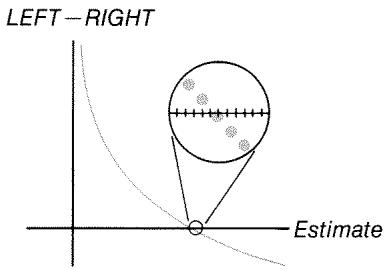
Case 1a: LEFT-RIGHT is exactly 0.
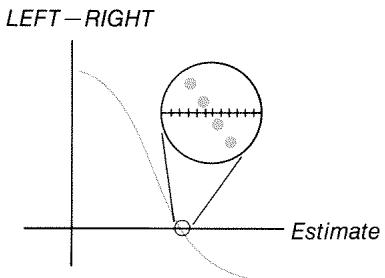
Case 1b: LEFT-RIGHT is not exactly 0. LEFT and RIGHT are relatively close together. The two estimates are "neighbors".
If you want to know whether LEFT - RIGHT is exactly zero, press the menu key for the unknown variable. If LEFT - RIGHT is not equal to zero, the calculator displays the values of LEFT and RIGHT.

The equation could have more than one iterative solution. If the answer does not seem reasonable, enter one or two guesses and restart the search.
- Case 2: The calculator displays the values of LEFT and RIGHT, which are unequal. To see the calculator's result, press or . If LEFT and RIGHT are relatively close to one another in value, the result is probably a true solution. Otherwise, the result is probably not a true solution.
If the result seems unreasonable, it could be because the equation has more than one solution. You might want to enter one or two guesses and restart the search.
If you want to obtain additional information about the answer, press and hold down the menu key for the unknown variable until the numbers in the display stop changing. At this point, the Solver is displaying the final estimates and the signs of LEFT - RIGHT for each estimate.

This information can be helpful:
Case 2a: If the signs of LEFT - RIGHT are opposite, and the two estimates are as close together as two 12-digit numbers can get (neighbors), the Solver found two estimates that "bracket" an ideal solution (a solution where LEFT - RIGHT equals zero). If LEFT and RIGHT are relatively close together, the answer is probably a solution.
Case 2b: If the signs of LEFT - RIGHT are opposite, and the two estimates are not neighbors, be very cautious about accepting the answer as a solution. If LEFT and RIGHT are relatively close together, the answer is probably a solution.
■ Case 2c: If LEFT - RIGHT for the two estimates have the same sign, the Solver has halted because it could find no estimates that further reduced the magnitude of LEFT - RIGHT. Be very cautious about accepting the answer. If the values of LEFT and RIGHT are not relatively close to one another, you should reject the answer.
Case 2a:
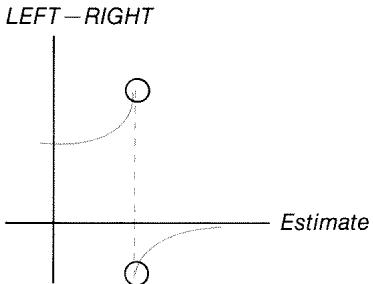
LEFT-RIGHT have opposite signs. The two estimates are "neighbors".
Case 2b:
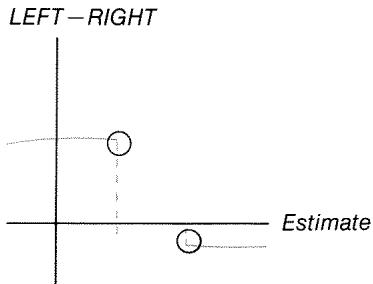
LEFT-RIGHT have opposite signs. The two estimates are far apart.
Case 2c:
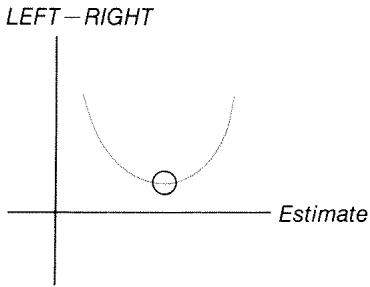
LEFT-RIGHT have the same sign.
Case 3: The calculator displays:
BAD GUESSES:
PRESS [CLR] TO VIEW
The Solver is unable to begin its iterative search for a solution using the current initial estimates (guesses). You might find a solution by entering different estimates. The closer you can estimate the answer, the more likely that the Solver will find a solution.
■ Case 4: The calculator displays: SOLUTION NOT FOUND
The Solver is unable to find a solution. Check your equation to make sure you have made no errors in entering it. Also check
the value of each known variable. If your equation and variables are correct, you might be able to find a solution by entering very good guesses.
Equations Used by Built-in Menus
Actuarial Functions
n = number of compounding periods.
i% = periodic interest rate, expressed as a percentage.
Single Payment Present Value Function
(Present value of a single $1.00 payment made after n periods.)
SPPV (i% :n) = (1 + %100)-n
Single Payment Future Value Function
(Future value after n periods of a single $1.00 payment.)
SPFV (i% :n) = (1 + %100)n
Uniform Series Present Value Function
(Present value of a $1.00 payment that occurs n times.)
USPV (i % : n) = 1 - (1 + i %100) ^ - n i %100
Uniform Series Future Value Function
(Future value of a $1.00 payment that occurs n times.)
USFV (i %; n) = (1 + i %100) ^ n - 1 i %100
Percentage Calculations in Business (BUS)
% CHANGE = ( NEW - OLDOLD) × 100
% TOTAL = ( PARTTOTAL) × 100
MARKUP% C = ( - COSTCOST)× 100
MARKUP% P = ( - COSTPRICE)× 100
Time Value of Money (TVM)
S = payment mode factor (0 for End mode; 1 for Begin mode).
i% = %%YRP / YR
0 = PV + (1 + % × S100) × PMT × USPV (i% :n) + FV × SPPV (i% :n)
Amortization
INT = accumulated interest
PRIN = accumulated principal
i = periodic interest rate
BAL is initially PV rounded to the current display setting.
PMT is initially PMT rounded to the current display setting.
i = %YRP / YR× 100
For each payment amortized:
INT ^ = BAL × i (INT ^ isroundedtothecurrentdisplaysetting
INT ^ = 0 forperiod 0 inBeginmode)
INT = INT ^ (withsignofPMT)
PRIN = PMT + INT ^
BAL _ new = BAL _ old + PRIN
INT _ new = INT _ old + INT
PRIN _ new = PRIN _ old + PRIN
Conversions
Periodic compounding
EFF% = [(1 + %100× P)P - 1]× 100
Continuous compounding
EFF% = (e%100 - 1)× 100
Cash-Flow Calculations
j = the group number of the cash flow.
CFj = amount of the cash flow for group j .
nj = #TIMES the cash flow occurs for group j .
k = the group number of the last group of cash flows.
N _ j = _ 1 l lt; j n _ l = totalnumberofcashflowspriortogroupj
NPV = CF _ 0 + _ j = 1 ^ k (CF _ j × USPV (i %: n _ j) × SPPV (i %: N _ j))
When NPV = 0 , the solution for i% is IRR% .
NFV = NPV × SPFV (i % : N) where N = _ j = 1 ^ k n _ j
NUS = NPVUSPV (i % : N)
TOTAL = _ j = 0 ^ k (n _ j . × CF _ j)
Bond Calculations
Reference: Lynch, John J., Jr. and Jan H. Mayle, Standard Securities Calculation Methods, Securities Industry Association, New York, 1986.
A = accrued days, the number of days from beginning of coupon period to settlement date.
E = number of days in coupon period bracketing settlement date. By convention, E is 180 (or 360) if calendar basis is 30/360.
DSC = number of days from settlement date to next coupon date.
(DSC = E - A).
M = coupon periods per year (1 = annual, 2 = semiannual).
N = number of coupon periods between settlement and redemption dates. If N has a fractional part (settlement not on coupon date), then round it to the next higher whole number.
Y = annual yield as a decimal fraction, YLD% / 100.
For one or fewer coupon period to redemption:
PRICE = [ CALL + CPN %M1 + ( DSCE × YM) ] - ( AE × CPN %M)
For more than one coupon period to redemption:
PRICE = [ CALL(1 + YM) ^ N - 1 + DSCE ] + [_ K = 1 ^ N CPN %M(1 + YM) ^ K - 1 + DSCE ] - ( AE × CPN %M)
The "end-of-month" convention is used to determine coupon dates in the following exceptional situations. (This affects calculations for YLD% , PRICE , and ACCRU .)
If the maturity date falls on the last day of the month, then the coupon payments will also fall on the last day of the month. For example, a semiannual bond that matures on September 30 will have coupon payment dates on March 31 and September 30.
If the maturity date of a semiannual bond falls on August 29 or 30, then the February coupon payment dates will fall on the last day of February (28, or 29 in leap years).
Depreciation Calculations
For the given year, YR # :
ACRS = %100× BASIS
SL = BASIS - SALVLIFE
SOYD = BASIS - SALVLIFE × (LIFE + 1)2 × (LIFE - YR # + 1)
DB = BASIS × FACT % / 100LIFE × (1 - (FACT % / 100)LIFE) ^ (YR # - 1)
For the last year of depreciation, DB equals the remaining depreciable value for the prior year.
Sum and Statistics
n = number of items in the list.
x = an element of the sorted list.
TOTAL = x _ i MEAN = x = x _ in
MEDIAN = x _ j ^ foroddn, wherej = n + 12
MEDIAN = (x _ j ^ + x _ j + 1 ^ )2 forevenn, wherej = n2
STDEV = (x _ i - x) ^ 2n - 1
W. MN = (y _ i x _ i) y _ i G. SD = y _ i x _ i ^ 2 - ( y _ i) x ^ 2( y _ i) - 1
RANGE = MAX - MIN
Forecasting
| Model | Transformation | Xi | Yi | |
| LIN | y = B + Mx | y = B + Mx | xi | yi |
| EXP | y = BeMx | ln y = ln B + Mx | xi | ln yi |
| LOG | y = B + M ln x | y = B + M ln x | ln xi | yi |
| PWR | y = BxM | ln y = ln B + M ln x | ln xi | ln yi |
Let: = Xin = Yin
SX 2 = (X _ i - X) ^ 2 SY 2 = (Y _ i - Y) ^ 2
SXY = (X _ i - X) (Y _ i - Y)
Then:
M = SXYSX 2
B = b for LIN and LOG models, and
B = eb for EXP and PWR models,
where b = - M .
CORR = SXY SX 2 × SY 2
Equations Used in Chapter 13
Canadian Mortgages
PV = - PMT [ 1 - (1 + r) ^ - Nr ] - FV (1 + r) ^ - N
where: r = [(1 + %YR200)1 / 6 - 1]
N = total number of monthly payments
CI% YR = annual interest rate (as a percent)
PV = loan amount
PMT = monthly payment
FV = balloon payment
Odd-Period Calculations
PV [1 + i × DAYS3 0 ] = - (1 + i × S) × PMT × [ 1 - (1 + i) ^ - Ni ] - FV (1 + i) ^ - N
where: PV = loan amount
i = periodic interest rate as a decimal
DAYS = actual number of days until the first payment
PMT = periodic payment amount
N = total number of payments
FV = balloon payment amount
S = 1 ifDAYS lt; 3 0 S = 0 ifDAYS 3 0
Advance Payments
PMT = - PV - FV (1 + i) ^ - N[ 1 - (1 + i) ^ - (N - # ADV)i + # ADV ]
where: PMT = payment amount
PV = loan amount
FV = balloon payment amount
i = periodic interest rate (as a decimal)
N = total number of payments
# ADV = number of payments made in advance
Modified Internal Rate of Return
MIRR = 1 0 0 [( NFV _ P- NPV _ N) ^ 1 / n - 1 ]
where: n = total number of compounding periods
NFVP = net future value of positive cash flows
NPVN = net present value of negative cash flows
Menu Maps
The following maps show how to display each of the menus. There is a map for each menu label in the MAIN menu and for each menu found on the keyboard. The menu labels for variables are enclosed in boxes to illustrate how they are used:
Variable used to store and calculate values.
Variable used to calculate or display values; cannot be used to store values.
Variable used to store values; cannot be used to calculate values.
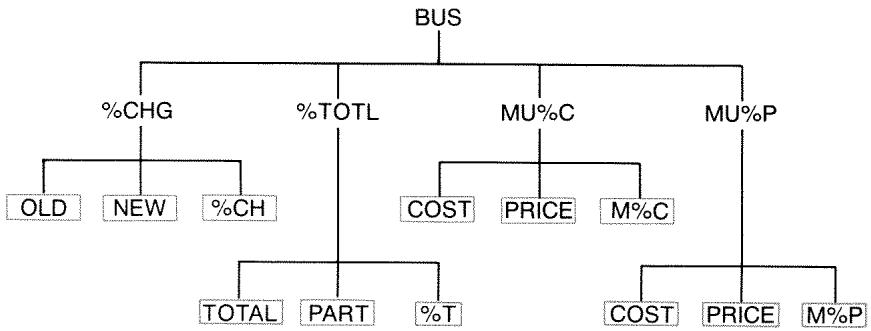
Figure C-1. BUS Menu
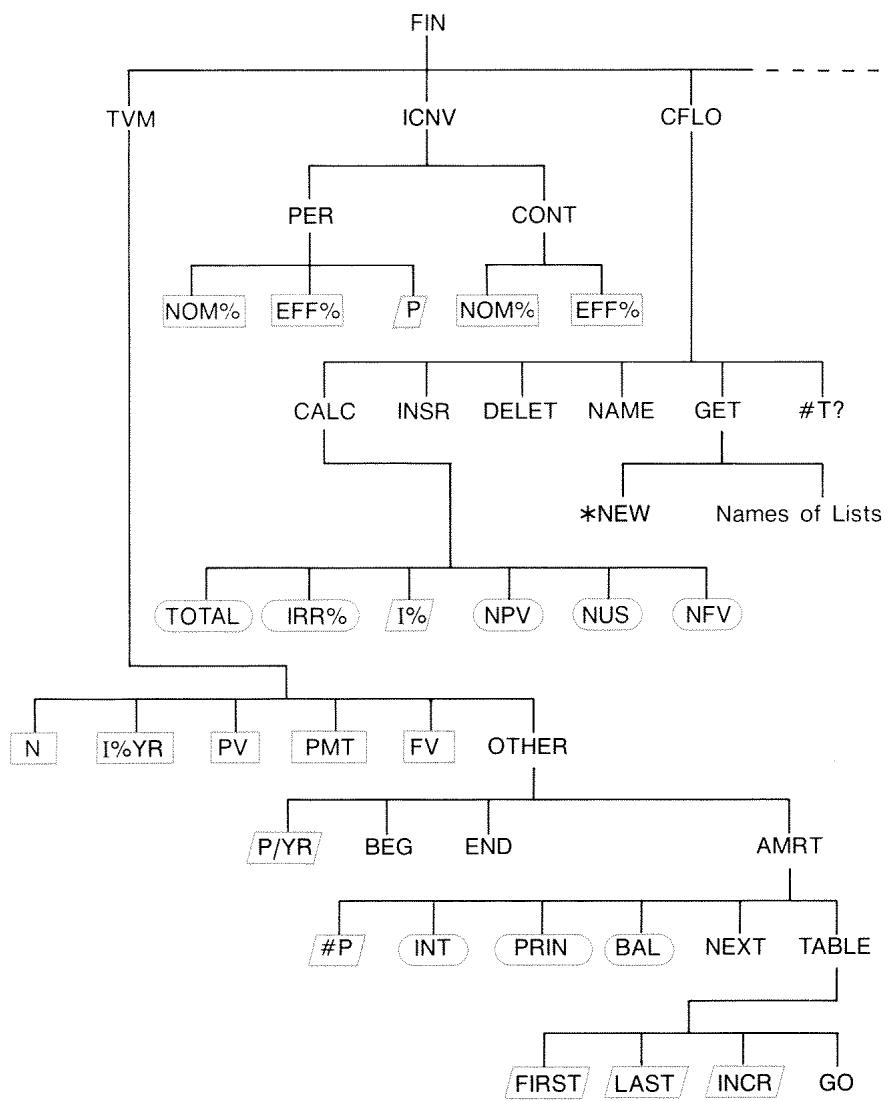
Figure C-2. FIN Menu
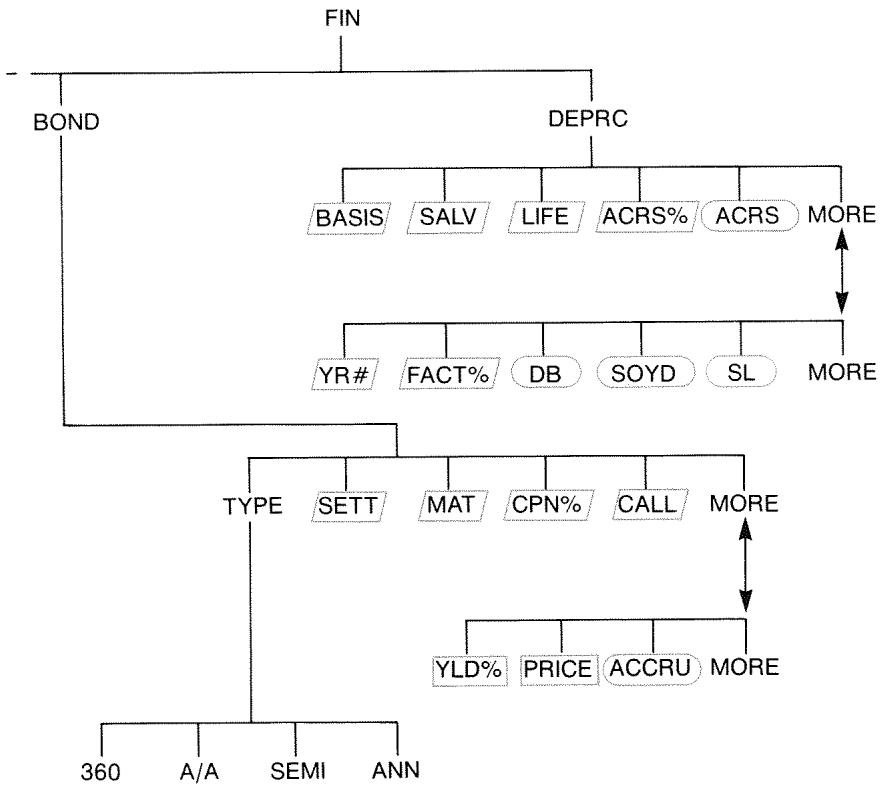
Figure C-2 (continued). FIN Menu
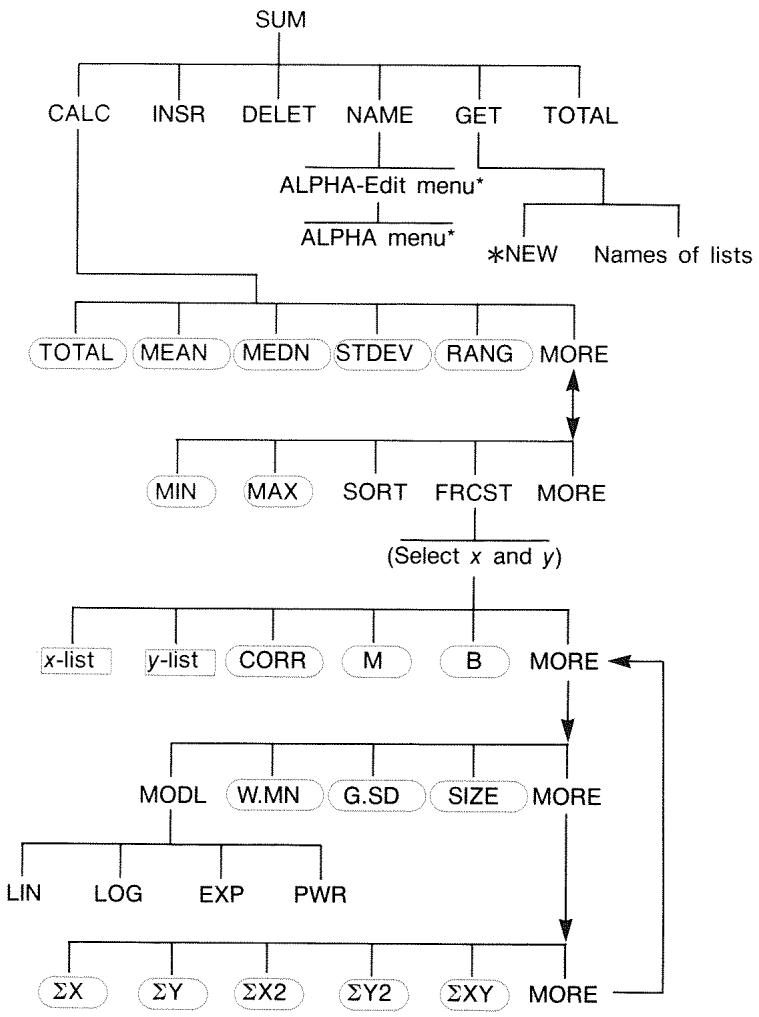
Figure C-3. SUM Menu
- For the complete menu, see pages 27-28.
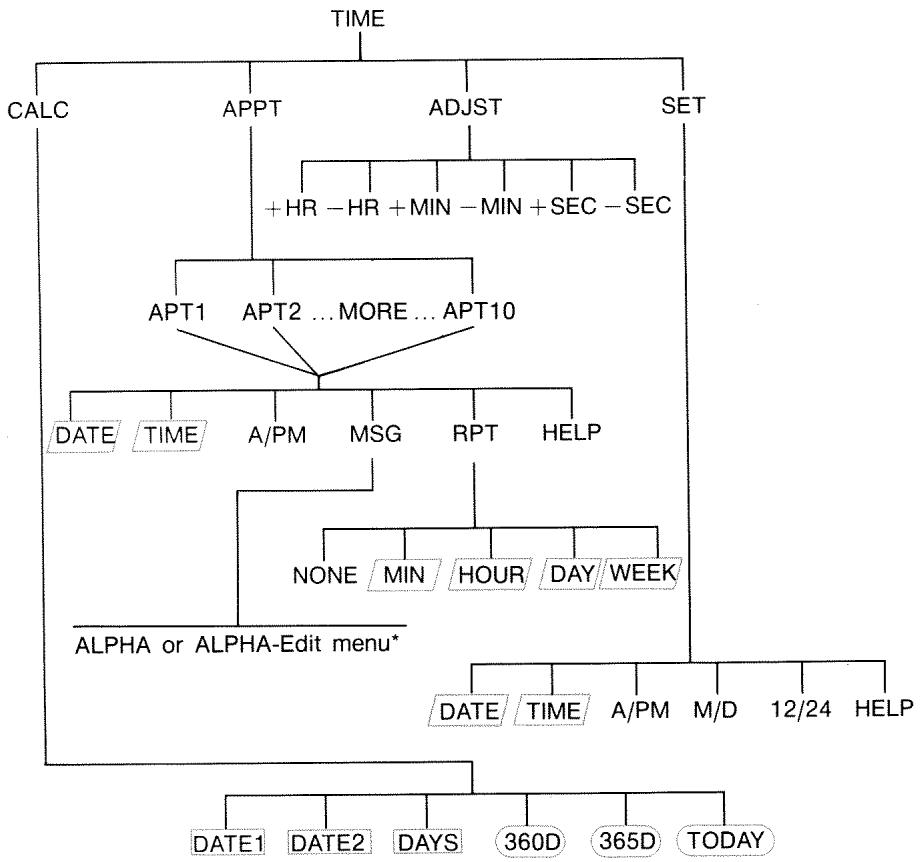
Figure C-4. TIME Menu
- For the complete menu, see pages 27-28.
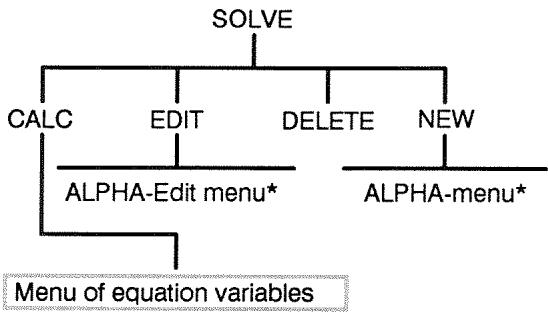
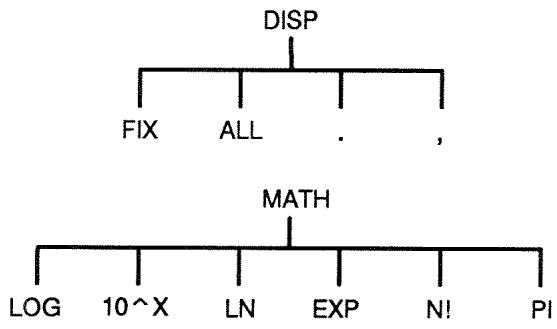
Figure C-5. SOLVE Menu
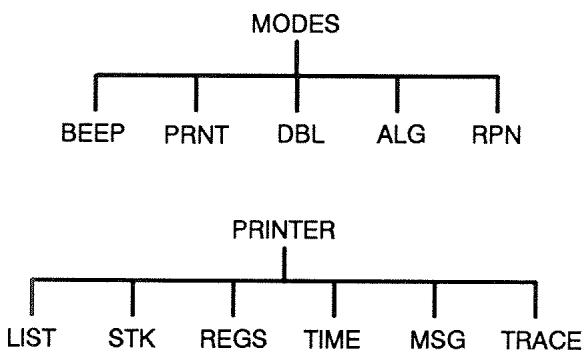
Figure C-6. DSP, MATH, MODES, and PRINTER Menus
- For the complete menu, see pages 27-28.
RPN: Summary
About RPN
The RPN appendix (D, E, and F) are especially for those of you who want to use or learn RPN — Hewlett-Packard's original Reverse Polish Notation for operating calculators. This calculator can use either RPN or algebraic logic for calculations — you choose which.
HP's RPN operating logic is based on an unambiguous, parentheses-free mathematical logic known as "Polish Notation," developed by the Polish logician Jan Lukasiewicz (1878-1956). While conventional algebraic notation places the operators between the relevant numbers or variables, Lukasiewicz's notation places them before the numbers or variables. For optimal efficiency of the stack, we have modified that notation to specify the operators after the numbers. Hence the term Reverse Polish Notation, or RPN.
Except for the RPN appendix, the examples and keystrokes in this manual are written entirely using Algebraic (ALG) mode.
About RPN on the HP-17B II
This appendix replaces much of chapter 2, "Arithmetic." It assumes that you already understand calculator operation as covered in chapter 1, "Getting Started." Only those features unique to RPN mode are summarized here:
RPN mode.
RPN functions.
RPN arithmetic, including percentages and and RCL arithmetic.
All other operations—including the Solver—work the same in RPN and ALG modes. (The Solver uses algebraic logic only.)
For more information about how RPN works, see appendix E, "RPN: The Stack." For RPN keystrokes of selected examples from chapter 13, see appendix F, "RPN: Selected Examples." Continue reading in chapter 2 to learn about the other functionality of your calculator.

Watch for this symbol in the margin earlier in the manual. It identifies keystrokes that are shown in ALG mode and must be performed differently in RPN mode. Appendixes D, E, and F explain how to use your calculator in RPN mode.
The mode affects only arithmetic calculations—all other operations, including the Solver, work the same in RPN and ALG modes.
Setting RPN Mode
The calculator operates in either RPN (Reverse Polish Notation) or ALG (Algebraic) mode. This mode determines the operating logic used for arithmetic calculations.
To select RPN mode: Press MODES RPN.
The calculator responds by displaying RPH MODE. This mode remains until you change it. The display shows the X register from the stack.
To select ALG mode: Press MODES ALG. The calculator displays ALGEBRATIC MODE.
Where the RPN Functions Are
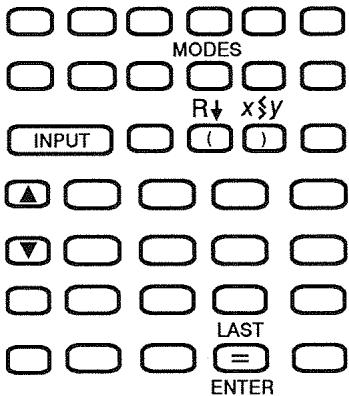
| Function Name | Definition | Key to Use |
| ENTER | Enters and separates one number from the next. | = |
| LAST X | Recalls last number in X-register. | LAST |
| R↓ | Rolls down stack contents. | R↓ (same as 0) |
| R↑ | Rolls up stack contents. | ▲ (except in lists) |
| X <> Y | X-register exchanges with Y-register. | x<>y (same as 0) |
| CHS | Changes sign. | +/- |
Using INPUT for ENTER and for R . Except in CFLO and SUM lists, the INPUT key also performs the ENTER function and the key also performs the ^+ function.
In lists: INPUT stores numbers. Use to enter numbers into the stack during arithmetic calculations.
In lists: and move through lists. Use to roll through stack contents.
Doing Calculations in RPN
Arithmetic Topics Affected by RPN Mode
This discussion of arithmetic using RPN replaces those parts of chapter 2 that are affected by RPN mode. These operations are affected by RPN mode:
Two-number arithmetic (+,,-,,*)
The percent function (%)
The LAST X function (LAST). See appendix E.
RPN mode does not affect the MATH menu, recalling and storing numbers, arithmetic done inside registers, scientific notation, numeric precision, or the range of numbers available on the calculator, all of which are covered in chapter 2.
Simple Arithmetic
Here are some examples of simple arithmetic. Notice that
ENTER separates numbers that you key in.
The operator (+,-,etc.) completes the calculation.
One-number functions (such as ) work the same in ALG and RPN modes.
| To Calculate: | Press: | Display: |
| 12 + 3 | 12 ENTER 3 + | 15.00 |
| 12 - 3 | 12 ENTER 3 - | 9.00 |
| 12 × 3 | 12 ENTER 3 × | 36.00 |
| 12 ÷ 3 | 12 ENTER 3 ÷ | 4.00 |
| 12² | 12 x² | 144.00 |
| √12 | 12 √x | 3.46 |
| 1/12 | 12 1/x | 0.08 |
You do not need to use ENTER before an operator, only between keyed-in numbers. Key in both numbers (separated by ENTER) before pressing the operator key.
The Power Function (Exponentiation). The power function uses the keys.
| To Calculate: | Press: | Display: |
| 123 | 12 ENTER 3 yx | 1,728.00 |
| 121/3 (cube root) | 12 ENTER 3 1/x yx | 2.29 |
The Percent Function. The % key calculates percentages without using the key. Combined with + or - , it adds or subtracts percentages.
| To Calculate: | Press: | Display: |
| 27% of 200 | 200 ENTER 27 % | 54.00 |
| 200 less 27% | 200 ENTER 27 % - | 146.00 |
| 12% greater than 25 | 25 ENTER 12 % + | 28.00 |
Compare these keystrokes in RPN and ALG modes:
RPN Mode
ALG Mode
27% of 200
200 ENTER 27 %
200× 27%
200 less 27%
200 ENTER 27 % -
200 27
Calculations with STO and RCL
The store () and recall () operations work identically in ALG and RPN modes (see "Storing and Recalling Numbers" and "Doing Arithmetic Inside Registers and Variables" in chapter 2). The keystrokes are the same for simple storing and recalling and for doing arithmetic inside registers and variables.
When doing arithmetic in the display with values from storage registers and variables, remember to use RPN. Compare these keystrokes in RPN and ALG modes:
RPN Mode
Store -2× 3 in register 5
2+/- ENTER 3 STO 5
ALG Mode
2+/-×3=STO5
Find PV - 2
FIN TVM RCL PV 2
FIN TVM RCL PV 2
Find PV less 2%
FIN TVM RCL PV 2%
FIN TVM RCL PV 2%
Find PMT × N
FIN TVM RCL PMT RCL H
FIN TVM RCL PMT RCL H
Chain Calculations—No Parentheses!
The speed and simplicity of calculating using RPN are apparent during chain calculations—longer calculations with more than one operation. The RPN memory stack (refer to appendix E) stores intermediate results until you need them, then inserts them into the calculation.
The cube root example and the percentage addition example (previous topics) are two simple examples of chain calculations.
For another example, calculate
7 × (1 2 + 3)
Start the calculation inside the parentheses by finding 12 + 3 . Notice that you don't need to press ENTER to save this intermediate result (15) before proceeding. Since it is a calculated result, it is saved automatically—without using parentheses.
| Keys: | Display: | Description: |
| 12 ENTER 3 | 15.00 | Intermediate result. |
| 7 | 105.00 | Pressing the function key produces the answer. |
Now study these examples. Note the automatic storage and retrieval of intermediate results.
| To Calculate: | Press: | Display: |
| (750 × 12) ÷ 360 | 750 ENTER 12 × 360 ÷ | 25.00 |
| 360 ÷ (750 × 12) | 360 ENTER 750 ENTER 12 × ÷ or 750 ENTER 12 × 360x2y ÷ | 0.04 |
| { (456 - 75 ) ÷ 18.5} × (68 ÷ 1.9) | 456 ENTER 75 ÷ 18.5 ÷ 68 ENTER 1.9 ÷ x | 737.07 |
| (3 + 4) × (5 + 6) | 3 ENTER 4 ÷ 5 ENTER 6 ÷ x | 77.00 |
RPN: The Stack
This appendix explains how calculations take place in the automatic memory stack and how this method minimizes keystrokes in complicated calculations.
What the Stack Is
Automatic storage of intermediate results is the reason that RPN mode easily processes complicated calculations—without using parentheses. The key to automatic storage is the automatic RPN memory stack.
The memory stack consists of up to four storage locations, called registers, which are "stacked" on top of each other. It is a work area for calculations. These registers—labeled X, Y, Z, and T—store and manipulate four current numbers. The "oldest" number is the one in the T-(top) register.
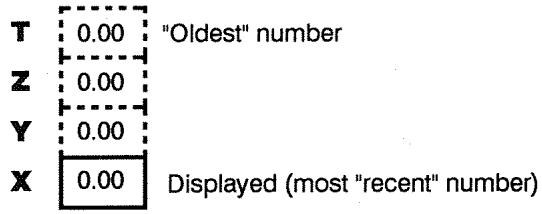
The most "recent" number is in the X-register: This is the number you see in the display.
Reviewing the Stack (Roll Down)
The (roll down) function (on the key) lets you review the entire contents of the stack by "rolling" the contents downward, one register at a time. While in RPN mode you don't need to press the shift key for .
The key has the same effect as + , except in a CFLO or SUM list, when affects the list and not the stack. Likewise, the key rolls the contents of the stack upward, except in lists.
Rolling a Full Stack. Suppose the stack is filled with 1, 2, 3, 4 (press 1 ENTER 2 ENTER 3 ENTER 4). Pressing four times rolls the numbers all the way around and back to where they started:
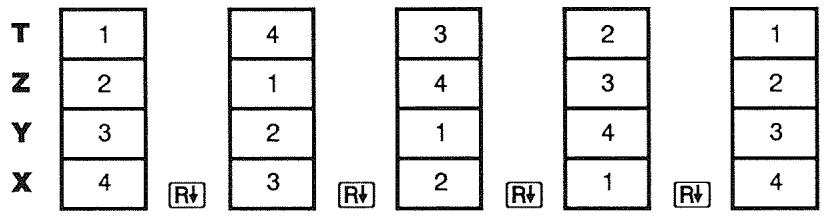
When you press , the value in the X-register rotates around into the T-register. Notice that the contents of the registers are rolled, while the registers themselves maintain their positions. The calculator displays only the X-register.
Variable Stack Size. Clearing the stack by pressing CLEAR DATA reduces the stack to one register (X) with a zero in it. As you enter numbers, the stack builds up again. The R and functions roll through as many registers as currently exist (one, two, three, or four).
Exchanging the X- and Y-Registers in the Stack
Another function that manipulates the stack contents is ( x exchange y ), located on the key. It swaps the contents of the X- and Y-registers without affecting the rest of the stack. Pressing again restores the original order of the contents. While in RPN mode you don't need to press the shift key for .
The ≥ y function is used primarily to swap the order of numbers in a calculation. For example, an easy way to calculate 9 ÷ (13 × 8) is to press 13 ENTER 8 × 9 ≥ y
Arithmetic—How the Stack Does It
The contents of the stack move up and down automatically as new numbers enter the X-register (lifting the stack), and as operators combine two numbers to produce one new number in the X-register (dropping the stack). See how a full stack drops, lifts, and drops its contents while calculating
3 + 4 - 9:
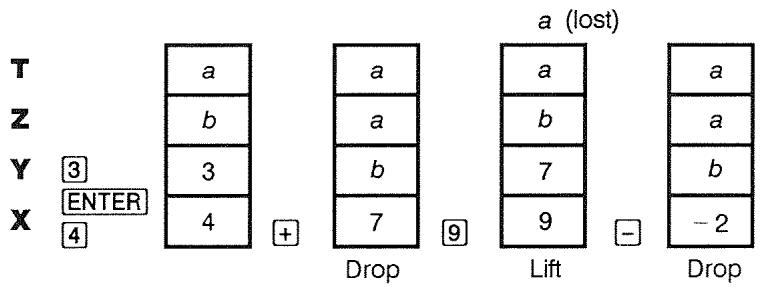
(a and b represent values already on the stack.)
- Notice that when the stack drops, it replicates the contents of the T-register and overwrites the X-register.
- When the stack lifts, it pushes the top contents out of the T-register, and that number is lost. This shows that the stack's memory is limited to four numbers for calculations.
- Because of the automatic movement of the stack, you do not need to clear the display before doing a new calculation.
- Most functions (except ENTER and CLR) prepare the stack to lift its contents when the next number enters the X -register.
How ENTER Works
You know that ENTER separates two numbers keyed in one after the other. In terms of the stack, how does it do this? Suppose the stack is filled with a , b , c , and d . Now enter and add two new numbers:
5 + 6:
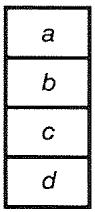
5
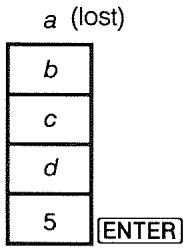
Lift
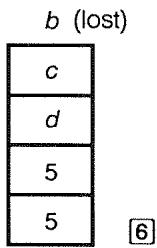
Lift
6
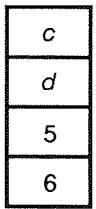
No lift

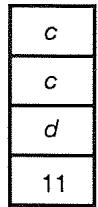
Drop
ENTER replicates the contents of the X-register into the Y-register. The next number you key in (or recall) writes over (instead of lifting) the copy of the first number left in the X-register. The effect is simply to separate two sequentially entered numbers.
Using a Number Twice in a Row. You can use the replicating feature of ENTER to other advantages. To add a number to itself, key in the number and press ENTER+
Filling the Stack with a Constant. The replicating effect of , together with the replicating effect (from T into Z) of stack drop, allows you to fill the stack with a numeric constant for calculations.
Example: Constant, Cumulative Growth. The annual sales of a small hardware company are projected to double each year for the next 3 years. If the current sales are (84,000, what are the annual sales for each of the next 3 years?
- Fill the stack with the growth rate (2 ENTER ENTER ENTER).
- Key in the current sales in thousands (84).
- Calculate future sales by pressing for each of the next 3 years.
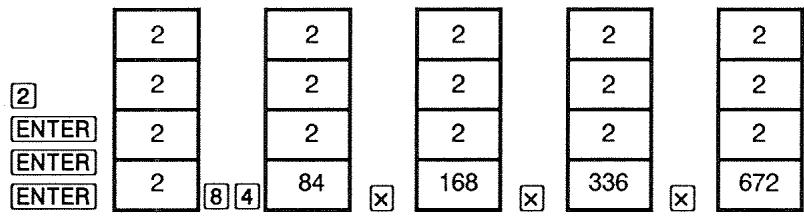
Sales for the next 3 years are projected to be 168,000; 336,000; and $672,000.
Clearing Numbers
Clearing One Number. Clearing the X-register puts a zero in it. The next number you key in (or recall) writes over this zero.
There are two ways to clear the number in the X-register:
Press +
Press CLR
For example, if you wanted to enter 1 and 3 but mistakenly entered 1 and 2, these keystrokes would correct it:
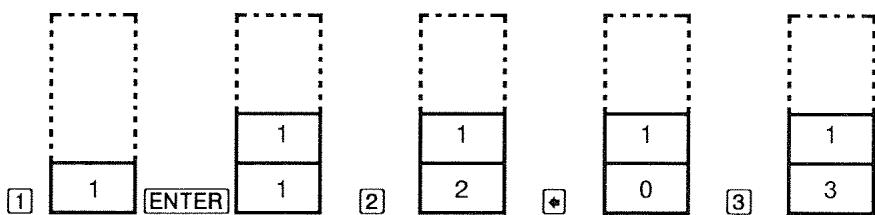
Clearing the Entire Stack. Pressing CLEAR DATA clears the X-register to zero and eliminates the Y-, Z-, and T-registers (reducing the size of the stack to one register). The stack expands again when you enter more numbers.
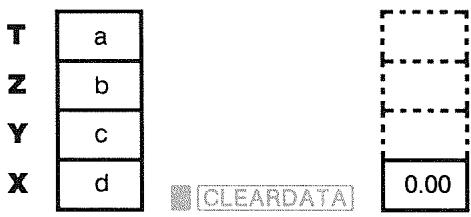
Because of the automatic movement of the stack, it is not necessary to clear the stack before starting a calculation. Note that if an application menu is currently displayed, pressing CLEAR DATA also clears the application's variables.
The LAST X Register
Retrieving Numbers from LAST X
The LAST X register is a companion to the stack: It stores the number that had been in the X-register just before the last numeric operation (such as a operation). Pressing LAST returns this value to the X-register. This ability to recall the "last x " value has two main uses:
- Correcting errors: retrieving a number that was in the X-register just before an incorrect calculation.
Reusing a number in a calculation.
Reusing Numbers
You can use LAST to reuse a number (such as a constant) in a calculation. Remember to enter the constant second, just before executing the arithmetic operation, so that the constant is the last number in the X-register, and therefore can be saved and retrieved with LAST
Example: Calculate 96.74 + 52.3952.39 .
| Keys: | Display: | Description: |
| 96.74 ENTER | 96.74 | |
| 52.39 + | 149.13 | Intermediate result. |
| LAST | 52.39 | Retrieves the number before the + operation, saved in LAST X. |
| ÷ | 2.85 | Final result. |
Chain Calculations
The automatic lifting and dropping of the stack's contents let you retain intermediate results without storing or reentering them, and without using parentheses. This is an advantage the RPN stack has over algebraic calculator logic. Other features of RPN include the following:
You never work with more than two numbers at a time.
ENTER separates two numbers keyed in sequentially.
- Pressing an operator key executes that operation immediately.
Intermediate results appear as they are calculated, so you can check each step as you go.
Intermediate results are automatically stored. They reappear automatically as they are needed for the calculation—the last result stored is the first to come back out.
- You can calculate in the same order as you would with pencil and paper—that is, from the innermost parentheses outward:
4 ÷ [1 4 + (7 × 3) - 2] = 0. 1 2
can be solved as 7 ENTER 3 + 14 + 2 - 4 xzy
Exercises
Here are some extra problems that you can do to practice using RPN.
Calculate: (14 + 12) × (18 - 12) ÷ (9 - 7) = 78.00
A Solution: 14 ENTER 12 + 18 ENTER 12 - x 9 ENTER 7 -
Calculate: 232 - (13 × 9) + 17 = 412.14
A Solution: 23 2 13 ENTER 9 -7 1 / x +
Calculate: (5.4 × 0.8) ÷ (12.5 - 0.73) = 0.60
A Solution: 5.4 ENTER .8 × .7 ENTER 3 y 12.5 xzy -

or
5.4 ENTER .8 × 12.5 ENTER .7 ENTER 3
Calculate: 8.33 × (4 - 5.2) ÷ [(8.33 - 7.46) × 0.32]4.3 × (3.15 - 2.75) - (1.71 × 2.01 = 4.57
A Solution: 4 ENTER 5.2 - 8.33 x LAST 7.46 - .32 x
3.15 ENTER 2.75 4.3 1.71 ENTER 2.01 x -
RPN: Selected Examples
The following examples selected from chapter 13 ("Additional Examples") have been converted to RPN keystrokes. These examples illustrate how to convert algebraic to RPN keystrokes in less common situations: with % ,with [] , and in a CFLO list.
Example: Simple Interest at an Annual Rate. Your good friend needs a loan to start her latest enterprise and has requested that you lend her (450 for 60 days. You lend her the money at (7 \%)simple annual interest, to be calculated on a 365- day basis. How much interest will she owe you in 60 days, and what is the total amount owed?
| Keys: | Display: | Description: |
| 450 ENTER 7 % | 31.50 | Annual interest. |
| 60 × 365 ÷ | 5.18 | Actual interest for 60 days. |
| 450 ÷ | 455.18 | Adds principal to get total debt. |
Example: APR for a Loan with Fees. A borrower is charged two points for the issuance of a mortgage. (One point is equal to 1% of the mortgage amount.) If the mortgage amount is \60,000for 30 years and the interest rate is11^{1} / _{2}\%$ annually with monthly payments, what APR is the borrower paying?
- Since the payment amount is not given, calculate it (PMT) first. Use the given mortgage amount (PV = 60,000) and interest rate (I%YR = 11^{1}$ /2%).
- To find the APR (the new ( I\% YR )), use the PMT calculated in step 1 and adjust the mortgage amount to reflect the points paid (( PV = \)60,000 - 2\% )). All other values remain the same (term is 30 years; no future value).
| Keys: | Display: | Description: |
| FIN TYM | If necessary, sets 12 payments per year and End mode. | |
| OTHER | ||
| CLEAR DATA | ||
| EXIT | 12 F/YR END MODE | |
| 30 H | N=360.00 | Figures and stores number of payments. |
| 11.5 I:YR | Stores interest rate and amount of loan. | |
| 60000 PV | PV=60,000.00 | |
| 0 FV | FV=0.00 | No balloon payment, so future value is zero. |
| PMT | PMT=-594.17 | Borrower's monthly payment. |
| RCL PV | Stores actual amount of money received by borrower into PV. | |
| 2 % PV | PV=58,800.00 | |
| I:YR | I:YR=11.76 | Calculates APR. |
Example: Loan from the Lender's Point of View. A 1,000,000 10 -year, 12% (annual interest) interest-only loan has an origination fee of 3 points. What is the yield to the lender? Assume that monthly payments of interest are made. (Before figuring the yield, you must calculate the monthly PMT = (loan × 12% ) ÷ 12 mos.) When calculating the I% YR , the FV (a balloon payment) is the entire loan amount, or \1,000,000, while thePV$ is the loan amount minus the points.
| Keys: | Display: | Description: |
| FIN | TVM | If necessary, sets 12 |
| OTHER | payments per year and | |
| CLEAR DATA | End mode. | |
| EXIT | 12 P/YR END MODE | |
| 10 | N=120.00 | Stores total number of |
| 1000000 ENTER | Calculates annual interest on $1,000,000. | |
| 12 % | 120,000.00 | |
| 12 ÷ PMT | PMT=10,000.00 | Calculates, then stores, monthly payment. |
| 1000000 FV | FV=1,000,000.00 | Stores entire loan amount as balloon payment. |
| 3 % +/- FV | FV=-970,000.00 | Calculates, then stores, amount borrowed (total - points). |
| IXYR | IXYR=12.53 | Calculates APR - the yield to lender. |
Example: Savings for College. Your daughter will be going to college in 12 years and you are starting a fund for her education. She will need (15,000 at the beginning of each year for four years. The fund earns (9\%) annually, compounded monthly. You plan to make monthly deposits, starting at the end of the current month. How much should you deposit each month to meet her educational expenses?
See figures 13-1 and 13-2 (chapter 13) for the cash-flow diagrams.
Remember to press the key for ENTER while working in a list. (Pressing INPUT will add data to the list, not perform an ENTER.)
| Keys: | Display: | Description: |
| FIN CFLO | Displays current cash-flow list and CFLO menu keys. | |
| CLEAR DATA | Cleared current list or gets a new one. | |
| YES | ||
| or | ||
| GET *NEW | FLOW(B)=? |
Step 1: Set up a CFLO list.
| Keys: | Display: | Description: |
| 0 INPUT | FLOW(1)=? | Sets initial cash flow, FLOW(0), to zero. |
| 0 INPUT | #TIMES(1)=1 | Stores zero in FLOW(1) and prompts for the number of times it occurs. |
| 12 ENTER 12 × 1 - INPUT | FLOW(2)=? | For ENTER, press =, not INPUT. Stores 143 (for 11 years, 11 months) in #TIMES(1) for FLOW(1). |
| 15000 INPUT | #TIMES(2)=1 | Stores amount of first withdrawal, at end of 12th year. |
| INPUT | FLOW(3)=? | |
| 0 INPUT | #TIMES(3)=1 | Stores cash flows of zero ... |
| 11 INPUT | FLOW(4)=? | ... for the next 11 months. |
| 15000 INPUT | FLOW(5)=? | Stores second withdrawal, for sophomore year. |
| 0 INPUT 11 INPUT | FLOW(6)=? | Stores cash flows of zero for the next 11 months. |
| 15000 INPUT | FLOW(7)=? | Stores third withdrawal, for junior year. |
| 0 INPUT 11 INPUT | FLOW(8)=? | Stores cash flows of zero for the next 11 months. |
| 15000 INPUT | FLOW(9)=? | Stores fourth withdrawal, for senior year. |
| EXIT CALC | NPV, NUS, NFV | Done entering cash flows; gets CALC menu. |
Step 2: Calculate NUS for the monthly deposit. Then calculate net present value.
| Keys: | Display: | Description: |
| 9 ENTER 12 | IX=0.75 | Figures the periodic (monthly) interest rate and stores it in I%. |
| HUS | HUS=182.30 | Amount of monthly deposit needed to meet planned withdrawals. |
| NPV | NPV=17,973.48 | Calculates the net present value of the monthly deposits, which is the same as the NPV of the four future withdrawals. |
Example: Tax-Free Account. Consider opening an IRA account with a dividend rate of 8.175% . 1) If you invest \2,000at the beginning of each year for 35 years, how much will you have at retirement? 2) How much will you have paid into the IRA? 3) How much interest will you have earned? 4) If your post-retirement tax rate is15\%, what is the after-tax future value of the account? Assume only the interest will be taxed (the principal was taxed before deposit). 5) What is the purchasing power of that amount, in today's dollars, assuming an8\%$ annual inflation rate?
| Keys: | Display: | Description: | ||
| FIN | TVM | Sets 1 payment per year and Begin mode. | ||
| OTHER | 1 P/YR | |||
| BEG | EXIT | 1 P/YR | BEGIN MODE | |
| 35 | N | N=35.00 | Stores number of payment periods until retirement (1×35). | |
| 8.175 | I.ZYR | I.ZYR=8.18 | Stores dividend rate. | |
| 0 | PV | PV=0.00 | Present value of account (before first payment). | |
| 2000 +/- PMT | PMT=-2,000.00 | Annual payment (deposit). | |
| FV | FV=387,640.45 | Calculates amount in account at retirement. | |
| RCL PMT RCL | Calculates total amount paid into IRA by retirement. | ||
| H × | -70,000.00 | ||
| RCL FV + | 317,640.45 | Calculates interest you will earn. | |
| 15 % | 47,646.07 | Taxes at 15% of interest. | |
| +/- RCL FV | Subtracts taxes from total FV to calculate after-tax FV. | ||
| + | 339,994.39 | ||
| FV | FV=339,994.39 | Stores after-tax future value in FV. | |
| 8 I:YR 0 PMT | Calculates present-value purchasing power of the above after-tax FV at 8% inflation rate. | ||
| FV | FV=-22,995.36 | ||
Example: Taxable Retirement Account. If you invest (3,000 each year for 35 years, with dividends taxed as ordinary income, how much will you have in the account at retirement? Assume an annual dividend rate of (8.175\%) and a tax rate of (28\%), and that payments begin today. What will be the purchasing power of that amount in today's dollars, assuming (8\%) annual inflation?
| Keys: | Display: | Description: |
| FIN TVM | Displays TVM menu. | |
| OTHER 1 P/YR | Sets 1 payment per year and Begin mode. | |
| BEG EXIT | 1 P/YR BEGIN MODE | |
| 35 N | N=35.00 | Stores years until retirement. |
| 8.175 ENTER 28 % | 5.89 | Calculates interest rate diminished by tax rate. |
I:YR
IXYR=5.89
0 F
PV=0.80
3000 + / -
FMT
PMT=-3,000.00
FV
FV=345,505.61
8 I#R0
PV
PMT
PV=-23,368.11
Stores interest rate.
Stores no present value.
Stores annual payment.
Calculates future value.
Calculates present-value purchasing power of the above FV at 8% inflation.
Error Messages
The calculator beeps and displays an error message under certain circumstances—for example, when you attempt an operation that is not allowed.
The calculator distinguishes between math errors that occur on the calculator line and other types of messages by preceding math-error messages with the word ERROR:
Press CLR or to erase the message and restore the previous display.
BAD GUESSES:
PRESS [CLR] TO VIEW
The Solver cannot begin a numerical search using the initial estimates.
See pages 167 and 227.
BATTTOOLLOWTOPRINT
To conserve battery power, the calculator will not transmit data to the printer until fresh batteries have been installed.
CURRENT LIST UNNAMED;
NAME OR CLEAR THE LIST
Attempted to get another list without first clearing or naming the current list. Press CLEAR DATA to clear it or NAME to name it.
EMPTY LIST
Attempted a calculation using an empty CFLO or SUM list.
ERROR: LOGARITHM(NEG)
ERROR: LOGARITHM(0)
Attempted to take the base 10 or natural log of a negative number or zero. This can happen during curve-fitting calculations if you attempt to calculate:
A logarithmic forecasting model with a negative or zero x -value.
An exponential model with a negative or zero y -value.
A power model with a negative or zero x - or y -value.
ERROR: NEG^NONINTEGER
Attempted to raise a negative number to a non-integer power.
ERROR:OVERFLOW
An internal result in a calculation was too large for the calculator to handle.
ERROR: SQRT(NEG)
Attempted to take the square root of a negative number or calculate G.SD given any negative frequencies.
ERROR: UNDERFLOW
An internal result in a calculation was too small for the calculator to handle.
ERROR: 0^NEG
Attempted to raise zero to a negative power.
ERROR: 0÷0
Attempted to divide zero by zero.
ERROR: 0^0
Attempted to raise zero to the zero power.
ERROR: ÷ 0
Attempted to divide by zero.
INPUTSCAUSED-0
The numbers stored into built-in variables caused a division by zero in the calculation. You must change one or more stored values. (Refer to the equations in appendix B to see which variables appear in the divisor.)
INSUFFICIENT DATA
■ Attempted to calculate standard deviation with only one value in the list.
■ Attempted to do curve fitting using an x -variable list in which all the values are equal.
■ Attempted to do curve fitting using the logarithmic or power models with a list for which the transformed values of x ( x ) are equal.
INSUFFICIENT MEMORY
The calculator has insufficient memory available to do the operation you've specified. Refer to "Managing Calculator Memory" on page 216 for additional information.
INTEREST 一 = -100%
One of the following values for interest is less than or equal to -100 :
TVM menu: I% YR ÷ P/YR.
PER menu: NOM% ÷ P (calculating EFF% ); EFF% (calculating NOM% ).
CONT menu: EFF% .
■ CFLO menu: I% (calculating NPV, NUS, or NFV) or estimate of IRR%.
INTERRUPTED
Calculation of I% YR, IRR% , amortization results, a Solver variable, or a SUM-list sort was interrupted.
INVALID DATE
The number entered cannot be interpreted as a proper date. Check its format (page 132).
■ Attempted to set a date outside the range 1/1/1987 through 12/31/2086, or attempted date arithmetic outside the range 10/15/1582 through 12/31/9999.
INVALID EQUATION
The Solver cannot interpret the equation due to a syntax error. Refer to "What Can Appear in an Equation," page 154.
A variable's name is invalid. Refer to "Names of Variables," page 155.
INVALID INPUT
■ Attempted to store into a built-in variable a number that is outside the range of values permitted for that variable.
The number entered cannot be interpreted as a proper time.
The appointment's repeat interval is out of range.
■ Attempted to enter a non-integer, negative number when specifying the number of displayed decimal places (in DSP).
INVALID
Attempted to calculate I% YR with N 0.99999 or N 1010 .
IRR% > 0 EXISTS; KEY
IN GUESS; [STO] (IRR%)
Calculation of IRR% produced a negative answer, but the calculator has determined that there is also a unique positive answer. (Refer to page 226.)
MACHINE RESET
The calculator has been reset (page 214, 217).
MANY OR NO SOLUTIONS
The calculator is unable to calculate I% YR. Check the values stored in PV, PMT, and FV. Make sure the signs of the numbers are correct. If the values of PV, PMT, and FV are correct, the calculation is too complex for the TVM menu. You may be able to perform the calculation using the CFLO menu to calculate IRR% .
MANY/NO SOLUTIONS; KEY
IN GUESS; [STO] (IRR%)
The calculation of IRR% is complex, and requires you to store a guess.
(Refer to page 227.)
MEMORY LOST
Continuous Memory has been erased (page 214, 218).
NAME ALREADY USED:
TYPE A NAME; [INPUT]
The list name name you've attempted to enter is already in use; type in a new name and press INPUT.
NO SOLUTION
No solution is possible using the values stored in the current built-in menu or list. This most commonly results from an incorrect sign for a cash flow or other monetary value. (Review page 53.)
N! N<0 OR N NONINTEGER
Attempted to calculate the factorial of a negative or non-integer value.
OVERFLOW
A warning—not an error—that the magnitude of a result is too large for the calculator to handle, so it returns ± 9.99999999999E499
rounded to the current display format. See page 44 for limits.
SOLUTION NOT FOUND
No solution was found for a Solver equation using the current values stored in its variables. Refer to page 234 in appendix B.
UNDERFLOW
A warning—not an error—that the magnitude of a result is too small for the calculator to handle, so it returns the value zero. See page 44 for limits.
UNEQUAL LIST LENGTHS
Attempted a two-list SUM calculation using lists of unequal lengths.
Special Characters
, 15, 16, 250
() alarmannunciator,136
low-batteryannunciator,16, 172,214
print annihilator, 171 → shift annihilator, 17
10X,39
12×24,132
360D,138
365D,138
, 17
,32 1,32
= ,162
+/-, 20, 24
+HE,133
-MIN,133
- ,44
1/x,38
,38
%,37
CH,46
:CHG,45,46-47
:CHG menu
formula, 236
using, 46
TOTL,45,47
%TOTL menu
formula, 236
using, 47
*NEW,116
F,67
T? ,81,85-86
TIMES,85-86
,121,129,159,163-164,209
EXY,121,129
EX ,121,129
X82,121,129
γ ,121,129
, 121, 129
l ,18,29,260
or 162
or , 40, 251, 257
with history stack, 40
in a list, 85, 150
editing a list, 87
→ , - > , < - 1<<-,29
A
ABS (absolute value) function, 157
ACCRU,98
Accrued interest, on bond, 98, 99
Accuracy of the clock, 218
Acknowledging appointments, 136
HCRS,104
ACRS,104
Actual calendar
actuarial equations, 235
for arithmetic, 138
for bonds, 98
Addition, 19
ADJST menu, 133
Advance payments, 63-66, 187-189, 242. See also
Leasing
HLG,33,250
Algebraic
mode, 33, 250
rules in equations, 153-154
HLL key, 31
ALOG,157
Alphabetic keys, 27-29
ALPHAbetic menu, 27
Amortization
calculations, 67-70
equations, 236-237
schedule, 68
schedule, printing, 71-72
AM/PM format, 132
AMRT menu, 67
AND operator, 155, 162
Annual percentage interest rate in TVM, 52
with fees, 181
with fees, RPN, 264
Annunciators, 16
definition, 17
printer, 171
Antilogarithms, 39, 157
H/PM, appointment-setting menu, 132
Appointment
menus, 131, 133-134
messages, 135
repeat interval, 135, 136
-setting menu, 134
Appointments
acknowledging, 136
clearing, 137
memory used by, 217
messages, 133
past due, 134
printing, 175
setting, 134-136
unacknowledged, 134, 136
APPT menu, 134
HFT1 through HPT10, 134
Arithmetic, 19-20, 35
in registers and variables, 43
in RPN, 253-255, 258
in RPN stack, 258
RPN examples, 263
Arithmetic priority, 142
Arrow keys
for changing current equation, 144
for editing, 29
for finding an equation, 150
for rolling the history stack, 40
for viewing long equations, 154
B
B,121
Backspace key, 18
BHL,67
Balance of loan, 69-70
Balloon payment, 54, 59-60
BHSIS,104
Batteries, changing, 214-216
Battery life, 214
annunciator, 214
Beeper, 136
Beeper on and off, 33
EEG,53
Begin payment mode, 53, 55
Beginning of list
in CFLO, 87
in SUM list, 113
BOND menu, 97-98
Bond calculations, 98-102
equations, 238
fractional values for, 100
price, 100
type, 98, 99
yield, 100
Bonds, 203-204
Bottom
of the current list, in CFLO, 84
of the Solver list, 150
Braces in equations, 155
Brackets in equations, 155
Brightness of the display, 16
Built-in variables. See Variables, built-in
BUS menu, 45, 243
Business variables, clearing, 45
Buy option, for a lease, 64-66
B -value,incurvefitting,121
C
, 15, 16, 250
CALC menu
in CFLO menu, 90
inSOLVE menu,146-147
in SUM menu, 117
in TIME menu, 138
CALC
in CFLO menu, 81
inSOLVE menu,145
in SUM menu, 111
in TIME menu, 131
Calculations, RPN
order of, 262
parenthesis in, 255, 262
Calculator line
arithmetic in, 35-44
definition, 17
displaying alphabetic information, 28-29
editing, 18
Calculator
not functioning, 219-220
resetting, 214, 217-218
Support, 211
Calendar basis, 97-98
Calendar. See also Date
360-day, 138
365-day, 138
actual, 138
range of, 138
Call, 98, 101
CALL,98
Canadian mortgage, 185-187, 241
Capitalized value, lease, 63-64
Cash flow
calculations, 80-96
equations, 237-238
list. See CFLO list
Cash flow diagrams
in cash flow calculations, 82-83
in TVM calculations, 53-55
Cash flows
equal. See Cash flows, grouped
grouped, 83, 93
initial, 83, 84
maximum number of, 80
sum of, 90
ungrouped, 82
zero,83,84
CDATE, 157
CFLO list
CALC menu, 90
clearing, 89
copying from, 87
correcting, 87
creating, 83
definition, 80
deleting numbers, 87
editing, 81, 87
entering numbers in, 84-86
GETing a new list, 88
inserting numbers, 87
name,clearing,89
naming, 87-88
printing, 174
signsofnumbers,82
starting a new list, 88
viewing name of current list, 88 viewing numbers, 87
Chain calculations, 19, 35-36 in RPN, 255, 262
Changing batteries, 213-216 the sign of a number, 20
Characters
for CFLO list, 87-88
for equation names, 149
in equations, 154-155
for SUM list, 115-116
inserting and deleting, 28-29
Checking calculator operation, 219-221
%CHG menu, 46 Chi-squared, 208-210
CLEAR DATA, 18, 25-26
Clearing, 18
AMRT variables, 69
appointments, 135, 137
BOND variables, 98
BUS variables, 45
calculator memory, 25-26
CFLO lists, 84, 89
%CHG variables, 45
ICONVvariables,75
menu variables, 25
menus, 25
MU%C variables, 45
MU%P variables, 45
numbers in RPN, 260
the history stack, 40
the RPN stack, 257, 261
Solver variables, 151
SUM lists, 112
% T variables, 45
TIMECALCvariables,138
TVMvariables,53
variables, 25-26
Clock. See Time
CLR, 16, 18, 29
Commas,in numbers,32
Compound interest calculations, 50
Compounding annual, 60 monthly, 56, 57, 59, 63, 64 periods, 50, 51, 52, 53 periods, vs. payment peric 77-79, 189 rates, 73 semimonthly, 62
Conditional expressions, 161-163
Constant numbers, RPN, 259, 261
Constants in equations, 155
CONT menu, 75
Continuous compounding, calculating interest for, 74
Continuous Memory, 34 erasing, 214, 218 using, 16
Contrast of display, changing, 16
Conventional investments, definition, 90
Converting interest rates, 74-76
CORR, 121
Correlation coefficient, 121
COST key, 48-49
Cost of capital, 90 markup on, 45, 47-48
Counter variable, in summation function, 163
Coupon basis, 97-98 payments, 97
CPN2,98
Creating a CFLO list, 83-86, 88
a new equation, in the Solver, 145-146
a SUM list, 112-113, 116
CTIME, 157
Cuberoot,38 inRPN,253
Current equation, 144 deleting, 151-152 printing, 175
Cursor, 17 movement keys, 29
Curve fitting, 110, 121-123 calculations, 123-126 equations, 240
Customer Support, 211
D
Date arithmetic, 138-140
Date format, 132, 133 for appointments, 133
DATE in appointment-setting menu, 134 in SET menu, 132
Date in the past or future, 140 setting, 132-133 viewing, 130
DATE, Solver, 157
DATE1,138
DATE2,138
Day of the week, determining, 138
Day.month.year format, 132, 133
DAYS,138
DE ,104DEL,33,
DDAYS,157
Decimal places, 31, 44
Decimal point, 32
Declining balance depreciation. See Depreciation
DEL ,29
DELET in CFLO menu, 81 in Solver menu, 145, 1 in SUM menu, 111, 11
Deleting all information, 214, 217-218
characters, 29 equations, 151-152
from a CFLO list, 87, 89
from a SUM list, 114, 116
variables in the Solver, 151-152
Dependent variable, 123
DEPRC menu, 103
Depreciation ACRS method, 103, 107-108
calculations, 103-109
declining balance method, 103, 105-106
equations, 239
partial year, 108-109
straight line, 103, 105
sum of the years' digits, 103, 105
Diagnostic self-test, 220-221
Diagrams, cash flow, 53-55, 82-83
Digit separator, 32
Direct solutions in Solver, 166, 228, 229-230
Discount rate, 90
Display
clearing, 18
contrast, 16
format, 30
in RPN, 256-261
messages, 33
organization, 17, 40
printing the contents of, 172
turning on and off, 16
Displayed messages, 271
Displaying
the contents of registers, 40-43
values assigned to variables, 25
Division, 35-37
Doublespace printing, 33, 172
[DSP], 30-32
DSP menu, 30-32, 248
E
Ekey,44
EDIT,145,149
Editing
alphabeticinformation,28-29
equations, 149
keys, 28-29
EFF: key, 77-75
Effective interest rate, 73-76, 89
E, in numbers, 44
Electronic interference, 224-225
End payment mode, 53, 54
END,53
Ending value, in summation function, 163
English language, setting, 213
ENTER,251,252-253,259,262
Entering
equations, 145-146
guesses in the Solver, 168-170
Entering numbers
in a SUM list, 112-113
into CFLO lists, 84-86
in RPN, 252, 259
Environmental limits, 219
Equals sign, used to complete calculations, 19, 35
Equation list. See Solver list
Equation Solver, 141-170, 228-235
clearing, 151
introduction, 26
Equations
algebraic rules, 153
characters in, 154-155
clearing, 151
deleting, 151-152
displaying, 150
editing, 149
entering, 145
erasing, 151
for built-in menus, 235-242
invalid, 146
length of, 141
long, viewing, 154
memory used by, 217
naming, 149
verifying, 145-146
writing, 153
Erasing. See also Clearing; Deleting
Erasing calculator memory, 214, 217-218
Error messages, 271, 33
Estimates, entering in the Solver, 168-170
Examples, 178
in RPN, 264-270
Exchanging registers, RPN, 257
XIT ,22,25,81,85,112,135,149
EXP, 157
EXP,39
EXPM1, 157
Exponential model, 119, 121, 122
Exponential numbers, 44
Exponentiation, 38-39, 253
in equations, 153
F
Face value, bond, 98
FACTx,104
FACT,157
Factorial, 39, 157
FIN menu, 244-245
FIX key,31
FLOW, Solver, 157
Forecasting
calculations, 119-126
equations, 240-241
values, 110, 121-123
Foreign languages, 213
Formating numbers, 30
FP, 157
Fractional part, 157
FRCST menu, 119, 121
FRCST,117
Functions in equations, 155, 157-159
Future date, calculating, 140
Future value of a series of payments
equation, 235
Solver function, 159
FV key, 52
G
General business
calculations, 45-49
equations, 236
GET, in CFLO, 88
GET, in SUM, 116
GO,71
Grouped standard deviation, 126-128
G.SD,121
Guesses
entering in the Solver, 168-170
IRR%, entering, 226-228
Solver, 234
H
Halting a numerical search, 168
Hierarchy of menus, 21
HELP
in the appointment-setting
menu, 134
in the SET menu, 132
Hierarchy of operations, in equations, 153
History stack, 40. See also Stack, RPN
printing, 173
HMS, 158
HP Solve. See Solver
HRS, 158
Humidity requirements, 219
题
1%, 89
I,90
ICNV
equations, 237
menu, 73-74
variables,clearing,75
IDIV, 158
IF, 158, 161-162
nested, 163
Independent variable, 123
Individual Retirement Account, 62-63
INPUT,87
for storing equations, 27
in CFLO menu, 81
in RPN, 252
in the Solver list, 145-146
in SUM list, 112
Inserting characters, 29
INSR
in CFLO list, 81, 87
in SUM list, 111, 113
Installing batteries, 214-216
Insufficient memory, 34, 216
Insurance policy, price, 201-203
INT, 158
INT ,67
Intermediate results, RPN, 256, 262
Interest
compound, 50, 73
equations, 237
on loan, amount of PMT applied toward, 69-70
simple, 50
Interest rate conversions, 73-79, 189, 237
effective and nominal, 73
Internal rate of return. See also
IRR% calculations, 80, 86, 89-90 Interrupting an IRR% calculation, 227
Interrupting the Solver, 168
INT, rounded in amortization calculations, 68
INV, 158
Invalid equation, 146
Inverse, 253
Investments calculating IRR% and NPV of, 90-92
with grouped cash flows, 93-95
IP, 158
IRA, 62-63, 195
IRR%, 89, 90, 198
IFR,90
IRR% calculations, 226-228 halting, 227
IRR% estimate
making, 227-228
seeing current, 227
IRR% solutions, types of, 226-227
ITEM, 158
Iteration in Solver, 167-170, 228, 230-235
IXYR key, 52
L
Language, setting, 213
Large numbers, keying in and displaying, 44
Largest number available, 44
in a list, 117
Last result, copying, 41
LAST,41 in RPN,261
LAST X register, RPN, 261
Leasing, 63-66, 187-189
LEFT-RIGHT, interpreting,
230-233
Letter keys, 27
LIFE,104
LIN,121
Linear estimation, 110, 121-123
Linear model, 119, 122
Linear regression, 110
List. See CFLO list; SUM list; Solver list
List, RPN, 252
rolling the stack, 257
LIST,173
LN, 158
LH,39
LNP1, 158
Loan
amortizing, 67-72
APR for, with fees, 181
APR for, with fees, RPN, 264
calculations, 56-60
interest-only, 182
interest-only,RPN,265
odd-period, 183, 184-185
LOG,39
LOG, 158
Logarithms, 39, 157
Logarithmic model, 119, 121, 122
Logical operators, 162
Low memory, 216-217
Low power, 214
and printing, 172
annunciator, 172
M
M,121
MAIN menu, 17, 20-21
MAIN, 20-23
Manual, organization of, 15
Markup
on cost, 45, 47-48
on price, 45, 48
MAT,98
Math in equations, 153, 155
MATH menu, 39, 248
MAX,117
MAX, 158
MxO,48
M.P,48
M/D,48
MEAN,117
Mean, 239
calculating, 117-119
weighted, 126-128
Median, 239-240
calculating, 117-119
MEDN,117
MEM key, 34
Memory. See also Continuous Memory
Memory
freeing, 216-217
insufficient, 216
losing, 214, 218
requirements, 218
size, 216
using and reusing, 34
Menu
keys, 20
labels, 17
maps, 22, 243-248
Menus
calculations with, 23-25
changing, 22, 25
exiting, 25
names of, 149
printing values stored in, 174-175
sharingvariables,48-49
using, 20-26
Messages for appointments, 135
memory used by, 217
Messages, error, 271
MIN,117
MIN, Solver, 158
MOD, 158
Mode of payments (Begin and End), 53
Models, curve-fitting, 121, 122
Modes
FLG,33,249,250
beeper, 33
double-space printing, 33, 172
menu map, 248
MODES,172
printracapapter,33
RPN,33,249-250,253
Modified IRR, 198-201, 242
MODL,121
Month/day/year format, 132-133
MOREkey,22
Mortgage, 57, 59. See also Loan
calculations, 56-60, 67-69
discounted or premium, 179
Moving average, 206-208
MSO
in appointment setting menu, 134
in printer menu, 173
MU%C, 46
equation, 236
Multiple equations, linking, 165
Multiplication
in arithmetic, 19, 35-37
in equations, 153
MU%P, 46
equation, 236
N
H , 52
H ,52
H! ,39
NAME
in CFLO list, 87-88
in SUM list, 115-116
Names
of equations, 149
of lists,clearing,89
ofvariables,155
Negative numbers in arithmetic calculations, 20 in cash-flow calculations, 82-83 in TVM calculations, 53
Neighbors in Solver, 231
Nested IF function, in the Solver, 163
Net future value, 80, 90
Net present value, 80, 90
Net uniform series, 80, 90
NEW key,8
NEW ,145
NEXT,67
NFV calculating, 80, 90 equation, 237 NFV, 90
N, non-integer, 52, 62
HOM: , 74-75
Nominal interest rate, 73-76, 89
Non-integer period, 160
NOT, 162
Notes, discounted, 205-206
NPV,90
NPV calculating, 89-90 equation, 89, 237
Number of days between dates, 138-139 of decimal points, 44 lists. See CFLO list; SUM list; Solver list of payments, in TVM, 52 range, 44
Numbers. See also Values entering, RPN, 252, 259 with exponents, 44
Numerical solutions, 166-169
NUS, 89, 237
NUS, 90
0
Odd-period calculations, 160-161, 183, 242
OFF,16-17 OLD,46
ON,16
Operators, in equations, 153-155 in RPN, 255, 256, 262
Option to buy, for a lease, 63-64 OR, 162
Order of calculation, in the Solver, 153
OTHER menu, 52-53
Overdue appointments. See Past-due appointments
Overview, 3
P
P,67-68,71 F,74
Parentheses inarithmetic calculations, 36-37
in equations, 153, 155
in RPN, 255, 256, 262
PART,47
Partial period. See also Odd period payments, 52
Past dates, calculating, 140
Past due appointments, 136 definition, 134
Payment mode, 51 changing, 52 definition, 54-5
resetting, 53
Payment periods, 51, 52, 53 compounding, 50-53 in cash flow calculations, 82
vs. compounding periods, 77-79, 189
Payments
amortization of, 67-70
lease, 63-66
number per year, in TVM, 52
TVM, 52
Percent, 37
change,45-47
key for simple interest, 37, 50
of cost, 45, 47-48
of total, 45, 47
Percentage calculations, 45-49
in RPN, 253
Periodic compounding, calculating
interest rates for, 74-75
Periodic interest rate, 90
Periodic rate of return, 89
Periods. See also Payment periods
in numbers, 32
PI, 39, 158
F I ,39
PMT. See also Payments
in TVM, 52
rounded amortization
calculations, 68
PMT,52
Positive numbers
in cash flow calculations, 82-83
in TVM, 53
Power
function, 38, 253
raising a number to, 38
Power curve, 119, 121, 122
Power on and off, 16
Power. See also Low power;
Batteries
Precision of numbers, internal, 31
Present value
definition, 52
of a lease, 63-66
of a series of payments, 159, 235
of a single payment, 159, 235
Previous menu, displaying, 25
PRICE,48,98
PRICE, as a shared variable, 48-49
Price, markup on, 45, 48
PRIN,67
Principal of loan, amount of PMT applied toward, 69-70
PRINTER menu, 173, 248
Printer port, 171
PRINTER,173
Printer
power for, 172
using, 171
Printing
amortization table, 71-72
appointments, 175
display, 172
double space, 33, 172
equations, 175
history stack, 173
interrupting, 177
messages, 175
number lists, 174
slow, 171
Solver list, 175
speed, 172
statistical values, 174
time and date, 173
variables, 174
withtracing,176
Prompting for #TIMES, 85
[PRT], 172
Purchase date, bond, 98
Purchase price, in mortgage
calculations, 57-58
PV , rounded in amortization
calculations, 68
FWE,110,121
F/YR,52
Q, R
Questions, common, 211-213
R↓,40,251
R†, 251
Radio frequency interference, 224-225
Radix (decimal point), 31
RANG, 117
Range calculating, 117 of numbers, 44
Rate of return, periodic, 89
RCL,42-43,87 in RPN calculations, 254 with variables, 25
Recalling numbers, 42-43 from variables, 25 in RPN, 252, 254 with LAST, 41
Reciprocal key, 38
Register storage, 42-43
Registers arithmetic in, 43
in RPN, 256-261
printing the contents of, 173
REGS, 173
Regulatory information, 224-225
Relational operators, 162
Remaining depreciable value, 104, 105
Renaming lists. See CFLO list; SUM list; the Solver list
Repeating appointments past-due, 136 setting, 135
Replacing batteries, 214-216
Required rate of return, 90
Resetting the calculator, 217
Reusing a number, RPN, 259, 261 calculator memory, 34, 218
Reverse Polish Notation, 249
RND, 158
IRND,31
Root of a number, 38
Rounding a PMT, 60
Rounding numbers, 31
RPN. See appendix D, E, and F, or individual entries
RPN,33
RPT,134
Running total, 112-113
S
S (function), 158
SALV,104
Sample standard deviation, 117
Saving numbers, 40
Savings account, 60-62 college, 191-194 college, RPN, 266
regular,189-190
retirement, 197
retirement,RPN,269
taxfree,195-198
tax free, RPN, 268
Savings calculations, 60-63
Scientific notation, 44
Self-test, 220-221
Service charge for, 223
contracts, 224
determining if necessary, 219-220
obtaining, 222-224
warranty on, 221-222
SET menu, 132
SET,131
SETT,98
Setting an appointment, 134-136
Settings, default start-up, 218
Settlement date, 98
SGN, 158
Shared variables
in BUS, 48-49
in ICNV, 75
in equations, 150
Shift, 17
Shipping instructions, for service, 223-224
SHOW,31
Sign of numbers
in cash-flow calculations, 82
in TVM calculations, 53
Simple interest, 37
with annual rate, 178
with annual rate, RPN, 264
SIZE,121
SL ,104
Slope, in curve-fitting, 121, 123
Small numbers, keying in and displaying, 44
Smallest number
available, 44
in a list, 117
SOLVE menu, 247
Solver, 141-170. See also Equations
Solver calculations, 143, 146-147
creating custom menus, 141-142
how it works, 166-170
multiple solutions in, 167
technical discussion of, 228-235
using, 141-156
Solver estimates, seeing current, 228-235
Solver functions, 157-159
Solver list
clearing, 151-152
current equation, 144
definition, 141
deleting equations, 145, 151-152
deletingvariablesfrom, 151-152
editing an equation, 145
empty, 144
entering equations, 145-146
printing, 175
Solver menu, 144-145
for multiple equations, 165
Solver solutions, types of, 231-235
Solver variables. See Variables, Solver
SORT,117
Sorting numbers, 117
SOYD,104
Spaces in equations, 154
Specifying the number of decimal places, 31
SPFV, 159, 235
SPPV, 159, 235
SQ, 159
SQRT, 159
Square root calculating, 38, 253
Solver, 159
Square, Solver, 159
Squaring a number, 38, 253
Stack. See History stack
Stack, RPN, 256-261
automatic movement of, 258, 262
clearing, 257, 261
dropping, 258
lifting, 258
losing contents off the top, 258
replicating contents in, 258, 257
rollingcontents;258,259
size, 257
Standard deviation, 100, 118-119
calculating, 117-119
grouped, 126-128
Starting value, in summation function, 163
Statistical calculations, 116-129
Statistical equations, 239-241
Statistical variables, 117, 119-123
Statistics, x and y , 119-123
STDEV,117
Step size, in summation function, 163
STK,173
STO, 42-43
calculations with, RPN, 254
Storage registers, 42-43
arithmetic in, 43
printing the contents of, 173
Storing numbers, 41, 42-43
in built-in variables, 25
in RPN, 252, 254
Subtraction, 19, 35-37
SUM equations, 239-240
SUM items, maximum number of, 110
SUM list
CALC menu, 117
clearing, 116
clearing numbers, 113
copying a number from, 115
correcting, 113
creating, 112-113
definition, 110-111
deleting numbers, 114
editing, 111, 113-114
entering numbers in, 112-113
FRCST menu, 121
GETing a new list, 116
inserting numbers, 113
largest number in, 117
name, deleting, 116
naming, 115
printing, 174
smallest number in, 117
sorting, 110, 117
starting a new list, 116
viewing numbers, 113
viewing the name of the current list, 116
SUM menu, 111-112, 246
Sum of cash flows, 90
Summation, 121, 129, 159,
163-164
function, in the Solver,
163-165,209
of lists, 165
values, 121, 129
Switching menus, 22-23
T
T, 159
:T,47
T? ,84
TABLE,67
Temperature requirements, 219
Testing the calculator, 219-222
Text, printing (MSG), 173
TIME menu, 130-131
Time value of money
calculations, 50-72
equations, 236
Time
accuracy, 218
and date, printing, 173
changing, 132-133
format, 133, 134-135
of day, viewing, 130
setting, 132-133
TIME
in appointment-setting menu, 134
in PRINTER menu, 173
in SET menu, 132
TIMES, prompting, 85-86
TODAY, 138
Top of the equation list, in the Solver, 150
TOTAL, 47
of a SUM list, 111, 117
Total, percent of, 47
TOTAL, sum of cash flows, 90
%TOTL, 45, 47
TRACE,173
Trace-printing, 176
TRN, 159
Troubleshooting, 211-213, 219-222
True population standard deviation, 117
Truncating function, in Solver, 159
Turning calculator on and off, 16
TVM
calculations, 50-72
equation, 236
instructions, 55-56
menu, 50-53, 55
variables,clearing,53
TYPE,98
Typing aids, 155
Typing alphabetic characters, 27
U
Unacknowledged appointments, 136-134
Unit conversions, in the Solver, 166
Unknown variables in Solver, 229, 230
Up-arrow key, 40
USFV, 159, 235
USPV,159,235
V
Values
clearing, 25-26. See also
CLEAR DATA
recalling, 25, 42-43
storing, 25, 42-43
transferring between menus, 25
Variable,
dependent, 123
independent, 123
Variables,
built-in, 24
printing, 174
shared, 48-49
statistical, 117, 119-123
Variables, Solver, 142
clearing, 151
deleting, 152
names of, 155
shared, 150
Verifying equations, 145-146
Viewing lists. See CFLO list; SUM list; Solver list
W
Warranty information, 221-222
Weighted mean, 121, 126-128
W.MH,121
X
≥ y ,40
in RPN, 257
XOR, 162
x -values, in forecasting, 122-123
Y,Z
Yield
of lease, 63-64
to call, bonds, 97
tomaturity,bonds,97
y -intercept, in curve-fitting, 121, 123
YLDx,98
YF# , 104
y -values, in forecasting, 122-123
,38,253
Zero-coupon bond, 102
This regulation applies only to The Netherlands

Batteries are delivered with this product, when empty do not throw them away but collect as small chemical waste.
Bij dit produit zichen batterijnen geleverd.
Wannerde zeleeg,zoen,moet u zeniet weggoolen maar inlevenen als KCA.

Contacting Hewlett-Packard
For Information about Using the Calculator. If you have questions about how to use the calculator that are not covered in this guide, first check the table of contents, the subject index, and "Answers to Common Questions" in appendix A. If you can't find an answer in the manual, you can contact the Calculator Support Department:
Hewlett-Packard
Calculator Support
1000 N.E. Circle Blvd.
Corballis, OR 97330, U.S.A.
(503) 715-2004 (Mon.-Fri., 8:00am-3:00pm Pacific time)
(503) 715-3628 FAX
For Hardware Service. See appendix A for diagnostic instructions and information on obtaining service. But, before you send your unit for service, please call HP Calculator Support at the number listed below.
Hewlett-Packard
Corvallis Service Center
1030 N.E. Circle Blvd., Bldg. 11
Corvallis, OR 97330, U.S.A.
(503) 715-2004 (HP Calculator Support)
If you are outside the United States, see appendix A for information on locating the nearest service centre.
Page
3 Welcome to the HP-17B II
12 List of Examples
15 Important Information
16 1:Getting Started
35 2: Arithmetic
45 3: Percentage Calculations in Business
50 4: Time Value of Money
73 5: Interest Rate Conversions
80 6: Cash Flow Calculations
97 7:Bonds
103 8:Depreciation
110 9: Running Total and Statistics
130 10: Time, Appointments, and Date Arithmetic
141 11: The Equation Solver
171 12: Printing
178 13: Additional Examples
211 A: Assistance, Batteries, Memory, and Service
226 B: More About Calculations
243 C: Menu Maps
249 D: RPN: Summary
256 E: RPN: The Stack
264 F: RPN: Selected Examples
271 Error Messages
276 Index
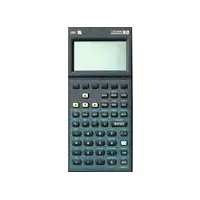
- HP 17BII
- Financial Calculator
- HP-17B II Business Calculator
- Notice
- Printing History
- Running Total and Statistics
- Time, Appointments, and Date Arithmetic
- 141 The Equation Solver
- 171 Printing
- More About Calculations
- Welcome to the HP-17B II
- Contents
- 16 Getting Started
- 2
- Arithmetic
- 3
- Percentage Calculations in Business
- 4
- Time Value of Money
- C 243 Menu Maps
- D 249 RPN: Summary
- E 256 RPN: The Stack
- F 264 RPN: Selected Examples
- Error Messages
- Index
- List of Examples
- Getting Started
- Arithmetic
- General Business Calculations
- Time Value of Money
- Interest Rate Conversions
- Cash Flow Calculations
- Bonds and Notes
- Depreciation
- Running Total and Statistical Calculations
- Time, Alarms, and Date Arithmetic
- How to Use the Equation Solver
- Printing
- Important Information
- Power On and Off; Continuous Memory
- Adjusting the Display Contrast
- What You See in the Display
- The Shift Key (
- Backspacing and Clearing
- Doing Arithmetic
- Keying in Negative Numbers (+/-)
- Using the Menu Keys
- The MAIN Menu
- Choosing Menus and Reading Menu Maps
- Displaying the MU%C menu:
- Using the MU%C menu:
- Calculations Using Menus
- Exiting Menus (EXIT)
- Clearing Values in Menus
- Solving Your Own Equations (SOLVE)
- Typing Words and Characters: the ALPHAbetic Menu
- Keys
- Characters
- Editing ALPHAbetic Text
- Calculating the Answer (CALC)
- Controlling the Display Format
- Decimal Places
- Internal Precision
- Temporarily SHOWing ALL
- Rounding a Number
- Exchanging Periods and Commas in Numbers
- Error Messages
- Modes
- Calculator Memory (MEM)
- The Calculator Line
- heckmark Doing Calculations
- Keys: Display:
- Using Parentheses in Calculations
- The Percent Key
- The Mathematical Functions
- The Power Function (Exponentiation)
- The MATH Menu
- Saving and Reusing Numbers
- The History Stack of Numbers
- Keys:
- Display:
- Description:
- Reusing the Last Result (LAST)
- Storing and Recalling Numbers
- Doing Arithmetic Inside Registers and Variables
- Scientific Notation
- Range of Numbers
- Percentage Calculations in Business
- Using the BUS Menus
- Examples Using the BUS Menus
- Percent Change (%CHG)
- Percent of Total (%TOTL)
- Markup as a Percent of Cost (MU%C)
- Markup as a Percent of Price (MU%P)
- Sharing Variables Between Menus
- The TVM Menu
- Cash Flow Diagrams and Signs of Numbers
- Using the TVM Menu
- Loan Calculations
- Step 1. Calculate PMT for the mortgage.
- Step 2. Calculate the balloon payment after 4 years.
- Savings Calculations
- Leasing Calculations
- Amortization (AMRT)
- Displaying an Amortization Schedule
- To calculate and display an amortization schedule:\*
- Printing an Amortization Table (TABLE)
- The ICNV Menu
- Converting Interest Rates
- To convert between a nominal annual interest rate and an effective annual interest rate that is compounded periodically:
- To convert between a nominal annual interest rate and an effective annual interest rate that is compounded continuously:
- Compounding Periods Different from Payment Periods
- The CFLO Menu
- Creating a Cash-Flow List
- Entering Cash Flows
- TIMES(1)=1. If it does not, press EXIT #T? to turn the #TIMES prompting on. (See "Prompting for #TIMES," below.) #TIMES is the number of consecutive occurrences of FLOW(1). #TIMES has been automatically set to 1, and 1.00 is displayed on the calculator line. Do either a or b:
- TIMES(1)=1, it is prompting you for the number of times the current flow occurs. If all your cash flows are different (#TIMES always 1), then you don't need the #TIMES prompt. You can turn the prompting for #TIMES on and off by pressing #T? in the CFLO menu. This produces a brief message: either #TIMES
- Viewing and Correcting the List
- Copying a Number from a List to the Calculator Line
- Naming and Renaming a Cash-Flow List
- Starting or GETting Another List
- Clearing a Cash-Flow List and Its Name
- Cash-Flow Calculations: IRR, NPV, NUS, NFV
- Doing Other Calculations with CFLO Data
- Bonds
- The BOND Menu
- Doing Bond Calculations
- To calculate the price or yield of a bond:
- The DEPRC Menu
- Doing Depreciation Calculations
- DB, SOYD, and SL Methods
- To calculate the depreciation for an asset:\*
- The ACRS Method
- Partial-Year Depreciation
- The SUM Menu
- Creating a SUM List
- - Entering Numbers and Viewing the TOTAL
- Naming and Renaming a SUM List
- Clearing a SUM List and Its Name
- Doing Statistical Calculations (CALC)
- Calculations with One Variable
- Calculations with Two Variables (FRCST)
- Curve Fitting and Forecasting
- To do curve fitting and forecasting:
- Weighted Mean and Grouped Standard Deviation
- Summation Statistics
- Doing Other Calculations with SUM Data
- Viewing the Time and Date
- The TIME Menu
- Setting the Time and Date (SET)
- To set the time:
- To set the date:
- Changing the Time and Date Formats (SET)
- Adjusting the Clock Setting (ADJST)
- Appointments (APPT)
- Viewing or Setting an Appointment (APT1-APT10)
- To set an appointment or view its current setting:
- Acknowledging an Appointment
- Unacknowledged Appointments
- To acknowledge a past-due appointment:
- Clearing Appointments
- Date Arithmetic (CALC)
- Determining the Day of the Week for Any Date
- Calculating the Number of Days between Dates
- Example: Calculating the Number of Days between Two
- Calculating Past or Future Dates
- The Equation Solver
- Solver Example: Sales Forecasts
- The SOLVE Menu
- Entering Equations
- To make an entry into the Solver list:
- VERIFYING EQUATION...
- INVALID EQUATION
- Calculating Using Solver Menus (CALC)
- To do a calculation using a Solver menu:
- Editing an Equation (EDIT)
- Naming an Equation
- Finding an Equation in the Solver List
- Shared Variables
- Clearing Variables
- Deleting Variables and Equations
- Deleting One Equation or Its Variables (DELETE)
- Deleting All Equations or All Variables in the Solver
- Writing Equations
- What Can Appear in an Equation
- Using the ALPHA Menu
- Using a Typing Aid
- Solver Functions
- Conditional Expressions with IF
- Examples of Conditional Equations.
- The Summation Function ()
- Accessing CFLO and SUM Lists from the Solver
- Creating Menus for Multiple Equations (S Function)
- S(name)
- How the Solver Works
- Halting and Restarting the Iterative Search
- Entering Guesses
- The Printer's Power Source
- Double-Space Printing
- Printing the Display (PRT)
- Printing Other Information ( PRINTER)
- Printing Variables, Lists, and Appointments (LIST)
- Printing Descriptive Messages (MSG)
- Trace Printing (TRACE)
- Print-out:
- How to Interrupt the Printer
- Additional Examples
- Loans
- Simple Annual Interest
- A Solver Equation for Simple Annual Interest:
- Yield of a Discounted (or Premium) Mortgage
- Annual Percentage Rate for a Loan with Fees
- Loan with an Odd (Partial) First Period
- A Solver Equation for Odd-Period Calculations:
- Canadian Mortgages
- A Solver Equation for Canadian Mortgages:
- Advance Payments (Leasing)
- A Solver Equation for Advance Payments:
- Savings
- Value of a Fund with Regular Withdrawals
- Deposits Needed for a Child's College Account
- Value of a Tax-Free Account
- Value of a Taxable Retirement Account
- Modified Internal Rate of Return
- Price of an Insurance Policy
- A Solver Equation for Insurance Price:
- Discounted Notes
- Statistics
- Moving Average
- A Solver Equation for Moving Averages:
- Chi-Squared (hi2) Statistics
- Solver Equations for hi2 Calculations:
- Assistance, Batteries, Memory, and Service
- Obtaining Help in Operating the Calculator
- Answers to Common Questions
- Power and Batteries
- Alkaline
- Silver Oxide
- Low-Power Indications
- Installing Batteries
- Managing Calculator Memory
- Resetting the Calculator
- Erasing Continuous Memory
- Clock Accuracy
- Environmental Limits
- Determining If the Calculator Requires Service
- Confirming Calculator Operation: Self-Test
- Limited One-Year Warranty
- What Is Covered
- What Is Not Covered
- Consumer Transactions in the United Kingdom
- If the Calculator Requires Service
- Obtaining Service
- Service Charge
- Shipping Instructions
- Warranty on Service
- Service Agreements
- Regulatory Information
- Radio Frequency Interference
- Air Safety Notice (U.S.A.)
- IRR% Calculations
- Possible Outcomes of Calculating IRR%
- Halting and Restarting the IRR% Calculation
- Storing a Guess for IRR%
- Solver Calculations
- Direct Solutions
- Iterative Solutions
- Equations Used by Built-in Menus
- Actuarial Functions
- Percentage Calculations in Business (BUS)
- Time Value of Money (TVM)
- Amortization
- Conversions
- Cash-Flow Calculations
- Bond Calculations
- Depreciation Calculations
- Sum and Statistics
- Forecasting
- Equations Used in Chapter 13
- Odd-Period Calculations
- Advance Payments
- Menu Maps
- RPN: Summary
- About RPN
- About RPN on the HP-17B II
- Setting RPN Mode
- To select RPN mode: Press MODES RPN.
- Where the RPN Functions Are
- Doing Calculations in RPN
- Arithmetic Topics Affected by RPN Mode
- Simple Arithmetic
- RPN Mode
- ALG Mode
- Calculations with STO and RCL
- Chain Calculations—No Parentheses!
- RPN: The Stack
- What the Stack Is
- Reviewing the Stack (Roll Down)
- Exchanging the X- and Y-Registers in the Stack
- Arithmetic—How the Stack Does It
- How ENTER Works
- Clearing Numbers
- The LAST X Register
- Retrieving Numbers from LAST X
- Reusing Numbers
- Chain Calculations
- Exercises
- RPN: Selected Examples
- INPUTSCAUSED-0
- INSUFFICIENT DATA
- INSUFFICIENT MEMORY
- INTEREST 一 = -100%
- INTERRUPTED
- INVALID DATE
- INVALID INPUT
- INVALID
- IRR% > 0 EXISTS; KEY
- IN GUESS; [STO] (IRR%)
- MACHINE RESET
- MANY OR NO SOLUTIONS
- Special Characters
- A
- B
- C
- D
- E
- F
- G
- H
- 题
- L
- M
- N
- 0
- P
- Q, R
- S
- T
- U
- V
- W
- X
- Y,Z
- This regulation applies only to The Netherlands
- Contacting Hewlett-Packard
- Page
Marque : HP
Modèle : 17BII
Catégorie : Calculatrice