
AV261C - Scanner AVISION - Notice d'utilisation et mode d'emploi gratuit
Retrouvez gratuitement la notice de l'appareil AV261C AVISION au format PDF.


| Type de produit | Scanner à plat couleur |
| Résolution optique | Jusqu'à 300 x 600 ppp (H x V) |
| Résolution maximale | 9600 ppp |
| Modes de numérisation | Noir et blanc, demi-teintes (64 niveaux), diffusion d'erreur, niveaux de gris 12 bits, couleur 36 bits |
| Taille de document maximale | A4 (210 x 297 mm) |
| Formats de document pris en charge | A4, B5, A5, carte de visite |
| Interface | Port parallèle (SPP/EPP) |
| Alimentation | Externe, 100-240 VAC, 50-60 Hz |
| Consommation électrique | 12 W (12 Vdc, 1 A) |
| Dimensions (L x P x H) | 399 x 260 x 95 mm |
| Poids | 2,7 kg |
| Logiciel inclus | Pilote TWAIN pour Windows 3.1, 95, NT |
| Fonctions d'image | Luminosité, contraste, auto-niveau, désécran, correspondance des couleurs, inversion, gamma |
| Mode de numérisation | Aperçu, numérisation simple |
| Impression directe | Mode pass-through via le port parallèle |
| Entretien | Nettoyer la vitre avec un chiffon doux et non pelucheux |
| Précautions | Éviter l'exposition directe au soleil, l'humidité, la poussière ; utiliser sur une surface plane |
| Déverrouillage du scanner | Tourner le verrou en position « Utilisation » |
| Assistance technique | Contact par téléphone, email ou site Web (voir notice) |
| Conformité | FCC Classe B, CE |
FOIRE AUX QUESTIONS - AV261C AVISION
Questions des utilisateurs sur AV261C AVISION
0 question sur cet appareil. Repondez a celles que vous connaissez ou posez la votre.
Poser une nouvelle question sur cet appareil
Téléchargez la notice de votre Scanner au format PDF gratuitement ! Retrouvez votre notice AV261C - AVISION et reprennez votre appareil électronique en main. Sur cette page sont publiés tous les documents nécessaires à l'utilisation de votre appareil AV261C de la marque AVISION.
MODE D'EMPLOI AV261C AVISION
AV261C Color Image Scanner
User's Manual
(D/N 250-0207-E Rev. A)
© Avision Inc. 1998
Trademarks
Microsoft is a U.S. registered trademark of Microsoft Corporation.
Windows and MS-DOS are trademarks of Microsoft Corporation.
IBM, PC, AT, XT are registered trademarks of International Business Machines Corp.
Other brands and product names herein are trademarks or registered trademarks of their respective holders.
Copyright
All rights reserved. No part of this publication may be reproduced, transmitted, transcribed, stored in a retrieval system, or translated into any language or computer language, in any form or by any means, electronic, mechanical, magnetic, optical, chemical, manual, or otherwise, without the prior written permission of Avision.
Material scanned by this product may be protected by governmental laws and other regulations, such as copyright laws, the customer is solely responsible for complying with all such laws and regulations.
Warranty
The information contained in this document is subject to change without notice.
Avision makes no warranty of any kind with regard to this material, including, but not limited to, the implied warranties of fitness for a particular purpose.
Avision shall not be liable for errors contained herein or for incidental or consequential damages in connection with the furnishing, performance, or use of this material.
FCC Radio Frequency Interference Statement
This equipment has been tested and found to comply with the limits for a Class B digital device, pursuant to Part 15 of the FCC rules. These limits are designed to provide reasonable protection against harmful interference in a residential installation. This equipment generates, uses, and can radiate radio frequency energy and, if not installed and used in accordance with the instructions, may cause harmful interference to radio communication. However, there is no guarantee that interference will not occur in a particular installation. If this equipment does cause harmful interference to radio or television reception, which can be determined by turning the equipment off and on, the user is encouraged to try to correct the interference by one or more of the following measures:
- Reorient or relocate the receiving antenna.
- Increase the separation between the equipment and receiver.
- Connect the equipment into an outlet on a circuit different from that to which the receiver is connected.
- Consult the dealer or an experienced radio/TV technician for help.
FCC CAUTION: To assure continued compliance, (example- use only shielded interface cables when connecting to computer or peripheral devices). Any changes or modifications not expressly approved by the party responsible for compliance could void the user's authority to operate the equipment.
This device complies with Part 15 of the FCC Rules. Operation is subject to the following two conditions: (1) This device may not cause harmful interference, and (2) this device must accept any interference received, including interference that may cause undesired operation.
Responsible Party: AVISION LABS INC.
6815 Mowry Ave. Newark CA 94560,
USA
Telephone No.: +1 (510) 739-2369
Table of Contents
- INTRODUCTION 1-1
- SCANNER INSTALLATION 2-1
2.1 PRECAUTIONS 2-1
2.2 UNLOCKING THE SCANNER 2-2
2.3 CONNECTING THE CABLE 2-3
2.4 DOCUMENT PLACEMENT 2-4
- SCANNER DRIVER INSTALLATION 3-1
3.1 AUTO-INSTALLATION PROGRAM 3-1
3.2 UNINSTALL THE SCANNER 3-3
4 SCANNER OPERATION & DOCUMENT PRINTING 4-1
4.1 IMAGE TYPE 4-3
4.2 SCANNING PARAMETERS & IMAGE CONTROL 4-5
4.3 SCANNING 4-9
4.4 PRINTING 4-10
- MAINTENANCE 5-1
- TROUBLESHOOTING 6-1
6.1 QUESTIONS AND ANSWERS 6-1
6.2 TECHNICAL SERVICE 6-4
- SPECIFICATIONS 7-1
7.1 MODEL:AV261C. 7-1
1. Introduction
Congratulations on your purchase of Avision AV261C color image scanner. The AV261C is compact and small to save desk space.
You can scan both normal printing material including photographs as well as the transparency to store them into your computer. Then you can modify them for a variety of purposes on your computer.
The following sections introduce the unpacking, hardware and software installation, the operation, and maintenance information to you. Please do take a few minutes to read through them to keep quality scanning result possible.
Figure 1-1 shows how the scanner is packed. Please check all the items against your checklist contained in the box or against Figure 1-1. If there is any missing or damaged, please contact your nearest dealer immediately for the replacement.
Figure 1-1 Scanner packing
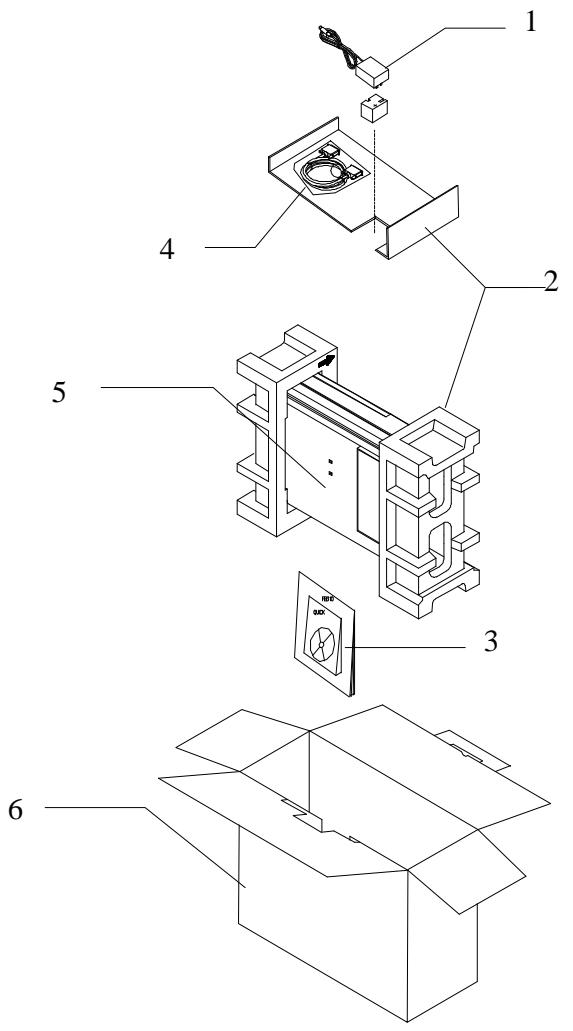
1. Power Adapter, 2. Cushion 3. Manual,Driver Kit CD.
4. D25P Cable, etc 5. Scanner 6. Carton
2. Scanner Installation
2.1 Precautions
- Keep the scanner out of direct sunlight. Direct exposure to the sun or excessive heat may cause damage to the unit.
- Do not install the scanner in a humid or dusty place.
- Be sure to use the proper AC power source.
- Place the scanner securely on an even, flat surface. Tilted or uneven surfaces may cause mechanical or paper-feeding problems.
- Retain the scanner box and packing materials for shipping purposes.
2.2 Unlocking the Scanner
As shown below, unlock the scanner by turning the scanner lock to the Use position.
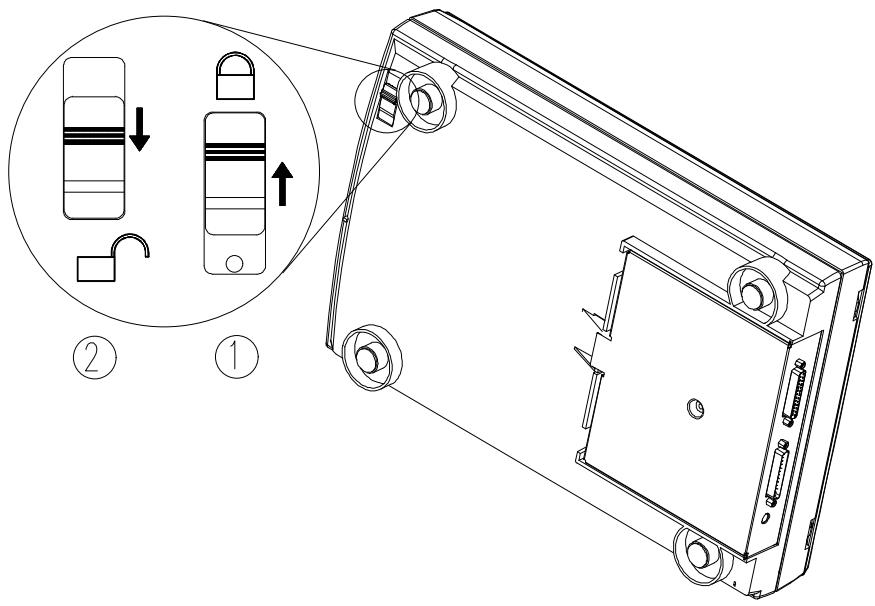
Figure 2-1 Unlocking the Scanner
-
"Shipping" Position
-
"Use" Position
2.3 Connecting the Cable
Connect the power cable and signal cable as shown below.
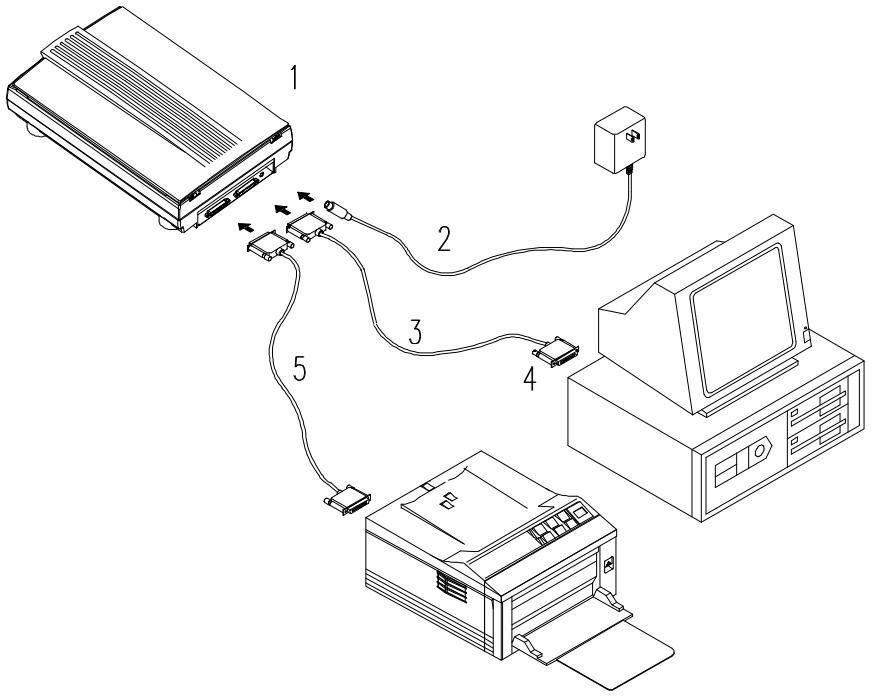
Figure 2-2 AV261C scanner cable connection
- Scanner
- Power Supply
- D25P Cable
- PC Parallel Port
- Printer Cable
2.4 Document Placement
As shown in Figure 2-3, place the document on the glass with the text facing away from you.
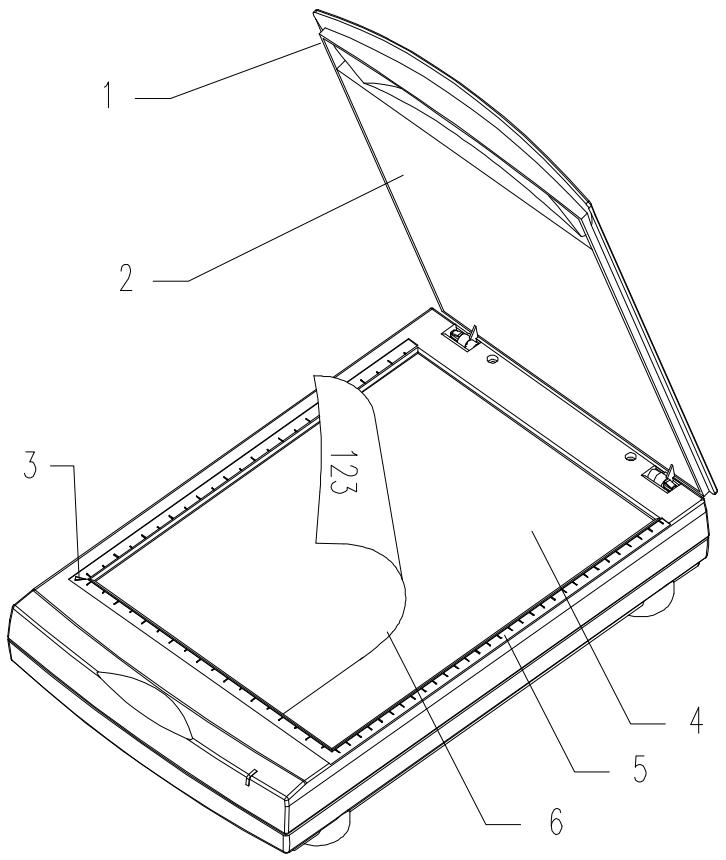
Figure 2.3 Document Placement
-
Document Cover
-
Document Pad
-
Reference Frame
-
Glass
-
Document Board
-
Document
3. Scanner Driver Installation
To run at optimum speed, the AV261C color image scanner is recommended to have the following minimum requirements:
- IBM compatible PC 386/486, Pentium or later;
- Microsoft Windows 3.1,Windows 95, Windows NT;
- One printer port available (enhanced parallel port recommended);
- 20 Megabytes of available hard disk space for installation;
- 8 Megabytes of RAM (16 Megabytes or higher recommended);
- A video graphics array (VGA) monitor;
- A Microsoft Windows-compatible pointing device (e.g., mouse);
- A CD ROM drive.
3.1 Ato-Installation Program
Installation procedures of AV261C Scanner driver with Avision Auto-installation Program are as follows:
- Start Windows 3.1 or Windows 95.
- Insert AV261C CD into your CD ROM drive.
In Windows 3.1 or higher
- From the File Menu, choose RUN, type d:\driver\AV261C.exe (d represents the letter for your current CD ROM drive). Click O.K.
In Windows 95 or Windows NT
-
Press the Start button, choose RUN, type d:\driver\AV261C.exe (d: the CD ROM drive in use), and then click O.K. (See Figure 3-1,3-2)
-
Follow the on-screen instructions to complete the installation.
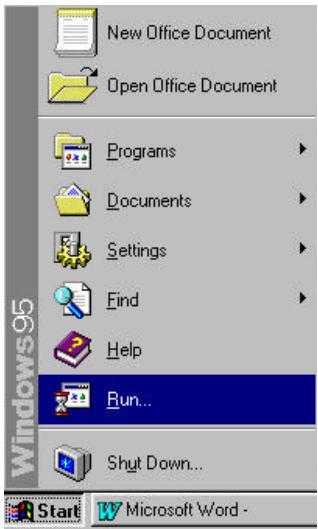
Fig. 3.1
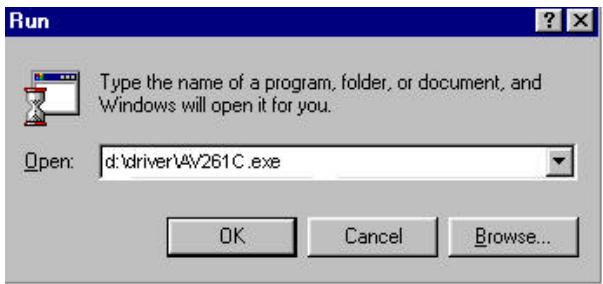
Fig. 3.2
3.2 Uninstall the Scanner
You can uninstall the scanner by selecting
Start....Programs....Avision Scanner AV261C and double clicking on the Uninstall command from the Avision Scanner AV261C.
4. Scanner Operation & Document Printing
Scanning Images from within an Application (TWAIN)
- Open your application and choose Select Source from the File menu. If the Select Source menu options are not available from the File menu, see the user guide of your application to learn how the TWAIN link is used.
- A dialog box appears containing the different TWAIN sources that you can choose from to bring an image into your application.
- Select AV261C/xx VX.xx as the source.
- When you have used the dialog box to select a different source, you will need to select AV261C as the source again before you can reuse the AV261C scanner.
- Place the image to be scanned face down on the glass.
- From the File menu, select Acquire.
- AV261C TWAIN user interface will pop up on the screen. Click on the Preview or Scan button to get the image.
AV261C TWAIN user interface:
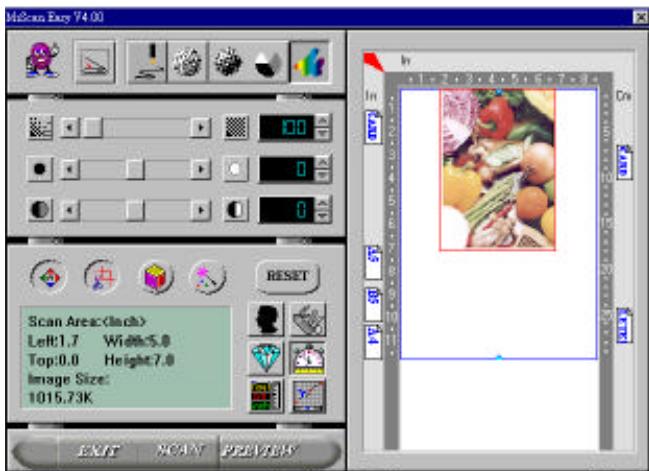
4.1 Image Type
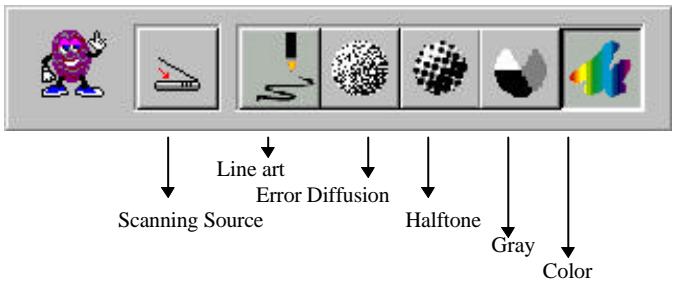
AV261C provides five image types as explained in below:
Scanning Source
Two scanning sources are provided- flatbed as well as transparency.
Line art
Line art presents the image in black and white only and there are no intermediate shades of gray in between.
Halftone
In addition to the black and white display, Halftone can present a somehow gray shade of image by using different size of dots.
Error Diffusion
While taking up but a minimum storage space, error diffusion gives good image texture and excellent image details.
Gray (4096 levels gray scale)
Gray presents a 4096 shades of gray in an image.
Color
The 36 bits True Color presents 68.7 billion colors and gives much more tonal range and details in a color image.
4.2 Scanning Parameters & Image Control
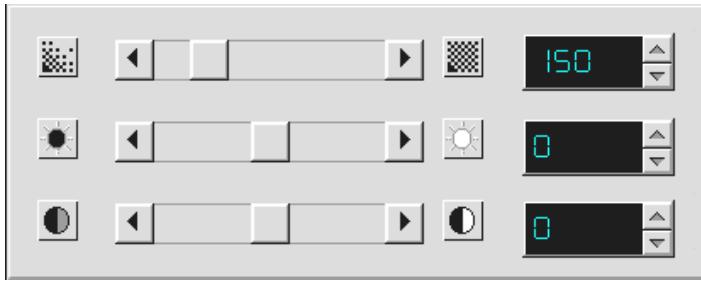
Resolution: The number of dpi (dots per inch) that AV261C uses for a scan. Usually the greater the number, the higher the resolution. Yet up to a certain level, the resolution will not be visually increased but the disk space will be increased.
Brightness: Adjusts the lightness or darkness of an image. The higher the value, the brighter the image.
Contrast: Adjusts the range between the darkest and the lightest shades in the image. The higher the contrast, the bigger the different gray scales.
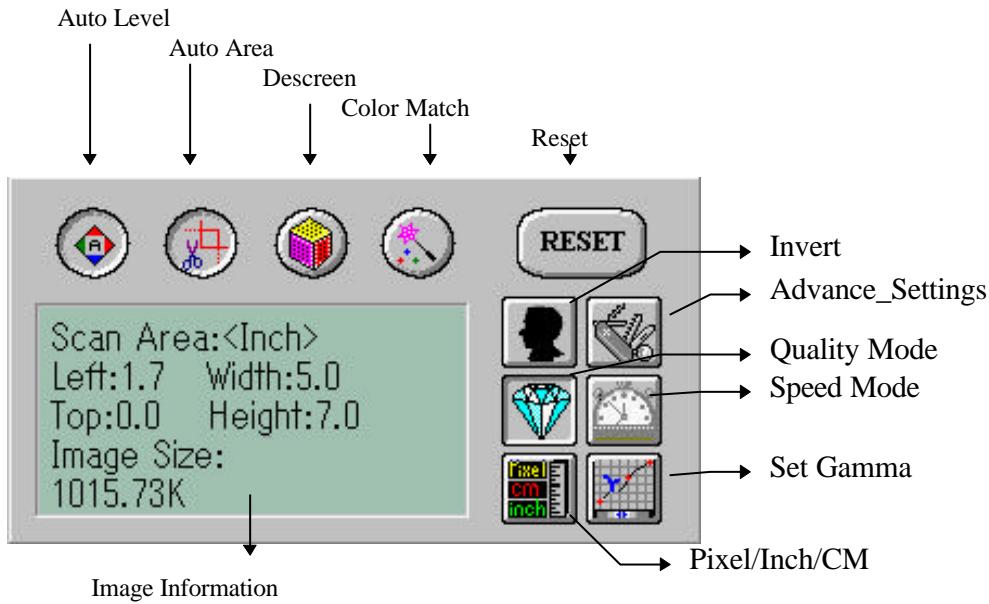
Auto Level: Optimizes the scanned image.
Auto Area: Automatically sets the whole document as the scan area, no matter what its size.
Descreen: Eliminates the Moire patterns commonly found in printed matter.
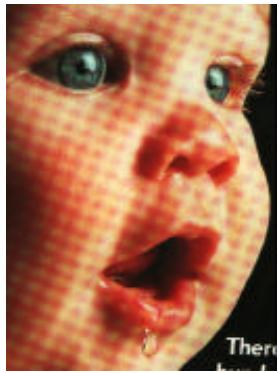
Before descreen

Afterdescreen
Color Match: Adjusts the color quality of the image to make it close to the original. This function uses default parameters to adjust the image.
Reset: Resets the scanning parameters you set.
Invert: The invert command reverses the brightness and the color in the image. For color images, each pixel will be changed into its complementary color at the command of Invert.
Advance_Settings:
Provides a color background-removal function to sharp scanned output.
Quality/Speed Mode:
Users can select the mode to perform scanning according to their own need. Select quality mode scanning if your emphasis is on the quality of the scanned image. Or you can select speed mode scanning if you want to speed up the scanning process.
Pixel/Inch/Cm:
Represents the different measuring systems to be used in each scan.
Set Gamma: Adjusts the midtone of the image yet without losing details of the lightest and the darkest areas at the same time.
Image Information:
Givest related information of the scanned image.
4.3 Scanning

Preview: Previews your image roughly and allocates the area to be scanned.
Scan: Execute the Scans action.
Exit: Cancelsthecurrentjob.
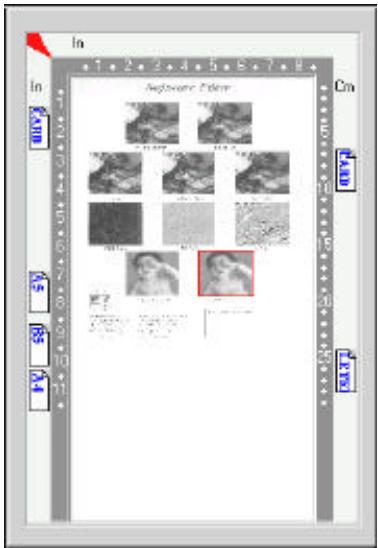
Document Size: To designate the size of your document, just click on its icon on the margin of the preview window
As shown in the figure below, in the Preview window, you can define the area to be scanned by dragging the four cursor auxiliary lines.
4.4 Printing
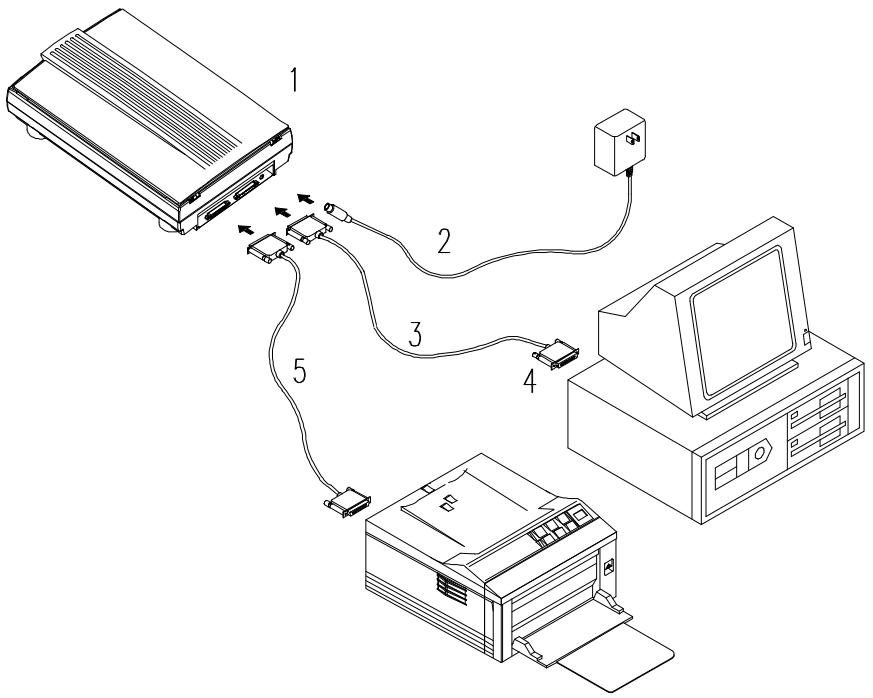
Connect the printer cable as shown below.
-
Scanner
-
Power Supply
-
D25P Cable
-
PC Parallel port
-
Printer Cable
Caution:
- Be sure to power on the scanner if you want to do pass-through printing.
-
Do not scan and print at the same time.
-
If your PC does not support EPP mode or have pass-through compatibility problem, please contact your authorized local dealer for an EPP card or an additional interface card.
5. Maintenance
Clean the Document Board Glass:
As shown in Figure 5-1, wipe the scanner glass with a piece of soft clean cloth to rid the glass of dust or toner particles.
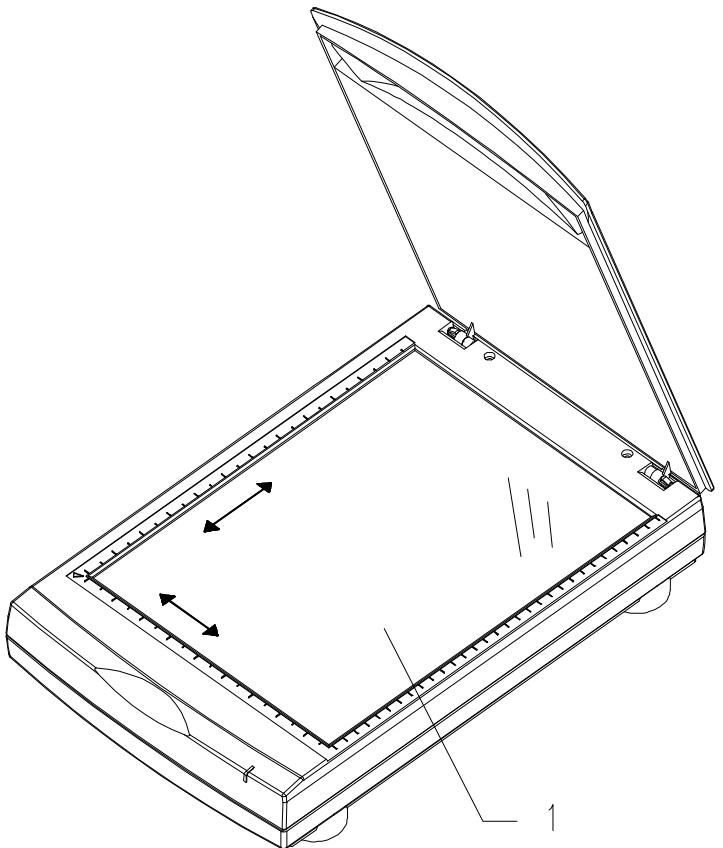
1. Document Board Glass
Figure 5-1 Clean the document board glass.
6. Troubleshooting
If you have any operational problem, please check the following troubleshooting hints.
6.1 Questions and Answers
Question: Why the scanned image always comes out to be too dark?
Answer: 1) Modify the Gamma setting to 1.8 for your monitor and, when printing, set Gamma to 2.2 for your printer.
2) Use the Brightness setting of the TWAIN user interface to get a brighter image.
Question: The scanning speed of my scanner is much slower than that of those installed at other computers. Can I speed it up?
Answer: Set you PC printer port to the EPP mode from BIOS setting.
Question: Why does my scanner scan at a very low speed?
Answer: If you have installed Works for Windows, it will install Window Printing System (WPS) in your WIN.INI file. This will take up the printer port time remarkably. You can remove the WPS from your WIN.INI file, as follows:
From:
[MS Text Converters]
MSWorksWin=Works for Windows 2.0,C:\WINDOWS\MSAPPS\TEXTCONV\worksdos.cnv.wps
Works for Dos 2.0=Works for DOS 2.0 MSAPPS\TEXTCONV\workswin.con.wps
To:
[MS Text Converters]
MSWorksWin=Works for Windows 2.0,C:\WINDOWS\MSAPPS\TEXTCONV\worksdos.cnv
Works for DOS 2.0=Works for DOS 2.0, C:\WINDOWS\MSAPPS\TEXTCONV\workswin.con
Question: The printer does not print the documents. Why?
Answer:
Pass-through printing may pose a problem for some printers. It is suggested to add a second printer card for printing purpose, or you may call your authorized local dealer for further support.
Question: Does it take long for the scanner to initialize?
Answer: If your printer port supports SPP mode only, it takes about two minutes for the scanner to initialize. If your printer port supports EPP mode, the initialization speed is much faster, about 20 seconds.
Question: Why sometimes pass-through printing does not work at all?
Answer: It may be that you fail to power on the scanner. When doing pass-through printing, please be sure to power on the scanner. Else, without power, the scanner can not transfer the printing data/signals to the printer.
Question: Why my GDI printer does not work with the AV261C?
Answer: Disable the Auto Scan function in the application, then your printer will function in normal working condition.
Question: Why some parallel port devices and software's keypro do not work with the AV261C?
Answer: The AV261C can do pass-through printing all right, but the pass-through printing may not work if you connect the parallel port with devices other than printer. Therefore, if you would like to connect some parallel port devices other than printer, please do not connect them to the same parallel port that AV261C currently uses. It is suggested to use other parallel ports to connect these devices or keypro. For instance, you can connect the AV261C to LPT1, and connect other parallel port devices to LPT2. Or you can add a data switch to avoid the problem.
6.2 Technical Service
Technical support for Avision scanner is provided at the Avision Technical Assistance Center. Before you contact us, please prepare the following information for a quick solution:
- Scanner serial & revision number (located on the bottom of the scanner);
- Hardware configuration (e.g., your host CPU type, RAM size, free disk space, display card, interface card);
- The name and version of your scanning software application;
The version of your scanner driver.
The brand and model name of your printer.
AVISION LABS INC.
6815 Mowry Ave. Newark CA 94560, USA
TEL: +1 (510) 739-2369
FAX: +1 (510) 739-6060
Web Site: http://www.avision.com
E-mail: support@avision-labs.com
AVISION INC.
No. 20 Creation Rd. 1, Science-Based Industrial Park, Hsinchu 300, Taiwan, R.O.C.
TEL: +886 (3) 578-2388
FAX: +886 (3) 577-7017
Web Site: http://www.avision.com.tw
E-mail: service@avision.com.tw
7. Specifications
All specifications are subject to change without notice.
7.1 Model: AV261C
| Scanner Type: | Flatbed Scanner |
| Optical Resolution: | Up to 300 dpi * 600 dpi (H*V) |
| Maximum Resolution: | 9600 dpi |
| Scanning Modes: | Black & White mode Halftone mode (64-step) Error diffusion 12-bit gray scale 36-bit color |
| Document Size | A4, B5, A5, business card |
| Interface: | Printer port (supports SPP/EPP for PC) |
| Power Source: | 100Vac~240Vac, 50~60Hz, external |
| Power Consumption: | 12 watts (12Vdc,1A) |
| Dimensions: (WxDxH) | 399 x 260 x 95 (mm) |
| Weight: | 2.7kg |
EC Declaration of Conformity
According to EN45014
Manufacturer's Name: Avision Inc.
Manufacturer's Address: No. 20 Creation Rd. 1, Science- Based Industrial Park, Hsinchu 300, Taiwan, R.O.C.
declare that the product
Model Number : AV261C
conforms to the following Product Specifications:
Emission: EN 50081-1 (1992) EN 55022 (Class B) (Conducted Radiated) (1994) EN 60555-2 (Harmonics) (1987) EN 60555-3 (Flicker) (1987)
Immunity:
EN50082-1 (1992)
IEC 1000-4-2 (ESD) (1995)
IEC 1000-4-3 (RS) (1995)
IEC 1000-4-4 (EFT/Burst) (1995)
IEC 1000-4-5 (SURGE) (1995)
Date: December 1995