
INSTANT MUSIC FOR MAC - Convertisseur audio numérique-analogique ADS TECH - Notice d'utilisation et mode d'emploi gratuit
Retrouvez gratuitement la notice de l'appareil INSTANT MUSIC FOR MAC ADS TECH au format PDF.


| Type de produit | Convertisseur audio numérique-analogique USB |
| Marque | ADS TECH |
| Modèle | INSTANT MUSIC FOR MAC |
| Dimensions (approx.) | 10 × 5 × 2 cm |
| Poids (approx.) | 100 g |
| Alimentation | USB, 5 V |
| Entrées audio | 2 x RCA (L/R), 1 x optique S/PDIF |
| Sorties audio | 2 x RCA (L/R), 1 x optique S/PDIF |
| Connectique | USB Type B |
| Indicateurs LED | LED rouge (alimentation), LED verte (signal optique) |
| Système d'exploitation compatible | Mac OS |
| Logiciel fourni | Roxio CD Spin Doctor 2 |
| Fonctions principales | Numérisation de vinyles et cassettes, conversion en MP3/AAC/Apple Lossless, gravure de CD audio/MP3 |
| Formats audio supportés | AIFF, MP3, AAC, Apple Lossless |
| Installation | Plug & Play, pilotes chargés automatiquement |
| Accessoires inclus | Câble USB 1,8 m, câble RCA 1,8 m, adaptateur 3,5 mm stéréo vers RCA, guide de démarrage rapide |
| Entretien et nettoyage | Essuyer avec un chiffon sec et doux. Débrancher avant nettoyage. |
| Sécurité | Utiliser uniquement avec des câbles blindés. Ne pas exposer à l'humidité. |
| Pièces détachées et réparabilité | Contacter le support technique pour réparation. Pas de pièces détachées disponibles au détail. |
| Garantie | 1 an, matériel et main-d'œuvre |
FOIRE AUX QUESTIONS - INSTANT MUSIC FOR MAC ADS TECH
Questions des utilisateurs sur INSTANT MUSIC FOR MAC ADS TECH
0 question sur cet appareil. Repondez a celles que vous connaissez ou posez la votre.
Poser une nouvelle question sur cet appareil
Téléchargez la notice de votre Convertisseur audio numérique-analogique au format PDF gratuitement ! Retrouvez votre notice INSTANT MUSIC FOR MAC - ADS TECH et reprennez votre appareil électronique en main. Sur cette page sont publiés tous les documents nécessaires à l'utilisation de votre appareil INSTANT MUSIC FOR MAC de la marque ADS TECH.
MODE D'EMPLOI INSTANT MUSIC FOR MAC ADS TECH
English / French
North America Support Hours
Phone: 562-926-4338
M-F: 8:00 am - 5:00 pm, PST
www.adstech.com
Support: www.adstech.com/support/support.asp
ADS Tech
North America Office
Ceritos, CA 90703, USA
Fax: 562.926.0518
European Office
Unit 1B, Shannon Industrial Estate
Shannon Co. Clare, Ireland
Phone: +353.61.702042
Fax:+353.61.702001

ck Guide
RDX-151-525
Product Introduction
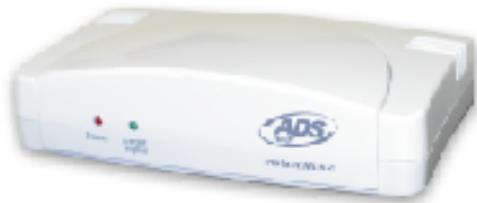
Thanks for purchasing Instant Music for MAC from ADS Tech. With the Instant Music for MAC, you will be able to Record Your Old LPs and Cassettes into Audio CD or MP3 CD format.
- Capture from any analog audio source: cassette, turntable, TV or radio
- Capture Audio into AIFF format using Roxio® CD Spin Doctor® 2
- Convert into MP3, AAC or Apple Lossless using iTunes
- Burn high quality Audio or MP3 CDs
Easy Capture into Popular Music Formats
Just plug the Instant Music into a USB port on your MAC and you are ready to begin recording from any analog audio source in AIFF format using Roxio® CD Spin Doctor® 2. Convert the AIFF audio into the most popular digital audio formats available such as MP3, AAC or Apple Lossless using iTunes. Once in a digital format you can create Audio CDs, MP3 CDs or have the audio ready to be played for your personal music enjoyment on a variety of MP3 player devices.
ADS Tech respects the rights of copyright owners and asks that you do the same.
Simple to Install and Use
It's simple to start capturing audio on your MAC with the Instant Music device. Simply connect to a USB port and then use Roxio® CD Spin Doctor® 2 to capture the audio from your Stereo System, Cassette or Turntable.
Making Music Is as Easy as 1, 2, 3, 4
Instant Music makes it easy to record, convert, play and burn your music
It's as simple as 1, 2, 3, 4:
- Record once from your LP, cassette or even radio into AIFF audio format in your MAC using Roxio® CD Spin Doctor® 2 software.
- Convert music files into different audio formats like MP3, AAC or Apple Lossless using iTunes. Edit your AIFF files, enhance the sound quality, define tracks and reduce noise using Roxio® CD Spin Doctor® 2.
- Play your music on your MAC, transfer it to a portable MP3 player, or play music using iTunes.
- Burn to a CD.
Knowing your Instant Music device
LED on your Instant Music
- Red Power LED
- this LED show that the unit is connected and ready to capture Audio
- Green S/PDIF Signal LED:
This LED is constantly ON when you are using an Optical Input
connection - This LED will be ON and OFF when there is no Optical Input connected.
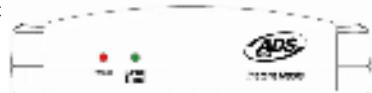
Available Audio In/Out Connections and USB (located at the back of the unit):
-
Left/Right Audio Input (RCA)
-
Left/Right Audio Output (RCA)
Optical Input (S/PDIF)
Optical Output (S/PDIF - USB Connector
Installing your Instant Music
Setup
1. Getting all the components:
a. Instant Music device
b. Roxio® CD Spin Doctor® 2
c. 6 ft. USB Cable
d. 6 ft. RCA audio (L/R) connection cable with turntable grounding wire
e. 3.5mm Stereo to RCA Audio Adapter Cable
f. Quick Guide
2. Connecting your Sound Device for Recording
a. You can use the L/R RCA Audio Input or the Optical Input (S/PDIF Input) to connect to your Sound Device (Record Player, Tape Player or other source with RCA Audio Output).
b. If you are using both connections (S/PDIF Input and L/R RCA Input) at the same time, the Optical Input (S/PDIF Input) will be selected as the input stream.
c. If using a Turntable, make sure you also use a Preamplifier, unless the Turntable has a Preamplifier built-in.
Installing your Hardware
stem Profile
Turn on your MAC
Connect the USB Cable to the USB port of your Instant Music device
Connect the other end to an available USB port on your MAC
All Drivers needed for the Instant Music will be automatically loaded by the OS.
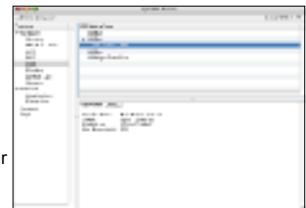
Check if the USB Audio Codec was properly installed by accessing your System Profile.
To access your System Profiler, click the Apple icon located on the top left of your screen, click About this Mac, click More Info.
In System Profile, select USB under the Contents column and verify that you have a USB Audio CODE listed under USB Bus. (See fig. above)
If you don't see the USB Audio CODEC listed, please unplug and re-insert the USB cable to the MAC and to the Instant Music device.
Check your System Profile once again. Click View and Refresh to Refresh the Window.
4. Setting up the Sound Input/Output option.
a. Click on the Apple icon
b. Click System Preferences...
c. Click the Sound icon
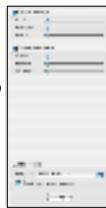
d. Click Input and select USB Audio CODEC for input device (Fig. A)
e. Click Output and select Internal speakers (Fig. B)
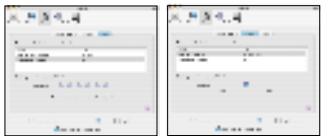
Fig.A Fig.B
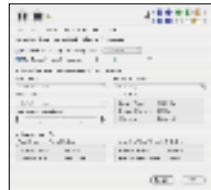
4. CD Spin Doctor 2 will display the screen below. This step lets you start capturing from the Instant Music device.
a. Select the "Play Input through Speakers" option so you can listen to the audio input.
b. Setup your Stereo device (Tape Deck player or Turntable) to the beginning of the song(s) you want to record.
c. Click the Input Setting options to make sure the Input Device is set correctly. It should have USB Audio
CODEC as your Input Source.
d. You can select and change the Recording Quality.
e. If you know the length of your song(s), you can select the "Automatically Stop recording after" option.
f. Press the Record Button to start recording.
g. When the song(s) are finished playing you can press the Stop Record button.
h. Click OK to continue.
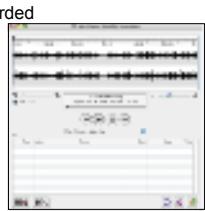
5. You have now a Graphical representation of the audio displayed on the screen.
a. You can play the audio to listen and make adjustments to the audio file.
b. Some times you will need to "trim" portions of the recorded
audio. For more details, read the Help instructions
available on-line
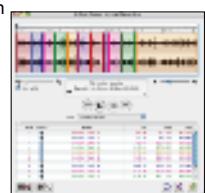
- You can Auto-Define the tracks available in your audio recorded file.
a. This process takes a few minutes and may require some adjustments depending on the original audio source.
b. Once the process is done, you will see each track represented by different colors. You can play each or all the tracks to make sure they were properly detected.
c. If you need to adjust the Auto-Define because this process did not properly
define the correct number of tracks, follow these instructions:
Changing Auto-define Preferences
Depending on whether you imported audio from an LP or cassette, you can adjust how CD Spin Doctor automatically detects tracks.
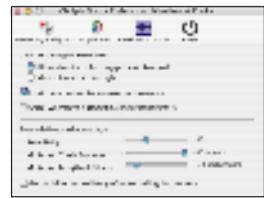
To refine Auto-define
- Choose CD Spin Doctor > Preferences.
The Preferences dialog appears - Click the Waveform & Tracks button
- In the Waveform & Tracks tab, use the Auto-define track settings:
Sensitivity: Choose the level of sensitivity to silence that CD Spin Doctor uses to define tracks. A lower number indicates a higher sensitivity, and a higher number indicates a lower sensitivity:
If you are working with audio imported from an LP, a recommended Sensitivity setting is +71
If you are working with audio imported from a cassette, a recommended Sensitivity setting is +45
Minimum Track Duration: Choose the minimum length of a track in order for CD Spin Doctor to define it.
Minimum Length of Silence: Choose the minimum amount of time that CD Spin Doctor must detect silence before it defines a new track.
- You can apply Filters to the recorded audio track. This will help remove
existing noise and/or enhance the audio file by opening the Filter Analyzer tab.
The Filters can be applied to a single specific track or to the entire audio file.
a. Each recording will require a different adjustment, depending on the type of
audio source used (Tape Player or Turntable).
b. Use the sliding controls provided
8. Once all the tracks have been detected and the Filters have been applied, Save your Audio
1 Recording. Choose File > Save
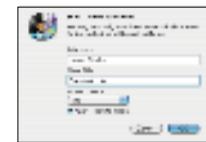
9. You can now convert the Recording into MP3, AAC or Apple Lossless format by sending
the Recording to iTunes.
a. Click the button to start this process
b. Enter the Artist Name
c. Enter the Album Title
d. Select the Encode format you would like to use: MP3, AAC or Apple Lossless are available options
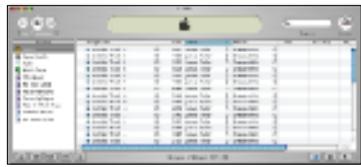
10. Once all the tracks are sent to iTunes, you can start enjoying your songs in digital format. Make an Audio CD or an MP3 CD or send the songs to your iPod.
FAQs
FAQs about your Instant Music device
- Test a short audio capture and playback for best results
a. To get the best results, try doing a short capture sample of your audio source, whether from a Tape or LP, and then play the audio back in Roxio CD SpinDoctor 2 to find out if any adjustments are needed.
b. Once you are satisfied with the results, go ahead and start your project.
-
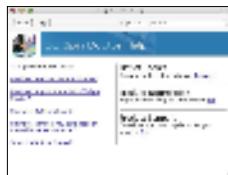
Technical Support for this product is available from our website
a. Please visit www.adstech.com for support on this product -
Where to get more help for audio application.
a. Access the Help from the application you are using for additional information. i.e.
i. Choose Help > CD Spin Doctor Help. -
Capturing audio from a Turn-Table (LP)
a. If you are using a Turn-Table, you must use a Pre-Amplifier to make sure you obtain the appropriate volume level for audio capture with the Instant Music device.
b. Configuration should be: Turn-Table to Pre-Amplifier and then connect the audio output from the Pre-Amplifier to the Instant Music Left-Right RCA Input jacks.
Service and Warranty
Service:
If you require assistance with the installation, operation, or application of your ADS Technologies, Inc. product the best option available to you is our website at www.adstech.com. Your primary source for information and assistance is always your computer store or computer parts dealer. If your ADS product needs repair or replacement, contact your dealer for on-site repair service.
The ADS Technologies technical support and customer service staff can aid in solving many problems. Our technical support department is available to repair any ADS Technologies product. You or your dealer must return products to our factory for repair or
warranty replacement.
Return/Replacement:
If you need to return your ADS Technologies product you should return the product directly to the dealer or store where you purchased the product. Each individual computer store or dealer sets product returns policies for their customers. ADS Technologies Inc. cannot be responsible for the actions or policies set by our dealers. If you desire to return the product for a refund, you must get the refund from the dealer or store you purchased the product from. If you purchased the product directly from ADS please see the "Terms and Conditions of Sale" on the reverse side of your sales invoice.
Returns to ADS Technologies, Inc. are for repair or warranty replacement only. If you need to return product to ADS Technologies, Inc. for repair or replacement you must follow these steps:
- Call our Technical Support department at (562) 926-4338 in the USA or +353-61-702042 in Europe to obtain a Return Merchandise Authorization (RMA) number.
- The RMA number is valid for 30 days
- Ship the product to the ADS factory with the RMA number marked on the inside and outside of the package. If there is no RMA number on the package or the RMA number has expired, the shipment will be refused. ADS will not be liable for lost or mis-shippe products.
- Replacement product cannot be shipped to you until the defective product has been received by ADS.
- Once the product is received at the factory it will be tested and then repaired or replaced.
- Turn around time is approximately one week. A repaired or replacement product will be shipped back to you.
Warranty
This ADS Technologies, Inc. product comes with a One (1) year hardware warranty. ADS Technologies, Inc. (ADS) warrants this product against defects in material and workmanship for a period of One (1) year from the date of original purchase from ADS or an authorized ADS dealer. This warranty applies only to the original purchase of the product and is not transferable. This warranty does not cover any incompatibilities due to the user's computer, hardware, software or other related system configuration in which the product interfaces. Proof of purchase will be required before any warranty consideration by ADS occurs.
This warranty does not cover any damage caused by negligence, non-authorized modifications, or parts installed without prior written permission from ADS. This warranty does not apply if the product has been damaged by accident, abuse, or misapplication, nor as a result of service to the product by anyone other than ADS. If your ADS product is not in working order, your only recourse is repair or warranty replacement, as described above. UNDER NO CIRCUMSTANCES will ADS Technologies, Inc. be liable for consequential damages, including but not limited to any lost savings, lost profits, or any other damages, caused by the use of any ADS Technologies, Inc. product or inability to use the product, even if the dealer or ADS Technologies, Inc. has been advised of such liability or other claims. This includes damage to property and, to the extent permitted by law, damages for personal injury. This warranty is in lieu of all other warranties including implied warranties of merchantability and fitness for a particular purpose.
FCC Information
Federal communications Commission Radio Frequency Interference Statement
Note: This equipment has been tested and found to comply with the limits for a class B digital device, pursuant to Part 15 of the FCC Rules. These limits are designed to provide reasonable protection against harmful interference when the equipment is operated in a manner that does not interfere with the intended use of the equipment.
accordance with the instruction manual may cause harmful interference to radio communications. However, there is no guarantee that interference will not occur in a particular installation. If this equipment does cause harmful interference to radio or television reception, which can be determined by turning the equipment off and on, the user is encouraged to try to correct the interference by one or more of the following measures:
- Reorient or relocate the receiving antenna
- Increase the separation between the equipment and receiver
* Connect the equipment into an outlet on a circuit different from that to which the receiver is connected. - Consult the dealer or an experienced radio TV technician for help.
Notice:
(1) The changes or modifications not expressly approved by the party responsible for compliance could void the user's authority to operate the equipment.
(2) Shielded interface cables and AC power cord, if any, must be used in order comply with the emission limits.
© 2004 ADS Technologies. All Rights Reserved
First Edition: June, 2005
User Manual rev. 1.1 - 050610
Apple and the Apple logo are trademarks of Apple Computer, Inc., registered in the U.S. and other countries.
Roxio and the Roxio logo are trademarks of Roxio, Inc. which may be registered in some jurisdictions. All other trademarks used are owned by their respective owners. http://www.roxio.com
ADS is a registered trademark of ADS Technologies Inc.
ADS Technologies (ADS) makes no warranty of any kind with regard to this material, including but not limited to, the implied warranties of merchantability and fitness for a particular purpose. The information furnished within this written document is for information purposes only and is subject to change without notice. ADS Technologies assumes no responsibility or liability for any errors or inaccuracies that may appear herein. ADS Technologies makes no commitment to update or to keep current information contained within this document.