
-BT10 - Clé USB Bluetooth SMC - Notice d'utilisation et mode d'emploi gratuit
Retrouvez gratuitement la notice de l'appareil -BT10 SMC au format PDF.


| Type d'appareil | Adaptateur réseau USB |
| Compatibilité système | Windows 98SE/ME/2000/XP |
| Connexion | USB 2.0 |
| Norme réseau | Bluetooth |
| Contenu du paquet | Adaptateur USB, guide d'installation rapide, CD-ROM avec pilotes et documentation |
| Installation | Logiciel et pilotes inclus |
| Support technique | Disponible par téléphone et internet |
| Garantie | Non précisé |
| Dimensions | Compact, format USB standard |
| Alimentation | Alimentation via port USB |
| Vitesse de transfert | Non précisé |
| Couleur | Transparent avec logo |
| Utilisation | Connexion réseau sans fil Bluetooth |
| Compatibilité matériel | Ordinateurs avec port USB |
| Logiciel inclus | CD-ROM avec pilotes et utilitaires |
| Poids | Non précisé |
FOIRE AUX QUESTIONS - -BT10 SMC
Questions des utilisateurs sur -BT10 SMC
0 question sur cet appareil. Repondez a celles que vous connaissez ou posez la votre.
Poser une nouvelle question sur cet appareil
Téléchargez la notice de votre Clé USB Bluetooth au format PDF gratuitement ! Retrouvez votre notice -BT10 - SMC et reprennez votre appareil électronique en main. Sur cette page sont publiés tous les documents nécessaires à l'utilisation de votre appareil -BT10 de la marque SMC.
MODE D'EMPLOI -BT10 SMC
Package Contents
After unpacking the EZ Connect™ Wireless Bluetooth USB Adapter, check the contents of the box to be sure you have received the following components:
SMC-BT10 Quick Installation Guide
- SMC-BT10 EZ Installation Wizard and Documentation CD-ROM.
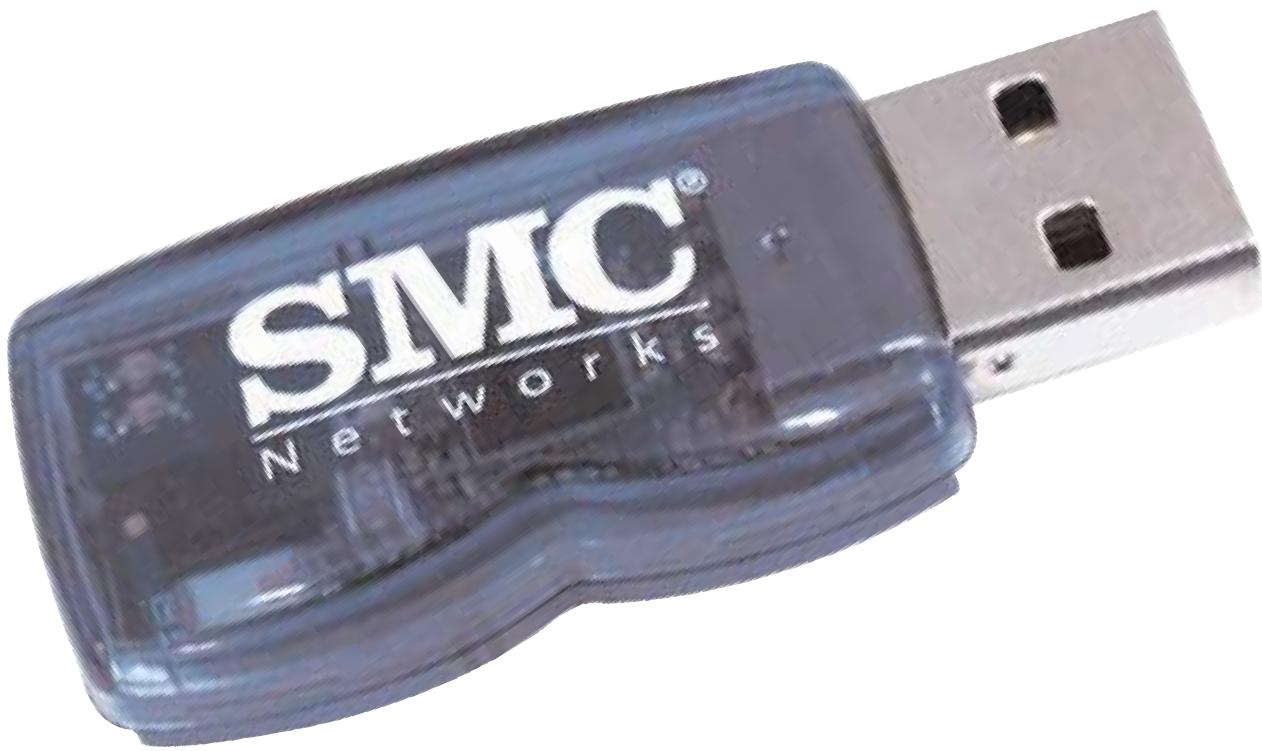
- SMC-BT10 Wireless Bluetooth USB Adapter
Immediately inform your dealer in the event of any incorrect, missing or damaged parts. If possible, please retain the carton and original packing materials in case there is a need to return the product.
Please register this product and upgrade the product warranty at SMC's Web site: http://www.smc.com
System Requirements
To install and connect to the SMC-BT10, you must have:
An available USB port
- Microsoft® Windows® 98SE/ME/2000/XP
200MHz and above CPU Spec for Windows Station
Required 128MB and above RAM
A minimum of 50MB of free Disk space for Windows Driver and Utility Program
FOR TECHNICAL SUPPORT, CALL:
From U.S.A. and Canada
(24 hours a day, 7 days a week)
(800) SMC-4-YOU
Phn: (949) 679-8000
Fax: (949) 679-1481
From Europe : Contact details can be found on
www.smc-europe.com or www.smc.com
INTERNET
E-mail addresses:
techsupport@smc.com
european.techsupport@
smc-europe.com
Driver updates:
http://www.smc.com/index.cfm?action techsupport drivers downloads
World Wide Web:
http://www.smc.com/
http://www.smc-europe.com/
If you are looking for further contact
information, please visit
www.smc.com or
www.smc-europe.com.
38 Tesla
Irvine, CA 92618
Phone: (949) 679-8000
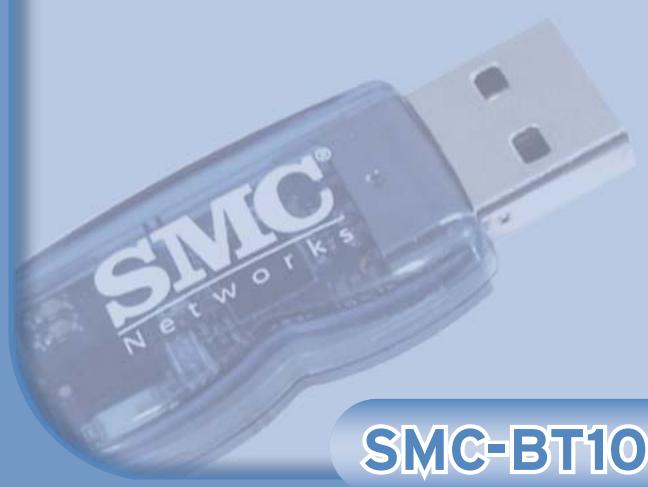
Model Number: SMC-BT10
EZ Connect™
Wireless Bluetooth USB Adapter
Quick Installation Guide

Networks
EZ Installation Wizard
Congratulations on your purchase of a EZ Connect™ Wireless Bluetooth USB Adapter (SMC-BT10). This Quick Installation Guide will guide you through a simple process to get your new SMC-BT10 installed. For additional information and advanced settings configurations, please refer to the manual included on the CD-ROM.
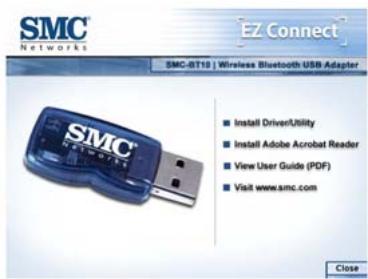
Step 1: Insert the Installation software CD into the CD-ROM of your machine.
It should start up automatically. If it does not, click Start and choose Run. In the field that appears, enter D:\SMC-BT10.exe (if "D" is the letter of your CD-ROM drive). Once the CD starts, the EZ Installation Wizard's screen should appear.
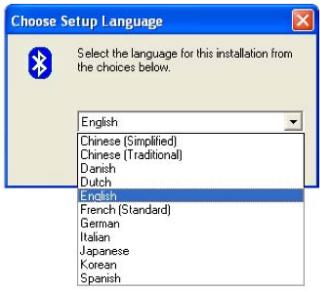
Step 2: You will be prompted to select the Language of your choice.
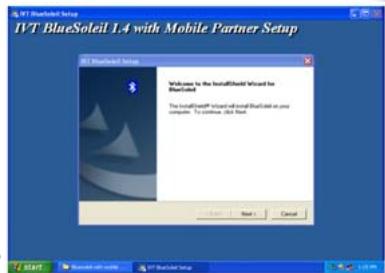
Step 3: The InstallShield Wizard will be launched. You can follow the instructions to finish the software installation.
Step 4: Restart the Computer. After the BlueSoleil software package is installed, you will need to restart the computer. This is to make sure that the installed Bluetooth Device takes effect.
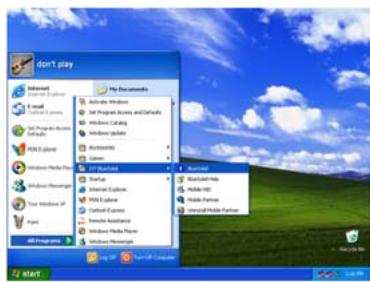
Step 5: When the computer has been restarted, start the BlueSoleil application by clicking Start |Programs|IVT BlueSoleil|BlueSoleil.
Note
- For Windows 98SE and Windows ME, the Dial-up Adapter and Windows's component direct cable connection needs to be installed to run the Dial-up Networking profile and LAN access profile.
- You need to configure Bluetooth Network Adapter IP to run PAN profile.
- More details on how to use IVT BlueSoleil, please refer to Online Help, User Manual and any other support document.
Windows 98SE/ME
Expected Outcome:
-
Installed Files & Directories (by default):
-
\IVT Corporation\BlueSoleil BlueSoleil execution and support files. -
\My Documents\BlueSoleil Support directory. This is the directory for Object Push and Synchronization. Received cards and other objects will be put here. -
Installed Devices:
6 Bluelet virtual COM ports
3 Bluelet virtual Modem
BT Network Adapter
HID device
Windows 2000/XP
Expected Outcome:
-
Installed Files & Directories (by default):
-
\IVT Corporation\BlueSoleil BlueSoleil execution and support files. -
\My Documents\BlueSoleil Support directory. This is the directory for Object Push and Synchronization. Received cards and other objects will be put here. -
Installed Devices:
-
6 Bluelet virtual COM ports
2 Vcomm Manager
3 Bluelet virtual Modem
BT Network Adapter
6 HID device
Information furnished by SMC Networks, Inc. (SMC) is believed to be accurate and reliable. However, no responsibility is assumed by SMC for its use, nor for any infringements of patents or other rights of third parties, which may result from its use. No license is granted by implication or otherwise under any patent or patent rights of SMC. SMC reserves the right to change specifications at any time without notice.
SMC Networks, Inc.
38 Tesla
Irvine, CA 92618
Copyright © SMC Networks, Inc., 2004. All rights reserved.
SMC is a registered trademark; and EZ Connect is a trademark of SMC Networks, Inc.
Other product and company names are trademarks or registered trademarks of their respective holders.