
NB - Webcam GENIUS - Notice d'utilisation et mode d'emploi gratuit
Retrouvez gratuitement la notice de l'appareil NB GENIUS au format PDF.


| Type de produit | Webcam |
| Marque | GENIUS |
| Modèle | NB |
| Connexion | USB |
| Alimentation | Via port USB |
| Installation | Pilote requis avant connexion ; insérer le CD puis suivre les instructions |
| Fonctions principales | Capture d'image plein écran, prise de photo, envoi par e-mail, surveillance de sécurité, conversion AVI en MPEG |
| Bouton instantané | Capture d'images fixes ou rotation du cache pour mise au point |
| Réglage exposition | Menu Contrôle de la caméra -> Exposition, pour environnement lumineux |
| Logiciel inclus | Pilote, DirectX, utilitaire de reconnaissance |
| Désinstallation | Démarrer -> Programmes -> VideoCAM NB -> Désinstaller |
| Systèmes d'exploitation compatibles | Windows (non spécifié) |
| Entretien et nettoyage | Essuyer avec un chiffon doux et sec ; éviter les liquides |
| Sécurité | Ne pas exposer à l'humidité ; éteindre avant nettoyage |
| Pièces détachées et réparabilité | Non spécifié par le fabricant ; contacter le support |
FOIRE AUX QUESTIONS - NB GENIUS
Questions des utilisateurs sur NB GENIUS
0 question sur cet appareil. Repondez a celles que vous connaissez ou posez la votre.
Poser une nouvelle question sur cet appareil
Téléchargez la notice de votre Webcam au format PDF gratuitement ! Retrouvez votre notice NB - GENIUS et reprennez votre appareil électronique en main. Sur cette page sont publiés tous les documents nécessaires à l'utilisation de votre appareil NB de la marque GENIUS.
MODE D'EMPLOI NB GENIUS

Important Notice:
Please install the driver first and then connect VideoCAM to the USB port.
Please read the important notice before the installation
- Installing VideoCAM NB software
A. Insert the VideoCAM NB software CD into CD-ROM drive.
B. After a few seconds, the setup screen will show the picture of VideoCAM NB. Click the “Utility Driver” then simply follow the on-screen instructions.
A. Please remember to install DirectX from the CD-ROM.
Notice:
If the setup screen doesn't show the picture of VideoCAM NB, please proceed with the following installation:
- Go to the taskbar and click Start, then Execute.
-
Type D:\SETUP.EXE, then click the Enter key. (Where D: is your CD-ROM)
-
Connect the VideoCAM to your computer. Connect the VideoCAM to the USB port as shown on the right drawing.
- To remove the driver installation, please go to the taskbar and follow "Start ->Program ->VideoCAM NB->VideoCAM NB Uninstall, then follow the on-screen instruction to remove the installation.
- You can install the recognition software for video conferencing or chat with your friends.
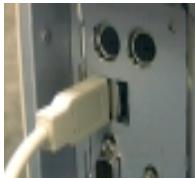
USB Port
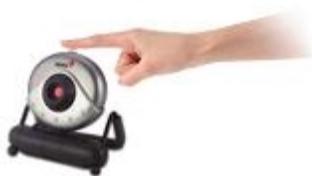
You can use the snapshot button to capture still images or rotate the lens cover to adjust the focus.
- Function description for the major icon
A. Capture image with full motion video
B. Take a picture
C. Send photo through e-mail
D. Use PC camera as a security monitoring system
E. AVI Convert AVI files into MPEG format
Note I: Make sure to install the USB driver before connecting the device otherwise you will be unable to install properly. If you encounter any problems, uninstall the driver and software and follow the proper installation.
Note II : Should you need to use the device in a high luminance environment, please follow this step below:
- > Camera Control -> Control -> Exposure
Marque : GENIUS
Modèle : NB
Catégorie : Webcam