
T20S - Téléphone mobile ERICSSON - Notice d'utilisation et mode d'emploi gratuit
Retrouvez gratuitement la notice de l'appareil T20S ERICSSON au format PDF.


| Type de produit | Téléphone mobile GSM |
| Marque | Ericsson |
| Modèle | T20S |
| Dimensions | Environ 130 x 49 x 23 mm |
| Poids | Environ 110 g avec batterie |
| Type de batterie | Lithium-ion (Li-ion) rechargeable |
| Autonomie en veille | Jusqu'à 150 heures |
| Autonomie en communication | Jusqu'à 4 heures |
| Écran | Affichage graphique monochrome à rétroéclairage |
| Réseau | GSM 900/1800 |
| Fonctions principales | Appels, SMS, répertoire, messagerie vocale, vibreur, réveil, calculatrice, minuteur, jeux |
| Connectivité | Infrarouge (via modem optionnel DI 28) |
| Navigation Internet | Navigateur WAP 1.1 |
| Alimentation | Chargeur secteur (fourni), prise téléphone |
| Entretien et nettoyage | Nettoyer avec un chiffon doux et sec ; ne pas utiliser de produits abrasifs |
| Sécurité | Code PIN (4 à 8 chiffres), verrouillage téléphone, chiffrement des appels |
| Pièces détachées et réparabilité | Batterie amovible, chargeur, housse ; réparation par centre agréé |
| Informations générales | Notice disponible en PDF ; assistance technique en ligne |
FOIRE AUX QUESTIONS - T20S ERICSSON
Questions des utilisateurs sur T20S ERICSSON
0 question sur cet appareil. Repondez a celles que vous connaissez ou posez la votre.
Poser une nouvelle question sur cet appareil
Téléchargez la notice de votre Téléphone mobile au format PDF gratuitement ! Retrouvez votre notice T20S - ERICSSON et reprennez votre appareil électronique en main. Sur cette page sont publiés tous les documents nécessaires à l'utilisation de votre appareil T20S de la marque ERICSSON.
MODE D'EMPLOI T20S ERICSSON
Mobile Phone T20s
Contents
Getting Started 3
Making and Receiving Calls 9
Key Functions 13
Using the Menu 14
Entering Letters 18
Your Personal Phone Book 19
Using the Call List 24
Your Voice Mail Service 25
Personalizing Your Phone 26
Text Messages (SMS) 32
The WAP Browser 37
Profiles 43
Voice Control 45
Diverting Incoming Calls 47
Handling More Than One Call
Simultaneously 48
Call Time and Call Cost 50
Security for Your Phone and
Subscription 52
Using Two Voice Lines 56
Calling Card Calls 56
Setting Network Preferences 58
Fax and Data Calls 59
Extras 60
Online Services 64
Ericsson Mobile Internet 65
Troubleshooting 66
DisplayIcons 68
Quick Keys 69
Technical Data 70
Guidelines for Safe and Efficient Use ....71
Limited Warranty 76
Declaration of Conformity 78
Index 79
Ericsson T20s
First edition (April 2000)
This manual is published by Ericsson Mobile Communications AB, without any warranty. Improvements and changes to this manual necessitated by typographical errors, inaccuracies of current information, or improvements to programs and/or equipment, may be made by Ericsson Mobile Communications AB at any time and without notice. Such changes will, however, be incorporated into new editions of this manual.
All rights reserved.
Ericsson Mobile Communications AB, 2000
Publication number: EN/LZT 108 3919 R2A INNOVATRON PATENTS
Please note:
Some of the services in this manual are not supported by all networks. This also applies to the GSM International Emergency Number 112.
Please contact your network operator or service provider if you are in doubt whether you can use a particular service or not.
Note! You should read the "Guidelines for Safe and Efficient Use" and the "Limited Warranty" chapters before using your mobile phone.
W@PTM and WAP ForumTM are registered trademarks of the WAP Forum, LTD., a registered company in the United Kingdom.
Getting Started
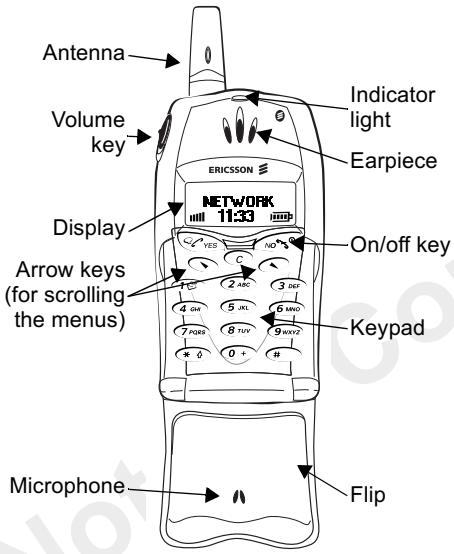
Front
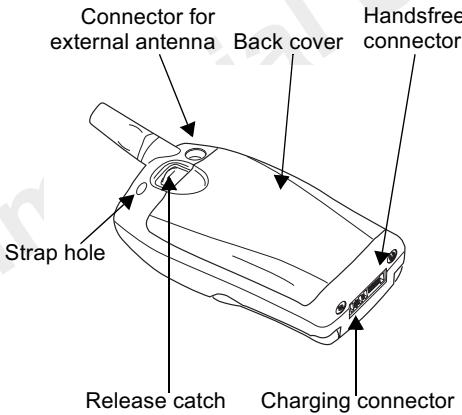
Back
About this User's Guide
Some services and functions described in this User's Guide are dependent on your network and subscription. Because of this, all menus may not be available in your phone and the shortcut numbers to menus and functions may vary between phones.
This symbol indicates that a service or function is dependent on your network and subscription.

Please refer to the information provided by your network operator for more information about your subscription.
We recommend that you read the chapter "Using the Menus" on page 14 for information about how to move through the menus.
The SIM Card
When you register as a subscriber with a network operator, you get a SIM (Subscriber Identity Module) card. The SIM card contains a computer chip that keeps track of your phone number, the services included in your subscription, and your Phone Book information, among other things.
SIM cards come in two sizes. One is the size of a credit card and the other is smaller. Your phone uses
the smaller card. Many credit-card-sized SIM cards have a perforated smaller card that you can take out easily.
Assembly
Before you can use your phone you need to:
- insert the SIM card.
- attach and charge the battery until the indicator light turns green.
Note: Always turn off the phone and detach the charger before you insert or remove a SIM card.
Inserting and Removing the SIM Card
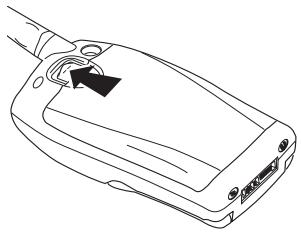
- Remove the back cover by sliding the release catch upwards. Then lift the cover.
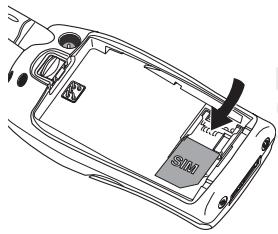
- To remove it, raise the edge of the SIM card and slide it out.
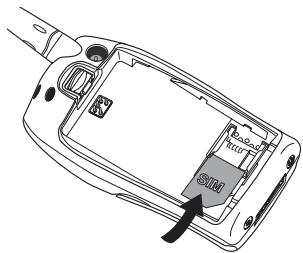
- Slide the SIM card into the slot, under the silvery holders, with the golden connectors facing down and the cut corner to the right.
Attaching the Battery to Your Phone
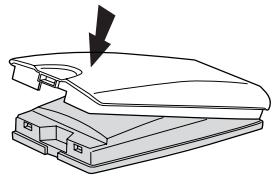
- Remove the back cover of the phone. Press it onto the battery until you hear a click. This unit is now referred to as the battery.
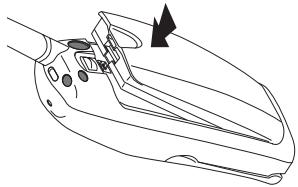
- Press the battery against the phone until it snaps into place.
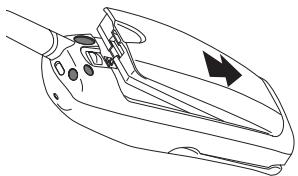
- Place the battery on the back of the phone.
The Battery
Your phone comes with a Li-ion lithium battery. The battery is not charged when you buy your phone, but there may be enough power to switch the phone on. We recommend that you charge the battery until the indicator on top of the phone shows a green light and then for another half-hour before you use the phone for the first time. Charging the battery fully, lengthens its lifetime.
When to Charge the Battery
The battery can be charged whenever you wish without affecting its performance. To remind you that you need to charge the battery:
- an alarm signal (a short beep) sounds and Attention! Battery low appears in the display.
Charging the Battery
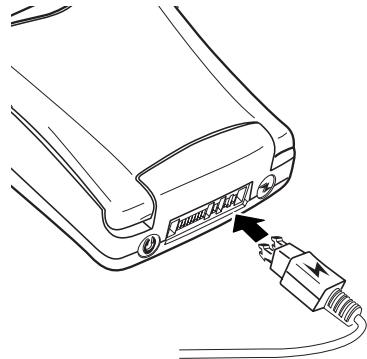
- Make sure that the battery is attached to the phone.
- Connect the charger to the phone at the flash symbol as shown in the picture. The flash symbol on the charger plug must face upwards.
- Connect the charger to the mains.
To indicate charging:
- the battery meter in the display pulses continuously
- if the phone is on, the indicator on top of the phone shows a steady green light.
Note: If you charge a new battery, or one that has not been used for a long time, it may take a while before you get an indication of charging in the display.
You can use the phone while the battery is being charged. However, this lengthens the charging time. When the battery is fully charged, the battery meter in the display is full.
Disconnecting the Charger
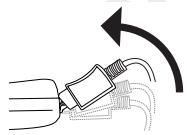
- Disconnect the charger from the phone by tilting the plug upwards.
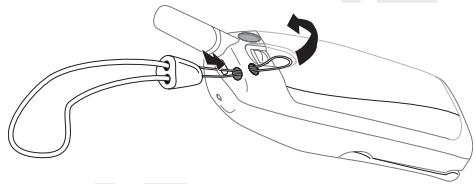
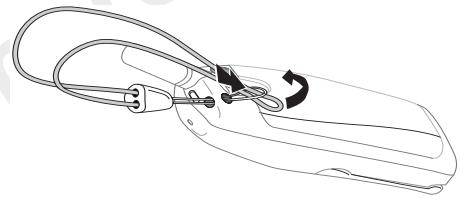
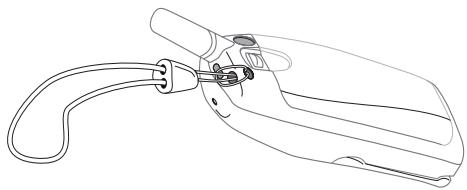
Attaching the Strap
Making and Receiving Calls
Before you can make and receive calls, you need to turn on the phone and be within range of a network.
Turning Your Phone On
- Open the flip.
- Press and hold the no key until you hear a tone.
Some SIM cards are protected with a PIN (Personal Identity Number). If PIN: appears in the display after you have turned on the phone:
- Enter your PIN.
If you make a mistake while entering your PIN, delete the wrong number by pressing the c key.
- Press YES.
Note: Your PIN is provided by your network operator.
Network Search
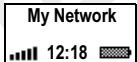
After you have turned on the phone (and entered your PIN), the phone searches for a network. When a network is found, the phone beeps three times. The
indicator light on top of the phone flashes green and your network operator's name appears in the display.
This is called "standby mode". You can now make and receive calls.
Note: If you do not reach standby, see "Error Messages" on page 66.
Making a Call
- Open the flip.
- Enter the area code and phone number.
- Press YES.
Ending a Call
- Close the flip or press NO to end the call.
Changing the Earpiece Volume
During a call you can change the listening volume by sliding the volume key on the side of the phone.
- Slide upwards to increase the volume.
- Slide downwards to decrease the volume.
Turning Off the Microphone
During a call you can turn off the microphone.
- Press the c key for a few seconds to turn off the microphone.
- Press and hold c again to resume the conversation.
Turning Your Phone Off
- In standby mode, press and hold the NO key until the shut down show starts, or until the phone switches off. To go to standby mode, press and hold NO.
Re-dialling a Previously Called Number
In the Call List you can find the numbers that you have dialled, answered or missed.
To re-dial a previously called number
- Press YES from standby mode to enter the Call List.
- Press or to scroll through the list.
- When the number you want to call is highlighted, press YES to make the call.
See "Using the Call List" on page 24.
Automatic Re-Dialling
If a connection failed, and the display shows Retry?, you can re-dial the number by pressing the YES key. Your phone automatically re-dials (up to 10 times):
- until the call is answered, or
- until you press a key or receive a call.
Note: Automatic re-dialling is not available for fax and data calls.
Making International Calls
- Press and hold the 0 key until a + sign appears. The + replaces the international prefix number of the country from which you are calling.
- Enter the country code, area code (without the leading zero) and phone number.
- Press YES.
Making Emergency Calls
- Enter 112 (the international emergency number).
- Press YES.
Your Ericsson phone supports the international emergency number 112. This means that it can normally be used to initiate an emergency call in any
country, with or without a SIM card inserted, if a GSM network is within range.
Note: Some network operators may require that a SIM card is inserted, and in some cases that the PIN has been entered as well.
Emergency Numbers
Some countries may not promote the international emergency number, 112. Your operator may therefore have stored additional local emergency numbers on the SIM card, which work in addition to the international emergency number.
To use another emergency number
- Press to go to the Phone Book menu.
- Press YES to select the menu.
- Press until SOS Numbers is highlighted, then press YES.
- Press or to go to the number you want, then press YES to make the call.
Receiving Calls
When you receive a call, the phone rings and the display shows Answer?.
If your subscription includes the Calling Line Identification (CLI) service and the caller's network sends the number, the caller's number is shown in the display. If you have saved the caller's name and number in the phone book, the caller's name is displayed. If the network does not send the number, the display shows Withheld.
Answering a Call
- Open the flip, or press YES if the flip is open.
Rejecting a Call
- Slide the volume key on the side of the phone twice.
Note: To open the flip without answering a call, you need to slide the volume key while opening the flip. Then you may reject a call by pressing NO or by closing the flip.
The caller hears a busy tone if this is supported by the caller's network. If Divert Calls When Busy is on, the call is diverted to the number you have specified. See "Diverting Incoming Calls" on page 47.
The Notepad
If you want to make a note of a phone number during a call, you can use your phone display as a notepad.
Use the number keys to enter the number. When you end the call, the number remains in the display.
When you enter the number, the person at the other end can hear the tones. You can turn the tones off (can only be done during a call).
To turn the tone signals off during a call
- Press until the Ongoing Call menu appears.
- Press YES to select the menu.
- Press YES again to turn off the tone signals.
Showing and Hiding Your Phone Number
You can choose to show or hide your number for a particular call, if this service is supported by your subscription.

To hide or show your phone number
- Enter the phone number you wish to call.
- Press until the Call Info menu appears.
- Press YES to select the menu.
-
Press again until Next Call is highlighted.
-
Press Yes to select Next Call.
- Select Hide My Number or Show MyNumber and press YES to make the call.
Ciphering
Ciphering is a built-in feature that scrambles your calls and messages to provide additional privacy.
An exclamation mark inside a triangle is shown in the display during a call to indicate that ciphering is currently not being provided by the network.
Key Functions
The table below shows some examples of the key functions. See also "Quick Keys" on page 69.
| Key | Use |
| Flip | Open the flip to answer incoming calls. (To end a call, close the flip.) |
| YES | To make calls and answer calls. To select a menu or setting. |
| NO | To turn the phone on or off, press and hold the key. To end a call. To reject a call. To go back one level in the menus, to leave a setting unchanged. To go back to standby mode, press and hold NO. |

To move (scroll) through menus, lists and text.
c (Clear) To delete numbers and letters from the display. To delete an item from a list. To turn off the microphone during a call, press and hold the key. To turn the ring signal off (from standby).
| Key | Use |
| 1-9, 0 | To enter the digits 0-9. Press and hold 0 to enter the international prefix +. To enter letters. To move through menus using shortcuts. |
| * | To enter *. To shift between capital and lower-case letters when entering text. |
| # (Hash) | To enter #. |
| Volume key upwards or downwards | To increase or decrease the volume of the earpiece or handsfree loudspeaker during a call. To reject an incoming call, slide the key twice. To open the flip without answering a call, slide and hold the key while opening the flip. To scroll through menus, lists and text. To enter the Status menu. To initiate voice dialling, slide and hold the volume key. |
Using the Menu
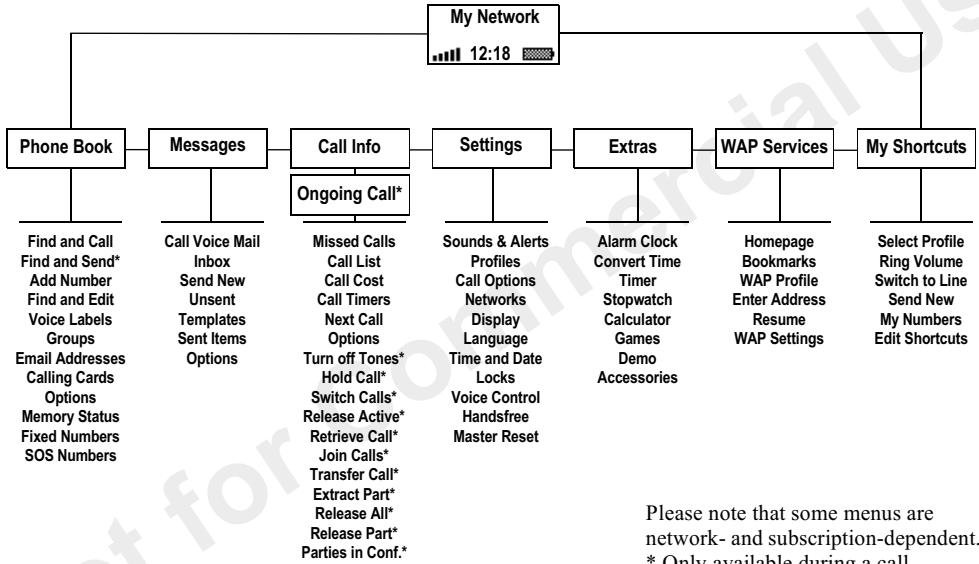
There are seven main menus. Each menu has several sub-menus, where you find the different functions.
You move through the menus by pressing the and keys, or by using shortcuts. You move from left to right in the main menus and up and down in the sub-menus.
Moving Through the Menus
There are two ways of moving through the menus:
- Scrolling with the and keys
- Using shortcuts
Scrolling by Using or
Press... to...

scroll left or up through the menus.

scroll right or down through the menus.
YES
select a menu, sub-menu or an option.
NO
go back one level in the menus, leave an option unchanged.
press and hold NO to go back to standby.
Using Shortcuts
A quicker way to move through the menus is to use shortcuts. Enter the menus by pressing and then simply enter the number of the menu to which you want to go. To get back to standby, press and hold NO.
How to Interpret the Instructions
In this example of how to interpret the instructions, we are going to set the key sound to the tone option.
To set the key sound
- Scroll to Settings, YES, Sounds & Alerts, YES, Key Sound, YES.
- Select Tone and press YES.
Interpret the instructions as follows:
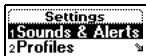
1.From standby,press or to scroll to the Settings menu.
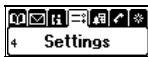
- Press YES to select the Settings menu. The name of the menu that you have chosen is shown at the top of the display (Settings). A flashing arrow in the right part of the display indicates that more menus are available.
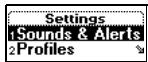
- Press YES to select the Sounds & Alerts sub-menu. (You do not need to scroll with the arrow keys as this is the first sub-menu.)
- Press l or l to scroll to the Key Sound sub-menu and press YES to select it.
- Press or to scroll to the Tone option and press YES to select it. You have now set the key sound to tones.
- Press and hold no to go back to standby.

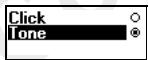
Shortcuts
This is how to interpret the instructions above by using shortcuts:
To set the key sound
- Press or to enter the main menu.
- Press 4 to select the Settings menu.
- Press 1 to select the Sounds & Alerts sub-menu.
- Press 9 to select the Key Sound sub-menu.
- Press l or l to scroll to Tone.
- Press YES to select the tone option.
- To go back to standby, press and hold NO.
Tip: To check a setting without changing it: scroll to the setting and leave it unchanged by pressing NO.
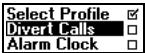
Display Text
- Text at the top indicates the menu you have chosen.
- A text that is highlighted shows your position in the menu. If you press YES, you enter this menu or select this option.
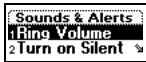
- Grey text indicates a function that is temporarily unavailable, for example due to your subscription or due to a certain setting which has not been turned on.
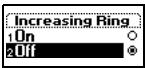
- A filled button indicates that this option is selected.
- A tick indicates that this item is selected.

Help Texts
To help you use the menus and functions, your phone has pop-up help texts that explain the menus.
These help texts are set to On when you buy your phone, but you can turn them off at any time.
To turn the help texts on or off
- Scroll to Settings, YES, Display, YES, Menu Help, YES.
- Select On or Off and press YES.
Display Language
Most SIM cards automatically set the display language to the language of the country where you bought your
SIM card, Automatic. If this is not the case, the preset language is English.
To change the display language
- Scroll to Settings, YES, Language, YES, Menus, YES.
- Select a language and press YES.
Note: You can always choose Automatic by pressing 8888 in standby.
You can always choose English by pressing 0000 in standby.
The Call Info/Ongoing Call Menu
Depending on whether a call is ongoing or not, either the Call Info or the Ongoing Call menu is shown.
- The Call Info menu is active when the phone is standby mode.
- The Ongoing Call Menu is active during a call.
Menu Overview
Entering Letters
You can enter letters when you add names to the phone book, write text messages (SMS) or enter WAP addresses. Press the appropriate key, 1-9, 0 or #, repeatedly until the character you want appears in the display.
Press... to get...
1 Space -?!, .; ;" < => () _1
2 A B C A A /E àç 2 Γ
3 D E F è É 3 Δ Φ
4 G H I i 4
5 J K L 5 Λ
6 M N O N Ñ ò ò 6
7 P Q R S β 7 Π Σ
8 T U V Ü ñ 8
9 W X Y Z 9
0 + & @ / % £ ¥ £ i 0 Θ Σ Ω
# * ↓
- capital or lower-case letters
Example:
- To enter an 'A', press 2 once.
- To enter a 'B', quickly press 2 twice.
- To enter lower-case letters, enter the letter, for example an 'A' and then press . Lower-case letters appear until you press again.
- To enter numbers, press and hold any numeric key.
- To delete letters and numbers, press c.
Choosing Alphabet(s)
You can choose which alphabet(s) (input methods) you want to use. When you are writing messages, entering names or WAP addresses, you can switch to another alphabet by pressing #. First you need to set the alphabets you want to choose from.
To choose an alphabet
- Scroll to Settings, YES, Language, YES, Input, YES.
- Use to select the alphabets (input methods) you want to choose from or to cancel the selection.
- Press YES to leave the menu.
Your Personal Phone Book
Your phone has a phone book in which you can save numbers and accompanying names (an entry).
This means that you can recall a number from the phone book instead of entering the number again.
Your phone also supports voice dialling which means that you can add a voice label to a phone book entry and then call that entry by simply saying the name. See "Voice Control" on page 45.
Saving a Number Together with a Name
When you want to save a phone number, you use the Add Number function in the Phone Book menu. If you have already made and received calls, you can find these numbers in the Add Number list.
Every phone number you save also gets a position number. If you want to, you can choose to sort your phone book entries according to their position number instead of the name.
If you intend to use your phone both at home and abroad, it is a good idea to save all phone numbers as international phone numbers, i.e. with the + sign, followed by the country code, the area code and the phone number. Press and hold 0 to enter the + sign.
To save a number together with a name
- Scroll to Phone Book, YES, Add Number, YES.
- Select Add new? or any of the numbers from the list by pressing YES.
- Enter the phone number that you want to save and press YES.
- Enter a name that you want to associate with the phone number and press YES. See "Entering Letters" on page 18.
- Press Yes again to save the entry in the suggested position.
- When voice dialling is on, you are asked if you want to record a voice label for your entry. Press YES if you want to record a voice label, press NO if you do not. You can always add a voice label later. See "Voice Control" on page 45 for more information.
Calling a Number Saved in the Phone Book
You use the Find and Call function to call a number that you have saved in the phone book.
To call a number saved in the phone book
-
Press and hold until the Find and Call menu appears.
-
Enter the name (or the first few letters of the name) associated with the number that you want to call and press YES.
If the name displayed is not the one you want, press or until you find the correct name and number. - Press YES to make the call.
Shortcuts to Phone Book Entries
You can call the phone numbers that you have saved in positions 1-9 by entering the position number in standby, and then pressing YES.
Example:
- Press 3 and then YES.
When in standby, you can find an entry by pressing and holding one of the keys 2-9 to find an entry beginning with the first letter on that key, or the closest following.
Example:
- Press and hold 4 to get to the first entry beginning with the letter 'G' (or the closest following). Press 4 twice to get to the first entry beginning with 'H' and
so on. When you find the entry you want, press YES to make the call.
Ask to Save
If Ask to Save is on, you are asked if you want to save any called or answered number that is not already saved in your phone book.
To turn the Ask to Save function on or off
- Scroll to Phone Book, YES, Options, YES, Ask to Save, YES.
- Select On or Off and press YES.
Note: Your subscription must support the Calling Line Identification Service, if you want to save answered numbers.
Keeping the Phone Book Up to Date
You can change and delete names and numbers from the phone book.
To edit an entry
- Scroll to Phone book, YES, Find and Edit, YES.
-
Enter the name (or the first few letters) for the entry that you wish to edit and press YES.
-
Press YES to select the entry.
- Select Edit and press YES.
- When you have finished editing, press YES to save your changes.
To delete an entry from the phone book
- Scroll to Phone book, YES, Find and Edit, YES.
- Enter the name (or the first few letters) for the entry that you wish to edit and press YES.
- When the entry you want to delete is highlighted, press c.
- Press YES to confirm.
Sort Order
You may change the sort order of your phone book entries, so that they are sorted according to their position number instead of the name. This means that you search for the position number when you use the Find and Call or the Find and Edit functions.
To choose a sort order
- Scroll to Phone Book, YES, Options, YES, Sort Order, YES.
- Select a sort order and press YES.
Phone Book Memories
Your phone book entries are saved in the memory on your SIM card. The number of entries you can save depends on your SIM card. By saving your entries on the SIM card, you still have access to them if you use the card with another phone.
You can also save your entries in the phone memory. The phone memory holds 100 positions in which your entries are saved when all SIM positions are occupied. If you save your entries in the phone memory, you still have access to them if you use another SIM card with your phone.
Choosing Where to Save an Entry
When you save an entry and are asked to enter the position number, you can do the following:
To save the number in the first empty position suggested, press YES.
- To save the number in another position, press c to delete the position number, enter a new position number and press YES.
- To save the number in the phone memory, you first need to know how many positions you have got on your SIM card. You can check this in the Memory Status menu. If, for example, you have 200 positions
on your SIM card, you can enter position number 201 to save a number in the first position of the phone memory.
Overwrite Protection
If you try to save a phone number in a position which already contains a phone number, the message Overwrite? appears together with the name saved in that position. You now have two options:
- Press YES to replace the number with the new one.
- Press NO if you do not want to replace the old number. Enter a new position and press YES.
Checking the Status of the Memory
You can check how many memory positions you have in your memories and how many of them you have used.
To check the status of the memories
- Scroll to Phone Book, YES, Memory Status, YES.
If you have saved entries in the phone memory, you can delete them.
To delete all entries from the phone memory
- Scroll to Phone Book, YES, Options, YES, Delete All, YES.
- Press YES again.
- Enter the phone lock code (0000 or another one that you have chosen yourself, see "The Phone Lock" on page 52), and press YES.
Note: The entries on your SIM card are not deleted.
Groups
You can create a group of phone book entries. You can then send a text message to all members of that group at the same time. See "Text Messages (SMS)" on page 32.
To create a new group
- Scroll to Phone Book, YES, Groups, YES, Add new?, YES.
- Enter a name for the group and press YES.
- Scroll to Add new? and press YES.
- Select an entry in your phone book and press YES.
- To add the next member, repeat steps 3 and 4.
- Press NO to leave the menu.
To add a member to an existing group
- Select the group you want and then select Edit/Add new?. Select a new member and then press YES.
Copying From One SIM Card to Another
You can copy your phone book entries on one SIM card to another, via the phone's memory.
If your phone memory contains phone book entries that you wish to keep, you first need to copy these entries from the phone memory to a SIM card, otherwise they will be deleted.
Note: You can only copy 100 items at a time. Check your phone memory and your SIM card memory before you start copying, to make sure that you do not delete entries you want to keep.
Note: Always turn off the phone and detach the charger before you insert or remove a SIM card.
To copy from a SIM card to the phone memory
-
Insert a SIM card.
-
Scroll to Phone Book, YES, Options, YES, Copy, YES, Copy from Card, YES.
-
Enter from which position number on the SIM card you want to start copying and press YES.
- Press YES again to start copying. Wait until the display shows Phone book entries copied:.
To copy from the phone memory to a SIM card
- Insert a SIM card.
- Scroll to Phone Book, YES, Options, YES, Copy, YES, Copy to card, YES.
- Enter the position number of your SIM card where you want to start saving your entries and press YES. For example, if you have 10 entries on the SIM card that you want to keep, select position 11.
- Press Yes again to start copying.
Wait until the display shows Phone book entries copied:.
Using the Call List
The Call List is a phone number log that saves information (time, date, phone number and name) about the last 20 dialled, answered and missed calls. Once your list exceeds 20 calls, the oldest one is deleted.
The calls are saved in chronological order, except for the last dialled number, which is always displayed in the first position. If you check a call within 24 hours, the time of the call is displayed. Otherwise, the time is replaced by the date.
If the incoming call is a restricted number, the display shows Withheld.
To call a number from the call list
- Press Yes when the phone is in standby mode.
- Select the number you want to call and press YES.
Tip: You can also select the Call List from the Call Info menu.
You can clear the call list.
- Select Clear Call List from the Call Info/Options menu.
To turn the call list on or off
- Scroll to Call Info, YES, Options, YES, Set Call List, YES.
- Select On or Off and press YES.
If you turn off the list, it is cleared.
Missed Calls
If you have missed a call, the message Missed Calls:1 appears in standby mode. (The number indicates the number of missed calls.)
To check your missed calls
- Press YES.
- If you wish to call a number from the list, select the number and press YES.
Press NO if you do not want to check your missed calls now. You can always check them later.
- Select Missed Calls from the Call Info menu.
Your Voice Mail Service
The answering service of your network operator allows callers to leave a voice message when you cannot answer your calls.

Depending on your operator, you are informed that someone has left a message in different ways.
Most operators send a text message (SMS), asking you to call your voice mail service, for example. See "Text Messages (SMS)" on page 32 for more information.
Other operators send a specific voice mail indication. If this is the case, the voice mail icon appears in the display.
Using Your Voice Mail Service
You can save the number to your voice mail service, making it easier for you to call your voice mail.
To save your Voice Mail number
- Scroll to Messages, YES, Options, YES, Voice Mail No., YES.
- Enter your Voice Mail number and press YES.
To call your Voice Mail Service
- Press and hold 1 from standby.
You can also select Call Voice Mail from the Messages menu.
Receiving a Voice Mail
When you receive a voice mail, your phone beeps and the message New Voice Mail appears in the display.
- Press YES to listen to the voice mail.
If you want to listen to it later, press NO.
Personalizing Your Phone
You can adjust the phone settings to suit your own requirements.
Ring Signals
You can specify the ring signal volume, choose among different ring signals or compose your own.
Ring Signal Volume
The ring signal volume can be set to six levels. You can also turn the ring signal off (0).
To set the ring signal volume
- Scroll to Settings, YES, Sounds & Alerts, YES, Ring Volume, YES.
- Press or to increase or decrease the volume. If you increase the volume, the phone rings once for each level.
- Press YES to save the setting.
Tip: Use the volume key on the side of the phone to change the volume silently.
To turn the ring signal on or off
- From standby, press and hold c.
- Press YES.
All signals except the alarm and timer signals are turned off.
To cancel, repeat step 1 and press YES.
Increasing Ring
You can choose a ring signal that rises in steps from the lowest volume to the highest.
To turn the increasing ring on or off
- Scroll to Settings, YES, Sounds & Alerts, YES, Increasing Ring, YES.
- Select On or Off and press YES.
Ring Signal Type
You can choose a ring signal from a list of different sounds and melodies.
To choose a ring signal
- Scroll to Settings, YES, Sounds & Alerts, YES, Ring Signals, YES, Voice Calls, YES.
- Select a ring signal and press YES.
Tip: Use the volume key on the side of the phone to scroll silently.
Tip: If you subscribe to the "Two Line Service", you can set different ring signals for the two lines. If your SIM subscription supports fax and data calls, you can set different ring signals for these too.
Specific Ring Signals for Personal Calls If your subscription includes the Calling Line Identification (CLI) service, you can assign a personal ring signal to up to ten callers.
If the last seven digits of a caller's number correspond to a number you have specified, then that caller's ring signal is used.
You can include question marks in a phone number. For example, 012345??? means that calls from phone numbers between 012345000 and 012345999 will have the same personal ring signal. Press and hold # to insert a question mark.
To set a specific ring signal for a caller
-
Scroll to Settings, YES, Sounds & Alerts, YES, Ring Signals, YES, Personal Rings, YES, Add new?, YES.
-
Enter the caller's number and press YES.
Press to recall a number from the phone book.
- Select a ring signal and press YES.
Composing Your Own Ring Signal
You can compose four different ring signals.
To compose or edit a ring signal
- Scroll to Settings, YES, Sounds & Alerts, YES, My Melodies, YES.
- Select one of the melodies and press YES.
- Press c to remove notes.
-
Use the keypad to enter notes:
-
Press and hold a key to enter a long note.
- Press 0 to raise the note one octave.
- Press # once to raise the note one semitone.
- Press # twice to lower the note one semitone.
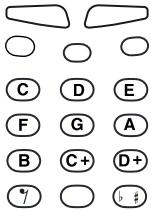
- To listen to your melody, press YES.
- Press YES again to save it or press NO to continue composing.
Vibrating Alert
You can choose to be notified of an incoming call by the buzzing of the Vibrating Alert. You can set the phone's Vibrating Alert to one of the following:
- On (all the time)
- On If Silent (on when the ring volume is turned off or when you have set the phone to silent)
- Off (all the time)
Note: When your phone is placed in a desktop charger or a handsfree car kit, the Vibrating Alert is turned off automatically.
To set the Vibrating Alert
- Scroll to Settings, YES, Sounds & Alerts, YES, Vibrating Alert, YES.
- Select the setting you want, and then press YES.
Message Signal
You can set the message signal to clicks, tones or silent.
- Select Message Alert from the Settings/Sounds & Alerts menu and then select the signal you want.
Key Sound
You can set the key sound to clicks, tones or silent.
- Select Key Sound from the Settings/Sounds & Alerts menu and then select the key sound you want.
Minute Minder
If you turn on the minute minder, you hear a beep once every minute during a call.
- Select Minute Minder from the Call Info/Call Timers menu and then select On or Off.
Display Light
The display light can be set to automatic, off or on. In automatic mode, the display light is turned off a few seconds after you press the last key.
- Select Light from the Settings/Display menu, and then select the alternative you want.
My Shortcuts
You can place your favourite functions in the menu My Shortcuts. In this way, you can quickly and easily reach the functions you use most. When you buy your phone, My Shortcuts contains a few functions which you can remove if you wish.
To add a function to My Shortcuts
- Scroll to My Shortcuts, YES, Edit Shortcuts, YES.
- Select a function from the list by pressing
- Enter the position number you want for your function in this menu and press YES.
To add another function, repeat steps 2 and 3.
To remove a function, repeat steps 1 and 2.
- Press YES to exit the list.
Tip: Press and hold to reach the first sub-menu in the menu My Shortcuts.
Time and Date
The time is always displayed in standby mode.
To set the clock
- Scroll to Settings, YES, Time and Date, YES, Set Time, YES.
If Internet time is on, you have to choose whether the clock should be set to Local time or Internet time. See "Internet Time" on page 30.
- Enter the time and press YES.
If you select the 12-hour clock, you can alternate between am and pm by pressing #.
You can choose a 12-hour or a 24-hour clock.
- Select Time Format from the Settings/Time and Date menu, then select the time format you want.
Automatic Time Zone
If you turn on the Automatic Time Zone function, you will be asked if you want to set the clock when you enter a new time zone.

- Select Automatic Time Zone from the Settings/Time and Date menu.
Date
When the phone is in standby mode, you can slide the volume key to see today's date.
To set the date
- Scroll to Settings, YES, Time and Date, YES, Set Date, YES.
- Enter the year (two digits), month and day and then press YES.
You can select another date format.
- Select Date Format from the Settings/Time and Date menu, then select the date format you want.
Internet Time
Swatch® Internet time represents a new global time concept, without time zones. The time is the same all over the world.
The 24 hours of the day are divided into 1,000 "beats". 1 beat is 1 minute 26.4 seconds. Internet time is identified by @ plus three digits, ranging from @000 to @999. The Internet Day starts at midnight (wintertime) in Bienne, Switzerland, the home of Swatch. Internet Time was invented by Swatch Ltd.
The first time you turn Internet time on, you are asked to enter the current Internet time. If you do not know this, you can enter GMT (Greenwich Mean Time). The phone then calculates the current Internet time automatically.
To turn Internet time on
- Scroll to Settings, YES, Time and Date, YES, Time Settings, YES, Internet time, YES.
- Select On and press YES.
- Select either Set I-net time or Set GMT time and then press YES.
- Enter the current Internet time or GMT and then press YES.
When Internet time is on, it is displayed in standby mode instead of local time. You can still view local time when Internet time is on by pressing the NO key once. If you turn Internet time off again, you can still view it in standby by pressing the NO key once.
When Internet time is on, you can convert Internet time to local time and vice versa.
To convert from Internet time
- Scroll to Extras, YES, Convert Time, YES, From I-net time, YES.
- Enter the Internet time and then press YES.
To convert to Internet time
- Scroll to Extras, YES, Convert Time, YES, To I-net time, YES.
- Enter the local time and then press YES.
Tip: You can use Internet time in the alarm clock. See "Internet Time Alarm" on page 61.
Answering Mode
When using handsfree equipment, you can choose to answer a call by pressing any key (except the NO key) or set the phone to answer the call automatically.
To select answering mode
- Scroll to Settings, YES, Handsfree, YES, Answering Mode, YES.
- Select an answering mode and press YES.
Tip: You can also answer a call by using the voice answering function. See "Voice Answering" on page 46.
Start Up/Shutdown Show
When you turn your phone on or off, the Ericsson start up/shut down show appears in the display. Your operator's own greeting may be shown instead.
If you want to interrupt the start up show, you can press the NO key.
To select a start up/shut down show
- Scroll to Settings, YES, Display, YES, User Greeting, YES.
- Select a show and press YES.
You can also turn off the start up/shut down show by selecting Off.
To turn the start up melody on or off
-
Scroll to Settings, YES, Display, YES, User Greeting, YES.
-
Select a show and press YES.
- Select Animationsound, YES, On or Off, YES.
My Animation
By purchasing the Ericsson infrared modem, DI 28, you can create and download your own start up show (provided you have a PC). You can also compose or download a melody and set this as your start up melody. From your phone, you can set the transition of your animation, for example if you want it to "box out" etc.
- Select My Animation from the Settings/Display/User Greeting menu and then select the transition you want.
Demo
You can run a demo which shows the phone's main menus.
- Select Demo from the Extras menu.
- Press NO when you want to end the demo.
Phone Number Display
You can check your own phone number(s).
- Select My Numbers from the Settings/Display menu If your number is not stored on your SIM card, you can enter it yourself.
Master Reset
You can reset the phone settings to the way they were when you bought your phone.
To reset the phone
- Scroll to Settings, YES, Master Reset, YES.
- Enter the phone lock code (0000 or the new code if you have changed it) and press YES.
Text Messages (SMS)
You can use the Short Message Service (SMS) to send and receive text messages consisting of up to 160 characters.
If the number to your service centre is not stored on your SIM card, you must specify the number yourself. Otherwise you cannot reply to received messages or send your own.
To check the number to your service centre
- Scroll to Messages, YES, Options, YES, Service Centres, YES.
If no number is found, select Add new? and press YES.
- Enter the number, including the international + sign and country code, and press YES.
Note: The number to your service centre is provided by your operator.
To send a text message
- Scroll to Messages, YES, Send New, YES.
- Enter your message and press YES. See "Entering Letters" on page 18.

- Enter the recipient's phone number or recall it from the phone book by pressing .
- Press Yes to send the message.
If you want to send the message later, press NO when you are asked to enter the phone number. The message is saved in the Unsent list in the Message menu.
Sending a Text Message to a Group
You can send text messages to group that you have specified and saved in your phone book, see "Groups" on page 22.
To send a text message to a group
- Scroll to Messages, YES, Send New, YES.
- Enter your message and press YES.
- Press , select Groups and press YES.
- Select a group and press YES.
Note: You will be charged for each group member.
Customizing Your Text Messages
Before you send a message, you can set the "type of message", the "validity period" and whether you want the recipient of your message to reply.
You can set a standard option or turn on "set on send", which means that you make your choices each time you send a message.
Message Type
You can send different types of messages. Your network operator's service centre may offer the facility of converting a text message into a format (e-mail, fax, etc.) that suits the equipment that is going to receive the message.
To select a message type
- Scroll to Messages, YES, Options, YES, Message Type, YES, Set Default, YES.
- Select a message type and press YES.
To turn on the Set on Send option, select Set on Send, then On and press YES.
Validity Period
If your message cannot be delivered, for example if the recipient has turned off the phone, your service centre can save the message to send it later. If the service centre has not reached the recipient within a certain time, the message is deleted.
To set a validity period
- Scroll to Messages, YES, Options, YES, Validity Period, YES, Set Default, YES.
- Select a validity period and press YES. To turn on the Set on Send option, select Set on Send, then On and press YES.
Reply to Messages
If you want the recipient of your message to reply, you can turn on the Request Reply option.
To turn the Request Reply function on or off
- Scroll to Messages, YES, Options, YES, Reply Request, YES.
- Select On or Off and press YES.
Templates
If you have one or more messages that you send often, you can save these as templates. You can save 10 templates consisting of up to 25 characters each.
Your phone may come with a set of templates that your operator or service provider has prepared for you. These templates appear in the list of templates, indicated by a letter icon with a dotted sheet. You cannot edit or delete these types of templates.
To create a template
- Scroll to Messages, YES, Templates, YES, Add new?, YES.
- Enter the message and press YES.
- To send the template now, press YES when Send message now? appears and proceed as described in "To send a text message" on page 32.
Press NO if you do not want to send the template now.
To send a template later, select it from the Template list in the Message menu, and proceed as described in "To send a text message" on page 32.
Receiving a Message
When you receive a message, the phone beeps, the indicator light
rapidly flashes green and the message New message Read now? appears in the display.
New message Read now?
To read the message now
- Press YES.
-
Press and to scroll through the message. An arrow in the bottom right corner of the display indicates that there is more text in the message.
-
When you have read the message, press YES. A new menu with different options appears. These options are described on the following pages.
Note: If the sender of the message wants you to reply, the message "Reply requested Reply?" appears in the display. Press YES again to reply. If you do not want to reply, press NO.
To read the message later
- Press NO to save the message in your Inbox in the Message menu.
To reply to a message
- When you have read the message, press YES.
- Select Reply in the option list and press YES.
-
Select the message you want to send as a reply and press YES. You can choose between:
-
Send new.
- Include this Message. The message you received is included in your answer.
-
Any templates you have created.
-
Write your message and press YES.
To forward a message
-
When you have read the message, press YES.
-
Select Forward and press YES.
Continue in the same way as when sending a new text message.
To call a phone number found in a message
- When the number is highlighted, press YES twice.
To call the sender of the message
- When you have read the message, press YES.
- Select Call and press YES.
To read the next message
- When you have read the message, press YES.
- Select Read Next and press YES.
To delete a message
- When you have read the message, press YES.
- Select Delete and press YES.
Tip: To delete a message from your Inbox, select the message and press c.
Saving Incoming Messages
Incoming messages are saved in the phone memory. The phone memory can hold up to 10 messages. When
the phone memory is full, the oldest read message is deleted when a new message is received.
If the phone memory becomes full of unread messages, new messages are automatically saved on the SIM card. Messages that are saved on the SIM card remain there until you delete them.
To save a message on the SIM card
- When you have read the message, press YES.
- Select Save and press YES.
E-mail Addresses
You can save e-mail addresses to be used when you want to send a text message as an e-mail. You can save 10 e-mail addresses.
To save an e-mail address
- Scroll to Phone Book, YES, Email Addresses, YES, Add new?, YES.
- Enter an e-mail address and press YES.
- Enter a name and press YES.
Area Information
The ordinary Short Message Service is a personal service that carries your private

messages. Area Information is another type of text message that is sent to all subscribers in a certain network area.
This information could, for example, be a local traffic report or the phone number of a local taxi company.
To turn Area Information on or off
- Scroll to Messages, YES, Options, YES, Area Info, YES, Reception, YES.
- Select On or Off and press YES.
Area Information Codes
Please refer to the information provided by your operator for more information about the area information codes.
To insert an Area Information code
- Scroll to Messages, YES, Options, YES, Area Info, YES, Edit List, YES, Add new?, YES.
- Enter the new code and press YES.
Receiving an Area Message
When you receive an Area Information message, the message automatically appears in the display. You
read the message in the same way as you read an ordinary text message. You cannot save area messages. When you have read the message and press YES or NO, it is deleted.
Cell Information
The "Cell information channel" is used by some network operators for sending messages
to their subscribers within a certain network area.
You read messages on the Cell information channel in the same way as when reading area messages.
- To turn on the channel, select Cell Information from the Messages/Options menu and then select On.

The WAP Browser

Your phone has a WAP browser which lets you connect to the Internet and access with specially designed interactive services and view WAP pages. WAP (Wireless Application Protocol) is a standard specially created for mobile communications devices and gives fast access to information and services on the Internet.
Examples of WAP services you may find are:
- Ericsson Mobile Internet, a portal offering you online access to customer services, user guides and useful information when you are travelling. The address to Ericsson Mobile Internet is:
mobileinternet.ericsson.com
- Reservation services.
- News, sports and weather.
- Restaurants,cinemas,gamesetc.
Banking and stock exchange quotations.
Voice mail, e-mail and fax mail.
Preparing Your Phone for WAP
Before you can start using the WAP browser, you need to make sure that your access settings are
correctly set. You need to set your User ID and Gateway address, among other things.
Depending on your network operator, you can receive the access settings you need in different ways.
- When you buy your phone together with a WAP subscription. Your operator has already entered all the WAP settings you need.
Over the air via SMS. Your operator sends you a text message with the access settings you need. When this happens you will be asked if you want to install the settings and specify which WAP profile you want them to apply to.
Note: Always make sure who the sender of the message is, before you install any settings. If you are unsure, choose not to install any settings by pressing No. Call your operator and ask them to send the settings again, if it was in fact your operator who sent the message.
- Manually by yourself. Your operator or another service provider, for example your company, provides you with the settings you need. You then have to enter them yourself.
Entering the WAP Settings Manually
The WAP settings you enter will be associated with one of the WAP profiles. If you want to use more than one WAP profile, you need to specify the settings for each profile. See "Using WAP Profiles" on page 42.
Note: Please refer to the information provided by your operator before you enter your settings.
Choosing Which Access Type to Use When Browsing
Your mobile phone supports two types of connection to the internet: via GSM Data and via SMS. The speed and cost of the WAP service depends on the access type you use. For more information, please contact your service provider or network operator.
If your subscription supports both access types, you can set the phone to always ask which type you want to use, each time you start the browser. If you can use only one access type, we recommend that you set this as your preferred access type.
To set a preferred access type
- Scroll to WAP Services, YES, WAP Settings, YES.
-
Select a WAP profile and press YES.
-
Scroll to Access, YES, Access Type, YES.
- Select the Access Type you want and press YES.
To set up a GSM Data Connection
- Scroll to WAP Services, YES, WAP Settings, YES.
- Select a WAP profile and press YES.
3.Scroll to Access, YES, Gateway, YES, User ID, YES. - Enter the User ID to your gateway and press YES.
- Select Password and press YES.
- Enter the password to your gateway and press YES.
- Select Data Address and press YES.
- Enter the IP address to your gateway and press YES. An IP address looks something like this: 123.4.67.901.
Note: An IP address consists of four groups of digits, with a maximum of three digits in each group. If one of your digit groups consists of only one or two digits, you have to enter a zero (0) in front of the original digit for each digit that is missing. For example, if you were to enter the IP number above, 123.4.67.901, you should write 123.004.067.901.
After you have entered the IP address, press NO to go back one level in the menus. You are now in the access menu. Follow the instruction below:
- Scroll to GSM Data, YES, Phone Number, YES.
- Enter the phone number you use with your GSM Data connection and press YES.
- Scroll to User ID and press YES.
- Enter the User ID for your GSM Data Connection and press YES.
- Scroll to Password and press YES.
- Enter the Password for your GSM Data Connection and press YES.
7.Scroll to Dial Type and press YES. - Select Analogue or ISDN connection and press YES. You have now entered the settings you need to start browsing the internet.
To set up an SMS Connection
- Scroll to WAP Services, YES, WAP Settings, YES.
- Select a WAP profile and press YES.
3.Scroll to Access, YES, Gateway, YES, User ID, YES. - Enter the User ID to your gateway and press YES.
- Select Password and press YES.
-
Enter the password to your gateway and press YES.
-
Select SMS Address and press YES.
- Enter the phone number to your gateway and press YES.
After you have entered the SMS address phone number, press NO to go back one level in the menus. Now you need to enter the phone number to your service centre.
- Select Service Centre and press YES.
- Enter the phone number to your service centre and press YES.
You have now entered the settings you need to start the WAP browser.
Open a WAP Page
There are three ways to open a WAP page:
- by opening a homepage.
- by entering the address of the WAP page.
- by opening a bookmark that you have saved. See "Bookmarks" on page 41.
Open a Homepage
When you buy your phone Ericsson Mobile Internet is set as your homepage for all WAP profiles. If you want to, you can choose another WAP page as your homepage, see "To change homepage" on page 40.
To open a homepage
- Scroll to WAP Services, YES.
- Select the top menu and press YES.
The name of this menu depends on what you have chosen to call it. See "To edit the homepage of a WAP profile" on page 43.
To go to a WAP page by entering the address
- Scroll to WAP Services, YES, Enter Address, YES.
- Enter the address, for example mobileinternet.ericsson.com and press YES.
Tip: If the WAP address starts with http://, you do not need to enter this prefix. You only need to enter the prefix if it starts with something else, for example, ftp://.
To change homepage
- Scroll to WAP Services, YES, WAP Settings, YES.
- Select the WAP profile you want and press YES.
- Select Edit Homepage and press YES.
- Enter a name for this homepage and press YES.
- Enter the address to the WAP page you want to set as your homepage and press YES.
Options While You are Browsing
While you are browsing you can press and hold YES to reach an options menu. The menu may look different depending on what page you are browsing. It can, for example contain special features of the WAP page you are currently browsing. It always, however, contains the options below:
- Go to Menu. Go back to the WAP services menu where you can access your bookmarks among other things.
- Reload page. Get the latest version of the WAP page you are browsing.
- Add bookmark. Add the page you are currently browsing to your list of bookmarks.
- Send link. Send the current page as a bookmark to another person via SMS.
- New homepage. Set the current WAP page as your homepage.
- Exit WAP. End your browsing.
To reach the options menu
- Press and hold YES while you are browsing.
If you select Go to Menu from the options menu, you can easily return to the WAP page you are currently browsing.
To return to the browser
- Scroll to WAP Services, YES, Resume, YES.
Bookmarks
If there are some WAP pages that you visit often, you can save these as bookmarks, making it easier to go to these pages.
Note: You can only add bookmarks while you are browsing.
To add a bookmark
- Start the browser in one of the ways described in this chapter.
- Go to the WAP page you want to bookmark.
- Press and hold YES until the Options menu appears.
- Select Add bookmark and press YES.
Wait until the messageBookmark saved appears in the display.
To open a bookmark while browsing
- When you are browsing, press and hold YES until the Options menu appears.
2.Scroll to Go to Menu, YES, Bookmarks, YES. - Select the bookmark you want and press YES.
- Select Go to and press YES.