
N4266W - Téléviseur VIEWSONIC - Notice d'utilisation et mode d'emploi gratuit
Retrouvez gratuitement la notice de l'appareil N4266W VIEWSONIC au format PDF.


| Type de produit | Téléviseur LCD |
| Marque | VIEWSONIC |
| Modèle | N4266W |
| Diagonale de l'écran | 42 pouces (41,7 pouces visibles) |
| Résolution native | 1366 x 768 (WXGA) |
| Types de connecteurs | 2x HDMI, 2x SCART, 1x VGA, 1x S-Vidéo, 1x Composante (Y/Cb/Cr, Y/Pb/Pr), 1x Antenne TV, 1x Antenne numérique, 1x Entrée audio PC (3,5 mm), 1x Entrée audio HDMI (RCA), 1x Sortie audio, 1x Casque |
| Puissance audio | 2 x 10 W |
| Dimensions (L x H x P) | 1070 x 815 x 300 mm |
| Poids net | 38 kg |
| Alimentation électrique | 100-240 V AC, 50/60 Hz, 280 W |
| Fonctions principales | Menu OSD, modes d'image (Personnel, Standard, Vif, Doux), télétexte, EPG (guide électronique), liste des chaînes favorites, minuterie d'arrêt (10-180 min), verrouillage parental, SRS WOW, modes large (1:1, Normal, Zoom, Anamorphique, Large, Plein, Auto) |
| Compatibilité PC | Jusqu'à 1360 x 768 à 60 Hz |
| Température de fonctionnement | 0°C à 40°C |
| Entretien et nettoyage | Utiliser un chiffon doux et sec. Pour les taches, appliquer un nettoyant pour vitres sans ammoniaque ni alcool sur un chiffon. Ne jamais vaporiser directement. |
| Sécurité | Débrancher en cas d'orage ou d'inutilisation prolongée. Ne pas obstruer les ouïes de ventilation. Utiliser exclusivement les accessoires recommandés. |
| Pièces détachées et réparabilité | Télécommande avec piles incluses, câble d'alimentation, câble SCART, câble AV. Pour réparation, contacter un service agréé ViewSonic. |
| Informations générales | Certifications : CE, CB, HDMI, HD ready, RoHS. Garantie 1 an pièces et main-d'œuvre. |
FOIRE AUX QUESTIONS - N4266W VIEWSONIC
Questions des utilisateurs sur N4266W VIEWSONIC
0 question sur cet appareil. Repondez a celles que vous connaissez ou posez la votre.
Poser une nouvelle question sur cet appareil
Téléchargez la notice de votre Téléviseur au format PDF gratuitement ! Retrouvez votre notice N4266W - VIEWSONIC et reprennez votre appareil électronique en main. Sur cette page sont publiés tous les documents nécessaires à l'utilisation de votre appareil N4266W de la marque VIEWSONIC.
MODE D'EMPLOI N4266W VIEWSONIC
ViewSonic®
N3266w/N3766w/
N4066w/N4266w
LCD TV
-User Guide
Contents
Compliance Information 1
Important Safety Instructions 2
Declaration of RoHS Compliance 3
Copyright Information 4
Product Registration 4
Antenna Installation Instructions 5
Cleaning the LCD 5
Getting Started
Package Contents 6
Front View of the Product 7
Rear View of the product. 8
Remote Control 9
Remote Control Battery Installation 12
Cable Connections 13
OSD Functions
Picture Adjustment 15
Image Adjustment 16
Setup Adjustment 17
Audio Adjustment 18
Tuner Adjustment 19
DTV OSD Function
First Time Installation 22
Channel List 24
Favourites 25
Guides 26
Setting 28
Other Dialog 31
Other Information
Specification 32
Troubleshooting 34
Customer Support 35
Limited Warranty 36
Compliance Information
CE Conformity for European Countries

The device complies with the requirements of the EEC directive 89/336/ EEC as amended by 92/31/EEC and 93/68/EEC Art.5 with regard to "Electromagnetic compatibility", and 73/23/EEC as amended by 93/68/ EEC Art.13 with regard to "Safety."
Following information is only for EU-member states:
The mark shown to the right is in compliance with the Waste Electrical and Electronic Equipment Directive 2002/96/EC (WEEE).
The mark indicates the requirement NOT to dispose the equipment as assorted municipal waste, but use the return and collection systems according to local law.


The "HD ready" Logo is a trademark of EICTA.

is a trademark of SRS Labs, Inc.
WOW,technolog is incorporated under license from SRS Labs,Inc.

HIGH-DEFINITION MULTIMEDIA INTERFACE
HDMI, the HDMI logo and High-Definition Multimedia Interface are registered trademarks of HDMI Licensing LLC.

BZ02
Important Safety Instructions
- Read these instructions completely before using the equipment.
- Keep these instructions in a safe place.
- Heed all warnings.
- Follow all instructions.
- Do not use this equipment near water. Warning: To reduce the risk of fire or electric shock, do not expose this apparatus to rain or moisture.
- Clean with a soft, dry cloth. If further cleaning is required, see "Cleaning the LCD TV" in this guide for further instructions.
- Do not block any ventilation openings. Install the equipment in accordance with the manufacturer's instructions.
- Do not install near any heat sources such as radiators, heat registers, stoves, or other devices (including amplifiers) that produce heat.
- Do not attempt to circumvent the safety provisions of the polarized or grounding-type plug. A polarized plug has two blades with one wider than the other. A grounding type plug has two blades and a third grounding prong. The wide blade and the third prong are provided for your safety. If the plug does not fit into your outlet, consult an electrician for replacement of the outlet.
- Protect the power cord from being tread upon or pinched, particularly at the plug, and the point where if emerges from the equipment. Be sure that the power outlet is located near the equipment so that it is easily accessible.
- Only use attachments/accessories specified by the manufacturer.
- Use only with a cart, stand, tripod, bracket, or table specified by the manufacturer, or sold with the apparatus. When a cart is used, use caution when moving the cart/apparatus combination to avoid injury from tip-over.
- Unplug this equipment when it will be unused for long periods of time.
- Refer all servicing to qualified service personnel. Service is required when the unit has been damaged in any way, such as: if the power-supply cord or plug is damaged, if liquid is spilled onto or objects fall into the unit, if the unit is exposed to rain or moisture, or if the unit does not operate normally or has been dropped.
- This product is only to perform the useful function of entertainment and visual display tasks are excluded.
Declaration of RoHS Compliance
This product has been designed and manufactured in compliance with Directive 2002/95/EC of the European Parliament and the Council on restriction of the use of certain hazardous substances in electrical and electronic equipment (RoHS Directive) and is deemed to comply with the maximum concentration values issued by the European Technical Adaptation Committee (TAC) as shown below:
| Substance | Proposed Maximum Concentration | Actual Concentration |
| Lead (Pb) | 0.1% | < 0.1% |
| Mercury (Hg) | 0.1% | < 0.1% |
| Cadmium (Cd) | 0.01% | < 0.01% |
| Hexavalent Chromium (Cr6+) | 0.1% | < 0.1% |
| Polybrominated biphenyls (PBB) | 0.1% | < 0.1% |
| Polybrominated diphenyl ethers | 0.1% | < 0.1% |
Certain components of products as stated above are exempted under the Annex of the RoHS Directives as noted below:
Examples of exempted components are:
- Mercury in compact fluorescent lamps not exceeding 5 mg per lamp and in other lamps not specifically mentioned in the Annex of RoHS Directive.
- Lead in glass of cathode ray tubes, electronic components, fluorescent tubes, and electronic ceramic parts (e.g. piezoelectronic devices).
- Lead in high temperature type solders (i.e. lead-based alloys containing 85% by weight or more lead).
- Lead as an allotting element in steel containing up to 0.35% lead by weight, aluminium containing up to 0.4% lead by weight and as a cooper alloy containing up to 4% lead by weight.
Copyright Information
Copyright © ViewSonic Corporation, 2006. All rights reserved.
ViewSonic, the three birds logo, OnView, ViewMatch, and ViewMeter are registered trademarks of ViewSonic Corporation.
Disclaimer: ViewSonic Corporation shall not be liable for technical or editorial errors or omissions contained herein; nor for incidental or consequential damages resulting from furnishing this material, or the performance or use of this product.
In the interest of continuing product improvement, ViewSonic Corporation reserves the right to change product specifications without notice. Information in this document may change without notice.
No part of this document may be copied, reproduced, or transmitted by any means, for any purpose without prior written permission from ViewSonic Corporation.
Product Registration
To meet your future needs, and to receive any additional product information as it becomes available, please register your product on the Internet at: www.viewsonic.com.
| For Your Records | |
| Product Name: | N3266w/N3766w / N4066w/N4266w ViewSonic LCD TV |
| Model Number: | VS11436-2E/VS11437-2E / VS11438-2E/VS11439-2E |
| Document Number: | N3266w-2E_UG_ENG Rev. 1A 12-01-06 |
| N3766w-2E_UG_ENG Rev. 1B 12-01-06 | |
| N4066w-2E_UG_ENG Rev. 1B 12-01-06 | |
| N4266w-2E_UG_ENG Rev. 1A 12-01-06 | |
| Serial Number: | |
| Purchase Date: |
Product disposal at end of product life
ViewSonic is concerned about the preservation of our environment. Please dispose of this product properly at the end of its useful life. Your local waste disposal company may provide information about proper disposal.
The lamp in this product contains mercury. Please dispose of properly in accordance with environmental laws of your location.
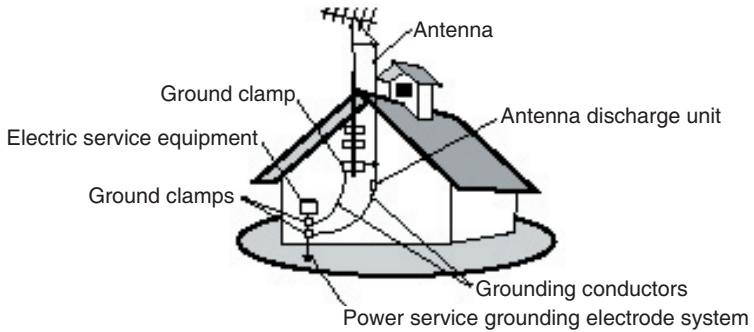
Antenna Installation Instructions
1. Outdoor Antenna Grounding
If an outside antenna or cable system is connected to the product be sure the antenna or cable system is grounded so as to provide some protection against voltage surges and built-up static charges, Article 810 of the National Electrical Code, ANSI/NFPA 70, provides information with regard to proper grounding of the mast and supporting structure, grounding of the lead-in wire to an antenna discharge unit, connection to grounding electrodes, and requirements for the grounding electrode.
2. Lightning
For added protection for this product during a lightning storm, or when it is left unattended and unused for long periods of time, unplug it from the wall outlet and disconnect the antenna or cable system. This will prevent damage to the product due to lightning and power-line surges. Do not disconnect the antenna or the power cord during a heavy storm lighting may strike while you are holding the cable cord, causing serious injury; turn off your LCD TV and wait for the weather to improve.
3. Power Lines
An outside antenna system should not be located in the vicinity of overhead power lines or other electric light or power circuits, or where it can fall into such power lines or circuits. When installing an outside antenna system, extreme care should be taken to keep from touching such power lines or circuits as contact with them might be fatal.
Cleaning the LCD TV
- Make sure the LCD TV is turned off.
- Never spray or pour any liquid directly onto the screen or case.
To clean the screen:
- Wipe the screen with a clean, soft, lint-free cloth. This removes dust and other particles.
- If still not clean, apply a small amount of non-ammonia, non-alcohol based glass cleaner onto a clean, soft, lint-free cloth, and wipe the screen.
To clean the case:
- Use a soft, dry cloth.
- If still not clean, apply a small amount of a non-ammonia, non-alcohol based, mild non-abrasive detergent onto a clean, soft, lint-free cloth, then wipe the surface.
Disclaimer
ViewSonic® does not recommend the use of any ammonia or alcohol-based cleaners on the LCD TV screen or case. Some chemical cleaners have been reported to damage the screen and/or case of the LCD TV. ViewSonic will not be liable for damage resulting from use of any ammonia or alcohol-based cleaners.
Getting Started
Congratulations on your purchasing of a ViewSonic LCD TV display. Important! Save the original box and all packaging material for future shipping needs.
Package Contents
Please confirm that the following accessories are present when you unpack the box:
- LCD TV
- Remote Control (batteries included)
Power Cord(s)
SCART Cable
AV Cable - User Guide
Colour Quick Start Guide
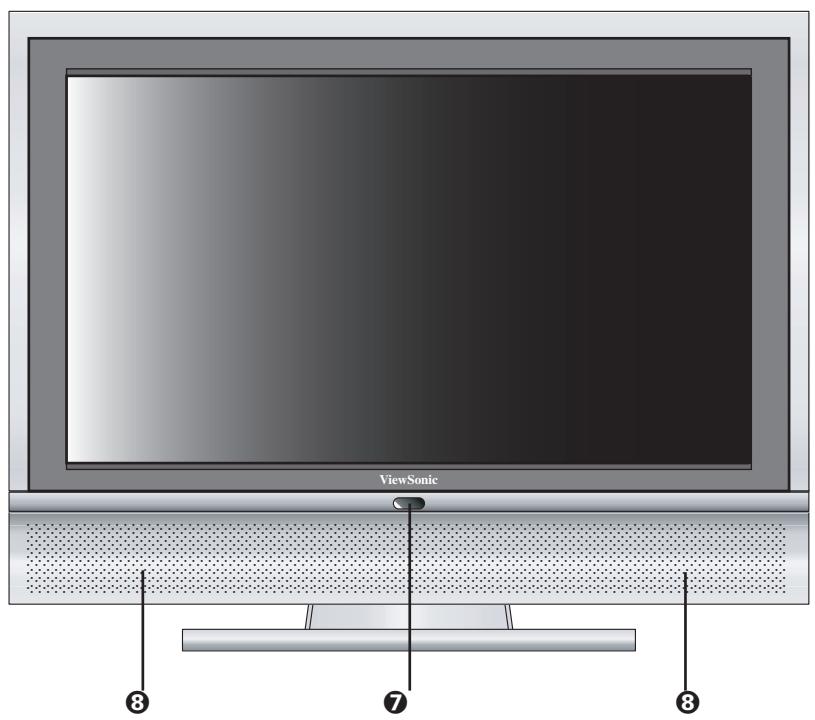
Front View of the Product
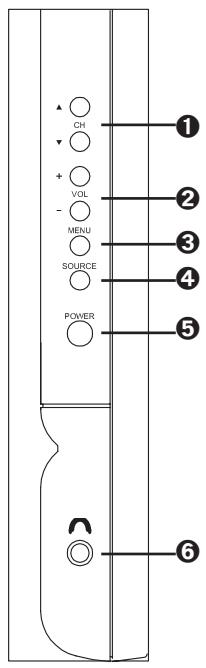
CH ▲/▼
Change the channel.
VOL + / -
Used for changing the volume.
3 MENU
Display menu screen.
4 SOURCE
Switch among display input sources.
⑤ POWER
Turn the TV ON (green light) and OFF (red light).
6 EARPHONE
Used for connecting arophone to the TV.
7 POWER INDICATOR LED
Indicate if the power is turned on (green), or if the TV is in stand-by mode (red). DPMS state for RGB/HDMI (orange).
SPEAKERS
Audio output.
Power Lock
Press MENU and VOL + buttons at the same time can lock the function of POWER button.
OSD Lock
Press VOL -and VOL +button at the same time can lock the function of MENU button.
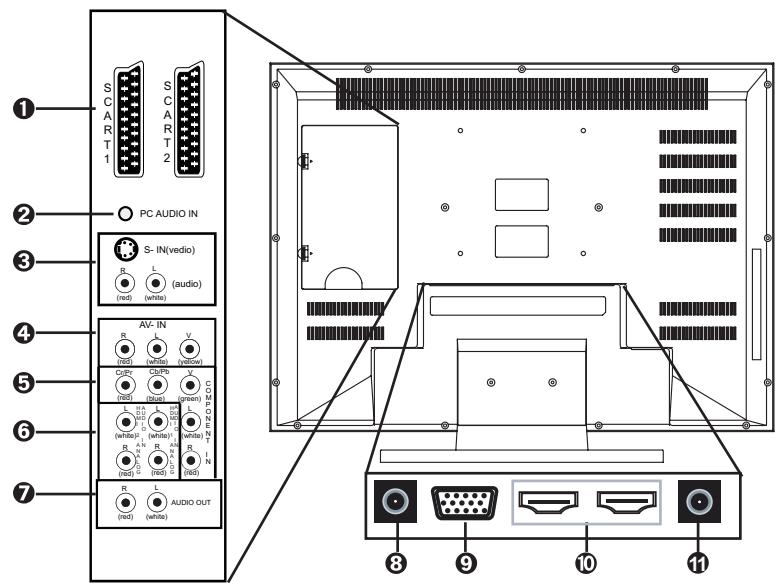
SCART 1, SCART 2,
Connect to SCART output of your A/V device.
(SCART 1 is always RF out, SCART 2 is optional of CVBS out, RF out and SCART CVBS out)
PC AUDIO IN
Connect to the audio output jack of your PC or portable computer.
S - IN
Connect to the audio and S-Video or AV output jack of your A/V device.
4 AV IN
Connect to your A/V output jack of your AV device.
⑤ COMPONENT IN
Connect to the audio and component video output jack of your A/V device.
HDMI ANALOG AUDIO - IN
Connect to the AUDIO output of your PC or A/V device.
7 AUDIO OUT
Connect to AUDIO IN jack of your A/V device.
8 ANT
Connect to your antenna or coaxial cable.
PC IN
Connect to your VGA out put of your PC or portable computer.
HDMI - IN
Connect to your HDMI output of A/V device.
Digital Antenna
1 Connect to your Digital antenna.
Remote Control
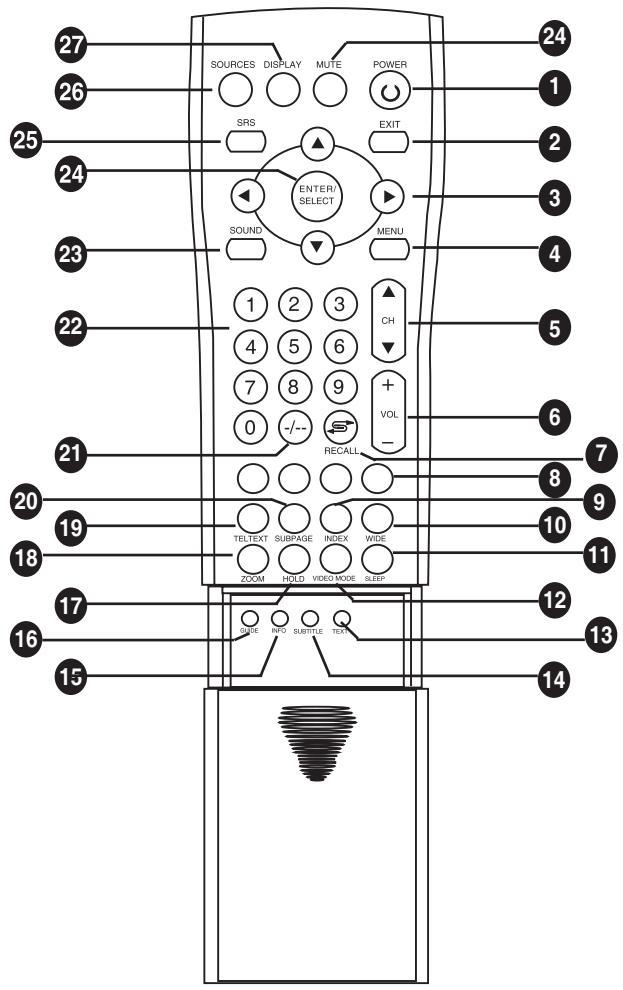

POWER
Turn power on or off.

EXIT
Press the button to exit DTV OSD menu.

ARROW KEYS
Press the up, down, left, right keys to scroll through the OSD menu options. (No support channel selection and volume adjustment)

MENU
Display the OSD menu.


Increase or decrease the channel number.

VOL- / +
Increase (+) or decrease (-) the volume.
7RECALL
Switch to the previously viewed channel.
8 TELETEXT HOT KEYS
Select groups of pages in teletext modes.
9 INDEX
Display a list and information about the teletext pages.
10 WIDE
Switch the display mode between various wide modes.
(1 to 1, Normal, Zoom, Anamorphic, Wide, Fill All, Auto)
11 SLEEP
Press repeatedly to set the off timer to 10 through 180 minutes. The TV enters standard mode after the specified time interval.
12VIDEO MODE
Switch between four video modes to change the picture quality : Personal, Vivid, Mild, Standard.
13 TEXT
Display the TEXT information.
14 SUBTITLE
Display the teletext subtitle directly.
15 INFO
Display the program information.
16GUIDE
Enter the DTV OSD menu.
17 HOLD
Freeze the current teletext page on the screen.
18 ZOOM
Enlarge the teletext page.
19 TELETEXT
Start teletext mode. (only 4:3 format)
20 SUBPAGE
Display the teletext sub-page directly.
21 - /--
Press repeatedly to setting a form for entering channel number from 1 to 99.
"-" means to enter one number.
“- -”means to enter two numbers or you can enter unit number or “0” and unit number then press “enter ”button.
22 NUMBER KEYS
Press the number keys to enter channel numbers.
23 SOUND
Switch between monaural, stereo or Sound 1/Sound 2 audio modes.
24ENTER
Press this button to execute the order you choose.
25 SRS
Select SRS ON or OFF. Audio mode will be closed when SRS WOW ON and audio mode will be opened when SRS WOW OFF.
26 SOURCE
Select the AV, S-VIDEO, TV, SCART, HDTV, DTV, PC, HDMI inputs as the video source signal.
27 DISPLAY
Press to display the information of output source.
28MUTE
Disable the audio output.
Notes on the Remote Control
- The remote control's effective range is 5 meters from the LCD screen at an angle of up to ± 30^ .
- Direct light may affect the remote control effective range.
- Avoid subjecting the remote control to shock or vibration.
- Avoid placing the remote control in humid and hot environment such as direct sunlight.
- Remove the batteries when not using the remote control for long period.
Remote Control Battery Installation
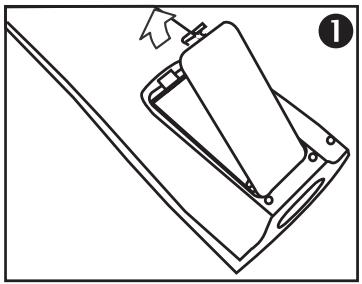
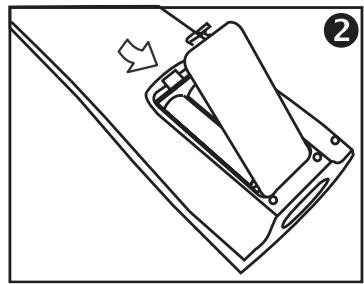
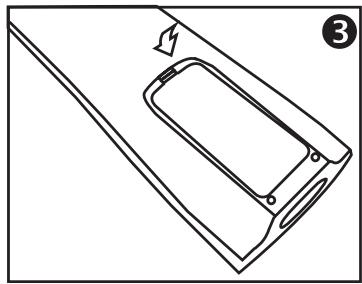
Follow the steps below to insert the batteries.
1 Open the remote control's rear battery compartment cover.
2 Insert two AAA batteries. Ensure that the positive and negative ends match as indicated on the bottom of the battery compartment.
3 Replace the battery compartment cover.

CAUTION
- Only use the specified AAA batteries.
- Do not mix new and old batteries. This may result in cracking or leakage, which may pose a fire risk or lead to personal injury.
- Insert batteries according to the (+) and (-) markings. Inserting the batteries incorrectly may result in cracking or leakage, which may pose a fire risk or lead to personal injury.
- Dispose of batteries in accordance with local laws and regulations.
- Keep batteries away from children and pets.
- If the remote control will not be used for an extended period of time, please remove the batteries.
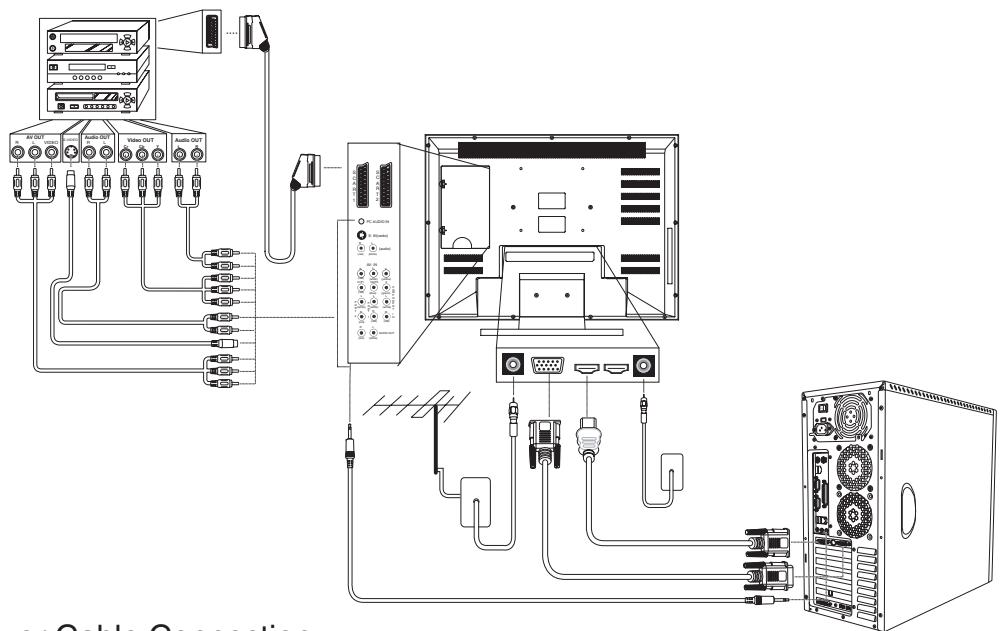
Cable Connections
Connect video and audio cables according to the connections on your external devices such as DVD players, VCR and Stereo systems.
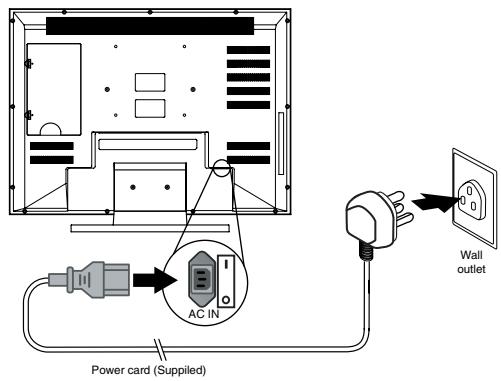
Power Cable Connection
1 Connect the power cable to a wall outlet.
2 Connect the other end of the power cable to the socket on the back of the LCD TV.
3 Turn ON the power switch on the back rear of TV set.
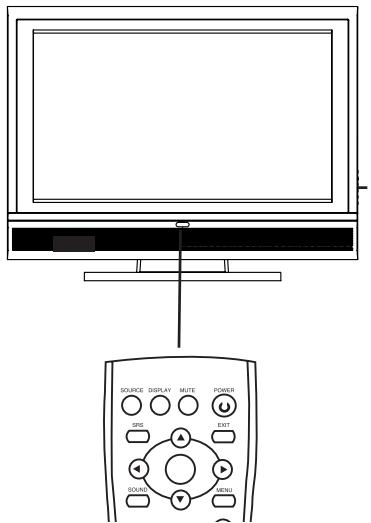
Turning the TV (Power) On
1 Press the power button. The power light will turn from red to green and the screen will appear after 5 seconds.
2 Press the power button again to turn it off.
OSD Functions
All the functions for the LCD TV are controlled either by the remote control or the control buttons on the front control panel at right side of the TV. See “Front View of the Product” on page 6.
Press the MENU button on the remote control or the front control panel to display the OSD main menu.
Press the MENU button to select the OSD menu you want.
Press the VOL + / - (control panel) or the / (remote control) buttons to select the option.
Press the CH / (control panel) or the / (remote control) buttons to select an OSD menu item.
Press the VOL + / - (control panel) or the / (remote control) buttons to change the values of the selected menu item.

Press the MENU button to exit the OSD.
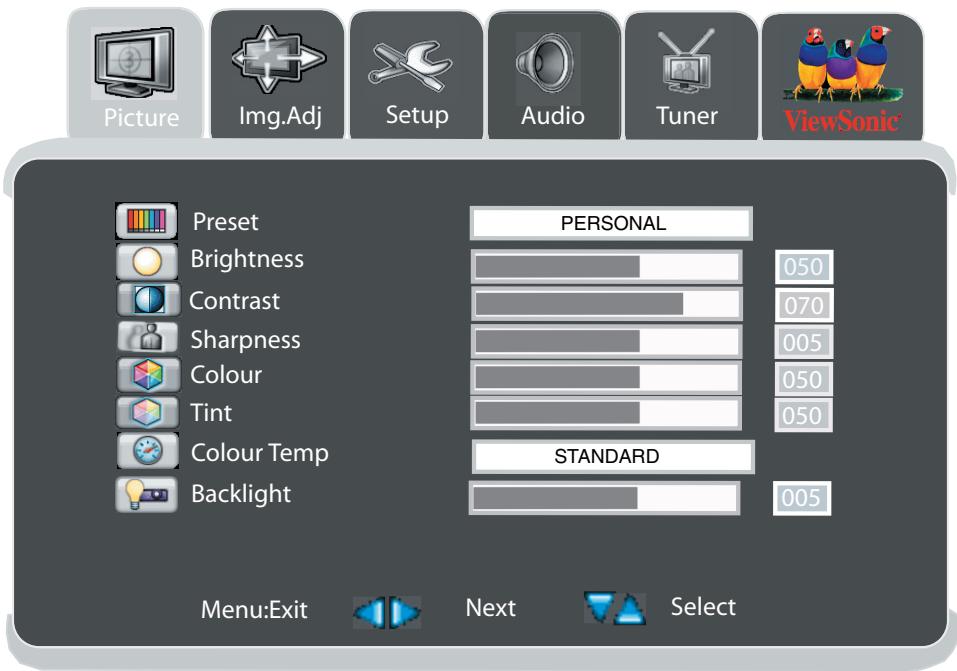
Picture Adjustment

Picture

Img.Adj

Setup

Audio

Tuner

ViewSonic

Preset
Brightness

Contrast

Sharpness

Colour

Tint

Colour Temp

Backlight
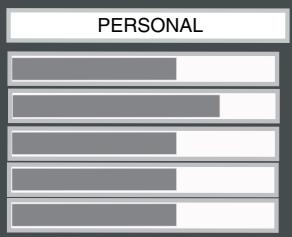
STANDARD

050
070
005
050
050
005
Menu:Exit

Next

Select
| Function Name | Explanation |
| Preset | Switch the preset picture mode: PERSONAL, STANDARD, VIVID, MILD. In each picture mode include item: brightness, contrast, sharpness, colour and tint. |
| Brightness | Adjust the levels of light on your screen. It should be used in conjunction with the Contrast option. |
| Contrast | Adjust the light levels on your display.It should be used in conjunction with the Brightness option. |
| Sharpness | Adjust the sharpness levels on your screen. |
| Colour | Change the dominant colour intensity on your screen. Adjust this setting until the colour on the screen (for example, flesh tones) look natural. |
| Tint | Change the colour balance. Adjust this setting so that the colours (for example, flesh tones) on the screen are neither too green nor too magenta. |
| Colour Temp | Adjust the image colour intensity: STANDARD, WARM, NATURAL, COOL. |
| Back Light | Adjust the back light of screen. |
| Phase (PC mode only) | Adjust the phase of the display. |
| Frequency (PC mode only) | Adjust the frequency of the display. |
Image Adjustment




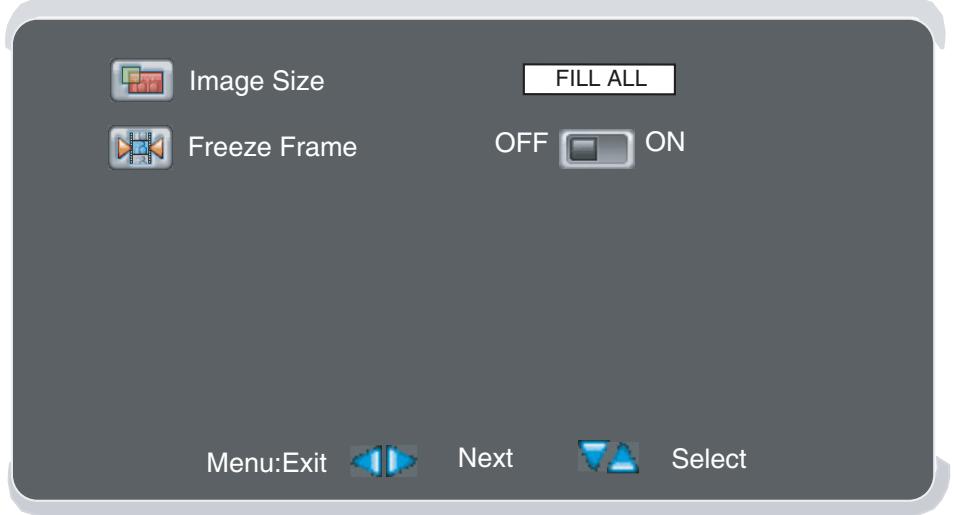
| Function Name | Explanation |
| Image Size | Adjust the image size include : Fill All, 1 to 1, normal, wide, zoom, anamorphic, auto. In PC mode image size includes : Fill AI, 1 to 1, Fill Aspect. |
| Freeze Frame | Choose to freeze or un-freeze the frame on the screen. |
| H Position | Adjusts the horizontal position of display. (Only support in PC mode) |
| V position | Adjust the vertical position of display. (Only support in PC mode) |
| Auto | Auto adjusts screen to the best position. (Only support in PC mode.) |
Setup Adjustment
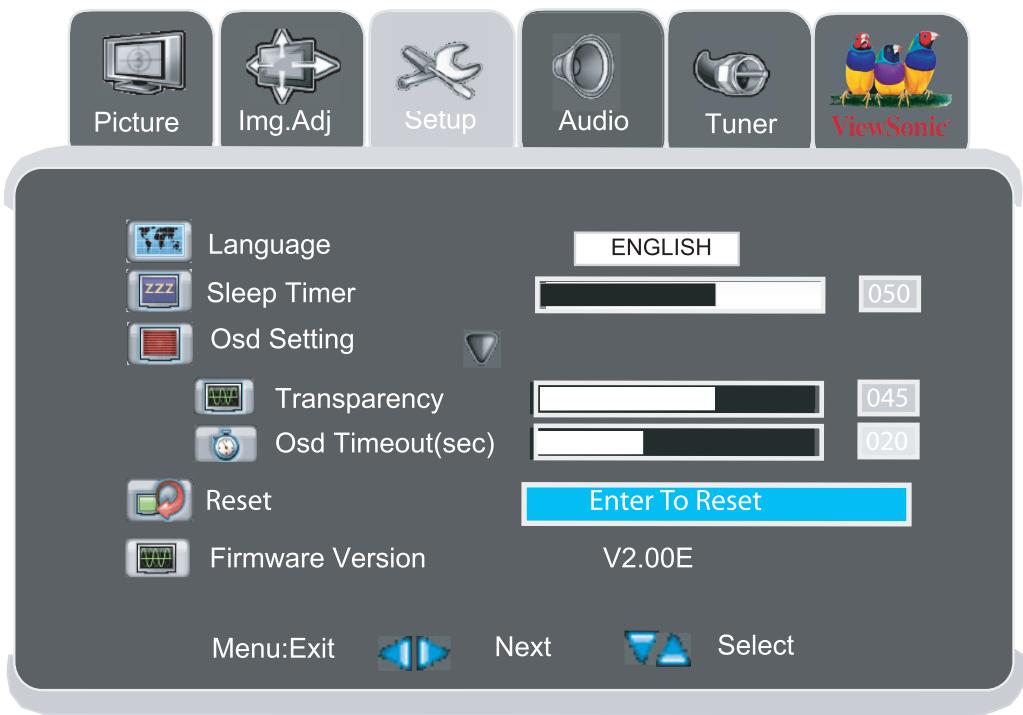
| Function Name | Explanation |
| Language | Change the OSD language: English, Deutsch, Français, Italiano, Espanol, Svenska, Suomi, Dansk, Eλληνικά, Русский, Nederlands, Português. |
| Sleep Timer | Enable you to set off timer to 10 through 180 min. That will elapse before the TV turns off. |
| OSD Setting Transparency OSD Timout(sec) | Adjust the transparency rate of the OSD background. Adjust the stay time that OSD picture stay on screen. |
| Reset | Back to the factory setting. |
| Firmware Version | Show the firmware version. |
| DVI Only Mode (only in HDMI MODE) | Adjust the setting of screen wide in HDMI mode. In HDMI mode, switch the setting to “VIDEO”. |
Audio Adjustment

Picture

Img.Adj

Setup

Audio

Tuner

ViewSonic

Volume

Preset

Treble

Bass

Balance
Speaker Mute

SRS WOW
Menu:Exit

Next

OFF

OFF

Select
017


| Function Name | Explanation |
| Volume | Adjust the overall volume of the speakers. |
| Preset | Switch the preset audio mode : PERSONAL, STANDARD, MILD. In each audio mode include item: treble, bass . |
| Treble | Adjust the high frequency content in the audio output. |
| Bass | Adjust the low frequency content in the audio output. |
| Balance | Balance the volume of the left and right speakers. |
| Speaker Mute | Disable the audio output. (When connect outside AMP) |
| SRS WOW | Switch Surround function ON or OFF. |
Tuner Adjustment





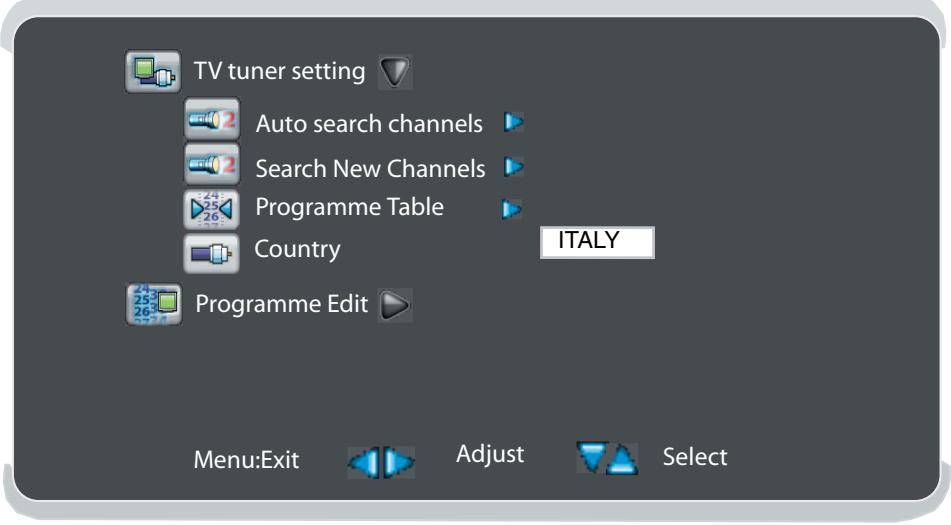
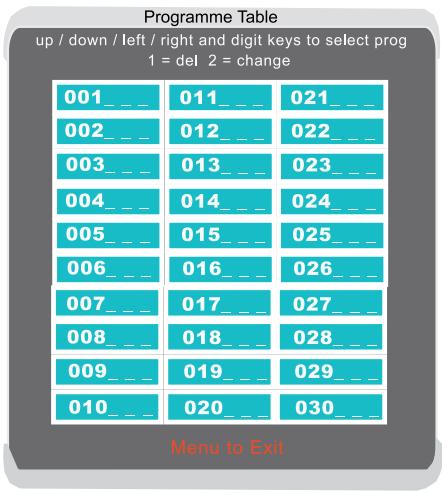
| Function Name | Explanation |
| TV Tuner Setting | Auto Search channels |
| Auto Search channels | Search New Channels |
| Programme Table | Edit programme list . |
| Country | Setting local country. |
Tuner Adjustment
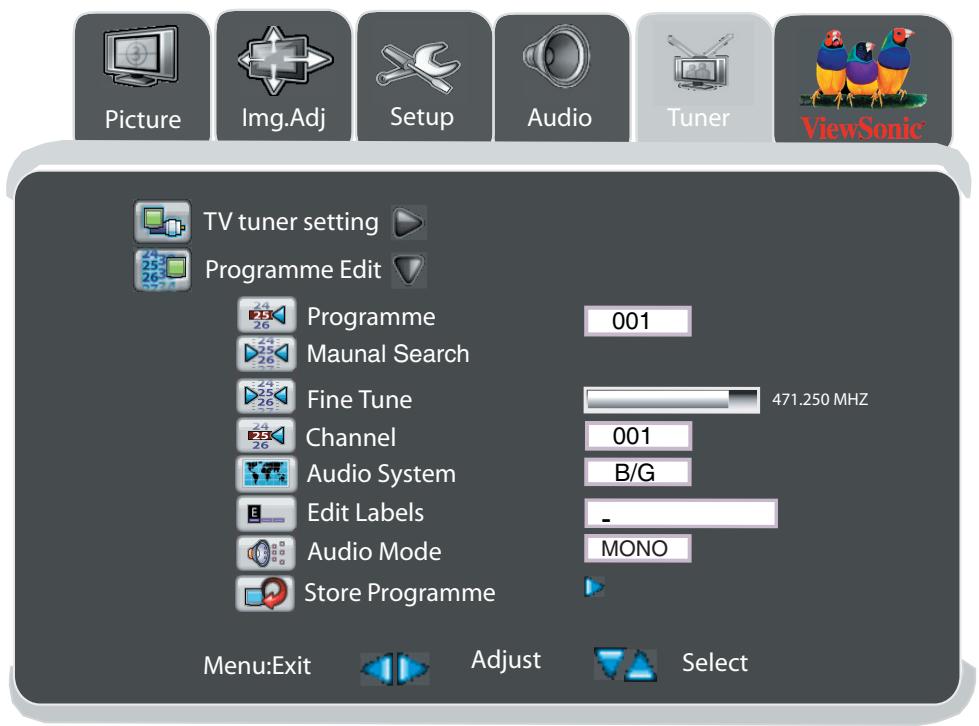
| Function Name | Explanation |
| Programme Edit | Edit programme list and setting. |
| Programme | Press ↗ keys to change the numner. The order and content has been recorded in LCD TV after channel scanning. It is allowed to edit the content : Set Frequency, Fine Tune, channel, Lables and Audio mode. |
| Manual Search | Press right / left button to start search .Searching and re-cording the frequency of programme one by one. (Please adjust country to “France “ when searching SECAM L’ channel) |
| Fine Tune | Press ↗ to adjust the frequency slightly for the channel. |
| Channel | Press ↗ keys to change the channel numner. |
| Audio System | Show the definition name of analog audio system . |
| Edit Labels | Edit the programme name .Press ↗ to move cursor and press ↗ keys to change the character. |
| Audio Mode | Adjusts the Audio mode : STEREO, MONO, SOUND 1, SOUND 2 . |
| Store programme | Press ↗ to store the programme edit . |
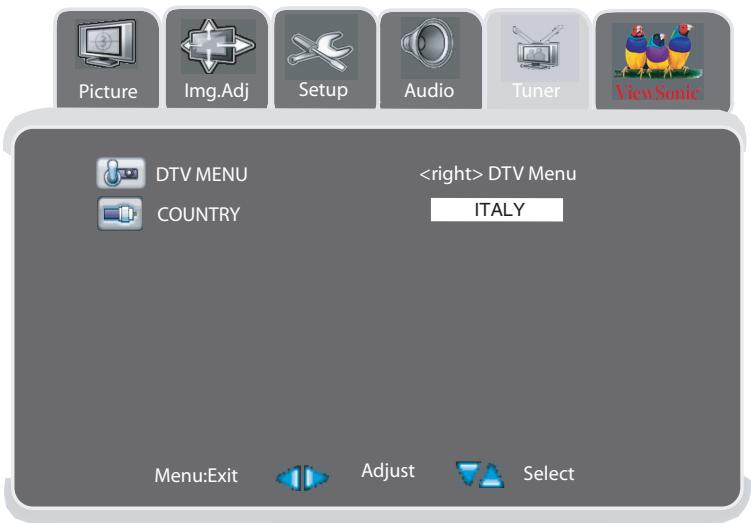
DTV OSD Functions
The DTV OSD (on-Screen Display) menu presents user a consistent look and feeling throughout. User can adjust the DTV channel system setting in this menu.
Press the MENU button in DTV mode
Press button to select "Tuner"option
Press button to select "DTV MENU"
Press button to enter DTV OSD menu
The DTV OSD will stay on the screen after user adjust the option. Please press "EXIT" button to exit the DTV menu.

First Time Installation
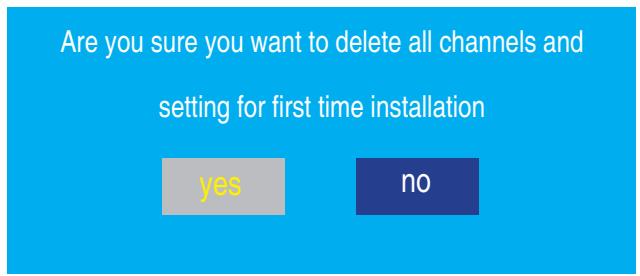
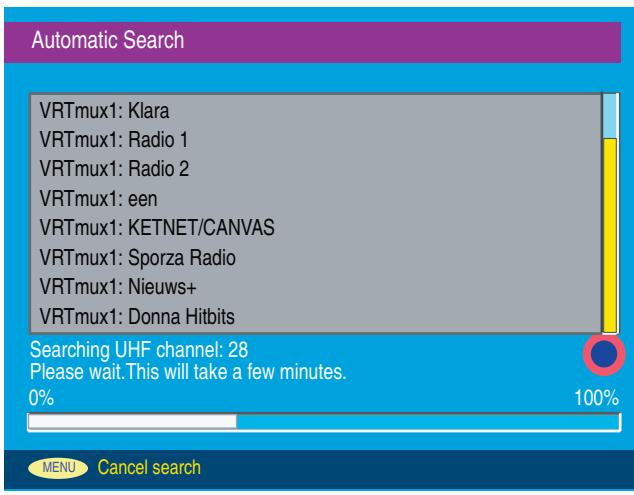
When the system is first time switched on, user is asked if they wish to do an automatic search. Selects "yes" and automatic search will start. When automatic search finishes and all channel have been found, the lowest number channel is selected and a banner describing that channel is shown.
Do you want to start automatic search?
yes
no
Automatic Search
VRTmux1: Klara
VRTmux1: Radio 1
VRTmux1: Radio 2
VRTmux1:een
VRTmux1: KETNET/CANVAS
VRTmux1: Sporza Radio
VRTmux1: Nieuws+
VRTmux1: Donna Hitbits
Searching UHF channel: 28
Please wait. This will take a few minutes.
0%
NU Ca
Cancel search
808
EEN
I/II

12:03
Now: Cash in the Attic
Next: RHS Chelsea Flower Show 2005
11:45- 12:30
12:30-13:00
Signal


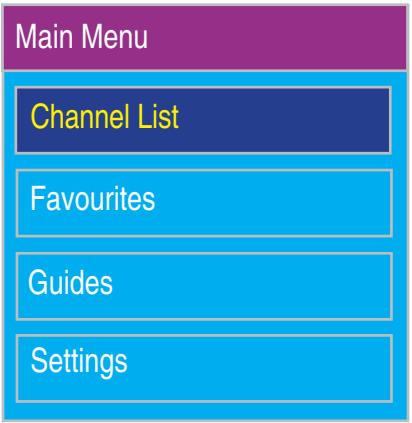
User may choose not to automatic scan or no channel be found by automatic scan. In this instance user may enter "main menu-installation", select "First Time installation" item then start scanning.
It is very important to do channel searching before user start DTV system.

Channel List
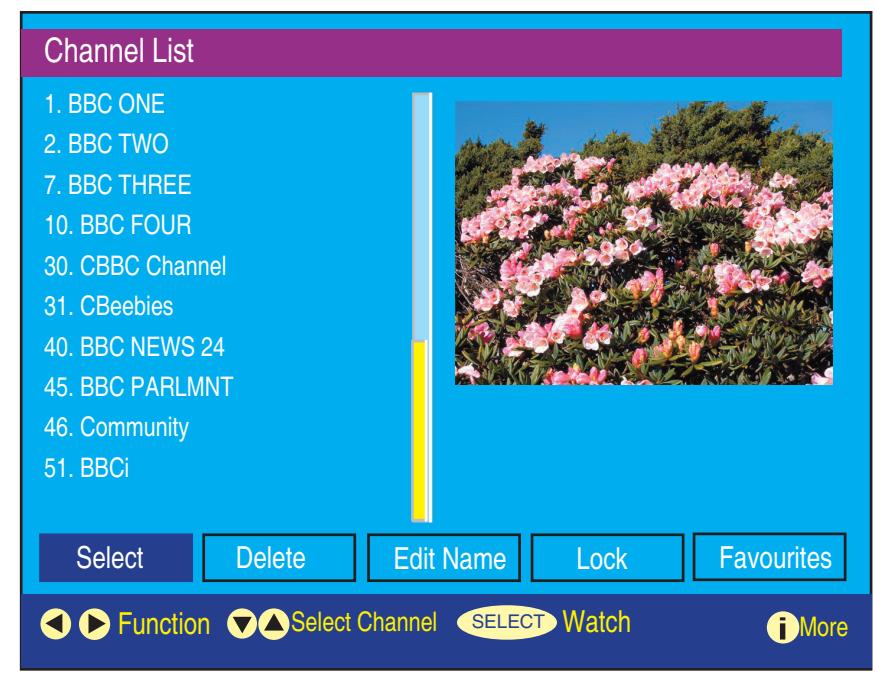
"Channel List " allows user to edit channel list and provides the following features:
- Select : Select the channel
2 删除 : Delete the channel
3.Edit:Editing a channel's name
4.Lock: Lock the channel for parental control. Press "select" button to lock or unlock the channel. The default password is "0000"
5.Favourite : Enter the "Edit Favorite Lists" and edit the favorite channel programme list. This function cannot be accessed if there are no channels available.
Favourites
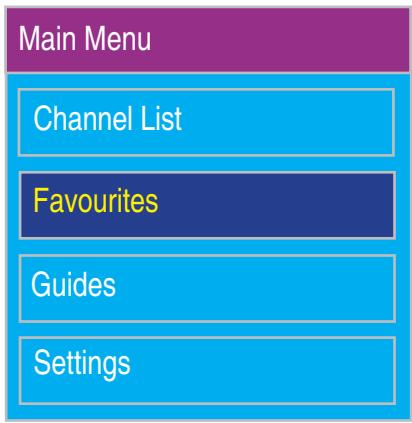
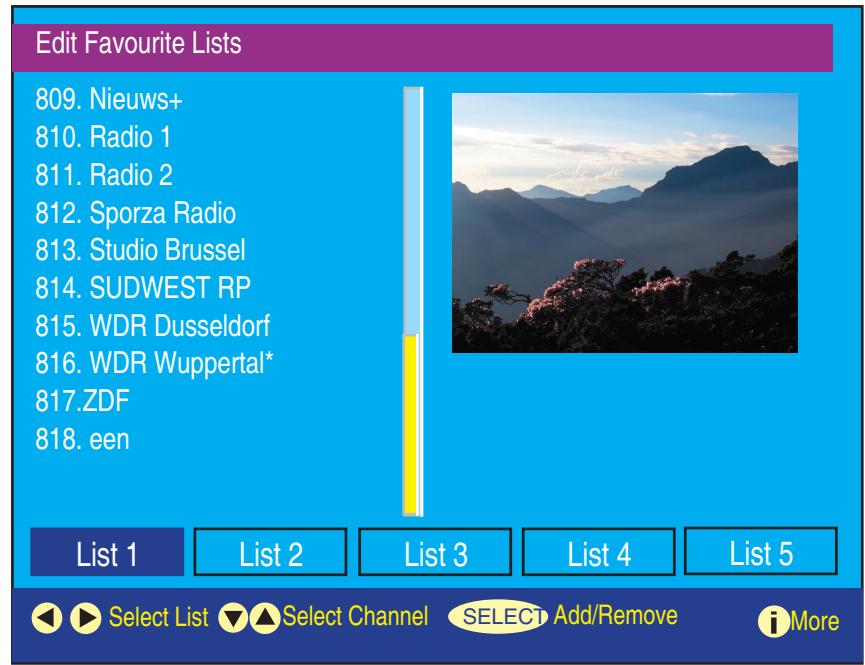
"Favourites " enable user to select a subset of channel they consider favourite. It allows to have up to 5 list.
User can enter this option via main menu or "channel list" option.
Press button to select List1/2/3/4/5 and press select a channel and press "select " to add a icon.
The icon indicate the channels that are members of a favourites list.
When favourites mode is done, press button on the remote control will only show those channel which be marked. User can select a favourite list on "configuration" menu. User still possible to select a channel using the number even if it is not a member of favourites list.
This function cannot be accessed if there are no services available.
Guides
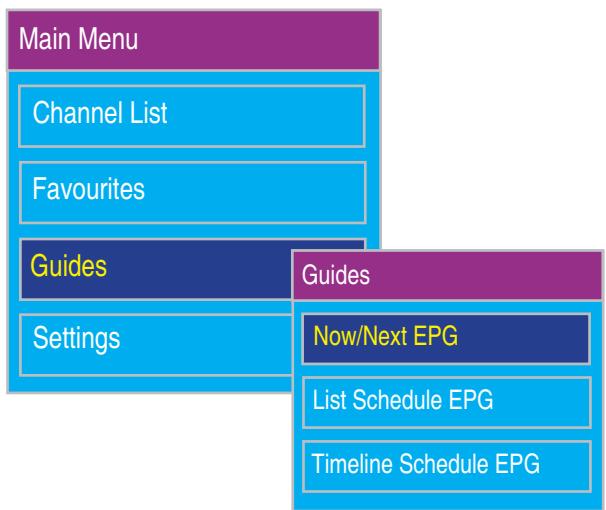
EPG (Electronic Programme Guide) allows the user to view the current programme playing on each channel. In "Guides" option, includes these item:
1).Now/next EPG
2).List Schedule EPG
3).TimeLine Schedule EPG
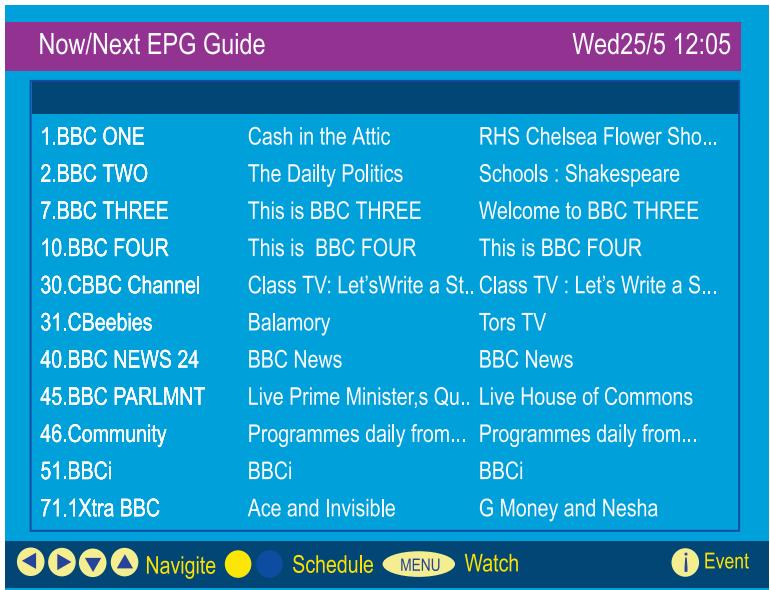
1).Now/next EPG:
In this item will display current and next programmes. User can navigate up and down the list of channels and highlighted programme can be displayed by press "info".
This information includes the start/end time of programme, the programme genre in brackets, and a synopsis of the programme content.
User may select a channel by highlighting a programme in the "NOW" list and press the "Select key.
pressing the "Subtitle" key, user may select a genre to highlight events with the selected genre in the EPG.
This function cannot be accessed if there are no channel available.
2).List Schedule EPG:
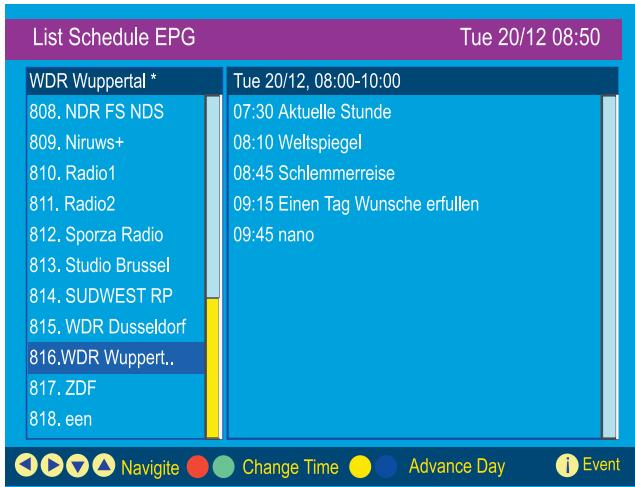
User may view more detail for the programme playing now or the programme highlighted in the schedule list using yellow and blue keys respectively. This item presents the user two information panel. Left side list displays all available channels. The right side list display two hours of schedule information for the currently channel service, its title shows the time span covered by the list. User may change the time span of the schedule information displayed for a channel by either two hours or an entire day by colour button. (red/green -change time, yellow/blue advance day)
3).Time Line Schedule EPG:
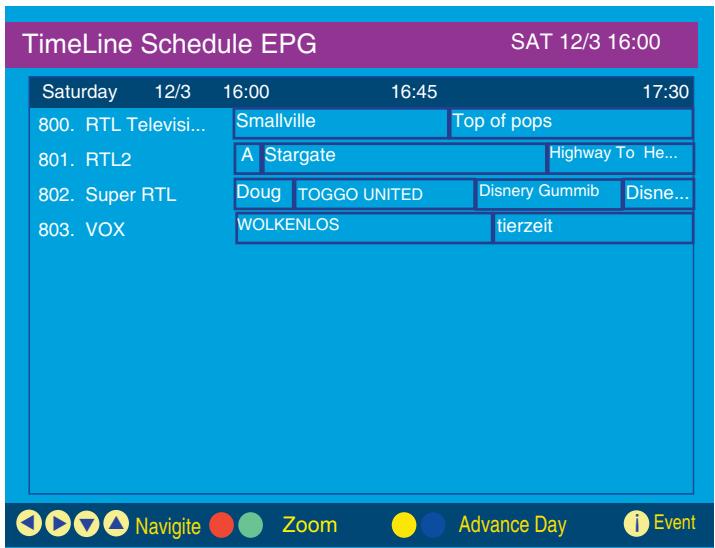
User may view more programme list base on time schedule. This item presents the user two information panel. Left side list displays all available channels. The right side list display time schedule information for the currently channel service, its title shows the time span covered by the list. User may change the time span of the schedule information or an entire day by colour button. (red/green -zoom, yellow/blue advance day)
Setting
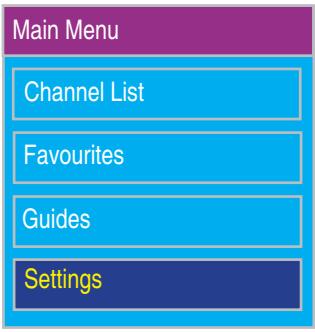
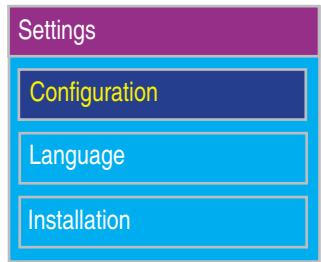
This option offer user to adjust the setting of DTV MENU and provides the following features:
1) Configuration
2) Language
3) Installation
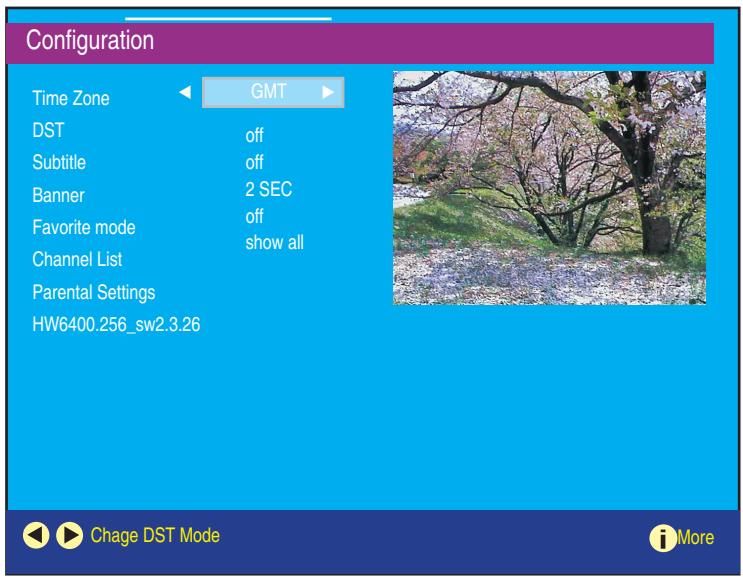
1)Configuration
The "configuration " provides the following adjust ion features:
A:Time Zone
Setting "Time Zone".
B:DST
Setting "daylight-saving Time" on or off.
C:Subtitle
Subtitle of DVB can be enabled/disabled using the "subtitle" button on the remote control or in this option user can switch subtitle on or off. Using the subtitle dialog on the main menu, allows the user to set the system subtitle preference.
D:Banner
Adjust stay time on the screen from 1 SEC. to 8 SEC.
E:Favourite mode
Select a favourite list which had setted in "Favourites" option: List 1/List 2/List 3/list 4/off.
F:Channel List
Switches the source of channel list :TV only, Radio only, Text only and Show all.
G:Parental Settings
Parental control allows " main menu " and " installation " menu to be protect by password.
User can change the password in this item.
H: Firmware version
Show the firmware version.
2) Language
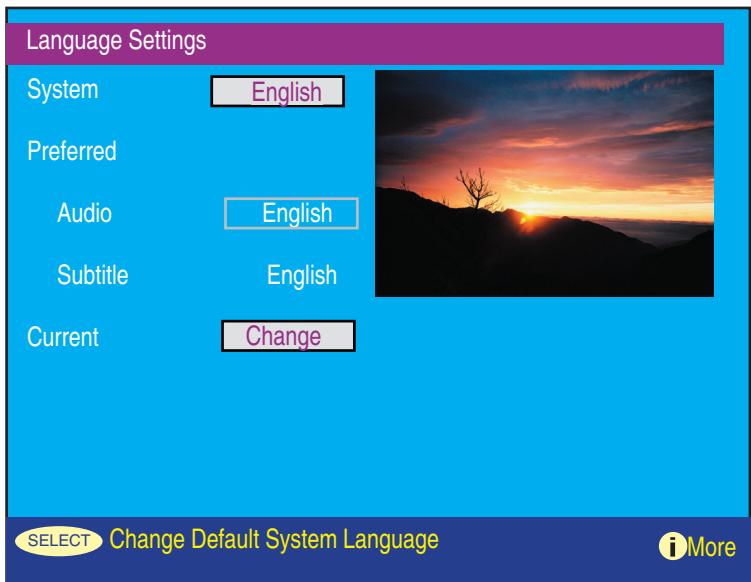
Here the user can set the preferred and the current language of both the audio and subtitles. The system language refers to the language used for all UI text throughout the menu. Default system language is set to "English".
By setting the current language the user can choose from the language available for a particular selected service. Only language available for the current service will be offered as an option. The dialog will not be displayed if there are no current language option available.
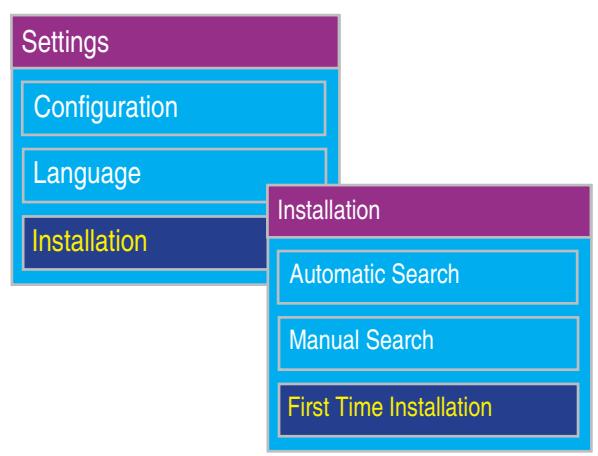
3) Installation
This item offers user to scan channel signal and provides the following ways:
(1) Automatic Search (see page 22, 23)
(2) Manual Search
(3) First Time Installation (see page 22, 23)
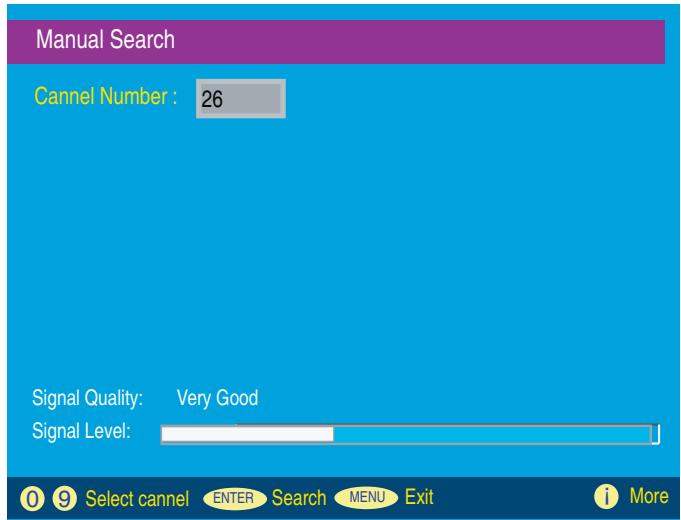
(2) Manuel Search
Manual search allows user to scan an individual channel. The user enter the channel number to be scanned, only those channels supported by the tuner may be entered.
This item displays a bar indicating the quality and strength of the signal of the currently selected channel. Newly discovered channels are merged with the current list of channels. This item can support up to 70 channels at any one time.
Other Dialog
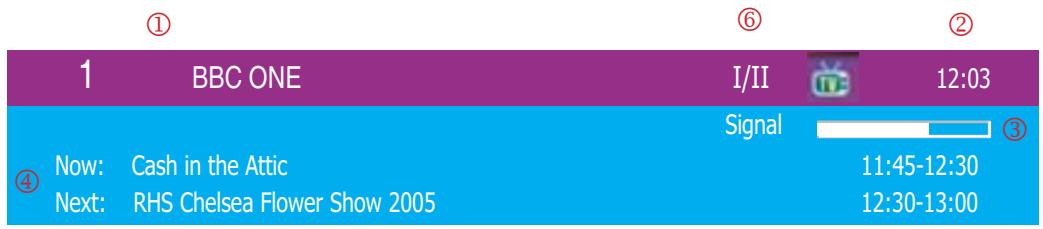
1)Current Service Banner
The Current Service Banner provides information about the current service, and is display as a result of various events:
When power turn ON
After "First Time Installation"
Channel selected has changed, and video is full screen.
When press “INFO ” button
The current service banner containing the following information:
①. Current channel name and number
②.Time
③. Channel signal strength
④. Now and next programme name and start/end times
⑤ .Whether the channel is locked
⑥ .Multiple audio/subtitle indicator
Other Information
Specifications
| Panel | Type | 32" (full 31.5" viewable diagonal area) |
| 37" (full 37.02" viewable diagonal area) | ||
| 40" (full 39.9" viewable diagonal area) | ||
| 42" (full 41.7" viewable diagonal area) | ||
| Colour | Active Matrix Wide-WXGA, 1366 x 768 | |
| Anti-reflective coating + Anti-glare coating | ||
| Viewing angles | 32" 170° (H) / 170° (V) | |
| 37" 176° (H) / 176° (V) | ||
| 40" 178° (H) / 178° (V) | ||
| 42" 178° (H) / 178° (V) | ||
| Input signal | Video | Digital system antenna * 1 |
| VGA input * 1 | ||
| TV system antenna | ||
| Composite Video input * 1 | ||
| S-Video * 1 | ||
| Component Video * 1 (YCbCr, YPbPr) | ||
| HDMI * 2 | ||
| SCART * 2 | ||
| Audio | Audio input (3.5 for VGA * 1), (RCA * 1 are for DVI Audio IN) | |
| Audio output * 1 | ||
| Compatibility | PC | Up to 1360 x 768 Non-interlaced |
| Macintosh | Up to 832 x 643 Non-interlaced | |
| Resolution | Supported | 1280 x 1024 @ 60 Hz |
| 1024 x 768 @ 60/70/75 Hz | ||
| 1280 x 768 @ 60 Hz | ||
| 1280 x 720 @ 60 Hz (It is the PC reference mode) | ||
| 1360 x 768 @ 60 Hz (it is the PC reference mode) | ||
| 832 x 624 @ 75 Hz (Mac) | ||
| 800 x 600 @ 60/75 Hz | ||
| 640 x 480 @ 60/75 Hz (It is the PC reference mode) | ||
| 720 x 400 @ 70 Hz | ||
| Speaker Output | 10 W + 10 W | |
| Power | Voltage | 100-240 V AC, 50/60 Hz (auto switch), |
| 32": 190W | ||
| 37": 220W | ||
| 40": 260W | ||
| 42": 280W | ||
| Operating conditions | Temperature | 0°C to 40°C (32°F to 104°F) |
| Humidity | 10% to 90% (no condensation) | |
| Altitude | To 3000 meter | |
| Storage conditions | Temperature | -20°C to 60°C (-4°F to 140°F) |
| Humidity | 10% to 90% (no condensation) | |
| Altitude | To 12,000 meter | |
| Dimensions | Physical | 32": 820 mm (W) x 650 mm (H) x 230 mm (D) 32.3" (W) x 25.6" (H) x 9.1" (D) 37": 960 mm (W) x 730 mm (H) x 280 mm (D) 37.8" (W) x 28.7" (H) x 11" (D) 40": 1015 mm (W) x 755 mm (H) x 280 mm (D) 40.0" (W) x 29.7" (H) x 11" (D) 42": 1070 mm (W) x 815 mm (H) x 300 mm (D) 42.1" (W) x 32.1" (H) x 11.8" (D) |
| Package | 32": 960 mm (W) x 780 mm (H) x 320 mm (D) 37.8" (W) x 30.7" (H) x 12.6" (D) 37": 1130 mm (W) x 870 mm (H) x 370 mm (D) 44.5" (W) x 34.3" (H) x 14.6" (D) 40": 1145 mm (W) x 910 mm (H) x 370 mm (D) 45.1" (W) x 35.8" (H) x 14.6" (D) 42": 1190 mm (W) x 970 mm (H) x 420 mm (D) 46.8" (W) x 38.1" (H) x 16.5" (D) | |
| Weight | Net | 32": 22 kg (48.5 lb.) 37": 31 kg (68.3 lb.) 40": 33 kg (72.7 lb.) 42": 38 kg (83.7 lb.) |
| Gross | 32": 26.5 kg (58.4 lb.) 37": 38.5 kg (84.9 lb.) 40": 40.0 kg (88.1 lb.) 42": 45 kg (99.2 lb.) | |
| Regulations | CE, CB, HDMI, HD ready, GOST, SASO, SRS WOW | |
| Power saving modes | Active Off | <2.5 W (Red LED) |
| Preset Timing Mode (Pre-adjusted to VESA 1360 x 768 at 60 Hz) | ||
| Warning : Do not set the graphics card in you computer to exceed these refresh rates. Doing so may result in perma- nent damage to the LCD. Note : Product specifications are subject to change without notice. | ||
Troubleshooting
No power
- Make sure the LCD is properly connected. (see also pages 13)
- Make sure the AC power cord is properly connected. (see also page 13)
- Make sure the power switch in the rear cover is ON (Red LED), and power button has been pressed (Green LED).
- Plug another electrical device (like a radio) to the power outlet to verify that the outlet is supplying the proper voltage.
Poor or no picture
- The TV station may be experiencing problems. Try another channel.
- The Cable TV signal may be scrambled or encoded. Please contact your local cable operator.
- Make sure that connection to other components are correct. (see also pages 13)
- Make sure that setup has been done correctly after connections. (see also pages 14-17)
- Make sure the correct input is selected and the input signal is compatible.
Strange colour, light colour, or colour misalignment
- Ensure that the video cable is securely connected.
- The picture may appear dim in a brightly lit room.
- Adjust brightness and contrast.
- Check the input signal setting.
No sound
- Check your audio connections
- The MUTE button may have been pressed, try pressing this button again.
- Check your audio settings, your TV audio may be set to minimum.
- Press the Volume + (Up) button on the remote control.
Remote control unit does not operate
- Make sure batteries are inserted correctly. (see also page 12)
- Batteries could be weak or dead. Replace batteries.
- Is a fluorescent light illuminated near the remote control sensor?
- The path of the remote control beam may be blocked. Make sure the path is clear and that the remote control is aimed at the remote control sensor on the TV.
- Press only one button at a time and it is the correct one for the operation you want to perform..
Unit cannot be operated
- External influences such as lightning or static electricity may cause improper operation. In this case, operate the unit after first turning on the power of the LCD and the AVC System, or unplug the AC cord for 1 to 2 minutes, then replug again.
Power is cut off suddenly
- Is the sleep timer set? (see also page 17)
- The internal temperature of the unit has increased. Remove any objects blocking the vent or clean as necessary.
Picture is cut off /with sidebar screen
- Is the image positioned correctly?
- Are screen mode adjustments such as picture size set correctly?
Customer Support
For technical support or product service, see the table below or contact your reseller.
Note: You will need the product serial number.
| Country/Region | Web Site | Telephone |
| Austria | www.viewsoniceurope.com/aus | 0150 159 6005 |
| Belgium | www.viewsoniceurope.com/befl www.viewsoniceurope.com/befr | 02 256 6642 |
| Denmark | www.viewsoniceurope.com.dk | 35 25 65 12 |
| Finland | www.viewsoniceurope.com.fi | 09 2311 3413 |
| France | www.viewsoniceurope.com/fr | 03 8717 1616 |
| Germany | www.viewsoniceurope.com/de | 0696 630 8051 |
| Republic of Ireland | www.viewsoniceurope.com/uk | 01 411 8936 |
| Italy | www.viewsoniceurope.com/it | 02 4527 9033 |
| Luxembourg | www.viewsoniceurope.com/lu | 40 6661 5618 |
| The Netherlands | www.viewsoniceurope.com/nl | 053 484 9308 |
| Norway | www.viewsoniceurope.com/no | 22 57 77 38 |
| Portugal | www.viewsoniceurope.com/uk | 21359 1423 |
| Russia | www.viewsoniceurope.com/ru | 800-200-8439 |
| Spain | www.viewsoniceurope.com/es | 913 496 534 |
| Sweden | www.viewsoniceurope.com/se | 08 5792 9045 |
| United Kingdom | www.viewsoniceurope.com/uk | 0207 949 0307 |
Limited Warranty VIEWSONIC LCD TV
What the warranty covers:
ViewSonic warrants its products to be free from defects in material and workmanship, under normal use, during the warranty period. If a product proves to be defective in material or workmanship during the warranty period, ViewSonic will, at its sole option, repair or replace the product with a like product. Replacement product or parts may include remanufactured or refurbished parts or components.
How long the warranty is effective:
ViewSonic LCD TVs are warranted for 1 year for all parts excluding the light source and 1 year for labor from the date of the first customer purchase.
Who the warranty protects:
This warranty is valid only for the first consumer purchaser.
What the warranty does not cover:
-
Any product on which the serial number has been defaced, modified or removed.
-
Damage, deterioration or malfunction resulting from:
a. Accident, misuse, neglect, fire, water, lightning, or other acts of nature, unauthorized product modification, or failure to follow instructions supplied with the product.
b. Repair or attempted repair by anyone not authorized by ViewSonic.
c. Any damage of the product due to shipment.
d. Removal or installation of the product.
e. Causes external to the product, such as electric power fluctuations or failure.
f. Use of supplies or parts not meeting ViewSonic's specifications.
g. Normal wear and tear.
h. Any other cause which does not relate to a product defect.
- Any product exhibiting a condition commonly known as "image burn-in" which results when a static image is displayed on the product for an extended period of time.
- Removal, installation, and set-up service charges.
- When you mount it on the wall, the following must be noticed:
a. The accessories attached with this product are applicable for this product only.
b. When the product is mounted on the wall, holes and fixed screws will remain in the wall body.
c. Wall face may discolor when this product has been mounted on the wall for a long time.
How to get service:
- For information about receiving service under warranty, contact ViewSonic Customer Support (please refer to Customer Support page). You will need to provide your product's serial number.
- To obtain warranted service, you will be required to provide (a) the original dated sales slip, (b) your name, (c) your address, (d) a description of the problem, and (e) the serial number of the product.
- Take or ship the product freight prepaid in the original container to an authorized ViewSonic service center or ViewSonic.
- For additional information or the name of the nearest ViewSonic service center, contact ViewSonic.
Limitation of implied warranties:
There are no warranties, express or implied, which extend beyond the description contained herein including the implied warranty of merchantability and fitness for a particular purpose.
Exclusion of damages:
ViewSonic's liability is limited to the cost of repair or replacement of the product. ViewSonic shall not be liable for:
- Damage to other property caused by any defects in the product, damages based upon inconvenience, loss of use of the product, loss of time, loss of profits, loss of business opportunity, loss of goodwill, interference with business relationships, or other commercial loss, even if advised of the possibility of such damages.
- Any other damages, whether incidental, consequential or otherwise.
- Any claim against the customer by any other party.
Effect of state law:
This warranty gives you specific legal rights, and you may also have other rights which vary from state to state. Some states do not allow limitations on implied warranties and/or do not allow the exclusion of incidental or consequential damages, so the above limitations and exclusions may not apply to you.
Sales outside the U.S.A. and Canada:
For warranty information and service on ViewSonic products sold outside of the U.S.A. and Canada, contact ViewSonic or your local ViewSonic dealer.
The warranty period for this product in mainland China (Hong Kong, Macao and Taiwan Excluded) is subject to the terms and conditions of the Maintenance Guarantee Card.
4.3: ViewSonic LCD TV Warranty
LTV_LW01 Rev. 1B 06-30-06
- ViewSonic®
- Contents
- Getting Started
- OSD Functions
- DTV OSD Function
- Other Information
- Compliance Information
- CE Conformity for European Countries
- Following information is only for EU-member states:
- Important Safety Instructions
- Declaration of RoHS Compliance
- Copyright Information
- Product Registration
- Product disposal at end of product life
- Antenna Installation Instructions
- Outdoor Antenna Grounding
- Lightning
- Power Lines
- Cleaning the LCD TV
- To clean the screen:
- To clean the case:
- Disclaimer
- Package Contents
- Front View of the Product
- Remote Control
- 7RECALL
- TELETEXT HOT KEYS
- INDEX
- WIDE
- SLEEP
- 12VIDEO MODE
- TEXT
- SUBTITLE
- INFO
- 16GUIDE
- HOLD
- ZOOM
- TELETEXT
- SUBPAGE
- - /--
- NUMBER KEYS
- SOUND
- 24ENTER
- SRS
- SOURCE
- DISPLAY
- 28MUTE
- Notes on the Remote Control
- Remote Control Battery Installation
- CAUTION
- Cable Connections
- Power Cable Connection
- Turning the TV (Power) On
- Picture Adjustment
- Image Adjustment
- Setup Adjustment
- Audio Adjustment
- Tuner Adjustment
- DTV OSD Functions
- First Time Installation
- Automatic Search
- Channel List
- Favourites
- Guides
- 1).Now/next EPG:
- 2).List Schedule EPG:
- 3).Time Line Schedule EPG:
- Setting
- 1)Configuration
- 2) Language
- 3) Installation
- Manuel Search
- Other Dialog
- 1)Current Service Banner
- Specifications
- Troubleshooting
- No power
- Poor or no picture
- Strange colour, light colour, or colour misalignment
- No sound
- Remote control unit does not operate
- Unit cannot be operated
- Power is cut off suddenly
- Picture is cut off /with sidebar screen
- Customer Support
- Limited Warranty VIEWSONIC LCD TV
Marque : VIEWSONIC
Modèle : N4266W
Catégorie : Téléviseur