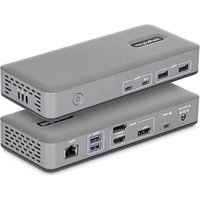
199UE-USBC-DOCK - Accessoires informatiques StarTech.com - Notice d'utilisation et mode d'emploi gratuit
Retrouvez gratuitement la notice de l'appareil 199UE-USBC-DOCK StarTech.com au format PDF.


| Type de produit | Station d'accueil USB-C |
| Marque | StarTech.com |
| Modèle | 199UE-USBC-DOCK |
| Dimensions (L x l x h) | 12 x 8 x 2,5 cm |
| Poids | 150 g |
| Alimentation | USB-C Power Delivery (PD) 60 W |
| Connectivité hôte | USB-C mâle |
| Ports vidéo | 1 x HDMI 2.0 (4K 60 Hz), 1 x DisplayPort 1.4 |
| Ports USB | 1 x USB-C (données, 10 Gbps), 3 x USB-A 3.0 (5 Gbps) |
| Port Ethernet | RJ45 Gigabit Ethernet |
| Prise audio | 1 x Jack 3,5 mm combo |
| Lecteur de cartes | SD/microSD |
| Fonctions principales | Extension de ports, charge PD 60W, double affichage, transfert de données |
| Compatibilité système | Windows, macOS, Chrome OS, Linux (avec pilotes standard) |
| Entretien et nettoyage | Débrancher avant nettoyage, utiliser un chiffon doux et sec |
| Sécurité | Arrêt immédiat en cas de surchauffe, protection contre les surtensions |
| Pièces détachées | Câble USB-C intégré non amovible, aucun consommable |
| Réparabilité | Indice de réparabilité non communiqué, dépannage par professionnel recommandé |
FOIRE AUX QUESTIONS - 199UE-USBC-DOCK StarTech.com
Questions des utilisateurs sur 199UE-USBC-DOCK StarTech.com
0 question sur cet appareil. Repondez a celles que vous connaissez ou posez la votre.
Poser une nouvelle question sur cet appareil
Téléchargez la notice de votre Accessoires informatiques au format PDF gratuitement ! Retrouvez votre notice 199UE-USBC-DOCK - StarTech.com et reprennez votre appareil électronique en main. Sur cette page sont publiés tous les documents nécessaires à l'utilisation de votre appareil 199UE-USBC-DOCK de la marque StarTech.com.
MODE D'EMPLOI 199UE-USBC-DOCK StarTech.com
USB-C Dock, Triple Display 4K HDMI/DisplayPort, 6x USB, GbE, 100W PD
Product ID
199N-USBC-DOCK
199UE-USBC-DOCK
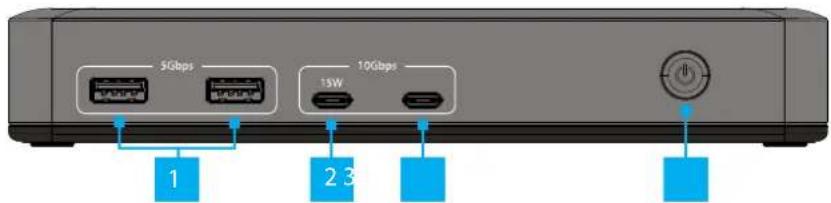
Front View
Side View
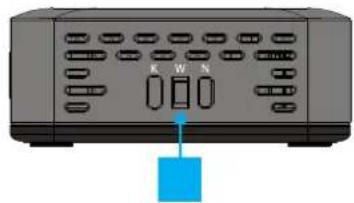
Rear View

*Product may vary from image
| Component Function | ||
| 1 | USB-A 5Gbps Ports | Connect and/or charge USB Peripherals |
| 2 | USB-C 10Gbps Port with Charging | Connect and/or charge a USB PeripheralSupports USB 10Gbps and USB Power Delivery up to 15W |
| 3 | USB-C 10Gbps Port | Connect and/or charge a USB Peripheral |
| 4 | Power Button | Press and release to toggle Power on or off for the Docking Station |
| 5 | 3x Lock Slots (Nano/Standard/Wedge) | Connect a K-Slot, Nano, or Wedge Locking Device to deter theft of the Docking Station |
| 6 | Power Input | Connect the Docking Station to a Power Source using the included Universal Power Adapter |
| 7 | USB-C Host Connection | Connect to a USB-C Port on the Host ComputerSupports Power Delivery 3.0 for up to 100W Laptop Charging |
| 8 | 3x Video Outputs | Connect up to two DisplayPort MonitorsConnect an HDMI Display |
| 9 | Gigabit Ethernet Port | Connect the Docking Station to a Network |
Package Contents
- Docking Station x 1
• 3.3ft (1m) Host Cable x 1
• Universal Power Adapter x 1
• Product Documentation x 1
Requirements
For the latest manuals, product information, technical specifications, and declarations of conformance, please visit:
www.StarTech.com/199N-USBC-DOCK
www.StarTech.com/199UE-USBC-DOCK
- Computer x 1
- The host computer's USB-C port must support Power Delivery and DisplayPort Alt Mode for full docking station functionality.
• Video support and performance, such as the number of external displays, their resolution, and refresh rate, depend on the host computer and the performance of the video card or host port.
Installation
- Connect the Power Adapter from an AC Outlet, to the Power Input Port on the Docking Station.
- Connect a Network Cable from a Network Port/Device to the Gigabit Ethernet Port on the back of the Docking Station.
- Connect USB Devices or Peripherals to the USB-A and USB-C Ports located on the front and rear of the Docking Station.
- Connect up to two DisplayPort Monitors and one HDMI Display to the Video Outputs on the back of the Docking Station using DisplayPort and HDMI Cables (sold separately).
- Connect the included 3.3ft (1m) Host Cable from the USB-C Host Connection on the back of the Docking Station to a USB-C Port on the Laptop.
- Press the Power Button on the front to power on the Docking Station.
- The Host Computer will automatically detect the Docking Station and install the required Drivers.
StarTech.com Ltd.
45 Artisans Crescent London, Ontario
N5V 5E9 Canada
StarTech.com LLP
4490 South Hamilton Road
Groveport, Ohio 43125 U.S.A.
StarTech.com Ltd.
Unit B, Pinnacle 15
Gowerton Road Brackmills,
Northampton NN4 7BW
United Kingdom
StarTech.com Ltd.
Siriusdreef 17-27 2132 WT Hoofddorp The Netherlands
FR: startech.com/fr
DE: startech.com/de
ES: startech.com/es NL: startech.com/nl
II: startech.com/it JP: startech.com/jp


Marque : StarTech.com
Modèle : 199UE-USBC-DOCK
Catégorie : Accessoires informatiques