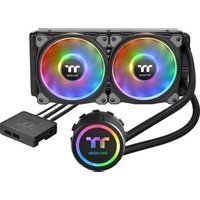
Floe DX RGB 240 TT Premium Edition - Système de refroidissement informatique THERMALTAKE - Notice d'utilisation et mode d'emploi gratuit
Retrouvez gratuitement la notice de l'appareil Floe DX RGB 240 TT Premium Edition THERMALTAKE au format PDF.


| Type de produit | Système de refroidissement liquide pour processeur |
| Modèle | Floe DX RGB 240 TT Premium Edition |
| Marque | Thermaltake |
| Dimensions du radiateur | 275 x 120 x 27 mm |
| Dimensions de la pompe | 75,1 x 73,7 x 46,5 mm |
| Poids net | Environ 1,5 kg |
| Alimentation | Pompe : 12V SATA ; Ventilateurs : 12V PWM ; RGB : 5V adressable |
| TDP supporté | Jusqu'à 300 W |
| Compatibilité sockets | Intel LGA 1200, 115x, 2066 ; AMD AM4, AM5, TR4 |
| Matériau du radiateur | Aluminium |
| Matériau de la base de la pompe | Cuivre |
| Ventilateurs inclus | 2 x 120 mm PWM, RGB adressable |
| Débit d'air maximal | 68 CFM |
| Niveau sonore | 20 - 40 dBA |
| Éclairage RGB | Adressable (5V), compatible avec Razer Chroma, ASUS Aura, etc. |
| Garantie | 5 ans |
| Contenu de l'emballage | Radiateur, bloc pompe/waterblock, 2 ventilateurs, kit de montage, pâte thermique, câbles RGB, manuel |
| Entretien | Nettoyer régulièrement le radiateur et les ventilateurs avec un chiffon doux ou de l'air comprimé. Ne pas utiliser de solvants agressifs. |
| Sécurité | Éviter tout contact du liquide de refroidissement avec les composants électriques. Débrancher l'alimentation avant l'installation. |
| Pièces détachées | Ventilateurs, kit de montage et câbles RGB disponibles séparément. En cas de fuite, remplacer l'ensemble du système. |
FOIRE AUX QUESTIONS - Floe DX RGB 240 TT Premium Edition THERMALTAKE
Questions des utilisateurs sur Floe DX RGB 240 TT Premium Edition THERMALTAKE
0 question sur cet appareil. Repondez a celles que vous connaissez ou posez la votre.
Poser une nouvelle question sur cet appareil
Téléchargez la notice de votre Système de refroidissement informatique au format PDF gratuitement ! Retrouvez votre notice Floe DX RGB 240 TT Premium Edition - THERMALTAKE et reprennez votre appareil électronique en main. Sur cette page sont publiés tous les documents nécessaires à l'utilisation de votre appareil Floe DX RGB 240 TT Premium Edition de la marque THERMALTAKE.
MODE D'EMPLOI Floe DX RGB 240 TT Premium Edition THERMALTAKE
Floe DX RGB 240
TT Premium Edition

Parts List

A x1

B x1

C x1

D x1

E x1

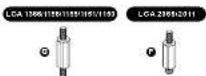
F x4

© x4

H x4

I x1

K x2

M x8
N x8

P x1

Q x1
R x1
Intel Installation
Intel (Socket LGA 1368*1100/1158*1161/1190) installation
For LGA2066/2011 installation, skip step 1, 2 and continue with step 3


3

4
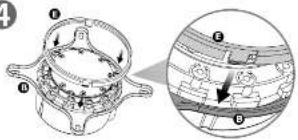
5

Compatibility may vary based on chassis design.
6


AMD Installation
1

2
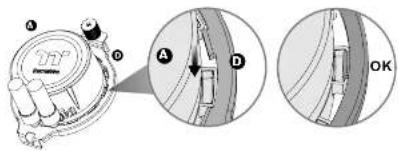
3

4

5

6

7

Floe DX RGB 240
TT Premium Edition

InstallationController
9
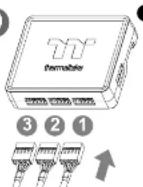
P
5 4
O O A
Connect the plug into the port in numerical order, start with plug one.
10
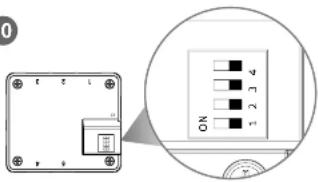
Set the DIP switch on the back side of the controller to assign the number of the controller
11
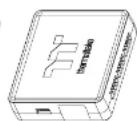


Connect the controller cable onto the mainboard (USB 2.0, 9 pin) and the controller.


12


Connect the power cable to the 4pin Molex connector and the controller.


TT RGB Plus Software control interface
Please download software from Thermaltake Official website.
www.thermaltake.com/home.aspx
and search "IT RGB Plus" on the official website.
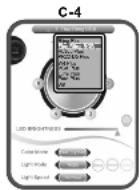
When you open the software, choose the "Floe Ring RGB" in the drop-down list(C-4) first.
- Software User Interface
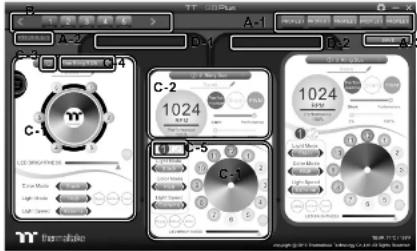
A. TT RGB Plus software Profile Setting
A-1 Set up a profile: Choose a Profile and set up the LED Lighting Mode,
then click the SAVE icon(A-3) to store your settings to the software
A-2 Save a profile to controller: Select a profile and a controller,
then click the Save icon to assign the profile to the controller
B. Follow the Installation Guide step 3, you can set up the number of the controller
C. LED Lighting Mode
Full Lighted / Wave / Pulse / Ripple / Microphone / Sound effect / RGB Spectrum / Flow/etc..
C-1 LED Selection: set up the LEDs lighting, color, and speed.
Light Mode: Choose a lighting mode
Color Mode: Choose the LEDs color
Light Speed: Set up the speed of the LEDs light
LED Spot & Color Palette: Choose the color of each of the individual LEDs by clicking the color palette
Done: Save your setting
Default: Reset the LED setting back to the default
Brightness: Drag the mouse to adjust LED light brightness
LED On/Off: Click the LED Light icon to turn on or off the LED light
RGB Color Code: Enter the Decimal Code of Red, Green, and Blue to set the LEDs color
C-2 Performance Mode: 500\~1500RPM(Duty cycle0%\~100%)
Silent Mode: 500\~900RPM(Duty cycle0%\~50%)
PWM Mode: The PWM function can be turned off and set the fan speed manually
C-3 LED On/Off: User can switch off the LED control function in the software if the fan is not plug into the controller.
C-4 Product Selection: click the product name to choice another you want.
C-5 Fan LED Ring Selection: Choose different fan ring to setting the lighting modes
D-1 & D-2. Product Selection: click the control panel to rotate it to the front
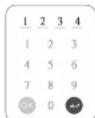
- Mobile APP Connection Password
To connect the TT RGB Plus APP, please connect the PC to your
wireless first, and click the Password setting under the software
setting menu, set up your connection password. The TT RGB Plus APP
will ask for your password every time when starting the APP
For more information please visit www.thermsitake

software interface may vary with feature update, please download the latest user manual from our www.thermallake.com

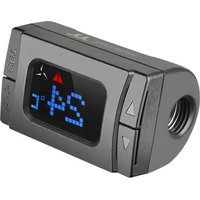


Marque : THERMALTAKE
Modèle : Floe DX RGB 240 TT Premium Edition
Catégorie : Système de refroidissement informatique