TFC-1600MM - Module réseau TRENDNET - Notice d'utilisation et mode d'emploi gratuit
Retrouvez gratuitement la notice de l'appareil TFC-1600MM TRENDNET au format PDF.


| Type de produit | Convertisseur de média fibre optique multimode / cuivre |
| Marque | TRENDnet |
| Modèle | TFC-1600MM |
| Dimensions (L x l x H) | 94 x 70 x 26 mm |
| Poids | 200 g |
| Alimentation | Adaptateur secteur 5V DC, 1A (inclus) |
| Interface cuivre | 1 port RJ-45 10/100Base-TX |
| Interface fibre | 1 port SC multimode 100Base-FX |
| Distance fibre maximale | 2 km (multimode 1310 nm) |
| Longueur d'onde | 1310 nm |
| Température de fonctionnement | 0 °C à 50 °C |
| Humidité relative | 10% à 90% (sans condensation) |
| Fonctions principales | Conversion 10/100Base-TX à 100Base-FX multimode, auto-négociation, détection de liaison (LFP) |
| Entretien et nettoyage | Nettoyer avec un chiffon doux et sec. Ne pas utiliser de solvants. |
| Sécurité | Utiliser uniquement l'adaptateur fourni. Ne pas exposer à l'humidité. |
| Pièces détachées et réparabilité | Adaptateur secteur disponible séparément. Pas de pièces réparables par l'utilisateur. |
| Garantie | 3 ans |
| Informations générales | Convertisseur de média plug-and-play, boîtier métallique, voyants LED d'état |
FOIRE AUX QUESTIONS - TFC-1600MM TRENDNET
Questions des utilisateurs sur TFC-1600MM TRENDNET
0 question sur cet appareil. Repondez a celles que vous connaissez ou posez la votre.
Poser une nouvelle question sur cet appareil
Téléchargez la notice de votre Module réseau au format PDF gratuitement ! Retrouvez votre notice TFC-1600MM - TRENDNET et reprennez votre appareil électronique en main. Sur cette page sont publiés tous les documents nécessaires à l'utilisation de votre appareil TFC-1600MM de la marque TRENDNET.
MODE D'EMPLOI TFC-1600MM TRENDNET
User's Guide
TRENDNET®
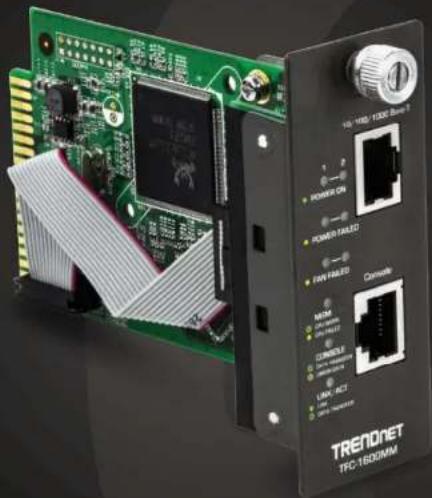
TFC-1600 SNMP Management Module
TFC-1600MM
TRENDnet User's Guide
Table of Contents
Contents
Product Overview....1
Package Contents .... 1
Features 1
Product Hardware Features 2
Module Installation....1
Installing the Management Module .... 1
Configure your module (Web Management) ......2
Access your SNMP module management page....2
Main Menu 3
System Function 5
Software Reboot 5
Factory Reset 6
Image Update 6
Save Configuration 6
Configuration Update 7
Configuration 8
General Configuration 8
System Configuration 9
SNMP Configuration 10
Converter Location Setting 11
Redundant Backup Setting 11
Configure your Module (Command Line Interface)....12
Reboot 13
Factory Reset 13
Image Update 13
General Configuration 13
IP interface configuration 13
SNMP Configuration 14
CPU module information....16
Media Converter Configuration 16
Redundant Backup Setting 17
Configuration.... 17
System Function 17
Technical Specifications 18
Appendix 20
TRENDnet User's Guide
TFC-1600MM
Product Overview
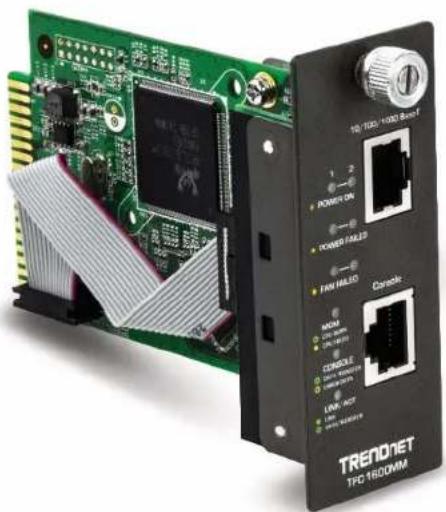
TFC-1600MM
Package Contents
In addition to your switch, the package includes:
- TFC-1600MM
• CD-ROM (MIB & User's Guide)
• RJ-45 to RS-232 console cable
If any package contents are missing or damaged, please contact the retail store, online retailer, or reseller/distributor from which the product was purchased.
Features
The TFC1600MM module supports the management of media converters and power supplies installed in the TFC-1600 fiber chassis. This module provides instant access to cooling fan and power supply status, and allows the user to configure and monitor the state of the chassis by means of a workstation with support for SNMP, or from a PC via web browser.
Event Notifications
Be notified when an event notification is raised and correct error conditions in a timely manner to maintain network uptime. Supports cold/warm start, link up/down, authentication failure, power supply on/off, connected/disconnected, module connected/disconnected, and unknown failure
Configuration
Configure settings such as link loss carry forward / link loss return, module name, reset module, download software via HTTP, IP address / subnet mask / default gateway, and redundant backup
Real-time Monitoring
Real-time monitoring provides the latest statistics on link status, slot occupied, revision, converter type, and part number
SNMP
Supports SNMP v1, v2c, v3 agent management with MIB-2 and enterprise MIBs, SNMPv2-SMI MIB, INET-ADDRESS MIB, IF MIB, SNMP-FRAMEWORK MIB, SNMPv2-TC MIB
TRENDnet User's Guide
TFC-1600MM
Real-Time Monitoring
Real-time monitoring of link, speed, and duplex status of media converters.
LED Indicators
LEDs convey power on/off, power fail, fan fail, MGM, console, and link/activity
Product Hardware Features

- 10/100/1000 Mbps Gigabit Ethernet Port - To configure the device through Web Browser or TELNET program via LAN Ethernet.
- RJ-45 UTP console port - To configure the device through RJ-45 UTP console port.
- LED Indicators
There are two powers at the rear and will indicate on the front panel the status of the power and fan:
| Power On | Lights green when the power is inserted. |
| Power Fail | Lights Amber when the power is inserted and it is fail. |
| Fan Fail | Lights Amber when the fan is fail to work. |
| MGM | Blinks green when the device CPU is working and lights amber when the CPU works fail. |
| Console | Blinks green when the data is transmitting through console port and blinks amber when transmitting the wrong data. |
| Link/Act | Lights green when link to networking Ethernet and blinks green for activity. |
TRENDnet User's Guide
TFC-1600MM
Module Installation
Installing the Management Module
• Install the Management Module into the Media Converter Chassis.
- Connect the Management Module to the network.
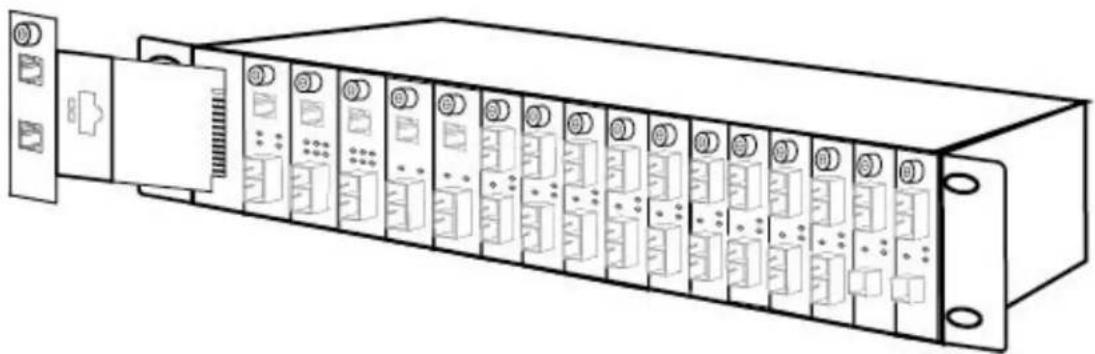
The chassis's first slot is for the Management Module as illustration.
Slide in the management module in the first slot of the chassis system.
TRENDnet User's Guide
TFC-1600MM
Configure your module (Web Management)
This chapter provides network managers and system administrators with information about how to configure the Media Converter Chassis via the Management Module.
The reader of this document should be knowledgeable about network devices, device configuration, network management, and Internet browsers. The user is assumed to be a network administrator or manager with an understanding of network operations.
Access your SNMP module management page
Note: Your switch default management IP address http://192.168.1.1 is accessed through the use of your Internet web browser (e.g. Internet Explorer®, Firefox®, Chrome™, Safari®, and Opera™) and will be referenced frequently in this User's Guide.
- Open your web browser and go to the IP address http://192.168.1.1 . Your switch will prompt you for a user name and password.
- Enter the user name and password. By default:
User Name: root
Password: root
Note: User Name and Password are case sensitive.
Main Menu
The Main Menu will show out the Hardware Revision, BIOS Revision and Firmware Revision, to set the management system, click on the left side menu, System Function and Configuration, in the center screen is the status screen that appears where you clicked on the left side menu.

TRENDnet User's Guide
TFC-1600MM
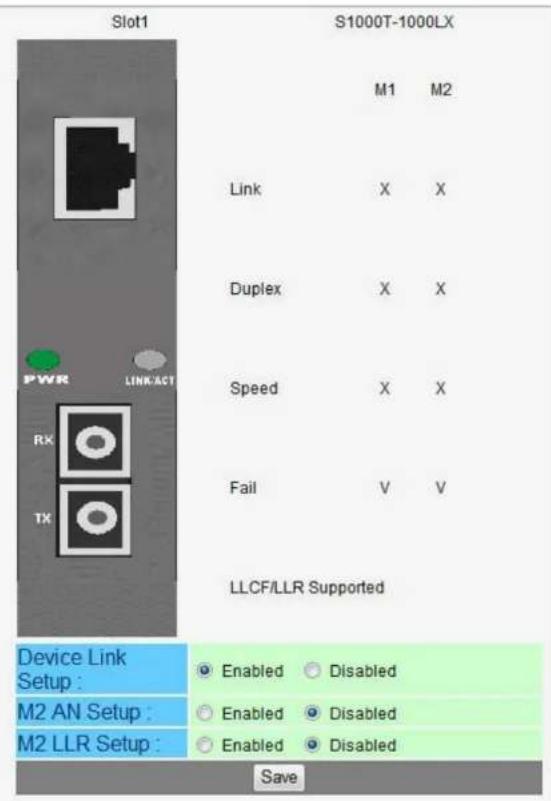
Click on the Media Converter slot and it will appear a screen for you to monitor or control, depend on what media converter you are using.
TRENDnet User's Guide
TFC-1600MM
System Function
There are five items in System Function menu, "Software Reboot, Factory Reset, Image Update, Save Configuration and Configuration Update.
![graph TD A["System Function"] --> B["Software Reboot"] A --> C["Factory Reset"] A --> D["Image Update"] A --> E["Save Configuration"] A --> F["Configuration Update"] G["Configuration"] --> H["General Configuration"] G --> I["System Configuration"] G --> J["SNMP Configuration"] G --> K["Location Sett…](/content/2026/07/1418212/images/6e245185604df76d8501110754665d07773ac81389b5517c5cbd86fb5935badf.jpg)
Software Reboot
Reboot the management module in order to run the new setting properly.

TRENDnet User's Guide
TFC-1600MM
Factory Reset
This function is to set the device back to the default setting in case of the messy setting. There are two functions in Factory Reset page:
Chassis Factory Reset: for all modules factory reset.
CPU Reset: only this control module factory reset.
![graph TD A["Chassis Factory Reset"] --> B["Reset"] C["CPU Factory Reset"] --> D["Reset"]](/content/2026/07/1418212/images/3996dfda43d0d29a7fe155f87394bfd4566d9ac68150e0ca52e7e9035a7a966c.jpg)
Image Update
The section is to set the TFTP Server IP Address first and the Image File name as you store in the TFTP Server. The Image File can be updated by uploading the image file from the TFTP server.

Note: The content of the image file will write the whole firmware of the management module, please be sure that the image file is correct.
Save Configuration
The section is to save the change on the flash to make sure all configuration settings is permanent.

TRENDnet User's Guide
TFC-1600MM
Configuration Update
The section is explaining how to upload and download the configure setting of the module.
The Configuration Upload is to restore a setting file to the management module.
The Configuration Download is to backup the setting from the management module.

TRENDnet User's Guide
TFC-1600MM
Configuration
There are five items in Configuration menu, General Configuration, System Configuration, SNMP Configuration, Location Setting and Redundant Backup Setting.
General Configuration
| Hardware revision : | B1 |
| BIOS revision : | 1.00.000 |
| Firmware revision : | V1.00.002 |
| Old Password : | |
| Change Password : | |
| Confirm Password : | |
| System Name : | |
| Location : | |
| Refresh time : | Never ▼ |
Hardware revision: noted the version of the Media Converter Chassis.
BIOS revision: noted the version of the BIOS.
Firmware revision: noted the version of the firmware.
Old Password: the Old of the admit password.
Change Password: the changing of the admit password.
Confirm Password: to confirm the setting of admit password.
System Name: to authorize the device system name.
Location: to show the Media Converter Chassis where it is located.
Refresh time: to set the refreshing time of the device through the web.
Note: After configuring the system device, need to press the save button to save the setting.
TRENDnet User's Guide
TFC-1600MM
System Configuration
| System Configuration | |
| MAC Address : | 0C:14:72:EF:01:02 |
| IP Address : | 192.168.1.1 |
| Subnet Mask : | 255.255.255.0 |
| Default GateWay : | 0.0.0.0 |
| Save | |
MAC Address: will show out the MAC address of the Management Module.
IP Address: to allocate an IP address for the Management Module, the default IP is "192.168.1.1".
Subnet Mask: to set the Subnet Mask, the default is 255.255.255.0".
Default Gateway: to set the gateway address, the default is "0.0.0.0". (0.0.0.0 Means no default gateway address)
Note: After configuring the system device, need to press the save button to save the setting.
SNMP Configuration
| SNMP Configuration | ||||
| Get Community Name: | public | Set Community Name: | private | |
| Trap Community Name: | public | Trap Host IP Address: | 192.168.1.2 | |
| Cold Start Trap: | Enabled | Disabled | Warm Start Trap: | Enabled Disabled |
| Authentication Fail Trap: | Enabled | Disabled | Power Fail Trap: | Enabled Disabled |
| Fan Fail Trap: | Enabled | Disabled | MC Plugin Trap: | Enabled Disabled |
| MC Pullout Trap: | Enabled | Disabled | MC Broken Trap: | Enabled Disabled |
| MC Link Up Trap: | Enabled | Disabled | MC Link Down Trap: | Enabled Disabled |
| MC Active Slot Xchg Trap: | Enabled | Disabled | MC Active Slot Lose Trap: | Enabled Disabled |
Get Community Name: to get the device community name (default = public).
Set Community Name: to set the device community name (default = private).
Trap Community Name: to authorize the device trap community name (default = public).
Trap Host IP Address: to set the trap host IP address (same as monitoring station IP address).
Cold Start trap: to set the trap for rebooting the device (default = disable).
Warm Start trap: to set the trap when the device had been reset (default = disable).
Authentication Fail Trap: to set the warning trap when the community name of the device and workstation are different (default = disable).
Power Fail Trap: to set the Power Fail Trap (default = enable).
Fan Fail Trap: to set the Fan fail trap (default = enable).
MC Plugin Trap: to set the trap when a Media Converter Module has been plugged in (default = enable).
MC Pullout Trap: to set the trap when the Media Converter Module has been pulled out (default = enable).
MC Broken trap: to set the trap when the Media Converter Module was broken (default = enable).
MC Link up trap: to set the trap when a linking is connected (default = enable).
MC Link down trap: to set the trap when a linking is disconnected (default = enable).
MC Active Slot Xchg trap: to set the trap when there is a redundant function activated (default = enable).
MC Active Slot Lose trap: to set the trap when the redundant function is fail (default = enable).
TRENDnet User's Guide
TFC-1600MM
Converter Location Setting
| Converter Location Setting | ||||
| Slot 1: | Slot1 | Slot 2: | Slot2 | |
| Slot 3: | Slot3 | Slot 4: | Slot4 | |
| Slot 5: | Slot5 | Slot 6: | Slot6 | |
| Slot 7: | Slot7 | Slot 8: | Slot8 | |
| Slot 9: | Slot9 | Slot 10: | Slot10 | |
| Slot 11: | Slot11 | Slot 12: | Slot12 | |
| Slot 13: | Slot13 | Slot 14: | Slot14 | |
| Slot 15: | Slot15 | Slot 16: | Slot16 | |
| Save | ||||
Allocating each slot's location in order to remember in where each slot was connected.
Redundant Backup Setting
| Redundant Backup Setting | ||||||
| Group: | Act: | Master: | Slave: | Restart: | ||
| 1 | Enabled | Disabled | * | 1 | 2 | |
| 2 | Enabled | Disabled | * | 3 | 4 | |
| 3 | Enabled | Disabled | * | 5 | 6 | |
| 4 | Enabled | Disabled | * | 7 | 8 | |
| 5 | Enabled | Disabled | * | 9 | 10 | |
| 6 | Enabled | Disabled | * | 11 | 12 | |
| 7 | Enabled | Disabled | * | 13 | 14 | |
| 8 | Enabled | Disabled | * | 15 | 16 | |
| Save | ||||||
The redundant function is to change the master line to the slave line in case of the linking fails happen.
The Redundant functions were set fixed, the master slot is slot 1(odd number slot) and the slave slot is slot 2(even number slot), and there are eight redundant groups in all. The "Act" will indicate what slot is active.
When Master slot link fail, slave slot will be enabled. When the slave slot is activated, we need to transfer again to the master slot, and we need to check the "Restart" box on the group then click "Save" button.
The redundant function depends only on some Smart Media Converters.
Configure your Module (Command Line Interface)
Console and Terminal Emulator program settings
The Media Converter Chassis Management Module can be accessible using a terminal or terminal emulator attached to the RJ-45 UTP console port.
Serial port configuration cable:
One end of the cable is a DB9 serial port, which connects to serial port on computer. Other end is an RJ-45 UTP port, which connects to the SNMP Media Converter Chassis.
To configure the Hyper Terminal of the management PC via serial port configuration cable to manage the Media Converter Chassis.
By default, the Media Converter Management Module uses the following serial port parameter values:
| Bits per second | 115200 | ||||||||||
| S t | o p | b | i | t | s | 1 | |||||
| Data bits 8 | |||||||||||
| P a | r i | t | y | N | O | N | E | ||||
| Flow Control | NONE |
The default Login name and password is both "root".
TELNET program setting
The Media Converter Chassis Management Module can be accessible using TELNET through LAN. Run TELNET program. Enter the IP address "192.168.1.1" (the factory-default IP address setting). The default Login name and password is both "root".
The Command Line Interface (CLI) has following functions:
- Reboot
- Factory Reset
- Image Update
- General Configuration
• IP interface configuration - SNMP Configuration
• CPU module information
• Media Converter Configuration - Redundant Backup Setting
- Configuration
- System Function
TRENDnet User's Guide
TFC-1600MM
Reboot
| COMMANDS reboot |
Factory Reset
| COMMANDS | reset |
| cpureset |
reset: for all modules factory reset.
cpureset: only this control module factory reset.
Image Update
| COMMANDS update |
The
General Configuration
| COMMANDS | config system passwd |
| config system name | |
| config system location | |
| config system refreshtime {never | 10secs | 30secs | 1min | 5mins} | |
| show system |
The "refreshtime" is to set the refreshing time of the device through the web.
IP interface configuration
| COMMANDS | config ipif system ipaddress[] |
| show ipif |
[
TRENDnet User's Guide
TFC-1600MM
SNMP Configuration
| COMMANDS | config snmp get_communityname [] |
| config snmp set_communityname | |
| config snmp trap_communityname | |
| config snmp trap_hostip | |
| config snmp coldstart_trap {enable | disable} | |
| config snmp warmstart_trap {enable | disable} | |
| config snmp authfail_trap {enable | disable} | |
| config snmp powerfail_trap {enable | disable} | |
| config snmp fanfail_trap {enable | disable} | |
| config snmp mcplugin_trap {enable | disable} | |
| config snmp mcpullout_trap {enable | disable} | |
| config snmp mclinkup_trap {enable | disable} | |
| config snmp mclinkdown_trap {enable | disable} | |
| config snmp mcbroken_trap {enable | disable} | |
| config snmp mcactiveslotXCHG_trap {enable | disable} | |
| config snmp mcactiveslotLOSE_trap {enable | disable} | |
| show snmp |
TRENDnet User's Guide
TFC-1600MM
SNMP Configuration commands:
config snmp get_communityname: to configure the "get" community name (default = public).
config snmp set_communityname: to configure the "set" community name (default = private).
config snmp trap_communityname: to configure the "trap" community name (default = public) for authorize the device trap.
config snmp trap_hostip: to set the trap host IP address (same as monitoring station IP address).
config snmp coldstart_trap: to set the trap for rebooting the device (default = disable).
config snmp warmstart_trap: to set the trap when the device had been reset (default = disable).
config snmp authfail_trap: to set the warning trap when the community name of the device and workstation are different (default = disable).
config snmp powerfail_trap: to set the Power Fail Trap (default = enable).
config snmp fanfail_trap {enable | disable}: to set the fan fail trap (default = enable).
config snmp mcplugin_trap {enable | disable}: to set the trap when a Media Converter module has been plugged in (default = enable).
config snmp mcpullout_trap {enable | disable}: to set the trap when the Media Converter module has been pulled out (default = enable).
config snmp mclinkup_trap {enable | disable}: to set the trap when a linking is connected (default = enable).
config snmp mclinkdown_trap {enable | disable}: to set the trap when a linking is disconnected (default = enable).
config snmp mcbroken_trap {enable | disable}: to set the trap when the Media Converter module was broken (default = enable).
config snmp mcactiveslotXCHG_trap {enable | disable}: to set the trap when there is a redundant function activated (default = enable).
config snmp mcactiveslotLOSE_trap {enable | disable}: to set the trap when the redundant function is fail (default = enable).
TRENDnet User's Guide
TFC-1600MM
CPU module information
| COMMANDS | show mediaconverter chassis |
Media Converter Configuration
| COMMANDS | show mediaconverter status |
| config mediaconverter slot ([name <string (7)>] [Device_LLCF {v|x}] [Device_Enable {v|x}] [M1_LLR {v|x}] [M1_Auto {A|F}] [M1_Speed {10M|100M|1G}] [M1_Dup {F|H}] [M1_FC {v|x}] [M1_Enable {v|x}] [M2_LLR {v|x}] [M2_Auto {A|F}] [M2_Dup {F|H}] [M2_Enable {v|x}]) |
Media Converter Configuration command (Some of the function can be control only depends on the Smart Media Converter Modules):
config mediaconverter slot <integer (1-16)> ([name <string (7)>)
[Device_LLCF {vlx}]
[Device_Enable {vlx}]
[M1_LLR {vlx}]
[M1_Auto {AlF}]
[M1_Speed {10M|100M|1G}]
[M1_Dup {FlH}]
[M1_FC {vlx}]
[M1_Enable {vlx}]
[M2_LLR {vlx}]
[M2_Auto {AlF}]
[M2_Dup {FlH}]
[M2_Enable {vlx}])
{v|x}, V stands for "yes" and X stands for "No".
{A|F}, "A" for Auto-Negotiation or "F" for "forced Mode".
{10M|100M|1G}, to select the speed of the copper port, "10M", "100M" or "1G"
{F|H}, "F" for Full Duplex or "H" for Half Duplex
TRENDnet User's Guide
TFC-1600MM
Redundant Backup Setting
| COMMANDS | show mediaconverter redundant |
| config mediaconverter redundantgrp([\{enable | disable}] [restart]) |
The redundant function is to change the master line to the slave line in case of the linking fails happen.
The Redundant functions were set fixed, the master slot is slot 1(odd number slot) and the slave slot is slot 2(even number slot), and there are eight redundant groups in all. The "Act" will indicate what slot is active.
The redundant function depends only on some Smart Media Converters.
Redundant Backup Setting commands:
show mediaconverter redundant: show master slot or slave slot is active.
config mediaconverter redundantgrp
config mediaconverter redundantgrp
Configuration
| COMMANDS | save config |
System Function
| COMMANDS | clear |
| show command_history | |
| logout |
TRENDnet User's Guide
TFC-1600MM
Technical Specifications
Standards
- IEEE 802.3
- IEEE 802.3u
- IEEE 802.3x
- IEEE 802.3ab
Device Interface
• Line card interface for TRENDnet TFC-1600 slot only
- 1 x Gigabit port
- 1 x RJ-45 console port (Command Line Interface)
- LED indicators
Data Transfer Rate
- Ethernet: 10 Mbps (half duplex), 20 Mbps (full duplex)
- Fast Ethernet: 100 Mbps (half duplex), 200 Mbps (full duplex)
• Gigabit Ethernet: 2000 Mbps (full duplex)
Performance
• RAM buffer: 512 KB
• HOL Blocking Prevention
Management
- HTTP Web based GUI
• CLI (Console/Telnet)
• SNMP v1, v2c, v3
• Supports IP, TFTP, ICMP, TCP/UDP, ARP, and HTTP protocols
Chassis Monitoring
- Part Number
- Description
- Power Status
Revision
- Chassis Reset
Converter Module Monitoring
- Link Status
- Slot Occupied
- Revision
- Converter Type
- Part Number
SNMP Controls
• Link Loss Carry Forward / Link Loss Return
- Module Name
- Reset Module
• Download software via HTTP
• IP Address / Subnet Mask / Default Gateway
- Redundant Backup
- Telnet to console commands
Event Notification
- Cold/Warm Start
- Link Up/down
- Authentication Failure
• Power Supply On/Off, Connected/Disconnected - Module Connected/Disconnected, Unknown, Failure
MIB
• MIB II
• SNMPv2-SMI MIB
- ENTERPRISE MIBs
• INET-ADDRESS MIB RFC
• IF MIB
• SNMP-FRAMEWORK MIB
• SNMPv2-TC MIB
TRENDnet User's Guide
TFC-1600MM
MTBF
• 2,709,617 hours
Operating Temperature
- 0 - 40°C (32 - 104°F)
Operating Humidity
• Max. 90% non-condensing
Dimensions
- 128 x 35 x 88 mm (5.04 x 1.38 x 3.46 in.)
• 2U height (for TRENDnet TFC-1600 chassis slot only)
Weight
• 108 g (3.8 oz)
Certifications
• CE
• FCC
TRENDnet User's Guide
TFC-1600MM
Appendix
How to find your IP address?
Note: Please note that although the following procedures provided to follow for your operating system on configuring your network settings can be used as general guidelines, however, it is strongly recommended that you consult your computer or operating system manufacturer directly for assistance on the proper procedure for configuring network settings.
Command Prompt Method
Windows 2000/XP/Vista/7/8.1/10
- On your keyboard, press Windows Logo+R keys simultaneously to bring up the Run dialog box.
- In the dialog box, type cmd to bring up the command prompt.
- In the command prompt, type ipconfig /all to display your IP address settings.
MAC OS X
- Navigate to your Applications folder and open Utilities.
- Double-click on Terminal to launch the command prompt.
- In the command prompt, type ipconfig getifaddr
to display the wired or wireless IP address settings.
Note: en0 is typically the wired Ethernet and en1 is typically the wireless Airport interface.
Graphical Method
MAC OS 10.6/10.5
- From the Apple menu, select System Preferences.
- In System Preferences, from the View menu, select Network.
- In the Network preference window, click a network port (e.g., Ethernet, AirPort, modem). If you are connected, you'll see your IP address settings under "Status:"
MAC OS 10.4
- From the Apple menu, select Location, and then Network Preferences.
- In the Network Preference window, next to "Show:", select Network Status. You'll see your network status and your IP address settings displayed.
Note: If you are experiencing difficulties, please contact your computer or operating system manufacturer for assistance.
How to configure your network settings to use a static IP address?
Note: Please note that although the following procedures provided to follow for your operating system on configuring your network settings can be used as general guidelines, however, it is strongly recommended that you consult your computer or operating system manufacturer directly for assistance on the proper procedure for configuring network settings.
Windows 7/8.1/10
a. Go into the Control Panel, click Network and Sharing Center.
b. Click Change Adapter Settings, right-click the Local Area Connection icon.
c. Then click Properties and click Internet Protocol Version 4 (TCP/IPv4).
d. Then click Use the following IP address, and assign your network adapter a static IP address. Click OK
Windows Vista
a. Go into the Control Panel, click Network and Internet.
b. Click Manage Network Connections, right-click the Local Area Connection icon and click Properties.
c. Click Internet Protocol Version (TCP/IPv4) and then click Properties.
d. Then click Use the following IP address, and assign your network adapter a static IP address. Click OK
Windows XP/2000
a. Go into the Control Panel, double-click the Network Connections icon
b. Right-click the Local Area Connection icon and the click Properties.
c. Click Internet Protocol (TCP/IP) and click Properties.
d. Then click Use the following IP address, and assign your network adapter a static IP address. Click OK
MAC OS 10.4/10.5/10.6
a. From the Apple, drop-down list, select System Preferences.
b. Click the Network icon.
c. From the Location drop-down list, select Automatic.
d. Select and view your Ethernet connection.
TRENDnet User's Guide
TFC-1600MM
In MAC OS 10.4, from the Show drop-down list, select Built-in Ethernet and select the TCP/IP tab.
In MAC OS 10.5/10.6, in the left column, select Ethernet.
e. Configure TCP/IP to use a static IP.
In MAC 10.4, from the Configure IPv4, drop-down list, select Manually and assign your network adapter a static IP address. Then click the Apply Now button.
In MAC 10.5/10.6, from the Configure drop-down list, select Manually and assign your network adapter a static IP address. Then click the Apply button.
f. Restart your computer.
Note: If you are experiencing difficulties, please contact your computer or operating system manufacturer for assistance.
How to find your MAC address?
In Windows 2000/XP/Vista/7/8.1/10,
Your computer MAC addresses are also displayed in this window, however, you can type getmac -v to display the MAC addresses only.
In MAC OS 10.4,
- Apple Menu > System Preferences > Network
- From the Show menu, select Built-in Ethernet.
- On the Ethernet tab, the Ethernet ID is your MAC Address.
In MAC OS 10.5/10.6,
- Apple Menu > System Preferences > Network
- Select Ethernet from the list on the left.
- Click the Advanced button.
- On the Ethernet tab, the Ethernet ID is your MAC Address.
How do I use the ping tool to check for network device connectivity?
Windows 2000/XP/Vista/7/8.1/10
- On your keyboard, press Windows Logo+R keys simultaneously to bring up the Run dialog box.
- In the dialog box, type cmd to bring up the command prompt.
- In the command prompt, type ping
with the being the IP address you want ping and check for connectivity.
Example: Usage of ping command and successful replies from device.
C:\Users>ping 192.168.10.100
Pinging 192.168.10.100 with 32 bytes of data:
Reply from 192.168.10.100: bytes=32 time<1ms TTL=64
Reply from 192.168.10.100: bytes=32 time<1ms TTL=64
Reply from 192.168.10.100: bytes=32 time<1ms TTL=64
Reply from 192.168.10.100: bytes=32 time<1ms TTL=64
Ping statistics for 192.168.10.100:
Packets: Sent = 4, Received = 4, Lost = 0 (0% loss),
Approximate round trip times in milli-seconds:
Minimum = 0ms, Maximum = 0ms, Average = 0ms
MAC OS X
- Navigate to your Applications folder and open Utilities.
- Double-click on Terminal to launch the command prompt.
- In the command prompt, type ping -c <#>
with the <#> ping being the number of time you want to ping and the being the IP address you want ping and check for connectivity.
Example: ping -c 4 192.168.10.100
TRENDnet User's Guide
TFC-1600MM
Federal Communication Commission Interference Statement
This equipment has been tested and found to comply with the limits for a Class B digital device, pursuant to Part 15 of the FCC Rules. These limits are designed protection against harmful interference in a residential installation. This equipment generates, uses and can radiate radio frequency energy and, if not installed and used in accordance with the instructions, may cause harmful interference to radio communications. However, there is no guarantee that interference will not occur in a particular installation. If this equipment does cause harmful interference to radio or television reception, which can be determined by turning the equipment off and on, the user is encouraged to try to correct the interference by one of the following measures:
- Reorient or relocate the receiving antenna.
- Increase the separation between the equipment and receiver.
- Connect the equipment into an outlet on a circuit different from that to which the receiver is connected.
- Consult the dealer or an experienced radio/TV technician for help.
FCC Caution: Any changes or modifications not expressly approved by the party responsible for compliance could void the user's authority to operate this equipment.
This device complies with Part 15 of the FCC Rules. Operation is subject to the following two conditions: (1) This device may not cause harmful interference, and (2) this device must accept any interference received, including interference that may cause undesired operation.
IMPORTANT NOTE:

Radiation Exposure Statement:
This equipment complies with FCC radiation exposure limits set forth for an uncontrolled environment. This equipment should be installed and operated with minimum distance 20cm between the radiator & your body.
This transmitter must not be co-located or operating in conjunction with any other antenna or transmitter.
Country Code selection feature to be disabled for products marketed to the US/CANADA
RoHS
This product is RoHS compliant. to provide reasonable

Europe – EU Declaration of Conformity
• EN60950-1 : 2006 + A11 : 2009 + A1: 2010 + A12: 2011 + A2: 2013
• EN 55032: 2015 (CISPR32: 2015) (Class A)
• EN 6100-3-2:2014
• EN 61000-3-3:2013
• EN 55024:2010 + A1: 2015

Directives:
Low Voltage Directive 2014/35/EU
EMC Directive EN 2014/30/EU
RoHS Directive 2011/65/EU
REACH Regulation (EC) No. 1907/2006
CE Mark Warning
This is a Class A product. In a domestic environment, this product may cause radio interference, in which case the user may be required to take adequate measures.
TRENDnet User's Guide
TFC-1600MM
| cs Česky [Czech] | TRENDnet timto prohlašuje, že tento TFC-1600MM je ve shodě se základními požadavky a dalšími příslušnými ustanoveními směrnice 2011/65/EU, 2014/35/EU, 2014/30/EU, 2004/108/ES a 2006/95/ES. |
| da Dansk [Danish] | Undertegnede TRENDnet erklærer herved, at følgende udstyr TFC-1600MM overholder de væsentlige krav og øvrige relevante krav i direktiv 2011/65/EU, 2014/35/EU, 2014/30/EU, 2004/108/EF og 2006/95/EF. |
| de Deutsch [German] | Hiermit erklärt TRENDnet, dass sich das Gerät TFC-1600MM in Übereinstimmung mit den grundlegenden Anforderungen und den übrigen einschlägigen Bestimmungen der Richtlinie 2011/65/EU, 2014/35/EU, 2014/30/EU, 2004/108/EG, und 2006/95/EG befindet. |
| et Eesti [Estonian] | Käesolevaga kinnitab TRENDnet seadme TFC-1600MM vastavust direktiivi 2011/65/EU, 2014/35/EU, 2014/30/EU, 2004/108/EÜ ja 2006/95/EÜ pôhinõuetele ja nimetatud direktiivist tulenevatele teistele asjakohastele sätetele. |
| en English | Hereby, TRENDnet, declares that this TFC-1600MM is in compliance with the essential requirements and other relevant provisions of Directive 2011/65/EU, 2014/35/EU, 2014/30/EU, 2004/108/EC and 2006/95/EC. |
| es Español [Spanish] | Por medio de la presente TRENDnet declara que el TFC-1600MM cumple con los requisitos esenciales y cualesquiera otras disposiciones aplicables o exigibles de la Directiva 2011/65/EU, 2014/35/EU, 2014/30/EU, 2004/108/CE, 2006/95/CE y. |
| el Eλληνική [Greek] | ME THN ΠΑΡΟΥΣΑΤRENDnet ΔΗΛΩΝΕΙ ΟΤΙΤFC-1600ΜΜΣΥΜΜΟΡΦΩΝΕΤΑΙ ΠΡΟΣ ΤΙΣ ΟΥΣΙΩΔΕΙΣ ΑΠΑΙΤΗΣΕΙΣ ΚΑΙ ΤΙΣ ΛΟΙΠΕΣ ΣΧΕΤΙΚΕΣ ΔΙΑΤΑΞΕΙΣ ΤΗΣ ΟΔΗΓΙΑΣ 2011/65/EU, 2014/35/EU, 2014/30/EU, 2004/108/EK, 2006/95/EK και. |
| fr Français [French] | Par la présente TRENDnet déclare que l'appareil TFC-1600MM est conforme aux exigences essentielles et aux autres dispositions pertinentes de la directive 2011/65/UE, 2014/35/UE, 2014/30/UE, 2004/108/CE, 2006/95/CE et. |
| it Italiano[Italian] | Con la presente TRENDnet dichiara che questo TFC-1600MM è conforme ai requisiti essenziali ed alle altre disposizioni pertinenti stabilite dalla direttiva 2011/65/EU, 2014/35/EU, 2014/30/EU, 2004/108/CE e 2006/95/CE. |
| Latviski [Latvian] | AršoTRENDnetdeklarē, ka TFC-1600MM atbilstDirektivas 2011/65/EU, 2014/35/EU, 2014/30/EU, 2004/108/EK un 2006/95/EK būtiskajāmprasībām un citiemar to saistitajiemnotekumiem. |
| Lietuvių[Lithuanian] | Šluo TRENDnet deklarujoja, kad šls TFC-1600MM atitinka esmīnius reikalavimus ir kitas 2011/65/EU, 2014/35/EU, 2014/30/EU, 2004/108/EB ir 2006/95/EB Direktyvos nuostatas. |
| ruNederlands[Dutch] | Hierbij verklaart TRENDnet dat het toestel TFC-1600MM in overeenstemming is met de essentiële eisen en de andere relevante bepalingen van richtlijn 2011/65/EU, 2014/35/EU, 2014/30/EU, 2004/108/EG en 2006/95/EG. |
| ntMalti [Maltese] | Hawnhekk, TRENDnet, jiddikjara li dan TFC-1600MM jikkonforma malhtligliet essenzjali u ma provvedimenti ohrajn relevanti li hemm fid-Dirrettiva 2011/65/EU, 2014/35/EU, 2014/30/EU, 2004/108/KE u 2006/95/KE. |
| huMagyar[Hungarian] | Alulirott, TRENDnet nyilatkozom, hogy a TFC-1600MMmegfelel a vonatkozó alapvető követelményeknek és az 2011/65/EU, 2014/35/EU, 2014/30/EU, 2004/108/EK irányely és a 2006/95/EK irányely egyéb előírásainak. |
| plPolski [Polish] | Niniejszym TRENDnet oświadcza, že TFC-1600MM jest zgodny z zasadniczymi wymogami oraz pozostałymi stosownymi postanowienlami Dyrektywy 2011/65/EU, 2014/35/EU, 2014/30/EU, 2004/108/WE i 2006/95/WE. |
| ptPortuguês[Portuguese] | TRENDnet declara que este TFC-1600MM está conforme com os requisitos essenciais e outras disposições da Directiva 2011/65/EU, 2014/35/EU, 2014/30/EU, 2004/108/CE e 2006/95/CE. |
| stSlovensko[Slovenian] | TRENDnet izjavlja, da je ta TFC-1600MM v skladu z bistvenimi zahtevami in ostalimi relevantnimi določili direktive 2011/65/EU, 2014/35/EU, 2014/30/EU, 2004/108/ES, in 2006/95/ES. |
| Slovensky[Slovak] | TRENDnettýmtovyhlasuje, že TFC-1600MMspĺňazákladnépožiadavky a všetkyprislušnéustanoveniaSmernice 2011/65/EU, 2014/35/EU, 2014/30/EU, 2004/108/ES a 2006/95/ES. |
| tiSuomi [Finnish] | TRENDnet vakuuttaa täten että TFC-1600MM tyyppinen laite on direktiivin 2011/65/EU, 2014/35/EU, 2014/30/EU, 2004/108/EY ja 2006/95/EY oleellisten vaatimusten ja sitä koskevien direktiivin mulden ehtojen mukalnen. |
| svSvenska[Swedish] | Härmed intygar TRENDnet att denna TFC-1600MM står I överensstämmelse med de väsentliga egenskapskrav och övriga relevanta bestämmelser som framgår av direktiv 2011/65/EU, 2014/35/EU, 2014/30/EU, 2004/108/EG och 2006/95/EG. |
TRENDnet User's Guide
Limited Warranty
Limited Warranty
TRENDnet warrants only to the original purchaser of this product from a TRENDnet authorized reseller or distributor that this product will be free from defects in material and workmanship under normal use and service. This limited warranty is non-transferable and does not apply to any purchaser who bought the product from a reseller or distributor not authorized by TRENDnet, including but not limited to purchases from Internet auction sites.
Limited Warranty
TRENDnet warrants its products against defects in material and workmanship, under normal use and service. Specific warranty periods are listed on each of the respective product pages on the TRENDnet website.
- AC/DC Power Adapter, Cooling Fan, and Power Supply carry a one-year warranty.
Limited Lifetime Warranty
TRENDnet offers a limited lifetime warranty for all of its metal-enclosed network switches that have been purchased in the United States/Canada on or after 1/1/2015.
• Cooling fan and internal power supply carry a one-year warranty
To obtain an RMA, the ORIGINAL PURCHASER must show Proof of Purchase and return the unit to the address provided. The customer is responsible for any shipping-related costs that may occur. Replacement goods will be shipped back to the customer at TRENDnet's expense.
Upon receiving the RMA unit, TRENDnet may repair the unit using refurbished parts. In the event that the RMA unit needs to be replaced, TRENDnet may replace it with a refurbished product of the same or comparable model.
In the event that, after evaluation, TRENDnet cannot replace the defective product or there is no comparable model available, we will refund the depreciated value of the product.
If a product does not operate as warranted during the applicable warranty period, TRENDnet shall reserve the right, at its expense, to repair or replace the defective product or part and deliver an equivalent product or part to the customer. The repair/replacement unit's warranty continues from the original date of purchase. All products that are replaced become the property of TRENDnet. Replacement products may be new or reconditioned. TRENDnet does not issue refunds or credit. Please contact the point-of-purchase for their return policies.
TRENDnet shall not be responsible for any software, firmware, information, or memory data of customer contained in, stored on, or integrated with any products returned to TRENDnet pursuant to any warranty.
There are no user serviceable parts inside the product. Do not remove or attempt to service the product by any unauthorized service center. This warranty is voided if (i) the product has been modified or repaired by any unauthorized service center, (ii) the product was subject to accident, abuse, or improper use, or (iii) the product was subject to conditions more severe than those specified in the manual.
Warranty service may be obtained by contacting TRENDnet within the applicable warranty period and providing a copy of the dated proof of the purchase. Upon proper submission of required documentation, a Return Material Authorization (RMA) number will be issued. An RMA number is required in order to initiate warranty service support for all TRENDnet products. Products that are sent to TRENDnet for RMA service must have the RMA number marked on the outside of return packages and sent to TRENDnet prepaid, insured and packaged appropriately for safe shipment. International customers
TRENDnet User's Guide
Limited Warranty
shipping from outside of the USA and Canada are responsible for any return shipping and/or customs charges, including but not limited to, duty, tax, and other fees.
Refurbished product: Refurbished products carry a 90-day warranty after date of purchase. Please retain the dated sales receipt with purchase price clearly visible as evidence of the original purchaser's date of purchase. Replacement products may be refurbished or contain refurbished materials. If TRENDnet, by its sole determination, is unable to replace the defective product, we will offer a refund for the depreciated value of the product.
WARRANTIES EXCLUSIVE: IF THE TRENDNET PRODUCT DOES NOT OPERATE AS WARRANTED ABOVE, THE CUSTOMER'S SOLE REMEDY SHALL BE, AT TRENDNET'S OPTION, REPAIR OR REPLACE. THE FOREGOING WARRANTIES AND REMEDIES ARE EXCLUSIVE AND ARE IN LIEU OF ALL OTHER WARRANTIES, EXPRESSED OR IMPLIED, EITHER IN FACT OR BY OPERATION OF LAW, STATUTORY OR OTHERWISE, INCLUDING WARRANTIES OF MERCHANTABILITY AND FITNESS FOR A PARTICULAR PURPOSE. TRENDNET NEITHER ASSUMES NOR AUTHORIZES ANY OTHER PERSON TO ASSUME FOR IT ANY OTHER LIABILITY IN CONNECTION WITH THE SALE, INSTALLATION, MAINTENANCE, OR USE OF TRENDNET'S PRODUCTS.
TRENDNET SHALL NOT BE LIABLE UNDER THIS WARRANTY IF ITS TESTING AND EXAMINATION DISCLOSE THAT THE ALLEGED DEFECT IN THE PRODUCT DOES NOT EXIST OR WAS CAUSED BY CUSTOMER'S OR ANY THIRD PERSON'S MISUSE, NEGLECT, IMPROPER INSTALLATION OR TESTING, UNAUTHORIZED ATTEMPTS TO REPAIR OR MODIFY, OR ANY OTHER CAUSE BEYOND THE RANGE OF THE INTENDED USE, OR BY ACCIDENT, FIRE, LIGHTNING, OR OTHER HAZARD.
LIMITATION OF LIABILITY: TO THE FULL EXTENT ALLOWED BY LAW, TRENDNET ALSO EXCLUDES FOR ITSELF AND ITS SUPPLIERS ANY LIABILITY, WHETHER BASED IN
CONTRACT OR TORT (INCLUDING NEGLIGENCE), FOR INCIDENTAL, CONSEQUENTIAL, INDIRECT, SPECIAL, OR PUNITIVE DAMAGES OF ANY KIND, OR FOR LOSS OF REVENUE OR PROFITS, LOSS OF BUSINESS, LOSS OF INFORMATION OR DATE, OR OTHER FINANCIAL LOSS ARISING OUT OF OR IN CONNECTION WITH THE SALE, INSTALLATION, MAINTENANCE, USE, PERFORMANCE, FAILURE, OR INTERRUPTION OF THE POSSIBILITY OF SUCH DAMAGES, AND LIMITS ITS LIABILITY TO REPAIR, REPLACEMENT, OR REFUND OF THE PURCHASE PRICE PAID, AT TRENDNET'S OPTION. THIS DISCLAIMER OF LIABILITY FOR DAMAGES WILL NOT BE AFFECTED IF ANY REMEDY PROVIDED HEREIN SHALL FAIL OF ITS ESSENTIAL PURPOSE.
Governing Law: This Limited Warranty shall be governed by the laws of the state of California.
Some TRENDnet products include software code written by third party developers. These codes are subject to the GNU General Public License ("GPL") or GNU Lesser General Public License ("LGPL").
Visit http://www.trendnet.com/gpl or the support section on http://www.trendnet.com and search for the desired TRENDnet product to access to the GPL Code or LGPL Code. These codes are distributed WITHOUT WARRANTY and are subject to the copyrights of the developers. TRENDnet does not provide technical support for these codes. Please visit http://www.gnu.org/licenses/gpl.txt or http://www.gnu.org/licenses/lgpl.txt for specific terms of each license.
P W P 0 7 1 7 2 0 1
TRENDNET®
Product Warranty Registration
Please take a moment to register your product online. Go to TRENDnet's website at http://www.trendnet.com/register
TRENDnet
20675 Manhattan Place
Torrance, CA 90501. USA
Copyright ©2016. All Rights Reserved. TRENDnet.

- TRENDNET®
- TFC-1600 SNMP MANAGEMENT MODULE
- TRENDNET USER'S GUIDE
- TABLE OF CONTENTS
- CONTENTS
- PACKAGE CONTENTS
- FEATURES
- EVENT NOTIFICATIONS
- CONFIGURATION
- REAL-TIME MONITORING
- SNMP
- LED INDICATORS
- MODULE INSTALLATION
- INSTALLING THE MANAGEMENT MODULE
- CONFIGURE YOUR MODULE (WEB MANAGEMENT)
- ACCESS YOUR SNMP MODULE MANAGEMENT PAGE
- MAIN MENU
- TFC-1600MM
- SYSTEM FUNCTION
- SOFTWARE REBOOT
- FACTORY RESET
- IMAGE UPDATE
- SAVE CONFIGURATION
- CONFIGURATION UPDATE
- CONFIGURE YOUR MODULE (COMMAND LINE INTERFACE)
- CONSOLE AND TERMINAL EMULATOR PROGRAM SETTINGS
- TELNET PROGRAM SETTING
- TECHNICAL SPECIFICATIONS
- STANDARDS
- DEVICE INTERFACE
- DATA TRANSFER RATE
- PERFORMANCE
- MANAGEMENT
- CHASSIS MONITORING
- CONVERTER MODULE MONITORING
- SNMP CONTROLS
- EVENT NOTIFICATION
- MIB
- MTBF
- OPERATING TEMPERATURE
- OPERATING HUMIDITY
- DIMENSIONS
- WEIGHT
- CERTIFICATIONS
- APPENDIX
- MAC OS X
- GRAPHICAL METHOD
- MAC OS 10.6/10.5
- MAC OS 10.4
- HOW TO CONFIGURE YOUR NETWORK SETTINGS TO USE A STATIC IP ADDRESS
- WINDOWS 7/8.1/10
- WINDOWS VISTA
- WINDOWS XP/2000
- MAC OS 10.4/10.5/10.6
- HOW TO FIND YOUR MAC ADDRESS
- HOW DO I USE THE PING TOOL TO CHECK FOR NETWORK DEVICE CONNECTIVITY
- WINDOWS 2000/XP/VISTA/7/8.1/10
- FEDERAL COMMUNICATION COMMISSION INTERFERENCE STATEMENT
- IMPORTANT NOTE
- RADIATION EXPOSURE STATEMENT
- ROHS
- EUROPE – EU DECLARATION OF CONFORMITY
- DIRECTIVES
- CE MARK WARNING
- LIMITED WARRANTY
- LIMITED LIFETIME WARRANTY
- PRODUCT WARRANTY REGISTRATION
Marque : TRENDNET
Modèle : TFC-1600MM
Catégorie : Module réseau