HABU - Souris Gaming MICROSOFT - Notice d'utilisation et mode d'emploi gratuit
Retrouvez gratuitement la notice de l'appareil HABU MICROSOFT au format PDF.


| Type de produit | Souris gaming filaire |
| Marque | Microsoft |
| Modèle | Habu |
| Dimensions (approx.) | 12,5 x 6,5 x 3,5 cm |
| Poids (approx.) | 100 g |
| Alimentation | Port USB de l'ordinateur |
| Interface | USB |
| Capteur | Optique |
| Nombre de boutons | 5 boutons programmables |
| Boutons latéraux | 2 boutons interchangeables |
| Fonctions principales | Boutons programmables, réglage de la sensibilité, logiciel de configuration avancé |
| Logiciel requis | Razer Habu (pour fonctionnalités avancées) |
| Compatibilité | Windows |
| Entretien et nettoyage | Nettoyer avec un chiffon doux légèrement humide. Ne pas utiliser de produits abrasifs ou de solvants. |
| Sécurité | Ne pas exposer à l'humidité excessive. Débrancher avant nettoyage. |
| Pièces détachées et réparabilité | Non fournies. Contacter le support Microsoft pour toute réparation. |
| Informations générales | Souris gaming conçue en collaboration avec Razer pour des performances optimales dans les jeux. |
FOIRE AUX QUESTIONS - HABU MICROSOFT
Questions des utilisateurs sur HABU MICROSOFT
0 question sur cet appareil. Repondez a celles que vous connaissez ou posez la votre.
Poser une nouvelle question sur cet appareil
Téléchargez la notice de votre Souris Gaming au format PDF gratuitement ! Retrouvez votre notice HABU - MICROSOFT et reprennez votre appareil électronique en main. Sur cette page sont publiés tous les documents nécessaires à l'utilisation de votre appareil HABU de la marque MICROSOFT.
MODE D'EMPLOI HABU MICROSOFT
2
3
?
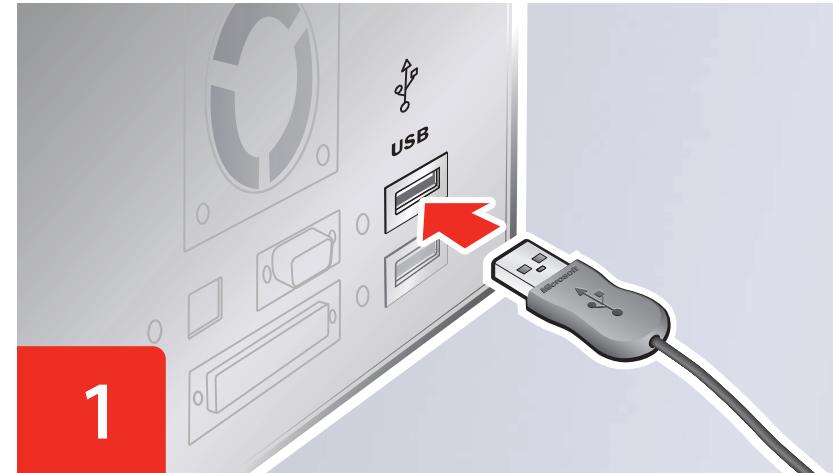
ENG: Plug the mouse into a USB port on your computer.
NLD: Steek de stekker van de muis in een USB-poort van uw computer.
FRA: Connectez la souris au port USB de votre ordinateur.
DEU: SchlieBen Sie die Maus über einen USB-Anschluss an ihren Computer an.
ELL: to novtiki Upa USB otov unoloyoi tnaac.
TRK: Fareyi bilgisayarinizIN USB baglanti noktasina takIn.
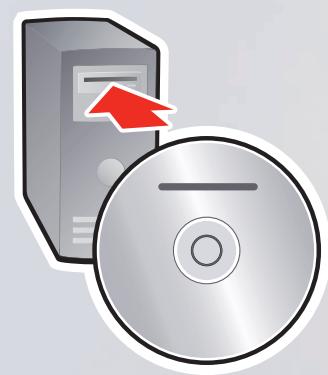
ENG: Install the software. The software is required for the advanced gaming features.
NLD: Installeer de software. De software is vereist voor geavanceerde spelfuncties.
FRA: Installez le logiciel. Ce logiciel est requis pour les fonctionnalités de jeu avancées.
DEU: Installieren die Software. Diese Software ist für die erweiterten Gaming-Features erforderlich.
ELL: Eykataaotnto To loyiomuKo. To loyiomuKo eivai anapaitnto yi taic Eeiaiyuec duvatotntec naixviidoiu.
TRK: Yazilimi yukleyin. Gelifmi oyun ozellikleri icin yazilm gereklidir.
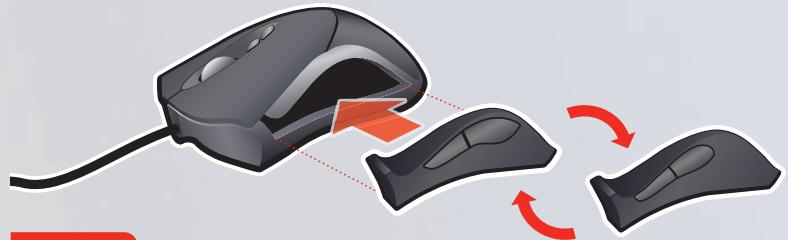
ENG: Test the side button options to find the one that best fits your hand. Press the button on the bottom of the mouse to switch panels.
NLD: Probeer de zijknoopen zodat u de Beste voor uw hand Aunt kiezen. Druk op de knop onder op die juices om van zijkant te wisselen.
FRA: Testez les deux boutons lateraux et choisissez celui qui vous convient le moins. Appuyez sur le bouton situé sous la souris pour passer d'un panneau à l'autre.
DEU: Testen Sie, welche der Seitentasten better für ihre Handhaltung geeignet ist. Durch Drücken der Taste an der Unterseite der Maus konnen Sie die Tastenleisten auswechseln.
ELL: oikiaota Ta iaoiua pia Koupiia yia va diatiatwote tioo taipiacei kautepe aTO xepicac, natiote TO koumi tO KAtupeoc TOn VOTVtkiou ia vaaAaike TE PAIAIA.
TRK: Elinize uygun en iyi sekli bulmak icin yanlardaki duğme seçeneklerini deneyin. Paneller arasyndaGPCipymak icin farenin altyndaki duömeye basyn.
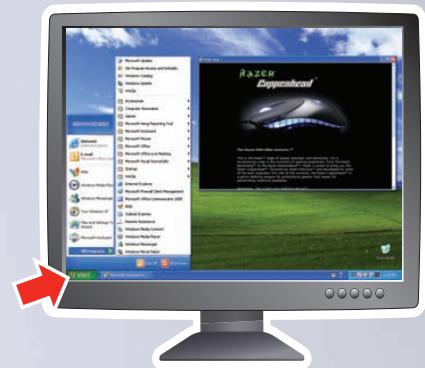
ENG: Start > All Programs > Razer > Habu > Razer Habu Help
NLD: Start > Alle programma's > Razer > Habu > Razer Habu Help
FRA: Demarrer > Tous les programmes > Razer > Habu > Aide du Razer Habu
DEU: Start >AlleProgramme >Razer > Habu > Razer Habu-Hilfe
ELL: 'Evapξη > Oλα τα προγραματα > Razer > Habu > Razer Habu Help
TRK: Bāslat > Tūm Programlar > Razer > Habu > Razer Habu Help