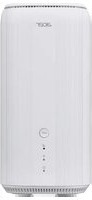
Connect X6E - Routeur ACER - Notice d'utilisation et mode d'emploi gratuit
Retrouvez gratuitement la notice de l'appareil Connect X6E ACER au format PDF.


| Type de produit | Routeur WiFi |
| Marque | Acer |
| Modèle | Connect X6E |
| Dimensions (L x l x H) | 200 x 150 x 30 mm |
| Poids | 300 g |
| Alimentation | 12 V / 1 A (adaptateur secteur inclus) |
| Normes Wi-Fi | Wi-Fi 6 (802.11ax) double bande 2,4 et 5 GHz |
| Ports réseau | 4 ports Ethernet Gigabit (LAN), 1 port WAN Gigabit |
| Pare-feu intégré | Oui, SPI (Stateful Packet Inspection) |
| Contrôle parental | Oui, via interface web |
| Qualité de service (QoS) | Oui, prise en charge QoS |
| VPN | Prise en charge VPN (client/serveur) |
| Sécurité sans fil | WPA2-PSK, WPA3-PSK |
| Bouton WPS | Oui |
| Bouton Reset | Oui, trou d'épingle |
| Entretien et nettoyage | Nettoyer avec un chiffon doux et sec. Ne pas utiliser de produits liquides. |
| Accessoires inclus | Adaptateur secteur, câble Ethernet RJ45, guide d'installation rapide |
| Température de fonctionnement | 0 °C à 40 °C |
| Humidité de fonctionnement | 10 % à 90 % sans condensation |
| Garantie | 2 ans |
FOIRE AUX QUESTIONS - Connect X6E ACER
Questions des utilisateurs sur Connect X6E ACER
0 question sur cet appareil. Repondez a celles que vous connaissez ou posez la votre.
Poser une nouvelle question sur cet appareil
Téléchargez la notice de votre Routeur au format PDF gratuitement ! Retrouvez votre notice Connect X6E - ACER et reprennez votre appareil électronique en main. Sur cette page sont publiés tous les documents nécessaires à l'utilisation de votre appareil Connect X6E de la marque ACER.
MODE D'EMPLOI Connect X6E ACER
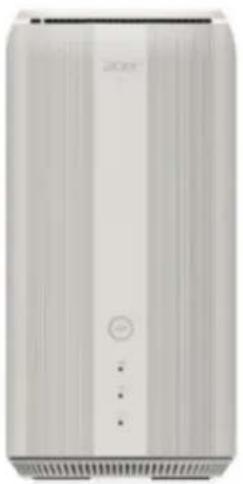
Acer Connect X6E
5G CPE
User Guide
v1.0
© 2023. All Rights Reserved.
This revision: Dec 2023
Important: This manual contains proprietary information that is protected by copyright laws. The information contained in this manual is subject to change without notice. Some features described in this manual may not be supported depending on the Operating System version. Images provided herein are for reference only and may contain information or features that do not apply to your device. Acer Group shall not be liable for technical or editorial errors or omissions contained in this manual.
Contents
-
Overview 3
-
Installation and Setup 3
-
Initial Configuration 6
-
Dashboard 7
-
Quick Setup 10
5.1 SG WAN 10 5.2 Ethernet WAN 11
- 5G Network 12
6.1 5G Network Status 12
6.2 Network Connection 12 6.3 Connecting Configuration Management 12
6.3 Connection Configuration Management 13 6.4 Network Mode 12
6.4 Network Mode 13 6.5 Data Usage 12
6.5 Data Orange 6.6 SIM Pin Management
6.7 SMS Inbox
- WAN
7.1 WAN status 14
7.2 WAN setting 15
7.3 Dual WAN setting 15 7.4 DMZ 15
7.4 DMZ 15 7.5 WAN ping 16
7.6 NAT pass-through
7.7 Firewall 16
7.8 Port forwarding 17
- WEL 17
8.1 WiFi Status 17
1. Overview
Acer Connect series X6E, a whole new Wi-Fi 6E Tri-band (2.4GHz + 5GHz/6GHz) AXE5400 dual WAN mode wireless router, with intensive features and simple setup steps via a 1-2-3 wizard. 5G SIM card or Ethernet WAN connectivity is available for Internet access. Home Network Security protection is embedded. Live updates ensure your network is immune from malware and vulnerability threats 24-7. ACS (Automatic Channel Selection) dynamically chooses the most suitable channel for the X6E when you experience interference from nearby 5GHz SSIDs. X6E has a built-in NFC feature, and when your phone is NFC enabled, you can touch your phone to the Acer Connect X6E's NFC area to connect to the Acer Connect X6E's WiFi without entering a password. Port forwarding profiles for most game consoles (PS5, XBOX, etc.) are readily available inside for gameplay.
2. Installation and Setup
2.1. Plug in the AC adapter.

2.2. Plug into an outlet.

2.3 Plug-in Internet cable and power ON the device

2.4 Insert 5G SIM into the SIM slot

2.5 Connect to Acer Connect X6E WiFi.

2.6 Important information is at the bottom of the device.

2.7 The device can be set up via browser web admin.
Setup the router via browser:
- Please make sure that the wireless function on your laptop is already enabled.
- Check the device's bottom label, and find the router's default SSID (X6E-XXXX) and password and then connect.
- Open the browser on your laptop/desktop, and input the device web admin URL: http://acer-connect.com or IP: http://192.168.76.1
- The device will automatically redirect to a quick setup wizard. Follow the easy 1-2-3 steps and get ready to access the internet.
Note: The admin login password requires modification within the setup wizard for first-time use. Please create a strong password and keep it in a safe place. (The new password cannot be the same as the prior one.)
Note: The router web admin portal will automatically lock after five consecutive incorrect attempts. You have to power cycle the router to unlock the web admin.
Note: The SSID WiFi password can't be the same as the admin login password.
The browser can help the router to do a quick setup. Web UI can execute all functions and settings of the router.
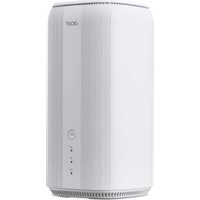
Here is the front and back view of the router with the feature indicators.
FRONT VIEW
BACK VIEW
3. Initial Configuration
Please log in to the Acer Connect X6E Web Portal (http://acer-connect.com or IP: http://192.168.76.1) by using the current valid Admin password. You can select the language of Web UI by clicking on the drop-down arrow.

For an admin password, refer to the label located at the bottom of the device.

4. Dashboard
Once you have successfully logged in, the following key information will be displayed on the Acer Connect X6E dashboard.
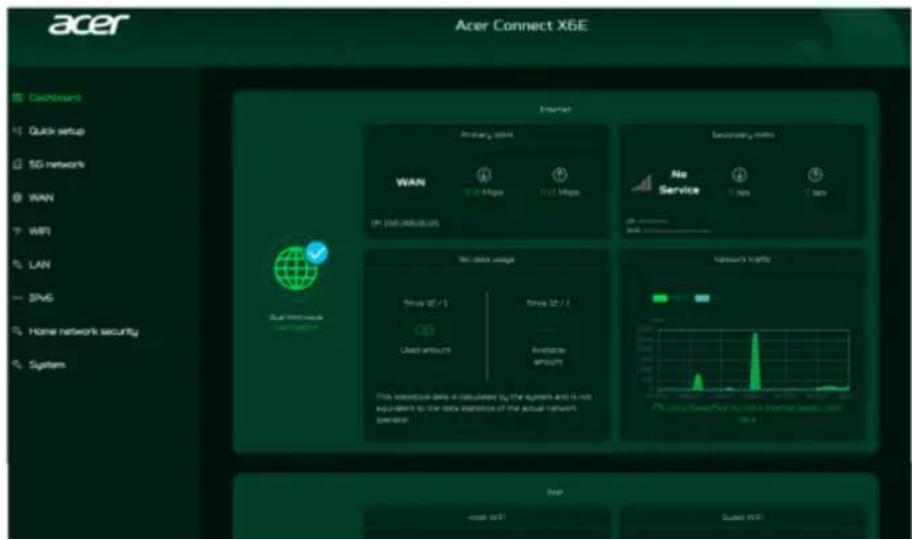
Connection Status: shows the current connection status of Internet.
WAN Status: shows primary and secondary WAN connectivity, download/upload speed and WAN IP.
Acer Connect X6E supports dual WAN mode. Primary WAN is for the ethernet connectivity; whereas the secondary WAN is for 5G SIM connectivity for Internet access.
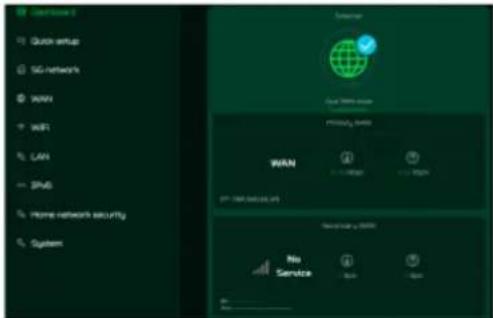
WiFi Status: shows the number of wireless client devices connected with 2.4GHz, 5GHz and 6GHz bands of host WiFi and Guest WiFi. It also shows the ON/OFF status of each band.
LAN Status: quickly indicates the status of LAN ports. Acer Connect X6E has two LAN ports and one RJ-11 phone port. LAN 1 will be set as WAN port for Internet access by default.
The "icon" (at the far right) represents the number of devices connected to the X6E router. Clicking on this icon will display the table shown below.
![graph TD A["Host WiFi"] --> B["XS3VALL,2.4GHz"] A --> C["XS3VALL,5GHz"] A --> D["XS3VALL,6GHz"] E["Quest WiFi"] --> F["XSE_guest,2.4GHz"] E --> G["XSE_guest,5GHz"] E --> H["XSE_guest,6GHz"] I["Clients"] --> J["Green icon with arrow pointing to Host WiFi"] style A fill:#90EE90,stroke:#333 style E fil…](/content/2026/06/1405352/images/6b9198be9c476edeaf056cd7665a2fef61e6dd7609670232e42104c4b218eed8.jpg)
Network Traffic: helps indicate real time connectivity speed of WAN & 5G.
You can even check the internet speed by clicking on the Speed Test, powered by Ookla.
This tab also displays the information about 5G data usage since the data package is activated on the SIM.
You can easily track the used amount and available amount in 5G data SIM through the X6E router's dashboard.
Note: The statistical data is calculated by the system and is not calculated to the data statistics of the actual network operator.

Network Speed Test:
Powered by Ookla. A push of the "Speed Test" button tests the speed

5. Quick Setup
In the quick setup tab, you will find two Internet sources i.e. 5G WAN and Ethernet WAN. You can select any of the WAN as a primary internet source, and the other one will automatically set up as a secondary Internet source.
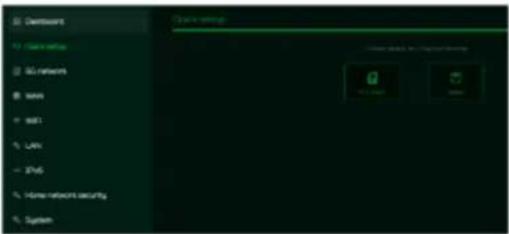
5.1 5G WAN Internet source
If you select 5G WAN as an Internet source, it will guide you to set up the router with a 5G SIM card.
1) Connect the power supply to the Acer Connect X6E.
2) Insert the SIM card into the SIM card slot at the bottom of the Acer Connect X6E.

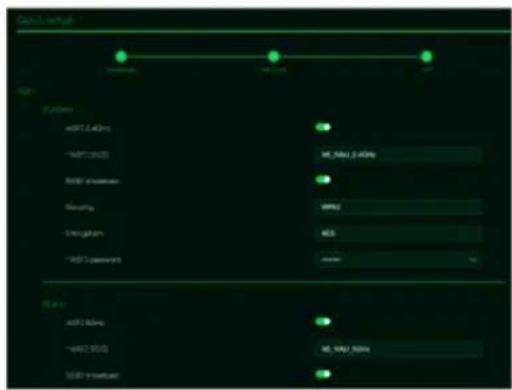
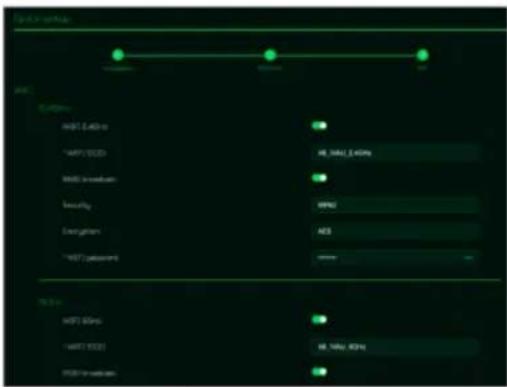
You can enable/disable the WiFi frequency bands, edit the WiFi SSIDs and passwords of 2.4/5/6GHz bands.
It supports WiFi 2.4G/5G/6GHz frequency bands, but only two bands can be activated at the same time. It could be 2.4GHz + 5GHz or 2.4GHz + 6GHz.
Click on "Done" to successfully perform the 5G WAN quick setup settings.
5.2 Ethernet WAN Internet source
If you select WAN as an Internet source, it will guide you to set up the router with Ethernet connectivity.
1) Connect the power supply to the X6E router.
2) Plug one end of the RJ-45 cable into your DSL or cable modem and the other end into Acer Connect X6E's WAN port.
3) Connect your device to Acer Connect X6E via WiFi or LAN
![graph TD A["Input Data"] --> B["Processing Unit"] B --> C["Output Module"] style A fill:#f9f,stroke:#333 style B fill:#ccf,stroke:#333 style C fill:#cfc,stroke:#333](/content/2026/06/1405352/images/971def0b231f358c5ddf4a9795e3c4fd5772e2c2a75fb7dd61e2ff3f58e55a58.jpg)
You can enable/disable the WiFi frequency bands, edit the WiFi SSIDs and passwords of 2.4/5/6GHz bands.
It supports WiFi 2.4G/5G/6GHz frequency bands, but only two bands can be activated at the same time. It could be 2.4GHz + 5GHz or 2.4GHz + 6GHz.
Click on "Done" to successfully perform the Ethernet WAN quick setup settings.
6. 5G Network
6.1 5G Network Status
This tab displays key information of 5G NR/4G LTE networks such as:
• SIM status
- Connection status
- Your number

6.3 Connection Configuration Mgmt.
Connection configuration
management allows you to set up a new APN profile or edit/delete existing profiles that have been created.
Note: The maximum number of configuration is 15.

6.4 Network Mode
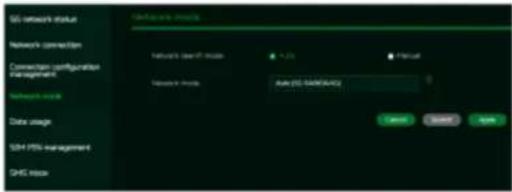
Network search mode will be "Auto" by default. Click on the drop-down list to select the network mode among the following options: Auto (5G NSA/4G), Auto (5G SA/NSA/4G), 5G SA only, 4G only.
6.5 Data Usage
Internet statistics can be seen here for both your current and your total traffic for the whole month. This

6.6 SIM Pin Management
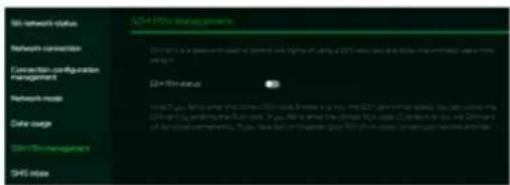
SIM pin is a password used to control the rights to use a SIM card, and prevents unauthorized users from using it.
Note: If you fail to enter the correct PIN code 3 times in a row, the SIM card will be locked. You can unlock the SIM card by entering the PUK code. If you fail to enter the correct PUK code 10 times in a row, the SIM card will be locked permanently. If you have lost or forgotten your PIN (PUK) code, contact your service provider.
6.7 SMS Inbox
The SMS inbox is where you can view all of your account's incoming texts.
A total of 100 SMS texts can be stored and viewed from this tab.

7. WAN
7.2 WAN Setting:
On this page, you can set up Ethernet WAN connection mode to DHCP, Static IP, PPPoE or switch WAN port to LAN, depending on your connection usage. Click on the down arrow to reveal the drop-down menu to select your preferred WAN settings.

7.3 Dual WAN Setting:
Acer Connect X6E has two WAN connections; wireless 5GNR and Ethernet WAN. Users can select primary and secondary WAN. Users can select dual WAN mode as failover or load balance.
Note: Please be aware that changes to the dual WAN mode could affect your network connection. Client devices may be disconnected and reconnected again.

7.4 DMZ
DMZ is physical or logical

7.5 WAN Ping
By enabling this feature, WAN port of ACER Connect X6E will respond to ping requests that are sent to the WAN IP address from the Internet.
For better security, keep the feature turned OFF, and the device will not respond to a WAN ping.

7.6 NAT pass-through
NAT pass-through allows a Virtual Private Network (VPN) connection to pass through the router to the external network.

7.7 Firewall

7.7 Port Forwarding
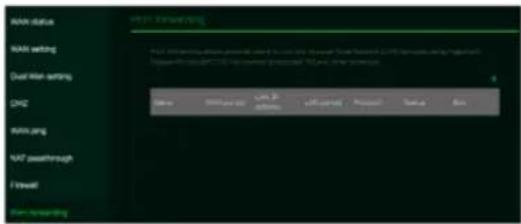
This feature allows external users to connect to Local Area Network (LAN) services using Hypertext Transfer Protocol (HTTP), File transfer protocols (FTP), and other protocols. To add any application, click on (+) icon and select a required service.
You can select any service profile from common services tab and it will then automatically show its name, the port number and its protocol.
Enter the LAN IP address and select the status ON/OFF and click on the "Apply" button to activate the service.
We have added a new game console profile including:
- Xbox network
- Play Station 5
- Play Station 4
• Nvidia GeForce Now - Steam

8.2 Basic Settings
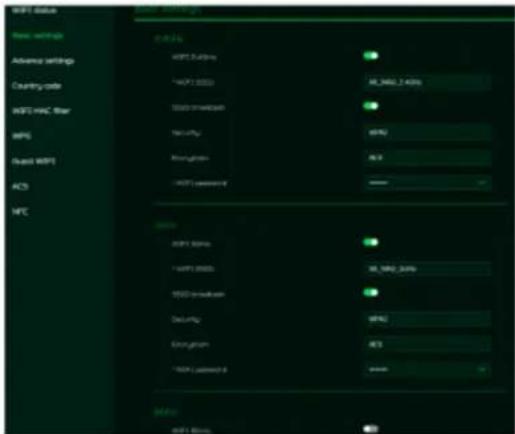
This tab shows only when the X6E is configured in router mode. In this page, you can edit WiFi SSID and enable or disable SSID broadcast and use the following security parameters for 2.4GHz, 5GHz & 6GHz bands.
It supports WiFi 2.4G/5G/6GHz frequency band, but only two bands can be activated at the same time. It could be 2.4GHz + 5GHz or 2.4GHz + 6GHz.
8.3 Advanced Settings
This tab will help you to setup advanced WiFi parameters for 2.4GHz, 5GHz & 6GHz band.
AP isolation is a feature that enables you to create a separate virtual network preventing client communicating with each other and preventing unwanted hacking. This feature is disabled by default.

8.5 WiFi MAC filter
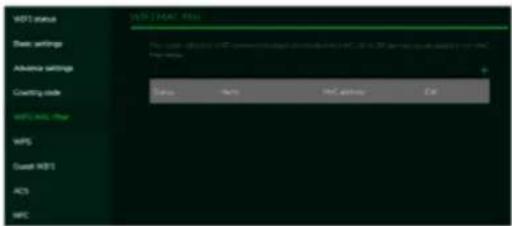
Devices that are added to the WiFi MAC filter will be blocked from accessing the Internet. Click on the (+) icon to add the device to the filter table by entering its name & MAC address. Up to 32 devices can be added to the MAC filter.
8.6 WPS
WPS (WiFi Protected Setup) provides an easy way to connect your device to the network by pushing the WPS button (next to the USB port) or entering a PIN code.

On this page, you can configure the WPS settings of 2.4GHz and 5GHz bands. There are two methods to configure WPS i.e. using a PIN (client's pin or Router's pin) or you can choose a second method, in which you need to click on "Start WPS", then enable WPS on your wireless device within two minutes. WPS will be disabled, if WiFi set to WPA3, WPA, or TKIP mode, or if the SSID broadcast is
8.8 ACS (Automatic Channel Selection)
ACS is a mechanism to optimize the channel assignment. It selects the best working channel dynamically. One that is clear and has the least traffic.
Note 1: There will be a small delay, rescanning, and then cycling OFF and ON if the client is associated with the ACS enablement band. Please check your device's wireless connection and select the best WiFi X6E router SSID after the ACS process is completed.
Note 2: The ACS is not applicable if all three bands (2.4GHz, 5GHz, and 6GHz) are configured as fixed channels. ACS is disabled when none of the WiFi channels are set to auto.

8.9 NFC
When your phone is NFC-enabled (Near Field Communication), touch your phone to the Acer Connect X6E's NFC area to connect to the Acer Connect X6E's WiFi without entering a password.

LAN Setting
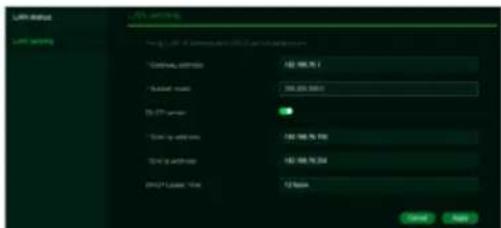
This tab allows you to set up a LAN IP gateway address with an option to enable or disable the DHCP server feature. You can enter the gateway address and subnet mask. DHCP provides and assigns IP addresses, default gateways, and other network parameters to client devices. DHCP server can be enabled or disabled as per the network requirement.
The following subnets are reserved for default services. Please do not use it as a gateway address.
- 192.168.7.x (IPsec VPN)
- 192.168.8.x (Open VPN)
- 192.168.10.x (Guest WiFi)
10. IPv6
You can set IPv6 settings from this tab. The Acer Connect X6E supports following IPv6 modes:
DHCPv6, static IPv6, PPPoE, 464xlat, 6rd, DS-Lite.
The connection mode will be DHCPv6 by default.

status and select the following categories for blocking websites.
Note: 1) URL controller can only manage website URLs or URL keywords, apps are unable to be blocked.
2) Before blocked URLs take effect, this setting may ask you to clear the DNS cache on the devices.

12. SYSTEM
12.1 Login Password You can change the

12.3 languages
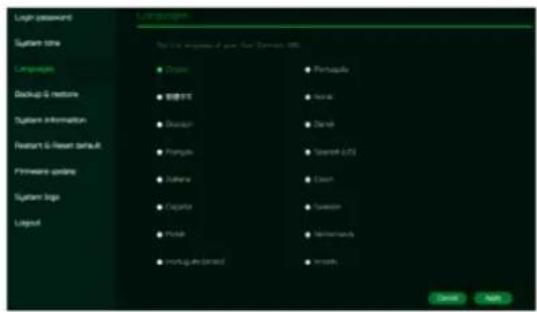
You can select the language of your Acer Connect X6E from this tab.
12.4 Backup and Restore
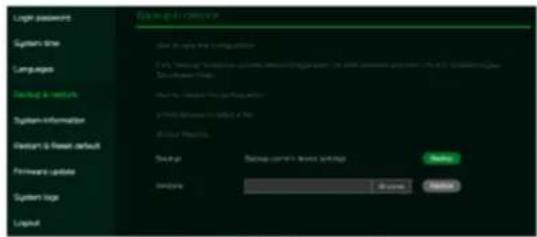
In this tab, you can check how to save the configuration: Click on "Backup" to backup current device configuration. On both Windows and MAC OS, this is saved to your 'Downloads' folder.
How to restore the configuration: 1) Click Browse to select a file 2) Click Restore
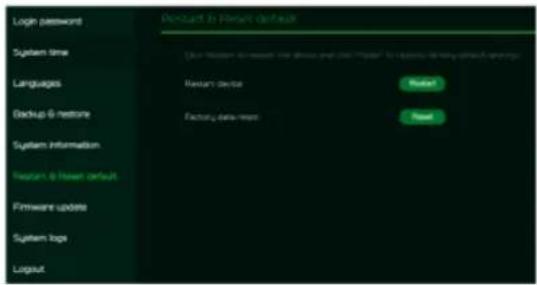
12.6 Restart and Reset Default From this tab, you can click on "Restart" to reboot the router and click on "Reset" to restore the factory default settings.
12.7 Firmware Update In this tab, you can check the existing firmware version and also, click on "check new", to see if there is an update available.
You may click on the top right icon "New firmware available" to upgrade the Acer Connect X6E with the latest firmware.

Note: Do not power off your Acer Connect X6E during the
13. Troubleshooting
13.1 Quick Tips
This section describes common issues that you can encounter.
Sequence to restart the device and network:
-
Unplug the modem power plug.
-
Plug in the modem power plug. Wait for two minutes till the modem LED is steady as before.
13. 2 Frequently Asked Questions (FAQs)
13.2.1 What can I do if I forget my wireless password?
- Connect to the X6E router via Ethernet cable LAN.
- Visit device portal http://acer-connect.com and login admin.
- Go to WiFi -> Basic settings/Retrieve or reset the WiFi passwords.
13.2.2 What can I do if I forget the router's web portal admin password?
Reset the device by pressing and holding the reset key over 10 seconds and then release it. After the device restores to factory default, please login web admin portal with admin PWD, label printed on the bottom of the device.
Note 1: The device web admin will be locked after 5 wrong password attempts. The user is required to reboot the device to disable the web admin.
Note 2: Remember to set up the device's internet connection after resetting. Remember to also change the admin password.
13.2.3 What can I do if I can't log into the router's web admin portal?
Please follow the steps below to check on your client's device.
14. Factory Default Settings
| Router web admin | |
| URL | http://acer-connect.com or http://192.168.76.1 |
| Login Password (case-sensitive) | XXXXXXXXX(XXXXXXXX is randomized variable). Please check the device's bottom label) |
| Local Network (LAN) | |
| Gateway address | 192.168.76.1 |
| Subnet mask | 255.255.255.0 |
| DHCP server | 192.168.76.1 |
| DHCP range | 192.168.76.100 to 192.168.76.254 |
| Time zone | Depends on the country or region you bought the router. |
| DHCP starting IP address | 192.168.76.100 |
| DHCP ending IP address | 192.168.76.254 |
| Time adjusted for daylight save time | Enabled. |
| Wireless LAN (WLAN) | |
| WiFi SSID (case-sensitive) | 2.4GHz: X6E_YYYY_2.4GHz5GHz: X6E_YYYY_5GHz6GHz: X6E_YYYY_6GHz(YYYY is randomized variables. Please check the device's bottom label) |
| Security | 2.4GHz: WPA2/WPA3 |
15. Router Basic Specification
| Processor | System | OpenWRT |
| CPU | Qualcomm SDX62 + IPQ5018 + QCN9024 | |
| Memory | LPDDR | 256MB |
| Storage | 512MB | |
| Wireless LAN | IEEE standard | 802.11 a/b/g/n/ac/ax |
| Band | Tri-band, 2.4 + 5/6GHz | |
| Throughput | AXES400 | |
| MU-MIMO | 2+4 streams2.4GHz: 2x2 MIMO streams, 1024/256 QAM,20/40MHz, 574MBps5GHz: 4x4 MIMO streams, 1024/256 QAM,20/40/80/160MHz, 4804Mbps or6GHz: 4x4 MIMO streams, 1024/256 QAM,20/40/80/160MHz, 4804Mbps | |
| Max Connected Devices | 2.4 + 5/6GHz total: 128 devices | |
| Ethernet | WAN | 1 x 1Gbps |
| LAN | 1 x 1Gbps with 1 RJ-11 telephone port | |
| Form factor | Dimension | 101mm x 101mm x 206mm (L x W x T) |
| Wall mount | No | |
| Weight | 930g | |
| Input Voltage | AC 100-240V, 50-60Hz, 1.6A |

- ACER CONNECT X6E
- 5G CPE
- © 2023. ALL RIGHTS RESERVED
- CONTENTS
- OVERVIEW
- INSTALLATION AND SETUP
- SETUP THE ROUTER VIA BROWSER
- INITIAL CONFIGURATION
- DASHBOARD
- NETWORK SPEED TEST
- QUICK SETUP
- 5.1 5G WAN INTERNET SOURCE
- 5.2 ETHERNET WAN INTERNET SOURCE
- 5G NETWORK
- 6.1 5G NETWORK STATUS
- 6.3 CONNECTION CONFIGURATION MGMT
- 6.4 NETWORK MODE
- 6.5 DATA USAGE
- 6.6 SIM PIN MANAGEMENT
- 6.7 SMS INBOX
- WAN
- 7.2 WAN SETTING
- 7.3 DUAL WAN SETTING
- 7.4 DMZ
- 7.5 WAN PING
- 7.6 NAT PASS-THROUGH
- 7.7 FIREWALL
- 7.7 PORT FORWARDING
- 8.2 BASIC SETTINGS
- 8.3 ADVANCED SETTINGS
- 8.5 WIFI MAC FILTER
- 8.6 WPS
- 8.8 ACS (AUTOMATIC CHANNEL SELECTION)
- 8.9 NFC
- LAN SETTING
- IPV6
- SYSTEM
- 12.3 LANGUAGES
- 12.4 BACKUP AND RESTORE
- TROUBLESHOOTING
- 13.1 QUICK TIPS
- 2 FREQUENTLY ASKED QUESTIONS (FAQS)
- FACTORY DEFAULT SETTINGS
- ROUTER BASIC SPECIFICATION
Marque : ACER
Modèle : Connect X6E
Catégorie : Routeur