
Evolve 2 ETX-8640 - Tableau blanc interactif Legamaster - Notice d'utilisation et mode d'emploi gratuit
Retrouvez gratuitement la notice de l'appareil Evolve 2 ETX-8640 Legamaster au format PDF.


| Type de produit | Tableau blanc interactif |
| Marque | Legamaster |
| Modèle | Evolve 2 ETX-8640 |
| Dimensions (L x H x P) | Environ 195 x 120 x 5 cm |
| Poids | Environ 25 kg |
| Alimentation | USB (5 V) ou adaptateur secteur (non inclus) |
| Type d'interactivité | Optique (capteurs infrarouges) avec stylet passif |
| Zone active | Zone d'écriture principale de 86 pouces (16:9) |
| Résolution de la surface | Jusqu'à 32767 x 32767 points |
| Connectivité | USB 2.0 (Type B) pour ordinateur, Bluetooth low energy (option) |
| Logiciel compatible | Windows (7/10/11), macOS (10.14+), Chrome OS, Linux |
| Fonctions principales | Écriture tactile, annotation, sauvegarde, partage d'écran |
| Type de stylet | Stylet passif sans pile (2 inclus) |
| Entretien et nettoyage | Nettoyer avec un chiffon doux et sec. Éviter produits abrasifs. |
| Sécurité | Ventouse de sécurité pour fixation murale incluse |
| Pièces détachées et réparabilité | Stylets et câbles USB disponibles en option |
| Informations générales | Garantie 2 ans. Température d'utilisation : 0°C à 40°C |
FOIRE AUX QUESTIONS - Evolve 2 ETX-8640 Legamaster
Questions des utilisateurs sur Evolve 2 ETX-8640 Legamaster
0 question sur cet appareil. Repondez a celles que vous connaissez ou posez la votre.
Poser une nouvelle question sur cet appareil
Téléchargez la notice de votre Tableau blanc interactif au format PDF gratuitement ! Retrouvez votre notice Evolve 2 ETX-8640 - Legamaster et reprennez votre appareil électronique en main. Sur cette page sont publiés tous les documents nécessaires à l'utilisation de votre appareil Evolve 2 ETX-8640 de la marque Legamaster.
MODE D'EMPLOI Evolve 2 ETX-8640 Legamaster

Evolve 2 ETX 40 Series Touchscreen display Integration Handbuch
English
Deutsch
Nederlands
Français
Español
Inhaltsübersicht
01 TECHNISCHE DATEN 3
1.1 UNTERSTÜTZTE TAKTFREQUENZEN 4
02 SERIELLE KOMMUNIKATION 5
2.1 RS-232-ANSCHLUSS UND PORT-KONFIGURATION 5
03 ABMESSUNGEN 8
3.1 ETX-5540 8
3.2 ETX-6540 9
3.3 ETX-7540 10
3.4 ETX-8640 11
3.5 VERPACKUNG 12
TECHNISCHE DATEN
1. TECHNISCHE DATEN
| TECHNISCHE DATEN | ||||
| Bildiagonale | 55" | 65" | 75" | 86" |
| Display | LED LCD | LED LCD | LED LCD | LED LCD |
| Display-Auflösung | 3840 x 2160 | 3840 x 2160 | 3840 x 2160 | 3840 x 2160 |
| Helligkeit | 450 cd/m2 | 450 cd/m2 | 500 cd/m2 | 500 cd/m2 |
| Kontrastverhältnis | 5000:1 | 5000:1 | 1200:1 | 4000:1 |
| Reaktionszeit | 8ms | 8ms | 9ms | 9ms |
| Bildfrequenz | 60Hz | 60Hz | 60Hz | 60Hz |
| Betrachtungswinkel | 178° | 178° | 178° | 178° |
| Unterstützte Farben | 1.07G | 1.07G | 1.07G | 1.07G |
| Hintergrundbeleuchtung | Direct LED | Direct LED | Direct LED | Direct LED |
| Lebensdauer | 50.000Hrs | 50.000Hrs | 50.000Hrs | 50.000Hrs |
| Bildschirmausrichtung | Querformat | Querformat | Querformat | Querformat |
| Betriebssystem | Android 13 | Android 13 | Android 13 | Android 13 |
| Touch-Technologie | IR | IR | IR | IR |
| Anzahl Berührungspunkte | 50 | 50 | 50 | 50 |
| Reaktionszeit | <= 5ms | <= 5ms | <= 5ms | <= 5ms |
| Mindest-Eingabegröße | 1mm | 1mm | 1mm | 1mm |
| Eingangsanschlüsse | USB-C x2, USB-A 2.0 x3, USB 3.0x5, Ethernet, DP 1.2 x1, HDMI 2.0 x3, RS-232, Touch USB-B x3 | |||
| Ausgangsanschlüsse | HDMI 2.1 x1, Audio Out, S/PDif Out, Ethernet, USB-C | |||
| OPS-Steckplatz | Ja | |||
| Wi-Fi Modul | Optional | |||
| Lautsprecher | 2 x 15W + 1x 15W | |||
| VESA 100x100 | Ja | |||
| Glas | 3 mm Tempered | |||
| Glas-Beschichtung | AG + AF | |||
| Stromversorgung | AC 100-240V 50/60Hz | |||
| ECO Sensor | Optional | |||
| Betriebstemperatur | 0 - 40°C | |||
| Betrieb Luftfeuchtigkeit | 35 - 85% RH (No Cond.) | |||
| VESA Standard | 400 x 400 | 600 x 400 | 800 x 600 | 800 x 600 |
TECHNISCHE DATEN
1.1 UNTERSTÜTZTE TAKTFREQUENZEN
| HDMI Timings | DP Timings | Type-C Timings | |||
| 1 | 640x480/60Hz | 1 | 640x480/60Hz | 1 | 640x480/60Hz |
| 2 | 640x480/75Hz | 2 | 640x480/75Hz | 2 | 640x480/75Hz |
| 3 | 720x576P/50Hz | 3 | 720x576P/50Hz | 3 | 720x576P/50Hz |
| 4 | 720x480P/60Hz | 4 | 720x480P/60Hz | 4 | 720x480P/60Hz |
| 5 | 800x600/60Hz | 5 | 800x600/60Hz | 5 | 800x600/60Hz |
| 6 | 800x600/75Hz | 6 | 800x600/75Hz | 6 | 800x600/75Hz |
| 7 | 1024x768/60Hz | 7 | 1024x768/60Hz | 7 | 1024x768/60Hz |
| 8 | 1024x768/75Hz | 8 | 1024x768/75Hz | 8 | 1024x768/75Hz |
| 9 | 1280x960/60Hz | 9 | 1280x960/60Hz | 9 | 1280x960/60Hz |
| 10 | 1280x1024/60Hz | 10 | 1280x1024/60Hz | 10 | 1280x1024/60Hz |
| 11 | 1280x1024/75Hz | 11 | 1280x1024/75Hz | 11 | 1280x1024/75Hz |
| 12 | 1600x1200/60Hz | 12 | 1600x1200/60Hz | 12 | 1600x1200/60Hz |
| 13 | 1280x720P/50Hz | 13 | 1280x720P/50Hz | 13 | 1280x720P/50Hz |
| 14 | 1280x720P/60Hz | 14 | 1280x720P/60Hz | 14 | 1280x720P/60Hz |
| 15 | 1920x1080I/50Hz | 15 | 1920x1080I/50Hz | 15 | 1920x1080I/50Hz |
| 16 | 1920x1080I/60Hz | 16 | 1920x1080I/60Hz | 16 | 1920x1080I/60Hz |
| 17 | 1920x1080P/50Hz | 17 | 1920x1080P/50Hz | 17 | 1920x1080P/50Hz |
| 18 | 1920x1080P/60Hz | 18 | 1920x1080P/60Hz | 18 | 1920x1080P/60Hz |
| 19 | 3840x2160/30Hz | 19 | 3840x2160/30Hz | 19 | 3840x2160/30Hz |
| 20 | 3840x2160/60Hz | 20 | 3840x2160/60Hz | 20 | 3840x2160/60Hz |
SERIELLE KOMMUNIKATION
2. SERIELLE KOMMUNIKATION
Der Monitor verwendet ein einfaches textbasiertes Steuerprotokoll, mit dessen Hilfe Anfragen von Steuerungsgeräten angenommen und Antworten an diese Geräte zurückgegeben werden. In diesem Abschnitt wird beschrieben, wie Steuermeldungen über eine serielle Verbindung zwischen dem Monitor und einem Automations-/Steuersystem oder einem PC gesendet werden, auf dem ein Terminalemulationsprogramm wie Windows® HyperTerminal oder Tera Term läuft.
2.1 RS-232-ANSCHLUSS UND PORT-KONFIGURATION
Schließen Sie Ihr Steuersystem oder den PC an den RS-232-Eingang des Monitors an.
Konfigurieren Sie den RS-232-Controller oder den seriellen Port des PCs wie folgt:
- Baud rate: 115200 (as a default), können Sie diesen Parameter auch auf dem Bildschirm konfigurieren.
- 8bit
- non parity
- 1 stop bit
| Direct Input Commands | ||
| Mode | Code | Description |
| POWER OFF | 02 50 57 44 3A 30 30 30 03 | Power ON Direct Command |
| POWER ON | 02 50 57 44 3A 30 30 31 03 | Power OFF Direct Command |
| ANDROID | 02 49 4E 50 3A 30 30 30 03 | Input Switch to Android Command |
| PC | 02 49 4E 50 3A 30 30 34 03 | Input Switch to OPS Command |
| VGA | 02 49 4E 50 3A 30 30 35 03 | Input Switch to VGA Command |
| HDMI 1 | 02 49 4E 50 3A 30 30 38 03 | Input Switch to HDMI 1 Command |
| HDMI 2 | 02 49 4E 50 3A 30 30 39 03 | Input Switch to HDMI 2 Command |
| DP | 02 49 4E 50 3A 30 31 32 03 | Input Switch to DP Command |
| HDMI 3 | 02 49 4E 50 3A 30 31 35 03 | Input Switch to HDMI 3 Command |
| USB C1 | 02 49 4E 50 3A 30 31 36 03 | Input Switch to USB C Side Command |
| USB C2 | 02 49 4E 50 3A 30 31 30 03 | Input Switch to USB C Bottom Command |
SERIELLE KOMMUNIKATION
| Remote Control Key Commands | ||
| Mode | Code | Description |
| REMOTE KEY 0 | 02 4B 45 59 3A 30 30 30 03 | Remote control Key 0 |
| REMOTE KEY 1 | 02 4B 45 59 3A 30 30 31 03 | Remote control Key 1 |
| REMOTE KEY 2 | 02 4B 45 59 3A 30 30 32 03 | Remote control Key 2 |
| REMOTE KEY 3 | 02 4B 45 59 3A 30 30 33 03 | Remote control Key 3 |
| REMOTE KEY 4 | 02 4B 45 59 3A 30 30 34 03 | Remote control Key 4 |
| REMOTE KEY 5 | 02 4B 45 59 3A 30 30 35 03 | Remote control Key 5 |
| REMOTE KEY 6 | 02 4B 45 59 3A 30 30 36 03 | Remote control Key 6 |
| REMOTE KEY 7 | 02 4B 45 59 3A 30 30 37 03 | Remote control Key 7 |
| REMOTE KEY 8 | 02 4B 45 59 3A 30 30 38 03 | Remote control Key 8 |
| REMOTE KEY 9 | 02 4B 45 59 3A 30 30 39 03 | Remote control Key 9 |
| R.KEY VOLUMEUP + | 02 4B 45 59 3A 30 31 32 03 | Remote Control Volume Key + |
| R.KEY VOLUMEDOWN | 02 4B 45 59 3A 30 31 33 03 | Remote Control Volume Key - |
| REMOTE KEY MENU | 02 4B 45 59 3A 30 31 34 03 | Remote Control Menu Key |
| REMOTE KEY SELECT | 02 4B 45 59 3A 30 31 35 03 | Remote Control Select Key |
| REMOTE KEY EXIT | 02 4B 45 59 3A 30 31 36 03 | Remote Control Exit Key |
| REMOTE KEY UP | 02 4B 45 59 3A 30 31 37 03 | Remote Control UP Key |
| REMOTE KEY DOWN | 02 4B 45 59 3A 30 31 38 03 | Remote Control DOWN Key |
| REMOTE KEY LEFT | 02 4B 45 59 3A 30 31 39 03 | Remote Control LEFT Key |
| REMOTE KEY RIGHT | 02 4B 45 59 3A 30 32 30 03 | Remote Control RIGHT Key |
| R.KEY POWER(ON) | 02 4B 45 59 3A 30 32 31 03 | Remote Control Power ON Key |
| REMOTE KEY INPUT | 02 4B 45 59 3A 30 32 32 03 | Remote Control Input Key |
| REMOTE KEY MUTE | 02 4B 45 59 3A 30 32 33 03 | Remote Control MUTE Key |
| REMOTE KEY INFO | 02 4B 45 59 3A 30 32 34 03 | Remote Control INFO Key |
| R.KEY PICTUREMODE | 02 4B 45 59 3A 30 32 35 03 | Remote Control Change Picture Mode Key |
| R.KEY AUDIOMODE | 02 4B 45 59 3A 30 32 36 03 | Remote Control Change Audio Mode Key |
| REMOTE KEY SLEEP | 02 4B 45 59 3A 30 32 38 03 | Remote Control Sleep Key |
| REMOTE KEY RETURN | 02 4B 45 59 3A 30 33 31 03 | Remote Control Return/Back Key |
| REMOTE KEY FREEZE | 02 4B 45 59 3A 30 33 35 03 | Remote Control Freeze Tool Key |
| R.KEY POWER(OFF) | 02 4B 45 59 3A 30 34 38 03 | Remote Control Power OFF Key |
| REMOTE KEY HOME | 02 4B 45 59 3A 30 36 30 03 | Remote Control HOME Key |
| REMOTE KEY PC (OPS) | 02 4B 45 59 3A 30 36 31 03 | Remote Control Switch to OPS Key |
SERIELLE KOMMUNIKATION
| e-Screen Control Commands | ||
| Mode | Code | Description |
| CMD BLU OFF | 02 42 4C 54 3A 30 30 30 03 | Turn Backlight OFF Command |
| CMD BLU ON | 02 42 4C 54 3A 30 30 31 03 | Turn Backlight ON Command |
| CMD SET VOL | 02 56 4F 4C 3A 30 30 31 03 | Set Volume to 001 Ex: 02 56 4F 4C 3A 3X 3X 3X 03 |
| 02 56 4F 4C 3A 31 30 30 03 | Set Volume to 100 Ex: 02 56 4F 4C 3A 3X 3X 3X 03 | |
| CMD SET MUTE | 02 4D 55 54 3A 30 30 31 03 | Activate MUTE Command |
| CMD SET UNMUTE | 02 4D 55 54 3A 30 30 30 03 | Deactivate MUTE Command |
| CMD SET LOCKON | 02 50 41 44 3A 30 30 31 03 | Activate Lock Command |
| CMD SET LOCKOFF | 02 50 41 44 3A 30 30 30 03 | Deactivate Lock Command |
| CMD SET DYNAMIC | 02 50 49 43 3A 30 30 30 03 | Switch Picture Mode to Dyamic Command |
| CMD SET STANDARD | 02 50 49 43 3A 30 30 31 03 | Switch Picture Mode to Standard Command |
| CMD SET SOFT | 02 50 49 43 3A 30 30 32 03 | Switch Picture Mode to Soft Command |
| CMD SET USER | 02 50 49 43 3A 30 30 33 03 | Switch Picture Mode to USER Command |
| CMD SET WRITING | 02 50 49 43 3A 30 30 36 03 | Switch Picture Mode to Writing Command |
| CMD SET STANDARD | 02 53 4E 44 3A 30 30 30 03 | Switch Audio Mode to Standard Command |
| CMD SET MUSIC | 02 53 4E 44 3A 30 30 31 03 | Switch Audio Mode to Music Command |
| CMD SET MOVIE | 02 53 4E 44 3A 30 30 32 03 | Switch Audio Mode to Movie Command |
| CMD SET USER | 02 53 4E 44 3A 30 30 34 03 | Switch Audio Mode to USER Command |
| CMD SET FULL | 02 50 41 4D 3A 30 30 30 03 | Set Aspect Ratio to 16:9 Command |
| CMD SET REAL | 02 50 41 4D 3A 30 30 32 03 | Set Aspect Ratio to Per to Per Command |
| CMD FREEZE OFF | 02 46 52 45 3A 30 30 30 03 | Freeze the current screen Frame Command |
| CMD FREEZE ON | 02 46 52 45 3A 30 30 31 03 | De-freeze the current screen Frame Command |
| CMD SET CON | 02 43 4F 4E 3A 30 30 30 03 | Set Contrast to 001 Ex: 02 56 4F 4C 3A 3X 3X 3X 03 |
| 02 43 4F 4E 3A 31 30 30 03 | Set Contrast to 100 Ex: 02 56 4F 4C 3A 3X 3X 3X 03 | |
| CMD SET BRT | 02 42 52 54 3A 30 30 30 03 | Set Brightness to 001 Ex: 02 56 4F 4C 3A 3X 3X 3X 03 |
| 02 42 52 54 3A 31 30 30 03 | Set Brightness to 100 Ex: 02 56 4F 4C 3A 3X 3X 3X 03 | |
| CMD SET SHA | 02 53 48 41 3A 30 30 30 03 | Set Sharpness to 001 Ex: 02 56 4F 4C 3A 3X 3X 3X 03 |
| 02 53 48 41 3A 31 30 30 03 | Set Sharpness to 100 Ex: 02 56 4F 4C 3A 3X 3X 3X 03 | |
| CMD SET SAT | 02 53 41 54 3A 30 30 30 03 | Set Saturation to 001 Ex: 02 56 4F 4C 3A 3X 3X 3X 03 |
| 02 53 41 54 3A 31 30 30 03 | Set Saturation to 100 Ex: 02 56 4F 4C 3A 3X 3X 3X 03 | |
ABMESSUNGEN
3.1 ETX-5540
ABMESSUNGEN
3.2 ETX-6540
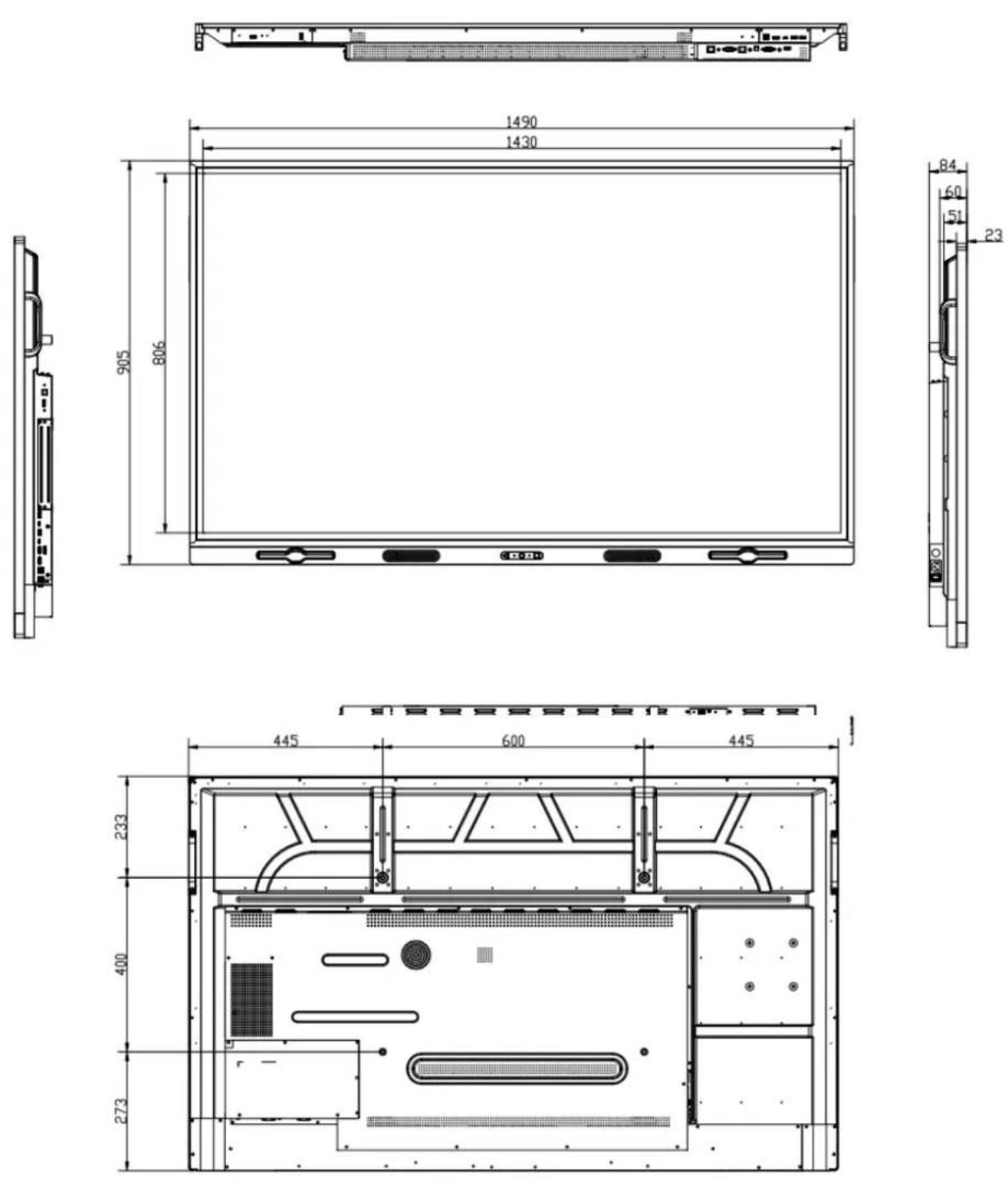
ABMESSUNGEN
3.3 ETX-7540
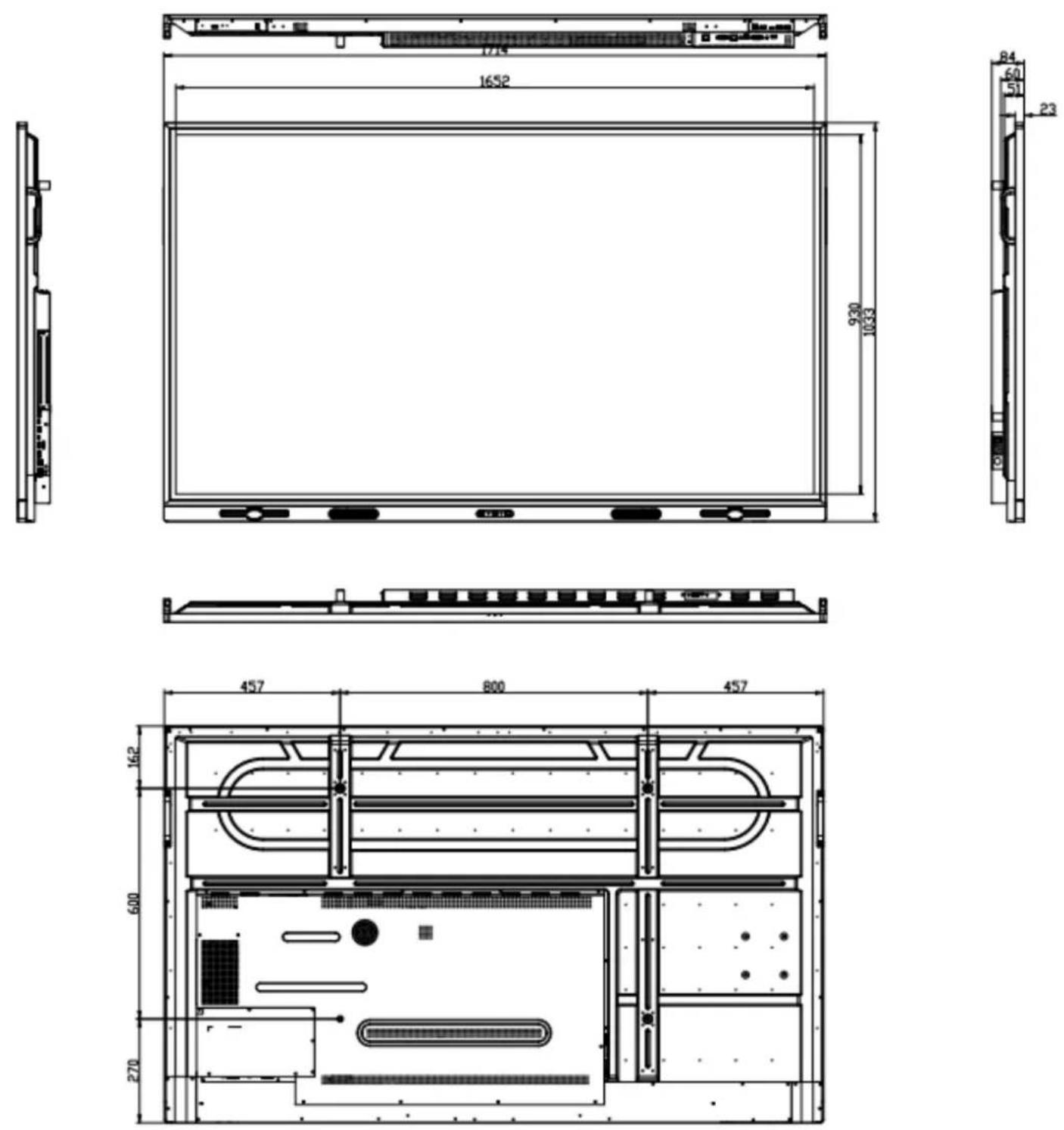
ABMESSUNGEN
3.4 ETX-8630

ABMESSUNGEN
3.5 VERPACKUNG
| Item | Description | Qu. |
| 1 | Screen | 1 |
| 2 | Anti-Static Bag | 1 |
| 3 | EPE Cushion Bottom | 1 |
| 4 | EPE Cushion Top | 1 |
| 5 | Cardboard Tray | 1 |
| 6 | Corner Plate | 4 |
| 7 | Accessory Bag | 1 |
| 8 | Carton | 1 |
| 9 | Carton Lock | 4 - 6 |

ETX-5540
| Produktabmessungen | 1271 x 781 x 83 (mm) |
| Verpackung | 1395 x 875 x 230 (mm) |
| Nettogewicht | 27.3 (kg) |
| Bruttogewicht | 32.8 (kg) |
ETX-6540
| Produktabmessungen | 1490.5 x 905.5 x 84 (mm) |
| Verpackung | 1615 x 1000 x 230 (mm) |
| Nettogewicht | 38.9 (kg) |
| Bruttogewicht | 45.5 (kg) |
ETX-7540
| Produktabmessungen | 1714 x 1033 x 84 (mm) |
| Verpackung | 1839 x 1127 x 230 (mm) |
| Nettogewicht | 48.9 (kg) |
| Bruttogewicht | 56.5 (kg) |
ETX-8640
| Produktabmessungen | 1959 x 1170 x 84 (mm) |
| Verpackung | 2084 x 1264 x 230 (mm) |
| Nettogewicht | 60.9 (kg) |
| Bruttogewicht | 70.6 (kg) |
Marque : Legamaster
Modèle : Evolve 2 ETX-8640
Catégorie : Tableau blanc interactif